Private browsing is a browsing mode offered in most browsers that do not save user history and cookies and leaves no trace after closing the window.
This browsing mode is ideal for those who use a shared PC or do not want their browsing data or cookies stored. However, users should keep in mind that private browsing does mean total online anonymity.
Chrome and Firefox are two of the most popular browsers. Keep reading for a head-to-head comparison of their private browsing modes.
Is private browsing mode safe?
Private browsing is designed to allow users to browse and leave no trace behind. User cookies are not carried over in private browsing and their browsing history is not saved. When the private browsing window is closed, any cookies or data will be destroyed.
Many people assume that they are anonymous when in private browsing mode, given that their browsing history isn’t stored. However, private browsing does not hide users’ IP addresses or locations, meaning that websites can still identify users who access their sites.
Most browsers are clear about the extent of the anonymity of private browsing and that it only prevents your history and cookies from being saved. For total anonymity and security, try using a VPN or a browser with a built-in VPN.
Chrome Incognito vs. Firefox private: key differences to know about
➡ Tracking protection
Firefox private browsing has tracking protection which prevents sites and companies from tracking users. Trackers follow users to collect browsing information and habits so they can create targeted ads. This feature also protects against harmful scripts and malware.
Chrome offers users the option to block third-party cookies as soon as an incognito window is opened. When activated, sites cannot track users around the web with cookies.
However, the reason this feature is allowed to be disabled instead of always-on is that it may cause issues with features on some websites.
➡ Interface
The purple mask symbol in the menu bar indicates private browsing in Firefox. Users can easily access it by clicking the three lines in the top right corner. The keyboard shortcut for private browsing in Firefox is Ctrl+Shift+P.
Like Firefox, users can access Incognito mode in Chrome by clicking on the three dots in the top right corner. When in an incognito window, a symbol will be displayed.
Users still have access to their bookmarks from the menu bar and can choose which extensions to be enabled in Incognito mode in settings. The keyboard shortcut for Incognito mode is Ctrl+Shift+N.
➡ Privacy
Google Chrome is very upfront about what private browsing protects. In Incognito mode, Chrome will not save browsing history, cookies, and login information. However, user activity may be visible to websites, employers or schools, and internet service providers.
Chrome also makes it clear that any downloads, bookmarks, and reading list items will be visible in the browser.
Firefox is also straightforward about user privacy, although it’s not as detailed as Chrome Incognito. Firefox clears all search and browsing history after ending a session in private browsing. Tracking protection helps keep users safe, but it does not make them anonymous.
While Firefox private browsing will not save downloaded files, those files will still be visible on your PC.
Both Chrome and Firefox are some of the fastest browsers on the market. Because Firefox has tracking protection, it blocks content and scripts from loading and weighing down browsing speed. For this reason, private browsing in Firefox is faster than in other browsers.
On the other hand, Chrome Incognito also runs fast because it has no extensions turned on. By default, Incognito mode does not enable any extensions, if users want a specific extension they need to manually enable it.
However, if users enable all extensions to run on Incognito mode, it may slow browsing speed down, giving Firefox the leg up when it comes to speed in private browsing.
➡ Add-ons
Firefox private browsing is compatible with extensions and will operate properly. Mozilla has an extension called Firefox Multi-Account Containers which allows users to separate online topics in a color-coded container system.
Cookies downloaded in one container are not accessible in others. This allows users to keep topics and browsing data separated. Users can create a container for private browsing to stay organized.
In Chrome, extensions can work in Incognito mode, but they need to be manually enabled. Users can allow specific extensions to work while browsing privately in the extension settings. Users should know that third-party add-ons may have access to browsing data and history.
Private browsing is a useful feature for many users, especially those with a shared computer. However, users should know that they are not anonymous while surfing the web in private mode unless they are using a VPN in combination with private browsing.
Firefox private browsing offers enhanced tracking protection to protect against harmful scripts and malware. Private browsing in Firefox also appears to be faster because this feature prevents content from weighing down web pages.
Chrome also has a simple interface and is very clear about the extent of anonymity in Incognito mode. Any extensions are disabled by default in Incognito mode to make it run faster. However, if you want to use a certain add-on, it must be manually enabled and might slow down browsing speed.
Firefox private browsing comes out on top with a faster browsing speed, enhanced tracking protection, and the Multi-Account Container add-on. You can also use Firefox incognito shortcut for quick and easy access.
If you want to know more about user privacy, we have a great guide on LibreWolf vs Firefox that will help you find the most private browser for your needs.
Let us know in the comments below your thoughts on private browsing and which browser you prefer to use.
If you had used the tool Powershell Windows Toolbox to install the Google Play Store on Windows 11 when the Windows Subsystem for Android was released, we have a huge warning for you. Spotted by the folks at Bleeping Computer, it turns out that the third-party tool might have actually injected malware into your system.
Once hosted on Github, and since removed, the app promised to debloat Windows as well as install the Google Play Store in a few clicks. However, it turns out that it was actually a virus, that executed hidden PowerShell scrips in the background of Windows 11 and install what’s known as a trojan clicker.
That Trojan clicker then pinged various Cloudflare servers and executed its own commands to pull infected files onto your device or redirect you to scam URLs. This was all thanks to the original instructions and script to launch the tool. It, in fact, did allow the app to do the things it intended, but also created hidden folders in Windows 11 and installed unwanted Chrome extensions.
Bleeping Computer has a great rundown of which folders in C:\systemfile you might want to delete if you were using this app. You also might want to try your luck at clean installing Windows, too, or restoring from a backup that pre-dates when you first installed the tool.
As we say every time, always be careful when you download tools that claim to change Windows. Keep your antivirus up to date, and never download programs that you don’t trust.
The AVM-powered FritzBox is a highly appreciated router and we dare say, it’s for all the right reasons. Smart WiFi-compliant and packed with advanced functionalities, the FritzBox is unfortunately not compatible with commercial VPNs.
But does that mean you cannot use it on Windows 11 PCs, for example? Of course not. In fact, there are 3 methods available:
Set a VPN software on individual devices
Use a second VPN-compatible router behind your FritzBox (dual-router configuration)
Turn your FritzBox router into a VPN server
NOTE
Before we go any further, here are the main takeaways:
➡ The FritzBox cannot act as a client on its own, it is only compatible with IPSec and you cannot flash it with different firmware. Consequently, you will need an additional Tomato or DD-WRT firmware-flashed VPN router with OpenVPN support if you’re going for the second option.
➡ If you’re going for the third option, note that you need a VPN that supports specific protocols such as L2TP/IPSec or PPTP. Also, you will not enjoy the same privacy as this method does not protect you against ISP tracking, for instance.
Whether you choose to install a VPN on individual devices or use a VPN-compatible router, you will need a versatile and capable VPN client that can handle both tasks graciously.
Our recommendation is Private Internet Access simply because it checks all the boxes and more:
Fully compatible with Tomato, DD-WRT, and pFsense firmware (It also has its own routers with pre-installed VPN)
Supports OpenVPN and WireGuard protocols
Cross-platform compatibility (with dedicated versions for Windows, including the latest Windows 11, macOS, iOS, Android, browsers, or gaming consoles)
Advanced features (split tunneling, obfuscation, multi-hop, and more)
Extensive server network (optimized for high-speed and boasting global coverage)
Highly focused on privacy (strict no-logs policy, strong encryption for your data, built-in adblocker)
1 license covers up to 10 simultaneous connections
PIA VPN
Turn your FritzBox into a feature powerhouse thanks to this top-tier Windows 11-ready VPN client!
And since the first option is pretty much self-explanatory – you just need to subscribe to a PIA VPN plan and download the software on your Windows 11 device – we will focus on the second one.
How do I add a VPN to my FritzBox?
Make sure your router supports the VPN client mode with Tomato or DD-WRT firmware compatibility. (If that’s not the case, feel free to explore these high-quality VPN routers and pick the one that best suits your needs).
Download and install the router’s corresponding app (if such is the case).
Next, log in to your PIA account and go to the Downloads section.
Scroll down to the VPN Settings section and click on Go to OpenVPN Generator.
Select the latest OpenVPN version, the Windows platform, respectively the preferred region.
Stick with the recommended UDP port, and press Generate.
Open the router’s app or launch a browser window on your Windows 11 PC and type in the IP address/URL/domain name in order to access the admin interface of your router (Feel free to check your user manual for accurate indications, according to the specific brand and model).
Head over to the VPN-dedicated section and upload the OVPN file you previously generated.
Now, connect the freshly created VPN router to a server.
Plug your FritzBox into the VPN router. Finally, connect your device to the FritzBox via WiFi and that’s it!
The traffic from your Windows 11 PC is now routed through your FritzBox and through the VPN set at the router level so you can enjoy full Internet speed as well as iron-cast privacy!
You’re able to sign in to the Epic Games Store with a variety of accounts. You can sign in with a Facebook account, Gmail, Steam, and even your Xbox Live (XBL) account.
Because Epic Games has so many titles on a lot of platforms, it’s a way to consolidate everything and make it easy to sign to your Fortnite account, for example. However, conflicts may arise from this.
If you try to create a new Epic Games account with your Xbox Live tag, you may get a message that states your XBL profile is already associated somewhere else and you can’t use it.
This guide will show you how to unlink your Xbox Live account from the Epic Games store.
How to unlink your Xbox Live account from the Epic Games store
1. Unlink from the app
Open the Epic Games store app.
Sign in to your Epic account.
After signing in, click on your profile icon in the top right corner. A drop-down menu will appear.
Click on Account.
Clicking the link will open the Epic Games account settings in a web browser.
Click the Connections tab on the left-hand side.
In Connections, click Accounts.
Under Accounts, you will see all of your other accounts connected to the Epic Games Store.
Locate your Xbox Live account and click the Disconnect button.
Once you click the button, a warning will appear telling you what will happen. You will not be able to store your progression in the Epic Games titles on the Xbox.
You will have to click all of the boxes shown. They describe the other type of data that will be removed from your Epic Games account like purchases and shared game progression.
Make your selections and click the Unlink button in the corner to complete the process.
If you don’t tick the boxes signifying that you understand what will happen, you won’t be able to proceed.
In a search engine, search for the Epic Games Store website and click the entry you see in the image.
Click Sign in in the top right corner and log in to your Epic Games account.
Hover over your username to make a drop-down menu appear and click Account.
Like before, click Connections on the left-hand menu.
Go to Accounts and click the Disconnect button.
Follow the same instructions from before of ticking the boxes and click the Unlink button.
What should I do if I run into problems with the Epic Games Launcher?
At times, the Epic Games Launcher will begin to load improperly. This could be caused by server issues or maintenance, but if not, you may need to add the app as an exception to the antivirus or change its properties.
The LG Gram 17 came out in 2021 to critical praise. A lot of people really enjoy its bright Quad HD 17-inch display, a comfortable keyboard, and lightweight design.
It’s a laptop that can do a lot of things from being a strong gaming computer or an all-around work computer. With a computer like this, you may be interested in outfitting it with some accessories.
There’s the usual mouse and carrying bag, but you should also look into getting a docking station. These devices can expand your LG Gram 17’s usability and this guide will show you the three best.
What are the best docking stations for the LG Gram 17?
Starting off the list is the Thunderbolt 3 Dock from StarTech.com. It has seven ports in total: a Thunderbolt 3, DisplayPort, HDMI, VGA, two USB-A, and a gigabit Ethernet. This device does lack the 3.5mm jack and USB-C ports that other docks have, so that’s disappointing.
That said, it can output up to two 4K displays at 60Hz for stunning quality. And if you have older screens, this station supports old formats like VGA. The Thunderbolt 4 Dock can even charge your LG Gram 17 thanks to its 85W power delivery and charging.
If you’re looking for a docking station that’s more affordable and more readily available, you should look into the Dell D6000. The device is great for traveling as it can charge the Gram 17 with 65W of power.
Still powerful, the D6000 comes with 10 connectivity ports: four USB-A 3.0, two DisplayPort, one USB-C, one HDMI, RJ45 Ethernet, and a 3.5 mm audio jack.
What makes it better than the TS3 is that you’re more likely to find one on Amazon and can output up to three different 4K screens, although the third one will only display at 30Hz.
The final entry on this list is the Corsair TBT100 Thunderbolt 3 docking station. The TBT100 connects to the Gram 17 through a single Thunderbolt 3 port and has two USB-A, two USB-C, two HDMI, Ethernet, an SD card reader, and a 3.5mm audio jack.
Those USB ports come with SuperSpeed capability and can charge your LG laptop since it can deliver up to 85W of power via Smart Charging. Its Gigabit Ethernet port allows for lightning-fast connection speeds.
It can even work with Mac OS if you ever need to switch to a Macbook from your Gram 17.
Is there anything else I should know about laptop accesorries?
There are many different ways you can customize your laptop to suit your needs, like a computer mouse. If you’re a big gamer, you should look into getting a specialized gaming mouse from Corsair or Razer.
If you’re interested in something software-related, you should download and install a Rainmeter skin on your laptop to change the look of the screen. You can even add new features that way.
Feel free to leave a comment below if you have any questions about other laptop accessories. Also, leave comments about reviews that you’d like to see or information on other computers and their devices.
Opera launched its cryptocurrency wallet in its Android browser back in 2018 when crypto was on the rise. The goal is to simplify Web 3 and the crypto world to make it more user-friendly. The wallet supports dApps built on the Ethereum blockchain.
MetaMask is one of the most popular crypto wallet extensions for interacting with Web 3 and dApps. It’s a free, open-source wallet where users can store, buy, sell, or trade crypto.
Crypto wallets are designed to make accessing and using decentralized apps (dApps) easier to use and understand. These wallets are beginner-friendly ways to get into cryptocurrency.
Users can use crypto wallets to collect and store their cryptocurrencies which allows them to spend or trade coins in dApps.
What are decentralized apps (dApps)?
Decentralized applications (dApps) are open-source apps and programs that run on a blockchain. This means that dApps operate across a network of computers rather than one, freeing them from being owned or controlled by a single entity.
DApps include platforms designed for gaming, browsing, finances, and even social media. DApps operate on many blockchains, but Ethereum is the most common. If users want to use these apps, they need to connect a wallet so they can access their cryptocurrencies.
Metamask vs. Opera wallet: Which is best?
➡ Features
Opera’s built-in Crypto Wallet offers support for ETH, ERC-20, and ERC-721 tokens. The wallet also supports Ethereum, Bitcoin, Celo, and Nervos blockchains.
Opera has partnerships with popular Ethereum scaling platforms including Polygon, Handshake, NEAR, and Solana. The goal of these integrations is to allow users to access cryptocurrency without the need for extensions.
With Opera crypto wallet, users can exchange fiat money for cryptocurrency via an on-ramp, swap or trade crypto, and send and receive coins.
The Watchlist feature allows users to select coins from an extensive list to keep track of their prices. Users can keep an eye on specific cryptocurrency prices with the personalized watchlist on display on the dashboard.
MetaMask is a crypto wallet available as a browser extension and a mobile app for Android and iOS. This crypto wallet supports ETH and ERC-20 tokens and can interact with dApps.
Like Opera wallet, MetaMask simplifies crypto transactions and dApps. Users can connect their wallets from the extension in their browser. While MetaMask is meant for Google Chrome browsers, it’s compatible with any Chromium-based browser like Opera and Firefox.
MetaMask gives users complete control over their cryptocurrency and exchanges by storing them on local devices. This gives users access to their funds even when not connected to the internet.
With no hidden fees or costs, MetaMask has zero exchange rates. This means users can convert crypto coins to cash without a fee.
➡ Interface
Creating an account with Opera crypto wallet is a simple process. Users make a secure password and then write down the 12-word backup phrase. After that, users are ready to explore Web3 and all it has to offer.
Opera crypto wallet is accessible to people all over the world with the option to change the language. Users can also adjust what currency format they want the wallet to be displayed in.
Seamlessly integrated into the Opera browser, the handy sidebar allows for easy access to the wallet. The simple interface for the Opera crypto wallet has a sleek futuristic feel.
MetaMask has earned praise for its simple and clean interface. There are no unnecessary or confusing features and every function is easy to understand, making it perfect for beginners.
The user interface on the MetaMask mobile app is as simple as the desktop add-on, with the option to change language and currency conversion. Users can also choose between DuckDuckGo and Google as their default search engine when searching using the browser built into the app.
Similarly with the Opera crypto wallet, after providing a username and secure password, MetaMask users will be presented with a 12-word backup phrase. Users must write this phrase down in order. You will need this phrase to recover the wallet if you are unable to remember your login information.
Because user funds are stored on a local device, transactions are protected from malicious attacks or hackers. Financial information on MetaMask is never shared with third parties because there are zero exchange fees.
MetaMask also has a phishing detection feature that will alert users if they are being targeted by phishing domains.
Opera crypto wallet has a built-in secure clipboard that protects and encrypts data when users copy and paste. On mobile, the wallet uses a fingerprint verification or unique pin to ensure extra protection.
If users uninstall Opera or lose their data somehow, the Opera crypto wallet has the ability for users to backup their wallets. Users are presented with a 12-word phrase which can be emailed to users for save-keeping.
Both Opera Crypto Wallet and MetaMask are great for beginners in cryptocurrency with their user-friendly interfaces and mobile compatibility. Getting into crypto can be intimidating and hard to understand, luckily the crypto wallets make it easy for anyone to get started.
Opera wallet’s integration into Opera browsers saves users the need to download a third-party extension and have access to their funds while browsing. However, it doesn’t have a separate app and is only accessible within the browser.
MetaMask has quickly become one of the most popular wallets for interacting with Web 3 and dApps because of its simplicity and security. It can be accessed on any Chromium-based browser, including the Opera browser, or on Android and iOS.
Opera Crypto Wallet
Enjoy a Web 3 and dApps experience with the built-in crypto wallet in Opera!
According to the folks at Neowin, a button was recently incorporated into Microsoft Edge to serve the sole purpose of enabling picture-in-picture (PiP) mode. This comes after, sometime back, Microsoft introduced the picture in picture control, then retracted it shortly after.
It now seems that the control is back in Canary as spotted by Leopeva64. The button now appears at the top of any video, which allows the user to easily access and enable it. Previously, the control was enabled by default and did not provide an alternative to disable it, which was a major concern for users, especially for those that did not make use of it.
Well, that is about to change as the latest Microsoft Edge Canary comes with the option of allowing users to disable the feature. Here’s what you need to do to turn off the feature:
Launch the browser.
Then click on the ellipses at the top right of the page.
Scroll to Content, then select the picture in picture button.
Finally, click on Show Picture in picture control inside video frame to turn it off.
You can choose to open the Settings App and search for Cookies and site permissions, then click on Picture in picture control to disable it. However, note that by disabling the feature will not stop you from playing videos in PiP mode.
In addition to this feature, users on Edge Canary can now also auto-save their passwords now without necessarily receiving the prompt. You can easily enable this by heading over to the password page under the browser’s settings page and clicking on Save passwords automatically option. However, the feature comes automatically enabled and does not provide an alternative to turn it off for users that do not find it useful. The button appears at the top of any video for easier accessibility, rather than having users navigate through the settings to find it.
Thanks to the specially designed touch-optimized apps for the Windows Ink Workspace, Windows 11 is a fantastic platform for touchscreens. Today we will tackle the LG Gram 17 touchscreen not working error so that you can start using the feature back again.
The majority of the issues are caused by incompatibility between the driver and the operating system. The likelihood of this occurring is even greater if the touchscreen has stopped working after updating to Windows 11.
This, as well as other troubleshooting solutions, will be covered in the following sections in order to solve the LG Gram 17 touchscreen not working problem. Follow along as we will first see in more detail what the advantages of using a touchscreen PC are.
What are the advantages of using a touchscreen laptop?
There are numerous factors to consider when shopping for a new laptop. Aside from reviewing its specifications and evaluating its hardware and memory, we must also consider whether we need a standard laptop, an expensive gaming model, or one of the ones with touchscreens.
Touchscreen laptops outperform non-screen laptops when it comes to work and school tasks. You can take better notes because you can draw and write strokes and lines that a non-touchscreen laptop cannot.
Furthermore, a touchscreen display, in a nutshell, makes it easier to interact with your laptop. Using a laptop as a digital whiteboard is a good example of this.
They have the distinct advantage of allowing users to draw directly on the display. This is the primary reason why touchscreen laptops such as the Microsoft Surface Pro 8 are popular among artists. In fact, if you are a graphic designer or even an architect, a touchscreen device is a must.
In the event that your laptop’s keyboard fails, you’ll need to use an external or wireless keyboard. Touchscreen laptops, on the other hand, do not require a keyboard to function properly, as you have the on-screen one.
What can I do if the LG Gram 17 touchscreen is not working?
1. Update your drivers and OS
Open Settings and navigate to Windows Update. Here, click on the blue button that either says Install now, Chech for new updates, or Restart now, depending on your case. Note that updating your OS should be done on a regular basis.
Next, navigate to Advanced options under the same Windows Update page.
Click on Optional updates and checkmark all of the updates displayed then click on Download and install.
If you don’t want to spend time updating your drivers on a regular basis, you can opt for a third-party software, that will automatically update, fix and replace all of your device drivers.
As a result, you will encounter fewer bugs and errors, and the LG Gram 17 touchscreen not working error will be resolved.
2. Reenable your touchscreen driver
Right-click on the Start icon from your Taskbar and choose Device Manager.
Here, expand the Human Interface Devices section, right-click on the HID-compliant touchscreen option and choose Disable device.
Right-click on it again and choose Enable device. This way the LG Gram 17 touchscreen not working error will be resolved.
Here, expand the Human Interface Devices and double-click on the HID-compliant touchscreen driver. Navigate to the Power Management tab and make sure the Allow the computer to turn off this device to save power option is turned off.
Users have been reporting their Microsoft Surface Pro 8 keyboard stopped working properly due to various reasons. Don’t worry as you’ve come to the right place if you experience the same error.
Technical problems with the keyboard are typically caused by issues with communication between the keyboard and the Surface itself, software malfunctions, or inappropriate keyboard settings being selected in Windows 11.
Follow along as we will show you how to fix the Microsoft Surface Pro 8 keyboard not working issue, right after we see the importance of keeping your drivers up-to-date.
Why should I update my drivers?
Always make sure your device drivers are up to date and, if possible, update them on a regular basis. This will not only keep your computer in good working order, but it may also keep it from experiencing potentially costly problems in the future.
It is common for major computer issues to be caused by a failure to update device drivers on a regular basis. Although it is possible to manually update them, as you will see in the following section, it is a time-consuming and exhausting task.
If your computer is running slower than usual, it could be due to outdated device drivers, which you should look into. When they become out of date, computers can get sluggish and exhibit visible performance issues.
Another important advantage of keeping device drivers up to date is the peace of mind that comes with knowing your computer is secure.
Outdated software poses a security risk to your Windows 11 PC and may expose it to attacks from hackers and malicious malware. They indicate serious flaws that any competent hacker will be able to exploit with relative ease.
Device drivers are normally relatively secure when they are first launched and after they have been updated, but after a while, hackers become aware of any vulnerabilities in the software code and begin poking around in it.
This being said, let’s move on to the list of methods in which you can solve the Microsoft Surface Pro 8 keyboard not working error. Note that we will provide you with an alternative to manually updating your drivers.
What can I do if Microsoft Surface Pro 8 keyboard isn’t working?
1. Check your hardware
The first and most important thing to check is that your Microsoft Surface Pro 8 keyboard is in good working shape. Despite the fact that it may seem simple, several users have claimed that keeping the workplace in order has helped them.
Check to see that your power source is functioning properly. Also if you plan to use your battery, be sure it is fully charged.
Users also stated that it is extremely vital to keep your keyboard clean and free of dust and debris. We propose that you utilize pressurized air for this purpose, as it works best.
Alternatively, you might want to consider getting a great mechanical keyboard and bring back the precise and firm keypresses.
Navigate to Settings followed by Windows Update. Here, click on the blue Install now button or its alternatives: Check for new updates and Restart now, in order to update your operating system.
Next, go to Advanced options from the same Windows Update page.
Select Optional updates and checkmark all of the updates shown to you. Click on the Download and install button in order to update your drivers and fix the Microsoft Surface Pro 8 keyboard not working error.
As we have mentioned before, updating your drivers is one of the most important tasks you need to regularly do in order to keep your computer secure and up and running.
A specialized driver updating app will automatically update, fix, and replace all of your device drivers, without needing any of your attendance. You will save time and ensure that your PC is in optimal condition.
3. Run the Keyboard troubleshooter
Open Settings and navigate to Troubleshoot under the System page.
Here, click on Optional troubleshooters then look for the Keyboard troubleshooter and click Run next to it.
The Keyboard troubleshooter will check to see if all of your keyboard settings are correct and have been restored to their default settings.
It will check to see if the Text Services Framework is operating, and if it isn’t, it will take care of the problem for you on its own.
Services such as the input method editor, handwriting recognition, and speech recognition that are dependent on the Text Services Framework will also be tested to ensure that they are functioning properly.
While creating a financial plan, your budget is the ultimate key to success. It allows you to take control of your financial future and be confident about your spending and investments.
However, another key factor to successfully managing your financial progress is using the best net worth tracker
By keeping track of your net worth with a financial app, you can measure your financial progress to determine your current debt and investment status.
Preparing a net worth statement is not just about tracking your finances but has more than one use.
For example, it can help you with the loan application, stay focused and motivated to achieve your financial goals and of course, know when you are ready to take retirement.
Tools to Track Net worth this year
A good number of people use Excel spreadsheets to keep track of their net worth by creating liability and assets columns. While it works, it is not the most efficient way of tracking net worth.
There are a good number of finance tracking tools that not only allow tracking net worth but also manage the budget, investment, and more.
In this article, we take a look at the net worth aggregator to make your personal finance management process simple and efficient.
When it comes to financial management software that offers the tools necessary to review net worth, track all your accounts, and handle loans, bills, budgets, and investments, Moneyspire is definitely a first-class option.
With Moneyspire you can manage either your personal finances, your business’s, or both. The tool is fully customizable to your own needs, so while it has a ton of features, it does not get overwhelming.
The tool is pretty easy to use and set up. When you first install it, you will have to fill in some information about your accounts, choose your currencies, and add your accounts.
If you have used financial software before, you can import the data into Moneyspire. It supports QIF, WMTF, OFX, QFX, and CSV files.
This is one of the top software used in finance because it supports all the currencies of the world, so regardless of what type of account you have and in what currency, Moneyspire can help you manage it.
It also supports all major types of accounts, including bank, credit card, cash, investment, other asset, and other liability.
The tool makes it easy to keep track of all aspects of your financial life. You can use it to create budgets, check your balance, and see reports on how much you spend and how you can adjust that to reach your budgeting goals.
The app can also help you handle taxes. It generates detailed reports on expenses that already contain your tax deductions.
Other key features of Moneyspire include:
Manage small business finance with income and expense reports, track customer invoices, and more
Unlimited number of accounts
Track bill payments with automatic reminders
Print check
Create your own invoices
Fully customizable user interface with categories, data locations,
All these features are included in the premium version. You can try them for free during the 30-day trial period.
The app also has a completely free version, but that’s a bit limited because it only lets you manage one account.
Moneyspire
Keep track of your net worth and handle your finances with this reliable tool that supports all currencies.
With over $8 Billion in assets under management and a 1.9+ Million user base, Empower is a one-stop destination to keep a tab on your finances and manage them.
Empower offers a free finance management dashboard to the user that tracks your investments and automatically updates your net worth periodically. You can also download the app on your Android and iOS devices for easier access.
Empwer has two plans on offer. The free plan is for everyone who wants to track their net worth and acts as an investment aggregator. If you want Empower to manage your finances and investment, you can opt for the premium plan.
The dashboard gives you access to all your linked accounts in one place and gets a real-time view to manage your entire financial life.
The fee Analyzer feature can save you from the hidden mutual fund fees to save money. You can compare your portfolio allocation to the ideal target location using the Investment Checkup tool.
Other key features of Empower include:
Investment checkup
Budgeting assistance
Fee analyzer
Education expenses planner
Last but not the least, the Retirement Planner makes it easy to build, manage and predict your retirement all from one place.
Empower
Keep track of all your income and expenses with this simple app for PC and mobile.
QuickBooks is a well-known suite that helps professionals all over the world in all things related to finance.
Naturally, this software will also be one of the best to keep track of your net worth, due to its long list of financial features that will help you manage your business, expenses, accounting, and many more.
QuickaBooks support multi-currency, meaning you won’t have to use different software if your accounts are split into different currencies.
This tool is also great because you can get bank feeds directly in the app if you connect it to your bank accounts.
The QuickBooks suite also comes with a mobile app from which you can access the most important features so you can always be on top of what is going on within your estate.
Here are some other key features of QuickBooks:
Insights and reports
Inventory management
Capture & organize receipts
Very easy to switch to
Lots of other apps integration
QuickBooks
Keep track and manage your net worth with this amazing complete financial solution.
If you want something more sophisticated and a personal finance management app that allows you to manage your expenses, and track your bills as well as investment, Quicken offers the tools that cater to the needs of starter to advanced users.
You can link all of your bank accounts, credit cards, assets, retirement plans, liabilities, and investments to the software.
Quicken is available for both Windows and Mac users which means it is offline software. The software covers the essential features of a financial management tool including budgeting, bill payment, and investment tracking functionalities.
The latest version of Quicken comes with a Bill Alert feature that notifies of any pending due and makes a payment as well.
The dashboard provides a quick preview of your financial status. You can see what’s coming in and what’s going out. Check balance and receive alerts on the same.
Other features in Quicken include the ability to review your portfolio, monitor performance, create a budget, manage to spend and manage your property.
Unlike other personal finance tools, Quicken offers multiple plans. Users have the possibility to select the features included and thus not pay extra for what they won’t use.
Other key features of Quicken include:
Short and long term planning
Tracks all transactions
Remote accessibility
Clear and secure data protection
Quicken may not sound attractive to an average user looking for personal finance software, but someone requiring tools to fix their complex finance routines will appreciate the depth and feature it has on offer.
Quicken
Monitor your income and take care of your expenses as well as investments with this advanced financial management app.
Tiller Money is a personal finance platform based on spreadsheets that you can integrate into your Microsoft Excel and Google Sheets spreadsheets.
With this tool you can link all your recurring expenses such as subscription plans and bills and the application will automatically fill your spreadsheets with this information.
You can link all your financial accounts and keep track of your whole income information.
Tiller creates specific sheets for different types of financial actions. For your transactions, it will include information regarding the date, category, amount spent, the account that paid for the said transaction, and more.
This keeps you very well organized, offering you a quick but detailed view of all your expenses.
The tool also creates a separate sheet for your balances where you can see daily information about all the accounts linked.
This includes net worth, assets, banking, liabilities, and credit cards. You will be able to see real-time information as well as historical data that can help you better manage your money over time.
Tiller has several pre-made templates for more advanced budgeting and spending goals. For example, it includes a pre-made retirement planner, a foundation template, and more.
Other key features of Tiller include:
Strict privacy policy with powerful 256-bit AES encryption
Powerful auto-categorization rules
Mail notifications about your transactions and balances
Responsive customer support
Easy to share and collaborate on your spreadsheets
Tiller is a paid service, but you can try it out for free with a limited trial.
Tiller
It is easy to manage your net worth with this spreadsheet-based software.
YNAB ( You Need a Budget) is a finance management software to track your spending and budget management. However, you can also use it to track your net worth.
It is a premium service that imposes a monthly or annual subscription fee. You get the best bang for your buck if you pick the annual plan.
However, if you are not sure about the service, you can try it out for free for 34 days. It will give you enough time to assess and evaluate the software to figure out its needs and use.
The app offers tools for monitoring income, expenses, and also instructional support to deal with the issues causing financial mismanagement.
You can use YNAB web-based dashboard or download the app on Android or iOS device to access the YNAB accounts.
YNAB is not as sophisticated as Personal Capital or even Mint for that matter, but for what’s it worth, it gets the job done and well.
Notable features offered by YNAB include budgeting, investment tracking, bill management, reconciling transaction, QFX and QIF file format support and online synchronization across your devices.
You can connect all of your bank accounts to YNAB to keep things up to date. You can access all the information related to your accounts from anywhere and also share the finance plans with your partner seamlessly.
Other key features of YNAB include:
Add-free
Powerful data encryption
2-factor authentication
Real-time sync with all devices
Goal tracking
YNAB does not have a whole lot of features. Then again it does not try to be the jack of all trades but the master of one.
Mint is one of the most popular net worth tracking apps. It is a full finance management suite that is on par with Capital Control.
Mint is free to use and can be accessed from the website on a desktop or through mobile apps for Android and iOS. Mint displays advertisements related to finance and credit cards to keep the service free.
This personal finance program allows you to add new accounts ranging from credit cards to banking and loan quickly and the app downloads all the financial data in no time.
Mint automatically updates and shows the real-time data on the dashboard. The user interface is simple and easy to use with pretty graphs giving it a modern look.
Mint comes equipped with tools to create budgets, define goals and of course financial account aggregation.
Mint really shines when it comes to tracking your expenses and creating a budget. The software auto categorizes the transaction into pre-defined categories. While it works, the software does take some time to learn from your transaction types and put them in the right sections.
You can also use the software to track goals for your investment, debt settlement, and savings. The credit card score tracking feature offers a sneak preview of your credit score along with payment history and credit accounts.
Other key features of Mint include:
Categorize bank transactions
Secure 256-bit encryption and multi-factor authentication
Financial planning educational resources
Mint is an excellent personal finance tool with essential features to track net worth and manage finance on offer.
Every Dollar is one of the well-known software in the personal finance space. It is a freemium app which means while you can use it for free, some features require a premium account.
The major difference between the free and plus version of Every Dollar is that in the free version you need to add the transaction manually while the premium version automates the same process.
Apart from tracking net worth, Every Dollar emphases on budgeting to help you with your spending plan and track your expenses to every last dollar.
It is easy to use and offers a detailed dashboard with all the options made easily accessible to the users.
To start using Every Dollar you need to signup for a free account. It has around eight different spending categories along with an option to create your own.
For each category, you can add details, make notes, track transaction and favorite it in case you are planning to use it on a regular basis.
There is a Funds account feature which is nothing but your saving accounts that you can set up on the software.
Other key features of EveryDollar include:
Debt tracking
Print transaction history
Financial education resources
On the flip side, the software is more expensive than other options on this list. However, just like YNAB, Every Dollar does excel at the features it offers without cluttering your dashboard with too many options.
Next on our list is yet another great personal finance and budgeting software built to provide the resources necessary to manage multiple types of financial needs and goals.
Pocketsmith is compatible with over 12 000 financial institutions across the globe, allowing users to connect all their accounts.
It lets you keep track of all types of financial accounts as well as assets and liabilities. Pocketsmith supports international currencies and includes an automatic conversion feature based on daily rates.
The tool automatically imports transaction history and financial data to keep track of all spending. It gives you the possibility to categorize, label, and annotate your spending.
The tool is also very useful when it comes to budgeting. It gives several options so you can create budgets and plans based on your needs and preferences.
The tool uses automatic algorithms to determine and predict bank balances up to 30 years into the future.
Along with that, it includes what-if scenarios that test hypothetical financial decisions and their outcomes.
This can be of great help as it may showcase results that you may not expect and give you a new perspective on your financial behavior.
Other key features of Pocketsmith include:
Dashboard reporting of all activity
Net worth calculator
Cashflow statement
Email notifications
Compatible with Mint.com
Pocketsmith has a free plan that includes useful personal finance features. It does require manual imports and supports 2 different accounts. For more tools and automatization, you also have the option to get one of the two paid plans.
Life is always good when your expenses are in your control. And these best software to track net worth helps you effortlessly manage your finance and all the other miscellaneous expenses at one place.
To put it in simple terms, your Net worth = assets – liabilities. The net worth is bound to change over time, but tracking net worth allows you to monitor your financial health and keep it healthy.
Our recommended software to track net worth includes multi-purpose software that allows you to monitor your monetary status so that you stop living paycheck to paycheck and save more money while paying off your debt.
Do you use any of this software to track your net worth? Do let us know the personal finance software that has helped you to keep your finances on track in the comments
Uninstalling applications from your PC is usually a simple task, but sometimes you might come across an application that refuses to uninstall.
This can happen for a number of reasons, such as corrupted installation for example.
The task of removing unused programs can become tedious or even frustrating when the applications refuse to uninstall.
In case this problem occurs and you don’t want to waste too much time trying to remove stubborn software on your PC, you might consider dedicated tools that will do the trick.
You have the possibility to uninstall problematic software in the traditional way, with the Programs and Features or Control Panel. Yet, this method can leave file leftovers on your system and take significant storage over time.
If you have some applications that you can’t uninstall, today we’re going to show you some of the best tools to remove stubborn software on Windows 10 and Windows 11.
What are the best tools to remove stubborn software?
For quite some time, CCleaner has provided the ability to remote desktop programs. However, with this upgrade, you may uninstall universal applications.
Mail, Store, Photos, Paint 3D, Photos, included with Windows 10 and 11.
Previously, you had to perform a command in elevated PowerShell to remove default programs in Windows 10, but this is no longer the case.
Starting with version 5.11, CCleaner allows you to remove preinstalled programs as well as apps installed from the Store with a single mouse click.
However, CCleaner does not include Edge and Cortana in the programs list since these preloaded apps cannot be deleted even when using PowerShell.
CCleaner quickly shows a list of your installed programs and allows you to remove entries from the Programs to Remove section.
This is handy if a program was not fully uninstalled from your computer and still displays as a listed application on your system. Deleting an entry does not imply uninstalling a program, and CCleaner is a great tool for removing programs safely.
You may either download the entirely free version and use it for as long as you need to finish the most basic tasks.
However, if you want to test out all tools in the software, you can take advantage of a 14-day free trial or rely on the 30-day money-back guarantee if you are dissatisfied with the program.
CCleaner simplifies app management by showing all of them in one location and allowing you to uninstall them, even if they are built-in.
CCleaner also makes it very simple to manage your startup items. Rather than having to click on each app separately, CCleaner lists them all in one place, for a simple, organized app spot.
CCleaner
A specialized tool that leaves no trace in the removal of any desktop apps and stubborn software.
This is a simple application that can help you remove stubborn software from your PC. It has a modern user interface, so even basic users will be able to use it without any problems.
IObit Uninstaller can speed up your PC by removing problematic applications. In addition to applications, it will also remove any leftover files that might be slowing down your PC.
This tool will also remove any stubborn applications that you were unable to previously remove.
In order to find the desired applications quickly, you can show only recently installed applications. Of course, you can also show only large applications or the ones that you infrequently use.
This is great if you want to remove old applications that you completely forgot about. In addition to removing applications, this tool can also help you remove problematic Windows Updates.
IObit Uninstaller can also help you remove installed web browser plugins. You can simply select your browser from the menu on the left and choose which extension you want to remove.
This is a useful feature because you can easily remove all installed extensions from all browsers in just a few clicks.
If you think that you have a malicious extension installed, this is a feature that you definitely need to try out.
Although this tool works with desktop applications, it can also recognize Universal apps, and you can easily remove them right from this tool.
Since the tool has a search bar available, you can easily locate any application in just a matter of seconds.
IObit Uninstaller also has some additional features such as Force Uninstall. Using this feature you can easily remove stubborn programs from your PC.
Simply locate the problematic application or drag and drop its file or folder to IObit Uninstaller in order to remove it. The tool also allows you to clean files from your PC.
There are just a few options available and you can delete invalid shortcuts, Windows patch cache, or your download folder.
If you want, you can even manage startup applications right from IObit Uninstaller. Lastly, there’s also a File Shredder feature that will permanently delete selected files thus preventing any chance of file recovery.
The tool also allows you to create a System Restore point or to revert to any previous Restore Points. If you want, you can even automatically create a new restore point every time before uninstalling an application.
IObit Uninstaller is a great application that will help you remove stubborn software. It’s worth mentioning that the Pro version is also available.
The Pro version offers a larger real-time database for stubborn programs, but it also allows you to remove adware from your PC.
This version also lets you clean any leftover files left by other uninstallers.
The free version offers all features that basic users need, so be sure to try it or you can buy the PRO edition to uninstall more programs & plug-ins.
IObit Uninstaller 11 Pro
Remove any stubborn software from your PC in a blink of an eye, and retake control of your system just like after a fresh install.
Ashampoo UnInstaller is another tool that you can use to remove unwanted applications. The tool has a simple and attractive user interface, so it should be perfect for basic users.
To make the removal process even faster, there’s a handy built-in search function available. In addition to removing files, you can also use this tool to install files as well.
The tool also has a registry log, so you can monitor registry changes while installing applications.
Ashampoo UnInstaller also allows you to create snapshots that work as inventory lists for your system. By using snapshots you can quickly locate any changes made to your system by comparing two snapshots.
This tool comes with an advanced deletion module that performs a deep scan and finds leftover registry entries and files left by removed programs.
The application also comes with a tutorial system, so even basic users can use it. Ashampoo UnInstaller also comes with a special set of advanced features.
The tool comes with a Drive Cleaner feature that will scan your hard drive and remove any unnecessary and old files thus freeing space on your hard drive.
There’s also a Registry Optimizer tool that removes unnecessary entries from the registry. If you want to clean your browsing history and browser cache, you can do that using the Internet Cleaner feature.
We have to mention that this tool can clean the cache and history for all browsers on your PC. There’s also a Defrag 3 tool that will analyze and defragment your hard drive thus improving its performance.
Ashampoo UnInstaller also allows you to manage startup items and running services. You can even manage fonts, file associations, and System Restore points right from this tool.
The tool can also permanently delete the desired files or folders, or restore the files that aren’t permanently deleted. This tool can also find and remove invalid shortcuts and duplicated files and remove them from your PC.
Ashampoo Uninstaller is a decent tool for removing stubborn software, but it also comes with many useful tools that advanced users are going to use.
This tool is available as a free trial, but if you want to continue using it, you’ll need to purchase a license.
Ashampoo UnInstaller 11
This is more than an uninstaller, it’s a tool that can completely rehaul your drive so give it a try.
Wise Program Uninstaller is a simple and free tool that will help you remove stubborn software from your PC.
The tool comes with a simple user interface, and as soon as it starts you’ll see the list of all installed applications.
In addition to the list of applications, you can also see the total number of installed applications as well as the total disk space used by those applications.
The application comes with a built-in scan engine that will scan and remove any associated files, folders, or registry entries that are left after uninstalling the desired application.
As a result, the selected application will be completely removed from your PC. In some cases, applications can refuse to uninstall, but you can fix this problem by using the Forced Uninstall option.
Wise Program Uninstaller has a simple user interface and you can easily find the application you want to remove. If you want, you can even use the search option to find the desired application in just a few seconds.
Another useful feature of Wise Program Uninstaller is its context menu option.
You can add an uninstall option to the context menu in Windows thus allowing you to uninstall any application without even starting Wise Program Uninstaller.
Wise Program Uninstaller is a simple application with a clean and user-friendly interface. This application doesn’t have any additional or advanced options, so it will be perfect for basic users.
We also have to mention that this application is completely free, so you can download it and use it on any version of Windows without restrictions.
Wise Program Uninstaller
Eliminate persistent software from your PC for good using this high reviewed uninstaller software.
The next uninstalling software suited for users’ needs is Advanced Installer Pro, a free tool that can remove any programs from your PC.
Using this uninstaller will offer a complete security solution to keep your PC clean, erasing unused programs and fragment files kept in the system.
With this tool, you can do much more than completely remove problematic software. It includes virus detection functionality designed to identify online threats and keep you secure from them.
More so, benefit from the file and registry tools functionality to check system files or clean the registry from additional entries left behind by the installed programs.
In case you require a cleaning feature for your browser’s data, you have it. Advanced Installer Pro also offers Internet browser cleaning tools.
Another worth mentioning benefit is the Daily Healthcheck. You have all-rounded support for efficient software uninstalls, virus detection, duplicates and temporary files removal, and so on.
You can as well contact the support team if you require specific answers to technical issues or utilities of this program.
Advanced Uninstaller Pro
Entirely clean your system of unwanted software or registry entries from installed programs with this performant uninstaller.
Revo Uninstaller is a simple tool that can help you remove applications easily. One important feature of this tool is that it can remove stubborn software as well.
Using this tool you can see all installed applications on your PC, and you can easily search for the desired application by using the search bar at the top. Then, you can easily remove it, open its location on the hard drive, or even open its registry location.
The tool also comes with a special feature called Forced Uninstall. This feature will remove any leftover files related to uninstalled applications.
This is perfect if you have partially installed applications or if the software installation is corrupted. Another feature that many will find useful is Multiple Uninstall.
This will uninstall selected programs one at a time, so you won’t have to start the uninstallation process for each program individually.
Another feature that some users might find useful is the Real-Time Installation Monitor. This feature will closely monitor each installation and will detect system changes in real-time.
Using this feature you can easily revert system changes after the program is deleted thus making sure that everything reverts to the way it was.
The tool also allows you to use Logs Database in order to make sure that all files related to your applications are completely removed.
Revo Uninstaller supports a log system, so you can easily track changes on your PC, and you can even export and share your logs with others, thus helping them remove stubborn software from their PC.
Removing certain applications can cause problems on your PC, and this is why Revo Uninstaller creates backup automatically.
The tool will create backups of removed registry keys, values, files, and folders. In addition, the tool will create a System Restore point before each uninstalls along with a full registry backup.
Another interesting feature is called Hunter Mode. You can simply select any open window or desktop icon and uninstall the related application quickly.
If you want, you can also close the selected application or prevent it from starting automatically with Windows.
In addition to removing software, Revo Uninstaller can also remove all sorts of junk files from your PC. The tool will scan your PC and quickly remove junk files created by the Windows application.
Regarding file history, the tool will also remove the history of most recently used Microsoft Office files. Of course, you can also clean file search history, a list of recently opened documents, etc.
Revo Uninstaller also allows you to permanently delete files from your PC using the Evidence Remover and Unrecoverable Delete features.
Even if you empty your Recycle Bin some of your files can be restored, but by using the aforementioned features you’ll make sure that your files remain permanently deleted.
Revo Uninstaller
Don’t leave any traces when you uninstall any program with Revo Uninstaller and benefit from its multi-level backup system.
Another application that can help you remove stubborn software is Your Uninstaller. Once you start this tool the list of all installed applications will appear, and you can easily choose which application you want to remove.
The tool also has a built-in search bar that allows you to quickly find the application that you want to remove. Once you select the desired application you can see its install date and size.
The application also has an Advanced Uninstall mode that you can use to remove any stubborn applications from your PC. If you want to remove applications quickly, you can also use the Quick Uninstall option.
Using this feature the application will be removed and you won’t even have to go through the uninstall wizard. Of course, the System Restore point is created before the application is uninstalled, so you can easily restore it.
The tool also has the AutoFix option that automatically detects and removes invalid installations and unused files. If you have any empty folders or invalid shortcuts, you can also remove them using the Empty Gone feature.
The application also has a Hunter mode that lets you uninstall applications by using the drag and drop method.
Your Uninstaller also has a built-in Rescue Center that lets you create System Restore points and restore your PC to a previous state right from the application.
In addition to software uninstalling, Your Uninstaller also has some extra features. There’s a built-in startup manager and you can use it to control your startup applications.
If you’re low on space, there’s a Disk Cleaner feature that will scan your hard drive and allow you to remove old and unnecessary files.
This tool also has a Start Menu Manager, and you can use it to add additional shortcuts to Start Menu. There’s also a Trace Eraser feature that will clear your browsing history and browser cache.
Unfortunately, it seems that this feature only works with Internet Explorer.
Your Uninstaller also has a File Shredder feature that will securely and permanently delete your files, thus completely preventing their recovery.
Lastly, there’s also a Windows Tools section that works as a shortcut and it lets you quickly access certain Windows tools.
Your Uninstaller is a simple application, but we have to admit that it looks a bit outdated. The application is available as a free trial that lasts for 21 days.
If you want to continue using the application, you’ll have to purchase a license.
If you want to remove stubborn applications from your PC, you might want to consider My Uninstaller Pro.
As soon as you start the application, the list of all third-party applications will appear, and you can easily choose which one you want to remove.
In addition to removing applications, you can also remove browser extensions right from My Uninstaller Pro.
This tool also offers a humble startup manager so you can easily disable or delete applications from your startup list. Lastly, this tool also allows you to clean up your PC.
My Uninstaller Pro has a built-in scanner that will scan and remove obsolete and invalid registry entries, temporary internet files, browsing history, junk files, and invalid shortcuts.
My Uninstaller Pro is a decent tool, but its user interface feels a bit plain. The application is simple to use and the free trial version is available for download.
Another application that can remove stubborn programs from your PC is Mighty Uninstaller. The tool will scan the computer and remove any leftover files, folders, and registry entries after you uninstall an application.
By doing so, this application will ensure that stubborn software is completely removed from your PC.
Mighty Uninstaller also allows you to remove applications simply by locating one of their files on your PC. You can also uninstall programs simply by dragging and dropping them to Mighty Uninstaller.
This tool also offers several additional features, and you can remove junk files easily with this tool.
There’s also a feature called Evidence Cleaner that can delete your browsing history and cache, but it will also remove recently opened files, search queries, and other data from your PC.
Another feature that can be helpful to users is Registry Cleaner and using this tool you can choose what type of registry entries you want to scan and remove.
Mighty Uninstaller also comes with a Strong Remover feature that will forcibly remove desired files from your PC. This is extremely useful if you can’t remove a certain file because it’s used by your PC.
There’s also a File Shred feature that will permanently delete the selected files and prevent their recovery. Another feature that we didn’t expect to see is Program Mover.
This feature will move the selected applications from one hard drive partition to another, and the application should work without any problems after you move it.
This tool also has a PC Devices feature that works like a simplified version of Device Manager. Mighty Uninstaller also has a System Services feature so you can easily view and disable any running services.
Lastly, there’s a Process Manager so you can easily find and end any running process. The tool also has a Startup Cleaner feature that works as a simplified startup manager.
Mighty Uninstaller is a decent application that can remove stubborn software without any problems. The tool also has many advanced features that advanced users will appreciate.
We have to admit that this tool looks a bit outdated, and that can be a flaw for some users. Mighty Uninstaller is a solid application and it’s available as a free trial.
If you want to continue using this application without limitations, you’ll have to purchase the full version.
We have to mention that we had some minor issues with the application that were resolved after starting the application with administrator privileges.
Absolute Uninstaller is a small and simple application that can help you remove stubborn software.
The application comes with a simple user interface and you can search for the desired application by using the search bar in the top right corner.
The tool also allows you to sort your files in order to find the applications faster.
You can show only the recently installed applications or only large programs so you can find the applications that take the most space.
If you want, you can also display rarely used programs and easily delete old applications that you no longer use.
If you want, you can also remove Windows Updates right from Absolute Uninstaller. Another useful feature of this tool is the Batch Uninstall option.
Using this feature you can remove multiple programs. As soon as one program is removed, the uninstallation process for the next one will automatically start, thus making the removal process faster than before.
Absolute Uninstaller doesn’t have any advanced features, but what makes this application great is its simplicity and straightforward user interface.
This might not be the best-looking application on our list, but it will help you uninstall stubborn software.
If you have problems with stubborn software, you might want to consider using Geek Uninstaller. This is a small application that comes with a simple user interface.
The application will list all installed applications, and you can easily remove any application simply by double-clicking it.
After you delete an application, all its associated files and registry entries will be removed as well.
We have to mention that this tool also supports Force Removal, so you should be able to delete stubborn applications without any problems.
In addition to desktop apps, this tool can also detect and remove Universal apps, which is rather useful. The tool also has a handy search bar at the bottom and you can easily find the application that you want to remove.
Using Geek Uninstaller you can also open the registry location or installation directory of every application.
Geek Uninstaller is a free and portable application, so it requires no installation in order to run. It’s worth mentioning that the Pro version is also available.
The Pro version offers a real-time installation monitor, batch removal, startup manager, modern interface, and thorough and complete removal.
Geek Uninstaller is a great application, and the free version will be perfect for most users.
Removing stubborn software from your PC can be hard, especially if the application isn’t properly installed.
For more digital tools, you can head over to the Software section for a plethora of interesting articles.
Windows 10 is the most popular computer OS. You may learn more about it from our Windows 10 Hub.
If you have any problems with stubborn software, be sure to try some of the applications from our list. Do not hesitate to tell us about your experience with the presented programs in the comments section below.
Whether as a result of overuse or natural degradation, that initial out-of-the-box experience can become a distant memory. However, this does not have to be the case, as we will show you today how to speed up Lenovo IdeaPad 320.
There’s nothing quite like the feeling of opening a brand new laptop computer, taking it out of the box, and booting it up for the first time, is there?
Your computer starts up much faster than you could have imagined, and everything from the first time you open the browser to running your favorite programs and watching a DVD happens at breakneck speeds.
It continues to be this way for a while, but over time, it appears that everything has slowed down significantly.
There are numerous quick fixes that even the most inexperienced computer users can perform to get their old PCs running more quickly and smoothly again, just like they did in the past.
In particular, when watching a movie or playing a game, video cards generate a lot of heat, and as dust accumulates on them, it impairs the computer’s ability to maintain a consistent temperature. Consider the prospect of driving a car through the desert with no oil.
Follow along as we will show you how to speed up your Lenovo IdeaPad 320 PC, right after we understand why it is important to update your OS.
Why is updating my OS important?
Security flaws are particularly appealing to hackers. Cybercriminals can exploit vulnerable software that is out of date or incompatible with modern operating systems.
To carry out their malicious activities, the most dangerous malware attacks we see today take advantage of software flaws in commonly used applications, OSs, and web browsers. These are large programs that must be updated on a regular basis in order to remain safe and stable.
Software updates can include more than just security fixes. They can also contain new or improved features, as well as improved compatibility with various devices or applications.
Furthermore, they frequently add new and improved features, as well as speed refinements, all of which contribute to an overall better end-user experience.
Users’ performance can be hampered by out-of-date and ineffective software. They may become fatigued as a result of frequent crashes, affecting their ability to do their jobs. An operating system can be updated to fix bugs and improve performance, allowing users to complete their work faster.
How can I speed up my Lenovo IdeaPad 320 PC?
1. Update your drivers and OS
Open Settings and navigate to the Windows Update section.
Here, click on the blue button that says Install now or Check for new updates, depending on your computer’s state. Wait for the process to complete and reboot your computer.
Next, go back to Windows Update inside Settings, and navigate to Advanced options.
Here, access Optional updates and check all the driver updates you are provided with. Lastly, hit the Download and install button to proceed with the updating process.
As an alternative way to manually updating your drivers, you can use a third-party software, such as Outbyte Driver Updater, that will automatically update, fix and replace all of your device drivers.
It is a lightweight solution for those who don’t want to regularly go to their settings and check for new driver updates. Moreover, future driver-related errors will be avoided by using the software.
2. Disable visual effects
Open the Windows Search function, type View advanced system settings, and enter the most relevant result.
Navigate to the Advanced tab and select Settings.
Add a checkmark next to Adjust for best performance. Below the Custom shown list, check the following settings: Show thumbnails instead of icons and Smooth edgesofscreen fonts. Click on OK to save the changes made and speed up your Lenovo IdeaPad 320.
Although visual effects can help provide a more distinctive visual experience, they consume a significant amount of system resources. In the end, this will cause PCs with outdated hardware to run more slowly.
According to reports, removing visual effects lessens the burden placed on the GPU by around 20%, so don’t be afraid to experiment with this approach as well.
Hold CTRL + SHIFT + ESC together and navigate to the Startup tab inside Task Manager.
Here, click on all of the apps that you don’t want to start whenever you turn on your PC and then choose Disable.
4. Change your PC’s power plan
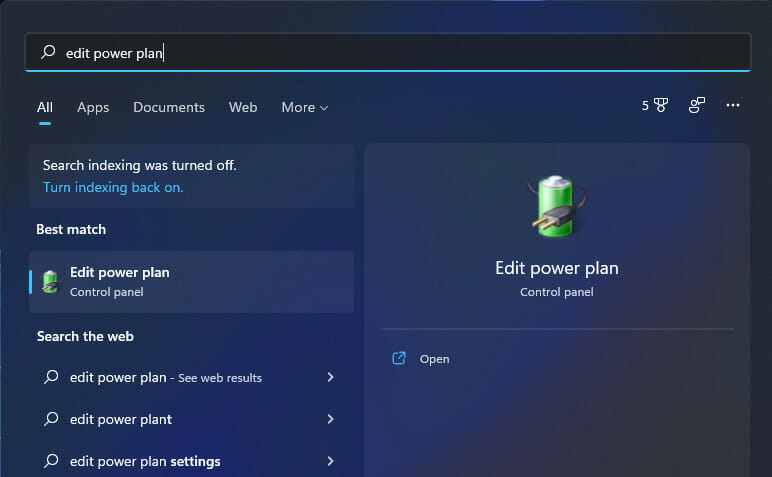
Open the Windows Search function and type in Edit power plan. Enter it then go back to the Power Options page.
Here, select the High performance plan, however, if you don’t have one listed, click on the Create a power plan option and create a High performance one. After you have created it, select it and save the changes made. Your Lenovo IdeaPad 320’s performance will be sped up.
5. Remove temporary files
Open Settings and navigate to Storage from the right-side panel.
Next, click on Temporary files.
Wait for the scanning process to finish then click on the Remove button to delete unnecessary files. Note that the scan will find important temporary files that are needed by your apps and exclude them from the list of temporary files that can be deleted.
6. Add more RAM
Increasing the amount of RAM or SSD memory will speed up your Lenovo IdeaPad 320 PC in the long run. Although an SSD would load everything faster, RAM will allow you to maintain more tabs open at the same time.
Make sure that when you place the RAM module into the socket, the knobs on the socket’s hinges are in line with the hinges on the RAM module. They will have to be snapped into position.
For further performance enhancement methods, check out our post on how to make Windows 11 faster and more responsive.
In order to improve our future posts, we recommend that you share your thoughts with us in the comments section below. Thanks for reading!
“We can’t sign into your account” is an annoying error that Windows 10 sometimes displays when users try to access their accounts.
The whole error message reads as follows: “We can’t sign into your account. This problem can often be fixed by signing out of your account and then signing back in. If you don’t sign out now, any files you create or changes you make will be lost.”
However, signing out of your Windows account and signing back in doesn’t solve the problem.
Fortunately, there are a series of solutions that you can use to fix this annoying error code.
How to fix We can’t sign into your account error?
1. Delete your profile from the Registry
Log in to the computer as a different administrator
Move the broken user profile folder form C:users to c:Backup
Open the registry editor and go to: HKEY_LOCAL_MACHINESOFTWAREMicrosoftWindows NTCurrentVersionProfileList
Locate the folder that has the ProfileImagePath that points to c:users. It usually ends in “.back”. Delete the entire folder.
Restart your computer and log in with the affected user profile.
2. Refresh the location
Go to This PC > right click on Documents
Click on Properties > select the Location tab
Click on Find Target
Locate the directory where you have your files and click once on it
On the top of the File Explorer, click to the right of the directory list. A text with the directory location will appear C:Users(YourUser)documents
Copy this location text C:User(YourUser)documents > close File Explorer
Paste the location text on the field right above the buttons > click on Apply
Restart your computer.
3. Change the password of the problematic account
Log in using another admin account
Go to Start > type control panel > double-click the first result
Go to Manage user accounts > change the password for the account triggering the error
Log out > log in using the problematic account. Use the new password that you just set instead of the old one.
Should your display go black, open the Task manager and sign out. Wait until you’re signed out and then try to sign in again.
4. Run a System File Check
File corruption may also trigger the annoying ‘We can’t sign in to your account’ error. You can also use Microsoft’s System File Checker to check for system file corruption.
The utility verifies the integrity of all protected system files and repairs files with problems when possible. Here’s how to run an SFC scan:
Go to Start > type cmd > right-click Command Prompt > select Run as Administrator
Now type the sfc /scannow command
Wait for the scanning process to complete then enter the ‘DISM /Online /Cleanup-Image /RestoreHealth‘ command
Restart your computer. All corrupted files will be replaced on reboot.
5. Force user profile in Command Prompt
Go to Start > type cmd > right-click Command Prompt > select Run as Administrator
Type the following command and hit Enter after each one:
net user [insert name] /add Example: net user madeleine /add
net localgroup administrators [insert name]/add
net share concfg*C:/grant:useraccountname,full
net user useraccountname
Restart your PC and log in using the same user name that you used above.
6. Install the latest Windows updates
Restart your computer and hit the Restart button while the booting screen is still available.
Go to Troubleshoot > Advanced Options > Startup > enter Safe Mode
Wait until your PC restarts and enters Safe Mode
As soon as the Safe Mode screen is available, hit the Windows key + R at the same time
Type regedit in the search box > hit Enter > locate the following path:
In the right-hand panel, locate the folder that has the ProfileImagePath key set to the Systemprofile path
Locate the RefCount key > double-click it > edit the value from 0 to 1
Save the changes and restart your PC
Once the reboot cycle ends, go to Settings > Updates and Security > Windows Updates > Check for updates
Wait until Windows installs the updates > restart your computer and sign in again.
7. Use System Restore
If the problem started recently, run System Restore. If this issue occurred after you installed new software on your computer, this tool helps you remove recently added apps and programs.
The System Restore option allows you to restore the previous well-performing system configuration without losing any files, except for a few customizable features and settings.
Windows 10 offers a series of advanced recovery option that allows users to clean install the OS. You can also use ‘Reset this PC’ as a recovery option.
Go to Settings > Update & Security > click on Recovery under the left pane.
Click on Get Started under Reset this PC > choose to Keep your files.
Follow the on-screen instructions to complete the reset.
That’s about it. We hope that one of the solutions listed above helped you fix the annoying ‘We can’t sign into your account‘ error.
Additionally, you can try each one of the described answers in this guide in order to successfully resolve this sign-in problem in your Microsoft account.
As always, if you’ve come across other solutions, you can help the Windows community by listing the troubleshooting steps in the comments below.
The “Fatal error – Exception in exception handler” error is one that occurs for Windows 10 games. Many game players have stated on forums that the error message pops up for Command and Conquer 3 and Rise of the Witch Kings.
When the issue occurs, the games don’t launch and return a Fatal error window stating, “Exception in exception handler.”
This error primarily pertains to laptops or desktops with Intel HDGPUs and is largely due to Intel graphics card drivers. These are a few resolutions that can fix “Fatal error – Exception in exception handler” error messages.
What is the Fatal error exception in the exception handler?
Fatal errors generally appear when you have hardware problems. In this instance, it is likely related to your GPU card. It may have trouble supporting games with high graphical requirements.
A fatal error happens when an application closes unexpectedly, without any warning. When this occurs, any new changes in the application will be lost, so if you were in-game and got this error, chances are you lost your progress as well.
An exception handler is a type of code that should automate what a program should do in case of an unexpected error. When you get the exception exception handler error, it means that that the code didn’t execute as expected.
To fix this issue, you need to make sure that your hardware is in good state, your drivers ar updated and functional, and your system meets the minimum system requirements of the application you want to run. Continue reading to see how to fix this issue and never risk losing progress in the future.
How to fix the Fatal error – Exception in exception handler
Running games in compatibility mode is one fix that some Command and Conquer 3 players have confirmed to work for them. You can do that by opening the game’s folder in File Explorer and right-clicking the game file to open the window below.
Select the Compatibility tab shown in the snapshot directly below.
Then select the Run this program in compatibility mode option on that tab.
Select Windows 8 from the drop-down menu.
Click the Apply and OK button to save the newly selected setting.
2. Configure the NVIDIAOptimusGraphics Settings
Some laptops and desktops have more than one graphics card. Thus, the game might be starting with the integrated Intel graphics card instead of NVIDIA GPU. Many game players have found that switching the graphics card to the NVIDIA alternative fixes the exception handler issue. You can do that by configuring theOptimus Graphics settings as follows.
Right-click the Windows desktop and select NVIDIA Control Panel from the context menu.
Next, expand 3D Settings and click Manage 3D Settings.
Now you can select either the Global Settings or Program Settings tab. Select the Global Settings tab as to apply the new settings to all games.
Select High-performance NVIDIA processor from the Preferred graphics processor drop-down menu.
Press the Apply button to save the newly selected settings.
3. Install the Intel(R) HD Graphics 4400 Graphics Card Driver
Updating graphics card drivers often fixesnumerousgame error messages. However, many Command and Conquer 3 players have fixed the exception handler error by installing previously released Intel graphics card drivers as the issue often occurs with specific Intel drivers.
To be more specific, some have fixed the error by installing the Intel(R) HD Graphics 4400 driver, which you can download from this website page by pressing the Download button for the one compatible with your platform. Then you can install the driver as follows.
3.1. Install your drivers manually
Open Device Manager from the Win + X menu by pressing the Win key + X hotkey.
Click Device Manager to open its window as below.
Double-click theDisplay adapters categoryto expand a list of graphics cards.
Right-click Intel HD Graphics and select Update driver from the menu to open the window shown directly below.
Then select Browse my computer for driver software to open the options below.
Click the Let me pick from a list of device drivers on my computer option to select the device driver.
Press the Have Disk button, and then press the Browse button to select the downloaded driver file.
Press the Open, OK and Next buttons to install.
Thereafter, restart Windows after adding the driver.
Even if installing the Intel(R) HD Graphics 4400 driver does fix the exception handler error, it’s still an outdated driver that might generate other gaming issues andreducegraphical quality.
As such, this is not an ideal resolution. So if you don’tcurrentlyhave the most updated Intel driver, update the graphics card driver to the latest one first. If that doesn’t fix the issue, then install Intel(R) HD Graphics 4400.
3.2. Use dedicated software
Alternatively, if you want to save some time and automate the task, you can install and run a dedicated driver software. This type of tool uses its own database and automatically installs the latest driver versions on your PC.
Using an automated tool eliminates the risk of major system damage that may occur if you install a mismatched driver, so we strongly advise looking into it.
4. Install DirectX End-User Runtimes (June 2010)
It might be the case that the game needs an older DirectX version to run. Furthermore, some players have confirmed that installing DirectX End-User Runtimes (June 2010) fixes the exception handler error. This is how you can add DirectX End-User Runtimes(June 2010) to Windows.
First, open this website page; and press the Download button there.
Deselect theadditionalsoftware check box, and press the No thanks and continue button.
Press the Run button to immediately launch the installation.
Thereafter, you’ll need to unpack, or extract the DirectX Redistributable package to a folder.
Open the folder you extracted it to, and then click DXSETUP.exe.
5. Switch Off the Origin In-Game Setting
If you’re running games via the Origin platform, check the Origin In-Game setting. Switching that setting off, it’scurrentlyon, might also fix the exception handler error. This is how you can adjust that option.
First, open the Origin client software.
Select Applications Settings from the Origin menu.
Then click the Origin In-Game tab.
Switch the Enable Origin In-Game setting off if it’s on.
6. Add a NVIDIA Graphics Card to an Intel HD Desktop
The “Exception in exception handler” error is most prevalent for desktops and laptops with Intel graphics cards. Thus, adding a new NVIDIA graphics card to Intel HD desktops will likely fix the issue. Of course, you can’t upgrade the GPU for laptops; but a new NVIDIA graphics card for desktops will do the trick. If you upgrade the graphics card, you might as well also go for a GPU that really boosts games’ graphics.
If the game returning the handler error message was running fine a few months back, the System Restore tool might come in handy. With that utility, you can restore Windows to a date when the game was working fine, which might fix the error. Restoring Windows will roll back updated drivers and other updates. Note that restoring Windows also uninstalls software installed after the selected restore point. This is how you canutilize System Restore in Windows 10.
Open Run by pressing the Windows key + R keyboard shortcut.
Input ‘rstrui‘ in Run to open System Restore.
Click the Next button, and then select the Show more restore points option.
Choose a system restore point that predates the exception handler error, but not when you first played the game. If there isn’t a restore point that predates the error message, System Restore probably won’t resolve this issue.
Click the Next and Finish buttons to confirm your selected restore point.
Those are a few resolutions for the “Exception in exception handler” error that you can kick-start your games with. If you have any further fixes for this issue, please share them below.
If you tried the solutions above and still have problems with this error, it is perhaps important to check whether your graphic card supports the application you want to open.
Don’t miss our guide on lowLevelFatalError since it can provide you with potential solutions. We also have a guide on Efs Fatal Error, so you might want to check it out.
When was the last time you went out with a grocery list in your hand for shopping and returned home only to realize that you had forgotten a few things from the list? Sounds like a familiar story? We explore some of the best cross-platform grocery list apps in this guide.
The to-do list apps have long replaced paper lists for almost 90% of daily work. If you are not yet using a to-do list app, install a grocery list app for PC and smartphone.
Which is the number 1 grocery app?
There may not be one answer to this question because there are a few factors to consider before choosing the top grocery app, and many of these will come down to individual preferences. However, you may consider the following:
The features it comes with, may include syncing across devices or generating shopping lists based on your recipes, etc.
How easy and intuitive the app interface is during use.
How visually appealing the app is and how easy the navigation appears.
Its price, especially payment and subscription options.
Todoist is a cross-platform task manager app that allows you to plan your day. It lets you keep track of everything in one place and get it done on time.
It comes in both free and premium plans. With the premium plans, you can create your own templates to make repetitive tasks easier, add your own labels, create customer tasks view with filters based on dates, projects, and labels, review all your completed task to check progress, and get an overview of account activity.
Organizing your shopping list using this platform is extremely simple because it has intuitive tools that help you manage grocery tasks on impossible days.
You can use the tool’s features best to organize the day and prioritize essential tasks to save time for unexpected ones. For example, you have the overview for all activities and add new ones with the Quick add button.
Todoist is available for Windows-running computers as well as smartphones. Work through browsers? Todoist got you covered with its Chrome, Safari, and Firefox extension. It also integrates with over 60+ popular apps, including Dropbox, Amazon Alexa, Zapier, Slack, and IFTTT.
Todoist is one of the best to-do list apps on any platform. It is clean, fast, and easy to use.
Some important features of Todoist include:
Intuitive user interface
Easy customization
Collaboration options
Integrations with multiple apps
Todoist
Organize your daily grocery tasks on a whole new level with this platform specially created for busy persons.
Evernote is one of the most popular note-management apps available for all platforms, including Windows, Android, and iOS.
It is a note management app with extensive features to organize detailed notes through titles, pictures, links, and markups.
However, the app also offers a to-do list feature. You can create a to-list, set reminders and deadlines, and share the list via email or other apps online.
Evernote allows you to easily collaborate with your team to manage projects, deadlines, clients, and meetings.
The premium plan offered by Evernote includes unlimited space, searching for text inside PDFs and Office Docs, seeing a version history of your notes, creating a presentation from notes with one click, sharing a notebook with others in your company, Google Drive, Outlook, Slack, Microsoft Team and Salesforce integration and more.
Evernote is an excellent task and note management app. If you don’t want to deal with two apps for two different tasks, Evernote offers everything in one place.
Some important features of Evernote include:
Cross-platform availability
Web clipping
Image recognition
Simple list sharing
Evernote
Have every piece of information noted in this tool so you stay on top of important or small tasks.
Any.do is a clean and well-designed to-do list app that allows you to stay organized and do more in less time. It offers some unique features and some basic yet essential features which are divided across the plans.
Talking about the price, Any.do is free to download and use. You get most of the features in the free plan. You may also get a huge discount depending on when you upgrade.
The Pro users get to enjoy features like the ability to attach notes to the tasks, create their own template for recurring tasks and reminders, and also use location-based reminders, which is new for a to-do list app.
The app allows you to easily break down tasks into subtasks, making tracking progress easier. The collaboration feature lets you share and assign tasks to your team members.
The app can automatically sort and import online recipes based on your list of groceries. You can share the grocery list with your partner and family as well.
You can color and put tags on your shopping lists to set priorities and buy exactly what is needed.
Any.do is a powerful to-do list app with a strong set of free features and some advanced features for Pro users. The location-based reminders and collaboration feature is a nice additional feature, but only available for Pro users.
This platform is what busy people need in their lives, namely the organizing place where they manage time and tasks.
The solution offered by Remember The Milk has all-rounded benefits to help you respect crucial tasks with productive tools designed for time management.
With this tool, you will stay on top of draining tasks or projects, adding every responsibility with the Smart Add feature that helps create practical to-do lists using all properties in just one line.
More so, if you’re usually writing down lists for grocery shopping, this is the fittest place to manage big and small tasks. Using tags, you can group activities and overview your day.
Other helpful tools you should benefit from are reminders from multiple sources, subtasks for time-consuming duties, a search wizard to find tasks instantly, sharing lists tool, and so on.
So you can better manage busy periods by getting all the information on paper and balancing your energy consciously to stay updated with everything.
That being said, clean your mind and get everything done with this tool on almost every device, like PCs or laptops, smart watches, or mobile phones.
Some important features of Remember The Milk include:
Let’s begin with an in-house app from Microsoft. Although one of the newest members of the to-do list market, Microsoft To-do has become one of the most popular apps. It is available for Windows, Android, and iOS devices. You can also access the app from the Web.
The To-do app helps you to manage your day with a My Day feature. You can add all the tasks you expect to complete in the present day to the widget.
To-do’s suggestion feature learns from your task and habits and offers suggestions to help you prioritize your daily tasks from your PC or smartphone.
Users can also add a reminder, due date, and notes to their to-dos to never miss a deadline, irrespective of their personal or professional work.
What’s more? You can share the grocery list with your partner and family, share plans with colleagues and collaborate on projects to get things done faster.
All the to-dos can be personalized with themes and colors to match your mode. Microsoft To-do also supports Outlook integration for better synchronization.
Some important features of Microsoft To-do include:
Trello is more of a task management and collaboration app than a grocery list app. However, the task management and to-do list features help you with work, a side project, and even planning your next family vacation.
You can customize the tasks by adding comments, attachments, due dates, and other information on Trello cards. It can also describe a project plan from beginning to end.
The team collaboration feature allows you to create a board for any project and invite your team members. You can create a workflow, task cards and add details like descriptions, checklists, and comments and move the tasks across the board to show progress.
Trello is a cross-platform app that you can access from your Windows computer, Android, and iOS devices. It is also available on the web if you prefer a web browser. With support for third-party apps such as Google Drive, Dropbox, Slack, and Evernote, Trello lets you keep track of everything and sync.
Trello also offers free and business plans. The premium plan offers 250 MB per file support, custom background, stickers, 2-factor authentication, advanced admin permission, public board management, domain-restricted invites, data export, and more.
Trello is an excellent task management and to-do list app with all the essential features offered in the free plan. The premium plan provides additional features for business users for safe team collaboration and data transfer.
Surprised to see Cortana on the list? That’s right. Cortana is more than just a voice assistant. It can also set automatic reminders, take notes, set location-based reminders, and more. The best part is it comes pre-installed on your Windows computer.
Cortana is a cross-platform app you can download on Android and iOS smartphones.
You can easily add items to the list, check flight information, and do basic arithmetic operations, translation, and currency conversations using Cortana. It also works with other third-party to-do list apps, such as Trello.
Hence, try this AI assistant tool if you need efficient support to manage all the upcoming events or detailed lists for shopping activities.
Whether you want to create a proper grocery list or plan tasks for your vocation, all the apps listed in this article allow you to do more in less time. You can create a to-do list, and tasks, set reminders and due dates, and also share the tasks for easier collaboration.
If you opt for Cortana, you should check out our other guide where we explain how to set reminders with Cortana.
Take these apps for a spin to find the best app that meets your requirement, and also let us know your favorite grocery list app in the comments below.
Windows hosting comes with a host of features and benefits such as simplicity, seamless integration, and ease of use, but most users are also looking for Windows hosting with Plesk.
Plesk is an abbreviation for Parallels Plesk Panel, and this is basically a control panel for web hosting. It is an intuitive and graphical panel from which you can manage your Windows hosting account, whether you’re a novice or a pro at it.
It also eases site management, as well as your databases, email, files, and other components, plus you can use it to automatically install most used software platforms including WordPress, Drupal, or Joomla, among many others.
Having your own control panel within the Windows hosting platform is important as it gives you the freedom to manage your website, plus saves you time and costs if someone else had to do it for you.
For Windows hosting with Plesk, you get a variety of tools and features such as support for MySQL, C#, phpMyAdmin, site builder tools, Power Pack for social media integration, smartphone monitoring, Kaspersky antivirus, and reseller tools, among others.
Plesk can only function online with a working web server, which means if something happens to your site, Plesk will stop working altogether, and you may have a hard time getting back up, thus you need a Windows hosting with Plesk provider, for such difficult times.
Finding a Windows hosting with a Plesk provider isn’t hard because there are many, but choosing the best for your website can be confusing because every one of them seems to have the same thing.
Before settling on a Windows hosting with a Plesk provider, check also the other features you want and those that must be included in the host’s Plesk panel.
We checked out most of the top web hosting names and bring you our top picks for the best Windows hosting with Plesk providers.
This is the only Windows hosting with a Plesk provider that backs the Plesk control panel with 24/7/365 support and full management across dedicated and cloud servers.
Some of the tools you can expect on this user-friendly control panel interface include whole server protection with ServerShield by Cloudflare, protection against brute attacks with Security Core, blocking worms, Trojans, and viruses with the Premium Email antivirus, and fully integrated developer tools including Ruby, Node.js and Git.
You can choose between Web Pro if you’re running a small business or web agency, and Web Host for reseller accounts.
Other features and tools you can benefit from the Plesk panel on Liquid Web host include automated server administration, protection for up to 14 mail accounts, installation, configuration, and management of WordPress from a single interface with control over your server, site development tools, access from other devices, and Multilanguage functionality.
Liquid Web prides itself in being a platinum hosting partner with Plesk so that means they get the latest releases before any other Windows hosting with Plesk provider.
You also get the phone and live chat support, with a guarantee of at most 59 seconds to reach the support team at their data centers.
Liquid Web
Liquid Web is one of the world’s leading web hosting services providers. Try it now!
This web hosting provider isn’t just rated as the top host for its blazing-fast features and fine-tuned servers, but also for extra features such as Windows hosting with a Plesk control panel.
With A2 Hosting, you get a high-performance, Plesk hosting service with blazing fast page load speeds. Your Plesk control panel, sites, files, and databases are hosted on the SwiftServer platform, backed by a 99.9% uptime commitment from the host.
You can choose between three high-speed packages: Lite, Swift, or Turbo, each tailored to suit your needs.
A2 hosting also offers user-friendly, high performance, and reliable Windows hosting with a Plesk environment compared to most competing Plesk hosting providers.
In addition, this hosting service offers efficient domain registrations and management for your websites. It’s possible to create your web domain with various hosting options.
For example, you should best use the super-sonic hosting provided by A2 Hosting and benefit from Plesk hosting or WordPress websites without much effort.
A2 Hosting
Get unlimited data storage and free site migration at a very affordable price.
This hosting service is perfectly created to integrate with Plesk hosting service for managing multiple servers or websites in one view.
With this reliable data center software, you can successfully deploy your hosted apps or websites using Plesk hosting. Plus, with the cloud orchestration tools, you have a complete data center to manage your websites.
Using the intuitive dashboard of Vultr, you assure functional websites and access web statistics or run security updates regularly. Besides, you manage all your websites from a single place.
It’s good to know that you benefit from the flexible license options and deploy three versions of the Plesk service. More exactly, you can deploy Web Admin SE edition, Web Pro edition, or hosting edition using Vultr license activation.
You can thus use Plesk hosting services using Pro or Host licenses for 30 days and manage your web applications without any risks.
Vultr offers qualitative servers management tools and a worldwide network to develop low latency site infrastructure and grow potential business regardless of your location.
In addition, you should create and manage web platforms with Plesk hosting to grow your websites and edit web elements or pages effortlessly.
Vultr
Develop your Plesk-hosted websites using this cloud infrastructure tool and manage multiple web platforms.
Hostgator makes Windows hosting simple and easy for you to use. Its features include the Plesk Control Panel so you can control your hosting account easily (like you would using a WordPress back end).
It offers the Plesk control panel that is developed and maintained by Parallels but is called the PowerUser Panel in HostGator and combines the Admin Panel and Control Panel modes on the hosting platform.
While on Plesk in HostGator, you can see only accounts that are directly under Admin user or added to its web space.
Other features you can find on HostGator for Windows hosting include site-building tools, over 4000 free website templates, MSSQL Server 2008 R2, MySQL, Access Databases, FTP accounts and email addresses, administrative tools, one-click installs, and programming features including ASP and ASP.NET.
You also get a 99.9% uptime guarantee, plus free stuff with each hosting plan including a free website builder from HostGator, 4500 free templates, free website transfer, domain transfer, MySQL transfer, and script transfer, plus 38 free scripts that can be installed on your account instantly.
HostGator
Manage your hosting account simply with this complete web hosting platform for Windows
This is one of the top services and recognized Windows hosting with Plesk providers available in the market.
With OVH, you can build and maintain your websites using the simplest, most intuitive, and graphical control panels – Plesk – that comes pre-installed so you can run and scale your web applications.
You can select from the VPS Classic 1, Classic 2, or Classic 3 options, which come with unlimited Plesk accounts and reseller licenses, or the Pro 1 and/or Pro 2, which also have the same features, but offer unlimited domains as well plus copious storage capacity of up to 800GB.
Manage your web projects without needing a web specialist or developer, or even the need for terminal and command lines to manage websites, databases, or email. All this for just a few clicks.
Other benefits include a user-friendly panel, easy server management, interface customization, and for the reseller option you get customer sub-account management. It also comes with a WordPress toolkit and SpamAssassin software.
Additional services from OVH include unlimited traffic, guaranteed bandwidth, 99.95% uptime, and unlimited domains.
Focus on your business, instead of focusing on your server, by switching to OVH Windows hosting with the Plesk control panel.
This Windows hosting with Plesk provider promises blazing fast hosting, because speed, security, and scalability are a priority.
You get to enjoy the superior performance in an environment that supports the latest ASP .NET framework, Windows Server 2012 R2, and MSSQL server.
Its features include dedicated technical support, daily automatic and constant backups of your site’s database and files with free restoration, up to 20 times faster load time owing to the use of Solid State Drives on all servers, unlimited email accounts, and free Let’s Encrypt SSL certificate installation in one click on your Plesk panel.
It also offers a high level of security updated daily with a web-based firewall to ensure your site is guarded against online threats.
Plus, 99.999% uptime, anti-spam protection, and a dedicated yet isolated VPN for better monitoring, connectivity, and speed.
If you’re looking for the best Windows hosting provider that offers all the features at a comfortable price, this is it.
Its features include the Plesk Control panel, multiple domain hosting and databases, unlimited emails, 24/7 uninterrupted support, unbeatable reliability, and 99.95% uptime needed to run your website at any point in time.
Set up your account instantly with Miles Web and enjoy affordable rates at superfast speeds and the best uptime, which you will need in case your site breaks and Plesk is affected.
Hence, if you want to start an online store or manage a business online domain you should rely on this hosting provider for websites of every size.
If you’re not okay with managing your VPS from a command line, then Blacknight solutions offer you the Parallels Plesk Panel system to help you manage it from an easy graphical interface, with a simple click.
Plesk is the leading multiplatform control panel for a simple, convenient way to manage your web services, and it is available on this web hosting provider with Windows hosting.
Some of the key features you will find with using Plesk on Blacknight include a user-friendly interface, a migration manager to quickly migrate accounts, and a customizable repository of site applications with the ability to add, deploy, configure and remove apps for any domain with one click.
You can also install WordPress or Drupal, and forum software with one click in Blacknight’s Windows hosting with Plesk.
We’d love to hear your thoughts on these Windows hosting with Plesk providers. Which one do you prefer, or which one have you used before? Share with us in the comments section below.
Kaspersky VPN Secure Connection conceals your IP address from your Internet service provider, making it impossible for your ISP and other third parties to obtain access to your personal information. Thus, today we’ll show you how to download and install Kaspersky VPN on Windows 11.
Founded in Moscow, Russia, in 1997 by Dmitry Kaspersky, the company was later relocated to Switzerland and is now controlled by a UK-based holding company. Eugene Kaspersky, the company’s current CEO, was also one of the company’s founding members.
Despite the fact that it has raised a number of political issues, Kaspersky’s headquarters in Russia means that it is outside of the jurisdiction of the Five Eyes.
That means that Russia, or any other country’s government for that matter, will be unable to compel Kaspersky to provide them with information about their customers. This non-membership is required if you want to use a VPN for privacy reasons.
After a few years, it has developed into a global cybersecurity company that currently operates in 200 countries and has 34 offices around the globe.
Follow along as we will first see whether Kaspersky VPN is safe and trustworthy, and then move on to the download and install process.
Is Kaspersky VPN safe?
Perhaps you’re wondering what distinguishes Kaspersky VPN from the competition and why you should select it over other VPN providers.
In the first place, it includes an unlimited amount of bandwidth, allowing you to stream any and all of the content you want without any limitations.
Additionally, because you have the option to connect to any server you want, you can access content from anywhere in the world simply by logging into the server where the content is available.
Furthermore, you can use Kaspersky VPN on as many as five devices at the same time, depending on your needs. It is available on multiple platforms, including Windows, MAC, Android, and IOS, making it extremely user-friendly.
When it comes to virtual private network (VPN) protocols, Kaspersky uses the OpenVPN standard. In other words, it protects your data with the highest level of 256-bit encryption.
Also known as military-grade encryption, which makes it virtually impossible for anyone to gain access to your personal information. As a result, it is a completely safe VPN to use.
Kaspersky VPN also has mobile VPN apps that are compatible with all Android and iOS devices, allowing you to browse the web anonymously from any location at any time.
It is constantly improving, and each new version introduces users to a slew of new and exciting privacy features.
An example of such a feature would be, of course, the kill switch. When a VPN connection is lost or interrupted for any reason, the kill switch automatically shuts down the browser and disconnects the device from the Internet.
Thereby eliminating the possibility of an unprotected connection being made possible. As soon as the Internet connection is reestablished, the device automatically reconnects to the Internet.
Next, click on View products and choose the Windows operating system. Look for the Kaspersky VPN Secure Connection product and click on Learn More.
Choose the plan that you want to buy, and click on the Buy Now button. Note there is an Auto-Renewal box above the button. If you wish to automatically renew your subscription every month/year check it, otherwise uncheck it.
Confirm your payment and then continue with the installation process. The company has made it simple to operate and install, thus you will only need to click a few buttons.
Once it’s done, you will be able to choose your location to connect to and turn the VPN on or off.
If you watch the evening news, you might recognize the name Kaspersky. We weren’t deterred from trying out their VPN despite the fact that they were banned by the United States government.
Kaspersky’s more than 2,000 servers are spread across 49 countries, including France, Germany, Hong Kong, and Japan. This isn’t the world’s largest network of servers by any stretch of the imagination, but it is a significant one nonetheless.
Don’t miss out on Kaspersky’s other products as well. You can browse them in more detail on their View products page.
Kaspersky Antivirus is one of the most powerful antivirus programs available on the market. Despite the fact that it does not include a slew of additional features, it provides excellent protection against all types of threats, attacks, and malicious software.
In fact, even the free version performs significantly better than some paid alternatives in terms of detecting and removing potential threats.
Alternatively, you can take a look at 5+ best free Windows 11 VPN apps on the market, if you are dissatisfied with Kaspersky’s one.
Was this guide useful for you? Don’t hesitate to tell us in the comments section below. Thanks for reading!
E-commerce, which is a shortened tag for electronic commerce, has taken over the global market, as virtually all types of products and services are advertised/marketed and purchased online.
Recent developments have further strengthened this position, as every key aspect of eCommerce, including marketing, purchasing, payments, and even delivery, all have been automated.
With the advent of online stores, anyone from anywhere can purchase anything from any location. This has bridged the distance between countries, and the Internet now serves as the ultimate hub for the global market.
However, prominent eCommerce service providers often find themselves overwhelmed by the number of orders, sales, and payments they have to process on a daily basis.
Hence, to manage this situation and maintain efficiency, automation becomes essential.
This article brings you 7 of the best-automated eCommerce software on the market.
How can an eCommerce platform help grow your business?
eCommerce platforms are helpful regardless of how much experience you have in the business game, but they are especially useful for emerging businesses.
Even if you have a solid knowledge base and skill set in place, these tools come in handy because they integrate pretty much everything you need in just one place.
First and foremost, these tools let you easily create your online shop and build your brand. They offer visual website builders and offer highly customizable pre-made themes to help you start out.
Most of them offer business-specific suggestions, so if you plan to sell shoes, chances are that you will get at least a few ideas on how to get started with your online shoe store. Starting from there, you can personalize and integrate your unique selling points.
They also offer support for one of the most time-consuming and hard to get around aspects of business, namely finances.
You can get specialized help on taxes and full support for secure online payments.
Additionally, it is important to note that these platforms also offer automatically generated reports so you can see how your business is going.
This helps a lot in the long run as it lets you know which implementations work well and where exactly you need improvement.
Make sure to read the suggestions below to see more details on what you can get from an eCommerce platform.
What should you take into consideration when looking for an eCommerce platform?
Ease of use: being intuitive and time-efficient is a key requirement when building your web store
Compliance: professional support to ensure users follow the financial regulatins of the commercial area they operate in
User experience: fast and secure checkout, multiple payment options, customer support solutions
Support for your type of business: many platforms offer ready-made solutions for clothing stores, web applications, and other types of products/businesses
Currency compatibility: supports payments for all commercial areas you are interested in
Extensive library of themes and customization features: to ensure you can create your online shop exactly as you envisioned
Price: see which ones include the features you need at plans that are reasonable for your budget
WooCommerce is a popular eCommerce solution, which is known for its ability to convert WordPress sites into durable online stores.
It is basically a WordPress plugin that can be used to design an eCommerce website or online shopping hub from scratch.
Key features of WooCommerce include pre-installed payment gateways, WordPress integrations, auto-taxes, cart behavior, free shipping, inventory/store manager, default currency setting, cart calculator, reports, flexible shipping, tax calculator, SEO, 24/7 customer support, unlimited extensions, and more.
WooCommerce is available for free, albeit with restricted access and limited features. To unlock the full features, subscribers are required to upgrade to a paid plan and pay add-ons on certain extensions.
WooCommerce offers a mobile app that lets you access helpful insights and manage your business on the go. You get to see real-time statistics, orders status and also add new products.
The tool has multiple extensions and integrations that can also help you grow and promote your business.
You can integrate third-party tools such as Mailchimp or Mailpoet that can help you grow your traffic and increase purchase rates.
It also supports Google Ads and Listings but also offers its own advertisement and branding solutions through product recommendations and product add-ons such as gift wrapping, special messages, and other similar options.
WooCommerce is very versatile and offers support not only for online shops but also for hospitality services. It offers the tool necessary to create appointments and make reservations.
The platform also gives full support for shipping. It can connect you with popular shipping companies and provide tracking information for every order.
Other key features of WooCommerce include:
Open source, fully customizable
Over 400 official extensions
Resourceful guides and tutorials
Support for multiple languages and currencies
There is also a 30-day refund policy for subscriptions canceled within a period of one month (after payment).
WooCommerce
Integrate this plugin to your WordPress website and start managing any type of business from start to finish.
Up next we have a resourceful platform that provides multiple website hosting options, an intuitive and modern website builder, and support for payments, taxes, and promotion.
Squarespace offers time-efficient solutions that let users create professional-looking websites in a very short time.
It has one of the most intuitive builders out there, with tons of inspiring templates that don’t need much adjustment. However, if you already built your website, you can easily migrate it in just a few quick steps.
It offers pre-built layouts for various types of websites including eCommerce. It has various useful extensions that let you closely manage your business.
For instance, the inventory and product extensions let you manage your inventory SKUs, stock level and add or remove products from your website.
Squarespace also gives insightful analytics so you can see in real-time how your business is progressing.
Users get sales by product analytics, purchase funnel, abandoned cart statistics, total spend information about customers, average order value, and more.
Squarespace does not only provide the tools necessary to host and create your eCommerce website, but it also offers support for marketing and promotion
It offers exclusive access to third-party tools so you can determine your customer base and target your advertisements or promotional campaigns toward them.
Regardless of what you plan on selling, know that this platform can take care of the whole process, from start to finish.
Squarespace can also help with shipping, returns, and package tracking, so you and your customers are fully informed about the orders.
Other key features of Squarespace include:
Automatic image scaling
Free custom domain
Multimedia blocks for audio and video content
SEO features
Productivity features for you or a whole team
Custom payment settings
Squarespace is a subscription-based service with multiple plans available. Each plan has the option to charge monthly or annually.
Squarespace
Build and manage your business with modern and intuitive tools that help you grow and assess your business at any level.
Wix eCommerce is another great option for those that want to use an intuitive and visual website builder.
The platform offers over 500 free store templates. You can use them as they are or as a basis to create your own, specifically branded online shop.
On the topic of branding, it is also important to note that Wix offers handy tools such as a Logo Maker, a Business Name Generator, and of course, your custom domain name.
The platform supports the listing of up to 50, 000 products, which is plenty, especially if you are just starting out.
It offers several features that help you manage your products, including inventory management tools, supplier support, and more.
The tool also lets you define your own shipping rules and automates taxes for every purchase.
When it comes to payments, you can use the integrated Wix Payments solution, but you can also pick a third-party method from payment providers such as PayPal.
You can track and view reports on each payment. It offers easy solutions for refunds and gives insightful information about all transactions.
When it comes to shipping, Wix allows you to track the whole process, starting from the purchase. They offer support for shipping, and suppliers, and also let you and your customer track the location of the order once it has been shipped.
Similar to Squarespace, this tool also offers some marketing tools that can help you grow and boost sales. It offers easy solutions that let you create promotional content in just a few minutes.
Along with that, it works with proven SEO patterns and automatically applies them to your website.
Other key features of Wix eCommerce include:
Multilingual and multi-currency support
Support for multi-channel sales
Store subscriptions
Templates for multiple types of stores (fashion, interior design, makeup, etc)
Wix is also subscription-based with three plans available. If you are not satisfied with the service, you can get a refund in the first 14 days of your subscription.
Wix eCommerce
Create and host beautiful and fully functional online stores with this intuitive web app.
BigCommerce is, without a doubt, one of the most popular eCommerce service providers in the world. And it doubles as one of the best-automated eCommerce software.
In short, BigCommercer provides all the necessary tools that your online shop would need in order to drive more traffic, convert customers into sales, and manage the store.
Some of the key features of BigCommerce include site builder, marketing tools, product pages, process orders, optimization for mobile, social media tools & more.
Interestingly, most of the above-outlined features are streamlined and aptly automated, providing you with a seamless flow of transactions, from orders to purchases to payments.
BigCommerce puts forward a straightforward inventory management solution that can be integrated between online and offline channels.
It offers 65 payment integrations for various third-party payment services. BigCommerce doesn’t charge transaction fees and doesn’t place any payment penalty.
BigCommerce strives to provide optimized solutions for the whole purchase experience, so your customers will get the best service possible. It offers simple single-page checkout with secure SSL and mobile support.
It also offers search engine optimization tools such as search-friendly teams, customizable URLs, title tags, and more.
Other key features of BigCommerce include:
Supports on-site blog
Integrates Google Shopping
Personalized audits
Channel integrations for social media
BigCommerce offers an initial 15-day free trial to new subscribers, after which they can subscribe to one of the available paid plans: Standard, Plus, Pro, and Enterprise.
BigCommerce
With BigCommerce you have online store set-up, marketing, purchase, and payment facilitation, all automated!
Mobirise is a renowned site-building software, whose functions can be modified to design an eCommerce/online shopping site for your products/services.
It hosts a user-friendly interface that uses a simple “drag & drop” feature to create websites, without any form of coding.
As such, you can easily adapt this software to create an eCommerce site. However, this automated eCommerce software is compatible with Windows desktop devices, and cannot be used on mobile platforms.
Basically, Mobirise is a mobile-friendly desktop app that can help you build a promotional, marketing, or shopping site, where you can promote, market, and sell your products.
This is done by adding designated “Buy Now” (online purchase) links and “Add to cart” (product order) links to your website. With this, orders and purchases are automatically processed as appropriate.
Also, there are designated eCommerce website building features like “CommerceM4” and “Paypal Cart”. The PayPal Cart facilitates receipts on purchased products via PayPal. These features make Mobirise ideal for designing eCommerce websites or online stores.
Some of the basic features of Mobirise include Unlimited web blocks, eCommerce links, Templates (Bootstrap builder), Code editor, Paypal Cart, Contact forms, Social Buttons, Content slider, Video background, and more.
Other key features of Mobirise include:
Integrates promotional features
Compatible with Mac and Windows
All websites are automatically built to also be mobile friendly
Mobirise’s pricing plans are product-specific i.e. each product/feature has its specific pricing plan.
Mobirise
User-friendly website builder software for your online shop, with all the essential optimization tools.
WebSite X5, just like Mobirise, is a website/online store builder that allows business owners (especially those with no coding skill) to create online shopping stores, where they can advertise and sell their products.
It is equipped with hundreds of templates, to create websites that best suit your desires, or you can do away with the templates and create a site from scratch.
In addition, this automated eCommerce software hosts tons of features, which are all essential for creating websites. However, only a handful of these features are specific to eCommerce website designing/building.
The eCommerce features are what qualify WebSite X5 as an automated eCommerce software.
WebSite X5 e-commerce-related features include Automatic order processing, Amazon Pay, Customer registration, Discount management, Payment gateways (PayPal, credit cards, etc.), Advertising messages, Customer accounts, and more.
These features not only enable you to create an e-commerce site but also automate the “purchase” and “payment” processes.
Other features of this automated e-commerce software include templates, a DPR-compliant security system, customer accounts, contact forms, a graphic editor, multilingual support, a control panel, mobile apps (Android and iOS), and more.
Other key features of WebSite X5 include:
Google AMP posts
SEO and website analytics
Personalized mailbox
WebSite X5 is available in three editions – WebSite X5 Start, WebSite X5 Evolution, and Website X5 Professional.
Website X5
Accessible and affordable website builder for beginners, professionals and successful businesses.
Shopify is one of the most prominent automated eCommerce software in the market. In fact, it is rated as the best eCommerce solution by many websites.
With over 500,000 users across the globe, it has one of the largest client bases in the industry.
Besides that, Shopify basically serves as an eCommerce website builder and a shopping cart software, which provides users with a near-perfect online shopping experience.
Everything is automated, ranging from placing orders to making/receiving payments.
Key features of Shopify include: Website builder, Online store, Multiple payment gateways, Custom branding, Templates, Sales Channels, Customer profiles/accounts, In-depth analytics & reports, Round-the-clock customer support, Shopping cart, Manual order creation, and Abandoned cart recovery.
Shopify offers a fulfilling user experience allowing them to create profiles and accounts, set preferences, and more. Plus, you can make your shop easily accessible from anywhere, as the platform offers full mobile support.
Shopify automated eCommerce software offers four major subscription plans to its users. There is an initial 14-day free trial before a full subscription.
The advent of automated eCommerce software has greatly improved business conduct within the global cyber-space. Online store owners now spend less time, less effort, and less money to process purchases, payments, and product/service deliveries.
While there are many automated eCommerce software in the market, we have listed six of the best for you, to better inform your decisions on which one to adopt for your online stores.
Surely, other tools are necessary for your business, so find more of them in the Business Hub.
In the Optimization Hub, you’ll find tools to tune up your online website for greater loading speeds.
Job hunting is still necessary, but the activity itself has changed significantly throughout time. Now, people search for jobs almost exclusively online as the Internet has become the ultimate medium for data exchange.
This is perfect for both future employees and employers. In this manner, employers get access to tons of Internet users while job hunters browse through thousands of job offers effortlessly.
To exist and to prosper, the online job market requires an essential thing, and this is a useful and reliable job board software.
These tools power every job search website and it’s the crucial element regardless of where you look for jobs (on online job portals or the companies’ websites).
All over the world, there are thousands of businesses that create this kind of software, so it can get pretty complicated and confusing to have a clear view of the job board software market.
The market is also flooded with tons of versions of job board scripts. We’ll help you skip the useless software because it’s not of any interest and we’ll present you with some great solutions that will work for sure job board software below.
This software will help you boost visibility and target the perfect candidates by promoting your job on premium and free job boards with just one submission. A workable extensive job board syndication network will allow you to reach millions of job seekers throughout lots of locations.
Your next employee may already be your top fan, and Workable will make sure that it’s easy to post jobs on Facebook, LinkedIn, and Twitter as well.
The candidate source reports will make sure that you get the best from your ads and will also help you plan the whole recruiting strategy from A to Z.
You can try the software for free right now, as you won’t need any downloads or credit cards.
As we already said, you have two options to post free jobs and premium jobs. Here’s what every option offers you.
Free job boards: you can attract more candidates by posting to free job boards, and you’ll get the following benefits:
Advertise jobs in minutes
No downloads or training required
All posts are optimized for desktop and mobile
Includes the most popular free job boards
Get a free, hosted, branded careers page
Premium job boards: the software partners with the most popular paid job boards and you can create targeted posts to fill your hiring pipeline. You’ll get the following advantages:
Great rates and special offers
National and international job board syndication
A broad range of niche and specialist sites
Integrates with job board recruiter accounts
Post to multiple boards from one platform
All you have to do to post a job is create your account, write your job description and start posting. Give it a try!
LinkedIn is a well-known and popular job searching hub that helps millions of people to match the desired roles in specific work areas.
This online platform is designed like a social media network that provides resourceful tools to find or post a job to connect the employees with the right roles.
Every candidate has the chance to discover his dream job using this highly connected tool, and even more filter job results according to job type, location, or experience.
On the other side, employers can post their hiring positions on their company profile to match the most suited people for those jobs.
You can best use LinkedIn Recruiter to help talent specialists to find and connect with the right employees. The platform offers useful insights regarding candidates and their work experience over time.
Plus, any user can connect with different individuals from around the world and interact to share experiences or job offers. The chat section can be used to approach employees or even companies.
There are other practical features both as an employee and company as well to publish important positions for the right people.
This platform is created for both employees and employers that need to connect in a shared space with millions of opportunities.
With this hiring tool, any job seeker can find a suitable job in the desired company. It’s possible to match your role without thousands of applications.
It’s fairly simple to use this platform to discover the wanted roles. You can start by completing your profile on the platform and transmitting your work portfolio in your personal ways.
From the employee perspective, you will surely meet your goals and discover respected companies in your market.
More exactly, this solution gives reliable support for matching hourly employees with ideal positions in the desired areas of work.
This being said, have a try with this trusted job searching client to match required positions with talented people or find the most suitable job for you.
Create the right connections and discover valuable jobs to fit your skills using this platform.
This is another job board software that will turn out to be more appropriate for running on a general job board website, rather than within an organization.
The software is great, and it includes a smaller number of features, but this is not a minus as it addresses the right job search issues.
While you’re using the software, you’ll be unlikely to lose yourself within tons of features that are not at all helpful for your mission. The tool features some marketing and SEO optimization and some customization options as well.
It also supports mobile technologies and the world’s favorite social networks such as Facebook, Twitter, and LinkedIn.
The software will help you maximize your revenues via various options:
Job postings
Resume access
Sponsored jobs
Featured employees
Job alerts and job slots
Subscriptions
The home page of the software offers a virtual tour of the job portal experience is also an online demo, and this is a great benefit.
Here are the primary downsides of the tool:
You have to send your name, phone number and email address to the developer company before you can take a look at this online demo that we have mentioned before. Unfortunately, this might upset some of the users.
You cannot see the pricing of webJobs, and you have to contact the company for a quote.
These two minuses might discourage some users to try out the software, but we guarantee you that this job board software does its tasks really well and it’s not overwhelming at all.
This is the reason why it may be the ideal solution for lots of users out there.
Using this software, you’ll be able to post to more than 100 job sites in just a few minutes, and you can reach more than 100 million candidates. You’ll get the chance to screen them with the use of the dashboard offered by this tool.
The software promises to be one of the fastest-growing and easy-to-use hiring tools for small businesses. You will not need any copy/paste, or multiple logins and you’ll be able to save your hours of work.
After candidates start to apply from their desktops, tablets, mobile phones, you will receive an email notification, and they’ll come to one central location. All you have to do after that is to just point and click your way to the best hires you’ve ever desired.
Most users have found the following pros and cons for the tool:
Pros – you get a simple and easy to use interface and dashboard; you can like and dislike and then go on to the next resumes.
Cons – some users require the ability to rank the liked applications, and other found some troubles regarding a few applicant errors.
But all in all, the tool is easy to use and it makes reviewing the applicants’ resumes a smooth process overall.
ILance Pro software can transform any website into a complex work and hire marketplace powering search, bidding tool, and request for quote.
Reverse auction for jobs offers you a competitive hiring environment for buyers to seek and match the professionals they need and also experts to find those leads.
Applications are also available to install and increase the marketplace quickly. Other great features of the tool include the following:
It’s SEO optimized for the web.
It is 100% customizable.
It supports more languages.
Here are the advantages of this tool as most of its users describe them:
The price divides the tool into several segments tailored to each user’s needs, so this way everyone gets a choice according to the business development.
Even if the tool requires more learning than any other software of this kind, this only happens because there are lots of variables needed to complete an auction.
The community forum where you can ask questions and discuss all sorts of issues and share suggestions for better development is highly appreciated.
The tool’s downside is the fact that there’s more room for improving documentation and manual guides, to help the tool become clearer and easier to understand.
This is another paid job board software. You’ll have to pay for the Standard version. For the latter, you’ll get a ton of features that have been accumulating for lots of years now, in various versions of this tool.
The current version of the tool is 3.1 JobSite Professional, and it provides lots of useful features such as the following:
Backfill
A mobile version of the software
LinkedIn integration
Unlimited levels front side menu
Facebook connect option
There are more other features, of course, but we have only listed the essential ones.
You also get a few screenshots to understand the software better and so see what it looks like and how it functions. You’ll be able to take a look at the online demo on the website of the software without needing to send data anywhere.
You can also benefit from the company’s professional support offered to its users, and you can send emails, call them on the phone or submit a ticket in case you reach a tech problem.
The company also offers discounts on its job portal software, including this one of course. You can participate in a “buy two get three” campaign. The company also has an affiliate program, so if you’re busy promoting the products, you can also make some significant cash.
This staffing software is built from the ground up for staffing agencies. This is a single, fully-integrated, and back-office solution.
Here are the benefits of using the tool:
The company that developed the tool is a seamless staffing software provider.
You’ll get customized solutions that will address your staffing needs.
The tool is used by hundreds of temporary employment agencies across the nation including services such as payroll processing, payroll funding, and W2 management.
The developer company is committed to the clients’ profitability and to providing them with the lowest cost of ownership.
Most users of this tool have found the company to be the best one that helps their business in achieving the ultimate goals. TeamWorks offered users all kinds of solutions involving database issues, payroll situations, customized reporting, and so on.
This job board software provides flexibility and power thanks to its numerous, efficient, and extensive features. Here are some of the most important ones:
A great content management system
Easy job board administration
Custom e-mail notifications
Multi-language support
The software is built on PHP technology, and it provides an online demo showing you how this powerful job script works in all kinds of scenarios.
The tool is straightforward to use, and in case you run into any kind of issues you can check out the FAQ list offered by the developers. You can also contact the company for more help and support.
The software comes in two main versions: a User version and a Developer version. Both of them can be purchased online after you complete the purchase of the job portal script.
The tool’s primary advantage is a mix of low price, good support, and extensive functionality. All these features make it a great solution that will be efficient in all kinds of circumstances.
The tool is a proven and easy-to-use solution. Users have found it to work great and most of them stated that after much frustration and loss of time trying out other products on the market, this one worked out smoothly and it turned out to be very reliable. Its system is extremely easy-to-use for both the admin and the users.
This is web-based board software. Its most notable features include the following:
Indeed Import
Applicant tracking
Video Articles
Job Import
eCommerce integration
full source code is included with the software license
advanced search and browse for jobs and resumes
Google Maps
Hosting, design, and programming customization services are all available
Of course, there are more job board tools out there on the online market, but the ones that we’ve discussed above will turn out great if you decide to create an online job search website.
Their common advantages include a full list of amazing features and great support as well. No matter which one you decide to try out, we guarantee that you’ll get a great experience using it. Good luck!
Microsoft Windows Ink Workspace allows you to write on your computer as you’d do on paper using features like whiteboards, sticky notes, and other notes taking apps.
As handy as the Windows 11 Ink Workspace can be, sometimes it gets missing from the Taskbar.
Unlike the previous Windows versions that locked the feature behind compatible hardware like the Surface tablet and Surface pen, this one doesn’t require you to invest in expensive hardware before using this fantastic feature.
The Windows 11 Ink Workspace allows users to add any app to the quick access toolbar—pen-optimized or not. You can pin a maximum of 4 apps to the workspace.
We need to specify that the Ink Workspace doesn’t come with your default Windows 11 installation unless you specify that you have a touchscreen device during the installation.
Therefore, you need to download and install the app first. That’s probably one of the main reasons you can’t find it in the first place.
How do I get the Ink Workspace app for Windows 11?
Open Microsoft Store from the taskbar, search for ink workspace and click on the app from the results.
Now, hit the Get button to download and install it.
Finally, click on the Open button to start it.
Now you have the Ink Workspace app installed and working.
How do I find the Windows 11 missing Ink Workspace?
1. Enable Ink Workspace on the taskbar
Right-click an empty area on the Taskbar and click on Taskbar settings.
Look for the Pen menu and set it to On.
A Pen icon with a curvy line will appear on the right-hand corner of the Taskbar.
2. Enable or disable Ink Workspace from the Registry
Press Win + R and type regedit, then press Enter.
Go to the following path: Computer\HKEY_LOCAL_MACHINE\SOFTWARE\Microsoft
Right-click on a free space on the right pane, select New from the pop-up menu, then Key, and set the key’s name to WindowsInkWorkspace.
Click on the new key, then right-click on an empty area in the right-hand pane and select New, then DWORD (32-bit) Value.
Under the name tab, type AllowInkWorkspace. Double click on it and change its value to 0 to disable and 1 to enable permanently.
Following this procedure will either disable the Windows Ink Workspace permanently.
3. Disable or enable the Ink Workspace using the Local Group Policy Editor
Press Win + R to open the Run box and type gpedit.msc command, then press Enter.
Navigate to the following path: Computer Configuration\Administrative Templates\Windows Components\Windows Ink Workspace
On the right-hand window, double click on Allow Windows Ink Workspace.
Select either the Enabled or Disabled options, then click on Apply, and then OK.
If your computer is a local group member, you permanently use the local group policy editor to enable or disable the Windows 11 Ink Workspace.
Which of the solutions above helped you resolve the issue of the Windows 11 Ink Workspace missing from the Taskbar? Let’s know in the comment section below.
In the world of smartphones and busy people, a large chunk of the population relies heavily on sending SMS. Whether it’s a personal message or a business message, sending SMS in an emergency is the best communication strategy. It’s fast, saves time, and costs minimal.
These are especially useful for businesses where they need to send service reminders, courier details, booking confirmation, and more.
The auto SMS sender software for PC help users send messages in bulk for marketing purpose. They also have an auto-responding facility send where messages are automatically sent to customers on their birthday.
We have shortlisted some of the best-automated bulk SMS software that makes life easy for businesses.
Text Magic is an auto SMS sender software for PC that allows users to send text messages via their desktop using its messenger. In fact, it’s an all-in-one bulk SMS software program that works two ways.
It allows users to send text messages to employees and customers, and even bring over contacts or manage lists. It also smartly converts emails to SMS and sends them, with replies received in emails.
Users can sync the app’s SMS access with their website that uses SMS API tools. This helps add text messaging facilities to their business process. Moreover, the app helps users send targeted messages to their customers in bulk or one at a time.
In addition, users can also use take advantage of the two-way online SM chat option, the facility to forward an email as an SMS to a distribution list, receive messages online, and more.
Best of all, incoming messages can be automated that includes auto-response and adding subscribers.
TextMagic
With TextMagic you can send bulk SMS to over +190 countries around the world in real-time.
Atomic SMS Sender intends to save on costs, small-level investments, and maximum ROI using bulk messaging. It boasts covering more than 800 networks across 200 countries in the world.
It offers quick and secure communication with customers by delivering marketing notifications, alerts, and other messages using bulk messaging.
One of its significant features is scheduling the SMS delivery based on a certain date and time. This helps customers on the receiving end who are based in a different time zone. The scheduler can also send reminders for a specific event, pre-set, and deliver greetings.
The software sends a link to unsubscribe with each batch of free bulk SMS using the subscriber’s phone number. The customer is then added to the Exception list.
Best of all, it offers delivery reports of the messages sent specifying the detailed statistics. It includes the delivery time, price, and the number of parts. It does not just allow users to send bulk text messages but also helps them keep a check on the efficiency in real-time.
Atomic SMS Sender
Very efficient bulk SMS platform that makes it simple to plan, create and plan your customers.
This multi-dimensional marketing platform is a match for any user that needs SMS efficient methods to directly reach their contacts.
Using this marketing-oriented client you have all the support to grow your business online using various promotional strategies meant to boost your brand.
If your main goal is to reach more customers online with efficient tools, this platform will deliver multiple marketing solutions like email marketing, CRM, and of course SMS marketing.
The software provides valuable aid for your campaigns or essential occasions that needs to inform your consumers rapidly. And what better way than SMS promotional campaigns personalized for mobile.
More exactly, in the case of time pressuring campaigns, you simply deliver the message to everyone on your contact list and keep them in the loop.
Furthermore, you can measure the success of your SMS campaigns with key engagement metrics used to see what is working and what is not.
This being said, with Sendinblue you cover every need regarding your communication strategy online with effective promotional tools.
Sendinblue
Create catching SMS campaign messages using this efficient tool and expand your contact list today.
This outstanding SMS marketing platform called Slicktext is the ideal method to grow your business results. The 40.000 organizations who actively use it can confirm this too.
Firstly, this efficient tool is for both newcomers and advanced employees or business owners in the marketing field. With the ideal SMS text strategy, you will convince the customer and persuade them to become loyal advocates for your own brand.
With this solution, you will benefit from resourceful features for reaching your clients efficiently, using strategies like SMS automation. This way, it’s likely to set up automated messages or updates for the audience.
Speaking of which, the extensive features increase your chances to grow your public and conversions too. More exactly, you have web opt-in forms, QR code or links opt-in, mass text messages, personalization, and email capture.
To outline it, Slicktext is extremely suitable for your marketing strategy for multiple areas of work, including retail or restaurants, and even schools or ministries.
Therefore, have a try with this web-based software and benefit from highly effective SMS marketing plans or campaigns.
Another great automated bulk SMS software is RapidSMS which pulls up or reads messages at the mail server and sends it over to a remote server. This is done at frequent intervals using an automated workflow.
From sending SMS for service reminders, invoices, or premium due date reminders, to sending notifications for outstanding to customers, it covers all.
What’s interesting is, that it works alongside the current software and automatically sends SMS from the stored data. It’s a business standard software that’s designed to meet requirements related to auto or manual text messages.
Among its major features are, sending automated SMS, group and bulk messages, and messages that are excel customized.
Prefix and signature, delivery reports for sent SMS with time, managing groups and contacts easily, etc. are among its other significant features.
Sending SMS online is one of the most competent ways to deliver important information to your customers. Whether you want to notify a single person or a group of them, the auto SMS sender software for PC helps simplify things.
So, select one of your choices and get going with your marketing campaigns.
Are you looking for the best software to format SD cards on Windows 10 PC? Windows Report team has come up with the best programs ideal for this purpose.
It can be frustrating when trying to format your corrupted memory card, using the default PC recovery and it displays a format error message. You don’t need to worry anymore as we have highlighted in this post software which is proven to give the best results in formatting SD cards.
By using the right tools in order to repair damaged SD cards represents a secure way to keep your data intact. There are suitable functionalities for most of the issues regarding external storage drives.
Hence, if you strongly need specialized support to get back valuable data, you can rely on their efficiency to save every file from your SD cards, USB flash drives, or other storage devices.
In addition, any of this software can as well fix your SD card problems such as formatting, recovery, and repairing your SD card.
This free-format tool is similar to EaseUS Partition Master as it enables you to format the hard disk, partitions, and SD card for free. The software has a user-friendly interface that allows users to delete or initialize SD card drives or partitions properly.
However, this tool can only format SD cards to the FAT32 system file format. Notwithstanding it is still a good tool to have on your Windows 10 PC.
Furthermore, with such an effective program you can recover precious data from any SD card, in various data loss situations. For example, formatted SD cards data loss, corrupted SD cards, accidental deletion, virus infection, etc.
Needless to say, your information will be recovered in no time and with the same quality and you will rejoice in deleted files like photos, videos, or other files.
To conclude, this solution is a fit for anyone who lost important files and strongly needs to get them back from a variety of storage devices.
Disk Drill
This free data recovery software brings back lost files, documents, or media files from your corrupted SD cards.
Aomei Partition Assistant is a professional solution that incorporates a lot of useful drive management tools that allow you to resize/move partitions, merge partitions, split and format partitions, and even migrate an OS to an SSD or HDD.
Obviously, we’re interested in formatting partitions and this solution will format your SD cards with great speed and accuracy. Formating them will also help you quickly delete all data on the card and re-arrange a partition as it is empty.
With this tool, you can also easily transform the partition to NTFS or FAT32. It’s recommended to choose the NTFS file system as it has more advantages but some applications only support FAT32.
Once you get this set of amazing tools, you will discover that you can do a lot more than formatting the SD cards on hand.
More so, this program can offer ample partition data management so any user can recover their disk storage. Thus you can always fix SD cards issues and format them accordingly using this software.
With this being said, you can definitely grant this partition assistant due to its disk partition tools and whole capabilities to manage your storage safely.
Aomei Partition Assistant
Aomei Partition Assistant is not only a fast and reliable way of formatting your SD cards but it’s a great drive management solution.
This software is a very handy tool as it allows you to format any memory card completely without any error message. Also, the USB tool supports all types of memory cards from SD cards, micro SD cards, and other USB drives.
Meanwhile, this tool can also format all SD card file system types from FAT32, exFAT, and NTFS. Hence, there is no issue of incomplete formatting as the tool completely formats all media files and restores your SD card back to its original storage form.
However, the major downside of this tool is the lack of a partition feature and its limitation to just four file formats.
You can perform other tasks using this program and benefit from its storage formatting. Thus it’s possible to delete files on flash drives, remove any tracks of malicious software, fix partitions error, or scan drives for errors.
Another significant aspect is that it has been tested with thousands of flash drives and with various brands like SanDisk, Kingston, HP, Sony, Lexar, Toshiba, and much more.
This software that formats SD cards is a free disk formatting utility tool that has many features; you can easily format an internal disk, external disk, MMC card, USB flash drive, and most especially SD card. The tool has a simple and user-friendly interface that allows access to formatting options.
With its format function, when you format your SD card with this tool it formats completely and leaves no original SD drive data while fixing your SD card problems.
However, this tool doesn’t support SD Card encrypted by the BitLocker To Go functionality of Windows. Hence, you can format an SD card after it has been unlocked. Otherwise, SD Memory Card Formatter is an excellent tool to have on your Windows 10 PC.
In addition, you can benefit from memory card formatting tools and repair multiple card types like SDHC memory cards or SDXC memory cards. Also, it’s recommended to use this tool instead of individual operating systems.
This way, you can get optimized support for your most valuable files. Plus you have a “protected area” for SD cards security purposes.
These format tools each have their major strengths which makes them handy to install on your Windows 10 computer. In addition, they also help you to partition your SD card drive and also fix related SD card issues as well.
However, the Windows Report team recommends that you backup important data on your SD card before formatting. If you have any experience using any of these tools we mentioned above, please leave a comment below.
Backing up files is essential, and it especially helps when Windows crash and you have to reinstall the OS. Losing personal files can lead to several problems, and it’s best to have a backup at all points. And to do that, there’s nothing better than computer-to-computer backup software.
The backup software tools developed of late are quite simple to operate, run in the background, and require minimal manual supervision. Choosing the right one will help secure all vital information and never lose it. So, let’s find out more about it!
What are the three types of backups?
Before we list the best Windows backup software, it’s imperative to understand the different types so that you can make an informed choice. Here are the three:
Full backup: All the data, files, and folders are backed up in one go, and it usually takes longer to complete, but restoring or recovering the data is relatively quicker and easier.
Differential backup: With a differential backup, only the files changed since the last backup are uploaded to the server. Here, the initial one is a full backup followed by regular instances of differential backup.
Incremental backup: This is often the most efficient backup and helps save considerable space. In incremental backups, only the changes made to the files since the last backup and recorded. A major drawback here is the slow restoring speed.
What is the best computer-to-computer backup software?
Acronis Cyber Protect Home Office is a well-known backup software that allows you to perform computer-to-computer backup. The Acronis backup software offers dual protection, so your data can be backed up to the cloud automatically.
It offers active disk cloning, allowing you to back up the system while using it. Backup scheduling is available, and there’s support for event-based backups.
Acronis Cyber Protect Home Office allows full image backups and supports file and folder backups. Besides, you have support for file synchronization and wireless local backup to network computers or NAS.
Another feature we must mention is built-in real-time antivirus protection and anti-ransomware protection. Acronis Cyber Protect Home Office is the best free backup software for Windows 10, though it’s a trial period.
You should know the program allows you to back up any data instantly and save it locally on another PC or on the Acronis cloud, therefore, making it a reliable solution.
Acronis Cyber Protect Home Office features:
Wireless local backup
File synchronization
Full image backups, active disk cloning, file, and folder backup
Backup scheduling
Antivirus and anti-ransomware protection
Acronis Cyber Protect Home Office
Acronis Cyber Protect Home Office is a backup software for professionals, and by using it you can easily create backups on other computers in your network.
Buddha Backup is an easy-to-use backup solution that comes with various features which keep your data safe.
Backup options, including One-way and Two-way, ensure all your data is saved. The former copies data from one location to another.
The latter synchronizes files between two locations so all new or modified files are copied from one location to another, keeping both locations updated.
Buddha Backup offers automatic & continuous backup of your data and uses a backup scheduler to ensure your data is backed up regularly & automatically.
The Archive Backup feature keeps a copy of every file created or modified at each backup so that you have every file version.
You can recover and transfer data from a backup location to a new or restored device using Reverse and Recovery options, simplifying the process.
The Volume Shadow Copy Service enables you to back up files while host programs are still in use, so you don’t have to wait for the process to complete.
Buddha Backup features:
Remove old files from the archive backup folder using the Auto Purge feature
Shows which files have been backed up or synced for each backup or file sync operation
Simple setup and easy-to-use interface
Automatic backup system
Enables you to Control backup behavior and perform backups the way you want
Buddha Backup
Use industry-standard encryption and security protocols to protect your data in transit and at rest.
Aomei Backupper is another computer-to-computer backup software. The software supports system cloning, disk cloning, and partition/volume cloning. In addition to that, the software allows you to pick which files you want to restore.
Features such as automatic, full, incremental, and differential backup are also available. Using Aomei Backupper, you can back up files to local/external disks, flash drives, other computers in your network, NAS, and cloud storage.
Aomei Backupper is a great backup tool, and with its advanced options, it’s one of the most reliable computers to computer backup applications on the market. And the two-way sync and mirror sync options are available, so you’ll always have a perfect copy of your files.
Besides, you will benefit from the backup automation, and there’s no need to worry about storage because the Scheme feature automatically removes old backup files.
Aomei Backupper features:
Support for the system, disk, and partition cloning
Ability to perform automatic, full, incremental, and differential backups
Can back up data to external/local disks, other network computers, NAS, and cloud
Two-way sync and mirroring feature
Command-line support
Aomei Backupper
Aomei Backupper is a professional backup software that allows you to sync and back up your files to other computers.
If you’re looking for an effective computer to computer backup software, O&O DiskImage might be just what you need. The software allows you to back up your entire PC or individual files and folders, therefore, emerging as the perfect solution.
The software supports automatization, and you can easily schedule your backups. You can also view saved ISO files as a drive or create Windows boot media if needed.
O&O DiskImage supports incremental and differential backups, and you can easily store the backups to local and external disks, network drivers, or computers.
Besides, the software supports hot imaging to allow users to create backups while working on other tasks. And the best part, you have notification support available.
O&O DiskImage is one of the best backup software for Windows 11, and it will be a perfect choice for all basic and advanced users alike.
Additionally, the software creates a suitable data protection environment by cloning the entire system or certain files, thus confirming complete backup service.
Remember, with O&O DiskImage, you only have to perform critical data backups and will never lose any precious information.
O&O DiskImage features:
Ability to back up the entire system or individual files or folders
Email notifications
Support for incremental and differential backups
Can store backups on a local/external disk, network drives, and computer
Hot imaging support
O&O DiskImage
O&O DiskImage is a powerful backup software that lets you back up your computer to other network computers.
Another great computer-to-computer backup software for Windows worth mentioning is Ashampoo Backup Pro. The software has a friendly and intuitive interface, making it the perfect choice for regular users lacking technical expertise.
The application allows you to back up partitions and hard disks, the Windows system, and individual files and folders.
Regarding backups, you can create disk images, complete backups, incremental backups, and 1:1 file copies. There’s also support for automatic synchronization as well as versioning.
And, when it comes to storage, you can back up the data to local/external drives, online storage, NAS devices, and cloud storage services such as OneDrive, Dropbox, Google Drive, etc.
Ashampoo Backup Pro is powerful backup software, and thanks to the simple-to-use interface, it’s perfect for both first-time and advanced users.
Besides that, the software protects you from malware threats online using powerful antivirus tools. At the same time, it doesn’t consume much of your PC resources and works quietly in the background.
Ashampoo Backup Pro features:
Simple to use interface
Can back up partitions, hard drives, Windows system, individual files, and folders
Ability to create disk images, complete backups, incremental backups
Can store files on local/external drives, online storage, NAS, and the cloud
Versioning and automatic synchronization
Ashampoo Backup Pro
Ashampoo Backup Pro is a simple but powerful backup software that offers computer-to-computer network backup.
For those looking for free backup software, Backup4all will be a great option. It offers a free 30-day trial period and should therefore be the perfect choice for users still exploring their options.
Backup4all can back up individual files or folders, but it can also perform a full backup or mirror backup with and without compression. Of course, support for incremental or differential backup is also available.
The software offers AES 256-bit encryption, along with support for email notifications. You can also automate both backup and restore.
Regarding backup storage, you can store backups on local/external hard drives, on network computers, remotely via FTP, and in the cloud.
Overall, Backup4all is great backup software. But some features are only available in the Professional version, so keep that in mind.
Backup4all features:
Support for full, mirror, incremental, and differential backups
Ability to backup individual files or folders
AES 256-bit encryption
Email notifications
Can store files on local and external drives, network computers, FTP servers, and the cloud
We use SD cards in all sorts of devices, but what if your SD card is corrupted or damaged? If that’s the case, you’ll need to use software that can fix the corrupted SD card.
If your card is damaged, there might not be a way to fix it, but you can still extract and save your precious data, and today we’ll show you the best software for the job.
What is the best software to fix a corrupted SD card?
Another software that can help you fix a corrupted SD card and recover your data is Wondershare Recoverit. The software is quite simple to use and can recover files with a couple of clicks.
Simply select the desired drive, scan it, and try to recover as many files as you can from it. As for the recovery, the software can recover over 1000 different file types with ease.
Wondershare Recoverit also offers both quick and deep scans, depending on how fast you want to recover your files. A preview option is also available, so you can ensure that files aren’t damaged.
The software also supports filtering, so you can easily find specific files or file types. It’s also worth mentioning that you can recover files during scanning, so you don’t have to wait for the scan to finish.
Wondershare Recoverit is a great software that can help you fix and recover files from a corrupted SD card, so be sure to try it out.
In addition, the program can recover damaged videos by gathering and matching the fragments of corrupted video files. So you assure your ultra HD, 4K, or 8K videos instantly.
All in all, you should benefit from the recovery capability of this software and secure your data on over 2000 storage media devices.
Wondershare Recoverit features:
Incredibly simple to use
Ability to preview files before backing them up
Works with SD cards, hard drives, SSDs, memory cards, digital cameras, Windows and Mac computers
Can be used for partition and hard drive recovery
Supports over 1000 file types
Wondershare Recoverit
Get back all the crucial lost files in just a few moments using this proficient recovering tool.
If you want to fix a corrupted SD card and save your data, then you might want to consider using Stellar Photo Recovery. The software is simple to use, so you should be able to easily recover files.
As for supported file types, this application is designed for audio and video formats, and it works with JPEG, JPG, TIFF, BMP, GIF, CR2, ERF, RAF, K25, NEF, OV, MXF, AVI, ASF, WMV, MP4, and other formats.
In addition, Stellar Photo Recovery works with 4K, 6K, 8K, UHD, and 360-degree files, and it fully supports CFast, CompactFlash, and microSDHC/XC cards.
The software also supports deep scanning, so it can recover any file. In addition, it can be used to create an image of the selected media and create a sector-by-sector copy.
Overall, Stellar Photo Recovery is a great tool if you want to recover photos or videos from a corrupted SD card, so you might want to give it a try.
With all being said, you can already take action to get back crucial data from your SD storage card and rejoice in your favorite media files.
Stellar Photo Recovery features:
Optimized for photo and video recovery
Works with 4K, 6K, 8K, UHD, and 360-degree files
Supports CFast, CompactFlash, and microSDHC/XC cards
Can create an image file of the selected drive
Deep scan option
Stellar Photo Recovery
Stellar Photo Recovery is recovery software that can help you repair corrupt SD cards and recover lost files.
AOMEI Partition Assistant is another software that can be used to repair a corrupted SD card. This is a disk management software, but it can be used to partition and fix protentional problems with your SD card.
The software can be used to resize or move the selected partition or extend it. In addition, you can merge, split, create, delete, and format partitions.
With this kind of service, you can literally manage your partition in every way. For instance, splitting a large partition into two may help you to better organize your files.
AOMEI Partition Assistant can also be used to migrate your system to a new drive or clone entire disks and partitions in order to back up your files.
You can also create bootable disks, and Windows To Go drives, and it can convert MBR to GPT, as well as NTFS to FAT32 and vice versa without any file loss.
AOMEI Partition Assistant is a powerful disk management software, and although it’s not strictly designed for SD cards, it can be used to fix issues with them, so feel free to try it.
Therefore, you should consider such reliable software for its partition storage management tools. Plus, you ensure data security using disk cloning to be prepared for any accidents.
AOMEI Partition Assistant features:
Can be used to move, resize, split, create, format, and extend partitions
Works with all types of disks, including SD cards
Can be used to migrate the system to a new drive
Ability to clone disks and drives
Can convert MBR to GPT, NTFS to FAT32, and vice versa without file loss
AOMEI Partition Assistant
AOMEI Partition Assistant is a disk management software that can help you manage and format your SD card.
Disk Drill software is designed to recover deleted files from corrupted SD cards, and it works with brands such as SanDisk, Transcend, Toshiba, Lexar, Integral, SP®, PNY, Kingston, and many others.
The software also works with digital cameras, smartphones, USB drives, hard drives/SSDs, and PC and Mac computers.
The software can recover any type of file including video and audio files, images, documents, archives and many other file types. The software currently supports over 200+ different file types.
The application is simple to use, and it will scan your SD card and try to recover as many files as possible. Now you just need to select the files that you want to restore and that’s it.
Disk Drill is a simple but powerful recovery software, and it will surely come in handy if you’re dealing with a corrupted SD card.
What’s more, you’re secured regarding crucial business documents and private files, relying on powerful recovery tools in case of sudden missing data.
Hence it’s likely to get back multiple files formats and restore complete partitions on your PC, plus providing data backup for both professionals and home users.
Disk Drill features:
Simple to use
Works with SD cards, USB drives, hard drives, SSDs, PC and Mac computers
Can restore over 200 file types
Disk Drill
Choose this software to recover any type of storage data, and stay secured for your essential intel.
If you’re having problems with your SD card, MiniTool Partition Wizard might be able to help. This software allows you to easily manage your disks, so you can easily format your SD card.
Just like with any other disk management tool, you can create, delete, format, move, and resize partitions. If needed, you can also completely wipe a partition and prevent files from being recovered.
The software also offers full disk and partition copying, so you can copy an entire disk or SD card. Of course, the disk/partition checking feature is available as well, so you can check your drives.
The software also supports data recovery, and it will scan your drive and help you recover files, which can be useful for SD cards.
Overall, MiniTool Partition Wizard is great software, and even though it’s not specifically intended for SD cards, it can easily work with them as well.
In addition, you can manage disk partitions easily with this program, plus it’s possible to repartition your hard drive, split/move partition, or check system files.
All in all, you have complete control over your PC disk storage, and also fix damaged storage devices with partition management tools.
MiniTool Partition Wizard features:
Ability to create, delete, format, move and resize partitions
Full disk/partition cloning
Deep scanning and file recovery
Dynamic disk management
Disk checking feature
MiniTool Partition Wizard
Administrate your partitions and disk storage seamlessly on your PC with this useful partition manager.
If you need to learn more about data recovery, you can visit this dedicated Data recovery section at any time. Also, in case you are looking for more similar software, it’s possible to can find it in our Document management Hub.
Fixing a corrupted SD card isn’t an easy task, but with these tools, you should be able to fix it or at least recover your files from a corrupted SD card.
Keeping your private files and folders hidden from prying eyes is extremely important no matter if you’re holding records for your company, or just those pictures you’ve taken for your wedding.
Even though Windows 10 has a built-in feature that allows you to hide files and folders, it is not efficient as anybody with access to your computer can unhide the files easily.
Another downside of using this option to hide your folders is the fact that it doesn’t support FAT32 encryption, and it’s not available in the Home Edition of Windows 10.
In this article, we will explore some of the best software options on the market that can increase the security of your hidden folders to the next level, allowing you to even hide folders on a USB stick. Read on to find out more.
What’s the best software to hide folders on Windows 10?
Wise Folder Hider is a great software that allows you to easily hide specific folders, photos, videos, and other personal data on your Windows 10 PC, and these options come completely free.
This software has a user-friendly interface that makes the entire process of hiding your valuables files easy but offers other useful features.
Here are some of its best features:
Ability to lock the software with a password
After hiding folders/files you can set a second-level password that assures nobody but you can get access
Can hide files and folders on USB drives
Easy editing for hidden and locked files – you can modify any part of the content without the need to reveal/unlock the item first
Automatically adds a Hide File/Folder to your context menu
The free version of this software allows you to use double password protection to hide files, folders, and USB drives.
The paid version of this software, Wise Folder Hider Pro includes all the features found in the free version, but it also has:
Encrypt files and folders
Automatically recover passwords
Automatic updates
Premium tech support
Wise Folder Hider
Secure all your sensitive files and folder from your PC or other devices with this Wise solution.
Highly praised by the industry, Folder Lock is one of the highest-rated and most thorough encryption software out there.
Folder Lock has many advanced security features for your folders; you can password protect your files and store them in an online backup account. Additionally, it has a complete set of data protection options that serve every security need you may have.
This is just one software that comprises 7 powerful tools meant to cover all kinds of data protection necessities: Lock Files, Encrypt Files, Secure Backup, Protect USB/CD, Make Wallets, Shred Files, and Clean History.
Folder Lock is available for Windows-operated PCs and on a mobile app for Android and iOS.
The software is a one-time purchase. They offer a free trial, so you can try it for a while and see how it works.
Among the most notable features, we include:
Advanced and very fast 256-bit AES Encryption
Drag and drop functionality to protect files easy and fast
The data is stored in a Server which can be shared among employees on a Network
Online Backup with end-to-end data encryption
Easily access locked items using drag and drop, you don’t need to unlock them every time you want to run them
Wallet Encryption
Backup, restore and sync files online and among different PCs
The online backup of your files is an especially useful and truly revolutionary feature of Folder Lock. You can sync your files among different PCs.
Folder Lock
Highly secure your data from folders with bullet-proof service provided by this trustful program.
If in great need of a strong locker for folders of Windows 10, IObit offers industry-standard services to protect your files.
In order to secure confidential information from your PC, powerful folder security is highly recommended. Using software like this you shield your data through privacy protection mode.
Among the best features included by IObit in this tool is the Data Locker that lets users secure their folders from malicious attacks, keeping data safer in case of ransomware attacks.
Hence assuring PC information security with folder protection is indicated to stay secure in such a fast-paced information era.
Here are some useful features of IObit:
Powerful file protection tool using passwords
Enhanced protection mode to defend your data
Protected folder-optimized engine
New folder lock options
Data loss or leak protection
IObit Folder Protection
Your files and folder’s security comes first, thus choose this software for full protection of information.
Gilisoft File Lock Pro is a great solution when it comes to file protection and security on your Windows OS computer.
Briefly, any file from your PC will get privacy with this software. Folders and files, USB drives, or LAN data are covered.
With rich features and performant functionality, this tool can provide useful support for anyone, regardless of status or activity nature.
Using this industry-standard tool you benefit from folders/drives hiding, protection for local drive files, folder monitoring, locking LAN shared folders, portable encryption, and so on.
The main idea is that Gilisoft has a full-rounded protection role for your PC data safety, thus you can rely on its services at any hour.
Here are some other features of Gilisoft File Lock Pro:
File Shredder to remove useless files
Self-protection mode
Locking files, folders or drives
Folders protection on local disk
Easy to use platform
Gilisoft File Lock Pro
Become entirely covered from information theft with this file locking software meant for everybody.
This particular software is a folder disguising and locking tool that can prevent others from accessing personal folders or files.
It’s worth checking this one because of its on-point functionality and very useful properties regarding file securing. For example, you can hide folders from your PC instantly without any traces, and keep them visible in the tool only.
You don’t need complex computing knowledge to use this tool, and every feature can be used with ease by any beginner.
Moreover, it’s possible to safely protect local disk data or USB drives in order to have more control over your PC ecosystem. Thus no one can see your sensitive or personal files within a few clicks.
Here are some other features of Easy Folder guard:
As the name suggests, Lock and Hide Folder is a great lightweight piece of software that allows you to effortlessly lock and then hide any folder on Windows 10 PC.
Using a tool like this gives you peace of mind that no matter what happens with your hard drive, the private information contained in your hidden and locked folders will always be safe.
One of the best features found in the Lock and Hide Folder is its ability to remove every link that shows that you’ve previously accessed the specific folder.
Beyond this, you can add a password to increase privacy even more, and can also run the software in stealth mode.
Using this mode means that no one using your computer will ever know that this software is installed.
Here are some other useful features found in this software:
Can hide an unlimited number of folders using 256-bit Blowfish Encryption
Can be set up so the software makes some files accessible and others not
The hidden folders are removed from Windows Explorer
Nobody can get access to your protected folders even if they try re-installing Windows, booting in Safe Mode
If the software is removed the folders still remain hidden
Isn’t available in Control Panel, thus making it hard to uninstall
Hide Folders is another great software option that allows you easily keep your private folders hidden from any possible intrusion on your Windows 10 PC.
Because this software is released under GNU General Public License, this software is free for both personal and commercial use.
This software works by hiding specific folders that you choose to be hidden, and also allows you to set a password for opening up the Hide Folders app.
You can also choose to remove all traces of this software’s existence off your hard drive (from the programs menu).
Compared to the other software options we explored in this article, Hide Folders is a lot simpler in the way it was built, but still offers much better protection than the ‘Hide files’ option built into Windows 10.
Here are some of the best features found in Hide Folders:
Folders stay hidden even in Windows Safe Mode
Great user-friendly interface
No learning curve
Can hide an unlimited number of folders
If the program is uninstalled, that doesn’t reveal your folders
Folders can be revealed only after using the reset password
Anvi Folder Locker is extremely useful and provides you with a quick and easy way to understand and use software that can help you increase the level of your privacy. You can hide folders with just a few clicks but doesn’t offer any encryption features.
You can also set passwords for accessing specific files and folders, as well as add custom permissions to any file. This allows you to choose if a file can or can not be modified, destructed, or removed.
If you want to secure valuable files on your device and take your images or music everywhere you go, then rely on Anvi software to lock your most valued memories.
Here are some of the best features found in Anvi Folder Locker:
In this article, we explored some of the best software options that will help you hide and lock your folders. For extra security, you might want to encrypt files and folders on Windows 10 PC.
As we already established that the built-in ‘Hide Files’ option of Windows 10 is not very effective, using the tools we presented in this list will surely increase your computer’s security level.
Webcams allow us to easily communicate with our family and friends, interview people from another corner of the world and even do business.
Unfortunately, hackers can use the cameras integrated into our laptops and desktop computers to sneak into our own private world and capture highly sensitive images and videos. Spooky, isn’t it?
It’s not surprising that people such as NSA whistleblower Edward Snowden, FBI Director James Comey, and Facebook founder Mark Zuckerberg cover up their webcams to protect their privacy.
The question is: should we do the same? And what are our options to make our webcams more secure?
Close your laptop or shut down your PC when you are not using it.
Turn ON the Led notification light — some webcams come with LED notification lights that turn on when the camera is active. This makes it a lot easier to spot if someone is using the camera without your knowledge.
Change the default admin and password if you are using a standalone webcam.
Update your web camera’s firmware.
Use firewalls — here are some of the best firewalls that you can use on Windows 10.
Scan your PC regularly to detect and remove potential threats.
SpyShelter is currently the best anti-keylogger and web protection software. It can prevent custom or commercial keyloggers in real-time keeping your computer safe and clean.
As SpyShelter does not rely on any of the fingerprints databases, you will be safe from malware zero-day.
Even more, it understands how malware works and does not rely on any antivirus databases either.
No web scams or any other threat will put in danger your web camera usage. You can feel free to not physically cover it because it is not possible to have problems with that on Spy Shelter’s guard.
You will not feel any pressure on your PC resources while using them because SpyShelter is heavily optimized. You can do whatever you want – it will not slow down your system.
Spyshelter has a simple and intuitive user interface that lets users quickly access and set up their webcam security preferences.
Not only does it protect your webcam device, but it also secures other potentially vulnerable system components. It protects your clipboard, blocks suspicious screen capturing activities, and more.
Other key features of Spyshelter include:
Microphone protection
Webcam protection
Keystroke encryption
Spyshelter is a licensed product with multiple packages available, depending on the exact features you want to use and the number of devices you want to secure.
SpyShelter
SpyShelter is the most powerful webcam protection software you can find today. Don’t hesitate to give it a try!
Bitdefender also includes a webcam antispy designed to counter any potential cyber-attacks involving your camera.
To be more precise, the Bitdefender Video & Audio Protection can keep you safe from any extortion attempts using sensitive data.
The Webcam Protection feature continuously monitors apps that try to access your camera and sends you a notification regarding any attempt to gain access to your camera.
Bitdefender is able to protect your whole system against other types of threats using multi-layered protection. It is a proactive type of security that combines several types of shields to leave no weak points.
The antivirus also includes a reliable VPN service that helps you hide your browsing data and protects your identity.
It has non-disturbing modes for gaming that temporarily deactivate any intrusive notifications when you are in-game or enjoying a movie.
Some Bitdefender key features you’ll most likely appreciate:
It can completely restrict access to the webcam
Sends notifications even when allowed applications try to connect
It blocks browsers’ access to the webcam
Popular apps considered dangerous by users are automatically set on Blocked
Useful Autopilot features included
Bitdefender is a subscription-based service with multiple plans available. It is compatible with Windows and macOS computers.
Bitdefender Antivirus Plus
Bitdefender will send you a notification when any untrusted app attempts to gain access to your camera.
TotalAV does not have a dedicated webcam blocker, so it belongs on this list only as general protection against the malware that hijacks cameras in the first place. Real-time protection stops spyware and remote-access trojans from installing, WebShield blocks the sites that spread them, and downloads are scanned before they open.
The higher plans add a Safe Browsing VPN and a password vault, and one subscription covers Windows, Mac, Android and iOS.
Real-time protection against spyware and remote-access trojans
WebShield blocks malicious sites
Downloads scanned before they open
VPN and password vault in the higher plans
TotalAV
Block suspicious webcam access in real-time and keep track of all apps and processes that are allowed to use your webcam.
While Avast Antivirus isn’t a dedicated webcam security program, it does contain features that will help with that s well, besides the typical antivirus tools you might be expecting.
This feature is called Webcam Shield, and it prevents applications and malware from accessing your PC’s webcam without your consent, and will even notify you when attempts are made.
Thanks to this great feature, untrusted applications can not capture images or videos and send the content outside of your PC without you knowing.
Webcam Shield is enabled by default s webcam protection starts from the moment you install Avast ANtivirus.
The webcam security feature is available if you get the Avast One or Avast Premium security subscription plans.
Avast includes additional privacy features such as a built-in unlimited VPN with servers in over 50 locations around the world.
It also has anti-tracking features and a cleanup utility to remove cookies and optimize your PC.
It also uses multiple shields to block all sorts of viruses, ransomware, and malware.
Other key features of Avast include:
Strong firewall
Monitors account breaches
Automatic driver updates
Avast is compatible with Windows and macOS computers and also offers Android and iOS applications.
Avast Antivirus
This ultra-powerful antivirus tool also comes with a webcam protection feature called Webcam Shield to further ensure your privacy.
ShieldApps proposes a dedicated webcam and microphone protection to ensure no third party can have access to your webcam without permission.
This application lets users create their own set of rules regarding the apps or processes that can access the webcam.
Unknown or blocked third parties that try to use the camera will be automatically blocked.
The webcam footage will appear as a black screen for anyone that tries to open it without permission.
Additionally, the software also protects your microphone. Access to your audio ports is disabled. Whenever you want to actually use the microphone, just open the app and temporarily enable it.
The tool is a powerful extra layer of protection against privacy threats such as spyware. If a threat passes through your antivirus and tries to use your webcam or microphone, it will automatically get blocked by ShieldApps Webcam Blocker.
The tool provides real-time protection and you can let it run in the background without a worry because it is extremely lightweight and does not interfere with other apps on your system.
Other key features of ShieldApps Webcam Blocker include:
Easy to use
Clean user interface
Detects online webcam security threats
Quick enable/disable buttons
A ShieldApps Webcam Blocker 1-year license can protect up to 3 devices, depending on the package you decide to pick.
This tool will prevent hackers and watchdogs from secretly watching, listening to you, and recording your activityvia your webcamand your built-in PC microphone.
You can now protect your webcam privacy with just one click as the software offers you the possibility to prevent your webcam from hacking attempts coming from Internet predators,hackers,and more.
The tool will protect your vulnerable video and audio ports. The compatible operating systems are Windows 98/Me/NT/2000/XP/2003/Vista/7/8/10.
With this tool, you can select your default webcam applications from a list. All other attempts will get blocked.
Other key features of Webcam Protector include:
Easy enable/disable functions
Uses information from your webcam hardware drivers
Compatible with Windows OS starting with Windows 7
The software is light and can run in the background with no problem. You can check the UI and see whenever any suspicious activity is detected.
It is imperative that you don’t freak out because even if there is a possibility that your webcam could get hacked, it doesn’t necessarily mean that this is going to happen.
Dropbox is a great cloud storage service, but many users might have issues when working with it. So, if you need to add more protection to a file, by using a password, you’ve come to the right place.
This software is already created with multiple layers of protection so you can stay worry-free about your sensitive data.
By adding password protection, it helps make sure that only the people you want to access your files can access them. Before anyone can view or download a document, they will need to have the password you protected the document with.
Dropbox has its own built-in password setting option that is fairly easy to work with. However, if you want to truly secure your files, you can use a third-party tool to password-protect each file individually.
Before you share a link to a file or folder in your Dropbox, just set a password for the link so the recipient can only open it with the password you set.
Is Dropbox safe for confidential files?
Dropbox protects its data under the principle of multi-layered protection, meaning it combines multiple security methods to ensure secure and private file sharing.
They use powerful 256-bit AES encryption which is approved by cybersecurity experts around the world. It also employs secure network configuration and application-level controls.
That being said, we must mention that due to the fact that it is cloud-based, there is still a risk of your data getting leaked or altered. Even if you do your best to secure data, it may get leaked somewhere on the recipient’s end.
For maximum protection, we recommend you enable two-factor authentication and set up the editing rights of your files before sending them. Password protection is also a highly efficient security measure.
Can you password protect a dropbox folder?
Yes, Dropbox lets the sender add a password to their files and also set expiration dates for their passwords and shared links.
For maximum protection, however, we recommend you use a third-party password manager. These tools can help you generate strong passwords, test them to see if they’ve been subjected to any data breaching incidents, and securely store them for you.
There are also dedicated tools that help you secure individual files before sending them. This means that even if your Dropbox password is compromised, a hacker will not be able to access your data. It can be downloaded, but not opened without the correct password.
Select the Share option beside the name of the file or folder that you wish to share.
Click link settings.
Select only people with the password.
Go to Set a password and type in the password you wish to use to protect the shared link.
If you wish to set up an expiration date for the password you set, after which said folder will become inaccessible, set one here.
Click Save Settings.
You can now copy and paste the link to an email or send it to other users directly via Dropbox.
1.1 Use a dedicated third-party tool
Another way to password-protect your folder is to use a dedicated third-party tool. After testing most of the available tools, we would recommend that you give RoboForm a try.
With this powerful password management tool, you can generate passwords with strong security thanks to its powerful encryption.
RoboForm uses AES-256-bit encryption with PBKDF2 SHA-256 which supports two-factor authentication to access your account.
It also gives you an assessment of sharing logins securely with other users by simply entering the recipient’s email. Thus, you can benefit from all this for free and then continue with a subscription that suits your needs.
RoboForm
Generate strong passwords and keep them backed up and in sync with this tool.
2. Control file access by setting shared link expiration dates
Another thing you can do to secure your Dropbox files is to set an expiration date for them.
You can still have control over your files even after sending them. Follow the upcoming instructions to set an expiration date:
Log into your Dropbox account and find the folder in question.
Hover over the name of the folder and click the share icon.
It will open a prompt, select Settings.
You will see the Expiration option, toggle the button to On.
Set your expiration date and time.
Save the changes.
Now, these settings will be applied to your link so you can rest assured that your files won’t be available for longer than they need to.
By setting an expiration date for your shared links on dropbox.com or the mobile app, your recipients will be able to access only the shared link until it expires. After the expiration date, the link is disabled.
You can also disable downloads for a shared link to protect your work from being easily downloaded. Your recipients will be able to preview the file, but they won’t be able to download it to their computer.
Toggle Two-step verification to On. If you see Managed by single sign-on under the Security tab, your team uses single sign-on (SSO). This means you might not be able to use two-step verification with Dropbox.
Click Get started and re-enter your password.
Choose if you want to receive your security code by text message or mobile app.
Two-factor authentication is a very reliable extra security measure. It requires users to reconfirm their identity before allowing them to access their accounts.
This means that even if you enable it, even if your password is compromised, a hacker will not be able to connect to your account.
The access will only be granted after you complete the authentication steps by providing the code you receive via SMS or mobile app.
What’s the first thing you do in your browser when you fresh-install Windows? That’s right, you re-create your list of bookmarks.
We all have our favorite sites pinned to the bookmarks bar in a browser. Or, if we want to visit something later, we just create a bookmark for it.
Every browser has the ability to manage bookmarks. However, these options are mostly limited, as you usually have the ability just to add, and name your bookmarks, and that’s it.
Well, if you want to have better management of your saved sites, it’s a good idea to use some of the tools for managing browser bookmarks.
In this article, we gathered what we think are the best bookmark managers compatible with Windows-based browsers, so you can carefully consider each option, and choose the best one for you.
How do I organize my browser bookmarks?
You can use your built-in bookmark feature in your browser to save web pages and categorize them.
If you want to keep track of multiple web pages and manage your bookmarks more efficiently, a third-party bookmark manager is your best bet.
These tools include way more management and organization tools so you can create comprehensive bookmark collections that are easy to work with.
Noteworthy bookmark managers offer these sorts of benefits:
Structured folder and tagging tools
Easy-to-navigate interface for quick access
Support importing pre-existing bookmarks from your browser
Well-implemented privacy features and backup options
Quick Tip:
If you want a neat browser that gives you the freedom to customize your workspace in your own style, we suggest you try Opera One.
It is packed with very useful built-in functions to help you better organize, like AI, workspaces, tab islands, VPN and Ad blocker.
It is one of the fastest and most secure browsers in the market that will certainly make a great team with the bookmark management tools presented below.
Opera One
Customize your browsing experience and enjoy industry-leading privacy and performance features.
Next on our list is a bookmark manager that comprises strong organization tools within a simple and minimalistic user interface.
Webcull comes with a somewhat different approach in terms of organizing your bookmarks. With this app, you will store your links in stacks.
The reason why they use stacks is to allow users to save as many links as they like without the risk of running out of tagging or folding options.
Stacks can help with better structure and organization, allowing you to categorize and subcategorize your links more precisely and not risk ending up with a mess.
The app does not completely remove folders and tagging, but it tries to use them in a more efficient way.
Main folders are displayed as parallel stacks and all categories and subcategories (folders/subfolders) come under each stack.
Another nifty benefit of this service is that it is mobile-friendly, so you can sync and access your bookmarks from all your devices.
While it strives to help you get a perfect structure, Webcull also embodies an advanced search feature if you want to quickly find a link or folder.
You can search using tags and keywords. Either search your whole bookmark collection or select specific stacks.
Other key features of Webcull include:
Shareable stacks and collection
Password protect your URLs
Browser extensions
Multilayered encryption
Ad-free
With Webcull you can easily import pre-existing bookmarks as well as export your collection to a browser or third-party organization tool.
Raindrop.io is a feature-packed bookmarking tool that will help you save and manage everything you come across while browsing.
The tool lets you save whole pages, text content, pictures, music, videos, and more.
It gives you plenty of options when it comes to organizing your bookmarks. You can create folders and subfolders and customize them with your own titles, tags, and icons.
You can tag your bookmarks with pre-determined tags such as, but you can also classify them based on the format (articles, documents, images, videos, etc).
Not only can you save your favorite web pages, but you can also work on them directly from the app with powerful annotation tools.
So if you come across a useful article, you can easily highlight the most important points, add comments, and more.
Raindrop is compatible with cloud applications, so you can easily backup all your data on the platform of your choice.
Other key features of Raindrop include:
Nested collections
Tag merging
Customizable themes
Upload media and files
If you are interested in Raindrop, you can get a free version that is somewhat limited, but it’s a good place to start. It also has a premium version that offers more storage space and additional features.
Next up we have another modern tool that offers useful bookmark managing features under a modern and intuitive interface.
Lasso offers quick and easy solutions to save not only links but also screenshots. You can quickly add them to your dashboard with title, tagging, notes, and other info you may want to add.
The platform offers you multiple layouts in which you can view your content: link view, a spreadsheet view, card view, and map view.
Lasso also lets you set up landing pages for your bookmarks. This can help you curate content and share your favorite findings.
Lasso is a cloud-based bookmark organizer tool so you don’t have to worry about losing your data.
It is securely stored within the cloud, so regardless of what happens to your devices, your bookmarks stay intact.
Other key features of Lasso include:
Advanced search and filtering
Team and individual collaboration
Make public and private collections
Lasso is a subscription-based service. It’s suited for individual and team use and the prices vary depending on how many members will use the app.
Dewey Bookmarks is an extension for Google Chrome that brings better visualization to bookmark management in this browser.
The extension shows all your previously-saved bookmarks as cards, with additional transparency, so you can easily access and edit them. You can even add tags to your bookmarks, to easily access them later.
With Dewey Bookmarks, you can sort bookmarks by date, name, or web address. It also features a powerful search engine, allowing you to search for bookmarks by entering a title, or even the URL.
To manage a bookmark, simply hover over it with a mouse pointer, and it will show a pencil that allows you to rename the bookmark, add a tag to it, and more.
It also allows you to import bookmarks from other browsers into Chrome, so you can have all your saved pages in one place. The only thing you can’t do with Dewey Bookmarks is to change bookmarks’ default folder.
Other key features of Dewey Bookmarks include:
Generate screenshots of your bookmarks
Easy navigation
Advanced search option
The extension is available on Chrome only, but there’s a similar extension for Firefox called ViewMarks, that features similar options.
AVG browser earns its place in the list because it has a bookmark manager tool and other valuable customization benefits.
First, you can utilize this browser as a productivity tool and surf the web securely due to privacy enhancements.
More exactly, you can mask browsing traces with VPN and antivirus support, a privacy cleaner feature, or simply navigate with anti-tracking tools against cookies.
Other crucial benefits of this solution are the simple UI that uses fewer system resources, personalization elements like backgrounds or themes, and much more to go.
Other key features include:
Stealth mode for extra privacy
Password manager
Extensions guard
Anti-hack feature
AVG Secure Browser
Browse the web smoothly and organize bookmarks efficiently with this tool.
Providing tons of useful management and organization tools, as well as specialized collaboration features, Desktop.com is one of the industry-leading HQ platforms on the market.
This application is designed to serve all teams’ and individuals’ needs, being the software of choice for many noteworthy businesses. That being said, the platform offers tons of different features and designed plans from which you can choose.
The Bookmark Organizer on Desktop.com does certainly not disappoint. It lets users take full control of their saved links and websites.
Desktop.com lets you organize your bookmarks in your own style, giving you the possibility to create folders and add tags for your bookmarks.
This way, you can easily categorize and later on find your bookmarks in just a few clicks.
Desktop.com can be integrated into your browser, allowing you to quickly save links to your pre-existing bookmark folders.
Other key features of Desktop.com include:
Shareable bookmark folders and tags
Imports pre-existing bookmarks from your browser
Chat feature for teams
Password manager
Desktop.com has a free version as well as two paid plans. The free plan is suitable for small teams, while the other two cater to business and enterprise-level use.
Pocket is probably the most famous name on our list. Some people consider Pocket to be the best bookmarks manager, regardless of platform.
With Pocket, you can bookmark almost anything from your browser, including various major web browser extensions, mobile apps, web-based interfaces, and much more.
Perhaps the biggest advantage of Pocket is its cross-platform compatibility. Since it’s available on basically every major platform (except Windows 10 Mobile), it allows you to save bookmarks on one platform, and access them on another.
It even allows you to sort your bookmarks by categories, like Favorites, Articles, Images, etc. You can even add bookmarks to your Pocket account by sending an email to [email protected], with Subject as the title and the link in the body content.
Other key features of Pocket include:
Sort bookmarks by categories
Add tags to your bookmarks
Bookmark titles
Pocket is available on all major web browsers, including Google Chrome, Mozilla Firefox, and Microsoft Edge. You can also download the official Pocket app for Android, iOS, and Windows 10.
Bookmark OS is a web-based bookmark organizing and management tool that is highly compatible with any browser.
The tool provides a pleasant user experience, with a set of 10 beautiful themes that you can use to stylize your bookmark collection.
It is mainly based on folders and subfolders with a smart AI-powered folder suggestion. Whenever you save a bookmark, you automatically get a suggestion of the fitting folder for it.
Bookmark OS also makes it easy for you to visually identify your bookmarks as each folder icon will use a screenshot of the webpage saved within it.
Not only can you save individual links and pages, but you can also save all your tabs. If you work on a project and have multiple tabs open, you can save it as a “session” folder and easily reaccess them whenever you need to work on that particular task.
This saves you a lot of time and hassle, as you would otherwise have to always reopen each tab individually and maybe lose track of some of the information you need. Bookmark OS also integrates some task management tools that include to-do lists with due dates, reminders, and more. You can also opt to save certain bookmarks as tasks.
The app also provides some note-taking tools including a web clipper, code block saver, and more.
Other key features of Bookmark OS include:
Duplicate finder
Nested tasks
Easy navigation and folder search
Bookmark OS has a free version that lets you store a limited number of bookmarks. The pro version has more storage space and includes additional features such as a Dropbox integration, no size limit on files, or list view customization.
Evernote is another extremely popular tool, that you probably didn’t even know can be used for bookmarks management. Actually, Evernote is one of the most powerful bookmarks managers out there.
But, an increased number of options also means increased complexity, as this tool is not suitable for accessing your everyday bookmarks.
So for example, if you store your favorite news website that you visit every day, you’ll have to open a separate app, just to access the bookmark, which isn’t practical. What Evernote is good for using ‘research bookmarks’.
You can store an enormous number of bookmarks in Evernote, and access them any time you want.
For example, if you’re looking for a new smartphone, you can save all sites with offers to Evernote, and access them all at once, when you decide to order a smartphone. Evernote’s Web Clipper extension allows you to save whole pages or just a few parts to the note-taking app.
Speaking of saving entire pages, you can also save them as PDF, with this extension, so it can be used as some sort of bookmarking tool.
Diigo is another feature-rich bookmarking manager for your browser. Truth be told, it doesn’t have as attractive a user interface as some other tools from this list, but it’s still worth considering because of its features.
It is available as a browser extension, as well as a web interface. Diigo is compatible with the majority of browsers, including Google Chrome, Mozilla Firefox, Internet Explorer and Safari.
When you download the extension, you can easily add links to your profile through it. Just like Pocket, it also allows you to save bookmarks by email, using a custom email address.
Diigo can also be considered a social media tool, just like Delicious, so you can use it for discovering what others have shared.
It allows you to sort bookmarks by assigned tags, so you can use this method to better organize your saved stuff.
Other key features of Diigo include:
Add annotations to your bookmarks
Organize with tagging
Add sticky notes
Create customizable outlines to work more efficiently
Another great option of Diigo is the ability to add annotations to pages, so if you save a page just for a specific part of it, you’ll easily find what you’re looking for.
Diigo’s extension is available for free, but you can also download its app for iOS, Android and Mac.
Pinterest is arguably the most popular photo-sharing service in the world. You probably already heard of, or even use it, but we must place it on our list since its browser extension allows you to easily save any image you find online to your Pinterest profile.
In case you don’t know how this service works, we’ll quickly explain you. You go to the Pinterest website, create, and set up your account. After that, download the Pinterest extension for your browser, integrate it with your account, and you’re good to go.
Every time you place your mouse cursor over an image on any site, the Pin It button will appear, and you’ll be able to save that image simply by clicking on that button.
It will ask you to give your newly-saved image bookmark a name, and some additional info, and it will be stored in your library.
Other key features of Pinterest include:
Sort your bookmarks with tags
Filtering option
Private and public board options
As Pinterest is widely used all over the world, you can also browse through it, to discover amazing images and photos other people have shared.
The Pin It extension is available for free, and you can get it on any major browser.
As you probably know, Google is present in almost every branch of the IT industry. Therefore, it’s completely logical for Google to have its own bookmark manager for its own web browser.
That’s exactly what Chrome Bookmarks Manager is. Chrome Bookmarks Manager is a tool similar to Dewey, that allows you to easily manage your bookmarks in an appealing interface.
This tool also uses a card-based layout to show all your saved bookmarks. The interface is divided into two sections: the left pane, and the bookmarks space. From the right pane, you can access and manage all your bookmark folders.
It allows you to sort your bookmarks by categories, for easier management.
When it comes to the bookmarks area, it lists all stored bookmarks from the selected folder. You can further edit them, by changing name, adding notes, changing URL, or moving them to another category.
For new versions of Google Chrome, the Bookmarks Manager is pre-installed and you can easily access and manage it by typing chrome://bookmarks in the address bar.
Desktop.com Workplace Software is a user-friendly solution for Windows 10 and 11 PCs that neatly organizes all of your web programs.
Furthermore, it works flawlessly with integrations in order to de-clutter your digital surroundings and boost your productivity.
In the secured online interface, you’ll discover all the apps, data, tools, and collaboration solutions you need to get the job done. In addition, this work platform is available at any time, from any location, and on any device.
Let’s see the great features of Desktop.com:
Unlimited desktops for web apps and links
Direct and group chats
Up to 4 members, unlimited guests
Audio and video calls for 5 participants
Multi-factor authentication
Password management
2 GB chat storage per member
Using an all-in-one desktop manager, you can organize, communicate, and manage access securely, allowing you to stay on top of projects and never miss important meetings.
If you acquire the paid version of Desktop. com, you will receive additional cross-platform chat, app integrations, subdomain and domain protection, priority online assistance, and 10 GB chat storage per member.
Organize your bookmarks by labeling them and organizing them into folders, and easily import all your bookmarks into Desktop.com and have relevant online apps auto-suggested for a quick setup.
Desktop.com is well known for reducing notification fatigue by storing everything in one place that unfolds from a single icon on your device and searching across all your content to quickly find anything you need.
8GadgetPack allows you to use the popular desktop gadgets on Windows 10. The tool was recently updated to work on Windows 10.
The latest version of the app, 8GadgetPack Version 29.0 also brings many bug fixes.
Most desktop gadgets work on the older versions of Windows. Although 8GadgetPack has been optimized for Microsoft’s newer OS, there are still some gadgets that are not yet compatible with the new versions.
If you don’t use all the gadgets included in the download package, you can simply delete all the extra gadgets.
Compatible with all Windows OS, including XP and Vista
Easy customizable
Plethora of gadgets
System control management
Organized functions
8GadgetPack includes the following gadgets: Agenda, Calendar, Clipboard, Clock, Control System, CPU Meter, Currency, Reminder, DriveInfo, Drives Meter
It also includes the Glassy CPU Monitor, Google Mail, Mail Checker, MiniRadio, Multi-Meter, My Weather, Network Monitor II, Picture Puzzle, Power Status, Slide Show, Sticky Notes Online, Volume Control, Weather, and Webradio Sidebar Gadget. As you can see, this software has many great desktop gadgets for Windows 10, so don’t hesitate to try it.
You can download 8GadgetPack from the app’s official website for free. Also, you can check out the video below for more information on how to install 8GadgetPack.
This tool allows you to download the desktop gadgets of your choice. First, you’ll need to download the Desktop Gadgets installer, and then you can pick the gadgets you want to install on your desktop.
The available gadgets are grouped into 19 categories, and each category includes various versions of the same gadget.
The differences are mainly related to app design. For example, you can choose between 10 Calendar versions and 10 Clock versions.
Unlike other gadget packs for Windows 10 and 11, Desktop Gadgets Revive not only adds gadgets to your desktop but also includes a Gadgets item in the desktop context menu and Control Panel, just as in Windows 7.
That is, you may open the Gadgets window fast by right-clicking on the desktop and selecting Gadgets.
Let’s see the great features of Gadgets Revived:
900 high-quality gadgets
Supports all Windows languages
Full Control Panel integration
Classic Shell menu
The full list of categories includes Battery, Calculator, Calendar, Christmas, Clock, Counters and Timers, Fun and Games, Mail and IM, Multimedia, Network, News and feeds, MusicRadio, TV, Recycle Bin, Search, Slideshow, System Information, System tools, Utility, Weather.
You can download Gadgets Revived from the app’s official website for free.
Rainmeter is a popular desktop customization tool for Windows. Its main advantage is the huge number of skins available and the ever-growing collection of apps rolled out by the dedicated Rainmeter community.
Rainmeter allows you to personalize your Windows desktop so that you can access useful information at a glance and keep an eye on your system’s performance.
The list of available gadgets is quite rich, including to-do lists, media players, weather information, CPU usage
Rainmeter shows configurable skins on your desktops, such as memory and battery status, RSS feeds, and weather predictions.
Let’s see the great features ofRainmeter:
Skins for RSS feeds, Gmail, Facebook
Small footprint 24K
Scripted source code
Large font size
Personalized graphics
Skin sharing community
Many skins are even functional they can capture your notes and to-do lists, launch your favorite programs, and manage your media player.
This works flawlessly while maintaining a clean, discreet interface that you can rearrange and adjust to your desire. Rainmeter is both a program and a set of tools to boost your imagination and creativity to give meaning to your PC.
Rainmeter version 4.3 was recently launched, bringing stability and performance improvements.
Rainmeter 4.0 is still in its beta version, and if you want to be sure the tool runs well on your system, you should install Rainmeter 3.3.2.
You can download Rainmeter from the app’s official website for free.
Win10 Widgets is a desktop customization app developed on Rainmeter’s structure.
This tool promises to take your desktop into the future, allowing you to quickly find the information you need using widgets such as weather, Wi-Fi, battery, music, and more.
Also, the network activity monitoring will definitely help, but if you want to keep it in check, try one of the best bandwidth monitors from our guide. It’s a simple tool, but it offers an abundance of desktop gadgets for Windows 10, so you might want to try it.
Let’s see the great features ofWin10 Widgets:
Engineer each widget
Emphasis on functional simplicity
Auto-location for weather
Easily selectable hard drives
Volume slider
Win10 Widgets works with any wallpaper, any screen size, and uses the Windows 10 accent color you created to adapt to the general design of your system.
As far as the updates are concerned, Win10 Widgets doesn’t have an auto-update system in place, which means you’ll need to regularly search for updates on the app’s website to make sure you’re running the latest version of the program.
The developer of Win10 Widgets states:
In an effort to improve desktops everywhere and expand the Rainmeter community, I wanted to make this project accessible to casual users that might not know what Rainmeter is or want to spend the hours it takes to cultivate a customized desktop. The idea is that an easy-to-use theme that looks like it’s part of Windows will appeal to people that might not ordinarily use Rainmeter.
You can download Win10 Widgets from the tool’s official website for free.
Gadgetarian is a tool that allows you to bring your favorite Windows 7 gadgets on Windows 10s desktop.
This app is very lightweight, and the installation process is very intuitive, you simply follow the on-screen instructions.
Once the installation is completed, you don’t need to restart your computer for the changes to take effect.
Right-click on your desktop to enable the context menu and select the Gadgets option to explore what this tool brings.
Let’s see the great features ofWin10 Widgets:
Adds gadget support on desktop
Gadgets are tested for safety
Enables the native gadget functions
Customizable
If you’re not satisfied with a particular desktop gadget, you can easily remove it.
Adding a gadget to your desktop is very easy, simply double-click the gadget of your choice, and it will appear on your desktop.
It is worth mentioning that Gadgetarian’s role is to enable the Windows native gadget functions, and it doesn’t affect the integrity of the operating system.
You can download Gadgetarian from Windows Live Gadgets for free.
There you go, in case you want to see those lively desktop gadgets back on your computer’s screen, you can use one of these six desktop gadget tools for Windows 10 and Windows 11.
Why are desktop gadgets no longer supported in Windows?
The majority of gadgets depended on ActiveX controls to perform their fundamental operations, therefore gadgets were granted access to whatever ActiveX controls were installed on the computer.
To keep gadgets working, Microsoft would have had to radically change how they functioned, which would have broken current gadgets and required them to be redone by their developers.
Fortunately, this resulted in the creation of third-party fantastic widgets and gadgets by creative developers who still enjoy gadgets and customized tools.
The benefit of utilizing such programs is that they provide a safe, malware-free environment in which you may let your creativity roam free and build anything your mind and heart desire.
When you choose a desktop gadget manager, you will need some basic information about these tools. We will answer such questions as:
Does it have too many gadgets?
Is this gadget manager tool spending too many resources on your PC?
Can you add external widgets to it?
Do you have to update it manually?
Can you customize it with skins?
Where can you download these desktop gadget tools from?
Do I really need Windows widgets?
Desktop Widgets and Gadgets apps and software have been around for a while. They include customizable tools, and a malware-free work environment, and are significantly more capable than standard Windows widgets.
On the screen, they may display the time, weather conditions, sticky notes, and other information. Widgets and Gadgets may be positioned anywhere on the desktop.
They can also be hidden in the background screen, freeing up space on your screen from symbols and images.
FAQs
Can I still use desktop gadgets on Windows 10?
Microsoft officially removed desktop gadgets after Windows 7 for security reasons. However, you can still use them in Windows 10 by installing third-party tools that safely reintroduce the feature.
What are the best apps to get desktop gadgets back?
Apps like 8GadgetPack, Desktop Gadgets Installer, and Win10 Widgets are popular and let you add clocks, weather, system monitors, and other widgets to your desktop easily.
Are third-party desktop gadgets safe to use?
Yes, as long as they come from trusted sources. Avoid downloading gadget packs from unknown websites, since malicious scripts can be disguised as gadgets.
Can I customize or move gadgets on my desktop?
Absolutely. Most third-party gadget tools let you resize, move, and change themes or transparency to match your desktop style.
Users who have upgraded to Windows 11 can also enjoy widgets more freely, as the system now allows you to use widgets without signing in, making access quicker and more convenient.
If you’ve already tried out some of them, tell us more about your experience in the comments section below.
It can be really frustrating when your Windows PC lags or runs slowly when playing games or doing resource-intensive tasks.
Your PC might have all the processing power to handle those tasks, but if some drivers fail to load, then you will experience multiple issues with your PC.
One such error is the Windows Driver Foundation missing issue. When this error pops up, you should know that some important system-related drivers failed to load on your Windows PC.
Since drivers are one of the most important components that let the hardware communicate with the PC, any issues with drivers can malfunction the hardware process.
Besides, if your PC is also throwing up Windows Driver Foundation missing errors, then this will also eat up a lot of resources and ultimately drain your device’s battery.
If you are also experiencing the Windows Driver Foundation issue, and looking for solutions for it, then you are in the right place.
Because in this guide, we will help you with a list of solutions, that have helped users resolve the problem. Let us check it out.
What is Windows Driver Foundation and the reasons for this issue?
Before we jump into the solutions to fix the Windows Driver Foundation missing problem, it is better to understand what it is and the reasons that are triggering the issue.
The Windows Driver Foundation is the former name of the Windows Driver Framework. When some important files go missing, you will see an error message Driver WUDFRd Failed to Load/Missing.
When this error message pops up, it indicates that there are some device drivers on your Windows PC that failed to load properly.
For most users experiencing this issue, the problem occurs after they have updated from an older version of Windows to a new version, let’s say Windows 10 to Windows 11.
Here are a few key reasons you might come across the Windows Driver Foundation missing error.
The device drivers aren’t compatible with the version of your Windows.
A third-party app is conflicting with device drivers.
Presence of corrupt temporary files.
Due to corrupt system files.
Windows Driver Foundation service isn’t running.
Wi-Fi drivers are not updated.
Your copy of Windows is missing some important system files.
Latest Windows updates aren’t installed.
The above are some of the most common reasons why you might experience the Windows Driver Foundation missing error.
Now that you have some knowledge about what the problem is and the reasons that are possibly triggering it, let us check out how you can resolve it.
How can I fix the Windows Driver Foundation missing error?
1. Restart your PC
Open the Start menu.
Click on Power.
Select Restart.
A simple restart can do wonders and is one of the most common solutions you will hear people suggest when you come across any device-related issues.
Restart allows your PC to take a quick reset and load all the important system files right from scratch, which might have been missed during the previous session.
Before trying anything extreme, we would suggest you restart your PC and see if this fixes the Windows Driver Foundation missing issue.
2. Check for latest Windows updates
Press the Win + I keys to open Settings.
Select Windows Update from the left pane.
Hit the Check for updates button.
Your PC will now check the system servers for a new update. If a new update is live, then it will prompt you to install it.
Microsoft pushes new updates that not only bring some new features but also include several bug fixes for the Windows OS.
It is highly recommended that you keep your Windows PC up-to-date so that you do not miss out on new features, the latest security patches, and bug fixes.
3. Run Windows Driver Foundation service
Press Win + R to open the Run command.
Type the below command and press Enter. services.msc
Locate Windows Driver Foundation service on the right side.
Right click on it and select Properties.
Set the Startup type to Automatic.
Hit the Apply button and press OK.
Restart your PC.
The Windows Driver Foundation is an important Windows service. If for some reason, it fails to load or run in the background, then you will come across Windows Driver Foundation missing error.
Using the above-mentioned steps, you can head over to the Windows Services menu, and enable the Windows Driver Foundation service for it to function properly and possibly cure the problem.
4. Update USB and Wi-Fi drivers
Press Win + R keys to open the Run dialogue.
Type the below command and press Enter. devmgmt.msc
Expand the Universal Serial Bus Controllers option.Right-click on the problematic USB device and select Update drivers.
Click on Search automtically for drivers option.
Similarly, expand the Network adaptors section and update the drivers for the problematic device.
Not only it is essential to have the latest version of Windows installed, but you should also keep all the device drivers installed on your PC, up to date.
Outdated drivers may be causing issues because they might not be compatible with the version of Windows OS installed.
While you can manually update the drivers for the devices on your PC, there is another easy way to do this.
You can make use of a trusted third-party tool called Outbyte Driver Updater. This tool helps you update all drivers installed on your PC, with a simple click.
Outbyte Driver Updater scans your PC for outdated drivers, shows you the result, and then updates all the drivers. Other features include fixing faulty or broken driver files, updating old device drivers, locating missing drivers, etc.
Type in the below command and press Enter. sfc/scannow
The System File Checker, or in short, the SFC scan command, checks your PC for all corrupt files, and if it finds missing or corrupt system files, it automatically repairs them.
Simply reboot your PC once the process is complete and see if this fixes the Windows Driver Foundation missing issue or not.
Alternatively, you can also use trusted third-party software that can easily resolve the issues triggered because of corrupt system files.
If system-related files get corrupted, your system may not function properly. For such scenarios, you can either go ahead through the process of reinstalling the operating system or repairing it or else opt for a file repair software and see if it resolves your problem or not.
7. Run System Maintenance troubleshooter
Open the Start menu.
Search for Control Panel and open it.
Select view by Large icons option.
Select Troubleshooting.
From the left pane, click on View all.
Locate System Maintenance.
Follow the on-screen prompts to run the system maintenance troubleshooter.
Restart your PC.
Whenever you come across any device-related or driver-related issue, we would suggest you run the Windows Troubleshooter.
This built-in tool comes with all the troubleshooting capabilities and can help you cure several driver-related problems, including the Windows Driver Foundation missing issue.
Let the troubleshooter run, and it will give you a report about what is causing the issue, and it will also prompt you to do the needful to fix the problem.
8. Perform clean boot
Press Win + R keys to open the Run command.
Execute the below command. msconfig
Under the General tab, click on Selective startup option.
Uncheck Load startup items option and check the Load system services option. Also, check the Use original boot configuration option.
Switch to the Services tab.
Click on Hide all Microsoft services.
Select Disable all.
Click Apply and hit OK.
Restart your PC.
Performing a clean boot starts your Windows PC with the minimal set of drivers that are required for the system to boot up.
Using this clean environment, you can easily determine if a background activity is interfering or causing conflicts on your PC with your game or program.
9. Clear the temporary folder
Press Win + R buttons to open the Run command.
Type %temp% and hit Enter.
Press Ctrl + A to select all files.
Press the Delete button your keyboard or right-click and select Delete.
10. Reset Windows
Press Win + I buttons to open Settings menu.
Select System from left side.
Scroll down on the right-side to select Recovery.
Under Recovery Options, click on the Reset PC button.
Choose the Keep my files option.
Select Cloud Download.
Click Next.
Choose Reset.
Your PC will undergo the process of reset after you have executed the above steps. Choosing the option to keep your files will reset only the system files. Once the process is complete, you will be able to locate your personal files.
Moreover, resetting your Windows 11 PC should be the last option if none of the above-mentioned solutions helped you solve the Windows Driver Foundation missing error.
Since Windows Driver Foundation is the former name of the Windows Driver Frameworks, you can also use the mentioned solutions in that post to possibly fix the problem.
We also tackled WudfRd failed to load error in one of our previous guides, so be sure to check it out for more solutions.
Let us know down below in the comments section, which method fixed the problem for you. If you applied a different solution that is not listed in this guide, you can share that with us.
Are you having trouble with the annoying watermark on the bottom right side of your Windows 11 screen? And you don’t know how to remove it? The Universal Watermark Disabler tool comes to your rescue.
The Universal Watermark Disabler for Windows 11 is a tool that can assist in removing the annoying watermark on the bottom-right side of the Windows screen that is interfering with your wallpaper and overall experience.
Without any further ado, let’s get started.
How do I remove the watermark from Windows 11?
1. Remove the watermark using Universal Watermark Disabler
Download the Universal Watermark Remover.
After it’s downloaded, right-click on the folder and select Extract all.
Choose the desired location, and click on Extract.
Open the extracted folder, then right-click on the UWD.exe file and choose Run as administrator.
In the UAC dialog box, click on Yes.
The Universal Watermark Disabler will launch. Click on Install to continue with the installation process.
Click Yes in the confirmation prompt.
After the software is installed, click OK to sign out of the user account.
When you sign back in, the Activate Windows watermark will be removed.
The simplest way to remove the Evaluation Copy watermark in Windows 11 is to use the Universal Watermark Disabler, a third-party freeware application that removes all kinds of watermarks.
But before you begin, we would request that you create a backup of all the data as you will be replacing the system files basebrd.dll.muiandshell32.dll.mui,and the process can sometimes cause instability.
Also, keep in mind that replacing system files regularly can cause your PC to break, so don’t make it a habit.
2. Remove watermark using the registry editor
Press Windows + R to open Run, type regedit, and hit Enter.
Click Yes in the UAC prompt.
In the address bar, paste the following path and hit Enter:Computer\HKEY_CURRENT_USER\Control Panel\Desktop
Locate and double-click on PaintDesktopVersion from the entries on the right.
Change the Value data to 0 and click on OK.
In case you don’t prefer using a third-party app like Universal Watermark Disabler in Windows 11, modifying the Registry will help. But make sure not to change any values other than what’s listed here.
Windows 11 keeps updating the date and time automatically, provided that it is not set to manual. It makes use of the time.windows.com server to fetch the exact date and time.
But there are several users, who have reported that for them, the date and time on their Windows 11 PCs aren’t updating automatically. And they haven’t set the settings to manual either.
Windows 11 users have reported that even after keeping the time and date change on automatic, the operating system is not updating the time.
Well, if you are one of those users, then you will face several issues with the software installed on your Windows 11 PC. In particular, the browser app will throw up multiple errors due to incorrect time and date.
This is not something new, and sometimes Windows can act strangely. The Windows Time Service may stop without any reason, and you will face Windows 11 not updating time error.
Thankfully, this guide is here to help you out, as we have listed some of the best and most effective solutions that have helped users fix the Windows 11 not updating time errors. Let us check them out.
What are the different ways of changing the date and time on Windows 11?
1. Using Command Prompt
Open the Start menu.
Search for Command Prompt and open it as an administrator.
Using the date format datedd/mm/yyyy, you can change the date of your PC.
For example, if you wish to change the date to 12/April/2022, in the above format, you need to type in 12/04/2022. Do note that the date format depends on the format that your PC is set with. If you have the date format as mm/dd/yyyy, then you need to type 04/12/2022. So, the command would be: date 12/04/2022 or date 04/12/2022
To change the time, use the format time HH:MM and press Enter.
To change the time to 10:30 AM, you need to enter time 10:30 in the above format. If you want to change the time to 10:30 PM, then you need to enter time 22:30. So, the command would be: time 10:30 or time 22:30.
Exit CMD.
2. Using Powershell
Open the Start menu.
Search for Windows Powershell and run it as an administrator.
Type the below command and press Enter to change the date and time in one go. Set-Date -Date "dd/mm/yyyy HH:MM AM" or Set-Date -Date "dd/mm/yyyy HH:MM PM"
Exit Windows Powershell.
While you might already be familiar with other methods of changing the date and time, i.e., from the taskbar widget panel or the control panel method, the two methods mentioned above add to the flexibility.
How can I fix Windows 11 not updating time error?
1. Check if time settings is set to manual
Press the Win + I keys to open the Settings menu.
Click on Time & language.
Select Date & time.
Make sure to toggle on the Set time automatically option, if it is not already selected.
If the Set time automatically option isn’t selected, then problematic third-party apps, viruses, or malware on your PC can tweak the manual time settings, only to cause you more trouble.
Because, incorrect time not only deprives you of receiving the latest updates, it will also cause several issues with your browser and the update of virus definitions.
2. Start Windows Time service
Press the Win + R keys to open the Run dialogue.
Type the below command and press Enter.services.msc
On the right side, search for the Windows Time service and double click on it.
Under Startup type, select Automatic.
Select the Start button.
Click Apply and OK to save changes.
Your Windows 11 PC makes use of the Windows Time service in order to keep the time and date up to date.
Sometimes, due to external factors, this service fails to operate or function correctly. This will ultimately result in issues such as Windows 11 not updating time error. Check if the service is running or not and if not, then enable it and see if this fixes the issue.
Change the time server from the Server drop-down menu.
Click on the Update now button.
Changing the time server has helped several users get their Windows 11 PCs to update the time. There are chances that the current time server you have selected is facing some issues. You can also give it a try and hopefully fix the issue.
4. Reset w32time.dll
Open the Start menu.
Search for Command Prompt and open it as an administrator.
Execute the below command. regsvr32 w32time.dll
Close the command prompt and restart your PC.
Using the above command, you are basically re-registering the w3time.dll file on your PC. Check if this fixes the issue or not.
5. Disable and enable Auto Time Zone Updater service
Press the Win + R keys to open the Run dialogue.
Type the below command and press Enter.services.msc
On the right side, search for the Auto Time Zone Updater and double click on it.
Double-click on it and under Startup type select Disabled.
Set the Service status as Stop.
Restart your PC.
6. Use Registry Editor
Press the Win + R keys to open the Run dialogue.
Type the below command and press Enter. regedit
Head over to the below path. HKEY_LOCAL_MACHINE\SYSTEM\CurrentControlSet
Locate ControlTimeZoneInformation in the left pane. If it does not exist already, then right-click on CurrentControlSet and create a new key.
Name this newly created key as ControlTimeZoneInformation.
On the right side, right-click on empty space and select New > Dword (64 bit).
Name it RealTimeIsUniversal.
Double click on RealTimeIsUniversal.
Change the Value data to 1.
Before you go ahead and tweak the registry settings of your PC, it is very important to take a backup of the default registry settings so that you can always revert back to the default settings in case things go south.
In order to take a backup, open the registry editor, and click on Files > Export. Select the location to save the registry editor backup and hit Save.
Type the below command and press Enter.sfc /scannow
Restart your PC.
If there are corrupt system files present on your PC, then it will interfere with the smooth functioning of all the system processes.
The System File Checker is an efficient Windows 11 tool that, alongside detecting corrupt files, also fixes them. All this is done automatically by executing a command.
Alternatively, there are reliable third-party tools, which will help you resolve several system-related issues triggered by corrupt system files.
What else can I do to fix Windows 11 not updating time error?
If none of the above-mentioned solutions helped you fix the problem, then there is a way, at least a temporary solution, that will help you have the correct date and time on your Windows 11 PC.
We are talking about setting the time and date manually on your Windows 11 PC. Here are the steps that you need to follow to set the time manually.
Press the Win + I keys to open the Settings menu.
Click on Time & language.
Choose the Date & time.
Toggle off the Set time automatically option, if it is on.
Click on the Change button for the Set the date and time manually option.
A new window will show up, where you can set the date and time manually.
Click the Change button after setting the correct date and time.
The above-mentioned solutions, along with the tip at the end, should be sufficient enough to help you resolve the Windows 11 not updating time issue.
However, in case nothing works, you can start afresh by either resetting your Windows 11 PC or reinstalling Windows 11 on your PC.
Let us know in the comments section which of the above methods helped you fix the error. Feel free to share any other solutions that helped you in the comments below.
Intel Rapid Storage Technology (RST) is essential for the smooth running of your PC. It provides a storage option to improve performance and reduce power consumption.
However, most users that have upgraded their Windows are complaining about the Intel RST not installing with the error message platform not supported.
This problem can be caused by many reasons but mostly, it is associated with driver versions incompatibility or Intel RST outdated driver.
This guide will provide some troubleshooting fixes to fix the Intel RST platform not supported error.
What can I do if I get the Intel RST platform not supported error?
1. Update your Intel RST driver
Press the Windows key + Xand choose Device Manager from the menu.
Locate Disk drivers and expand it.
Right-click on the hard drive that your Intel Rapid Storage Technology is running and press Update driver.
Choose search automatically for drivers and click to install the latest drivers, if found.
By updating the driver automatically, the platform not supported error should be fixed since the latest driver will be installed. However, if this did not work, try to install it manually.
An alternative to this is to download Outbyte Driver Updater to update all your drivers without going through the stress of individual updates like this again.
2. Uninstall the Intel RST driver
2.1 Uninstall driver
Press the Windows key + X and choose Device Manager from the menu.
Locate Disk drivers and expand it.
Right-click on the hard drive that your Intel Rapid Storage Technology is running and press Uninstall device.
Click Action on the device manager Toolbar and choose Scan for hardware changes.
2.2 Install the new driver
Go to the Intel RST download center and download the application with the setupRST.exe to download.
Launch the application and Run as administrator.
Go through the installation process for the latest Intel RST driver and user interface.
Restart PC to take effect by clicking on the Start button.
Press Windows key + Rand input service.msc. Then press OK..
Locate Intel(R) Rapid Storage Technology and open it.
in the General tab, click Startup type and choose Automatic.
Click Apply and then, OK.
Restart PC to take effect.
If the Intel RST service is manually configured, it may cause a problem. Thus, changing the startup service type can fix the problem.
Some users have made their research on the problem and discovered that a BIOS update can also be an effective solution. Hence, you can check out our article on how to easily update your BIOS.
This article has provided some effective quick fixes for your issue. If you wish to read more about intel related problems, we have an article on fixing the Intel Optane memory pinning error on Windows 10/11.
Do you have any questions or suggestions about this guide? we’d like to hear about them in the comment section below.
The internet is constantly growing and evolving, and with it comes cyber threats that are getting more and more advanced.
Millions of people are aware of their online security and having a Virtual Private Network (VPN) is quickly becoming essential for internet safety.
While the following VPNs offer paid pro or premium versions, they are free to download and either have free versions with data limits or offer money-back guarantees.
What are the best VPNs for Windows 11 that are free to download?
Private Internet Access (PIA) VPN is an open-source app that is free to download on Windows 11. PIA is one of the fastest VPNs and one of the most experienced, having been created over ten years ago.
In addition to being a great VPN service, PIA also includes a built-in ad and malware blocker, and split tunneling. It offers highly customizable settings so users can configure the VPN to their liking.
PIA does operate on a monthly subscription basis, but it is free to download and offers a 30-day money-back guarantee.
NordVPN is one of the most popular VPN services and for good reason. This VPN claims to be the fastest and offers double encryption for added security. It offers access to thousands of servers from all over the world and can be used on up to 6 devices at once.
While NordVPN is free to download, it is a subscription-based service. They do offer a 30-day money-back guarantee, so users get to give it a try before committing to a subscription.
Key features of NordVPN:
Offers top-notch security without sacrificing speed
Additional security features like double encryption
CyberGhost is another paid subscription VPN service, but it’s free to install and offers a 24h free trial. Using this VPN, users have access to over 35 streaming platforms.
CyberGhost includes air-tight data encryption, a kill switch, split tunneling, and an ad blocker. This VPN service has a strict no-logs policy and offers free extensions for Chromium-based browsers.
Avast One is an all-in-one platform for security, privacy, and performance. This program provides users with comprehensive management of their online and PC security. Avast One includes a virus scanner, VPN, and PC Speedup which optimizes computer performance.
Users can use these features, including the VPN, for free with the Essential package, however, the VPN has a weekly data limit.
Key features of Avast One:
All-in-one security platform
Free version
Central management of all privacy and performance functions
This VPN is free to download and offers a free version with a data limit of 10GB per month. Hide.me is a fast VPN with advanced security features, including a kill switch and no-logs policy.
Hide.me has over 2,000 servers across 46 countries and allows users to bypass geo-restrictions for streaming services and websites.
Avira Phantom VPN is another great VPN for Windows 11 that is free to use and download. This VPN service offers a Pro version that gives users unlimited data, but there is a free version with a data cap of 500 MB / month.
This VPN encrypts user data for maximum security and has DNS leak protection. Only the Pro version includes customer service and a kill switch. However, unlike other VPNs, there is no limit on how many devices users can connect to at once.
We hope this list helped you decide on what free to download VPN is best for your Windows 11 device. The VPN services on this list either offer free versions with limited data or money-back guarantee trials.
VPNs are an easy way to protect your privacy online. With cyber threats getting more advanced by the day, it’s important to keep your data safe. If your Windows 11 VPN is not working or is having issues, we have a guide on how to fix it.
Let us know in the comments what VPN you use for your devices.
Beginning on the 5th of October, 2021, Windows rolled out the latest version, 11, to Windows 10 users. The automatic update was made available over the air for many devices that met the hardware requirements, all with a single click.
Nevertheless, the OS rollout has been admittedly slow and remains unavailable for many users. The Windows 11 Installation Assistant is an alternative means of upgrading your OS. Available on the Microsoft official website, the tiny package, once launched, is supposed to guide users seamlessly through installing Windows 11.
Provided that your device meets the minimum requirements, everything should be a breeze.
However, many users have expressed discontent over the efficiency of the installation package. There were several reports, as early as two days after the official OS rollout, of the Windows 11 Assistant disappearing abruptly. Some users have even reported issues of data loss after installation.
If you’ve been experiencing this issue, fret not! You’re in the right place, and you’ll learn multiple methods to solve this issue.
What can I do if Windows 11 Installation Assistant disappears?
1. Check for the Windows 11 icon in the taskbar
Navigate to the system tray right beside the clock and click on it
Check the tray for the Windows 11 Installation Assistant icon.
Alternatively, you can check the arrow icon for apps running in the background in the taskbar.
After the page opens, navigate to Download and click on it.
Go to the downloaded file, right-click on it, and tap on Run as Administrator.
Open the newly installed app and click Get PC Health Check app.
Alternatively, you can download the PC Health Check app here
After installing it, open the app and click on Check Now
From here, you’ll be able to see whether your system is compatible with the new Windows.
There are many reasons why the Windows 11 Assistant can disappear after installation. The likely chances are that it’s running in the background. Here, all you have to do is to search for it.
Another quick fix is by restarting your computer. Simply rebooting is a time-reversed technique for bringing life and normalcy into a malfunctioning device and may serve you here, even if the chances of success are low.
Some users have tried to fix the issue by running the sfc scannow command into Windows PowerShell. For the most part, it doesn’t work, and the Windows 11 Installation Assistant keeps disappearing.
There may be driver issues with your device, causing disruptions in Windows 11. You should check out the system’s installer log files, as there might have been an issue with drivers.
Also, it could be because of network issues. Many users complaining about this problem have gotten fixes by simply resetting internet connectivity to routers, WiFi, or mobile internet.
Windows 11 is relatively new and is bound to have a couple of device-peculiar bugs. At present, it’s not available for all devices, which may be a reason why installation can be such a chore. If you’re having issues with the repeated disappearance of the Windows Installation Assistant, you may be better served by installing Windows more efficiently. If the installation procedure fails, this guide can help you troubleshoot.
We hope you’ve enjoyed reading our article. Apply the fixes recommended and give us feedback in the comments section below. We’d like to hear your thoughts.
If you have used Windows long enough there’s a possibility that you’ve encountered a hard disk error before.
One of these errors you might encounter includes a locked drive, which can annoy most users, but this guide should prove helpful.
This is usually a frustrating issue because, without proper technical help, you might lose important files.
While this issue is serious for Windows users, recovering your PC drive without losing your files and documents is possible.
NOTE
It is essential to have a backup plan to avoid losing data when something like this happens. Consider using EaseUS Todo Backup to keep your data safe at all times.
How do I reset my PC drive if it is locked?
1. Refresh your PC
Switch off your computer and install a boot disk or USB drive.
Switch it back on and press F12 or F8 to access the boot menu.
Click Next.
Select Repair your computer.
Once opened, click Troubleshoot.
Select Advanced options.
Click Refresh Your PC and follow the prompts.
Once finished, restart your computer and check if your hard disk is working again.

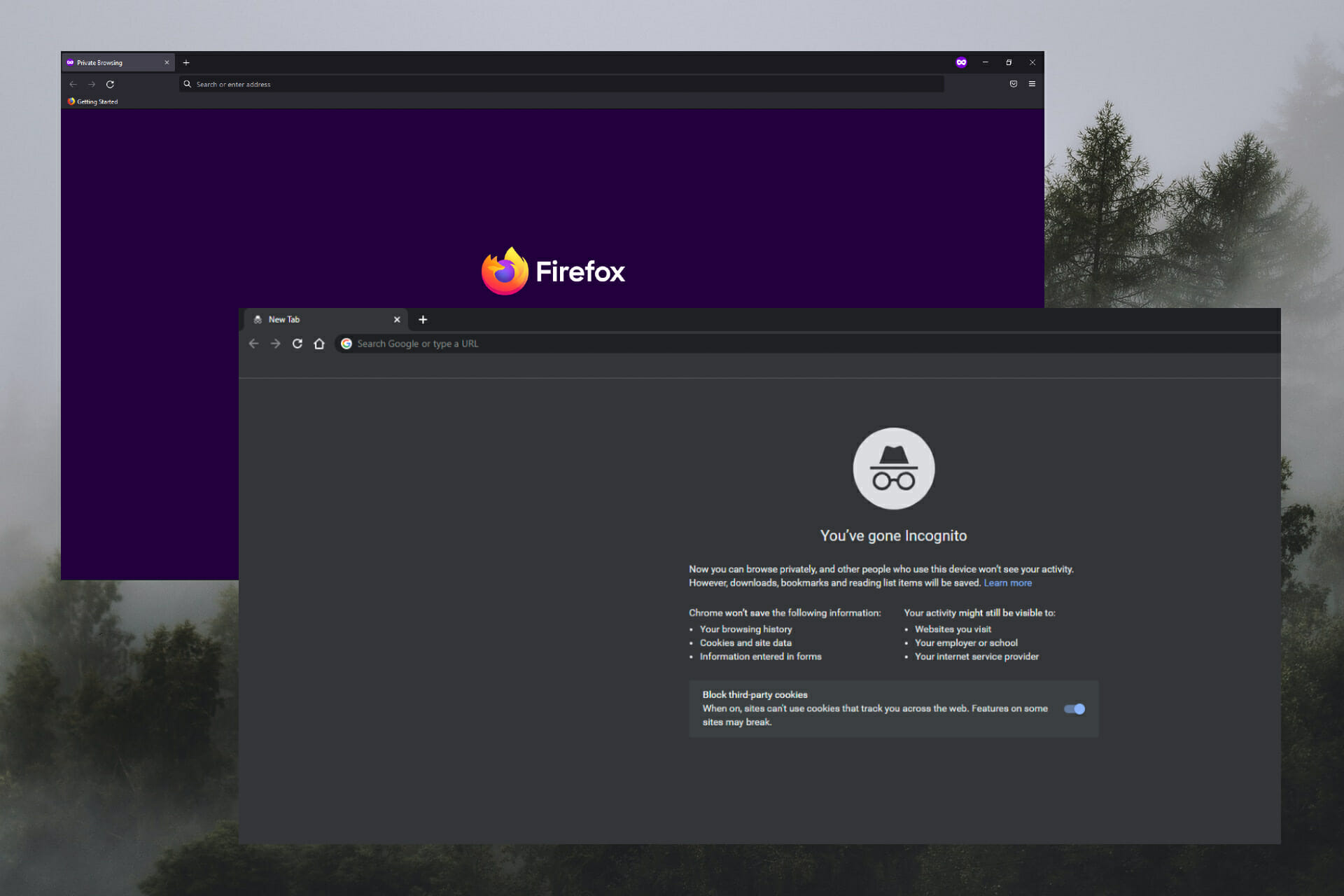
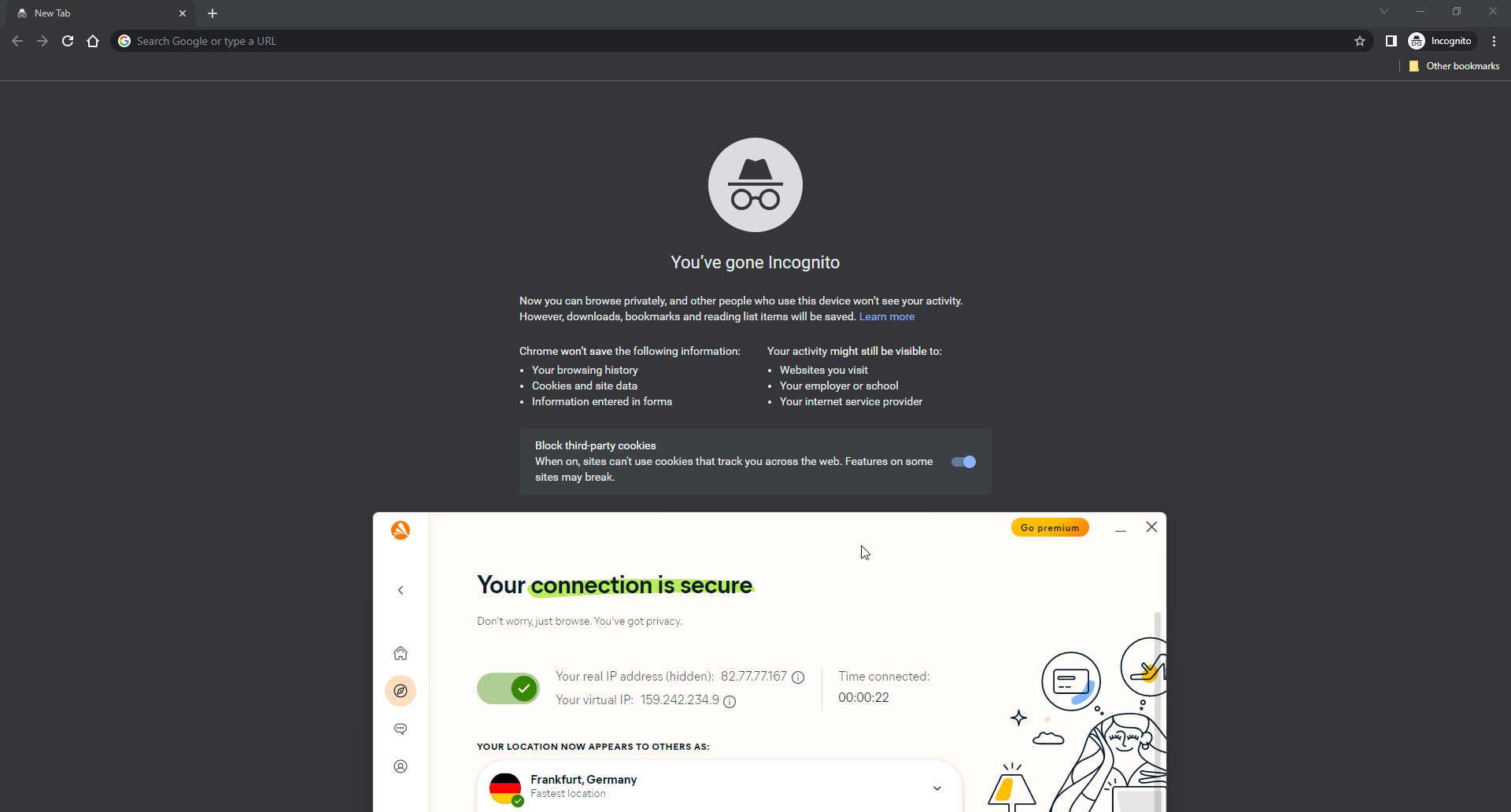
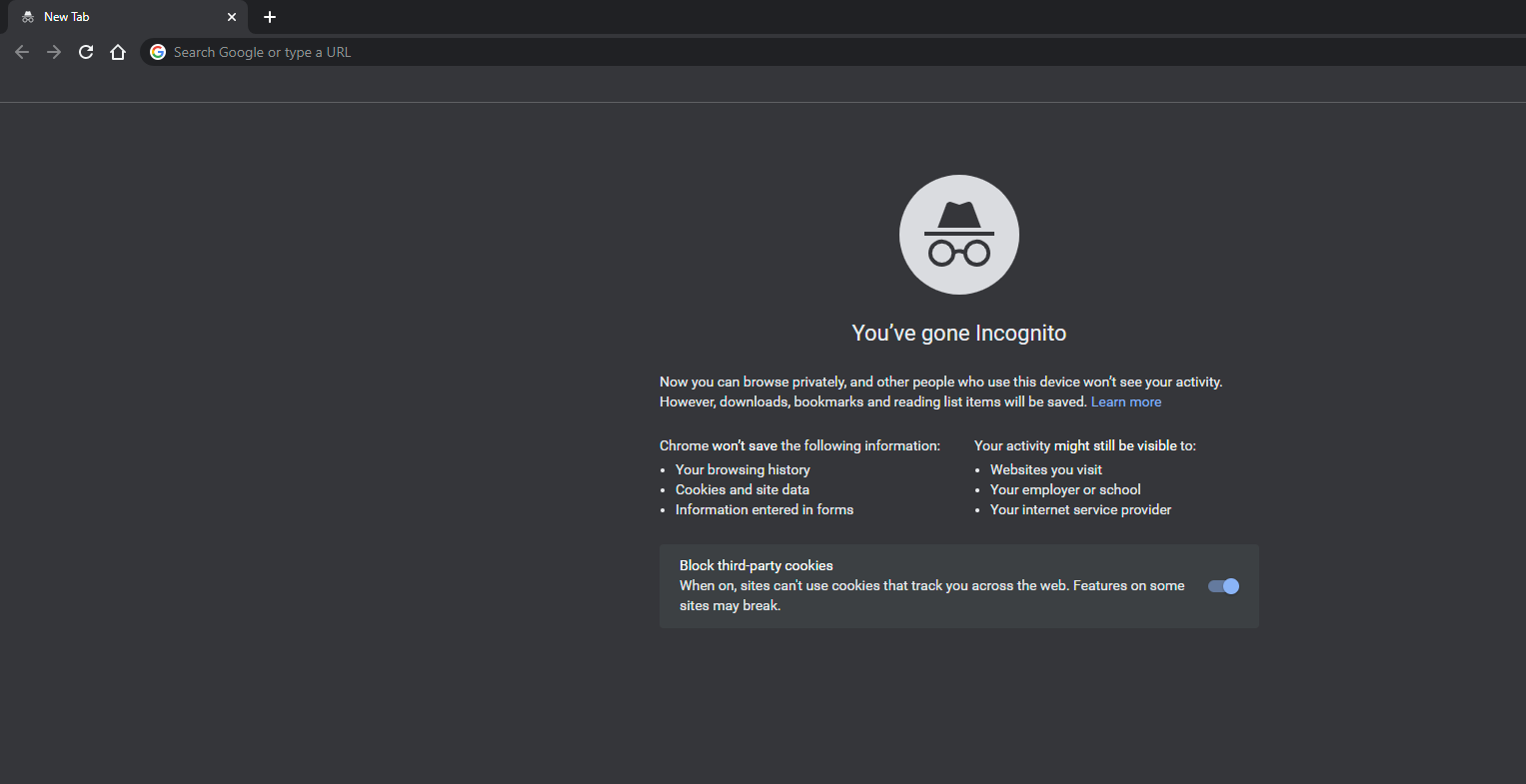
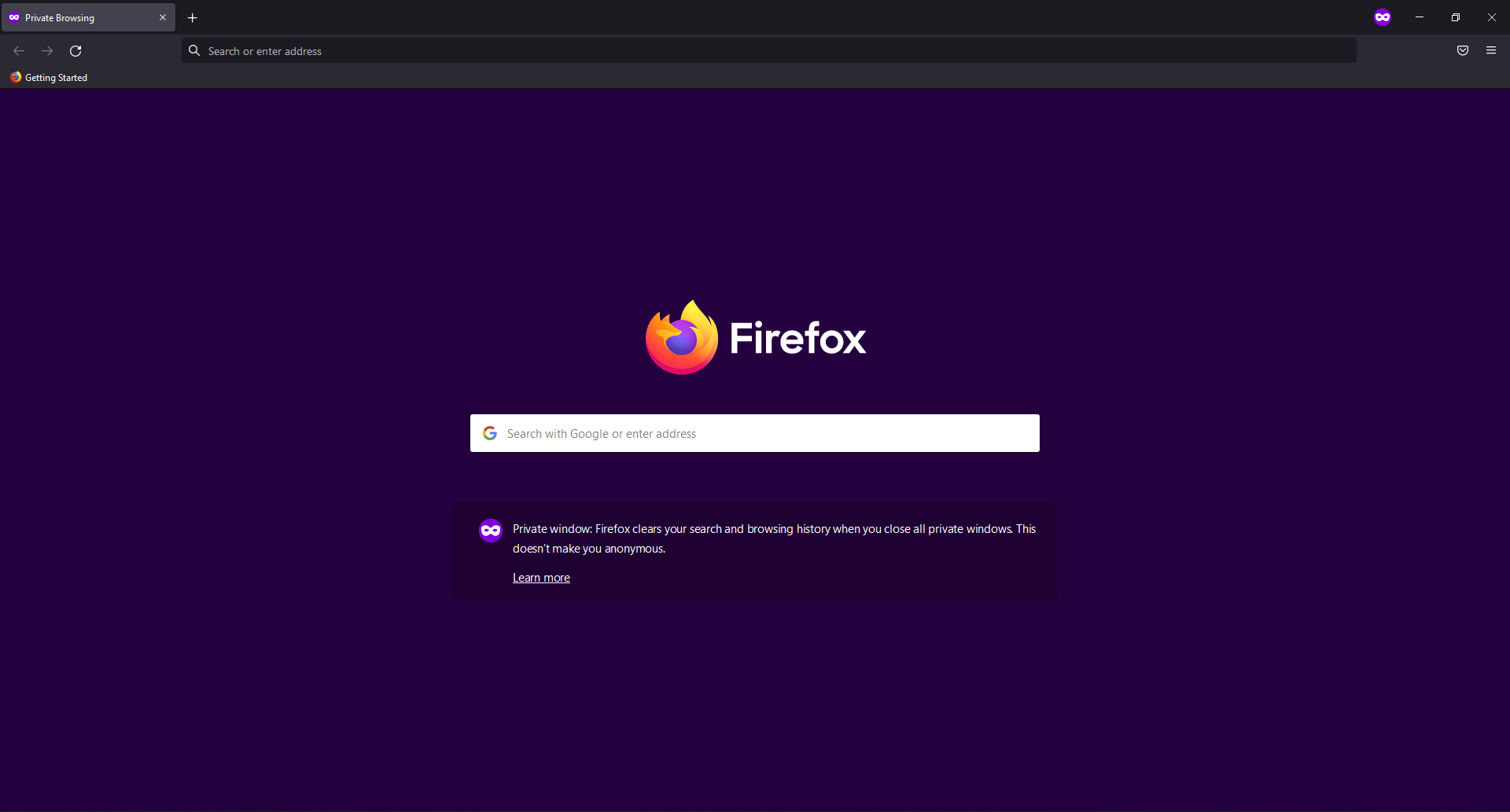
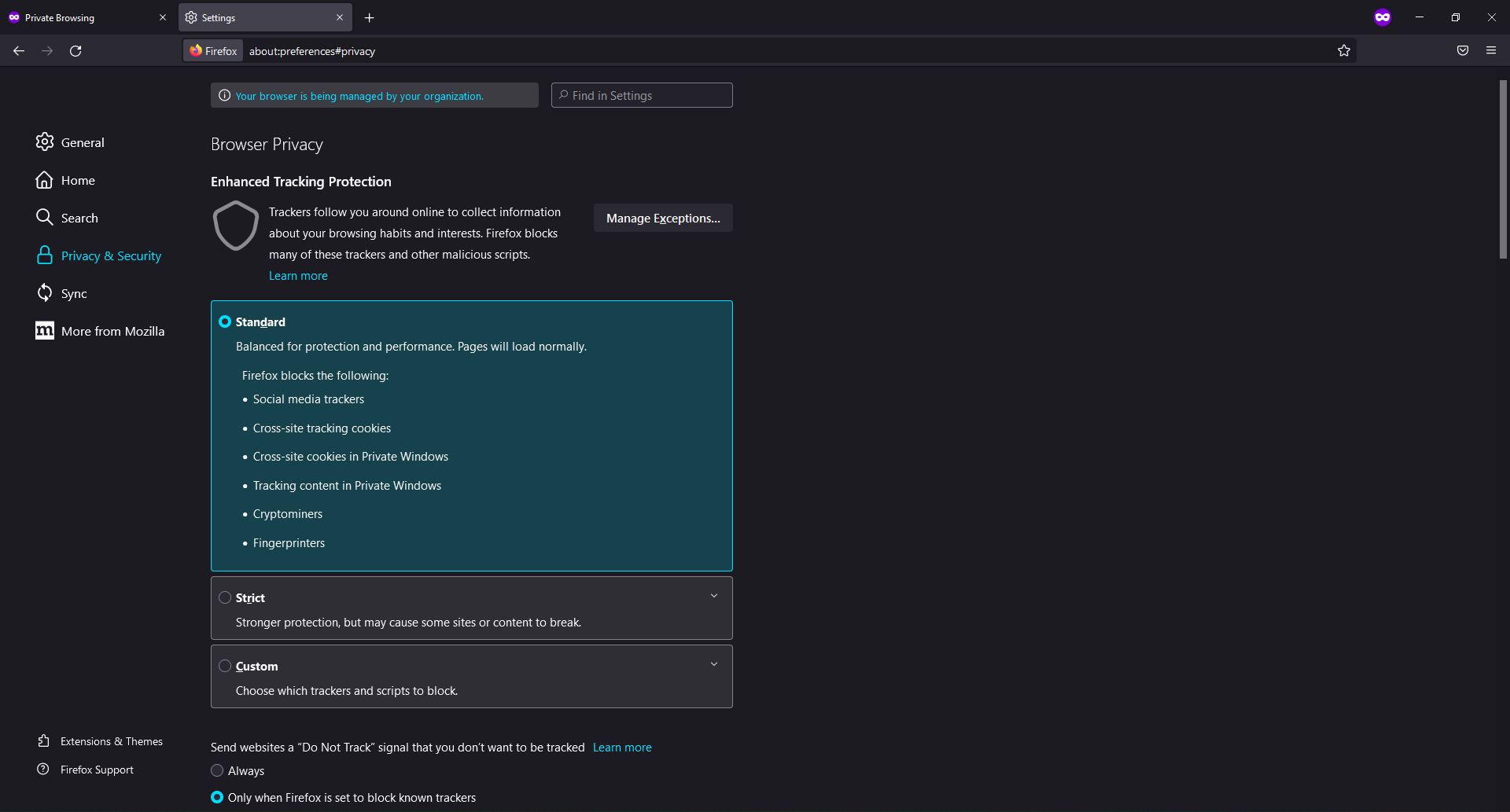
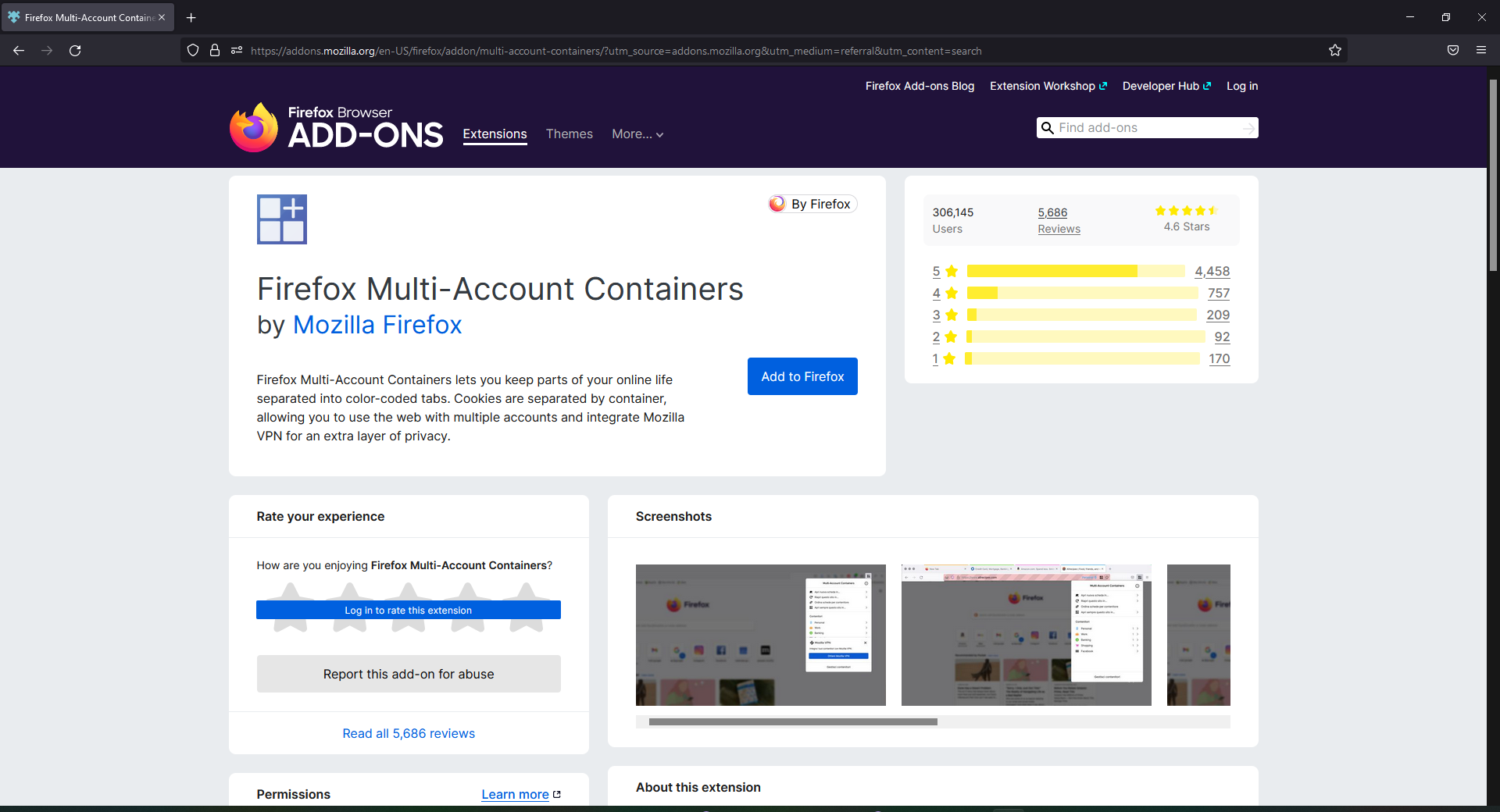

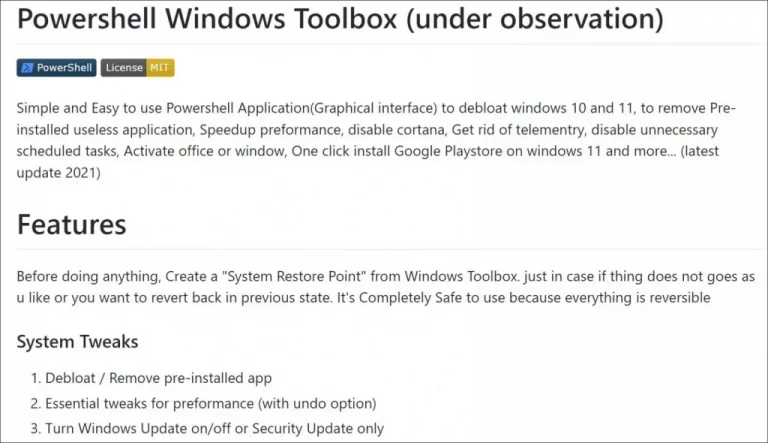
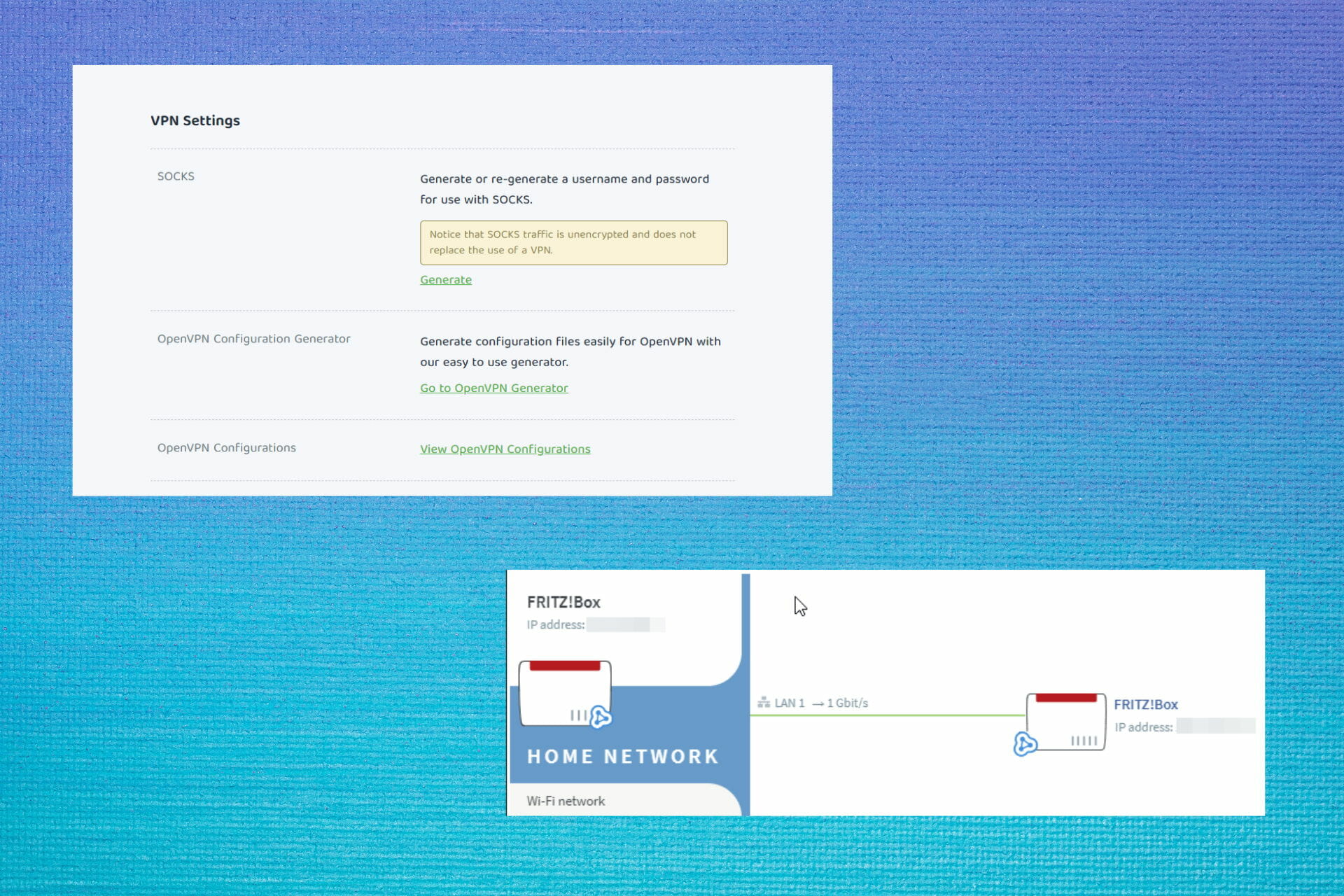


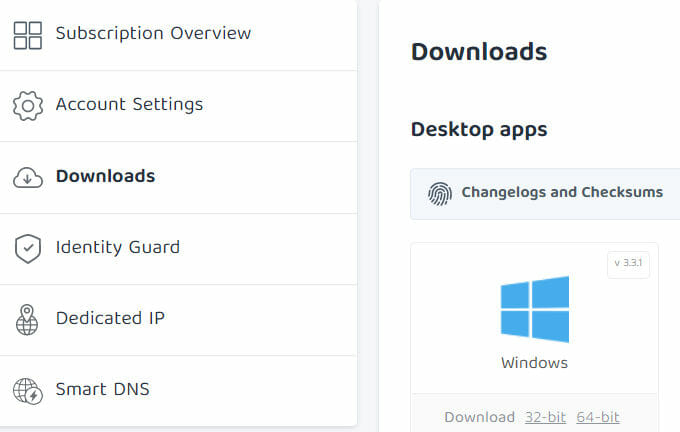
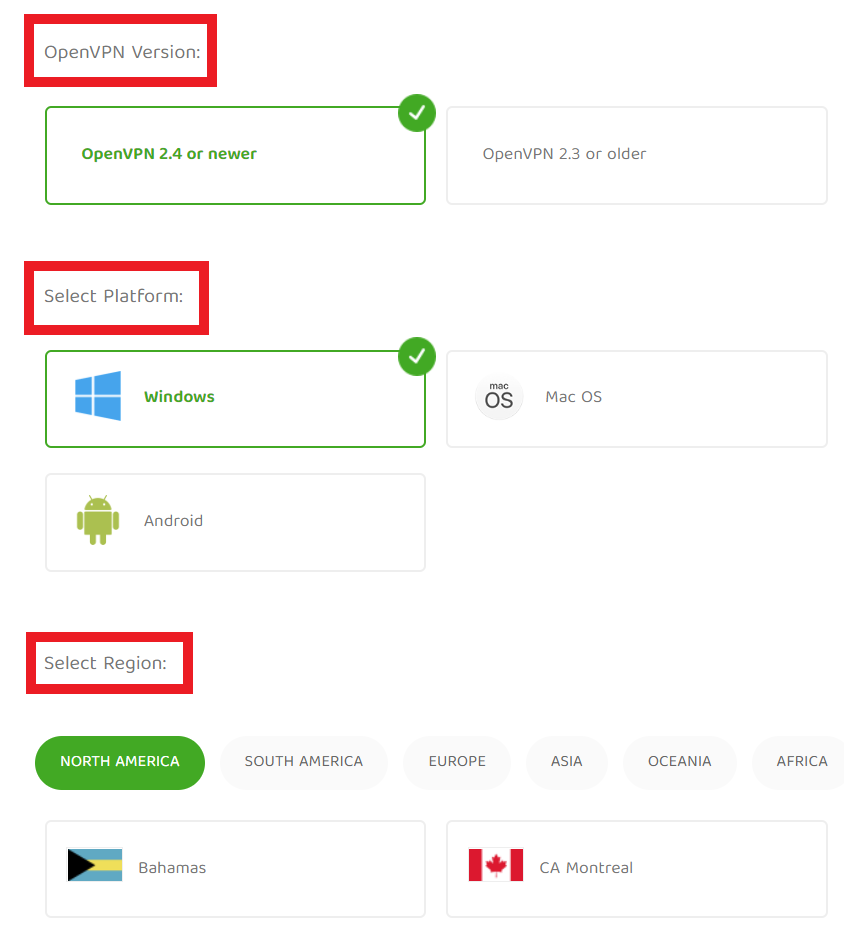
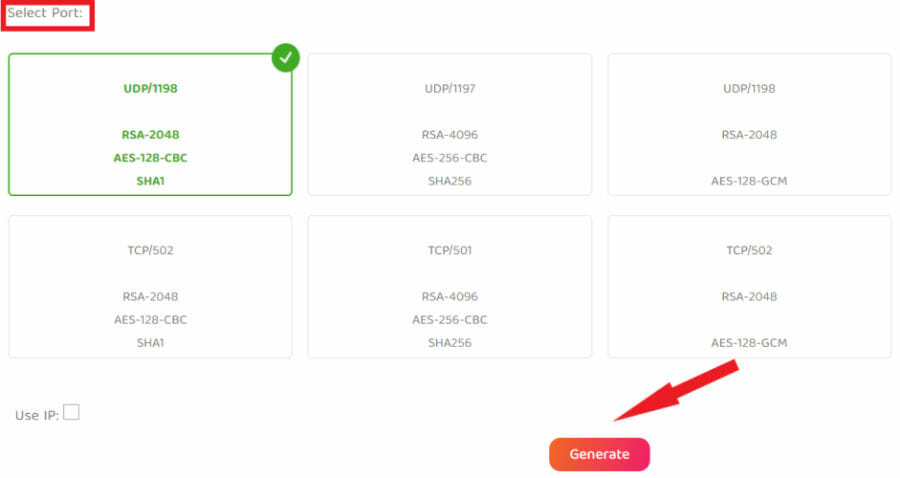
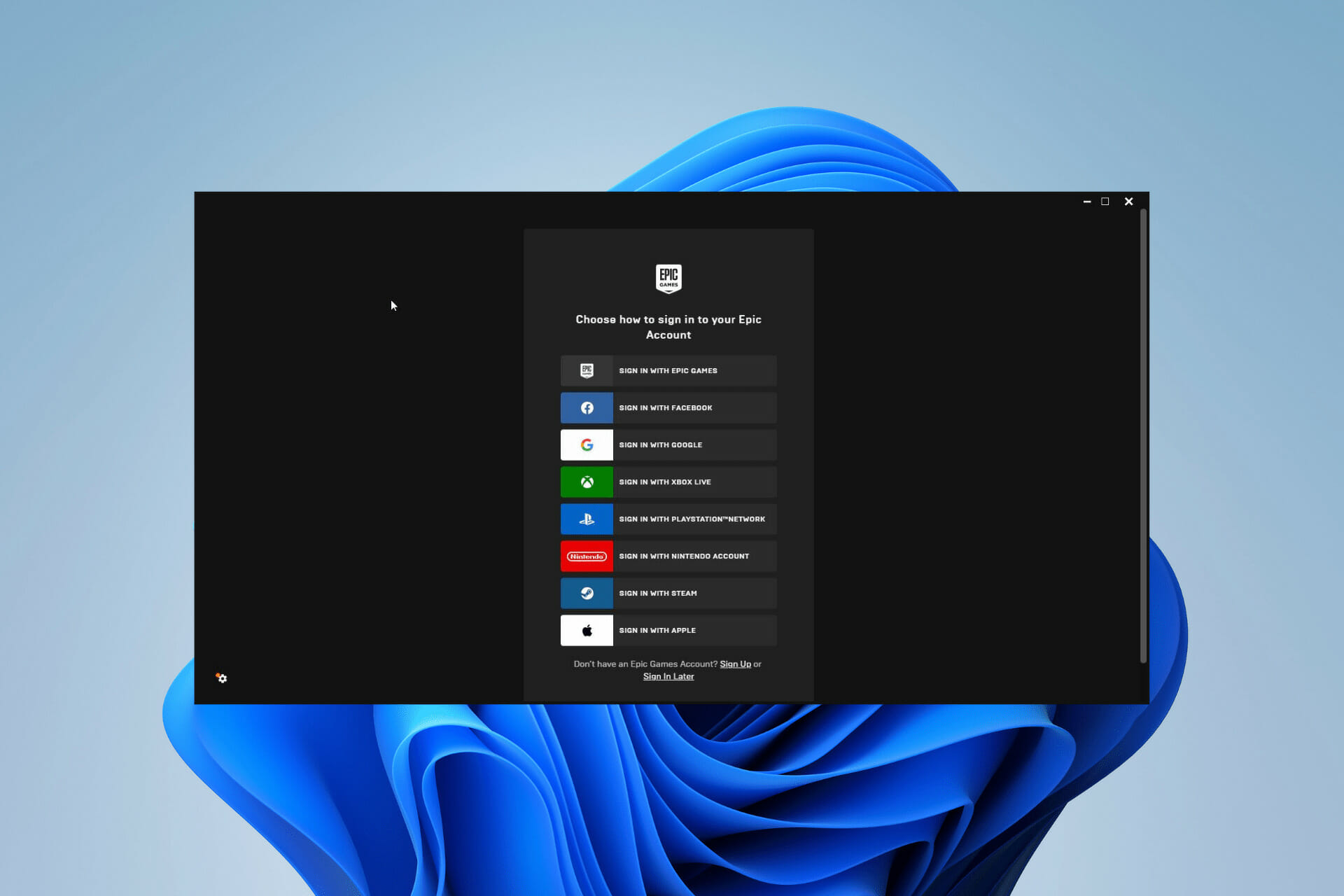
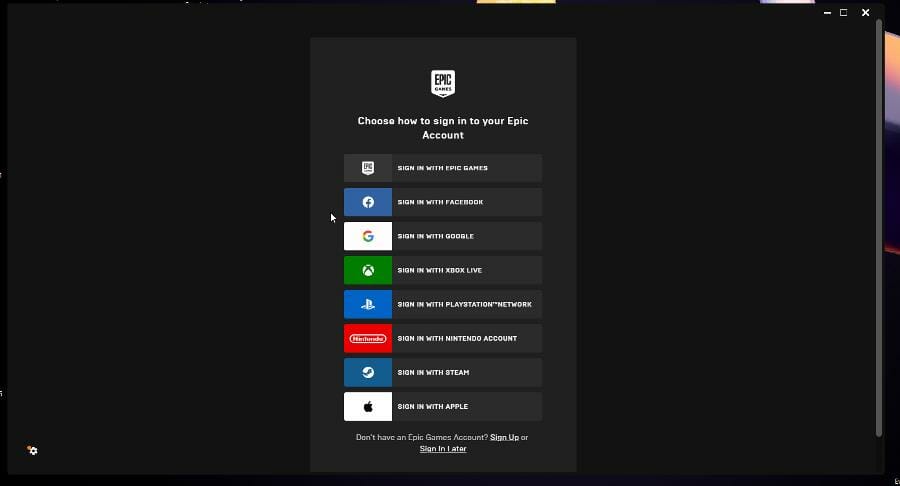
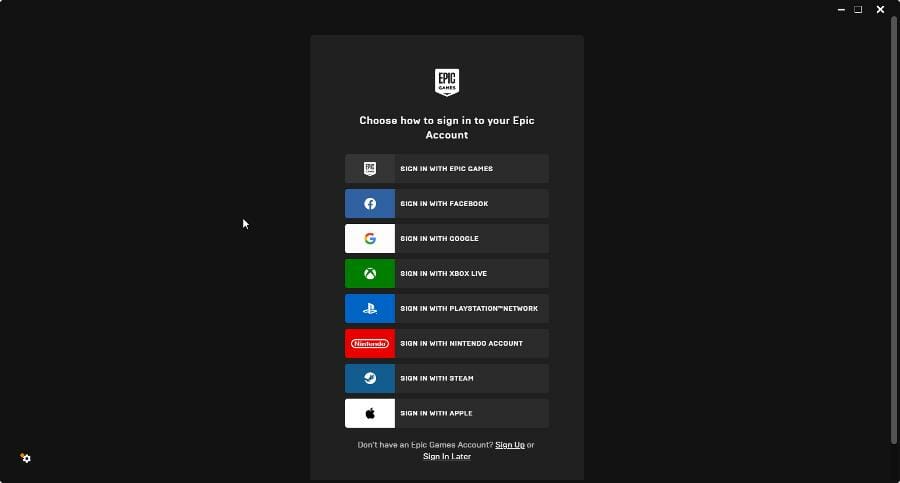
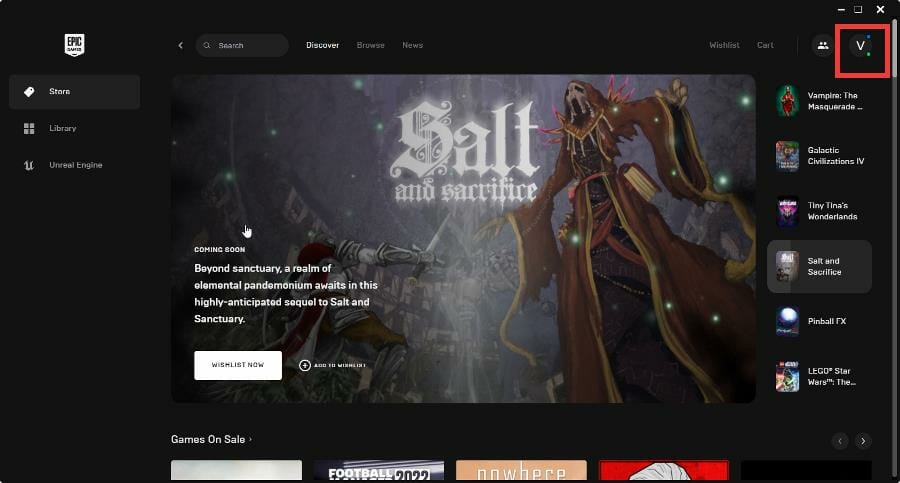
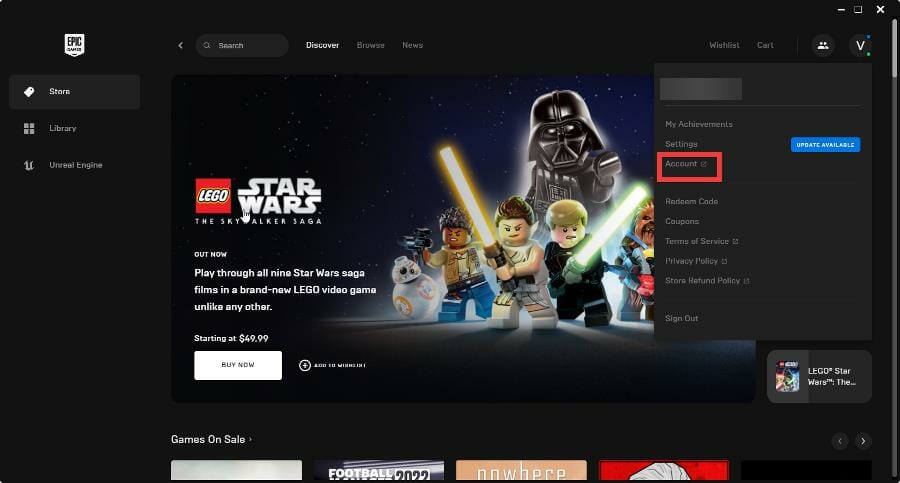
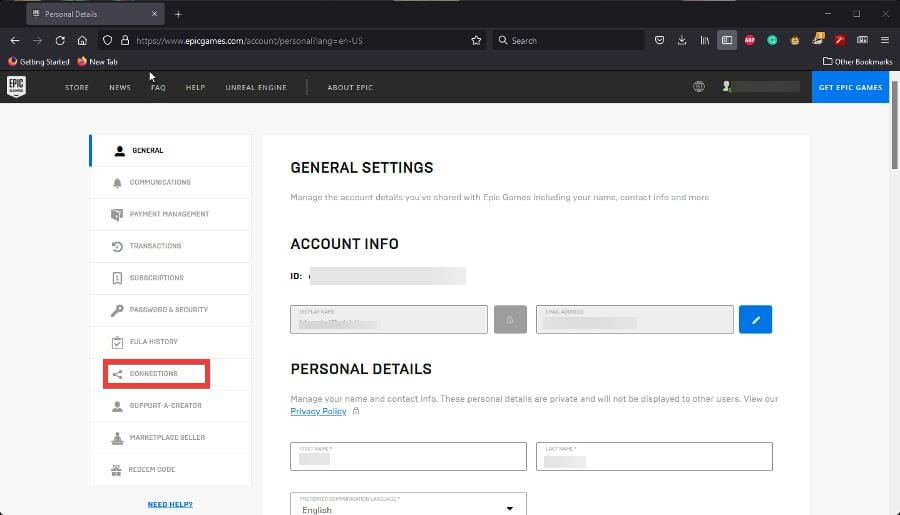
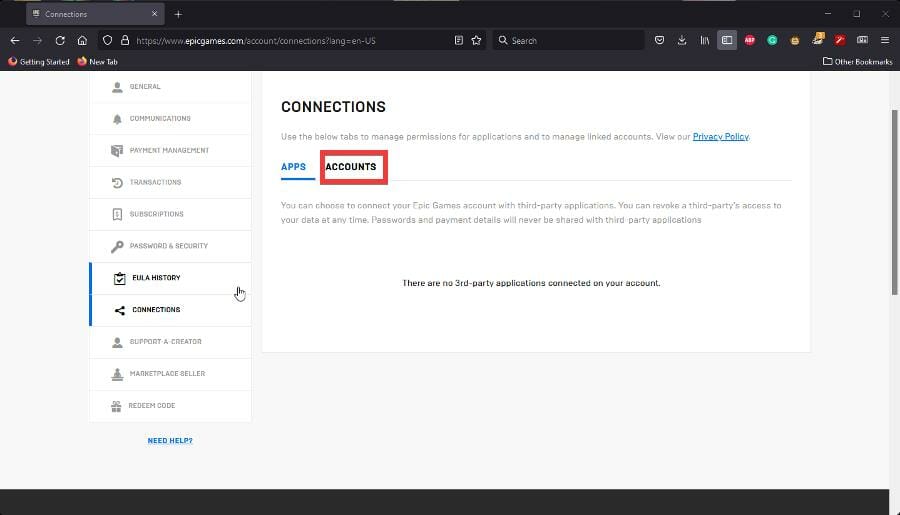
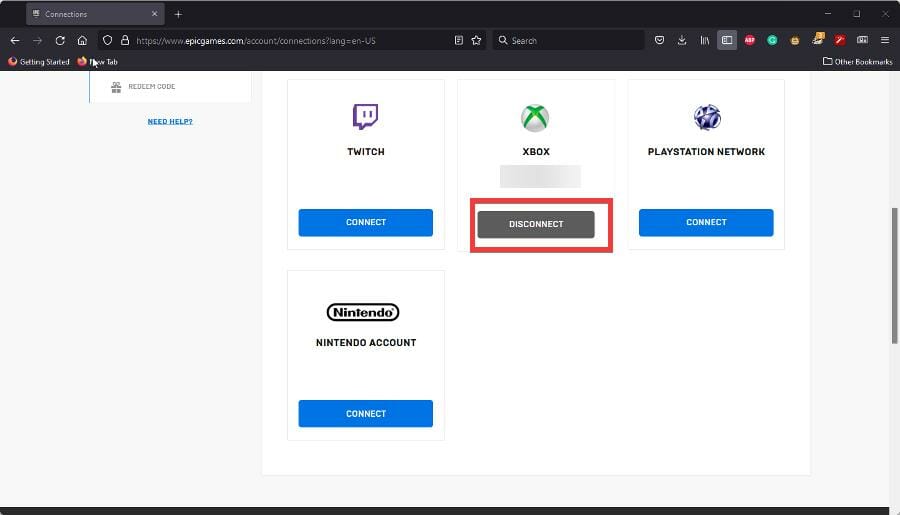
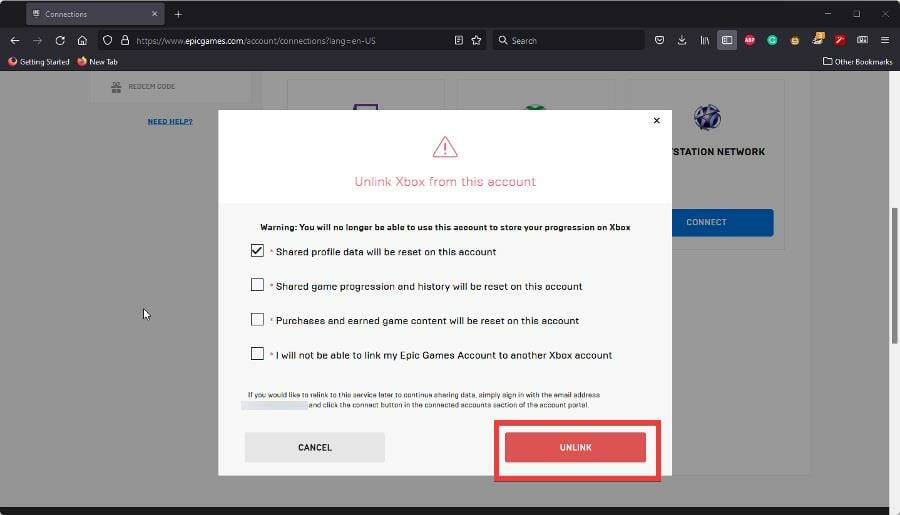
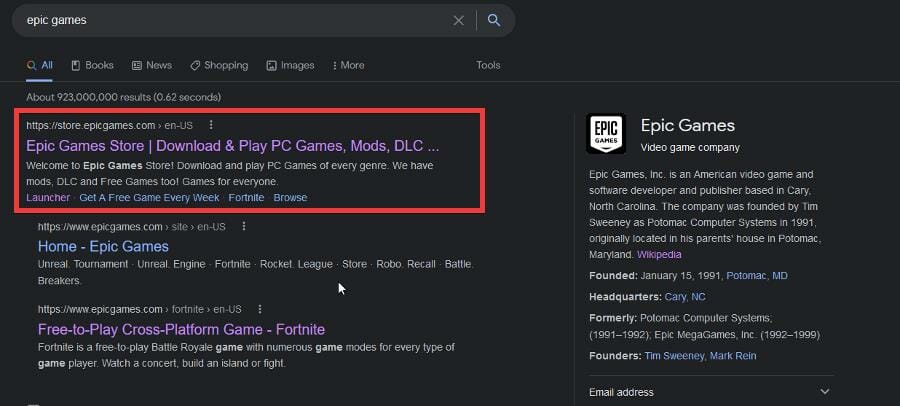
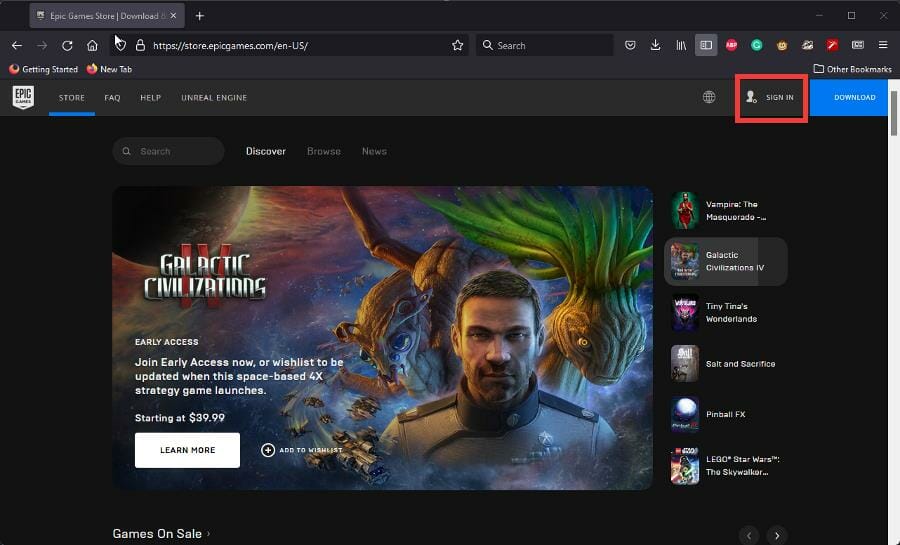
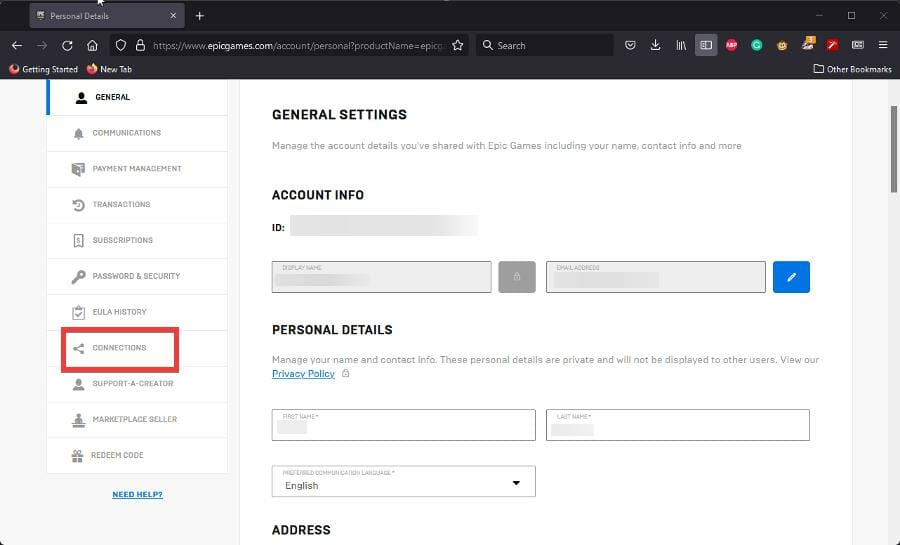
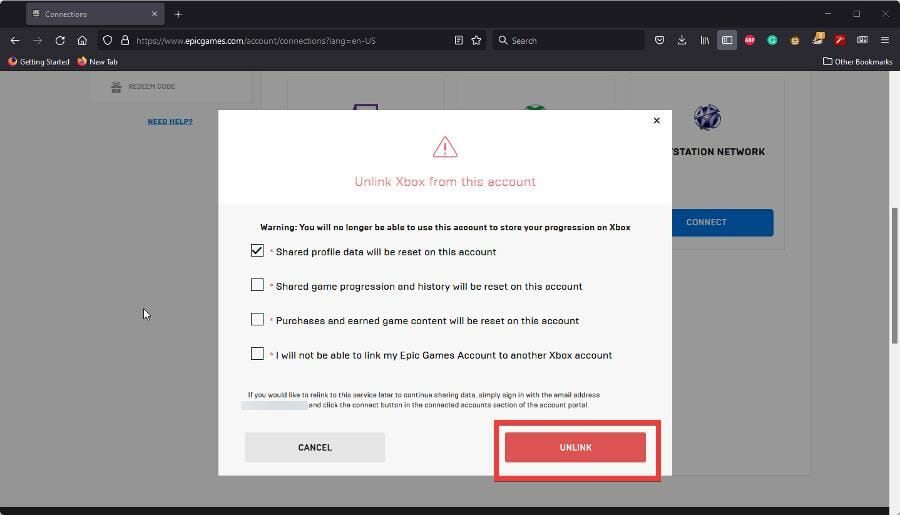
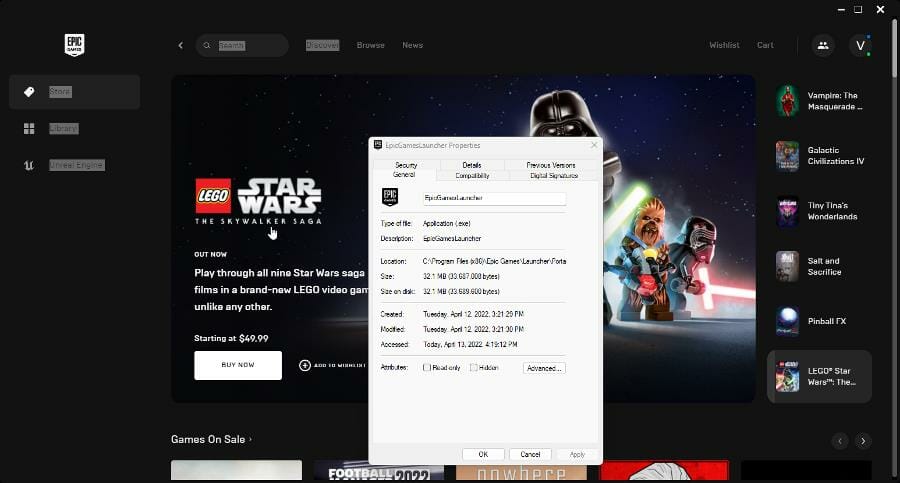
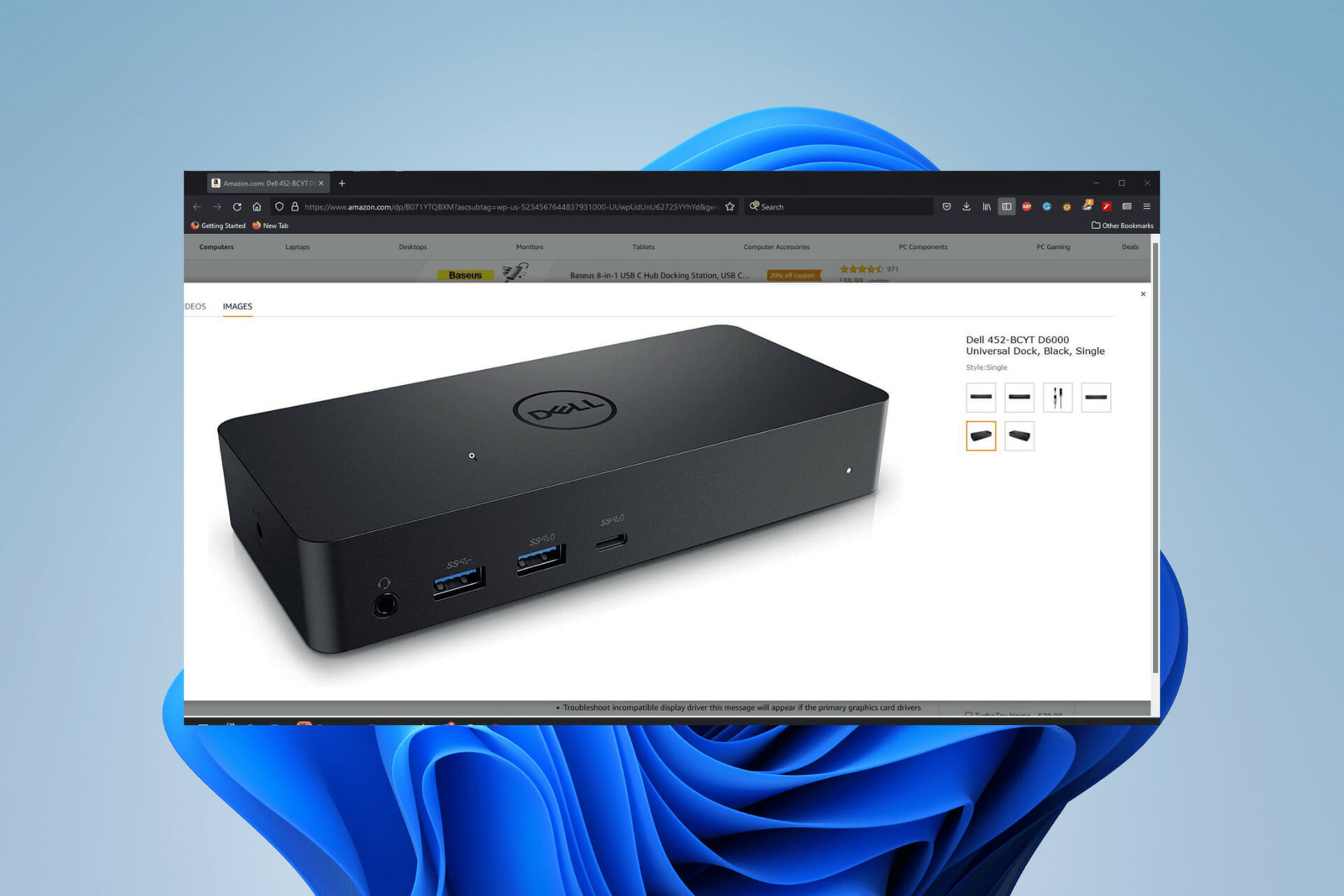
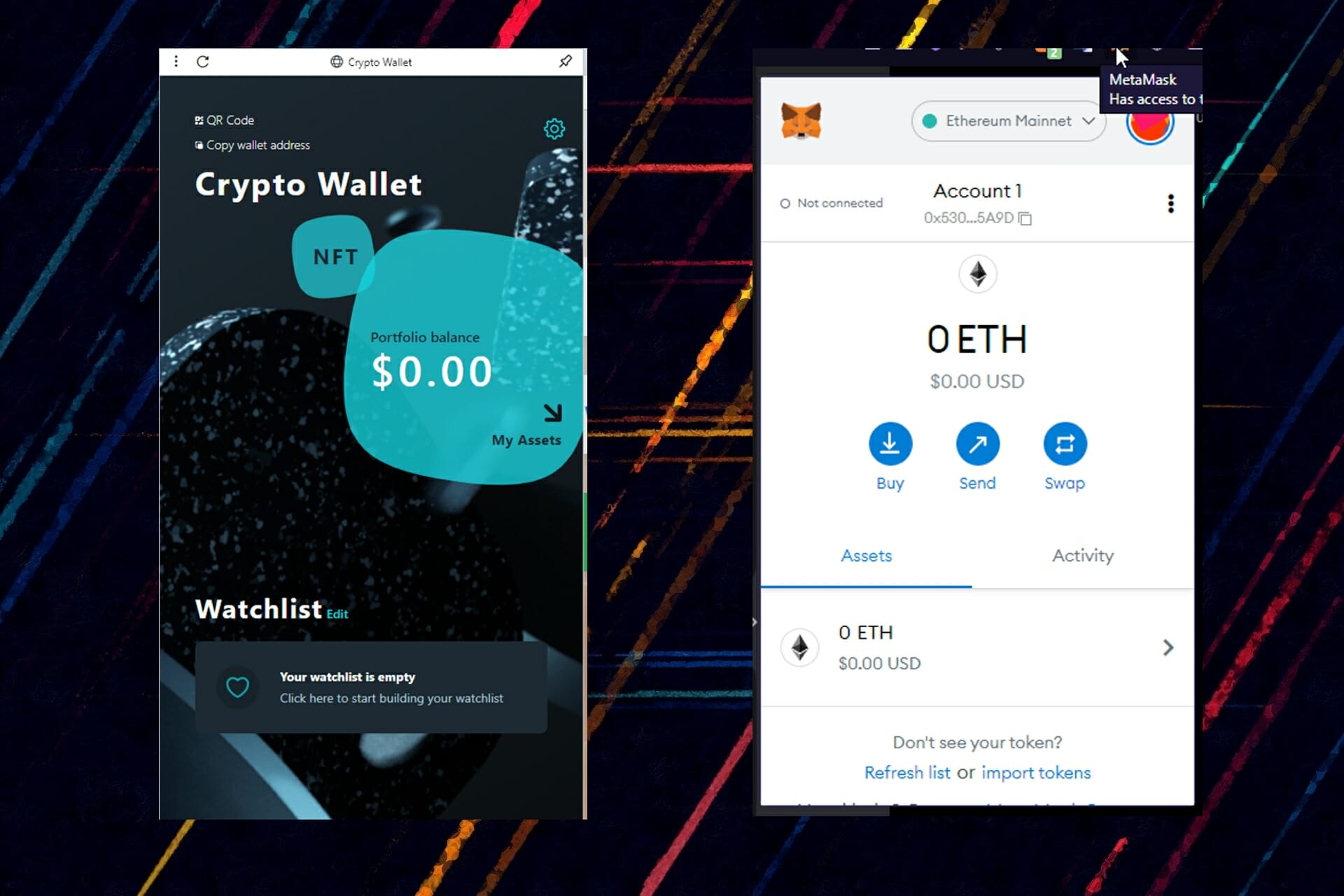
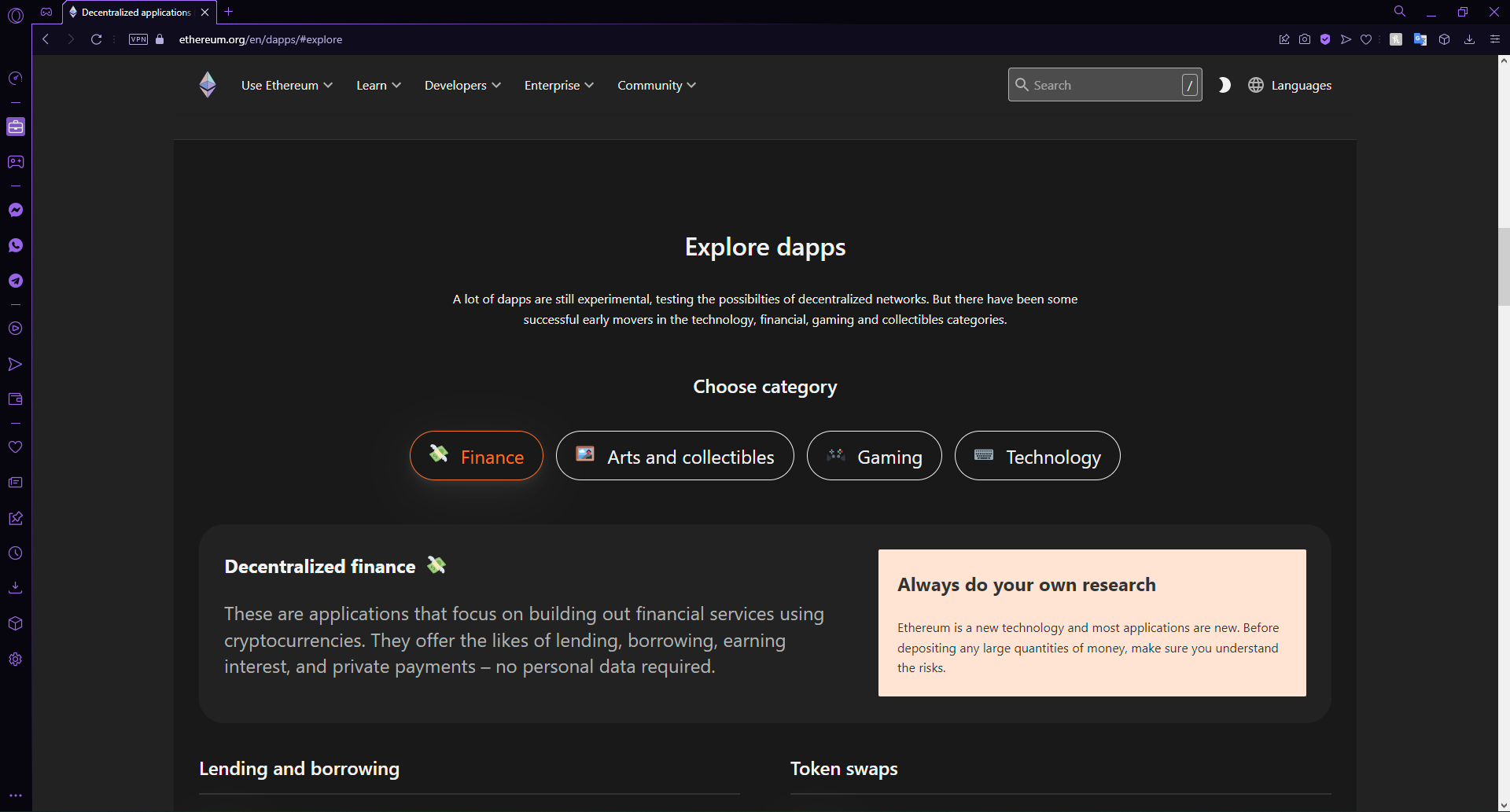
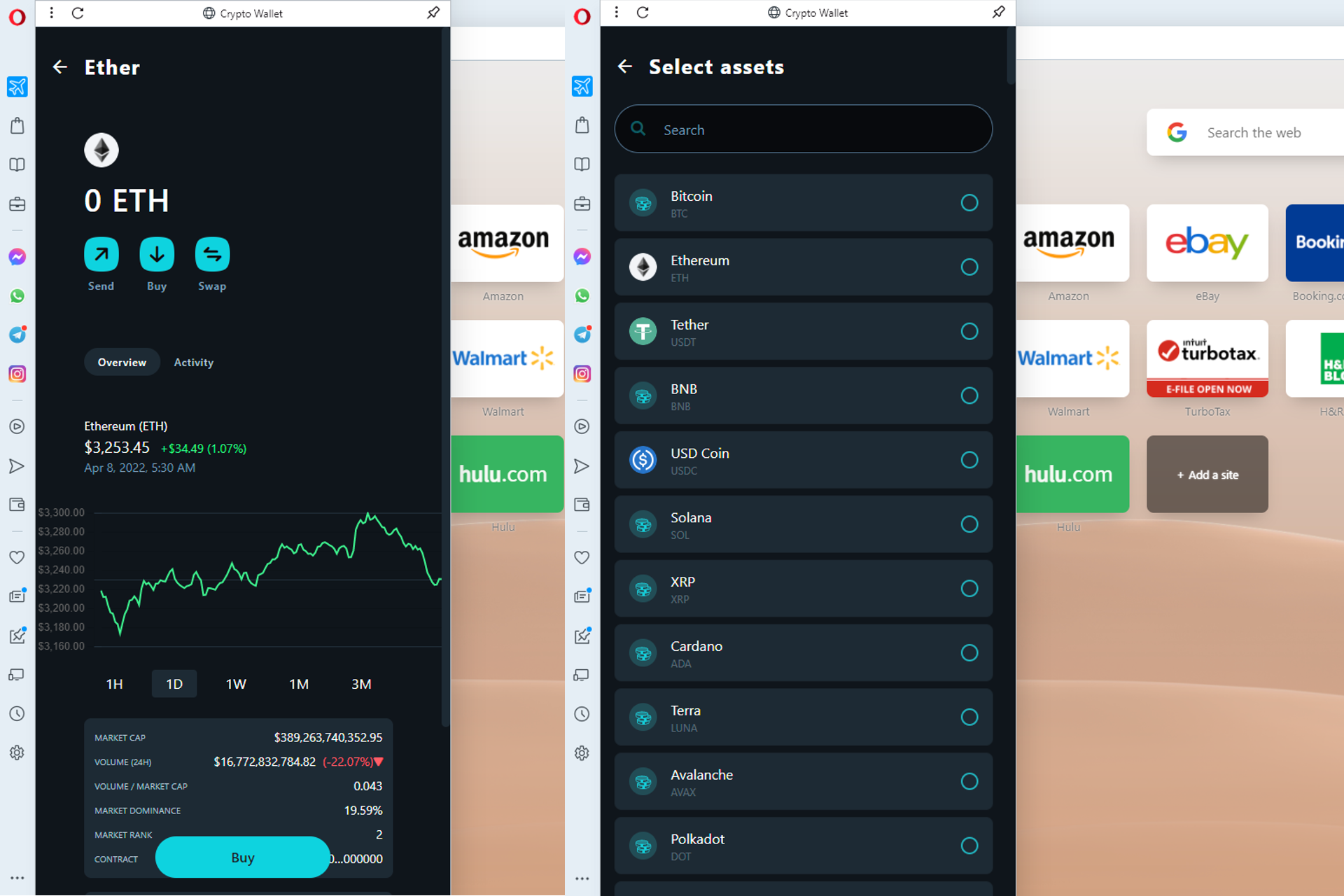
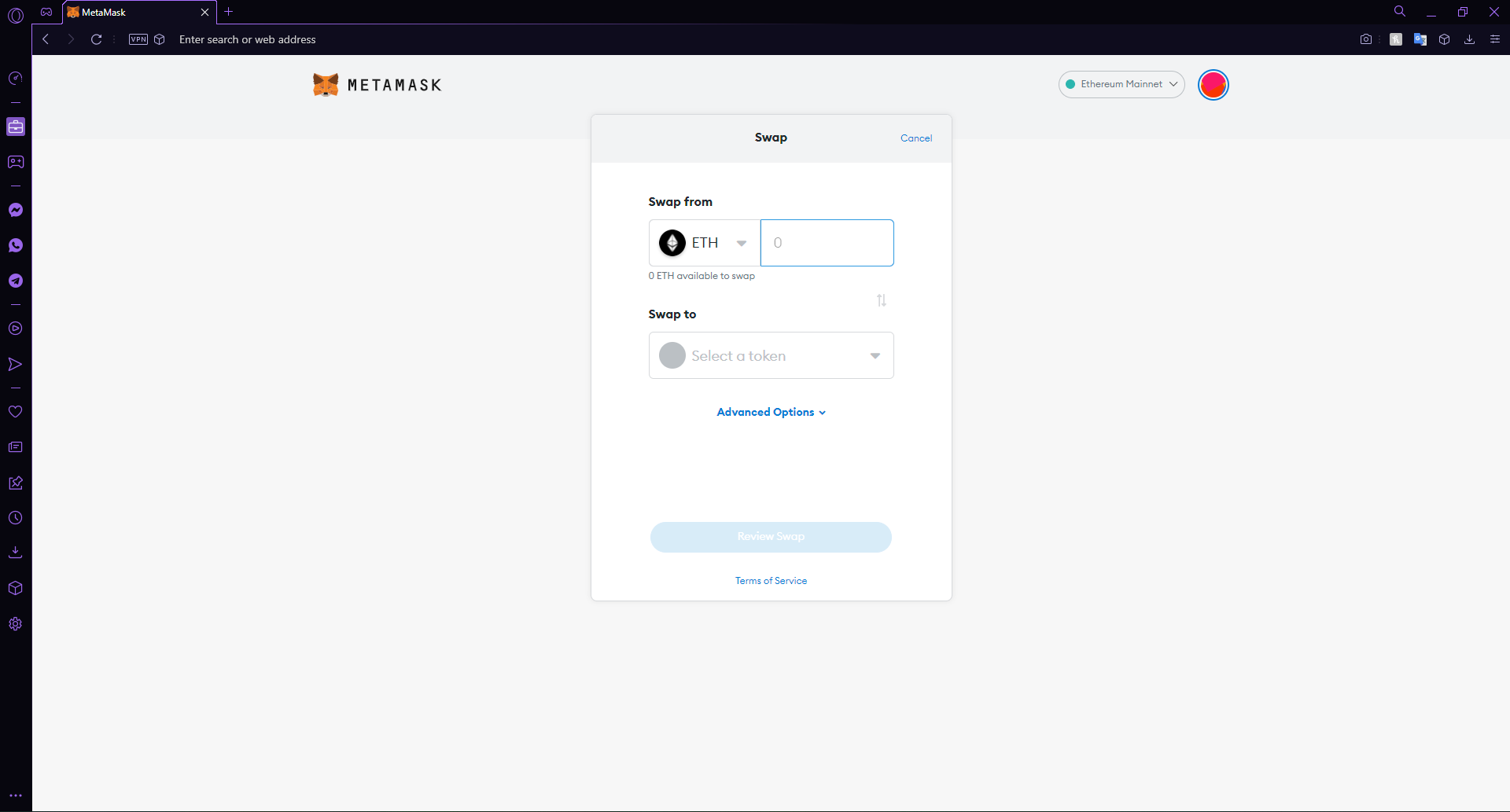
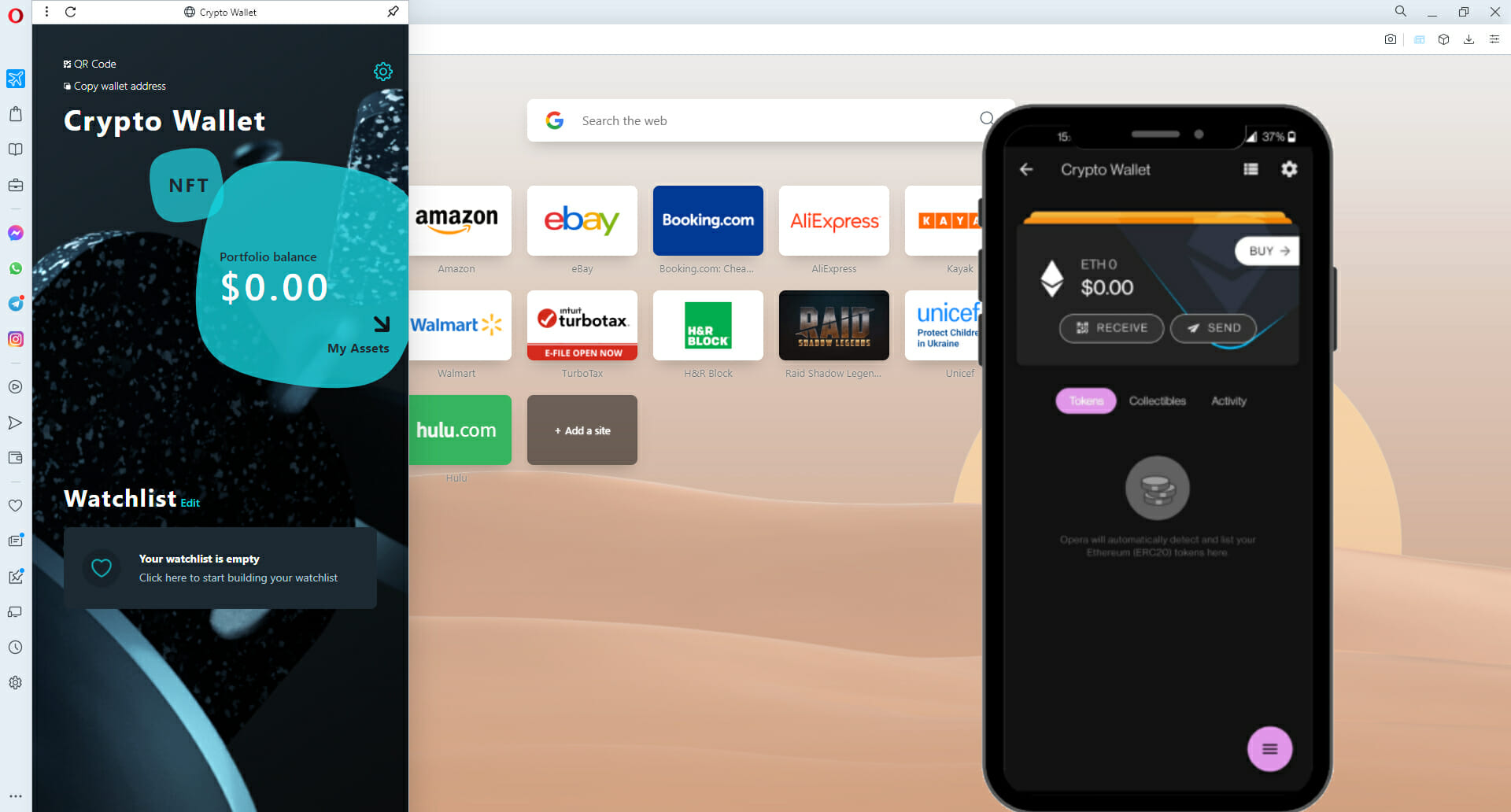
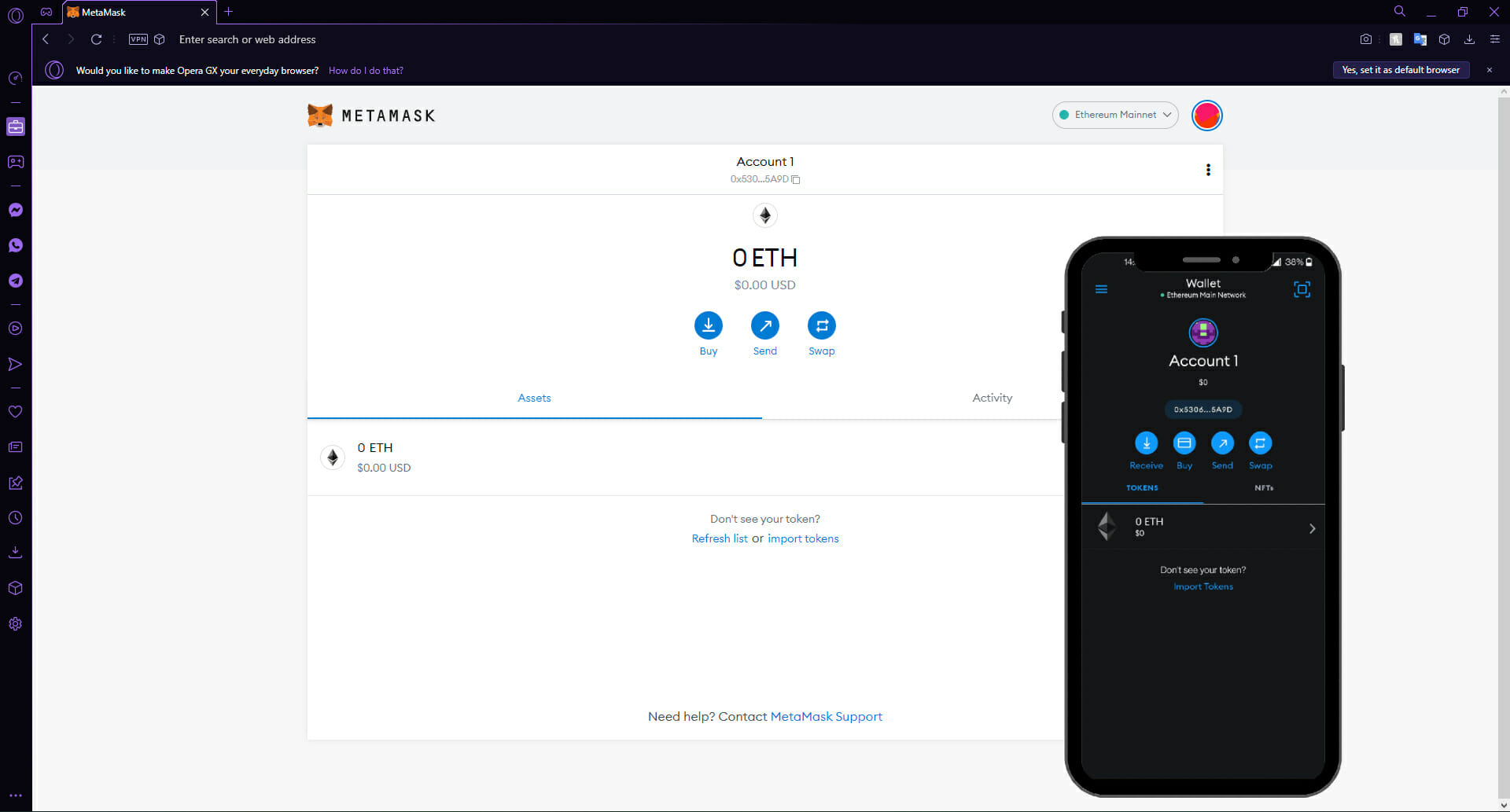
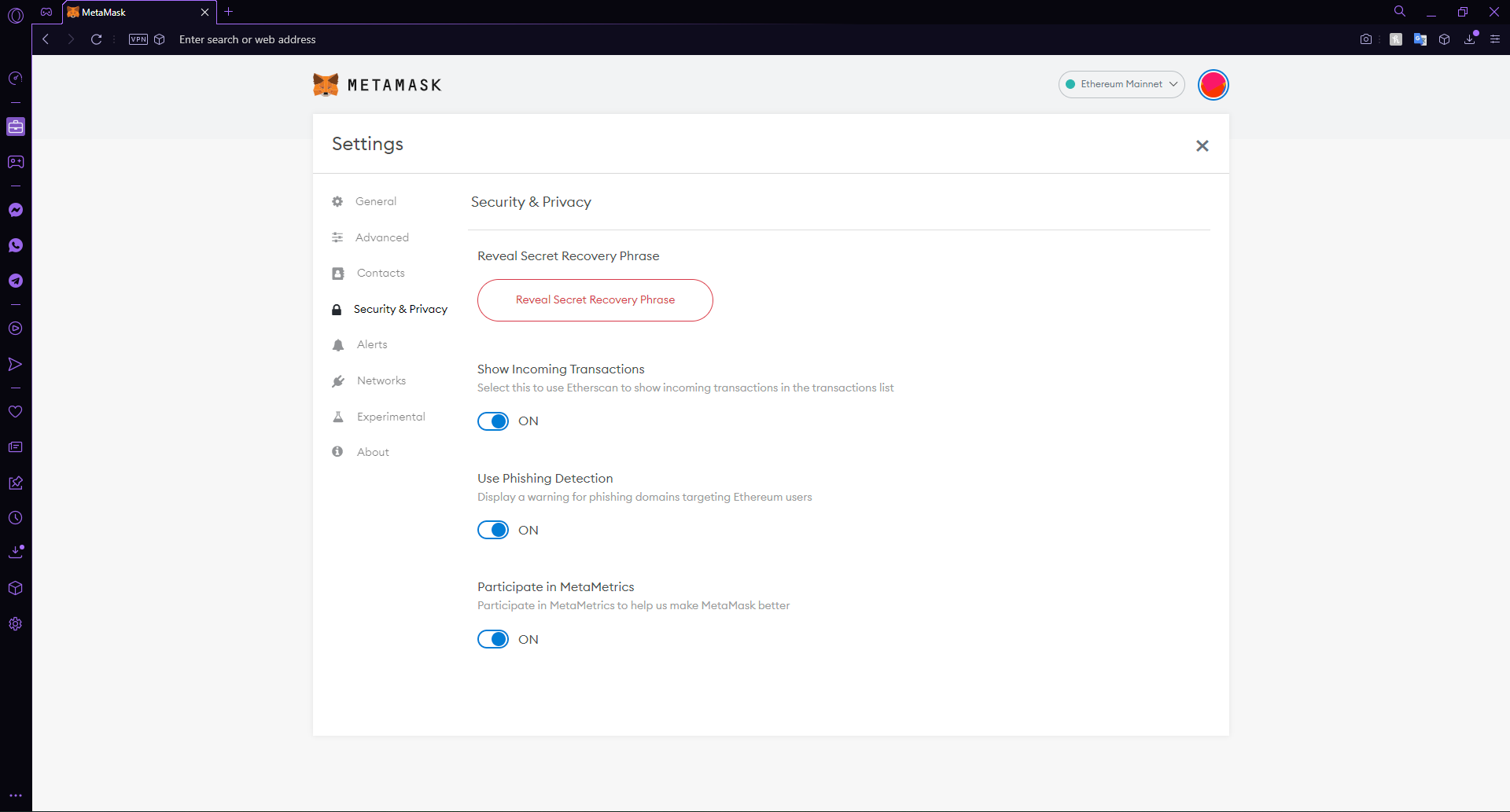
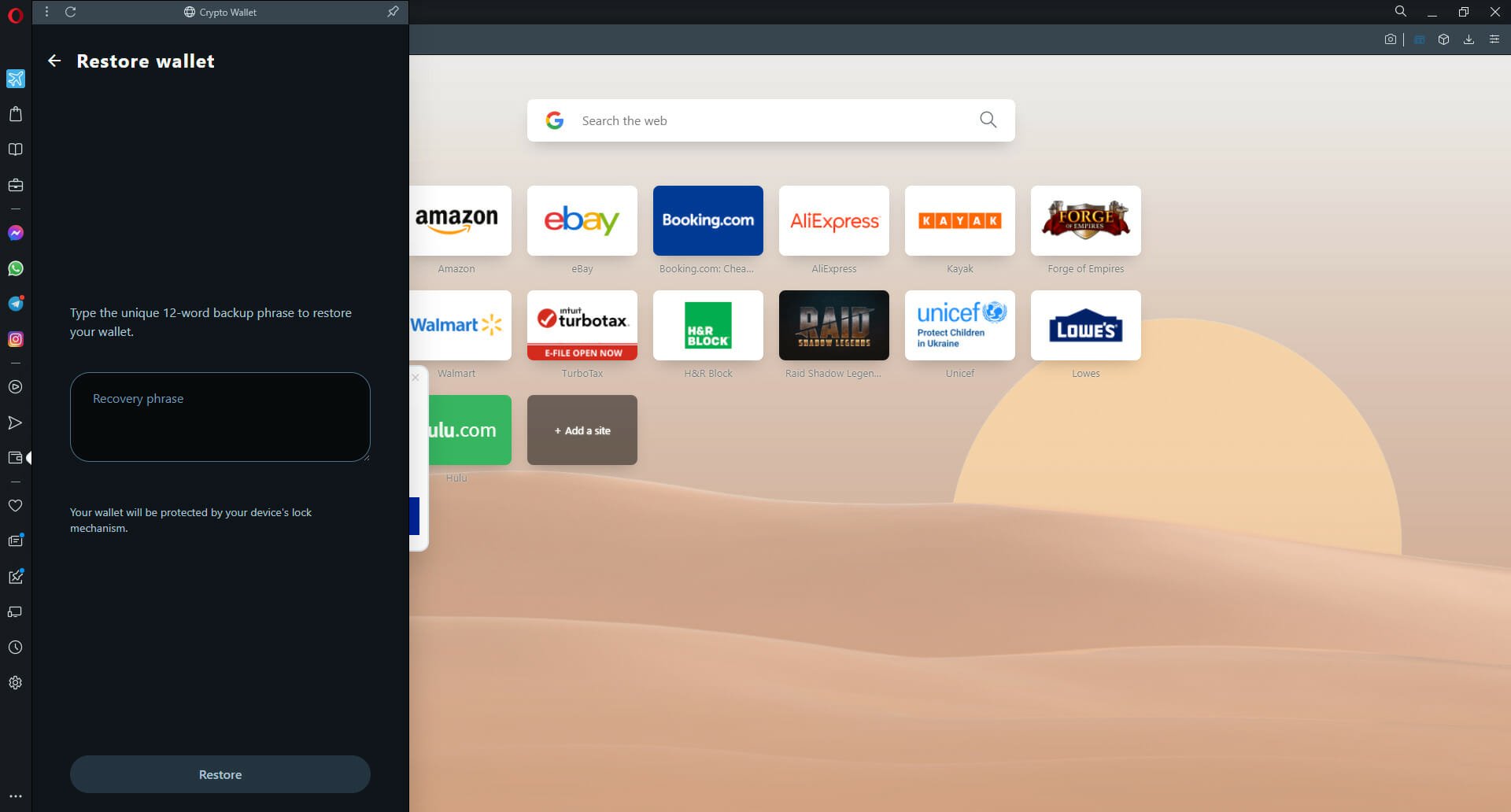


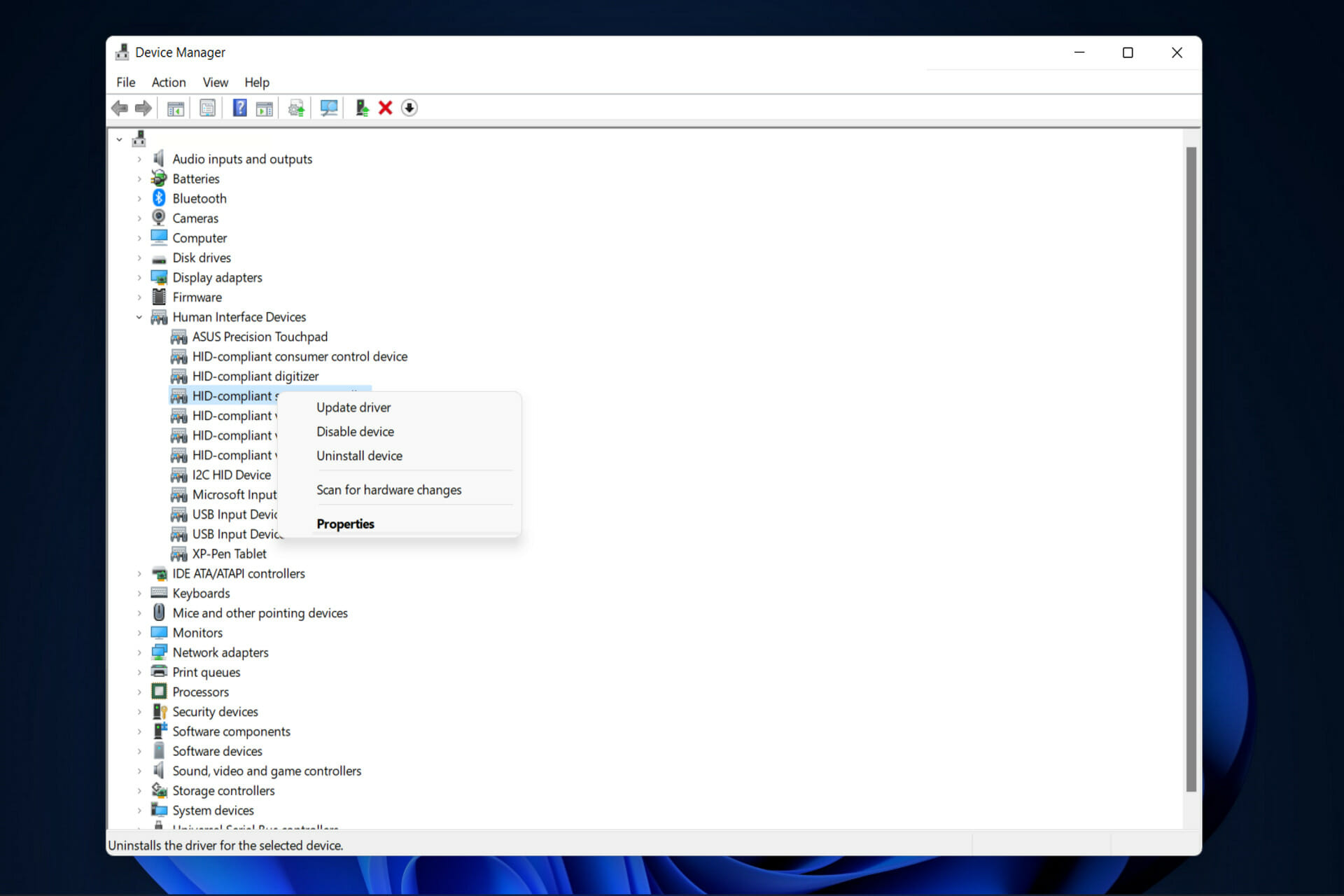
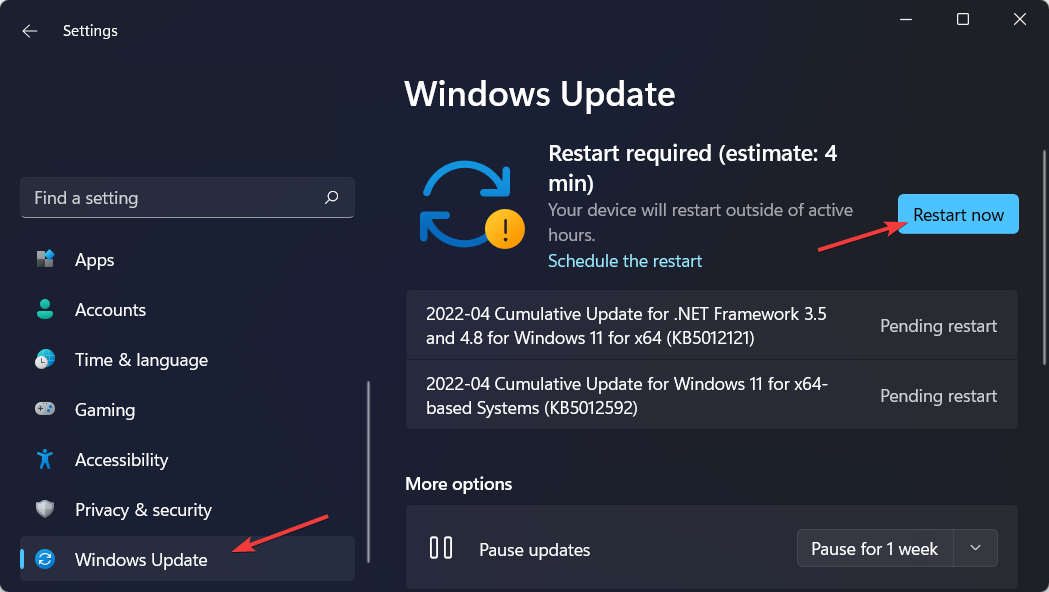
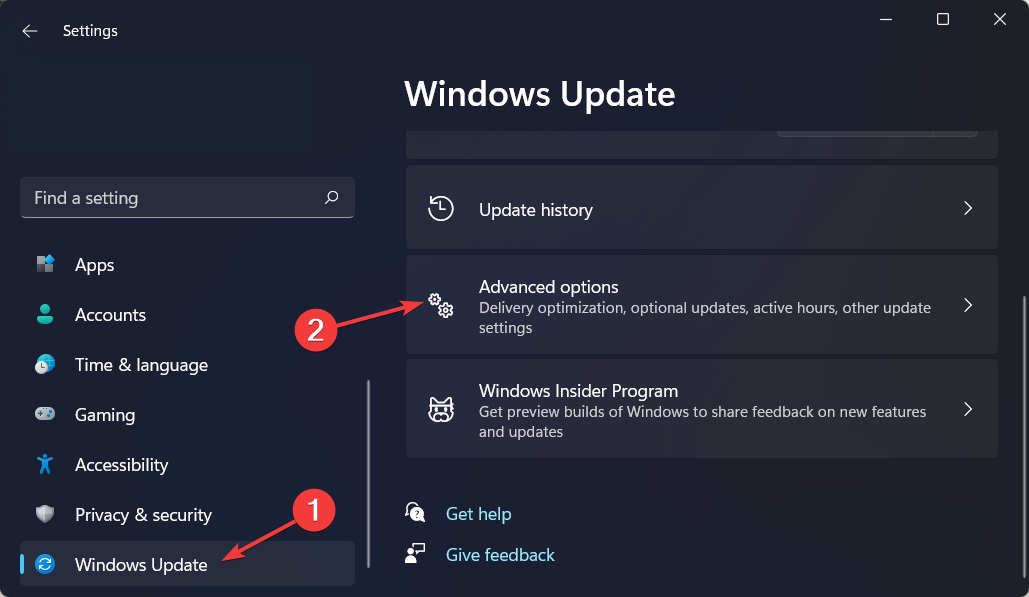
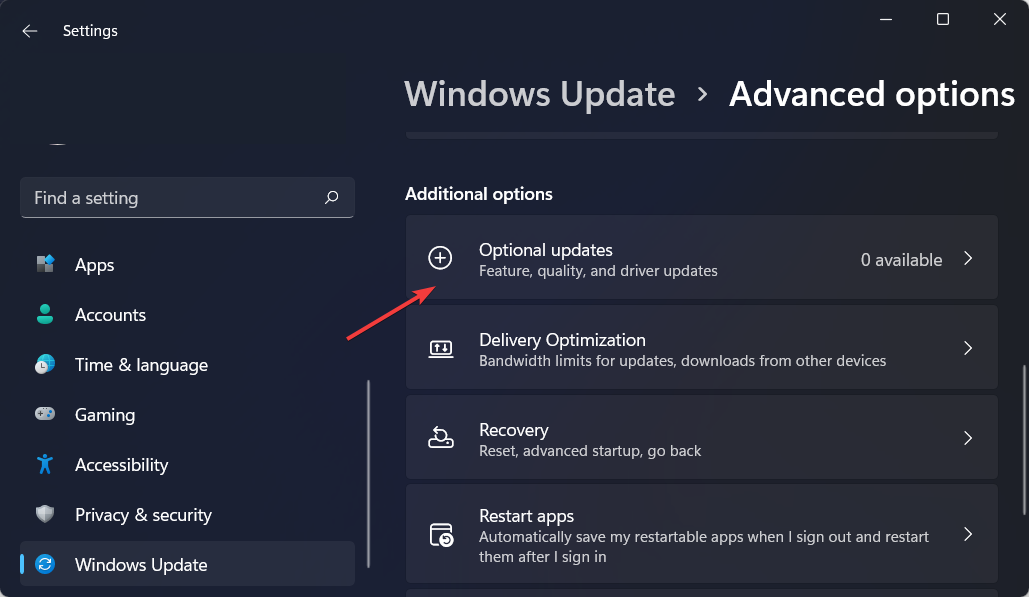
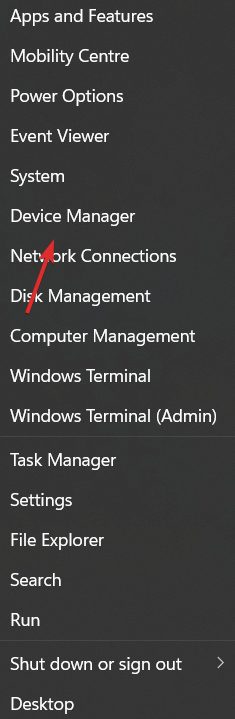
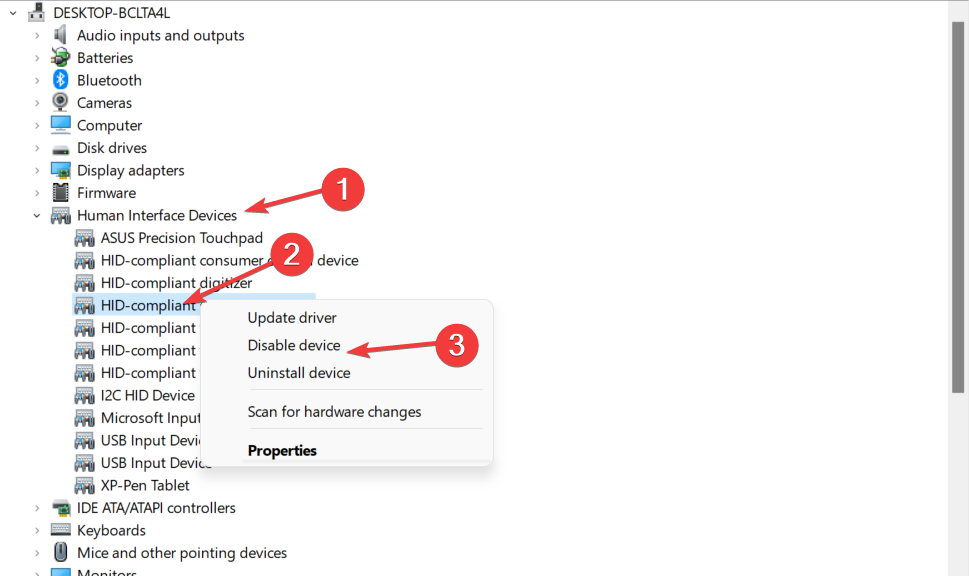
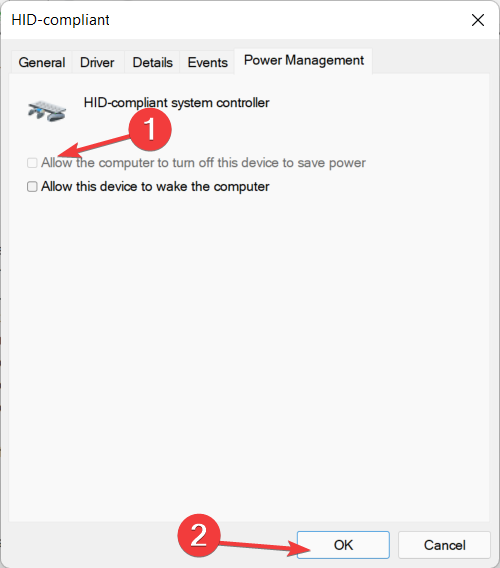
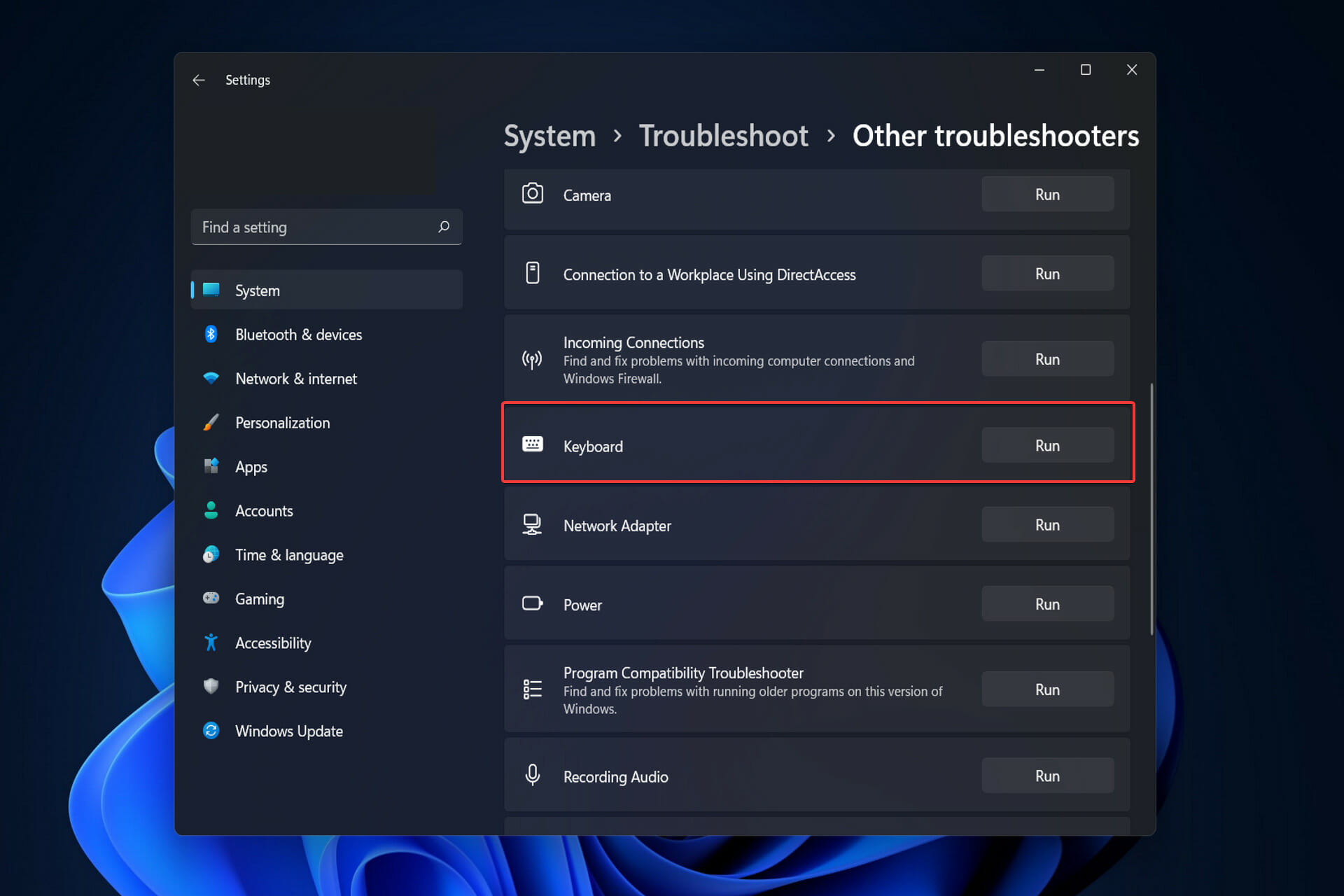
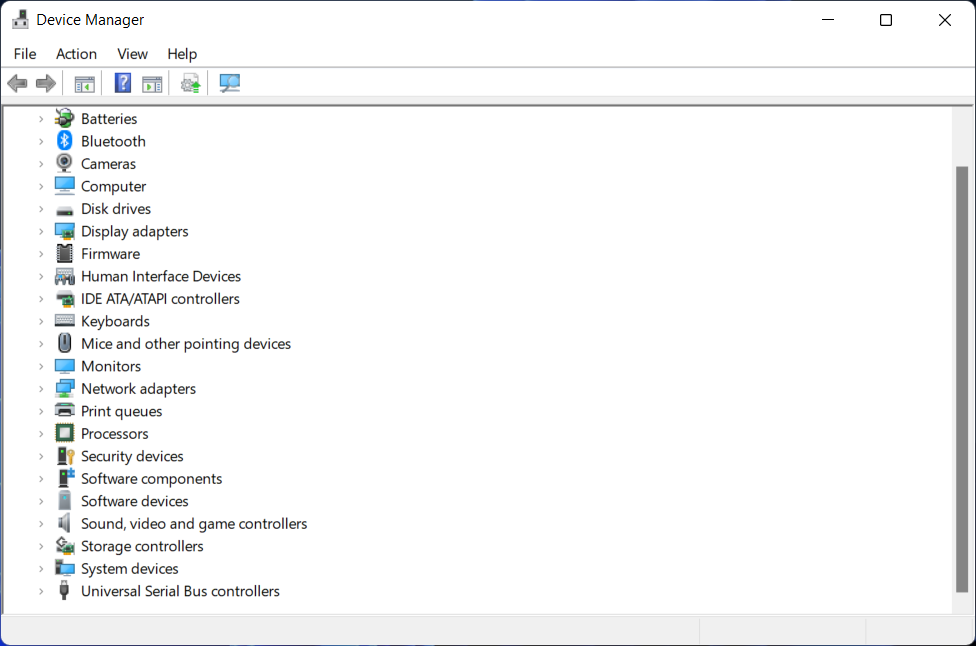


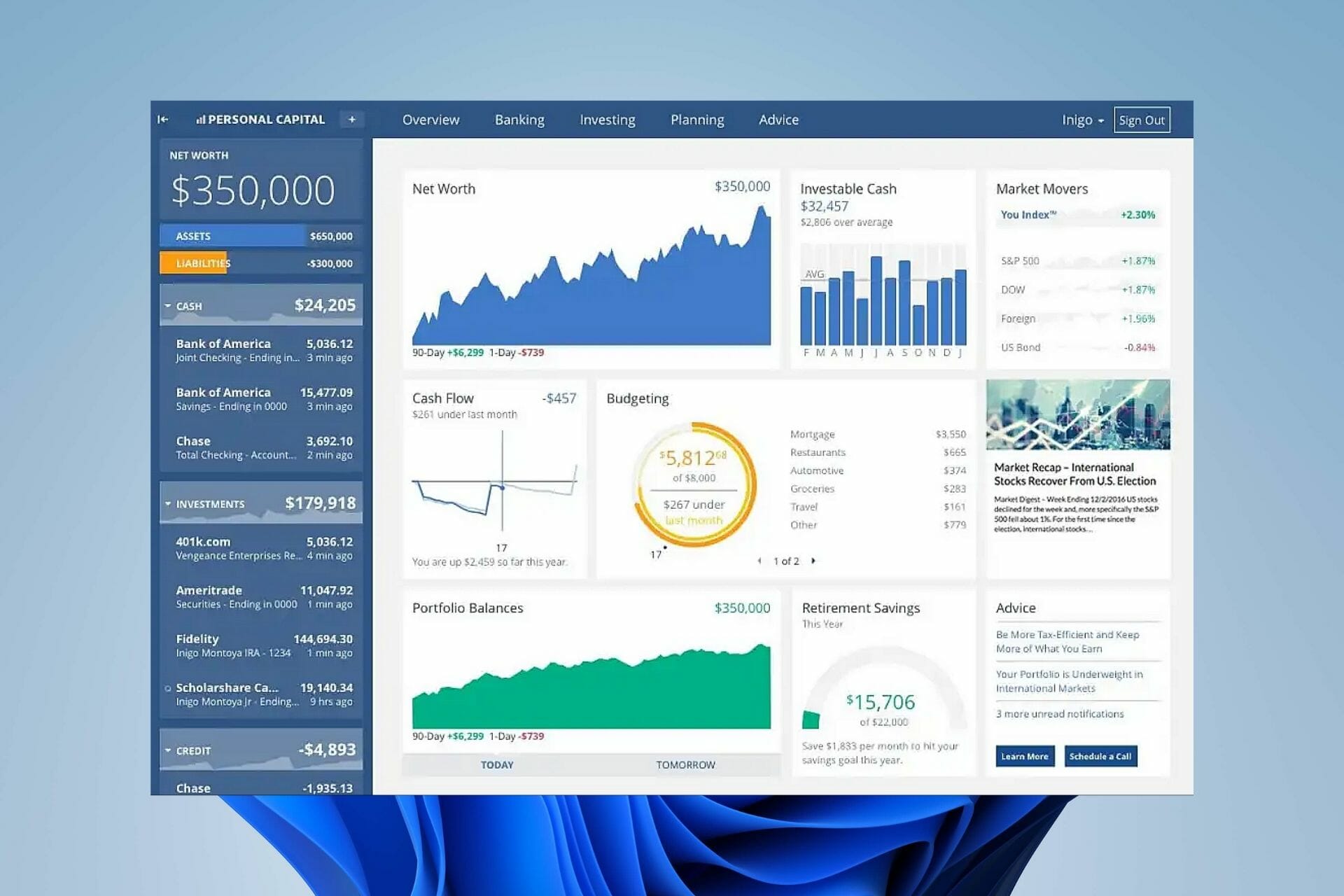


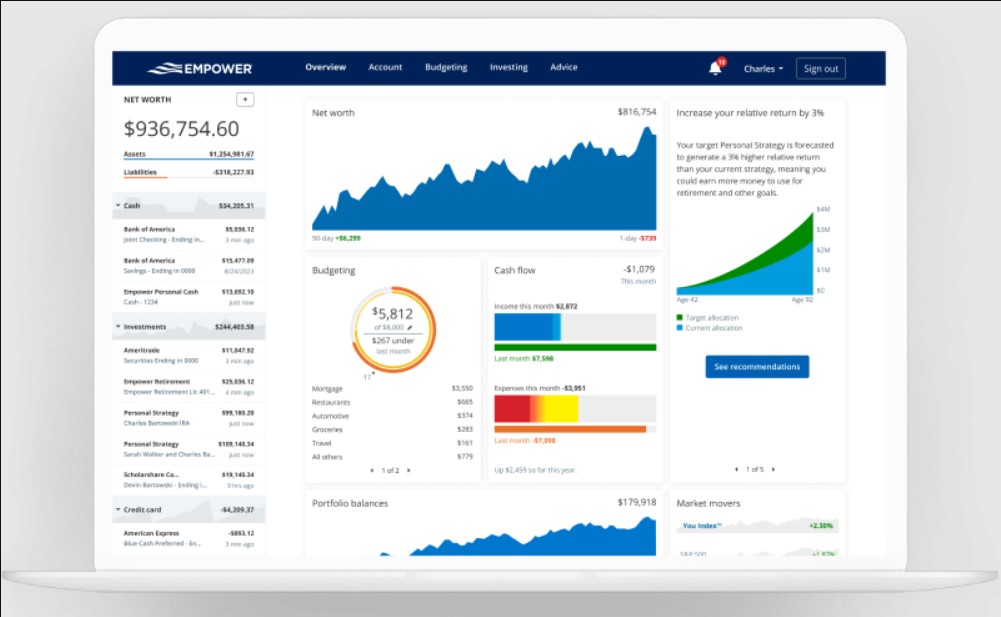



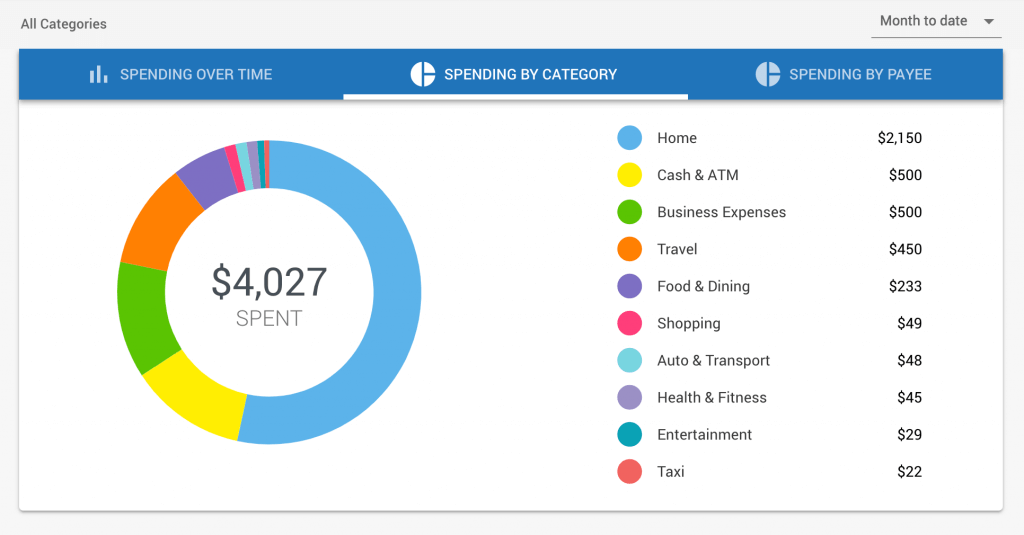

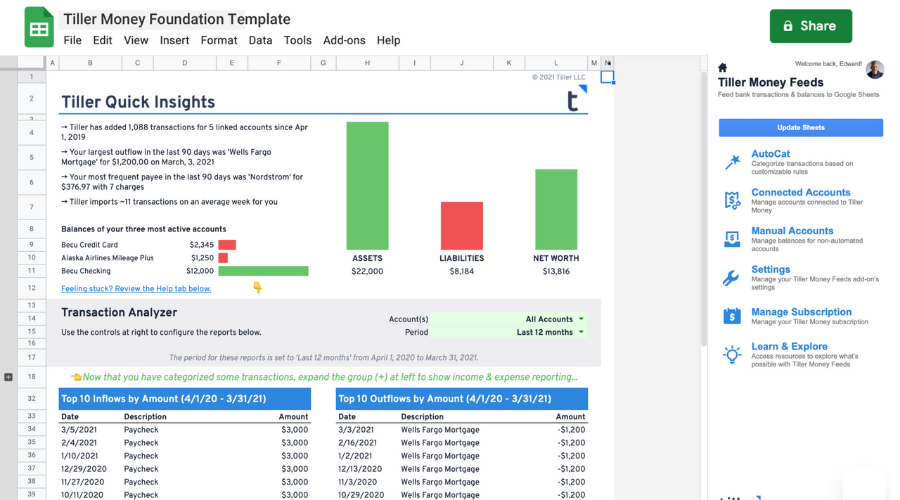


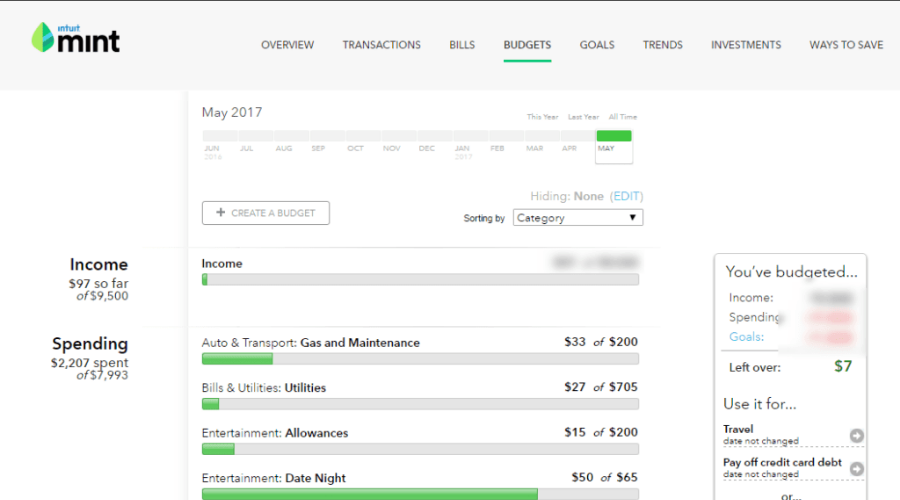

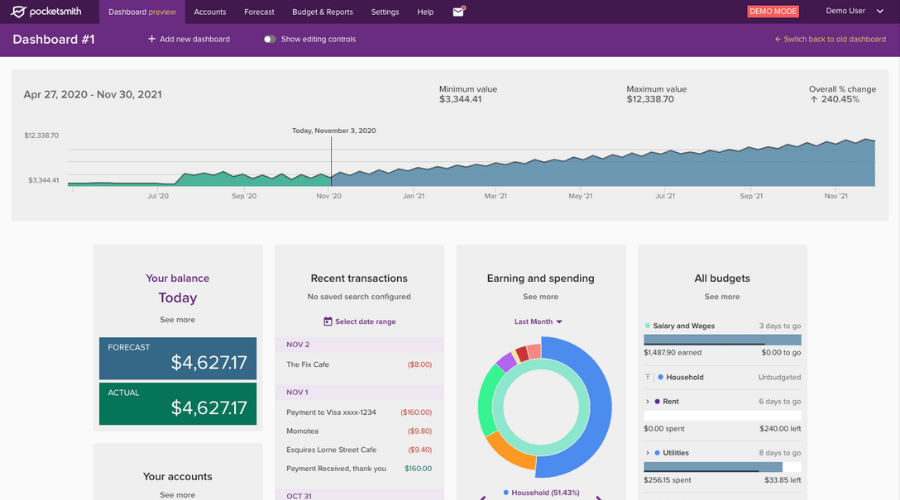

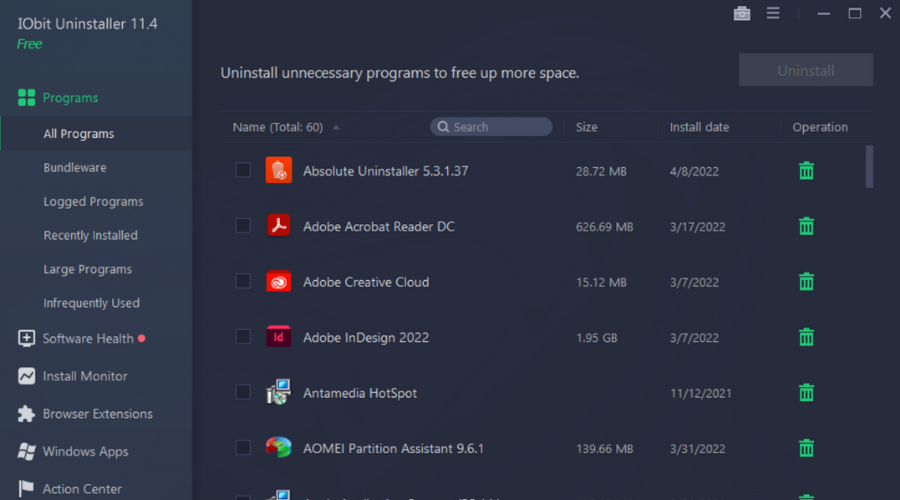



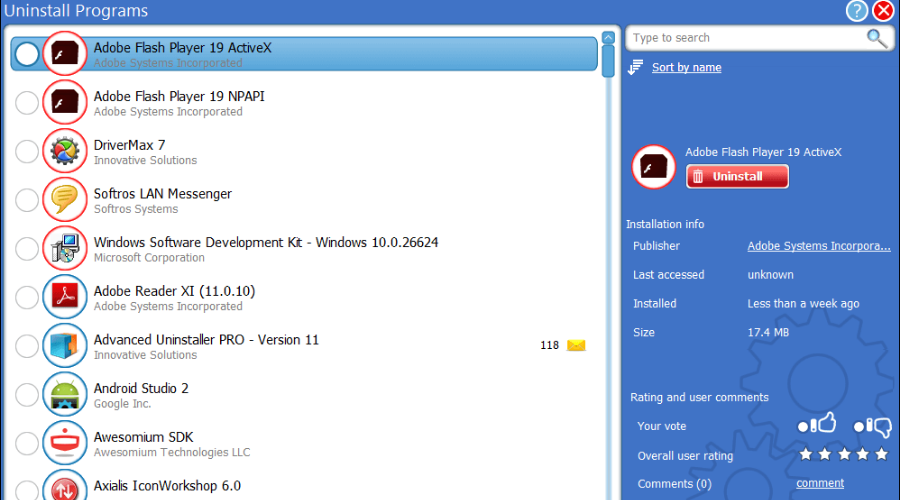



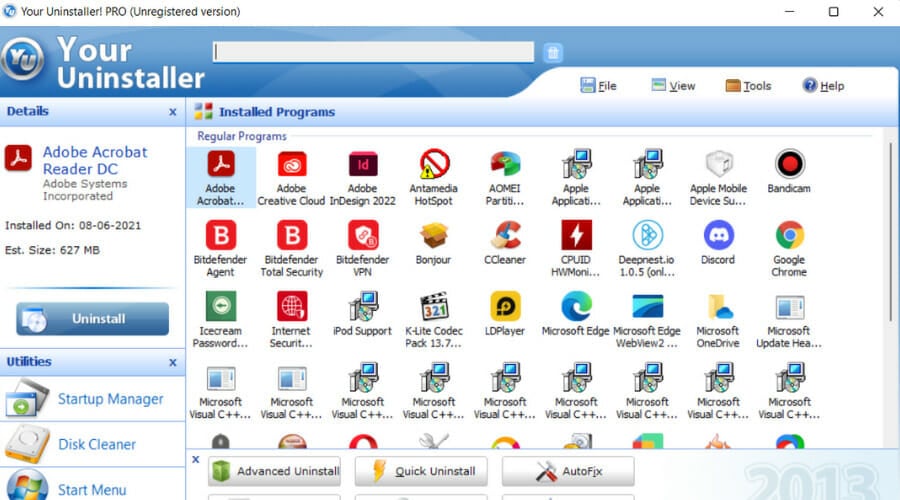
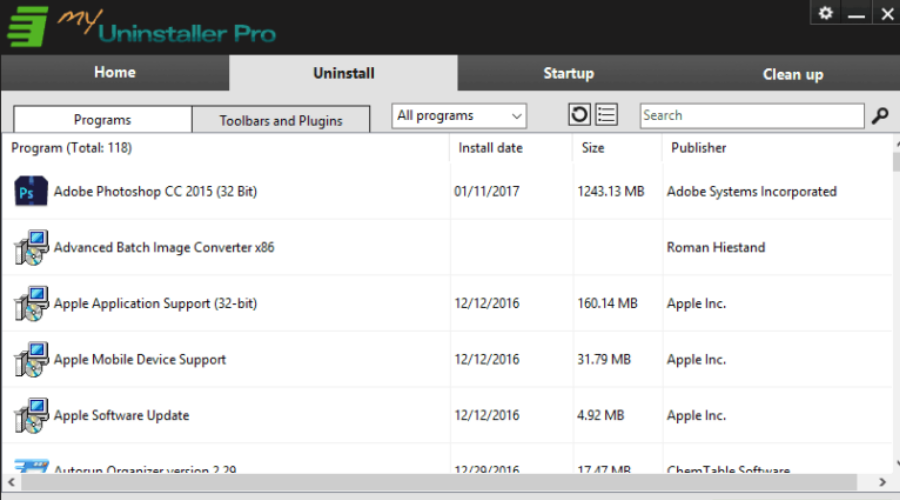
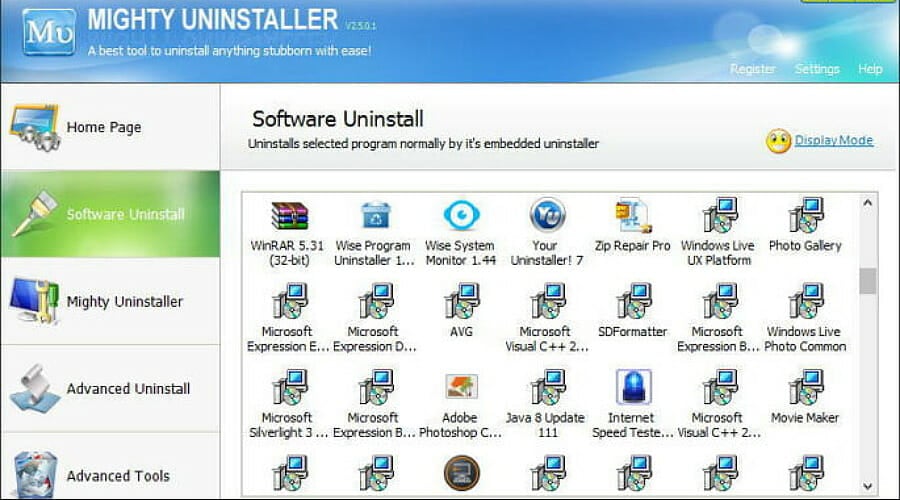
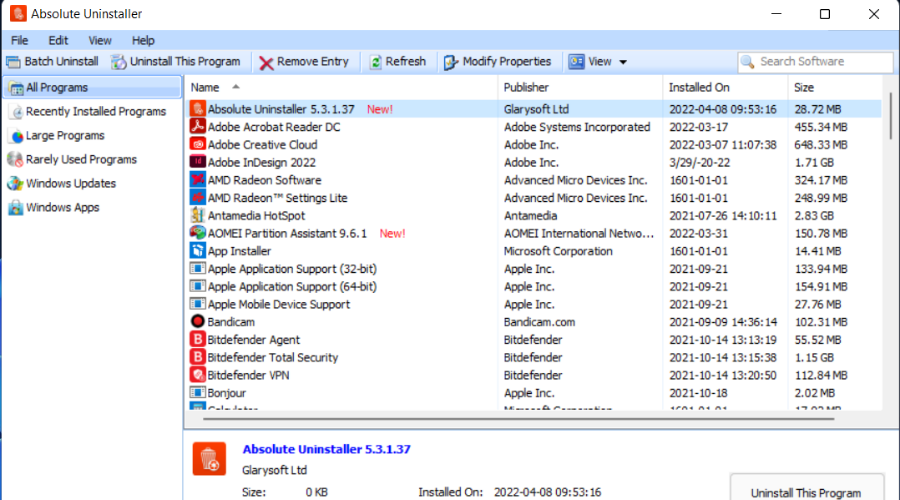
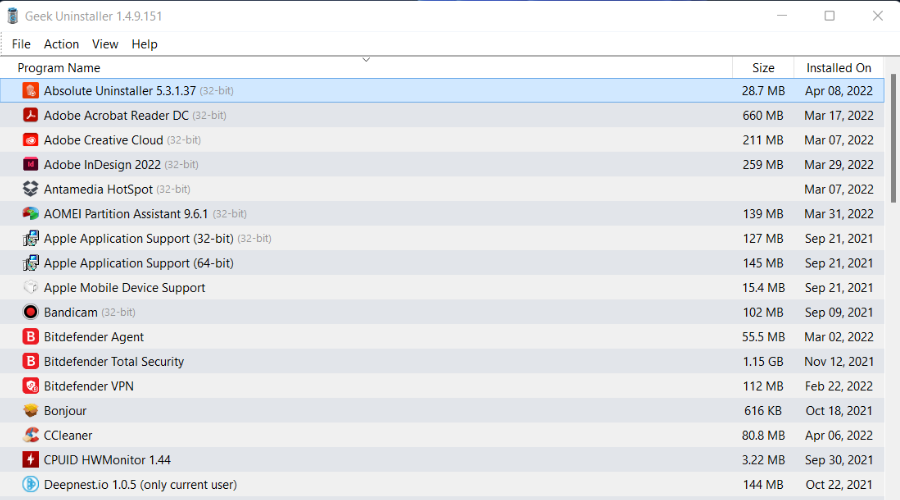
![How to Speed Up Lenovo IdeaPad 320 [6 Tips]](https://windowsreport.com/wp-content/uploads/2022/04/advanced-settings-animation.jpg)
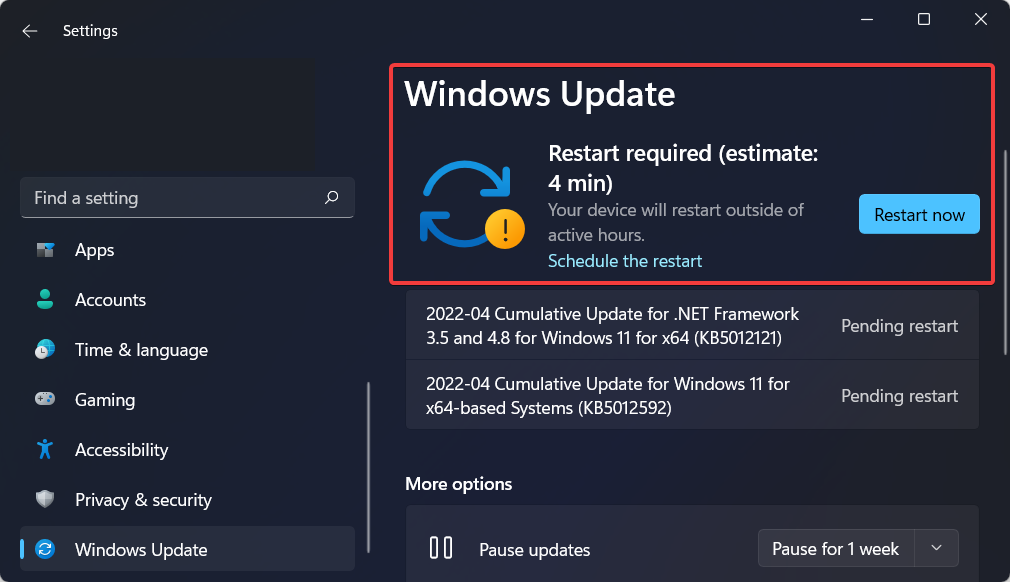


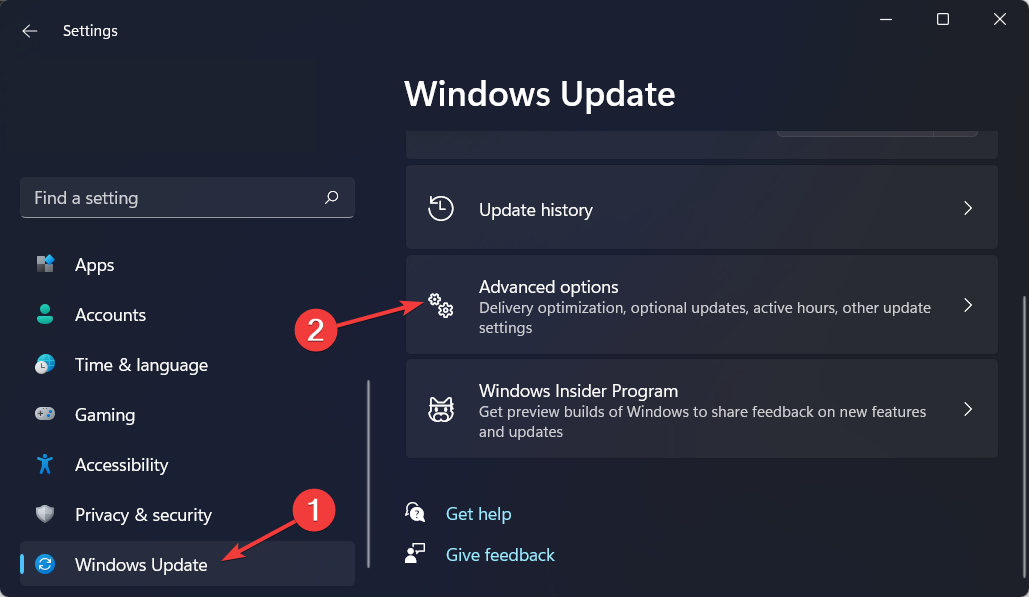

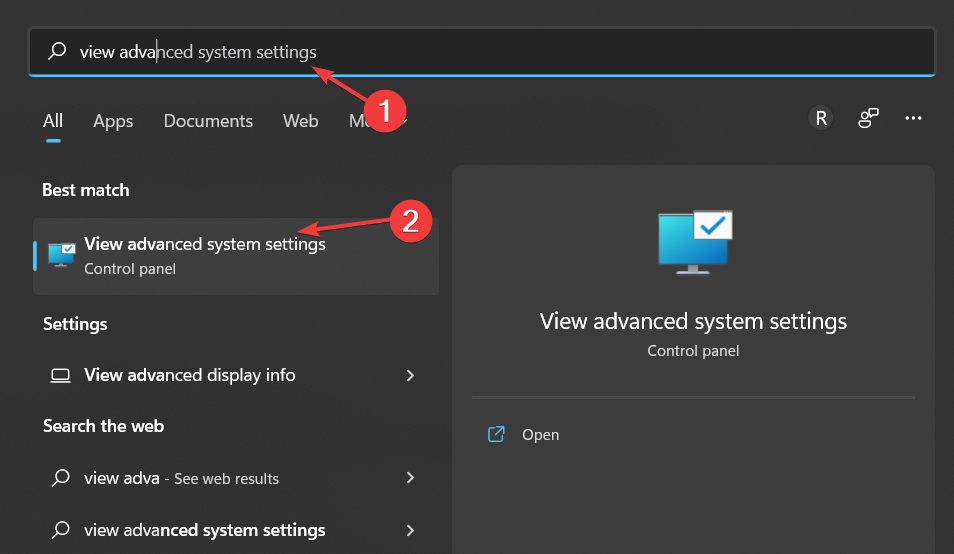
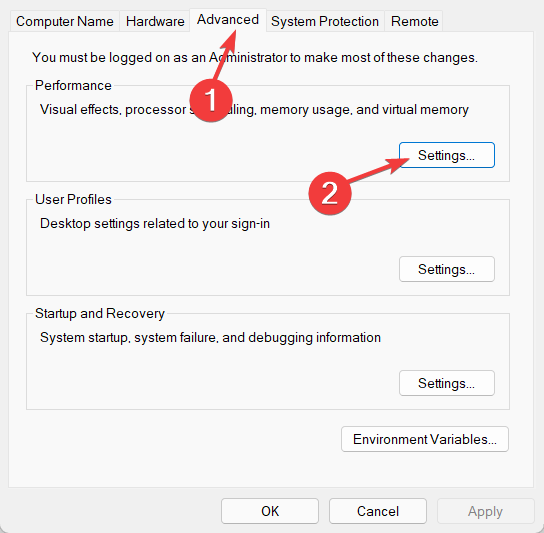
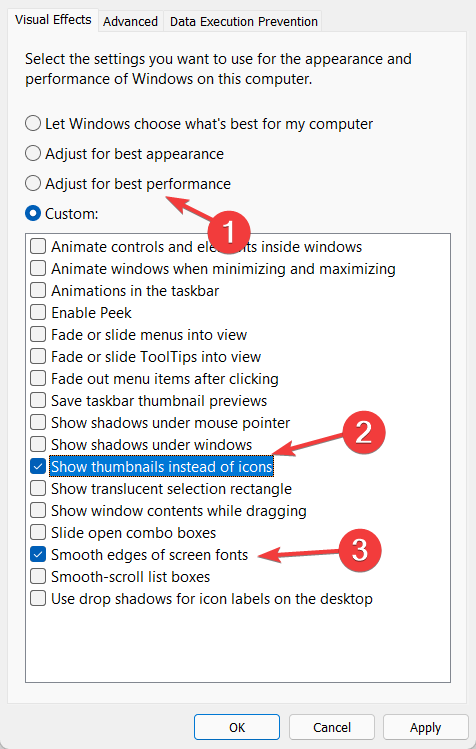
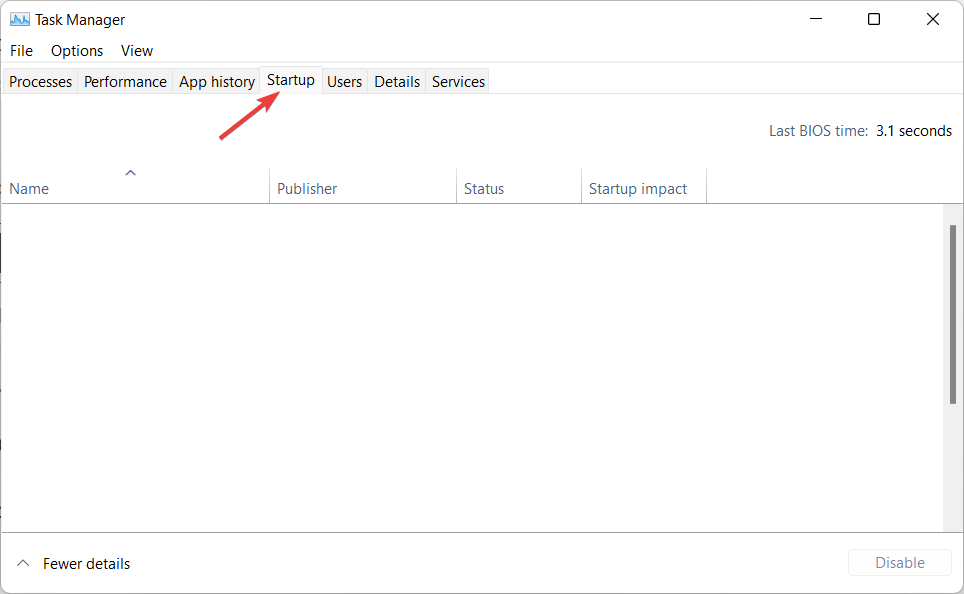
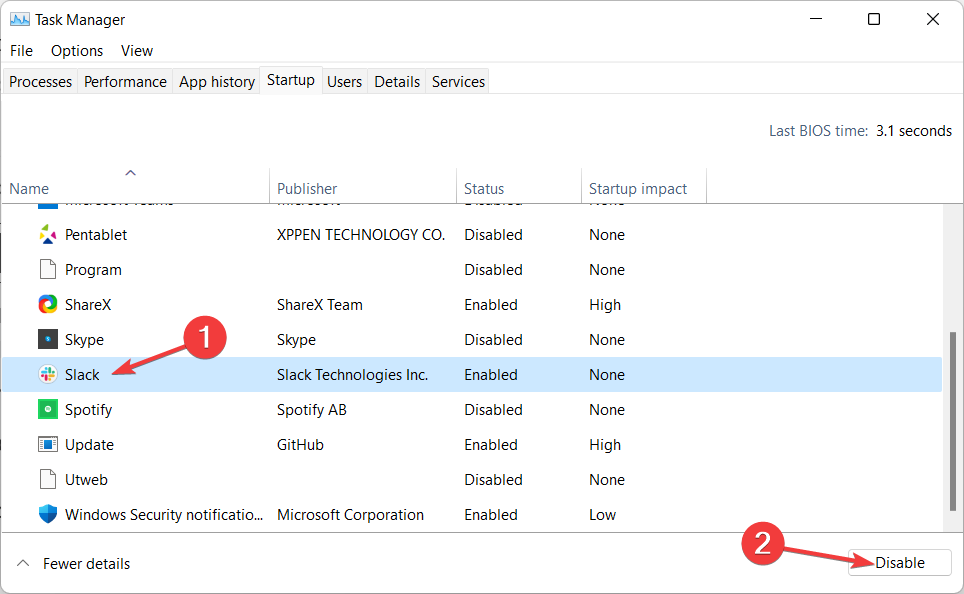
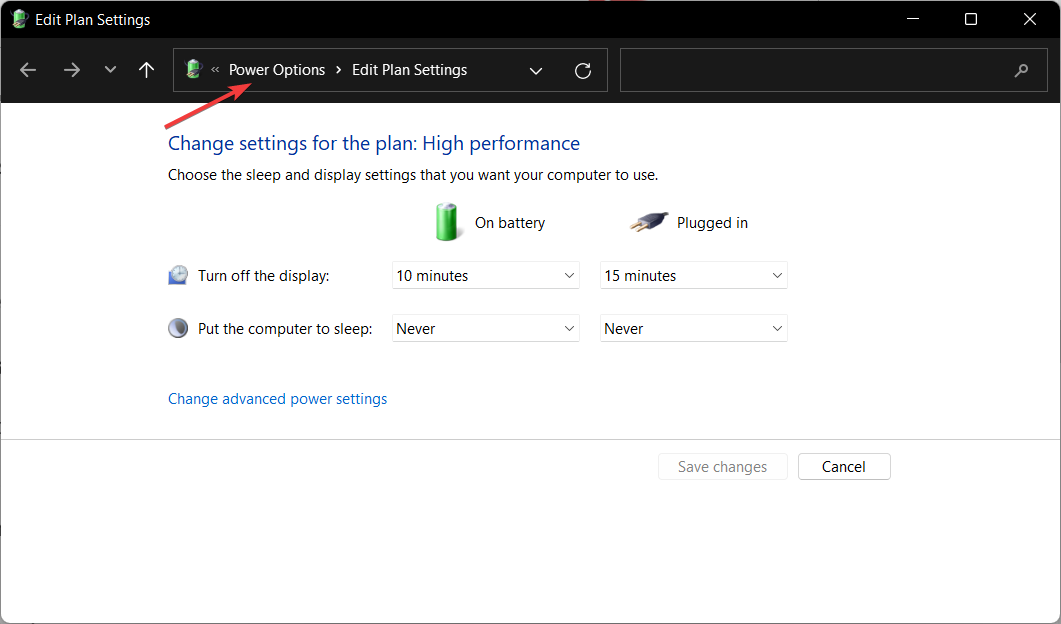
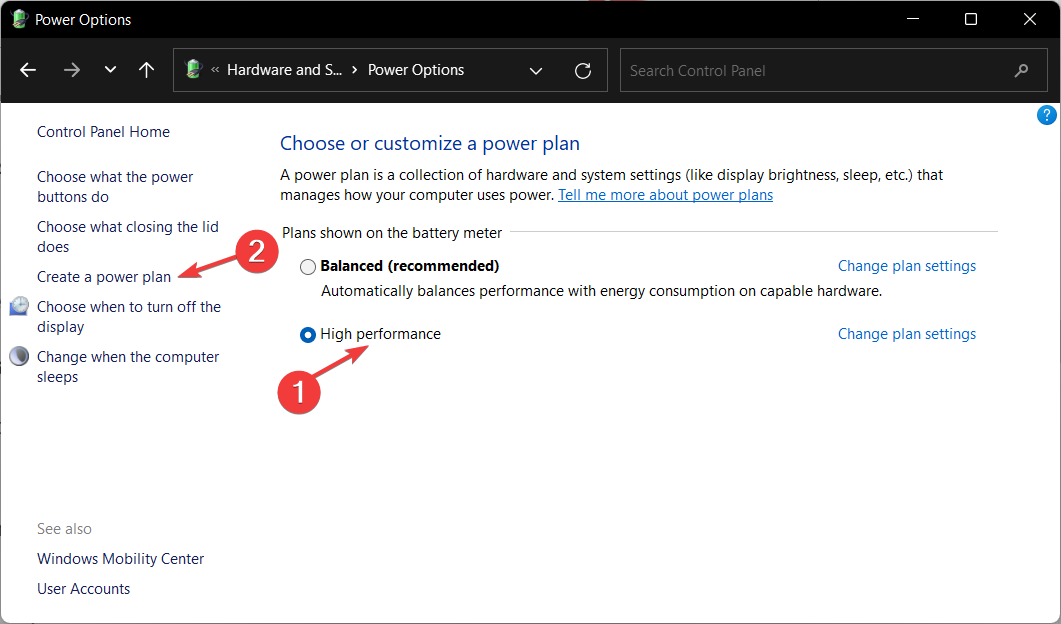
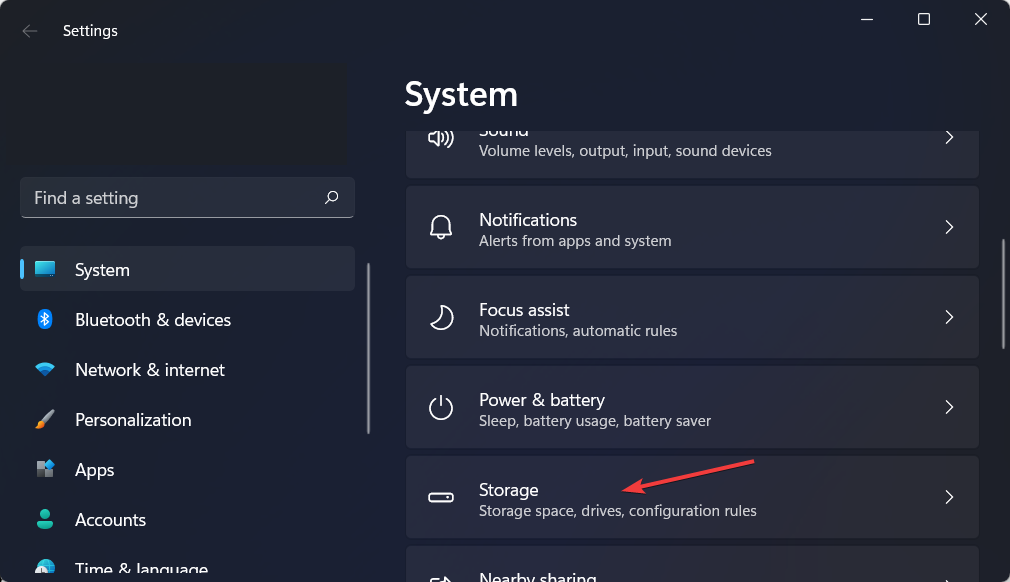
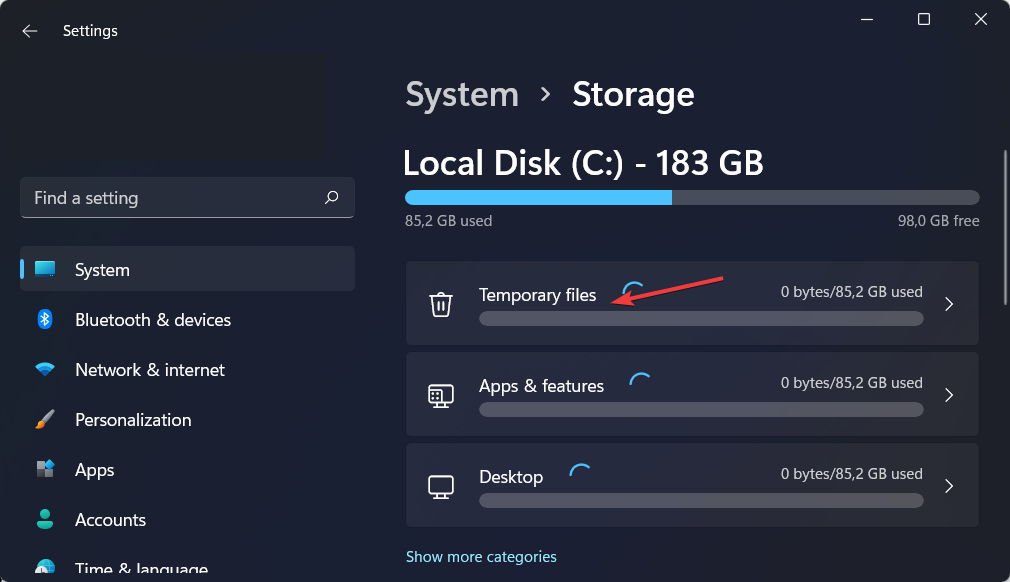

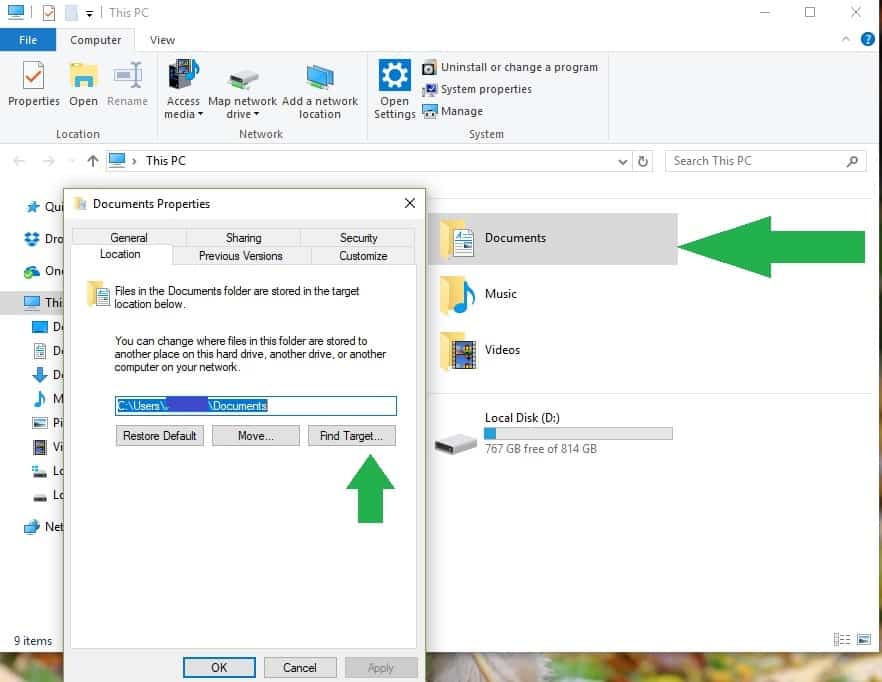
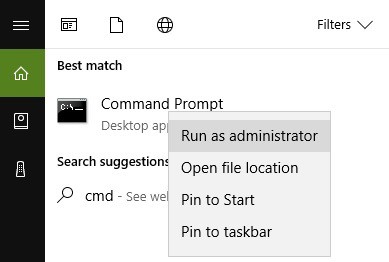
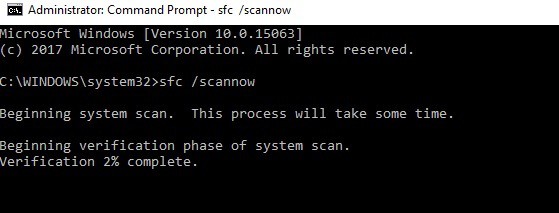
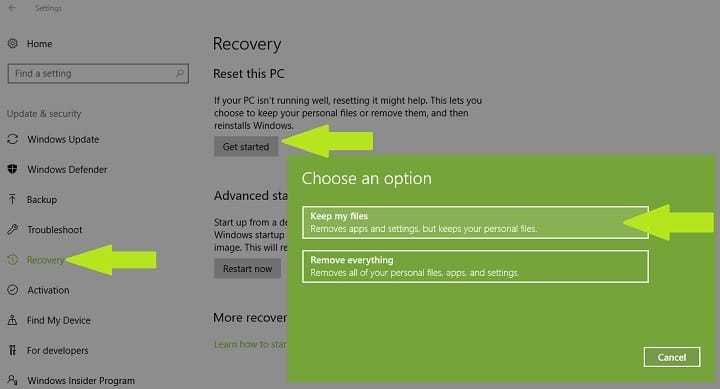
![Fix Fatal error Exception in exception handler [Windows 10/11]](https://windowsreport.com/wp-content/uploads/2022/02/exception-in-exception-handlerr.jpg)


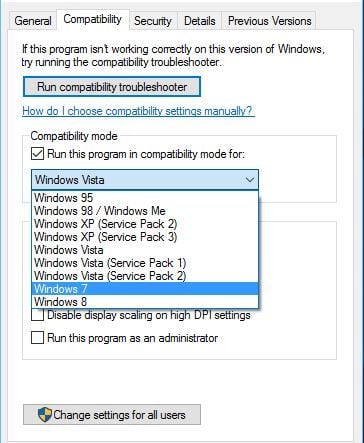


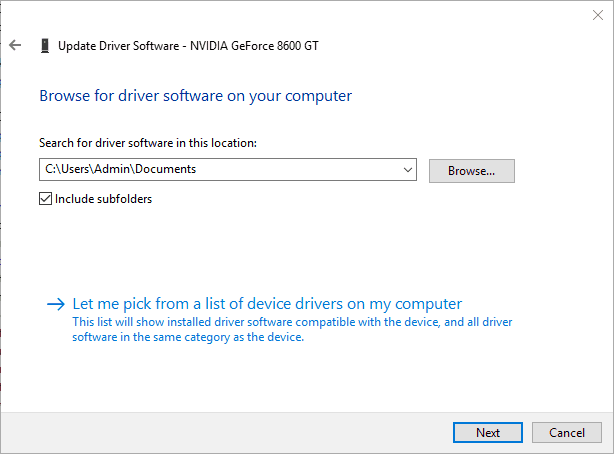


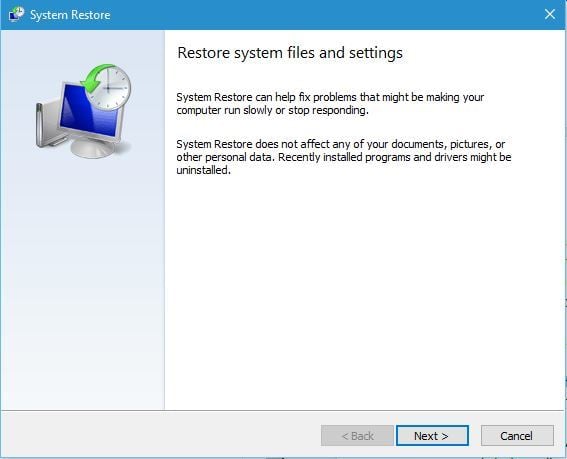
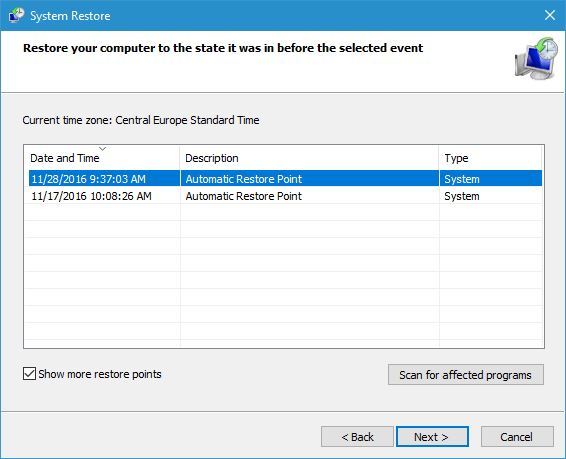
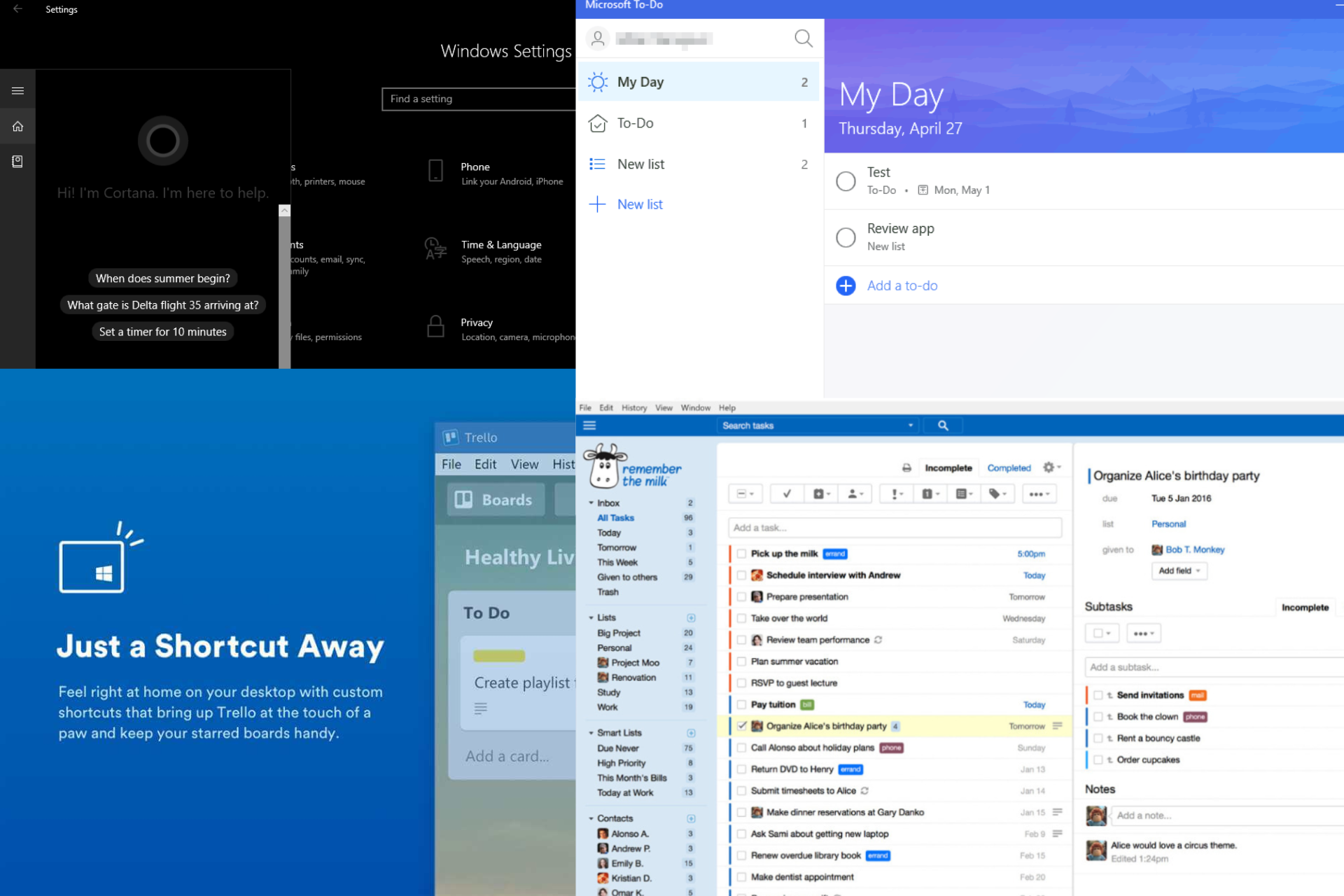
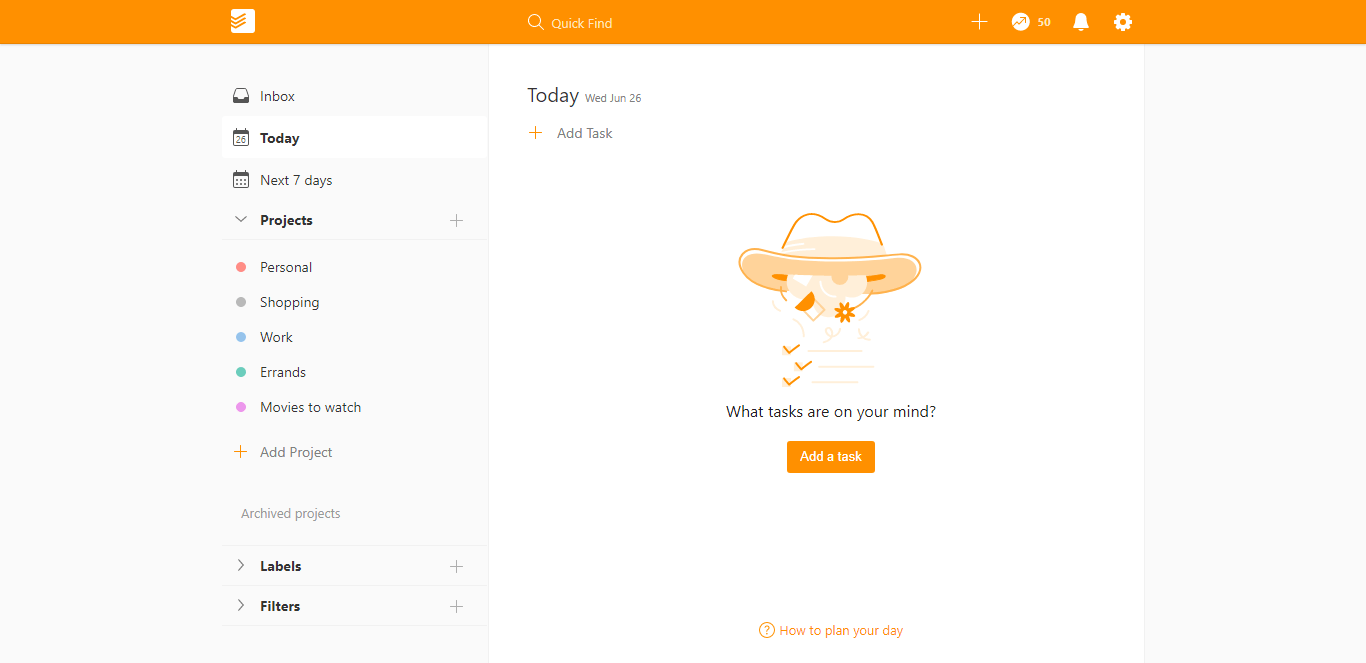
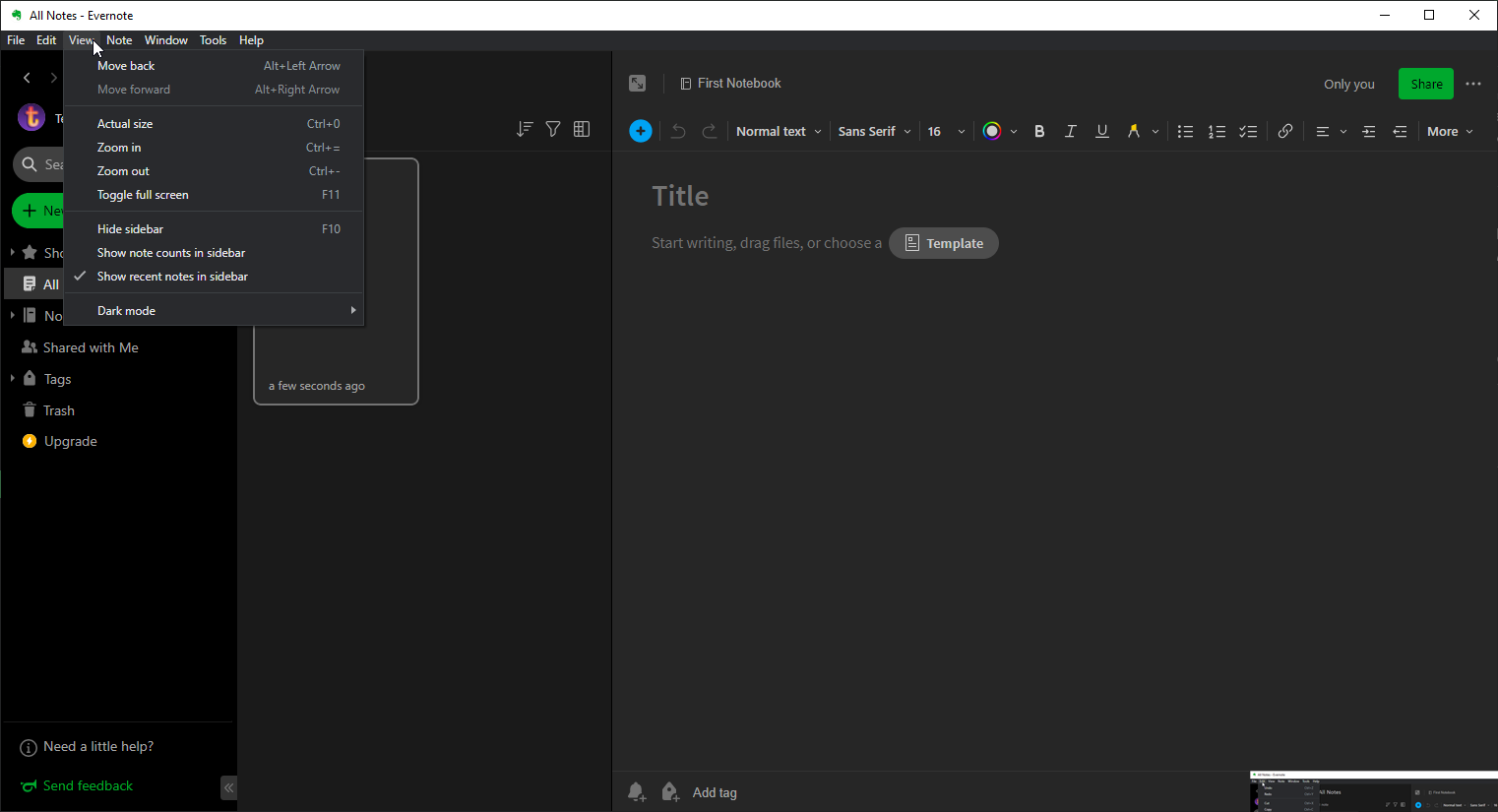

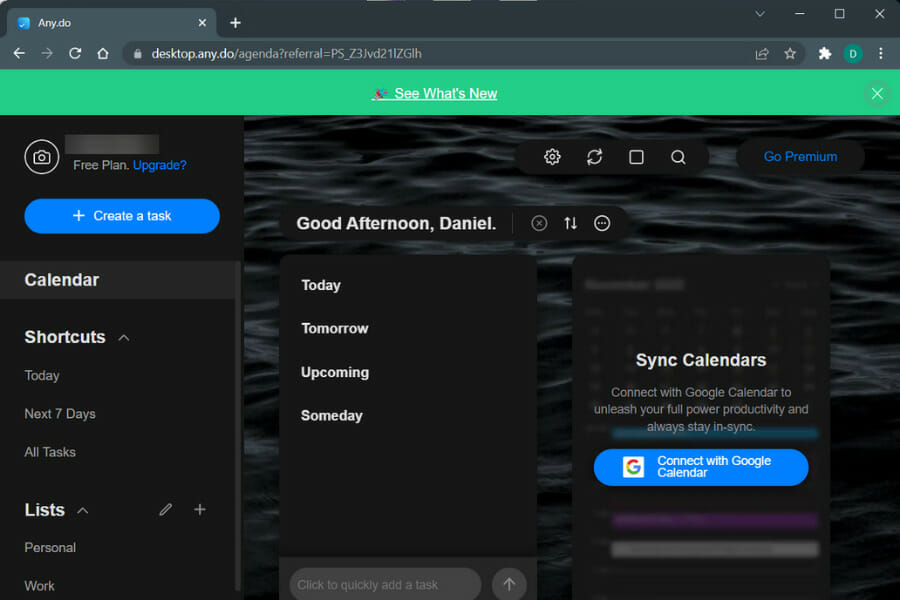
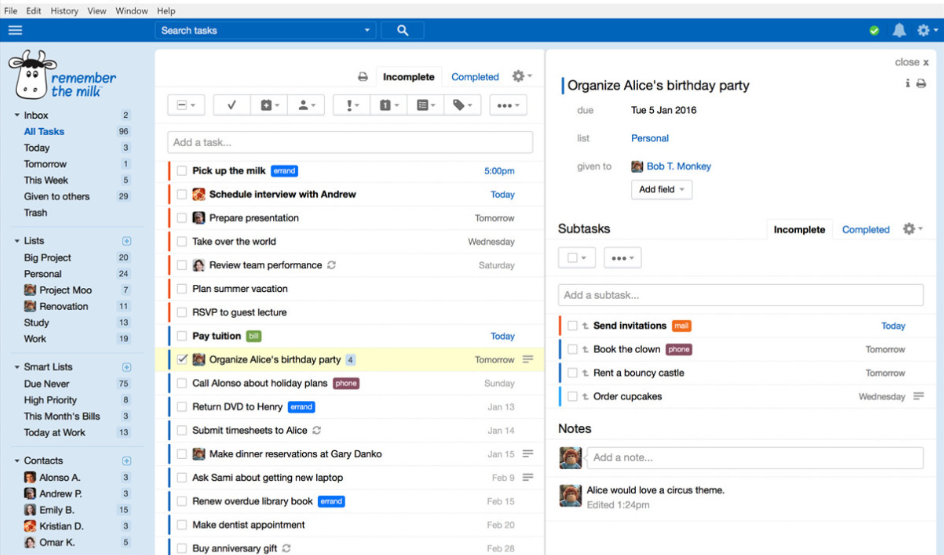
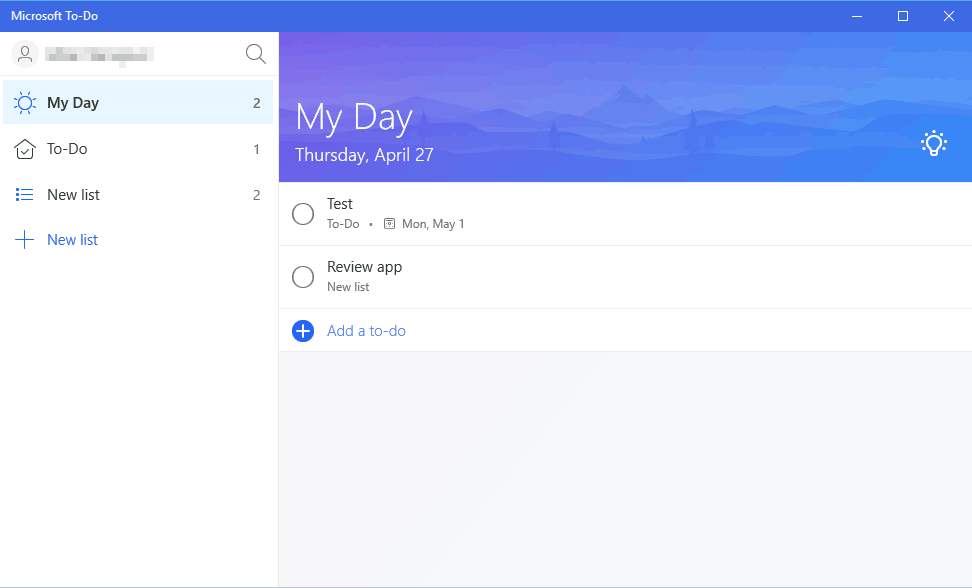











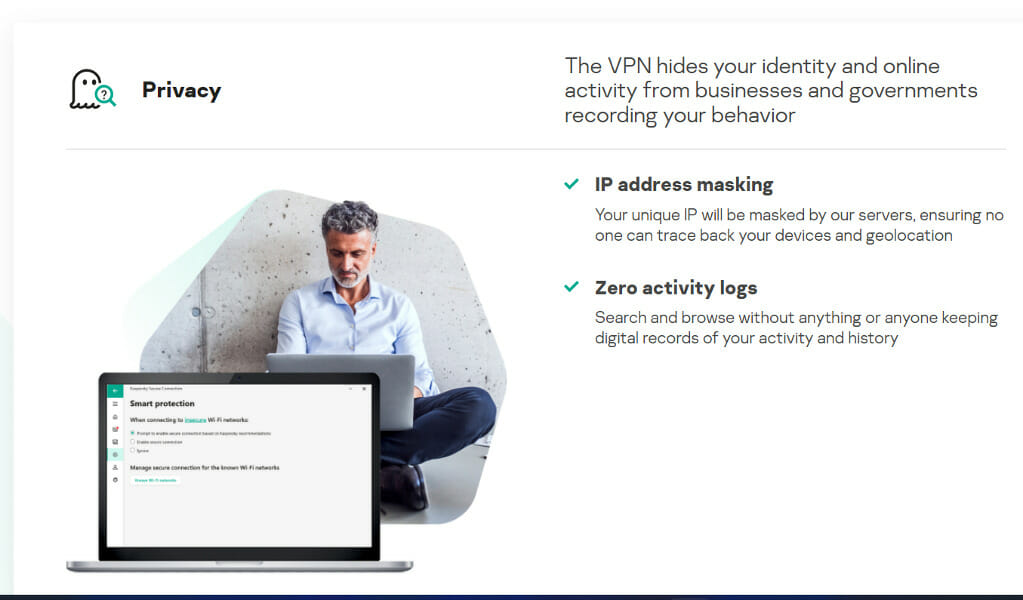


![Best eCommerce Platforms for Startups [Out of 25 Tested]](https://windowsreport.com/wp-content/uploads/2022/02/best-ecommerce-platforms-fe.jpg)






![10 Best Job Board Software in 2026 [Out of 25 Tested]](https://windowsreport.com/wp-content/uploads/2021/05/Job-board-software.jpg)
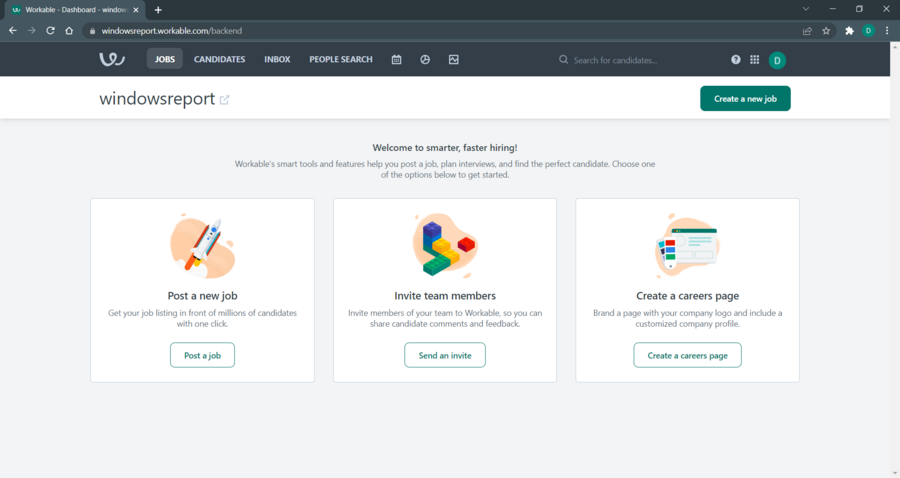





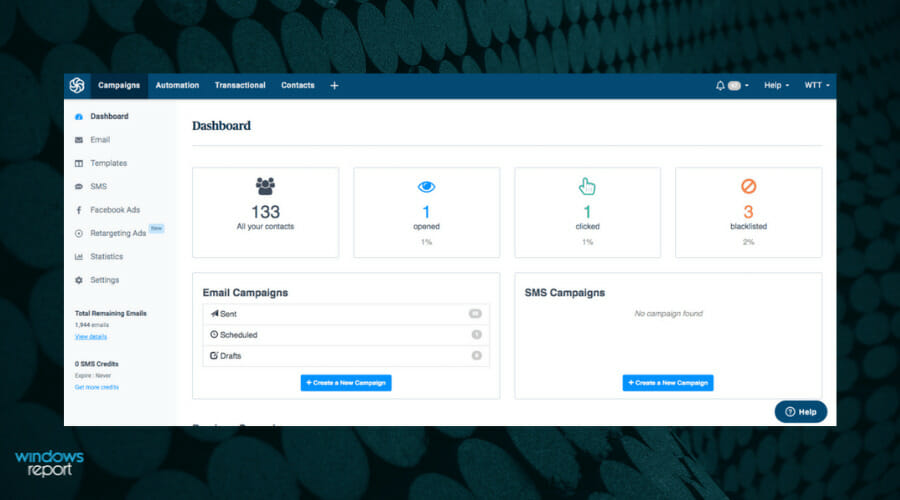

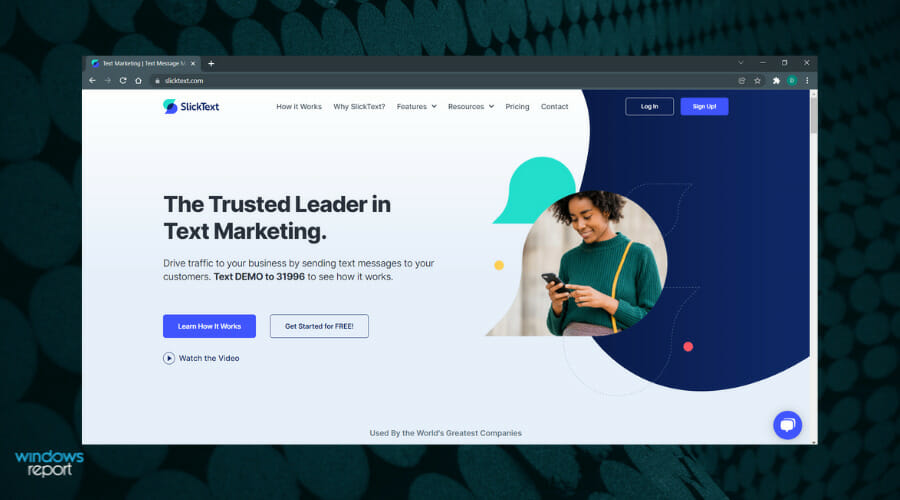
![Best Software to Format SD Card [Out of 15 Tested]](https://windowsreport.com/wp-content/uploads/2021/11/Software-to-format-corrupted-SD-cards.jpg)






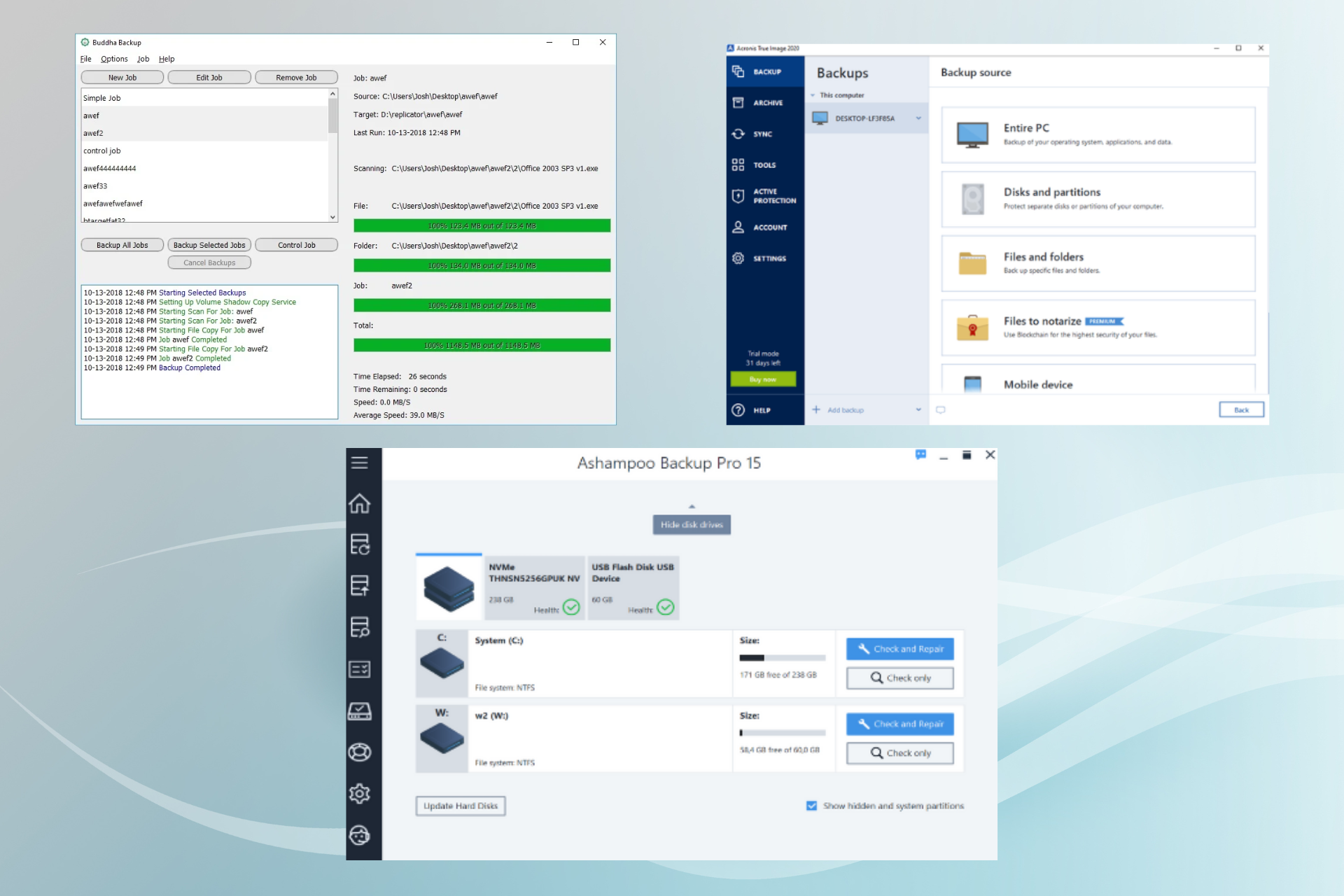








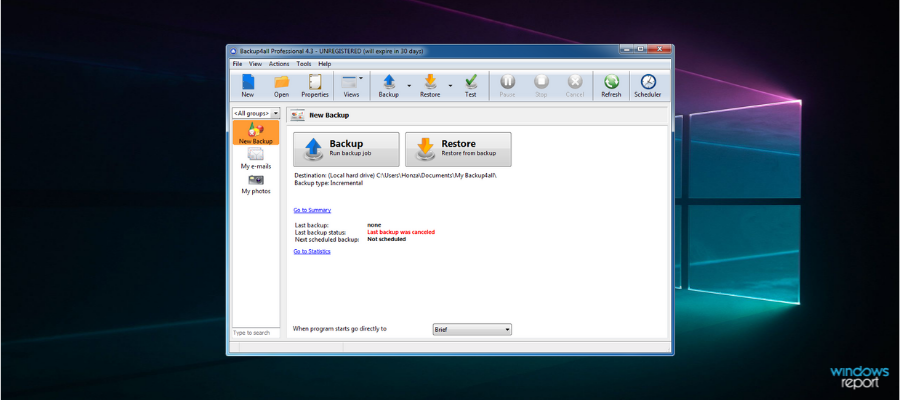


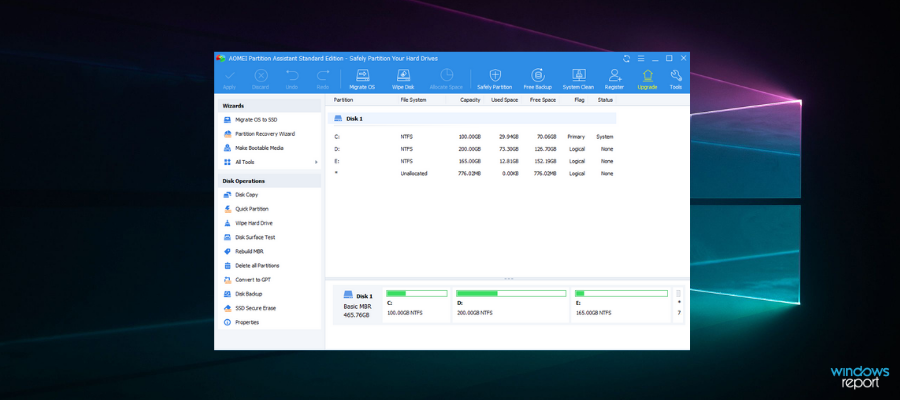


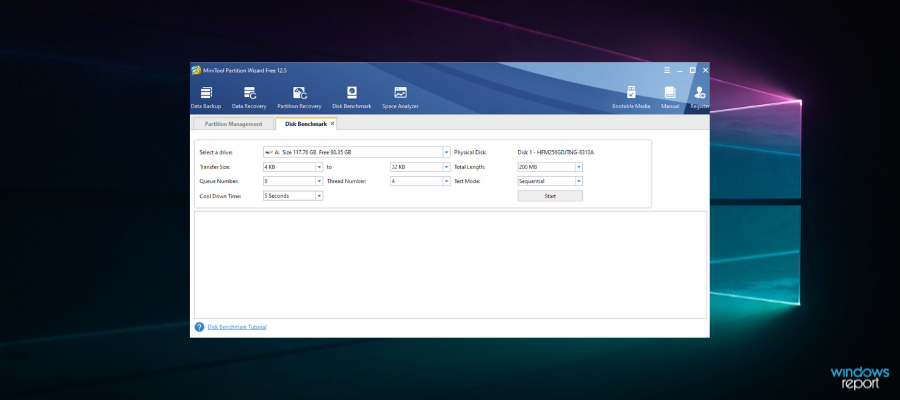


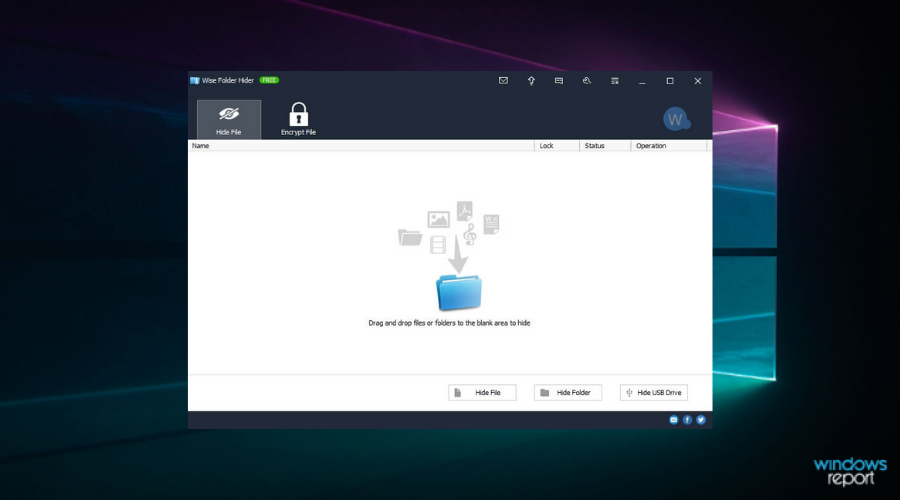

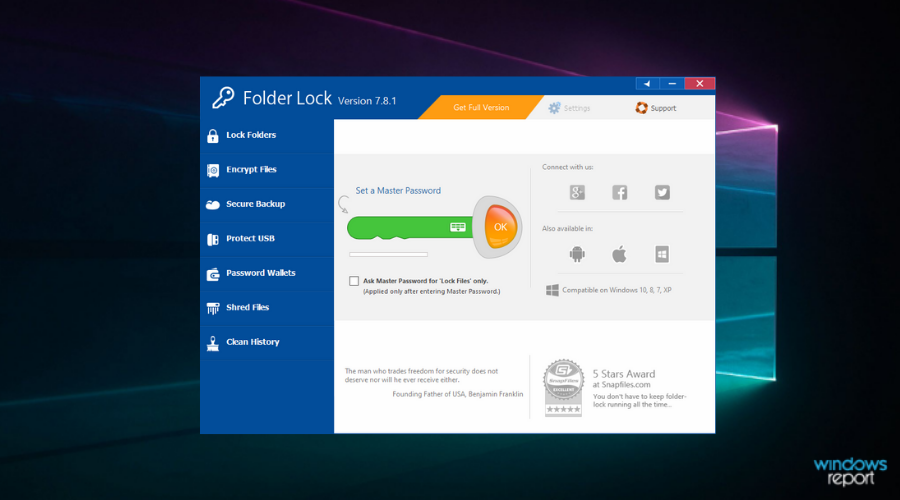

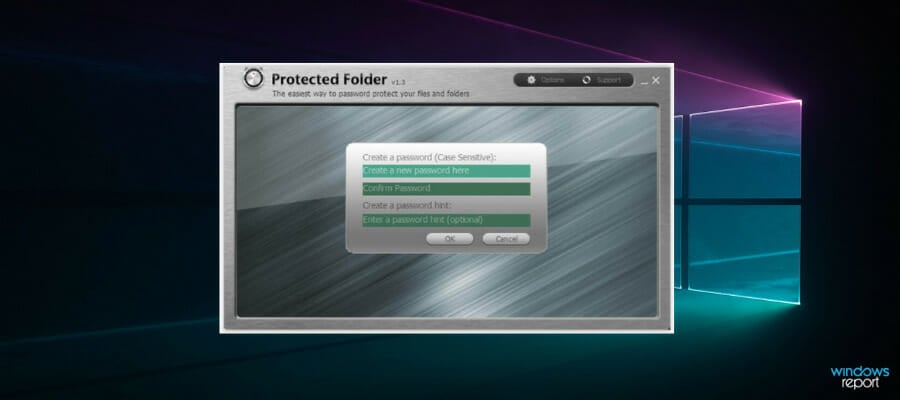

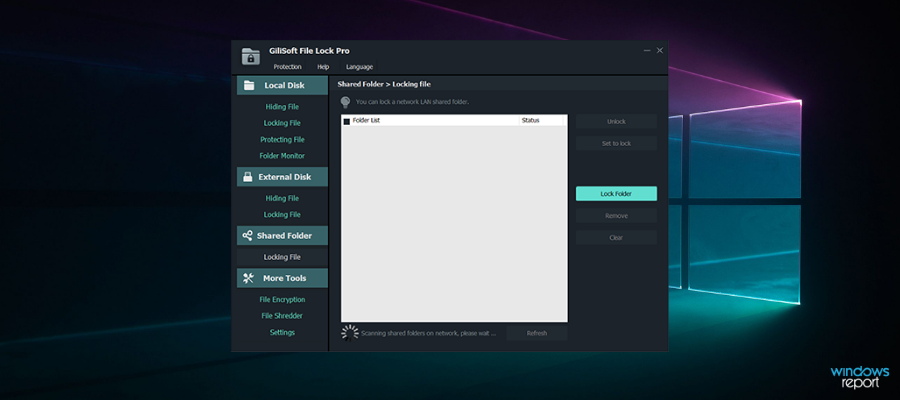

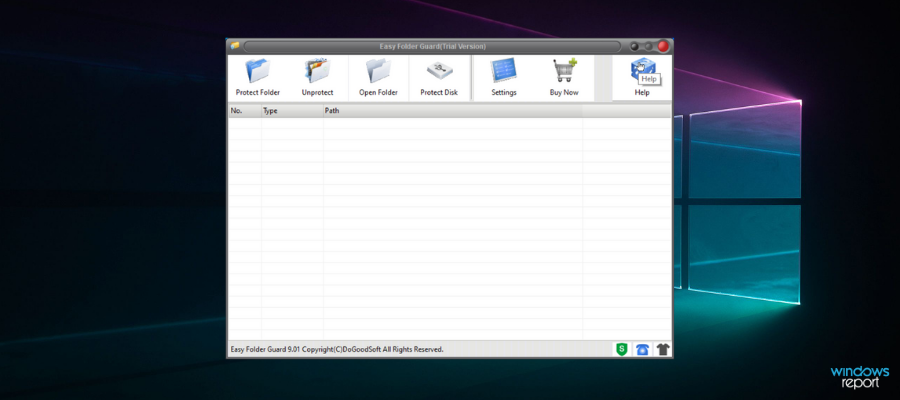
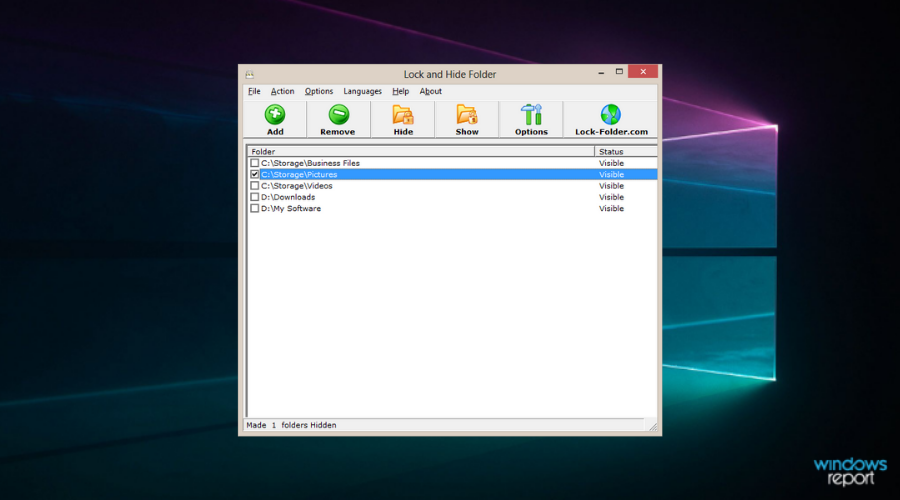
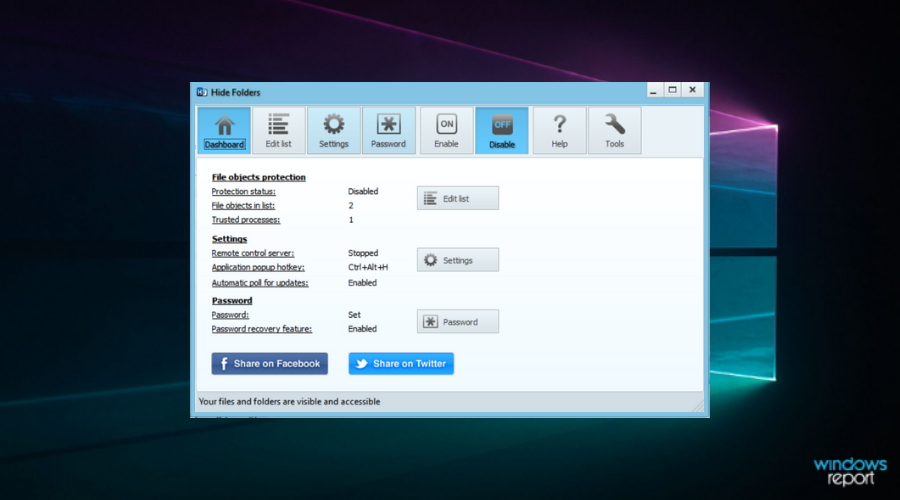

![6 Best Webcam Protection Software [Shield, Blocker, Guard]](https://windowsreport.com/wp-content/uploads/2019/11/Best-webcam-protection-software.jpg)
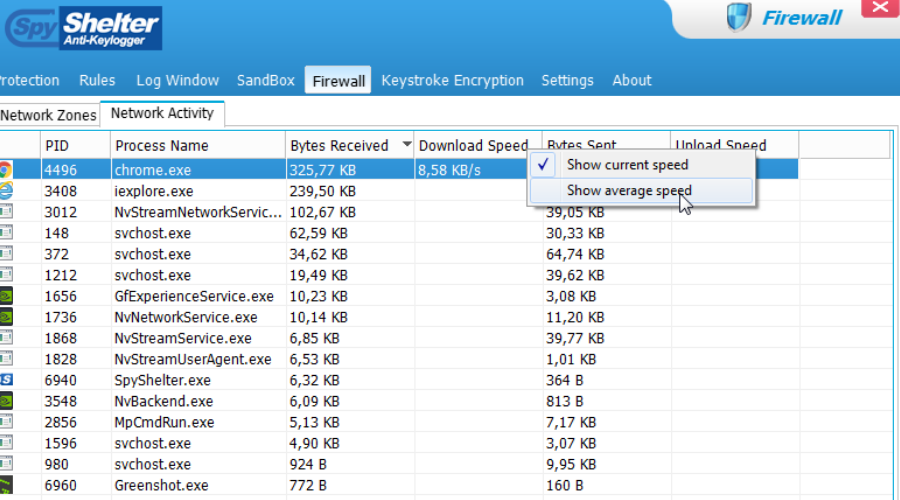

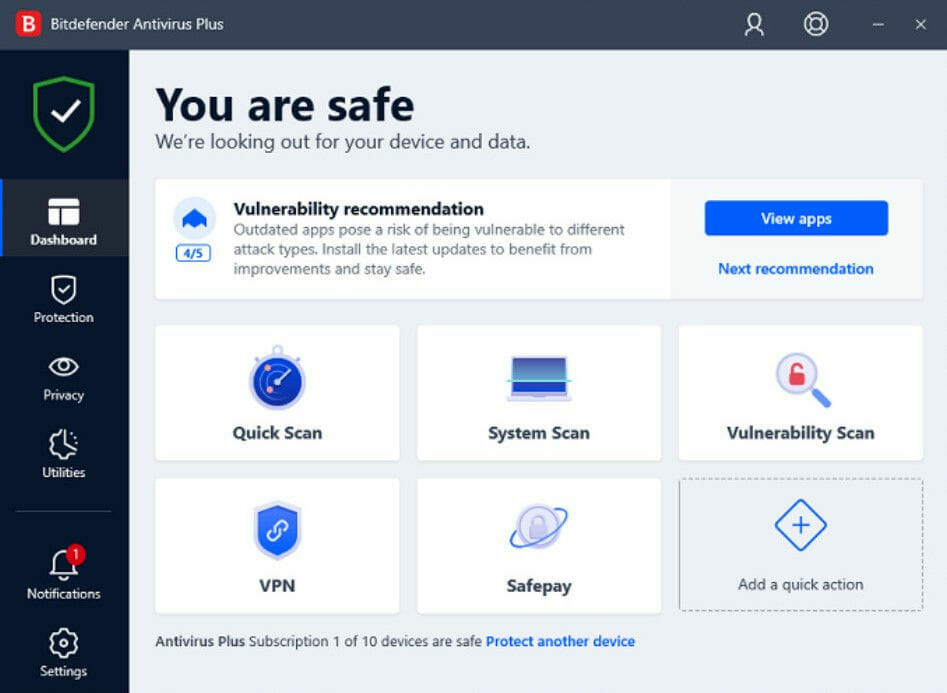

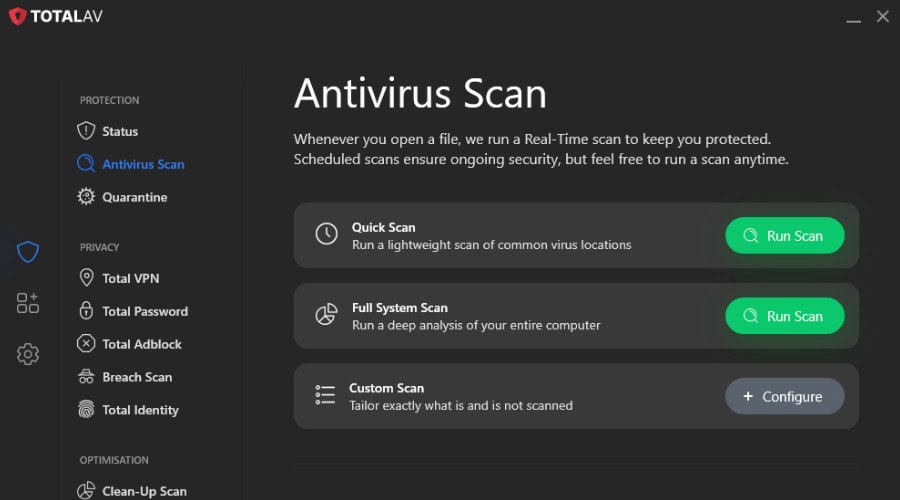

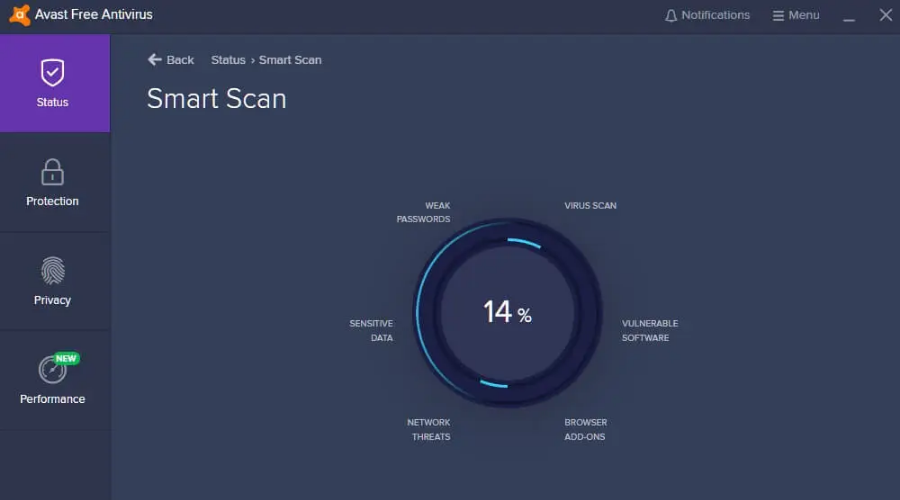


![Password Protect Dropbox Folder [3 Quick Steps]](https://windowsreport.com/wp-content/uploads/2020/05/Dropbox-4.jpg)

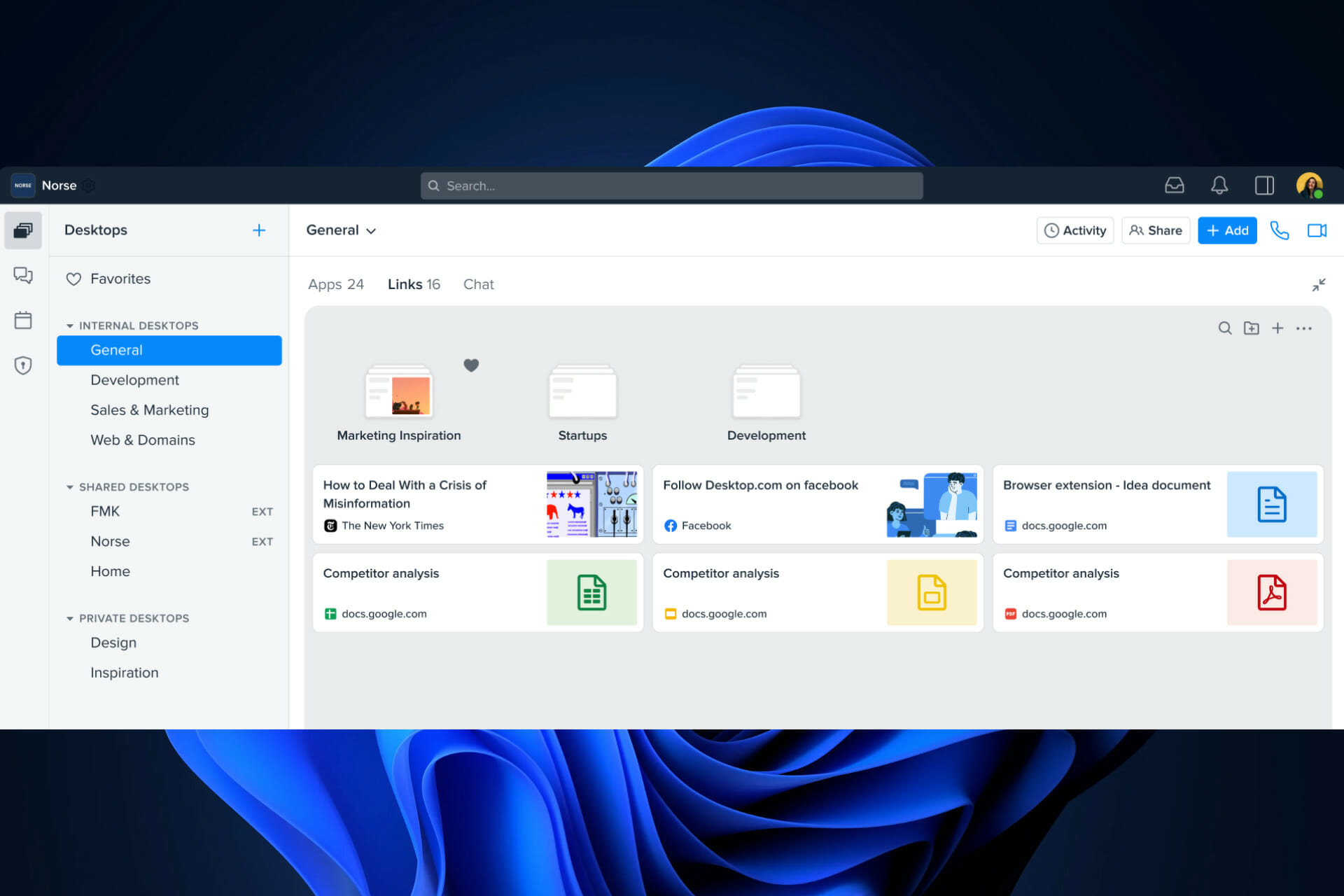



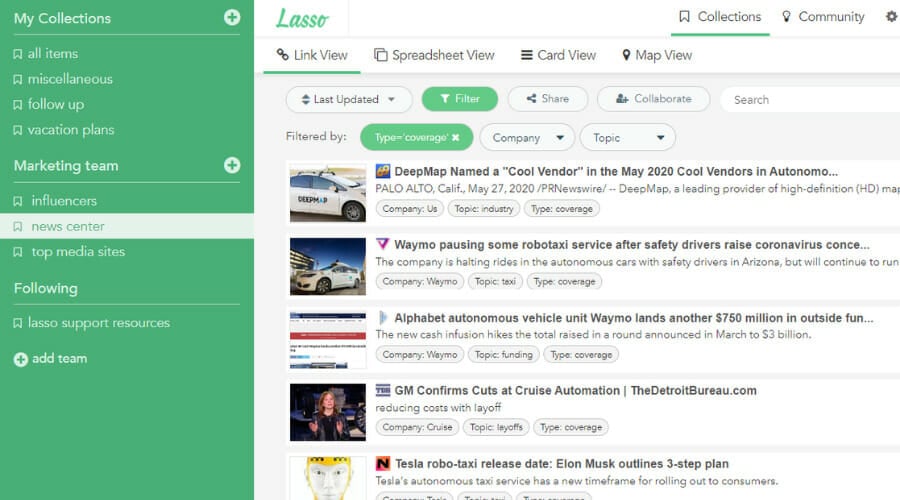


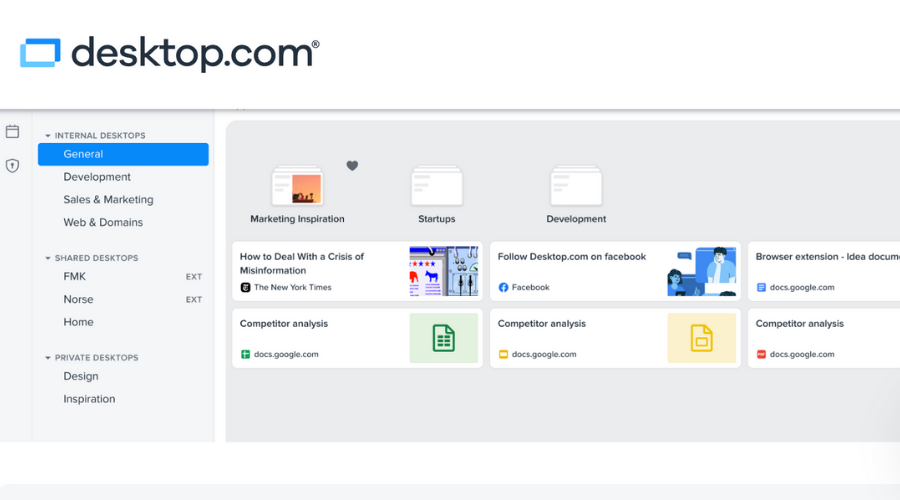


![Best Widgets for Your Desktop in Windows 10 [2026 List]](https://windowsreport.com/wp-content/uploads/2022/04/desktop-gadgets-for-win-10-and-11-featured-image.jpg)
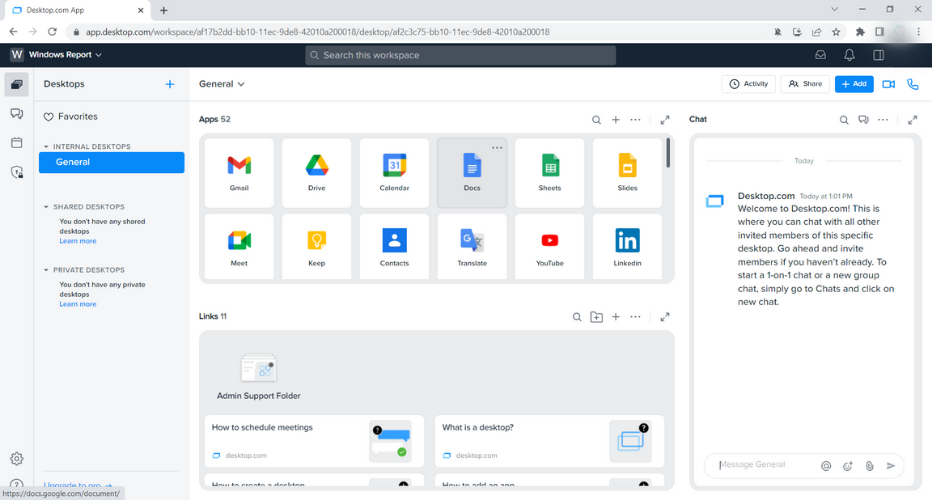
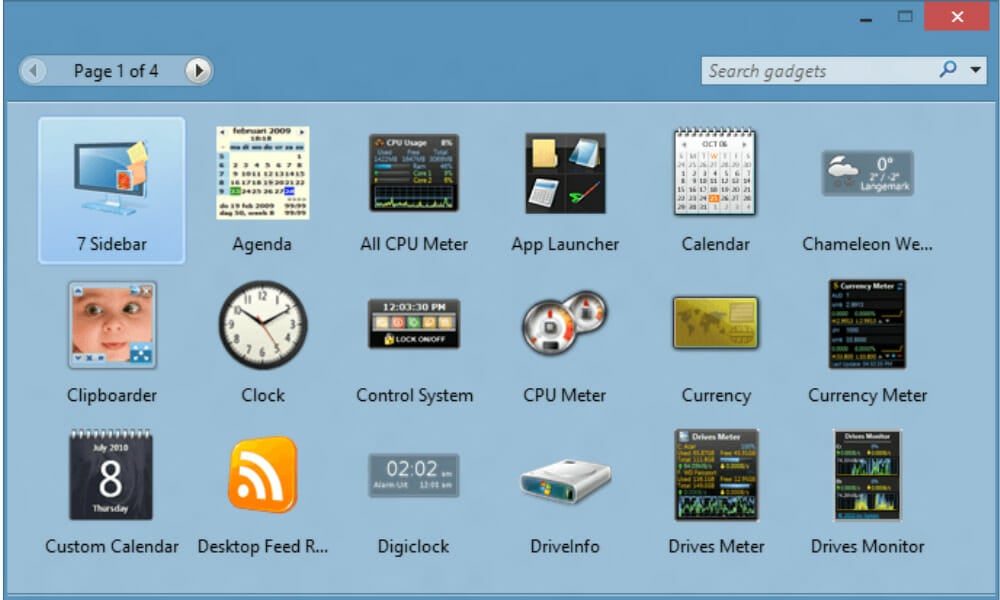

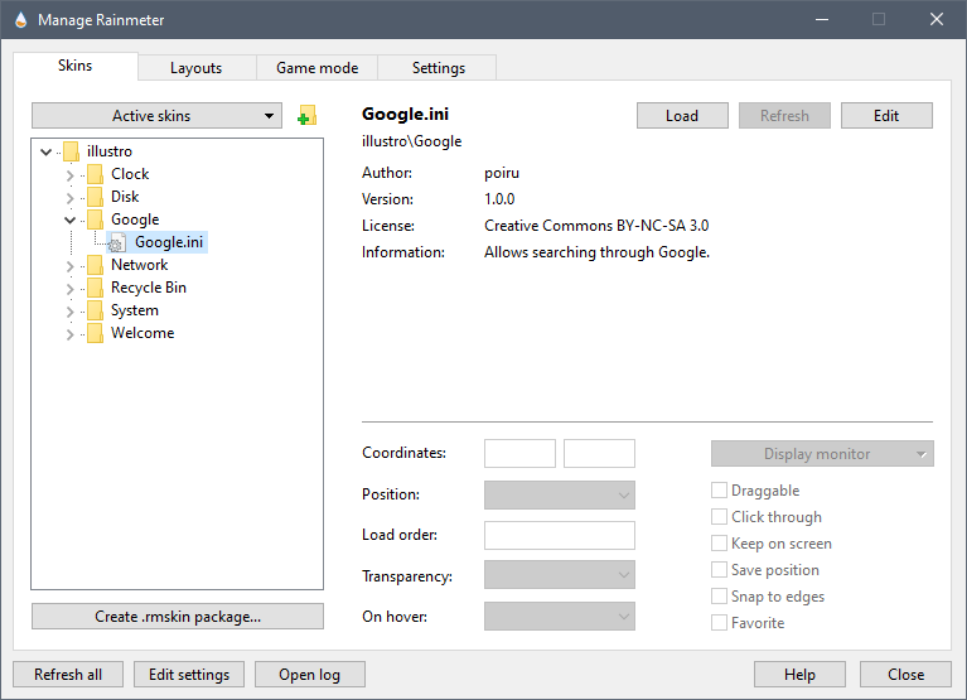

![Windows Driver Foundation Missing [Services Error Fix]](https://windowsreport.com/wp-content/uploads/2022/04/windows-featured.jpg)