Opera GX adblock not working on YouTube? This can ruin your experience, but we’ll show you how to fix it in just a few simple steps.
What can I do if Opera GX adblock is not working on YouTube?
1. Check if YouTube is on the exclusions list
Click the Menu icon in the top left corner and choose Settings.
Search for adblock and then select Manage exceptions.
Locate YouTube on the list, and click the Menu icon on the right side. Choose Remove.
2. Update adblocker lists
Typeopera://settings/adBlockerLists in the Opera GX search bar.
Hit the Update button.
Go back to YouTube and see if you still get ads.
3. Update Opera GX
Open Opera GX.
Click on the Opera Menu in the top-left corner.
Select Update & Recovery.
Click Check for updates.
If an update is available, click Update Now.
Restart the browser to apply changes and go to YouTube to check if ads are now blocked.
4. Clear cache and cookies
Click on the Opera Menu and go to Settings.
Scroll down to Privacy & Security and click Clear browsing data.
In the dialog box, check Cookies and other site data and Cached images and files. Only clear Browsing history if you have your passwords and credentials backed up.
Select Clear data.
Restart Opera GX and check if YouTube ads are still showing.
Making sure your browser is up to date and checking the inclusion list are essential steps if you want to prevent this.
And if you’re still struggling, you can install a third-party adblock add-on. Ublock Origin is a great choice that might block ads that pass through Opera GX.
We hope that with the steps above Opera GX is now working on YouTube. If you have any more questions, don’t hesitate to ask in the comment section below.
They say we are in a golden age of television. And when you think of all the great shows that we’ve been treated to in the last decade or so, it’s hard to argue against the point. Game of Thrones, Lost, Breaking Bad, Westworld, and Stranger Things all come to mind, along with so many others.
But it’s a great time to be a gamer too. And part of the reason why gamers have it so good these days is the sheer quality of video game adaptations in movies and television.
This hasn’t always been the case. Anyone who had the misfortune of watching the Super Mario Bros. film adaptation back in the day will tell you that those are 104 minutes of their lives that they will never, ever get back.
Although games have historically gotten rough treatment on the small and silver screens, it is safe to say that those days are over. We are in the middle of nothing less than a video game adaptation renaissance, with Netflix’ Castlevania animated series being hailed as the (arguable) gold standard. Franchises like Halo and The Witcher are the latest getting in on the video game-to-television show action.
And many more are set to follow suit in 2022 and beyond. So get ready to put your controller down and grab the popcorn: the following are what we feel are some of the most promising video game shows on the horizon.
We reported just a few day ago new image leaks from one of the sets of the upcoming Fallout TV series. We know the show will star Walton Goggins, Ella Purnell, Kyle MacLachlan, and Aaron Moten. And if the leaked images and video are anything to go by, then this is shaping up to be a real treat for fans of the Fallout universe.
The series takes place 20 years after modern civilization has been destroyed. Joel, a hardened survivor, is hired to smuggle Ellie, a 14-year-old girl, out of an oppressive quarantine zone. What starts as a small job soon becomes a brutal, heartbreaking journey, as they both must traverse the U.S. and depend on each other for survival.
It’ll star Bella Ramsey and Pedro Pascal (both of Game of Thrones fame). And if that alone doesn’t get you excited for this, we don’t what will!
The latest screen adaptation of Lara Croft’s adventures and exploits will see the lovely Hayley Atwell (who we saw most recently in Doctor Strange in the Multiverse of Madness) take on the lead role. Personally, we couldn’t think of a better choice.
So very excited, both as a Showrunner and #TombRaider super fan, to finally announce our Lara Croft, and to be working with this extremely talented human. Guys… this show is going to be awesome.https://t.co/xNkYMD0bML
We don’t know much about the upcoming God of War TV show, but we’ve got our hopes set high for this. What we do know is that it will almost certainly be live-action, and that it will be distributed by Amazon Prime Video.
“The series tells a standalone, 10-episode story about a street kid trying to survive in Night City — a technology and body modification-obsessed city of the future. Having everything to lose, he stays alive by becoming an edgerunner — a mercenary outlaw also known as a cyberpunk.”
Some bonus shows
There are just too many exciting video game adaptations on the horizon to only mention five, so we’ve added a couple bonus mentions here.
An action-comedy series based on Sony’s classic (and some say neglected) vehicular combat franchise. It follows a driver trying to deliver a package across a post-apocalyptic wasteland.
Sonic Prime (Netflix)—Fall 2022
Sonic Prime follows the Blue Blur’s quest to save the multiverse. And with a Fall 2022 release date, we won’t have to wait long for this one. Which somehow seems appropriate given its Sonic the Hedgehog we’re talking about. In the meantime, here is a “first look” courtesy of Netflix.
This follow-up to the smash hit original was officially announced back in June. Not much is yet known about the project, but it is widely believed it will be set against the backdrop of the French Revolution, and will follow characters Richter Belmont and Maria Renard.
Of course we can’t forget Halo, the TV series, the first season has aired on Paramount+, but there’s a second season in the works!
Wrap up
So tell us, which of these projects are you most excited about? Let us know in the comments. They all look promising—could there be another Castlevania in store for us among these upcoming shows? Here’s hoping each and every one fulfills its respective potential.
Several user reports bring to notice that Xbox keeps signing them out of YouTube. This weird issue has been reported for quite some time.
If you are one of such users who is facing YouTube keeps signing me out on Xbox issue, then you are at the right place.
Because in this guide, we will give you three quick solutions that will help you resolve the YouTube keeps signing me out on Xbox problem and get back to watching your favorite content.
The reason for this issue can vary for different users, and solutions may also vary. For some, a simple restart could do the trick, while others might need to perform a complete reset of the Xbox to cure the problem.
Whatever the case may be, we will address the problem with our 3 quick fixes that have helped Xbox users fix the YouTube keeps singing me out on the Xbox issue. Let us get right into it.
Why does Xbox keep signing me out of YouTube?
After looking at various user reports, we did our research and found out that there are quite a few reasons why you would come across YouTube keeps signing me out of Xbox problem.
Some of the reasons are listed below:
It turns out that for several users there was a pending firmware update that was waiting to be downloaded
The temporary data of YouTube if it gets corrupted can also cause multiple issues including the one at hand
Your YouTube installation might have gotten corrupted because of which you are facing such problems on your Xbox
Because of a faulty internet connection, this YouTube keeps signing me out on Xbox issue gets triggered
There might be a problem with the YouTube app itself
Your Xbox profile might be corrupt
Presence of corrupt system cache or Xbox cache
Now that you have an idea of what are the most common reasons you would come across YouTube keeps signing me out on Xbox problem, let us check out the solutions.
Quick Tip:
Try using a dedicated gaming browser to access YouTube on your console. The Opera GX browser for Xbox uses elements to provide users with easy access to their favorite websites.
Frequently visited pages, such as YouTube, can be added to Opera’s Speed Dial. The powerful compression technique included in Opera GX ensures seamless video playback on YouTube.
Opera GX
Install Opera GX on your Xbox console and try logging in on YouTube.
What can I do if Xbox keeps signing me out of YouTube?
1. Download pending updates
Head to the main dashboard of your Xbox console.
Press the Xbox button on your controller.
This will open the guide menu.
Move to Profile & system> Settings > System > Updates.
Now click on Console update available if a new update is available.
Restart your Xbox and check if this fixes the problem or not.
Not only do new updates fix the multiple issues that you might be coming across on your PC, but it also fixes several app-related issues.
Chances are the version of the firmware installed on your Xbox isn’t the latest one, and is conflicting with the YouTube app. In such a case, it is essential to keep the latest software installed on your Xbox to avoid facing frustrating issues.
2. Clear Xbox cache
Head to the main dashboard of your Xbox console.
Press the Guide button on your controller.
Navigate to All Settings > Settings.
Select the System tab.
From the right-side select Console info & updates.
Choose the Reset console option.
In the confirmation dialog, click on Reset and keep my games & apps.
Once the process gets completed, your console will restart.
There is a possibility that the cache files on your console are corrupt, which is why you are facing YouTube keeps signing me out on the Xbox issue.
Follow the above steps to clear the system cache on your Xbox and check if this fixes the problem or not.
Open up the guide menu by pressing the Xbox button on your controller.
Click on the My games & apps menu.
Highlight the YouTube app from the list of your apps and games.
Tap on the Menu button.
Click on the Uninstall option.
After the uninstallation is complete, find the YouTube app in Store.
Download and install the app again and check if the issue is fixed or not.
If nothing works, then we would suggest you go the layman’s way and try reinstalling the YouTube app on your Xbox console.
There could be chances that because of the faulty installation, the YouTube app isn’t working as intended. Reinstalling will install all the important files and possibly fix the problem as well.
How do you refresh YouTube on Xbox?
To refresh the YouTube app on your Xbox, you can either reinstall the app or press a combination of buttons to refresh the dashboard of your Xbox.
There is no such way to refresh the YouTube app on Xbox, but you can simultaneously press the Left Trigger (LT) + Right Trigger (RT) and Y buttons together to refresh all the elements on the Xbox dashboard.
That is it from us in this guide. If you are coming across an update error on the YouTube app, then you can check out our dedicated guide to resolve the problem.
We also have a guide that will help you to fix the Xbox ventilation problem. Let us know in the comments below, which of the above methods helped you resolve the error on your Xbox console.
Learning programming is quite a difficult task. It implies reading a lot. However, you also need to practice every day.
And you don’t always have an IDE at your disposal. We are here to help you and we have the solution. In the next article, you are going to find out how you can practice programming online, in your browser.
You don’t have to download anything. You just type in your code and the online compiler takes care of everything.
Is there a coding video game?
As you will see below, there are plenty of coding games that you can play. And some of them are really great for practicing your coding skills.
These coding games online are free because most of them have also some built-in teaching courses.
Practice alone or cross your code in a duel with other users. The best coding games in your browser are described in this article.
CodinGame is a well-established coding site. It is built around the concept of gaming and has support for more than 20 programming languages. The interface and the content are colorful and pleasant to the eye.
You can type your code in well-known C++ or Java, or even in Go or Scala. There are detailed tutorials for every programming language.
You need to create an account, but this comes with benefits. It is like an RPG. You get experience points when your code is compiled successfully or for posting programming tests.
Practice alone to improve your programming skills. Or compete in a programming challenge against other users for fame and experience.
Interested in a job? Based on your knowledge and experience, CodinGame can put you in touch with IT companies looking for programmers. CodinGame is great both for experienced programmers and for junior developers.
CodeCombat – Teaches children programming through games
CodeCombat aims to teach children programming through games. With an interface inspired by games, it is very attractive. The coding programs target both teachers and students.
It supports Python and JavaScript. It has two learning programs, one for beginners and the other for more advanced concepts in Computer Science.
You can use it for free in a limited manner for practice. Though you need to pay a membership fee to make use of their program as a student.
CodeCombat is one of the best free coding games for beginners. It is very useful for those who want to learn programming in an organized way with a qualified instructor.
Teachers can create an account and start teaching programming to students.
Code Wars – Discipline and effort are both involved
Code Wars has a karate room outlook. If you want to train here, you need to create an account and become a karate. It is a very simple and fast process.
You must choose your favorite programming from a multitude of languages they support. With every successful compile of your code or kata, as it’s known in Code Wars, you go up in your rank.
When you gain enough confidence and knowledge, you may challenge an opponent. It’s a very fun and intuitive way of learning and practicing programming. And karate, discipline, and effort.
CheckiO is another great site where you can learn and practice programming. It displays a rich, game-inspired interface. You can test your skills by solving interesting tasks using Python or TypeScript.
Its main idea is to captivate children and turn their programming learning experience into something pleasant.
CheckiO is one of the best coding games for teens. For teachers is very handy as a tool for programming classes.
You need to create an account or use your Gmail, Facebook, or GitHub account. Once you sign in, it is free to use.
Here, you can start learning development. You are going to learn how HTML 5, CSS3, and JavaScript work together to create a beautiful website. It asks you to practice what you learn in small and interesting tasks.
You need to sign up for a free account. It is one of the best coding games for kids free.
To be able to use Dash General Assembly, you need to enable JavaScript in your browser. Read this article to find out how.
You must have heard about Dungeons and Dragons, but have you ever considered playing the browser game? Let us tell you all you need to know.
When it comes to tabletop games, Dungeons and Dragons is probably one of the most popular; this tabletop game is a founder of the RPG genre that we know today.
Speaking of which, if you ever wanted to play Dungeons and Dragons, today we’ll show you how to play it in your web browser.
As browsers have evolved over the years, so has the use case for browsers. From rendering only simple static pages, they are now capable of outputting the most complex data types.
Games have taken advantage of this, and D&D is not an exception. Players can now play and enjoy the online version of the game using their favorite web browsers.
Quick Tip:
Playing games online is simple, but if you want to get the best performance, it’s advised to use a browser that is optimized for gaming.
Opera GX allows you to limit the resources used by your browser. Doing so will leave enough resources for other vital processes to work smoothly.
Opera GX
Play D&D games like a pro from within the world’s first web browser created precisely for gaming and feel victory within your grasp
Online D&D gaming might be difficult, but Roll20 is a technology that can make virtual adventures seem natural.
It offers a complete set of tools to easily roll dice, create characters, and manage any game. It is free to use, browser-based, and the most liked platform for playing tabletop roleplaying games online.
In conclusion, note that there are many variations in DoD. You can play Dungeons and Dragons online board games, web games, and D&D online tabletop.
Now that you know how to play Dungeon and Dragons in your web browser gather your friends, and get ready for questing.
We will discuss Microsoft games in Windows 10, so if you have enjoyed playing any Microsoft games in the past, you will want to read on.
The old Microsoft games you were accustomed to have received a massive overhaul in Windows 10 and now look much more impressive.
The games that we are all used to and love from Windows 7 and other versions of the OS have received a major upgrade in the newer versions of Windows.
We have previously discussed the new Microsoft Minesweeper, which has one of the most significant changes, but the others have also been upgraded.
Microsoft Solitaire, the other card games, and Mahjong have gotten more than a new coat of paint. And today, we will be taking a look at them.
Does Windows 10 have Microsoft Games?
You may think of games like Chess, FreeCell, Hearts, Mahjong, Minesweeper, Purple Place, Solitaire, and SpiderSolitaire. These are all popular from the Windows 7 era and make up what most users know as Microsoft games.
In Windows 10, you no longer have these games readily available as part of the OS. But can you still play the games? Of course, you can.
We will be talking about some of them revamped in Windows.
What happened to games on Windows 10?
What used to be Games on your OS has been moved to the Microsoft Store starting from Windows 8. So while you may have the same old exciting games, you will be downloading them from the store.
Quick Tip:
We grew with these Microsoft games and we sure miss playing them. An alternative where you can find some of these games is the built-in gaming corner of the Opera GX browser.
Opera GX Corner is a place where you can play games right from your bowser, without downloading them. It features a lot of gaming-focused settings and also brings integrated social platforms like Twitter or Instagram right to the sidebar.
Opera GX
Don’t miss on any game favorites with this great gaming browser.
Launch on the Microsoft Store app by clicking the icon on the taskbar.
In the search bar, type Microsoft Solitaire Collection, and click on the Microsoft Solitaire Collection option.
Now, click on Play.
Click on any of the games to start playing.
Previous versions of Windows had card games, such as Solitaire, Hearts, and FreeCell, that have been updated over time, and Windows Vista and Windows 7 had arrived at their best versions in both gameplay and graphics.
It would have seemed that they had nothing more to add in Windows 10, but Microsoft has surprised us with a revamped game called Microsoft Solitaire Collection.
This new game, apart from integration to Xbox Live and a new look, has encompassed Solitaire, Spider Solitaire, and FreeCell, but it now contains two new game modes: Pyramid and TriPeaks.
As a bonus for joining Xbox Live, you have Daily Challenges, Medals, and Xbox Achievements, and you can race against your friends to get the biggest score and the most Daily Challenge Badges. The game also shows the Leaderboard, where you can compare scores with the other players.
In addition, we have a new feature that allows you to create your card themes and backgrounds. This will enable you to build a custom deck of cards and background with any image you want, making the game unique.
Furthermore, you can quickly swap between games by right-clicking the background and selecting any other game in the collection from the top of the screen. The stats are shown on the app’s main screen; this way, you can see your progress on all games without the need to open each of them.
2. Other games on the Microsoft Store
Launch on the Microsoft Store app by clicking the icon on the taskbar.
You can scroll through the different applications or search for a game by typing the name in the search bar.
Click on the Get button.
Once it is installed, launch the game and start playing.
This step applies to all other apps on the Microsoft Store. You must locate them and click the Get button to download them on your computer.
How do I download games on Windows 10 without the store?
You must use third-party sources to get Windows games if you don’t have access to the Microsoft Store. Note that part of the process entails using Windows PowerShell. Finally, remember that adopting these techniques will only allow you to get free games.
Now you should be able to get any of your favorite Microsoft games for Windows 10 and 11. The steps are straightforward, especially if you use the Microsoft Store. Now you can enjoy Microsoft games like Chess, Freecell, and Solitaire on Windows 10.
Caches and cookies, in simplest terms, are a way for your PC remembers the information from the websites you visit. Cookies store information like user preferences, usernames, passwords, and so on. Caches, on the other hand, stores useful website content like images, videos, etc.
In fact, keeping a log of this data is what makes your browsing experience lightning fast in the first place. However, in some cases, this can lead to problems. And that’s where removing them can help you. Here’s how you can get started with it.
How to clear caches and cookies on Chrome
When you clear away the caches and cookies stored on Chrome, you might experience a slight dip in your browser’s speed. But that’s not a problem as you can come over those problems as long as you using your browser.
To access the catches and cookies on Chrome, you first have to head to the Chrome settings. Here’s how:
Launch the Chrome browser and select the Settings menu (the three dots) from the top-right corner.
From there, select More Tools and click on Clear Browsing Data…
On the Basic tab, select the checkbox for Cookie and Caches, choose a Time range, and click on Clear data.
That’s it — your caches and cookies will be cleared in a few seconds. And, if you like to go the extra mile, click on the Advanced tab, and you can clear away a bunch of other things as well—passwords, browsing history, autofill data, etc.
Clearing Caches and Cookies on Google Chrome
Hopefully, this guide helped you clear caches and cookies in Google Chrome. Besides, it’s one of the best ways to fix any bugs on your PC. If you’ve followed the above methods, your browser caches and cookies will be cleared by the end. But that’s not all. For instance, you can also clear out the caches on your Microsoft Teams and for your laptop as a whole as well.
Chrome error code 5 is commonly referred to as a runtime error because it occurs during the execution of a program.
Before releasing a new product, software developers such as Google Inc. perform debugging to ensure that all of the functionality and operations are in a usable state. Unfortunately, it is possible to overlook errors such as Chrome error code 5 during this process.
If you use the browser and encounter this error message, you may be experiencing a bug that will be reported to its developers.
Once notified about the problem, through the issue-reporting, they will patch the problematic sections of code and make an updated version of the software available for download.
Follow along as we will show you how to solve the Chrome error code 5 issue right after we see in more detail what produces this code.
What does code error 5 mean?
It signifies a problem with the Google Chrome source code and occurs most frequently during the startup phase. The following is how we can determine the source of the runtime error:
Chrome error code 5 logic issue – When software receives the correct input but produces the incorrect output, this is a logic error. It occurs when a vulnerability in the source code of Google Inc.’s information processing system is triggered.
Chrome crash – It prevents any input from being received and can cause the machine to crash. Whenever the browser cannot provide sufficient output for the given input, or when it is unsure of what to output, it will frequently confuse the system in this manner.
Memory leak – A web memory leak can result in a malfunctioning operating system due to its consequences. However, several possible causes include bad code executing an infinite loop.
Another cause could be a file that is either missing, deleted, or accidentally moved from the Google Chrome installation location.
Note that this error could come in different variations, including:
Chrome crash error code 5
Cypress chrome error code 5
Chrome can’t open this page error code 5
Chrome error code 5 on Mac
Chrome error code 5 React
Many of these file-related issues can be resolved by downloading and installing the most recent browser version. In addition, a registry scan will identify and repair any invalid file path references that may be present in the Windows registry.
Quick Tip:
If you can’t find a way to solve this issue, an alternative that might work is switching to a more reliable browser. Here we recommend Opera One which comes with redesigned additional features.
The fewer add-ons and extensions, the fewer the errors. With preinstalled ad blocker and free VPN, you will have a smoother browsing experience. It also uses less memory when browsing by having all the features built into the browser.
Opera One
Forget about errors with a modular design and smooth navigation browser.
Open Google Chrome and click on the three-dot menu from the top-right side.
Here, hover over the Help option and choose About Google Chrome.
If your version is not up-to-date, click on the Update button. In our case, it is, hence the missing Update button.
Note that by updating your browser’s version, you will also fix or avoid the Chrome error code 11 and Chrome error 14.
Developers are careful to consider what users report and provide solutions in the form of software updates.
2. Reset the browser
Launch the browser.
Click on the menu icon and then click the Settings option.
On the left pane, click Reset and clean up, then click Restore settings to their original defaults on the right.
Finally, click the Reset Settings button.
3. Uninstall and re-download Chrome
Open Settings and go to Apps followed by Apps & features.
Type Chrome inside the search bar, click on the three-dot menu and choose Uninstall.
Lastly, head to Google Chrome’s website and hit the Download Chrome button. Follow the on-screen instructions to finish the installation, then run the browser.
One of the significant advantages of Chrome is that you can log in with your account and have all your bookmarks, history, and other data synchronized across all of your devices. This will assist you in saving pages on your desktop and retrieving them on your Android mobile the following day.
Moreover, it has many extensions that extend the browser’s functionality to meet the needs of individuals with disabilities.
Various options are available, ranging from simple ad blocking to custom extensions for teachers, bloggers, and artists.
This isn’t the only Chrome error, and many encountered Chrome-error://chromewebdata/#, but we have a dedicated guide that addresses that problem.
Was this guide useful to you? Tell us in the comments section below whether you have more solutions in mind. Thanks for reading!
You probably are bugged by the Avast browser that opens on startup. We understand this may be an issue, especially since programs that automatically open on Startup increase the boot time.
While this is a very secure browser, it may come with some kinks that you would rather do without.
It is true that it’s great for protecting user privacy and security and offers a lot of anti-tracking and anti-fishing functionality. Still, Avast slows down your computer startup on slower processors if it launches automatically on startup.
In this article, we give you the best solutions to this issue.
You probably use the Avast browser because of its security standards; maybe you would love to consider our picks on the most secure browsers in 2022.
Why is Avast Secure Browser on my computer?
The Avast Secure Browser is not malware, and if you have it on your computer, it is because, at some point, you have installed it. However, there have been a few users who reported having an installation of the browser without a conscious effort to install it.
This may have come as part of an installation of another Avast product. You may have ticked a checkbox without reading the content, thereby permitting to install the Avast Secure Browser.
If Avast Secure Browser keeps installing itself, you may want to run a scan as this may be a virus and not the browser causing the issue.
However, if you have other browsing alternatives, you may choose to uninstall it.
Quick Tip:
If you’re looking for another secure and reliable browser, you should consider Opera One. The browser offers tracking protection and a built-in ad-blocker. Thanks to the ad blocker, all tracking scripts will be disabled.
Opera One also works great with multiple tabs, allowing you to search the open tabs with a keyboard shortcut and organize them with workspaces and tab islands. The browser also features a native AI.
Opera One
Enjoy an extra layer of protection with the Opera One browser!
How do I stop the Avast browser from opening on startup?
1. Check the Startup applications
Open the Task Manager. You can do that quickly by pressing Ctrl + Shift + Esc.
Navigate to the Startup tab, locate the Avast browser from the list, right-click it, and choose Disable.
After doing that, the browser won’t start with your system anymore.
2. Uninstall the Avast browser
Open the Settings app. To do that quickly, press Windows Key + I.
Go to the Apps section.
Now select Avast browser and click Uninstall.
Follow the instructions on the screen to complete the process.
And that is how to uninstall Avast Secure Browser. With the browser removed from your computer, you are sure it can not launch at startup. This is a bit of an overkill but also very effective.
3. Disable startup from the browser settings
Launch the browser.
Click the hamburger icon and select Settings.
Scroll down to the On startup section and automatically toggle off the Launch Avast Secure Browser option when your computer starts.
Note that if you can’t disable the Avast browser from launching at startup from its settings, you should employ the first solution we recommended.
Avast Secure Browser is not your antimalware. So, if you prefer another browser, you can uninstall it. Unfortunately, people often mistake the browser for the antimalware tool. For antimalware protection, we highly recommend uninstallation unless there is a ready replacement.
There you have it; you now know how to disable Avast on startup. You can now optimize boot speed and not be bugged by this problem again.
Avast browser offers decent features, but if it keeps opening on your PC, be sure to try some of our solutions.
Xbox Rewards, a part of the Microsoft Rewards program, strives to be a platform that rewards you for doing the stuff you already do every day with Microsoft.
And as it now appears, an opportunity has presented itself where users get to express themselves highlighting what they like about the platform and what needs to be fixed or improved. Xbox’s Loyalty Marketing Lead, Daniel Martins tweeted posing these questions to Xbox fans and further indicated that “I’ll randomly select a reply that answers the two questions above (can be a thread) on Friday, Aug 19th end of day and give a 3 month Xbox Game Pass Ultimate code”.
With the recent expansion of Microsoft Rewards to new countries, it was spotted that the program was not available for Xbox in some countries. This could be among the issues that Microsoft is working on.
Based on the thread, a couple of the users complained about Microsoft awards having expiration dates which prevented them from using them effectively.
Dislike – it can be buggy when trying to claim points (like 50 pts for getting an achievement that day).
– Instead of just offering 1 or 3 months of ultimate gamepass why not 12?
– Please stop putting expiration dates on rewards. I've lost at least 6 months of GP bc of this!
Some also complained that the platform can at times be “buggy” when trying to claim points, while some praised the platform and explained who they use it to buy more games and renew Xbox Game Pass Ultimate
Dislike – it can be buggy when trying to claim points (like 50 pts for getting an achievement that day).
– Instead of just offering 1 or 3 months of ultimate gamepass why not 12?
– Please stop putting expiration dates on rewards. I've lost at least 6 months of GP bc of this!
Daniel Martins, later through a tweet acknowledged receipt of the compliments as well as complaints raised by Xbox fans and further indicated that they will continue to make enhancements on the platform to improve its overall user experience.
Are you repeatedly facing the HTTP error 405 on Instagram? If yes, you can go through this article to get the proper solution.
Many users are complaining that when they are trying to like or comment on Instagram from their PC, there’s a 405 error that appears.
With no indications on what to do next, the error message on Instagram simply states: This site does not work. If the problem still persists, you can contact the site admin. HTTP ERROR 405.
If you are wondering how you can fix this on Instagram, we’ve got you covered. There are a few confirmed solutions that you can try.
The 405 error is usually temporary, and with a few pretty simple steps to do, you can go back to using Instagram in no time.
What causes HTTP 405 error?
The HTTP (HyperText Transfer Protocol) 405 error points to the fact that the request method has been recognized by the accessed servers, but the target resource is not supported.
This error can occur for a variety of different reasons, but the most common is that the server you’re trying to access is configured in such a way that it doesn’t allow you to complete a specific action for a specific URL.
How do I fix the HTTP 405 error?
1. Try using another browser
For a start, try opening Instagram in another browser than the one you are currently using.
Our recommendation would be Opera One due to the integrations it has with various social media platforms, Instagram included.
This guarantees a faster connection to the respective platform, plus instant access via a dedicated icon that can be added to the browser sidebar.
If you have not used Opera One before, download it using the button below (it only takes a couple of minutes), then open the Settings menu.
Scroll down to Sidebar and check the box next to Instagram (or any other element you want to add to the sidebar, for that matter).
Then click on the Instagram icon and log into your account as you’d usually do (save your credentials if necessary).
Opera One
With Opera One’s smart social media integrations, you’re just one click away from your Instagram feed.
In the newly appeared page, choose All time as the time range.
Check Cache images and files, Cookies and other site data, and then click on Clear data.
In this example, we’ve used Chrome, but the process is similar in any other browser you’re using.
After clearing browsing data, you can try to access and interact on Instagram and see if the HTTP error code 405 appears or not.
3. Update your browser
3.1 Update Chrome
Open the Chrome browser.
Click on three vertical dots on the top right corner and Settings.
Go to About Chrome.
Chrome will check for the update and install any available one automatically.
Relaunch Chrome.
3.2 Update Firefox
Click on three vertical lines and then on Help.
Go to About Firefox.
It will update the browser automatically.
These are the steps for updating your Chrome and Firefox. If you use another browser, you can easily check for any updates available.
In order to do this, you can just search on the internet for updates and the name of your browser (example: Edge updates).
4. Check Instagram guidelines
If you checked all the above and the error persists, make sure to keep in mind that you can’t include more than 5 @mentionsin a single comment or more than 30 hashtags in a single comment.
Also, you can’t post the same comment multiple times (including emoji).
That’s about it. If you carefully follow the steps presented above, you should be able to fix your Instagram issue in no time.
When you visit any web page on the internet and get some error codes like 405, 504, etc., these are HTTP error codes that come from the web server directly. These codes help to identify the error of the problem either from your side or the server side.
Usually, you will see two types of HTTP error codes; 4XX and 5XX. For example; 403, 404, 500, 503, etc. There are other types of HTTP status codes as well, like 1XX, 2XX, 3XX, etc., which are not common.
However, this article has explained how you can fix HTTP error 405 on Instagram. We have solutions for other similar problems too.
If you have any more questions or suggestions, don’t hesitate to leave them in the comments section below.
If Show in folder option is not working on Google Chrome, you are at the right place. This article will help you with the best troubleshooting methods.
Many users use this option in Chrome to quickly access the downloaded files, but some users reported that this feature doesn’t work.
When you click on this option, it should open the downloads folder in File Explorer. However, some Chrome users have reported that the option doesn’t work.
Why is the Google Chrome Show in folder option not working
If Chrome doesn’t show the folder of downloaded files, it can be a result of the following issues:
Your browser has an internal problem – This could be a wide range of the issues. And you may not be able to pinpoint it.
Your antivirus program is creating conflicts – Not all antivirus programs are a good fit for your computer. So, using the wrong malware tool may trigger this problem.
Permission issues – Sometimes, the downloaded folder has permission issues and will trigger a restriction.
Outdated Chrome – Your trigger could be that the current Chrome version is incompatible.
We gathered a few potential fixes in this article, so keep reading.
Here are some similar issues that users reported:
Google Chrome show in folder doesn’t work – Many users reported that the Show in folder option doesn’t work in Chrome. This can be a big problem, but you should be able to fix it using one of our solutions.
Google Chrome Show in folder missing – According to users, the Show in folder option can sometimes be missing in Chrome. If so, you might have to reinstall Chrome to fix the issue.
The Google Chrome Show in folder not working issue may appear on Windows 11, Windows 10, Linux, or even your Mac. However, like most Chrome errors, you can quickly fix this by following the proper steps.
Quick Tip:
If the problem above can’t be solved, switching to another browser like Opera One is worth it. It facilitates efficiently transferring your browsing history and bookmarks without losing anything.
Opera One also avoids these issues with many built-in features, such as a traffic blocker and an unlimited VPN, to enhance privacy and ease web surfing. Also, it comes with a built-in AI.
Opera One
Find every file you download easily and enjoy a faster and safer browser.
How can I fix the Show in folder option in Chrome?
Before going into these fixes, consider trying Chrome’s beta or canary versions. The Beta version offers the latest fixes and updates but can have other issues. If you have problems with the Show in folder option, we advise you to uninstall Chrome and use the Beta version.
Many great antivirus tools are on the market, but if you want one that offers excellent protection without interfering with your system, you might want to try Bitdefender.
Sometimes your antivirus can interfere with your browser and lead to specific issues. For example, if the Show in folder option won’t work in Chrome, your antivirus may be the issue.
To fix the problem, you need to check your antivirus and try disabling certain features.
If that doesn’t work, your next step would be to disable your antivirus altogether. If disabling the antivirus doesn’t work, you can also remove your antivirus and check if that solves the problem.
Once you remove your antivirus, check if the problem is resolved. You should consider switching to different antivirus software if the issue isn’t there anymore.
Luckily, some of the best antiviruses on the market offer the complete protection with a low error rate. So there are plenty of good options to choose from.
Ensure your antivirus does not use too many system resources and has a significant and frequently updated threat database. On top of that, make sure that your security tool provides good online privacy features and a strong firewall.
2. Clear Chrome’s cookies
In Google Chrome, press CTRL + Shift+ Del on your keyboard.
Choose All time as the time range.
Check Cookies and other site data, Cache images and files, and then click on Clear data.
Now, try to click on the Show in folder and see if it works.
3. Reset the browser
Type the following address in the address bar and press Enter: chrome://settings
Expand Advanced, click Reset and clean up, and then Restore settings to their original defaults.
Click on Reset Settings.
Resetting the browser can help out with numerous issues, including this one. It will bring your browser to the default settings.
If any configuration problem is the culprit, resetting Google Chrome will fix the Show in folder not working issue on any platforms like Windows, Linux, and Mac.
4. Clear the Local Storage folder
Press Windows Key + R and enter %localappdata%.
Press Enter or click OK.
Go to the path below, replacing afamo with your user name: C:\Users\afamo\AppData\Local\Google\Chrome\User Data\Default\Local Storage
Once you enter the Local Storage folder, select all files anddeletethem.
5. Make sure that Chrome is up to date
Click on three vertical dots in the top right corner and Settings.
Go to About Chrome.
It will check for the update and install any available one automatically.
Relaunch Chrome.
Outdated Google Chrome can lead to several issues and performance problems. The best is to update it automatically and enjoy the new features brought by the update.
Press Win + I on the keyboard to open Windows Settings.
Go to Apps and click on Apps & features.
Search for Google Chrome.
Click on the three vertical dots next to it and then click on Uninstall.
According to users, sometimes you might encounter this problem if you have issues with your installation. If this happens, your action would be to reinstall Google Chrome completely.
Chrome and many other applications tend to leave leftover files and registry entries, which can cause the issue to reappear.
To remove Chrome or any other application, it’s advised to use uninstaller software.
In case you’re unfamiliar, uninstaller software is a unique application that can remove any software from your PC and all its files and registry entries.
If you’re looking for good uninstaller software, you should consider using IObit Uninstaller Pro; once you remove Google Chrome with this tool, download and install it again.
Those are a few potential fixes for Chrome’s Show in folder option. Do you have any other fixes for this? If so, you can state what they are in the comments below.
It looks as if Microsoft is almost ready to roll out, or at least begin broad testing of, keyboard and mouse controls for their Xbox Cloud Gaming service. At least going by the recent Xbox app update which rolled out to Windows PCs today for Xbox Insiders and added a new search filter icon for games that support mouse and keyboard controls.
— ???????? CANAL TIO JOE ???????? (@DavidLogam) August 17, 2022
While the appearance of this filter option is exciting (at least for gamers who prefer mouse and keyboard), actual support for mouse and keyboard controls isn’t active yet, even for testing, and it seems, for now at least, that Xbox Insiders are the only users getting this change.
This means that actual Xbox Cloud Gaming support for mouse and keyboard is a few weeks or even months away from a general public launch.
There are many tools out there for compressing and sharing large files. Using one that is reliable and trustworthy will avoid having to deal with errors, that in the end lead to wasting time trying to solve them.
After several tests, our team concluded that WinZip is one such tool, that you can count on to do the job perfectly.
WinZip has many great features, and they all come to support an efficient work with close to zero errors.
This software goes above offering only some compression and sharing features.
It’s an all-in-one tool that also comes with strong security options that keeps your files secured as you zip them.
Moreover, if you are used to working in cloud storage such as Google Drive, Dropbox, OneDrive, and more, WinZip easily connects with them allowing you to easily access and manage all your files.
When it comes to maintaining the quality of your compressed images and videos, WinZip scores higher here as well. You can rest assured that all your archived personal files will remain the same as before archiving them.
Let’s have a look at some of its key features:
Compression features.
File deletion when duplicates are found.
Advanced file management options.
Microsoft Teams integration.
Strong security and password protection.
”WinZip”
”Compress,
”Free
&aff_sub2=Native” current_url=”true” button_text=”Get it now” image=”https://windowsreport.com/wp-content/uploads/2017/11/WinZip-button-210×160.png”]
2. Select the Broken files check box
Right-click on the compressed RAR file.
Select the Extract file option.
Go to the Miscellaneous tab and check the box next to Keep Broken Files.
Select the extraction location and click OK.
3. Repair the corrupt RAR files
If you are getting the checksum error, you should try repairing the WinRAR file. The inbuilt repair process is good for solving minor corruption in the file.
1. Navigate to the file location of your corrupted WinRAR file.
2. Right click on it to open the options menu.
3. Select Open with WinRARfrom it.
4. Click on theToolsoption and selectRepair archive.
5. Next, choose the destination where you want the repaired RAR file to be saved.
6. Wait for the repair process to complete. This can take some time.
7. After the repairing process has been completed, clickOK.
If your files are severely damaged or if there are bad sectors on the drive, this method may not be as effective, and you should try the next one.
4. Uninstall and reinstall WinRAR
Press the Windows key + R.
Type appwiz.cpl and click OK.
In Control Panel, select WinRAR.
Click on Uninstall. Confirm the action by clicking on Uninstall/Yes.
Once uninstalled, reboot the computer.
Download and reinstall the app from the official WinRAR page.
5. Redownload the RAR file
One of the reasons for getting the WinRAR checksum error could be an interrupted downloading process or an incomplete one.
Therefore, redownloading the RAR archive is something worth trying, in order to eliminate this cause.
It is recommended that you download the file to a different location than the initial one.
Make sure that your Internet connection is stable and that the download process is completed before trying to extract the files from the RAR archive.
6. Check your Antivirus software
There is no doubt that leaving your device unprotected could lead to a lot of issues, including ones related to your RAR archives.
In case you have noticed that your antivirus has stopped responding along with WinRAR, then checking it is necessary.
With this last one, we conclude our article. We hope that one of the above suggestions has solved the checkusm error when trying to extract the files from your RAR archive.
For more in-depth articles check out our dedicated File Opener hub.
If you have additional suggestions or recommendations, please let us know in the comments section below.
Paint is the image editor included with Windows. Most photographers probably overlook MS Paint or new Paint 3D for editing photos as they have relatively limited tools compared with the likes of Photoshop.
However, one thing you can do is make a transparent background in Paint and Paint 3D on Windows 10 as well as Windows 11.
How to make a transparent background in Paint?
1. Add transparent backgrounds to images
Open Paint by clicking the Cortana button.
Enter the keyword Paint in Cortana’s search box, and select to open Paint.
Next, click File, then Open, and select an image to open.
Press the Select button, and then click theTransparent selection option.
Select the Free-form selection option on the Select button’s menu.
Trace around a foreground area to preserve from the original picture with the cursor by holding the left mouse button.
The rest of the picture left outside the traced area will be a transparent background.
Right-click within the rectangle that appears around the selected area.
Select Cut on the context menu to remove the selected foreground from the picture as in the snapshot below.
Now open an entirely new image in Paint.
Press the Ctrl + V hotkey to paste the foreground area you traced from the first image.
As that picture now has a transparent background, you can see the rest of the second image behind it as shown below.
Now left-click the pasted foreground image, and drag it to a suitable position on the background picture.
If you ever wondered how to remove background in Paint, this is one of the ways to do it. And if you’re not satisfied with the result, choose a product from this list of free photo editors since they may help you.
2. Alternative methods for adding transparent backgrounds to images
Go to the Layers tab on the right pane, right-click your image, and select Duplicate Layer.
Make sure to hide the newly created bottom image layer.
Select the original picture in the Layers tab, and then select the Magic Wand tool from the toolbar on the left pane.
Select and mark the background in your image that you need to turn transparent.
Click the Delete key on your keyboard.
Press File, and hit Save as...
Give your newly-created image a name, and save it in the PNG format.
When it comes to digital graphics design, few programs have a more resounding name than Adobe Photoshop.
Among the many features that this program boasts, it can also help you in your effort to create transparent backgrounds.
This is thanks to the fact that Adobe Photoshop supports the use of image layers, allowing you to overlap images for great effect.
If you want to know to create a transparent background in Adobe Photoshop, follow the steps above.
Of course, this is just one of many tools and useful tricks that you can perform in Adobe Photoshop.
As such, if you are an avid graphics designer and feel like adding a bit of extra life to your photography, then a tool like Adobe Photoshop is the right thing for you.
Adobe Photoshop
Adobe Photoshop is a professional image editing software that you can use to easily remove the background from any image.
3. How do you make the background transparent in Paint 3D?
1. Enter Paint 3D in Windows 10’s or 11’s search box and press Enter to launch the app.
2. Navigate to the Menu section in the top left corner of the app.
3. Go to Open > Browse files and select an image to open in Paint 3D.
4. Press the Crop button, and then drag the selection rectangle over an area of the image that you want to keep.
5. Click Done on the menu when you finish making the selection.
6. Click on the Canvas button from the top menu.
7. Toggle the Transparent canvas setting on.
8. Navigate to the Brushes section from the top-down menu, and select the Eraser.
9. Use the eraser around the object you want to set a transparent background to.
10. After you finish, click Menu > Save as > Image.
11. Enter a file title in the text box that opens and select the PNG format.
12. Press the Save button when you finish. The image now has a transparent background.
4. Add a different background in Paint 3D
Enter Paint 3D in Windows 10’s search box.
If you haven’t had the Creators update, add the app to Windows 10 from this website page.
Select to open the Paint 3D app below.
Click Menu, then Open and Browse files, and select an image to open in Paint 3D.
Press the Canvas button to open the sidebar shown directly below.
Click the Transparent canvas setting on the sidebar.
Press the Select button, and then drag the selection rectangle over an area of the image to delete.
Press the Ctrl + X hotkey to cut out the area from the picture as in the snapshot below.
That leaves the picture with a blank transparent area that any background layer can fill.
Click Menu > Save as, and select the 2D PNG option.
Enter a file title in the text box, and press the Save button.
Click Menu > New to open a blank canvas.
Select Menu > Open > Browse files, and select to open a background layer image for the transparent picture you just saved.
Click Menu > Insert, and select to open the transparent image that you saved.
The transparent image will open on top of the background layer as shown in the snapshot directly below.
As you can see, the background image layer now fills the transparent area in the overlapping picture.
You can resize the overlapping picture by moving the cursor to one of the selection border’s corners, holding the left mouse button, and then dragging the cursor.
To rotate the foreground picture layer, hover the cursor over the rotation circle at the top of the selection border and hold the left mouse button. Drag the cursor left or right to rotate the selected layer clockwise or anti-clockwise.
Cutting the foreground out in Paint leaves a blank area in the original picture. However, that does not become a transparent region in the original picture when you save the image.
Consequently, the area cut out remains blank when you open the image and utilize layers in other image-editing software.
However, Paint 3D in Windows 10 & 11 does save transparent areas in images, and you should be able to make a transparent background in Paint 3D using this method.
So, that’s how you can add transparent backgrounds to images with Paint on Windows 10 & 11. Then you can combine the transparent images with other pictures by pasting the selected foreground or overlapping them with layers.
Alternatively, in case you may want to remove photo background images without using any photo background remover software, check out this guide about erasing photo backgrounds for more information.
Please, feel free to give us any information, tips, and your experience with the subject in the comment section below.
In technical terms, it is a virtual machine designed on-demand, by using Microsoft’s hypervisor and running the same operating system screen as the one on your first machine.
It is around 100MB in size and can be used to install and run untrusted classic apps, in an isolated mode from the main installation.
As additional information, Microsoft Windows Sandbox is extremely efficient as it uses an integrated kernel scheduler, smart memory management, and virtual graphics.
Moreover, every Sandbox data gets deleted once you close the app. What does it mean? Every time you run the Windows Sandbox feature, you’ll start with a clean install of Windows 11.
You should also know that Windows Sandbox doesn’t work in the Home editions of Windows 11, but it is included in the Pro and Enterprise versions.
To simply run apps in Sandbox, you’ll have to press the Windows key, then type Sandbox, and select it.
After that, you should copy the app you want to run on the host machine, then switch to the Windows Sandbox window and paste the file.
How can I quickly enable Windows Sandbox in Windows 11?
To enable Windows Sandbox in Windows 11, make sure you read this article completely to discover which option suits you the most.
1. Use the Windows optional features
Sandbox Mode can be easily enabled from the Windows Features settings on your device. The feature can be toggled on and off in just a simple click.
1. Press theWindows+Rkeys.
2. In the Run dialog box that opened, type optionalfeatures, then click on OK.
3. Navigate to the Windows Sandbox option. The feature is disabled by default.
4. Checkmark the option, then click on OK.
5. Restart your computer.
6. Sandbox Mode is now enabled on your Windows 11 device.
Click on the Search button, type Power Shell, then select Run as administrator.
In the pop-up window, type the following command, then press Enter: Enable-WindowsOptionalFeature -Online -FeatureName "Containers-DisposableClientVM" -All
Restart your PC.
3. Use Command Prompt
Hit the Windows key, then type Command Prompt, and select Run as administrator.
Type the following command, then press Enter: dism /online /Enable-Feature /FeatureName:"Containers-DisposableClientVM" -All
Restart your PC.
Will using a Sandbox environment affect my device?
As mentioned, any software installed in your Windows Sandbox will stay only in this environment. Thus, it cannot affect your host service.
Also, once you close your Windows Sandbox, all the software with all the related files is permanently deleted.
For those who usually install apps and programs from unsafety sources, a Sandbox environment might be the perfect solution to protect your PC and software components fully.
Users who want an easy way to isolate risky apps can follow our guide on how to use Sandboxie for secure testing on Windows.
In addition, note that it can be used as an efficient tool to detect malware attacks and block them before they enter a network, especially when enabled in Windows Defender Sandbox.
You can take a look at a full Microsoft report about the Windows Sandbox configuration on the previous OS version, so you’ll have an idea of how it should look on Windows 11.
This article showed you the best options that will allow you to enable Windows Sandbox in Windows 11 quickly. Any other additional questions or thoughts? Always feel free to comment in the section listed below.
There are some valuable reasons why you should change your password and username in Windows 11. Your PC stores and provides access to plenty of crucial personal data. Keeping it and all of your accounts safe is a priority.
Why is changing your password and username important?
Take a look at the section below and find out the most important 3 aspects that will show why you should frequently change your account credentials.
1. Prevent your data from harmful access
Before anything else, you should consider that hackers may try to break your security, accessing your account and personal data more than once over a period of time.
Also, note that this can happen without you realizing it and you can possibly end up with serious damage. Considering this, changing your password reduces the risk provoked by their frequent digital attacks.
2. Limits breaches to multiple accounts
Most users are tempted to use the same passwords on any account they have, whether for computers, network equipment, or online accounts.
This usually happens because it is much easier to remember a single one, avoiding the possibility of forgetting it. However, it also means that if someone figures out your password, he can also gain access to all accounts you have.
As an additional suggestion, consider that Microsoft Edge has a new password monitor, which lets you know when passwords are found in an online leak.
3. Prevent the save password abuse
If you wonder what preventing save password abuse means, you should first know there are chances that anyone who uses your PC will be able to access your saved passwords.
This can happen if you decide to get rid of your old computer without reformatting the hard drive or to switch PCs with some other users.
This article will present only the most helpful options to change your Windows 11 account details. Make sure you read our guide completely, so you’ll choose the method that suits you the most.
Quick Tip:
An old password can pose a risk if don’t change it periodically. If you want to see what passwords haven’t been changed in a while, we recommend using NordPass.
NordPass is a complete password manager that keeps all your passwords in one place. Notifies you if your password is old or weak and suggests a new, stronger password.
NordPass
Keep all passwords in a safe place and make sure they are secure.
How can I set a new password and username in Windows 11?
1. Use your keyboard
Press simultaneously the Ctrl + Alt + Delete keyboard shortcut.
Choose Change a password.
Enter the old password, then type the new one, and confirm it.
If you want to change your Windows 11 password, this is the simplest option, that should also be performed in the first place. After confirming the new one, you’ll have to reboot your PC.
Consider it faster than navigating with the mouse. However, we have some more options to try.
2. Use the System Settings
A fast and easy method to change your password is via System Settings. From there, after verifying you are the account’s owner, you can configure your account settings and set up a new password in just a few clicks.
1. Press the Windows button on your taskbar and then open the Settings menu.
2. Go to Accounts, then select Sign-in options.
3. Navigate to the Password section.
4. Expand the section, then select Change from the drop-down menu.
5. Type the current password to confirm your identity.
6. Enter your new desired password.
7. Click on Next after you finish. The new password will be saved.
Note that if you have an account log-in PIN, you’ll have to type it first, before being able to manage your current and new passwords.
Look at the User Accounts option, then click on Change account type.
Select the desired account.
Click on Change the password.
Type the current and the new password.
To manage another profile on the same PC, including changing their password without logging in to that account, you can follow this step by step guide on how to change another user’s password in Windows 11.
3.2 Change your account name
Open Control Panel, then follow the same first four steps listed above.
Instead of choosing Change the password, you should click on Change the account name.
Do these methods sound familiar? As you can see, the easiest options to change password usernames in Windows 11 are extremely similar to the ones offered by Windows 10.
How to change your password into a stronger one?
As mentioned at the beginning of this article, your Windows password can be easily stolen by hackers, using different harmful methods.
To protect your personal data, you should change your old password into a much stronger one. Check out the list below to find out the best ways you can simply do it.
1. Do not make it obvious
First of all, you have to avoid obvious letters or number combinations. In these terms, we talk about sequential characters. As a must-follow option, never use the word password.
If you want to have a strong password, that will generate a minimum of chances to be detected by hackers, it is also recommended to not use your name, your date of birth, or any personal data.
Why is that? Because in case you’re targeted for a password hack, the cyber-terrorists will put everything they know about you in their guess attempts.
2. Make it above 15 characters
Having a long password is one of the most critical factors in preventing digital attacks and protecting your personal data.
Usually, it is strongly recommended to choose nothing shorter than 15 characters. If it is possible, try to make it even longer.
3. Use mixed characters
The more you mix up letters, numbers, and symbols, the more efficient your password is. Thus, it would be harder for brutal attacks to enter your system and steal important information.
You should add both upper and lower letters and combine them with unsequential numbers and symbols.
One of the good things about PCs is that you can create different user accounts for different purposes. However, some users are enquiring how to remove a user account on Windows 11 instead.
This guide will show you different ways to do this, irrespective of the type of account you want to delete.
What is a local user account, and why do you need it?
A local user account is another instance of the operating system with its own settings, software, and, most of all, different management rights.
In other words, as an administrator of the system, you can create different local accounts for multiple users and, at the same time, limit their rights to manage some resources. For instance, you can block their right to install apps or set some rules.
This is particularly important when you set up a local account for your children or family. So, if you’re using the same computer as your family, it’s best to have an account for each one. This way, you will avoid clutter, and everyone will have their own privacy.
But if you are removing accounts due to privacy or performance-related issues, it’s wise to simply sign out other users in Windows 11. Or you may also consider removing accounts used by other apps to avoid unnecessary notifications.
How can I remove an account from Windows 11?
1. Create a local account
First, you need to know that you cannot remove a Microsoft account from the PC if you don’t have another available Microsoft or local account with administrative privileges in place.
So, if the account you’re trying to remove is the only one on your computer, you will need to create a local account.
Click on the Windows button and select Settings.
Now choose Accounts from the left pane and click on Family & other users from the right.
Look down at the Other users section and hit the Add account button.
Click on I don’t have this person’s sign-in information.
Select Add a user without a Microsoft account.
Now you need to complete the username. You can also add a password but it’s not imperative. If you leave the password fields blank, the user will just log in by pressing the Enter key.
As you can see in our screenshot, the account was created, but it’s a standard one, so we need to change it into an Administrator account.
Click on the Change account type option.
In the next windows, click on the Standard User field and select Administrator instead, then hit OK.
NOTE
Now that you have created a local account, you can, at last, remove any Microsoft account from the PC but remember that deleting it will also remove the user data.
2. Remove a Microsoft account using Settings
Now, you can manually remove a local user’s account on your Windows 11 device via Settings. From there, you can configure all the accounts on your computer. Moreover, you can delete all the associated data with that account.
1. Make sure you are logged in as an administrator in Windows 11. If you are not, do so.
2. Click on the Windows button and then choose Settings.
3. Choose the Accounts option from the left, then select Family and other users from the menu on the right.
4. Navigate to the Other users section.
5. Select the user you want to delete. In our case, we want to remove the account called WindowsReport.
6. Click the Remove button to delete it.
7. Next, press the Delete account and data button.
Now that you have deleted the user’s account, you need to also manually remove the user’s profile folder.
8. Press theWindowskey +Eto openFile Manager.
9. Navigate to This PC and double-click on the C: drive.
10. Now, double-click on the Users folder.
11. Right-click on the user account folder that you want to delete, in our case, WindowsReport, and select the Delete icon.
It’s important to know that it’s not enough to delete a user’s account from the Computer Management console. You also need to delete the user’s profile folder.
By doing so, you will free up a lot of space in the process. The procedure is pretty easy to follow, so just apply the steps above to get it done quickly.
As a safety measure, we strongly advise you to perform a backup before deleting any Microsoft account.
Click the Search icon on the Taskbar, then type control panel and select the Control Panel app from the results.
Select User Accounts.
Click on the Remove user accounts option.
Next, choose the account that you want to remove.
Click on Delete the account.
In the next window, you can choose whether to keep or delete the files from the account. If you choose to keep them, they will be stored online in the user’s account.
The last option of deleting the Microsoft account is better because it offers a way of backing up the data in the user’s account.
How do I delete an administrator account in Windows 11?
The methods of removing an administrator account on Windows 11 are the same as the ones shown above. However, you need to have another administrator account to do this. You can temporarily enable the hidden admin account and once you have created a new admin account, you can disable it.
We have reached the end of this guide on how to remove an account on Windows 11. You can always try any of our methods, as they all work effectively.
Life is simple when organized and there is a universe of organizer software that can help you reclaim your organizational mojo.
When you can’t make out the notes you scribbled at the back of a newspaper and you haven’t turned a page of your calendar since 2013, you know it’s time to get organized with digital tools.
Luckily, with the advent of personal organizational tools, mind-mapping, and digital note-taking apps, organizing your life with digital tools becomes a breeze.
Information organizer software organizes your life by creating daily to-do lists, keeping reminders, taking notes, and enabling you to achieve life goals. It serves as a planner, an address book, and a notebook all in one.
The best information organizer tools even go the extra mile by providing extra tools to back up data, set up budgets, provide driving directions, etc.
Most of these tools can be used on the desktop as well as on mobile devices. With the help of these tools, you can be more productive and get the job done with ease.
What are the best Organizer Tools?
Coda.io – Personal and business information organizer
Coda.io is a cloud-based document editor that specializes in bringing every aspect of your work or personal life in only one place.
Organize all your daily information with ease using Coda by creating simple but clear subcategories for every field that is needed.
Big and crowded projects will seem like a walk in the park when you divide each task and assign a deadline for every one of them.
Coda acts like a huge database for your information by being connected throughout the docs and spreadsheets you write. Each edit will modify the data across every other document that is contained.
If you want to use Coda with your team, it’s your lucky day. It features integration with Slack and Gmail, so they can be easily notified by tasks you assign them or meetings coming up. Also, the data they access or edit will be updated with you in real-time.
Once you start using Coda, everything falls into place right away. It features drag and drop building blocks to simplify document editing and creation.
Coda is a free-to-use software for either personal or business use, but with limited features. To unlock its full capabilities, visit the website for its prices.
Coda.io
Set and achieve your objectives easier with a smart life and work organizer.
If you are looking for personal organizer software that works on all devices, then you might want to try out Todoist. With an easy to use interface and numerous collaboration tools,
Todoist is one of the most feature-rich task management apps on the market.
One thing you’ll notice once you open a Todoist account is that you have tasks, labels, filters, weekly overviews, and projects due today. The filter tool is very valuable to those who juggle multiple tasks at a time.
Todoist also has a reminder system but it’s only for premium users meaning you have to pay.
Todoist
Try out this efficient platform to handle your activities without much effort and increase productivity fast.
AnyTime Organizer Deluxe is one of the most reputable personal organizer software and packs more than you would expect to find in organizer software. Its ability to expense reports, show driving directions and connect to Google makes it a must-have tool for business professionals.
AnyTime Organizer is bundled with a myriad of tools to enhance your personal and professional lives. Any undone task is automatically moved to the next day and you can use the calendar to keep track of important events.
You can set up reminders and the software will audibly remind you when it’s time to complete a task. You can even set the system to send a text message or email when it’s time to complete a task.
Since the tool can connect to Google, you can download NFL, NASCAR, PGA, MLB, NHL, and NBA season schedules and pin them to your daily planner.
In addition to your calendar events, you can use the tool to manage your expenses and perform other activities like importing data from Microsoft Outlook.
AnyTime Organizer Delux
Organize your daily life in seconds by scheduling, managing a to-do list, and prioritizing your tasks with this amazing tool!
C-Organizer is another powerful organizer tool that comes with extensive synchronization capabilities that allow users to access data from almost any device.
With Word Processor, password manager, address book, to-do list, and calendar, C-Organizer packs all you need to organize your personal and professional life.
This personal organizer software protects your private data by password and encryption to prevent unauthorized access. You can sync your data with Google or upload it to the cloud via Dropbox or Google Drive.
C-Organizer also lets you export data as HTML, XML, CSV, and TXT so you can easily import your software data to another application.
C-Organizer
Has a versatile sorting system, record import and export, and easy integration with the default email client and web browser.
Efficcess is a secure information organizer software that works across PCs and desktops making it one of the most versatile personal information managers.
With a built-in journal, password manager, task list, address book, calendar, and an automatic backup, you would not want a better organizer software than this. You can create custom reminders so you don’t miss important events.
The calendar is equipped with drag and drop features so you can easily reschedule an appointment as well as add major holidays to your personal organizer.
Efficcess comes with a built-in recycle bin to safeguard you against permanently deleting important information erroneously.
Efficcess
Cross-platform personal information organizer that allows you to synchronize contacts, tasks, appointments, and notes between desktops and mobile phones.
Anytime Organizer Standard comes with the same top-notch features as AnyTime Organizer Deluxe only that it lacks extensive synchronization abilities.
The interface is user-friendly with all the organizing tools nested on the left panel of the program.
It comes with various organizing features including a feature-rich calendar and to-do lists.
You can add priority levels to the tasks so as to major in the most important tasks first. There is a personal information manager feature that can be used as a journal or a notebook.
You will also be able to do budgeting using the provided budget template as well as track and organize your finances.
Anytime Organizer Standard
The intuitive interface makes it easier to access Calendars, To-Do lists, Contacts, Notebooks, Passwords, and Expenses for a more organized workflow.
Though MyOrganizer Ultimate can only be accessed on a desktop, it has an assortment of features that gives it an edge against the competition. It comes with a simple and easy-to-use interface that resembles that of Microsoft Outlook.
You will find the common organizer tools such as an address book, task manager, journal, tasks list, and a planner.
You can use the custom reminders to remind you of important dates and events. In addition to the organizer features, the tool has built-in expense reports that can help you to track expenses and budgets.
It also has a password manager that can help you track all your passwords and logins. It also comes with several options for importing files including HTML, CSV, and TXT.
MyOrganizer Ultimate
Simple interface for synchronizing data with Palm and Pocket PC devices, scheduling appointments, and keeping track of work and personal connections.
Any.do – Team and individual productivity organizer
This software solution is tailor-made for anyone who needs strong organizing tools. No matter how busy your day would be, Any.do is designed to help you get it all done.
The planner comes with all necessities regarding simple management of life. Also, the features promise professional tools like calendars, reminders, task lists, notes, and so on. In other words, you will not need anymore a bunch of apps to fulfill your daily activities.
For instance, the dynamic calendar can help your productivity enormously with its all-in-one functions. Including very practical UI and integrated services like business meetings, social events, or daily tasks to never miss a thing.
Other benefits assume conversational language reminders to always be on time or smart grocery lists for last-minute home tasks.
That being said, choosing this software will bring a difference due to its practical features, but more importantly because it makes life more enjoyable.
When working in teams and requiring app connections as well as decluttering conversations and social media, Desktop.com workplace organizer and planner is a great software to try.
Cloud-based services and business apps have exploded in popularity in recent years, making it easier for teams to consolidate their information into a single location.
You may even establish safe, different folders across projects, departments, and personal stuff in the desktop.com workspace without having to regularly update material every day.
Simply save links and bookmarks to the relevant folder or subfolder, and then tag the information to make it easier to discover what you need when you need it.
By centralizing all of your applications, connections, and digital resources in one location, the SaaS platform makes it easy to get and remain organized.
Create a workspace that’s ideal for you by collaborating and sharing dashboards, taking advantage of smart app connections, and importing your applications and bookmarks.
Desktop.com’s ability to provide an expansive, secure online workspace is the solution to the web app explosion and its adverse consequences for small and medium-sized businesses.
Everything in the digital workplace is searchable, shareable, and simple to access for authorized team members. Desktop.com becomes your virtual workplace, where you collaborate with your team.
Essential PIM takes a top spot on our list precisely because it is a powerful, full-featured Personal Information Manager for Windows. It offers email, synchronization, portability, network support, and more.
Thanks to this handy tool, you no longer have to worry about controlling appointments, to-do lists, notes, email messages, password entries, and contacts.
The interface is very handy, and it well deserves to replace other similar tools such as Outlook.
Speaking of which, if you are indeed keen on sticking with Outlook as well, you will be glad to know that EssentialPIM offers the ability to synchronize all your information with MS Outlook.
Of course, you aren’t limited to just that, since you can also sync your data with online services such as Google, iCloud, Toodledo, SyncML, CalDAV, etc.
When looking for a perfect virtual personal assistant, you need to speak to it directly without having to type anything. DialogFlow is pretty much Cortana after she has been promoted.
The tool lets you search the web, make calls, send texts, remind you of tasks while remembering everything on your to-do lists.
The app can be anything you want it to be, be it a personal assistant, an old professor, or even a brunette. The app will perform all tasks, answer your questions, and even give you social network updates.
All you have to do is give commands and DialogFlow will follow instructions like a dutiful son. The app is available for Windows, Android, and iOS.
MSD Organizer – All-in-one package personal organizer
MSD Organizer is a handy tool that packs a load of attractive features.
It organizes your personal and professional information as well as music, labels, and cards. Among the many features, you will find the calendar, to-do lists, address book, task manager, journal, and a notes section.
The calendar has drag and drop functionalities that simplify the process of removing and adding tasks.
Not only does the address book provides the name, number, address, email, and picture, but also allows you to download and attach documents, reports, spreadsheets, and notes.
Other organizer tools included are property organizer, music, health records, and budget templates.
While organizing features and the cost of the program are the key considerations in choosing the best organizer software, you should also pay close attention to the program’s syncing capabilities.
When a program is compatible with mobile devices and tablets, it becomes more versatile since you can access all your to-do lists and other important information on the go.
Some of the programs discussed above like the C-Organizer and others do have extensive syncing abilities. We hope that you will find this information useful. Feel free to comment and share.
Widgets are one new feature of Windows 11, but they aren’t very useful, which is why many want to know how to disable widgets on Windows 11.
The process is not too complicated, and in today’s guide, we will show you a couple of ways to do that.
How do I permanently disable Windows 11 widgets?
NOTE
Disabling Windows 11 widget will not only remove them from view, but also permanently stop related background processes. This frees up memory space and can improve performance.
1. Use Group Policy Editor
Press Windows key + R and enter gpedit.msc. Click OK.
Navigate to Computer Configuration and expand Administrative Templates. Next, navigate to Windows Components and expand Widgets. In the right pane, double-click on Allow widgets.
Set it to Disabled and save changes.
Restart your PC.
2. Modify registry with Command Prompt or Powershell Command Line
Press the Windows key + S and type cmd. Choose Run as administrator.Or Press Windows+R to open the Run dialog box, and then type powershell.
Next, run the following command: reg add "HKLM\Software\Policies\Microsoft\Dsh" /v "AllowNewsAndInterests" /t REG_DWORD /d "0" /f
Close the Command Prompt and restart your PC.
Also, keep in mind that this whole process can be simplified with the help of professional repair tools. These will automatically scan and repair any Windows system issues in just a few minutes.
Paste the following lines: Windows Registry Editor Version 5.00 [HKEY_CURRENT_USER\Software\Microsoft\Windows\CurrentVersion\Explorer\Advanced] "TaskbarDa"=dword:00000000 [HKEY_LOCAL_MACHINE\SOFTWARE\Microsoft\PolicyManager\default\NewsAndInterests\AllowNewsAndInterests] "value"=dword:00000000 [HKEY_LOCAL_MACHINE\SOFTWARE\Policies\Microsoft\Dsh] "AllowNewsAndInterests"=dword:00000000
Click on File and choose Save as.
Set Save as type to All files. Set the name to script.reg.
Now locate script.reg file you created and run it to add changes to the registry.
4. Remove Windows web experience pack
Press the Windows key + S, type cmd, and choose Run as administrator.
Run the following command: winget uninstall "windows web experience pack"
Alternatively, you can use winget uninstall MicrosoftWindows.Client.WebExperience_cw5n1h2txyewy
If asked for confirmation, just press Y and then Enter.
NOTE
Remember that this solution will uninstall components necessary for Widgets to run, but you can always install them back if needed.
Prefer classic desktop widgets from the older setup? Explore options to bring back Windows 10 desktop gadgets and customize your workspace more traditionally.
Want to know how to make your desktop even cooler? You can make your Taskbar transparent in a few simple steps.
If you have any questions or suggestions, use the comments section below and let us know your thoughts.
Windows 11 is here, and it brings many changes, mostly when it comes to the user interface, but the new operating system also sports a couple of new features.
Speaking of changes, Microsoft has altered how you assign the default applications in this version. The process is similar to the one from the older editions, with one minor drawback.
In today’s guide, we’ll show you how to set up default apps in Windows 11 using several different methods, so let’s get started.
Why should I change the default apps in Windows 11?
Although Windows 11 comes with some solid default applications, sometimes other apps might do a better job when it comes to a specific task.
For example, the PDF Reader feature in Microsoft Edge can help you view PDF files, but it offers basic functionality. This is why many advanced users lean towards using specialized PDF reader software.
By setting a default PDF reader application, you’ll open all PDF documents with specialized reading software and make working with documents easier.
What default apps have been removed from Windows 11?
Microsoft is removing certain applications, such as Paint 3D for example, or at least they have been disabled by default in Windows 11.
Cortana will be disabled as well and it won’t be pinned on the Taskbar anymore. However, you can still use it. Skype is no longer available, and it’s replaced with Microsoft Teams.
Expand the Open with menu and select Choose another app.
Select the desired app or use the Look for another app on this PC to find the app that you want to use.
Now check the Always use this app to open files and click OK.
2. Use file properties
Right-click a file that you want to open with a specific app.
Select Properties from the menu.
Now click on Change.
Select the desired app and click OK.
Click Apply and OK to save changes.
3. Use the Settings app
Click the Start button.
Select Settings from the Start Menu.
Navigate to the Apps section in the left pane. Now select Default apps.
In the Set defaults for applications section, select the app that you want to change.
You’ll now see a list of all file types that use that app as their default.
Now you have to change the default app for the desired file types simply by clicking the current app and choosing the new one from the menu.
Repeat this for all file types that you want to change.
4. Change default apps by file or link type
You can manually configure the default app to open every type of file or link on your computer via the Settings app. The process is short and easy, and will ensure that every file you open after you configure settings will open in the app of your choice.
1. Open theSettings appby pressingWindowsKey +I.
2. Select Apps in the left pane. In the menu that opens, choose Default apps.
3. Now click on Choose defaults by file type.
4. You should see a list of file types and their default applications.
5. Find the desired file type and click it.
6. Select the new default application for that specific file type.
7. Repeat this process for all the file types that you want to change.
What is the default web browser app in Windows 11?
Microsoft Edge went through a major overhaul on this OS, and it still acts as the default web browser. Despite this change, many users reported various Microsoft Edge issues on Windows 11.
If you’re not happy with your current browser, there’s a quick method you can use to change the default browser right away.
Is it harder to configure the default apps in Windows 11?
Although the process hasn’t been altered drastically, it will take you more time to do so.
In the past, it was possible to perform this task quickly, with just a few clicks. In this OS, that’s not the case anymore, and now you have to make changes for every file type individually.
If you’re an experienced user, it won’t be harder for you to change these settings, but it will take longer than it used to, which is a step back in our opinion.
On the other hand, less tech-savvy users might have a hard time figuring out how to properly replace their file type associations.
Setting up default apps in Windows 11 isn’t that hard, and the process is quite similar to the one you applied in Windows 10.
However, the process has been altered, and it will take you a few extra clicks and maybe a minute or two to properly modify your app settings.
We hope that you found this guide useful and that you managed to configure your apps without any issues. If you have any questions or problems, do let us know in the comments section below.
After checking most of your needs, we found out that some of you want to know how to change font size in Windows 11.
Since Microsoft announced the latest OS, all users are more and more curious about what’s different from Windows 11.
Before anything else, note that you can easily do it, without being an expert. Thus, changing the font size in Windows 11 will require a minimum effort.
Moreover, you might feel like being already trained, because some of the available options are not much different than the ones from the older operating system.
Why should I adjust the font size?
1. For a more personalized environment
Before anything else, changing Windows 11’s font size creates a more personalized OS design, which will perfectly fit your necessities.
The help of a pattern that you identify with will guarantee a much more unique digital experience.
To improve your personalized environment at its maximum capabilities, do not hesitate to check the best kinetic typography software and find a series of professional editing features.
2. It creates harmony
If you design your own typography and repeat the same pattern throughout your apps and features, then it creates harmony.
Using the same font for similar content provides continuity. and will make you recognize certain feats much easier.
3. You can establish an information hierarchy
The information hierarchy implies categorizing the texts inside a content according to their importance. You can use different font sizes to differentiate the most important texts.
Using bigger font sizes to highlight the most significant information will help you to easily determine the information that you should pay more attention to.
Check this article completely and find out the most efficient methods that will definitely help to adjust your Windows 11 font size.
How can I easily change the font size in Windows 11?
1. Change the Windows 11 text size
You can change the text size on your device via the Accessibility tab in the Settings menu . The displayed words will change according to your slider adjusting, so make sure you apply the dimensions that suit your necessities the most.
1. Press the Windows key, then open the Settings menu.
2. Go to Accessibility, then select Text size from the menu that opened.
3. Navigate to the Text size preview section.
4. Adjust the slider under Text size preview to your liking. This setting will change the font’s size.
5. Once you’re satisfied with the text size, click on Apply.
6. You can always go back and re-adjust the slider if you are not happy with the results.
2. Change the text cursor
Open Settings.
Go to Accessibility, then select Text cursor.
Adjust the slider under Text cursor indicator preview.
You already found out how to change Windows 11 text size, but this option right here showed you how to adjust the size of your text cursor.
Even if it comes by default with a medium dimension, that doesn’t mean you have to stick with it. A bigger size will offer you better visibility.
In addition, note that you can also choose colors so you can adjust design preferences as needed. Also, note that with a brighter color text cursor would be much more recognizable during your digital activity.
3. Adjust Windows 11 scale & layout
Open Settings.
Navigate to Accessibility, then select Text size.
Select Display.
Select the Scale section.
Enter a custom scaling size between 100% and 500%.
So after you clarify how text and cursor sizes can be adjusted, this method showed you how to adjust Windows 11 scale & layout. This one will help you to get the same size of text, apps, or other items.
As you can see, you’re allowed to choose only dimensions between 100% (which is the default size) and 500% (which is not recommended).
Your OS announces to you by a warning message that you should not change these settings unless you really need it. Why is that? Because this action can cause text and apps to become unreadable.
NOTE
Windows 11 also allows you to change the size of apps and text on other displays, from the same location. That’s your chance to enjoy a completely personalized experience.
4. Restore default font settings
Press the Windows key on your keyboard.
Type Control Panel, then click on it.
Select Appearance and Personalization.
Choose Change Fonts settings.
Click on Restore default font settings.
As you can see, until now we only presented how to adjust Windows 11 font size from the Settings menu.
However, Control Panel represents your main support if you suddenly change your mind and want to restore default font settings. Performing this action, they’ll be changed as they were when you installed your OS version.
If you wonder how to change font size in Windows 11, rest assured that these options will surely help you. Just decide which one suits you better and apply the above steps with confidence.
What are the most important Windows 11 typography elements?
Typography’s main task is to communicate information, and using it in your digital activity is not that different from what we know in real-life texting.
As mentioned before, to maximize legibility and readability in our UI, Windows 11 type system allows you to create structure and hierarchy in your content.
Take a look at the list below and find the typography elements that really matter:
Metrics
Weights
Alignment
Optical axis
To find out more about these aspects, we suggest checking a complete Microsoft guide regarding typography in Windows 11.
If you’re looking for any other apps that will help to personalize your Windows 11 fonts, Microsoft Store offers plenty of solutions.
And if you have any other additional questions, don’t hesitate to share your thoughts in the comment section below. We’d be eager to hear your opinion.
Internet Explorer is one of the market’s best and most secure browsers. It is popular for its user security and protection system that helps it secure data and browsing information from intruders and hijackers.
Internet Explorer has many features like speed and a customizable interface that enhances your browsing experience. However, some of these features can cause difficulties with your browser’s activities. So, we’ll discuss how to turn off Internet Explorer enhanced security.
The Internet Explorer Enhanced Security is a feature that helps the browser reduce user exposure to sites that can put them at a security risk. Also, it determines the security settings on what files to open for the user.
Nonetheless, this feature can make it impossible for users to access some websites. It is because the enhanced security system detects a threat, then blocks access to such websites.
Moreover, turning off this security configuration registry can put users at risk of security breaches and hijacking. However, it will help you load websites you need to visit without difficulty.
Quick Tip:
You are entirely correct in being concerned about staying safe while online. To address this concern, Opera One offers its own set of unique improved security setups. Plus, it comes with it’s own AI.
To protect your online connections, Opera supports SSL versions 2 and 3 as well as TLS. It employs 128-bit encryption, the greatest level of protection available in any browser.
Opera One
Packed with security features easy to use, and most importantly, very secure.
How do I find Internet Explorer Enhanced Security Configuration?
On your Windows screen, click on the taskbar and search for Server Manager.
Select Server Manager from the search results.
Click on the Local server from the options.
On the right side of the screen, select IE Enhanced Security Configuration.
Clicking on the IE Enhanced Security Configuration option will prompt the enhanced security configuration tab in Windows 10/11. However, users can turn off Internet Explorer enhanced security configuration in the registry.
How do you turn off the IE Enhanced Security Configuration?
1. Use Server Manager
On your Windows screen, click on the taskbar and search for Server Manager.
Select Server Manager from the search results.
Then, click on the Local server from the options.
On the right side of the screen, select IE Enhanced Security Configuration.
On the Internet Explorer Enhanced Security Configuration page, navigate to the Administrators tab and click Off.
Then navigate to the Users tab and turn it off.
Click OK to save your changes to the IE Enhanced Security Configuration.
Doing this will help you turn off Internet Explorer’s Enhanced Security Configuration for all users and administrators.
2. Use PowerShell
On the Start Windows menu, search for Windows PowerShell and launch it as an Administrator.
Input the following codes into the PowerShell and press Enter: function Disable-IEESC {$AdminKey = "HKLM:\SOFTWARE\Microsoft\Active Setup\Installed Components\{A509B1A7-37EF-4b3f-8CFC-4F3A74704073}"$UserKey = "HKLM:\SOFTWARE\Microsoft\Active Setup\Installed Components\{A509B1A8-37EF-4b3f-8CFC-4F3A74704073}"Set-ItemProperty -Path $AdminKey -Name "IsInstalled" -Value 0Set-ItemProperty -Path $UserKey -Name "IsInstalled" -Value 0Stop-Process -Name ExplorerWrite-Host "IE Enhanced Security Configuration (ESC) has been disabled." -ForegroundColor Green }Disable-IEESC
This alternative way to turn off internet explorer enhanced security configuration via PowerShell. Although this requires a bit of coding, it is also very effective.
Although we don’t recommend that you turn off the IE Enhanced Security Configuration, it can help you navigate websites freely without security interference.
Furthermore, Internet Explorer has many other issues plaguing it that can affect users’ browsing experience. An issue users complain about is the Internet Explorer not connecting to the internet. Hence, you can read through its easy fixes by clicking the link above.
Computer problems are bound to occur, and one way to fix them is by using a built-in Windows feature called System Restore.
Sometimes, to solve a certain problem, you need to pinpoint the exact cause and fix it manually, and some users may not have the necessary skills.
This is where System Restore comes in handy, and with this tool, you can restore your system to the previous state.
To do that, you just need to select a suitable restore point from the System Restore and follow the instructions on the screen. In this guide we’re going to show you everything you need to know about restore points, so let’s get started.
How does System Restore work?
System Restore is a feature that can be used to restore your PC in case any damage occurs to your system. To achieve this, it creates system snapshots called restore points.
If you encounter a problem, you can easily restore to the previous snapshot and fix any recent issues. As for restore points, they are created automatically, but you can also create them on your own.
System Restore can help you retrieve system files, installed programs, and your registry settings, allowing you to easily fix problems that have occurred after installing new software or an update.
Can I restore deleted files with System Restore?
System Restore creates only a partial backup of your system that includes your system files and applications.
Since the feature doesn’t allow you to create a full backup, it means that your files won’t be included in a snapshot, and they won’t be restored.
To sum it up, System Restore doesn’t work for deleted files, but if you want to solve this issue, we suggest that you create Windows 11 system image or use disk cloning software.
How can I create a Windows 11 restore point?
1. Make sure that System Restore is enabled
Click the Search icon in the Taskbar.
Type create restore point. Select Create a restore point from the list of results.
Select the drive you wish to enable system restore for and click on Configure.
Now select Turn on system protection. Set the Max Usage value and click on Apply and OK to save changes.
The Windows 11 OS makes the process of creating a restore point very easy and quickly. All you need to do is navigate to the dedicated menu in Control Panel and configure it.
1. Click the Searchicon on your Taskbar.
2. Type create a restore point and select the first result.
3. When the System Properties window opens, click on Create.
4. Enter the desired name for the restore point and then click the Create button.
5. Wait while Windows creates the restore point.
6. Once the process is done, you’ll get a confirmation message that the restore point has been created.
How can I restore my PC with System Restore?
Press Windows Key + R and enter rstui. Press Enter or click OK.
System Restore window will now appear. Click on Next to proceed.
Select the restore point you wish to revert to and click on Next.
Now click on Finish.
Your PC will now restart and restore itself to the selected restore point.
How can I use System Restore if I can’t boot to Windows?
Restart your PC a few times during the boot. Alternatively, on the login screen, hold the Shift key and select the Restart option.
Select Troubleshoot from the list of options.
Now choose Advanced options.
Select System Restore from the list of options.
Click Next and select your restore point.
Click on Finish to start the restoration process.
Creating a Windows 11 restore point is simple and it only takes a minute, so be sure to create restore points regularly to avoid any serious issues.
Additionally, you can use dedicated repair software to scan your PC for potential issues such as missing DLL files, damaged registries, or malware.
Although this feature won’t fix all major problems, it’s always better to have a System Restore point ready in case any problems appear on your computer. Even more, take a look at our guide on what to do if Restore Point is not working.
You basically have to follow some general troubleshooting tips to make sure that it is properly enabled, run DISM, check your hard drives for errors, and not only.
How often are you using System Restore on your PC? Let us know in the comments section below.
While browsing the Internet sometimes you can encounter certain errors. Windows 10 users reported Err_spdy_protocol_error messages in their web browser.
There are not so many indications about this error but today we’re going to show you how to fix this Google Chrome error quickly.
What does Err_Spdy_Protocol_Error mean?
Let’s discuss how this pesky error code appears and you will understand more about what actually triggers it.
That being said, know that the ERR_SPDY_PROTOCOL_ERROR error appears in order to indicate that the web page you’re trying to visit is unavailable.
What this basically means is that the SPDY protocol is no longer being supported in the browser you are currently using.
Keep in mind that this most commonly happens if you’re trying to visit a Google-owned web page, such as G-Mail or YouTube.
Quick Tip:
If the browser you are using doesn’t support SPDY protocols, we recommend trying another browser that we know can handle protocol errors.
Opera One, aside from having the same features as Chrome, comes with a built-in ad blocker and free VPN that reduce data usage. Also, other features integrated into the browser are a native AI and the ability to organize tabs into workspaces and tab islands.
Opera One
Faster page loading and reduced errors chance with this amazing browser.
How can I fix the Err_spdy_protocol_error Chrome error?
1. Disable your antivirus software
Users reported that this problem can occur due to your antivirus software, but you should be able to fix it by temporarily disabling it.
If disabling the antivirus software fixes the problem, you might want to consider switching to a different antivirus program.
So, we already established that the antivirus you were using was causing the errors in the browser. Can you continue using your computer safely, browsing the Internet without protection?
No, we don’t recommend that. Instead, you have to switch to a more useful antivirus with reliable security, plus without blocking the browsing activity.
Thus, being cautious about online threats from various sources is the proper way when you’re browsing and downloading various programs.
2. Flush sockets in Chrome
3.1 Flush sockets in Chrome using a dedicated command
In the browser address bar paste the following command and press Enter: chrome://net-internals/#events&q=type:SPDY_SESSION%20is:active
Now in the top right corner click the down arrow and choose Flush sockets option.
Check if the problem is resolved.
If the issue still persists, use our next solution. It performs the same operation but in a manual manner.
3.2 Flush sockets in Chrome manually
In the Chrome address bar enter the following path and press Enter: chrome://net-internals/#sockets
Click the Flush socket pools button.
After doing that, check if the problem is resolved
3. Make changes in Avast
4.1 Add the site to the exclusion list
Open Avast GUI and go to Settings.
Select Active Protection and click on Customize for Web Shield.
Add the website address to the URLs to exclude section.
After adding websites that you can’t access to the list, the error should be resolved.
Few users reported that they permanently fixed this issue by disabling the HTTPS Scanning option in Avast. According to them, you can fix this issue simply by following the steps in the next solution.
4.2 Disable the HTTPS Scanning option in Avast
Go to Avast and select Settings.
Select Active Protection and click on Web Shield.
Locate the Enable HTTPS Scanning option and disable it.
Click OK to save the changes.
Flush sockets like we showed you in Solution 3 and check if the error is resolved.
According to users, sometimes you can fix this error simply by turning off and restarting your browser.
We know that this might sound too basic, but if you didn’t already do that, you might as well try it. After restarting the browser, check if the problem is resolved.
5. Check if your browser is up to date
Click the Menu button in the top right corner and choose Settings from the menu.
Click on About link from the menu on the left.
As soon as you open this tab Google Chrome will check for updates and download them automatically.
After downloading the updates, restart the browser and check if the error is resolved.
Keeping your browser up to date is important if you want to prevent errors such as this one from appearing, therefore we strongly suggest that you download the latest updates for your browser by following the steps above.
6. Use the Incognito mode
Click the Menu button in the top right corner.
From the menu choose New incognito window. Alternatively, you can use the Ctrl + Shift + N shortcut.
When Incognito mode starts, try to access the website and check if the problem is resolved.
7. Flush DNS and renew your IP
Search for cmd in the search tab and click on Run as administrator to start Command Prompt with full privileges.
Enter ipconfig /flushdns and press Enter.
Now enter ipconfig /release and press Enter.
Type ipconfig /renew and press Enter.
After you’re done, close Command Prompt and check if the problem is resolved.
Keep in mind that you might have to configure your Internet connection again after performing these steps.
8. Clear browsing cache
Press the Menu button in the top right corner, choose More Toolsand click on Clear browsing data.
When Clear browsing data tab opens in Obliterate the following items from selectthe beginning of time option.
Check Cookies and other site and plugin data, Cached images and files, and Hosted app data. You can also select Browsing history and Download history, but those two options aren’t mandatory.
Click the Clear browsing data button and wait for Chrome to clear the cache.
After doing that, restart the browser and check if the problem is resolved.
9. Use Chrome Cleanup Tool
Some users are suggesting using Chrome Cleanup Tool to fix this issue on Google Chrome, therefore you might want to try it.
This tool can be used to remove problematic extensions that are interfering with your web browser and fix Err_spdy_protocol_error and other errors.
To fix this problem, simply download Chrome Cleanup Tool and run it. After the tool scans your PC, check if the problem is resolved.
Some users have also asked us about err_spdy_protocol_error IIS – this error is related to a misconfiguration on the IIS web server and has nothing to do with the user.
Err spdy protocol error message can prevent you from accessing your favorite websites, but as you can see, this error can be solved by following the steps described in this article.
However, after reading this entire article, you will be much more prepared to deal with the err_spdy_protocol_error when you come across it again.
The 200 Err_spdy_protocol_error on Android can also be fixed the same way, so keep that in mind just in case you need a quick fix.
And, speaking of Android, know that you can also get the WebView ERR_SPDY_PROTOCOL_ERROR code, which also has its solution here.
We hope that our solutions helped you fix this error. Let us know in the comments below.
If you encountered the No user logon error when trying to access your favorite games in Steam, you know how frustrating it can be.
Even worse, some people reported that they came across this issue when launching each game on the platform. However, after that, they can join and keep on playing until they start another game, and the same thing happens all over again.
For these reasons, in this article, we will explore some of the best methods to solve the Disconnected No user logon issue and get you playing online with your friends in no time. Read on to find out how.
What is the meaning of Steam’s No user logon message?
The error indicates a problem with the running of the game, corrupt game files, or issues with the user profile. And in most cases, the solutions are pretty simple and quick.
Other than that, launching the game directly instead of doing so from Steam can also lead to the No user logon CSGO Offline on Steam. Besides, in several cases, it was a minor bug, and simply restarting Steam did the trick for many users.
How many users are on Steam?
Being one of the most popular gaming apps among worldwide users, Steam hosts tons of them.
Reports show that Steam has over 120 million monthly active users, and 62.6 million people run it daily.
Over 530,000 of them are playing CS: GO, almost 500,000 prefer Lost Ark, while 356,000 are going for Dota 2.
However, there are plenty of games you can play, so solving the No user logon error on Steam is mandatory.
How do I fix no Steam logon?
1. Run games from Steam library
Even though it seems pretty simple, sometimes this trick can fix No userlogon error. Instead of double-clicking the desktop icon to launch your favorite game, a better option would be to open up Steam and launch the games from the Game Library.
Some users have reported that this was all they had to do to get rid of the L4D2 No Steam logon error, so feel free to try it.
2. Check if you have the latest version of Steam
Hit the Windows + S key, type Steam, then open it.
Click on the Steam menu button near the top-right corner, and then select Check for Steam Client Updates.
After the update process is complete, try playing the game again and verify if you get the same error message.
3. Log in and out of Steam
Launch Steam, and click on the Profile icon from the top-right corner.
Now, choose Log out of account.
Close the Steam window.
Now, relaunch the app as learned before.
Input your Steam credentials, then log back in.
Some users have reported that the No userlogon error disappeared after they logged out and then logged back into Steam a few times.
It is worth mentioning that the minimum number of times you need to do this for it to work is 3, and the maximum is defined only by your patience.
While running Steam and the game with issues, press Ctrl + Shift + Esc to open the Task Manager.
Find the game in the Processes tab, right-click on it, and then select Go to details.
Doing this will float you over to the Details tab in the Task Manager, and it will auto-select the program you right-clicked on.
Right-click on the game’s executable file, hover the mouse over Set priority, then choose High.
Close Task Manager and retry running the game through Steam.
If the No user logon error in Steam persists, head to the last solution.
5. Verify game integrity through Steam
Launch Steam, and click on Library in the Main menu.
In the list of games, right-click on the one that’s throwing the error and select Properties.
In theProperties window, select the Local Files tab.
Click on the Verify integrity of game files button.
After the verification process is completed, restart Steam, and you will now be able to run the game. Remember, it also helps with the Chivalry 2 login error.
We would love to know if your problem was fixed by reading this article. Please let us know how these methods worked out for you by using the comment section below.
Press and hold the Home button on your Fire TV stick remote for a few seconds.
Next, select Settings and navigate to Preferences.
Select Time Zone and change it to Dublin.
Save changes.
Certain VPNs are banned by Channel 4, so if you want to watch it abroad you’ll need to use high quality ones that support it.
That should do it. In case you’re an avid follower of Channel 4, these steps should come in handy.
Furthermore, if you have a different approach or workaround or maybe a question or two about the aforementioned steps, please tell us in the comments section below.
Imagine a situation where you have a scheduled call with Microsoft Teams. However, when you try to join the call, Teams throws an error or even more than errors from nowhere.
Many users have reported getting the Teams operation failed with unexpected error using this application.
It might be challenging to immediately establish where the error is coming from to fix it and get the app working for you. Fortunately, you can set it easily on your own. But before then, what are Teams?
Microsoft Teams is a messaging and communication application used in organizations. It allows real-time communication and collaboration, app and file sharing, meetings, and other forms of communication in a centralized location. This app will dominate everywhere, including the office, in due course.
Why am I getting an operation failed with an unexpected error in Teams?
Even though Microsoft has not given an elaborate reason for the operation failing with unexpected error in Teams, they issued a statement a while back explaining what might be causing this error.
According to Microsoft, the error might be caused by deploying Microsoft Teams with a broken connection to their internal storage. This broken connection leads to the error.
Even though Microsoft has so far gone ahead to try and fix the issue, you can still encounter it, especially when you are about to get into a call, send a message, or even share a file.
Quick Tip:
If you require a faster method to fix Teams right away, a temporary workaround is to run the app on a new browser, namely Opera.
This flexible browser works on Chromium codebase and it differentiate from others with light resource consumption, practical apps integrations, plus an Ad-blocker and free VPN support.
Opera
Resolve any functional issues on Teams with this browser suited for conferencing apps.
3. Enable Microphone and Camera permissions for the Teams application
Open Windows settings by pressing the Windows + I keys together.
Select Privacy from the settings menu.
Under App permissions on the left-hand side menu, click on Microphone.
Scroll down and enable the microphone on Teams under Choose which Microsoft Store apps can access your microphone.
Return to step three above and select Camera on the left-hand side menu.
Scroll down and enable camera on Teams under Choose which Microsoft Store apps can access your camera.
4. Sign out and then sign in again
Launch the Microsoft Teams application.
In the top right corner, click on your profile picture.
Click on Sign Out from the drop-down menu that opens.
Log back in using your Microsoft account details.
5. Update the Microsoft Teams application
After launching the Microsoft Teams application, click on the three dots at the top right corner of the application.
Click on Check for updates from the drop-down menu that appears.
If there are any updates, Microsoft Teams will check and install any updates while you continue to work.
How do I start using Microsoft Teams?
The first step to using Microsoft Teams is creating a Microsoft account. You will not be charged anything to make this account. After that, you need to download the Microsoft Teams application.
It is important to note that you can install the Teams application on mobile devices, Macs, and Windows machines. You can also access the application through a web browser. After installation is complete, you need to log in using the Microsoft account you created above.
Just like any other application, Microsoft Teams can fail at times. Its users might experience challenges when using the application, making it impossible for them to communicate or share files. Fortunately, errors such as the Teams operation failure with unexpected errors can be easily solved without any external help.
OpenVPN is an open-source VPN client and VPN protocol with immense popularity, thanks to high security and excellent connection speed.
You can separately download and install the OpenVPN client on all popular devices for free if you want to create a secure tunnel to the web.
Or, you can turn to a commercial VPN provider that adopts OpenVPN.
However, OpenVPN may stop working on Windows 10 computers, due to various issues. If you’re encountering this scenario, here’s what you need to do.
Speaking of scenarios, there are several errors that may appear when you have problems with OpenVPN, many users report issues when attempting to start up the app:
OpenVPN GUI not opening
Openvpnagent request error in Windows 7, Windows 10 or Windows 11
Connecting to the Management interface failed in OpenVPN
Meanwhile, others manage to launch it only to encounter severe disruptions afterward:
OpenVPNcrashing in Windows 10 or OpenVPN stopped working all of a sudden
OpenVPN connected but not working windows 10
DNS not working in Windows 10 with OpenVPN
TAP mode is not supported in OpenVPN
OpenVPN service is not available
Error attempting to connect to the selected server in OpenVPN
OpenVPN socket protect error
OpenVPN Windows Firewall not working
Below you will find easy-to-follow instructions that should help fix any of the above-mentioned errors and be able to browse the web through a secure OpenVPN tunnel.
How do I enable OpenVPN in Firewall on Windows 10?
In case you have OpenVPN connected but not working in Windows 10, you can enable it by changing a few settings in your firewall security.
Hence, these are the short steps on how to enable OpenVPN in your Firewall:
In the Start Menu, access Firewall settings.
Click on the Advanced Settings.
In the next windows, go to Inbound Rules.
Click on the New rule button.
Select the Program option and Next.
Go to Program’s path and choose OpenVPN.
On the Action window, select Allow the connection.
Let all the three options checked and click Next.
Set the name and description, and then click Finish.
At the same time, this step-by-step guide should resolve OpenVPN not working on Windows 11, so you can use the method on the newest OS version without problems.
How can I fix OpenVPN not working on Windows 10?
1. Add an exception to the firewall
Press the Win key, type firewall, and open Firewall & network protection
Click Allow an app through the firewall
Click Change settings (you need admin rights)
Search for OpenVPN in this list and check its boxes for Private and Public
If it’s not in this list, click Allow another app to browse and select it
It’s possible that your firewall didn’t whitelist OpenVPN when you installed the client. In that case, you have to manually add an exception for it in the system firewall.
If another application is responsible for your computer’s firewall, make sure to adjust the above settings accordingly.
To quickly test this theory, you can temporarily disable the firewall and check if OpenVPN works properly on Windows 10 now.
But don’t forget to turn it back on since you risk exposing your home network to vulnerabilities.
2. Use a reliable VPN client with OpenVPN support
If you’re trying and failing to get the OpenVPN to work on Windows 10, consider getting a commercial VPN app that supports the OpenVPN protocol.
And we can’t think of a better option than Private Internet Access. This software supports multiple protocols, including OpenVPN.
This VPN is compatible with all major operating systems and also has a manual configuration option for OpenVPN for those of you who want to add it directly to a supported router.
More about Private Internet Access
35 000+ servers in 80+ countries
Split tunneling functionality
Private DNS address on each server
Zero-logs policy
Bypass geo-blocking restrictions from other regions
Compatibility with any devices like Windows, macOS, Android, or iOS
Private Internet Access
Utilize this leading VPN software to set up OpenVPN on your Windows device for complete privacy.
Right-click the Start button and select Device Manager
Expand the Network adapters menu
Look for any TAP drivers, right-click and select Uninstall device
Open the Action menu and select Scan for hardware changes
The OpenVPN client requires a TAP driver to work properly. If its functionality is broken, it could be the reason why OpenVPN is not working on your Windows 10 PC.
However, you can easily fix this by uninstalling the TAP driver from Device Manager – it should get automatically reinstalled.
The DNS cache and Winsock configuration are responsible for your computer connectivity.
If they’re not initialized properly, it could be the reason why OpenVPN isn’t working on Windows 10.
To recap, if your OpenVPN configuration fails to work on Windows 10, you can fix this issue by adding an exception to the firewall and whitelisting OpenVPN in your antivirus.
You can also reset the TAP adapter, check if the DHCP service is running, as well as flush your DNS and reset Winsock.
But we suggest opting for a trustworthy VPN like Private Internet Access It has built-in support for the OpenVPN protocol, which means that you shouldn’t see any errors anymore.
Learn everything about OpenVPN to master this VPN protocol and client. Also, visit our VPN Troubleshooting Hub whenever you need a VPN quick fix.
Microsoft Word is one of the most popular text processors in the world, and millions of users use it on daily basis. Creating documents in Word is fairly simple.
Sometimes, you can forget to save your documents, so you might find search for the Word autosave location.
In order to prevent file loss, many users are using the autosave feature that will save your documents in specified intervals.
To turn on the autosave feature, you need to do the following:
Open Word and click on File > Options.
Now go to Save section and make sure that Save AutoRecover information option is checked. Here you can set the desired time interval for auto save.
Look for AutoRecover file location field. It will show you the location of the autosave directory. By default the location should be C:UsersYour_usernameAppDataRoamingMicrosoftWord. If you want, you can easily change the location by clicking the Browse button and choosing a different directory on your PC.
After you locate Word autosave location on your PC, you need to open Word, navigate to that directory, locate the file it automatically saves and open it in Word.
Keep in mind that this directory might be hidden on your PC, especially if it’s located in the AppData folder.
To quickly access this folder, you can simply paste its location into File Explorer’s address bar.
If you want to access the folder manually, just follow the path, but be sure to go to the View tab. Then, check the Hidden items option so you can reveal the hidden AppData folder.
After doing that, you’ll be able to access Word autosave location without any problems.
2. Check the AppData folder to find the Word autosave location
By default, Word’s autosave location is the AppData folder. There are several locations where Microsoft Word can save your files. Usually, the autosave location is one of these two: C:\Users\Your_username\AppData\Local\Microsoft\WordC:\Users\Your_username\AppData\Local\Temp
Newer versions of Word use a different location, and you can find all your unsaved files in here: C:\Users\Your_username\AppData\Local\Microsoft\Office\UnsavedFiles
There are different types of Wordfiles in these folders, and usually, these files will have a tilde or a squiggly line before the file name. Most of these files will have a .tmp extension and a 4-digit number.
For example, a Word document will look like this ~wrdxxxx.tmp. The temp document file will look like ~wrfxxxx.tmp, while the auto recovery file will look like ~wraxxxx.tmp.
Lastly, complete auto-recovery files will not have a .tmp extension and they’ll use the .wbk extension instead. After you find one of those files, simply open it in Word and save them.
3. Access Word autosave location using Recover Unsaved Documents
If you accidentally close Word or if it crashes for some reason, you can open the autosave location by using the Recover Unsaved Documents option.
It is built-in on Microsoft Word and helps you restore any files which you was not able to save before closing the app.
1. Open Microsoft Word on your PC.
2. Go to File in the top left corner of the UI.
3. Choose Recent from the list of options.
4. Click on Recover Unsaved Documents.
5. You can also navigate toFile>Info>Manage Versions>Recover Unsaved Documentsin order to access the autosave location.
6. After finding the automatically saved file, open it and choose the Save as option to save it.
4. Access Word autosave location through the document directory
Sometimes autosave location is set to the same directory where you save your file. However, autosave files are usually hidden and in order to see them, you need to follow these steps:
Open Word.
Click File > Open > Browse.
Navigate to the directory in which you saved the file.
Change File type from All Word documents to All Files.
Now you should see a backup file. The file will have Backup of in its name, so it will be easily recognizable.
Open the file and save it.
As you can see, Word sometimes saves unsaved files to the same directory in which your currently open file is stored in order to make it easily accessible.
If you didn’t save changes to your Word document, be sure to try this method.
5. Search for .wbk or .asd files to find the Word autosave location
Although Word automatically saves your files, sometimes it can be hard to find the autosave location. If you can’t find the location on your own, you might want to search for a specific file extension.
Word autosave files usually use .wbk or .asd file extension, and in most cases, the Word autosave directory will have these files in it. To search your system for these files, do the following:
Open File Explorer. You can do that quickly by pressing the Windows Key + E shortcut.
When File Explorer opens, go to the search bar in the top right corner and enter .wbk or .asd, and press Enter.
Windows 10 will now search your system for all .wbk or .asd files. If any files are found, simply right-click the file and choose Open file location from the menu.
This will open Word autosave location and you’ll be able to see all automatically saved files.
If you can’t find any .wbk or .asd files, be sure to search your system for .tmp files. Keep in mind that .tmp files aren’t strictly related to Word, so some of them might be a part of different applications.
For more information on what temporary Word files look like, be sure to check Solution 2.
Sony excited more than a few heartbeats when it announced that its gamers would be able to remotely play PS4 games on Windows PCs last November.
Now, with the advent of the PS4’s next big update — titled 3.50 MUSASHI, a riff off the venerable Playstation classic of yore — PS4 Remote Play with PCs is a possibility that will be made a reality sooner rather than later.
Remote Play allows users to play their favorite PS titles on any device, a critical requirement being a stable Internet connection with the recommended speed of 15 Mbps.
So, let’s find out all there’s about the idea of PS4 Remote Play in Windows, and the related critical information.
Can you use PS4 Remote Play on PC?
Yes, you can use PS4 Remote Play on PC by downloading the PS Remote Play app and setting it up on the device. Just make sure your computer meets the following requirements:
OS: Windows 10 or higher
Storage: 100 MB or more
RAM: 2 GB or more
Processor: 7th Generation Intel® Core™ processor or higher
Resolution: 1024 x 768 or higher
The process is quite simple, and the official website walks you through it. In case you were looking for a detailed walkthrough, here are the exact steps to follow in order for you to use PS4 Remote Play on a Windows PC.
How do I use PlayStation Remote Play on Windows?
Go to the Remote Play page for PS4, tick the I agree to the SIE application end user license agreement and Privacy policy, and click on the Download button.
Now, run the setup and follow the on-screen instructions to complete the installation process.
Once done, open Settings on your PS4 console.
Now, go to the Remote Play Connection Settings.
Tick the Enable Remote Play checkbox here.
Head back to Settings, and select the Account Management option.
Select Activate as Your primary PS4.
Now, select Activate.
The next step is to enable the use of Remote Play even when the PS4 is in Rest Mode. You can skip it, if you don’t intend to use the feature this way.
For this, go to PS4 settings, and select the Power Save Settings option.
Next, select Set Features Available in Rest Mode.
Enable Stay Connected to the Internet and Enable Turning on PS4 from Network from the options here.
Now, with the PS4 console turned on or in Rest Mode, as the configured settings may be, plug in the PS4 controller to the PC, and then run the PS Remote Play app.
Click on the Sign In to PSN option.
Now, enter the credentials for the SonyAccount used on the PS4 you set as primary earlier.
Click on Confirm and Continue to proceed.
Choose PS4 here.
Wait for the linking process to complete. It may take a few minutes the first time you set up Remote Play.
That’s it! You have successfully downloaded PS4 Remote Play in Windows 10, and have it set up. You can now start playing your favorite titles on the PC.
You can also stream and play PlayStation titles directly on a Windows PC by using PlayStation Plus without relying on your own console, and you can learn how to set that up in detail in our full guide to PlayStation Plus on Windows.
Can I join a PS4 party on PC?
Yes, you can join the PS4 party on the PC and many found the experience more pleasant when compared to the console.
For the party, you will need to set up Remote Play, as discussed in the previous section, and can then both set up a party or join one.
For a smooth voice chat setup from your computer, follow this guide to join PlayStation Party Chat on PC and coordinate with your team while using Remote Play.
PS4 Remote Play in Windows has proven itself to be useful for gaming experiences that do not hinge victory or defeat on the quality of a connection’s latency. As such, competitive FPS players aren’t likely to find this to be useful while lots of others will.
RocketDock is a program launcher/dock that sits on top of your screen.
When you install RocketDock, it will feature some default shortcuts, but you can easily modify it, and add whatever program or app you want.
The best thing about RocketDock is that it can save a lot of space on the Desktop, so if you have many icons, this can be a lifesaver. This makes it one of the best desktop application launcher apps on the market.
Launchy is ready to use as soon as you install it, as you don’t have to set up a single thing.
When you open the program, it shows just a search bar, along with a small Control Panel icon. So, just type in the name of the program you want to open, and suggestions will appear in no time.
Launchy doesn’t only open regular programs or apps, it also can search for old files stored in multiple folders, which can be more than useful.
Executor is a very simple program/app launcher for Windows 10 & 11, that allows you to access any installed program on an app on your computer, simply by entering its name.
It is placed in the taskbar, so all you need to do is click on it, type the name of the app you want to open, and it will be opened immediately.
Besides programs and apps, Executor also works well with URLs, so if you need to access a certain website quickly, just enter its address in Executor.
WinLaunch is based on the launcher from Mac OS X Lion. It starts minimized, in the background, and you activate it by pressing the Shift + Tab keyboard shortcut.
You can group shortcuts by groups, similarly to how it’s done in iOS; simply drag and drop one icon into another one to create a group.
You can create as many groups as you want, and make further customizations, like adding the name of the group. It’s a simple to use desktop application launcher, so be sure to try it.
Take a look at its key features:
Move icons from one group to another
Save shortcuts like you would have them on your mobile device
Even though functionality is probably the most important thing, Winstep Nexus Dock actually wants to charm you with its stunning looks.
It gives you the ability to set custom icons for your dock items. When it comes to usability, Nexus Dock is actually a quite simple tool to use.
It works on the drag and drop principle, so all you need to do to pin your favorite program or app is to simply move it on the dock with your mouse cursor.
Besides regular programs, Nexus Dock also supports files, folders, and other features. Everything has its own icon in the dock, so you won’t have a problem recognizing what’s what.
Keypirinha is an efficient and quick launcher app for Windows that opens any file or website immediately.
You can launch any applications, files, or URLs right from your desktop without any effort. The software can find every item in your system, plus launch a search for configured websites or dictionaries.
It’s also possible to do different mathematical operations or search environment variables, plus launch copied URLs directly from your desktop.
Listary is a helpful Windows utility created to find and launch any apps or files on your computer extremely fast.
You will find any files among millions of other ones using only a few keystrokes and Enter. The desired files are found and instantly shown on your screen.
Additionally, you can copy and move your files to any folder with context menu commands. Plus, it’s possible to open a file with a specific program.
Take a look at a few of its best features:
Great search feature
Copy and move your files to any folder with simple commands
A small tool that lets you open apps, files, and web searches from one search bar or hotkey to speed up workflows.
How do I choose the right launcher?
Look for instant indexing, custom hotkeys, plugin support, low RAM use, and reliable file and web search.
Will a launcher slow down my PC?
Good ones use minimal resources; disable heavy plugins and limit indexed folders to keep memory and CPU low.
How do I set hotkeys or custom commands?
Open the launcher’s Settings, assign a global hotkey, then add keywords or scripts/PowerShell commands and save.
That’s about it for our list of the best app and program launchers for Windows 10. All these launchers have something unique to offer, and each one of them can replace a certain Windows 10 feature.
We advise you to try some or all of them in order to determine which is the most suited for your Windows device.
So, if you’re not satisfied with how Microsoft did its job with some of the features, or you simply want to try some new solutions, the programs from this article are just a perfect fit for that.
Before you pick a launcher, round out your setup with tools that help you focus, automate tasks, and manage windows faster. Explore our curated list of must have options here: best Windows 11 productivity apps.
If you have tried any of the tools from our list above, share your experience in the comments section below.
Like many other browsers, Microsoft Edge has different versions of it, like Edge Legacy and a business version which is what this guide will focus on. So, we’re going to show you how to install Edge for Business on Windows 10 and 11.
How do I download & install Microsoft Edge for business?
Scroll down and select one of the browsers to download. The one you select depends on how much RAM you have to spare. This guide will choose the 32-bit version.
Click Accept and download on the License Terms window.
After it finishes downloading, go to where file is located and double click it to begin installation.
A window may appear asking you if you want Edge to make changes on your computer. Click Yes.
At first, you may not realize that Edge for business has been downloaded as all you will see is a small window saying the Edge is being configured.
That configuration is changing your base Edge browser into Edge for business.
You can check if you have the right version by going to the Settings menu and seeing the date on Edge.
If the date matches the day you downloaded Edge for business, then you have the right browser.
Scroll down and select one of the versions to download. This guide will select 64-bit.
Click Accept and download to get the file.
Go to the file’s location and double-click it to begin the installation process.
Like the Windows 10 version, Edge for business will not download a new browser but change the already existing one.
You can go to the Settings menu and check the date. If it matches the day you installed Edge for business, you have the right browser.
Is downloading Microsoft Edge for business free?
Yes, it is. Microsoft Edge for business is completely free to download and use. It sees frequent updates as Microsoft constantly churns out new features.
As of this point, Edge and its business version are the only two browsers that Microsoft developed that see support. Edge Legacy is available on older computers, but has since had its support dropped.
What is the difference between Microsoft Edge and Edge for business?
Truth be told, there are almost differences between the base Microsoft Edge and Edge for business. You can use both and convince yourself that they’re the same browser.
Edge for Business has a small briefcase icon to differentiate when switching modes, but you can always remove it if you don’t like it.
Edge for business does, however, give system administrators more control over administrative settings at their workplace. It also allows users to choose which of each type of Edge to download.
But aside from more control, the features are the same across the two browsers. So, if you’re worried about losing Edge extensions, you shouldn’t be.
This guide will show you how to download Microsoft Edge for business on Windows 10 and 11.
Edge is currently based on the Chromium browser and is available on PC, macOS, iOS, and Android.
If you’re not a business user, we also have a guide on how to use the Edge offline installer on your PC, so don’t miss it.
Feel free to leave a comment below if you have any questions on other apps or if you recommend some. Also, feel free to leave comments about guides you’d like to see or information on other web browsers.
A journalist’s work is as complex as they get and photo editing takes a great deal of their time.
As the world’s most popular photo editing software, Adobe Photoshop is the natural choice for the job and it should not miss from any professional’s kit.
Its complex, yet easy-to-use toolset makes everyday edits like cutting, cropping, and corrections simple and accessible.
Speaking about accessibility, another important feature is its cross-platform functionality. This is just another way in which Adobe Photoshop makes itself useful.
Since journalists are always on the road (and they should if they are to catch a good story before anyone else), starting a project on the desktop and continuing it from the iPad comes in handy.
Adobe Photoshop can be used with other Adobe products and be integrated as part of the Creative Cloud. You can try it for free for 7 days.
Let’s quickly go through its key features:
Lens Blur and Improved Content-Aware Fill
Object Selection Tool (to create fast and precise selections)
Enhanced Transform Warp (to add control points anywhere or divide your image with a customizable grid)
Improved Properties panel with convenient Quick Actions
Modern presets (easier, more intuitive, and better organized)
Adobe Photoshop
Edit pics on the go and get impressive images that weigh more than a thousand words to compliment your story!
Grammarly is probably one of the best journalist writing apps. Its browser plugin corrects grammar mistakes and bad phrasing.
It is extremely helpful when you need to recheck a text written very quickly or when you need to edit somebody’s work. It also provides you with synonyms so you could diversify your texts.
This tool is the first on the list as a journalist needs, first of all, to write something from time to time and when this needs to be done in a short time – Grammarly is his best friend.
It is not so complicated to use it – Install it on your browser, restart the browser and you will have access to the best grammar-checking program available for free.
Other key features of Grammarly include:
Rephrase suggestions for premium users
Anti plagiarism tool
Tone adjustement support
Fluency assesment
Grammarly
Get a taste of accurate, stylistically appropriated, and plagiarism-free writing with Grammarly!
Whenever massive amounts of data are involved, it is best to present the information in an attractive way so that it is more digestible for the audience.
Since journalists deal with a lot of information, finding the right balance between text and visuals is crucial in order to captivate the public’s attention.
And there is nothing better equipped for this task than sleek, impactful, high-resolution images.
Adobe Stock brings an impressive collection of such beautiful images that every journalist should include in his or her toolset.
Adobe Stock is a great platform to help you get inspiring materials from world-established industry experts.
Let’s quickly look at its key features:
Diverse libraries of high-resolution, stock assets and images
Gorgeous, royalty-free imagery for high-impact storytelling
Beautiful HD and 4K footage for motion projects
Numerous pre-made, professionally-designed templates available
Full compatibility with other Creative Suite products such as Photoshop, Illustrator, and more
Royalty-free audio tracks and music
Adobe Stock
With Adobe Stock you will always find the perfect image to illustrate your article.
Digitalization has laid its stamp on journalism as well and the future of this industry may depend on cybersecurity. Truth is that there is so much information that you give out when online without knowing it.
To protect your privacy, it’s advisable to use Opera One. This browser is one of the most privacy-focused tools out there that even has an in-built VPN to make sure your location, IP address, and any other data that might be used to identify you are kept hidden.
As a journalist, you will need Opera One to research state propaganda and to file stories with non-state-controlled media without having to worry about the consequences of digging too deep.
Opera One will greatly facilitate your online research with numerous features while also keeping your identity anonymous.
Other key features of Opera One include:
Workspaces and tab islands
Built-in Ad and tracking blocker
Native AI and modular AI-ready design
Quick access to social media platforms
Opera One
Reimagine browsing and better your journalistic skills with the most powerful tool: faster, better, 100% private, and ad-free online research.
A journalist’s work is more than producing pretty pictures or performing countless hours of research.
It’s a mixture of many apparently isolated items that come together to create a unique, informative, well-documented story that captures attention.
And this calls for a tool that can centralize all those activities and allow for the different persons involved in the story-building process to collaborate in real-time and make things happen.
Monday.com does just that, it allows you to manage everything in one workspace. Monday.com is available under a subscription plan.
Let’s quickly look at its key features:
Planning, tracking, and delivering capabilities
Fully customizable visuals and templates
Seamless integration with popular collaboration tools
Automate repetitive tasks and focus on important matters
Visualization tools to better organize and convey information (views, maps, timeline, kanban, and more)
Being able to stay in touch with the people that matter is essential for a journalist. And sometimes, this implies a good amount of tracking down those important persons.
Used by 2,000,000+ professionals around the globe, Hunter is well-known for its excellent capacities and lets you find email addresses in seconds.
What’s more, it has plenty of add-ons and countless integrations on which you can rely to complete your detective-grade research and create compelling stories.
Let’s quickly look at its key features:
Domain search to help you obtain the email addresses behind any website
Powerful email-finding tool with efficient search filters and top scoring
Email deliverability checker tool
Extensive library of add-ons (Chrome extension, Firefox add-on, and CRM integrations)
Another software that can be a great asset in any journalist’s toolbox is EverNote. It offers solutions for quick note-taking and it also doubles as a task manager.
With a simple and friendly user interface, Evernote lets users quickly take notes, create notebooks and task lists.
You can use it as your main note-taking tool as it is suitable both for desktop and mobile. Activate the safe sync option and start right where you left off, regardless of the device.
The tool has a generous set of pre-made note templates. You can pick your favorite from categories such as creative writing, planning, travel, trackers, and more.
Evernote lets you organize your notes under different names, add tags and add them to specific notebooks.
It also has an easy-to-use search function that is able to find your notes based on titles and keywords. It uses OCR so it can also identify words within the images in your notes.
It offers quick and easy solutions to share your work with peers and offers support for popular third-party productivity apps such as Google Drive, Slack, and MS Teams.
Evernote has a free plan that you can use to get started and try out the app. Even though limited in certain areas such as the number of synced devices and maximum note size, it offers a good glimpse of what the product has to offer. The premium version is subscription-based.
Other key features of Evernote include:
Supports document scanning
Can connect to Google Calendar
Customizable home window
Evernote
Create a simple workspace with this writing and task management tool.
When working in journalism, before you get started with any article, you’ll need to gain access to information, and the fastest way to contact someone is via email address.
This is easier said than done, especially when someone’s work email is hard to find, or not publicly displayed at all.
That is precisely when a tool like GetEmail.io can come in handy, since it completely scans any website and finds all the email addresses displayed on it, regardless of email domain.
More so, even if the email of a particular person is not readily available, it will generate one based on the other work email addresses that are on the site.
Features:
Affordable price plans
Easy access via a web browser
Works with all email addresses, regardless of domain
Great for getting email addresses that aren’t publicly displayed
So whether you are a novice en route to becoming the next CNN reporter or a fully professional journalist, you will need some of these tools to polish your work.
We all know that staying protected while online is of paramount importance, especially in these dangerous and uncertain times we are living in, and having a good antivirus is a must.
If your mind is made up and you have decided to go with Microsoft’s Defender, but you’re not sure how to get your hands on it, we’re about to lend a helping hand.
How to download Microsoft Defender on different OSs?
Don’t worry, we’re not going to present you with some sort of complicated process that would involve you spending hours in front of your PC.
In fact, downloading this software is as simple as accessing the right page and clicking on the highlighted download button.
1. How to download Windows Defender for Windows 11
Windows Defender is an anti-malware tool that should come pre-installed on Windows 11. In case it is not already installed, you can manually download and install it from the official Microsoft Store website.
1. Open the Microsoft Store app on your PC.
2. Type Microsoft Defender Preview in the search box and press Enter.
3. Click on the result to open the app.
4. Press on the Get button.
5. Microsoft Defender will start downloading.toc
Thus, if you are looking for Microsoft Defender for Windows 11, all you have to do is head on over to the official Microsoft Store page and click the Get button.
If you are not in the United States, the Get button will be missing for you, as this preview version is only available to people located in the above-mentioned countries, for the time being.
Simply staying vigilant and not clicking on certain links you consider not trustworthy is not enough most of the time, so relying on protection software is a must.
But with all the antivirus solutions out there, choosing one that will suit your every need, without taking away any aspects of your online freedom or slowing your device’s performance, can be a real challenge.
Lately, more and more users have opted for TotalAV as their main security option. It’s an ideal choice for modern users concerned about their privacy.
It will come in handy if you actively use the internet for shopping, banking, work, or communication, and it’s compatible with Windows, Mac, and Android devices.
Where do I download Microsoft Defender for Android?
Open the Play Store.
Search for Microsoft Defender.
Tap the Install button.
Can I get Microsoft Defender for iOS?
The answer is yes, you can. It’s not a complicated process, so all you really have to know is where to look for this software.
Deployment of Microsoft Defender for Endpoint on iOS can be done via Microsoft Endpoint Manager (MEM) and both supervised and unsupervised devices are supported.
However, keep in mind that dnd-users can also directly install the application from the Apple app store.
FAQ
Is Windows Defender free to download for Windows 11?
Yes, it’s built into Windows 11 and doesn’t require a separate download.
How do I check if Windows Defender is active on Windows 11?
Go to Settings > Privacy & Security > Windows Security to confirm it’s enabled.
Can I download Windows Defender on other versions of Windows?
Yes, it’s available for Windows 7, 8, and 10, but Windows 11 has it pre-installed.
Do I need third-party antivirus if I use Windows Defender on Windows 11?
No, Windows Defender provides full protection, but you can choose third-party software if needed.
For those who prefer to disable Windows Defender on Windows 11, you can follow this detailed guide on how to disable Windows Defender to ensure a smooth experience with your preferred antivirus.
There you go. That’s how you download Microsoft’s Defender software to help better protect your devices from all sorts of incoming threats.
Has this article been helpful to you? Let us know in the comments section below.
Not only does this error appear on Windows devices, but it also occurs on smart TVs and smartphones.
What does it mean This title is not available to watch instantly?
When users want to watch their favorite series, movies, or TV shows, they search for them on the Netflix app on the Windows system. Instead of streaming the video, it simply threw an error message on the screen.
This does not allow users to watch the video they wanted to stream and asks users to try watching another title.
This is quite frustrating for all the users; meanwhile, even Netflix is working on this issue and promised to resolve it.
However, we researched a lot on this error and got some interesting solutions for assisting users and getting this error fixed in this article below and continue watching their favorite shows/movies.
How do you fix This title is not available to watch instantly on Netflix?
1. Restart your system
To restart the Windows system, right-click on the Start button and navigate through Shut down or sign out and select Restart.
This will restart the system and once the system starts, sign in with your user account credentials.
Sometimes the issue might be with the system you are using and not the application. So, try restarting your Windows system a few times and see if this error gets fixed.
2. Reinstall the Netflix app
Press the Windows key on the keyboard and type Netflix.
Next, you need to right-click on the Netflix app from the search results.
Select Uninstall from the context menu.
For confirmation, click Uninstall from the prompt window on the screen.
Now, open the Microsoft Store app on your system.
Type Netflix in the search bar and select the Netflix app from the results.
Click the Get or Install button on the Netflix page in the Microsoft Store app.
This immediately starts downloading and then installing the application.
After it is installed successfully, you can try launching the Netflix app.
After launching, you can sign in and start using it without any errors.
Press the Windows and I keys together to open the Settings app window.
Select Apps from the options shown on the left side.
Open the Installed apps page by clicking on it on the right side.
Now you need to scroll down the Installed apps page and locate the Netflix app.
Once you locate it, click on the three horizontal dots icon and select Advanced options from the list.
Scroll down the page to the Reset section, click Reset if you want to clear the whole app, and delete the data along with it.
You can click Repair if you want to simply repair the Netflix app once without any data associated with the app.
After it is done, close the Advanced options page and try using the Netflix app.
Some users have resolved this issue by using a VPN to bypass the region restriction problem while watching any videos that are not available for your country.

![Opera GX Adblock is Not Working on YouTube [Fixed]](https://windowsreport.com/wp-content/uploads/2024/06/opera-gx-adblock-not-working-on-youtube.jpg)









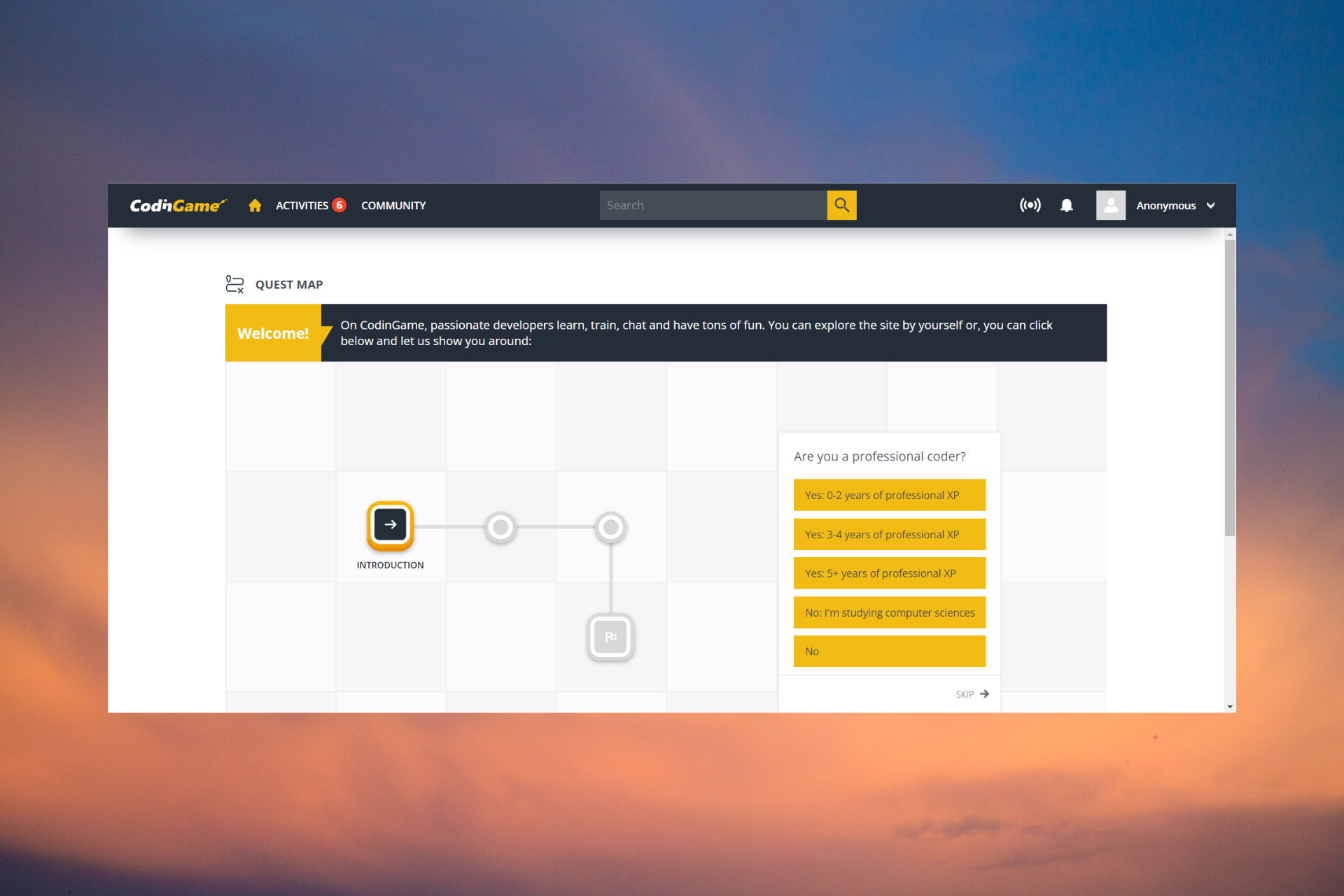





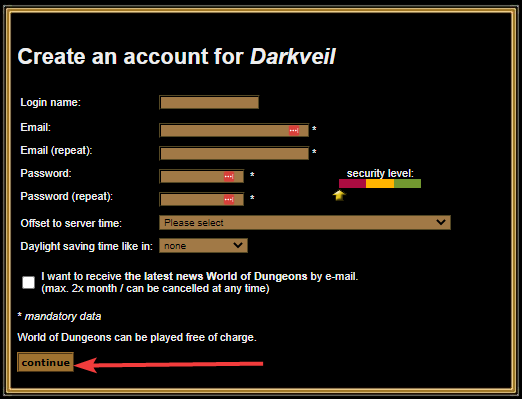


![How to Get Microsoft Games in Windows 10 [Solitaire Collection & More]](https://windowsreport.com/wp-content/uploads/2022/08/games.png)




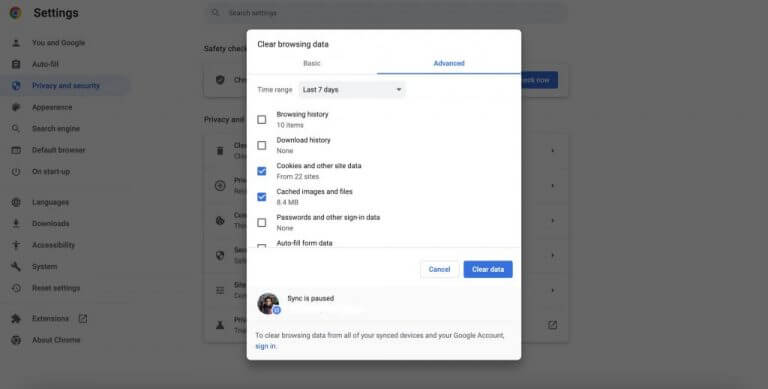


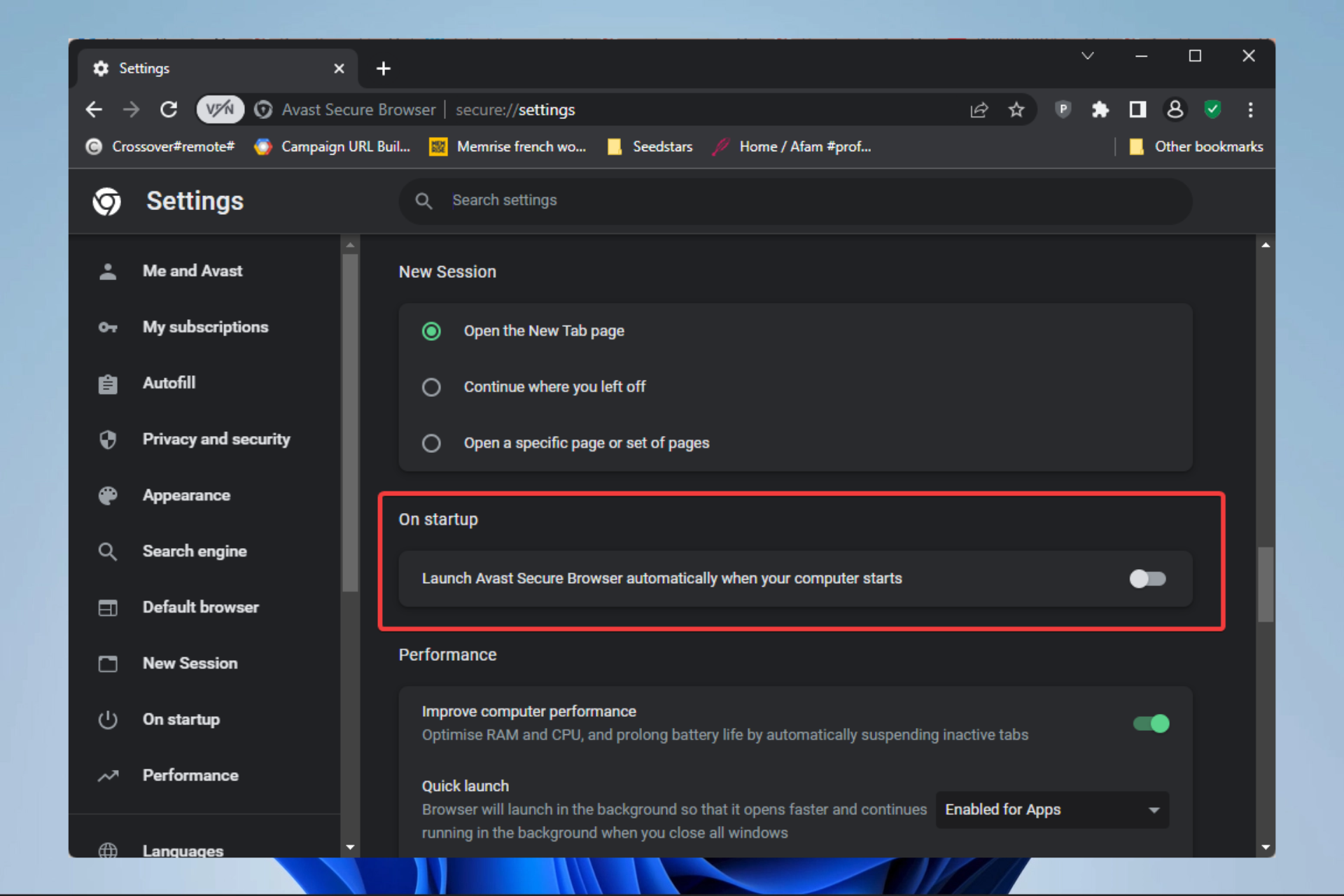




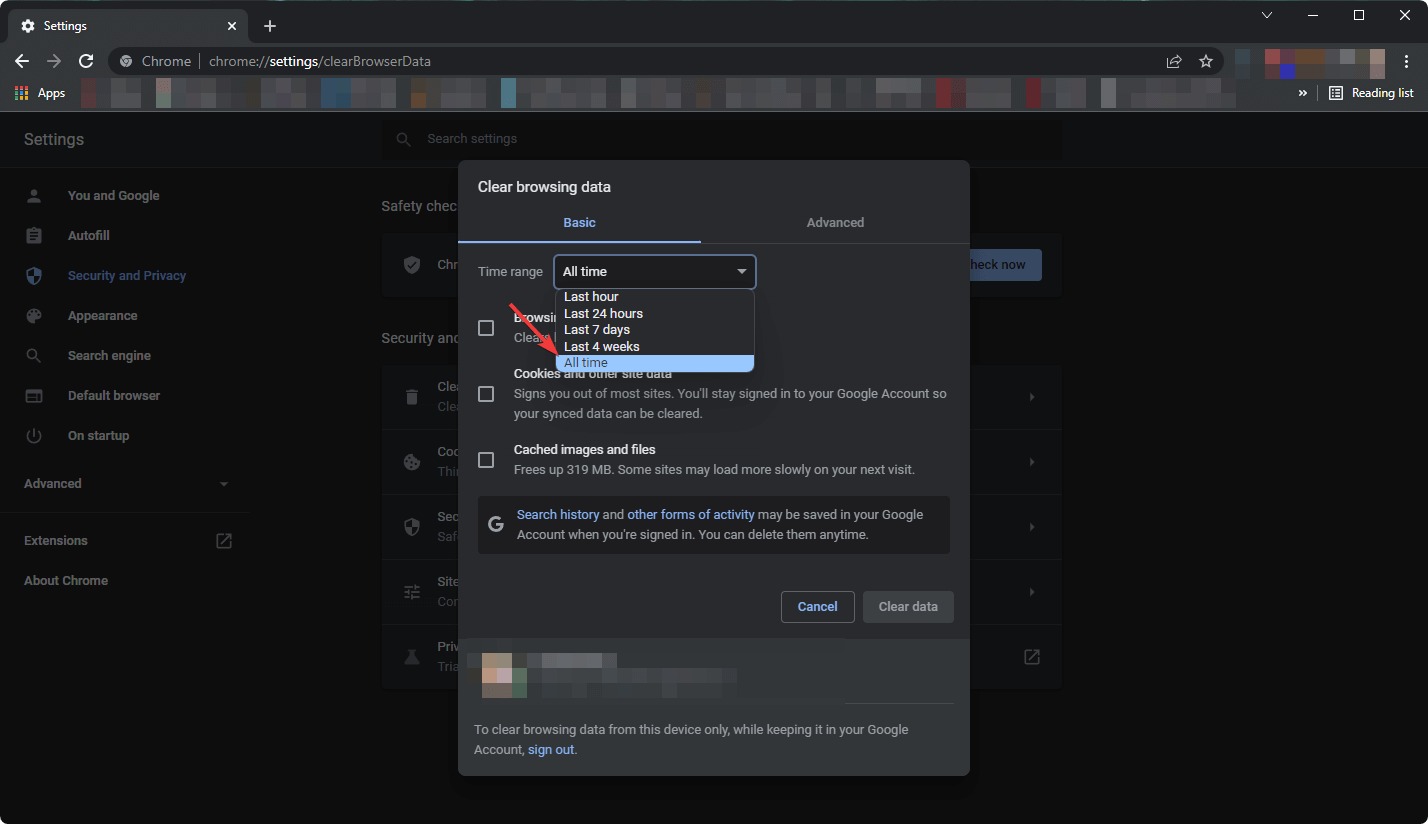
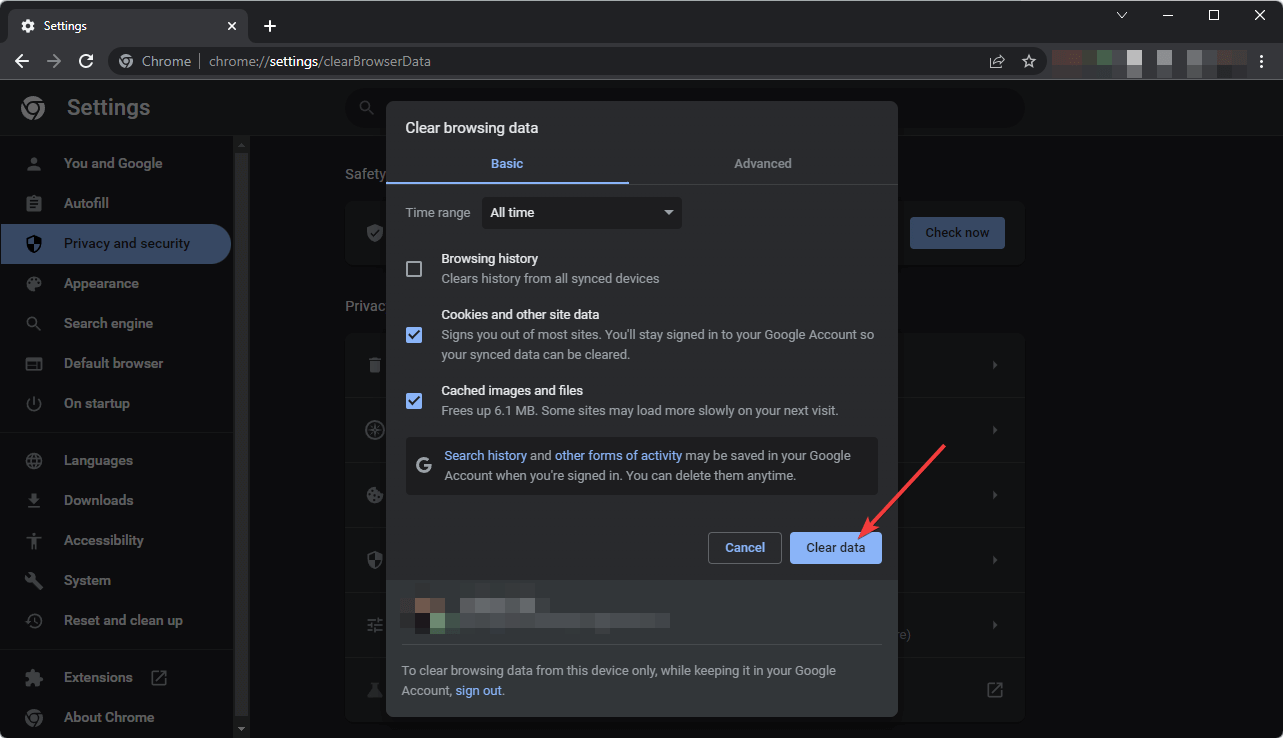
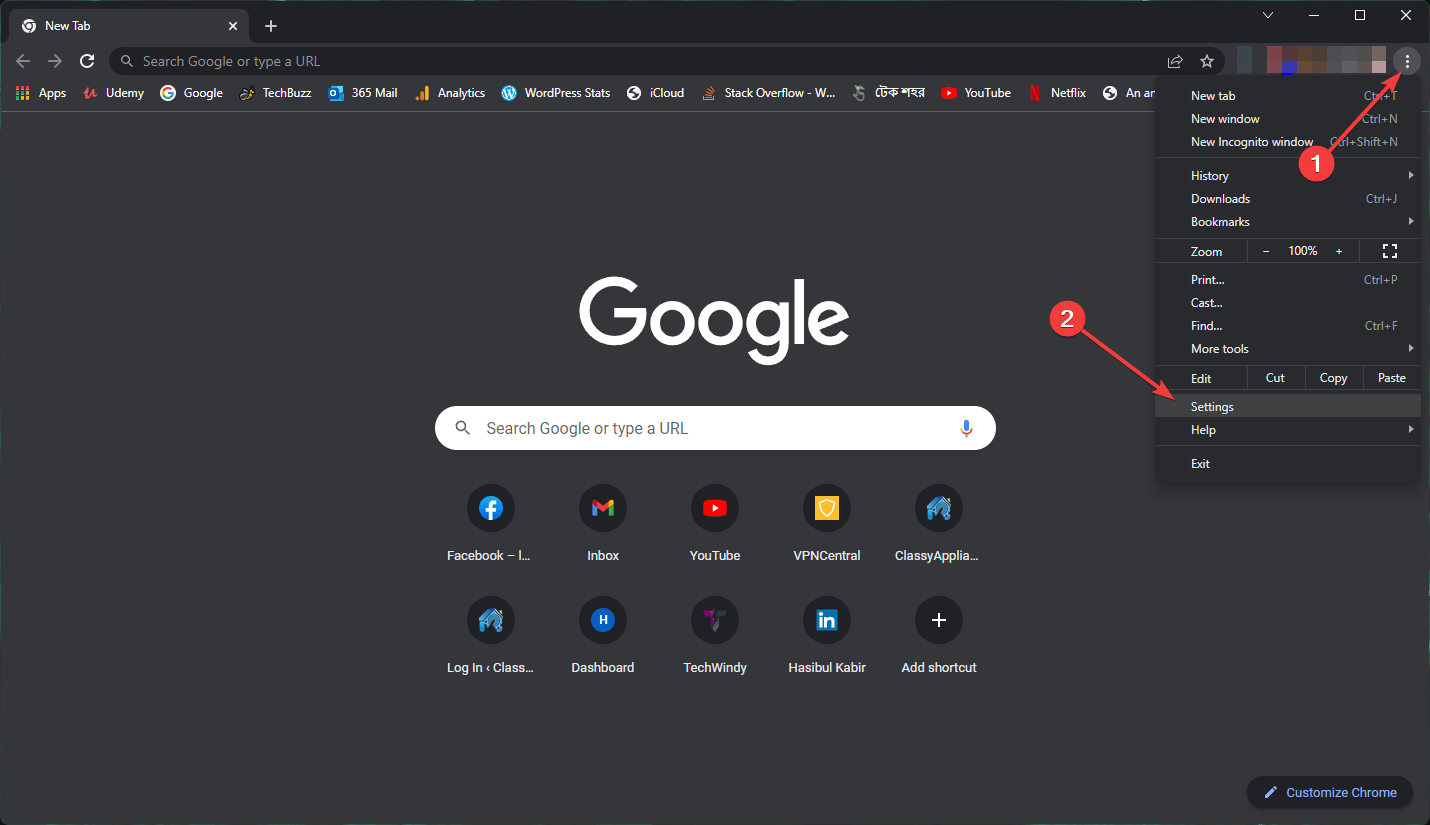
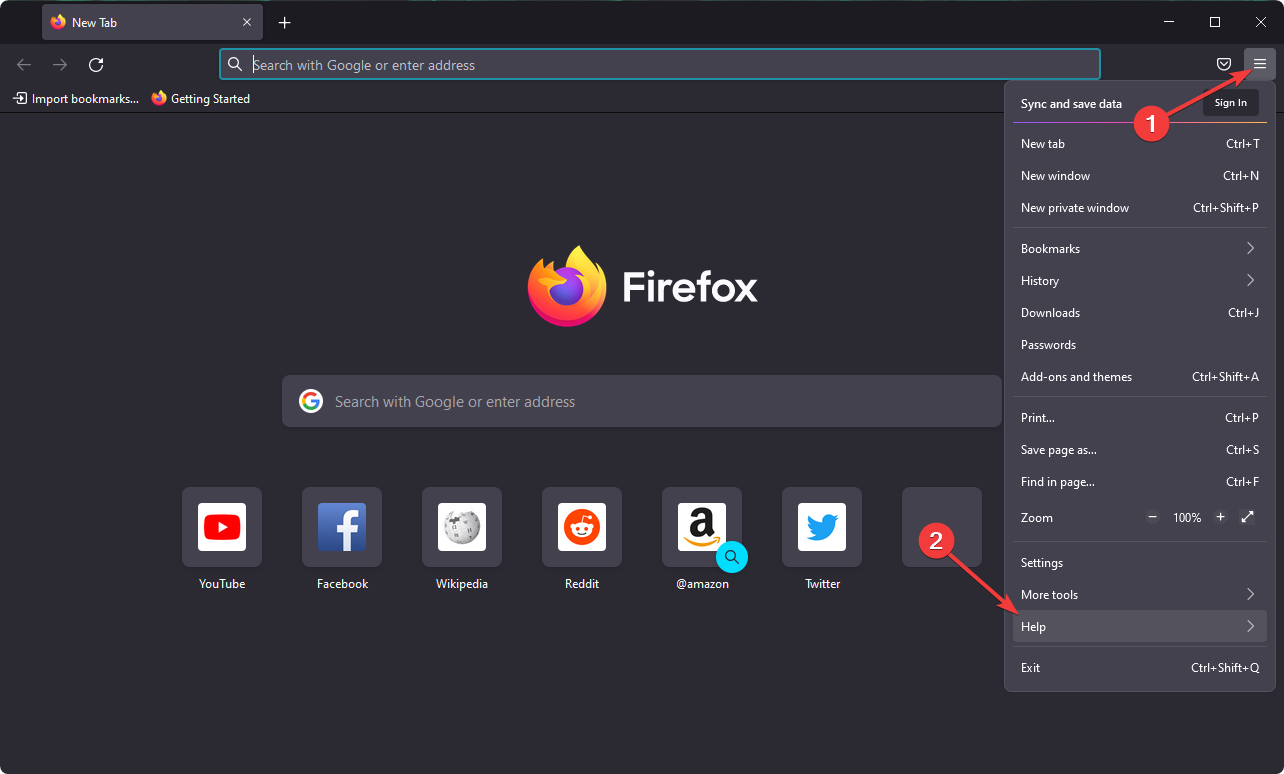
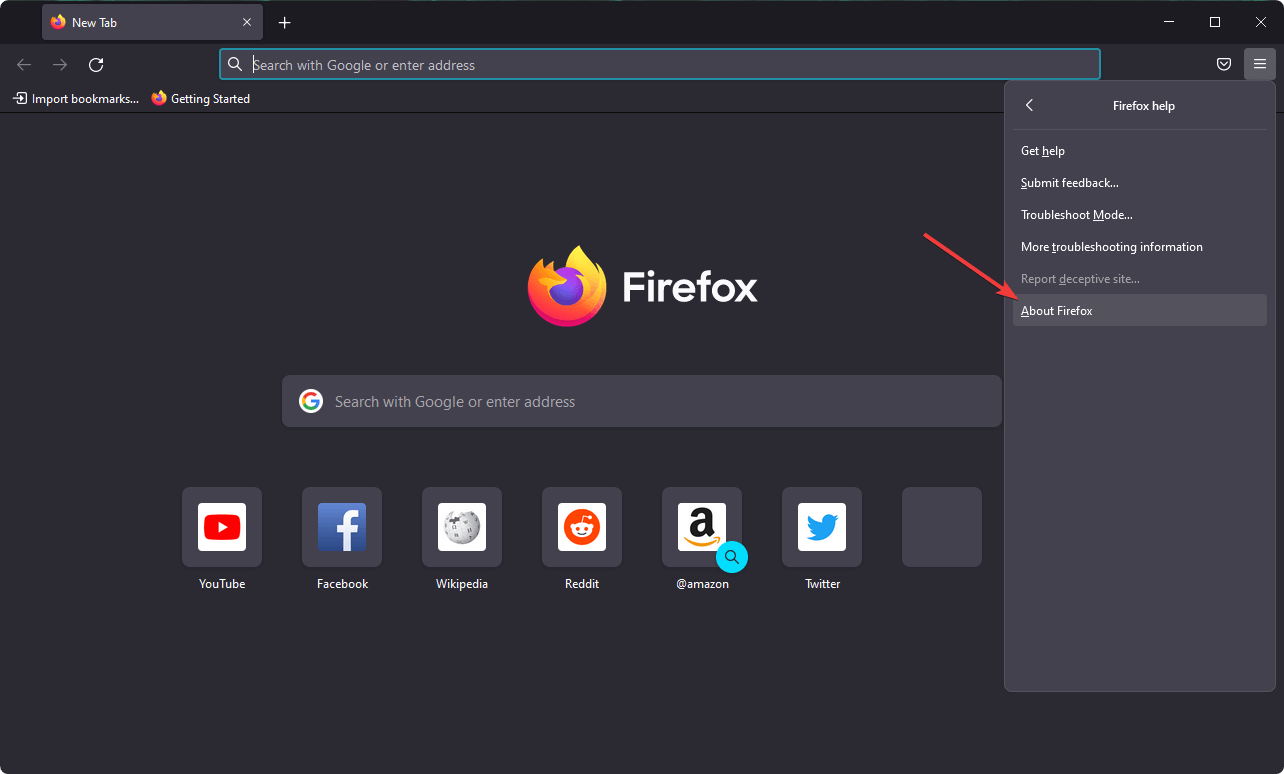
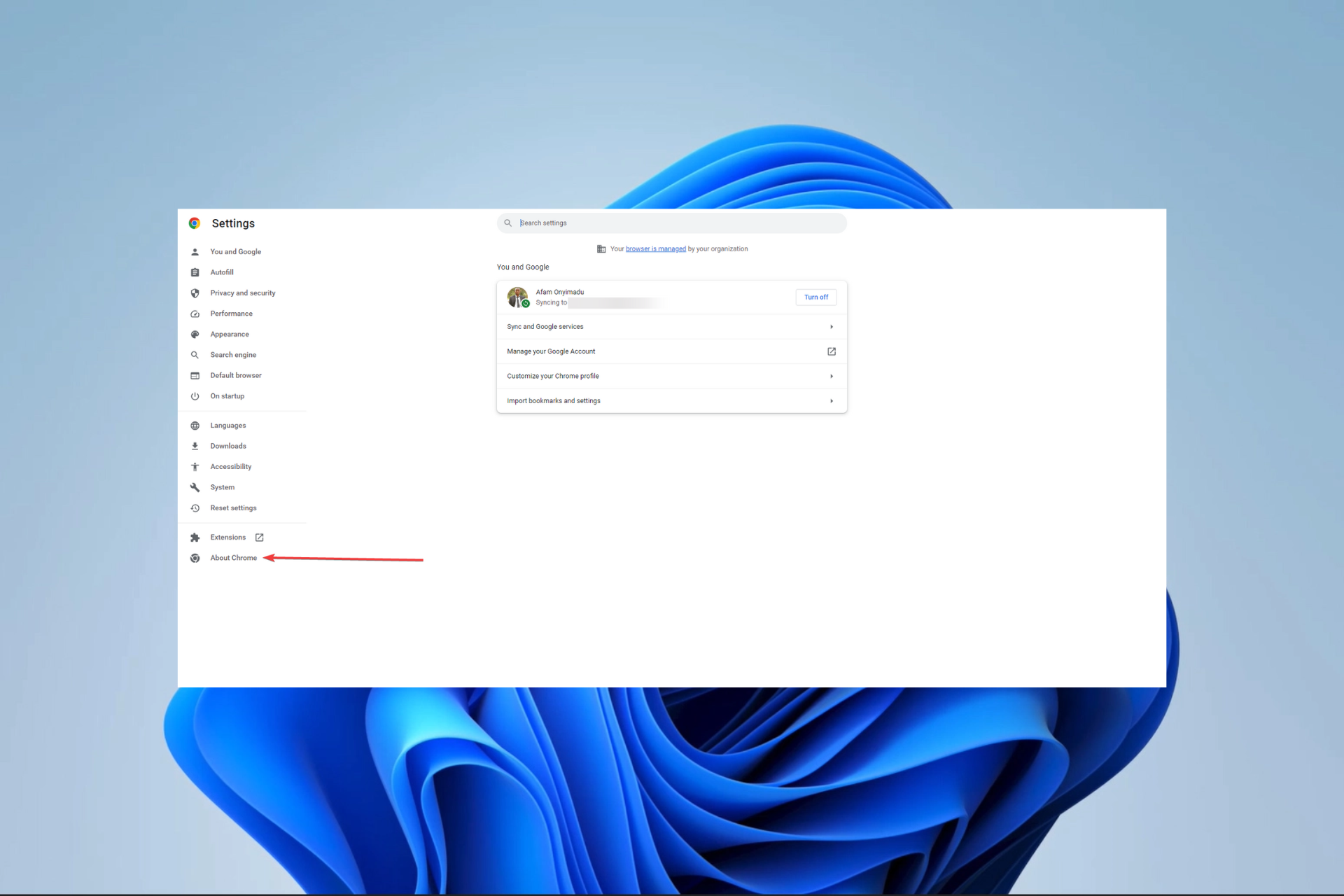
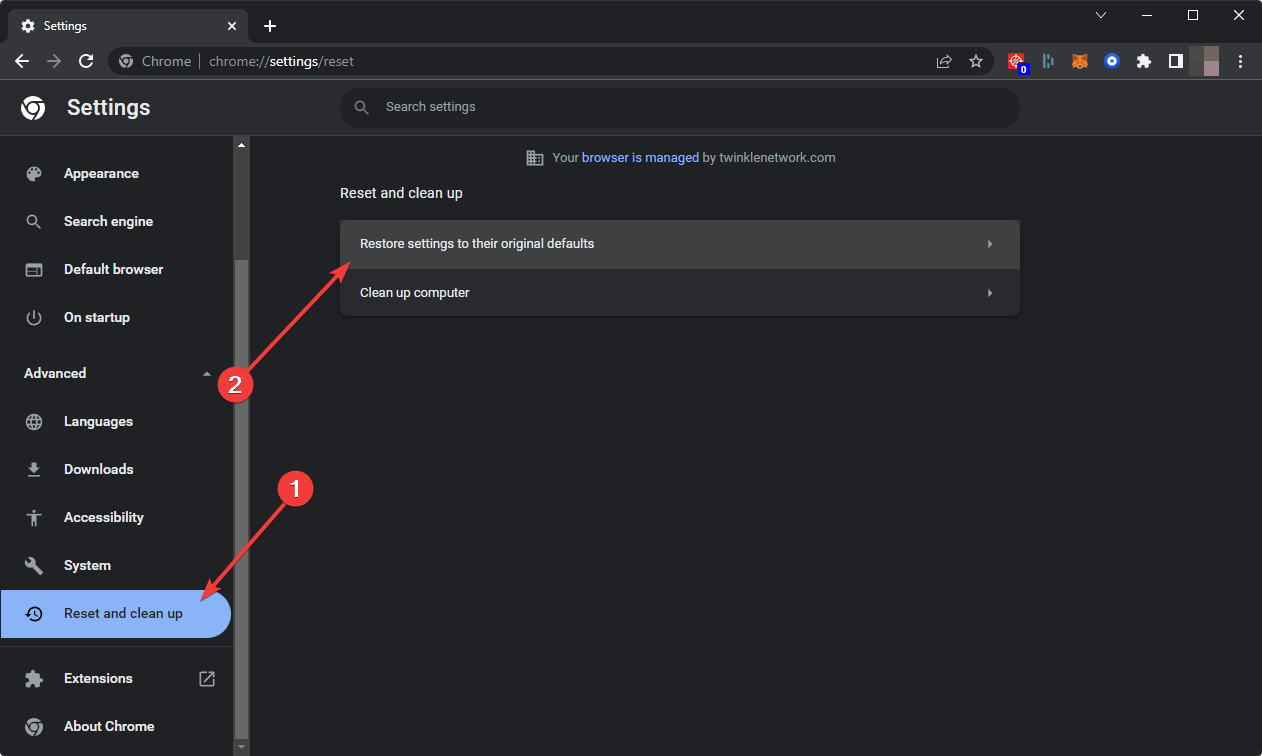


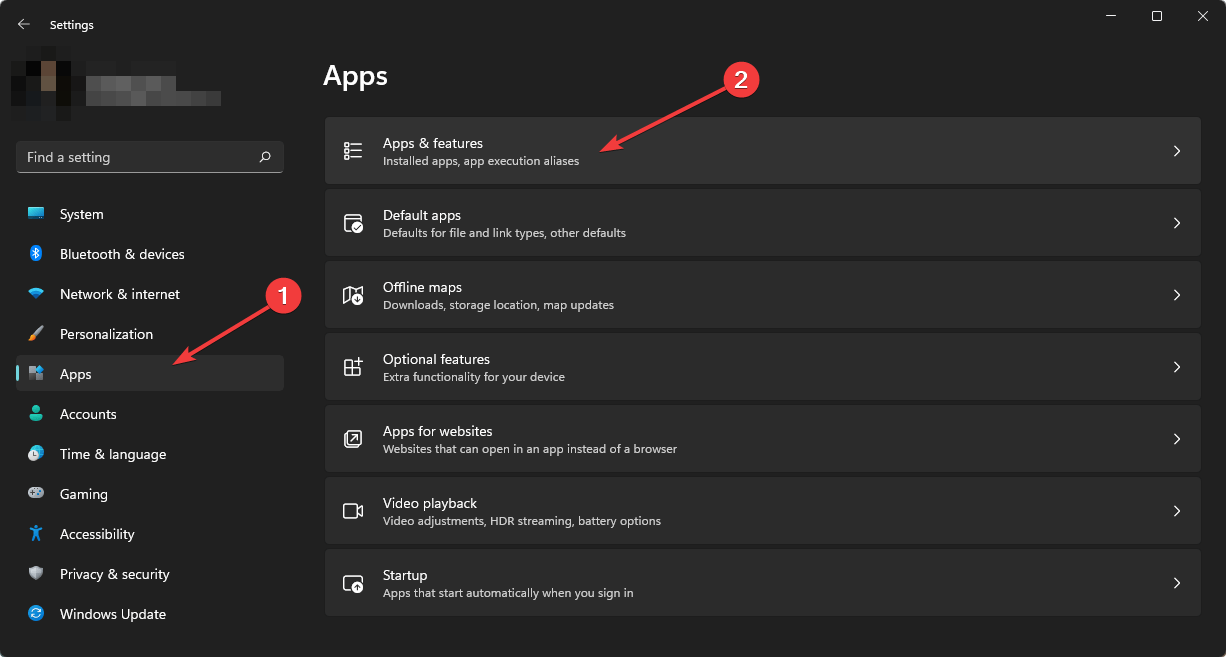






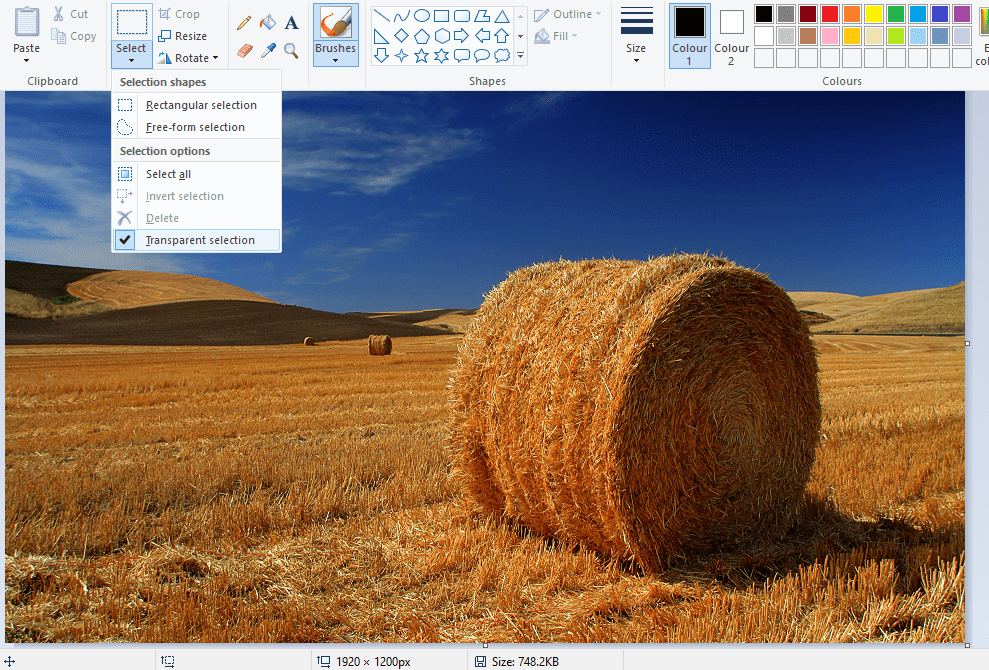
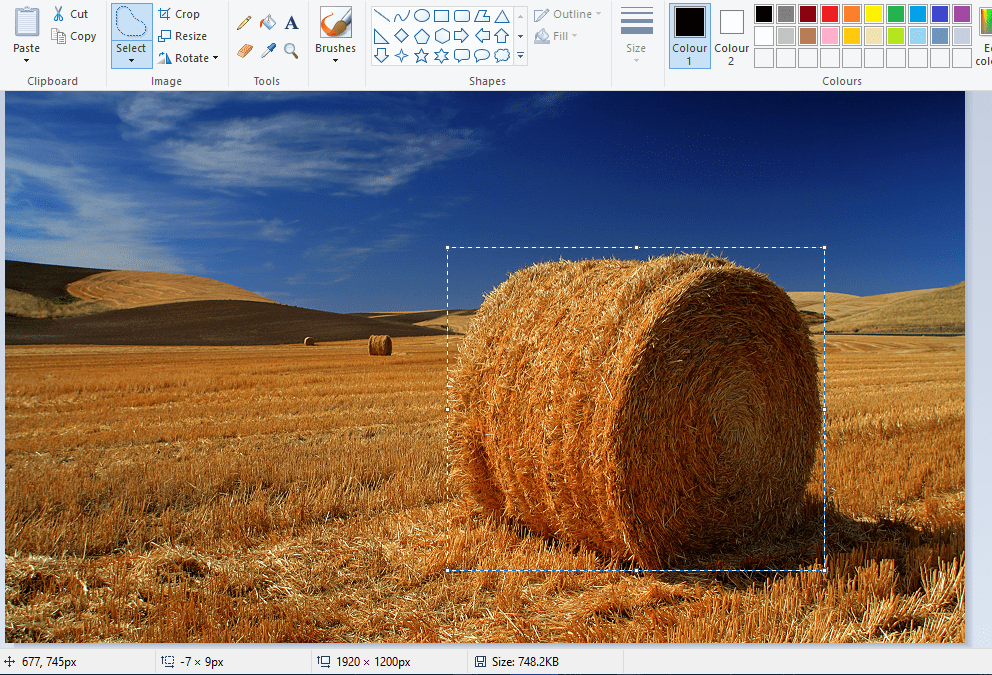



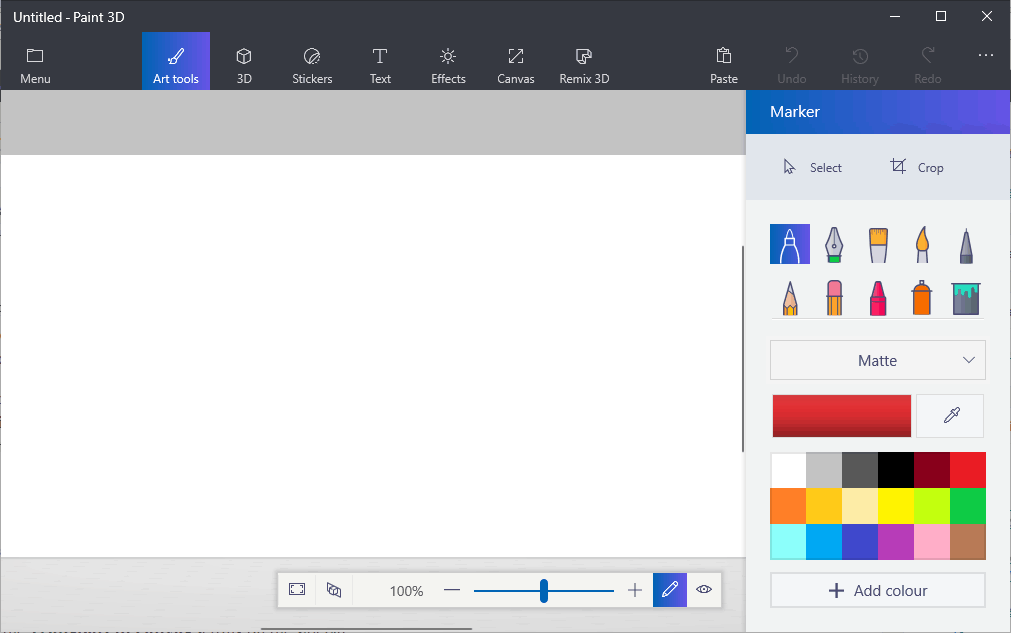
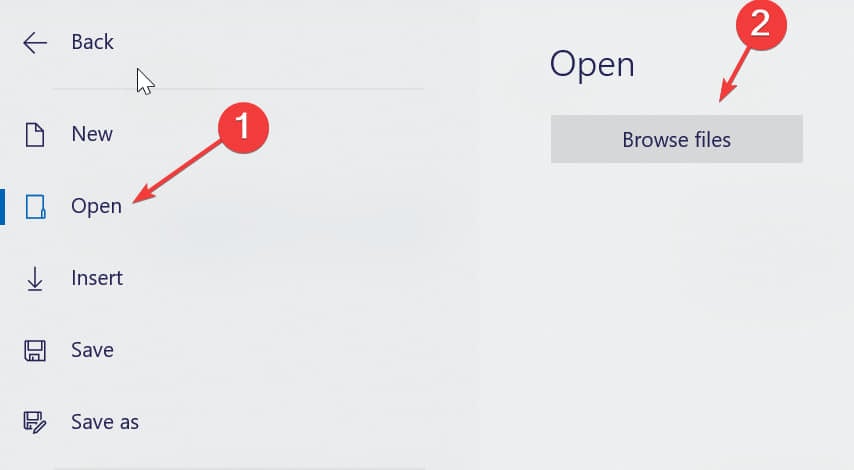
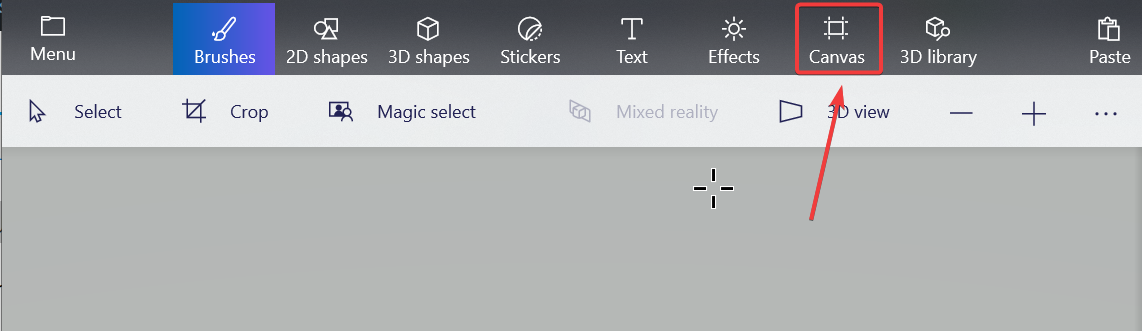
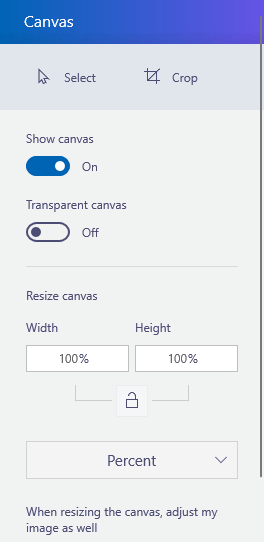
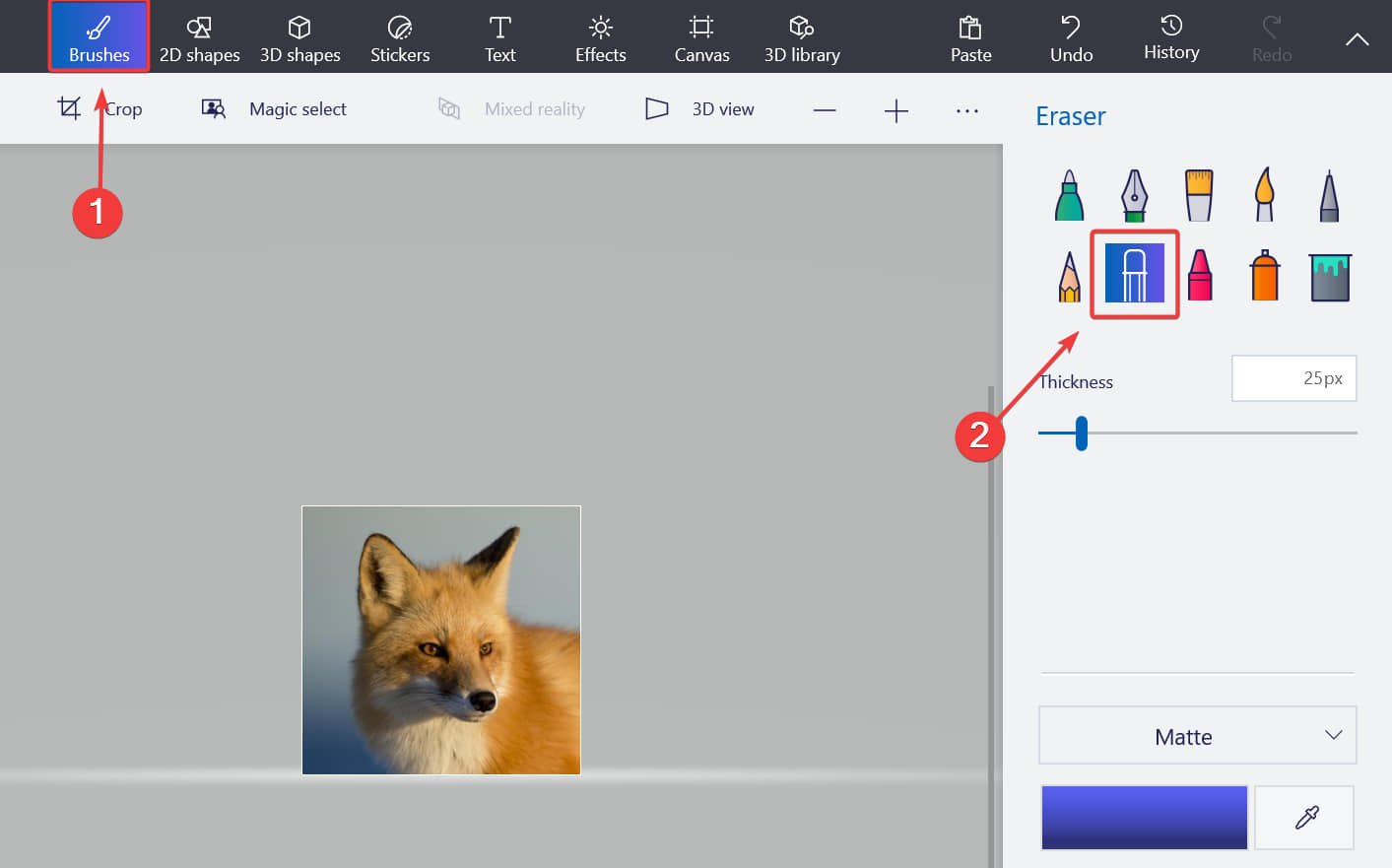

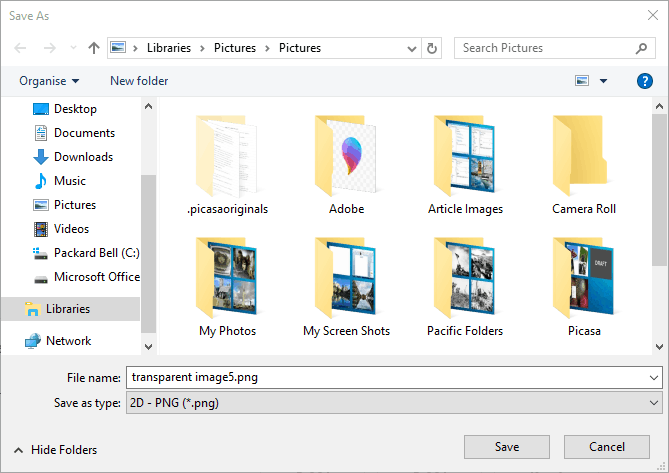
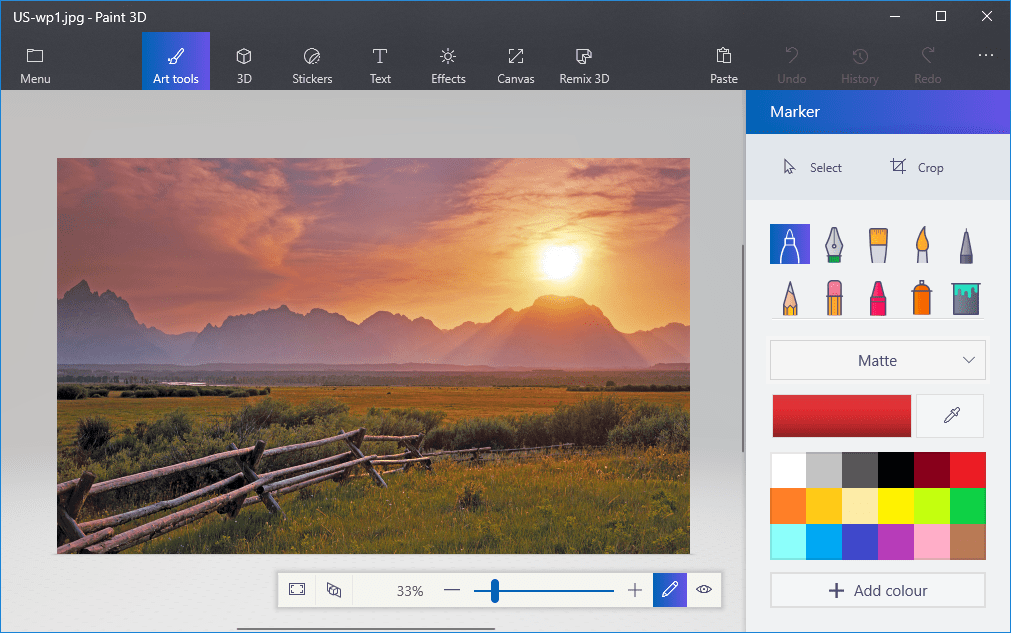
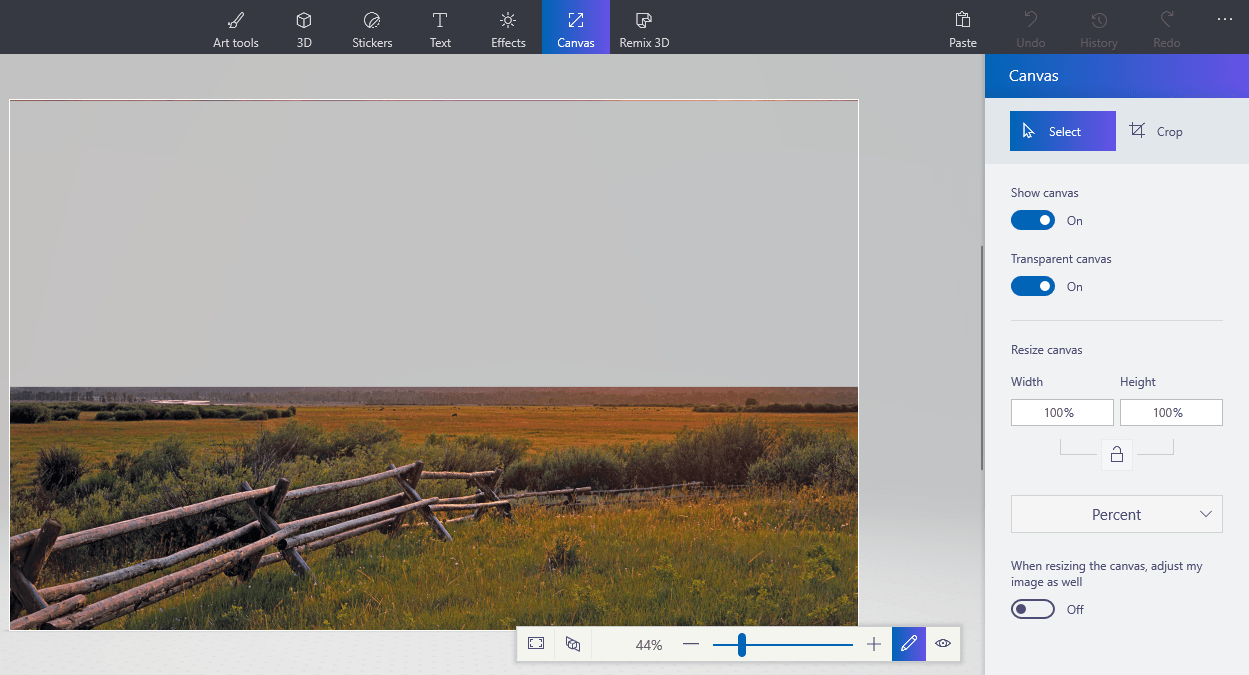
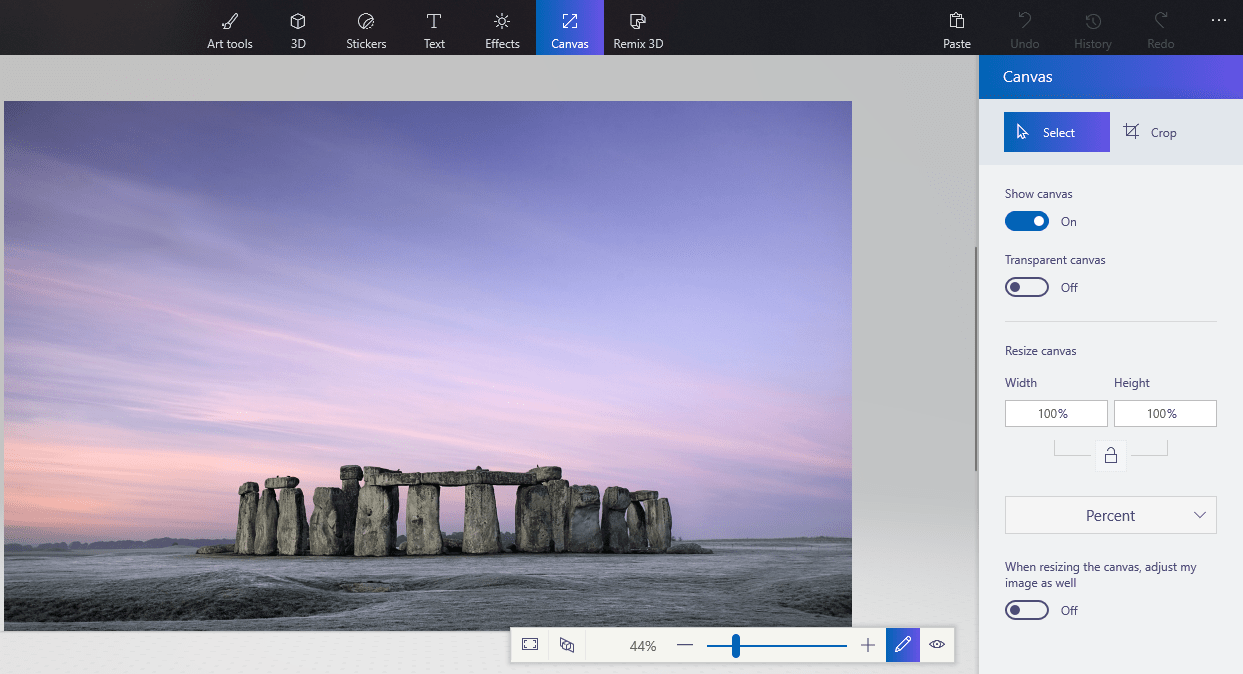
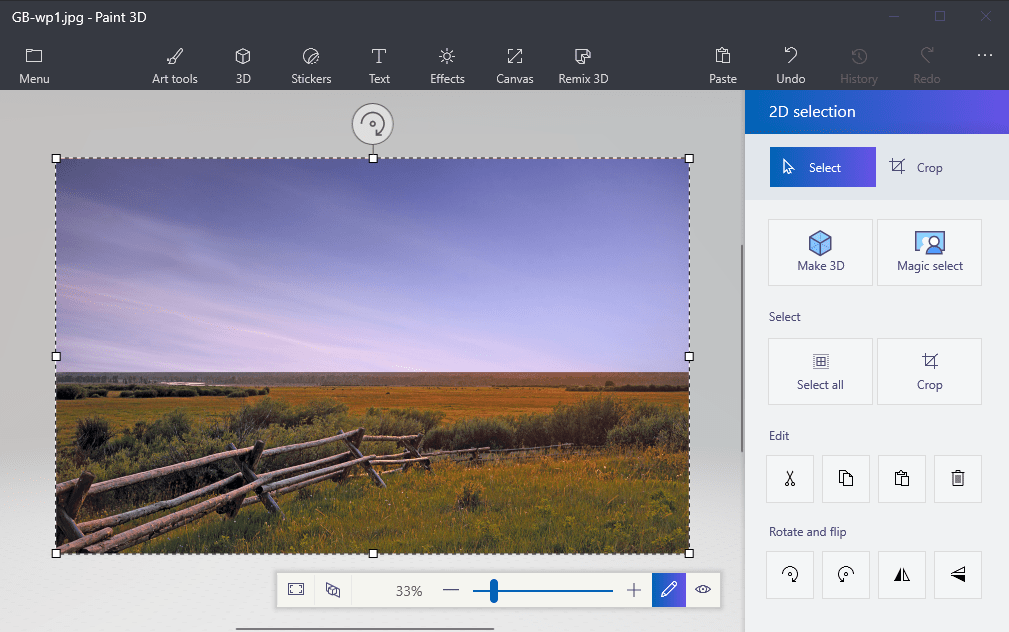
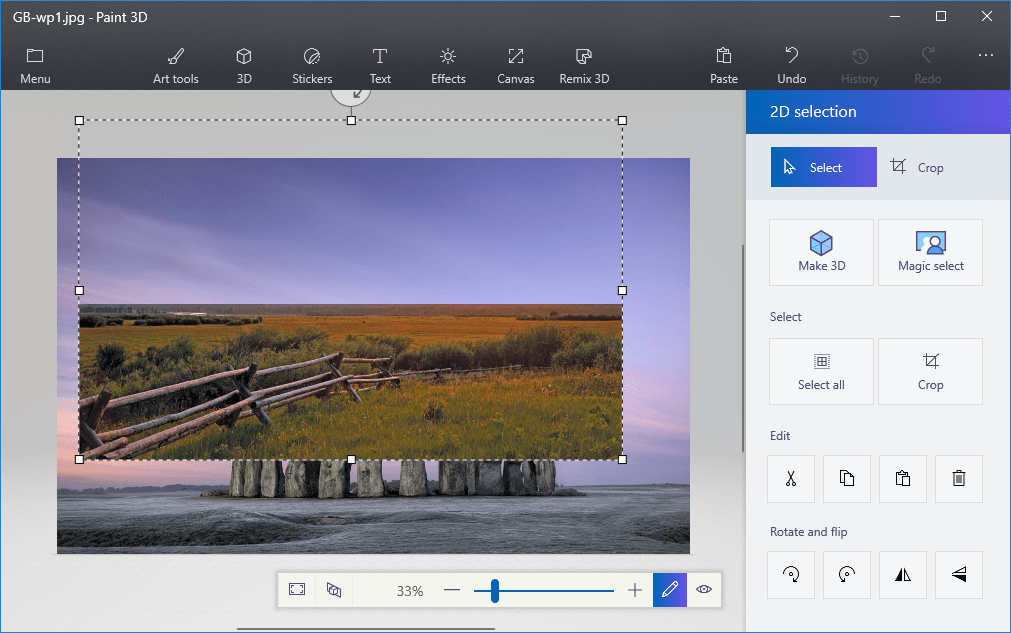

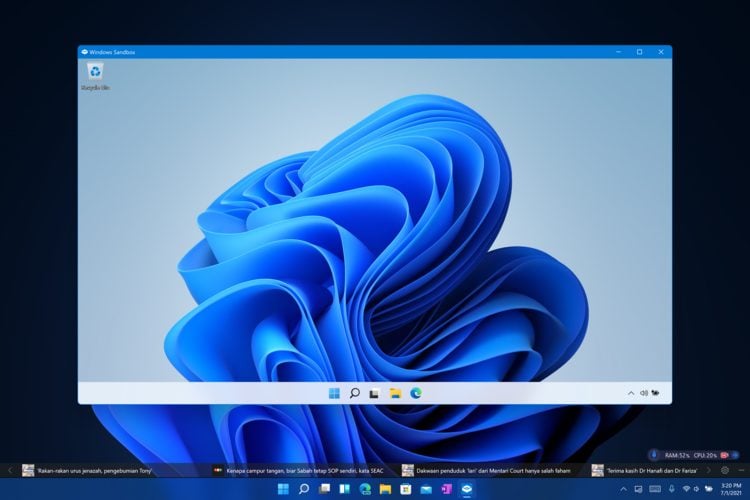


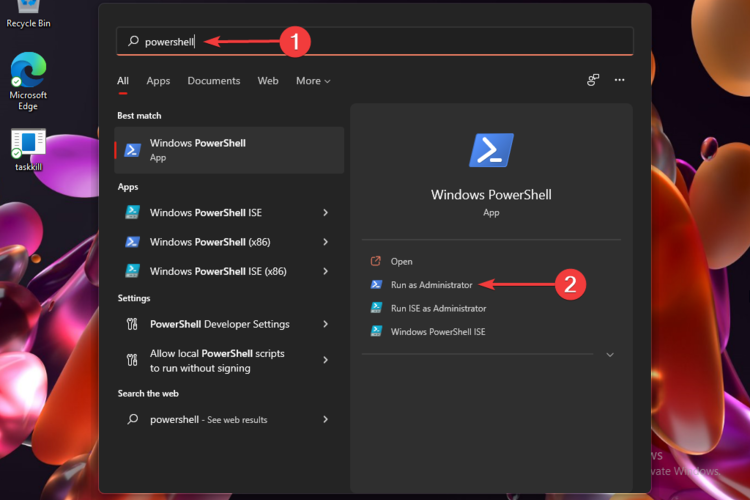


![How to Change Password / Username on Windows 11 [Step-by-Step]](https://windowsreport.com/wp-content/uploads/2021/06/Change-password-username-in-Windows-11.jpg)



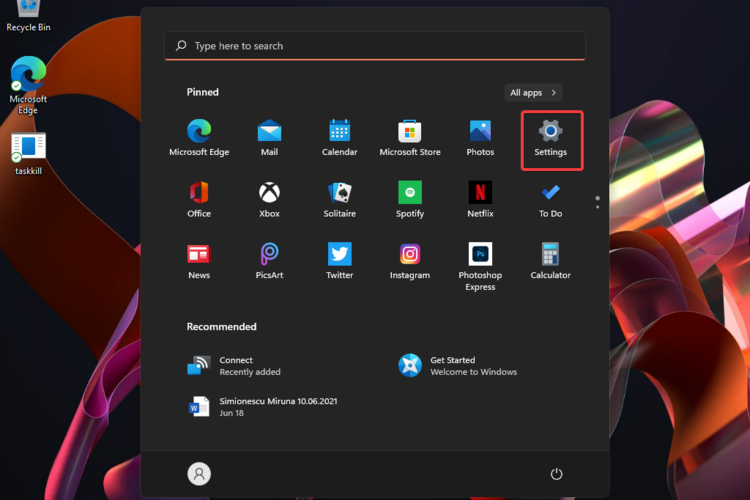


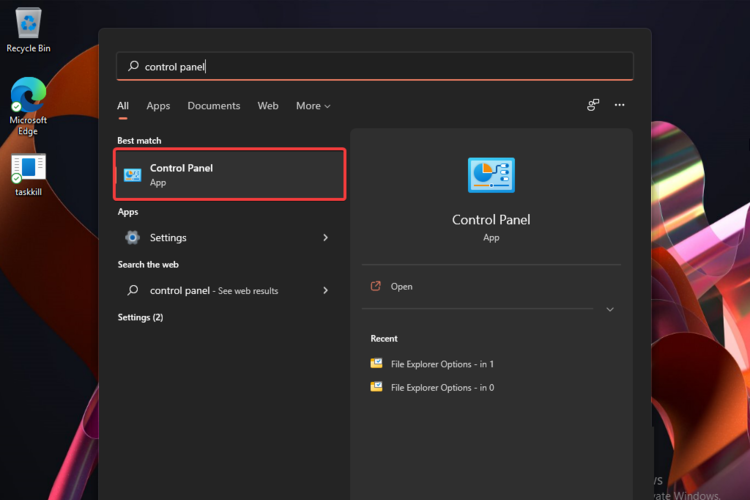


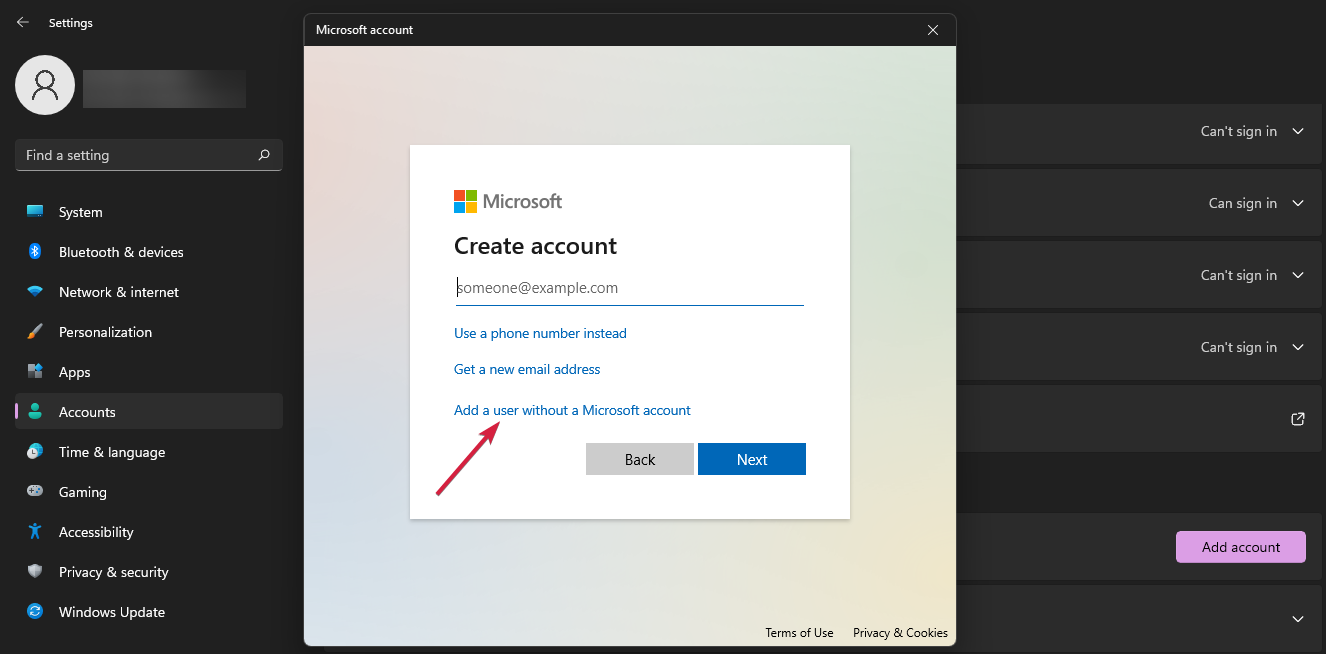







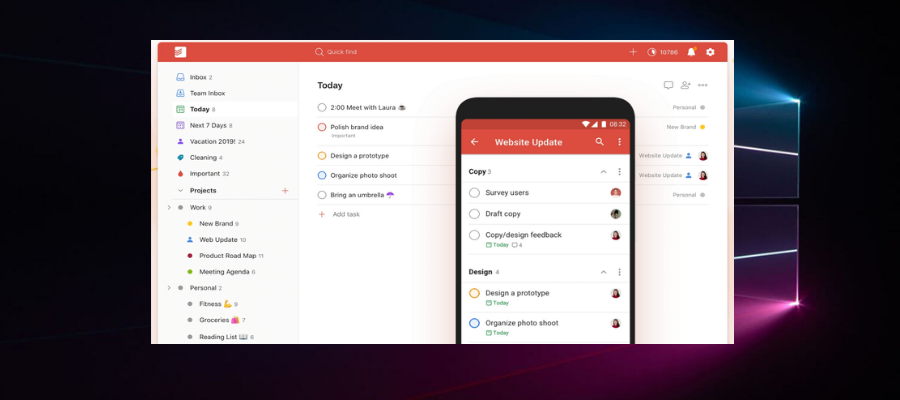

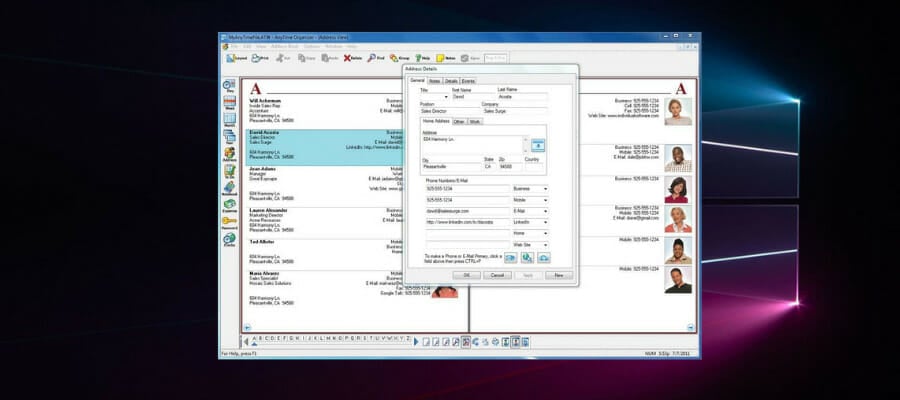

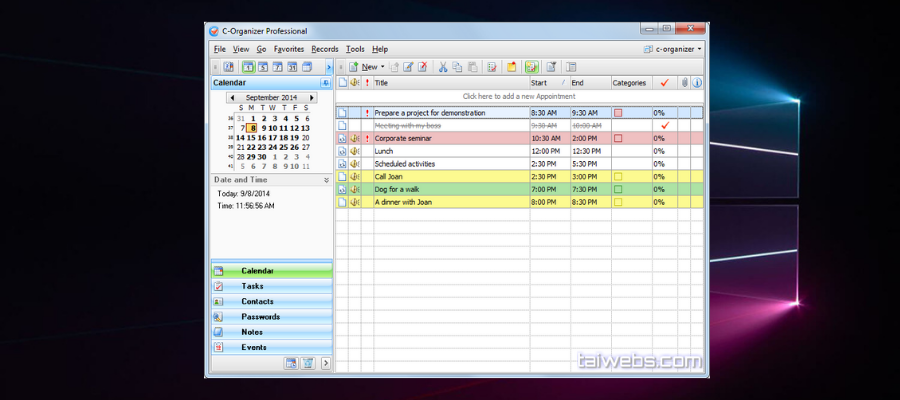

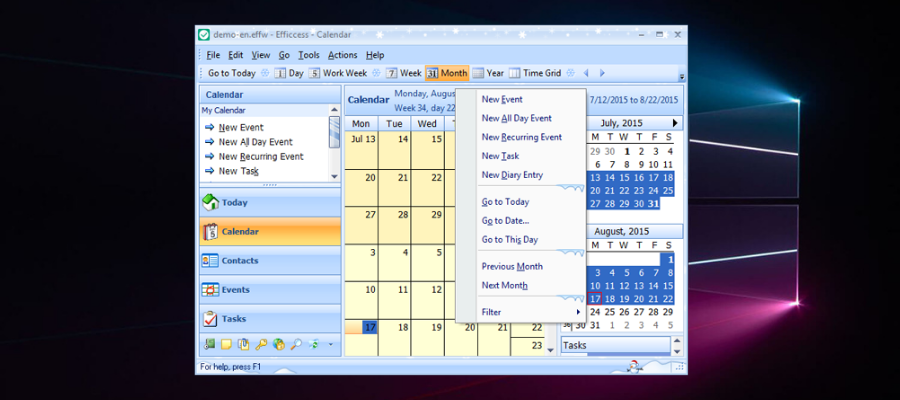

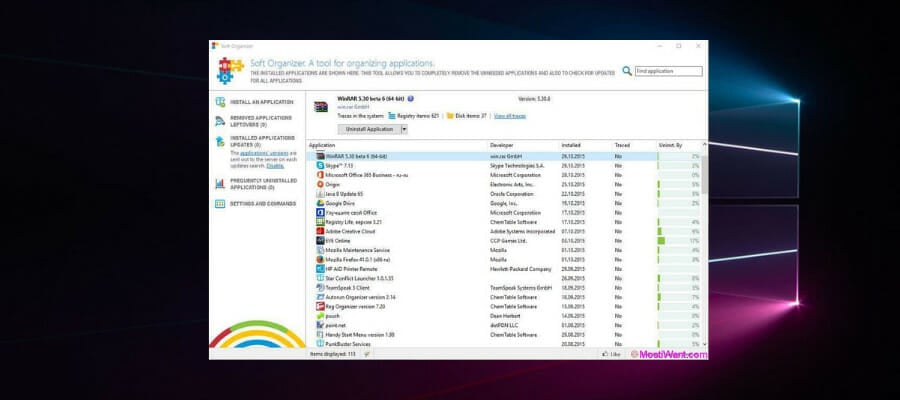

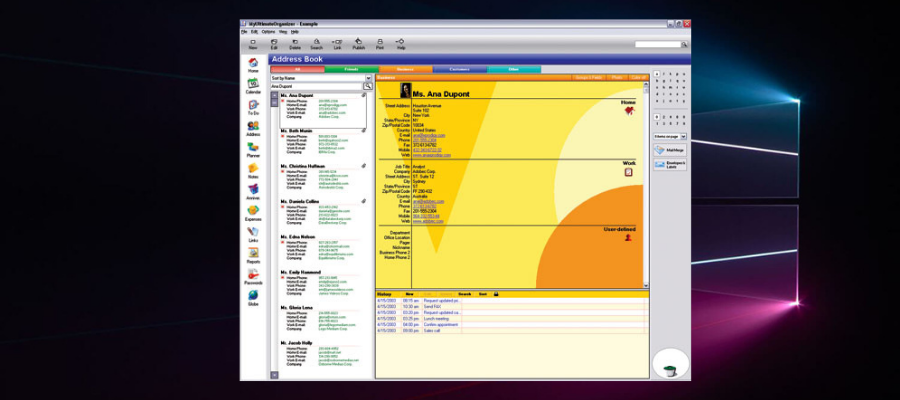

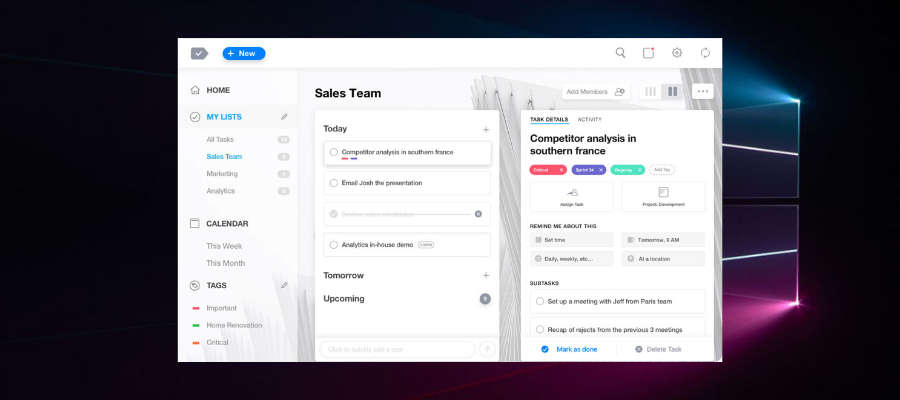

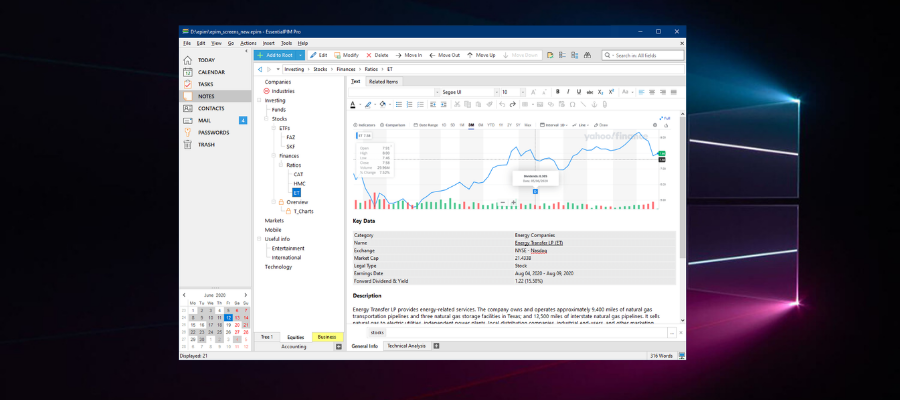
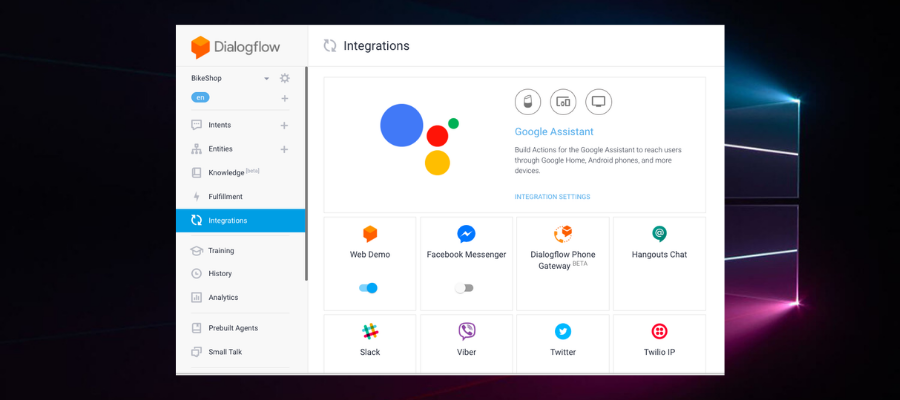
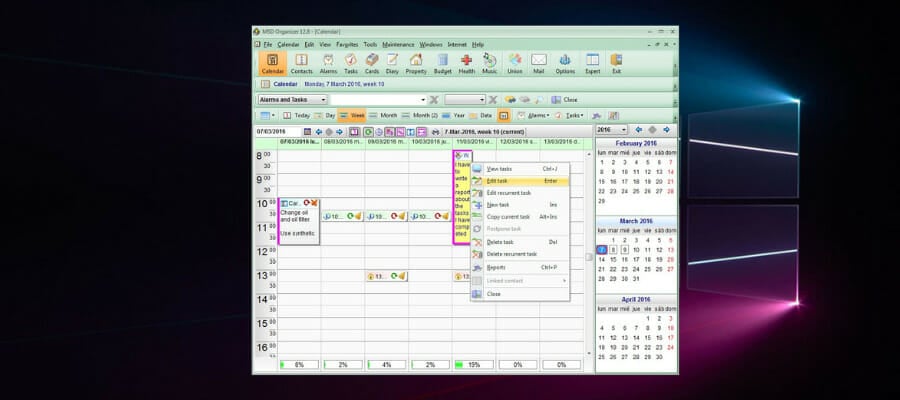
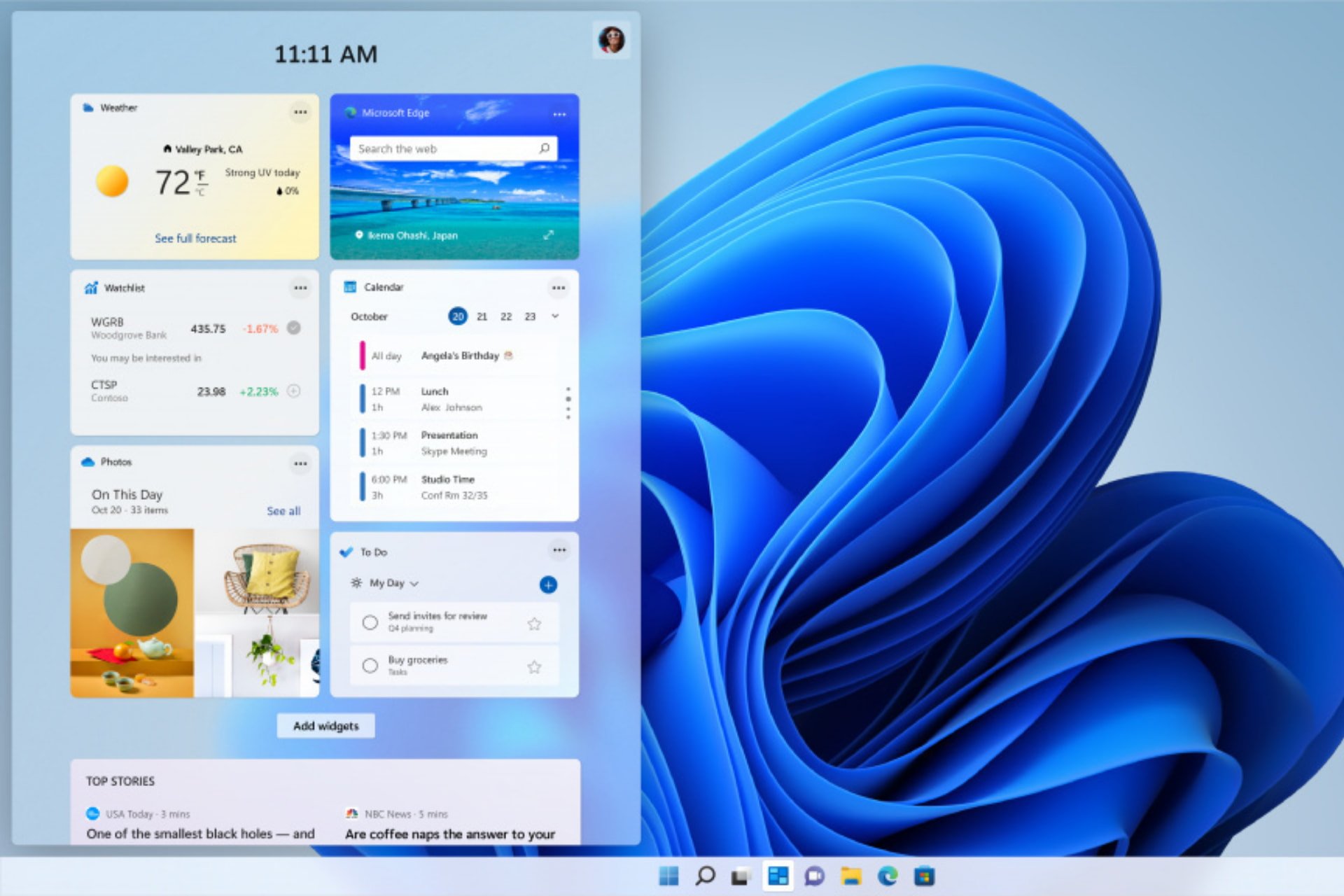


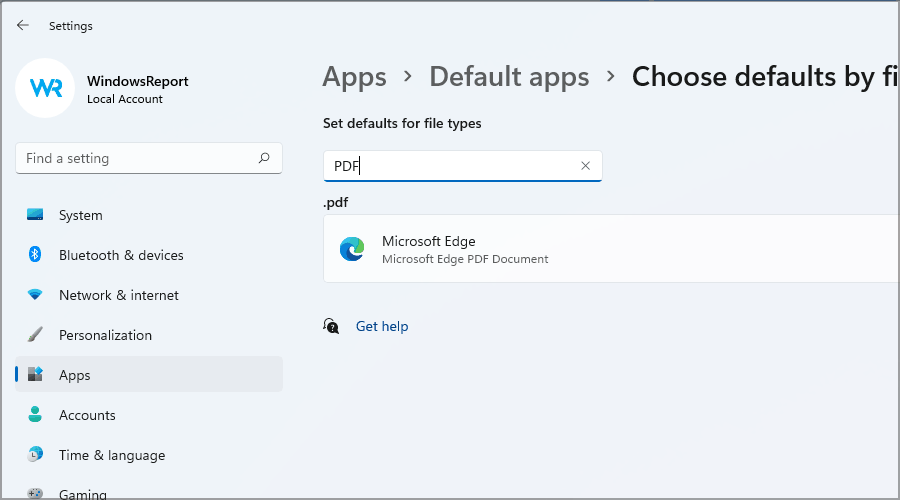


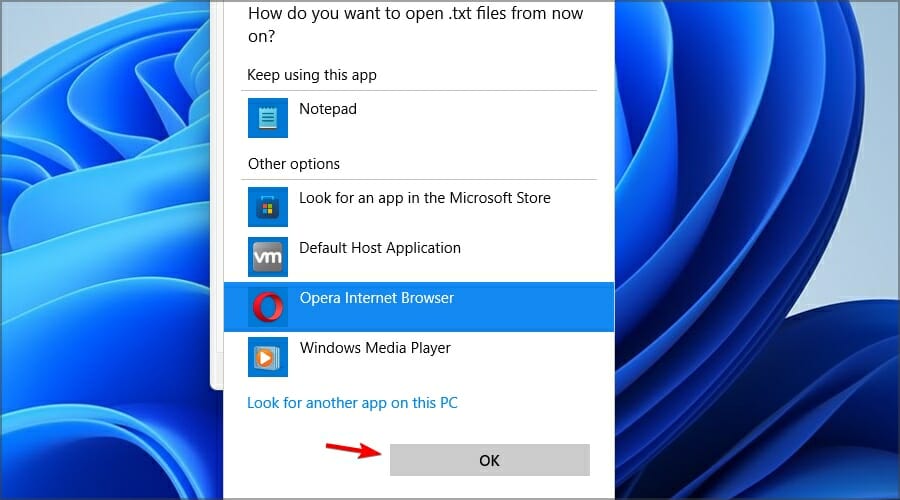
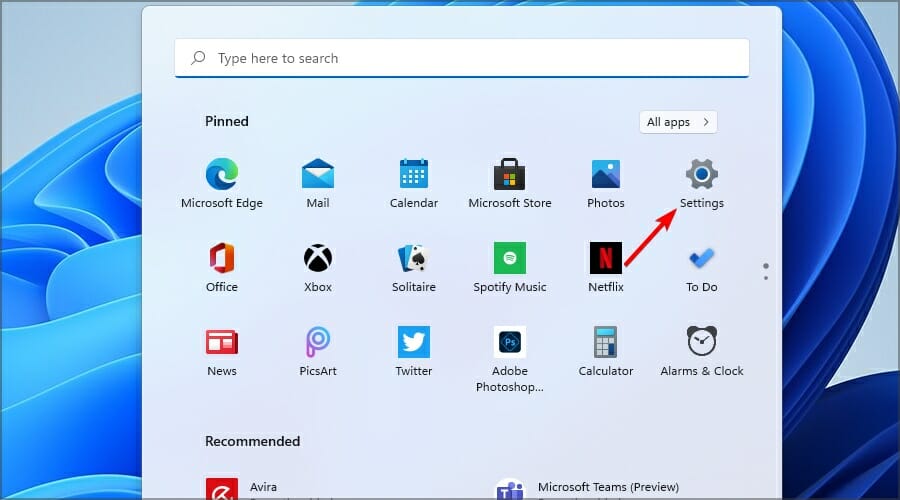
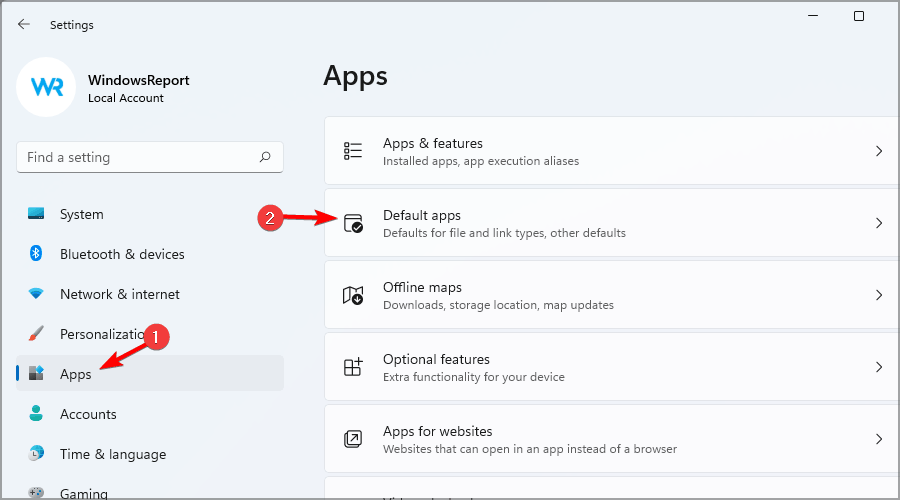


![How to Change Font Size on Windows 11 [4 Ways]](https://windowsreport.com/wp-content/uploads/2021/06/Change-to-classic-view-5-1-1.jpg)
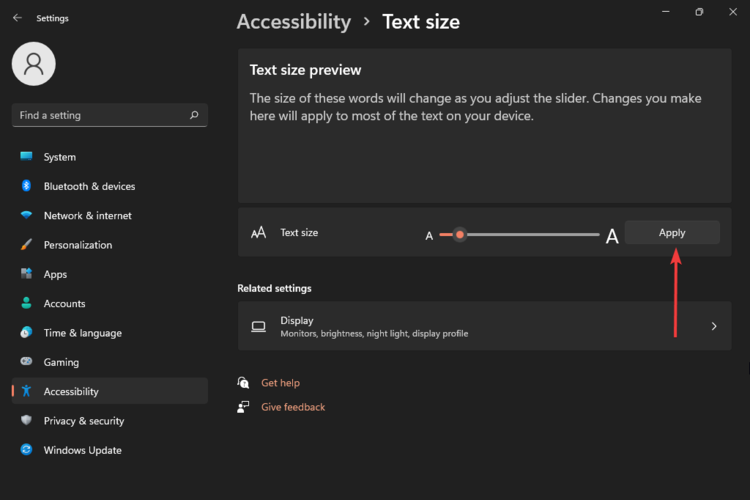
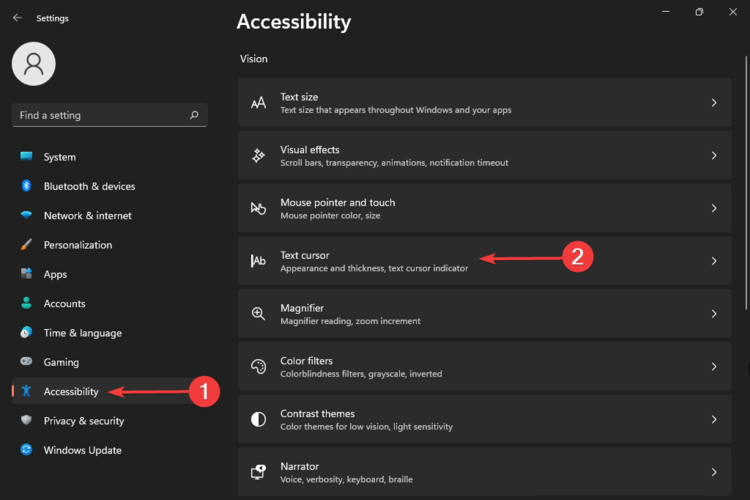

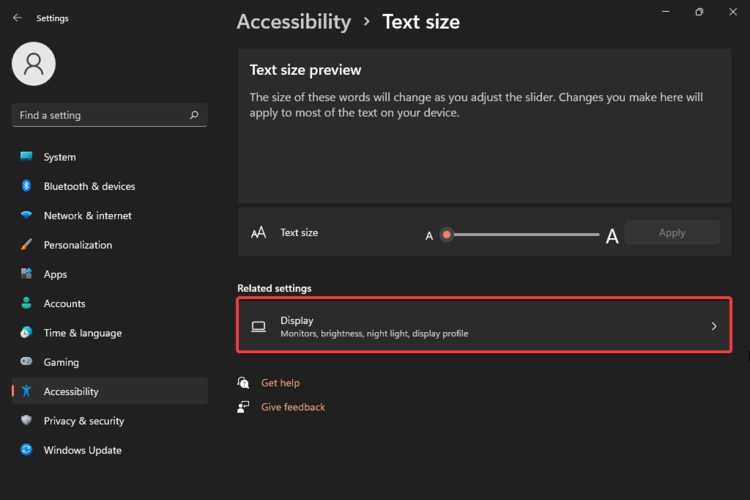
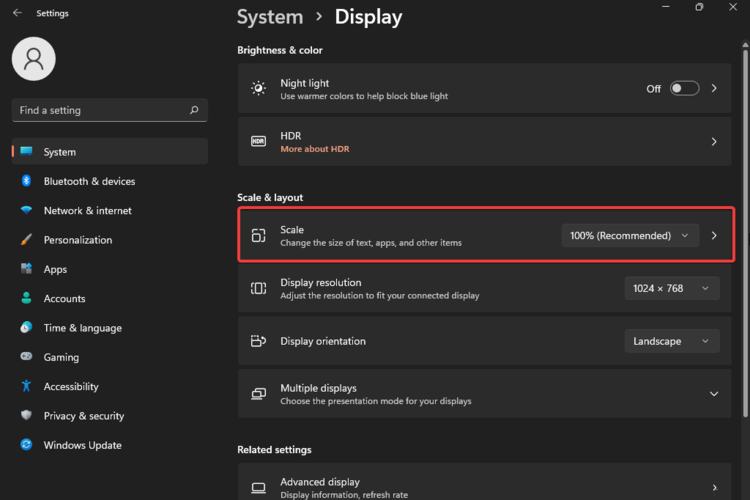

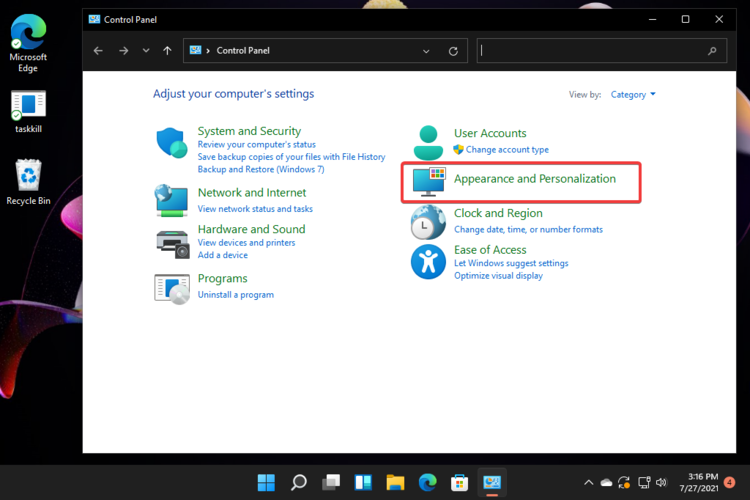
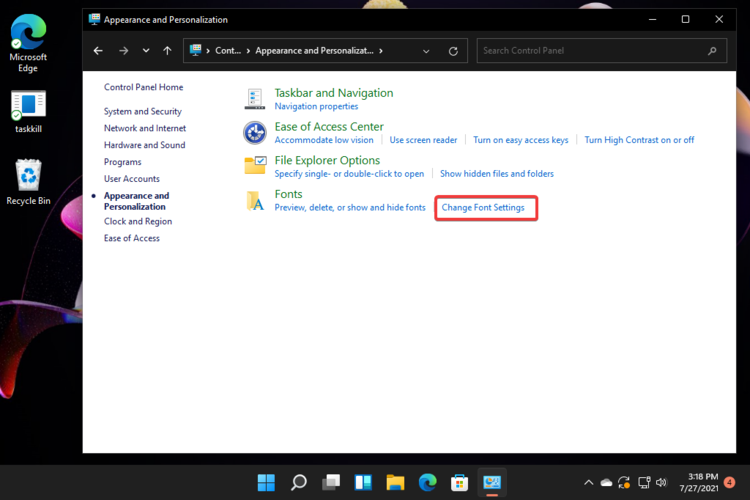
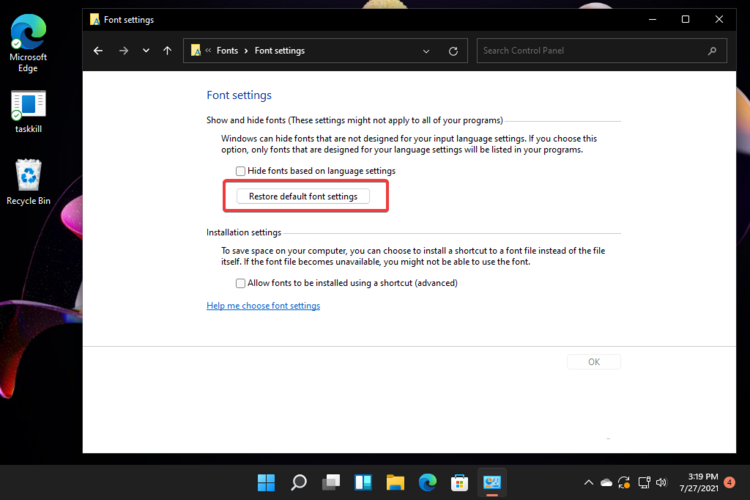



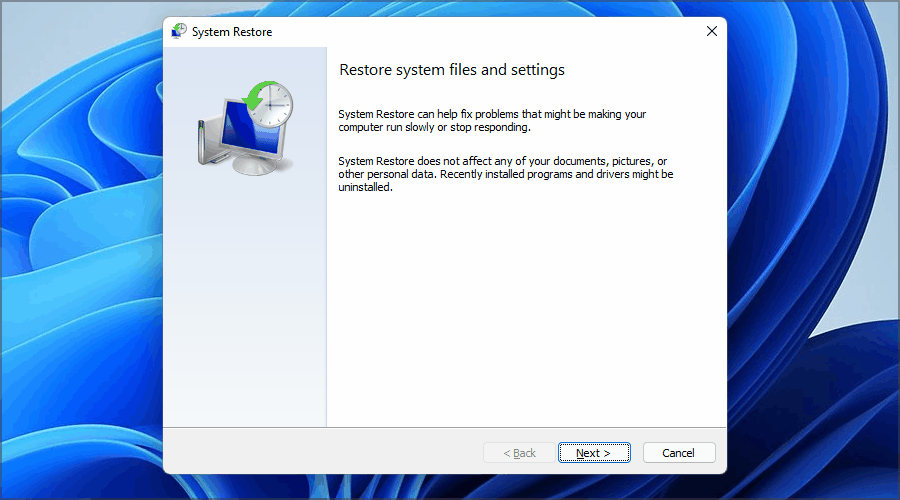
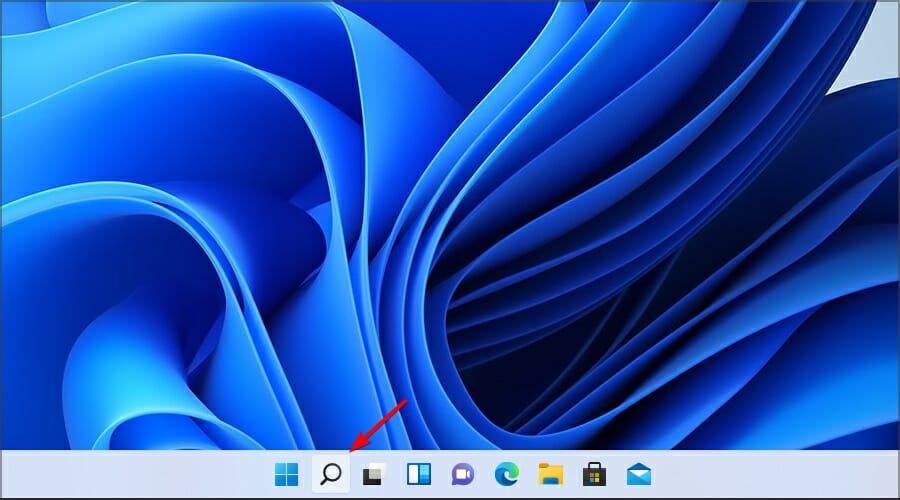

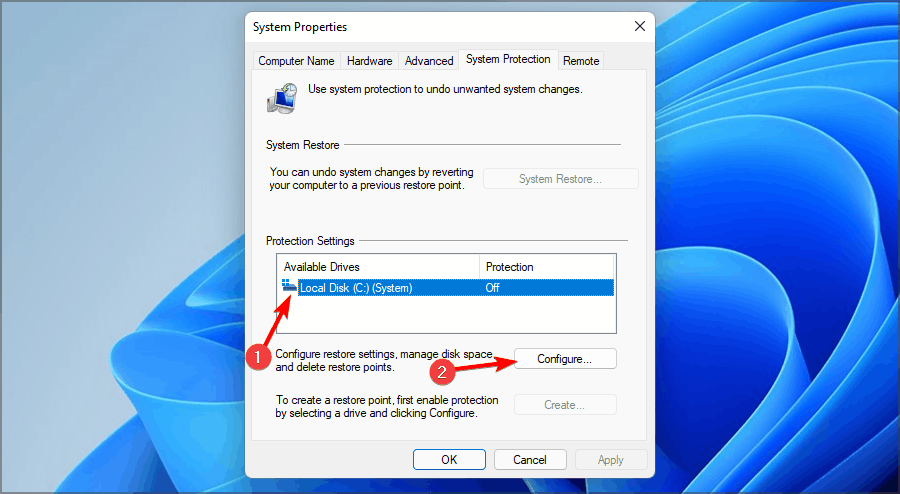
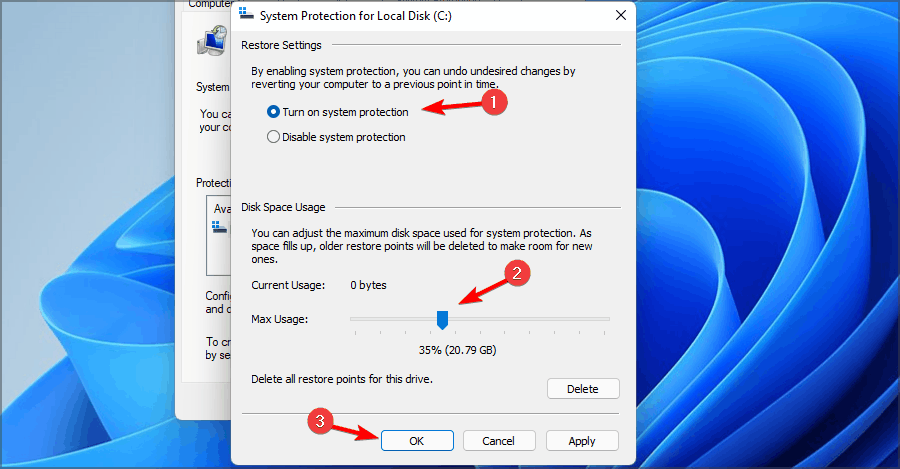

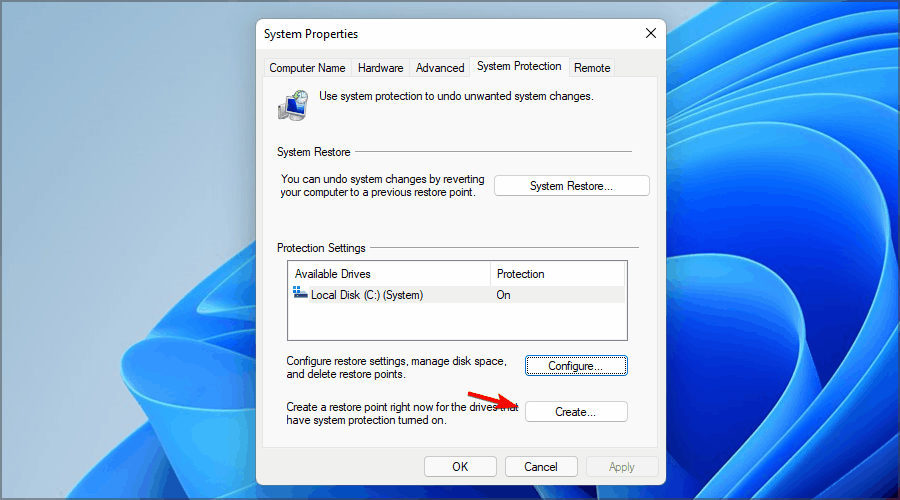
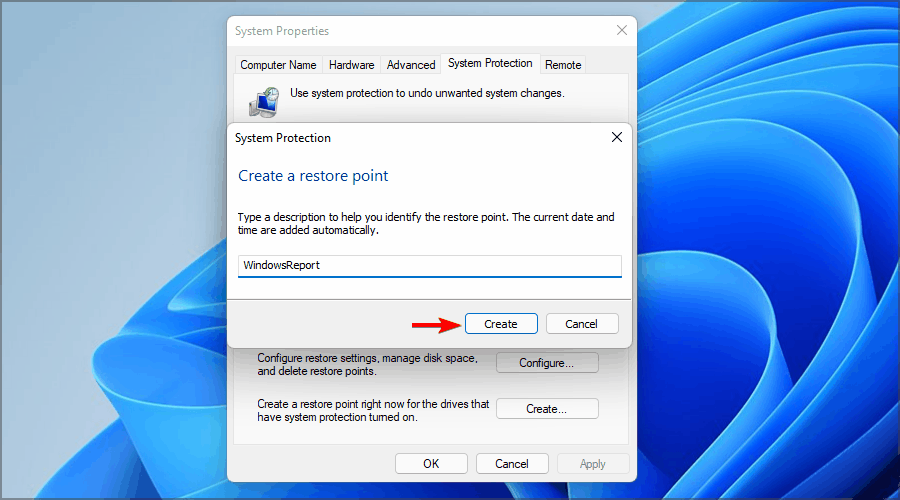


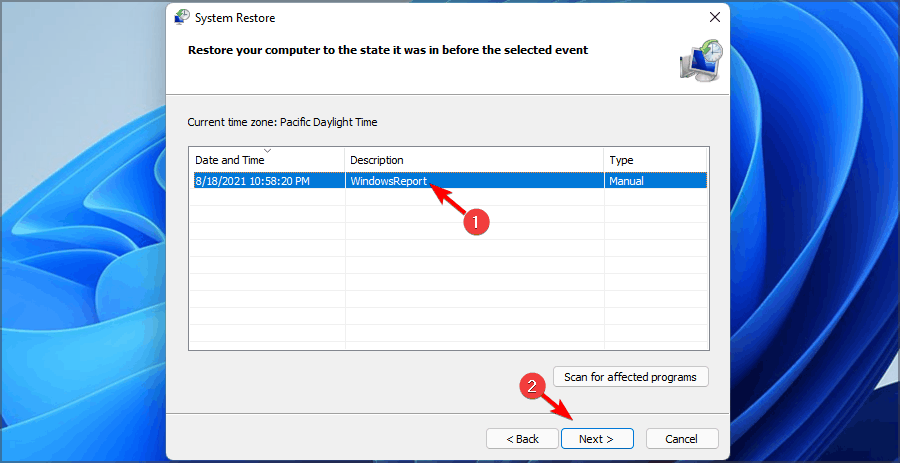




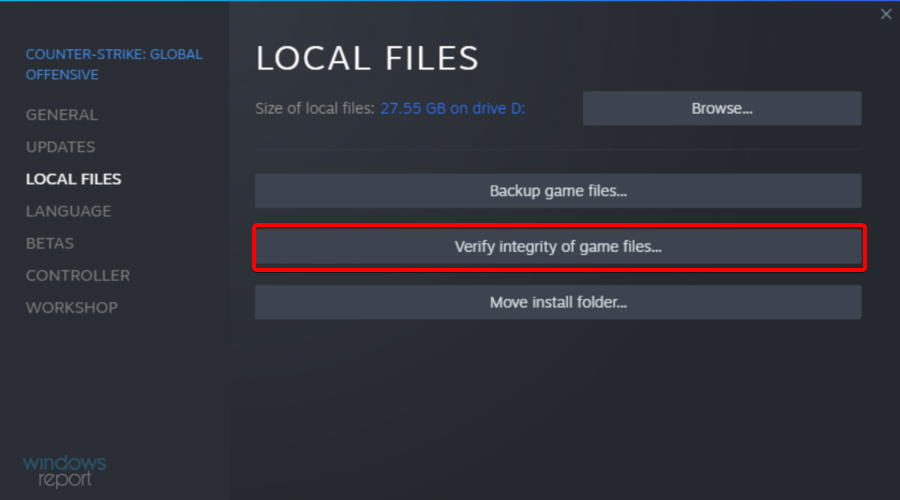






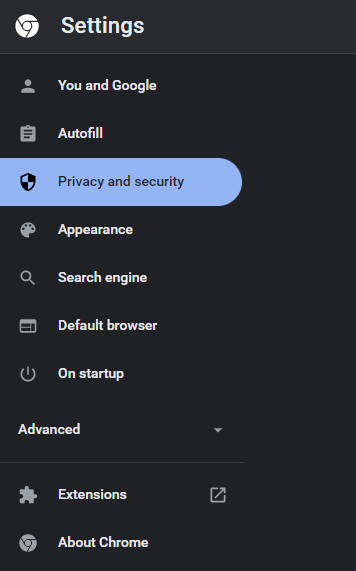

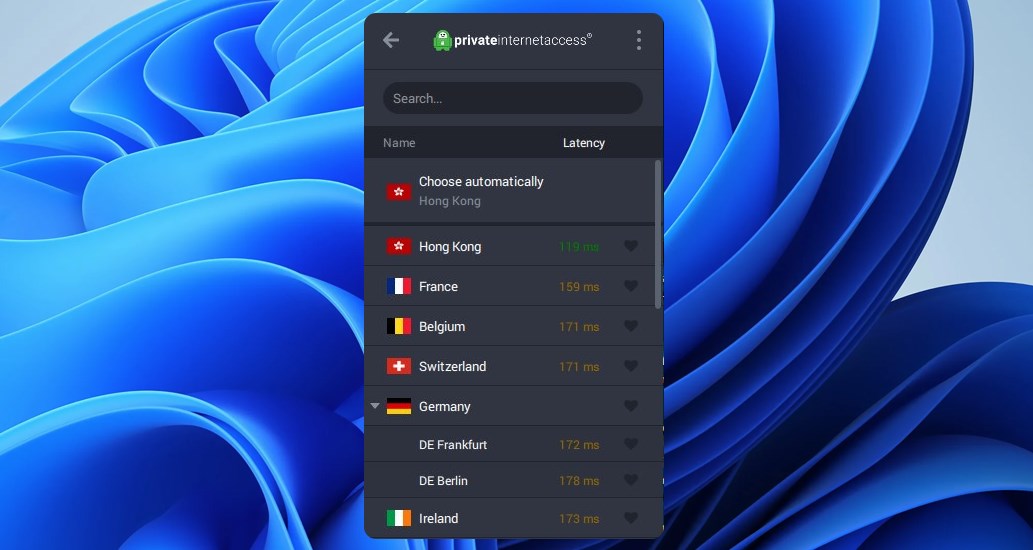






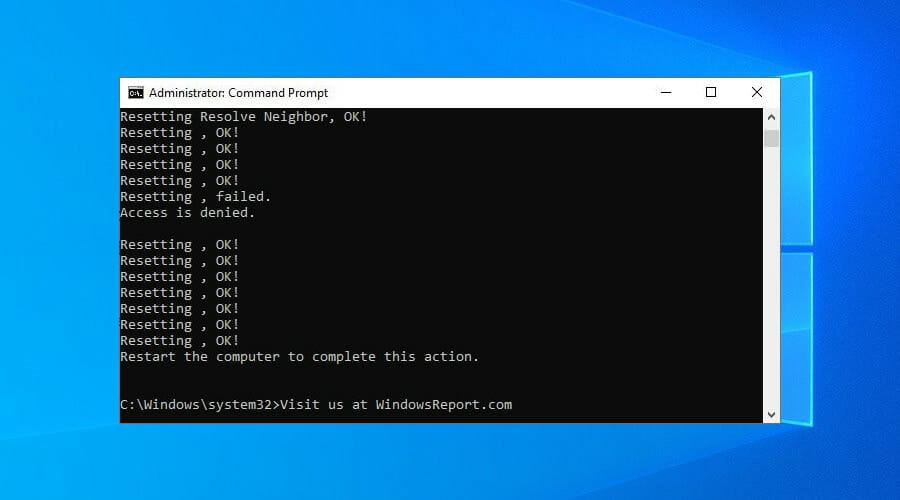





![9 Best Launchers for Windows PCs [Updated 2026]](https://windowsreport.com/wp-content/uploads/2022/04/best-Desktop-app-launchers-.jpg)
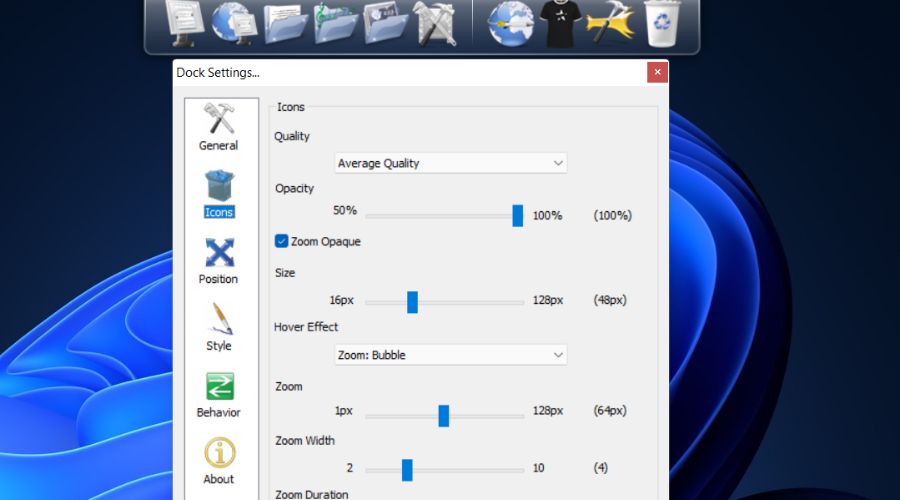
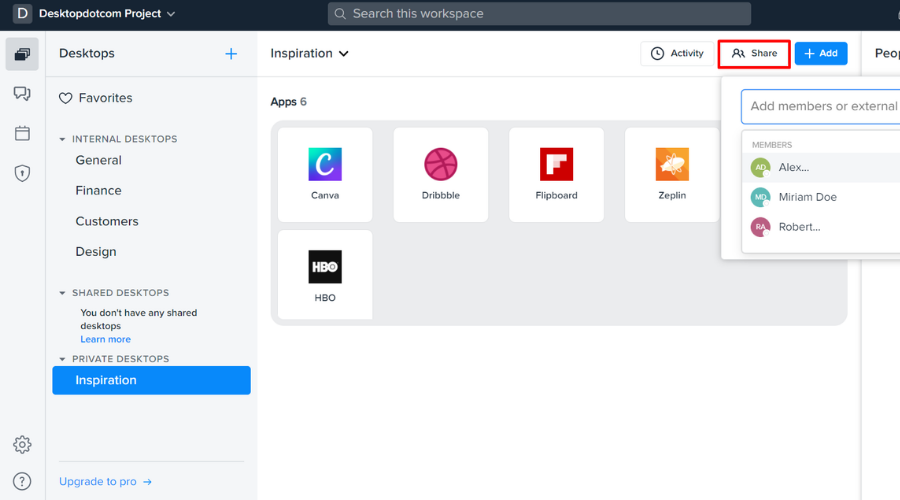


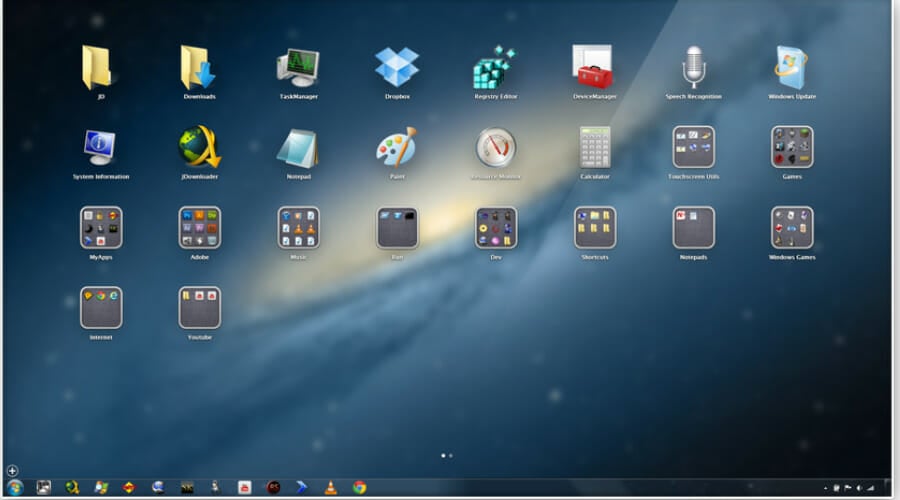
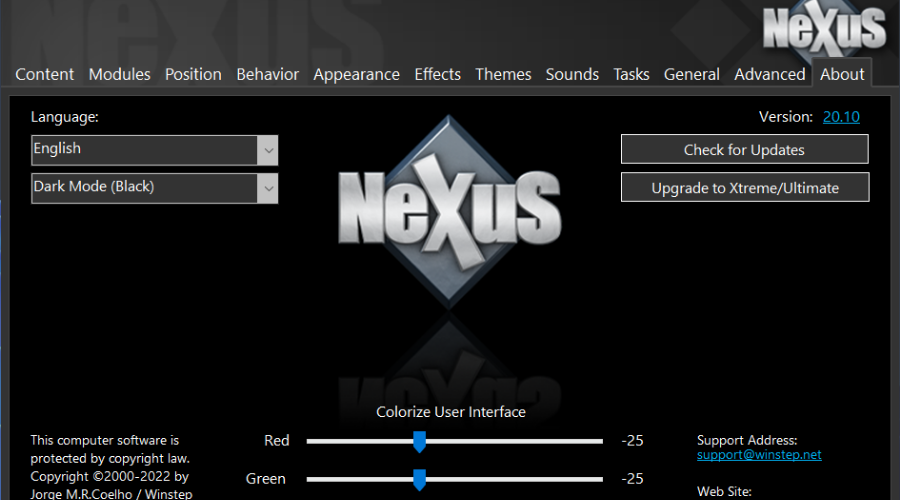
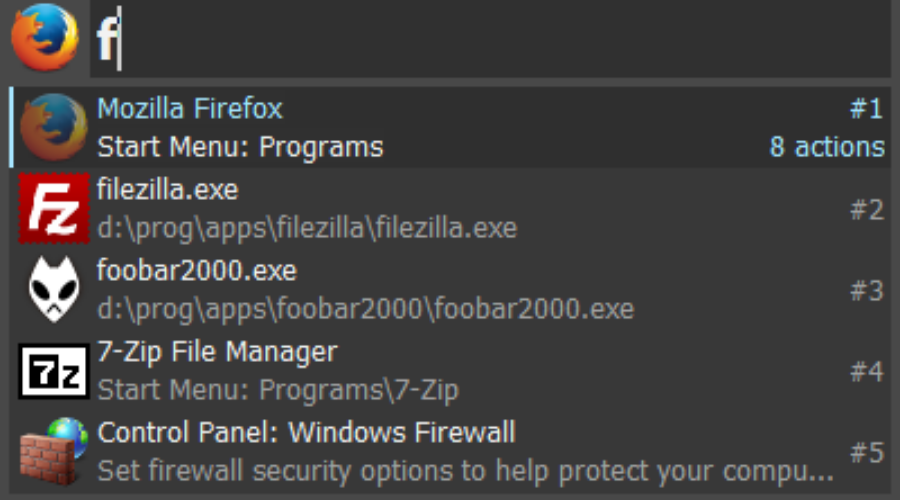
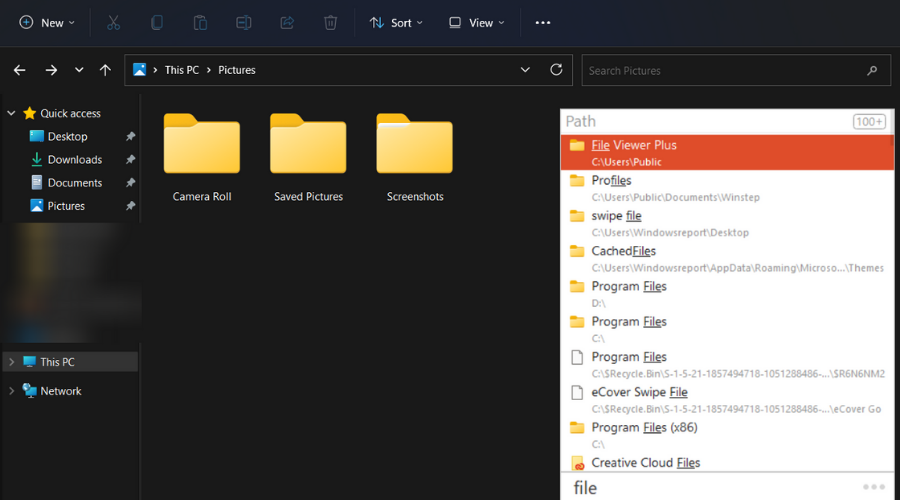
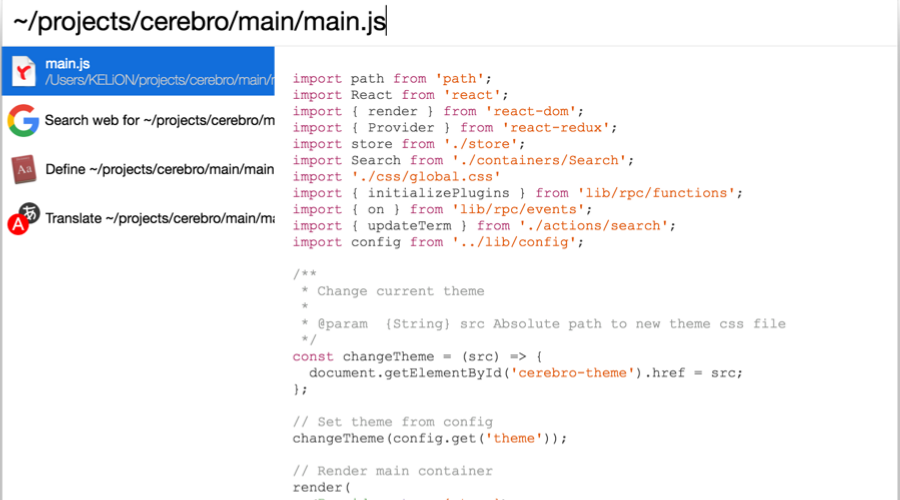
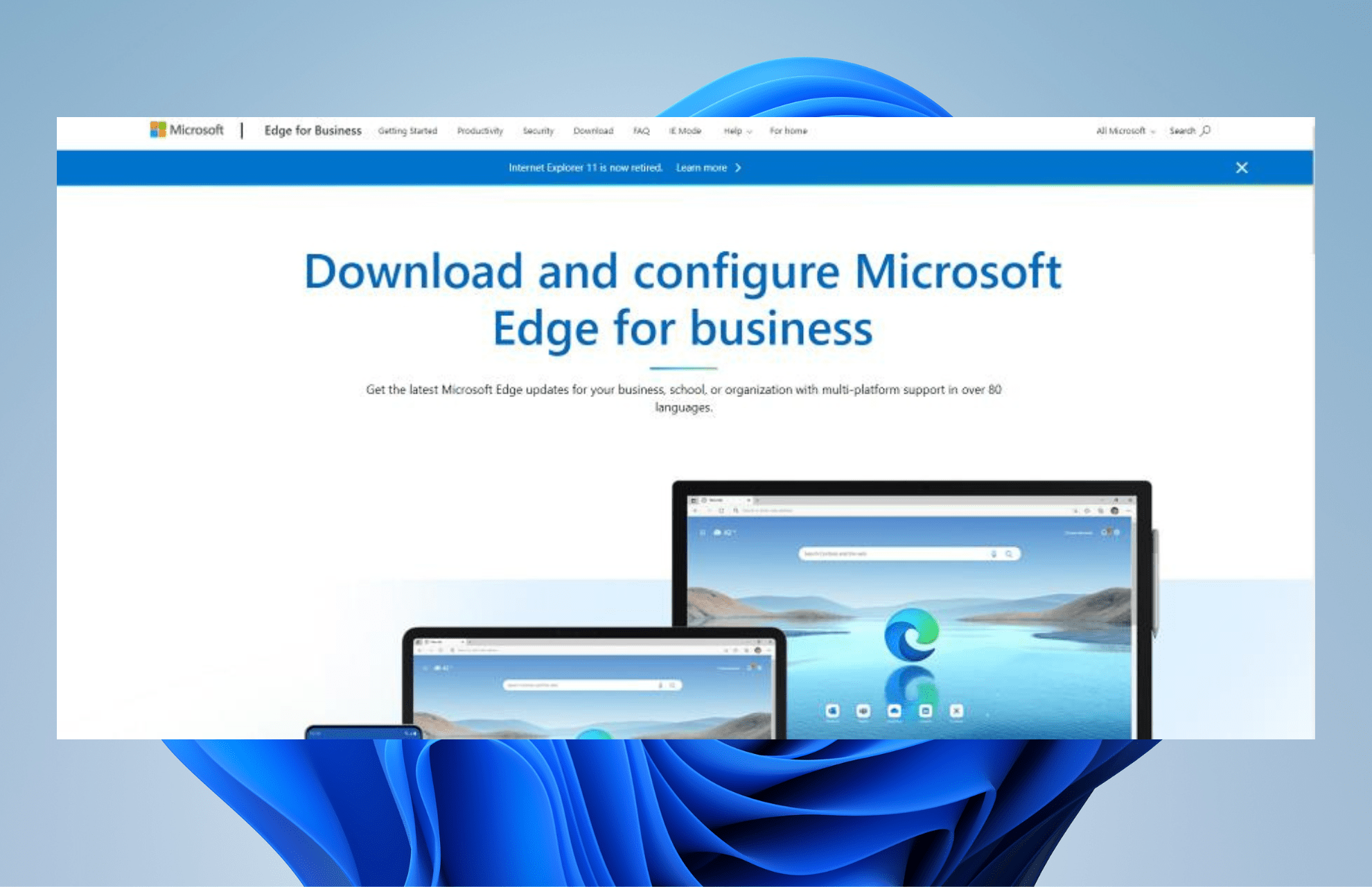


![8 Best Journalism Software in the World [High-Rated Picks]](https://windowsreport.com/wp-content/uploads/2020/04/best-journalism-software.jpg)






![Windows Defender Download for Windows 11 [64-Bit]](https://windowsreport.com/wp-content/uploads/2022/03/defender-afsafa-1.jpg)


