13 Best File-Sharing Tools & Software for Windows 10

Have you ever tried to share a large file only to get an error message that the file is too large to send as an email attachment? This can be very frustrating and happens typically when you try to share a file whose size exceeds the maximum limit allowed by the service provider.

While email attachment is the most preferred method of sending files, it’s subject to size restrictions. It’s also not the best collaboration tool, as it does not allow multiple people to work on the same file simultaneously.

Instead of cramming email inboxes with attachments that take time to open, you can use a variety of file-sharing tools that come with advanced features, including storage facilities.

These tools make it easy to share large files with your friends and colleagues while allowing you to access the files on any device remotely.

We have compiled a list of the best file-sharing tools for Windows 10 that will allow you to share and manage large files and documents securely.

The list includes completely free tools that let you transfer large amounts of files without reducing their quality in any way. We also cover professional tools you can integrate within your business to facilitate easier file transfer among your teammates and customers.

What are the best sharing tools you can use?

WinZip – Disk cleaner feature

best file sharing software

Sharing files electronically and being able to send/receive data easily has become crucial in our daily lives.

WinZip offers great features to connect with OneDrive, Dropbox, Google Drive, Facebook, Twitter, and Linkedin.

Sharing files with WinZip is quite easy; you only need to select the files you want to share, compress, and email them.

Winzip is well known for its quality file compression features. Winzip can compress any file, including text, images, audio, video, etc. 

The compression reduces your files’ initial size, making them easier to share. Often, when you deal with large amounts of data, you won’t be able to share it in one session, but compressing them will allow you to. 
Not only can Winzip help you compress files, but it also lets you open already compressed ones. None of these two processes negatively affects the quality of your files.

Winzip also doubles as a media file manager that lets you securely access all your image files. You can also use it to convert, resize, and crop your images. Some editing features can be applied in bulk, saving a lot of time.

The Pro version of Winzip comes with an integrated backup feature. This can help you create regular backups of your designated data to restore it in case of malicious attacks or other data loss problems.

Other key features include:

  • File management 
  • Disk cleaner feature
  • Cloud NAS drive support
  • Filtering options to navigate through your files easily

Winzip is a powerful free file compression and file-sharing software for Windows 10 that lets you compress and manage all your files. You can buy a license if you need additional features like the backup one.
Winzip

Get WinZip and share files, music, or images on Facebook, Dropbox, or even Google Drive in just a few clicks.
Free trial Visit Website

SugarSync – File version control

SugarSync provides file sharing and cloud storage capabilities, allowing users to browse, back up, access, and sync files online. You can collaborate on the shared folders, share public links to your files, apply for folder permissions, and sync folders across teams.

Sharing large files and folders is incredibly easy. Just generate a public link for any folder or file and share it with your team. When a team member or a recipient clicks the link, they can download the contents without registration.

The permission feature allows you to share a file as read-only so the recipient can view the file but cannot edit it.

Sugar Sync has a strict privacy policy in place. They use both TLS (Transport Layer Security) and 256-bit AES encryption. The first guarantees no data is leaked during transfer, and the second protects your files while they are already in the cloud.

On top of that, it has a real-time automatic backup feature that lets you restore your files without any data loss.

Sugar Sync lets you set up permissions for sharing, so you can decide exactly who will access your files and also decide what they can and can not do.

For example, you can set your files as read-only for certain users, while others can change/add new files.

In case you experience a bad connection, this service has you covered. It automatically syncs all data within the cloud, allowing you to access it even when offline. Once your connection is restored, everything you worked on is updated and added to the cloud.

Other key features include:

  • Mobile apps for Android and iOS
  • Data restore
  • File version control

Sugar Sync is a subscription-based service with monthly charges. Multiple plans are available at different rates, depending on the storage size you need. All plans come with a 30-day free trial.

Sugar Sync

Share files, set recipient permissions, restore your data, and get offline access to your files.
Free trial Visit Website

Box – Real-time sync

Box offers robust file-sharing services, allowing users to share files from anywhere and keep them in sync with their teammates.

Once you share presentations, links, and photos, the recipient receives the files from their browser. The personal plan allows you to upload up to 250MB, and you are allocated 10GB of personal storage.

In addition to file sharing and storage, Box offers email notifications and real-time updates that let users know when a team member uploads or comments on an important document.

This Windows file-sharing software is a great choice if you are concerned about the privacy and security of your data.
Box lets you set up user permissions and create a strong authentication process. On top of that, each file is encrypted with AES 256-bit encryption. 

Box aims to be used both as a personal and professional tool which is why it has a great compliance policy in place. It meets all the global requirements so you will not face any legal issues.

This service is a great collaboration tool that offers advanced file-sharing features that go beyond storage and sorting. It is in fact one of the best file transfer apps for Windows 10 when it comes to collaboration. It provides a centralized workspace where all users can communicate, share, and edit the data.

Other key features include:

  • Integrates with Zoom, Slack, Office 365, and many more
  • Real-time sync
  • Compatible with mobile devices

Box is a subscription-based service. You can opt for a monthly fee or for an annual fee. There are various plans available depending on the number of users and storage space.

⇒ Get Box

Dropbox – Team management options

Dropbox is arguably one of the most advanced cloud storage and file-sharing tools available. It offers seamless file synchronization with support for multiple platforms, including Windows, Linux, Mac, Android, and iOS.

Collaboration is easy and straightforward. All you have to do is create a shared folder and add people to it. The shared folder will appear in the Dropbox of all the members you added, and they will be able to view, edit, organize, or delete the files within it.

Dropbox also allows you to create a link to a file or folder to share the files with non-Dropbox users. In addition, it syncs the files to your Dropbox account so you can access them remotely.

It is well established that security is one of the critical factors to consider when looking for the best file-sharing software for Windows 10. It has an up-to-standard multi-layered encryption system that ensures no one can access your files without your permission.

Besides that, if you have admin permissions to your Dropbox, you can control the other users’ access by setting up passwords, email verifications, approved viewer lists, and expiration dates.


This file-sharing app lets you thoroughly organize your files into folders and subfolders so you can facilitate your own and your peer’s access to the information that’s been shared.

Other key features of Dropbox include:

  • Data recovery 
  • Team management options
  • Support for electronic signatures

Dropbox has a free plan that provides 2GB encrypted storage space for one user and can be used on a maximum of 3 devices. You can use it to store your files and passwords.

The premium plans available come with additional storage space and with no limit on the number of devices, as well as other additional perks.

⇒ Get Dropbox

Dropmark – Powerful import tool

Dropmark offers easy collaboration and file sharing in the cloud and comes with drag-and-drop functionality that allows users to easily transfer files from desktop to browser.

You can invite your friends to view, organize files, and collaborate privately with shareable short links.

The program gives users diverse options to share and organize files. You can even create custom playlists by dragging audio or video from YouTube, SoundCloud, Vimeo, or even from your desktop.

With Dropmark you can organize your data in collections. Not only does it make it easier to manage and navigate, but you can also set particular access permission for each of your collections.

Dropmark is also a great collaboration tool and it comes with an integrated comments feature that’s great for giving feedback, setting reminders, and discussing each detail of your project.

On top of that, it facilitates sharing files at a professional level with the slideshow mode. Dropmark automatically creates your presentation with the files in your collection, saving you a lot of time.

Another great benefit that goes beyond sharing and collaborating is the notification feature. You can set it up according to your needs to make sure you don’t miss any important updates.

Other key features include:

  • Can add tags to files for better filtering
  • Powerful import tool
  • Stacks feature

Dropmark is a subscription-based service. It has a free trial version that does not expire. It includes the basic features and can be a good option if you do not have enterprise-level requirements. It also has multiple pro plans for solo users, small businesses, and big organizations.

⇒ Get Dropmark

Google Drive – Supports offline access

Google Drive is one of the most popular file transfer and collaboration tools in the world today. Google Drive allows you to create new documents, spreadsheets, and presentations, and share them with anyone. It offers real-time collaboration and allows users to see changes as they appear.

Google Drive keeps track of every change you make so you can create a new revision to save forever or look back as far as 30 days. Google Drive is free to use and it offers a generous 15GB of free storage.

This is another user favorite as it provides an extensive set of features and integrates with tons of already existing tools. 

First and foremost, Google Drive is a great document and sheet collaboration tool. It is web-based with real-time sync and automatic backups.

All users that have access to a Google Drive file, can see real-time changes, essentially accessing the exact same version of the file at hand. 

Google Drive is one of the fastest file-sharing software available that supports over 100 file types including PDFs, CAD files, images, and videos. It can be used for all types of users, both for personal and professional purposes.


The software lets users assign tasks, add comments, set up permissions, create and share presentations, and many more.

Other key features include:

  • AI-powered search technology
  • Supports offline access
  • Data loss prevention

Google Drive is one of the best file-sharing software for Windows 10 users. It is highly versatile, giving you the option to access it in the browser of your choice, or by using the desktop or mobile app.

⇒ Get Google Drive

WeTransfer – Set time limits

best file sharing tools

WeTransfer is an incredibly simple and fast file transfer solution that allows users to transfer large files at once. You can easily share large files of up to 10GB without the need for prior registrations.

Your selected files are securely uploaded to a secure WeTransfer server after which you can add the recipient’s name, email, and a custom message.

Once uploading is complete, you finish the process by clicking on the Transfer button. WeTransfer is available in both free and paid packages. However, the free package only allows you to transfer files of up to 2GB.

We Transfer Pro lets you organize your files in versatile collections. What stands out about this app is that it lets you include various file types within one collection. You can add videos, images, links, and text documents under one collection that covers a certain theme or subject. It can be an excellent method to create inspiration boards and gather all the resources you need for your projects in one place.

Another feature worth mentioning is the Paste tool. It is a modern, easy-to-use presentation creator that lets you build quick presentations based on preset templates. You can save your final slides as PowerPoint, PDF, or even as a link. 

Other key features provided by WeTransfer include:

  • Tracks downloads
  • Lets you edit the transfer
  • Set time limits

You can use WeTransfer for free, but it places some limitations on the size of your files. If you want to send larger files, you can get a pro subscription.

⇒ Get WeTransfer

SendThisFile – Password protection

SendThisFile is a powerful tool that you can use to increase your business productivity by sending large files to multiple clients.

The tool also allows users to integrate powerful business features like Outlook plugin integration that further enhances your business productivity.

SendThisFile uses 128-bit TLS end-to-end encryption and 256-bit AES encryption to ensure your files are only accessible to you and your recipients.

This service does not restrict the format of the files you can send. On top of that, it does not change your files in any way, so there’s no impact on the quality of your files.

You can also see the status of your transfer with the Track and Monitor feature. This is only available to pro users and lets users progressively see if their files have been sent, received, or expired.

Other key features include:

  • Embeddable within your website
  • Password protection
  • Regulatory compliance

The ability to share large files and the integration features give it an edge against the competition. It offers a 15-day free trial, and in this period, you can send unlimited files to as many clients as you want up to 50 GB of encrypted bandwidth.

However, you’ll need to subscribe to the premium package after the trial to keep things flowing.

⇒ Get SendThisFile

DropSend – Data archiving tool

DropSend is a file-sharing tool ideal for sending PDFs, JPGs, and MP3s quickly and securely. The tool allows you to share large files of up to 4GB, and it doesn’t require any software installation. In addition to sharing, it allows you to back up all the information in the cloud so you can access it anywhere.

Whenever you send a file, it’s recorded in the sent folder so you can easily track all your sent items. You can send more than one file at a time, and once the recipient clicks the link in the email, they can access the file without the need to register for a DropSend account.

This tool keeps your data safe from any leakage. Drop Send is equipped with top-level  256-AES encryption so you are sure that only the people that have your permission will be able to access the files you send.

DropSend has an online storage library, similar to a cloud, where you can safely store all your files. To send them, just access the online storage and select what you want to send and the recipient’s email.

Other key features include:

  • Compatible with all devices
  • Online backup
  • Data archiving tool

DropSend has various subscription plans available, depending on how much storage space you need. You can either pay monthly or annually.

⇒ Get DropSend

TransferBigFiles – Best to transfer large files

TransferBigFiles is the best solution to transfer large files that cannot be transferred as email attachments.

Simplicity is what makes this tool unique. All you have to do is visit their homepage and create a free account.

Then, drag and drop a large file or a folder up to 20 GB. The program instantly uploads the files to a safe and secure server.

Once uploading is complete, you can add the recipient’s name, email address, and an optional custom message. Finally, click ‘Send’ and you are done.

TransferBigFiles lets you create customizable download pages. This is great if you want to work at a professional level and create pages that match your branding.

With TransferBigFiles you are always sure that your recipients get your message. Not only does it notify you when the message is received, but also when your recipient also downloads the content of your email.

The software also helps you keep your inbox in check. It lets you add your recipients as contacts and create subcategories with the Add Group button.

Other key features include:

  • User management features
  • Upload widgets for your site or blog
  • Password protection

TransferBigFiles has a free version with some limitations but allows you to manage your transfer history and safely send and receive files with SSL encryption. You can also get one of the 3 subscription plans that charge based on your storage size and other additional features.

⇒ Get TransferBigFiles

Smash – Priority email support

Smash is an online file transfer service that lets users send files without setting a size limit. It comes with transfer management features like real-time tracking and history of transfers.

This service includes multiple versatile plans and features, making it suitable for personal and professional use.

Users of Smash can share their files by email or by link. They could customize the sharing link and generate previews of media files. For security reasons, all transfers have an expiration date.

Regarding tracking, Smash has up-to-date notifications that let you know when the transfer process is complete and when the recipient downloads the files.

On top of that, Smash offers customization tools for professional users. If you use file-sharing in your business, you can make great use of these tools. You can add the logo of your company to the transfer page. You can add photo or video backgrounds and create brand-specific transfer links.

When it comes to privacy and security, Smash is GDPR compliant and encrypts files at transit and rest with AES 256 bit. Additionally, users can customize the validity period of the transfers and password-protect them.

Other key features include:

  • Permission management
  • Multi-team administration
  • Mobile apps
  • Priority email support

Smash has a free plan and 3 subscription-based plans. The free plan includes the no-size limit feature, but when transfers surpass the 2GB limit, they don’t have priority. This means they are in the waiting line on the server, and your recipient may have to wait a little longer. All pro plans prioritize all transfers without this limit and include additional features like the history of transfers and transfer customization. 

⇒ Get Smash

Jumbomail – Personal branding options

Jumbomail is another versatile file transfer tool that enables users to send large files without compromising quality. 

It is an email-based service with simple and straightforward transfer and download pages. You can get started right away and fill in the recipient’s email address, add your files and message, and wait for the process to complete.

When receiving files, users get a simple download page where they can select whether they want to download all the files or select specific files.


You can send up to 20GB of files with Jumbomail without limitation on the number of files. Unlike most file transfer services, Jumbomail lets you keep your files for up to 6 months with an upload code.

On top of that, subscribers can save their files indefinitely on the Jumbomail servers. You can also use it as a file management system and generate transfers easier and quicker.

When you transfer media files, Jumbo generates a preview in the style of a gallery where the recipient can see all the transfer contents before they start the download process.

Jumbomail lets recipients leave comments in the transfer or add comments to specific files. This makes for quicker and greater collaboration.


Other key features include:

  • Personal and professional signature support
  • Personal branding options 
  • Embeddable

Jumbomail comes with a free plan as well as several subscription-based plans. The free plan lets you send up to 2GB of files and keeps them up for seven days.

⇒ Get Jumbomail

Send Anywhere – In-browser usage

Send Anywhere is a file transfer application that aims to simplify and speed up the whole process.

It has a one-on-one option that generates a 6-digit code. The sender will have to give that code to the recipient to enter it into the platform. This method has a significant impact on the transfer rate, making Send Anywhere one of the fastest file transfer software for Windows 10.

The recipient does not need to register or install the app to be able to download the files. Users can also send files directly without the key to the most used devices.

The files that are sent with the key code do not stay on the servers. After they are received, they are permanently removed from Send Anywhere.

If you use a share link, the files will be up for up to 48 hours. You have the option to delete the link before that.

You also have the option to create a file link, which is more suitable if you need to send files to a larger group of people.

Send Anywhere does not send emails in the same way other similar services do, but it has a Chrome extension and Outlook add-ons that allow you to create large attachments to your emails and send them directly from your provider.

Send Anywhere does not have a size limit when it comes to one-on-one transfers (those with the security key). The other two options have a maximum limit of 10GB.

Other key features include:

  • End-to-end encryption
  • Compatible with all devices and can also be used in-browser
  • Facilitates email and social media sharing

Send Anywhere is one of the best file transfer apps and is completely free of charge. It is compatible with all major operating systems. You can also integrate it within Outlook 365 or even use it as a WordPress plugin.

⇒ Get Send Anywhere

If you were wondering how to share that large video file, now start acting as the tools discussed above have the capability to transfer large video files and other media files, including documents and images.

We suggested various options, including reliable file compression tools and full-featured transfer services that assist you throughout the process.

Some of these tools are very simple to use and do not require any registration. Others will offer you free cloud storage and remote access. So, which is your favorite on the list? Share with us in the comment section below.

If you want to share files locally, you don’t need any special tools, you just need to connect two Windows 11 PCs, and that’s it.

If you want to keep up with what’s new in the field or need more recommendations, check our File sharing hub.

Photoshop Crashing on Windows 11? Here’s How to Fix It

Adobe Photoshop is arguably one of the best photo editing apps available. If Photoshop is crashing on your Windows 11 PC, we’ve provided you with a detailed guide to help you resolve the error.

Does Adobe Photoshop 2022 work on Windows 11?

The short answer is yes, Adobe Photoshop 2022 works fine on Windows 11. But you will run into several errors if you’re running an outdated version of Photoshop on Windows 11.

Of course, Photoshop has its own system requirements and if your PC doesn’t meet them, you won’t be able to run the app, regardless of the OS.

Why Photoshop 2022 is not working in Windows 11?

  • Insufficient resources – Many users find that there is not enough RAM for Photoshop to run properly resulting in a crash. Also, meeting other system requirements is a challenge.
  • Outdated Photoshop version – If you’re not running the latest version of Photoshop, the application might fail to execute.
  • Misconfiguration – Photoshop requires specific settings to function properly. So, an improper configuration may lead to a Photoshop crash when trying to print or in other circumstances. 
  • Outdated Graphics card – Photoshop is an extremely graphics-intensive application; if your PC is running an outdated graphics card, Photoshop might fail to launch.

Now that we know the possible causes of Photoshop crashing on Windows 11, let’s fix it using the solutions below.

How can I fix Photoshop if it is crashing on Windows 11?

Before we proceed to advanced troubleshooting techniques, here are some quick tips you can attempt to fix Photoshop crashing:

  • Make sure that your PC meets the system requirements to run Photoshop.
  • Make sure you installed DirectX on your PC.
  • End task and restart Photoshop.
  • Close all background applications.
  • Restart your PC.

If those steps couldn’t fix Photoshop crashing, here are some advanced troubleshooting fixes you can attempt.

1. Update the graphics card driver

  1. Press Windows key + R, type in devmgmt.msc, and click OK.
  2. In the Device Manager window, locate Display Adapter and click on it to expand it. Right-click on the graphics card and select Update driver.Update display driver
  3. Click on Search Automatically for the drivers and restart your PC after the driver is installed.search automatically for drivers

If you’d like to know which graphics card is installed on your PC, here is a detailed guide showing how to check graphics card in Windows 11.

Another option you can choose to update your graphics card is using dedicated software to locate automatically the latest updates.

2. Run an SFC Scan

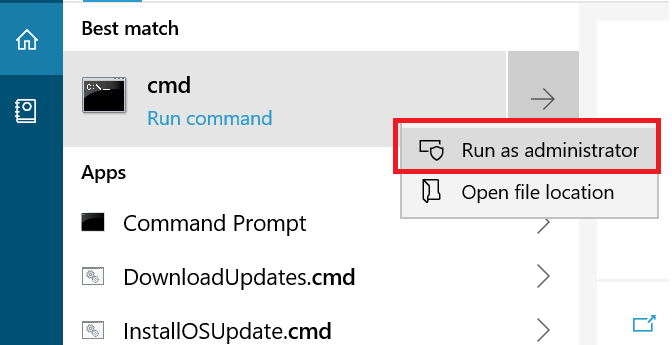
  1. In the Windows search bar, type in command prompt, and select Run as Administrator.
  2. On the User Account Control prompt, click Yes.
  3. Type the following command and click Enter: SFC /scannowSFC SCANNOW
  4. Restart your PC.

In rare cases, you might run into Windows resource protection error while trying to run an SFC scan. This error prevents the system utility checker from operating properly.

3. Disable Graphics Processor

  1. Launch Adobe Photoshop.
  2. Tap on Edit on the Menu bar, then hover over Preferences and select Performance.
  3. In the Graphics Processor Settings, uncheck the Use Graphics Processor option, and click on OK to save your changes.
  4. Close and reopen Adobe Photoshop.

Nvidia graphics card users can experience the You do not have the privilege to select the graphics processor in this menu error. It usually happens when Windows cannot select the graphics processor.

4. Reset Photoshop Preferences

  1. Launch Adobe Photoshop.
  2. Press Ctrl + K to open the Preferences.
  3. Navigate to the General tab on the left pane and select Reset Preferences On Quit.
  4. Press OK when you receive the warning message and close Adobe Photoshop.

Once you close the app, all settings and configurations will return to the default state.

5. Disable third-party plugins

  1. Type adobe photoshop in the Windows Search bar. Press and hold the Shift key and select Adobe Photoshop CC.exe from the search results.
  2. In some cases, an additional prompt will be displayed Skip loading optional and third-party plug-ins? Select Yes.
  3. This will open Photoshop without any third-party plugins.
  4. If it’s working fine, then uninstall the plugins one by one until you find the culprit.

If you’re still getting a crash message when you launch Photoshop 2022 on Windows 11, ensure you follow our detailed guide, with a little luck, you should get the app up and running in no time.

In the event that you’re unable to fix the error, you can consider installing Photoshop without creative cloud as an alternative.

Conclusively, if you have further questions or suggestions concerning this guide, kindly leave them in the comments section.

13 Best Laptop Security And Privacy Software in 2026

Have you ever opened a site, any actually, and been served with ads that promote products from the same site you visited moments or days back?

Although cookies have a part to play in retargeting or ad stalking if you like, they don’t explain why such ads follow us around from one site to another.

There’s much that goes on in terms of programmatic advertising and your search engine provider.

Nobody likes being stalked or their sensitive data being shared or even sold to third parties who use it for their marketing activities.

This is why privacy software tools step in – to ensure you are safe (even if it’s not 100 percent) from online stalkers, hackers, and threats like viruses and malware.

More so, you may be concerned about visual hacking so you need privacy screen filters solutions to protect your work against such serious scenarios.

Laptop privacy software can be categorized into VPNs, password managers, privacy search engines, privacy browsers, DNS name servers, and spyware removal tools.

We’ll check out some of the best laptop privacy software solutions you can use today by category, so you can cherry-pick which ones you’re ready to use to protect yourself and your data.

What are the best laptop security and privacy software?

Private Internet Access – Reliable kill switch

Private Internet Access (PIA) is a great VPN tool to use as it offers what you are looking for – privacy and ease of use.

The first notable thing about PIA is the company’s strict no-logs policy. Use this VPN service and your current geographic location, destination IP address, and online activity will remain private.

Developed by Kape Technologies, a dominant player in security, it lets you pay with Bitcoin if your wish is to stay anonymous.

Keep in mind that Private Internet Access offers native app support for every single popular device platform, including Windows, Mac, iOS, Android, and Linux.

Their apps are simple enough for newbies, yet ideal for power users looking for advanced functionality as well.

It also supports connecting up to ten devices simultaneously. That’s a clear improvement over the industry standard of five.

A quick list of great features PIA brings to the table:

  • Intuitive and fast installation
  • Tested reputation for protecting user privacy
  • Quick access to popular geo-blocked streaming services, like Netflix
  • Reliable kill switch
  • Innovative MACE feature to block ads, malicious websites, and trackers
  • Large server fleet (3200+ servers and still growing)
  • 30-day money-back guarantee, so feel free to see if it’s a good fit

Private Internet Access

Top laptop security and privacy software solution to use today.
Check price Visit Website

CyberGhost – Strict no-logs policy

This is one of the fastest VPN software tools for Windows 10 and is also the best for use with laptops.

It protects your privacy on a multi-platform solution, with features such as 256-bit encryption technology, hiding your IP, and WiFi protection (in public areas).

Also, it offers multiplatform apps for all your devices, security for your online transactions, and conversations, plus access to countless servers in over 80 countries of the world.

The benefits of using this VPN include the highest speeds and ad/malware blocking.

Moreover, you can access restricted content from sites like Netflix, Hulu, BBC iPlayer, Amazon Prime, and others, while protecting your laptop and all other devices.

CyberGhost has a strict no-logs policy. Whenever the user connects to one of the servers, not even the CyberGhost knows what you are doing online.

Also, your anonymity is enhanced thanks to an automatic trigger. Even the slightest problem with the Internet connection enables the CyberGhost VPN kill switch.

Cyber Ghost

Assure your computer privacy instantly with this leading VPN protection software.
Check price Visit Website

NordVPN – Dedicated IP address

As one of the top laptop privacy software tools to use today, this Tefincom & Co., S.A. VPN offers double VPN combinations to encrypt your Internet traffic.

Also, it secures streaming with SmartPlay technology and has CyberSec technology to keep you safe from intrusive ads and malware.

NordVPN has a network of more than 5400 servers in 59 countries worldwide, and the best part is you get a dedicated IP address so you can connect better and have a faster VPN experience.

Your information is protected from hackers and from being served with ads or phony websites.

Additionally, you can use this VPN solution for all personal devices in case you’re a versatile user and need Windows, macOS, or even Linux protection.

Therefore, real Internet privacy is just a click away. NordVPN hides your IP address, so no one else can see which websites you visit or what files you download.

NordVPN

Get rid of annoying ads now and encrypt your online traces with this superior VPN.
Check price Visit Website

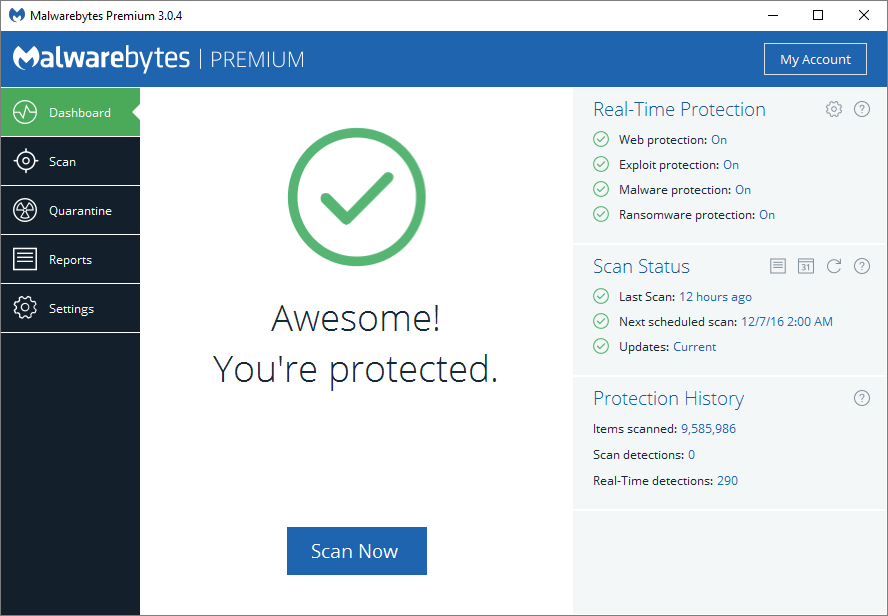
Malwarebytes – High-end encryption

This is the best antimalware protection for your home. If you have a business, you can use it too.

Its features include real-time protection layers like web protection, detection of fingerprinting attempts, and blocking attempts to abuse vulnerabilities.

Also, they include anomaly detection through machine learning, smart technology to break the attack chain, and behavior monitoring, among others.

More so, you can use this software as a next-gen VPN solution and secure your browsing activity with high-end encryption. If you consider this option you will take advantage of powerful Wi-fi connection security and fast-speed internet.

To conclude here, this software covers all security needs with its highest virus detection, cleaning your PC, and protecting you from online scammers all around.

Malwarebytes

Benefit from unbreakable privacy instantly with this trusted threat-removing program.
Check Price Visit Website

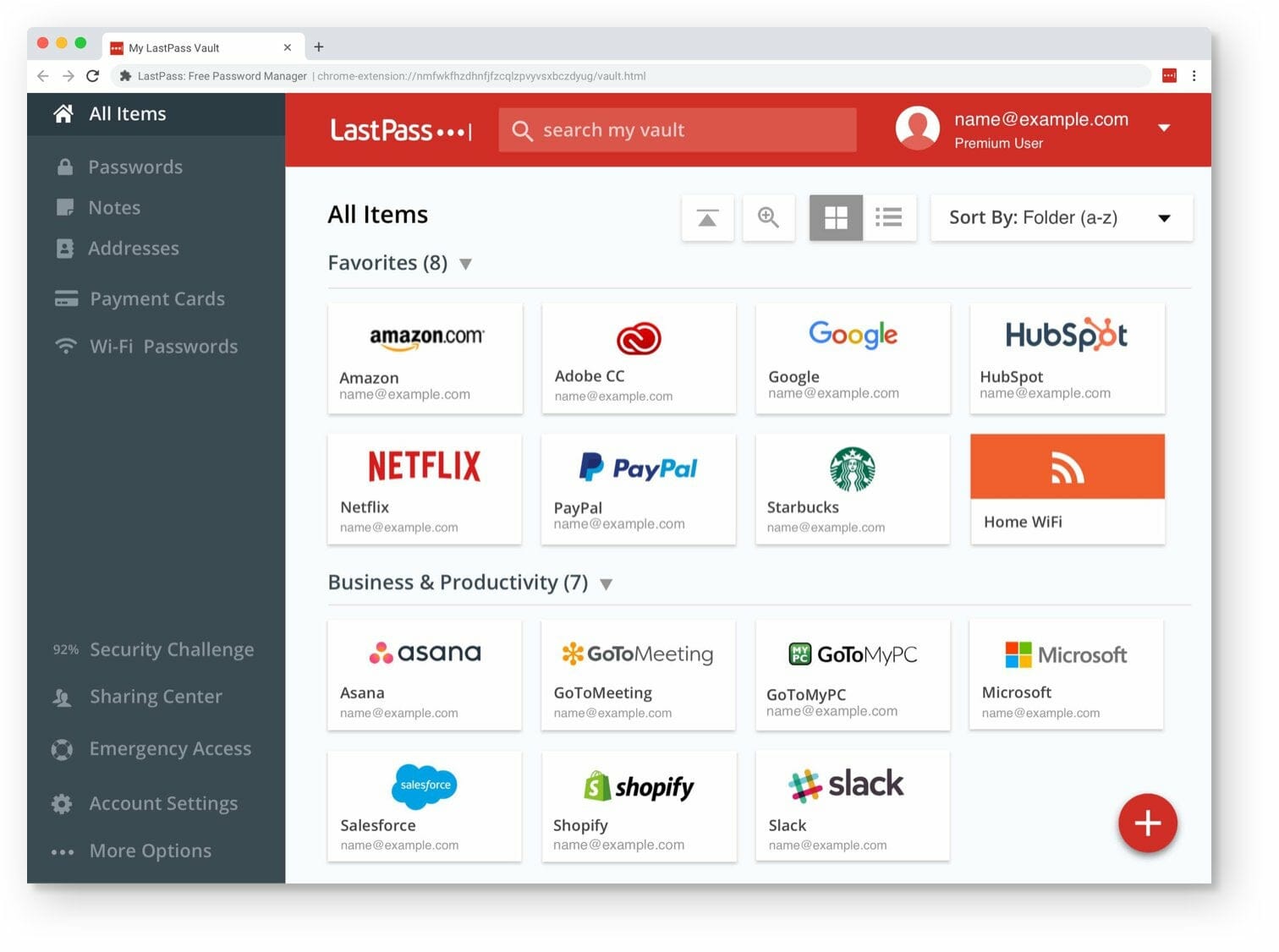
LastPass – Store digital records

LastPass password manager

A password manager is a good laptop privacy software to have in order to stay secure online, especially if you pair it with two-factor authentication.

Most of them work in similar ways, but you need to look out for strong security, an easy user experience, function, and price.

With LastPass, you get end-to-end encryption for your devices in such a way that even the software itself cannot see your passwords.

Moreover, let’s admit that life is happening pretty much online and we need strong password security for the digital area. You can set up your password on auto-pilot and access it whenever you need it.

Hence, you can secure all your data from online shopping, store digital records like memberships plus generate strong and hack-proof passwords.

LastPass

Carefully protect your sensitive data and loved ones using this password security platform on your PC.
Check Price Visit Website

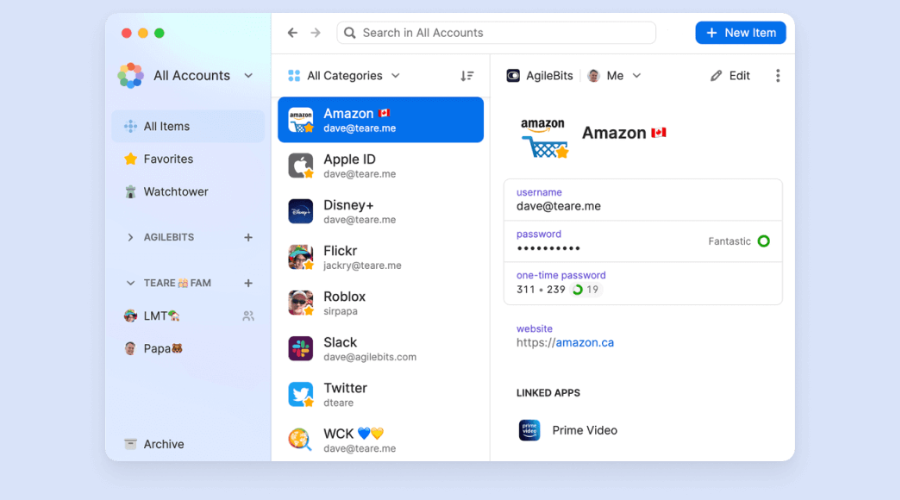
1Password – Audit function

This password manager lets you store information from your account details, passwords, banking information, and much more, with auto-filling functionality once your details are stored.

It also comes with TouchID which uses your fingerprint for access; this is an added layer of security in itself.

The tool has an audit function that alerts you of weak passwords and gives you stronger replacement options.

In addition, this password manager is trusted by 100.000 businesses due to its powerful security and convenience. You can manage your accounts easily and log in instantly on the web.

Hence this solution represents a real necessity for everyone in terms of managing passwords online, thus don’t second think about it. Secure your web accounts today.

1Password

Ensure password management service to safely store your login.
Check price Visit Website

Hotspot Shield – Premium services

This VPN is one of the best you can use for free, and get premium services like AES 256-bit encryption, zero log policy, plus private access to the Internet, social networks, and video streaming.

Its protocol is patented and integrated by 70 percent of the world’s largest security companies and is a top VPN in performance with thousands of servers globally.

As one of the best laptop privacy software tools, this AnchorFree VPN solution lets you browse safely as it protects your identity and encrypts your data, whether you’re at home or in public.

You can always enjoy secure access to your favorite apps and sites from any location.

Hotspot Shield

Take advantage of this free VPN tool for strong online encryption to always be rested about your data.

OpenDNS – Anti-phishing protection

This is a DNS name server from Cisco whose unique offering features include three tiers of service with varying filtering and security levels and anti-phishing protection.

You can safeguard your family against restricted content thanks to its parental and content filtering options available for every device.

This software makes your internet access even faster because it shortens the routes between every network and its data centers.

With the OpenDNS app, you can block more than seven million malicious areas and IPs while successfully delivering excellent performance.

⇒ Get OpenDNS

SuperAntispyware – Full scan

Spyware plants itself in your laptop’s system so as to collect information about you without your knowledge.

It can come in from a software download or email attachment. Then, it steals your browsing data and monitors your keystrokes thus picking up on your passwords and other sensitive information.

Once installed, SuperAntispyware can run a full scan or select what you want to be scanned including zip folders, websites, and even downloads.

It finds and removes malicious content, not just spyware, but also malware, viruses, Trojans, keyloggers, and rootkits.

⇒ Get SuperAntispyware

Comodo Secure DNS – Web control access

This name server has no configuration, so you just switch to the service’s primary and backup servers, which are spread across 15 locations.

Therefore, you can optimize your Internet performance based on your location.

It protects you from nasty stuff like phishing campaigns, spyware and malware, and parked domains that have dangerous and numerous ads.

Comodo Secure DNS provides you with web control access, protection, and visibility that help you enjoy a safer and faster internet experience.

⇒ Get Comodo Secure DNS

Tor – Easy to use

Tor is a Firefox-based browser that runs on the Tor network and can be used with most major operating systems and laptops.

Its infrastructure is built on hidden relay servers so you can use the Internet with a hidden identity.

This privacy browser is built only for privacy, so it lacks antivirus and antimalware software as part of its build.

With the Tor browser, your identity will remain protected all the time by anonymizing your web traffic using its network.

⇒ Get Tor

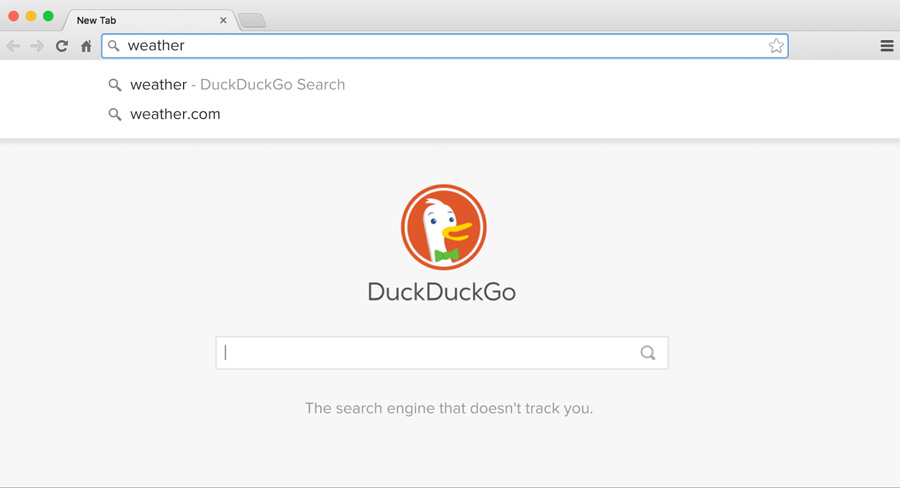
DuckDuckGo – Simple application

A privacy search engine is free, simple, and doesn’t require you to buy or install anything.

DuckDuckGo protects your searches and stops search leakage so that the sites you visit won’t know what you searched for, and your IP address won’t be sent to the search engine or browser user agent.

The encrypted version also preserves your privacy, plus it has a password-protected cloud save setting so you can create search policies, and sync them across your devices.

DuckDuckGo has a strong policy that doesn’t collect or share any of your personal information so you can browse the internet safely.

⇒ Get DuckDuckGo

Oscobo – No traces left behind

This returns search results that are UK-specific, unlike DuckDuckGo, which does this manually.

It doesn’t record your IP address or user data, plus there are no traces of your searches left behind when you’re done with your session.

It is a search engine focused on privacy which means it doesn’t track your activity or set any cookies on your system.

Furthermore, it doesn’t allow third-party tracking and it provides a Chrome extension for searching purposes.

⇒ Get Oscobo

Found something you can add to your laptop today? Let us know which laptop privacy software you think will work for you by leaving a comment below.

Minecraft Can’t Maximize Window: 5 Tips to Go Fullscreen

Playing the Minecraft game on your PC is best when you have a maximized screen size that makes gaming more visible and enjoyable.

However, some players complain that Minecraft can’t maximize windows, restricting the game to a small part of the screen.

Why can’t I maximize my Minecraft window?

Minecraft not maximizing the window means you can’t resize the game screen to a bigger scale. It prevents players from resizing or maximizing the window, leaving them only the option to play in a small window or full screen.

Furthermore, being unable to resize or maximize the Minecraft window on your PC can be due to several reasons. It can range from problems with Minecraft to problems with your PC. Some are:

  • Conflicting software on your computer – The Minecraft game not working or malfunctioning on your PC can occur if it conflicts with other software. Apps with DVR features can impede the display components of Minecraft, resulting in the issue.
  • Force resolution option checked – Minecraft not being able to maximize the window can occur when there is an issue with the display settings. Settings like Force resolution can make it impossible to resize the screen if it is checked.
  • Issues with the Minecraft app – Many problems may occur with the app. It can be corrupted chunks in Minecraft, missing installation files, or outdated app issues. These problems can result in Minecraft being unresponsive when asked to resize.

These causes may differ in various devices. You can fix the error by troubleshooting your system and the game.

How do I fix Minecraft if I can’t maximize window?

Go through the following preliminary checks:

  • Turn off background apps running on your PC.
  • Close and restart the Minecraft game.
  • Reset the Minecraft game on Windows Settings or try reinstalling the game.

If you can’t fix the problem, go ahead with the solutions below.

1. Perform a clean boot and use a keyboard shortcut

  1. Press Windows + R key to open the Run dialog box, type msconfig, and click OK.
  2. Go to the Services tab and check the box for the Hide all Microsoft services option, and then click the Disable all button.disable all services
  3. Go to the Startup tab and click Open Task Manager.open task manager to disable all startup for clean boot
  4. Click on the startup programs and tap the Disable button.
  5. Restart your PC, launch the game, and press F11 to go fullscreen mode.Minecraft full screen

Performing a clean boot will eliminate apps conflicting with Minecraft. It can fix issues with third-party apps that impede Minecraft.

2. Toggle Fullscreen mode in Minecraft

  1. Left-click the Start button, type Minecraft, and launch it.
  2. On the homepage, click on Settings.Minecraft settings
  3. Select Video, locate Fullscreen, and toggle the slider on.enable fullscreen mode in Minecraft

Enabling this should shift Minecraft to Fullscreen mode. Hence, you will not need to maximize the window manually.

3. Disable Force resolution

  1. Open Minecraft on your PC and click on Settings.Minecraft settings
  2. Go to Profile. Find and uncheck the box for the Force resolution setting.Minecraft profile to disable force resolution and enable full screen mode
  3. Restart Minecraft and see if you can maximize the screen.

Disabling the Force resolution setting in Minecraft will prevent it from sticking to a single resolution and help maximize the window.

4. Update the Minecraft client on your PC

  1. Left-click the Start button, type Microsoft Store, and click to open it.
  2. Tap the Library.Micrsoft store library
  3. Select the Get updates option to allow all your installed apps, including Minecraft, to update.Microsoft store get update

Check our detailed guide on updating Minecraft on Windows PCs if you encounter any issues with the steps above.

5. Update your Graphics driver

  1. Press Windows + R keys to open the Run dialog box, type devmgmt.msc, and click OK.
  2. Click the Display Adapters, select the driver, and select the Update driver.Update display driver for Minecraft
  3. Click the Search automatically for drivers option.search automatically for drivers
  4. Restart your PC and launch Minecraft to check if the issue persists.

The graphics driver update will fix bugs affecting its display and install the latest features to improve game performance. Read our detailed article for updating graphics drivers on Windows 11 if you have any issues.

Suppose you want to try another method of updating your drivers. In that case, you can use a specialized tool to execute this process automatically by scanning your PC and locating the latest updates from its database.

⇒ Get Outbyte Driver Updater

Alternatively, our readers can check ways to fix Minecraft Launcher not working on Windows 11. Likewise, you can read our detailed guide on what to do if Minecraft login isn’t working on your PC.

In conclusion, these solutions should help you maximize the Minecraft window without a problem. Please tell us which of these worked best for you in the comments section.

5 Best Android Backup Software for PC [Safety Checked]

Backing up your files is important, and just as you back up your computer files, you should do the same with the files on your phone.

This doesn’t have to be a long and tedious process, and to make this process a lot faster, today we’re going to show you the best Android backup software for PC.

What is the best software to back up your Android phone to PC?

1. Syncios Mobile Data Transfer – Phone restore

If you’re looking for and Android backup software for PC, then Syncios Mobile Data Transfer might be what you need. This software supports both Android and iOS devices, so it’s a universal backup tool.

Using Syncios Mobile Data Transfer you can transfer your contacts, videos, photos, SMS messages, apps, WhatsApp data, and other data with ease.

Regarding data transfer, you can transfer data from Android to Android, but you can also transfer almost all files between different platforms.

The software also allows you to back up your data from Android to PC with just a single click. Of course, you can also restore your backup to a new phone just as easily.

Syncios Mobile Data Transfer is a great tool and will be a perfect choice if you want to back up your Android device to your PC or to another phone.

Syncios Mobile Data Transfer features:

  • Ability to back up contacts, messages, pictures, videos, music, call logs, apps, and other data
  • Can back up files to your PC in a single click
  • Ability to transfer files from iOS to Android and vice versa
  • Can restore the phone from iTunes/iCloud backup
  • Available for both Mac and PC

Syncios Mobile Data Transfer

This app will let you back up your phone to your PC with just a single click.
Check price Visit Website

2. Dr.Fone – Phone Backup – Very easy to use

Another great Android backup software for PC is Dr.Fone – Phone Backup. This software will allow you to back up your call history, calendar, gallery, contacts, applications, and application data with ease.

The software is simple to use, and you can back up your files with a single click. Before backing up files, you can preview them and choose the files that you want to restore.

It’s important to mention that you can back up your data to other Android or iOS devices. The software can restore your iCloud/iTunes backup to Android, which is also a plus.

In addition to local backup, you can back up your data to Google cloud, which might come in handy for some.

Overall, Dr.Fone – Phone Backup is incredibly simple to use, and it’s perfect if you want a simple Android backup software that everyone can use.

Dr.Fone – Phone Backup features:

  • Incredibly simple to use
  • Can back up call history, calendar, gallery, contacts, applications, and other data
  • Ability to preview files before backing them up
  • Can back up files to other Android or iOS devices
  • Ability to restore backups from iCloud/iTunes to Android

Dr. Fone – Phone Backup

Dr. Fone – Phone Backup is a simple but powerful backup software for your Android device.
Free trial Visit Website

3. SyncDroid – Built-in file converter

If you’re looking for Android backup software, you might want to consider using SyncDroid. The software allows you to transfer contacts, photos, call logs, messages, and other data from your phone.

Of course, you can also transfer files from your PC to your phone. It’s important to mention that phone to phone transfer is available, and you can even transfer files between different platforms.

The software has an incredibly simple user interface, and you can back up data with a single click. The software also has its file explorer, allowing you to view all your files and directories.

A video download feature is also available, so you can download files from various websites and there’s also a file converter, so you can easily convert those files to a compatible format.

SyncDroid is simple to use, and it’s a perfect tool if you want to back up phone data to your PC or to a different phone.

SyncDroid features:

  • Can back up photos, music, videos, messages, apps, call history, contacts, and other data
  • Very simple to use
  • Ability to transfer data from phone to phone
  • Can transfer data from iOS to Android and vice versa
  • Built-in video downloader and file converter

⇒ Get SyncDroid

4. MOBILedit – Automatic backup feature

Another useful Android backup software for PC is MOBILedit. The software allows you to manage your files, contacts, and messages with ease.

The application has a sleek and simple user interface, so you can easily find your backups, apps, pictures, and other software.

MOBILedit allows you to manage contacts with ease on your phone, and you can add new contacts or remove duplicates from your phone.

Regarding the backup, the software will automatically create a backup of your Android device as you use the software. In addition to Android, older phones with Bluetooth or IrDA are also supported.

MOBILedit also supports cloud backup, and it offers many additional features, but with its extensive support for older phones, it’s one of the more advanced backup software on the market.

MOBILedit features:

  • Ability to manage contacts, files, and messages with ease
  • Support for Android, iPhone, Symbian, and many other phones
  • Cloud backup support
  • Sleek and simple user interface
  • Automatic backup feature

⇒ Get MOBILedit

5. MobiKin – Supports USB backup as well

If you’re looking for Android backup software for your PC, then MobiKin might be just what you need. The software has a simple and friendly interface, and you can back up your phone with a single click.

Using this application you can easily back up your contacts, text messages, call logs, apps, photos, music, and other important data. Regarding the backup, you can perform it via Wi-Fi or by using a USB cable.

The software allows you to install or uninstall APK files on your phone from your computer, which might come in handy. The contact management feature is also available, so you can easily manage your contacts.

You can export contacts in HTML, VCF, CSV, BAK, Outlook, or XML format or important contacts in BAK, XML, Outlook, or VCF format from your PC to Android.

Overall, MobiKin is a simple but powerful Android backup software, so you might want to consider it.

MobiKin features:

  • Simple and friendly interface that lets you back up your phone with a single click
  • Ability to back up contacts, text messages, call logs, apps, photos, and other data
  • Supports Wi-Fi and USB backup
  • Ability to import and export contacts
  • Contact management from your PC

⇒ Get MobiKin

Backing up files from your Android phone to your PC doesn’t have to be hard, and we hope that you found a suitable application that can help you with that in this article.

8 Best Overclocking Software For CPU, GPU [2026 Guide]

Overclocking is a process of changing the default frequency of a certain component, most commonly a processor or a graphics card. Many users overclock their components in order to achieve better performance, and if you’re planning to do some overclocking, you might want to have a look at our list of best overclocking software for Windows 10.

We must mention that overclocking is an advanced process, and even though overclocking can improve your performance, it can also cause overheating issues and permanently damage your processor or graphics card if you’re not careful.

If you decide to overclock your components, make sure you have a good cooling system that can keep your components from overheating. One additional piece of advice when overclocking is to gradually increase the clock rate of your component and monitor the temperature in order to avoid causing any serious damage.

Increasing your hardware performance through overclocking sounds appealing, but bear in mind that overclocking is a complex, potentially dangerous process, therefore if you decide to overclock your components, just be aware that you’re doing it at your own risk. That said, let’s see some of the best overclocking software for Windows 10.

What is the best software to overclock your Windows PC?

MSI Afterburner – Simple interface

MSI Afterburner is rather similar to EVGA Precision X 16, but unlike EVGA Precision, MSI Afterburner supports both AMD and NVIDIA graphic cards, which is a major plus.

MSI Afterburner comes with a simple and easy-to-use user interface with all standard overclocking settings, such as GPU clock frequency, voltage, and fan speed available at your fingertips. This application comes with a hardware monitor, so you can easily see how your changes are affecting your computer in real time.

If you want, you can even display this information while playing video games, thus keeping a close eye on any potential problems. Speaking of games, MSI Afterburner comes with an in-game FPS counter, so you can easily measure the difference in performance.

More so, this software provides the necessary tools to overclock your graphic card settings without complications. So you don’t have to worry about overusing system components. In fact, you can use power limit feature in Afterburner to protect your GPU from damage.

Therefore, using this program, you can increase your PC performance by challenging hardware components, improving gaming FPS and monitor hardware to exceed hardware limitations safely.

⇒ Get MSI Afterburner

AMD Ryzen Master – Detailed information

AMD Ryzen Master is a handy tool for overclocking the hardware components in order to increase the performance of your PC.  

This utility tool created by AMD Ryzen can help every user with detailed information regarding processor or graphics card performance. Hence, it’s a platform that shows you the complexity of data about your components, like temperature, CPU clock speed, or CPU voltage. 

Other features are included in the advanced view of AMD Ryzen Master, allowing you to store 4 user profile configurations of both Ryzen CPU and integrated Radeon graphics memory. So, it’s possible to adjust the performance for the active cores, integrated GPU graphics frequency, or personalize memory timings.

You can thus utilize your computer resources wisely by checking the status and overclock afterward safely. More so, with the basic view interface, you’re able to overclock the CPU automatically.

That being said, you can personalize your system performance settings how you like with AMD Master Utility and easily boost your PC capabilities.

⇒ Get AMD Ryzen Master

EVGA Precision X1 – Powerful services

EVGA Precision X1 is probably the most-known overclocking software in the gaming community. In order to use this tool, you’ll need an NVIDIA graphic card such as GeForce GTX TITAN, 900, 700, or 600. Unfortunately, PrecisionX 16 isn’t compatible with AMD graphic cards, one of its most significant drawbacks.

EVGA Precision X1 supports Microsoft DirectX 12 API, and it allows you to change GPU clock offset as well as memory clock offset. In addition to overclocking your GPU, this tool allows you to overclock your refresh rate, set up up to 10 different overclocking profiles, and switch seamlessly between them.

EVGA Precision X1 comes with a simple and attractive visual interface that allows you to easily overclock your NVIDIA graphic card and achieve maximum performance.

In addition, with the new codebase and features, you can have powerful services like multi-GPU fan control to adjust fan speed, or RGB LED control for your graphics card for a unique performance.

You can also benefit from useful traits such as brand new GUI, wattage monitoring, a new OC scanner for stable overclocking, GPU clock and voltage clock, and support for GeForce RTX and GTX graphic cards.

All in all, using this software to overclock your system will provide genuine help to scan and increase your system exponentially.

⇒ Get EVGA Precision X1

CPU-Z and GPU-Z – Easy to use

Before you start overclocking, it’s crucial that you know all the necessary information regarding your components. Two tools that can provide you with this information are CPU-Z and GPU-Z. These aren’t overclocking tools, but they provide you with so much useful information therefore we had to include them on our list.

CPU–Z will give you all the necessary information regarding your processor such as a multiplier, voltage, etc. In addition, this tool can give you some information regarding your motherboard, memory, and even your graphics card. Even if you don’t plan to overclock your device, CPU-Z is one of those must-have tools.

GPU-Z is rather similar to CPU-Z since it gives you all the necessary information regarding your graphics card. Using this tool, you can see your GPU clock, memory clock, memory size, and even your GPU temperature. It’s a perfect tool for both users who want to overclock their graphic card or just learn more about it.

With that being said, you should consider such practical tools if you need an overview of PC hardware components and how it changes your system performance.

⇒ Get CPU-Z and GPU-Z

ASUS GPU Tweak II – Great speed score

ASUS GPU Tweak II is rather similar to tools such as MSI Afterburner and EVGA Precision X 16. This application comes with a simple and visually appealing interface that allows you to easily change your graphic card’s core clock, voltage, or memory clock just by moving the corresponding sliders.

The tool also gives you the opportunity to overclock PC resources for gaming purposes, so the FPS will gradually increase for amazing graphics and speed performance. You have as well the Game Mode which can be very useful to customize the resources effortlessly.

Moreover, this multi-purpose software has integrated multiple modes you can choose from. These are overclocking mode, gaming, silent, or my profile mode. Each can set up your PC according to your activities and deliver high-quality hardware results.

The functionalities are at your disposal, impacting processes like visual graphics, system services, and memory defragmentation to boost your system while playing the most required games.

Therefore, with this dedicated platform, you will get a detailed intuitive interface and access to system functionalities with one click, even while you play.

⇒ Get Asus GPU Tweak II

SAPPHIRE TriXX Utility – Real-time monitoring

SAPPHIRE TriXX Utility is designed for overclocking AMD graphic cards and it supports a wide range of AMD graphic cards from older Radeon HD 5000 series up to Radeon R9 and R9 FURY series.

Regarding the features, this tool will allow you to easily change the GPU core clock, voltage, or video card memory clock in order to achieve maximum performance. SAPPHIRE TriXX Utility comes with Hardware Monitor that will show you how overclocking is affecting your computer in real-time which is always a useful option to have.

With SAPPHIRE TriXX Utility you can adjust graphic card fan settings and save up to four different overclocking profiles. We also have to mention that this application has full support for CrossFireX.

In addition, it’s possible to switch the Bios view between the primary Bios and the second one using specific settings.

Of course, you can monitor hardware processes and see real-time key information about graphics cards and overclocking features to improve your in-game experience.

⇒ Get SAPPHIRE TriXX Utility

CPU-Tweaker – Essential data provider

These tools are a bit more advanced and designed for more serious users. We must mention that CPU-Tweaker works only with processors with embedded memory controllers, such as AMD Phenom or Intel Core i3, i5, or i7. If you don’t own one of these processors, but you still want to overclock your RAM, we suggest you try MemSet.

If you own one of the supported processors, you can overclock both your memory and CPU just by using CPU-Tweaker, so there’s no need to install them both. These tools might not offer the most user-friendly interface, but instead, they offer more advanced features.

Plus, this detailed CPU information offered by this program can help you to better know your processor performance and be aware of limitations or improvements you have to make.

However, you must know that it doesn’t come with tutorials or technical guidance and if you’re not familiar with hardware specifications, it will take time to inform.

Thus you can take advantage of this program to always be informed regarding system essential data like CPU, motherboard, or memory frequency.

⇒ Get CPU Tweaker

NVIDIA Inspector – System capabilities overview

NVIDIA Inspector is a tool designed to display graphic card information to the user, but this tool can also be used for overclocking. Recently we wrote about overclocking your GPU with NVIDIA Inspector, so if you need more information go ahead and check that article.

This software can be of great help regarding driver and hardware information about GeForce graphics cards, plus overclocking your GPU and setting up the fan speed. At the same time, you can see data about memory clock speed.

Regarding the features, this platform has plenty of useful traits that can assist your computer such as showing power usage in watts, thermal limit status monitoring, encoder, and decoder usage, reliability voltage limit status, and so on.

More so, you have an intuitive user interface and it can rely specifically on NVIDIA drivers on your PC. Plus, you can choose between two versions, each of them working with different versions of the .NET Framework.

Lastly, with this detailed data software, you can have an overview of your system capabilities and always be updated with the hardware components’ status.

⇒ Get NVIDIA Inspector

Overclocking your hardware comes with certain risks, and in order to avoid those risks, make sure to check your system temperature with tools such as HWmonitor. In addition, it’s always good to test your system stability with tools such as Prime95, Memtest86+, and 3DMark if you decide to overclock your components.

Overclocking can improve the performance of your hardware, and since most of these tools offer a simple user interface, you easily get the most out of your processor or graphics card. Bear in mind that overclocking can be potentially dangerous, and if you’re not careful you can cause permanent damage to your computer, so please, be extra cautious if you decide to use any of these tools.

11 Best Remote Control Software for Windows 10/11 [Free & Paid]

Remote control software, otherwise known as remote desktop applications, enables users to remotely access one PC from another system or device.

That could be another desktop, laptop, tablet, or even mobile which effectively becomes a remote control for the other PC.

It’s based on a client/server (or host) model with the remote control device is the client and the remote PC, the host.

How can remote desktop software help me?

This software is especially important for IT support and administration because they facilitate remote troubleshooting.

If you need to change some settings quickly on an endpoint within your network, these tools will ensure quick connection and fast action.

Windows has its own Remote Desktop Connection tool. However, the server part of Remote Desktop is only included in the Professional and Enterprise editions.

So, if you don’t have one of those editions, these are some of the best remote desktop software for Windows.

Which is the best Windows 10 remote control software?

SetMe – Best Overall Remote Control Software

SetMe expert console

SetMe is currently the best all-round remote control software for Windows, especially for businesses that require a remote support solution.

It’s very easy to use, on both the technician and client sides. The remote user simply runs the lightweight client app and provides the technician with a 6-digit client ID. The technician then enters this into the SetMe Expert Console to connect to the remote computer.

During a session, you can also configure unattended access to the remote computer for maintenance and support, without requiring the end user to be present.

SetMe works great in poor network conditions and allows technicians to automatically reconnect after a network interruption or reboot. What’s more, you can perform reboots and shutdowns remotely. This includes booting in Safe Mode for troubleshooting purposes.

SetMe also boasts a fast and intuitive file transfer that lets you copy/paste and drag-and-drop files. You can even drag-and-drop files between multiple remote computers.

Other notable features:

  • Displays detailed connection and system statuses for each remote PC.
  • Instant response time, minimal lag when connecting remote computers.
  • The support technician can work as admin in any scenario.
  • Session can remain active for up to 3 days when idle.
  • Intuitive remote desktop toolbar: Includes easy screenshots and screen recording, and chat window.

⇒ Get SetMe

Parallels Access – Great for mobile remote control

Parallels Access is an amazing tool that is especially handy when it comes to small-resolution screens.

You can access your computer/computers from your phone whenever you are located. The most important thing is that you have access to absolutely all your computer files and apps, even from your phone.

This can be quite handy, especially when you need to access some files that are not readable by your phone OS, but you need to perform a specific action on them.

The app allows you to focus on the action you perform, as Parallels Access provides you a real focus on the apps you are clicking.

You won’t just have your PC screen on your mobile device screen; thus, you won’t have to try to zoom in with your fingers in order to click a small icon.

We strongly recommend you to try this remote desktop software.

Let’s see some of its key features:

  • Access your computer/computers from your phone
  • Allows access to all your computer files and apps
  • Great usability, especially for access on mobile devices
  • Easy to set up and use, without any guidance
  • Secure and reliable

Parallels Access

Never worry about your device not being compatible with remote control software. Try Parallels Access today.
Check price Visit Website

Radmin Remote – Ideal for collaboration

Radmin Remote offers high-speed communication between a remote computer and multiple client computers and allows you to use it for telecommuting, demos, and IT support.

We have to mention that this software is developed for Windows PCs. Radmin viewer has a decent box and very interesting sharing tools like a two-way clipboard.

It also supports chat conversations between the host and the viewer. Its dual-paned file-transfer tool is standard for remote access software.

The video connection runs smoothly, and you can easily manipulate programs with the same quality you’d find while sitting at the remote computer.

Radmin also provides excellent security by implementing 256-bit encryption. This feature allows you to keep the data exchange safe, above the standard used by others.

It also lets you secure the remote PC by enabling the blank screen function and keyboard locking. In addition to IP filtering, it has the option to limit access to parts of your remote computer.

This is especially useful when running a demo or allowing someone else to access your computer remotely, such as to perform tech support or to participate in a web conference.

Let’s go through some of its most important features:

  • 256-bit encryption for enhanced security
  • Fast connection and smooth video conferencing
  • Quick data transfer
  • IP filtering and keyboard locking
  • Dual-paned file-transfer tool

Mikogo – Best free tool for tech support

Mikogo is the best free remote control software for presentations, tech support, and web conferencing.

You can run the software by setting up an account on the Mikogo website and then click the Download button on the link below to save the software’s setup.

There’s also a Professional paid version that can include up to 25 participants in a session.

Mikogo has extensive desktop-sharing options and a great HTML viewer to help users share a PC or Mac with numerous participants.

The software includes built-in voice and video conferencing options and a session scheduler with which users can send out multiple invites and schedule meetings in advance.

Its multi-user Whiteboard that enables participants to draw on screen comes in handy for presentations. You can record sessions with Mikogo’s screen recorder tool.

The software’s also compatible with most platforms has a switch presenter and includes file transfer and chat options.

This is one of the best programs for setting up remote desktop connections for multiple participants.

Take a look at its best features:

  • Multi-user whiteboard
  • Can include up to 25 participants in a session
  • Can send out multiple invites and schedule meetings in advance
  • Extensive desktop-sharing options
  • Remote desktop connections for multiple participants

⇒ Get Mikogo

TeamViewer – Great tool for beginners

The list of free remote control software solutions would be incomplete without TeamViewer. It needs no introduction.

It’s a multi-platform software program compatible with Android, iOS, Linux, and Mac OS X so that users can connect to remote computers with tablets or mobiles.

It’s freely available software that you can add to Windows by pressing the Download TeamViewer button on the link below or adding the app to mobiles from this Microsoft Store page.

TeamViewer has a straightforward setup with minimal system configuration required.

Once up and running, TeamViewer enables you to directly access a remote computer almost as a primary user would.

Alternatively, clients can be granted only more limited remote control sessions for things such as file transfers. The software has a convenient drag and drops UI for direct file transfer from host to client.

The program enables you to remotely access any number of computers from an administrative portal, whilst most alternative software only provides remote access to a maximum of 10 to 25 endpoints.

TeamViewer also has multi-monitor support so you can navigate between multiple VDUs. In addition, it includes remote printing, scheduling, Wake-on-LAN, remote update, and session recording options.

As such, TeamViewer probably has all the options most will need from a remote desktop application.

Here are some of its key features:

  • Compatible with Android, iOS, Linux, and Mac OS X
  • Remote access to a maximum of 10 to 25 endpoints
  • Multi-monitor support
  • Remote printing, scheduling, and Wake-on-LAN
  • Remote update, and session recording options

⇒ Get TeamViewer

SupRemo – Best free tool for non-professional use

Looking for an alternative to other free remote control software? SupRemo is exactly what you need. This is a reliable, fully secured, and really affordable remote control tool.

No matter what device you use, SupRemo is fully compatible with most phones, tablets, PCs, and laptops. You can use it from your Linux, Android, iOS, macOS, and obviously, Windows.

Control your devices remotely from anywhere in the world in the most secure and accessible way, because SupRemo is completely free for non-professional and/or non-continuous use.

Are you part of a company? You can also upgrade to one of the quarterly and annual business plans then. These plans will be modulated according to the number of simultaneous sessions required.

What’s even better is that all the licenses allow unlimited installation to an infinite number of devices. There is no actual limit of endpoints where you can install the license.

This means that you can use your license on multiple devices since what really matters is the number of simultaneous connections.

They are also priced from $6/month, per user, if you want to perform multiple simultaneous screen-sharing sessions.

Thanks to SupRemo’s powerful features, you will be able to work freely and securely:

  • Allowed ID and Installation as a Service allow companies to connect remotely without the need for an individual in front of the screen
  • Encrypted connections that will secure data during the session
  • Chat for interacting and communicating between the two connected people
  • Automatic update whenever a newer version of the software is available
  • Online Reports that give statistics and data about the connections
  • Remote printing and transfer of data between the two devices
  • Customization of the interface that allows you to insert your own brand, info, and references

⇒ Get SupRemo

Splashtop – Great support tool

Splashtop is another multi-platform program for Windows, Mac OS X, iOS, and Linux. It enables you to turn your Windows mobile into a desktop remote control.

Splashtop has an annual subscription fee that’s still good value compared with some alternatives such as LogMeIn.

The Splashtop Personal app for Windows devices is freely available, and that also has an Anywhere Access Pack upgrade for Splashtop’s global server infrastructure.

Splashtop is a high-performance remote desktop software that has top-notch audio and video streaming at 30 frames per second.

As such, Splashtop is especially strong for media streaming from remote devices and can deliver 3D gaming.

With this software, you can access pretty much any file or app on a remote PC, but it lacks TeamViewer’s drag-and-drop support.

Splashtop’s installation and setup are also very quick and straightforward. The business version includes extra remote print, annotation and remote wake, chat, user management, and file transfer options.

Consider some of its most important features below:

  • Easy installation and set-up
  • Compatible with Windows, Mac OS X, iOS, and Linux
  • Media streaming and 3D gaming features
  • Access any file or app on a remote PC
  • Secure and reliable connection

⇒ Get Splashtop

LogMeIn – Best cross-platform tool

LogMeIn is one of the most reliable remote access applications for Windows, Mac OS X, Android, and iOS. So, it’s another cross-platform program that you can use with alternative devices.

LogMeIn has three versions with annual subscription fees so it’s pretty flexible for various needs.

This is one of the fastest remote desktop applications that have very little lag when streaming. LogMeIn enables you to drag and drop files from host to client, or vice-versa, for easy file transfer.

The software has remote printing options so that you can print from your desktop. It supports a multi-monitor display so the client can view multiple VDUs and dynamic IPs.

LogMeIn also provides one TB of storage for Pro subscriptions with which you can store, share and access documents. LogMeIn’s shared Whiteboard is another novelty that enables users to draw freehand pictures on the host.

So LogMeIn certainly has extensive configuration settings and a few options that aren’t included in many alternatives.

Here are some of its key features:

  • Shared whiteboard
  • Drag-and-drop file sharing
  • Available for Windows, Mac OS X, Android, and iOS
  • Fast remote connection
  • Simple and easy to use

⇒ Get LogMeIn

VNC Connect – Easiest tool to use

VNC Connect is a remote desktop software based on the Virtual Network Computing protocol.

This software works across multiple platforms and provides both direct and cloud remote access connectivity. It has Home, Professional, and Enterprise versions.

The VNC Connect Professional and Enterprise versions have annual subscriptions.

Although it doesn’t have the most straightforward setup and configuration, VNC Connect is certainly versatile remote desktop software with a good set of security options.

For example, it includes IP filtering, keyboard locking, and inactivity time-out features. The Enterprise version has direct TCP compatibility and enables users to create virtual desktops in Linux.

Both the Pro and Enterprise editions include chat, remote printing, and file transfer tools.

Take a look at some of its most important features below:

  • Straightforward setup and configuration
  • Based on the Virtual Network Computing protocol
  • Direct TCP compatibility
  • Create virtual desktops in Linux
  • Simple dashboard with friendly controls

⇒ Get VNC Connect

GoToMyPC – Great for personal or corporate use

GoToMyPC is a remote desktop software that’s quick and easy to set up and optimized for speed with minimal lag.

It has Personal, Pro, and Corporate versions that have monthly subscriptions. There’s also a portable version of the software for USB drives.

All the versions give you unlimited remote access, remote printing, and file transfer & sync options. It’s compatible with multiple platforms so you can set up desktop remote controllers for Windows with various devices.

The software boasts multi-monitor support, remote printing, dynamic IP support, chat, and guest invite options.

However, GoToMyPC’s greatest novelty is the remote desktop shortcut you can add to the desktop.

The program’s usage reports for sessions also come in handy.

Let’s go through some of its key features:

  • Unlimited remote access, remote printing, and file transfer and sync options
  • Compatible with multiple platforms
  • Available as a portable app
  • Multi-monitor support
  • Dynamic IP support, chat, and guest invite options

⇒ Get GoToMyPC

AnyDesk – Great all-round tool for remote access

If you want an app that’s accessible to anyone, whether a family member, your team, or for personal use, go for AnyDesk.

You’ll see just how easy it is to access a working computer remotely and continue working on the same documents or collaborate with several people or transfer files securely.

The software uses strong encryption standards to block unauthorized access and ensure a safe connection for all parties involved.

Besides, the app uses native clients for all major platforms, so you can access a desktop remotely whether from a laptop, a mobile, or a Raspberry Pi.

The tool comes in two different plans, depending on the number of users that need to access it simultaneously.

Here are some of its best features:

  • Access a desktop PC from any device, including mobiles and Raspberry Pi
  • Native clients for all major platforms
  • Extensive collaboration features
  • Powerful encryption standards
  • Block any unauthorized access

⇒ Get AnyDesk

These are the best remote control software for Windows 10. With them, you can connect to another desktop or laptop with keyboard and mouse controls.

As they all support multiple platforms, you can also set up a tablet or mobile remote control for a Windows desktop.

You might also be interested in our list including the best remote control software for Windows 11. If you need more solutions, we also have a guide on the best Chrome Remote Desktop alternatives, so don’t miss it.

If you have any other suggestions or questions, don’t hesitate to leave them in the comments section below and we’ll be sure to check them out.

11 Best Windows Hello Laptops to Buy

Microsoft debuted a new facial recognition and fingerprint reading feature on Windows 10. The feature allows amazing new applications, the most notable of which is the ability to sign in to your Windows PC by just allowing the Windows Hello feature to scan your face, iris, or read your fingerprint.

As a result of the new feature, users can now log into their PCs without the need to type in any password. This significantly reduces the risk of unauthorized people logging into your computer systems.

Windows Hello also enables you to lock your PC remotely using companion devices like tablets and smartphones. You can also use Windows Hello to sign into mobile devices, online accounts, and services, as well as apps.

According to Microsoft, the new Windows Hello feature has enabled enterprise-level security on personal computers. But because the new Windows Hello feature requires certain hardware features, like a biometrically enabled, deep sensing camera and fingerprint readers, not all PCs can harness the power and features availed by this feature. Today we review the few that do.

What are the best Windows Hello laptops to buy?

HP Spectre x360 15 – Powerful engine

This is a pretty-looking convertible PC that has very few flaws. It is a great business PC for the money and represents the brave new ethos HP has followed with their PCs over the last few years. The design of its PCs and desktops had started to tire and the brand had become somewhat predictable. A 360-degree hinge means the PC can be positioned according to whatever suits your mood that day, in a typical hybrid PC style.

The HP Spectre x360 isn’t cheap in both looks and price. If buying from the HP site, the laptop can be configured with up to 12GB of RAM and 1TB PCIe SSD. The display is a touch-sensitive 15.6-inch with a 3,840×2,160 resolution, while the processor is the highly capable Intel Core i7-7500U. With USB-A 3.1, and an SD card slot, the storage can be expanded further.

The large high-definition display, powerful engine, as well as many multimedia features, including Windows Hello, can’t be too kind to the battery. But, with up to 10 hrs of video streaming use, the battery is remarkably powerful. The keyboard, on the other hand, has fantastic travel and the touchpad is highly responsive.

⇒ Get HP Spectre x360 15

Dell XPS 15 High-Performance Laptop – Super-fast processor

Best Windows Hello laptops 2017

Dell PCs are noted for their dependable performance specs. While this PC may not have the brute gaming power of some of the Windows PCs on this list, it still packs quite a punch and manages to meet the needs of a sizable market. Being a Dell laptop, you will expect this to be a good business PC, and it is.

To go with the Windows Hello feature that business users are sure to find useful is a 15-inch display, a slim, eye-catching design, a super-fast Core i7-7700HQ processor, lots of expandable storage, as well as a 720p HD widescreen webcam. The keyboard is spacious and comfortable with great key travel.

   ⇒ Get Dell XPS 15

Alienware 15 R4 – Toned-down lighting

best Windows Hello laptops 2018

Like the Acer Aspire V 17 Nitro reviewed above, this is a gaming PC that seemed as if designed not entirely for the narrower gaming market, but for the larger PC market. Its sleek design spots the mandatory dash of color you get with gaming notebooks, yet has enough sophistication for the business user looking for raw processing power.

The Alienware 15 R4 is the latest in a line of gaming PCs noted for their power and sheer good looks. But with the toned-down lighting and smaller display, the designers intentionally steered the PC towards a more rounded design.

Under the hood, there is a 10th generation Intel processor aided by Nvidia’s GeForce RTX 3060 6GB GDDR6 that you can upgrade to 32GB, and a 512 GB sized hard drive. The Windows Hello feature is paired with the Tobii EyeX Lite eye-tracking software for a not entirely hands-free but truly immersive computing experience.

⇒ Get Alienware 15 R4

Microsoft Surface Pro – Beautiful design


Not quite a laptop and more a tablet, although Microsoft calls it ‘the ultimate laptop’, the Microsoft Surface Pro is a 2-in-1 device that can switch modes between typing and drawing and, if you like, between work and play.

Besides Windows Hello, the Microsoft Surface Pro packs in some very impressive features including a powerful Intel Core i5 processor (a 7th generation processor is available on the hybrid version), 8G of memory, 256G hard drive, and a vibrant 12.3” PixelSense™ touchscreen display.

The Microsoft Surface Pro can switch from laptop mode by engaging the built-in kickstand and snapping on the new Surface Pro Signature Type Cover keyboard, which you have to buy separately.

By lowering the kickstand and removing the keyboard you will switch the Surface Pro to studio mode where you can use the new Surface Pen to draw or write with your free hand. You can completely close in the kickstand to convert the Surface Pro into a standalone Intel tablet.

⇒ Get Microsoft Surface Pro

Acer Aspire V 17 Nitro – Professional-looking

best Windows Hello laptops 2017

Although a gaming laptop, the Acer Aspire V 17 Nitro still looks professional enough to still take to the office. The designers ditched the standard dragon-themed design with lots of brightly colored flashing lights that you get with gaming PCs. But they still retained a gamer-friendly powerful engine that’s as good as it gets.

Not sure what is more impressive, the fact it looks nothing like a gaming laptop when it clearly has the engine for it. Or that it has all the office tools you wouldn’t normally care for in a gaming PC. The Windows Hello support certainly marries well with the Tobii eye-tracking IR camera embedded in the notebook. Added to that are a solid aluminum chassis, USB 3.0 ports as well as Ethernet and headphone jacks, a responsive 4.1 x 3.0 trackpad, and numerous other cool features.

Although Windows Hello does not always recognize your face, one thing I like about it is its interactive nature. The software will give you tips on how to adjust your head so it can read your facial features more accurately. After factoring in the Acer Aspire V17 Nitro PC’s 17-inch high-resolution display, what you get is a truly immersive multimedia experience.

⇒ Get Acer Aspira V17 Nitro

Lenovo Yoga 720 (15″) 2-in-1 Laptop – Impressive display

Best Windows Hello laptops 2018

If Lenovo is to jump on any new technology on any of its laptops you would expect it to be on its Yoga line of convertible PCs, which has long emphasized versatility and cutting-edge design. The Yoga PCs are hybrids with screens that can be flipped into four different configurations.

The Yoga 720 15 has a 15-inch IPS touchscreen with an impressive resolution of 3,840×2,160 pixels. Remarkably, the PC almost has no bezel and the screen seems to stretch right to the edge and flash with the laptop lid.

Besides the Windows Hello facial recognition functionality, the screen also supports Lenovo’s Active Pen which allows for writing and drawing on the screen. All these ultra-modern design smarts will seem like a wasted effort on a slow processor. For that, Lenovo powered the PC with a Core i7 processor and an Nvidia GeForce GTX 1050 graphics card to really bring out all the good you can get from such an impressive display.

⇒ Get Lenovo Yoga 720

Samsung Notebook 9 15 – Slim and lightweight

best Windows Hello laptops 2018

Slim, lightweight, and powerful is a notebook attribute that hasn’t always been achievable or at least one that PC makers have bothered too much about. But, with the market increasingly shifting towards hybrid, super-fast convertible machines, we have seen more and more PC makers gravitating towards lighter machines with, powerful processors, immersive displays, and wider input options.

The Samsung Notebook 9 is a fine PC with its discrete graphics, Windows Precision touchpad, spill-resistant backlit keyboard, and an excellent battery that you can charge really fast through the USB-C port. Other notable specs include a Core i7 Intel processor, 256GB SSD, and a 2GB Nvidia GeForce 940MX graphics processor.

Although it does not have a touchscreen display, added to its Windows Hello support is a fingerprint reader and other utility features that make this one of the most capable performance PCs on the market.

⇒ Get Samsung Notebook 9 15

Lenovo ThinkPad E15 – Great portable option

Lenovo Think Pad E15 is a powerful business laptop with an Intel i5-10210U processor and 16GB RAM.

This laptop is a great portable option because it has a long average battery life of up to 11 hours and is fairly lightweight. The case is solid with a modern-looking, minimalistic design. 

It is a 15.6 inches laptop with an anti-glare screen that has the capacity to show 1080p Full HD graphics.

Think Pad E15 is suitable for demanding tasks as it is equipped with 16GB DDR4 RAM memory and 1TB SSD that ensure fast response rates and smooth multitasking. 

In terms of graphics, it has an Intel UHD Graphics processor which is powerful and ensures quality performance. While it is not the optimal choice when it comes to gaming, it still provides quality performance for video editing, media streaming, and business-related activities.

Lenovo Think Pad E 15 offers good performance at a very good price. It is sold with the Windows Business OS and is well-optimized for Windows Hello.

⇒ Get Lenovo Think Pad E 15

HP Envy 15t Touch RealSense – All-metal encasement

Best Windows Hello Laptops 2018

The HP Envy series isn’t as upmarket as it used to be or not nearly as premium as the iconic brand’s Spectre line. But for the lackluster display, in the all-metal encasement, Intel Core i7-6500U engine, 8GB of memory, and sleek design you have a workhorse PC that’s not a bad option if you are spoiling for a way to throw some cash around.

The laptop’s round hinge that props the keyboard up as you open the laptop is a nice touch. It will elevate the keyboard by a few degrees, which is convenient if you are typing on a flat surface. The build quality is robust. And with the Windows Hello support making up for the somewhat disappointing display, this would be a good choice for a business PC.

Huawei MateBook X Pro – 10-point touchscreen display

Huawei MateBook X Pro windows hello laptops

Another great laptop that works with Windows Hello is Huawei MateBook X Pro. This model comes with a tiny bezel and a 91% screen-to-body ratio. The device has a 13.9-inch, 3K LTPS, 260 PPI, and 3000×2000 resolution display.

Speaking of display specs, the display supports a 100% sRGB color gamut, 450 nits brightness, and 1500:1 contrast ratio. It’s worth mentioning that this device has a 10-point Corning Gorilla touchscreen display. The device has an Intel Core i7 CPU and GeForce MX150 GPU with 2GB GDDR5 memory.

As for memory, the device has 16GB LPDDR3 2133MHz RAM, and 512GB SSD. As for ports, the device has a 3.5mm audio jack, a single USB-C port for data transfer and charging, Thunderbolt 3 port for data transfer and charging, as well as a single USB-A port.

Huawei MateBook X Pro has a 57.4 Wh battery that can last up to 12 hours, which should be enough for most of your needs. It’s worth mentioning that this laptop has a hidden webcam that pops up only when you need it, so you won’t have to worry about your privacy.

Overall, Huawei MateBook X Pro offers great design and performance, and if you’re looking for a laptop that will work with Windows Hello, this might be the perfect model for you.

Overview:

  • 9-inch, 3K LTPS, 10-point touchscreen display
  • 91% screen-to-body ratio
  • Core i7 CPU
  • GeForce MX150 GPU with 2GB GDDR5
  • 16GB LPDDR3 2133MHz RAM
  • 512GB SSD
  • Audio jack, USB-C port, Thunderbolt 3 port, and USB-A port

⇒ Get Huawei MateBook X Pro

Asus ROG G771JM 17.3″ – Beastly appearance

When you look at it from a gaming perspective, the Windows Hello feature isn’t a terribly bad one to have on a PC. But, as a gaming PC and especially considering its hefty price tag, this Asus ROG G771JM perhaps won’t give you enough bang for your buck.

It is an early entry to the 4,000-resolution display gaming PC space, which also explains why the screen isn’t touch-ready. But given the hulking 17.5-inch, beastly appearance, and various gaming shortcuts and features, this is a decent enough gaming PC. And with the Intel Core i7, 4th generation 940MX processor, the PC packs as much power as other gaming PCs in this class

The list of PCs that support Windows Hello is, admittedly, longer than this. And even those we have not reviewed here are all great PCs. If anything, the list is set to grow even longer as PC manufacturers look to improve the experience users have with their machines.

This specific deal is part of our bigger selection of the best laptop deals you can find. You might also want to check out our dedicated Black Friday hub for tech deals.

MORE INTERESTING THINGS ON WINDOWS HELLO:

7 Best Email Privacy & Security Software in 2026

Email privacy is a big issue in the current digital dispensation. There are many hackers who develop viruses trying to infect users and steal their data. Most times, the hackers send out messages using your email and defraud your contacts under the guise of your name, while others seek money in return.

Once your email is hacked, they can reset your passwords from your social media profiles to bank accounts, and others. This is the case especially if you use one password for everything. This is why having the best email privacy software is good, besides having a strong and unique password.

Check out the top favorite email privacy software which will help you secure your email account with encryption, auto self-destruction, anonymity, and much more.

What are the best email privacy software you can use?

Hushmail – Private message center

best email priva software

Hushmail is a groundbreaking email client that features top-notch encrypting of all conversations and messages. It is so secure that it even meets all HIPAA standards worldwide.

While admittedly it is a bit more limited compared to the entries in our list in terms of what it is used for, this doesn’t make Hushmail any less efficient.

On the contrary, if you work in the medical business and your client’s information is your number one priority, then no program gets closer to perfection than this.

Every Hushmail customer gets a secure email account with built-in encryption. Send and receive encrypted emails on the web and using our free iPhone app.

Additionally, you don’t need to worry about emailing data to customers that use common email clients such as Yahoo or Gmail.

For your clients who use traditional email services, you can send secure messages protected with a passphrase or security question.

Finally, medical forms are now a breeze to construct, since the service provides a wide range of customizable templates which you can modify simply through drag-and-drop actions.

Here are some of its main features:

  • Encrypted mail
  • Access the account using Outlook, Apple Mail, or Android
  • Use your own domain or use an existing one
  • Private message center
  • Electronic signatures

Users can benefit from this service via a subscription. Hushmail offers various plans for multiple areas of activity, such as healthcare or business, but users can also create their own custom plans and only include the exact features they need.

ProtonMail – Encrypted contacts

This email privacy software is available for free with 500 MB storage, though paid accounts come with 1GB storage, you don’t need an account to use it.

If you need to send encrypted messages to a non-ProtonMail user, you’ll also need to have a password that decrypts the message and share this with the recipient.

It will receive a link to the website where it’ll enter the password and decrypt the email.

The good thing about ProtonMail is it is easy to use and doesn’t need any installation.

Its servers are in Switzerland, which means they cannot create a backdoor to give access to any government authority so your data is safe.

ProtonMail also has no access to decrypted data or decryption passwords so even if they were asked to give out your data, they can only give it in encrypted form.

Additionally, all messages are stored and transmitted when they’re encrypted.

Your user account is also anonymous, plus you don’t need to share personal details to have an account, and your user activity and metadata are not stored in ProtonMail.

You can also set your messages to self-destruct, even for messages sent to non-ProtonMail users.

However, ProtonMail servers usually reach capacity, and when they do, they’re not open to more users until they can be accommodated.

Other key features of ProtonMail include:

  • Compatible with all major platforms
  • Encrypted contacts
  • Open source

If you forget your password, it cannot be restored for you, in which case you have to create a new account or reset it and lose all stored emails.

Echoworx Email Encryption – Perfect for organizations

The Echoworx Email Encryption solution is great for any organization, no matter the size because you can implement it quickly without any installation.

When you send an email, you can flag it for encryption and it goes to an Email Encryption Engine that applies it. And you have all the industry standard types of encryption, including TLS, PGP, S/MIME, PDF.

After the email gets encrypted, if you set it through the Portal, you get a notification to see if it was modified or accessed and that makes it completely secure.

That way, you get complete control over the outbound emails that leave your organization, no matter the encryption type and recipient.

Moreover, Echoworx is compatible with any SEG, DLP, SIEM, or workflow, so the IT department won’t have any headaches with the implementation.

Also there are no hardware requirements and the interface is very easy to use with only minimal training required.

We also need to mention that the service works with any email systems you have implemented in your network or organization.

The key features of Echoworx include:

  • Advanced encryption methods
  • SEG, DLP, SIEM, or any workflow compatibility
  • Covers all departments and services across all delivery methods
  • Extended certifications including SOC2 Audit, PCI DSS Level 1 Certification, CCS G-Cloud 13, and Microsoft and Apple Root Member Certifications

You can set up a meeting with Echoworx and a representative will help you go through with all the implementation process for your organization, including the transition process from a different service.

Echoworx

Echoworx

Keep your organization’s email safely encrypted and get complete control over your messages.
Check price Visit website

Mailpile – Adblocker

This email privacy software was founded in 2013 by Bjarni Einarsson, Smari McCarthy, and Brennan Novak. It is available for free, and you don’t have to have an account to use it.

However, if you’d like to send an encrypted email to someone else, you (the user) have to have the recipient’s public key as this tool operates with private-public key cryptography.

Among its features is multi-platform support including Windows, and you can download it to your computer, but it only functions as an email client, not an email server.

This means you can read write and send emails, compared to email servers that receive emails from the client and transmit them to recipients – they list users and store emails.

Mailpile is a decentralized tool, which makes it even harder to take down, but you can use it with existing mail servers including Gmail, Yahoo! Mail, and others.

Your email is stored in encrypted form, and you can search through your emails the same way you would with your regular email provider.

Other key features of Mailpile include:

  • Powerful search and tagging
  • Adblocker
  • Open source

It also lets you store emails on a USB storage, in the cloud, or on your computer, but you need to have a computer or server running it to check your emails. It also doesn’t issue email addresses.

⇒ Get Mailpile

Tutanota – Encrypted calendar

Founded in 2011 by Matthias Pfau and Arne Mohle, this free email privacy software, which comes with 1GB of storage, doesn’t require you to have an account.

If you want to send an encrypted message to a recipient who doesn’t use Tutanota, you’ll need a password to decrypt it and communicate the same to the recipient.

The recipient will receive a link to Tutanota’s website where the password is entered to decrypt the email message.

Tutanota has servers located in Germany and is open source but unlike other secure email services.

It encrypts not only the messages, but also subject lines, and attachments, with end-to-end encryption meaning the messages are encrypted from the time you send them to when they’re received.

You need not install the software, plus you can use it the same way you use your regular mail.

Still, you have to use tutanota.de email addresses, though the developers are working on adding more domains.

You can pay to use your own domain names too.

Other key features of Tutanota include:

  • Compatible with all devices, with dedicated mobile apps
  • Encrypted calendar
  • Open source
  • GDPR-compliant

The downside is this email privacy software has no way to recover lost passwords.

⇒ Get Tutanota

Mailvelope – GnuPG integration

This is another free email privacy software, founded in 2012, and also doesn’t require you to have an account to use it.

To send encrypted emails, you also need a public key of the recipient, or your own private encryption key to decrypt the message.

Among the notable features is its open-source cryptography, security audits, and easy installation as a browser extension for Chrome or Mozilla. It works with existing email providers like Gmail, Outlook, and Yahoo! Mail among others.

You also get a three-digit security token with a color generated when installing the software, so if you use an incorrect digit or color, users know the service isn’t safe.

The downside is you cannot recover lost passwords, and cannot check emails on a third-party computer.

Other key features of Mailvelope include:

  • Google Workspace integration for the business plan
  • GnuPG integration
  • USB token support
  • Open source license

You have to write messages in a separate window before encrypting them so that the email provider doesn’t have access to the message.

⇒ Get Mailvelope

Thunderbird and Enigmail – Quick filter toolbar

Thunderbird is a free email app that allows you to receive and send encrypted emails that only you and the recipient can read by using the Enigmail plugin.

This email privacy software makes email better, faster, and safer for you.

At its heart is an open-source development process driven by thousands of developers and security experts across the globe.

Features include a mail account setup wizard with which you need to know your IMAP, SMTP, and SSL/TLS settings.

It will then give your name, email address, and password. After that, the mail wizardry will find your email settings for you.

Also included are personalized email addresses, a one-click address book, attachment reminder that looks for attachments and reminds you to add before hitting send.

It has a multiple-channel chat to enjoy real-time conversations with your contacts, tabbed emails, web search without leaving Thunderbird, a Quick filter toolbar to filter emails faster, search tools, and messaging archive among others.

In terms of security, Thunderbird offers support for privacy and remote image protection, blocking remote images in emails.

Other key features of Thunderbird include:

  • Simple UI
  • Attachment reminder
  • Tabbed email
  • Advanced search and tagging

Thunderbird also includes phishing protection, automated updates of the system, and spam filtering to keep out junk mail.

⇒ Get Thunderbird and Enigmail

Did your favorite email privacy software make the list? Share yours with us in the comments section below.

5 Best Audio Spectrum Visualizer Software [2026 Guide]

Creating unique music videos is a challenging task, but animating the beat of a sound might be the winning ticket to your viewers’ hearts.

Therefore, don’t hesitate to check out the best audio spectrum visualizer software that you can get today.

Well, creating an audio spectrum shouldn’t be time-consuming. However, the results may be breathtaking. This spectrum comes as a visual representation of a sound that is getting data from the beat or frequency of the sound.

If that’s what you had in mind, you’ve come to the right place. Just make a choice to amaze your viewers.

What’s the best audio spectrum visualizer software to try out?

Adobe After Effects – Wide range of exciting effects

If you are looking for an audio spectrum visualizer software tool that offers hassle-free features, there’s no better choice than Adobe After Effects.

Adobe After Effects is known as a reputable digital visual effects application, so be sure that it’s up for the task.

In order to successfully add the audio spectrum effect you’re craving, first create a new composition, import the music file in your project window and look for the Audio Spectrum effect.

Bars, analog lines, analog dots – you name the effect – are all ready to allow the viewers to get a sense of how the sound is evolving, for a greater overall impact.

Best of all, that’s only a small part of everything that can do with your videos in Adobe After Effects.

Removing objects from clips, adding impressive intros, and transitions, and combining videos/images into masterpieces are all possible.

This tool has an impressive set of highly realistic effects that you can include in your videos. With After Effects, you can create rain effects, add immersive audio tracks, and more.

It supports advanced animation creation with keyframes or expressions. Moreover, if you need a little bit of help, the tool also has tons of pre-made animated templates.

Here are some of the key features:

  • Wide range of exciting effects to choose from
  • Immersive Virtual Reality titling and graphics to use on any project
  • Included VR Converter and VR Comp Editor
  • It works seamlessly with other Adobe apps you may use

Adobe After Effects is available as a standalone product or as part of the Creative Cloud. You can try it out for free for 7 days.

Adobe After Effects

This amazing software allows you to use the built-in spectrum visualizer with just a few clicks of the mouse, and no interruptions.
Free trial Visit Website

Renderforest Music Visualizer – Multiple visualization templates

Renderforest Music Visualizer brings in a three-step video creation process. It is great for those that need to gather inspiration from pre-made templates.

You can get started by picking one of the pre-made templates and editing it to perfectly fit your style.

This online visualizer offers plenty of options, including  YouTube Channel Visualizer, and Album Promo Visualizer where you can enter the artist’s name, and track title, and insert quick links to audio streaming platforms.

Users can also pick less specific visualizers such as turntable visualizers, various beats visualizers, and more. You can find pretty much any type of visual to match all musical genres and artistic styles.

After you pick your basic template, you can enter the intuitive editor and change up the text, and colors, add or remove certain images, insert new objects, and more.

This browser-based application lets you export directly to your sharing platform of choice and offers various tips and tricks on how to create and edit your videos based on where you want to share them.

This online music visualizer only supports classic bars and lines, yet it might be enough for some of you. You may also take advantage of the Audio React Visualizer.

That’s an amazing template for making outstanding music videos that you may easily promote on Vimeo, YouTube, and any other video service you fancy using.

Moreover, by using Renderforest Music Visualizer, you can also enjoy other various features like in-text effects, green screen removal, and picture-in-picture, so it looks like a pretty decent package, right?

List of key features:

  • Multiple visualization templates with text or photo holders
  • User-friendly way of editing all your videos
  • It sends you an email with the created music visualization video

Renderforest Music Visualizer is a free service has a free version that gives you access to over 200k stock videos and lets you create videos that are up to 3 minutes long.

Along with that, it also has premium plans which let you create HD videos and offer additional features such as access to commercial music tracks and let you create longer videos.

Renderforest Music Visualizer

Enjoy editing all your videos and use multiple templates with this great app.
Check Price Visit Website

MotionBox – Customizable subtitles

If you are looking for a trimmer to adjust your video content, MotionBox is the best solution for you.

With easy steps to help you with after-effects and plenty of templates, you can highlight your favorite part of the video on the spot.

With this amazing tool, you can also convert your podcasts into videos, by choosing from the selection of premade video templates and animations.

Easily create stunning social media posts and have your audience engaged with your content constantly.

Story Creator allows you to add remarkable visualizers, waveforms, and audio spectrums online. In just a few clicks, you can easily add these components using this user-friendly online movie editor.

Remember that you may watermark your one-of-a-kind works to create an awesome portfolio that you can share freely online and offline.

List of key features:

  • Best for beginners and professionals
  • Customizable subtitles, overlay videos, collaborative video editing
  • Announcement maker, resize GIFs, clubhouse video maker
  • Story Creator to add audio spectrum visualizer

MotionBox is an all-in-one video solution that does not require any prior knowledge to use. Simple tutorials will assist you along the way, and the collaboration function allows you to work in groups to reach your goals.

Motionbox

Trim, overlay, and convert podcasts using a single tool to apply after-effects to your video, quickly and easily!
Free trial Visit Website

VSDC Video Editor – User-friendly interface

This program can help you edit video files and create amazing videos while using a comprehensive suite of video editing tools.

Visual effects are split into five categories: color correction, object transformation, object filters, transition effects, and special fx, not to mention that the spectrum feature displays the sounds within a set color range.

If you want to truly impress viewers, there’s also an Audio Abstraction option that generates colorful abstract shapes based on the music you choose.

Finally, remember that you can add export videos in high resolution to your accounts on social media directly from the software, so share your work!

This video editing software also includes chroma key tools to remove and replace background images.

As mentioned, you can upload your own video materials and overlay multiple images and video files to create unique visual effects.

List of key features:

  • Simple, user-friendly interface
  • Motion tracking features for registering and tracking movements of objects in videos
  • Included DVD burning tool to burn the results of your work to optical discs
  • Microsoft Windows XP SP3, Vista, and Windows compatibility

VSDC Video Editor has a free version, as well as a professional version that includes a larger set of features.

⇒ Get VSDC Video Editor

Videobolt Music Visualizer – High-quality animations

Does a dragon emerge from nowhere, blowing flames and letting viewers catch a glimpse of your logo sound appealing enough?

What about a digital glitch animation for your Youtube channel?

A preset pack with an impressive collection of music visualization templates is available in Videobolt Music Visualizer, so you can’t go wrong with it if diversity means a lot to you.

Moreover, chances are you’ll find the procedure extremely intuitive. Just select a music visualization template and hit the Edit button below it to start working on your next project.

The platform offers visualizer templates for multiple different music genres and various art styles.

You can find minimalistic, vintage, grunge, box visualizations, 3D motion graphics, and more.

The tool offers support for social media publishing in various formats and resolutions, including full HD, 1440p, and 4K.

One video material supports up to 120 minutes of audio, so you can create mixes and audio compilations ready to be uploaded to a video-sharing website.

List of key features:

  • It customizes high-quality intro/outro animations
  • It lets you add cinematic titles
  • Creates promotional slideshows with ease

Videobolt has both free and premium plans. The free version offers enough features for you to get started. The only drawback is that it only allows you to create 15-second visualizers.

⇒ Get Videobolt Music Visualizer

These are some of the best music visualizer tools that you can try out even if you are not a professional filmmaker.

If you have any questions regarding any of them, feel free to use the comments section below.

5 Best Learn to Sing Software Used By Singers [100% Results]

Do you love to sing and are looking for software for learning how to sing? Whether you’re an amateur or a pro, and you just want to sing better, you’re in for a real treat

This article lists some of the best software for learning how to sing, so you can both enjoy the moment, and improve on your vocals in no time.

Like any other skill, singing requires regular practice, and it has a lot of room for improvement. Most great artists are also regularly looking for new techniques for singing and better voice control, as they work on the perfect pitch, tone, and time to hit the high notes.

However, becoming an accomplished singer isn’t a walk in the park – it takes time – but you can hear your improvements within a few lessons of starting the practice.

This software for learning how to sing also helps you learn the correct and basic methods to build your singing expertise, correct bad habits from lack of training, develop your potential, access professional lessons, and more.

When looking for the best software for learning how to sing, consider one that matches your learning style, is affordable for you, is easy to understand yet thorough, and has a variety of features for learning success.

They must also include written and audio materials for studying, be appropriate for your level of experience, provides several warm-up exercises, and offers voice feedback that lets you know about your singing and areas of improvement.

What software to use for singing?

Whether you are a beginner that wants to learn singing or a professional that wants to improve it, you can use specialized tools that can help you learn to listen to your own voice and correct the notes that might be out of key.

Thanks to the advanced features that a dedicated program offers, you can adjust your vocal cords and your vocal timbre, master breathing, and gradually perfect it.

What are the best Windows 10 tools to learn how to sing?

Singing Carrots – Vocal range tests

This singing hub is very suitable to help you learn how to sing like a professional and discover your own voice.

You can start using this resourceful software and benefit from every functionality designed to help you train your vocal skills. Every asset is extremely useful for better singing and daily practice.

To give you an example, there are instruments specially for voice discovery. You can do vocal range tests or pitch accuracy and training sessions to become a better singer every day.

With vocal pitch training, you can improve the pitch of your voice and extend the vocal range by singing in tune with a melody. This feature is a game that gives you pitch-tailored melodies to practice and grows the level once you sing correctly.

In addition, this software pick what songs are suited for your voice. Testing your vocal range can provide specific songs that are suited to your natural voice and skills.

Other functionalities to help you improve your singing voice are voice type search presets, database analysis of famous singer vocal ranges, song-book for your repertoire, statistics section, and so on.

Hence, the Singing Carrots tool is specially created for all types of singers and contains valuable resources and lessons to help you sing better.

Singing Carrots

Find your own natural voice and practice singing daily with this resourceful vocal singing tool.
Check price Visit Website

Singing for the Stars – Great for beginners

The full name of the program is Singing for the Stars: A Complete Program for Training Your Voice, and just like the label, this set consists of a book and 2 CDs that have pretty much everything you need to train your voice at home.

While normally voice training is one of those areas that demand the services and assistance of an effective teacher, you can forget about the expensive vocal coach, as all you need is a PC to read the CDs.

Of course, having the determination to not give up if you notice that your first vocalizations sound more disturbing than beautiful can also help in the long run.

Seth Riggs is a pioneer of Speech Level Singing, and because of this we highly recommend this book and CD set for any new beginner singers!

Singing for the Stars is a fantastic place for beginners to start learning, for old-timers that need material for warm-ups and refreshers, and it’s at a fantastic price as well.

Singing for the Stars

Have a try with this singing program created by a professional vocal coach who trained many famous singers.
Check price Visit Website

EarMaster – Assignments sharing

If you want to learn how to sing while learning theory and comprehensive ear training, this is the best software for learning how to sing for any singer, whether a newbie or a pro.

The tool comes with two main courses with more than 2000 exercises you can use to sight-sing, train your ears, and rhythmic studies from beginner to advanced stages, and as you progress, it raises the difficulty level automatically to match your skills.

You can easily track your progress while noting your areas of strength and/or those that need improvements, review results by lesson or by day, then customize the lessons to work on the weak areas.

This tool is used by thousands of music schools worldwide, with music theory, ear training, and musicianship courses at most levels.

It also features EarMaster Cloud, a solution that gives both students and teachers access on any device, plus sharing assignments and syncing results over the cloud.

You can choose to use the unlimited free version with the first lessons of the beginner’s course and customized interval identification exercises plus chord identification, or progress and upgrade to the Pro version to unlock more features.

Other features include a mic test assistant, revised general and jazz workshops, revised lesson introduction screen, instrumental profiles, tempo presets, advanced statistics, voice detection algorithm, on-screen instruments like piano/guitar/bass/violin/cello/banjo and more, and interactive courses that cover all music theory fundamentals.

EarMaster

Train your singing voice and learn music theory exponentially using this detailed singing tool.
Check price Visit Website

SINGPRO – Video tutorials

This is the most comprehensive software for learning how to sing and is also the first and only fully mobile vocal training and lessons program that works from any device – tablet, phone, laptop, and desktop computer.

It is easy to use and helps you increase your vocal range, power, tone, and pitch, or just warm up for a show, practice your songs, and train with vocal coaches so you can sing stronger and with a connected voice, learn pitch and harmony, plus much more.

Among the tasks you can fulfill with this software include pitch training, storing recordings for your warm-ups or workouts and evaluations in the vocal journal, practicing alone, record your songs.

You can also share with friends and teachers using the vocal recorder, and access a library of training and video tutorials that are fun and informative so you can learn vocal technique, health, and performance.

Its key features include a spectrogram analysis tool, pitch training program, online vocal lessons and training, karaoke and key change exporter, how-to videos, access to vocal experts, and an e-library for artist development.

⇒ Get SINGPRO

Sing&See – Real-time visual feedback

This software for learning how to sing allows you to see your voice via your computer screen and uses pitch analysis algorithms to give you results as you sing via a variety of displays, which show aspects of your voice.

You not only get to sing better using this vocal training software but also see the acoustic characteristics of your voice as you sing and listen to it as it is replayed. This is good for practice as it shows how you are maintaining pitch, volume, or vocal color.

The tool gives you real-time visual feedback on your pitch and vocal timbre, showing you what your voice actually does as you sing, and you can check up on your loudness, vibrato, or overtones.

Its virtual keyboard also lets you play by clicking keys with your mouse or using keyboard shortcuts so if you don’t have a piano or keyboard to help you practice singing, this comes in handy for a pitch cue.

⇒ Get Sing&See

These picks are the best software to learn how to sing by yourself, without a teacher. Do you know other apps? Let us know and we’ll add it to our list.

Since well begun is half done, our readers recommend Singing Carrots (no. 1) to be the best in this niche. You’ll not only practice, but the AI, and the constant updates, allows you to test your vocalisation and give you hits and feedbacks while monitoring your performances.

Best PKG Viewer for Windows: Open Files Quickly and Easily

The best software to open PKG files on a PC are WinRAR and  WinZip. Today, we’ll walk you through the process of opening a package file and tell you all you need to know about these 2 apps so you can easily decide which one’s the best for you. 

What is the best software to open .pkg files on Windows 10?

WinRAR

The popular WinRAR is a utility tool that allows the compression and decompression of files.

This software can open over 100 different file formats, .pkg included, alongside other popular formats such as ZIP, RAR, JAR, and ACE. You can open an extract multiple files at the same time.

Furthermore, WinRAR has a limited built-in text editor which allows you to edit some information and change some proprietary data contained in the file format.

→ Get WinRAR

WinZip

WinZip is the second best-known file compression tool out there. And just like the previous example, this one is more than just an archiver.

With WinZip, .pkg files can be opened, modified, and saved on your device thereby allowing you to modify the contents of the files.

If you need to also protect the files, WinZip offers a file encryption option that will prevent anyone to open your documents.

The tool also integrates with cloud apps such as Dropbox or the G-Suite, so that you can easily store your files virtually.

→ Get WinZip

How to open a PKG file on a PC

  1. Download and install the PKG file opener of your choice. We’ll use WinRAR for this example.
  2. Navigate to the package file (e.g., .zip, .rar, .tar, .7z) on your computer.
  3. Right-Click the Package File and choose Open with WinRAR.open pkg file with winrar
  4. You will see a list of files and folders contained within the archive. Double-click on it to View the PKG file without saving it on your computer. Or hit the Extract to… button if you want to save it.

In conclusion, you can make use of any of the software we mentioned above to open .pkg files. If you do know of any software which we did not mention, feel free to let us know by commenting below.

Fix Windows 11 Not Shutting Down [Mega Guide]

Shutting down the computer after usage is a regular task performed almost daily. Not just that helps in saving electricity but also gives the computer’s components much-needed rest to ensure their longevity and optimal performance.

Such a critical functionality of properly shutting down the PC is hardly appreciated by any user; well until the computer does not shut down at command. In case your system is also exhibiting such a peculiar issue, you have landed at the right place.

If the problem is software-based, finding a solution is relatively quick and easy. Fortunately, there are some quick fixes that can be used to resolve Windows 11 not shutting down.

Why is my Windows 11 computer not shutting down?

There could be more than one reason for your Windows 11 computer not shutting down properly. It could be third-party software installed on the system preventing the shutdown or perhaps a recently installed update might be causing the issue.

In case you are on a mobile device the Fast Startup functionality of your machine could also be the culprit behind it. As mentioned earlier, there can be a lot of possibilities.

Although fixing the issue is relatively easy, every solution requires you to have a different approach. Hence, there is a possibility you might need to perform multiple solutions in order to completely fix the problem.

Moreover, if you have just shifted from macOS devices to Windows devices, note that they are configured to Do Nothing even if the physical Power button is pressed. If that is the case, it is a very quick and easy fix that requires just a couple of seconds.

How do I fix Windows 11 not shutting down?

1. Change your Power settings

  1. First, press the Windows+R shortcut on your keyboard to open the Run Command utility. Next, type control and press the OK button to launch Control Panel.

    launch control panel

  2. Now from the Control Panel window, click on the Power Options tile.

    Control panel

  3. After that, click on the Choose what the power buttons do option present on the top left section of the Power Options window.

    choose what does the lid do

  4. Next, click on the drop-down menu following the When I press the power button field and choose the Shut down option.

    Windows 11 power settings

  5. Select the Shut down option from the drop-down menu present under the Plugged in column as well.

    Power settings for Window 11

  6. Finally, click on the Save changes button to apply the settings.

    save changes to fix windows 11 not shutting down

Keep in mind that this setting only impacts the physical Power button on your device and has no impact whatsoever on the Power menu present in the Start Menu of your device.

2. Roll back recent Windows updates

Note icon NOTE
This method is only effective if you have recently received an update after which you have started noticing the issue. If the problem predates the update, this might not be the most effective solution.
  1. Click on the Start Menu icon present on the taskbar. Next, click on the Settings option from the flyout.

    windows settings

  2. After that, click on the Windows Update tab from the left panel of the Settings window. Then, click on the Update history tile present to the right of the window.

    click on the update history

  3. Now, scroll down and and click on the Uninstall updates tile present under the Related settings section. This will open a separate window on your screen.

    click on the uninstall updates

  4. From the separate window, click on the most recently installed update. Then, click on the Uninstall button present on the window.

    uninstall updates

  5. Once uninstalled, restart your computer from the Start Menu and then try shutting down your computer. Your issue should be resolved.

    restart windows

3. Disable the Fast Startup functionality

  1. Click the Search icon present on the taskbar of the computer. Next, type Control in the search box and click on the Control Panel tile from the search results to open the Control Panel.

    search control panel

  2. Next, click on the Power Options tile from the grid of options.

    windows 11 power options

  3. After that, click on the Choose what closind the lid does from the top left section of the window.

    choose what closing the lid does

  4. Then, click on the Change settings that are currently unavailable option present on the page.

    change unavailable settings

  5. Now, uncheck the Turn on fast startup (recommended) option present under the Shutdown settings section. Then, click on the Save changes option to apply the settings.

    turn off fast startup to fix windows 11 not shutting down

  6. Finally, restart your computer from the Start Menu.

    restart windows

As the name suggests, the Fast Startup feature enables your computer to boot up faster. However, at times, it interferes and prevents the computer from properly shutting down.

If you have a desktop computer and noticing the fans and lights of some components remaining on even after the shutdown, disabling the Fast Startup feature should definitely work for you.

4. Run the Windows Update Troubleshooter

  1. To do so, click the Start Menu icon present on the taskbar of the computer. Then, click on the Settings option to launch the Settings app.

    click settings

  2. Then, click on the System tab present on the left panel of the window. Next, click on the Troubleshoot tile present to the right of the window.

    click troubleshooter tile

  3. After that, click on the Other troubleshooters tile.

    click on other troubleshooter tile

  4. Finally, locate the Windows Update tile and click on the Run button present on it to run the troubleshooter. Then, perform the actions if and when suggested by Windows to rectifiy the issue.

    Run windows update troubleshooter


    Windows Update troubleshooter will effectively resolve the current issue if it is caused due to abnormally behaving Windows Update client.

5. Run SFC (System File Checker) command

  1. Press the Windows+X shorcut on your keyboard. This will open a a flyout menu from the Start Menu icon.
  2. Next, click on the Windows Terminal (Admin) option present on the flyout. This will bring up and UAC window on your screen.

    launch windows terminal

  3. From the UAC (User Account Control) window enter the credentials for an admin account in case not logged in from one. Otherwise, click on the Yes button to launch the Windows Terminal.

    Windows UAC

  4. Then, click on the carat icon (downward arrow) and select the Command Prompt option. Alternatively, you can also press Ctrl+Shift+2 shortcut to open an elevated Command Prompt tab.

    open elevated command prompt

  5. Next, on the Command Prompt window, type or copy+paste the following command to run the system file checker. It might take a while for the command to run, wait till the process is completed.

    sfc/ SCANNOW

    run sfc scan to fix windows 11 not shutting down issue

  6. After the process is completed, you may receive one of the folllowing messages:
    • Windows Resource Protection did not find any integrity violations.
    • Windows Resource Protection could not perform the requested operation.
    • Windows Resource Protection found corrupt files and successfully repaired them. Details are included in the CBS.Log %WinDir%\Logs\CBS\CBS.log
    • Windows Resource Protection found corrupt files but was unable to fix some of them. Details are included in the CBS.Log %WinDir%\Logs\CBS\CBS.log
  7. In case you receive the last message from the list, you will have to manually find the file that is corrupted from the sfc file log and source a known good copy of the file from another system running the same version of Windows.
  8. Otherwise, restart the machine from the Start Menu and check if the issue has been resolved.

    Restart PC

SFC scanner will be able to detect and repair any corrupted and/or damaged system files. In case you have created system restore points, there is a possibility you might encounter the same issue again.

System installation files can be restored with the DISM command. To know more about it, do check out our ultimate guide on DISM commands.

6. Run chkdsk command

  1. First, press Windows+X shortcut on your keyboard. This will open a flyout from the Start Menu icon. Next, click on the Windows Terminal (Admin) option from the list.

    launch windows terminal

  2. Then, either enter the admin credentials on the UAC window or simply click on the Yes button if you are already logged in with an admin user account.

    click yes to open elevated terminal

  3. Next, from the Windows Terminal window, click on the carat icon (downward arrow), and choose the Command Prompt option.

    open elevated command prompt

  4. After that, type or copy+paste the following command and hit Enter to run the scan:

    chkdsk /f <your windows installer drive letter>:

    run chkdsk command to fi windows 11 not shutting down issue

  5. Now, restart the system from the Start Menu as chkdsk will scan and fix errors on your drive at the time of booting up.

    restart windows pc


    The chkdsk command will check for any bad sectors on your hard drive and fix them before booting up. Once the computer boots up, try shutting it down to check if it resolved the issue.

7. Run System Restore

  1. To run a system restore, click on the Start Menu icon present on the task bar and choose the Settings option from the flyout. Alternatively, press the Windows+I shortcut on your keyboard to launch the app.

    launch settings

  2. After that, click on the System tab present on the left panel of the screen. Next, click on the About tile from the right section of the window.

    click on about tile

  3. Now, click on the System Protection option from the Related links section. This will open a separate window on your screen.

    click on system protection

  4. From the opened window, click on the System Restore option.

    click on system restore button

  5. Next, either choose the Recommended restore option by clicking on the radio button preceeding the option to undo the most recent change. Otherwise, select the Choose a different restore point option to manually choose the point to roll back the system. Then, click on the Next button to proceed further.

    choose system restore point

  6. If you have chosen to manually select a restore point, click to select the desired restore point for you system and click on the Next button.

    select restore point

  7. On the next screen, Windows will display the drives that will be impacted from the system restore. To see a complete list of affected programs click on the Scan for affected programs option. Finally, to restore the system click on the Finish button to start the process.

    roll back to system restore

System restore usually is very effective since every time the system undergoes a major scheduled upgrade or a new software install, a system restore point is created to help the user rolling back to in case anything goes wrong.

8. Reset your PC

  1. First, launch the Settings app from the Start Menu of your Windows 11 computer.

    head to settings

  2. Next, click on the System tab from the left panel of the window and then click on the Recovery tile present to the right of the Settings window.

    click on recovery tile

  3. After that, click on the Reset PC button located under the Recovery options section. This action will open a separate window on your screen.

    click on reset PC button

  4. Then, to continue enjoying your personal files as is and only reset the system settings and apps, choose the Keep everything option. Otherwise, click on the Remove everything option.

    choose file option for resetting

  5. Now, to reinstall system files, Windows can either download them from Microsoft server or use the locally present files on the system. Choose the preferred option by clicking on it.

    choose how to reinstall windows

  6. On the next screen, Windows will list down the current settings for resetting the PC. To proceed, click on the Next button present on the window.

    click next

  7. Finally, click on the Reset button to reset your computer. Please remember your machine might restart several times during the process, which is a normal behavior while resetting.

    click reset to fix windows 11 not shutting down

As the name suggests, resetting the PC completely reinstalls system files and apps. This will most likely fix the issue even if all else fails.

Is it OK to never turn off my PC?

Never turning off the computer means giving no rest to the RAM, storage devices, system caches, and other critical components of the machine that exposes them to extreme stress.

In the event of extended usage, the physical components of the computer might throttle their performance to control the heat expelled by them, which directly impacts the performance and in turn, will unnecessarily make the computer seem laggy.

Extended periods of usage may result in abnormally high usage of critical components

Moreover, such kind of usage might also affect the longevity of components and they might give out sooner than expected.

Thus, it is not at all recommended to never shut down your PC in order to maintain the system health, both physically and logically.

How to force shutdown my Windows 11 computer?

For starters, on a laptop, hold the physical Power switch for 5 or more seconds and it will instantly turn off the PC. Whilst this holds true on traditional desktop computers, you can also kill power by pulling the plug on it.

However, shutting down this way is not recommended at all since it doesn’t allow the machine to prep itself for the shutdown and might corrupt or damage a system file and you might also lose any unsaved data.

The computer not shutting down definitely is a bit worrisome. Though with the solutions listed here you will surely be able to restore the functionality.

If you are interested to learn more, head to our other article on shutting down your PC using a keyboard shortcut. Many users also reported the user stays logged in during Windows 11 shutdown, but we covered that in our new article.

In case you still have some questions or even suggestions for us, do not hesitate to let us know in the comments section below, and we’ll get back to you as soon as possible.

How to Open .key Files on Windows 10/11 [Step-by-Step]

Keynote is the presentation software included with Apple’s office suite. The application is Apple’s alternative to MS PowerPoint. However, Windows doesn’t support Keynote’s KEY file format.

Consequently, there is hardly any Windows software compatible with that format type. This doesn’t mean you can’t open Keynote presentations in Windows, but most users convert them to a compatible format.

How can I open KEY files on a PC?

1. Open Key files with PowerPoint or LibreOffice Impress

A great and easy way of opening KEY file presentations is to use good old Microsoft PowerPoint or the free LibreOffice Impress app. In fact, nowadays, any presentation software can be used to open KEY files.

Unfortunately, not all the programs will use all the features of the original KEY presentation. You may lose the formatting and if you had any transition effects they might be also lost.

However, any of these programs, including PowerPoint and Impress will allow you to open, start the presentation, or even save the KEY files.

You can save them but, of course, you won’t be able to do that in the original format. Microsoft PowerPoint will save the file as a PPT or PPTX format while LibreOffice Impress will offer the ODP and ODPX formats additionally.

After you edit the KEY presentation, all you need to do is to save the file by selecting the Save option in both apps and choose the format you want to use with the presentation.

These great tools are also great for converting the files before sending the presentations to someone who doesn’t have a Mac computer but as mentioned earlier, they will lose formatting and effects so edit them before sending.

Microsoft Powerpoint

Microsoft Powerpoint is the best presentation software on the market and it can also be used to open KEY files.
Check price Visit Website

⇒ Get LibreOffice Impress

2. Open KEYs With File Viewer Lite

There are, however, a few universal file opener programs that open loads of format types. The File Viewer Lite software opens more than 150 format types, and that includes Keynote’s KEY files!

You can open the Keynote presentations with that software, but it doesn’t include any editing options. File Viewer Lite is also freeware that’s compatible with Windows platforms from XP up.

You can check out File Viewer Lite on this website page. Press the Download Now button there to save the software’s setup wizard, and then open its installer.

If the KEY presentation is on a Mac, save it to a USB flash drive; and move the file to a Windows folder.

File Viewer Lite supports drag and drop so that you can drag Keynote files from File Explorer (or the desktop) onto the software’s window to open them in FVL.

⇒ Get File Viewer Lite

3. Open Keynote files in iCloud

  1. Open the iCloud page and click the Create yours now link to set up an Apple ID.
  2. Add the iCloud software to Windows from the Apple support page. Click the Download button to save iCloud for Windows’ setup wizard to a folder, and then open the installer to install the software.
  3. Open the iCloud for Windows software, and enter your Apple ID to sign in.
  4. Select the iCloud Drive check box, and press the Apply button. You can also select the Photos, Mail, and Bookmarks options.
  5. Enter your Apple ID at the iCloud.com sign-in page.
  6. Click the Keynote icon to open the web app.
  7. Click the gear button at the top of Keynote to open a menu. Select the Upload Presentation option on that menu.
  8. Browse to the folder that includes the Keynote file, select it, and press the Open button to open the Keynote presentation in the web app.

To open and edit a Keynote presentation with more Windows software, you’ll probably need to convert its format type. However, you can still edit KEY presentations in Windows with Apple’s iCloud.

ICloud is a range of cloud-based services that includes the Keynote, Pages, and Numbers web apps. As such, you can set up an iCloud account and open and edit a KEY file in a Windows browser.

This is how you can open a KEY file in the Keynote web app.

4. Convert KEYs to PPT or PDF Format

  1. First, go to the Zamsar page to open ZAMZAR’s KEY to the PPT page.
  2. Press the Choose Files button, and then select a KEY presentation to convert to PPT.
  3. Select the PPT format type from the Convert files to the drop-down menu.
  4. Enter an email address to send the PPT file.
  5. Press the Convert button.
  6. Open your ZAMZAR email, which will include a link to the PPT file. Then you can save the presentation to your hard drive.
  7. Open the Zamzar page to convert KEY files to PDFs with ZAMZAR. Converting them to Portable Document Format is almost entirely the same, except that you select PDF from the Convert files to drop-down menu.
  8. Thereafter, you can open the Keynote presentation in PowerPoint and Adobe Acrobat or other slideshow and PDF software.

Converting files to alternative formats is the usual way to open documents, presentations, and images that Windows doesn’t widely support. Of course, you’re not exactly opening a KEY file by changing its format.

However, converting presentation and text document files to alternative formats doesn’t usually have much impact on their formatting.

If you need to edit a Keynote file, PowerPoint’s PPT is probably the best format to convert it to as that’s more widely supported by Windows presentation applications.

PDF is one of the best universal file formats, but most PDF viewer software doesn’t include editing options. You can convert KEY files to both PPT and PDF formats with the ZAMZAR web tool as follows.

5. Convert the presentation to ZIP format

  1. First, click the File Explorer button on the Windows 10 taskbar.
  2. Open the folder that includes the Keynote presentation.
  3. Select the File name extensions option on the View tab if it’s not already selected. Then the Keynote file title should include KEY at the end of it.
  4. Right-click the KEY file and select Rename.
  5. Replace the KEY format at the end of the file title with ZIP. You can keep the rest of the title exactly the same.
  6. A Rename dialog box window will then open. Press the Yes button to alter the filename’s extension.
  7. The former KEY file will now be a compressed ZIP. Click the Keynote ZIP to open its content.
  8. Open the ZIP’s Picture folder. That includes images for all the presentation slides.
  9. Now you can open each presentation slide in image viewer software.
  10. The ZIP might also include a Preview file that you can double-click to open a Keynote presentation preview.

ZIP is a compressed archive format that you can convert KEYs to. You can preview the contents of a Keynote presentation by converting KEY files to ZIP format.


Want to explore more file types that Windows can’t open natively? Check out our complete guide on how to open RPT files for clear steps and tools to view, c_

Any of the solutions you would choose, you will get perfect access to your KEY files and even edit them. If you have any other ideas don’t hesitate to bring them forward in our comments section below.

Which Android Emulator Is Best for Gaming on PC?

My introduction to Android emulators came while looking for a way to install WhatsApp on PC way back in 2013. However, Android emulators have evolved for the better in the last few years. From being clunky and big messy resource hogs, Android emulators today have become productivity tools.

Whether you want to install an Android app or play Android games on a PC, emulators are the best way. Even developers who want to test their app on different devices before making it public can use the software as it allows you to emulate the app on different screen resolutions and Android versions on a PC.

Some of the well-known Android emulators are BlueStacks and Nox Player. Apart from the two, there are many other emulators that you can install and run your favorite Android apps on a PC.

In this article, we look at the best Android emulators for gaming to install and play Android games on your PC.

What are the best Android emulators for playing games on PC?

LDPlayer – Custom controls

LDPlayer platform

We cannot talk about Android emulators without mentioning LDPlayer. This awesome software has all the gamer-oriented features you’d need.

Whether you’re using an Intel CPU or an AMD one, coupled with any GPU and RAM, LDPlayer will make the most out of your configuration and optimize the games for the best performance.

Feel the experience of Android gaming on PC, having access to a bigger display, better resolution, and a huge increase in FPS thanks to the beefy computer specs.

Gain the upper edge on your enemies in online games with the precision of a mouse and all the keys of your keyboard at your disposal.

Open several games at once on your computer screen, and run macros and scripts to help you do actions in an instant.

LDPlayer has a great library of games that can be played single-player or multiplayer, such as Mobile Legends, Player Unknown Mobile, Brawl Stars, and many others.

Additionally, their library constantly expands with the newest titles as soon as they are released to the public.

The software is available for free, and it comes in 32-bit versions and 64-bit versions. You can also download it through Google Drive if you wish. Accessibility is not a problem when it comes to LDPlayer.

Here are some of LDPlayer’s main features:

  • Custom controls
  • Multi-instance and sync
  • Create macros and scripts
  • Enhanced graphics and increased FPS

LDPlayer

LDPlayer is an awesome Android emulator that will let you play your favorite games on a computer.
Free Trial Visit Website

BlueStacks – Improved performance

BlueStacks platform

BlueStacks is one of the first Android emulators that allowed Android users to play Android games on PC. It is also one of the most popular free Android emulators, with a built-in app store and tons of gamer-friendly features.

The latest version of BlueStacks 4 comes with a new and improved UI and faster performance, bringing distraction-free mobile gaming to your PC.

The user interface is simple and customizable. The developers have added core game-playing functions as part of the UI, which allows you to switch modes and run add-ons like BlueStacks Store and Quests only when required, resulting in minimal impact on system performance.

BlueStacks allows the users to manage key controls in the Game Control Windows. The key controls are divided into categories, and you can change the controls based on your preference.

One interesting feature in BlueStacks is that you can play games from multiple Google Play Accounts simultaneously, which is a grey area in the gaming world but benefits the player in RPG-style games.

BlueStacks runs on Android 7.1.2 Nougat out of the box and comes with Hyper-G Graphics for better gaming performance with low-latency gaming sessions.

On the flip side, BlueStacks works best on systems equipped with mid-range hardware. It also feels sluggish at times thanks to the sponsored ads that appear every now and then. You can test the emulator by downloading it from the official website.

Bluestacks

Try Bluestacks to emulate your games from Android on the PC with enhanced gaming features.
Check price Visit Website

NoxPlayer – Easy to use

NoxPlayer platform

NoxPlayer 6 is the latest version of the popular Android emulator from Bignox. The developers promote it as the perfect Android emulator to play mobile games on PC.

NoxPlayer has been targeted at mobile gamers who like to play Android games on PC for more precise control over the gameplay. It supports keyboard controls as well as GamePad (Joystick) for gameplay controls.

Unlike BlueStacks, NoxPlayer is entirely free of sponsored ads, making it a distraction-free emulator with one less annoying thing to deal with.

NoxPlayer runs on an older version of Android, but that doesn’t stop it from offering a seamless gaming experience. It can run any Android game and clock up to 60 FPS offering a PC gaming-like experience from an Android game.

NoxPlayer supports keyboard controls, gamepads, script recording, and multiple instances of gameplay that allow you to play games in multiple windows simultaneously.

The user interface is as simple as it can get. You can download apps and games from the Google Play Store directly or download the APK file from third-party sources and move it to NoxPlayer by drag-and-drop.

For customization, jump into the Settings tab. Here, you can play with General, Advanced, Property, Shortcut, and Interface settings.

The advanced settings allow you to tweak performance settings, startup settings to change the display resolution and display mode, and graphics rendering settings. You can also adjust the FPS setting from 20 FPS to 60 FPS.

NoxPlayer is an excellent Android emulator, but that doesn’t mean it is perfect. For instance, it can load your system, leaving little resources for other apps to run in the background. It also runs on an older version of Android 5.1 Lollipop, while BlueStacks has the relatively new Android 7.1 Nougat.

That said, if you have a PC or Mac with a decent configuration, NoxPlayer is definitely worth a shot.

NoxPlayer

Get precise control over the gameplay with the NoxPlayer emulator.
Free Trial Download now

Memu Play – Multi-instance feature

Memu Play is a relatively new Android emulator and is targeted at users who want to play Android games on a PC. It comes with all the essential features of an Android emulator allowing you to play Android games on a big screen with the flexibility of the keyboard game controls.

The performance of Memu Play is similar to what we have seen with NoxPlayer. It works on both Nvidia and AMD graphic chipsets allowing you to take full advantage of games like PUBG Mobile and Free Fire Battleground.

With the Multi-instance feature, you can play the same game on multiple accounts or multiple different games simultaneously with a split window.

It has a wealth of keyboard mapping options to improve the gameplay experience. In addition, you can customize the mouse, use a gamepad instead of a keyboard, and play background music if needed.

Like NoxPlayer, Memu allows you to download apps from the Google Play Store app in the Android emulator or simply drag-and-drop the Android APK files onto the emulator for installation.

You can also set your virtual location on Google Maps, making accessing geo-restricted apps and games easy.

The only downside to the Memu player is the Android 5.1 Lollipop version it runs on. Some of the latest games may require a new version of Android devices to work, which puts them at a disadvantage. Nonetheless, Memu is still a solid contender for the best Android emulator for gaming on PC.

⇒ Get Memu Play 

KOPLAYER – Drag-and-drop functionality

Ko Player is yet another free Android emulator that is also focused on the Android gaming community. It supports multi-instance gameplay, keyboard mapping options, and the ability to record gameplay built-in.

Ko Player support Intel and AMD processors. The apps and games can be installed using APK files through drag-and-drop functionality. You can also download apps and games using the integrated Google Play app as well. The display resolution adapts to the game window offering crisp and clear gameplay.

For controls, you can use a keyboard and mouse or a gamepad. If you want to record and share your gameplay online, Ko Player comes with a built-in gameplay recording feature with integrated social media sharing options.

What’s not so good about Ko Player is the occasional lag issues. At times, the emulator may abruptly close forcing you to restart the emulator again.

⇒ Get KoPlayer

Genymotion – Kiosk mode

Genymotion, being an Android emulator, is popular among Android app developers. If you are an Android developer looking for an easy-to-set-up and use tool to test your apps on different virtual Android environments, Genymotion is a good choice.

It is a premium software, but you can download the trial version for evaluation. It is a cross-plat software and compatible with Android SDK and Android Studio.

You can test your apps on broader virtual devices running Android 4.1 to Android 8.0 Oreo. Thanks to the full set of hardware sensor support in the emulator, you can simulate every aspect of the app. The ADB access allows easy compatibility with a testing framework such as Robtium, Espresso, etc.

Some of the advanced features in Genymotion include Kiosk Mode, which lets visitors test the app on your website without downloading it.

Genymotion is the best Android emulator for developers. It offers everything in one place and helps you speed up Android development and automated tests.

⇒ Get Genymotion 

GameLoop – Anti-cheating system

GameLoop is a leading Android emulator for PC developed by Tencent, who also created PUBG gameplay. Within this platform, you can play amazing Android games and meet new gaming buddies.

This software can offer an expansive library of games from Android right on your PC. Depending on your preferences, it’s the perfect place to take breath-taking gameplay from mobile and enjoy it at high quality on a desktop. 

To exemplify, the program offers you practical features to integrate the game perfectly on your computer. Some of them are smart control, keymapping, anti-cheating system, and master game category.  

With this all-rounded platform, you can enjoy every Android game on a bigger screen to enhance your gaming experience instantly, plus high performance with AOW engine support.

Therefore, there are various games you can play like PUBG Mobile, Call of Duty Mobile, Arena of Valor, League of Legends, and many more. With all this assured, you can also invite friends to follow you and experience excellent gaming sessions together.

Thus if you desire to meet your favored characters and game worlds using an efficient emulator platform, try to see the results for yourself.

⇒ Get GameLoop

What are you playing today?

Android emulators make it easy to play multiplayer games on a PC with better controls from the keyboard or Gamepad and benefit from a large screen.

It also helps if your Android smartphone cannot run the latest game titles due to hardware limitations. You can download the Android emulator on your PC and effortlessly play any game with max settings.

If you want to share your gameplay on YouTube and other streaming services, check for the built-in screen recording feature in the emulator. If not, check out our best game recording software for YouTube article that features free and paid gameplay recording software for PC.

Installing an Android emulator on Windows 11 can help, especially when you cannot play Soul Knight Prequel due to error code 6.

Do let us know your favorite Android emulator in the comments below.

Another Operation on Google Chrome Is in Progress: 6 Fixes

Many users have complained about getting an error saying another operation on Google Chrome is in progress when they try to update or use Chrome.

It means that your browser is busy with some tasks and cannot perform the assigned task. Well, it is frustrating to get stuck like this. But fortunately, it is fixable.

Here in this blog, we will discuss all the potential fixes right after talking about the causes of the issue. 

What causes another operation on Google Chrome is in progress?

There can be several reasons for the issue to occur; some of the popular ones are: 

  • Unstable internet connection – If your internet connection is slow, your Google Chrome might not perform the task. Check your internet connection; if it is not working as it should, contact your ISP.
  • Numerous tabs opened – If you have many tabs opened on Chrome, it could make the browser run slow. Hence the error. 
  • Unwanted extensions active – Extensions are pretty helpful, but when you have many of them involved, it could affect the browser’s performance. Remove the unnecessary extensions to fix the issue. 
  • Several programs running on your PC – If you have a lot of programs running on your computer, it could slow the PC. It can also affect your browser performance. 

What can I do to fix another operation on Google Chrome is in progress? 

Before moving to the troubleshooting steps, go through these preliminary checks: 

After these checks, you can try these troubleshooting methods to fix the issue. 

1. Remove extensions and close unwanted tabs 

  1. Close all the unnecessary tabs on Google Chrome. Click on three dots. Go to Settings.Settings Chrome -another operation on google chrome is in progress
  2. Click Extensions. Extensions
  3. Check all the extensions listed and click Remove for the unnecessary ones.Extnesions remove

2. Reinstall Chrome 

  1. Press Ctrl + Shift + Esc to open the Task Manager.
  2. On the Details tab, locate and right-click GoogleCrashHandler.exe and select End task.Google Crash Handler
  3. Press Windows + R to open the Run window. APPWIZ RUN COMMAND
  4. Type appwiz.cpl and press Enter to open the Programs and Features window. 
  5. Select Google Chrome and click Uninstall. Google Chrome Uninstall
  6. Now visit Google Chrome’s official website.
  7. Click Download Chrome and follow the on-screen instructions. 

3. Use the offline installer

  1. If you have multiple user accounts, click this link to download standalone Google Chrome. Else click this for one user account. Chrome -another operation on google chrome is in progress
  2. Click on the Download Chrome. 
  3. Move the file to the location where you want to install Chrome. 
  4. Double-click the file to open it and follow the on-screen instructions to complete the process.

4. Review firewall or antivirus settings

  1. Press the Windows key, type Windows Security and click Open. Windows Security open -another operation on google chrome is in progress
  2. Now go to Firewall and network protection. Click Allow an app through firewall. Firewall & network
  3. Check the list to see if Google Chrome is present or is allowed.
  4. Click Change Settings. Change Settings
  5. If Google Chrome is present in the list but not marked, place a checkmark beside it and for Private & Public. Google Chrome Present
  6. If Google Chrome is not present, click Allow another app.Allow another app
  7. On the next page, select Browse.Browse
  8. Choose the app and click Open. 
  9. Then click Add.
  10. Click OK to complete. 

5. Check for malware 

  1. Press the Windows key, type Windows Security and click Open. 
  2. Go to Virus & threat protection. V& T -another operation on google chrome is in progress
  3. Click Scan options.
  4. Now choose Full scan and click Scan now. Full scan
  5. The scan will take some time. Once done, it will show you malicious files if present. Delete them and try to use Chrome again. 

6. Contact Google Support

Google Support -another operation on google chrome is in progress

If nothing has worked for you, we advise you to contact Google Support. Explain the case and the measures you have taken. This will help them assist you better.

So, these are the steps you can take to fix another operation on Google Chrome is in progress error. Try them and let us know what worked for you in the comments below. 

7 Excellent USB Privacy Software to Protect Your Flash Drives

If you use a USB stick in public places or on shared workstations, it is a good idea to protect your privacy. For this purpose, you can hide the files on the stick from prying eyes.

To do this, you need to encrypt your USB stick. In this way, other people won’t be able to see what files and folders you stored on the device. On the other hand, you’ll be able to access the respective files by entering a security password.

To protect the data stored on a USB stick, you can use programs that hide all the files in a single secret file. The secret file can only be unlocked with that specific program.

Here are 5 programs that you can use to hide the files stored on your pen drive.

What are the best USB privacy tools?

Folder Lock – Lock files and folders

best 128-bit encryption software

Folder Lock offers speed and simplicity by encrypting files on the fly. It does that simply by copying files into digital “lockers” protected by 256-bit AES encryption. Lockers can then be backed up online, password-protected, or stored in portable devices.

You can upload files to third-party cloud services like Dropbox or host them on the Folder Lock cloud server for an additional fee. There is also a function that permanently deletes files from the user’s hard disk.

Folder Lock can back up your files in real-time, it protects portable units, destroys files and drives, and cleans your file history. Folder Lock is one of the most popular file security applications with more than 25 million users. It works on 32-bit and 64-bit versions of Windows 10, 8, 7, Vista, and XP.

Folder Lock has plenty of useful features:

  • Lock files and folders – Hide private images, documents, and videos with just one click.
  • Encrypt files – Encrypt sensitive files and folders in on-the-fly lockers. Lockers are portable.
  • Backup lockers – Backup and synchronize securely encrypted file lockers to ensure cloud.
  • Portable lockers – Create portable self-executable cabinets for USB drives, CD / DVDs, and emails.
  • Make Wallets – Make digital wallets to securely save real-life cards such as credit cards and SSNs.
  • Shred file – Permanently delete files on your computer so they are unrecoverable.

Hide your files and documents

To hide your files, follow these steps:

  1. Click on the ‘Folders Lock’ button located at the top left in Folder Lock.
  2. Click on the ‘Add Items to Lock‘ button which displays a drop-down menu.

From this menu, you have the option to add files, folders, or units. Using this Folder Lock option, you can hide images, hide videos, hide PDF documents, hide spreadsheets, hide Word files and hide many other file formats.

Encrypt files

File encryption requires creating a locker. To create a locker, follow these steps:

  1. Click on the ‘Encrypt File’ button located at the upper left corner
  2. Press ‘Create Locker’ button, assign a label to the locker,
  3. Set a password for your locker
  4. Customize your locker, choosing the type and size.

Hence, all you have to do is drag and drop files to encrypt them. This option will allow you to block and encrypt images, videos, documents, folders, spreadsheets, Office files, and any other file format that you want to encrypt.

Password protect images and videos

Encryption will provide you with unbreakable security that uses AES-256-bit encryption to keep files safe. On the other hand, file locking provides quick and effective locking. This allows you to protect the most frequently accessed files on your USB pen drive.

Whatever the option you choose for files, both of these options allow you to password-protect your files, folders, images, videos, documents, Word files, Excel files, and virtually any type of file that you can protect with a password.

Folder Lock

Use your USB risk-free with advanced encryption & password protection.
Free trial Visit Website

DoGoodSoft USB Encryptor – Read-only encryption

TheDoGoodSoft USB Encryptor is another good option for securing your data. It uses flash encryption which has no restriction on file size, it is great for large amounts of data.

It is very easy to use and manage. You don’t even need to install the software. Once you get the package, just unzip the ude.exe file and then copy it into your disk/drive. Open it, click Flash Encrypt, and set a password. The uninstallation is just as simple, you just have to delete ude.exe from the folder you located it in.

You can also create Read-Only encryption if you want to allow access to the content of your folders. Other users will be able to view the information, but they cannot change it in any way shape, or form (delete, copy, change).

In order to be able to run the software, your system needs to meet the following requirements: an Intel or compatible X86 processor, 256MB memory, 1GB of free disk space, and a monitor of 1024×768 or higher resolution.

If you are familiar with diamond-encrypted files and folders, rest assured this tool is a great help.

Diamond Encryption is a high-security encryption method that is ideal for sensitive data and folders. The files and folders that have been diamond-encrypted cannot be decrypted without the right password.

You can diamond-encrypt when you start USB Encryptor, choose a file or folder from the file list, and then press the Diamond-Encrypt button. Enter your password and then click OK. You must remember your password or you will be unable to access those files.

Other key features of DoGoodSoft USB Encryptor include:

  • Read-only encryption
  • Portable software requires no installation
  • One license secures up to 10 devices

The software can be used on Windows 10, Windows 8.1, Windows 7/Vista/XPV7.30.

DoGoodSoft USB Encryptor

Keep your data safe with easy, yet extremely safe encryption.
Free trial Visit Website

Gilisoft USB Encryption – Simple interface

Gilisoft is another encryption tool that allows users to password-protect their data.

The encryption process is simple, users are just required to follow a few simple and intuitive steps.

Make sure you install your Gilisoft USB encryption package and insert a USB drive.

Then, open the UI. You will get a dropdown list of multiple connected devices. Select your USB flash drive, and then you can create a secure area.

Now you will have to set up a password. Click ok, enable password protection and your drive is secured.

Remembering the password is critical if you want to retrieve the files you encrypted!

The software is compatible with Windows operating systems, starting with Windows 2000. It supports both 32 and 64-bit builds for more recent versions of the OS.

Once this process is finished, no one can access your data without a password. The security system can reportedly fully protect against any leaks and privacy breaches. 

The software can be used to secure any kind of portable media like USB flash drives, Thumb Drives, Memory Sticks, Memory Cards, Pen Drives, and Jump Drives. 

Other key features of Gilisoft USB Encryption include:

  • Simple and modern user interface
  • Dedicated security and encryption guides on the official website
  • Can encrypt whole storage devices or specifics files or folders

An added benefit of this service is that, once you get a license, you get a lifetime of free upgrades. This is great because you are always given the best up-to-date security without touching your wallet.

Gilisoft USB Encryption

Get a lifetime of highly advanced encryption to keep your data safe forever.
Free trial Visit Website

Dynamikode USB Security Suite – Lightweight program

Dynamikode USB Security Suite is the best choice for monitoring USB drive activities.

When you connect a USB drive to your computer, the antivirus already installed automatically scans and prevents the spread of autorun viruses. In other words, it’s just like an offline antivirus that automatically detects and removes autorun viruses.

Dynamikode USB Security Suite checks the activities running on the USB drive at all times. It basically continues to keep an eye on what people and other programs do on your computer.

How does it do that? With the activity recorder as disconnection, copying, deleting, renaming with date and time. This is a useful and easy-to-use tool to protect your computer from threats via USB.

The tool also includes an activity logger that provides a report on all recent changes that happened to your USB ports.

This includes logging whenever a new device is connected, as well as disconnected, file changes of any type (copy/delete/paste/rename).

Besides protecting your USB flash drives, the tool is also securing your ports which is great in case someone tries to copy data from the computer on their phone.

Users can also disable USB ports which means that no one without permission will be able to connect a USB device to your PC.

Dynamikode USB Security Suite is compatible with Windows operating systems starting with Windows XP. It supports both 32-bit and 64-bit builds.

Main features include:

  • It does not slow down your computer.
  • There are customizable settings.
  • It can disable the USB ports and block the use of USB drives on your system

To function properly, the tool requires a RAM memory of 512 MB or higher and a processor of at least 1GHz.

⇒ Get Dynamikode USB Security Suite

VeraCrypt – Available in several languages

To protect the data of a USB stick or a pen drive, you can use the free VeraCrypt program. It can hide the stick’s contents in a single secret file, which can only be unlocked with the program.

The software combines different standards and encryption algorithms together. The security tool allows maximum protection of 2 GB of data. VeraCrypt also gives you the possibility to encrypt the entire hard disk or USB stick.

You can download the program to an external storage device. This software requires administrator rights to work. This means that you cannot use VeraCrypt to open encrypted files on other computers.

In order to maintain good performance, VeraCrypt uses parallelization and pipelining in order to allow fast read and write rates.

Other key features of VeraCrypt include:

  • GUI available in several different languages
  • Compatible with multiple file systems
  • Easy to use GUI, with instructional prompts for each encryption step

VeraCrypt is compatible with Windows operating systems, as well as with macOS and Linux-operated computers.

⇒ Get VeraCrypt

Rohos Mini – Browser security

Rohos Mini is one of the most popular USB encryption programs and does not require any special authorization.

It is a simple, yet powerful encryption software that can help users secure their flash drive data.

The software comes with an intuitive user interface that lets users create passwords for their USB flash drives.

It can also create hidden and encrypted disk partitions that cannot be accessed without permission.

The tool automatically detects any device connected to your USB ports and displays it in a list in its main window.

Users can easily change flash drive properties and add/change the password in just a few clicks.

Rohos Mini Drive has both portable and installable versions. You can either add it directly to your USB device or install it on your PC.

Other key features of Rohos Mini Drive include:

  • Browser security and encryption
  • NIST-compliant encryption standards
  • Compatible with Windows 32-bit and 64-bit builds

Rohos Mini Drive has a free limited version and a premium version.

The key difference between the two is that the free version places limitations on how much data you can secure- users can encrypt a maximum of 8 GB.

An element not to be overlooked of Rohos Mini Drive is accessibility. In fact, you can open the security tool from any computer. To use it, simply download the tool on the USB stick.

⇒ Get Rohos Mini

7-Zip – Recovery options

Extract files from archives with 7-Zip

An alternative and very simple solution to protect the data saved on your USB drive is to use 7-Zip. This is one of the most popular file compression programs compatible with Windows 10.

To use this software, simply select the file in the external storage unit, press the right mouse button or touchpad, and then click, among the various items, on “Add to archive“.

Next, you will have to look for the “Encryption” box, hit Enter, enter the protection password, and press “OK”.

This software has a high compression ratio in 7z format, using LZMA and LZMA 2 compression.

It supports multiple archive formats including 6z, XS< BZIP2, GZIP, ZIP, TAr, and WIM.

Besides archiving and password protection features, 7zip also secures your data with AES-256 encryption.

Other key features of 7zip include:

  • Compatible with 64-bit and 32-bit builds
  • Recovery options for corrupted archives
  • Supports extremely large file sizes

The software is compatible with Windows operating systems starting with Windows 2000.

⇒ Get 7-Zip

Conclusion

USB privacy software solutions offer a convenient and reliable method of securing USB flash drives against unauthorized access. As discussed above, there are plenty of such tools on the market.

Take them all for a spin and mention your favorite(s) in the comments below.

6 Best Guitar Recording Software [DAW Solutions]

Guitar recording software tools are a must-have for musicians who wish to create great guitar tones when looking to make the next big hit. Recording your guitar is also a great way to have others listen to you drop a solo as well as to spot weaknesses in your skills.

Also known as DAW solutions (Digital Audio Workstations), the tools on this list don’t lack anything when it comes to guitar recording, so they can be your secret weapon in your quest to become the next Jimi Hendrix.

There are numerous options with a majority being straightforward meaning users can use them without undergoing tiring tutorials. Well, developers have been constantly improving these programs so nowadays, this software has become a must-have in both home and commercial studios.

As it’s the norm when we come to digital music tools, there’s no correct or wrong answer. Rather, guitarists should focus on getting audio recording software that best serves their needs. That’s because what works for one musician doesn’t necessarily work for their peer. Above all, you should select software that’s intuitive and rich enough to help accomplish your goals.

That said, our team has done some of the heavy liftings and come up with a shortlist of some of the very best recording software.

Magix Music Maker – Innovative guitar amplifier

Magix Music Maker is an innovative guitar amplifier and it grabs the headlines in this immensely popular recording software.

This means you can record, distort, amplify, and even alter the tone of your recordings as desired.
The other big news is the simplicity of recording your own music: You simply connect your guitar and you’re primed to record in gold-standard studio quality.

The rich audio effects also prove extremely useful when developing your own music styles and or mixing and give you room to freely express your talent. Plus you can choose to add your guitar music to the over 100 included styles.

Like in the rest top-ranked recording applications, you can easily share your latest production with the world from the sharing tool.

On the same note, you can have the helpful music maker community critiquing your work and get free expert advice on how to up your game.

Lastly, the included mastering tools enable you to work with higher precision when refining your final product.

Magix Music Maker

Need music editing and recording software? With Magix, you can produce your guitar songs like a pro.
Check price Visit Website

Pro Tools – Extensive enhancements

Avid Pro Tools is a premium guitar recording software built to make guitar recording fun. This program is renowned for its extensive enhancements.

From the convenient quick punch recording to the high-quality guitar amp emulators, you have all the improvements needed to create thrilling tracks.

It’s also very dependable and whether you prefer recording directly to your PC or via an audio interface, the program always does a flawless job.

Additionally, Pro Tools enables you to easily share your hot rhythms and mix with your fans and masses thanks to its built-in sharing tools.

Also favorable is the fact that it works with various MIDI controllers since you can always access any tracks you have ever recorded.

Most importantly, the software records clean guitar signals which you can later re-amp if you conclude the raw sound is not exactly what you wanted.

There are three available versions with ProTools First being free. ProTools Ultimate is the most advanced but pricier.

Avid Pro Tools

Record your guitar with professional support from Avid Pro Tools, and offer a good audition for your peers!
Check price Visit Website

WavePad Audio Editing – Easy to use

It may not be easy to get a professional guitar sound from scratch, but you can use leading software like WavePad Audio Editing. With this option, your music tracks can evolve due to rich editing tools. 

With this very easy software, you have the possibility to edit guitar songs and feel like in your own studio, producing cutting-edge music sounds. Whether you need to amplify or normalize your recordings it is possible to make them sound professionally good. 

According to your music style and genre, amplify or add great music effects on tracks seamlessly. The benefits you can capitalize on are included in a very friendly platform that can help you to record and edit your guitar. 

As said before, this audio editing software has included basic functionality like inserting, cutting, deleting, trimming, compression, and more. Using this solution you can polish your art until it is complete and impressive. 

Moreover, you can learn to master guitar editing by improving your skills and understanding complex features like a batch processing to use effects, noise reduction, or virtual studio technology DLL for additional effects. 

To discover the plethora of functions of this great software, you only have to dive into your guitar repertoire and start producing mind-blowing tracks.

WavePad Audio Editing

Take your guitar recording above anyone’s expectations using this NCH software.
Check price Visit Website

Cakewalk By Bandlab – Completely free

Formerly known as Sonar, Cakewalk by Bandlab comes with a massive library of loops, riffs, and more, and so it’s the way to go if you want to awe with killer guitar tracks.

The precision audio technology, effective resampling, workflow-enhancing efficiency, monitoring options, and best-in-class mix editor guarantee raucous tunes every time.

And it’s a great software even for starters considering that setup, configuration, and program use are all straightforward.

On the other hand, experienced artists have mentioned that the latest release is super powerful and preferable even for recording live situations.

The other highlight is the program’s premium guitar effects and real-time automatic pitch correction which are sure to help make a masterpiece.

Whether you have a rock star acoustic or electric guitar, Cakewalk by Bandlab’s award-winning features is simply irresistible.

Even more amazing, the award-winning recording software is 100% free.

⇒ Get Cakewalk

Cubase – Available in three versions

Cubase is regarded as one of the most robust guitar recording software packages globally and with good reason:

It offers a tremendous collection of flexible tools to allow you to record or edit your previous recordings quickly and intuitively.

The application further supplements this with an array of powerful effects and tons of dynamic sounds all of which are easy to apply.

To cap what is a very well-thought-out recording tool, Cubase’s amp simulations, and vocal alignment panels intelligently determine the greatest guitar sound.

Whether you’re a skilled professional or a beginner, Cubase is endowed with all you may need to turn your fledgling hobby into hit music.

Cubase is available in three versions: Elements, artist, and the all-powerful Pro all sharing the same pristine quality and crucially, ease of use.

They, however, come at different prices.

⇒ Get Cubase

Audacity – Exceptional resampling

Audacity also made the grade mainly courtesy of its amazing live recording and easy-to-invoke effects.

As such, you can record the best live guitar after setting the optimal recording speed or pitch of your recording.

Not one to lag behind, the software comes with its healthy assembly of top-notch functions, some of them very advanced.

For example, it allows you to export your inspiration recordings in myriad file formats, including sending several files simultaneously.

In like manner, the program has one of the very best sound qualities as a result of its exceptional resampling and dithering.

Also timely is the timer record. For starters, this enables the musician to schedule when to start and end his/her recording and additionally set audacity to automatically save the project or export it to a selected audio format.

The program’s punch and roll record feature has also won a lot of praise. You see, this feature enables recorders to correct errors made during the course of recording easily.

You can pause, back up over an error, and continue recording. The end product is one track with zero mistakes and is properly timed.

Long story short, considering it’s free, Audacity’s quality is beautiful music to enthusiasts’ ears.

⇒ Get Audacity

Conclusion

So, the above are our nominees for the best software for guitar recording. We love their intuitiveness, their versatility, and the avalanche of features.

Now it’s you to pick and download the program that you feel will best serve your interests.

Please do and let us know your favored option in the comments section below.

10 Best CRM Email Marketing Software & Platforms in 2026

Email marketing is still a very powerful tool to use in today’s world despite the presence of social media channels.

The benefits of email marketing as a primary customer targeting tool for any business or brand include business expansion, maintaining customer relationships, and receiving feedback that would otherwise not have come through.

In order to capitalize on the rich advantages that email marketing provides for your business, whether it is an online or physical store, you need the best CRM email marketing software to get you started.

This article looks at the top CRM email marketing software popularly used across the globe, their features, and benefits for business growth and increased customer engagement.

What is an email marketing campaign?

To define an email marketing campaign, you need to understand its essential components: the given time and the purpose of your email campaign.

In other words, you can think of it as a multitude of emails that contain valuable information for the users regarding your brand, products, or events.

Regarding the purpose of your email campaign, you can set up different actions for your recipients in order to meet marketing goals.

For example, you can write informative and captivating content regarding your brand, and add Call-to-actions for different steps like downloading or purchasing something.

You should make sure that your emails are well written and without grammar mistakes. Plus, you need catchy subject lines and useful content.

Which are the best CRM email marketing software tools?

Moosend – Best consumer experience tools

Moosend is an email marketing and CRM company that delivers professional tools for email campaigns, marketing automation, and other practical needs.

This valuable solution is created to support reaching your email audience with professional tools like segmentation lists or efficient automation processes.

One thing is clear, every person is unique and needs personalized information. This is why you can personalize your emails according to users’ characteristics and likes.

The segmentation feature lets you understand your public and create convincing emails based on the real behaviors and needs of your subscribers.

To be more clear, you’ll find out what your customers prefer and how they consume your content, from where or at what time.

With this creative tool, it’s a pleasure to make your emails using the email editor with drag-and-drop functionality or intuitive elements

Hence, you can benefit from data analytics and always be aware of the results and future actions. Plus, there are smart tools like A/B testing or website and user tracking.

Moosend

Do you need a skyrocket business growth? This email marketing client helps you persuade your consumers without exception.
Check price Visit Website

SendinBlue – Effective email marketing results

With this CRM email marketing software, you can design beautiful email campaigns using the drag-and-drop email designer that needs no skills to use. It also has a template gallery from which you can select and customize templates for emails that inspire action.

The main features include an email designer, contact management, campaign reports, marketing automation, transactional messaging, deliverability, and integrations/API.

This software is designed to help your email marketing campaigns perform with personalized content, manage and segment or grow your audience with smart targeting and advanced search/segmentation, easy organization of your contact lists and details, easy optimization of your campaigns in real-time, targeting based on customer actions and preferences.

It also includes a powerful API to create custom integrations with your website, mobile app, or services, as well as plugins to connect with popular CMS and e-commerce platforms.

Lastly, it’s worth mentioning that you can design your emails using such an intuitive platform and design professional emails to reach your audience fast.

Sendinblue

Make the best of your business campaign with this CRM email marketing tool.
Check price Visit Website

Omnisend – Most effective on-brand campaigns

An indispensable tool for email marketing automation, Omnisend is a fully integrated service for email campaign automation.

Using this digital marketing platform you can increase not only email performance but get a total perspective on your online marketing activity. Therefore, by email or SMS automation process, you will see the difference in your sales reports.

At the same time, the email marketing services provided by this tool are very useful for any entrepreneur, thanks to features like an e-commerce templates library, plain campaign editor, audience segments build-up, or sales tracking dashboards.

With this marketing tool, you have the possibility to create astonishing email campaigns or newsletters effortlessly by using automation and e-commerce strategies.

Check out the main feature of Omnisend:

  • Campaign booster tools
  • Omnichannel function
  • Drag & drop content editor
  • Segmentation by sales tracking
  • Track visitors’ data through the GDPR form
  • Web push notifications

Omnisend

Hit the button to create your hero campaigns with leading email marketing services.
Check price Visit Website

Active Campaign – Best automation for e-commerce

This customer experience software provides excellent services of email marketing and CRM tools that grow customer engagement naturally.

Firstly, with this marketing tool, you will develop a logical strategy regarding customer experience with your brand products. Thus your audience will never feel anxious about your emails.

So, the aforementioned process involves stages like Reach and engagement for the exact targeting of your audience, Nurture and educate to grow a stable relationship with readers, Convert and close using time-suited CTAs, and Support and grow.

Moreover, by using this workflow your audience will respond through higher conversion rates, and more importantly with love brand actions that will boost your identity.

In addition to that, with this solution, you assure email campaigns’ efficiency and transmit the right message to your public.

Whether using broadcast, targeted, or triggered emails your newsletter or promos will fit right in the screens of your public.

Active Campaign

Build your precious community easily with a proficient email marketing automation platform.
Check price Visit Website

Atomic Mail Sender – Best for bulk email campaigns

Email marketing is primarily composed of you advertising your product to as many potential clients as possible via email, so the core element in doing so efficiently is bulk mailing.

Ironically enough, the best product on our list for this given job also happens to be called Atomic Mail Sender, owned by Bulk Mailer.

This CRM online service provides you with everything you may ever need to spread the word about the product or services that you are offering as fast as possible.

Of course, you’re not just spreading your content, you’re spreading quality content thanks to the built-in tools that will make your emails feel more special, personal, and non-spammy, all thanks to the enormous amount of free HTML templates for you to choose from.

As for spreading the word, a Bulk mailer allows you to send newsletters to 50,000, 100,000, and even 200,000 recipients at a time, easily.

Here are some of the features of Bulk Mailer:

  • Flexible SMTP settings
  • Proxy server support
  • Detailed statistics
  • Spam check
  • Unsubscribe wizard
  • Free templates

Atomic Mail Sender

If you want your services to be known by all of your potential clients, then you need to spread the word with a service like Atomic Mail Sender!
Check price Visit Website

MailChimp – Complex email marketing tools

MailChimp has been in the CRM email marketing game for quite a while now, and it’s only getting better.

With this email marketing software, you can build your brand, sell to customers whether you’re an online e-commerce shop or a big retailer, find your audience and engage with them, plus automate your marketing with the best email campaigns that suit your message.

Features include e-commerce integration to connect your business, and marketing automation to reach the right people at the right time while targeting based on behavior, preferences, and previous sales.

It also comes with built-in segmentation, advanced analytics, in-depth reporting insights, social media ads to reach a wider audience, a comprehensive mobile app so you can create and send campaigns from mobile devices, and an easy drag-and-drop designer to create campaigns that match your brand and style.

The latest MailChimp feature is the Google remarketing ads with which you can convert your website’s visitors into customers using retargeting ads that display automatically across top sites and mobile apps.

⇒ Get MailChimp

Constant Contact – Efficient editor and customer tracking

With this email marketing software, you can create professional, interactive, and engaging emails that deliver customers right to your doorstep.

Features include an easy drag-and-drop editor that customizes the email template to your liking, and you can automatically send the right email message, at the right time.

You can also design personalized emails with an autoresponder and send automatically for triggers like birthdays or milestones, set a series of emails for your contact lists, import and upload your email list from Excel, Gmail or Outlook, and others, while the software handles the unsubscribes, bounces or inactive emails automatically.

Other features include real-time email tracking so you can see who is opening, clicking, and/or sharing your emails and social media posts, and extend marketing through live events, online surveys, trackable coupons, and much more, all in one place.

⇒ Get Constant Contact

Vertical Response – Advanced reporting tools

This CRM email marketing software has tools that let you build powerful email campaigns in just a few minutes, and send and track them on any device.

Features include an easy to use editor to customize the look and feel of your emails to match your brand, automated email follow-ups that reach up to 40 percent more of your target audience or customers (especially if they didn’t see it in their inbox), autoresponders, automated email series for your contact lists, advanced reporting so you can analyze and see what clicks with your readers and a landing page builder.

Other important features any CRM email marketing software should include are A/B testing to know which of your subject lines converts better, a Test Kit to preview how emails will look on inbox or subject lines, integrations with e-commerce tools, and apps, scheduling, and batch delivery.

With that being said, you have all the features in terms of CRM email strategy included in this platform, so you can focus on the message you want to express for the beloved email audience.

⇒ Get Vertical Response

Zoho Campaigns – Feature-rich email builder

With Zoho Campaigns, you can be sure your email marketing campaigns will wow your audience.

This CRM email marketing software features pre-designed templates and layouts to get you started, a simple drag-and-drop editor, scheduling and sending tools with automated follow-ups, autoresponder, social media integration, and buttons.

You can also use it to import, manually add, or syncing of email recipient lists, tracking and reporting tools, plus QR codes you can embed to reach smartphone users who scan it and become subscribers.

It also has the A/B testing tool, landing pages for Facebook marketing, and e-commerce integrations. More so, you can manage your subscriber lists and see valuable personal data about them, to better know how to address your emails.

Hence if you need useful traits as pre-designed templates, drag and drop editor, or automation tools, this program is the place to be.

⇒ Get Zoho Campaigns

Campaign Monitor – Beautiful email campaign designs

Create and design stunning and engaging email marketing campaigns with this email marketing software, guaranteed to look amazing in every inbox, and on every device.

With Campaign Monitor, you can build gorgeous emails using its powerful email builder, send personalized and relevant content, optimize for results using A/B testing, and track your successes anytime and anywhere.

You can also organize your contact data and do segmentation based on custom criteria using list management tools and integrations, automate your email campaigns and enjoy 99% customer satisfaction rates.

In addition, this software delivers among major email marketing software vendors.

It also comes with 24/7 global customer support to help you around the clock, besides giving you everything you need to run a gorgeously designed, and professional email marketing campaign for better business growth.

⇒ Get Campaign Monitor

Are you ready to set up your email marketing campaign? Let us know which one of these email marketing software tools you plan to use by leaving your comment in the section below.

Rotate Screen Windows 11 Shortcut Not Working: 5 Fixes

One of these display features on Windows is the screen auto rotate mode. Undoubtedly, most users are unaware you can use your computer in another display orientation other than Landscape.

However, some users complain about not being able to use the auto rotate feature on Windows. Hence, the need to provide ways to fix the Windows 11 auto rotate not working issue is essential.

Furthermore, several things can be responsible for the Windows 11 auto rotate not working or rotation lock greyed out issues.

However, it can be a graphics driver issue, hardware issues, or display settings error. Fortunately, there are some easy fixes for the Windows 11 auto rotate not working issue.

Hence, this article will discuss what to do if auto rotate doesn’t work on Windows and help users access Windows 11 screen rotation shortcut.

Why has my Windows 11 auto rotate stopped working?

  • Outdated graphics drivers: Whenever your computer’s drivers are outdated, it can affect many components like the screen auto-rotate feature. Moreover, outdated graphics drivers can become corrupt and, as a result, malfunction due to bugs.
  • Outdated Windows: It is undoubtedly true that outdated Windows can cause many difficulties with your computer. Likewise, it can be the culprit for the Windows 11 rotate screen shortcut not working. It prevents the system from accessing necessary updates that help it function properly.
  • Hardware interference: Plugged-in gadgets and hardware like keyboards can cause issues with your computer like the auto-rotate feature. However, this may not be so with users who use laptops without an external keyboard.
  • Auto rotate is not enabled: The auto-rotate display feature can’t work without being allowed. So, not enabling the auto-rotate screen will prompt the Windows 11 auto rotate not working issue.

How do I fix the rotate screen Windows 11 shortcut not working?

1. Restart your computer

  1. Press the Alt + F4 keys together to prompt the Shut Down Windows.
  2. Click on Restart, then OK.

Restarting your computer can fix auto rotate issues.

2. Update graphics drivers

  1. Press Windows + R keys simultaneously to prompt the Run dialogue box.
  2. Type devmgmt.MSC into the search space, then click the OK button.
  3. Locate and expand Display adapters.
  4. Select the driver, right-click on it, and choose the Update driver.
  5. Then select Search automatically for updated driver software.

Updating your graphics drivers will help it run better and can fix the Windows 10/11 upside-down screen resolution issue.

2.1. Update drivers automatically

While Windows has a small database of drivers, sometimes it won’t find the one you are looking for. Why not go for a database of over 18 million driver files? Outbyte Driver Updater has this kind of driver database.

Fast and reliable, Outbyte Driver Updater will scan your entire system, find any outdated drivers, and update or repair them if possible. This tool will also create a backup for every driver it updates/repairs so the installation process is safe.

Outbyte Driver Updater

Safest tool to update your drivers for an optimized system.

3. Update Windows

  1. Click Start on your screen.
  2. Select Settings from the options.
  3. Click on Windows Update, then select Check for updates.

Windows will automatically search and download updates if there are any available.

4. Disconnect the external keyboard

Disconnecting your keyboard from the computer can fix the Windows 11 auto rotate not working issue. Also, we recommend you disconnect other hardware and see if the problem persists.

5. Disable Rotation lock

  1. Right-click on your screen and select Display settings.
  2. Under Scale & Layout, locate the Rotation lock and toggle it off.

We recommend that you restart your computer to allow the changes to sync correctly.

Why won’t some of my apps rotate?

The main reason auto-rotate doesn’t work for some apps is the rotation locked grey-out issue. However, the auto rotation lock prevents the computer from rotating, which can affect some apps.

We recommend you read more about how to fix the rotation lock greyed out issue on Windows 10/11 issue.

How do I force an app to rotate?

  1. Press the Windows + A keys to prompt the Action Center.
  2. Expand the drop-down, then click on the Rotation lock to turn it off.

Turning off the rotation lock can help you force an app to rotate.

Windows 11 screen rotation shortcut

  1. Press Ctrl + Alt + Up Arrow keys simultaneously to rotate the screen to landscape mode.
  2. Press Ctrl + Alt + Down Arrow keys simultaneously to set the screen on flipped landscape mode.
  3. Press Ctrl + Alt + Right Arrow keys simultaneously to set the screen on flipped Portrait mode.
  4. Press Ctrl + Alt + Left Arrow keys simultaneously to set the screen on Portrait mode.

These are various shortcuts users can use to access the screen rotation features in Windows 11.

These are the best fixes for the Windows 11 auto rotate not working problem. Ensure to follow all the steps included in the fixes for optimal results.

Furthermore, we recommend that users with MacBooks read through our article about how to rotate your screen on MacBook. Also, you can check out our article on how to rotate the screen on Windows 10.

Leave your comments and feedback below if the guide has been helpful to you in solving the rotate screen Windows 11 shortcut not working issue. We’d like to hear your response.

7 Best WordPress Hosting to Make Lightning-Fast Websites

WordPress is a free, simple, template-based, and versatile application you can use to create stunning websites.

With some, you can start with not much technical knowledge. That might not be the case for all of them.

One thing is clear – when it comes to blogs, your visitors don’t want to spend too much time on loading times. They want to see the content fast.

How can good hosting help my WordPress website?

When choosing the best WordPress hosting, whether it’s for an e-commerce store or blog, there are a few things you need to look out for to help you make an informed decision:

➡ Fast loading speed

As we already mentioned, you have to keep your website clean, without too many obstacles for the readers to get to your content.

Speed is definitely vital, so you should search for the fastest WordPress hosting. But that’s just one thing among many.

➡ Quality service

Other factors to consider include the proper infrastructure, the right security, and the technical know-how to run WordPress, which most can do, but not all hosts do it the right way.

Look out for features such as scalability, backups (easy to restore with prior automatic updates), support specific to WordPress, and automatic updates for plugins, themes, and other tools.

➡ Customization features

Also, important items such as premium themes and plugins allow for a more unique and functional site. Not to forget a content delivery network and an easy-to-use admin interface.

You should look for tools to implement your ideas quickly and easily and to use your plug-ins efficiently.

That’s why we made a comprehensive top list with the fastest WordPress hosting providers. And not only in regard to speed, but overall performance, as well.

What is the best WordPress hosting to get?

Bluehost – Dynamic upgrades

Bluehost hosting software

For speed, security, and simplicity, BlueHost is the best WordPress hosting for Windows you can buy.

Some of the benefits you’ll enjoy for choosing BlueHost include exclusive, 24/7 access to WordPress expert support, and extreme speeds what with BlueHost’s revolutionary VPS platform for unprecedented performance.

Plus it is so simple to use because it integrates key features and tools that make WordPress a breeze to run.

The ultra-fast access is also ensured thanks to the SSD storage that is available for any hosting plan you would choose.

Features include a MOJO marketplace for plugins, scripts, and other tools to enhance your website in one click, and WordPress-centric controls to manage WordPress on your server with a custom-designed control panel.

It has SiteLock for security with an advanced content delivery network and SiteLock WAF.

BlueHost also includes dedicated backup storage with automated backups for your sites to ensure your data is always safe, plus dynamic upgrades that instantly add more CPU, RAM, and SAN storage in just a click.

Choose from four options: WP Standard, WP Enhanced, WP Premium, or WP Ultimate.

Let’s see what are its best features:

  • Dynamic upgrades for your resources
  • MOJO marketplace
  • 24/7 client support
  • Revolutionary VPS platform
  • SiteLock WAF

BlueHost

Choose this platform to host your website on WordPress and get it done easily.
Check price Get it now

WP Engine – Professional support

WP-Engine hosting software

WP Engine is a powerful WordPress hosting platform that can turn your website into the perfect digital experience.

This hosting service handles anything you expect it to; it powers campaign sites to content hubs and eCommerce extensions.

It’s perfect for both small businesses, as well as large enterprises but it can also be used for hosting a small blog.

WP Engine delivers engaging, lightning-fast, and secure experiences that will significantly reduce bounce rates and improve conversions.

The platform also offers you valuable information on the performance of your pages and content. You can then analyze and use this data to enhance your visitors’ experience on your website.

WP Engine offers four different plans: Personal, perfect for a small blog or website, Professional, suitable for a small business, Business, with advanced features to accelerate your website’s growth, and Custom, fully customized for high-traffic websites and businesses.

Let’s take a look at its most important features:

  • Fast access with SSD storage
  • Content hubs and eCommerce extensions available
  • Professional support
  • Proactive threat blocking and security
  • One-click staging and backup

WP Engine

Building your website from scratch? Choose WP Engine hosting for best-class services and guidance.
Check price Visit Website

A2 Hosting – Dual firewall

A2 hosting software

A2 Hosting lets you select any plan from three hosting options: Lite, Swift, or Turbo, each with its own advantages, but you still get blazing-fast speeds that are 20 times faster than competing WordPress hosts, high performance, and security.

Features include pre-installed WordPress software, free account migration, A2 Optimized that ends the guesswork on getting fast page loads, plus auto-configuration for the best performance and most secure settings.

Users rank A2 hosting as the best WordPress hosting for Windows because it lets you focus on building your site, and creating content or promotion, while the host delivers fast performance, 99.9% uptime for reliability, and 24/7 year-round guru crew support.

A unique feature is its LiteSpeed Cache for WordPress which statically caches your dynamic pages to reduce your site’s page load time. It is built into your server so there are fewer overhead costs.

A2 Hosting is developer-friendly, plus offers perpetual security to prevent hacking, with its HackScan Protection that blocks hacks before they damage your site.

Other security features already in place include KernelCare kernel updates, brute force defense, and a dual firewall.

Let’s review some of its best features:

  • KernelCare kernel updates
  • Dual firewall
  • HackScan protection
  • 99.9% uptime
  • 24/7 specialized support team

A2 Hosting

Grow conversion and reduce bounce rates seamlessly using A2 Hosting to improve your site instantly.
Check price Visit Website

HostGator – Infinite storage

HostGator hosting software

Hostgator is a shared hosting service that offers all-in-one benefits for basically anyone who wants to start a website project online.

First things first, hosting doesn’t have to be complicated and with this solution, you benefit from needed services like unlimited bandwidth, SSL certificate, infinite storage, and much more to go.

So, choosing a suitable plan for your website means that you will be able to administrate your domain without problems, also getting full access to hosting features provided by this client.

What’s worth mentioning are aspects like the longevity of this tool, 2 million+ hosted websites or the 30% of professional customers that use this hosting platform. However, advanced and beginner users alike are using it due to its website performance and useful functionality.

Other amazing benefits confirm 150$ Google Ads, cPanel access, eCommerce tools, 45 days guarantee, or 99% uptime availability.

All in all, it is impossible to fail to use such a productive platform in order to host your website efficiently, plus get closer to your digital business goals.

Take a look at its best features below:

  • cPanel access
  • 99% uptime guaranteed
  • Over 2 million websites hosted
  • Unlimited bandwidth
  • Infinite storage on higher plans

HostGator

Take advantage of this professionally made hosting platform and get your flexible website now.
Check website Visit Website

SiteGround – Built for security

This is a great app as it is feature-rich, engineered for speed, built for security, and comes with an official recommendation by WordPress.

With SiteGround, expect great, swift customer service for all your issues, plus an amazing price with great discounts based on what they have to offer, backed by a good reputation.

Features include WordPress support that’s a phone call or chat away, and a fast start-up process for your site or blog within minutes once you choose your plan.

Also, it has an easy installation, free themes, and some premium ones, security for your site and content with 24-hour backups, fast loading speeds, and you don’t have to worry about your site being down.

SiteGround also enjoys great user reviews (even from bloggers and independent review sites) so you’ll find it ranked among the top two – if not the first – best WordPress hosting for Windows.

It provides the most enjoyable experience, free of hassles and stress, and comes with three plan options you can choose from StartUp, GrowBig, or GoGeek, so you can scale up as your site’s traffic increases.

You will benefit from these great features:

  • WordPress Support
  • Fast website builder
  • Free automated WordPress migration
  • SSD persistent storage
  • Powered by Google Cloud

SiteGround

Build up your website with high protection and fast page load using SiteGround for hassle-free hosting.
Check price Visit Website

InMotion hosting – Drag-and-drop functionality

InMotion’s WordPress hosting platform is fine-tuned for superior performance, security, and hosting experience.

It is ranked as the best WordPress hosting for Windows with benefits such as free site migration, pre-installation of WordPress, friendly customer service that covers your needs 24/7, optimized speed, high performance, and secure hosting.

Features include hack and malware protection, free SSD storage, NGINX, PHP7, advanced caching, free automatic backups, and a free domain.

It has safe upgrades, drag-and-drop functionality, free themes, pre-installed site launch on checkout, full design and hosting, and plugins including eCommerce for WordPress.

Let’s see what are its most important features:

  • Free SSD storage
  • Hack and malware protection
  • Advanced caching
  • Free automatic backups
  • Free WordPress themes

InMotion Hosting

Consider this leading hosting platform if you need business stability for your website.
Check price Visit Website

iPage – Customizable control panel

iPage hosting software

iPage comes with a myriad of features and benefits for hosting your website or blog, so it’s no wonder it ranks among the best WordPress hosting for Windows.

Some of these great benefits include expert support, increased load speeds up to 2.5 times faster, and enhanced security.

It’s an excellent service with a 30-day money-back guarantee, plus you can chat with WordPress experts any time of day or night.

Once you decide on using iPage, you get to enjoy features such as a customized control panel, pre-installed themes and plugins, unlimited storage space, scalable bandwidth, free search engine marketing credits, free domain registration, and curated themes handpicked to spice up your site, among other features.

Choose from WP Starter or WP Essential options to get your WordPress site or blog up and running.

Take a look at some of its best features:

  • 30-days money-back policy
  • Increased load speeds
  • Customizable control panel
  • Unlimited storage space
  • Free domain registration

iPage

Build up your website as you like with this intuitive hosting service that gets everything online.
Check price Visit Website

Which of these best WordPress hosting for Windows are you ready to get this year? We hope that you already found the right one on our list.

Remember to double-check the uptimes for all the hosts and even visit some of the websites they are hosting.

That is the best way to figure out the quality of their services. However, it’s also about how you manage your website and keep it as light as possible from your end.

If you’re looking for bargains, you should also check our list including the best web hosting deals that you can take advantage of right now.

For any other ideas, feel free to share your favorite hosting service in the comments section below. That can help other users like you to make the right choice.

9 Best Email Extractor Software for Windows 10/11

Email extractor software involves an email address harvester. In other words, an email extractor tool extracts email addresses from the Internet.

You are able to determine any search criteria which can be a domain name, a search engine, and a keyword.

There are lots of email extractor tools on the market, and we chose the best nine of them, just to make your choice much easier.

What’s the best email extractor to collect email addresses?

Hunter.io – Transparent policy

Outreach is one of the key components of successful marketing and online money-making.

That is why you will need an email extractor software that will penetrate the deepest layers of the internet and find for you valuable emails of top management levels.

Hunter.io gained a lot of popularity in recent years and is one of the most popular options right now. It scrapes the website of the company and then analyses the adjacent positions attached to the emails.

The bulk email finder is one of the most useful and time-saving options if you have lots of companies and names to scrape. Also, you can see the freshness of the mail and conclude if it is good for you or not.

Other key features of Hunter.io include:

  • Verify the deliverability of any email address
  • Transparent policy only uses public sources
  • Domain Search
  • Author finder

The email verification feature is also great for email protection which makes sure that your emails won’t get to the spam folder as often. It also comes with Zapier integration for seamless synchronization between apps and management tools.

Hunter.io

Use Hunter.io to find email addresses properly, with complete and honest data transparency.
Check price Visit Website

Technocom Email Extractor – Select dig levels


Technocom Email Extractor is one of the fastest tools that we tested. It extracts all possible email addresses from all websites, URLs, and generally from the web.

With it, you can extract emails in fast mode. All you have to do is to add the URLs you want the emails extracted from and start the process.

Another great functionality is the elimination of duplicate addresses. You will have less selection and deleting work thus speeding up your workflow.

You can also select to keep the emails you really want and focus on the important addresses by using the “dig up to level” function.

Technocom Email Extractor claims to be one of the fastest software of its kind, with a powerful engine and plenty of filtering options.

Users of this software can save the email addresses found in different formats, including CSV and TXT.

The tool is very easy to use. Just enter the URL of the website you want to extract email addresses from and let the utility conduct the scan.

Other key features of Technocom include:

  • Criteria and filtering
  • Select dig levels
  • Displays a list of all addresses found

You can download it for free and test it and you also can directly buy it from the links below.

Technocom Email Extractor

Extract and organize emails at a higher speed, directly from URLs, and with no duplicate mistakes.
Check price Visit Website

Y-LEADS EXTRACTOR – Easy and intuitive

Yellow Leads Extractor is a useful and professional tool for those who need to create a database of business prospects.

In fact, the program is able to scan and extract contact data (such as business name, phone, and email address) of thousands of companies directly from the Yellow Pages websites all over the world.

It’s easy and intuitive. Just select the desired country, choose a category, a location, and a keyword and press the “Get Data” button. At the end of the extraction process, you can export all records to Excel or CSV.

The sources supported by Y-Leads Extractor are YellowPages, Yelp, and Infobel directories of the major countries of the world such as the USA, Germany, Canada, Spain, France, Brazil, Russia, India, and many others.

The software is very easy to use, you can start your search in just a few minutes.

Just download and install the application following the prompts in the install wizard and then launch the app. 

On the main screen, you will see many different source sites. You can select your favorite and start the search.

Other key features of Yellow Leads Extractor include:

  • Exports data as CSV
  • Can export individual or bulk email lists
  • Supports sources for many different locations

The program is constantly updated and new sources are added monthly.

Yellow Leads Extractor

Connect with professionals around the world with Yellow Leads Extractor.
Check price Visit Website

GetEmail.io – API Access

GetEmail.io is an online service that promises to extract the email addresses for anyone from pretty much any website, regardless of the domain or email format.

Not only that but if the person of interest is not publicly displayed on any website anywhere, the program uses clever algorithms to generate a professional email address for you.

That being said, as long as a person has an email address that adheres to a certain format, GetEmail.io will get it for you in mere seconds, saving you precious time otherwise scanning a website that might not even be displayed there.

The application features an easy-to-use interface. It is a great tool if you are looking for the contact information of a specific person, as it lets you provide names.

Other key features of Getemail.io include:

  • Browser extension
  • CSV download
  • API Access

The program is available via web browser, so there’s no additional software to install, and the price plans are quite accessible, with a free version available so you can test out just how good it is.

⇒ Get GetEmail.io

Email Extractor Pro – High-quality support

Email Extractor Pro is an advanced email address harvester that extracts email addresses from the Internet. The software’s powerful engine will quickly extract email addresses from the websites and top search engines including MSN, Yahoo, and Google.

This email extractor software for Windows 10 and Windows 11 can help you stay organized by automatically deleting any duplicates within your emails and contact lists.

The software is able to save you plenty of time and create comprehensive emailing lists with very little effort on your part.

It can extract email addresses from the web and local files as well.

You can set it up and carry on with more important tasks. The software uses very few system resources and it can run smoothly in the background.

Other key features of Email Extractor Pro include:

  • Easy to use, user-friendly interface
  • Fast and powerful engine
  • Easy to install/uninstall
  • High-quality support from a professional team

Despite the fact that the tool is lightweight and it won’t take up lots of space on your system, its speed rate is awe-inspiring.

⇒ Get Email Extractor Pro

Gmail Email Extractor – Lightweight app

email extractor

Gmail Email Extractor can harvest email ids in bulk from Gmail, and this tool is small but effective at the same time. It has mastery in fetching email IDs from the Gmail account.

Users of this email extractor for Windows are able to harvest email IDs directly from Gmail folders. It scans your inbox, sent, drafts and other folders you may have and generates an email list of all contacts found.

The tool also gives the option to fetch email IDs from fields including To, CC, From, BCC, and so on. 

The process is very straightforward and effortless on your part. Just set up the soft and it will automatically generate a comprehensive email list.

The tool also takes care of duplicates so you will not have to come back and fix this issue manually.

Other key features of Gmail Email Extractor include:

  • Extract name and email addresses
  • Download extracted data as a CSV file
  • Extract from unread emails

This is a premium service, but you can benefit from a free trial and try it out first.

⇒ Get Gmail Email Extractor

GSA Email Spider – Javascript Analysis

GSA Email Spider allows you to collect and extract emails and also phone and fax numbers from websites around the whole world.

The tool will enable you to use specific keywords and the sites will be analyzed by the app using the keyword that you previously entered.

The tool is able to spider, grab, crawl, rip, harvest, and extract items.

Not only does this email extractor gather addresses from your inbox, but it can also identify them on specific websites.

Along with that, it is also able to extract phone and fax numbers. It also lets you harvest emails with the help of search engines (300+ included).

This tool has a simple and intuitive user interface that is available both in English and German.
Other key features of GSA Email Spider include:

  • Support for HTTPS websites
  • Support for SSL-only email providers
  • Protection from anti-spider engines
  • Javascript analysis

You will be able to enjoy high-speed processing. For instance, with 100 threads, you can easily extract 500 new emails a minute.

⇒ Get GSA Email Spider

Top Lead Extractor – Filtering options

Top Lead Extractor can extract email addresses, phone numbers, fax numbers, Skype, MSN, AOL, Yahoo, and ICQ IDs from the web.

Communicating with your friends by Skype or phone, or SMS messages is often more effective than sending them bulk emails, and that’s why this tool will find and collect information for you in just a couple of minutes.

Top Lead Extractor can extract email addresses, landline contact information, mobile phone, and fax numbers, as well as contact information for Skype, MSN, and ICQ IDs.

This application extracts the information using information available in search engines such as Yahoo, Google, Bing, and so on.

It is designed to extract the data with various criteria and options in order to provide relevant results for its users.

Other key features of Top Lead Extractor include:

  • Filtering options
  • Save search results in different files
  • Effortless user interface

It can process hundreds of contacts per second from multiple sources at once. The tool uses multithread technology.

⇒ Get Top Lead Extractor

Email Grabber – Duplicates removal

Email Grabber allows you to extract email addresses from various websites automatically. This is a fast email extractor that uses multiple simultaneous connections in order to scan more URLs at the same time and also as fast as possible.

Email Grabber uses its own Search Wizard option where you can provide either a website URL or keywords and then let it conduct its research.

The tool crawls the web and collects all email addresses it finds.

You can customize your search by using the level filter and URL filters.

This email extraction application lets you filter your search by restricting the number of levels allowed.

In case you want to interrupt a search session, you can save it and resume it later on, so no data gets lost.

Other key features of Email Grabber include:

  • Extract addresses in multiple formats
  • Remove duplicates
  • Available for Windows and macOS

The software navigates the web by searching for email addresses, and it performs this incredibly fast saving you lots of time. Email Grabber comes with tools that allow you to guide the software so you can keep the search focused on your objective.

⇒ Get Email Grabber

These are the best seven tools for extracting emails and as you can see they all come with unique features.

Visit their official web pages to find out more details about these programs and choose the one that you like the most according to your needs.

If you have any other suggestions or questions, don’t hesitate to drop them in the comments section below.

8 Best Shoe Design Software For Windows 10/11 [2026 Guide]

In order to be able to gain success in any business, it’s crucial to make use of the best tools available.

Designing trendy shoes is much more comfortable with the help of shoe design software, and those who are looking for some top-quality shoe design tools have a lot of options to choose from these days.

We gathered five of the best shoe design tools, and we are listing their extensive sets of features and functionalities in order to help you make the best decision for your needs.

With high-quality software, you’ll be able to create outstanding models and show off your creativity to the whole world.

Your customers are able to create their very own shoes using some of the tools that we’ll present below.

What are the best shoe design tools for stunning footwear?

Adobe Illustrator – Create print-ready designs

Adobe Illustrator

Adobe Illustrator has everything that you might need from an online product design program. This is a Web-to-Print software that includes a lot of exciting features:

Adobe Illustrator is suitable even for a specialist with less experience as it offers a lot of training and online materials in order to create outstanding shoe designs.

If you want to transpose your product design from a paper sketch to a CAD designing tool, Adobe can help you, as it offers a lot of productive features for creating design patterns, and colors in an interactive and creative way.

Adobe Illustrator will provide you with useful panels for creating fine corners for the shoe design (Corner Widget), separating shapes that afterward can be fulfilled with color.

You can also create elementary shapes (Shape Builder Tool), draw a zipper and a zig-zag with Pattern Brush, and not least design patterns for the shoes.

As you can see, it is the perfect tool for choosing your product design work.

Other key features of Adobe Illustrator include:

  • Create customized and print-ready designs.
  • Browse through a massive library of images, clipart, and texts to create personalized designs.
  • Tons of templates with multi-colored texts and multiple fonts
  • Besides shoes, you can customize a lot more items with the help of this tool such as T-shirts, hats, bags, and more
  • You will be able to craft designs on any product that has a printable surface

Moreover, Adobe Illustrator is part of the Creative Cloud and you can use it freely with other apps like Photoshop, Indesign, Adobe XD, and Adobe After Effects in creating outstanding graphics.

Adobe Illustrator

You can design the perfect shoes with Adobe Illustrator by creating amazing shapes and defining unique lines.
Free trial Visit website

CorelDraw Graphics Suite – Easy-to-learn interface

Corel is a veteran in digital graphics and provides a wide range of tools, but CorelDraw Graphics Suite is one of the best tools that will assist you in modeling various 2D and 3D works.

Speaking about this, you can also create a shoe concept in this software in 2D and 3D. It will even help you print in 3D the shoes you have created in the software (at least the physical form, you can color them later). 

Well, these are just a few of the main features, but you can do a lot more using CorelDraw Graphics Suite. If you plan to take this hobby on a business path – this tool will be your best friend.

Corel Draw has advanced options for typography design, so after you are done with the model of your shoe, you can start designing the details that may oftentimes include inscriptions of one sort or the other.

Another important thing to mention about CorelDraw is that it offers the possibility to connect with your teammates and collaborate on projects.

This is great if you split your design tasks or want to give or receive feedback from your peers.

Here are some notable features this powerful design tool offers:

  • Easy-to-learn interface
  • Vectorize design elements
  • Use graphic ready-to-use templates
  • PDF/X export
  • Great performance and stability
  • Improved pixel workflow for pixel-perfect documents
  • Perfect for 3D printing design

CorelDraw is a licensed software. You can get it either as an annual subscription plan or as a one-time purchase.

CorelDraw Graphics Suite

CorelDraw Graphics Suite will be perfect for designing great-looking shoes.
Check price Visit Website

AutoDesk Maya – Wide variety of tools

While not exactly a dedicated tool for shoe design, Maya is one of the best design tools in general.

This feature-packed tool comes with everything you may ever need to design a good-looking pair of shoes for both men and women.

From the shape thanks to the 3D engine to the colors and patterns thanks to the texture support, Maya will become your best help in designing awesome footwear.

More so, your files can then be exported into a variety of formats for others to use as templates.

The fact that Maya is also a very popular CAD tool also means that even if you aren’t used to using it, you won’t have any problem finding someone who does.

Let’s see some of its best features:

  • A wide variety of tools at your disposal
  • Can support all steps in designing a shoe, from the shape to the colors and patterns
  • It has the same familiar UI that all AutoDesk products are known for.
  • 3D engine for perfect shapes of the shoes

All in all, it is a great CAD tool that can take designed common footwear to a whole new level, and even if you don’t use it for that, you’ve just got your hands on one of the best 3D design tools on the market anyway.

AutoDesk Maya

Maya is a great CAD tool that can be used to create any 3D design from buildings and bridges to awesome shoes.
Free trial Visit website

Fusion 360 – Great for minimal design techniques

Yet another AutoDesk product, Fusion360 makes for a CAD tool that can even be used for simple and unlikely tasks such as shoe design.

It features pretty much the same tools as AutoCAD or Maya, albeit in a more minimalized manner.

Fusion 360 is great for mechanical or technical designs, but its ability to sculpt artistic 3D models is very restricted, which makes it an even more beginner’s version of AutoCAD.

On the flip side, students and teachers can get educational licenses that are free of charge, making this product extremely familiar to those that studied it.

Thus, you will never have problems finding someone capable of using it if you cannot do it yourself.

Take a look at some of its most important features:

  • Student licenses are free
  • Familiar AutoDesk interface
  • Great for minimal design techniques
  • Good for the more precise part of shoe creation (measurements, curvatures, etc.)

Fusion 360 is a paid service, with several subscription plans available. 

Fusion 360

Design precise shoe models with this well-equipped, yet intuitive tool.
Check price Visit Website

inkXE Shoe Design Software – Lifetime support

The inkXE shoe design software is an ideal tool tailored for businesses, and it deals with designing shoes and customizing their features according to every user’s needs.

This program is compatible with all kinds of e-commerce platforms such as Shopify, Magento, OpenCart, WooCommerce, PrestaShop, and many more.

inkXE comes with preloaded design templates that allow you to design your shoes fast without having to actually create artwork. You will be able to use various templates and edit them to get the right models.

This tool allows you to apply image filters, and mask effects, and you can also vectorize uploaded images. There’s also an irregular print area feature included in this program for sneakers.

inkXE will also allow you to add text with effects to make your design look more appealing.

There are more features such as admin functionalities and more included in the program, and you can check them all out on inkXE’s official website.

Check out the best features that are included in this program:

  • The program consists of both basic and advanced features and functionalities for designing shoes.
  • This tool comes with an effortless installation process.
  • You will be able to enjoy lifetime support from inkXE team.
  • This tool provides the flexibility needed to use any printing method.
  • You will be able to customize the software according to your business’s requirements.
  • You will also be able to remove background images and more unwanted design elements.
  • Switch between multiple printing methods according to your needs.
  • Save and share your designs.
  • Preview your shoes in 3D.

⇒ Get inkXE Shoe Design Software

Shoemaster – Innovative system

Shoemaster is a world-leading CAD/CAM system that provides 2D and 3D solutions for the footwear industry.

This program is designed by traditional shoemakers, and it offers solutions and tools required for the design, development, and engineering of various footwear.

You will be able to produce efficient and proportional 3D designs using corporate colors, components, and materials. With this tool, you can build seasonal ranges, and you will get virtual environments as well.

To find out more about this tool’s functionalities and features and to discuss the options that you have available you are advised to contact Shoemaster via the Contact Us page on the official website.

Take a look at the most interesting features that are included in this program:

  • This is an innovative system that will reduce costs, improve quality and increase productivity as well.
  • Shoemaster Creative is the ideal solution for designers and development technicians.
  • This tool offers versatility and creativity combined with the accuracy of working on a 3D shoe.
  • You will also get the chance of reducing the costs and speeding the process by reducing the need for physical samples.

⇒ Get Shoemaster

Design Software Ninja – Custom color palette

Design Software Ninja, from Magento, allows you to let your customers design or customize various products such as shoes but also more items including t-shirts, labels, letters, stickers, apparel, and more.

This tool is a bit different compared to the other ones from this list, but it’s nonetheless useful. It’s different because it will allow your customers to add both text and images on the products, resize, flip, rotate, and more.

Design Software Ninja uses Fabric.js which is a powerful Javascript library specifically built to handle designing and customizing canvas elements.

The tool lets you easily add all sorts of objects and elements to your design, including text, clipart, patterns, and more.

It gives you full control in terms of alignment, size, opacity, angle, and scale.

Take a look at more exciting features that are included in this program below:

  • Your business customers will be able to upload images and clipart from their own folders, social media, and so on.
  • Admins can also add flexible pricing.
  • Admins will be able to enable customization for any individual product or all the products.
  • You will get the chance to define a custom color palette or just enable a full-color picker tool.
  • You can define customization options, and you’ll receive the customized product details in the dashboard.

Design Software Ninja comes with a friendly interface and design. You can check out more features that are packed into this tool by visiting the official website of Design Software Ninja.

⇒ Get Design Software Ninja

No-Refresh Shoe Design Tool – 3D preview of the product

No-Refresh Shoe Design Tool provides a shoe design program that comes with the efficiency of designing various shoes online.

The makers of this program claim that they entirely understand the need for customers to make designer shoes online according to their own preferences.

They also state that you can expect to earn massive revenues because this online shoe-designing tool is compliant enough to provide easy handling to the end-users.

No-Refresh Shoe Design Tool comes with lots of options to select the perfect shoes and users will also be able to customize any part of the desired shoes according to their needs.

Check out more exciting features that are included in No-Refresh Shoe Design Tool:

  • You will get the chance to have a 3D preview of the footwear, and this will make sure that you’ll get an excellent visualization.
  • This program is appreciated as well for its compatibility with lots of the current browsers and operating systems.
  • To be able to use this tool efficiently, users will not have to be advanced.
  • You will be able to install this tool effortlessly.

This program comes with a color box that provides varied options for colors to the users so that they will be able to create their own shoes. There is a pre-loaded library of basic designs, symbols, pictures, and more.

⇒ Get No-Refresh Shoe Design Tool

This is where our top shoe-designing tools list comes to an end. Make sure to head over to all these programs’ official websites to be able to analyze more in-depth details on all these tools before making the right decision.

If you have any other suggestions or questions, feel free to reach out in the comments section below.

How to Remove Duplicates on Power BI [Full Guide]

You must have found this guide because you need to remove duplicates on Power BI. We will share with you all you need to know.

Duplicates are a nightmare for anyone who works with data, and they will quickly ruin the integrity of your data.

Microsoft’s Power BI is a dynamic data visualization software application that primarily emphasizes business intelligence. It’s an element of Microsoft’s Power Platform. It also offers multiple ways of handling duplicates.

Does Power BI automatically remove duplicates?

Power BI automatically deletes duplicates when you add data to the data model. Any duplicate rows in the data will be immediately found and removed when you import them. This process is very beneficial;l in the following ways:

  • Automation – Manually eliminating duplicates may be time-consuming and error-prone, particularly if you have a lot of data. This procedure is automated by Power BI, allowing for speedy and precise duplication removal.
  • Customization – Power BI allows you to define the columns you wish to use to find duplicates, allowing you to eliminate duplicates in a manner that suits your particular requirements.
  • Usability – Power BI is simple to use even if you are unfamiliar with data analysis tools because of its user-friendly design.
  • Integration with other products – Power BI connects with various tools and platforms, making it simple to utilize in combination with other applications and linking it to your current data sources.

Overall, utilizing Power BI to eliminate duplicates may help you save time, minimize mistakes, and improve the usability of your data.

How do I remove duplicates in Power BI?

1. Removing Power BI duplicates based on a column

  1. Click on the Home menu and select the Group by option.
    power bi remove duplicates
  2. Select the element you need to group this data by and make sure you choose Max for the Operation value.
  3. Click OK.

This method in Power BI will remove duplicates but keep the latest or last entry.

2. Remove Power BI duplicates from a table using the Remove Duplicate function

2.1 Remove from a single column

  1. Open Power BI and select any table containing duplicates.
  2. Click the column header where you need to remove duplicates.
  3. Now under the Home menu, expand Remove rows and select Remove duplicates.

Looking at this process’s code, you will see that the duplicates are removed only for that column and nothing else.
power bi remove duplicates

You may also select two columns and follow the same steps to remove duplicates on Power BI based on two columns.

Sometimes, you may want to remove duplicates in more than one column. You should try the process listed below.

2.2 Remove from multiple columns (the entire table)

  1. Open Power BI and select any table containing duplicates.
  2. Select the top cell just before your column headers and select Remove duplicates.
  3. This will eliminate duplicates across the table, and you can verify this by looking at the formula produced for this operation.
    power bi remove duplicates

A few users have asked how do I remove duplicates from multiple columns in Power BI. You should know that the solution above is the perfect way to achieve this.

3. Remove duplicates in Power BI with DAX

  1. Use the DISTINCT function with the script below (Here, you have a table called Table1 and a column called Category):
    UNIQUE_Categories = DISTINCT(Table1[Category])
  2. You may also pass arguments in this formula using the script below (This will count the number of unique category values in Table1):
    UniqueCategoryCount = COUNTX(DISTINCT(Table1[Category]), Table1[Category])

Step 1 will create a new table called UNIQUE_Categories that only contains unique values from the Category column of Table 1.

Step 2 returns the number of unique category values in Table 1.

That is as far as we will discuss in this article. Now you should have successfully eliminated duplicates in your data.

Tell us in the comments which of these solutions is most convenient for you.

How to Fix The System Cannot Contact A Domain Controller

Suppose you encountered the system cannot contact a domain controller to service the authentication request error. In that case, your computer cannot connect to the server that authenticates users in the Windows domain. 

Here in this guide, we will talk about ways to fix the issue right after discussing the reasons for its occurrence.

What causes the system cannot contact a domain controller to service the authentication request?

There could be various reasons for active directory domain controllers cannot be contacted on Windows 10 or 11. Some of the popular ones mentioned are: 

  • The domain controller is offline – You might get this error if the domain controller is unavailable or offline due to maintenance or power outage.
  • Network issues – If the client device is not correctly configured to establish communication with a domain controller, or there are issues in the network, you might face the problem. 
  • Host server issues – A domain controller is a virtual machine; if there is an issue on the host server, you could get the error.
  • Incorrect DNS configuration – If the DNS configuration of the client machine is incorrect, it won’t resolve the domain controller’s hostname to an IP address, hence the issue.

What can I do if the system cannot contact a domain controller to service the authentication request?

Before diving into the detailed troubleshooting, make sure you perform these general checks: 

  • Remove the security program on your machine temporarily.
  • Remove the VPN if installed.

1. Check Event logs

  1. Press Windows + R to open the Run window.Event Viewer - the system cannot contact a domain controller to service the authentication request
  2. Type eventvwr.msc and press Enter to open Event Viewer.
  3. Go to Windows Logs, then click System. Event Logs
  4. Inspect the errors or warning messages related to the domain controller.

2. Check if the Domain controller is accessible

  1. Go to Search, type CMD, and press Run as administrator. 
  2. Type the following command and press Enter: ipconfig /allIPV4 prefered -the system cannot contact a domain controller to service the authentication request
  3. Copy the IPV4 value and type the following command to know if the server is accessible. Then, replace the IP address with the IPV4 address shown on your machine:  ping 192.168.1.148 Ping
Tip icon Tip
Repeat the same steps on the client’s machine to ensure it is connected to the network and can communicate with the domain controller.

3. Check the Network Configuration settings 

  1. Press the Windows key, type Control Panel and click Open.
  2. Select Large icons for View by and click Network and Sharing Center.CP Network - the system cannot contact a domain controller to service the authentication request
  3. Click the active connection to open the Status window.Active connection
  4. Click Properties. Properties
  5. Go to Internet Protocol Version 4 (TCP/IPv4) and click Properties.IPV4 Properties
  6. On the next page, check the Preferred DNS server field and copy the current value if it is not the preferred IPV4 value. DNS PREFerred
  7. Change the value to the IPV4 value (Preferred) mentioned in the first step.
  8. Paste the value you copied from the Preferred DNS server field in the Alternate DNS server field.
  9. Click OK. Restart your computer to let the changes take effect. 

4. Add the Domain Controller again

  1. Press Windows + R to open the Run window.DSA - the system cannot contact a domain controller to service the authentication request
  2. Type dsa.msc and press Enter to open Active Directory Domain Services (AD DS).
  3. Go to the Domain Controllers folder, right-click on the domain controller you want to delete, and select Delete.ADUC Delete DC
  4. Click Yes on the next screen.
  5. On the Deleting Domain Controller page, select Delete this Domain Controller anyway. It is permanently offline and can no longer be removed using the removal wizard option. Click Delete. Delete DM
  6. Click Yes. 
Tip icon Tip
To add the domain controller, you can follow the same steps you previously used to add it or refer to the method here.

So, these are methods that you can use to fix the system cannot contact a domain controller to service the authentication request error.

Try these methods and let us know which worked for you in the comments below.

How to Setup Monitors With Different Resolutions

Here’s how to set up dual monitors with different resolutions on Windows 10 and Windows 11 to ensure both screens display correctly. When 2 monitors are showing different resolutions, it can cause issues like incorrect scaling or blurry images. Adjusting the settings properly will fix these problem.

How to set up dual monitors with different resolutions

1. Change the resolution from the Settings app

  1. Make sure that both monitors are connected and detected by your system.
  2. Now go to the Settings app. You can do that quickly by using Windows Key + I shortcut.
  3. When the Settings app opens, go to the System section.
    system settings app dual monitors with different resolutions windows 10
  4. Select the display whose resolution you want to change.
  5. Now set the Display resolution to the desired value.
    display resolution dual monitors with different resolutions windows 10
  6. Now select the other monitor and adjust the desired resolution.

After doing that, your dual monitor setup will use different resolutions for each monitor. Windows selects the optimal resolution for each monitor by default, but you can adjust that with ease.

In most cases, it’s best to use the same resolution because it feels more natural, but if that doesn’t work for you, changing the resolution shouldn’t be a problem.

2. Change settings from graphics configuration software

  1. Open Nvidia Control Panel or Catalyst Control Center.
  2. Navigate to Desktop Properties.
  3. Select the desired monitor and choose the suitable resolution.
    display resolution catalyst control center dual monitors with different resolutions windows 10
  4. Click Apply to save changes.
  5. Now do the same for the other monitor.

We described how to do this in Catalyst Control Center, but if you’re using Nvidia graphics, the process is more or less the same in Nvidia Control Panel.

Having dual monitors with different resolutions isn’t a problem in Windows 10 because Windows detects them and configures them automatically.

However, if you want to use different resolutions for your dual monitor setup, you can change them easily from the Settings app or from the graphics configuration software.

Boot Device not Found HP, Hard Disk 3f0 Error [Step-by-Step]

Some HP laptop owners reported encountering error code 3f0 upon booting their systems.

This error code comes along with the message Boot Device Not Found. Please install an operating system on your hard disk 3f0 which indicates the system could not find the hard drive.

We managed to compile a series of fixes meant to help you solve this frustrating issue once and for all.

How to fix Hard Disk 3f0: boot device not found on HP error?

1. Hard reset your laptop

In order to perform a hard reset on a laptop with a removable battery, follow these steps:

  1. Turn off the system
  2. Disconnect the laptop from every connected device and remove the power cord
  3. Take out the battery from its compartment
  4. Press the Power button and hold it down for at least 15 seconds
  5. Put the battery back in and connect the AC adapter
  6. Turn the laptop on
  7. If booting takes place normally, connect all the needed devices to the laptop.

If you own a laptop with a non-removable battery, perform the same steps without attempting to take out the battery, of course.

2. Reset BIOS to its default settings

  1. Turn off the computer and let it rest for at least 5 seconds
  2. Turn on the computer > press F10 while booting takes place in order to access the BIOS menu
  3. After being prompted to the BIOS menu, press F9 to choose and load the BIOS Setup Default settings
  4. Press F10 in order to have the changes saved and exit the BIOS
  5. Choose Yes and press Enter
  6. Restart the computer and see if it fixed the issue.

3. Use the HP Hardware Diagnostics tool

  1. Turn on the computer and keep tapping Esc until a menu opens > press F2
  2. In the HP PC Hardware Diagnostics menu, select Components Tests
  3. Select Hard Drive > Quick Test > Run Once
  4. If you have more than one drive, select Test All Hard Drives
  5. Wait until the process finishes, then the results will prompt on the screen
  6. If the issues persist after completing the Quick Test, choose to perform the Extensive Test.

4. Reconnect your hard drive

  1. This is a delicate task. If you can’t complete it by yourself, ask for professional help.
  2. Reconnect the hard drive following these steps:
    • Turn the computer off and remove the power cable
    • If you have a removable battery, take it out
    • Disconnect your hard drive and then connect it back
  3. Reassemble your computer and turn the computer on to see if it fixed the issue.

If the message stating please install an operating system on your hard disk 3f0 HP still pops up, ask for professional help to make sure that your hard drive is not damaged and needs replacement.

You can also check a full guide on fixing this error on Windows PCs by visiting Boot Device Not Found guide.

Let us know in the comment section if this article helped you to fix the issue.

8 Best Interactive eBook Creator Tools in 2023

Today’s competitive world makes it vital for book authors or content marketers to create eBooks that really appeal to readers. This is where interactive eBook software comes into play.

eBooks are some of the best platforms to keep us engaged digitally, and they’re also one of the best ways that you can pass your content to a more extensive audience base.

An elaborately created eBook is able to convince customers and readers of the author’s knowledge and resources.

Readers can download an eBook right away rather than waiting for the physical version to be released and this will keep the content fresh in their minds.

Here are five of the best interactive eBook software to create and showcase your enriched content.

Product nameFree usageClickable menus feature
Adobe InDesign✅✅
Visme✅✅
Canva✅✅
Scrivener❌❌
Kotobee✅❌
Flip PDF✅❌
Sigil Ebook✅❌
Calibre✅❌

What is the best interactive ebook creator software?

Adobe InDesign – Best in-depth editor

Topping out our list is a software tool used for desktop publishing and typesetting that has proven itself to be extremely efficient over the years.

Not only can Adobe In Design be used to create eBooks, but once you have it you can also create posters, flyers, brochures, magazines, newspapers, presentations, and books.

Of course, eBooks work best on tablets and other touchscreen-enabled devices. That is precisely why it is great that Adobe InDesign can publish content suitable for tablet devices thanks to the Adobe Digital Publishing Suite.

The interface is fairly simple to use, especially if you’re an Adobe fan, so get used to the program in no time.

Speaking of Adobe in general, InDesign is perfectly capable of integrating with many other Adobe Products, such as Adobe Photoshop or Illustrator.

Here are some of the best features in Adobe InDesign:

  • PDF Accessibility Enhancements
  • Gain access to alternative text
  • Tag Page Items
  • Offers support for endnotes
  • Comes with HTML export capabilities
  • Font Search and Filter
  • Paragraph Borders
  • Offers text management in Creative Cloud Libraries

How do I create an interactive eBook in InDesign?

  1. Download and install Adobe InDesign
  2. Open the document that you want to turn into an eBook
  3. Add clickable cross-reference links
    • You can do this by right-clicking and choosing Interactive > New Hyperlink
    • Highlight the segment of text that you want to use as your cross-reference link
    • With the text still highlighted, right-click > Interactive > New Hyperlink Destination.
  4. Once you’ve prepared your hyperlinks and cross-references, it is time to export your document as an interactive PDF.
  5. Click on File > Export
  6. Give the eBook a name and choose an appropriate file path.
  7.  From the Format menu, choose Adobe PDF (Interactive)
  8. Use the Image Handling page to adjust the conversion settings of your images.
  9. Click Save

Lastly, you don’t have to worry about not having any money upfront, since you can access a free 7-day trial where you can test out all Adobe products.

Adobe InDesign

Unlimited access to cloud-based libraries and all the tools you need to create astonishing eBooks.
Free trial Visit Website

Visme – Tons of interactive elements

Visme is an all-in-one design application. It has a wide range of dedicated tools for plenty of different projects.

IT can help you build brand visuals from scratch, create graphs and infographics, presentations, and, of course, ebooks.

The Ebook Creator feature in VIsme is actually free. It offers support for interactive ebooks and even includes some templates that will help you get started.

You can embed videos, rollover and pop-up effects, and other interactive features to help your reader better understand your content.

The editing panel is easy to use, with drag-and-drop controls. You can easily implement graphs, images, or design objects directly from the sidebar on the left.

Everything is highly customizable. You can adjust the color of the objects, the alignment, size, and position.

That’s also true for your text content. In Visme, you have access to serif and sans-serif-based fonts that you can adjust to your own liking.

Other key features of Visme include:

  • Download your ebook as a PDF
  • Create a clickable table of contents
  • Add voiceovers
  • Access to tons of stock images and videos
  • Generate a sharable link to your book
  • Tutorials and guides to help you get started

If you want access to more features or to implement Visme into your business and easily collaborate on projects, you can get a premium subscription plan. 

Visme

Create interactive ebooks with pre-made templates, add embedded videos, add popups, and more!
Free trial Visit Website

Canva – Easy drag-and-drop tools

Canva aims to enable anybody, regardless of experience, to create outstanding projects in just a few steps.

The tool offers a lot of handy features that will help you get started with your interactive ebook project.

Canva offers an impressive amount of pre-made templates that give you the power to create outstanding books. 

Not only does it offer you access to tons of objects and images to combine and create unique covers, but it also has rich text editing options.

You can add as many pages as you want and when you are finished, you can generate a PDF document directly from the share button.

Canva gives you the possibility to easily collaborate. If you design as part of a team project, you can easily share your ebook with other members and they can give their input and even contribute to the design.

Other key features of Canva include:

  • Easy drag-and-drop editor
  • Crop, resize and align any image or object
  • Wide range of sound effects for videos
  • Free stock images and videos

Canva has a free version that can be enough to get you started. If you want more professional tools like access to more stock images, background removal tools, more fonts, and other benefits, try the Premium plan. They have a 30-day free trial.

Canva

Create stunning ebooks easily with resourceful templates, stock images, text editing tools, and more!
Free trial Visit Website

Scrivener – Advanced writing toolset

Scrivener is writing software that serves as your personal assistant, regardless of the purpose of your writing adventure. Also, you can use it as your eBook buddy. 

To start here, this writing tool provides every need you would have in the process of writing, from organizing tools to research sources or vocabulary. You can find every resource in one place and concentrate on what matters- your paper.

Moreover, it helps you to grow your project according to your rhythm or structure, organizing your text into sections or small parts.

In addition to that, it’s possible to use a writing overview and outline every word so you can see the details, or zoom out for the big picture. Thus anytime you want to transform an entire chapter you simply take five minutes.

Knowing that the research and documenting stage is among the essential ones, Scrivener lets you split-screen and shows your materials while you take notes or draft content.

Lastly, it’s important to mention that such a flexible program is created for all types of writers. So if your job requires writing, Scrivener is your pen and paper.

Check out the main features of Scrivener: 

  • You can structure your manuscript in your way, adding sections when inspiration strikes
  • Structure your ideas with the Project Outline feature
  • Easy research method with the split-screen option for your materials
  • The Corkboard feature lets you organize the manuscript based on your synopsis cards
  • Support for plenty of formats, including PDF, MS Word, EPUB, or Kindle Ebook

Scrivener

Write your fantastic story with Scrivener and share it easily with the world through Ebook format! 
Check price Visit Website

Kotobee – Multi-platform support

Kotobee allows you to create interactive eBooks effortlessly even if you are a beginner.

First, let’s acknowledge the fact the ebook market is exploding right now, and so many readers use ebooks to read their titles.

So, if you plan on writing any piece of work you may consider this ebook software.

Thus this software supports multiple sectors, like education, training, or publications. So regardless of the theme or topic you write about, you can easily manage it and design it for an ebook.

Moreover, you are able to customize your content as wanted plus create interactive pages that don’t lose your readers’ attention.

Whether you write an ebook for corporate training or book publication, you have the right tools confirmed.

Lastly, this comprehensive program can export your ebook in more formats, like EPUB, mobile, Kindle, or Word documents. Also, it has Kotobee Reader embedded to offer a pleasant experience for the public.

Check out the most important functionalities that come together with this software:

  • Besides creating interactive eBooks, you will also be able to export them to the web, mobile, and desktop
  • Connect your eBook to the cloud and control users’ access and also integrate with external systems
  • Provide users with interactive reading tools via a standalone or an embedded reader
  • Kotobee allows you to use videos, interactive images, and also widgets to engage readers

⇒ Get Kotobee

Flip PDF – Free eBook Creator – Best to import pre-made books

Flip PDF is a suite of powerful eBook publishing tools for eBook authors to create cross-platform eBooks. With Flip PDF, you can create an eBook from a PDF.

This multifunctional platform can offer a realistic experience due to its page flip motion, helping you as well to create and publish an ebook easily in minutes.

Hence you actually do not need any other writing tools thanks to this ebook program, because it provides you with all necessities to publish the final paper.

The process couldn’t be easier than this, practically you just have to import your PDF in Ebook format and enjoy the results.

Moreover, you can use the cloud option to upload your ebook online. That can provide good help for anyone that needs to publish ebooks online and use PDF format.

Thus you can upload your ebook to the Flipbuilder.com server immediately.

You can analyze your performance as well through Analytics and see how your visitor responded to your art, getting to know what your audience wants to hear from you.

Check out the best features that you will be able to enjoy if you get this eBook creator:

  • Using this tool, you can import a PDF of your eBook and add interactive features to it
  • Build a responsive page-flipping eBook
  • In just a few minutes you can publish animated eBooks across various channels
  • You can make sure that your eBook can be accessed from more devices
  • If you want to highlight the main points on the page of your publication, the application of Hot Spot to your eBook will maximize your marketing effectiveness.
  • Measure the number of your visitors with Google Analytics

⇒ Get Flip PFD

Sigil Ebook – Integrated spellchecker and dictionary

This is another excellent eBook editor that comes packed with a lot of useful features which guide your ebook writing.

The software is an open-source solution for EPUB format ebooks that is entirely developed by volunteers. So if your activity implies publishing books or writing your own you sure need such an efficient eBook editor.

Furthermore, if you need to create your publications and format them in ePUB format choosing this tool’s features guarantees your ebook success.

That’s because it includes a metadata editor, table of contents generator, or support for multiple OS.

Other worth mentioning features provides help with aspects like EPUB 2 and 3 spec support, multiple views (code view or preview), spell checking with configurable dictionaries, and more to go.

Thus you should consider this simplistic yet effective tool and manage your ebook publications easily without any expenses.

Here are the most important features:

  • You can create eBooks with ease even if you are a beginner
  • This tool comes with a Spellcheck Dictionary, and it includes a Preference setting that allows users to add words with numbers in them
  • Two Quick Launch Icons for plugins
  • Metadata Editor placeholder text will help beginners get the hang of how things work
  • The Preview Windows Title bar shows the height and width of the Preview Window

⇒ Get Sigil eBook

Calibre – Support for all major ebook formats

Calibre is a multi-platform free eBook creator that comes packed with all the necessary features that help authors build their personal eBooks quickly.

This eBook platform started out back in 2006 right after Sony released the first e-ink reader in the U.S. Also, this is a completely free tool and a very simple-to-use e-book viewer and editor as well.

The simple user interface allows anyone to navigate quickly with large buttons or intuitive tabs for smooth ebook management.

More so, the software includes comprehensive e-reader capabilities that permit multiple devices and formats so you can manage your e-book collection.

Lastly, you are able to download your favorite ebook or magazines from the web and enjoy the stories. Besides that, it includes an editing option for your personal library in formats like EPUB or Kindle.

Take a look at the most exciting functionalities boasted by this tool:

  • Calibre supports lots of file formats, and these can be converted to output documents.
  • Edit any of your earlier eBooks that have been printed or downloaded by adding illustrations, author descriptions, images for the eBook’s cover, and more
  • Add a customizable cover image to your eBook using the built-in cover creator
  • You will be able to add a content table and word search, and there’s a replacement option as well

Calibre provides authors with all the essential features and functionalities that they need for creating and managing eBooks with ease.

⇒ Get Calibre

What is an interactive ebook?

As opposed to a regular ebook document, an interactive ebook can include a wide range of content materials that will make it more engaging and easier to digest.

Some of the most common interactive ebook components are the clickable table of contents, interactive quizzes with built-in results and feedback, informative pop-ups, and more.

Some even like to integrate videos and voice-overs into their books to make the reader’s experience as useful and pleasant as possible.

How do I make an interactive ebook?

The simplest way is to use dedicated software. Although it is possible to start off with writing your book in a text format and then convert it and add interactive elements, using an ebook creator tool will save you time and hassle.

Tools that support this type of project generally come with easy-to-use, visual editors that don’t require any coding. Just implement everything you want into your book and the soft takes care of the rest.

There are plenty of things you can do with these tools, from clickable links, and tables of contents, to videos and even voiceovers on specific pages or paragraphs.

How do I publish and sell an interactive ebook?

There’s more than one way to distribute ebooks. You can generate shareable links and only give access to paying customers, email the files, or sell them through a third-party publishing company.

You can make use of eCommerce platforms if you want to start a serious book business. These give you the tools you need to commercialize any type of product and even offer marketing support.

These are some of the best programs for creating interactive eBooks that are compatible with systems running Windows.

Head to their official websites and check out their complete sets of functionalities to see which one is the best choice for you.

How to Check Your Windows Product Key Using Powershell and CMD

You can get your Windows activation key using PowerShell or CMD with just a quick command, no extra tools or installs needed. Whether you’re reinstalling Windows, switching devices, or backing up your license, this guide shows you the easiest ways to find your product key using built-in tools.

How do I use PowerShell to find the Windows key?

1. Use PowerShell to find product key

  1. Right-click on Start and click on Windows PowerShell (Admin).start powershell admin find windows product key in powershell
  2. In the PowerShell window, type powershell "(Get-WmiObject -query ‘select * from SoftwareLicensingService’).OA3xOriginalProductKey"
  3. Press Enter. Your Windows product key will shortly appear.

2. How to find Windows product key using CMD

  1. In the Windows search box type cmd, right-click the result, and choose Run as administrator. If you can’t start Command Prompt as administrator, check out our guide on how to fix it.run as administrator cmd find windows product key
  2. In the cmd window, type wmic path softwarelicensingservice get OA3xOriginalProductKey
  3. Press Enter.
  4. Your Windows product key will show up. It’s in the form of XXXXX-XXXXX-XXXXX-XXXXX-XXXXX.

As you can see, it’s pretty simple to get the Windows serial number with PowerShell. These aren’t the only methods, and we have a great guide on how to view your Windows 11 product key that shows you even more ways to do it.

Keep in mind that issues with product keys can occur, and we wrote guides on what to do if the Windows product key not working or if the Product key can’t be used on this copy of Windows.

We also have a great article on how to find your serial number on Windows 11, so don’t miss it for more information.

If you have any other questions regarding the Windows product key, please leave them in the comments section below.

Checkbook Register Software: Best Options for Windows 11 (Free & Paid)

If you’re looking for reliable checkbook software, you’re in the right place. Whether you’re managing business transactions or keeping track of personal finances, we got you covered.

What is the best checkbook software?

Note icon NOTE
Find reliable free checkbook software. They’re great for personal use. If you need one for business, going pro is most likely the better route.

1. Moneyspire – best checkbook software for personal use

Best financial investment tracking software

Moneyspire lets you keep an eye on your upcoming expenses and helps you carefully plan your budget.

It displays financial data in a clear tree view, allowing you to focus on a single account or budget, giving you better control over your finances.

Check out this software’s best features below:

  • Generate detailed reports such as cash flow, income, and expenses as well
  • A guided setup process and a straightforward interface
  • Manage finance-related tasks in multiple accounts
  • Keep track of your credit card balances, set your personal budgets, get bill reminders, and much more
  • Import account transactions from OFX/QFX, QIF, and CSV files
Moneyspire

Moneyspire

Keep an eye over your finances with daily charts, overviews and reports!
Check price Visit website

2. QuickBooks – Complete financial solution

QuickBooks will allow you to record the cash and check transactions for a specific accounting period which in turn can help you spot mistakes, create reports, and create a better budget.

Being a complete software, it is also very useful in case you need to edit, void, or delete any transaction. Plus, the reconciliation of transactions or individual payments can also be made through it.

Here are some of the main features that QuickBooks brings:

  • Create instantly payable invoices
  • Automatic bookkeeping
  • Manage cash flow
  • Chargeback protection
  • Cashflow forecast
  • Many integrated app

QuickBooks

Manage your checkbook registry with this complete solution.
Check Price Visit Website

3. Moneydance – Payment Scheduling

Moneydance has an easy-to-scan homepage, with all the important information set in an intelligible way

Import financial data, including transactions, with one click. The website offers tech support and tutorials. Moneydance helps manage checkbooks, budgets, investments, and online bill payments..

Check out this software’s best features below:

  • Automatically download transactions and send payments online from hundreds of financial institutions
  • Categorize and clean up all downloaded transactions automatically
  • It provides a handy graphics tool that will generate visual reports of your expenses and income
  • The account register is used to introduce, edit, and also delete transactions in a specific account and it’s similar to a paper checkbook
  • Set up a payment schedule for single transactions or recurring ones
  • Handles various currencies, and it provides a great set of financial reports
Moneydance

Moneydance

Be prepared financially at any time and track every penny with this proficient banking software
Check price Visit Website

4. Empower – Completely free

Whether you need to stick to a limited budget, have summaries of your spending, or pay bills on time, this easy-to-use checkbook software is ideally suited for these tasks.

The Cash Flow Analyzer Spending tool reveals all your weekly, monthly, and yearly spending habits, while the Fee Analyzer tells you how much your retirement plan is costing you.

Take a closer look at some key features you’ll most likely enjoy:

  • The core software is completely free
  • Detailed reports of forthcoming bills and their due dates
  • Investment Checkup features to keep an eye on the health of your investment asset allocation
  • Tracking features to make sure you’re in line with investment goals
  • Retirement Paycheck to wisely withdraw money during retirement

Empower

Manage your financial goals better with this intuitive and advanced program.

5. AceMoney Lite – Spending habits tracking

AceMoney Lite is a free checkbook software that includes all essential features.

You can enjoy the security of password protection for every file, scheduled backups, and more without having any financial experience. This checkbook register software will also help you plan debts and mortgage payments, and do e-business.

Check out some key features below:

  • Track your spending habits and see where your money is going
  • Generate home budget reports by categories or payors/payees
  • Quickly locate all your withdraws and deposits as well
  • Download all stock quotes automatically
  • Supports more than 150 currencies, and it will automatically download their exchange rates

⇒ Get AceMoney Lite

6. Buddi – Available in multiple languages

Buddi is a checkbook register software that caters to those of you who have little to no economic background.It is open-source and free, allowing you to use it to full capacity, with no time limit or disabled features.

With this software, anybody can manage their finances in a very simple way using the most intuitive interface. Plus, it is designed for people with little or no financial knowledge so every person can use it.

Check out some key features below:

  • Runs on any computer that has a Java virtual machine installed
  • Available in multiple languages with all kinds of tutorials to help you out
  • For enhanced safety, it can encrypt financial data with a password
  • You can use it for budgeting, tracking accounts, personal finance reports, and more

⇒ Get Buddi

7. GNUCash – Manage mutual fund accounts

GNUCash is a personal or small-business financial accounting program that is available for Windows and other platforms. This checkbook software for Windows 10 is designed in such a way that it’s effortless to use even for beginners.

You can track multiple bank accounts, stocks, income, or big expenses.Another worth-knowing side is the fact that you may benefit from business-related accounting, scheduled transactions, plus reports and graphs for your budget.

Check out some key features below:

  • It allows you to track your bank account, income, stocks, and expenses
  • Quick and intuitive as a checkbook register
  • Ensures balanced books and the most accurate and detailed reports
  • It performs double-entry accounting, small business accounting, scheduled transactions, and financial calculations
  • It allows you to manage your mutual fund accounts

⇒ Get GNUCash here 

These are the seven great checkbook software that you’ll be able to use effortlessly at home. Do so whether you are a beginner in the financial domain or you’re more advanced.

Whether you are looking for a checkbook, accounting, or bookkeeping software, it’s always important to do proper research and pick the app that most suits your needs.

All of this checkbook register software is packed with really handy and easy-to-use features and functionalities to help you manage your money in the best possible way.

Which one fits your financial needs? Feel free to share your choice with us via the comments section below.

5 Best Steel Structure Design Software [2026 Guide]

In the past, if you wanted to construct a steel structure, you first needed to manually create a construction plan and draw hundreds of sketches on paper. This can be a tedious process and it is very impractical compared to using PC steel structure design software.

One of the hardest parts of creating steel structures by using sketches is the fact that you can not test the resistance of the steel structure only after you have built it. Steel structure designers now use specialized software to achieve their goals.

Today, anybody who has the design capabilities can use specialized software that allows you to easily create complex steel structures with a lot more ease than if you would do this manually.

In this article, we will explore some of the best software options on the market that can get you started designing your steel project.

What are the best steel structure design tools for Windows 10?

Advance Steel – Autodesk – Intelligent structural objects

Advance Steel from Autodesk is one of the most powerful tools for designing steel structures on your PC.

This software is built on the AutoCAD platform, giving you the power to create 3D modeling, and use parametric steel connections, stairs, railings, etc.

You can create sheet metal and folded plate work by using its integrated features.

You can use Advance Steel to access and transfer data and properties about your project, and easily create complete structures with the Dynamo extension.

You have the ability to isolate specific parts of your project and obtain detailed data about it with ease.

Advance Steel also has a wide range of objects and other tools in the program’s library. The wide range of objects found in the library helps you advance your project faster, eliminating the need to create every element from scratch.

Key features of Advance Steel from Autodesk include:

  • Intelligent structural objects
  • Steel shop drawings
  • NC data- can generate data for CNC workshop machines
  • BOM’s based on design data
  • AutoCAD Plant 3D interoperatibility
  • Robot structural – optimize structures using bidirectional links
  • Open and flexible API
  • Ability for several users to work on the same project at the same time
  • You can color-code objects based on approval status

If you feel like you need a step-by-step tutorial on how to use Advance Steel, you can find a good range of tutorials to choose from the official page.

Advance Steel

Advance Steel

Advance Steel is the perfect CAD tool, especially created for designing 3D steel structures.
Check priceVisit website

AutoDesk Revit – Design documentation feature

Autodesk Revit is a BIM software that has an extensive amount of features which include advanced structural design options.

With Autodesk Revit, you can conduct a structural analysis of your models. You can also generate physical models of the designs. Moreover, if you need to put together more detailed plans, the software covers this as well, with its design documentation feature.

The software allows an optimal work environment for teams. You can create collaborative projects which are accessed through a centralized shared files network.

Since the toolset is quite extensive, the user interface is vast as well, but they provide tutorials and guides that help new users familiarize themselves with the features. The user experience is reportedly pretty undemanding in regards to the UI.

In addition, you should know that you can collaborate with your teams and across disciplines. It brings more disciplines like architecture and engineering into one unified environment.

Therefore, you can improve your 3D modeling designs quickly with this complex software, using automated services for routine tasks to concentrate on the big picture.

Key features include:

  • Sketch and create free-form models
  • Generate 3D models from 2D designs
  • Generate different alternatives for the same plan
  • Tasks and projects can be scheduled
  • Automatization of routine tasks

Autodesk Revit is a tool designed for architects and engineers of all levels. Its versatility makes it a good fit for both independent and team workers.

Autodesk Revit

Benefit from consistent modeling designs using proficient engineering services with the help of this strong tool.
Check price Visit Website

RAM Steel – International standards and specification

The RAM Steel software developed by Bentley is one of the best steel structure design software on the market.

It lets you design and create advanced steel structural plans.

The program is extremely useful and its features prove it is professional software that can be used no matter the complexity of your project.

With RAM steel you can automate recurring tasks in the design process. This allows you to save significant amounts of time and work more efficiently. 

The tool lets you focus on the central parts of the project that do require your undivided attention.

One of the most efficient features of RAM Steel is its powerful computation of tributary loads.

It lets you create buildings in accordance with the building codes and can help you reduce the loads put on your steel structure joints.

Other key features of RAM Steel include:

  • Design and analyze structural models
  • Wide range of international standards and specification
  • Test your steel structure’s stability by applying winds, seismic loads, etc
  • Ability to generate design documents
  • You can transfer structural model geometry between applications

This is a paid software that offers multiple subscription plans. Some cater more towards individual/educational use, and others are made for enterprise-level projects.

⇒ Get RAM Steel

Edilus Steel – Dynamic constructions price estimating

Edilus Steel from ACCA Software is a powerful steel structure design tool that also integrates building information modeling (BIM).

This software aids you in designing and verifying any steel structure. Edilus Steel can work perfectly with other software from Edilus like Concrete or Edilus Masonry.

This allows you to create an entire building from scratch while having specialized software for each part of the structure.

With Edilus Steel you can make calculations for the entire structure or specific parts of the structure, solve structural issues with ease, create diagrams and graphical representations, etc.

This structural design software gives you the ability to use FEM solver to calculate and test your design structure.

Other key features of Edilus Steel include:

  • Each BIM model is created using parametric objects – columns, beams, bracings, etc.
  • Magnetic Grids – allows you to create magnetic points in the structure of any shape and size
  • 3D input – with the ability to control, insert, and move any feature
  • Ability to observe every part of your steel structure by graphic analysis of strain and displacements
  • Dynamic constructions price estimating

If you feel like you need a step-by-step guide on how to use Edilus Steel, you can find it on the official page.

⇒ Get Edilus Steel

Dlubal Software – RSTAB – Professional-level structures

RSTAB from Dlubal is another complex and powerful steel structure design tool that you can use for professional-level structures.

With this tool, you can quickly analyze a structural model and then easily calculate the forces and deformations that apply to your structure.

If you need additional tools and features for designing your building even further, you can find a wider range of Dlubal add-ons on the official site.

One of the most useful features of RSTAB is that it’s perfectly compatible with CAD software and building information modeling (BIM).

This allows users to streamline the transfer of information from one software to another, making it easier than ever to add a new level to your design.

RSTAB includes the features necessary to conduct 3D finite element analysis and design that you can use to define structures, loads, and materials for planar.

Other key features of RSTAB include:

  • Can analyze stress of members and surfaces and compare them to limit stresses
  • Warping Torsion – lateral torsion analysis of members
  • Eigenvalue stability analysis – linear and nonlinear stability analysis

If you need a tutorial on how to start using RSTAB, go to the official support page.

⇒ Get RSTAB

Tekla Structural Designer – Optimize multi-material buildings

This software option is a great professional tool created for designing steel structures. This program has a wide range of features for steel design that allow you to easily create or edit existing designs efficiently.

You can use Tekla to quickly observe any differences between design schemes by using its quick comparison feature. This software is designed to be incorporated into BIM software.

Key features include:

  • Ability to optimize multi-material buildings
  • Fully automated software
  • Integrated analysis and design – time of analyzing data is reduced considerably
  • You can add reinforcements to your design – columns, slabs and automatically apply changes to the entire structure
  • Ability to design entire steel structure automatically, based on requirements

⇒ Get Tekla Structural Designer

In this article, we explored some of the best options on the market that allow you to create steel designs on your PC. The various features of each of these programs will surely get you on your track with your design task.

What options did you choose from the list presented in this article? Let us know why in the comment section below.

How to Demote A Domain Controller on Windows Server?

The domain controller is a server that manages the authentication and authorization of users and computers on a Windows server. If you are looking for a way to demote a domain controller to remove it from the domain or modify its role in the network, look no further. 

To demote a domain controller, you need to remove Active Directory Domain Services role and return it to the member server.

Here, in this blog, we will discuss two scenarios and step-by-step instructions to complete the work. Let’s get started! 

How can I demote a domain controller on Windows Server?

Before moving to the methods to demote a domain controller, make sure you perform these checks: 

  • If you have Windows Server 2003 or earlier, clean up the metadata using the ntdsutil command.
  • Close all the services running on the server before shutting down the server. 

Once done, follow any of these methods to demote the domain controller on Windows Server 2008, 2016, and 2018

1. Use the Server Manager 

  1. Go to the search bar and click the Server Manager. 
  2. Select Manage and then click Remove Roles and features.Manage - Remove Roles
  3. On the navigation pane, select AD DS or All Servers. Then, go to the Roles and Features section.
  4. Now, select and right-click the Active Directory Domain Services from the list and choose the Remove Role or Feature option.Remove Roles and Features
  5. On the Before you begin page, click Next.
  6. Now on the Server Selection page, choose the server you want to demote and click Next. Server Selection
  7. Remove the checkmark next to Active Directory Domain Services on the Server Roles page. Server Roles
  8. On the Remove features that require Active Directory Domain Services page, click Remove features. Remove features
  9. Click on Demote this domain controller and then OK.
  10. On the next screen, remove the checkmark beside Force the removal of this domain controller. Click Next. 
  11. You can change the Credentials on the next screen and click Next.
  12. On the Warnings screen, place a checkmark beside Proceed with removal and click Next. 
  13. Now on the Removal Options page, select Remove DNS delegation if you have DNS delegation. Click Next.
  14. On the New Administrator Password window, put in the password for Password and Confirm Password fields and click Next. 
  15. Now on the Review Options page, click Demote. Demote
Tip icon Tip
If there are additional domain controllers to remove, you can click View script to generate a PowerShell script to automate the steps. 

2. Use the manual method: If the server is dead or out of reach

2.1 Removing domain controller

  1. Press Windows + R to open the Run window.DSA
  2. Type dsa.msc and press Enter to open Active Directory Users and Computers.DC -demote a domain controller
  3. Locate the Domain Controllers folder. Then, right-click the domain controller you want to remove and click Delete. ADUC Delete DC
  4. Click Yes on the following prompt.Deletge DC -demote a domain controller
  5. On the Deleting Domain Controller page, place a checkmark next to Delete this Domain Controller anyway. It is permanently offline and can no longer be removed using the removal wizard. Click Delete. Delete DM - DC -demote a domain controller
  6. Click Yes. 

2.2 Remove the DC server instance

  1. Go to Server Manager, then click Tools.
  2. Select Active Directory Sites and Services.Server delete -Delete DM - DC -demote a domain controller
  3. Expand the Sites, right-click the server you want to remove, and select Delete.
  4. Click Yes to confirm the action.

2.3 Remove metadata using Command Prompt

  1. Press Start and locate Command Prompt (Admin).
  2. Type the following command and press Enter: ntdsutil ntdsutil
  3. You will get a metadata cleanup prompt. Type the following command and replace servername with the name of the targeted domain controller and press Enter:  remove selected server <servername>
  4. Click Yes to proceed.

How long does it take to demote a domain controller?

Usually, it takes a couple of minutes to demote a domain controller. However, the exact time can’t be stipulated as it depends upon various things, including the number of domain controllers, the size of Active Directory, and available network bandwidth.

So, these are two methods that you can use to demote the domain controllers you want. Try any of them and let us know which way worked for you in the comments section below.

7 Free Hotspot Software for Windows 7 to Setup Wi-Fi Sharing

A proper internet connection usually stands behind a fixed, cabled network. With Wi-Fi becoming the norm these days, what happens when you want to share the internet connection from the PC to other wireless devices? Well, the idea of a hotspot is clearly the answer.

In this guide, we’re going to showcase the best free hotspot software tools for Windows 7, which allow users to set up a Wi-Fi sharing system right from their PCs.

Creating an Internet hotspot basically means sharing the internet connection to other devices through a Wi-Fi network. The originating source of data can either be a fixed cable network or a mobile data plan, for those using their smartphone.

In other words, the device which creates the hotspot acts as a router and handles data sharing through wireless.

This is pretty easy to accomplish from a mobile device but problems appear when users are behind a Windows 7 computer. Luckily, there are enough software solutions that can create a hotspot using the PC.

Here’s a quick rundown of the best hotspot software for Windows 7.

What are the best free Wi-Fi hotspot software for Windows 7?

Connectify Hotspot – Monitor network usage

Connectify Hotspot is hands down the best hotspot software that tops the list due to its wide popularity. It’s a fully-featured routing software that transforms your PC or laptop into an actual Wi-Fi adapter.

This allows users to share the connection with other gadgets like smartphones, tablets, and so on. Best of all, it’s available for free.

However, for advanced features, users can opt for the paid version: Pro or Max. While the free version lets users share from Ethernet and Wi-Fi networks only, the premium versions also offer the option of sharing phone data.

Other features that are commonly shared by all versions are the ad-blocking facility and real-time network usage monitoring.

Some of the features that set the premium versions apart are the option to select the firewall controls, custom SSID, and a wired router type.

Moreover, you can be shielded using this Wi-fi sharing program, due to the universal ad blocker that prevents aggressive ads from displaying on your connected devices.

Other key features of Connectify Hotspot include:

  • Secure connection with WPA2-PSK encryption
  • Monitor network usage
  • Custom hotspot naming (Pro and Max plans)

All things considered, we must admit that Connectify is a very good and reliable hotspot solution that provides all benefits of a router device. The tool has both free and paid versions.

Connectify

Spread the connection throughout your home with the PC as a Wi-fi source, all done with this trusted solution.
Check price Visit Website

Baidu Wi-Fi Hotspot – Minimalistic interface

Baidu Wi-Fi Hotspot is easily the next most popular hotspot software after Connectify. It’s known for its multitude of features such as the integrated Wi-Fi hotspot facility in your mobile phone device.

Once you have downloaded the software and the installation is complete, it will identify the Wi-Fi connection, automatically create the virtual network, and connect the devices present in the Wi-Fi zone.

The best part is that users do not need to create a password once the installation is complete. As an extra, Baidu does allow users to modify the SSID and password at any given time.

The software is known for its secure connection and reliability. So if you need capable software that will connect your devices efficiently, this is definitely a good choice.

The tool is suitable for pretty much any type of device, as it is very light and has a small resource usage rate.

It will not cause any performance issues to your PC, so you can rest assured and let it generate a secure and shared connection for all your devices.

Other key features of Baidu WiFi Hotspot include:

  • Compatible with Windows operating systems starting with Windows 7
  • Minimalistic and easy-to-use interface
  • Support for data transfer

Baidu WiFi Hotspot is freeware. You just have to install it on your PC and start using it right away.

⇒ Get Baidu Wi-Fi Hotspot

mHotSpot – WPA2 PSK password security

mHotSpot is another great hotspot software for Windows 7 that converts your system into a real-time Wi-Fi router.

It’s a cross-platform software that enables users to share LAN, mobile, Wi-Fi, and Ethernet connections with several devices on all major platforms like PCs, laptops, smartphones, tablets, and PDAs.

The software comes with plenty of features in comparison to its adversaries and can connect up to 10 devices at a time.

mHotSpot connects the devices to a hotspot created by itself, and it can also work as a repeater, helping to lengthen the Wi-Fi range. The Wi-Fi hotspot is also secured with a WPA2 PSK password.

Best of all, it’s completely free with no additional upgraded versions.

Although the user interface looks a bit outdated, it is very functional and includes everything you need to set up a reliable hotspot connection.

Not only that, but this tool is very lightweight, so you should not worry about running it even on older or lower-end computers.

Other key features of mHotspot include:

  • WPA2 PSK password security
  • Details about connected devices (name, IP address)
  • Can share any type of Internet connection

mHotspot is ideal for personal use, allowing you to connect a generous number of devices without placing any restrictions.

⇒ Get mHotSpot

HostedNetworkStarter – Multi-language pack for UI

If you are looking for an alternative to Connectify, HostedNetworkServer can be a great try. It’s another hotspot software that can easily convert the PC into a Wi-Fi adapter.

The software share similar functionalities with the previous programs, including the possibility to create a Wi-Fi hotspot using the wireless network adapter of the computer.

Not only that, but it also gives permission to any other device with a Wi-Fi router to access the Internet and the network available on your PC.

What we especially like about the software is that it does not need to be installed on your PC to be operated. All you need to do is to download the zip file, open the file, and start the executable file at once.

Hence, it’s recommended to try this comprehensive solution to have real benefits regarding hotspot efficiency.

Other key features of Hosted Network Starter include:

  • Compatible with all versions of Windows
  • Multi-language pack for the UI
  • Option to save and store your network key

Hosted Network Started is a completely free tool, but it offers everything you need and is very reliable and secure.

If you are a power user, you can make use of the command-line criteria to improve the software features.

⇒ Get HostedNetworkStarter

Virtual Router Manager – Lightweight app

Virtual Router Manager is another great program that is simple yet efficient enough to convert the Windows 7 system into a hotspot in minutes.

Downloading the software will allow users to connect their PC to any device that is Wi-Fi enabled.

This is an extremely useful program that does not require the usual configuration process. The connection created by the tool utilizes WPA2 password security offering you a secure connection.

Bonus – apart from being free of cost, it’s free of ads and also never tracks your web footfall.

This hotspot software lets you monitor the connected devices by displaying a list with their names as well as MAC and IPs.

It is also important to note that, to run the application, Windows 7 users are required to have administrator privileges on their machines.

Virtual Router Manager ensures a secure connection with WPA2 encryption.

Other key features of Virtual Router Manager include:

  • Lightweight
  • Easy to install
  • Simple user interface

Virtual Router Manager is free software that takes only a few minutes to install and set up.

⇒ Get Virtual Router Manager

MaryFi HotSpot Software – Wide range of devices to connect

Those looking for software that can convert the Windows PC into a virtual router should use MaryFi, as it can well suit your requirements.

It comes with a lot more features than Connectify’s free version, apart from offering support for Ethernet, Wi-Fi, and cellular.

Moreover, it’s compatible with multiple platforms, allowing a wide range of devices to connect, such as smartphones, laptops, desktops, tablets, gaming consoles, or music players.

MaryFi offers a nice user experience, with a minimalistic and functional user interface that gives access to all controls you need without inserting any annoying advertisements or popups, even though the software is free.

Other key features of MaryFi Hotspot include:

  • Multiple language support
  • Support for data transfer and file sharing between connected devices (even offline)
  • Runs on Windows 7 or higher

It’s a secure program offering WPA2 encryption, which helps users to password-protect their system for enhanced security.

⇒ Get MaryFi

My Public Wi-Fi – Incorporated AdBlocker

MyPublicWiFi lives up to its name by allowing users to create their own public Wi-Fi. It’s a simple program that comes with a user-friendly design.

The program is easy to understand and hence, can be easily installed and set up on the hotspot. Users simply need to install the software on the machine, enter the network key and click “Start”.

The software allows to enable or disable file sharing allow or block of URL logs.

When enabled, the program lets users record and keep a check on all the URL pages that have been accessed using the specific Wi-Fi connection.

This software incorporates a free adblocker that automatically stops intrusive ads from interrupting your browsing.

It is an effective way to save data and protect your privacy.

Other key features of MyPublic Wi-Fi include:

  • Firewall protection
  • URL tracking
  • Bandwidth Manager
  • Available in 12 language

MyPublicWiFi can also be used without an Internet connection, enabling users to create a local connection between their devices.

⇒ Get MyPublicWiFi

Conclusion

While you can always connect your Windows laptop with the tethering hotspot on your smartphone device to access Wi-Fi, these hotspot solutions for Windows 7 make for a perfect way to convert your machine into a Wi-Fi hotspot in seconds.

Moreover, they also offer additional settings.

So, simply choose your favorite from the above list, and happy surfing!

Important note: Microsoft officially ended Windows 7 support. If you’re planning to upgrade to Windows 10, make sure to check out our wide collection of guides on how to make the transition as smooth as possible.

Some hotspot software developers may no longer support Windows 7. As a result, particular tools may no longer work as intended but the programs listed above should not be affected by this change. Before setting up a hotspot, make sure your PC is already online. You can follow this guide on how to connect Windows 7 to WiFi to get started.

If you use Windows 10, check out the best Wi-Fi hotspot software for Windows 10!

Visit our Hotspot hub read more awesome guides!

Fix: Printer Connected to Wi-Fi but Computer Can’t Find It

Many Windows 10 users who tried installing their printers on a wireless network are having issues connecting to it. Even though your network connection is working flawlessly and also the Wireless Printer is connected to the network, normally you can still encounter a lot of issues.

Why can’t I see my wireless printer on my network – that’s the big question, and we’re going to try and answer it properly here.

How do I get my computer to recognize my wireless printer?

Before going to the actual troubleshooting solutions, let’s make some preliminary checks and apply some easy fixes:

  • Turn off your router, wait for at least 30 seconds and turn it back on. Wait for another 30 seconds for the router to reboot and check if the wireless printer is connected to the router.
  • Make sure you have the latest firmware for the printer and the router. For that, it is recommended to connect the printer to a computer by a cable and install all the necessary software.
  • Check if the printer and PC are connected to the same Wi-Fi hotspot. If the printer is shared through another PC, make sure that you connect to the same network as that PC.
  • Make sure that the printer is turned on and connected to the router. Usually, you will have a green light indicator or an icon showing that on a screen (if the printer has one).
  • Disable the antivirus and firewall temporarily.
  • Move the printer closer to your router and make sure that there are no obstructions between them.

If you have cross-checked these simple measures, let’s try to fix this problem with the solutions provided below.

1. Add the printer using its IP address

  1. If you are confident that the printer is connected to the router properly, using the information provided in the manual of the device, address the router settings to check the IP of the printer.
  2. So, after logging into your router settings page, look for attached or connected devices, and there you should find your printer under the Wireless devices list. Note down its IP address.
  3. Now, click the Start button, type control, and select Control Panel from the results.
  4. Choose Devices and Printers.
  5. If you can see the printer on the list of devices, click on it and select Remove.
  6. Now, click on Add a printer and select The printer that I want isn’t listed.
  7. In the next window, check the Add a printer using an IP address radio button and hit Next.
  8. Select the printer type, enter the IP address of the printer and click Next.
  9. The system should identify the printer and install the necessary software.

If this solution was not comprehensive enough, we have a full guide on how to set up your printer using its IP address.

For a step by step walkthrough with extra details, check this full guide on how to connect an HP printer to Wi-Fi.

2. Run the printer troubleshooter

  1. Click the Start button and select Settings.
  2. Choose Update & Security.
  3. Now, click on Troubleshoot from the left pane and select Additional troubleshooters from the right.
  4. Click the Printer menu and hit the Run the troubleshooter button.
  5. Follow the on-screen instructions to identify and fix the printer issue.

3. Disable and reenable the network adapter

  1. Click the Start button, type network connections, and select View Network Connections from the results.
  2. Right-click on your wireless network adapter. and select Disable from the menu. You might be asked for an administrator account and password.disable network adapter
  3. Now, right-click on the network adapter again and select the Enable option.

4. Install the latest printer driver updates

Check on the Wireless Printer Manufacturer’s website to see if you have the latest drivers installed. This is usually one of the most common issues if your printer is not recognized on the network.

Also, most printers come with their own administrative software that includes a driver update feature.

However, if all else fails and if you are looking for a quicker and easier solution, using a specialized driver updating tool is what you need.

You can update any of your PC’s drivers by selecting the download and install options within the driver updater.

Why is the computer not finding my wireless printer?

Some of the common issues that may appear when you connect your printer to WiFi are an incorrect setting of the Wireless printer you might have overlooked, or Windows 10 does not have the feature Find devices and content switch.

Here are some of the probable causes for this issue:

  • The PC and wireless printer are not connected to the same network – To identify the printer, your device must be connected to the same Wi-Fi hotspot.
  • Firewall is blocking the printer – As happens with a lot of other network devices, an overzealous firewall may consider the communication with your printer a threat and block it.
  • Incorrect sharing settings – If the printer is connected through another PC to the network, check the sharing settings for that printer on the respective PC.
  • The printer is offline – That can mean a lot of things, including that the printer is not on, it’s not connected to the router properly, or even an empty toner.

Our readers also reported the following issues, which will most likely be solved using the same solutions provided below: some can’t find the printer on the network, or the Wi-Fi printer is not showing up at all.

As for the laptops that can’t find the wireless printer, the list includes Epson, Brother, HP models, and more as well as cases when the Canon printer is connected to Wi-Fi, but the computer can’t find it.

If none of these solutions worked in your case, we recommend connecting the printer directly to the router or PC with a cable if possible.

By connecting it to the router, you will bypass any issues related to its possible wireless problems.

In case you have upgraded to the latest OS, here’s a comprehensive guide on how to add a wireless printer to Windows 11.

If you have any additional questions related to this article, let us know in the comments section below, and we will help you further.

How to Disable Screenshots in Facebook: Step-by-Step Guide

Yes, you can disable screenshots in Facebook by activating the Profile Picture Guard on the mobile version. This way, no one will be able to capture any photo on your profile. We have some solutions to restrict screenshot on Facebook on the desktop browser so read on.

How do I activate Facebook screenshot protection?

1. Use Profile Picture Guard

Note icon NOTE
Profile Picture Guard only works on the mobile version of Facebook, and it’s not available in all regions. If you can’t find it, move on to the next solution.
Use-Profile-Picture-Guard-facebook-screenshot-protection
  1. Visit Facebook and log in to your account.
  2. Go to your Facebook profile page.
  3. Click on your profile picture.
  4. Select the Options link from below the photo.
  5. From the context menu, hit Turn On Profile Picture Guard.

As we mentioned in the note above, the function isn’t available in all regions, but if you’re using Facebook on a browser, there is a Chrome extension that does the same thing.

2. Hide your profile from strangers

  1. Log in to your Facebook account.
  2. Click on the downward-facing arrow at the top right corner of your screen.
  3. From the dropdown, select Settings.facebook-settings-screenshot-protection
  4. Go to the Privacy tab on the left panel.privacy-setting-facebook-screenshot-protection
  5. Scroll down to the Your Activity section.
  6. Click on the Edit button to the right of the who can see your future posts? option. modify-privacy-facebook-screenshot-protection
  7. Click on Public and select the most suitable setting.facebook-screenshot-protection-change-public-to-private
  8. Go to Limit last posts.
  9. Click on the Limit last posts buttons.
  10. Change the settings as you did in step 7 above.

3. Limit Who Can See Your Posts

You can stop random users (or even some friends) from seeing your posts:

  1. Go to Settings & privacy > Settings > Privacy.
  2. Under Your Activity, tap Who can see your future posts?
  3. Set it to Friends, Only me, or a Custom list.
  4. For older posts, tap Limit Past Posts to quickly restrict visibility.

Fewer eyes = fewer screenshots.

4. Restrict Access to Photo Albums

Make your albums visible only to trusted people:

  1. Visit your profile and go to Photos > Albums.
  2. Open an album and tap the three-dot menu > Edit album.
  3. Under Audience, choose Friends, Only Me, or a custom list.

You can do this for every album that contains sensitive or personal content.

5. Customize Post Visibility with “Custom” Sharing

For extra control when posting:

  1. When creating a post, tap the audience selector (Friends, Public, etc.).
  2. Choose Custom.
  3. Select specific friends to include or exclude.

This helps you avoid sharing posts with anyone likely to screenshot.

6. Turn On Tag Review for Photos

Tagged photos can show up on your profile—even if you didn’t post them:

  1. Go to Settings > Profile and Tagging.
  2. Turn on Review posts you’re tagged in before they appear.
  3. Enable Review tags people add to your posts.

This gives you full control over what shows up on your timeline.

7. Use Secret Conversations in Messenger

If you’re sharing private images or messages, do it in Secret Conversations:

  1. Open Messenger.
  2. Start a chat, tap the person’s name, and select Go to Secret Conversation.
  3. Use the timer icon to set messages to auto-delete.
  4. Facebook will notify you if the recipient takes a screenshot.

Ideal for personal photo sharing you don’t want saved.

Note icon NOTE
Who can see your future posts? option protects the content that you publish after modifying these settings. Limiting your last posts protects your existing content.

The first Facebook screenshot protection method doesn’t hide your profile from everyone; it only makes it impossible for them to download it. If they finally download or take a screenshot of your profile picture, they can never upload it to Facebook.

The next solution protects your privacy by showing your content to only the chosen people. Depending on your privacy needs, you can use any of these methods.

If Facebook won’t let you share anything from your PC, click the highlighted link for the proper solutions.

We also have a helpful guide on how to download a Facebook video on your PC if you were looking for that.

Let us know in the comments if you managed to block Facebook screenshotting by using our solutions.

Gallery feature spotted in the latest Windows 11 Dev Channel Build

We’ve already presented the first Windows 11 Beta Channel Insider Preview Build for 2023, so it’s time to move to the other side.

Indeed, Microsoft released the first Windows 11 Insider builds of 2023 today on both Dev as well as Beta channels, and we get to check them out right here.

You should know that, besides all the many bug fixes it brings, the former also has a hidden feature in it, a new option in the File Explorer navigation pane called Gallery and it also has a new icon.

Also, be sure to check out the latest version of Windows 11 (22H2) if you haven’t already. Also, check out the list of known bugs and issues.

What to expect from Windows 11 Insider Preview Build 25272

For the time being, it is not clear why the tech giant added the new icon and option since it is basically doing the same thing that Pictures does.

However, many now think that Pictures will get replaced by Gallery in the near future, along with other older components of the OS.

Windows 11 Dev Build 25272 includes fixes for Task Manager filter search, broken UI elements in apps, and more.

Furthermore, there are also some changes and improvements in the new build, as well as some open issues you can look for in this software patch.

One of the more notable changes is that Microsoft is removing the suggestion action for searching copied text in Microsoft Edge and showing recommended common websites on the Recommended section in Start.

Microsoft also moved Quick Assist out of Windows Tools so it displays directly in the Start menu’s All apps list and is easier to find.

We also have to mention that, starting with Build 25267, the inbox version of Windows Subsystem for Linux has been removed.

Now, when you install a build with this change if you’re a WSL user you will need to update to the latest WSL version outlined here in this GitHub post to ensure WSL continues working on your PC.

And, for those of you who constantly use printers with your Windows PCs, know that the company added a refresh button to the Windows print queue.

Now, let’s see what fixes this Insider Dev Build comes with and what else we should be aware of before or after installing it.

Fixes

[General]

  • Fixed an issue where some Arm64 devices experienced a black screen while resuming from sleep or hibernate.
  • Fixed an issue causing various UI elements in apps to disappear and reappear sometimes in recent builds.

[Search on the Taskbar]

  • Fixed the issue causing the search box on taskbar to not render correctly and display visual artifacts.
  • Japanese IME candidate items should display correctly now inside the search box on the taskbar.

[Task Manager]

  • Fixed an issue causing filtering by publisher name to not match correctly on the Processes page.
  • Fixed an issue causing some services to not show in the Services page after filtering is applied.
  • Fixed an issue which resulted in new processes appearing in a filtered list if launched while a filter is set.
  • Fixed an issue where Task Manager did not display light and dark content correctly, rendering potentially unreadable text.
  • Fixed an issue causing the Startup apps page in Task manager to not list any apps for some Insiders.
  • If there are no matching search results, Task Manager will now explicitly say that.
  • Fixed a Task Manager crash that could happen when attempting to end certain processes.
  • You can now set focus to the search box by pressing CTRL + F.

[Narrator]

  • Fixed an issue that was causing Settings to crash after turning Narrator on or off in Lithuanian and Hungarian builds.
  • Narrator should now be working correctly with Windows Defender Application Guard for Edge.

[Live Captions]

  • Fixed the issue that was causing Live Captions to not work in the latest Insider Preview builds in the Dev Channel.

[Input]

  • When using the Japanese IME with Narrator, Narrator will no longer read out the entire composition string each time you press a key.
  • The message displayed the first time you use ALT + Shift should no longer display if you only have one input language installed.
  • Fixed an issue where the Surface Pen could no longer advance PowerPoint slides in recent builds.
  • Made a change to help improve performance when using a high report rate mouse while gaming.
  • Fixed an issue where if you used the touch gesture for opening the Start menu, it could get stuck halfway.
  • Fixed an issue which could cause Excel to stop responding on certain mouse drag events when using the Japanese or Chinese IMEs.

[Settings]

  • Fixed an issue which could cause a hang if you cancelled out of certification authentication when connecting to VPN.
  • Fixed an issue which was causing Settings to crash when opening Power and Battery sometimes.
  • Fixed an issue causing Quick Settings crashes sometimes when navigating to the Bluetooth section.
  • Fixed an issue where the app icons under Settings > Apps > Default apps might be blurry.

[Windowing]

  • Fixed an issue causing a black screen when ALT + Tabbing out of certain games in recent builds.
  • The maximize button should no longer be slightly smaller than the close and minimize buttons when you highlight it in File Explorer and certain other apps while using dark mode.
  • Fixed a couple DWM crashes that were introduced in recent builds.

[Other]

  • Fixed an issue which was causing some Windows Security app crashes.
  • Fixed an issue where the print queue was showing stale job information for printer connection printers.
  • Fixed an issue where when creating a FIDO2 credential for a website in a browser, you might see the dialog twice in a row in certain cases.
  • This build contains the fix for an issue impacting Windows Hello on certain PCs. We are continuing to investigate an issue specific to Arm64 PCs (see known issues).
  • Fixed an issue which could lead to the Camera app showing that something went wrong if you pressed Pause while recording video.

Known issues

[General]

  • Using Windows Hello to sign in with facial recognition may not work on Arm64 PCs. A workaround for this is to use the Hello PIN path.

[Taskbar & System Tray]

  • The taskbar is sometimes cropped in half when using the tablet-optimized taskbar. You may also see this issue on secondary monitors.

[Search on the Taskbar]

  • In right-to-left display languages like Arabic, there are layout issues with the text in the search box on taskbar.

[Task Manager]

  • Some dialogs may not render in the correct theme when applied from Task Manager Settings page.
  • The data content area of the Processes page may flash once when theme changes are applied in the Task Manager Settings page.

[Widgets]

  • Investigating an issue where the widgets board will get stuck open in an invisible state for Insiders in China (and potentially others), causing clicks on the left side of the screen to not work. If you encounter this, pressing WIN + D may resolve the issue.
  • In right-to-left display languages like Arabic, content animates out of view before the widgets board resizes when clicking to expanded view of the widgets board.

What can I do if can’t install Build 25272?

  1. Press Win+ I to access Settings.
  2. Select the System category and click on Troubleshoot.w11 troubleshoot
  3. Press the Other troubleshooters button.other troubleshooters windows 11
  4. Press the Run button next to Windows Update.windows update troubleshooter

Be sure to report any other issues you might come across, in order for Microsoft to address and improve the overall OS experience for us all.

This is pretty much everything you can expect if you are a Windows Insider. Leave a comment below if you found any issues since installing this build.