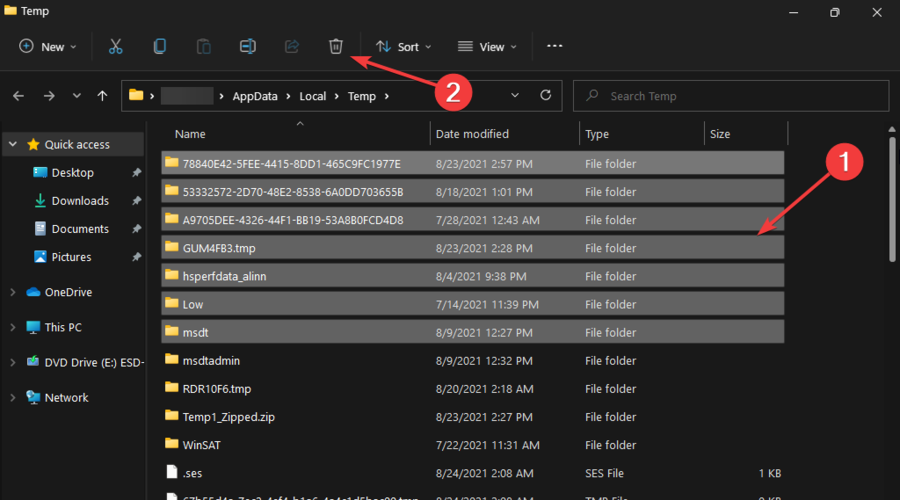
Amazon is one of the world’s largest shopping platforms, making it a perfect place for scammers to reach many people. However, scams are rampant nowadays. They often come in different formats.
An example is the Amazon security scam text, which involves the scammer sending a deceitful text to a user. The scammers send these messages disguised as an Amazon agent to intrude into your account or steal your personal information.
However, the Amazon security scam has been around for years, yet some people still fall for it. Hence, we have put together this article to discuss the Amazon security scam text and how not to be a victim.
Why am I getting an Amazon security alert?
Amazon can send you a security alert if your account has a new or suspicious activity. Likewise, you can get an alert to notify you about the security changes in your account. However, swindlers use these texts to rip people off their money and information.
Nonetheless, users should understand that Amazon rarely sends these messages. Peradventure, you get a text stating that it’s from Amazon; there is always something suspicious about such texts.
Can you get scammed opening a text message?
Opening a text alone doesn’t get you scammed. The actions you take after seeing the content of the message can cost you a lot. However, clicking on links from such texts can expose you to the trap of the scammer. Likewise, some links contain malware that can create loopholes in your security.
How do I stop fake Amazon text messages?
Block the phone numbers and email messaging you
Launch the messaging app on your phone.
Click on the text message from the number you want to block.
Click on the contact icon at the top of the screen, then select Info.
Scroll down, select Block this caller, and then click on Block Contact.
Blocking the contact will prevent it from being able to text or reach your phone. However, repeat the process for every suspicious scam text because some scammers use multiple numbers.
Typographical errors: Amazon is a world-class shopping platform with countless customers. However, texts from Amazon don’t contain typos and are always well-arranged. Hence, watch out for errors in the message to ensure reliability.
Contains wrong links: We don’t recommend you click the links in messages until you’re sure of their source. Scammers insert links in their text disguised as the official Amazon website. Users should note that Amazon’s official website has a dot before it, e.g., .amazon.com.
How do I protect myself against Amazon security scams?
Report suspicious texts or activities: There is no permanent way of preventing scam texts and attempts. Hence, you can protect yourself by reporting phishing. It will help you verify the legitimacy of such information.
Keep your account information to yourself: Scammers can access it if you don’t secure it properly. So, don’t give your information out to unknown authorities. Likewise, try not to access your Amazon account on other people’s devices as much as possible. Note that Amazon will never ask for your account details or personal information.
Check link credibility before accessing: Checking the credibility of the links from emails or alerts before clicking can protect you from Amazon security scams.
Furthermore, we recommend that users only contact Amazon agents on the official website, not through texts or emails.
In conclusion, you can encounter many other issues with Amazon, like the Amazon checkout Rewards Points not showing up. Also, reading through our article about the Amazon app release for Windows 10 is advisable.
Please leave your questions and suggestions below in the comments section. We’d like to hear from you.
One of the advantages of having your computer is that you can tweak it to get more performance from its hardware through different methods. One way of doing this is overclocking your computer using the Intel Extreme Tuning Utility (Intel XTU).
Even though some people might manually overclock their computers, it involves a lot of work and might consume a lot of time.
Using the Intel Extreme Tuning Utility is always the best option. This is because the tool does everything for you, ensuring that chances of human error are eliminated.
However, when using this tool to overclock your PC, you need to look at a variety of things. Some of them include understanding the risks of PC overclocking and minimizing them.
You should also ensure that your PC has an excellent cooling system. This is because overclocking means the CPU gets more powerful, leading to more heat generation.
What is Intel Extreme Tuning Utility?
The Intel Extreme Tuning Utility is an application used for performance tuning in Windows machines.
It can be used by experienced and non-experienced Windows users to overclock, stress, and monitor a computer.
This application comes with a beautifully designed interface with outstanding capabilities to enhance its user experience and simplify the performance tuning of computers.
What does Intel Extreme Tuning Utility do?
Intel Extreme Tuning Utility is an application used for overclocking computers. Overclocking is the process through which Windows users increase the frequency of their CPUs beyond the frequency decided by the CPUs’ manufacturers.
When overclocking your CPU, you assume the responsibility for any instability with your computer. However, you should also be aware that the process might lead to your computer’s death.
How do I use Intel Extreme Tuning Utility?
1. Download and install Intel Extreme Tuning Utility
Identify your Intel processor to find out if the Intel Extreme Tuning Utility model you want to install supports it.
Launch Intel XTU and run a benchmark to see the overall performance of your computer before overclocking its CPU.
Click on the Benchmarking tab on the left-hand side menu of the application and then click on Run.
Repeat this process several times to get an average score to help you with a clearer picture of your computer’s performance.
Click on App-Profile Pairing to create a profile that you will use any applications of your choice with your tuned PC.
Choose the applications you want, a profile in AC Power mode and Battery mode, and then click on the Pair button.
Click on the Turn On button at the top to use this profile.
To manually overclock your CPU, click the Manual Tuning on the left-hand side menu.
Which is better, ThrottleStop or Intel XTU?
The Intel XTU and ThrottleStop are among the best applications for adjusting your computer’s performance, and they work well with most computers.
However, if you are looking for an application with a good interface and graphs showing the performance of your computer, then Intel XTU is an ideal choice.
ThrottleStop is the best application for those looking for efficiency when tuning their PCs. However, before choosing either, you must ensure that you have done some benchmarks.
This helps you to see how your PC performs. It can also determine the best application for your computer.
Performance tuning is essential, especially for people who have specific applications that demand good PC performance.
As you can see, you do not have to buy a new PC for applications that need good performance. Instead, you can use applications such as the Intel XTU to overclock your PC. This ensures that its performance meets your expectations.
Firefox is the go-to browser that almost everybody uses, and it is compatible with various platforms like Windows, Ubuntu, and Mac.
Mozilla Firefox is not only a browser but also a wonderful web developer tool. Many developers use Firefox for coding and testing webpages using the web developer tool.
Recently, several users have reported that they are unable to launch Firefox properly. The Firefox window throws an error window.
The error window said Your Firefox profile cannot be loaded. It may be missing or inaccessible.
Most users never create any Firefox profile, they simply use the default profile created by the browser.
Why is my Firefox profile not loading?
There are several causes for this error message while launching the Firefox browser on any device.
The Firefox profile has moved to a new location: A folder will be created in the system after installing the Firefox browser. This folder contains the information for the Firefox profile created by default and all other profiles created by the user.
Corrupted Firefox profile: If there is any virus attack on the system, some files will be corrupted. There is a chance that the Firefox profile must have been corrupted, which is causing this issue.
Firefox browser app problems: If the Firefox browser is interrupted when it is installing, it won’t be installed successfully. This creates a number of problems while using the browser.
Where is my Firefox profile?
When the users create the profile, it will be stored in the folder called Profiles. The Firefox browser’s default profile will also get stored in this folder.
The Profiles folder can be located at the following path: C:Users%username%AppDataRoamingMozillaFirefox
The users might have to change the view hidden items settings in order to open the AppData folder.
Some other Firefox users faced a Server Not Found error while accessing the Firefox browser on their system. If the Firefox browser is throwing the same error for you too, try these quick solutions given below in this article.
Quick Tip:
While the Firefox issue will be resolved, go to Opera One and enter your user Profile to continue browsing. Rather than creating everything by hand, you may use the Opera Profile Creator.
You may create workplaces, and profiles, manage sidebar chat integrations and keep every tab organized. This is also an smart and secure browser due to it’s built-in VPN and AI.
Opera One
Switch to Opera One and load your profile in this browser instead.
Click Download Firefox to start downloading the Firefox browser installer file.
Go to the Downloads folder and start the installation process by opening the Firefox installer file.
After successfully installing the Firefox browser, the error window will not appear again.
2. Delete the profiles.ini file from its default location.
Open the Run box by right-clicking on the Startbutton on the taskbar and clicking Run.
Type the following path in its textbox and press the Enter key: C:Users%username%AppDataRoamingMozillaFirefox
In the Firefox folder, delete the file called profiles.ini. Or you can even rename it to profiles.ini_old.
Now open the Firefox browser without any error message.
We also have a great guide on Firefox profile location that offers more information, so don’t miss it.
3. Create a new profile for Firefox
Press the Windows and R keys simultaneously.
Type firefox.exe -P and press Enter.
The Firefox Profile Manager window appears on the screen.
In the window, click Create Profile to open the create profile wizard.
To start creating the profile, click Next to proceed.
Next, you need to give this profile a name and click Finish.
This creates a profile for the Firefox browser.
Finally, select the newly created profile from the profile list and click Start Firefox at the bottom.
This opens the Firefox browser using the newly created profile without any issues.
Why does Firefox ask me to create a new profile?
Unlike other web browsers, Firefox browsers need a profile to run the browser on any system. Usually, it operates using a simple default profile if the user hasn’t created any profile.
Sometimes, the Firefox browser is downgraded in the system suddenly. This creates a problem since the profile created in the higher version of Firefox will not work and it will ask the user to create a new profile. Creating a new profile might cost you all the saved bookmarks and other data.
If your Opera GX bookmarks are not showing, you won’t be able to access your saved websites, and this can be a problem. Luckily, this can be easily fixed.
What can I do if Opera GX bookmarks are not showing?
Before we start, make sure that Opera GX is up to date since bugs can cause this problem.
1. Check Opera GX’s Trash Bin
Enter opera://bookmarks in the Opera’s GX address bar, and hit the Return button.
Click the Bin icon.
If you see any deleted bookmarks there, click the Select (tick) icons for them.
Left-click one of the selected bookmarks and hold the mouse button.
Then drag them back into your bookmark folder to restore them.
If there aren’t any deleted bookmarks in the trash, you may still be able to restore backup copies of them by renaming Bookmarks and Bookmarks.bak files.
To do so, open this folder path: C:\Users\<user folder name>\AppData\Roaming\Opera Software\Opera GX Stable
Right-click the Bookmarks and Bookmarks.bak files there to select Rename. Change Bookmarks to Bookmarks.old and the Bookmarks.bak file to Bookmarks (delete its BAK extension).
2. Reset Opera GX
Press Opera GX’s Alt + P hotkey.
Select Advanced to expand Opera GX’s Settings tab.
Scroll right down to the very bottom of the tab to click Restore settings to their originaldefaults.
Open the Power User menu in Windows 11/10, and select its Run option.
Type this text in Run and select OK: appwiz.cpl
Select the Opera GX browser, and click Uninstall for it.
Then press the Re-install option (don’t select the Delete my Opera data option).
How do I extract bookmarks from Opera GX?
Open Opera and navigate to opera://bookmarks
Select Import/Export button and choose Export bookmarks.
Next, select the desired destination and the file name.
Then you can select to import the bookmarks.html file whenever you need to restore missing bookmarks in Opera.
There aren’t many confirmed potential fixes for bookmarks not showing in Opera GX. Reinstalling or resetting Opera GX will most likely resolve bugs affecting the browser.
Where are my bookmarks in Opera GX?
The bookmarks bar isn’t enabled by default in Opera GX, but you can enable it by doing the following:
Open Opera GX, click the Menu icon in the top left and choose Settings.
Scroll to Appearance and enable the Show boomarks bar.
The bookmarks bar will now appear.
If you might have accidentally deleted bookmarks, try applying the first resolution. You may be able to find missing bookmarks in the trash or restore a recent backup of them by renaming Bookmarks.bak.
To learn more about this feature, we have a great guide on how to manage bookmarks in Opera, so don’t miss it.
For more basic information our guide on Opera browser favorites will give you all the necessary information.
Have you found another resolution for fixing Opera GX bookmarks not showing? If you have, we would love to hear about it in the comments section below.
However, if your PC display is running at 60Hz FPS, you can increase your RuneScape Background FPS settings to 60Hz or higher for an enhanced gaming experience.
Before we move over to the troubleshooting methods, let us understand why you face low FPS issues on RuneScape.
Why am I getting low FPS in RuneScape?
If your RuneScape game has slowed down and you see low FPS (frames per second), it means that your machine does not have enough memory to run it properly.
Some of the other common reasons why RuneScape may suffer from low FPS are:
Graphics card issue
Outdated graphics drivers
Old CPU
Limited system memory (RAM)
At the same time, you should check if your PC meets the minimum specifications to run the game as below:
Device
Specifications
Windows
CPU: Intel i3+/AMD @ 2.4+ GHz GPU: GeForce 400x, Intel HD 4x, AMD Radeon 7xxx + RAM: 4GB Minimum 8GB of storage space available for the NXT cache
Mac
CPU: Intel i3+ @ 2.4+ GHz GPU: AMD Radeon 7xxx + RAM: 4GB Minimum 8GB of storage space available for the NXT cache Recommended Mac 2011+
Old School RuneScape (Mobile)
Android Oreo 8.0 or above iOS 13 or later RAM: 2GB Minimum 120MB of free storage space
RuneScape Mobile
Android Oreo 8.0 or above iOS 13 or later RAM: 2GB 3.5GB – 5GB of free storage space
But, if you are still facing the same low FPS issue or if your RuneScape is stuttering, we are here to help.
So, follow this post to fix the RuneScape frame rate issues and boost the FPS using the below solutions.
How do I fix my low FPS on RuneScape?
1. Change your graphics settings
Launch RuneScape and click on the gear icon on the bottom right.
In the Options Menu window, click on Settings.
Next, select the Graphics tab and you can now edit the settings like the Game models, Light effects, etc.
You can also change the graphic modes to, for example, Min, Low, Mid, High, Ultra or Custom, or resize the screen on the right.
You have now successfully changed the graphics settings and increased the RuneScape FPS.
2. Update your graphics driver
Right-click on Start and select Device Manager.
Now, expand the Display adapters section, right-click on the device and select Update driver.
Next, in the Update Drivers window, click on Search automatically for drivers.
Windows will now start looking up for any latest drivers automatically and finish the installation accordingly.
Once you have updated the graphics drivers, the low frame rate issue in RuneScape should be resolved.
3. Clear your cache
While RuneScape is loading, click on the gear icon on the bottom left.
As the Options dialog opens, go to Cache Folder and click on the three dots next to it.
You will be redirected to the Jagex folder and open the RuneScape folder.
Next locate the cache folder, select all files and hit Delete.
Once you have cleared the cache, the graphical texture and fix the Runescape frame rate issues.
While the default cache folder path is %ProgramData%\Jagex\RuneScape, it may sometimes change. So, if you do not find the Cache folder in the default location, you can also look for it in the locations below: C:\%UserProfile%\jagexcache\runescape\LIVE ORC:\.jagex_cache_32
How do you check FPS in Old School RuneScape?
For example, if you are playing Old School RuneScape on Steam, you can follow the below methods to check FPS:
Open Steam, click on its menu on the top left, and select Settings.
In the Settings window, click on In-Game on the left.
Now, on the right, go to the In-game FPS counter and select your choice from the drop-down. For example, Top-right.
Next, check the box next to the High contrast color option.
Now when you run the game, you should see the FPS counter on the top-right or the position you selected.
How do I check my FPS on RuneScape 3?
While you can follow the above method, you can also follow the below steps to check FPS on RuneScape 3:
Open RuneScape 3 and press the Alt +` keys on your keyboard.
This will launch the command console from the top left.
Now, type displayfps and press Enter.
You will now see the FPS counter on the upper end of the game screen.
Looking for the right browser for your cricutting needs? This article is for you! Here, we’ll show you some of the best browser options for Cricut Design Space.
Cricut is an intelligent cutting machine that can take inputs or commands from a computer and create near-perfect physical cuts/designs/artworks that reflect the given orders.
Put aptly, Cricut allows you to create exceptional cuts and shapes of objects by implementing designs prepared via its Design Space app, hosted on a computer system.
However, only a handful of browsers support Cricut’s Design Space platform, and we’ll be bringing you the best of these browsers in this article.
Can you use Cricut Design Space without downloading it?
It was possible to use Cricut web in the past, but this has changed since the service stopped its support for the Design Space web experience at design.cricut.com.
You no more need a Cricut Design Space online login but will have to update to the brand-new Design Space for Desktop, a program for Mac and Windows computers that is quicker, more dependable, and more powerful.
We will, however, show you the best browsers that have worked in the past, as these are still excellent browser options for online design.
Opera One is a powerful and versatile browser that supports all Windows OS versions. The browser is highly customizable and flexible, and this made it an excellent choice for Cricut users.
If privacy is one of your primary concerns online, Opera One offers you peace of mind.
The browser has a built-in VPN for enhanced privacy, an ad blocker to block all those annoying ads and load webpages faster, data sync across your devices, and more.
Opera One also features many built-in communication tools, such as integrated messengers (WhatsApp and Facebook Messenger) that allow you to stay in touch with your friends without switching apps.
Besides, with Opera, you can customize the interface with all the necessary shortcuts, themes, and bookmarks to help you stay focused on your work.
Important features:
Sidebar extensions
Messenger integration
Native VPN integration
Opera One
It helps you stay focused on your Cricut projects by creating your workspace and having all the necessary features handy.
UR Browser is one of the most widely used browsers on desktop and mobile platforms. And it stands out as one of the few supported on Cricut.
UR Browser is the official browser from AdaptiveBee, with extended support for Windows PCs, Android smartphones/tablets, iOS devices, and other major desktop & mobile operating systems.
Hence, it provided the flexibility of making Cricut designs on several platforms.
Furthermore, UR Browser is safe, secure, and fast. It hosts a highly customizable interface, making it ideal for project designing – the forte of Cricut.
The browser offers a standard security and privacy protection set up to ensure that designs and work projects on different services are protected from unsolicited access on the web.
Nevertheless, UR Browser was not just a supported browser for Cricut but arguably the best browser for Cricut.
This is simply because of the browser’s relative flexibility, ease of use, user-friendliness, and swift loading speed, making it a suitable browser for creating Cricut cuts and designs.
Important features:
Ad blocking
No complicated settings
Invisible tracker blocker,
UR Browser
Use UR Browser to eliminate the ads, trackers, and cookies and bring your project designs to life in no time.
Mozilla Firefox is no doubt the perfect alternative to UR Browser. It is seen by many as the best desktop browser and was certainly one of the best browsers for Cricut.
Firefox, like UR Browser, hosts extended support for all major operating systems (both mobile and desktop), making it suitable for the flexible work demand of a project designer.
The browser is uniquely fast and offers a standard security/privacy protection feature, which ensures that your designs are safe on the web.
It can conceal your browsing history and designs from third-party users.
Mozilla hosts a customizable interface, which can be configured to let you do just about anything on the web. This was especially important for creating superb designs/cuts with Cricut.
Edge is the latest browser from Microsoft, specially designed for Windows 10 and 11 PCs, and is one of the few browsers Cricut supported.
It is the advanced replacement of Internet Explorer, which, unlike Edge, did not support Cricut.
Microsoft Edge hosts a more advanced GUI; this made it ideal for creating designs on Cricut’s Design Space.
Furthermore, the browser offers users an organized printing setup and 4K Ultra-High-Definition support. This can be used to design HD artistic designs using any other service like Cricut’s Design Space.
Though originally built for Windows, the browser is now supported on iPhone and Android operating systems.
Chrome is an obvious inclusion in this list and is the most prominent browser name in the market, and this tag is well deserved.
It was among the few browsers that supported the Cricut web platform, and as you may guess, it remains an excellent option for many other design services.
We love Chrome, especially because of its extension library that allows you to add new features that are not natively included in the browser.
The downside is that it is resource intensive, but you should have no issues with a proper modern computer.
The main differences are in the features that they offer. So, for example, the Desktop app offers a Print then cut feature. This feature is only present in the iOS app and not in the Android app.
Some features specific to the desktop version are Pattern fills, Templates, Link Physical Cartridges, Curve text, Knife Blade cutting, Offset, and Project Collections.
However, in the mobile version, you have the unique features of Smart Guides, SnapMat, 3D layer visualization, and Photo Canvas.
Based on these features, you can pick and choose what your preferred device for Cricut should be.
We must remind you that Cricut no longer supports the web service; you will have to download a desktop or mobile app. However, these browsers listed were the best browser options for Cricut design space and are excellent options for other design services you may try out.
If you have any comments or suggestions on this topic, feel free to reach us using the dedicated section.
You got your hands on the premium Dell XPS 13 laptop and just as you want to connect it to your TV using Miracast, you realize it’s not working.
Miracast is a popular way to share the screen with your Smart TV, but it can sometimes behave strangely, even with devices that support the technology.
At the same time, the Dell XPS 13, just like its antecedents, comes with built-in support for the screen casting feature.
If you are using Windows 10/11 on your Dell XPS 13 laptop, it becomes easier to use Miracast on the device as shown below:
Attach your Miracast adapter to your TV or display.
Switch on the TV and select Miracast as the input.
Now, turn on your the Dell XPS 13 laptop, and press the Win + I keys simultaneously to open Windows Settings.
Click on System on the left and on the right, click on Display.
Now, on the right, scroll down to Multiple display and click on it.
Here, go to Connect to a wireless display and press Connect.
Windows will start check for Available displays. Select the receiver and Windows will now configure autimatically.
Press the Win + P keys together to open the available display list and now, choose from the enabled display options.
Once done, you can now cast the Dell XPS 13 laptop screen to your Smart TV using Miracast.
What can I do if Miracast is not working on my Dell XPS 13?
1. Update outdated drivers on Dell XPS 13
Press the Win + R keys simultaneously to launch the Run console.
Type Devmgmt.msc in the search bar and hit Enter.
Expand the Display adapters section, right-click on the device, and select Update driver.
In the Update Drivers window, click on Search automatically for drivers.
Windows will now start searching for the latest drivers and if any are available, will install them automatically.
Similarly, you can expand the Network adapters section and repeat steps 3 to 5 to update the wireless drivers as well.
Assuming that you successfully updated the drivers, you can try connecting your Dell XPS 13 to your Smart TV through Miracast with no problems.
If the Windows didn’t update them for you, we recommend you try Outbyte Driver Updater, a software that will automatically do that for you.
Outbyte Driver Updater will go through all your drivers and check if they are outdated or broken in any way. After that, if possible, it will update or repair all of them with just a click. A simple way to avoid connecting issues like this one.
Outbyte Driver Updater
This tool will optimize every driver you have as well as the system performance.
The first question to answer would be, does Dell support Miracast? For a Dell PC, you must ensure that it’s compatible with Intel Wireless Display (WiDi).
This is because the Dell hardware needs the Intel WiDi feature to support Miracast.
Therefore, to use Miracast on Dell computers, it’s essential for the imaging device and the client system to be compatible with WiDi.
For the WiDi technology to function properly, it needs a set of compatible hardware, drivers, and software such as wireless and graphics drivers based on each supported OS.
What else can prevent my Dell laptop connect through Miracast?
At the same time, make sure that you are not using a 3rd party graphic cards like Nvidia or AMD, since that may prevent Miracast to work.
Also note that Miracast uses Wi-Fi Direct, which means, it connects straight from the laptop to the TV when both the devices are in closer proximity.
So, even if the PC and TV are using the same Wi-Fi network, but your PC is not closer to the TV, Miracast will not work.
Besides, if you are using a 3rd party graphics card, you would need to remove it, because WiDi works only with the integrated Intel video card.
Alternatively, you can replace the wireless card or update the BIOS if you have not recently. Updating the BIOS card may help fix the issue when Miracast and Wi-Fi are not working at the same time.
It is no longer a surprise that the latest Microsoft OS allows performing various actions to personalize the digital environment according to your own needs.
In today’s article, you’ll discover how to add a website to the taskbar in Windows 11 easily. No matter what network browser you’re using, we prepared some methods applicable to all the popular ones.
Fortunately, the process is pretty similar from one browser to another. It will only take a few seconds, so you won’t waste time doing it.
Before getting into the main subject, check out why you should add websites to the Windows 11 taskbar.
Why should I pin a website to Windows 11’s Taskbar?
To save much more of your precious time, having quick access to frequently used or hard-to-remember websites is always a great idea.
In case there are network pages that you need to open, adding them to your Windows 11 taskbar regularly will not require an actual search.
And why is that? Because you’ll not have to look for websites in browser history or constantly keep them open.
In addition, keep in mind that Windows 11 allows you to add websites from multiple browsers, so you’ll have plenty of options you can choose from.
To find out how it works, make sure you read this article entirely.
How can I add a website to the taskbar in Windows 11?
1. Pin a Chrome website to the taskbar
1. Launch Google Chrome on your PC.
2. Navigate to the website you want to add.
3. While on that website, click on the three vertical dots in the top right corner of the screen. These are a shortcut for the Settings and moreoptions menu.
4. When the menu opens, hover the cursor over the More tools option, then choose Create shortcut.
5. Now, you can choose the name of your website, by typing it in the indicated box. You can leave the name empty if you want. It is not necessary to give the shortcut a name, but it helps you easily recognize the website later on.
6. Once you’re done with the changes, click on Pin.
7. The Chrome website will now be added to yourWindows 11 taskbar.
If you are a Google Chrome user, you can easily add a website to the taskbar via the app’s built-in Settings. All you need to do is open the website you want to pin and create a shortcut for it, that will be placed on the taskbar.
2. Add a Microsoft Edge website to the taskbar
In Microsoft Edge, navigate to the website you want, go to Settings and more options, marked as three vertical dots.
Hover the cursor over More tools, then click on Pin to taskbar.
Choose a name for your website, then click on Pin.
You’ll now have the desired website pinned to Windows 11 taskbar.
Microsoft Edge comes as the default browser in the latest OS design. However, it seems like some users are not so happy with using it, and a few also decided on more drastic measures.
Click the Windows key, then type Firefox, right-click on the result, and choose to Open file location.
Now, in the file location, right-click on Firefox, then select Show more options.
Choose to Create shortcut.
In the pop-up dialog box, click on Yes. Windows will automatically create a shortcut, placed on your desktop.
Navigate to your desktop, right-click on the created shortcut, then select Properties.
Click on the Shortcut tab, then enter the desired website URL.
Select OK to save the changes.
Now, you have the shortcut for your desired Firefox website.
Right-click on it, then choose to Pin to taskbar.
4. Add an Opera website to the taskbar
Click on the Windows icon, search for Opera, right-click on it, and choose to Open file location.
There, right-click on Opera, then choose to Show more options.
Hover the cursor on the Send to option, and choose Desktop (create shortcut).
Now, go to the created shortcut, right-click on it, then select Properties.
Navigate to the Shortcut tab, enter the needed URL.
Click on OK to save the changes.
Right-click again on the created shortcut from your desktop, then choose to Pin to taskbar.
Can I remove pinned websites from Windows 11’s taskbar?
In case you change your mind and want to remove the added websites from your Windows 11 taskbar, it is extremely simple, taking only a few seconds.
To easily do it, right-click on the undesired website, then choose to Unpin from the taskbar. Repeat it for each pinned network page you need.
However, you can’t pin all the items to the Taskbar using the same steps. In case you want to a batch file to the Taskbar on Windows 11 to access repetitive tasks without any hassle, you need to use a workaround. To learn more, read this guide.
Which is the most popular web browser?
And because we talked about multiple browsers that can be used to add websites to the Windows 11 taskbar, let’s see some statistics that reflect which is the most popular.
As you can see, Google Chrome is by far the most used web browser, indicating more than half of the entire network traffic.
In a distant second place, we can find Safari, with 17%. Even if the study set Microsoft Edge and Internet Explorer usage into one figure, we’d highly recommend not using the latter anymore. These registered 5.6% of the total results.
The last-placed web browsers are Firefox and Opera, with a percentage of 4.1%, respectively 1.5%.
As mentioned before, Microsoft Edge is the default browser in Windows 11. If you have other preferences, you can always change that. If you’re not sure which one you should try, check out these Windows 11 browsers that are highly customizable.
Call of Duty: Modern Warfare it’s held in high regard by the gaming community as being one of the best Call of Duty games since Black Ops III.
It’s both the sixteenth installment of the CoD series and a reboot for the MW (Modern Warfare) series. CoD: Modern Warfare is set in a realistic, modern environment, as its name subtly hints.
You can enjoy the game in both single-player and multiplayer modes. It also has a Special Ops game mode that lets you cooperate with other players on missions that act as a follow-up for the campaign ones.
However, multiplayer enthusiasts really dug into CoD: Modern Warfare’s online modes.
The game embraced a tactical approach that enables players to breach doors, encourages them to explore the map, and even lets them remove the HUD.
The game also features a battle royale mode that’s called Call of Duty: Warzone, where 150 players seek to be the last player/team standing. In Warzone, you can either play solo or in teams of 3 to 4 players.
Why is my CoD packet loss so high?
Generally speaking, packet loss may happen to anyone at some point due to a number of reasons. So it can be caused by your Internet provider or other PC settings.
More exactly, you have high packet loss on CoD gameplay if your network connection is unstable, you have outdated drivers, or hardware issues on the router.
Another valid cause can be related to your WiFi connection, in case there are too many users and the network is congested.
CoD: Modern Warfare packet loss symbol
CoD: Modern Warfare has a bunch of screen indicators that can come in handy while you’re in the game. A quick glance at the side of your screen and you’ll know right away whether there’s something wrong or not.
Note that the main cause of packet loss is usually network congestion. Therefore, if you can afford it, you might want to wait for it to fix itself, as it usually does.
CoD: Modern Warfare also displays icons for server performance, high latency, latency variation (jitter), low FPS, game health icons Modern Warfare, and refresh rate.
What do the 3 squares mean in Modern Warfare?
Essentially, 3 orange squares in Modern Warfare mean that you have packet loss while playing the game.
The Modern Warfare connection symbols also referred to as packet burst, signal that you’re experiencing packet loss.
This means that some packets you send or receive never make it to their destination.
If you check the warning icons guide, you’ll see that packet loss belongs in the Client category. This means that the leak is likely on your side, or somewhere in between you and the game server.
How can I fix the packet loss in CoD: Modern Warfare?
Note: VPNs can improve packet loss, but it doesn’t work every time. Basically, it only works if your ISP is the one causing the packet loss by either having an improperly routed network or throttling your bandwidth.
2. Troubleshoot your connection manually
Run a packet loss test using pathping.
Note the hop where the packet loss occurs.
Depending on your findings, take the corresponding action from this list:
Check and repair/replace/update/upgrade any software/hardware components on your end (PC, router, cables).
Call your ISP and inform them if there’s something wrong on their side.
Contact CoD: Modern Warfare’s support crew if the problem seems to be on their end.
The bottom line is that you can usually fix packet loss in CoD: Modern Warfare. More often than not it’s caused by network congestion and fixes itself. All it needs is time and a bit of patience.
However, if you don’t have the luxury of time and patience, you can try out one of our suggestions to fix it. Sometimes using a VPN can improve ping and packet loss.
If using a VPN doesn’t help, keeping your home network in top shape is always a good practice, and not only for packet loss, but for speed, and overall stability, as well.
Lastly, if you want to better your gameplay, simply start by ruling out Packet Loss.
More so, visit our Gaming Hub as well to discover more reviews, news, guides, and tips & tricks.
When you open software, a configuration window might occasionally open. However, some MS Office users get stuck with a configuration dialog box that opens every time they launch one of the suite’s applications.
The configuration window states Please wait while Windows configures Microsoft Office.
The software still opens, but the configuration window keeps on popping up whenever some Microsoft Office users launch the applications. Consequently, the applications don’t launch especially quickly.
This configuration dialog box error pertains to various Office versions. This is how you can get rid of that configuration window if it keeps on opening when you launch MS Office software.
How can I fix Updating Office, please wait a moment error?
You’re used to getting the very best out of this family of client software and services developed by Microsoft. However, Microsoft Office configuration issues appear quite often.
Instead of imaging the worst-case scenario, we’d suggest wasting no more time and downloading the Stellar Repair Toolkit.
This handy all-purpose utility is known to easily repair corrupt Microsoft Office documents – Word, Excel, PowerPoint, and even PDF files.
It really doesn’t matter if they are damaged due to improper system shutdown, compression errors, or virus attacks. The result is guaranteed and you’ll be able to launch the suite’s applications once again.
Stellar Repair Toolkit
Looking for a way to solve MS Office configuration issues? There’s no better choice than Stellar Repair Toolkit!
5. Press theChangebutton, and then clickYesto confirm.
6. Select theRepairoption and clickContinue.
7. For MS Office 2016, select the more thoroughOnline Repairoption, and then clickRepair.
8. Wait for the repairing process to finish.
9. Check if the issue persists.
Repairing corrupted MS Office installations might get rid of the configuration dialog box. To do this, you need to navigate to the Programs and Features menu and manually set up a repairing process for the app.
3. Open the Microsoft Easy Fix 50780 Tool
There’s a Microsoft Easy Fix 50780 tool specifically for fixing configuration windows that keep on opening for MS Office 2010 applications.
This tool probably won’t be much good for the latest Office versions, but it might get rid of the configuration window for Office 2010 applications.
Click the Download button on this Microsoft Easy Fix page to save the tool to Windows. Then you can open that tool’s easy fix wizard to fix the configuration window.
Input appwiz.cpl in Run’s text box, and click the OK button.
Click Turn Windows features on or off to open the window in the snapshot directly below.
Then select the Windows Search option if it’s not currently checked, and press the OK button. Note that Windows 10’s Windows Features window doesn’t include that setting.
It might the case that you’re running a 32-bit version of MS Office on a 64-bit platform. If so, a Microsoft Office 64-bits Components window will pop up when you launch the applications.
If that’s the configuration dialog box that is opening, activate Windows Search in Windows 10 as described above.
5. Enter Registry Keys in Run
Some Microsoft Office users have resolved the Windows configuration dialog box error by adding new keys to the registry. You can do that with Run instead of the Registry Editor.
So open Run with the Windows key + R hotkey, and separately enter the following registry keys in Run’s text box:
Each registry key is for one of five Office suites. Note that the MS Office version number in the registry keys above (15.0) is for MS Office 2013.
You will need to modify that number for alternative versions of the Office suite. For example, the version number for MS Office 2010 is 14.0.
So, you would enter the following key for Word 2010: reg add HKCUSoftwareMicrosoftOffice14.0WordOptions /v NoReReg /t REG_DWORD /d 1
MS Office 2016 users will need to change the version number to 16.0.
6. Switch Off MS Office Add-ins
Open an MS Office application.
Click File and select Options to open a settings window.
Select the Add-ins tab to open a list of add-ins.
Select COM Add-ins from the drop-down menu.
Press the Go button to open the COM Add-ins window.
Now deselect all the selected add-ins listed there.
Press the OK button on the COM Add-ins window.
Close and reopen Microsoft Office.
The Windows configuration dialog box might keep on opening because of third-party Office add-ins. To see if that’s the case, disable all your MS Office add-ins.
You can switch Office 2016’s add-ins off as described above.
To achieve a world-class experience, we also encourage you to bookmark our Microsoft Office Hub.
These were a few resolutions that might obliterate a stuck Windows configuration dialog box for MS Office or help to solve the Updating Office, please wait a moment error.
Office software should eventually launch a whole lot quicker. Let us know if this happened to you as well in the comments area below.
ReferenceError: browser is not defined is a common issue in many popular browsers. It occurs when the browser isn’t properly referenced in the code for web design or testing.
Below, we’ll walk you through step-by-step instructions on how to fix this error for good.
How can I fix the browser not defined error?
1. Update your browser
Click on the browser menu located in either the top left or right corner and select Help.
Click About.
Here your browser will automatically check for any updates. If there is an update, click Update.
If your browser is out of date, then issues may arise in the console. Regularly check for updates in your browser to avoid any future issues.
Click on the browser menu located in either the top left or right corner and select Settings.
Select Extensions or Addons.
Go through and toggle each extension off.
Users report that disabling add-ons like Ad-block has solved the problem. Disabling all of your extensions may fix the issue
3. Change the namespace
If you’re running into the ReferenceError: browser is not defined in Google Chrome, then you will need to change the namespace with callbacks from browser.* to chrome.* for cross-compatibility. You can do this by manually changing the namespace and callbacks to chrome.* which will work in both Chrome and Firefox.
Users can also use a shim or polyfill to convert the browser.* namespace to chrome.* with callbacks for Chrome. One shim to use is WebExtension which offers a lightweight polyfill library WebExtension APIs in Chrome.
4. Try another browser
If all else fails, consider using a different browser.
There are several causes of browser errors, but we noticed minimized issues in the Opera One browser. Switch to Opera One with all of your saved data from your existing browser and test the connection.
A browser’s undefined failure might be caused by an outdated version of the browser, but not in Opera. It is constantly updated and is known to be one of the most stable browsers out there.
Opera One
Switch to this error-free browser and benefit from AI assistance, free VPN, adblockers, and much more!
The ReferenceError: browser not defined occurs when there is a reference to a non-existent browser somewhere in the code when trying to create an extension. Declare the browser in reference or make sure it’s accessible in the script.
The browser variable declared within a function is not available outside of that function which could lead to the error. Defining the browser outside of the scope of function will make it accessible. Another possible cause could be a misspelling of the browser global variable.
Here are some variations of the error for browsers:
browser is not defined in Firefox
referenceerror: browser is not defined in Chrome
For other platforms:
browser not defined in JavaScript
browser not defined reactjs
referenceerror: browser is not defined webdriverio
browser is not defined adblock
browser is not defined puppeteer
referenceerror: browser is not defined mocha
We hope one of the above solutions helped you fix the browser is not defined. error. If you’re looking for recommendations for the best browsers for developers, we have a guide for that. Let us know in the comments which solution worked for you or if you have a suggestion for a different solution.
Need to tweak your hardware settings? BIOS is where it happens. In Windows 11, changing BIOS settings lets you adjust boot options, enable virtualization, or manage system performance.
This guide shows you exactly how to access and modify BIOS settings – step by step. Whether you’re troubleshooting or optimizing your PC, we’ll make it simple.
1. Access BIOS using the shortcut key during the booting process
While your system boots, keep pressing the Del key.
Windows will now boot to BIOS.
This is the easiest way to access BIOS, but it’s not universal. Some motherboards use a different key, and you can do two things to find the right key.
During the boot, look for the message saying Press Key to enter setup or any similar message. In most cases, pressing this key will allow you to enter BIOS.
Check your motherboard manual and find the shortcut key.
You can find the correct shortcut for your hardware by checking this guide on how to get the BIOS key, which helps you confirm the exact key your PC uses.
2. Enter BIOS using the Settings app
1. Click the Start icon in the Taskbar.
2. Now select the Settings app from the menu that opened.
3. Go to the Recovery options.
4. In the Advanced startup section, click on Restart now.
5. SelectRestart now to confirm.
6. Go to the Troubleshoot center.
7. Select Advanced options.
8. Now select UEFI Firmware Settings.
9. Finally, click Restart to confirm.
10. After the restart, Windows should boot directly to BIOS. From there, you can make all the BIOS changes you want.
There is a method to enter BIOS on Windows 11 without having to use a keyboard shortcut. Instead, you can access BIOS via Settings.
When should I update my BIOS?
You should only update your BIOS if you have a clear reason to do so. If your PC is working fine, there’s no need to install the latest version. Most BIOS updates fix specific bugs or add support for newer hardware like CPUs. So, unless you’re upgrading components or dealing with hardware issues that the update addresses, it’s better to leave it alone. Keep in mind that updating the BIOS carries some risk. If the process fails, your PC might not boot anymore. Only proceed with an update if it’s absolutely necessary.
What is the difference between BIOS and UEFI?
BIOS and UEFI are both firmware interfaces that help your PC start up, but UEFI is the modern replacement for BIOS. While BIOS is stored on a chip and has a basic interface, UEFI lives on a dedicated partition and often includes a graphical UI with mouse support. UEFI also enables faster boot times, Secure Boot, TPM integration, and support for larger drives. Most modern systems use UEFI by default, even though they may still refer to it as BIOS in settings.
Dead by Daylight is a survival horror game that you can play on Windows PC, Xbox One, PlayStation 4, Nintendo Switch, Android, and iOS.
You can play as a killer and hunt down four survivors, or become one of the survivors and try to escape an area without getting caught by the killer.
What makes Dead by Daylight special is that the survivors don’t have any weapons, so they can’t eliminate the killer.
Instead, they can use gear like bandages to patch up wounds, or a flashlight to blind the killer long enough to make a run for it.
The game incorporates famous fictional killers, such as Michael Myers from Halloween, Leatherface from The Texas Chainsaw Massacre, or Freddy Krueger from A Nightmare on Elm Street. New killers are added with each DLC.
Dead by Daylight has dedicated servers in several regions, including the US, South America, Europe, and the Asia Pacific.
However, many users occasionally have trouble playing the game due to high ping. It also depends on how the 5 players are matched in each session.
Still, you can significantly improve your ping with a VPN app. By connecting to a VPN server that’s in the same region as the Dead by Daylight server, you can eliminate lags and enhance your gaming experience.
How to reduce ping in Dead by Daylight?
Any gamer needs high performance on survival games like this one to keep up with other players, so getting rid of high ping is a must.
To reduce your ping level and improve game performance, consider these practical tips:
Change your DNS servers
Use the right ports on your router
Connect to faster servers on your VPN
Close any background apps on your system
Try an Ethernet cable connection
Hence, focus your actions on these potential causes and apply them in order to eliminate laggy performance in this incredible game.
Surfshark is a complete VPN alternative that can provide increased digital privacy with its server network, and boost gaming results on Dead by Deadlight
This VPN offers multiple benefits to ensure great privacy online with useful tools that guard you against online dangers, malware, or data theft.
For instance, the CleanWeb tool will help you stay unknown while navigating online and stop any ads or trackers.
More so, you have functionalities that assure access to awesome content or games around the world due to NoBorders Mode which hides your location in seconds.
Other key features of Surfshark include:
Private DNS leak security
Camouflage mode for total privacy
No log data monitoring
Latest data encryption type
IKEv2/IPsec protocols
Surfshark
Enjoy your gameplay using this VPN with fast servers and great anonymity tools.
Can you get banned for using a VPN on Dead by Daylight?
Using a VPN connection on Dead by Daylight is not prohibited by the developer. However, you can get banned if you try to purchase the game from other regions.
It actually depends on what actions you’re performing using a VPN. If you just need to increase your speed or use servers in different locations, you’re good to go.
Also, be aware that some VPNs can be detected much easier and block your servers. To avoid this, be sure to use professional software like the ones described below.
In conclusion, if you’re having trouble when trying to play Dead by Daylight due to high ping, make sure to use one of the VPN solutions we described above to lower ping and improve your gaming experience.
File Explorer is one of the most essential utilities in all Windows platforms. Microsoft has given Explorer a revamp in Windows 11. File Explorer’s redesigned user interface gives it a new look and feel. But for many users, File Explorer is slow in Windows 11.
One user told us about the fact that using arrow keys to navigate in Explorer leads to lag, just as when selecting items. He even reinstalled Windows 11 using a pen drive.
Why is File Explorer so laggy in Windows 11?
With its fancy new UI, the revamped File Explorer has caused a memory leak issue in Windows 11. A memory leak occurs when an app doesn’t release unneeded RAM. Consequently, File Explorer’s RAM utilization can get very high, which causes lag.
Microsoft is aware of File Explorer’s memory leak bug. The command bar is doing unnecessary calculations when navigating to folders, causing this decrease in performance.
This is also believed to be the root cause of performance issues when using drag to select files, as well as using the arrow keys to navigate in specific folders.
The command bar Microsoft refers to is what has replaced File Explorer’s old ribbon tabs. Thus, that new UI feature in Explorer is the primary culprit for the memory leak.
However, File Explorer acting slow is not a novelty, as this used to be a problem on Windows 10 as well. To fix the lagging, give some of these potential resolutions a try.
How do I fix slow File Explorer in Windows 11?
1. Press File Explorer’s hotkey
First, try going full-screen with File Explorer instead of utilizing it in a smaller window. To do so, press the F11 hotkey. When you do that, you’ll notice the command bar isn’t visible in that mode.
With the command bar gone, Explorer might not be so laggy.
2. Update Windows 11
Click Start on the taskbar.
Select the Setting app pinned to the Start menu.
Click Windows Update on the left side of Settings.
Press the Check for updates button to download and install new patch updates.
If a new Windows 11 build is available, update the platform to the latest version.
If Windows 11 File Explorer is slow after an update, there should be a patch for it in the subsequent version, and installing the latest updates should do.
3. Close superfluous apps and background processes
Press the magnifying glass taskbar button, which opens the search box.
Type Task Manager in the search box.
Click on Task Manager in the search results.
Select the Processes tab.
Next, select and press the End task button for all programs listed under apps.
Then look through and select unneeded third-party processes listed under Background processes. Click the End task button to close them.
2. TypeTask Managerin the search box to find the tool.
3. Click on the first result to openTask Manager.
4. Locate Windows Explorer in the list of apps.
5. Right click on it, then press the Restart button from the context menu.
6. Wait for a few moments while it restarts.
7. Check if the app works normally now. If the lags persists, try another solution.
If your File Explorer app is lagging, you should try restarting it via Task Manager. A reset is likely to solve the app’s issues and ensure its proper functionality. To do so, you need to restart Windows Explorer, which includes File Explorer.
5. Disable Quick Access
First, press the folder taskbar button for opening File Explorer.
Then click the See more button.
Select Options on the menu.
Choose the This PC option on the Open File Explorer to drop-down menu.
Uncheck the Show recently used files in Quick access checkbox.
Deselect the checkbox for the Show frequently used folders in Quick access option.
Also, click the Clear option.
Select Apply to save the new settings.
Then click OK to exit Folder Options.
When Windows 11 File Explorer is slow to open, disabling Quick Access should do the trick.
Can I restore classic File Explorer in Windows 11?
If you prefer the old tabbed File Explorer, you can restore it in Windows 11. To do so, you’ll need to make a relatively straightforward registry tweak. This is how you can restore classic File Explorer by editing the registry:
First, bring up Windows 11’s search utility.
Input the keyword Registry Editor in the search box.
Select Registry Editor to open its window.
Next, browse to this registry key location: HKEY_LOCAL_MACHINE\SOFTWARE\Microsoft\Windows\CurrentVersion\Shell Extensions
Right-click Shell Extensions to select New, then Key.
Enter Blocked for the key’s name.
Select the new Blocked key.
Right-click a space on the right side of the Registry Editor to select New, then String Value.
Enter {e2bf9676-5f8f-435c-97eb-11607a5bedf7} to be the new string’s name.
Thereafter, close the Registry Editor.
Select the Power and Restart Start menu options. After restarting, open classic File Explorer.
As restoring the old File Explorer removes the command bar, this might be another potential resolution for fixing the lag. However, it’s more of a workaround than a solution for users who prefer Windows 11’s revamped File Explorer.
Remember that Windows 11 is a new OS. Therefore, it’s not surprising that it has a few bugs like the group by option being greyed out that Microsoft needs to iron out.
The big M has already released one update that’s supposed to address File Explorer lagging in Windows 11, and there might be more. Make sure you keep Windows 11 up to date.
As File Explorer lag usually arises because of memory leaks, some of the resolutions in our guide on how to fix memory leaks in Windows 10 might also help resolve this issue. Although that’s a Windows 10 guide, you can still apply many of its suggested fixes in Windows 11.
Although not necessarily guaranteed to work for all users, the resolutions above are worth a try. Users who have found other ways to solve File Explorer lagging issues in Windows 11 are welcome to share their resolutions in the comments below.
As you probably already noticed, on your Windows 11 PC, you might have many different audio output options to choose from.
Whether there are devices hooked up, such as speakers, headphones, headsets, or otherwise, you can switch between them and decide which one you want as your default one.
In this article, we will show you how to do so, just in case you will need this knowledge in the future.
How can I change my default speakers on Windows 11?
1. Change the default Speakers via Settings
Default speakers can be easily changed from the Sound Settings menu on your Windows 11 device. The changes you make in this menu apply to all the apps on your computer.
1. PressWindows key + I at the same time on your keyboard.
2. The Settings menu will open.
3. Select System, and then click on Sound.
4. Click the Choose where to play sound button, to extend the section.
5. Select the device you want to use as default, from the list of available ones.
6. Exit theSettingsmenu and the changes will be applied.
Of course, all this process will take place in the Settings menu, as you most likely guessed. However, don’t be discouraged because this is not at all a daunting task and will only take up a few minutes of your time.
These changes will be applied system-wide, for absolutely all apps. However, also keep in mind that certain applications may be customized to override this setting and choose a different output device.
This method doesn’t involve installing any third-party software or downloading any Microsoft add-ons, but only using the options page.
Before adjusting your speakers, you can quickly open Sound Settings in Windows 11 to access all available audio output devices from one place.
2. Set a default sound output without using the Settings app
We would like to bring to your attention the fact that there is even a quicker way to perform these changes, without having to go through Settings.
Here’s what you need to do:
From the bottom right corner of your taskbar, click on the Sound button.
Once the tray opens, click on the tiny arrow located next to the volume control.
Select your defaut output device and close this menu.
Maybe most of the time you are comfortable with your laptop speakers but will need to switch to your Bluetooth speaker and crank the music a bit louder.
From now on, when the need to change your default output method for sound arises, you will be prepared to face this challenge and perform this task in less than a minute.
Artists working in the entertainment industry always look for different ways to improve and streamline their workflows in a bid to reduce rendering times.
However, they sometimes come across errors such as this effect requires GPU acceleration, especially when working with Adobe applications such as Premier Pro and After Effects.
So, what do you do when you get this error and your computer does not have GPU acceleration? GPU acceleration uses your computer’s Graphics Processing Unit to increase rendering speeds. Video editors understand that this acceleration is required for some effects to work well.
Fortunately, you can take certain measures to fix this error and continue working on your video. Let us explore some of the fixes for this error. But before then…
What does it mean when it says This effect requires GPU acceleration?
GPU acceleration can be defined as the process that uses your computer’s GPU (Graphics Processing Unit) to improve the speed at which videos are rendered.
Some effects cannot work well without this acceleration. You can use GPU acceleration for different tasks, key among them 3D rendering, video encoding, and video decoding, among others.
It, therefore, means that the certain effect that you are applying to the content you are working on requires the use of your computer’s GPU for it to be successful.
For instance, when working on projects that require things like color correction, you might have to enable GPU acceleration for the process to be completed successfully.
How do I fix This effect requires GPU acceleration?
1. Enable GPU Acceleration
Run Adobe Premier Pro and then click on Files on the top left side and select Project Settings.
Click on General from the extended drop-down menu.
Click on the drop-down menu, Renderer, under the Video Renderer and Playback section.
Select Mercury Playback Engine GPU Acceleration.
Click OK to save the changes.
2. Update Windows graphics drivers
Right-click the Windows Start button and select Device Manager.
Expand the Display adapters option from the list of device drivers.
Right-click on your graphics drivers and select Update driver.
Choose to let Windows find a driver for you automatically or manually seek a fresh driver file on your machine.
Follow the on-screen instructions to install the driver update and then restart your computer.
The easier and more time efficient solution is to use Outbyte Driver Updater to automatically identify the most recent version of the driver and have it downloaded for you.
This intuitive tool will show the list of all the newest or missing drivers and will let you choose the one that you need to bring up to date.
Outbyte Driver Updater
Use this software and never let your drivers get old again.
Understanding GPU accelerated effects requires you to first understand what GPU accelerated computing is.
It is the use of the Computer Processing Unit (CPU) and Graphics Processing Unit (GPU) to enable faster operations and high quality.
Therefore, GPU accelerated effects are effects that require the use of the GPU and CPU for them to be rendered well and at fast speeds.
Without acceleration, you might notice your computer getting slow when working with these effects.
How do I enable GPU acceleration?
Enabling GPU acceleration depends on the application that you are using. For instance, if you are using Adobe Premier Pro, you can enable GPU acceleration by going to File, selecting Project Settings, then choosing General, and then picking a renderer.
GPU acceleration is important, especially when working in the video production industry. However, you can face challenges and errors that might cause frustration.
Some of these errors, such as this effect requires GPU acceleration error can be fixed easily following the steps discussed above.
For any other questions or suggestions, don’t hesitate to let us know in the comments section below.
Some said it’s the best Windows version yet, and some said they’re waiting for the final version to make a decision, but everyone was looking to find out more about its features and how to enjoy it.
One of the things users are curious about when it comes to Windows 11 is how exactly to hide the Recycle Bin from their desktops.
To make things easier for those who need a little customization here and there, today we’ll show you how to keep your desktop clean and hide the Recycle Bin icon.
What is the purpose of the Recycle Bin?
The Recycle Bin is a location where deleted items such as folders and even shortcuts are temporarily stored. It occupies a predetermined amount of storage space on your computer’s hard disk, but you can adjust some settings to your needs.
You can delete unwanted files manually or with the help of your keyboard. Moreover, there are some excellent Recycle Bin cleaners worthy of your attention.
How to remove Recycle Bin from Desktop in Windows 11
1. Use the Settings app
1. Press the Windows + I keys at the same time to open the Settings app.
2. Select the Personalization option from the menu on the left.
3. Click on Themes.
4. Go to Desktop icon settings.
5. A window containing desktop icons will open.
6. From this window, unselect the checkbox next to the Recycle Bin to hide it.
7. Now click on Apply and OK to save the changes.
The easiest method to hide the Recycle Bin icon is via Settings. From the Desktop Icon Settings, you can choose which icons to be visible on the desktop. All you need to do is uncheck the box for Recycle Bin, and it will be removed from your desktop.
Open the Desktop Icon Settings window by presssing Windows + R keys and typing the following command: desk.cpl ,,5
This simple command will open the Desktop Icon Settings interface.
As before, uncheck the Recycle Bin option.
Click on Apply, then OK to save the settings.
Note that while here, you can customize your desktop to your liking. Those who want to have a clean desktop can hide all desktop icons. As for others who want everything on display, they can choose to do so just by following the steps above.
Windows is one of the most used OS, but it’s also the primary target for hackers and viruses. The main goal of the viruses is to steal your private info (Passwords, Credit Cards, etc.)
Hackers are an unscrupulous bunch, and they prey on the uninformed. Like phone scammers, they’ll find a way to get your sensitive data and rob you of your belongings, identity, and whatnot.
That’s exactly the deal with the Windows detected ZEUS Virus prompt some users see on their web browsers.
In this article, we will explain how to remove this malicious software and how to recognize threats like this below.
What is Zeus.2022 Trojan?
If you’re prompted with the Windows detected ZEUS Virus message, you can be certain there’s no such thing as a ZEUS Virus. Your PC might be infected, but not as the message prompt puts it.
This is just trickery by adware you’ve mistakenly installed on your PC. These kinds of browser hijackers are not uncommon in the current state of the internet.
The only way this adware can hurt you is if you comply to give some sensitive data in order to resolve it to the cybercriminal who developed it. Don’t do it.
Adware is almost always not a real danger, and the problems start only when users panic and call support or provide the hacker with credentials of any sort.
Hence, what you need to do is follow a cleanup procedure, which we’re about to explain below.
How to remove Zeus Virus from Windows 10?
1. Uninstall from Control Panel
In the Search bar, typeControl, and openControl Panel.
From the Category view, select Uninstall a program.
Navigate to one (or multiple) suspicious and untrusted programs.
Right-click on a program and uninstall it.
Restart your PC.
Let’s start the whole cleanup procedure by inspecting the list of installed programs. The peculiar, unrecognized applications are ones you should pay attention to.
They are usually installed by mistake, hidden within some installers, or directly added to your browser as add-ons. We call them PUPs (Potentially Unwanted Programs).
2. Type Windows security in the search bar that opens and click on the result to open the Windows Security Settings menu.
3. Navigate to the Virus & threat protection section.
4. Choose Scan options.
5. Select Windows Defender Offline Scan from the list of options.
6. Before you click on Save now, make sure that you save everything you’re doing as this mode will restart the PC.
7. Click Scan now to begin scanning your PC for malware. This process can take a while.
If you are getting the Virus.2022 Torjan alert, you should check for possible malware infection on your PC. You can use the Windows 10 built-in security, Windows Defender. It is free and you already have it.
However, Windows Security offers only basic protection and doesn’t always detect advanced malware.
Just to make sure there’s no malicious intrusion at hand, we suggest going for a deep scan with a dedicated antivirus solution, that can detect malware before they infect your PC.
We recommend you use a modern antivirus that can detect and remove adware, browser hijacks, and other unwanted computer viruses.
TotalAV
You can rely on TotalAV for advanced security and in-depth protection solutions.
PUPs hijack your browser, replace your default search engine, and redirect your traffic to suspicious websites. Or, in this case, prompt you with the Windows detected ZEUS Virus message.
These usually require specific tools that deal with unwanted programs. At the core of the problem, we probably have an unwanted program and we most certainly want it removed.
Plus, such helpful tools can help to detect PUP sources efficiently to prevent downloading potential dangerous software on your system.
Hence if you notice that your PC starts acting strange all of a sudden, with pop-up ads or opening new tabs, then you certainly need the above programs.
4. Reset the browser settings
Chrome
Open Chrome.
Click on the 3-dot menu and open Settings.
Scroll down and open Advanced.
Scroll to the bottom and click Restore settings to their original defaults.
Click Reset.
Firefox
Open Mozilla Firefox.
Click on the 3-line menu and open Help.
Open More Troubleshootinginformation.
Click Refresh Firefox.
Edge
Open Edge.
Click on the 3-dot menu and open Settings.
Choose Clear Browsing data and then Choose what to clear.
Click Show more and check all the boxes.
Click Clear and restart Edge.
Finally, the browser settings that were changed once the infection occurred won’t be restored. You need to reset your browser to factory settings by hand.
If you don’t do it, the default search engine and the possible malicious add-on will continue working. And we don’t want that.
In addition, make sure to clear all locally cached files, as some of them might be corrupted. The reinstallation might be your safest bet, but the factory reset should do the job for now.
With that said, we can conclude this article. If you still have issues with the Windows detected ZEUS Virus prompt, repeat all steps and consider reinstalling the browser.
When you need to know if your PC can run certain software or if a new component will be compatible with your system, check your computer specifications.
You can find data about your CPU, RAM, operating system version or type, or even the system or device IDs.
For instance, to know for sure if your PC can run a software solution, check its system requirements and confront them with your configuration.
What are the main computer specs that I can find?
Whether you want to know the system tech specs to check the software or hardware compatibility, or you’re just curious, we listed a few criteria about the system’s components in the order of their importance.
➡ CPU – When it comes to the processor, you need data like the maker and model, the operating frequency, the number of cores, and logical processors.
➡ RAM – You can find the actual amount but in the System Information app you will also see data about the available memory and the virtual memory.
➡ Disks – The size of the disk may be easy to find even from the drive properties but when it comes to the number, type of the partitions, and the space allocated to them, you will have to consult a system information tool.
➡ Display – You can always check the monitor details, resolution, and frequency of the display from the display settings but you might also want to get info about the adapter and its amount of memory, or even the driver and its version, the I/O Port address or its IRQ channel.
These are only a fraction of the information you may need to verify compatibility or get some data in order to help you troubleshoot a component. Here’s how you can get relevant data on all specs right away:
How can I find my computer specifications on Windows 11?
1. Via System Properties
1. Press the Windows key + E to start File Manager.
2. Right-click on This PC from the left pane and select Properties from the menu.
3. In the menu that opened, you can find two sections: Device specifications and Windows specifications.
4. You can see all the PC specs in here. The technical specifications include the CPU data, the amount of RAM, device and product ID, the system type and information about the version and build of your OS.
5. You can copy the data to your clipboard by clicking on the corresponding Copy button in the window and then pasting it in a document file or on a troubleshooting page.
6. After you finish, close the window.
A great method to check your PC specs is to navigate to the About menu via Settings. In that menu you will can find device specifications, as well as Windows specifications.
2. Use the Settings app
Click the Windows button and select the Settings app.
Select the System section from the left pane and then choose the About option from the bottom right.
In the next window you will find exactly the same data as the one from our previous solution.
3. Use Command Prompt
Press the Windows key + R to start Run.
Type cmd and press Enter or click OK.
Now type the following command and press Enter to run it: systeminfo
You will see a list with all the specifications of your system. Just scroll up to see all the necessary data.
Listing the technical specifications with Command Prompt offers a lot more data about your system than the previous methods.
For instance, you will be able to learn about the latest KB fixes installed lately and your PC’s Wi-Fi and Bluetooth modules.
4. Use the System Information app
Press the Windows key + R to start Run.
Type msinfo32 and press Enter or click OK.
This will open the System Information app with a plethora of data about your system.
The System Summary is just a part of the information here available so you can pick any category on the list, from the left pane, to see more data on the right pane.
5. Use Windows PowerShell
Right-click the Windows button and select Windows Terminal (Admin) from the list of options.
Type the following command and press Enter to run it: Get-ComputerInfo
The system will analyze the info and you will receive a lot of information about your PC, including the BIOS version.
The Get-ComputerInfo command from PowerShell will get you much more information than the ones you get with Command Prompt, including details about the OS and your network.
How do I check my RAM on Windows 11?
Press the Windows + R shortcut to start Run.
Type msinfo32 and press Enter or click the OK button.
In the next window, you can check the physical memory and the available memory from the right pane.
After checking your RAM amount available on your system we will try to answer some common questions that you might have on this subject.
➡ How much RAM do you actually need? – It depends on the applications you need to run on your Windows 11 PC. If you want to play one of the latest action games without any problems, you will need at least 16 GB. On the other hand, for regular office tasks, you will be fine with just 8 GB.
➡ Will more RAM speed up my computer? – Certainly, yes! If you are used to multitasking or even if you open more tabs in a browser, you will definitely see an improvement with an increase of 2 GB or 4 GB.
➡ Is it better to have more RAM or storage? – When it comes to PC resources, more is better. However, if you don’t feel that the system is slow or you don’t run any demanding applications, you don’t need to invest in more RAM. You could take a look at our article on how to speed up your PC instead.
So, it’s possible to see that again until the final release for the public, although we don’t expect these changes to be drastic.
Let’s recap the main tech specs you’ll need if you want to run Windows 11:
CPU: At least a 2 core processor with minimum 1 GHz frequency
RAM: Minimum 4 GB
Storage space: At least 64 GB
Firmware: UEFI
Security: TPM 2.0 required and UEFI Secure Boot
Display: HD resolution (720p), 9-inch minimum, 8 bits per color channel
Graphics: DirectX 12 API, WDDM 2.0
Connectivity: Bluetooth (excluding desktop PC), Wi-Fi or Ethernet connection
Digitizer: Precision Touchpad (if touchpad is present)
Buttons: Volume buttons and the power button must be present
Ports: USB ports (at least one), video output needed
By using the methods provided in our guide, you will find out all that and a lot more. Or you could use a dedicated app called WhyNotWindows11 that will show you exactly if you can run Windows 11.
After you download and run it, your system will be analyzed and you will receive a chart like the one above. If all the squares are green, you are good to go.
Anyway, now that you know how to assess your system with the tools provided by the Windows system, you will be ready.
The fourth method offers a lot more information about your system than any of the others, and the data is very well structured, so you can always find the data you are looking for.
However, if you’re looking for basic information, any of the other solutions will provide enough to go with.
CrossFire is an online free tactical FPS (First-Person Shooter) from Z8Games that is enjoyed by hundreds of millions of players worldwide.
As a player, you can assume the role of a mercenary company, either the Global Risk or the Black List, and fight the other party.
There are multiple game modes, and most of them can handle a roster of up to 16 players. So each team can have a maximum count of 8 players.
There are some play modes such as Zombie and Wave, where special conditions apply.
If you play for a while, you can progress in your military rank. You start off as a trainee, and depending on your skill you can promote your character all the way up to Marshall.
You can also customize your appearance and equipment.
Can I use VPN in CrossFire?
Yes, you can use a VPN in CrossFire. In fact, a VPN can contribute to better speed, prevent phishing attempts, and hide your private data on gaming servers.
Strong VPNs can hide your location and help you bypass geo-blocks on CrossFire so you can play even from unsupported countries.
For that, we recommend using a premium VPN with good encryption and additional privacy features like double VPN/multi-hop or obfuscated servers.
What are the best VPN apps to play CrossFire?
?Private Internet Access – huge server network covering all regions where CrossFire is available
NordVPN – advanced anti-detection features to play CrossFire in blocked countries or on restricted networks
ExpressVPN – lightning-fast speeds to lower ping and get amazing FPS in CrossFire
Surfshark – Budget-friendly option with tons of servers in countries where CrossFire is supported
CyberGhost VPN – high-speed servers and easy-to-use apps to quickly configure for better CrossFire gameplay
Private Internet Access (PIA) is an excellent VPN service brought to you by Kape Technologies. It passed all of our security, speed, and reliability tests with flying colors, which makes it suitable for a wide range of situations.
It boasts a wide server network, which plays a huge role in circumventing geo-blocks.
Additionally, thanks to its lightning-fast servers, you can enjoy CrossFire without annoying high latency (lag) issues.
Private Internet Access users can benefit from unlimited bandwidth, thus enjoying a fast connection at all times.
The VPN is able to bypass restrictions making sure your traffic data go undetected so there’s no risk of ISP throttling.
What you need to know about PIA:
Boasts over 3,200 secure VPN servers spread in 66 locations, in 46 countries
Fast servers to help you eliminate high ping issues
Lets you connect up to 10 devices from the same subscription/account
Private Internet Access is available under multiple subscription plans. All plans include a 30-day money-back guarantee.
Private Internet Access
Want to explore more servers on CrossFire? PIA can do that and improve ping at the same time.
NordVPN is another great choice as it strives to offer access to fast responding servers while keeping a very secure connection.
This VPN uses its own type of WireGuard protocol that is built to provide high-speed rates. After lots of testing, the VPN is proven to be able to provide a download speed of over 4 000 Mbps and upload speeds that surpass 6 000 Mbps.
So, if you decide to give a try to this VPN, you are all set when it comes to speed rates. Not only does it provide servers with great speed potential, but it also helps fight against ISP restrictions.
NordVPN combines multiple features including powerful AES 256-bit encryption, double VPN (routing traffic through 2 private servers), and obfuscated servers to make sure your activity stays completely anonymous.
What this means is that your ISP will not get any information about the amount of data you use when you are connected to the VPN, thus not being able to throttle your traffic.
Other key features of NordVPN include:
Strict no logs policy
Connect up to 6 devices
Private DNS
Multi-factor authentication
Split tunneling
NordVPN is a subscription-based VPN service with multiple plans available. All new users can benefit from a 30-day money-back guarantee.
Nord VPN
Say goodbye to ping and lag in Crossfire and connect to fast and secure servers across the world.
ExpressVPN is another reliable VPN that you can use for unrestricted and lag-free sessions on Crossfire.
The VPN client offers users access to thousands of fast servers from 94 different countries. You will certainly find a good server for your unique location.
ExpressVPN masks your IP address and gives you a virtual one from a location of your choice.
This way you will be able to bypass blocks on Crossfire as it will appear as if you connect from a supported country.
The VPN users TrustedServer technology meaning they don’t write any data on the hard drives, on top of their strict zero logs policy.
With the split tunneling feature, you can select which apps on your device use VPN and which ones use regular traffic.
This can come in handy when you want to reduce ping and lag in games. You can prioritize all VPN traffic to Crossfire.
Other key features of ExpressVPN include:
Network Killswitch
DNS protection and private DNS
Military-grade encryption
Lightway protocol
Threat manager
ExpressVPN
Improve in-game speed and protect data with ExpressVPN!
Another great Kape Technologies-signed product, CyberGhost VPN also offers you great ping reduction and block-bypassing capabilities. It provides you with airtight security and doesn’t log any sensitive information about you.
Thus, you can safely use it outside of CrossFire, as well.
Due to CrossFire being available only in specific countries, a service such as CyberGhost VPN can help you explore a wider selection of servers effortlessly.
More so, thanks to CyberGhost VPN’s fast servers, you can experience the game at blazing speeds. It’s one of the fastest VPN apps.
Cyberghost includes advanced security features such as DNS security, powerful encryption, and a secure killswitch to make sure your privacy is protected on all fronts.
What you need to know about CyberGhost VPN:
Has more than 6,400 secure servers in 89 countries
Lets you connect up to 7 devices to the same account
Fast servers to help you improve ping
Helps you circumvent geo-restrictions
CyberGhost VPN is subscription-based. Each subscription plan includes a 45-day money-back guarantee in case you are not satisfied with the product.
CyberGhost VPN
Curb your ping issues and eliminate geo-restrictions in CrossFire with CyberGhost VPN.
Yes, you can play CrossFire in the US. The game is available to play in the United States without any restrictions.
There are however locations where the game is no longer supported. Regions where the game is blocked include South Korea, Japan, Taiwan, and Iran.
More so, some users encounter bothersome ping issues while playing the game.
In this situation, VPN software can be quite useful. VPNs can improve ping and circumvent geo-restrictions like the one described above without significant effort.
What does the CrossFire data transmission not stable error mean?
The data transmission is not stable error could mean one of two things: either your connection is bad and you have high ping, or the CrossFire servers are down.
The first one you can fix if you use one of the VPNs recommended above. However, if the issue is with their servers, you’ll just have to wait it out.
Wrap up
To wrap it up, even if you can probably play CrossFire unhampered without a VPN, there’s still room for improvement. Using any of the VPN services we’ve suggested can upgrade your playing experience.
Because nowadays gaming platforms try to block VPNs, it may be difficult to find a good option. But if you use the tools we recommend you can fix Crossfire’s high ping even in 2023.
More so, our suggestions are great all-round services. Therefore, even if you’re done playing CrossFire, you can still count on them to keep your connection private and secure, away from prying eyes.
CloudMosa’s mission is to enhance the performance of devices worldwide via cloud computing and make them universally useful and incredibly powerful.
CloudMosa’s Puffin browser is a lightweight, cloud-based browser that uses remote servers to help users download and render web pages extremely fast without overusing their local resources.
Puffin was only available on iOS and Android, but it turns out that slower PCs could also benefit from this cloud-based boost.
As a result, CloudMosa brought the browser to the Windows platform as well.
Can you download Puffin Browser for PC?
Puffin Browser is only available for desktop devices. You can easily download it for your Windows PC from the official website.
However, it is only compatible with Windows 7 (SPI) and Windows 10. Also, it has a Mac version for Macbook users. For other operating systems, you might have to consider another browser.
Is Puffin still available?
Puffin Browser is available for download from the official website and other third-party sites. But, for the safety of your PC, you should only download it from the official website.
How can I download and install Puffin Browser?
1. Download Puffin and enjoy faster browsing on slow PCs
Click the downloaded installer and follow the simple onscreen instruction to complete the installation.
The Puffin browser is similar to Opera Mini, using the servers to pre-process and compress web pages.
Thanks to remote rendering, it won’t leave any traces on your PC. All the traffic from the Puffin app to the Puffin server is securely encrypted, making it safe to use even on public Wi-Fi networks.
Puffin’s JavaScript engine and cloud computing services and technology use servers to achieve loading times up to five times faster.
This allows you to save up to 90% of your bandwidth compared to any other regular web browser.
Puffin browser managed to reach more than 80 million users, and it’s currently the top utility application in the App Store in 58 countries, including France, the United Kingdom, Japan, Italy, South Kore, and more.
The company hopes that it be as successful for PCs running Windows as well.
Even if there were some security concerns about Flash, you wouldn’t have to worry about them when you’re using Puffin, according to CloudMosa.
The Puffin browser is more of a desktop rather than a store application, and it’s currently available on Windows 10 and prior versions.
CloudMosa announced that Puffin Browser would support Flash beyond 2020. Also, it will provide a Puffin Flash Store to help the educators using the plugin a better experience.
However, it is important to note that Flash contents are no more safe as they are no more receiving security updates. So, you should be wary of them.
With this, we can say you have all the information needed to download and install the Puffin Browser on your PC. We can only wish you good luck from here.
Do you need an in-depth Puffin Browser review? Then, check our guide on the topic to know about its security and all other important details.
Feel free to let us know in the comments below if you encountered any problems while installing the browser.
The Hibernation mode can be very helpful because it allows you to suspend activity on your PC and save all your work to get back right where you left off when you turn it on again.
However, the Hibernation mode is not present in Windows 11’s Start menu for the Power option and you can’t find it in the Power user menu (Ctrl + X) either.
In this guide, we will explain how to enable and use the Hibernation mode but first, let’s see how the Hibernation mode can help you.
Why is Hibernate mode important?
In a lot of ways, the Hibernation mode is like the Sleep mode, because its purpose is to suspend your activity so you can get back to it where you left off.
But unlike the latter, in the Hibernation mode, all your apps and document instances that are opened will be saved on your hard drive instead of RAM.
The only disadvantage of this option is that it uses a lot of space on your hard drive (in the order of gigabytes) but everything will be stored in a hidden file called hiberfil.sys.
There is also a major advantage when it comes to the Hibernation mode, and that is the possibility to turn off the computer completely, saving power in the process.
This can be extremely helpful if you’re dangerously low on your laptop battery and you want to make sure that everything will be fine until you find an outlet and power it back.
So, if you don’t mind the space problem and you still want to make sure that you’ve saved your work, here’s how you can enable Hibernation mode in Windows 11.
How can I enable the Hibernation mode in Windows 11?
1. Use Control Panel
Click the Search icon in the Taskbar, type control panel and select the app from the results.
Select System and Security.
Under Power Options, click on Change what the power button do.
Next, select the Change settings that are currently unavailable option.
Now check the Hibernate box and click on Save changes.
You will now see the Hibernate option when you click the Start button and then the Power button.
If you can’t see the Hibernate option, it might be because the Hibernation is not turned on. You can do that very easily by following the next step.
2. Use Command Prompt
Click on the Search icon from the Taskbar, type cmd and click on Run as administrator to launch Command Prompt with full privileges.
Select Yes when you are prompted to allow this app to make changes.
Type the following command and press Enter to run it: powercfg.exe /hibernate on
3. Use the Registry Editor
Press the Windows key + R to start Run.
Type regedit and press Enter or click OK.
Select Yes if you’re prompted for app permissions.
Go to the following path in the editor: HKEY_LOCAL_MACHINE\SYSTEM\CurrentControlSet\Control\Power
Double-click the HibernateEnableDefault.
Type 1 in the value data box and click OK or press Enter.
How to disable Hibernation in Windows 11?
1. Click on the Search icon from the Taskbar.
2. Type cmd and select Run as administrator to run Command Prompt with administrative privileges.
3. If you are prompted by the UAC dialog, click Continue on the pop-up window.
4. Type the following command in Command Prompt:powercfg.exe /hibernate off
5. Press Enter to run the command.
6. Close the cmd window.
7. Hibernation mode is now turned off on your device.
Hibernation Mode can be easily disabled via cmd. All you need to do is input the appropriate command, and the tool will do the work for you.
You can also use the reverse method from the first step of this guide if you don’t want to see the Hibernation option in the Start menu, by unchecking the Hibernation box.
How to enable the Hibernation mode in Windows 10?
Press the Windows key + S to start Windows Search, type control panel and select the app from the list of results.
Select Power options.
Click on Choose what the power buttons do.
Now select the Change settings that are currently unavailable (administrative privileges needed).
Check the Hibernate box and click on Save changes.
Now you will be able to see the Hibernate option when you click the Start button and select the Power option.
What to do if you can’t see the Hibernation in the Windows Power options?
If you can’t see the Hibernation mode even after you performed the steps above, you might be in the situation where you are running Windows 11 on a virtual machine.
Virtual machines like VMware and VirtualBox don’t allow using the S4 state (Hibernation) on the emulated operating systems.
Also, make sure that you have enough space on your hard drive to use this feature. As we mentioned in the opening of our guide, Hibernation uses a few gigabytes of your drive space.
We hope that our guide helped you turn on or off the Hibernation mode in Windows 11 and you are now prepared for an eventual power outage.
You can also check the status of your battery if you click on the Battery icon from the status bar. Feel free to change the Power Plan to a balanced or saving mode by toggling the switch.
Hibernation vs Sleep Modes
The usual method of suspending the activity on your portable is the Sleep mode, which will use the RAM to store your settings but still uses a little amount of energy from your battery.
And when the power runs out completely, your RAM won’t be able to hold any of your memory because it’s volatile.
Hibernation is a step forward because data is stored on your hard drive, on a file called hiberfil.sys so you will be able to shut down your computer completely.
Of course, that means that even if the power from your portable runs out completely, you will still be able to turn it on and find everything on as it was before you turned it off.
Every time you shut down your PC, the system closes all processes and apps and you will start the next day with a clean slate. However, it will start slower when you do so.
That’s why it’s a lot better to use the Hibernation mode before going to sleep. Your laptop won’t consume battery power and electricity, but it will start a lot faster, and you will be able to resume your work.
It will still start up a bit slower than from Sleep but it’s still quicker than loading up from a complete shutdown.
However, during the day, it’s a lot faster and more useful to put your computer in Sleep mode because you will be able to resume your work faster.
The Hibernation function is obviously designed for laptops and it’s excellent when you know that you will be away from an outlet for an extended period of time.
For desktop PC, there is also the option of Hybrid Sleep which combines the benefits of the Sleep mode with Hibernation.
The contents of the RAM are copied on the disk, so the PC can wake up in an instant but all the files and apps you’re working on at the moment will be safe even if you’re going through a power outage.
The new Taskbar in Windows 11 is, most certainly, a very nice feature of this Microsoft OS.
However, some users are complaining that the Taskbar is not working as it was supposed to on multiple monitors:
The Windows 11 multi monitor taskbar is not working properly. The taskbar is visible on the secondary monitors but seems to have little functionality or is broken. Tested this on multiple systems.
If using: When using multiple displays, show my taskbar apps on has no effect with any setting.
More than that, others signaled on Reddit that the Taskar is not showing up on their second monitor at all:
The Taskbar on my second monitor is empty. I tried to reduce DPi to 100%, relogging, restarting. Nothing helped.
Actually, Microsoft already announced that they are aware of this issue and they promise to solve it in an upcoming build.
So, at the moment, there isn’t an actual solution to this. However, we do have a workaround that might help you so read more below.
Right-click on an empty space on your desktop and select Personalize.
Now click on the Taskbar option from the left menu.
On the right pane, scroll until you find the Multiple display option. Show taskbar on all displays should be turned ON if you have multiple displays but if it’s not, do that yourself.
Also, select Show buttons on all taskbars from the drop-down menu right below.
Can I remove the taskbar on the monitors?
How do I remove the taskbar from two monitors? You don’t have the option of removing the taskbar on just certain monitors.
However, you can revert to showing it on all monitors by performing the same steps and unchecking the Show taskbar on all displays.
We’ve also encountered the question of how you can stretch your taskbar across 3 monitors. Our solution does just that but you can’t actually drag the taskbar to stretch it.
How to move the taskbar to other monitor on Windows 11
Moving the taskbar to a specific monitor of your choice is a very easy task and can be done via Display Settings. The idea is to change the main display and the taskbar will automatically show up on that display.
1. Right-click on an empty space on your desktop and choose Display settings from the menu that opens.
2. On the right pane, click on the display you want to move the taskbar to.
3. Scroll down to the Multiple displays option.
4. Check the Make this my main display feature.
5. The taskbar will automatically switch to the main monitor you assigned.
6. You can now view and use the taskbar from that monitor. If you want to switch it back, simply change the main display to be the previous monitor.
So, if the Windows 11 taskbar is not showing on a second monitor, there is a simple workaround. It’s not ideal, but until Microsoft is solving this problem, we’re stuck with it, unfortunately.
This solution can be efficient if you don’t need to move too often back and forth from one display to another. Additionally, you can use DisplayFusion which allows you to add a taskbar on each monitor.
Best tips on how to handle multiple displays in Windows 11
Just like in Windows 10, you can open the multiple display settings by pressing the Windows key + P
By pressing the More display settings button you will get to select more options for your displays
Clicking on the advanced display arrow will get you detailed information about all your displays
In the next window, you can select which display to view information for and even change their refresh rate
If the Windows 11 taskbar not working properly, we can also wait for a patch from Microsoft that will make things right.
Pokémon Go was one of the most awaited games for mobile devices. When it finally came on August 2, 2016, Android and iOS users were in the seventh heaven.
This game made Windows PC users, who would have wanted to play and catch adorable Pokemon creatures, envious.
The thing is that this game requires a device’s GPS to detect its location and to place the player on the map, which they will follow to find Pokémon.
Since desktop computers are not moving, it is difficult for players to take them outside and wander the streets searching for monsters.
But, with the best emulators on Windows PC, users can play Pokemon Go, and we will show you how to do it in this guide.
Is it possible to play Pokemon Go on PC?
Officially, there is no way to play Pokemon Go on a Windows PC. The developers only made the app available on iOS and Android devices.
However, you can use an Android Emulator to play the game on your PC. We will show you how to do it later in this article.
Can you get banned for playing Pokemon Go on PC?
Pokemon Go has been doing everything to stop all forms of cheating. Playing the game is considered one of the most significant offenses.
The punishment is usually a permanent ban from playing the game. So, you must be careful if you are playing the Pokemon game on a Windows PC.
How can I play Pokemon on PC?
To play Pokemon Go on your Windows PC, you need to download and install an Android Emulator. It is recommended you use BlueStacks.
Before downloading BlueStacks App Player, you must know that Niantic, the developer of this game, is blocking cheaters (temporarily or permanently).
This means that there is a high chance that you’ll be caught while playing on your desktop. However, you’ll be fine if you don’t make in-app purchases. Now, follow the steps below to play Pokemon on your Windows PC:
Give the emulator access to the Google Play Store.
Now, click the location icon from the left-hand menu.
Look for a postcode and double-click a point on the map to mark it.
Click the Play button in the bottom right corner.
Click the Android tab at the top. You should see Pokemon Go among the trending apps. If not, search for it.
Log in or create a new account when the app loads.
With this, you can finally play Pokemon Go on your Windows PC.
Editor’s tip
Important update: Niantic finally made the bold decision to make Pokemon Go playable on Emulators. So, the game is no longer on BlueStacks and other emulators from 2020.
How can I play Pokemon on my PC without an emulator?
Since Niantic made Pokemon unavailable on emulators, the only way to play the game on your Windows PC is to use a screen mirroring app. You only need to download any mirroring app and connect your phone and PC.
This will transfer everything you do on your Android to your PC. However, you will need a location spoofing tool to help change your location without going out.
Pokemon Go is an exciting game with many players worldwide. While the game is pretty enjoyable on mobile devices, many users like to play it on a big screen.
With this guide, you now have everything to play the Pokemon Go game on your Windows PC. If you want to know how to play the best Pokemon games online on your browser, check our guide for the steps to do it quickly.
Web browsers have changed a lot through history, but if you want to see how web browsers worked in the early days, then the Lynx web browser might be perfect for you.
Lynx is a unique web browser, and in today’s article, we’re going to go through its features and see what this web browser has to offer.
What is Lynx in a computer environment?
Well, if you really want to know, we’re going to tell you that Lynx is actually a customizable text-based web browser for use on cursor-addressable character cell terminals.
And, as another interesting face, as of this year (2022), it is the oldest web browser still being maintained, having started in 1992.
What is the latest version of Lynx?
The most recent version of the Lynx browser is 2.8.9. If you are also interested in some of the features that came with this version, we’re about to show you the most notable ones:
New features (some are compile-time options):
added command-line option and options-menu item for COLLAPSE_BR_TAGS.
added support for client certificates.
added support for some HTML5 elements Using this change, you can jump to <section id=”speakers”>. (The addition in src{0,1}_HTMLDTD.txt is copied from DIV.) <section>, <article>, <main>, <aside>, <header>, <footer>, <nav>, <figure>
added PREFERRED_CONTENT_TYPE defaulting to text/plain and options-menu to replace an assumption in HTMIMEConvert that everything is text/html. Since most servers provide a valid Content-Type for HTML, and are more likely to omit it for files lacking a known suffix, defaulting to text/plain is a better choice
The gopher protocol now supports a + item type and the extension link to URL.
Quick Tip:
Although Lynx is a unique web browser, it lacks many features that modern browsers have. If you want a fast and reliable modern browser, we suggest trying out Opera One.
Opera One has a built-in ad blocker, a tracker blocker and VPN. Additional features include the ability to search and organize tabs into workspaces and tab islands, a built-in screenshot tool, a unit converter, a pop-out video player, and native AI.
Opera One
Opera One is a modern browser with a cool UI and thousands of customization options.
Lynx browser is a text-based web browser that was released way back in 1992. The web browser is still in development, and the latest version was released just two years ago.
The first thing that users will notice about this web browser is the lack of graphics. The browser can’t display images or videos, but it can launch external programs in order to handle them.
There’s no support for JavaScript, which will prevent certain pages from running entirely. Since Lynx doesn’t support graphics and modern technologies, there are few privacy concerns involved.
Regarding availability, this browser works on Unix, macOS, VMS, Windows 95/98/NT, and DOS386+.
Visit the Homebrew page and install Homebrew on your Mac device.
Use the following command to install Lynx through Homebrew:brew install lynx
After installation, run it as usual by running the following command at the Terminal: lynx osxdaily.com
Does Lynx support JavaScript?
Even if, as we said, Lynx is still a supported browser to this day, don’t make the mistake of thinking that many of the many modern technologies that work on modern browsers also work on Lynx.
That being said, know that, unlike most web browsers, Lynx does not support JavaScript, which many websites require to work correctly
How do I enable JavaScript in Lynx?
You can’t really do that because, as we just said, the Lynx browser does not support JavaScript at all, which means this endeavor is impossible.
If you really need JavaScript for your work, we recommend you switch to a modern browser that will suit your needs.
Many users have been asking about the Lynx browser JavaScript features, but there really aren’t any to be found.
Yes, you can absolutely find the Lynx browser for Windows 10 and download it from the link we provided above, and also use this information to learn how to install Lynx on Windows 10.
The Lynx web browser is still supported by many operating systems and still updated by manufacturers, but is far from being reliable software.
Also remember to look for the Cygwin package for Lynx, if you are planning to use the Lynx browser for your Windows OS.
Since we’re on the topic, yes, there is also a Lynx browser for Android, just in case you were wondering about that.
There are also Lynx browser download links for Linux, but even on this operating system, the Lynx browser won’t be compatible with JavaScript.
Lynx web browser offers a unique experience when it comes to web browsers, but if you want to visit modern websites, we suggest sticking with Opera One or any other modern web browser.
Fallout 4 was one of the most anticipated games at its release, and although it’s an amazing game, some Windows 10 users are reporting issues with it, so let’s see if there’s a way to fix these issues.
Users report that Fallout 4 keeps crashing a few seconds after they start a game, and this can be extremely frustrating since they cannot play the game they just bought.
But don’t worry, there are a few solutions that might be helpful.
Can Windows 10 run Fallout 4?
Of course it can and Fallout 4 is a great game, but many users reported various issues with it.
Speaking of issues, these are some of the most common Fallout 4 problems on Windows 10:
Fallout 4 won’t start, launchin Windows 10 – Fix the problem by using one of our solutions.
Fallout 4 has stopped working in Windows 10 – It is a common problem with Fallout 4. Try running Fallout 4 in Compatibility mode.
Fallout 4 black screenissue in Windows 10 – The problem might be your graphics card. Use a dedicated graphics card to run the game.
Fallout 4 crashin Windows 10 – Caused by problematic drivers so update your drivers.
Fallout 4 not responding in Windows 10 – Make sure that other third-party applications aren’t interfering with your game.
Fallout 4 x3daudio1_7.dll is missing in Windows 10 – You probably don’t have the necessary components installed. Install DirectX and the required C++ Redistributables.
What are the Fallout 4 minimum requirements?
Here are the system requirements for Fallout 4 on PC as they were laid out by Bethesda:
Minimum
Recommended
Operating system
Windows 7/8/10 (64-bit OS required)
Windows 7/8/10 (64-bit OS required)
Processor
Intel Core i5-2300 2.8GHz / AMD Phenom II X4 945 3.0GHz or equivalent
Of course, you will also require Internet access and at least a free Steam account to install the game.
How do I get Fallout 4 to work on my PC?
1. Update your display drivers
Before we start, you’ll need to uninstall the display driver because if you try just to update it, you might not get the best results.
It’s risky to try and uninstall the driver manually and it’s also a tedious process. However, you have better options when it comes to driver updating tools.
Thus if you need to install just the display driver or all at once, it’s no problem for specialized driver software.
2. Download the latest Fallout 4 update
Open Steam and find Fallout 4.
Right-click it and choose Properties.
Find the latest update to download and install.
Run the game and see if the issue is resolved.
In order to boost your game performance and get rid of crashes, slowdowns, lags, low FPS, and other annoying issues, we recommend downloading Game Fire (free).
3. Run the game in compatibility mode
Open Steam and find Fallout 4. Right-click it and choose Properties.
Go to Local Files and click on Verify Integrity of Game Cache.
Go back to Local Files tab and click on Browse Local Files.
Find Fallout4.exe and right-click it. Choose Properties from the list.
Go to the Compatibility tab.
Select Run this software in compatibility mode for and select Windows 7 from the list. Also, make sure that you check Run as Administrator checkbox as well. Click Apply and OK to save the changes.
Now repeat Step 5 for Fallout4Launcher.exe (it should be located in the same folder as Fallout4.exe).
4. Change the Fallout4Prefs.ini
Open File Explorer and go to Users<username>DocumentsMy GamesFallout 4.
Open the file called Fallout4Prefs.ini with Notepad.
Find the following variables and change them to these values:
bMaximizeWindow=0
bBorderless=1
bFull Screen=0
iSize H=1080
iSize W=1920
Make sure that iSize H and iSize W match the current screen resolution that you’re using.
If you can’t run Fallout 4 on your Windows 10 PC, the problem might be the Raptr software.
According to users, this software can interfere with Fallout 4 and prevent you from running it. However, you can fix the issue simply by removing the problematic application.
There are many ways to do that, but the best way is to use specialized uninstaller software to remove it.
Many applications tend to leave files and registry entries even after you remove them, and sometimes these files can cause problems in the future.
Therefore, it is better to assure a deep uninstallation of unused or problematic apps by using the best uninstaller programs on the market now.
According to users, you might be able to fix this problem simply by changing the resolution of the game.
To solve this issue, your in-game resolution should match the display resolution in Windows 10. After changing your resolution, check if the problem still persists.
Several users reported that switching to Windowed mode fixed the problem for them, so you might want to try that as well.
Surprisingly, few users reported that disabling the windowed mode fixes the issue for them, so be sure to try both settings.
According to users, if you can run Fallout 4 on your Windows 10 PC, be sure to change the settings.
To do that, open the Catalyst Control Center or the Nvidia Control Panel, and locate Fallout 4 on the list. Now change the Graphics settings to High Performance.
After doing that, save changes and try to start the game again.
According to users, Fallout 4 doesn’t work on 32-bit systems, so if you’re using a 32-bit operating system, you won’t be able to run Fallout 4.
In order to install a 64-bit operating system on your PC, you need to have a 64-bit processor. It’s also worth mentioning that you can’t convert 32-bit into a 64-bit system.
Almost all newer computers support 64-bit operating systems, so you won’t have any issues installing and running a 64-bit operating system on your PC.
11. Check your antivirus
Sometimes, antivirus tools can interfere with your applications and cause various problems. If you’re unable to run Fallout 4 on your PC, you might want to check if your antivirus is the problem.
To fix this issue, it’s advised to disable your antivirus completely and try to run the game again. If the issue persists, you might want to uninstall your antivirus and switch to a different antivirus solution.
We strongly recommend switching to a more effective antivirus that doesn’t affect your games negatively.
Consequently, have strong security on your PC and grant robust gaming enhancing features by choosing from the best antivirus software for gaming.
How much is Fallout 4: Game of the Year?
The regular price for Fallout 4 G.O.T.Y. is $39.99 but right now, there is a 67% discount so if you hurry up, you can get it for only $13.19.
That’s about it. We hope these solutions helped you to solve the problem and that you’ll be able to normally play your new Fallout game. If you’re dealing with Fallout 4 Mods issues, we have a dedicated guide for that too.
If you’re looking to upgrade your gaming session, try to boost it with Game Fire.
Also, if you have any suggestions or questions, just reach out in the comments section below.
Firefox, being one of the best browsers for all devices, has many endearing features. One of them is a built-in PDF Reader that allows you to open PDF files on the browser easily.
However, Microsoft Edge PDF Reader is the default app for opening PDFs in Windows 10. So, sometimes when you open a PDF file on Firefox with the system viewer, you might be using the Edge PDF Reader.
This guide will show you everything you need to know about the feature and how to use it.
Does Firefox have a PDF Reader?
Firefox has a modern PDF viewer that allows you to view and read PDF files within the browser. It is the default PDF Reader on the browser and will help you open your files when you click on them.
However, Firefox allows you to download and change your PDF viewer and use the Windows default option.
Quick Tip:
If you work with lots of PDFs and need easy access to view and read them, we recommend Adobe Acrobat Reader for this job.
Adobe Acrobat Reader is a free app that gets you the best viewing experience for all types of PDFs. Also, it comes with fill and sign options for important documents.
Adobe Acrobat Reader
Simple and fast PDF viewer lets you access files from any device.
How can I open Firefox’s downloaded PDFs using Edge PDF Reader?
Use Open in System Viewer or Always Open in System Viewer
Gone are the days when you required Acrobat Reader to open PDFs. With common browsers like Chrome, Edge, and Firefox offering built-in PDF readers, you no longer have to deal with the troubles of installing or troubleshooting Acrobat Reader.
But each browser’s PDF reader has unique features, shortcomings, and strengths. Well, Firefox lets you use Open in System Viewer orAlways Open in System Viewerto read downloaded PDFs.
To do so, press Ctrl + J in Firefox to access the PDFs you downloaded using the browser. When you right-click on a PDF, the context menu that comes up includes the new options for viewing PDFs:
Open in System Viewer: This option lets you open the document in the default PDF reader just once.
Always Open in System Viewer: This option lets you view PDFs in the default app. Therefore, clicking on a downloaded PDF opens it right away, always.
Of course, you can set the default PDF viewer to another app instead of Microsoft Edge PDF Reader in Windows. In that case, the other app you select will launch your PDF documents if you choose any of the Open in System options in Firefox.
The Edge PDF Reader itself received new enhancements recently, including the ability to highlight words or sentences when reading a PDF.
If Firefox doesn’t open a PDF file in the browser window, it might be because of your settings. If the browser is set to download PDF, Firefox will need to download the file before you can open it from the downloads folder.
To revert this, you need to change the settings to open PDF. With this, when you click a PDF file, your browser will immediately open it in a new tab.
For designers and photographers, Photoshop is a go-to application for adjusting images.
Thankfully, the software also lets you remove blurriness in pictures. In this guide, we’ll explore the two most effective methods with which you can unblur pictures in Adobe Photoshop.
How can I unblur pictures on Adobe Photoshop Express/ Elements?
1. Unblur images using the shake reduction filter
The best method to unblur pictures is to use the shake reduction filter in Photoshop. With the shake reduction filter, Photoshop automatically finds one area of the picture with high edge contrast and encloses this portion in dotted lines called a blur trace.
1. Open the picture that you want to unblur.
2. Click on theFilter tab.
3. Go to Sharpen,and choose Shake Reduction from the list of options.
4. Drag the corners of the blur trace to adjust it or click the circle to drag it around.
5. Go to theAdvancedpanel.
6. Click on the Add Suggested Blur Trace.
7. Select the Detailloupe to focus on more blurry areas.
8. Use the Enhance At Loupe Location icon to change the focus automatically.
9. Apply the blur traces.
10. Save the image to your PC.
You can find and review the unblurred picture in the Shake Reduction dialog.
Photoshop creates only one blur trace, but creating multiple blur traces will give you a sharper image. You can also save blur traces to use on a different picture using the Load option in the Advanced panel.
2. Unblur images with an extra layer
Open the picture that you want to unblur in Photoshop.
Press the CTRL + J combination to duplicate the background layer.
Go to the Layers panel and select Layer 1.
Go to Filter and choose Other.
Select High Pass.
Change the blending mode to Hard Light.
Set the Opacity to a value that looks good on the image (ideally 100% or 50%).
The Shake Reduction Filter is my preferred method of unblurring pictures in Adobe Photoshop. Also, for some images, leaving the default values and blur traces gave better results. Manually creating and adjusting the blur traces worked better for other pictures.
An extra layer also works wonders when you unblur pictures in Adobe Photoshop. Hopefully, this guide was easy to follow.
Using a VPN is an excellent way of protecting your online privacy if it’s done right. It’s effective because the VPN service redirects all your network traffic through a private server, away from prying eyes.
Many casual users turn to VPNs to hide their IP address, spoof their location, or unblock streaming services.
However, in some cases, certain bits of traffic might escape the private tunnel and expose you. We call these incidents leaks.
In this article, we’re going to show you how to prevent these leaks from ever occurring on your PC.
Does VPN redirect all traffic?
Yes, a VPN redirects all your network traffic to its secure tunnel, unless you use split tunneling or a browser with a built-in VPN or VPN extension.
By routing all your Internet traffic through VPN servers, you protect all applications with web access on your computer or mobile device.
At the same time, you can route all traffic through OpenVPN on Windows 10 and connect to your access servers for enhanced privacy.
Similar to the split tunneling tool, it’s possible to route certain traffic through a VPN on Windows 10.
This is useful to redirect Internet traffic for particular cases like reducing high ping in games and keeping other PC services on the local connection.
How to route all traffic through VPN on Windows 10?
1. Using a VPN client’s kill switch
Launch your VPN client (we used PIA in this example since it’s the best in the business)
Open its configuration section
Look for the kill switch option
Make sure it’s set to Auto or Always
It goes without saying that using a reliable VPN such as Private Internet Access can save you a lot of hassle.
You just go to its configuration section as we’ve described in Method #1 and make sure to activate the kill switch feature.
This tool makes sure that all your network traffic goes straight through the private VPN tunnel.
If the VPN connection fails, PIA automatically blocks all traffic, eliminating the risk of accidental leaks. It’s the best VPN with a built-in kill switch.
Private Internet Access
Worried about IP, DNS, or WebRTC leaks? PIA offers a built-in kill switch to quickly fix it.
Make sure that your network traffic is routed entirely through VPN
All things considered, there are several ways to ensure that all of your network traffic stays inside your private VPN tunnel. Depending on your setup, you can tackle the issue in various ways.
However, your safest bet would be to pick a reliable VPN service and let it do all the work.
Kill switches are some of the best tools you can use to ensure that all your network traffic is encrypted before getting out in the open.
As a general rule, you should avoid trusting free VPNs like Turbo VPN with your sensitive data.
While they’re a great starting point to get used to VPN technology and see how it changes your Internet experience, a premium VPN is worth it in the long haul.
Making the best of your connection was always imperative. If you’re, say, stuck with an outdated modem that lacks Wi-Fi support, you’ll be able to use nothing but the wired connection.
However, no one said that you can’t turn your PC into a wireless router that spreads the joy of the internet to all surrounding Wi-Fi-capable devices (read: every modern device out there).
Because of that, we offer a few ways to take the full potential of your PC and use it as a virtual router. The router that we all need and deserve.
If you’re not accustomed to creating and configuring virtual wireless routers, the steps we provided below should show you how to do it in no time.
After theWindows 10 Anniversary Update, Windows 10 users are able to create a Wi-Fi hotspot with nothing else but system resources. This feature comes in handy in many scenarios and eliminates the need to install various third-party programs in order to share the Wi-Fi or wired connection to other devices.
1. Right-click on the Start button and open theSettings app from the options.
2. Select Network & internet from the menu that opened.
3. From the left pane, select Mobile Hotspot.
4. Toggle ON the Share my internet connection with other devices setting.
5. Click on Edit.
6. Give your newly-created Hotspot a name and set a password, then click on Save.
7. Now that your Wi-Fi is set-up, all you need to do is try to connect to it using another device.
Basically, everything you need is a Wi-Fi adapter and a few tweaks and you’re good to go.
The procedure is as simple as they come, but we made sure to walk you through in the steps above.
For changing your Wi-Fi name, password, or DHCP settings on the main router, follow this guide on how to login to your router.
2. Try Virtual Router Manager
If for some reason you’re unable to utilize the built-in mobile hotspot, there are also third-party programs (or rather tools) that should correct that injustice.
There’s a multitude of tools, some better some worse, so we curated them and brought to you the most reliable ones.
The first tool is widely regarded as the best virtual router manager and it’s called, expectedly, Virtual Router Manager.
The tool is completely free and it’s easy to set up.
Besides that, it comes with quite a simple and intuitive interface, and it’s light on resources. Here’s how to use it on Windows 10 (or any other Windows version, for that matter):
Right-click on the installer and run it as administrator.
After the installation completes, restart your PC.
Now, open Virtual Router Manager, name your connection, set the password, and select the shared connection source.
Click on Start Virtual Router and that should do it.
In case you’re unable to start the connection, navigate to Network and Sharing center > Change adapter settings.
Right-click on the connection you want to share and open Properties.
Under the Sharing tab, check the ”Allow other network users to connect through this computer’s internet connection” box and save changes.
Try again and it should work like a charm.
3. Use Connectify Hotspot
The second tool is also quite popular in the virtual routers niche, it’s a freemium tool, and it’s called Connectify Hotspot.
In comparison to Virtual Router Manager, Connectify is a ted more feature-rich and it holds the overall simplicity and intuitive design. However, it can get on your nerves with frequent ads and pop-ups reminding you to buy the premium version.
The setup is quite similar, but, just in case you’ve run into trouble, make sure to check the steps below:
Right-click on the installer and run it as an administrator
After the installation ends, restart your PC
Follow the detailed instructions to configure Connectify Hotspot
These include naming the hotspot, setting a password, and choosing the default sharing device.
Click on the ”Start Hotspot” and you should be good to go
The steps listed above should be enough to allow you to use your Windows 10 computer as a router. Now, if your hardware configuration does not allow you to follow the steps mentioned earlier, you can simply install one of these hotspot software solutions on your machine.
Download your software of choice, install and simply follow the on-screen instructions to get the job done.
That should conclude it. Now you should be able to use your PC as a virtual router and spread the Wi-Fi joy to a whole household. Finally, don’t forget to share your questions and suggestions below. We’ll be happy to hear from you.
PhysX is essentially a physics engine that runs on your CPU or GPU and can display annoying notifications on your display, so you may want to remove PhysX CPU on screen.
The primary goal of the PhysX API is to provide game developers with a crude, GPU-accelerated method of modeling realistic, versatile objects in 3D environments.
Though technically everyone has access to the API, only Nvidia hardware is designed for use with PhysX; for this reason, you can find a corresponding option in the Nvidia Control Panel.
Is PhysX better on CPU or GPU?
You will typically get better game performance with PhysX set to use the GPU, but occasionally a game won’t run as smoothly.
You can set PhysX to either GPU or CPU via Nvidia Control Panel under the PhysX tab. The CPU manages it just fine unless the games heavily utilize PhysX. But some games may cause issues such as PhysX CPU on-screen Valorant gameplay distraction.
How do I remove PhysX CPU from the screen?
1. Via Control Panel
Right-click the Desktop and select the NVIDIA Control Panel.
Click on 3D Settings and uncheck the Show PhysX Visual Indicator.
This is the main fix suggested by the official Nvidia website, so it should work in many cases.
2. Remove the application
Go to Control Panel.
Select Program, then Programs and Features. Here, you will find a list of all installed programs.
Find PhysX under Nvidia and right-click to Uninstall.
Removing the software can be considered a temporary fix.
You must visit the Nvidia website, click Drivers, and then choose All Nvidia Drivers.
Once that page has opened, click on NVIDIA PhysX System Software in the Beta, Older drivers, and more section. Download the Nvidia PhysX System Software. Save it instead of installing it right away.
Go to Control Panel / Programs and Features and uninstall Nvidia PhysX System Software,
Restart the system.
Install the downloaded version next, and after completing the installation, restart again.
This solution has reportedly worked for ARMA 3 PhysX CPU on-screen notification problem.
How do I disable PhysX?
Even though some games require PhysX to run properly, you can still uninstall the software that uses it.
But you can’t disable it completely since If you want to solve Witcher 3 PhysX CPU on-screen text problem and remove the software, your machine will install it automatically since the game needs it to run.
Users have reported numerous issues regarding the PhysX engine, such as cyberpunk 2077 PhysX CPU on-screen notification.
While the text may sometimes appear briefly, it frequently remains and takes the player’s attention away from the entertainment.
Nvidia occasionally improves the gaming experience, but it also sometimes creates problems that are difficult to resolve.
In the comment section below, let us know if you were able to fix the issue.
Keeping your PC protected is important, and to do that you probably use an account password. By doing so, only authorized people can access your Windows profile.
This isn’t always the best protection method, but it gets the job done in most cases, especially if you’re a home user.
But what if you don’t want to have an account password anymore? You’ll be pleased to hear that it isn’t mandatory and you can easily remove it.
There are several methods to remove passwords on Windows 11, and in this guide, we’re going to show you the simplest and fastest ways to achieve your goal.
Does a Windows password encrypt my files?
Windows password and file encryption are completely separate. The password on your Windows profile protects your user account and your files from unauthorized access.
This means that the files on your drives are unencrypted, and users can still access them if they know the proper way to do it.
To make sure that your files and completely protected, it’s best to encrypt them with dedicated file encryption software.
How can I reset my account password?
On the login screen, click the Reset password option.
You’ll be asked to insert a password recovery USB.
Now enter your security questions and a new password.
Keep in mind that you need to have a recovery USB drive created before starting the password reset process to complete it. If you don’t have it, using dedicated password recovery software might help.
If you’re using a Microsoft account, you can reset it from Microsoft’s website on any other device.
How to remove the login password in Windows 11?
1. Via Account Settings
The easiest way to remove your password on your Windows 11 device is to adjust your Account Settings. This menu is built-in on your device and safe to use.
1. Open theStart Menu by clicking the Starticon in the Taskbar.
2. Navigate to the Settings menu.
3. Select Accounts from the left pane, then click on Sign-in options from the menu that opened on the right.
4. Expand the password section and select Change.
5. Enter your current password.
6. You’ll be asked to set up a new password. Leave the fields blank and click Next.
7. Now click on Finish to complete the process.
Keep in mind that this method doesn’t work if you’re signing in with a Microsoft account.
2. Use the Windows Terminal
Press Windows Key + X and select Windows Terminal (Admin) from the menu.
Now run the following command: net user WindowsReport *
You’ll be asked to set a new password and confirm it. Don’t input anything and just press the Enter key twice.
After doing that, the password for the account WindowsReport will be removed.
Modifying the registry can lead to system stability issues, so be sure to back up your registry before making any changes.
Press Windows Key + R and enter regedit. Click OK.
When Registry Editor opens, navigate to the following path in the left pane: Computer\HKEY_LOCAL_MACHINE\SOFTWARE\Microsoft\Windows NT\CurrentVersion\Winlogon
Right-click the right pane and expand the New section. Select String Value. Enter DefaultUserName as the name of the new string.
Now double-click the DefaultUserName string.
Enter your Microsoft account email address as the Value data and click OK.
Create a new string and name it DefaultPassword. Double-click the DefaultPassword to open its properties.
Enter your Microsoft account password in the Value data field and click OK to save changes.
Lastly, double-click the AutoAdminLogon.
Set the value data to 1 and click OK to save changes.
Now you should be able to sign in to Windows 11 without having to type your account password. By doing so, you’ll disable the Windows login password even if you’re using a Microsoft account.
What’s the difference between a password and a PIN?
A PIN has many advantages over a password, especially if you’re using your Microsoft account to sign in. A strong password needs to be long and have various characters including numbers and symbols.
Sometimes it’s not convenient to enter a long password every time you want to log in to your PC, and this is why a PIN might be more practical.
PIN needs to be at least 4 characters, so it’s easier to remember, plus your PIN is associated only with your PC, so if it gets stolen it can’t be used to access your Microsoft account online. If you happen to experience any issues, you can always use our guide on what to do if the PIN is not working.
Lastly, your PIN works with a TPM chip, so even if your device is stolen, without an actual PIN nobody will be able to access it.
The TPM chip ensures that your device isn’t tampered with, and if anyone tries to remove the PIN using software or hardware methods, the TPM chip should block that.
NOTE
If you ever need to remove the PIN, you should know that it can be removed similarly to a Windows password.
How to remove a PIN on Windows 11?
Press Windows Key + I to open the Settings app.
Go to Accounts in the left pane. In the right pane select Sign-in options.
Expand the PIN (Windows Hello) section and click on Remove twice.
Enter your account password.
After doing that your PIN will be removed, as you’ve intended from the very start.
As you can see, it’s pretty simple to remove a password on Windows 11 if you’re using a local account, but if you’re using a Microsoft account, you might experience issues, so we don’t advise doing that.
With Windows 11, Microsoft has made it harder to log in without a password if you’re using a Microsoft account, so you might want to consider using a PIN instead.
This Windows 10/11 chess game works really well on any decent computer or notebook.
What is Chess LV 100?
We’re not going to state the obvious here, but it’s certainly the most downloaded chess game app on Microsoft Store.
To this, we’re going to add that it’s free and you can even play online with other players.
Does Chess Titans work on Windows 10?
Chess Titans is an old chess game that came with Windows 7 but you can still download and play it on your Windows 10 PC.
You will get an archive with the preinstalled game so all you need to do is to unarchive it and double-click the executable file.
Quick Tip:
Completing the latest levels might be hard even for experienced players. If you want insights from your matches, we recommend DecodeChess.
DecodeChess is an AI software that analyzes your games and shows where you made mistakes, what were the best moves and how to improve your overall chess skills.
DecodeChess
Your AI buddy when it comes to analyzing chess games.
Here’s what you need to know about The Chess Lv.100 on Windows 10/11
Chess Lv.100 is one of the most popular chess games available in the Microsoft Store. It has got a review score of 4.5 stars from an impressive number of 19K reviewers.
As a player, you can select the appropriate difficulty level depending on your chess skills. There are over 100 levels available based on the engine Crazy Bishop.
As you already guessed, Level 1 is suitable for absolute beginners, while Level 100 is almost impossible to beat even for experts.
Choose your computer strength on a scale from 249 to 2600 in ELO rating and hit the play button. Beat the computer and you can win many shiny medals.
In its latest iterations, you can also play with a live opponent online and the system will try to match the ratings to find a suitable game.
You will hear superb music in the background, and you can change the pieces and board appearance.
The only downside is that at the bottom of the screen you will see some ads, but they are not intrusive at all.
Other Chess Lv.100 important features:
Human vs Computer and Human vs Human support
The computer evaluates your skills in ELO rating, allowing you to better track your progress
Enter and analyze any position in Edit mode
Use hints to improve your game
Save/Load game records
PGN file support for both reading and writing
You can view your full game history in the game record and restart the game from the selected move to improve your game
Follow the link below for The Chess Lv 100 latest version for PC, download it, and enjoy the game.
There are plenty of chess software options out there and if you want to better your game, you first need to challenge yourself with offline games.
For instance, you can also enjoy a great chess experience by choosing one of the free chess software solutions for Windows 10 which will definitely make sure you keep your mind healthy. Note that most of them work on Windows 11 as well.
We hope that now you have all the information you need about The Chess Lv.100 and you can enjoy playing it.
If you’ve tried it already, share your experience in the comments section below.
Windows 11 comes up with plenty of new features and cool improvements. However, it seems like these require higher performance, and users encounter battery drain issues.
From what they say, after upgrading the OS to the newest version, their device went from casual use to barely half of the normal terms.
For example, if laptops were able to work around 3-4 hours before, this issue slows them to a maximum of 1.5-2 hours. Since you’ll need to always check your battery and charge your device, this issue can be pretty annoying.
The first one implies loading too many background apps that consume battery power even if they are not being used.
Incompatibilities between your device and the newest OS specifications might be another explanation for this issue. Since Windows 11 requirements are official, we suggest checking if your laptop meets them.
Considering Windows 11 doesn’t support old devices, aged devices can be another reason for battery draining. Also, consider that some settings preferences can reduce its capacity.
How to fix the Windows 11 draining battery issue?
1. Reduce the screen brightness
Click the Windows key, then open Settings.
Go to System, then click on Display.
Adjust the slide bar. To reduce the brightness, just move it to the left.
2. Enable the battery saver
Open WindowsSettings.
Go to System, then click on Power.
Look at the Battery saver section, then click on the Turn on now button.
3. Adjust Battery Video Playback
A great method to fix the battery drain issue on your Windows 11 device is to adjust your system settings to optimize the display when viewing HDR videos. When viewing HDR content on your device, your display’s brightness automatically turns up in order to show you bright and vibrant images. You can manually configure display settings to optimize for battery life instead.
1. Press the Windows key on your keyboard and type Settings in the search box.
2. Click on the result to open the Settings app.
3. Go to Apps, then click on Video playback.
4. Navigate to the Battery options section and click on the Optimize battery for life button.
5. Ensure that both Don’t automatically process the video when on battery and Play the video at a lower resolution when on battery are checked.
6. Go back to System > Display.
7. Navigate to HDR.
8. Tap the drop-down menu besideBattery Optionsand selectOptimize for battery life.
9. Click onApplyand tapOK after you finish.
4. Optimize the Power Plan
Click the Windows key, type power plan, then click on Choose a power plan.
Checkmark the Balanced option, then select Change plan settings.
Select Changed advanced power settings.
Expand Multimedia settings.
Click on Video playback quality bias, then set it to power-saving bias for On battery.
Similarly, tapWhen playing video and set it to Optimize power savings for On battery.
Click on Apply, then on OK.
5. Use the Dynamic Refresh Rate Mode
Open Settings.
Go to System, then click on Display.
Click onAdvanced Display.
BesidesChoose a refresh rate, select the option with Dynamic in the name.
6. Prevent apps from running in the background
Open Settings.
Go to Apps, then click on Apps & features.
Look for the apps that you’re not currently using.
Click on the three vertical dots, then choose Advanced options.
Search for the Background apps permissions, then drop-down the menu and select Power optimized (recommended).
Repeat the same process with all the unnecessary apps.
Since battery usage depends on how many apps are loading and running in the background, you should prevent this by closing unimportant ones. Additionally, you can try Battery Optimizer that will automatically perform a scan of your PC and make changes in order to extend battery life.
For example, video games with medium and high requirements need a lot of computer power from the graphics card and also from the processor. And that’s why they can drain your battery really fast.
Using web browsers like Chrome, Firefox, or Opera, with a lot of tabs opened at once will also drain a lot of battery. Instead, you can try using Microsoft Edge, and this is how to enable its Efficiency mode on Windows 11.
Moreover, running the new integrated Android apps may get Windows 11 into the battery drain issue.
As you can notice, there are plenty of methods you can try to stop your Windows 11 battery from draining. It’s not mandatory to use all of them but to get the best out of it, we recommend doing it.
Knowing how to delete temporary files in Windows 11 is essential for keeping your PC running fast and clutter-free. This guide shows you every safe and effective way to remove temp files, from simple built-in tools to advanced cleanup options.
4. Automatically clear Temporary Files with Storage Sense
Navigate to the Storage page, from the Windows Settings menu.
Look at the Storage Sense section, then make sure the toggle button is set on On.
Now click on the Storage Sense section to customize various options.
In the opened window, under Configure cleanup schedules, select the drop-down menus for each section, then select the desired options.
After enabling Storage Sense in Windows 11 and configuration, your temporary files will be automatically cleaned on your system as per the set schedule.
5. Delete Prefetch Folder Contents
Press Windows + R to open the Run dialog.
Type prefetch and hit Enter.
If asked for permission, click Continue.
Press Ctrl + A to select all files.
Press Shift + Delete to permanently remove them.
Skip any files in use.
6. Clear Browser Cache
For Microsoft Edge or Chrome:
Open the browser.
Press Ctrl + Shift + Delete.
Check Cached images and files.
Select All time as the time range.
Click Clear now or Clear data.
For Firefox:
Open Firefox and press Ctrl + Shift + Delete.
Check Cache.
Select Everything as the time range.
Click OK to delete.
7. Manually Delete Files in C:\Windows\Temp
Open File Explorer with Windows + E.
Navigate to: C:\Windows\Temp.
Press Ctrl + A to select all contents.
Press Shift + Delete to remove them permanently.
Skip any files in use or locked by the system.
8. Delete Windows Update Cache (SoftwareDistribution Folder)
Press Windows + R, type services.msc, and hit Enter.
Scroll to Windows Update, right-click it, and select Stop.
Open File Explorer and go to: C:\Windows\SoftwareDistribution\Download.
Delete all files in that folder.
Return to services.msc, right-click Windows Update, and click Start.
9. Disable Hibernation to Remove hiberfil.sys
Press Windows + X and select Terminal (Admin) or Command Prompt (Admin).
Type this command and press Enter:
powercfg -h off
This disables hibernation and deletes the hidden hiberfil.sys file.
10. Use Safe Mode to Delete Locked Temp Files
Press Windows + I to open Settings.
Go to System > Recovery > Advanced startup.
Click Restart now.
On the blue screen, go to: Troubleshoot > Advanced options > Startup Settings > Restart.
Press 4 or F4 to boot into Safe Mode.
Once in Safe Mode, delete:
%temp% via Run
C:\Windows\Temp
prefetch
Restart your PC normally.
11. Automate Temp File Deletion with a Batch Script
Open Notepad.
Paste this script:
@echo off
echo Deleting temp files...
del /s /f /q %temp%\*
del /s /f /q C:\Windows\Temp\*
del /s /f /q C:\Windows\Prefetch\*
rd /s /q %temp%
md %temp%
echo Done!
pause
Save it as cleanup_temp.bat.
Right-click the file and choose Run as administrator.
FAQs
Is it safe to delete temp files in Windows 11?
Yes, it’s completely safe. Temp files are non-essential and are mainly used for caching or setup processes.
What happens if I delete all temp files?
You may free up storage space and improve performance. Some apps might recreate these files when needed, but no core system functions are affected.
Where are temp files stored in Windows 11?
Common locations include %TEMP%, C:\Windows\Temp, and the Prefetch folder.
How often should I delete temporary files?
Ideally, once every 1–2 weeks. You can automate this using Storage Sense or a batch script.
Can I delete temp files using Command Prompt?
Yes. Use del /q/f/s %TEMP%\* in an elevated Command Prompt to quickly delete temp files.
Wrapping up
That’s all you need to know to safely and efficiently delete your temporary files in Windows 11.
If you encounter any problems, we have a guide on what to do if temporary files aren’t deleting, so be sure to check it out.
For any additional questions or thoughts, do not hesitate to leave a comment in the section below.
Connecting a Chromebook to an external monitor is a useful way to enhance your computing experience, but some users have reported problems connecting their devices to external displays.
The Chromebook is a great device for many people. Sometimes you might need to use your Chromebook as a secondary device for another purpose — like watching movies or playing games — and the small screen size can be limiting.
That’s where an external monitor comes in handy. It can be frustrating when external monitors don’t work on your Chromebook. The cause may be as simple as a loosely connected HDMI cable or as complicated as a problem with your graphics card.
Why can’t I connect my Chromebook to my external monitor?
If you’ve tried connecting your Chromebook to an external monitor and it’s not working, here are a few possible reasons:
Incompatible cable – If you’re using a Chromebook and the USB-C external monitor is not working, it may not be compatible. Make sure it’s compatible with your monitor.
Damaged cable – The cable connecting your Chromebook to your monitor may be broken somewhere along its length. If you have another computer, try to connect them with the same cable and see if it works. If it does, then you need to replace that cable.
Outdated Chrome OS – Make sure your Chromebook is running the latest version of Chrome OS. It’s possible that your computer doesn’t have the proper drivers for the external display.
In some instances, your external monitor may not support the resolution of your Chromebook. Make sure both the Chromebook screen and external monitor are set to the same resolution for best results.
Do Chromebooks work with external monitors?
Chromebooks, like other computers, can be used with external monitors. Before you can use an external monitor with your Chromebook, you’ll need to connect it to the HDMI port on the side of your device.
If you have an external monitor, you can set up your Chromebook to use it as a second screen for your computer. This allows you to move windows between the two screens, and view multiple windows at once.
How do I get my Chromebook to recognize my external monitor?
1. Unplug and replug all cables
Your Chromebook should automatically detect the external display when you plug it in. If this doesn’t happen, try unplugging and then replugging all cables between your Chromebook and your external display.
Make sure the cables are firmly inserted into both ends of the device, and that they’re not bent or damaged in any way.
2. Replace the HDMI cable
The HDMI cable that comes with your Chromebook is designed to fit into the port on your Chromebook and connect directly to your external monitor.
Make sure that your HDMI cable is not damaged. If the cable is damaged or broken, it will not work properly and your monitor will not be able to recognize it. You might want to replace the HDMI cable with a new one.
In some cases, it is possible that the HDMI port is damaged so try on another device too to rule out this scenario.
3. Reboot the Chromebook
Press and hold the power button for 10 seconds to restart your Chromebook. This can fix many issues that occur during startup or after you wake up from sleep.
If you have multiple monitors connected, disconnect them all and try connecting only one at a time to see if they work. If they do not work, then it is likely that the problem lies with your Chromebook and not the monitor itself.
4. Update graphic drivers
Another valid workaround is to use a driver updater. From the large variety existing on the market we recommend you to use Outbyte Driver Updater. After installing and running, it will automatically show you a list of the outdated or missing drivers that need to be installed in order to have your device optimally performing.
Choose the Graphic driver and update it. By doing so, you will allow your Chromebook to be up to date with the latest version of the video card driver.
Furthermore, search for the monitor drivers and update them as well to assure the Chromebook recognizes it and allows the image to be visible on that external monitor.
Outbyte Driver Updater
Use this easier and faster software to have all your drivers up to date.
The Display key is located on the top right side of your Chromebook. It’s used to toggle between different display modes. It’s above number 6 typically where you’d find F5 on a PC’s keyboard. If you have a display connected via HDMI, you can use this key to cycle through them.
Alternatively, you can use the Chromebook mirror display shortcut: Ctrl + F4 to switch between display modes.

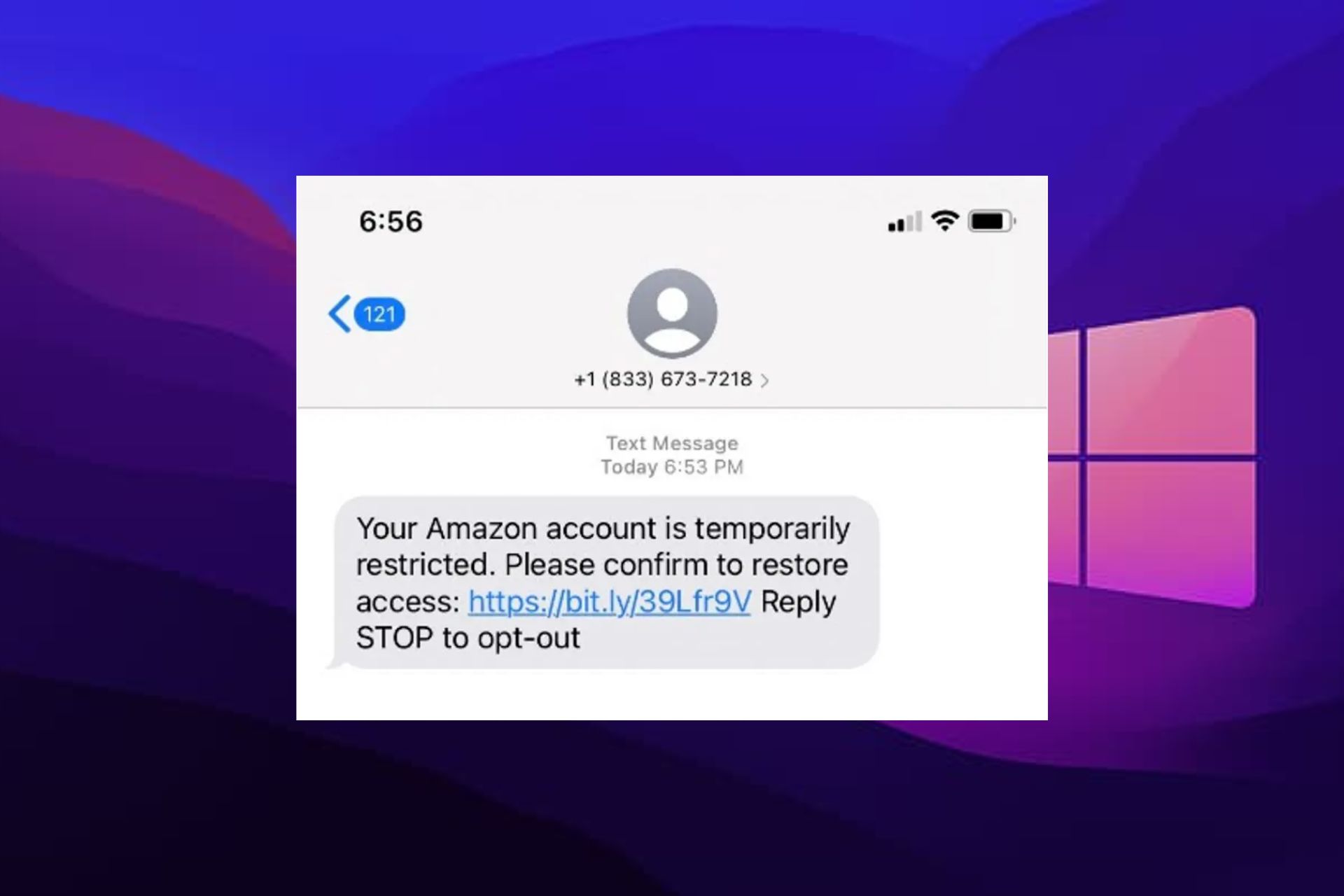

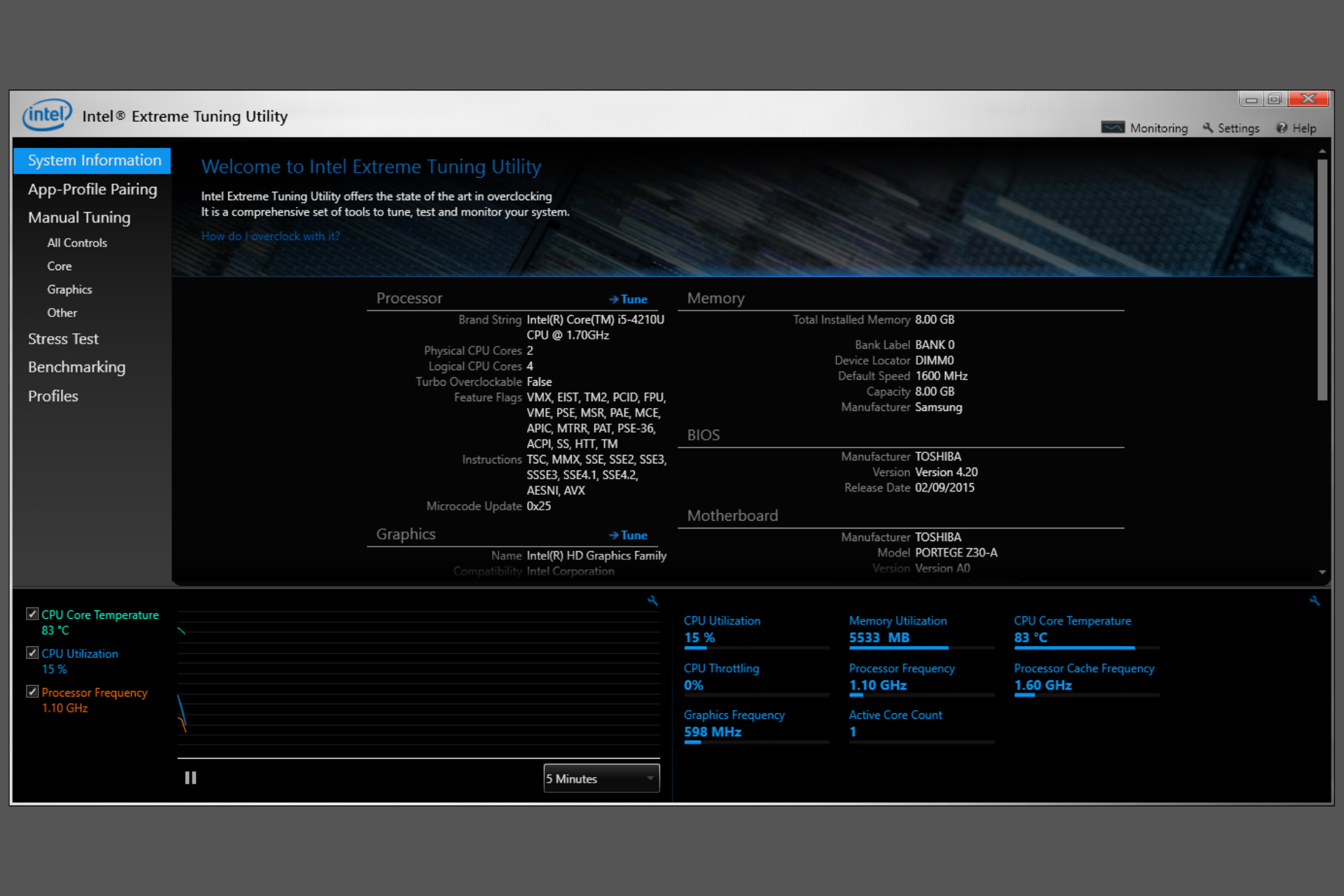
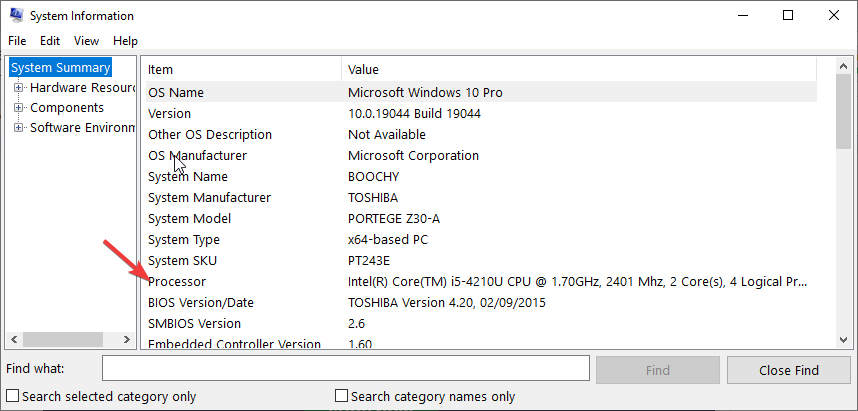
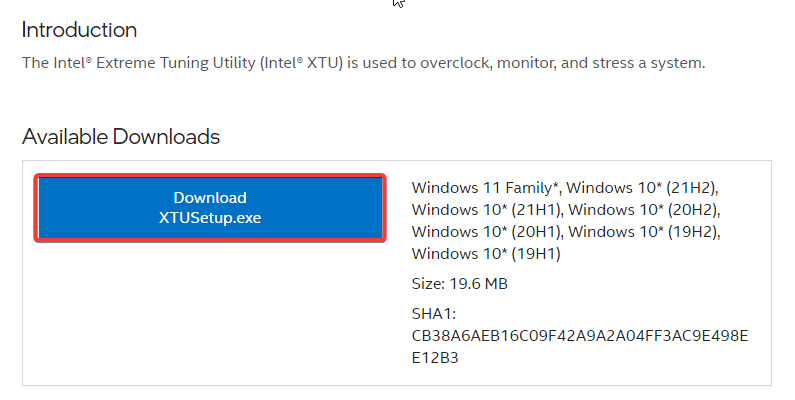
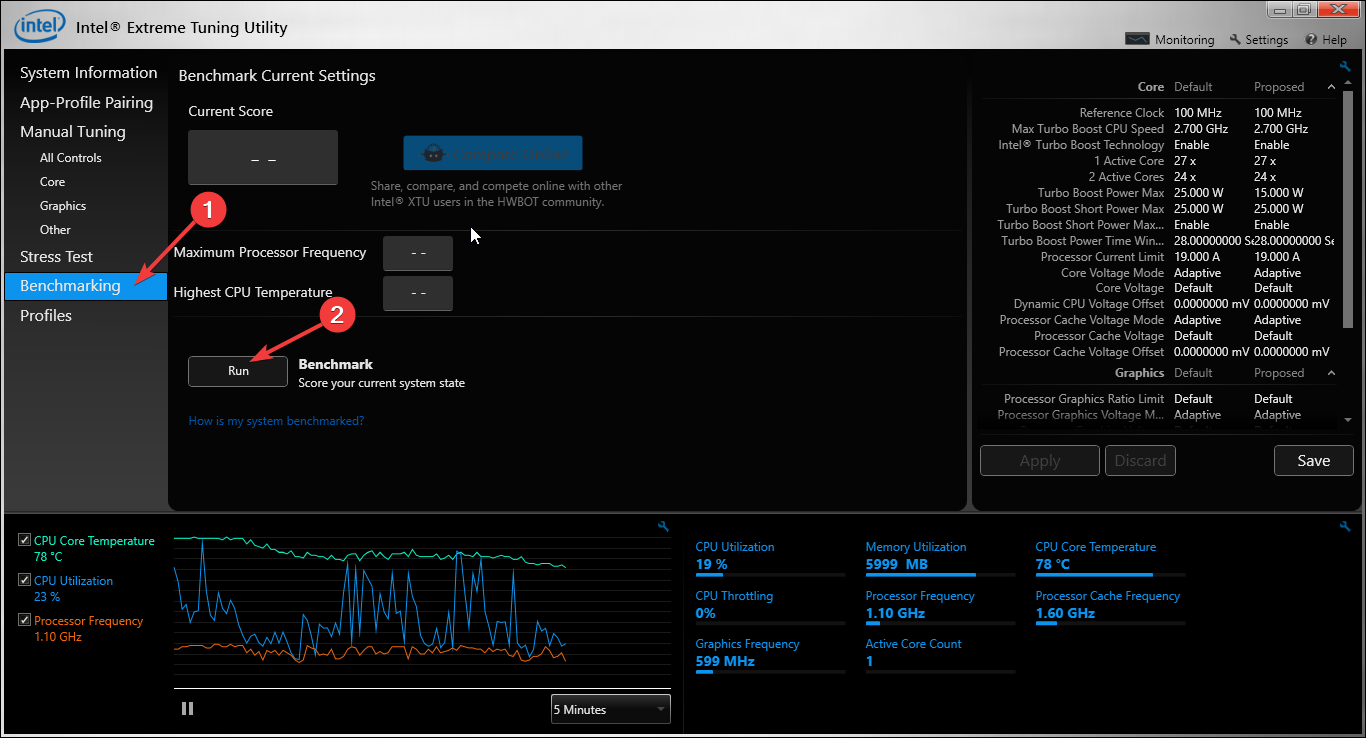
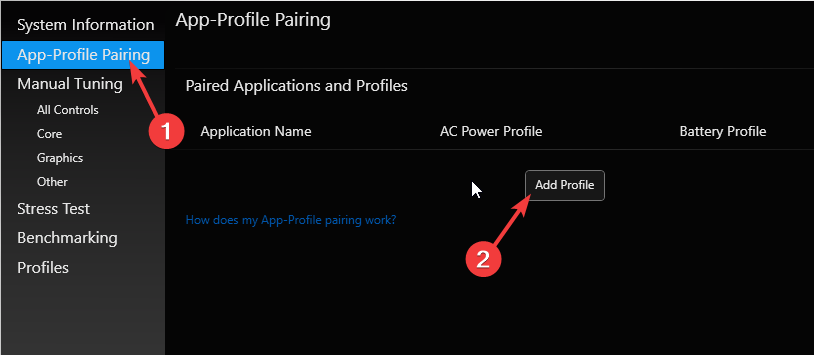
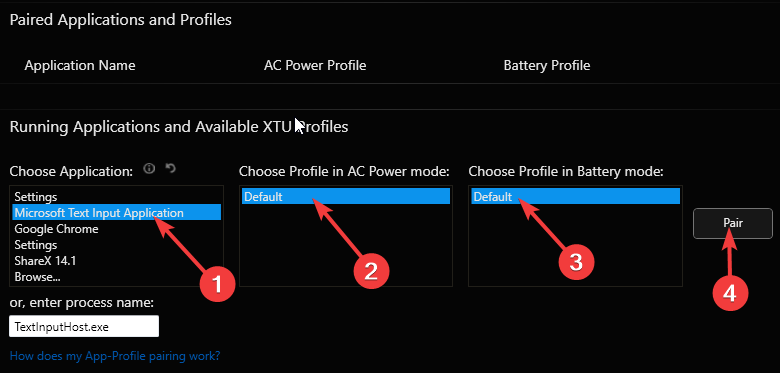
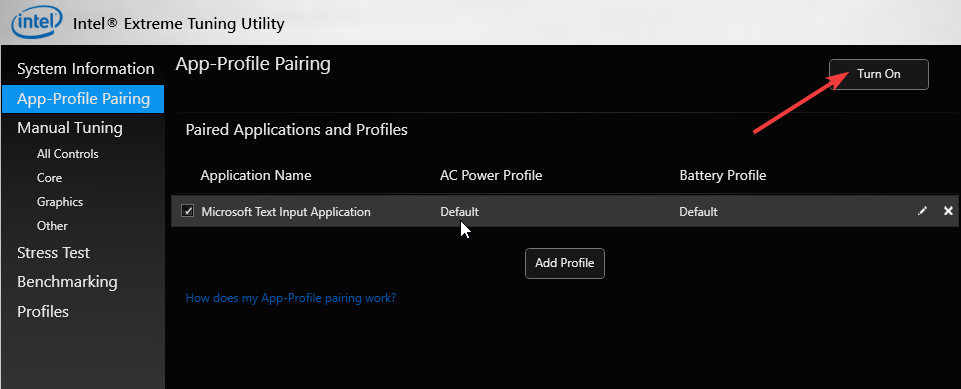
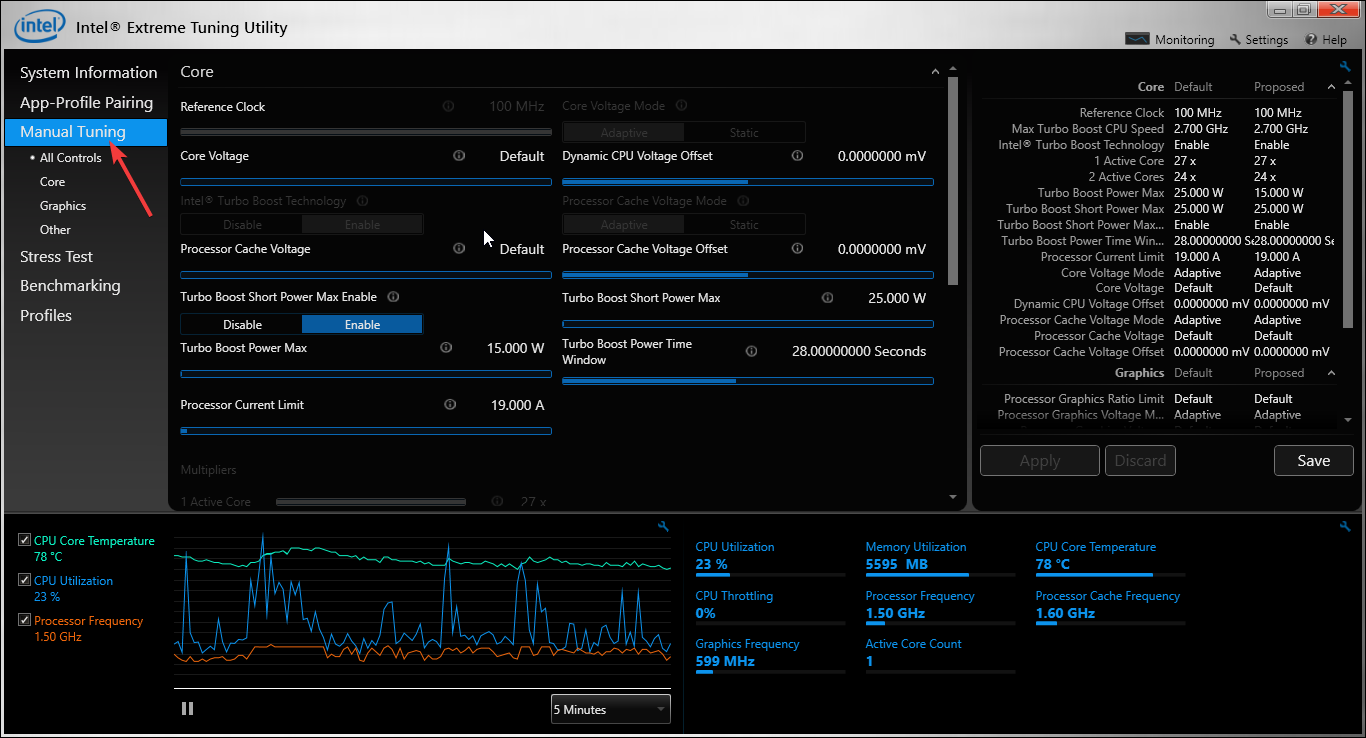
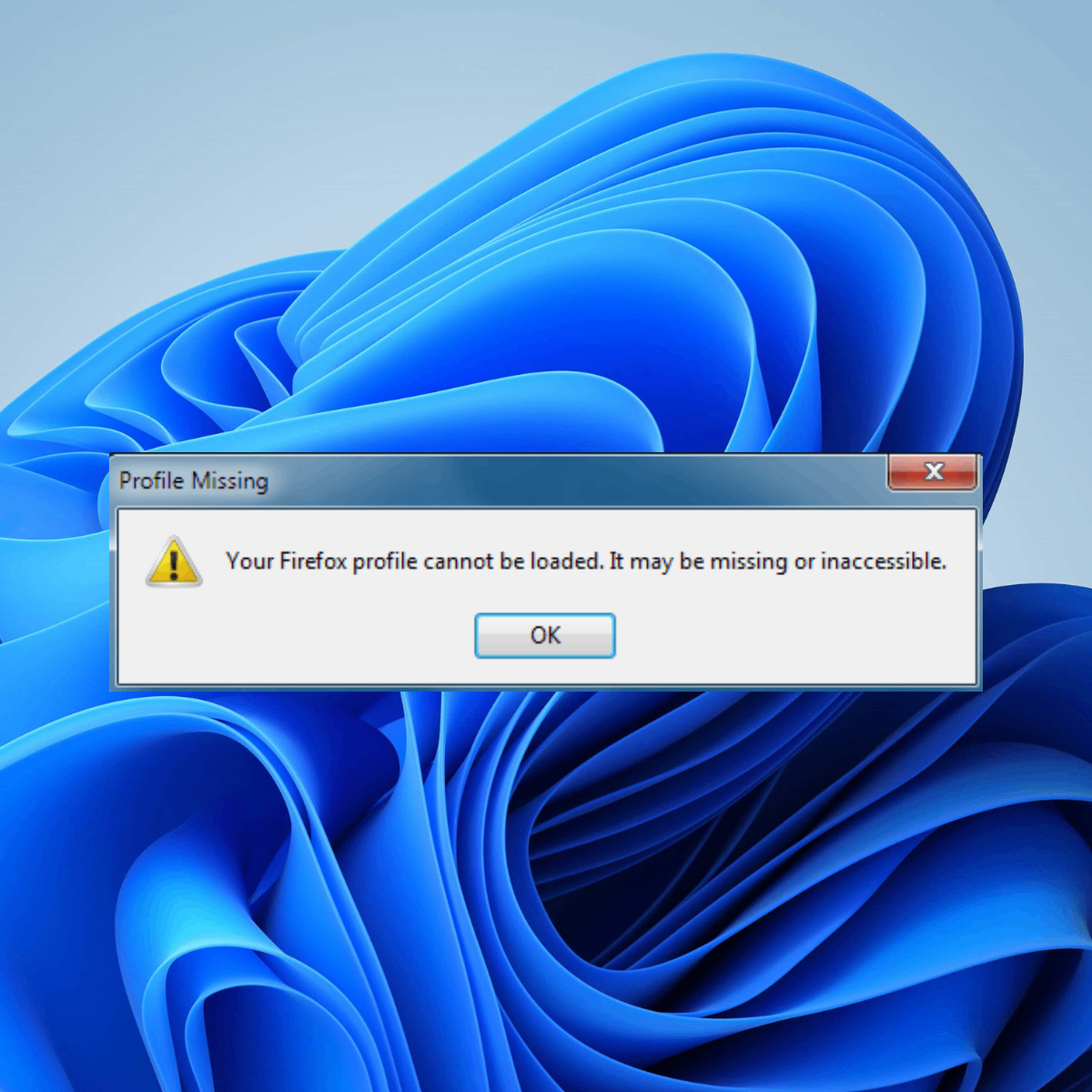

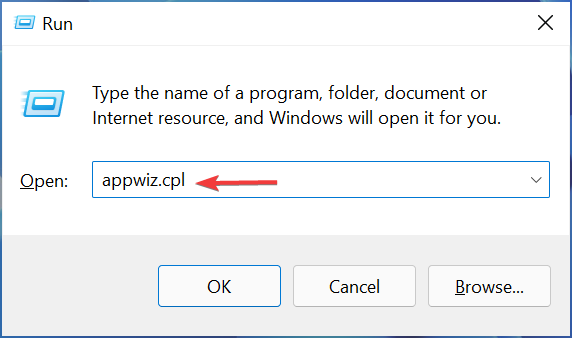


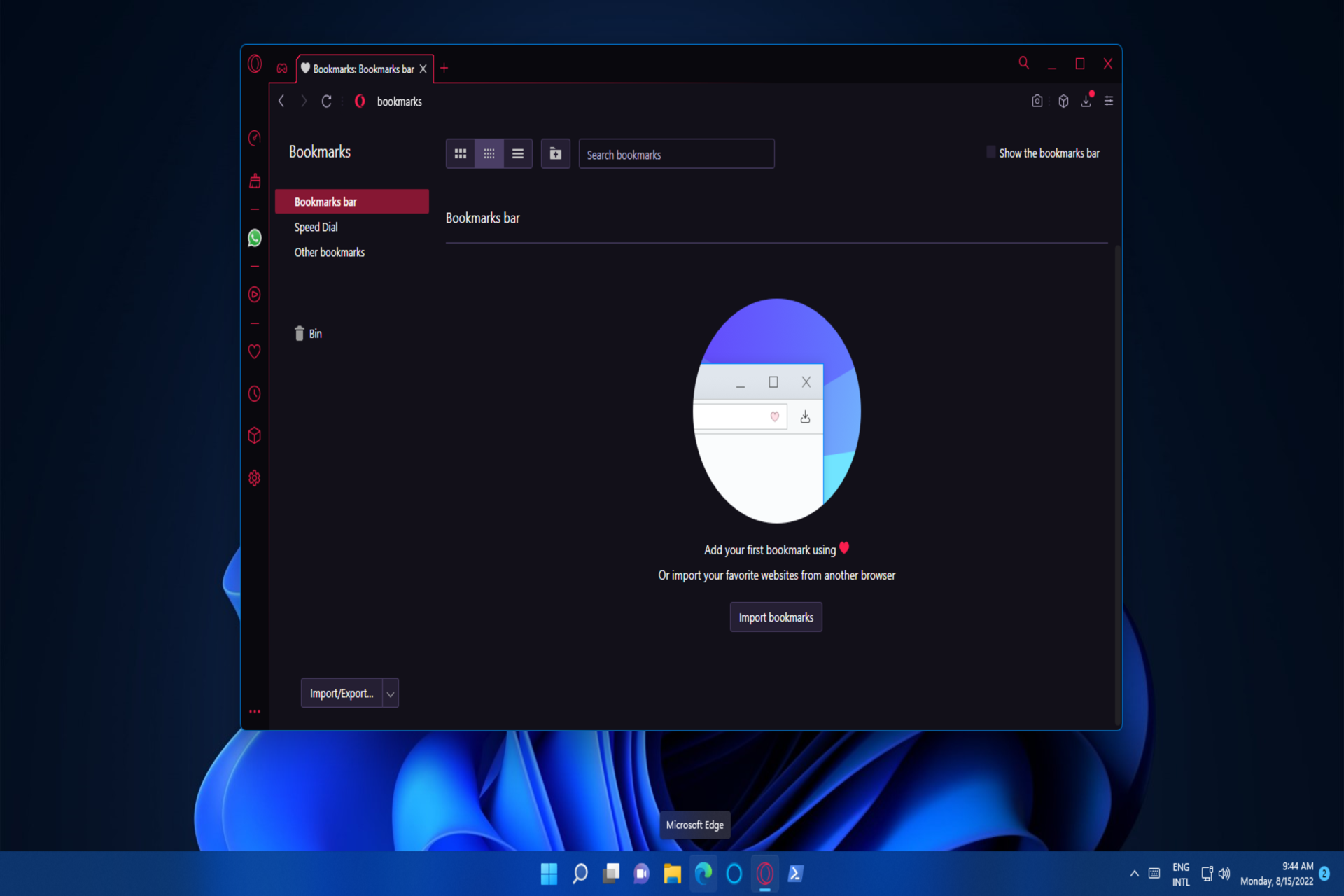


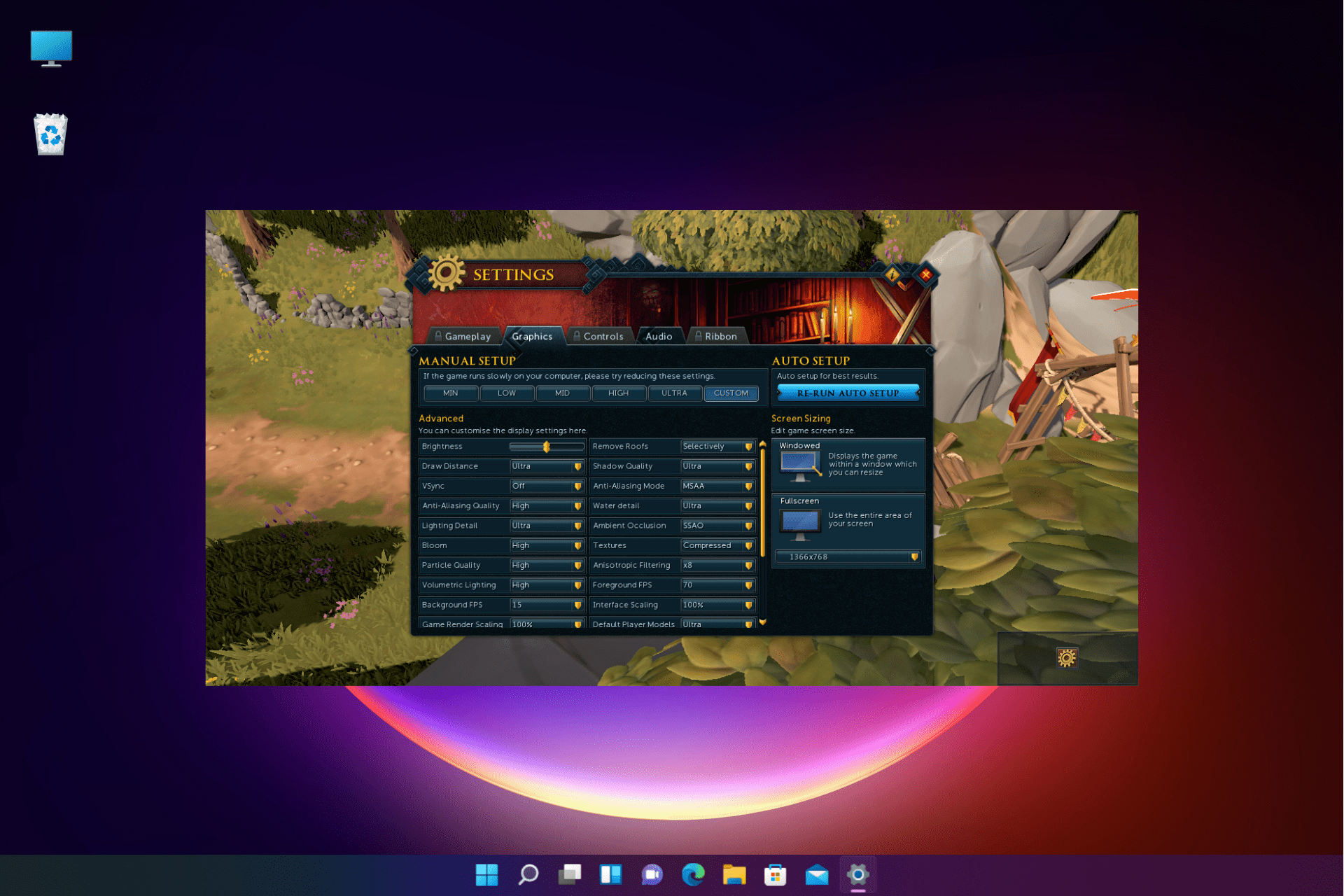


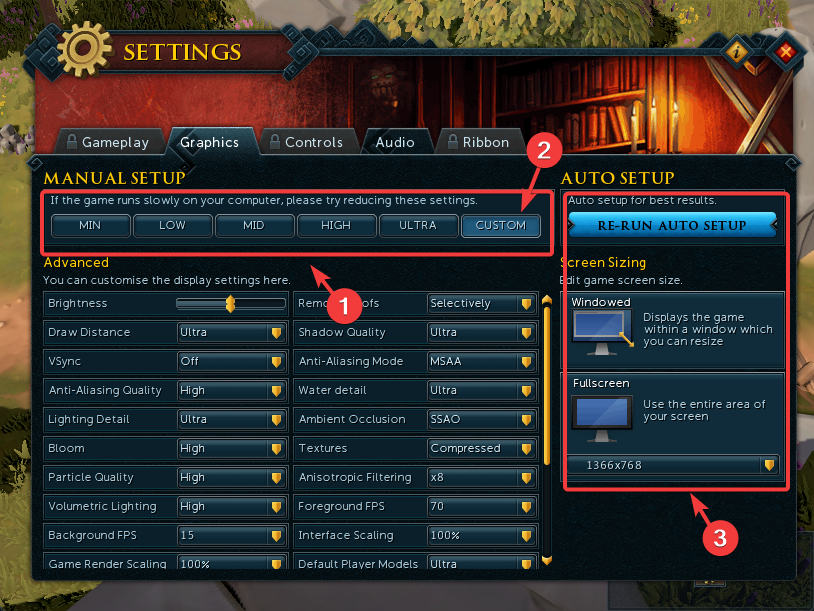
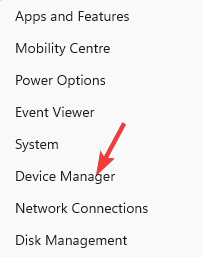
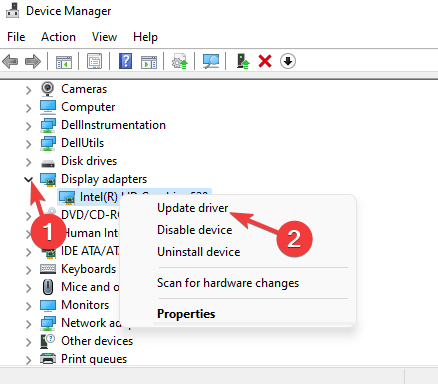
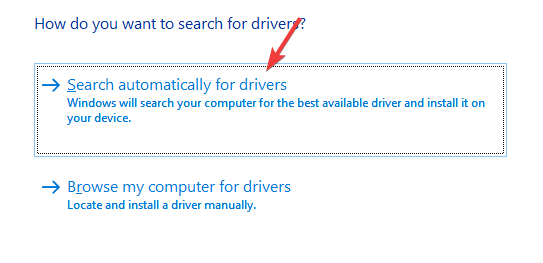


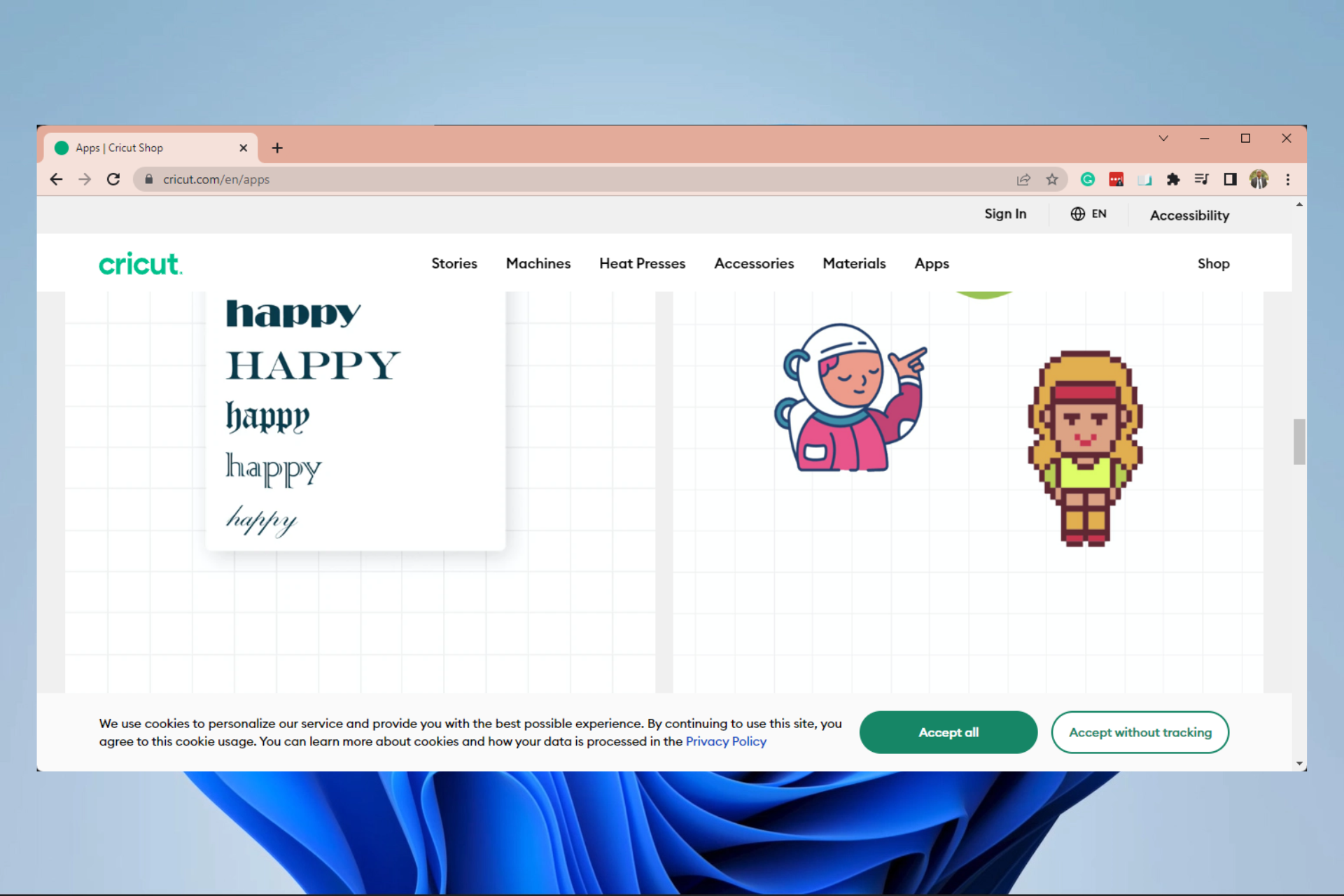





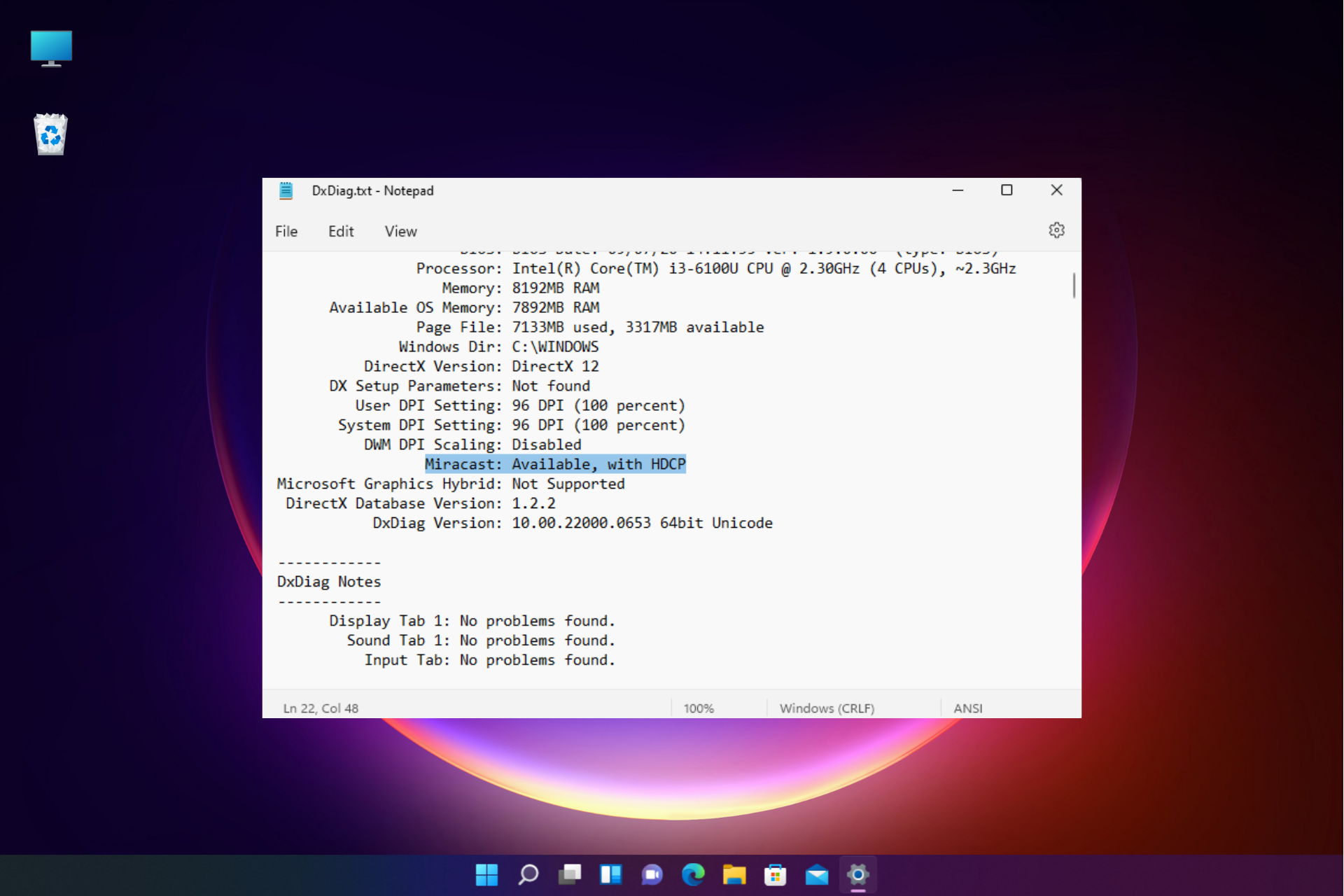


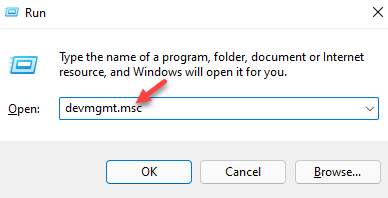
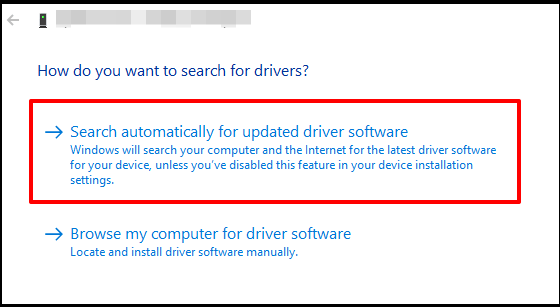

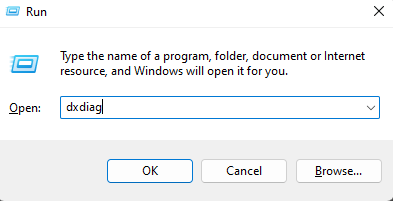
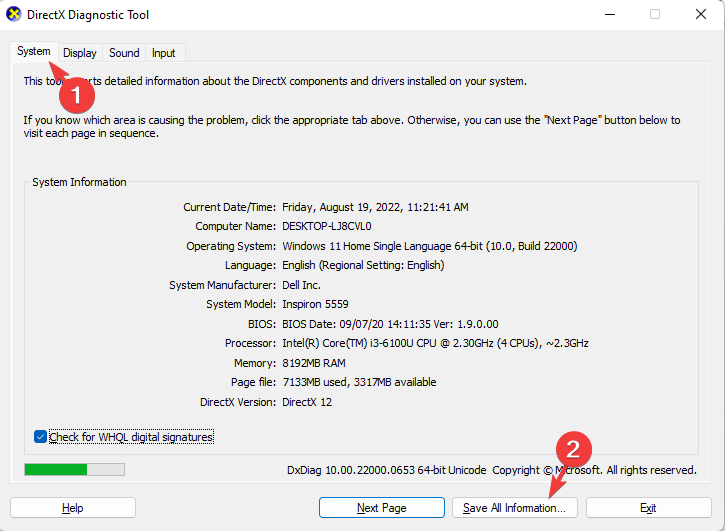

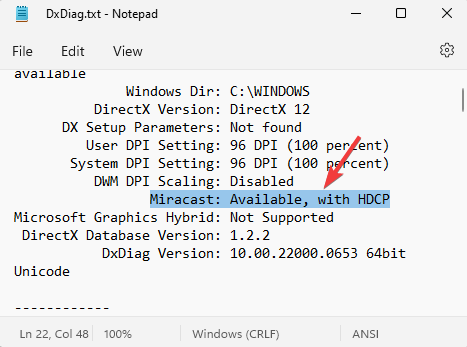


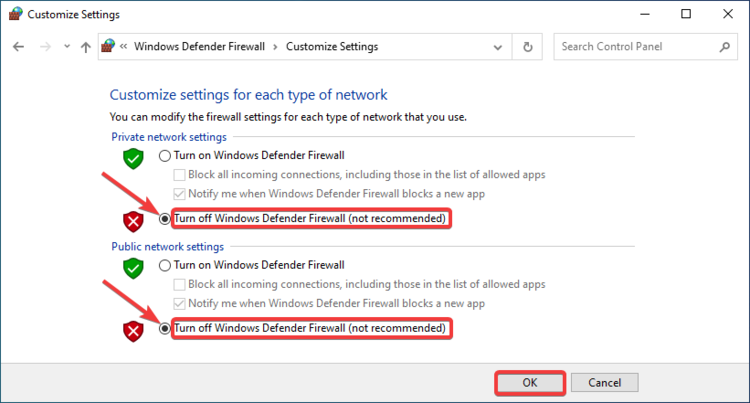
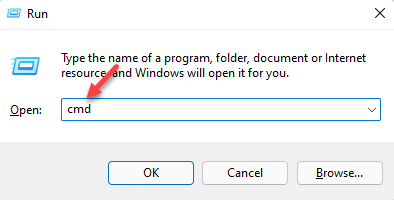
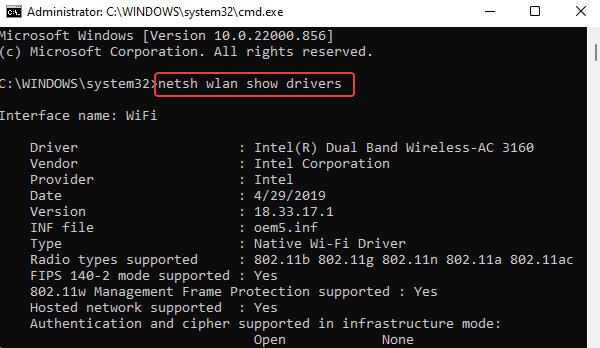
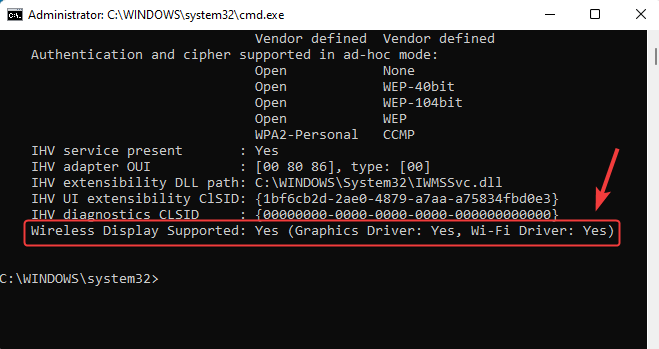
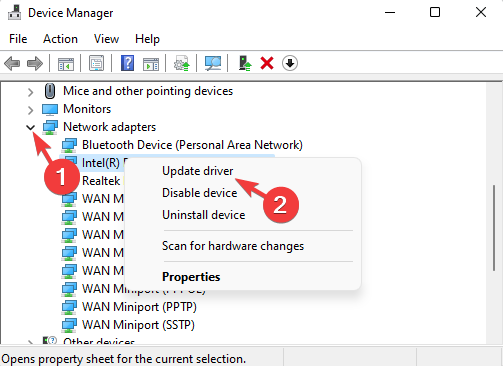
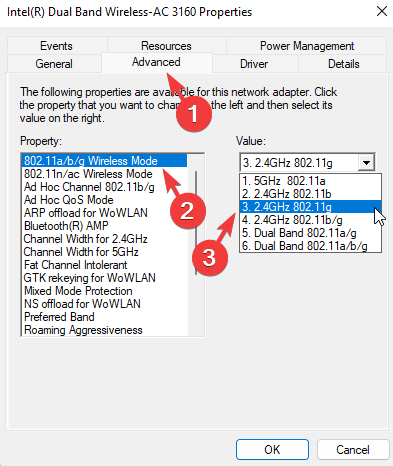


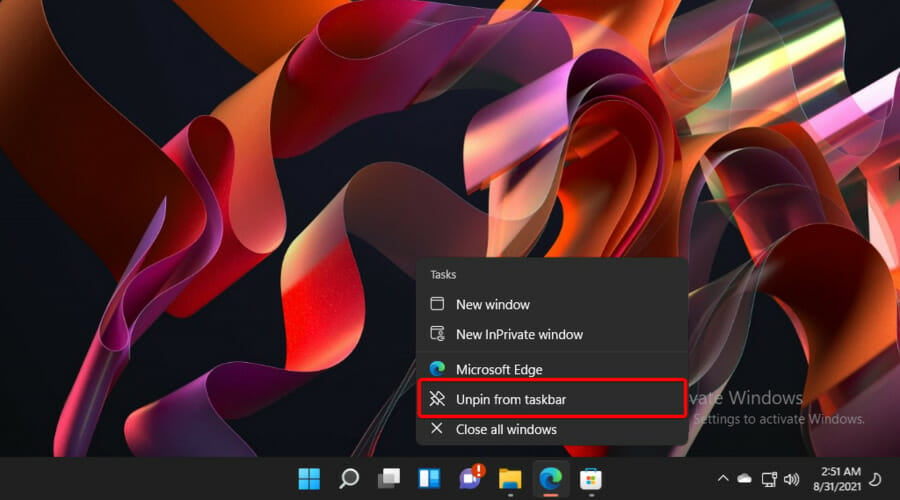
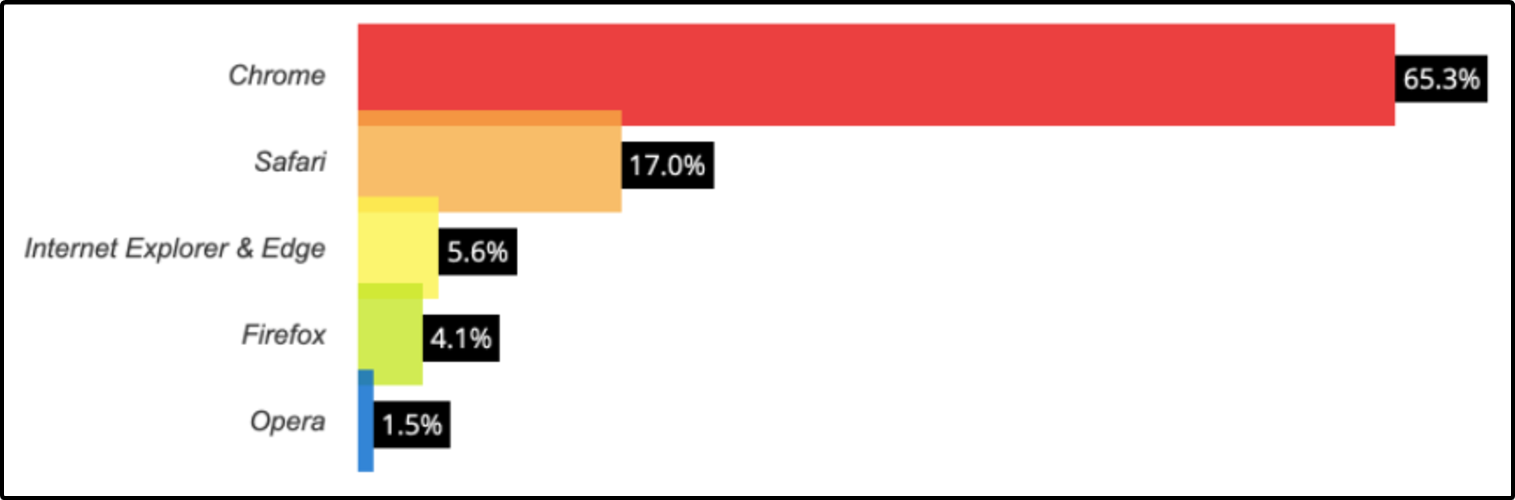

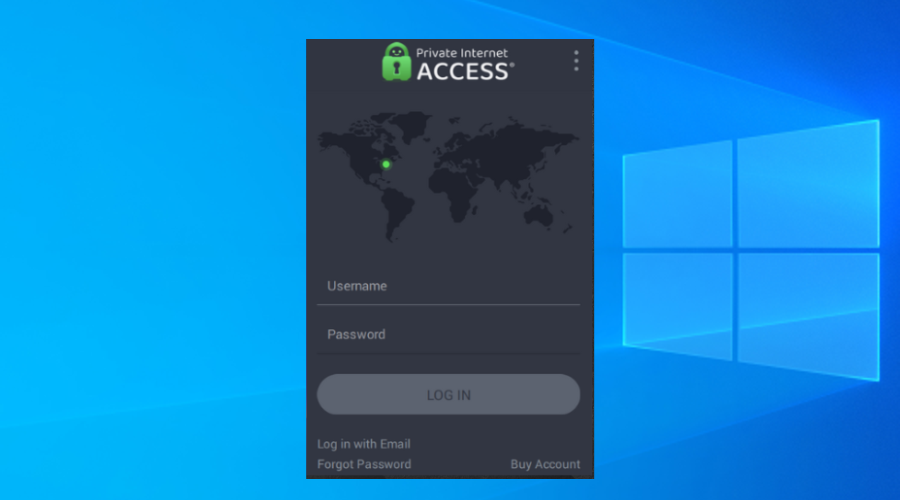
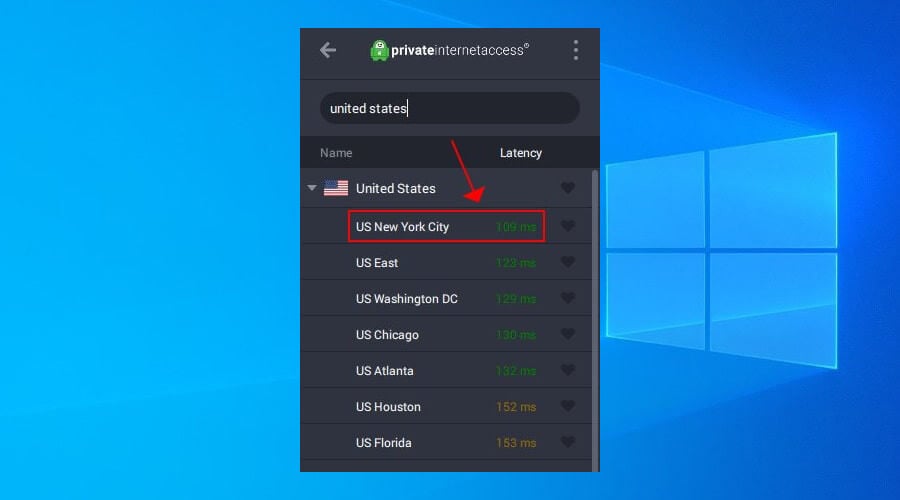

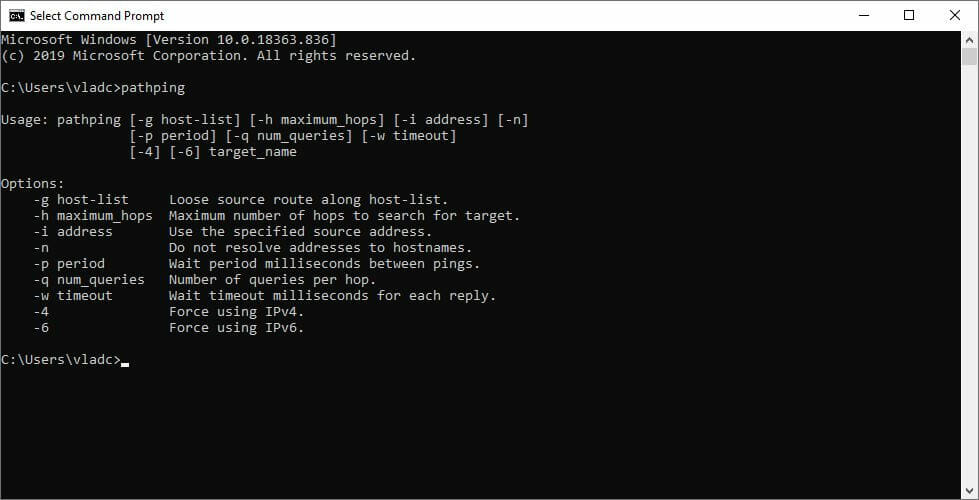
![Please Wait While Windows Configures… Stuck [Full Fix]](https://windowsreport.com/wp-content/uploads/2018/02/Office-365.jpg)





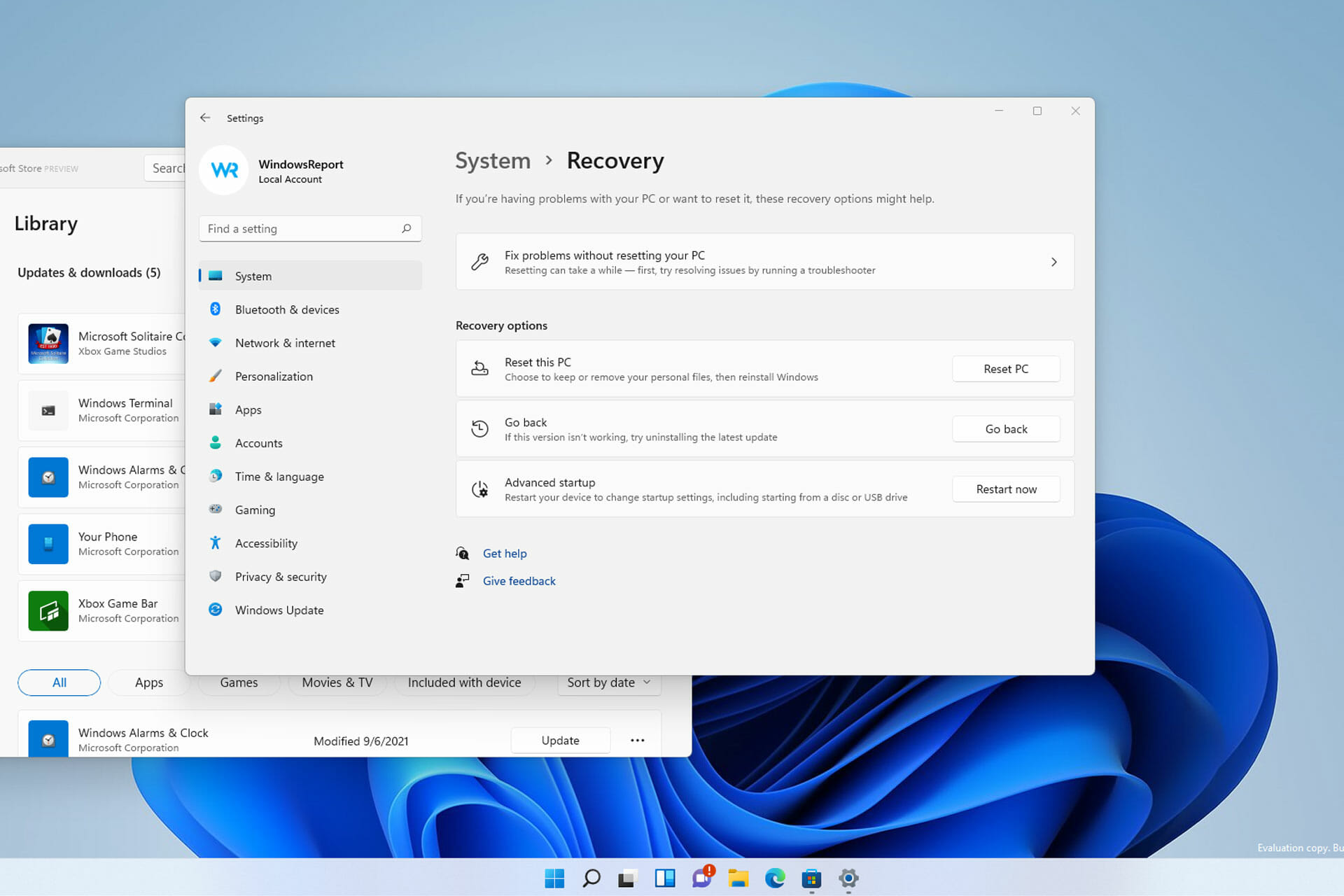

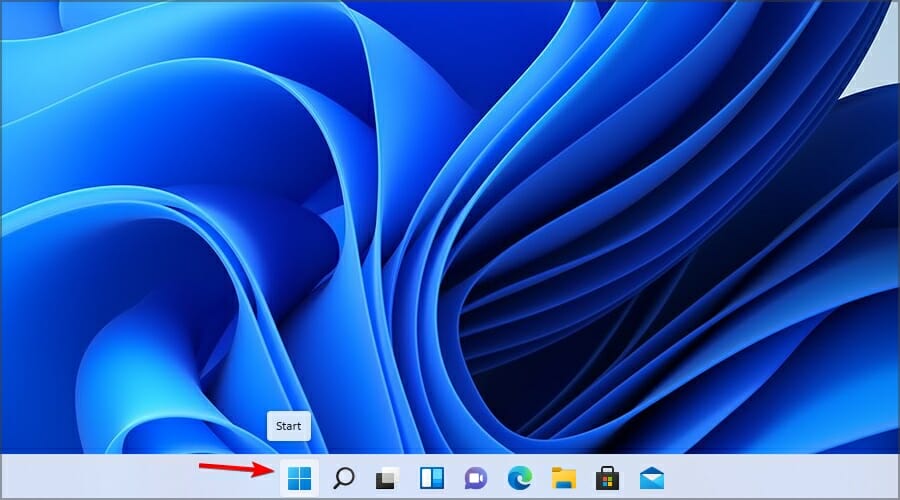
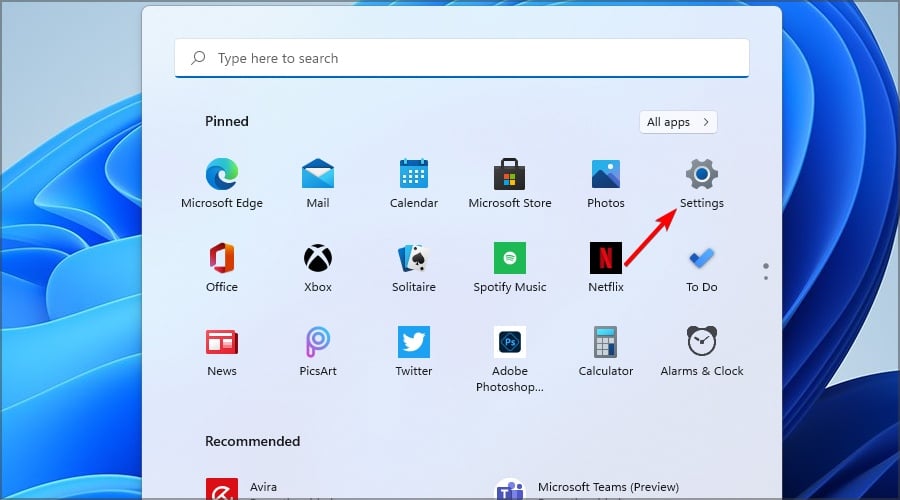


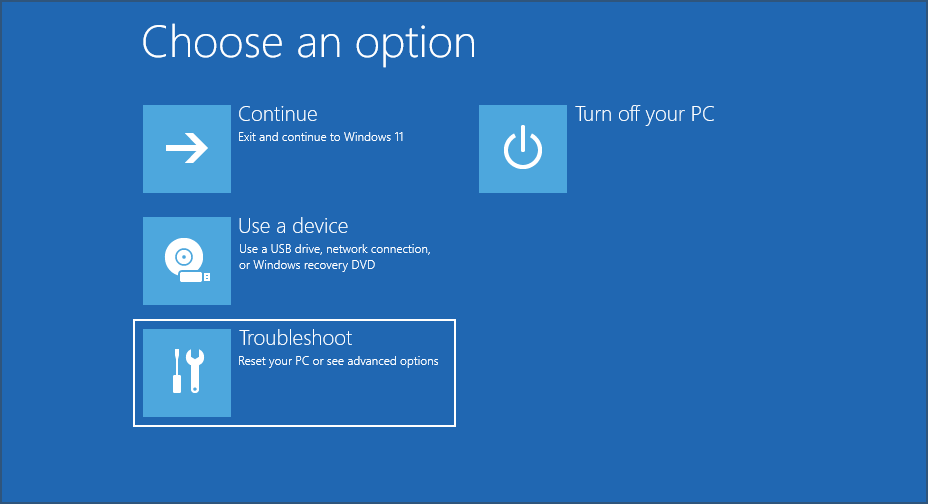

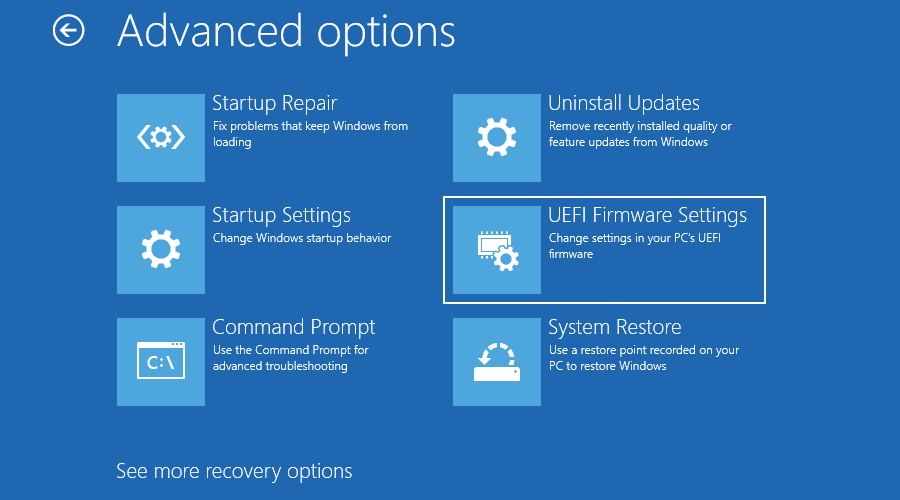
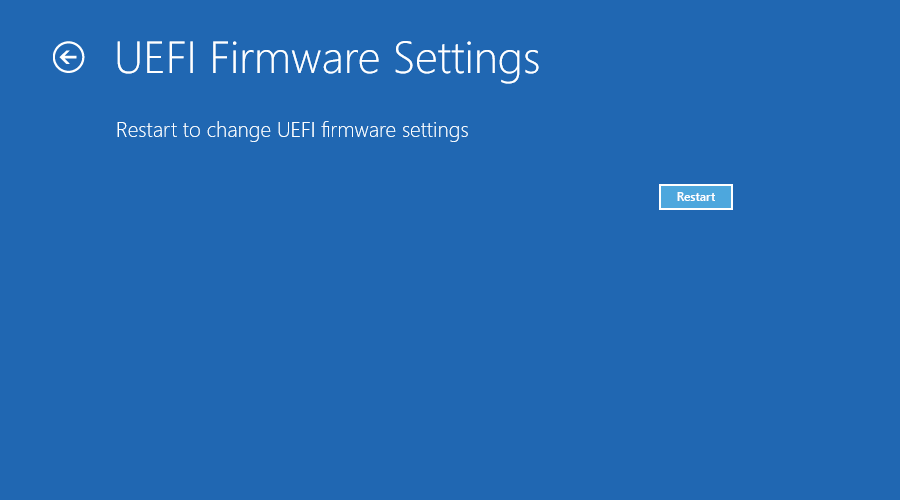

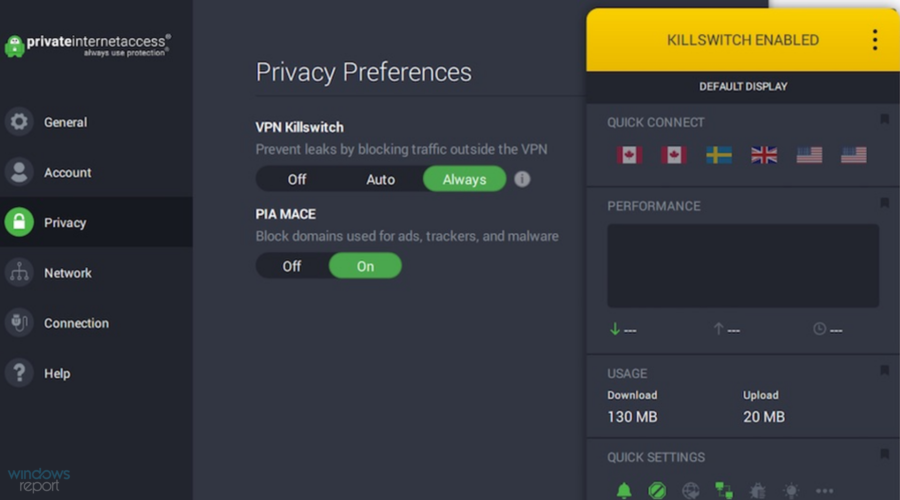

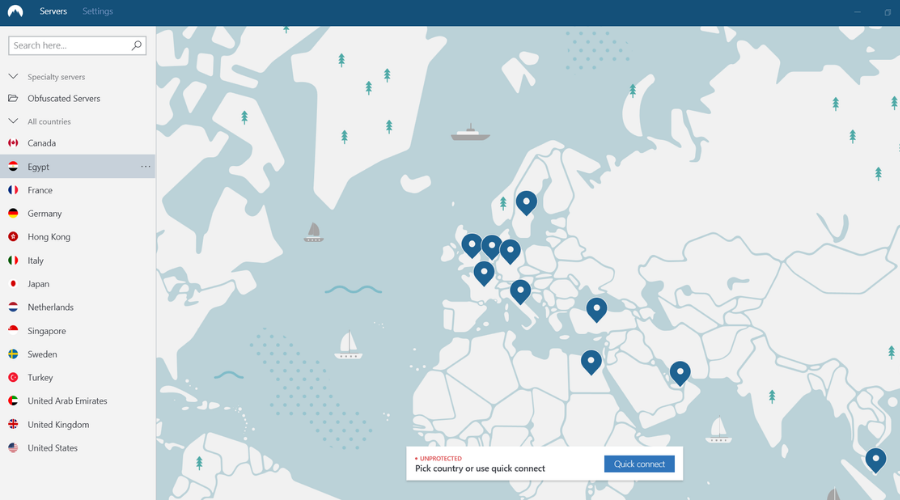

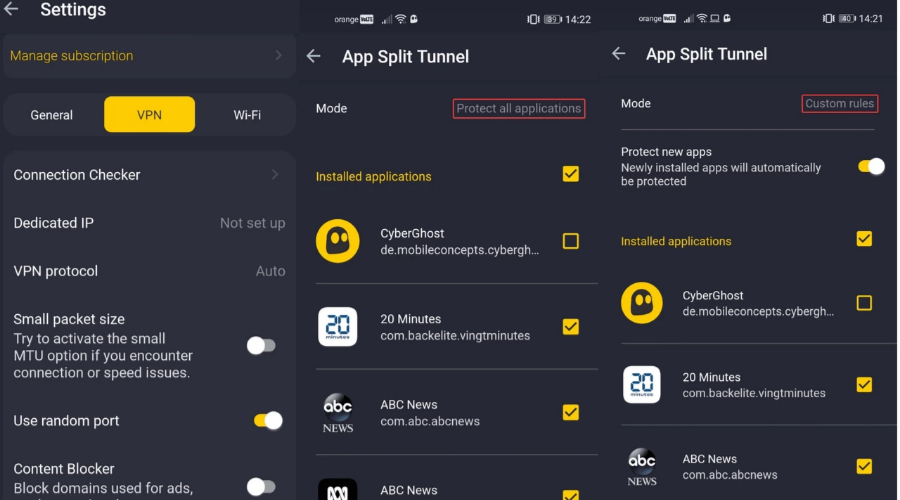

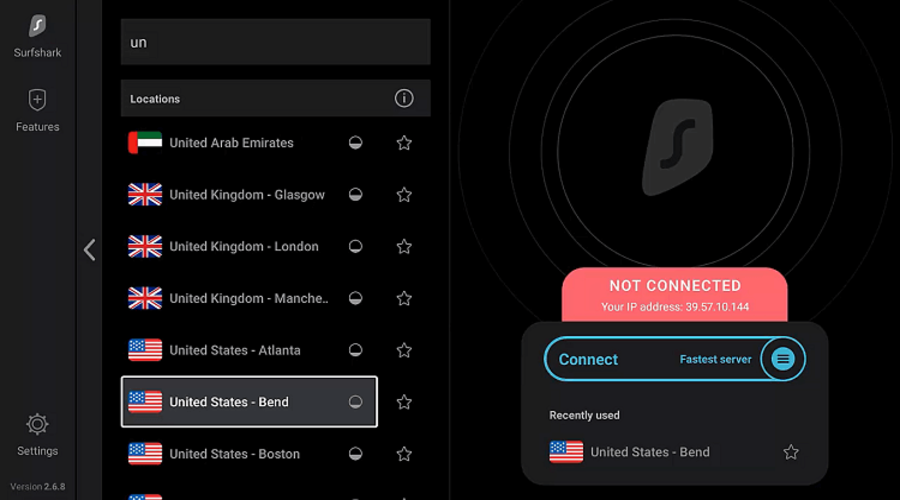

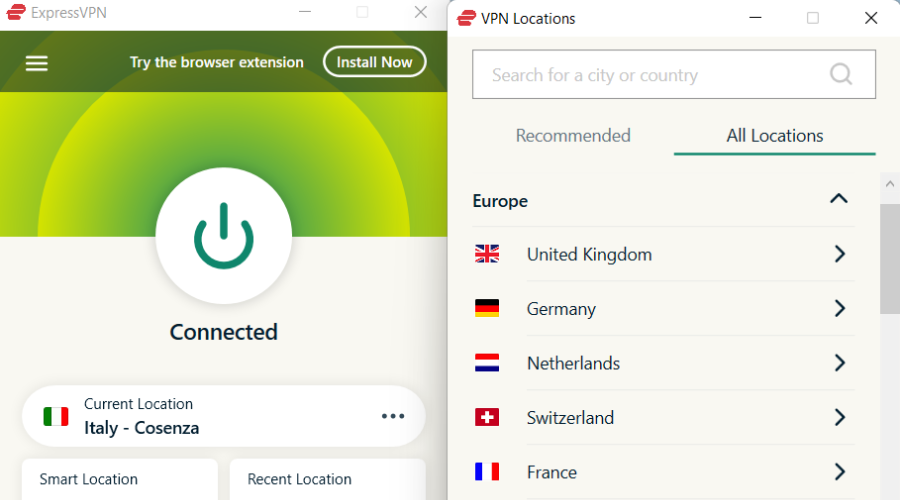


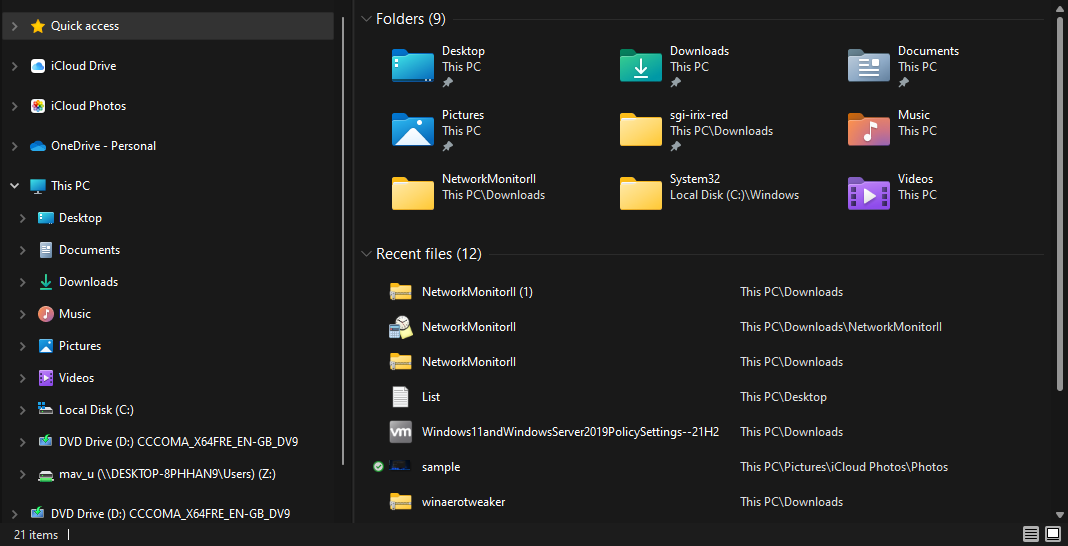


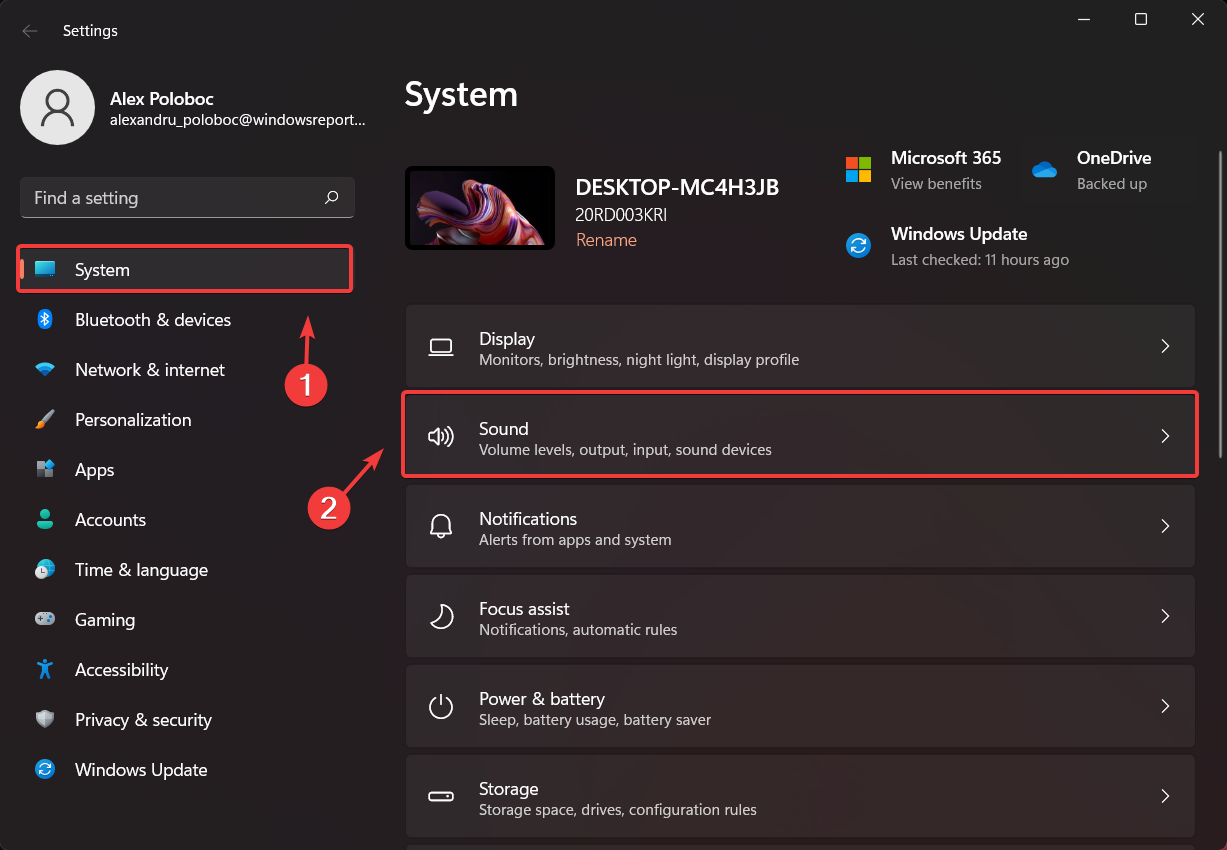
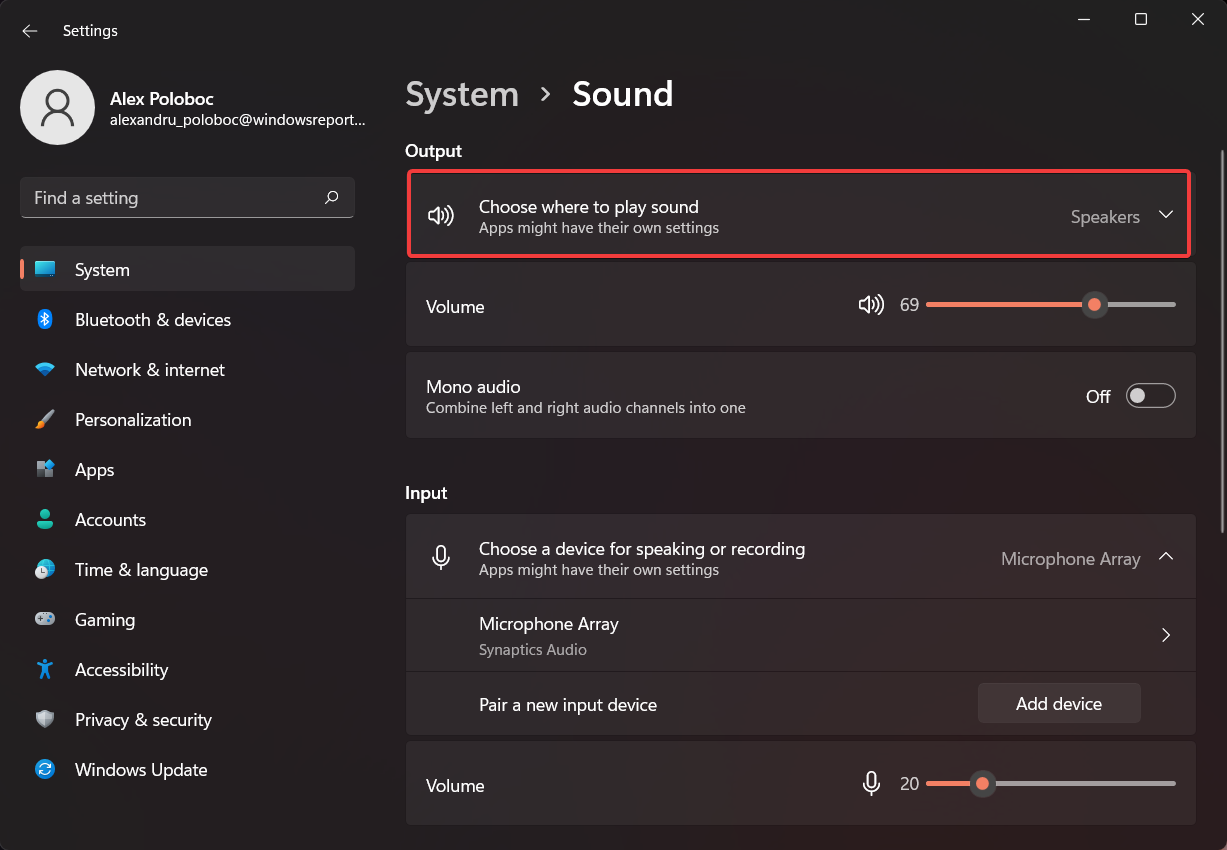
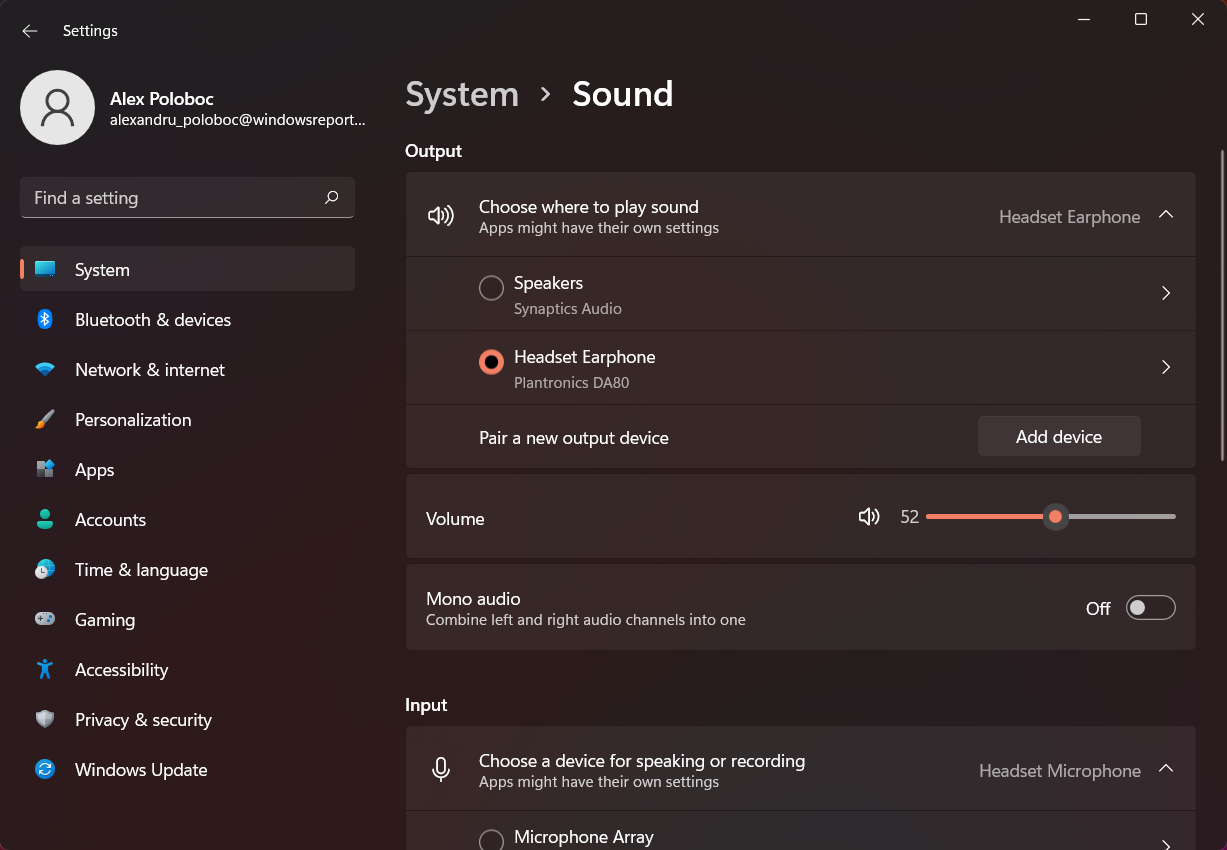

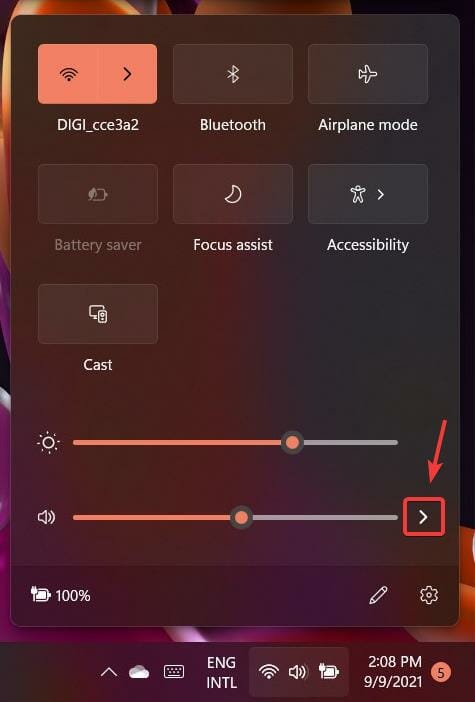
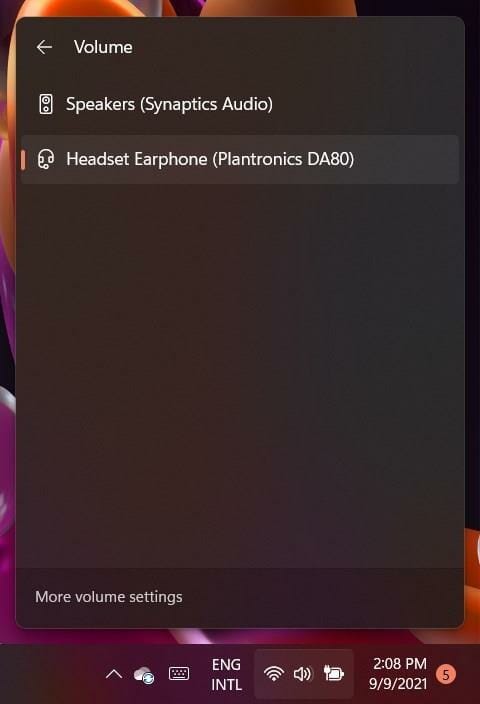
![[Fixed] This Effect Requires GPU Acceleration: 5 Quick Ways](https://windowsreport.com/wp-content/uploads/2022/08/this-effect-requires-gpu-acceleration.png)




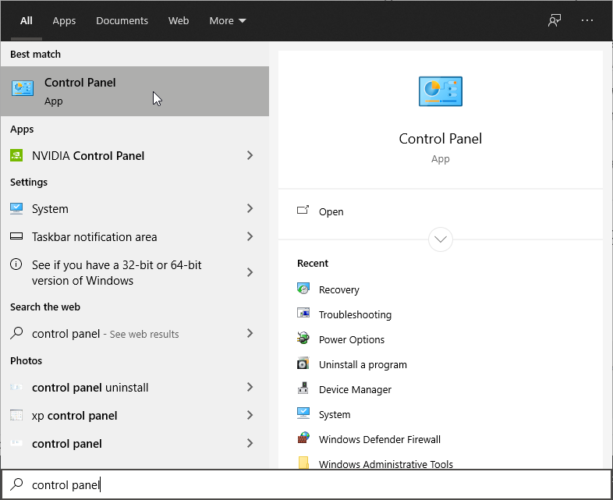
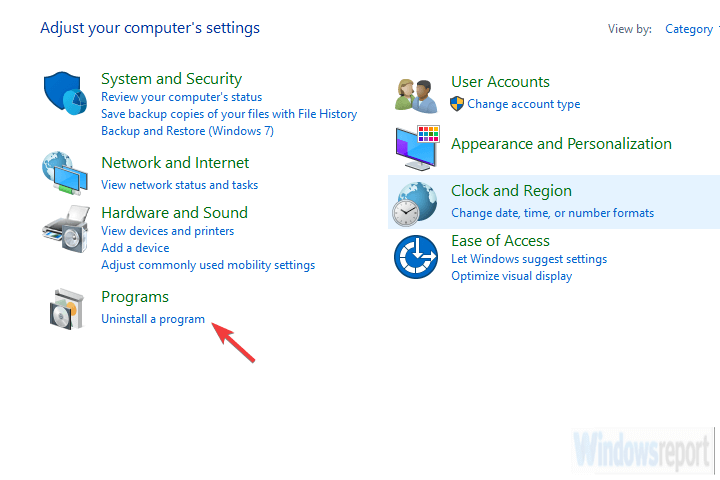
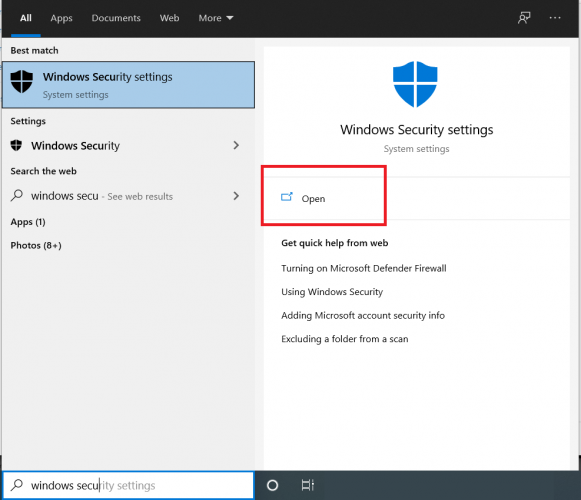
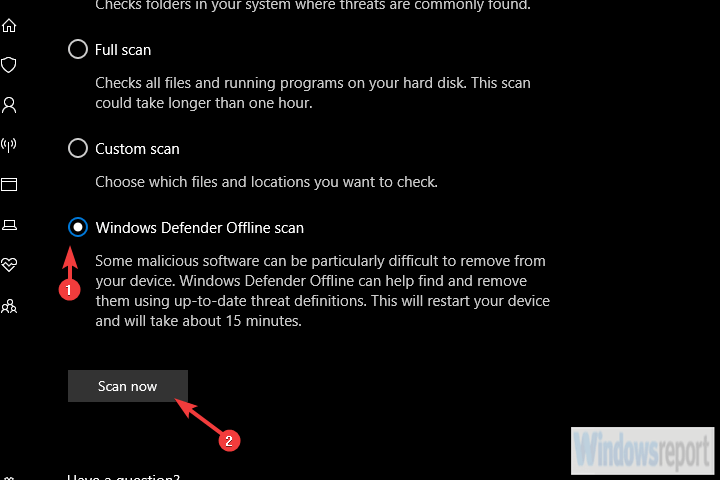

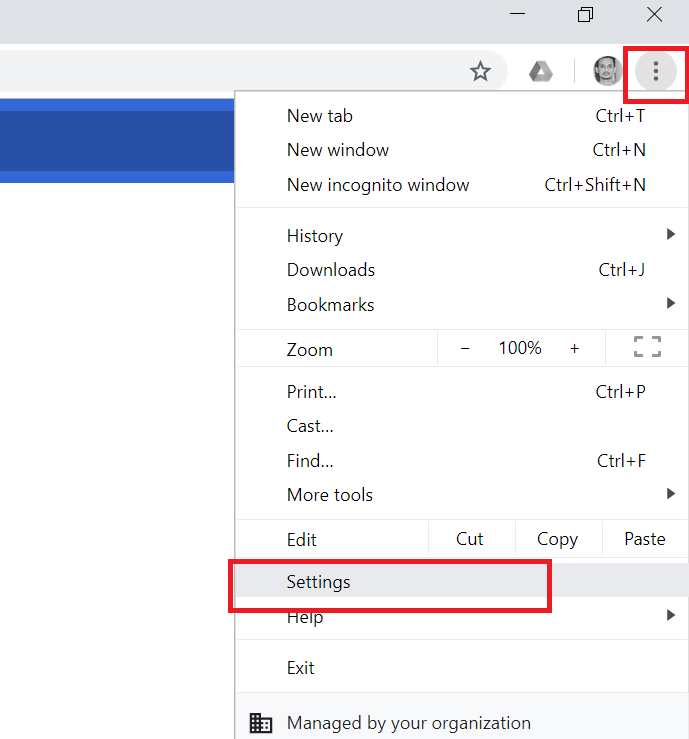
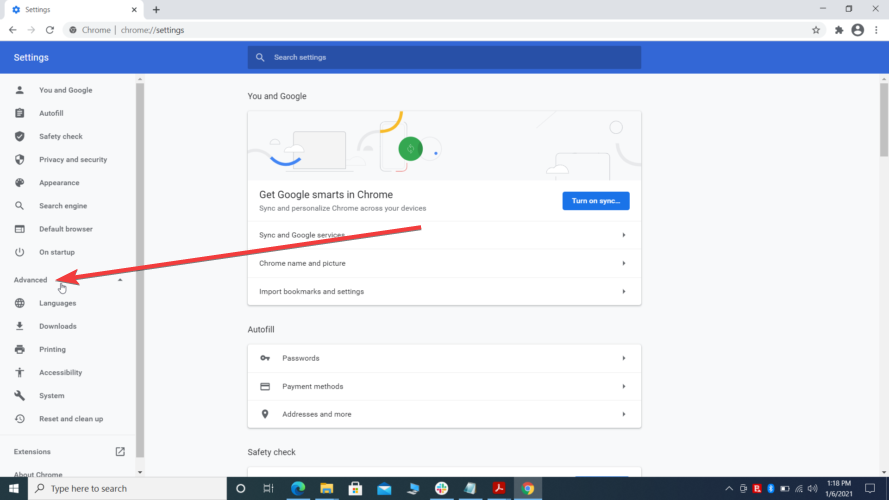
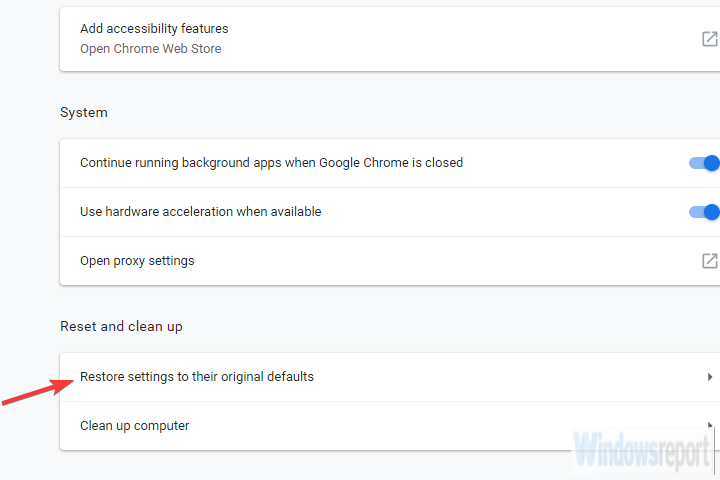
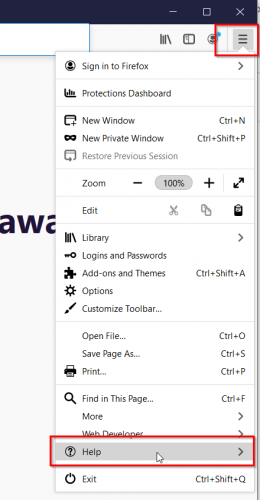
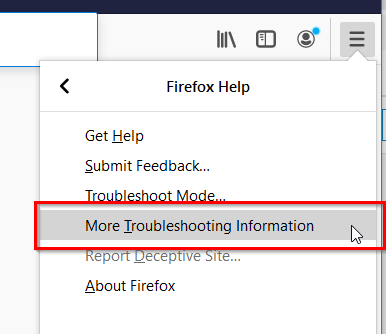
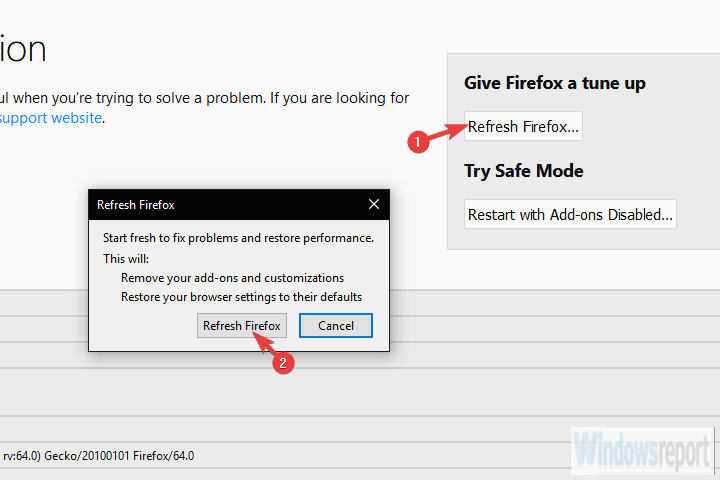
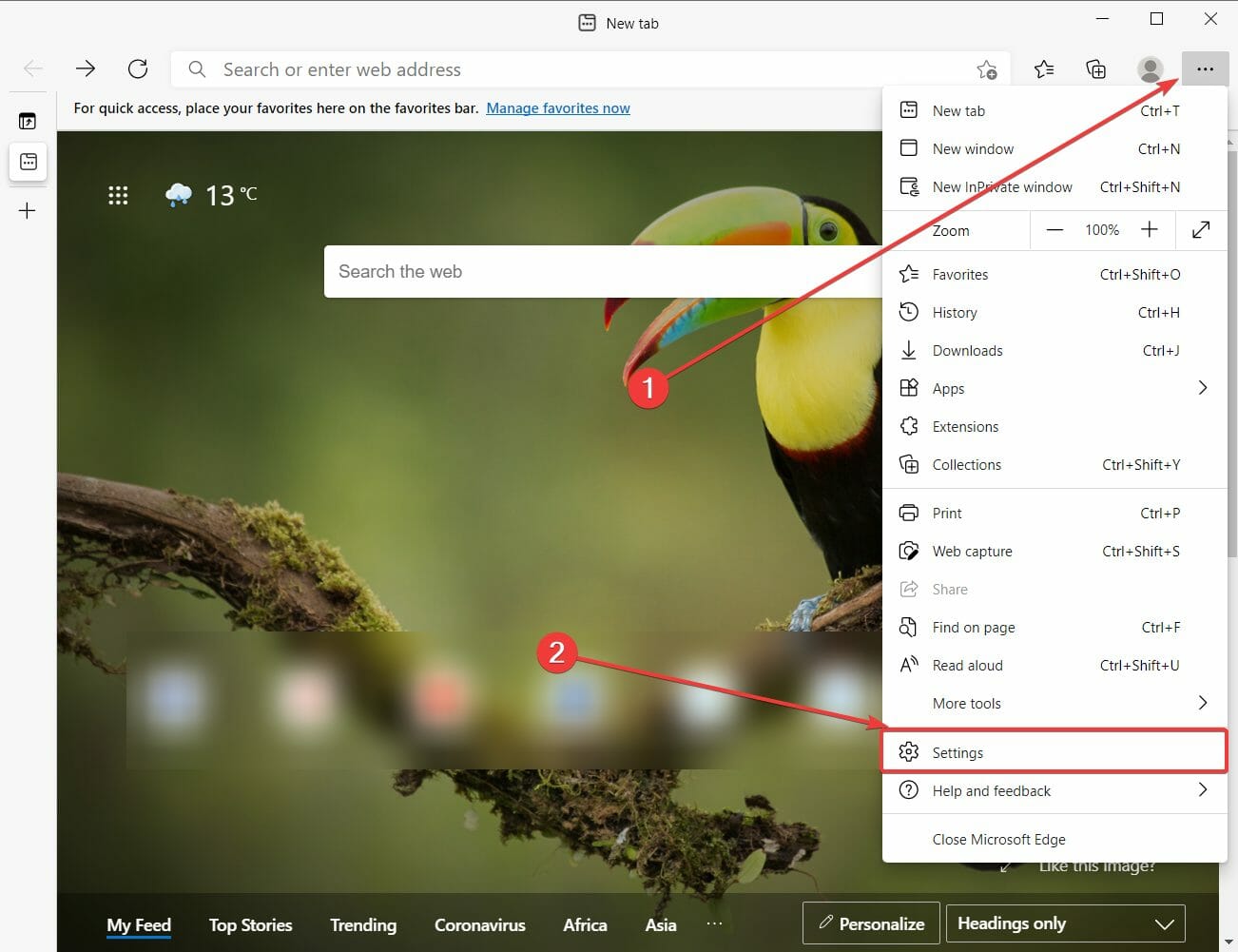
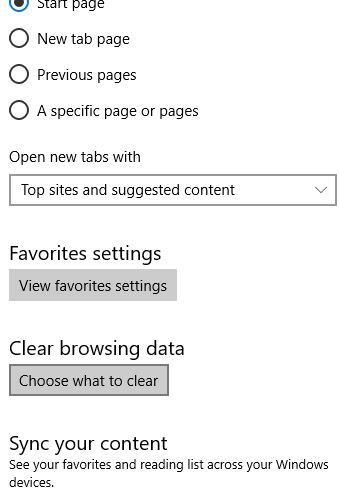
![How to Check PC Specs on Windows 11 [5 Ways]](https://windowsreport.com/wp-content/uploads/2021/08/Windows11-tech-specs.jpg)
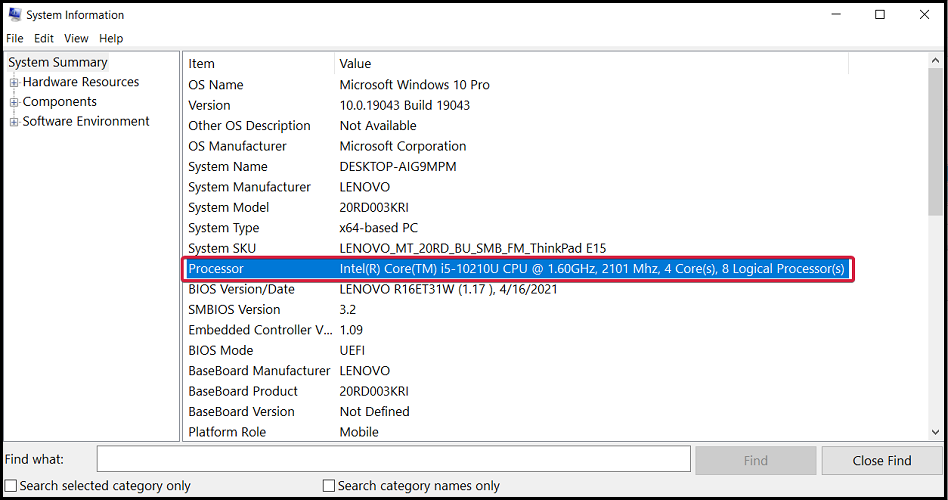
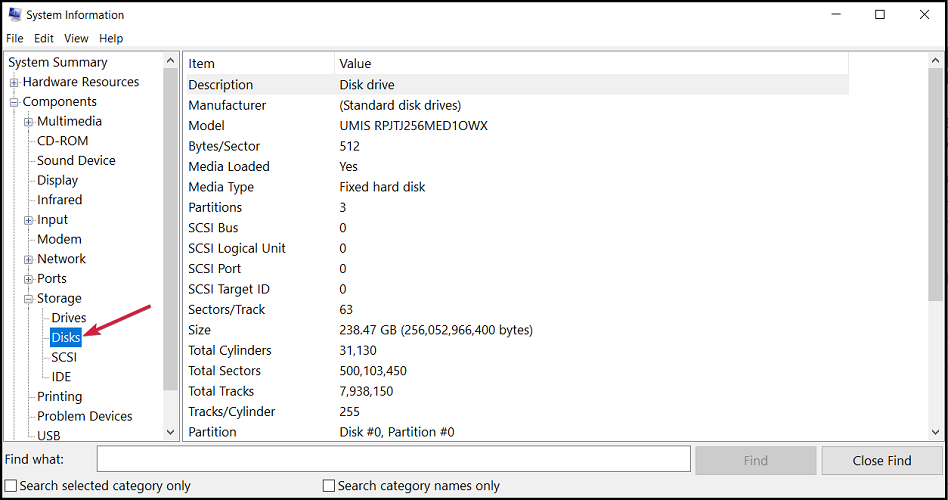
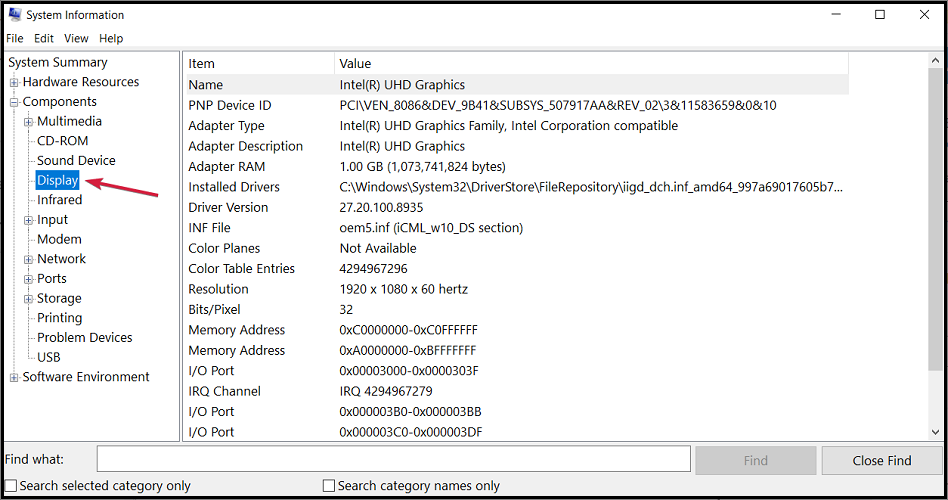


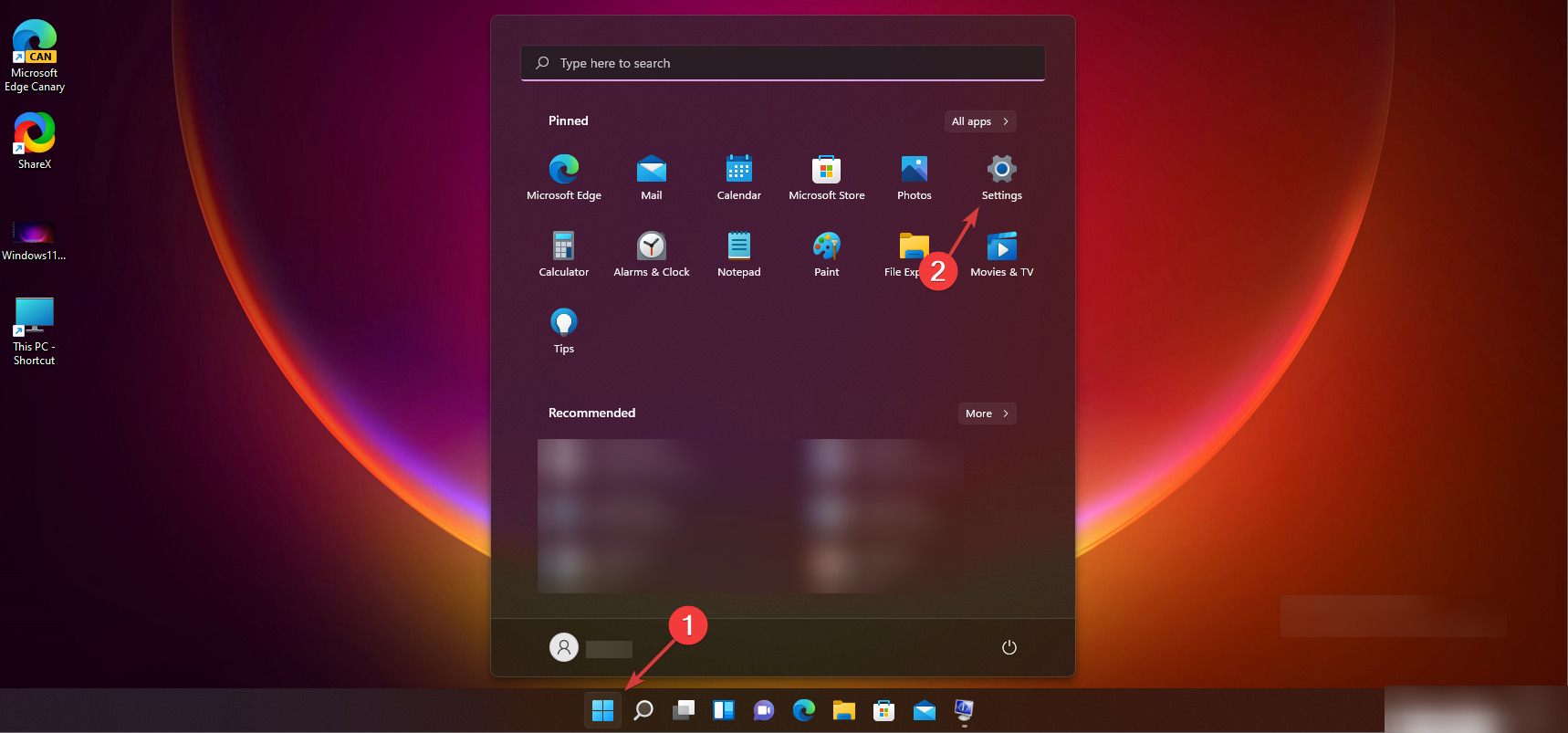
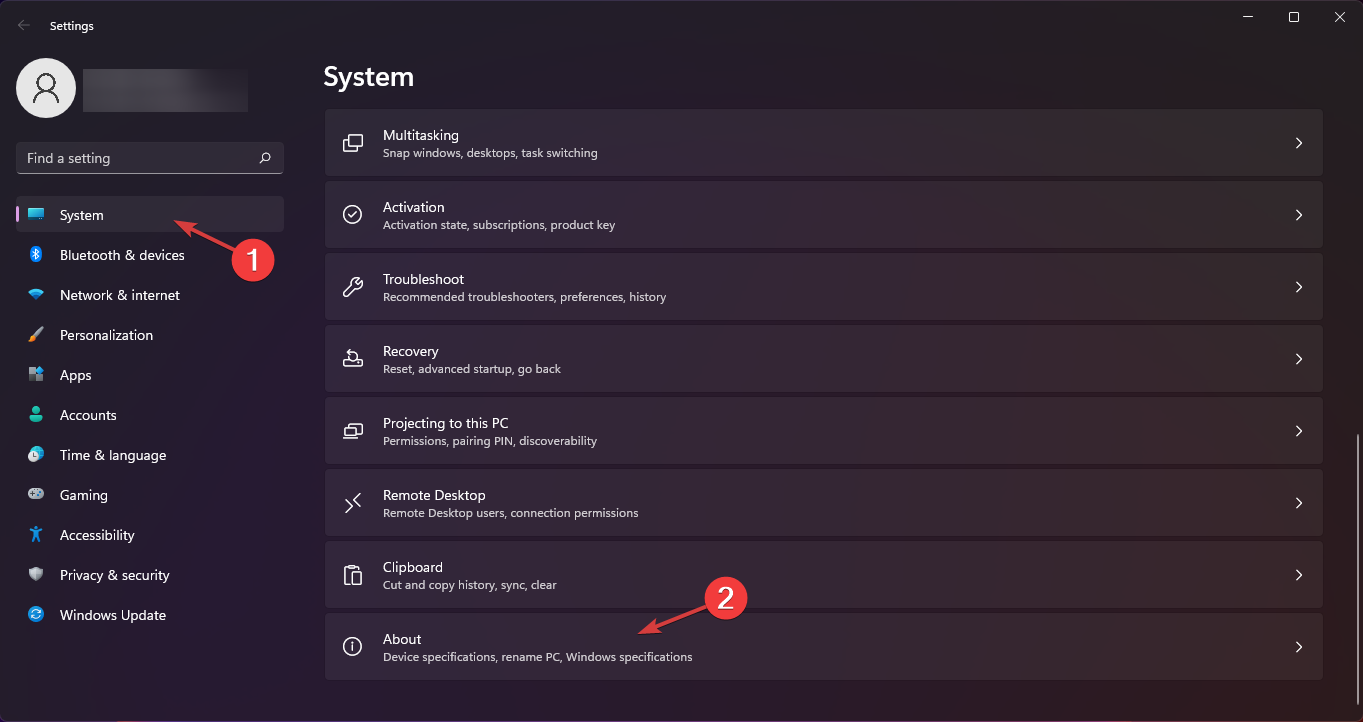
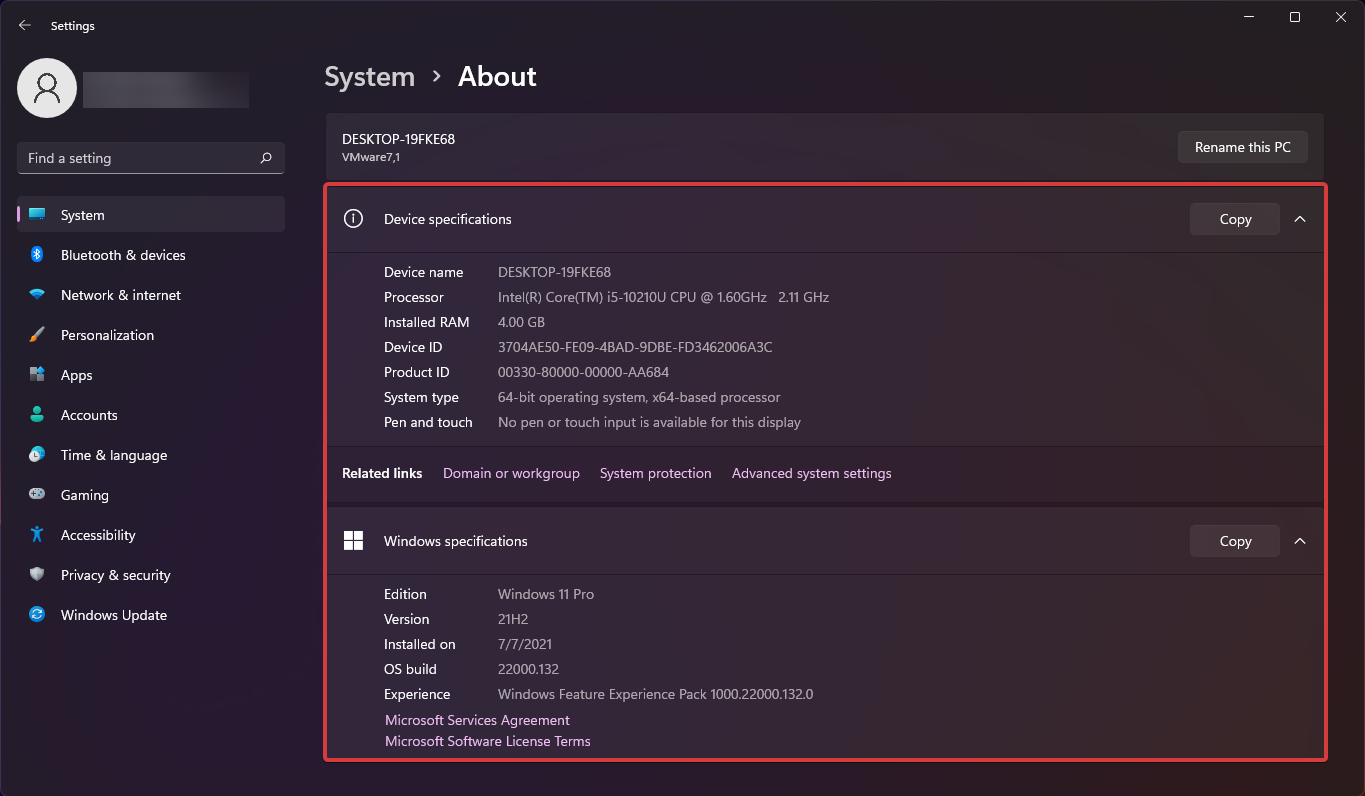
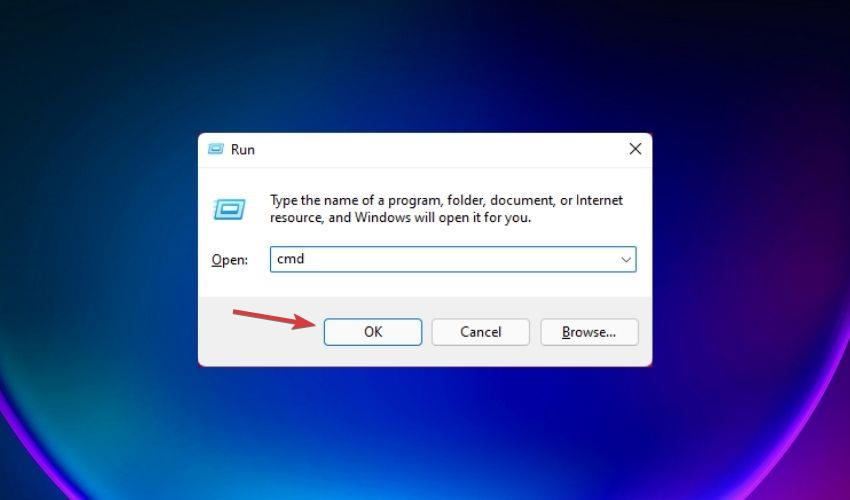
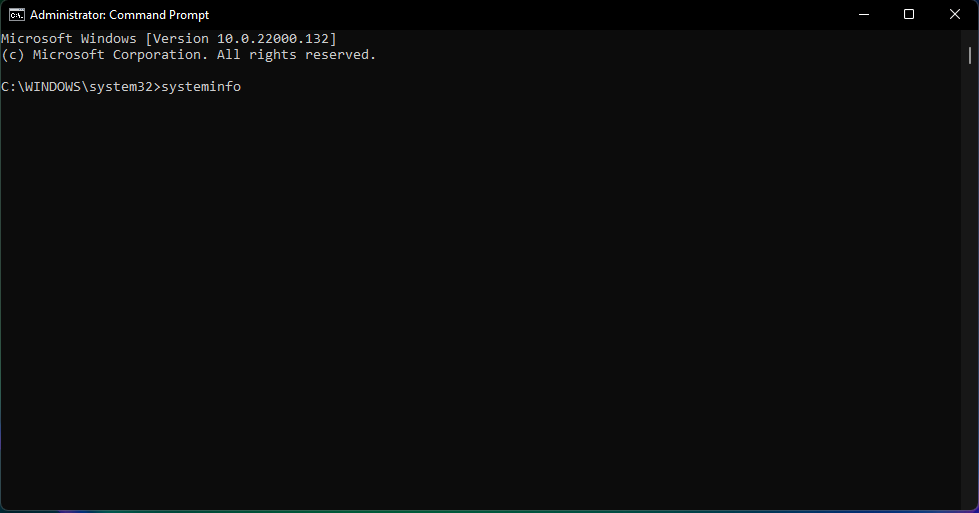
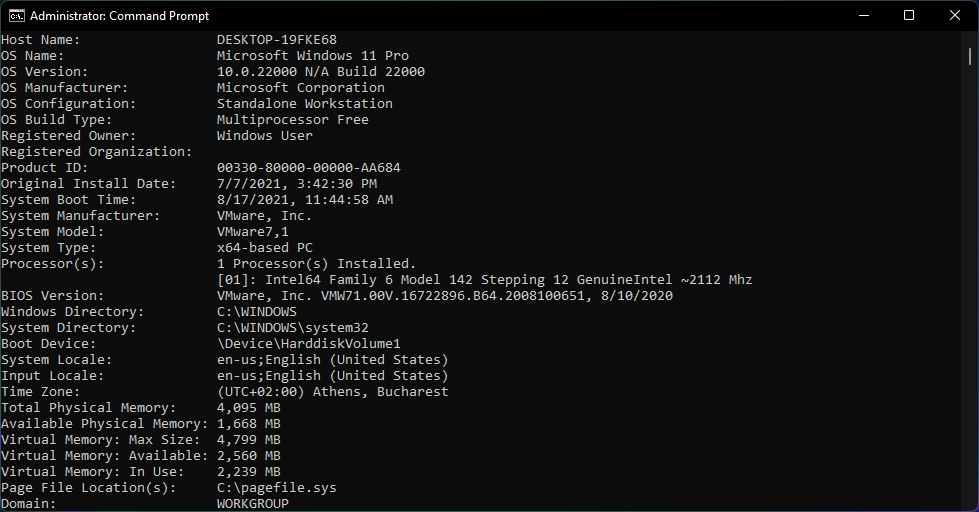
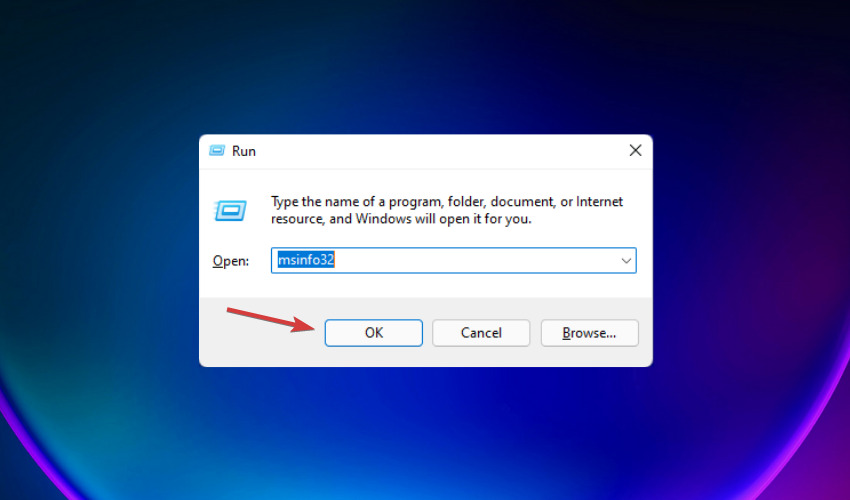
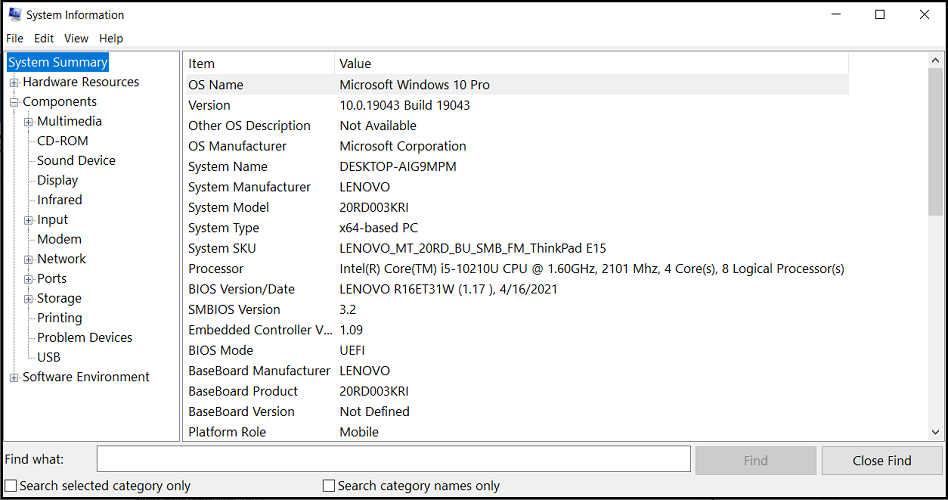
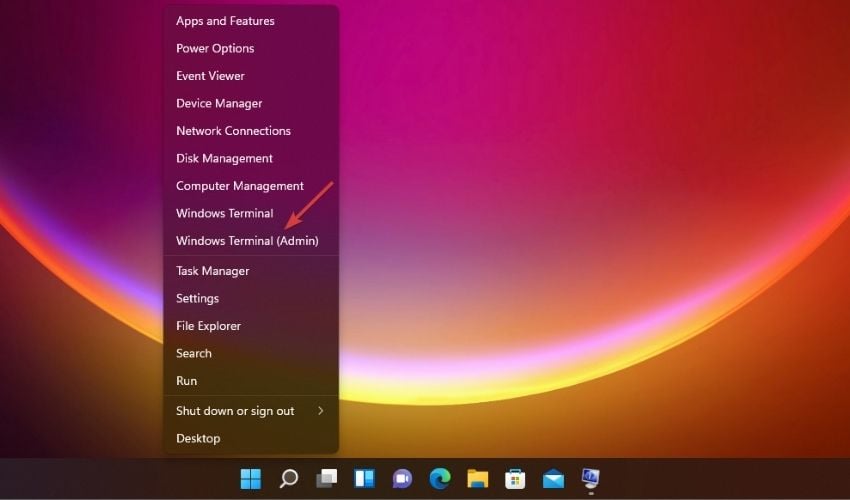
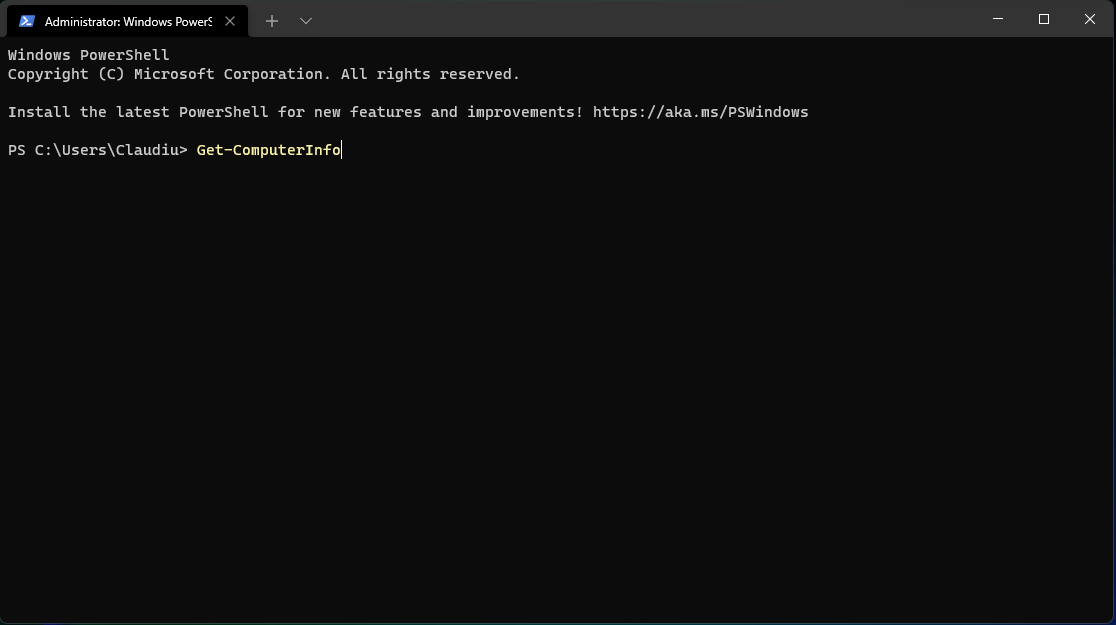
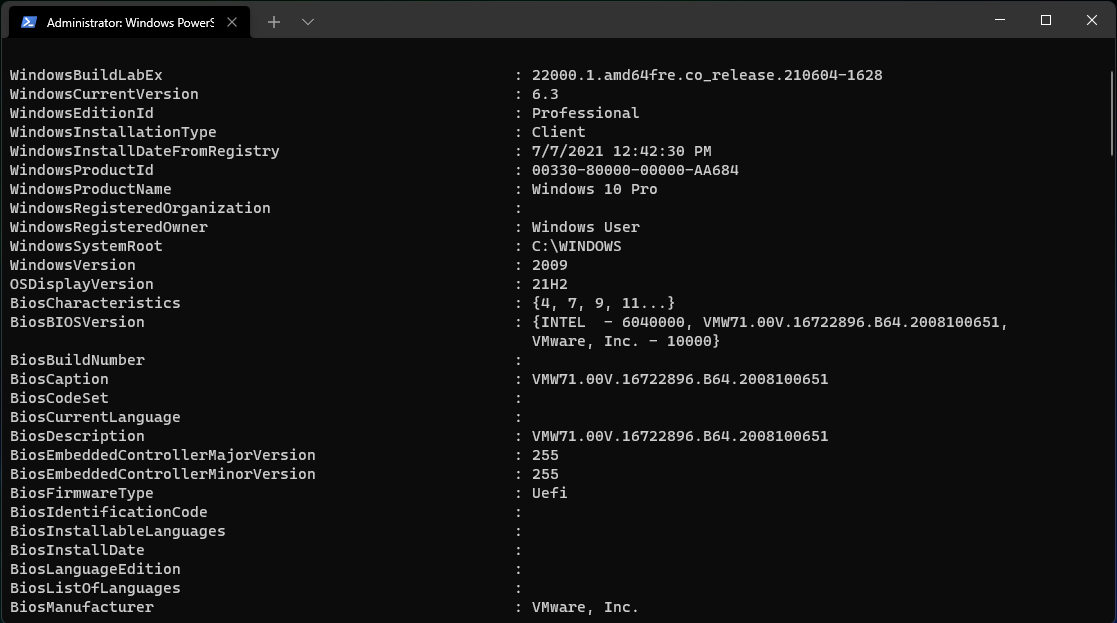
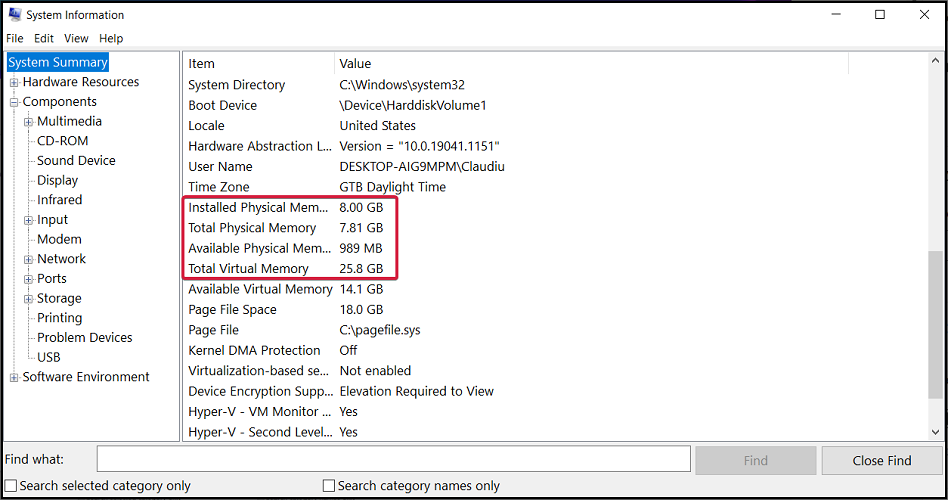
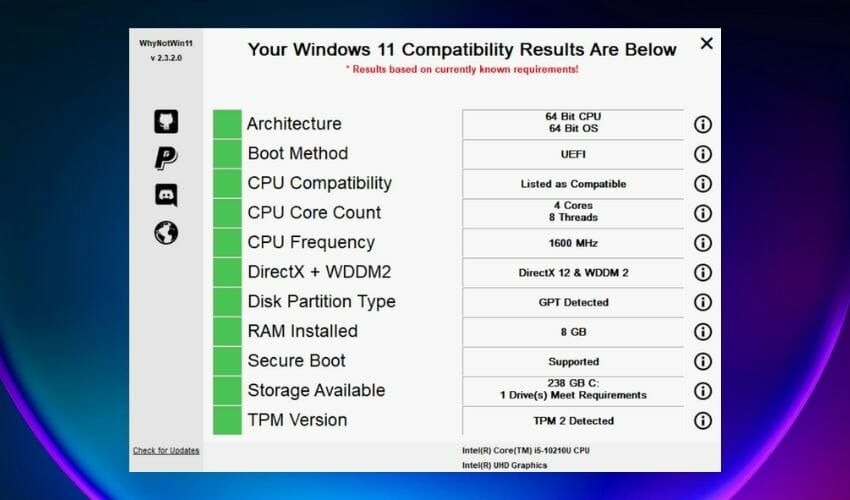

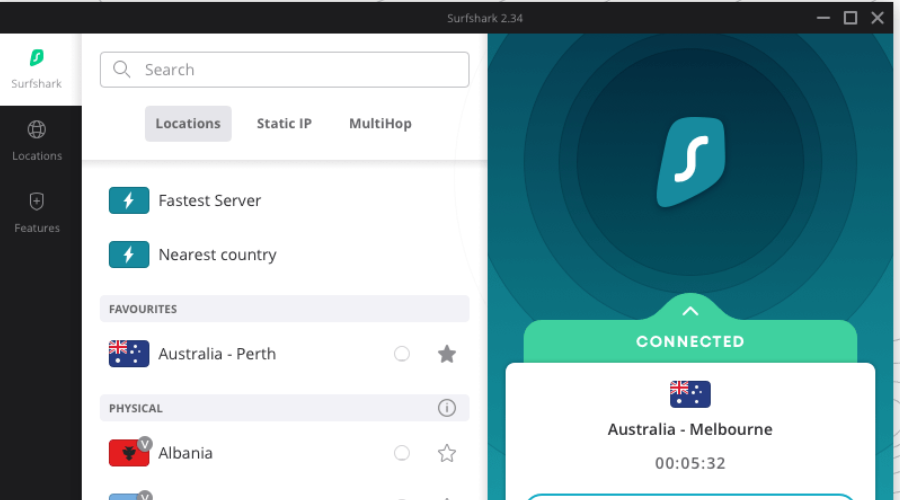



![Hibernation in Windows 11: Enable or Disable [Quick Guide]](https://windowsreport.com/wp-content/uploads/2021/08/How-to-enable-Hibernation-on-Windows-11.jpg)



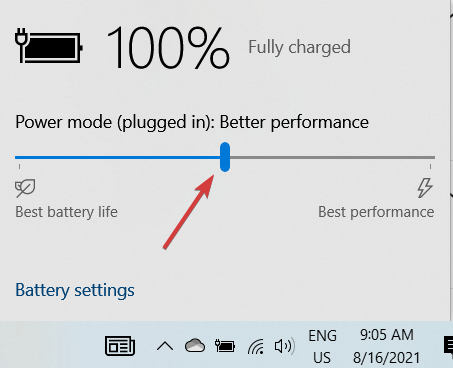


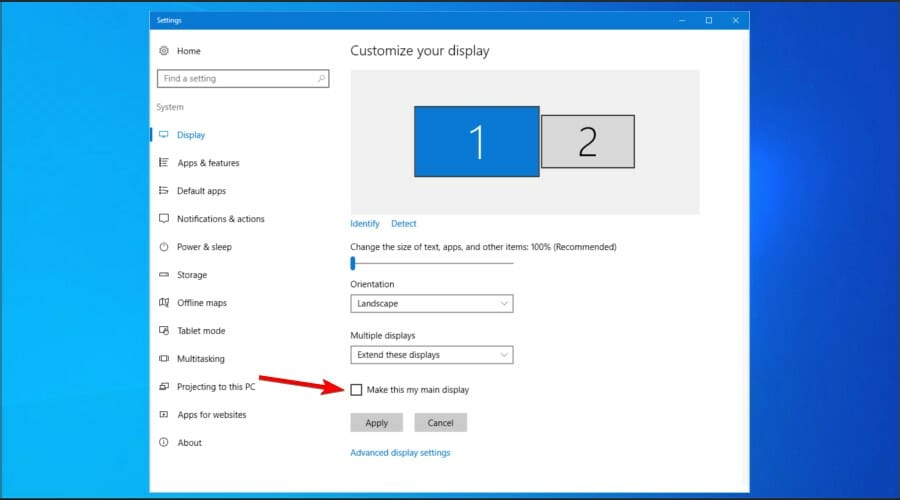


![How to Play Pokemon Go on Windows PC [Complete Guide]](https://windowsreport.com/wp-content/uploads/2022/08/play-pokemon-go-windows-pc.png)


![Lynx Browser: Everything There is to Know [Multiple Devices]](https://windowsreport.com/wp-content/uploads/2020/06/Lynx-web-browser-Everything-that-you-need-to-know.jpg)

![Resolve all Fallout 4 Errors on Windows 10 [Gamers Fix]](https://windowsreport.com/wp-content/uploads/2019/08/Fallout-4-doesnt-work-in-Windows-10.jpg)




![How to Unblur Images in Adobe Photoshop [Quick Guide]](https://windowsreport.com/wp-content/uploads/2020/08/unblur-picture-adobe.jpg)