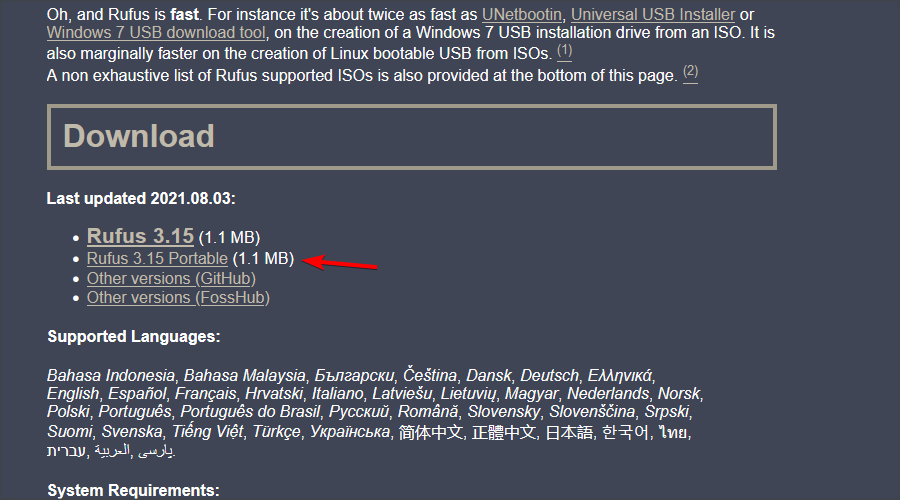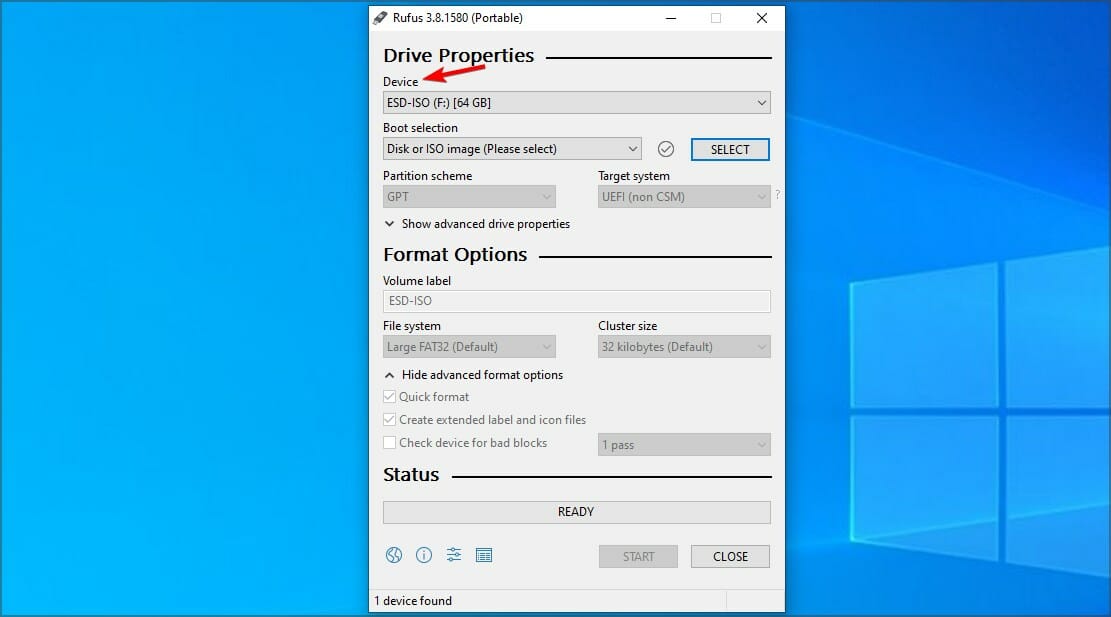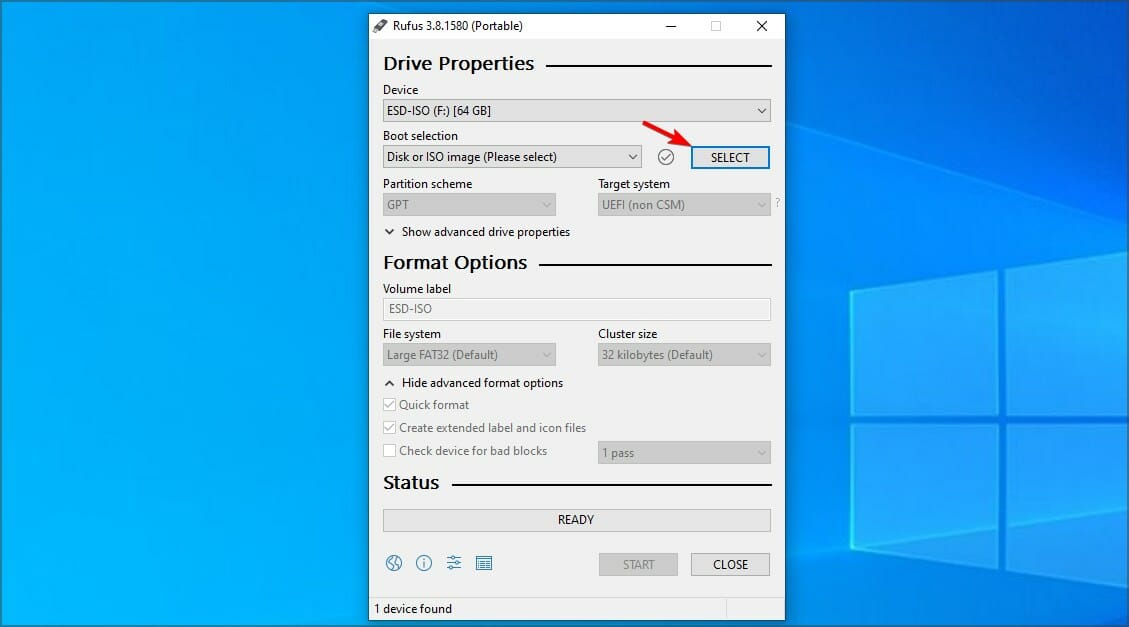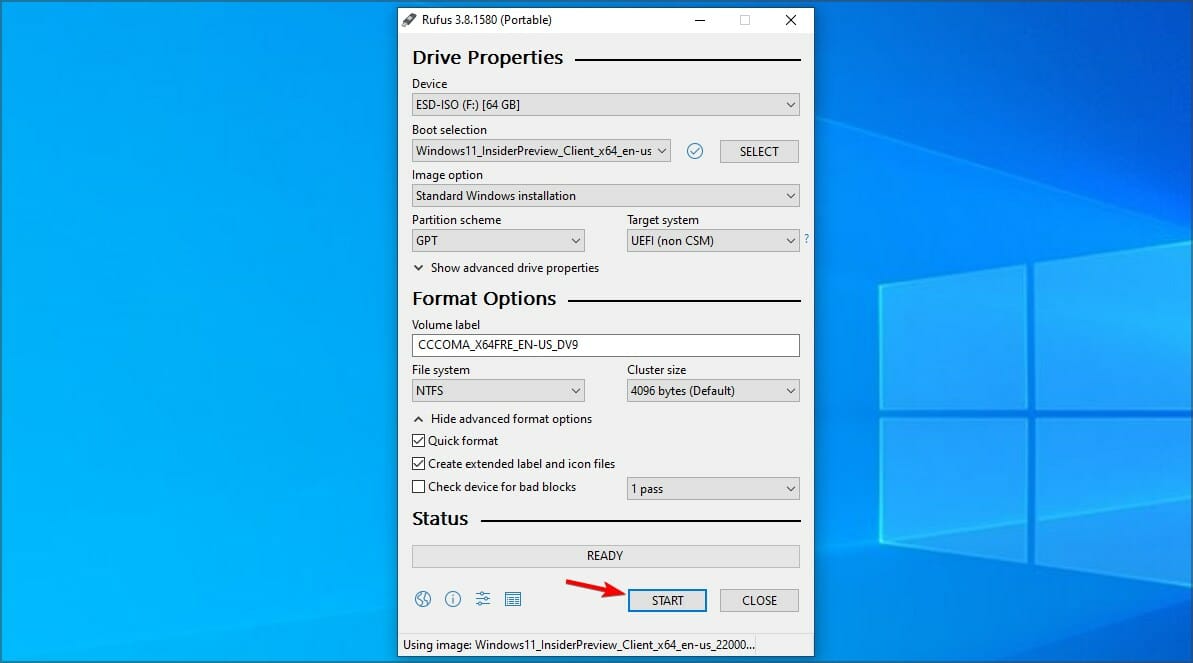
Can’t Download and Install Brave Browser? Try These Fixes

Brave Browser has been present for a while, and it’s a great choice for all users that like browsers with built-in adblocker and VPN to protect their privacy.

However, many users reported that they couldn’t install the Brave Browser on their PC. This can be a problem since you won’t be able to browse the web with the desired software.

Although this is a common issue, there are ways to fix it, and in today’s guide, we’re going to show you a couple of methods you can use to fix this problem.

Why is Brave Browser not working?
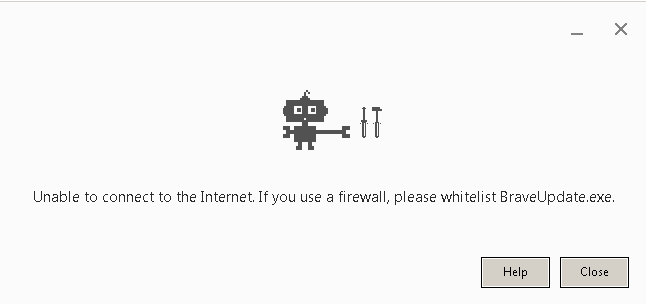
There are several reasons for this issue, the most significant problems with a setup file, but you can always use an offline installer as a workaround. Below are some of the other causes:

  • Antivirus interference
  • Firewall activities
  • Wrong or faulty installer.
  • Internet connection issues

Quick Tip:

While Brave is a great choice, it’s not the only browser with a built-in ad blocker and VPN. They also can be found in the Opera One browser with other features that increase privacy and protection.

On top of these features, it offers built-in tracking protection, so you can browse the web without worrying. Opera One also has some other unique features, such as built-in integration for messaging services, or workspace manager to get your work done with ease.

Opera One

Great built-in features to protect your privacy data and make web surfing safer.

How can I download and install the Brave Browser?

1. Install the standalone version

  1. Visit the Brave Github releases page.
  2. Locate the release that you want to download. Avoid Nightly and Beta releases, as well as the ones that have been tagged as Pre-release.
  3. Once you locate the version that you want, expand its Assets section.
  4. Select BraveBrowserStandaloneSetup.exe and download it.
  5. Once the file is downloaded, run it, and the setup should work without problems.

2. Check your antivirus settings

  1. Press Windows key + S and enter defender. Select Windows Security from the list of results.
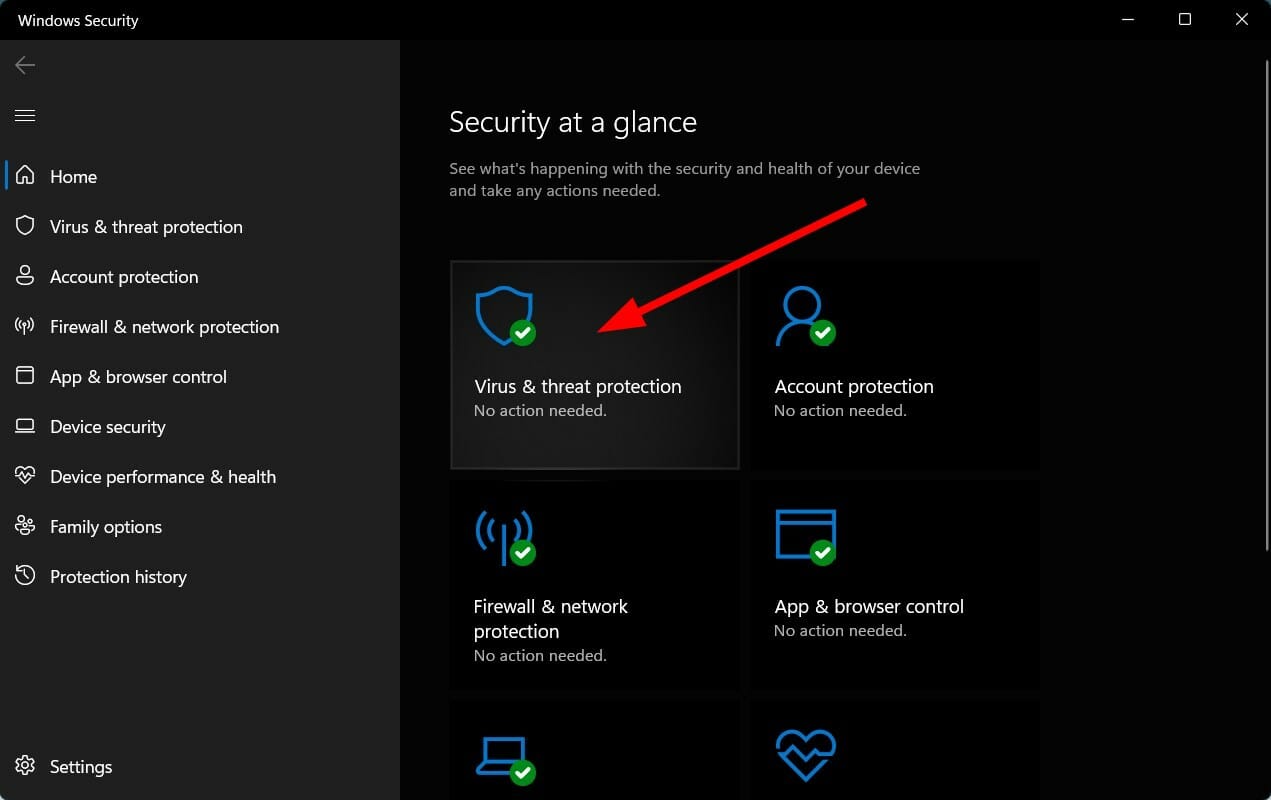
  2. Go to Virus & threat protection. In the right pane, click on Manage settings.
  3. Locate Controlled folder access and select Manage Controlled folder access.
  4. Now turn off Controlled folder access.
  5. After doing that, check if the problem is still there.

You can also try disabling your antivirus completely. To do that, do the following.

  1. Open Windows Security.
  2. Go to Virus & threat protection and click on Manage settings.
  3. Turn off all the features.
  4. Try to start the application again.

Remember that these solutions are only for Windows Defender, so if you’re using different antivirus software, check its settings and disable the appropriate features.

If this solution is successful, enable these settings once the setup is finished.

3. Make sure Brave is allowed to go through your firewall

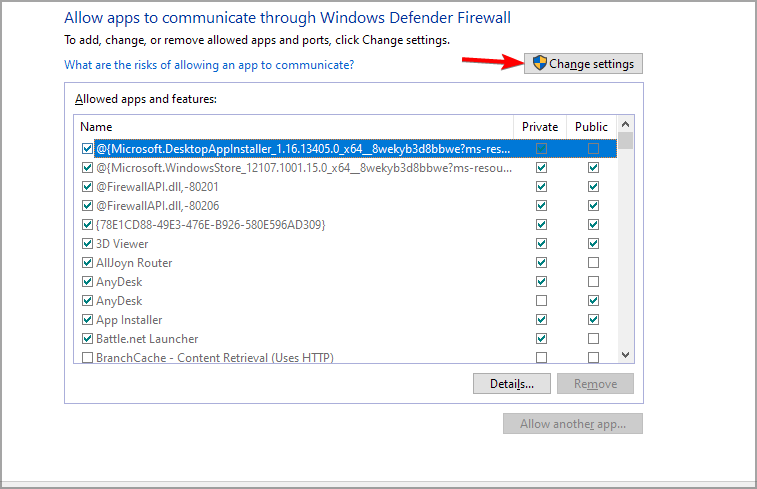
  1. Press Windows key + S and type allow. Select Allow an app through Windows Firewall.
  2. Click on Change settings.
  3. Locate the Brave setup file or BraveSoftwareUpdateSetup and make sure it’s allowed to access the web.
  4. If you can’t find it, click on Add another app.
  5. Now click on Browse.
  6. Locate the Brave setup file.
  7. Once you add it, check the Public and Private options for it and save changes.

If you’re using a third-party firewall, check its settings and add Brave to the list of exclusions.

4. Run the setup as an administrator

  1. Download the Brave setup file.
  2. Locate the file, right-click and choose Run as administrator.
  3. Follow the instructions on the screen to complete the setup.

This isn’t the most reliable solution, but few users had success with it, so you might want to try it out.

5. Change your DNS

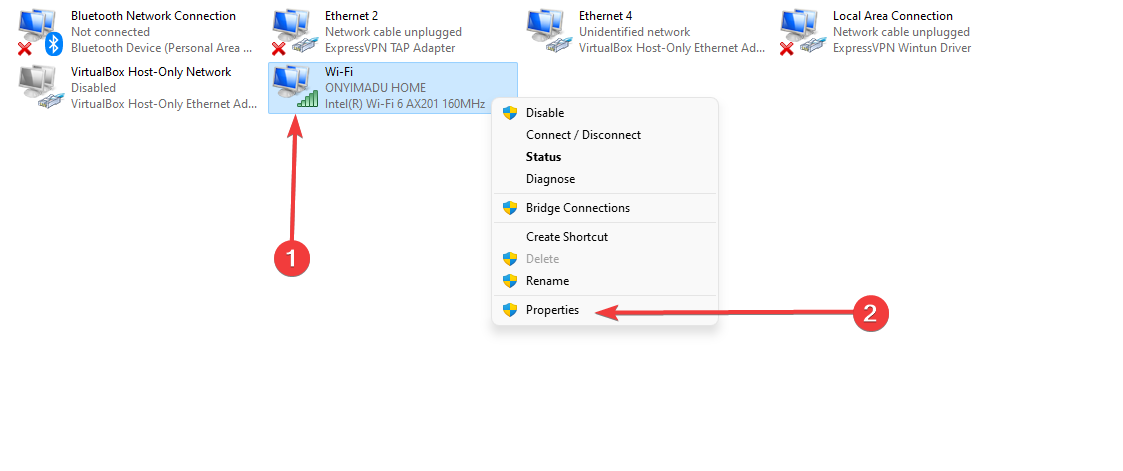
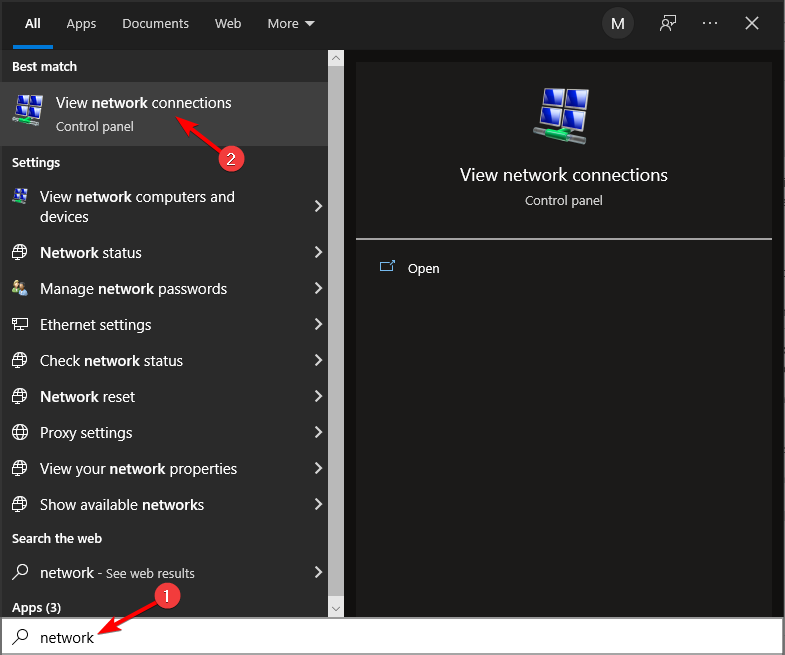
  1. Press Windows key + S and enter network. Select View network connections.
  2. Right-click your connection and select Properties.
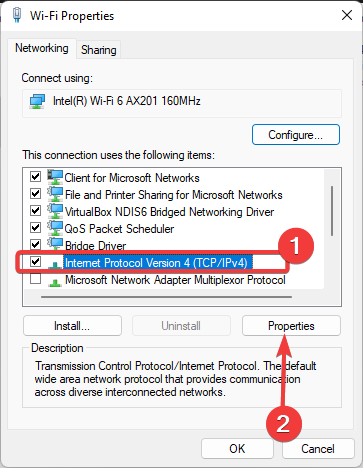
  3. Select Internet Protocol Version 4 (TCP/IPv4) and click on Properties.
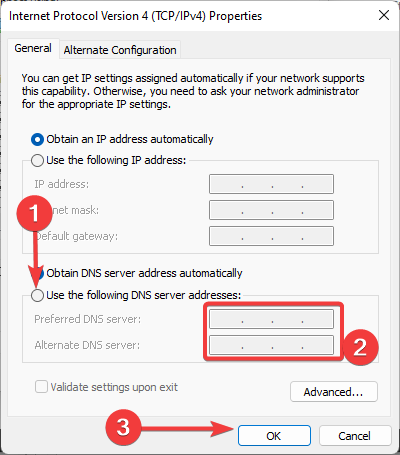
  4. Select Use the following DNS server addresses. Now set the Preferred DNS server to 8.8.8.8 and the Alternate DNS server to 8.8.4.4.

  5. Save changes and check if the problem is resolved.

Is Chrome or Brave better?

Chrome is an all-rounder and is one of the best browsers you can use on all devices. It boasts a simple interface, searing browsing speed, and satisfying overall performance. Hence, it is not surprising that it is the most used browser.

Brave Browser, on the other hand, is a security and privacy juggernaut. It prioritizes user safety online and data privacy. Also, the official website states that the browser loads pages three times faster than Chrome.

All-in-all, it is a pretty good browser too. If you need a more in-depth comparison between these two browsers with a bit extra, check our Brave vs. Chrome vs. Opera guide.

As you can see, fixing this issue is relatively simple, and most users reported that using the standalone installer worked for them, so we suggest you try that.

Sadly, this isn’t the only issue with this software, and if you want to know more, we suggest reading our Brave Browser not opening guide for more information.

Have you found a solution to this problem? Don’t be shy to share it with us in the comments section if you have.


5 Best Scrabble Games Online to Test Your Vocabulary

An online multiplayer or single-player Scrabble game is the right choice if you’re a fan of this game but don’t have a real board partner.

Luckily, one can find many options to play Scrabble or Scrabble-like games on some of the best online game platforms for free. This is without mentioning the many apps you can download on your devices to enjoy the game anywhere.

Since Scrabble is a registered mark, many websites where you can find this type of game are unofficial and are only timidly marketed as classic Scrabble.

However, there are also official websites or apps, and all of them require registration (for free) either using a specific username and password or using Facebook or Gmail. Additionally, some also require a paid membership to play ad-free.

Is there a classic Scrabble game online?

There are many classic scrabble games online. Some allow you to play solo or multiplayer with your friends.

An example is Pogo.com which allows you to play the classic Scrabble games for free without download in two or four players mode and single-player against the computer.

Where can I play Scrabble online for free?

While there are some paid Scrabble games online, most are available for free. There are many websites that offer the game without even the need to register.

Also, you can download Scrabble game apps to play online for free. We will explore the options available later in this article.

Quick Tip:

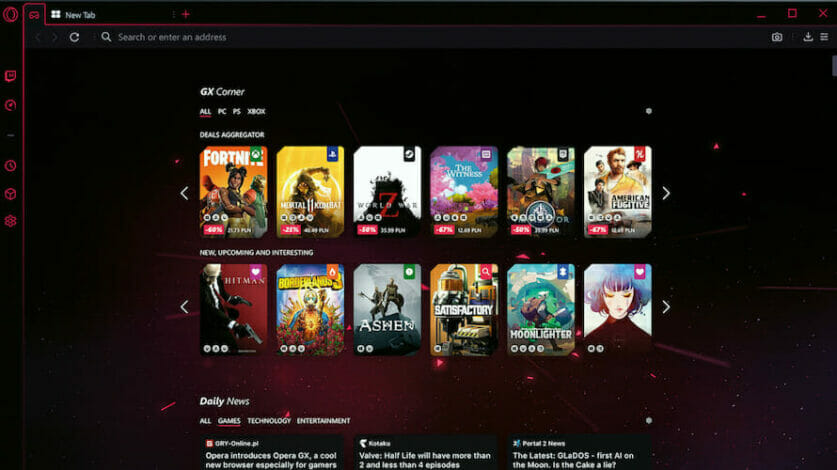
What if we told you that there is a browser that has its own games section with a large library of Scrabble-like games? The Opera GX browser has games, news, and communities with similar interests.

In the GX Corner, you can chat online, create gaming rooms, and challenge others from all around the world. Furthermore, it consumes few internet resources due to built-in traffic limits.

Opera GX

Enjoy the world of games in the award-winning web app designed exclusively for players.

What are the best Scrabble games to play online?

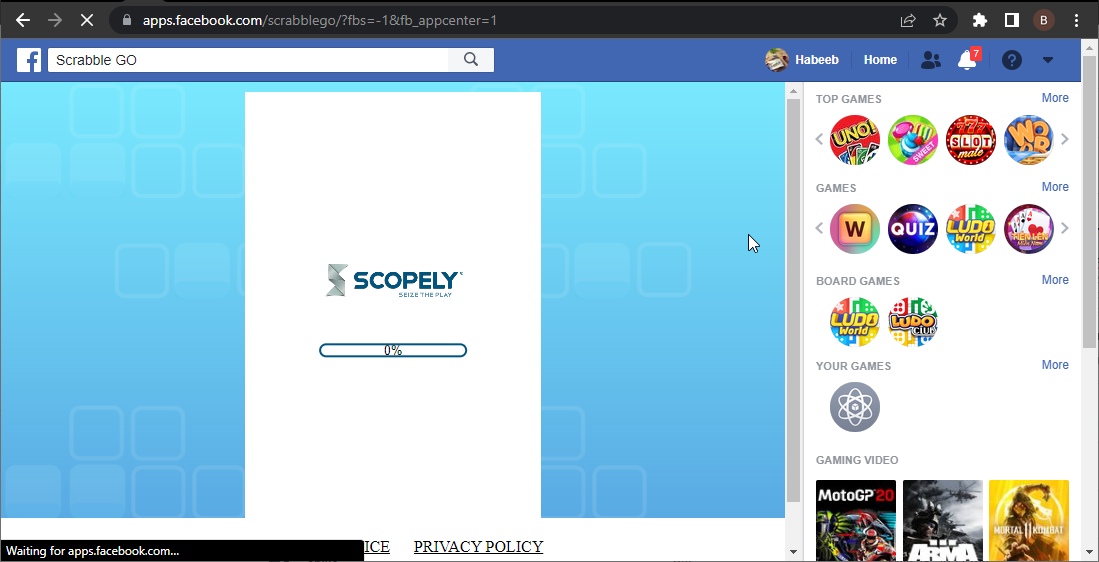
Scrabble Go on Facebook – Online game with continuity

go scrabble online games

This is a very handy option since Facebook is also widely used in web browsers.

The web app allows you to compete against friends or a random opponent, track your rating, customize your board and tiles and access a dictionary. If you’re playing on a smartphone or tablet, you can also pick up gameplay where you left off.

Ads will pop up after every turn if you choose to play for free.

⇒ Play Scrabble Go on Facebook

Words with Friends -Best for Multiplayer

words with

This hugely popular app is available to play in a web browser on Facebook if you don’t want to download the dedicated app.

Once you log in, you will immediately see who is also playing the game from among your friends and request to connect with them for a quick challenge.

Mind that this is not the original Scrabble game, but a similar one. The app constantly populates its online dictionary with words to increase the acceptance rate.

⇒ Play Words with Friends on Facebook

Lexulos – Realistic Online Scrabble game

lexulous

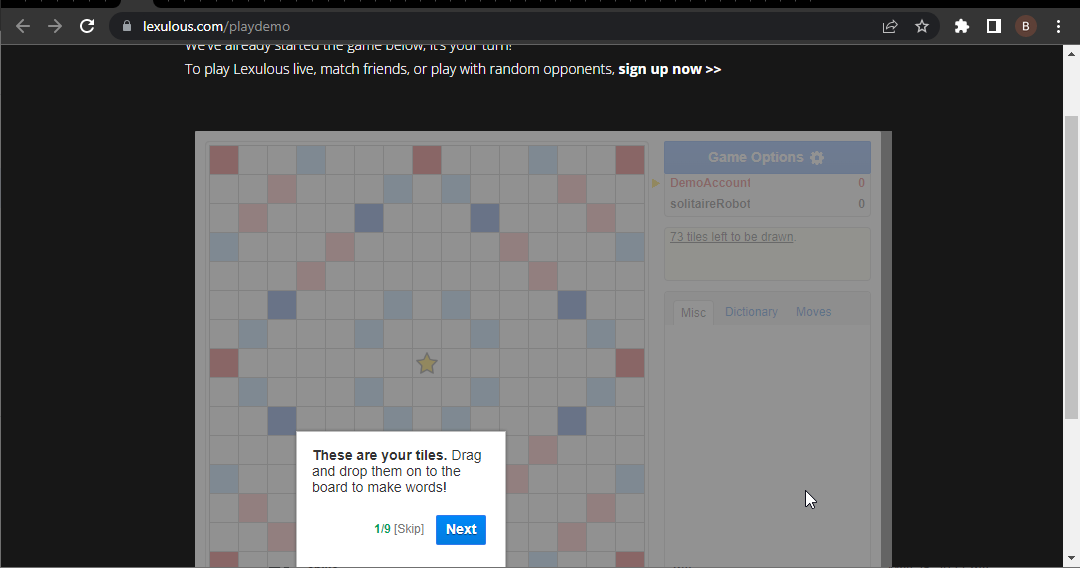
Lexulous (formerly known as Scrabulous) is similar to the original Scrabble.

You can play a demo game to test it, but after some moves, the app will request registration to continue. A good thing, though, is that the game runs ad-free.

You can play against players from specific countries or the computer. They also offer the email version of the game, which you can play at ease, single-handedly.

⇒ Play Lexulos

Internet Scrabble Club -Multi-language

internet multi scrabble online games

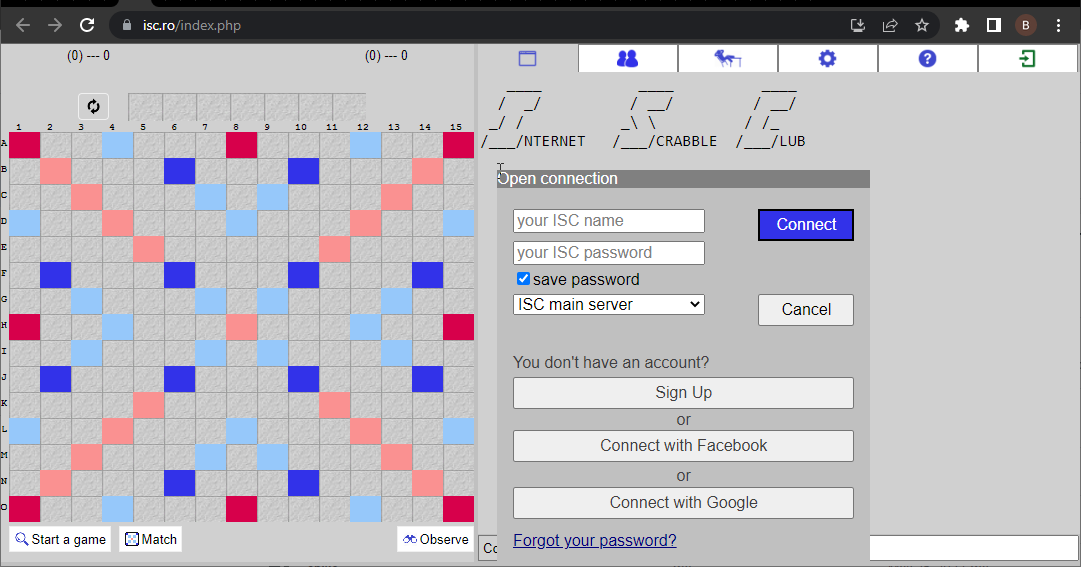
This game might not look friendly to the eye since the graphic is plain. You also need to have Java installed to access the board.

Then, registering is mandatory to join a community, from which you can later pick an opponent.

Once inside the app, you can play or observe a game. For your own game, you have various customizable features. The game is also localized for  French, Romanian, Italian, or Dutch.

⇒ Play Internet Scrabble Club

Scrabblegames.info – Single-player game

scrabblegames

If you want to go for an unofficial board, you can find it at scrabblegames.info.

The board is similar to the original one, and you can play against the computer across five difficulty levels.

⇒ Play on scrabblegames.info

Can I play Scrabble online by myself?

Many apps allow you to play Scrabble online by yourself. However, you will have to play against the computer to add competition to it.

Also, you can check some of the Scrabble websites that allow single players. We have some single-player options available on our list. So, feel free to choose from them.

Scrabble games have a long history, and online availability has given lovers a welcomed option when there is nobody to play with. With our carefully curated list, you have all types of Scrabble games you can always play for free.

If you need a list of the best all-time browser games you can always play, check our guide for exceptional options to enjoy.

Feel free to let us know the game you enjoy playing from our list in the comments below.

4 Tested Ways to Run Dungeon Siege 2 to Work on Windows 10

Dungeon Siege 2 is one of the best role-playing games in which, with the chosen comrades, you can lead an elite battle party against all sorts of monsters.

It’s a great game that many love to play, and it’s understandable how it can lead to a lot of frustration not getting Dungeon Siege 2 to work on Windows 10, although it previously functioned perfectly.

This article will explore how you can fix Dungeon Siege 2 to work on Windows 10 with just a few simple steps, so keep reading.

Can you play Dungeon Siege on Windows 10?

Yes, you can play Dungeon Seige on Windows 10. The minimum required operating system to play the game is Windows XP SP1 or later.

Also, you can play Dungeon Seige 2 on your Windows 10 PC. So, you need to get the game and get going.

How do I fix Dungeon Siege 2 on Windows 10?

1. Keep your drivers up to date

1.1. Update drivers manually

  1. Press the Windows key + X and select Device Manager.
    device manager dungeon siege 2 windows 10
  2. Double-click on Display adapters to expand it.
    display adapters dungeon siege 2 windows 10
  3. Right-click on any driver there and select Update driver.
    update driver dungeon siege 2 windows 10
  4. Select Search automatically for drivers.
    search auto
  5. Wait for the search to complete and install any available update.

Outdated drivers can cause Dungeon Seige 2 to show a black screen or crash on your Windows 10 PC. After the update, make sure to restart your computer to effect the changes

1.2. Update drivers automatically

Instead of going through the steps above to update your drivers, we will recommend using dedicated software.

2. Run the game in compatibility mode

  1. Go to the file location where you downloaded the game.
  2. Here, create a shortcut for the file.
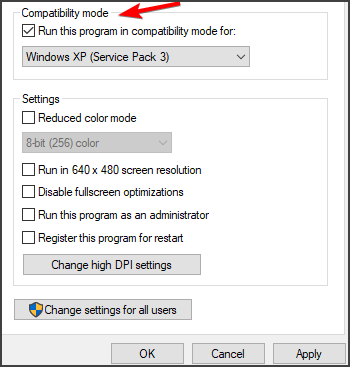
  3. Next, go to Properties and press on the Compatibility tab.
  4. Here select the option Run this program in compatibility mode. Now choose an older version of Windows from the menu.

After enabling the Compatibility Mode, Dungeon Siege 2 should be able to run on Windows 10.

3. Change the shortcut file

  1. In the Steam folder, go to the game directory.
  2. Open Steamapps and select Common.
  3. Click on Dungeon Siege 2 and use the DS2VideoConfic tool to select your video card.
  4. Create a shortcut of the .exe file.
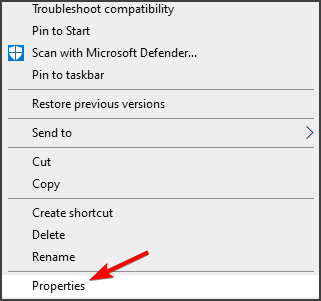
  5. Next, right-click the shortcut file and choose Properties.
  6. In the Target field, add the following after the quotes: fullscreen=false width=1600 height=900

After doing that, check if the game is running properly.

4. Run the game in windowed mode

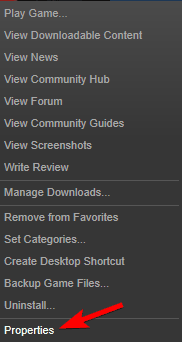
  1. Locate the game in your library and right-click on it.
  2. Select Properties from the list.
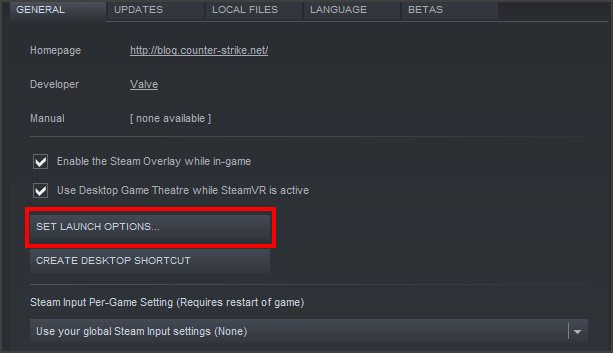
  3. Now click on and go to Set Launch Options.
  4. In here type fullscreen=false or select the height=1920 and width=1080.
  5. Close the window and try to run the game again.

Does Dungeon Seige work on Steam?

Dungeon Seige is one of the highly-rated games on Steam. Even the latest Dungeon Siege 2 is available on the platform.

However, the game is not free. You need to purchase it before you can start enjoying it on your PC.

We hope one of the presented solutions in this article helped you play Dungeon Siege 2 in Windows 10 without any issues.

If you are a huge fan of Dungeon Siege 2, we recommend trying the full series to get the most out of it. Also, if none of the solutions above has worked, getting the game from an official source might solve it.

⇒ Get Dungeon Siege Collection

Please let us know in the comments below which one worked best for you. We would love to hear it.

5 Tested Ways to Remove Microsoft Edge Warning Alert

You have probably just seen a Microsoft warning alert or the Microsoft Trojan warning; here is what you should know about it.

Phishing and online scams, in general, are not as common as they were back in the day. However, since its arrival in the browser market, Microsoft’s pride, Edge, slowly gotten the scammers’ attention.

One of the most common malicious and fraudulent pop-ups is easily recognizable by the alleged virus alert. This is seemingly a common occurrence in Edge in recent times.

This alert, of course, is a nifty way for an online scammer to make you panic and make mistakes.

They’ll recommend reaching out for help or sending your credentials. Never do that. Stay calm and continue below for a better insight on the topic.

What’s the Edge warning alert?

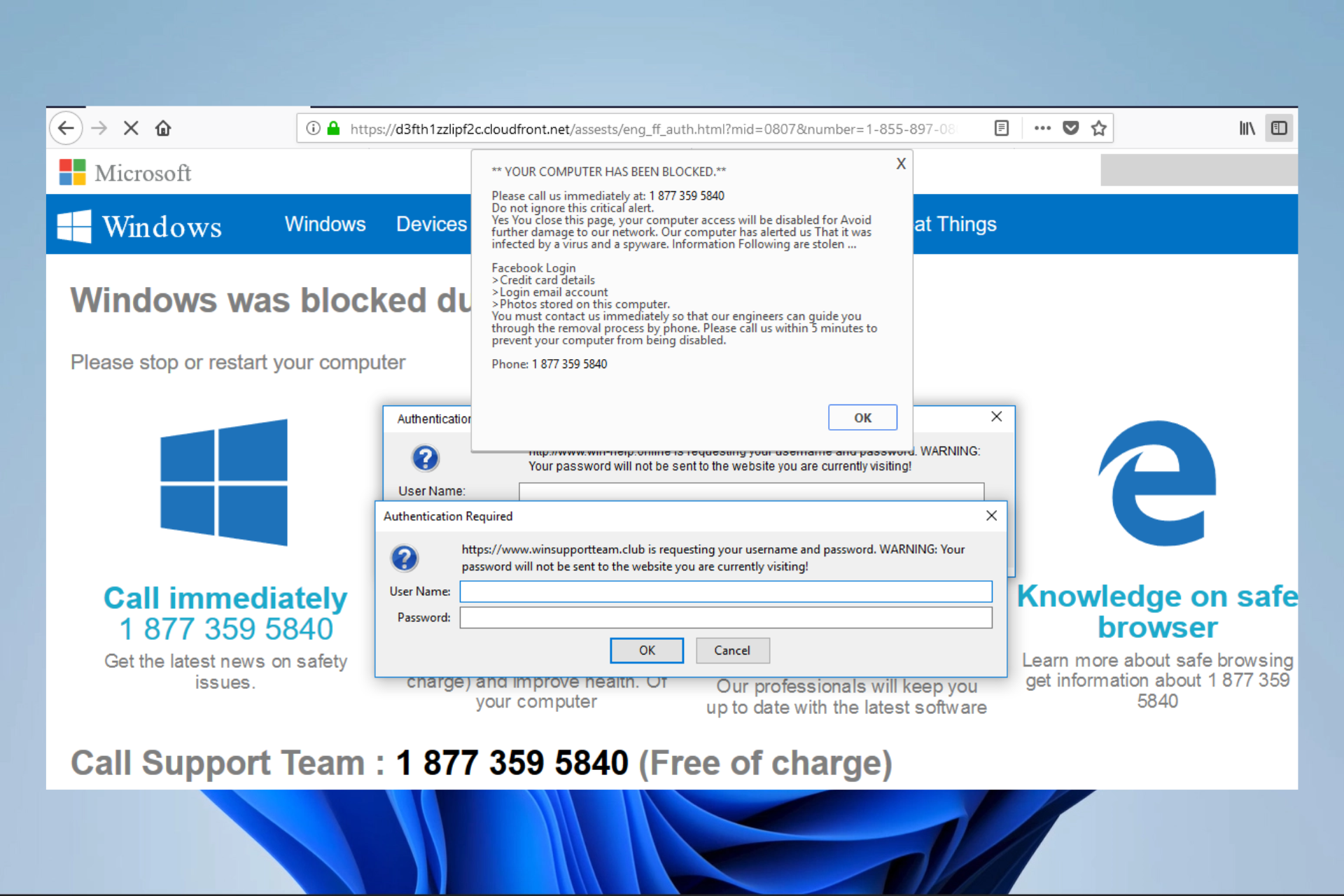
Whenever you see something like this in your browser: Danger! Warning! Brace yourself! Your computer has a serious virus! This is a scamming trick, a treacherous attempt to scare an inexperienced Edge user.

Back in the day, Google Chrome and Mozilla were frequently affected by these phishing pop-ups freezing the screen, but added security measures almost totally eliminated them.

On the other hand, Microsoft Edge is still susceptible to that kind of malicious pop-up.

If those scammers get a hold of an unsuspecting user, they can steal your data or Windows license or mislead you into spending tons of money on phone calls. So please don’t fall for it.

Is the Microsoft warning alert real?

The answer is mostly yes if you still wonder if the Microsoft warning alert is a scam.

If there’s an imminent threat to your system, you’ll be notified timely by the antivirus, a this page is blocked message, or the system itself (in case you rely on Windows Security for protection).

When something like this appears in Edge, and sometimes it will, we recommend pressing the Ctrl + Alt + Delete and killing the Microsoft Edge process.

That’s the first step. Please continue reading to find out how to remove and safeguard against it.

How do I fix Microsoft warning alert?

1. Force close Microsoft Edge

  1. Press the Windows key + X and select the Task Manager option.
    microsoft warning alert
  2. Click on the Microsoft Edge process in your Task manager and click the End task button. microsoft edge warning alert
  3. The next time you start Microsoft Edge, the Microsoft pop-up virus warning should disappear.

2. Run a full scan

  1. Click the Start menu, type Windows security and click on the Windows Security app.
    microsoft warning alert
  2. Click on Virus threat and protection.
  3. On the next window, select Scan options.
  4. Select the Full scan option and click the Scan now button.

Rather than use the Windows Security app, as we have shown in this example, you may opt for a third-party antivirus. However, the process of performing a full scan will slightly differ.

We recommend using a trusted antivirus because it will protect you from every future malware attack and help maintain your online privacy and security.

TotalAV is perfectly suited to handle this task. This a professional security software that comes with many extra features compared with the native Windows Security software.

This tool brings you powerful options, such as different scan types, antivirus functions, ransomware shield, anti-spam protection, a powerful firewall, and many more.

⇒ Get TotalAV

3. Block Edge pop-ups

  1. Launch the Edge browser.
  2. Enter the path below into your Address Bar and click on Enter.
    edge://settings/content/popups
  3. Enable the Block (Recommended) option.
    microsoft warning alert

This should block the Microsoft warning alert and any future occurrence of it.

4. Delete Temp files

  1. Use hotkeys Windows + R to open the Run dialog.
  2. Type in the path below and click Enter.
    %Temp%
  3. Select all the files in the folder, right-click and choose the Delete option.

5. Futureproof your Edge surfing endeavors

Get an ad-blocking extension from the Microsoft Store as soon as possible now that the Edge supports extensions. Doing this is of utmost importance if you want to avoid false warnings in the future.

Besides that, make sure not to allow cookies on all sites and accept them only when prompted by a trusted source.

Would Microsoft ever lock your computer?

The Microsoft Has Blocked The Computer error is fake. This is a scam and is not connected with Microsoft in any way. Microsoft will not block your computer.

This Microsoft security alert is an easy way to know that you have been targeted with malicious software. The best way to stay safe is by using a robust antivirus and not clicking any link if the message directs you.

A good antivirus for online protection is also an excellent way to protect from scammers and malware. Good Windows 10 compatible antiviruses have strong firewalls, integrated VPNs, and additional online privacy and safety shields.

If you still have issues with the Microsoft Warning virus alert, tell us in the comments section. We’ll be glad to help you address it.

How to Better Manage Firefox Tabs Using the Simple Tab Groups Addon

Time is money, and multi-tasking is critical to getting much more done without wasting too much time, maximizing all overall efficiency.

No browser is perfect, and features such as tab management still elude many products, including the Firefox browser.

However, all is not lost because add-ons, just like Simple Tab Groups, will lend the helping hand you waited for all this time.

We’ll show you where to get the add-on and how to properly use it in order to make your life a lot easier and maximize the available workspace.

If you use Chrome, you can get the most efficient work time using any of these nine tab management extensions.

Can you make tab groups in Firefox?

There isn’t a tab grouping feature in Mozilla Firefox currently. Therefore, in order to group your tabs, you must depend on a third-party extension called Simple Tab Groups. It functions identically to what Safari or Chrome provides by default.

We will show how to use it in this article.

Quick Tip:

Although this is a helpful utility, it’s still no match for Opera One’s Workspaces and Tab Islands. You may use this functionality to establish various workplaces for different activities.

Create workspaces for productivity, social networking, news, and shopping, and then open relevant tabs within those workspaces. Opera One also comes with a built in AI if you need more help in organization.

Opera One

Install and configure Opera One in just a few minutes to enjoy Workspaces and user profiles.
Free Download Visit website

How do I use simple tab groups in Firefox?

  1. Download the Simple Tab Groups add-on from the official site.Add to Firefox
  2. Right-click on your open tab, select Move tab to group, then Create new group.move tab group to
  3. Input a name for your new group and press the OK button.rename firefox tab group
  4. Your new groups can be accessed and managed from the dropdown.simple tab groups dropdown
  5. To access and manage more add-on options, click the Manage groups button on the dropdown.firefox simple tab groups
  6. To manage individual group options, right-click on the desired group in the dropdown.individual group option

If you have multiple groups, you can select which group you want to move the tabs to, in other to maximize the experience further.

Interestingly enough, the above-mentioned Group Settings panel also has options to mute tabs when a group is closed or restored, make a sticky group, and show or discard tabs after moving.

If you’re a Firefox fan, note that the Simple Tab Groups add-on works with Firefox Containers and can be configured to move specific containers to a particular group automatically. You will get Firefox tab groups like Chrome.

Let us say that the only downside to using Simple Tab Groups is that pinned tabs appear in all groups, and there’s no way around this for the moment.

However, if this doesn’t bother you, this is undoubtedly the best tab management add-on you’ll find for the Firefox web browser.

How do I hide the tab bar in Firefox?

  1. Launch your browser.
  2. Visit the path below and type Enter.
    about:config
  3. Click the Accept the Risk and Continue button.
    firefox simple tab groups
  4. Search for the element below and change the value to True.
    toolkit.legacyUserProfileCustomizations.stylesheets
    firefox simple tab groups
  5. Now on your address bar, type the path below and click Enter.
    about:support
  6. Under Profile Folder, click on Open Folder.
    firefox simple tab groups
  7. Create a folder called Chrome, and within the folder, create a file called userChrome.css.
  8. Open the new file and paste the code below into it.
    /* hides the native tabs */ TabsToolbar { visibility: collapse !important; }
  9. Save the file and restart the browser.

If you have read to this point, then you must have found out there are better and more convenient ways to use the Firefox browser. Simple Tab Groups is just one such way. One Tab is another if you like to try out different extensions.

Like Chrome, Firefox comes with an extensive extensions library, and you will be able to add so much functionality to everyday browser use.

Note that Firefox tab groups are managed natively in Androids, and it even lets you display a Firefox tab tree. If you’re looking for basic tab management, why not check our latest guide on how to list all tabs in Firefox?

Have you started better managing your browser tabs? Please share your experience with us in the comments section below.

3 Quick Ways to Fix a White Screen Issue in Roblox

If you are an ardent fan of Roblox, you may sometimes come across a white screen when you try to open the app.

This can be annoying as the Roblox white screen freezes while opening the app, and the only option left is to close it.

While we will look at the possible reasons and solutions for the white screen issue, you can refer to one of our other detailed guides on 5 ways to fix an error that occurred while starting Roblox.

Before we jump to the solutions, let’s discuss why the Roblox app goes to a White screen.

Quick Tip:

Before anything else, you can go for a gaming-optimized browser that will fix white screen issues on Roblox and improve your gameplay.

So, open Roblox in Opera GX if you want to benefit from high performance, remove ads, disable distractions, and limit RAM and CPU resource usage.

Opera GX

Build up your Roblox world without having any issues using this ideal gaming browser.

Why is Roblox showing a white screen when I join a game?

This is an error many users have encountered. From their resolution, we figure that the main reasons for the white screen are as follows:

  • Beta is enabled
  • Roblox is not configured to run on your browser
  • The game is not set to your operating system’s compatibility

Let us now show you how to resolve this game issue.

How do you fix the white screen on Roblox?

1. Ensure Roblox is allowed to run on your Chrome browser

  1. Visit the Roblox website on Chrome and select the game you want to play. Click on the green play button.
    roblox white screen fix
  2. Now, click on Download & Install Roblox in the pop-up. Click on Download & Install Roblox
  3. Next, run the setup file, and launch Roblox after the installation is complete.
  4. You should now see the Open Roblox prompt.
  5. Check the box next to Always allow www.roblox.com to open links of this type in the associated app, and lastly, click Open Roblox.
    roblox white screen fix

2. Run the game in compatibility mode

  1. Navigate to the game folder, right-click on the setup file, and select Properties from the context menu.
    roblox white screen fix
  2. Go to the Compatibility tab and check the box next to the Run this program in compatibility mode for option, then select the Windows OS from the drop-down to install and relaunch the game.
    roblox white screen fix
  3. Finally, retry Roblox and see if it works correctly.

3. Disable the desktop app beta for the Roblox desktop version

  1. Open your Roblox desktop application and click on the three dots on the left side of the screen. Click on three dots on Roblox
  2. Now, click on Settings.
    roblox white screen fix
  3. On the Desktop App Beta prompt, click on Disable Beta. Disable Beta to fix Roblox white screen
  4. Click on the Yes, Disable and Exit confirmation prompt.
  5. A message saying Successfully disabled Windows App Beta will pop up. Press OK.
  6. Now, visit the Roblox web URL, and as you try to play a game, you will see the Open Roblox prompt.
  7. Lastly, select the option to Always allow www.roblox.com to open links of this type in the associated app and click on Open Roblox.

Why is Roblox not loading on my phone?

Some of the common reasons why Roblox would keep crashing or why it may not load on your phone include:

  • Slow or unstable internet connection
  • A pending update
  • The antivirus or firewall blocking the Roblox access
  • The Roblox app servers are down
  • Temporary loading issue on Android/iOS platforms

The good news is that we have listed a few solutions for you to fix issues related to Roblox not loading.

That is it for this article. Remember to check for any pending Windows updates and install them to fix the white screen issue on Roblox or disable the antivirus or the firewall temporarily that may be blocking the app.

Also, if you have the Roblox white screen on an Android or iPad, updating the device will be a handy solution. Furthermore, some users may face a Roblox grey screen in place of a white screen, and our fixes still apply in this case.

But, if the Roblox white screen glitch is associated with the drivers, you can refer to our detailed guide on Roblox graphics driver problems to fix the white screen issue.

If you found another way to get rid of the white screen, let us know in the comment section below.

Is Your Browser Using Too Much CPU?→ Fix to Make It Use Less

High CPU usage when browsing the internet is nothing strange in the current state of online multimedia presentation. All mainstream browsers are pretty demanding, and if you have a lackluster configuration, there’s a good chance that the CPU will hit sky-high levels.

Nonetheless, sometimes the core of the problem isn’t your overwhelmed CPU or underperforming GPU, but rather internal issues that are more browser-related.

In order to avoid seeing high CPU activity inflicted by your browser of choice, make sure to check the solutions we provided below. They should help you overcome the issue or, at least, subdue it for the time being.

Why is browser taking up so much CPU?

  • Too many installed browser extensions – Multiple concurrently running extensions will easily increase your CPU usage. In fact, in some cases, it could lead to over-clocking and browser crashes.
  • Several open browser tabs – This is the main cause of any browser using a significant portion of the CPU. The speed of your computer shouldn’t be impacted by having a few tabs open, but if you have about a dozen open, CPU consumption will soon increase.
  • Surfing unoptimized websites – Google is continually releasing new SEO guidelines to make sure that only trustworthy, dependable websites appear in their search results. Today’s websites still include a lot of adverts, auto-play videos, and material that might take a lot of CPU power; therefore, many of them are still not very well optimized.
  • High-resolution video streaming – Browsers will use more CPU power the more tabs you have open that include videos. And, CPU usage will go up for HD or 4K video streams.

How do I lower my CPU usage?

Later in this article, we will discuss fixing high CPU usage, but here are a few things you may do to lower your CPU usage:

  • Visit only trusted sites with the padlock logo.
  • Keep only a few tabs open at any given time
  • Disable or remove any extensions you do not use

How do I fix my CPU usage on my browser?

1. Disable add-ons

1.1 How to disable add-ons in Opera One

  1. Launch the Opera One browser.
  2. Type the path below into your Address bar and hit Enter.
    opera://extensions
  3. Click on Remove to get rid of an extension, or toggle off the switch to disable an extension.
    high cpu when browsing internet

Opera One made a lot of exquisite improvements over time, and it’s a force to be reckoned with in the browser market.

It’s more than a viable solution because of the integrated VPN and AdBlocker, a well-designed interface, and optimized browsing for slow connections.

Besides this, features like the Speed Dial, keyboard shortcuts, and delaying loading of background tabs enhance the experience and CPU usage.

Opera One is a better-suited solution than the others available on the market, and the extra features incorporated in the browser make it much more worthwhile.

Opera One

Join the existing 50 million users, and see what it is like to browse at lightning-fast speeds.

1.2 How to disable add-ons in Chrome

  1. Launch the browser.
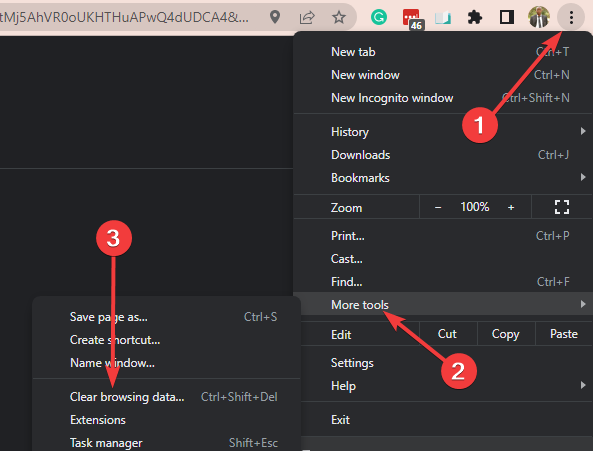
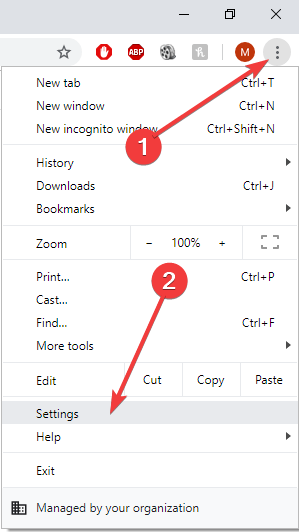
  2. Click on the menu icon, select More tools, then Extensions.
    high cpu when browsing internet
  3. Click on Remove to get rid of any extension.
    high cpu when browsing internet

Now you should verify if you are still experiencing high CPU when browsing the internet.

2. Delete cache and cookies

2.1 How to delete Opera One data

  1. Launch the Opera One browser.
  2. Paste the path below into the Address Bar and click Enter.
    opera://settings/clearBrowserData
    high cpu when browsing internet
  3. Make sure all the checkboxes are ticked, then click the Clear data button.
    high cpu when browsing internet
  4. Now you should verify that the Opera One high CPU usage has disappeared.

2.2 How to delete Chrome data

  1. Launch the Chrome browser.
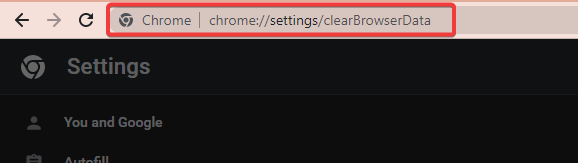
  2. Paste the path below into the Address bar and click Enter.
    chrome://settings/clearBrowserData
    high cpu when browsing internet
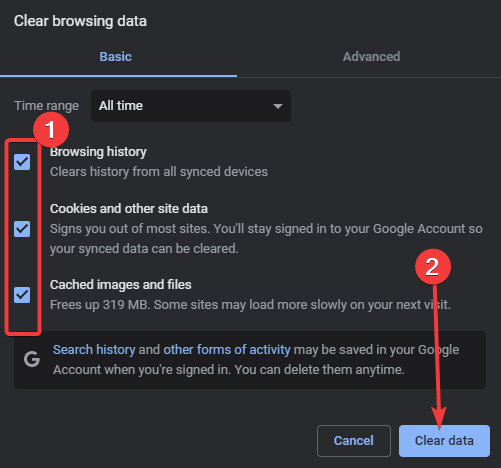
  3. Make sure all the checkboxes are ticked, then click the Clear data button.
    high cpu when browsing internet
  4. Now you should verify that the Chrome high CPU usage has disappeared.

Once again, you should note that for most browsers, the process of clearing cache data will be very similar to Chrome and Opera One.

3. End the browser process

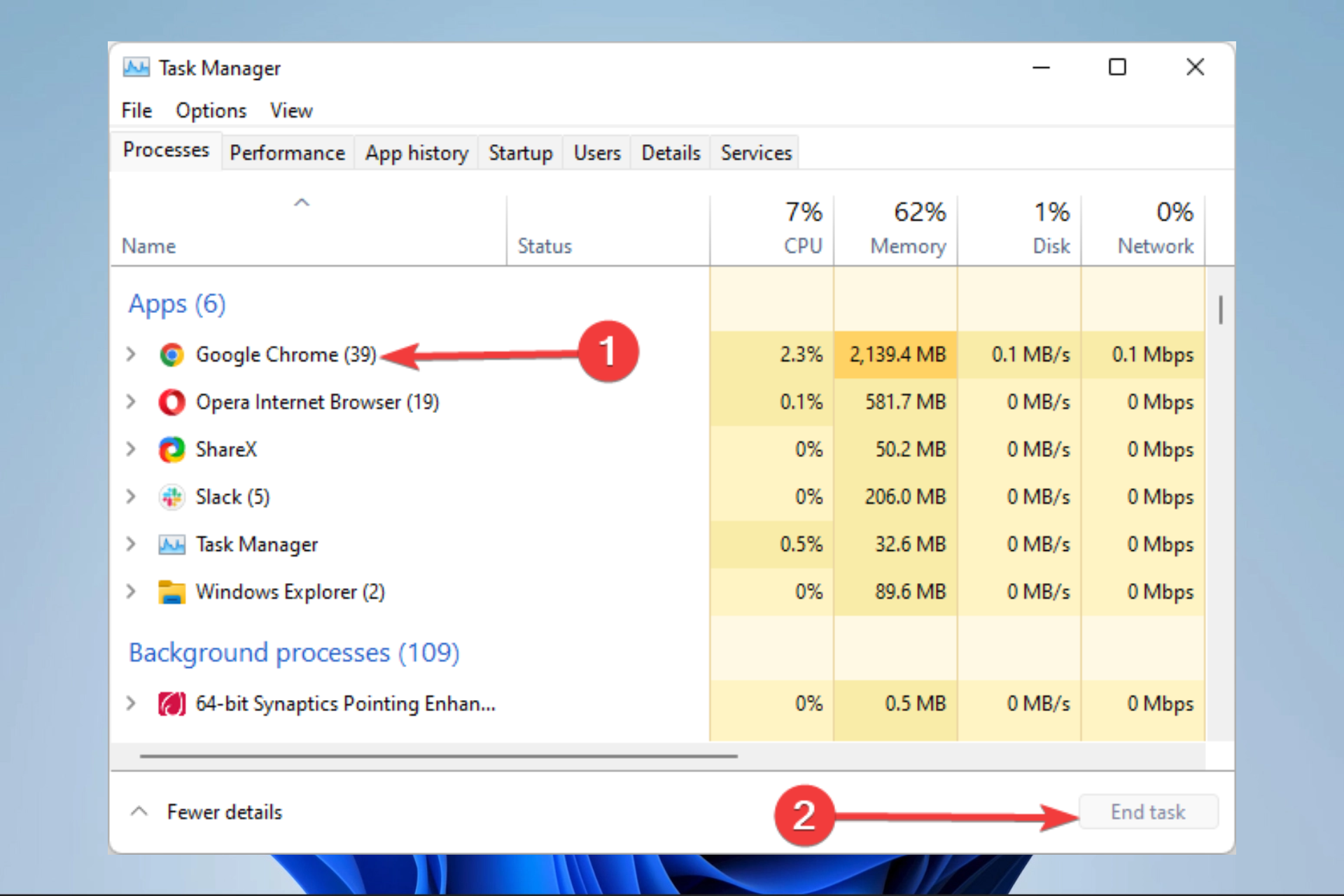
  1. Right-click on the Start menu and select Task Manager.
  2. Click on the browser you have running, then click on the End task button at the bottom right.
    high cpu when browsing internet
  3. You may want to restart your computer after this.

If you notice browser high CPU usage on startup, you should try forcing the task to end and verify if you are still experiencing high CPU when browsing the internet.

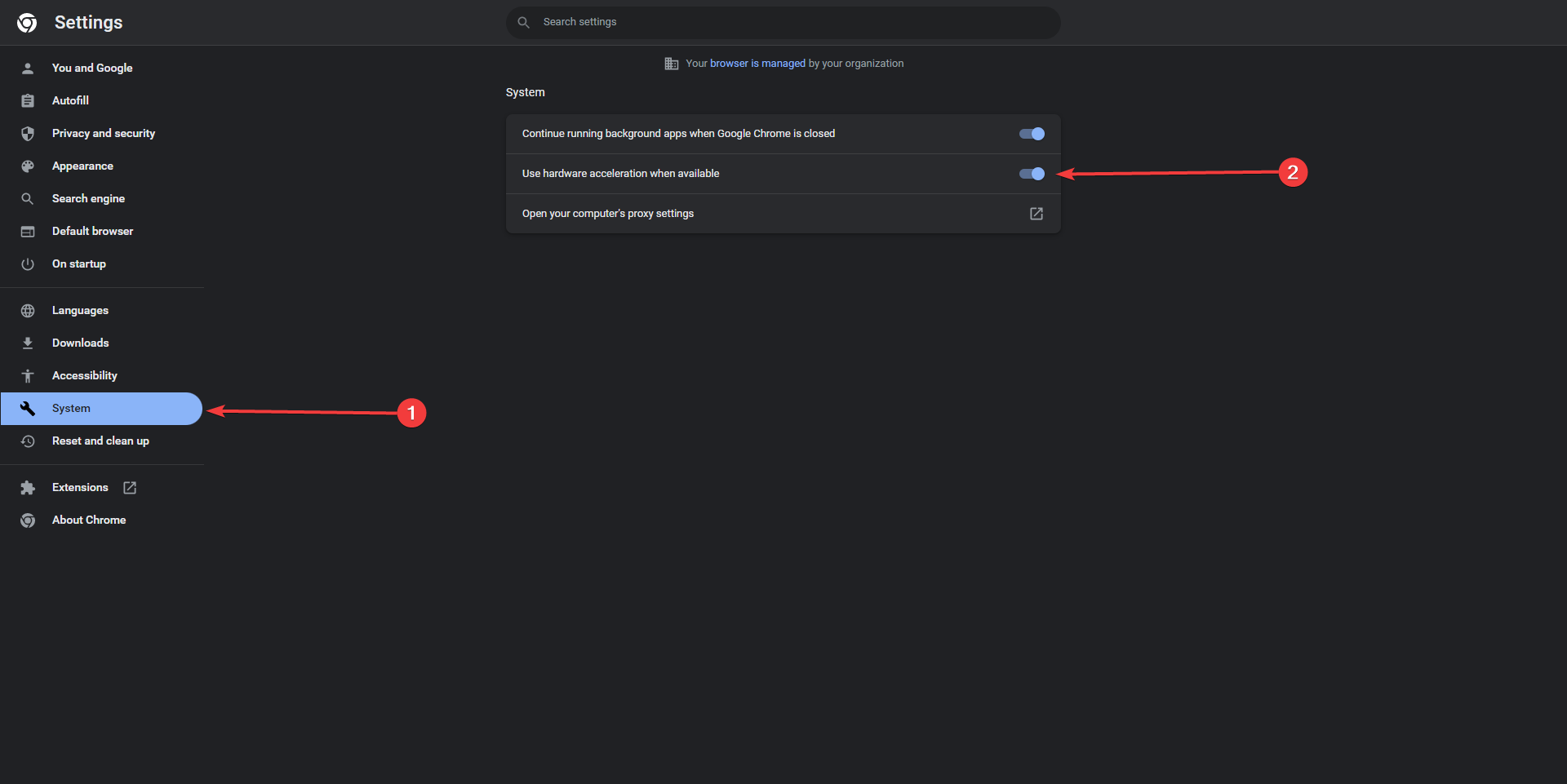
4. Disable Hardware Acceleration

  1. Right-click on the Start menu and click on the Settings option.
  2. On the left pane, click on System, and then select Display on the right.
  3. Scroll down to the Related settings section and click on Graphics.
  4. Click on Change default graphics settings.
  5. Click the switch to turn off Hardware-acceleration.

Now you should verify if you are still experiencing high CPU when browsing the internet.

Does CPU affect Web browsing?

Your programs can process information more quickly when your computer has a robust and speedy CPU. The amount of work you are doing will affect how long it takes for a website to load.

This means that if you’re attempting to see an episode of your favorite program while having a lot of tabs and apps open, it could appear a bit sluggish.

Technically speaking, in these cases, your internet service provider’s download speed has not changed. For example, you may still obtain a steady 30 Mbps, but website loading times can still be lengthy.

Regardless of your browser, you should notice that the solutions discussed in this artic;e should work when your Web browser is taking up CPU. However, the UI may differ, but you can figure it out in most cases.

In some cases, browser high CPU usage is caused by malware, so we recommend you use any of the best anti-malware compatible with Windows. Malware is a likely culprit if you notice Chrome using the CPU when closed.

That should do it. If you have questions, suggestions, or alternative solutions, share them with us in the comments section below.

13 Fixes to Use if Virgin Media is Not Connecting to Netflix

You must have found this article because Virgin Media is not connecting to Netflix, here is all you need to know.

Virgin Media is one of the biggest ISPs in the UK, providing internet access to thousands of British residents. However, it occasionally runs into problems, just like any other ISP.

Many users report that Virgin Media is not connecting to Netflix. It’s a streaming error that, fortunately, has many potential solutions. And we’re here to set you on the right path.

Why is my Netflix not connecting?

When Netflix is not connected, it is usually one of many reasons. The most common are as follows:

  • You connected to a bad internet connection
  • Netflix servers are down
  • Windows update services are turned off
  • Your computer lacks updates
  • Network drivers are corrupted or out of date

While this may not be an exhaustive list, these are the primary culprits or issues with Netflix connectivity.

Has Virgin stopped Netflix?

Virgin Media has not stopped Netflix, and you should still be able to use the service to connect to your Netflix account and enjoy your favorite shows.

There should be no problem gaining access to an account that is still active under the subscription. If you signed up for a new package that includes it, you should have received an email with an activation link, or there should be a Netflix activation button on the main page if you log into your online account.

What do I do if Virgin Media is not connecting to Netflix?

1. Try using a different device

If Netflix is not working with Virgin Media, there might be a problem with the device you’re trying to connect to. To rule it out, temporarily switch to another device with Internet access, like a smartphone, tablet, or laptop.

Then, head over to Netflix.com and try loading the streaming service again.

2. Check your web browser

2.1 Clear browser data

  1. Launch the Opera One browser.
  2. Paste the path below into the Address Bar and click Enter.
    chrome://settings/clearBrowserData
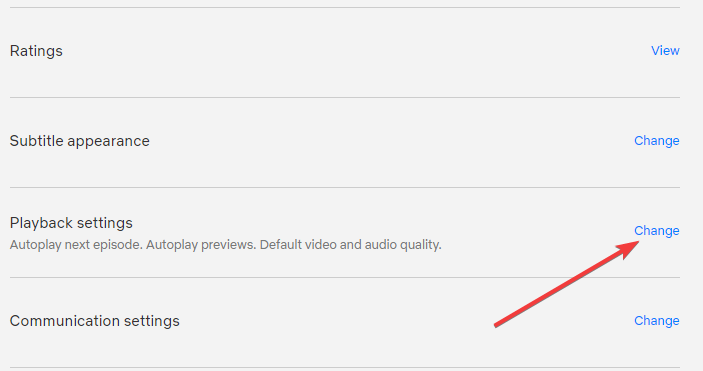
    virgin media not connecting to netflix
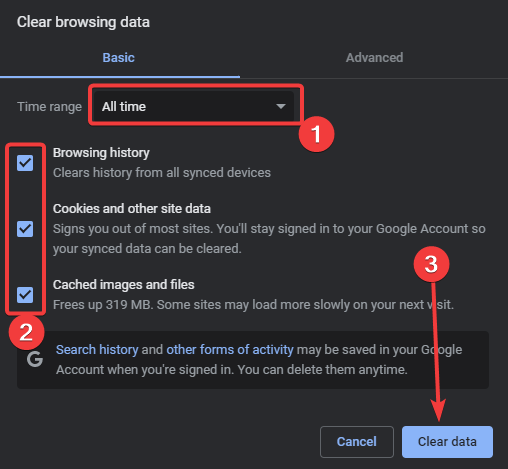
  3. Make sure all the checkboxes are ticked, then click the Clear data button.
    virgin media not connecting to netflix

2.2 Use an incognito/private browsing session

  1. Launch your browser.
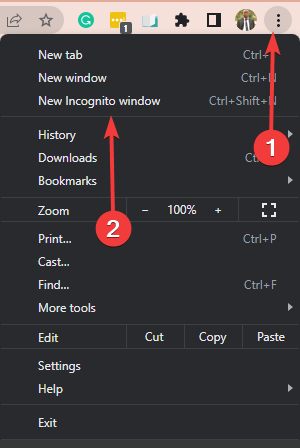
  2. Click on the menu icon and select the option saying New incognito window.
    virgin media not connecting to netflix
  3. Verify if you can now connect.

2.3 Switch to a different web browser

A simple way to check if your web browser is the culprit is by deleting cookies and browser cache. A simpler alternative is to launch an incognito or private browsing session.

But that solution isn’t permanent since Netflix can only save your login data in normal browsing mode. So that’s why we are considering switching to a different web browser, which will help you overcome this issue.

We highly recommend Opera One, it is a high-speed browser with many useful built-ins.

This browser comes with a built-in VPN which is very easy to use, helps bypass geo-restrictions, and solves some network issues. Also, the integrated Video Pop-out makes it very easy to enjoy your videos even when working on something else in the browser.

Opera One

Stay safe online and watch any video content you want due to the integrated VPN.

3. Install or reinstall the Netflix app

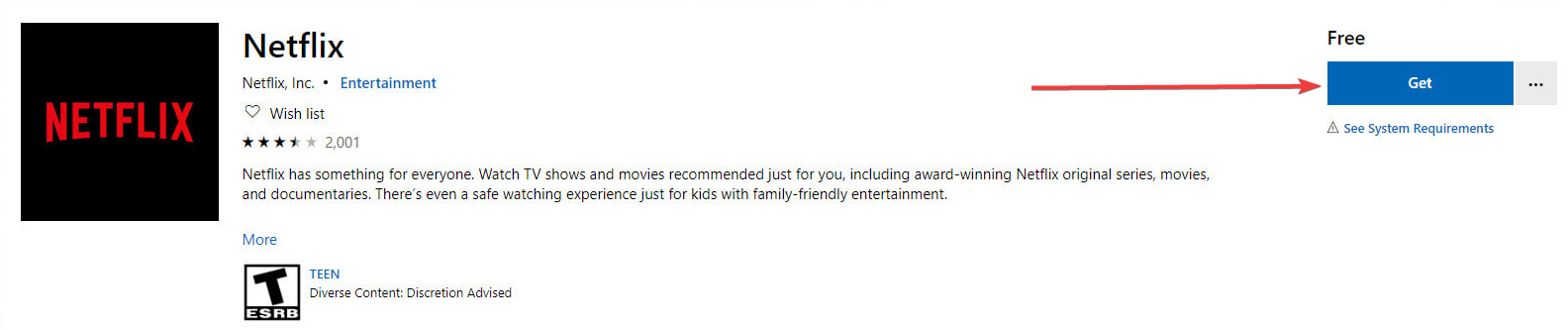
  1. Visit the Netflix page on Microsoft Store.
  2. Click Get and wait until the app is installed.
    virgin media not connecting to netflix
  3. You can now launch the Netflix app.

Perhaps the streaming issue isn’t with your ISP or device but with your browser. In that case, you can use the Netflix app to watch your favorite TV shows and movies online. If you can’t download the Netflix app, check out these workarounds.

4. Enable the Windows Update service

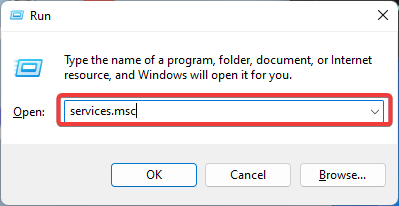
  1. Press Windows + R, type services.msc, and press Enter.
    virgin media not connecting to netflix
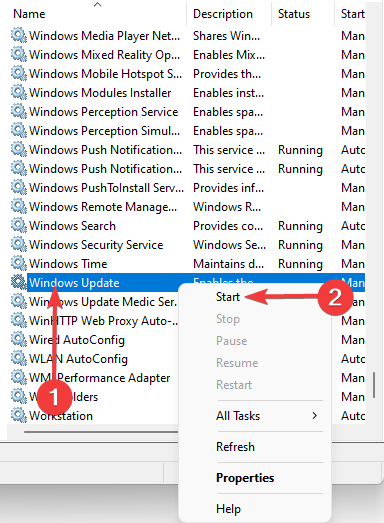
  2. Locate Windows Update on the list.
  3. Right-click Windows Update and select Start.
    virgin media not connecting to netflix

If the Windows Update service isn’t running, you might be unable to use Microsoft Store apps, including the Netflix app. However, you can fix this problem by simply turning on the service.

5. Download and install Windows updates

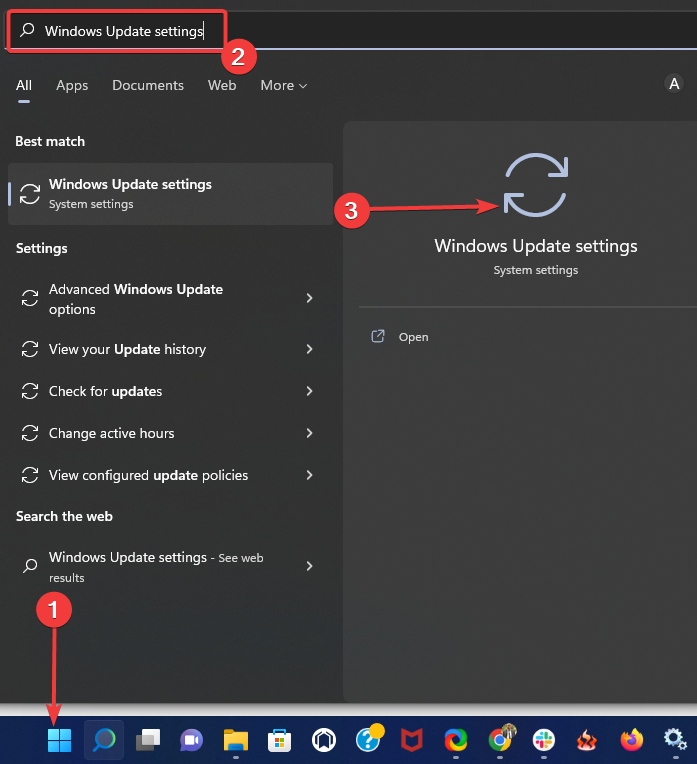
  1. Click the Start button, type windows update, and click on the Windows Update settings app.
    virgin media not connecting to netflix
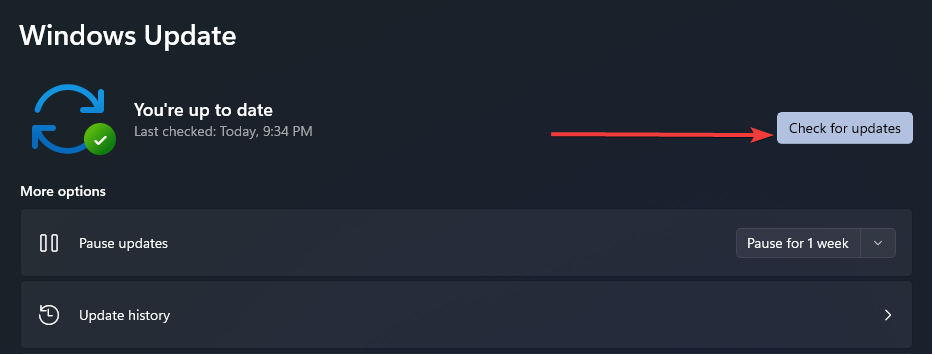
  2. Enter Windows Update settings and click Check for updates.
    virgin media not connecting to netflix
  3. Once it finishes looking for updates, click Download and install.

If Netflix is not loading on Virgin Media, you could try to fix this issue by just getting the latest security patches and hotfixes for your Windows 11 PC.

Bookmark our Patch Tuesday Hub to stay in touch with the latest Windows Updates.

6. Update your network drivers

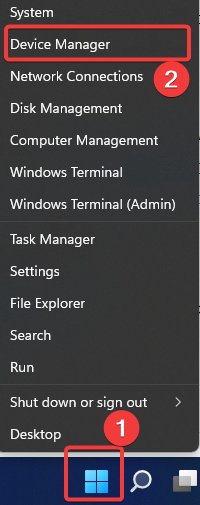
  1. Right-click on the Start menu and select Device Manager.
    virgin media not connecting to netflix
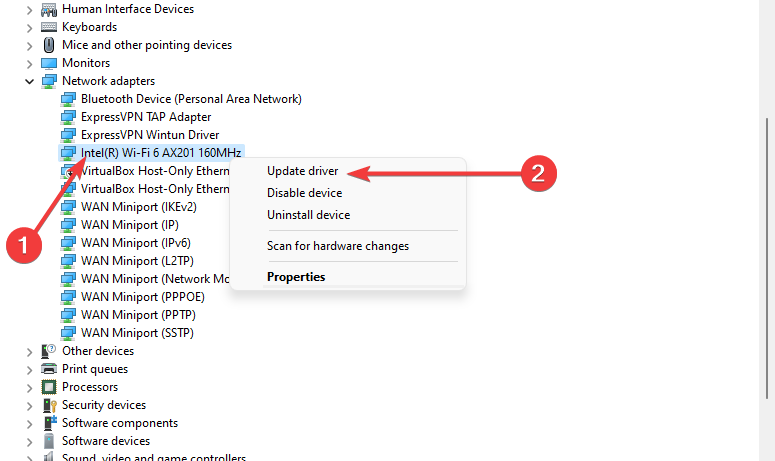
  2. Right-click on your network cards and select Update.
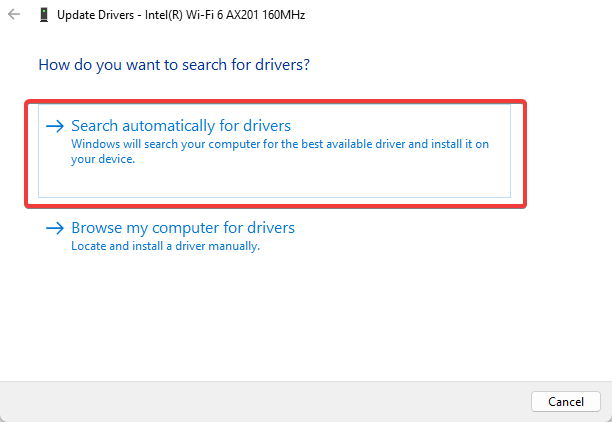
  3. Select Search automatically for drivers.
    virgin media not connecting to netflix

Numerous PC-related problems can be immediately resolved by just downloading and updating your device drivers. To fix Netflix connection issues with Virgin Media, you should focus on updating the network drivers.

You can do this manually by searching for newer network drivers on your manufacturer’s website or automatically by resorting to driver update software (the second option is much faster). If you can’t install drivers on Windows, there are ways to fix it.

7. Use a multimedia player

  1. Download GOM Player and install it on your PC.
  2. Run GOM Player.
  3. Exit GOM Player.
  4. Run the Netflix app.

It might seem a strange solution, but many users said it worked for them. Before launching the Netflix app from the Microsoft Store, run GOM Player.

What the tool does is prepare its audio and video codecs for media playback. After quitting GOM Player and launching Netflix, its app will use GOM’s codecs instead of its own.

Find out more about GOM Player, a freemium media player for Windows and Mac.

8. Connect in wired mode instead of Wi-Fi

If Virgin Media is not connecting to Netflix, there might be a problem with your wireless network connection. To quickly put this theory to the test, plug an Ethernet cable into your laptop, and try reaccessing Netflix.

If the streaming service works, you have to fix Wi-Fi issues before switching back to wireless mode. But if it doesn’t, you must troubleshoot your Ethernet connection.

9. Flush DNS and reset Winsock

  1. Right-click on the Start menu and select Windows Terminal (Admin).
  2. Next type the following commands, pressing Enter after each one.
    ipconfig /flushdns
    ipconfig /release
    ipconfig /renew
    netsh winsock reset
  3. Verify that the Virgin Media not connecting to Netflix problem is fixed.

10. Set the Virgin Media Hub from router to modem mode

  1. Connect your device to Hub 3 (with a cable or over Wi-Fi).
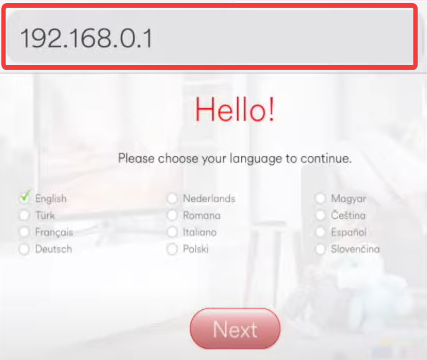
  2. In a web browser, go to 192.168.0.1 and log into the Hub 3 config panel.
  3. Enter the Hub 3 password (the default code is printed on the bottom of the device).
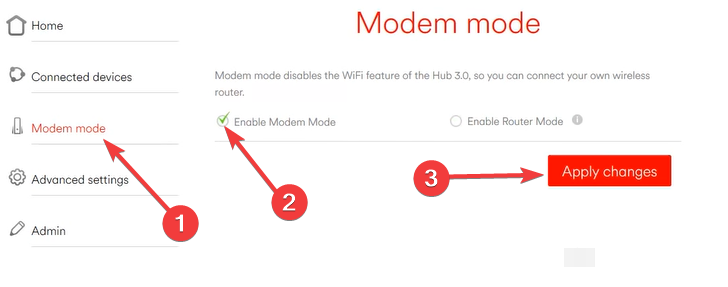
  4. Switch to Modem Mode, pick Enable Modem Mode, and Apply changes.
    virgin media not connecting to netflix

In modem mode, your IP address changes from 192.168.0.1 to 192.168.100.1.

11. Change your DNS servers

  1. Open the Control Panel.
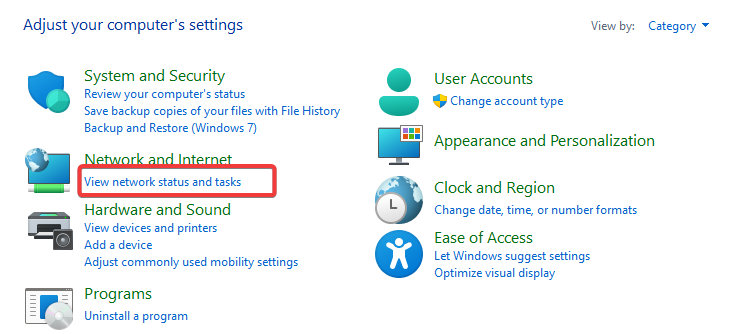
  2. Click on View network status and tasks.
    virgin media not connecting to netflix
  3. Select Change adapter settings from the left pane.
  4. Right-click on your adapter and select Properties.
  5. Click on Internet Protocol Version 4 (TCP/IPv4) and select the Properties button.
    virgin media not connecting to netflix
  6. Select the Use the following DNS server addresses option, then use the IPs below to fill the options for Preferred DNS server, and Alternate DNS server:
    8.8.8.8
    8.8.4.4

If you have never made any changes to your DNS servers, it means they are being controlled by Virgin Media. Using its exclusive DNS servers, Virgin Media translates the domain names of the websites you’re attempting to visit (including Netflix) into the associated IP addresses.

However, if the DNS servers are too slow, this could mean a poor page loading speed. Since Netflix is a resource-consuming streaming service, it requires the best possible page loading speed.

But you can leave behind Virgin Media’s DNS and configure DNS settings to enter custom servers.

12. Use a VPN

PIA is a virtual private network solution created by Kape Technologies, which can help improve your Internet connection if Virgin Media is not connecting to Netflix.

If there’s an underline issue with the ISP, then you can connect to one of PIA’s VPN servers so that your Internet traffic is no longer being received, processed, and forwarded by Virgin Media. Besides, PIA is an excellent solution for fixing Virgin Media bad ping.

To make sure your Internet connection speed isn’t hampered, you can use PIA’s private DNS servers, port forwarding, and split tunneling. You can even use OpenVPN with UDP without encryption if necessary.

More about PIA:

  • +3,300 VPN servers in 48 countries
  • 10 simultaneous device connections
  • Can be installed on routers
  • Unlocks more Netflix libraries, including Netflix US
  • 24/7 live chat support
  • 30-day money-back guarantee (no free trial)

Private Internet Access

If Virgin Media isn’t connecting to Netflix, use PIA to fix this issue quickly and easily.
Check price Visit Website

13. Get in touch with Virgin Media and Netflix customer service

Contacting the customer support of Virgin Media is the best way to identify the reason why it’s not loading Netflix.

While doing that, you can also contact Netflix to see if their servers have a problem. In that case, you have to wait until Netflix fixes its issues.

Do you have to pay for Netflix on Virgin?

Yes, you can. Join up for Netflix on your Virgin Media TV box and choose Virgin Media as your payment method to add Netflix to your subscription. You may also sign up for Netflix via My Virgin Media.

Taking everything into account, there could be many reasons why Virgin Media isn’t working with Netflix: issues with the ISP, streaming service, your Wi-Fi or Ethernet connection, or your device.

Speaking of seamless internet connection, the absence of that could also cause issues like Virgin Media Error Code w02 on your Virgin Media TV box; read this guide to find the solutions.

No matter what the issue is, you should be able to fix it using one or more solutions from above. If Netflix is not loading channels on TiVo Box with Virgin Media, there are additional steps involved.

How to use Apple Notes app on Windows 10 [Quick Guide]

A lot of us use iPhone but prefer Windows 10 when it comes to PC. However, this preference can become an issue if you use the Apple Notes app on your iOS device extensively.

Users have been wondering whether they can get the Apple Notes app on Windows 10.

There is no official version of the Apple Notes app for Windows 10 yet, and, we don’t see Apple porting its iOS or macOS apps to Windows 10 in the near future, but there is a workaround that we’ll explore in this guide.

How to access Apple Notes in Windows 10?

    You can use Apple Notes on your PC by creating a browser application for it. The Notes app will function as a PWA (progressive web app). You can do this using your Chrome or Microsoft Edge Chromium browser.

  1. 1. Launch your preferred browser. In our guide, we will use Chrome.

  2. 2. Go to iCloud and login to your account.

    Apple notes for Windows
  3. 3. Open the Notes app.

  4. 4. Click the More button (three dots) top right corner of your browser.

    Apple notes for Windows
  5. 5. Select More Tools > Create a Shortcut.

  6. 6. In a new tab, type chrome://apps/ and hit Enter.

  7. 7. Right-click on the newly created Notes shortcut.

  8. 8. Select Open as Window.

    Apple notes for Windows
  9. 9. Right-click on the Notes shortcut again, and select Create Shortcuts.

    Apple notes for Windows
  10. 10. Give your shortcut a name, then click on Create. This will add the Notes app shortcut to your Start menu and Taskbar.

Once done, you can open the Notes app from the Start menu or taskbar like normal apps. Even though the app will still open Google Chrome, it will open in a separate window.

Note: For this article, we are using Google Chrome. But you can use other Chromium-based browsers like Edge to achieve the same results.

The fact that Apple has not given third-party developers access to its Notes app means it will remain unavailable for Windows 10 to be downloaded as a standalone app for now.

Check out other alternatives to replace your Apple Notes app.

If you like this article, explore more such articles by visiting our How-To hub.

Also, check out our dedicated Software section to find productivity software for Windows 10.

By following the steps in the article, you can get the Apple Notes app working on Windows 10. While this may be a workaround, it works fine as long as you are comfortable using Google Chrome.

How to Turn Off Windows 11 Animations [2 Different Ways]

Windows 11 comes with a lot of new features and, even though it doesn’t look that different from its predecessor, the new OS has some pretty nice graphic goodies.

Microsoft’s latest operating system uses animation effects for controls and elements by default. However, some of you may not be that impressed with these changes and would like to turn them off, for whatever reason.

We will show you exactly how you can do this, using two very simple methods.

How can I turn off the animation effect in Windows 11?

1. Using the Settings app

  1. Press the Windows key + I to open the settings menu.
  2. Select the Accessibility category and then click on Visual Effects.animation effect 1
  3. Turn the Animation effects On/Off.animation effect 2

2. Using the Control Panel

    Control Panel comes in handy when it comes to turning off the animations in Windows 11. From the Ease of Access Center, you can manually toggle unnecessary animations off.

  1. 1. Open the Start menu, search for Control Panel and open the app.

    search for control panel
  2. 2. From the top right corner of the window, set the View by option to Large icons.

    view by control panel
  3. 3. Click on Ease of Access Center.

    ease of access centre
  4. 4. Click on the Make the computer easier to see option.

    make the computer easier to see
  5. 5. Check the box for Turn off all unnecessary animations (when possible).

    how to turn off animations in windows 11 toggle

Pretty simple, right? These are the steps you need to go through if you decided to turn the Windows 11 animations off, or maybe even back on.

This will only take up a couple of minutes of your time and doesn’t require a high level of technical knowledge.

While you’re still here, check out how to liven up your email messages by adding GIFs to your Outlook emails.


Was this article helpful to you? Let us know in the comments section below.

Move the Windows 11 Taskbar Back to the Left in 6 Quick Steps

Most of us have been using Windows 10 for quite some time now and, naturally, we’ve grown accustomed to a certain layout of the UI.

Although the change brought forth by the whole system redesign, as a part of the new Windows 11 OS, is not that major, some are finding it a bit hard to adjust to this recent arrangement.

Well, rest assured knowing that Microsoft has foreseen this and, therefore, allowed the tweaking of the position of certain UI elements, such as the Start menu and taskbar icons.

You might have also noticed a new icon added to the Windows 11 taskbar, labeled Widgets in the operating system.

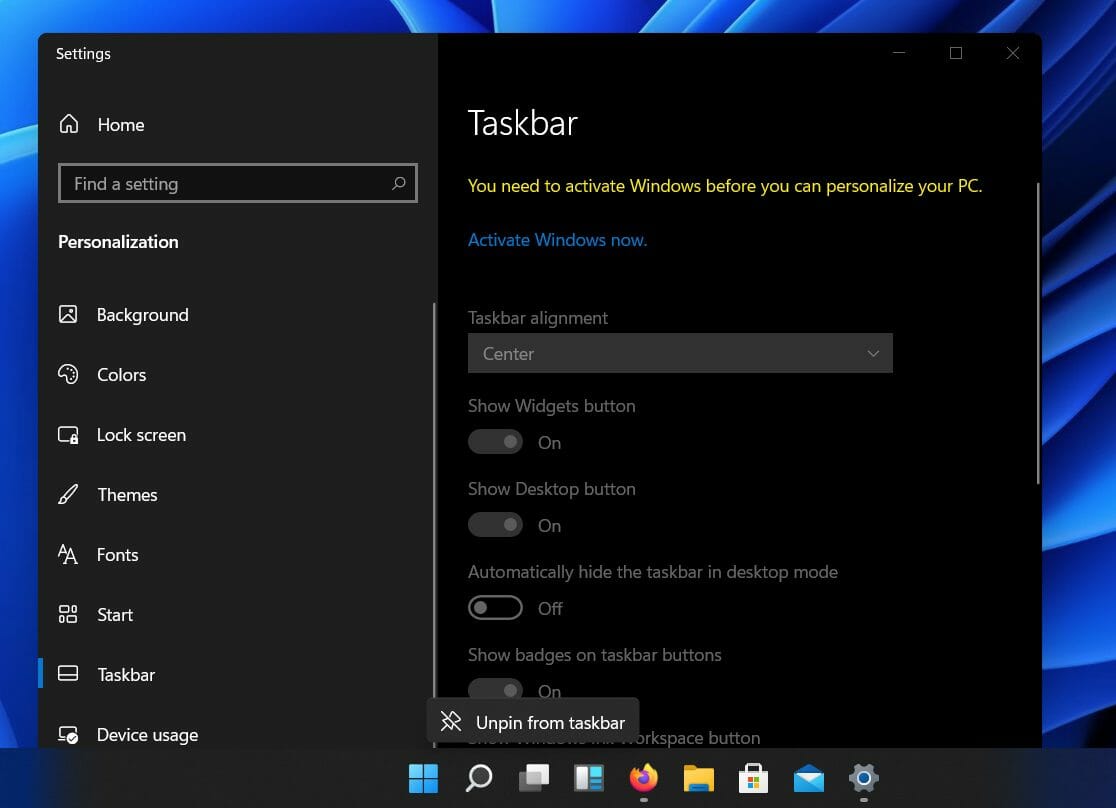
Activate your Windows before you move your taskbar

windows 11 taskbar

It should be noted that users can only customize the position of the taskbar on their devices if they are using activated versions of Windows. Therefore, in order to move the taskbar to the left side, you need to activate Windows 11 first.

If you can’t activate Windows 11, check out our article and find out how to solve the issue.

How do I move the taskbar back to the left side?

Don’t panic by thinking that this will take up a long portion of your time, as this process is fairly easy and only takes one minute to perform.

    You can quickly move your taskbar to the left side through the built-in Settings on your device. In just a few clicks, you can set up a new position for your taskbar.

  1. 1. Press Windows key +I to bring up the Settings menu.

  2. 2. Select Personalization, then scroll down to the Taskbar section.

    taskbar settings windows 11
  3. 3. Click on Taskbar behaviors, in order to access the dropdown menu.

    move taskbar settings behaviour
  4. 4. Next to Taskbar alignment, click on the dropdown menu.

    taskbar alignment settings windows 11
  5. 5. Here you will have two options: Left and Center. Choose Left.

  6. 6. Now your Taskbar is on the left side of the screen.

If you are looking to move your Windows 11 taskbar to the side or to the top, check out our dedicated article.

Is it necessary to revert the taskbar’s position to the left?

Upon reading information that suggested the ability to actually revert the changes that Windows 11 brings to the taskbar and its featured apps and menus, users were not really impressed, to say the least.

 Can’t say I care much about the start menu either way.

For me, the real pain point is the lack of group policy and windows update control. It is a level of paternalism that MS needs to stop with. But MS does not know the full local situation of the computer being used.

By following a trending Reddit thread, we can deduce the vast majority of users, that are keeping themselves informed about everything related to Windows, were actually expecting other, more significant improvements.

Many of them still feel like this is just Windows 10, with a different, more modern skin. It could seem so, for the moment, as the version that was leaked is far from being full.

Most likely, many opinions will change when Microsoft actually releases the full, working version of this highly anticipated operating system.

If you are more into personalizing your Windows desktop, we have a great guide to customizing the Start menu layout.

We hope that our guide helped you move the position of your taskbar. Let us know in the comments section below if you have any questions.

Windows 11 Dark Mode: How to Enable or Force it

Since the launch of Windows 11, people have been actively checking out all the features that are available with it, and trying to point out the good and the bad.

One of the features that had many curious is Dark Mode. After seeing the finished product, users are smiling, as it looks pretty good.

The Dark Mode is a great way to cope with spending so many hours in front of the PC, as it is easier on the eyes.

How do I enable Dark Mode in Windows 11?

You don’t have to worry at all, because activating this feature on the new operating system is just as easy as it was on the previous version.

    Dark Mode on Windows 11 can be easily enabled through the built-in Personalization menu. You can choose the desired theme you want on your device in just a few clicks.

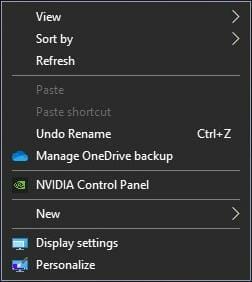
  1. 1. Right-click on any free space on your desktop. This will open a menu with options.

  2. 2. Select the last option available, which is Personalize.

    how to enable dark mode in windows 11 personalize
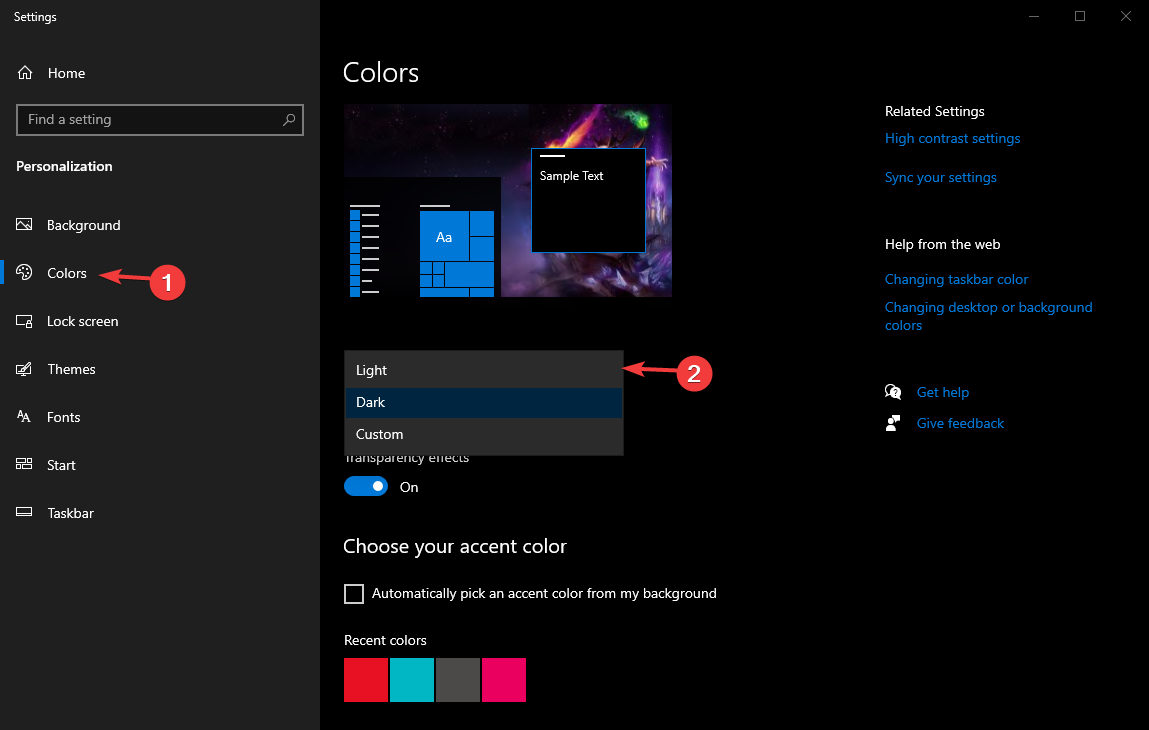
  3. 3. The next step is to click on the Colors tab from the menu on the left.

    enable dark mode on windows 11 select
  4. 4. Select the dropdown menu on the right, which contains the three available theme possibilities, such as Light, Dark and Custom.

  5. 5. Choose the Dark theme.

  6. 6. All that is left now is for you to exit the Settings menu and enjoy your PCs new look.

    windows 11 dark mode activate

Note that you can also get to the Personalization menu by pressing Windows key + I, which will open the Settings menu, from which you can then select Personalization.

For those curious to find out how to enable Dark Mode in Windows 10, we have a special guide.

We also have a complete guide on how to schedule Dark Mode in Windows and plan in advance.

Are you enjoying your new Windows 11 Dark Mode? Tell us all about it in the comments section below.

How to capture still images from videos on Windows 10 / 11

Users have been wanting to make a screen capture from a movie or video file on their Windows 10 devices.

This feature comes in very handy if you want to create the perfect thumbnail for a video, or to add some effects to your website, and why not, set them as your background image.

How can I capture pictures and photos from videos?

You can capture pictures from videos by using one of the methods written below. Some include built-in programs, while others require a third-party tool.

1. Use a third-party video editor

The most obvious choice when it comes to extracting content out of a video is through the use of a video editor since you are essentially interested in a particular frame from it.

That being said, no video editor is better for the job than Adobe’s very own Premiere Pro, an industry-standard in the world of video editors.

Since it is used by both common users and within the movie industry to create Hollywood-level content, we highly recommend it for any video editing purposes.

The interface is simplistic, following the traditional timeline-based arrangement, so even casual users will know how to get around this app.

More so, the program comes with all the tools one may ever need in order to edit a video, including extracting a single frame from it and using it as a screenshot.

Adobe Premiere Pro

Take a picture from any of your videos with industry-leading software when it comes to video editing.
Free trial Visit website

2. Use your video player

Most video players nowadays come with a few video editing tools themselves, most of which are used to adjust the image of the video as you are watching it.

Curiously enough, the ability to capture a certain frame at any given time from within a video is a trait that is quite common.

In some video players such as VLC, all you need to do is right-click the image while the video is playing, and simply select an option that usually looks like Capture frame.

Of course, not all video players are the same, but you can easily find a similar option if you look for a bit.

    3. Take a screenshot of your video

    The easiest method to capture a still image of a video is to use the built-in Snipping Tool or any other screen-recording software. All you need to do is navigate to the section of the video you want to take a picture of, then screenshot it.

  1. 1. Play your video on any video player.

  2. 2. Pause it at the moment where there is an image you want to capture.

    capture photo from video windows 10 pause
  3. 3. Press Shift + Windows key + S at the same time. Alternatively, press any key that you bound your screenshot function to, if you customized its hotkey using a screenshot tool.

  4. 4. Select the area you want to capture. The image will be stored in the clipboard.

  5. 5. Open Paint.

  6. 6. Paste the image onto your Paint canvas.

    capture still image from video paste
  7. 7. Save the image to your PC. You can configure the location you want to save it to, as well as the file’s name.

If all options fail for some reason, a screen recorder is your next best solution and it can be used in almost any video player you may have already installed on your PC.

By following these steps, you should be able to capture a photo or image of any video and use it for whatever purpose you see fit.

Let us know if our guide was useful by leaving us a message in the comments section below. 

Create a Windows 10 ISO image from an existing installation

When Microsoft releases a new Windows 10 build to Insiders on the Fast ring, it is usually only available through Windows Update.

This means you can’t find an ISO file of that build, and install it manually while it’s still available on the Fast ring only.

Microsoft usually releases Windows 10 ISO files for commercial versions, or when a certain build enters the Slow ring.

You can download official ISO files for the Anniversary Updates, and for different Windows builds, but you can’t download an ISO file of the latest build released.

However, if you can’t wait for Microsoft to officially release an ISO file, and have a good reason to download it, and create an installation media, it’s actually possible to do that.

There’s a way to create a ISO file of basically any Windows 10 Preview build you want, but it’s not an official way, approved by Microsoft. So, here’s what you need to do.

ISO files, also called ISO images, represent a single file of an entire DVD or CD. In other words, it is a virtual version of a disc.

This is why ISO files are very useful, eliminating the need to carry data on a piece of hardware. Also, for Windows 10 builds, the ISO format may play an important role.

It is easier for Microsoft to release ISO files for updates, but it happens that you can’t download the official ISO file of the latest build.

How to create an ISO file of your current Windows 10 build

When you need to install a new version of Windows 10, or download a new build, Microsoft delivers it to you through a new ESD (Electronic Software Delivery) image format.

This image is known as install.ESD, and Windows 10 downloads it on your computer, every time you install a new Windows 10 release. 

To create our custom ISO file, we’re going to take advantage of the install.ESD file. This file is usually stored the hidden $WINDOWS.~BT folder, there’s an easy way to find.

Once you’ve found the install.ESD file, you’re going to need a program called ESD Decrypter, to create your own ISO file.

But first, we have to mention that this utility is a third-party program, so you’ll be using it on your own risk.

    In order to create an ISO file from an existing Windows 10 installation, you need to use the ESD Decrypter tool on your install.ESD file. This file contains a copy of the current installation of the OS on your PC.

  1. 1. Download the ESD Decrypter and extract it anywhere on your computer.

  2. 2. Press the Windows + I keys simultaneously to open the Settings app.

  3. 3. Navigate to Updates & security.

  4. 4. Click on Check for updates.

    create an iso of my current system windows 10 updates
  5. 5. Wait for Windows Update to download and install the new build.

    how to make iso file from installed windows 10 updates
  6. 6. Once the build is installed, DON’T restart your computer.

  7. 7. Instead, go to File Explorer and then navigate to This PC.

  8. 8. Open a partition on which your system is installed (usually C:)

  9. 9. Click the View tab on File Explorer, and check Hidden items option.

  10. 10. The $WINDOWS.~BT folder will now be visible. Open it.

  11. 11. Look for the Sources folder inside $WINDOWS.~BT.

  12. 12. Inside the Sources folder, right click on the Install.ESD file, and choose Copy.

  13. 13. Paste the Install.ESD file in the folder where you extracted the ESD Decrypter utility files.

    create windows 10 iso image from existing installation files
  14. 14. Right-click the decrypt.cmd file, and select Run as Administrator.

  15. 15. In the ESD Decrypter Script user interface, type 2 to select the Create full ISO with Compressed install.esd option.

  16. 16. Press Enter to begin the process.

    create windows 10 iso image from existing installation esd decrypt
  17. 17. Once the process completes, the ISO file will be created, and ready for mounting.

That’s pretty much it, once you’ve created a ISO file using this method, you can mount it on a USB flash drive, using a tool like Rufus, and install it on your PC, or a virtual machine.

If you have an old USB flash drive and do not know what to do with it, check out our article to find out our recommendations.

If you have any questions, and comments, please let us know in the comment section below.

RELATED STORIES YOU NEED TO CHECK OUT:

How to boot from USB in Windows 10

Every time you boot your Windows PC, the default boot location is usually your hard drive where the operation system is installed. However, there are times when you may want to boot your PC from a USB drive.

However, this isn’t something that is very well-known but, even if users do know how to do it, they surely don’t know all the methods to do it.

That is precisely why we’ve compiled this step-by-step guide, to show you how to boot your Windows 10 PC from a USB drive.

How can I boot from a USB flash drive in Windows 10?

Note: If you have fast boot or ultra fast boot enabled in your UEFI firmware settings, then you will need to temporarily disable them to be able to boot from a USB.

1. Boot from a USB from within Windows 10

    The Advanced Startup menu allow users to choose from which drive to boot their PCs. All you need to do is enter this menu upon booting, then manually configure the PC to boot from your USB drive.

  1. 1. Connect your USB drive into one of the PC’s ports.

  2. 2. Press the key that allows you to enter Advanced Startup Options. On some PCs, for example, this key is F11.

  3. 3. You are now in the Advanced Startup menu.

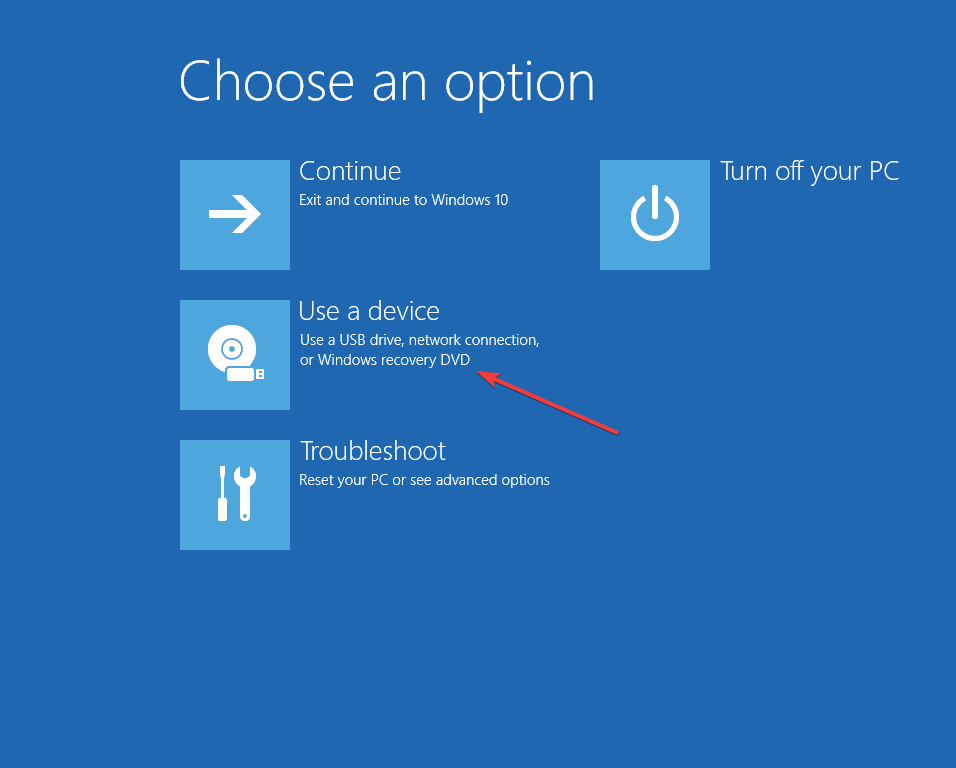
  4. 4. Select Use a device.

    how to boot from usb windows 10 use a device
  5. 5. Choose the USB drive you want to boot from.

  6. 6. The PC will now restart and boot from that particular USB drive.

Having problems accessing the Advanced Startup menu? Check out our guide that will show you how to make accessing it easier.

2. Boot from a USB drive at boot in a Windows 10 PC

  1. Connect a USB drive into one of the PC’s ports
  2. During a computer boot, enter the Boot Menu
    • This process varies from PC to PC, so check out your PC manufacturer’s specifications based on your needs
  3. In the Boot Menu, select the USB drive you want to boot from
    • This process depends on the PC that you have
      • You can either move the USB drive up the priority list using the F4 or F5 keys
      • You can also select to boot from it straight from the menu
boot menu

3. Boot from a USB drive on a Surface device

  1. While the surface device is turned off, connect a USB device
  2. Hold the volume-up button
  3. Press and release the power button
  4. Hold the volume-up button pressed until the Surface or Windows logo disappears
  5. The Surface Boot UEFI should appear
  6. Select Configure Alternate System Boot Order
  7. Rearrange the order so that the USB drive is the top pick
  8. Disable Secure Boot Control
  9. Restart the Surface device

By following any of the steps below, you should be able to easily boot both a Windows 10 PC and a Surface device from a USB drive.

Keep note that this will not affect the device’s ability to boot normally. If it boots without any bootable USB drive connected, it will switch back to booting from the system drive.

Let us know if you want to read about more boot options by commenting in the section below.

How to Find Instagram Account by Phone Number | 2026 Guide

It’s possible to find someone’s Instagram using their phone number because Instagram users link their accounts to the number during registration.

In the past, it was easier to find Instagram accounts from their phone numbers.

Instagram provided a separate page called Contacts, which lists your contacts who are on Instagram.

With recent Instagram updates, it’s become trickier to find someone’s Instagram account by phone number.

However, the technique you are about to learn will work, even though it’s not as straightforward as the past methods.

How can I find someone on Instagram by phone number?

At the time, there is only one viable method of finding someone’s Instagram account using their phone number.

Note: This guide is solely for informational purposes and doesn’t endorse stalking Instagram users.

Now that if have addressed the elephant in the room, let’s dig straight into it and see how to find an Instagram account by phone number.

    Find Instagram account by phone number using the Suggestions page

    The only way you can find someone on Instagram by phone number is through the Suggestions page.

    You need to make sure you have that person’s phone number saved on your smartphone, then connect your contacts list to Instagram.

    The app will then give you a list of all the people who registered on it using a phone number that is on your contacts list.

  1. 1. Save the phone number of the person you want to find to your contact list on your smartphone.

  2. 2. Open the Instagram app on the device on which you saved the phone number.

  3. 3. Go to your profile page on the bottom right corner.

  4. 4. Tap on the hamburger icon (three dashes stacked) at the top right-hand corner of the screen.

    instagram hamburger menu
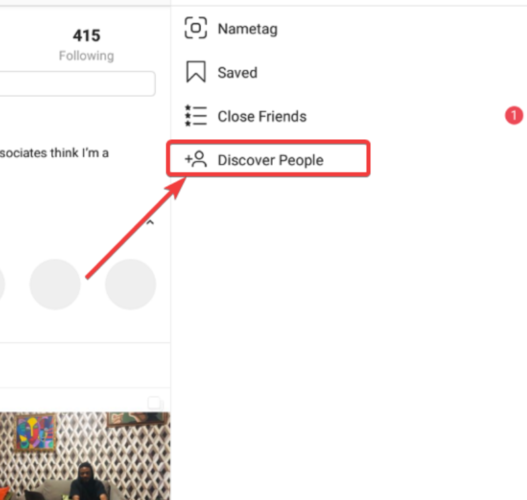
  5. 5. Select Discover people.

    instagram settings discover people
  6. 6. Click on Connect contacts.

  7. 7. Choose the ALLOW option to let the Instagram app access your contacts.

  8. 8. Instagram users suggested from your contact list will be marked as Suggested for you. Scroll through the list and find the person you are looking for.

If you’ve used this method in the past, you skip steps 5 and 6. At this point, you will see a list of contacts in the All suggestions screen.

The users on this page either follow you, are new to Instagram, share a mutual friend with you, are friends with you on Facebook, or have their number in your phone’s contact list.

It’s up to you to scroll through the list and find the person you are looking for.

If the person didn’t verify their Instagram account using the specific phone number you have on your contact list, you may not find them in the suggestions.

You’ll also not find them if they blocked you on Instagram.

We hope that our solution helped you find the person you were looking for on Instagram. Let us know what you think about this article and whether you have any questions in the comments section.

Uninstall Programs on Windows 10 That Cannot be Uninstalled

Chances are that you’re here because you were unable to uninstall a program in Windows 10. No need to worry. It’s a frequent problem that is most likely caused by minor file corruption issues.

Many Windows users report having this problem. In this article, we’re going to show you the most used and the most reliable methods, including using dedicated uninstaller tools.

What programs cannot be uninstalled?

A software category that is especially difficult to remove from a Windows PC is antivirus and anti-malware tools.

Other apps that will resist uninstallation are those that contain malicious scripts. They are specifically built to resist uninstallation and you will need to follow a special procedure to remove them.

Tech experts advise us to check our computer applications every once in a while. This is to pinpoint unnecessary apps that only take up space without benefiting us in any way.

Not only that, but you can also see if there are any suspicious apps within our system and remove them as soon as possible.

Don’t know how to force uninstall a program in Windows 10? We’re here to help, so check our recommendations below.

Why can’t I uninstall a program on Windows 10?

Uninstalling an application is a simple task that does not require much effort. Unfortunately, when you encounter apps that won’t uninstall, things become a little more tricky.

Most frequent reasons why you can’t uninstall apps include:

➡️ Corrupt application files

➡️ Uninstaller wizard is missing

➡️ Problematic registry entries

➡️ Files with malicious scripts

Nowadays, most programs include their own uninstall wizards. You can access them either directly from the app’s user interface, or find them in the app’s specific folder in Program Files.

Due to some errors within app scripts or because of file corruption, some apps don’t contain these uninstallers, which means you will not be able to remove them as you normally would.

A frequent scenario is when you uninstall the app and parts of it are removed, thus you cannot use it anymore, but there are some leftovers.

This means that the app will still show up in your programs list in the Add or remove programs, but its folders in Program Files are gone.

In most cases, this indicates that there are still traces of the app somewhere on your PC, most likely within the registry.

If you have a malware application that won’t be removed, the process is similar. You can remove its registry entries and use Windows settings to uninstall it.

However, in this case, it’s advised you use antivirus software because many malicious applications do clone themselves once they attack your computer.

Even if you successfully delete one of them, it can still be on your computer under a different name.

    How to uninstall programs on Windows 10 that cannot be uninstalled?

    If you tried the traditional methods to uninstall a program and they did not work, you should perform a force uninstall using Command Prompt.

    Manually uninstalling programs using CMD is a safe and reliable method that ensures the programs are completely deleted from your computer.

  1. 1. Press the Windows key on your keyboard and type cmd in the search box that opens.

  2. 2. Click on the first result to open the Command Prompt app.

    cmd open
  3. 3. Input the following command line: powershell Get-AppxPackage -AllUsers

  4. 4. Press Enter to execute the command. This will generate a list of all the applications on your PC. Use it to find the correct name of your app.

    cmd command get app
  5. 5. Type the following command and replace the Package line with the complete name of the app you want to remove: powershell Remove-AppxPackage

    cmd remove app
  6. 6. Press Enter to run it and finish removing the program from your device.

How to uninstall programs on Windows 10?

1. Use Programs and Features

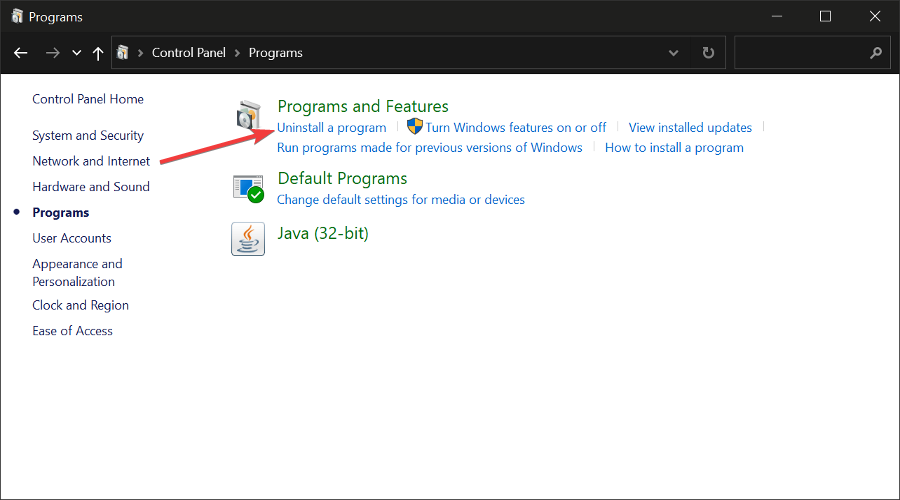
  1. Go to search and type Control Panel.
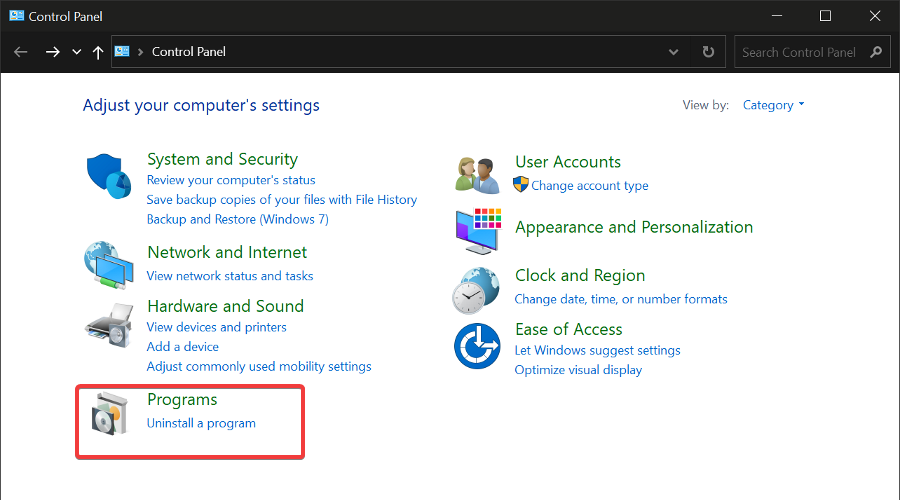
  2. Open the panel and then click on Programs to open Programs and Features. uninstall programs that won't uninstall unable to uninstall
  3. Click on Uninstall a program. unable to uninstall program windows 10 11 app won't uninstall
  4. Find your application in the list and double-click on it. A confirmation prompt that will ask if you are sure you want to uninstall may appear. Select Yes. Wait for the process to complete.uninstall app software won't uninstall unable to remove app

Programs and Features is a built-in Windows utility. It helps you manage your applications and features. It is probably one of the best for removing unwanted programs with just a few clicks.

As you can see, the process is very simple. You can also use this tool for adding or removing certain features of Windows 10 (like Internet Explorer or .NET Framework, for example).

Just go to Turn Windows features on or off, and choose which features you want to add or remove. For more information on this matter, check our guide on how you can turn Windows Features on/off. 

2. Use third-party software

If you don’t want to waste your time using Programs and Features to uninstall your programs, you can always use some third-party software.

There are tons of software tools for uninstalling programs in Windows, but we strongly recommend IObit Uninstaller this time.

It’s very easy to use and it displays a list of all your programs from where you can pick the unwanted apps and easily delete them.

To uninstall an app with IObit Uninstaller:

  1. Open the IObit Uninstaller application and go to Programs.
  1. Select the preferred subcategory.
  2. Browse the list to find the app you want to remove.
  3. Select it and click on the trash icon. Wait for the process to complete.

At this point, you will have your picked programs successfully uninstalled without any leftovers or any other associated files left behind.

IObit Uninstaller

Completely uninstall unwanted apps and remove any corresponding leftover files.

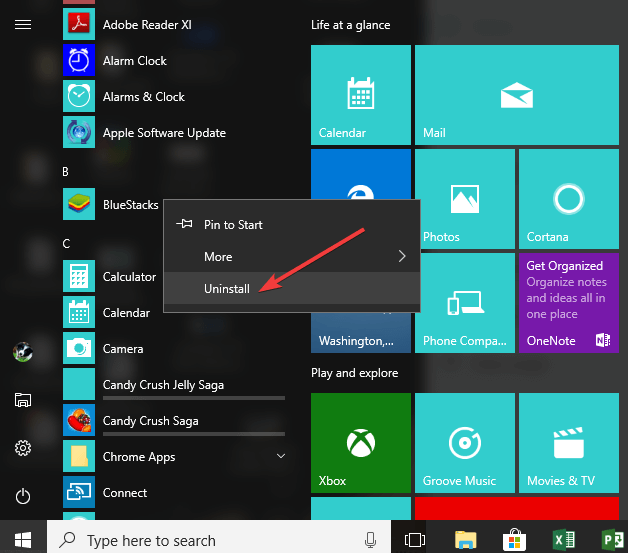
3. From the Start Menu

You can also remove programs and software from the Start menu. All you need to do is right-click on the respective program and then simply select uninstall.

Here’s a screenshot to help you in the process.

uninstall program start menu windows 10

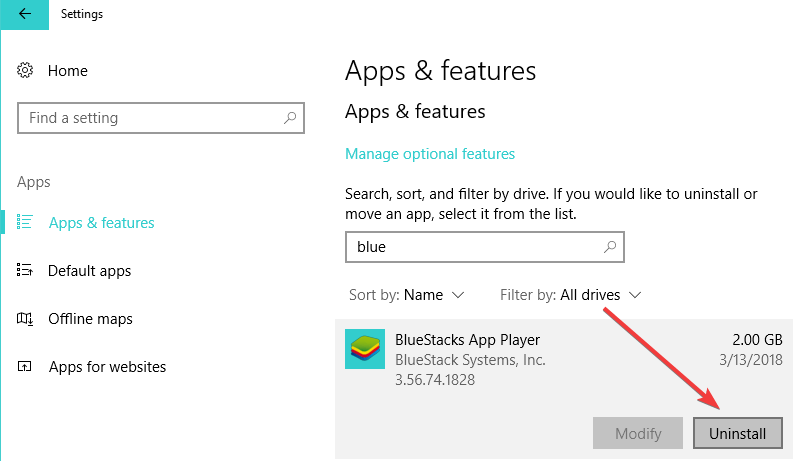
4. Delete apps from the Settings page

  1. Go to Settings > Apps > Apps & Features.
  2. Use the search box to find the app that you want to delete.
  3. Select it > Uninstall it.
uninstall windows 10 app settings

You can also uninstall your Windows 10 apps from the Settings page. Now all Windows 10 apps will be removed from your Start Menu.

If you upgraded your OS, check our guide on how to uninstall apps in Windows 11.

What do you think of the above procedures? They may be applied when for Windows 10 preinstalled programs that can be uninstalled, so let us know your opinion.

Let us know in the comments section below if you found this guide helpful and managed to get rid of unwanted programs on your device.

How to Create a Windows 11 Bootable USB Installation Media

While you can get Windows 11 as an update, what if you want to create a bootable drive and install Windows 11 on a different PC?

That is also possible, and in today’s guide, we’re going to show you how to properly make a Windows 11 bootable USB drive.

How can I make a Windows 11 bootable drive?

1. Check the requirements

To create a Windows 11 bootable USB drive, you’ll need a flash drive that is at least 8GB in size. However, a larger flash might be a better choice in case anything goes wrong.

Lastly, you need to check the official Windows 11 requirements and make sure that your PC can handle this OS. Now that everything is ready, you just need the proper software to create a bootable drive.

2. Use the Media Creation Tool

    If you want to create a Windows 11 bootable USB, you can easily do this using the Media Creation Tool. This is a Microsoft tool that allows users to download and store the install file for Windows 11, so that they can later use it to reinstall the OS.

  1. 1. Connect your USB flash drive to the PC.

  2. 2. Go to the Windows 11 download page.

  3. 3. You will see multiple options. Navigate to Create Windows 11 Installation Media section and click on the Download Now button.

    create windows 11 bootable usb media creation tool
  4. 4. Once the software is downloaded, run it.

  5. 5. Accept the terms of service.

    create windows 11 bootable usb terms of service
  6. 6. Make sure you have the correct edition selected. Click Next to proceed.

    create windows 11 bootable usb language and edition
  7. 7. Now select USB flash drive and click Next.

    windows 11 bootable usb flash drive
  8. 8. Pick your flash drive and choose Next.

    windows 11 usb tool
  9. 9. Wait for the process to finish.

  10. 10. You have created a Windows 11 bootable USB.

Arm64 Windows devices can hit a known limitation with the Media Creation Tool; review this guide to fixing Media Creation Tool not working on Arm64 before you start.

3. Download Windows ISO

  1. Visit the Windows 11 download page.
  2. Click the Download button in the Download Windows 11 Disk Image section.
  3. Select the desired language and click on Confirm.
  4. Click on 64-bit Download button.
  5. Wait for the ISO file to download.

4. Use dedicated software

  1. Download Rufus.
  2. Make sure that the correct device is selected. This is especially important if you have multiple USB storage devices connected to the PC.
  3. Make sure that Boot selection is set to Disk or ISO image. Now click the Select button.
  4. Select the Windows 11 bootable ISO file.
  5. Set Image option to Standard Windows installation. Now set your Partition scheme to GPT.
  6. After doing that, click on Start.
  7. A warning window will appear asking you to confirm that you want to format your flash drive. Select OK.
  8. Wait for the process to finish.

Also, don’t forget to use the Rufus settings for Windows 11 if you want to have a smooth and error-free installation.

Learn how to use Win32 Disk Imager to create bootable USB drives from ISO files: How to Use Win32 Disk Imager.

How can I upgrade to Windows 11?

  1. Press Windows Key + I to open the Settings app.
  2. Now head over to the Update & Security section.
  3. Click the Download and install button.
  4. Follow the instructions on the screen.

What are Windows 11’s requirements?

windows 11 requirements
  • CPU: Compatible 64-bit processor
  • RAM: 4GB
  • Storage: 64GB
  • TPM: TPM 2.0

The requirements are slightly higher compared to the previous version, but if your CPU is on the list of supported devices, you won’t have any problems installing the update.

One big issue for some users is the TPM, and to learn more about it, visit our Windows 11 and TPM guide for more information.

Can I download Windows 11 for free?

Yes, just like the previous OS, Windows 11 is available as a free download. You can enjoy it as a free system update and install it.

If you prefer to make a clean install, we’re happy to inform you that you can download the ISO file completely free as well and use it to install Windows 11 on your PC.

Is it better to upgrade or clean install Windows 11?

Usually, it’s better to upgrade to Windows 11 since this is the best method to use if you want to keep all your files and applications.

However, if any issues occur after upgrading, you might want to try performing a clean install. By doing so, you’ll remove all files from your system drive, and you’ll start fresh.

Before doing that, we strongly recommend that you back up all important files, in order to prevent data loss.

FAQs

What do I need to create Windows installation media?

A blank USB drive of at least 8 GB, a stable internet connection, a compatible PC, and (optional) your Windows 10/11 product key.

How do I make a bootable USB with Microsoft’s tool?

Download the Media Creation Tool from Microsoft, run it, choose Create installation media, pick language/edition/architecture, select USB flash drive, and let it finish.

Will creating media erase my USB and my PC files?

The USB will be wiped during creation; back it up first. Installing Windows can keep files if you choose Keep personal files, but always back up the PC beforehand.

How do I install Windows from the USB?

Insert the USB, restart, open the boot menu (F12/F9/ESC varies), choose the USB drive, then follow setup. For UEFI systems, use GPT partitioning and Secure Boot if supported.

Creating a Windows 11 bootable drive is simple, and you can do it by following the steps mentioned in this guide. In case you’re not sure if you should switch, visit our Windows 11 vs Windows 10 guide for more information.

You can use any method that you like, but for most, it would be the simplest to use the Media Creation Tool. If you’re a more advanced user, you can download the ISO file manually and then create a bootable drive.

Setting up a brand new PC with no operating system? Follow this step by step guide to install Windows 11 from your USB: install Windows 11 on a new PC without OS.

We hope that you found this guide useful and that you managed to create your bootable drive. What is your favorite method in that regard? Let us know in the comments below.

Turn Windows Features on or off on Windows 10

Windows 10 is a great operating system, but it also comes with several hidden features that you might not know about.

All these features are listed in the Turn Windows features on or off section, and in today’s article, we’ll show you how you can enable or disable them.

    How do I turn on or off optional Windows features?

    You can easily configure optional Windows features from the Control Panel. From there, you can manually select which features you want to turn on or off.

  1. 1. Press the Windows key and type control panel in the search box.

  2. 2. Click on the first result to open Control Panel.

  3. 3. Navigate to Programs.

  4. 4. Now select Turn Windows features on or off.

    turn windows features on or off programs
  5. 5. A list of features will now appear.

  6. 6. Check the feature you want to install or uncheck the one you want to remove and click OK.

    turn windows features on or off selection
  7. 7. Restart your PC in order to apply the changes.

If you want to access this feature quickly, you can use the following method:

  1. Press Windows Key + R to open the Run window.
  2. Now enter optionalfeatures and press Enter or click OK.
    optional features run window how to turn windows features on

Want to unlock secret Windows 10 features? Here’s how to do it like a pro!


What features are available to be installed?

what windows 10 optional features are available

There are about 30+ optional features available to be installed, but we’re going to focus on several most important ones.

  • .NET Framework 3.5 (includes .NET 2.0 and 3.0) and .NET Framework 4.6 Advanced Services – These two features are required in order to run applications created using the .NET Framework 3.5 or 4.6.
  • Hyper-V – Microsoft’s virtualization technology that lets you run virtual machines on your PC without third-party software.
  • Internet Explorer 11 – If you still need to use Internet Explorer on your PC, you should know it’s still available on Windows 10.
  • Media Features – This includes Windows Media Player and other multimedia components.
  • Microsoft Print to PDF – A feature that lets you “print” your documents straight to PDF files instead of an actual printer.
  • Windows PowerShell 2.0 – Command Line interface similar to the Command Prompt, but more advanced.
  • Windows Subsystem for Linux (Beta) – This feature gives you access to the Ubuntu command line and it allows you to use the same commands you’d use on a Linux system.

These are some of the most notable features that you can enable/disable, but there are a lot more available. To explore all the optional features available in Windows 10, visit Windows Optional Features for a detailed guide and how-to steps.

There you go, a quick and easy guide on how to use Turn Windows Features on or off on your PC.

As you can see, most of the features available here are made for advanced users, and you most likely won’t have to enable or disable them on your own anytime soon.

We hope you found this article informative and that you now have a better understanding of optional Windows Features.

How to Change Language in Waze with a Few Steps [Voice]

If you’re new to Waze and want to know how to change the guiding voice in your app, then you came to the right place.

Waze has always been about the community. That’s why wazers are able to add speed traps, police, accidents, and much more to the map.

This creates an environment in which drivers can interact with each other and offer important information about driving conditions and hazards.

Furthermore, Waze also lets you customize the guiding voices and even add your own voice.

How to manage my Waze voice language?

    1. How to change Waze voice language

    If you want to switch your Waze voice language to another one, you can easily do this through the app’s settings.

    In the Voice & sound settings, you’ll be able to turn alerts On or Off, change the Waze voice and the Voice typing, and adjust the volume.

  1. 1. Open the Waze app on your device.

  2. 2. In the bottom-right of your screen you’ll see a speaker icon. Tap on it.

  3. 3. Select Waze voice.

  4. 4. Now a list of voices will appear. Tap on the one that you want to use.

  5. 5. If you also want street name instructions, choose only the voices that have the Including street name option under the voice name.

  6. 6. For more audio settings, after step 2, tap on More sound options.

2. How to create your own Waze voices

  1. Open the Waze app on your device.
  2. In the bottom-right of your screen, you’ll see a speaker icon. Tap on it.
  3. Select Waze voice.
  4. Now tap on Record new voice.
  5. A warning pop-up will appear that will advise you to be very clear when you record your voice, as it will be used for driving instructions.
  6. After that, a permissions pop-up will ask you to allow Waze to record audio. Tap on Allow.
  7. Now you’ll see a complete list of phrases. Tap on any of them to start recording.
  8. A new window with a record and play button will appear. Tap on the record button, say the phrase, and tap on the stop button.
  9. Tap on the Play button if you want to listen to the recording and make sure that it sounds right.
  10. If everything is ok, select Save.
  11. After all the phrases have been recorded, tap on the Done button in the upper-right corner.

Keep in mind that any of the phrases that haven’t been recorded will automatically use the default voice. Also, you’ll have time limits from 3 to 6 seconds for recordings.

You won’t be able to change the voice of Waze to Morgan Freeman, but your voice or the one of a family member should suffice.

As a reminder, make sure that your recordings are clear and accurate, as they are used for guidance instructions. Safety comes first.

If you have any other suggestions or questions, feel free to reach for the comments section below.

How to recover Notepad documents in Windows 10

Recovering Notepad documents isn’t as complicated as people think, and in most cases, you just need to know where to search for your documents.

If you’re not familiar with document recovery, today we’ll show you how to easily recover Notepad documents on your PC.

Have you lost a previously saved Notepad (.txt) document? There are various circumstances in which a text file might get accidentally deleted, perhaps by yourself or third-party programs.

Nevertheless, there’s still a chance you can recover deleted .txt files. As such, here are a few tips for Notepad document recovery in Windows 10.

How do I recover an unsaved Notepad file?

  1. Check the Recycle Bin
  2. Don’t save anything new
  3. Restore lost text documents with Recovery Software
  4. Back up files with File History in Windows 10
  5. Check the AppData folder

1. Check the Recycle Bin

The Recycle Bin is the first place to check for deleted documents. If you haven’t configured Windows to automatically bypass the bin, you can probably recover deleted documents from there.

  1. First, click the Recycle Bin icon on your desktop to open the window below.
    recycle bin notepad document recover
  2. Now have a look for more specific .txt files in there. If you find anything, select the document. Alternatively, you can select multiple items by holding the Ctrl key.
  3. Press the Restore the selected items button.
  4. Open the folder that originally included the text document. You’ll find it restored in that folder.

2. Don’t save anything new

The text document is effectively deleted if isn’t in the Recycle Bin. However, that doesn’t mean the file is entirely erased.

Deleting a document removes it from the file system database and sets the file to be overwritten.

There’s still a good chance of recovering the document so long as you haven’t saved lots of other files that might overwrite the original data.

Don’t save more files after the document’s deletion and you’ll have a better chance of restoring the document.

3. Restore lost text documents with the free edition of EaseUS Data Recovery

So long as you haven’t saved lots of files since the text document’s deletion, you can probably restore it with file recovery software.

One of them is the free edition of EaseUS Data Recovery.

  1. First, press the Free Download button to save the EaseUS Data Recovery Free Edition setup wizard to Windows. Open the setup wizard to add the software to Windows.
  2. Open the EaseUS window and select a location to scan for the text document. If you can recall either roughly or exactly where you saved the file, it’s better to select a more specific location to scan.
    easeUS Data Recovery Wizard notepad document recovery
  3. Press the Scan button to search for the document. The software will run a quick and sector-by-sector scan.
  4. When the software presents the scan results to you, click Document to list text files only. Then, browse through the documents listed in the middle of the window to find the deleted .txt file.
  5. Select the text document to retrieve and press the Recover button.
  6. If you can, select to save the restored document to a USB drive or other external device.
  7. Now, open the restored text document in Notepad.

4. Back up files with File History in Windows 10

Backing up files isn’t going to help you recover text documents that are already deleted. However, keeping backups from now on will ensure you can restore documents if their originals are ever deleted.

This is how you can enable and back up files with File History in Windows 10.

  1. First, press the Cortana button and enter ‘back up’ in the search box. Select Backup Settings to open the window below.
    file history notepad document recovery
  2. Insert a USB drive into the laptop or desktop and then select to back up to that drive by clicking Add a drive. An Automatically back up my files setting will then appear in the Settings window.
  3. Now select More options, and click Add a folder to select to back up folders where you would usually save text files.
    backup options notepad document recovery
  4. Windows will now back up files in the selected folders whenever you insert the USB drive. So, now you can easily open backup copies of any Notepad documents that mysteriously disappear.

If the File History is not working, we have an article with fixes for it.

5. Check the AppData folder

    If you need to recover a Notepad document, you can do that from the AppData folder. This folder holds temporary files, and it’s possible that your file is stored in it.

  1. 1. Press the Windows Key + R on your keyboard.

  2. 2. The Run dialog will now open.

    open run
  3. 3. Type %appdata% in the box, then press Enter or click OK.

  4. 4. The AppData folder will open.

  5. 5. Now in the search bar in the top right corner, enter the name of the Notepad file you want to recover.

  6. 6. Check the list of results, and you should be able to see your file.

  7. 7. Select the file and copy it to your PC.

If you regularly back up your Notepad documents, you’ll never need any file recovery software.

However, EaseUS is one of the numerous utilities you can restore deleted files with. Check this Windows Report guide for further details on some other great recovery software.

We hope that our solutions helped you recover your Notepad files. If you have any questions, write them in the comments section.

Sleipnir Web Browser: What do you need to know?

When it comes to web browsers, the most popular choices are the ones that are intended for the global market.

However, there are many less popular browsers, such as Sleipnir, and speaking of which, in today’s article we’re going to see what Sleipnir can do.

Just keep on reading the lines below.

Is Sleipnir a good browser?

You might not actually know this, but Sleipnir has proven to be a stable and fast web browser that comes with a lot of innovative functions and various customization possibilities.

And, the extra security features, paired with smartphone and web app linking are functionalities that make it a viable alternative to its more popular competitors put there.

It goes without saying that it won’t compete closely with the likes of Opera One, Chrome, Edge, or Safari, but it still remains a worthwhile choice.

Who created Sleipnir browser?

You want a little background information on this software, and that is only natural. You see, Sleipnir was originally developed by Yasuyuki Kashiwagi.

And, as an interesting tidbit, the PC containing Sleipnir’s source code was stolen back in November 2004, and many thought that would be the end.

However, in 2005, Kashiwagi established Fenrir & Co. to start the development of a new version of the Sleipnir browser.

What is the Sleipnir browser and should I use it?

1. What is the Sleipnir browser?

sleipnir browser page

Sleipnir browser is developed by a Japanese company, Fenrir Inc, and it was introduced way back in 2004.

Just like many web browsers at the time, Sleipnir had the ability to change the layout engine as needed.  The browser had support for two engines, Trident and Gecko.

However, with the added support for the WebKit engine, the support for Gecko was dropped. As for other features, the browser has support for tab grouping as well as mouse gestures.

The newer versions of the browser also offer better text rendering, similar to the one on Mac OS. Speaking of which, the browser fully supports Retina displays.

The browser is fast, and it even has support for Chrome extensions. As for availability, you can get this browser on all major desktop and mobile platforms.

You can download the browser from the official website, but the website is in Japanese, so you might have a bit of trouble using it if you don’t speak Japanese.

→ Download Sleipnir Browser

2. Are there any Sleipnir alternatives?

Although Sleipnir offers unique features, it still lacks some features in the safety department, and this is why Opera One might be a better choice.

Opera One has tracking protection that will speed up webpage loading by blocking tracking scripts and cookies. The browser also has crypto protection, which will surely come in handy.

Additional features include a built-in ad blocker and a free VPN with unlimited bandwidth for extra privacy and native AI.

The browser also has instant messenger and Instagram integration, a built-in screenshot tool, not to mention the ability to organize tabs into workspaces.

On top of everything, it is based on the Chromium engine, it supports Chrome extensions, and it’s available on all desktop and mobile platforms, so feel free to try it out.

Opera One

Looking for an alternative to the Sleipnir browser? If you haven’t already, don’t hesitate to install Opera One!
Free Download Visit website

Sleipnir is a solid browser with some unique features, but if you want a secure and reliable browser, you should stick with a browser such as Opera One.

However, if you are interested in a Sleipnir browser download, you will find all the resources you need in this article.

And yes, there are also Sleipnir browser download links for Mac, just in case you don’t want to use Microsoft’s operating systems.

Let us know you final choice in the comments section below.

Temporary Internet Files on Windows 10: How to Delete Them

The Windows 10 Temporary Internet Files folder stores all the websites you have visited online for easy reference the next time you revisit the same site.

If you want to reset the Temporary Internet Files location to default, you can do so by following our handy guide.

What are temporary Internet files?

The common name of the Temporary Internet Files is the cache. These are files saved by the device from the web.

This file is saved on your hard drive and contains vital information that reduces the time in rendering web pages you have visited before.

Your browser may store HTML, multimedia, videos, and images in this file. You should know that this file becomes bulky over time and can consume a considerable part of your storage. This means that it may slow down your computer’s performance.

Where are my temporary Internet files?

The location of this file depends on the browser you use. Below are a few popular browsers and the path of their cache:

  • Google Chrome – C:\Users{username}\AppData\Local\Google\Chrome\User Data\Default\Cache
  • Microsoft Edge – C:\Users{username}\AppData\Local\Microsoft\Edge\User Data\Default\Cache
  • Mozilla Firefox – C:\Users{username}\AppData\Local\Mozilla\Firefox\Profiles{profile folder}\cache2\entries

Do Temporary Internet Files slow down computer?

Yes, these files can slow down your devices, but it depends on the amount of storage space they take, the specific browser you use, and the number of stored files.

On older computers, a reduction in performance will be faster and more easily noticed. For top performing computers. This may never be noticed. However, from time to time, it may be good practice to empty the cache.

How can I delete Temporary Internet Files on Windows 10?

    1. Delete Temporary Internet Files from Internet Options

    You can easily open and view your Temporary Internet Files by accessing Internet Settings. The Website Data Settings contain a shortcut to the folder location of the temporary files.

  1. 1. Launch Internet Explorer. You can do that simply by typing Internet Explorer in the search bar and pressing enter.

    internet options control panel
  2. 2. Click on the Tools icon. It is located along the top right corner and has the shape of a cog wheel.

  3. 3. Next, select Internet Options.

  4. 4. In the Internet Options window, under the General tab (shows by default) and Browsing History, click on the Setting tab.
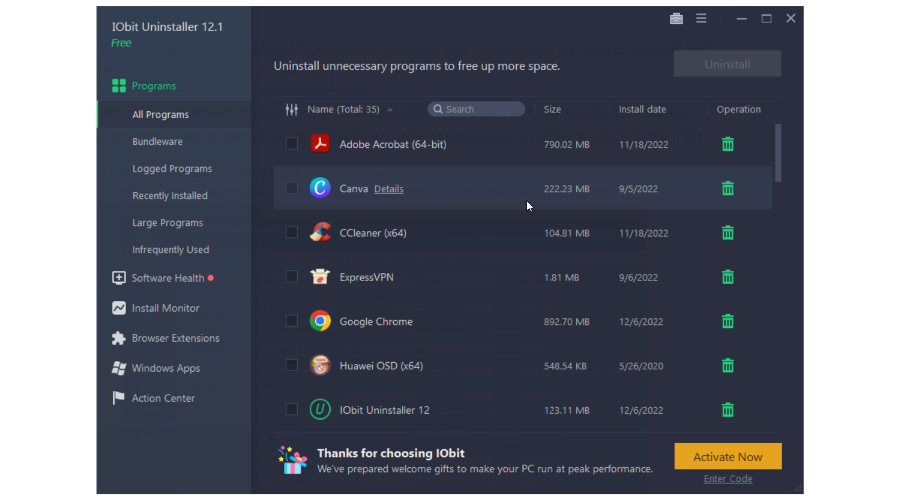
    browsing history settings windows 10
  5. 5. This will launch the Website Data Setting window. There, along the bottom right is the View Files button.

    view files website data settings
  6. 6. Click on View files. You will be led to a new window containing all the files pertaining to the websites you have visited before you had last deleted all your browsing history. You may now delete these.

Also, since the content of the Temporary Internet Files folder still occupies disk space and hence can impact performance, it does make sense to get rid of those files if not needed.

Most users don’t know what to do when the Windows search box goes missing. Don’t worry; we will show you how to return it in just a few steps.

2. Delete Temporary Internet Files using Disk Cleanup

  1. Type Disk cleanup in the taskbar search box and select the same from the search results shown.
    temporary internet files windows 10
  2. Select your primary disk and hit OK.
    temporary internet files windows 10
  3. Select the Temporary Internet Files option. temporary internet files windows 10
  4. Finally, press OK, and that’s it. All your temporary internet files will be removed from your system.

Is it safe to delete Temporary Internet Files in Windows 10?

Yes, deleting the Temporary Internet Files is safe for Windows 10. It comes with a few benefits, including the following:

  • Performance improvement – As discussed earlier, having so much on your computer may slow it down; hence you may expect a boost after deleting these files.
  • Freeing up space – After removing these files, you have more space for other things on your computer.
  • Privacy protection – Since these files can contain some sensitive information, deleting them is a way to guarantee that your data is secure.

Deleting temporary files in Windows 10 is as easy as it can get using the Disk Cleanup utility. Nevertheless, problems find a way of creeping in.

If the tool suddenly decides to act out, you can stop the Disk Cleanup from crashing with a few simple tips.

That is how you gain access to the Temporary Internet Files Folder in Windows 10 or delete the same if not needed.

As always, for more suggestions or questions, feel free to reach out by using the comments section below.

5 Best Online Typing Games to Master Fast Typing

Typing is not fun and can get boring if you have to repeat the words again and again. That said, typing faster can help you finish your work quicker and become more productive with your time.

At this age, learning to type quickly and accurately is essential whether a veteran or beginner; excelling at touch typing requires lots of practice, which can get boring over time.

Online typing games employ game mechanics, such as being able to shoot the objects by successfully typing out the word or competing with the AI, to make the learning experience fun.

In this article, we explore some of the best typing games online that feature both speed typing and word games to improve your accuracy.

Note that you will get the best out of these games using any of the best browsers for gaming.

Where can I practice typing?

There are a lot of online resources for you to practice your typing. A few include:

This is in no way an exhaustive list of options; however, you may also want to try out any of the best software to learn how to type faster.

Of course, all the games listed in this article are also great ways to practice typing and include some free online typing games.

Quick tip:

If you play online games frequently, consider installing a gaming browser such as Opera GX.

With the browser, you can set limits on RAM, CPU, and network usage. Finally, you can customize the browser to access the frequently used apps from the sidebar.

Opera GX

This browser offers you incredible browsing speed and adds gaming features to the mix.

What is the best online typing game?

Typing Attack – Space shooting game

typing games online

Here is a great example of online typing games for PC. Typing Attack from TypingGames Zone is a fun space shooting type game. You control a spaceship to attack enemy targets by typing the correct word.

The spaceship fires a bullet for each correctly typed letter. The game has multiple levels, with objectives changing every few levels.

If you type too many letters wrong, the enemy target will explode, destroying your spaceship. It is a good example of speed typing games for adults and kids.

Important features:

  • Nice graphics
  • Excellent soundtracks
  • Difficulty levels

⇒ Play Typing Attack

Desert Typing Racer – Car racing game

Desert Typing Racer uses racing game mechanics to improve your typing. Type the word or group of letters above the car. Only cars in the middle of the road can hit you.

You can avoid obstacles using the space bar to jump. Also, the repair trucks allow you to repair your car, and jumper trucks are useful for jumping more.

You can select from over 30 lessons. Each lesson has been designed to help you improve a particular skill like working on the home row, left hand and right side, etc.

Important features:

  • Multiple typing lessons
  • Great game graphics
  • Difficulty levels

⇒ Play Desert Typing Racer

Typing Wars – Space-themed game

typing games online

Typing Wars is a Star Wars-inspired game where you must stop the evil galactic empire with your fingers. The rebel fighter is equipped with a keyboard.

Type the word or group of letters above the alien fighter to fend off the enemy attack. Also, watch out for the galactic battle star, as it can be hard to stop.

Pressing the space bar activates photon torpedoes to escape from tight spots. Similar Desert Typing, Typing Wars also offers multiple lessons emphasizing different sections of the keyboard layout.

Important features:

  • Different difficulty modes
  • Many game lessons
  • Cool soundtracks

⇒ Play Typing Wars

City of Grendale – Typing adventure

typing games online

Free the city of Grendale from evil CandleFinger by using your keyboard. The City of Grendale is a beautiful adventure where you can find treasures and secret areas to score more points.

City of Grendale is a WebGL-based game and uses the non-conventional EFKJ keys to move the character. Use the space bar to attack and the S key to navigate through the doors.

It is a good example of typing adventure games for kids.

Important features:

  • Easy controls
  • Nice storyline
  • Cool graphics

⇒ Play City of Grendale

Keyboard Ninja – Fruit Ninja-themed typing

typing games online

If you have played Fruit Ninja on your smartphone, you will feel at home with Keyboard Ninja. You can take multiple lessons to master the home row, top row, bottom row, number pad, and all letters.

If you want to save your progress, create a free account. In the game, you will see fruit objects appearing on the screen.

You must press the letter associated with the fruit before it falls to score points.

However, to make it challenging, the game also throws some explosives randomly; entering the associated letter will cause an explosion ending the game.

Important features:

  • Progress registration
  • Leaderboard
  • Nice game soundtracks

⇒ Play Keyboard Ninja

Typing games are an excellent source for learning to type quickly and accurately. These games take away the boring part of the typing tools by employing fun game mechanics while also helping you to improve your typing skills.

Let us know which of the games on this list you have enjoyed the most.

What is Lavasoft Web Companion & Should You Delete it?

Unwanted applications can be a problem, and one potently unwanted application that users reported is Lavasoft Web Companion.

In this guide, we’re going to take a closer look at this software, see what it actually does, and show you how to remove it from your PC once and for all.

What is Web Companion from Lavasoft & how to remove it?

Web Companion from Lavasoft is an application that is usually installed automatically with Adaware Antivirus software.

The only way to prevent that is to manually choose not to install it during the setup.

The application is designed as a browser extension that will protect you against malicious websites and protect your privacy at the same time.

Is Web Companion good or bad?

Many are concerned that the Lavasoft Web Companion is a virus, but that’s not the case.

However, users have reported that Web Companion will change your default search engine in the browser, which is can be concerning.

Although this software isn’t a virus, it still does more harm than good, so it’s advised that you remove it. In the following section, we’ll show you how to perform a full Lavasoft Web Companion uninstall.

    How to remove Lavasoft Web Companion

    The best and most efficient way to remove Lavasoft Web Companion from your PC is to manually uninstall it from Control Panel.

    All you need to do is search for the app in the list of apps and programs on your PC and select the uninstall option for it.

  1. 1. Press the Windows Key and type settings in the search box.

  2. 2. Click on the result to open the Settings app.

  3. 3. In the Settings app,  go to the Apps section.

    settings apps section
  4. 4. Now select Web Companion from the list of apps and click on Uninstall.

    uninstall apps
  5. 5. Lavasoft Web Companion is now uninstalled from your computer.

What to do if you can’t uninstall Lavasoft Web Companion?

In case Lavasoft Web Companion won’t uninstall using the regular method, it’s advised to use uninstaller software to leave a fresh start for another install.

Such software can perform a complete uninstall of every application and will remove all files and registry entries associated with it.

By doing so, you’ll ensure that there are no leftover files that can cause additional problems.

These applications are simple to use, and they work with regular and Universal apps. They monitor system changes automatically, and it will scan your system for any existing leftover files.

Uninstaller tools are useful when the software would not normally remove, which happens more often than you think, or when you think that a program did not completely uninstall.

Some uninstaller applications boost the overall program uninstall process by doing tasks such as monitoring the installation process to ensure a complete uninstall when you’re ready.

It provides rapid removal options to programs via the right-click menu, and much more.

Lavasoft Web Companion is considered an unwanted application, but hopefully, you managed to remove it from your PC by using the methods mentioned in this guide.

3 Fixes for Web Browser Does Not Support Opening Excel Files

You found this article because your browser does not support Excel file opening; here is all you need to know.

Windows users can open a variety of files in native external applications instead of opening within browser pages, which is convenient in many ways.

However, some users have reported that they get an error from a web browser that does not support opening excel files while trying to open Excel files.

The error often reads – To open this workbook, your computer must have a version of Microsoft Excel installed, and your Web browser must support opening files directly from Excel.

This article will show you the best ways to navigate this error.

Why can’t I open Excel in Chrome?

A few things can hinder Excel from opening in your chrome browser. First, at the top of the list is a large Excel file size.

We already know that Chrome is a resource-intensive browser; hence opening a huge excel file on the browser may be too taking on your computer.

Other reasons could include old browser data and even an outdated browser.

Whatever the reason is, we will walk you through the most recommended ways to fix the issue.

How do I open Excel files directly from Chrome?

1. Use a different browser

This may be the case if you are trying to open a large file. Google Chrome is known for its intensive resource use. An alternative is the Opera One browser.

The ad blocker in Opera One may reduce page load times by up to 90% while blocking all sorts of advertisements. Ads are blocked at the web engine level by Opera One’s built-in ad blocker. Consequently, it uses fewer resources and provides a quicker page load time.

It comes with an AI already built-in and features a modular AI-ready design that allows the integration of current and future AI technologies.

Opera One

My Flow in this web app is organizing the way you open any file formats and saves them accordingly.
Free Download Visit website

2. Use Plugin for Firefox and Chrome

IE Tab Extension For Chrome 

  1. Launch Chrome and open the IE Tab extension page.
  2. Click on the Add to Chrome button.
  3. Select the Add extension button.
    browser does not support excel file
  4. Wait for the plugin to download and install, and restart Chrome if needed.
  5. Now click the IE Tab icon to invoke the action, which should help resolve the browser that does not support opening Excel files issue in Chrome.

If you cannot open an Excel file from a website, adding this extension will be a helpful solution.

3. Delete the browser cache

  1. Launch the Chrome browser.
  2. Click on the menu, select More tools, then Clear browsing data.
  3. Select All time from the time range, tick the checkboxes for Browsing history, Cookies and other site data, and Cached images and files, then select Clear data.

If Chrome is not downloading Excel files, you should clear your browser data. Old data can make the browser non responsive to links and some websites.

How do I open an XLSX file in Chrome?

  1. Navigate to the XLS Editor for Google Chrome extension page.
  2. Click on Add to Chrome.
    browser does not support excel file
  3. Click on Add extension button.
    browser does not support excel file
  4. Select the extension icon and then click on the Add spreadsheet button.
    browser does not support excel file

You should try this extensions if the browser does not support excel files with encryption.

If your browser does not support opening any Excel file, the solutions in this article should come in handy. However, if none of the three fixes works as a last resort, you may consider resetting your browser. The downside is that you may lose some important browser data.

This article is helpful if your prefer to open an Excel file in browser instead of performing a file download.

Let us know in the comments if these solutions worked for you.


4 Tested Ways to Fix the Netflix Audio out of Sync Issue

Many Windows users reported experiencing an issue regarding the audio & video sync on Netflix. It seems that videos start ok, but after a while, they slow down, leaving Netflix audio out of sync. Here is all you need to know about this problem.

While this can be annoying, there are a few ways to resolve the issue. However, since users have noticed the problem more often when they use Netflix on a browser, we will work you through the best browser fixes.

Also, note that downloading and using the Netflix app is recommended as a quick fix, but if you prefer the browser experience, then read on.

Please note that users have experienced the Netflix audio out-of-sync issue on Samsung TV, Firestick, and Roku TV as well.

Why is Netflix audio out of sync?

There are a few things that may trigger this issue. Often it is simple settings on Netflix, and sometimes it could be because of Settings on your Windows OS. That said, here are the main culprits:

  1. Slow or bad internet
  2. An overclocked PC, or too many open browser tabs
  3. HD video streaming on Netflix
  4. PC’s hardware acceleration

Whichever is the case, here are our recommended fixes.

Quick Tip:

If you can’t resolve this problem in any other way, it would be best to switch to a different browser. If you want a fast, reliable, and secure browser for multimedia, feel free to try Opera One.

Opera One focuses extensively on user safety and privacy. It also comes with a free, built-in VPN which you can use to connect to Netflix and see content available exclusively to other countries. Opera One also features a native AI.

Opera One

Free VPN to unblock geo-restricted content and experience fast, error-free browsing with Opera.
Free Download Visit website

What can I do if Netflix audio is out of sync?

1. Verify your Internet connection

  1. Launch your browser and navigate to the internet speed test site.
  2. Click on the GO button.
    netflix audio out of sync
  3. Wait for your internet speed result to come back.
    netflix audio out of sync
  4. If your internet speed is low, you may try using a wired connection, restating your router, or changing your ISP.

Here are the required internet speed recommendations for Netflix:

Video QualityNetflix Speed Recommendation
Standard Definition (480p)3 Mbps
High Definition (720p)5 Mbps
Ultra HD/4K (2160p)25 Mbps

When Netflix audio is out of sync on a laptop, or your Windows 10 or 11 devices, you may want to start by verifying your connection runs ok.

2. Turn off HD streaming

  1. Launch your browser and navigate to your Netflix account.
  2. Expand your profile under Profile and parental controls.
    netflix audio out of sync
  3. Click Change under the Playback settings option.
  4. Select Medium quality and click Save.
  5. Try loading a video to see if it works. If it doesn’t try changing the quality to Low and see if it works.

3. Clear the browser cache

  1. Launch the browser.
  2. Click on the three dots menu icon, select More tools, and Clear browser data.
    netflix audio out of sync
  3. Select All time from the time range, tick the checkboxes for Browsing history, Cookies and other site data, and Cached images and files, then select Clear data.

This is an important fix when Netflix audio is out of sync on your Chrome browser.

4. Disable hardware acceleration

  1. Launch your browser.
  2. Click the three dots icon in the top right corner of Google Chrome and select Settings.
    settings chrome netflix audio out of sync
  3. On the left pane, click System and disable the option for Use hardware acceleration when available.
    netflix audio out of sync
  4. Restart Google Chrome and see if this fixed the issue.

If you have read to this point, we hope that at least one of our solutions helped you fix the Netflix sound delay. This is not a complicated problem to fix, and you should be back streaming as usual in a few clicks.

Lastly, if you get fed up with the Netflix service, you could try other movie apps for Windows.

If you found this article to be of help, leave a comment in the comment section below.

Escape From Tarkov Packet Loss: 6 Ways to Fix it

Escape from Tarkov is an online tactical first-person multiplayer shooter from the house of Battlestate Games.

The game takes place between two military companies in the fictional region of the Norvinsk region. You can go either solo or in groups.

You need to defeat the enemies and other non-player characters to reach the escape. Escape from Tarkov allows you to sell unwanted loot to traders and get the equipment or in-game accessories.

Recently, several reports have brought to light the packet loss issue in Escape from Tarkov. Users have reported being disconnected from the game frequently, just after a few seconds into the game.

This frustrating issue does not let the players play the Escape from Tarkov game. While this is mostly the issue from the game’s official server, there are a few things that you can do from your end to fix the problem.

In this guide, we will show you some effective solutions that will help you fix the packet loss issue with the Escape from Tarkov game. Let us check them out.

Why am I suddenly getting packet loss in Escape from Tarkov?

Packet loss is a common issue related to online games or games that rely on the internet to function.

Escape from Tarkov is also another online game that does not seem to be immune from the packet loss issue.

After some research, we have prepared a list of common reasons why you would suddenly come across packet loss error in the Escape from Tarkov game:

  • There is some issue with your internet connection
  • The official game server is having an outage
  • Because of the presence of in-game bugs
  • There could be a malicious virus or malware attack on your network that is slowing things down
  • Your PC isn’t up to date
  • You are using a VPN
  • The network drivers aren’t up to date
  • High CPU utilization

For any of the above reasons, which are some of the most common ones, you will come across the packet loss issue with the Escape from Tarkov game.

Let us check out the solutions that will help you mitigate the problem at hand, and allow you to get back to gaming.

Can high CPU usage cause packet loss?

As mentioned in the above list of common reasons, yes, high CPU utilization could very well cause packet loss problems with programs.

The packet loss issue is more evident when you overclock your CPU, which many of us do while gaming on our PCs for smoother gameplay.

If your PC is overwhelmed and is really trying to juice out every bit of performance from the CPU, then it could fail to focus on other tasks, i.e., communication with the network drivers, and throw up such errors.

How do you fix packet loss in Escape from Tarkov?

1. Use a reliable VPN

  1. Choose an ExpressVPN subscription.
  2. Enter your account credentials and log into ExpressVPN.
  3. Select the closest server to your location so you can get faster performance.
  4. Try to launch Escape from Tarkov again.
  5. Verify if packet loss still occurs.

A safe choice for solving packet loss would be ExpressVPN. It can help you reduce ping, resolve ISP throttling, and lower latency for a better gaming experience.

It also has a well-developed split tunneling feature that allows you to which programs and devices you prefer to route your connection over the VPN server and which ones you don’t.

Another substantial feature is its strong encryption and security that keeps your data safe. Aside from hiding your IP address and mixing your traffic with that of other users, this VPN encrypts your traffic between secure VPN servers and your PC, which means your data and communications are safe from being read by third parties.

ExpressVPN

Top-notch VPN service with various features that help you improve your online activity.
Check price Visit website

2. Check the server status

The first thing that you should do is to check if the official servers are facing any outages or not. You can take the help of websites such as Downdetector or Tarkovserverstatus, and check if the server is facing any issues or not.

You can also keep a check on the official Twitter handle of Escape from Tarkov and the official community forum to know about any issues with servers.

There are chances that the server is facing congestion because of thousands of players online at the same time, or it has been kept down because of some bug fixes or an update.

3. Restart your router

  1. Power off your router or unplug it.
  2. Wait for about 10-20 seconds.
  3. Plug your modem back on or power it on.
  4. Wait for it to connect to the network.
  5. Check if this fixes the issue or not.

If you think there is an issue with your internet connection, then you can try restarting the router. Restarting the router gives it a breather to connect properly with the servers.

4. Change the server manually

  1. Launch the Escape from Tarkov launcher.
  2. Click on the Change server option on the homepage.
  3. A new window with the list of all available servers will show up. Untick the Use automatic server selection (OCE) option at the bottom.
  4. Instead of allowing the game to automatically pick the servers, click on the server you would like to connect to.

5. Check in with your VPN

You can either take the help of a VPN to connect to a server located in a different region with low ping, or disable the VPN. Both effectively solve the packet loss error in the Escape from Tarkov game.

If you are experiencing issues with your local server, you can use a free or paid VPN and connect to it. Because Escape from Tarkov is highly sensitive to ping fluctuations or low latency, make sure the VPN of your choice has low ping.

On the other hand, because of issues with the network connected via a VPN, you will also come across this issue. So, in this case, turn off any VPN that you are using and check if this fixes the issue or not.

6. Close unwanted apps

  1. Open the Start menu.
  2. Search for Resource monitor and open it.
  3. You will be presented with a list of programs accessing your network.
  4. Right-click on the programs, you believe are unnecessary and won’t break your system, and select End process. It could be your browser, background steam, a download, etc.

You can also run a quick system scan of your PC to detect and remove malware or viruses. Try clearing the temporary folder on your PC as well, because corrupted temporary files can cause multiple issues.

How do I make Escape from Tarkov run better?

Here are a few tips to make Escape from Tarkov run better:

  • Tweak the graphics settings
    • V-sync box: Unticked
    • Screen mode: Enable fullscreen
    • Overall graphics quality: Set it to low
    • Texture: Medium
    • Shadows: Medium
    • Visibility: 1000
    • Anti-aliasing: TAA
    • HBAO: Off
    • SSR: Off
    • Z-blur: Unchecked
    • Chromatic abbreviations: Unchecked
  • Update graphics and network drivers
  • Keep the game up to date
  • Keep your PC free from malware and virus

Unfortunately, this isn’t the only issue you can encounter, and we recently wrote about Cannot find template with ID Tarkov error, so don’t miss it.

You can check out our dedicated list of some of the best online multiplayer shooting games for your Windows PC if Tarkov experiences frequent server issues.

We hope that this guide helped you fix the packet loss issue with the Escape from Tarkov game. Let us know in the comments below which one of the methods resolved your problem.

3 Quick and Easy Ways to Play Browser Party Games

You hopefully want to get the party going with some brilliant browser games. Here is what you should know.

Playing games with friends can be incredibly fun, and with the development of technology, you can now play games with friends around the world.

As browser tech has evolved, so has the number and kind of games adapted to browsers increased. From card games to role-playing, there is not a scarcity of thrills.

Today’s article will show you how to play party games with your friends from your web browser.

What are good free party games?

There a numerous options, and below, we give a snippet of some that we love:

  • Gartic Phone – This is a reincarnation of the Telephone Game, albeit a more modern version.
  • Among Us – It became popular during the Covid -19 lockdown and is the perfect whodunnit game.
  • Skribbl – With friends who love arts, you can together unleash your inner Picasso while playing this game.
  • Psych! – If you are great at bluffing, you should try this one out with your friends.

This does not do justice to the available options since the list is endless. Many of these are online games to play with friends on different computers.

But now, let us now show you what you need to play browser party games.

How do I play party games in my browser?

1. Play games on a gaming browser

Remember that not all multiplayer games allow you to invite your friends. Now that you know you can easily play games in your browser, do you have the right browser for this task?

Not all browsers offer the same features when it comes to gaming, and this is where Opera GX comes into play.

This browser allows you to allocate your hardware resources. Doing so will ensure you have enough resources for your system and apps to work correctly.

Opera GX also supports heavy customization, allowing you to pick different themes, wallpapers, and highlight colors.

An integrated messenger can also help organize gaming sessions.

Additional features include Twitch integration, a built-in ad blocker, and a free VPN that offers unlimited bandwidth.

Opera GX

Play your favorite games without worrying about errors that may get in the way. Try the best gaming browser now!

2. JigsawPuzzles.io

  1. Visit the JigsawPuzzles.io website.
  2. Now select the puzzle that you want to play.
    jigsawpuzzles.io browser party games
  3. Click the Invite button to invite your friends to join.
    jigsawpuzzles.io invite browser party games
  4. Send them the link and wait for them to join the game.

3. Gartic.io

  1. Visit the Gartic.io website.
  2. Click on Rooms.
    garticio rooms browser party games
  3. Select New room.
    gratacio new room browser party games
  4. Pick a theme and click on New Room.
  5. Copy the link and send it to your friends.

Are browser games still a thing?

As browsers have evolved, the amount and tech behind browser games have improved. In today’s world, you can play most of the console games you love on your browsers, making this game niche very appealing to gaming enthusiasts.

It is a vast, sought-after niche, and we do not see it slowing down soon. Also, the niche is even broken down into browser games for groups, free browser party games, multiplayer browser games, etc. So there is something for everyone.

Now that you know how to play party games in your web browser, invite your friends and organize a game night. We also recommend these ten browser games to play with friends.

Let us know in the comments section below if you have other suggestions and recommendations.

Fix: Browser is Not Configured to Accept Session Cookies

Many users have reported that they received the error message – This website requires that your browser accept session cookies. This happens when your browser is not configured to accept session cookies or is unable to accept cookies.

Browsers are an essential kind of software that gives you access to the internet, and although they have evolved over the years, you still encounter the occasional errors and troubles.

They use cookies to remember your site preferences and improve the general browsing experience. When you have any errors with your cookies, it will directly affect the quality of your browsing sessions.

Let us discuss all you need to know about your browser cookies configuration error.

What does Your browser is not configured to accept session cookies mean?

Session cookies are server-specific cookies that can only be used by the machine that created them. These cookies enable the browser to authenticate itself once again to the same single server that the client has previously used.

Once you receive this message, in most cases, it means that you have turned off the session cookies settings of your browser.

Cookie sessions don’t save personal data and are solely needed to keep your web session active. Once the online session ends and you shut down the browser, your session cookies are permanently deleted.

Why do I have to accept cookies on every website?

The ePrivacy Directive and the GDPR (General Data Protection Regulation) are two laws that were approved in Europe. Both rules are privacy legislation the European Union passed intending to assist in safeguarding users’ online data. 
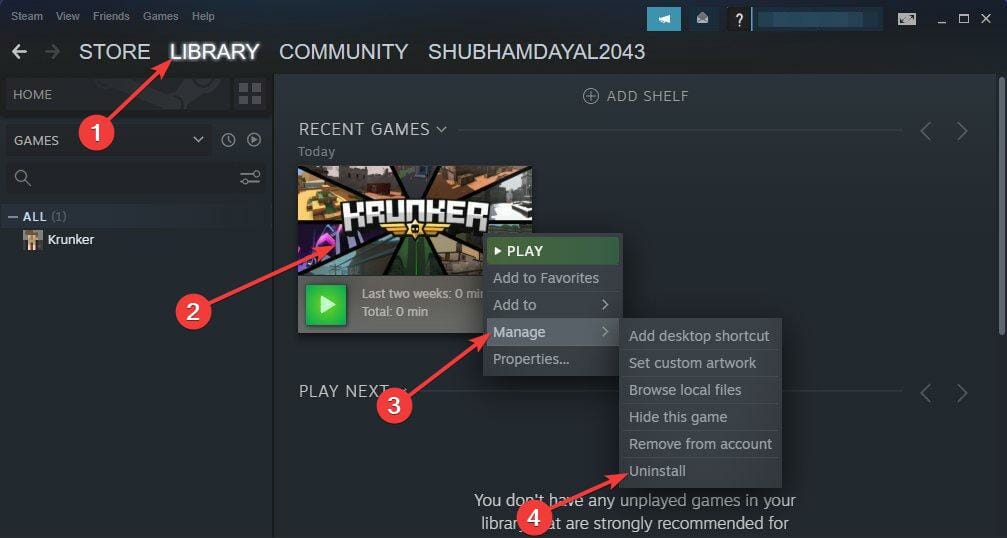
In addition, California implemented a similar statute known as the CCPA law, and other states, including Illinois, are contemplating doing the same.

Companies have used data more than ever in the most recent years. These laws were designed to assist people in regaining control because businesses can access a wealth of user data. 

You may decide what websites use your data by visiting each website individually and selecting to accept each one’s cookie policy.

Quick Tip:

If you have configured your browser to block cookies and not accept them, there’s a high chance that you are concerned about security and privacy.

It comes with a built-in Adblocker and VPN which will make the pages load faster and help you bypass any nasty geo-restrictions. Plus, it features a native AI and a modular AI-ready design.

Opera One

Privacy-focused browser with clear, easy-to-use and set cookies and tracking protection.
Free Download Visit website

How to configure major browsers to accept session cookies

1. Mozilla Firefox

  1. Open the Mozilla Firefox browser.
  2. Click on the menu button (the three horizontal lines) and then select Settings.
    your browser is not configured to accept session cookies
  3. Choose the Privacy & Security option.
    your browser is not configured to accept session cookies
  4. Scroll to the History section and set the Firefox will option to Use custom settings for history.
    your browser is not configured to accept session cookies

2. Google Chrome

  1. Launch the Chrome browser.
  2. Type the link below and hit Enter.
    chrome://settings/content
  3. Scroll down and click Cookies and site data.
  4. Finally, select the Allow all cookies option.

Following these steps, you should successfully enable cookies in Chrome.

3. Microsoft Edge

  1. Launch the Edge browser.
  2. Type in the path below in the Address bar and click Enter.
    edge://settings/content/cookies
  3. Lastly, toggle on the option for Allow sites to save and read cookie data.
    your browser is not configured to accept session cookies

Should we accept cookies or not?

Cookies are not a security risk as they cannot spread malware or access information on your computer, but they can pose some risks when it comes to personal data privacy.

Cookies collect information about your online activity that is then used to profile you. Other than that, they pose no real security threat.

That said, as long as you trust the site and are sure your data will be handled with utmost privacy, then you can accept cookies.

On any of these browsers, if your browser is not configured to accept session cookies, by following the steps we have given, you should have successfully been able to enable cookies in the browser.

Let us know if this has worked for you, and note that on most other browsers, by searching for cookies under the settings, you should see the option to accept all cookies.

5 Best VPNs for Windows XP in 2026: Free and Paid

Looking for a VPN client for your Windows XP PC? Even though the OS is outdated, it’s still used in some parts of the world, and privacy remains essential.

A VPN hides your IP and encrypts your traffic, keeping you anonymous online. If you’ve moved on to Windows 7, you might also want solid VPN software for Windows 7.

What are the best VPN client software options for Windows XP?

Private Internet Access – Best privacy features

Private Internet Access is one of the most reliable VPN clients in the cyber world. It is mostly known for its overall flexibility with a wide range of platforms, including Windows XP.

Developed by Kape Technologies, this VPN is based in the United States. Are you worried about it being under the jurisdiction of authorities in the country?

You shouldn’t be since it has an explicit no-logging policy confirmed by users and companies worldwide.

Moreover, if you want unlimited bandwidth and data transfer, these shouldn’t be a problem, just like changing your mind is allowed with that generous 30-day money-back guarantee.

Take a quick look at these Private Internet Access key features:

  • Real IP address masking
  • Industry-leading encryption protocols (OpenVPN included)
  • Security even while using public Wi-Fi
  • Fast connections for higher-speed browsing
  • Powerful enough to cover 10 connections with 1 subscription
  • Competitive subscription prices

Private Internet Access

Have a go with PIA as your top VPN software for Windows XP. Currently available at a major discount!
Check price Visit website

NordVPN – Widest server network

After several tests, our team concluded that NordVPN would be one of the best VPNs to fit on a Windows XP computer.

This Tefincom & Co. VPN offers multiple ways to protect your connection: DNS leak protection, kill switch, double-hop, and auto-connect (user favorite connection).

You can use it on multiple devices besides your own PC, though it can be slower than other VPNs because of its extra security features.

However, you’ll be delighted with the security level provided.

Here are some of the most notable features:

  • Allowing HD streaming without slowing down your connection
  • Over 200 servers at your disposal
  • 6 device usage for 1 license
  • Double data protection (passing it through 2 servers)

NordVPN

Are you still using Windows XP? You’d better get behind a secure VPN such as NordVPN right away.
Check price Visit website

ExpressVPN – Fastest server network

ExpressVPN is one of the fastest VPN services available most especially for the Windows XP system.

Owned by Express VPN International Ltd., this VPN client software uses an SSL-secured network with 256-bit encryption. Moreover, it utilizes unlimited bandwidth and Internet speed.

An interesting feature is that it uses multiple servers from 94 countries, hence an express network, as its name suggests.

You also benefit from one click-away protection against digital fraud or sensitive data tracking due to advanced VPN technology.

More exactly, you have a kill switch functionality to protect data from permanent loss, unrestricted content anywhere in the world, TrustedServer protocol, lightning speed, and so on.

Other key features include:

  • Unlimited bandwidth, server switches, and speed
  • It uses OpenVPN(TCP, UDP), L2TP-IPsec, SSTP, and PPTP protocols
  • Masked network traffic
  • Synchronized connections on up to 3 systems

ExpressVPN

Need a sturdy VPN for your Windows XP computer? This pick should be the one.
Check price Visit website

ProtonVPN – Most compatible with different devices

ProtonVPN is the best free VPN for Windows XP that offers complex security of your internet activity.

ProtonVPN can guarantee you reliable privacy without tracking any log data from your browsing activity. Plus, you’re protected with a considerable server network worldwide.

This VPN solution is quite smart because it includes a great connection speed of 10 Gbps and support from VPN accelerator technologies.

You also must know that you have completely free VPN support without any conditions. This subsidized version is offered to the public without any requirements, so you can secure your Windows PC for free.

It’s essential to note that you can navigate on your streaming platforms without limits using the speedy server connection of ProtonVPN.

Here are some of the most notable features:

  • Secure Core defending tools
  • Open-source software
  • Extremely speed connection
  • Netshield DNS filter against malware
  • Highest encryption (AES-256 support)
  • Secure protocols like OpenVPN, IKEv2, and WireGuard

ProtonVPN

Fully secure your browsing activity with innovative VPN tools and quick connection on a Windows XP PC.
Check price Visit website

IPVanish – Best for home online safety

As its name suggests, IPVanish makes your IP address disappear, making you anonymous online on your Windows XP device.

This VPN client software utilizes its own cryptographic encryption technology to protect your data and information.

If you want to be virtually everywhere online, it is possible because this StackPath, LLC VPN solution has access to over 40,000+ shared IPs, and 500+ VPN servers in 60+ countries.

Other key features of IPVanish include:

  • 256-bit AES encryption
  • Unlimited bandwidth and anonymous torrenting
  • Zero traffic logs
  • OpenVPN, PPTP, and L2TP/IPsec VPN protocols
  • Up to 5 simultaneous connections on multiple devices
  • 24/7 customer support

IPVanish

IPVanish can help you anonymize your connection, and it works great even on Windows XP.
Check price Visit website

How do I set up a VPN on Windows XP?

Given the fact that Microsoft stopped the support for this Windows version, you can greatly use a VPN connection for better privacy or security on your PC.

➡️Hence, you can set up a VPN connection on your Windows XP PC using Private Internet Access:

  1. Sign up for a Private Internet Access subscription plan.
  2. Download and install the software to your PC.
  3. After the installation is complete, open the program.
  4. Log in to your account.
  5. Click on the power button to connect to a server.

➡️ In case you need to configure the in-build VPN from your Windows XP, you can perform it using the following steps:

  1. Go to Control Panel and from the Start Menu.
  2. Click on Network Connections.
  3. Select the Create a new connection option and click Next.
  4. Now select the Connect to the network at my workplace option.
  5. After that, pick the Use my Internet connection (VPN) option.
  6. Give it an intuitive connection name.
  7. Click Finish to launch the Connect window.

How we picked the best VPNs for Windows XP

When choosing the best VPNs for Windows XP, we focused on features that matter most for this older system:

  • Low system impact — VPNs that don’t slow down your PC
  • Easy access — quick and simple connection whenever you need it
  • Server options — plenty of servers without sacrificing speed
  • IP masking — strong protection for your real IP address
  • Simple interface — user-friendly design without complicated settings

Every VPN on our list meets these criteria so you can pick the one that fits your XP setup perfectly.

Can you use a VPN on Windows XP?

Yes, it is possible to use a VPN if you’re using the Windows XP OS with the help of software that still supports VPN for Windows XP 32-bit.

You can also configure a VPN connection on your computer from your Windows settings, which requires more time and a little know-how.

In any case, there are dedicated software like those mentioned in the list below that still work on Windows XP. So, you can install them and instantly secure your PC.

Is there a free unlimited VPN for Windows XP?

The answer is yes, you can get a completely free VPN for Windows XP devices and higher OS editions as well.

For example, you have a VPN option to look for regarding unlimited data usage for free, and that is ProtonVPN.

Wrapping up

If you’re using Windows XP, choosing the right VPN is just one part of keeping your system secure and efficient. For a smoother experience, check out the best browsers for Windows XP, essential software recommendations, plus reliable antivirus, antimalware, and PC optimization tools tailored specifically for XP users.

Do share with us your experience in using any of the VPN client software for Windows XP we mentioned above.

Krunker not Loading? 11 Confirmed Fixes to Pick from

Krunker is a free-to-play online multiplayer first-person shooter game available for Android, iOS, macOS, Windows, etc.

You need to shoot through 12 rotation maps to earn rewards in the game. The game has a very highly still best unique movement system. With its robust modding and mapping tools, there are no limits to what you can create and experience in the game.

But recently, many players have been facing some issues while playing Krunker. One of the most common issues is Krunker not loading or opening, which many users have reported.

Below we have compiled a list of some troubleshooting methods to help you fix this issue.

Why is my Krunker frozen?

A few things can freeze Krunker, and these reasons may not even be particular to the game.

First on the list is having too many open tabs. If you use a browser like Chrome and you have many tabs open, it tasks your system resources and will freeze Krunker or crash your computer.

A bad internet connection is the second culprit. In this case, you will have to restart your browser or change your ISP.

Quick Tip:

Krunken multiplayer online game is best played using Opera GX, the finest browser for gaming sessions. When you have too many tabs open, the hot tabs killer in Opera GX is extremely beneficial.

The free built-in proxy VPN is your sidekick when you have network connection issues. Furthermore, the chat integrations in the sidebar enable a smoother gaming session, without lags or impediments.

Opera GX

Shoot another one in Opera GX, the best gaming browser ever made.

How can I fix Krunker not loading or opening?

Krunker not loading on Chrome

1. Restart Chrome

Before getting started with complex troubleshooting methods to fix Krunker not loading on Chrome, restart the Chrome browser, this can resolve minor bugs and errors like these in no time.

2. Clear Chrome Cache and Cookies

  1. Open Google Chrome, click on the three vertical dots at the top right corner, then click on Settings.
  2. Navigate to Privacy and Security and click on Clear Browsing Data on the right pane.
    Chrome privacy and security
  3. Check the options for Cookies and other site data and Cached images and files, and once done, click on Clear Data.
    Krunker not loading on Chrome

If Chrome’s cache data gets corrupt or full, it can cause Krunker not loading issues. Clear Chrome’s cache data and cookies, then check if the error gets fixed.

3. Turn on JavaScript

  1. Open Google Chrome and click on three vertical dots at the top right corner, then click on Settings.
  2. Navigate to Privacy and Security and click on Site Settings.
  3. Scroll down and click on JavaScript.
    Krunker not loading with script
  4. Select the option Sites can use JavaScript.
    krunker not loading with script

Online games need access to JavaScript to run smoothly on browsers. Enable JavaScript and try rerunning Krunker.

Krunker not loading on Firefox

1. Restart Firefox

Before getting started with different methods to fix Krunker not loading on Firefox, restart the browser. As expected, this can quickly resolve minor bugs and errors.

2. Clear Cache Data

  1. Open Firefox and click on the hamburger icon at the top right corner, then click on Settings.
    Krunker not Loading
  2. Navigate to Privacy & Security, then in the Cookies and Site Data section, click on Clear Data.
  3. Now click on Clear to confirm the process.
    Krunker not Loading

Krunker not loading can occur on other browsers as well. Corrupt cache data and an unstable Internet connection are responsible for this issue on any web browser.

However, several other issues are also known to cause this error. The steps mentioned above are common for most browsers.

Krunker not loading on Steam

1. Verify Integrity of Game Files

  1. Open Steam and click on Library, right-click on Krunker from the list, and then click on Properties.
    Krunker not loading
  2. Click on Local Files, then on the right pane, click on Verify Integrity of Game Files.
    Verify Integrity of Steam Files
  3. Restart Steam and check if Krunker opens.

Corrupted game files can also be the reason behind the Krunker hub not loading on Steam; verify the integrity of game files on Steam to fix this issue.

Several users complain that they cannot verify the integrity of game files on Steam. Rest assured that our guide shows you what to do in case that happens.

2. Check your Internet connection

As Krunker is an online multiplayer, it needs a stable Internet connection to run efficiently. Check your internet connection by performing a speed test.

Try switching to mobile data if using a Wi-Fi connection and check if the game runs on your device. Also, disable your VPN if you’re using one.

3. Run Krunker as an Administrator

  1. Right-click on the Krunker.exe file on your PC.
  2. Click on Properties.
    Right click on Krunker exe file
  3. Select the Compatibility tab, then under the Settings menu, tick Run this program as an administrator, then click on OK.
    krunker not loading

Running Krunker as an administrator will make sure the game doesn’t crash due to a lack of permissions.

4. Update Krunker to its latest version

  1. Open Steam and click on Library, right-click on Krunker from the list, and then click on Properties.
    Krunker not loading
  2. Navigate to the Updates tab and click on Always keep this game updated.
    Always keep Klunker updated
  3. Once done, Steam will automatically update the game if any updates are available.

You might face Krunker not loading with script issues if you haven’t updated it to the latest version. However, it’s always recommended to keep the game updated.

5. Disable Third-Party Antivirus

Any third-party antivirus software installed on your PC can be the reason behind Krunker not loading on Chrome and PC.

Disable any third-party antivirus installed on your system and check if it fixes the error. If not, uninstall the antivirus software temporarily and review for the same.

Make sure to enable Windows Security when you do this so that you don’t leave your device wholly unprotected. TotalAV is an excellent third-party solution that is unintrusive and won’t interfere with Krunker.

6. Reinstall Krunker

  1. Open Steam on your system.
  2. Click on the Library, right-click on Krunker, select Manage and click on Uninstall.
    Uninstall Krunker
  3. Now follow the instructions on the screen to complete the uninstallation process.
  4. Restart your system to remove any remaining files.
  5. Relaunch Steam and install Krunker in your existing account and check if the Krunker hub not loading issue is resolved.

If none of the steps mentioned above could help you, reinstall Krunker on the Steam Client. Sometimes the problem lies within the game’s core files that cannot be repaired manually. Reinstalling Krunker will fix issues that cannot be resolved manually.

How do I fix Krunker connection error?

When you constantly have connection errors, we advise you to follow a few of the steps mentioned in this article. These few fixes should work:

  • Restart or change your internet connection.
  • Clear your browser cache

Additionally, it would help if you uninstalled extensions as they may not be compatible and will interfere with the Krunker connection.

The most common reason for Krunker not loading is an unstable Internet connection: however, many players articulated that verifying the integrity of game files also worked for them.

Well, that’s all from our side on how to fix Krunker not loading or opening. Follow the steps mentioned above to fix Krunker not loading on Windows and not only. If the troubleshooting methods mentioned above could not help you, try updating Windows to its latest version.

If this guide was helpful, do let us know in the comments below.

How to add tables in Microsoft Access

Microsoft Access is a database management system from Microsoft. It is being used by companies worldwide to store information. The data is stored using Tables, which can be customized.

A table is a database that holds information. It’s formed by fields of information into which you enter the records of the table. A field is a column from a table, consisting of one category of information. Lastly, a record is a collection of related fields that describe a single item, contained in a row from a certain table.

How can I create a table in Access?

    The process of creating a new table in MS Access is very simple. All you need to do is launch the app and use the built-in menu to add a new table to an existing or new sheet.

  1. 1. Download and install Microsoft Access. If you already have it installed, skip to step 2.

    The setup of Microsoft Access Database Engine 2010
  2. 2. Launch Microsoft Access on your computer.

  3. 3. Click on the Create tab from the menu.

    add a table to access menu create
  4. 4. Select Table from the menu that just opened. This will add a new table to your sheet.

  5. 5. Add the desired fields to your Table.

  6. 6. Save the file.

What is the Add Tables feature?

Navigating tables and queries to establish relationships is the tricky part of Access. The Add Tables feature in Microsoft Access increases your productivity when you’re developing and viewing relationships and providing a better querying experience.

Furthermore, this feature is very important, because the whole database system in Access revolves around tables.

Use the Add Tables feature

  1. Launch Microsoft Access.
  2. Navigate to Database Tools > Relationships.
  3. The Add Tables pane should appear to the right of the screen. If it does not, right-click and select Show Tables, and it will appear.
how to use new Access

Field Data Types you can add to Tables

  • AutoNumber: This should be the first field in a table because it assigns a unique numeric ID to all records from the table.
  • Short text: You can enter text or a combination of text and numbers of 255 characters maximum.
  • Long Text: Here, the maximum length is 65, 535 characters.
  • Number: Can contain only numbers for calculations. If you want to input phone numbers or zip codes, those should be set as text.
  • Date/Time: Contains a date or time code. Useful for Date/Time calculations.
  • Currency: It’s similar to the Number data type, but it uses fixed-point calculation, which is faster than the floating-point calculation used in Number fields.
  • Yes/No: Only stores logical data types like Yes/No, On/Off, True/False, and -1/0.
  • OLE Object (in desktop ver.): Connects to objects in Windows applications. For example, you can use it for ActiveX objects, pictures, calendars, and other types of files.
  • Hyperlink: That one is pretty obvious. You populate it with WWW links.
  • Attachment (in desktop ver.): You can attach images, or spreadsheets, for instance. This is for attaching many types of support types.
  • Image (only in the web app): Used to store picture data. Only used in web apps.
  • Calculated: The calculated field will contain a value that is derived by performing a function on other fields using an expression that you create. It’s a result field.
  • Lookup Wizard…: You can set up a lookup field, which will then contain values from another table, query, or values that you enter manually.

If you say database, you think of Microsoft Access. Read everything about it in our Microsoft Access category.

For more information, get yourself up to speed with our latest guides and tools for Microsoft Office. To take your Access knowledge to a new level, don’t miss our guide on how to convert ACCDB to PDF.

We hope that our guide helped you add one or more tables in Access. Please drop us a line in the comments with your thoughts or questions about this topic.

Fix: Microsoft Defender Antivirus Service High Memory Usage

Having antivirus software on your PC is the need of the hour since your personal and private data is always at risk when you are connected to the internet.

While many go all out and get a subscription for the best antivirus software, many keep their faith in the built-in Microsoft Defender.

Microsoft Windows Defender is antivirus software that keeps your PC protected from viruses and malware. It also scans any file that you download or any program that you install on your PC.

However, often it has been spotted eating up high memory, CPU usage, and disk usage. You will find several user reports complaining about Microsoft Defender antivirus service high memory issue.

If you are also facing an issue with the Microsoft Defender antivirus, then this guide will help you fix the problem.

Because here we will give you a list of solutions that will help you fix the Microsoft Defender antivirus service high memory issue. Let us take a look at them.

Why is Windows Defender taking up so much memory?

MsMpEng.exe is the file that is responsible for checking your PC for threats, stopping them, and keeping the antivirus definition up to date. It is an important component of Windows Security or Windows Defender.

Using this MsMpEng.exe file, Windows Defender continuously monitors your computer for threats and provides real-time protection.

In this process, it keeps running in the background, and most commonly this would take around 50% of your PC’s RAM, while Windows Defender performs a real-time scan, full system scan, or updating virus definition.

Until these background tasks aren’t completed, you will see Microsoft Defender service eating high memory. This error has been reported in different forms, as mentioned below, but they are all the same:

  • Microsoft Defender antivirus service has high memory usage
  • Windows Defender antivirus service has high RAM usage
  • Microsoft Defender antivirus service has high memory in Windows 11
  • Antimalware service executable high memory in Windows 10

Let us now take a look at the solutions that will help you fix the above problems on your PC.

Quick Tip:

Unscheduled scans and virus check-ups might take up lots of memory at very inconvenient times. To avoid high resource usage, switching to a lightweight antivirus should save you the pain.

TotalAV is a simple yet powerful antivirus that can detect all kinds of threats, even ones that are not in its database. It was built to keep the system protected all around the clock so its memory usage is very optimized.

TotalAV

Ultimate protection for all data with this amazingly built antivirus.
Free Trial Visit Website

How do I stop Microsoft Defender antivirus service from using memory?

1. Disable real-time protection

  1. Open the Start menu.
  2. Search for Windows Security and open it.Windows Security to fix sd card not recognized windows 11
  3. Click on Virus & threat protection.virus and threat protection steam error e502 l3
  4. Select Manage settings.
  5. Turn off the Real-time protection.

Real-time protection is one of the components of the Microsoft Defender antivirus that generally triggers the high memory usage issue.

While it is nice to have a background check continuously going on your PC, if high memory usage is really troubling you, you can try turning it off and then check if this fixes the issue or not.

2. Disable Windows Defender tasks

  1. Open the Start menu.
  2. Search for Task Scheduler and open it.
  3. Now navigate to Task Scheduler Library > Microsoft > Windows > Windows Defender.
  4. On the right pane, you will see all Microsoft Defender tasks running in the background including:
    • Windows Defender Cache Maintenance
    • Windows Defender Cleanup
    • Microsoft Windows Defender Scheduled Scan
    • Microsoft Windows Defender Verification.
  5. One by one, close all the Microsoft Defender tasks that are mentioned above by clicking on the task and selecting Disable.

You can try disabling all the Microsoft Windows Defender tasks from the Task Scheduler since they are the reason you are getting the high memory usage error.

3. Run SFC Scan

  1. Press the Win + R buttons to open the Run dialogue.
  2. Type the below and hit Enter. cmd
  3. Enter the below command in the Command Prompt and press Enter. sfc /scannowRun SFC scan to fix windows 11 error recovery
  4. You will see a message pop up saying Verification 100% complete.
  5. Now run the below command and press Enter. DISM /Online /Cleanup-Image /CheckHealthCan't move the folder because there is a folder in the same location that can't be redirected
  6. Restart your PC and check if this fixes the issue or not.

The SFC Scan or System File Checker is an in-built tool in Microsoft Windows that helps you repair the corrupt system files, if any, on your PC.

DISM (Deployment Image Servicing and Management) repairs the system files that SFC Scan fails to repair or replace. It is an administrator line tool.

4. Add Antimalware Service Executable to the exclusion list

  1. Press Ctrl + Alt + Del to open the Task Manager.
  2. Locate Antimalware Service Executable and right-click on it.
  3. Click on Open file location.
  4. Copy the file location.
  5. Press Win + R to open the Run dialogue.
  6. Type the below command and press Enter. windowsdefender://threat/
  7. Scroll down and select Manage settings under Virus & threat protection settings.
  8. Click on Add or remove exclusions.
  9. Select Add an exclusion and then click on Process.
  10. Paste the full path of the Antimalware Service Executable location.
  11. Click on Add.
  12. Restart your PC.

5. Try another antivirus software

If none of the above solutions fixed the Microsoft Defender service high memory usage problem for you, then it is time for you to switch over to different antivirus software and disable the Microsoft Defender.

Are you confused about which antivirus software to go for? Do not worry, we have a dedicated guide that lists down some of the best antivirus software that you can try on your Windows OS PC.

Chances are that because of a bug, the Microsoft Defender service is having high memory issue. You can easily avoid it by switching over to trusted antivirus software.

Is it OK to disable the antimalware service executable?

Yes. It is completely okay to disable the antimalware service executable and even Microsoft Defender. These built-in tools, although beneficial, can trigger multiple problems. And in such cases, you can disable it.

However, make sure that you have alternate antivirus software installed on your PC to avoid putting your personal data or privacy at risk.

We also covered a similar issue in our Msmpeng.exe high memory usage guide, so don’t miss it.

We hope the above guide helped you fix the Microsoft Defender service high memory issue. Let us know in the comments below if you applied a different solution to solve this problem.

Windows 11 Customization: 6 Best Apps & Mods to Use

There are many reasons to rave about Windows 11. The redesigned Taskbar, its new Start menu, and the modified Settings app are just a few improved elements to excite you.

Like Oliver Twist, you may need more and want to improve on a great product. This article will explore some of the best Windows 11 applications to enhance your experience.

We will dig into the newly designed Microsoft Store and recommend some of our favorite apps for enhanced productivity, media playback, and more. We will also explore some apps around the internet that are must-haves on Windows 11.

Can you customize Windows 11?

Customization is one of the most endearing features of the latest Windows operating system. Windows 11 already has built-in functions to customize the looks, features, and other functionalities, for instance, disabling transparency effects or changing the taskbar’s alignment.

Also, you can download apps from the Microsoft Store to customize your PC better. So, there is no limit to the options available to you.

Is it safe to add functionality to Windows 11 with 3rd-party applications?

Microsoft verifies all applications on the Microsoft Store. This means they adhere to content, privacy, and security rules. You are assured that they are not viruses or malware.

If you choose to download apps from other locations, you must do your research. We suggest reading the app’s reviews, as this, more often than not, will show both sides of the user experience.

With that in mind, adding customization to Windows 11 is purely yours and should be a safe process as long as you are sure of the apps you have chosen to download.

What are the best apps to customize my Windows 11 PC?

FeedLab – Best content aggregator app

best windows 11 extensions

For busy professionals and curious minds using Windows 11, FeedLab is the app that gets you all your important content in one place. It is an RSS reader and content aggregator.

With this tool, you will effectively monitor articles that have been read and those that have not. It has a Save for later feature to save unread content that you find interesting for a later time.

What you may find most intriguing is its offline feature. With this feature, you would not require an internet connection to read your favorite articles. This is particularly interesting if you travel through places with poor internet signals.

This tool is based on Feedly and would require a Feedly account to unlock all the features. It is a free app on the Microsoft Store.

Additional features:

  • Color customization for categories
  • Automatic settings synchronization on devices

FeedLab

If you’re looking for the best content aggregator for Windows 11, try FeedLab.
Download Free

Start11 – Start Menu customizer

best windows 11 extensions

Start11 on Windows 11 offers many Start menu functions on the new operating system. It allows you to select from various start menu designs, move the Taskbar to the bottom or top of the screen, and even alter the menu color.

It also restores the taskbar context menu to the Windows 11 Start menu, among other things. Start11 includes page support for Start menu layouts, improved search options, and a feature for creating shortcut links.

This app also works on Windows 10 and will transfer your Windows 10 Start menu to a Windows 11-styled Start menu.

Additional features:

  • Start menu position switching
  • Taskbar to the top of the screen
  • Tiled interface

⇒ Get Start11

Files App – Modern file manager

best windows 11 extensions

For Windows 11, the native File Explorer received a slight upgrade, but this is far from being overhauled. Files App is a modern-looking third-party file manager. It may be used with a mouse, a touchpad, or a keyboard. 

The software available for Windows 10 received a huge update for Windows 11 and promised a file explorer experience that is more contemporary and compatible with Windows 11. 

It has a fluent design, a tabbed interface, and several useful features.

This tool can be downloaded and installed for free.

Additional features:

  • File previews
  • Detection of cloud drive
  • Tags for labeling files
  • Multiple tabs

⇒ Get Files App

RoundedTB – Stunning taskbar customizer

roundedtb

This Windows 11 program allows you to customize your taskbars with rounded edges, margins, and segments! Without making permanent system modifications or altering any system files, you may customize the appearance of the Windows taskbar.

Adding a corner and margin radius is the simplest method to utilize this app. RoundedTB is located in the system tray, and you can access all of its options by right-clicking on its icon.

It contains sophisticated options for further customization, albeit these functions may have a learning curve.

In the advanced settings, you may configure the margin for every side of the Taskbar using its Independent Margins option. You may decide to apply negative values to hide rounded edges on specific sides of the display. This feature allows you to anchor the Windows 11 taskbar to the respective sides of your screen.

Additional feature:

  • Split Mode
  • Show system tray on hover
  • Fill Taskbar when maximized

⇒ Get RoundedTB

BeWidgets – Top-notch widget creator

bewidget

In Windows 11, Microsoft included a Widgets panel, but it leaves much to be desired, and you will rather use BeWidgets. 

BeWidgets is the software for Windows 11 if you’re a widget aficionado. BeWidgets is a desktop widget creator that lets you build entirely customized, personalized widgets.

With this app, you may customize the time, weather, cryptos, stock market, and app shortcuts. In addition, it transforms your desktop into something useful, customized, and one-of-a-kind.

It is much better because it features a highly user-friendly interface with an easy learning curve.

There are constant additions to its functionality. For example, you can expect widgets for RSS feeds, text, and widgets for music that can incorporate music streaming and local media.

The app is available for free on the Microsoft Store.

Additional features:

  • Light and dark theme
  • Switch between layouts

⇒ Get BeWidgets

Lively Wallpaper – Aesthetic wallpapers

lively wallpaper extensions

Windows 11 offers some exciting wallpapers, but you may want more since they may get boring.

If you want your desktop to have a little more personality, we recommend Lively Wallpaper. It may be downloaded for free from the Microsoft Store.

This app isn’t your typical wallpaper software; it’s one-of-a-kind, allowing Windows 11 users to set webpages, videos, and GIFs as their desktop backgrounds. You may also add dynamic backgrounds to your desktop to improve the look and feel.

Furthermore, after finding a backdrop you like, you may customize it to fit your style. For example, you may change the speed, brightness, overlay color, zoom, and more in only a few clicks.

Additional features:

  • Support for multiple displays of varying aspect ratio
  • Changes based on system audio
  • Dark and Light theme

⇒ Get Lively Wallpaper

How do I change app icons on Windows 11?

  1. Right-click on the shortcut of the app you want to change the icon.
  2. Select Properties.
    properties
  3. Click the Shortcut tab at the top.
  4. Click the Change icon… button.
    change icon
  5. Finally, select the icon you want and click the OK button.

Customizing an operating system has a lot of advantages. But, most of all, it feels more like your own creation and a valuable way to optimize your work or play.

This list has been made in no particular order, and the best Windows 11 extensions would depend on your likes and preferences. It also comes in handy if you’ve not activated Windows and keep getting the you need to activate Windows before you can personalize your PC.

You can add more customization by using Android apps on Windows 11. Our guide on the best Android apps on Windows 11 will be a useful resource.

To take your customization even further, try using one of the best software tools that auto change wallpaper on Windows 11. They’re a simple way to give your desktop a fresh look that matches your personal style.

We are curious to know which of these apps you find most interesting. Please leave us your picks in the comments.

How to Adjust Volume Levels in Windows 10, 7

Adjusting volume levels and calling the on-screen Windows 10 Volume UI is as easy as it was with Windows 7.

In previous Windows versions, most of the users knew exactly where to find the Volume Control icon (located in the System Tray) and where to go if they wanted to adjust settings in a more advanced way.

In Windows 10 locating the volume control might be puzzling at first. With the advent Metro interface, users trying to locate these features have been faced with a little bit of a dilemma.

How to turn the volume up on the computer?

1. Use Keyboard Buttons

    Users who prefer to turn the volume up using their keyboard can easily do this by hitting the hardware volume buttons. However, this option only applies to those who actually have media keys on their laptop or keyboard.

  1. 1. Open your PC.

  2. 2. Ensure that its keyboard is connected and working properly.

  3. 3. Check the keyboard for multimedia keys that have a speaker on top of them. They are usually on the top row.

    In our example, they are F3 (for turning the volume up) and F4 (for turning the volume down).

    how to turn volume up on computer with keyboard multimedia keys
  4. 4. Locate the Fn key on your keyboard. It should be in the lower left side.

    how to turn volume up on computer with keyboard fn key
  5. 5. To turn the volume up, you need to simultaneously press the Fn + F3 keys. Depending on which is your multimedia key for turning the volume up, you can replace the F3 here with that key.

    Volume control not opening
  6. 6. If you want to lower the volume, press the Fn + F4 keys at the same time. Here, you can replace F4 with whatever key corresponds to the multimedia key that turns the volume down.

If you own a Windows laptop or an Ultrabook you might find on your keyboard a Mute button. Activating that button will have the same effect described above – the Volume overlay will appear on your screen and you can slide the volume level with your mouse pointer.

2. Use the Volume Control icon

Another way to adjust volume levels on your PC is to use a Volume Control icon. This is probably one of the simplest and fastest ways to adjust the volume. To change the volume using the Volume Control icon, you just need to do the following:

  1. Click the Volume Control icon in the bottom right corner.
    Adjust volume levels windows 10 greyed out
  2. Now you’ll see a new window that allows you to adjust your volume. Simply click the volume bar to set your volume to a desired level. If you want to fine-tune your volume level, you can also use your mouse wheel to gradually adjust the volume.
    Volume control keys not working

As you can see, this is one of the simplest and fastest ways to adjust the volume on your PC. Even though this method is simple, it doesn’t allow you to adjust the volume for individual apps.

3. Use Volume Mixer

If you want to adjust volume levels for individual apps, you can do so using the Volume Mixer. This is a great feature because it allows you to adjust the volume for individual apps on your PC.

As a result, you can lower the volume in your favorite game and increase the volume in Skype to hear your friends better. Of course, you can adjust the volume on the entire PC using the Volume Mixer. To access the Volume Mixer, just do the following:

  1. Right-click the Volume Control icon in the bottom right and choose Open Volume Mixer from the menu.
    Windows 10 Volume Control disappeared
  2. Now you’ll see the list of open applications along with their sound levels. If needed, you can adjust the sound level for each individual application on your PC. All sound levels are independent so changing the volume in one application won’t affect other apps. If needed, you can also mute a specific application instantly right from the Volume Mixer.
    Windows 10 Volume Control missing

This is the most advanced method that you can use to adjust the volume on your PC. This method might not be as fast as the previous one, but it allows you to change the volume for each app individually, so we recommend you try it out.

4. Use a dedicated equalizer

If you cannot adjust the volume of your PC after using all the solutions above, use third-party equalizer software. We recommend you Boom 3D for Windows 10. This tool’s primary purpose is to clean and enhance the sound of your laptop or PC. By using its advanced features, you will be able to adjust your volume.

First of all, you have a powerful equalizer that can be easily used by everyone. You will find a bank of presets that you can use or you can create your own preset from scratch. This feature is very useful, especially when you don’t have a clear sound. Moreover, you can add special effects to the presets so the sound will be just as you wish.

Another important feature that could help you in this situation is choosing your output device. You can choose what kind of headphones you have and adapt the sound to their construction. This feature is not necessary for normal speakers as you can do it easily from the equalizer.

We strongly recommend you check this software on your PC and let us know how had you adjusted your sound using it.

⇒ Get Boom3D

5. Use your driver software

Users often use third-party software to adjust the volume on their PCs. Many audio drivers and sound cards will install their volume control software that you can use to adjust your volume.

Third-party software works similarly to the Volume Mixer, so you won’t have any issues adjusting to it. It’s worth mentioning that third-party software also supports various volume enhancements, so you can easily add various effects if you like. In addition, these tools also have built-in equalizers so you can fine-tune your volume.

You can even save various equalizer and sound settings and switch between them with a single click. Third-party solutions are perfect if you’re an advanced user and if you want to fine-tune your sound.

However, for most average users Volume Mixer should provide more than enough control over their volume levels.

As you can see, there are many different methods that you can use to adjust the volume levels on your PC. The quickest method is to use dedicated multimedia keys on your keyboard, but not all keyboards support this feature.

You can always use the Volume Control icon, but if you want to adjust the sound volume for individual apps, we highly recommend using Volume Mixer.

Errors you might encounter while adjusting the volume

Adjusting the volume on your PC is important, but users reported various issues while trying to adjust volume levels on their PC:

  • Windows 10 Volume Control missing, disappeared – Many users reported that the Volume Control option is missing from their PC. This most likely isn’t a serious problem, but it will prevent you from adjusting your sound volume.
  • Adjust volume levels Windows 10 greyed out – Several users reported that volume levels are grayed out on their PC. This can be a big problem and prevent you from changing the volume level on your PC.
  • Volume control keys not working – Many users use their keyboard keys to adjust the volume on their PC, but sometimes they don’t work properly. This is usually caused by outdated or corrupted drivers.
  • Volume control not opening, not showing – This is another common problem that can occur with Volume Control. Users reported that Volume Control won’t show or open on their PC.

To learn more about volume, don’t miss our guide on enabling and disabling Loudness Equalization in Windows 10.

Let us know in the comments section below if you have any questions about this topic.