10 Best Online & Offline Racing Games to Play on Windows 10/11

After watching Fast & Furious, get your speed fix safely with the best racing games for Windows 10 and 11. These games don’t just look fast—they make you feel like you’re behind the wheel, racing at full throttle.

Ready to race? Here are the best racing games to satisfy your need for speed.

Which is the best racing game for PC?

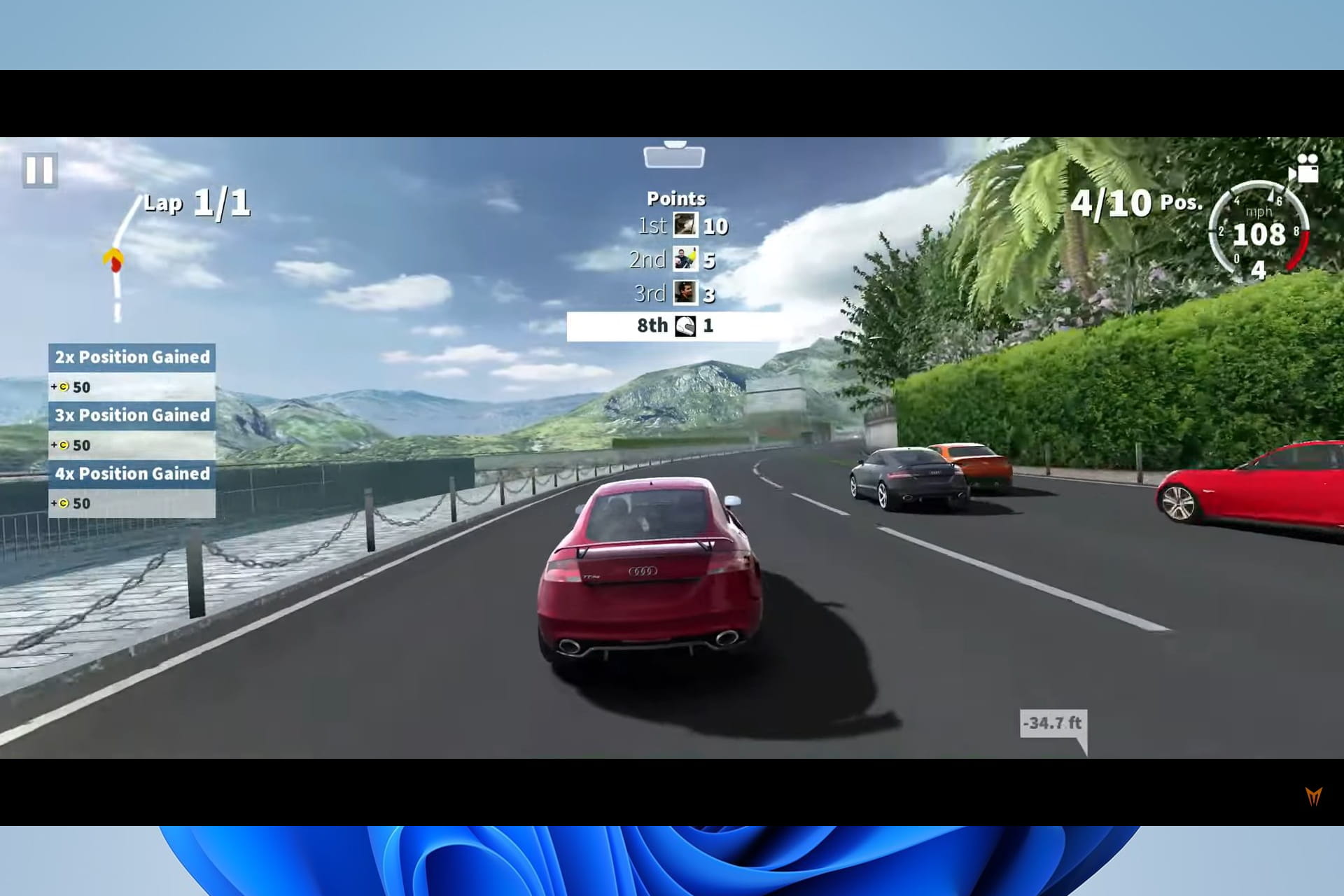
GT Racing 2 – Windows mobile and PC compatible

If you are fascinated by Le-Mans racing or Grand touring and how those cars race at a neck-breaking speed with crowds full of cheering spectators, you might want to try out the GT Racing 2.

This game will give you a natural driving feel, like game physics and realistic graphics. You can choose from a variety of high-end cars, including the phenomenal Ferrari, Mercedes, and more. And you can also upgrade them with visual upgrades and performance kits.

The game’s performance is boosted by the variety of driving modes that it offers. For example, you can choose from Classic races, Overtakes, Knockout rounds, and One on One.

Various camera modes exist, and you can select the view that suits your style, including the interior view.

GT Racing 2 is available for both Windows mobile and PC. Even better, you can play solo, and if you have a friend who wants a challenge, you can choose the Multiplayer option.

The game also offers 13 tracks with different times of day and weather.

Best features:

  • Original circuits
  • International competition
  • Human-like AI opponents

⇒ Get GT Racing 2

NFS: Hot Pursuit – Crime chase racing game

Hot Pursuit is one of the few games that will let you experience the need for speed you enjoy on your console right into your PC or Windows mobile. This game offers racing alternatives that put you right into action.

You can be that angry cop chasing down rogue drivers or the racer outrunning the law with that high-end exotic car. You can choose your favorite driving style with different control options ranging from motion sensor controls to on-screen controls.

NFS: Hot Pursuit offers players racing options that keep them engaged throughout the game. A cop can use roadblocks and spike strips to smash down racers or use EMP to fry the racer’s electrical system.

Racers can use oil slicks, overdrive, or jammers to outrun the cops. This game truly puts you in the escape mood and is a hot pursuit, as the name suggests. NFS: Hot Pursuit is also X-Box live enabled.

You should download this game as a super car racing game option for PC.

Best features:

  • Cross-platform multiplayer
  • Exotic cars with weapons
  • Enhanced visuals

⇒ Get NFS: Hot Pursuit

DiRT Rally – Dirt racing game

Codemaster’s DiRT Rally game is a gem in the gaming universe and has surpassed its predecessor, Dirt 3.

It is the best game Codemasters have made in years. DiRT Rally does away with many of the arcade touches that persist in the core series with an advanced handling model.

The game’s setting is on dirt tracks with lots of sideway sliding driving, and to succeed in the race, you have to master all the wheel controls. The race is not a joke; you must apply strategy and resource management while taking care of the car at every turn.

DiRT Rally captures the elements that make rally unique —the hassle of trying to remain in control of your emotions as you hurtle at a neck-breaking speed.

You will have to strike the perfect balance between speed and control, knowing that a single crash could irreparably harm your stage time. Everything from speed control to the most subtle weather and lighting changes is well set to improve the game.

Best features:

  • Iconic rally cars
  • Team management
  • Custom rally events

⇒ Get DiRT Rally

Hydro Thunder Hurricane – Water racing game

Hydro Thunder Hurricane changes the environment as it takes your need for speed to the water, where you get to race an assortment of speed-hungry boats. The game offers players over ten playing environments, including the Bermuda Triangle, Monster Islands, and Area 51.

Each environment offers players plenty of drop-offs, jumps, and secret passages. You can choose from a wide variety of over twenty boats. The boats become more powerful as you progress and are customizable with a series of skins.

Hydro Thunder has an efficient control system, and the racecourses are challenging. The game offers four racing modes: Championship, Gauntlet, Ring Master, and Gate.

Hydro Thunder has a lot to offer and comes with some unique features that you might not find in any other game. However, the game is not free, and you have to buy it for $9.99, although a free trial will help you determine whether it’s worth the investment.

Best features:

  • Rocket powered speedboats
  • Race against friends
  • Great water physics

⇒ Get Hydro Thunder Hurricane

CSR Racing – Microsoft Store game

CSR Racing has slowly become one of the most popular titles in the market. The game is played from a profile view and allows you to participate in fierce city street drag racing.

You will have to choose from over 90 licensed cars with a customizable appearance and upgrades available through the game’s garage.

The game has four playing modes, which include:

  • Multi-Player Racers – where you challenge other racers
  • Ladder Racing – where you face multi-stage events
  • Crew Battles – where you compete against five racing families
  • Regulation racing – where you compete against randomly selected opponents

As you win races, you earn cash that can be used to upgrade your existing fleet or buy new cars. Upgrades cover your turbo boost, engine, transmission, tires, and body adjustments. You can also change your paint to suit your color of preference as well as customize your license plate.

CSR Racing is easy to play. Once you set the engine to the maximum level before the race starts, acceleration becomes automatic. Your work will only be to shift gears promptly to keep acceleration smooth.

It is an excellent Windows 10 and 11 racing games free download option. For more free titles from the Microsoft Store, you can also explore this guide to free racing games on Microsoft Store.

Best features:

  • Brilliant graphics
  • Over 100 cars
  • World tours

⇒ Get CSR Racing

CarX Drift Racing – Great drifting physics

windows 10 racing games

You may have seen in movies how crazy drivers swing hot rides around corners and utilize hand brakes till the car burns rubbers. If you want a game that can do precisely that, then CarX Drift Racing is what you are looking for.

What more? You can customize your ride and change the color of the ride smoke—something that movie stars in real will never be able to do, so you are one step ahead.

CarX Drift Racing has a series of classic cars to choose from, like muscle cars, coupes, and pickup trucks for those who prefer something more prominent.

You will love the wheel physics and the drive mechanics employed in this game. Endless controls exist that you can customize to suit your driving style.

You can turn on and off steering and brake assists as per your ease. You can also adjust graphic settings to get an authentic experience. Best of all, the game is available for free.

Hit the download link below and transform your PC into a racing field within minutes.

Best features:

  • Friend challenge
  • Diversified routes
  • Plenty car options

⇒ Get CarX Drift Racing

TrackMania 2: Canyon – Great car dives and stunts

windows 10 racing games

TrackMania 2 features a fantastic opening sprint that you might not find in any other game. It starts with one car on the starting block, but when the counter hits zero, that’s when you realize you have 20 cars to compete against.

Naughty terrain, abrupt turns, exit into suicidal drops, and many other surprises will make your race unbearable. But you are trained for this, so when others make mistakes, you will head straight into the tunnel and into the mouth of the mountain.

You will learn that a typical race doesn’t end at the finish line but in a disastrous environment where cars bounce on top of you. Impossible jumps, wide barrel rolls, and floating platforms set the TrackMania series apart from other arcade racers.

The competition is fierce and fanatic. A race can quickly devolve into a hilarious scene of an unforeseen corner or missed jumps. You might spend hours without noticing because the terrain and the competition you will face will not allow you to drift your eyes off the screen even for a second.

Best features:

  • 100+ players
  • In-game video studio
  • Thrilling racing experience

⇒ Get TrackMania 2 Canyon

City Racing 3D – Racing game in slim size

windows 10 racing games

City Racing 3D is not only characterized by its stunning graphics but also by its small size of just 46MB. The game is powered by a Self-developed 3D Engine and Real Physics.

You get to choose from a variety of high-end cars and race in the world’s most beautiful cities like Paris, Tokyo, Chicago, London, and many more.

You also race with all the styles you want, from Classic, 1 ON 1, to Elimination with stunning 3D graphics and natural scenes. The game also offers various camera modes and controls so you can adjust them to suit your driving style.

Best features:

  • Worldwide cities
  • Unbelievable 3D racing
  • Realistic sound effects

⇒ Get City Racing 3D

Asphalt 8: Airborne – 8-player game

windows 10 racing games

Asphalt 8: Airborne is a thrilling game from Gameloft that is available for both Windows Mobile and Windows PC. The game has responsive controls and fantastic graphics and is one of the best racing games available.

The game offers all you need to feel the sensation of a racing driver and more. The visual effects will put you right into the action, from the airborne jumps to the slow impacts. Asphalt offers over 100 cars, including high-end exotics like Ferrari, Chevrolet, Tesla, Lotus, Dodge, and Audi.

Asphalt does not restrict you to one racing field; instead, it allows you to explore various venues that give you a real-life experience.

If you are a city boy, you can choose cities like Venice, Iceland, or any city from the nine venues, and if you prefer to get a little dirty, you can tear the dirt in the Great Nevada desert.

The game also has a multiplayer mode that supports up to 8 players and can be saved locally or in the cloud to continue playing across devices. Control options include keyboard controls, on-screen controls, and tilt sensors.

Best features:

  • Stunning graphics
  • Arcade gameplay
  • 400+ career events

⇒ Get Asphalt 8: Airborne

Beach Buggy Racing – Beach free driving game

windows 10 racing games

If you feel that car racing is not quenching your thirst for speed, you might want to try cart racing. This is where speed and madness collide. The game immerses you into an action-packed world of off-road kart racing.

You race against a motley bunch of rival drivers, each with special abilities and unique personalities. Your racing buggy can be upgraded to increase your peak speed, boost acceleration, and strengthen your kart to remain strong even when you smash into things.

The game also offers you a wide variety of power-ups that you can collect during the race to conquer your opponents. For instance, you can use oil spills to slow them down, monster truck tires to increase your ability to smash things, or rockets that you can use to blast your opponents off the track.

Beach Buggy Racing has four modes: Championships, Career, quick races, and split-screen multiplayer races. The game comes with 12 racetracks to conquer and has gaming control support for your keyboard, gamepad, and tilt sensors.

Best features:

  • Cool animated graphics
  • Realistic sound effects
  • Different game levels

⇒ Get Beach Buggy Racing

What’s the best browser for gaming?

Opera GX is top-rated for gamers, offering lightweight performance, built-in Twitch and Discord, plus gaming sound effects to enhance your play.

Opera GX

Opera GX

Go with this full-speed browser and hit the nitro switch on your racing games.

What racing games can my PC run?

This will depend on the system requirements of the game you need to run. You must note that the system requirements will vary per game basics, and you must consult the manufacturer’s site to know if your PC can run it.

Generally, we recommend Windows 11 and a great Graphics card for best performance. However, any of these best PCs for gaming may be a good fit. If you’re looking to expand your collection further, be sure to explore our comprehensive list of the best car games for PC, covering everything from stunning visuals to custom tracks and diverse gameplay modes.

For some of the games discussed, after download, you can play them as Windows 10 and 11 and offline racing games.

Racing games are a great way to pass the time, and the big screens of our Windows 10 and 11 devices add to the entertainment value of these games.

There are so many racing games out there, and since we could not fit all of them into one roundup, we only selected the top-rated. A few of these are also great Windows 10 and 11 online racing game options.

So if you missed your favorite from the list above, sound off in the comments section below, and we will see how well it fits on the list.

6 Ways to Fix Chrome Autofill when It’s Not Working

Chrome autofill couldn’t have come at a better time when people are tired of typing in their contact details like name, email, phone number, address, and other information online – it is a tedious process.

Autofill has been around for a while as part of the browser experience, but most of us don’t think about it as often or think to use it unless it is pointed out to us. With this feature, you can automatically store specific contact data in your browser and then use it when filling out forms online.

However, this feature still has its downsides because Google Chrome stores your credit card numbers, including its expiration date and CVV code, besides your contact information.

Even though Google tries hard to protect your information, it is wise to think twice about keeping such information on your computer. It differs from Autocomplete, which gives you suggestions as you type in a form field, as you would on your browser’s URL bar or search box.

Let us present the best solutions if Chrome autofill is not working on your browser.

Why is Chrome not autofilling my passwords?

While this service runs seamlessly for most users, a few things can trigger a malfunction in Chrome autofill. A few significant culprits are:

  • Compatibility issues with extensions
  • Outdated cache data
  • A disabled autofill feature
  • A corrupted browser

Whatever the reason behind the Chrome autofill not working, our solutions should effectively restore your browser to normal functionality.

Where is autofill in settings?

Once you are in your Chrome Settings, you will locate the autofill on the left pane, among other setting options.

Quick Tip:

If you are concerned and tired of Chrome’s autofill not working, then switching to a different browser is more efficient than trying to troubleshoot your old one.

Opera One’s autofill option it’s safe due to its fraud & malware protection. Plus, Opera One comes with built-in security measures such as VPN, Ad blocker, tracker blocker and it also features a native AI.

Opera One

Benefit from great privacy and online security, thanks to this browser with an advanced built-in VPN.
Free Download Visit website

How do I get Chrome to Autofill back?

1. Clear browsing data

  1. Launch the Chrome browser.
  2. On your keyboard, press Crtl + H.
  3. Click on Clear browsing data on the left panel.
    chrome autofill not working
  4. Select All Time from the Time range dropdown box, tick the options for Browsing history, Cookies and other site data, and Cached images and files, then click on the Clear data button.
    chrome autofill not working

2. Turn on Chrome autofill

  1. Launch the browser.
  2. Type the path below in your Address bar and hit Enter.
    chrome://settings/autofill
  3. Click on Password if Chrome is not auto filling passwords.
    chrome autofill not working
  4. Toggle on the Auto sign-in option.
  5. Repeat Step 2 if Chrome credit card autofill is not working, then click on Payment methods.
  6. Toggle on the option for Save and fill payment methods.
  7. Repeat Step 2, then click on Addresses and more.
  8. Toggle on the option for Save and fill Addresses.
    chrome autofill not working

3. Check the Never Saved section

  1. Launch the browser.
  2. Type the path below in your Address bar and hit Enter:
    chrome://settings/autofill
  3. Click on Password.
    chrome autofill not working
  4. Scroll down to the Never Saved section.
    chrome autofill not working
  5. Check if your site or sites are listed. If they are, remove them by clicking the X at the end of the row and revisit the websites.

This is an essential fix if Chrome autofill is not working on some sites.

4. Create a new user profile

  1. Exit the Chrome browser.
  2. Open your File Explorer.
  3. Type the path below in the address bar and hit Enter:
    %localappdata%\Google\Chrome\User Data
  4. Find the Default folder in the directory window.
    Chrome autofill not working
  5. Rename it as Backup default.
  6. Open Chrome.
  7. A new Default folder will be created automatically as you start using the browser.

Now verify if the issue of Chrome autofill not working has been resolved.

5. Reset Chrome settings

  1. Launch the browser.
  2. Type the path below in your Address bar and hit Enter:
    chrome://settings
  3. On the left pane, click on Reset and clean up.
    chrome autofill not working
  4. Click Restore settings to their original defaults.
  5. On the popup, click the Reset Settings button.

Now verify if the issue of Chrome autofill not working has been resolved.

When you reset the Chrome settings, it changes the default search engine back to Google, your homepage and tabs, and your extensions and themes back to default.

6. Disable extensions

  1. Launch the Chrome browser.
  2. In the address bar, type the code below and hit Enter:
    chrome://extensions
  3. Click on the Disable switch for individual extensions.

Disable all the plugins in your Chrome browser using our instructions to find the problem extension.

Where is Google Autofill data stored?

Data from autofill is kept in the Google cloud. If you keep credit card information on your PC, your tablet and smartphone will also access this information.

In addition, note that if you delete your browser history, passwords, and sign-in information from a device, they will no longer exist on all your devices.

In this article, we presented you with all the solutions you can apply if you notice that Chrome autofill is not working.

So whether you opt to use a different browser or decide to go through the troubleshooting process, we are sure that you will be able to get rid of the annoying problem if you just follow our guide.

If any of these solutions helped, we’d like to hear more from you about it, so leave a comment in the dedicated section below.

If you have issues with password managers on Chrome, you may find our guide on fixing LastPass not auto-filling in Chrome handy.

Why Do I Have Two Google Chrome Icons on My Taskbar & How to Fix It

Some users have reported having a duplicate Chrome icon on their taskbar in Windows 10/11. This can become extremely frustrating in time, as the space available in the taskbar is limited.

Here’s how one user described the issue on Microsoft Answers forums:

Double Google Chrome icon on the taskbar. I’ve tried to unpin the first one on the left, and then pin the new one on the right, but I can’t pin that one because there is no option to pin it. If you can, please help me!

For these reasons, in this article, we will explore some of the best-proven methods to solve this issue and clear your taskbar from any unwanted icons. Read on to find out how to do it.

Why does a second Chrome icon appear on the taskbar?

It is conceivable that you have pinned the app’s shortcut rather than the program itself if you are seeing multiple icons in the taskbar.

If this is the case, you will need to unpin the shortcut. Therefore, when you activate the application, you will see that there is a duplicate icon in the taskbar. This is because Windows believes there are two distinct instances of the program now active.

Now, let’s see in more detail how you can remove two Chrome icons from your taskbar. Follow along!

Quick Tip:

If you keep having trouble with Chrome, try another browser instead. We recommend Opera One because it offers a similar user experience and is compatible with all Chrome extensions.

The browser is heavily optimized for user privacy and doesn’t store tracking cookies or your personal info. It comes with a built-in VPN, an ad blocker, social media integrations, and more.

Opera One

Have an error-free experience on the web with this reliable browser.

How do I remove two Chrome icons from my taskbar?

1. Pin Chrome to your taskbar

  1. Open up File Explorer then copy-paste this location into your explorer. Note, if you can’t see the AppData folder, check out how to show hidden folders in Windows 10: C:Users/your_username here/AppData/Roaming/Microsoft/InternetExplorer/QuickLaunch/UserPinned/TaskBarfile-bar double chrome icon on taskbar
  2. Launch Chrome and pin it to your taskbar. This way you will also fix the Chrome opens new icon on taskbar issue.windows explorer google chrome - double chrome icon on taskbar

2. Unpin the second Google Chrome

  1. To fix the Google Chrome taskbar duplicate issue, open Google Chrome then right-click the icon that is not active.
  2. Select Unpin from taskbar.unpinning Chrome from taskbar - double Chrome icons on taskbar
  3. Right-click on the other icon and select Pin to taskbar.

3. Create a Google Chrome shortcut

  1. Right-click on each of the Chrome icons and select Unpin from taskbar.
  2. Click on the Start menu and search for Google Chrome.Chrome in Start menu - Double Chrome icons on taskbar
  3. Drag and drop Google Chrome to your Desktop.
  4. Double-click the shortcut from your Desktop to open Chrome
  5. Right-click the Chrome icon and select Pin it to Taskbar.pinning Chrome to taskbar - double Chrome icons in taskbar

In this article, we explored the best-proven methods to solve having two Google Chrome icons on your taskbar.

Please follow the methods presented in this article in the order that they were written to avoid any other issues.

Moreover, we recommend that you take a look at what to do if the Windows 11 Taskbar is empty.

Feel free to let us know if this guide helped you solve your problem by using the comment section found below.

Opera One vs DuckDuckGo: Which is The Safest Browser?

Protecting your privacy online is essential; many tools can help you with that. Speaking of valuable tools, today we will compare Opera vs DuckDuckGo.

Each has certain benefits, so join us while we closely examine and compare the two in detail.

DuckDuckGo vs. Opera One: Which one protects my online privacy?

Opera One browser – Highly customizable

What is Opera One?

Opera One is a web browser that has been on the market for 25 years. It’s completely free, and in the early days, it was a great alternative to Internet Explorer.

Over the years, the browser has evolved, and it now offers many helpful tools, some of them unique.

What are the pros and cons of Opera One?

Pros:

  • Low hardware usage
  • Built-in adblocker and tracking protection
  • Unlimited free VPN
  • Available on all desktop and mobile platforms
  • Advanced tab management
  • My Flow tool to share work across all devices

Cons:

  • Few VPN servers
  • It might load slower with some websites

What features does Opera One have?

Opera One is simple to use, and with its low hardware requirements, it’s perfect even for low-resource PCs. The browser offers certain privacy features, blocking both trackers and ads.

For an extra layer of security, there’s even a built-in VPN that offers unlimited bandwidth. The tool does not require any registration or additional downloading.

We must also mention that the browser has crypto-mining protection and an integrated crypto wallet.

As for additional features, the browser has a battery saver that will give you an extra hour of battery life. Moreover, you get a redesigned interface, tab islands to enhance multitasking, a mouse gesture facility, and many more.

Opera One

Get advanced privacy features and create your own workspace for secure browsing!

DuckDuckGo – Minimalistic web browser

What is DuckDuckGo?

DuckDuckGo is a privacy-focused search engine that doesn’t store your data.

The company also has a dedicated app for mobile, Windows, and macOS, so you can use it instead of your regular browser.

What are the pros and cons of DuckDuckGo?

Pros:

  • Offers a private search engine
  • Blocks trackers, ads and protects your data
  • It doesn’t sell your browsing information to third parties
  • Has extensions available for all major browsers
  • The browser app is lightweight and extremely fast

Cons:

  • The desktop browser offers only the essential functionality
  • It lacks certain features that other search engines have

What features does DuckDuckGo have?

DuckDuckGo browser comes with a minimalistic design and only the most essential features. The browser uses the DuckDuckGo by default, so it won’t track your online searches and sell your data to advertisers.

The browser has built-in tracking protection, so websites can’t gather your information. In addition, all ads are blocked out of the box, so you can enjoy an ad-free browsing experience.

If you care about stats, you can even see how many tracking attempts have been blocked in the past week and see which websites tried to track you the most.

Lastly, the browser allows you to quickly clear your cache and browsing history, which can be helpful if you’re sharing your PC with others.

⇒ Get DuckDuckGo

Opera One vs DuckDuckGo: The verdict

Opera One is a full-fledged browser with various customization options. While Opera One and DuckDuckGo browsers can block trackers and ads, Opera works better as a web browser.

In terms of privacy, the DuckDuckGo browser might be a better choice. Still, you can achieve the same results using the DuckDuckGo extension in Opera and a few privacy extensions.

This brings us to our biggest complaint. DuckDuckGo doesn’t support any extensions, so while it can be used for private browsing sessions, it still lacks the essential features to become our default browser.

It’s worth mentioning that the built-in VPN in Opera One will give you an additional layer of privacy, and this is just one of many reasons why it’s a browser of choice for so many users worldwide.

⇒ Get Opera One

Does Opera use DuckDuckGo?

Opera offers DuckDuckGo as one of the available search engines. While it’s not selected as the default search engine, you can easily switch to it at any time.

The DuckDuckGo browser offers only the most essential features, and while helpful, it can’t be compared to any major browser on the market simply because it lacks so many features.

As for the search engine, it lacks some features, including the following:

  • Since it doesn’t collect user data, DuckDuckGo doesn’t offer personalized search.
  • It doesn’t offer any integrated services like Google does.
  • It has a smaller search index, so it might be less effective than Google.

Can you still get viruses on DuckDuckGo?

While DuckDuckGo blocks trackers and doesn’t collect data, it allows you to access harmful websites, the same as Google or any other search engine.

If you’re not careful, you can get viruses using the DuckDuckGo search engine.

What are the disadvantages of the Opera browser?

The browser offers many features, and while many are helpful, others, such as social media integration, aren’t something that most regular users plan to use daily.

VPN and ad blockers offer limited functionality, and some users think third-party solutions offer more advanced features.

There you go; these are our thoughts on DuckDuckGo and Opera One. If you want to learn more, be sure to read our Opera One review as well as our guide on how to download the DuckDuckGo browser.

Also, we have an exciting guide that answers whether DuckDuckGo is a VPN, so you might want to check it out.

If you prefer using a different browser, don’t miss our guide on DuckDuckGo vs Brave to see which one is better to use.

Which browser do you use? Feel free to let us know in the comments below.

10 Best Itch.io Browser Games [Tagged Browser Games]

Spending your time playing games isn’t a bad thing as some people make it to be. As long as you are enjoying the company and the experience, it is a time well spent. And today we’ll show you some of the best Itch.io browser games.

Browser games, unlike its counterpart, are often dismissed as a throwaway experience. However, that’s not true. Services like Itch.io have found a way to bring the best browser indie games online.

Itch.io is a website for the user to host, sell and play indie games online. Since its launch, the service has hosted hundreds of thousand games, most of which are free. 

If you are new to Itch.io, it is easy to get lost in the sea of indie games. If you are looking to enjoy your lunch break playing some fund indie games, check out the best Itch.io browser games below.

Can you play games on Itch.io without downloading?

Itch.io is a platform that many independent game developers use as a support mechanism for their work. The website welcomes independent programmers and provides them with a venue where they may showcase and, in some cases, sell their games.


The website operates on a commission model, which means that the owners receive a tiny share of the revenues that are generated by the developers.

Yes, you can! All the games on Itch.io are free indie games that work only inside your browser. Some exceptions might have a version available for download, but those are exceptions.

Feel free to access Itch.io’s platform to explore their vast library of indie games. But now, let’s see whether they are safe or not!

Quick Tip:

Dedicated gaming browsers like Opera GX can reduce the impact on your system resource as it is specially built to complement gaming, especially when accessing Itch.io.

Some of the notable features include GX Control to customize the browser’s system resource usage, Hot Tabs Killer to free up resources without leaving the browser, and Discord integration.

Opera GX

Experience unprecedented speeds and stability while playing games in your browser with this amazing software today.

Are games on Itch.io safe?

The website asserts that it will examine every game that is submitted to its platform, despite the fact that it is impossible for them to monitor and regulate every single piece of code that is transmitted through a game.

When downloading anything from the Internet, exercising extreme caution is always the best course of action. Due to the fact that Itch.io sends you to the website of the game creators, you will be unable to view any comments left by other users.

In general, the website is renowned to feature games that are both respectable and secure. If your concerns have not been allayed, continue reading this part, which will explain what steps you may take to avoid contracting a virus.

This being said, let’s see what some of the best Itch.io browser games are, that you can play right away!

What are the best Itch.io browser games?

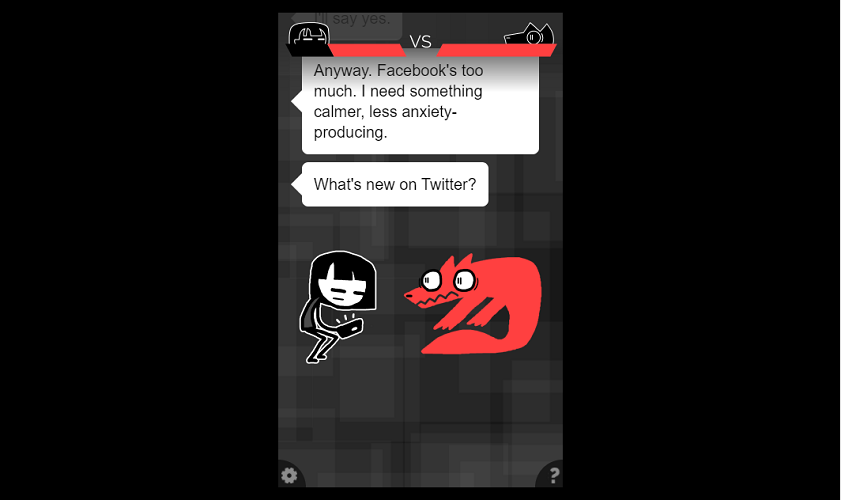
Adventures With Anxiety! – A game about anxiety

itch.io browser games

Adventures With Anxiety is a browser-based game. It is an interactive story about anxiety, and you play as the anxiety.

The game has been designed to help users with anxiety issues with interactive multi-choice questions. How you move forward depends on the choices you make during the gameplay.

The game lasts for about 30 minutes, and as the developer notes, it is more of an interactive story than a game. This is one of the best games on Itch.io to play in your browser.

⇒ Play Adventures With Anxiety

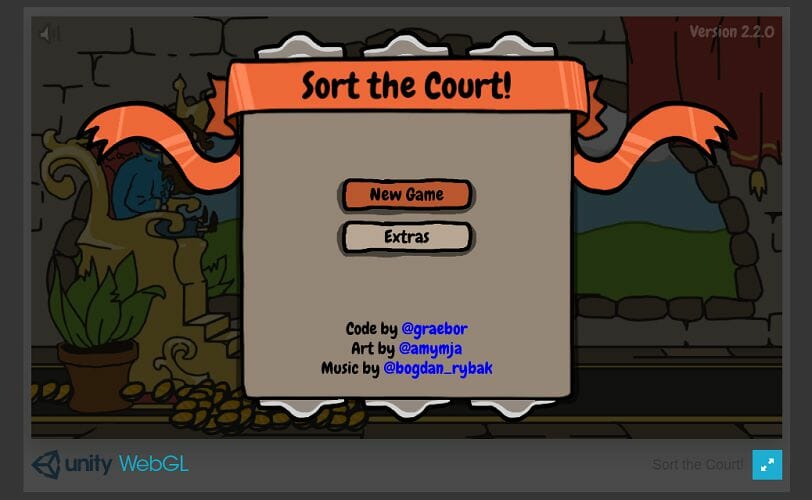
Sort the Court – Ruler simulator

itch.io browser games

Sort the Court is a simulation-based game where you decree in simple yes and no answers. You can choose to play as the King or Queen at the beginning. We regarded it as the second-best Itch.io browser game despite its simplicity, due to how entertaining it is.

Once you have chosen to play as the king or queen, you will be presented with a few questions by the Royal Advisor and other characters. You need to answer Yes, or No, by pressing Y or N.

Depending on the answers given, you will gain or lose points. As a ruler, you have to keep an eye on the people in your kingdom without depleting the wealth with the ultimate goal of growing the city.

⇒ Play Sort the Court

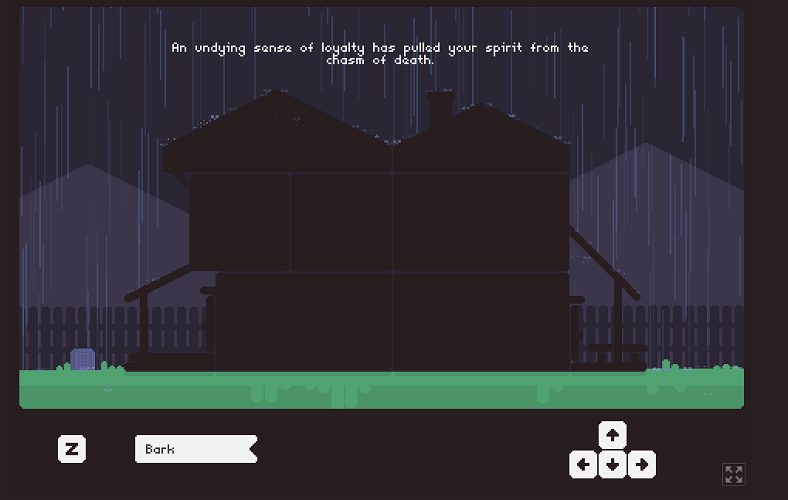
Goodbye, Doggy – Popular puzzle game

itch.io browser games

Goodbye, Doggy is a puzzle game where you help your family with your demise as a ghostly dog.

You will deal with the family’s grief by drifting from room to room and exploring the house.

Use the arrow keys to move around the house and press the Z key to interact with the characters. Make use of the hints to solve the puzzle and complete the game.

⇒ Play Goodbye, Doggy

A Tale Spanning Centuries – A fantasy romance story

itch.io browser games

As the title indicates, A Tale Spanning Centuries is a fantasy romance story with ME roots on PC and mobile.

A text-based browser game with choices throughout to shape both the main character’s personality and skills and influence their relationship dynamics.

⇒ Play A Tale Spanning Centuries

Six Cats Under – Puzzle game with cats

itch.io browser games

Six Cats Under is another Itch.io puzzle game. The game revolves around a cat that has died and has unfinished business to take care of.

In this point-and-click game, you rescue your herd of cats by directing them with your poltergeist powers.

⇒ Play Six Cats Under

Scout Chapter 4 – Interactive fiction game

Tagged Browser games

Scout Chapter 4 is an interactive fiction game based on a text choice in an apocalyptic setting. As a young survivor of a natural calamity that hit the region, you put your skills to use on regular scouting missions.

The gameplay involves choosing your name, appearance, and scouting team positions. The choices you make throughout the story will affect your standing in the community.

⇒ Play Scout Chapter 4

Plant Daddy – A plant growing game

Tagged Browser games

A simulation-based browser game on Itch.io, in Plant Daddy, you grow plants in your sunny apartment.

Your plants grow in real-time, water them, repot them, purchase furniture and then close the tab. You can come back to continue the game when you have some spare time. 

⇒ Play Plant Daddy

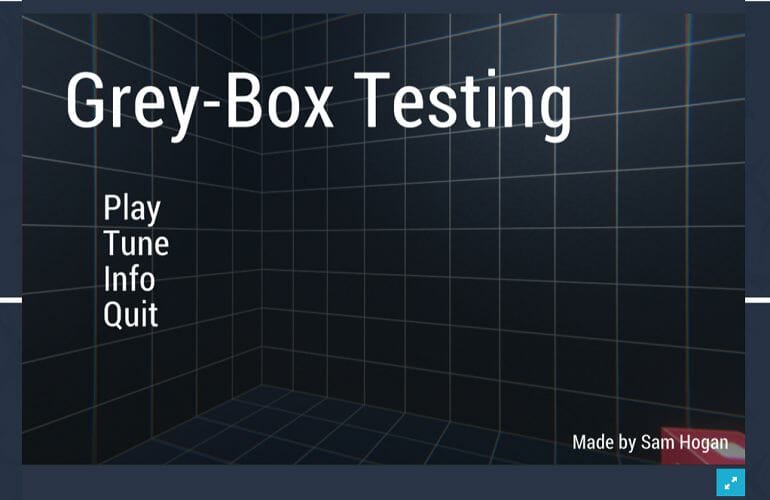
Grey-Box Testing – Exploit bugs to solve puzzles

Tagged Browser games

If you like puzzle-based browser games, then try Grey-Box Testing. In the game, you exploit bugs to solve puzzles and progress.

If you like challenging tasks like finding in reality, Grey-Box Testing can help you give your mind a tough assignment to solve the game by exploiting the bugs like a tester.

This game uses WASD to move, E or P to pause the game, Space to jump, and the mouse clicks as control options.

⇒ Play Grey-Box Testing

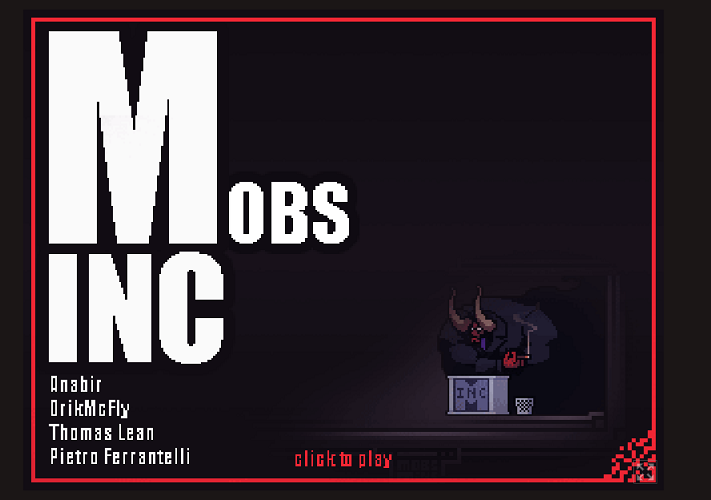
Mobs Inc – Action browser game

Tagged Browser games

Mobs Inc is a fun, fast-paced action browser game that is also the winner of Ludum Dare 33.

As a new monster recruit, you as a new monster attack adventurers by dashing through a point-and-click mechanism.

The more adventures you kill with your special skills, you will be promoted. If you disappoint the monster boss 4 times, you will be fired.

⇒ Play Mobs Inc

Tanuki Sunset Classic – Third-person racing game

Tagged Browser games

Tanuki Sunset Classic is a third-person racing longboard-skating game. You, as the main character raccoon, skating downhill on a procedurally synthwave-theme seaside road.

You can drift your way around the narrow corner while gathering Tanuki Bits to fill up your Bonus Roulette Meter and try to gather as many points as you can.

⇒ Play Tanuki Sunset Classic

There you have it. Some of the best free games on Itch.io that you can play on your favorite browser like Opera GX.

Browser games are the best way to enjoy short breaks as they are quick and not so addictive, like the mobile and console games that can take hours of your time.

All the best Itch.io browser games in this list offer fun time without taking up space on your laptop. 

We have included adventure, fantasy, racing, puzzle, and action games in this list, offering something for everyone. Which is your favorite game? Do let us know in the comments.

How To Play Pandemic Board Game Online With Friends

It’s been shown, recently, that people all over the world feel the need to get emotionally involved in representations of catastrophic events to which they can relate to.

Besides movies and books, online games such as Pandemic make no exception from the activities that some adults resort to.

What is the Pandemic online game?

Pandemic is a free multiplayer online game that is an adaptation of the award-winning board game of the same name, created by Matt Leacock.

Created as a strategy and simulation game, it can be played by 2 to 5 players that have to team up and cooperate to find sustainable cures to fight the deadly disease that holds up the entire world. Unless they do it, humanity becomes extinct.

Can you play Pandemic online with friends?

Yes, it is one of the most popular games to play with your friends, locally and remotely due to the Remote Play Together feature it comes with.

Keep on reading to find out where and how you can play Pandemic and have a great time with your close friends!

Quick Tip:

There is a worth knowing method you can fully optimize your Pandemic gameplay, namely using a gaming-focused browser like Opera GX.

Opera GX

Enjoy end-of-the-world gameplay like Pandemic on this integrated browser.

How to play Pandemic?

Pandemic is not a multiplayer game, so it’s local-only. But it comes with a Remote Play Together feature, which allows the owner of the game to invite friends to collaborate and fight the disease together.

It can also be played via video platforms such as Zoom, letting your friends do their part, in turn.

With 5 difficulty levels to suit all categories of gamers, the players travel the globe to protect cities, contain infections from spreading, and discover the cure for each disease. 

The Medic, the Scientist, or the Quarantine Specialist – each member of the team is indispensable as they all have their own strengths, so the elite team has to be created wisely.

How can I get the Pandemic online game?

The game is available on a multitude of platforms, from gaming consoles to mobile devices running on Windows, macOS, or iOS, at prices starting from $4.99.

⇒ Get Pandemic on Amazon

⇒ Get Pandemic app for iOS

⇒ Get Pandemic app for Android

In our busy, modern lives, many of us devote so much of our attention to our jobs and the responsibilities of our families that we never seem to have time for simple enjoyment. We stopped playing some time during our transition from childhood to adulthood.

When we do have some spare time, we are more likely to zone out in front of the television than we are to engage in play that is both enjoyable and restorative, as we did when we were children.

However, the ability to play is not only important for children; it can also be a significant source of relaxation and stimulation for adults. This being said, have fun playing Pandemic!

For more entertaining games we recommend that you check out our post on five free online game platforms to use with your friends and join multiplayer games.

That’s it! Thank you for reading this article and we hope it proved to be helpful to you. Don’t hesitate to leave a comment in the sections below and share your thoughts with us.

NVIDIA Control Panel Only Shows 3D Settings: 3 Ways to Fix It

Some users have discussed an issue on NVIDIA’s forum that NVIDIA Control Panel only shows 3D settings.

The issue prevents users from accessing or modifying certain things in the NVIDIA Control Panel, which affects the overall graphics experience.

Here’s all you need to know about why NVIDIA Control Panel only shows 3D settings and the solutions that worked for most users.

Why is my NVIDIA control panel only showing 3D settings?

This issue generally arises on laptops with two GPUs, where one is integrated while the other is NVIDIA.

In this case, sometimes, the BIOS configuration is such that the integrated graphics card controls certain settings, and as a result, NVIDIA Control Panel only shows 3D settings on the laptop.

Also, the problem may lie with the NVIDIA Control Panel application itself, or the driver may be outdated.

Since it’s difficult to identify the problem, we recommend executing the steps in the same sequence as they are listed to fix things when NVIDIA Control Panel display settings are missing.

What can I do if I can only see 3D settings in NVIDIA’s Control Panel?

1. Update drivers for NVIDIA graphics cards

As the missing settings on the NVIDIA Control Panel can pertain to antiquated graphics card drivers, an advanced driver updating tool is a potential resolution.

Note: If your NVIDIA graphics card already has the latest driver, uninstall the NVIDIA GPU via Device Manager. Then you can utilize this tool to reinstall its driver.

2. Disable your PC’s integrated GPU

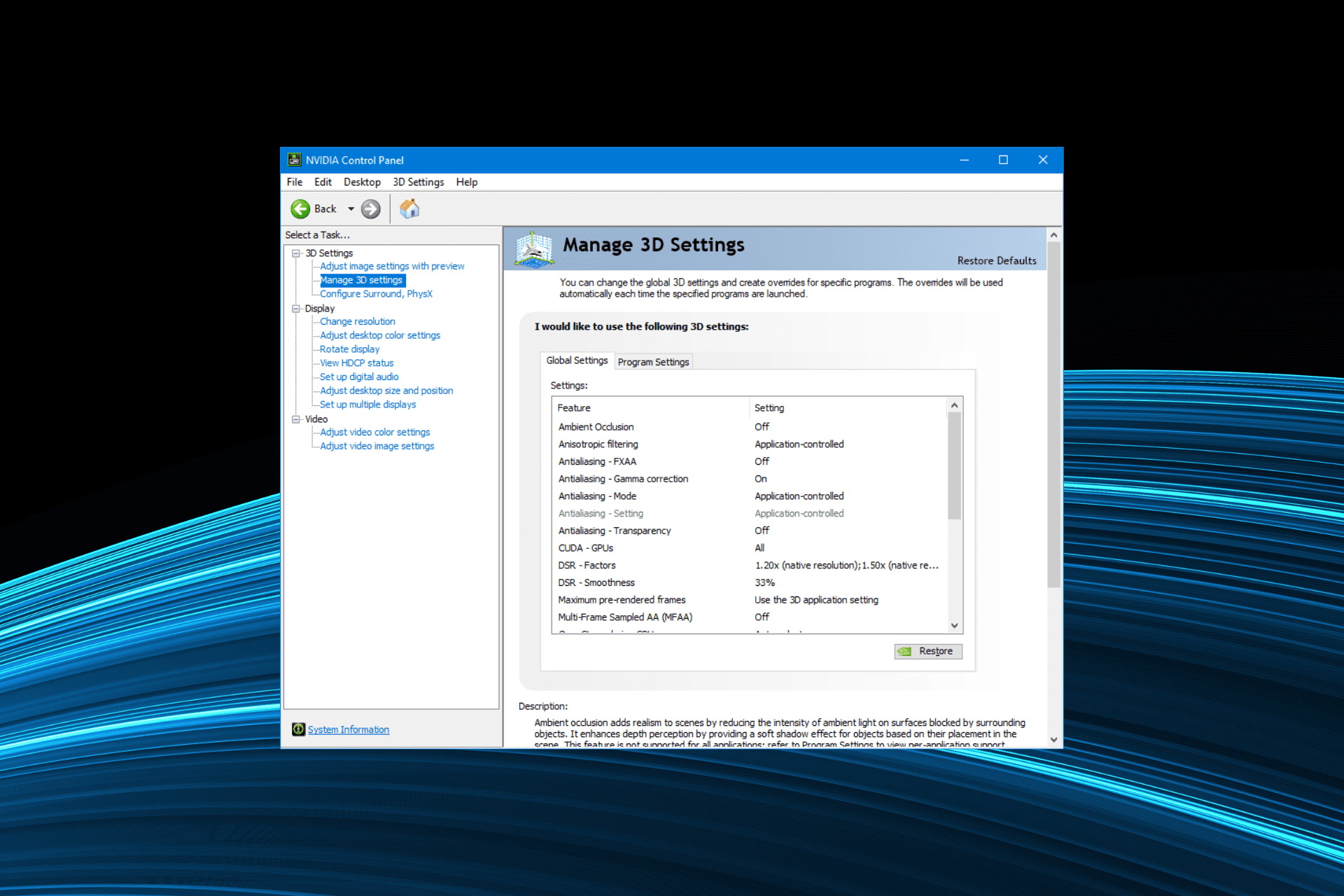
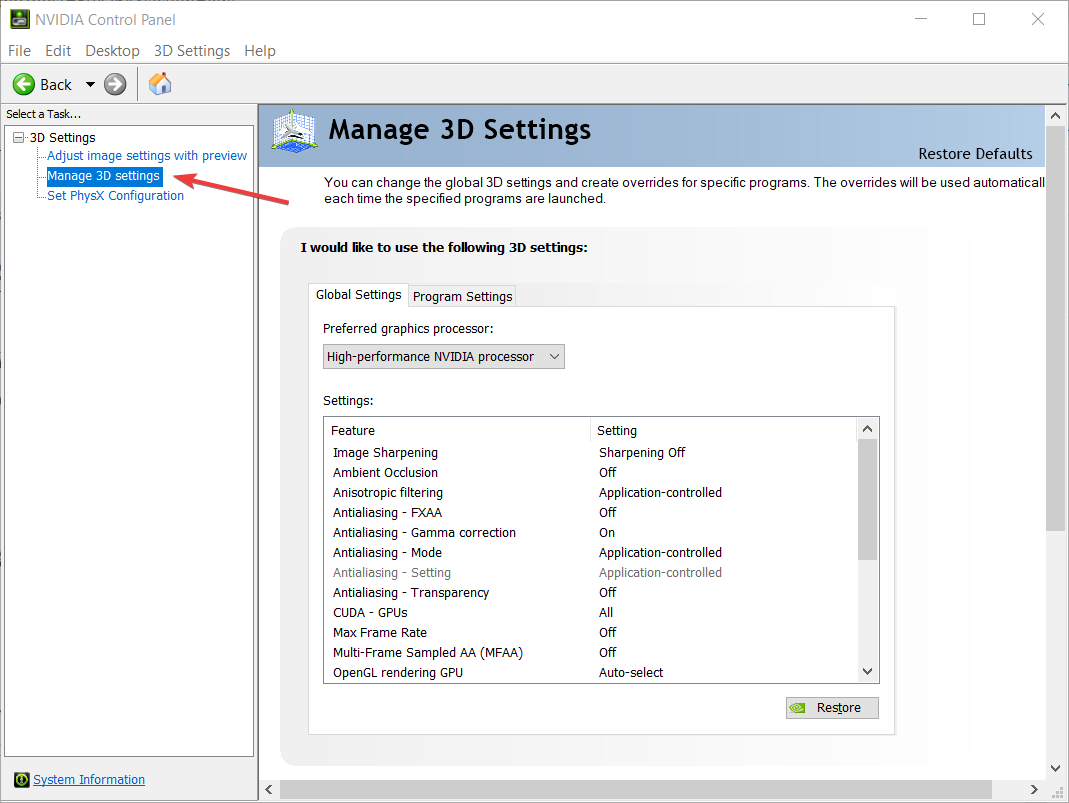
  1. Open the NVIDIA Control Panel and click Manage 3D settings on the left.manage 3d settings
  2. Select High-performance NVIDIA processor in the Preferred graphics processor drop-down menu.high performance
  3. Click Apply to save the changes.
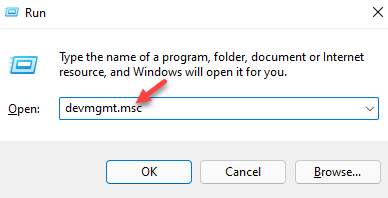
  4. Press Windows + R to open the Run command, enter devmgmt.msc in the text field, and click on OK.devmgmt.msc
  5. Double-click on the Display adapters category, right-click on the integrated graphics card and select Disable device.Device Manager nvidia control panel only showing 3d settings
  6. Click Yes to confirm.
  7. Once done, restart Windows for the changes to come into effect.

After the computer restarts, check if NVIDIA still only shows 3D settings. If that’s the case, head to the next method.

3. Restart the NVIDIA Control Panel

    You can efficiently fix NVIDIA Control Panel by restarting the service with the intuitive steps presented below.

  1. 1. Press u003ckbdu003eCtrlu003c/kbdu003e + u003ckbdu003eShiftu003c/kbdu003e + u003ckbdu003eEscu003c/kbdu003e to open the u003cstrongu003eTask Manageru003c/strongu003e.

  2. 2. Select the u003cemu003eu003cspan id=u0022urn:enhancement-c1f0b8aeu0022 class=u0022textannotation disambiguated wl-organization wl-linku0022u003eNVIDIAu003c/spanu003e Control Panelu003c/emu003e process and then click on u003cstrongu003eEnd tasku003c/strongu003e.

    End task

Once done, launch the NVIDIA Control Panel, and it should now show all the settings. You will now be able to access the various other customizations and make the desired modifications.

How do I check if my GPU drivers are up to date?

A simple way to check if the drivers are up-to-date would be to use the Device Manager. Simply head to the GPU adapter’s properties, and identify the driver version. You can then check the OEM’s website and verify if the one installed is the same as the latest available version.

Also, you could use an effective driver updater tool to automatically locate and install the latest version of the GPU driver. This way, the GPU, as well as the other drivers, will always be up-to-date, and you wouldn’t have to verify that time and again.

These resolutions helped users when the NVIDIA Control Panel display settings were missing in Windows 11 or the previous iterations.

Also, find out what to do if NVIDIA Control Panel is not opening in Windows.

If you still need more potential fixes, contact a support agent by clicking Chat Now under Live Chat on NVIDIA’s Consumer Support page.

Posted in Fix

How to Use Terraria Save Editor to Get the Best Items

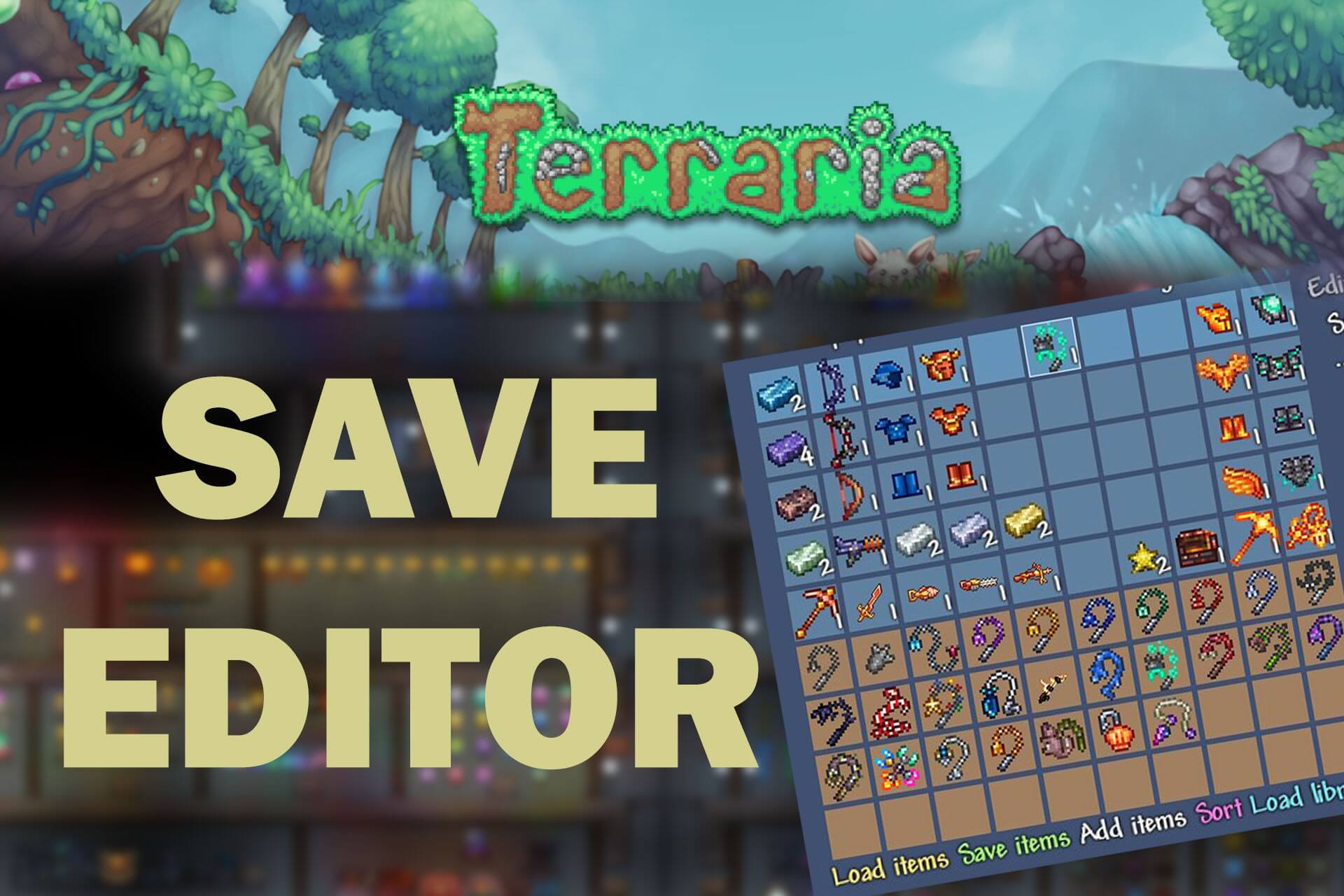
Terraria has received its last updates, which bring the decade-long journey to a sad but satisfying end. The latest update has added items, bug fixes, and map optimizations. But getting your hands on all the 5000+ items will be hard without a Terraria save editor.

This software will allow new and returning players to browse the catalog of items and give themselves a boost in the game. Of course, it will take away from the experience of farming for rare items.

Is it safe to use a Terraria save editor?

An inventory editor is a third-party tool that may be used to add or remove goods from the inventory of a local character, and in many cases, change other character data. Inventory editors are available for a wide variety of games, including World of Warcraft and Elder Scrolls Online.

Inventory editors are largely developed for the personal computer (PC) version of the Terraria video game. Before beginning to work with any form of inventory editor, it is strongly recommended that a backup of the character data be created first.

Terrasavr is a web-based application that combines an inventory editor with a character editor, and it has an intuitive user interface. Because it does not have any kind of interaction with the files that are found in the local Terraria directory, using it is absolutely risk-free.

Quick Tip:

A great method to improve your gaming experience is by using the most suited browser for games, Opera GX.

This optimized browser includes numerous features like RAM and CPU limiters or enhance security with free VPN support.

Opera GX

Enjoy Terraria gameplay with Terrasavr save editor on this gaming dedicated browser.

What Terraria save editor should I use?

Terrasavr – Most popular and versatile option

best save editor for terraria

Terrasavr is a web-based Terraria save location where users can edit their character and inventory. The platform is easy to use and doesn’t have any paywalls, staying true to the Terraria philosophy.

Note that it also works as a save editor for the Terraria Calamity mode, in case you are interested in this alone.

To edit your character, all you’ll need to do is to go to the Terrasavr page and load your character by clicking the Load Player button on the top left-hand side of the screen.

In the browse window, you will need to find your player and open it. The default save location will be C: > Users > [Your Username] > Documents > My Games > Terraria > Players.

The player file will have the same name as your in-game player and the extension .plr.

find terraria save game

Once your character is loaded, you can navigate via the tabs on the second line. From here, you can edit:

  • Character appearance
  • Equipment (including vanity items)
  • Pets, mounts, and misc items
  • Player Inventory
  • Bank, safe, Forge, and Void
  • Buffs and Research

How to add items to your inventory?

In order to add items to your inventory, you can click on the Library button, which will open the category list. From here, you can browse or use the search function if you’re on the lookout for a specific item.

The items you can add to your inventory will be shown on the lower part of the inventory. If something catches your fancy, simply drag and drop it into your player inventory and it’s yours.

In addition to changing your character and inventory, you can create item inventories for when you need to edit multiple characters. Simply add all the items you want to your inventory and then click on Save items.

terrasavr save editor

This will download the inventory file to your PC and you can load it to a different character from Terrasavr, the Terraria character editor, and save editor.

Once you have finished updating your Terraria character, you can save by clicking the Save Player button at the top of the screen. This will download the player file. All you need to do now is replace the original player file with the new one and you’re all done.

Terrasavr has worked wonderfully in our testing, but we do encourage you to make a backup of your player before you start adding items and editing your save. Also, this Terraria save editor works with all versions of the game: Windows, macOS, Linux, and mobile.

Also, Terrasavr has been updated to work with Terraria 1.4 and includes all the items which have been added to the game. Some other Terraria save editors have not been updated and therefore will not work, as in the case of Terraria InvEdit.

How do I use Terraria editor?

  1. Go to Terrasavr and load your player file.
  2. Change your look and inventory then save the file.
  3. Replace the original player file and that’s it! Note that it works as a Terraria save editor for mobiles, as well as a Terraria, save editor for PS4.

If you don’t already know, Terraria is one of the best survival games ever made. Sharing some similarities with Minecraft, Terarria has differentiated itself by its sheer amount of activities and items that can be crafted.

Moreover, developer Re-Logic has received overwhelming praise for its pro-consumer attitude. In a world of paid DLC, microtransactions, loot boxes, and aggressive anti-cheat, developers who will support a game completely free for nearly a decade are few and far between.

This is why both Terraria and Re-Logic deserve a big round of applause from every gamer around the world, regardless if they like Terraria or not. Hats off to the devs!

Have you enjoyed playing Terraria? And do you agree with the use of Terraria save editors? Let us know in the comments section below.

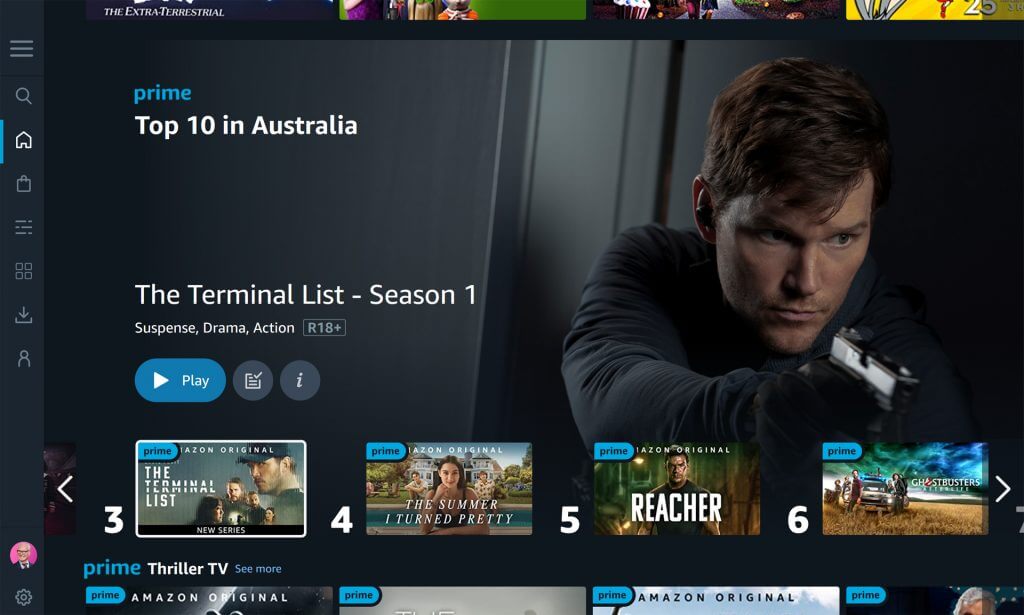
Amazon Prime Video app updates on Xbox and Windows with new design

Amazon’s recent design revamp for its Amazon Prime Video apps is now live both on Windows devices and Microsoft’s Xbox One and Xbox Series X video game console families.

The new Amazon Prime Video app design allows for more menu content to be shown onscreen, does a better job at labelling content that’s free for Amazon Prime subscribers, shifts the main menu to the left side of the screen, and more prominently displays content above the Channels which require additional subscriptions or memberships.

Amazon Prime Video Windows app

Amazon’s Prime Video app has long been criticised for its convoluted and confusing design. Some of the bigger issues many took issue with was the difficulty in finding content and the confusing way in which individual seasons of TV shows are all listed on the menu and in search results instead of collected together like in pretty much every other streaming app.

This new design does seem to have reduced the number of multiple seasons of a show all displaying in the menu and search listings and the menu for navigating show seasons within a show’s individual page is much smoother than before.

After more Xbox and Windows app news? Give us a follow on Facebook and Twitter.


7 Best Horror Browser Games to Play With Your Friends

Horror games have become more popular this last decade, which may be attributed to the tremendous success of titles such as Five Nights At Freddy’s and Resident Evil.

Advanced aesthetics and the like aren’t necessary for an engaging horror experience. However, you can make some terrifying games once you can establish and develop suspense while engaging the players’ imaginations.

This rise in popularity and technological advances have led to increased audacity in video game design. We have already seen many excellent browsers of FPS games with controller support in the past.

We introduce you to seven of our favorite browser horror games in this article, so let’s get started.

What’s the scariest co-op horror game?

We’re going to go with The Forest. In theory, you can play with as many people as you want, thanks to dedicated servers, but eight players are the recommended max by the fan base.

You will play as survivors of a plane crash, and you will all be tasked with establishing a shelter, and defenses, and gathering weapons to find the small child kidnapped by a group of primitive cannibals living in the area.

However, this is not a browser game, so consider this when thinking about trying it yourself. On the other hand, our list will surely satisfy your needs if you are looking for browser horror games.

What browser is best for browser horror games?

There are a few excellent choices when it comes to online gaming. However, all the games we suggest work great on Opera GX, which will be our foremost recommendation. 

This browser allows you to set RAM, CPU, and network limits, thus ensuring that all your applications get enough hardware power.

There’s also Twitch and Discord available in the sidebar, allowing you to stay in touch with your friends during all your gaming sessions.

Please read our guide on the five best gaming browsers to discover more about the several excellent gaming browser options.

Opera GX

Level up your in-browser game experience with dedicated features for high performance and uninterrupted gaming!

What are the best browser horror games?

Filled with freedom

browser horror games

It had been a long journey. Finally, you’ve arrived at the home of your grandparents. They lived there for forty-three years, and now you have the entire house to yourself. Oddly, your parents didn’t say much about your great folks, and since childhood, you’ve always wondered who they were. 

In this scary game, you will be horrified by the item you may have to uncover when you visit your grandparent’s home after many years.

The game starts with a warning of flashing lights and random loud music. This warning should suffice if nothing else gives you a clue of what you are about to be undertaking.

You should expect to be chased by different monsters and have your heart racing from the word go.

  • Great graphics
  • Fantastic songs and sounds

⇒ Play Filled with freedom

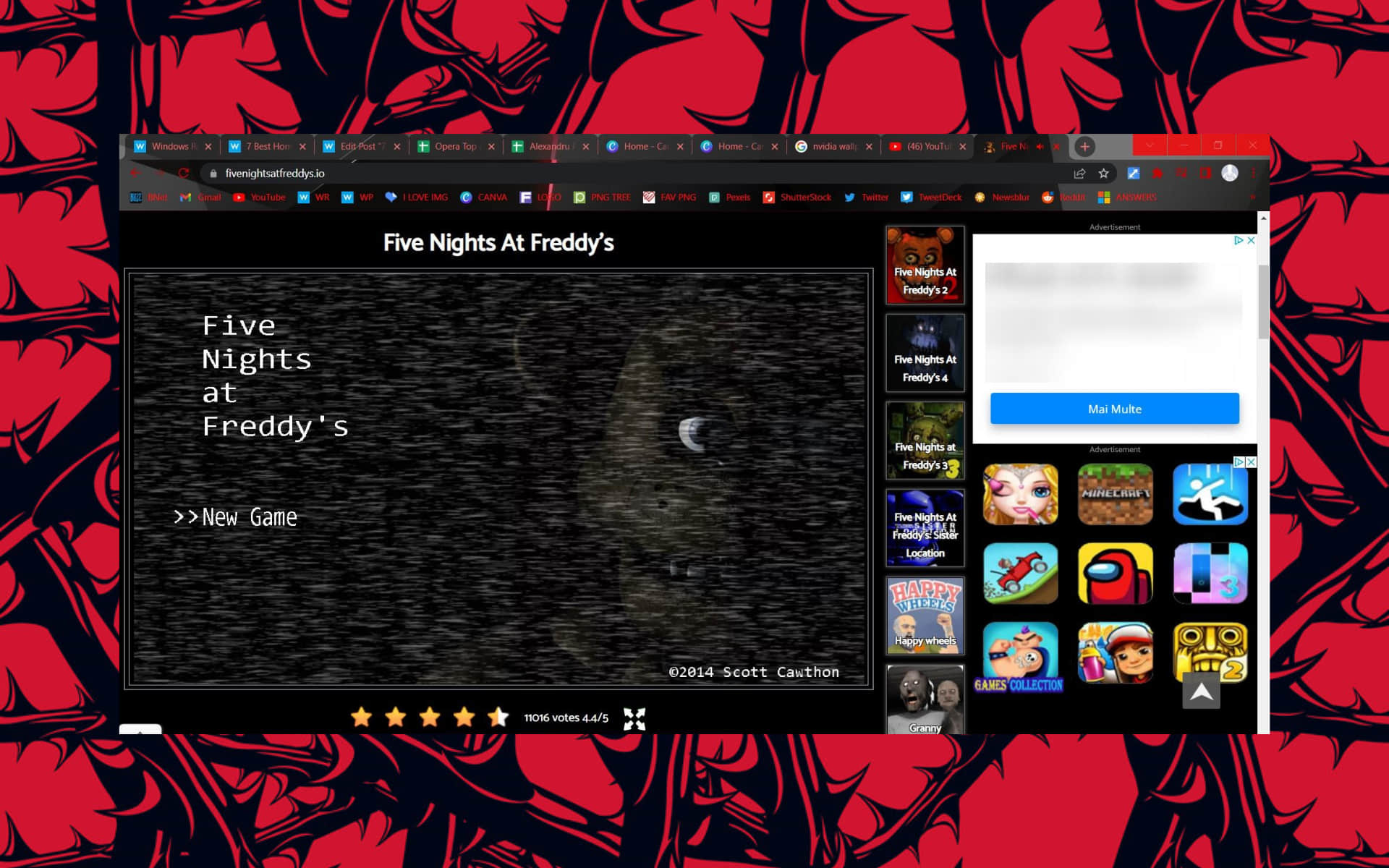
Five Nights At Freddy’s

browser horror games

Scott Cawthon got the concept for Five Nights at Freddy’s after hearing unfavorable feedback about his initial game, the family-friendly Chipper & Sons Lumber Co.

Players described the primary figure as looking like a horrific mechanical animal, while reviewer Jim Sterling described the game as accidentally unsettling. Cawthon was dismayed by the criticism but later utilized it to create something purposely scarier.

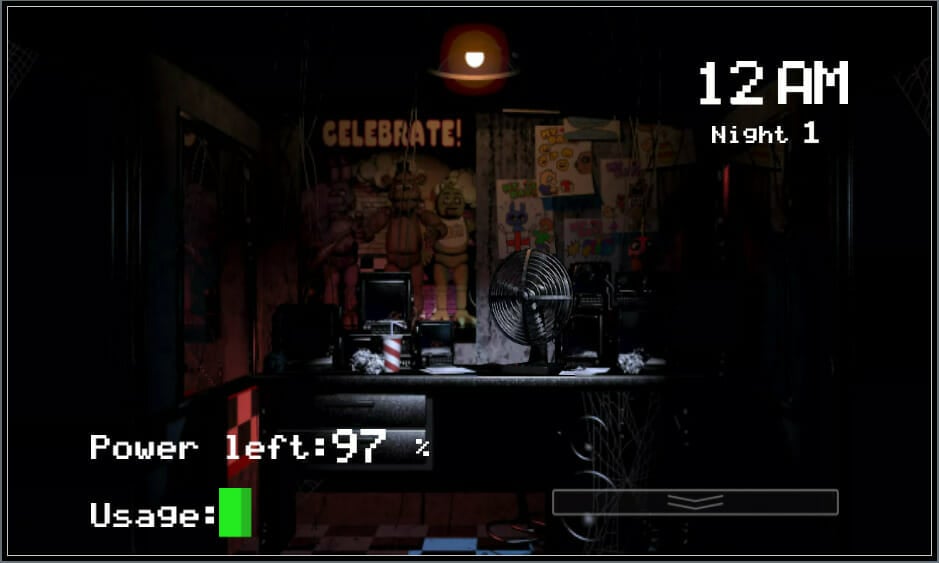
This series comprises suspense video games where you assume the role of an employee working at night at a location associated with Freddy Fazbear’s Pizza, a fictitious children’s restaurant modeled after ShowBiz Pizza Place and Chuck E. Cheese’s.

Additional features:

  • Realistic graphics
  • Great sound accompaniments

⇒ Play Five Nights At Freddy’s

Nightmare On Elm Street

browser horror games

This is a side-scrolling game where you must battle along Elm Street. Outside homes, you battle bats and snakes; inside, you fight demons and other animals.

The gameplay comprises a sleep meter that steadily decreases as you pass the different levels or when you remain motionless. In addition, when you take damage, your sleep meter also decreases.

If you are out of sleep meter, your character will fall asleep. At this point, the colors on the screen will darken, and the monsters will shift and become more challenging to overcome.

Dream tokens are strewn across the game, allowing you to transform into dream avatars with particular skills. For example, picking coffee cups spread around buildings will improve sleep, and discovering a boombox can help you wake up. 

The music in the background will change, and Freddy will arrive to battle you if you do not reach the level boss or wake up within a specified amount of time while sleeping.

You gather Freddy Krueger’s bones throughout the game to toss into a furnace at the conclusion.

Additional features:

  • Well made graphics
  • Multiple weapon types

⇒ Play Nightmare On Elm Street

How to make a cup of tea

browser horror games

This is an amusing yet terrifying simulation game in which you must create a cup of tea no matter what happens.

You aim to make an excellent cup of tea by following the basic directions. First, you will heat the water, drop in your teabag, mix, and add sugar and milk, and that’s all there is to it.

Unfortunately, things aren’t always what they seem or where you expect them to be. The routine will be changed in some way constantly, from the teabag location to modifications such as the whole area being transformed into a new dimensional environment and some strange little people conversing with you.

You’ll finally figure you have been preparing tea for some dude in the next room after going insane continuously performing the same process. 

Additional features:

  • Great sounds
  • Nice changing graphics

⇒ Play How to make a cup of tea

A Slide In The Woods

browser horror games

This is a free horror adventure game in which you investigate an actual slide in the woods from a first-person viewpoint.

There is almost no context in the game. You’re dropped amid a misty woodland with nothing else to do except slide down.

Johnny’s Games, a small independent studio, produced the game. This horror game is presented with limited vision, creepy music in the background, a gloomy setting, and a confined area.

Regardless of its low-resolution images, you have enough to offer you a disturbing experience. The only downside is that the continual creeping may bore you.

Additional features:

  • Cross-platform compatibility
  • Nice sound accompaniments

⇒ A Slide In The Woods

9 Masks Of Fire

browser horror games

It’s not always about actual sudden jump scares or identifiable creepy figures in horror. But, sometimes, the ambiance and the things you can’t name give that prickling feeling.

This game is a Gala spins slot machine game based on the idea of old, almighty masks. Although it doesn’t adhere to traditional horror tropes, there’s always something frightening about a detached mask looking back at you from the center of the fire.

With the addition of some somewhat unsettling sound effects, you have the impression that you’ve arrived on the wrong side of an old ceremony.

Additional features:

  • Scoring system
  • Features multipliers and scatters

⇒ 9 Masks Of Fire

Creepy Granny Scream

browser horror games

Creepy Granny Scream is a shooter game set in a large home controlled by a vicious psychopath. You are to explore the house to locate all the goods that will assist you in escaping without being caught by the insane lunatic.

You have a timer set to five nights to flee, so you must make the most of it. You’ll need to pay attention to your environment and solve various tricky riddles to get out. The 3D visuals are impressive, and the action is thrilling. 

Will you be able to get away from Freddy and get out of the house?

Additional features:

  • Clean and cool graphics
  • Nice soundtracks

⇒ Play Creepy Granny Scream

Are there any multiplayer horror browser games?

A straight answer to this will be yes! However, this is a minimal subset of browser games, and you will probably come across just a handful.

A few to consider include:

  • Kindling: The Last Light
  • Slender Multiplayer
  • Utsuru – Inkfection
  • Graverobber Online – Petscop

That is our list, and it has been made in no particular order. You should find all the suspense and creepiness enough for you and your friends in this game.

Once your browser is updated, you will have no problems enjoying any of these games. If you’re looking for a multiplayer experience, you might want to check the best browser games to play with friends.

Scary browser horror games have always been attractive even to casual gamers, which is why all are looking for good browser horror games in multiplayer.

Next time you look for unblocked browser horror games, browser horror games to play with friends, or VR browser horror games, know that you can go to the right place.

However, we are curious which of these will become your go-to for browser horror games. Please let us know in the comments.

3 Quick Ways to Fix DirecTV Player When it’s Not Working

DirecTV is an excellent TV service offering thousands of channels and many other excellent features for you and your family.

The direct broadcast satellite service is number one in features and functionality in America, including RVU services compatible with smart TVs, recording, re-watching, and much more.

Enjoying your free time with your family has never been easier thanks to this service, which is compatible with most devices, offering your children movies, shows, sports, and cartoons.

Even better is that the service is available for multiple platforms, not just TVs. This means you can watch your favorite shows on a PC, tablet, or laptop.

Why does the DIRECTV player not work?

Several DirecTV users running the latest Windows 10 complain that they can’t watch the shows in the service or the app stops working several times a day.

If any of these sound familiar to you, here are some quick solutions you can try:

  • Check for software updates and install them accordingly (Feel free to use specialized driver updater software that automatically handles this task for you).
  • Close all other programs that may be running in the background.
  • Clear the cookies and cache on your browser (While you’re at it, ensure the browser does not block pop-ups and cookies altogether).
  • Restart or reset your current browser. Alternatively, you can try a different browser.
  • Restart the DirecTV app/DirecTV player or uninstall and reinstall it if the first attempt does not work.

If you can also not watch DirecTV on your device, don’t imagine it is incompatible with Windows 10.

This post will offer a few workable methods to change that, so we invite you to follow them in the given order.

Can I watch DirecTV on my laptop away from home?

The company responsible for the product has changed some things regarding streaming, so keep that in mind.

Only mobile devices can stream DVR content outside of the home. Why do you ask? The reason is that your mobile device is registered to your receiver, while the computer is not. 

This is precisely why your computer needs to be on the same network as your receiver, just so there is no confusion.

Quick Tip:

Use an alternative if you don’t want to troubleshoot your current browser. A good option that is known to have a minimal error rate is Opera One.

Opera One is private, performance-driven, and optimized for playing videos and streaming without buffering, lags, or interruption. Its integrated VPN lets you access content from anywhere in the world.

Opera One

Enjoy unlimited DirecTV streaming with this fast and secure browser!

How do I fix the DirecTV player when it’s not working?

1. Restart your device

  1. Press the Windows Key and bring up the Start Menu.
  2. Click the Power button.

  3. Select Restart and let your PC finish the process.
  4. After the computer is back on, check to see if this has fixed the DirecTV issue.

If your DirecTV player won’t download or install, don’t think of the worst and try out a simple restart procedure first.

Your device will reboot next. If you have any open programs, chances are you’ll be prompted to close them before the power gets interrupted.

2. Delete cookies on your Windows 10 device

  1. Open the menu in the top right corner—click Settings.
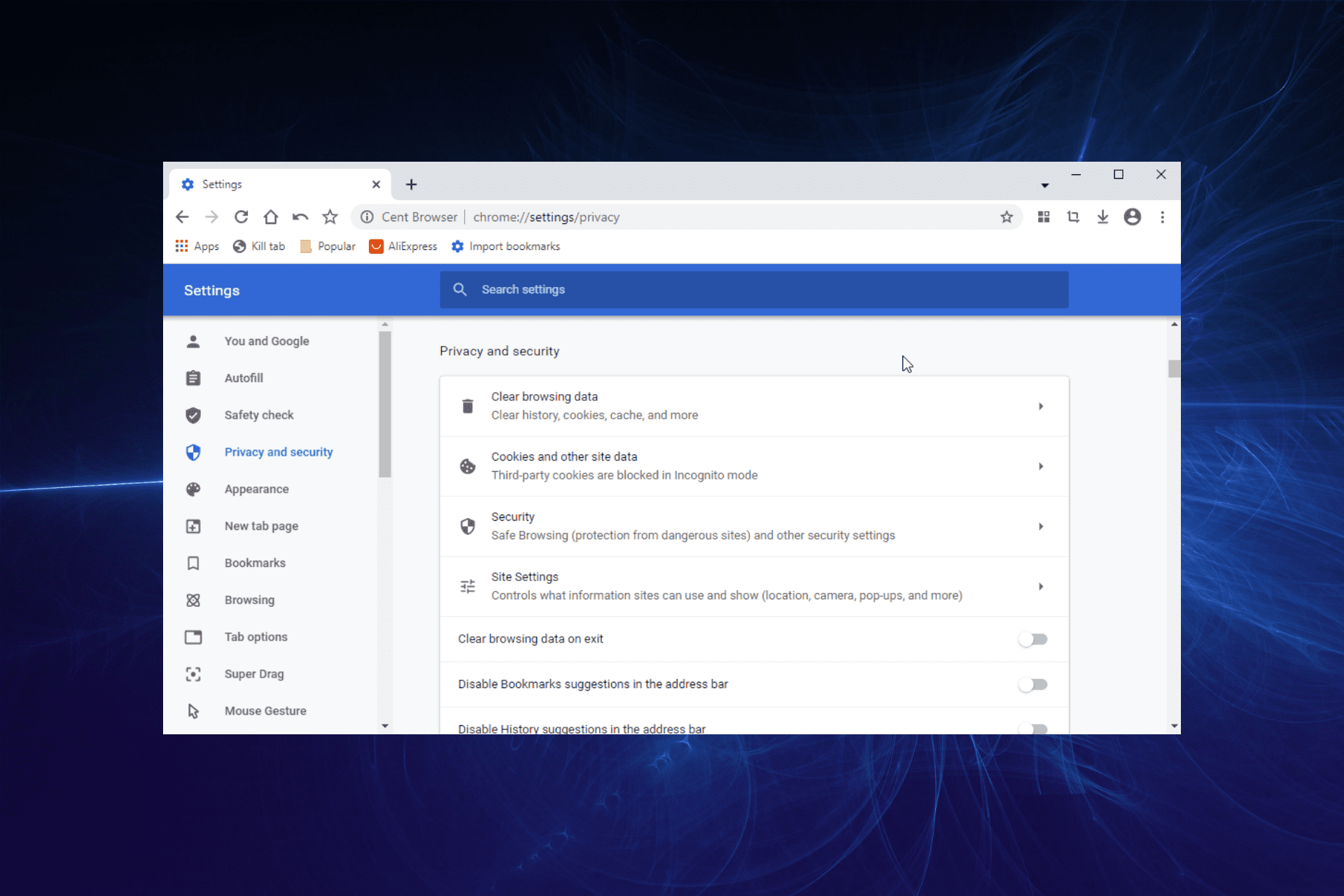
  2. Go to Privacy and Security and select Cookies and other site data.
  3. Delete your cookies and try again.
  4. If that does not work, open Settings.
  5. Scroll down to the Privacy & Security section and select Clear browsing data.
  6. Then hit Clear Data.
Note icon NOTE
The steps above apply only if the DirecTV player is not working on Google Chrome. They might vary slightly depending on your browser.

Don’t fool yourself into thinking that cookies are the same as your cache or browser history. While cache temporarily stores web documents, cookies store your information.

Even if the purpose is to create a personalized experience, there are also times when clearing browsing data is inevitable.

You may also delete browsing history and cookies from Control Panel.

  1. Go to Control Panel.
  2. Select Network and Internet.
  3. Then, click Delete browsing history and cookies and follow the given prompts.

3. Enable plugins to run on your browser

  1. In the address bar, on the right-hand side, you’ll see a small icon that looks like a shield popping up.
  2. Click on it right away and select Manage exceptions.

Other users describe another working solution that you may consider as well. For example, most web browsers these days load Flash and other plugin content the second you open a web page.

However, a little interference from your part is sometimes needed, so make sure to allow plugins to run on your browser, too.

The steps above apply to the IE browser. In the case of using a newer version of Google Chrome, for example, you may find a similar setting called Let me choose when to run plugin content.

Restarting your router/modem and completely reinstalling DirecTV from scratch are options.

Now, if you want to install a DirecTV player, or can’t watch DirecTV on your computer, or the DirecTV video player is not working, you better understand the situation.

You might also encounter annoying situations when the DirecTV player is not working on Chrome, the DirecTV player is not working on Firestick, or YouTube is not working on DirecTV.

We hope that by following these procedures, you managed to fix the DirecTV issues in Windows 10. Also, let us know if you have other suggestions for readers experiencing the same problem.

5 Best Twitch Alert Sounds for your streams [Free & Paid]

If you’re looking for the best Twitch alert sound repositories, you’re in the right place! Our today’s article will show you only the most valuable options.

Twitch is the number one streaming platform for games. A lot of Twitch users incorporate overlays into their streams that provide more information for viewers.

Those overlays include alert notifications that provide users with additional info. The alerts have their sound effects to highlight the notifications.

A lot of users might stick with the default sounds provided by Twitch web toolkits such as Streamlabs. However, there are a few overlay download websites that also include groovy alert sound packs, which users can purchase for their Twitch streams.

These are five websites that include unique Twitch alert sound packs and alerts for users to download, and most of them also include anime Twitch alert sounds as well, and many other variations.

How can Twitch alert sounds help me?

If you don’t know yet, Twitch alert sounds are special notifications that appear during your broadcast, either on the website or apps (on gaming consoles such as Xbox, PlayStation, etc).

You can customize the alerts to trigger when something specific appears, such as a new follower/subscriber or a fresh live-streaming video you like.

The greatest thing about these features is that you can change and adjust them according to your own needs, preferences, and personality. In this way, you can personalize the environment to feel more comfortable when you’re streaming or playing.

Now, let’s see what are the best options you should try out today. At the end of this article, make sure you let us know which one is your favorite.

What alert sounds are allowed on Twitch?

As it is in the case of using GIFs, sound alerts are situated in a legally gray area, as the sound bites should not be infringing on the rights of the owner.

In order to ensure that is the case, as long as the audio recordings are short, you won’t have issues using them.

There are several types of alert sounds that you can make on Twitch:

  • Cheer Alert Sounds
  • Host Alert Sounds
  • Donation Alert Sounds
  • Follower Alert Sounds
  • Raid Alert Sounds
  • Subscriber Alert Sounds
  • Sound Alert Packs

Now that you know what types of sounds you can use and create on Twitch, it’s time to discuss some of the best alert sounds available on this platform.

What are the best Twitch alert sounds?

Epidemic Sound

Epidemic Sound offers users the chance to select out of thousands of high-quality music snippets and allows you access to the entire database with a free 30-day trial.

Even though these are not free twitch alert sounds theoretically, you can use the samples found on this site free for a month, making it a very good choice for people looking for quality results.

⇒ Try Epidemic Sound

Sound Alerts

Sound Alerts is one of the few Twitch resource repositories specifically for alert sounds. Thus, this is probably the best website for alert sound downloads.

This website includes sound alert packs along with follower and subscriber alert sounds. Plus, the Twitch viewers can earn channel points from watching or participating in a raid.

So the streamers have the option to create custom channel points rewards with sounds playing on the stream.

Apart from sound alerts via Twitch extension or sound alerts via Channel Points, the streamers can add other alert types for different events on their streaming channel.

You should also know about the overlay alerts that can show catching overlay animations on the broadcast every time a Sound Alert is played.

The alert sounds there are compatible with all the foremost streaming apps, such as Streamlabs and StreamElements.

⇒ Get Sound Alerts

Own3d.TV

Own3D.TV is a website that includes a repository of full overlay and stream designs along with additional alerts and alert sounds. A collection of professionally produced stream alert sounds are available on that site.

Twitch streamers can purchase Dubstep, Rock, Fantasy, Military, and Electro Twitch alert sound packs among others from there to match the themes of their streams.

With this stream overlay solution, you have animated stream webcam overlays, animated stream alerts, and instant download after purchase.

It’s worth mentioning that you have multiple languages available for your alert notifications and overlays.

Some of their sound packs can be a little pricey. However, the Own3d.TV alert packs are currently retailing with a 50% streaming sale applied.

⇒ Get Own3D.TV

Twitch Temple

Twitch Temple is a website from which users can download full overlays, alerts, and alert sounds. Their users can download comprehensive alert sound packages that incorporate a variety of audio effects.

The alert audio packs are available on Twitch Temple at a reasonable price. The video below provides a preview of the Pretty Sprites alert sound effects that users can snap up on Twitch Temple.

By choosing this complete solution, you can highly improve your streaming quality on Twitch or YouTube with the help of premium or free alert sounds.

You can offer your streaming channel a better image by employing these overlays and widgets in order to better engage with your viewers.

As we said, it’s possible to improve the looking of your channel using free overlays and stream packages with more intuitive graphics.

⇒ Get Twitch Temple

Nerd or Die

Nerd or Die is one of the most comprehensive repositories for Twitch resources. Their users can freely download some full-stream packages and alerts that come with their own unique sound effects.

Users can also snap up short and long variations of sound effects for their Twitch stream at Nerd or Die.

Those alert audio effects are compatible with both the StreamElements and Streamlabs uploading services.

You can choose from a wide range of templates and widgets that will offer engaging times with your streaming public.

You can therefore employ this complete stream design solution to upgrade your live stream on Twitch, YouTube, or Facebook Gaming.

⇒ Get Nerd or Die

What other Twitch features should I use?

  • Emotes – Because most Twitch users like to express themselves in the chat, emotes are actually some of the most popular features of this app. With them, you can feel like part of the community, by interacting with other streamers. To discover the best Twitch emote maker software to create emoticons, make sure you check our dedicated guide.
  • Browsers – It seems like many users are interested in using the Twitch web version app. In this matter, it is important to choose a trustworthy web developer. Take a look at the best browsers to stream Twitch effortlessly, and find how you can get a pleasant experience.
  • Other extensions – Extensions create live apps and most importantly, they let you interact with the stream in the most efficient ways. These features are extremely diverse and if you’re not sure of what to choose, verify the best Twitch extensions anybody should use.

Twitch alert sounds not working

  1. Check if the sound is turned on by using the Enable Sound option.
  2. If it wasn’t activated, then activate it, press Save, and then reload the browser source so everything is set up accordingly.
Note icon NOTE
If you can’t see the Advanced Audio Properties option, then it might be the case that the sound alerts extension is missing from your installation of Twitch.
If that is the case, see the steps below this note.

If you don’t have access to the Advanced Audio Properties, then you will need to add the Sound Alerts extension as a separate audio source inside OBS.

To do so, follow these steps:

  1. Right-click your Sounds Alerts browser source and choose Properties.
  2. Add a checkmark next to the option Control audio via OBS.

Those are a few websites worth noting for users who are looking to add more appealing alert sound effects to their streams. Thus, we have to admit that our presented options are the best Twitch alert sounds you can find.

Furthermore, keep in mind that you can also download some great overlays and graphics for streams from some of those sites.

Are you still not sure what you should choose? Make sure you leave a detailed comment in the section below.

School WiFi Blocks VPN: How to Get Your VPN Unblocked

If your school Wi-Fi is blocking VPN connections, you’re in for a treat. We’ll show you how to fix it in just a few minutes. The best way to unblock websites on school Wi-Fi is by using a VPN with advanced protocols and built-in Smart DNS features.

Here’s all you need to know.

How do I unblock my VPN in schools, hotels, colleges, or universities?

1. School WiFi blocks VPN

Networks that block VPN traffic can be unblocked using several techniques and/or tools to regain full access.

Even if your VPN cannot get through the school’s firewall, others actually can – they’re called Stealth VPNs.

Schools these days have internet access, but admins are always checking that students don’t do monkey business online, so they monitor and/or restrict access by blocking social networking, gaming sites, and VPNs.

The good news is that blocking such VPN traffic requires identification, but you can disguise your traffic and make it unblockable.

Therefore, to fix the issue of VPN not working on school WiFi, consider using a tool that can camouflage VPN traffic as regular HTTPS:

Private Internet Access

PIA is a world-class VPN service owned by Kape Technologies with one major goal: freeing the internet for you.

Cleverly bypassing admin restrictions, geo-targeting, ISP throttling, and more, PIA is your trusted partner in fighting online censorship.

With PIA, you can circumvent network restrictions imposed by any institution. Plus, you’ll enjoy lightning-fast download speeds, unlimited bandwidth, and an impressive global collection of 3292 + servers while you’re at it.

Let’s quickly look at its key features:

  • Private IP address allocation for anonymous browsing
  • Protection against your ISP and more with a strict no-logs policy
  • Liberate streaming, bypass censorship, and unblock geo-restricted websites and content
  • Highest download speeds and unlimited bandwidth without any buffering or slow loading times (ideal for streaming, gaming, and P2P torrenting)
  • Access to servers from all over the world (3292 + servers in 46 locations)
  • Secure Protection on Public Wi-Fi and military-grade encryption for your traffic data
  • Block ads, trackers, and malware
  • Secure VPN Protocols and tunneling technology
  • Protects up to 10 devices simultaneously with just 1 subscription

Private Internet Access

Bypass network restrictions in any institution, whenever, and wherever with PIA!
Check price Visit website

Note: We suggest you avoid free VPNs because most of them do not protect you at all.

1.1 How to unblock VPNs in school

A stealth VPN can scramble traffic to look like regular TLS-encrypted web traffic. If you want to unblock your VPN, do this:

1.1.1 Run OpenVPN on port 443

This port is used mostly by SSL/TLS encrypted web traffic as a standard internet encryption protocol each time a site with sensitive data is accessed.

OpenVPN already uses the SSL encryption library, so switch the port to 443, and it will slip through, except for the most difficult DPI firewalls. VPNs let you switch port numbers or give dedicated server locations to allow access to port 443, so check with your VPN’s tech support on how to set it up.

1.1.2 Obfuscation

Most VPN protocols have a data packet header, like a fingerprint, that can let a firewall recognize VPN traffic. In this case, using a VPN with obfuscation or stealth technology will obscure the packet headers so that the fingerprint isn’t recognizable.

1.1.3 Use TOR network

For advanced obfuscation, you can use the TOR network for maximum privacy and unblocking. This makes your VPN unblockable, but it will be routed via multiple proxy layers that are encrypted and come with different speeds, so it can get really slow.

The configuration process is also complicated, but there are VPNs with built-in VPN-over-TOR support.

2. VPN is blocked at College

Network administrators in colleges usually block site access, especially to social networking and streaming platforms like Netflix and others. This is because students are known to do a lot of torrenting, so college Wi-Fi was one of the major culprits for this; hence, it was nipped in the bud.

Today, college students can only dream about torrenting, plus the main idea is to help them focus more on their studies. Additionally, the bandwidth use is affected if each student is downloading or streaming videos, so throttling happens often and faster.

However, since students are in a digital world, there is a need to access these sites.

So restrictions affect and defeat the intentions of study and research, which should break information barriers and increase global collaboration.

This is why students use VPNs to circumvent such restrictions.

However, colleges can block VPNs, so to get around these limitations, you can either use VPNs with obfuscation or change the port number. In most cases, college firewalls detect encryption tools via Deep Packet Inspection, so to bypass this, hide your encryption protocols.

3. VPN is blocked at the University

This is a place of higher learning, and what better way to increase knowledge and share information than by using the internet?

Unfortunately, like colleges, Wi-Fi restrictions also apply to campus networks in Universities. They can block VPN services on specific ports.

While university firewalls do that, HTTPS/HTTP ports are open. Similarly, the university can use advanced filtering methods like Deep Packet Inspection.

Port Blocking is the most common technique to restrict all ports not for Internet browsing. That’s why you can still use the internet but block specific apps or services that work online.

Encrypted traffic (HTTPS) uses port 443, and unencrypted traffic (HTTP) uses port 80. This is why ports 443 and 80 are always open.

While default configurations of OpenVPN, IPsec/L2TP, and PPTP do not use any of these, SSTP is the only encryption protocol that works on port 443 by default.

It is thus the best protocol to use on networks that need port 443 for regular browsing. Unlike PPTP, SSTP is very secure and only works on Windows.

You can forward OpenVPN via port 443, but not all VPN providers allow this, though they have this feature in their desktop software (mobile devices don’t support it).

Hence, if the university firewall only blocks ports that encryption protocols are using, choose a VPN that offers SSTP protocol or allows OpenVPN port forwarding to port 443 (maybe port 80) to bypass the firewall and gain unrestricted access to the Internet.

Another way to block VPNs is via a highly advanced firewall like the Chinese Firewall that uses DPI to detect encryption tools.

This means the port forwarding isn’t enough, as the firewall can distinguish traffic and block the data routed through your VPN. In this case, hide or mask encryption protocols by sending OpenVPN over SSL and SSH tunnels.

Using stealth VPNs can mask your VPN traffic and make it undetectable because all your traffic will look like HTTPS, so your university won’t tell you you’re using a VPN.

Otherwise, you can get a cheap smartphone and make a WiFi hotspot.

4. VPN is blocked in hotels

If you’ve tried using a VPN in a hotel, you may find that it doesn’t work, as they may want you to pay for in-hotel movies instead of streaming for free.

Here’s what to do when your VPN is blocked by the hotel:

  • Disguise your VPN traffic as regular web browser traffic, which makes it impossible for the hotel’s network to block your VPN service unless they want to block all HTTPs browser traffic, which is unlikely.
  • Check with your office IT admin on your computer’s configuration so they can log the situation and troubleshoot it for you. In the case of an overlapping subnet, the hotel router assigns your machine a private IP address range, and this matches that of the office, so when your VPN client connects, it uses the current source IP address (office network), and the gateway you connect to sees this as a local address, so they overlap and deny your VPN connection.
  • Ask your IT admin to set up a different IPsec client for you to navigate automatically.
  • Use stealth VPN technology to disguise and/or scramble your VPN traffic so that it isn’t easy to identify as such or disguised as regular encrypted web traffic. You can do this by running OpenVPN on port 443, or using stealth VPN or obfuscation.
  • You can also run your VPN through the Tor network, as it makes it virtually unblockable and highly anonymous. The downside is that routing traffic through multiple proxy layers can slow the connection.
  • Switch between DNS servers by replacing the DNS of your ISP or increasing your browsing speed.

Hide.Me

Hide.Me VPN

Hide.Me is a VPN tool that will work great on school networks.

This eVenture Ltd. owned VPN client will allow you to connect via multiple servers all over the world, so you can be untraceable. Moreover, Hide.Me work in more privacy-sensible countries like China and Russia.

Another great feature of this tool is that you can use it on 10 different devices. More so, it doesn’t affect your bandwidth to any noticeable degree, so your browsing will not be just secure, it will also be fast.

Let’s quickly look at its key features:

  • No sign-up or registration required
  • No logs of your online activity
  • Access to 1700 servers located worldwide
  • IP Leak Protection and Split Tunneling
  • Strong AES-256 encryption
  • Secure VPN protocols
  • Compatible with all major operating systems

Hide.Me

With Hide.Me you will protect your identity wherever you are in the world on 10 different devices at once.
Check price Visit website

Explore more VPN Solutions to cover every one of your needs. Don’t forget to visit our Unblocking VPNs Hub as well.

Are there other ways you know to get around VPN blocking in hotels, schools, universities, or colleges? Let us know in the comments section below.

How to use a VPN to get around blocks at school?

To get around blocks at school with a VPN, you have to connect to a server. Once you do that, you no longer access the internet directly through your school’s network. Therefore, the admin won’t see what you do online, and banned sites, games, or apps become available again.

How to install a VPN on a school computer?

Go to your VPN provider’s website and download the app. If your school blocked access to the VPN’s site itself, you have other options:

  • Use a proxy to access the VPN website
  • Download the app’s .exe file to another device, then send it to your school’s computer using your email or by adding it to a flash drive
  • Use Tor to access the VPN website

How to use a VPN on school WiFi?

You can use a VPN on school WiFi by simply installing it on your device. Enabling extra security features like server obfuscation will ensure the school network won’t block your VPN. Having your VPN blocked by security settings means your privacy might be compromised, so take a closer look at our dedicated guide.

Are there any free unblocked VPNs for school?

Free VPNs are easier to block completely because they have fewer IPs. That said, out of the free providers we tested, these are the most likely to work: hide.me, ProtonVPN, and TunnelBear.

Even more, note that VPNs can sometimes trigger various connectivity issues, yet rest assured that our tips can help. And due to geo-restrictions, ISP blocks, or misconfiguration, some online pages are blocked, but you can take immediate action.

If your VPN is blocked by your Windows Firewall you can tweak settings to get around it.

How to Export WWE 2K22 MyRISE Characters

You don’t have to wait anymore! WWE 2K22 is here and brings up tons of incredible features that seem to excite worldwide players. For example, many are interested in discovering if they can export My Rise characters on WWE 2K22.

With a hard reset from the old MyCAREER, things got taken to another level with WWE 2K22 MyRISE. Fortunately, we have all the details you need about this new game mode.

Can you export your MyRISE character?

Unfortunately, you have to know that you’re not allowed to export MyRISE characters on WWE 2K22, as you can not import a character either.

Discussions are being carried out on various forums covering the possible reasons why the WWE 2k22 MyRise import doesn’t work, but no official information has been released yet.

Unfortunately, the WWE 2k22 can also not copy any MyRISE character, as this could cause concerns for users when it comes to security.

This could be because the character’s progress and stats are tied to that mode, similar to previous years.

However, you can recreate your CAW. Then, you should save it and go back to Edit custom superstar. After that, it should ask you if you want to keep it for Roster play and a My Universe slot to play WWE 2k22 MyRISE character in My Universe.

So, as you can see, there is not much to say about the MyRISE characters exported on WWE 2K22. Thus, we all have to wait until the manufacturers come up with some big news.

Also, it seems like WWE 2K22 might sometimes not work. It can be pretty annoying, so if you ever face this issue, do not hesitate to check some practical solutions to solve it.

If your WWE 2K22 MyRISE got stuck, simply restarting the game will resolve this issue.

Can I use a downloaded superstar in MyRise?

If you’re also wondering whether or not you can export the CAW in WWE 2K22 My Rise to use it in other modes, you’re not the only one! This is how other users were trying to find related answers:

Has anyone figured out how to export your MyRise character to play in exhibition modes?

Just spent hours creating the My Rise character, attire, moveset, entrance, etc. I don’t want to do it all over again unless I absolutely have to.

To discover more about this subject, make sure you keep reading because we’re going to answer as clearly as possible.

What are the WWE 2k22 system requirements?

To ensure smooth gameplay, make sure to check if the system requirements for the game fit your setup:

  • Minimum specs

Processor: Intel Core i5-3550 / AMD FX 8150
Memory: 8 GB
Graphics: GeForce GTX 1060 / Radeon RX 480
Additional Notes: At least 4 GB of Video Memory


  • Recommended specs

Processor: Intel i7-4790 / AMD FX 8350
Memory: 16 GB
Graphics: GeForce GTX 1070 / Radeon RX 580
Additional Notes: At least 6 GB of Video Memory

If you want more details on the requirements, check out the official EA WWE 2K22 webpage.

Also, if you have any additional questions on want to share some new information, feel free to use the comment section listed below.

How to Extract And Decompress BZ2 Files in Windows 10

The BZ2 file format is usually used for Linux or UNIX systems and can only compress one file at a time. It cannot be used for multiple files.

You can, though, compress multiple files using a different tool and afterward get that final archive and compress it with BZIP2.

Even if BZIP2 is not used in Windows 10 as much as on the other mentioned operating system, there are ways to decompress the BZ2 file.

This article will show you some really easy ways to extract and decompress BZ2 on your Windows 10 device.

How can I extract and decompress BZ2 files in Windows 10?

1. Use a dedicated tool to unzip BZ2 files

There are many tools out there that will allow you to decompress and extract BZ2 files and after testing them all, we would like to recommend you the best one to use.

WinZip is a versatile tool that not only opens BZ2 format files but many others, such as RAR, 7Z, ISO, IMG, TAR, GZ, TAZ, and TGZ.

This complex software supports all the above formats but is more than just a simple compressing and archiving tool.

WinZip can also repair and manage zip files. In addition, it comes with strong security features. The almost bank-level encryption feature will make sure your files are safe even while compressing them.

If you are sharing them online or sending them via email, then you can rest assured that at any moment your data is safe and secured.

You can password-protect your archive and opening them without it would not be possible.

If you prefer to protect them using a password, make sure to keep a good password manager too at hand.

Here is how you can extract BZ2 files using WinZip:

  1. Make sure to save the BZ2 file on your device.
  2. Download and install WinZip on your PC.
  3. Go to the Integration Panel in WinZip and make sure that the BZ2 file extension check box is ticked.
  4. Launch WinZip from the start menu.
  5. Next, click on File and select Open.
  6. Select the file or files inside the compressed folder.
  7. Click on Unzip and choose where you want them to be saved.

This unique software makes sending large files via email possible. Most of the time this is a great concern for all team members when they need to share a large file.

WinZip will break the big file (such as ISO images, for instance) into smaller chunks without affecting the image quality in any way.

Moreover, if you are used to working with cloud system storage, such as Dropbox, Google Drive, or OneDrive, you can manage your files inside the cloud without interrupting your workflow.

⇒ Get WinZIP

2. Use the native app

  1. Go to the Bzip2 Github page and download the right tool for your Windows system (32bit or 64bit).
  2. Extract the files on your PC and run the bzip2.exe file.
  3. However, you will also need the vcruntime140.dll installed from Visual Studio 2015 C Runtime Library. Visit Microsoft’s Latest Supported Visual C++ Downloads page for download links if you don’t have it installed.

The Bzip2 developer recently created a Windows app you can install on your PC. However, if you don’t have Visual C++ installed, it’s more complicated than using WinZip, 7Zip, or other readily available unarchivers that support the BZ2 format.

3. Use an online tool to open BZ2 files

Another easy and fast way to extract and decompress BZ2 files is through an online website.

There are many options out there that will do exactly that, and finding the right one for you should not be a problem.

Usually, decompression websites run locally as a browser app, making the process work faster.

Based on how they were created, some will have size limitations for how big the BZ2 file you are trying to extract can be. There are websites, though, that will not have such conditions.

One crucial aspect you will need to keep in mind is the privacy of your data. Considering that you will be uploading information online, it’s essential to check how secure the site is.

Moreover, before downloading the extracted files onto your device, check that your antivirus is active and working correctly.

Considering that the file will be downloaded over the Internet, it’s better to have an extra layer of security that will keep your privacy in check.

Please let us know in the comments section below if you have additional comments or suggestions.

5 Best Dictionary Extensions In 2026 [Chrome, Edge, Firefox]

If you’ve got a Web page open with some heavy jargon, it might be handy to have a good online dictionary. Then you can look up some of the vocabulary for further clarification.

Numerous dictionary browser extensions available for the foremost search engines provide you with a quick dictionary.

Browser extensions are the bread and butter of all significant browsers allowing users to customize and improve their browsing experience.

This article explores some of the best dictionary browser extensions for Chrome, Firefox, and Opera.

While at it, you may want to speed up your Chrome browser with these extensions.

What is the Google Dictionary extension?

This plugin is your mobile word reference tool. You may double-click on a word that has been highlighted to read its definition in a bubble. Using the toolbar dictionary, you may see the entire meaning of any phrase or word.

How do I add extensions to my browser?

  1. Navigate to the extensions page.
  2. Click on the Add to Chrome button. This could be an Add to Firefox or Opera button, depending on your browser.
    best dictionary extension
  3. Click on Add extension when prompted.
    best dictionary extension

Quick Tip:

Extensions often trade privacy for the sake of versatility. The Opera One browser blocks this with the integrated VPN and ad-blocker and allows the import of data from Chrome safely.

There are also some great extensions that you can add, such as Dictionary, ImTranslator: Translator, Dictionary, TTS, and Lingvanex – Translator and Dictionary. Opera One also helps your learning with native AI, workspaces and tab islands.

Opera One

Extensions here are more reliable and secured with built-in security measures.
Free Download Visit website

What are the best dictionary extensions?

Google Dictionary – Great Chrome dictionary

This is a great dictionary for web browser extension developed by Google for its Chrome browser. It is about the best dictionary extension for Chrome, and it seamlessly integrates with the Google search engine to give you definitions.

The great thing about this extension is that you can double-click any word to look it up in the dictionary. Doing this will open your definitions in a bubble.

This tool also works with foreign languages as a translation tool. Alternatively, you can click the Google Dictionary toolbar to enter text into a dictionary search box instead. It can also save words that you look up.

Other features:

  • Search history
  • Multi-language support
  • Translation

⇒ Download Google Dictionary

Dictionary Pop-Up – Firefox dictionary

Dictionary Pop-Up is an exclusive Firefox add-on you can add to the browser. This is pretty similar to Google Dictionary, except that it’s integrated with Dictionary.com.

Double-click words on a page to open the definition bubble and click More to open the definition in Dictionary.com.

The good thing about this add-on is that it also includes options for you to customize the popup bubble’s fonts.

Other features:

  • Define custom dictionary sites
  • Multiple dictionary sites
  • Definition of selected words

⇒ Download Dictionary Pop-Up

Dictionary Tooltip – Cross platform dictionary extension

Tooltip Dictionary is another excellent Firefox dictionary add-on that may be used on Chrome.

Like Google Dictionary and Dictionary Pop-Up, you can double-click words on a page to look them up; or you can also select the text and press Ctrl + Shift + K to open the window directly below.

However, what elevates this add-on above some of the others is that it enables you to look up words with multiple dictionaries.

All you need to do is click Show Dictionaries and select alternatives from the drop-down menu.

This is one of the best dictionary extension options for Firefox.

Other features:

  • Keyboard shortcuts
  • Double click definitions function
  • Cross-browser operability

⇒ Download Dictionary Tooltip

Instant Dictionary – Popup dictionary extension

This is a popup dictionary extension for Chrome integrated with GoodWordGuide.com. You can look up words by double-clicking them on the page, much the same as the others.

However, you can also select the text and press the D button to automatically enter a word in the extension’s search box.

Furthermore, the extension also includes extra configuration options for trigger keys and the font size.

Other features:

  • Google Docs compatible
  • One-click access
  • Double-click definition view

⇒ Download Instant Dictionary

Dictionary Anywhere – Opera/Firefox compatible

This is an excellent instant dictionary extension for both Opera and Firefox. You can add it to Opera, or you can add it to Firefox.

Dictionary Anywhere enables you to select words in pages for definitions. However, unlike some of the others, it’s also a translation tool.

When you click the extension’s button, it will open the window below that provides a definition and includes translate options.

Furthermore, you can also click Search to look up the word in the Google search engine instead. In addition, it includes a Copy button that you can press to copy text to the Clipboard.

Other features:

  • Multi-language support
  • Definitions popup
  • Double-click definition function

⇒ Download Dictionary Anywhere

With these dictionary tools, you can quickly look up jargon in websites open in Chrome, Firefox, or Opera.

Those that include translate options can also help translate pages, but there are better translation extensions available.

Also, note that some of the Chrome extensions discussed are also among the best dictionary extension options for Edge since it is built on the same engine.

If you’re learning Japanese, you might want to check our Rikaikun Firefox extension guide for more online dictionaries.

Let us know which of these are your favorites.

Microsoft Edge server asking for username and password [Fix]

Since its introduction to Windows 10, Microsoft Edge has become one of the best browsers on all devices. This built-in browser is far from being a same-level competitor with Chrome and Firefox.

Every good few traits are shadowed by a few issues, which isn’t something anyone wants to deal with daily.

Not necessarily deal-breakers, but things like the Microsoft Edge server asking for username and password every time you run it can be a drag. Don’t worry. We have a fix for you.

Why does Edge keep asking for my credentials?

If Edge keeps asking for your username & password or other credentials, it is most likely due to malware. This virus can hijack the operation of your browser, leading to an error.

Another reason, especially when Edge is prompting for credentials on the intranet, is the activity of your credential manager. So, the causes are not far-fetched.

Quick Tip:

One good alternative to try is Opera One, a lightweight browsing tool built using the Chromium engine, just like Edge. The big difference is that Opera One is a privacy-oriented browser, thus a password keeper.

However, the built-in password manager makes Opera One shine in this situation. Beyond that you can also enjoy built-in features like VPN, Ad Blocker, AI and modular AI-ready Design.

Opera One

Provides one master password for all your accounts to avoid this never-ending loop of login.
Free Download Visit website

How do I stop Edge from prompting for password?

1. Scan for malware and remove PUPs

This is quite a rare occurrence on any personal computer. On the other hand, it can happen from time to time on a shared PC.

Of course, it’s important to know whether this is a legit Windows prompt or if some adware is trying to hijack your PC.

That shouldn’t be that hard, as the prompt Windows shouldn’t be distinguishable from the Edge interface.

If unsure, ensure to uninstall all suspicious third-party applications and scan for malware. And there is no better tool than dedicated software like TotalAV.

Just install it, run a scan, and wait for the result. Once the scan is complete, you can decide what the antivirus does with suspicious files found.

Performing these actions regarding Windows security might fix the Microsoft Edge credentials problem.

Alternatively, if you need another efficient antivirus software, you can benefit from valuable anti-malware features anytime.

2. Check the Credential Manager

  1. In the Windows Search bar, type Credential and open Credential Manager.credentials manager
  2. Open Web Credentials.
  3. Remove the password from credentials, and you should be good to go.

The Credential Manager is a function that allows users to visualize their sign-in info to different websites, apps, or networks.

Running this feature to review your Microsoft Edge credentials is an easy method that might help you solve the login prompt issue.

The Microsoft Edge keeps asking for credentials issues that can quickly sap the fun of your browsing session. But, with the fixes above, you should be able to solve the problem for good.

Do you want to know how to fix Microsoft Edge if it won’t close? Check our detailed guide on the topic to get it done quickly.

In case you have any questions or, possibly, an alternative solution, feel free to post them in the comments section below.

5 Best VPNs to Fix NBA 2K22 Lagging Online And Reduce Ping

NBA 2K is a series of basketball video games that you can play on a number of platforms, including Windows, PlayStation, Xbox, Wii, iOS, Nintendo Switch, and Google Stadia.

The latest edition is NBA 2K20, available for Windows, Switch, PS4, and Xbox One.

In NBA 2K20, you can control a single player or an entire basketball team, as well as choose players from the current NBA season. The game also features career and online modes.

Unfortunately, many users report NBA 2K lag and various errors when trying to join online sessions, which can become really frustrating.

However, you can use a VPN to improve your ping and gameplay, eliminate all latency issues, and fix high ping.

Why is NBA 2K so laggy?

There are multiple possible culprits that cause 2K lag, some related to your game’s configuration, and others caused by underlying issues in your connection:

➡️ NBA2K servers are down: it’s possible that the servers you try to access are currently out of service or undergoing maintenance. You can check server status on  NBA 2K’s Downdetector page.

➡️ Your device doesn’t meet the system requirements: if you don’t have the resources recommended by the game’s manufacturers, it’s very likely to experience lag and other issues

➡️ Interfering apps: sometimes your antivirus or firewall may block or restrict other apps on your PC, check your settings and whitelist NBA2K if necessary

➡️ Bad Internet: make sure your connection is up and stable and contact your ISP if necessary

NBA2K most common errors:
All the above-mentioned problems can cause latency issues within the game and other issues related to responsiveness and errors. According to players, the most common issues that appear in-game include:

  •  NBA 2k mobile out of sync
  • NBA 2k mobile lag
  • NBA 2k22 online lag ps4
  • 2k22 lagging ps5
  • NBA 2k22 ping issues
  • NBA 2k22 delayed shooting
  • 2K servers lagging

Good VPNs let you can overcome latency issues and secure a stable connection. You can also use their mobile versions to fix lag when playing NBA2K on your phone. We looked into the best clients that offer high-speed servers for NBA2K and comprised an overview of the features they include.

What are the best VPNs to fix NBA 2K lag?

Private Internet Access – largest server network

Private Internet Access (PIA) is the easiest way to fix NBA 2k lagging. It’s a reliable virtual private network solution that can fix packet loss and improve gameplay by getting rid of any latency causes.

This VPN offers access to server locations all around the world. You have the possibility to quickly connect at the press of a button.

PIA VPN app will automatically choose the best server for your particular configuration, which is ideal if your goal is to fix lag in NBA 2K or other online games.

You can also manually select your server and pick your preferred location from a list. The VPN has powerful AES-256-bit encryption on each server and comes with a secure killswitch to prevent data leaks.

Made by Kape Technologies, PIA can be installed on a number of devices, including Windows, Switch, PS4, and Xbox One, making it an excellent VPN for NBA 2K20. Plus, it’s one of the few VPNs with 24/7 live chat support.

How can PIA help you:

  • +30,400 servers in 80+ countries
  • Port forwarding to enhance your connection quality
  • 10 simultaneous connections
  • Great for fixing NBA 2K input lag
  • 30-day money-back guarantee (no free trial)

Private Internet Access

Fix NBA 2k lag and reduce ping using this trustworthy VPN service for PC and consoles.
Check price Visit website

NordVPN – great privacy features

Another reliable VPN that can help with latency issues when playing games online is NordVPN.

It’s a user favorite thanks to its high-speed servers located in various corners of the world.

NordVPN is untraceable, thanks to its powerful AES-256 bit encryption as well as zero logs policy that leaves no room for weak points.

The tool has an advanced double VPN option that adds an extra layer of security. It’s a great way to protect your data when gaming and prevent DDoS attacks.

NordVPN offers private DNS servers and has a SmartDNS feature that lets you bypass geo-blocks when traveling.

Other key features of NordVPN include:

  • Emergency killswitch that blocks traffic if you disconnect
  • Split tunneling
  • Cybersec feature for threat protection
  • Dark web monitor that alerts you if your account has been compromised
  • Advanced server obfuscation

NordVPN is subscription-based, but you can get a refund in the first 30 days of your subscription if you are not satisfied with the service.

NordVPN

Connect to a fast server for reduced lag and privacy protection!
Check price Visit website

Surfshark – multi-device support and unlimited connections

Surfshark is yet another performance-oriented VPN service that aims to provide high-speed rates.

It has over 3200 servers across the globe. This means that you are able to get the best traffic available for your configuration.

This VPN ensures that none of your data is collected. Along with the fact that you get great privacy, this also means that your internet service provider won’t be able to place any restriction on your traffic.

If you want to increase your speed and reduce the risk of ping, you can also allocate all your traffic to NBA 2K. For this, you will have to activate the Bypass feature.

This will enable you to connect to your game via a VPN, while the rest of your apps will connect directly to your actual IP. It can really boost speed, and you can quickly enable and disable it in just one click.

Other key features of SurfShark include:

  • Secures lost connections with Kill Switch
  • Powerful AES-256-GCM encryption
  • Secure IKEv2/IPsec protocols
  • Private DNS on each server
  • Compatible with all major platforms

SurfShark is a subscription-based service with three different plans available. You can try it out for free for 7 days and see how it works for your needs.

Surfshark

Pick the device of your choice and enjoy NBA 2K with no interruptions.
Free trial Visit website

CyberGhost VPN – easy to use apps for all devices

Another way to fix NBA 2K20 lag on PC and console is by turning to CyberGhost VPN, which is also a product of Kape Technologies.

It offers a simple solution to eliminate network congestion so that you can enjoy the online edition of the popular basketball game.

CyberGhost VPN is compatible with a wide range of devices, including Windows, Switch, PS4 and Xbox One, which are supported by NBA 2K20.

Plus, it has split tunneling mode so that you can easily set up whitelists and blacklists.

How can CyberGhost VPN help you:

  • +6,400 servers in 89 countries
  • Private DNS servers and DNS leak protection
  • 7 simultaneous connections
  • Excellent for eliminating NBA 2K20 lagging on Xbox
  • 45-day money-back guarantee (1-day free trial)

CyberGhost VPN

Remove the NBA 2K lag and boost your Internet connection with CyberGhost VPN!
Check price Visit website

BullGuard VPN -fast servers to fix lag on mobile

BullGuard VPN can help you with NBA 2K lag on Switch, PS4, Xbox One, and Windows. It’s a fast VPN service owned by BullGuard, which can fix jitter and speed up your Internet connection.

You can share BullGuard VPN with all your devices to secure web connections, as well as use it to minimize Wi-Fi packet loss. The tool uses the OpenVPN protocol to encrypt your data traffic.

How can BullGuard VPN help you:

  • +2,000 servers in 16 countries
  • Evade geoblocks and access blocked sites
  • 6 simultaneous connections
  • Works best with NBA 2K mobile lags
  • 30-day money-back guarantee (no free trial)

Eliminate NBA 2K lag and speed up your Internet connection by using this practical VPN service.

⇒ Get Bullguard

The NBA 2K video games are great for basketball fans, especially thanks to the high resolution that significantly improves your gameplay. However, it can become really annoying to deal with NBA 2K lag and high ping every time you join an online server session.

By redirecting all your network traffic through VPN servers, you can fix any issues related to connection delays and drops. It also makes it possible to host your own game servers. You just need to use fast VPN servers, like the ones provided by Private Internet Access.

For any errors related to your virtual private network service, see our VPN Troubleshooting Hub.

Join our Gaming VPN section if you have lag and high ping in other games.

5 Best Browsers that Support HEIC [Ranked by Image Quality]

Looking for a browser that offers support for HEIC image files? We recommend some of the best browsers that not just help you open the files but also offer the best image quality.

However, HEIC is more of a container for images and audio. It allows you to save your pictures in a better way.

It compresses the images to make them smaller in size and save data without losing image quality.

But, as of today, HEIC files are not supported by any of the browsers natively. So how do you view a HEIC image on your web browser?

Can you display HEIC in HTML?

HEIC and HEIF files are not supported by the <img> tag in HTML5 and so, the only option is to convert the file format as below:

  • Convert the files on the fly into a Buffer
  • Parse the Buffer into a Base64 String
  • Provide the output to an image tag

You can then convert the images using a conversion library, for example, the heic2any library by Alex Corvi or using the heic-convert project.

How do I open HEIC in my browser?

If you come across the HEIC unsupported file type on your browser, you can follow the below instructions to open the image file:

  1. Plug your iPhone into the PC with the USB cable for it, and then transfer your HEIC photos to Windows.
  2. Now, save the photos to your desktop or laptop.
  3. Next, go to your browser and try to open the downloaded HEIC image file.
  4. You will see a message saying, The HEIF Image Extension is required to display this file. The HEIF Image Extension is required to display this file
  5. Below the message, click on the Download and install it now link. download and install it now
  6. On the Microsoft store web page for HEIF Image Extensions, click on Get In-Store app. get app in microsoft store
  7. In the prompt, click on Open to open it in the Microsoft Store.open HEIF image extensions
  8. Select the folder in the Photos app that has your iPhone’s photos. Click the Add folders option to select the image. add iphone pictures
  9. Now, go to the folder where you saved your iPhone’s photos, select it, and click on Add this folder to Pictures option.

You can now view the HEIC images within the Photos app on your Windows PC.

For more information on how to open & convert HEIC to JPG on Windows 11/10, you can refer to our comprehensive guide here.

But if you are looking for the best browser that offers support for HEIC images and maintains image quality, we have a few recommendations below.

What are the best browsers that support HEIC?

Opera One – High-quality image viewing

The most underrated of all, the Opera One browser surprises its users by displaying the images as it is from the content.

It’s one of the browsers that supports almost all major image formats, including, JPB, PNG, APNG, AVIF, GIF, TIFF, and so on.

So, for example, if you want to view a HEIC image using an extension or software, it will display the converted image with the same original quality.

Opera One is one such browser that makes good use of your system’s graphics card and display resolution.

Some of its other major features include:

  • Built-in ad blocker and VPN
  • Pinboards to save web content
  • Organizing tabs in separate workspaces
  • Easy capture and edit with the snapshot tool
  • Quick file attachment option

Opera One

Convert and view HEIC file format in this browser with the help of useful extensions.

Google Chrome – View all image formats with Google Photos

browser support HEIC

The most popular browser in the world, Google Chrome, is known for offering a plethora of advanced features, including a wide range of useful extensions.

Chrome supports almost all major image formats, for example, PNG, GIF, JPG, or SVG without any additional tool.

However, it does not support HEIC image format natively, but, you can view the images using Google Photos and Google Drive.

Chrome will then display the images in the original image quality using the full potential of the system graphics.

Among its other significant features are:

  • Application shortcuts for favorite websites
  • Pin Tab feature
  • Cast tab or desktop
  • Search with Omnibox, or search highlighted text
  • Live captions for audio/video

⇒ Get Google Chrome

Microsoft Edge – Edit images with the web capture tool

browser support HEIC

Known for its ability to play 4K video quality for Netflix, Microsoft Edge is the new solution for the Ultra HD video lovers.

A feature-rich browser, Edge is also known for its web capture tool that now comes with a lot of improvements.

So, if you open a HEIC image file on Edge using a dedicated tool, you can even edit the image right in the browser while it maintains the original quality.

Moreover, it can even label an image found on the web (through the screen reader) automatically, using its ML (machine learning) algorithms.

Here are some of its other key features:

  • Option to import data automatically from other browsers
  • Three levels of privacy settings
  • Sync data across devices
  • Get all Chome extensions apart from its own
  • Option to install websites as apps

⇒ Get Microsoft Edge

Mozilla Firefox – Fast browser with a superior image viewing experience

browser support HEIC

Apart from its excellent picture-in-picture function, Mozilla Firefox is also known to help you view different image formats in high-quality.

It supports all major image formats including WebP, JPEG, PNG, APNG, AVIF, GIF, BMP, and more.

However, since the browser does not support HEIC, you can use an extension like the File Conversion Tool or using an online image converter.

Once you successfully open the converted HEIC image file in Firefox, it will be of the highest quality as the original.

Below are some of its other important features:

  • Good collection of extensions
  • Uses minimum resources
  • Supports private browsing
  • Blocks ad trackers
  • Picture-in-picture mode

⇒ Get Mozilla Firefox

Apple Safari – Native support for iOS devices

browser support HEIC

While Apple does not support HEIC image format on macOS, it does support the file extension in its iOS devices.

However, according to Apple, you can upgrade to iOS 11 or later or macOS High Sierra or later to view, edit, or duplicate HEIF or HEVC media captured with an iOS device.

In the non-supported versions of macOS, you can either convert the image to JPEG on your iOS device and transfer it to your Mac or use a 3rd party HEIC converter.

Once you have the converted file on your Mac, it will display the image with the same quality as the original one.

Here we have listed some of its other major features:

  • Browse anonymously with private browsing
  • Check privacy report
  • View compromised or reused iCloud Keychain passwords
  • Side by side view of images
  • Manage downloaded files

⇒ Get Apple Safari

Is HEIC better than JPEG?

Yes, HEIC is a better image format than JPG in terms of its ability to compress pictures into a small file size while maintaining the original quality.

However, although it’s gaining popularity, it’s not as commonly used as the JPG format, and not many apps and devices offer support yet.

Web browsers don’t render graphics, but only content, and hence, a high-resolution image depends on your computer’s graphics and the display resolution.

A browser can take advantage of the system’s graphics settings and display the image.

So, for those looking for the best browsers that support HEIC files with the same image quality, we recommend the above list.

However, there are more ways to open & convert HEIC to JPG on Windows 11/10 as explained in our detailed guide.

You can also use HEIC viewer on Windows 10 or 11 to view these types of files, and we have a special guide on it.

For any other queries on browsers or image formats, you can leave a message in the comments box below.

Create Better Subtitles Faster with Matesub Software

Whether you’re into the subtitling business or just want to create a nice surprise for your family, Matesub subtitle software is here to help you.

Thanks to its built-in AI technology and a powerful WYSIWYG editor you will be able to create higher-quality subtitles a lot faster.

So, if you need to create subtitles faster and more conveniently, we’ve tested Matesub for you and we’re sharing its best features along with our experience with the software.

How can Matesub help me?

Matesub software is a cloud-based tool that transforms the work of setting up the subtitles on a video into a fast and pleasurable experience.

That’s mostly because it shortens the process significantly by using speech recognition to transcribe the audio into text.

And not only that but it also places the text on the timeline exactly where the words are spoken.

All this is doubled by a very friendly interface that makes editing your subtitle a child’s play.

What are Matesub’s best features?

1. Automatic transcription and translation

The most important feature of Matesub is its speech recognition feature that automatically transforms the audio into text.

After you upload the video, you can specify the audio language and the language of the finished subtitle.

So, not only it identifies the audio speech in no less than 28 languages but then, it also translates it into 65 available languages.

It does a great job on the most used languages and, providing translation suggestions, helps people focus on the creative part of the work, letting the machine take care of the most time-consuming tasks required by the rest of the process.

However, it gives you an awesome head start and you can always edit the subtitles after the tool processes them.

2. Auto-spotting

After Matesub analyzes the video and translates the audio, you can edit the subtitles and make the final touches.

However, you will have a big surprise there because transcripts are placed precisely on the timeline, so you can see exactly when each word is spoken.

Although we chose a music video for our test the software performed extremely well on getting the words and placing them in the right spots.

3. Create your own guidelines

Matesub already has a few guidelines on how to create the subtitles automatically. You can follow Disney, Netflix, and TED’s default ones but you can also make your own.

Set up the text alignment, how much the text stays on the screen, the maximum number of lines on a subtitle and the minimum interval between two subtitles, the font, and a lot more.

And when you finish customizing your personal guidelines the way you want, just hit the Save button to use them for your next project.

4. Intuitive WYSIWYG editor

This software comes with a WYSIWYG editor and that’s an acronym for what you see is what you get.

That means that you edit the subtitles exactly as they appear on the screen. The editor is so simple to use and so intuitive that it seems pointless to explain it.

All the subtitles are placed chronologically on the left panel and just by clicking on them gets you exactly on its timeframe.

Then, just select the subtitle on the preview screen and make the changes using your keyboard.

How can I create subtitles quickly using Matesub?

  1. Visit the Matesub website and click on the Try Matesub for free button.
  2. Now, you can either enter your email and password to create an account or use the Google or LinkedIn account.
  3. To start off, click the New Project button. You will probably notice that you have 60 minutes available per month in the free Starter plan.
  4. In the next window, enter the name of your project, then select the guidelines from the drop-down menu, or the existing one with your preferences.
  5. Going down the list, you need to upload your video (just drag-and-drop it), select the audio language, and click the Continue button.
  6. In the next window, you can either generate the subtitles or choose an existing subtitles file, then select the language for the translation and click on Create at the end.
  7. Now, Matesub will analyze your video and generate the subtitles, and as you can see, you are able to create subtitles in more languages at the same time.
  8. After the process is done, you will see an entry for each language and you can hit the Edit button to make your adjustments.
  9. To edit a subtitle, just go through the subtitles list on the left pane, and you will immediately see it on the preview video, exactly as you will see it on the finished video. Just clicking on it will allow you to edit the text.
  10. Of course, you may change the text alignment and style from the toolbar on the right, and adjust the placement of each word and duration from the timeline below with pinpoint accuracy.
  11. At any point, if you want to add a new subtitle, just hit the + sign on the list of subtitles to do so.
  12. To make your work even easier, after you’re happy with a subtitle, you can hit the Confirm subtitle button. That will highlight the subtitle so you can see that you’ve reviewed it.
  13. Whenever you feel you’re done, click the Export button to save your finished work in plain text, WebVTT, SubRip or SubRip with position formats.

That’s how easy it is to create a subtitles file from scratch with Matesub. And although the many steps we included probably made things seem complicated, they definitely aren’t.

However, we explained the basics of how to use this tool. You can go a lot further in editing your subtitles.

For instance, you can search and replace any words within your subtitles, merge one subtitle with the next, and use many other features.

What are the Matesub available subscription plans?

We have just highlighted the best features and tested Matesub under the free Starter plan that offers 60 minutes of processing per month.

If you upgrade to the Individual plan, you will get 1800 minutes of uploads per month. That’s a pretty good quota if you’re a professional freelancer.

Finally, the Enterprise plan is dedicated to companies and professionals and it has a customizable upload allowance.

However, upgrading to this plan will also allow you to share projects with your collaborators which can be a huge advantage.

⇒ Get Matesub

Pros
Simple and comprehensive user interface
Automatic transcription and translation
Top of the line AI speech recognition technology
WYSIWYG editor
Places the text exactly where the words are spoken
Accurate timeline editing
Cons
Only 60 minutes of upload for the free version

Final notes

As you’ve probably noticed, the built-in AI technology does more than 80% of the subtitling work for you. Although, no AI is perfect at recognizing all the words in a recording.

And then, Matesub’s editor offers all the tools you need to get the job done at a professional level.

All that with a software that you don’t even need to install on your computer. All your work is available in your cloud dashboard, on any device you want to work on.

The interface is so friendly and simple to use that it doesn’t need any guidelines whatsoever.

We’ve been impressed by how quickly we were able to go from a music video to create a full subtitle for it in just a couple of minutes.

You should also take a look at our list with the best subtitle editing software for Windows and compare it with other tools.

Have you tried Matsub? Share your thoughts and experience in the comments section below.

How to Move the Taskbar to Other Monitors in no Time

There are situations in which having a multiple-monitor setup can be extremely useful, but many users don’t know how to move the Taskbar to other monitors.

By doing so, you can better organize your workspace and get more space to perform your tasks comfortably.

The option to do this comes ingrained in Windows 10, and the trend continues in Windows 11 as well. So that should not be a problem.

How to move Taskbar to the second screen?

The real issue here is that the monitor settings can be somewhat confusing.

But we are about to shatter this perception so that you can freely and easily switch between monitors and take your taskbar with you as you go.

There is a catch, however. Keep in mind that your multiple monitor setup needs to be in place, up and running in order to be able to perform this change.

Without further ado, here’s a step-by-step guide to help you move your Taskbar to the second monitor quickly and easily.

    Move Taskbar to the other monitor in Windows 10

    It is very easy to move your Taskbar to another monitor on Windows 10. All you need to do is unlock the Taskbar, then drag and drop it to the monitor of your choice.

  1. 1. Right-click on your Taskbar, and check whether the Lock the Taskbar option is activated. If it is, deactivate the setting to unlock the Taskbar.

    Taskbar settings 2 - move taskbar to second screen
  2. 2. Next, we will need to right-click again on the Taskbar and choose Taskbar settings.

    Taskbar settings 3 - move taskbar to other monitor
  3. 3. Once the Taskbar settings window is opened, scroll down to the Multiple Displays section.

  4. 4. Toggle the option Show taskbar on all displays to Off.

    Taskbar settings 4 - move taskbar to second monitor
  5. 5. Now you can simply drag-and-drop your Taskbar to any of the multiple monitors connected to your PC, and customize it to your needs.

In this guide, we explored the easiest and fastest way to move a taskbar to another monitor. As you can see, the process is incredibly simple and easy to perform, so you won’t have any issues.

Nevertheless, that does not mean that the taskbar itself is exempt from issues. For instance, the taskbar can become unresponsive after a while, be it in Windows 10 or 11.

Speaking about the new OS, there were quite a few reports concerning missing Taskbar icons in Windows 11.

If you happened to notice this behavior on occasion, don’t procrastinate and deal with it sooner rather than later.

Feel free to let us know if this guide helped you move the taskbar to another monitor and do share any other solutions that you may be aware of with us.

Download Safari for Windows: Install 32 & 64-bit

If you want to use Apple’s Safari browser on your Windows 10 PC, you might be surprised to learn that Apple officially discontinued Safari support for Windows back in 2012.

However, some versions of Safari for Windows still exist and can be installed, though they’re outdated and may lack important security updates.

Here’s how:

⚠️Safari for Windows has been discontinued. You can still download and install the 5.1.7 , but please note that security problems may appear, since it has gotten no security patches in a long time. ⚠️

How to download & install Safari on Windows

1. Download the installer

  1. Open the Safari download webpage.
  2. Choose the download location on your hard drive.choose safari download location
  3. Click the Save button.save safari install file on pc
  4. Click the executable file to start the installation process.open safari exe file

2. Run the installer wizard

  1. Open the installation file previously downloaded, and click the Run button to start the installation.run safari install wizard
  2. Select the Next button on the Safari installer. It is possible to see the UAC (User Access Control) windows, so press the Yes button.safari uac
  3. Accept the software agreement to continue with the installation, then click Next.accept software agreement
  4. Select only the options you need and click Next.
  5. Click on the Install button and wait for the process to finish.install safari button
  6. Here you have it, Safari for Windows.safari running on windows

Installation takes only a few moments with no additional steps than above. You can now enjoy using Safari with all its features on your Windows 10 computer.

Is Safari free for Windows?

Yes, Safari is free for Windows, but the last supported version is 5.1.7. Since it’s no longer updated, using Safari on Windows 10 could risk your online security. Apple advises against it, but if you still want to, follow the steps above.

Why was Safari for Windows discontinued?

We can only speculate on the exact reasons Safari decided to have their software’s Windows support discontinued. Still, one of the most logical reasons would be that the market value for this software on Windows doesn’t justify the costs involved in making this option available.

This decision is in tune with what other companies do. For instance, Microsoft only releases Edge Chromium for Windows.

If you’re not keen on using discontinued programs, check out how Firefox compares with Safari and decide whether it’s worth the switch.

If you’re also looking to download Safari on other devices, you might find helpful guides on how to download Safari on Windows 11 and even how to install Safari on a Chromebook.

These resources walk you through the process on different platforms, making it easier to use Safari beyond just Windows 10.

Was this article helpful? Feel free to share your opinion with us in the comments section below.

7 Best Browsers That Support MetaMask [Ranked by Security]

Is there a question in your minds regarding which browser is the best to use for MetaMask in terms of security? If you are also looking for answers, then you are in the right place.

Because in this guide, we will give you 7 of the best browser that support MetaMask in order of security.

When you talk about the leading crypto wallets available on the market, then your search should stop at MetaMask.

MetaMask is one of the leading crypto wallets which lets you store Ether and other ERC-20 tokens. You can use it either directly via the website or as a browser extension.

Users can easily store Ethereum and other cryptocurrencies or enable them to transact with any Ethereum address. Users can easily connect MetaMask to Ethereum-based apps to spend their coins in games and other activities that transact in cryptocurrencies.

MetaMask is easy, and you can start off using it without an email address. You need to just remember a password and a secret recovery phase, and that’s it.

It also offers a built-in crypto store. Although you cannot buy Bitcoin with MetaMask, you can trade in Ether and Ether-related tokens.

You can install the MetaMask extension on Google Chrome, Mozilla Firefox, Brave, and Microsoft Edge browsers as an extension.

Let’s take a look at the top 7 browsers that support MetaMask and offer adequate security.

Is there a MetaMask browser?

No. There is no dedicated MetaMask browser. You can use the MetaMask extension on Google Chrome, Mozilla Firefox, Brave, and Microsoft Edge browsers.

You can also go to the MetaMask website, log in, and use the MetaMask wallet right in your browser. The main question is which browser to use when using the MetaMask crypto wallet. Thankfully, this is what we are going to discuss in this guide.

Does MetaMask work on mobile browsers?

MetaMask is not only available as an extension for web browsers, but there are mobile apps available for Android and iOS as well.

Notably, you can also use MetaMask directly on the web browser, both on your desktop and mobile. But do note that if you go ahead and use the MetaMask browser on your mobile browser, then your experience of using the MetaMask wallet will be limited and it may not be as fully featured as the mobile app.

Using MetaMask on mobile browsers can benefit you if you are trying to mint NFT on the go or want to check in on a new Web3 project or your Ether wallet.

Which browser is best for MetaMask?

Opera One Browser – Unique Crypto Wallet

Opera One stands out in our testing, at least according to our software specialists, and we certainly believe the proof provided. It was the first browser to test the Crypto Wallet standalone web app, which offers a slew of security features and an enhanced crypto experience.

Even if the MetaMask extension may be imported from other browsers because it is not specific to Opera, testing the Crypto Wallet built for Opera One is a solid bet. Opera’s Crypto Wallet is very secure and provides you with complete control over your cash and collectible keys.

The wallet also employs Android’s secure system lock, which simplifies blockchain transactions by eliminating the need for additional PIN numbers or passwords. The browser facilitates interaction with Web 3.0 applications, such as crypto platforms and apps, allowing access to the decentralized internet.

Opera One

A standalone Crypto Wallet browser designed to make your virtual transactions easier than ever.

Brave Browser – Secure and lightweight

browser support metamask

After careful research, we found out that the Brave browser is one of the best browsers that you can use MetaMask on.

Brave browser is a privacy and security focussed browser that not only is lightweight but also very easy to use and the UI is also cluttered free.

Security features such as Brave shields that blocks trackers, cross-site cookies tracking, fingerprint tracking, network server calls, partitioning, blocked bounce tracking, ad blocker, etc., makes Brave browser the first choice if you want to use MetaMask.

Moreover, you can also install the MetaMask extension on the Brave browser, as it officially supports it.

⇒ Get Brave Browser

Mozilla Firefox – Secure and offers a large number of addons

Mozilla Firefox has been the first choice of power users, i.e., those who want more from their browsers apart from just web browsing.

Firefox is not only secure but also provides a bunch of security features, which its competitors do not offers.

It comes with HTTPS everywhere feature, NoScript, and sandboxing and fingerprint protection, along with crypto-jacking protection that protects you from crypto mining by hackers.

Besides, you can enhance its security functionalities by using Firefox add-ons. MetaMask officially supports Mozilla Firefox, meaning you can install the MetaMask extension and have the crypto wallet just a click away from your toolbar.

⇒ Get Mozilla Firefox

Tor Browser – Built for privacy

browser support metamask

The base of the Tor browser is security and privacy. It provides one of the best protections you could find on a browser.

It does not work like other browsers and routes your data through an Onion network, i.e., a series of random networks, making your traffic and data untrackable and anonymous.

There are some features similar to Mozilla Firefox such as HTTPS Everywhere and NoScript. Tor browser does not save your browsing data and it deletes them after every session.

⇒ Get Tor Browser

Osiris – Specially built for cryptocurrency

You might not have heard of the Osiris browser, as it is a fairly new browser in the block. Osiris is specially designed for cryptocurrency and crypto-related browsing.

To give you some insight, it is developed by Golden Finance, China’s largest blockchain media outlet. Osiris now stands as the third-largest blockchain browser following Opera and Brave.

Some of the notable features of the Osiris browser are ad blocker, tracking protection, fast page loading, anonymous browsing, offers dAppstore for decentralized applications, De-Fi, NFTs, and in-built Metawallet.

The wallet supports Eth, ACE, and TRX networks, and negates the need to install a wallet to store your cryptocurrencies. You can choose your search engine and go for the privacy focussed DuckDuckGo. It even lets you view the number of ads and scripts blocked by the browser.

⇒ Get Osiris

Waterfox – Efficient browser

Waterfox is in the same fork as the Mozilla Firefox browser but is lightweight and more efficient. Some additional tweaks have been done to the base of Firefox to make it more secure and private.

It is one of the safe browsers that support MetaMask. Waterfox comes pre-installed with uBlock Origin, which is very famous for its advanced, configurable tracker blocker, and privacy.

Additionally, Waterfox is a privacy-focused browser that does not collect your personal data and deletes your browsing history after every session. Overall a better security-centric browser that is apt for using MetaMask.

⇒ Get Waterfox

Vivaldi – Customizable and secure

While the Vivaldi browser is Chromium-based, just like Google Chrome, it isn’t as resource-hogging as Chrome.

It is lightweight and offers some good-to-have security features such as an ad-blocker, tracker blocker, and Cookie Crumbler that blocks cookie tracking and allows you to group multiple tabs into one.

You can also change the search engine to more security-focussed DuckDuckGo instead of Google or Bing. Vivaldi lets you create notes on the website, use two websites in split-screen mode, and customize the browser the way you want.

You can even install the MetaMask extension on Vivaldi as it supports Chrome extensions.

⇒ Get Vivaldi

 LibreWolf – Privacy centric

LibreWolf is based on Firefox but comes with more privacy and security focussed features. If your specific task is to deal in crypto, you can consider using LibreWolf.

It does not collect or track your data, there is no adware or cookie tracking, and it comes with uBlock Origin giving you double protection from ads.

LibreWolf loads pages faster and saves data by not running obsolete ad scripts. You can select among popular search engines such as DuckDuckGo and Quant. It also receives the latest updates quickly to keep up with security and privacy.

⇒ Get LibreWolf

How to add MetaMask to my browser?

You can use the MetaMask extension to access it directly from the toolbar of your browser. However, do note that the MetaMask extension is only available for Google Chrome, Brave, Firefox, and Microsoft Edge.

Here are the steps that you can follow to add the MetaMask extension to a browser. We will be using the Brave browser for this explanation.

  1. Launch Brave browser on your PC.
  2. Head to the Chrome Webstore website.
  3. Search for MetaMask extension.
  4. Hit the Add to Brave button. This will add the MetaMask extension directly to the Brave browser toolbar.
  5. The extension is now ready to be used.

That is it from us in this guide. Do note that the above browsers have been used and ranked in terms of security to handle MetaMask.

And in terms of security Google Chrome and Opera stand a bit behind compared to these browsers. But you can always go ahead and choose the web browser of your liking and get your tasks done.

If you are confused about which browser you should opt for, then you can check out our guide on the best browsers for Windows 11 [tested for speed & security].

In case you come across MetaMask not working issues, then you can check out our guide and apply the solutions mentioned in it.

We also got you covered and listed some effective solutions in case MetaMask is not connecting to Ganache or MetaMask is not connecting to the local host.

Do let us know in the comments below, which one of the browsers is the one that you opted for using MetaMask crypto wallet.

12 Ways to Fix a BSOD in Microsoft Edge [Startup, Beeping]

If you’re a Windows user, you probably would have heard the term Blue Screen of Death, which has now become a common occurrence on Microsoft Edge.

Several users reported encountering the error. While the browser crashed for some, others saw a number on the screen to call for a resolution.

This is a particularly tricky error since identifying the underlying cause is difficult, but we will walk you through all the possibilities and the most effective solutions for each.

Why does my Microsoft Edge keep crashing?

Microsoft Edge crashing with a blue screen and beeping noise is one of the most problematic errors on the Windows platform, so it’s no wonder that scammers are using it for their gain.

If you’re getting a Blue Screen of Death in Microsoft Edge or in any other web browser with a number displayed, do not call the number.

This blue screen could be an attempt by scammers to trick you into thinking that you’re getting the infamous Blue Screen of Death error, whereas the whole thing is just a deceiving web page.

Other than that, there are genuine issues with either Edge or the system that could cause the browser to crash. Corrupt browsing data, the presence of conflicting applications, or problematic extensions led to a Blue Screen for some Microsoft Edge users.

Quick Tip:

We recommend you use an alternative browser, in these regards and well earned for the choice is Opera One. The main pros are the proxy VPN and it’s built-in AI.

Browsing in Opera One is at a security rate higher than Edge, and the policy used for password encryption and safety measures will minimize the attack of a scammer, thus avoiding a BSOD error.

Opera One

High-security standards and protocols to keep attackers at bay.
Free Download Visit website

What are some of the most common Edge errors?

Edge is an advanced browser, but some users might still encounter errors that considerably affect the browsing experience. So, it’s important that you know the common Microsoft Edge errors and their fix. Here is a list of the most common Edge errors:

Let’s now head to the solutions for the Blue Screen error in Microsoft Edge.

What can I do if I get a blue screen in Microsoft Edge?

1. End the Microsoft Edge process

  1. Press Ctrl + Shift + Esc to open the Task Manager.
  2. Select the Microsoft Edge entries on the list one at a time, and click on End Task.Microsoft Edge
  3. If the browser closes, start it again and repeat the process.
  4. After a couple of tries, you should see a message saying that Microsoft Edge couldn’t open this website. You’ll be asked to return to the start page.
  5. Click Yes, and the problem should be fixed.

According to users, this solution works, but you might have to end the Microsoft Edge process several times before you fix the Blue Screen problem in Windows 10.

2. Use third-party software

Regardless if your blue screen error in Microsoft Edge is the result of malware files or if it is a genuine Blue Screen of Death error, you can fix this issue fast and easily.

We recommend third-party software that secures and repairs your computer.

3. Try to open a new tab quickly

Users reported fixing the blue screen issue simply by opening a new tab in Microsoft Edge. When you open Edge, try to open a second tab quickly. If you manage to do that, close the blue screen tab.

If that doesn’t work, drag the problematic tab to the side and create a new Edge window. Try to close it from the Taskbar, but if it doesn’t work, start Task Manager and end its process.

Usually, that process will be the one that uses most of your memory. After ending the task and closing the problematic window, the Blue Screen issue will be permanently resolved.

4. Delete App history

  1. Press Ctrl + Shift + Esc to open the Task Manager, and navigate to the App history tab.app history
  2. Select Microsoft Edge and then click the Delete usage history option.Delete usage history to fix microsoft edge blue screen

Now, verify if the problem is resolved. In case Microsoft Edge is still causing blue screen, head to the next method.

5. Scan your computer for malware

According to users, you can fix this problem simply by running a malware scan. It seems that this issue appears due to tracking cookies.

We recommend using an anti-malware removal tool since it comes with real-time protection against phishing scams and malicious advertising.

With minimal impact on your PC system, a dedicated malware software protects it from advanced ransomware infections that encrypt your files and force you to pay to get them back, which might be the case here.

6. Clean temporary files

  1. Press Windows + I to launch Settings, and click on Storage on the right in the System tab.Storage
  2. Click on Temporary files here.Temporary files
  3. Now, click on the Remove files button.Remove files
  4. Click Continue to confirm the change.continue

After removing temporary files, the blue screen in Microsoft Edge should disappear. If not, head to the next method.

7. Close the problematic tab before it loads

close tabs

A few users reported that they fixed the issue simply by closing the tab before it fully loaded.

Keep in mind that you’ll have to be fast in order to close the tab before it loads. If you don’t manage to close the tab, simply close Edge, restart it, and repeat the process again.

8. Disable your network connection

  1. Press Windows + X to open the Power User menu and select Network Connections.
    blue-screen-microsoft-edge-network-1
  2. When the Network Connections window opens, right-click your connection and choose Disable from the menu.disable
  3. Once disabled, start Microsoft Edge.
  4. The problematic tab won’t open without an Internet connection, so you can easily close it.
  5. After closing the tab, go back to the Network Connections window, right-click your connection and choose Enable from the menu.enable

If you don’t want to use the Network Connections window, you can simply unplug your Ethernet cable and close the problematic tab in Edge. After you’re done, plug in the Ethernet cable again, and the issue will be fixed.

9. Clear browsing cache

  1. Launch Edge and press Ctrl + Shift + Esc to open the Clear browsing data utility.
  2. Select All time from the Time range dropdown menu.All time
  3. Check the boxes for all the options here, and click on Clear now at the bottom.Clear data

Once done, close all tabs, restart the browser and check if the Microsoft Edge webview2 runtime blue screen problem is resolved.

10. Select the Do not allow this page to generate any more messages option

This blue screen page will often display a message if you try to close it, but you can disable this message from appearing. Try to close the problematic tab several times. When the error message appears, close it and repeat the entire process again.

After a couple of attempts, you should see a Do not allow this page to generate any more messages checkbox. Check it, and you should be able to close the blue screen tab.

11. Use Command Prompt (Admin)

  1. Press Windows + S to launch the Search menu, enter Terminal in the text field, right-click on the relevant search result, and select Run as administrator.Terminal
  2. Click Yes in the UAC prompt.click Yes
  3. Now, press Ctrl + Shift + 2 to open Command Prompt in a new tab.
  4. Paste the following command and hit Enter:start Microsoft-edge:https://www.microsoft.comcommand to fix microsoft edge blue screen

Edge will now open a new tab, and you should be able to close the problematic tab without any problems.

12. Use the Esc key

This is a tricky solution, but you should be able to perform it after a few tries. According to users, you can fix this issue simply by holding the Esc key, which will close any error messages that might appear.

Position your mouse over the X button on the problematic tab and click it. Keep holding the Esc key and try to click the X button. This might be hard to perform, but you should be able to do it if you’re quick enough.

As mentioned earlier, the blue screen in Microsoft Edge is most likely a scam. And you should be able to fix it using one of our solutions.

If these don’t work, update Microsoft Edge to fix the blue screen since users on the newer browser versions are less likely to encounter the problem. Also, find out what to do if Edge keeps crashing in Windows.

Tell us which one worked for you; use the comments section.

Cent Browser Review: How Safe It Is & How It Compares with Chrome

There are many browsers for all devices available in the market. Depending on what you need and your device, there are numerous options to choose from.

While most users are only familiar with the household names in the industry like Opera, Chrome, and Firefox, there are a series of other capable alternatives to these browsers. One of the many alternatives to Chrome is the privacy-focused Cent Browser.

This guide will review this feature-rich Cent Browser to show how safe it is and how it fares compared to Chrome.

What is Cent Browser?

cent browser


Cent Browser is based on Chromium, and it’s designed as a privacy-focused Chrome alternative. The browser is completely portable, so you don’t even have to install it to use it.

The browser has some extra features that Chrome lacks, such as mouse gestures and memory optimization. Lastly, the browser has various privacy features designed to protect its users.

Is Cent Browser safe?

safe

Cent Browser has protection against malicious websites and sensitive file types. It also can automatically clear the cache after you close the browser.

As for privacy, you can disable search suggestions completely in the address bar or completely disable access to battery status, audio, or video devices. In addition, the browser will also block various trackers.

You can also use the user’s credentials to encrypt passwords and cookies for extra security.

Although Cent Browser does offer some unique security features, it still can’t compare to web browsers such as Opera One .

Opera One has its ad blocker and tracking protection, so you’ll be safe from tracking scripts and cookies. By blocking these scripts, all your web pages will load faster.

The browser also has cryptomining protection and its VPN for an additional layer of security. It’s worth mentioning that the VPN is completely free, and it comes with unlimited bandwidth.

Opera One is also light on your resources and can easily handle multimedia and multiple tabs. The browser also has a pop-out video player, built-in messenger, AI and Instagram integration.

If you haven’t tried Opera yet, this might be a perfect moment for it.

Opera One

Free VPN with unlimited bandwidth, built-in ad-blocker, AI and the highest level of protection. Get all this and more with the best browser available!
Free Download Visit website

How do I download & install Cent Browser?

  1. Visit the Cent Browser official website to download the installer.
  2. Click the Download button.
    download button cent browser review
  3. Now, click on the downloaded installer.
  4. Click the Install button when prompted and wait for the installation to complete.
    install button

Simple as! With the few steps above, you have installed the Cent Browser on your PC, and you can verify its features stated in this review.

Cent Browser vs Chrome

The Cent Browser, a Chrome alternative, has a lot in common with the industry-leading browser. However, they are still distinctively different.

In terms of privacy, the Cent Browser is better than Chrome. This is all thanks to its numerous privacy features like auto cache clearing and disabling suggestions, among others.

Also, the Cent Browser is more feature-rich, thanks to special features like mouse gestures and drag and drop. However, regarding browsing speed, stability, and availability on virtually all devices, Chrome is head and shoulder above Cent.

Overall, Chrome is more suitable for professional use with sync, speed, and security, among the major reasons it is the most-used browser.

There you have it: a comprehensive Cent Browser review. This guide shows the privacy and other unique features of the browser.

We have also shown how it compares with Chrome to give you an insight into its effectiveness. So, you have everything needed to decide on the browser.

Do you need other secure and private browsers to access high-security websites? Then, check our guide on the topic to help you make an informed decision.

Feel free to share your thoughts and suggestions in the comments below.

Can’t Activate Your Copy of Windows 11? Apply These Fixes

Windows Activation issues are some of the most common difficulties consumers encounter after upgrading to Windows 11 or purchasing a new Windows 11 PC.

There’s a problem with the Windows Activation server, which either fails to validate or recognize the license associated with the digital account, which is to be expected.

When you get the We can’t activate your copy of Windows make sure you are connected to the Internet error message; the solutions are reduced strictly to Internet connection issues. Thus, the job should be easier.

Follow along as we go through the list of methods in which you can tackle the problem right after we see why it’s important to activate your Windows with an official license key.

Why is it important to activate my Windows copy?

Its features are one of the main reasons you should consider activating Windows.

Microsoft Windows 11 comes with several features, many of which are only available in the licensed version of the operating system.

Some of the users’ favorite features include a system-wide dark mode, Windows Defender & Security, Focus Assist, and Windows Hello, to name a few examples.

activation we can't activate your copy of windows make sure you are connected to the internet

You’ll also be unable to install and use Microsoft Office in Windows 11 unless you first activate the operating system.

You will be met with a continual pop-up message urging you to activate the program if you manage to install the crack or trial version.

That is both inconvenient and counter-productive. You get a watermark at the bottom right of the screen, which serves as a reminder that you are using the free version of the software.

Furthermore, the Windows development team is always working on new features that you can never utilize because you cannot download updates.

There are still a large number of users who search the Internet for cracked Windows keys in the hopes of being able to activate Windows 11 on their machine for free.

But the majority of these keys are inoperable. Moreover, the websites that host and distribute them are infested with advertisements, viruses, and trojans as they are interested in your personal information.

Needless to say, you should avoid cracked keys.

What can I do if I can’t activate my copy of Windows 11?

1. Check your Internet cables

In the first instance, you should double-check your Internet cables to ensure they are correctly connected. Unplug and replug them from your PC.

A loose cable is a regular problem that individuals experience and quickly dismiss, opting instead for more elaborate remedies that are unnecessary.

After you have connected your Internet cables, retry to activate your Windows copy to check if the problem persists or if it has been resolved.

Depending on if this occurs, you will need to check your Internet connection from your Taskbar.

2. Verify Internet connectivity

The most dangerous issue on the list of possible causes of a connection problem, an unreliable Internet network, must first be ruled out before advancing.

Note that the most common cause of connectivity issues is an unstable connection, which occurs more frequently than you might expect. Fortunately, there are some solutions.

Make sure to troubleshoot your Internet connection before moving any further down the list.

It’s as simple as going to a video streaming service and watching one or two videos to verify if they’re playing properly before making a determination.

Alternatively, you may check whether you are connected to the Internet by clicking on the WiFi icon in your Taskbar. Assuming you’re not, choose a network and connect to it right away.

Otherwise, if you are already connected to a network but the videos you attempted to watch are not loading, you should change the network or restart the router you are using.

    How to fix We can’t activate your copy of Windows make sure you are connected to the Internet

    Let’s assume you already verified your Internet connection. What if the fastidious activation error message lingers on? Don’t worry, you won’t be stuck on this screen for much longer.

    If the message stating that we can’t activate your copy of Windows, make sure you are connected to the Internet is still present, the next step is to run the Network Adapter troubleshooter.

    It will scan for any possible connection problems and then, give you detailed instructions on how to address each of them.

  1. 1. Press the Windows key + I to open the Settings app.

  2. 2. Select Troubleshoot from the list of options.

    troubleshoot-option-system we can't activate your copy of windows make sure you are connected to the internet
  3. 3. Once you are inside the Troubleshoot menu, click on the Other trouble-shooters option.

    other-trouble we can't activate your copy of windows make sure you are connected to the internet
  4. 4. Now scroll down until you find the Network Adapter troubleshooter.

  5. 5. Click on the Run button next to it.

    network-adapter-run we can't activate your copy of windows make sure you are connected to the internet
  6. 6. After it has completed searching for faults, the troubleshooter will reveal the precise bug that occurred as well as instructions on how to fix it.

Keep in mind to carefully read and adhere to the instructions displayed on your computer screen. Network adapter issues could cause your Wi-Fi not to work properly in general, and this could really be a problem, especially if you are stuck at let’s connect you to a network screen

How does Windows Activation work?

Windows Activation, which was first introduced in Windows XP, is a feature that allows you to check in with Microsoft when you install Windows or purchase a new Windows PC.

It is also designed to bother you when using a non-genuine Windows copy. Fortunately, since its inception in Windows XP, Windows Activation has been much toned down.

Even if your computer’s activation fails, it will continue to work until you can resolve the issue, unless you’re running Windows XP, in which case it will not.

product key we can't activate your copy of windows make sure you are connected to the internet

Even if you are, you should consider upgrading. After you have installed it, the OS will offer you the chance to register it with Microsoft.

When you activate your operating system via the Internet, your copy of Windows communicates with Microsoft and reports the product key it has.

This process will fail if the product key you entered is not legitimate (in other words, a pirated key) or if the key is being used on another computer during the activation process.
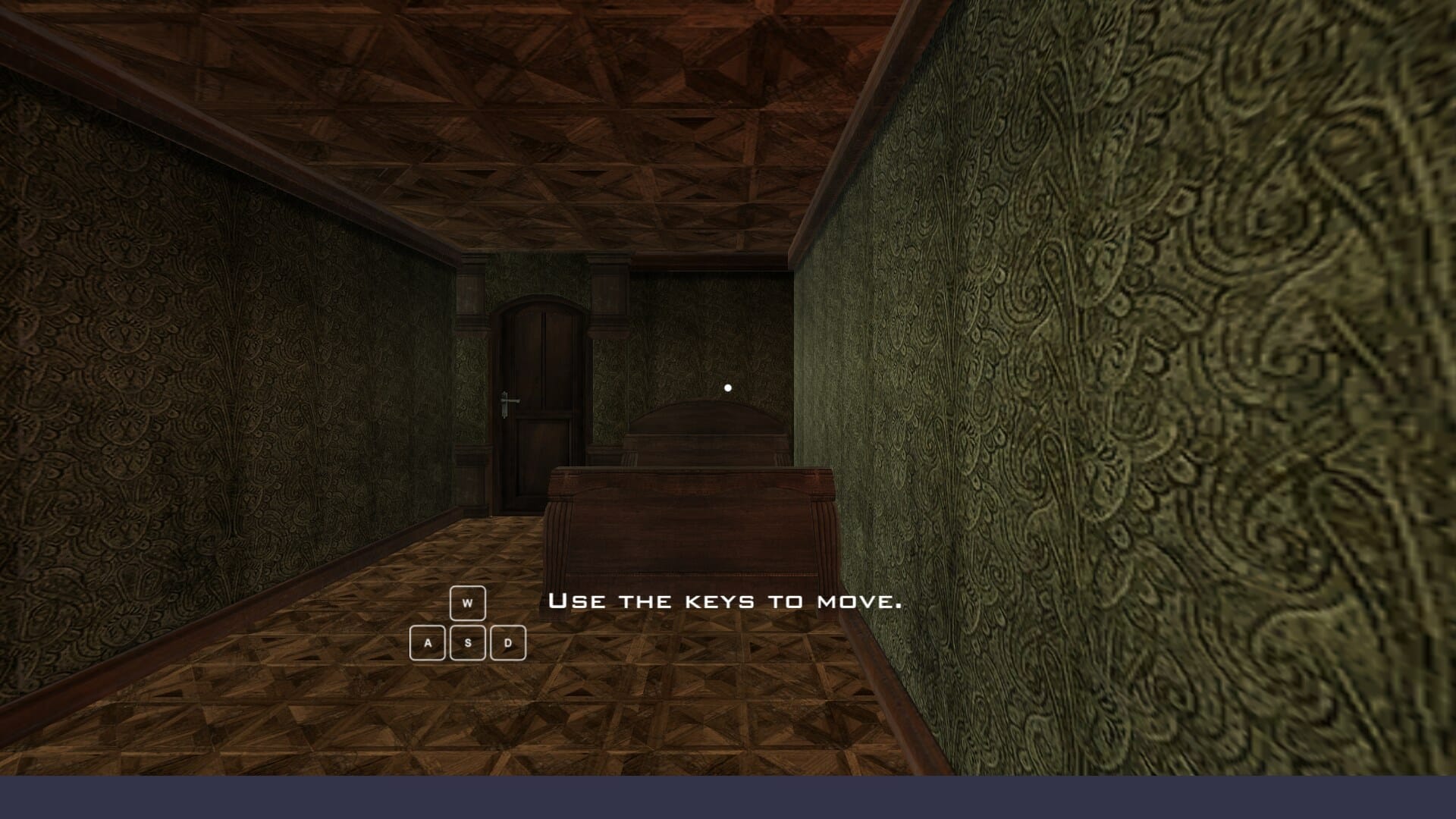
The use of a telephone call can also trigger Windows. It will offer you a code you can enter over the phone, and you’ll need to enter the code that it supplies you with into your computer.

Additionally, you can communicate with a live person, which is helpful if the activation procedure is malfunctioning.

If you’re transferring Windows to a new machine, you may need to contact a technician and explain the circumstances before the OS can activate.

However, you can try your hand at troubleshooting an activation key that does not work before requesting professional assistance.

One particular issue that keeps recurring when trying to activate your product key is error 0xc004f014. Don’t worry, you can easily circumvent it with a few inspired tips!

Alternatively, we have prepared an extensive guide listing the most common causes behind Windows activation errors and the solutions to fix them. So, make sure not to miss it!

Let us know in the comments below which solution suits you and whether you will instantly turn dark mode on after you activate your Windows. Thanks for reading!

5 Best Browsers That Support XML [View & Edit XML Online]

XML is one of the most common markup languages used today, hence the need to find a browser that supports the format. Although HTML has overshadowed it, many people still need to use it.

XML documents can be opened using any text editor or word processor. However, you can use an online service to view or edit your XML files if you don’t have access to these tools.

The main advantage of using an XML file is that it allows you to quickly and easily share information between multiple applications and systems. 

For example, suppose you have an application that uses an XML file as its database format. In that case, other applications can access that data without needing to convert it into another format first — they need to understand how the data is structured to read it correctly. 

This means that developers spend less time coding custom solutions and more time building their own applications or services.

What is the use of XML in your Web browser? 

XML is a markup language that is used to describe the layout and content of documents. It is a handy tool for managing data in your web browser. 

The primary purpose of XML is to define a set of rules for encoding documents in a human-readable and machine-readable format.

XML makes sense of data so that applications can read it. For example, when you fill out a form on a website and submit it, the website needs to store your data somewhere to be processed later. 

The simplest way for the website to store this information is as plain text, but plain text doesn’t have any structure or hierarchy, which means it can’t be easily searched or filtered.

How can I open an XML file online?

There are many ways to open XML files. One of the most popular ways is to use an XML File Viewer. You can also use a browser that supports XML to open and view your file.

What are the best browsers that support XML? 

Opera One – Most reliable

Opera One has a built-in browser engine and supports most web standards, such as HTML and CSS. The biggest feature that makes Opera One one of the best XML browsers is that it supports extensions.

It really shines here, with a huge library of extensions you can use to customize your experience and add more functionality. 

Additional features:

  • Fast at rendering complex pages
  • Supports JavaScript
  • Has DOM properties
  • Built-in AI, VPN, Ad Blocker

Opera One

Opera One’s reader automatically subscribes to the relevant RSS feed.
Free Download Visit website

Google Chrome – Fastest option

download-chrome where is the chrome menu button

Google’s browser is one of the most popular in use today, and it’s also one of the fastest browsers available. 

It’s also very lightweight, so it doesn’t take up much space on your computer. Google Chrome supports all types of HTML5, including XML, making it one of the best options for viewing and editing XML online.

The award-winning feature is Chrome’s legacy browser support for XML. This format has been designed to be used by developers who want to use modern CSS features on all browsers but need to fall back to a simpler implementation if they detect that the browser has limited support.

Additional features:

  • Support for HTML5 and CSS3 features
  • Rich library of extensions
  • Supports all DOM properties

⇒ Get Google Chrome

Firefox – Most powerful

download firefox

This open-source browser has been around for years, but it was recently updated with a new look and feel, making browsing more efficient. 

The biggest reason to use Firefox is its support for open standards. This means that when you’re using a website that uses HTML5 or XML, Firefox will be able to read and display it properly.

Firefox also supports several different add-ons that let you customize how it looks and works, which is another big plus for those who want a browser that truly fits their needs.

Additional features:

  • Built-in developer tools
  • Open-source to allow coding
  • Supports DOM

⇒ Get Firefox

Safari – High-performance browser

Safari has excellent support for DOM properties, so you can easily create JavaScript code that works on any browser that supports DOM.

The DOM (Document Object Model) is a programming interface that allows you to access and change a document’s content, structure, and style without having to wait for it to be downloaded from the server first. 

Safari browser is also great for supporting XML features because it is based on the WebKit engine that contains web developer technologies such as HTML and CSS.

Additional features:

  • Has a web inspector feature
  • Very stable and works well with all kinds of server-side languages
  • Supports Javascript

⇒ Get Safari

Brave – Safest browser

Brave is a web browser making waves in the tech industry. Its most significant advantage over other browsers is its privacy features. You can browse anonymously, which also protects you against tracking by ISPs, advertisers, and governments.

It loads pages faster than other browsers because it blocks ads, trackers, and other unnecessary content from loading on your screen. This reduces loading time and increases performance on websites that have heavy traffic.

Additional features:

  • Supports CSS and DOM
  • Open-source browser
  • Support third-party extensions for added functionality

⇒ Get Brave

How do I convert XML to HTML? 

XML is a markup language that defines a set of rules for encoding documents in a structured format.

Such files are often converted to HTML for viewing on the web, but they can also be used as the basis for other documents like emails, spreadsheets, and more.

There are several online editors available that allow users to convert XML documents into HTML. They are usually free of charge, but some may require registration before use.

In case you need an HTML editor, we also have an expert list where you can select one. Alternatively, if you are looking for a browser that supports HTML, we also have that covered in our comprehensive guide.

In the comment section below, let us know your preferred browser for opening XML files.

4 Quick Ways to Fix The Hulu Unsupported Browser Error

Hulu is among the top video-streaming services that users can subscribe to.

However, an unsupported browser error message might appear for some users when they try to subscribe or log in to Hulu with a browser.

Consequently, users may not be able to watch Hulu video content in their browsers because the following error message appears:

Why won’t Hulu play on my computer’s browser?

Hulu only supports Google Chrome, Firefox, Edge, and Safari browsers. So, users trying to utilize Hulu with other browsers will need to switch to one of those browsers.

Nevertheless, Hulu doesn’t support all these browser versions. Thus, some users might need to update their browsers to ensure they can utilize Hulu.

Why is Hulu not working on my browser?

Due to outdated software or obsolete OS, Hulu may not work on your browser.

Most of the time, wrong or outdated browser configurations, like hardware acceleration, hardware media key handling, and Widevine Content Decryption Module, may also cause the error under discussion.

What does it mean when it says you are using an unsupported browser?

Well, it pretty much means exactly that. More specifically, this error message can mean one of two things.
Either you are using a browser that is obsolete and no longer in circulation, such as Internet Explorer, or the browser you are currently using is outdated and needs to be updated to a newer version.

Quick Tip:

You may want to try a different browser better suited for video streaming services. Opera One uses a lot less processing capacity, which boosts speed and ensures good quality of video content.

The browser has a built-in free VPN, which ensures a safer experience and helps to unlock potential GEO-restricted resources. In addition, it has a built-in AI and a modular AI-ready design.

Opera One

Hulu and Opera One make a great team for streaming.
Free Download Visit website

How do I watch Hulu on my unsupported browser?

1. Update the web browser

  1. Press the Windows key + R keyboard shortcut.
  2. Enter the following in Run, and click OK to open the uninstaller: appwiz.cpl
  3. Then, select a browser to uninstall.uninstall chrome
  4. Click the Uninstall button and like Yes to confirm.
  5. Remember to restart Windows before reinstalling the browser.
  6. After that, download the latest Chrome, Firefox, or Safari version from their respective websites.
  7. Finally, open the setup wizard for the browser to install it.

The best way to update these browsers is probably to reinstall them with the latest versions. To do this, make sure you follow the steps above.

Also, if you are looking for the best browser for Hulu that’s supported, you should take a closer look at our recommendations.

2. Enable JavaScript and cookies in browsers

  1. Click the Customize and Control Google Chrome button.
  2. Click Settings on the menu to open the Settings tab.
  3. Press the Advanced button to expand Settings.
  4. Click Site settings to open further options.chrome cookies 3
  5. Then select JavaScript to open the options below.chrome cookies 1
  6. Toggle the Allowed option on.
  7. In addition, click Cookies in Site settings to open the scenes in the snapshot directly below.chrome cookies
  8. Then toggle the Allow sites to save and read cookie data option.

JavaScript is another system requirement for Hulu that users must have enabled in their browsers. To enable JavaScript in Google Chrome, follow the steps above.

3. Add the Hulu App to Windows 10

Remember that there’s also an app that users can watch Hulu content. Unlike browsers, that app won’t have any compatibility issues with the streaming service.

Users can add the Hulu app to Windows 10 by clicking Get on the app’s MS Store page.

4. Hulu Chromebook unsupported browser

  1. Open Chrome on your Chromebook.
  2. Click on the three dots in the top right corner.
  3. Select Help, and then About Google Chrome.about google chrome
  4. Your browser will not search for and install the latest version.
  5. Restart Chrome.

Useful tips for users

  • To ensure you get quality streaming uninterrupted by browser incompatibility errors, use a Chromium-based browser.

They share the Chrome repository for video websites and streaming services. So Chromium browsers are best for video streaming.

Above is our suggestion for a browser that never lets you down, precisely because it incorporates some unique video options and features you won’t find in most alternative browsers.

  • You can also use the Hulu app to stream everything you love at any time and search for content in episodes, clips, and movies.
  • Your device only needs to meet the following minimum requirements: Windows 10 version 16299.0 or higher, Xbox One, Windows 10 version 19003.0 or higher, Windows 8.1.

Those are some potential resolutions for fixing the Hulu unsupported browser error. Updating or changing browsers will usually resolve that error for most users.

Most people know these annoying problems as Hulu update browser errors because that’s precisely what happens; Hulu wants you to update your browser.

Before you decide to install the app, though, make sure you read about Hulu-supported browsers to prevent Hulu from working on your browser.

Please access the comments section below for more suggestions or other questions on this topic.

Check out KB5016700: Everything there is to know about this update

Just as Microsoft did for the last couple of weeks, Beta channel Insiders are getting more than they bargained for with every release.

What are we talking about? Well, a few weeks back, Microsoft began flighting two separate of Windows 11 Preview builds for Insiders on the Beta channel for a staggered release.

It was the case with both KB5015888, and KB5015890, which brought Beta channel updates in pairs, which was a bit confusing for users at first.

The latter brought taskbar overflow and more content for dynamic Widgets for Windows 11, in case you weren’t completely up to date.

What’s new with builds 22621.450 and 22622.450?

Today, the Redmond tech company has released an update with new builds 22621.450 and 22622.450, and we are about to take a more in-depth look.

  • Build 22622.450 = New features rolling out.
  • Build 22621.450 = New features off by default.

Through this latest update, Microsoft has enhanced Microsoft Defender for Endpoint’s ability to identify and intercept ransomware and advanced attacks.

Furthermore, the tech giant also compressed a file regardless of its size if you have configured Server Message Block (SMB) Compression.

Other changes that have been introduced via this cumulative update include:

  • Improved storage replication that occurs over low bandwidth or congested wide area networks (WAN).
  • Fixed an issue that causes Windows to display tablet mode features for some devices that do not have touchscreens.
  • Fixed an issue that causes some application windows to have blank sections in the Task View preview.
  • Fixed an issue that occurs for some of you when you copy files from network drives. The error code is 0x80070026.
  • Fixed a token leak issue in the LsapGetClientInfoEx
  • Fixed an issue that, in certain cases, causes sihost.exe to use a high amount of the CPU.
  • Fixed an issue that causes Microsoft Edge to stop responding when you use IE mode. This issue also prevents you from interacting with a dialog.

As far as known issues for KB5016700 go, the Redmond-based tech colossus mentioned:

[General]

  • There is an issue in the recent Beta Channel updates that is causing the Photos app to crash, and a fix will be rolling out soon via a Photos app update via the Store.
  • We’re investigating reports that SQL Server Management Studio is failing to launch for some Insiders.
  • [NEW] We’re looking into reports that audio stopped working for some Insiders after upgrading to Build 22622.440.

[File Explorer]

  • The left-half of the File Explorer title bar may not be draggable via mouse or touch.
  • The up arrow is misaligned in File Explorer tabs. This will be fixed in a future update.

Microsoft is focused on delivering the best quality for its latest operating system, and its a trend that it will surely follow with Windows 12 as well.

Also know that the startup sound quality for the 22H2 version of Windows 11 has been lowered by the tech giant, in an effort to make the OS less resource-hungry.

Wondering what all this costs and what kind of financial benefits the Redmond-based tech giant gets? Read about it in the latest quarterly income report.

What can I do if KB5016700 fails to install?

  1. Press Win+ I to access Settings.
  2. Select the System category and click on Troubleshoot.w11 troubleshoot
  3. Press the Other troubleshooters button.other troubleshooters windows 11
  4. Press the Run button next to Windows Update.windows update troubleshooter

Leave a comment below if you found any other issues while dealing with this brand new Insider build.

Check out Windows Subsystem for Android version 2206.40000.15.0

We’ve come a long way from the first appearance that WSA (Windows Subsystem for Android) made on the latest Microsoft-designed operating system.

Users were absolutely infatuated with the thought of sideloading android apps to their Windows 11 devices, ever since the idea was first brought into the discussion, prior to the OS launch.

Now, Microsoft is shipping an update for Windows Subsystem for Android on Windows 11 to all Windows Insider channels, but to U.S. only.

What changes come with WSA version 2206.40000.15.0?

Version 2206.40000.15.0 includes several new updates such as updates for input compatibility in apps such as games, networking and windowing improvements, and reliability updates.

The tech giant talks about a new suite of shims available to toggle in the Windows Subsystem for Android Settings app which enables better experiences in several apps.

Furthermore, we are also getting:

  • Compatibility for games with joysticks (mapped to WASD)
  • Compatibility for gamepad in games
  • Compatibility for aiming in games with arrow keys
  • Compatibility for sliding in games with arrow keys
  • Scrolling improvements
  • Networking improvements
  • Android minimum window size defaulted to 220dp
  • Improved dialog when unsupported VPN is detected
  • New toggle to view/save diagnostic data in the Windows Subsystem for Android Settings app
  • Security updates
  • General reliability fixes, including improvements to diagnostic sizes
  • Graphics improvements

The silver lining here is the fact that we don;t have to deal with a lot of known issues, except one, that was mentioned in the official release notes.

  • Some VPNs may not work with Advanced Networking. If you use a VPN and find Android apps do not have network connectivity, please disable Advanced Networking in the Windows Subsystem for Android Settings app

This is pretty much all there is to know about the latest version of the Windows Subsystem for Android feature for Windows 11.

Remember that, as we mentioned earlier, all of these changes are only for US-based Windows Insiders, just so there is no confusion regarding the matter.

And, if you were wondering what else Microsoft is up to, know that it plans to extend the range of the Xbox Cloud Gaming service to tablets, phones, iOS devices, and the Steam Deck.

If you are an Xbox user, you will also be pleased to know that the company is working on reducing boot time and has already succeeded in shaving 5 seconds off.

Also, the startup sound quality for the 22H2 version of Windows 11 has been lowered by the tech giant, in an effort to make the OS less resource-hungry.

Wondering what all this costs and what kind of financial benefits the Redmond-based tech giant gets? Read about it in the latest quarterly income report.

Before we conclude this article, we have to also remind you you will start to be bombarded with upgrade notifications if you still haven’t moved on from Windows 8.1.

With all that being said, we hope you haven’t found any other issues after installing this latest WSA update. If, by chance you did, report them to us in the comments section below.

Browser Not Supporting Password Encryption: 5 Ways to Fix It

Does the Operation can not be performed. Your browser is not supporting password encryption error give you headaches?

This usually happens because the website doesn’t support this feature, your browser isn’t updated or the OS doesn’t support these features.

Let’s put an end to this.

How do I make my browser support password encryption?

1. Update your browser

If you’re using an older browser, it may not support password encryption. The latest versions of the most popular browsers support password encryption. 

Chrome update page

But if you’re using an older version of one of those browsers, you may need to upgrade to get the added security.

2. Clear cache and cookies

One of the common reasons behind this problem could be some cookies that are saved in your browser. Usually, cookies are used by different websites to keep track of your browsing activity.

clear cache firefox

Clearing your cache will not permanently delete any information; it just removes temporary files that may be causing problems with your site. 

3.  Disable third-party plugins

Some third-party plugins have been known to cause problems with password encryption features in browsers such as Chrome and Firefox.

If this is happening to you and disabling all third-party plugins fixes the issue, then that’s what you should do until the bug gets fixed by its developer(s).

4. Turn off JavaScript in your browser

Some websites use JavaScript to encrypt passwords, which means that you won’t be able to copy them. In order to fix this issue, you must turn off JavaScript in your browser.

This will prevent any scripts from running while you’re on the website and allow you to log in normally with no hiccups.

5. Update your OS

Another good place to check to see if the issue is with your computer is your operating system. It is possible that your browser is not supporting password encryption because of an old version of your operating system. 

check for updates windows 11 settings

Another possibility is that there’s a bug in the OS itself, so updating will also help fix it, so consider upgrading to the most current version available.

How do I change my browser security settings? 

  1. Launch your browser (in this case, Chrome).
  2. Click on the three vertical ellipses on the top right corner and select Settings.settings chrome import certificate private key missing
  3. Select Autofill in the left-hand pane, then toggle off Offer to save passwords in the right-hand pane.

How do I check my browser security?

The first thing to do is update your browser. Older browsers can be a security risk because they are more likely to have known vulnerabilities or be susceptible to new ones. 

Next, you need to ensure that you have enabled password encryption in your browser so that if you ever lose your device, your credentials will still be safe.

Better yet, we recommend you install safe and secure browsers to avoid a handful of problems that often plague the other browsers.

If you have tried all the above solutions but are still facing the same problem, perhaps it is time to try another browser like Opera One. 

Opera One has several built-in security features that make browsing more secure, including tracking protection, ad filtering, and malware protection.

Let us know what solution worked for you in the comment section below.

Edge Build 105.0.1336.2 is now live on the Dev Channel

We know you kike to keep up with everything that is happening with your favorite browser, so allow us to share the latest news.

Recently, we’ve presented Edge Dev build 105.0.1329.1, and we discussed how Microsoft is trying to improve your system’s performance by using Cache compression in Edge.

Not everything is sugar and rainbows, and we also talked about how the latest Canary build broke the browser, which won’t open anymore for some users.

But, putting all that aside, it’s time to look towards the future and see what the latest Dev Channel build brought for Edge Insiders.

What’s new in Edge Dev Build 105.0.1336.2?

Let’s start by first addressing the Added Features section of the release notes, where Microsoft wrote that it added a Narrator announcing banner on Learn more link in the Edge browser.

Furthermore, the tech giant added support for a management policy from Chromium to control if Unthrottled Nested Timeout is Enabled.

Keep in mind that this will be deprecated in the future, as Microsoft mentioned in the official release notes for this patch.

Let’s also have a look at the rest of the changelog and see what else is waiting for us after we download and install this build.

Improved reliability:   

  • Performance improvements to IMap properties  
  • Improved iOS tooltips  
  • Improved Android shared device support  
  • Optimized read aloud voice options page for Android   
  • Improved Android shared device support  

 Changed behavior:   

  • Fixed an issue where the profile popup sometimes is cut off 
  • Fixed various crashes  
  • Fixed Diagnostic button layout  
  • Fixed Drag and Drop for Collections 
  • Fixed a crash when clicking the Tab Actions Menu button   

Keep in mind that, although Microsoft has not mentioned any known issues in the latest Dev update, users noticed that version 105.0.1336.2 misses a chunk of its settings.

If you open Settings, then go to Privacy, Search, and finally Services, you will see no Services section responsible for managing search engines, shopping features, and search suggestions.

The strange disappearance of the Services section does not appear to be something intended, as it is still available via its direct link.

If you use Edge Dev or Canary and want to change the default search engine, use the following command to access the page:

edge://settings/search

We hope you’ve learned everything you wanted about this latest Dev Channel Insider Edge build. Leave a comment below if you found any issues after installing this new update.

3 Quick Ways to Enable Brave Browser’s Dark Mode on PC & Mobile

Brave is most notable for its privacy and security, as it is one of the best browsers with a built-in adblocker and other strong safety features. However, it is not just limited to that.

It boasts a clean and customizable interface that you can tweak to your taste. One of its customization features is the dark mode. This mode helps to reduce strain on the eyes, especially for users that spend a lot of time on their browser.

Aside from the built-in option to enable the mode, Brave, one of the best Chromium-based browsers, allows you to download dark themes and extensions to achieve the night mode you crave on your browser.

This guide will explore the three major ways to enable the dark mode on your browser easily.

How do I customize my Brave Browser?

The Brave Browser offers many customization options. You can change the background image for a new tab from the settings.

Also, you can switch from the default light mode to dark or use your PC’s default mode. Lastly, you can customize it with themes from the Chrome Web Store. So, you are not short of options.

How do I change colors in Brave Browser?

Changing colors on Brave Browser is pretty easy, as a series of options are available. It is important to note that you can only choose light and dark colors.

Also, you can decide to use your PC’s default color on your browser. If you want to switch to the dark mode on your Brave Browser on Windows 10/11 or mobile, we will discuss this in detail in the subsequent sections of this article.

Quick Tip:

Opera One is an alternative Chromium browser with a dark mode worth noting. That browser includes many customization settings and novel browsing features you won’t find in other software options.

This browser offers quick access to any social media and messaging services from the sidebar while keeping your identity private with a built-in VPN.

Opera One

Explore the internet securely while protecting your eyes from harm with the dark mode in this fast browser.

How do I change the dark mode in Brave Browser?

1. Activate the Dark option

  1. Click the Customize and Control Brave button (three horizontal lines) in the top right corner.
  2. Select the Settings option to open the tab in the screenshot directly below.
    settings option
  3. Click Appearance on the left of Brave’s Settings tab.
    appearance option
  4. Select Dark on the Brave colors drop-down menu.
    option
  5. Alternatively, selecting Same as Windows will change Brave’s color to black if you’ve activated the dark theme for Windows.

With this, you will be able to enable the dark mode on the brave browser URL bar, settings tab, and the bookmarks tab but not on the pages you open. To force the dark mode on these pages, type brave://flags#enable-force-dark in the address bar and press the Enter key.

2. Activate dark mode for the Brave mobile browser

  1. To select the Dark option in the Brave Android browser, tap the three dots button at the bottom of its app window. 
  2. Select the Settings option.
    The Settings tab
  3. Then tap Appearance  > Themes to open the options in the shot directly below. 
    option mobile
  4. Select the Dark mode setting there. 

3. Add Dark Reader

  1. If you want to apply a dark background to website pages, open the Dark Reader extension page in Brave.
  2. Press the Add to Brave button on the Dark Reader extension page.
  3. After that, you should see the Dark Reader extension button on your toolbar, as in the shot directly below. If not, click the Extensions button and select the Pin option for Dark Reader.
    The Pin option brave browser dark mode
  4. Click the Dark Reader button to open it.
    The Dark Reader button brave browser dark mode
  5. Select the On and Dark options if Dark Reader is off (it will probably be on by default). Websites you open in Brave will have a dark background, as in the snapshot below.
    A Dark Google brave browser dark mode
  6. Drag the Brightness and Contrast bars to the left and right to adjust the dark background.
  7. To configure hotkeys for Dark Reader, click Setup extension toggle hotkey. Then you can input custom keyboards for the extension in the tab shown directly below.
    Dark Reader's keyboard customization
  8. Click the Site list tab within the extension to exclude specific sites from Dark Reader’s black backgrounds. Then select Not invert listed, and enter a URL for a website to exclude.

So, that’s how to activate the dark mode on your Brave Browser on Mobile and PC. We have shown how to limit the settings to just some aspects of your browser and force it on other pages. Now, you have full control of the customization.

If you need a list of the best browsers with dar mode that you can use today, check our guide for some juicy options to choose from.

Are you facing problems making Brave Browser dark? Feel free to share your experience with us in the comments below, and we will attend to them as soon as possible.

Microsoft Teams is officially optimized for Apple Silicon

Microsoft has been beta testing a version of Microsoft Teams that was optimized for Apple M1 or Apple M2 Macs, but the bigger moment has now arrived. The company has officially announced a native Microsoft Teams app for Apple Silicon Macs, rolling out to customers in increments over the next few months.

As you’d expect, the news means that those with Apple M1 or Apple M2-powered Macs should get better performance out of the app. This is because the app will no longer run under Apple’s Rosetta 2 emulation.

“For Mac users, this means a significant boost in performance, ensuring efficient use of device resources and an optimized Teams experience even when using multiple high-resolution monitors during calls or meetings,” explained Microsoft.

Microsoft says that all Mac users will automatically be upgraded with their most recent update to Teams. It did not provide a specific date, however. Teams joins OneDrive, and Microsoft Office, as well as Microsoft Edge, all of which are also optimized for m1 Macs.

Hardware ID: What is it & How to Find it

Hardware IDs are identifiers for all hardware devices from your PC or connected to it and so, create a unique identity for these devices.

It’s a quick way for the operating systems to detect the device and install the related software. The Hardware ID contains the bus type, the hardware manufacturer, and the device ID.

Since in some cases, there can be different variants of a device, you may also find sub-system identifiers and revision details along with the usual hardware identifier.

This indicates the difference between the devices.

So, how does it help you? This will help you to identify the device manufacturer and look for the related device driver.

How do I check the Hardware ID?

In the guide below we will present to you how to easily check the Hardware ID on your Windows 10 PC in just a few simple steps.

If we were to guess, you’d probably be wondering about the use of this entire verification. How does it help you?

Well, the process will help you to identify the device manufacturer and look for the related device driver.

Needless to say that drivers are essential components that require regular updates and maintenance in order for your system to function properly.

    How to find hardware ID Windows 10 using Device Manager

    If you are looking for a driver of specific hardware, it is good to know its hardware ID. In such cases, you can check the hardware ID in Device Manager.

  1. 1. Press the hotkey Win + R to open the Run console.

  2. 2. Write devmgmt.msc in the search bar and hit Enter to launch Device Manager.

    write devmgmt.msc in the run command and press enter
  3. 3. Expand the section that has your device for which you want to know the hardware ID.

  4. 4. Here, right-click on the device and select Properties.

    right click on device in device manager and click on Properties
  5. 5. In the Properties dialogue box, go to the Details tab.

  6. 6. Navigate to the Property field and select Hardware IDs from the drop-down below.

    Under details tab in properties select hardware ids from drop-down list
  7. 7. In the Value field, you will see a list of hardware IDs for the device in descending order.

    In the Value field check the hardware id from the list
  8. 8. The value at the top is the most specific and going downwards the hardware identifiers are more generic.

  9. 9. Press OK to exit.

The identifiers are in descending order because it helps you to select a device driver to be selected based on any of these hardware identifiers.

The more choice you have for the hardware identifiers, the better your odds to find the related device driver.

While you can find the hardware identifiers for a device for which the driver is installed already and shows the manufacturer and the model, you can also find identifiers for unknown or unrecognized devices.

Then, you can then use a third-party driver update software to automatically look for a matching driver for the device using that specific hardware ID. That’s pretty much it. Rather straightforward, right?

If you have any other suggestions or queries, feel free to drop a line in the Comments box below.