The Teams error CAA30194 is an issue that prevents users from logging in to Microsoft Teams due to connection issues. Several reports have been made in diverse forums including the Microsoft Community forum, yet a lot are stuck with this error.
In this article, we will discuss what causes the Teams error CAA30194 and how to fix it.
What causes Teams error CAA30194?
The Teams error CAA30194 can occur due to a variety of reasons. Below are some of the possible reasons behind this error:
- Corrupted JSON files – Information regarding Microsoft configuration, authorization, settings, and so forth are kept in JSON files. If they get corrupted, you may encounter Teams error CAA30194 while logging in.
- Connection issues – If there are connectivity problems with your network or you’re using VPN and Proxy servers, it may hinder the connection between the Teams server and your PC.
- Installation errors – Sometimes, an error may occur during the installation of the Teams client and this may not be resolved except by reinstalling the app.
Above are some of the possible reasons behind the Teams error CAA30194. Now, let’s proceed to how to fix the issue.
How can I fix the Teams error CAA30194?
Before trying any of the advanced solutions provided for this error, ensure that you perform the following preliminary checks:
- Try to sign out of the app and then sign in again.
- Restart your PC and then relaunch the Microsoft Teams app. This is to automatically clear temporary bugs in your device.
- Clear the Microsoft Teams’ cache.
- Use the Web version.
If after attempting the above checks, you are still unable to log into your Teams account, then try the troubleshooting methods provided below.
1. Re-add your work or school account
- Open the Microsoft Teams app and go to Settings.
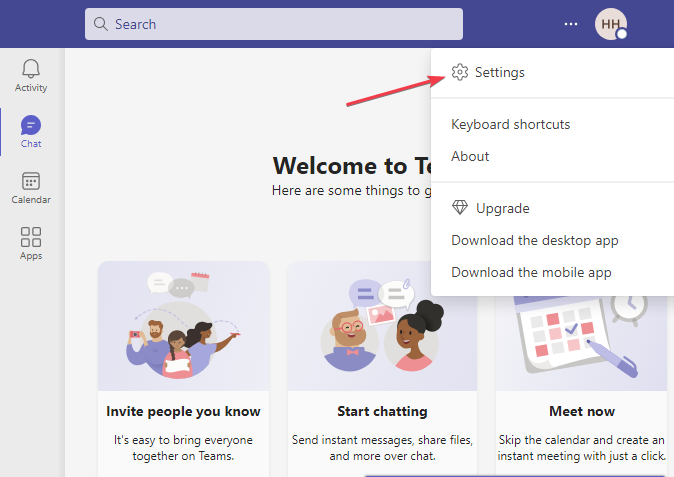
- Click on Accounts and select Emails and Accounts.
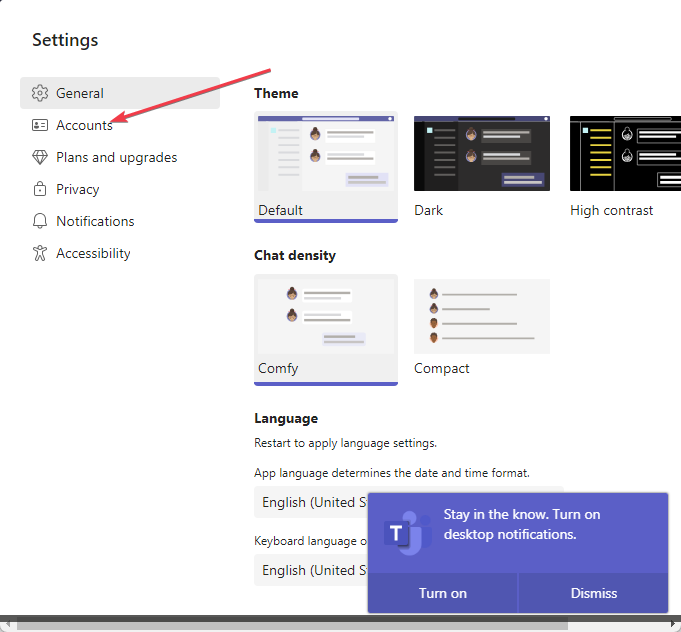
- Now, click on Add a Work or School account.
- Restart Teams and your PC for the changes to take effect.
Some users have found this fix helpful, so you should give it a try too if you experience the Teams error CAA30194.
2. Clear Teams cache
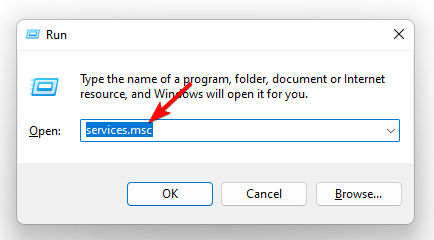
- Press the Windows + R keys to open the Run dialog box. Type the following command in the dialog box and press Enter:
%appdata%\Microsoft\teams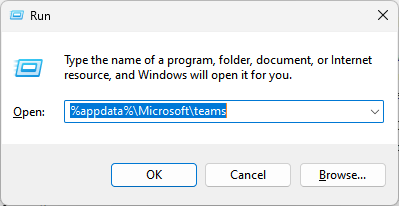
- Open the following folders and then clear all of their content.
- application cache\cache
- blob_storage
- Cache
- databases
- GPUcache
- IndexedDB
- Local Storage
- tmp
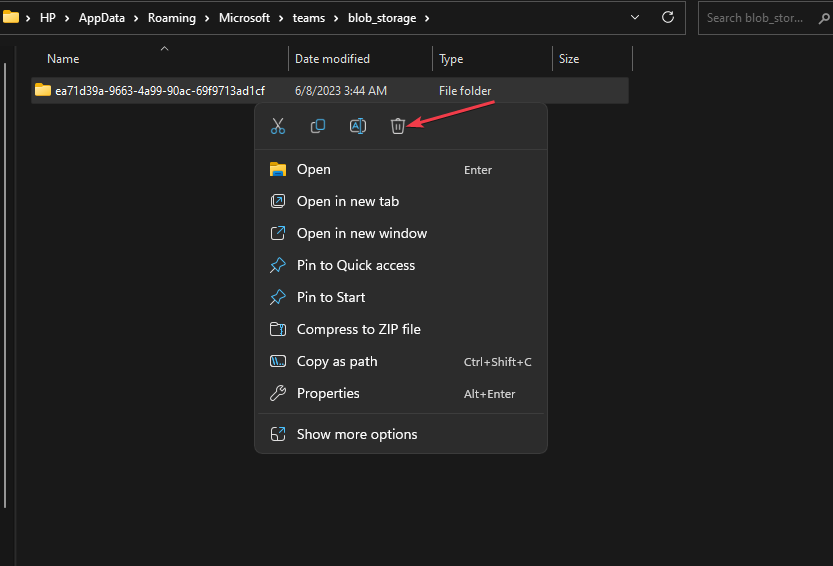
- Lastly, restart your PC and launch Microsoft Teams.
There’s a tendency that all the apps store caches have gotten corrupted and they can trigger the Teams error CAA30194, hence the need to clear them.
3. Delete the JSON files
- Press the Windows + R keys to open the Run command dialog box. Type the following command in the dialog box and press Enter:
%appdata%\Microsoft\teams - Find and select all the files with the .json extension and then delete them one after the other.
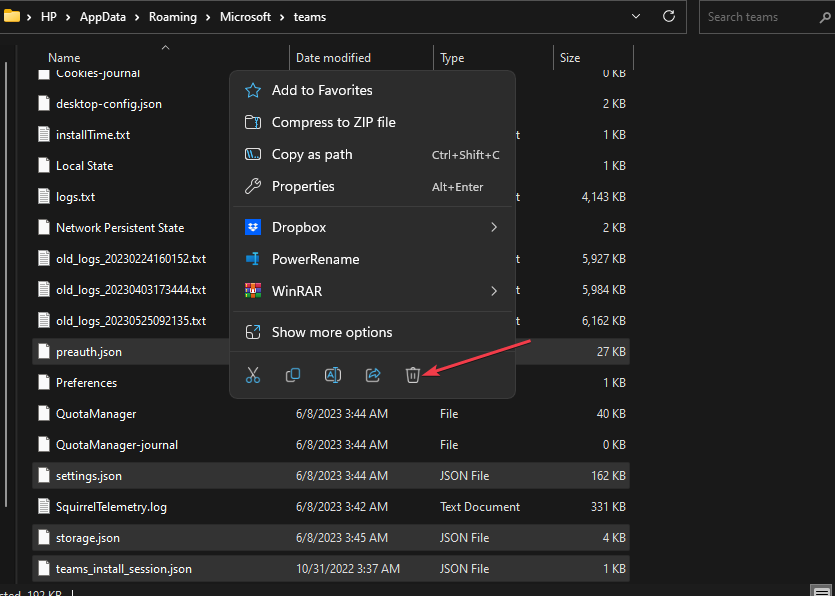
After deleting the JSON files, relaunch the Teams app and it will automatically regenerate JSON files. Now, try to use the app and see if the Teams error CAA30194 persists.
4. Enable the TLS feature in the Internet options
- Press the Windows button, type Internet options in the search bar, and launch it.
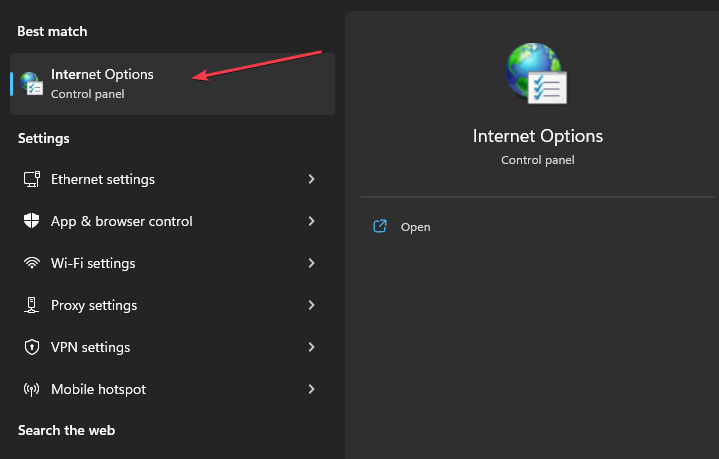
- Click on the Advanced tab and navigate to the Security section.
- Now, enable TLS 1.0, TLS 1.1, TLS 1.2, and TLS 1.3 if they’re currently disabled. Click on OK to save the changes.
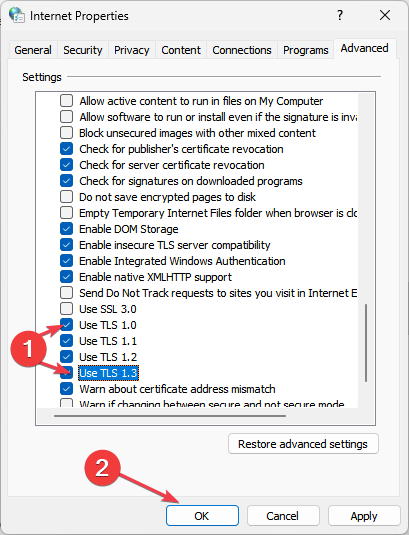
- Restart your PC.
Several users have reported that enabling the TLS feature worked for them. You can also follow the steps provided above.
5. Reinstall the Microsoft Teams app
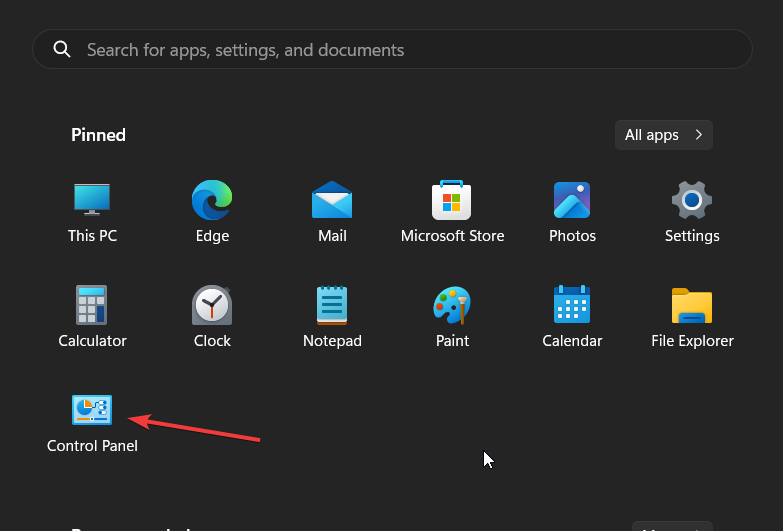
- Press the Windows button, type the control panel in the search box, and open it.
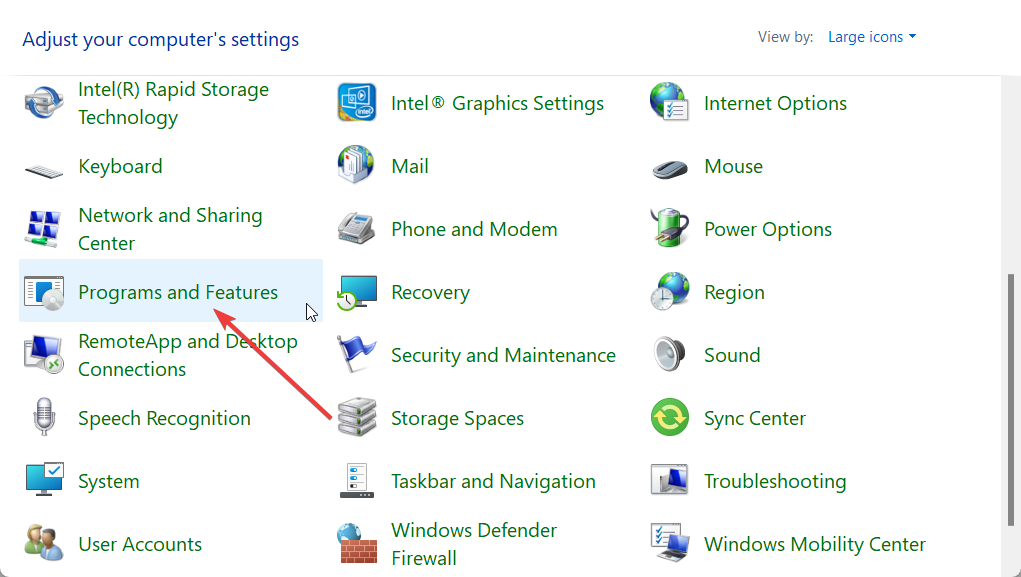
- Select Programs and Features and locate the Teams app in the list of installed programs.
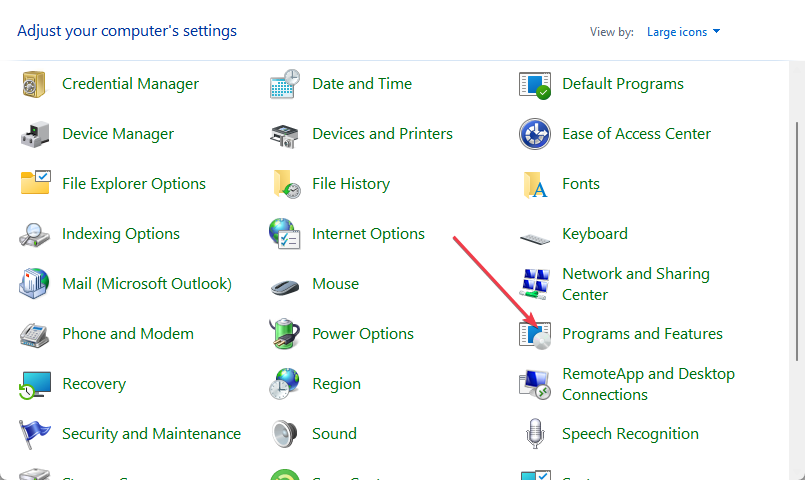
- Right-click on the app and select Uninstall.
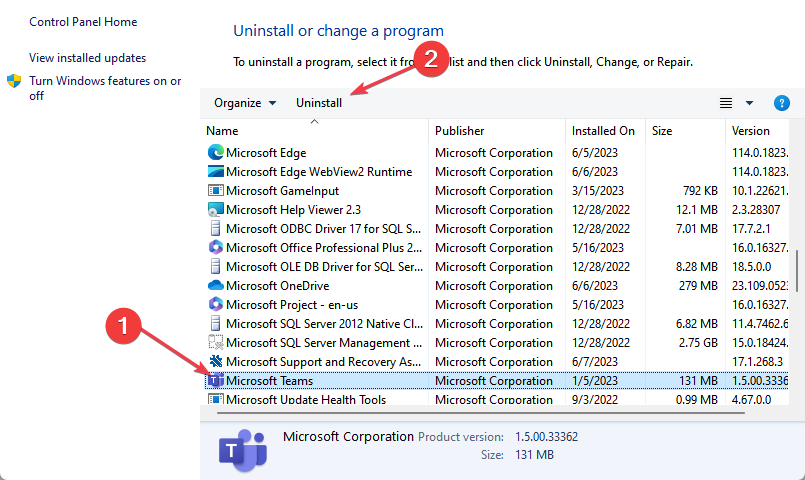
- Follow the on-screen instructions to complete the uninstallation process.
- Press the Windows + R keys to open the Run dialog box. Type %appdata%\Microsoft in the text field and press Enter.
- Right-click on the Teams folder and select the Uninstall option.
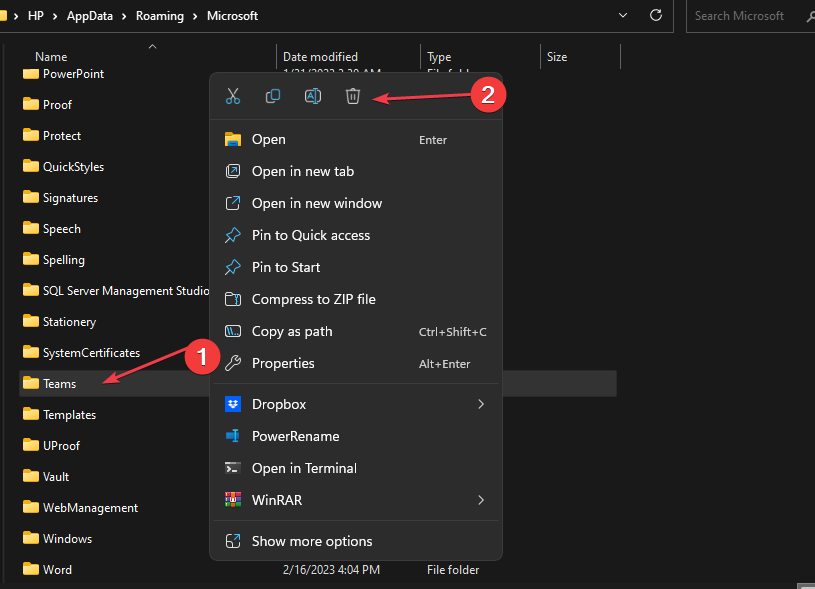
- Restart your PC.
- Visit the official Microsoft Teams download website and install a fresh copy of the app.
The official Microsoft Teams download website is the safest place to install the app. If the problem lies in the installation, reinstalling the app would be the only solution.
And that’s it on how to fix the Teams error CAA30194. Hopefully, one of the methods provided in this guide will help you fix the problem. However, make sure you work your way through the steps provided.
Additionally, users can also check our article to know what to do if Microsoft Teams stops working in Chrome and get it fixed.
If you have any questions or suggestions regarding this issue, do not hesitate to use the comments section below.