Today we’ll show you the best free word processors for Windows 11 so you can write and edit like a pro. We found tools that offer comparable features to premium-tier options like MS Office.
So, if you want access to features like pre-designed templates, integrated spell-checkers, formatting tools for paragraph alignment and line spacing, table and chart support, and more, keep reading.
What are the best word processors to use on Windows 11?
Libre Office Writer comes with the Libre Office suite that is free. You will find it to be versatile and feature-rich.
In addition to the offline writer, you will find the interoperability among its Calc (spreadsheets), Impress (presentations), Draw (vector graphics), Math (mathematical formulae), and Base (databases) services advantageous.
It is excellent for collaborating across teams since you can share documents across Microsoft Word users without any compatibility issues. It also supports DOCX, PPTX, PPT, and other formats.
This free word processor for Windows 11 allows the liberty of choosing between a traditional toolbar and icon interface and a notebook bar similar to the 2007 MS office.
Wordpad unlike the other word processors on this list does not have a suite of applications, but it has the one important advantage of not needing to be installed. It has been part of every Windows operating system since Windows 95.
It is somewhat of a watered-down version of Microsoft Word, but still very effective for creating basic documents as well as opening rich text documents and files that are created using other programs not installed on your computer.
Documents created with Wordpad can be exported in several formats including Rich Text Format (RTF). This format is generic for rich texts including bolds, custom fonts, bullets, etc. It is also compatible with DOCX formats, hence, it is a good alternative if you must work with Microsoft Word documents. It also offers compatibility for files created with Libre office.
Finally, unlike most of the word processors discussed, it has a free version and no paid options.
This Windows 11 compatible word processor offers a wide range of options for easy editing of Microsoft PowerPoint, Excel, and Word files. It is also a handy tool for exporting files in pdf and EPUB.
It comes with a small selection of easy-to-use templates, but you will be able to create additional custom-made templates.
FreeOffice TextMaker packs most features you will expect in a modern word processor including a feature for managing doc changes during collaboration, advanced options for formatting text, a feature for creating databases for managing footnotes and bibliographies.
The most easily noticeable drawback of the free version of FreeOffice TextMaker is an inability to save files in DOCX formats. You will need a paid version for this feature.
From the name of this free Windows 11 compatible word processor, you can deduce that it is built to help you focus more while writing. It is packed with tools to make you maximize your work productivity without distraction.
By default, it only displays a blank page, and the toolbar options will only appear after you move the mouse to the screen edge. This word processor goes the extra mile of fading all features except for the current paragraph, or sentence.
Users can also set alerts for different goals including word count. It does not have all the great editing features of most word processors discussed, but none come close in productivity.
Are there good online word processor alternatives?
One of the most robust of the lot is Google Docs. It comes as part of a free Google Editors suite that also includes Slides, Sheets, Forms, Keep, and Google Sites.
In this article, you’ve been introduced to word processors that work offline, requiring an installation on your operating system. If you prefer not to have app installations, there are several online solutions.
This list has not been written in any particular order. Let me know in the comments which of these word processors you prefer.
Users previously reported an IntcOED.sys BSOD error for Windows 10. That’s a blue screen issue with a Driver unloaded without canceling pending operations error message. Now users have posted on forums about that same issue arising in Windows 11. One user’s forum post said this:
After having Windows 10 update to Windows 11 in December 2021, I am facing this issue:
What Failed: ‘IntcOED.sys’ Stop Code: Driver Unloaded without canceling pending operations
Some users have reported that Driver unloaded BSOD errors arise when they start, or shortly after starting, their PCs. Other users have said this blue screen error occurs after their computers come out of sleep mode. Those users have needed to fix recurring Driver unloaded errors.
Do you need to fix a recurring Driver unloaded error in Windows 11 as well? If so, try applying the potential resolutions for the Driver unloaded without canceling pending operations error below.
What is a blue screen error?
Blue screen errors, also known as stop errors, are those with blue backgrounds and stop codes. They are also referred to as fatal system errors because the Windows OS stops operating. Windows restarts after collecting info after blue screen errors arise.
BSOD (Blue Screen of Death) errors can often pertain to device drivers. A Microsoft webpage says the big M estimates that 70 percent of blue screen errors pertain to third-party device drivers. The Driver unloaded error message specifies the IntcOED.sys driver for Intel Smart Sound Technology.
A one-off BSOD issue isn’t an especially big deal. After restarting Windows, the blue screen error might never occur again. However, users need to fix blue screen errors when they recur on their Windows PCs.
How can I fix the driver unloaded without canceling pending operations error in Windows 11?
1. Update Windows 11
Press Windows 11’s Start button, and select the Settings app.
Click Windows Update on the left of Settings.
Press the Check for updates button to download and install updates.
Click the Download & install button for any available optional updates.
2. Run a System File Scan
Open the Start menu and type Command Prompt in its search box.
To open Command Prompt with admin permissions, click the Run as administrator option shown directly below.
Input the following command and press Return: DISM.exe /Online /Cleanup-image /Restorehealth
Then start the SFC scan by inputting this command and pressing Enter: sfc /scannow
Wait for the SFC tool to complete its scanning and display outcome.
3. Run Startup Repair
Bring up the Settings app.
Select Recovery on the System tab.
Click Restart now button for the Advanced startup option shown directly below.
Select Troubleshoot in the Windows Recovery Environment.
Then click Advanced options > Startup Repair
Choose an account, and then input the password for it.
As the Driver unloaded error is often due to faulty or outdated drivers, try updating device drivers. To check the status of your PC’s drivers, run a scan with a third-party driver updater utility. That software will provide a full overview of outdated or faulty device drivers on your PC.
5. Uninstall the Smart Sound Technology (SST) driver
Press the Windows + X keys simultaneously, which will open the Power User menu.
Select Device Manager to open the window for that system utility.
Then double-click the Sound, video and game controllers category.
Click Intel Smart Sound device with your right mouse button and select its Uninstall device context menu option.
Select the checkbox for the Delete the driver for this device option.
Click the Uninstall button to confirm.
NOTE
If you see any devices with exclamation marks by them in Device Manager, reinstall the drivers for them. To do so, you’ll need to uninstall drivers as outlined above. Then download the latest driver packages for the devices from their manufacturers’ websites to reinstall them.
6. Disable Intelppm.sys
Press the Windows + R key combo.
Open Registry Editor by inputting this Run command in the Open box and clicking OK: regedit
Then input this registry key location in the address bar: HKEY_LOCAL_MACHINE\SYSTEM \CurrentControlSet\Services\Processor
Double-click the Start DWORD for the Processor key.
Enter 4 within the Value box for the Start DWORD, and click the OK button.
Next, navigate to this registry location: HKEY_LOCAL_MACHINE\SYSTEM\CurrentControlSet\ Services\Intelppm
Double-click Start in the Intelppm registry key.
Erase the current value in the text box, and then input 4 to replace it. Click OK to exit the Edit DWORD window.
Bring up the Start menu, click Power, and select Restart.
7. Reset Windows 11
Open the Settings app, and click Recovery in the System tab.
Press the Reset PC button to open a Reset this PC window.
Select Keep my files in the Reset this PC window.
Click the Cloud download or Local Reinstall option.
Press the Next button, and click Reset to confirm.
NOTE
Note that you’ll need to reinstall software packages that didn’t come pre-installed with Windows 11 after resetting the platform. Therefore, it’s recommended that you try some of the alternative resolutions before resetting Windows 11.
How can I enter Safe Mode to apply the above fixes?
If you can’t get into Windows 11 to apply the above fixes because of the Driver unloaded error, you’ll need to boot into Safe Mode via the Advanced Startup Options menu. You can also apply some of the above resolutions from the recovery environment. This is how to boot into Safe Mode.
Turn on your desktop or laptop.
Press and hold the PC’s power key for about five seconds when a logo appears during the startup to shut down the PC. Do that three or four consecutive times until an Automatic Repair screen appears.
Select Advancedoptions on the Automatic Repair screen.
Then select Troubleshoot on the Choose an option menu.
Next, select Advanced options and Startup Settings within the Advanced Startup Options menu.
Click Restart to do that.
After restarting, press the F5 key to select Enable Safe Mode with Networking.
When you’ve booted into Safe Mode, you can apply the potential resolutions above as outlined.
The Driver unloaded error isn’t the most straightforward issue to fix. However, users have confirmed they’ve been able to fix that error in Windows 11 with some of the potential resolutions above. So, maybe one of them will resolve the Driver unloaded error on your PC as well.
For further potential resolutions, Microsoft’s Troubleshoot blue screen error page might be worth a look. That webpage includes a troubleshooter that provides general BSOD fixes. Our How to fix IntcOED errors guide might also include some potential fixes for the Driver unloaded error.
You can chat about the Driver unloaded error in this page’s comments section below. Feel free to enter any pertinent questions about that BSOD error there. Users who’ve found other ways to fix the same issue are especially welcome to share their resolutions below.
Any preview build of Windows 11, such as build 22H2, that is accessible in the Dev or other channels can technically be obtained by downloading the image file. You just need to use a third-party program, thus we will show you how to download Windows 11 ISO from UUP dump.
Although Microsoft makes the ISO file for previews of Windows 11 available to users so that they can test the clean installation and in-place upgrading processes on virtual machines and spare systems, this is not always the case.
With the help of UUP Dump, you may make a bespoke Windows 11 ISO file from any public preview that is available. There are several tools and scripts included in the package that download the most recent builds from the Microsoft servers and create an unofficial ISO file.
Follow along as we will show you how to download Windows 11 ISO from UUP dump, right after we see whether it is a safe source or not. Keep up with us!
Is UUP dump safe to use?
An open-source application or a website called UUP Dump is basically a tool that allows you to download the UUP files straight from the Windows Update servers and then transforms these UUP files into an ISO file.
Essentially, this platform is intended for developers who are enthusiastic about exploring the most recent releases of the Windows operating system.
Yes, UUP dump is completely risk-free to use, and it is also trusted by the software giant Microsoft. All of the UUP files are obtained straight from Microsoft’s official servers, and the tool does nothing more than assembling them all into a single file.
This being said, let’s move on to the downloading process!
Now, look for the Windows 11 ISO and make sure that the architecture fits your computer. Simply click on the link’s name in order to download the image.
Now choose the desired language for the OS and click on Next.
Choose the Edition and click Next.
Select Download and convert to ISO, and tick any conversion options that you want. By default you will have Includes updates selected. Lastly, click on Create download package.
A zip folder will be downloaded which you need to extract as we have shown below.
Once it is extracted, start the downloading process by clicking on uup_download_windows.
That’s it! Applying only seven simple steps will bring you closer to what you had in mind from the very start.
What is new in Windows 11?
Windows 11 introduces a completely redesigned UI that is more similar to a Mac. It has a simple design with rounded sides and soft pastel colors to complement it. Along with the Taskbar, the Start menu, which is a Windows icon, is moved to the middle of the screen.
Applications for Android devices are now available for Windows 11 users, or peekers, through the Microsoft Store and the Amazon Appstore, respectively.
For Windows customers, this is something they’ve been waiting for for years, and it represents another step toward the integration of mobile and laptop computers.
Windows 11 will allow you to create virtual desktops in a manner similar to that of Mac computers. It enables you to switch between numerous computers at the same time for personal, professional, educational, or gaming purposes.
New features in the OS include Snap Groups and Snap Layouts, which are collections of the apps you’re currently using that are displayed in the taskbar and can be brought up or minimized at the same moment to make transitioning between tasks more convenient.
You may also plug and remove from a monitor without losing track of where your open windows are placed, which is really convenient. Sounds appealing, doesn’t it?
Check Disk, often known as chkdsk, is a critical Windows application used to monitor the health of your hard disks and other storage devices. Thus, you should use this command alone to fix most of the Windows 11 disk errors.
When your hard drives start acting up and you start receiving disk error messages, having the Check Disk program on hand can be beneficial.
Follow along as we will show you how to use the command. right after, we see what it does in more detail and in what forms you can use it. Keep up with us!
What does CHKDSK do?
The command will check minor flaws, such as time stamp misalignment and file size data on the drive, and fix them almost instantly. Larger issues, such as physical errors, will be marked and flagged so that they are not used, and the drive’s software confines the harm.
As a result, your data on the disk will not be compromised, and your hard drive will continue to operate at peak performance and efficiency. When a disk is checked for logical and physical defects, Check Disk examines the integrity of the file system and the information contained inside it.
It will automatically correct logical errors, which are corrupted entries in the disk’s master file table (an important structure that directs the drive on how to order the files).
Below, you will find a list with the command parameters that you can use in order to obtain different results:
Even if the Check Disk utility’s operation is not straightforward to comprehend, one does not necessarily need to be familiar with the specifics to know when to use it.
How can I fix any Windows 11 disk error?
1. Run CHKDSK
You need to open the Command Prompt by pressing Windows + S and typing cmd inside. Before accessing it, right-click on the top result and choose Run as administrator.
Once Command Prompt opens, type or copy paste in the following command and press Enter to run it: chkdsk C: /f /r /x
Note that you must replace the C with that partition’s name if you want to check another partition. Wait for the process to finish, then restart your computer to apply the changes made.
You can also verify drive health with HD Tune, a tool that checks disk speed and errors, and you can read more about it in our guide on HD Tune software.
Choose the partition you want to work it, right-click on it, and select Format Partition.
Set the new partition’s label, file system and cluster size, then confirm your choices and hit Proceed.
While the built-in tools in Windows 11 allow you to manage your computer’s partitions, they are difficult to use and it is easy to make a mistake when using them.
When you use a specialized partition manager, such as AOMEI Partition Assistant, you can create and manage your partitions as well as format and delete them, and pretty much do whatever you want with them without having to worry about losing any data.
A common cause of hard drive failure is a problem with a hardware component that is present within the hard disk itself. After more than 50 years of research, hard disk drives are far from being faultless in their performance.
This is due to the read/write heads contacting or gouging into the device’s disks, resulting in damage to the magnetic surfaces of the platters on the device.
Only a few years ago, a problem known as BSY was discovered in a series of drives manufactured by Seagate, which resulted in the failure of these hard disk drives. Firmware corruption, such as this, can cause a disk to become unreadable, resulting in the loss of important data.
A hard disk drive’s components will be severely damaged if the temperature inside the drive is too high. In response to an increase in temperature, disk platters expand and then contract in response to a reduction in temperature.
This can result in a deformed magnetic surface that develops microfractures, which is a serious flaw that inhibits data transmission and storage.
Another cause is power surges, which occur when the power flow is interrupted for a short period and then restarted. It can be induced by various factors, ranging from lightning strikes to power line interruption.
Luckily, we have a great guide on how to fix the Disk read error occurred message, so be sure to check it for quick and easy solutions.
WWE 2K22 is finally out and worldwide gamers can find it on the Steam app and play it on their PCs.
Manufacturers came up with a rebuilt game engine and stunning graphics, providing new heights to this newest game.
Unfortunately, like any other complex game, it is no longer a surprise that WWE 2K22 might run into several annoying issues that will stop you from enjoying a pleasant and smooth experience.
Even if a wide range of gamers provides a positive review on this game, the masterpiece is still in the early stage after its launch. So, developers are still trying to figure out potential issues and how to solve them.
In case you don’t already know, low FPS (frames per second) might occur when your game slows down because it doesn’t have enough power or memory to run it properly.
One of the quickest and most efficient solutions to get rid of this WWE 2K22 issue is to disable the background apps, by following the steps below:
Press simultaneously on the Windows key and I key to open Windows Settings.
Go to Apps, then to Apps & features.
From the right window pane, look for the app you want to disable, then click on the 3-dots menu located next to it, and choose Advanced options.
Then, in the Background apps permissions section, make sure you go for the Never option.
Hit the Windows key, type Device Manager, then open the first result.
Now, expand the Display adapters section, then select the related driver, right-click on it, and choose to Update driver.
Click on Search automatically for drivers.
If any available options are found, you’re going to be notified.
Then, follow the on-screen instructions to complete the process.
This one might be caused due to outdated or corrupted graphic drivers. If that’s the case, then you can fix this problem by updating your drivers.
Of course, by following the steps above you’ll be able to manually update your graphics drivers, but keep in mind that you can also automatically operate the process.
If you choose to run dedicated software, you won’t have to worry about losing your precious time with annoying steps.
The right tool will automatically perform any driver scanning and fixing, regardless of its characteristics.
Outbyte Driver Updater is an incredibly simple but powerful app that will help you keep all your drivers up to date and it will also provide a detailed report of all of your up-to-date and out-of-date device drivers.
Of course, this program will support you in updating not only graphics drivers, but any type you need.
So, feel free to also use it if you ever encounter audio-related issues or other irritating bugs and lags on WWE 2K22, even when the game can not launch.
Keep in mind that you can also use Driver Backup. This is one of Outbyte Driver Updater’s features that will help you fix corrupt installations or if you otherwise wish to roll back to a previous driver.
If you’re interested in discovering more solutions that will help you with the WWE 2k22 black screen issues, make sure you check what to do while facing the black screen when playing games.
As you can see, even if WWE 2K22 is a new one-of-a-kind game, it can still give you headaches. Fortunately, if you carefully apply our recommendations, you’ll surely fix any related issues.
Because your opinion matters to us, make sure you share it by leaving a comment in the section below.
Rufus is a great tool for creating bootable installation media, and many use it to perform a clean install of Windows on their PC. However, many users reported Rufus error on Windows 11.
These errors will prevent you from creating installation media, thus preventing you from installing Windows 11 or any other operating system.
Luckily, fixing these issues is relatively simple, and in today’s guide, we’re going to show you the best methods that you can use to fix this problem.
Why does Undetermined error while formatting in Rufus appears on Windows 11?
There are many reasons for this, and in most cases, it’s just a glitch in the software that causes this problem.
You can fix that by updating the software, or in some cases by switching back to the older version. Many have reported problems with the version from the Windows Store, so you might want to avoid using it.
The software also has a couple of hidden features that you can use that will help you bypass the formatting error with ease.
The developers are familiar with this issue, and they are working hard to fix it, but until the fix is released, you can try using the solutions mentioned in this guide.
How can I fix Rufus error when creating Windows 11 installation media?
Run the software and check if the problem is still there.
Many users reported issues with the version from the Microsoft Store, but after switching to the Win32 version of the software, the issue was gone, so be sure to try that.
Select the older version of Rufus, such as 3.14 for example.
Wait for the download to finish.
Run the application and try to create the installation media again.
The newest application isn’t always the better, and few users reported that switching to an older version fixed the problem for them, so you might want to try that.
3. Use the shortcuts in Rufus
Start Rufus.
Configure your settings.
Now press Alt + ,. You’ll get a message saying Exclusive USB drive locking disabled.
Now click Start to create your flash drive.
Users also reported using Alt + Z and Alt + V shortcuts, so you might want to try them as well.
4. Close explorer.exe
Start Rufus.
Now press Ctrl + Shift + Esc to open Task Manager.
Navigate to the Details tab. Select explorer.exe and click on End task.
Click on End process to confirm that you want to close the process.
Use Alt + Tab shortcut to get to Rufus and try to create a bootable drive.
Use the same shortcut again to get back to Task Manager. Go to File and select Run new task.
Enter explorer and click on OK.
5. Use diskpart to format your USB drive
NOTE
The following process can cause permanent file loss, so make sure that you select the correct drive to format. If you select the wrong file, you’ll remove all of your files, so use extra caution.
Press Windows key + X and select Windows Terminal (Admin).
Enter run the diskpart command.
Now enter list disk. Locate your USB flash drive. It’s crucial to identify your flash drive correctly or else you can cause permanent file loss.
Enter select disk 1 to select your flash drive. Keep in mind that on our PC the flash drive was assigned to disk 1. On your PC it might be labeled by a different number.
Now run the following commands one by one: clean create partition primary select partition 1 active format fs=FAT32 quick assign exit exit
After doing that, start Rufus and try to create your installation media.
If this method seems too complicated for you, it’s possible to use third-party solutions to achieve similar results.
There are many tools that can do that, but we suggest using Aomei Partition Assistant since it offers great functionality and ease of use.
Does Rufus support Windows 11?
Yes, Rufus works on all versions of Windows, including the latest one, so you can use it without any issues.
Few users have reported issues with Rufus and Windows 11 that prevented them from creating the installation media, but hopefully, you managed to fix them by using the solutions that we mentioned above.
These are just a couple of solutions that you can try if you’re getting a Rufus error on Windows 11 while trying to format your flash drive.
For many of us, the ability to run smartphone apps on a computer has been a long-held dream, and the option to install Amazon Appstore on Windows 11 has made that dream come true.
In the meantime, you might be wondering what it has to do with Amazon Appstore. This service, on the other hand, allows you to install Android apps on Windows 11.
However, this feature is currently only available in the United States, but with this guide, you will be able to use it even if you are not in the U.S.A.
Before we go into how to install Amazon Appstore, don’t hesitate to check out the app’s requirements. So, without further ado, let’s get started.
What are the system requirements for installing Amazon Appstore on a PC?
One of the main reasons for installing the Amazon Appstore is to run Android apps. To be able to do this, your computer must meet the following requirements:
Windows 11
At least 8 GB of RAM
Intel Core i3 8th Gen processor, AMD Ryzen 3000, or Qualcomm Snapdragon
Sign up for the Windows Insider Beta Channel
Enabled Virtualization feature
Country & Region: U.S.
Adding the Amazon App Store and (subsequently running Android apps) is not an easy process, and there are a few changes you need to make.
Once you’ve done that, you can easily add the store to your Windows 11 computer to install Android apps.
How do I install Amazon Appstore on Windows 11 outside U.S.?
1. Join the Windows Insider Program
To get to Settings, first hit the Windows + I key combination.
Select Windows Update from the left pane, and then Windows Insider Programfrom the right pane.
Choose Get Started in the next window.
After that, select Link an account. You must register if you do not already have one.
Select Beta Channel and then the Continue option after logging in.
To finish the process of joining the Windows Insider Program, click Restart now in the next step.
The Amazon Appstore is currently only available to Windows Insider beta users. As a result, if you want to install this app store on your computer and use its features, you must register in the beta channel.
2. Enable Virtualization
First, open Start menu then search for Turn Windows features on or off and hit Enter.
In this section, enable the Virtual Machine Platform feature and then click OK.
Next, Restart your computer.
By following these steps, the Virtual Machine Platform lets you create or run virtual machines on your Windows operating system.
3. Change the region to United States
Using the Windows + I key combination, go to Settings.
From the left panel, choose Time & language, then Language & region from the right menu.
Select the United States from the drop-down menu by clicking on Country & Region option.
Now restart your computer to apply the changes.
As mentioned earlier, this app is only available for devices in the United States. As a result, you must change the region of your computer to the United States.
After changing your computer’s location, it’s time to change your IP address as well, as failing to do so would prevent you from creating a U.S based Amazon account.
For this, we recommend PIA (Private Internet Access), a secure and user-friendly VPN. It’s as simple as downloading their app and purchasing a subscription, then you’re good to go with an unrestricted internet connection.
Aside from the ability to access the Internet without restriction, it offers MACE features that are capable of blocking advertisements, trackers, and dangerous websites at the DNS level.
Furthermore, PIA encrypts your data using trusted, open-source VPN protocols such as OpenVPN and WireGuard to keep it safe.
Select Open Microsoft Store from the pop-up menu that appears.
Click the Install button under Windows Subsystem for Android with Amazon Appstore in the Microsoft Store.
To download and install it, follow the on-screen instructions.
It is critical to have Windows Subsystem for Android installed on your Windows 11 computer in order to run Android apps available in Amazon Appstore.
Unfortunately, for some users, WSA is not working on Windows 11, but you can still enjoy Android games by using a dedicated emulator like LD Player.
There are many Android emulators out there but this one will definitely improve your gaming experience and allows you to open more games simultaneously.
You’ll be prompted to Open the Amazon Appstore after downloading the Windows Subsystem for Android and Amazon Appstore. Click on it.
Select United States then click Continue.
Sign in if you already have an Amazon account; if not, choose Create a new Amazon account.
You can now install Android apps on your Windows 11 computer.
You can use the search bar at the top to search for your favorite apps. Then, to download the apps, simply click the Get button under them.
Is there a parental control feature in the Amazon Appstore?
Open Amazon Appstore.
Toggle on Parental Controls after clicking on Settings.
Amazon, like all other app stores, has parental controls. When this feature is activated, you will be needed to enter your Amazon password or a pin to purchase in-app items.
By installing the Amazon Appstore on your computer, you can run Android apps on Windows 11.
This feature gives you many capabilities, and you may install your favorite apps on your computer simply by clicking the Get button under the app’s name.
Amazon Coins can be used to buy eligible apps, games, and in-app purchases from the Amazon Appstore. These coins are virtual currency with a value of $0.01 per coin.
An activation error can be tricky, since it outright claims a perfectly valid license key to be invalid, and prevents you from activating the installed version of Windows. One such is the 0xc004f050 activation error in Windows 11 which most often happens when users try to upgrade from Windows 11 Home to Pro edition.
In this case, most users go ahead and purchase another licensed version of the OS. But, that shouldn’t be your first approach, rather there are a few quick troubleshooting methods that could get things up and running.
And in the following sections, we will walk you through both the underlying causes and the most effective fixes for the Windows 11 activation error 0xc004f050.
Why am I encountering the Windows 11 activation error 0xc004f050?
There could be several reasons behind you encountering this activation error in Windows 11. But most often than not, it’s an incorrect key or issues with the server to be blamed.
Also, if the key with you is for a different edition than the one installed on your PC, you would receive an error. For instance, you can’t use a Windows 11 Home key to activate Windows 11 Pro edition.
Besides, if you clean installed Windows 11 using a USB, it too could lead to issues and the key for the previous iteration might not work.
The activation error can also be encountered if you have made major changes to the hardware, such as upgrading the motherboard.
Now that you have a basic understanding of the underlying causes, let’s head to the fixes for Windows 11 activation error 0xc004f050.
How do I fix the Windows 11 activation error 0xc004f050?
1. Check if the Windows 11 license key is correct
As already mentioned earlier, an incorrect license key is most likely to cause the Windows 11 activation error 0xc004f050. So, verify that the key you are entering matches the one provided to you.
Enter correct key Windows license key
Once done, check if the error is fixed. In case it persists, head to the next method.
2. Wait for a day or two and then try activating Windows 11
It’s also likely that the Microsoft servers are down or undergoing maintenance, and as a result, you are encountering the Windows 11 activation error 0xc004f050.
In this case, it’s recommended that you keep trying for a day or two and check if you are able to activate Windows 11. If the error doesn’t seem to go away after two days, the issue lies elsewhere and the other fixes here should work.
The methods listed here might be tricky for many and would consume a lot of time and effort, first to identify the problem and subsequently eliminate it. But, you can use third-party software to get things up and running in no time.
We recommend using a specialized repair tool that identifies and removes almost every error known to us. Apart from that, it will also replace missing DLL or system files. Once you have it installed, encountering errors will be a thing of the past.
4. Run the Windows Activation troubleshooter
Press Windows + I to launch the Settings app, and click on Activation on the right in the System tab.
Now, click on the Activation state entry.
If Windows 11 is not yet activated, you will find an option to run the troubleshooter. Click on it and follow the on-screen intructions to complete the process.
5. Activate Windows 11 using Command Prompt
Press Windows + S to launch the Search menu, enter Windows Terminal in the text field at the top, and click on the relevant search result that appears.
Now, click on the downward-facing arrow and select Command Prompt from the list of options. Alternatively, you can hit Ctrl + Shift + 2 to launch Command Prompt in a new tab.
Paste the following command and hit Enter, while replacing the X’s here with the actual license key at your disposal:slmgr.vbs /ipk XXXXX - XXXXX - XXXXX - XXXXX - XXXXX
Once done, restart the computer for the changes to come into effect.
The command will try to activate the OS and eliminate the Windows 11 activation error 0xc004f050.
6. Reinstall Windows 10 and then upgrade via Windows Update
If you did a clean install of Windows 11 using a bootable USB, it could lead to issues while activating the OS.
If that’s the case, the simplest fix is to reinstall Windows 10, check for an update for Windows 11, and download it. This way, you wouldn’t have to manually activate the OS, and it would be done automatically.
Since the latest iteration is a free upgrade for those running Windows 10 on compatible systems, taking the Windows Update route should eliminate the Windows 11 activation error 0xc004f050.
What are the other activation errors that I may encounter in Windows 11?
Apart from the one we discussed here, there are a bunch of other activation errors that you might encounter in the latest iteration. And, a proper understanding of each is imperative for the best experience.
Most of the modern-day consoles connect over the IPv4 or IPv6 internet connection to provide you with all the internet content.
However, according to Microsoft, to experience the best possible Xbox One gaming, you should connect your console to an IPv6 internet connection.
Xbox One natively supports IPv6 connections. So, you do not need to attach an external device or upgrade it, in order to use the latest IPv6.
But the major problem comes in finding the ISP that supports the IPv6 connection. Using an IPv6 connection ensures that the user experiences less latency when playing multiplayer games, and your internet traffic is much safer and protected.
All this may sound good, but not many know how to connect Xbox One to IPv6. There are not one or two, but several queries by Xbox One users regarding how can they connect their console to IPv6.
If you are one of them and are also looking for solutions to know how to connect Xbox One to IPv6, then you are in the right place.
Because in this guide, we will give you all the information that you will need to know how to connect Xbox One to IPv6. Let us check it out.
What is IPv6 and what are its advantages? How it is better than IPv4?
IPv6 is the latest version of the internet address and the successor to the IPv4. The main advantage of using IPv6 over IPv4 is that the latter only allows for a limited number of addresses. Because it is a 32-bit IP address number.
On the other hand, IPv6 is a 128-bit address number allowing for such a huge number of IP addresses that we would ever need.
IPv6 is the most recent version of the IP address, that allows for smooth, uninterrupted, and faster internet connectivity.
Here is a list that shows the advantages and features of using IPv6 over IPv4:
IPv6 is a 128-bit IP adress that allows for a huge number of IP addresses over IPv4, which is a 32-bit IP address.
The IPv4 uses the numeric addressing method whereas the IPv6 uses alphanumeric addressing method, allowing more gazzilion IP addresses.
IPv6 uses better security measures than IPv4.
IPv6 has a simpler and efficient multitask routing.
IPv6 allows for easier file sharing.
IPv6 is self-sufficient and it does not require NAT (Network Address Translation) as required by IPv4 as IPv6 has enough IP addresses.
IPv6 has 8 header fields as oppose to the 12 header fields in IPv4, alowing for better performance.
How can I connect Xbox One to IPv6 Wi-Fi internet connection?
1. How to check IP connection on Xbox One
Press the Xbox button on your controller.
Select System.
Choose Settings.
Under General, click on Network settings.
Here you will see all the details about your network settings, along with the information on whether you are connected to an IPv4 or IPv6 connection.
Now, conversion of IPv4 to IPv6 cannot be done on the Xbox One console. For that, you need to check in with your ISP if they provide an IPv6 connection or not.
If not, then you need to switch over to an ISP that offers a complete IPv6 connection in your area. This could be a difficult task, but it isn’t impossible.
Once you get an ISP with IPv6 support, you need to follow the below section to understand how you can IPv6 internet connection on your Wi-Fi router.
2. How to change IPv4 to IPv6 on your router
Type the below address on a web browser.https://www.routerlogin.net or https://www.routerlogin.com. (The access address would be different if you have a different Netgear router.)
Enter the username as admin, and password as password. It will be labelled on the sticker below your router.
Go to Advanced tab on top.
Select IPv6 from the left side pane.
Enable the IPv6 toggle.
Fill in the information as suggested by your ISP for different connection types. Below are the connection types you will be offered. – Static IP – Dynamic IP (SLAAC/DHCPv6) – PPPoE – 6to4 Tunnel – Pass-Through (Bridge)
Configure the LAN ports.
Click on Status to check if your IPv6 connection is working properly or not.
Hit Save and exit the browser.
Here, you don’t need to define the DNS servers. Because your router uses the same DNS server as the one used with the IPv4 internet connection.
Moreover, the above steps have been shown for the TP-Link router. However, the steps may be different for routers of different brands.
This is just to give you an idea, how you can change your router’s internet connection from IPv4 to IPv6, if your ISP supports it.
3. How to change IPv4 to IPv6 on Xbox One
Press the Xbox button on your controller.
Scroll to the right and select System.
Choose Settings.
Under General, click on Network settings.
Select Advanced settings.
Configure your router as mentioned in the above-method.
Under the IP settings, select Edit.
Change the configuration type to Manual.
Fill in the details and exit.
Will IPv6 improve my gaming experience on Xbox One?
We have already discussed how IPv6 helps in improving the overall network connectivity for your Xbox One console.
However, there might still be some burning questions in your minds whether to opt for IPv6 or not.
Well, IPv6 does not require NAT, as it natively supports gazillion IP addresses. So, this not only reduces the latency while playing games, but you will be able to play for an extended period of time.
Microsoft itself recommends using IPv6 internet connection to enjoy the best possible gaming on Xbox One.
There are few key points to note regarding IPv6 as well. Since, IPv4 has been in existence for long, it is a bit mature and handles internet connection a bit better (in the current scenario) than the IPv6 connection.
IPv6 will become more faster and stable over time. So, it really depends on the ISP and its reliability and coverage in your area.
Let us know in the comments below if this guide helped you to answer your query on how to connect Xbox One to IPv6 Wi-Fi internet connection.
The Steam Deck just got a little more useful for those who own it. While it recently became possible to run Windows on the hand-held gaming machine, it is now also possible to enjoy Xbox Cloud Gaming using the device’s native controllers. (via The Verge.)
To accomplish the task, Microsoft worked with Valve, as it wasn’t previously possible to use the Steam Deck’s controllers with Xbox Cloud Gaming. Gamers previously had to use an external controller to get it working right. Now, through a new Beta Linux version of Microsoft Edge, support for the controllers was added, per Catherine Gluckstein, who is the head of product and strategy and Xbox Cloud Gaming at Microsoft.
If you’re hoping to try this out on your Steam Deck, you’ll need to head to the Discover Software Center part of SteamOS. A support page for the matter is available from Microsoft, and it’s just a short simple process of creating a shortcut, though some might not find it as easy.
Things are definitely looking good for enjoying Xbox titles on the Steam Deck, as you could have already played Xbox Game Studio titles on the device through the Steam Store. And, though it didn’t confirm anything, Valve’s CEO recently hinted at the possibility of Xbox Game Pass on the device as well.
Since the release of Windows 11, many users have upgraded from older Windows editions. Sadly, not every upgrade to Windows 11 will be successful. The Windows 11 second boot error is one of the few errors you may encounter.
In this article, you should learn what steps to take to fix a second boot error and precautions to ensure a smooth upgrade from Windows 10 to 11.
How can I avoid a windows error in second boot?
It is recommended that only PCs that meet the minimum Windows 11 installation requirements are upgraded. If your computer does not fall under this category, it becomes more likely to encounter errors during the process.
Additionally, if an ineligible PC is successfully upgraded to windows 11, there are chances that it will begin to malfunction somewhere during use.
To avoid any of these scenarios, you should download and run the PC health check app before a Windows 11 upgrade. This tool checks your PC for core components compatible with Windows 11.
Recommended solutions for Windows 11 error in second boot
1. Check and clean the drive
1.1 Check the drive space
Open Windows File Explorer by selecting the folder on the taskbar.
On the left pane of the file explorer, select My PC, then check the installation drive (the one with a Windows logo) on the right pane of the file explorer. If it needs cleaning proceed to step 1.2.
1.2 Clean the drive
Click on the start menu, type Disk Cleanup, and select the app that displays in the right pane.
Select the drive to be cleaned from the disk clean up pop up.
Under the description section, select the Clean up system files option.
Repeat step 2.
In the disk cleanup for windows pop up, check any files you want to delete and hit the OK button.
2. Restart the PC and check for updates
Restart your computer because some updates may need a restart to take effect. If no updates are installed during the restart, proceed to check for updates with the next steps.
Open the settings app by clicking on the start menu and selecting the Settings icon.
Select the update and security option at the bottom.
On the left pane of the settings window, select Windows Update, then Check for updates on the right pane and finally click on Download and install.
Restart your PC.
3. Update drivers with third-party software
Out of date drivers can trigger several errors while updating to Windows 11. Drivers can be updated using Windows Device Manager, however, you may have to update them one at a time. This is a long tedious process.
Third-party apps like DriveFix can be used to automatically update your drivers at once before proceeding to upgrade to Windows 11.
After installing the DriveFix application, it will automatically scan for out-of-date drivers. These drivers will be updated and it will display an updated status on the right pane in front of every driver.
You should then restart the computer and start the Windows 11 upgrade process afresh.
All connected, non-essential external devices should be unplugged. These could include external hard drives, USB drives, headphones, printers, mics, etc.
If your computer is connected to a docking station, undock it. Once every non-essential hardware is unplugged, restart the system and try again.
Open the command prompt with admin rights by searching for command prompt in the start menu and selecting the option to run as administrator.
Run a hard drive scan by pasting this code in the command prompt and hitting enter: chkdsk/f C
When the scan completes run a SFC scan by pasting this code in the command prompt and hitting enter: sfc /scannow
After the scan has execute, run a DISM scan by pasting this code in the command prompt and hitting enter: DISM.exe /Online /Cleanup-image /RestoreHealth
6. Deactivate any third-party antivirus
If you use a third-party antivirus, click on the start menu and type the name, then select the unistall option.
In the control panel, click the name of the antivirus and select the uninstall option.
after the process completes, restart your PC.
These steps should help you fix the second boot error. Let me know in the comments which of the processes resolved your error problem.
Want to make a banner, a short TikTok, a clickable digital leaflet, a cool video, or something of the sort? Take a look at our list of graphic design software below.
We found ad design tools that work for all types of marketing projects.
TLDR: Here’s a quick look at them (more details below):
Adobe Creative Cloud Express – Create sophisticated digital art, graphics, and ad designs. Ideal for those with a strong background in design
Adobe InDesign – For creating flyers, brochures, magazines, newspapers, and books. Perfect if you need advanced layout and typography tools for print and digital media.
CorelDRAW – vector graphic design software perfect for creating detailed illustrations, logos, and ads.
Fotor: Online photo editing tool that provides easy-to-use features for enhancing photos, creating collages, and designing graphics. Ideal for users looking for quick photo edits and basic design functionalities.
Canva: An easy-to-use, web-based design tool with a drag-and-drop interface, perfect for creating simple ad designs quickly. Great for beginners.
And if you want more details:
Software to trust for your digital ad design project
No matter how confusing your brief is, you’ll find the perfect design tool below:
Adobe now offers an online image and video editing tool which is free to use.
The premium version comes with Lightroom CC and Photoshop CC subscription along with additional features that are only available for premium users.
Registration is required but easy to get started. Begin with selecting a video or image template. If you pick the video template, select the video type from the library.
Begin with selecting the layout like full screen or split screen, select a theme, size, and add music. Drag and drop an image onto the editor or upload a video to start creating the story.
For images and videos, multiple slides can be created. You can adjust the duration for each slide from 1 sec to 30 seconds using the slider. The slides can graphics can be downloaded to the local drive or shared using a link.
Adobe Creative Cloud Express is a unique project and is an excellent tool for social media and email campaigns or even outdoor marketing.
Adobe Creative Cloud Express
This all-rounded solution offers an amazing tool for creating email and social media campaigns so try it now!
When it comes to advertisement, good design is crucial to boost brand awareness, and what tool can be better at it than the industry-leading layout and page design software for print and digital media?
Adobe InDesign is an ad creation software that has a clear focus on digital publications and the most complete toolkit to help you achieve the spectacular results you want to associate with your brand.
But you can just as easily apply its magic touch to more traditional advertising materials such as flyers, brochures, posters, and a lot more.
In fact, there is pretty much nothing you cannot do with this amazing all-in-one creative suite that delivers immersive design experiences in any format.
From eBooks, interactive PDFs to slideshows and animations – you name it, InDesign can make it happen.
Adobe InDesign
Master digital advertising in the most creative way with the best layout and page design software for digital media!
Would it make as utterly puerile to say that CorelDraw and graphic design equal love?
Well, as prosaic as it may seem, some things are simply better when left unaltered and we truly believe that when it comes to design, there can be no better contender than the award-winning graphics suite from CorelDraw.
With professional vector illustration, layout, and photo-editing tools at your fingertips, you can easily transform any idea into a captivating ad that captures the very essence of your brand’s principles and spares no efforts to convey the message as such to your target audience.
The best part is yet to come, though! This graphic design software is also highly-focused on performance, productivity, and collaboration.
Hence, it made a mission from delivering the ultimate tools to enable you to accelerate your workflows and connect, share concepts, and exchange reviews with colleagues and clients directly in the Cloud.
CorelDraw
Harness the powers of vector illustration to create compelling ads for your brand in less time and with less effort!
Whether you want to edit a photo, make a collage, or create a design, Fotor is an HTML5 powered online tool offering all the essential features to create stunning digital ad banners in a few clicks.
Fotor comes in both basic and pro plans with obvious limitations on the basic plan. If you want to take it offline, it is available for Windows computers and smartphones as well.
Fotor offers multiple templates sizes, a rich text editor, color correction tools, photo effects, and portrait retouching options to name a few.
You can select from professional templates for creating a Facebook cover or photo cards or even YouTube banner ads.
The user interface is intuitive, and all the tools are easily accessible from the menu. You can import images from the local drive or Dropbox / Facebook and save it to your local drive.
If you are looking for something practical yet straightforward, give Fotor basic plan a try as you can upgrade to the premium plans for more features.
Fotor
If you’re looking for an easy way of getting awesome results, Fotor is the right tool for you!
Canva is a well-known online image editor, and over the years the company has added several features to the tool one of which is the ability to invite team members for collaboration.
Sign-up is required but easy. Begin with selecting a Web banner for design type and then select the type of web banner like Facebook Ad or email header, leaderboard ad, etc.
So if you ever wondered how to create digital ads, Canva is the best tool to get you started with creating exquisite and relevant visuals.
Select one of the pre-made templates and start customizing with elements that include photos, grids, shapes, and charts, add text, change the background and even add your own pictures through the upload option.
Canva has sufficient features to help you create a visually stunning digital ad for your company or client.
However, the free version is severely limited, and you would be better off using the pro version for professional work. The Pro plan comes with a 30-days free trial in case you are unsure about its use.
Ideas for creating effective digital art that sells
We asked our more visual-oriented colleagues how they do their magic. And they warned us: There’s no perfect recipe! Ok, we get it.
But if you need some inspiration, here’s what we gathered:
Check the following phases to create and implement a marketing digital ad campaign:
Set marketing goals or SMART (Specific, Measurable, Attainable, Realistic, Timely) objectives
Create a realistic budget
Do market research to know your public
Establish your targeted personas
Add a clear and persuasive call to action
In addition, you should be aware of different metrics that will make your digital ad shine. For instance, in case your goal is to get more traffic then you should focus on clicks, calculating CPC indicator.
NOTE
If you reach for more brand awareness, you have to invest in impressions by making your ad easy to be recognized.
If you are not already in the same boat as other businesses, it is time you make a move. How? By taking your business online.
We’d start with a website.
But TikTok or Instagram may work better for you. Regardless, the software options in this article work on all mediums.
Don’t forget:a picture is worth a thousand words only when it is captured right.
Have you used any of these tools before? Do let us know your experience with the software to create digital ads in the comments section below.
Lost Ark is beyond any doubt one of the most popular games of 2022, even if it goes head to head against some pretty tough contenders, like Elden Ring, or Horizon Forbidden West.
Even so, players have had just enough of all the errors, crashes, and other issues that have plagued the game ever since it became available.
But could it get even weirder than this? The answer is yes, unfortunately, as players reported Lost Ark unexpectedly uninstalling due to insufficient disk space.
What’s even stranger is that trying to install again will result in a Not enough disk space error, because Lost Ark is installed.
We’re here to bring a fix to this situation, one that has proven to work for other Lost Ark players facing the same annoying predicament.
What can I do if Lost Ark is on an unlisted drive or folder?
Nobody can predict these situations, but if you find yourself in one, here’s what you actually need to do.
Click the Steam button in top left corner and select Settings.
Select Downloads and then click the Steam library folders button.
Click the Add button in the Storage Manager.
Click the dropdown menu and select Let me choose a location.
Press the Add button.
Choose the drive you want to add and click the Select button.
Now your Steam will again recognize the Lost Ark game and your problems will be over and you don’t have to worry about it anymore.
The same process goes if your Lost Ark folder is in a specific place, then when you click the Add button you need to find where the folder is and select it.
Not really hard, but effective, according to Lost Ark gamers that had to deal with the same annoying issue on their PCs.
A graphics card is an extremely important component of any modern-day computer or laptop. Whatever the application, whether it’s heavy-duty games with high-resolution graphics or powerful software that’s filled with larger-than-life interfaces and features, a strong graphics card is required for optimal performance.
When it comes to graphics cards, AMD is unquestionably a power to be reckoned with. Recent reports have surfaced, however, of many gamers experiencing PC crashes as a result of AMD driver errors.
If your AMD drivers continually crash in Windows 11, this post will provide you with a combination of the best troubleshooting strategies to address the problem.
Is Windows 11 compatible with AMD Ryzen?
There has been a great deal of misunderstanding over the Windows 11 system requirements. With everything from requiring newer CPUs to having a TPM on board, PC owners have been scurrying to discover if their computers are up to the task.
There has actually been so much consternation that Microsoft has had to remove the PC Health Check app (and then re-deploy it) due to the overwhelming amount of misunderstanding that has left many people wondering what to do.
AMD’s CPU compatibility with Windows 11 dates back to the year 2018. This includes Ryzen (Zen+) processors from the 2nd generation and upwards.
Microsoft also offers a comprehensive AMD list, which includes processors from AMD’s Athlon, EPYC, Ryzen, and Ryzen Threadripper series, among others.
Furthermore, as PC World pointed out, chips like the 3300X, 3700, 4600HS, and 5900H are missing, despite the fact that they are all relatively recent.
How do I fix AMD driver crashes in Windows 11?
1. Update the driver manually
Right-click on the Start icon in the Taskbar or press Windows + X to launch the Quick Access menu and select Device Manager from the list of options.
Locate and double click on the Processors option.
Right-click on the AMD driver and select Update driver from the context menu.
Select the Search automatically for drivers option as Windows will find the best drivers on your system.
Upon completion of the installation of the update, restart the computer to see whether or not the error has been resolved. For the best results, we strongly recommend that you use a specialist application such as Fortect Driver Updater to do automatic scans of out-of-date drivers on your PC.
There is more. It offers a more effective and automated way to update all your drivers, saving the entire time from performing it manually.
Using the Fortect Driver Updater tool, you will update your AMD drivers in a few simple steps from an extensive database with millions of official driver versions.
In case you’re missing the latest AMD driver from your system, this fast solution will thoroughly scan your PC and find the best driver for your hardware device, without causing functional errors.
The AMD driver can crash if there is too much dust on the fan of your graphics card; if this is the case, you should clean the fan of your graphics card. To accomplish this, first, open your computer case and remove your graphic card, as well as clean the fan of your computer.
It makes no sense to clean the graphics card if the rest of the computer’s components, including the other crucial components, are left uncleaned.
Also, remember to unplug the graphics card and other internal components from the bigger components such as the motherboard and power supply in order to perform a thorough cleaning of them.
If your computer is still covered by the manufacturer’s warranty, you may wish to take it to a repair shop and have them handle it for you.
3. Change the TdrDelay value from Registry Editor
Press the Windows key + R and type or paste in regedit. Press Enter or click OK.
After the Registry Editor window opens, in the left pane navigate to System under HKEY_LOCAL_MACHINE, then go to CurrentControlSet, followed by Control.
Now navigate to GraphicsDrivers and right-click anywhere in the right pane. Choose New andclick on DWORD (32-bit) Value if you use a 32-bit system, or QWORD (64-bit) Value if you use a 64-bit OP.
Enter TdrDelay as the name for the newly created value and double click it to set the Value data to 8 and Base to Hexadecimal.
Click OK to save the changes, then exit the Registry Editor and restart your computer to ensure that the modifications are applied properly.
4. Uninstall your browser
When the AMD driver crashes, it is possible that your browser is to blame. As a result, it is recommended that you temporarily disable your browser until the problem is resolved.
According to some users, Chrome or Firefox may cause AMD drivers to crash, so removing these two browsers may be necessary to resolve this issue.
After you’ve uninstalled them, we strongly advise you to switch to a more dependable browser that includes a current user interface as well as a free VPN.
Virtual private networks, for those who are unfamiliar with the term, are a technology that allows you to browse completely anonymously by routing all of your traffic through secure servers located all over the world.
This implies that your identity will be protected at all times, including from your Internet service provider, and that you will be entirely safe from online threats.
5. Reinstall the AMD driver
Press Windows+ X to launch the Quick Access menu and select Device Manager from the list of options.
Locate and double click on the Processors option.
Right-click on the AMD driver and select Uninstall device from the context menu.
Restart your computer after you have completed the steps indicated above. Windows will now reinstall and update the driver to the most recent version that is currently available. It will also clean up any corrupted driver files that may have been present at the time of installation.
6. Check if there are any hardware issues
Press the Windows key + S to open the search function, type in cmd, and right-click on the most relevant result to run it as administrator.
After the Command Prompt launches, type in the following command and press Enter:chkdsk C: /f /r /x
In this case, Check Disk will do a study of the disk and then correct any faults that it discovers, assuming that the disk is not already in use.
7. Update Windows
Press the Windows key + I to open the settings, then click on Windows Update from the left panel.
If you have any new updates to download, click on the Install now option. Alternatively, click on the Check for updates button.
Running an older version of Windows may have contributed to the error, which may be easily fixed by updating the operating system. The bug will very certainly be fixed in upcoming iterations.
Who makes better CPUs?
In terms of choosing between AMD and Intel, there are only two options if you want the greatest CPUs for gaming or the finest workstation CPU for your computer.
With its Zen-based CPUs, AMD has completely rewritten the rules of the game in both the mainstream desktop and high-end desktop sectors, first catching Intel off guard as the company remained stuck on the 14nm technology and Skylake architectures.
CPUs from AMD have progressed from being low-cost and power-hungry to being high-end architectures with more cores, higher performance, and lower power requirements over the previous several years.
Intel responded by gradually increasing the number of features available across its product portfolio, but this had unintended consequences such as increased power consumption. However, it merely helped to draw attention to the company’s difficulties on the design and fabrication side of its business.
The AMD vs Intel CPU debate, on the other hand, has shifted completely, since Intel’s Alder Lake processors have completely undercut AMD’s price-to-performance ratio.
Destiny 2 is an amazing title, but it has a couple of issues, and many have reported mouse lag while playing Destiny 2.
Any type of lag will reduce your performance in a multiplayer game, and we wrote in-depth on how to fix Destiny 2 packet loss, but this is a different kind of issue.
Fixing this problem doesn’t have to be too hard, and in today’s guide, we’re going to show you the best methods that you can use to fix mouse lag while in game.
Why does Destiny 2 mouse input lag appear?
This issue can appear due to your graphics settings, and if your framerate and Vsync settings don’t match properly, you might encounter some lag.
In some instances, this can be a framerate issue, and lowering the settings can help. To see how to properly fix this problem, be sure to keep on reading.
How can I fix Destiny 2 mouse lag?
1. Change graphics settings
Click the Settings icon in the top right corner.
Now go to the Video tab.
Now adjust Window Mode, Resolution, Vsync, and Framerate Cap settings.
Experiment with different values and check if there’s a change in performance.
Once the download is finished, run the setup file.
Now follow the instructions on the screen to complete the process.
The most common cause for lag are your drivers, so it’s advised to update them. There are many ways you can do that, and most users choose to update drivers manually.
This can be a tedious process, especially if you need to update multiple drivers and you don’t know where to download the right drivers from.
Luckily, there are specialized tools, such as Outbyte Driver Updater that will scan your PC and automatically update all outdated drivers with just a few clicks.
Scroll down to Graphics Quality and set it to Low.
Alternatively, you can try adjusting other graphic settings and try to find the perfect balance between the visual quality and performance.
4. Adjust the configuration files
NOTE
This is an advanced solution, so make sure you edit the configuration file properly.
Press Windows key + R and enter %appdata%. Press Enter.
Now navigate to the following directory Bungie\DestinyPC\prefs\
Locate and double-click the cvars.xml file.
Right-click the file and select Open with. Now pick Notepad or any other code editor.
Locate cvar name=”window_mode” and make sure that it is set to value=”2”.
If you’re running the game in windowed mode, make sure you find this line and adjust it so it matches your resolution, for example: <cvar name="windowed_resolution_width" value="1280" /> <cvar name="windowed_resolution_height" value="720" />
In case you’re running the game in full screen mode, adjust the following line accordingly: <cvar name="fullscreen_resolution_width" value="1920" /> <cvar name="fullscreen_resolution_height" value="1080" />
In the General tab, locate Game Integration and enable Show Game Integration Customization View.
Click the Applets icon in the bottom left corner.
Now click the wrench icon in the blue box.
Select Discord and click on Stop Applet.
Now select Never launch.
Check if that fixes the problem.
If the issue is still there, make sure that your mouse gaming software isn’t running in the background.
Many reported that Logitech software was the culprit behind the mouse lag in Destiny 2, but keep in mind that other software can cause this issue as well.
6. Adjust your mouse polling rate
Open the mouse configuration software.
Locate the polling setting.
Set the polling rate to 250Hz or 125Hz.
Save changes.
What causes Destiny 2 mouse issues?
Your drivers can be the cause for many input issues in Destiny 2, so be sure to update your graphics card and other drivers to the latest version.
Sometimes your mouse configuration software can cause the issue, and by adjusting the polling rate or by disabling certain features, you can fix this problem on your PC.
Fixing mouse lag in Destiny 2 doesn’t have to be hard, and we hope that our solutions helped you fix this issue for good.
We also wrote about other issues that can occur in this game, and if you want to learn more, we suggest reading our Destiny 2 error codes guide for more information.
What solution did you use to fix this issue in your game? Let us know in the comments section below.
SteamVR is a virtual reality platform that’s compatible with Vive, Windows Mixed Reality, and Oculus Rift headsets.
However, error 306 can arise for some users when they try to launch SteamVR. The full error 306 message says this:
Error Starting SteamVR – SteamVR failed to initialized for unknown reasons (Error: Shared IPC Compositor Connect Failed (306))
SteamVR doesn’t start when that issue arises. Speaking of problems, users also reported other possible variations. Check them out below!
Where does this error occur and what can I expect?
SteamVR failed initialization with error code vriniterror_init_hmdnotfound (VR init error HMD not found is one of the most frequent error codes, but there can be others as well)
Frequently associated with Oculus Quest 2: SteamVR Compositor had an error on present (108)
SteamVR error during OpenVR (Also found under this form: OpenVR runtime is not installed)
If you need to fix the SteamVR 306 error, check out these potential resolutions for that issue.
How can I fix SteamVR error code 306?
1. Update your drivers
There are a few ways you can update your graphics card’s driver, but the most straightforward method is to utilize driver updater software.
A quick Outbyte Driver Updater scan will display a detailed report that shows driver versions for your PC’s devices and which ones need new drivers.
Thereafter, you can select to update your graphics card’s driver if required. It will then download your GPU’s latest driver for you.
If you’re utilizing Outbyte Driver Updater Pro, you can then select the Apply All option to quickly install the driver without needing to extract and open its setup wizard.
2. Connect your VR cable with your graphics card’s primary port
First, disconnect the HDMI cable for your monitor from the main port on your desktop graphics card.
Then plug the VR cable (from the VR box) into the graphics card’s Main Port/Primary Port.
Reconnect your monitor via your graphics card’s secondary port.
If your SteamVR app is running, close and restart it to see if the error 306 issue persists.
Select the Restart option on the dialog box that opens.
Then try launching SteamVR after clean-booting Windows.
Note: Steam confirms Razer Synapse, Avast Antivirus, and the Asus AI Suite conflict with SteamVR and its drivers. So, uninstalling those conflicting programs might also help resolve SteamVR error 306.
5. Uninstall Natural Locomotion
To launch Run, press the Windows and R keys at the same time.
Input this command for opening the Windows uninstaller in the Open text box: appwiz.cpl
Select the Natural Locomotion software within the Programs and Features applet.
Click the Uninstall option for Natural Locomotion to remove that software.
Press the Windows + E hotkey to launch File Explorer.
Open the config folder in File Explorer at this path: D:\Program Files (x86)\Steam\config
Right-click the locomotion subfolder and select Delete.
Those are some of the more probable fixes for resolving SteamVR error 306 that are worth a shot.
You can also contact Steam via the Steam support page if further potential resolutions for error 306 are required.
PDF files are useful if you need to send a certain document, but they aren’t always the preferred format for users, since many of them favor using the Word format instead.
Recreating the document in a new format is a time-consuming and often impossible task for many end-users, and this is where file conversion comes into play.
There are multiple methods you can use to convert one file type to another, and in today’s guide, we’re going to show you how to convert big PDF files to Word documents.
Is it possible to convert PDF to editable Word?
Yes, you can convert most PDF files to editable Words documents with ease. There are several methods you can use, and some don’t even require you to install any additional software.
There are multiple reasons why you might want to do that, and many choose to convert their documents if the PDF file won’t open on their PC.
In this guide we’re going to show you the best options that you can use for this purpose, so be sure to keep on reading to find out more.
How can I convert large PDF to Word?
1. Use Word
Open Word and click on File.
Select Open and click on Browse.
Now select the PDF document that you want to view.
Once you open it, Word will ask you if want to convert the file. Select OK.
After the file is open, click on Enable Editing.
Click OK to confirm.
The document should now be fully editable.
Click on File.
Now choose Save as and select Browse.
Set the Save as type to Word Document, enter the desired file name, and click on Save.
This isn’t the most reliable or the most secure method, but it can come in handy if you want to convert documents from a reliable source.
2. Use specialized software
If you want to quickly and easily convert PDF to Word and vice versa, then Soda PDF might be the right tool for you.
There’s support for a wide array of file types, so you’re not limited to PDF and Word formats.
Text recognition feature is also available allowing you to recognize text on scanned documents and edit it as you please.
It’s important to mention that the software works with large files, and with batch processing support, you can easily convert multiple files.
Soda PDF
If you don’t know how to convert big PDF files to Word, Soda PDF is your go-to.
Now click on Select File and choose From my Computer.
Select the desired file.
Choose the output format and click on Convert.
Wait for the process to finish.
Once the process is completed, click on Download.
How to pick a Word to PDF online converter?
It all depends on your needs, and the first thing you should look for is the maximum file size. Some PDF files can get large, so be sure that the service can support them.
Do keep in mind that some of these services might not be perfectly safe, so if you’re planning to convert any sensitive documents, it might be better to use a software solution instead.
There are many online file converters, but for your safety, be sure to only use the ones that are trusted and secure.
As you can see, it’s easy to convert large PDF to Word, as long as you have the right tools for this task.
For more information about the conversion software, you might want to visit our best PDF to Word converters guide.
What is your favorite method to convert PDF files? Let us know in the comments section below!
Next week’s slate of Xbox releases promises quite a lineup, with 14 games in total coming Xbox consoles between March 21 and 25. If you’re wondering what’s coming ahead, then we have you covered. From RPGs to Indie games, to some new weird quirky titles, Here’s what you need to look out for next week on Xbox!
Tuesday
Things kick off on Tuesday with three games. Kraken Academy is a technicolor adventure in which you must team up with a magical Kraken and exploit a time loop to save the world. Kraken Academy will be available on Game Pass. Tainted Grail: Conquest is a deck-building roguelike/RPG already available on PC Game Pass and now coming to Xbox.
Finally, Zero Escape: The Nonary Games rounds out Tuesday’s lineup. This is a bundle of remasters of two previous titles from the adventure game series. It will be coming to Game Pass when it releases.
Wednesday
Four games are slated for release on the 23rd. A Place for the Unwilling is an exploration-based adventure game promising a narrative-driven experience that blends a bit of Dickens with a bit of Lovecraft for a unique experience.
Richy’s Nightmares is a platformer that gamers might find reminiscent of the classic Limbo, at least at first glance. The Pizza Delivery Boy Who Saved the World is a visual novel about a time-traveling pizza boy, and was created by a former pizza delivery driver. Finally, Thunder Kid: Hunt for the Robot Emperor employs run and gun action and a scaled-back visual style reminiscent of the PS One era.
Thursday
On the 24th, A Memoir Blue will be a day one Game Pass game. The adventure game promises an unforgettable story and loads of atmosphere. (Point and click adventure game Norco will also release on Thursday, though not on Xbox. The game will be available on PC Game Pass, however).
Friday
Once again the week in Xbox will close out with a bang with four great titles set to come out just in time for the weekend. Aery —Calm Mind 2 is a unique game that aims for a relaxing, zen-like experience in which the only objective is to fly like a bird and enjoy the beautiful scenery the game world has to offer.
Bouncy Boi in Puzzle Land offers a cutesy puzzle adventure with plenty of color and challenging puzzles galore. A retro-inspired twin stick shooter, Devastator offers some pretty intense gameplay to go with its spectacular visuals.
And capping off the week in Xbox games with what for many will be the week’s highlight, Tiny Tina’s Wonderlands is the perfect answer for those needing a fresh Borderlands fix. This spinoff features more of the same cel-shaded, run and gun looter-shooter action that made the Borderlands series such a hit. The game will be optimized for Series X/S, and available via Smart Delivery.
And there you have it: another exciting week in the making for Xbox releases, with plenty to look forward to. Overall, it has been a really solid month for the Xbox brand so far, and it doesn’t appear to be slowing down.
Many Windows 10 users have reported issues regarding printer connectivity and a glitch that can set active printers offline even if they are connected and fully operational.
The error is usually encountered when speaking of network printers, but home users with a direct connection to their printer have also complained.
We’ll go about fixing this issue just like most other connectivity-related problems, as in most cases, there is a simple explanation for the problem.
It should be noted that different manufacturers have their own diagnostics software which can inform the user of what problems come up (HP’s Print and Scan Doctor comes to mind here).
If your printer‘s manufacturer provided you with this feature, we encourage you to use it at full extent. More often than not, it will set you in the right direction for finding solutions to your problems.
There are many problems that can occur with your printer, and in this article, we’re going to cover the following issues:
Printer offline Canon, HP, Ricoh, Epson – A common problem with printers affecting any brand of printer.
Printer offline error processing command – Caused by trying to use a network printer.
Wireless printer offline – Can appear with all sorts of printers, and many users reported it while using a wireless printer.
The printer is offline unable to ping – Your PC can’t recognize your printer.
Printer offline SNMP – Thes SNMP feature can cause this issue, can be fixed by disabling the SNMP feature.
Network printer offline VPN – Appears when using a VPN and can be fixed by changing your VPN configuration.
Printer not responding, printing, working, connecting, showing up – The printer isn’t responding or not working and sometimes it won’t even show up in settings.
Why does the Printer Offline error occur?
The error appears when Windows 10 sees that the printer is unavailable.
Unfortunately, most of the time, it can’t tell if the printer is really offline or if it has connectivity problems or printing errors. They might occur when:
The connection between the computer and the printer is slow/unresponsive
The printer has encountered an internal error
There are multiple unfinished print jobs in the queue
How can I fix the Printer Offline errors in Windows 10?
Go to the Devices and Printers section in Control Panel.
Locate your printer, right-click it, and choose Remove device.
Click on Yes when the confirmation dialogue appears.
Download the latest driver from your printer manufacturer and install it.
Update drivers automatically
If you do not have the necessary computer skills to update/fix the drivers manually, we strongly suggest doing it automatically by using specialized driver updating software.
2. Check if you’re using a VPN connection
The Printer Offline message can appear if you’re using a network printer and VPN. To fix this problem, it’s advised to disconnect from the VPN and try to access your printer again.
If you want to use VPN and your printer, you need to connect the printer directly to your PC using the USB cable.
Alternatively, you might be able to fix the problem by adjusting your VPN configuration and granting yourself local network access.
You can also use other efficient VPN software that will not interfere with your printer connection, and keep your privacy online too. Therefore choose wisely from the best VPNs for your Windows 10 PC.
3. Change the printer settings
Open Control Panel and navigate to your Printers window.
Check if the correct printer is set to Default (Please watch the video below for more information).
Right-click on your default printer and select the print queue (See what’s printing).
If there are any unfinished tasks, remove them from the list.
From the queue window, select Printer and uncheck the Use Printer Offline option (if the Use Printer Offline option is off, check the option, leave it a few seconds, and uncheck it).
Check if the printer is correctly connected to your computer (unplug the USB cable and plug it in again).
If you own a network printer, try doing a connection test (also, try restarting your router/switch).
Turn your printer and computer off and on again.
If by now the problem isn’t solved, reinstall the printer‘s drivers.
Note: if you are using a wireless printer, then you should try to connect to its IP address. To find its address, go to Control Panel, then click on Devices and Printers, right-click on your printer, and select properties.
Copy the address and write it down in your browser’s address field.
Right-click your printer and choose Printer properties from the menu.
Go to the Ports tab, select your printer’s IP address from the list and click on the Configure Port button.
Uncheck SNMP Status Enabled and click on OK to save the changes.
A user also suggested that you can also leave the SNMP as it is and change its device index to #.
Note: This solution works only if you’re using a network printer. If you encounter any configuration problems with your printer, we’ve prepared a simple guide to help you in that situation.
6. Install the latest updates
Press the Windows Key + I to open the Settings app.
Select the Ports tab and click on Add Port button.
Select the Standard TCP/IP Port and click on the New Port button.
Click on Next after the Printer Port Wizard starts.
Enter the required information. You can get them from your printer’s instruction manual. Click on Next.
Bonus: Printer offline but it is not
We already talked about cases where the printer is clearly offline and it cannot be pinged, but here’s the interesting part. There are also situations in which the Windows 10 printer is offline but can ping.
In other words, the printer says offline but it is connected. So how can that happen and what can you do about it? Don’t worry, we have some tips for you.
Why is my printer connected but not printing?
Before anything else, you should know that this peculiar mismatch happens when your PC is unable to establish communication with the printer. Thus, the very first thing to do is check if both devices are connected to the same WiFi network.
Check out our complete suggestions below:
Open the printer’s menu to check the network it accesses in order to establish connection and make sure it is the same as the one used for your PC
Restart both your printer and your PC and disconnect the power cord from all devices (router, PC, printer), then plug it back
Make sure there is nothing physically wrong with the printer (internal debris like paper jams and so on)
Reinstall printer drivers and check system services on your PC
Hard reset your printer
We hope this guide helped you solve your printer problems in Windows 10. If you’ve tried all of them and your problem still persists, then you might have a hardware-related problem.
In this case, try printing from another computer or try a different printer. Also, if you’re running a wired printer, use a different USB / network cable.
If you have any other questions, feel free to leave them in the comments section below.
If your Steam download randomly drops to 0 bytes, there’s a good chance your connection, cache, or config is working against you. It’ll hinder new game installs and update patches.
The most common reasons why your Steam download drops to 0/mbs are unstable Wi-Fi and hidden background service throttling Steam. But there are a few lesser-known culprits too, so keep reading to tackle them all.
What can I do if the Steam download speed drops to 0?
The most common cause is a network issue. Restart your router and check your settings, then visit Steam Status or the official support page to see if servers are down. If you’re still having problems, check the more advanced solutions below.
Hit the Windows key, type your Internet browser’s name, and open it (In this particular case we choose Chrome).
Check to see if web pages load quickly and without interruption.
Sometimes it’s just a problem with the router or a cable so start by checking all the network components first.
2. Reset your router/modem
Unplug the router and the modem, then wait at least 30 seconds.
Plug in the modem, then waits at least 60 seconds.
Now, plug in the router and wait at least 2 minutes.
When the router and modem restart, test to see if the problem went away.
3. Try using a wired connection (LAN) instead of Wi-Fi
Keep in mind that an Ethernet connection is much more secure than a Wi-Fi connection.
While data on a Wi-Fi network travels through the air and can be more easily intercepted, you can access the data on an Ethernet network only by physically attaching a device to the network.
You can also try to pause the download and resume it after a couple of seconds.
You can also try to pause the download and resume it after a couple of seconds. If your Steam download keeps going on and off, that’s often tied to weak connections or software interference.
4. Clear download cache
Press the Windows key, type Steam, and open the app.
In the top-left corner, click on Steam.
Go to Settings.
Navigate to the Downloads section, then click on the Clear Download Cache button.
5. Disable the Automatically detect settings option
Press on the Windows key, type your browser’s name, then open the first result (In this particular case, we choose Chrome).
Click the three dots icon in the top right corner, then navigate to Settings.
From the left window pane, expand the Advanced options, then click on System.
Under the System section, click Open proxy settings.
Go to the Connections tab an click on LAN settings.
Uncheck the box next to Automatically detect settings and press OK.
Restart Steam and attempt starting the download to see if it works.
Some users reported that after disabling the Automatically detect settings, the download in Steam started working just fine so follow the steps above to do just that.
Open the Windows run dialog box, by using the following keyboard shortcut: Windows + R.
Typesteam://flushconfig and press on Enter.
Wait a few seconds.
Now, use the same hotkey, but now type cmd, then hit Enter.
In the opened window, input the following command, then press on Enter: ipconfig /flushdns
Log back into Steam and see if this fixed the issue.
Flushing the Steam config and DNS can fix this download problem quickly so make sure to run the steps above to do the trick. It can also help if the Steam download limit isn’t working as expected.
7. Disable the Diagnostics Tracking Service
Right-click on your Windows Taskbar, then select Task Manager.
Choose the Services tab.
Find the service named DiagTrack, right-click on it and select Stop.
Restart Steam and try to attempt starting the download again.
We know it may seem a bit unusual but disabling the DiagTrack service worked for some users so make sure you perform de easy steps above to get it done.
8. Disable the Internet Flow Control of your Ethernet
Use the following keyboard shortcut to open the Windows Run dialog box: Windows + R.
In the opened window, type devmgmt.msc, then hit Enter.
Expand the Network adapters section.
Right-click on your Ethernet network adapter, and select Propreties.
Select the Advanced tab, choose Flow Control, select Disabled as the Value option.
Save the changes and try re-attempting the download in Steam.
9. Prioritize Steam downloads over other tasks
Many players are wondering how they can prioritize Steam Downloads according to their own needs.
Well, if it’s happening to be in the same boat, keep in mind that the process is pretty simple, so do not worry if you’re a beginner!
Right-click on your Windows Taskbar, then navigate to Task Manager.
Find the Steam Client Service and right-click on it, then select Go to details.
Now, right-click on SteamService.exe and select Set priority > High.
If the Steam download always goes to 0 bytes, at least one of our solutions will help you solve it. The download can also be affected by the Steam manifest unavailable error, so make sure you fix it.
The Steam download 0 bytes error is not the only one that you encounter on this app. To discover the most popular Steam download-related issues, make sure you check the list below.
Steam download stopping – Usually, this one can occur if there’s not enough disk space for Steam to install the games, but there are many of additional information you should definitely check.
The Steam download is slow – This is a big problem that affects the majority of the gaming community in one form or another. Luckily, you can always find the right ways to fix it in no time.
The Steam download demo button not working – This issue can stem from cache problems, network glitches, or Steam client bugs. Restarting Steam, clearing the download cache, and checking your internet settings usually fix it quickly.
In case you found this article helpful, leave a comment in the dedicated section below.
One of the more highly anticipated games featured was the newly released Tunic. This action-adventure Zelda-like game has been announced – rather unexpectedly – as a day one Game Pass title and could be one of this year’s biggest sleeper hits.
Another game featured during the stream was Voidtrain, a game that promises a completely new take on the survival game, with first-person exploration in a world that is as stunning as it is unique. Though the exact release date has not been determined, Voidtrain will be coming to Xbox Series X/S sometime in 2022.
Coming to Xbox sometime in the second quarter of this year, Trek to Yomi is a side-scrolling hack and slash samurai game with a black and white visual style that evokes such classic cinema classics as Rashomon and Seven Samurai.
One of the bigger surprises revealed at the event was Wrestle Quest – the latest, and probably only, wrestling-themed role playing game. The game features top down exploration and turn-based team combat – or rather, matches – with a pixel art graphical style. Wrestle Quest was likely the highlight of the stream for many.
It was quite a lineup for the first ID@Xbox show of 2022, and there was plenty to get Xbox gamers excited for the coming year in games. While indie-developed games often get overshadowed by the big AAA titles, it is nice to see them get a piece of the limelight with events like these.
The Preview Build includes new apps like Mircosoft Family and Clipchamp, some fixes, and most importantly for this review, a revamped Microsoft Defender.
Microsoft Defender is the company’s antivirus software that comes preinstalled on all new PCs. This new rendition changes its user interface for a more streamlined look and is now available on Android and iOS devices as a standalone app.
This marks the first time Microsoft Defender is available as a mobile app apart from the Endpoint Manager version, which is a service that lets you manage your company’s IT infrastructure and keeps data secure.
Be aware that this Defender preview is only available for users in the United States. Microsoft has yet to say whether or not it will bring the preview or the finished program to other countries.
Is Microsoft Defender a good antivirus software?
As an antivirus software, Microsoft Defender is okay. You’ll hardly ever see reach the list for best antivirus apps or most recommended for Windows 11.
Its features are pretty basic in what it can do with very little in terms of custom configuration, plus Defender isn’t the best at detecting phishing scams.
The SmartScreen Filter feature on Defender only really works on Edge and not on other web browsers, which can be annoying when the app suddenly blocks you from doing something.
It’s also known that SmartScreen can block unrecognized apps and prevent them from working. The UI is just fine. Both the base and Firewall apps tell you everything you need to know but aren’t amazing.
Defender looks fine, but other apps have taken their interface to another level. On the plus side, its malware protections are really good.
It has a wide array of scanning options and fairly decent protection against viruses. Defenders’ ransomware protection is easy to use and understand.
The app’s seamless integration in Windows 11 is great as it doesn’t take up a lot of the CPU’s resources and melds well with apps so that it doesn’t block them (for the most part).
All in all, Microsoft Defender is a decent, if unremarkable antivirus app. However, that’s the old version of Microsoft Defender. The question remains whether or not this new preview version of Defender exceeds or disappoints.
Right off the bat, it can be said that the new Microsoft Defender has a much greater security reach but its standards remain the same.
What does the new Windows Defender app have to offer?
The new Defender is a standalone app for Windows Security instead of being a section in the Setting menu. You can configure and add devices with this app instead of opening the Settings menu.
As you will see, it has a simple user interface with only a few options available. Clicking device details takes you to a page where you can configure your computer’s protection settings.
The Defender will let you know what is or isn’t active, if there are any updates pending, and what the ransomware protections settings are. The manager also tells you how many files have been scanned, all of the users who have protection, and your machine’s security history.
The app tells you how many threats, if any, were found. At the bottom of the Device protection page, you will see a link that will allow you to change Defender’s settings.
Clicking the link takes you to the Privacy & Securitytab in the Settings menu. There you will open Windows Security and make changes.
You can change the configuration of Windows Security by clicking its representative tab and then opening the app to make the changes, just like how it currently is. On the main page, there’s a small Security history tab in the upper right-hand corner.
It’s barely noticeable, but clicking it takes you to a page where you see all of the threats the app has stopped and what you can do. The new Defender is very basic in what it does.
What has been neglected to mention up to this point is the app’s key feature of adding devices to Window Security. This is the main draw of Defender Preview.
You will see a smaller window with Add devices on it. You can add other computers or mobile devices. Follow the instructions below to learn how to add a device.
Is the Window Defender Preview app good?
When it comes to the desktop version, it’s pretty mediocre. There’s not much to it. However, for the mobile app, Defender Preview is pretty good.
It appears that the mobile app is Microsoft’s main focus as it has all of these features and configurations that you can mess around with to your liking.
Microsoft moved the features found on Windows Security to mobile and gave those platforms a big boost in security. Now you have desktop-grade protection on your smartphone.
Microsoft is taking phishing scams much more seriously this time around as it has specific features to combat those types of threats.
It was stated earlier that Microsoft Defender has had a reputation of being poor at defending against phishing scams. This shows that Microsoft is actively listening to the community and providing users with what they ask for.
The desktop version also supports third-party antivirus apps like Avast. This version allows you to open your antivirus software and configure it there, a welcome support feature.
Adding new devices is very simple and easy to do with no limit to how many devices you can add. It’s unknown if this will change when the app officially launches, but hopefully, it stays the same way.
The battery drain is a little annoying, but having that high of a level of security comes at a cost. You can feel safe knowing that your phone is protected and will get timely notifications.
That said, this leads to the overall feeling of disappointment towards Defender Preview. It adds nothing to the desktop version with no new features or extra protections for Defender on Windows 11.
That isn’t to say it’s bad, however. In a certain light, Windows Defender Preview is good for mobile devices as a protection app, but you’ll have to ask yourself if the battery drain is worth it.
Defender Preview takes what’s already available on Windows 11 and adds a nice-looking app to serve as a central hub, but that’s it. The lack of anything substantial is a letdown.
There’s no way for people to configure Defender Firewall or other settings on Security. You still have to open the Settings menu and do everything.
Defender Preview is certainly an interesting move by Microsoft towards protecting mobile devices and those in your family, but that’s it. The app is overall shallow with not much to offer.
Is Windows Defender Preview a must-have?
It’s difficult to say. As the current form of Windows Defender, this preview app is not good or bad; it’s simply okay. The desktop version doesn’t bring anything unique or changes anything.
Defender Preview on desktop utilizes the same computer security measures on Windows 11, but it just gives it a facelift and easier access to the Settings. If you’re like Windows 11 security, then you’ll enjoy this preview.
Defender Preview on mobile is recommended. Its active security features are great and protect you against many threats from malware and sites that will try to steal your information.
Protection for your personal information has never been so important and prevalent than ever before, especially now there have been instances of companies selling data of their customers to advertisers.
People more than ever before are hyper-aware of their info, and speaking of which, the mobile app allows you to manage the personal data on your Microsoft account. The feature is tucked away in the Settings menu.
It’s listed as Data Privacy and allows you to manage browsing data, review your location data, and clear out your search history. It has other services, but Microsoft points out that not all of them are available in all markets.
So there could be some missing or more added later on, but as it currently stands, you can change the privacy settings on a Windows 10 device, your Xbox, Microsoft Teams, and other apps.
Defender Preview mobile is much better at being a central hub security app than the desktop version. But because the app is a part of the Windows Insider Program, you won’t be able to get it by itself.
If in the future the Defender mobile app is released in an official capacity, it would be a great addition to your phone. Since this is still in the early stages, Microsoft will probably add new features and capabilities.
For the desktop version, it can’t be recommended since it doesn’t do anything different. You can try it out, just don’t expect much. The other new features in that preview build are much more interesting.
How can I download the latest Windows 11 Preview Build?
1. Joining the Windows Insider Program
Open the Settings menu on your Windows 11 computer.
Click the Windows Update tab on the left hand menu.
In this section, click Windows Insider Program.
Click the Get started button in the upper right hand corner.
Click Link an account to connect your Windows 11 account to the Insider Program.
Select your account and then click Continue.
Select Dev Channel so you can try out the preview build.
Click the Continue button. You may receive a notice from Microsoft that states they recommend the Dev Channel only if you back up your data. After backing it up, you’ll need manually restore your data.
Click Continue.
You’ll be given the opportunity to read the Insider Program’s agreement and privacy statement. Click Continue to move forward.
To start the Insider Program, click Restart now.
Give your computer some time to restart and enter the Insider Program.
2. Downloading the latest preview build on your PC
Go back to the Windows Update section of the Settings menu. You will all of the features and fixes for the Preview Build available.
Click Download now in the top right corner.
Give your computer time to download the build.
After downloading,click Restart now to finalize the installation.
Like before, give your computer a short amount of time to install the update.
Because there is so much to download, you may have to do the process again in order to download everything.
Restart your computer again to add these updates.
After restarting your computer, you will have the files, but still need the app to access them.
Open the Microsoft Store app.
Search for ‘Defender’ in the search bar.
Select Microsoft Defender Preview.
In the Microsoft Defender Preview page, click Get.
Give the Microsoft Store time to download and install.
Once done, click Open.
Conversely, you can go to the official Microsoft Defender Preview page on Microsoft’s website and download it from there if the Store doesn’t work.
Selecting Download preview will take you to the Microsoft Store.
Sign in your Microsoft account when the Defender Preview app opens.
In the license terms page, select Accept.
Select Go to dashboard to the main page.
NOTE
If you download Defender Preview without signing up for the Insider Program, it will not work. You must be part of the program.
How to add devices on Windows Defender Preview?
1. Adding computer and smartphone
The follow instructions will add a laptop and an Andoird smartphone to Defender Preview, but the instructions are the same.
Start by clicking Add devices on Windows Defender Preview.
You will be given a selection of devices that the app detects. Click one to add.
A notice will appear that reads Protect this device. Click it.
A window will appear giving you a link that the other device must click on to join. You can copy the link and send through a messaging app of your choosing or send it through email.
This guide will select to email the link. Click Email link.
Type in th e receiving email and then click Send link.
Going to your email account to locate the sent link.
Click Download the app.
Defender Preview will automatically download and install onto the receiving device.
Follow the same setup procedures as before like accepting the license terms.
A message will appear stating that your computer is now protected.
Clicking on Go to dashboard takes you to the main page.
On the dashboard, you will see your computer now a part of the protected devices.
To add a smartphone, click Add devices again.
This time, scroll down to the bottom and select Add another device.
In addition to copying and emailing the link, you can also scan a QR code.
The email link method works the same, but this guide will select the Scan QR code option.
A QR code will appear. Use your phone’s camera app or QR code scanning app to scan it.
A link will appear. Click it to go to the Microsoft Defender page on the Google Play Store.
Click Install to install the app.
After installing, open the app and sign into your Microsoft account.
For security purposes, a code will sent to your email in order to verify your identity. Click Send code.
2. Configuring Windows Defender Preview mobile app
Next, you will be given the opportunity to protect your device. Click Get started.
Defender Preview will send you a serious of scenarios of potential security risks.
First, it will ask you if you have ever received a message similar to the one shown.
This guide will select Yes.
Next, you will be given the opportunity to turn on phishing scam protection. This guide will turn it on.
Afterwards, Defender Preview will ask for permission to run in the background and the available to check for harmful links. Running in the background is neccessary for online protection.
This guide will allow the two to work. However, activating the ability to run in the background will impact the battery and drain faster. The guide will allow this feature to turn on.
Turning on accessibility will take you to the phone’s settings. To give it permission, click Installed services or your phone’s equalivalent.
Microsoft Defender Accessbility Service will appear.
Click it and flick the switch to On to give Defender Preview accessbility permissions.
A notice may appear asking you to give the app full control of your phone. Click Allow.
Return to the app and click Next.
The next page will ask you to turn on protections against malicious apps. This guide will turn it on.
Defender Preview will once again ask for more permissions to access device storage and sending notifications.
Allowing access device storage will have the app ask you to give permission.
Permitting notification will take you to the settings menu of your phone. Toggle the switch to turn it on.
Click Next to continue.
Defender Preview will ask you to run a scan. Click Start scan.
Give the app time to scan your smartphone.
After scanning, Defender Preview will let you know the results. Click Done go to the dashboard.
You will see all of the devices added on your smartphone app.
What should be a part of the official Windows Defender app?
Because the app is still in a preview build, there’s lots of room for growth. The biggest issue Windows Defender Preview faces is its lack of engaging features. As stated numerous times, the app doesn’t add anything special.
It would be great to see Defender Preview give users the ability to reconfigure and change Windows Security on the app rather than open the Settings menu. It’ll be less cumbersome and have fewer windows pop up.
Convenience matters a lot to people and giving Defender more control would go a long way. As such, access to the Firewall would be a good idea too.
It’d be great if users could control what gets permission from the Firewall and change its settings in one window rather than spread out through multiple apps. It’s annoying to open Defender Firewall only to realize that you opened the wrong one.
Having Defender Firewall and Firewall with Advanced Security at the same time is confusing, because people may not understand the differences at first.
The Defender Preview mobile app is pretty good as it currently stands. The only real drawback is that it drains a lot of the battery. It’d be great if Microsoft could release a version that is easier on battery life.
Microsoft’s plans for Defender Preview are unknown right now. Hopefully, future versions do more and are better configured for smartphones.
What else came out in the latest Windows Insider build?
Windows Defender Preview wasn’t the only thing that came out in the Windows 11 Insider Preview 22572. The Insider Program now has Clipchamp which is Windows 11’s new video editing app that is centered on making video creation more fun and streamlined, but, you must be on the Dev Channel.
Microsoft Family is now on Windows 11, which is an app that lets you set parental controls that let you filter out inappropriate content for kids and set browsing to strictly child-friendly websites. The app only works on Microsoft Edge, and not on other browsers.
And the last major update is the return of the Mircosoft Bug Bash, an online event where users can search for glitches the development team missed. Participants who complete quests will earn a special badge in the Feedback Hub.
Pros
Malware protection is very good
User-friendly interface
Wide array of scanning options and fairly decent protection against viruses
Low impact on system resources
Cons
The SmartScreen Filter feature on Defender only really works on Edge
Security standards are not any better than in the previous version
SmartScreen can block unrecognized apps
Final Score: 2/5
As you can see from the review, it’s difficult to recommend the desktop app as it doesn’t justify its existence. Windows Defender Preview is not the major draw to the recent Dev Channel build.
Its functionality is limited in size and scope, there are no new features, and you still have to open the Settings menu to configure it. It would have been nice to see this app add some new security measures.
The mobile app is pretty good, however, as it transfers desktop-level security to smartphones, tablets, and other similar devices. The new phishing scam defense is great to have and shows that Microsoft listens.
The main problem with the Defender Preview on mobile is that it drains the battery and is limited to the Insider Program. If things go well, Microsoft will be sure to release the app in an official capacity.
Feel free to leave a comment below if you have any questions on other Windows 11 apps. Also, leave comments about reviews that you’d like to see or information on other Windows 11 features.
The Hunt: Showdown, Narita Boy, and Warhammer: Chaosbane video games are free to play on Microsoft’s Xbox One and Xbox Series X console families from today until the end of Sunday for all Xbox Live Gold subscribers with an active subscription.
As with previous Free Play Weekends, all three titles can be played in full and have their Xbox Achievements unlocked during this period.
Also as part of the promotion, Warhammer: Chaosbane and The Hunt: Showdown have had their regular prices reduced to encourage players to buy them and continue playing after the weekend is over. Narita Boy is actually available to play as part of Xbox Game Pass so those with access to that service have no need to buy it until it exits the Game Pass library at some unknown time in the future.
Warhammer: Chaosbane has been reduced by 80% while its Magnus Edition is now 70% cheaper than usual. The Starter Hunter Edition of The Hunt: Showdown has been given a 75% discount while the numerous The Hunt: Showdown bundles have had their prices temporarily cut by 70%.
There are hundreds of Forex brokers offering their services online so choosing the best one can become quite a challenging task. It can be as difficult as creating a successful strategy.
That’s why we have gathered 8 of the best Forex trading software so your choice will be much easier. These are some of the market’s most legit and reputable brokers.
Featuring a unique combo of easy-to-use, intuitive interface, and innovative trading features, eToro is the world’s leading social trading app with millions of users from over 140 countries.
This tool delivers 2000+ financial instruments such as stocks, and crypto, and is more suited for novices and experienced Forex and CFD traders alike, and ready-made copy portfolios, all while taking good care of your privacy.
eToro USA LLC does not offer CFDs, only real Cryptocurrencies are available for US users. However, eToro offers real-time market analysis for Forex trades that show information about good trading pairings, buying and selling prices of all currencies, and more.
Let’s quickly look at its key features:
Intuitive, user-friendly platforms adapted for all skill levels
Best-in-class security protocols and strong data protection
$100,000 virtual portfolio to practice your strategy
CopyTrader technology for an easy start
Charts and advanced analysis tools
Seamless integration with the eToro wallet
eToro
Into Forex and CFDs trade? eToro is the safest choice among all the licensed brokers out there.
Disclaimer: 74% of retail investor accounts lose money when trading CFDs with this provider. You should consider whether you can afford to take the high risk of losing your money.
ZuluTrade is a simple and versatile tool that grants you access to exclusive access trading services in just a few steps.
The best part is that it comes packed with Forex tools such as a currency converter, margin calculator, and profit/loss calculator to get your Forex transactions boosted in no time.
It is a great choice to start trading Forex as it includes currency converters, a pip value calculator, a margin calculator, and in-depth profit/loss reports.
The Automator feature notifies you when it is a good time to act on your trades. It can also automatically execute actions based on pre-defined rules and settings.
Let’s quickly look at its key features:
Copy-trading feature to get you started
Automatic fully managed portfolio rebalancing with immediate initialization
Risk-free for up to one month
Social Charts to share your comments, exchange views with other traders and explore trends visually
Calendar to schedule your important economic events.
Zulu Trade
Everything you need for simple, and efficient Forex trading in a single app!
TradingView is a social/trader network where anyone is allowed to publish a trade idea. It is the ideal trading software for PC and is accessible even on mobile phones.
This advanced financial visualization platform comes with over a hundred pre-built studies for in-depth market analysis, covering the most popular trading concepts and indicators.
Users are allowed to draw anything on any chart. TradingView pen allows you to draw freely any line or shape.
You can effectively split your screen into many synced-up charts. It makes looking at the time frames much easier by enabling you to view multiple charts on the same screen.
Let’s quickly look at its key features:
Real time curency rates reports
Forex screener
Useful predictions
Technical analysis for your strategy
Interactive community with livestreams from experienced traders
Accountability by sharing or publishing your trade ideas
Trading View has three different subscription plans. Each plan includes a 30-day free trial.
TradingView
Get a true taste of customization with tools that scale from simple to complex to perfectly fit your Forex trading needs.
Forex.com is a resourceful trading platform that offers users insightful market analysis tools as well as the possibility to fully customize their strategies.
It lets you trade in over 80 FX pairs from the global market. It also offers support for trades between several cryptocurrencies.
The platform offers valuable performance analytics tools that assess your trading behavior. You get reviews on the timings of your trades, how your short and long trades perform, and an in-depth scorecard of overall performance.
This platform delivers real-time streaming stock, futures, Forex, options quotes, and analysis on the world’s stock markets that are delivered to PCs, laptops, and mobile devices as well.
eSignal’s user interface is built to let user quickly analyze the markets, as it offers quick insights right from the homepage.
The platform comes with customizable charts so you can pick the most important indicators for your goals and get personalized information.
The backtesting and scannning tools allow you to scale the effectiveness of your trading strategies before putting your money in the game.
Let’s quickly look at its key features:
The platform works at the highest possible speeds
eSignal provides you market data from 100 global markets
You can watch trends on the platform
eSignal also allows you to set your strategy and execute your best trades
eSignal has three main subscription plans, each with a 30-day money-back guarantee.
MetaTrader 4 for PC is the most powerful and convenient tool targeted at technical analytics and trading in the market allowing you to implement all kinds of strategies on any level of complexity.
You will have more tools at your disposal such as Instant Execution, trading from a chart, stop orders and trailing stop, trading history, and a tick chart as well.
Meta Trader 4 provides a robust trading system with support for three execution mdes and eight order types.
Let’s quickly look at its key features:
Algorithmic trading, expert advisors, and more
Access to the MetaTrader Market where you can purchase indicators and trading robots
The news and alert are helpful to inform you about the essential market events
Meta Trader is a free-to-use platform. Note that some costs may apply as your broker or market maker will place some charges on your trades.
ForexTrader Desktop is one of the most advanced trading platforms out there, and it’s designed for active traders who are looking for increased speed, flexibility, and top performance.
It lets you automate your trading strategies with access to 15 pre-defined automatic trading strategies for real-time buy and sell signals.
It also lets you customize your build using the Strategy Wizard within the platform.
With real-time information and headlines from Reuters Newswires and market commentary, Forex Trader allows you to stay on top of all markets.
Let’s quickly look at its key features:
The advanced charting includes customizable technical indicators.
The drawing tools will help you spot patterns and identify trading signals.
Currenex is a market-leading technology provider that offers high-performance technology to the FX community and also deep pools of liquidity for anonymous and disclosed trade execution.
It gives clients a unique service that comes with tailored access to uncovered and also undisclosed cash on just a single screen.
This is a premium source for FX liquidity in the market. Currenex’s real-time market data offers the best deals and bids, the size and depth of the market for increased insight.
Let’s quickly look at its key features:
Corporates will get broad liquidity and competitive pricing across a vast range of instruments
Currenex offers access to your complete trade history and audit trail
You will get an analysis of trading patterns and counterplay activity analysis as well
ActTrader offers a full-featured workspace targeted at traders for a better executing of trades and managing their accounts.
This is a feature-rich desktop application that allows you to monitor the market and also engage in online trading.
An ActFX strategy analyzes one or more charts, and it will automatically open and close orders and positions as well.
It will display these on various charts. You can backtest a strategy on the historical data, and you can also send commands to the strategy even while it’s running.
Each of the windows will show you information and provide access to specific functions. For example, the Dealing Rates windows lets you view the streaming rates, with detailed info on the instruments in the Dealing Rates Table.
Let’s quickly look at its key features:
You have convenient controls via FXVoyager Toolbar.
You can create, test, and run automated trading strategies via ActFX.
The software provides you an opportunity to make a smooth trade
Place a Market order straight from the Dealing Rated window.
Price alerts will let you know when the rate on an instrument reached the predefined level.
Start by learning the basics about the market and setting up a strategy. Know how much you can invest and what realistic goal you can achieve with that amount.
Use a reliable trading platform to assist you with useful information and automation solutions. You can even implement some copy-trading tactics and use strategies tested by experienced users.
The Forex broker should be regulated and should also offer either a selection of account types or any kind of customizability.
You should also check for the variety of currency pairs on offer, the availability of customer service,, and the quality of the trading platform as well.
Conclusion
Keep in mind that CFDs, crypto, and Forex trading are high-risk investments by nature. Make sure you keep the track of your expenses at all times with the Best Financial Investment Tracking Software.
Want to stay on top of the game when it comes to trading cryptocurrencies? Do you have difficulty comparing the value of your crypto coin to another currency? If so, then you will need a reliable, accurate converter.
That’s why we’ve compiled a list of the best cryptocurrency converter apps for Windows for your convenience.
The list offers you a cocktail of extensions, applications, and websites, so you have various options to choose from. Furthermore, all of these converters will work on the Windows 10 OS.
In addition, you can use precise crypto converting tools in order to find out the value of your virtual currencies.
If you need to convert BTC to ETH or backward, you can exchange such coins and other currencies using trustful exchange providers.
What are the best cryptocurrency converters for PC?
eToro is one of the most known social trading platforms and a multi-asset brokerage company. It was founded in 2007 and it’s still going strong with over 6 million traders.
Trading platforms can vary a lot in terms of user-friendliness. Luckily, the interface is quite nice and clean and the platform performs brilliantly. It’s well-suited for beginners and experienced traders alike.
The investment network can be used as a cryptocurrency converter. For any cryptocurrency available in your eToro wallet, you have the convert option which lets you choose what amount you would like to convert and to which currency.
For crypto-to-crypto conversions, there’s a fee of 0.1%. All the popular crypto assets are available in the wallet, so those are the ones you can convert from and to.
Besides converting currencies, you can also use eToro for trading purposes. We particularly liked the fact that you can buy and sell however you like and without limits.
eToro is regulated by the FCA in the UK, the CySEC in Cyprus, and ASIC in Australia. Considering this, we feel there is no need to worry.
eToro USA LLC does not offer CFDs, only real Cryptocurrencies are available for US users.
Finally, you can use the platform for free if you are only interested in watching the market for crypto, assets, stocks, currencies, indices, etc.
Disclaimer: Cryptoasset investing is highly volatile and unregulated in some EU countries. No consumer protection. Tax on profits may apply.
eToro
One of the best trading platforms with a built-in cryptocurrency converter
Disclaimer: This ad promotes virtual cryptocurrency investing within the EU (by eToro Europe Ltd. and eToro UK Ltd.) & USA (by eToro USA LLC).
Don’t invest unless you’re prepared to lose all the money you invest. This is a high-risk investment and you should not expect to be protected if something goes wrong. Take 2 mins to learn more.
Coinbase is one of the most convenient and simple-to-use cryptocurrency platforms out there. You can buy, sell or trade your coins as we speak.
Using this trading platform, you will convert between your currencies directly in your web browser or on your mobile device.
The platform allows you to convert between two cryptocurrencies instantly and exchange your Ethereum into Bitcoin asses.
This process follows some easy steps that anyone can do on their own. Using the intuitive interface of Coinbase, you should first log in and go to the Buy / Sell tab.
You can check your crypto wallet and see what amount you need to convert with other currencies. Afterward, complete the amount you need to convert with another cryptocurrency.
That being said, you should use this highly trusted crypto platform to easily convert your currencies without financial security problems.
Kraken is an exemplary platform to help you manage your crypto assets and exchange them rapidly with immediate results.
This crypto exchange service was founded back in 2011 and it’s one of the most trusted exchange services you might use.
Using Kraken is suitable even for beginners, so if you are new in this domain you can practically learn basic rules and how to trade directly on the platform.
More so, you can learn from the Kraken crypto guides and better understand to buy or sell cryptocurrencies according to market fluctuations or price changes.
At the same time, the platform gives you the highest security. With a team of experts behind, you’re protected against all digital attacks for your crypto investments.
You should also know about the high liquidity exchange service for quicker trade orders at a convenient price. Plus, the fees structure is extremely user-centered for your trading.
Binance is the complete cryptocurrency platform where you can buy or trade multiple currencies and convert between 600+ different coins.
By choosing this trading platform, you have the opportunity to manage your cryptocurrencies all in one place.
This web platform can hold all your currencies and help you convert them into new ones without difficulties.
You only have to log in to your Binance account and access the Convert portal. Besides the standard withdrawal limits, there are no other rules you have to worry about.
As said before, there are 600+ cryptocurrencies listed on this trading platform. You can select your coins and exchange them for any of the available currencies.
Using the crypto converter portal, you will exchange your assets smoothly without complications. There are no order books or extra fees you have to pay, so everything gets easier.
Concluding here, Binance is the go-to crypto hub that helps billions of users trade or convert their crypto coins securely without extra fees.
The name is pretty much self-explanatory. Bitcoin Auto-Converter is an extension that automatically converts cryptocurrencies on your Google Chrome web browser.
Here’s how it works. Once the extension is up and running, the extension will automatically convert BTC values to the currency of your choosing. It works on any website as long as you are using chrome.
If you are not interested in Bitcoin, then you also have the ability to choose an Altcoin.
Why do we recommend this product? Well, it’s original and convenient. Not to mention that you won’t have to install anything on your device.
Of course, there are disadvantages to this extension. The primary disadvantage is that there is no calculator that you can use if you want to convert a number that isn’t from a website.
Moreover, you can save precious time looking for different crypto calculator apps and convert BTC values found on other websites automatically.
You should thus consider this Bitcoin auto-converter to simplify the converting process and see the cryptocurrency values in seconds.
Cryptonator is a website that you can access on any web browser. Because it is on a website, you can access it on Windows Mobile, PC, and pretty much any device that has a web browser.
With Cryptonator you can convert crypto coins to other coins or crypto coins to fiat currencies.
There are hundreds of crypto coins you can choose from, but there are only a few fiat money available. Fiat money available in this platform includes US dollars, Euro, British Pound Sterling, Ruble, Euro.
If you are not interested in converting values to those 4 fiat currencies, then you will want to look for a different convertor.
On the other hand, if choose to use this website, then you will be glad to know that it is accurate, user-friendly, and convenient.
This comprehensive crypto platform includes multiple tools, like a secure wallet, exchange rates, and more. Plus, the website has the best crypto calculator app due to its simplicity and accuracy.
It is also worth noting that if you sign up for free, you will have access to additional services.
Looking for an all-in-one crypto coin application that is downloadable for Windows 10? With Coini you’re covered for every crypto action.
So the best thing about Coini is that your coins in your wallet are automatically converted. Of course, if you want to manually input coin balances, then you can use their very flexible calculator.
It really is an impressive app as it is filled to the brim with useful features. Here’s a quick rundown on what you will have access to in Coini.
Firstly, you have live monitoring of popular coins to keep track of all your cryptocurrencies in one place.
There is wallet value complemented with percentage changes into the currency of your choosing. You have the support of a wide range of fiat money and crypto coins.
Other helpful features that come with Coini are the latest news related to crypto coins, live charts from Trading View, and notifications about price changes.
The bottom line is that Coini is probably one of the best applications you can use on your PC if you do not mind downloading a program. It has a lot of useful features for serious traders and investors.
However, it isn’t recommended for people who are looking for a quick, lightweight convertor. Furthermore, the app only works on Windows 10 PC and not on any mobile phones.
CryptoLoot is another great website that lets you convert digital currencies. It is user-friendly, convenient, and reliable.
All you have to do is choose the currencies you want to convert, type in the amount, then you will be given the exact value.
You can use this tool for selling, buying, trading, etc. In addition, there is a switch option in the converter. This tool allows you to easily find out the equivalent value in other crypto coins.
The great thing about CryptoLoot is that it not only has many digital currencies you can choose from, but it also has a whole lot of fiat currencies you can convert to.
Unfortunately, CryptoLoot doesn’t have other services that you can use such as charts and personal wallets. This website is best for people who are looking for a converter and nothing else.
This is the ideal crypto platform if you struggle with converting your cryptocurrency to different currency units, so don’t hesitate about it.
CoinGecko is a website that has an amazing amount of features. When you are looking up a crypto coin you can check out a very detailed overview of the digital currency. The overview includes a price chart that is accurate and updated regularly.
It also includes information about the coin’s market cap, trading volume, 24h low/ 24h high, an all-time high, and more.
They also include helpful pie charts and a short “About” section of each coin. You can learn so much from just one coin about really any digital coin out there.
In addition to the overview, you have features like trading exchanges, widgets, discussion forums, mining calculators, etc. It has so much information that you can use to help you invest.
Another feature I find especially helpful is their buzz section. Here you can find a wide range of articles that are related to crypto coins.
So as you can see CoinGecko is so much more than a converter. I highly recommend this website as it seems to offer the most tools. It is also very user-friendly.
If you are not sure what something is, you can usually just hover your mouse over it and a helpful, brief explanation will appear.
In the first place, it depends on the cryptocurrency platform you’re using. There is multiple useful converter software that will automatically exchange between different currencies in seconds.
To proceed with the exchanging process, you should first decide the number of crypto coins you need to convert and then access the Buy/Sell section in your platform.
After this, simply insert the amount of cryptocurrency and what other currency you want to convert in.
More practically, this is how you can convert your currency in eToro Money crypto wallet:
Use eToro Money app on your mobile device and sign in to your account.
Under the Crypto tab, insert the cryptocurrency you need to convert.
Press the Convert button.
On the next page, select the amount you want to convert and the received cryptocurrency.
Verify all the details again and slelect Convert.
What is the best way to convert cryptocurrency to real money?
The most simple and efficient method to convert your cryptocurrency funds into cash is with exchange platforms like Kraken or Coinbase.
You can sell your crypto assets to such exchange services and withdraw the cash straight to your bank account.
In order to avoid money laundering illegalities, you need to withdraw your money from the same bank you deposited with.
This process is not the fastest one, and it can take up to 4-6 days in the US, also depending on the country.
Plus, you can convert Bitcoin through a broker. This process is similar to converting fiat currencies, so you deposit your crypto assets to exchange and request the withdrawal through a broker.
There you have it, the best cryptocurrency converters for Windows. There is a wide variety listed above so that you can find one that fits your specific needs and wants.
If you have any other converters for Windows that deserve to be on this, then feel free to comment.
MIDI is the technical term for Musical Instrument Digital Interface, and it consists of a device that is able to connect to a multitude of musical devices.
MIDI drivers were originally made to control keyboards from a computer. MIDI drivers have evolved over the years and are now used by millions of Windows 10 users across the planet.
A particular case concerns Windows 10 Bluetooth midi drivers as these seem to be even more delicate and can easily fail to be recognized by Windows.
Does Windows 10 support MIDI over Bluetooth?
It does, yes. Simply open the Settings on your PC and go to Devices, then Bluetooth & other devices. In here, select Bluetooth and pair your device.
However, some users reported that their MIDI device was no longer recognized following a Windows update. If that is also your case, here’s what we suggest:
Delete all the connected MIDI devices and try to pair them again (as shown above)
Right-click the volume icon on the taskbar and select Sounds. If your MIDI device is missing, choose to Show disconnected/disabled devices and see if that helps.
How do I install MIDI drivers on Windows 10?
1. Use the Windows troubleshooter
Navigate to the Taskbar search box.
Type Troubleshoot.
Select Troubleshoot from the list.
Select Hardware and Devices from the Troubleshooter.
Once the troubleshooter opens click Next.
Select the program that is not functioning from the populated list.
Select the desired troubleshooting option.
Most hardware is plug-and-play. This means that they just plug into the computer and the computer will install the correct drivers.
This doesn’t always work out in the users’ favor and the diver has to be downloaded from a different source. Before taking the time to look for a driver perform the following tasks to troubleshoot the issue:
The troubleshooter will test the program to ensure that it is working. Run the compatibility troubleshooter for any other programs that are not compatible.
Not Compatible? Not a Problem
Click in the taskbar search box.
Type Run Programs.
Select Run Programs Made for Previous Versions of Windows.
This will open the Compatibility Troubleshooter.
Follow the on-screen prompts.
So you’ve tried to run the troubleshooter and it didn’t work. That’s okay, get back up and try again. There is a way to make your program compatible with your version of Windows. Here’s how to do it:
Ensure that you run the Compatibility Troubleshooter for each program needing drivers.
Manually installing drivers is your next option. Manual installation of drivers can be dangerous if you are downloading drivers from an unknown or unrecognized source.
Ensure that all drivers are downloaded from trusted sources such as manufacturers’ websites.
Update drivers automatically
If you don’t want to go through the trouble of manually searching the web for the latest available driver, we suggest using a third-party driver updater software that will automatically do it for you.
Not only will the software update your firmware easily, but it will also constantly scan your device for new drivers by itself, so you don’t even have to do that.
MIDI drivers are significantly harder to install in Windows 10 due to a number of compatibility issues. Each one of the fixes mentioned in this article could potentially fix the issue for your driver.
If you’ve run out of options call the manufacturer for your device and ask for assistance or for a location of compatible drivers.
That’s about it for this article. If you have anything to add regarding the subject, please feel free to do so in the comment section below.
To backup iPhone photos to a PC over WiFi, you have to sync your photos to a cloud storage, send them to yourself, or use iTunes’ WiFi sync option.
So, if you can’t use the USB to transfer photo files from your iOS to your Windows PC, don’t worry. We outlined easy-to-follow instructions for all methods below. Let’s check them out.
Trading cryptocurrency is a popular form of investment, but it isn’t a secret that the market tends to be volatile. Due to the lack of regulations, intrinsic value, etc, price swings are quite common.
This doesn’t necessarily make investing in cryptocurrencies a bad decision. In fact, it seems that it will be around for a very long time.
Nevertheless, with all the price swings, it is important for an investor to constantly be informed of the price changes.
Setting alarms for price movements of your choice can help you make better decisions. For example, some applications allow you to put an alert if the price went down or up by 5%.
Why do you need a cryptocurrency price alert app?
If you want to easily manage your investments and save yourself some time, using a cryptocurrency price alert app is essential.
These services can provide you with the tools you need to follow potential losses to gain regarding your choice of cryptocurrency.
Moreover, if you want to invest in more than one cryptocurrency, having an app where you can keep track of each one will definitely be worth your time.
You can also set up price alerts for each one so you’ll always be one step ahead, helping you become a successful trader.
A cryptocurrency alert app will send you notifications every time there’s a notable change happening in the financial market, and with it, you can protect your investments from any potential losses due to unexpected price changes.
If you think such an application could be helpful, then you will want to read our list of the best cryptocurrency alert apps that can be used on a Windows device.
What are the best cryptocurrency price alert apps for Android & PCs?
Cryptocurrency Alerting is one of the trusted resources for thousands of traders, blockchain developers, businesses, and crypto-enthusiasts.
This alerting platform is focused on monitoring the Bitcoin and Cryptocurrency space. It tracks wallet transactions, exchange listings, and other on-chain metrics. You can customize alerts that are actively monitored 24/7.
You will be notified when a new coin is listed on an exchange in 9 different ways. You just have to choose one of these alert options: Telegram, Discord, Slack bots, SMS, Email, and many others.
You can create as many alerts as the membership plan allows you. For example, the Hobby plan allows up to 3 active alerts at any given time, while the Trader plan gives up to 20, and Pro allows you to have 120.
Using this app you can automatically track the activity of a Bitcoin or Ethereum wallet, and also the ETH gas price getting notified when it’s the right time to send a transaction.
The most important is that the platform is highly secure. All web traffic is encrypted through HTTPS/SSL.
As a best practice, we suggest you always use a different email address and phone number than the ones you have for other important accounts.
In order to keep up with the market, you get powerful crypto alerts for price, coin listing, and wallet, but under a flexible notification platform.
You can rest assured that for automated and protected investments you get real-time customizable alerts.
eToro is a multi-asset platform, offering both investing in stocks and crypto assets, as well as trading CFDs. Besides, the company is considered one of the pioneers in cryptocurrency trading, with over 20 million crypto transactions traded so far.
They offer the largest range of cryptos anywhere, from the best-known ones such as Bitcoin or Ripple to the least known – Cardano, NEO, or Stellar.
For beginners, eToro is the best place to start trading cryptocurrency. As you get more familiar with the platform, you can build a portfolio with all available cryptocurrencies.
You can start from scratch, with a fully functional demo account, to find your strategy before trading independently or copying other traders.
With eToro, you can use a variety of payment methods, such as wire transfers, credit cards, and more. The platforms offer low minimum deposits and unified fees.
eToro also provides a free mobile intuitive trading app, so you can trade on the go, anytime, anywhere. The app is compatible with Android and iOS and is free to download.
eToro USA LLC does not offer CFDs, only real Cryptocurrencies are available for US users.
Disclaimer: Cryptoasset investing is highly volatile and unregulated in some EU countries. No consumer protection. Tax on profits may apply.
eToro
A leader in the fintech industry for over a decade and the perfect crypto trading platform for beginners.
Disclaimer: Cryptocurrency is offered by eToro USA LLC (“the MSB”) (NMLS: 1769299) and is not FDIC or SIPC insured. Investing involves risk, and content is provided for educational purposes only, does not imply a recommendation, and is not a guarantee of future performance. [website domain name] is not an affiliate and may be compensated if you access certain products or services offered by the MSB.
Take 2 mins to learn more, Don’t invest unless you’re prepared to lose all the money you invest. This is a high-risk investment and you should not expect to be protected if something goes wrong.
The ZuluTrade trading platform currently provides trading for stocks, forex, binary options, commodities, and cryptocurrencies.
With a classic account, you also get access to a calendar to gain access to all key events for the financial markets around the globe.
ZuluScript is mainly used to create scripts that form the parameters for trading bots; it gives you trade automation, allowing you to execute far more trades than you ever could manually.
There’s no need to worry about your account balance, thanks to Margin Call-o-Meter which estimates the chance your account will run out of money. You’ll get notifications by email or automatically execute actions when events occur with a tool called Automator to minimize risk and free up time.
Troubled about your safety and security? Not the case with ZuluGuard. It’s a unique feature that protects Copy Traders if erratic trades are opened by traders they are following.
In addition, over 100.000 strategies and systems to follow and copy automatically, without having to monitor the market 24/7 due to the Portfolio Stimulator.
In terms of cryptocurrencies, ZuluTrade offers you the opportunity to AutoTrade the most sought-after currencies of the market: Bitcoin, Ethereum, Ripple, or Litecoin.
The ZuluTrade mobile crypto notification app is compatible with Andoird and iOS platforms and offers you the same features as the web app.
ZuluTrade
Use the ZuluTrade mobile app to learn the best trading strategies on the go and become a trading guru in no time.
TradingView is a freemium social network for traders and investors on Forex, Futures, and Cryptocurrency markets. The platform offers Live quotes, stock web-based charts, and expert trading ideas.
It is best appreciated for the ease of use of their charts, having a modern, sleek and practical interface, with a lot of functionalities in one charting package.
The cryptocurrency market has its own separate tables. On TradingView, you can get one of the best overviews for prices and traded volumes for more than 200 cryptocurrency assets, plus combine the data with a lot of technical indicators.
The mobile app is available in App Store and Google Play and offers you access to the world of finance 24/7. Multiple channels ensure secure and reliable data streaming.
With the mobile app, you get visual pop-ups, audio signals, webhooks, email notifications, and PUSH alerts right to your phone. There are 12 different alert conditions that can be applied to indicators, strategies, or drawing tools.
TradingView comes in four plans. The free one offers most features that you would get with the paid plans, only at a slower data flow and with fewer indicators available. Yet the free plan is great to start with.
Moving upwards with the paid plans – Pro, Pro+ or Premium, one gets access to an increasing number of charts, faster workflow, and certain exclusive features.
TradingView
Learn the ropes of cryptocurrency trading and discuss trade ideas and strategies with the TradeView app.
If you are looking for a lightweight and user-friendly product, then you will want to check out Coinwink.
The great thing about this service is that it respects your privacy, is open source, and sends you alerts through emails or SMS.
It has well-maintained and optimized servers. This means that you will be one of the first to know of the price changes in your crypto coins.
Coinwink lets you avoid having to constantly check cryptocurrency prices. This is because once your coin hits a certain threshold, you will be automatically alerted. Having this sort of detached perspective can actually benefit the trader in terms of positive outcomes.
The crypto alert app is a service that prioritizes confidentiality. Users’ personal information is never shared with third parties, and you will never get spam messages.
Coinwink is completely free of charge. It has thousands of registered users and sends out over 100 thousand alerts regularly.
Coinwink Watchlist is a relatively new feature. Its user interface is identical to the portfolio, making both products simple to use.
It claims that trading is successful when done with a carefree, winning mindset that is based on cultivated intuition rather than exhaustive analysis. After all, it simply takes one wink to know the market and prices.
CoinMarketAlert is similar to Coinwink in the sense that they are both websites. There is also the fact that CoinMarketAlert can be used to send you notifications via email.
The idea is also fairly the same, once a coin hits a threshold you will receive an alert. You can choose to track a wide range of crypto coins and see their prices in both fiat and cryptocurrencies.
If you are not a fan of receiving alerts through email, then you can choose to receive them in your Telegram account, or through push notifications and webhook.
There are several other tools on this website related to crypto coin trading that you can make use of. CoinMarketAlert may not be as user-friendly as Coinwink, but it certainly has more features.
With features like price alert and timely signals, this project has raised its income several times over and at an exponential speed as a crypto price alert app.
Best staking project of its kind, this is a platform that has kept its promise to globalize the Universe through Blockchain innovation.
One such feature that is especially interesting is cryptocurrency news. Using the CoinMarketAlert website will give you quick access to recent articles all based on the crypto coin market. There’s also a list of the latest ICOs that you can make use of.
Coindera is a powerful cryptocurrency website that is so much more than just an alert service. While Coinwink and CoinMarketAlert offer basic alerts based on the changes of crypto coin prices, Coindera lets you create alerts based on percentage increase or decrease, volume increase or decrease, trading spikes, and more.
As you can see, Coindera is a more well-rounded alert service that lets you see the bigger picture. You can choose to receive these alerts in the form of SMS, Telegram, email, and push notifications. All the major markets are supported and you will be able to track cryptocurrency from their database of 11,000 plus coins.
Coindera also has a free plan as well as a paid (pro) plan that you can choose from. When choosing the free plan you can get up to 5 active alerts through notifications via SMS, push, email, and Telegram.
The drawback of the free membership is no access to support and customer care, but the trading is open 24/7.
Drop-down menus are useful, and you may select a high price point to determine when to sell or a low price point to determine when to buy.
On the other path of paid membership, there are unlimited active alerts through push, email, SMS, and Telegram. Over 30 exchange markets are available, with over 11,000 Cryptocurrencies to trade like in the free plan.
Coindera is a great tool to use for serious investors. The alerts are advanced and useful, which means that you will be able to track your coins more efficiently. The interface is very well made. Overall, Coindera certainly deserves its place on this list.
As with any app or service of this kind, you will get notifications based on your preferences.
For example, if you want to receive an alert when the Bitcoin price reaches 10000 USD you can set it up in your chosen app.
The system is quite easy to use and very intuitive, fit for both beginners and professional traders, as every developer wants to provide its clients the best service.
Moreover, these apps can also alert you on different indicators, such as percentage increase or decrease and trading spikes, providing you with more freedom and control over your investments.
Overall, using an alert service can revolutionize the way you trade crypto coins. Because such a service can eliminate the need to constantly check prices online.
If you’re interested in more price alerting programs, find out what are some of the best cryptocurrency-related extensions available for both Chrome and Firefox.
It comes at a time in the life of everyone when you need to think about your own home and what architecture would you prefer home planning, and everything else.
Designing your dream house is relatively simple, as long as you have the proper 3D home architect software.
There are many applications that might help you design your home, and today we’re going to show you the best 3D home architect apps.
Cedreo 3D Architecture Software must be the most complex but also the easiest to use 3D home architecture software on the market.
Its developers say that you can complete a sales proposal to a client in just two hours which is simply amazing.
The software is not only quick but a lot of fun by using friendly and comprehensive menus that will take you from the layout to the plan and furnishings in clear and easy steps.
And the drag-and-drop functionality plus the impressive collection of objects, colors, and fixtures will make you think you’re in an extremely well-designed 3D game, not a professional tool.
With Cedreo, you can easily send proposals to your client and make the necessary adjustments requested by them in record time.
And after the project is approved, you will be able to integrate it into your portfolio and help the sales team wow new potential clients.
Apart from the fact that it’s so easy to use that you won’t need any additional training, the finished designs are simply stunning and realistic.
Don’t take out the credit card from your wallet just yet because you can use a free trial version first and convince yourself of its great features.
Let’s go through some of Cedreo’s key features below:
Great, user-friendly interface with comprehensive menus
Amazing 3D renderings that will wow your clients
Impressive collection of furniture, fixtures, and elements
Fully editable projects with accurate measurements
Create a proposal from start to finish in less than 2 hours
Cedreo 3D Architecture Software
Create amazing 3D renderings and wow your clients with an impressive collection of design features.
Adobe Dimensions can be regarded by many as the Photoshop or Illustrator of 3D design, or at least that is what it is in the Adobe family.
While admittedly the aforementioned software does support 3D design itself, those particular tool sets are rudimentary by comparison, so Adobe Dimension is your go-to program for these endeavors.
Everything you may ever need to design a house is well within the dimension’s toolset, allowing you to create the house itself, and the furniture, add textures to simulate various construction materials, and more.
More so, these may be easily imported from other Adobe products, such as Illustrator or Photoshop.
All in all, Adobe Dimension can be considered the CAD of the Adobe family, and for good reason.
More so, while this program is indeed subscription-based under normal circumstances, you can now test it out for free for a period of 7 days by applying for a free trial on your Adobe account.
You will benefit from these best features:
Automatically match your 3D design with any background image
Publish and share 360-degree views of your work via the web
Apply multiple light sources to create your own studio shots
Easily apply 2D graphics and images created in Photoshop or Illustrator onto 3D models
Export a 3D model’s UVs in PSD format
Adobe Dimension
You can’t design a house without computer-assisted 3D rendering, and Adobe Dimension will give you everything you need.
A great application that is excellent for designing your 3D home is Autodesk 3DS MAX. The software has an interactive interface and it’s mainly dedicated to professionals.
The application allows you to set the foundation, walls, doors, windows, and roof for your new home.
Speaking of which, you can easily import your floor plan to this application, trace it, and see what it looks like in 3D.
The application supports both 2D and 3D views, and switching between the two is a click away.
Another useful feature is the ability to simulate lighting allowing you to see what your home will look like in different lighting conditions.
With Autodesk 3DS MAX it’s possible to create anything from scratch, including textures, objects, effects, fixtures, in fact, anything imaginable.
However, as we mentioned before, this is not the best solution if you’re just starting because you will have to do a lot of practice and reading until you get the hang of it.
But once you have mastered the software, the results will start showing up, and soon, you will be appreciated for your work.
There are a lot of guides training materials and tutorials online so your journey in learning the ropes will not be as hard as you imagine.
Let’s go through some of its key features:
Automated retopology and mesh repair
Material, texture, and color editor
Create parametric and organic objects with polygon, subdivision surface, and spline-based modeling features
Streamlined, intuitive, and fully scriptable texture baking experience
Interactive rendering experience while you work
Autodesk 3DS MAX
With this premium tool, you can create your dream home with incredible tools and advanced features.
If you want to design your home in 3D, you should consider DreamPlan Home Design. The application allows you to create the floor plan of your house with ease, and set custom colors, textures, and add furniture.
In addition to interior design, the application also allows you to create your own landscape and garden.
The application allows you to switch easily between 2D, 3D, and blueprint views. In addition, you can easily design floor plans for your home even if you’re not familiar with 3D modeling.
DreamPlan Home Design uses a tabbed interface, and all available elements are sorted into different tabs. After you select the desired object, you have the option to customize it before adding it to your home.
For example, change the size of a specific object, its color, and certain elements such as floors and ceilings that allow you to change their texture.
In addition, add various furniture and even modify your landscape by planting trees and other plants or creating your own swimming pool.
If needed, additional models and textures are available for download right from the application.
It’s worth mentioning that this application supports tracing so if you already have a floor plan, import it and then convert it to a 3D model.
DreamPlan Home Design is simple to use, and thanks to the friendly user interface even the basic users will be able to design their home.
This application is free to use for personal and non-commercial use. Otherwise, you’ll need to obtain a license.
These are some of its key features:
Create the floor plan of your house, condo, or apartment
Customize colors, textures, furniture, decorations, and more
Plan out exterior landscaping ideas and garden spaces
Switch between 3D, 2D Rendered, and 2D Blueprint view modes
Import 3DS, STL and PLY 3D models
DreamPlan Home Design
This friendly app will help you create an incredibly accurate replica of your future home before even laying the foundation.
3D Architect Home Designer Pro is a home architect software made for professionals and construction companies.
The application is optimized for first-time users, so even if you don’t have much experience with this kind of software you should be able to handle 3D Architect Home Designer Pro.
The tool allows you to create 2D floor plans, but you can easily convert them to 3D models for a better view.
The application also offers landscaping tools to add various paths, ponds, or change height levels.
Speaking of ground editing, the application also has a terrain brush that allows you to edit landscape easily.
In order to help you create your designs faster, the application has a library that offers thousands of furnishing objects and textures. Speaking of which, the application also supports realistic 3D textures.
It’s also worth mentioning that supports importing objects right from the SketchUp 3D Warehouse app.
The application also has a 3D walkthrough function to view your newly designed home from the first-person perspective. There’s also support for in-line measurements to modify the desired elements.
The application works with Google Maps, and there’s also an advanced component editor.
3D Architect Home Designer Pro also allows you to choose between night and day in order to simulate lighting effects.
If needed, you can also choose between various 3D rendering options such as 3D texture overlay.
The application also has a plan mode assistant that can produce detailed drawings. Choose between multiple wall thickness levels and there’s also an ability to scan and import existing drawings to your plan.
The application also supports layering so it will be easy to add wall hatchings for example.
There is a wide range of windows and doors to choose from, and there’s even support for bi-folding models.
It’s worth mentioning that there are advanced wall junction options, very useful if you want to join multiple roof constructions for instance.
With 3D Architect Home Designer Pro, you will see the exact room height line as well as the advanced wall outline.
That will be helpful when you will modify the wall levels at different heights and add different textures to distinct parts of the wall.
The application also supports real-time rendering, and it also has a large database of construction elements.
Of course, the application supports both metric and imperial measurements, and you can easily import and export DXF and DWG files.
3D Architect Home Designer Pro is a great application that can help you design your home. The application offers a wide array of features, so it’s perfect for professionals.
Unfortunately, this tool isn’t available for a free trial, but its price is pretty good compared to other similar products.
Check out its best features below:
Extensive toolset for creating house plans fast
Create detailed drawing sets for planning applications
If you’re looking for powerful architect software, you might want to consider Architect 3D Ultimate. This application supports photorealistic rendering and also allows you to view your home in 3D.
With this software, you will be able to create your own 3D objects and add them to your projects. This application supports up to 20 types of floors, adapted for large-scale projects.
Using this tool, you will be able to design your own home and garden, and with a simple-to-use interface, the application will be perfect for beginners.
The application is compatible with all modern versions of Windows, and it even works with 3D design tools such as AutoCAD and 3D Studio Max.
It comes with a 3D furniture database, and you may easily choose between 3500 different objects. If needed, insert your own images for more realistic rendering.
There’s also a Global Sun Positioning tool to see how your home will look in different lighting conditions. In addition, there’s a graphic editor for doors, windows, ceilings, trims, and mantels.
The app also has home automation tools, security systems, and fireplace wizards. Plus, there’s also a swimming pool tool available.
Using this application, it’s possible to view the structure of your home which is perfect if you want to see plans for plumbing, heating, ventilation, or electricity.
The built-in estimation tool will calculate the cost of your project. Using this application, it’s easy to import DXF, DWG, Sketch Up, or 3DS files.
And, if needed, convert 2D objects to 3D and edit them the way you want. Architect 3D Ultimate is a great application, and it’s perfect if you want to design your home in 3D.
There are several versions available, and if the Ultimate version is too expensive for you, you might want to consider purchasing a different one.
Keep in mind that other versions lack certain features, so be sure to check the list of available options before the purchase.
Let’s review some of its most important features:
Standard ready-to-use house plans
Easily edit your walls, ceilings, doors, windows, and much more
Drag your objects into the 3D view directly for immediate display
Another professional application that allows you to design your home in 3D is Chief Architect. Using this tool, you can easily create building plans and view them in 3D.
The application offers both automatic and manual building tools and helps you create a variety of roof styles.
It also comes with a wide range of smart design objects that will allow you to design various styles, shapes, and sizes yourself.
Chief Architect software partners with real manufacturers so most objects are realistically rendered after real models.
This software is optimized for kitchen, bath, and interior design, therefore you will have access to a high amount of detail.
Of course, there’s also the option of creating walls to design an editable 3D model from scratch or by using a 2D plan.
We also have to mention that this tool supports several rendering styles including realistic and artistic. The application also has a 3D library filled with objects to add to your house.
Chief Architect also supports 360 renderings as support for virtual tours. If needed, you can also create construction drawings right from this tool.
The application has a powerful CAD software engine suitable for drawing lines, polylines, splines, arcs, and solids to create various objects.
There’s also a CAD-to-Walls tool available that allows you to import AutoCAD files. In addition, there’s an option to import DWG, DXF, and PDF files.
Using this application, all your drawings will update automatically as your design changes.
Chief Architect also comes with terrain modeling tools to add roads, sidewalks, hills, and valleys. On the gardening side, there are 4000 plants available to choose from.
This is a professional tool, and it offers a wide array of features. The Premier version is available for trial, but you can also rent it on a monthly basis or make a one-time purchase.
As we already mentioned, this is a professional application and due to its high price, it’s suitable only for professional users or construction companies.
Check out its key features below:
Import DXF, DWG, Sketch Up, or 3DS files
Convert 2D objects to 3D
Extensive 3D Library of architectural objects
Built-in tools for lines, polylines, splines, arcs and solids
Quickly manipulate objects with multiple copy, align, reflect and replicate
Another web app that can help you design your home in 3D is Homebyme. Using this web app, you can easily design your home in a 2D environment and view it in 3D once you’re done.
The application has a wide array of branded furniture to add with a single click. Thanks to this feature you will see what your home will look like with authentic furniture.
After you create your own floor plan, switch to a 3D environment, add doors and windows to your home, then customize the design of your floor and walls.
Homebyme is a simple web application that allows you to design your 3D home with ease. Since this is a web app, it will work without any issues on any platform.
The service is available for a free trial, but if you want to continue using it, you’ll need to pay a fee.
Check out some of its best features:
Cloud-based app you can access from any device anywhere
Wide selection of branded furniture
Very friendly interface
Customize the design of your floor and walls
Design the floor plan and switch to 3D view with a single click
Another useful web application that can help you design your home is Planner 5D. Using this tool, you can easily design your new home in both 2D and 3D.
The tool is simple to use and creating your home plan will be easy even without any experience with 3D modeling.
The app helps you design houses, flats, or any other type of building simply by dragging and dropping the desired elements.
Of course, it’s possible to select any room at any time and resize it or change its shape. Changing the floor tile or color of the walls of any room is also a matter of just a few clicks.
Windows, arches, doors, stairs, etc. are also available. The application also supports a wide array of furniture, electrical appliances, and miscellaneous objects to add to your home.
You have the option to change the color of any object that you add to your home. The application also supports some exterior objects for yard decoration.
Planner 5D is a solid web application, and in addition to the web version, there’s also on iOS, Android, and Universal app available.
This application has its limitations, and if you want to get more than 3000 interior objects or support for HD snapshots you might want to consider purchasing an appropriate package.
The application offers a great user interface and solid features in the free version, so there’s no reason not to try it.
Review Planner 5D’s most important features:
Get more than 3000 interior objects
Select any room at any time and resize it or change its shape
If you want to create 3D models and design your new home in 3D, you might want to consider SketchUp.
The software is relatively simple to use, so even if you don’t have much experience with 3D modeling you’ll be able to learn the basics with ease.
To create a model, you need to draw lines and shapes and then convert them into 3D form. It’s worth mentioning that this application allows you to convert your 2D plan into a 3D model.
It’s also worth mentioning that the export feature allows you to save your model to PDF, image, or a CAD file.
One of the strongest aspects of SketchUp is its community, and you will find thousands of different models in the online 3D Warehouse.
This feature is available to all users, and you have the option to save yours as well to 3D Warehouse or download models made by other users.
SketchUp supports a wide array of extensions, and that will allow you to enhance the functionality of this tool.
The software is great as a modeling tool, but unlike previous entries on our list, it’s not a home architect software.
As a result, SketchUp is missing some features from other 3D home architect software. Nevertheless, this is a solid app so it’s worth giving it a try.
Let’s see some of the key features of this tool:
Draw lines and shapes and then convert them into 3D form
Export your model to PDF, image, or CAD file
Support fo a wide array of extensions
Thousands of different models available in the online 3D Warehouse
Another 3D home architect software that you might find useful is Plan3D. This application is rather straightforward, and you can design your home from scratch with ease.
Using this application, you will create rooms in a matter of seconds or remodel a house you already have.
The application supports decorations and various furniture or flooring to design your home.
Plan3D is simple to use, thanks to the drag-and-drop functionality that allows you to draw walls and add objects with simple mouse movements.
In addition to interior design, the application also helps you create your own landscape.
If you already have your plans, converting them to a 3D model is just a formality. To do that, just trace your floor plan and switch to 3D mode to see what your home will look like.
The application also has a wide range of tiles and textures to choose from and add them to walls or floors.
Plan3D has thousands of textures available, but you also have the option of adding your own. It supports multiple floors and designing objects up to ten stories high.
You will find various types of roofs, dormers, and skylights that will complete your design and give it a proper finish.
Plan3D is a solid application, and our only complaint might be the slightly outdated interface.
As for availability, the trial version for free, but keep in mind that it doesn’t support saving. To unlock it, you need to pay a monthly subscription.
There is also the option of making a one-time purchase to obtain a lifetime license.
Another great application that can help you design your own home in 3D is Home Designer.
The application comes with enhanced render features, and it supports Ambient Occlusion, Bloom, Normal Maps, and Bump Maps.
It’s worth mentioning that this tool can render 360-degree panoramas and images. If needed, you can also embed these renders on your website and share them with others.
The application allows you to attach outlets and switches to the cabinet boxes, soffits, and panels. If you decide to move the cabinet, all outlets and switches assigned to it will move along with it.
The application also allows you to control the overhang distance of countertops for your cabinets. You will also find it useful to add various comments and notes for all available objects.
Home Designer supports both L-shaped and U-shaped stairs, and it’s easy to add them. The stairs will connect to the walls automatically so it’s just a matter of seconds.
In addition to stairs, there are different styles of railings to attach to them, so you’ll be able to find the perfect style for your home.
As for room creation, assigning different names to your rooms allows you to differentiate them easily. In addition, you can also create rooms that have a lower ceiling.
Unlike previous entries on our list, this one is optimized for touchscreens, and you will easily zoom, pan, or rotate using gestures.
Home Designer is a great application, and there are several versions available to choose from. Each version offers different features, so be sure to check the list of features before choosing your version.
Unfortunately, the application isn’t available for a free trial and the only way to test it is to purchase it or rent it.
You will benefit from the following best features:
Render 360-degree panoramas and images
Supports Ambient Occlusion, Bloom, Normal Maps, and Bump Maps
If you need 3D home architect software, you might be interested in Personal Architect. The application comes with powerful building wizards to design your virtual home and share it with others.
Unlike many other applications on our list, this one fully supports virtual reality so you can see what your model looks like in the first-person view.
The application allows you to edit objects in both 2D or 3D environments depending on which one is more comfortable for you. As for 3D editing, it fully works with objects such as walls, roofs, stairs, etc.
In order to speed up the design process, the application will automatically update both ceilings and floors as you edit your walls.
Personal Architect offers a huge library of objects that can be added to your projects. They are searchable by style and name, and you will find the desired object in a matter of seconds.
In order to better organize your objects, create groups of elements and edit multiple elements simultaneously.
The application also allows you to draw walls, and there are different wall types to choose from and adjust their thickness.
Besides walls, you may also draw and edit your foundations. The application allows you to create different types of floors and apply various textures.
Personal Architect also supports a wide range of doors and windows, so you’ll find the perfect model for your home. Each window or door is customizable and adjustable to your needs.
There’s also support for various stair types, and there are 22 different stair layouts to choose from.
We also have to mention that you can add all the necessary appliances using this app and there’s even a wiring schematic tool available.
In addition to electrical tools, there are also all the necessary plumbing fixtures. The application has a powerful materials editor for importing your own materials as images.
Personal Architect also offers landscape design so your garden will never look better with various plants, exterior furniture, and accessories.
With the help of some basic terrain modeling, modify the landscape to create slopes, hills, etc.
Of course, you can also create plot plans with precise measurements using this tool which is another rather useful option.
Speaking of plans, it’s easy to import your floor plan as an image, trace it, and convert it to a 3D model. After you design your home, create a video tour or render it as a photorealistic image.
Changing the lighting effects and simulating different times of the day or different seasons is another great feature of this solution.
Personal Architect is a great application, and it offers an abundance of options. It’s simple to use, so it’s suitable for both advanced and novice users alike.
Unfortunately, the app isn’t available for a free trial, and the only way to try this application is to purchase a license.
Take a glimpse at its best features below:
Advanced building and modeling wizard
Create plot plans with precise measurements
Huge library of objects and textures
Create a video tour or render it as a photorealistic image
This is another powerful application that allows you to design your home in 3D. Using this application you can design your home from scratch, but also customize your interior design.
For example, it’s possible to change the paint or fabric of any object and preview changes in 3D.
There’s also an object library that has hundreds of objects to choose from. Speaking of objects, there are plenty of furniture as well as large or small appliances available.
Using this tool, you will be able to create photorealistic pictures and even take a tour of your virtual home. As for remodeling, it’s easy to change the surface or texture of most objects.
If needed, scan your own textures and materials and import them to the application. Virtual Architect also has a powerful kitchen builder wizard.
Speaking of which, the application offers various cabinets to add to any room from your home.
Draw both interior and exterior walls and add various types of doors and windows. The application can also simulate virtual lighting to see what your home will look like at a different time of the day.
Virtual Architect also offers electrical planning for outlets and switches. In addition, there’s also support for HVAC and plumbing.
Designing landscapes and modifying the terrain is also possible. You can even create your own garden and see what your plants will look like during different seasons.
Speaking of plants, there’s a built-in encyclopedia that has more than 7500 entries.
Then, add fences, gates, sidewalks, pathways, and driveways. You can also add lighting and irrigation as well as various outdoor objects.
The tool also has a home builder wizard for floor plan creation. Thanks to the built-in tool it’s easy to see the precise dimensions of your room.
The application also offers enhanced 3D render mode in the form of Presentation Mode. Support for virtual reality is also available allowing you to take a virtual tour in the first-person mode.
Personal Architect is a powerful application, and it’s perfect if you want to design your home or remodel it. The application isn’t available for a free trial, so if you want to try it out, you’ll need to purchase it first.
Let’s look at some of its key features:
Object library with hundreds of items to choose from
Change the paint or fabric of any object and preview changes in 3D
Lanscaping features lighting, irrigation as well as various outdoor objects
Dedicated home builder wizard for floor plan creation
Another great tool that can help you design your home in 3D is Total 3D Home, Landscape & Deck. This practical tool is designed for architecture enthusiasts of all levels.
The application uses the drag-and-drop method to create rooms and add other elements. Hence, it’s pretty suitable for older Windows versions like Vista, Windows XP, or Windows 7 PCs.
It’s simple to import your floor plan, trace it and turn it into a 3D model, then import your images and use them as textures for your furniture or walls.
Each room is fully customizable by changing its color, texture, floor, or adding wallpapers. Of course, rearranging your furniture is a matter of dragging the pieces with your mouse.
More customization features include adding custom windows, doors, floors, carpets, and roofs, then changing the color, pattern, and shade of all these elements with just a few clicks.
Speaking of elements, the application has about 20,000 different brand-name elements that can be added.
And after you finish or at any other moment, you can instantly generate blueprints to share them.
You will also find a feature that helps you estimate the cost of your project by taking into account the materials you used.
Total 3D Home, Landscape & Deck also has automatic room and wall generators, you only need to set custom wall height, width, and angle.
And with the instant measurement feature, you will know exactly the size of your rooms at any time. The app also allows you to design your exterior, and add decks, pools, fountains, driveways, and other outdoor objects.
Objects such as pathways, fences, gates, ponds, streams, and even an irrigation system are also available, and it’s easy to add them with a single click.
Total 3D Home, Landscape & Deck is a solid application, and it will be perfect if you need to design your home in 3D.
The application isn’t available for a free trial, and if you want to try it, you’ll need to purchase it first.
Take a look at some of its most important features:
Extensive collection of objects, fixtures, and furniture
Use your own images to decorate your walls and furniture
If you need a 3D home architect, you might want to consider this web app. The application has a simple interface so you can easily create rooms by drawing walls.
Each wall can be adjusted, and you can see its size along with the surface of your room. The software also supports floor plan importing to trace it and convert it to a 3D model.
After you create your walls, add other building elements such as doors, windows, wall openings, railing, columns, stairs, etc.
There’s a variety of objects to choose from, and sort them by different categories, according to your needs.
It’s worth mentioning that there are some branded objects available, so you’ll see how an actual object will look in your home.
As for furniture, all is divided into categories and subcategories, allowing you to easily find suitable furniture for a specific room.
By using the style panel, paint your walls, change tiles, or the floor appearance. The application offers both 3D and 2D views, and you can easily switch between them.
And after finishing your project, export your designs as DWG files and use them with other applications.
Homestyler is a great web app, and it offers simplicity along with a wide array of objects that you can add to your home.
We have to admit that all of them look realistic and detailed, so you’ll get an accurate preview of your new home.
Consider its key features below:
The web app is accessible from any device, from anywhere by using a browser
Another great application that allows you to design your home in 3D is RoomSketcher. The application is simple to use, and it will help you design your home from scratch or remodel it.
Thanks to the drag-and-drop interface, it’s easy to create walls, add windows, doors, and the necessary furniture, then change the colors or finishes of your walls with just a few clicks.
We also have to mention that this tool offers a wide array of furniture, and there are thousands of objects available to choose from.
To make your project as authentic as possible the application also offers a wide array of branded products.
It’s worth mentioning that RoomSketcher supports both 2D and 3D environments allowing you to create 2D plans and preview your home in 3D.
As we already mentioned, the application supports 2D floor plans, and you will be able to see the exact dimensions of your room as well as the room surface.
If needed, add room names in order to differentiate your rooms easily. Then, save your 2D plans as JPG, PNG, or PDF files and share them with others.
RoomSketcher also supports 3D plans to help you see what your home will look like with furniture and actual colors.
It’s worth mentioning that you can create 360 panoramas as well and see your room from any angle.
Thanks to the 3D Floor Plans feature, it’s even possible to take virtual tours of your home. There are three different tour modes available, and they can be shared with others via email or embed them on your website.
RoomSketcher is a simple-to-use and powerful 3D home architect. The application is available for both Windows and Mac and there’s also a mobile version available.
The free version of this tool is available as well, but it’s missing a lot of features. If you want to get access to all features, you should consider obtaining a VIP or Pro one-year license.
Let’s go through some of its best features below:
Import or save your plans in JPG, PNG, or PDF files
Create 360 panoramas and virtual tours of your home
If you’re looking for 3D home architect software, you might want to consider Space Designer 3D. This is a Flash web application that allows you to draw your own floor plan and view it in 3D.
In addition to adding doors, windows, and walls, decorate your home with furniture. There are more than 1500 pieces of furniture to choose from.
You can easily switch between 2D and 3D modes which is perfect if you want to preview your home but there is also a virtual tour feature available.
Using this tool, it’s possible to add different types of walls, doors, windows, railings, roofs, stairs, and all kinds of furniture and even edit your landscape.
If needed, select multiple elements and even add various notes, lines, and arrows to your 2D plans.
All objects are sorted into categories so it’s easy to find the desired object and add it to your project.
The application also allows you to add your blueprints as a PNG or JPG image, trace it, and convert it to a 3D model.
This is perfect if you want to see what your home will look like or if you want to remodel your home.
We have to mention that you may change the color or texture of walls, floors, and ceilings. In addition, add labels to your rooms in order to differentiate them.
Space Designer 3D is a great application, and a demo version is available for free. There are several pricing models available, so choose the suitable one for you.
If you want to design your home, another useful application is Arcon Evo. This is CAD software, so it might be a bit more complex than the previous entries on our list.
The interface is relatively simple to use so you won’t have any issues adjusting to it. The application allows you to customize all your objects and do that with just a few clicks.
Speaking of which, the application has an advanced staircase editor that allows you to adjust individual parameters with ease. We also have to mention that this tool supports a wide array of staircase styles.
The staircase creation process is rather simple, and the application will automatically create a ceiling cutout for your stairs.
The application also has a roof editor so just add standard roofs and customize them or create a custom roof from scratch.
If you need to visualize your projects better, there’s a 3D view available that allows you to interact with your model.
The application has an in-line measurement feature that allows you to see the dimensions of any object whether you work in a 2D or 3D mode.
In addition, change the size and position of any element with simple mouse actions. The application also has a plan mode assistant that can produce detailed drawing sets.
If needed, change the wall height or create complex roof structures with the blending tool. If you own a 3D printer, you can export your models in STL format and print them easily.
The software supports many formats such as XF/DWG, 3DS, Google Earth, Collada, and o2c, and thanks to the last one, it’s possible to view your models on tablet devices.
The application also works with SketchUp and easily imports 3D models thanks to the 3D Warehouse interface.
Google Maps support allows you to enter the correct geographic position in order to simulate accurate lighting conditions.
Of course, there are other lighting presets available as well, or there is the option of creating your own from scratch.
There’s also a landscaping tool for creating plots, paths, and ponds, and setting different height levels.
Arcon Evo is a solid 3D architect software, but unfortunately, it’s not available for a free trial. If you want to use this tool, you’ll need to purchase it first.
Let’s review some of the best features of this software:
Support for XF/DWG, 3DS, Google Earth, Collada, and o2c formats
Another application that can help you design your home in 3D in Room Arranger. The application is relatively simple to use, and most of its features are assigned to keyboard shortcuts.
The application allows you to view your home in 3D and even take a virtual tour of your home.
Using this application, you can easily create new rooms or rearrange your furniture, but also add floor plans of your home, trace them, and convert them into 3D models.
The application has more than 300 objects in its library to easily add to all your projects. All are sorted into different categories in the left pane, and you just simply drag and drop them into your design.
Room Arranger has a built-in measurement tool to see the dimensions of any object or room.
In addition, you will see room measurements as you resize them which is a rather useful feature.
It’s worth mentioning that this application allows you to print in scale which is useful if you want to submit your design to an architect.
Don’t worry because even if you have a standard printer, the application will print your floor plan on several pages.
As for customization, it’s easy to change the wall thickness or color of your floor. Room Arranger is simple software and you’ll be able to create your home with ease.
There are also a few shortcomings because the 3D render looks a bit simplistic. Despite this minor flaw, this is still a solid application, and there’s a 30-day trial version available for free.
Take a glimpse at its key features:
More than 300 objects to add
Advanced measurement features
Add floor plans of your home, trace them, and convert them into 3D models
The reasons you need such tools to design your house are plenty, but the essential ones are to plan and organize the architecture of your dream house including the walls, floor, doors, windows, you name it.
In fact, using home architect software provides support for all the important elements in your future home. Thus, you can easily cover every stage of the house and plan everything in detail.
Starting with the plan and design stage for the structure of the house, and the interior design process or the outdoor area and garden, you have the support to create your ideal house.
Designing your new home isn’t as hard as you think, and you can do that without any 3D modeling experience as long as you have the proper software.
We showed you some of the best 3D home architect applications, so we’re positive you’ll find a suitable application for your needs.
You might also be interested in our list including the best civil engineering software because you might also get some additional information.
If you’ve tested or worked with any of the software outlined in this selection, don’t hesitate to write us about your experience in the comments section below.
Video mapping, also known as projection mapping or spatial augmented reality, refers to projection technology used to transform or turn objects into display surfaces for projecting videos.
Nowadays, this technology is widely used for a lot of parties, outdoor and indoor exhibitions or shows all over the world
How can video mapping software help me?
Simply put, video mapping is the projection of visual animations on objects or other elements of architecture.
Such objects can be buildings or other industrial landscapes which are often irregularly shaped.
So, using the best software for video mapping spatially maps a two or three-dimensional object onto the virtual program, which in turn apes the real environment it will be projected onto.
Artists and advertisers use projection mapping software to add extra dimensions, notions of movement, or even optical illusions to objects that are or were previously static, to create an audio-visual kind of narrative.
They do this in two phases: manufacturing, where the scenario, modeling, motion graphics, video editing, and other processes are created, and then the production phase that adds elements like software, cabling, and installation among others.
So, what are the best software solutions for video projection mapping to use with your PC? Check out our top picks below.
What are the best software tools for video mapping?
Adobe Premiere Pro is a software tool well known for its great video editing features and because it can handle pretty much all the editing you may need.
But it’s also very good for creating video mapping. Moreover, with Premiere Pro, you can edit footage in any format, from 8K to virtual reality.
The software can work with any file format you have, no matter it came from your phone or from a professional camera.
The lightweight proxy workflows and faster ProRes HDR let you work the way you want with your media, even on mobile workstations.
With Adobe Premiere Pro is relatively easy to map simple shapes and to create a linear timeline. Thus, it is a good choice, no matter if you are new or already a professional in the industry.
The video projection mapping features within Premiere Pro let you add advanced sequencing and layering.
If your project also has audio tracks, you can easily import those and get real-time previews of how they go along with the visual effects.
Premiere Pro has a decent library of stock audio tracks ready to use in your project. It also has motion graphics templates.
Other key features include:
Supports all video file formats
Advanced color and lightning options
Easy sequence creation feature
Map simple shapes and create linear timelines
Advanced sequencing and layering
Adobe Premiere Pro
The industry-leading video editing software, Adobe Premiere Pro is a great tool to have for video mapping projects.
Adobe After Effects is another great software, part of the Adobe Creative Cloud suite’s tool.
It is capable of producing stunning works of visual art and is the video industry standard for visual effects and motion graphics.
This software can be used successfully as mapping software and functions fairly well in relation to creating masks, shapes, manipulating clips, etc.
Its new feature, 3D Transform Gizmo, allows you to scale, position, and rotate 3D layers. This multifunctional gizmo offers more power when navigating 3D due to the visual guides and multiple modes.
There are many great free or paid plugins for camera projection mapping and photo parallax animation. Adobe After Effects allows you to install them.
After Effects can connect to your projector and set it as your display output. Just select the specific resolution of the surface you want to project onto and start adding and editing video mapping effects.
Then, add 3D objects and use advanced masking in your composition. After Effects also has straightforward drawing options and 3D objects features.
Adobe After Effects is a subscription service. It is available as standalone software or a Creative Cloud subscription that offers additional Adobe products.
All of these tools work seamlessly together. You can try After Effects for free for 7 days.
Other key features include:
Preset animations
Motion graphic templates
3D geometry and depth support
Use the 3D Transform Gizmo feature for scaling, positioning, and rotating 3D layers
Great integration with other Adobe software
Adobe After Effects
With After Affects you can take any idea and make it move. That’s why this software is perfect for video mapping.
MadMapper is probably the best video mapping software tool, thanks to its simplicity. It can be used on the go.
Furthermore, the application is powerful, yet versatile, which makes it the ultimate video mapping tool.
With MadMapper, you can map an unlimited number of videos on any real-life surface with as many projectors as your graphic card can handle.
Control LED arrays when light mapping, in real-time, and feed these with video content or generative materials, plus control moving lights with pixel content.
MadMapper is backed by a big community, so they keep updating the software constantly, which is why it has new features such as a Dark User Interface, a live editor to code your own materials, and an online library to share the materials.
It also features the miniMAD hardware companion which now controls the light, with automatic network synchronization for multi-projection and DMX output to control lighting equipment.
Other salient features include an ultra-fast video player, multiple inputs, masking, video effects, mesh warping, 3D Calibration, and lighting, soft edge, spatial scanner, LED mapping, and much more.
You can use MadMapper software for architectural video mapping, art installation, stage design, and live shows.
Other key features include:
Supports multiple projectors
3D lightning support
Support for audio input
LED scanner
Control LED arrays when light mapping, in real-time
If you want video mapping but your project needs a lot more, Isadora is the best software for video mapping you can use.
This tool works well with artists, designers, and performers who want to add video and interactive media to their projects, as it combines a media server, visual programming environment, and powerful video/audio processing engine for interactive media playback.
Create stunning effects in real-time in a user-friendly and easy to learn and use platform, which features 8 HD video playback channels, unlimited video layers, and 6 independent video projector outputs
It also comes with an integrated video mapping tool, 4 live camera feeds, custom effects via Open GLSL, built-in video tracking, low latency response to real-time output, and so much more.
One of the great things about it is it lets you generate customization sequences fast, but it is held back by its learning curve and playback performance which reduces frame rates for non-optimized projects.
Isadora has in-depth lighting settings. The node-based interface lets you control any DMX value in real-time. Not only that, but it can also convert video signals into pixel-mapped values for project outputs.
This software lets you set up multiple projector outputs at once. It has an advanced stage editor that lets you integrate each sequence into its corresponding projectors. It has a blending wizard that can help you generate the best possible adjustments for your particular setting.
Probably one of the biggest assets of this software is that it is highly interactive. You can change your settings as you project and get instant, real-time results.
Isadora is a licensed-based software that is compatible with Windows OS and macOS. It has a free trial version with quite a lot of limitations.
Other key features include:
Motion tracking capabilities
Quick movie playback options
Timecode for projections
8 HD video playback channels and unlimited video layers
Mapping Matter is a web-based video mapping tool with advanced, error-free planning and simulation features.
This is one of the best options when it comes to convenience. You can start working right away, from your browser, without any installation.
Moreover, the toolset is easy to understand even if you are not accustomed to the workflow of similar 3D tools.
Mapping Matter lets users generate quick PDF documentation based on their model. It has annotations options if you need to add any further information. This feature can create detailed projector spec lists.
This online mapping tool allows you to interact with projectors by providing throw ratios settings, projection beams width adjustments, lock targets, and more.
Mapping Matter has some basic parametric geometries options, but it does not support full 3D modeling. It supports already made models and helps you add the settings necessary for projection. This tool is compatible with 3D .obj models.
The tool allows to change directional and ambient lighting, create symmetries, apply textures on objects, and more.
Mapping Matter is subscription-based with monthly charges. It has dedicated plans for individual users and for teams. It does provide a 14-day free trial.
Other key features include:
Endless undo
Large pattern library
Projection distance assistance
Generate quick PDF documentation based on your model
Provides throw ratios settings, projection beams width adjustments, lock targets, and more
Heavy M positions itself as a quick and easy tool for projection mapping that provides professional features without a huge learning curve.
This tool lets you draw advanced models with multiple layering and masking options. The draw tool allows you to adapt your mapping for any projection surface by working with simple Bezier curves.
You can either create your own shapes from scratch or use some of the presets available.
HeavyM has a large library of visual effects that allow you to apply pretty much any type of idea to your projection mapping project.
It lets you animate effects and improves quality with effects rendering. It also has readily available preset parameters that can save plenty of time.
Another feature that keeps you organized is the sequencer. You can organize your whole projection by creating a sequence list. It offers 40 transition effects that can help create a more seamless experience.
Considering that projecting shows most certainly use music tracks or live music, the music synchronization feature is a must.
It has a built-in sound analysis that can identify the best coherence between visual sequences and music.
Heavy M is a paid service with multiple options including subscription plans and a lifetime license. It has a demo version that is free of charge and has no time limit.
Other key features include:
Easily import video files
Media file manager with playback feature
Lets you create playlists
Large library of visual effects
Animates effects and improves quality with effects rendering
Mapio is the best software for video mapping if you want to create projection shows, as it not only lets you use a standard screen, but also any inclines like cylindrical and spherical shapes, among others.
Its key features include Spout (Windows) support, two app modes as a plugin or stand-alone app, solid color or gradient for a slice, capture broadcasting video streams and snapshots.
But it also allows importing 3D files, editable vectors and image masks, tools for splitting masks and slices, edge blending, advanced warping Bezier tool, and so much more.
You can also use undo unlimited times, copy and paste slices or masks, and autosave and recover your project after a crash.
Mapio supports multiple file-formats including AVI, MOV, MP4, WEBM, TS, and GIF for videos and JPEG, BMP TIFF, WEBP, ICO, SVG for image files.
The software provides preset QML sketches for gradient, color grid, GLSL generators, patterns, and more.
Mapio is a paid service and it’s compatible with Windows and macOS. Download a free trial to see how it works, but it does not include all the features and places a watermark on all your projects.
Other key features include:
Multi-screen output
Video and audio sync
Automatic and Manual pixel mapping
Extensive file format support
Preset QML sketches for gradient, color grid, GLSL generators, patterns, and more
TouchDesigner is a visual programming environment for PC that is free but not for commercial use.
The video mapping software solution gives you the tools needed to create stunning, real-time video mapping projects with rich user experiences, whether it’s architectural projections, rapid-prototyping, or interactive media systems.
For video mapping, you can make custom solutions for each project as now two setups are similar.
TouchDesigner’s suite of features and open customization makes each project possible, with multiple solutions to tackle every job, whether small or large in ways that fit each scenario and budget.
Features include tight integration with the real-time 3D engine for complete pre-visualization, support for different projection formats for mapping, dome, VR, stitching, and environment lights.
The stoner tool is useful for keystoning, grid mesh warping, and masking, while the Kantan Mapper helps with 2D mapping and masking which includes Bezier and freeform shapes.
3D is usually the most challenging bit, so TouchDesigner’s CamSchnappr tool for 3D model-based projection alignment and calibration comes in handy.
It also supports third-party apps like Vioso and Scalable Display’s auto-mapping calibration tools.
Other key features include:
Support for video and audio devices
Complete pre-visualization of project setups
Sync operators
3D engine real-time integration
Support for various projection formats for mapping, dome, VR, stitching, and environment lights
Did your favorite video mapping software tool make the list? Don’t hesitate to share with us your thoughts and experiences by leaving a comment in the section below.
Outstanding visual effects can be the missing piece that can completely transform your event into a memorable experience.
Video editing software can be a great starting point in producing high-quality projections.
If you worked with any of the tools we outlined above, feel free to share your experience in the comments section below.
If asked, enter the passcode on your phone and choose the Trust option.
Open File Explorer. You can do that with Windows key + E shortcut.
Select your phone from the list of devices.
Now go to Internal storage.
Navigate to the Download folder.
Now go to the 100APPLE directory and copy the desired photos.
4. Use cloud services or email
You can also add your photos to a cloud service and access them on your PC. If you’re not a big fan of iTunes and don’t want to use iCloud either, there are these are good and cheap (or free) options.
The process is as simple as it sounds: sign up for a cloud service account, add your iPhone photos to it, and then download them onto your PC. Here are some services you can rely on:
Google Photos: 15 GB free storage, up to 30 TB storage on paid plans
Dropbox: 2 GB free storage, up to 3 TB storage on paid plans
Or, if you don’t have a whole lot of photos, you can also email them to yourself from your iPhone and access them on PC.
5. Use third-party iPhone transfer tools
Download a dedicated iPhone transfer tool on your PC. We highly recommend Tenorshare iCareFone for its reliability and ease of use.
Connect your iPhone to your PC via a USB cable.
Once the app recognizes your phone, select the Manage submenu.
SelectImport from the bottom menu.
Pick the files you want to add to your PC and confirm.
Tenorshare iCareFone lets you effortlessly backup iPhone photos to PC. Export photos, contacts, and more seamlessly with a virtual USB drive. Simplify backup with 2-way file sync.
We live in a time where your product is not as important as the next consideration, that being how you market it. That is why advertisements and marketing campaigns can sometimes require more funds than creating the actual product or service.
The same principle applies in the digital world, where it is hard to stand out on a myriad of websites. That is why having some extra help from some marketing services can give you the edge.
While marketing is a critical component of any successful business, we can all agree that a huge slice of its magic happens online and that none of it could be possible without specialized tools.
What are the most essential marketing tools to grow your startup?
Planning: help you set goals, understand the market and customers, create and delegate tasks, follow and assess your progress, and more
Social media advertising: help you schedule your posts, get insights on reach, create engaging written and visual content
Display advertising tools: create banners and other brand-related visual elements
Content Marketing: to help you create original and qualitative content that is SEO optimized, well-structured, engaging, and accessible
Email Marketing: to help you create email lists, build engaging newsletters with pre-made templates, get information about customer experience
What are the most effective marketing tools for startups?
Promoting your startup business is never an easy task, as it requires you to implement and follow well-thought strategies.
To successfully put your business on the map, you should use a toolset that is proven to be highly effective in capturing and keeping your potential client’s attention.
To position yourself as a powerful brand you will have to create a good planning strategy and visual identity with the help of fitting designs and task management software.
You also need tools that help you assess the market and the profile of your potential customers/audience, and figure out what are the most effective ways to communicate your unique selling points.
1. Best Social Media & Marketing Tools
How your services or products are presented to your potential customers can make or break a startup. For this reason, choosing the right tools that enable you to create outstanding visual content can be an enormous asset.
Photoshop is an excellent tool to create digital images to promote your products and services. You know what they say: a picture speaks a thousand words.
If the images associated with the product or service that you’re promoting draw people’s attention, then you already won half of the marketing game.
Photoshop is the best tool to optimize your images for social media: edit and resize your images for different types of screens, profile picture formats, and banner photo parameters.
Creating mobile-friendly images is a must in today’s world, and this tool offers full support for that.
You can use the ready-made image templates and save marketing ideas on Photoshop. This can help you boost your email marketing campaign and keep you organized.
You can also use Photoshop to design promotional t-shirts and other such items (t-shirts, mugs, pens, you name it).
The thing this tool does best offers a plethora of handy features to create amazing images that will increase brand awareness.
You have everything you need, from resizing and cropping solutions to masking, layering, color correcting tools, not to mention the huge amount of inspiring filters.
Other key features of Photoshop include:
Light on system resources
User friendly interface
Compatible with mobile devices
Tone adjustement features
Object seection tool
Batch processing
Adobe Photoshop is subscription-based. You can integrate it within the Adobe Creative Cloud if you use other Adobe tools. You can try it for free for 7 days.
Adobe Photoshop
Build your brand’s visuals from start to finish with this full-featured photo manipulation tool.
Canva is one of the best marketing tools for startups when it comes to visual design. It has quickly grown to become a user favorite due to its accessibility and resourceful template library.
The tool is very versatile. You can use it directly from your browser, or download it as a desktop application. It also has a dedicated mobile app that lets you quickly make and adjust designs on the go.
This graphic design applications lets offers pre-made layouts for various types of designs including presentations, logos, Facebook posts, Instagram stories, business cards, flyers, YouTube thumbnails, and many more.
Users of this application are very happy with these layouts, as there are available in plenty of styles and they represent a quick and easy solution to create engaging content in a short period of time.
The editing tool is based on drag and drop. You can add various types of objects and text, resize them, adjust the colors, add background images, and more.
Not only can it help you with your visual identity, but it can also be a good planning solution. Canva can help you create business plans and presentations.
Other key features of Canva include:
Background remover tool
Includes animated objects
Supports multiple image formats
Teamwork support
Canva has a free, limited version. It is highly functional and good to get started, but some of the features are not available and many of the images are watermarked.
The paid version is available under several subscription plans. You can change or cancel them whenever you want.
Canva
Use drag-and-drop-based editing tools to create jaw-dropping content in just a few clicks.
Adobe Illustrator CC is a versatile tool that you can use to create logos, illustrations, and other vector images.
If you need a reliable tool to increase brand image and brand awareness, Illustrator should definitely be on your list.
You can be sure your images always remain nice and crips. Once you’ve created an image, you can quickly scale it up for billboards or scale it down for smartphone screens.
You can use the built-in typography features to create impressive typographic designs to convey your brand’s message. Use unique characters and styles to create mesmerizing logos and flyers.
Adobe can also help companies streamline their workflows through the Experience Manager.
You can use this tool to allow all the team members of your creative team to access Illustrator and Photoshop projects in a distraction-free environment for enhanced productivity.
Other useful features for your marketing campaign include:
Best vector image creator and editor
Big online community that spread around useful guides and tricks
Integrates well with other Adobe products
Plug in support
You can download Adobe Illustrator CC for free and try it out for 7 days. If you want to continue using the tool, you will have to get a subscription plan. The free trial lets you test out all the features included.
Adobe Illustrator CC
Design your logo and make engaging graphics that tell your brand’s story.
As your company’s presence on social media can have such a huge impact on how your company is perceived, having all the right tools for creating engaging and interactive content is absolutely essential.
Below you can find some great tools that will streamline the entire process of posting regularly, managing your company’s content, and provide you with some useful feedback about engagement.
Monday.com is a great business management tool that offers top-level collaboration, marketing, and project management tools.
Even though it integrates a lot of tools in just one dashboard, Monday.com is built to be intuitive and friendly.
It lets you create your own customized workflow or choose from over 200 pre-made templates.
You can easily create and manage your projects by adding columns, groups, items, sub-items, and more. It includes 30+ customizable column types, drag-and-drop columns and rows, and real-time updates for each item.
You get a real-time overview of the project’s progress and see how your team is doing.
Monday offers multiple types of visual reports on your project’s status. You can use a Kanban view, a calendar, a timeline, and more.
Other key features of Monday.com include:
Dedicated applications for Android and iOS
Contact management tools
Customer onboarding solutions
Centralize client comunication with email integrations
Monday.com has a free, limited plan that lets you create workflows for individual projects. For a team-focused project, you will have to get a subscription. Each subscription plan has a free trial.
Monday.com
Establish your plan and check your progress in real-time with this intuitive management tool.
Microsoft OneNote is a versatile note-taking application that lets you create highly customizable notes.
You can create your own workspace with the help of powerful sorting tools for making notebooks, categories, tags, all with easy search and navigation functions.
The tool lets you create text-based notes, but also offers free handwriting and doodling support. You can highlight, change text color and size, add annotation, images.
It is the perfect space to gather all your resources and keep track of them across all devices. The app is compatible with mobile devices and you get real-time synchronization so you can start right where you left off and make quick adjustments on the go.
OneNote also lets you create audio notes, insert videos and integrate multiple types of files within your notes.
The application offers quick share options so you can collaborate with your coworkers.
Other key features of Microsoft OneNote include:
Sync to the cloud
Support for mixed media
Compatible with Andorid and macOS devices
Microsoft OneNote is a free application for Windows computers and mobile devices. You can download it directly from the Microsoft Store.
Microsoft OneNote
Gather all your resources, including videos, audio files, and images, and access them on all your devices.
Buffer is a great social media marketing tool that gives you a combination of features that let you know how, when, and how frequently to post in order to grow your audience and engagement rates.
The application offers simple to use scheduling tools so you can take care of each little post ahead of time so you can have a better structure and thus less stress.
Buffer also helps you engage with your audience in a productive way. You can use labels and hotkeys to prioritize the comments you respond to based on relevancy.
The application offers pre-made plans for scheduling and managing posts for popular platforms such as Instagram, Facebook, and Tiktok.
It takes care of the whole process, from planning, scheduling, the actual post, and more. You can even set up an automated first comment for your Instagram posts.
Buffer’s dashboard is designed to integrate all valuable information so it is easy to access.
You can get insights about boosted posts and compare paid and organic results, see key engagement metrics for each social account you manage, measure stories, individual posts and hashtags.
On top of that, the tool also gives you information about your audience’s demographics. Knowing who you speak to is a key factor in winning in this game.
Other key features of Buffer include:
White label reporst
Daily updates of all activity
Download reports as PDFs
Browser extension
Buffer has a free basic plan that is suitable especially when you start out. If you need more advanced tools and integrated collaboration solutions, you can get one of the two paid plans. Each plan has a 14-day free trial.
Hootsuite is a powerful social media management platform that comes with solutions for planning, engagement, analytics, and more.
With over 18 million users worldwide, Hootsuite offers efficient social media post scheduling options.
If you plan to promote your business on social media, you probably know that using more than just one platform is recommended in most cases.
Hootsuite can help you plenty in this case, because it lest you manage all your social media accounts from one unified dashboard.
You get quick information about how each of your accounts is doing directly from the home page. Then you can start scheduling your posts and see more in-depth reports about engagement rates.
The tool also facilitates the interaction between you and your audience. The Hootsuite dashboard displays all your comments and you can respond right away, without having to browse around your accounts.
The analytics feature gives you insightful reports on how your social media posts are doing, the amount of reach and visibility you gain from each of them.
Other key features of Hootsuite include:
Support for teamwork
Two-step authentication
Unlimited scheduling
Custom analytics
Exportable reports
Hootsuite has 3 major subscription plans. They differ when it comes to the number of accounts you can manage, ad spend limit and the type of analytics you get.
SEMrush is one of the most (if not the most) popular SEO tools currently on the market, and for good reason, too.
Its suite encompasses a wide variety of tools that can help even small business owners grow their online presence. it does this by providing them with useful insight on how to manage the contents of their website so that they become more relevant to search engines.
The SEMrush marketing workflow holds utilities for virtually any need regarding investing in one’s online presence, ranging from SEO and advertising to social media, content management, strategy building, reporting, and management, as well as competitive research.
Some of the power features of the SEMrush suite are its organic research, keyword research, site audit, rank tracking, ad builder, advertising research, social media poster, and tracker, content audit, topic research, post tracking, brand monitoring, traffic analytics, ranks, charts, marketing calendars, and reports.
SEMrush is able to handle everything from search engine optimization to social media advertising.
Other key features include:
Trending topic recommendations
Insights about competition
PPC advertising support
This tool comes with a 7-day free trial so you can try it out and see how you like it.
SEMrush
Increase your online visibility by implementing powerful SEO strategies with SEMrush.
Ahrefs is a full-featured SEO platform that gives users all tools they need to reach a large number of customers with the help of audits, keywords research, and competition research.
This SEO management tool has an easy-to-use dashboard that gives you quick access to everything you need, including an overview of all your webpages, access to the keywords explorer, the rank tracker, and many more.
It lets you integrate and track an unlimited number of pages. You can easily manage them all from one unified homepage.
The tool is compatible with Google Search Console and lets you connect your accounts and access GSC data directly from the Ahref menu.
Arefs’ keywords explorer gives users thousands of keyword suggestions. It gathers proven keyword information from an extensive database of over 7 billion keywords.
The database is updated every month with new and relevant keywords to help your webpage stay relevant.
Ahref is suitable for web pages all around the world, as it provides keyword solutions for 171 countries outside the US.
Other key features of Ahrefs include:
Uses 10 different search engines for the research
Reports on return rates
SERP overview and position history
Ahrefs is a paid tool, with 4 different plans available. If you are just starting out, the Lite or Standard plan should suffice, as they let you manage an unlimited number of projects and give you insightful audits.
Google Analytics (GA): keep track of website traffic, conversion rates, and audience behavior
Google Search Console: see the queries that bring you viewers, submit sitemaps and URLs for webcrawling, and use the free guide to learn how to optimize your search appearance on Google
Google Trends: see reports on high-ranking topics and search queries across multiple regions
4. Best Email Marketing Software for Small Business
Mailbird is one of the best email client providers on the market. Not only does it provide industry-leading solutions for email management, but it also includes task management tools and powerful collaboration solutions.
Users of this email client can connect an unlimited number of accounts and easily access them from one unified inbox.
Mailbird also lets you check on your social media pages. It has integrations for all major platforms so you can have a quick glance at how your customers interact with your posts.
Not only that, but the tool is also compatible with productivity and collaboration applications such as Google Calendar, Slack, Google Note, and Microsoft To-Do.
You can easily create your own workspace, add team members and facilitate collaboration and thus help your business grow.
Users of Mailbird are very fond of its advanced search options. You can easily find emails, attachments, and contacts by providing a few keywords. It offers advanced search options with filtering.
Other key features of Mailbird include:
Multiple layouts
Available in several international languages
Intuitive keyboard shortcuts
24/7 support
Compatible with multiple platforms
If you want to integrate Mailbird into your toolset you will have to get a subscription. There are several plans available, each with a 14-day free trial.
Mailbird
Stay in touch with your audience and collaborate with your team to offer a premium-level customer experience.
Mailchimp is a powerful customer relationship management tool that offers automatic solutions for email marketing.
The tool integrates audience measurement and management features. You get valuable information about your customers so you can build personalized marketing messages that fit their profiles.
Not only does this tool help you build and manage emails, but it also gives you the possibility to create and host your own website.
It offers intuitive tools to help you create engaging content. These include the content studio feature, templates for promotional campaigns, subject line helper, and a creative assistant.
The tool lets you create and automate customized marketing strategies for each of your customers. The tool creates a profile on how the customer interacts with your business and decides which is the best way to maintain contact to keep them engaged.
Mailchimp offers several email scheduling options. You can set a specific time, send according to the customer’s time zone, or let the application decide the best send time for maximum engagement.
Other key features of Mailchimp include:
Integrates popular eCommerce platforms like WooCommerce and Shopify
Create targeted emails based on client behavior
Transactional email support with API or SMTP
RSS-to-email
Mailchimp has a free plan and three paid subscription-based plans. Each of them includes marketing CRM tools.
Use social media platforms: create engaging posts, join groups that are related to your niche and post about your business and what you offer for free
Use email marketing strategies: you can gather inspiration from the above-mentioned products and use their free versions to address potential customers
Create a blog: there are plenty of platforms that offer free blog hosting where you can use creative ways to market your business, including niche-related informative articles, product listings, and more. Some free blog platforms do offer some minimal eCommerce tools, so you can sell your product for free
Implement SEO strategies: SEO is essential for growth regardless of the platforms you use. Using relevant keywords is crucial if you want to rank high and be found by as many potential customers as possible
Closing thoughts on best marketing software deals
The bottom line, regardless of their domain of activity, almost every business needs a solid marketing campaign at one point or another.
Carrying this type of activity online proved to be not only sevenfold as effective as offline campaigns, but also more accessible to a higher number and a broader variety of users.
However, no marketing technique could be even half as effective as those that are backed by specialized tools such as Promo Republic, SEMrush, Fotor, and Horizon.
Steam is a popular digital distribution platform for purchasing and playing video games, but many users reported that conflict software was detected while running it. One of the errors reads like this:
An incompatible version of LavasoftTCPService.dll (related to Lavasoft Web Companion has been detected inside of the Steam process).
We suggest updating or uninstalling this software if you experience crashes or network slowdowns while running Steam or individual games.
Since many Steam users are facing this problem, we have put together this guide including all the possible solutions to fix this error on Windows computers.
What is a software-conflict error?
Because you need to be aware of any important detail implied in your issues, keep in mind that a software-conflict error occurs when two programs cannot run on the same PC at the same time.
In general terms, this kind of issue can appear due to a programming bug and typically manifests when two programs compete for the same resource (memory, peripheral device, register, etc.).
If you want to discover more about this kind of program, make sure you read this article completely, because at the end of it we’ve prepared some useful information.
How can I fix the conflict software detected Steam error?
Hit the Windows key, type Control Panel, then open it.
Now, click on Uninstall a program.
Look for Lavasoft or any other software mentioned by the error message.
Click on it, then choose to Uninstall it (as we show you in the picture below, with Twitch as an example).
If you don’t find Lavasoft software in the Control Panel, look for any other related program like WEN Companion, etc.
Click Uninstall and restart your PC.
The best guess here is that some software is creating a conflict with the Steam process resulting in the Conflict software detected message.
Depending on the error you get, try to find the mentioned software (like Lavasoft in the above example) and uninstall it.
A lot of software leave unwanted leftovers after you uninstall them and if you want to make sure you got rid of any Lavasoft remaining files.
You might thus consider other options to eliminate the issue of conflicting software and put your Steam services back on track. Hence, it’s feasible to check other efficient uninstaller software for Windows 10 PC.
2. Run Windows Defender
The conflict software detected error usually appears if you have junkware on your PC. Sometimes these unwanted applications can interfere with your system and lead to various problems.
To get a more secure digital activity it’s often recommended to rely on Windows antivirus services and be always secured from online threats that may appear.
Plus, by protecting your system with Windows Defender you can stay relaxed when browsing on different sites, or downloading certain programs, knowing you will be alerted.
You also benefit from account protection, firewall, and network protection, or PC security regarding hardware issues that appear over time.
After removing the infected files, the issue should be permanently fixed.
3. Run Antivirus software
In case the last solution didn’t seem to work out for you, no need to worry. You can always find other qualitative antivirus choices to protect your system from application errors.
More so, if you are a notorious Steam user and always run your games using this platform, then strong antivirus is required to protect the PC from malware and other issues.
ESET HOME Security Essential is the best option on the market that you should definitely try out today, not only because it is a powerful tool, but it also provides tons of other valuable features.
It will ensure high-end system protection, but it won’t interfere with any apps, especially with those ones similar to Steam.
It is the ideal software to use for Internet activities such as work, communication, online banking, and shopping. Use it to secure any of your Windows, Android, Mac, or Linux devices.
ESET HOME Security Essential is the perfect tool to protect your passwords, sensitive data, online payments, webcam, and smart home devices.
More than a performant antivirus, ESET HOME Security Essential will also scan your home network and keep it safe from various online threats across all connected devices.
Press on the Windows key, type Command Prompt, then right-click on it and choose to Run as administrator.
Type the following command and hit Enter: netsh winsock reset
Close the Command Prompt window.
Some users have reported conflict software was detected due to some Internet connection-related troubles. This could be because the adware has altered your network settings.
You can easily fix the problem by resetting the network adapter through Command Prompt.
Launch any web browser and open a web page to see if the Internet connectivity is restored.
An incompatible version of LavasoftTCPService.dll (related to Lavasoft Web Companion) has been detected inside of the Steam process is caused by a potentially unwanted program (PUP)
The PUP might have infected your PC during an unsafe browsing session on the Internet or after downloading something from a torrent site.
It is always recommended to use an Antivirus, such as ESET Internet Security to keep your PC protected from unknown threats.
Also, if you have bought a new PC, always clean install Windows OS to remove any bloatware or hidden adware (although rare) to be on the safer side.
As we’ve already promised at the beginning of this guide, it is time to discover more about the programs that might interfere with the Steam app.
1. Antivirus, anti-spy software and firewall & security apps
This article already presented that antivirus software and security apps are some of the most popular elements that can generate conflict when running Steam.
Keep in mind that antivirus programs hook very deep into your system and can affect disk and network operations which will cause issues with Steam.
Aggressive spyware detection apps might also interfere with the Steam client from receiving updates or prevent connection to content servers.
2. VPNs
Some virtual private networks might also prevent your client from accessing the app’s network. If a game requires network capability, it may also interfere with that connection.
In this case, if not configured in a proper manner, you have to know that P2P clients consume a large portion of your bandwidth or other system resources.
This can limits connections or traffic that Steam depends on, while also interfering with resources required by games.
4. Download Accelerator and Download Manager Programs
These ones curate your network experience, so your Steam and game traffic may be hindered. You’ll probably also want to disable this kind of app while using Steam.
Do let us know if any of the solutions worked for you and if you’ve managed to fix our presented issue. So, feel free to use the comment section listed below.
If you want to book on Airbnb, you’ll be asked to confirm your payment details as soon as you try to make a reservation.
There is no later time, no bargain, no wiggle room, and certainly no shady offline payments deals, just solid card credentials (and a few other methods).
By keeping things simple, both the hosts and the guests are protected. But what happens if the Airbnb payment doesn’t go through?
Before we dig in, let’s make sure we have a clear understanding of the whole picture.
How do you pay on Airbnb?
Credit/Debit/Prepaid cards (Visa, MasterCard, American Express, JCB, Discover)
Google Pay and Apple Pay (for Android and iOS users on mobile platforms)
PayPal (if available in your country)
Gift cards and promotional coupons
Airbnb supports different payment methods from standard ones that will be available for all guests to very specific ones, depending on the country and region of interest.
You will be able to see all available methods for which you are eligible on the checkout page of your reservation.
Can I pay cash for Airbnb? / Can you pay by bank transfer on Airbnb?
Cash payment, offline payments, and in fact any type of payment made outside the boundaries of the Airbnb app and/or website are strictly forbidden and can attract further sanctions.
These measures aim to protect users against fraud attempts and other security risks.
But sometimes, the Airbnb payment simply won’t go through, either from the first attempt or for some, it can be a second payment that fails. So let’s why does that happens.
Why does my card keep getting declined on Airbnb?
There can be several reasons for which you are unable to complete a card transaction via Airbnb and we distinguish between two major categories, as shown below:
Issues on the users’ side (card-related)
Airbnb internal checks
Expired card, insufficient funds, exceeded spending limits, debit cards that cannot be processed as credit cards, and so on
Fraud prevention, fraud pattern detection (billing address and/or phone number mismatch, flagged transactions when payments are routed through several banks, and so on)
In these cases, the user simply most sort the issue with the bank, respectively the credit card company.
These cases are trickier and unfortunately, more frequent. In fact, most of the time, transactions are declined for security reasons.
Here are the most common error messages that can appear on Airbnb when trying to pay with a card:
Looks like this payment method can’t be added. Use an existing method or try this one again later.
We were unable to authorize use of your credit card. Please confirm that all the details are correct. You may also contact your bank.
How do I fix my payment decline on Airbnb?
1. Use Payoneer
Get yourself a physical card from Payoneer. To do that, simply open the Payoneer platform and go to Settings.
Next, go to Payoneer Cards and click Order Card.
Note that there is an eligibility clause in place that only allows you to request a physical card if you met the minimum amount of payments received in your Payoneer account in the last 6 months.
Next, log in to your Airbnb account and select Account from the drop-down menu situated in the upper-right corner of the page.
On the new screen, select Payments & payouts.
Remain on the first tab (Payments) and press Add payment method.
Fill in the details of your Payoneer Mastercard card and set it as the default payment method afterward.
By following these steps, you should be able to see the Payoneer card as the primary payment method set to be charged during the checkout phase of your reservation.
If you’re just setting up your Payoneer account, it will take some time before will are able to request a physical card in regard to the eligibility conditions explained above.
Meanwhile, you can safely use our next recommendation.
2. Use Revolut
Get a phisical Visa or Mastercard card from Revolut. To do that, you must first register on the Revolut platform.
Note that you can either access the Revolut website via desktop or download the Revolut app from your mobile platform store.
Fill in the required details (name, adress, phone number, etc.) in order to complete the registration.
Then log into your newly created account and head to the Cards tab.
Select or tap the Add card option.
Complete your order (delivery method and delivery address along with any other details including the preferred payment method to cover the delivery).
Once your brand new Revolut card is shipped, you can head over to the Airbnb platform and repeat the steps 4-7 from our previous solution.
If you need further help on this topic, we have prepared more tips on how to use the Revolut web app on your PC. Obviously, there can be situations in which the app itself misbehaves.
From the Airbnb app, select Paypal as your payment method.
Next, log in to your PayPal Account and head to Choose a way to pay.
From this menu, you can select one of the payment methods linked to your account, then click Continue and agree to the different prompts displayed on the screen.
The final step is to confirm the payment via this method on the checkout window of your reservation.
Note that PayPal will only be displayed for users residing in countries where this online payment solution is available. You might also be required to check the eligible currency.
Airbnb is not accepting payment? Not a problem, you can tweak these options and make use of our recommendations to pay for your bookings even if Airbnb declined your payment at first.
Airbnb isn’t the only platform that can run into problems. Other services face similar issues, and you can see more in this guide on Rightmove not working.
Once this is covered, you’re all set to enjoy traveling!
On March 9, Microsoft began to roll out the latest build for the Dev Channel of the Windows 11 Insider Program: Build 22572. In the update, some features and updates were released like the new Microsoft Defender Preview.
Microsoft Defender Preview is a standalone app that serves as a central hub for the Windows Security system. Some new features have been added to Windows 11, the most notable of which is Clipchamp.
Clipchamp is the new video editing app for Windows 11 that Microsoft says has a focus on “making video creation easy, fast, and fun.” It comes equipped with a lot of the basic tools a video editor requires like trimming and splitting.
It also has professional-level features like transitions and animated text. Clipchamp also has a webcam and screen recording functionality.
The app also comes with a video timeline, which is new to Windows video editors and functionality usually reserved for professional-grade editing apps. Clipchamp has access to a massive stock library filled with over a million assets.
These assets include royalty-free videos, audio files, and images. The app has a text-to-speech generator powered by Microsoft Azure and supports over 70 different languages.
Clipchamp also integrates with several Windows apps and connects to OneDrive for easy file transport. Needless to say, Clipchamp is packed to the brim with features and has a lot going for it.
The company behind Clipchamp was acquired by Microsoft in September 2021, and it looks like the app will be the replacement for the iconic Windows Movie Maker program from years past.
What does Microsoft intend to do with Clipchamp?
For almost 20 years, Windows Movie Maker was the premiere video editing tool for Windows computers up until 2017 when Microsoft officially discontinued it. It was a pretty simple and easy-to-use software that any amateur filmmaker could pick up.
But like a lot of native apps on Windows, it is criticized for oversimplification and lack of any meaningful features. It was just too bare-bones and eventually, Microsoft moved on.
Since then, Microsoft has been working on the next generation of its native apps. Typically, the apps that came on Windows computers were criticized and even mocked for how poor they were in comparison to third-party apps.
People in the past made the joke that Internet Explorer was only good for downloading a better web browser. From this, Microsoft listened to what people were saying and made major changes to its native apps.
Native apps like Calendar and Email got a much-needed revamp with new features and redesign aligned with Windows 11. Movie Maker had a spiritual successor in the form of a Video Editor feature in the Photos app.
However, the Video Editor is still basic and barebones. It doesn’t have a timeline, but instead a Storyboard, which you can split up and add text. It’s fine, but you wouldn’t consider it to be a great video editor.
And so, this brings everything back to Clipchamp, a web-based video editor that Microsoft is turning into a proper app on Windows 11. Here is how you can download and use Clipchamp.
What are some noteworthy features for Clipchamp?
What’s unique about Clipchamp is that it uses a PC’s GPU to process video. It does this to free up your CPU of processing power, an important resource for programs to use.
➡ Low impact on your CPU
A computer’s CPU only can support a certain amount of tasks and apps. When resources get strained, that causes performance issues and your computer starts to slow down immensely.
As you can see in the image of the Task Manager, Clipchamp is taking up very little of the CPU, but a large portion of the RAM which is directly from the GPU usage.
If your Windows 11 computer has a good enough GPU, the Clipchamp will save you a lot of CPU resources. But if your GPU isn’t up to snuff, then rendering videos will take a long time to complete.
That said, moving resource management to the GPU is a great solution to resource hogs like Google Chrome. While you render your video, you can surf the internet or whatever else is on your itinerary.
➡ Large stock content library
The stock library available is pretty extensive. The company did not cheap out in this regard. You have a wide selection of choices from base backgrounds to neon lights for stock video.
There are tons of free stock images from various LGBT pride flags and outer space, although more specific stocks images are locked behind a paywall. You’ll know which ones you’ll have to buy if they have an orange diamond in the corner.
Music options run the gamut from lo-fi chill music to hip hop to acoustic guitars. Sound effects stuff like fake police radio transmissions to creepy ghost/zombie sounds for Halloween videos.
If you select the Graphics tab, you will see the entire GIPHY library at your disposal, meaning you add your favorite internet onto your video for no extra charge.
The amount of GIFs you have at your disposal is very impressive. , and stickers from GIPHY are part of that package. Speaking of free content, all of the text and transition options are free on Clipchamp.
➡ Paid plans and what they offer
Clipchamp also has several paid plans that you can choose from that add on features and capabilities. The more expensive the plan, the higher the quality videos you can create.
The base plan limits you to videos at 480p, which is a little disappointing to see. This option offers a fairly low-quality resolution and would have liked to see 720p set as the standard. Honestly, 720p doesn’t look that good anymore.
Video resolution has made leaps and bounds in the last several years that devices and platforms can now output video at 4K resolution, and in some cases, even more. Having the 1080p option as the maximum is also disappointing to see.
And certain parts of the stock library are locked behind a particular level. The Business Platinum level gives you access to absolutely everything while the creator limits you to music and sound effects.
It would have been better if the paid plans offered more than what they’re giving its customers. Below is a demonstration of how you can create a video with Clipchamp using the Basic plan.
How can I create a video on Clipchamp?
For this example, the instructions will create a video based on what is available on the Basic plan. The process is the same for every plan. But with higher-paid plans, you’ll have more tools at your disposal, and thus the results could be better.
That being said, to be able to set up and use Clipchamp with ease, you will need to follow some steps. Below you can observe the entire process.
1. Join the Windows Insider Program
Open the Settings menu on your Windows 11 computer.
Click the Windows Update tab on the left hand side.
In this section, click Windows Insider Program.
Click the Get started button in the upper right corner.
Click Link an account to connect your account to the Insider Program.
Select your account and click Continue.
Select Dev Channel so you can try out the preview build.
Click the Continue button. You may receive a notice that states it is recommended that you only use the Dev Channel if you back up your data. After backing it up, you’ll need manually restore your data.
Click Continue.
You’ll be given the opportunity to read the Insider Program’s agreement and privacy statement. Click Continue.
To start the Insider Program, click Restart now.
Give your computer some time to restart and enter the Insider Program.
2. Download the latest Windows Insider preview build
Go back to the Windows Update section. You will see everything that is going to be added to the Preview Build.
Click Download now in the top right corner.
Give your computer time to download the build.
After downloading,click Restart now to finalize the installation.
Like before, give your computer a short amount of time to install the update.
Restart your computer again to add these updates.
After restarting, your Windows 11 computer will have the app. Open the search bar and search for Clipchamp.
Open it to begin configuration.
3. Configure Clipchamp
Upon launching the app, sign in by creating a new account or use a Gmail account.
Clipchamp will then ask you about what you intend to use the app for, but you can skip it. For this example, Personal will be chosen.
Clipchamp will take you through a tutorial showing you the various features of the app.
From there, you can start making your own videos on Clipchamp.
The Home is where you can start making videos, by starting with a templete or a recording. Or click Create a video in the corner to get started.
The Brand kit tab is a part of the paid aspect portion of Clipchamp, where you can create your own logo, fonts, and color for your business.
The Templates tab show a bigger selection of the templates that you can choose from when starting a video.
If you click on the Settings in the bottom left corner, you’ll be taken to the Settings menu where you can directly connect your app to your Google, Facebook, and Dropbox accounts to save and share your videos.
Open the Clipchamp app on your Windows 11 computer.
You can start by clicking the Create a video button in the top right corner or select a template.
This guide will select a gaming template to start off with.
Here you will see a variety of templates you can choose from for your YouTube channel or Twitch livestream.
The guide will select Reaction YouTube gaming video.
Select the Use this template button.
A sample video will render.
Click on the Plus sign in the upper left hand corner.
A new window will appear where you can drag and drop files or upload them from a Google Drive, Zoom, OneDrive, Dropbox account.
In this example, the video will be gaming reaction video and will need a recording.
You can record your screen by selecting Record your camera or screen.
A recording button will appear from the bottom. If it doesn’t appear, select Screen recording.
Click the Record button and make sure your mic is on so audio can be recorded as well.
If you have multiple monitors, Clipchamp will ask you what you want to share.
Select an option, then click Share system audio to get the audio file.
Click Share.
Clipchamp will start recording your screen. Proceed to record your gaming reaction video as you planned.
Once you’re done, press the Stop sharing button that appeared when you first started to record.
The recording will play back in a preview window. You can either retake the video or select Save and edit.
The recording will be saved to your computer and be automatically uploaded to Clipchamp.
To record yourself, select Camera recording.
A preview of yourself from your computer’s webcam will appear showing you the webcam being used and which microphone your using.
You change the mic and camera being used by clicking on their respective popup menus and selecting something else.
Once you’re done setting up, click the red Record button. Be aware that you’re limited to 30 minutes max.
After you’re done recording yourself, click the Stop button to end and save the video.
The recording will play back as a preview. You can either select to retake the recording or Save and edit.
The file will be saved to your computer and uploaded to Clipchamp automatically.
5. Edit the video
In the timeline, you can get rid of something by clicking it to highlighting it and select the trash can icon.
If you want to cut up your recording, go to where you want the recording to start and double click that point to place the playhead there.
Click the Split button which is the scissors icon to cut the video at that point.
Highlight the part you want to get rid of and click the trash icon to delete it.
Drag the newly edited video portion to where you would like it to be on the timeline, like the beginning of the reaction.
You can add an outro by clicking Templates on the left and choosing an option. Keeping in the tune with the video, the guide will select Gaming.
Clipchamp has a dedicated gaming outro card that you can add. Hovering over it will reveal a green Plus sign that lets you add the template to the timeline.
It’s recommended that you add the outro card at the beginning or after the video has been created, but during editing as Clipchamp will create a new video and you’ll have to start from scratch.
Clicking Music & SFX tab lets you add music to your video.
Hover over it and you will see the same green Plus sign from before to add to timeline.
You can edit the music track like videos. You can speed up or slow down audio, clip it, or trash it.
Once you’re done with editing, click the Export button and a drop down menu will appear with options on which resolution you would like. The Basic plan only allows you to export in 480p.
A preview of the video will. You can create a video link where you can share your video or save to Google Drive/whatever cloud service you have.
You can also directly upload to YouTube.
6. Add stock video, music, and graphics
If you add certain flourishes, click on their respective tab.
Clicking on Stock video opens all the stocks video available.
Hover over the video you want to add and click the green Plus sign to add to your video.
If you want to stretch out or shorten the length the clip, highlight it and click the Speed icon.
Clicking Slow stretches out the length and clicking Fast shortens it.
To add GIFs, click on Graphics on the left.
Select the right facing arrow under GIPHY.
In the search bar, look for whatever GIF you want to add. GIPHY has a pretty extensive service.
Over the GIF you want to add and click the green Plus sign to throw it onto the timeline.
You can place the GIF in the corner by clicking Layout then select Picture in picture.
You adjust the GIF’s place by making a selection in the Position arrangement and the size by dragging the slider.
Clicking Color allows you to adjust the Exposure, Saturation, Temperature, and Contrast of the highlighted section.
Clicking Filters lets you add a filter.
This is was a brief rundown of what Clipchamp is capable of. The purpose was to show how easy and simple it is to record videos on Clipchamp and how easy it is to edit them.
Editing can be a complex procedure that takes a long time, but this app cuts the process down. The amount of time saved using this app cannot be overstated.
Is Clipchamp a good video editing app?
Clipchamp is a pretty good video editor, although there are some weak points in the software. First, it’s incredibly easy to use that even someone who’s never edited a video before can use.
It is so beginner-friendly that anyone looking to venture out into the world of video editing should try out Clipchamp first. The app gives you so many tools to start with. You can create pretty decent videos with it.
Not shown in the step-by-step guide were hints and the tutorial that Clipchamp runs you through to teach you what you have at your disposal. The user interface is clean and marked. Nothing is hidden.
Everything is just a few clicks away. Templates support various types of videos like YouTube, Instagram, Facebook ads, TikTok, holidays, sales videos, and more.
The support for GIPHY is amazing with an almost limitless amount of GIFs at your hands. The stock library alone feels like more should be behind a paywall, but a large portion is free.
It is such a great beginner’s tool, but don’t get it confused with better apps. Clipchamp pales in comparison to software like Vegas Pro or Adobe Premiere which are industry-level video editors.
Third-party apps like that are much more powerful in terms of features, capabilities, and tools. Those set the standard, but Clipchamp is meant for people who are starting, not professionals.
That said, it’s disappointing to see no 4K or even Quad HD resolution as a part of Clipchamp and this is something that pertains to the web browser version as well.
The web browser version and app are identical in every way and are only available on Chrome and Edge. Because of this, Clipchamp on web browser uses CPU resources instead of the GPU which can lead to performance issues.
Just a side note, but important to point out. Also, not supporting 4K resolution is a weird decision since so many websites like YouTube and Twitch allow people to upload videos and stream at that high quality.
People who want to upload to those sites probably won’t be using Clipchamp since it restricts people to such a low resolution. Regardless of what it can’t do, Clipchamp is still a great app.
What else can I look forward to in the latest Insider Preview build?
One of the big new additions is a Microsoft Defender app. It’s only available as a preview for users in the United States, but it’s a security app that brings a Windows 11 security standard to mobile devices and a hub for all your machines.
There’s also Microsoft Family which is a parental control app that establishes barriers of what children can and can’t access. It’ll make sure that children can only access family-friendly websites and keep them safe.
And if you ever run into any issues concerning this latest update, it’s recommended that you uninstall it. You can also try disabling your antivirus software which has been known to clash with Windows in the past.
Pros
Low impact on CPU
User-friendly interface
Large stock of library content
No learning curve
Cons
The base plan limits you to videos at 480p
Maximum quality rate is 1080p
Final Verdict: 4/5
While the low resolution for videos made from Clipchamp is disappointing, the app is pretty good. You have to look at what the purpose of the app is and who is it for? Not for the filmmaker or the tech-savvy person.
Clipchamp is meant for the common layperson who doesn’t want the most high-quality videos or amazing editing tricks. It’s also meant for small businesses who want a simple video editor with some neat tools.
It has succeeded in being Movie Maker 2.0, in that it’s a video editing app that is easy to use, fun, and teaches you how to make videos along the way.
That said, it’s disappointing to see to see the video resolution cap off at 1080p when so many video streaming sites that can do 4K videos. And this isn’t something that Clipchamp is incapable of.
It’s baffling to see this feature not transfer over to the Windows 11 app version, especially when it focuses so heavily on gaming.
Clipchamp has a lot of tools and templates with a focus on YouTube gaming videos and Twitch streams. This is a community that demands high-quality videos and gaming.
Low-resolution videos that won’t allow a game’s quality to shine through are a confusing move on the behalf of Microsoft. Hopefully, Clipchamp adds Full HD and 4K support soon.
Feel free to leave a comment below if you have any questions on other Windows 11 apps. Also, leave comments about reviews that you’d like to see or information on other Windows 11 features.
eBay is a leading e-commerce platform with a twist. You pay exactly what you feel the right price for a particular item should be.
In other words, eBay focuses on auctions and peer-to-peer sales, and both online merchants, as well as buyers, simply cannot get enough of it.
Now, eBay is an international platform, and has distinct versions for different countries, such as Canada, the UK, Australia, Belgium, France, Germany, India, Sweden, Singapore, Italy, and more.
Payment options are also secure due to their sophisticated anti-fraud systems, a huge bonus for people who actively engage in transaction-making regularly.
Plus, you can always add a VPN for eBay to ensure your sensitive information is impenetrable.
But is it all perfect? Hardly. In fact, many users complained about eBay not accepting credit card payment issues.
As you probably know already, 2 main entities use this online shopping site, the sellers and the buyers, and things are a bit different in terms of payments for each of these categories.
Today, we’re focusing on the buyers and how to solve their declined payment situation. But first, let’s see what eBay has to say about that.
What payment methods does eBay accept?
Credit or debit cards
Gift cards + coupons or eBay Bucks (all offered as part of a reward-based program and that you can redeem during checkout)
Apple Pay
Google Pay
PayPal or PayPal Credit
These are the default options that will appear on every checkout page. These methods are wired to protect both the seller and the buyer against potential fraud attempts, thanks to the eBay Money Back Guarantee.
In addition, the following methods can also be accepted, according to the category of the purchase (and as long as the seller agrees to provide them for their listings):
Checks
Payment orders
Cash on delivery/pickup
For these special cases, there is no money-back guarantee coverage.
Now, payment via credit card is hugely popular, but also more likely to fail. In fact, many users reported their purchase could not go through in regards to various error messages, including:
eBay please check your payment details or use a different payment option
We can’t process your payment. Try again, or select a different payment method
What can I do if eBay won’t accept my payment?
1. Use Payoneer
eBay is now managing payments directly and has partnered with Payoneer. However, this method is only available for sellers.
Its goal is to enable them to receive funds generated from their listings directly in the Payoneer account linked with eBay.
But where does that leave the buyers? What happens if eBay won’t accept payment via credit card or even via PayPal?
If you’re a buyer, you can ask for a physical card from Payoneer and use it to pay for your eBay purchases.
Here’s how to get yourself a Payoneer card:
Open the Payoneer platform and register to create an account or sign in if you already own one.
Next, head over to Settings and Payoneer Cards.
Click the Order Card menu and follow the prompts on the screen to complete your request.
NOTE
There is also an eligibility condition to consider when requesting a physical Payoneer card.
This criterion refers to the minimum amount of payments received in your Payoneer account in the last 6 months. Don’t worry, everything will be clearly explained if you happen to encounter this particular situation.
What else should I know?
A Payoneer card is a physical or virtual Mastercard debit card that can be used both in stores and online
The delivery can take up to 25 business days
You can choose to receive your card via expedite shipping for an extra fee (you Payoneer account balance must cover the fee)
2. Use Revolut
While sellers can opt for various integrations, including eBay & Revolut combinations to receive their payouts, things are much simpler for buyers.
All you need is a Revolut card (preferably physical, not virtual) that you will be able to use on the eBay checkout page in order to complete your purchase successfully.
Here’s how to get yourself a Revolut card:
Register on the Revolut platform (you can either access the Revolut website via desktop or download the Revolut app from your mobile platform store).
Insert the required details in order to complete the registration.
Once your user account is set up and you are logged in, go to the Cards tab.
Next, hit the Add card button, and select Debit.
Complete your order (delivery method and delivery address along with any other details including the preferred payment method to cover the delivery).
What else should I know?
You can use your Revolut card to make international payments without extra charge
Revolut cards can be either Visa or Mastercard cards
Your Revolut card is a prepaid card (not a credit card)
There you go; now you have two safe and tested methods to pay for your online purchases if eBay won’t accept payment via credit card.
No app that is 100% error-free has been invented yet, so occasional hiccups may come along. Don’t worry, if your Revolut login is not working, we will be able to assist you.
For any other questions, feel free to access the comments section below and leave us a note.

![Best Free Word Processor for Windows 11 [Top 5 Ranked]](https://windowsreport.com/wp-content/uploads/2022/03/free-office.jpg)
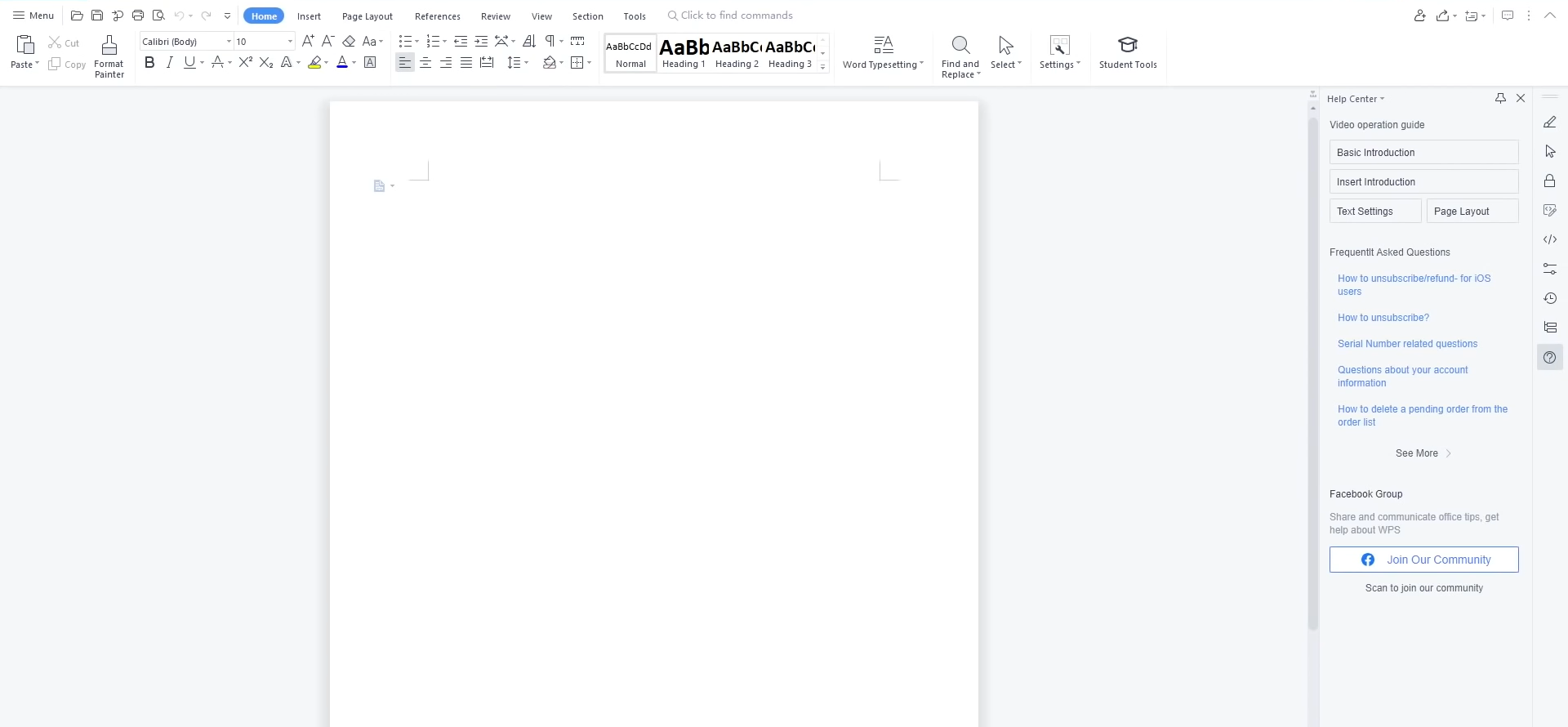

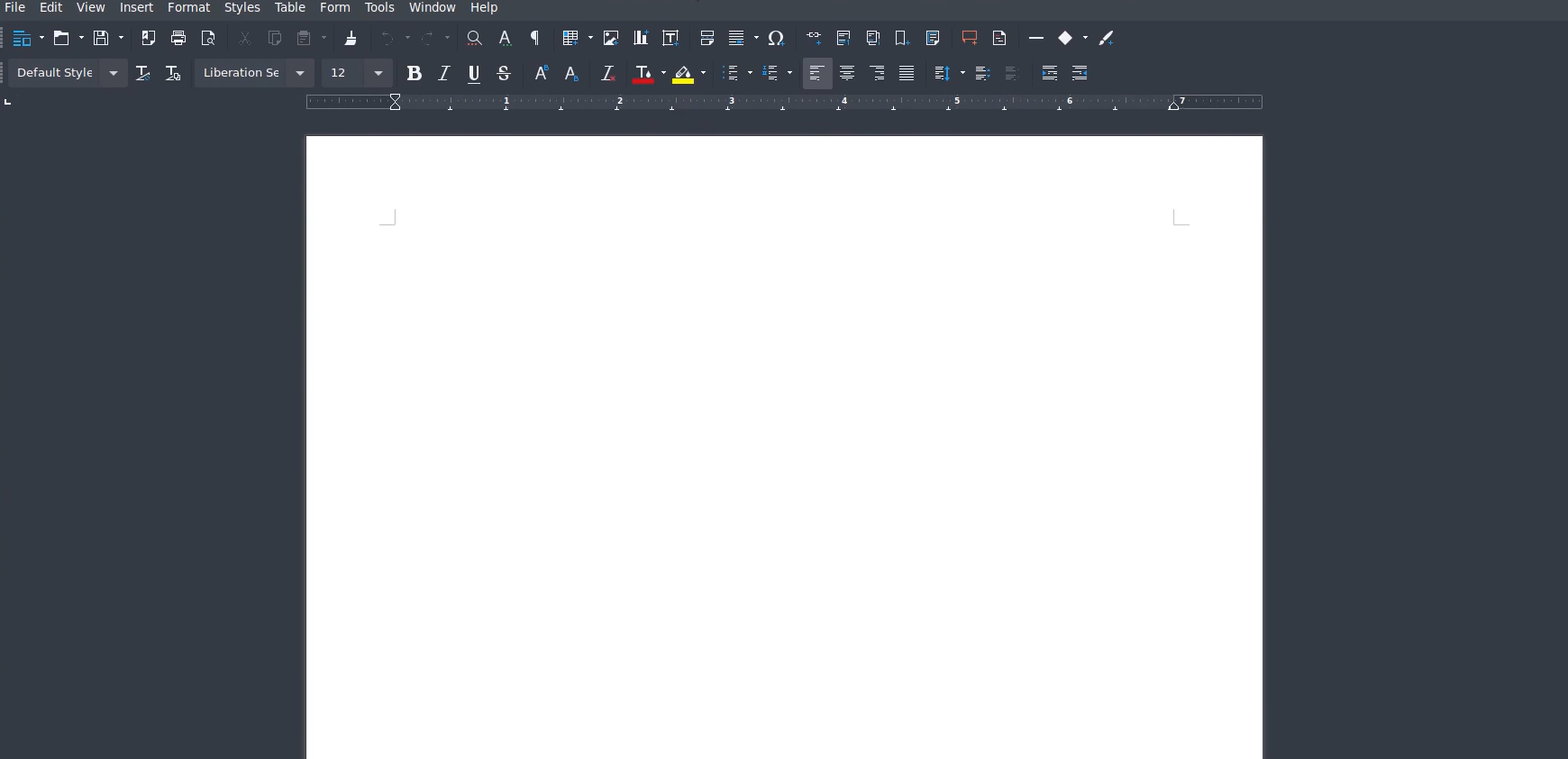
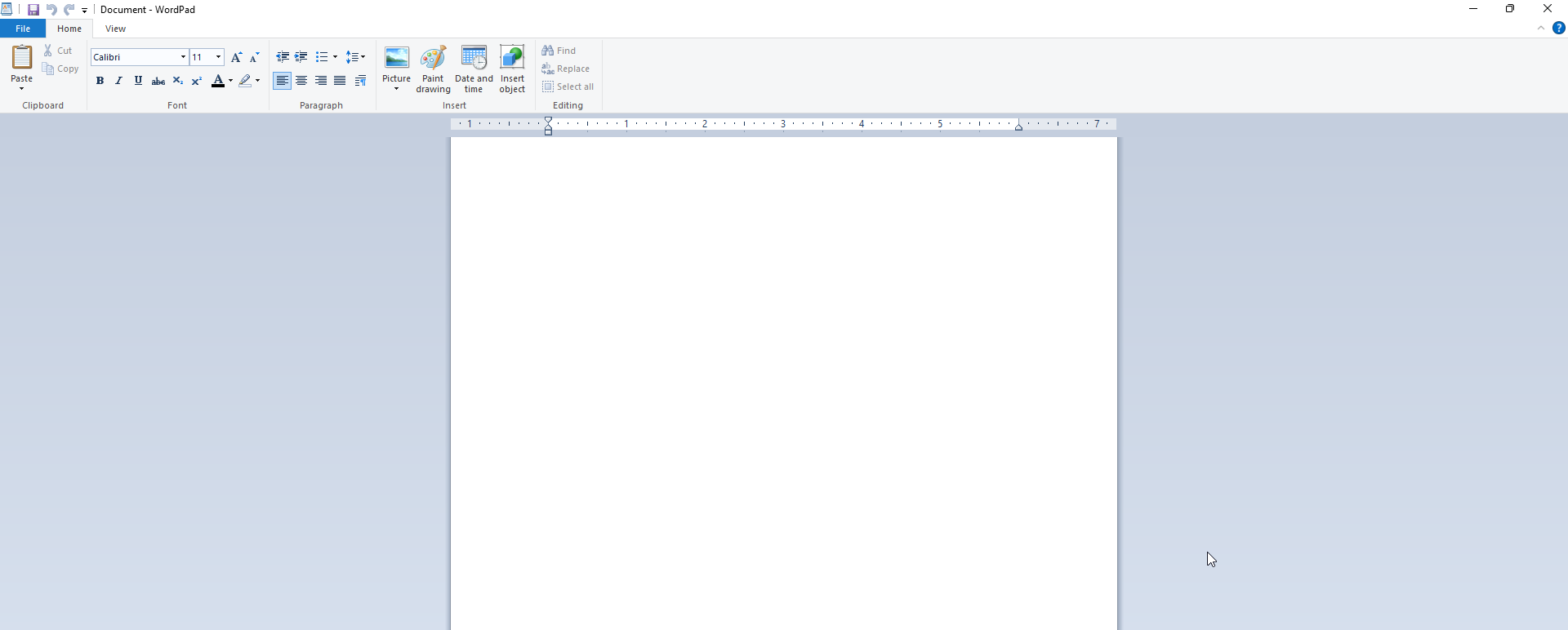
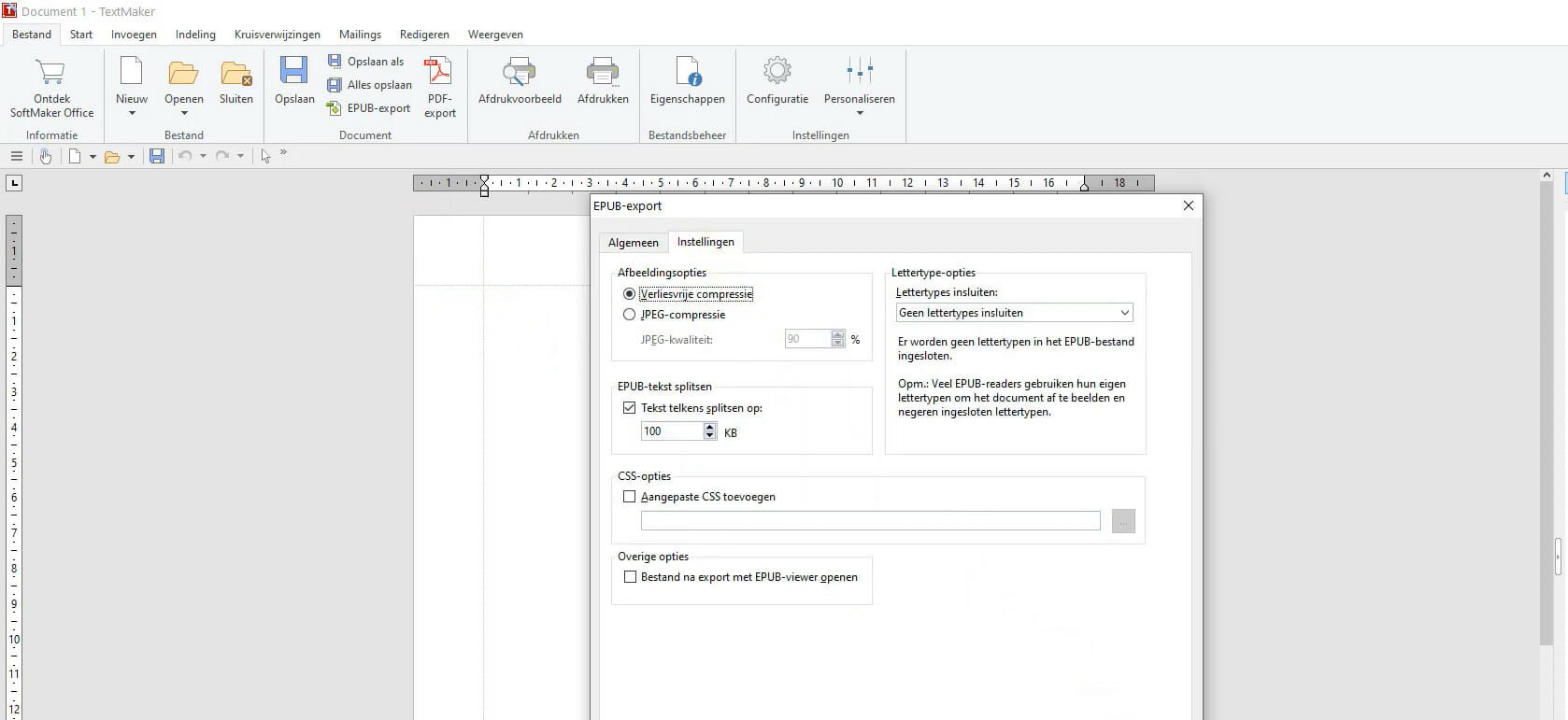

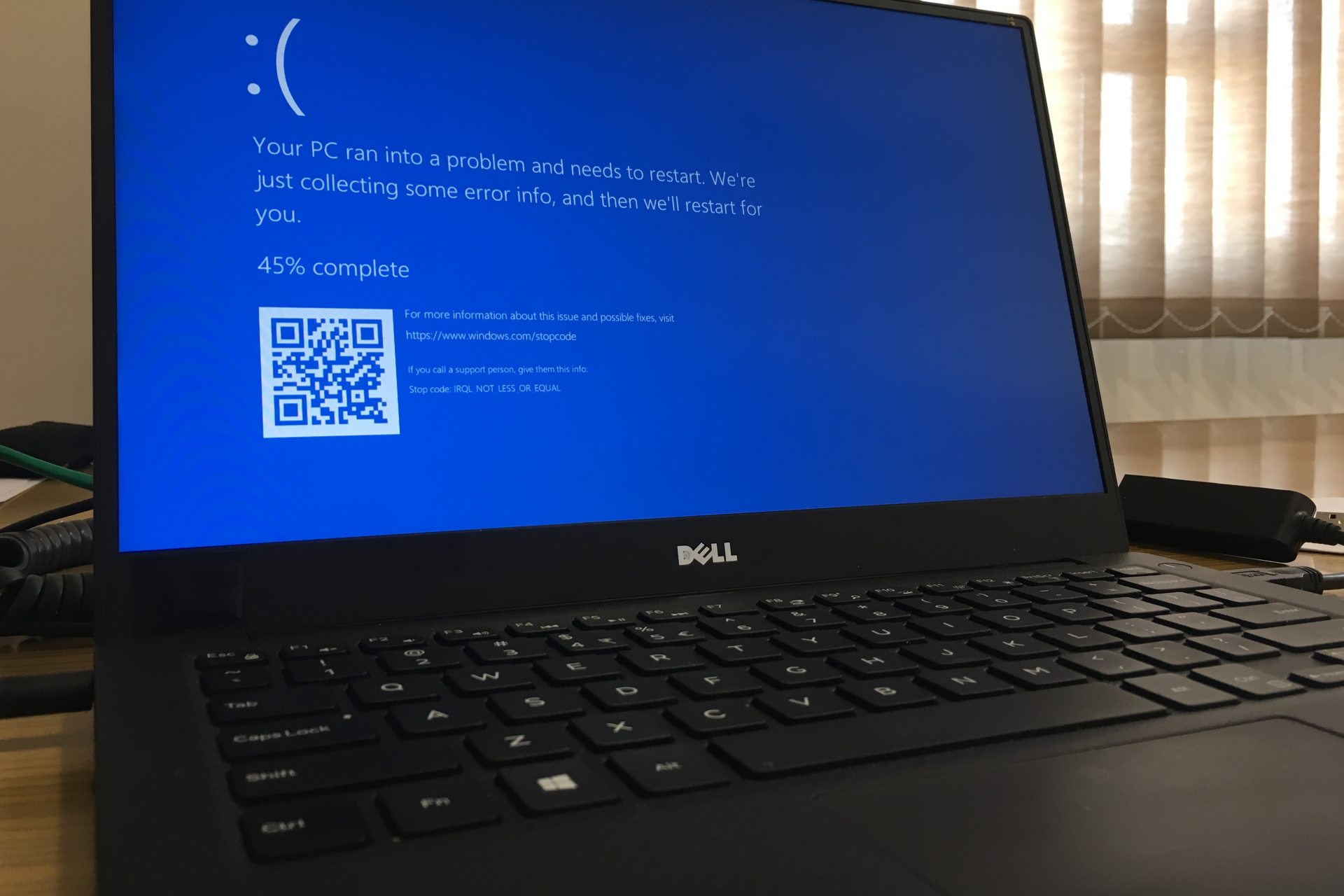

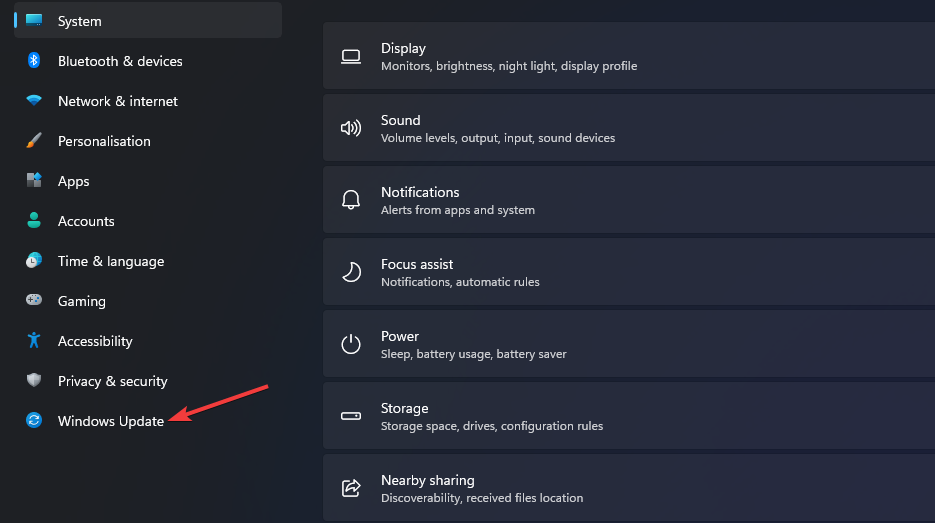


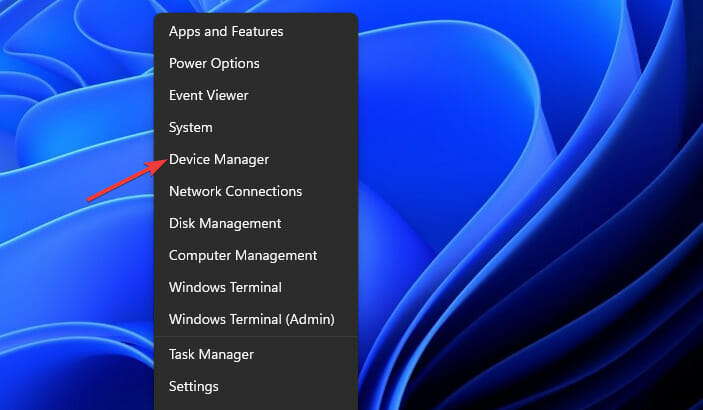


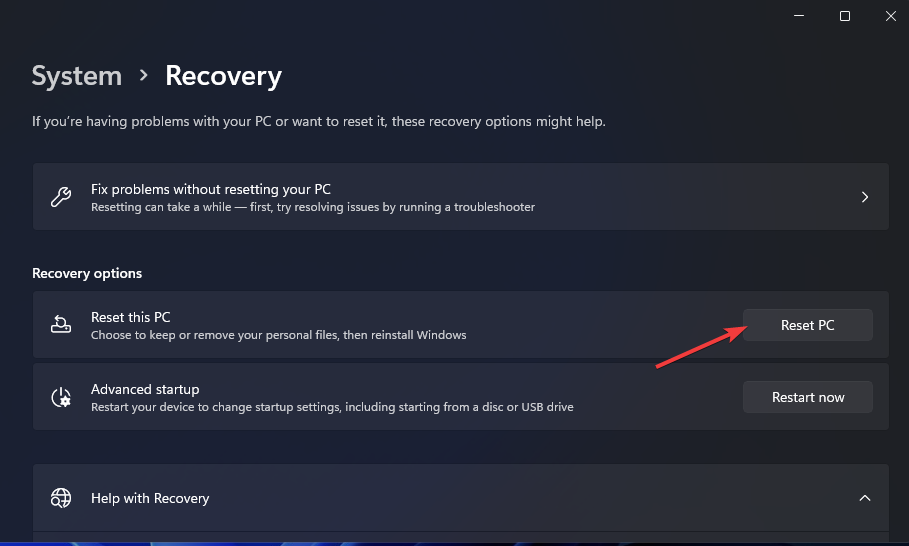


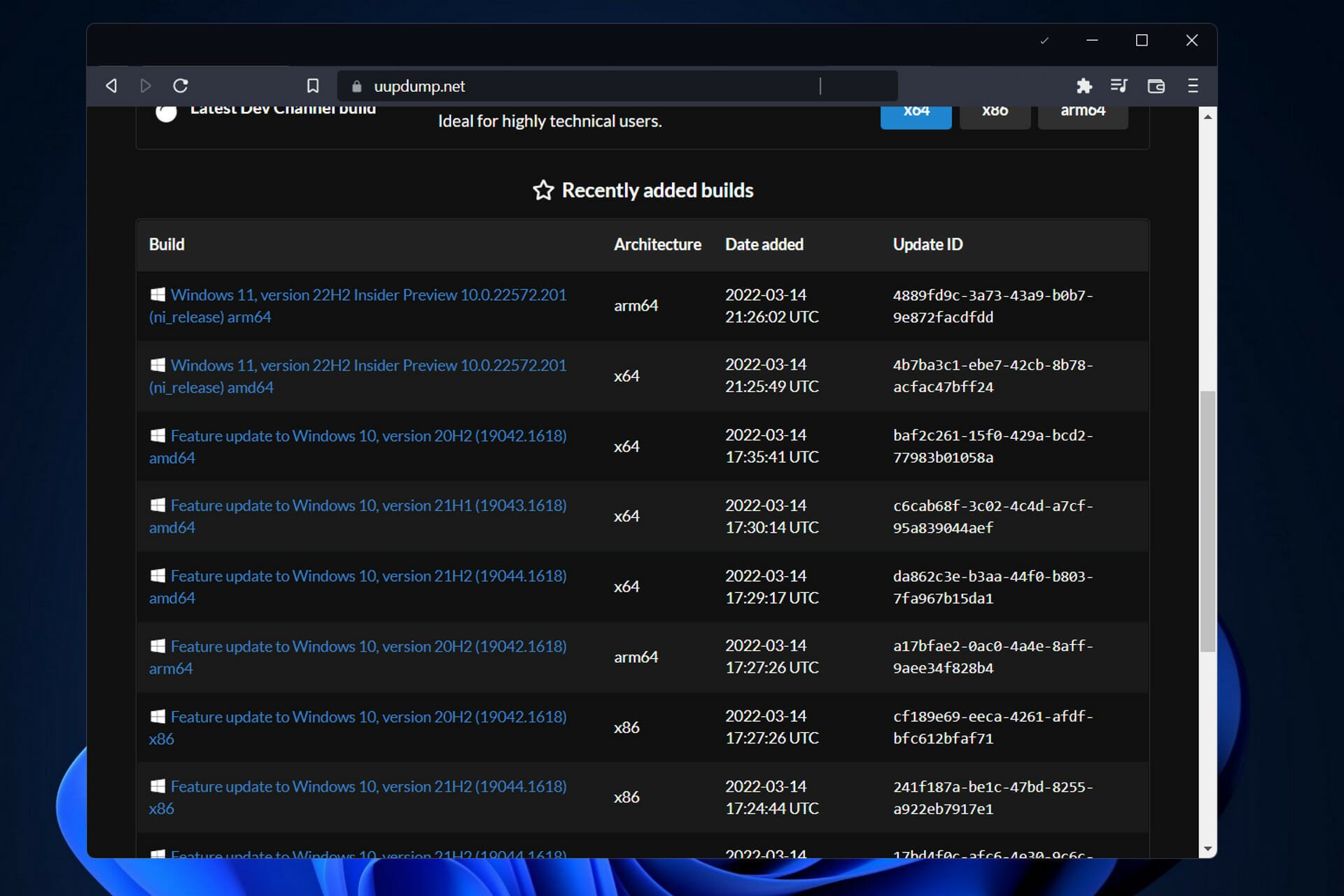
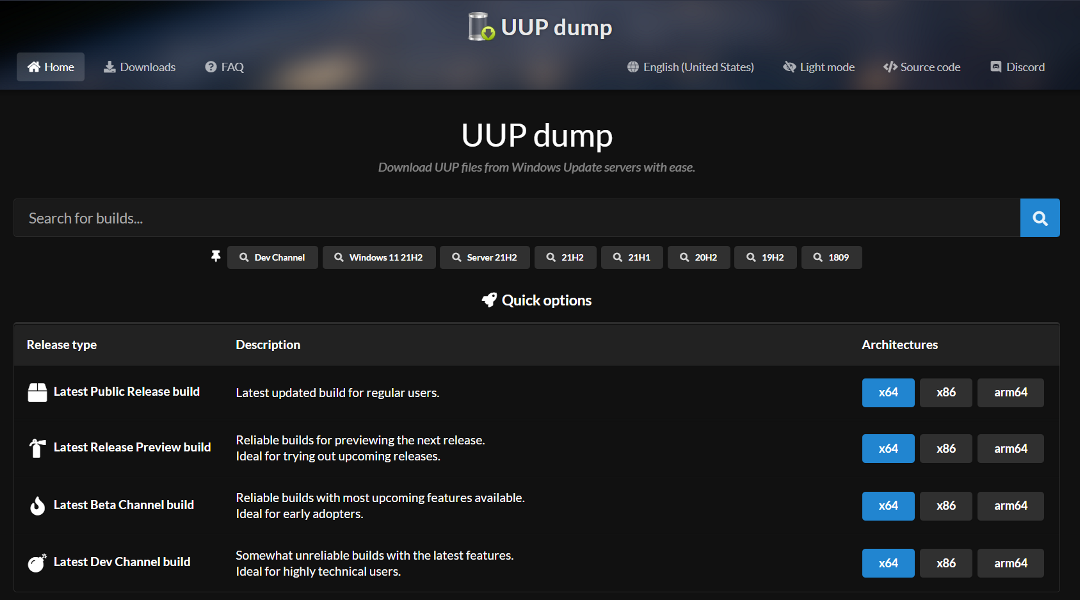
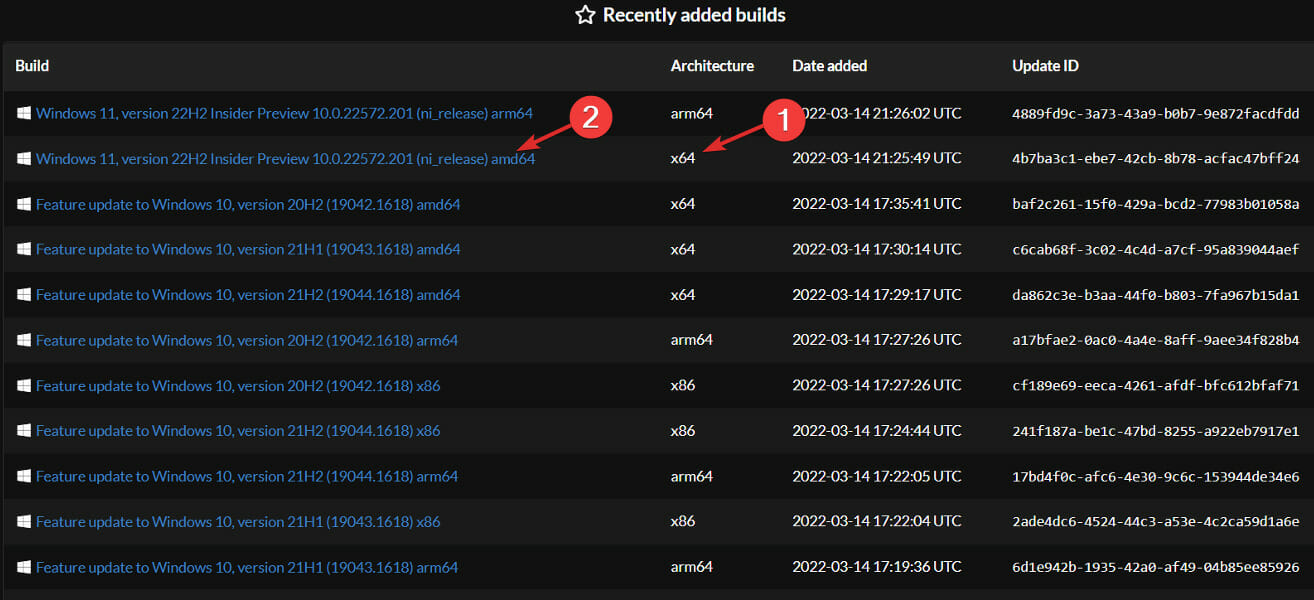
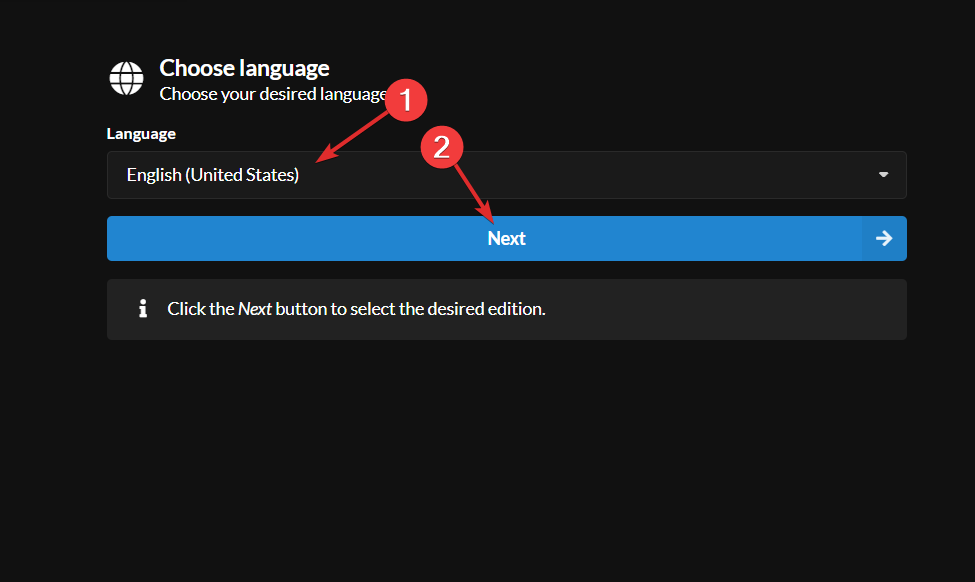
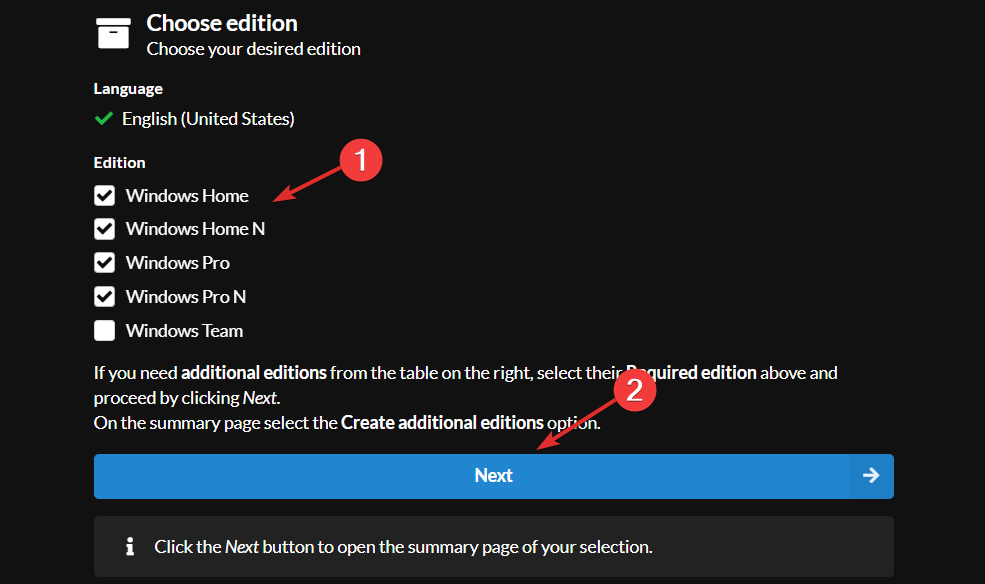
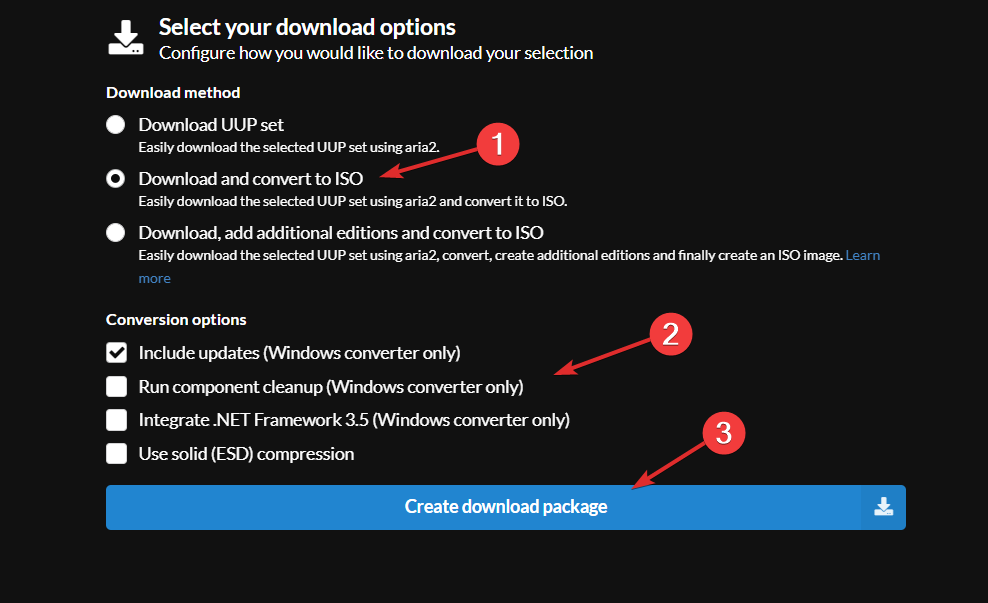
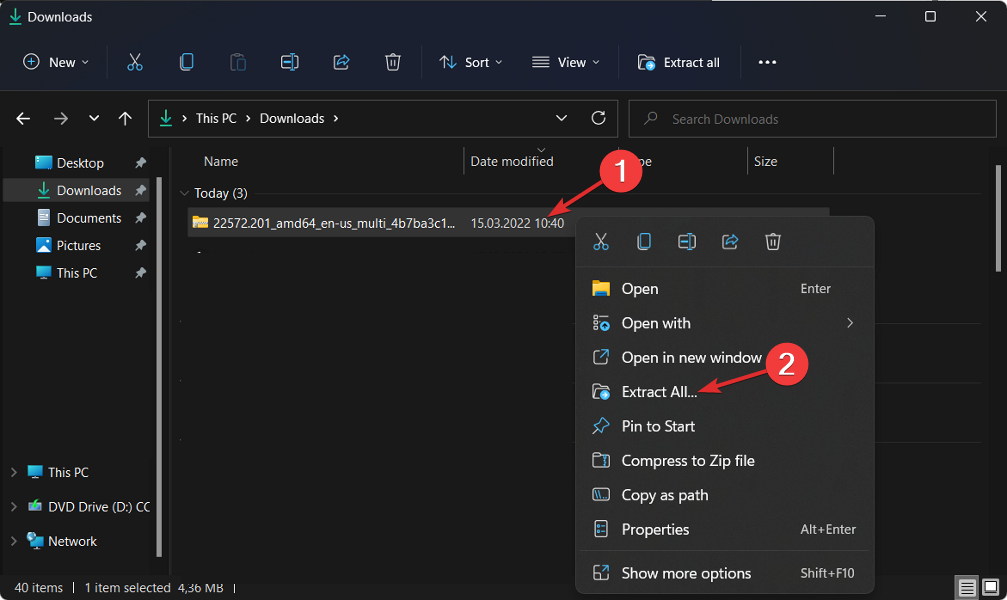
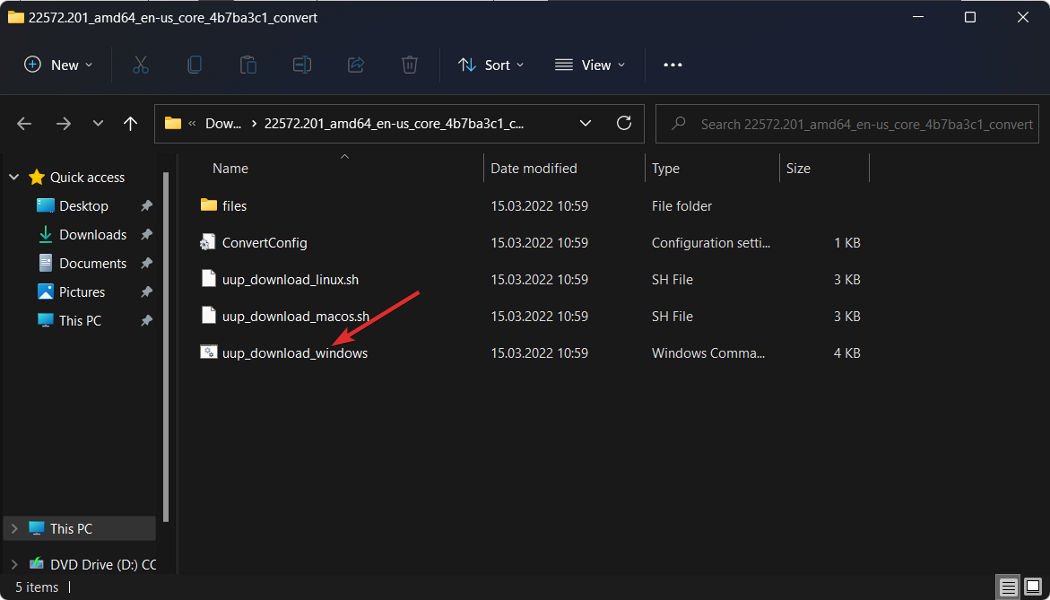
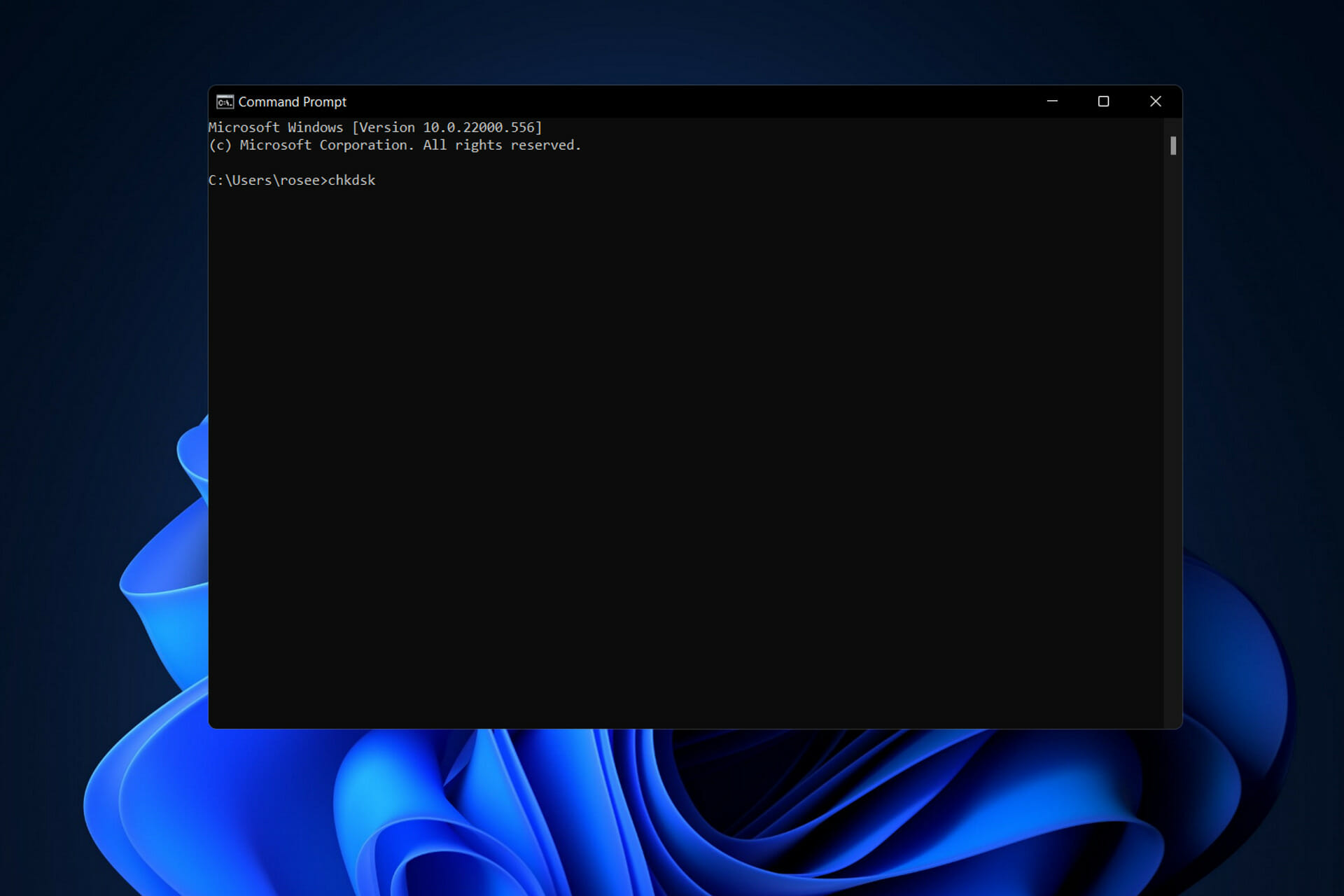
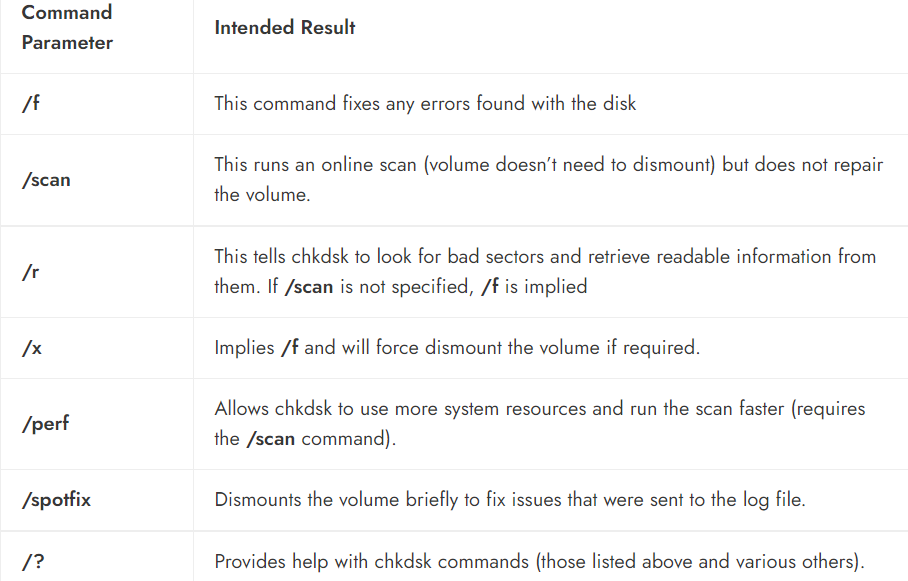
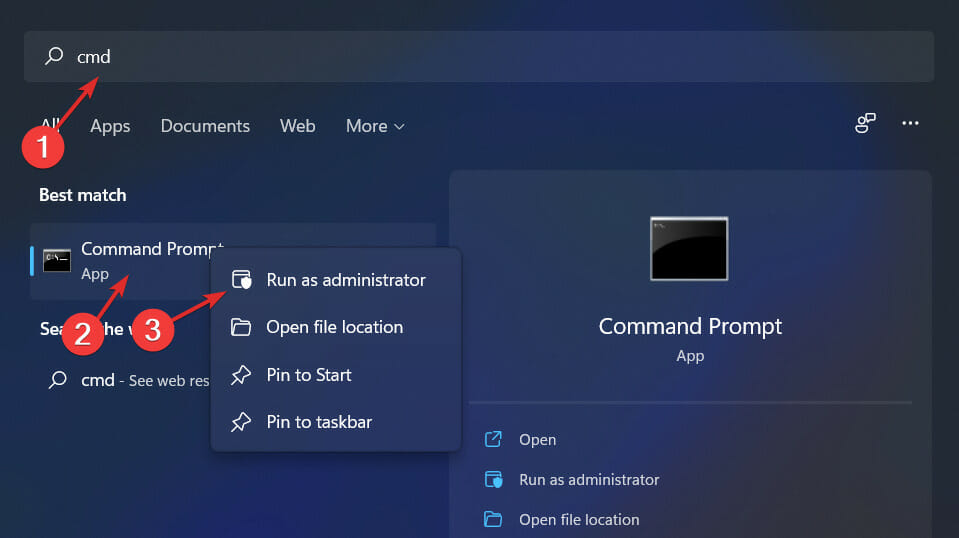
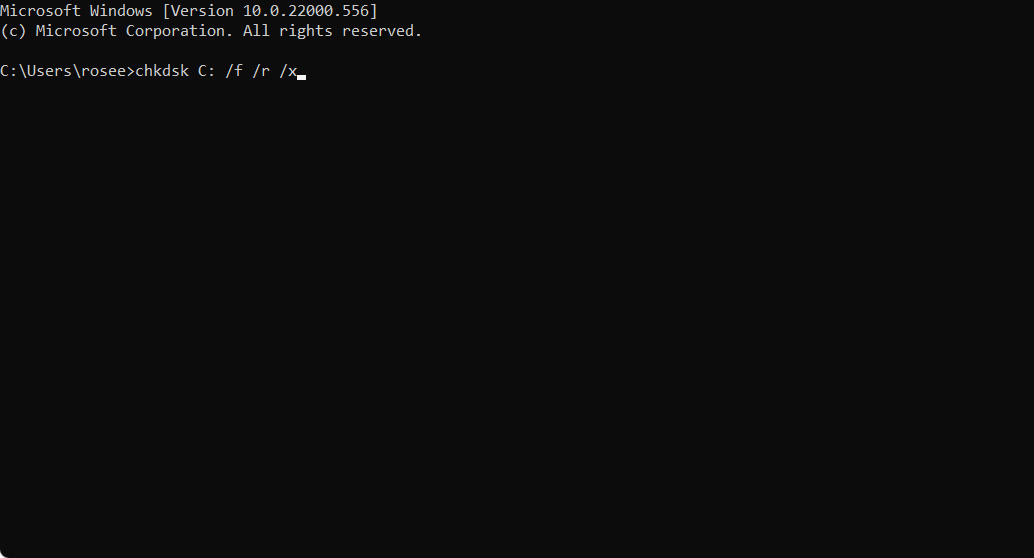
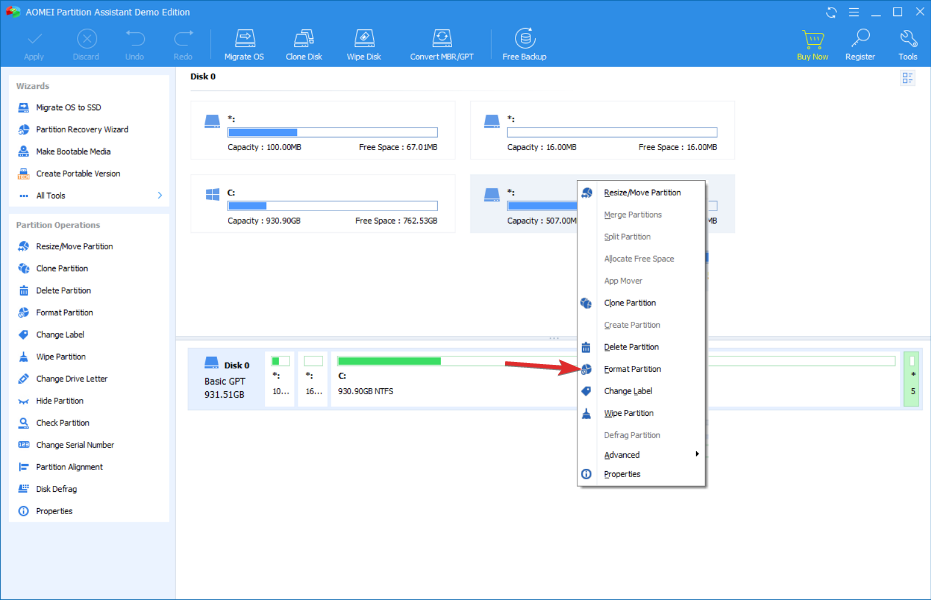
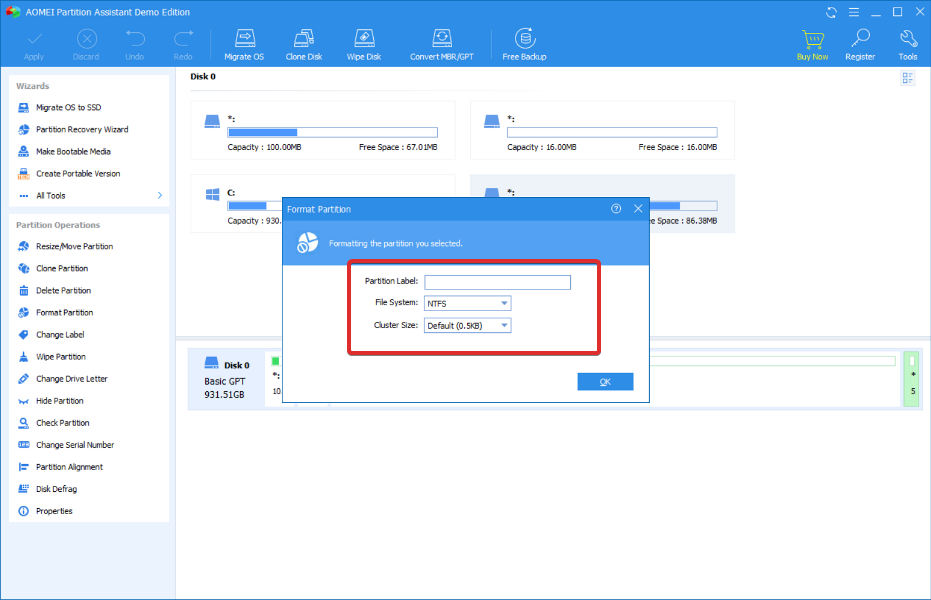
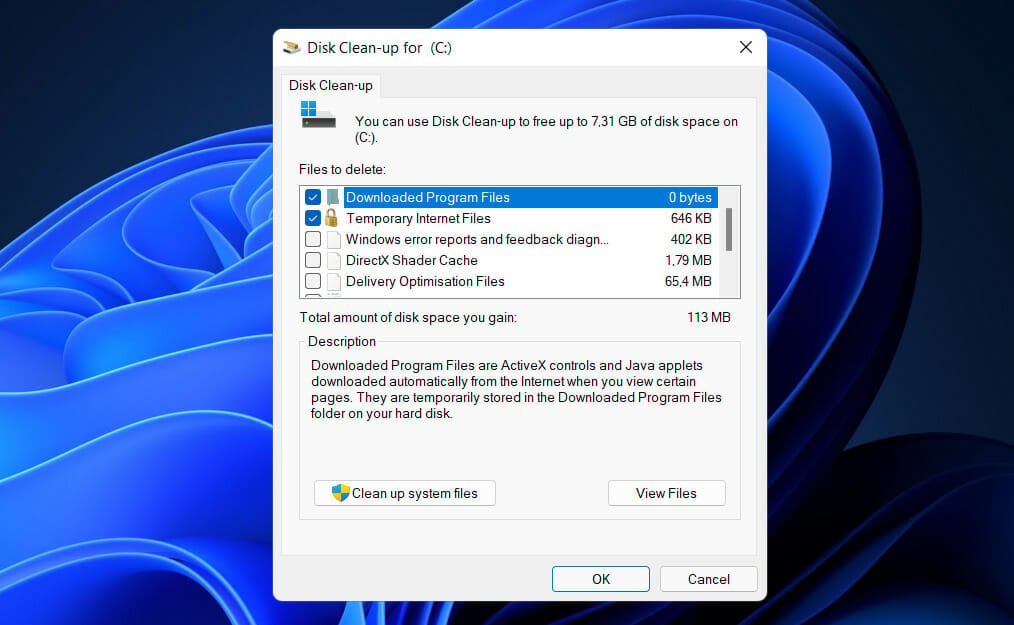

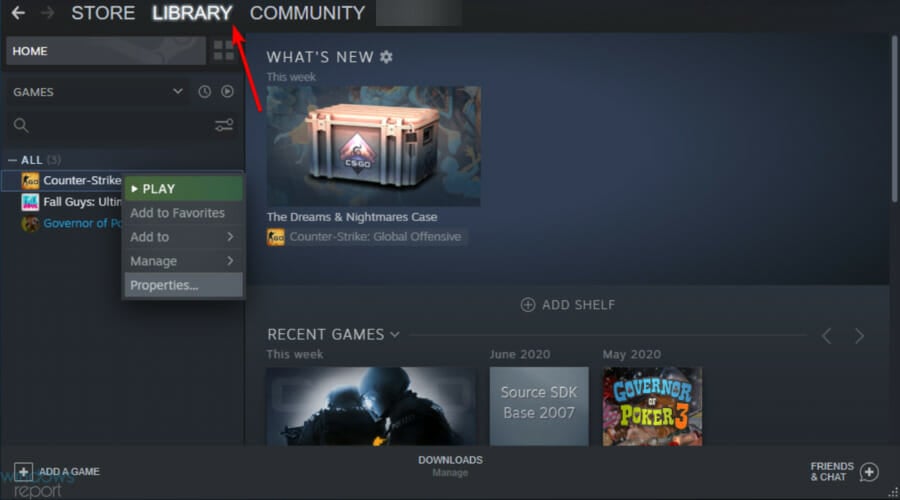

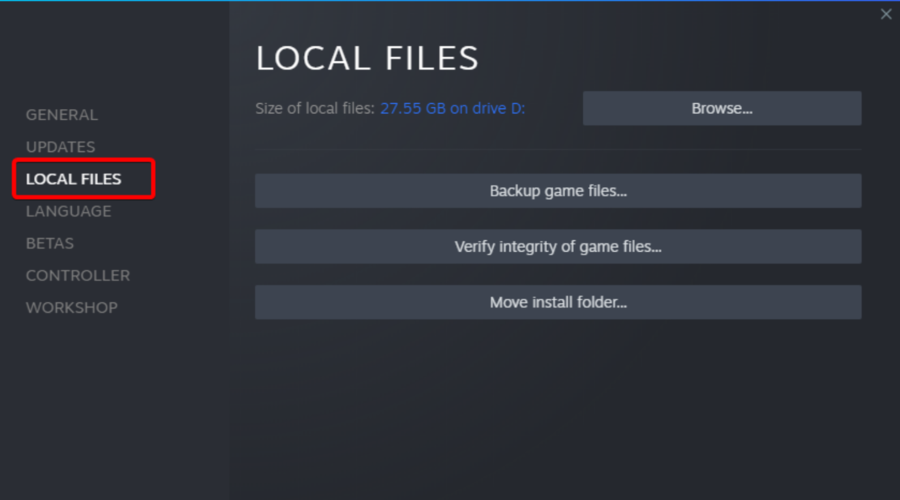
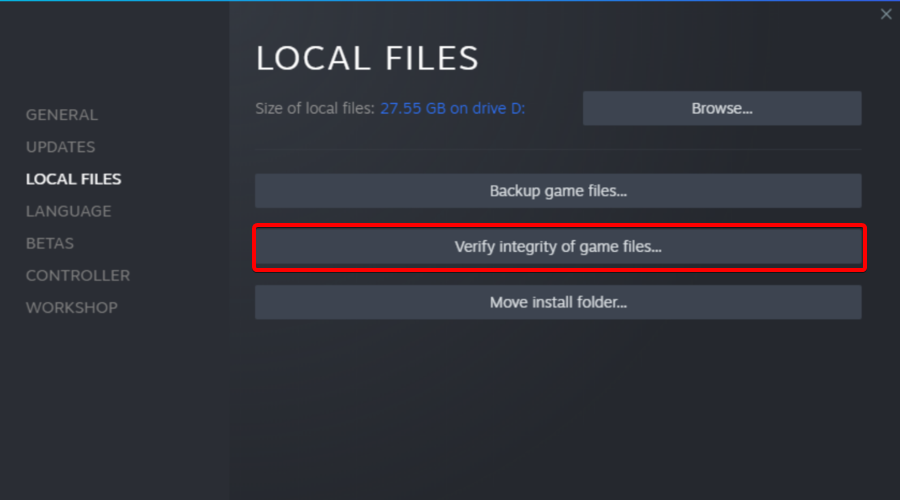


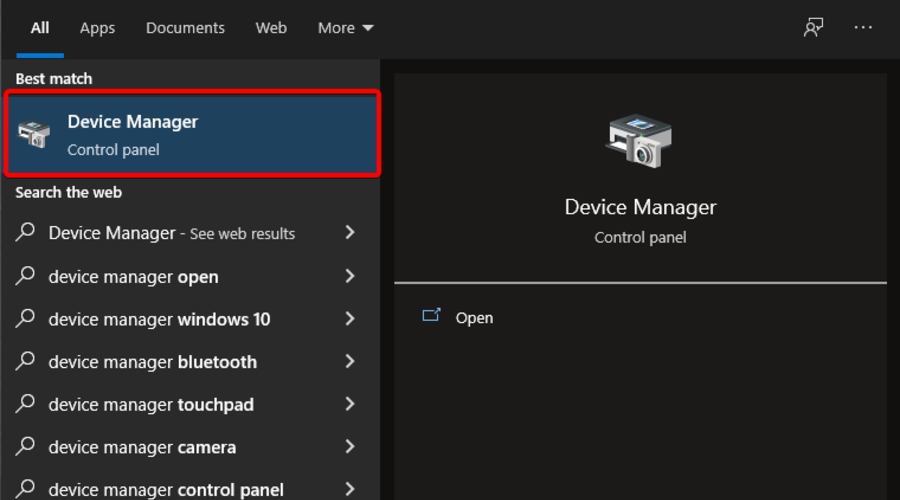
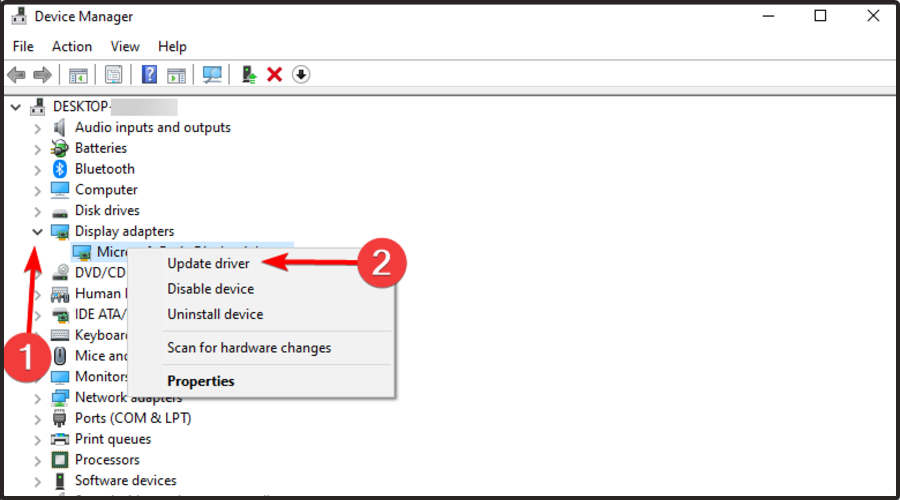
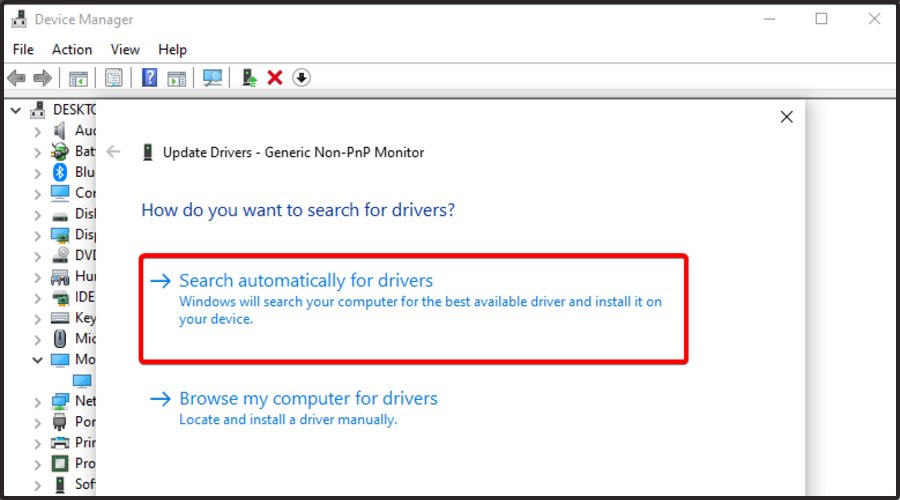

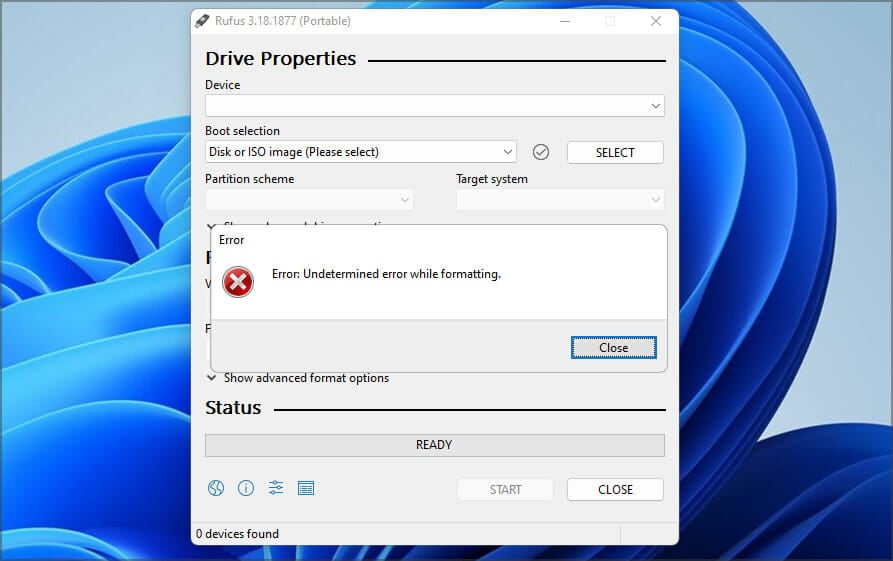
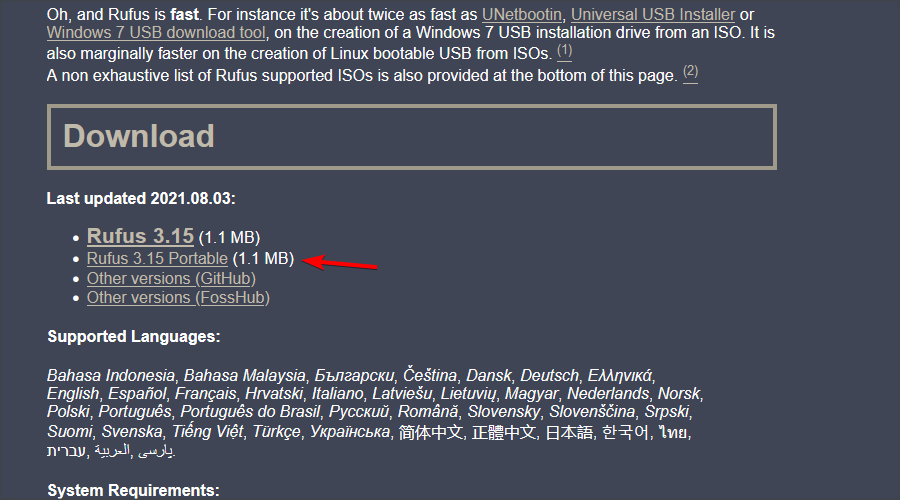


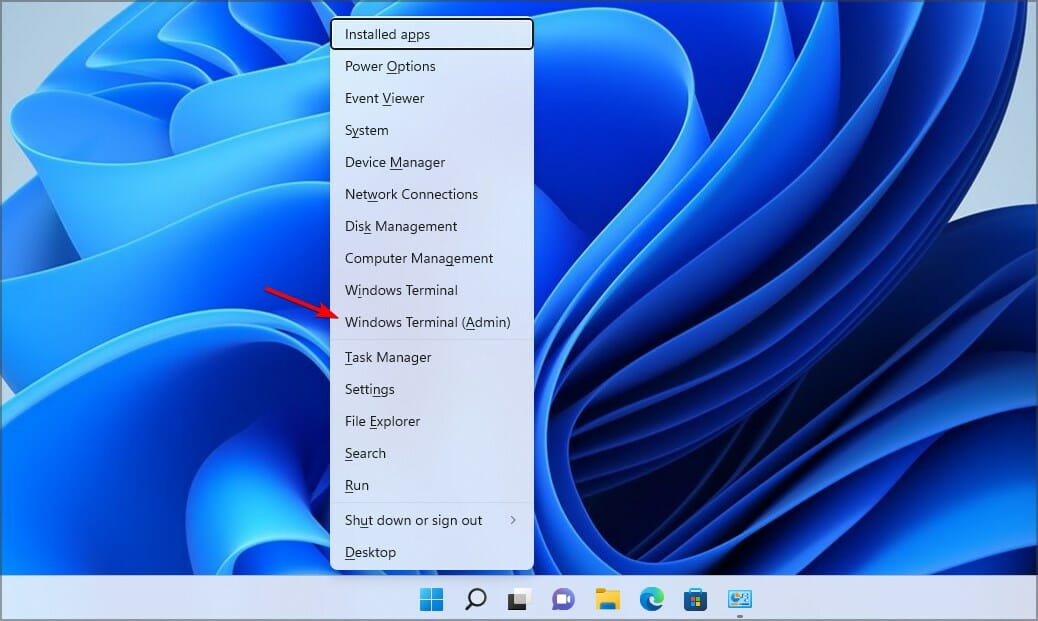


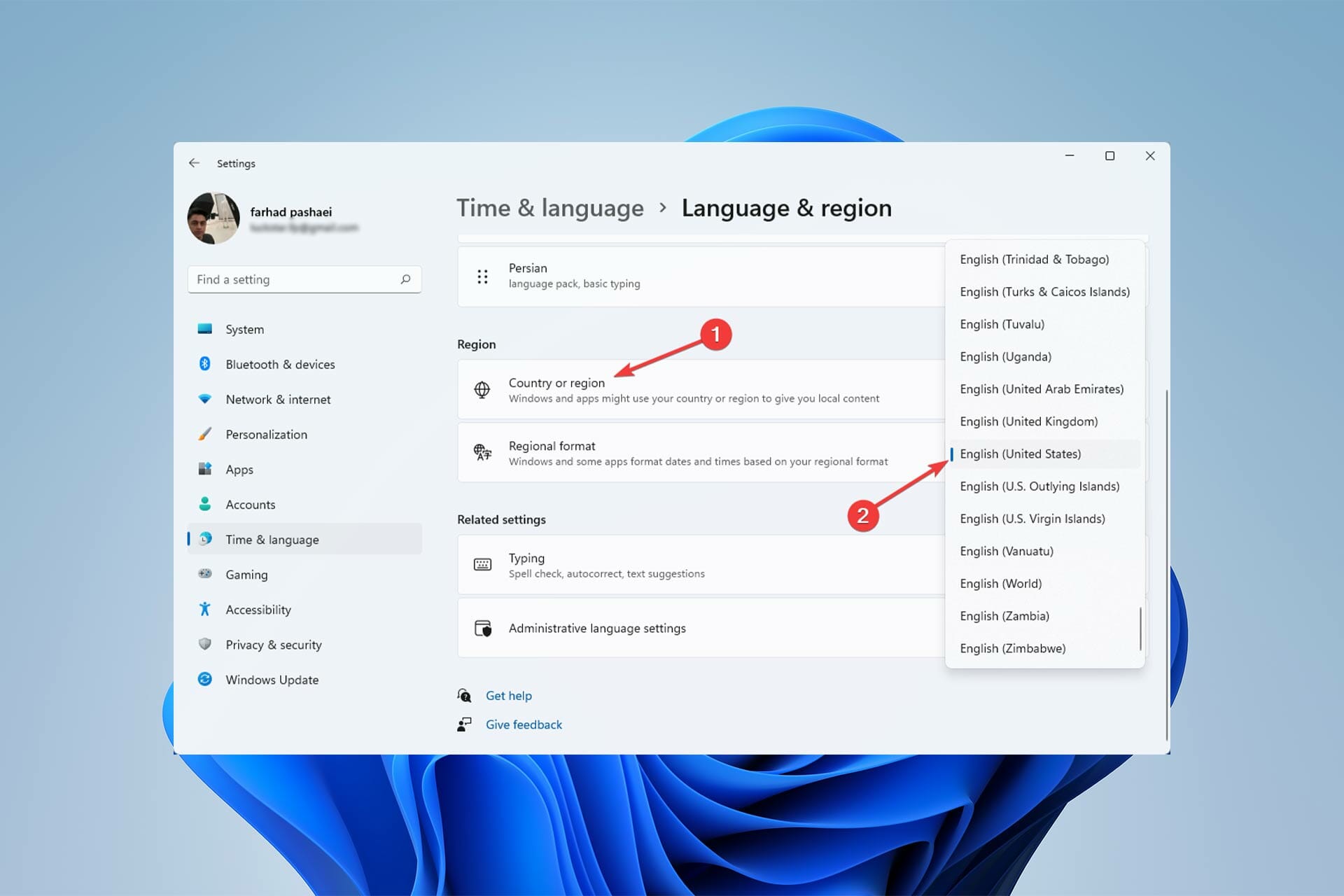


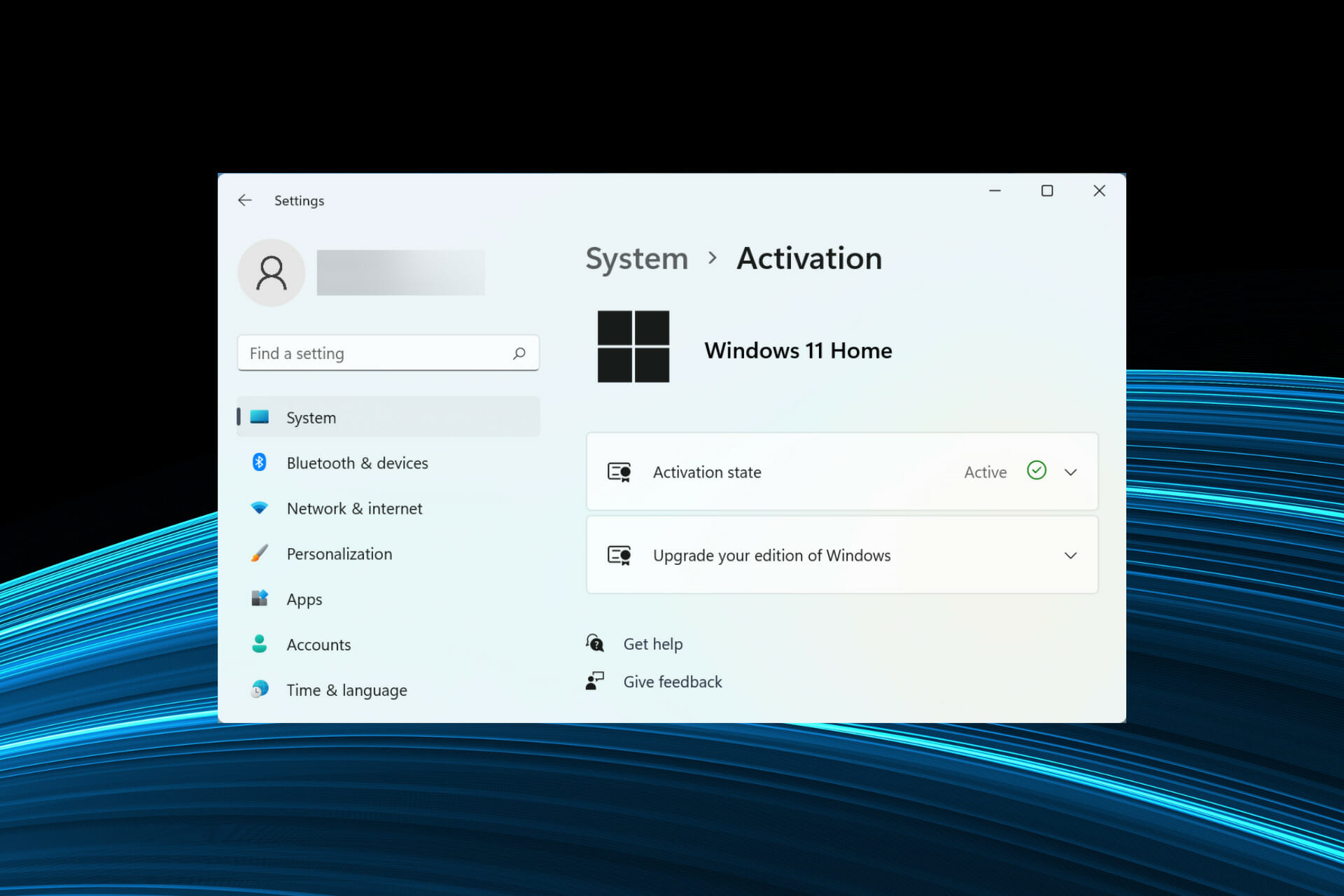
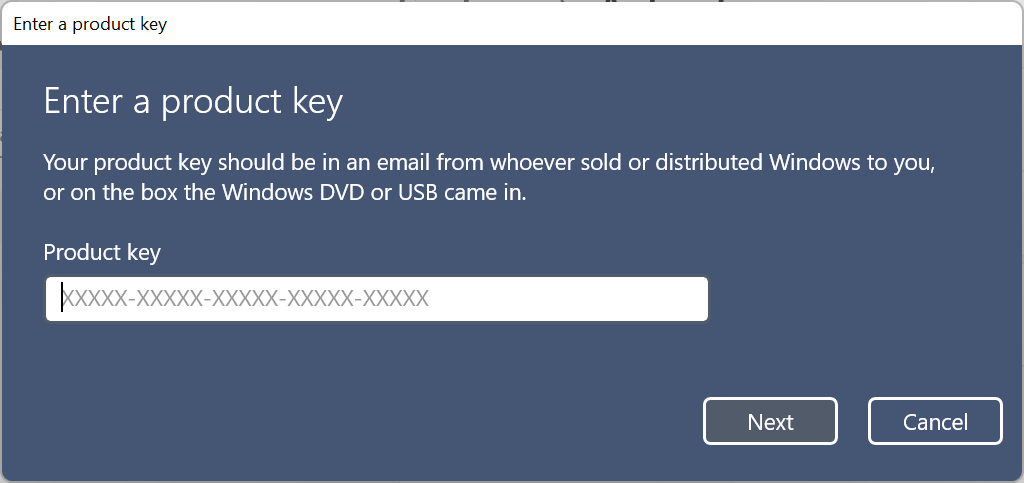
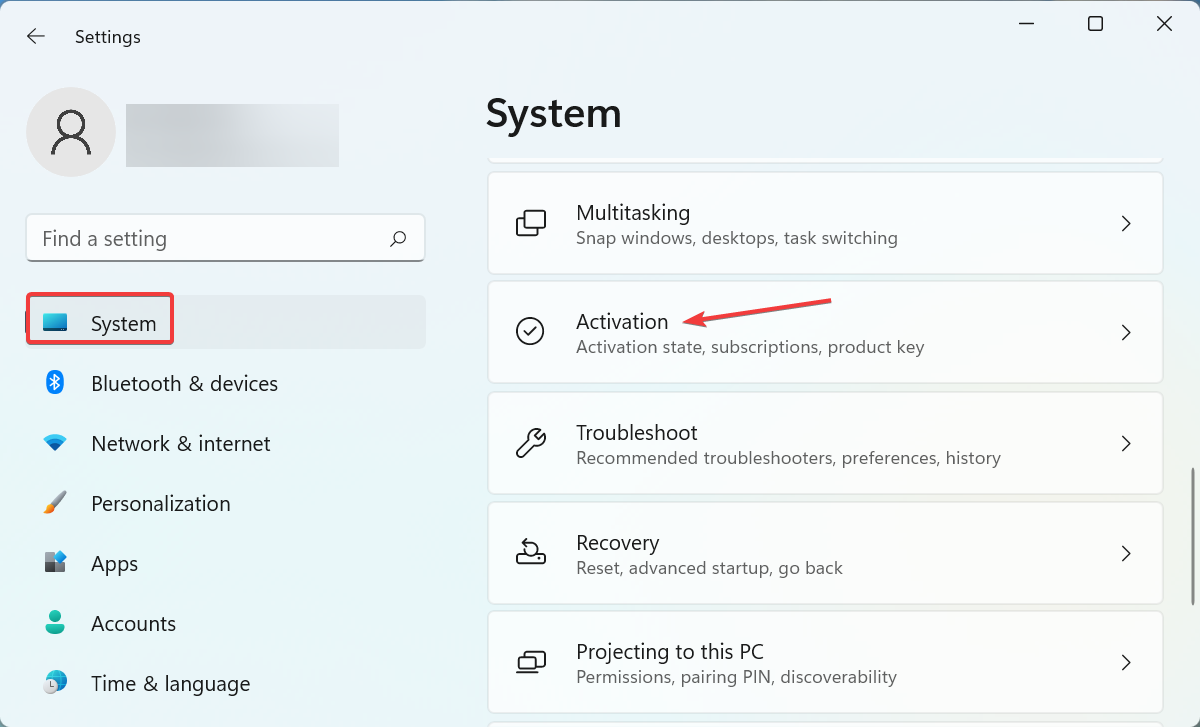
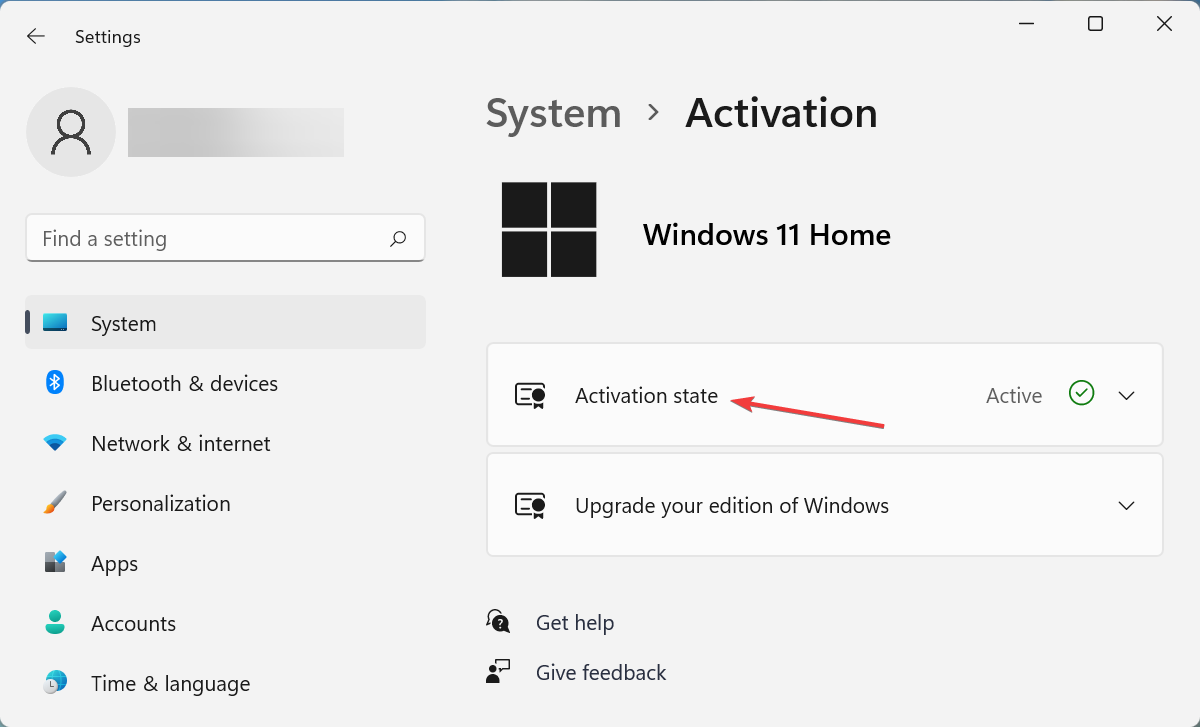
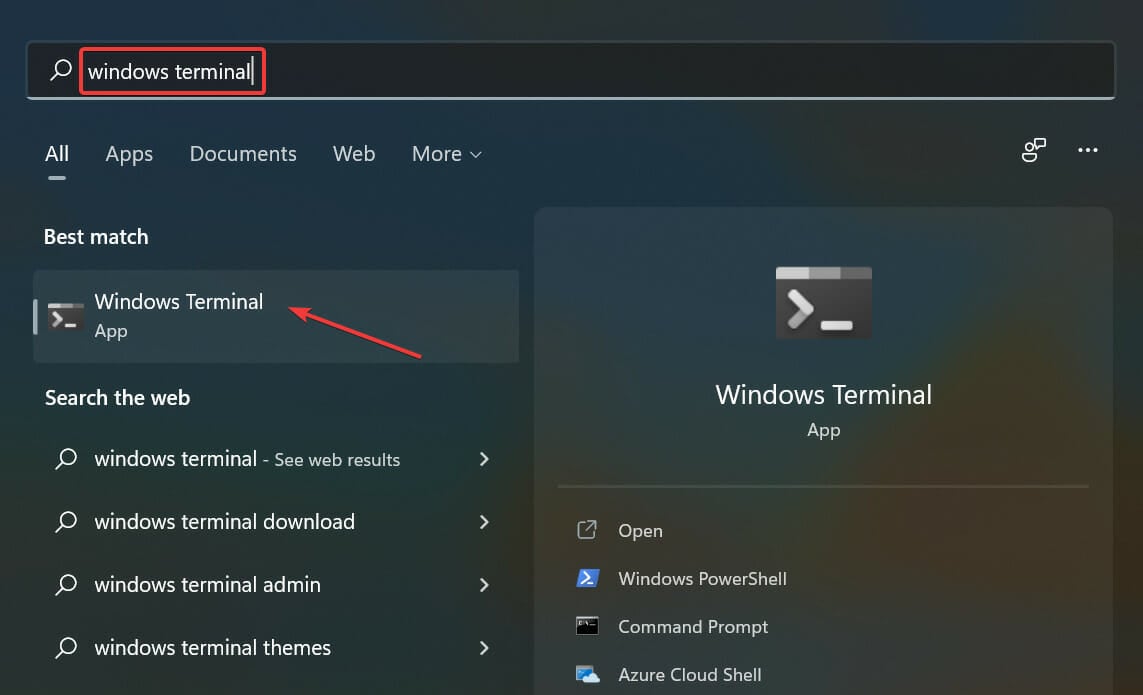
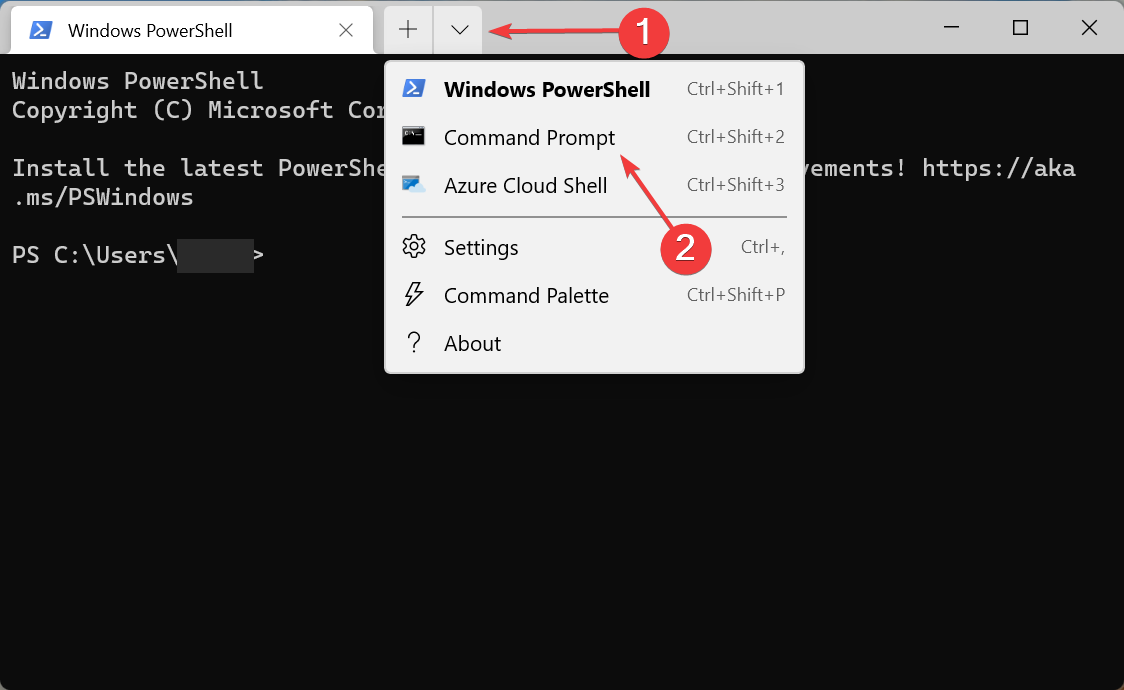
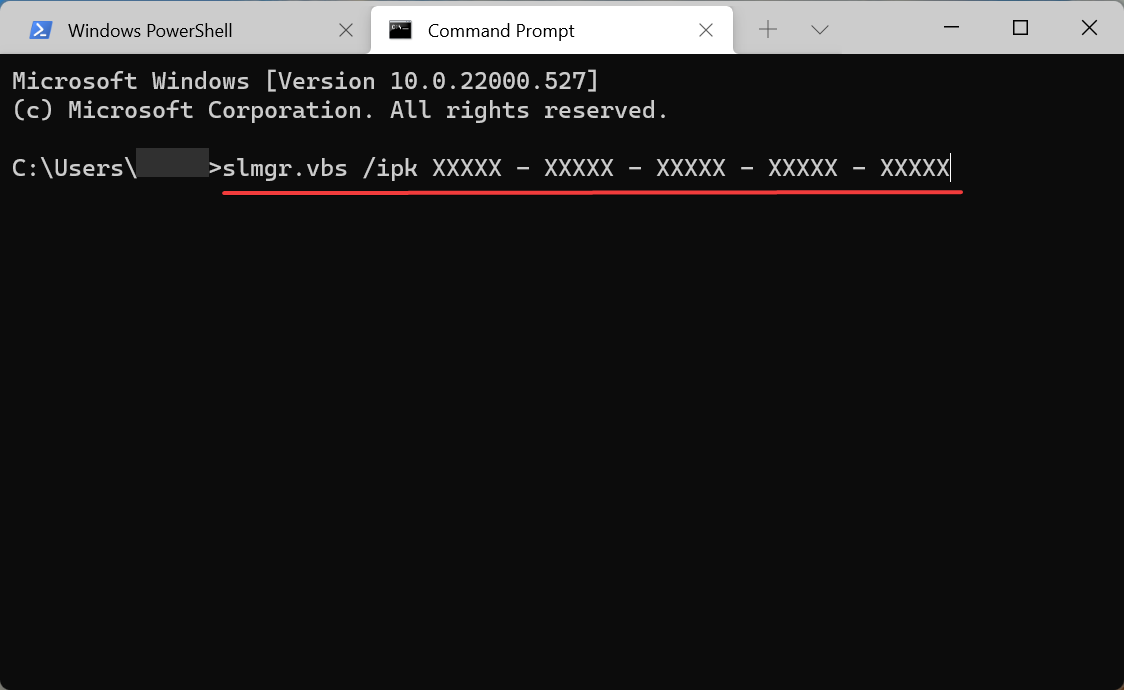
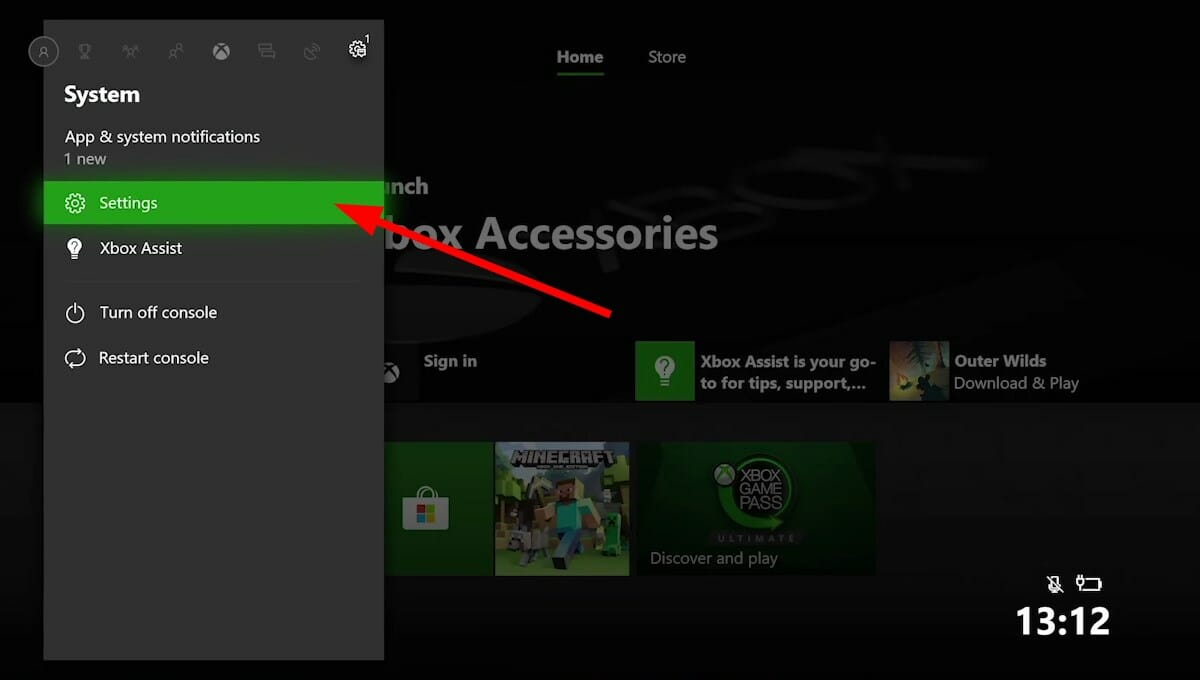


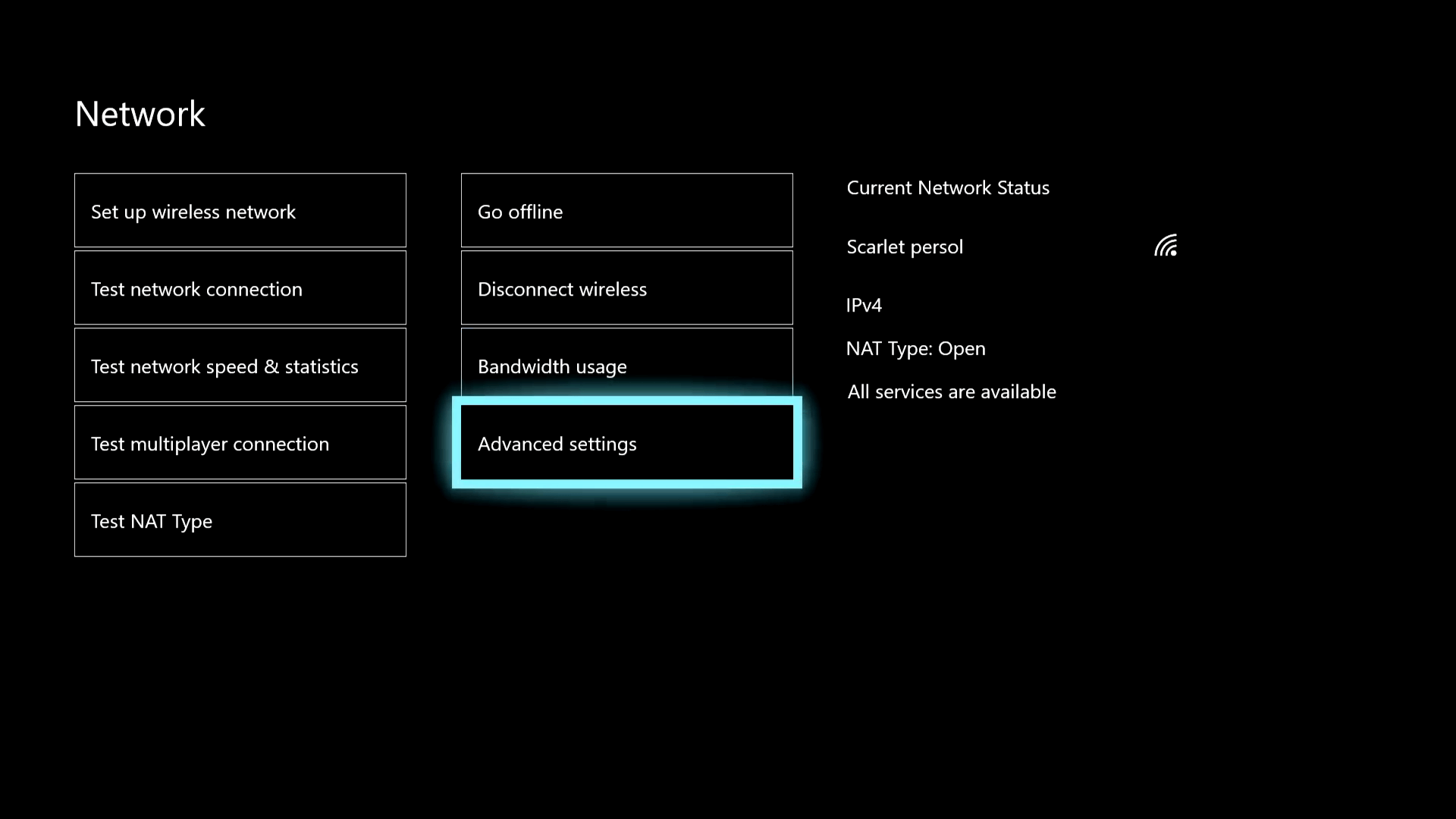
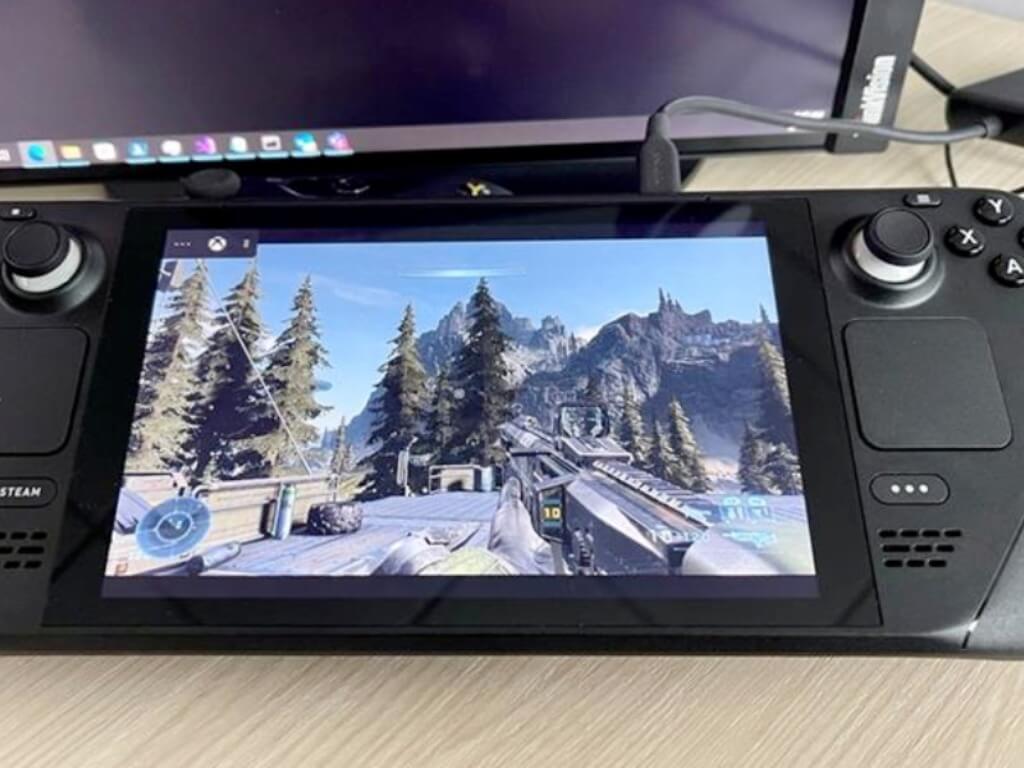
![Windows 11 Installation Failed in the Second_Boot Phase [Fix]](https://windowsreport.com/wp-content/uploads/2022/03/health-check.jpg)



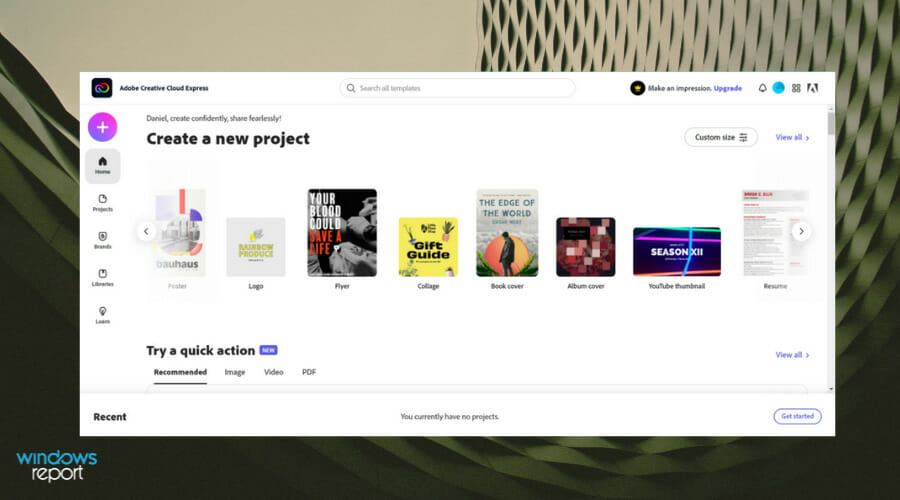

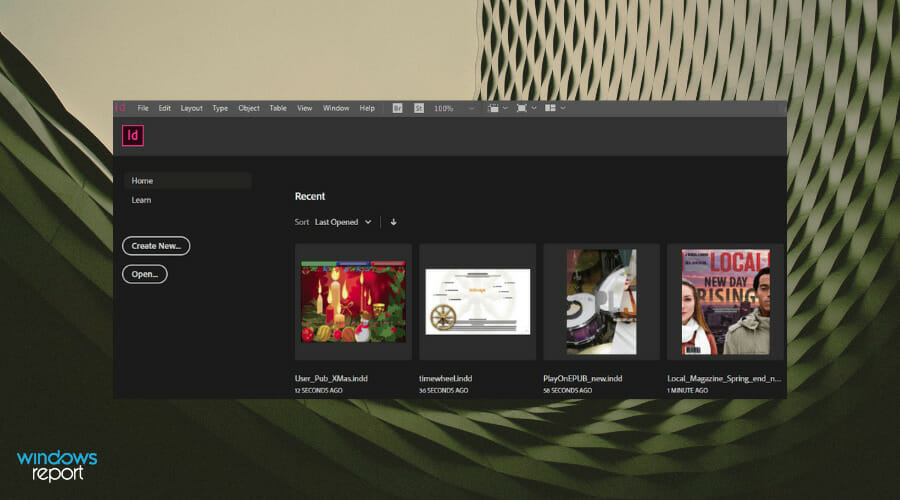




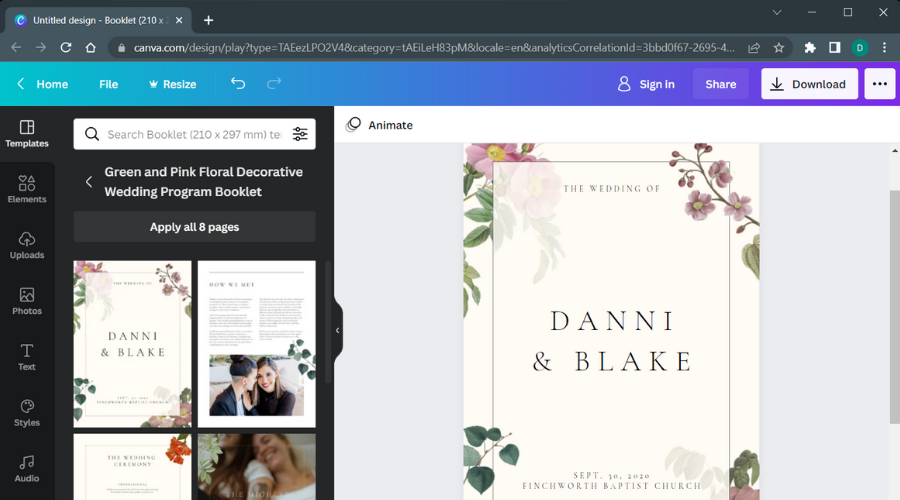
![Lost Ark: Not Enough Disk Space [Solve it Now]](https://windowsreport.com/wp-content/uploads/2022/03/lost-ark-disk-space-1.jpg)


![How to Fix AMD Driver Crashes in Windows 11 [7 Ways]](https://windowsreport.com/wp-content/uploads/2021/12/amd-crash.jpg)
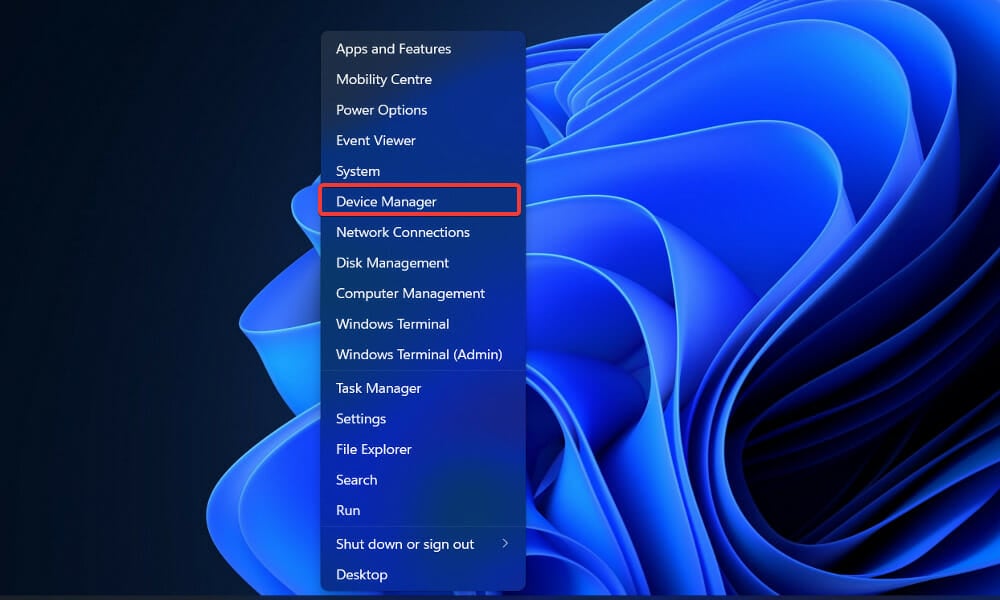
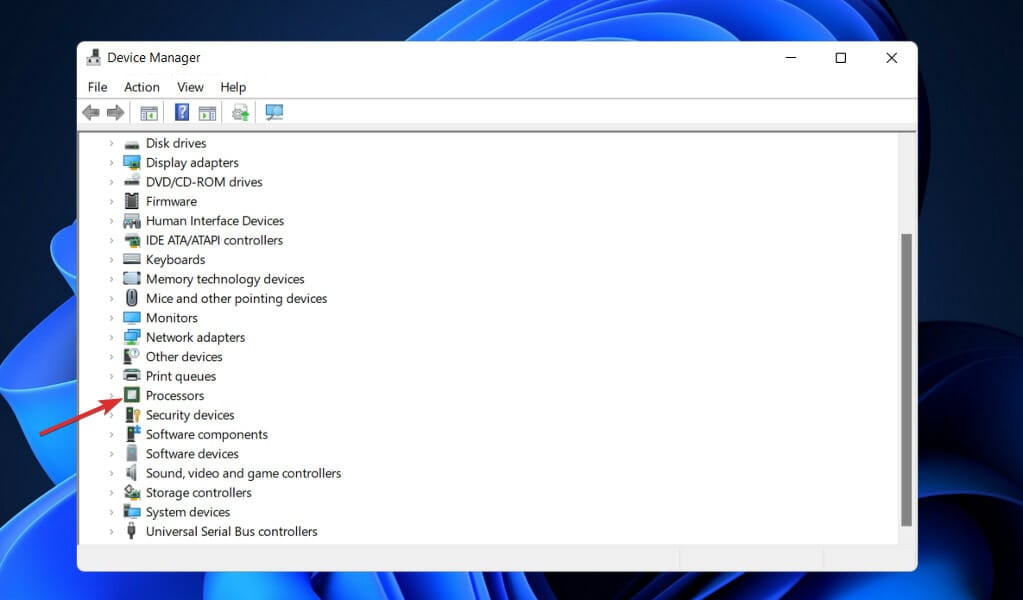
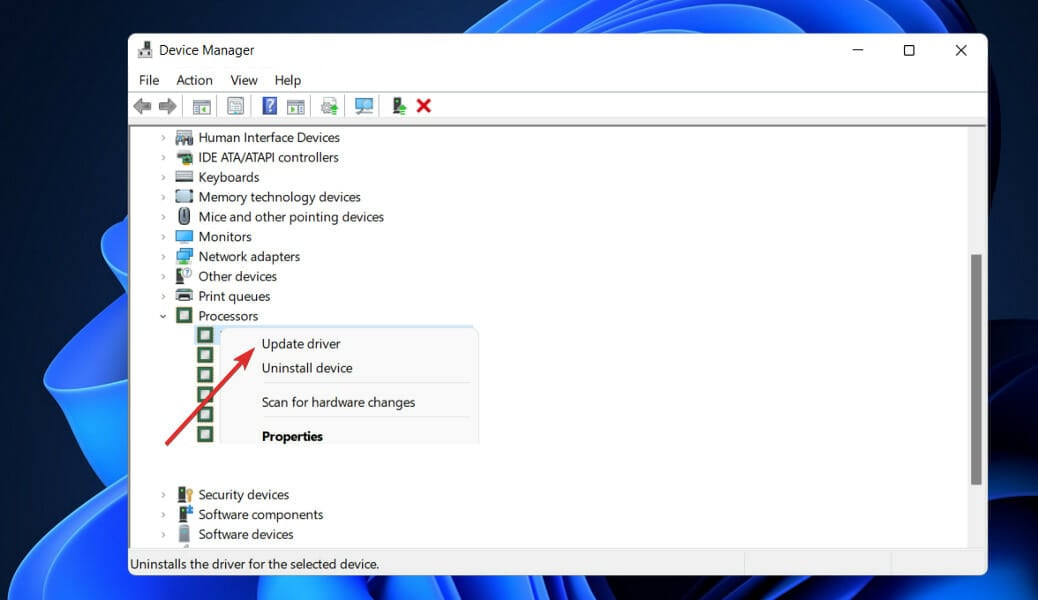
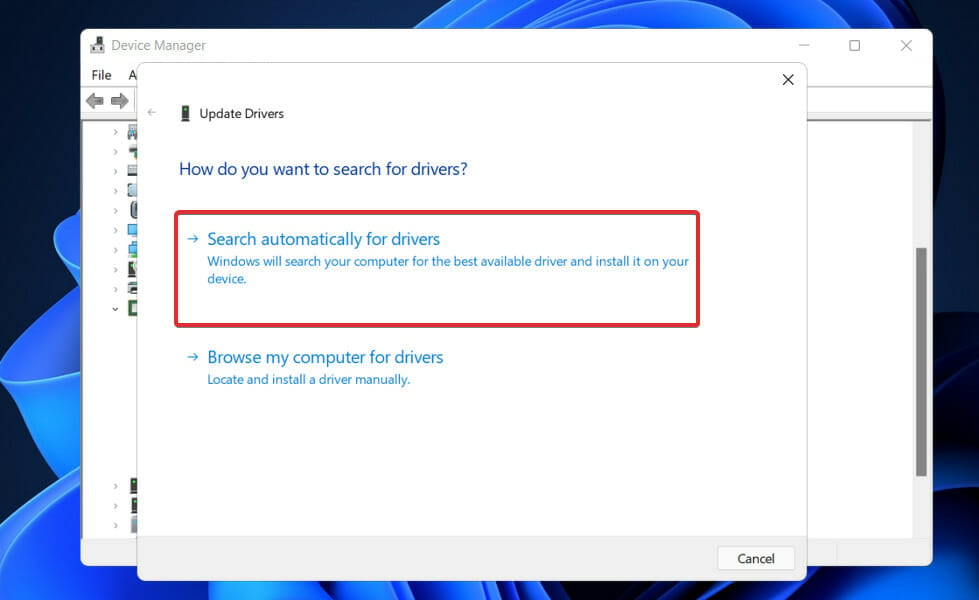
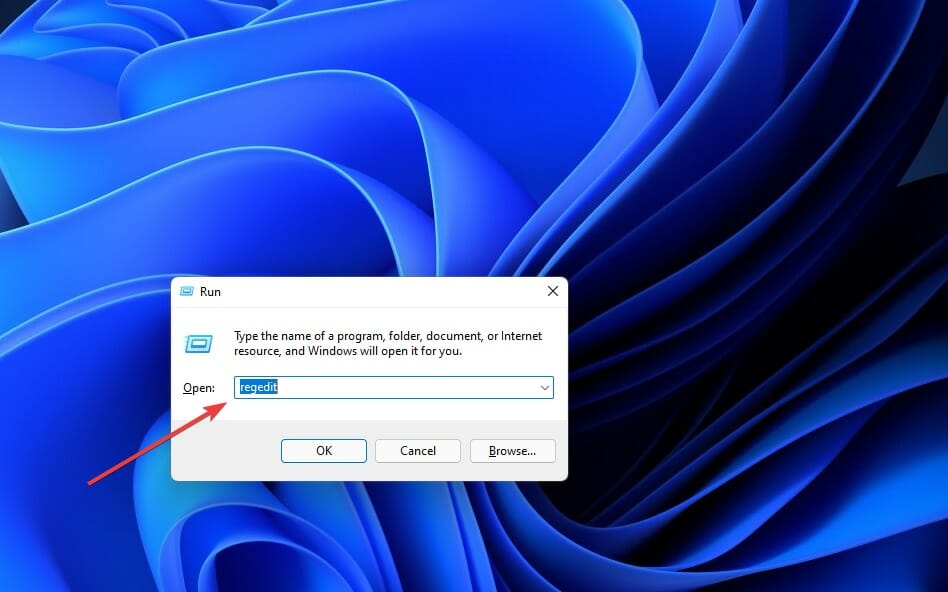
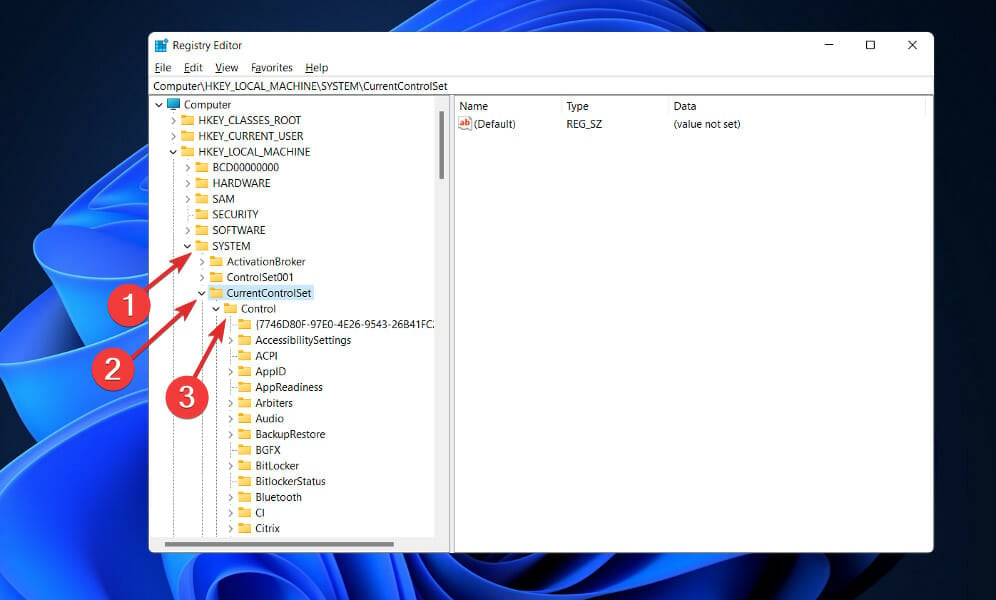
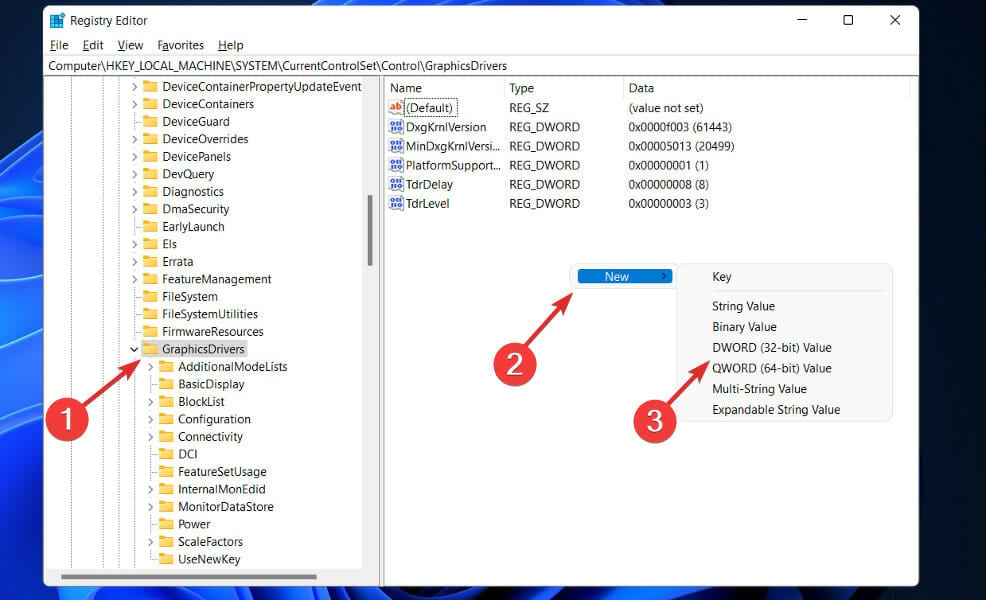
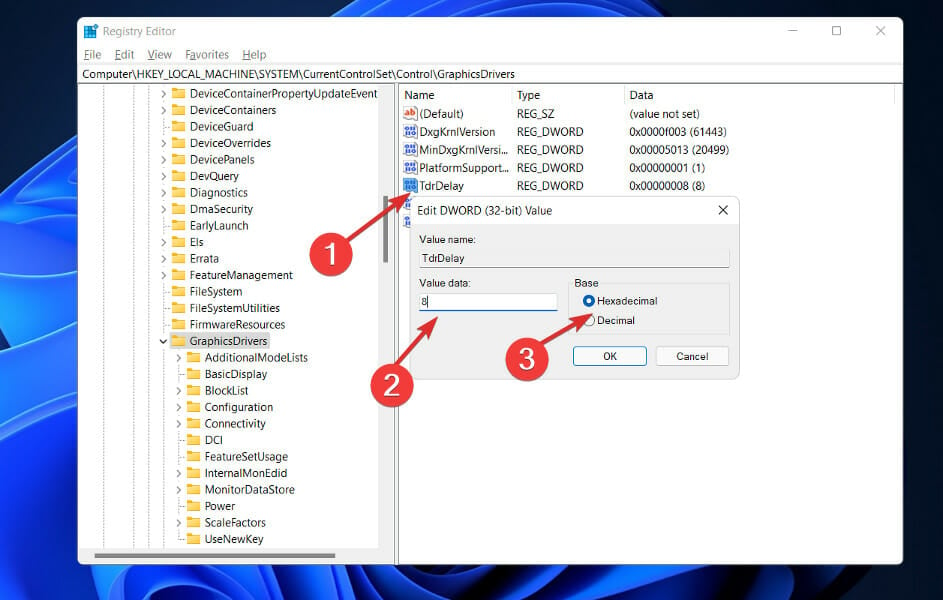
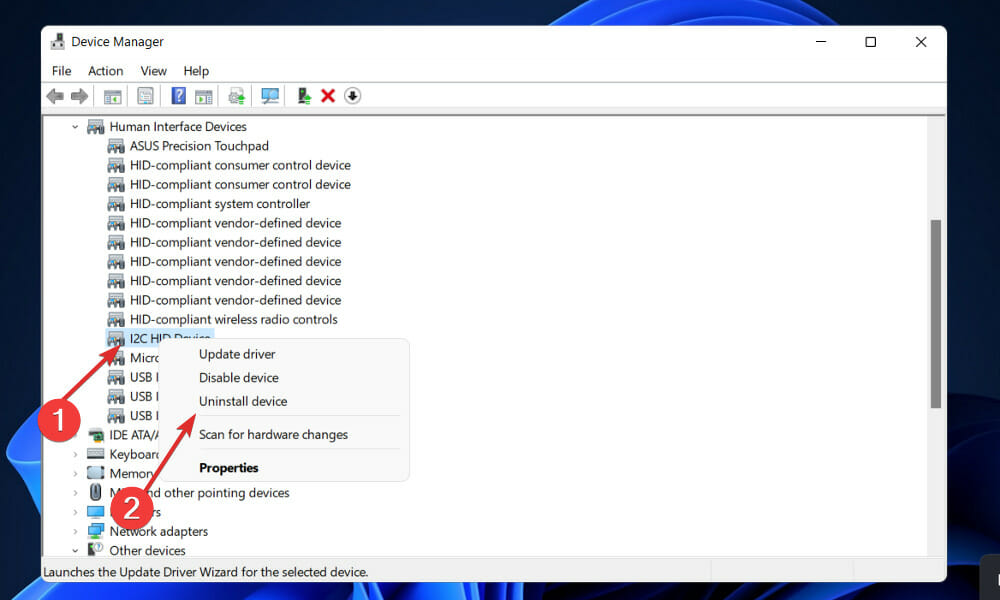
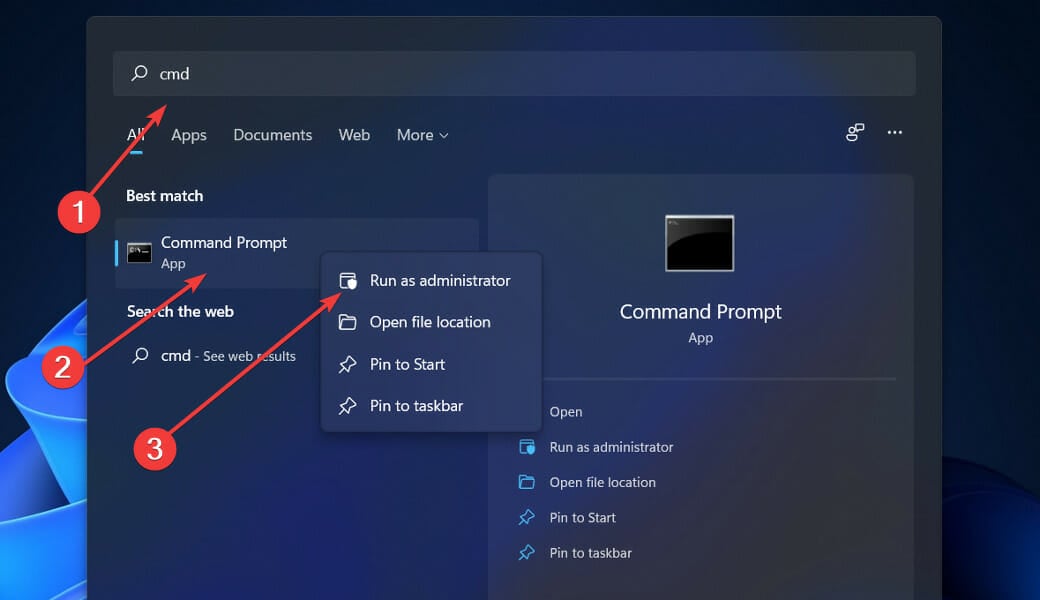
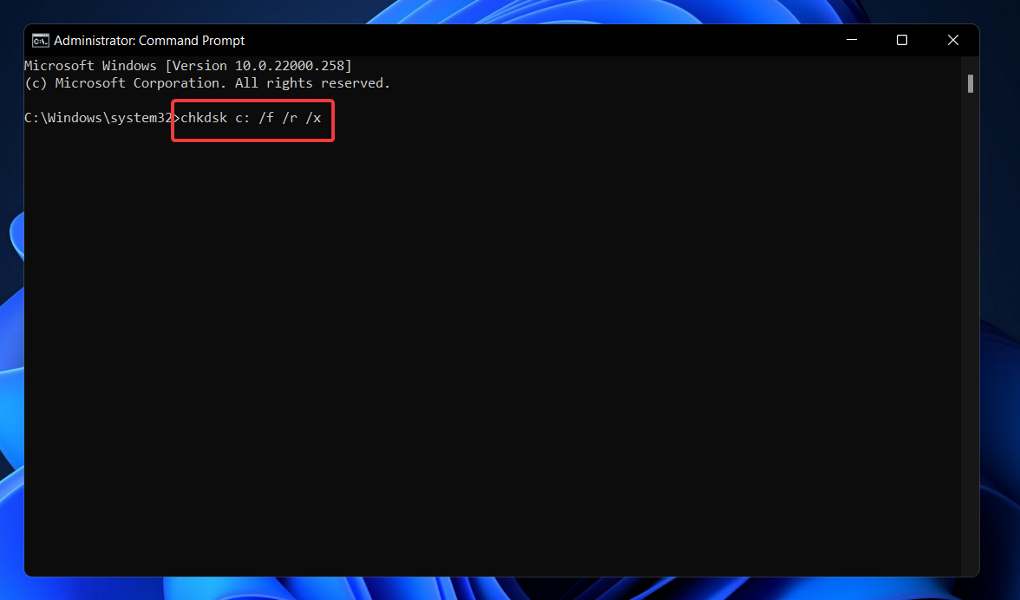
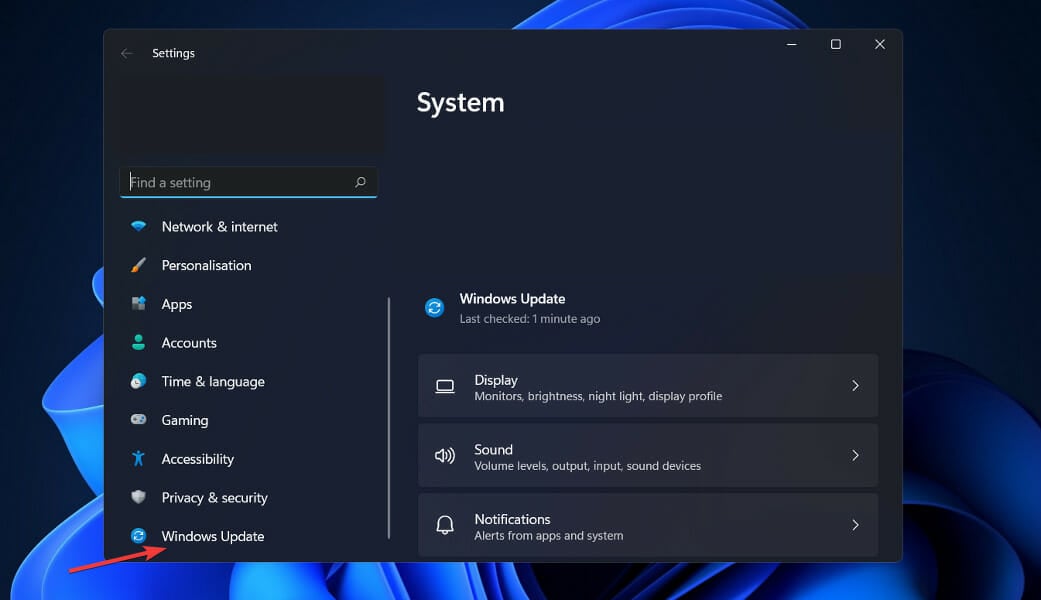
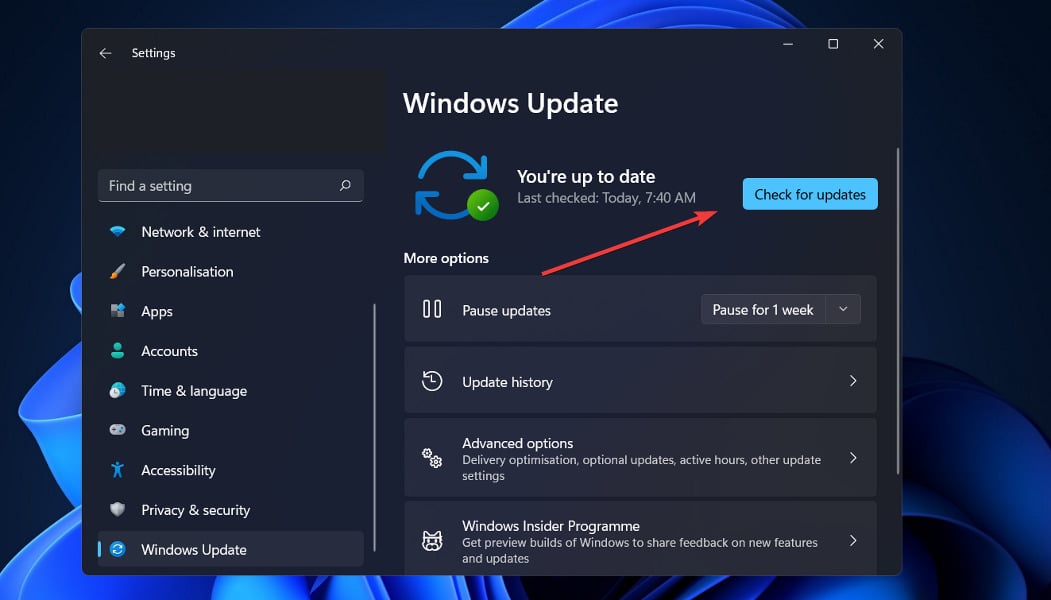

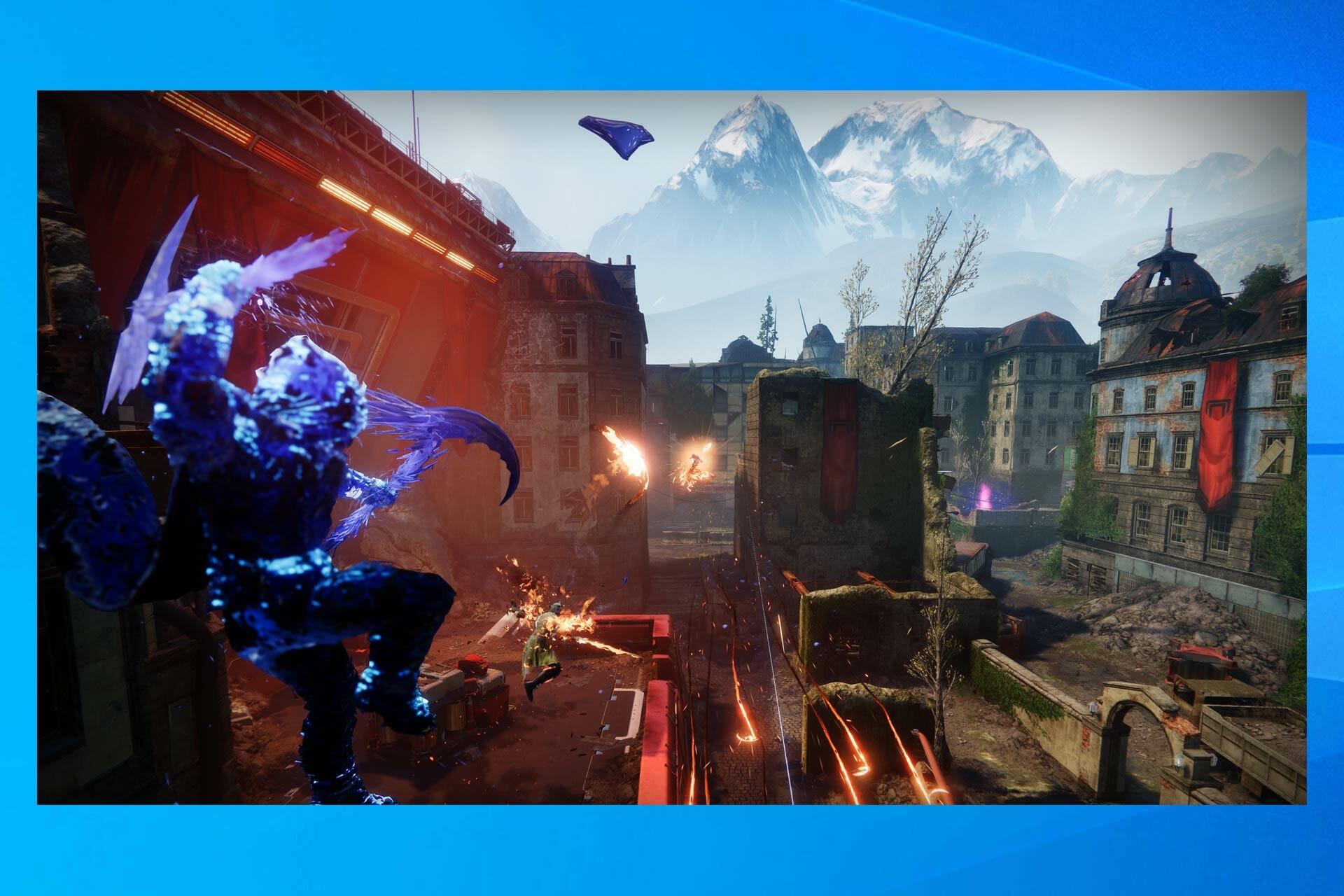
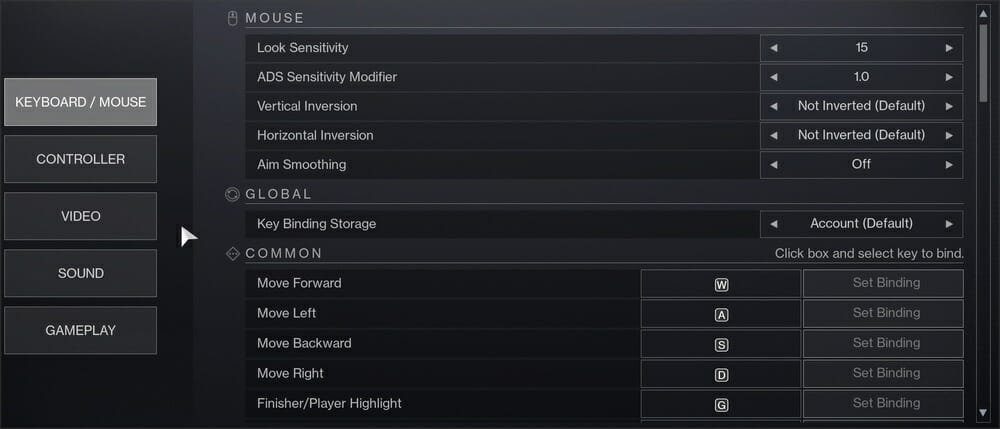




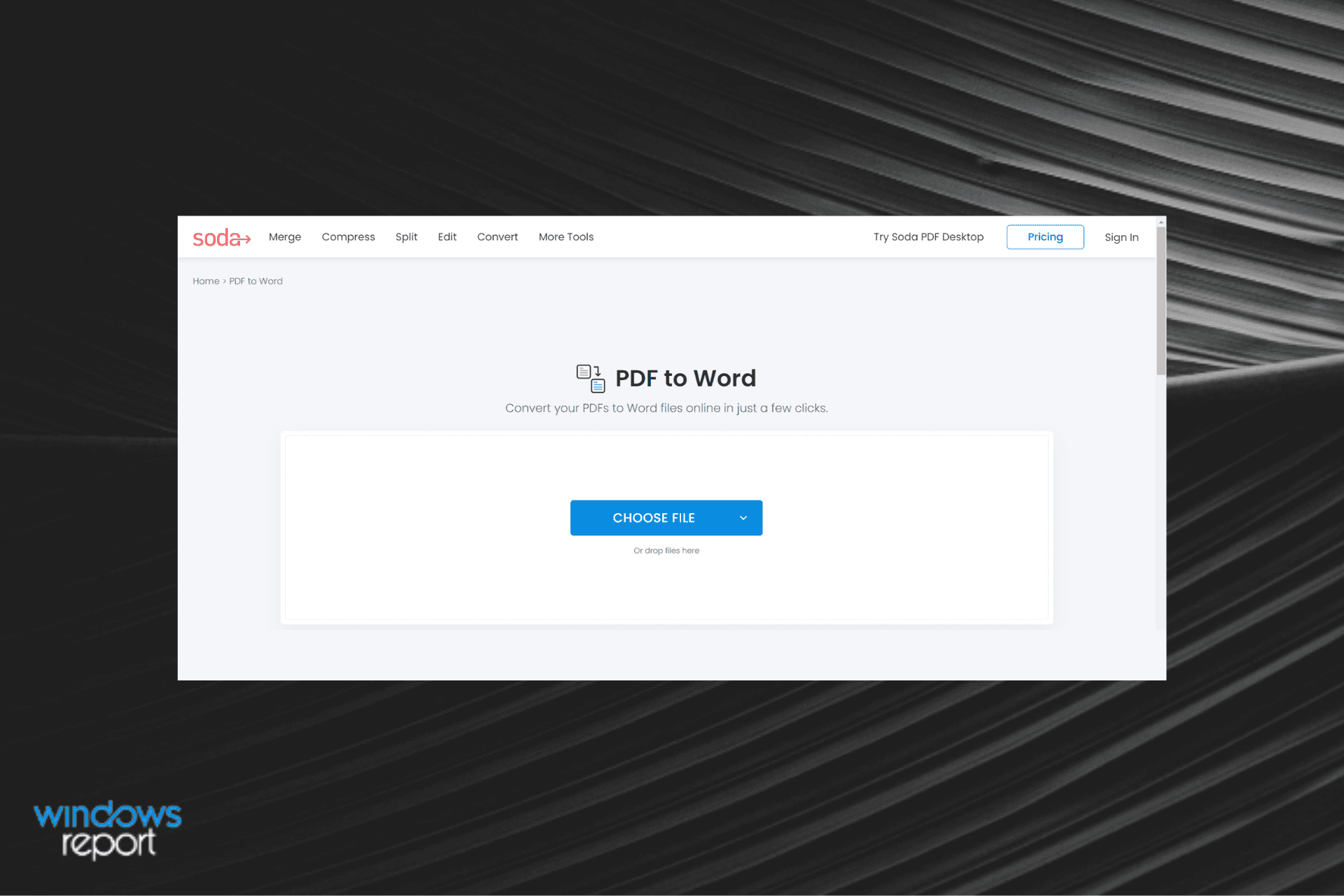
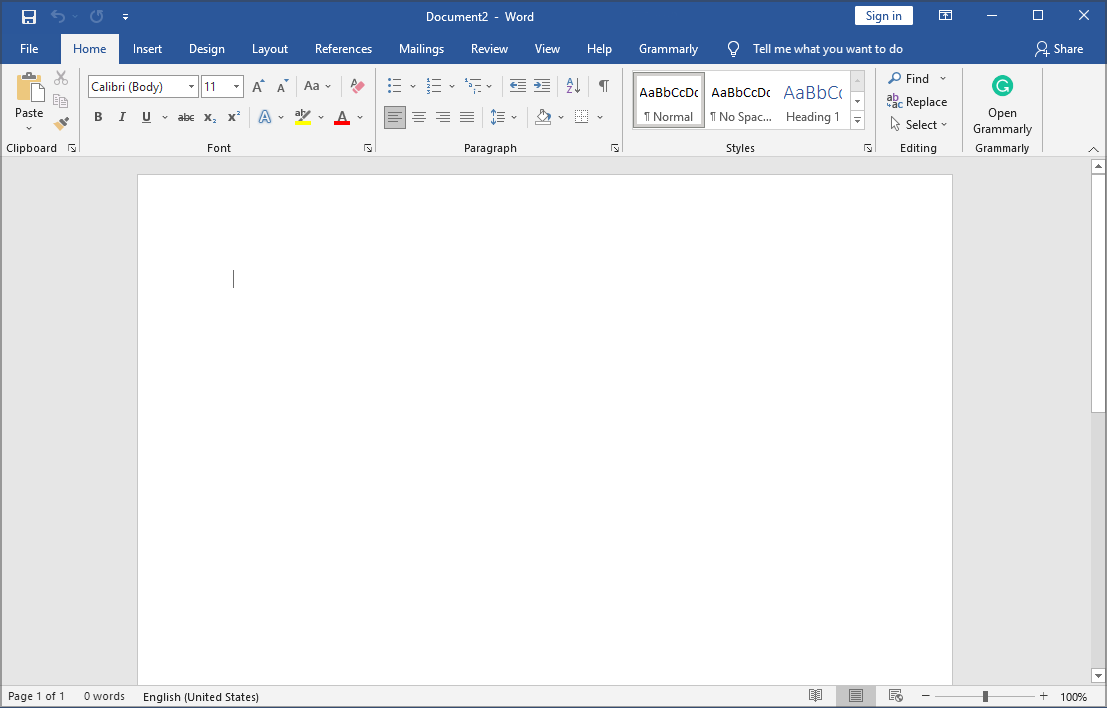





![Fix: Printer Offline in Windows 10/11 [Best Solutions]](https://windowsreport.com/wp-content/uploads/2022/03/Printer-Offline-in-Windows-10-and-11.jpg)
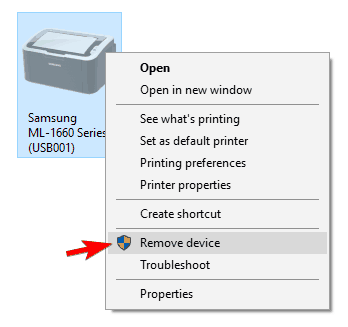
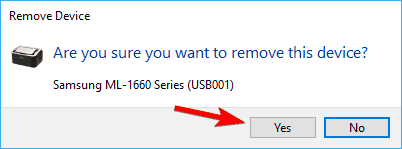

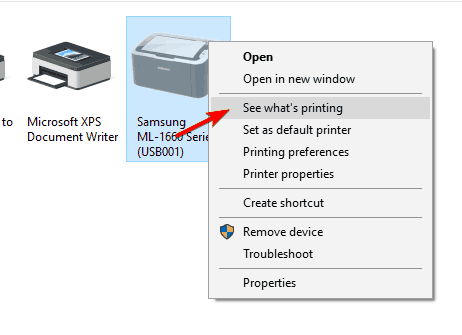
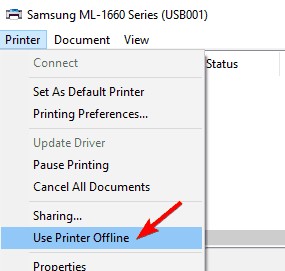
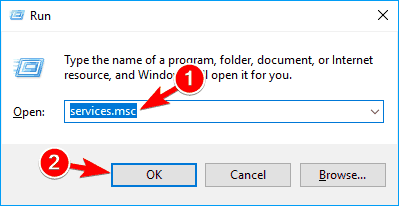
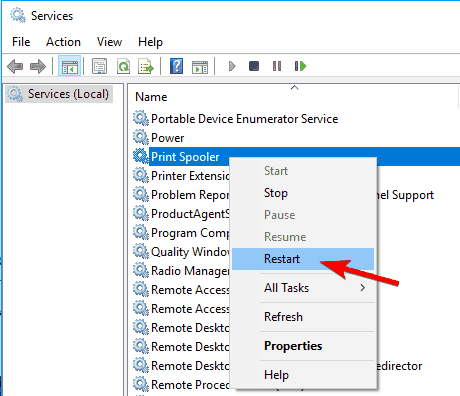
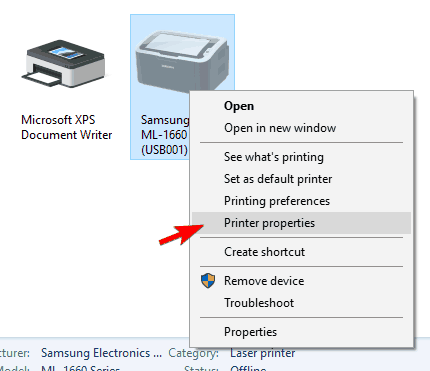
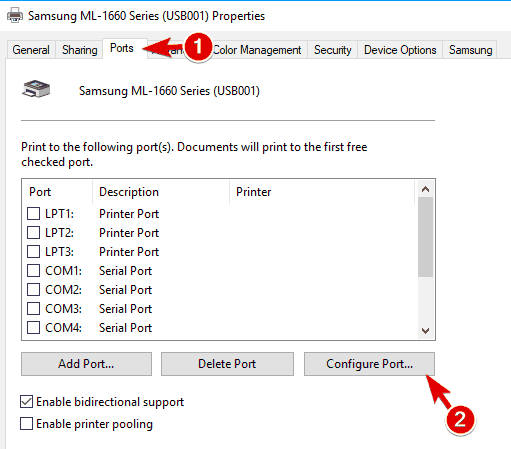
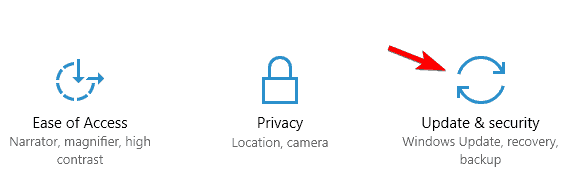
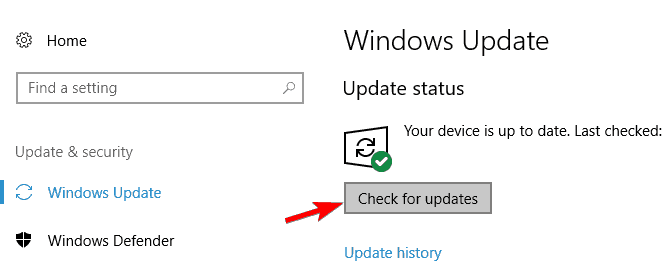
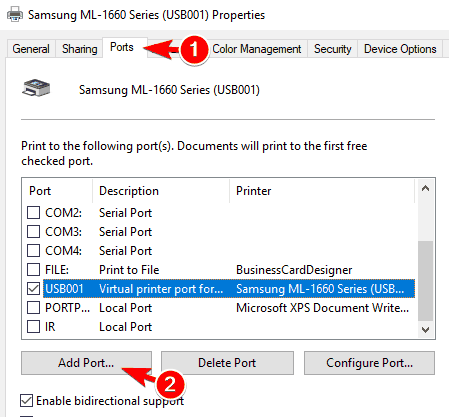
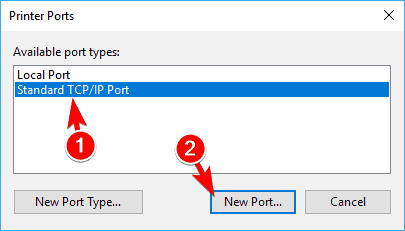
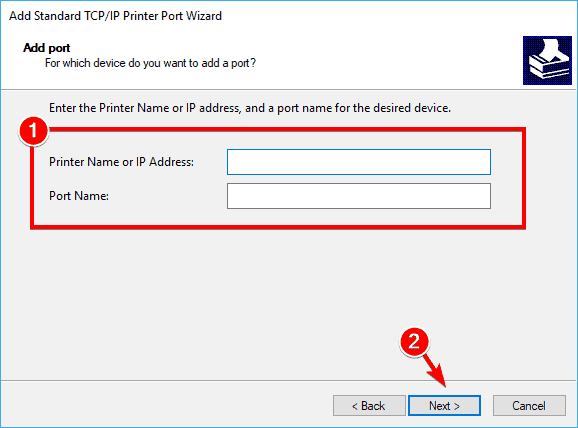
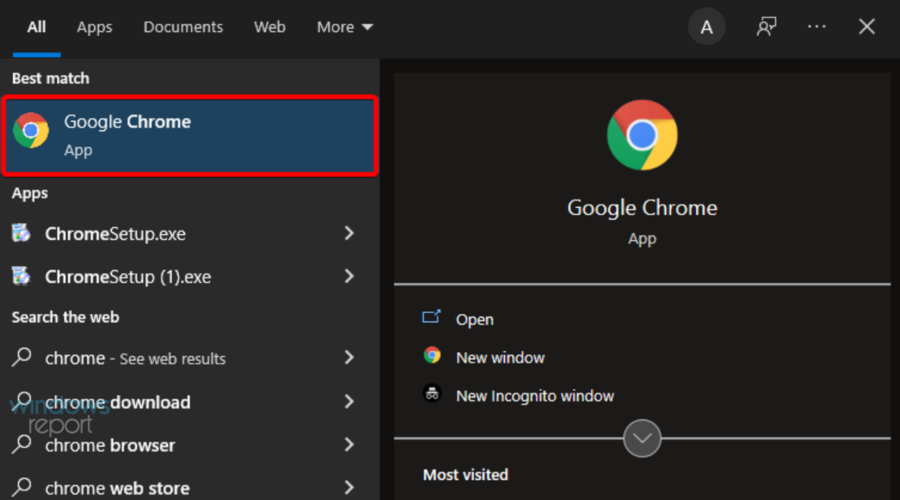

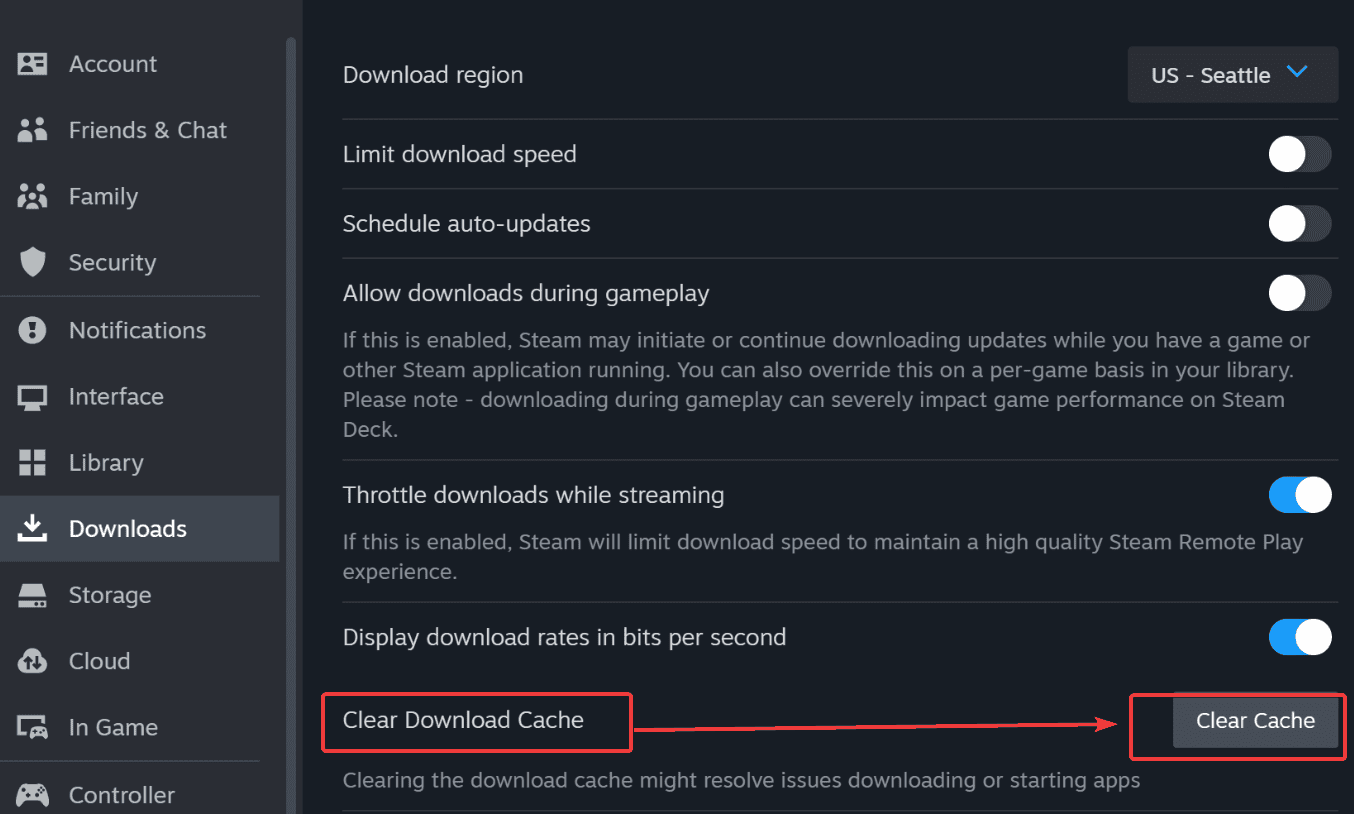
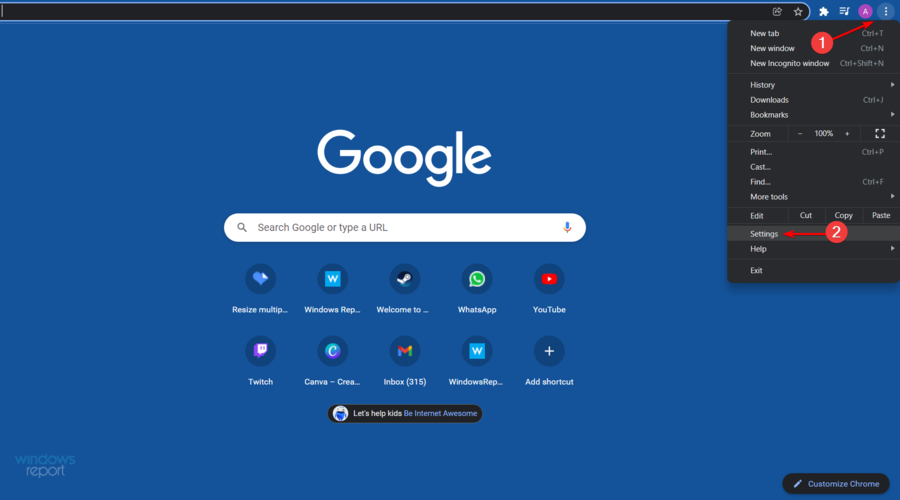
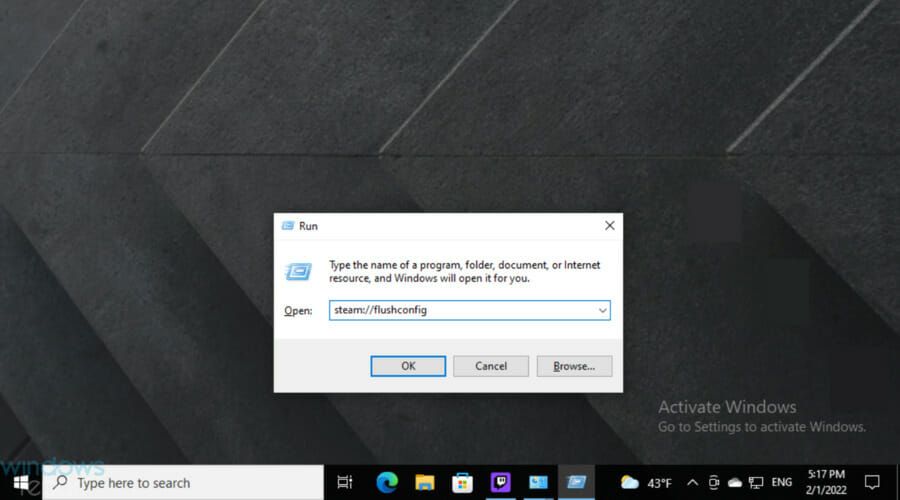
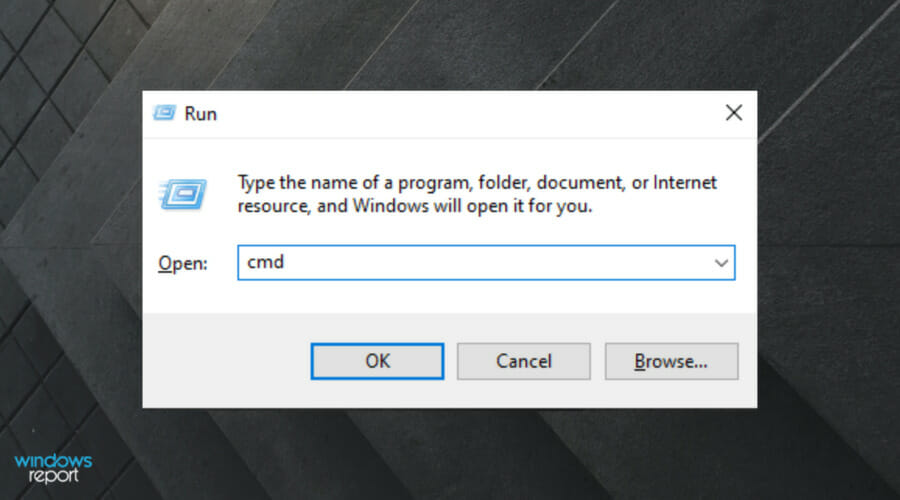
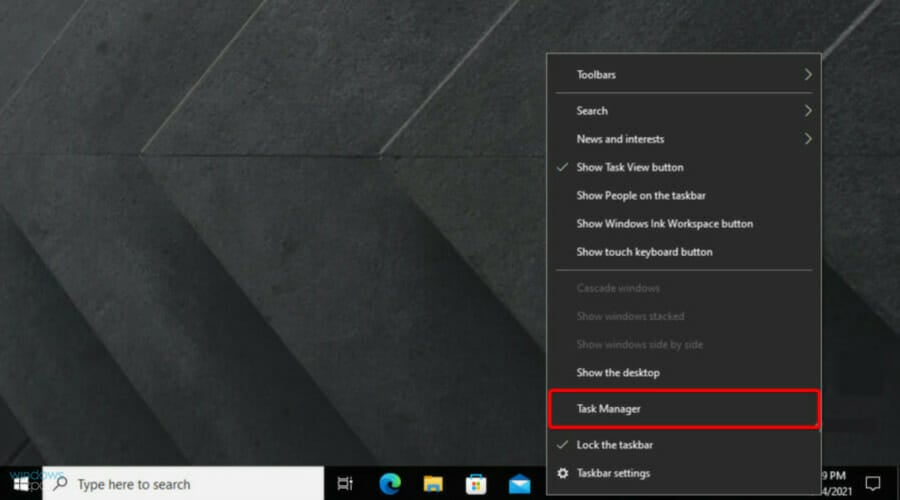
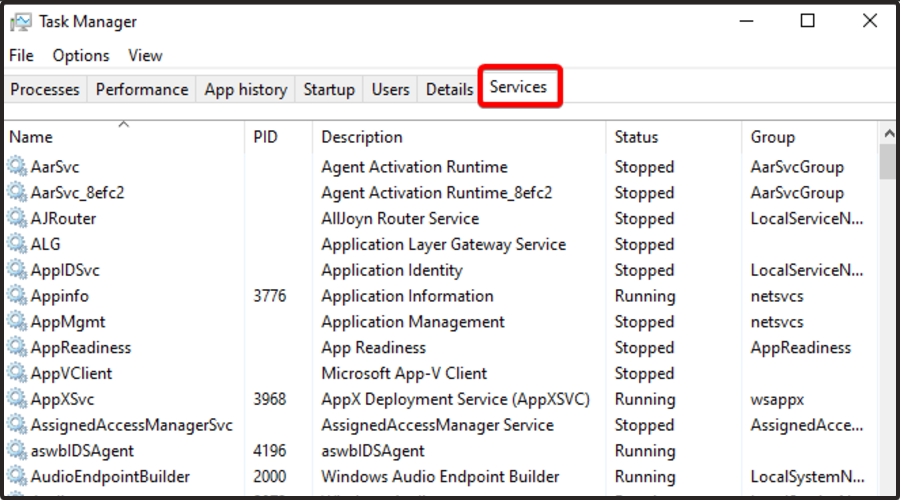
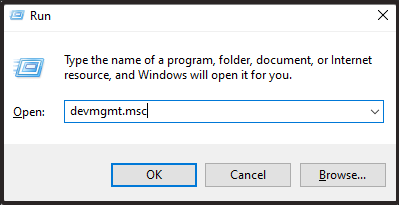
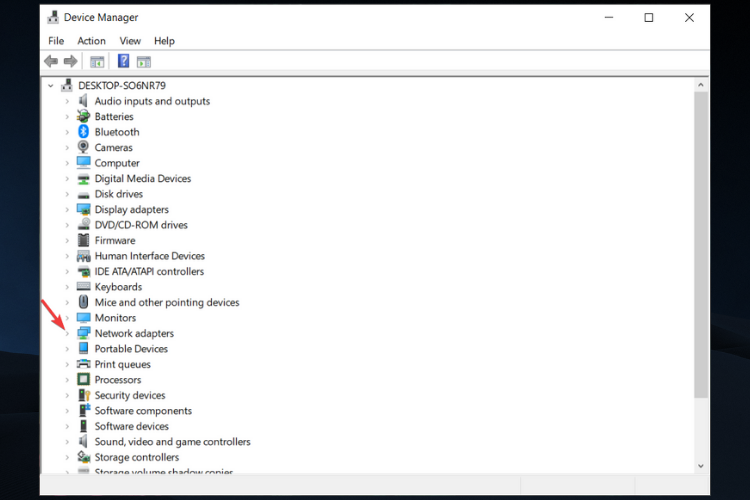
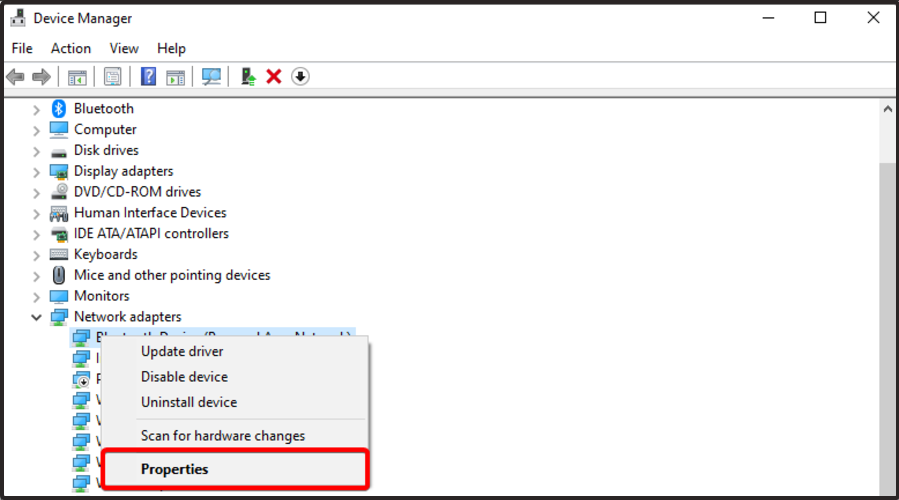


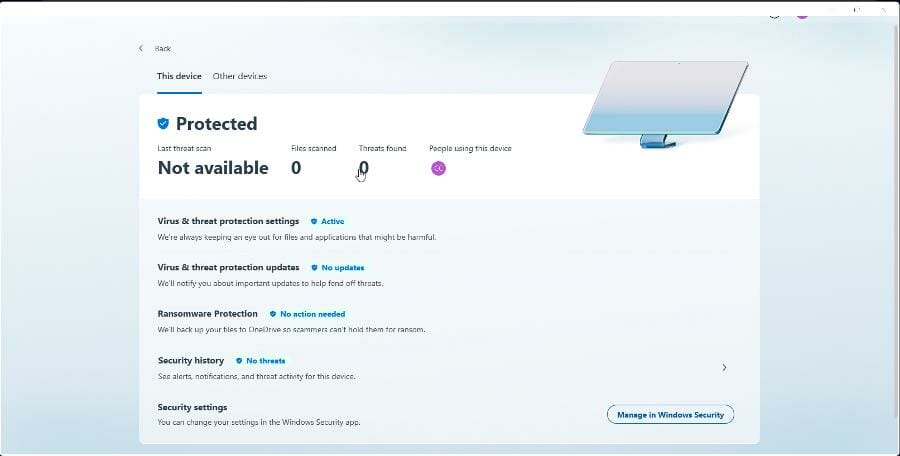
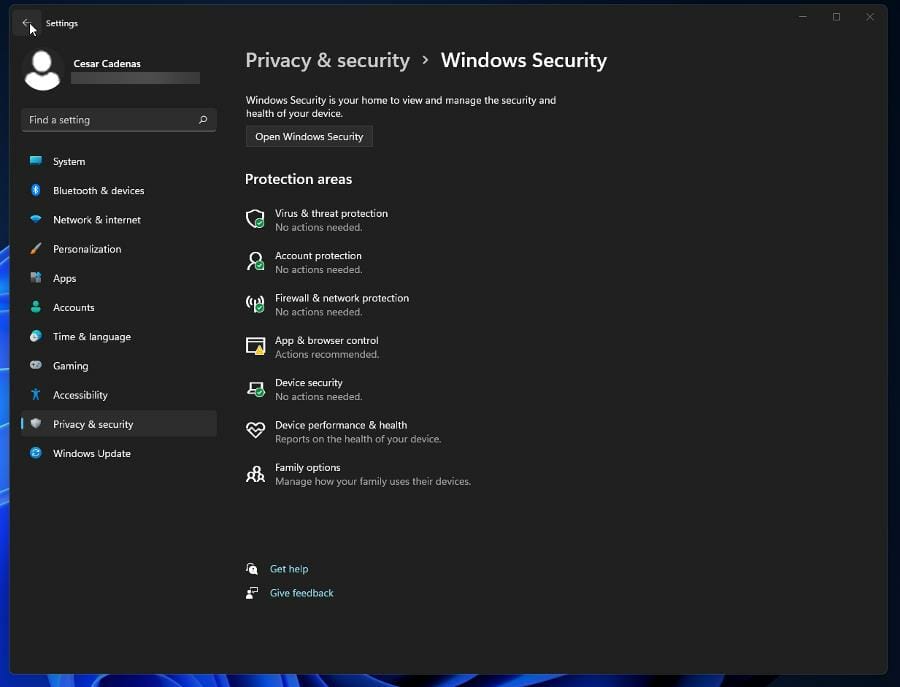
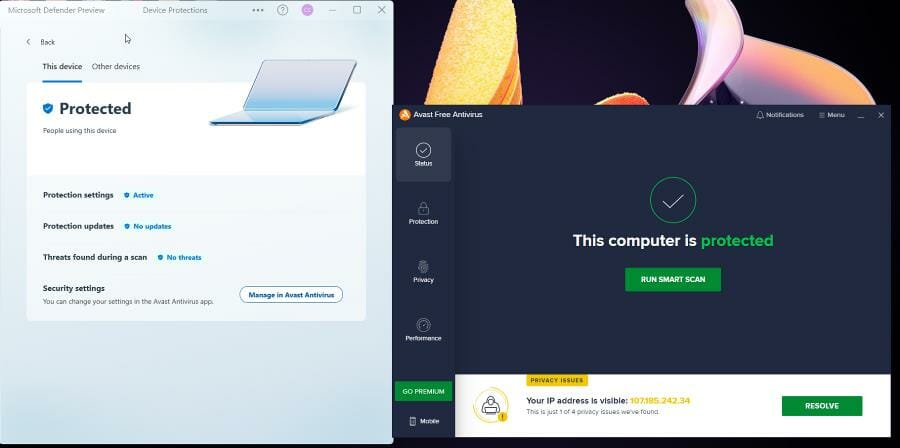
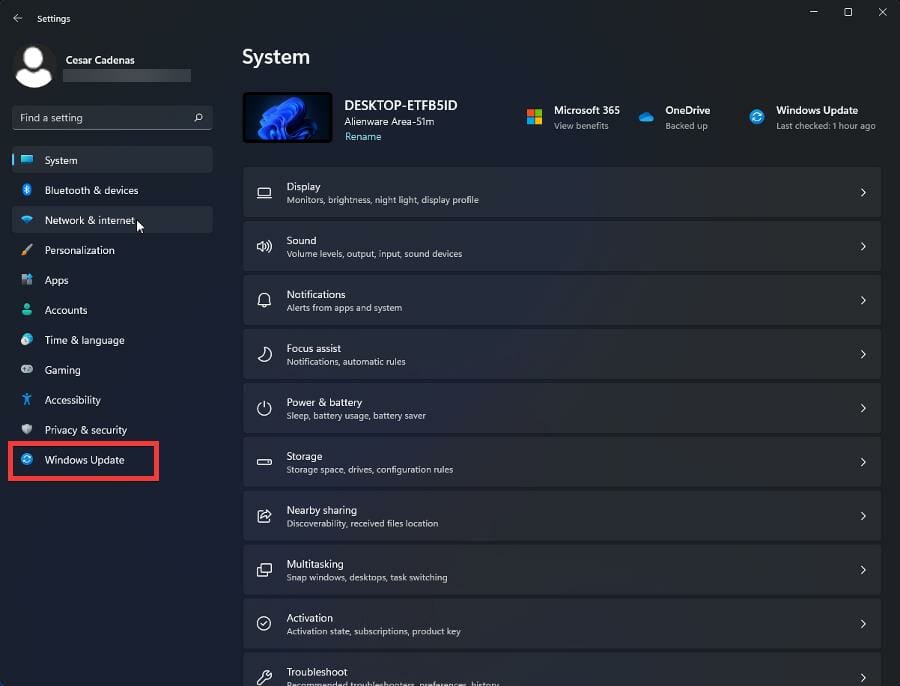
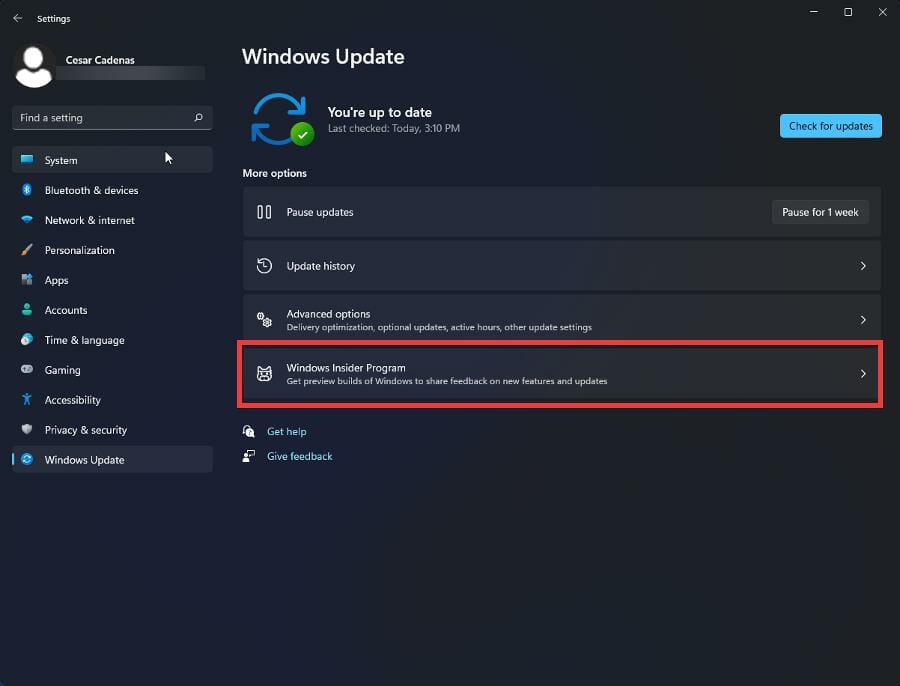
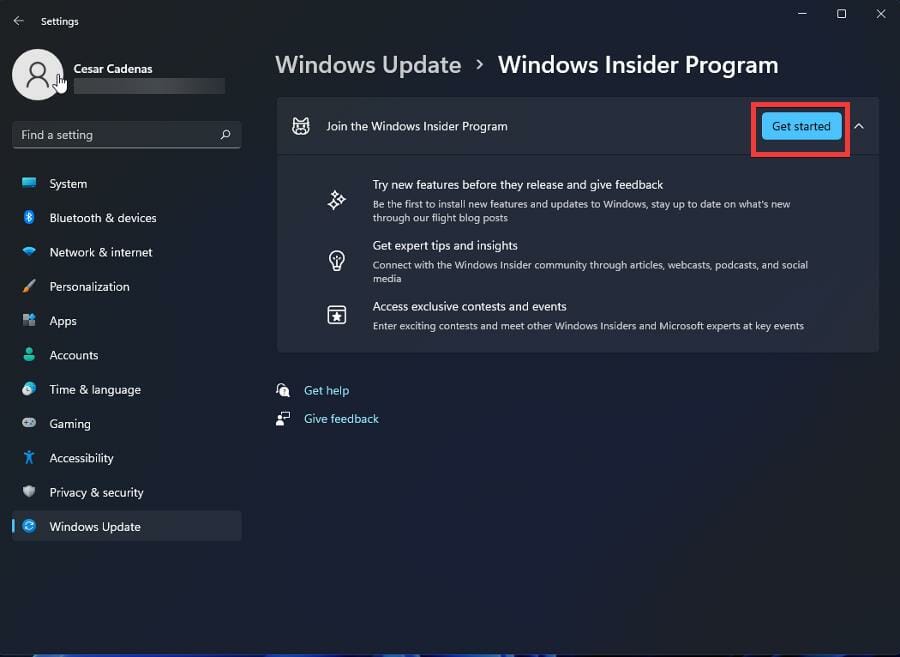
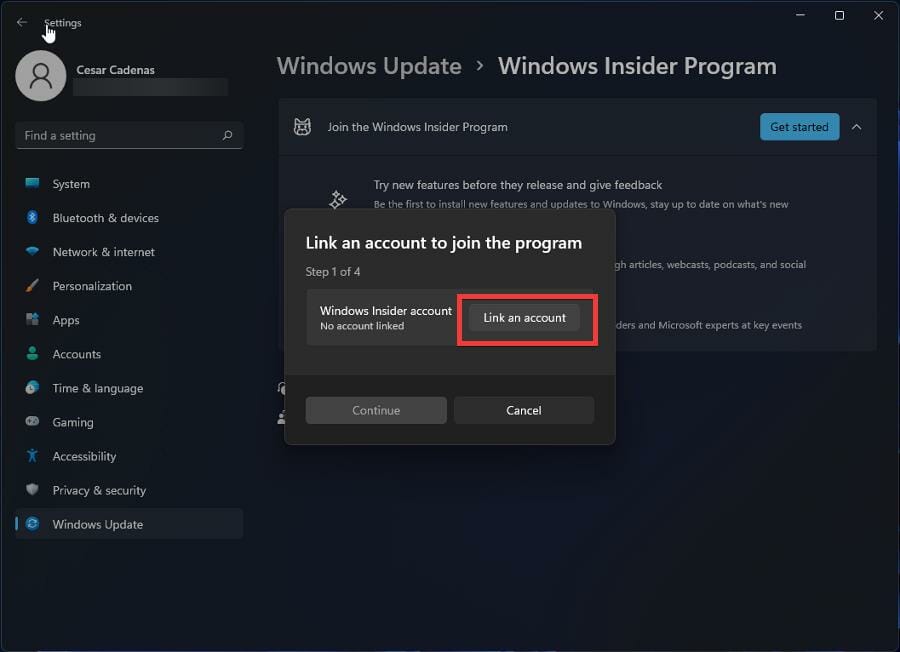
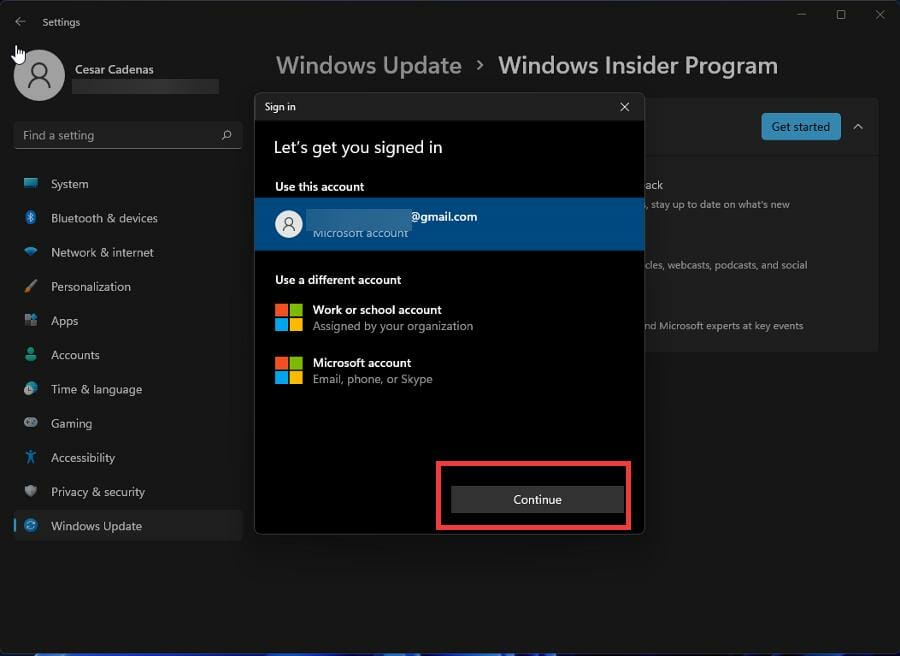
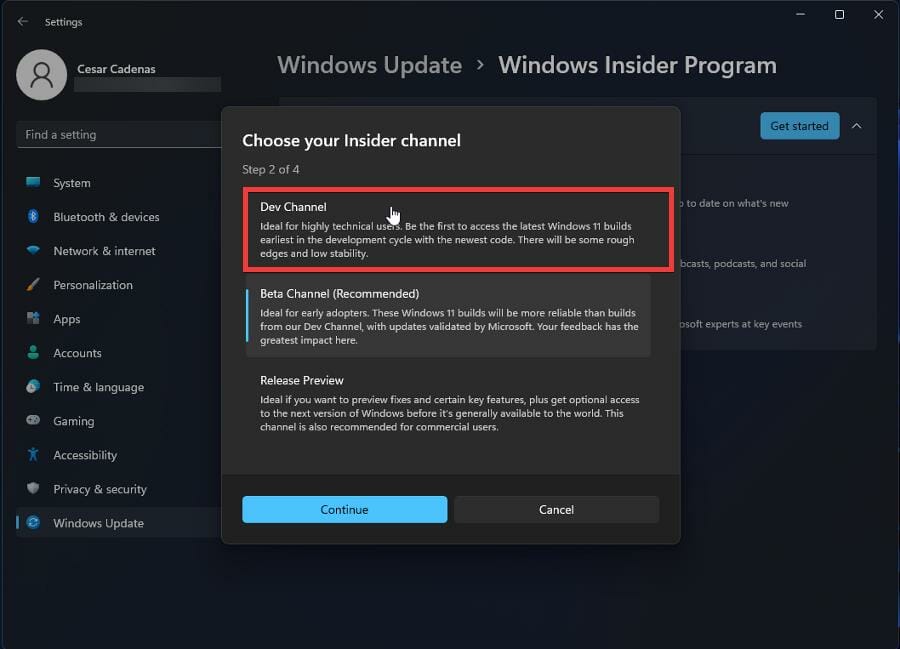
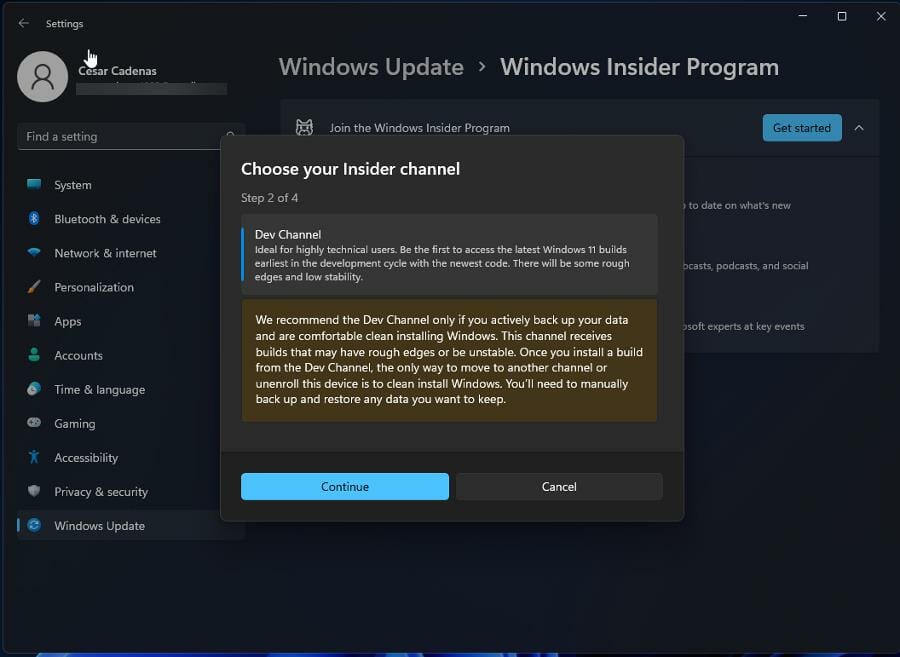
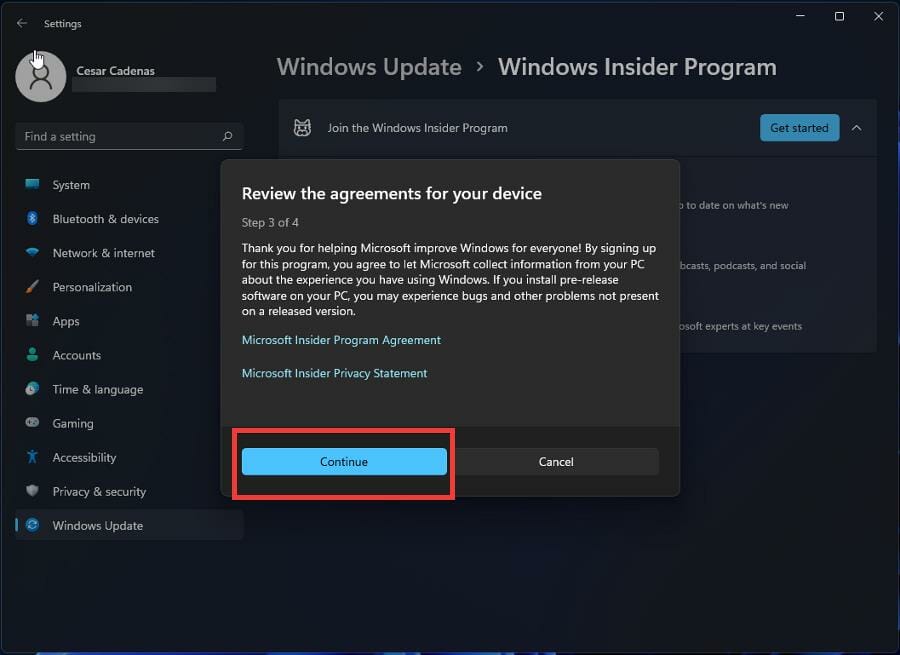
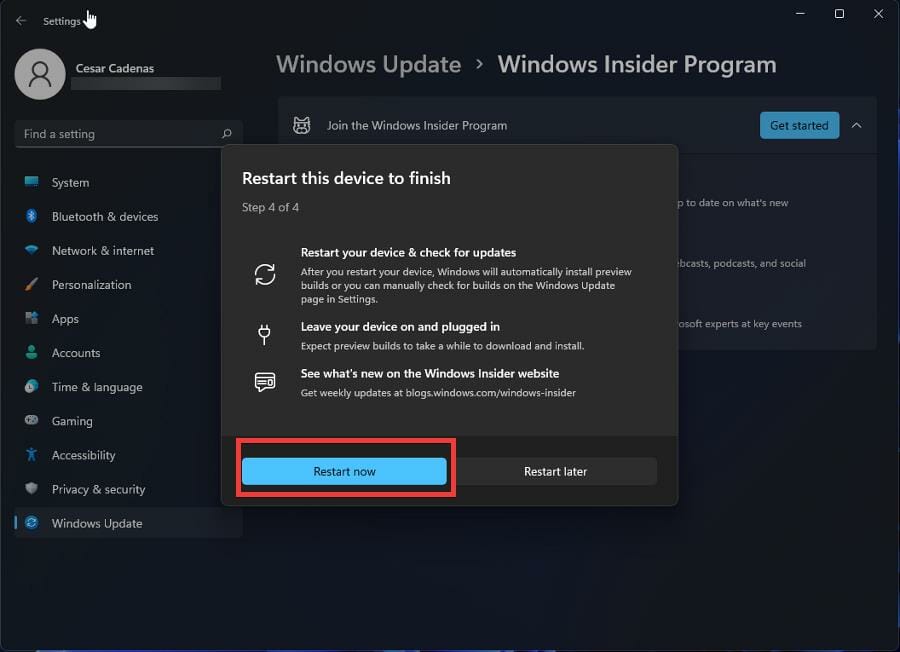
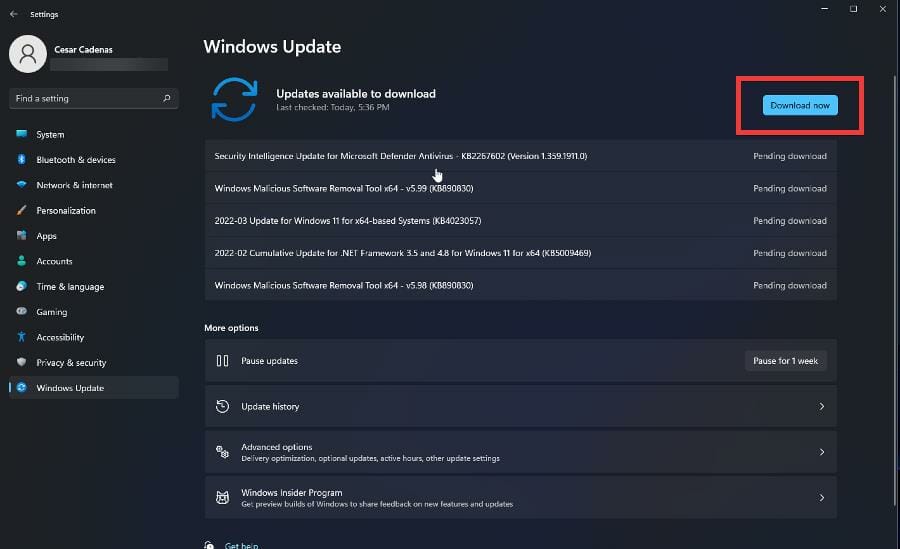
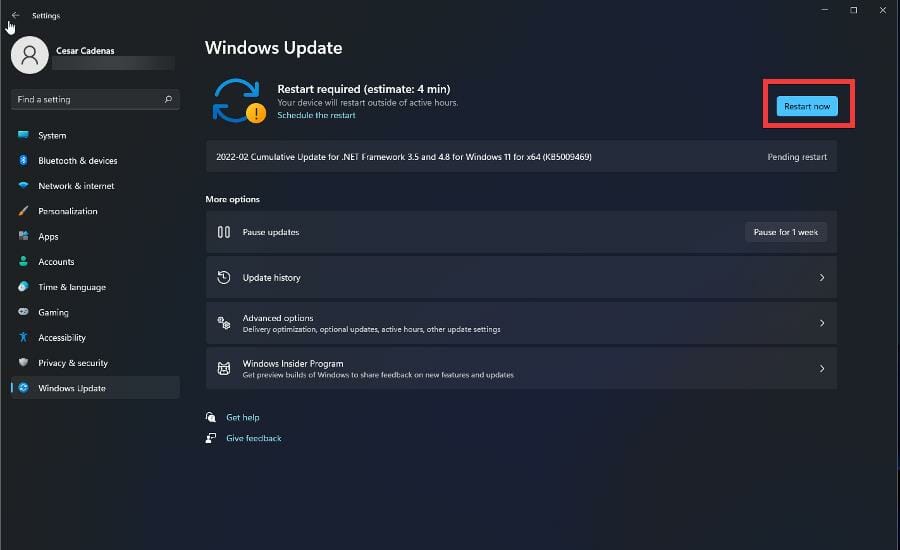
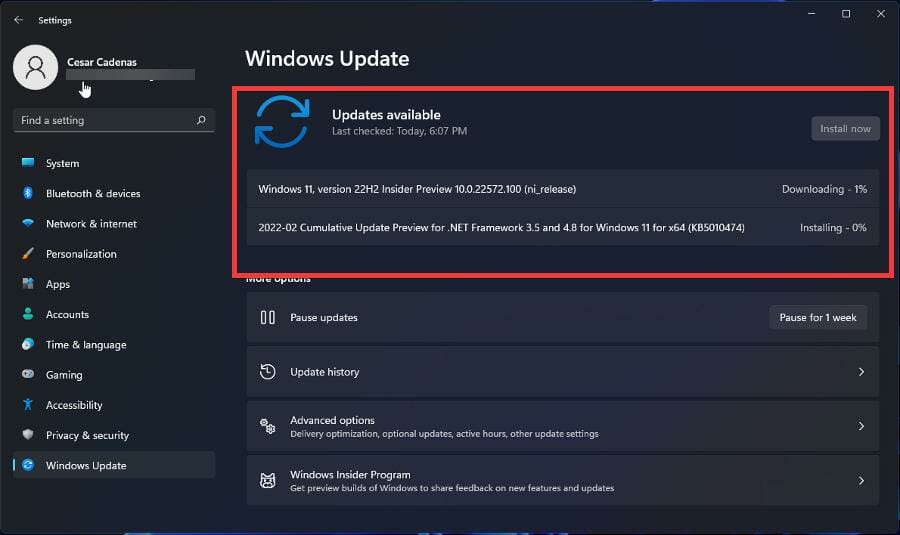
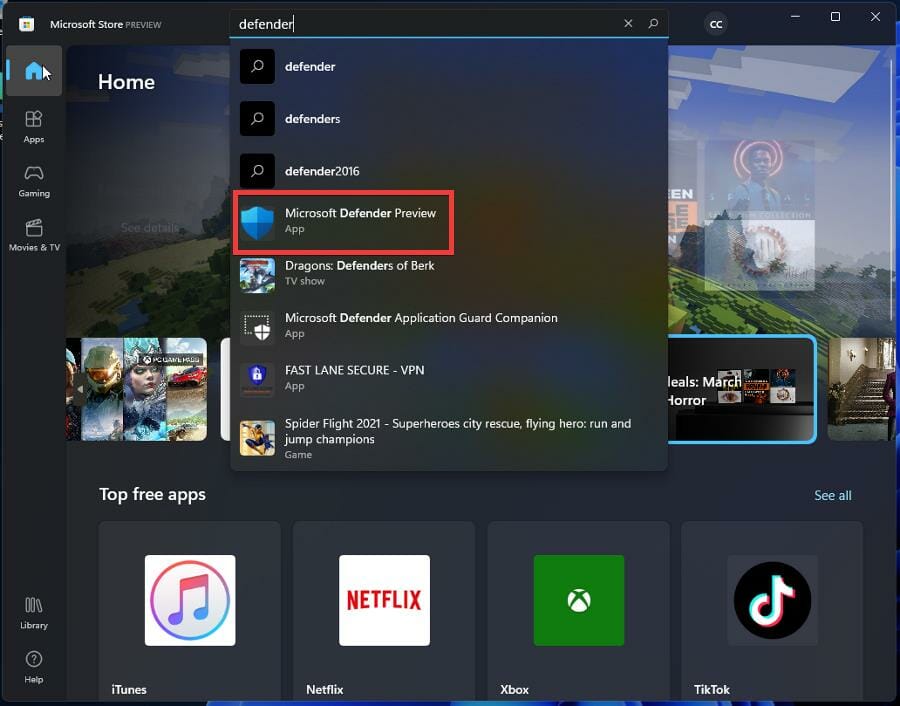
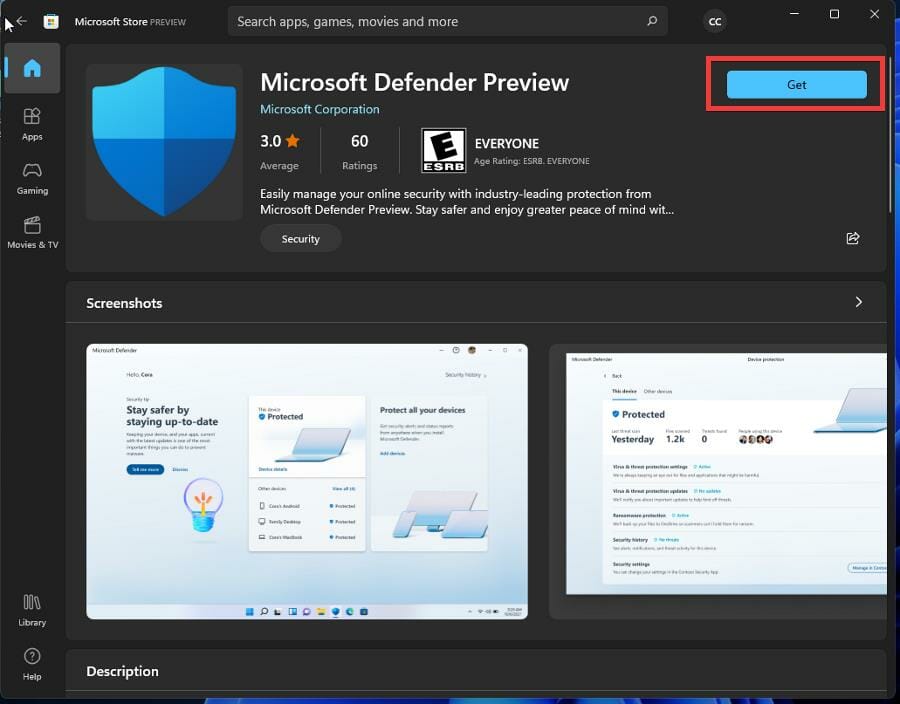
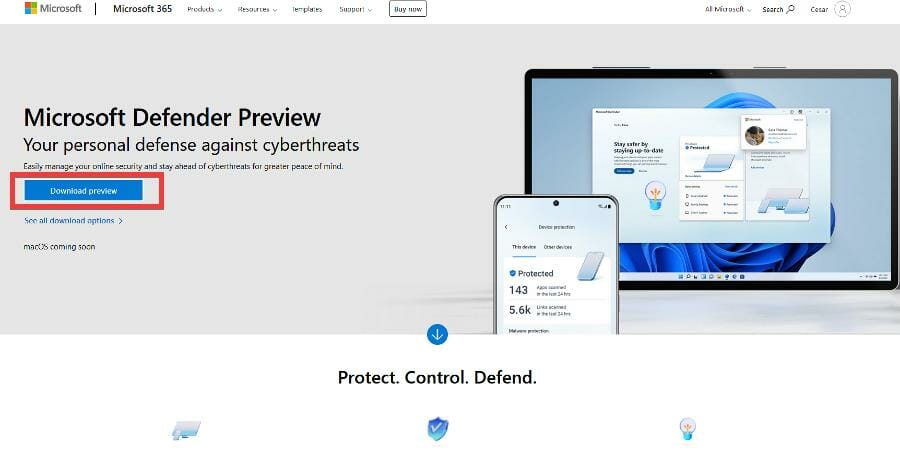
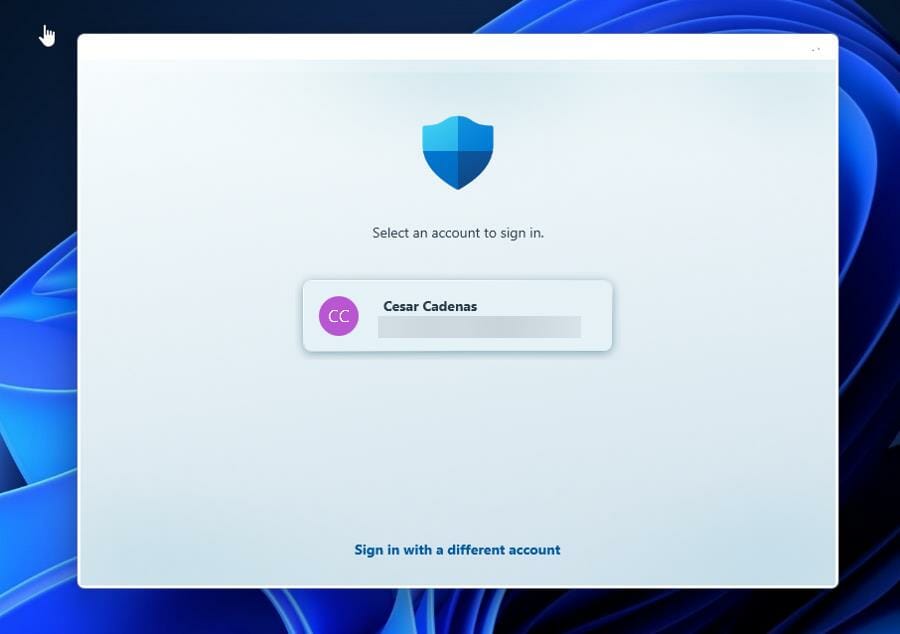
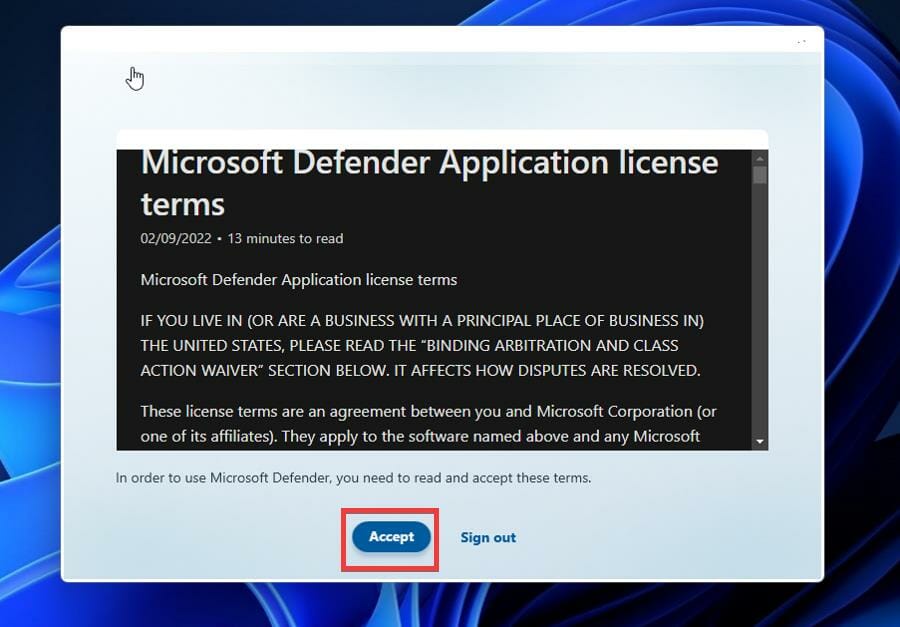
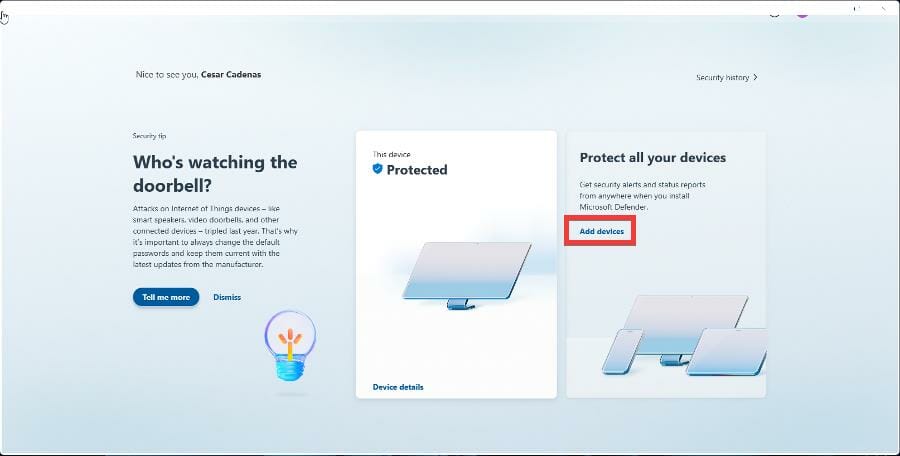
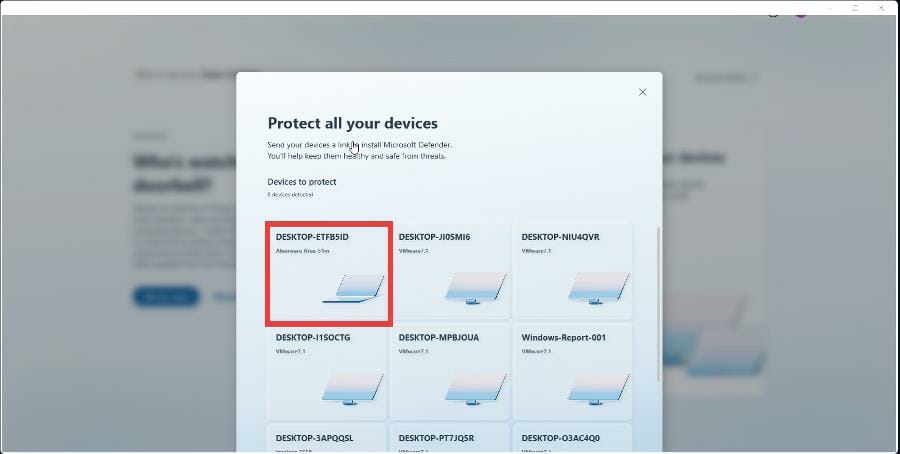
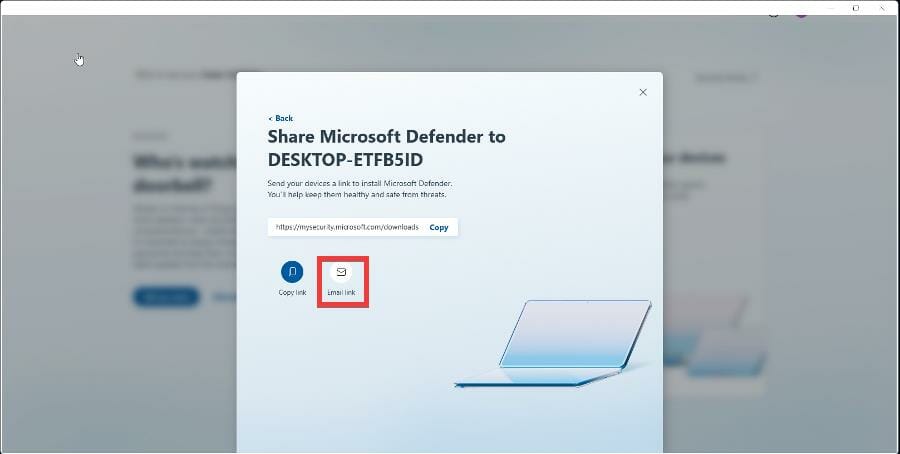
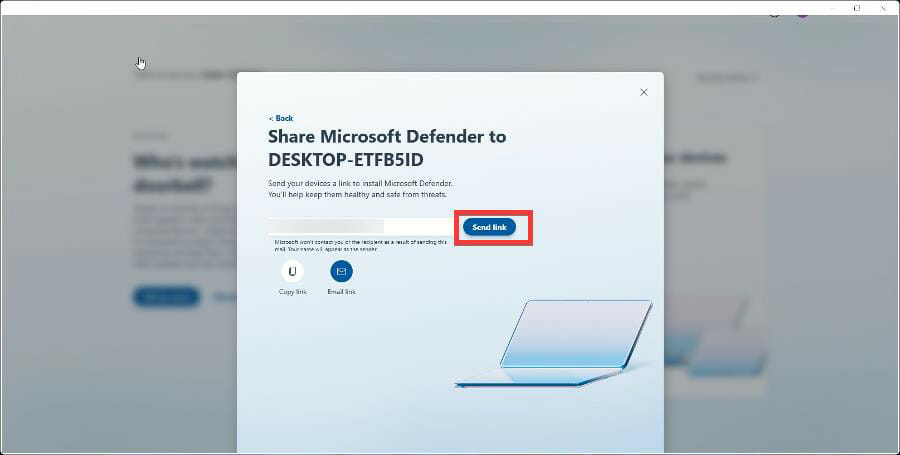
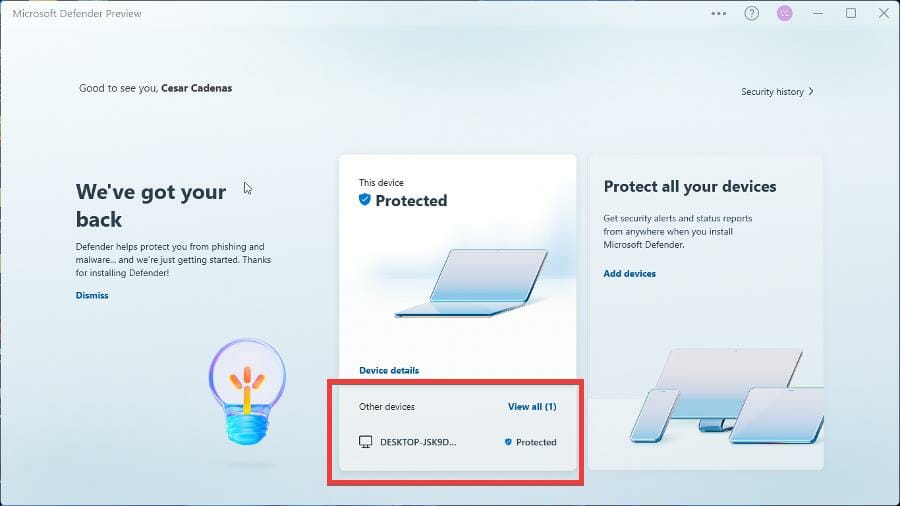
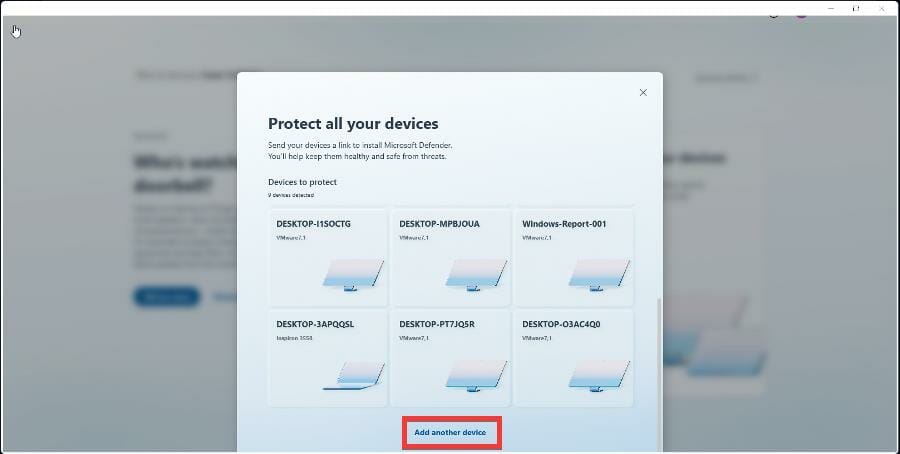
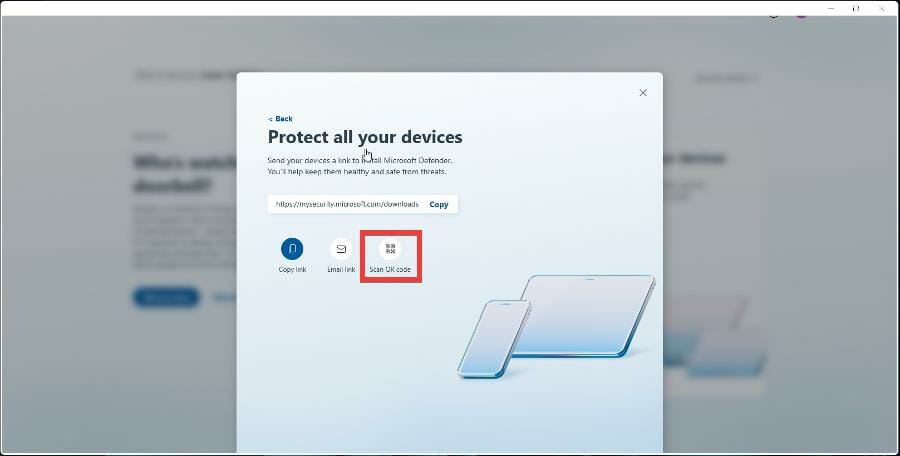
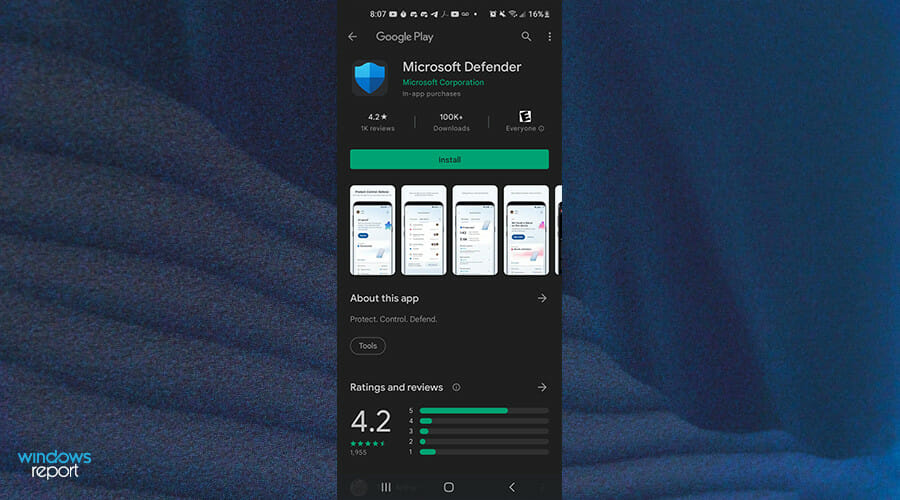
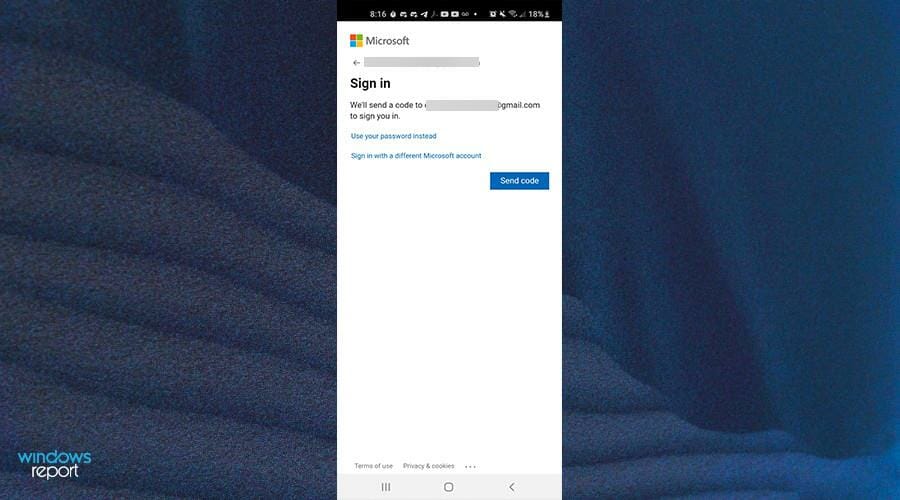
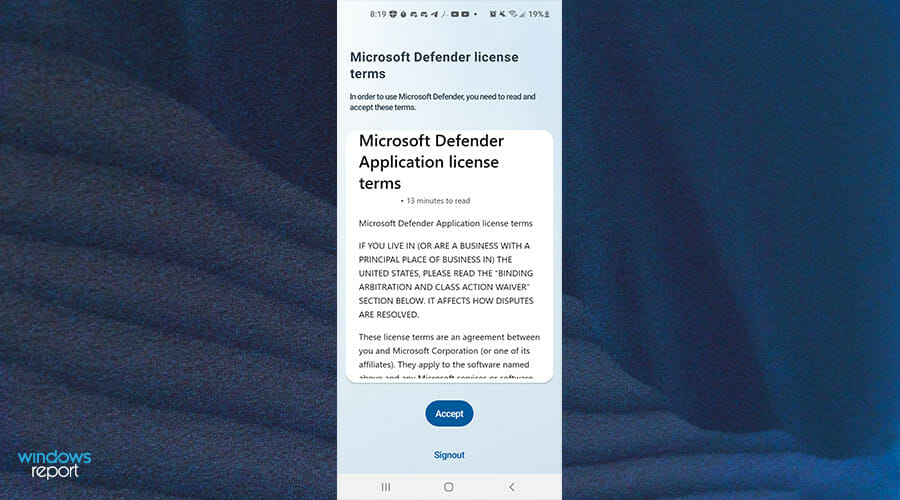
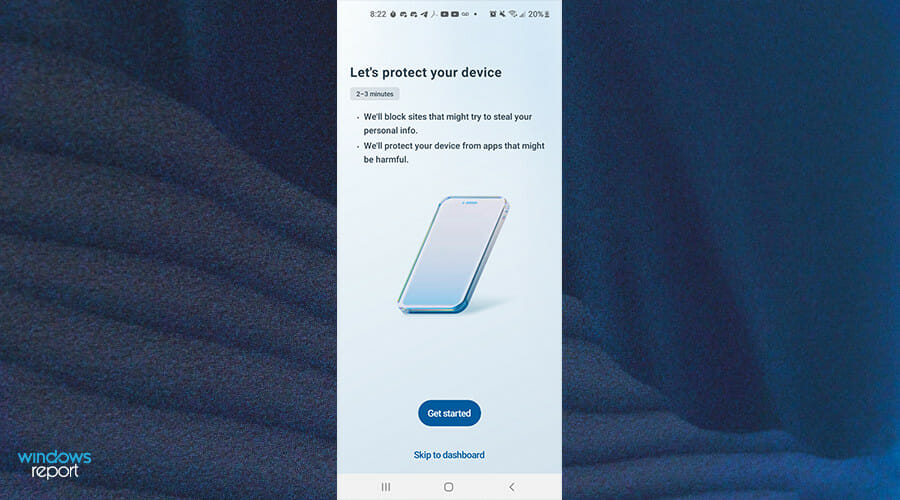

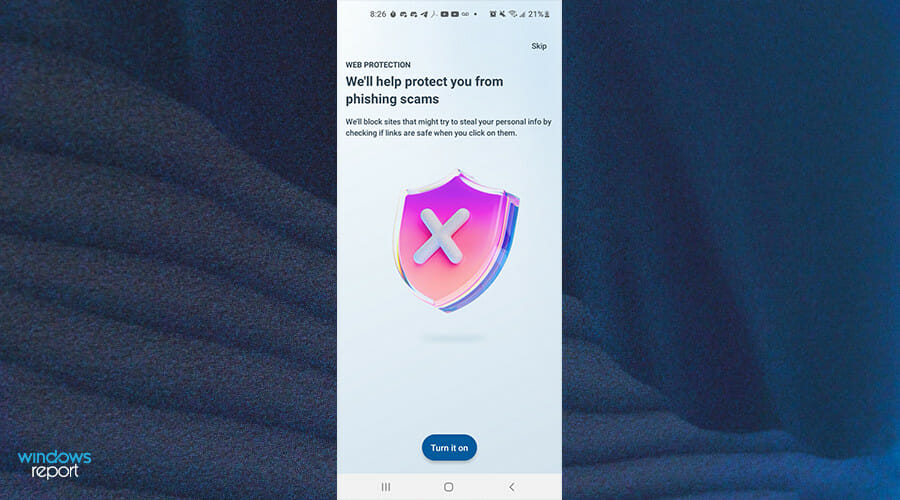
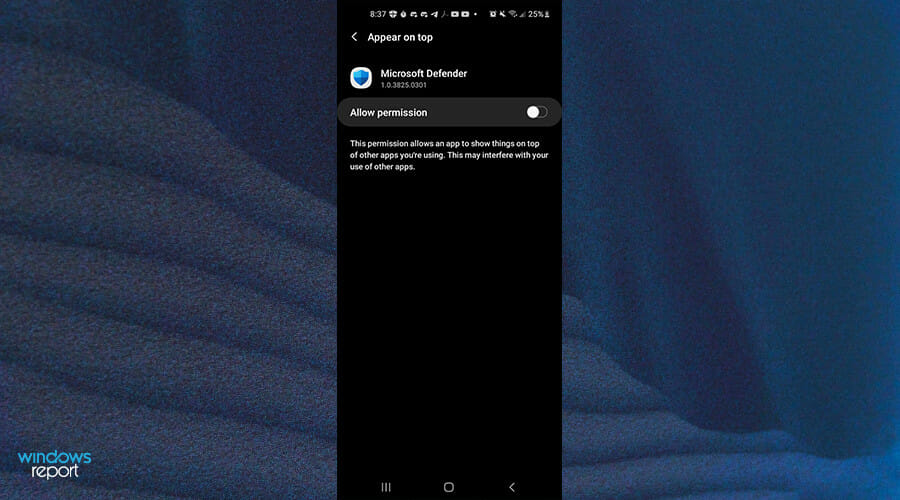
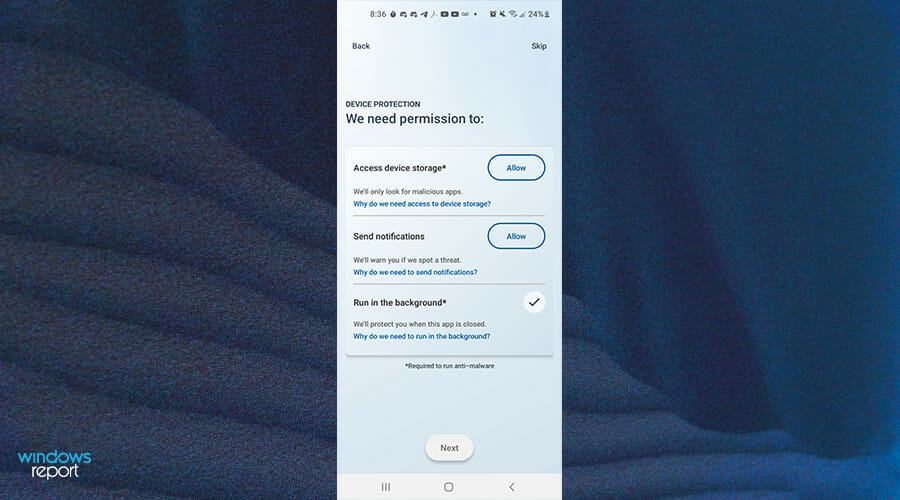
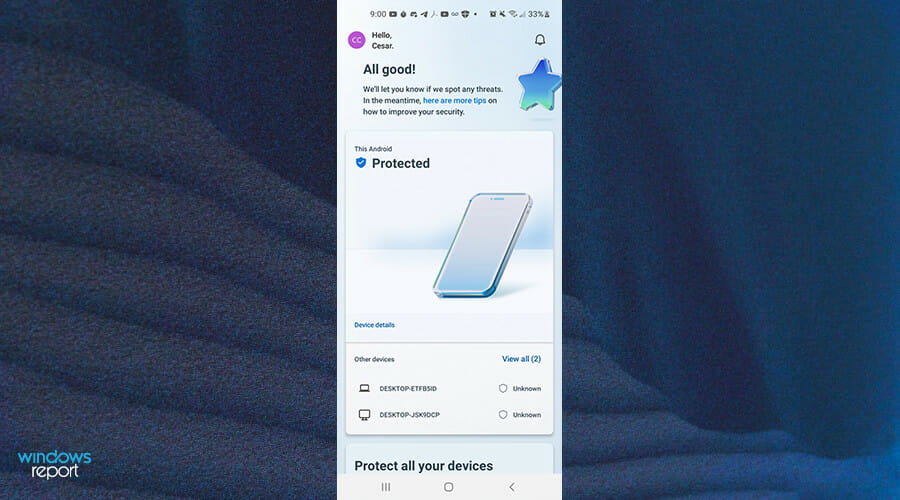
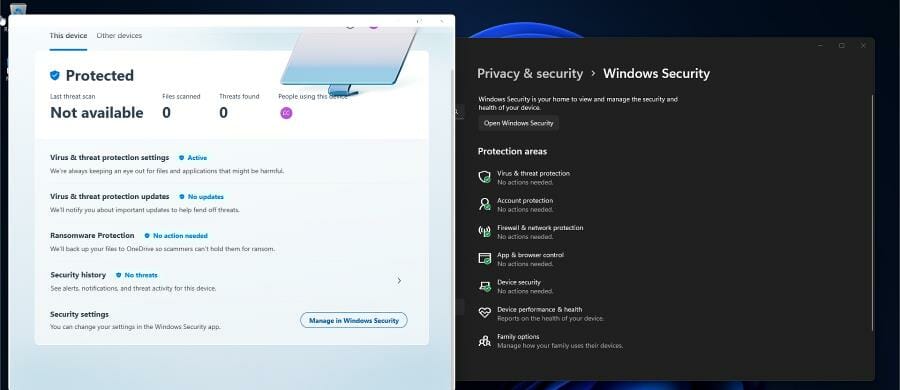
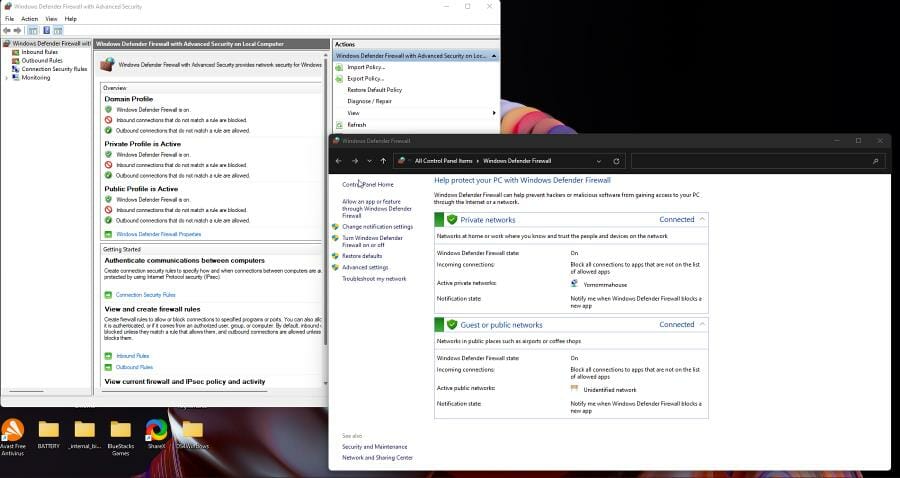
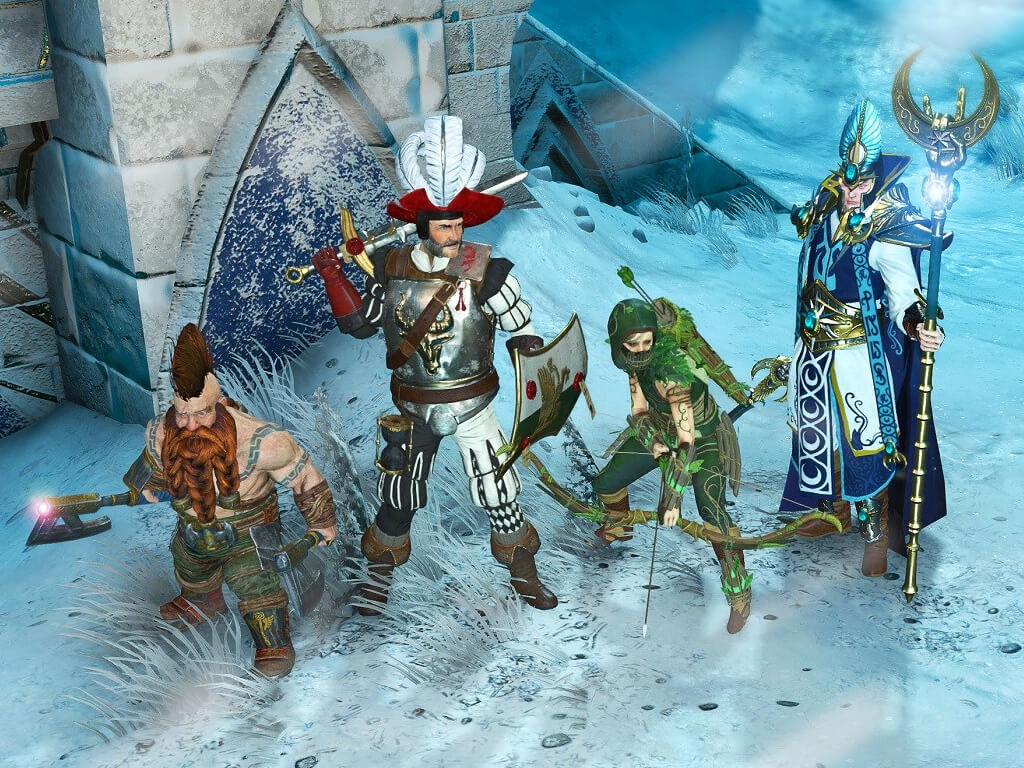
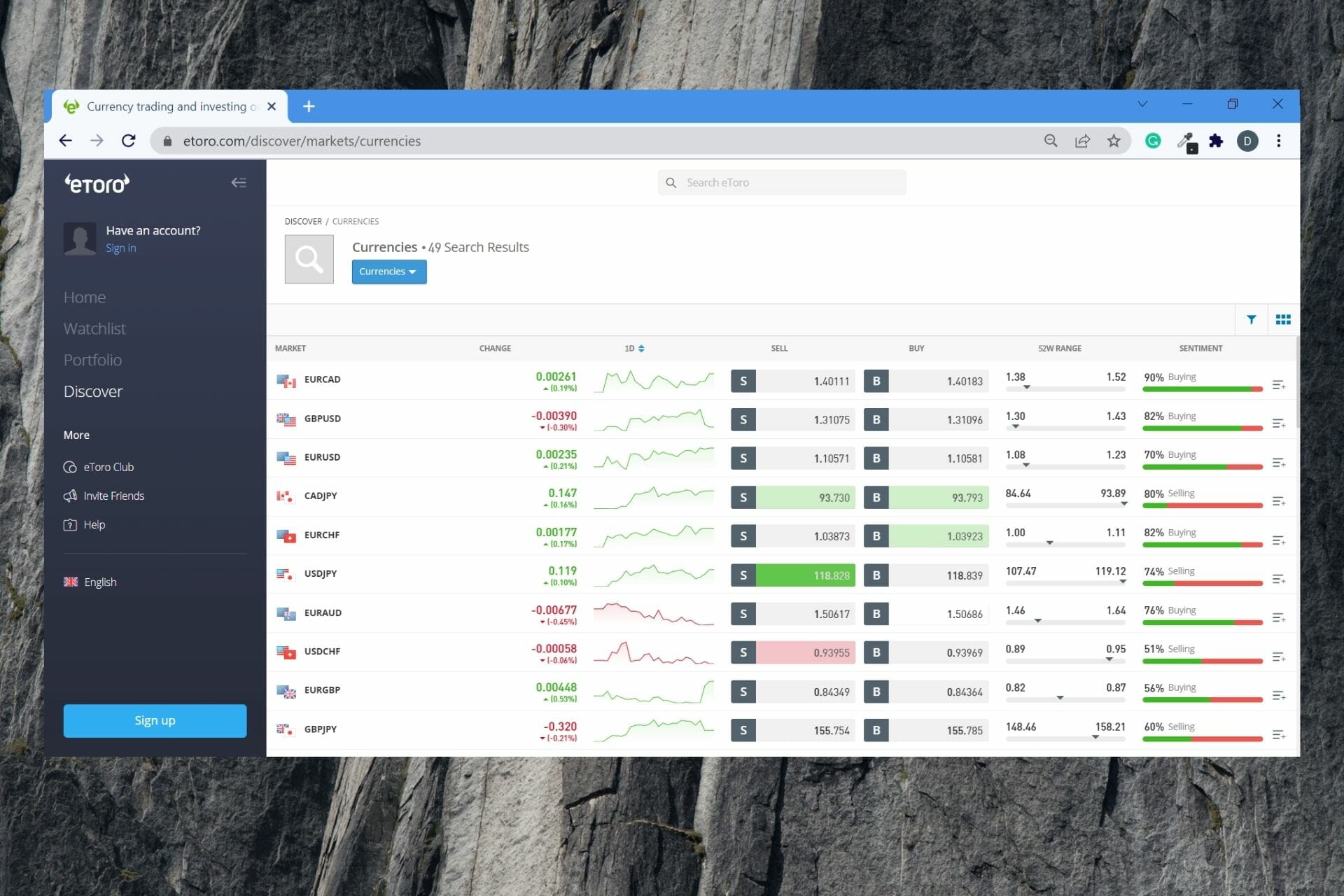


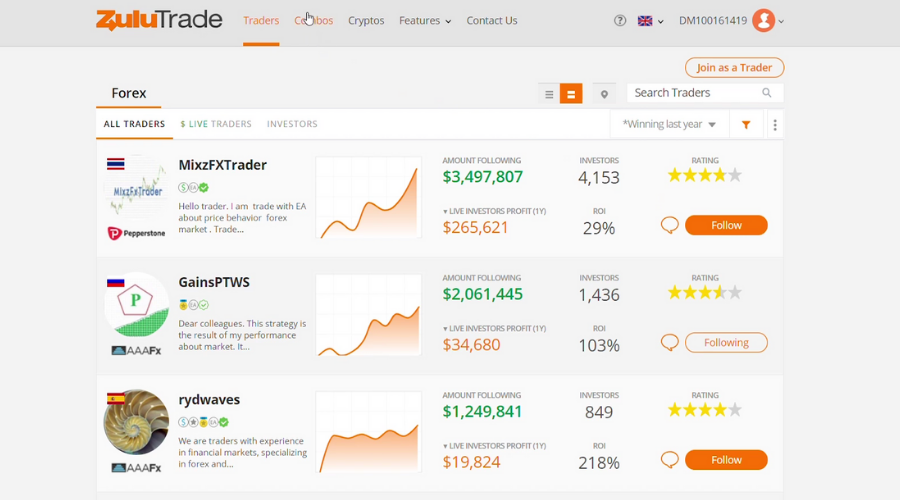



![9 Best Cryptocurrency Converter Apps [2026 Guide]](https://windowsreport.com/wp-content/uploads/2018/04/cryptocurrency-converter.jpg)








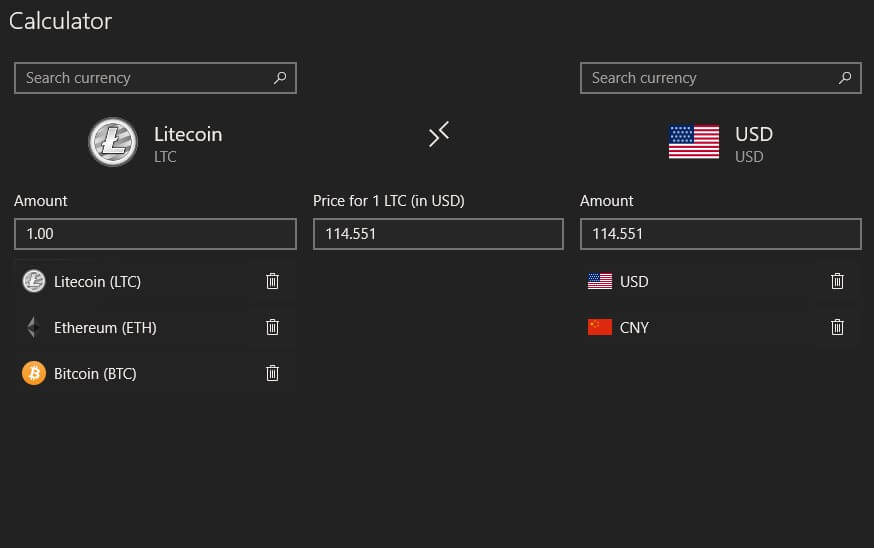



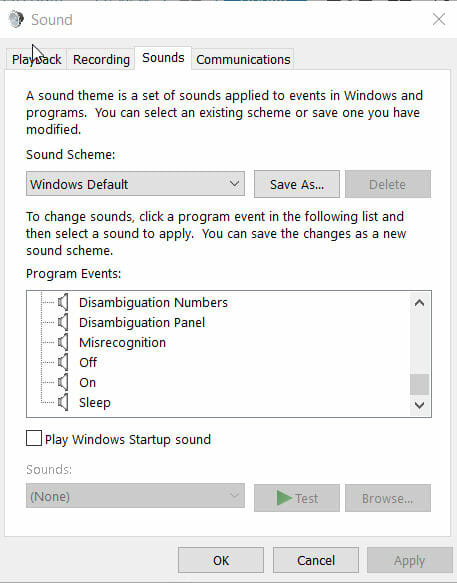
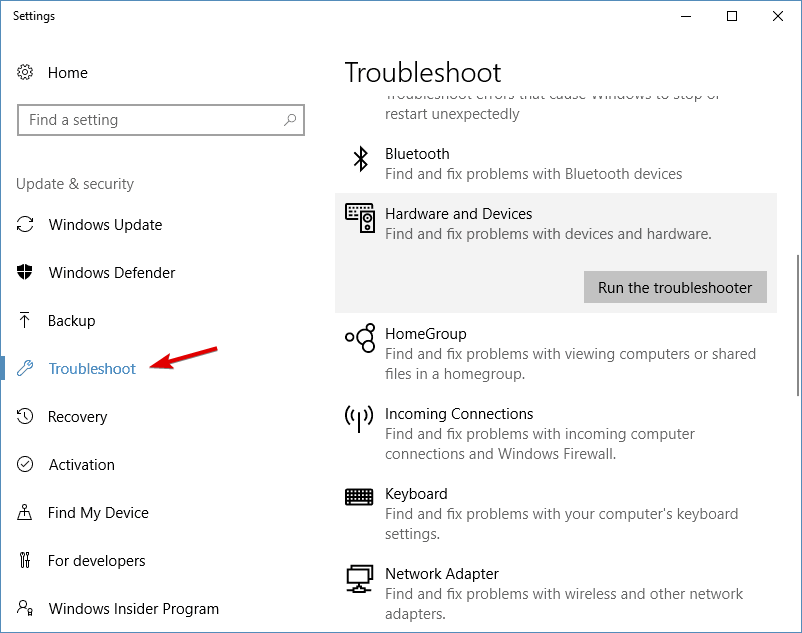
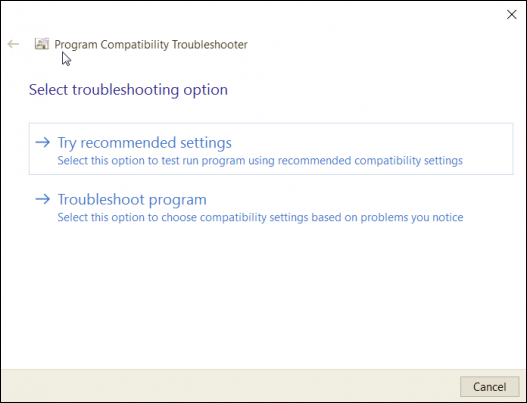
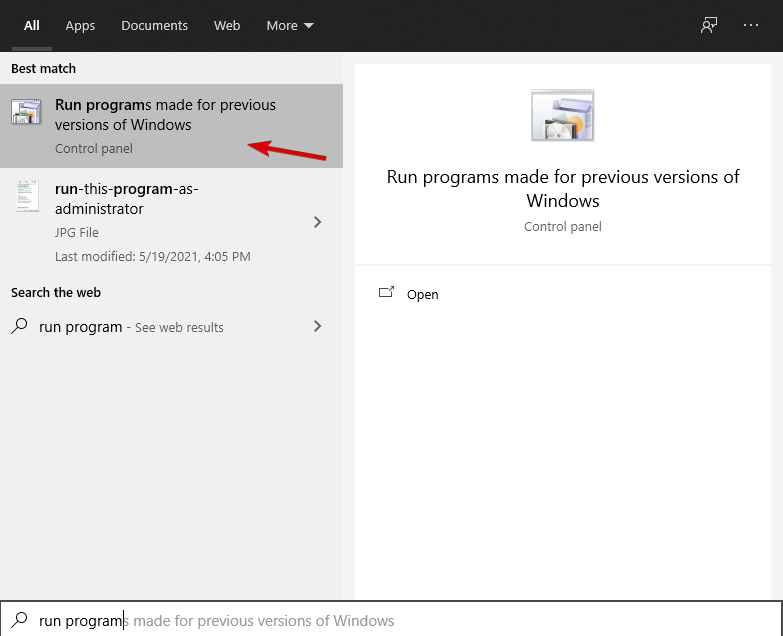
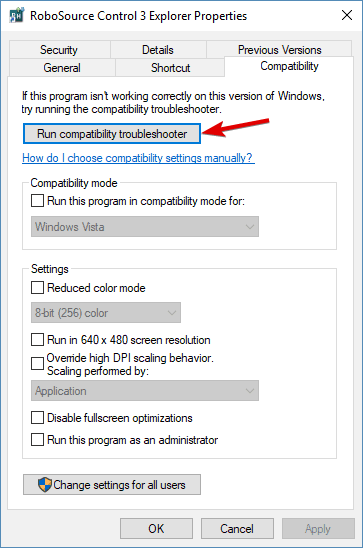
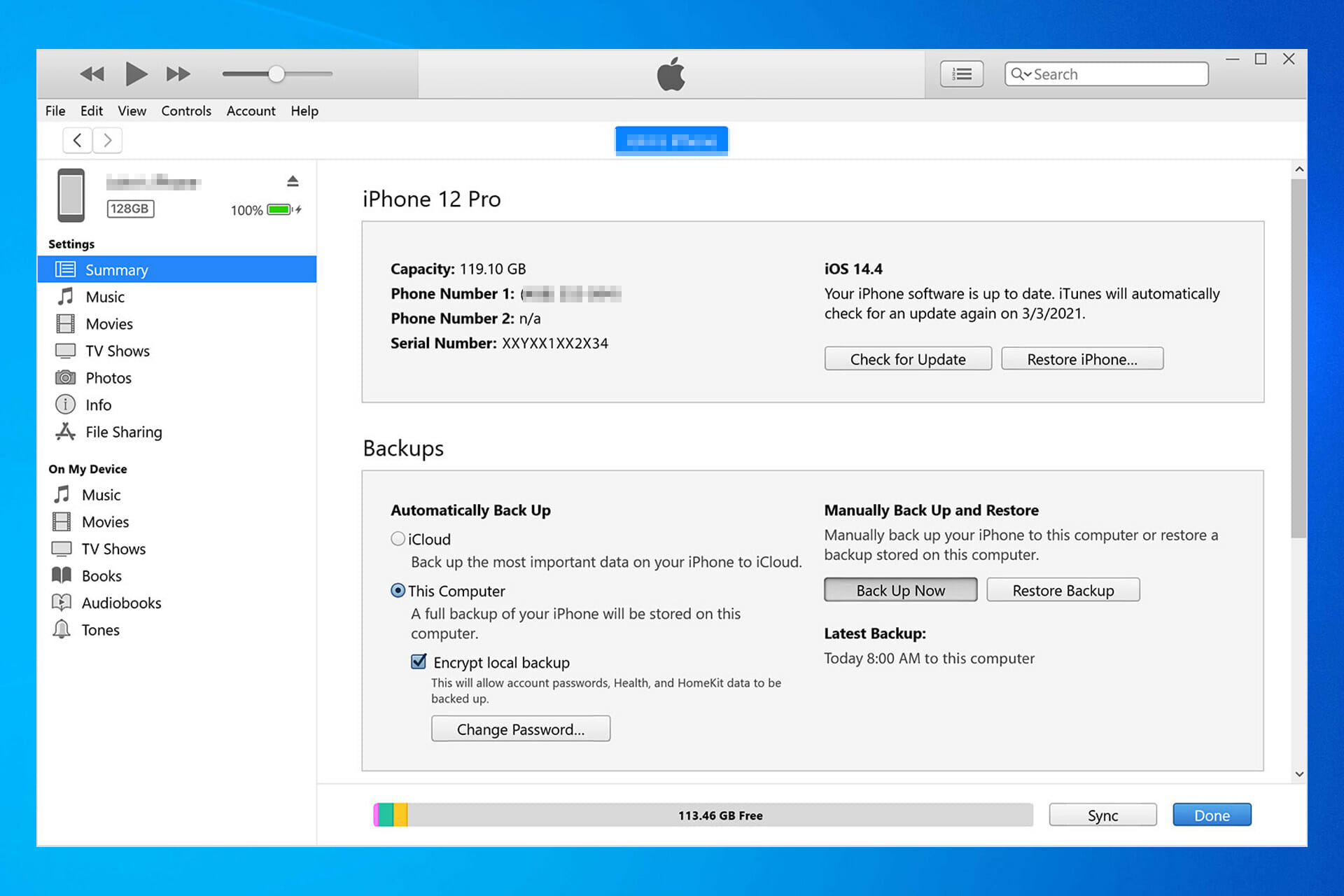


![Crypto Alert Apps: 7 Best to Monitor Prices [2026 List]](https://windowsreport.com/wp-content/uploads/2022/03/etoro-featured-image.jpg)








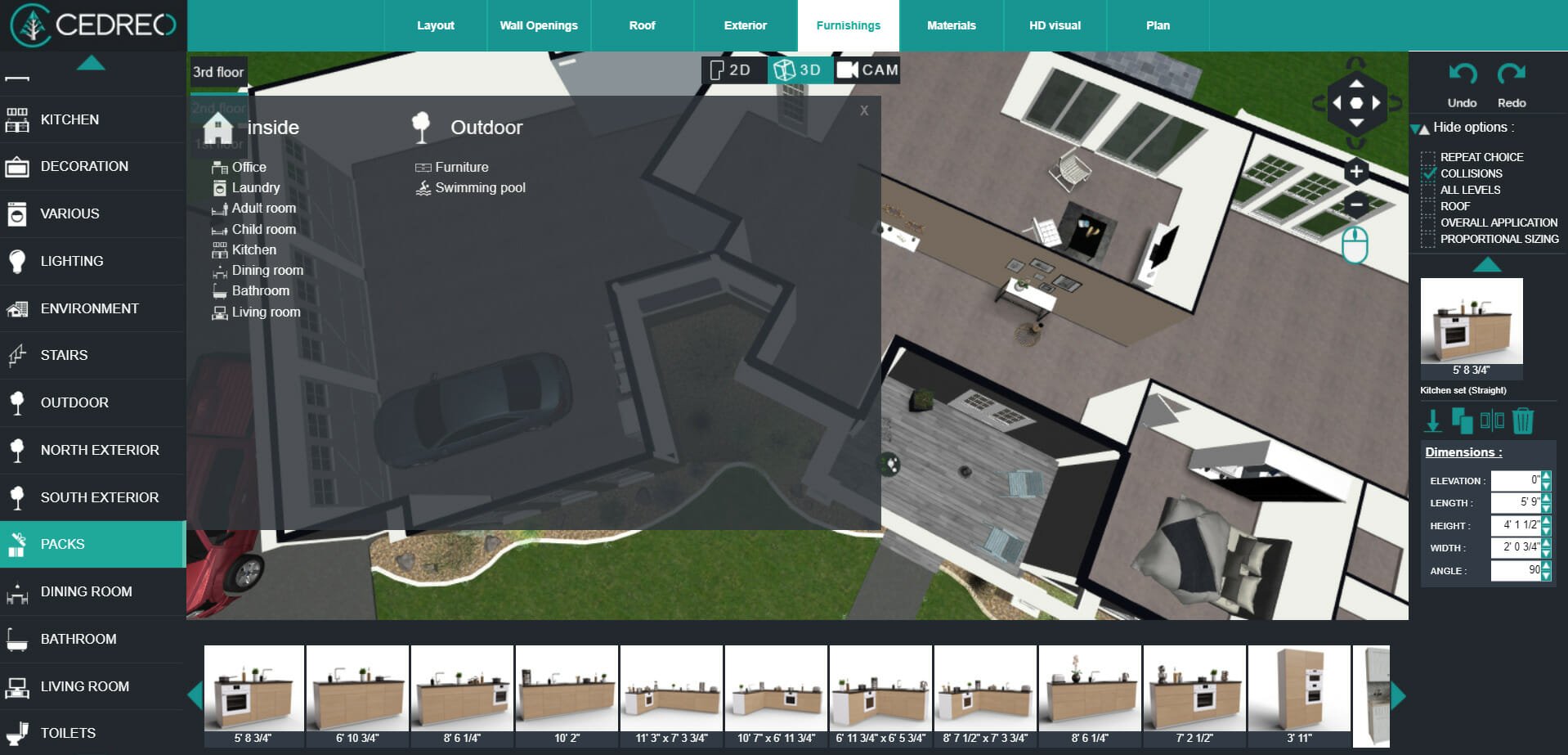

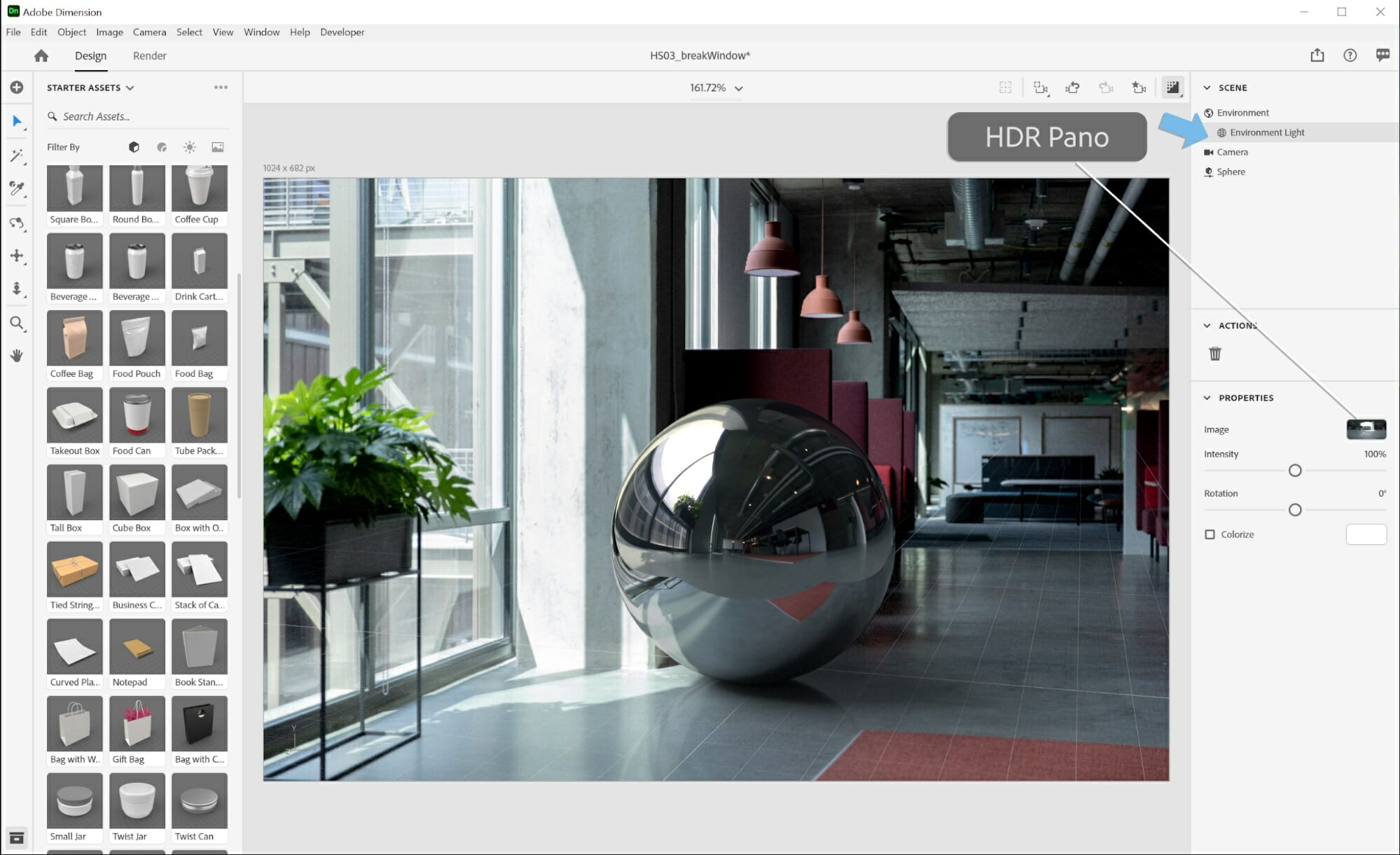

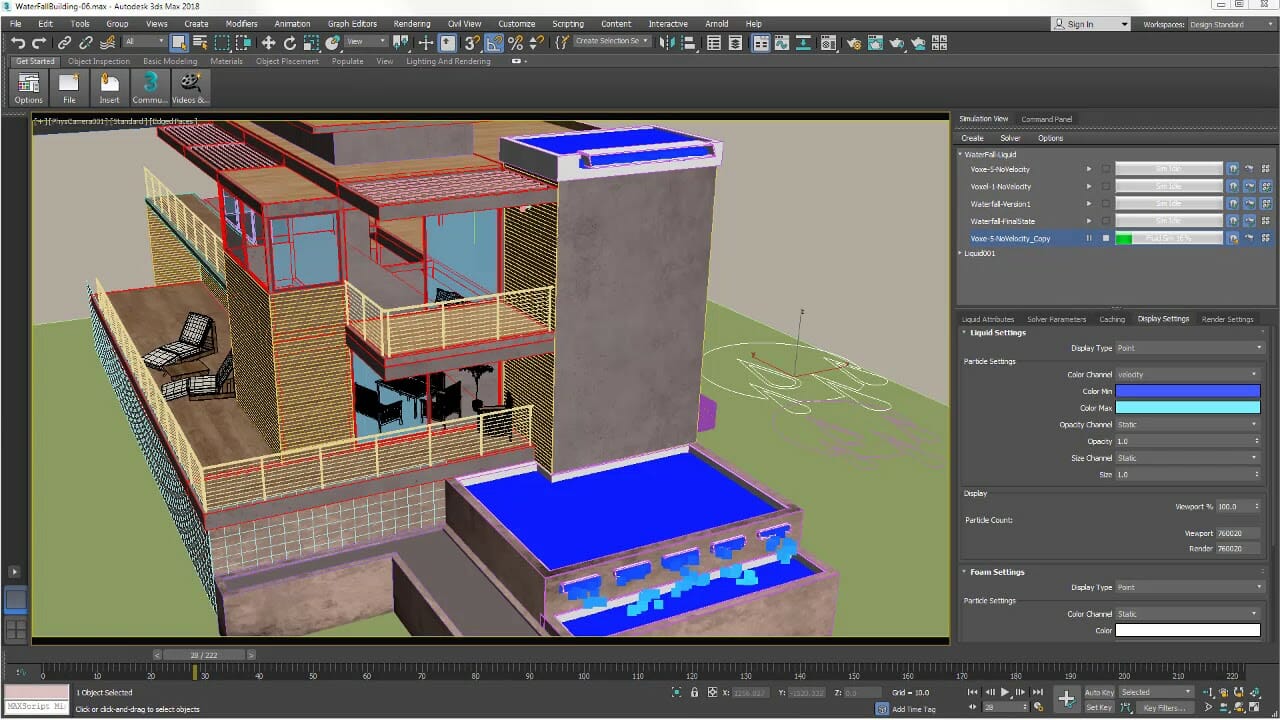








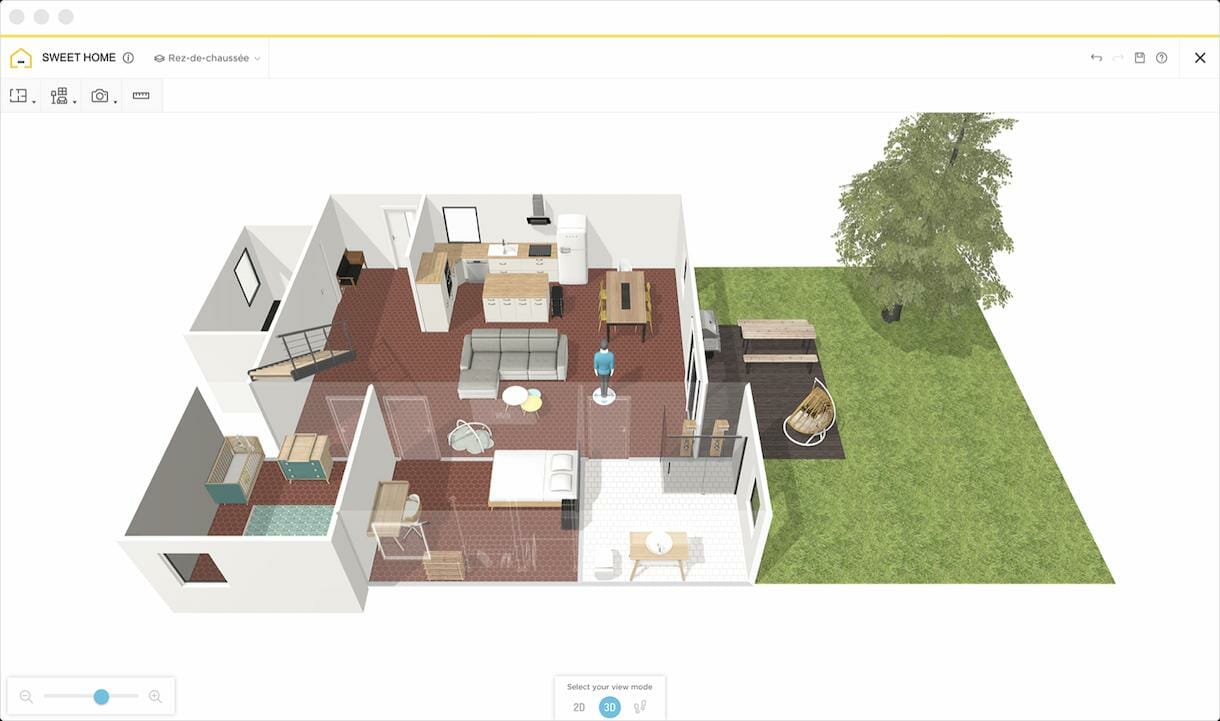







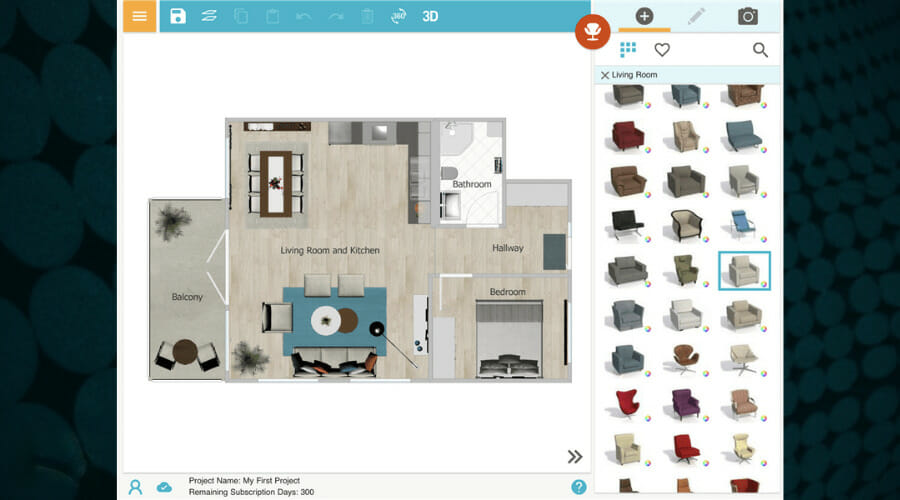
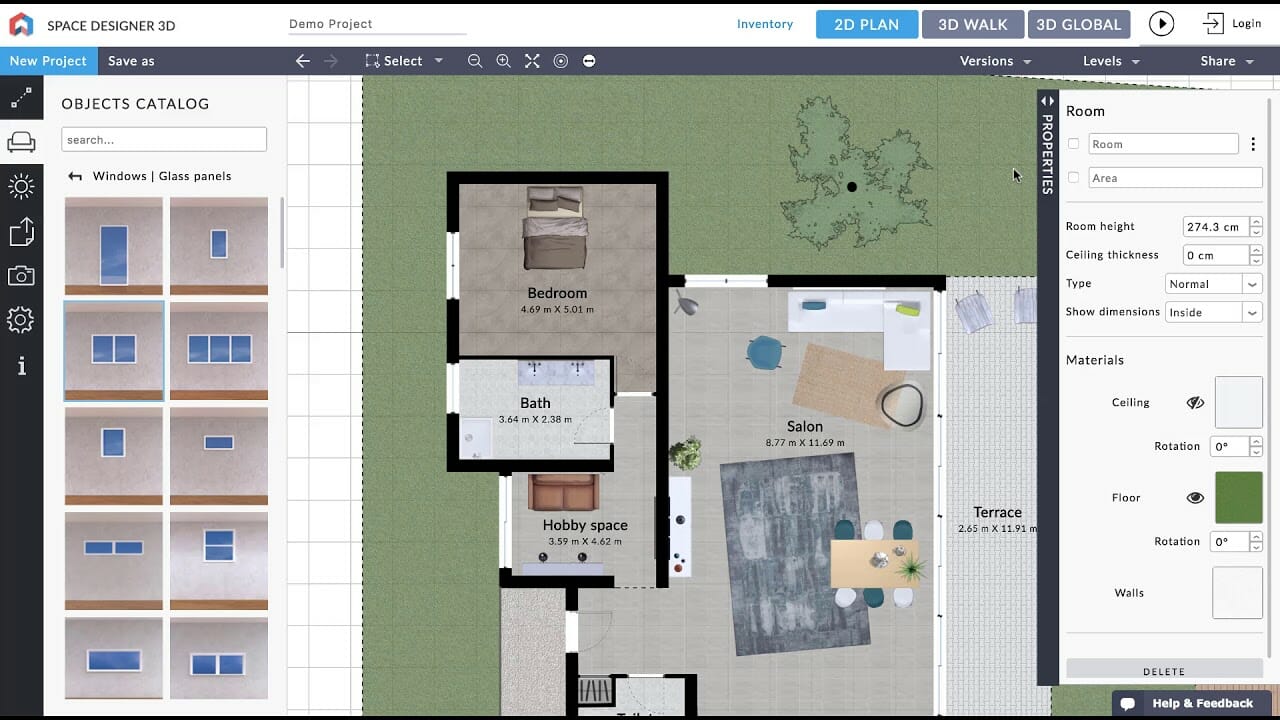
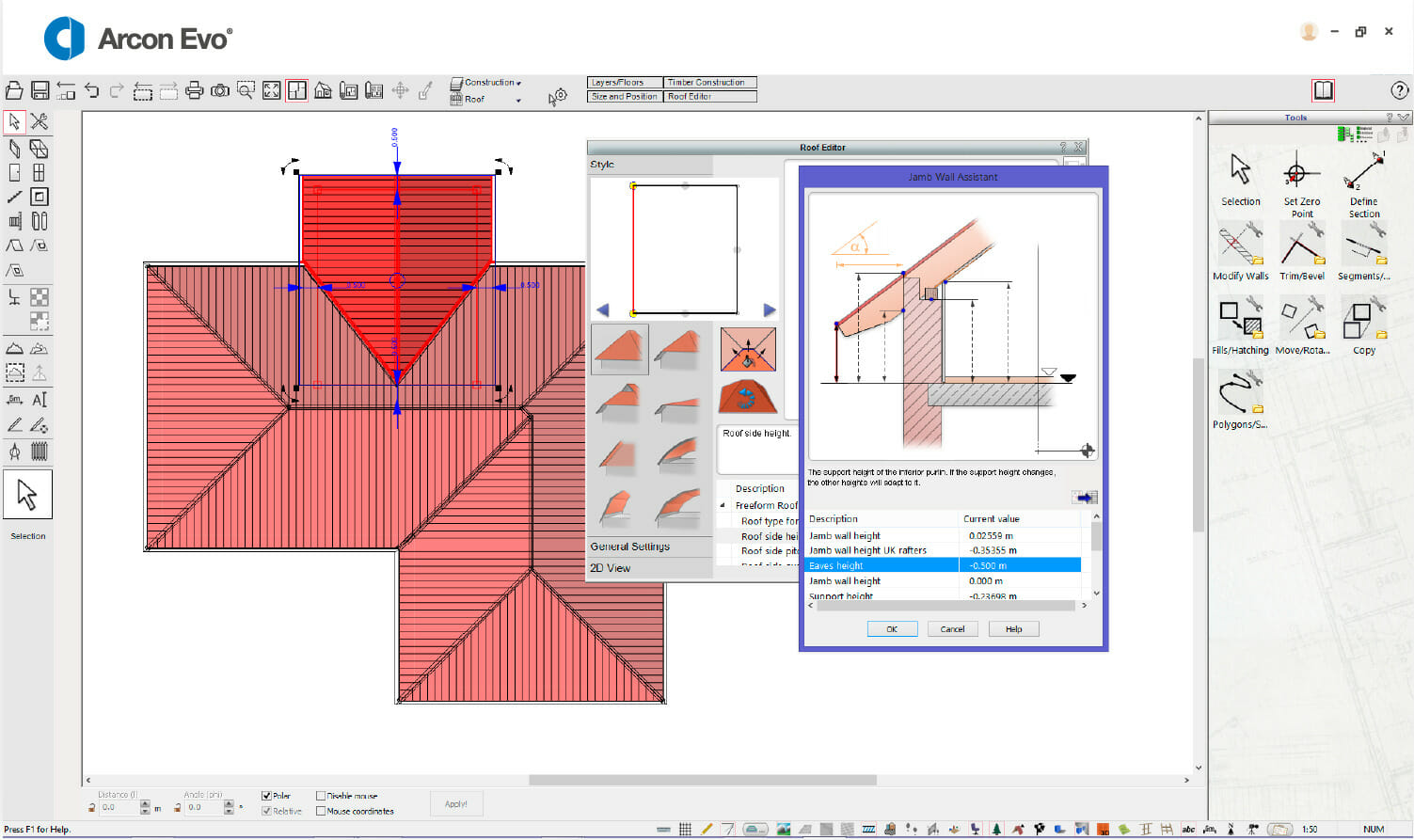
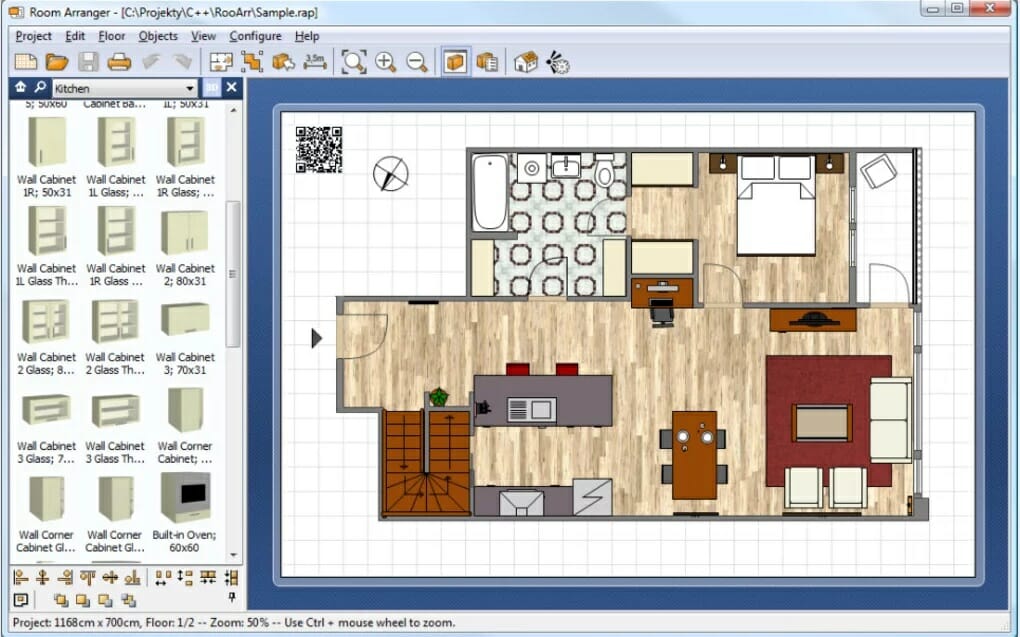
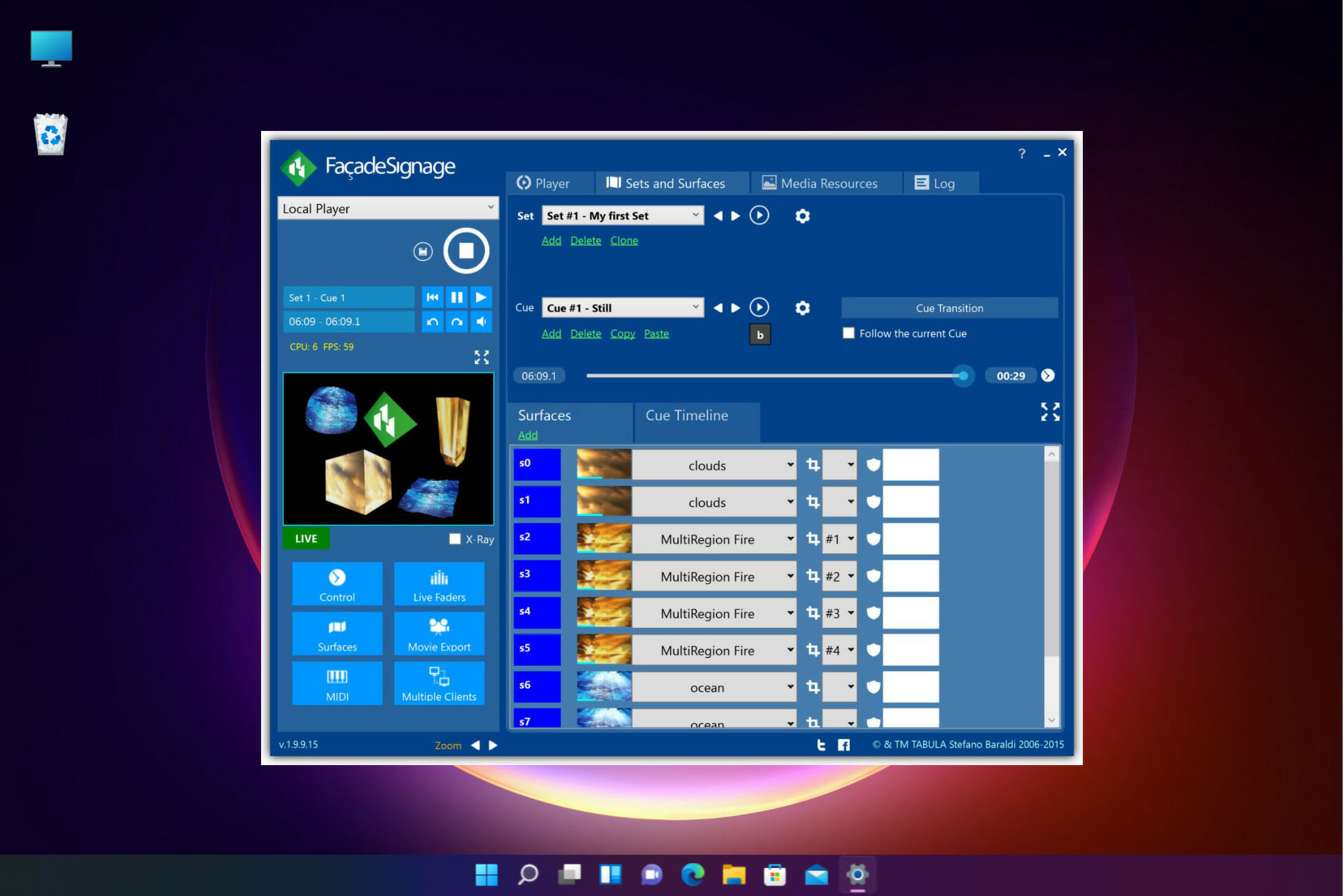
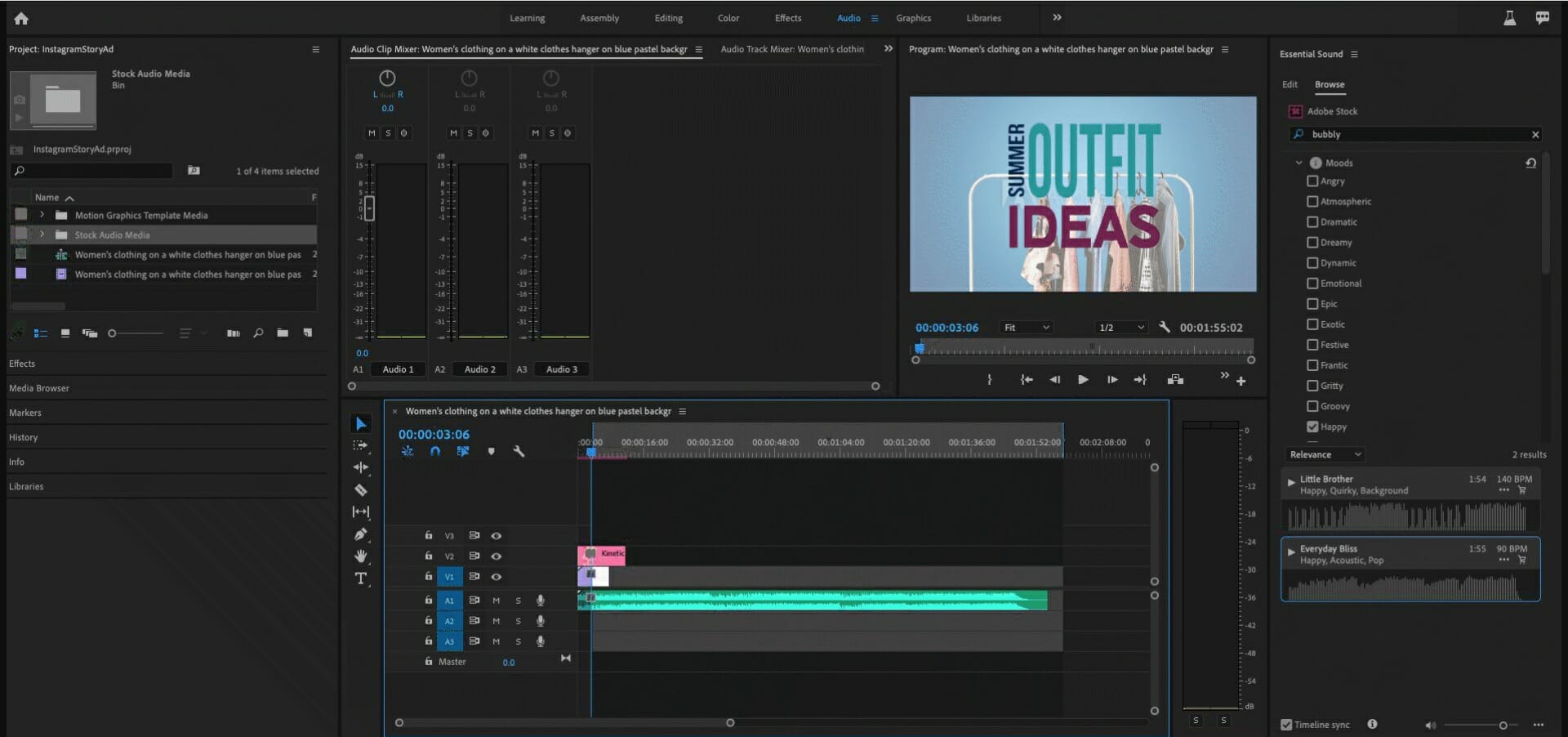
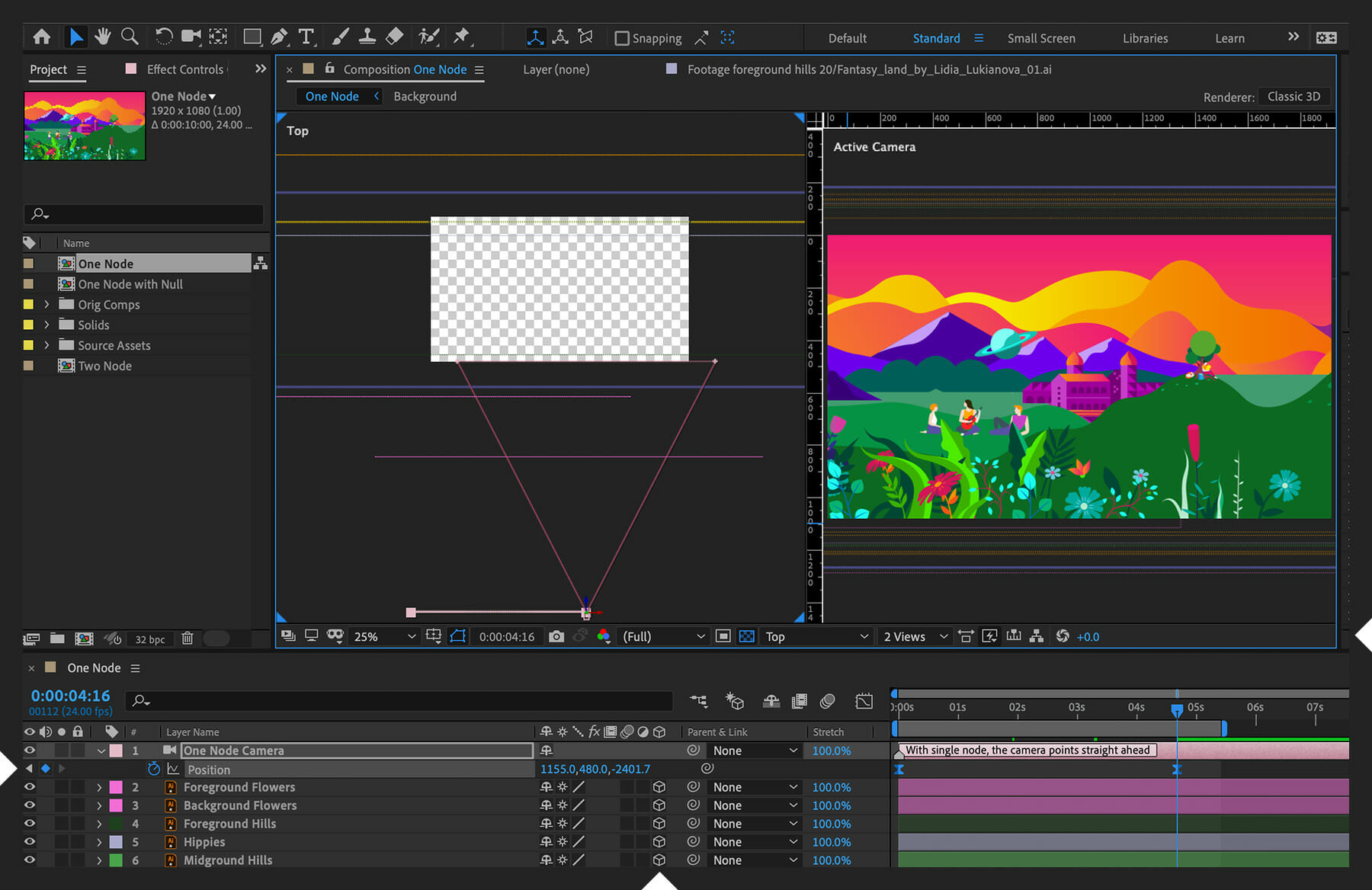




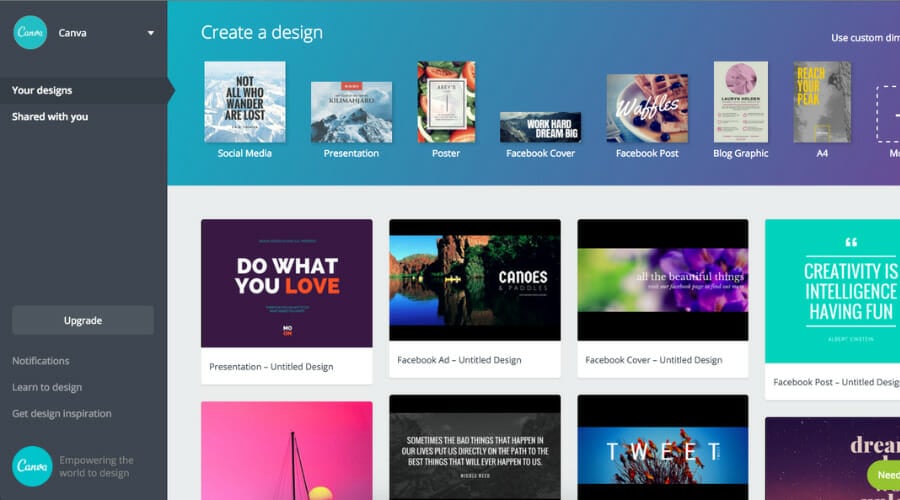










![A software conflict was detected while running Steam [Fix]](https://windowsreport.com/wp-content/uploads/2022/01/Something-went-wrong-2-1-1.jpg)