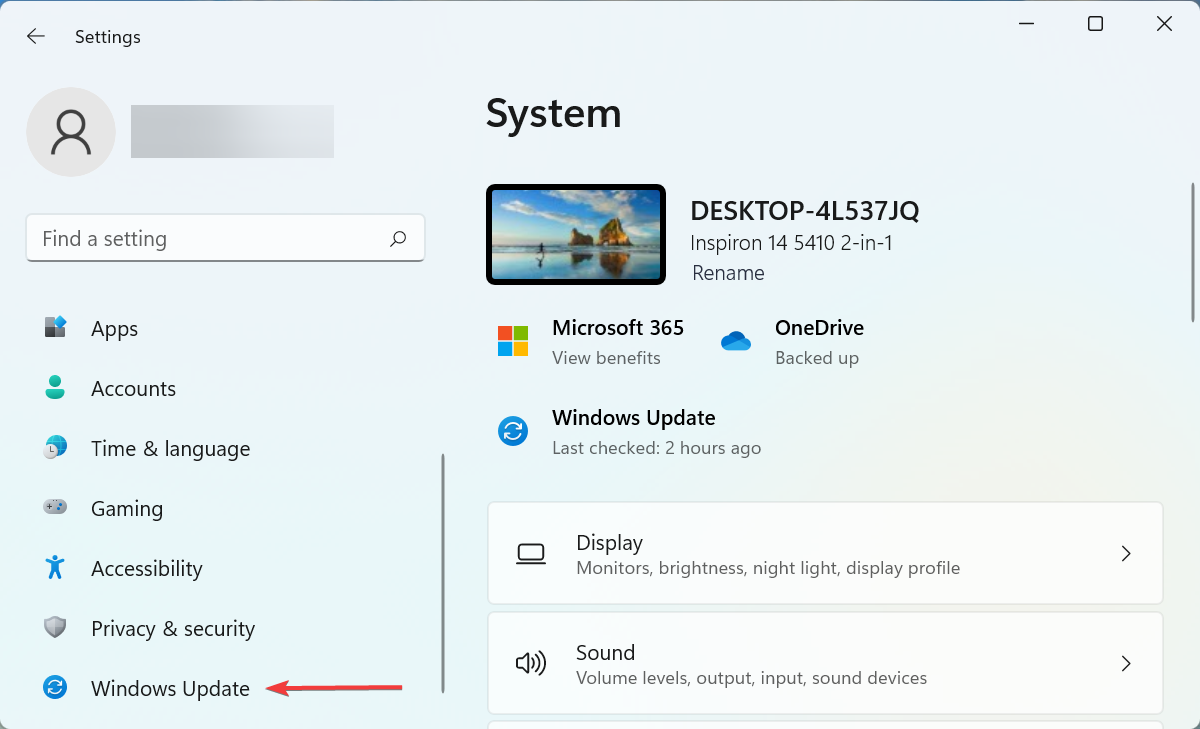
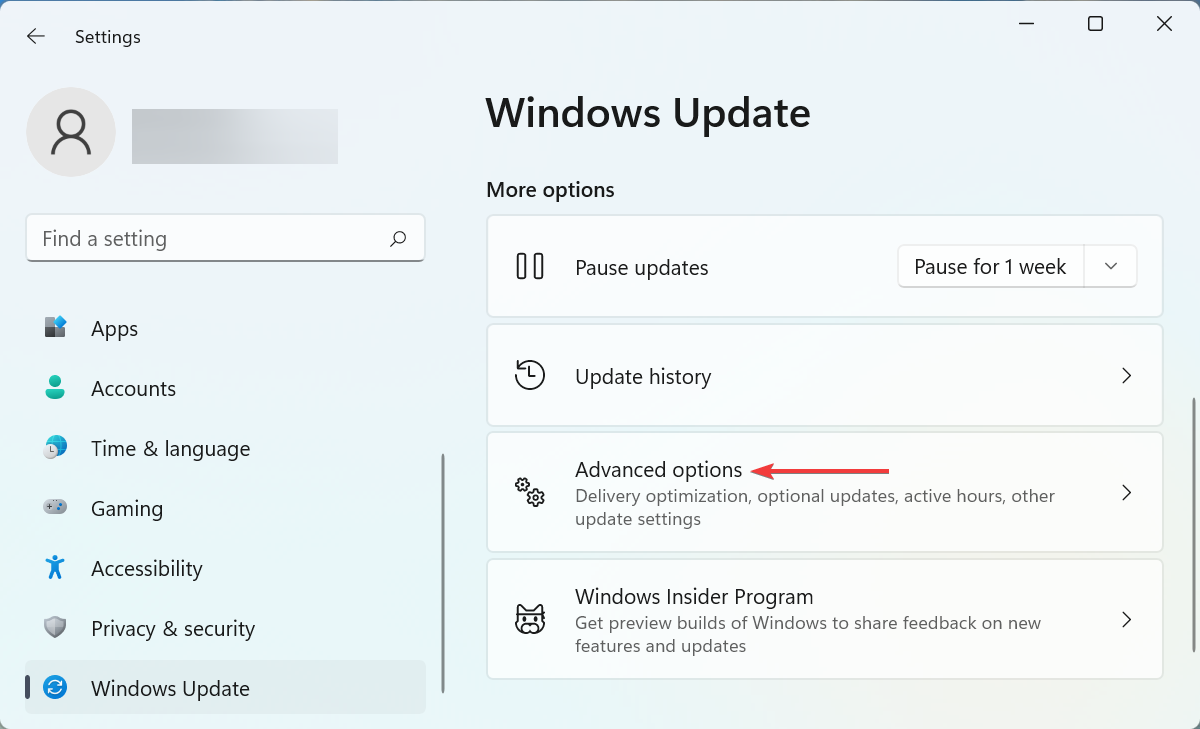
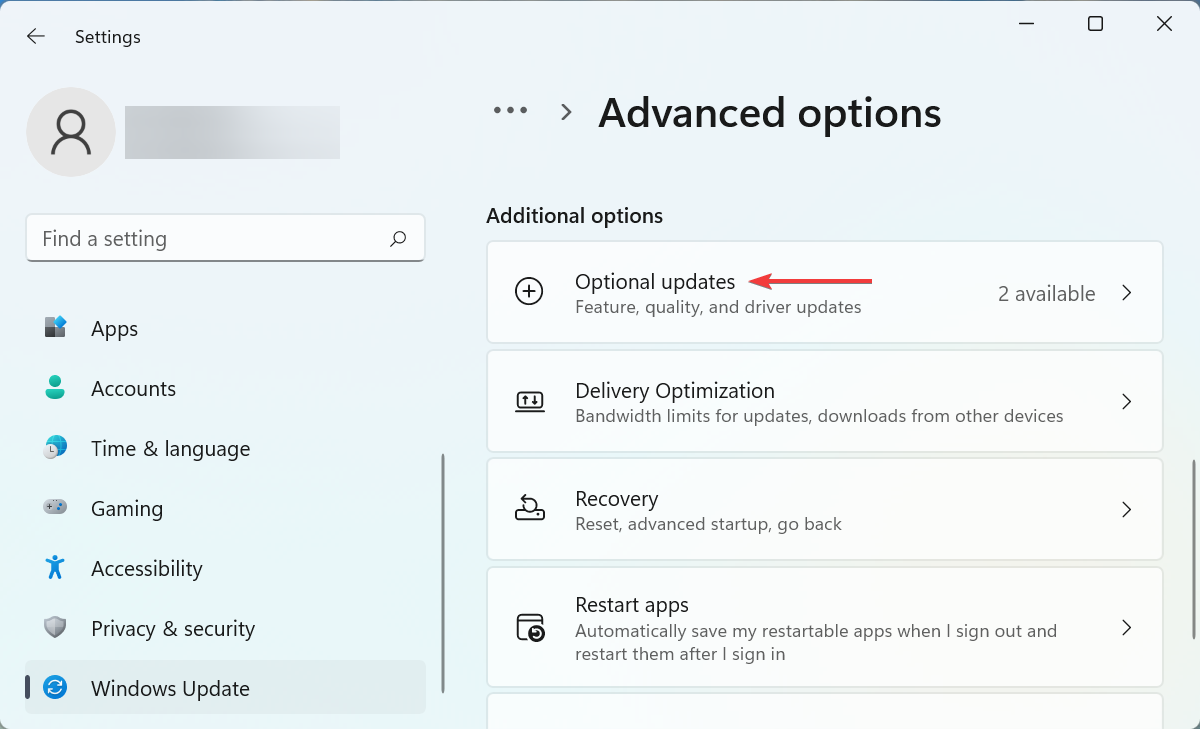
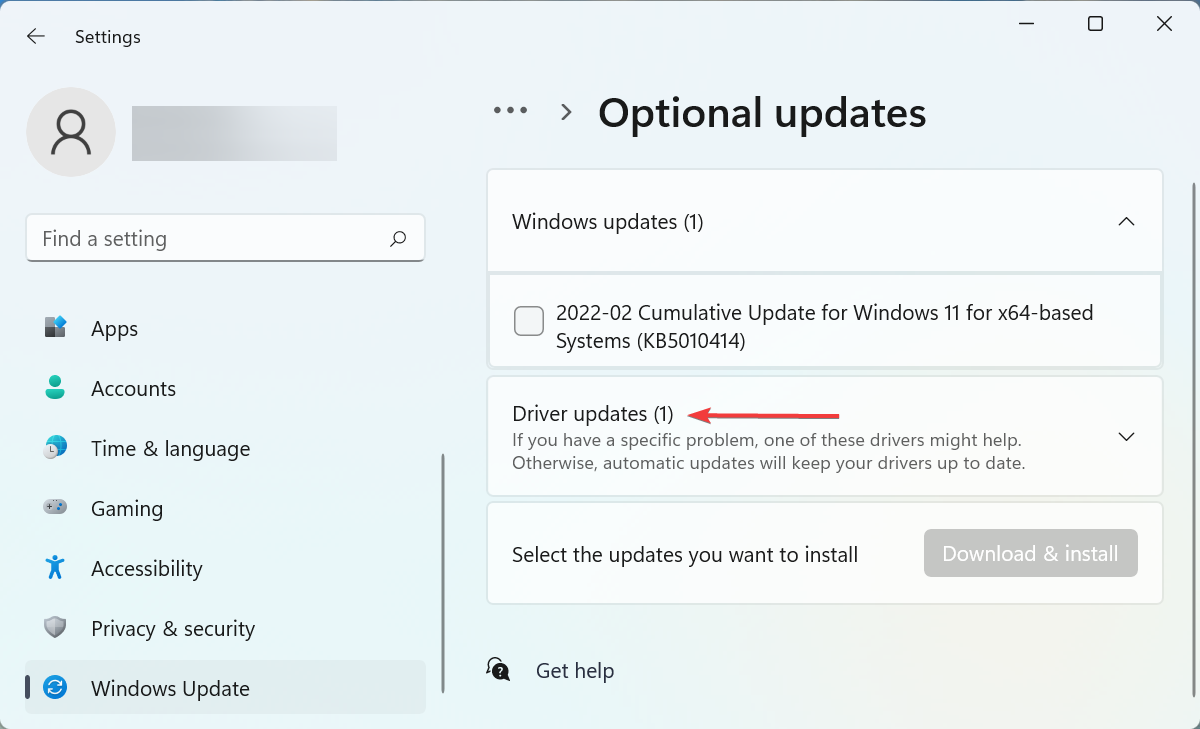
WiFi Doesn’t Have a Valid IP Configuration on Windows 11 [Fix]

In the contemporary world, people often have to rely on many devices, such as laptops and various gadgets. It is quite convenient to do so. 

However, there are also many problems that you have to deal with during the usage of these devices especially when it comes to Internet access.

Most of us have been faced with a situation where an intermittent or slow Internet connection can hinder our productivity or break that important call. 

A simple connection issue can get on your nerves, especially when you’re on a deadline and have important work to do.

In these modern days, interruption even for a few minutes can have adverse implications, especially for people who rely heavily on the Internet to work.

If your device is not able to connect to the internet, it may be because of an issue with your Wi-Fi configuration. In such cases, you will see the error message: Wi-Fi doesn’t have a valid IP configuration on your screen.

This error is one of the most common Windows errors that users encounter. It occurs when your PC is unable to get an IP address and establish a connection with the network gateway or DHCP server.

If you are using Windows 10, refer to our comprehensive guide on what to do if Wi-Fi doesn’t have a valid IP configuration and resolve the issue.

Why does The Wi-Fi doesn’t have a valid IP configuration error occur?

This problem usually occurs when your device is not getting an Internet Protocol (IP) address from your network router or modem. However, there could be other reasons for this problem.

Some of the reasons include:

  • Damaged network drivers – It is likely that your network adapter driver is outdated or corrupted. To resolve this issue, you must update the driver to its latest version.
  • Misconfigured settings – In some rare cases, the IP address might be configured to obtain automatically but it isn’t able to do so. This can happen if your router has the DHCP disabled or if there is some other issue with your network settings.
  • Malware in your system – Your system may be infected with malware if you downloaded some files from untrusted sources or visited unsafe websites. You may also be facing this problem due to some bug in the router’s firmware.
  • Outdated hardware – If you have been using your system for a long time, then there is a chance that your computer has gone through a lot and now it needs some changes. The devices and components of your system can be damaged or corrupted causing the Wi-Fi connection not to work properly.
  • Conflicting IP address – This error occurs because your PC has an IP address that conflicts with one on your network. It can also mean that the IP address you are getting is not correct and doesn’t work with your network. 
  • Network settings issues – You may encounter this problem after updating to Windows 11 when network changes haven’t been applied to the Network adapter.
  • Malfunctioned router – If you can’t get a valid IP address from your router, it’s possible that your router has become malfunctioned and needs to be reset. If the issue persists, you may need to get yourself another router.

To fix the above issues, we have a list of possible solutions that can get you connected in no time.

What can I do to fix The Wi-Fi doesn’t have a valid IP configuration error?

1. Renew the IP address

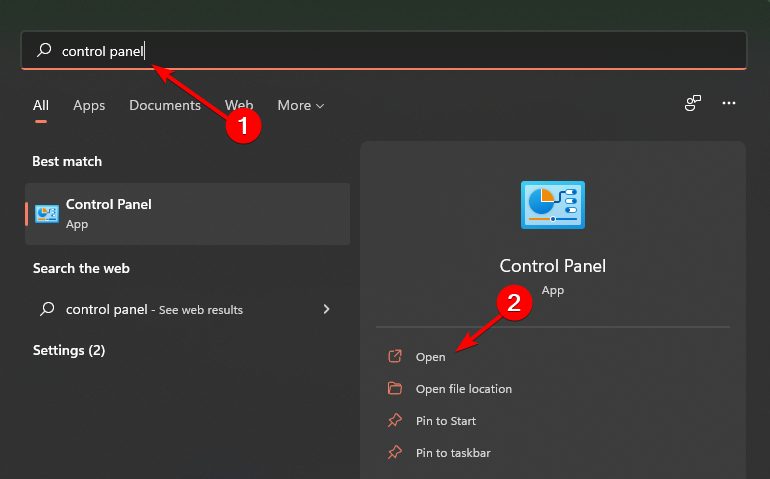
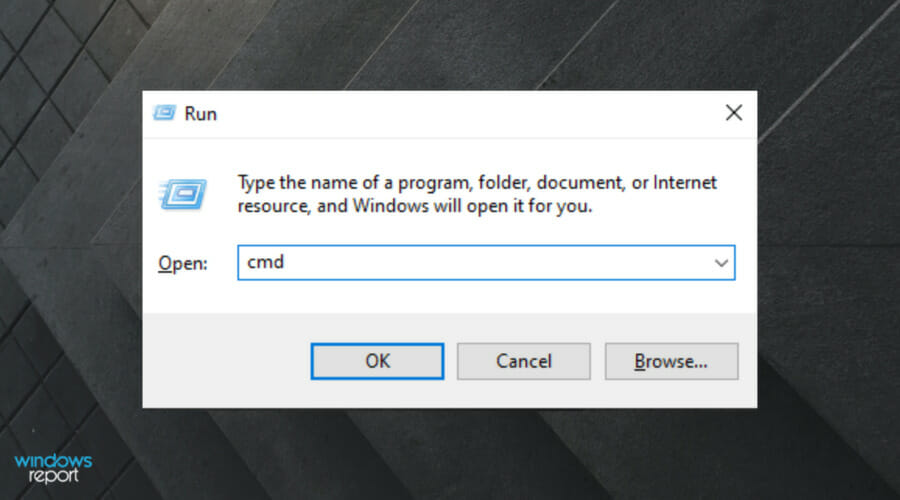
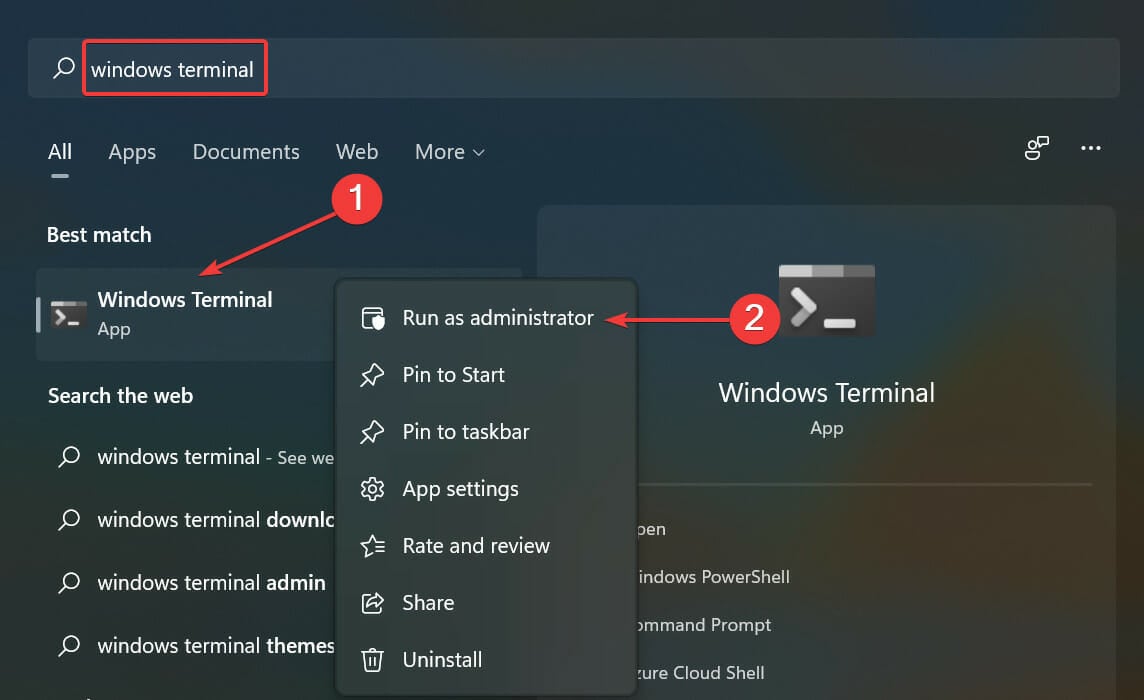
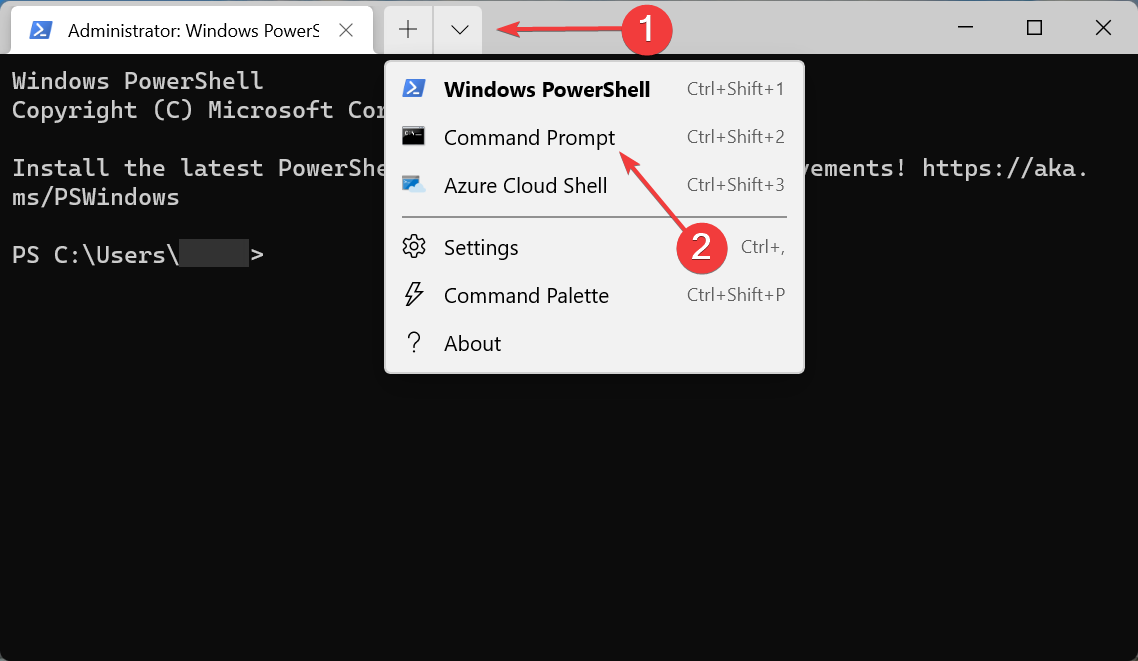
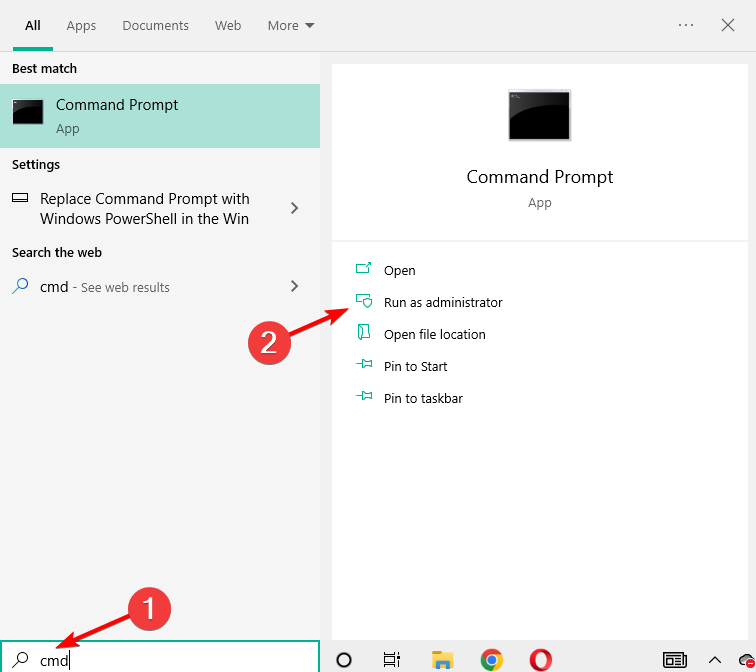
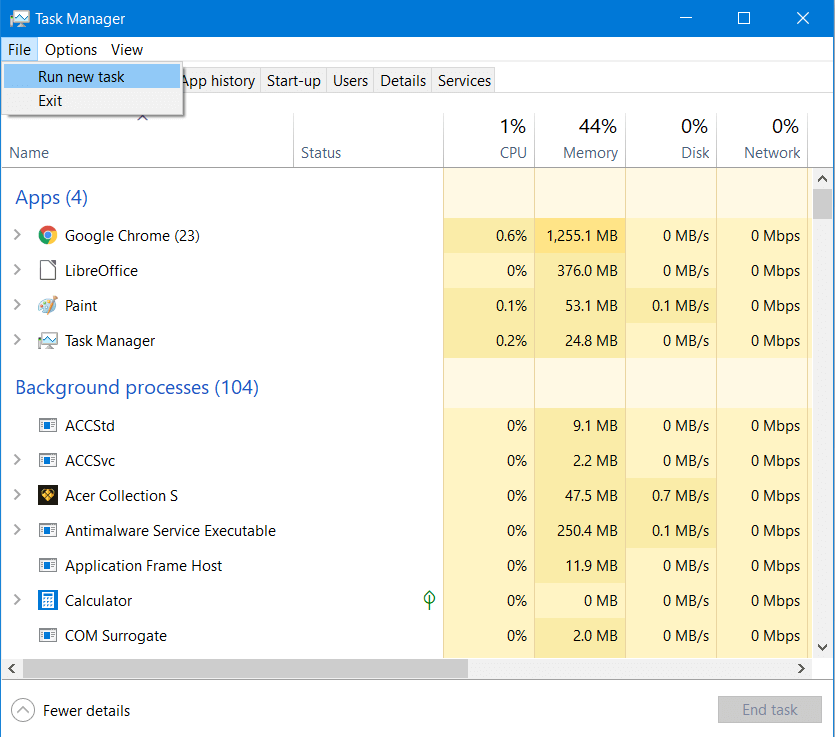
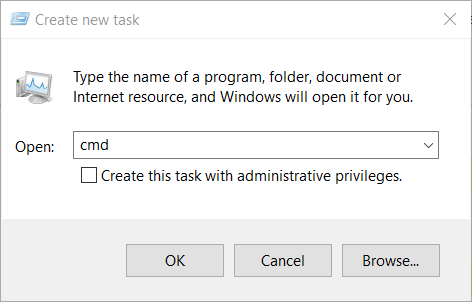
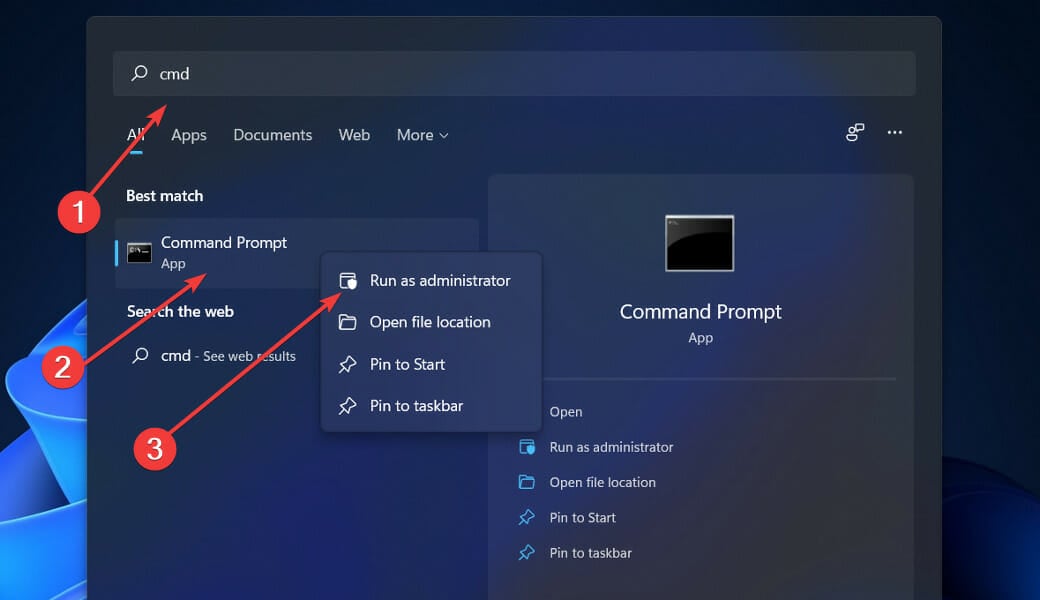
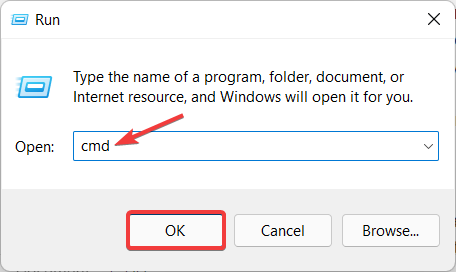
  1. Press the Windows key,  type cmd in the search bar, and click Open.
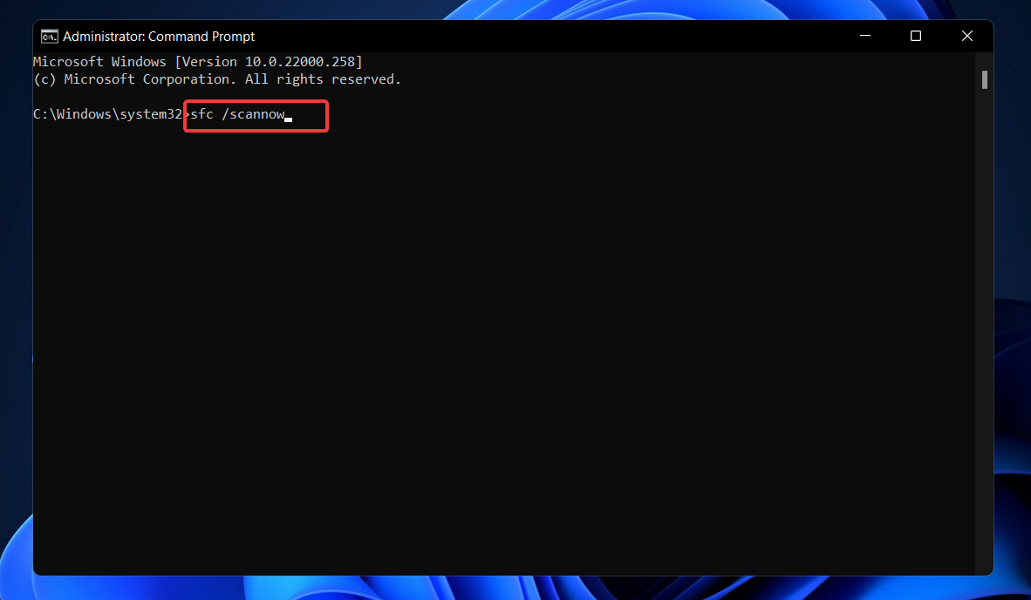
  2. Enter the following command: ipconfig/release
  3. Wait for the command to be executed and enter the next one: ip/renew
  4. Close the Command Prompt and verify if the error is still there.

2. Reset TCP/IP

  1. Press the Windows key,  type cmd in the search bar, and click Open.
  2. Type in the following commands and press Enter after each one: netsh winsock reset catalog netsh int ipv4 reset reset.log netsh int ipv6 reset reset.log
  3. Now restart your PC and see if the error is still there.

3. Uninstall the driver

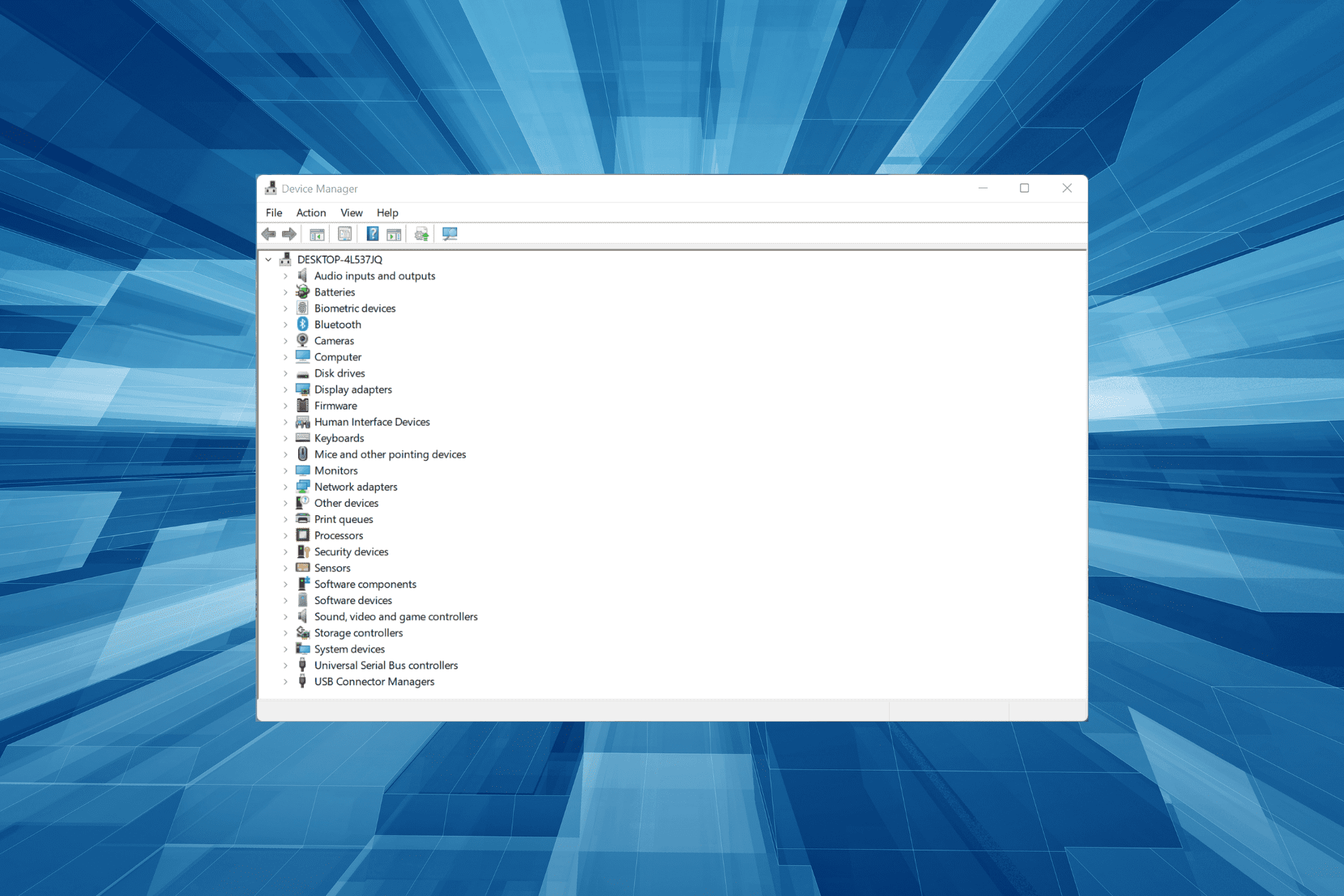
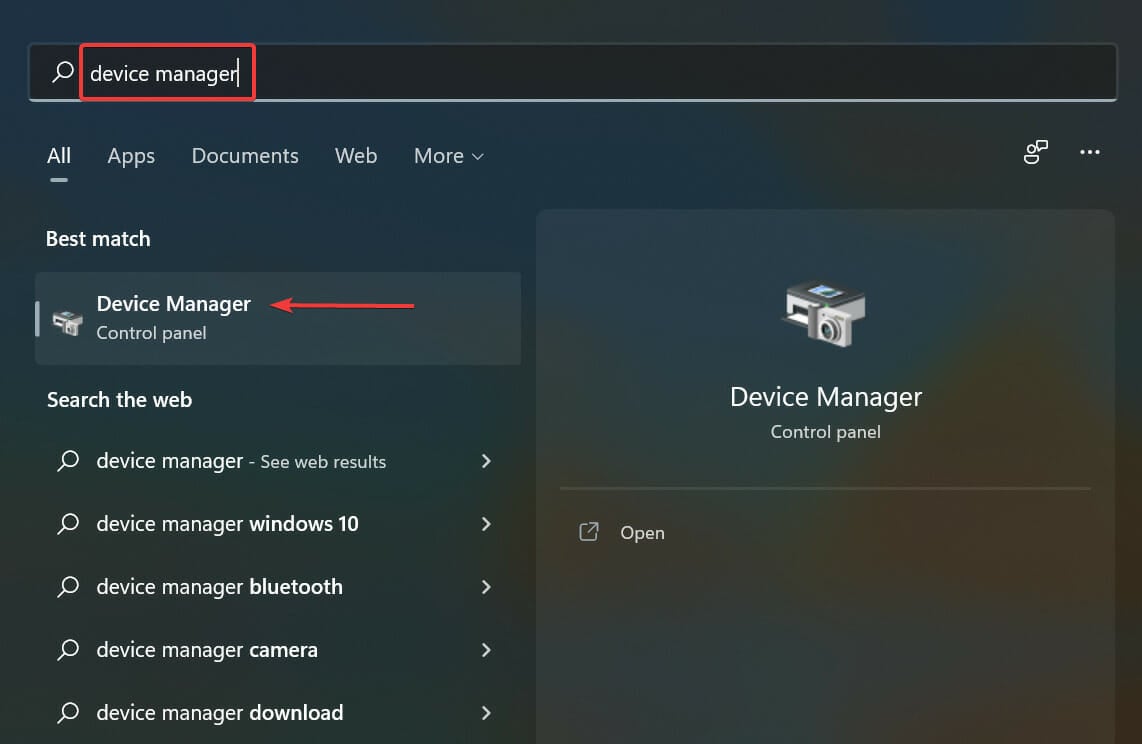
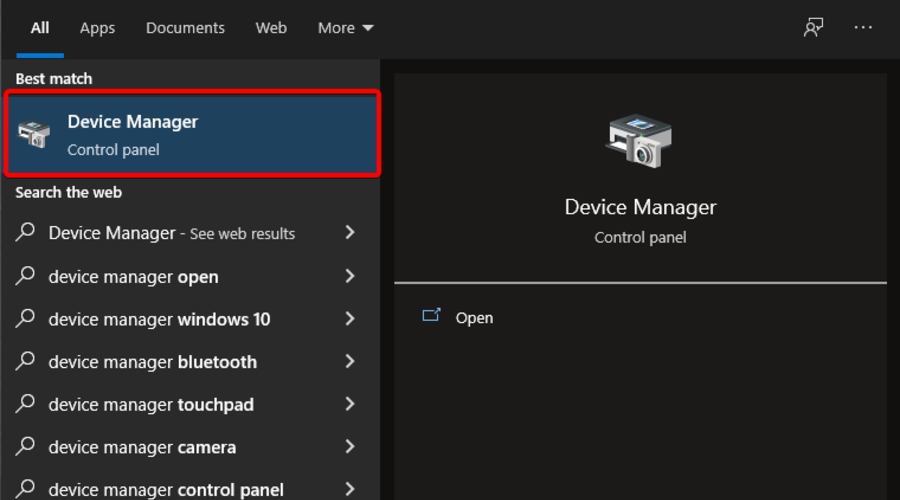
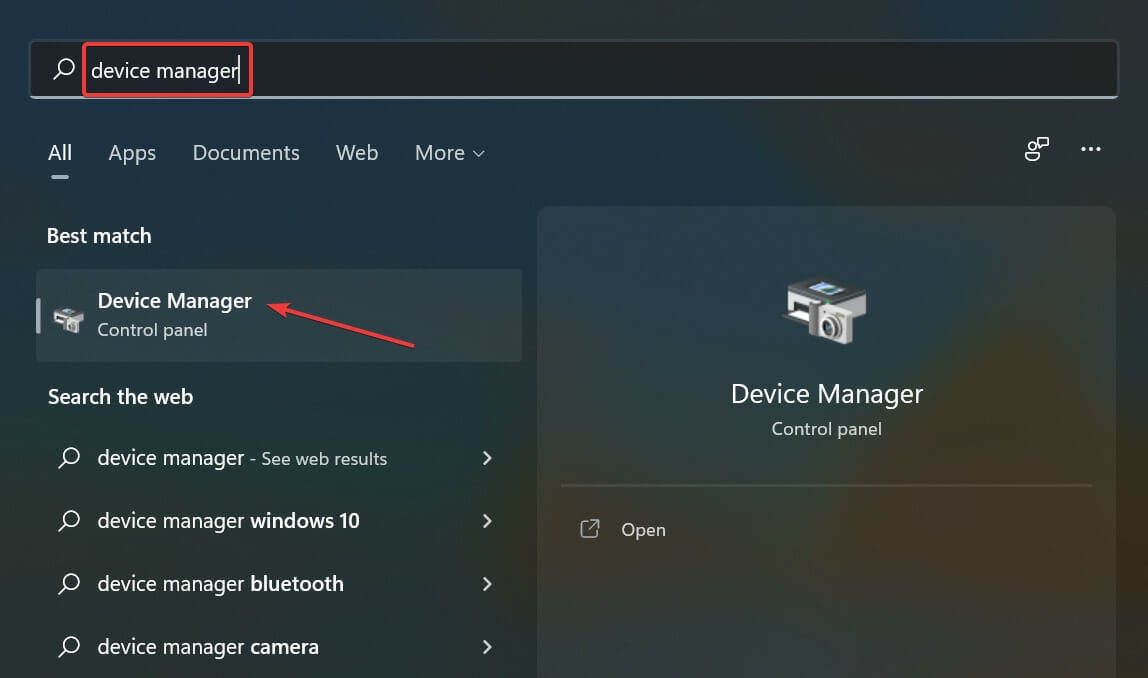
  1. Press the Windows key, search Device Manager, and click Open.
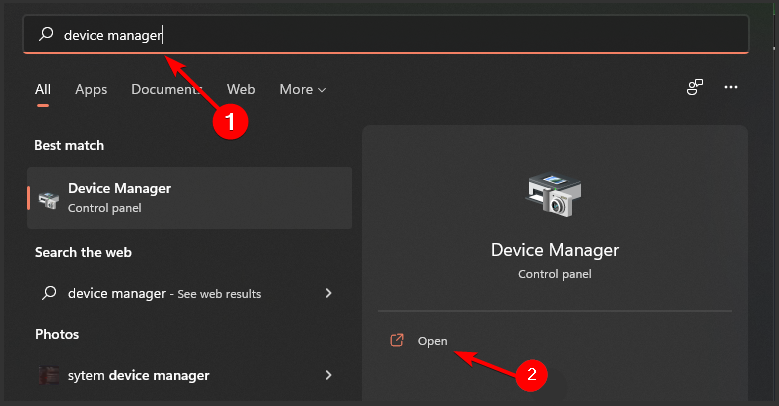
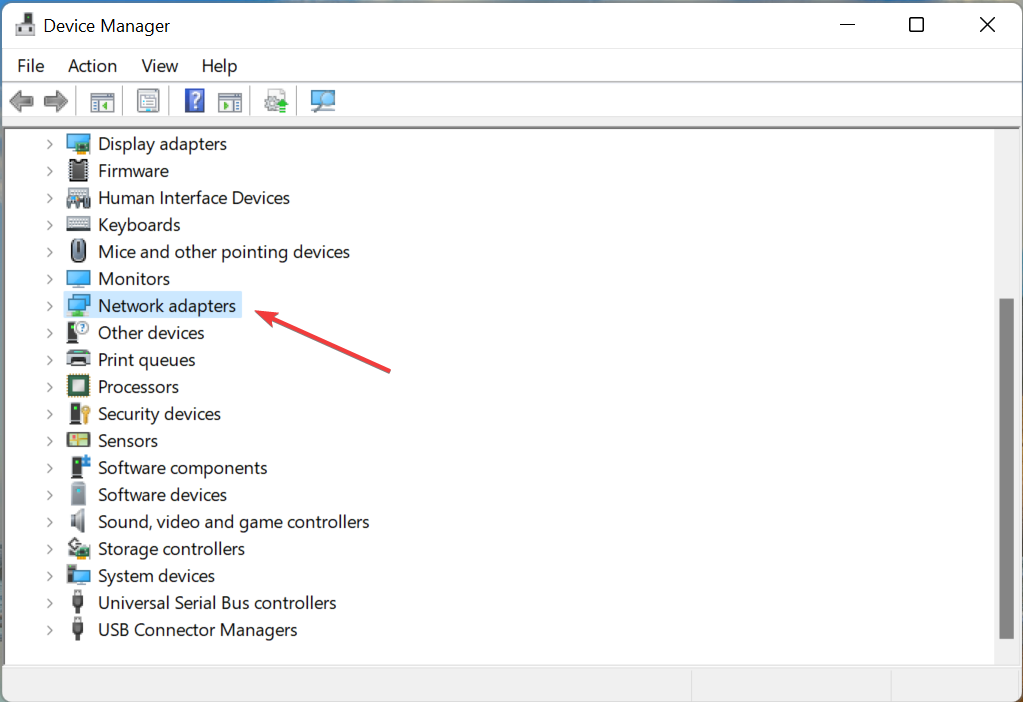
  2. Navigate to Network adapters, find your Wi-Fi adapter, right-click and select Uninstall device.
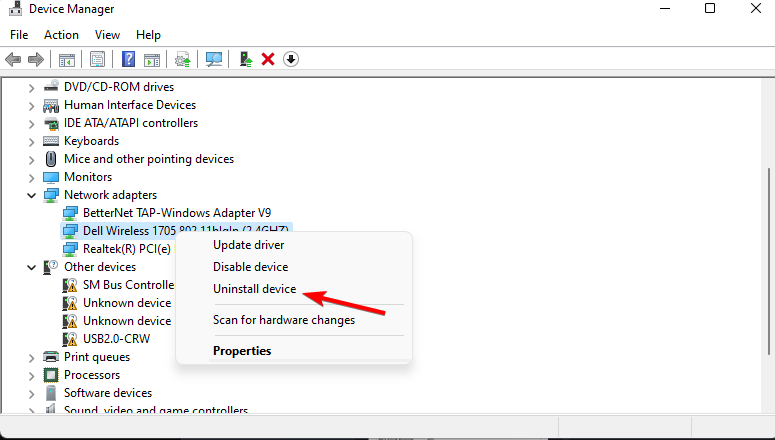
  3. Click Uninstall on the confirmation box.
  4. Restart your PC and your drivers will automatically be restored on startup.

4. Update drivers

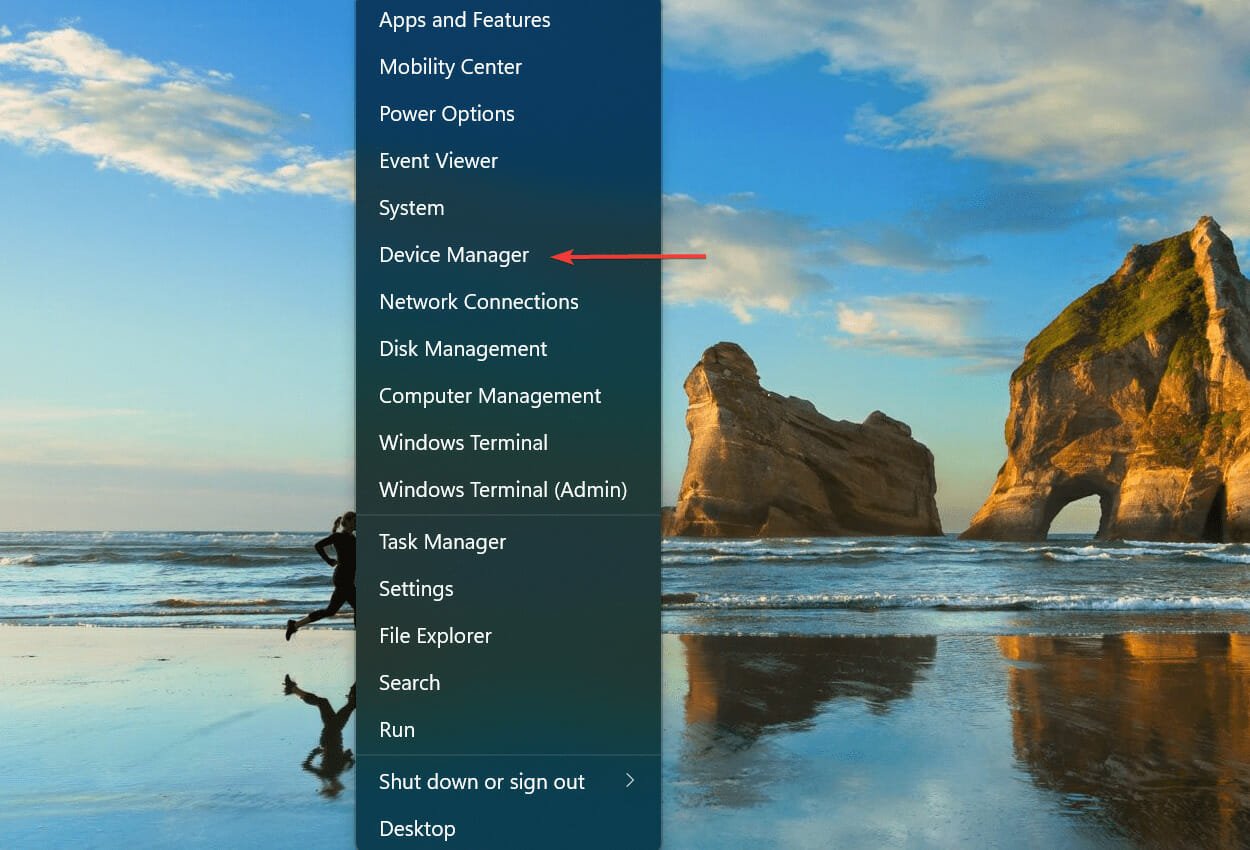
  1. Hit the Windows key, search Device Manager, and click Open.
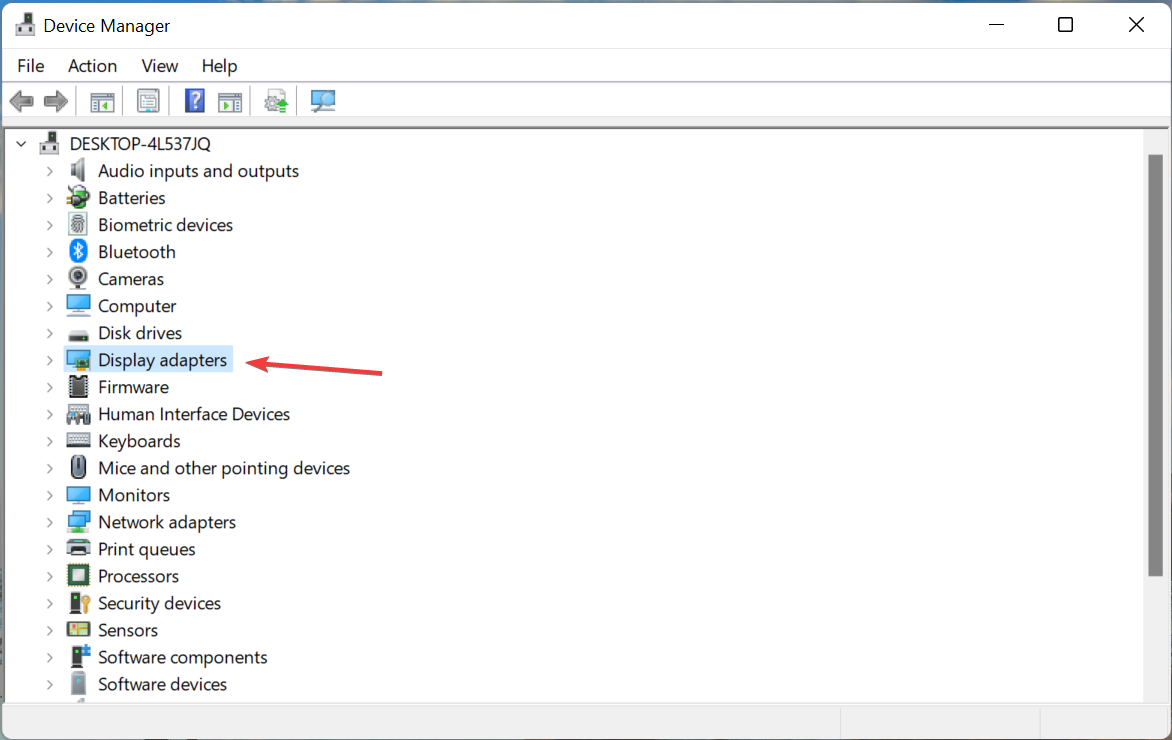
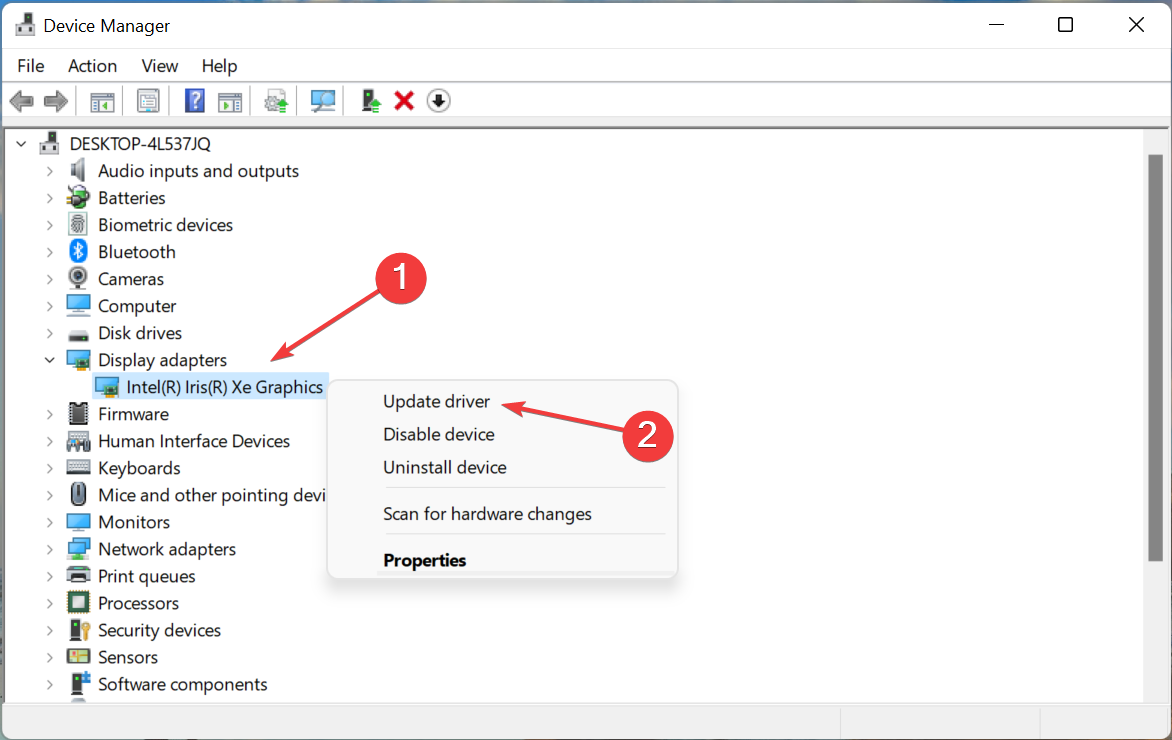
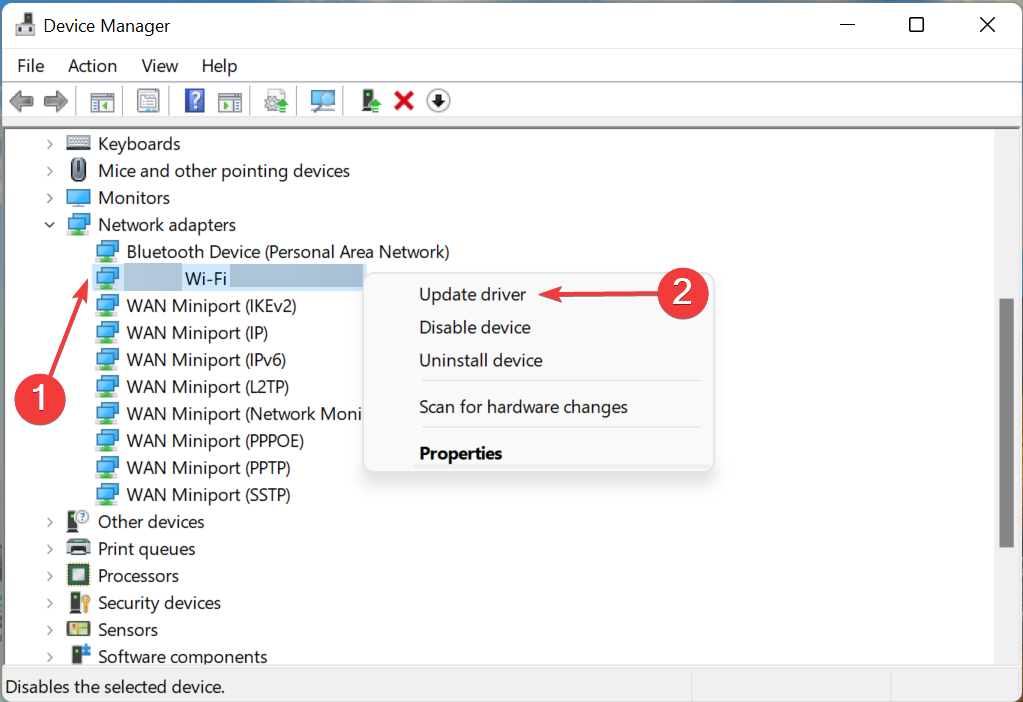
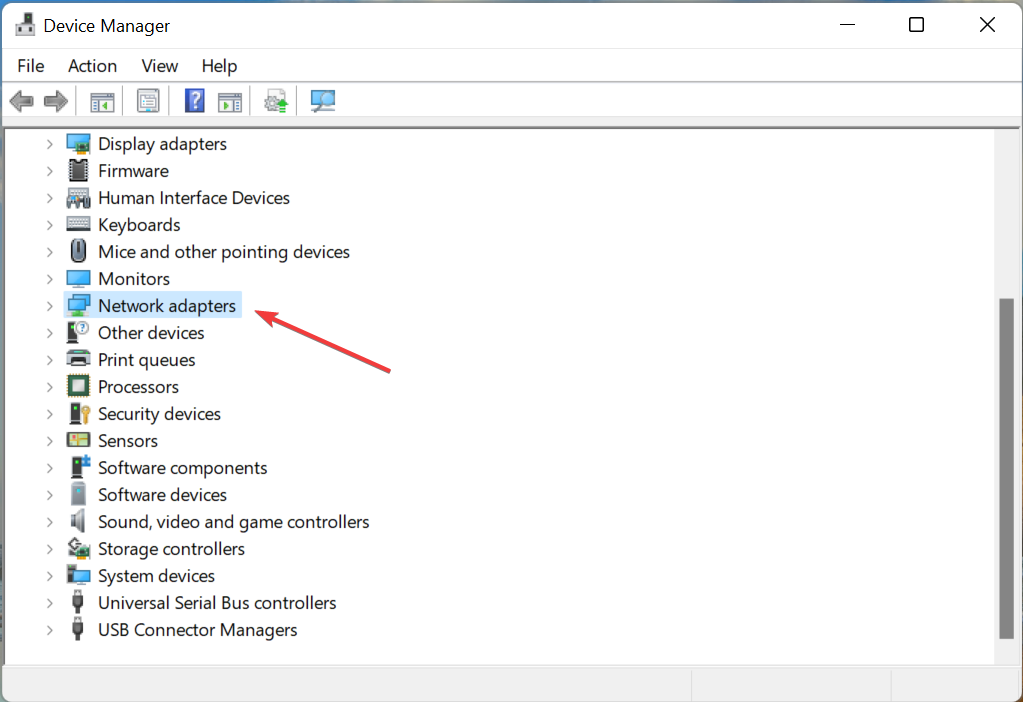
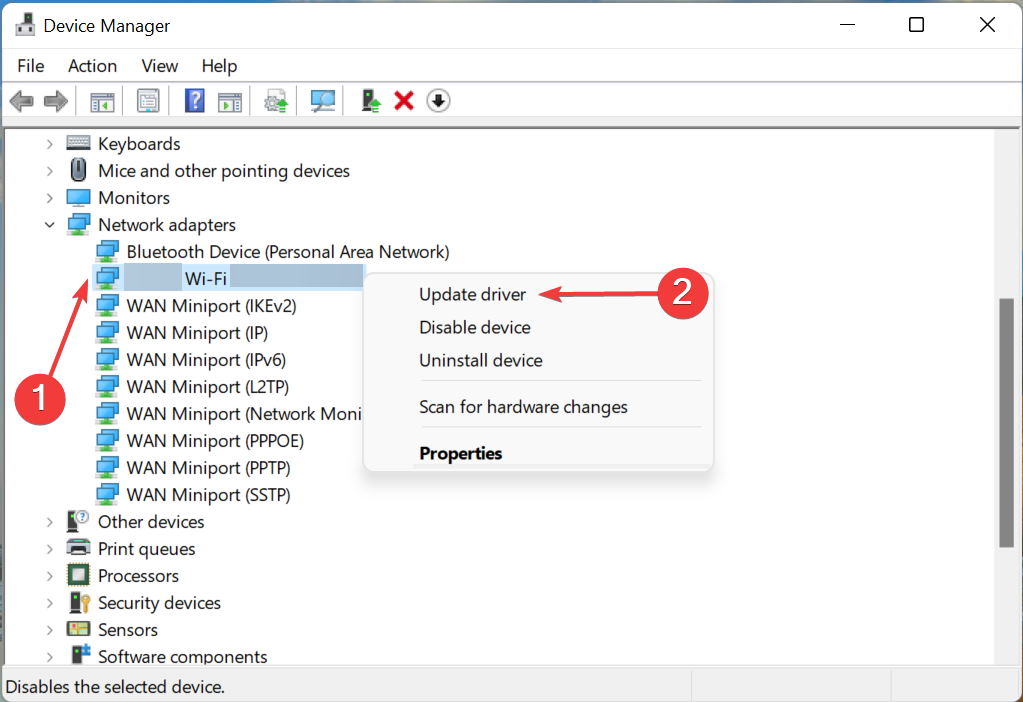
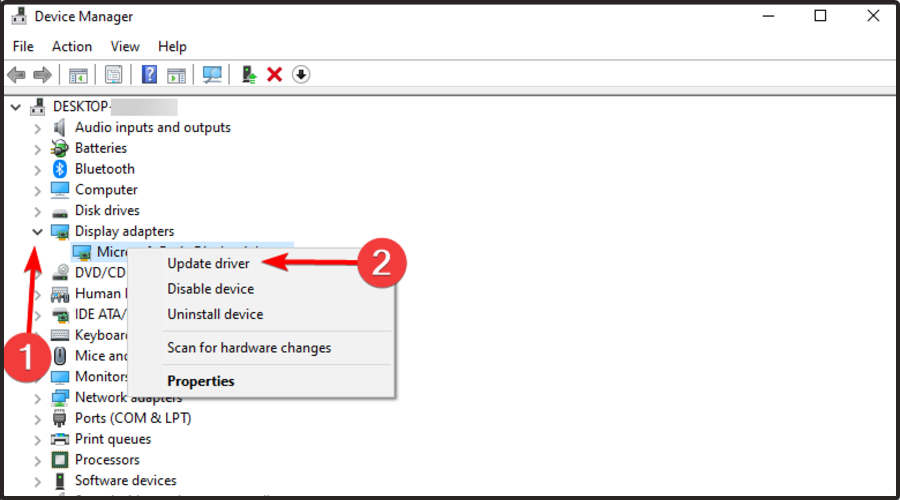
  2. Navigate to Network adapters, find your Wi-Fi adapter, right-click and select Update driver.
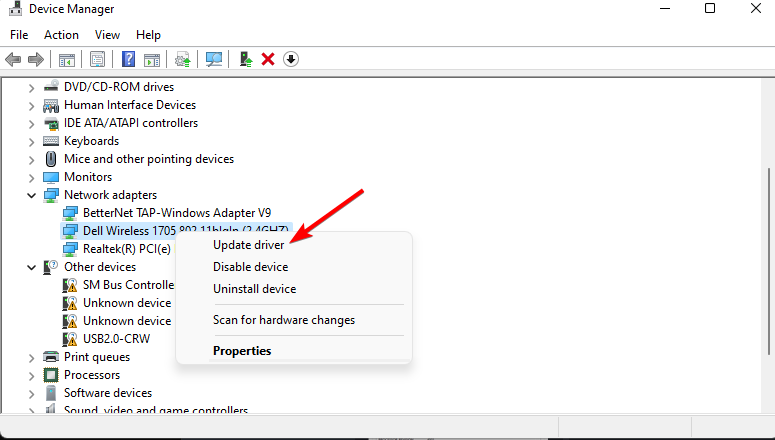
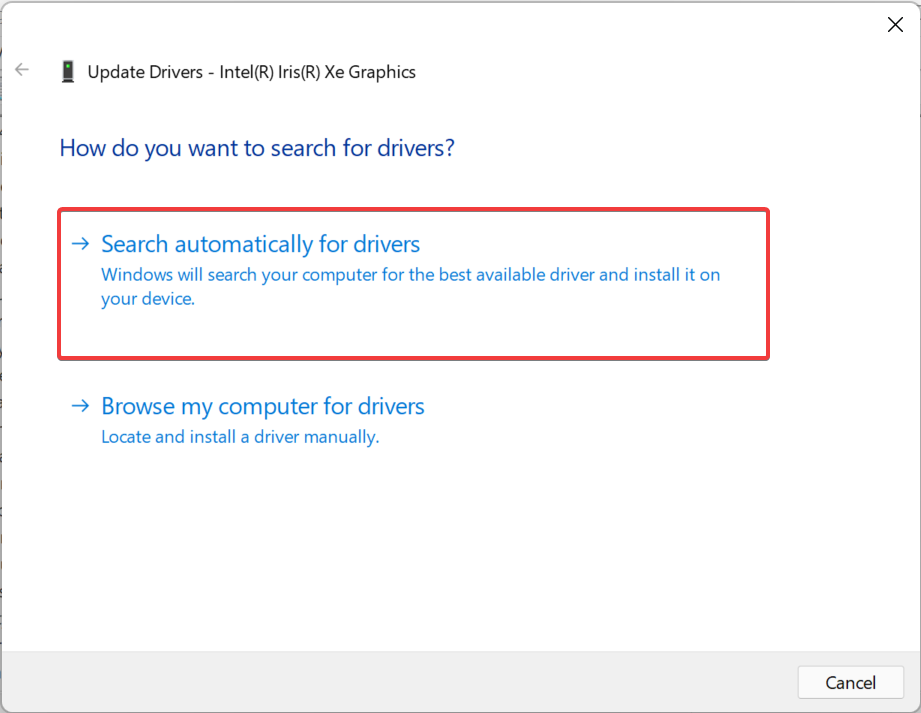
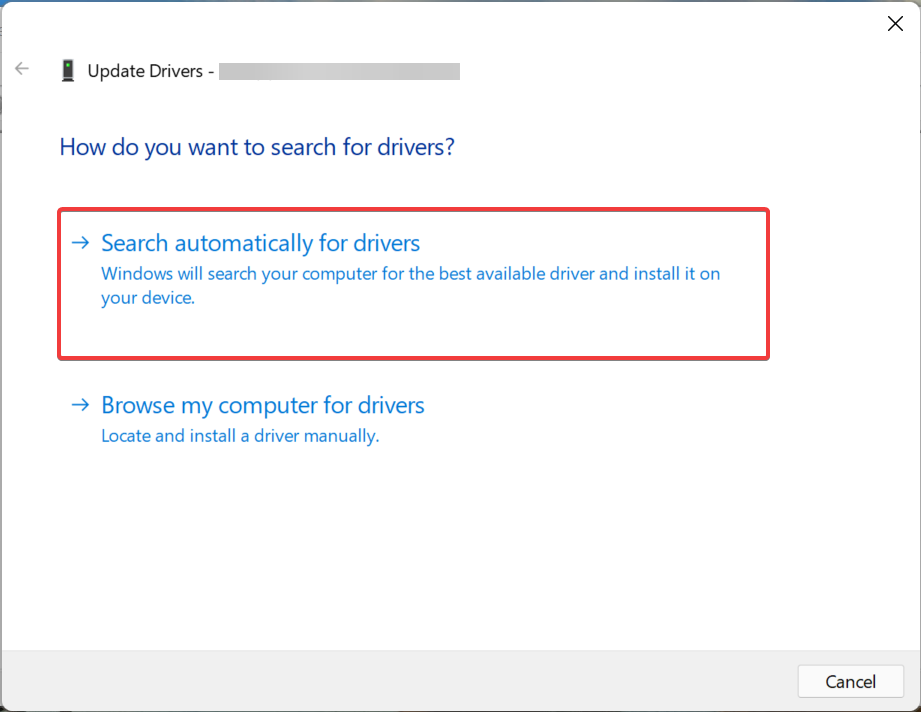
  3. Select Search automatically for drivers.
  4. Check whether the error is still there.

If you feel the process is a bit too long, you can try an alternative third-party tool that automatically finds, downloads, and installs the correct driver with just a few clicks. This solution can do the job in record time.

⇒ Get Outbyte Driver Updater

5. Restore the Firewall’s default settings

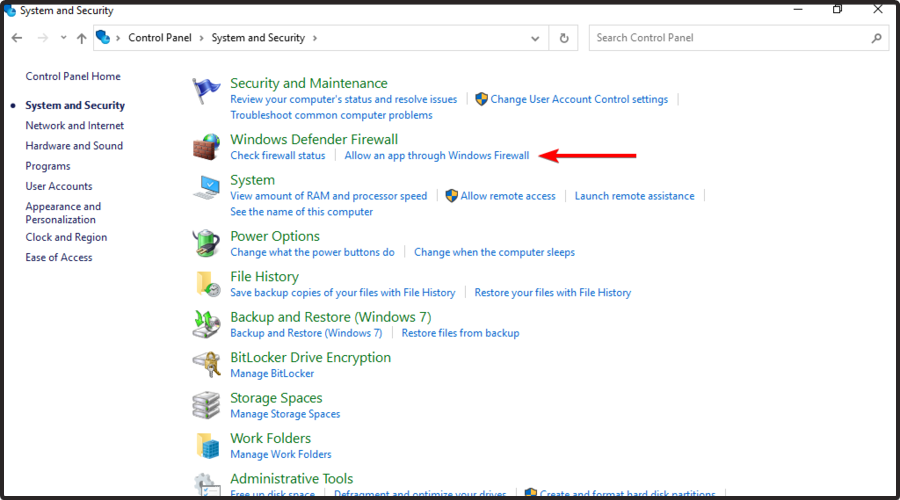
  1. Hit the Windows key, search for Windows Defender Firewall, and click Open.
  2. Select Restore defaults on the left pane.
  3. Click on the Restore defaults button and check whether the error is still there.

Can I set my IP address manually?

Yes, you may set your IP address manually, though in most cases it will not be necessary. You only need to change it if you have a dynamic IP.

Both dynamic and static IP addresses are used for home Internet access. The difference depends on whether the assigned address is permanent or temporary.

When you connect to the Internet, you might connect through a regular modem, through a local-area network connection in your office, through a cable modem, or through a digital subscriber line (DSL) connection. 

Regardless of what method you use to connect to the Internet, you need an IP address. If your computer does not have an IP address, it cannot communicate with other devices on the network.

With dynamic IPs, a device can have a different IP address every time it connects to the network. This can however pose a challenge that will require you to manually set your IP address.

To set your IP address manually, follow the steps below:

  1. Press the Windows + R keys and type ncpa.cpl in the Run dialog box.
  2. Right-click on your wireless network and select Properties.
  3. Select Internet Protocol Version 4 (TCP/IPv4) and click the Properties button.
  4. Select the Use the following IP address option and enter the IP address, Subnet mask, and Default gateway (Enter the details found in option 1 when you entered the command): ipconfig/release
  5. Click the OK button and restart your PC.

Should you encounter any other Wi-Fi-related problems such as Wi-Fi not working on your phone, check out our guide to resolve the issue.

You can also update your drivers with our recommended software collection in case you find uninstalling and installing an inconvenience.

In the event that your router is your problem and you are in the market for a new one, look for a router with a stable Internet connection and avoid future problems like these.

Lastly, if you get the Local Area Connection doesn’t have a valid IP configuration message, check out our dedicated article.

We hope this guide was able to solve your issue and you’re back on the Internet.

Be sure to let us know which one of our solutions worked for you in the comments section below.
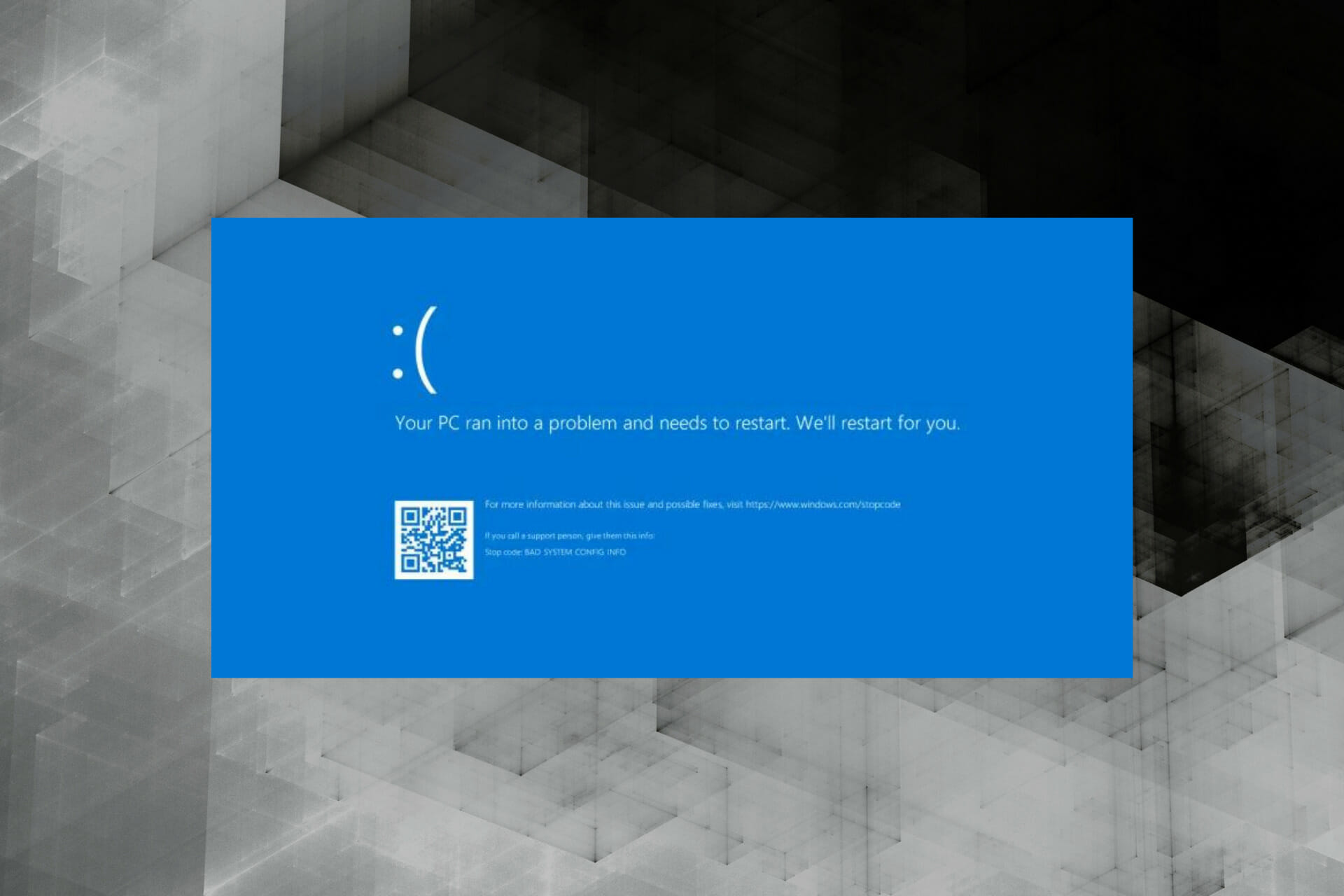
Bad System Config Info on Windows 11: Causes & How to Fix

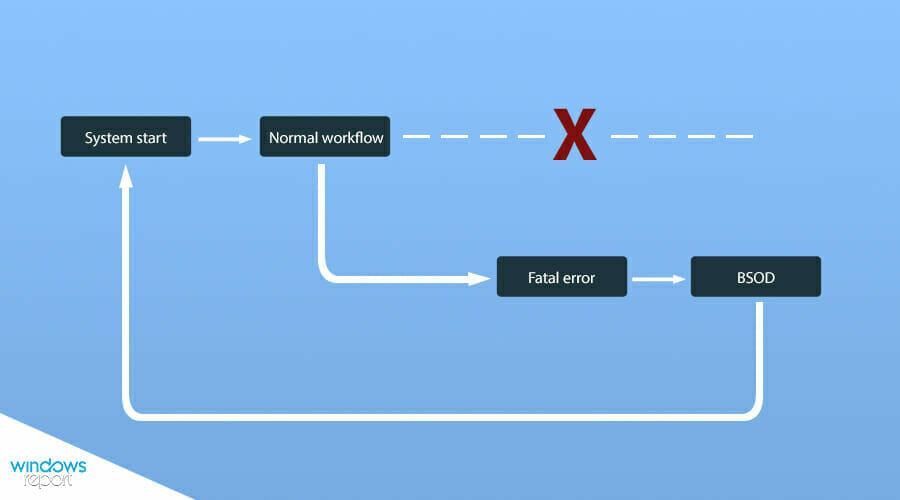
The BSoD (Blue Screen of Death) error, often referred to as Stop error, crashes the OS which is followed by a blue screen with the error code mentioned. One such is the Bad System Config Info in Windows 11.

To most, the worst part about BSoD errors is the data loss since the OS crashes without any warning. So any open file will not be saved unless that particular program has a built-in provision. And, that’s why users dread the BSoD errors the most.

But, the Bad System Config Info error in Windows 11 is rather simple to troubleshoot. It shouldn’t take more than a few minutes to eliminate the underlying cause and get things up and running.

Why am I facing the Bad System Config Info stop code in Windows 11?

There are several reasons for the OS to crash due to a BSoD error, but the stop code helps bring down that number and saves us considerable time. Here are the reasons why you could be encountering the Bad System Config Info error in Windows 11:

  • Corrupt Registry
  • Problems with the Boot Configuration Data (BCD)
  • Conflicting applications
  • Issues in the installed version of Windows
  • Malfunctioning hardware (generally the RAM)

Identifying the underlying cause is rather tricky here. But, say you started encountering the error after installing a third-party application or updating Windows. Here, you know what’s causing the problem and should directly head to the relevant fix.

Otherwise, try the methods below in the listed sequence for a quick troubleshooting experience.

How do I fix the Bad System Config Info BSoD error in Windows 11?

Note icon NOTE
If you are unable to boot the OS, check how to open Windows 11 in Safe Mode to execute the fixes listed below. Make sure to choose Safe Mode with Networking since you would be required to download updates, both for the OS and the installed drivers.

1. Update Windows 11

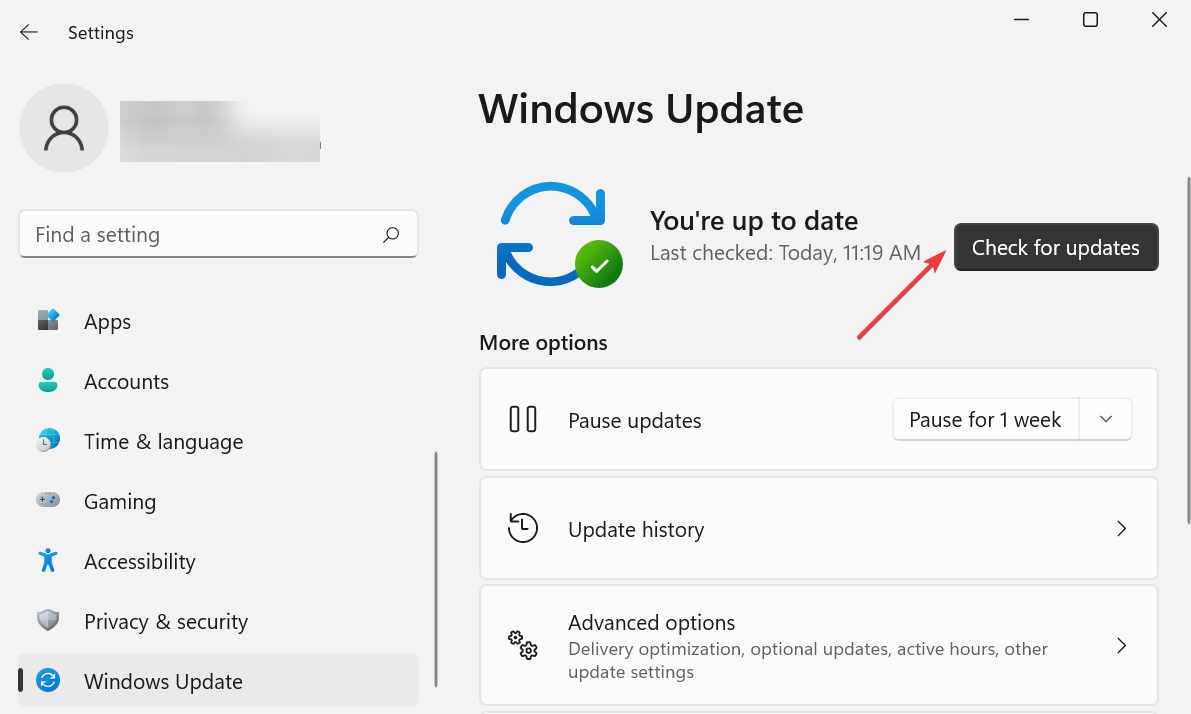
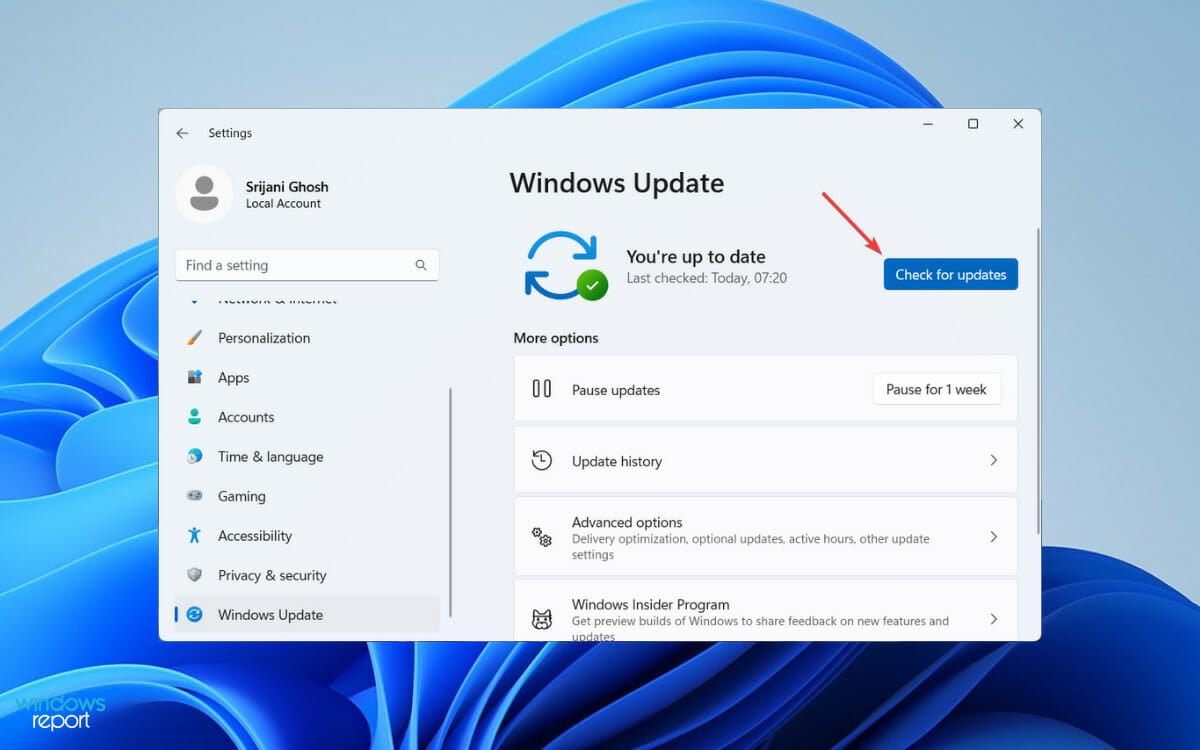
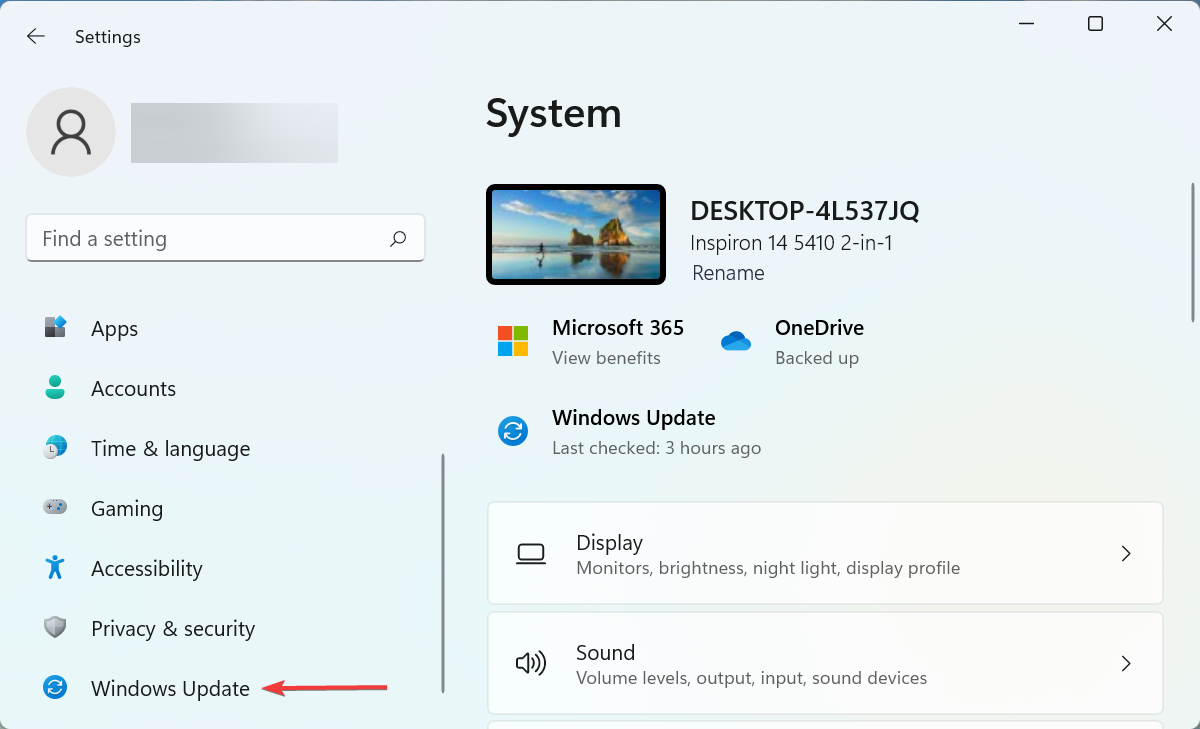
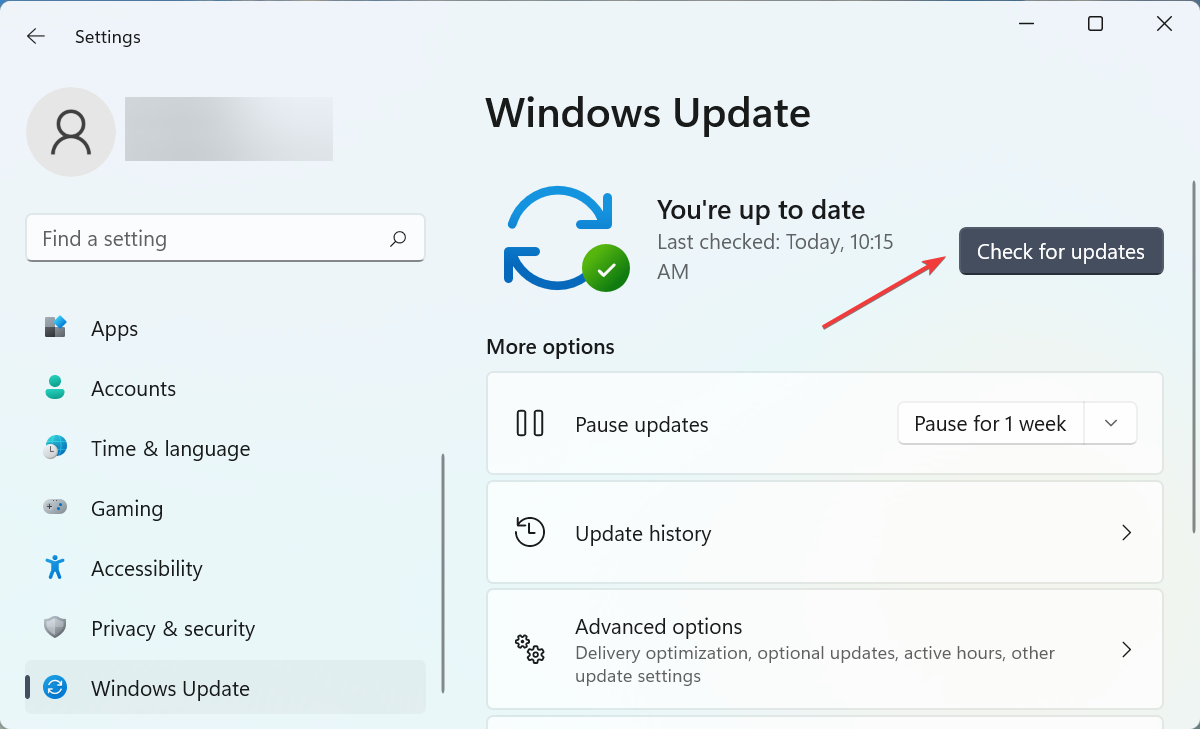
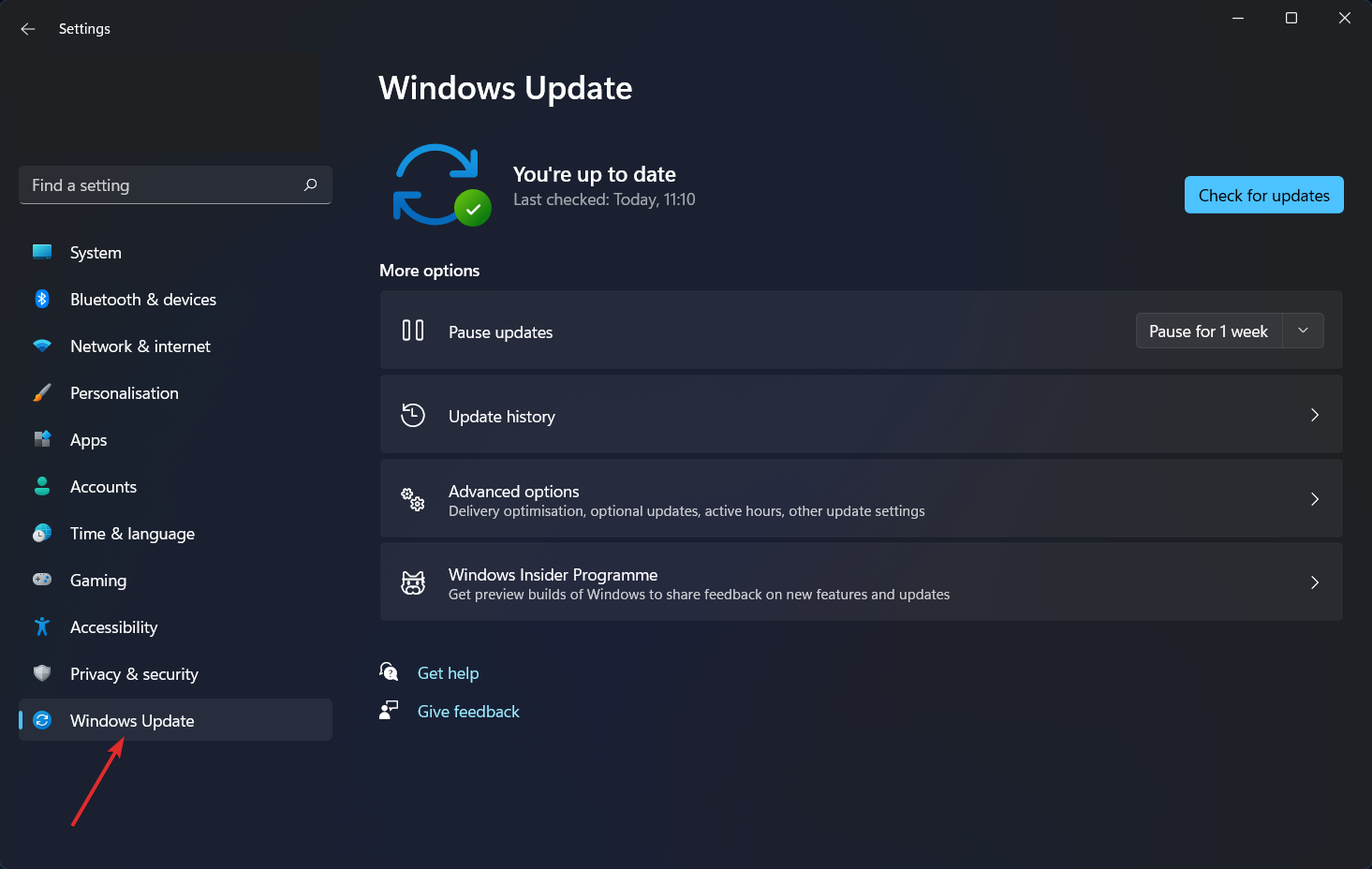
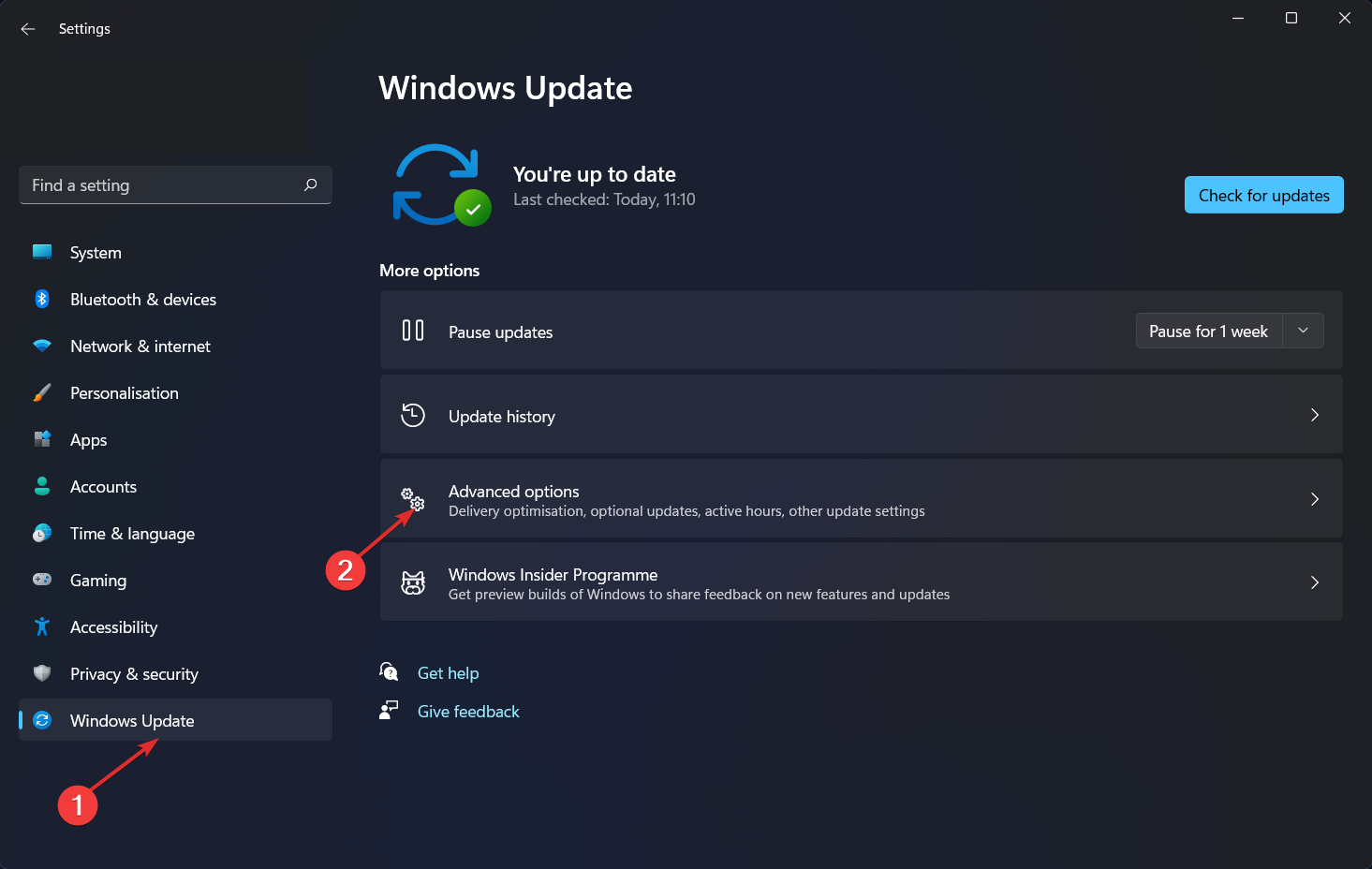
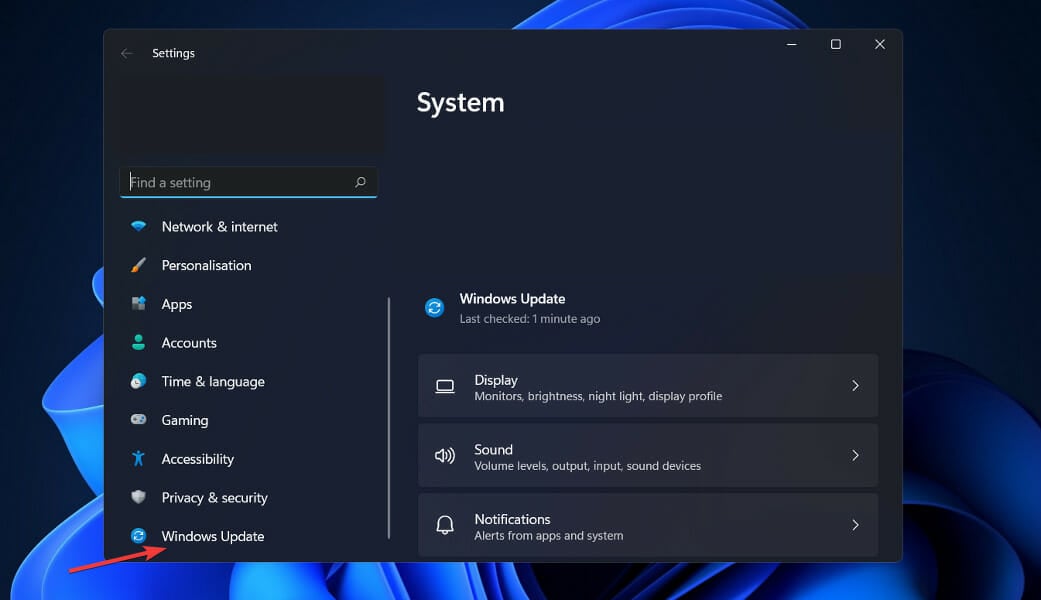
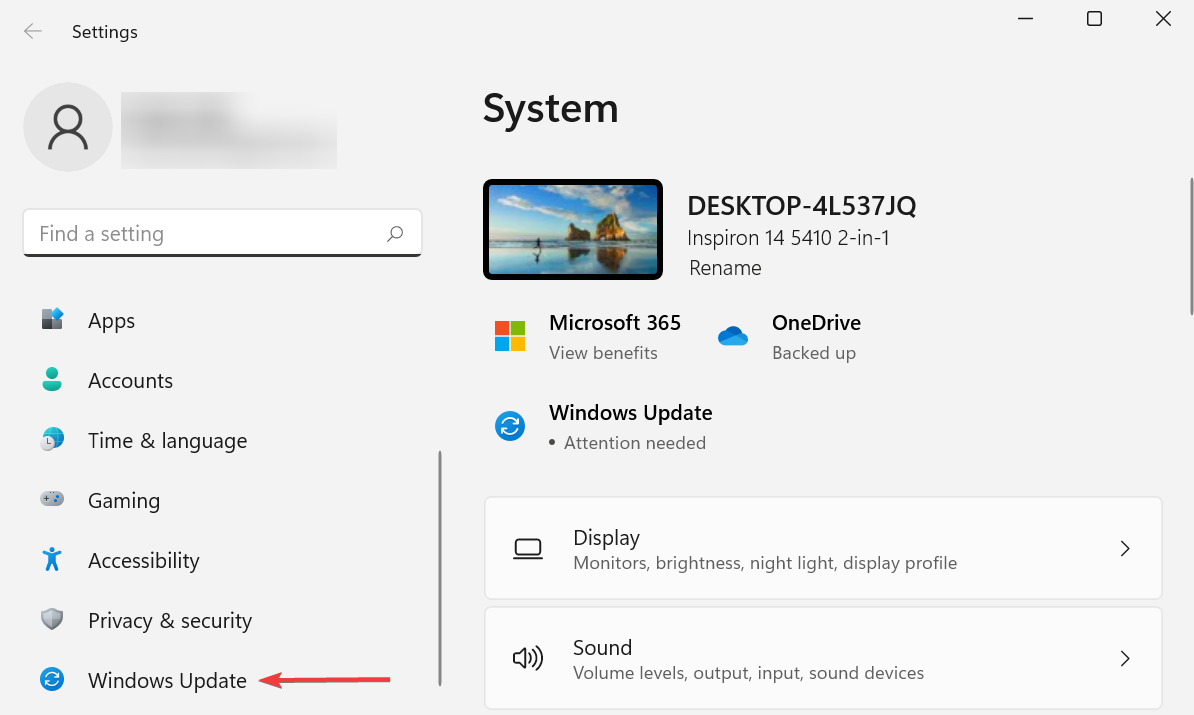
  1. Press Windows + I to launch the Settings app, and select Windows Update from the list of tabs in the navigation pane on the left.Windows Update to fix bad system config info windows 11
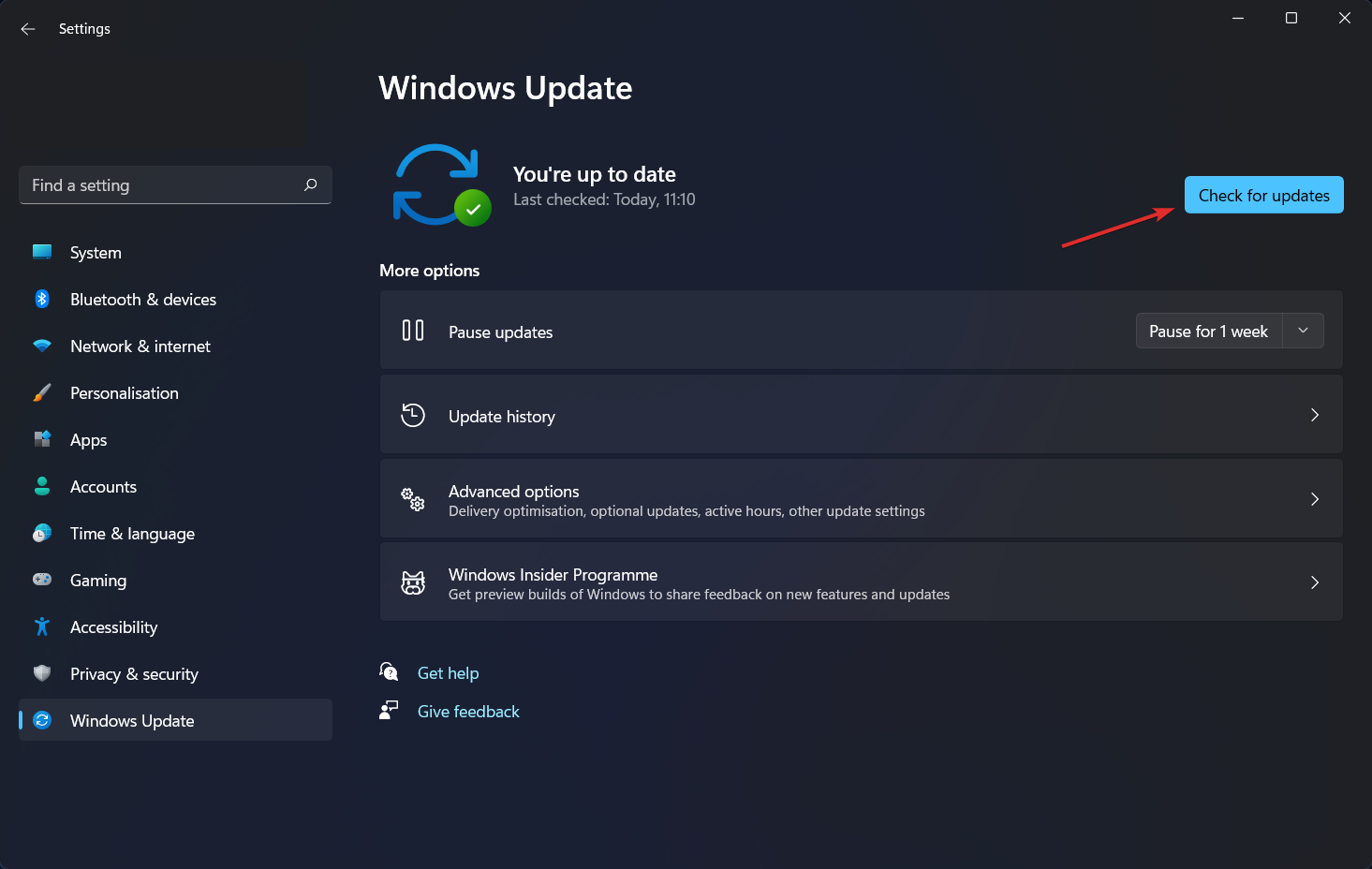
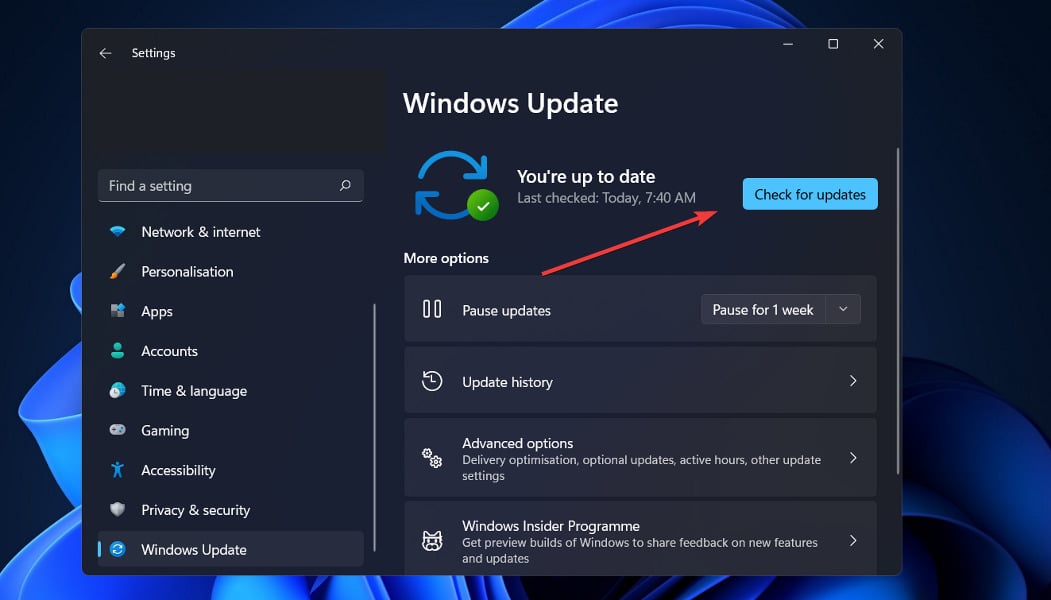
  2. Next, click on Check for updates on the right to scan for any available newer versions of the OS.Check for updates to fix bad system config info windows 11
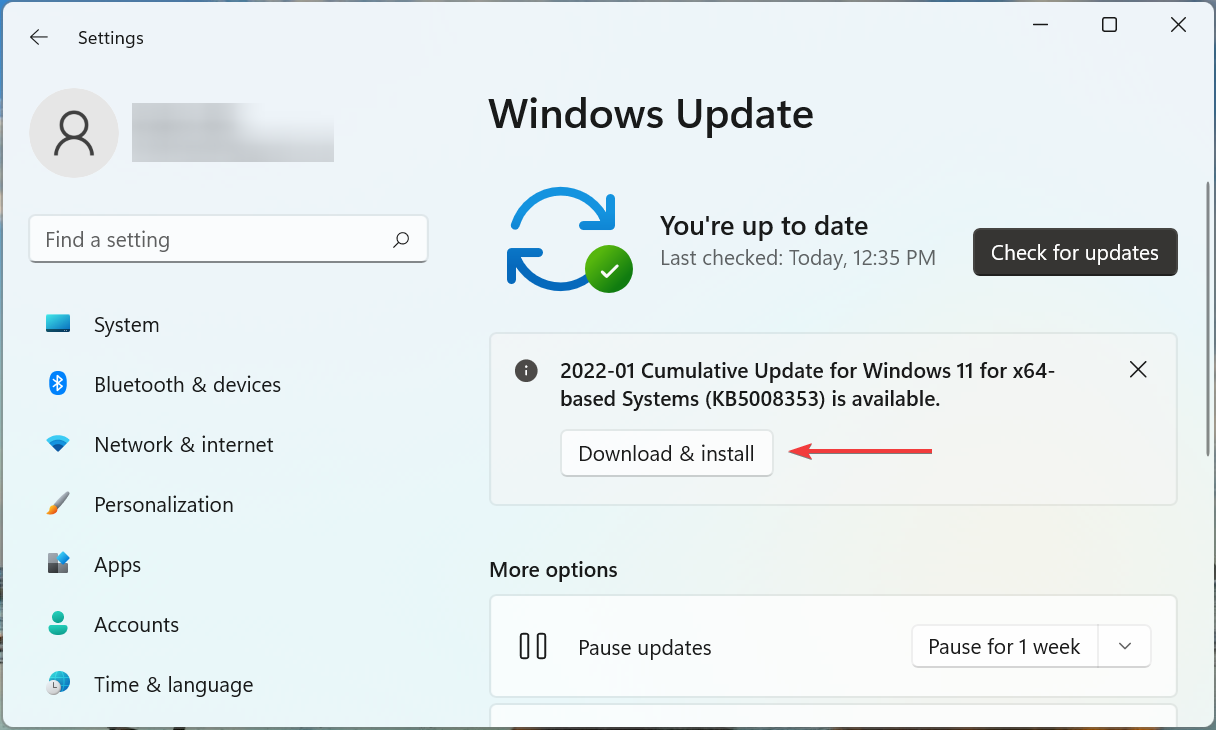
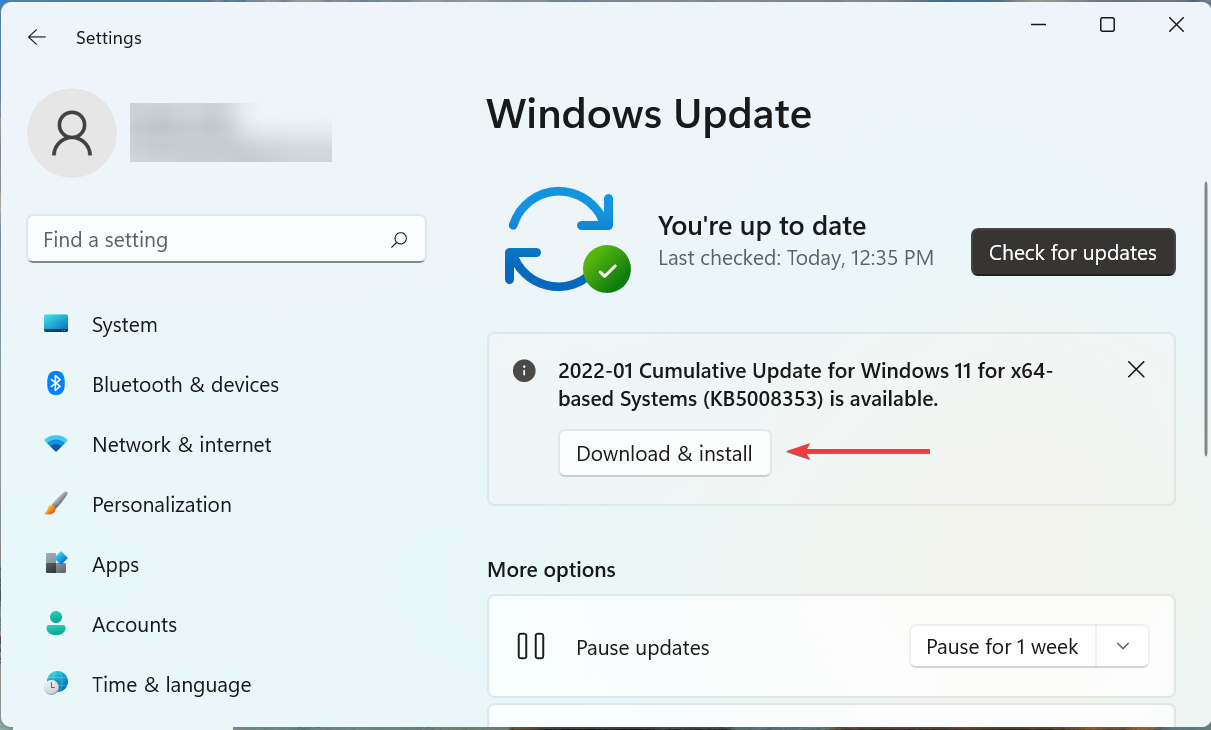
  3. If any are listed after the scan, click on the Download & install button. Download & install update

In most cases, simply updating Windows 11 to the latest version fixed the Bad System Config Info error in Windows 11.

This is generally due to a bug in the current version of the OS. And in such cases, Microsoft releases a patch for it in the subsequent updates which helped eliminate the error.

2. Repair the BCD file

If you are unable to boot Windows or the Bad System Config Info error pops up frequently, it could be that the BCD (Boot Configuration Data) is corrupt.

BCD is primarily responsible for loading the OS when you turn on the computer, and if it goes missing or is corrupt due to some reason, you most likely wouldn’t be able to boot Windows 11.

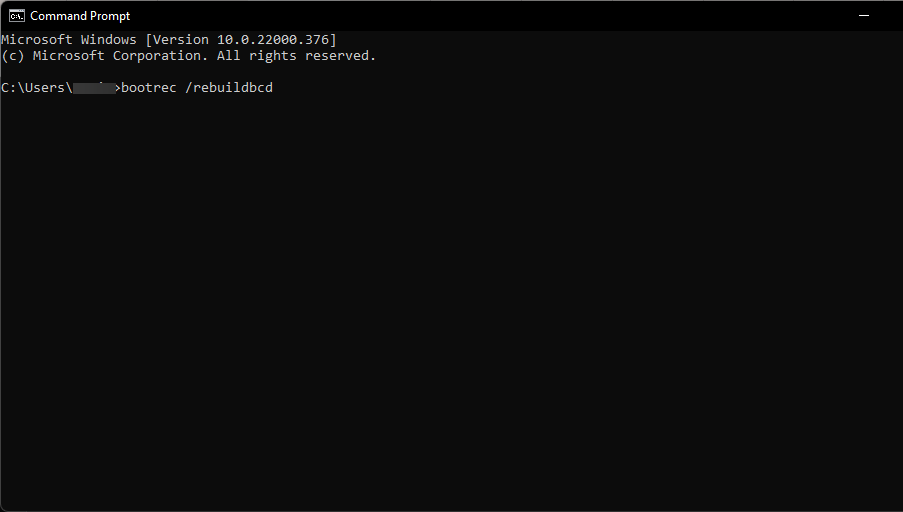
BCD repair process

So, before you try the other methods, it only makes sense to repair the BCD in Windows 11. The process won’t take much time, though you would be required to create a bootable USB beforehand. Also, the files stored on the system won’t be affected.

3. Reinstall the drivers

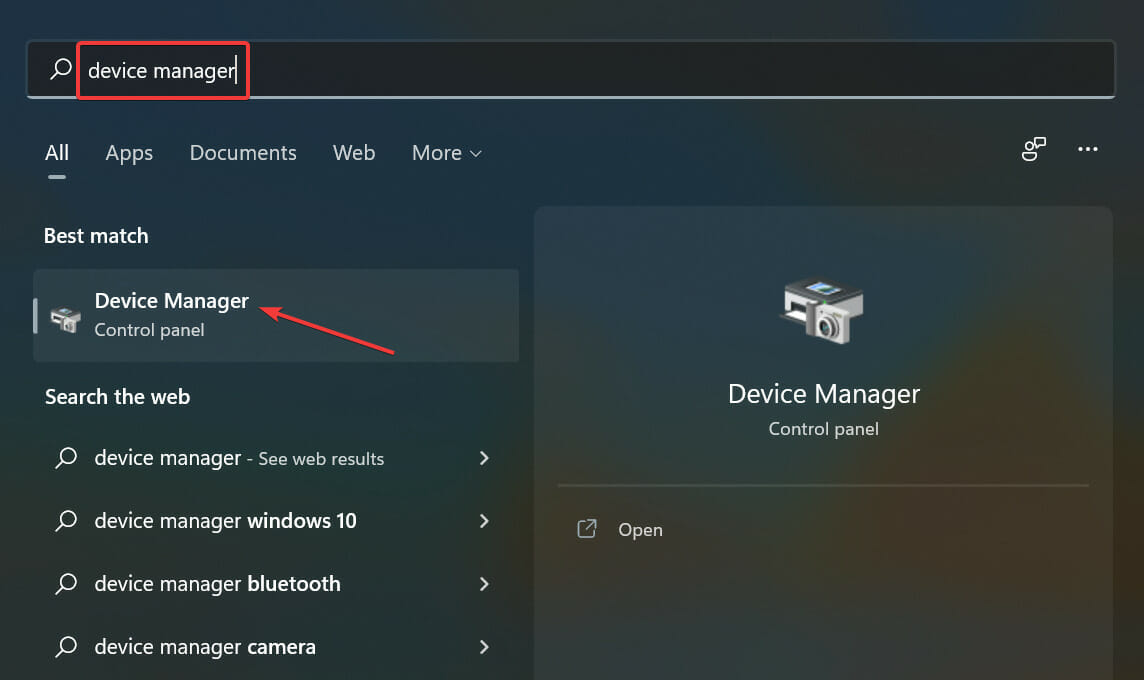
  1. Press Windows + S to launch the Search menu, enter Device Manager in the text field at the top, and click on the relevant search result that appears.Device Manager
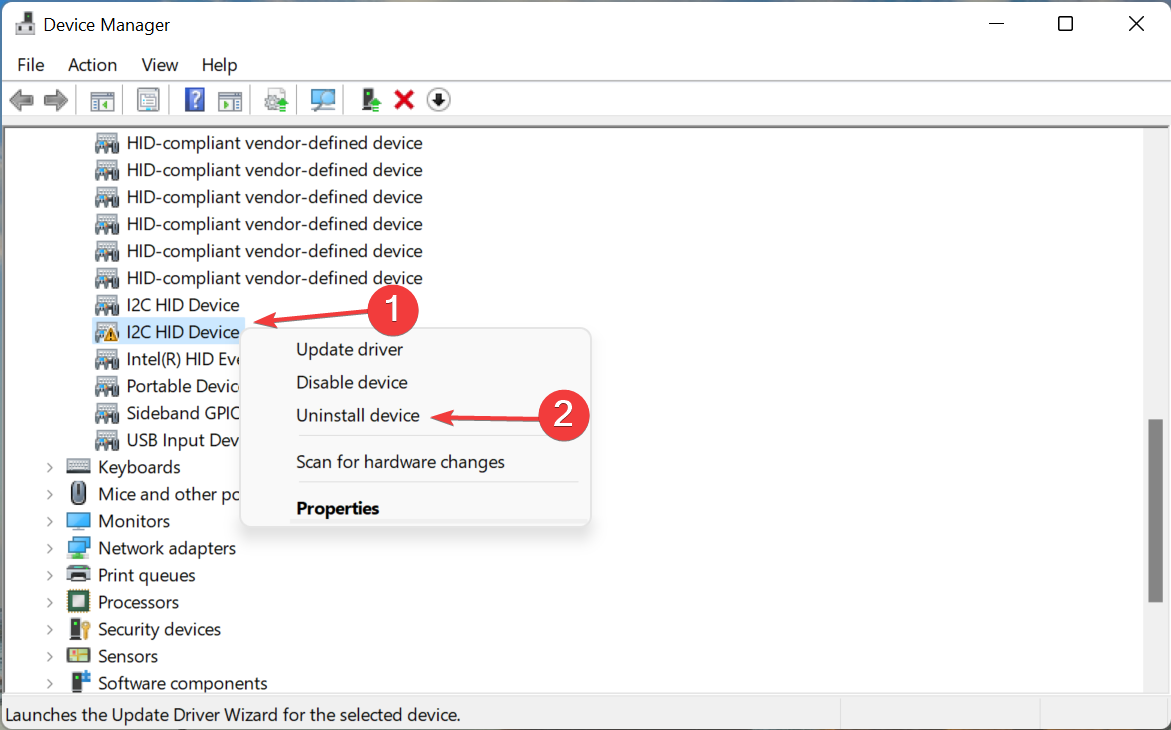
  2. Check if any of the entries here are expanded by default, since these would have devices with corrupt drivers installed.Corrupt drivers to fix bad system config info windows 11
  3. Now, locate the device with a warning sign at the corner, right-click on it, and select Uninstall device from the context menu.Uninstall device to fix bad system config info windows 11
  4. Tick the checkbox for Attempt to remove the driver for this device, and then click on Uninstall.Tick checkbox
  5. Once done, restart the computer, and Windows will automatically install a fresh driver for the device.

If the installed driver for a device is corrupt, it could lead to the Bad System Config Info BSoD error in Windows 11. And, this can easily be fixed by reinstalling the driver using the steps listed above.

4. Update the drivers

  1. Press Windows + X or right-click on the Start icon to launch the Quick Access menu, and select Device Manager from the list of options.Open Device Manager to fix bad system config info windows 11
  2. Now, double-click on the Display adapters entry to expand and view the devices under it.Display adapters
  3. Right-click on the graphics adapter, and select Update driver from the context menu.Update driver to fix bad system config info windows 11
  4. Next, select Search automatically for drivers from the two options listed in the Update Drivers window.Search automatically for drivers

Outdated drivers are just as likely to cause the Bad System Config Info BSoD error in Windows 11. So it’s recommended that you always keep the installed drivers updated.

Apart from reducing the chances of error, updates may also enhance the functionality of the device and add new features to it. All the more reason to update the drivers in Windows 11.

If the Device Manager method is unable to find an update, you can always check for the latest driver version in Windows Update, or download it from the manufacturer’s official website.

That might seem tricky to some, and this is where third-party apps come to your rescue. We recommend using Outbyte Driver Updater, a dedicated tool that automatically installs the latest updates and keeps the drivers up-to-date.

5. Fix the Registry

A broken registry where items are missing, corrupt or redundant, can affect the performance of the PC, and cause a bunch of issues, including the dreaded BSoD errors.

Therefore it’s important that you keep the Registry clean and not make unnecessary changes to it. Since there’s already a problem, in this case, learn how to fix a broken Registry in Windows 11.

After you have made the required changes to the Registry, check if the Bad System Config Info error in Windows 11 is fixed. Also, find out the best Registry cleaners to boost the performance of the PC.

6. Run the Windows Memory Diagnostic tool

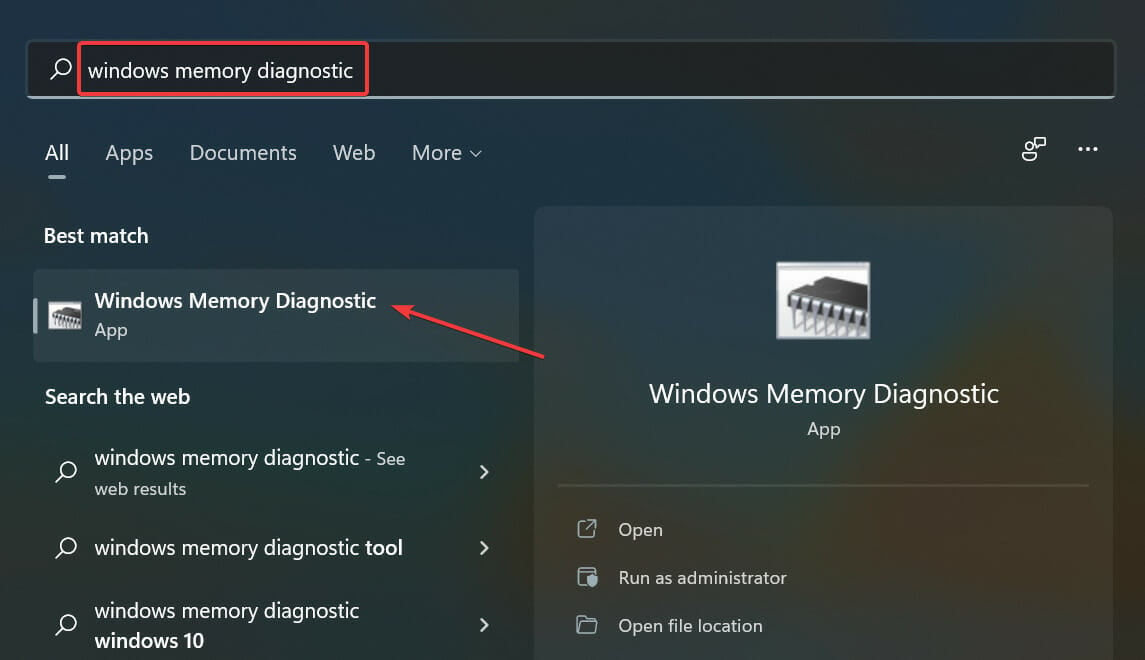
  1. Press Windows + S to launch the Search menu, enter Windows Memory Diagnostic in the text field, and click on the relevant search result.Run Windows Memory Diagnostic to fix bad system config info windows 11
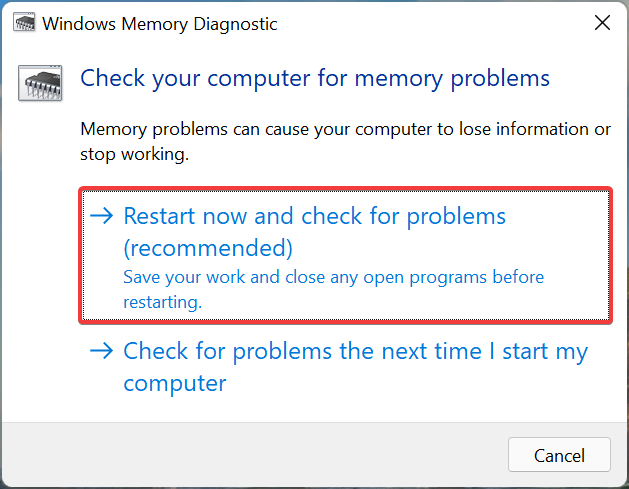
  2. Next, click on Restart now and check for problems (recommended) and let the tool automaticaly identify and eliminate problems with the RAM.Restart now and check for problems

7. Uninstall conflicting applications

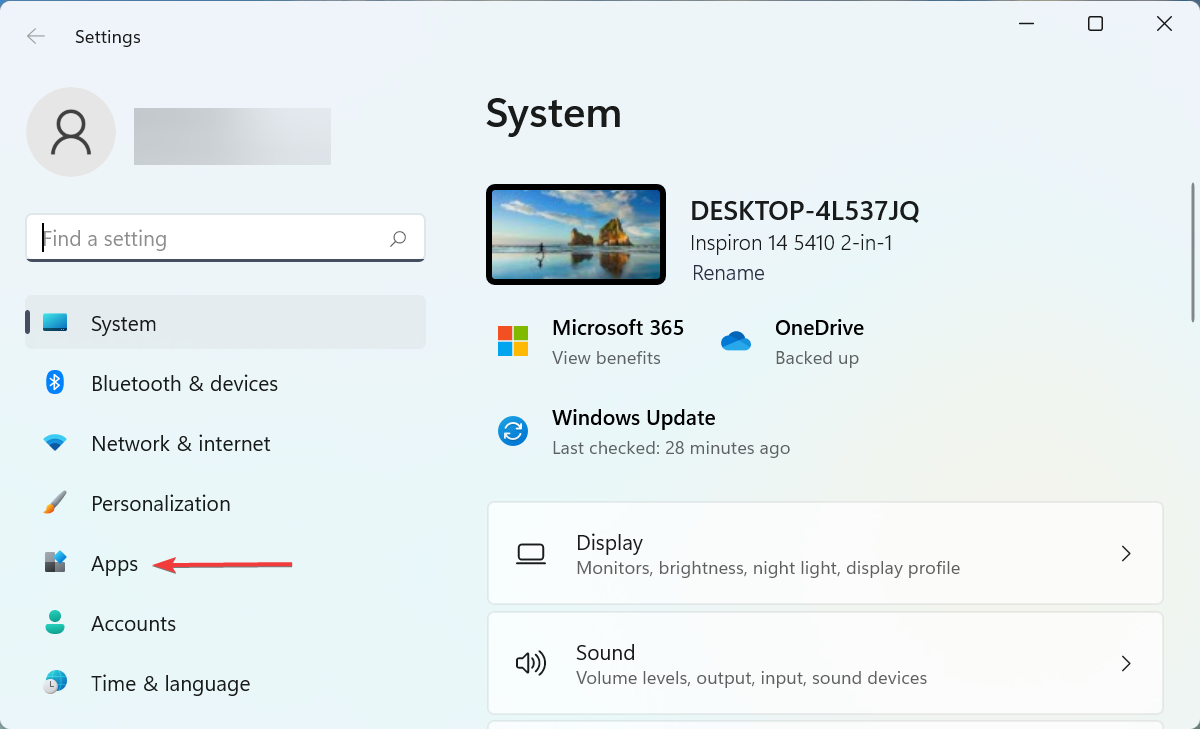
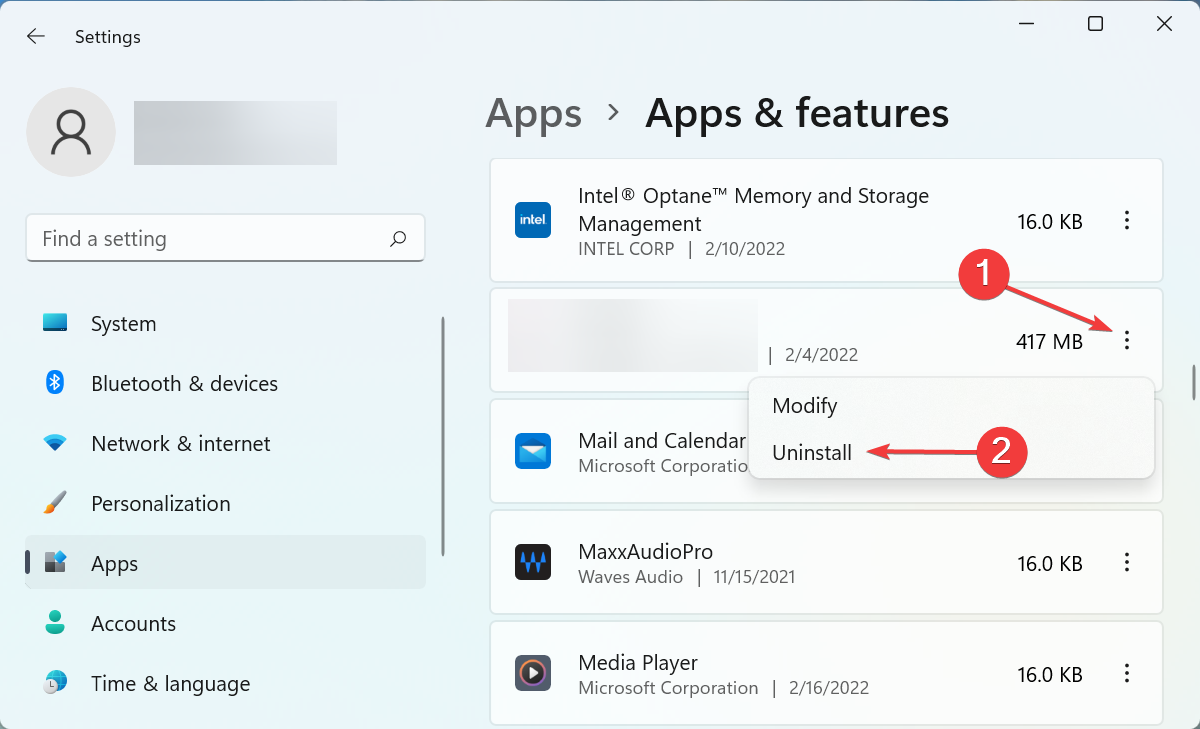
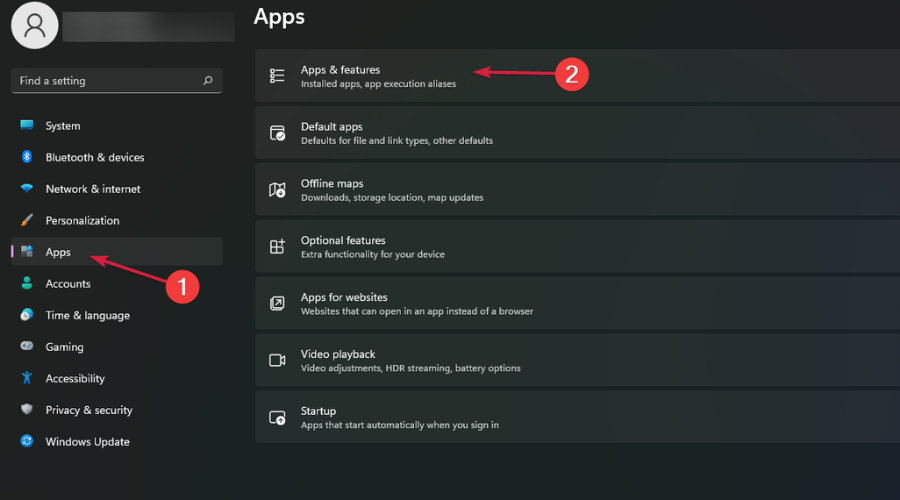
  1. Press Windows + I to launch Settings, and select Apps from the tabs listed in the navigation pane on the left.Apps to fix bad system config info windows 11
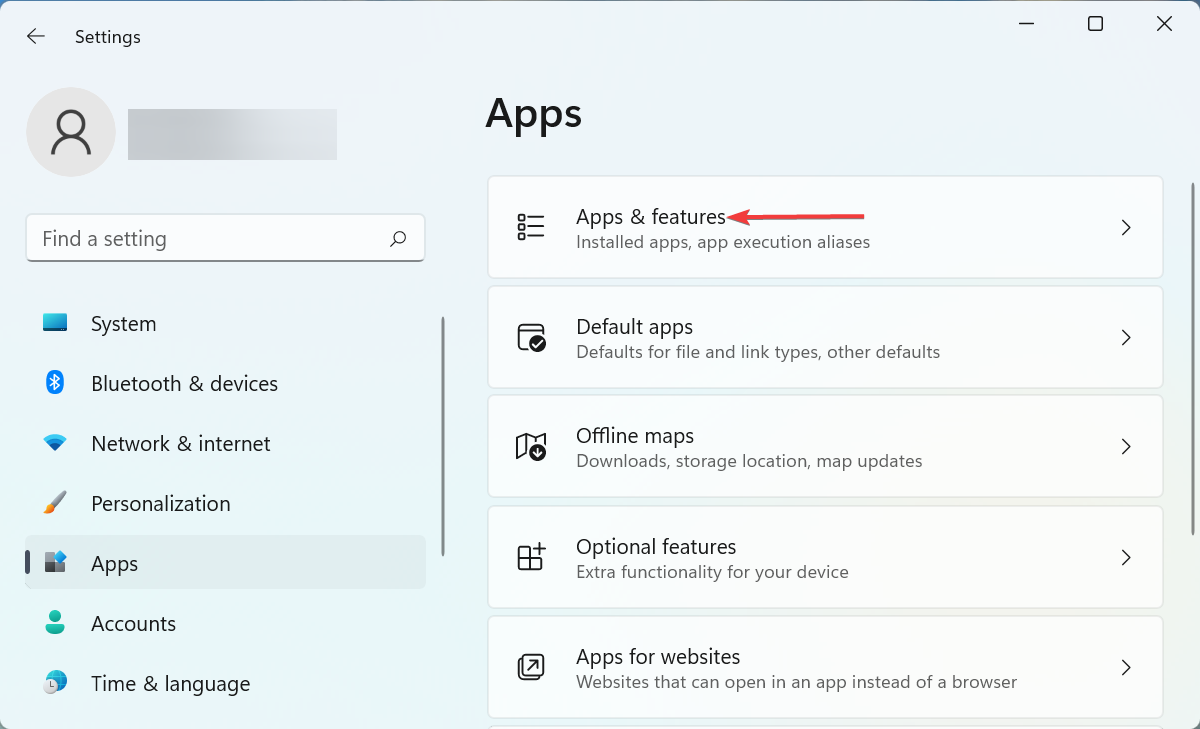
  2. Next, click on Apps & features on the right.Apps & features
  3. Locate the problematic apps, click on the ellipsis next to it, and select Uninstall from the list of options.Uninstall app to fix bad system config info windows 11
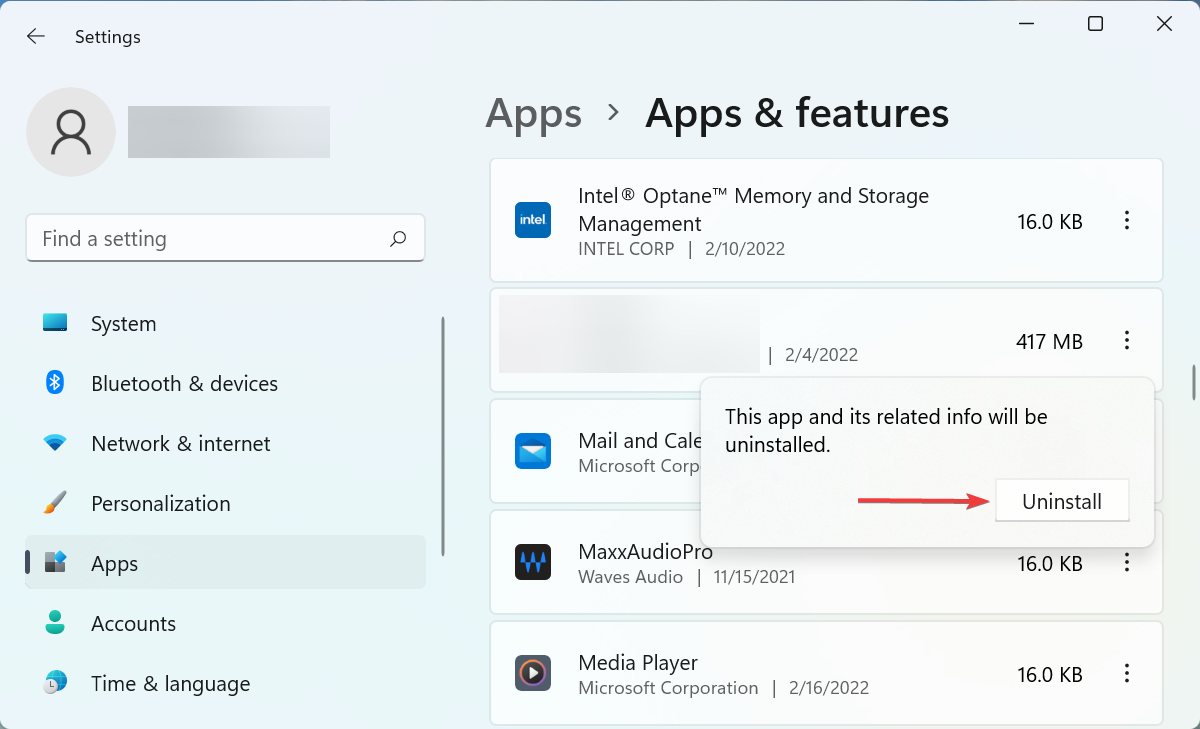
  4. Again, click Uninstall in the confirmation prompt that pops up.Confirm uninstall

If you started encountering the Bad System Config Info error in Windows 11 after installing an app, it could as well be causing the error.

In case you are unable to identify the conflicting applications, remove the apps that were installed right before you first encountered the error, one at a time. After you have identified and uninstalled to problematic one, you can safely reinstall the others.

8. Perform a system restore

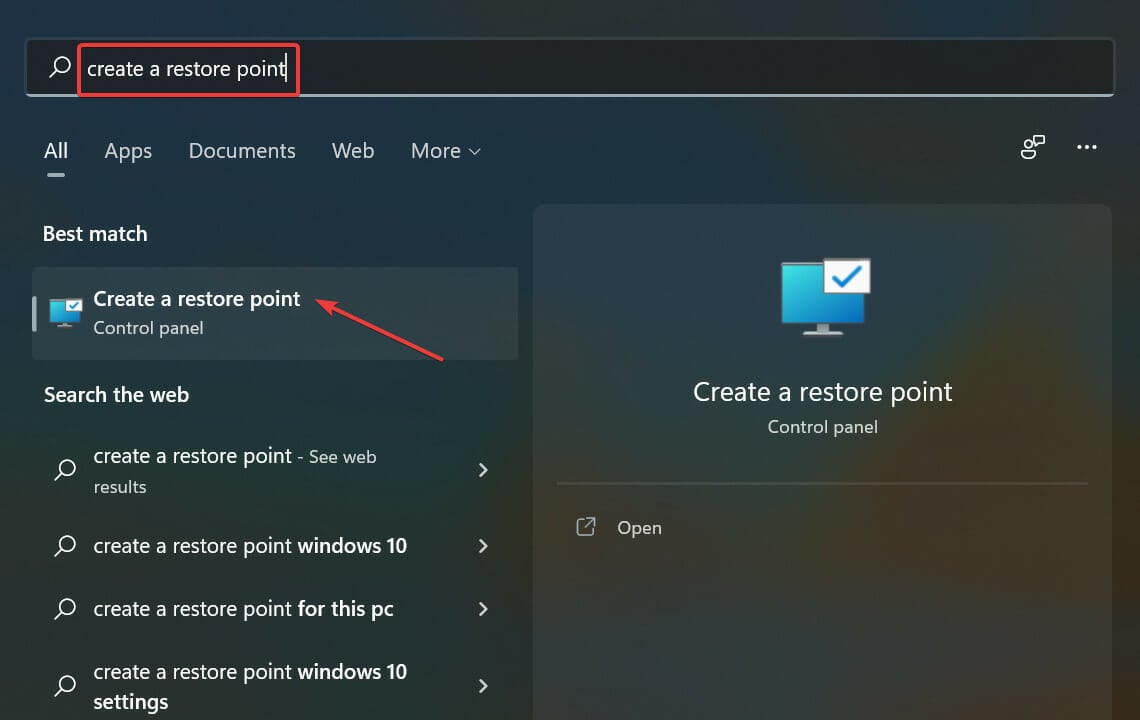
  1. Press Windows + S to launch the Search menu, enter Create a restore point in the text field, and click on the relevant search result that appears.Create a restore point to fix bad system config info windows 11
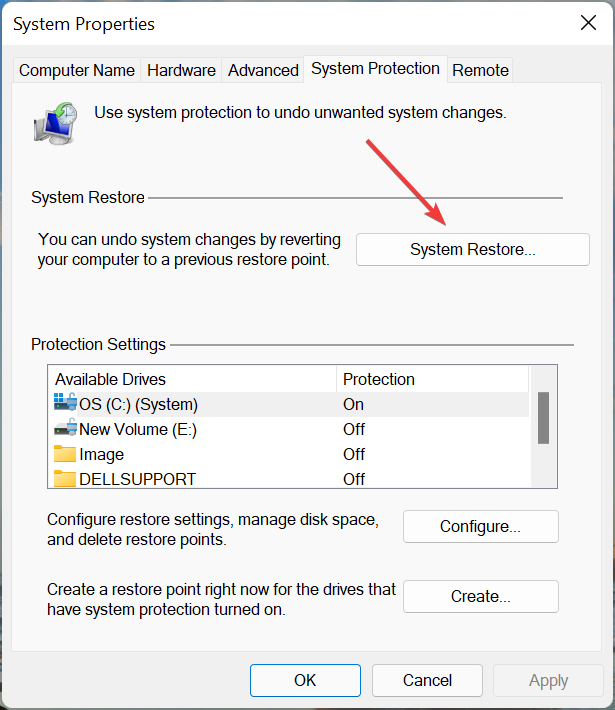
  2. Click on the System Restore button.System restore to fix bad system config info windows 11
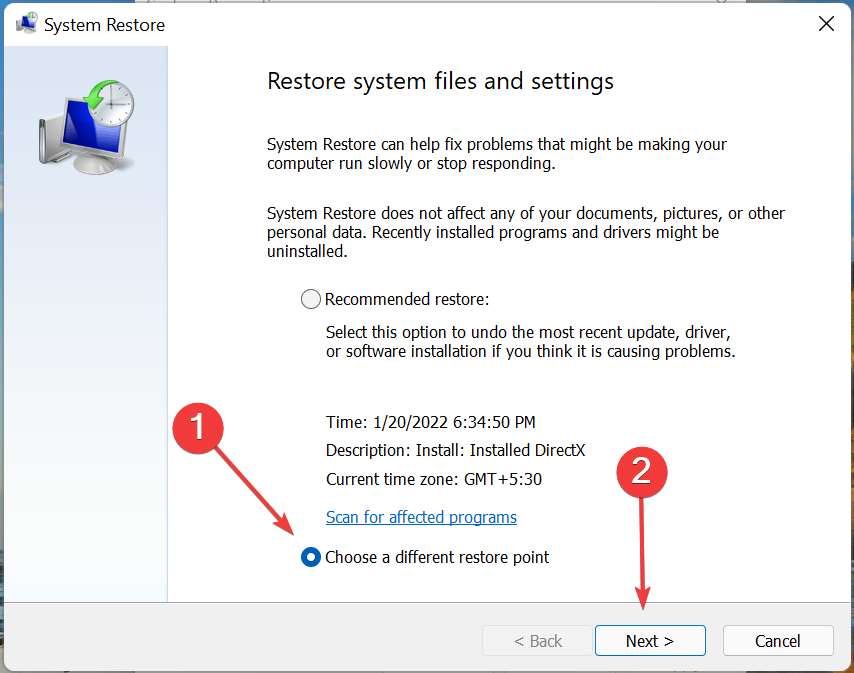
  3. Now, tick the Choose a different restore point option, and click on Next at the bottom.Choose a different restore point
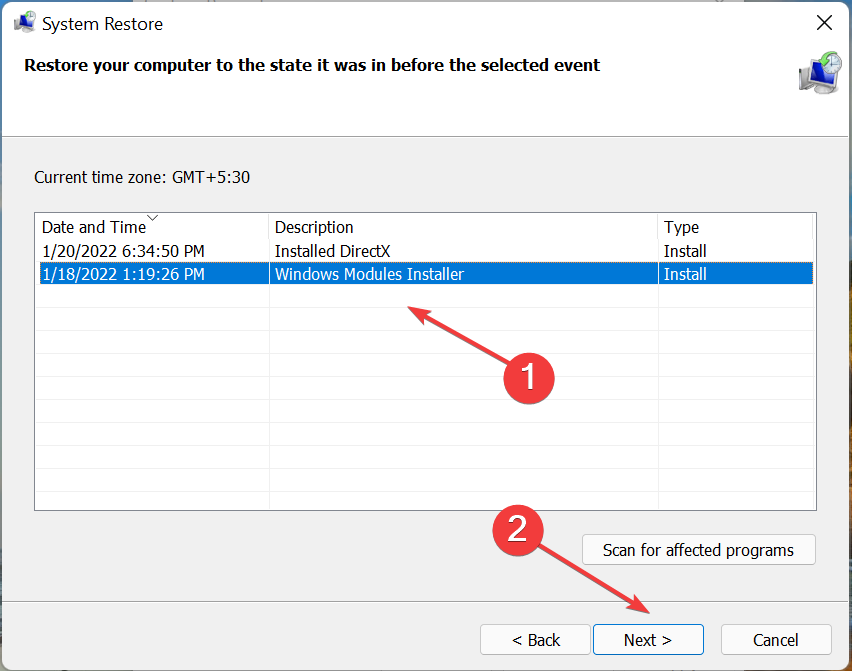
  4. Select a restore point from the ones listed here, and click on Next.Select restore point
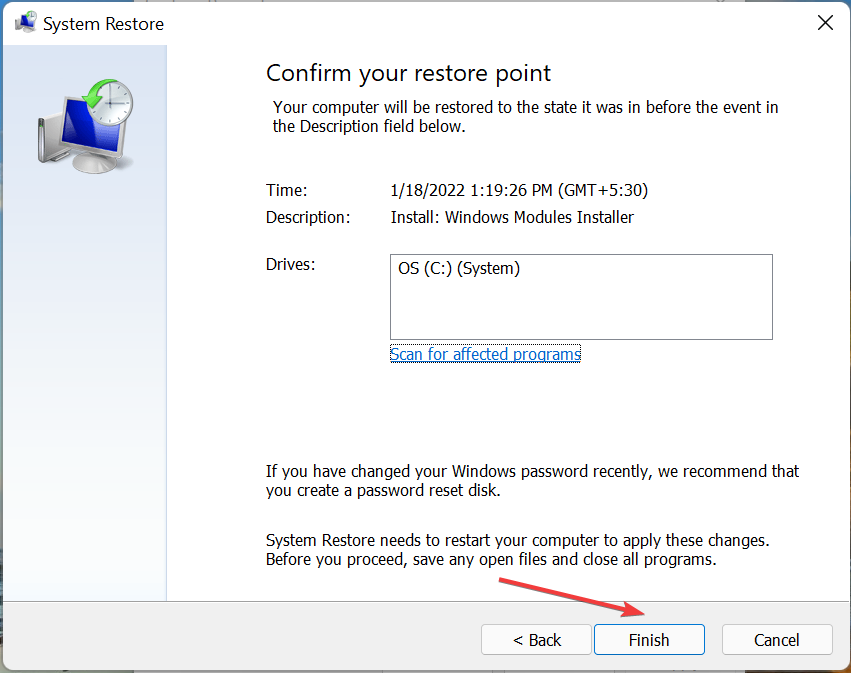
  5. Finally, verify the restore details, and click on Finish at the bottom to start the process.Verify details

If none of the methods listed above have helped eliminate the Bad System Config Info error in Windows 11, your last resort is to perform a system restore. In this, the idea is to take the computer back to a previous state when the error didn’t exist.

Performing a system restore will fix problems with the Registry, remove recently installed apps, and reconfigure settings. But, it wouldn’t affect your personal files stored on the computer.

How can I prevent BSoD errors in Windows 11?

Though there’s no sure shot way to prevent BSoD errors, since the causes are far too many, you can still employ some methods in order to prevent them. Here’s a list of things you must ensure to keep BSoD errors, like Bad System Config Info in Windows 11, at bay:

  • Make sure to download apps and programs from reliable sources
  • Ensure that the hardware and connected peripherals are well maintained and not malfunctioning
  • Always keep the drivers up-to-date
  • Never make changes to Registry if you are not sure of the results
  • Frequently run scans for malware and virus to keep your system secure

If you follow these tips, the chances of encountering BSoD errors will surely reduce, and also you will notice a considerable boost in the system’s performance.

With the methods listed above, you can easily take care of the Bad System Config Info error in Windows 11, and also ensure that this, along with other similar errors, is not encountered anymore.

Also, check our dedicated guide to understand how you should proceed when faced with a BSoD error in Windows 11. Besides, find out how to fix the Bad System Config Info BSoD error in Windows 10.

Don’t hesitate to tell us which fix worked for you in the comments section below.

High CPU But Low GPU Usage? Here’s How to Fix It

High CPU usage with low GPU usage can occur due to using built-in graphics instead of a dedicated GPU, outdated drivers, CPU bottlenecking, or poorly optimized games.

This will lead to FPS drops, CPU overheating, and all kinds of issues. In order to help you resolve it, we put everything we can think of below.

How do I fix high CPU and low GPU usage?

1. Check GPU drivers

These symptoms usually mean that your CPU is bottlenecking your GPU, which is quite common if you have powerful graphics and an outdated CPU.

However, there are so many variables that, even though highly likely, we can’t say with certainty bottlenecking is the reason for high CPU and low GPU occurrence.

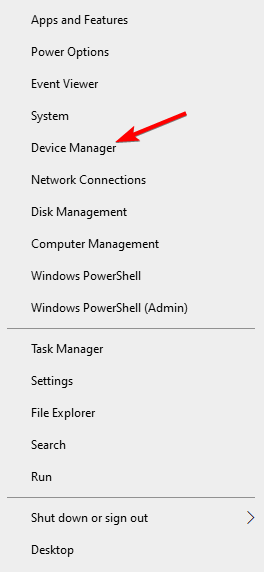
  1. Right-click the Start icon then select Device Manager.device-manager-w10 amd driver install problems
  2. Click on Display adapters in order to expand it, then right-click the graphics adapter and select Uninstall device.uninstall-device-graphics-card windows 11 keeps restarting

After you’ve removed a current driver, navigate to the Nvidia/AMD website. Under the download section, find an appropriate driver fitting your GPU model and system architecture.

Alternatively, you can always rely on specialized software such as Fortect Driver Updater to identify and update all your drivers in just a few minutes.

⇒ Get Fortect Driver Updater

2. Tweak in-game setting

If you experience high CPU while gaming, particularly on select games while others work fine, consider adjusting settings.

Most games should be run on high or ultra graphics settings to avoid CPU burden. We can advise you to disable VSync and Antialiasing.

Also, increasing the resolution, and the details plus enabling Future Frame Rendering should make GPU work more instead of the CPU doing the majority of the work.

Some games will work much smoother on the DX12 option, so switch to it if possible.  This might or might not affect FPS, but it’s worth a try.

3. Patch the affected games

This step is the continuation of the previous one. Some games, like Overwatch, suddenly started exhibiting this kind of behavior even though players have more than enough processing power to run it.

Seemingly, issues started suddenly in the third quartal of 2018 and we can blame the graphics-improving patch for that.

This might or might not be the case for other games, but whether it’s a Battle.net, Origin, or Steam game, make sure it’s up to date.

Some issues got patched and the majority of players are enjoying seamless gameplay without a CPU throttling a GPU.

4. Disable third-party apps active in the background

  1. 1. In the Windows Search bar, type msconfig and click on the first result to open System Configuration.

    msconfig-w10 vertical lines on monitor
  2. 2. Navigate to the Services tab.

  3. 3. Check the Hide all Microsoft services box, then click Disable all to disable all active third-party services.

    hide-disable vertical lines on monitor
  4. 4. Now, select the Startup tab and go to Task Manager.

    startup-open file explorer crashes when i right click
  5. 5. Click any startup program you think might be interfering then select Disable. We recommend that you disable all of them which are not essential.

    disable-process high cpu low gpu
  6. 6. Exit Task Manager, click OK in the System Configuration window, and restart your PC.

  7. When you’re experiencing high CPU usage but low GPU usage, it is a good idea to get rid of unused background apps. They can free up a lot of CPU memory, so that your PC will run better.

    You can remove unwanted processes via Task Manager. Simply filter the active processes by CPU usage and end those which take up a lot of resources and you have no use for.

5. Disable all power-preserving modes

  1. Press Windows then type edit power plan and click the first result.edit-powerplan  high cpu low gpu
  2. Select the Power Options window.power-options high cpu low gpu
  3. Select the High Performance plan which will use up your PC’s resources in order to render the best performance.high-performance  high cpu low gpu

Power-preserving modes are a big no-no if your CPU is falling behind the GPU in terms of processing power. Especially if you’re an avid gamer dealing with demanding AAA titles.

This means that both system and motherboard settings regarding less power consumption should be disabled.

6. Enable XMP in BIOS/UEFI

Enabling XMP or Extreme Memory Profile in BIOS will, at least slightly, improve RAM performance.

We know that RAM isn’t in a direct connection with the high CPU/low GPU issues but it has its part in it.

This option allows for the faster-than-standard speeds of RAM and possibly will improve the overall PC performance a little bit.

If your PC doesn’t have a strong configuration, you can use software to improve its performance.

7. Use 4 cores if possible and try overclocking

To optimize the game for the general public, developers have to deal with thousands of different configurations. Some GPU–CPU combos, regardless of how capable, just won’t work as intended.

This might be the case here. If you’re running a multi-thread CPU, double-check the in-game settings and try switching to 4-thread option if available. For example, Battlefield 5 might do better on a 4-thread option.

In addition, if you can take more from your CPU by upping the clock speeds, we highly suggest doing it.

Just keep in mind that this requires some general knowledge about overclocking and software to keep track about temperatures, voltage, and performance.

The manufacturer speeds are usually much lower than the CPU is capable of meeting. Firstly, inform about your CPU online and then move to overclock.

This should, in the right circumstances, be quite a boost and a possible resolution for the problem at hand.

8. Reinstall the game

If none of the previous steps helped you with that one game that refuses to work as intended, consider reinstalling it. This process allows you to enjoy some of the best PC games without errors.

Removing everything and starting from scratch can be a painful and lengthy experience. Especially if you need to wait for hours for a game to download again.

However, PC games, like any other piece of software out there, can get broken. Configuration files can get corrupt (if you’ve made some hardware changes) or a bad update can break the game for you.

That’s why reinstallation isn’t such a bad idea after all. Just make sure you’ve backed up your saves and reinstall the game. After that, reboot your PC and give it another try.

Use several process managers to ensure that the CPU is indeed hitting high rates while GPU is almost idle.

The issue is present on all versions and users reported high CPU in Windows 11 as well.

It’s important to pay attention to high CPU temperature because it will damage your hardware if not addressed properly.

Don’t forget to share an alternative approach in the comments section below. It might help other readers in need, and sharing is caring.

How to Size All Columns to Fit Automatically on Windows 11

You may have noticed certain changes in File Explorer after upgrading to Windows 11. Some may have been pleasant while others, not so much. But one of the things users had been looking to find out is how to size all columns to fit automatically in Windows 11.

There are quite a few ways to do that, and we will walk you through each so that you can choose the one that is the most convenient.

But before we do that, let’s first understand why you may need to resize a column. Once we are done, we will move to the main topic, i.e. size columns to automatically fit in Windows 11.

Why do I need to resize columms in Windows 11?

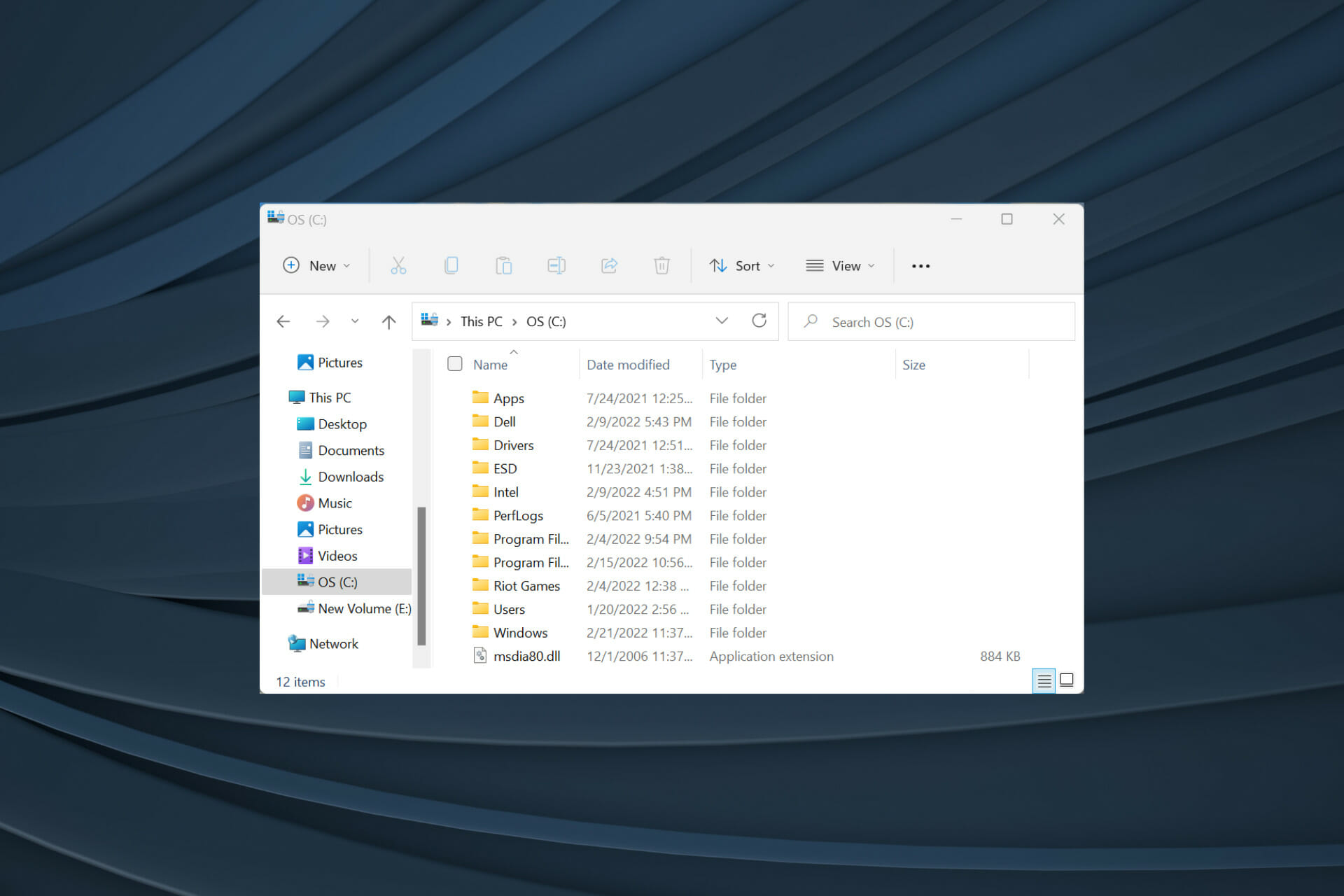
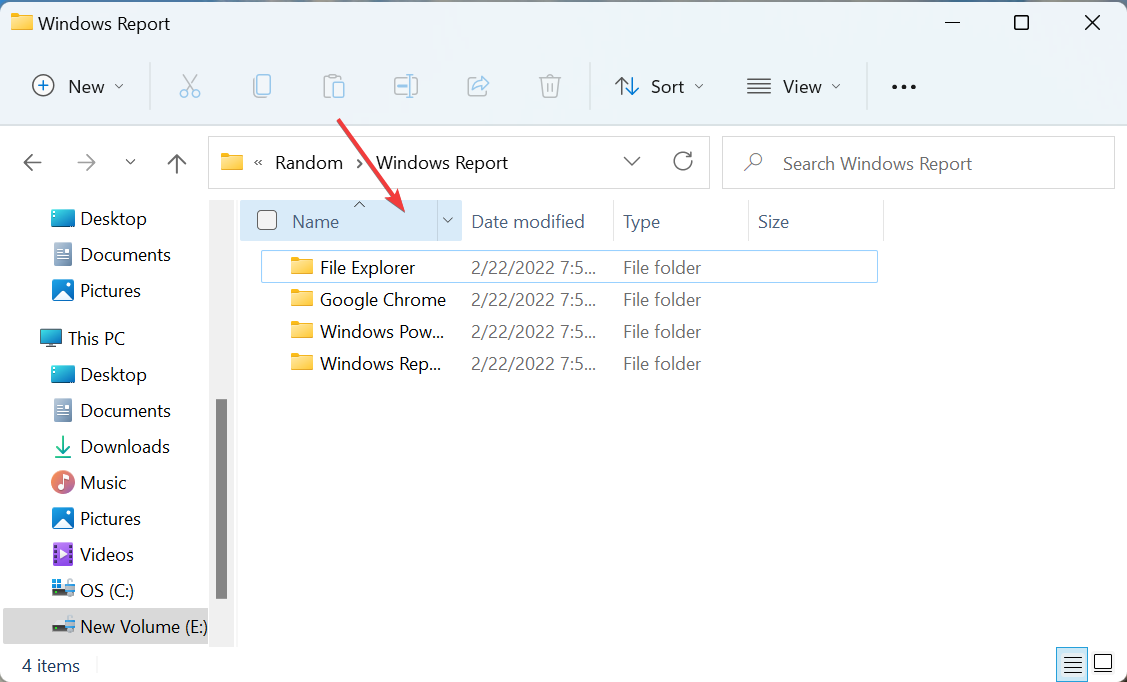
Sometimes, when the contents of a folder are listed in the Details view type, you may not be able to view the whole name, or in some cases, the extension at the end may be hidden.

This is because the column size only permits that many characters to be visible, and if the character count goes past that, these will automatically be hidden. You will instead see three dots (…), which indicate that the whole content is not visible.

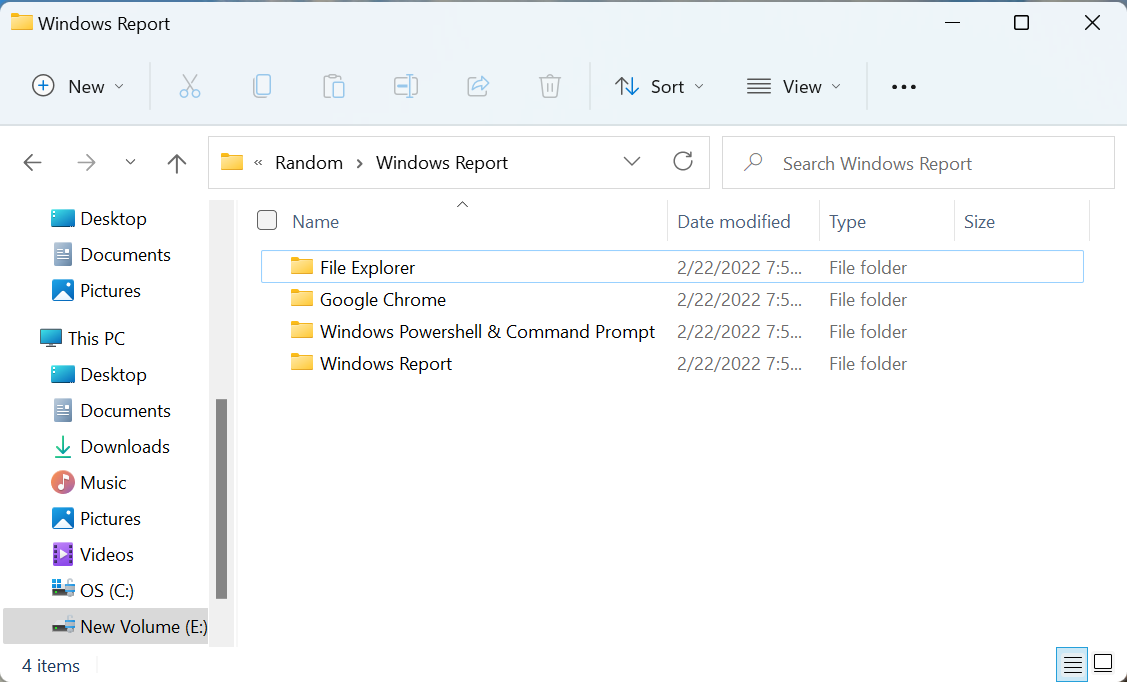
Take the following case for instance. You are unable to view the complete name of the files/folders located here. Though it may not be a problem to many, some users may want the full folder/filename to be visible under the Name column.

Small column size in File Explorer

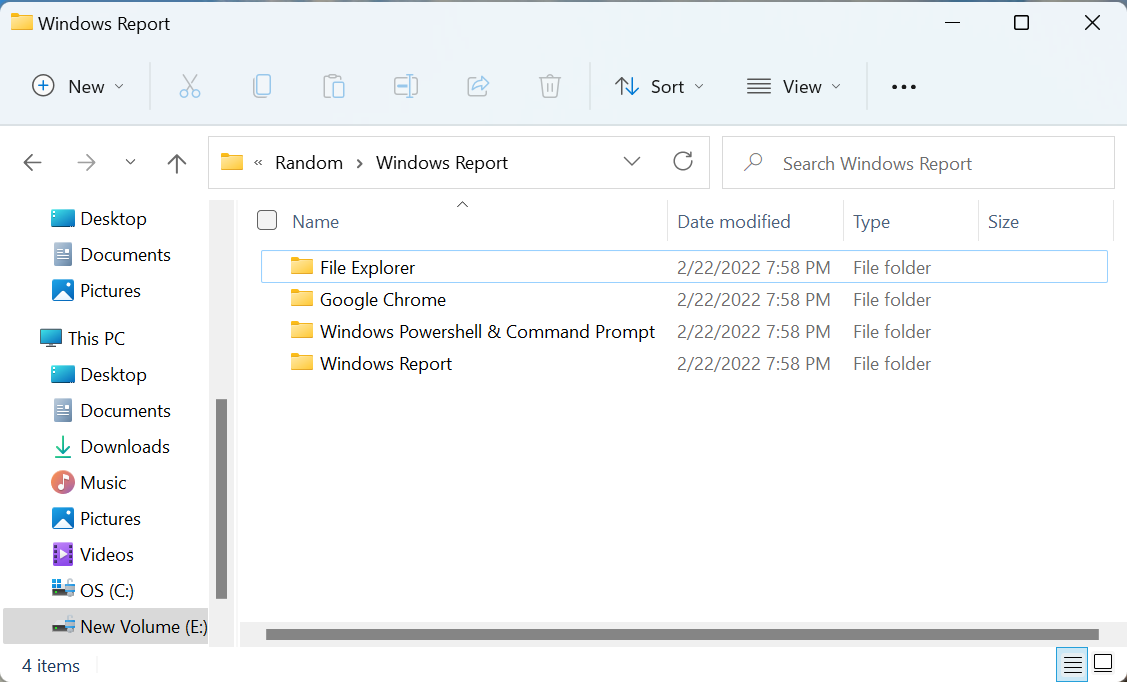
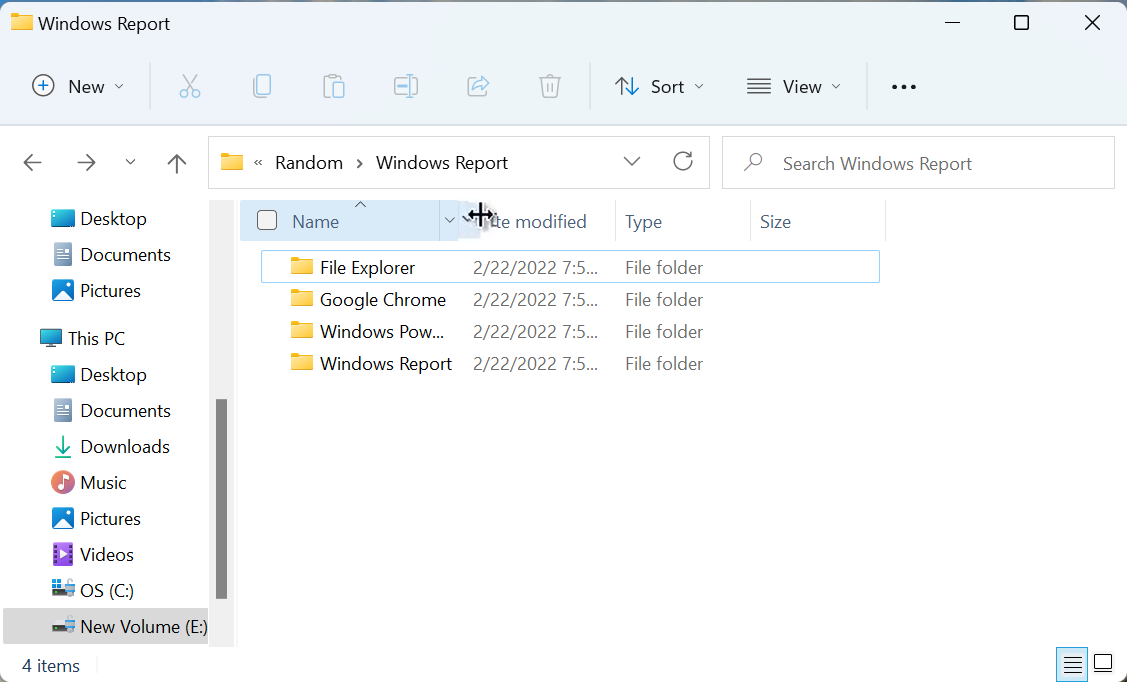
After we changed the size of the column in Windows 11, we were able to get the full name visible for every folder here. Look at the screenshot below for comparison:

Column resized to fit the content

You may need to resize the column in other cases as well, so it’s imperative that you know all the ways to do it.

How do I automatically size all columns to fit in File Explorer?

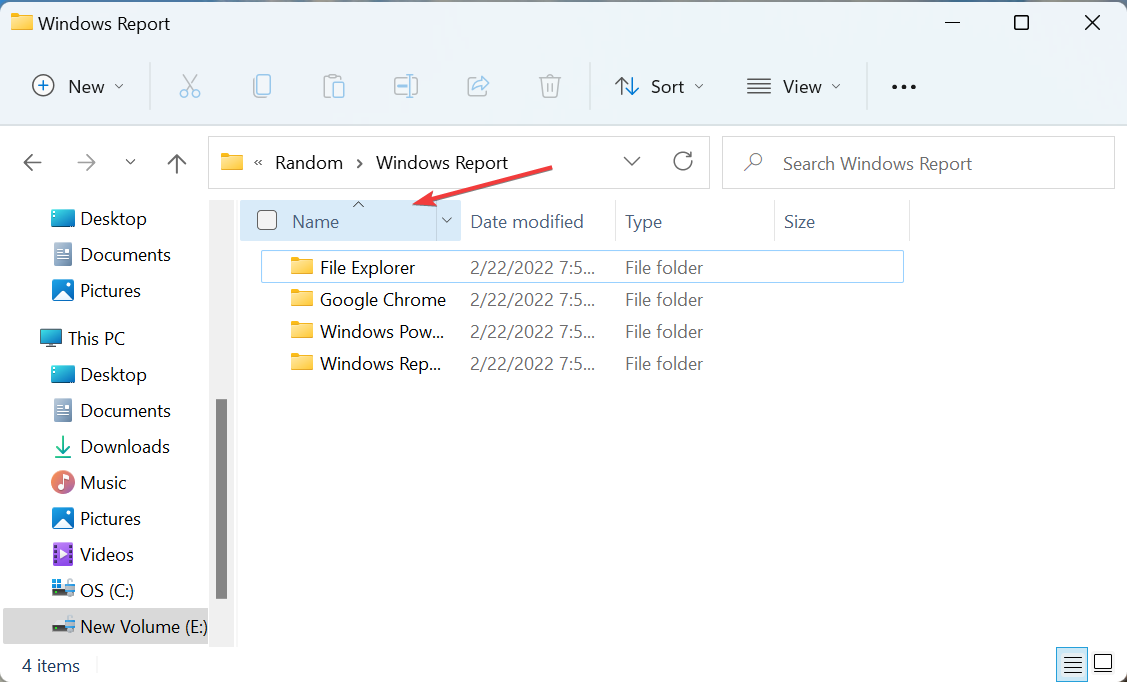
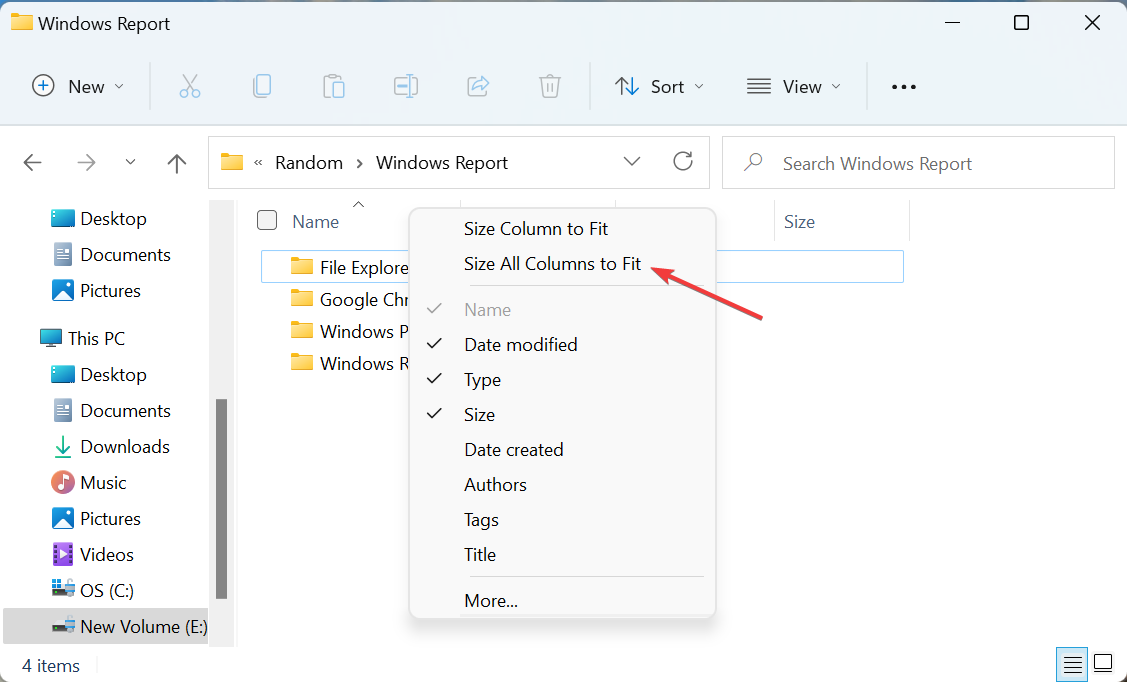
1. Select the Size All Columns to Fit option

  1. Go the folder where you want to resize the column, and right-click on the Column Header (top row) of any one of them.Right click
  2. Now, select Size All Columns to Fit from the list of options in the context menu.size all columns to fit automatically in windows 11
  3. All the columns will now be sized automatically in Windows 11, according the length of content listed under it, such that everything is visible in the first glance.Change reflects

With this method, you can size all columns to fit automatically in Windows 11 in one go. It basically means that though you right-click on one, the changes will be reflected throughout. Also, this is the only method that can automatically resize all columns.

But, what if you want to resize a particular column in Windows 11? Check the next three methods for it.

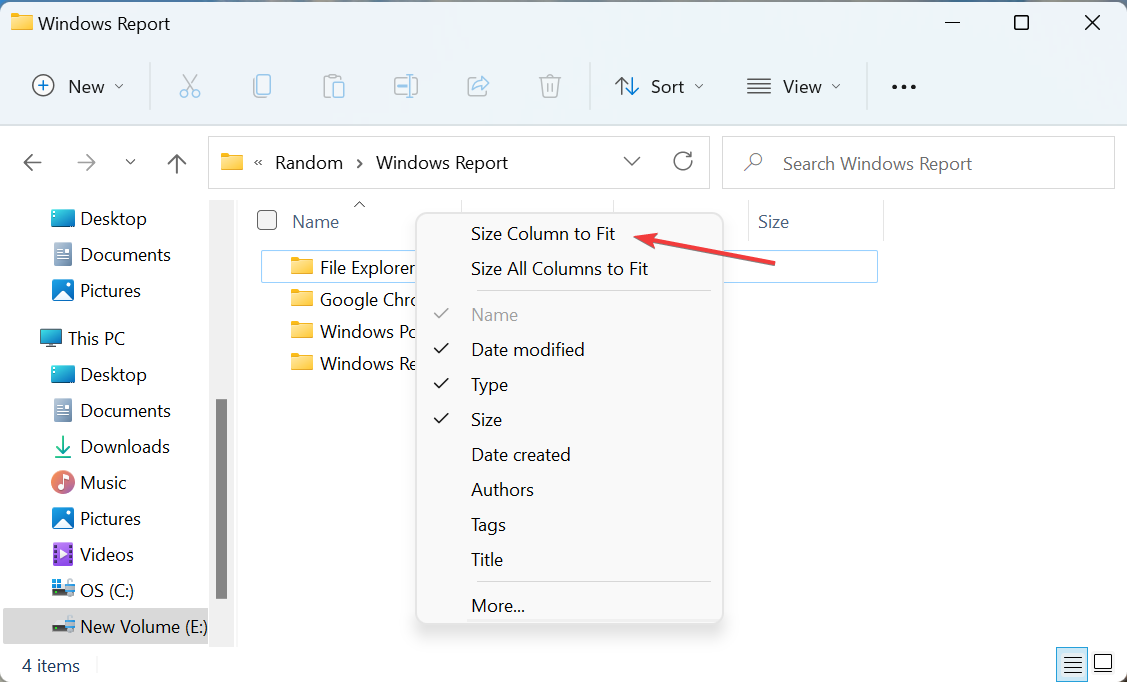
2. Select the Size Column to Fit option

  1. Open the folder where a particular column is to be resized, and right-click on the Column Header for that one.Right-click to size all columns to fit automatically windows 11
  2. Now, select Size Column to Fit from the context menu.Size column to fit
  3. The selected column will now be resized while the others won’t be affected as is evident in the screenshot below:Changes

After making the changes, the size of the selected column will now change to fit automatically in Windows 11.

But there might be cases when you want to change the column size to a particular width and not just to fit the content. Check the next method to find out how to do that.

3. Drag to increase the column size

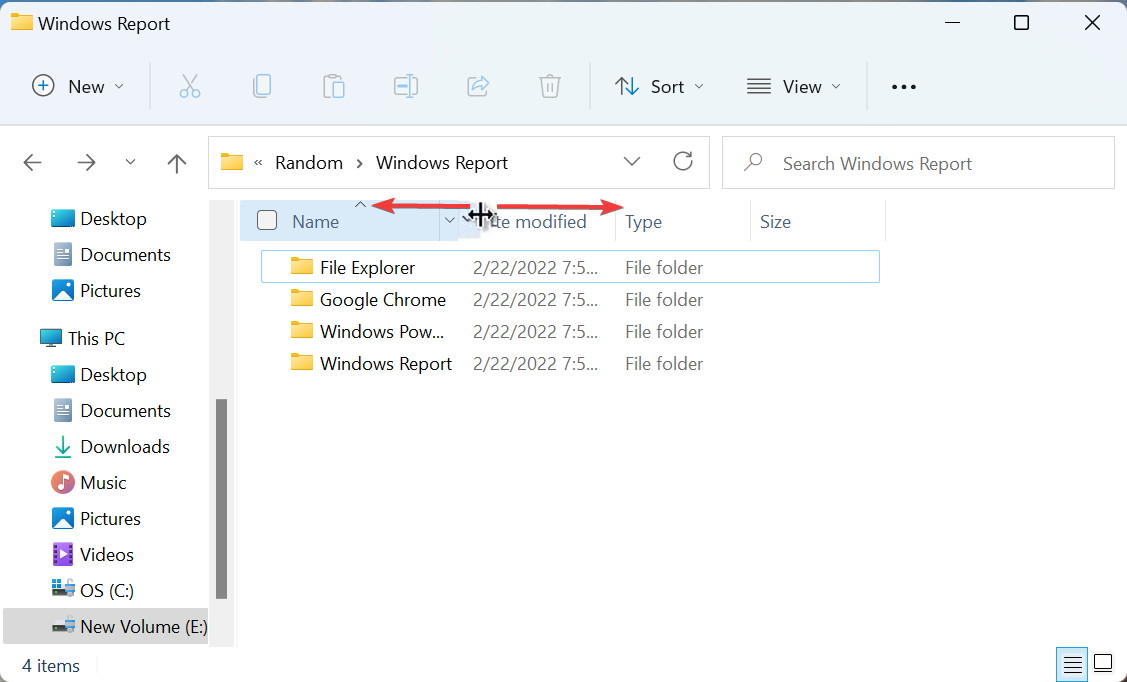
  1. Navigate to the desired folder, move the cursor to the right of the Column Header, and a small black line with perpendicular arrows on the either side will appear.Drag to size all columns to fit automatically windows 11
  2. Once it does, hold and drag it to either direction to change the size of the column. Moving it to the right will increase the size while dragging it to the left will decrease it.Drag in either

Using this method, you can resize all columns in Windows 11 as per the requirements, whether to fit all, hide a certain part, or even leave extra space.

4. Manually enter the column width in pixels

  1. Go to the folder where the column needs be resized, and right-click on the Column Header.Right-click to size all columns to fit automatically windows 11
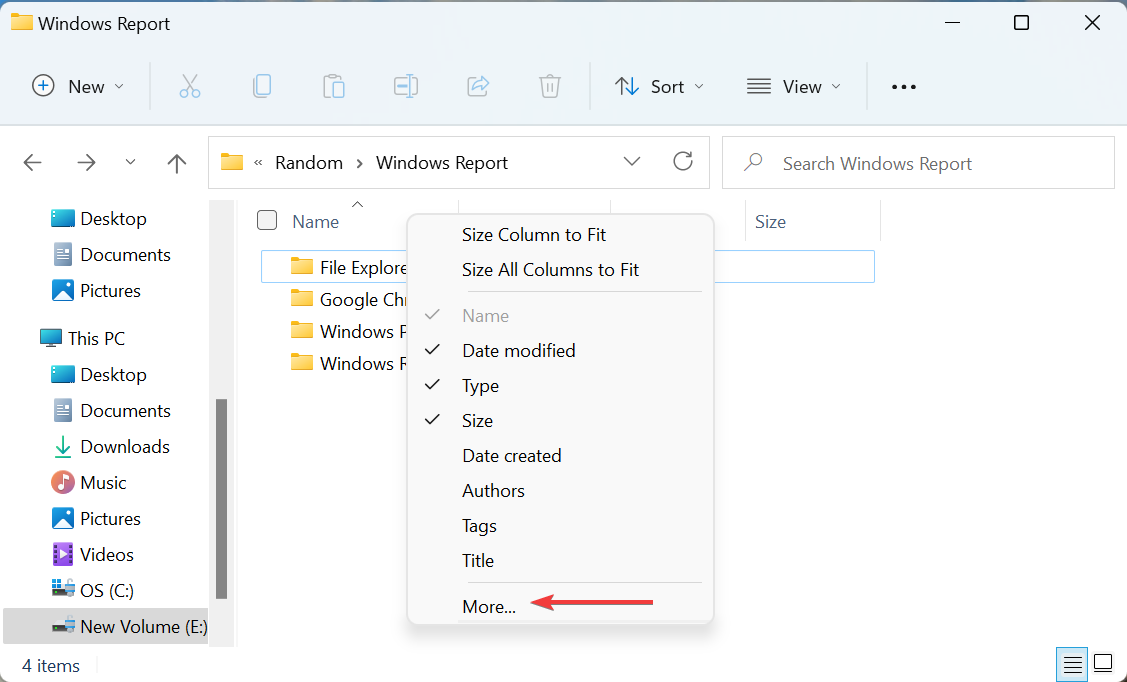
  2. Next, select More from the context menu.select More
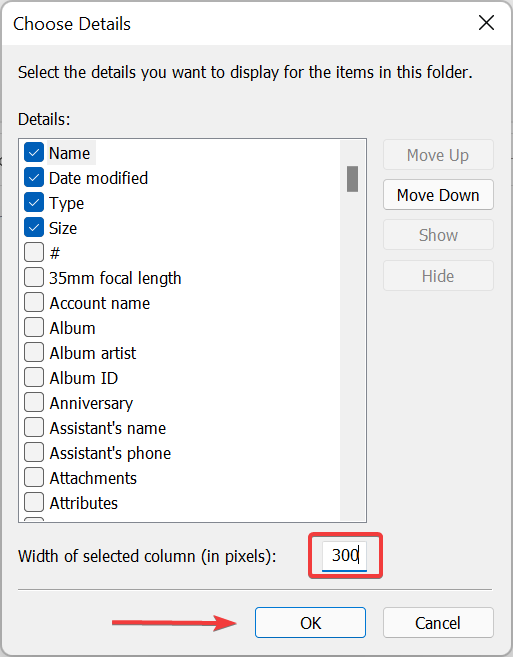
  3. Now enter the desired width in pixels (px) in the text field next to Width of selected column, and click on OK at the bottom to save the changes.Enter width to size all columns to fit automatically windows 11

This is a rather intricate method but comes in handy for those who prefer accuracy. While dragging to change the column size might sound more convenient to many, it wouldn’t be very accurate. This is where manually entering the width comes to your aid.

How can I speed up File Explorer in Windows 11?

Using File Explorer is an important part of our daily work on the computer. We use it to navigate through the various folder, locate files, along with performing a bunch of other actions. But oftentimes, it becomes slow due to various reasons.

To speed up the File Explorer, you can try closing background apps that consume too many resources, update Windows 11 to the latest version, or even go full-screen. Do not hesitate to check this guide for the most effective methods to speed up File Explorer.

Whether the need to size all columns to fit automatically in Windows 11 arises or not, a proper understanding of the various methods is imperative. And, now you know all four.

Also, find out what to do if the File Explorer keeps crashing or is not responding in Windows 11.

Tell us which method you found the most convenient to resize columns in File Explorer, in the comments section below.

Steam failed to add a new library: Try out this guide

It is a great gaming service, but some users reported that Steam failed to add a new library. Keep in mind that this error can be problematic and can prevent you from playing your favorite games.

However, there’s a way to fix this problem, and today we’re going to show you how. It is quite simple, so you don’t have to be an expert to perform the process.

Before discovering the best solution to solve today’s problem, let’s see why it can appear.

What is the Steam game library?

If you don’t already know, the Steam game library is Steam’s software management interface. It is provided to users upon installation of Steam, hosting all software owned by you, as well as games included via Family Sharing.

The Steam manufacturers updated this feature. The new Steam library makes it quick and easy to explore, sort, hide and feature your games.

You can also drag and drop your games into collections to reorganize your library.

Now, let’s see what you can do if Steam failed to add a new library.

What can I do if Steam failed to add a new library?

1. Stop or pause any download or update

One of the most common causes that explain why Steam failed to add a new library si that you’re currently downloading an update for one or more of your games.

Because it seems like Steam downloads and updates might interfere with the process of adding a new library.

In this matter, we strongly recommend stopping or pausing any download or update that is currently running on the Steam client.

After that, try to add a new Steam library. If it doesn’t work, we have a couple more options you can use.

2. Restart your PC and network devices

2.1 PC

  1. Look at the bottom-left corner of your Windows Taskbar, then click on the Windows icon.
  2. Now, click on the Power icon shown in the picture below.
  3. Choose to Restart your PC.
  4. Wait untill the restarting process is done and try to add a new Steam library.

2.2 Network devices

  1. Shut down your computer, modem and router.
  2. Unplug all the cables from the router and the modem.
  3. Wait a few minutes, so that it is uncharged completely.
  4. Plug in the cables.
  5. Start the modem and router and wait till it is successfully on.

If Steam failed to add a new library, it might probably be due to some random and temporary glitches related to your PC, Internet, or network devices.

It seems like some users managed to solve this error by simply restarting their computers and network devices. However, if it doesn’t work for you, make sure you keep on reading.

3. Add a library folder from Steam settings

  1. Choose a partition on which you want to create the new game library, and then create a new folder with the name of your choosing.
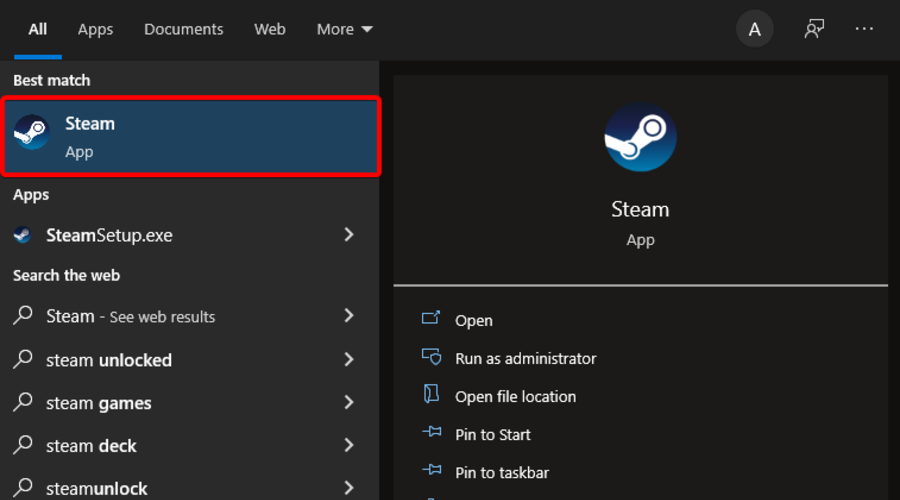
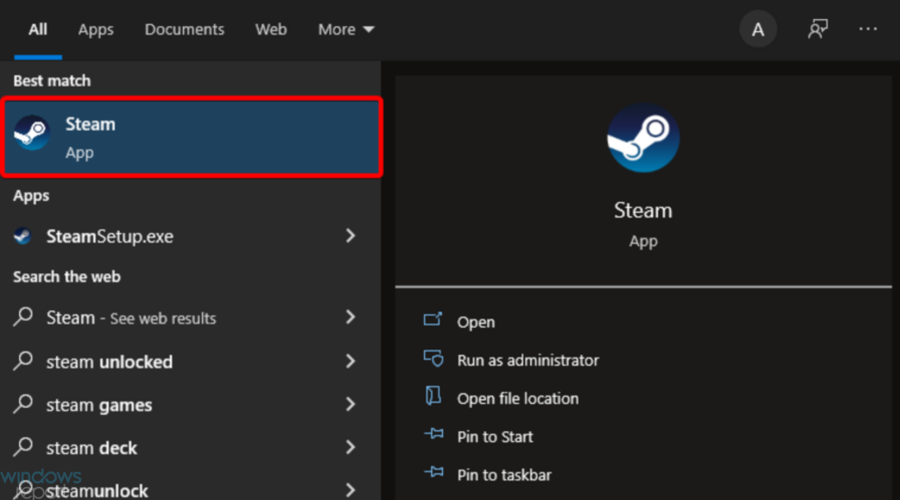
  2. Hit the Windows key, type Steam, then open the first result.
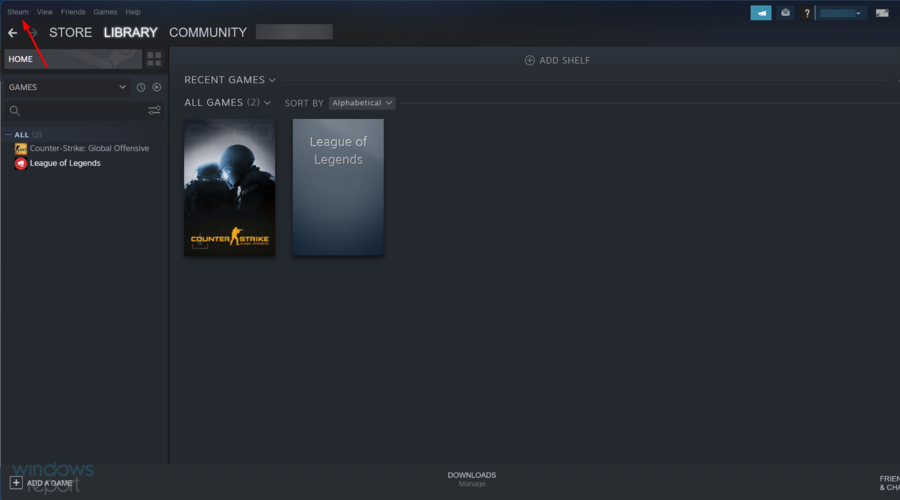
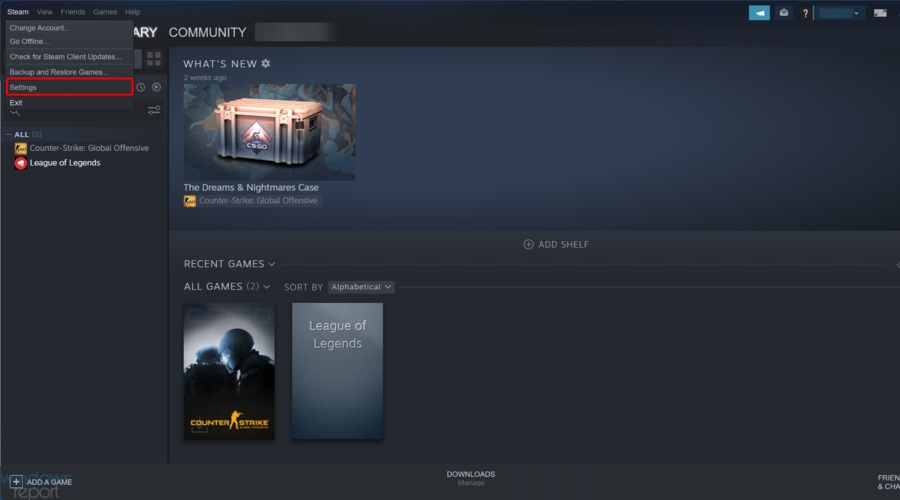
  3. From the top-left menu, click on Steam.
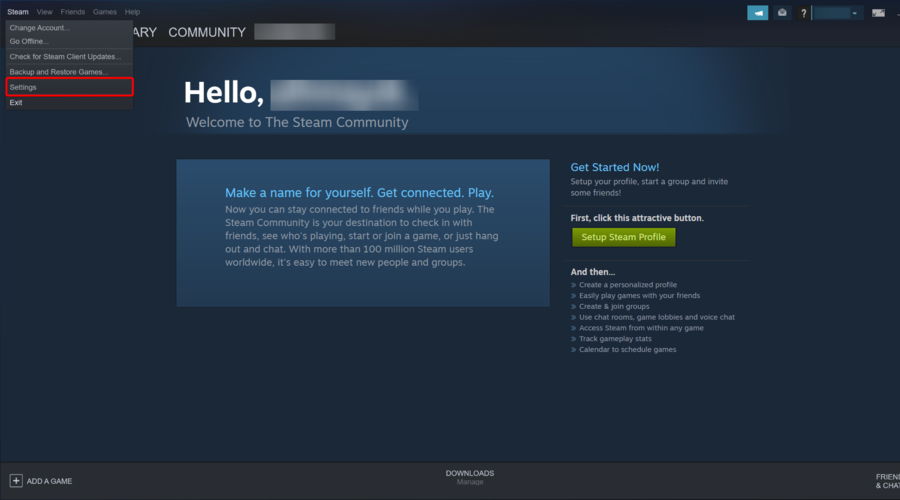
  4. Navigate to Settings.
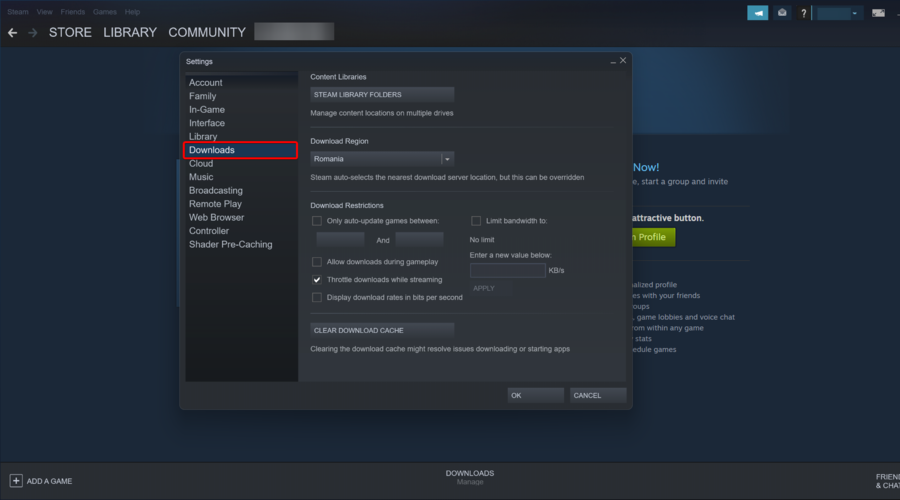
  5. From the left window pane, select Downloads.
  6. Now, choose Steam Library Folders.
  7. Click on Add library folder.
  8. Navigate to the folder you created in the first step, and select it, then click on Install.
Note icon NOTE
It is very important to note that to create a new library folder, you need to stop or finish all downloading or upgrading games inside Steam.

After doing that, the problem should be resolved and everything will start working again.

4. Temporarily disable your antivirus software

If Steam failed to add a new library it is probably that a third-party antivirus is getting into conflict with the gaming app.

In case you’re not sure how to disable your specific software, contact your antivirus support center and ask them for help or switch to a different antivirus program.

5. Clear Steam Download Cache

  1. Hit the Windows key, type Steam, then open the desktop client.
  2. From the top-left corner of the window, click on Steam.
  3. Now, navigate to Settings.
  4. From the left window pane, select the Downloads tab.
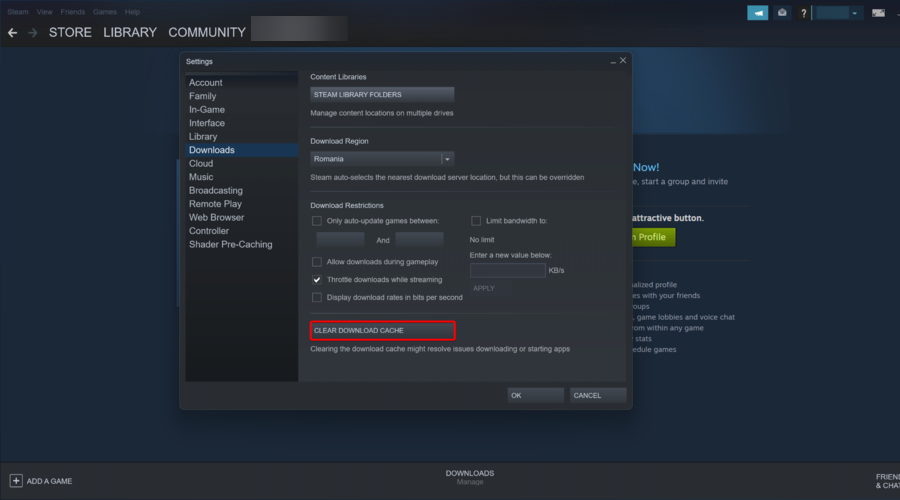
  5. Look at the right window pane and choose to Clear Download Cache.

What other Steam library errors should I be aware of?

  • The Steam library folder is not writable – This error can arise due to different reasons, and some of the most popular ones are wrong permissions and Steam’s download cache. However, there are many more to find about this problem, so make sure you check our dedicated guide.
  • Failed to load library steam.hdll in Dead Cells – Dead Cells is one of the best games in the action platformer genre, but it seems like some users encountered this issue right here. If you also face it, do not hesitate to use some useful solutions to fix it.
  • Steam game doesn’t show up in the library – Regardless of the circumstances that explain why this can occur, not being able to find your game in the Steam Library is an extremely-infuriating situation for all users.

In this article, we explored the best method to try if Steam failed to add a new library on your Windows 10 PC. Make sure to follow the steps presented in this article exactly to get the best result.

Feel free to let us know if this method helped you deal with the error Steam generates, by using the comment section below.

Error adding a friend on Steam [Fix it now]

Millions of gamers use Steam to play with their friends, but Windows 10 users reported one unusual problem. According to them, they are getting an error while adding a friend on Steam.

This problem will prevent you from adding any new friends, so it can be pretty annoying. Fortunately, there are always solutions that you can try to fix problems like this.

Before taking a look at some of the best solutions to fix this problem, let’s discover what are the most common reasons that explain why it can occur.

Why do I get an error while adding a friend on Steam?

Even though the exact reasons for encountering this issue on Steam will vary from user to user while scouring the web on this subject, we have found some common ground:

  • The user is blocked – Even if some users probably forget about this one, keep in mind that if the user you’re trying to add is blocked from your account, you won’t be able to add him/her as your friend.
  • Limited Account – For those of you who don’t already know, Steam manufacturers introduced a Limited account that cannot add friends. In other words, this is an account that hasn’t purchased any content from the game engine.
  • Too many friend invites – Do not forget that Steam allows you to have only a limited number of friends requests.
  • Steam glitches – The app might sometimes be buggy, so it’s better to refresh it by using a specific command that you’re going to discover a bit later in this guide.
  • Other Steam features are blocking the process of adding a friend – In this particular case, it is best to check the certain feature and maybe disable it.

No matter if in your case the cause might be one, two, or all of the above-mentioned problems, our guide will cover them all and will ensure that this issue will not be bothering you in the future.

Can I add friends on Steam without paying?

  1. Open Steam, then go to Community.
  2. Search the Steam Community for the person you want to add.
  3. Create an invite link and share it with them.
  4. Link you Facebook profile so you can find friends on Steam.
  5. Navigate to another profile and choose to Add friend.

What can I do if I got an error adding a friend on Steam?

1. Check if that user is blocked

  1. Hit the Windows key, type Steam, then open the app.
  2. Look at the lower-right corner of the window, and click on Friends & Chat.
  3. If the blocked user is still in your friends list, you can find them in the list and it will show Blocked under their name.
  4. Right-click on the user and select Manage, then choose to Unblock All Communication.

After unblocking a user, you should be able to add him as a friend again.

Bear in mind that you can only add users that didn’t block you, so if you’re blocked by a certain user you won’t be able to add them unless they unblock you first.

2. Check if your account isn’t limited

Steam has implemented a security measure that prevents scammers from adding new friends. Every user that joins Steam has a Limited User Account.

This account has certain limitations, and one of those limitations is the inability to add friends.

The only way to get a Full Steam account with all features is to purchase a game from Steam.

You can purchase any game, and after the game is added to your account, you should be able to add friends without any problems.

If your account is new and it doesn’t have any paid games added to it, you won’t be able to add friends until you buy a game on Steam.

3. Verify your friend requests

Steam allows you to have a limited number of friends and friend requests, and if you can’t add a certain friend, it might be due to the number of friend invites.

One of the simplest ways to fix this problem is to accept or deny friend requests.

After accepting or denying a few friend requests you should be able to add new friends on Steam without any problems.

Some users suggest that you need to remove all pending friend requests, so you might want to try that as well.

4. Use Command Prompt

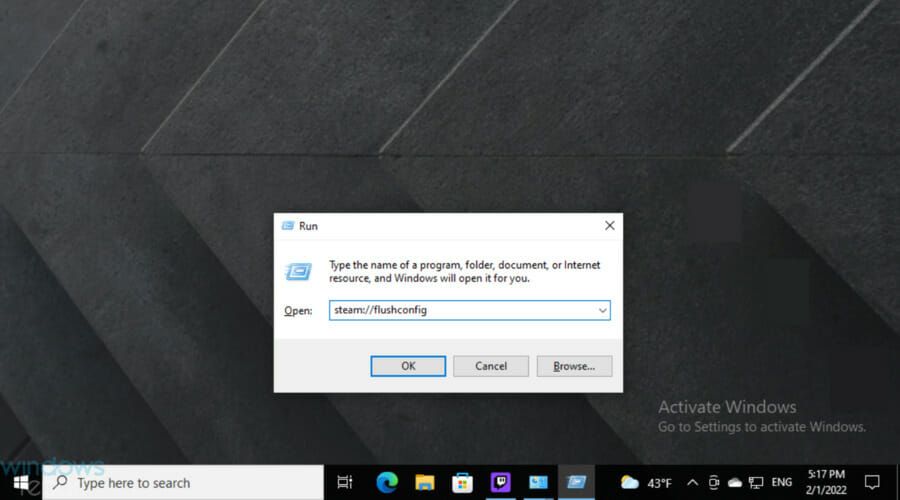
  1. Use the following keyboard shortcut to open the Windows run dialog box: Windows + R.
  2. Enter steam://flushconfig in Run dialog and press on OK.
  3. Steam will now reset its configuration and you should be able to add friends again.

5. Block and unblock the friend that you’re trying to add

Sometimes there might be a bug with Steam that prevents you from adding friends, but you should be able to fix it simply by blocking and unblocking your friend.

To block your friend, simply visit his profile and click the More button, and select Block all communication. A

After that, unblock him and try to add him again. For more information on how to unblock your friends on Steam, check Solution 1 for detailed instructions.

Few users also claim that you can fix this issue if you and your friend block and unblock each other.

We’re not sure if this solution works, but few users reported success while using this method, so you might want to try it.

6. Disable Family Sharing

  1. Hit the Windows key, type Steam, then open the app.
  2. From the top-left corner of the window, click on Steam.
  3. Navigate to Settings.
  4. Open the Family tab, then click on Manage other computers.
  5. Uncheck the deauthorize all PCs.

Steam added a useful feature called Family Sharing that allows you to share your games with the members of your family or friends.

This feature is great because it lets your friends or family members play your Steam games on their computers without buying them.

Of course, this feature has its limitations, and you can’t use your account or play any games while your family members are playing them.

This feature can also cause issues while adding friends, so you might want to disable it permanently.

Alternatively, you can do this from your Steam profile by following these steps:

  1. Hit the Windows key, type Steam, then open it.
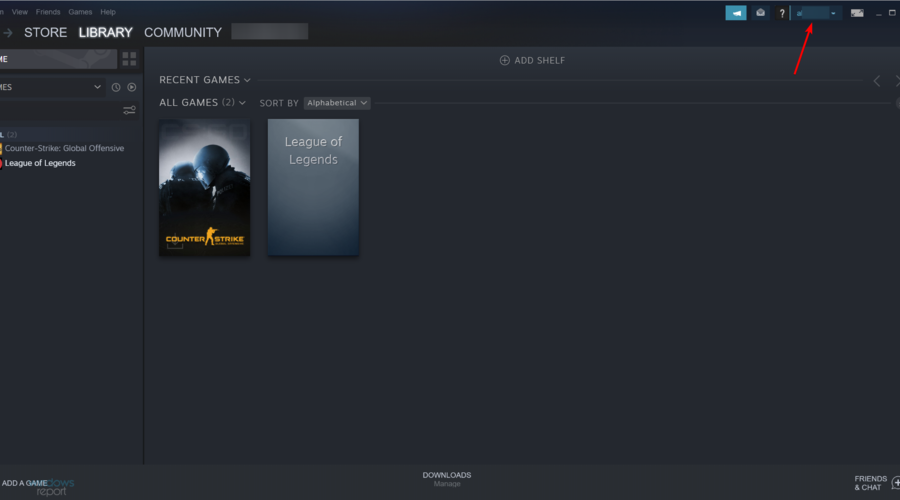
  2. From the top-right corner of the window, click on your Steam profile name.
  3. Choose the Account details option.
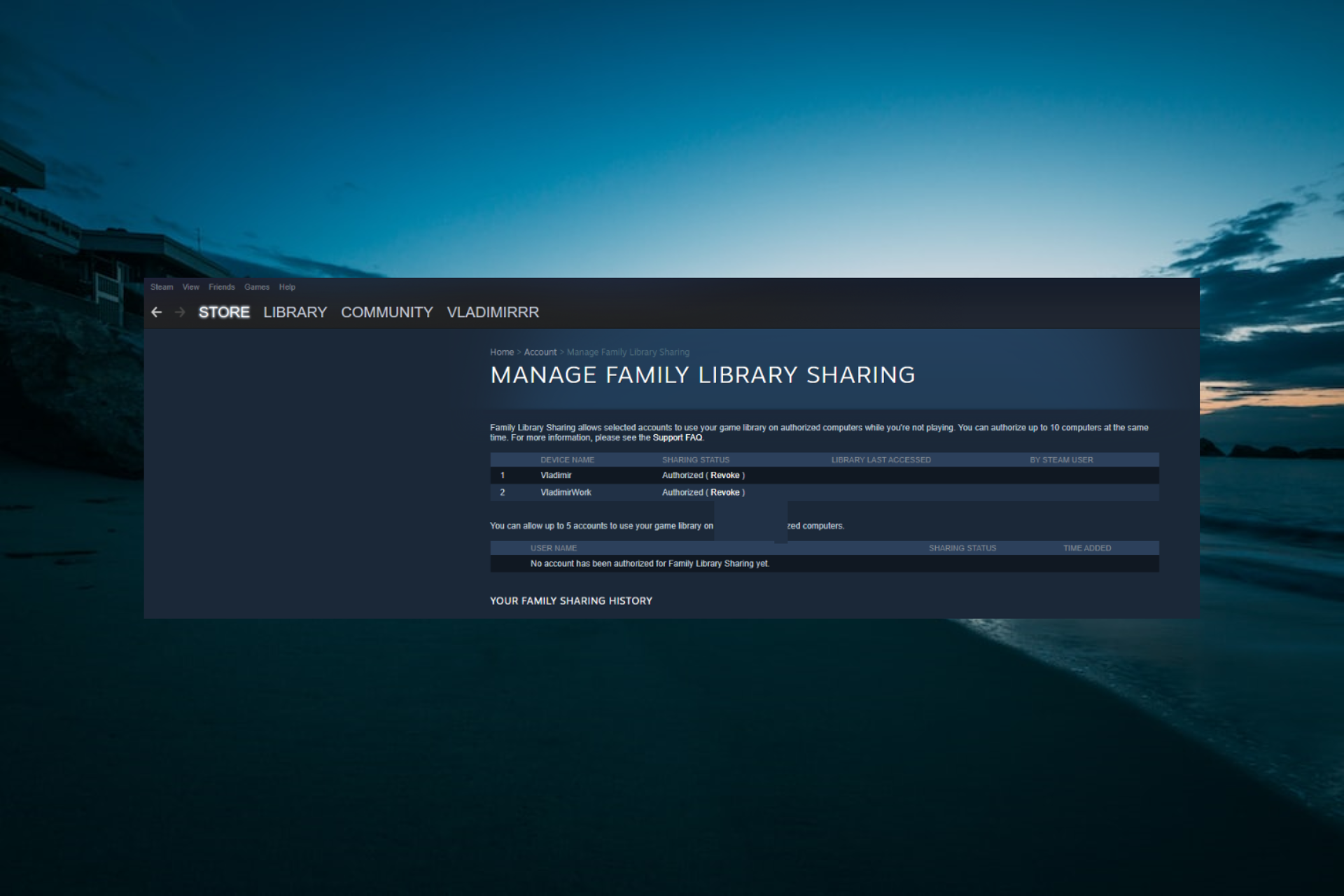
  4. Scroll down to the Family Settings section and click the Manage Family Library Sharing option.
  5. A list of all authorized computers will now appear. Click the Revoke link. Be sure to remove all computers from Family Sharing list.
  6. After doing that, restart Steam and try adding friends again.

Some users are wondering if they can add friends on Steam without paying. Well, the answer is yes, and to easily do it, just follow the above steps.

Being able to play games with your friends on Steam is one of its best features, and if for some reason you’re getting an error while trying to add a friend on Steam, be sure to try all solutions from this article.

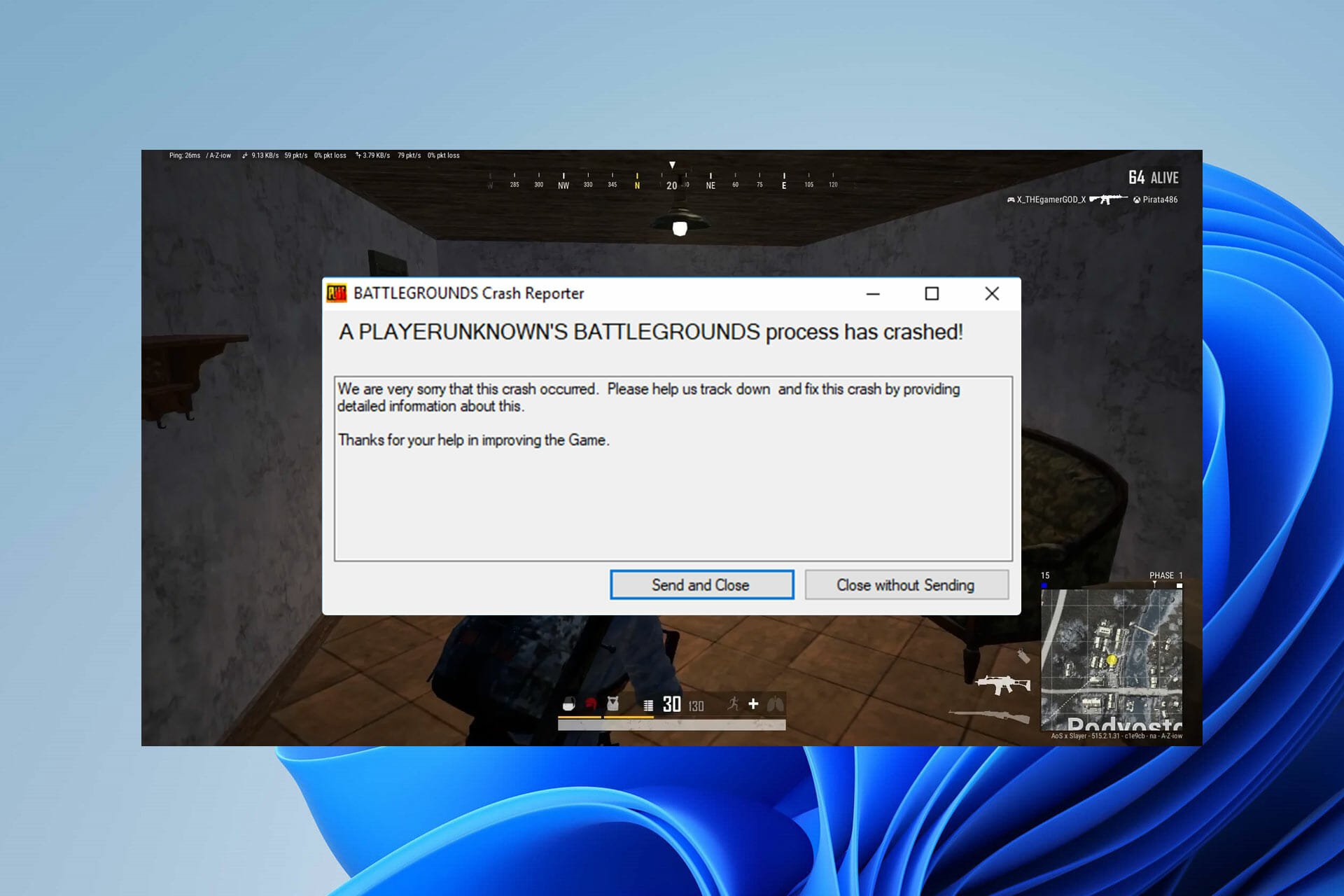
PUBG Crashes on Windows 11? How to Stop it

Are you losing every match in PUBG battle royale or multiplayer just because your gameplay is crashing and you have to opt-out midway? 

You’re not alone then. Many gamers have complained about the same issue. They’ve mentioned that PUBG Windows 11 crashes are more frequent than any other supported version of Windows.

Some users even have faced crashes more than 5 times on a single day. This is quite frustrating to all players, especially to the ones pushing their rank. That’s why we tried to dig a bit deeper to find out the potential causes behind such game crashes and effective troubleshooting methods to avoid them.

Finally, we’re ready to present everything in detail. So, have a look below to perform a few easy step-by-step methods until you can play the game without any crashes. 

What causes PUBG crashes on startup and mid-game?

How to fix PUBG Windows 11 crash

After researching through different community platforms, we could identify the main reasons that lead to frequent crashes in PUBG. Check out the list below:

  • Minimum system requirements: If your PC doesn’t meet the minimum system requirements, it’s obvious your gameplay will crash. So, in this case, you need to upgrade your system to play PUBG smoothly.
  • Outdated graphics card driver: If you haven’t installed the latest driver updates yet, you’re more likely to face PUBG crashes than other Windows 11 users.
  • Lack of administrative rights: When you don’t have administrative privileges to run Steam and PUBG, the gameplay will crash from time to time. 
  • Overclocked GPU: If you’re using your GPU to its best potential to achieve greater in-game speed, PUBG will crash automatically until you disable overclocking. 

Apart from the above list, there can be other reasons like you’re yet to install Windows 11 cumulative updates or running an outdated version of the game. 

Note icon NOTE
Before you start with any troubleshooting process, perform a clean reinstallation of PUBG and check whether it’s still crashing. 

What can I do if PUBG crashes on Windows 11?

1. Access Steam and PUBG with administrative privileges

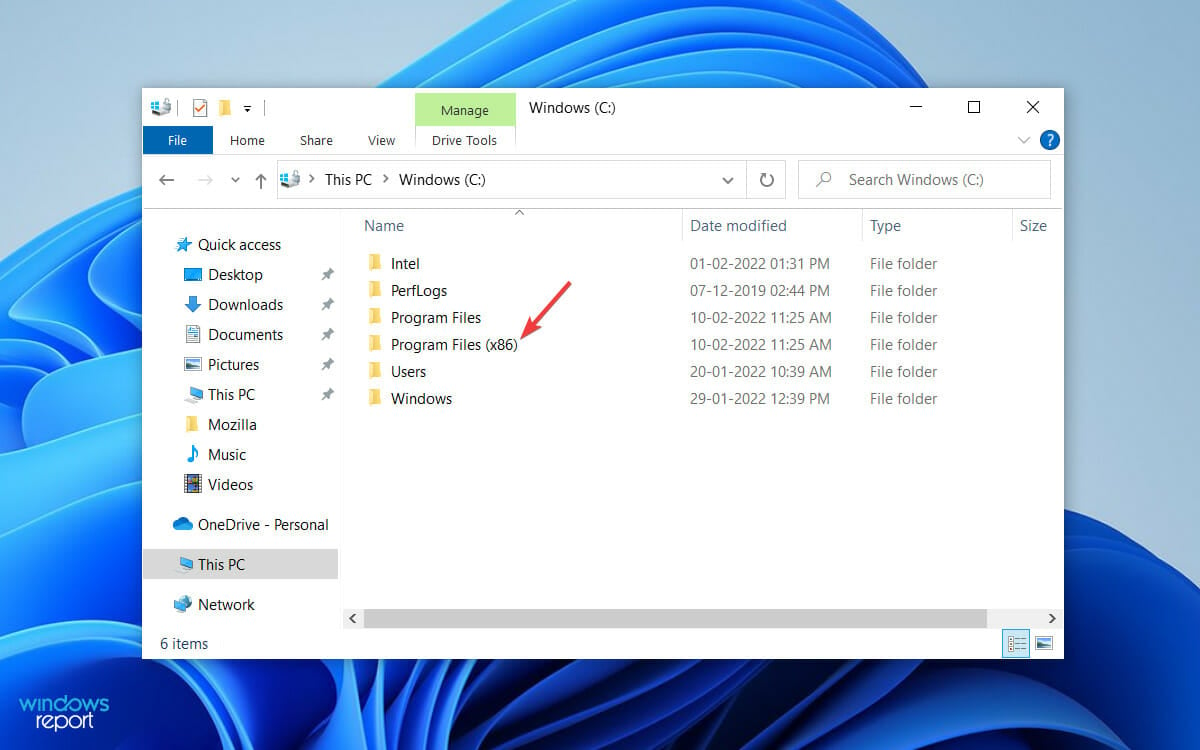
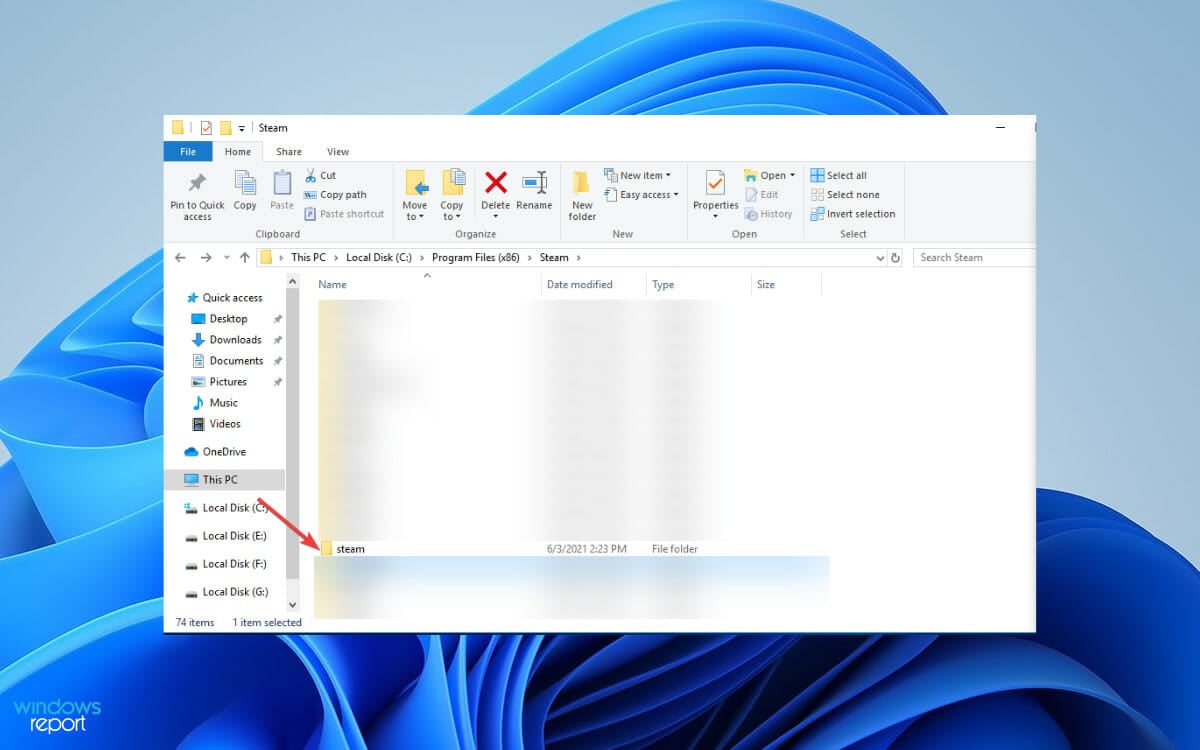
  1. To run Steam with admin privileges, first move to: C:\Program Files (x86)PUBG Windows 11 crash
  2. Next, find and double-click Steam from the list of entries. PUBG Windows 11 crash
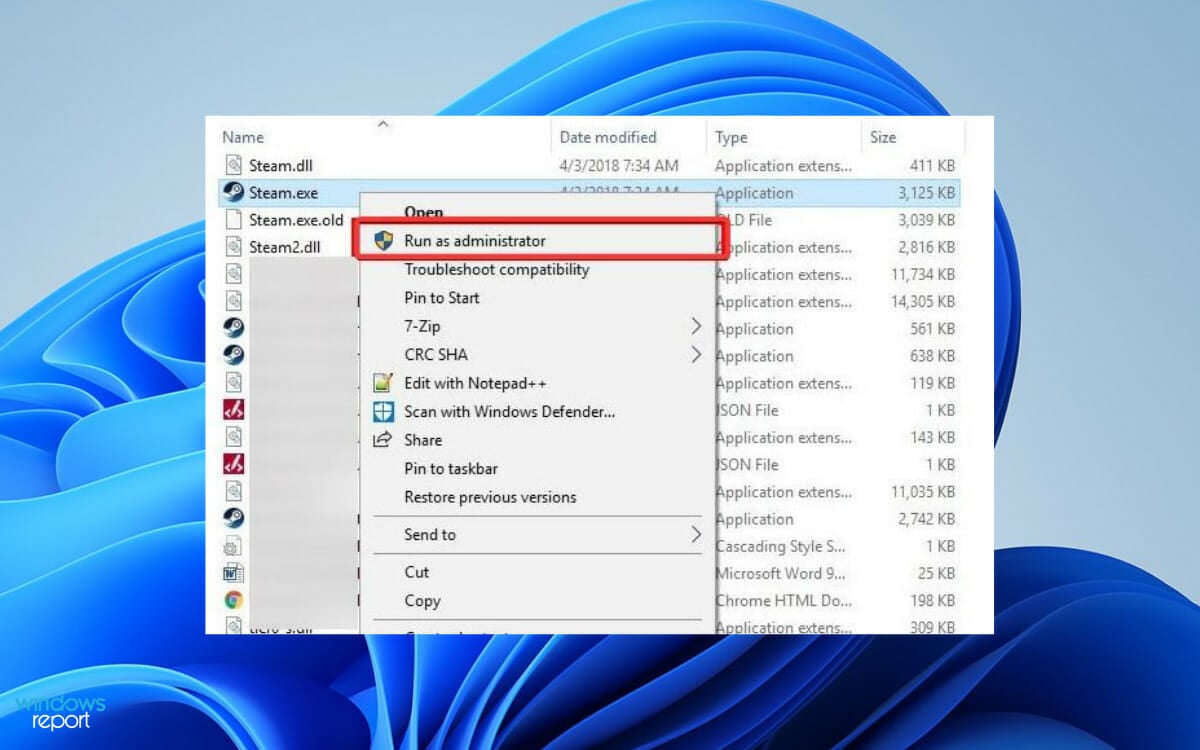
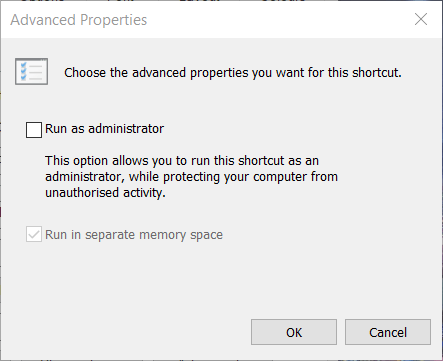
  3. Finally, right-click on Steam.exe and choose Run as Administrator on the next screen. How to fix PUBG Windows 11 crash
  4. For PUBG, now navigate to steamapps in the same Steam folder.
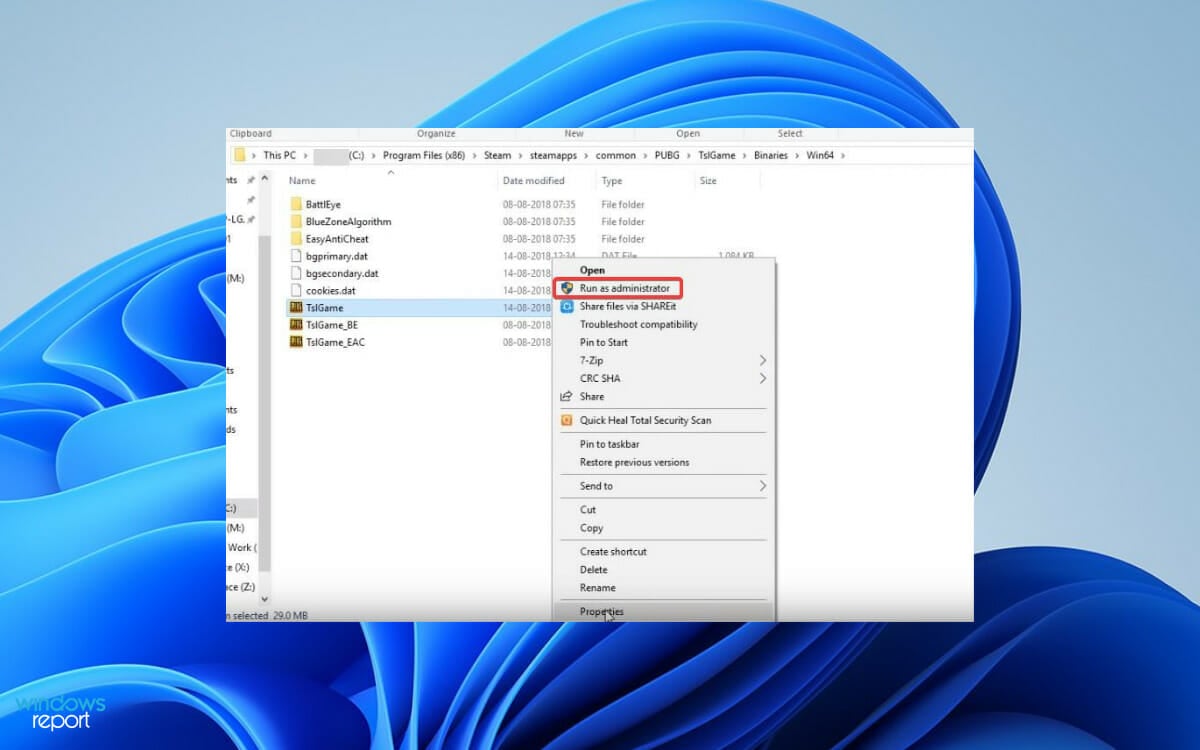
  5. Now, follow this path: common\Battlegrounds\TslGame\Binaries\Win64
  6. Next, select TsLGame.exe, then right-click on it and choose Run as Administrator.How to fix PUBG Windows 11 crash

In case PUBG is crashing when using Steam, it’s the lack of administrative privileges is always a problem, and this solution should help with that.

2. Update drivers

  1. Press Windows key + X and choose Device Manager.
  2. Locate your graphics card driver, right-click it and choose Update driver.
  3. Now choose Search automatically for drivers.
  4. Follow the isntructions on the screen to complete the process.
  5. Repeat these steps for all major components.

Updating drivers manually can be a tedious process, but you can make it faster by using specialized driver updater software such as Outbyte Driver Updater.

3. Verify integrity of the game files

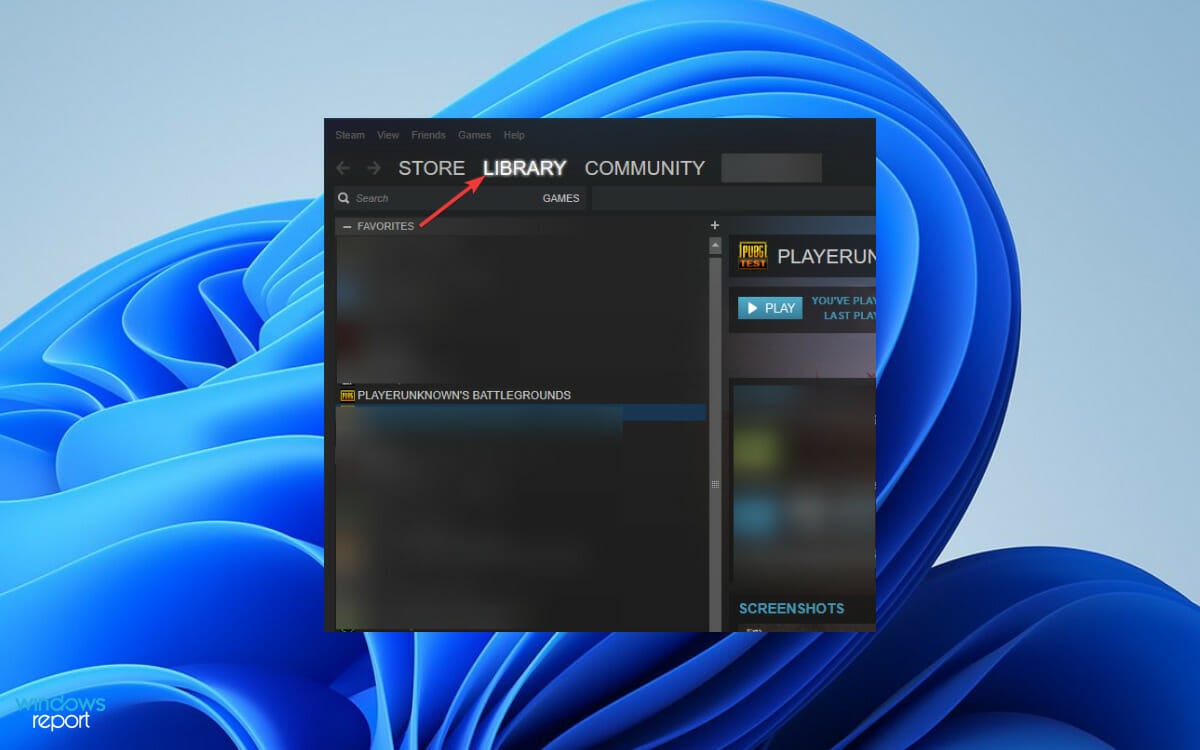
  1. First, launch Steam and move on to LIBRARY.How to fix PUBG Windows 11 crash
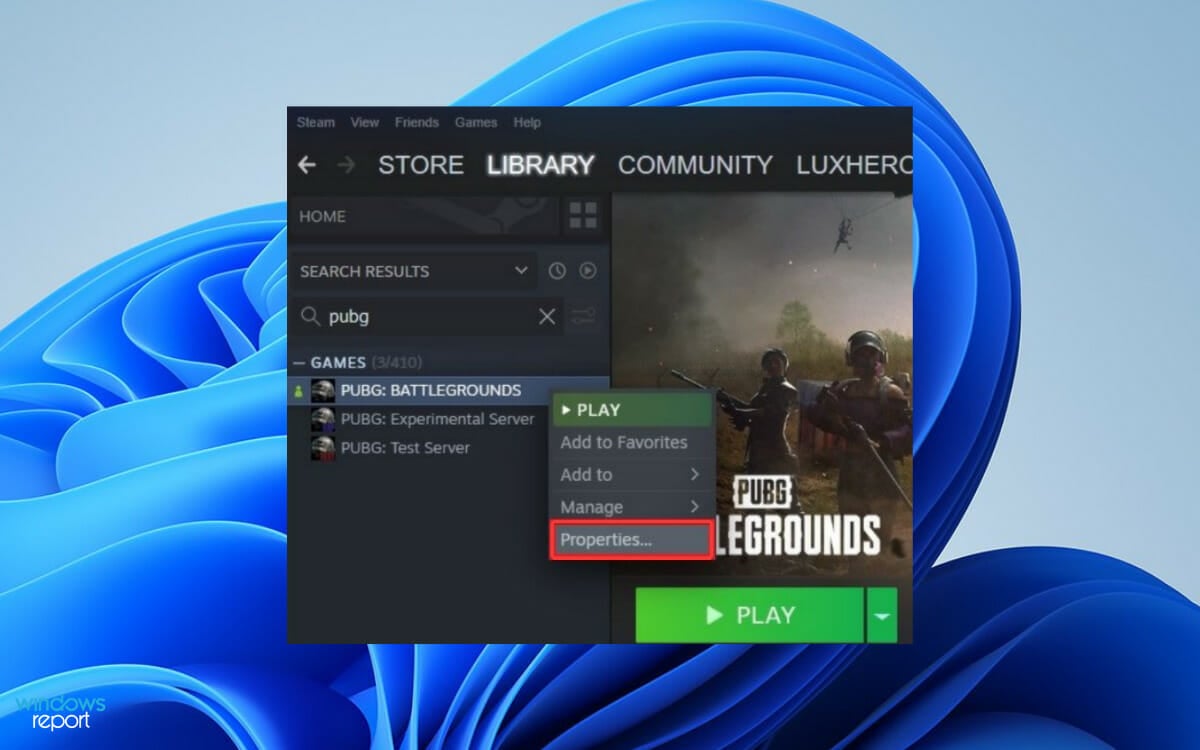
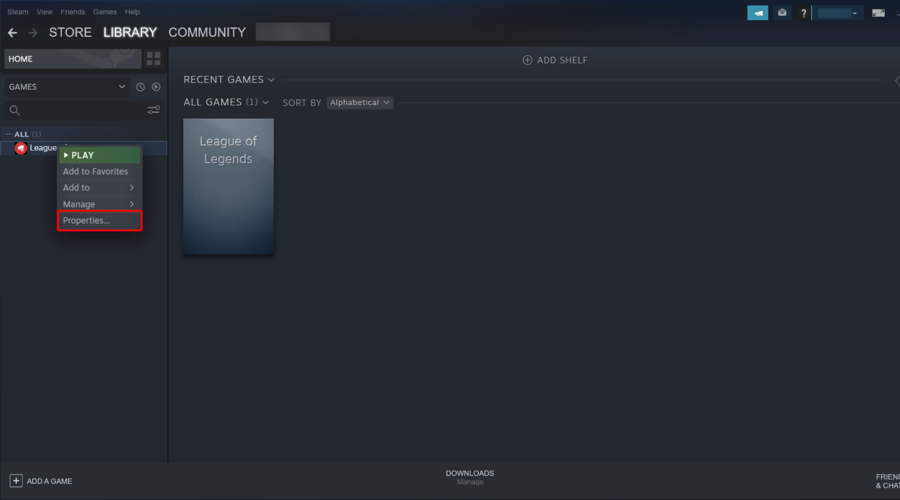
  2. Next, find PUBG, right-click on it and choose Properties.How to fix PUBG Windows 11 crash
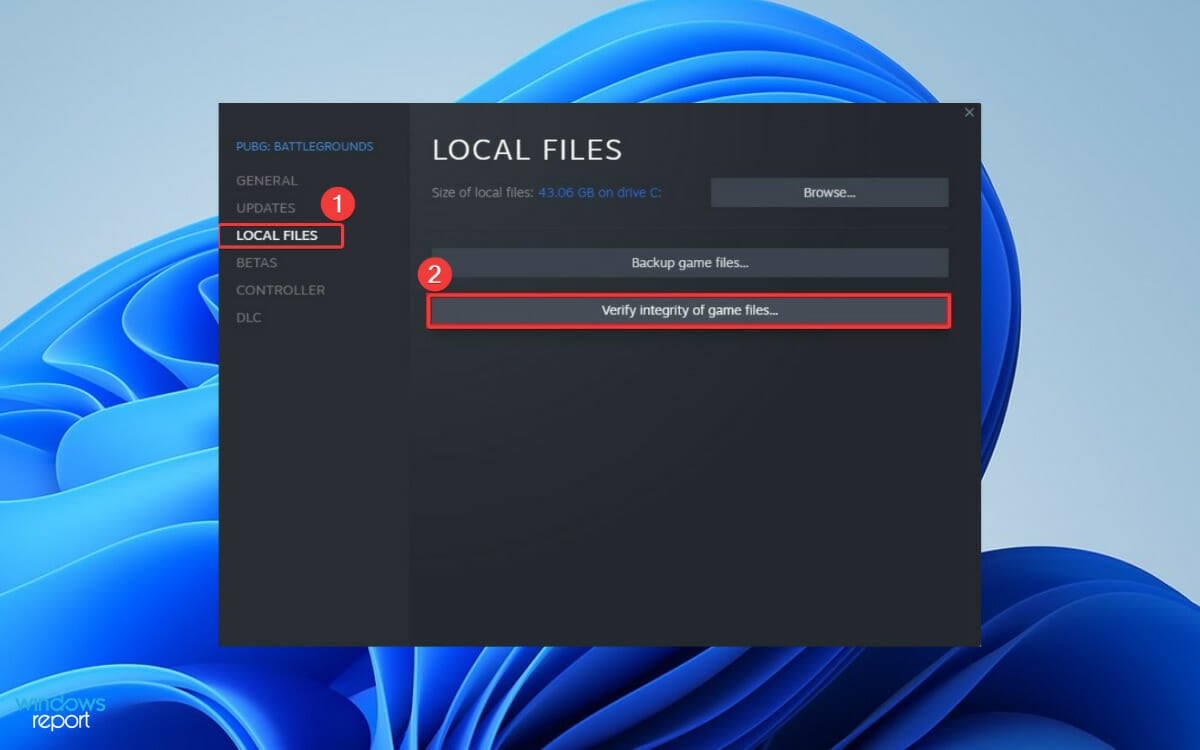
  3. On the next window, click LOCAL FILES from the left pane and, choose Verify integrity of game files from the right-side.  How to fix PUBG Windows 11 crash

Steam will start a file validation process next; wait until it’s finished. As soon as you verify the integrity of game files, any corrupted files will be redownloaded and replaced during the process.

Verifying the game files will help if PUBG is crashing on Steam, but if this solution didn’t work for you, move to the next one.

4. Update PUBG

PUBG devs team keeps releasing patches that fix bugs and other glitches. So, you must have the latest patch update installed on your PC to run the game without any crashes. 

You can download the latest PUBG updates from the official website. After you install the update, try running the game again. If it’s still crashing, perform the next method.

5. Update Windows

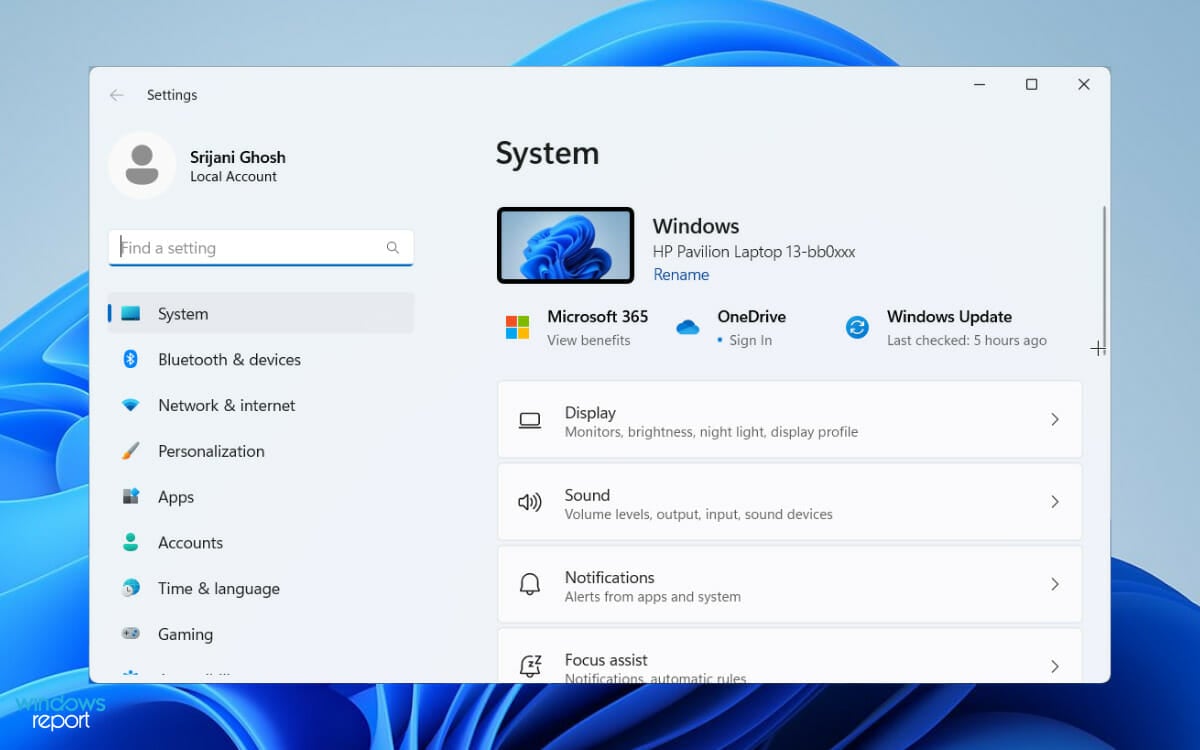
  1. Press the Windows logo key + I button to open Settings. How to fix PUBG Windows 11 crash
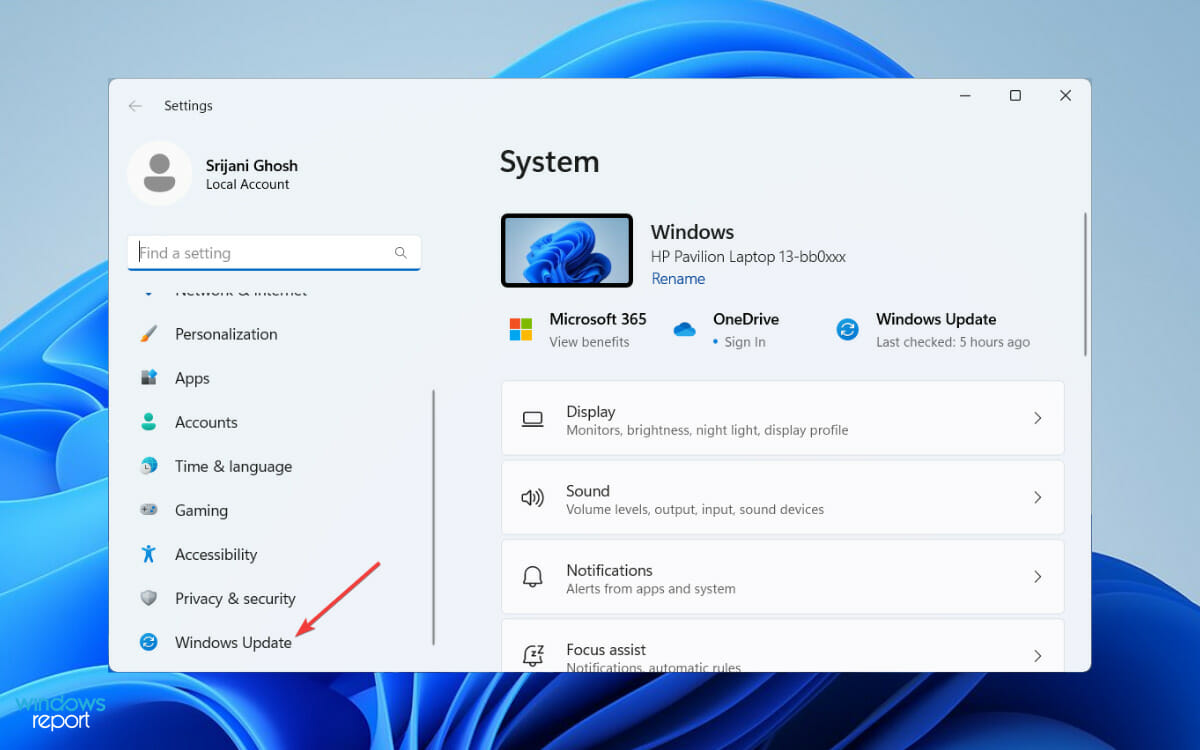
  2. Then, scroll down in the left pane and click Windows Update. How to fix PUBG Windows 11 crash
  3. If any update is pending, it’ll be shown on the right side; if not, click Check for updates. How to fix PUBG Windows 11 crash

Finally, download and install the update on your PC. Once you install the updates, try running PUBG again. If it’s still crashing, check our next solutions. 

6. Disable overclocking

If you’re using overclocking to max out your GPU performance, it’s obvious large games like PUBG won’t be stable. As a result, you face a mid-game crash.

To fix this issue, reset your overclocking settings to default in overclocking software you’re using and run PUBG again. Even if this workaround doesn’t fix the crash entirely, it will reduce the frequency. 

7. Delete junk files

  1. Press Windows key + S and type cleanup. Select Disk Cleanup from the list of results.
  2. Select the files that you want to clean up and click on OK.
  3. Now wait for the process to finish.

Why does PUBG crash to desktop with no error?

It’s possible that this issue is caused by corrupted drivers or game files. Fixing it is simple and you just need to make sure that both the game and your drivers are up to date.

An outdated system can also lead to issues such as this, so we encourage you to download the latest updates to avoid any potential problems.

That’s all! Now you know how to fix PUBG Windows 11 crash. Trying these solutions should work and help you play the game smoothly on your PC.

If you play PUBG mobile also and are facing frequent lags and freezes, check our guide on reducing ping in PUBG Mobile.

Did you find a different solution for this problem on your PC? If so, feel free to share it with us in the comments section below.

How to Take Ownership in Windows 11 [2 Quick Ways]

If you have administrative capabilities, you could access the majority of the C drive’s data, make changes to the system settings, and perform a variety of other operations that would otherwise be impossible.

However, there are some operations that not even an administrator would be able to carry out in their entirety, thus, we will show you today how to take ownership of a folder in Windows 11.

Simply having an administrator account will not suffice if you wish to access the WindowsApps folder, take control of a hard drive that belongs to another computer, or erase shared files that have been corrupted due to improper permissions.

The same exact principle applies if you want to take ownership of a folder on Windows 10, so having the right method available can make a big difference.

This is because these adjustments are associated with Microsoft’s Trusted Installer account and as a result, you will need to transfer ownership of those files from the Trusted Installer to your admin account.

Follow along as we will show you how to take ownership of a folder right in Windows 11, right after we see what types of Microsoft accounts exist. Keep up with us!

What type of Microsoft accounts are there?

When it comes to our personal computers, most of us are familiar with the terms Administrator profile and regular User profile. Administrators are compared to God, while users are compared to the general public.

What about Domain Administrator Accounts, Domain User Accounts, or Local Groups, on the other hand? Numerous additional sorts of profiles provide different amounts of access to PCs, servers, and network configurations and settings.

To maintain network security and ensure that everyone has access to the areas they require to do their duties, it is critical to understand the specific capabilities of each device.

account settings  take ownership of folder windows 11

Administrator access to your network should not be granted to standard user accounts. Users who have it as part of their usual user account may unintentionally inflict a great deal of damage if, for example, they become infected with a virus that deletes data on their computer.

A Windows Active Directory Domain manages users’ permissions on a Windows network, typically created when they first connect to the network and containing all of their accounts.

If a user requires specific permissions, they should be provided with the login information for an account that has the appropriate level of access to the system.

It is possible to have high levels of access to different portions of a Windows network by creating Security Groups on the network. These groups should be reviewed regularly to ensure that no normal users are included as members and that only Administrators do so.

In addition to regular user accounts, there is another sort of user account that has special access to specific areas of your network – the Service Account.

The term refers to a user account that is used by software (often on a server) to do automatic operations such as backing up data or administering your anti-virus administration.

How can I take ownership of folder in Windows 11?

1. Use CMD

  1. Press the Windows key + S in order to start the Search function and type in cmd. Now right-click on the top result and choose Run as administrator.cmd-search-result take ownership of folder windows 11
  2. CMD’s current working directory can be changed by issuing the cd command, to a directory containing the desired file or folder, for example: cd C:\Program Filescd-command take ownership of folder windows 11
  3. Run the following two commands and change the foldername in the below two commands to reflect your folder’s name: takeown /f foldername /r /d y icacls foldername /grant administrators:F /ttakeown take ownership of folder windows 11
  4. If you want to take ownership of a file, use the following commands and again replace the filename part with your file’s name: takeown /f filename icacls filename /grant administrators:Ftakeown-file take ownership of folder windows 11

2. Access folder’s properties

  1. To begin, start File Explorer using the Windows + E keyboard shortcut and navigate to the desired file or folder location and right-click on that file/folder to select Properties.properties take ownership of folder windows 11
  2. Navigate to the Security tab, and then click on the Advanced button, which is located at the bottom of the screen.security-advanced take ownership of folder windows 11
  3. Then click on the Change button next to Owner, which will take you to a new window.change-owner-folder take ownership of folder windows 11
  4. Administrator should be entered in the Enter the object names to select form, and then the Check Names button should be clicked. Click OK to proceed. After that, you should observe the Owner property being changed from the initial name to your administrative account.administrator take ownership of folder windows 11
  5. Now, select the Replace owner on sub containers and objects option, which can be found directly below the Owner column, by checking the box.replace-owner take ownership of folder windows 11
  6. Finally, to save the changes, click Apply then OK on the toolbar. Windows will now start the process of transferring ownership to the new owner. Once you have completed the process, you will receive a notification, to close it, use the OK button.apply-ok take ownership of folder windows 11

Why should I password protect my folders and files?

password encryption take ownership of folder windows 11

In an ideal world, once you’ve set up a Windows password, everything should be secure and safe, correct? Unfortunately, this isn’t the situation at this time.

A Windows login password provides minimal protection, mostly to keep your files safe from others who may be using the same computer as you.

However, there are numerous hazards. Individuals having a more in-depth understanding of how to hack a system can quickly defeat these simple security precautions.

If you share your computer with others, there is always the possibility of human error – the unintended loss of a critical document, the incorrect change of a critical file, the unintentional sharing of a private folder, and so forth.

For tighter control over who can open or modify sensitive content, you can also change file and folder permissions so access rights match how you actually share the device.

You may find yourself to be your own worst adversary at times. Sharing sensitive information via email with the incorrect recipients is a regrettable, if not fully preventable, source of data security breaches.

One method to mitigate these dangers is to add a password to your most important files one at a time, starting with the most sensitive. After that, sharing a computer becomes a stress-free experience, and sending email attachments will be less of a nerve-wracking experience as well.

While having to input a password every time you access that file may cause some inconvenience, the peace of mind that comes with it is unquestionably worth it.

The use of your Windows program to encrypt an entire folder is another option for dealing with this problem. This is a straightforward procedure that is simple to create and use.

For more information and potential fixes to your problem that can apply to Windows 11 as well, take a look at how to take ownership of a file or a folder in Windows 10.

Alternatively, you may need to access Hidden Folders and Files in Windows 11, if you feel like something is missing and you don’t remember deleting them.

These steps can be helpful when working with foreign file, especially if you’re trying to access the User folder on an old hard drive.

Do write us a comment in the section below and let us know which solution worked best for you as well as whether you have more in mind. Thanks for reading!

Steam Flush Config: What is it and how to use it Properly

Many users want to discover how to use the Steam flush config command. If you’re in the same boat, read this guide thoroughly.

Steam has somewhat become the synonym for PC gaming. Furthermore, its desktop client is a top-notch application with remarkably few errors.

However, it’s not flawless, so you must learn the steam://flushconfig command to address the errors.

We prepared a how-to on the subject if you’re unsure how. We’ll try to explain concisely below, so check it out.

What is the Steam flush config command?

The Steam flush config command is used in the Steam client application to clear the local configuration settings stored on the user’s computer. 

Steam will delete the user’s saved login credentials, custom settings, preferences, and any cached data or temporary files when executing this command.

The primary purpose of this command is to troubleshoot issues related to corrupted or outdated configuration settings that may be causing problems with the Steam client’s functionality. 

By clearing the configuration settings, users can reset the Steam client to its default state, often resolving issues related to login problems, download errors, or other matters that outdated or corrupted settings may cause. 

However, it’s important to note that executing this command will erase all of the user’s custom settings and preferences, so it must be used with care and only as a last resort when other troubleshooting steps have failed.

How do I use the Steam flush config command?

1. Through the Windows run dialog box

  1. Close the Steam desktop client.
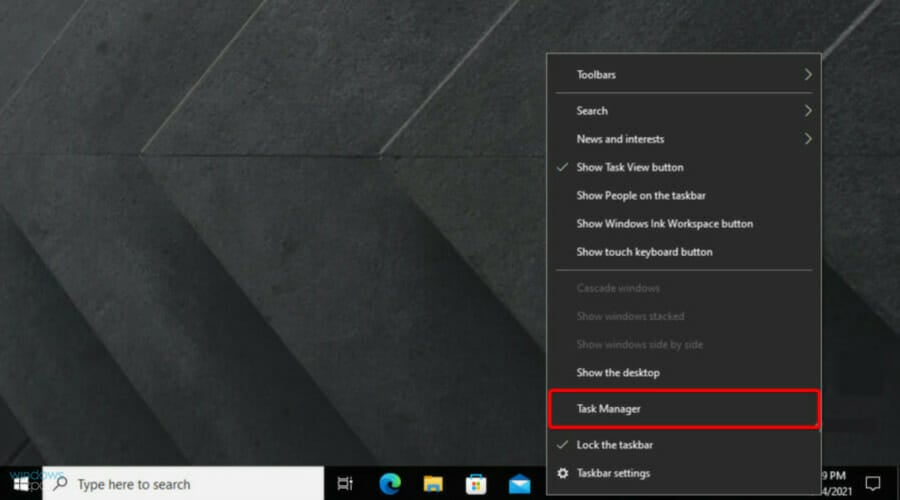
  2. Right-click on the taskbar and open Task Manager.
  3. Open Details and kill all active Steam-related processes.
  4. Now, use the following keyboard shortcut to open the Windows run dialog box: Windows + R.
  5. Copy and paste the following command in the command line and hit Enter:
    steam://flushconfig
  6. Wait for some time and restart your PC.
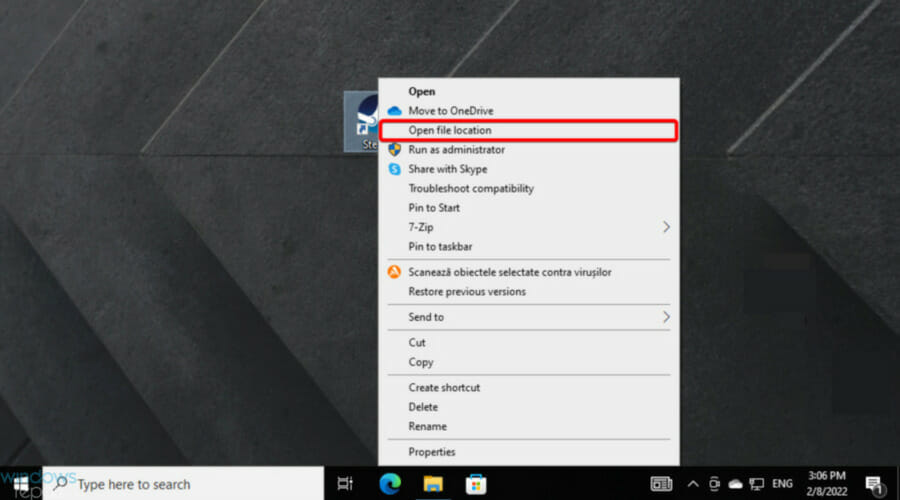
  7. Now, navigate to Steam’s installation folder by right-clicking on the app’s shortcut, then choose Open file location.
  8. Run Steam.exe from the installation folder.

2. With Command Prompt

  1. Hit the Windows key, type cmd, then right-click on Command Prompt, and choose to Run as administrator.
  2. In the opened window, input our presented command, then press Enter:
    steam://flushconfig
  3. Wait a few seconds, and after the process is done, restart your PC.

So, this is how you can run the steam flush DNS config command in Windows 10. As you can see, it’s a straightforward process that can generate unexpected results.

If you have any questions or suggestions regarding this Steam troubleshooting step, please tell us in the comments section below.

Steam Family Sharing not Working: 6 Easy Solutions to use

Steam Family Sharing lets up to 5 users access Steam games from up to 10 different computers. However, some users have complained that Steam Family Sharing is not working for them.

If you also experience this issue, read this post to the end for solutions for resolving it.

Why is Steam Family Sharing not showing up?

Below are some of the reasons Steam Family Sharing might not show up on your PC:

  • Corrupt system files: One of the major causes of this issue is the presence of faulty system files on your PC. You need to repair these files to fix this issue.
  • Faulty game files: Sometimes, this problem can be caused by issues with your game files. The solution to this is to verify the integrity of the files.
  • Antivirus interference: Some users have found this issue to be due to interference from your antivirus. Disabling your security software and possibly switching to another top-notch antivirus should fix this.

What is Steam Family Sharing?

The Steam Family Sharing feature allows family members to share the same games on different accounts. One of the significant advantages of this feature is that each user gets to save their accomplishments and progress.

Also, individual users get to play paid games without the need to purchase them, provided it is purchased on one account. This works because a user grants family members to games on a shared computer.

What can I do if Steam Family Sharing is not working?

1. Make sure the Library is accessible

  1. Open the app and click on the Steam button from the top taskbar.
  2. Choose Settings.
  3. Click on Family.
  4. Check the box next to the Authorize Library Sharing on this computer (if that is your target).
  5. Click on Manage other computers.
  6. Choose Revoke for the respective PC.
  7. Repeat the same process for all PCs.
  8. Run a game on the shared Steam library.
  9. When the authorization message appears, request access from that screen.
  10. Re-authorize the respective PC by clicking the link in the email received.

2. Run an SFC scan

  1. Hit the Windows key, type cmd, and choose Run as an administrator under Command Prompt.
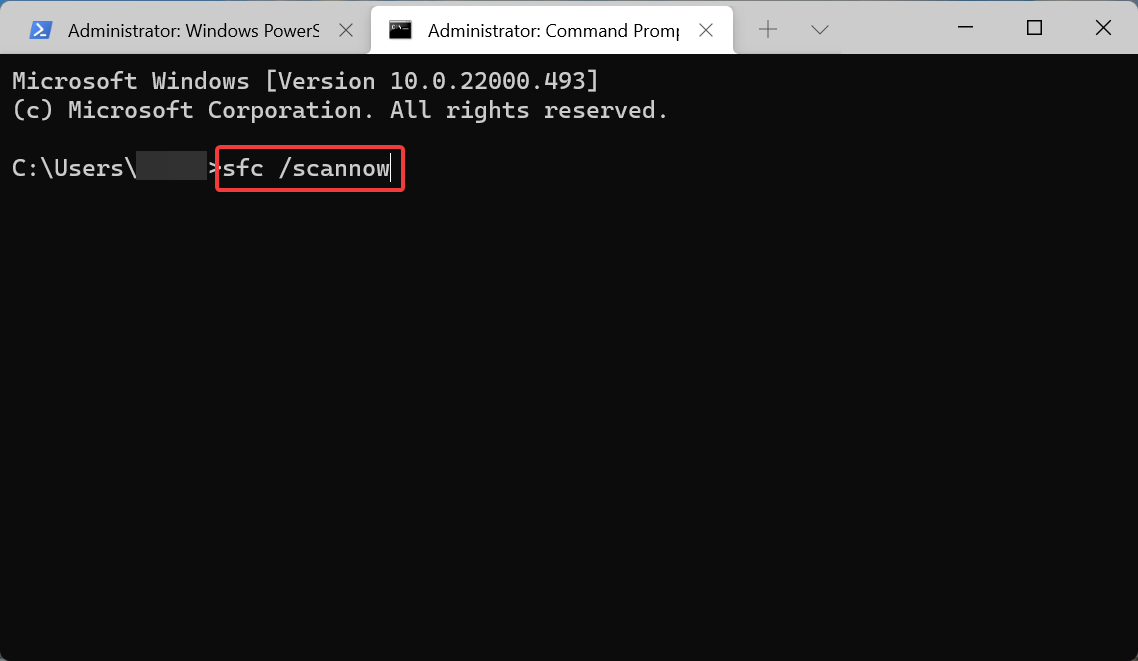
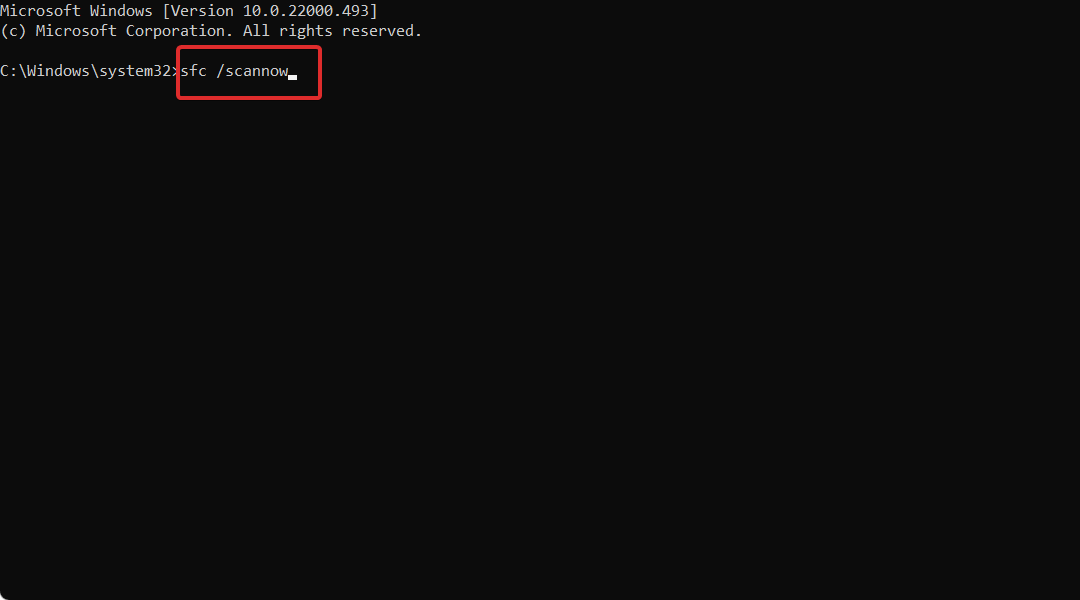
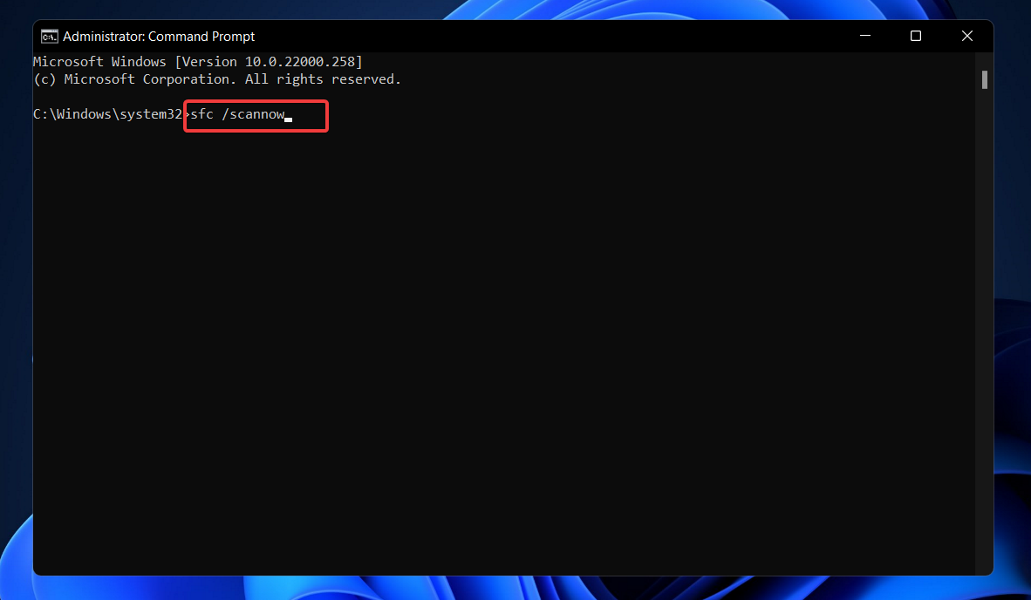
  2. Now, in the opened window, input the following command and press Enter: sfc/scannow
  3. After the process is completed, close Command Prompt, then reboot your PC.

3. Disable antivirus or exclude SteamApps files

Your antivirus could sometimes flag Steam files as risky and block them. If you experience the Steam library not working problem, disable your antivirus and try again.

Another way to fix this issue if your antivirus causes it is to exclude the file path from the virus scanning. The Steam path is usually located in C:/Program Files/Steam/SteamAppsCommon

4. Verify the integrity of the game files

  1. Hit the Windows key, type Steam, then open the app.
  2. From the app’s main menu, navigate to LIBRARY.
    library
  3. Right-click on the game you need, then press on Properties.
  4. Now, in the Properties window, click on LOCAL FILES.
    local files steam family sharing not working
  5. Then, select the VERIFY INTEGRITY OF GAME CACHE button.
    verify
Note icon NOTE
Before performing the above steps, you should temporarily disable your antivirus software, then restart your PC.

5. Reset the Winsock catalog

  1. Hit the Windows key, type cmd, then right-click on the first result, and choose to Run as an administrator.
  2. Enter the following command in Command Prompt and hit Enter to run it: netsh winsock reset
  3. Restart your computer to complete the operation and fix Steam.

Sometimes, an updated Winsock catalog can cause Steam family sharing not to work. Resetting Winsock usually solves the problem.

6. Relocate the Steam installation files

  1. First, make sure you have closed the Steam app.
  2. Now, right-click on the Steam shortcut, and choose to Open file location.
  3. Locate the following files SteamApps, Steam.exe, and Userdata.
  4. Copy these files to a different location.
  5. Next, delete all the files in the Steam directory.
  6. Copy the SteamApps, Steam.exe, and Userdata files back to the Steam directory.

With the solutions above, you should be able to fix the Steam Family Sharing not working issue. Note that some steps here should be carried out from the borrower’s end and others from the owner.

If you are facing other issues, like Steam failing to authorize a computer, check our detailed guide to fix it quickly.

Did these solutions help you out? How did you repair this issue? Please share your thoughts in the comments below.

ADB is Not Recognized in Windows 11: How to Enable it

If you are trying to flash a custom ROM, recover your phone from boot loop, or unlock the bootloader, ADB and Fastboot will be your best friends.

ADB helps you to install apps on your phone, uninstall system apps without rooting your device, get app logs, issue commands to apps, and general communication with your Android device. 

Fastboot and ADB are two of the most important tools used when working with Android devices. However, many people often run into problems when trying to use ADB and Fastboot for the first time.

The ADB is not recognized error is common for those who are trying to set up ADB for the first time, but it can also pop up for more experienced users that have been using it for a while.

This is the most common problem faced by all users of Android Debug Bridge (ADB) and Fastboot commands.

Why is ADB not recognized on my Windows 11?

There are several reasons why this problem might occur. It can be a bad driver installation or a corrupt/missing file in your ADB installation folder or the ADB command cannot be found.

You can also get this error if you are using old or incompatible ADB commands on Windows 11. There are lots of possibilities that can cause this error. Some of the common reasons include:

  • No ADB drivers are installed – ADB drivers do not come pre-installed in your PC. You need to download the package and setup the drivers to be able to issue commands and any other activities.
  • Wrong configuration of ADB drivers – This is a very common mistake among Android users that don’t know how to setup or use ADB and Fastboot tools properly. Fortunately, this is a very easy fix. You just need to download and install ADB & Fastboot Drivers for Windows on your PC and then add the path of these drivers.
  • Outdated ADB drivers – If you have an outdated version of ADB and Fastboot drivers, uninstall them before proceeding. Also, remove any ADB drivers installed by any other app or service. 
  • Faulty USB cables – At times, your cable may be the problem so try switching with a different one and see if the problem persists.

If you encounter any of the problems above, there are some workarounds you can try right away.

What can I do if my ADB is not recognized in Windows 11?

1. Add a System Path for ADB

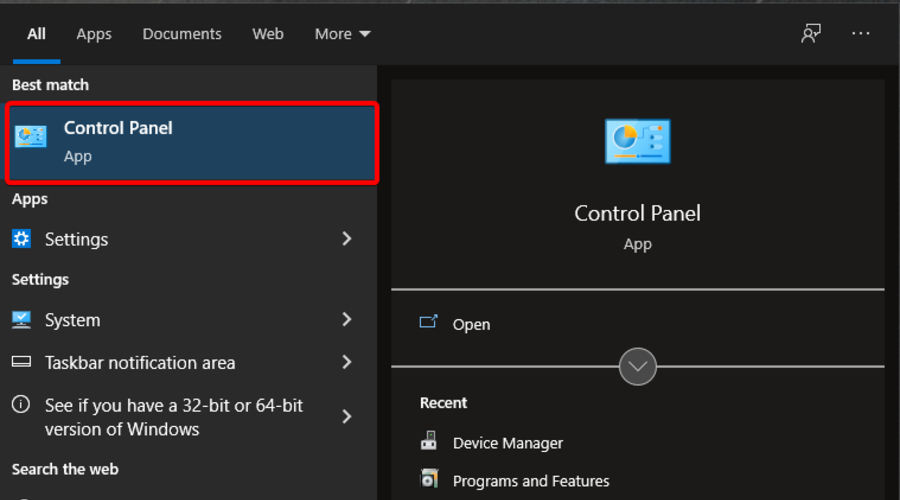
  1. Hit the Windows key, type Control Panel in the search bar, and click Open.
  2. Navigate to System.
  3. Click on Advanced system settings.
  4. Select the Advanced tab in the dialog box that pops up and click on Environment Variables.
  5. Under System variables, click on any item and select New.
  6. Under Variable name, type Path, click on Browse Directory to select the folder, and then click the OK button.

2. Execute the ADB command from the installation folder

  1. Open the folder containing the ADB files, type CMD in the address bar, then press Enter.
  2. Right click on an empty space and select Open Powershell window here.
  3. Now try running ADB commands.

3. Enable USB debugging 

  1. On your phone, navigate to Settings.
  2. Scroll down and select About phone.
  3. Select Software information.
  4. Tap on Build number 7 times to enable Developer mode.
  5. Go back to Developer options and enable USB debugging.

How are ADB and Fastboot tools related?

ADB and Fastboot are arguably two of the most indispensable tools used when working with Android devices. Both ADB and Fastboot come as part of the Android SDK package.

If you really want to modify, debug, and tweak along with their countless uses in rooting, and other procedures ADB and Fastboot are a must for any Android device owner.

The two can however be confusing if you are a beginner but worry not, once you understand the function of each tool, it will be a smooth ride.

ADB allows you to send commands to your Android device via USB from a PC command line.

This is the most powerful part of ADB, it lets you completely back up and restore your device, install custom ROMs, and do other advanced operations.

Fastboot is a separate diagnostic protocol that you can boot your Android device into. It will let you modify the system partition in various ways; for example, pushing and pulling files, installing apps, flashing different boot images, recovering your device when it gets stuck, and so on.

If you are interested in modifying your Android, you can proceed to install Fastboot drivers and explore your phone further.

You can also refer to our guide on Fastboot not working in case you encounter any problems while trying to enter boot mode.

Are ADB drivers safe for installation on my PC?

You might be wondering if ADB drivers are safe to install on your computer. You’re not alone. This is an important tool for development, as it allows you to easily test your applications and make sure they work as expected on a variety of different devices.

In the unlikely event that something goes wrong, you can always uninstall them. ADB drivers only become unsafe if you are not sure of what you are doing, or if you’ve never had any experience with the Android platform.

If you choose to use some unknown third-party application to manage your device, then it may install its own app to help with the management of your device and that app could be dangerous.

However, to ensure you stay safe, it is recommended that you have a backup of all your data before doing anything with ADB. You can use AOMEI Backupper for a smooth migration given its perfect cloning features for a successful boot

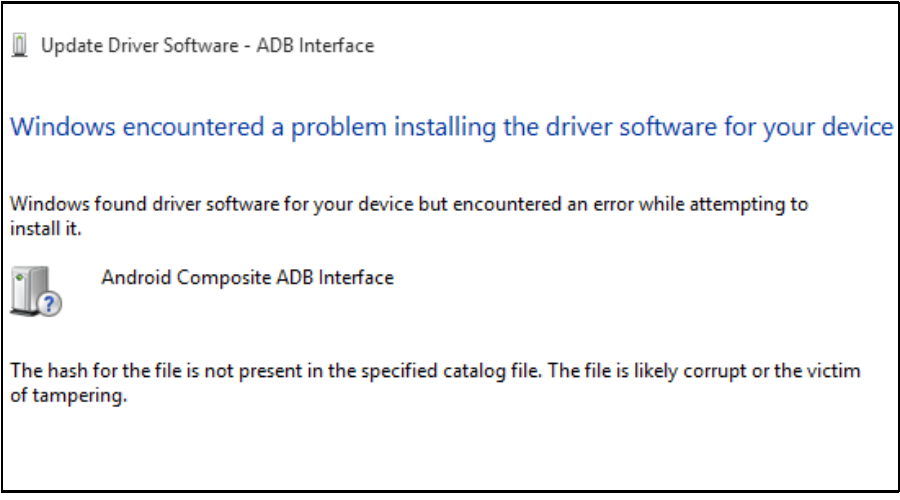
Should you face any other related issues such as ADB interface being unable to install, visit our helpful guide to quickly resolve the problem.

We hope our solutions were able to come through for you in your time of need and you successfully resolved your issue. 

Let us know which solution worked out for you in the comments section below. 
Experiencing Killer Wireless 1535 issues? Fix them now

The Killer Wireless network adapter offers quick and secure connectivity, high speed, and the ability to reduce lag and maximize performance using the dedicated control center. However, several users have reported issues with Killer Wireless 1535 in Windows 11.

Developed initially by Rivet Technologies and later purchased by Intel, the list of features offered by Killer Wireless 1535 is endless. The prominent ones include support for both the 2.4 GHz and 5 GHz bands, and Bluetooth 4.1.

But, after upgrading to Windows 11, users had been facing issues with Killer Wireless 1535. Read ahead to find out what’s causing the problems, and the most effective ways to eliminate them.

Why am I facing Killer Wireless 1535 issues in Windows 11?

If Windows 11 is unable to detect the network, it’s most likely the Killer Wireless 1535 driver at fault. Since the OS is relatively new, there could be compatibility issues, and you might face problems connecting to the Wi-Fi or Bluetooth.

Besides, if you have an outdated driver installed, it could just as well be, behind the problem. Apart from the driver, misconfigured settings too cause issues with Killer Wireless 1535 in Windows 11.

But there’s a fix for each of these problems, and we have taken them up individually in the next sections. Follow the steps in the listed sequence, and by the time you reach the end of this article, the issues should be eliminated.

How do I fix issues with Killer Wireless 1535 in Windows 11?

1. Update Windows 11

  1. Press Windows + I to launch the Settings app, and select Windows Update from the tabs listed in the navigation pane on the left.Windows Update to fix killer wireless 1535 issues
  2. Click on the Check for updates on the right to scan for the latest version of the OS.Check for updates to fix killer wireless 1535 issues
  3. If any newer versions are listed after the scan, click on Download & install to get them.Download & install updates

Since there are a bunch of compatibility issues in Windows 11 including with Killer Wireless 1535, Microsoft is frequently releasing updates to minimize them.

Hence, your primary approach should be to check for updates, and install if one is available. In case an update was not available or switching to the latest version didn’t fix the problem, head to the next method.

2. Update the driver

  1. Press Windows + S to launch the Search menu, enter Device Manager in thet text field, and then click on the relevant search result that appears.Device Manager
  2. Next, double-click on the Network adapters entry to expand and view the various devices under it.Network adapters
  3. Right-click on the Wi-Fi adapter and select Update driver from the context menu.Update driver to fix killer wireless 1535 issues
  4. Now, select Search automatically for drivers from the options listed in the Update Drivers window that pops up.Search automatically for drivers
  5. Windows will now scan for the best available driver on the sytem and install it for the network adapter.

After you have updated the driver, check if the Killer Wireless 1535 issues in Windows 11 are fixed.

In case the Device Manager is unable to find a better driver, you can always check for the latest version in Windows Update or manually download the setup for it from the manufacturer’s website and install the driver.

If the process seems too tricky or intricate, you can always use a reliable third-party app. We recommend giving a try to Outbyte Driver Updater, a dedicated tool that will automatically scan for the best driver version, and keep all the installed ones up-to-date.

3. Manually install a compatible driver

  1. Press Windows + X or right-click on the Start icon to launch the Quick Access menu, and select Device Manager from the list of options.Device Manager to fix killer wireless 1535 issues
  2. Double-click on the Network adapters option.Network adapters
  3. Next, right-click on the Wi-Fi entry and then select Update driver from the context menu.Update network drivers
  4. Select Browse my computer for drivers in the Update Drivers window.Browse my computer for drivers to fix killer wireless 1535 issues
  5. Next, click on Let me pick from a list of available drivers on my computer to view the various compatible drivers stored on the sytem.Let me pick from a list of available drivers on my computer
  6. Locate and select the Qualcomm driver, and click on Next at the bottom.Select Qualcom driver to fix killer wireless 1535 issues

After manually installing the compatible driver, restart the computer for the changes to come into effect and check if the Killer Wireless 1535 issues are eliminated in Windows 11. In case these persist, head to the next method.

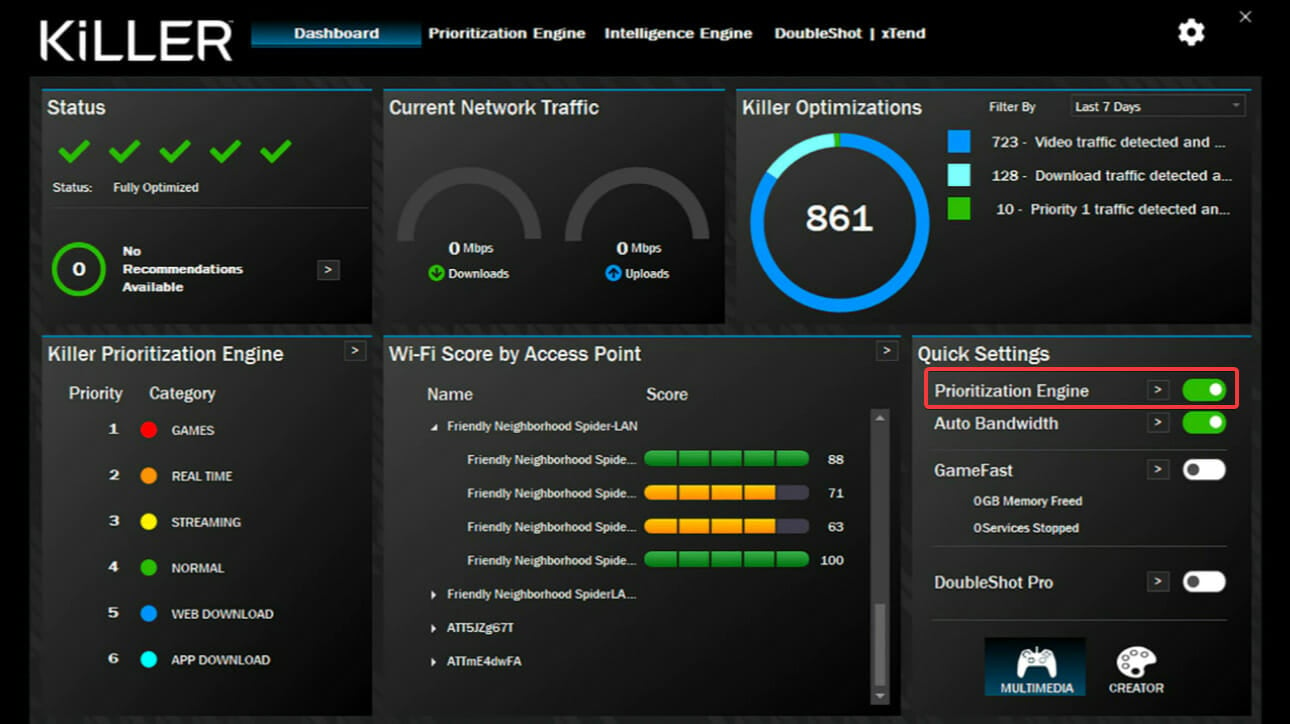
4. Disable prioritization via Killer Control Center

Prioritization is a feature in Killer Wireless Control Center that helps identify the ongoing network-related tasks and ranks them according to their necessity. Say, you are playing a game, so it will automatically prioritize that over other tasks requiring the Internet.

However, this feature is known to affect the functioning and cause issues with Killer Wireless 1535 in Windows 11. So it’s best that you disable the feature.

Simply locate the option for Prioritization, and turn off the toggle for it. Once done, restart the computer for the changes to come into effect, and check if the error is fixed.

Disable prioritization in Killer Wireless Control Center

If you see a different interface, it’s most likely that you are using an updated version of the control center. In which case, you can check the FAQ section on their official website or contact the support team for the exact steps to disable prioritization.

5. Disable startup apps

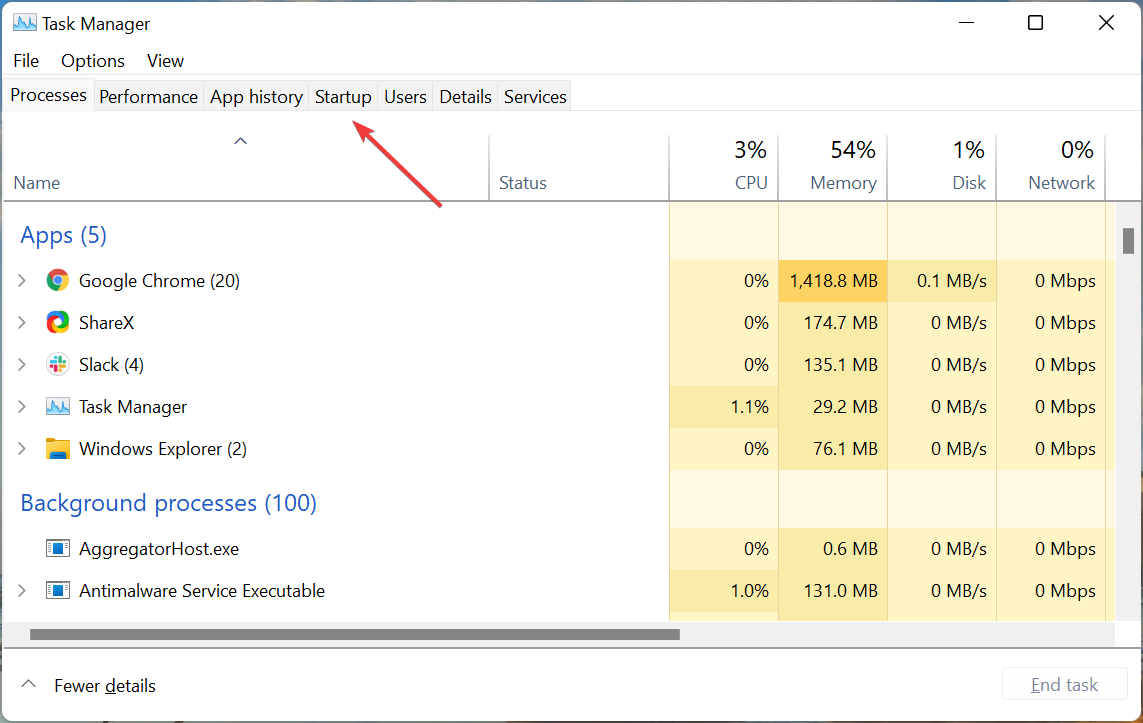
  1. Press Ctrl + Shift + Esc to launch the Task Manager, and navigate to the Startup tab.launch Task Manager
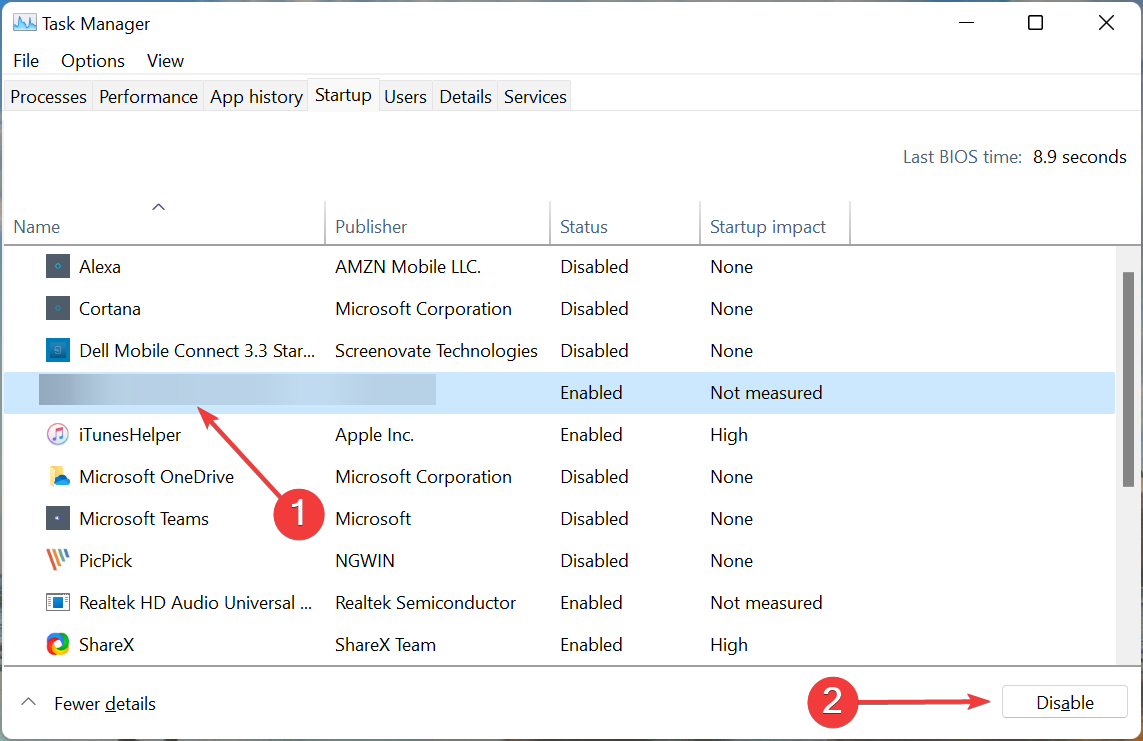
  2. Locate and select the entries here related to Killer Wireless, and then click on the Disable button at the bottom. Do this for this all the entries individually.Disable startup apps to fix killer wireless 1535 issues
  3. After disabling them, restart the computer.

If none of the fixes listed above have worked, it’s likely that the background processes are to be blamed. So, to fix Windows 11 Killer Wireless 1535 issues, it’s best to disable all related programs from launching at startup.

What are the other Wi-Fi related issues users encounter in Windows 11?

Issues with Wi-Fi network connectivity are common, but solving them is simple and doesn’t require advanced troubleshooting in most cases.

One of the most common issues is Wi-Fi disappearing in Windows 11, so learn how to fix it. Also, find out how to eliminate the Wi-Fi can’t connect to this network error.

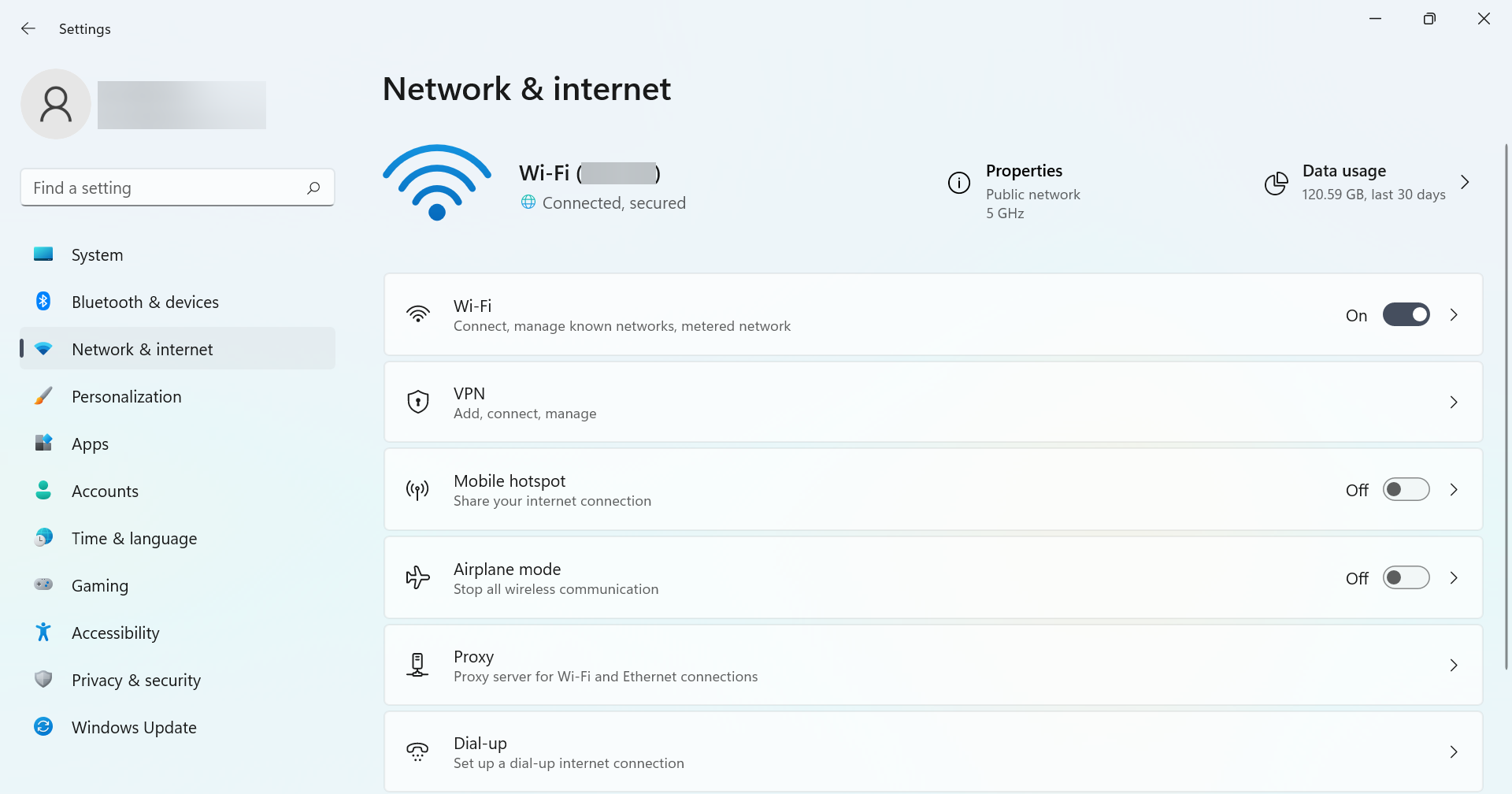
Wi-Fi settings in Windows 11

But even when you are connected to the Wi-Fi network, slow Internet speed tends to affect our progress and deteriorate the experience. Check this article to learn how to increase the Internet speed in Windows 11.

The only problem more disturbing and annoying than a slow Internet is not being able to connect to it. And no matter which network adapter you use including Killer Wireless 1535, the methods listed above and the linked guides would fix the issues for you.

Also, find out how to add a network speed monitor in Windows 11 to keep a tab on the real-time Internet speed for both downloads and uploads.

Tell us which fix worked or if you know other methods that could, in the comments section below.
Fix: Steam game doesn’t show up in the library

Have you recently bought a Steam game but it doesn’t show up in your library? Or maybe you managed to install it but it keeps appearing uninstalled.

No matter what the exact circumstances are in your case, not being able to find your game in the Steam Library is an extremely-infuriating situation for all users, especially people that earn a living from streaming gaming or testers.

Why doesn’t Steam recognize my game?

Even though the exact reasons that might cause this issue to appear in your case will vary from other users, there is some common ground to be found in all cases, no matter the variety.

  • Internet connectivity issue – if your connection to the web drops or is irregular, then the Steam servers might not be able to update the information accordingly
  • Using an older version of Steam – because the data packages types vary from one version of the software to the other, not having the latest release can cause lagging or even a failed update with the Steam servers
  • Game license is not valid/expired – if the license for your game fails to communicate properly with the Steam Library service, then your game will not be recognized, and thus cause it to not appear on the list
  • Having the game hidden – if the game you’re missing from your Steam library doesn’t apper, it could be caused by the game being hidden
  • Steam Library folder not being recognized – even though this issue occurs far less often than the previous mentions, users have reported this exact situation on forums

As you can see from the list above, there are plenty of situations that can cause your Steam library to not update with the latest installed games, or even worse – games that you just invested your hard-earned money in.

Following our guide below, you should be able to solve all these issues regarding your Steam game library, so make sure to follow them in the order that they were described for an optimal troubleshooting process.

What can I do if I can’t find a game in the Steam library?

1. Reset your router

Sometimes, if you suspect that the network is not working as it should, you can try and reset your router. A poor connection can be the reason why your game library is not updating.

Just unplug your router and your modem for 30-60 seconds then your problem should be fixed.

Restarting the router and modem flushes the memory contents and might help reset any background problems.

2. Check your game license

After purchasing, make sure that you check to see if you have the license/subscription for your acquisition.

If not, try to purchase the game again. You may have to refresh the page if you reset your Internet connection.

Once you are sure that you have the license/ subscription, try to restart the Steam Client. You should restart your PC as well since Steam occasionally updates after that.

However, sometimes it can just be a server error, caused by many users trying to purchase at the same time. In this case, you just have to wait for a while and the problem will solve itself.

3. Check if the game is hidden

  1. Press on the Windows key, type Steam, then open the desktop client.
  2. From the main menu of the window, click on Store.
  3. Find the game on the store page and click the Play now button.
  4. A window with information regarding the necessary space and other installation information should pop up.
  5. Press Next. The process allocates space and you will be brought to a new page.
  6. Check if your game is downloading.
  7. Click the link that allows you to manage your downloads. (It will take you to your downloads page where you can find the game that is downloading.)
  8. Right-click the game and hit Set Categories.
  9. In the new window, try and uncheck the box that says Hide this game in my library.

4. Add Steam Library Folder

If your Steam game seems to be not yet installed when you look it up in the library, the platform might not recognize the installation files.

Seeing that the game folders are in the right place, triggering a game launch will lead to a download.

This way, Steam will be able to know which are the right installation files during the download.

You can make sure that the files are in the proper location by accessing the default Steam folder; Normally you can find it under

C:Program Files (x86)SteamSteamappsCommon

If your games have been installed on a different partition, you can try the following:

  1. Press on the Windows key, type Steam, and navigate to the first result.
  2. Look at the top-left corner of the window and click on Steam.
  3. Now, navigate to Settings.
  4. From the left side of the window, click on Downloads, then press on Steam Library Folders, from the right window pane. (Your Steam Library folders open in a window)
  5. Click on Add Library Folder and mark the folder in which you previously installed the games.

Once the correct destination folder is added, your games will most likely appear in your Steam account.

As you can see, these are easy fixes that anyone can try. At least one of them should help when your Steam game doesn’t show up in the dedicated library.

We’d like to know which step worked for you, so feel free to contact us via the comments section.

Prevent Internet from Disconnecting Steam while Playing a Game

If your Internet disconnects when playing Steam games, check today’s content. We understand how annoying it can be, so we’ve compiled a list of solutions to fix it in a few minutes.

Some users reported experiencing an issue regarding the connectivity to the Steam servers. They get disconnected after a few seconds when attempting to play games online.

We came up with a series of solutions to help you fix this annoying issue, so keep reading.

Before trying out our listed methods, we recommend looking at some of the most popular reasons for today’s issue.

Why is Steam going offline?

As we all know by now, whenever an issue with Steam occurs, there can be a variety of possible reasons, but here are the most common, based on the feedback of users across the globe:

  • Faulty Internet connection – Because Steam is an online platform, you’ll always need to ensure your Internet connection. If it’s going offline, we first recommend checking your Internet network.
  • Windows Firewall might block the app – With its advanced security features, Windows Firewall may block certain network activities. In this case, remember that you might have some Windows Firewall misconfigurations.
  • Steam need to be refreshed – You can easily do that by using a specific command you’ll discover a bit later. Sometimes, the Steam core files might get corrupted, so running our recommended command will return it to its original state without harming your account, games, or related game files.
  • Outdated drivers – As you might probably know, drivers are some of the most important elements for both hardware and software segments. Considering today’s trouble, you’ll probably need to update your display drivers.
  • Bugs or glitches – Last but not least, do not forget that, like any other app, Steam might sometimes run into unexplainable causes, and we can take them as bugs or glitches. In this case, it’s best to reinstall and completely refresh the app.

Now, let’s see what you can do in the above situations. By using them, you’ll not have to worry again about Internet disconnection when playing games on Steam.

What can I do if Steam is going offline?

1. Check your Internet connection

  1. Hit the Windows key, type your browser’s name, then open the first result (In the picture below, we took as example the Chrome browser).
  2. Check to see if web pages load quickly and without interruption.
  3. Hard reset on your router/modem.
  4. Try using a wired connection instead of Wi-Fi as well.

As Internet connectivity becomes more widespread around the world, not all places enjoy the same bandwidth needed to run modern media-rich websites.

That’s why it’s so important to check your Internet connection and make sure you’re OK, so you don’t run into the annoying problem of Steam disconnecting when you want to play.

Also, check out our top browsers with low bandwidth to make sure you’re ready for the virtual experience as you expected.

However, you notice that your Internet still disconnects when playing Steam games, we have some more options you can try.

2. Allow Steam through Windows Firewall

  1. Press on the Windows key, type Control Panel, and open the first result.
  2. Navigate to System & Security.
  3. Under Windows Defender Firewall, choose to Allow an app through Windows Firewall.
  4. Click ob Change settings.
  5. In the shown list, find the Steam app, and make sure it has both Public and Private boxes ticked.
  6. Disable your antivirus software temporarily.
  7. Press on OK, try reloading Steam, and see if it fixed the issue.

If you allow Steam to pass through the Windows Defender Firewall, you can also eliminate unwanted platform disconnects when you open a game, so be sure to try it out now.

3. Flush the Steam config and DNS

  1. Use the following keyboard shortcut: Windows + R.
  2. Type steam://flushconfig, then press on the Enter key.
  3. Wait a few seconds.
  4. Now, press again simultaneously on the following two keys: Windows + R.
  5. Type cmd, then press on the OK key.
  6. Input the following command, then press on the Enter key: ipconfig /flushdns
  7. Hit the Windows key, type Steam, and click on the first result.
  8. Log in with your credentials, then see if this fixed the issue.

By flushing the Steam configuration and the DNS, you can get rid of the Steam disconnection problem when trying to play online, so be sure to try this simple method.

Also, if you encounter the issue where Steam is disconnected by VAC, follow our step-by-step guide to resolve it with ease.

4. Update your video adapter driver

  1. Hit the Windows key, type Device Manager, then open it.
  2. In the opened window, expand the the Display Adapters section, then right-click on your graphics card, and choose to Update driver.
  3. Click on Search automatically for updated driver software.
  4. If any drivers are found, approve the download for the updated drivers, then wait for the installation to finish.
  5. Restart your computer once the installation is finished.

If your Internet still disconnects when playing Steam games, we have one more solution you can go for.

5. Reinstall Steam

  1. Press on the Windows key, search for Control Panel, and open it.
  2. Click on Uninstall a program.
  3. In the shown list, search for Steam, click on it, then choose to Uninstall it.
  4. Navigate to the Steam download page.
  5. From the top-right corner of the page, click on the Install Steam green button.
  6. Make sure to enable Steam Overlay while in game.

To make sure you get rid of errors or unwanted bugs, it’s easiest to uninstall Steam and install it again. Be sure to follow the steps above and easily eliminate this issue.

Some users reported that Steam Overlay is sometimes not working. If you also face this problem, check some dedicated fixing solutions.

Another option would be to use third-party software that scans your PC and downloads the drivers it needs within seconds, helping your device to work properly and benefit from the latest security features.

We hope that at least one of our solutions could help you fix the Steam connectivity issue. If you know of any other fixes, leave them in the comment section below.

FIXED: Biometric Devices Not Showing in Device Manager

Got a laptop with Biometric devices, but they won’t show in Device Manager in Windows 11? You’re not alone. Many users have trouble configuring those devices. Luckily, this is pretty easy to fix.

Follow along as we explain below how to make Device Manger recognize Biometric devices so you can log in with fingerprint and face recognition.

What do I do if biometric devices are not showing in Windows 11’s Device Manager?

1. View hidden devices in Device Manager

  1. Press Windows + S to launch the Search menu, enter Device Manager in the text field at the top, and click on the relevant search result.Device Manager to fix biometric devices not showing in device manager windows 11
  2. Click on View menu, and then select Show hidden devices from the list of options.View menu
  3. Now, check if the Biometric devices entry appears, and you are able to see the fingerprint scanner and the facial recognition device there.Biometric devices

If you are able to view the biometric devices after making the changes, it indicates that these are either disconnected, not working, or disabled from the BIOS. So, make sure to check the connections, and that the biometric device isn’t disabled in BIOS.

When you connect a device to your computer, Windows will, most likely, automatically install a driver for it. However, when you disconnect it, the driver is kept so that you can easily use this device the next time.

But, these devices are hidden so as to keep the Device Manager uncluttered. In case the biometric devices are not showing in Device Manager in Windows 11 even under the hidden ones, try the other methods listed below.

2. Check Windows Update for drivers

  1. Press Windows + I to launch the Settings app, and select Windows Update from the tabs listed in the navigation pane on the left.Windows Update to fix biometric devices not showing in device manager windows 11
  2. Click on Advanced options on the right.Advanced options
  3. Next, click on Optional updates under Additional options.Optional updates to fix biometric devices not showing in device manager windows 11
  4. Select Driver updates here.Driver updates
  5. If there’s a driver for the biometric devices listed here, tick the checkbox for it, and click on Download & install.Install driver to fix biometric devices not showing in device manager windows 11

Making sure drivers are also updated is essential, especially when you upgrade your OS.

3. Download the driver from the manufacturer’s website

Note icon NOTE
We used a Dell laptop in the steps below, but the main idea is the same for all manufacturers.
  1. Open any effective web browser, go to the system manufacturer’s official website, head to their Drivers section, and search for the Biometrics drivers.Search for driver
  2. Now, click on the Download button to get the setup for it.Download driver to fix biometric devices not showing in device manager windows 11
  3. Double-click on the downloaded file to launch the installer.Run setup
  4. Click Yes on the UAC (User Account Control) prompt that pops up.Click Yes
  5. Now, follow the on-screen instructions to complete the download process.

If this looks like too much work or you’re afraid you’ll end up with a wrong driver, we recommend getting a dedicated driver updater.

A reliable tool like Fortect driver updater you can automatically scan and install the driver updates, thus ensuring that the installed ones are always up-to-date.

4. Run DISM tool & SFC scan

  1. Press Windows + S to launch the Search menu, enter Windows Terminal in the text field at the top, right-click on the relevant search result, and select Run as administrator from the context menu.Windows Terminal to fix biometric devices not showing in device manager windows 11
  2. Click Yes on the UAC (User Account Control) prompt that pops up.Yes
  3. Now, click on the downward-facing arrow the top, and select Command Prompt from the list of options. Alternatively, you can press Ctrl + Shift + 2 to launch Command Prompt in a new tab.Command prompt
  4. Now, execute the following commands one at a time. To execute, simply paste the command, and hit Enter after each:DISM /Online /Cleanup-Image /CheckHealth DISM /Online /Cleanup-Image /ScanHealth DISM /Online /Cleanup-Image /RestoreHealth
  5. After running the DISM tool, execute the following command to run the SFC scan:sfc /scannowSfc scan to fix biometric devices not showing in device manager windows 11

5. Uninstall the last Windows update

  1. Press Windows + I to launch Settings, and select the Windows Update tab from the navigation pane on the left.Windows Update
  2. Click on Update history on the right.Update history to fix biometric devices not showing in device manager windows 11
  3. Scroll down to the bottom, and click on Uninstall updates under Related settings.Uninstall update to fix biometric devices not showing in device manager windows 11
  4. Select the last installed update, and click on the Uninstall option.select update
  5. Finally, click Yes in the confirmation prompt that pops up.Confirm uninstall

If you started encountering the issue after installing an update in Windows 11, uninstalling the update and reverting to the previously installed version might help.

6. Roll back to Windows 10

If none of the methods listed above work, it could be that the installed drivers and the ones available on the manufacturer’s website are not compatible with Windows 11.

In this case, you have no option but to roll back to Windows 10. This should get biometric devices up and running and start showing in the Device Manager.

However, this option is not available for long, and you may have to do a clean install of Windows 10.

Windows biometric drivers are essential if you want to fix sign-in problems. Keeping them up to date will also address face recognition errors and resolve fingerprint reader issues.

That’s all there’s to the biometric devices not showing in Device Manager in Windows 11 issue.

Change Steam profile picture [Step-by-step guide]

Every Steam game player has a profile and avatar to identify the profile. By default, your profile uses one of Steam’s avatars, but you can upload your more personalized image.

The steps to change or add a Steam profile image are pretty straightforward, but you may need some pointers to do it without any worries or troubles.

In this guide, we’ll show you how to change your Steam profile picture in 6 easy steps.

Why would I want to change my Steam profile picture?

If you’re still wondering why it is a great idea to customize your account picture on Steam, make sure you keep on reading.

The first valuable reason is that it helps other people to identify you much easier. Besides that, your profile picture lets you express yourself, letting others develop a complex perspective of your person.

Of course, it is not necessary to keep a real identity. You can always choose to get an avatar that represents your personality, interests, or favorite game.

How can I change my Steam profile picture?

➡ Use a Steam avatar

  1. Visit the Steam website or open the Steam client, by hitting the Windows key and searching for the app.
  2. Log in to your account.
  3. From the top-right corner of the window, click on your username.
  4. Choose to View profile from the dropdown menu.
  5. Select Edit Profile from your profile page.
  6. Navigate to the Avatar section in the left panel.
  7. Select a picture from the your avatars section.

➡ Upload your own picture

  1. If you want to upload a profile picture from your local storage, click the Upload your avatar button.
  2. Browse for a suitable Steam profile picture and upload it.
  3. Click on the blue Save button on the bottom of the page.

You can edit your Steam profile picture by changing it using the steps mentioned above. All the changes can be performed either from the Steam client or from the official website.

If you find that your Steam app is not responding when you change your profile picture, check out our comprehensive guide.

Also, remember to crop or resize your new profile picture before uploading it. Do this because neither the website nor Steam client has facilities for cropping, resizing, or repositioning your picture.

PayPal is Not Working on Steam: How to Authorize it [4 Ways]

If PayPal payments on Steam are not working, you won’t be able to make purchases using this payment method. This isn’t a major issue if you have a card ready to use instead.

There are several reasons but the most common are problems with Steam servers or with the Steam browser cache. Sometimes glitches with Steam and PayPal can also cause this issue.

What can I do if PayPal is not working with Steam?

1. Check the Steam server status

  1. Navigate to the Steam Server Status page.
  2. Check if there’s an issue with the servers.
  3. If so, you’ll have to wait for Steam developers to fix it.

2. Delete the Steam browser cache

  1. Open Steam and go to Steam and then Settings.
     
  2. Go to In Game in the left pane. In the right pane click the Delete button in the Delete Web Browser Data section.
  3. Click the Confirm to delete the cache.
  4. Check if the problem is resolved.

3. Use Steam on your browser for the PayPal purchase

  1. Close your Steam client by right-clicking on the app’s icon from your Windows Taskbar, then click on Close window.
  2. Now, head over to Steam‘s Store website.
  3. From the upper-right corner of the window, click on login.
  4. Enter you Steam credentials, then click on Sign In.
  5. Search for your item, then add it to the shopping cart.
  6. Head over to the payment method.
  7. Select Paypal, and click on Continue.
  8. Log in through the PayPal website and authorize the payment
  9. Your payment should now go through
  10. Open up your Steam client again to download your purchased game or DLC.

4. Unlink the PayPal account from your Steam client

  1. Head over to the Steam’s Store website.
  2. Look at the top-right corner, click on your account name, then choose Account Details.
  3. Take a look under Store & Purchase History section.
  4. There, you can unlink your PayPal account by clicking on the Delete button
  5. Head over to the Steam Store.
  6. Purchase your item again.
  7. Make sure that Save my payment preference is not checked.
  8. Your purchase should now be completed successfully.

What payment methods does Steam accept?

Steam accepts the following payment methods:

  • Visa, MasterCard
  • American Express, Discover
  • PayPal
  • JCB

If PayPal is not working on Steam, try using the website or try connecting both services again. Sadly, this isn’t the only issue you can encounter, and we wrote about Your transaction cannot be completed and Error initializing or updating your transaction errors on Steam.

Payment errors affect cards as well, and many reported Steam not accepting your card payments message while trying to make a purchase.

If you encounter any additional questions or curiosities related to today’s subject, feel free to describe them in the comment section listed below.

Windows 11 Keyboard Layout Keeps Changing? How to Stop it

Sometimes you may notice that the keyboard language automatically changes to a different language (e.g. English) when you type or when using an application such as MS Word, Excel, or PowerPoint.

While your computer is normally set to utilize a certain keyboard layout, you can configure Windows 11 to set more than one language or even create your custom keyboard layouts.

This will ensure that you can easily change the language on Windows 11, whenever you need it.

If you are bilingual or just type in multiple languages, it’s easier than switching between keyboards every time you need to use a different language.

However, if it changes automatically, this can be quite annoying especially if you are not using a multi-language keyboard and suddenly in the middle, another language pops up and disrupts your train of thought.

Why does my keyboard layout keep switching?

It could be caused by an incompatible third-party app. It could also be a result of a corrupted user profile, but if your keyboard layout keeps switching when you start your computer, it’s possible that Fast Startup is the culprit.

Traditionally, when you choose to shut down your computer, it would first close any open programs and then stop all processes before finally turning them off. 

This process takes longer because each running program must close completely before moving on to the next one, which can result in several minutes of waiting depending on how many apps you have open.

With Fast Startup enabled, your PC will start up much faster after you shut it down. However, it can cause issues with drivers and devices connected to your PC, which in turn causes the keyboard layout to switch randomly.

This issue can also be caused by enabling keyboard shortcuts. Normally, this makes it easier to use your computer. The problem is that if you have the default keyboard shortcut to switch layouts enabled, it may happen accidentally.

If this happens while typing, the input language and layout are changed automatically but sometimes it can be annoying.

You can easily fix the issue and prevent your keyboard language from switching automatically with the solutions listed below. 

What can I do if the keyboard language changes automatically in Windows 11?

1. Delete the Preload key

  1. Press the Windows key, type Registry Editor and click Open.
  2. Paste the following address into the Address Bar then hit Enter.

HKEY_USERS\.DEFAULT\Keyboard Layout\Preload

  1. On the left pane, right click and delete the Preload key (folder).
  2. Close the Registry Editor and restart your PC.

2. Run Powershell commands

  1. Press the Windows key, type PowerShell in the search bar and select Run as Administrator.
  2. Type in the following commands and hit Enter after each one: $1 = New-WinUserLanguageList en-US $1.add("ar-EG") Set-WinUserLanguageList $1
  1. Now restart your PC.

3. Set a different input for each window

  1. Press the Windows key and select Settings.
  2. Navigate to Time & language on the left pane.
  3. Select Typing on the right pane.
  4. Scroll down and select Advanced keyboard settings.
  5. Under Switching input methods, check Let me set a different input method for each app window.
  6. Restart your PC.

4. Update keyboard drivers

  1. Press the Windows key, type Device Manager in the search bar and click Open.
  2. Navigate to Keyboards, right-click on your selected keyboard and select Update driver.
  3. In the Update Drivers window, select Search automatically for drivers.

Alternatively, you can forego all the manual steps and opt for Outbyte which is a third-party tool that automatically finds, downloads, and installs drivers for you. It offers you a comprehensive solution for all your driver-related issues.

With the tool, your PC will be working at its best, improving its performance and making sure that all the drivers are up to date. All your worries will be put to rest as it is safe to use.

⇒ Get Outbyte Driver Updater

Why is Windows not detecting my keyboard?

The cable connecting the computer to the keyboard may be loose or not connected properly. Disconnect the keyboard from the computer and reconnect it. Once done, restart your PC to see if this fixes the problem.

If you’re using a wired keyboard, one likely reason for this is a faulty USB port. If you’re using a wireless keyboard, it could be because of an issue with your keyboard or the drivers.

At times, it could be a faulty keyboard that simply needs to be replaced. You can check our library of recommended PC keyboards and get yourself one that is efficient.

However, before going out and buying a new keyboard, make sure that your computer is not at fault by testing it on another computer.

How do I switch languages on my keyboard PC?

If you are multilingual and you switch languages often, you can easily do so using the steps below:

  1. Press the Windows key and click on Settings.
  2. Select Time & language on the left pane then click Language & region. 
  3. Click the horizontal dots next to your typing language and select Language options.
  4. Select Add a keyboard.

What can I do if Windows keeps changing my keyboard layout?

Shortcut keys are great time savers. They save you the trouble of switching between the mouse and keyboard. There is no doubt that they can enhance productivity and efficiency by letting your hands stay on the keyboard.

However, at times, you may find them being an inconvenience as they can change your settings and interrupt your work. If you do not enjoy using them, you can disable them.

To disable shortcut keys, follow the steps below:

  1. Press the Windows key and select Settings.
  2. Navigate to Accessibility and select Keyboard.
  3. Under Sticky, Filter, and Toggle Keys, toggle off the Keyboard shortcut for the Sticky keys option.

Sometimes, it could be an issue with your language pack but worry not as our excellent guide can help you solve any errors you encounter.

Aside from changing your keyboard language, you can also change the display language which comes in handy when you are in a different region or multilingual.

If you are looking for more details on adjusting keyboard settings, you can explore Ease of Access Keyboard Settings to improve your overall keyboard experience and prevent language switching issues.

We truly hope you were able to fix this issue of your keyboard language automatically changing. We’d love to hear from you which solution worked best for you or if you have any additional suggestions. Leave a comment down below.

How to connect Mojang account to Microsoft account

Minecraft is one of the most played games across the globe. It is a 3D sandbox game, developed by Mojang Studios, where players dive into an open world.

Players interact with the 3D environment, build up anything using blocks, battle mobs to protect their buildings, and explore the ever-changing Minecraft environment as new updates come in.

You can really put your dreams into virtual reality, and work in creative mode to build anything. Players can gather building materials from their surroundings, create tools, and much more.

However, recently, in an official blog post, Minecraft made its last call to all its Java edition players to migrate from their Mojang accounts to Microsoft accounts.

Furthermore, the blog post also mentioned that the voluntary account migration period will end on March 10, 2022. After that, players won’t be able to play Minecraft unless they create a Microsoft account.

For the unaware, the developers of Minecraft decided to connect all of its players from Mojang to Microsoft account in October 2020.

Now, after giving a year’s time, the company is finally pushing its players to connect Mojang account to Microsoft account.

While it could be an easy process for some, there are many Minecraft players who would like to know the steps to connect their Mojang account to Microsoft accounts.

For them, we have created this guide. It lists down all the steps that you need to follow to smoothly connect the Mojang account to Microsoft. Let us check it out.

Why is it necessary to connect a Mojang account with Microsoft?

There are two versions of Minecraft at present. One is the Minecraft Java Edition, and the other one is the Bedrock Edition, which is the multi-platform version of the game.

The Minecraft Java Edition was launched back in 2009, whereas the Bedrock edition was introduced in 2016. You can play the Minecraft Bedrock edition on your consoles as well as smartphones.

Notably, the Minecraft Bedrock edition ran on Microsoft accounts, whereas the Java edition ran on Mojang accounts. And in order to streamline the accounts from Mojang to Microsoft, Minecraft came up with its decision of migration.

You may be wondering why it is necessary to link a Mojang account to a Microsoft account. Here are some of the key points that make this migration a bit important:

  • Microsoft account provides two-factor authentication or 2FA security feature, while Mojang account doesn’t offer it. It makes it tough for someone to get access to your account without your permission.
  • Although, now only Minecraft and Minecraft Dungeons are connected with the same account, connectng other Minecraft PC game will also let you future releases be connected to a single account.
  • Microsoft account offers improved parental controls. Parents can keep their children safe while letting them play games online.
  • You can block unwanted chat or invitaions using Microsoft account. Mojang account did not offer such features.

The above are some of the important security reasons why you should connect your Mojang account to Microsoft. Honestly, there is no choice for you, if you wish to continue playing Minecraft Java edition.

Let us now take a look at the steps that you need to follow in order to connect your Mojang account to your Microsoft account.

How can I connect Mojang account to Microsoft account?

1. Connect to a new Microsoft account

  1. Use your Mojang account credentials to login to minecraft.net.
  2. You need to enter a verfication code sent over to your Mojang regsitered email ID to verify your account. Click on the GET CODE button to receive it.get code
  3. Enter the code you have received in your email ID in the appropriate box and click SUBMIT AND START MIGRATION.connect mojang account to microsoft enter code
  4. Now, you will be asked to create a new Microsoft account. Create a new account, but be sure not to use a work or school email address.connect mojang account to microsoft create password
  5. Next you will be asked to confirm your country and date of birth. It will get prefilled from your previous Mojang account.confirm birth date
  6. Create your Xbox profile and Gamertag.connect mojang account to microsoft gamertag
  7. In the final screen, click COMPLETE MOVE.minecraft migration

Once you hit the go back to profile button, you are all set and your Mojang account has successfully migrated over to a new Microsoft account.

The next time you restart the launcher, you may be taken to the Mojang login page after migration. It may ask you to migrate. But now, you need to click on the GO BACK button and use the MICROSOFT LOGIN option.

2. Connect to an existing Microsoft account

  1. Login to Minecraft using your Mojang account.connect mojang to microsoft account
  2. On your profile page, click on MOVE MY ACCOUNT.connect mojang account to microsoft move
  3. You need to send a verification code to your email address to verify your account. For that click on GET CODE button.get code
  4. Enter the received code in the appropriate box.
  5. Click SUBMIT AND START MIGRATION.connect mojang account to microsoft enter code
  6. Select your already exisitng Microsoft account and enter your password.already existing account
  7. Follow the onscreen process, and finally, hit the COMPLETE MOVE button.complete move

Well, that’s about it. Your Mojang account is not migrated over to the Microsoft account. You can now use your Microsoft account to log in to Minecraft.

What are the steps to migrate a child’s Mojang account to a Microsoft account?

  1. Login to Minecraft using your Mojang account.connect mojang to microsoft account
  2. On your profile page, click on MOVE MY ACCOUNT.connect mojang account to microsoft move
  3. A verification code will be sent to your email address to verify your account. To receive the code click on GET CODE button.get code
  4. Enter the received code in the appropriate box.
  5. Click SUBMIT AND START MIGRATION.connect mojang account to microsoft enter code
  6. Select your already exisitng Microsoft account or enter a different email ID to sign up for the account, and enter your password.enter password
  7. Enter your child’s date of birth and country.children birth country
  8. In the prompt titled “You’re going to need a parent for this“, click Next.parent permission
  9. Enter the parent/guardian’s email address and hit the Send Email button. An email notification will be sent over to the parent/guardian’s email ID.parents email address
  10. After the parent/guardian is available, you need to click My parent can sign in now option.
  11. Now the parent/guardian need to log in to their Microsoft account.sign in parents email address
  12. Select a Minecraft username and the Gamertag for your profile.gamertag and profile for microsoft account
  13. Finally, hit the COMPLETE MOVE button.complete move

New game versions of Minecraft give parents the control to disable chat and multiplayer features for their children’s accounts. This can be done from the Xbox account settings.

Furthermore, there are other safety features that Minecraft provides to its users. Notably, the Social Interactions screen lets you view all players on the server or hide their chat messages from your Microsoft account settings.

Moreover, it is very important to note that you won’t be notified by Minecraft by an email to initiate your migration process.

You will only be notified about the migration process on the Minecraft launcher, or on your Minecraft profile page. So, if you receive an email asking you to migrate your Mojang account to a Microsoft account, ignore that email and check your profile page for more information.

Additionally, there aren’t any authorized websites that let you migrate your account. Once you are eligible, only minecraft.net is the place from where you can migrate your Mojang account to a Microsoft account.

Let us know your thoughts or any issues you faced while migrating your Mojang account to a Microsoft account, whether you migrated or not, in the comments section below.
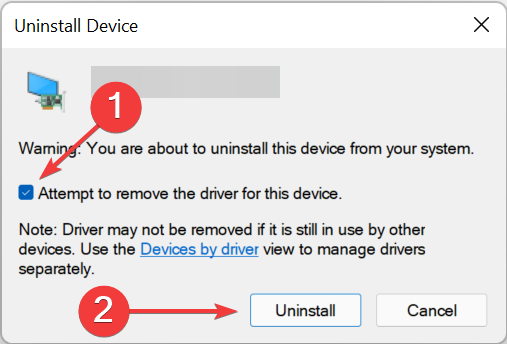
Improved Bluetooth management in Windows 11 Quick Settings now rolling out with build 22563

Yesterday, Microsoft released build 22563 to the Windows 11 Insider Dev Channel, but today they’ve added one more item to the Changes and Improvements list: an easier way to manage your Bluetooth settings, right from the Quick Settings menu. Here’s the updated bit to yesterdays changelog:

  • [ADDED 2/25] We are beginning to roll out the ability to more easily manage your Bluetooth devices directly within Quick Settings, including the ability to connect, disconnect, and see battery level for supported devices.

If you have a need to manage your Bluetooth settings frequently, this change could come in handy for you. You can get to the Quick Settings menu by clicking on either the Wi-Fi settings icon or the Ethernet icon (depending on how you’re connected) at the bottom right of the Taskbar.


Goodix Fingerprint Device Not Found: How to Get it Working

Goodix is committed to prioritizing security at all times. We’ve dedicated ourselves to inventing industry-leading biometric solutions and delivering secure and convenient experiences that ensure end-users data privacy and home security through applications in mobile devices and others.

It is the only company that offers a complete line of fingerprint solutions, including the IN-DISPLAY FINGERPRINT SENSORTM, Live Finger DetectionTM, IFSTM, covered fingerprint sensors (glass, ceramic, sapphire), and fingerprint sensors with hard coating.

Follow along as we will show you what to do if the Goodix fingerprint SPI device is not working in Windows 11, right after we see whether biometrics are the best way to ensure your computer’s security or not. Keep up with us!

Are biometrics the best way to ensure security?

The fact of the matter is that fingerprints and other biometric authentication systems are inherently insecure. If you are concerned about security, you should avoid relying on them entirely. Identification numbers and passwords are far more secure, albeit less convenient methods of authentication.

An old-fashioned password is preferred over fingerprint readers, facial scanners, and retina/iris scanners for a variety of reasons. For starters, it is much easier to compel someone to unlock their smartphone with their fingerprint or face than it is to compel them to give a password or PIN.

It’s also a lot easier to mislead individuals into unlocking their cellphone, sometimes all it takes is placing the device in front of them when they’re sleeping to get them to unlock their devices.

Some jurisdictions do not allow for the compulsory provision of a password because of prohibitions against self-incrimination, but they do allow for the compulsory provision of touching a sensor or looking at your phone, just as you can be forced to produce a DNA sample.

Although the number of people who will ever be confronted with this problem is limited, there are real reasons why you would want to avoid handing up control of your device to government officials.

On top of that, there are a plethora of ways in which sensors and scanners can be hacked. It is sometimes necessary to use pricey technology in conjunction with a determined attacker. In other instances, a photograph of the owner or a basic silicone casing will suffice.

You could make the argument that fingerprint and facial scanners are enough for 99 percent of their users’ needs. As a matter of fact, the vast majority of individuals will never have to worry about police snooping or unscrupulous entities taking the fingerprints from their Facebook page.

What can I do if Goodix fingerprint SPI device is not working in Windows 11 & 10?

1. Download latest driver

  1. If you are a Lenovo user, head to their official website and look for the Goodix fingerprint driver. Otherwise head to your computer’s manufacturer’s website and follow the same steps.lenovo goodix fingerprint spi device not working
  2. Here you will find the Goodix fingerprint driver for Windows 11. Click on the Download button to start the process then follow the on-screen steps.download-lenovo goodix fingerprint spi device not working

As previously mentioned, there are a number of different manufacturers who can give you the Goodix fingerprint SPI drivers that you need, such as Dell’s support page.

Outbyte Driver Updater is a software program that performs automated updates and allows you to take advantage of the latest and best driver versions available. If you want to avoid the effort of looking for the driver and downloading the most recent version of it, you can instead use this tool.

2. Update Windows

  1. Press the Windows key + I to open the Settings menu. Now click on Windows Update from the left-hand panel.windows-update windows 11 dynamic refresh rate not working
  2. Select the Install now option to install any new updates that are necessary to be downloaded. Otherwise, use the Check for updates button to see if any new updates have been released.check-for-updates windows 11 dynamic refresh rate not working

It’s possible that you’re running an earlier version of Windows, which is causing the issue, which may be resolved by updating to the latest iteration of it. It’s almost certain that the issue will be fixed in a later iteration of the software package.

How can I fix the Goodix fingerprint SPI device in Windows 10?

  1. Just like with Windows 11, head to your laptop’s manufacturer’s website and look for the Goodix fingerprint driver. For example we will use Lenovo’s page.lenovo goodix fingerprint spi not working
  2. Inside, you will find the Goodix fingerprint driver for Windows 10. Tap on the Download button and follow the on-screen steps to install the driver. That’s it!lenovo driver windows 10 goodix fingerprint spi not working

What are the other types of biometrics?

There are a variety of characteristics that distinguish you, like your sense of humor, your dance skills, your own style, and the shape of your ears.

Although the password has served its purpose, those difficult-to-remember sequences of numbers and letters are becoming increasingly unsafe and difficult to administer.

Biometric identification, a futuristic practice of leveraging unique behavioral and biological qualities such as fingerprints, gait, and, yes, even ear shape to validate your identity, will be the next big thing in computer security.

Technology for reading electrocardiographic signals (ECG) has been present for many years, but recent improvements have allowed the sensing devices to be reduced in size and made them less intrusive than previously.


The heart rate of a person can be detected by anything as simple as a wearable fitness device or as subtle as a flat pad implanted on the side of a smartphone’s screen. Apple has even applied for a patent for an iPhone with an inbuilt heart rate sensor, which would be the first of its kind.

Touchscreens with high sensitivity may detect much more than just a finger tap or swipe. They can detect the form of a human ear if they use the appropriate software and phone.

As soon as a user presses his or her ear against a screen, the locations at which it makes contact with the glass are recorded and compared to an already-stored ear print. If the user’s identity is verified, the user is authorized.

If you’ve ever heard someone walking past you in the workplace and recognized them right away, or identified a friend from a distance by the way they moved, you’ve already experienced the power of gait identification.

Researchers have been tinkering with gait-recognition technology, utilizing high-resolution cameras and flooring that detect pressure changes. The recent explosion in the availability of low-cost motion sensors like accelerometers and gyros has breathed fresh life into the field.

For more information and potential solutions to your issue, check out what to do if Windows 11 fingerprint sensor is not working.

Alternatively, if you wish to use the facial recognition feature, you will have to learn how to install the Hello face driver for Windows 11.

And since the OS is not free of bugs, you will definitely want to take a look at how to fix Windows Hello not working on Windows 11.

Was the guide helpful for you? Let us know in the comments section below as well as what type of biometrics you are using. Thanks for reading!

Pricing details emerge for Sony’s Game Pass competitor, Project Spartacus

Though not much has been made official yet, it looks like more info is beginning to see the light of day in regards to Sony’s Project Spartacus. If you haven’t heard of Project Spartacus before, it is the name of a forthcoming effort by Sony to transform its PlayStation Plus service into something could rival its Microsoft counterpart, Xbox Game Pass.

As mentioned, not many details have been officially divulged as of yet by Sony, who has thus far been pretty tight-lipped about the project, but leaks that came late last year suggested that the new service would include PlayStation Plus in addition to three subscription tiers.

The latest info leak comes courtesy of games journalist Jeff Grubb of Game Beat, who shared it on a recent episode of Grubbsnax, his Giant Bomb show, as well as on Twitter. According to Grubb, the pricing tiers will break down as follows:

  • PS + Essential ($10): this will reportedly replace the current PS+
  • PS + Extra ($13): adds downloadable library of PS Now games
  • PS + Premium ($16): cloud streaming of games, game trials and more

Whether this will actually reflect the finished pricing structure, only time will tell. It has long been a foregone conclusion that Sony would have to step up its game in a big way if it truly wants to compete with what Game Pass has to offer in terms of perks, features and just overall sheer value of the service. No doubt PlayStation fans will have reason to get excited as the new service comes closer to realization and we finally start getting more concrete details later this year.

Fix: Active Directory Users and Computers Not Responding

A snap-in for the Microsoft Management Console called ADUC allows you to manage Active Directory users and computers. However, it can become too slow, thus we will show you today what to do if Active Directory Users and Computers is not responding in Windows 11 & 10.

Manageable resources include user accounts, computers, Organizational Units, the properties associated with each of these resources, and more.

ADUC is one of many tools available for administering Active Directory, but it is one of the most extensively used due to the fact that it has been available since Windows 2000 and is one of the most widely used utilities.

Follow along as we will show you how to troubleshoot it when it is not responding, right after we see what it is used for in more detail. Keep up with us!

What is ADUC used for?

It can take care of the majority of your AD administration obligations. The most significant activity that is now missing is arguably the administration of GPOs, but other than that, ADUC can handle almost everything else.

The package allows you to handle FSMO server roles, reset passwords, unlock users, modify group memberships, and a slew of other features that are too numerous to list. There are more tools in RSAT that you can use to handle AD if you so choose, such as the following:

  • Active Directory Domains and Trusts – Manage functional level, forest functional level, User Principle Names (UPN), and trusts between domains and forests by administering many domains at the same time.
  • Active Directory Administrative Center – Allows for the administration of the Active Directory Trash Can (accidental deletions), password policies, and the display of PowerShell history.
  • Active Directory Sites and Services – It enables you to examine and manage Sites and Services on your network. You have the ability to define the topology of AD as well as schedule replication.
  • ADSI Edit – ADSI Edit is a low-cost utility for managing Active Directory objects. AD experts do not advocate that you utilize ADSI Edit; instead, they prefer that you use ADUC.
  • Active Directory Module for Windows PowerShell – Allows the PowerShell cmdlets to administer Active Directory.

What can I do if ADUC is not responding in Windows 11 & 10?

1. Close up other programs

Programs that operate in the background consume vital processing power, causing your computer to slow down significantly.

task manager active directory users and computers not responding


While it is simple to launch the Task Manager using the CTRL + SHIFT + ESC command to see what programs are running and to close off those that aren’t needed, it is far more beneficial to prevent your computer from opening these apps in the first place.

You can do so by going to the Startup tab inside Task Manager and disabling redundant apps that are enabled to start once you turn on your computer.

2. Fix system files

  1. Open CMD by pressing Windows + S and typing it inside the search box. Next, right-click on it and choose Run as administrator.cmd-search-result active directory users and computers not responding
  2. Now enter the following command and press Enter to start the scan: sfc /scannowsfc-scannow active directory users and computers not responding

3. Update drivers

  1. Press the Windows key + I to launch the Settings app, go to the left panel and select Windows Update. Next click on Advanced options on the right.windows-advanced  windows 11 dynamic refresh rate not working
  2. Tap on Optional updates after scrolling down to the Additional options section.optional-updates-option  windows 11 dynamic refresh rate not working
  3. Now pick Driver Updates and select all of the driver updates that are displayed to you. Lastly, click on the Download and install button. In my case, I don’t have any more updates to install. no-update windows 11 dynamic refresh rate not working

Despite the fact that Windows is often responsible for driver updates, if you encounter an issue, you can manually check for updates. We strongly recommend that you do automatic scans for out-of-date drivers using a specialized program such as Outbyte Driver Updater.

What can I do if Active Directory Users and Computers is not responding in Windows 10?

Windows 10’s troubleshooting procedure is fairly similar to that of Windows 11. You can use the same strategies as those given above to remedy the ADUC not loading issue.

Additionally, you may want to consider upgrading to Windows 11, which will soon become the industry standard.

Security updates, upgrades, and other functionality for prior Windows iterations will be phased out in the near future, as has been the case with other operating systems in the past. This is an excellent moment to update your operating system and take advantage of the new features.

How can I optimize page loading speed?

The first step in improving performance is to ensure that you have the proper infrastructure. Your web stack must be optimized for speed. Make use of a dedicated, high-performance server to host your website.

Even if your website has a clean design and well-optimized code, shared servers can cause significant performance degradation. Be certain that you are using the most recent versions of the technology in use. Also, make sure that caching is optimized.

Using a content delivery network (CDN) is a simple approach to accomplish this. A Content Delivery Network (CDN) is a collection of servers that are globally spread (also known as POPs). They operate together to increase the speed with which your web content is delivered.

Whether your website is built with HTML, JavaScript, stylesheets, photos, or videos, a content delivery network (CDN) is an excellent approach to improve website performance.

When someone views a web page, the browser sends a ping to the web server, which requests the files that make up the content of the page. If the server responds, the page is displayed.

The browser sends an HTTP request to the server for each individual file that makes up the page’s content. The greater the number of files on a page, the greater the number of HTTP requests, and, as a result, the longer it takes for your web page to load.

It’s likely that your media collection has become cluttered with out-of-date or unused photographs over the course of time. This only serves to jam up your website. Remove any superfluous images and other media files from your library in order to improve the average page load time.

Essentially, a URL redirect is a simple instruction or procedure that automatically redirects a person from one website to another. A redirect can be implemented in a number of different ways.

A 301 redirect is a technique that is used to keep the SEO value of the forwarding page while redirecting to another website. However, regardless of the sort of redirect, this procedure will slow down the speed of your page because it takes time to transfer data from one file to another.

For more information, check out our post on how to enable Active Directory Users and Computers in Windows 11 & 10, if you feel like you did something wrong along the way.

Perhaps, before trying to troubleshoot ADUC, you should make sure you know how to install RSAT on Windows 11 without errors.

Alternatively, if the above solutions didn’t solve your issue, take a look at how to fix RSAT crashes on Windows 10/11.

Was this guide helpful for you? Let us know in the comments section below as well as whether you have more solutions in your mind. Thanks for reading!

You can enjoy Assassin’s Creed Valhalla at no cost this weekend with Xbox’s Free Play Days

Three games will be available throughout the coming weekend via Xbox Free Play Days. They include Assassin’s Creed: Valhalla, The Escapists 2, and Train Sim World 2.

The Escapists 2 is a top-down pixel art game that has players trying to bust out of one of the world’s toughest prisons, and they can go about it solo or with up to three friends with local or online co-op multiplayer.

Train Sim World 2 is pretty much just what the title implies: a train simulator. To kick off its appearance on this weeks’ Play Days event, the game will launch a new feature called Creator’s Club that allows players to share their Train liveries.

Assassin’s Creed Valhalla will be free to play this weekend for Game Pass and Gold members

But of course, the star of this weeks’ lineup is undoubtedly Assassin’s Creed: Valhalla. In this game players assume the role of Viking warrior Eivor as they explore a open world, middle-ages England setting, axes in hand. They will also visit the realm of Norse mythology in a series of visions, in which they will encounter everything from frost giants to the gods of Asgard themselves.

All these games are fully playable up till Monday, the 28th. And if players choose to purchase any of the games following the Play Days event, their progress will carry over. This feature is just one more bonus which Game Pass and Xbox Live Gold members can enjoy.


Hiding video in Teams & more: Everything new in Microsoft 365 in February

We’re now entering the final days of February, which means it is time to look back and see what was added to Microsoft 365 this month. New features cover Teams, Viva, Yammer, and more. Here’s a look at what you need to know across each product line.

Teams

With Teams, Microsoft added the ability to hide your video in a Teams meeting. You can do this and stay visible to others, and stay focused on other tasks during presentations. Microsoft also added the ability to pin your own video on the meeting stage, too.

Viva

Over on Microsoft Viva Learning, Microsoft added the ability to sync with learning management systems like SAP, Success Factors, Cornerstone, and others. Employees can now view learning assignments from these services in their My Learning view in Viva Learning. Teams notifications are also supported in these modes, too.

Yammer

Microsoft Yammer

With Yammer, Microsoft updated the service so it will suggest communities and followers based on previous interactions. Also new is the ability for community admins to auto-renew active Yammer communities with views or engagement. Oh, and for people from Yammer networks in the European Union, you’ll soon be able to join Yammer external networks hosted in the USA.

Windows 365

Last up are some features with Windows 365. Here, Microsoft released a preview of Windows 365 Enterprise support for native Microsoft Azure Active Directory (Azure AD) Join and localized first-run experience. It also became possible to provision Cloud PCs without an Azure subscription. Finally, Microsoft announced a preview of localized first-run experience. This helps organizations to choose from an expanded list of languages when creating Cloud PCs for their teams in Windows 365 Enterprise.

More next month

These features are just the start of what’s to come. Microsoft teased the second annual Word Trend Index and promised more innovations to make hybrid work more hybrid. Keep tuned to OnMSFT for all the latest Microsoft 365 news and information.

Uninstall Windows Subsystem for Android (WSA) on Windows 11

The main advantage of the Android app Installer, also known as Windows Subsystem for Android (WSA) is the convenience it brings to Windows 11 systems.

Just like how you can install applications from Google Play or Apple App Store on your mobile device, you can now also install Android apps on your computer through the Microsoft Store.

As the Store is populated with thousands and thousands of app options, it can be intimidating for users to research and choose some apps, but we created a very useful list with some of the best Android apps for Windows 11.

When you buy a new computer, you spend a good amount of time looking for and installing the right applications. You get to do all that in just a few clicks when using the Android app installer, exactly in the same way as when using your mobile devices.

The Windows Subsystem for Android (WSA) has been designed to make it easier for anyone to sideload applications, and it is a big change from the previous versions of the Windows Store, which is now called Microsoft Store.

Does the Android app installer take up storage space?

The main reason that people want to disable the Android app installer is that it requires 8 GB of RAM to use on your PC, and some users still don’t have that capability and are not inclined to update their system to use this feature.

Added to that, depending on the number of Android apps you want to use on Windows 11, it can take up storage space from your HDD as well.

Another disadvantage of having the App Installer enabled is that it can slow down your computer.

Not only does it use up valuable disk space, but all of those apps that are installed in your computer need more RAM to run smoothly and efficiently. Over time, this can cause your computer’s performance to suffer greatly.

It’s not just the App Installer that is consuming space. The other apps (that you have downloaded) are stored in the data folder.

One of the reasons it consumes more memory than any of the other apps is because keeps track of a lot of information about each app: its name, icon, permissions, and so on.

It will keep consuming memory by storing data and cache regularly. And it will keep increasing if you are not clearing the data and cache.

In the case of other apps, you can also uninstall them from Windows 11 without too much trouble, so choosing which apps you want to keep is the only impediment.

How can I uninstall the Windows Subsystem for Android (WSA) on Windows 11?

1. Use the Start Menu

  1. Press the Windows key and type Windows Subsystem for Android on the search bar.
  2. Scroll down and select Uninstall.
  3. Click Uninstall in the dialog box that pops up.

2. Use the Settings app

  1. Hit the Windows + I keys simultaneously to open Settings.
  2. Navigate to Apps on the left pane then select Apps & features on the right pane.
  3. Find WSA, click the three horizontal dots and select Uninstall.

3. Use the Control Panel

  1. Hit the Windows key, type Control Panel in the search bar and click Open.
  2. Navigate to Programs.
  3. Select Uninstall a program under Programs and Features.
  4. Find WSA, right-click and select Uninstall.

Whereas the methods recommended above will uninstall unwanted apps, some residual files are at times left behind.

To ensure a complete uninstall, you may count on cleaning software to help you delete unwanted programs altogether with residual files.

CCleaner is a proven solution for cleaning any Windows applications, junk files, or browsing data from your computer.

Can I uninstall partially installed apps?

When you install an application for the first time, it will be downloaded and installed on your device.

However, if there are any issues with the app during the installation (such as an interruption in your Internet connection), or if the app is particularly large, the download process can be interrupted.

If this happens, you will see a notification in the status bar telling you that some applications weren’t installed. If you tap on this notification, it will take you to a screen where you can retry installing these apps.

Sometimes, this may not work and you will need to use a different route to get rid of these apps since they are unusable in their unfinished state.

Is it safe to uninstall built-in apps?

Uninstalling built-in apps does not affect your Windows operating system. However, if the app is important to you, you can easily re-install it from the Control Panel.

For example, if you don’t use your web browser, you can delete it from your Start Menu or disable it from the Settings screen.

Some built-in applications are useful and some are not as useful or even harmful. You can delete them if you want to get rid of that application fast and want to recover the disk space.

You should however be careful not to uninstall any apps that help manage your computer’s files and settings, such as antivirus or backup software. 

Such programs should be kept updated at all times, so they do not inadvertently modify or remove critical system files

To uninstall a built-in app, follow the steps below.

  1. Press the Windows key, search for Powershell and click on Run as administrator.
  2. Type in the following command and press Enter: Get-AppxPackage *name of app* | Remove-AppxPackage
  3. Check whether the app has been removed.

If you would like to uninstall more apps, we have an excellent guide you can follow to successfully remove them from your system.

You should also consider limiting your RAM usage or upgrading your system in case you run a lot of demanding software on your PC, to keep its performance at peak levels.

Also, consider using a few tips and tricks to boost your PC’s performance so that you won’t always have to rely on uninstalling apps.

We hope this guide was able to help you uninstall your App Installer and your PC is working better now.

For more questions, suggestions, or queries, head over to our comment section below.

0x800f0801: How to fix this error code on Windows 11

The seemingly straightforward process of installing a Windows update may result in problems that render your system vulnerable and deprived of critical enhancements. One of the causes is the error 0x800f0801, which prevents the downloaded files from being installed on the computer.

When you receive the CBS_E_NOT_APPLICABLE message, it signifies one of two things: either the update cannot be installed on this machine or the system is unable to handle the update.

In this article, we will discuss how to resolve the Windows 11 update error 0x800f0801 by implementing a few straightforward options. But first, let’s understand what has caused this issue to happen in the first place.

What causes the 0x800f0801 error to occur?

It is possible to receive an error code of 0x800F081F, which is one of four possible error codes, all of which indicate the same underlying problem. The other three error codes are 0x800F0906, 0x800F0907, and 0x800F0922, which are all related to the same thing..net  windows 11 error code 0x800f0801

Each of these error codes is caused by incompatibilities with the Microsoft.NET Framework 3.5. Typically, they will occur when you enable the framework using the installation process, the Deployment Image Servicing and Management (DISM) tool, or through the use of Windows PowerShell.

The codes will only appear on Windows 11, Windows 10, Windows Server 2012 R2, and Windows Server 2012. They will not appear on any other versions of Windows.

Microsoft.NET Framework 3.5 is available as a Feature on Demand on the operating systems listed above (i.e., it is not enabled by default).

When you enable this feature, Windows Update attempts to download .NET binaries, as well as any other required files from the Internet. It is possible that you will see the codes if your machine is not properly configured. Here’s a list with the codes and what they mean:

  • 0x800F081F: In order for the installation to begin, Windows could not locate any.NET source files to work with.
  • 0x800F0906: Windows was unable to download the.NET source files, connect to the Internet, or install a role, role service, or feature because it could not connect to the internet or download the.NET source files.
  • 0x800F0907: Your network policy settings may have blocked Windows from connecting to the Internet because the DISM program did not work.
  • 0x800F0922: The processing of .NET advanced installers or generic commands failAttempts to process.NET advanced installers or generic commands were unsuccessful.

How can I fix the 0x800f0801 error code in Windows 11?

1. Use the Windows Update troubleshooter

  1. Press the Windows key + I and navigate to System in the left panel followed by Troubleshoot.troubleshoot-menu windows 11 skype crashing
  2. Once you are inside the Troubleshoot menu, tap on Other trouble-shooters.other-troubleshooters-option windows 11 skype crashing
  3. Now scroll down until you find the Windows Update troubleshooter and click Run. windows-update-troubleshooter-run  windows 11 error code 0x800f0801

After the troubleshooter has completed searching for errors, it will reveal the precise bug that occurred as well as information on how to fix it. Remember to read and follow the instructions on your screen attentively.

2. Run DISM

  1. To enter the Search bar, press Windows + S, then type cmd and right-click on the most relevant result to run it as an Administrator.cmd-search-admin kernel security check failure windows 11
  2. Type or paste in the following commands and press Enter after each: DISM /online /Cleanup-Image / ScanHealth DISM /Online /Cleanup-Image /RestoreHealthdism-command  the installer has encountered an unexpected error installing this package 2203

Relax and wait patiently for the entire process to be completed. It’s crucial to keep in mind that the procedure could take up to ten minutes. After you’ve finished this step, restart your computer to confirm that the changes have taken effect.

3. Check the compatibility of system files using the SFC scan

  1. Press the Windows + S key to open the Search bar, then type cmd inside it. Now, right-click on the most relevant result and choose Run as administrator.cmd-search-admin gdi+windows error message on shutdown
  2. Enter or paste the following command into the text box and hit Enter:
    sfc /scannowsfc-scan-windows-11 gdi+windows error message on shutdown

When the process is done, you can restart your computer to make sure that the changes have been made. There is a program on your computer called SFC that you can use to fix your computer.

When you start your computer, it will look for and fix files and folders that aren’t working right on your computer by itself.

4. Update Windows manually

  1. To open the Settings app, press the Windows key and the letter I together, and then select Windows Update from the left-hand panel on the screen.windows-update-settings kernel security check failure windows 11
  2. In the case that updates are available to be downloaded, click on the Install now button and wait for the process to finish, otherwise click on the Check for updates button.checl-for-updates kernel security check failure windows 11

As a way to fix the problem, you may need to update your operating system, which can be done by following the steps in this article. The bug is supposed to be fixed in a new software version.

5. Turn on the Microsoft .NET Framework 3.5 feature

  1. Press the Windows key + R to open a new Run box, then type or paste in appwiz.cpl, and hit Enter.appwiz  Windows 11 - WSA not working
  2. After the Programs and Features window appears, click on Turn Windows features on or off from the left sidebar.turn-off-windows-features   windows 11 error code 0x800f0801
  3. Tick the box next to .NET Framework 3.5 (includes .NET 2.0 and 3.0) then click OK.turn-on-.net  windows 11 error code 0x800f0801

6. Clear the SoftwareDistribution folder

  1. Press the Windows + S key to open the Search bar, then type cmd, and right-click on the most relevant result to run it as an administrator.cmd-search-admin kernel security check failure windows 11
  2. Now type or paste in the following commands one by one and press Enter after each: net stop wuauserv net stop bits net stop cryptsvc c:\windows\SoftwareDistribution c:\windows\SoftwareDistribution.OLD net start cryptsvc net start bits net start wuauservnet-stop-wuauerv-cmd  windows 11 error code 0x800f0801

Why is it important to keep my OS up to date?

The installation of monthly system updates is not something that system administrators look forward to, but they are essential and extremely critical in our current technological environment. windows-update-required  windows 11 error code 0x800f0801

The vast bulk of the monthly improvements is dedicated to security measures. Security vulnerabilities are the most dangerous form of a problem to have since they have the potential to be exploited by cybercriminals.

Other Windows updates are intended to correct flaws and issues that have developed in the operating system. Even though these apps are not directly responsible for security vulnerabilities, the stability of your operating system may be jeopardized.

Finally, but certainly not least, Windows updates can introduce whole new capabilities while also addressing previously known issues. The best examples of this are IIS and Internet Explorer, both of which are available for free.

Security vulnerabilities, defects, incompatibilities, and out-of-date software components can all be found in the code that makes up the Windows operating system’s source code. Briefly stated, we are all aware that Windows is not without its shortcomings.

On a regular basis, new security vulnerabilities in various components of the Windows operating system, including the basic platform, are identified. If you do not utilize the corresponding program, you run the risk of failing to update it due to the fact that it is already installed on your computer.

If the above solutions didn’t fix your problem so far, we suggest you read our post on how to fix Windows 11 installation issues to find more potential methods to tackle the issue at hand.

Alternatively, users benefitted from taking a look at the five best antiviruses that are compatible with Windows 11, in order to secure your computer from unwanted attacks. Make sure to check it out!

And finally, you might want to check how to easily install Windows 11 or update from Windows 10, in case you want to perform a full OS reinstallation.

Let us know in the comments section below which solution worked best for you as well as how often you update your OS to stay up to date!


Microsoft Edge could get a hub to help you organize your PWAs

Early this month, it was spotted that Microsoft was testing the ability for users to sync their PWAs in Microsoft Edge Canary, on top of the already existing ability to sync your history, bookmarks among other items across multiple devices on Microsoft Edge. Not forgetting, the recent update made on the browser allows users to start Skype calls directly from it with the new Meet Now tool.

Now Microsoft might be working on a hub for the browser that will essentially assist users to organize their PWAs better, as spotted by the folks at Neowin. However, it is worth noting that this feature is not available to everyone, only to those on Edge Insider Canary channel as Microsoft continues to run tests and receive feedback from the users before making the official release, if ever.

This new feature is in place to ideally assist users to access their PWAs in one convenient location. Therefore, if you are on Canary and want to enable the Apps button, it is available once you click on the Appearances Setting.

Microsoft Edge Insider

Additionally, whenever you install apps onto your device they will be automatically grouped into certain categories. However, users have the ability to change these and sort them out according to their preferences.

We will have to wait and see how everything pans out as Microsoft continues to test out this new feature with consideration of the feedback that they get from the users.

Resetting a Windows device that’s syncing with OneDrive might not actually fully erase the OneDrive files

Microsoft has updated the list of known issues in Windows 10 and Windows 11 with a warning for OneDrive users. If you’re using the Microsoft cloud service on your PC, the in-built reset option of the operating systems might not actually remove your files cleanly (via Neowin.)

More specifically, this issue impacts folks who are using OneDrive’s reparse data option. According to Microsoft, files or folders downloaded or synced locally with this feature (which is a collection of user-defined data for a file or directory) might not be deleted when choosing the “Remove everything” option in Windows’ reset settings.

The bug also impacts the remote reset option too, initiated with Mobile Device Management or other applications like Intune. However, OneDrive files that are “cloud-only” or have not been downloaded or opened on the device are not affected and will not persist, even with reset.

If you’re worried about this, the workaround is quite simple until Microsoft comes up with a fix. All you need to do is sign out of OneDrive, or Unlink OneDrive before resetting your device. Or, if your device is already reset, simply delete the Windows.old folder in Storage sense after a clean install.

Microsoft is working on a fix and says it will be coming in an upcoming release. More than likely this fix could come on Patch Tuesday, which is a little over two weeks out at this point.

How to Fix the 0xc00000e9 Error Code in Windows 11

Every now and then, users experience problems with their computers. For quite some time now, the error code 0xc00000e9 has been causing problems on Windows 11 PCs. This issue is related to the Windows Boot Manager, and it can occur during or after the startup process.

In addition, the Windows 11 error code 0xc00000e9 appears to be related to a probable hardware failure. If the full error message states There was an issue with a device attached to your PC, and an unanticipated I/O error occurred Error code: 0xc00000e9, then that is the case.

Because this is a boot-related issue, it is possible that your device will not display the login screen. Whatever is causing this problem on your computer, you should be able to resolve it by following the steps outlined in this article.

Today’s goal is to explain why the 0xc00000e9 error happens, the reasons for its occurrence, and how to resolve it on a Windows 11 computer. Follow along!

What causes the 0x00000e9 boot BCD error to occur?

If a computer or laptop fails to communicate with its hard drive or disk, it will display problems such as the 0xc00000e9 error. As previously said, this issue has something to do with the Windows booting procedure.

There are a variety of reasons why your Windows 11 device will display this error message. Some of these have been covered in greater detail below:

➡ Corrupted system directories
➡ Damaged external hardware
➡ Faulty input or output ports
➡ The presence of a virus or a malware
➡ Windows Update issues

Now that you know what some of the reasons why you would come across this error are, let us take a look at the list of methods you can follow:

How can I fix the 0xc00000e9 error code in Windows 11?

1. Check hardware connection

If any of the devices attached to your Windows 11 computer are not correctly connected, the error code 0xc00000e9 will be shown on your PC’s screen.

It is advised that you inspect the system for damaged ports or gear that is not securely attached. Starting with the mouse, keyboard, speakers, displays, printer, and other peripheral devices, you can move on to the next step of unplugging everything.

Furthermore, you can experiment with other configurations of RAM, graphics card, and other internal components on your motherboard to see if it makes a difference or if they are the source of the problem.

2. Perform a quick SFC scan

  1. Press the Windows + S key firstly to open the Search box and type cmd into it. Now, right-click on the most relevant result to run it as an administrator.cmd-search-admin kernel security check failure windows 11
  2. Type or paste in the following command and press Enter:
    sfc /scannowsfc-scan-windows-11 kernel security check failure windows 11

Start your computer after you’ve completed waiting for the process to complete its completion.

3. Update system drivers

  1. Press the Windows key + I to open the Settings app, and click on Update & Security from the left panel followed by Advanced options on the right side.windows-update-advanced-options kernel security check failure windows 11
  2. Scroll down until you find the Additional options section, then click on Optional updates.optional-updates kernel security check failure windows 11
  3. Click on the Driver Updates option then select all the driver updates you are presented and, lastly, click the Download & install button.download-install-drivers

Despite the fact that Windows is generally in charge of driver updates, if you are experiencing an issue, you can perform a manual search for updates. We strongly advocate using a specialist program such as Outbyte Driver Updater to do automatic scans for out-of-date drivers.

4. Run CHKDSK

  1. Press the Windows key + S and type in cmd, then right-click on the most relevant result to run it as administrator.cmd-search-admin kernel security check failure windows 11
  2. After the Command Prompt launches, paste in the following command and press Enter:
    chkdsk C: /f /r /xchkdsk kernel security check failure windows 11

Another option is to use Check Disk to check for faulty files, which is a free program. As a result, it takes longer to finish than an SFC scan because it is more thorough. To complete the process, restart your computer to ensure that everything is working properly.

5. Initiate Startup Repair

  1. Press the Windows key + I to open the Settings app, and navigate to System in the left panel followed by Recovery from the right side.system-recovery windows 11 error code 0xc00000e9
  2. Now click on the Restart Now button next to Advanced Startup.restart-now windows 11 error code 0xc00000e9
  3. Your PC will now boot to the Windows Recovery screen. Select Troubleshoot from there.troubleshoot-option windows 11 error code 0xc00000e9
  4. Then click on Advanced Options followed by Startup Repair.startup-repair  windows 11 error code 0xc000000f

Your system will automatically take care of the remaining stages and resolve the issue that was encountered during setup.

How can I keep my hardware healthy?

First, add cleaning and disinfecting of your keyboard, laptop, and any other commonly used gadgets to your routine. bluetooth-and-devices   windows 11 error code 0xc00000e9

Using wipes to clean your equipment is completely appropriate, but you should be cautious about whatever wipes you use. If you want to avoid inflicting any inadvertent damage to your equipment, use electronic cleaning wipes that have been designed expressly for this reason.

Even the most cautious among us are certain to find themselves in the midst of a liquid spill at some point in their lives. Fast action is essential in this situation: as soon as the spill occurs, turn off your computer and disconnect from the power source.

Then begin the process of removing all of the extra liquid. It’s vital to remember that just because you don’t see any liquid remaining on the surface doesn’t mean that it’s completely gone.

We understand how tempting it is to work from the comfort of your own bed or couch, but we strongly advise against using your laptop on soft surfaces such as beds, pillows, and other such items.

It is preferable to work on hard, well-ventilated surfaces rather than soft surfaces. Resting your device on a soft surface might cause it to overheat, which is especially dangerous during video conversations.

Another great practice is to restart your computer on a frequent basis. We recommend that you restart your computer at least once a week to keep it running smoothly. This aids in the clearing of stored data and the resetting of your computer’s memory.

And, while we’re on the subject of managing memory, make sure that the workload on your laptop is manageable. Make sure to also install a hardware diagnostic tool for your PC to minimize damage.

For more information and further potential solutions that are applicable in Windows 11 as well, learn how to fix the error code 0xc00000e9 in Windows 10 in a few easy steps.

Alternatively, check out our cluster of guides on troubleshooting boot errors on Windows 10 & 11 PCs, to find out more related articles and methods to tackle the issue at hand.

Let us know in the comments section below which solution worked best for you as well as how well you take care of your hardware. Thanks for reading!

9 Best Firewalls for Windows 10/11 [Free & Paid]

Malware and internet threats are present anywhere. By choosing a strong firewall you can prevent malicious programs to infect your computer and impact the overall system.

This security service enhances the protection of your PC by preventing unauthorized access from different programs or websites.

Finding a suitable firewall for your needs can sometimes be a burden because there are many such products available on the market.

Users often test several programs until they find a firewall that satisfies their demands.

To avoid this long and annoying process, we provide you with a list of the best firewalls you can install on your Windows 10 computer.

The list includes both paid and free tools, and the former category often comes with a free trial, so that you can test the products at ease.

What is a firewall?

A firewall is software that helps your system to monitor your online activity and prevent intrusions and attacks.

Essentially, firewall security helps you to filter network data that come and go from your PC and thus protect the system against internet threats.

The main purpose of firewall tools is to differentiate secured traffic sources from dangerous ones and detect viruses or malware before affecting the system.

The firewall security was created a long time ago in order to examine network packets transferred between different computers.

How does a Firewall work?

This vital service analyzes incoming traffic from the web and determines suspicious websites in order to prevent digital attacks.

A firewall also protects traffic at a computer’s entry point and determines what information is allowed for specific ports on your computer.

In addition, the packet sniffing firewall is the most common type and it practically analyzes packets and determines what is allowed and denied according to the configured security rules.

Thus, using firewall software you provide additional protection for your PC against malicious websites or programs installed on your system.

What to look for in a Firewall

Firstly, you should know there are different types of firewalls. You can have a software firewall or hardware one but is recommended to have both.

The software firewall is more accessible and helps you to filter the network traffic to offer enhanced protection against dangerous web sources.

There are many types of firewalls you can use to better protect your Windows 10 or 11 PC. To name a few, next-generation firewall (NGFW), proxy firewalls, or network address translation (NAT) firewalls. Each of them brings additional features to traditional firewalls.

What are the best firewall tools to use on Windows 11 and 10?

ESET HOME Security Premium – Best firewall tool overall

This comprehensive security tool has complete features to secure your PC against digital threats all around the internet.

Using this solution you can protect Wi-fi network connections and guarantee strong firewall support for your personal IP address.

ESET HOME Security Premium offers multilayered security for your PC and guards the system against spyware or malware threats present on malicious websites.

More importantly, you can scan downloaded files or programs during the process to be notified about potential viruses. This way, the scanning process decreases and you know how to filter potentially harmful software.

Regarding firewall support, you have complete support that stops dangerous malicious sources from infecting your PC. Plus, the network inspector offers support to detect vulnerabilities on your home router and better secure the connection.

At the same time, it offers a great feature of idle state scanning to run complex scans on your computer when it’s closed.

ESET HOME Security Premium

Ensure the security of your PC with machine learning support and reliable firewall shielding.
Free Trial Visit Website

Perimeter 81 – Manage traffic between multiple networks

This software is a cybersecurity platform that confirms 360-degree protection for your network and firewall as service support.

Using this solution you can ensure firewall protection for various environments, both for home usage and corporate data protection.

Perimeter 81 is the go-to security option for granular support on every traffic information that is transferred from outbound sources into your system.

More exactly, the tool delivers firewall security on the cloud designed for the organization’s network protection.

In addition, using Firewall as a service provides access only for authorized users and detects potentially harmful websites.

You can also use integrated services to manage traffic between multiple networks and thus secure many users and connections.

Hence, by choosing this multi-layered tool you scale up the security and apply network rules for the entire organization.

Perimeter 81

Provide strong network security within your organization or for personal use with this integrated software.
Check price Visit Website

VIPRE Antivirus Plus – Advanced security

Similar to most antivirus software, VIPRE also comes with a built-in firewall that you only need to activate.

The tool also includes advanced security and plenty of resources to help you prevent cybercrimes or personal data theft.

If you’re thinking about digital protection, this solution delivers reliable support against new emerging threats including malware, viruses, trojans, or spyware attacks.

More so, you can control the network connection with the firewall option that filters incoming and outgoing traffic data on your PC.

You should therefore secure your connection and avoid digital threats with reliable assistance offered by this defensive solution.

Downloading the tool is extremely easy if you use the button below. Setting it up is similarly intuitive and, as you’ll see, this is a very lightweight software with excellent threat detection and prevention results.

To activate the tool’s firewall, the easiest way is to:

  1. Right-click on the product icon in the system tray.
  2. Select Firewall and then Enable.

The same goes if you want to disable the option.

Vipre Antivirus

Try this simple, yet very powerful antivirus, with an efficient firewall that blocks any harmful attack on your Windows 10 PC.
Check price Visit Website

Bitdefender Total Security – User-friendly interface

Bitdefender Total Security is currently one of the highly praised and most complete antivirus solutions on the market.

It comes with a user-friendly interface to appeal even to non-tech users, plus an efficient autopilot mode, network threat scan, ransom protection, optimization too, plus a VPN.

Of course, it also has a firewall that is activated by default, but you can configure its setting depending on your preferences.

This is how you can manage the firewall settings in Bitdefender:

  1. Install the product using the button below.
  2. Open Bitdefender Total Security.
  3. Go to the Protection tab and toggle the firewall switch to ON.
  4. Then, click Settings and go to Application Access.
  5. Go through all the options in this section.
  6. Edit rules for a specific application by clicking on the more menu (three dots.

Bitdefender Total Security

Get a powerful layer of network protection with this firewall and safe-keep your personal information from hackers and data breaches.
Check price Visit Website

Norton 360 – AI technology

Norton Smart 360 resolution is the perfectly suited software for complex cybersecurity and firewall support for your PC.

Firstly, this antivirus offers complete security for any device and is powered by AI technology and machine learning support.

It confirms innovative firewall security for your PC or laptop and 100% protection against malware or viruses all over the internet.

Consequently, Norton security comes with various protection tools such as a smart firewall, password manager, reliable VPN, and so on.

Another useful technology is represented by intrusion prevention which is capable of detecting online threats and blocking malicious websites or programs before they arrive on your system.

In addition, reputation protection capability gathers data from a global network and determines which software is safe to be installed based on its attributes.

Concluding here, the security offered by Norton is of great help to secure your network connection and block suspicious programs to affect your device.

Norton Smart 360

Assure your device security and prevent malicious web sources or software from accessing your system
Check price Visit Website

ZoneAlarm – Easy to use

ZoneAlarm is a well-known firewall, with an easy-to-use interface. Behind the user-friendly interface, there are a plethora of features that can meet the requirements of even the most demanding users.

You can fully customize the security settings, and adapt them to your needs.

After you install ZoneAlarm, you need to check it from time to time to make sure that the applications that request internet access to run are not influenced by the firewall’s filters.

The pop-ups ZoneAlarm displays are really simple, offering you 3 options when something goes wrong: Accept, Deny or Postpone, allowing you to be reminded later about your decision.

ZoneAlarm has 3 security levels:

  1. Low – a level dedicated to beginners, a learning mode, without OS firewall protection and limited pop-ups.
  2. Medium – at this security level, the software starts asking you for permission to access various Internet segments. This level is suitable for home networks with more than one system connected.
  3. High – this mode is not available in the free version of the software. It supports the Smart Defense Advisor that help you to reduce pop-ups by configuring the app access based on the decisions made by other users. It is suitable for use in public Wi-Fi areas.

The Internet segments of this software are divided into two categories: the Trusted Zone, commonly used for local networks, and the Internet Zone. Of course, you can adjust the security level for each area.

You can download ZoneAlarm from Check Point.

Zone Alarm

Secure your network connection using this two-way firewall software to highly protect your PC.
Check price Visit Website

Emsisoft Anti-Malware – Outstanding HIPS level

Emsisoft Anti-Malware main window

This firewall has a reliable scanning system with an outstanding HIPS level.

Its main feature is called Run Safer and allows you to set different restrictions to any process, including web browsers, web readers, email, multimedia software, download managers, and many more.

The number of pop-ups can be reduced thanks to the automatic safe program list. Every time you label a program as safe, every similar program also receives the same label.

No decision will be taken without your consent. Immediately after installation, this firewall performs a scan to index all software packages installed on your computer and will establish restrictions according to its built-in software list.

These restrictions can be changed at any time, and if one of the programs you installed is not on the list, a pop-up will prompt you to label the program as safe or unsafe.

Also, every time a program tries to connect to a web address, you’ll receive a notification that lets you choose if you allow the connection or not. This firewall is completely customizable and useful for any environment, you can use it at home or at work.

Emsisoft Anti-Malware

Utilize this simplified security method to block banking attacks or any other digital threats that compromise your system.
Check price Visit Website

Best free firewall software for Windows 11 and 10

Comodo Free Firewall – Advanced malware detection

Using this firewall solution you have full protection for your network connection and keep suspicious online activities away.

You can safeguard your PC against advanced malware or hackers using this strong firewall option without any charge.

The solution delivers valuable features that enhance your safety online, so do not postpone when it comes to digital risks.

Regarding the features, you have resourceful capabilities such as prevention-based security, sandbox technology for unauthorized programs, or cloud-based behaviors analysis.

More exactly, with such functionalities, you’re able to guard the system without allowing malicious applications and files to hit your network and affect your PC.

Additionally, you should rely on functions like application control to encrypt your system and prevent untrusted websites or programs to get through your firewall.

This being said, benefit from high-value security using this free firewall program to completely defend your system.

⇒ Get Comodo Firewall

TinyWall – Fast usage

TinyWall is a very simple application that works with a built-in firewall. It doesn’t have any annoying pop-ups and the installation package is very small (a little more than 1 MB).

The installation process is very simple and fast and once installed, TinyWall runs automatically in the background.

You can control this software through the tray icon, which opens a small menu with basic features, such as changing the operating mode, adding exceptions for applications, indexing the network activity, and many more.

From that menu, you can manage the General settings, including the password protection of the tool. TinyWall also offers a scanning feature that detects unknown applications and restricts them.

The Advanced settings tab allows users to configure this software according to their needs, but we recommend you keep the pre-set settings if you are a beginner.

The Maintenance tab allows users to import and export settings, check for updates manually and visit the official TinyWall website.

⇒ Get TinyWall

And with that, we conclude our list of the best firewalls for Windows 10. If you want to keep your PC safe, be sure to carefully test them and choose the one that fits you best.

For more information on protecting your online identity, you can check our Privacy section. You’ll find similarly helpful information in the Update & Security Hub.

For deeper network visibility and enhanced privacy, try Portmaster Firewall to monitor connections, block trackers, and secure your traffic effectively.

For any more questions and suggestions, reach to the comments section below.

NordLayer review: Protect your business with a modern VPN

You cannot be too careful when it comes to your business security and a lot of data is lost due to network connections being intercepted.

Protecting your server is not enough because, in these times when your employees work from home in all corners of the world, you have to ensure the safety of all your connections.

The solution is to employ the use of a powerful VPN to protect all the endpoints of your network and safeguard their communication channels.

Our recommendation is NordLayer and here, we will address all its best features, improvements, and changes that recommend the new solution as a modern VPN to secure your connection and privacy.

How can NordLayer help you and your business?

First of all, NordLayer is now more than a VPN, it’s an adaptive network access protection solution for modern businesses developed by Nord Security.

And not only that, but they can help you with scaling and integration with a secure remote access solution for the ongoing revolution of SASE frameworks.

It can fulfill the requirements for all the remote workforces and it’s easy to integrate with any existing infrastructure.

Plus, NordLayer allows admins to segment the access by creating teams and providing group access permissions based on the resources they need to access.

What are NordLayer’s best features?

1. Multi‑layered network security

NordLayer helps you add an extra layer of protection to your device by allowing you to set up two-factor authentication to log in.

You can use an external app like the Google Authenticator or any other TOTP app or use the old-fashioned but safe SMS code.

And if the endpoint has the necessary technology, you can even use face recognition and fingerprint scanning for authentification.

That’s not all! NordLayer detects devices that are vulnerable to attack and alerts admins immediately to take the necessary actions.

As for connection security, the solution uses military-grade tunnel encryption to hide your traffic and online activity wherever you are.

But the most interesting feature is the endpoint-to-endpoint file sharing within a group of users that are connected to your NordLayer organization account.

In other words, if they are connected to this VPN solution, the users can send and receive files without any security concerns.

2. Simple service administration

First of all, the administration of the services is cloud-based and centralized so it can be operated easily by an administrator from anywhere in the world.

And using the platform itself is so simple and well organized that you couldn’t possibly require assistance, but if you do, there is a 24/7 customer support team with an average response time of under a minute.

The centralized platform also makes billing a lot easier. You will receive a single invoice for all your organization that can be handled swiftly.

Another important feature for the administration console is that you can configure a member’s connection remotely from the web app.

This is amazing although from the endpoint, setting up the software is as easy as entering the organization name, a username, and a password.

3. Global access to a reliable server infrastructure

NordLayer provides ultra-fast access to shared and dedicated servers in more than 30 locations all over the world so there is hardly a place where you can’t find a suitable connection.

Moreover, it offers dedicated or static IPs to enable network access control functionality and segment your network so that it can be easily manageable.

Using a dedicated IP can also improve the access speed because that address will be restricted only to you and your business.

4. Multiple platform access

Let’s face it, the users in your organization will handle more than one device or platform to access business resources.

So, you need a VPN that can work on any platform seamlessly and NordLayer offers the same protection on Windows, macOS, Linux, Android, and iOS devices.

The user only has to download the right app for his system, enter the organization ID, his/her credentials, and that’s it!

5. Active threat protection

Usually, VPNs don’t engage in threat and malware protection simply because they are not antiviruses.

However, by diverting the traffic through tunneling, other servers, and IPs, they natively offer a level of security for malevolent actions.

However, NordLayer comes with a feature called ThreatBlock that when enabled, will automatically block harmful websites so that no malware or other cyber threats can infect your device.

Moreover, it will get rid of any flashy pop-ups, auto-playing ads, and other advertisement material that interfere with your browsing experience.

Plus, this feature blocks a website if it is related to any sort of illegal activity or if it was identified as unsecured in one of NordLayer’s databases. That is why, if you activate it, some suspicious websites or applications will be blocked.

However, this tool is not completely failproof so if you definitely know that the website you’re trying to access is completely safe, deactivate the feature from the Settings menu and try to load it again.

How can I use NordLayer?

  1. Navigate to NordLayer’s dedicated page and click on the Download NordLayer button. If you don’t have a licence yet, you can click on the Become a member button that will get you to create an account for your organization.
  2. Next, select the platform you want to use NordLayer (in our case, Windows) and select the Download Windows App button.
  3. An executable file will download shortly and as you run it, click Next to start the installation.
  4. Select the folder where you want to install the app and hit Next.
  5. Finally, click on the Install button to complete the setup.
  6. In the end, check the Launch NordLayer box and hit Finish.
  7. Now, enter the organization ID provided by your employer.
  8. Next, fill in the username and password from your organization and click the Login button.
  9. Select the NordLayer icon from the status bar and select a server.
  10. Of course, you can also use your organization’s gateway if one is allready set up.

That’s it! Your VPN is connected, working and all your traffic now is routed safely through the server you’ve selected.

How to control the settings on NordLayer?

  1. To configure NordLayer, just click on the Settings button from the app.
  2. In the General tab, you will find the startup function, the ThreatBlock function, the Kill switch, and the Status notifications option.
  3. In the Auto-connect menu, you will find the automatic connection features.
  4. You can change the VPN Protocol from the next tab but we recommend leaving that seting to automatic unless instructed differently by your organization.
  5. In the Account section, you can log out or enable the Two-factor autentification feature that will add a layer of security to your connection.

NordLayer pricing and plans

NordLayer has plans based on the number of users so you can scale your solution to the exact specifications you need.

It’s important to know that if you go for the Business VPN annual payment, you can get an 18% price discount for the yearly Advanced plan and a 22% price saving if you go for the yearly Basic plan.

This can be a great deal if you have more users so you should definitely consider the choices below.

There are three possible options to choose from:

➡ The Basic plan – It’s dedicated to small and medium businesses and offers all the options necessary to secure all your devices

Let’s see some of the best features you will benefit from this plan:

  • 24/7 tech-minded live support
  • License transferability
  • Centralized settings & billing
  • Two-factor authentication
  • SSO with Google, Azure Ad, Okta, Onelogin
  • Shared access to 30+ global server locations
  • AES 256-bit encryption
  • Auto-connect
  • ThreatBlock
  • Jailbroken / Rooted device detection
  • No traffic limitations
  • 100% cloud native

➡ The Advanced plan – Dedicated to businesses that need priority live support and want to purchase dedicated servers

You will benefit from all features of the Basic plan, plus:

  • Priority 24/7 tech-minded live support
  • Dedicated account management
  • Ability to purchase dedicated servers with up to 1Gbps speed

With dedicated servers you will get:

  • 20+ dedicated server locations
  • Dedicated IP
  • IP allowlisting
  • Custom DNS
  • Network segmentation
  • Smart Remote Access
  • Biometrics

➡ The Custom plan – Dedicated to businesses that have specific requirements for their network environment

You will benefit from all features of the Advanced plan, plus:

  • Counseling for customized solutions for special requirements
  • Premium 24/7 live support for technical implementation

NordLayer

Protect your business with a modern VPN that offers dedicated solutions for any network requirements.
Check price Visit website

Check the NordLayer website and look for the best solution for your business and network requirements.

Pros
Simple cloud-based administration interface
SSO with Google, Azure Ad, Okta, Onelogin
Compatible with Windows, macOS, Android, Linux and iOS devices
AES 256-bit encryption
24/7 live support
Cons
Dedicated servers are optional only starting with the Advanced plan

Final notes

As we already mentioned, NordLayer is not just a VPN because it offers a lot of other features to improve the security of your server and endpoints.

In our tests, it performed fast enough to carry out any job-related tasks and after a few days, we even forgot that it was there.

That’s because we set it up to start up and connect automatically so we didn’t have to tweak any settings. NordLayer was just there, working in the background, protecting our connection seamlessly.

We were also impressed by the simple, cloud-based administration console that is extremely easy to manage and set up.

Once you include all the members and configure their access settings, you practically don’t need anything else than to supervise the connections from time to time.

The prices are very affordable for all the plans compared to other solutions but you shouldn’t take our word for it, you can do personal research and convince yourself.

Have you tried it yet? If so, leave your impressions in the comments section below because other readers may benefit from your experience.

Packet Loss in Apex Legends: What is it and How to Fix it?

Apex Legends is an awesome battle royale team deathmatch online game. Aside from its innate awesomeness, the fact that you can play it for free makes it even more appealing.

The principle is quite simple. You form a three-player team and get parachuted from a ship. You reach the ground, then start looking for weapons, ammo, and armor.

If you’re lucky enough and manage to stock up, the battle begins.

You and your squad should be the last team standing at the end of the match. Most games don’t last for long since the playable (non-damaging) area restricts every once in a while, making encounters more inevitable.

Apex Legends is popular enough to have servers all around the world. Countries such as the UK, US, Netherlands, Germany, and Belgium have their own servers.

Therefore, you can connect to a wide range of servers in case the assigned one doesn’t fit too well.

On the other hand, despite this rich selection of servers, you might experience certain issues with Apex Legends from time to time, especially considering that you can enjoy this game exclusively online.

One of the most common issues is packet loss.

What is packet loss in Apex?

When you play Apex Legends, leaking packets means that data bits you send to the server, or the server sends to you, never reach their destination.

Seeing the Apex Legends packet loss symbol can be annoying, especially considering that there’s no magic fix.

Although it seems that packet loss is a big deal, the truth is that the issues it triggers are far more awful, especially in online games such as Apex Legends.

For instance, you might experience rubberbanding, extreme lagging, or even connection timeouts.

Why do I have packet loss in Apex?

There are a few issues that can trigger packet loss in Apex Legends, including:

  • Bad Internet connection
  • Faulty DNS configuration
  • Outdated Apex app

Packet loss can in return cause all sorts of issues and errors. Players of the game most commonly reported having to deal with:

  • Apex Legends server/data center packet loss
  • Apex Legends 40/50/100 packet loss
  • High ping and packet loss in Apex Legends 2
  • Apex Legends packet loss season 8
  • Season 13 packet loss in Apex Legends
  • Apex Legends packet loss on PC, PS4, Xbox, PS5

How to fix Apex Legends packet loss?

1. Use a reliable VPN service

Using a VPN can help you fix packet loss when there’s something wrong with your ISP. However, it’s worth mentioning that using a VPN won’t magically fix packet loss in the following cases:

  • You’re losing packets on your home network hops
  • The Apex Legends server loses packets

If you want to know how to determine which part of the player-server connection leaks packets, check out our awesome packet loss guide.

Below you can see how you can configure a VPN on your device. In the example provided, we set up Private Internet Access on a Windows 10 PC.

Although VPNs differ across providers in terms of user interface and features, usually you should follow these general steps to set up a VPN on your system:

  1. Get a PIA subscription and download the VPN client.
  2. Install the client on your device and launch it.
  3. Go to the list of available servers and select one.
  4. Connect to the VPN server.
  5. Run Apex Legends and check if the issue still persists.

Private Internet Access (PIA) is an excellent VPN owned by Kape Technologies. It can help you improve ping, reduce latency, and even eliminate packet loss in some cases.

The VPN service is based in the USA and boasts more than 15 million customers worldwide, making it one of the most popular, reliable, and trusted VPNs in the industry.

PIA offers support for all major platforms, including native apps for Windows, macOS, Linux, Android, and iOS, as well as browser extensions for Chrome, Firefox, and Opera.

Besides, it can also be configured on your VPN-enabled router if you want to connect all devices on your network or play Apex Legends without packet loss on your PlayStation or Xbox gaming consoles.

With more than 35,000 servers in 80+ countries, PIA offers far more servers than any other VPN rival on the market. Thus, you will have more than enough servers to connect and play Apex Legends from everywhere.

Private Internet Access masks your IP and encrypts your data with AES-128 (GCM) or AES-256 (GCM) military-grade encryption, which is the industry standard since it’s resistant even to brute-force attacks.

In order to reroute your traffic through a secure VPN tunnel, PIA uses the OpenVPN and WireGuard VPN protocols, which are very fast and secure.

OpenVPN is already a household name and is employed by almost each top VPN provider, whereas WireGuard is newer and very promising in terms of fast speeds and advanced security.

With PIA, not only will you be able to eliminate packet loss when playing Apex Legends, but you’ll also prevent bandwidth throttling, network restrictions, tracking, monitoring, and cyberattacks.

Additionally, PIA comes packed with other nice features, such as VPN Kill Switch, PIA MACE (ad and malware blocker), Split Tunnel, Multi-Hop and Obfuscation, Connection automation, Port forwarding, PIA DNS, Smart DNS, Dedicated IP, and P2P.

The VPN Kill Switch protects you against data leaks (IP, location, sensitive info) by blocking all Internet traffic either when the VPN experiences connectivity issues or when it’s turned off.

With Split Tunnel, you can split your connection between the VPN and the regular connection. For instance, you may choose to have some apps or IP addresses that will go through the VPN, whereas others will access the Internet openly.

Multi-Hop provides extra encryption by rerouting your traffic via a VPN server first, then through a proxy server (Shadowsocks or SOCKS5 proxy).

The feature works together with obfuscation, meaning that when you enable it, you will also obfuscate your traffic, thus concealing your VPN use from the ISP or other parties.

More about PIA:

  • Strict no-logs policy
  • Simultaneous access on up to 10 devices
  • Risk-free 30-day money-back guarantee
  • 24/7 live chat and email customer support

Private Internet Access

Losing packets on Apex Legends? Try PIA to solve the issue and carry on with your battle goals.
Check price Visit website

2. Manually troubleshoot your connection

1. Perform a full packet loss test

  1. Open the Run dialog box by pressing the Windows Key + R.
  2. Type cmd into the Open field and click OK.
  3. In the terminal, type the command: Ping 127.0.0.1 -t and press Enter.
  4. Once at least 10 packets have been processed, press Control + C to stop the test.
  5. Interpret the results (See image below).

If the results show no packet loss, then there’s nothing you should worry about. Otherwise, you might need to try other alternatives.

2. Determine which hop has the largest ping value

Depending on the hops you notice the issues on, you’ll need to consider a different approach. In general, leaking packets can occur in 4 different places:

  • You and your home network
  • Your ISP and its network
  • The network distributor (the ones above your ISP)
  • The Apex Legends server you play on

3. Troubleshoot your connection according to the packet-leaking hop

Therefore, depending on the location of the leak, you should be able to fix packet loss by:

  • Checking if your PC, cables, and router function correctly
  • Contacting your ISP if there seems to be an issue with their network
  • Asking your ISP to contact the network distribution company
  • Contacting the Apex Legends support crew if you notice packet loss on all servers

To wrap it up, even though there’s no magic fix for packet loss in Apex Legends, you can still solve this issue fairly easily, or at least rule out the possible causes that lead to it.

More often than not, this problem solves by itself, but if quite a while has passed and you see no improvements, you might consider fixing it yourself.

Remember that even though a VPN can fix high ping and improve gameplay, sometimes it might not be able to fix packet loss.

In order for a VPN to help you fix packet loss, the leak should be on your ISP’s side, and not on one of your connections or the Apex Legends server.

Let us know which solution worked for you in the comments area below.

Windows 11 allegedly breaks the Import Export Wizard after installation

Almost five months have now passed since Microsoft released its latest Windows operating system, after previously saying that Windows 10 would be the last one in the series.

Since, a lot of people have embraced the new experience and Insiders are constantly testing new additions and features that will eventually make it to the stable version.

Even though Windows 11 has become a much more stable experience, there are still a lot of things wrong with it, and sometimes upgrading from Windows 10 can be an unpleasant experience.

Another feature breaking after Windows 11 upgrade

Not only can the upgrade get stuck, but a lot of features also stop working after some devices go through the shift from Windows 10 to 11.

Throughout these last few months, we’ve seen the upgrade affect people in numerous ways, ranging from internet now working, taskbar not showing, continuous restart loops, and much more.

Now, reports indicate that installing the new operating system will actually break the Windows Import Export Wizzard as well. SQL Server Import and Export Wizard is a simple way to copy data from a source to a destination.

If you want to run the wizard, but you don’t have Microsoft SQL Server installed on your computer, you can install the SQL Server Import and Export Wizard by installing SQL Server Data Tools (SSDT).

Interested users can now add this to the long list of things going haywire after a Windows 11 upgrade. We’re not entirely sure if this can also happen when you perform a clean install, as it wasn’t flagged yet.

And since we are speaking of leaving Windows 10 behind and moving on, remember to never perform a hard reset on your device, while it is still in the process of upgrading.

Other Windows 11 users said that upgrades aren’t really smaller and quicker to install, as Microsoft previously stated, and will still take time to finish.

Also, if you are interested in trying the ARM version of the Redmond tech giant’s latest OS, on an Apple M1 device, it supposedly runs great with a UTM VM.

Don’t be discouraged by these small glitches and bugs that keep surfacing even after five months of existence. Windows 11 is still a young OS and has a long way to go.

However, the overall experience has improved and it’s not as unstable and glitchy as some make it up to be.

Have you also had this built-in system feature break after you upgraded to Windows 11? Share your experience with us in the comments section below.
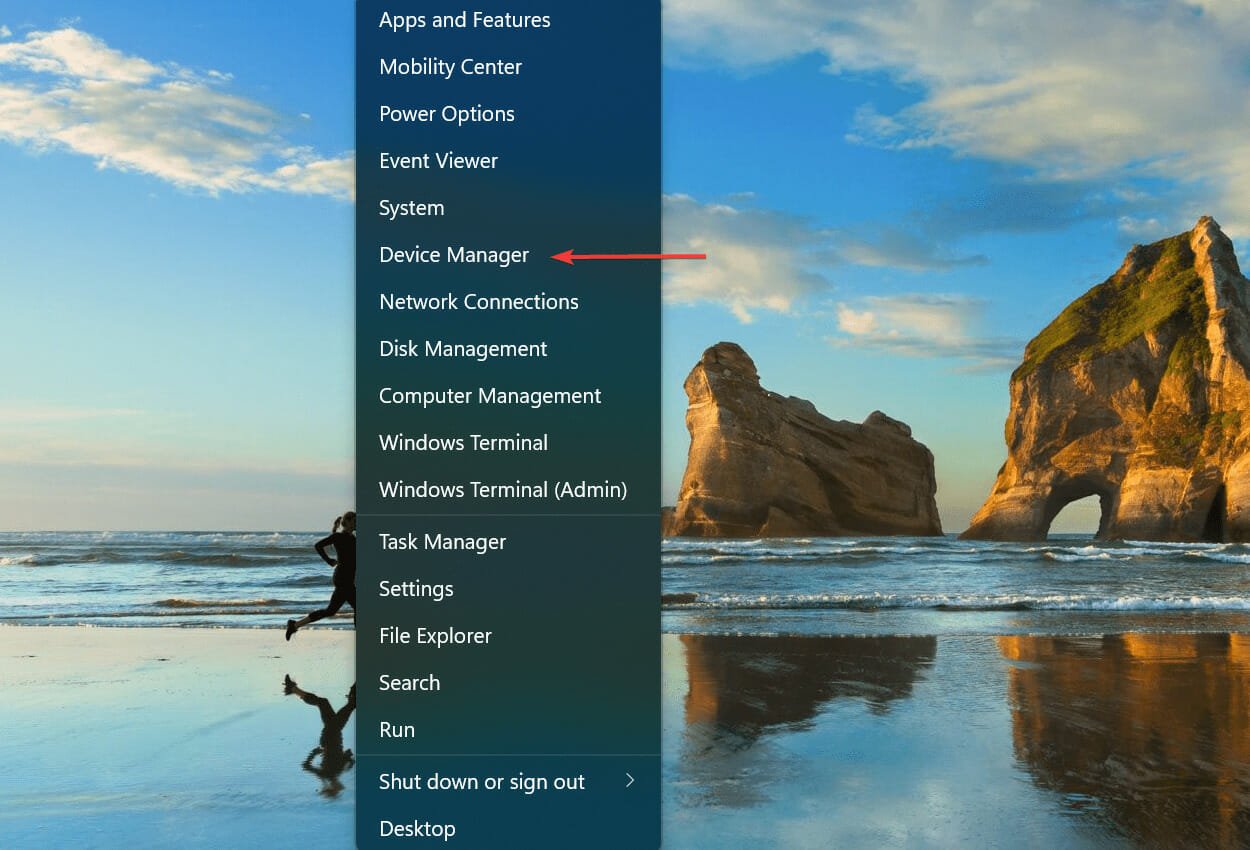
Fix: Windows biometric service stopped working

Logging onto your computer with biometrics rather than a password can be far more easy and safe, especially when used as part of a multi-factor authentication system. However, as with any other PC feature, Windows biometric service stopped working for some of us out there.
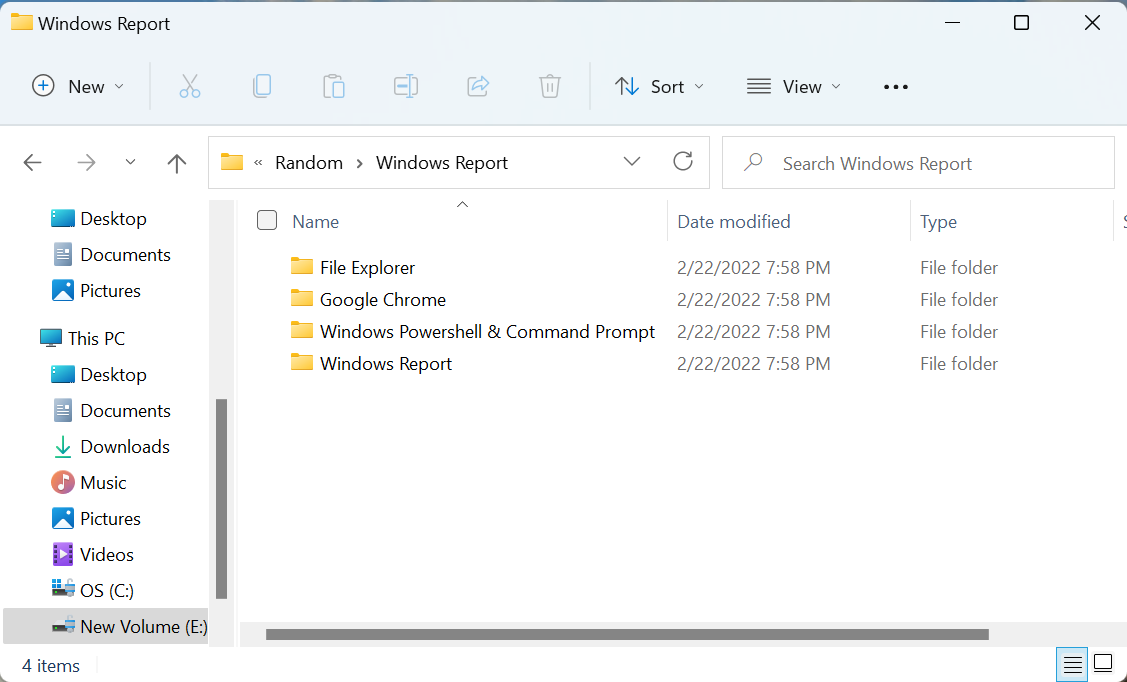
With biometrics, you won’t have to change it as often, and it will be much more difficult to steal (though it can be done). But, when it stops operating, it might be far more difficult to get it back up and running.

Every time a new update for Windows 11 or 10 is published, a new problem arises. If you are a victim of this problem, don’t sweat it as you have come to the right place! We will show you a list of solutions right after we see the causes of Windows Hello not working. Follow along!

Why did Windows Hello stop working?

After more investigation, it has been discovered that there are multiple potential underlying factors that could be contributing to this particular pattern of behavior. Listed below is a list of possible perpetrators that could be to blame for this error code:

➡ Windows Hello Update has not been installed – Microsoft is already aware of this issue and is now working on a patch that should resolve the problem automatically in the future. If you haven’t already, go to Windows Update and be sure to install every update that is available.
➡ No driver for the built-in camera has been installed – As it turns out, you can also expect to see this specific issue if the built-in camera utilized by Windows Hello is not up to date with the latest drivers installed on your computer. It is necessary to update the camera driver immediately.
➡ Biometric driver with a corrupted signature – The scenario in which a new Windows 11 build installation ends up rewriting some files belonging to the biometric driver is maybe the most prevalent cause of this issue to manifest itself (used by Windows Hello).

Following your newfound understanding of the reasons for this error, let’s move on to the list of solutions for the Windows biometric service stopped working problem. Keep up with us!

What can I do if Windows biometric service stopped working?

1. Update drivers

  1. Tap on the Windows key + I to start the Settings app, then go to the left menu and click on Windows Update. Now choose Advanced options from the right side in order to find the driver updates available.windows-advanced  windows 11 dynamic refresh rate not working
  2. Tap on Optional updates under the Additional options section.
  3. Select Driver Updates from the drop-down menu that appears, then check all of the driver updates that are displayed to you. Lastly click on the Download and install button to start the installation process. I don’t have any new updates at this time hence the empty list. no-update windows 11 dynamic refresh rate not working

When an issue occurs, you can manually look for updates, despite the fact that Windows is frequently in charge of driver updates. However, we strongly recommend that you use a specialist program such as Outbyte Driver Updater in order to do automatic scans for out-of-date drivers.

Out-dated drivers are 90% of the time the one cause that impedes features and programs from running. Thus, if you update all of them including the biometric ones, it is assured that your Windows biometric service stopped working error will be fixed.

2. Run an SFC scan

  1. First and foremost you will have to access Command Prompt by pressing on Windows + S and typing in cmd inside the search box. After the result shows up, right-click on it and choose Run as administrator.cmd-search-result windows biometric service stopped working
  2. Now type or paste in the following command and press Enter: sfc /scannowsfc-scannow windows biometric service stopped working

3. Swtich to a local account

  1. Press the Windows key + I to open the Settings menu, and navigate to Accounts followed by Your info from the right side.accounts-yainfo windows biometric service stopped working
  2. Now, scroll down until you come across the option to Sign in with a local account instead, and click on it.local-account windows biometric service stopped working
  3. Choose your Microsoft account, type in your password and restart your computer to apply the changes made.

4. Update Windows

  1. First, press the Windows key + I and select Windows Update from the left-hand navigation bar.windows-update windows 11 dynamic refresh rate not working
  2. You may use the Install now option to install new updates that are necessary to be downloaded or you can use the Check for updates button to discover whether or not any new updates have been provided. This should solve your Windows biometric service stopped working error.check-for-updates windows 11 dynamic refresh rate not working

Is biometric security safe?

Biometrics are any biological and physical measurements that can be used to identify you – such as your fingerprints, face, iris, voice, or even your palm veins and heartbeat – and to verify your identity.

This information can be used in a variety of ways, including airport security, financial transactions, and mobile devices, according to the current technologies. A large number of airports throughout the world are incorporating biometrics into their border procedures to improve their overall security.

Airlines such as Delta, Norwegian, Lufthansa, and others are using biometric boarding methods. Face or fingerprint recognition technology is now found in almost every new smartphone.

Biometrics are often considered to be more secure than passwords. Especially if you’re utilizing generic codes, they’re significantly more difficult to crack than alphanumeric ones.

pin windows biometric service stopped working

Furthermore, if you type a password in public, there is a good probability that someone will notice it and utilize it for malicious purposes. Biometric authentication, while more difficult to defeat, is not impenetrable. A 3D printed mask has been used to circumvent the use of Face ID.

An anonymous hacker successfully reproduced the fingerprint of current European Commission President Ursula von der Leyen using photographs obtained with a common digital camera back in 2014.

The ramifications of this are frightening. Hackers can not only crack biometric passwords from images using commercially available technology, but they can also crack biometric passwords from video.

If you believe your password has been compromised, you can easily change it. You are unable to alter your genetic makeup in any way.

There is also disagreement over the level of protection it gives against government agencies. In the United States, you have the right to refuse to provide the police with your passcode. It is founded on the Fifth Amendment, which protects your right not to be incriminated against yourself.

Even if the police have a warrant for your arrest, they cannot compel you to reveal the whereabouts of the warrant. Giving your passcode would amount to actively acting as a witness against yourself.

This is not to mean that you should abandon the use of biometric authentication entirely, though. As of right now, there aren’t very many scenarios in which yours can be compromised.

However, as the practice increases in popularity, the repercussions of having your biological data stolen, become more terrifying. Rather than considering it a security safeguard, for the time being, it is preferable to think of it as a convenience tool.

For more information and potential fixes, check out our post on Windows 11 fingerprint sensor not working issues and learn what to do in that case.

Alternatively, if you haven’t done this already, take a look at our guide on how to install the Hello face driver for Windows 11, and don’t forget to update it every now and then.

And lastly, don’t miss out on our guide on how to fix Windows Hello not working. Users have been reporting lots of positive feedback on that one!

Let us know in the comments section below whether you have any other solutions in mind as well as if this guide was helpful for you. Thanks for reading!