Want to add Opera to your Kindle? You’re in the right place. Kindle Fire uses the Amazon Store, which complicates the process a little bit, but we’ll explain all you need to know, step-by-step.
How do I install the Opera browser on my Kindle?
1. Allow apps from 3rd parties
Swipe down from the top of your device’s screen and click the Settings or Gear icon.
Under the settings menu, scroll down and click on the Security option.
Under the Advanced section of your security menu, toggle on the switch for Apps from unknown sources.
Click on the warning message.
Note that even though Opera isn’t natively listed in the Amazon Store, it’s completely safe to use it in your Kindle Fire.
When you’re done installing the browser, you can return and toggle off the Apps from unknown sources settings.
When the download is done, click on the option that says open.
Once you successfully toggled on the Apps from unknown sources option, you should see a screen with a prompt to install. Click on Install. This should take a few seconds, then you will have the Opera One app running on your Kindle device.
How do I remove the Silk browser from my Kindle Fire?
Unfortunately, there is no way to remove the Silk browser from Kindle Fire. This is because it is part of the Fire operating system of the device.
For exchanging emails, you can easily make an account on your Hotmail account. However, a lot of users are complaining of Hotmail not working in Firefox because of which they are not able to send emails.
Since Mozilla Firefox is one of the leading search engines or web browsers used for internet surfing, a lot of people often use it for their online activities in which exchanging emails is done regularly.
While there might be issues related to servers and connectivities, not having access to your Hotmail because of Firefox can be annoying. Hence, we will provide some troubleshooting tips to fix your Hotmail not working on the Firefox issue.
Why is my Hotmail not working?
These are some of the most common reasons that can cause your Hotmail account to not work:
1. Microsoft has shut down the server
2. Network connectivity problem
3. Incompatibility of Hotmail with the web browser that you are currently using
4. Incorrect username or password
5. Improper configurations
6. An older version of Outlook, or there can be a problem with your Outlook account
7. The application you are using to send emails might not be working properly
8. Something can be wrong with your iPhone, computer, Android device, or tablet through which you are trying to access your Hotmail account
The above are multiple ways your Hotmail is not working on Firefox. Here in this guide, we are going to enlist some of the most effective yet common fixes for Hotmail not working properly.
Are Hotmail accounts being closed down?
Hotmail is a free as well as paid service that allows users to send and receive emails over its web client. Hotmail was shut down in 2013 because Microsoft wanted to move users towards Outlook, which had a much better reputation and cleaner codebase.
As of this present moment, Hotmail no longer exists as an email service provider. Hotmail accounts are now migrated to Outlook.com.
This web application has already new features and services that help users manage emails through the web.
Quick Tip:
Try opening Hotmail using another browser. Opera One is a very good alternative, and given the fact that it’s often updated, it’s very responsive, with little to no errors.
It includes standard browsing features like bookmarking, and installable extensions, but also advanced features like an integrated adblocker, a free VPN, as well as a native AI.
Opera One
Keep track of all your Hotmail inbox with this lightweight and responsive browser!
First of all, check your Internet connection if the connection is proper or not. If not then try to fix your internet because of which online applications work.
2. Clear all cookies and cache files
Go to Options/Preferences and select Privacy & Security.
Click on Cookies and Site Data.
Select Clear Data.
Confirm clear Cached Web Content by ticking both boxes.
Clearing the Cache and site Cookies should fix the Hotmail not working on the Firefox issue.
This will automatically update Firefox if there are new updates and reset the browser.
This can be an effective fix should in case the browser has issues that caused Hotmail to not work.
Are Hotmail and Outlook the same thing?
Hotmail is one of the most recognizable emails like Outlook. They are completely different, however since Hotmail got shut down, users are already migrated to Outlook.com, so when you access Hotmail.com you will be redirected to Outlook.com.
Privacy is under siege in the data economy. Left on their own, the big tech companies of Silicon Valley harvest your data in exchange for their “free” services.
The tide has slowly begun to shift, however, with many services now offering privacy as their selling point. One such service is Proton Mail, which offers perhaps the most secure and privacy-oriented webmail available to personal and enterprise users.
If you’ve been a long-time Outlook user but are now looking to switch to Proton Mail, you’re at the right place. Before you do that, however, you’d naturally want to take all your essential data with you. In what follows, we’ll lay down the exact step-by-step process to transfer your Outlook emails to Proton Mail.
How to transfer your Outlook emails to Proton Mail
Moving your Outlook emails to Proton Mail is a relatively simple process. In fact you can even carry a bunch of other files apart from emails as well. For instance, you can take all your important Outlook files—including attachments, contacts, etc.—directly to Proton Mail.
In this piece, though, we’ll only stick with Outlook emails for now. So let’s get started.
Moving Outlook emails to Proton Mail
You can transfer your Outlook emails to Proton Mail with the help of Easy Switch, a free tool to help you move your emails across different email service providers.
To launch Easy Switch, head to your Proton Mail account and sign into it. Then head to the Settings menu, select Go to settings > Import via Easy Switch, and click on the Outlook icon.
You’ll get a dialog box asking you what you want to import. From there, select Emails and click on Continue.
You’ll then get a few instructions about the things you’ll have to do on your Outlook account; follow them. Basically, all you need to do is head to the Outlook settings, enable the two-step verification, and generate the App password.
To create an app password, click on Create a new password app, note down the password somewhere safe (preferably offline) that you get on the next screen, and click on Done. You’ll have to enter this password when prompted by Proton Mail.
All right. Now that we’ve set up the basics, it’s time to enter your Outlook credentials in Proton Mail.
Enter your Outlook email address, along with the password you just set up above, and then click on Next. That’s about it. Follow the on-screen instructions, and the app will transfer your Outlook emails to Proton Mail without any hassles.
Setting up mail forwarding
The above method is specific to moving your old messages. You’ll have to use email forwarding if you want to transfer all your future messages to Proton Mail. Here’s how.
Head to Outlook settings again, and click on View all Outlook settings. Then select Mail and click on Forwarding.
Then click on Start forwarding, enter your Proton Mail address and click on Save. Do this, and the new emails landing on your Outlook mailbox will get transferred to Proton Mail.
Moving your Outlook emails to Proton Mail
If you’ve finally made up your mind to move from Outlook to Proton Mail, it will be best to bring your old emails to your Proton Mail account along with you. Hopefully, the above methods helped you move your files quickly and without any trouble.
HTML5 came with the <audio> tag, as well as the JavaScript APIs that make it possible for browsers to support audio elements without having to install an external element. Some of the supported codecs in HTML5 for playing audio include Wav, MP3, and Ogg Vorbis.
Unfortunately, some people have encountered an error stating that your browser does not support audio element error despite all these improvements.
That notwithstanding, we still do not have a single codec that supports all browsers. However, HTML5 allows developers to specify different sources of audio files to get around the problem of codec incompatibility.
This way, the browser looks for the type of audio element that it can support.
What browsers support the audio element?
As discussed above, different browsers support different types of audio. You cannot find an audio codec that is supported across all browsers. That notwithstanding, there are browsers that support the audio element;
Firefox 5 and above supports Ogg and Wav.
Internet Explorer 6 and above supports MP3 and AAC.
Safari 5 and above supports MP3, WAV, and AAC.
Chrome 12 and above supports AAC, Wav, MP3, and Ogg.
Opera 11 and above supports Wav and Ogg.
Audio element support has been improving with every release of a new version of browsers. However, you should be careful with your browsers to ensure that they support your audio elements. But what do you do when the browser you are using does not support the audio element?
How do I enable audio in HTML?
The HTML <audio> element is used to enable audio or play an audio file on a web page. For you to enable audio, you need to make sure that you have specified different sources for the audio file.
The browser chooses the first format that it can recognize. Here is an example of an HTML code with audio sources;
Quick Tip: If you want to have an up-to-standard experience when browsing online, we recommend you use OperaGX. It supports <audio> element and everything HTML5.
In fact, it’s actually built to offer a good multimedia experience, both for gaming and streaming. It includes light-dark modes, a CPU and RAM limiter for better performance, as well as a free VPN.
Opera GX
Get industry-standard features for secure and uninterrupted browsing, on any platform!
How can I fix the Your Browser Does Not Support Audio Element error?
1. Check your audio sources on HTML
Open your code using a code editor.
Navigate to the lines of code where you have specified the audio sources.
<audio controls>
  <source src="audiofile.mp3" type="audio/mpeg">
  <source src="audiofile.ogg" type="audio/ogg">
  <!-- add more audio sources here -->
  <!-- fallback for non supporting browsers goes here -->
  <p>Your browser does not support HTML5 audio</p>
</audio>
Ensure that you have different audio codecs for your browser to choose from.
2. Check if the web page is muted
Visit the web page where you are supposed to listen to some audio.
Right-click on the tab opening that particular web page.
Check if the site is muted, and then select unmute site.
3. Allow sites to play sound on Chrome
Launch Chrome and click on the three dots at the top right corner.
Scroll down and select settings on the drop-down menu.
Click Privacy and security and then select Site settings.
Scroll down to Content and then expand the additional content settings.
Scroll down and select Sound.
Allow sites to play sound button should be on.
Do all browsers support audio elements?
Different browsers support different audio codecs. You will rarely find a single audio codec that works well on all browsers without any problems.
If you are facing a problem with your browser not supporting audio elements, one of the solutions shared above should solve the problem for you. You can also use browser audio players to test your audio on browsers.
If you have any more questions or suggestions, feel free to leave them in the comments section below and we’ll make sure to check them out.
We use password managers not only to save our passwords securely but also to use other features provided by it, such as autofill, etc.
When certain features do not work, then the software itself becomes half-useful. Bitwarden users are facing something similar.
You will find several user reports on official forums and Reddit regarding Bitwarden autofill not working in the Firefox browser. In simple words, Bitwarden fails to autofill usernames and passwords on websites.
This could be frustrating as you might use a password manager for this specific feature. Luckily, we have a few tips to help you resolve the Bitwarden autofill not working in the Firefox issue. Let us check it out.
Why is Bitwarden autofill not working in Mozilla Firefox?
There aren’t any specific reasons why Bitwarden might fail to fill in your username and password in the Mozilla Firefox browser.
However, after our research, we discovered a few simple things that users have been overlooking that could be the potential cause for this issue, which we have mentioned below.
Your browser isn’t up to date
Corrupt cache files are triggering the problem
The extension shortcut is missing
You are using multiple password managers
Bitwarden extension isn’t enabled
Now that you are aware of the common causes that could lead to Bitwarden autofill not working in the Firefox issue let us turn our attention towards how to resolve it.
Quick Tip:
A quick and low-effort way to eliminate this issue is to use a different browser. If you want a smooth transition with straightforward support to transfer all your bookmarks and preferences, use Opera One.
Opera One is a very responsive browser with a low error rate. You can install the Bitwarden Opera One extension directly from the official Opera One add-on store. Plus, this browser comes with a native AI.
Opera One
Use Bitwarden error-free with a responsive, secure, and easy-to-use browser!
How can I fix Bitwarden autofill not working in Firefox issue?
1. Uninstall other password managers
It is essential to ensure you are not using multiple password managers in the Firefox browser.
If you are using multiple password managers, this could conflict with the performance of each other. Many important functions, such as autofill, won’t work, as the browser may get confused about which password manager to use for the specific task.
So, if you are using multiple password managers, uninstall all of them except Bitwarden, and make sure Bitwarden is the only password manager installed.
2. Update Firefox
Open Firefox.
Click on the 3-line menu icon on the top toolbar.
Head to Help, then to About Firefox.
Firefox will automatically check for new updates and if it detects one, will install it.
After the download is complete, click on the Restart to update Firefox button.
Under the Cookies and Site Data section hit the Clear Data button.
Make sure to check the boxes next to Cookies and Site Data and Cache Web Content.
Hit the Clear button.
4. Check if the extension shortcut is missing
Open Firefox.
In the address bar, enter the below address and press Enter: about:addons
From the left pane, select Extension.
Hit the cog wheel Settings icon next to the Manage Your Extensions heading.
Select the Manage Extension Shortcuts option.
Check if the Auto-fill the last used login for the current website is set or not.
5. Check if the extension is enabled or not
Open Firefox.
Click on the 3-line menu icon.
Select Add-ons and themes.
Check if Bitwarden is enabled or not. If not, then enable it.
6. Manually trigger autofill function
Head to the website where you want to use the Bitwarden autofill function.
Right-click on the username and password field.
Select Bitwarden, then Autofill.
Hit the Login button and check if this fixes the issue.
This isn’t a permanent solution, but it can work wonders if the autofill feature isn’t working automatically.
If nothing works, then you can check out other password managers that have the same autofill feature and get rid of the issue. Many users also reported Cannot decrypt error in Bitwarden, but we covered it in a separate guide.
Let us know in the comments below which one of the above solutions helped you resolve the Bitwarden autofill not working in the Firefox problem.
Twitch is an excellent platform that has gone beyond just game streaming. It has a well-built app, and you can also use the best browsers for Twitch streaming to access the platform.
One of its standout features is the incorporation of hardware acceleration. This feature is aimed at reducing latency and increasing throughput.
However, you might sometimes get the opposite effect on your stream, with noticeable lagging and other issues. That is why it is important to know how to turn on and off hardware acceleration for Twitch, as will show in this guide.
What is hardware acceleration good for?
Hardware acceleration is a technology specifically for improving performance. It involves offloading certain tasks to specialized hardware components in a system.
This takes off some load from the CPU and, in turn, improves efficiency and speed. In gaming and streaming, for example, an application takes advantage of a system’s GPU (Graphics Processing Unit) to take off the graphics processing from the CPU.
Is it better to turn on hardware acceleration?
All-in-all, it is advisable to always turn on hardware acceleration. This is because it improves the processing time of certain tasks spontaneously.
However, if it affects your performance, you might need to turn it off temporarily.
Does hardware acceleration affect FPS?
One of the benefits of using the hardware acceleration on streaming apps like Twitch, for example, is that it scales the performance. This usually comes in the form of an improved frame rate, which is the number of images shown per second.
With this higher frame rate comes a smoother animation. All of these help to prevent latency and lagging in streaming. So, hardware acceleration has a positive effect on FPS.
How to enable hardware acceleration on Twitch?
Open the Twitch app and click on your profile picture.
Select the Settings option from the dropdown menu.
Click the General option in the top menu.
Toggle the switch for Software Rendering Mode forward to enable it.
With these steps, the hardware acceleration for the Twitch app will be enabled.
Note that the effect is only limited to the Twitch app and not the online version. To take advantage of the hardware acceleration on the website, you need to enable it in your browser.
Before changing these settings, make sure your account is fully set up on the device by following this guide to activate your Twitch account.
How do I disable hardware acceleration on Twitch?
1. Disable on Twitch app
Launch the Twitch app and click on your profile picture.
Choose the Settings option.
Toggle the switch for Software Rendering Mode backward to disable it.
As mentioned earlier, you should only disable the hardware acceleration feature on Twitch if it is causing problems. For instance, if it causes lagging instead of improving streaming speed, it is best to disable it.
2. Disable on Chrome browser
Launch Chrome and click the menu button (three vertical dots) in the top right corner.
Click on the Settings option.
Choose the System option in the left pane.
Toggle the switch for Use hardware acceleration when available backward to disable it.
To enable it later, just toggle the switch forward.
Scroll down and uncheck the box for Use recommended performance settings.
Finally, uncheck the checkbox for Use hardware acceleration when available.
Firefox is another browser with the hardware acceleration feature users use to access Twitch frequently. As with Chrome, disabling this feature on Firefox affects all other streaming and gaming tasks.
How do I speed up my Twitch stream?
You can do different things to improve your streaming speed on Twitch. If you are using a browser, you will be better served disabling unnecessary extensions and clearing your cache.
Generally, you should disable VPN, close background apps, and ensure your antivirus software is not disturbing Twitch. Lastly, don’t forget to turn on hardware acceleration if it does not negatively affect you.
Twitch hardware acceleration is overall a good to have feature. This guide has covered how to enable and disable it on different platforms. So, you can always take advantage of the feature.
If Twitch keeps buffering on your browser, check our guide for quick and effective fixes to get it working fine again.
Feel free to share your experience with this feature in the comments below.
Chrome is one of the most-used browsers for testing web apps and websites. This is understandable, as it has the largest share in the browser industry.
Chrome allows users to add self-signed certificates to test web apps. Unfortunately, the private key missing certificate warning is starting to ruin the process. This is despite some users trying to ignore the certificate error in Chrome.
In this guide, we will show you how to correctly import your certificate on Chrome and get past the private key missing error message.
Why does my certificate not have a private key?
Most SSL certificates do not come with their private keys. Instead, the keys are located on the server where you generated the Certificate Signing Request (CSR).
So, all you need to do is install the certificate correctly, and the private keys will match up with it.
Quick Tip:
The Certificate Manager in Opera’s Advanced settings is a valuable tool, and you may easily import a certificate’s private key. You may import any saved passwords associated with previous installations.
The Import key and certificate dialogue box will reveal the contents of the file, allow you to pick the certificate, and install it together with the associated private key.
Opera
Manage SSL certificates easily in this friendly-user browser faster.
What can I do if Chrome’s import certificate private key is missing?
Launch Chrome and click the menu button (the three vertical dots) in the top right corner.
Select the Settings option.
Choose Privacy and security in the left pane.
Select the Security option.
Choose Manage certificates.
Click the Intermediate Certification Authorities tab in the top menu.
Finally, click the Import button and add your certificate.
The reason you are getting the private key missing error while trying to import a certificate is that you are doing it wrongly. Since you only want your browser to trust your self-signed certificate, you should import it through the Authorities tab.
But if you try to add it from the Your Certificates tab on Chrome, you will face several problems.
You don’t necessarily need private keys if you are importing a self-signed certificate on Chrome. This is because your browser only needs public keys, not private ones.
Also, getting the private keys of Certificate Authority (CA) certificates is almost impossible. Hence, using the method above to import the certificate will help you overcome the hurdle of missing a private key when you want to import a certificate on Chrome.
The private key missing issue when trying to import a certificate on Chrome can stall your web app testing. But if you follow the fix provided in this guide carefully, you should get past the error easily.
While the official website for Stan TV recommends a list of compatible browsers, we have our own list that can help you watch your favorite shows on your PC or Mac.
Can you watch Stan on a web browser?
Yes, you can watch Stan on a browser on your PC or Mac, provided it’s compatible, and you have an active internet connection.
Stan TV recommends the latest versions of the browsers like Chrome, Edge, Firefox, and Internet Explorer for Windows.
It recommends the latest versions of Safari, Chrome, and Firefox browsers for macOS.
For more details about the minimum requirements of the compatible browsers, you can refer to the Stan TV official help page.
Can you watch Stan outside Australia?
Yes, you can watch Stan outside Australia, however, using a high-quality VPN or a VPN-enabled browser.
This is because Stan TV is specifically for the Australian audience and does not have a global presence.
While you cannot access it normally across the globe, a trustworthy VPN can help you stream Stan TV outside Australia.
Google Chrome – Wide range of extensions for enhanced streaming
With 2.65 billion users worldwide and a seamless video streaming capability, there’s no doubt about the popularity of Chrome.
It combines extensive HTML5 support with the latest technologies to provide an exceptional video playback service.
Moreover, it comes with a wide collection of extensions that can help you enhance your video streaming experience with Stan TV and other streaming platforms.
Best of all, the Blink rendering engine by Chromium makes it lighter and faster, thus, helping it to load pages faster than other browsers.
Some of its other major features include:
Effortless syncing of data across devices
Dedicated media hub to access media controls
Option to keep Chrome info separate via profiles
Keeps your passwords safe
Manage multiple pages with better tab organization
Microsoft Edge – Fastest browser with high-quality videos
Microsoft Edge comes integrated with both Windows 10 and Windows 11 and proves to be one of the best browsers for streaming your Stan TV shows in high quality.
Re-engineered using the Chromium engine, and the fact that it does not consume a lot of resources makes it one of the fastest browsers around.
Besides, it’s also known for its safety feature, for example, it warns you when you are about to visit a harmful website.
Moreover, the InPrivate mode offers increased privacy by not saving your browsing history, cookies, passwords, site data, etc.
Some of its other significant features are:
Dark theme setting to enjoy video streaming
Option to cast video from the browser to compatible devices
Ensures complete security of saved passwords, payment data, etc.
Allows you to organize your web pages as a collection
Stan browser update required – What does the error mean?
Sometimes, you may come across an error that says, Browser update required. Please update your browser to the latest version and try again or visit our help center for more information.
This means that you are running an outdated web browser and hence, to continue to watch Stan, you need to update the browser to the latest version.
Update Google Chrome
Open Chrome, click on three dots on the top right, select Help, and then select About Google Chrome.
Now, on the right side, you should notice that Chrome will automatically start checking for updates
If available, it will automatically install the latest version.
But, if it says, Chrome is up to date and the error message still shows up, follow the next solution.
Launch Chrome and navigate to the below path: chrome://components/
In the Chrome components screen, look for Widevine Content Decryption Module.
Click on the Check for update button.
The Widevine CDM component enables your browser to decrypt protected content otherwise, the error code A19 may frequent your screen. Now, check if the error is gone and you can watch Stan TV on your Chrome browser.
Twitter is a social media platform that needs no introduction. It’s a massively popular website that has around 465.1 million active users as of April 2022. A marketing team could potentially reach six percent of the global population.
Firefox is one of the most popular browsers in the United States with a 3.48 percent market share. So naturally, people hop on Firefox to check out their Twitter page and see what people complaining about for the day.
However, sometimes Twitter will suddenly not work on Firefox thereby leaving you out of the feed of cute cats. This guide will show you how to fix Twitter not working on Firefox.
But before fixing it, it’s important to know why it stopped working in the first place.
Quick Tip:
Open Twitter from a different browser. We recommend Opera One because it has a dedicated social-media sidebar where Twitter is pre-installed. You just have to enter your credentials.
You can expand/hide the sidebar from any webpage to quickly check your feed or add a new tweet. The browser lets you connect to other social media apps as well and includes a VPN, an adblocker, and more.
Opera One
Get quick access to Twitter using this modern browser with built-in social media support.
There are multiple reasons why Twitter stops working. There may be some kind of problem with the browser’s cache getting in the way or an extension mucking things up.
Other times, Firefox’s own security measures get in the way so you’ll have to disable them although it’s not recommended that you do so. You should also check if your internet connection is working.
Obviously, if your internet connection doesn’t work, then you can’t connect to Twitter.
How do I get Twitter to open in Firefox?
1. Clearing cache
On Firefox, press the Ctrl, Shift, and Del keys on your keyboard to open the Clear Data window.
Make sure only the boxes next to Cookies, Cache, and Browsing & Download History are checked.
Set your Time range to clear to either Today (if the problems started to happen the same day) or Everything.
Once done, select OK.
Give Firefox time to clear everything out and go back to Twitter to see if it works.
2. Disable extensions
In order to figure out which extensions are causing problems, you must first enable Troubleshoot Mode.
Click the Menu button in the upper hand right corner of Firefox.
In the menu, click Help then in the next window, select Troubleshoot Mode.
A small window will appear asking you if you want to restart Firefox in Troubleshoot Mode. This will disable themes, extensions, and other custom settings.
While in Troubleshoot Mode, go back to Twitter. If the websites work, then one of the extensions is causing a problem.
Close Firefox and reboot it in normal mode.
Type in about:addons in the address bar and hit Enter.
On the Add-ons page, disable all of your extensions.
Turn on the extensions one by one and go to Twitter as you do. You’re trying to replicate the problem.
If you find that the one or multiple extensions causing the Twitter problem, click the three dots and select Remove to get rid of them.
3. Disable SmartBlock
SmartBlock stops third-party websites from using tracking scripts to follow people. It may also cause issues with certain websites, including Twitter, so in the address bar, type about:config and hit Enter.
A warning page will appear. Click Accept the Risk and Continue.
In the preference search bar, type extensions.webcompat.enable_shims and hit Enter.
Click the arrows on the far right to toggle true into false.
4. Change tracking protection
In the address bar, type about:preferences#privacy and hit Enter.
Select Standard if it isn’t selected. If it’s already selected, click something else and then click Standard again.
Click the Reload All Tabs button.
All of the tabs will load. Go back to Twitter and see if the page works now.
5. Unregister Twitter
In the address bar, type about:serviceworkers and hit Enter.
On this new page, scroll all the way down until you find the Twitter entry.
Click Unregister to remove Twitter from the Service Workers list.
Twitter will load the next time you go there.
Why some websites are not opening in Firefox?
For other websites that aren’t opening in Firefox, it all comes down to the same issues. Bad internet connection, the browser cache is full, or the security features are in the way.
The solutions for those websites are exactly the same as the guide you just read. Clearing out the cache and disabling the right extensions will solve the vast majority of your problems.
Mozilla even has a page on their Support website saying the same thing. As a last-ditch effort, you can try reinstalling Firefox. And if that doesn’t work, use a different browser.
Feel free to comment below if you have any questions on the above procedures. We’re eager to help.
Among the many problems people have with their browsing experiences is the Firefox screen suddenly turning black or blank.
The problem happens with most browsers, Google Chrome, Microsoft Edge, or Internet Explorer included. But it appears it’s with Mozilla Firefox users that the problem causes most frustrations.
Often, this error happens without warning, and while you are already logged into Firefox. It happens randomly and for varying lengths of time.
A black screen will also log you out of all the web pages, and in more severe cases, you won’t be able to use Firefox at all.
Why did my Firefox background turn black?
Judging from the reports sent by those who have encountered this problem, there could be several causes for it.
Some only started facing the problem after installing a new driver, extension, antivirus, or other forms of software.
Others say they started noticing the issue after they upgraded the OS. Yet there are also quite a few who don’t recall installing any new software prior to this problem popping up.
There are a few fixes you could try to resolve the Firefox black screen video problem from within the browser. But what if you can’t even access the browser?
So we would start with those fixes that do not need you to be logged into the browser. And then we’ll move on to other solutions.
Quick Tip:
If you’re experiencing a black screen on Mozilla Firefox, perhaps this is the right time to test a different browser. You can switch from Firefox browser to Opera One and import all your bookmarks and passwords.
Further on, you can customize the browser by changing settings for usability to make Opera One your backup browser in case you decide to stick to Firefox as your main.
Opera One
Take your browsing experience to the next level with this highly customizable browser.
Whenever your computer starts to misbehave, your first suspicion is usually a virus attack. Unfortunately, these have become quite common and everyone, especially those who work online, is at risk.
Another common source of viruses is external devices, like memory sticks and external hard drives, that you connect to the computer. Before you consider the other fixes, you should perhaps first scan your computer for viruses.
On this note, we recommend using a powerful third-party antivirusto perform an in-depth scan. Please make sure that you run a reliable and up-to-date antivirus utility.
It is very important to have a security tool that keeps track of all cyber threats because new risks arise on a daily basis. We recommend you look for an antivirus that comes with multi-layered protection.
If you secure your system with more than just one type of shield, the chances of detecting and blocking threats grow significantly.
Additionally, make sure that your antivirus comes with a powerful firewall and a straightforward privacy policy.
For the most part, antiviruses are built to protect your identity and browsing data, but it is important to check and know for sure that that’s the case.
Perform a full system scan and see the results. If your AV found any threat, make sure to quarantine or remove it. After you get rid of the intruder, check to see if the error persists.
2. Uninstall recent software
Press Windows + R to launch Run, enter appwiz.cpl in the text field, and click on OK.
Now, select the problematic program from the list, and click Uninstall.
Follow the on-screen instructions to complete the process.
If the Firefox black screen flash problem starts to occur after you have recently installed a new piece of software on your Windows computer, there is a big chance that software could be interfering with your Firefox browser.
In fact, randomly installing third-party software has many risks for your computer. And if you have installed more than one such software, you may want to make a list of these and uninstall them one by one.
Ideally, you will want to uninstall them, starting with the one you installed immediately before you started encountering this problem.
An instance where this quick fix has been proven to work is where people started facing this problem after recently updating their graphics driver. The problem was fixed by simply undoing the update and reverting to the previous version.
For a more efficient result in terms of removing programs, we suggest using a dedicated uninstaller tool. Removing with the help of Windows settings will most likely leave behind some leftover files.
These will not only take up memory space for no reason, but they may also interfere with the functionality of your PC. Uninstallers can detect and safely remove all these types of files.
On top of that, in case the problem is caused by a malicious app, dedicated uninstallers are the way to go as well. They can force-uninstall apps that you won’t be able to remove otherwise.
So, if you earlier came across Firefox black screen when playing video, uninstalling conflicting apps should do the trick.
3. Disable hardware acceleration within Firefox
Launch Firefox, paste the following path in the address bar, and hit Enter:about:preferences#general
Scroll down to Performance, first uncheck Use recommended performance settings, and then the Use hardware acceleration when available option under it.
This solution works if the Firefox turned black and remains inaccessible.
Hardware acceleration is meant to improve your browser’s performance by enabling the hardware to take over functions that the software on your PC isn’t able to execute as efficiently.
But it tends to clash with some graphics processors and drivers, which can cause this black screen problem to occur.
After disabling the feature as shown, check if the Firefox blank screen problem is fixed.
4. Start Firefox in Troubleshoot Mode
Launch Firefox, click on the hamburger icon near the top-right, and select Help.
Now, click on Troubleshoot Mode.
Click Restart on the confirmation prompt.
Finally, click Open in the dialog box that appears.
Go ahead and check if the problem still comes up.
Starting Firefox in Troubleshoot Mode might work because a potential cause of the problem could be an extension you recently added to your browser.
By default, starting Firefox in Troubleshoot Mode temporarily disables all extensions, installed themes, and custom settings on your browser. This is also a good way of temporarily disabling the hardware acceleration feature mentioned before.
How do I fix Google Maps’ black screen in Firefox?
If you are getting a black screen when opening Google Maps in Firefox, it could be a problem with the extensions or cache. First, press Ctrl + Shift + R to reload the page and bypass the existing cache.
If that doesn’t work, look through the extensions installed on Firefox, and disable the non-critical ones. Also, clearing the browsing data has helped fix the problem for many users.
Hopefully, one of the possible fixes discussed here has helped you solve the Firefox black screen problem in Windows 10/11.
Also, find out what to do if the problem is not limited to Firefox, but you are seeing a black screen on Windows.
If you have suggestions or even other solutions, share them with us using the comments section below.
Browser games are becoming more and more popular as they don’t require any downloads and don’t use up drive space. In-browser games are perfect for those that don’t have a gaming PC.
For the best gaming experience, use a browser that can handle your favorite games without lagging. Not every browser can support gaming, check out our picks for the best browsers for gaming.
And, if you are wondering how to make online games run smoother, go through the following sections for the best tips and tricks.
Why is Adobe Flash Player no longer available?
Adobe Flash Player provided support for multimedia files in browsers and on your PC. Most browser games were supported by Flash Player, however, Adobe stopped supporting Flash Player at the end of 2020.
Adobe announced the reason for this was that Flash Player was too susceptible to cyber-attacks. Many websites also moved to the advanced HTML5 for their structural needs and thus didn’t require Flash Player any longer.
Most browser games that used Flash Player adjusted to the change, however, if you come across a game that says it requires Flash, it probably means it hasn’t been updated in a while. It’s best to steer clear of any websites that offer download links to Flash as they are likely not trustworthy.
This browser is built with gamers in mind, with features like GX Corner and Twitch and Discord integration that enhance gaming. Opera GX offers all the same features as the regular Opera browser with the addition of some unique features that set it apart from other browsers.
The GX Control feature allows users to regulate network, RAM, and CPU usage so your games can run smoothly without any lag.
For a fast and smooth gaming experience, consider switching to the Opera GX browser.
Opera GX
Enjoy lag-free gaming and keep in touch with your peers with the Discord integration.
Right-click on Start and select Run(or press Windows + R).
Type dxdiag and click OK.
Check requirements.
Some games require you to have a 64-bit PC and won’t run properly on a 32-bit operating system. Most games will let users know what PC requirements they need to run properly.
However, many browser games aren’t as demanding as games that require heavy downloads.
3. Disable unused extensions
In your browser, open Extension Manager.
Go through your extensions and disable orremoveunneeded extensions.
Restart your browser.
Finding the extension manager is straightforward in most browsers, and the process to remove them is relatively similar. Sometimes the extension manager can be found under settings or preferences.
A faulty extension or an overload of extensions can cause your browser to run slower, and thus impact the way browser games run.
Extensions are usually created by third-party companies, and if not regulated or updated often, they may cause bugs or crashes. Of course, extensions can be useful and optimize the browsing experience, but it’s wise to remove the ones that you don’t use anymore or are outdated.
4. Clear cache
In your browser, go to Settings.
Open history, cache, and cookie settings.
Select Clear data.
As you surf the web, your browser collects files to optimize browsing. However, the browser cache can build up and may cause problems over time, including slowing down browser games.
If it’s been a while since you last cleared your browsing or cache, then it may be causing games to run slow or lag. Try clearing unnecessary data and starting fresh.
Most browsers allow users to clear out cookies as well. Cookies are usually harmless and are only meant to personalize your browsing experience. A regular clearing out of cookies will remove any unnecessary or corrupted ones that might be slowing down your browser.
5. Manage tabs
If you’re someone who constantly has a ton of tabs open at once, try closing some that aren’t being used to speed up in-browser games. That way your browser can focus on the tab with the game running.
Some browsers have features that help manage multiple tabs and resources. Opera GX, for instance, has Hot Tabs Killer, which displays which tabs are consuming a lot of resources and will slash the tabs that are hogging resources.
6. Adjust in-game settings
While the game is open, find the Settings or Optionsmenu.
Locate quality control and adjust to a lower level.
Refresh or restartthe game.
Some games offer options to adjust visual graphics and quality. If the graphics are set to a high level and you’re experiencing lags, try lowering it a bit.
If a game provides the option to turn off specific visual elements, like enhanced water or shadow features, then turning it off might improve game performance.
7. Check internet connection
Sometimes your browser might not be the one at fault for slow games. It could be your internet connection. Ensure you have a strong network when playing browser games.
Oftentimes, public WIFI can have weaker connections than private ones and can cut in and out, make sure to connect to a stable network.
8. Reinstall your browser
Press Windows + S, search for Control Panel, and then hit Enter.
Under Programs, select Uninstall a program.
Find the browser you use for gaming and select it, then click Uninstall.
After removing the browser, reinstall the browser from its home page online.
If all else fails, reinstalling the browser is always a quick fix. This will clear out corrupted files or extensions and give you the most updated version of the browser.
Be sure to back up any bookmarks, passwords, and other data that you don’t want to be wiped from the browser before doing this step.
How do I fix lag in browser games?
Most browser games generally run fine without any lag, but if you notice it, there are a few things that might help. First, check for slow Internet speed using a network speed monitor. In case you rely on a wireless connection, switch to Ethernet.
Also, use an effective antivirus to scan your device for malware. Verify that you are not using a VPN since it’s known to affect the Internet speed. Also, certain games don’t allow its use, and as a result, you may be encountering problems.
Browser games have become increasingly popular in recent years because of their compatibility with most PCs. Users don’t need to invest in a powerful gaming PC to be able to play browser games. We hope the solutions in the guide helped speed up in-browser games on your PC.
Opera GX is the perfect browser for gamers and will optimize in-browser games. It has features designed for gamers like GX Control and GX Corner that provide all the latest gaming news.
Let us know in the comment section what browser you use and what your favorite in-browser games are.
Gaming is a nice way to socialize and have a lot of fun. In the past, gaming consoles got all the attention with some high-level games.
However, these days, the best browser games are gaining traction. To make things better, they are not just limited to single-player games.
There are numerous fun, multiplayer browser games to play with friends without downloading. This guide has gathered the best of them to help you keep up the fun while adding friendly competition.
Are browser games safe?
Browser games are generally safe. You do not need to download anything, as they are purely web-based.
The most important condition is to play on a secure website. Also, be careful of submitting your details on any gaming website. If you can keep to the usual online security routines, you won’t have problems with browser games.
What are the best browser games to play with friends?
If you’re a fan of board games, you should try Catan Universe. This is one of the free online games you can use to play a game of Catan with your friends right from your web browser.
In case you’re unfamiliar with Catan, it’s a board game in which you build your settlement and compete or cooperate with other players.
So if you’re a fan of board games or just a fan of Catan, Catan Universe is a game you must try.
Available as a mobile app and browser game, Slither.io is the more attractive version of Snake, the popular Nokia game from the 2000s.
Your objective is to control a worm to consume smaller worms and pellets. Defeat your opponents and become the most massive and longest player in this multiplayer game.
Avoid collision with other players because if your worm head collides with another, your game will end. Test your skills as you compete against multiple opponents simultaneously.
Slither.io is a fun game, one of the better multiplayer browser games to play with friends.
Time Heist is one of the few online browser games to play with friends on different computers. The game requires players to split into two teams, Guardians and Thieves, with each team having a captain.
The captain must give hints about historical events or people, and the team must guess the answer.
The game has a special and easy-to-follow ruleset, and it’s a perfect game to play with friends, so you might want to try it out.
Wanderers.io is a unique strategy game in which you lead a small tribe of settlers in a sandbox world. You can gather resources, cut trees, hunt animals, and even create your settlements.
The game is played against other players, so you’ll need to watch them. However, you can play the game with friends, form alliances, or play against another.
Overall, it’s a unique strategy game, and if you and your friends like strategy games, Wanderers.io is a game that you should try.
If you’re looking for fun browser games to play with friends, then Wanderers.io might be what you need.
Minecraft is a well-known game, but did you know that you can play Classic Minecraft in your browser for free? Just visit the game’s website, and you’ll get a server URL that you need to share with your friends, and that’s it.
Your friends can join your game and help you build objects. We must mention that the number of blocks and features is very limited, and many elements from the game are missing.
However, if you’re a fan of Minecraft and similar games, Minecraft Classic is one of the better online multiplayer games to play with friends during quarantine or holidays.
Squadd.io is a multiplayer shooter arena game in which you compete against other players. The game has a top-down perspective, and your goal is to be the last man standing.
Currently, the game offers two maps and three different modes, but its number of characters makes it stand out from the rest. Each character has unique passive abilities, and each in-game weapon has different stats.
If you need a simple and fun browser game to play with friends, Squadd.io might be just what you need.
Join your friends in a side chat and take turns drawing. When one of you has drawn something, the others must guess the meaning of your artwork.
Skribbl is one of those browser games to play with friends that is easy to prepare. The only things you must do are to create a private room and use a link inviting your friends to join.
If you need a browser for multiplayer games to play with friends, Skribbl.io is a must-try.
Create a private room and invite friends there to enjoy a nice card game on a virtual tabletop. Choose six friends, send them an invite link, and start your own game.
The Playingcards.io also allows you to choose from several types of games. Select from fun browser card games to play with your friends and compete in Go Fish, Crazy Eights, Match Up, Remote Insensitivity, and more.
This is a party game composed of questions and answers where you and your friends will use black and white cards. Ask them a question (written on a black card), and every one of them must answer using his most amusing white card.
You will have to create a private room and send a secret code to a maximum of 10 friends.
There is a minimum requirement of 3 players to play this game. Challenge your friends and see which one of you is talented enough to give the ridiculous answers.
If you’re looking for fun browser games to play with friends, Cards Against Humanity is one of our top picks.
Have you ever wished to play a fun 3D shooter game without buying and installing it? If you are searching for one of the top browser games to play with friends immediately, then wait no more and choose Krunker.
You must visit their website, create a custom game and invite your friends to play. Find out who are your most skilled buddies, and invite up to 10 of them to play a shooting match.
Some PC games have online versions that you can always play on your browser. Also, there are a series of browser games that are only available on PC.
You can choose from the best tower defense games, aircraft simulations, and other available options. However, some PC games are limited to downloading the app and are not playable on browsers.
Can I play Steam games on a browser?
Steam games cannot be played on a browser. They are not flash or HTML games you can play on your browser.
Instead, it requires you to download the app, log in to your account, and choose a game from its massive library. The Steam app is free to download, so you can always get it on your PC.
We hope you try out our recommended games and enjoy good-quality moments spent with your friends.
Have a lot of fun and share with us in the comments section your favorite browser games to play with friends.
Bootstrap’s success lies in its ability to make things look good, even when you’re not an expert. This makes it ideal for people who are learning how to code. However, if you’re using Bootstrap with Firefox, you might encounter some issues when it is not working.
This can be very frustrating, especially when all other browsers work fine with Bootstrap. Bootstrap is written in HTML, CSS, and JavaScript. This makes it one of the most popular frameworks for developing websites and applications.
With the right browser extensions for coding, you can do a lot. Now, back to Bootstrap not working in Firefox, you first need to understand why it is happening if you are to troubleshoot successfully.
Why is my bootstrap not working?
Is your Bootstrap not working in Firefox? Here are some common reasons why:
Unsupported bootstrap version – This could be because you’re using an old version of Bootstrap, for example, or because there is no bootstrap browser support because you’re using an outdated version.
Corrupted extensions – Check for any browser extensions or plugins that might be interfering with Bootstrap’s CSS or JavaScript files. If possible, disable these extensions and try again.
Invalid CSS code – Bootstrap uses a lot of CSS classes to style its components. If you’ve customized the CSS in any way, it may not work.
Do all browsers support bootstrap? Bootstrap works on all major browsers, including Firefox, Safari, Chrome, Opera One, and Microsoft Edge.
However, some features may not work or behave as expected on older browsers due to a lack of support for CSS features or JavaScript APIs used by Bootstrap’s JavaScript plugins.
Quick Tip:
In case you need an easier solution to fix Bootstrap on your browser, you may consider changing your browser.
Opera One is a practical workaround because it supports the Bootstrap framework and helps you develop good-looking websites or web programs. Plus, it comes with own built-in AI.
Opera One
Take this advantageous browser and enjoy tons of app integrations and sound navigation.
What can I do if Bootstrap is not working in Firefox?
1. Update Firefox
Launch your Firefox browser and click on the three horizontal ellipses in the top right corner.
Select Help.
Click on About Firefox.
If your browser is up-to-date, you will get the following dialog box.
2. Enable Javascript
Launch your Firefox browser and navigate to the following address: about:config
On the page that appears, under Proceed with Caution, select Accept the Risk and Continue.
Type Javascript in the search box, then double-click until it turns to true.
3. Disable extensions
Launch your Firefox browser and click on the three horizontal ellipses in the top right corner.
SelectAdd-ons and themes.
Disable the suspected extensions and reload the tab.
This can be a time-consuming task if you have a significant number of extensions enabled. You will have to disable one and keep reloading to check whether Bootstrap is working.
Bootstrap’s CSS is designed to be compatible with Firefox, but you may experience unexpected results when using it in the browser.
It’s important to keep your Firefox browser up to date so that you’re not running an outdated browser version. The update process happens automatically in the background on most platforms, but you can always check for updates manually.
Also, ensure that you are using add-ons responsibly. They are useful additions that can enhance your web browsing experience by providing extra features and functionality or changing how certain websites look or behave.
However, they can also cause compatibility issues in some cases as they aren’t always compatible with each other or with newer versions of Firefox.
Lastly, you should consider using the Firefox Developer Edition browser. It has been optimized for web developers, has better-suited tools, and offers a more stable environment.
Let’s introduce you to games like Clash of Clans for PC. Here is all you need to know.
Clash of Clans is an exciting and addictive fantasy strategy game for Android and iOS. As a player, you take on the role of a village leader. You must manage and coordinate the village inhabitants and help them build their town.
This is where the challenging part comes up: your village needs to attack other players to gain access to more resources, especially gold, elixir, and dark elixir.
Collaboration features are also supported: players can join their teams to create clans, back each other up with troops and resources when necessary, and more.
The greatest CoC emulator for playing the game online, on a PC or laptop is LDPlayer.
The emulator allows you to play numerous CoC accounts at once on a Windows PC while also providing quick and seamless gaming assistance.
How to set up your PC to play games like CoC
Go ahead and download LD Player, and click on LD PLAYER 9 or LD PLAYER 4.
Wait for the .exe file to download, then open the LD Player-Installer and allow it to Run.
Follow the wizard to install the app.
Click on Start and wait a few moments for the program to do the setup with your PC.
Next, click on the Play Store icon in your Systems Apps to download the game.
Enjoy hundreds of Android games available now on the PC. Most games are free to play, and some are available to buy, but all of them will run smoothly and effortlessly for the best gaming experience.
You are all set; hopefully, LD Player is your cup of tea because there is a long list of games like Clash of Clans to be played on your PC.
What are the best games like Clash of Clans for PC?
Age of Empires II is a real-time strategy game that explores exciting storylines from the Middle Ages and 1,000 years of human history.
In the beginning, the game puts you in control of a few villagers, some herdable animals, and resources. The goal is to progress and build the most powerful civilization on the map.
The rules will differ depending on the type of game you opt for, and you can play against AI or human opponents.
Besides a wide range of options regarding how you’ll manage your city’s resources and how you choose to use diplomacy with your neighbors, Age of Empires II will offer you countless hours of fun.
Age of Empires II features a fully remastered soundtrack and impressive 4K Ultra HD graphics. There are three new campaigns and four new civilizations, putting at your disposal 35 different societies.
All the elements we mentioned above made us choose this game as the top contender for games similar to Clash of Clans.
Even though this game has changed since the early stages, Age of Empires II is bound to offer older gamers some level of nostalgia while exploring the well-developed maps and challenges from this game, which from our point of view, is a plus.
If you want to try it out, the strategy game is available on multiple platforms, including on Green Man Gaming.
Also, this is one of the games like Clash of Clans you can play on Steam.
Created by Sid Meier and designed by Soren Johnson, this is a turn-based strategy game in which players need to build a powerful civilization using their resources.
You start from a humble beginning, with a small group of settlers by your side, in the middle of an unexplored world. From there, you will meet with other civilizations, and you will either help each other or fight for world domination.
In this version of the game, players will enjoy fresh features like new technologies and units, as well as new ways they can control their cities and government.
Besides the newly-added elements, Civilization VI offers a life-like overall gaming experience while allowing you to explore the most profound intricacies of diplomacy, resource management, development pace, and others.
This fact makes Civilization VI a bit more complex than the previously-mentioned game and even bigger than Clash of Clans.
But, because the devil is in the details, this game promises people a real challenge and thus a more satisfactory experience overall when tasks and missions are completed. So if you’re up for a challenge, this game is worth a try.
Developed by The Creative Assembly, Total War: ROME II Spartan Edition is a strategy game where players can discover the wonders of the Ancient Greek and Roman worlds.
You begin the game by forming an army and recruiting the members you want to fight along with. Through battles, you can sharpen your skills, and this version allows you to assign traits to legions once they gain experience.
Thanks to the real-time strategy battle systems combined with the captivating visuals – you will be completely immersed in this exciting empire-building adventure.
Total War focuses more on the battle side of things and, besides the extensive and enveloping fighting engines, focuses more on strategies for battles and coordination than management of resources and diplomacy.
This is the best option if you’re more inclined to enjoy the challenging world of battle strategies. If you would like a more diplomacy-based experience, then the previous games we presented in this list will suit your needs.
Total War Battles: Kingdom is a world strategy game where players must build their kingdom, defend against enemies, and conquer other kingdoms through combat.
The most exciting part of the game is finding new strategies to defeat rival lords to gain more power and expand. At the same time, another essential element will be your capability to cooperate with other players and band up against common enemies.
Your abilities to use the game mechanics to your advantage and the experience of your troops will determine your success. Still, it is also essential to cover other elements like diplomacy, resource management, prioritization of tasks, and others.
Even though, as the game title suggests, this game focuses more on the battle elements, it can be classified as balanced compared to other options presented in this list.
The game is compatible with Windows Vista 32-bit Service Pack 2 and requires 2 GB of available space. You can download it also from Kinguin.
As its name suggests, this game challenges you to build your empire and lead it to greatness. You start in the Stone Age and gradually progress through major eras to reach the ultimate era: Oceanic Future.
As a player, you must carefully manage your production to collect as many coins and tools as possible to expand your building space further.
Of course, if you want to upgrade your empire faster, you can also use real money to buy diamonds and technological advances.
This option comes in handy if you’re running out of time. Remember that you need to unlock the eras within a limited timeline; otherwise, your progress won’t get validated.
Speaking of progressing through eras, as expected, technological research is the key, so constantly focus on that area.
Interested in playing Forge of Empires? The game is available on Microsoft Store, but you can download it and play it free using BlueStacks.
Since we previously mentioned Vikings, let’s stay on the same line and focus on an elf-themed game this time.
As its name suggests, Elvenar is a city-building game where elves roam freely in a natural enchanted realm.
Whether you play an elf or a human, your main tasks remain the same: upgrade your village, increase productivity and transform it into a kingdom.
As you already might have guessed, each character has unique skills. For example, playing as an elf gives you access to powerful magic, which is very handy when building.
If you play as a human, you’ve got a significant advantage when using medieval weaponry.
Elvenar’s game mechanics are similar to any city-building game: you must explore the map to discover and collect rare resources and increase production.
You will also need technological research to upgrade your little village and unlock many unique resources.
Keep in mind that being able to defend your territory at all times is as important as upgrading your infrastructure and advancing technology research.
Raise a strong army of fantastic creatures and be ready to defend your territory when under attack. Interested in playing Elvenar? The game is available on Microsoft Store, or you can download it using BlueStacks.
Rage War is an interesting medieval-themed strategy game that challenges you to expand your empire.
You’ll start small, from a tiny city, and you have the chance to upgrade to a large town, gather a powerful army, and battle enemies to conquer new territories.
You will battle barbarians, massive armies, and experienced individual players that all have the game end goal in mind, just like you.
Of course, the first prerequisite and engine of the game are the resources that will be needed to upgrade the buildings in the city.
Next, you will also use them to evolve a pretty impressive science tree that will provide you with more advanced buildings and more formidable troops, among others.
One of the game’s goals is to find and rebuild the time machine. It sounds mysterious, right? You can play the game directly on your browser or download it on your computer from Microsoft Store or 2Axion.
Lords Mobile is an addictive and trendy multiplayer game for Android and iOS. So, this is the perfect game for you if you’re into fast-paced action and vicious battles. It is one of the free online games like Clash of Clans for PC.
The game successfully mixes world-building mechanics, open-space RPG, and RTG. So, you’ve got all these game types into a single title.
PvP battles are also supported if you want to show your friends who is the best player. Build your base, create a strong army, and attack and destroy enemy bases.
If you want to be successful, show no mercy and destroy everything in your path. Don’t forget to seize resources and use them to advance your empire.
Speaking of resources, you’re going to battle monsters and other bosses from time to time. So, kill them as soon as possible and then capture all the resources you can from them.
If you like to compete against other players, Lords Mobile also offers you the chance to participate in various contests. Be the first to capture a location on the map; the prize and resources are yours.
Are you curious to play Lords Mobile? Then download the game for free using BlueStacks.
This is a top recommendation for games like Clash of Clans for PC. If you’re interested in Viking mythology and looking for a fun Viking-themed game to play, Vikings: War of Clans is the suitable game for you. We guarantee you’ll love it.
Vikings: War of Clans is a very challenging MMO that forces players to cooperate to build stronger clans — just like the Vikings did.
As in the Viking world, hierarchy plays a vital role in the game mechanics, and clans have their ruling order.
Depending on their hierarchical role, players have different authority levels, and all of them must work to achieve collective goals and help other clan members to progress.
Each group or clan has its own rules and management structure, so communication is critical when coordinating your actions.
Just like any world-building game, Vikings: War of Clans challenges players to accumulate as many resources as possible by upgrading resources buildings.
You can also discover new resource locations and attack and loot other players. You will need the precious resources to upgrade your empire.
Each kingdom has a place of power in its center, reaching and capturing that place of power is the main objective of the game.
Now, if you prefer a military-themed game, then Boom Beach is the perfect game for you.
This title was developed by Supercell, the same company that also created Clash of Clans, so this element guarantees that you’ll fall in love with it.
Boom Beach is set in a tropical archipelago, and your main task is to protect your island against attacks.
The title focuses primarily on the military strategy, challenging gamers to build their base from scratch and upgrade their buildings and troops.
The game supports both single-player missions as well as multiplayer campaigns. To increase your upgrade capacity, you must collect various resources (gold, stone, iron, diamond).
You can use these items for unique purposes; for example, gold allows you to train and upgrade your soldiers.
Don’t forget to build unique statues using Power Powder, Power stones, and other similar elements to speed up troop health, health recovery, and more.
This is a very subjective debate since, in the end, it falls on your personal preferences. Both are great games, but we lean more towards Clash Royale. Here is why:
You may play Clash Royale anytime you feel like it. After single, three-minute combats in Clash of Clans, you must wait before receiving your army back.
Clash Royale takes less playtime. To gather reactivate traps and resources, you must continuously check your Clash of Clans account.
If you don’t feel like playing Clash Royale, you are not required to play; there won’t be any consequences beyond losing a crown chest. However, in Clash of Clans, you must play every day to avoid having your base repeatedly attacked and losing more than 90% of its resources.
More strategy is present in Clash Royale. In Clash of Clans, you will often conquer a base if you assault it.
What we considered when creating the list with the best games similar to Clash of Clans
Our team of game testers, with a lot of experience in this domain, not only chose games based on this element but also took the time to install, try out, and compare games directly.
Of course, the baseline of their decision was a direct comparison with the experience you get while playing Clash of Clans, but some other important elements were considered:
➡ Graphics levels
Because almost everybody has at least a decent gaming PC in the 21st century, our team of testers didn’t aim for any high-end graphics games but also made sure to include options with a good graphics level.
This can impact both the immersive-ness of the game in its entirety but also how much time you will spend exploring the virtual worlds.
➡ Balance of city-building VS war-strategy gameplay
Not all games are alike, and not all players are alike either. For this reason, choosing games that include city-building, managing capabilities, and war strategy was considered important.
As you can observe from our list, the options cover both extremes of this spectrum and games that fit somewhere in the middle on the same scale, with balanced gameplay all around.
➡ Storyline
Because no game is fun without an actual storyline to follow with your city and heroes, having an immersive and complex story is also important.
Our list includes a variety of storyline types, but no matter which option you choose, you will not be disappointed in this department.
➡ Level of difficulty/ complexity
As we consider that games that don’t offer a challenge will be the ones you stop playing faster, we also created our list while considering the difficulty required to complete missions and the complexity of those missions.
Now, it is safe to say that you cannot only choose a perfectly fitting game from this list but also understand what principles were taken into consideration when choosing them.
As soon as you make a choice, simply download BlueStacks on your PC to enjoy hours on end of fun strategy quests and challenging adventures.
However, if Bluestacks is not your cup of tea, we also have an excellent list that includes the best Android emulators for your PC, and you will indeed find a match. Some players can also opt for games like Clash of Clans for PC and offline gameplay.
Do you know any other PC games like Clash of Clans? Feel free to recommend them in the comments section below.
If Opera is not opening on Windows 11, you won’t be able to use it or browse the web. This can be a major issue, but luckily, the solutions is available.
How do I fix Opera not opening in Windows 11?
Before we try anything else, check if your antivirus is interfering with Opera. Sophos users reported various problems, but after disabling it, the issues were gone.
1. Update browser
Press the Windows key + R and type %localappdata% and click OK.
Next, navigate to Programs\Opera
Navigate to the folder of the version you have installed and run the setup file.
Alternatively, you can download the latest version from Opera’s website and use it instead.
2. Reinstall Opera
First, you need to uninstall Opera. In the Start menu, search for the Control Panel and hit Enter.
Under Programs, click Uninstall a program.
Locate Opera in the list of programs and select it, then click Uninstall.
Alternatively, you can try using the older version by using an offline Opera installer from Opera’s FTP server. Before uninstalling, you might also ant to transfer Opera data and have a backup ready.
Before you go, don’t miss this guide on what to do if Opera GX is not responding. Its solutions are universal, so they should work for all versions of Windows.
We also have a similar guide that shows you what to do if Opera GX isn’t opening, so don’t miss it.
We hope one of the solutions above solves the issue. If you still have issues or know of another solution that wasn’t listed, leave a comment below.
Most people prefer to watch their favorite shows and movies on the Internet rather than on a tiny TV screen. Users like to explore the best streaming services seamlessly from more significant devices such as Smart TVs.
The Amazon Fire TV is well regarded for its streaming capabilities. It is a digital media player developed by Amazon. It is a small network appliance that can deliver digital audio and video content to a television set.
This device also allows users to access the Amazon Appstore and stream music, photos, and videos from their compatible devices to the TV.
The considerable HD screen provides a realistic streaming experience. Amazon TV also allows you to explore numerous web pages, which is not something many other players can do.
However, there have been numerous complaints from Amazon customers regarding their browsing servers, which state, unable to open browser links. Read on and get the solutions.
How do I open browser links on Fire Stick?
If you want to open browser links on your Fire Stick, there are a few different methods that you can use. The first is to use the Silk browser pre-installed on your device.
You can also install other browsers, such as Firefox or Chrome, which will give you more web browsing options.
To open a link in Silk, press the menu button on your Fire Stick remote and select the link icon. This will open a new tab in Silk where you can enter the website address you want to visit.
If you want to use a different browser, such as Firefox or Chrome, you can install them from the Amazon App Store. To do this, open the App Store and search for the browser you want to install. Once you have found it, select it and press the Install button.
Once the browser has been installed, you can open it by selecting it from the Home screen on your Fire Stick. Then, enter the website address you want to visit in the Address bar.
Which browser works on Fire TV?
The two default and well-known browsers for Fire TV are the Amazon Silk browser and Firefox. Also, the Downloader can work as a browser if you need it.
However, if you are looking for a lightweight browser that ticks all the right boxes, you should go for Opera One. Lastly, the Glance Browser also does a very good job on the Fire TV.
What can I do if Amazon Fire TV does not open browser links?
Select the Amazon Fire TV option from the list of devices.
Tap Install to download and install the app on your Amazon Fire TV.
Open Opera One and try opening links again. They should now open in the browser without any problems.
If the Amazon Silk web browser app is saying currently unavailable or not opening links on your Fire TV, you can try using a different browser. Opera One is a good option because it’s lightweight and easy to use.
Opera One
Use this fast and reliable browser on your Fire TV for safe and error-free surfing on the web!
2. Install the Amazon Silk Browser on your Fire TV
Open the Silk Browser on your computer.
Click Preferencesin the toolbar.
Click Advanced in the Preferences window.
Check the box to enable opening links externally.
Close and reopen the Silk Browser on your computer.
Drag and drop any link into the address bar.
The link will open in a new window on your computer.
Open the Silk Browser on your Fire TV.
Navigate to the link you dropped in the address bar on your computer.
The link will open in the Silk Browser on your Fire TV.
3. Check the connections of your Amazon Fire TV
Go to the Settings menu.
Select System.
Choose Developer Options.
Toggle on ADB Debugging.
Connect your Amazon Fire TV to your computer.
Open a Command Prompt window and type in ADB devices.
Find the address of your Amazon Fire TV and enter it into the browser on your computer.
You should now be able to open links on your Amazon Fire TV.
4. Power on and off your Amazon Fire TV
Unplug the power cord from your Amazon Fire TV.
Wait for 30 seconds.
Plug the power cord back into your Amazon Fire TV.
Turn on your Amazon Fire TV.
Try opening the link again.
5. Install the Downloader App
Open the App Store on your Amazon Fire TV.
Type the Downloader into the search bar and press the Enter key on your remote.
Select the Downloader app and press the Select button on your remote.
Press the Install button on the next screen to install the Downloader App.
After installing the Downloader App, open it by pressing the Home button on your remote and selecting the Downloader App.
In the Downloader App, type https://www.amazon.com/ into the URL field and press the Go button on your remote.
The Amazon website should open in the Downloader App. If it doesn’t, try pressing the Back button on your remote and then select the URL field again.
You can now browse the Amazon website on your Amazon Fire TV. To return to the Downloader App, press the Home button on your remote.
To close the Downloader App, press the Back button on your remote until you return to the Home screen. Then select the Settings icon and press the Select button on your remote.
Select Applications and then press the Select button on your remote. Finally, select the Downloader App and press the delete button on your remote.
If the Silk Browser is not working on Firestick, you can install the Downloader app, as it can double as a browser.
Select the Settings option from the top menu on the homepage.
Choose the Apps option.
Choose Silk Browser from the list.
Now, select the Privacy option.
Click the Clear browsing data option.
Check the boxes for Browser history, Cache, and Cookies.
Finally, choose Clear Data.
What does an unsupported browser link mean on Fire Stick?
If you see an unsupported browser link on your Fire Stick, your device isn’t compatible with the app or website you’re trying to use. This link can usually be found in the top-left corner of your screen.
Additionally, Fire Stick does not support specific browsers, which may prevent you from accessing certain content. This is why checking for the unsupported browser link before accessing an app or website is essential.
Don’t worry – there are plenty of great apps and websites compatible with Fire Stick. You need to find ones compatible with your device’s browser.
If you’re having trouble finding a compatible app or website, try using the Amazon App Store or Amazon Prime Video.
This might make it seem like the perfect browser, but sadly, it is not averse to issues. One of the recent complaints is that the Enter key is not working on Firefox.
This has greatly reduced the ease of use of the browser and made it frustrating. However, it is a simple issue to fix, as we will show in this guide.
Why is my Enter key not working on Firefox?
The reason why the Enter key is not working on Firefox is numerous. It can be due to problems with your browser or some issues with the PC.
Below are some of the specific causes:
Presence of virus on PC
Faulty browser extensions or theme
Wrong browser settings
Outdated browser
Quick Tip:
Instead of troubleshooting Firefox, get back to surfing the web with no issue with a more reliable browser. Opera One is a good alternative, with standard browsing features like bookmarking and private browsing.
All Opera One apps are frequently updated to provide peak performance. It has a modern and customizable UI. You get free built-in AI, VPN and an Ad Blocker.
Opera One
Surf the web error-free and enjoy modern themes, quick access to social media, and other advanced features!
Click the Check for updates button under the Firefox Updates section.
This will show you if there is any update available.
Outdated apps are the root cause of many problems, and browsers are not different. The Enter key not working on Firefox issue might be due to a bug in your browser version.
This issue might have been fixed in a newer release. Updating your browser, in this case, should help solve the problem quickly.
2. Perform virus scan
2.1. Scan for viruses manually
Press the Windows+ Ikeys to open the Settings app.
Select the Update & Security option.
Click Windows Security on the left pane.
Choose the Virus & threat protection option.
Select Scan options.
Choose from the options provided and click the Scan now button.
Viruses need no introduction. They mess up with your PC and could be why the Enter key is not working on Firefox.
You should select either the Full scan or Microsoft Defender Offline scan option for a deep and thorough scan.
2.2. Scan for viruses automatically
Instead of going through the enormous steps above to scan for viruses, you can automate the process with the TotalAV.
TotalAV is a fast and light software that does not take up space on your PC. It only requires you to install the software and will take care of your security needs.
It uses cutting-edge technology to provide you with multilayered, proactive protection online and offline. What’s more, it provides malware, phishing, and ransomware protection at all times.
It is just the complete security package to ensure your PC and apps work perfectly.
Click the Restart button when prompted to confirm the action.
As much as extensions and themes help improve the looks and functionality of Firefox, they can also be why your Enter key is not working. This is because some of these addons might encounter problems and start malfunctioning.
Restarting Firefox in Safe Mode will start your browser with the extensions, themes, and custom settings disabled.
When the Enter key is not working on Firefox limits the accessibility features of the browser. While the issue can be frustrating, it can be fixed easily with the solutions provided in this guide.
Are you facing a more critical issue like the keyboard not working on Firefox? Then, check our detailed guide on how to make your browser work normally again.
Feel free to let us know the fix that helped you solve the problem in the comments below.
You may be in an unpleasant situation where YouTube is not working on Edge. We will give you the best solutions in this article.
Microsoft Edge is the latest browser from Microsoft, and it’s designed as a replacement for Internet Explorer.
Even though Microsoft Edge has a lot to offer, Windows 10 and 11 users reported that Microsoft Edge is giving them an error while watching YouTube.
It is not uncommon to run into browser issues and this is not specific to Edge; users have also complained that YouTube freezes or crashes on Chrome.
Why does Microsoft Edge block videos?
By default, the browser prevents videos from automatically playing as of Edge 92. When this option is turned on, the browser will restrict specific streams from playing while enabling others.
In some other cases, videos may be blocked because third-party applications are not very compatible with the browser. These could be add-ons and extensions.
In other cases, it could be your browser’s way of protecting you from malware or viruses. Whichever is the case, we will run you through the very best fixes.
What are some of the most common YouTube errors in Edge?
YouTube is the most popular video streaming service, but many Edge users reported various YouTube errors. Speaking of issues, here are some of the most common problems reported by users:
Microsoft Edge YouTube not working, black screen – Many users reported that YouTube isn’t working, and a few users reported a black screen while trying to play YouTube videos. This can be a problem, but you can fix it simply by enabling software rendering.
YouTube videos not loading in Edge – If YouTube videos aren’t loading at all in Edge, the issue might be the SmartScreen feature. This is a security feature, but if it’s interfering with YouTube, be sure to disable it.
Microsoft Edge YouTube error not showing, no sound, no video – These are some common problems that can occur with YouTube and Microsoft Edge, but you should be able to fix them by using one of our solutions.
Now let’s get to the solutions if YouTube stopped working with Microsoft Edge.
Quick Tip: You can load YouTube using a more stable browser, such as Opera One. It runs on a Chromium engine as well and includes useful features to boost YouTube functionality: adblocker, hardware acceleration, and dark modes.
Not only that, but this sleek and customizable browser has extensive add-on support, as well as a VPN that will let you access the geo-restricted content on YouTube.
Opera One
Enjoy YouTube videos with the help of this high-speed and ultra-lightweight browser.
Sometimes unknown third-party applications can be installed on your system and cause Microsoft Edge YouTube errors. Therefore, you need to find and remove the problematic application from your PC to fix this problem.
Users reported that an application called KNTCR caused this issue to appear, and after uninstalling the application, the problem was entirely resolved.
Remember that almost any third-party application can interfere with Microsoft Edge; therefore, keep a close eye on all installed applications.
If you want to remove problematic applications from your PC altogether, it’s advised to use an uninstaller software.
2. Check Use software rendering option
Press Windows + S and enter internet options. Select Internet Options from the menu.
When Internet Properties window opens, go to theAdvanced tab and check the Use software rendering instead of GPU rendering option.
Click Apply and OK to save changes.
Restart your computer in order for changes to be applied.
Web browsers tend to use your graphics card to process video, but if there’s an issue with your graphics card or web browser, you might not be able to use GPU processing.
In most cases, this will cause an error to appear, but you can fix problems with Edge and YouTube simply by turning on the software rendering option.
3. Disable the SmartScreen feature
Open the Settings app. You can do that quickly by pressing Windows + I shortcut.
Navigate to the Update & Security section.
Select Windows Defender from the menu on the left and click on Open Windows Defender Security Center.
Now navigate to App & browser control.
Now make sure to disable SmartScreen for Microsoft Edge. If you want, you can also disable all SmartScreen options in the same window.
SmartScreen is used to scan URLs before opening them to protect you from malicious websites. This is a valuable feature, but it can sometimes interfere with Edge and cause YouTube errors to appear.
After disabling SmartScreen, you should be able to view YouTube videos without any issues. This solution will work even if you are having Windows 11 YouTube issues.
We must mention that disabling SmartScreen will slightly reduce your security online, so be sure not to visit malicious websites.
4. Disable and remove Flash
Click the Start menu, type control, and select the Control Panel app.
Select the Flash Player option.
In the Storage tab, click Delete All button.
Check Delete All Site Dataand Settings and click the Delete Data button.
Open Microsoft Edge.
Click the Menu button in the top right corner and choose Settings.
Scroll down to the Advanced settings section and click on View advanced settings.
Locate the Use Adobe Flash Player option and turn it off.
Restart your PC, start Edge again, and check if the YouTube not working on Edge is corrected.
Before the introduction of HTML5, Flash was in charge of web video, but Flash is almost replaced with HTML5 today. Many users suggest removing and disabling Flash if you want to fix Microsoft Edge YouTube errors.
5. Reset flags in Edge
Start Microsoft Edge.
Now in the address bar, enter the path below; then click the Reset all flags to default button. about:flags
According to users, YouTube errors in Edge can appear due to specific advanced settings. Many advanced users can sometimes enable hidden features in Edge, which can lead to certain issues.
In some rare cases, certain hidden features might be enabled by default, which can lead to this problem.
After resetting these advanced settings to default, restart Edge to apply changes. Once you start Edge, all advanced settings will be restored to default, and the issue should be resolved.
6. Disable experimental JavaScript
Start Edge, paste the path below on the Address bar, and hit Enter. about:flags
In the search box, type experimental JavaScript and hit Enter.
Disable the experimental JavaScript option.
Once you disable this feature, restart Edge, and the issue should be permanently resolved.
In some cases, the problem might be just a single option, and to fix the problem, you need to find and disable that feature.
Many users reported that Experimental JavaScript features caused this issue, but you can disable them by following these steps:
7. Install Media Feature Pack
If you’re unfamiliar, there’s a Windows 10 N version that doesn’t have media features available by default.
This is a version of Windows for the European market, and if you’re using the N or KN version of Windows 10, you might encounter YouTube errors in Microsoft Edge.
However, you can always install the media components from Microsoft’s website. Microsoft offers a Media Feature Pack for N and KN versions of Windows 10 on their website, and you can download it for free.
If you have any issue with multimedia, download Media Feature Pack and install it, and your problem should be resolved.
8. Make sure that the correct audio device is set as the default
Right-click the sound icon in the bottom right corner of your Taskbar and choose Playback devices from the menu.
Select your speakers or headphones on the list, right-click them and choose Set as Default Device from the menu.
Now click Apply and OK to save changes.
After setting the correct playback device, the issue should be resolved, and you’ll be able to play YouTube videos and other multimedia without problems.
Sometimes you might have multiple audio devices on your PC or even a virtual audio device. So, you might encounter issues if the incorrect audio device is set as the primary audio processor.
However, you can always fix this problem simply by changing your default audio device.
9. Update your graphics card driver
Right-click on the Start menu and select the Device Manager option.
Right-click on your graphics driver and select the Update option.
Launch your browser and try watching a YouTube video again.
10. Clear the cache
Click the Menu icon in the top right corner and choose Settings from the menu.
In the Clear browsing data section click the Choose what to clear button.
Select the components that you want to remove and click the Clear button.
After clearing the cache, check if the problem with YouTube is resolved.
According to users, the issue might be your cache if you’re having YouTube problems in Microsoft Edge. Unfortunately, your cache can get corrupted, sometimes leading to various problems.
However, you can quickly fix this problem simply by removing your cache.
What is the best browser for watching YouTube?
We have written a comprehensive guide on the best browsers for watching YouTube videos. At the top of this list, we have the Opera One browser. It is not just the best browser for watching YouTube videos but also the best for all sorts of streaming.
It has an interface that gives you quick access to the tools you need the most. Opera One also incorporates messenger and WhatsApp, so sharing your favorite videos becomes even more accessible.
There you have it, the best solutions for when YouTube is not working on Edge. All the steps may not work for all cases, but you can always try different fixes until you get one that works.
Note that these solutions may also be handy if Microsoft Edge YouTube has a black screen.
You can usually fix Microsoft Edge YouTube errors simply by turning on software rendering or changing your system settings.
Let’s share with you our top recommendations for no-tracking browsers. Anyone with access to your browser can also look inside for more detailed information, such as your income, preferences, what places you have visited, and so on.
Unfortunately, not all browsers offer the same privacy features when navigating the Internet, which can leave you uncovered.
In this article, we will present you with the best browsers to ensure your privacy so that you can make a more informed decision.
For more security, you should surf the net with any of the best private search engines, or use any other search engines that allow no tracking.
How can I use a browser without tracking?
How you achieve internet surfing without tracking would depend mainly on your browser.
Generally, here are a few steps you should take:
Use the Do Not Track browser option – This way, you are rescinding any permission that a website may have to track you or take your information.
Make use of a VPN – VPNs mask your IP address and encrypt and obscure your traffic.
Use Tor – Tor or an equivalent will route any traffic you send out through other computers.
Being anonymous online is not easy, but you often give out your info on sites when you agree to sign in using your email account. And even though this is standard nowadays, it is not a very anonymous way of surfing the web.
Which search engine does not track users?
We may recommend a few, but no one can be sure of zero tracking. Among the most trusted are:
If you’re primarily looking for fully private web navigation with no tracking whatsoever, the AVG browser is the key.
This well-known brand is used by countless people to surf the web securely due to high-end security tools against phishing or tracking scripts.
In other words, every user has control of their digital information and can navigate online without leaving their sensitive data behind.
That is because AVG Secure Browser comes with anti-tracking tools that force websites to not collect users’ data while accessing the page.
In addition, there is a privacy cleaner feature that allows you to remove all browsing data in one second. Plus, the stealth mode protects you from identity threats all over the web.
AVG Secure Browser
Don’t compromise on digital privacy and use this browser with killer anti-tracking tools.
UR Browser is a browser with unique privacy features to ensure your online security, such as the built-in VPN.
Moreover, with the built-in ad-blocker, you can also browse the Internet without being bothered by annoying commercials.
This browser is fast and does not affect the system’s overall performance like other browsers. Even if multiple tabs are opened, the resource usage is controlled well by the browser.
Another great feature that UR Browser has is the built-in virus scanner that checks all your downloaded files.
Key features of UR Browser:
Invisible tracker blocker
Virus scanner
Ad blocker
UR Browser
A browser that protects your online privacy thanks to the incorporated features and built-in options.
Thanks to the newest updates, Firefox Quantum is one of the best browsers to use when your online privacy is a priority. It is also a great no tracking browser choice for Windows.
This browser has great protection features, customization options, good security, and, most importantly, regular updates.
Thanks to the available add-ons and extensions, you can customize this browser precisely how you want it.
You can enable when needed tracking protection, geolocation, cookies control, or password completion, depending on your needs.
All the above features and available settings will ensure a private and secure environment.
Tor, often known as the Onion Router browser, is likely the safest browser available.
It is among the few main internet browsers that, upon connecting, make many hops over a number of secure nodes and forbid the execution of scripts, which in most circumstances keeps you from being fingerprinted.
As you can see in this article, several amazing browsers will ensure your online privacy at all times. The items mentioned are your best bet for no-tracking browsers.
Let us know in the comments section below which one you have tried; we would love to hear your thoughts. If you have any more questions or suggestions, please let us know.
Disney Plus is a streaming platform. One of the best parts of it is that it is available in the native app, web browser, smart TVs, and game console version.
However, some users do complain about Disney Plus not working on Firefox. It can occur for different reasons like network connection problems, Disney Plus server issues, or even browser issues.
More so, there are several ways to fix the Disney Plus not working on Firefox issues. This article will take you through what causes this difficulty and how you can solve it and be able to use Disney Plus on your Firefox browser.
Why is Disney Plus not working on my browser?
1. Poor internet connection
Streaming platforms like Disney Plus require a stable and fast internet connection. However, poor internet connection can cause Disney Plus not to load Firefox. Likewise, it prevents it from connecting to its servers.
2. Outdated Firefox browser
It is always good to keep your browsers up to date. Frequently, developers release patches & updates for browsers like Firefox. It is mainly to help fix the bugs that are plaguing the browser. So, if your browser isn’t updated, it can block Disney Plus from working on Firefox.
3. Disney Plus server issues
When you encounter Disney Plus issues with Firefox, it is not always the browser. However, Disney Plus communicates with its servers through the browser.
4. Third-party apps interference
Third-party apps like VPNs can cause issues with Disney Plus on Firefox. VPNs allow you to bypass geo-restrictions and protect you from hackers through the change in IP address.
However, this can sometimes be a problem as it can block the part of Disney Plus, preventing it from accessing its servers.
Does Disney Plus work with Firefox?
Disney Plus is a platform available across different browsers like Opera One, Chrome, Safari, and Mozilla Firefox. Users can access and log into their Disney Plus accounts through Firefox, which functions as well as other browsers.
Firefox is one of the best browsers to use for streaming. It is fast and easy to navigate. Hence, Disney Plus works perfectly with Firefox.
Quick Tip:
However, if you have problems with loading Disney Plus content or experience frequent errors, there are other options. Opera GX is a performance-oriented browser built to support gaming and streaming.
It has dedicated features that can improve speed and offer a better experience on Disney Plus. These include RAM, CPU, bandwidth limiter, battery mode, and an adblocker.
Opera GX
Watch Disney Plus with no interruptions using Opera GX’s speed-boosting features!
The first thing to do whenever you encounter the Disney Plus not loading on Firefox error is to check your internet or Wi-Fi connection.
When the router is not working, it affects all the clients using the internet connection. So, performing a power cycle on your router can fix this issue.
2. Update the Firefox browser
Launch Firefox and click on the Menu button.
Select Help.
Click on About Firefox to prompt the Firefox window.
Mozilla Firefox will automatically scan for updates and download them.
After the update is complete, restart Firefox and try to load Disney Plus on it.
3. Check for Disney Plus server issues
Sometimes, Disney Plus finds it hard to load or work on the Firefox browser because it can’t connect to its servers. The solution is to go to Disney Plus media platforms and check if there’s an update about the situation.
However, if there’s an update about the server being down, the only thing you can do is to wait.
Select Privacy & Security, then click on Cookies and Site settings.
Go to the Data section, then click Clear Data.
Uncheck the Cookies and Site Data option.
Leave the Cached Web Content check marked, then click the Clear button.
It will help clear the corrupt data stored in your browser and help it load faster.
Which browser is best for Disney Plus?
Firefox is one of the best browsers for Disney Plus. It has features that allow you to stream without interruptions, and it uses reliable video quality for streaming.
Cloud gaming is relatively new, and many game streaming services are still ironing out all the kinks. However, gamers are excited about the prospect of playing their favorite games across devices, and that’s where the best browser for cloud gaming comes into the picture.
Cloud gaming is played using either a browser or a cloud gaming service. Popular cloud gaming services include NVIDIA GeForce Now, Playstation Now, and Google Stradia. This article will be looking at the best browsers for cloud gaming and hosting cloud gaming services.
For optimal cloud gaming, make sure you have a good internet connection and a gaming controller of any kind. Windows 11 is compatible with controllers, although some users have reported difficulty connecting their Xbox controller.
What is cloud gaming?
Cloud gaming is the alternative way to game that doesn’t involve a console or heavy downloads. Instead, users can stream their favorite games right from their browser. It’s like Netflix, but for gaming.
Typically, the user pays a subscription, usually monthly or yearly, and then can play games in-browser via a virtual machine. The process is both user-friendly, and PC-friendly if you have a good internet connection.
This is perfect for users with older or non-gaming PCs. Cloud gaming allows you to play popular games without using a substantial amount of power from your computer.
Can you use Xbox Cloud Gaming on a browser?
Yes, you can use Xbox Cloud Gaming on a browser, though the options are limited. As per Xbox’s Support page, Cloud Gaming is currently available for Microsoft Edge and Google Chrome on Windows 10 version 20H2 or later.
So, if you want to try Xbox Cloud gaming on the best browser, download any of the compatible options, and you are good to go. The best browser for Xbox cloud gaming on Mac is Safari.
What is the best browser to use for gaming?
Gamers generally use Opera GX, Google Chrome, and Mozilla Firefox for gaming. But, of the three, Opera GX is regarded as the best gaming browser by experts.
It offers several customizations and features to optimize the gaming experience and boost performance. Whether it be simple browser games or high-end ones, Opera GX would be a perfect choice.
Opera GX is the top browser for any gamer. The browser greets users with a gamey feel and its customizable cyberpunk interface.
Built specifically for gamers, Opera GX ensures games perform seamlessly with the GX Control function. This feature allows users to adjust RAM and CPU usage to provide a lag-free gaming experience.
Opera GX has several features designed for gamers, such as the release calendar. This feature is displayed on the home screen and informs the user of upcoming game releases.
In addition to popular messaging services such as Facebook Messenger and WhatsApp, Opera GX also has Twitch and Discord integration.
Key features of Opera GX:
Customizable gamey interface.
Adjust RAM and CPU usage with GX Control.
Keep up with new releases with the release calendar.
Mozilla Firefox is the default browser for many users. Its consistent updates to maintain and improve performance puts it on par with other popular browsers.
Firefox has received praise for its protection measures and speed. Not only is it one of the most secure browsers, but it’s easy on memory storage and PC resources. These features make it a great pick for cloud gaming.
Firefox also has exceptional multitasking which makes gaming more efficient. Users can stream videos, games, and browse the web without needing to switch devices.
Google Chrome is one of the most popular browsers because of its speed and performance. Both are vital features when it comes to cloud gaming. Chrome auto-blocks ads that slow down pages and clutter up websites, thus making pages load faster.
Chrome also appeals to gamers because of its customizable user interface. It has a great selection of add-ons that allows users to personalize their in-browser gaming experience.
However, Chrome is notorious for consuming large amounts of RAM and CPU, especially with multiple tabs open. Over time, this can lead to Chrome slowing down or lagging during gameplay.
Brave browser is another great Chromium-based browser for gaming and was the first browser featured on the Epic Games Store. Thus, it makes our list as one of the best browsers for cloud gaming.
With built-in tracking protection, users can browse the internet worry-free using the Tor browser engine. Another feature is Brave Shields, which blocks unwanted ads and cookies.
Brave also uses less energy and is more memory efficient than its competitors. Gamers can play their favorite games and not worry about Brave hogging up PC resources.
Xbox Cloud Gaming worked with Microsoft Edge to improve and optimize cloud gaming. Mircosoft Edge released Clarity Boost for Xbox Cloud Gaming. The feature is exclusive to the Microsoft Edge browser.
Clarity Boost visually improves the quality of video while gaming. Because cloud gaming is still fresh off the block, users report that its image quality is subpar. This is something that Xbox Cloud Gaming tackled with Microsoft Edge.
In addition to its compatibility with Xbox Cloud Gaming, Microsoft Edge also offers excellent security with tracking protection. It also has SmartScreen which warns users of suspicious websites.
Cloud gaming is on the rise and is becoming one of the most popular and efficient ways to game. Having a reliable browser that’s fast and secure is every gamer’s top priority.
As many cloud gaming services are still in their beta testing stage, it’s important to use a browser that can handle any updates and developments with the server. We hope this list helped you pick the best browser for xCloud and cloud gaming in general.
Leave a comment below with your favorite cloud gaming service and what browser you prefer to use.
Many users reported that their browser is not working in Windows 10 or the latest iteration. While bugs and crashes are common in all browsers, things take a turn when they’re not working altogether.
In most cases, the underlying cause is generally trivial and can be fixed. Here’s how:
How to fix Windows 10 browsers not working?
1. Use the Internet Connections troubleshooter
Press Windows + R to launch the Run command, enter control panel in the text field, and click OK.
Click on the View by dropdown menu, and select Large icons.
Click on Troubleshooting.
Now, click on View all.
Locate and click on the Internet Connections troubleshooter.
Follow the on-screen instructions to complete the process.
Once done running the troubleshooter, check if the browser now starts working in Windows 10. If not, we’ve got more solutions ahead.
2. Scan for malware
Malware or viruses on the system can be responsible for your browser not working in Windows 10. In that case, an effective third-party antivirus comes to your aid.
Run a full system scan using the antivirus and it will identify and eliminate any malware.
Remember to use a reliable and error-free antivirus for the job. We recommend TotalAVbecause it’s up-to-date and capable of detecting zero-day threats.
3. Run the DISM tool
Press Windows + S to open the Search menu, enter Terminal in the text field, right-click on the relevant search result, and select Run as administrator.
Click Yes in the UAC that appears.
Press Ctrl + Shift + 2 to open Command Prompt.
Now, paste the following commands one at a time, and hit Enter after each:Dism /Online /Cleanup-Image /ScanHealthDism /Online /Cleanup-Image /RestoreHealth
The DISM tool helps fix Windows corruption errors and damaged system files which may sometimes prevent your browser from working properly.
4. Run a System File Checker scan
Press Windows + X to open the Quick Access menu, and select Windows Terminal (Admin).
Click Yes in the UAC prompt.
Press Ctrl + Shift + 2 to open Command Prompt in a new tab.
Paste the following command and hit Enter:sfc /scannow
A System File Checker scan checks or scans all protected system files and then replaces the incorrect versions with the genuine Microsoft version.
5. Perform a Clean Boot
Press Windows + R to launch Run, enter msconfig in the text field, and click OK.
Navigate to the Services tab, tick the Hide all Microsoft services option, and then click on Disable all.
Now, go to the Startup tab, and click on Open Task Manager.
Locate any programs that are set to open at startup, select them, and click on the Disable button.
Once done, close the Task Manager, click on Apply and then on OK.
Click Restart on the prompt that appears.
Performing a clean boot for your computer reduces conflicts related to software that can bring up the root causes when you experience a browser not working issue in Windows 10.
6. Whitelist your browser in the antivirus and firewall
If your browser isn’t working on Windows 10, your antivirus or firewall settings may be the cause. Temporarily disable them to check.
→ Open your antivirus software and firewall settings and disable them. Go back to your browser and see if it’s working.
If disabling fixes the issue and the browser works, whitelist your browser.
In general, you’ll find a section in your security software labeled Trusted apps or Exceptions. Include the browser app you’re using to that list, save settings, and check again.
7. Perform a System Restore
Press Windows + S to launch the Search menu, enter Create a restore point in the text field, and click on the relevant search result.
Click on the System Restore button.
Click Next.
Now, select a restore point from the list, and then click on Next.
Next, click on Finish at the bottom.
Restoring doesn’t affect your personal files. It, however, removes apps, drivers, and updates installed after the restore point was created.
Local accounts are relatively simpler when it comes to functioning since these are not linked to the Microsoft servers, thus reducing the likelihood of errors.
9. Perform System Maintenance Troubleshooter
Press Windows + S to launch the Search menu, enter Control Panel in the text field, and click on the relevant search result.
Select Large icons from the View by dropdown menu.
Select Troubleshooting.
Click on View all from the left.
Click on System Maintenance from the troubleshooters listed here.
Now, follow the on-screen instructions to complete the process.
The System Maintenance Troubleshooter resolves most of the common system problems.
10. Check for updates
Press Windows + I to launch Settings, and select Windows Update from the left.
Click on Check for updates on the right.
If an update is listed after the scan, click on Download & install.
Windows will immediately detect your system’s configuration and download appropriate updates for it. After installing the updates, check if the browser not working problem in Windows 10/11 is fixed.
11. Use PowerShell
Press Windows + S, enter Terminal, right-click on the search result, and select Run as administrator.
Click Yes in the UAC prompt.
In the PowerShell tab that opens, paste the following command and hit Enter:Get-AppXPackage -AllUsers |Where-Object {$_.InstallLocation -like "*SystemApps*"} | Foreach {Add-AppxPackage -DisableDevelopmentMode -Register "$($_.InstallLocation)AppXManifest.xml"}
Once done, restart the computer for the changes to come into effect.
In case the previous methods didn’t work, this one would fix things if the browser is not working in Windows 10/11.
Why are my browsers not working on Windows 10?
There are several reasons why you are encountering browser issues with Windows 10/11. Here’s a list of all the possible issues:
Your browser setting is corrupted, causing Windows 10 to misinterpret the default browser
After software installations, settings changed, causing links to work incorrectly
Previously installed browser/browsers or add-ons may interfere with other software on your computer
You upgraded the OS to a newer iteration, and the settings are misconfigured
Registry keys changed or got corrupted
Problems with the browser installation
Now, no matter which of these is responsible for your browser not working in Windows 10 or 11, the solutions listed in the next section should get things up and running in no time.
Summary
That’s it! By now, you would have fixed things if the browser is not working in Windows 10/11.
Also, find out how to fix the 404 HTTPS error on browsers in Windows.
Did any of these solutions help restore your browser to working status in Windows 10? Share with us your experience in the comments section below.
Google Chrome is currently the most popular browser on the market, but issues with it are not uncommon. One of the common problems is Chrome 100 disk usage.
This issue on your Chrome browser can be a nuisance for many users because it drains the system resources from your PC and slows down the whole performance.
So, if you see 100 disk usage after opening Chrome, we’re going to show you how to fix his problem.
How do I stop Chrome from using so much disk?
1. Try a different browser
If you’re having issues with Chrome, perhaps this is a good time to consider using a different web browser.
Opera One, for instance, is a multi-platform web browser, available on all desktop and mobile platforms, and it’s a great Chrome alternative.
It’s built on the Chromium engine. This means it is compatible with Chrome extensions if you’re a fan of the Google engine.
Due to the fact that it incorporates plenty of efficient features, Opera One has low resource usage.
Lastly, Opera One has a built-in messenger integration with most social media platforms, so you can chat or keep an eye on your feeds at all times.
Opera
Use this browser to limit disk use! Prevent draining your system with Opera!
Launch Chrome, paste the following path in the address bar, and hit Enter:chrome://settings/cookies
Locate and disable the Preload pages for faster browsing and searching option.
After disabling this feature, check if the Chrome 100 disk usage problem is fixed. If not, head to the next method.
3. Disable problematic extensions
Click on the ellipsis near the top-right corner, hover the cursor over More tools, and then select Extensions.
Now, turn off the toggle under the problematic extension to disable it.
Similarly, disable all extensions.
Check if the disk usage has dropped.
Now enable extensions one by one until you recreate the problem.
Once you find the problematic extension, click on the Remove button to uninstall it from Chrome.
Again, click Remove in the confirmation prompt that pops up.
4. Delete the corrupted History file
Press Ctrl + Shift + Esc to open the Task Manager and end all Chrome-related processes.
Next, press Windows + E to launch the File Explorer, paste the following path in the address bar, and hit Enter. Make sure to replace Username here with the one on your computer.C:\Users\Username\AppData\Local\Google\Chrome\User Data\Default
Now, select the History file, and hit the Del key.
After doing that, check if the problem with 100% disk usage in Chrome is resolved.
5. Reset Google Chrome
Paste the following path in Chrome’s address bar and hit Enter:chrome://settings/reset
Now, click on the Restore settings to their original defaults option.
Next, click on the Reset settings button.
Can Google Chrome cause 100 disk usage?
Generally, Chrome alone wouldn’t be responsible for 100% disk usage on your computer, but when clubbed with other resource consuming tasks, it can happen. Though Google Chrome contributes the most to disk usage.
If you find the disk usage at 100%, press Ctrl + Shift + Esc to launch the Task Manager and check how much of it is Chrome-consuming. If the percentage is high, close a few tabs or try the methods listed in the next section.
Why is Google Chrome using 100% disk?
Chrome high disk usage takes place when you have multiple tabs running, several extensions installed or working on a website that requires rendering.
Other than that, certain features in Chrome are also known to cause 100 disk usage, including Hardware Acceleration and Prefetching of pages to load.
But, with the right approach, all these problems are easily fixable as illustrated in the next section.
Resetting Chrome will fix things if it was misconfigured settings or other trivial issues leading to the problem.
Your PC might run into trouble if Chrome takes up 100% of disk usage, but we hope that this article helped you fix this issue for good.
Also, find out what to do if Chrome is slow or lagging on your computer. Besides, several users reported high disk usage with the Google Chrome installer, in which case, it’s best to run the setup while no other programs are open.
Some users have complained that the drop-down menu in Firefox is not working, such as the History and Bookmarks menu in the toolbar and the right-click menu.
Dropdowns are a widespread interface pattern used for navigation menus, language selectors, and as components in more complicated interface elements.
We know it can be quite infuriating when you try to open the menus, but they close within a second or two without you doing anything. It becomes even worse when you get to know this only happens in the Firefox window, while all other apps and browsers are fine.
What to do when the drop-down menu is not working on firefox? Don’t worry, read below as we’ve provided some fixes in this article.
Why can’t I see the drop-down menu when I click it?
If the menu bar is not visible or accessible, your Firefox installation may be corrupt or even damaged. It is also possible your computer has malware that is preventing the menu bar from being displayed.
Users coming from earlier versions of Firefox may notice that the menu bar, containing the File, Edit, View, History, Bookmarks, Tools, and Help menus, appears to be missing. In the newest versions of Firefox, the menu bar is hidden by default, to give you more screen space for browsing.
Another thing is that the application may have been programmed temporarily. This shows the file menu bar and allows users to use any of its features. The menu bar is located above the address bar, in the upper-left corner of the browser window.
How do I get a menu bar in firefox?
Press the Alt key to temporarily show the Menu bar (if the Alt key doesn’t work, press the AltGr key.) To always show the Menu bar: Right-click the top of the Firefox window and click the Menu bar.
If pressing the Alt key does not make the menu bar visible, try pressing Alt+V. This keyboard shortcut opens the View menu, even if the menu bar is hidden.
Quick Tip:
Another practical and efficient method to bypass this issue on your PC is by switching browsers with Opera One.
This experienced browser delivers plenty customization features like mouse gestures or multiple workspaces. Other built-in features are Ad blocker, VPN and an AI.
Opera One
Resolve your issues regarding the drop-down menu with this useful browser with tons of benefits.
3. Uninstall and reinstall your Firefox application
Click the Windows Start button and select Settings.
In Settings, select Apps and then Apps & features.
From the list of currently installed programs, locate Mozilla Firefox.
Then click Uninstall button (follow the onscreen guide to uninstall).
Relaunch the Firefox installer and install the app.
If the problem is your Firefox installation, it may be necessary to uninstall and then reinstall. Alternatively, if there is a newer version of Firefox available, try upgrading to the latest version. Doing so may fix the problem.
We hope that the above solutions will help you solve your drop-down menu not working on Firefox. However, if you have other Firefox-related issues on Windows 10/11, you can check our page for guides to fix them.
If you have any other suggestions or questions, don’t hesitate to leave them in the comments section below and we’ll surely check them out.
Microsoft Edge is the pre-set default browser that comes installed on Windows devices. This means that almost every Windows user has used it at some point in their lives. However, some users have reported encountering a file restore failed Microsoft Edge error when using the browser.
Fortunately, this error can be fixed. You do not have to look for external help or keep moving from one online guide to another when trying to fix this error. But before the fixes, do you know why this error occurs?
There are many reasons that can lead to the file restore failed error in Microsoft Edge. Some of them include using out-of-date Microsoft Edge extensions, running multiple or too many web pages at the same time, and visiting unsupported websites.
Incorrect internet settings, as well as a lack of free space on iOS, Android, Mac, and Windows devices, can also lead to either this error or even a host of other common errors with Microsoft Edge.
Apart from the file restore failed error, you might also experience other errors with Microsoft Edge not responding or not opening with older versions of the Microsoft Edge browser.
Fortunately, you can easily fix these errors easily without any problems. In addition, you can follow these tips and tricks to get the most out of Microsoft Edge.
Quick Tip:
Switch the session to a different browser to avoid this troublesome situation. The best alternative is the Opera One browser. It’s responsive with a built-in VPN and offers better data management for your files.
Furthermore, after installing Opera One, you will be asked to transfer any saved bookmarks, passwords, and other Edge extensions you currently have. Plus, it comes with it’s own AI.
Opera One
Will not cost you a dime to have a better browsing experience.
How can I fix the file restore failed error in Microsoft Edge?
1. Clear Edge cache and restart the browser
Launch Microsoft Edge and click on the three dots at the top right-hand corner.
On the drop-down menu, scroll down and then click on Settings.
Select the Cookies and site permissions on the left-hand side panel.
Click on Manage and delete cookies and site data.
Select See all cookies and site data.
Click on Remove all at the top.
2. Repair Microsoft Edge
Right-click on the start button in Windows and then select Apps and Features.
Click on Apps and Features on the left-hand side and then scroll down to Microsoft Edge.
Click on Microsoft Edge and select Modify.
3. Reset Microsoft Edge
Launch Microsoft Edge and click on the three dots at the top right-hand corner.
Scroll down the drop-down menu and then click on Settings near the bottom.
Scroll down on the left-hand side panel and then select Reset settings.
Click Restore settings to their default value.
Once you’ve fixed the restore error, you might want to recover lost work. You can easily reopen closed browser tabs without starting over.
Can I encounter other problems with Microsoft Edge?
Just like any other software product or even browser, you can also encounter other errors with Microsoft Edge.
Some of the most common issues include Edge running slowly and having trouble loading, Edge not closing, Edge’s internet cutting out frequently or not connecting, all web pages having a problem and not loading, your passwords not working, and Edge being stuck in an infinite loop.
You can fix these issues with the fixes above or use the ones shared here. If you have any other questions, please leave them in the comments section below.
Many Firefox users will need to download files. However, some users have reported they can’t download files with Firefox. In one Reddit post, a user described that issue as follows:
After updating to version 69.0.2, any files I try to download fail with no error. In the download panel, it just says Failed, and the retry button does nothing.
That issue is Firefox’s equivalent of the Failed Network error reported for Chrome. Firefox users see Failed messages in the browser’s downloads panel. They can’t download files because of that error.
Do you need to fix that download failed network issue in your Firefox browser? If you do, you might be able to fix the downloading in Firefox with the possible solutions outlined below.
Why do I keep getting a network error when downloading?
Firefox’s download failed error can arise because of an issue with the folder it’s set to download to. In this case, changing the browser’s folder download setting might address the issue for some users.
It’s not uncommon for third-party antivirus or firewall software to cause network issues. Such software can block software from properly downloading files.
You might also keep getting a network download error because of misconfigured download action and folder Firefox settings. Therefore, restoring default browser settings could be another solution.
Quick Tip:
In case this network error seems to never stop on Firefox, a practical solution would be to switch to a better browser.
For instance, Opera One includes faster navigation with no connection errors, enhanced security with a free VPN, or tons of app integrations on the homepage.
Opera One
Switch to this new-age browser to benefit from error-free navigation and efficient downloads on your PC.
Press the Open applicationmenu (hamburger) button.
Select Settings to view that tab’s options.
Scroll down to the Downloads option.
Click Browse to bring up a Choose Download Folder window.
Select a different folder for downloads.
Click Select Folder to confirm.
Alternatively, you can select an Always ask you where to where to save option. With that option selected, a Firefox folder prompt will ask you to choose a folder whenever you select to download.
2. Disable third-party antivirus and internet security software
Try disabling third-party antivirus, firewall, and other internet security software before downloading files with Firefox. To do so, select a disable shield option on your antivirus utility’s system tray context menu.
Select to turn off any third-party firewalls. Your antivirus utility might also have a built-in firewall you need to disable. If it’s a standalone firewall, look for a turn-off option in its settings.
Bring up Firefox’s navigation menu by clicking the Open applicationmenu button.
Click the Help submenu.
Select the More troubleshooting information option.
Click the Refresh Firefox option for resetting the browser.
Press the Refresh Firefox button within the confirmation prompt box.
Select Finish, then Let’s go to restart the browser.
So, give those fixes a try when downloads keep failing in Firefox. Clearing Firefox’s download history and completely reinstalling that browser are two other resolutions that could feasibly resolve this issue.
Have you fixed Firefox’s download failed error with a different method not mentioned in this guide? You’re most welcome to share other effective resolutions for this issue in the comments below.
Video integration into web pages adds value and a media presence that does not make everything just boring texts. One of the well-used formats is MP4, which is minimum on most devices.
But with the advancement in technology, some browsers have stopped providing support for this format. Also, some browsers still support the MP4 format but face problems while playing it.
With this, there will be no way for a developer to test how an embedded video in MP4 works. Fortunately, there are ways around this issue with the right information.
In this guide, we will show you how to solve the browser does not support MP4 videos, just like we provided the fix to bad video quality on Chrome.
Does MP4 work on all browsers?
Not all browsers support MP4 video format fully. Depending on the video encoding in the source file, Chrome, for example, might not play MP4 videos.
Other browsers like Firefox work fine with MP4 videos. So, it depends on the browser and the video encoding.
Quick Tip:
One of the browsers that support the MP4 format is Opera One and may be customized using its extensive library of add-ons. These add-ons allow you to convert MP4 files and play them straight in the browser.
The add-on for our scenario is called Media Player extension and can be easily installed in Opera One from its official add-ons page. Switching to Opera One will transfer all your saved passwords and other data.
Opera One
Try the Media Player extension in the browser and play your MP4 file format.
How do I fix your browser does not support MP4 videos error?
1. Your browser does not support MP4 videos (Firefox)
1.1. Restart in Safe Mode
Launch Firefox and click the menu button (three horizontal lines) in the top right corner.
Select the Help option.
Choose the Troubleshoot Mode… option.
Click the Restart button when prompted.
If you are facing problems like your browser does not support playback of this video on Firefox while trying to play MP4 videos, it might be due to an extension or custom setting.
Restarting your browser in the troubleshooting mode will disable these extensions, custom settings, and even your themes.
1.2. Enable the video feature in Settings
Open Firefox and copy the command below in the address bar. about:config
Click the Accept the Risk and Continue button to proceed.
Type media in the search box.
Double-click on media.windows-media-foundation.enabled to set its value to true.
Restart your browser.
2. Can’t play MP4 videos in Chrome
If your Chrome browser shows this video is either unavailable or not supported in this browser while you are trying to play MP4 videos, it means the video was encoded with the h264.
Chrome has since stopped providing support for this codec. The only solution is to change to another codec like H264-MPEG-4 AVC.
With this, your MP4 videos will start playing on Chrome and HTML5.
To convert MP4 to HTML5, you need a video converter. Thankfully, there are many of them available now.
You can use an online converter like the Wondershare UniConverter or a software Aura Video converter, and Xmedia Recode. Most of these software tools are free and work on most operating systems.
The good thing about the HTML5 videos generated by these converter tools is that they can be directly embedded into a web page.
When your browser does not support MP4 videos, it is either due to wrong settings or glitches within your browser. With the solutions in this guide, you should be able to play MP4 videos on two of the most popular browsers in Chrome and Firefox.
This isn’t the only error you can encounter, and many reported HLS.js error: NetworkError – fatal: true, but we have a special guide dedicated to it, so don’t miss it.
Feel free to let us know the fix that helped you play MP4 videos again in the comments below.
Vimeo is a site for sharing video content that’s among the foremost YouTube alternatives. Although Vimeo can’t match YouTube in terms of breadth of content, it’s a more artist-focused video website.
Whilst almost anything or everything goes on YouTube, Vimeo places more emphasis on quality than quantity with stricter submission guidelines. Therefore, Vimeo’s videos are generally of better quality.
You can watch Vimeo videos in any browser that can decode H.264 clips. However, some browsers are better optimized for video playback and live streaming than others.
The best browsers for watching Vimeo content support a wider range of HTML 5 video and streaming specifications and have some nice complimentary video features. The browsers below are five of the best for watching Vimeo content.
Why does Vimeo keep buffering?
Buffering is the process of pre-downloading video data into a buffer. However, the process can sometimes cause interruptions (pauses) in video playback with little white circles.
Video buffer interruptions can happen when watching streamed or non-streamed clips on Vimeo. It usually occurs because of slow internet connections or high bandwidth usage.
Excessive buffering can make videos unwatchable. If you need to fix persistent buffering, try applying some of these possible resolutions:
Select a lower video quality option (or Auto) in Vimeo
Disconnect (turn off) other internet-connected devices
Close background programs and browser tabs
Try restarting your router/modem
Disable hardware acceleration within your web browser
Clear your browser’s data (cache and cookies)
Get a faster internet connection
Which browser is best for video streaming?
Microsoft Edge is more widely recommended for video streaming because it’s one of the few browsers that enable users to watch live streams at higher a 4K resolution. Other browsers’ resolutions are restricted to 720 pixels for streamed content.
An official HTML 5 test site also shows Edge ticks the most boxes when it comes to streaming. Edge supports HTTP live streaming, dynamic adaptive streaming, and all audio codecs for streaming.
Aside from that, Microsoft likes to boast about Edge’s superior battery performance. So, you’ll be able to watch videos for longer on unplugged laptops in Edge than in other browsers.
Opera One is recommended for watching Vimeo content primarily because of its unique video compression technology. Its Rocket Optimizer compression tech reduces both video load times and buffering.
Opera One is also one of the best browsers when it comes to general HTML 5 support. It currently scores 518 on the HTML 5 test website, which makes it one of the highest-scoring browsers there.
Opera One also has some good video features. Users can watch Vimeo videos out of the browser’s main window with its Picture-in-Picture feature. Video Pickup is an Opera feature that enables users to send videos they’re watching on PCs to mobile devices.
Other Opera One features:
Integrated ad blocker and VPN
Watch videos with Opera’s player in the sidebar
Workspaces and Tab Islands
Turbo mode and battery saver
Built-in AI
Opera One
Fast and smooth connection for Vimeo, thanks to the few servers through the built-in VPN.
Google Chrome is the king of the browsers when it comes to user base at least. It might not necessarily be the greatest browser in terms of features, but it has the best general HTML 5 specification support.
HTML 5 support incorporates video, audio, and streaming specifications. Chrome is among the higher-scoring browsers in those HTML 5 multimedia categories.
Many users love Chrome because of its superior browsing speed. Google flagship’s browser consistently scores highly on various browsing speed benchmarks. So, Vimeo pages and videos will generally load quicker in Chrome.
Other Google Chrome features:
Users can pause, fast-forward, and rewind videos with Chrome’s media hub
Tab Groups enables Chrome users to group tabs
It includes a tab search tool
Chrome enables users to sync bookmarks and open page tabs across devices
This browser incorporates a Task Manager for tab management
Edge is a great choice for watching Vimeo content because it’s the best-optimized browser for internet videos. It’s the only browser that supports all current video codecs and HTML 5 specifications.
Because Edge supports H.265, it’s one of only two browsers with which users can view higher resolution video playback versions. That enables users with suitable PCs to watch Vimeo videos at up to 8K in Edge.
Edge is now a Chromium-based browser. So, you can also add any Vimeo and other video-enhancement extensions at Chrome Web Store to Edge.
Apple’s Safari browser is one of the few browsers that support all HTML 5 video specifications. In that respect, it’s among the best optimized for watching Vimeo videos.
You can enjoy watching Vimeo videos in higher 5 to 8K resolutions within Safari (hardware permitting). Therefore, Safari enables better video picture quality than alternative browsers on macOS platforms.
Safari (14+) is also the only browser you can watch HDR and Dolby Vision Vimeo videos with on supported devices. HDR videos are those with higher color ranges than standard SDR alternatives.
Other Safari features:
Users can group tabs with Safari’s Tab Groups features
Safari’s Quick Notes feature enables users to take notes
It includes a PiP feature for watching videos in floating windows
This browser’s Reader View feature hides ads from page
UR is a lesser-known browser with the same Chromium engine as Google Chrome. This is a similar browser to Chrome with comparable HTML 5 specification support to Google’s flagship browser.
However, the UR Browser isn’t a Chrome clone. It doesn’t include Chrome’s built-in Google trackers. UR also incorporates a more unique built-in VPN, advanced privacy, download booster, and antivirus features.
Users will also appreciate UR’s built-in ad blocker. Even though Vimeo videos don’t incorporate adverts, UR’s ad blocker will still block ads on the website.
Other UR features:
UR includes a gallery of HD and 3D home screen wallpapers
Its users can group websites into Moods profiles
This browser incorporates advanced parallel downloading technology
Broken Chrome extensions, mismatched cached data, or internet connection issues are potential causes for Vimeo videos not working. These resolutions might fix Vimeo not working in Google Chrome:
Clear Chrome’s cache and cookie data
Reset Google Chrome
Disable all enabled extensions in Google Chrome
Clear the DNS cache with the flushdns command
Reset your router
Disable hardware acceleration
Reinstall Google Chrome
Those are some of the best browsers to take your pick from for watching Vimeo videos. Those browsers offer the best Vimeo video compatibility, HTML 5 multimedia support, and video features.
Of those selected, Edge comes most highly recommended because of its superior video optimization. Apple’s Safari is also a sound choice for Mac users.
Note that the browsers above aren’t just recommended for Vimeo videos. They’re also great browsers for watching clips on YouTube and other video sites to boot.
SBS On Demand is an Australia-centric video streaming service that is available for free. It contains over 11,000 hours of enjoyable content for you to watch, absolutely free.
Apart from dramas, documentaries, sports, news, and live TV, there are series, movies, and shows, including comedies, foreign films, and other genres, that will keep you entertained for hours.
In order to watch content on SBS On Demand, all you need to do is create an account on the website with a valid email address, and you can start watching your favorite content.
Do note that SBS On Demand comes with ads. The reason behind this is that there is no subscription fee. SBS On Demand shows a limited number of ads in order for them to earn money while you enjoy your content for free.
For quite some time, SBS users have been coming across the SBS On Demand keeps stopping error. This error could be because of several reasons.
If you are experiencing the same issue with SBS On Demand, and want to know how you can resolve it, then you have landed in the right place. Because in this guide, we will give you some effective solutions to help you get rid of the SBS On Demand keeps stoppingerror. Let us check it out.
Why has my SBS On Demand stopped working?
Now, as already mentioned, SBS On Demand stopped working issue could be triggered because of multiple reasons.
After careful research, we have deduced a list of potential reasons that are responsible for the SBS On Demand stopped working problem, that you are facing:
The SBS On Demand servers is having technical difficulties
Your internet connection is faulty
Your browser is not up to date
Extensions installed on your browser is conflicting with the SBS On Demand service
Hardware acceleration is not supported
You are not using the compatible browser for streaming SBS On Demand content
What Internet speed do I need for SBS On Demand?
You can easily stream SBS On Demand content on low internet speeds, up to 128kb/sec, medium up to 512kb/sec, high up to 1MB/sec, and very high up to 1.5MB/sec bitrates.
We would advise you to switch to an internet connection that gives you an internet speed of 1MB/sec or higher bitrate to enjoy uninterrupted live tv or content streams.
What can I do if SBS On Demand keeps stopping or freezing?
1. Check SBS servers
If the content you are watching on SBS On Demand keeps stopping or freezing after multiple attempts, then chances are the SBS servers have undergone maintenance or are down.
To clear yourself of such doubts, you can make use of Downdetector or Downinspector to find out about the current status of SBS On Demand servers.
In case the server is down, there is nothing much that you can do, but simply wait for the SBS servers to go back up to enjoy streaming. You can also keep checking SBS On Demand’s official Twitter handle for any news related to server or maintenance.
2. Check your internet connection
In order to stream content without any issues, you need to have a high-speed and stable internet connection.
You can use websites such as Fast or Speedtest to know about the current speed your internet is offering. If you come across any issues, then you can contact your ISP and get the issue related to your internet resolved.
3. Update your browser
Launch Chrome.
Click on the 3-dot menu icon.
Select Help, then About Chrome.
Chrome will automatically check for the update and if it detects one, it will prompt you to install the update.
4. Disable or uninstall extensions on your browser
Click on the 3-dot menu icon.
Navigate to More tools, then to Extensions.
Disable all extensions installed on your browser.
Now check if you are able to stream content on SBS On Demand.
Toggle off Use hardware acceleration when available switch.
6. Check if your browser is compatible or not
You can stream content on SBS On Demand only on supported browsers, the list of which is given below:
Google Chrome 83 and above
Firefox 84 and above
Safari 12 and above
Microsoft Edge 87
If you are using any other web browser and are facing an SBS On Demand keeps stopping error, then we would advise you to switch over to a supported browser.
SBS On Demand keeps freezing on Smart TV?
Not only users using SBS On Demand on their browsers, but users on a smart TV are also facing SBS On Demand keeps freezing.
Thankfully, we have a few tips that will help you overcome the problem and get back to streaming:
Update the SBS On Demand app
Reinstall the SBS On Demand app
Restart your Smart TV
Check your internet connection on Smart TV
Re-login with your account on SBS
How do I update SBS On Demand on Smart TV?
Open Google Play Store on your Smart TV.
Select your profile icon.
Choose Manage apps and games.
Select Updates.
Choose the SBS On Demand app and hit the Update app.
We hope that this guide helped you fix the SBS On Demand keeps stopping or freezing issue. Let us know, which method resolved the problem for you in the comments below.
Does Google search not work on your PC? You’re not alone. Many users deal with such bugs, whether it’s the results page not loading, the search bar not showing, not being able to click on search results, or search by voice issues.
In this guide, we’re going to show you what to do if Google Search is not working on PC, so be sure to keep on reading.
What can I do if Google search is not working on Windows 10?
1. Clean your registry editor
Press Windows key + R. Type regedit and click OK to open Registry Editor.
In Registry Editor, navigate to the following location: ComputerHKEY_LOCAL_MACHINESOFTWAREPoliciesGoogleChrome
In the Chrome key, check for any adware or malware entry and delete it.
To delete, right-click on the key and select Delete.
Close Registry Editor.
Relaunch Google Chrome and check if the error is resolved. Your computer can get infected with adware or malware while installing software from non-secure sources.
2. Use the Chrome cleaner
Launch Google Chrome. Click on More (three dots). Next, select Settings.
Navigate to Reset and clean up.
Select Clean up computer.
Click on the Find button.
Chrome will scan your computer for harmful software and remove them.
Once done, relaunch Chrome and check if the issue is resolved.
3. Check your home network
Make sure the modem or WiFi router is turned on.
Pull the power plug to turn off the modem.
Remove the Ethernet cable.
Leave the device idle for a few minutes.
Reconnect the Ethernet cable and power on the router.
Reconnect to the network and check if you are can access Google search
A stable connection is important for Google search to work. If Google won’t display search results, make sure the internet is working by performing a network restart. You can also use speed testing websites to check the network speed.
4. Disable Chrome extensions
Open Google Chrome.
Click on More (three dots). Next go to More Tools and select Extensions.
Disable all the extensions installed on your browser.
Close and relaunch Google Chrome.
Try to access Google Search to see if it is working.
If working, you may have an extension that is conflicting with the Google search function. To find the troubling extension, enable all the extensions one by one. Once found, remove the extension to resolve the issue.
5. Clear browser cache
Open Google Chrome.
Click on More (three dots). Next expand More tools and select Clear browsing data.
Select a Time range.
Check Cookies and other site data and Cached images and files boxes.
Click on Clear data.
Relaunch Google Chrome and check if the problem is resolved.
Reset Google Chrome
Launch Google Chrome. Click on More (three dots), and then select Settings.
Open TotalAV. If you have another antivirus installed, launch it.
Perform a full scan.
The scan may take some time depending on the file size.
Look for any malware or adware and remove it after the scan is complete.
Make sure to restart the system to complete the removal.
Malware and adware can hijack your system and modify the browser properties. If the issue persists, make sure to check your registry editor for any traces.
If Google Search is not working on Windows 10/11, it’s possible that there’s an issue with your network connection, so check if any other websites are working properly.
If you want to know more about Google search, we also have a guide on Gws_rd=cr in Google Search, so don’t miss it.
Did you find a different solution for this problem on your own? If so, feel free to share it with us in the comments section below.
JSON, otherwise JavaScript Object Notation, data is a protocol for browser/server communication and one of the primary alternatives to XML.
However, JSON data is not readable by developers without a JSON viewer that structures and displays the data in a clear way. As such, Mozilla has incorporated a JSON viewer in Firefox.
How do I view JSON in Firefox? The quickest way to view and edit JSON data in Firefox is through its integrated JSON viewer. The data viewer is enabled by default only in the Developer Edition and Nighly. If that doesn’t suit you, use some useful add-ons and web tools for Firefox.
Why is JSON viewer not working in Firefox?
The native JSON viewer on Firefox may not work correctly for various reasons. It may be any of the following ones:
The server is not sending a valid Application/JSON header as it should
The JSON viewer is disabled
Third-party service is interfering with something
What is the best JSON viewer?
Most JSON viewers are great. It is hard to determine which one is best. However, if you want to view JSON online, you may consider using JSONViewer.Stack.Hu.
Whatever the reason is, you can always fix JSON-related problems on Firefox by yourself.
For more information about that, check the guide below.
Note: The following steps are equally helpful if you are looking for the following issues:
Firefox JSON viewer is not working
Firefox JSON extension
Mozilla JSON viewer
Firefox JSON expands all
How do I fix JSON viewer on Firefox?
1. Consider using a different browser
Before trying any of the troubleshooting solutions below, we would first like to suggest that you consider using a different browser entirely.
For example, Opera One is an excellent choice if you are interested in JSON Viewer since it also comes with its own JSON extension, JSON Lite.
The browser has proven far more stable and reliable than the Firefox variant. More so, Opera One is a great web browser, featuring an incredibly modern UI with high levels of customization.
It has a built-in VPN and ad-blocker, and it is based on the Chromium engine, making it compatible with extensions from both Chrome and Edge.
Opera One
Take advantage of Opera’s amazing technology and extensions when working with JSON files.
Type the following address in Firefox’s address bar and press the Return key to open the appropriate page: about:config
Search for the devtools.jsonview.enabled and double-clickon itto switch its value to True.
That effectively enables the JSON viewer in the Firefox browser.
If Firefox’s JSON viewer isn’t working for you, that may be because it’s not enabled. At the moment, the data viewer is only enabled by default in Developer Edition and Nightly.
Sometimes the problem isn’t just Firefox settings but the file itself. Formatting mistakes can trigger a JSON parse error, which requires fixing the data before any viewer can display it properly.
3. Try alternative JSON Viewer add-ons and web tools
After you’ve added the addon, open this page to see an example of some formatted JSON data.
Before, you should see your data as such.
After installing the addon, it should look like this.
This extension filters JSON syntax and structures it so you can easily read the data in Firefox.
3.2 JSON-Data View
Go to this page and add the extension to your browser.
Open the page again to check its JSON data formatting style.
The data should now include + and – buttons to expand and collapse tree nodes, syntax highlighting, and hyperlinks.
The JSON-DataView also includes customization options that you can select by following the steps below:
Click on the Open menu button at the top right of the browser.
Then click on Add-ons.
Press the Options button beside JSON-DataView to open the windows shown below.
3.3 JSON web viewer
Copy and paste your data into this JSON viewer’s text tab.
Try copying and pasting the JSON data below with the Ctrl + C and Ctrl + V hotkeys: {"hey": "guy","anumber": 243,"anobject": {"whoa": "nuts","anarray": [1,2,"three"], "more":"stuff"},"awesome": true,"bogus": false,"meaning": null, "japanese":"明日がある。", "link": "https://jsonview.com", "notLink": "https://jsonview.com is great"}
After you’ve copied the text, press the Format button.
The data will then be displayed, as shown in the picture below.
3.4 JSON Editor Online
The JSON Editor Online is another web tool to display data from HDD or URL. You need to open the web tool and copy-paste the sample data above into the code editor.
Press the right arrow button to copy the code into the tree editor, and then click the left arrow button to display the JSON data, as shown below. There, you can edit the data and save any changes made.
The page also includes a handy search tool for fields and values.
How do I make a JSON file readable?
A raw JSON file can confuse anyone. If you want to see a JSON file in human-readable format, you must use a JSON viewer. The Mozilla Firefox browser is an excellent tool to do it.
However, alternatively, you can use NotePad, NotePad++, and many other offline software and JSON viewers to make JSON files readable.
The built-in Firefox viewer doesn’t do everything you need if you need a JSON viewer. JSON addons, web tools, and extensions for Firefox are great alternatives for developers who need to open and edit JSON data.
Hope that this was helpful and you’re now aware of the different JSON add-ons and web tools you can use. If you have any more questions, feel free to reach for the comments section below.
Right-click on the Start button and select Device Manager.
In the Device Manager window, expand Print queues.
Here, right-click on your printer and select Update driver.
Next, in the new window, select Search automatically for drivers.
Now, wait till Windows detects the latest drivers and completes the update automatically.
Once done, close Device Manager, restart your PC and check if the print preview in Firefox is now working.
NOTE
Follow the same process as above to update the driver for the Display adapter (graphics card) to the latest version.
Alternatively, if this solution didn’t work in your case, you can utilize automated software that will update any of your drivers.
Outbyte Driver Updater is the most suited tool for any driver matters such as updating old drivers or finding missing ones on your PC.
2. Try the Firefox Safe Mode
Launch Firefox, and click on the three lines on the upper right.
Now, click on Help in the menu.
Next, select Troubleshoot mode.
This will restart Firefox with all Add-ons disabled. You can now check if you can view the print preview in Safe Mode.
If it’s working, then the problem is probably due to an extension. You would need to find the extension in the normal mode and remove it to fix the issue.
3. Reset Firefox printer settings
Open Firefox and click on the menu button (three lines) at the top right.
Now, click on Help in the menu.
Then select More Troubleshooting Information.
In the about:support page, navigate to the Printing section and click on Clear saved print settings.
This will remove all modified print settings in Firefox, and you should now be able to view the print preview normally.
How do I refresh Firefox?
On the flip side, it could also be a problem with the Firefox browser or the website you’re visiting.
In case the problem is with the web page, you can contact the website administrator for help. But, if it’s an issue with Firefox, you can refresh the browser as shown below:
Click on the three lines on the top right of the Firefox window and select Help.
Next, click on More troubleshooting information.
Now, on the support page, on the right side, click on Refresh Firefox.
In the prompt, click on Refresh Firefox again.
Once done, the browser will close and restart, and the printer preview not working issue on Firefox should be resolved.
Why does it say print preview failed when I try to print?
The print preview failing is a common issue that may show up with other browsers also, and in this case, the problem usually arises due to the built-in PDF reader.
Therefore, try not to use the browser’s built-in function to view PDFs, and instead use a 3rd party PDF viewer add-on.
Mozilla removed the classic print preview with the release of Firefox 97. In the current versions, you can simply click on Print to open the new print preview and that is how it is.
However, if you are unable to view even the newer version of the print preview, you can follow the above troubleshooting methods to fix the issue.
Since Adobe pulled the plug on Flash Player at the end of 2020, a lot of browser games have also retired. Adobe Flash Player supported many popular browser games, so users were devastated to hear that their favorite games would no longer be supported.
Luckily HTML5 has stepped up to the plate to support some of the best browser games. Keep reading for our list of the best non-Flash browser games for you to try.
Is there any way to play Flash games after 2020?
Flash was shut down in 2020. Chrome, Firefox, Edge, Opera One, and all major browsers stopped supporting this technology as well. As a result, there is no way to play Flash games on the browser after 2020.
However, some independent developers have been maintaining software where you can play such old games if you want. BlueMaxima’s Flashpoint software is one of them. By using this software, you can not only access flash content but also can play games without Adobe Flash.
What is the best browser for non-Flash browser games?
We recommend the Opera GX gaming browser. This browser caters to gamers with unique features like GX Control and extensive customization options to give the browser a gamey feel. It also includes the GX Corner, where users can stay up to date on gaming news.
The GX Corner will also give game recommendations for all platforms. Opera GX also has access to GXC, a gaming platform created by Opera GX and GameMaker Studio 2. GXC not only allows users to play games but also to create their own.
Games on GXC are optimized for Opera GX and thus can only be played using the gaming browser.
Opera GX
Explore the games on GXC using the Opera GX browser.
Catan Universe is the digital version of the beloved board game. Users can play Catan in-browser or download it. There is a single-player option in which users play with computer AI or a multiplayer version that allows users to play with friends.
The game is set up in the same format as the board game, so anyone who has played Catan before can easily get the hang of Catan Universe.
This rendition of the iconic PAC-MAN is exactly like the original that we all know and love. It is one of the best non-flash browser games. No downloading or registration is needed to play this nostalgic game. Users can choose between PAC-MAN, Ms. PAC-MAN, and Cookie-Man.
Wordle is a popular puzzle game owned by The New York Times and has a new word every day. However, users can play with unlimited words on the official wordle website.
The objective is simple: Players have six chances to guess the five-letter word. As you guess, the game will indicate which letters are in the word.
This game is one of the perfect non-flash games for school. It is very ideal for the students.
A Dark Room is a minimalistic story-based adventure game. This is perfect for those who love mysteries and suspense. Users choose between prompts to create a mysterious story that slowly unfolds. Try out A Dark Room and see what story you can create.
Slither.io is a simple yet addicting game. Users play as snake-like creatures with the goal of collecting glowing orbs to grow.
There is a real-time leader board in the top right corner that shows who has the highest score. To stay in the game, users must avoid running into other players, which is trickier than it sounds!
This multiplayer roguelike game is nothing short of impressive. The graphics give users a retro feel with a 2d pixelated world to explore. The mechanics of the game are a little more complex, but it’s easy to learn and highly addictive.
Users can level up, complete quests, and upgrade their gear as they progress in the game. There are various challenges and leaderboards, so users stay engaged with the game.
Another nostalgic game brought to your browser, Frogger is a classic, addicting game that will keep you entertained for hours. Use the arrow keys to get Frogger across the road and river to safety by avoiding cars and sinking turtles.
This shooter game from GXC is highly addictive with arcade-like graphics. Users can choose between Reika or Sakura as the pilot. The controls are simple, and the game is easy to get the hang of.
The objective is to survive through each wave and shoot down as many jets as possible. Try it out and see how long you can last!
GeoGuessr is a fun and addictive game that promotes learning. Users are dropped in a random real-world location generated by Google Maps, and they have to guess where they are depending on their surroundings. This game is perfect for those who want to work on their geography skills.
Users can compete against other players or friends, or they can even host their own quiz. There is a free trial but to continue to play users must subscribe to a pro membership.
This game will keep players occupied for hours on end with an extensive storyline and plenty of tasks. Players can build a farm, complete quests, and go on expeditions. As users progress and level up, they can earn achievements and collectibles. Users can also add friends and visit their farms.
This platform game was one of the first HTML5 games and runs seamlessly on Opera One. Players must make their way through a lab infested with creatures.
The controls are simple and straightforward. It’s a quick game that doesn’t require a ton of skill or time to get through, but it is still thoroughly enjoyable.
Mars Tomorrow is a free-to-play simulator where players need to make Mars habitable to save human civilization. Users can build their colonies by adding buildings and upgrading tools.
There is a lot to do in this game so there is a learning curve, but if you’re a fan of space simulator games then putting in the effort is worth it.
Fallen London is a story-based browser game set in an alternate Victorian-era London. As users progress, they unlock different locations and storylines to explore. Players are given choices that affect how the game progresses.
This came is far more involved and complex than typical text-based story games, so there is a learning curve, but you can learn as you play.
This HTML5 game is a popular multiplayer roleplaying game published by Mozilla. Users can interact with others using the chat feature and work together to defeat powerful enemies. As users progress, they can unlock achievements and collect armor and loot from enemies.
SPECT is a fun space shooter browser game where users use the arrow keys to dodge oncoming asteroids and fire missiles to destroy enemy ships. As the player progresses, the game gets more difficult. Try SPECT to see how long you can last!
The Wiki Game (or Wikipedia Game) is a challenging speed game using Wikipedia pages. Users are up against other random players and start the same Wikipedia page.
Users are given a target article that they must get to by clicking the intext links in the article to navigate to the goal Wikipedia page. Whoever gets to the target article page with the fewest clicks in the amount of time given wins the round.
Townscaper – Most creative choice for city-building
Townscaper is a city-building game for users to unleash their creativity. Players can customize the color, size, and location of buildings as they expand their seaside town. The full version of Townscaper is available on Steam, but the demo version can be played right from your browser.
If you’re looking for a game that helps you improve a skill while playing, look no further. Nitro Type is a racing game where their speed is controlled by typing sentences correctly. This game is often used as a teaching tool for classes all over the world.
Users earn points and titles and can even customize their cars. Players are also put up against real-world users and can add them as friends.
If you prefer calming puzzle games, then Entanglement is perfect for you. The objective is to create the longest path by connecting lines using the tiles. The tiles are randomly generated each round. There are also different templates users can get.
While there are plenty of different variations and versions of Tetris, nothing beats the original. Luckily, the Tetris Company offers a free browser game for users on their official website. It’s nothing fancy, but it is addicting. Use the arrow keys or mouse to play and try to beat your high score!
If you’re more artistic, then Quick, Draw will keep you occupied. Users are given an object, and they must draw it in under 20 seconds for an AI to guess. If the AI guesses correctly based on the drawing, then the user wins.
2048 is a simple addition-based game that’s perfect for those who enjoy puzzles. Users use the arrow keys to move the numbered tiles. Tiles with the same number merge to form the sum of both. Play until you reach 2048 or until there is no more room on the board.
This non-flash game on cool math definitely is worth your time. You will not need to use a special device or VPN to unblock this game.
Mahjong is one of the oldest board games to exist, and there are a ton of versions of it online. We picked 247 Mahjong because it’s simple and offers several templates with different difficulties.
247 Mahjong is perfect for new players as it can provide hints and more experienced players who are looking for more of a challenge.
10 Bullets is a shooting game that requires patience and perfect timing. Users are given 10 bullets to shoot now as many enemy ships as possible. If hit at the right moment, a chain reaction will occur and destroy multiple ships at once. How many ships can you destroy with 10 bullets?
HexGL is a futuristic racing game built using HTML5. Users race using the arrow keys and must avoid hitting the walls or they will take damage. Complete three laps as quickly as possible to get a high score. If users take too much damage then the ship will be destroyed and players will need to try again.
The objective of Fruita Crush is to complete the level using a limited number of moves. Users play the game by matching 3 fruits of the same type to get points. There are special fruits that have certain abilities to help win the level.
Fruita Crush can be found on most popular game host websites and is also available for Android and iOS.
Solitaire – Perfect for new and experienced players
Whether you need a quick break or to be occupied for hours, everyone loves a good solitaire game. Solitaire is free and doesn’t require any sign-up to play. Users can choose between turn 1 and turn 3 and if players get stuck, there is a hint button.
Solitare also allows users to customize their cards and board to their liking. If users want to play with friends, there is a new multiplayer feature.
Moto X3M is a platform racing game where users try to make it through the obstacles as fast as they can without crashing. There are different levels with their own challenges to get through. Users can also exchange points to customize their bikes.
Line Rider is another game for those who like to draw. Users must draw lines to create a path for the sledder to ride on. With simulated physics, the sledder will either speed up or slow down depending on the path you draw.
In QWOP, users control an athlete using the Q, W, O, and P keys. This hilarious game quickly became a meme because of the ragdoll state of the athlete and the difficulty of the controls.
Players use the keys to get the athlete to go as far as possible without falling over, which is a lot harder than it sounds.
Technically, Adobe Flash technology has already been replaced by HTML5. After 2015, all browsers started supporting this technology by default. In 2020, Adobe discontinued the flash player. There are a lot of HTML5 games and content available which are similar to better than flash content.
The HTML5 technology is already well established. As a result, we are seeing a lot of non-flash games, including action and adventure games, etc. We can even see many cool websites like Neopets, a non-flash virtual pet website.
If you still need to play flash games or other content, you can consider using Lightspark, BlueMaxima’s Flashpoint, etc. These are taking the place of Adobe Flash player to give you the experience of the old days.
What sites still use Flash Player?
It’s very hard to find the websites that are still using or offering flash content and game. After doing some research, we have found a few of them. Here are these sites:
We hope you enjoyed our top 30 picks for non-Flash browser games. Whether you enjoy racing games or puzzle games, there is something for you on this list. HTML5 has allowed some of our favorite browser games to live on after the death of Adobe Flash Player.
Let us know in the comments which non-Flash browser game is your favorite!
Firefox is one of the best browsers for the Windows platform, but it seems some users are having certain issues with it. One of the issues that seem to affect many Firefox users is about config not working on Firefox.
Meanwhile, the Configuration Editor, about:config page is an internal address that lets you view, change, or reset advanced preference settings in Firefox.
An alternative to its use is available in the Beta and Nightly versions of Firefox for Android. Popular add-ons are also available to help ease the configuration and adjustments.
In this article, we’ll show you how to fix the about:config not working on Firefox issue.
Why is about:config not working in Firefox?
1. Daylight build of Firefox disabled
The common problem that Firefox users have reported when it comes to using about:config is that the Firefox Daylight (Fenix) for Android which has been in use all along now blocks about:config.
2. Using an outdated version of Firefox
Users yet to update Firefox to the latest version are likely to keep facing this issue. To learn more, check our Firefox issues article for additional information.
How do I change settings in Firefox?
Many of the preferences are advanced settings that are not present in the Settings panel. Below are descriptions of how to change or reset Firefox preference settings, if you need to do so.
– Modify Preferences
You can double-click on a preference to change its value or you can choose to do any of the following:
For a boolean (true-false) preference, click the Toggle button.
For a string (text) or a number preference, click the Edit button and enter a new value.
Once completed, click on the checkmark to save the change.
– Reset or delete preferences
To reset a preference to its default value, click the Reset button. To remove an added preference, click the Delete button. After doing either of these, restart Firefox.
So, if for some reason, about:config stopped working on Firefox, let us get right into the best fixes.
Quick Tip:
There is a better alternative to resolve this configuration issue on your browser, namely using one like Opera One.
With this browser, you can not only avoid this error but get smooth and quicker navigation on your web pages, plus enhanced privacy with the built-in VPN, Ad blocker and AI.
Opera One
Let this about:config issue behind using a fully integrated and secure browser with updated features.
Launch your Firefox browser and click on the Menu button.
Click Help near the bottom of the screen.
Choose Troubleshooting Information from the Help menu.
Click Refresh Firefox at the top right corner on the Troubleshooting Information page (Mozilla will then warn you that you’re about to remove browser add-ons and restore everything to its default configuration).
We’ll take a look at all these possible culprits and see what are the most efficient ways to get back on the web as soon as possible.
What is the installer encountered error 0xc0000005?
This issue can appear if you have compatibility mode enabled. This isn’t necessary with any newer software, so feel free to disable it.
Lack of administrative privileges can also cause this issue, so be sure to have all the necessary privileges before trying to fix this issue.
Quick Tip:
The quickest fix is to simply load webpages with a different browser. Running on a Chromium engine as well, Opera One is a lighter and more responsive alternative to Chrome.
It has several integrated packages, improved privacy features, and excellent design. It’s frequently updated, with users experiencing errors very rarely.
Opera One
Get an enhanced user experience with great privacy and security features!
Right-click on the Google Chrome shortcut and then select Properties.
Select the Compatibility tab.
Deselect the Run this program in compatibility mode option.
Click Apply.
Press the OK button to exit the window.
2. Add a no-sandbox flag to Chrome’s desktop shortcut
Next, right-click the Chrome desktop shortcut and select Properties.
Select the Shortcut tab.
Enter -no-sandbox in the Target text box.
Click the Apply button.
Select the OK option.
This is a universal solution, and it should help you with Google Chrome Error 0xc00000a5 on Windows 7, 10, and 11.
3. Scan for malware
Malware might have corrupted Chrome installation. If this happens, you might get The installer encountered error 0xc00005 with Google Chrome So, so it is a good idea to run a scan using a robust antivirus.
So if you encountered this error many times, it’s probably the best idea to run a full scan to detect potential malware on your PC.
There are effective antivirus solutions out there capable of detecting hidden malware and removing it entirely. Plus, if you pick a third-party antivirus it can offer more compatibility with Windows 10 services.
That being said, you might consider protecting your system at maximum capacity by choosing from the best antivirus for Windows 10.
4. Reinstall Google Chrome
Open the Run accessory with the Windows key + R keyboard shortcut.
Enter appwiz.cpl in the Run box. Select the OK button.
If you need the best browser for BBC iPlayer to watch your favorite shows, go through this article to see the perfect browser list for this video streaming platform.
Using the best browser for BBC iPlayer provides one of the most reliable solutions to streaming your favorite programs. BBC iPlayer gives users access to view all BBC programs online, including Live sports, Live Shows, movies, etc.
Users can view BBC TV channels on demand a few minutes after airing for as long as 30 days afterward. You get access to BBC archives, online exclusives, BBC live events, and Live Restart to meet up with an ongoing program from the start.
And that’s where a fast and streaming-optimized browser helps a lot.
Why does BBC iPlayer not work on Google Chrome?
BBC iPlayer may not work on Chrome or any other browser for any reason. But, it is mostly due to any of the followings:
Outdated version of the browser
Third-party extensions
Slow and poor internet connection
Low-quality VPN connection
There may be other reasons. But, if you follow the proper way, it should not have any problem.
If you face problems with your browser, you may need to switch to a new one. Not all web browsers work well with iPlayer. So, We have prepared the list of the best browsers for BBC iPlayer. It will help you to enhance your experience on this platform.
Opera One is the best BBC iPlayer web browser right now. Not only does this platform, but it also works great on any type of video streaming platform for various reasons.
Being powered by the most powerful Chromium engine, Opera One is compatible with all modern elements of any video streaming service. One of the coolest features is the picture-in-picture mode for video playback.
By using this feature, you can separate the video player window from the website and continue watching it while working on other tabs or even on another software.
Else, Opera One comes with a free built-in VPN, a powerful ad blocker, and an anti-tracker tool. Besides these amazing features, it has built-in messenger apps like Whatsapp, Facebook Messenger, Instagram, etc.
The best part? It is absolutely free and up for grabs.
Furthermore, Opera’s impressive speed contributes to the entire package, providing you with super-fast and 100% private streaming sessions every time.
You get to enjoy your favorite shows and movies without distractions or interruptions, which is a rare commodity these days especially since we are talking about a free solution.
Let’s quickly look at its key features:
Integrated, full-scale VPN tool that is completely free
Ads blocker to eliminate distractions and marketing targeting
Secure and private browsing experience with no data tracking
Highly customizable (dark and light themes, different viewing modes, sider and bookmarks display, keyboard combos, etc.)
Video pop-out option to view videos on top of the web pages you are browsing
Opera One
Reimagine streaming with the most powerful browser: faster, better, and entirely private.
Several technological innovations in the UR Browser make it one of the best browsers for BBC iPlayer. One important feature is the inclusion of a Virtual Private Network (VPN) that helps unblock restricted sites.
And that means you can now view your favorite TV programs on the BBC iPlayer anywhere without restrictions. Simply pick a UK-based server and start viewing your chosen program.
UR Browser is light. It makes use of fewer system resources and allows for 4 x faster download and viewing speed. The browser restraints using of cookies, ads, and trackers that slow down site speed.
UR Browser in Ninja Mode protects users’ privacy to ensure your website visits are erased and not monitored.
The virus scanner feature help reduce malware and phishing activities from other sites. Also, since the UR browser is a Chromium-based browser, you can include as many extensions as necessary to keep enjoying the best BBC iPlayer programs.
Let’s quickly look at its key features:
Customizable interface (add personalized wallpapers or import from a generous gallery of HD and 3D images, centralized information such as news, weather, widgets, and more in a single location, etc.)
Download manager to organize your downloaded content better and faster
Integrated VPN tool for enhanced privacy
Ad-blocker feature to block third-party cookies and invisible trackers
UR Browser
Enjoy fast, private, and secure BBC streaming with a top-range browsing solution!
Google Chrome – The browser with the largest market share
Google Chrome is the biggest and most popular browser, with the largest market share.
With it, you can enjoy a fast and secure browsing experience using their simple and user-friendly browser. Google Chrome also allows the installation of extensions to enable you to enjoy a better BBC iPlayer experience.
Though there have been user complaints about the inability to view BBC iPlayer programs on Google Chrome, maybe from TV, laptop, or Android devices.
Let’s quickly look at its key features:
One of the tools you should install is the VPN extensions, download manager, and virus scanner to make the BBC iPlayer experience better
VPN extensions for Google help deal with errors relating to BBC iPlayer only work in the UK. Sorry, it’s due to rights issues
Google Chrome security features help fight against phishing and other malware activities from third-party sites
Windows 11 and 10 users get to use Microsoft Edge by default. This browser has replaced the old Edge and Internet Explorer 11. Other lower versions of Windows might not enjoy the best of Microsoft Edge.
MS Edge offers a better, lighter, and faster browsing experience. And that’s one reason Edge is one of the best browsers for BBC iPlayer for Windows, Mac, and Linux operating systems.
Users can enjoy the iPlayer with more privacy, secure browsing, and clear visuals on 1080p HD quality. You, however, need to install relevant extensions to improve the overall experience.
Mozilla Firefox is an excellent privacy-focused web browser that works great when you want to play videos on different platforms. For this, it has become one of the best web browsers for BBC iPlayer.
This is the only non-chromium browser on our list. So, if you want to enjoy your favorite shows on a browser that is not using the Chromium engine, there is no better alternative than Firefox.
On the other hand, Mozilla Firefox doesn’t only work great on iPlayer, but also on Netflix, Hulu, Disney+, YouTube, and many other popular video streaming websites.
As BBC iPlayer is available in the UK only, you cannot access it from anywhere else. But, if you use a quality VPN, you can easily access it by bypassing the geo-restrictions. We recommend using the Private Internet Access (PIA) VPN for this platform.
PIA has 35000+ servers around the world, including multiple ones in the UK. This VPN has the capacity to avoid VPN blocking technology and unlock any geo-restricted video content on BBC iPlayer.
Private Internet Access
Private Internet Access is one of the best streaming-friendly VPNs that can unlock geo-blocked platforms like BBC iPlayer.
The big five browsers offer unique opportunities to enjoy the best browsing experience with BBC iPlayer.
With Opera’s fast, secure browsing, incorporating the VPN, and fast download speeds, users can be assured of equally exceptional viewing if not the best browser for BBC iPlayer.


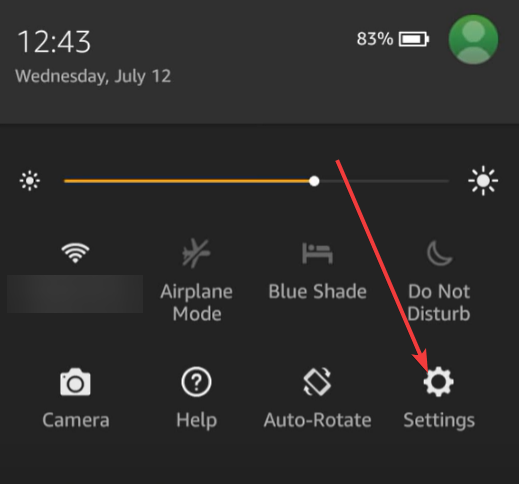
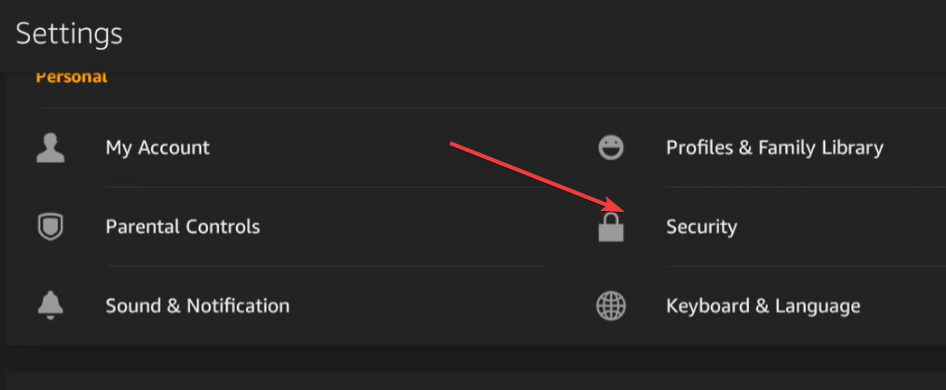
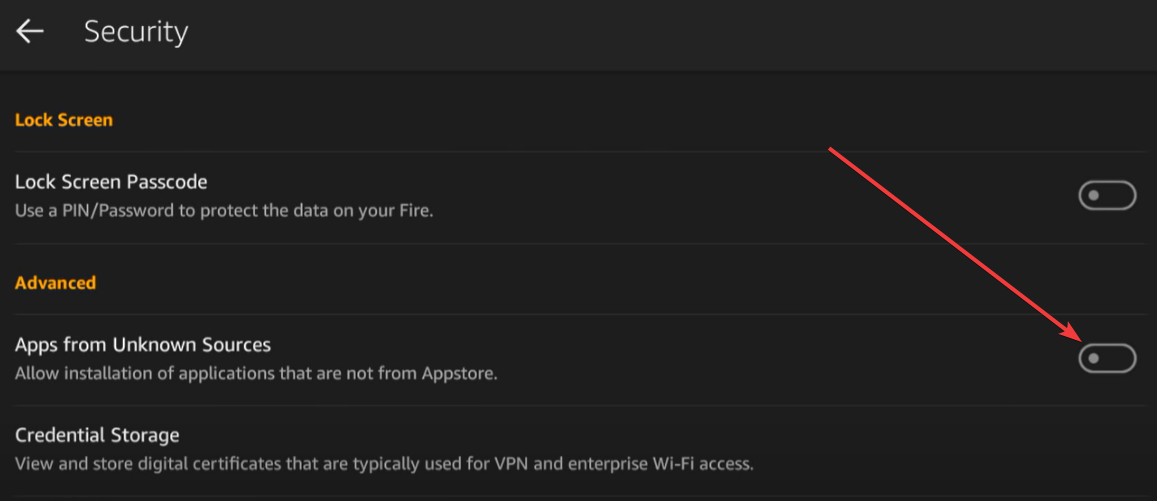
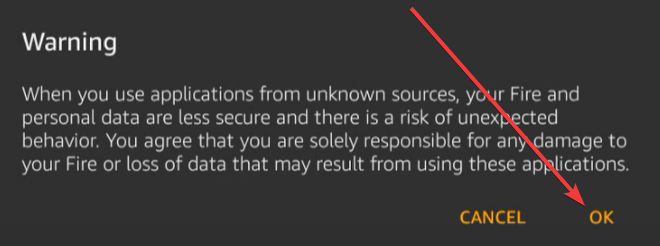
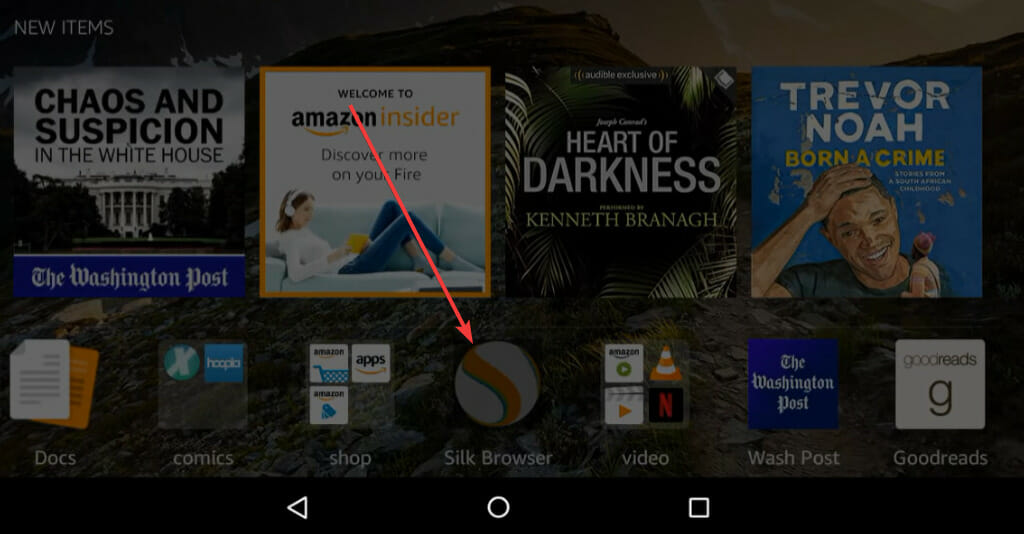
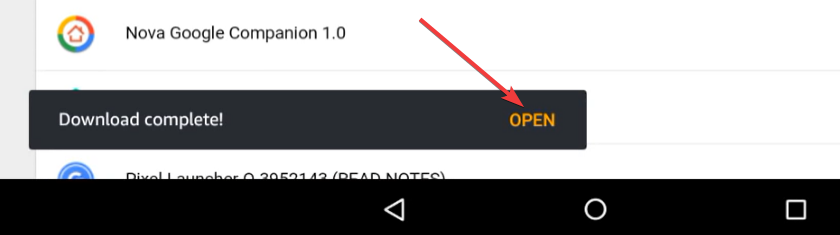
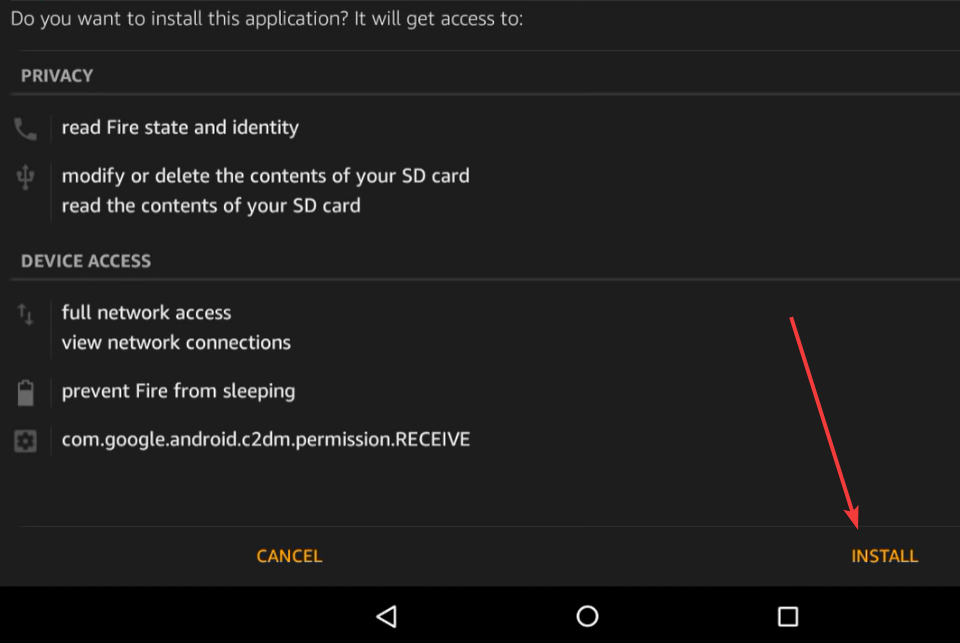
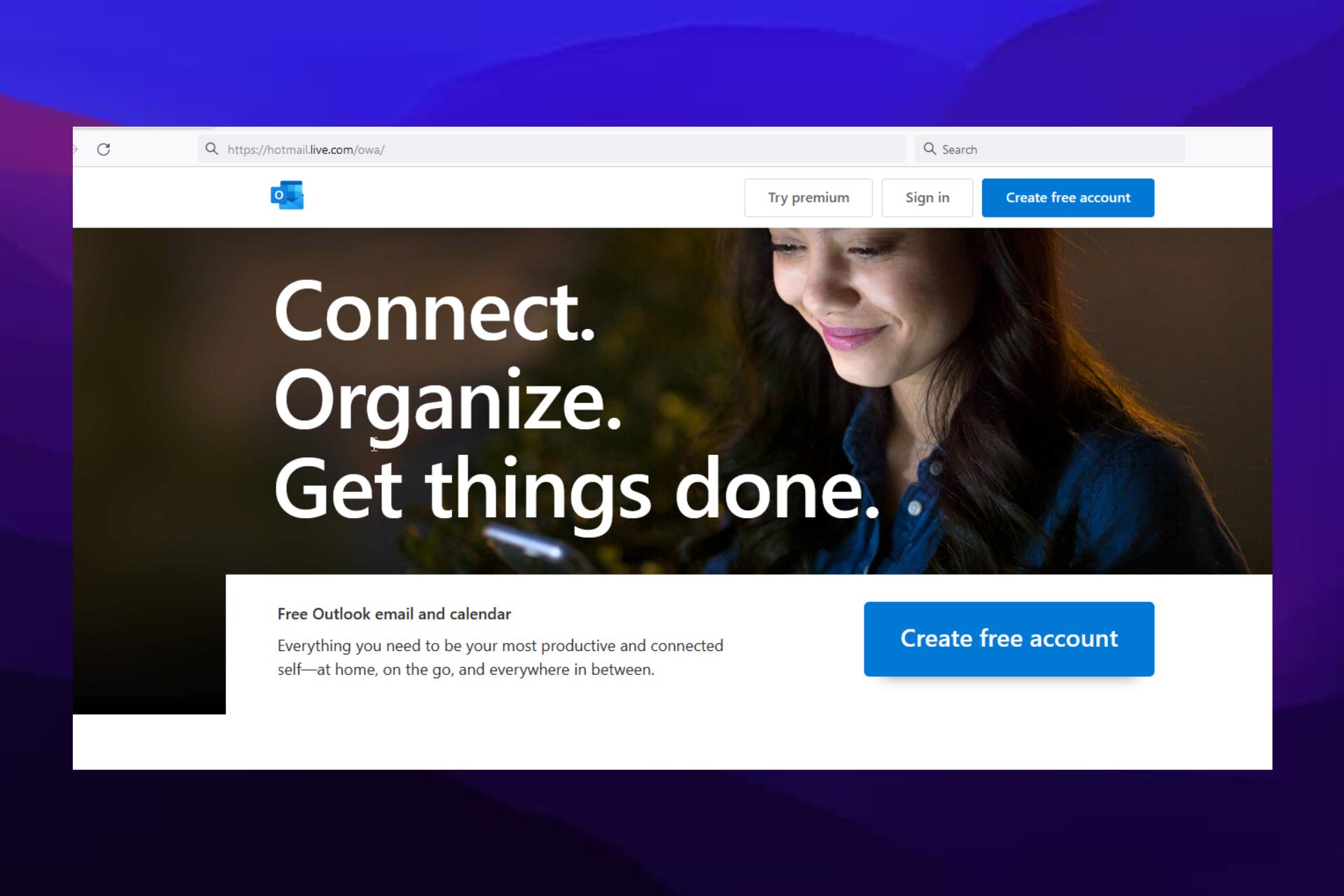

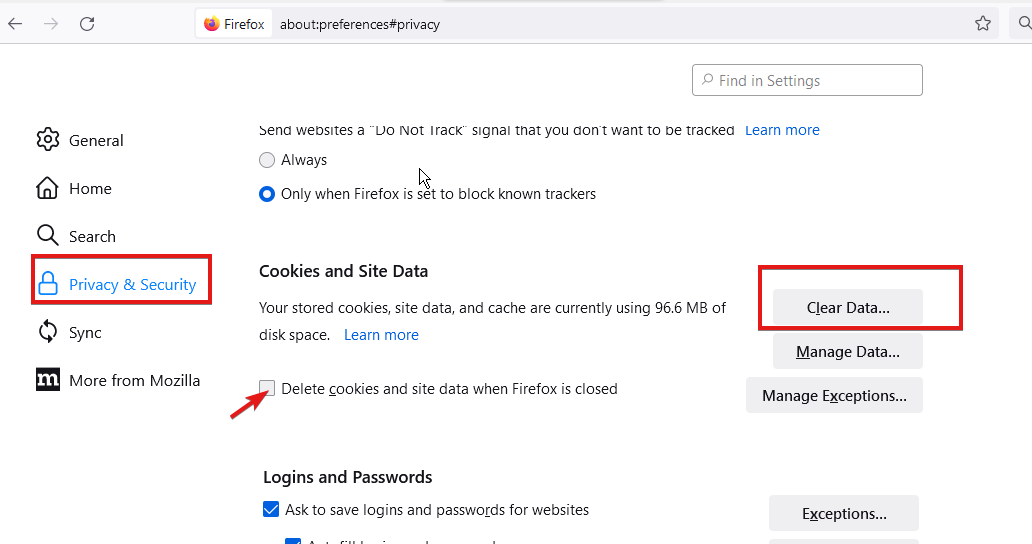
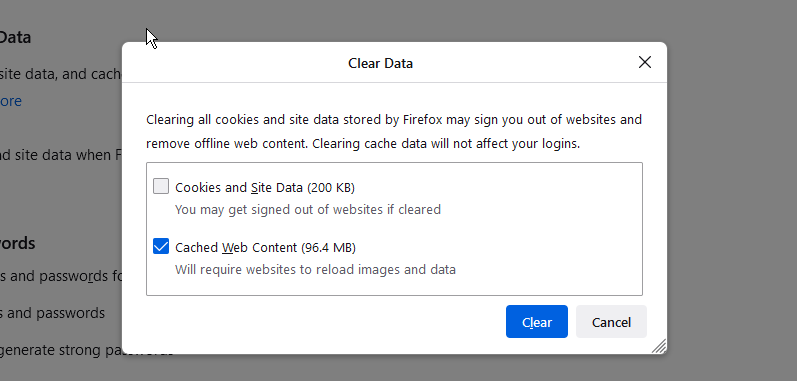
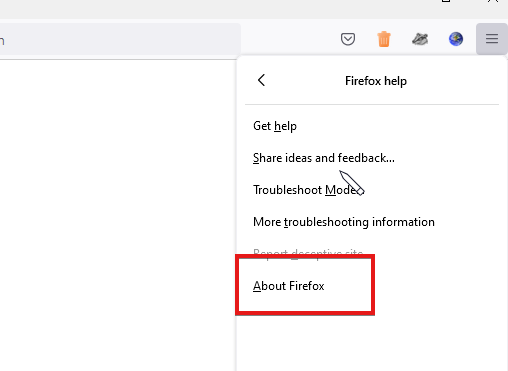
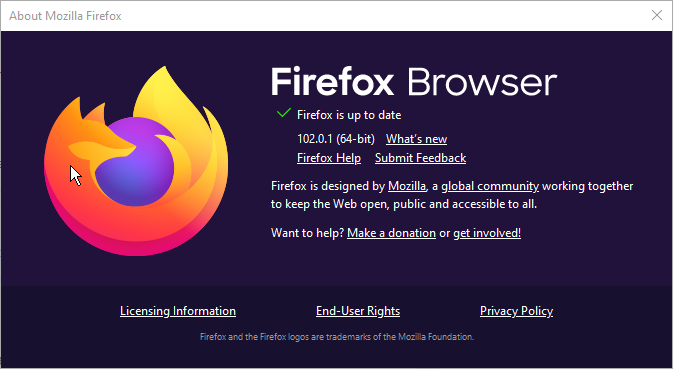
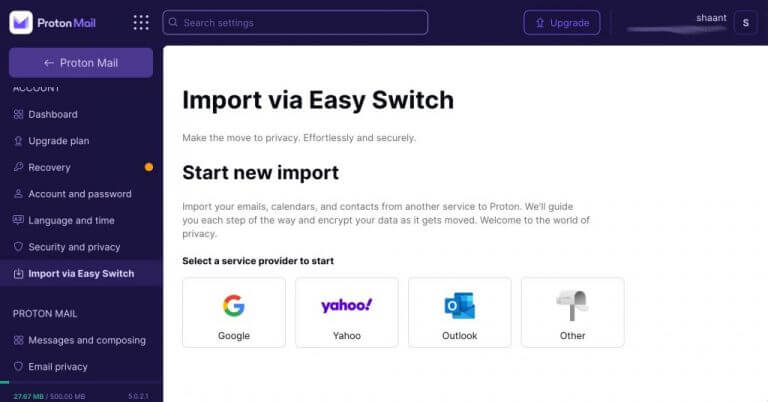
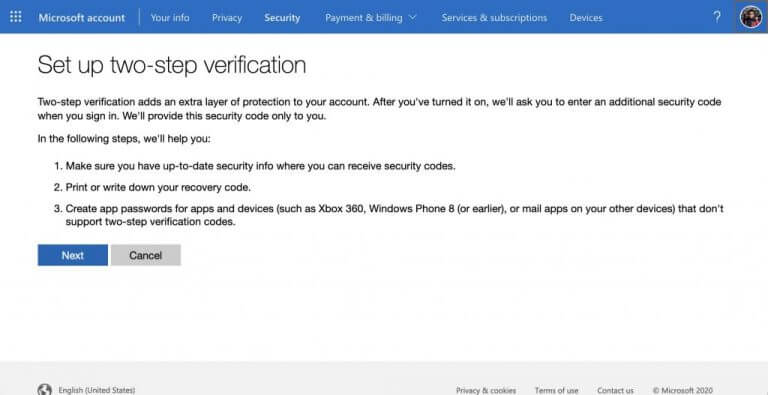
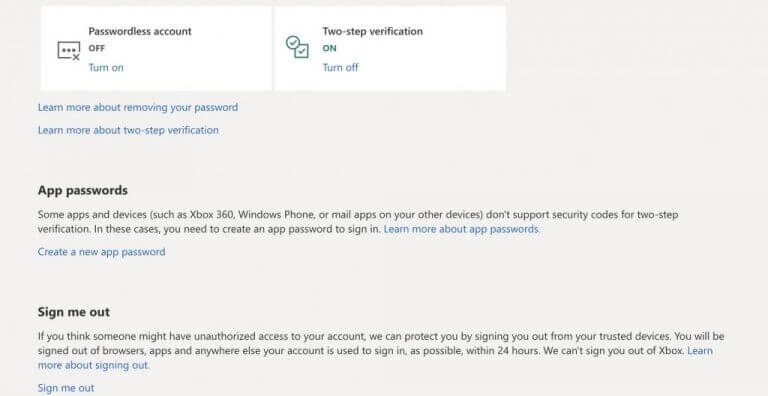



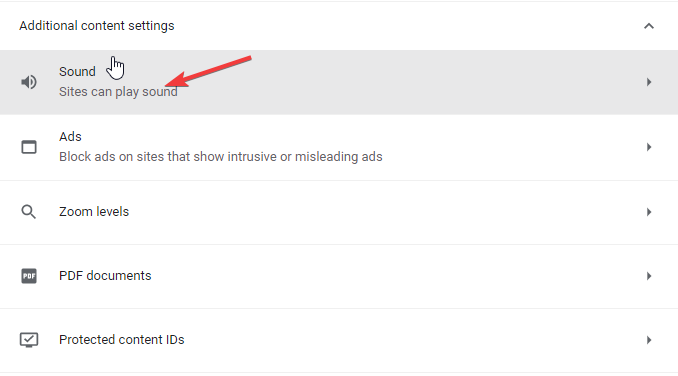
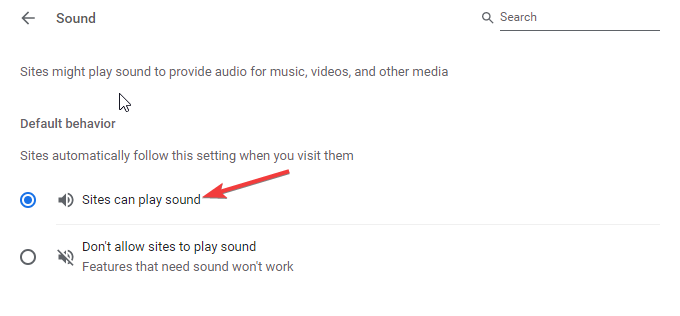


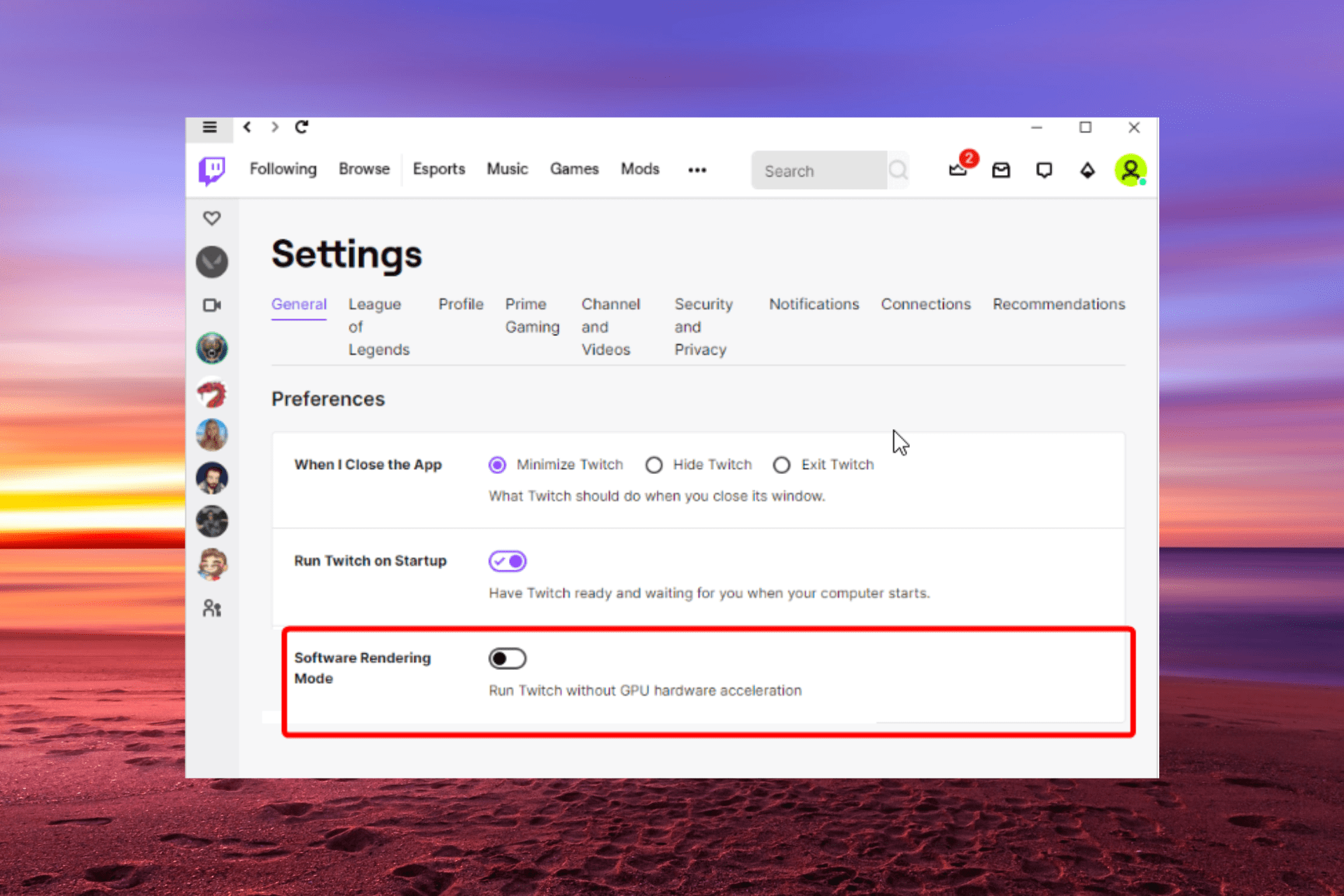
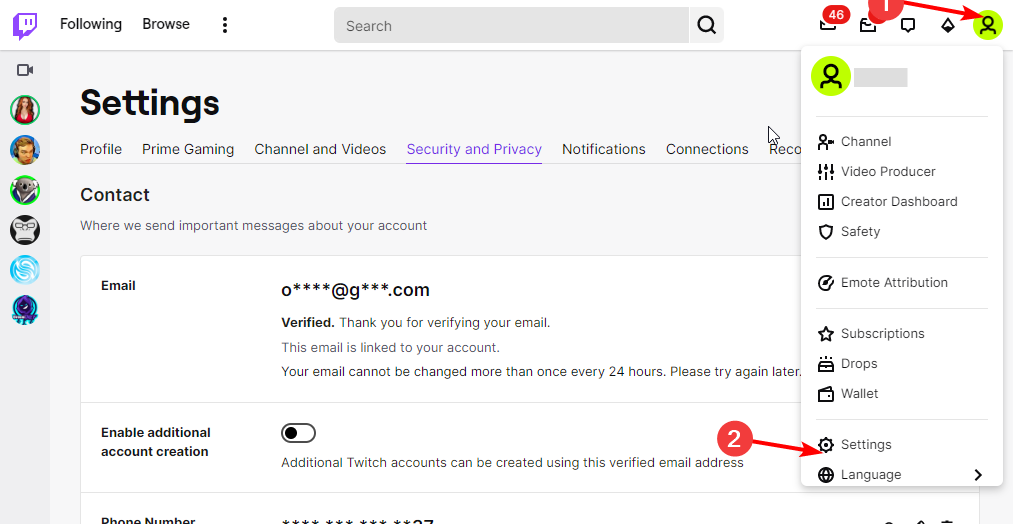
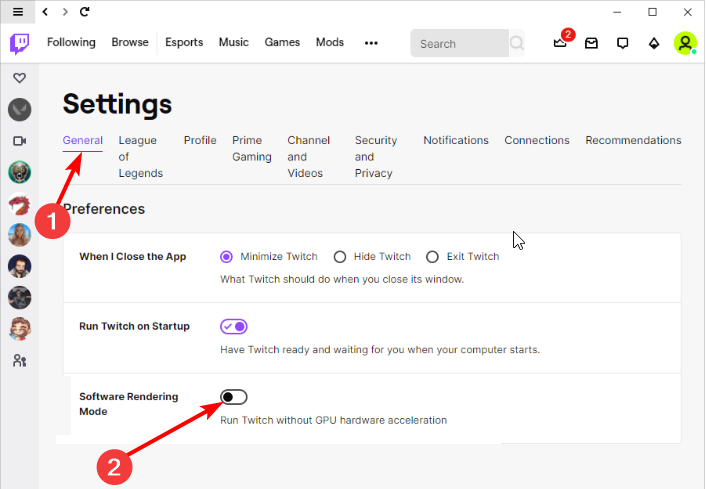
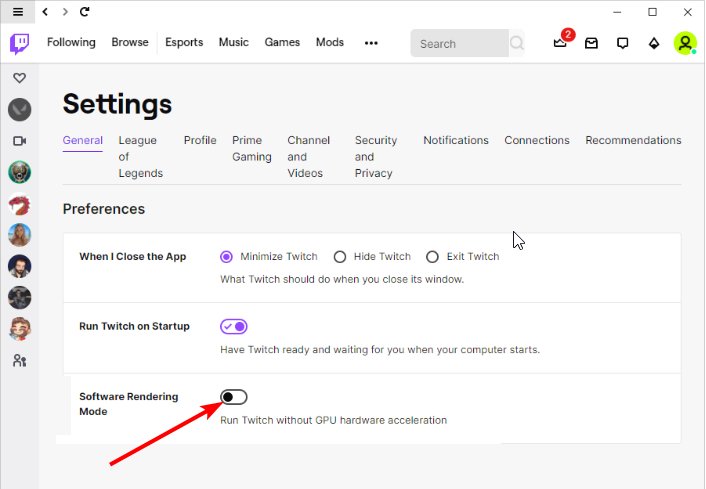
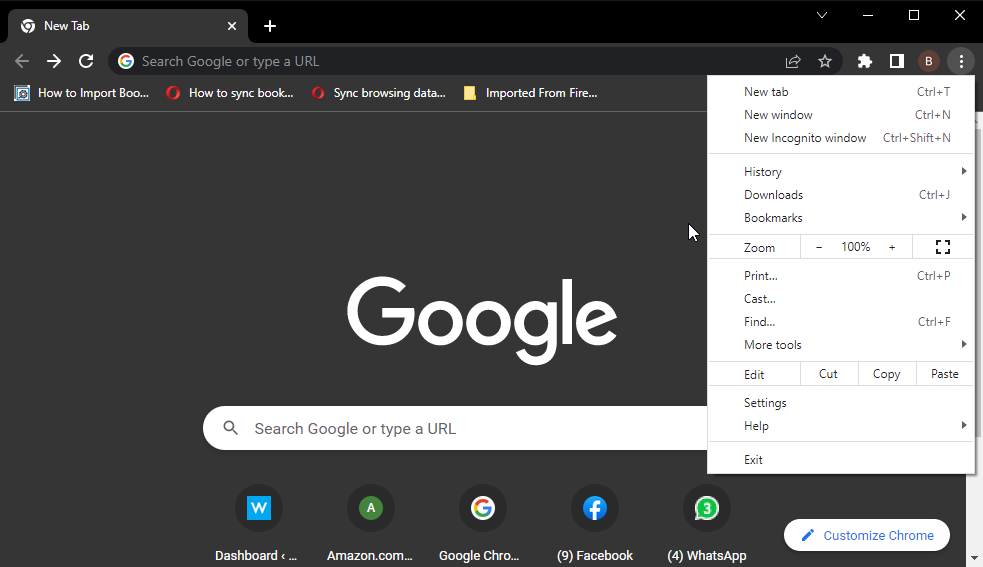
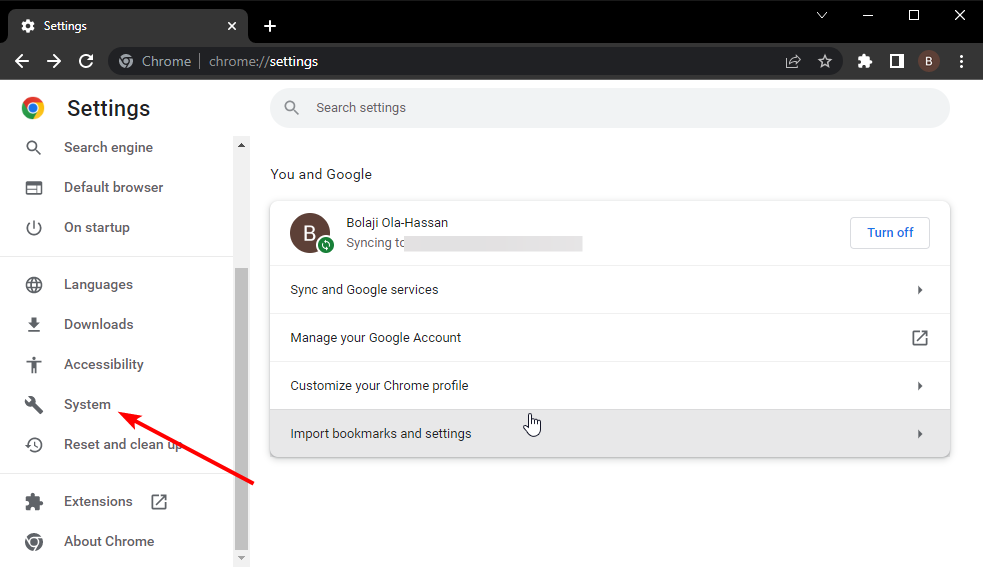
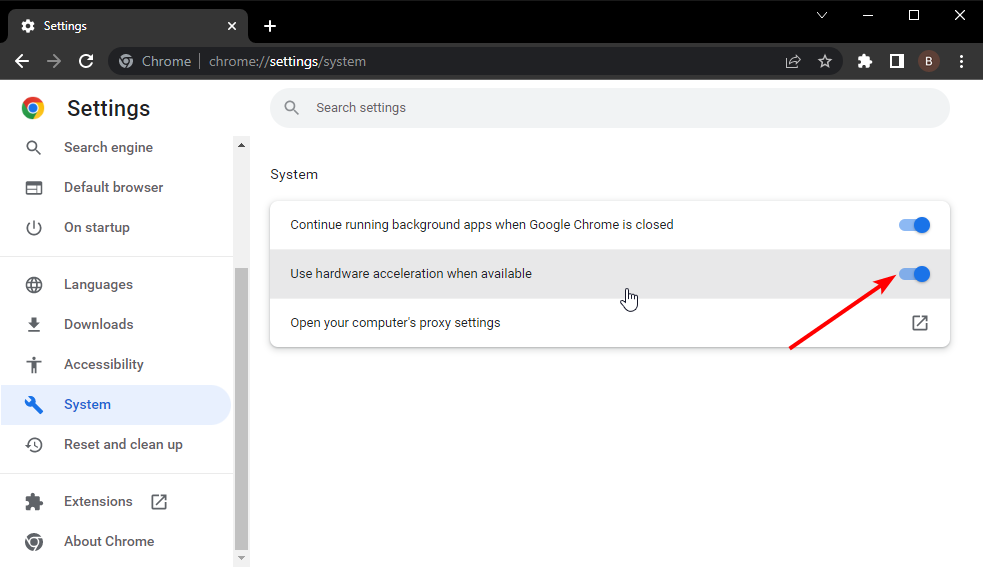
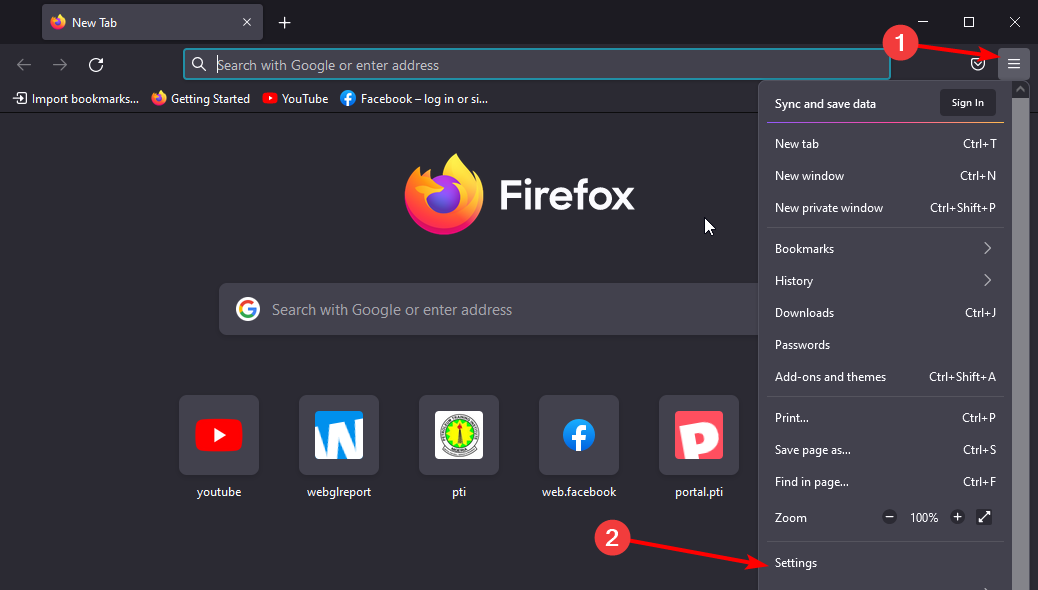
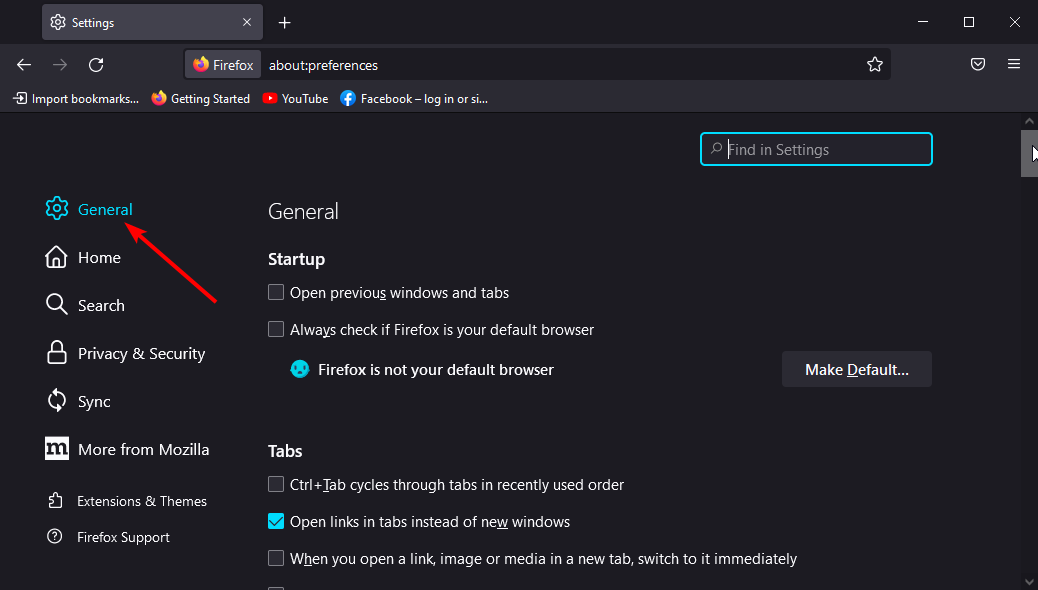
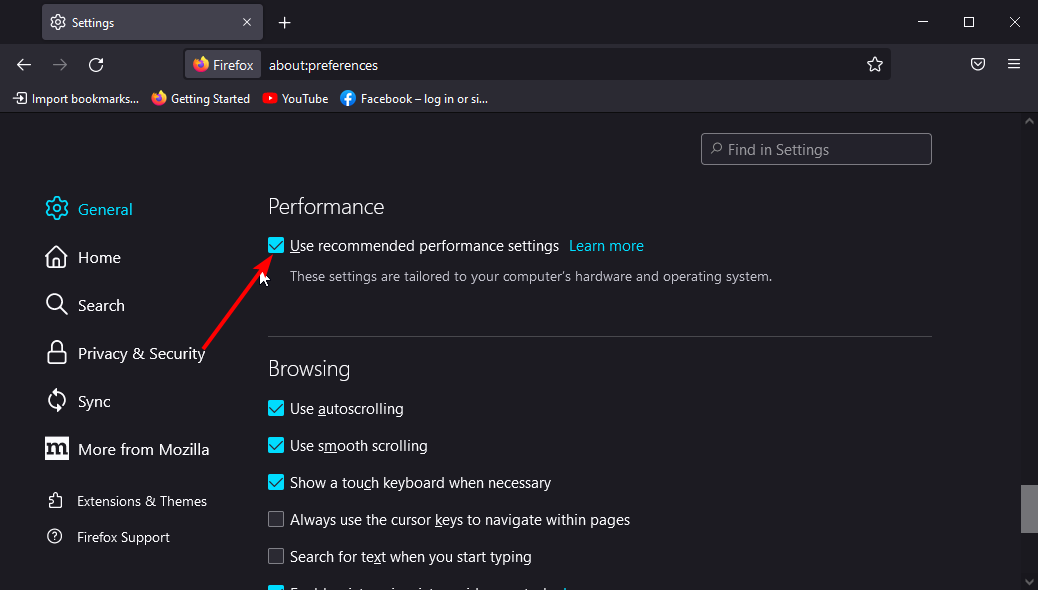
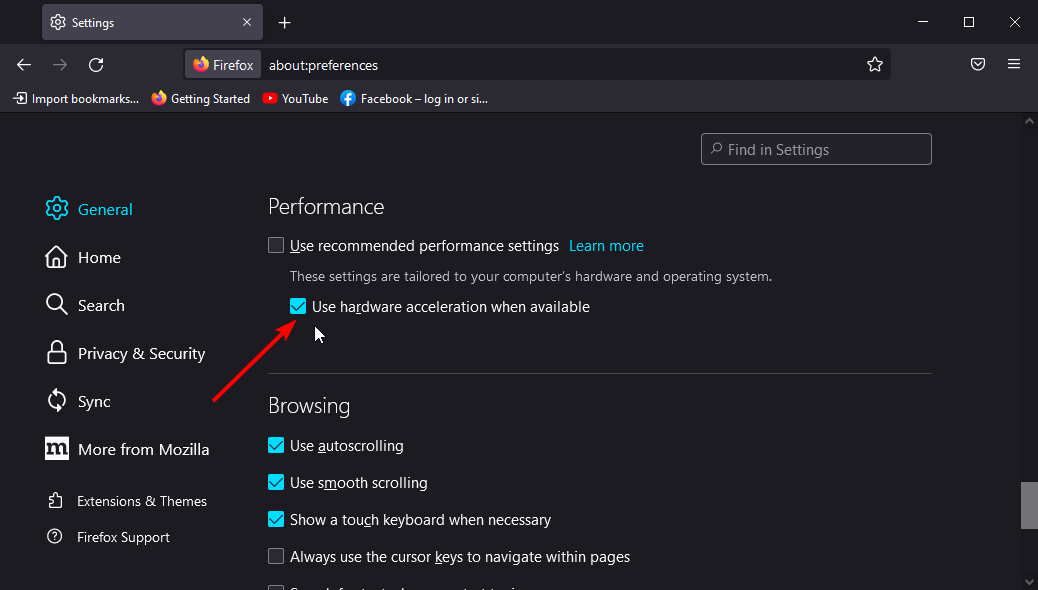
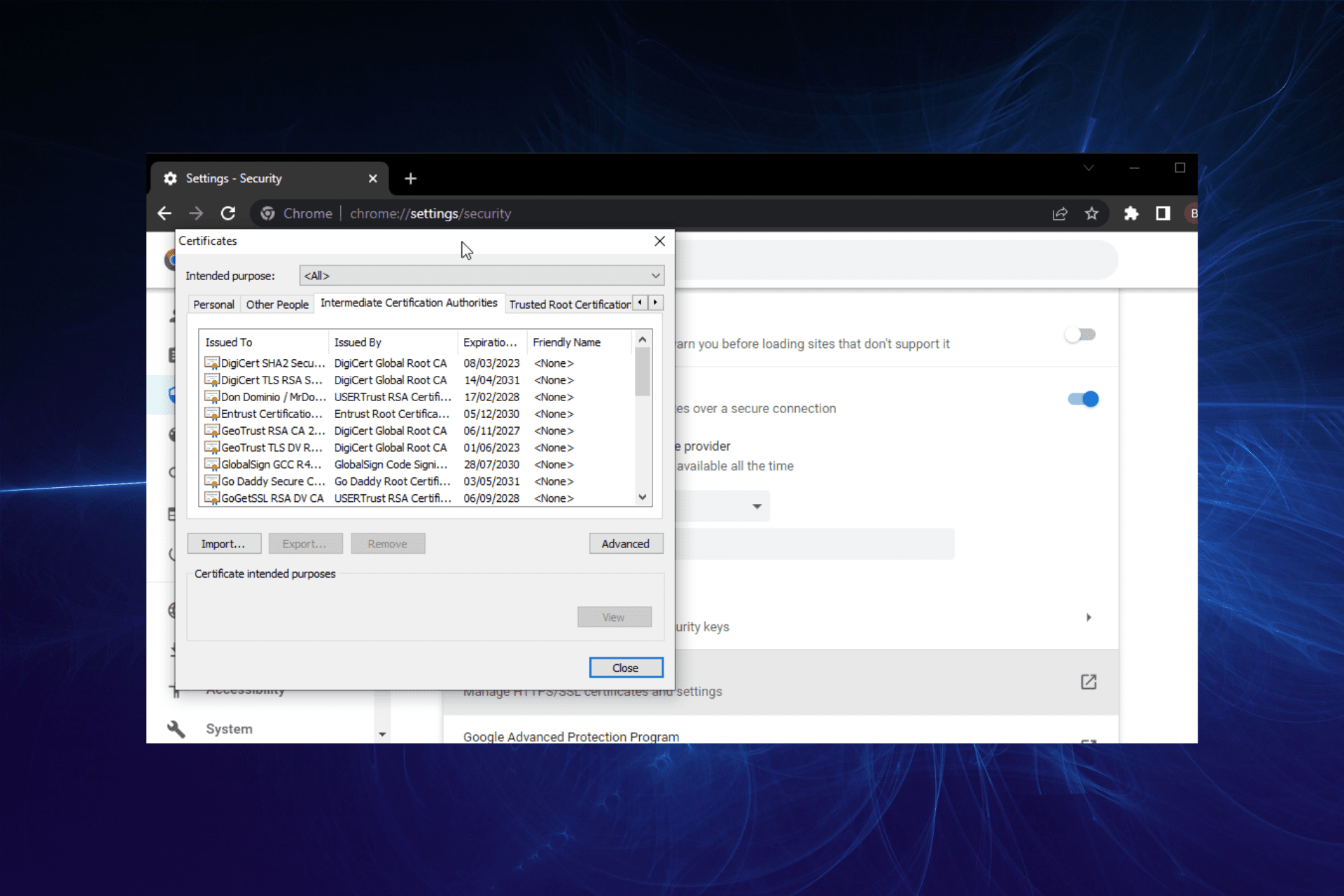

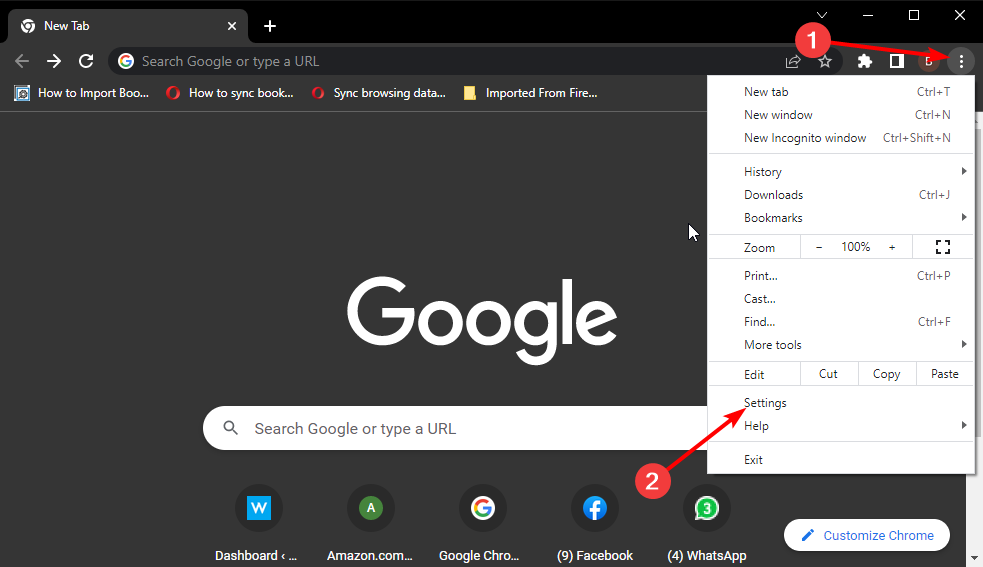


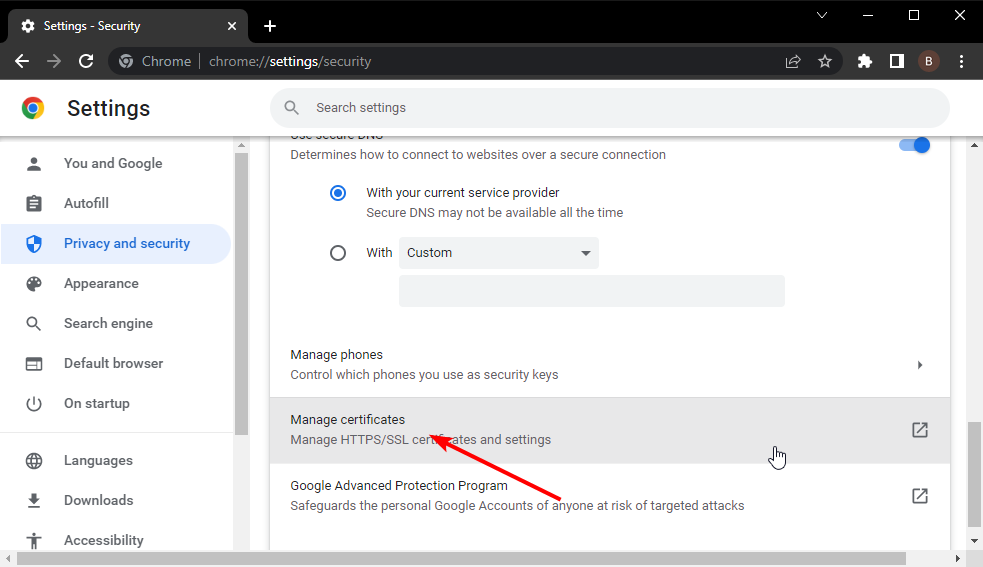
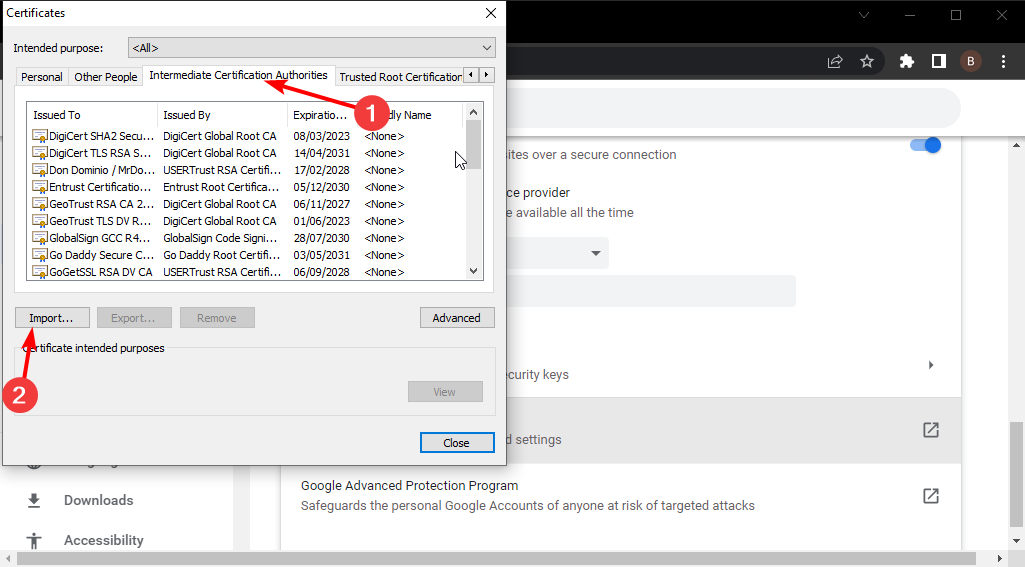




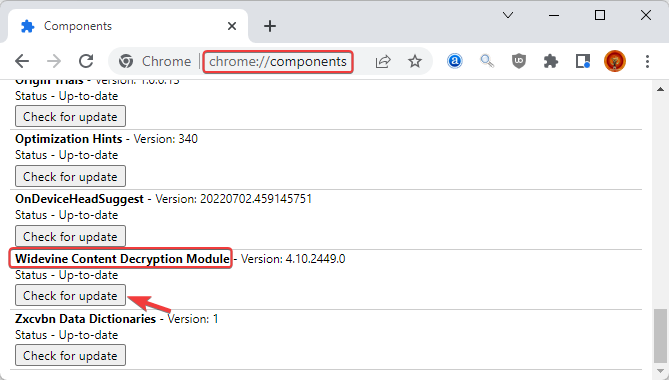
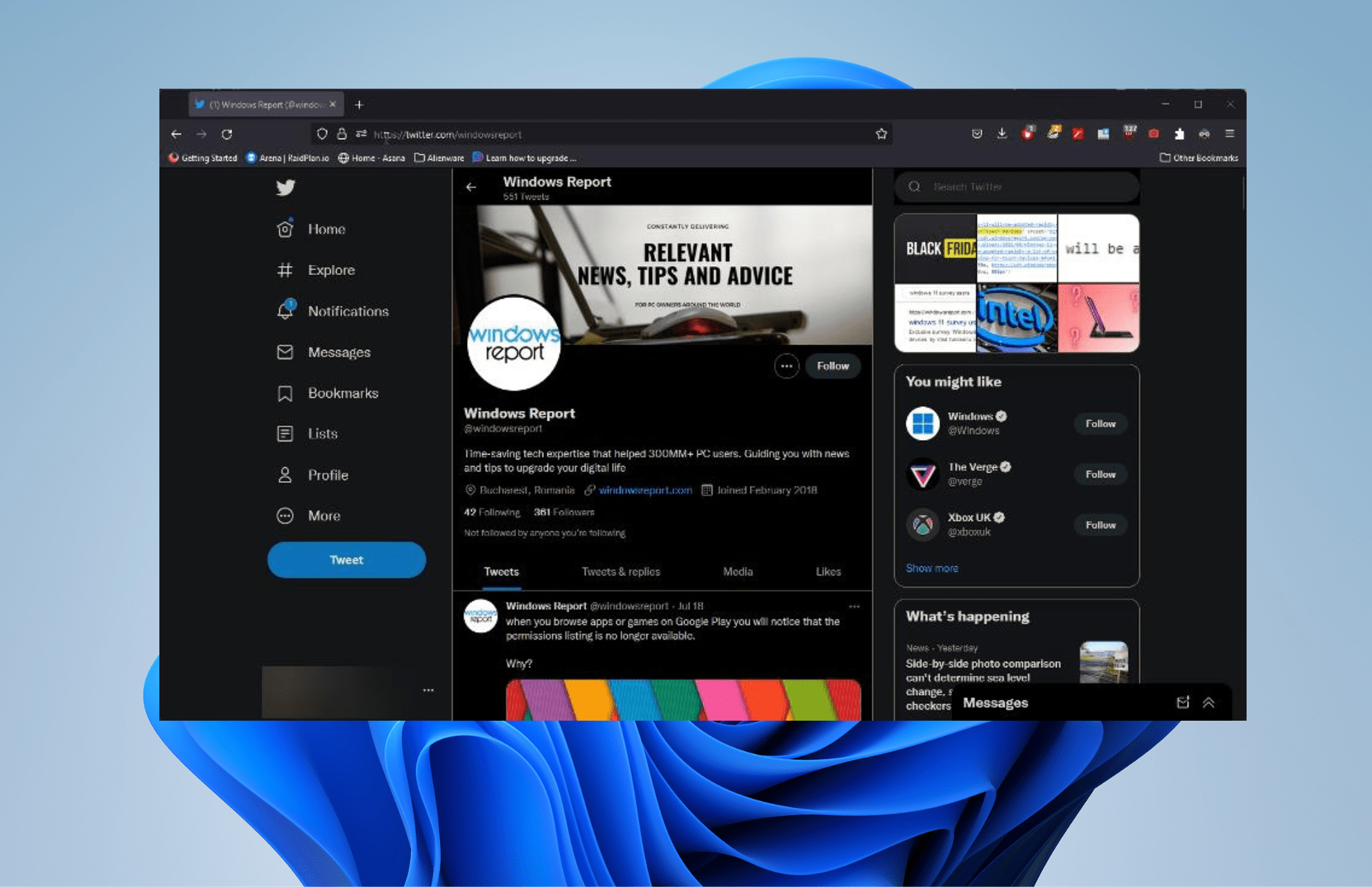


![4 Ways to Fix a Black Screen in Firefox [Video, Maps, YouTube]](https://windowsreport.com/wp-content/uploads/2021/12/firefox-black-screen.png)


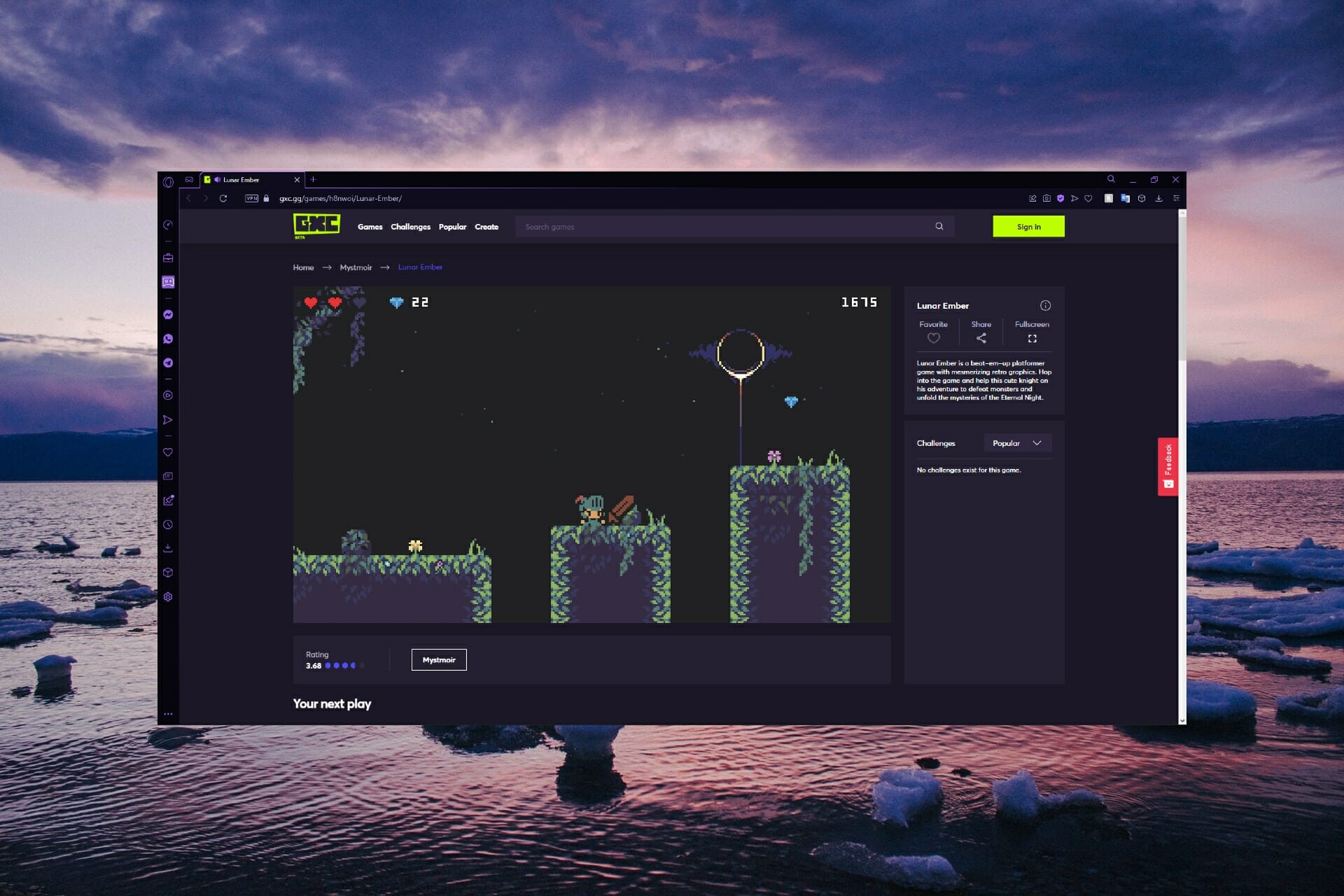
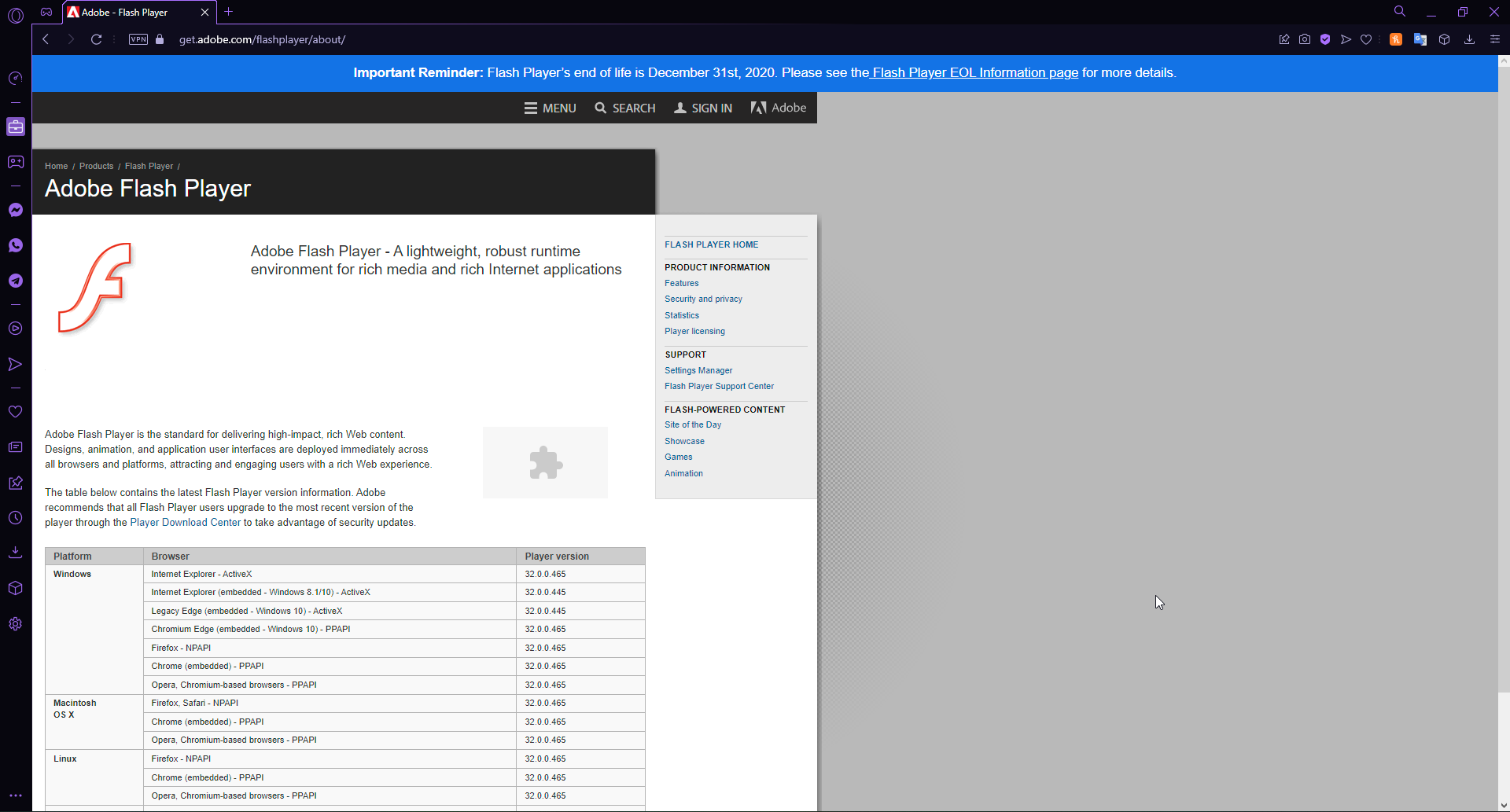


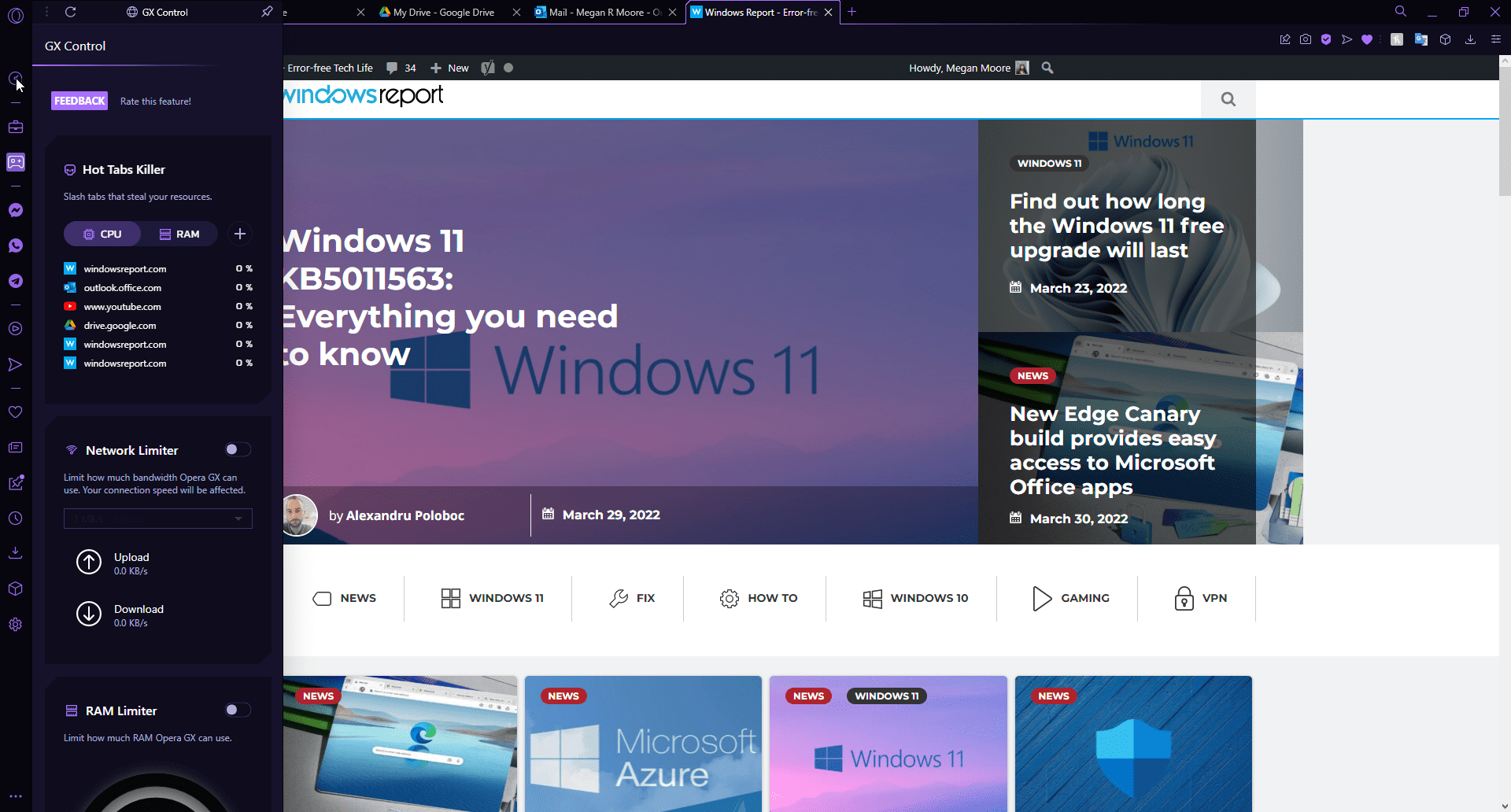

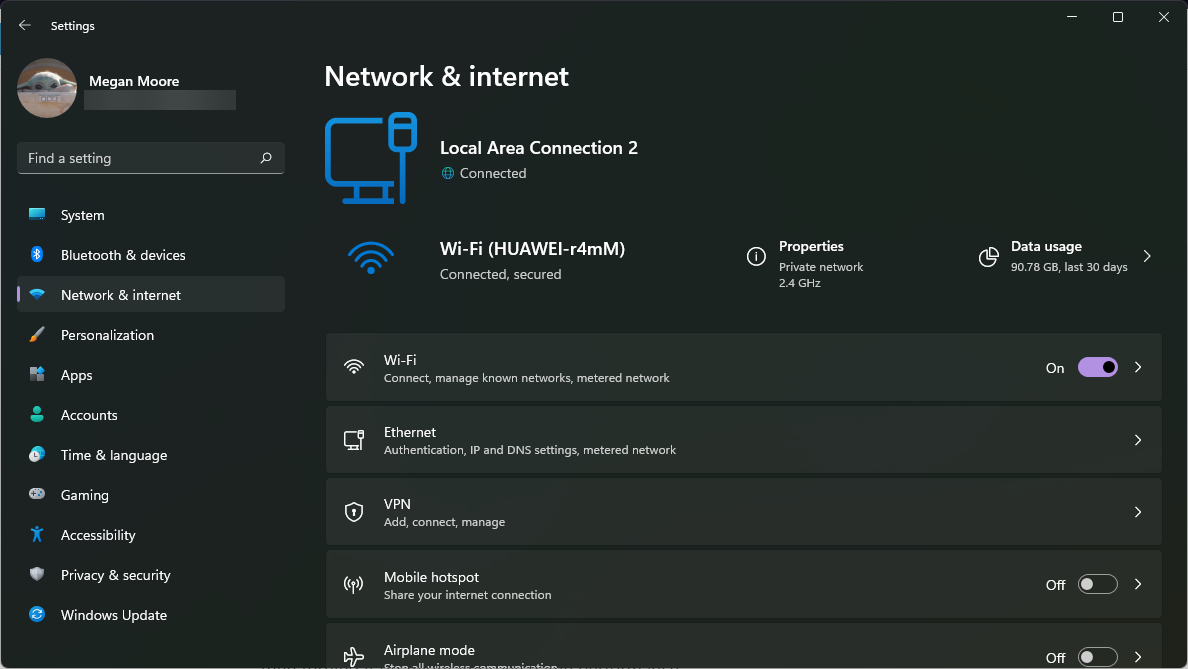


![10 Best Browser Games to Play With Friends [Card, Board, FPS]](https://windowsreport.com/wp-content/uploads/2021/02/browser-games-to-play-with-friends-featured-image.jpg)


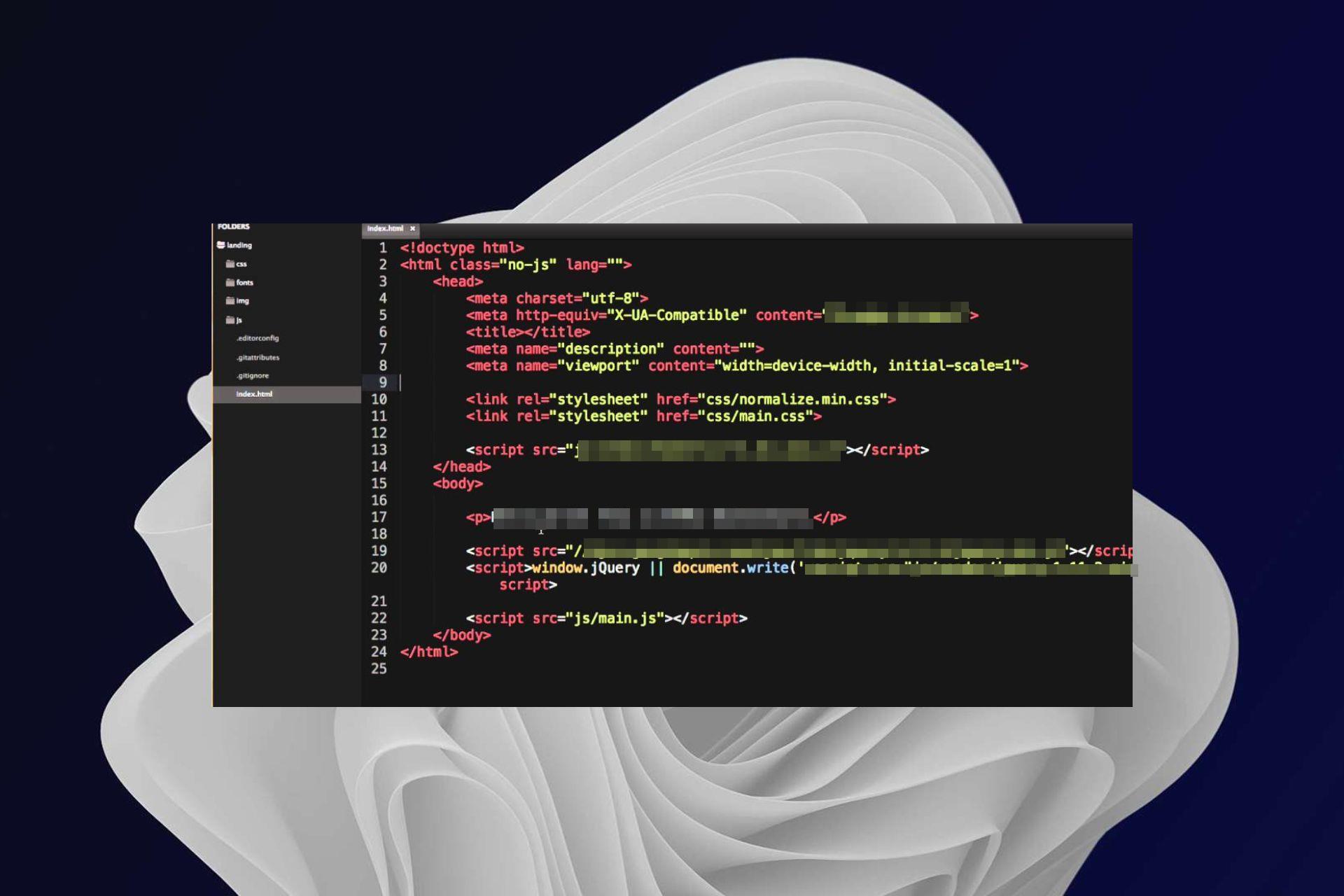
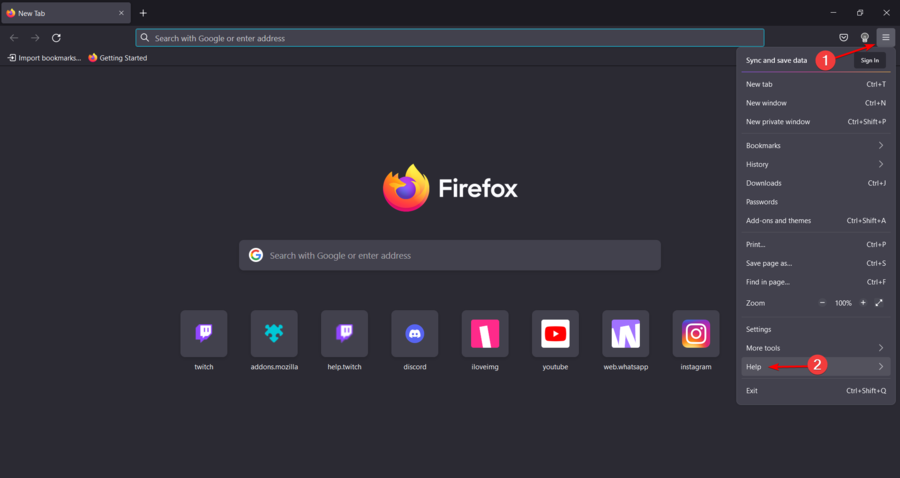
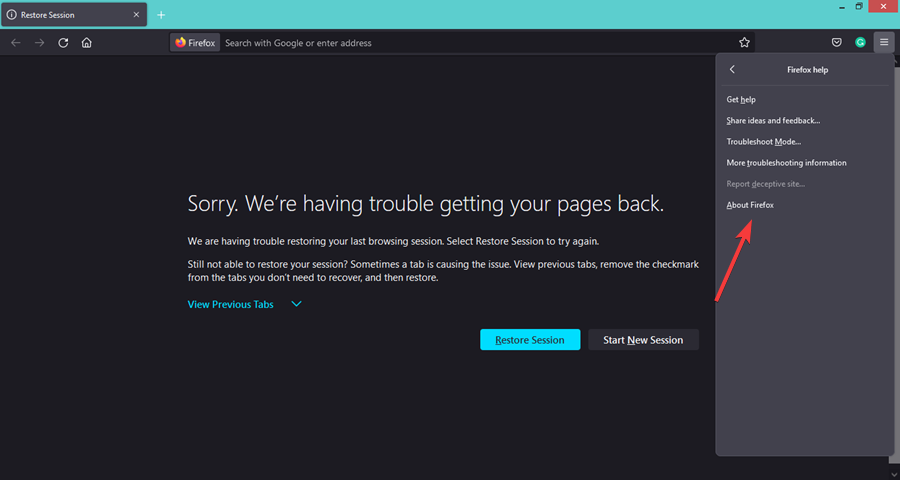

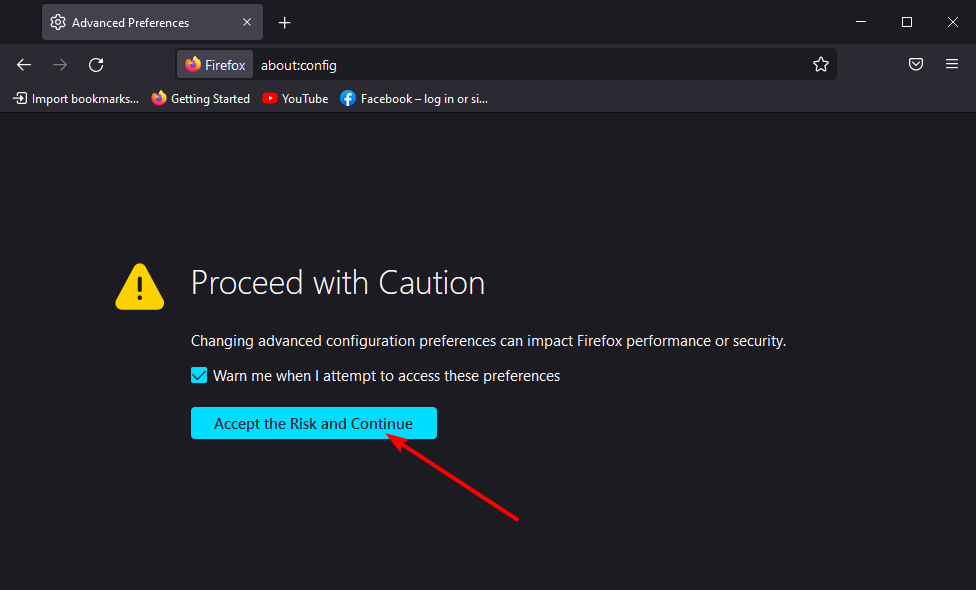
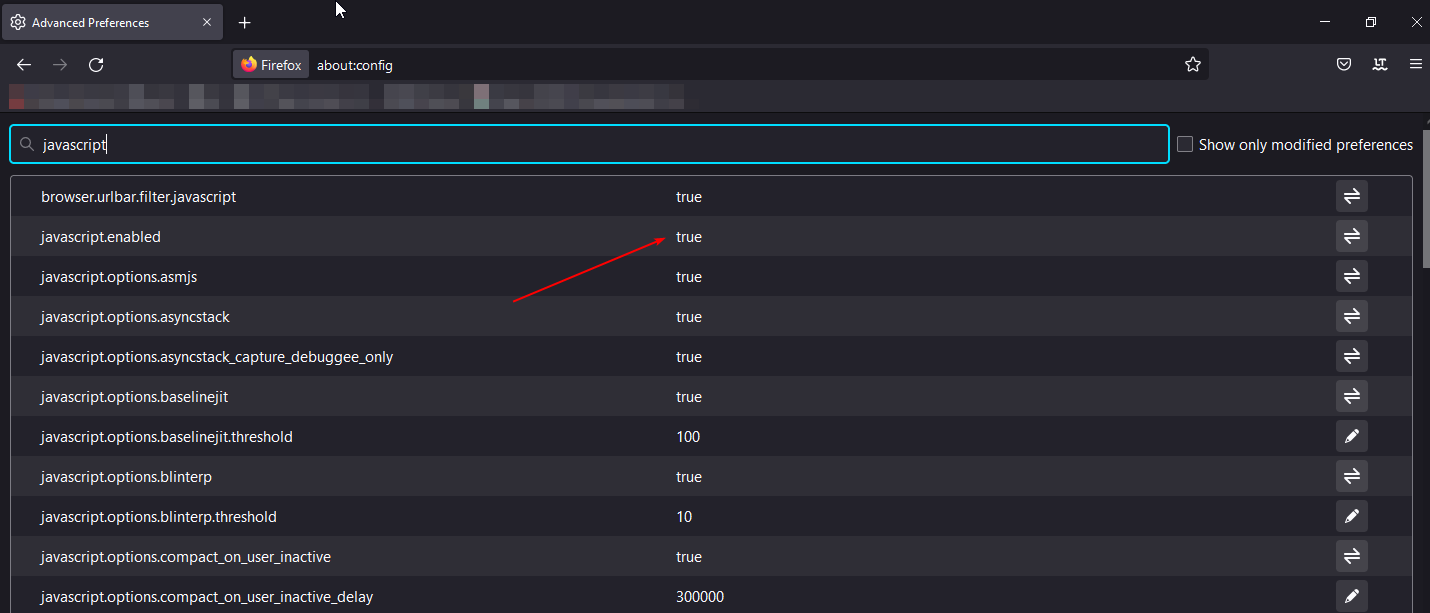
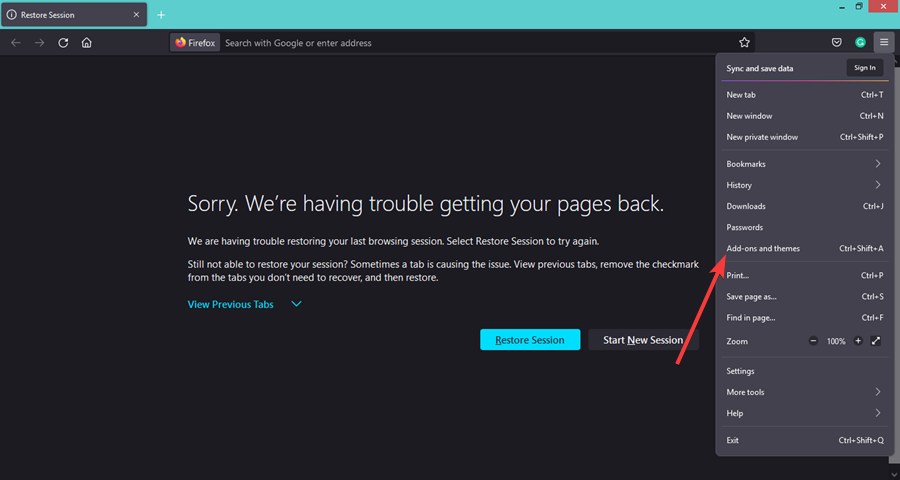
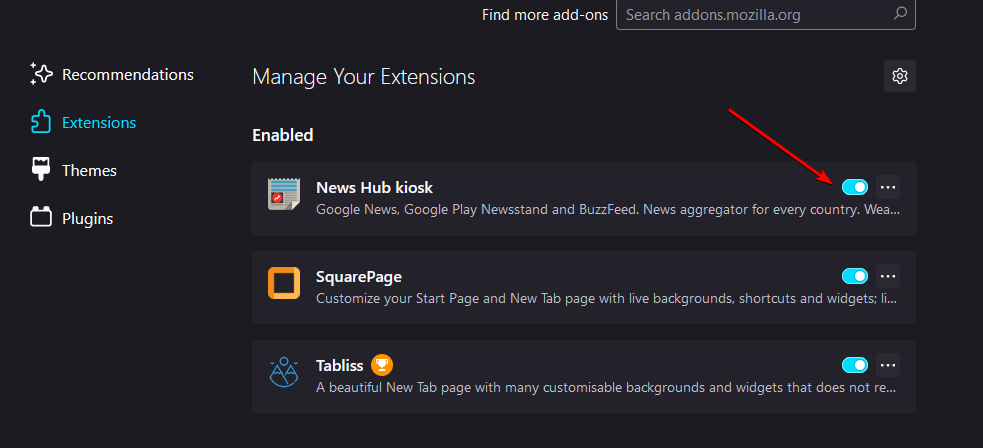
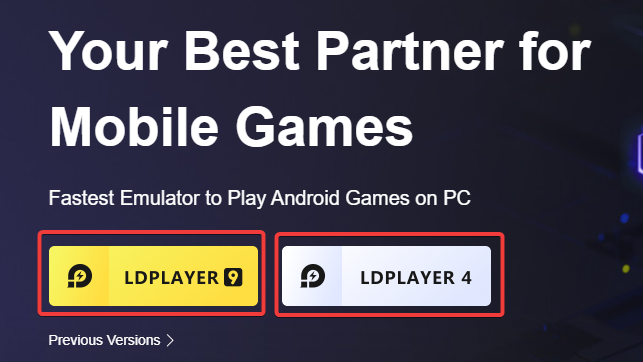
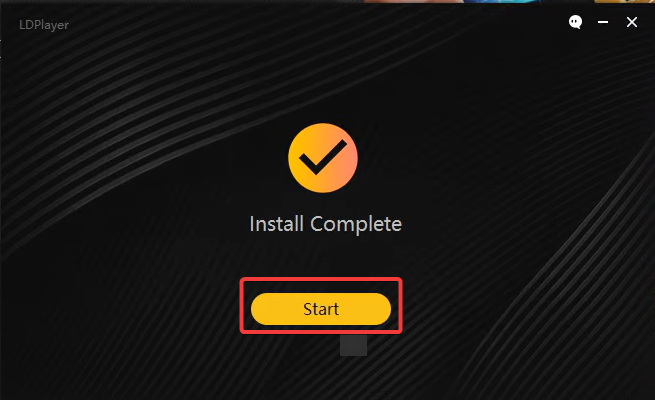
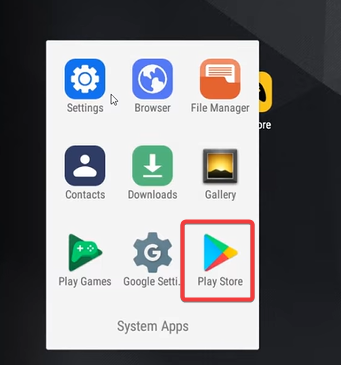




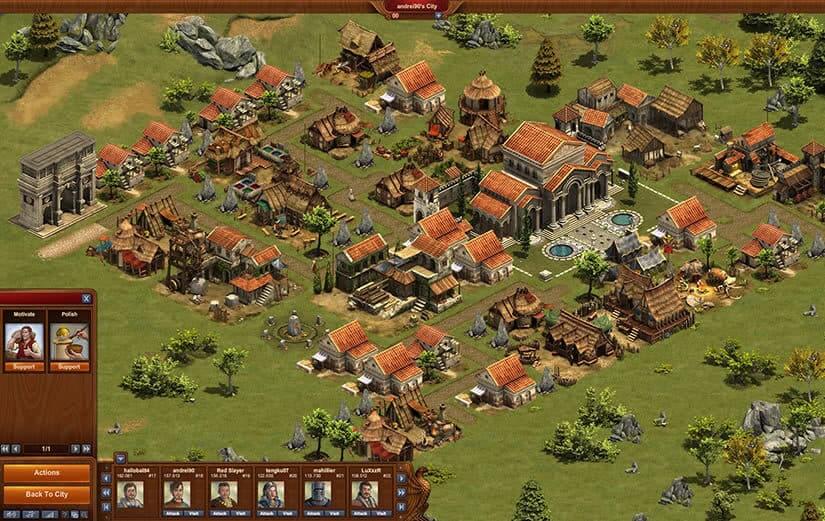
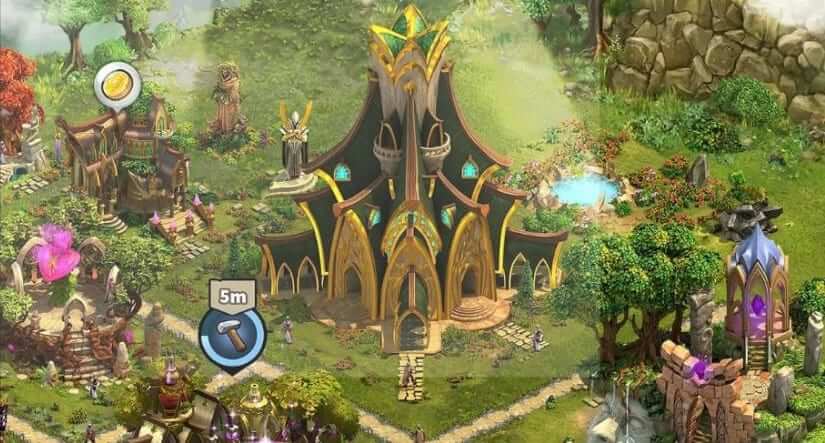
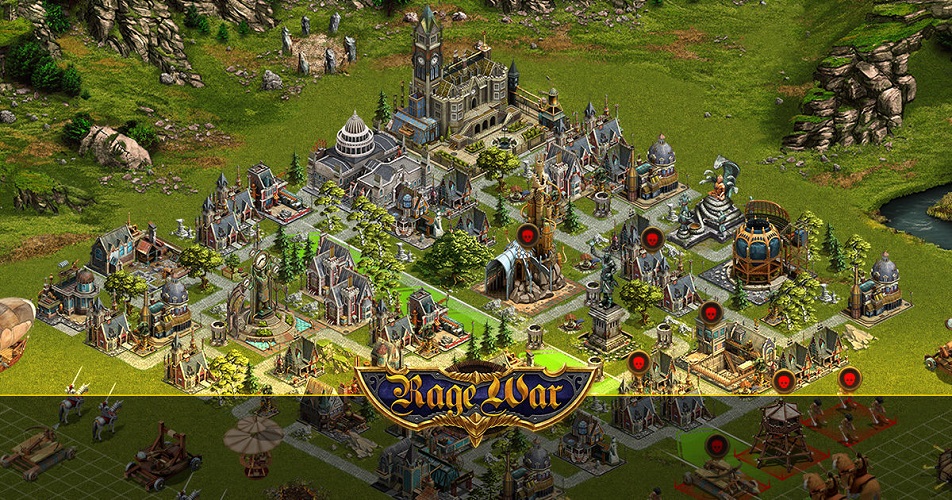


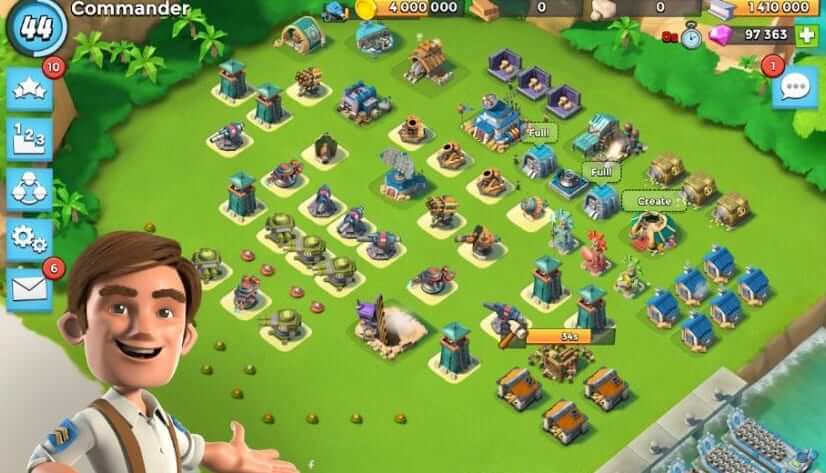
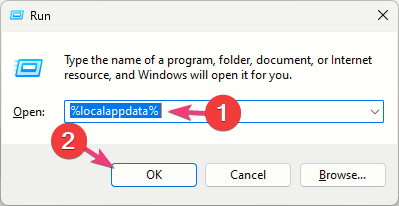


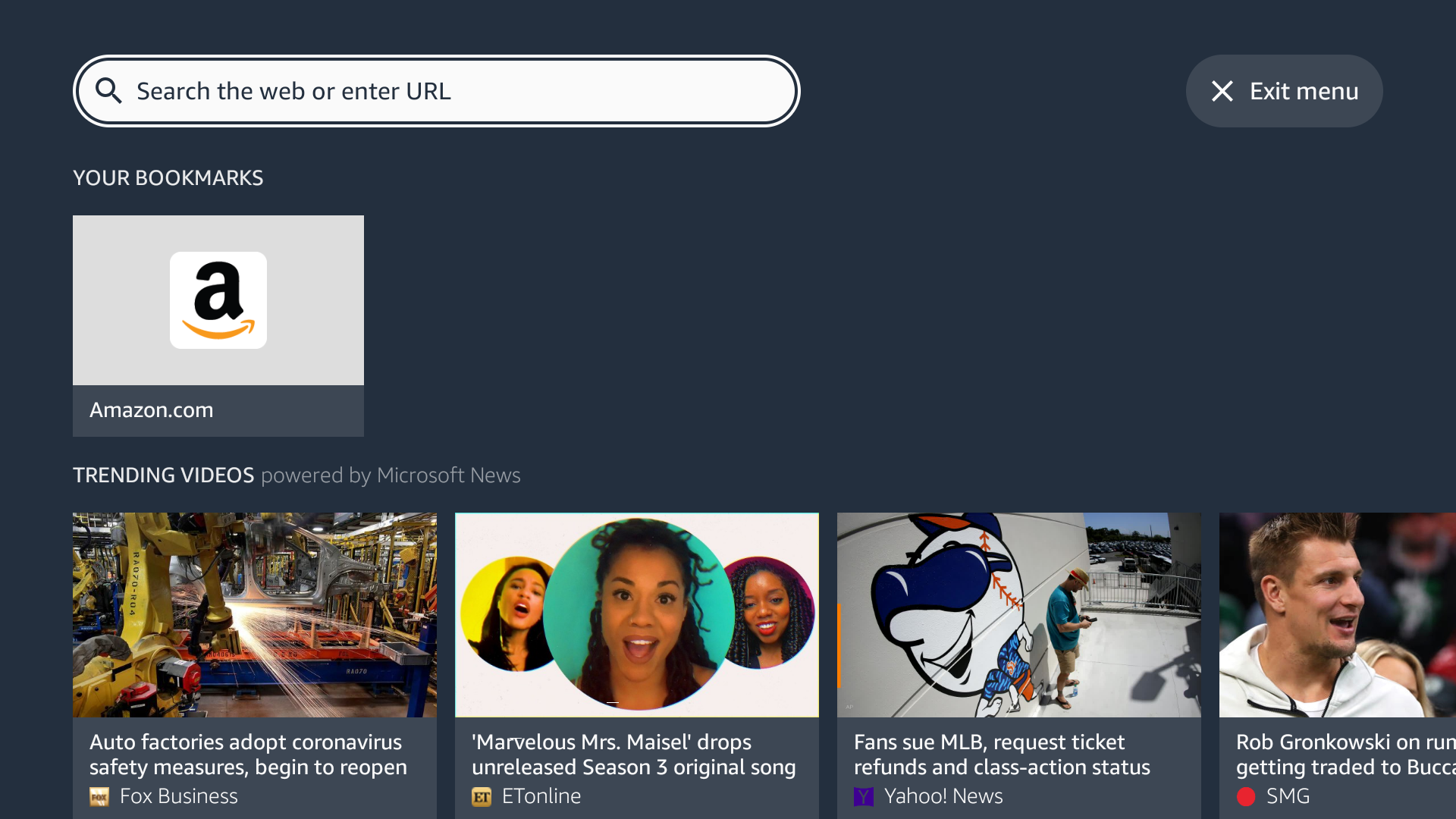
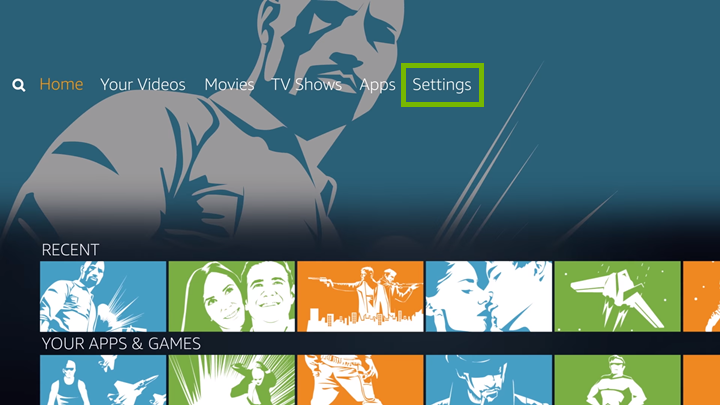
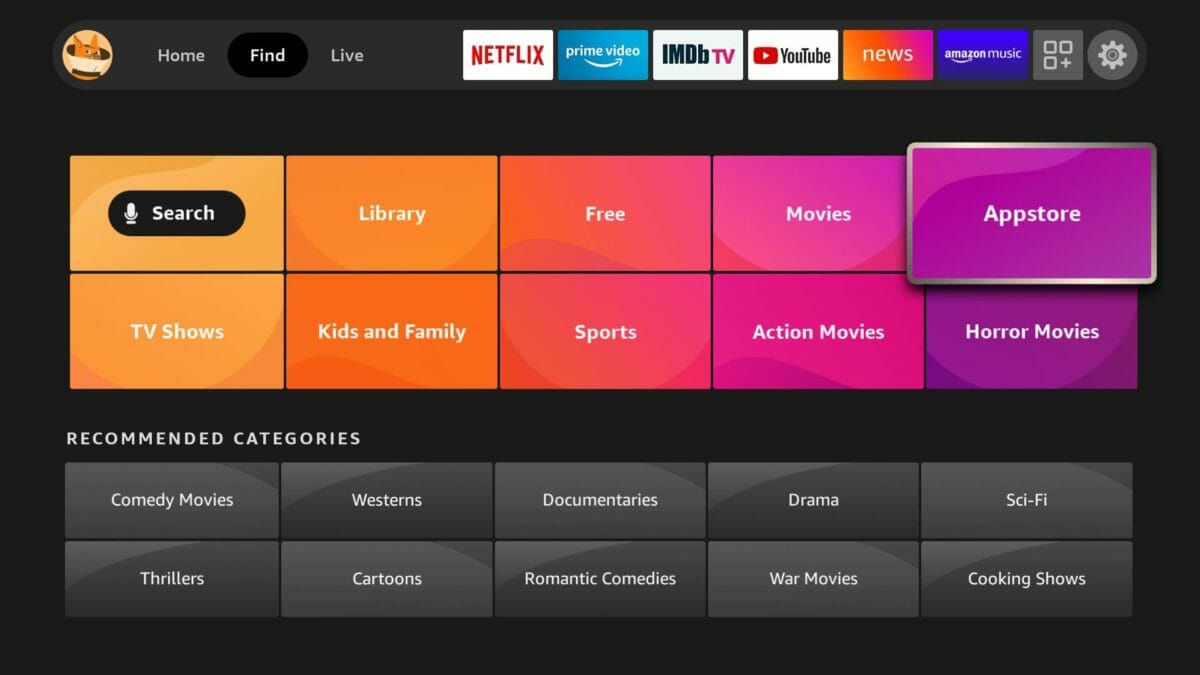



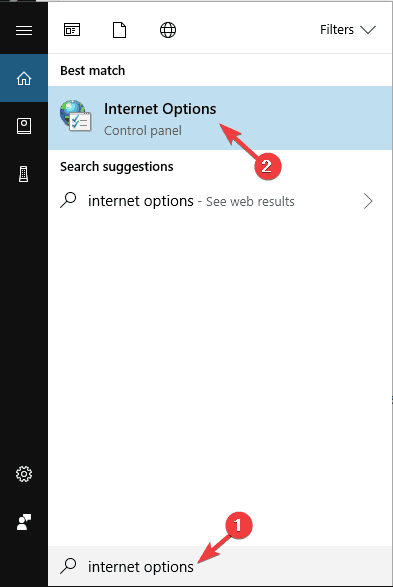
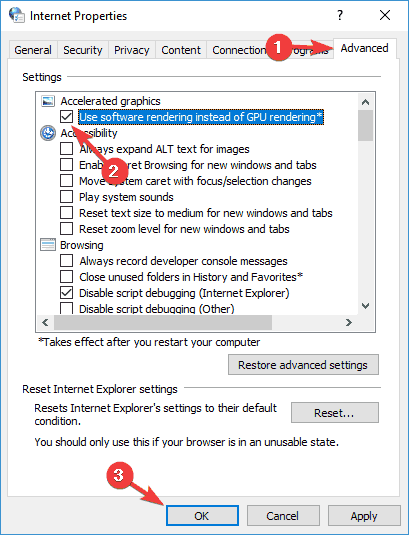
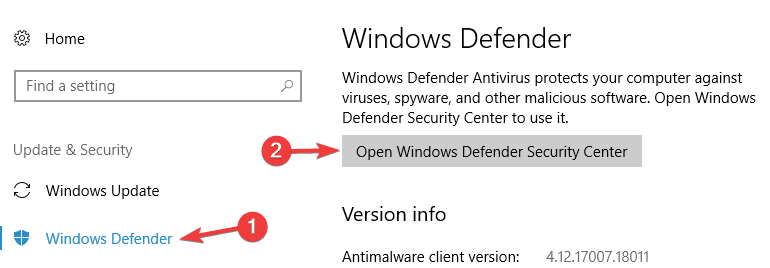
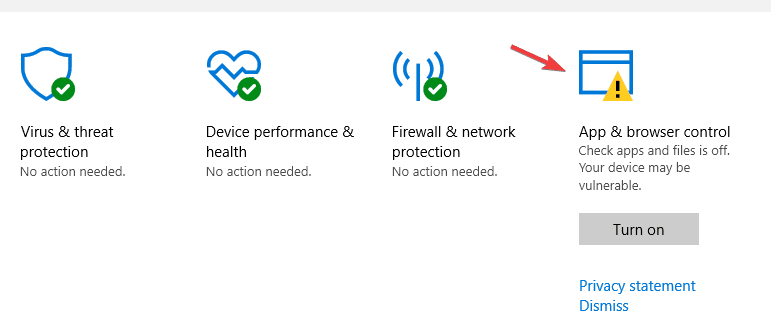
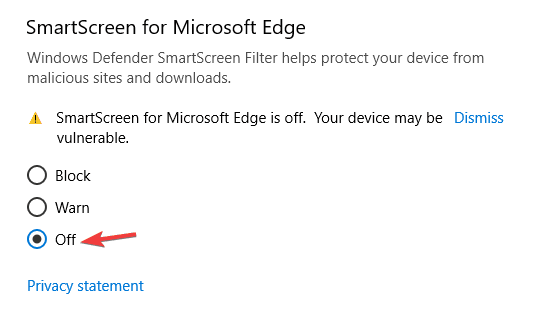

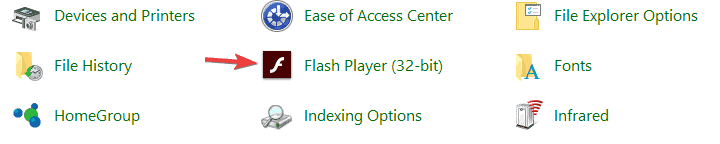

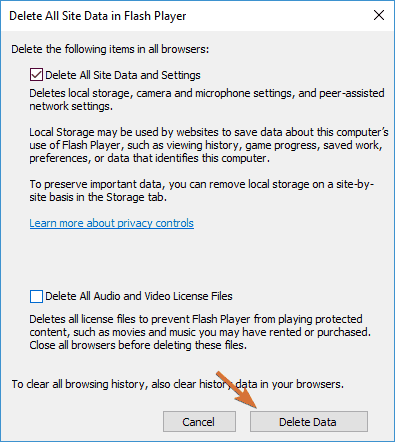
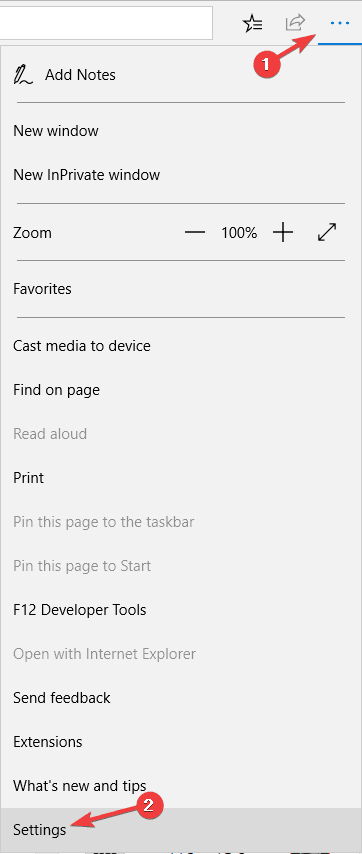
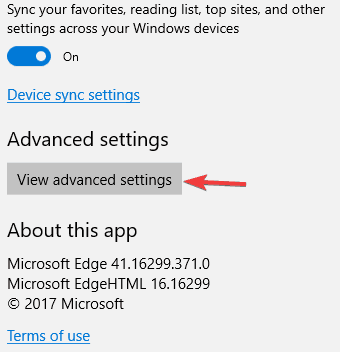
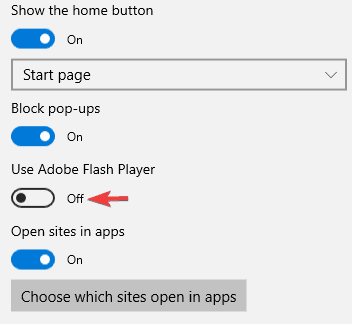
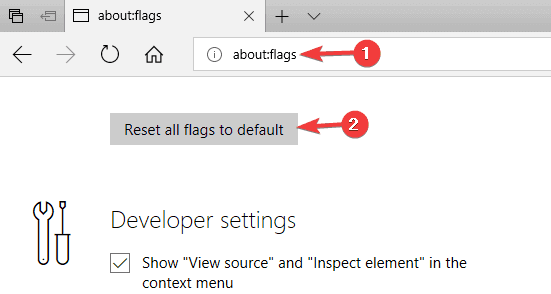


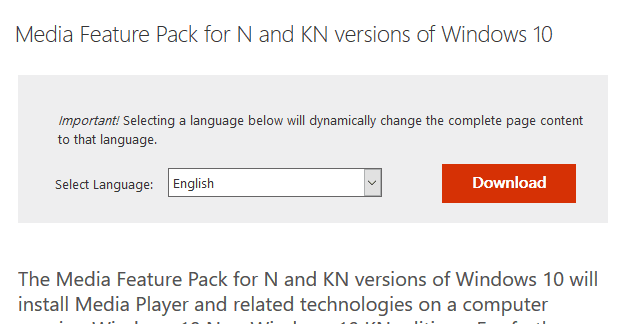


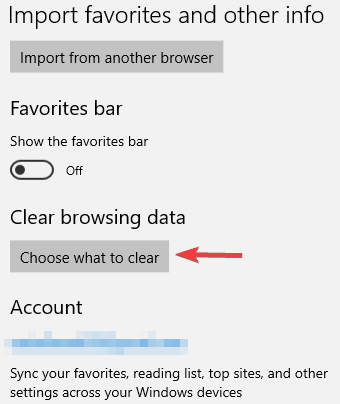
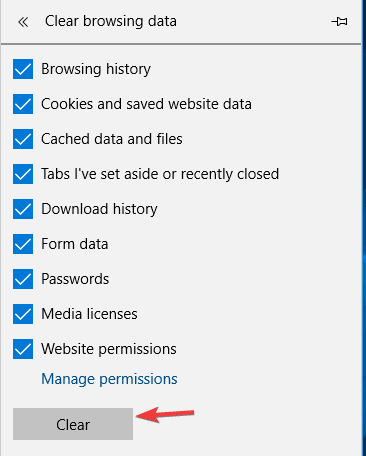






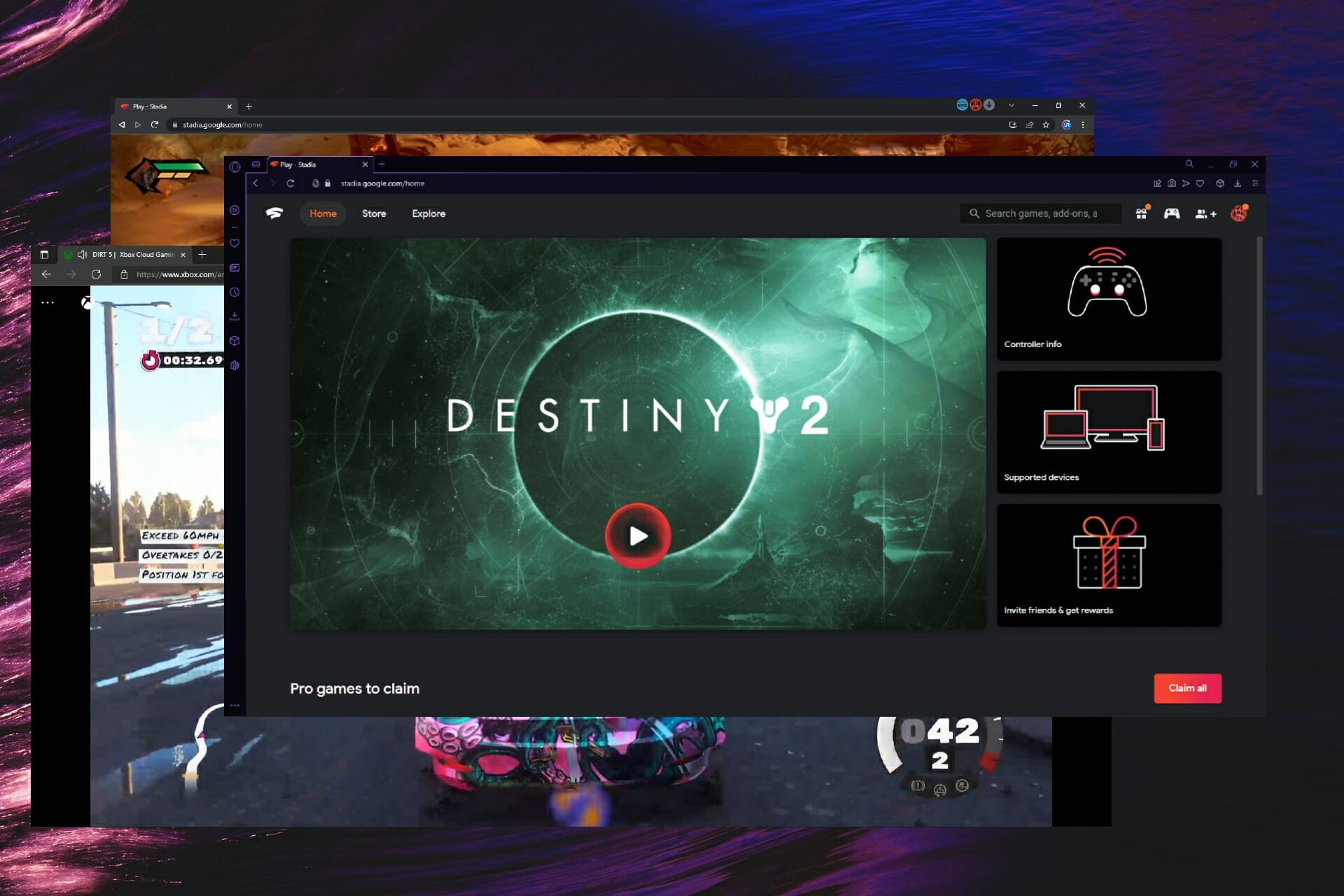
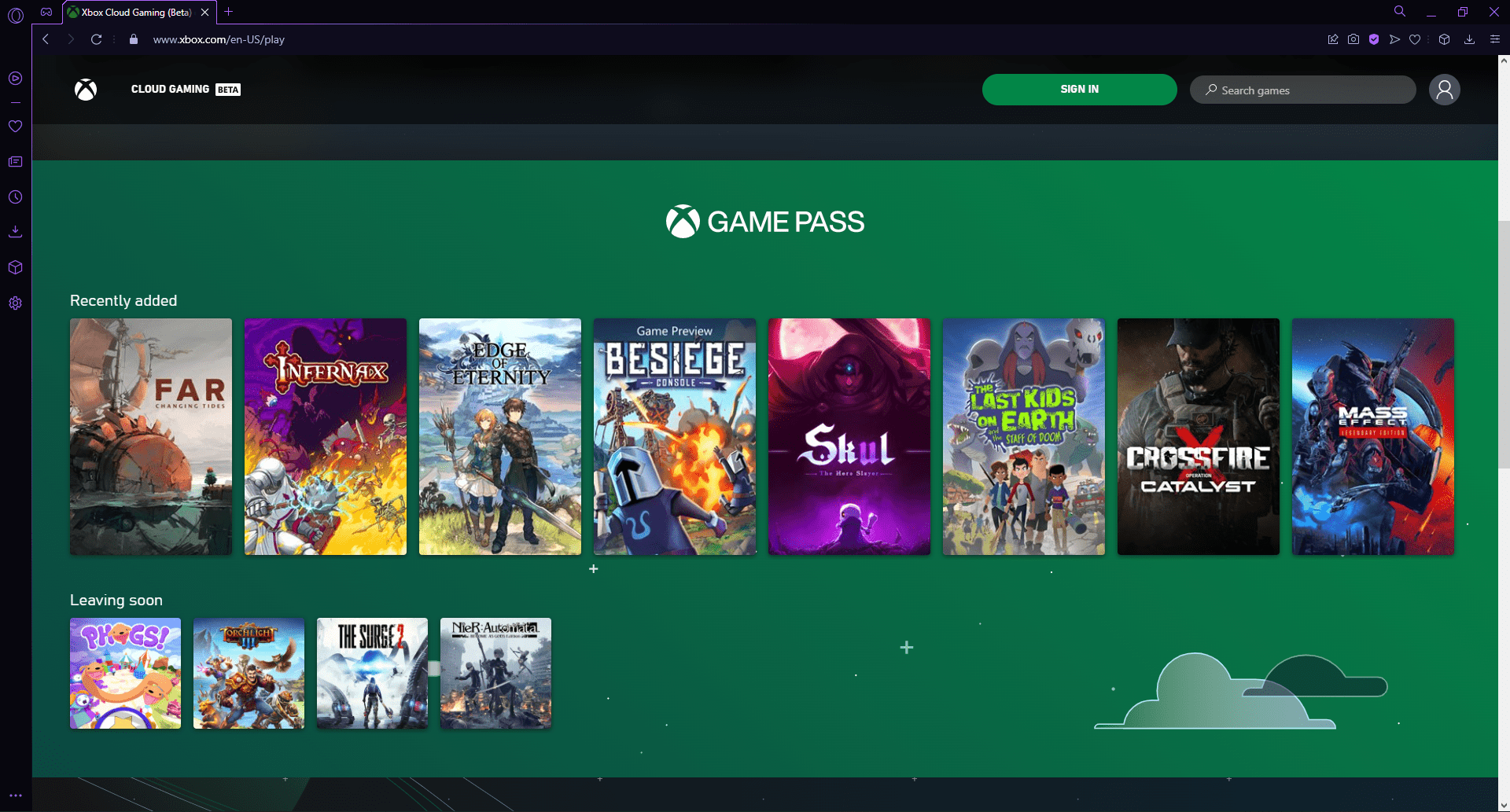






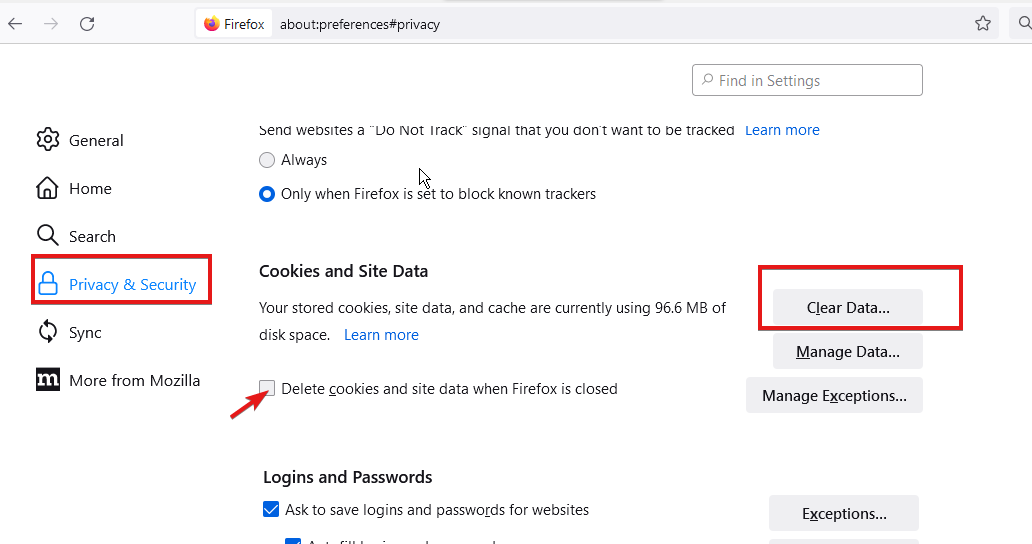
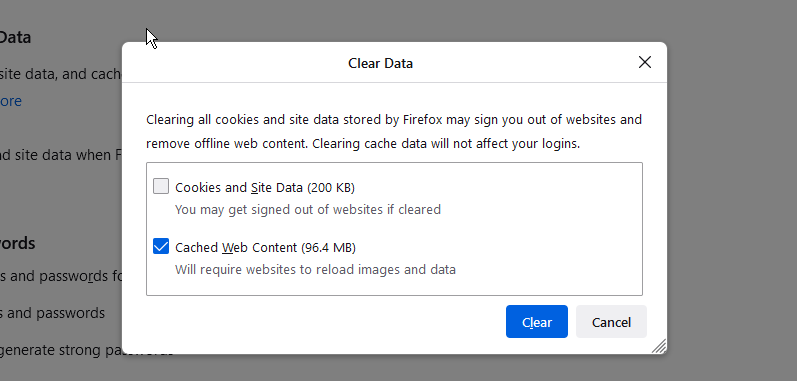
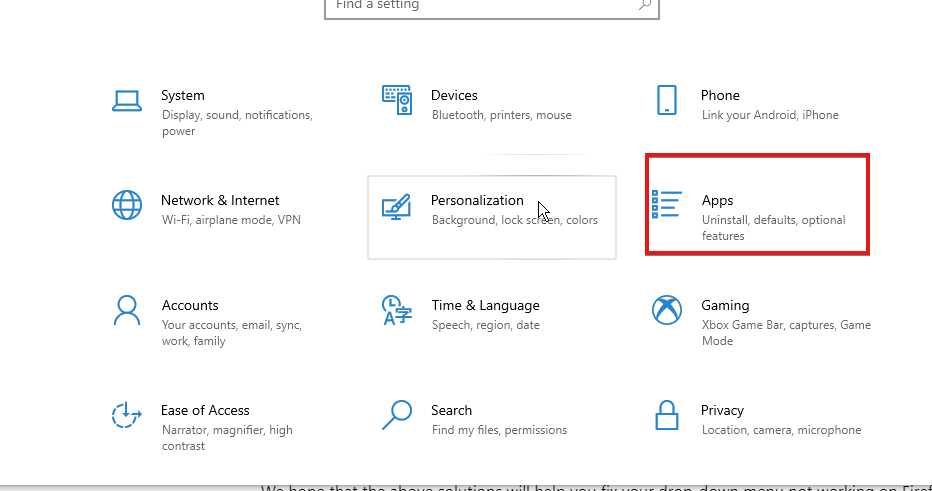
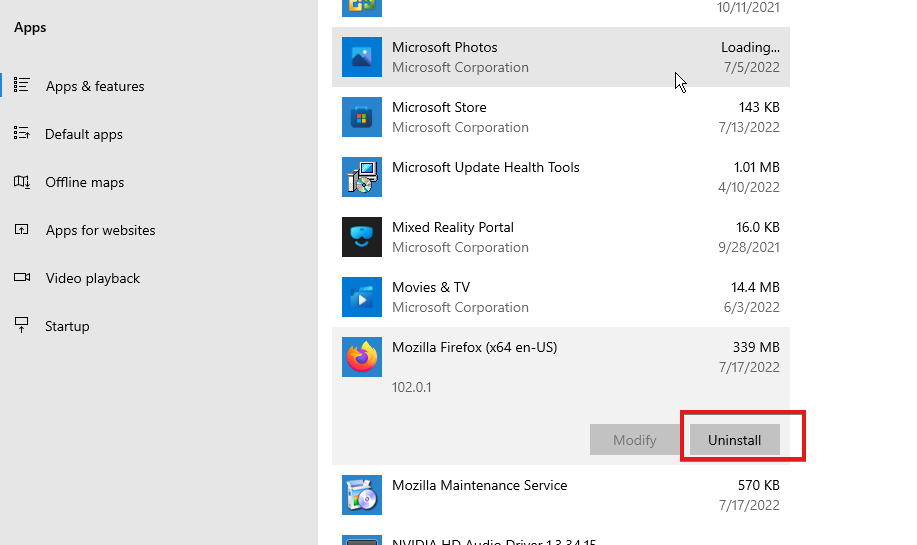

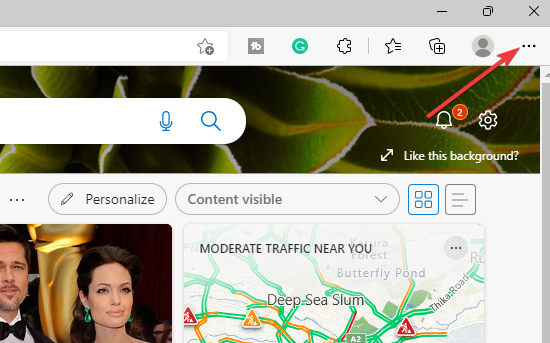
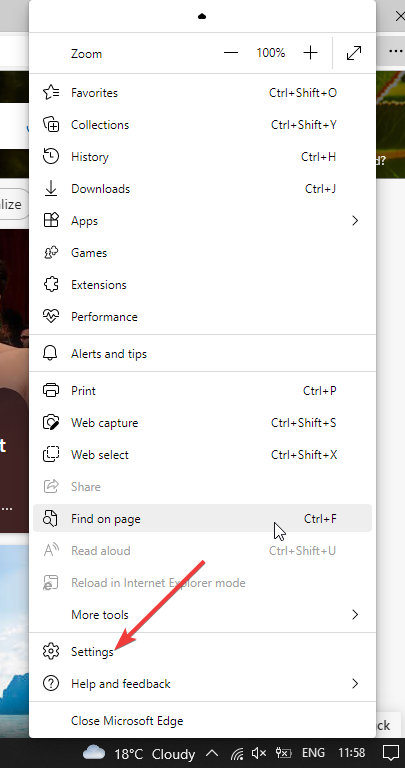
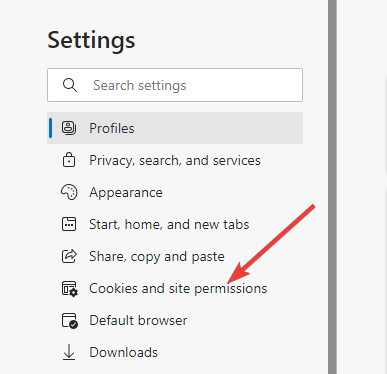
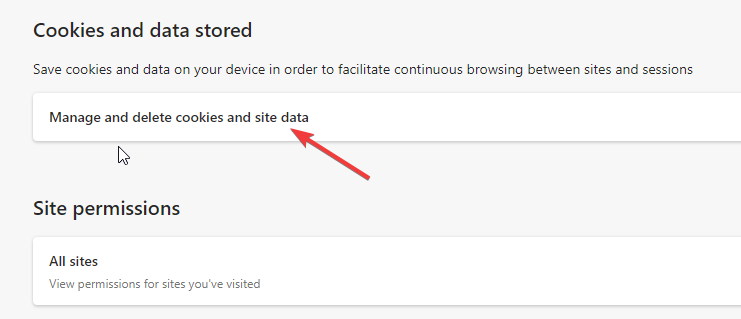
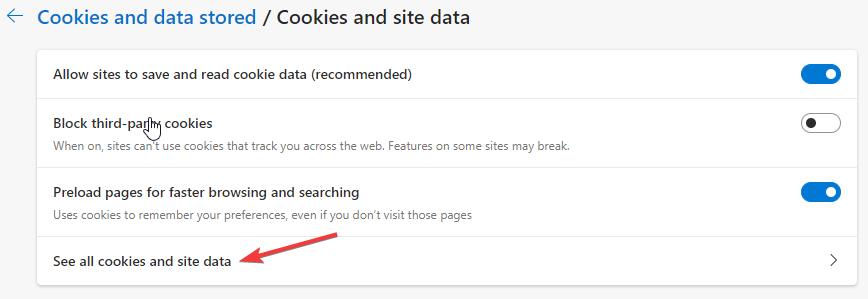
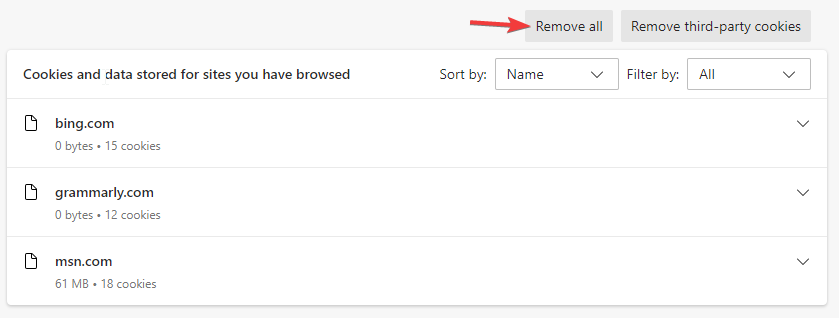
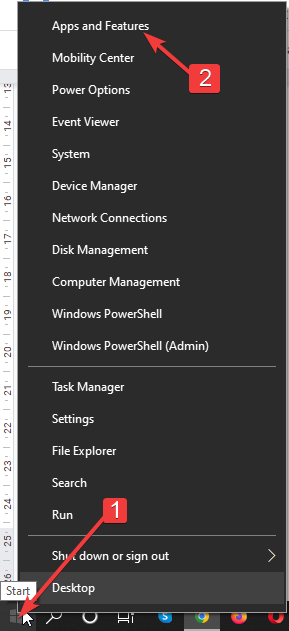
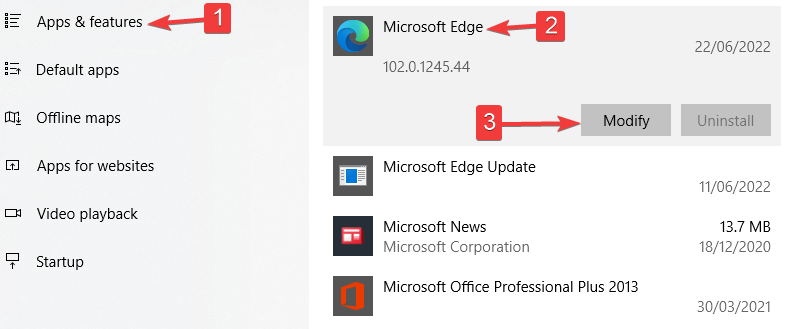
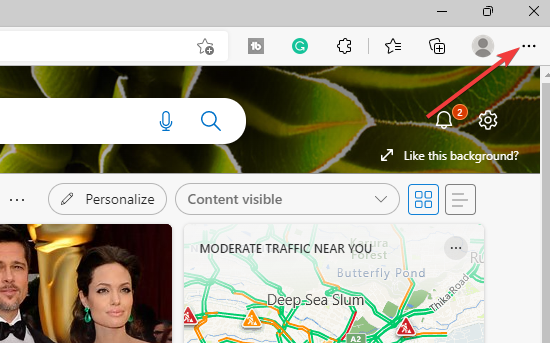
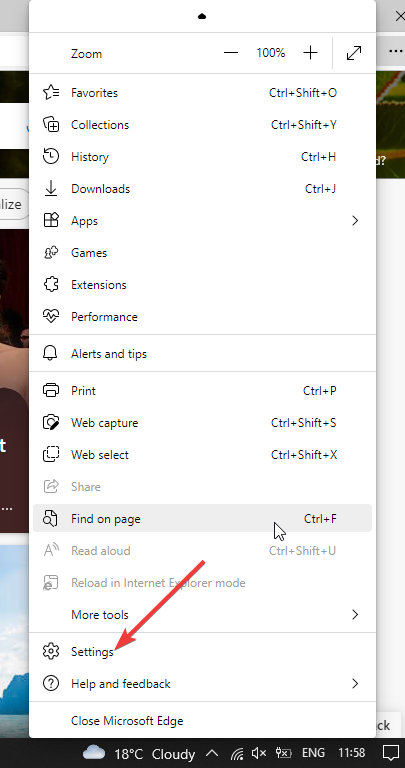
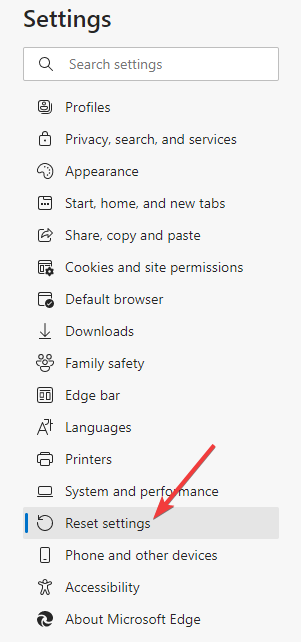
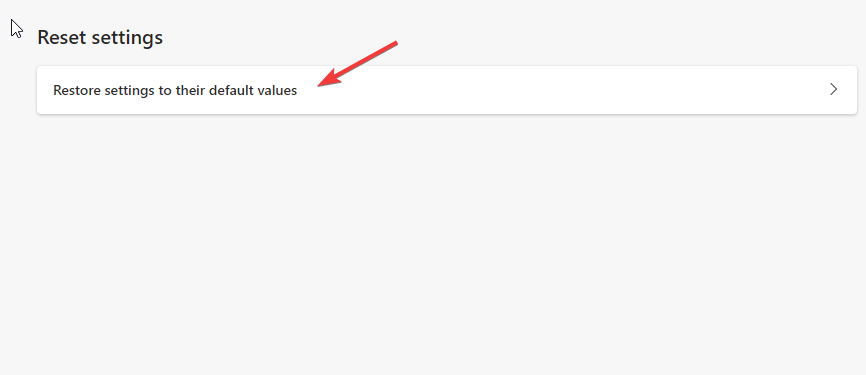


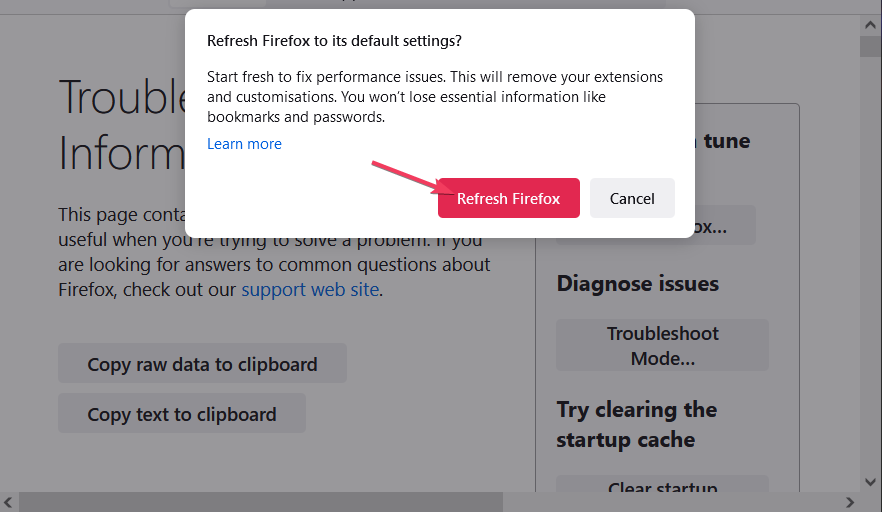
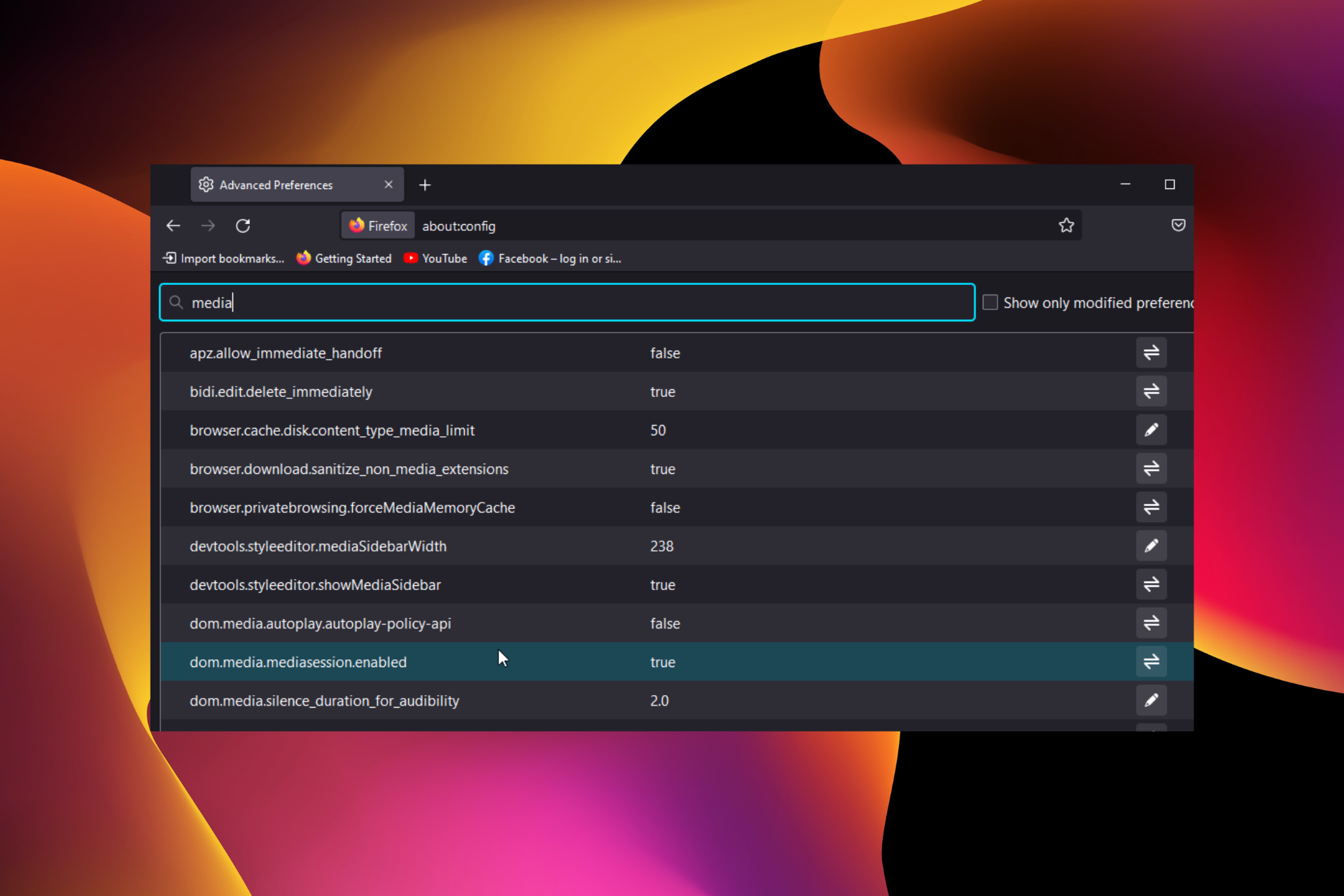
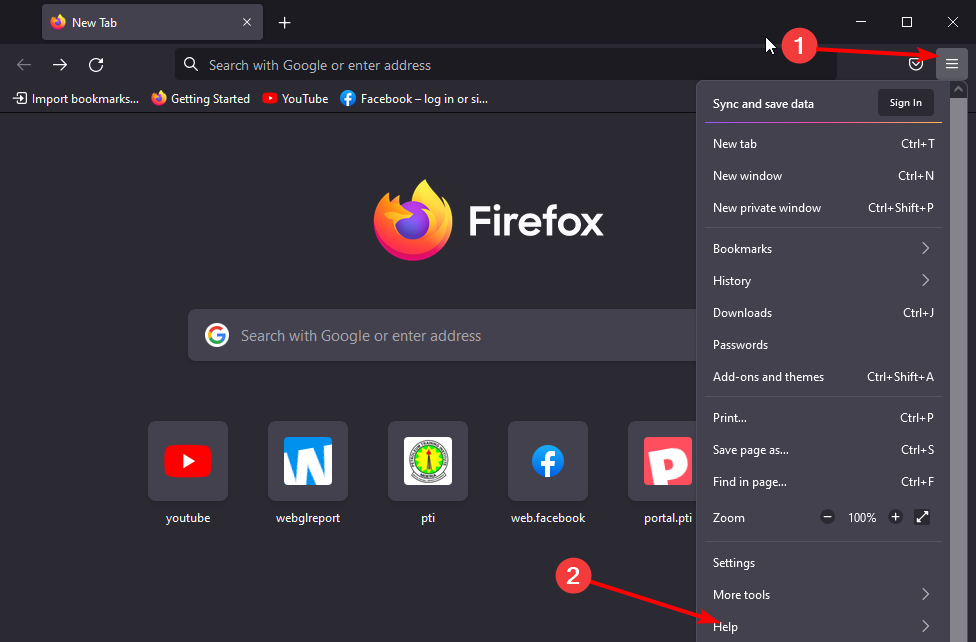
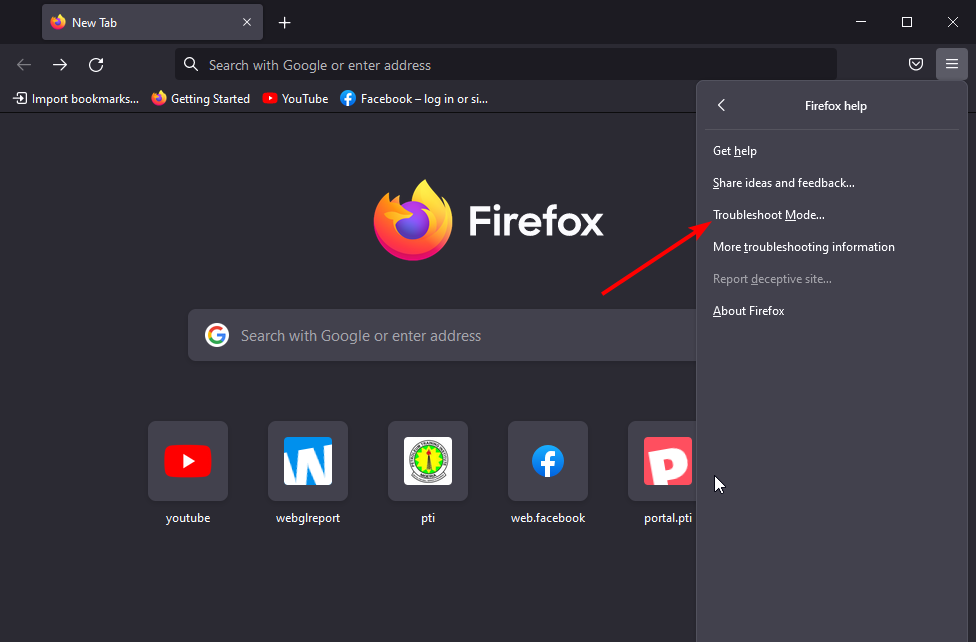
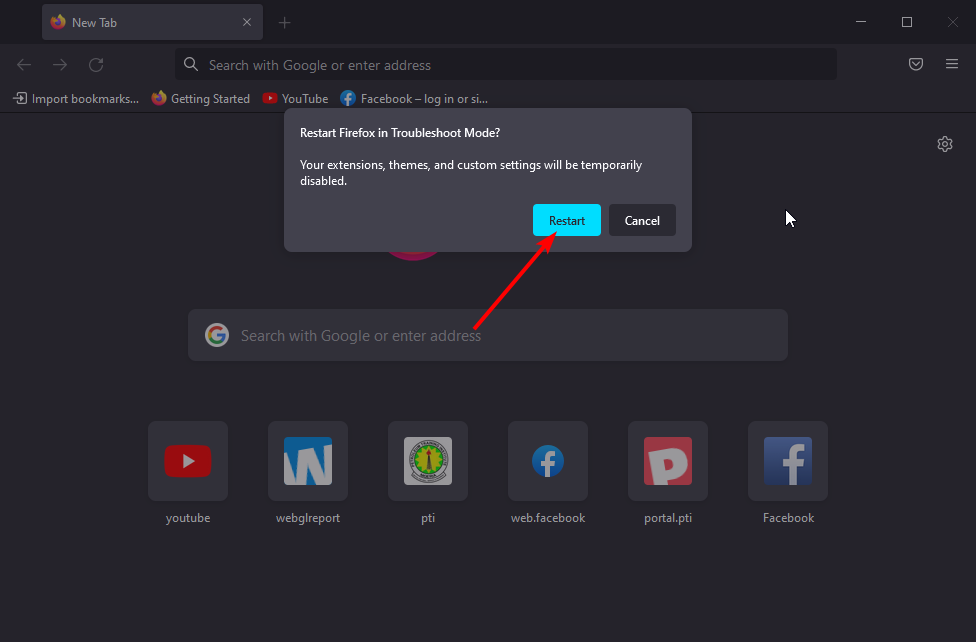
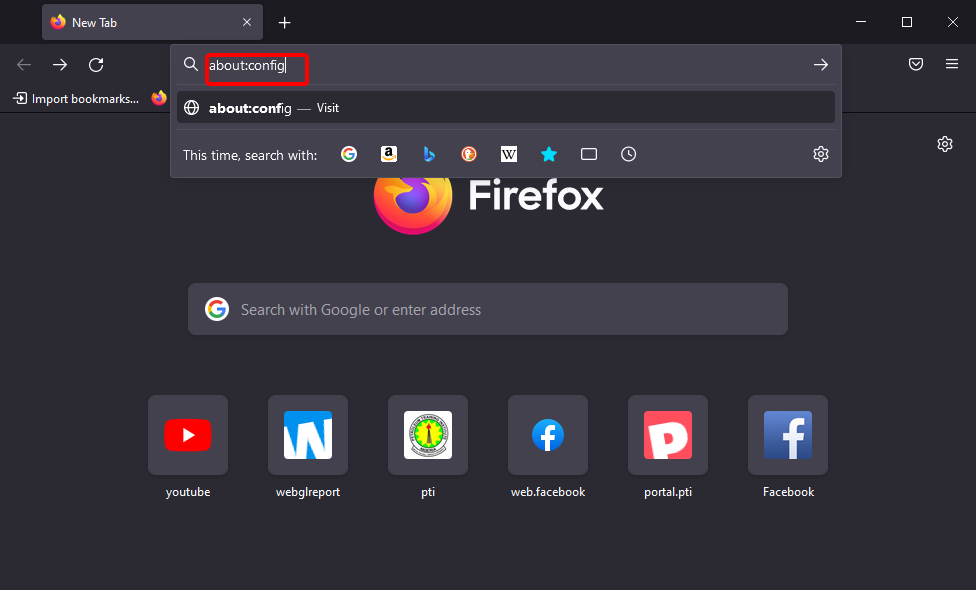
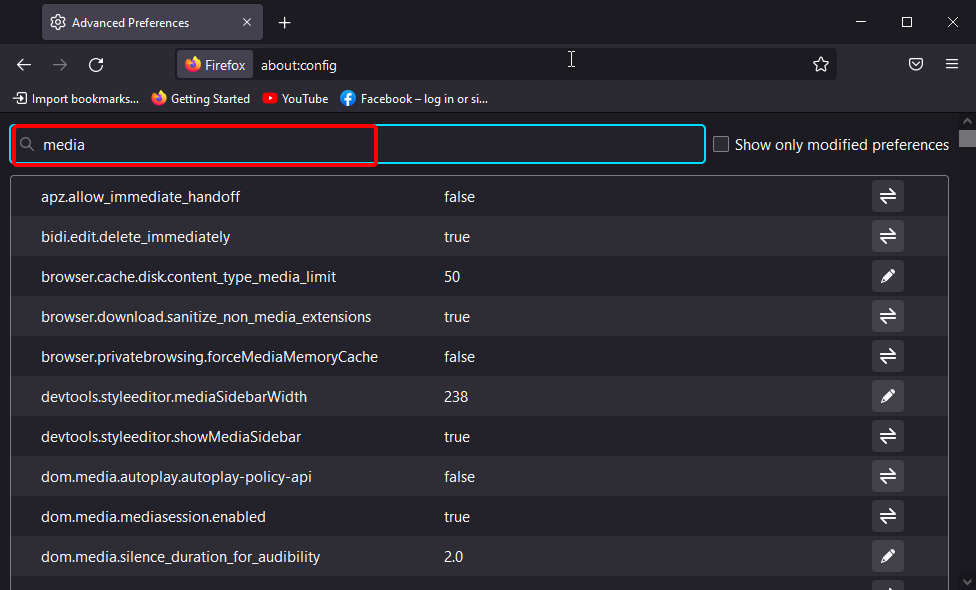



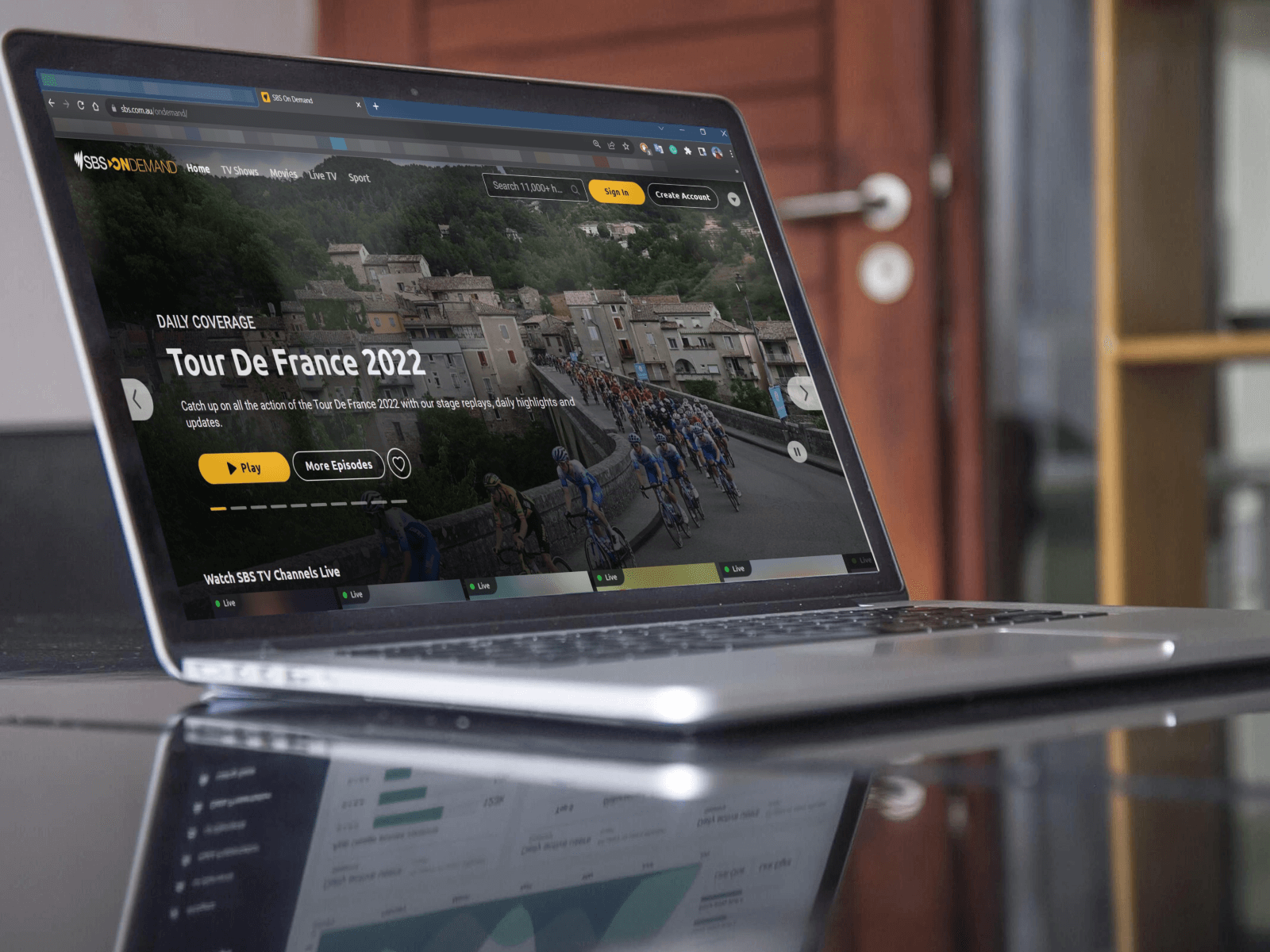

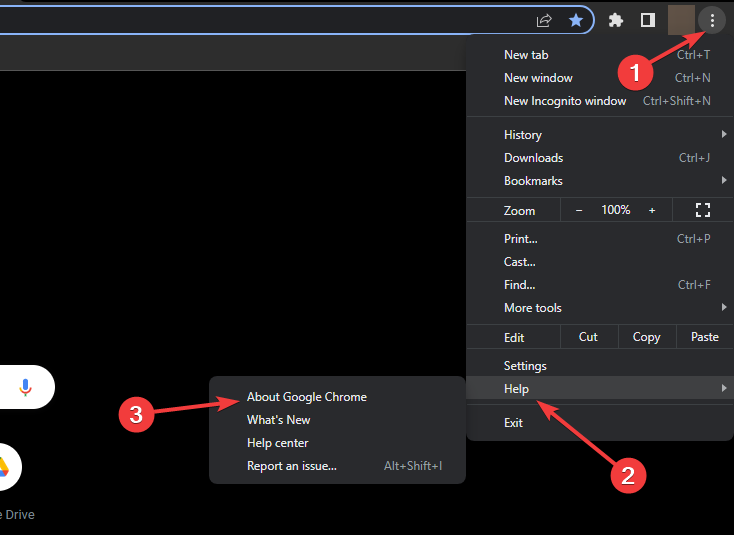
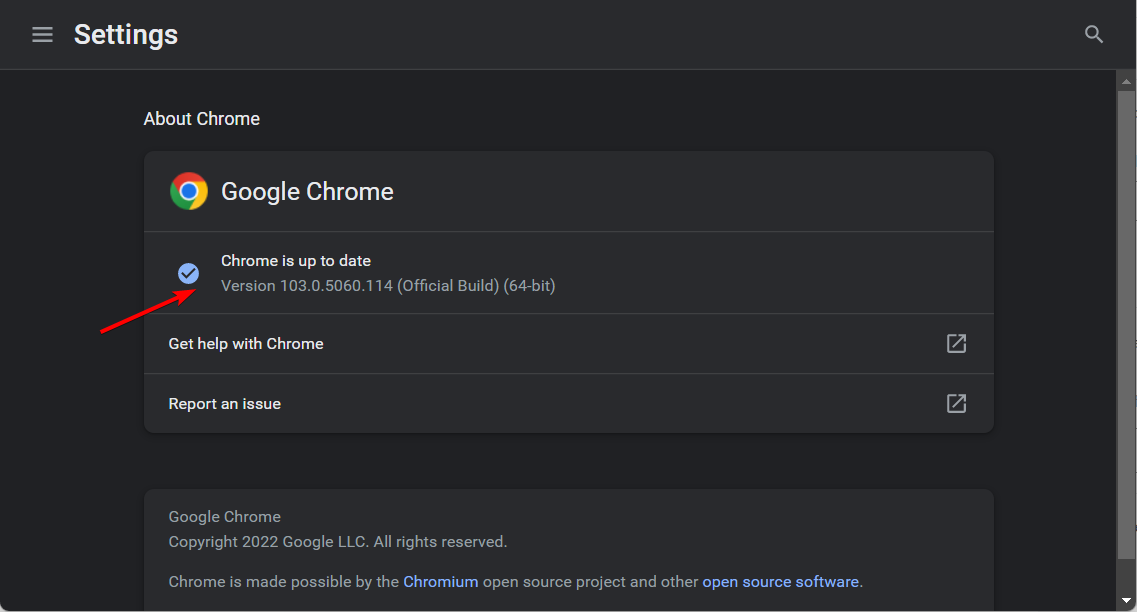
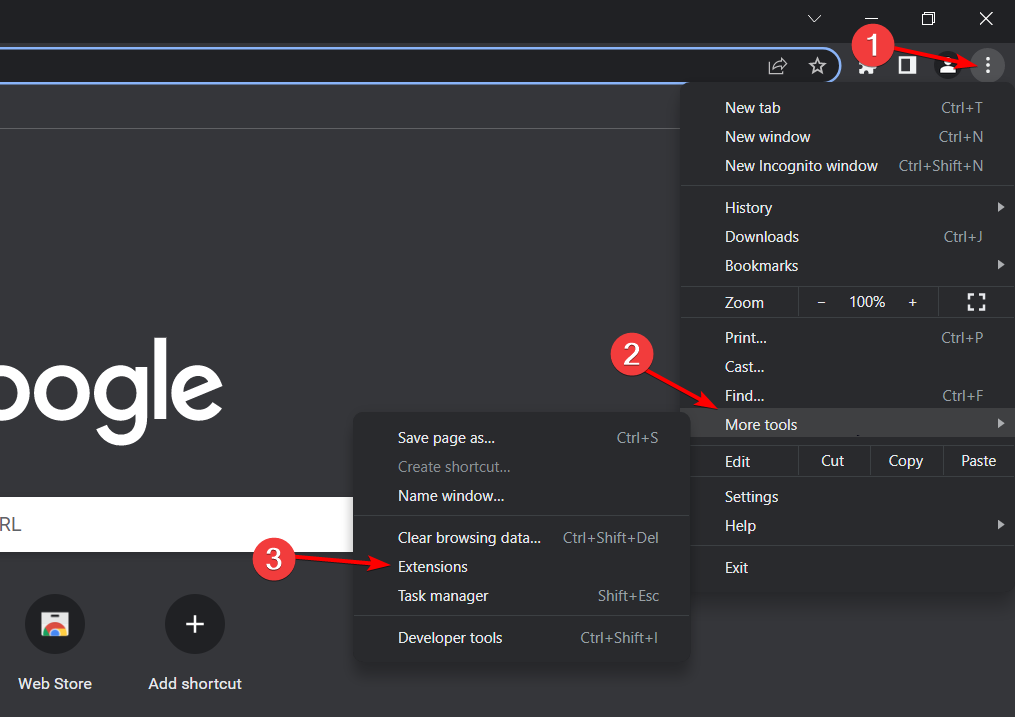


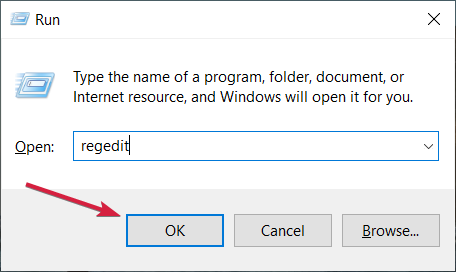
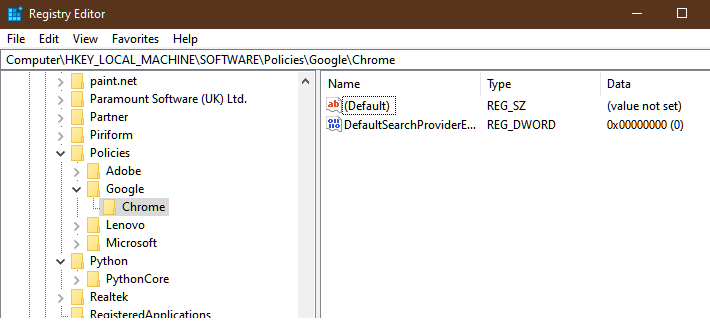
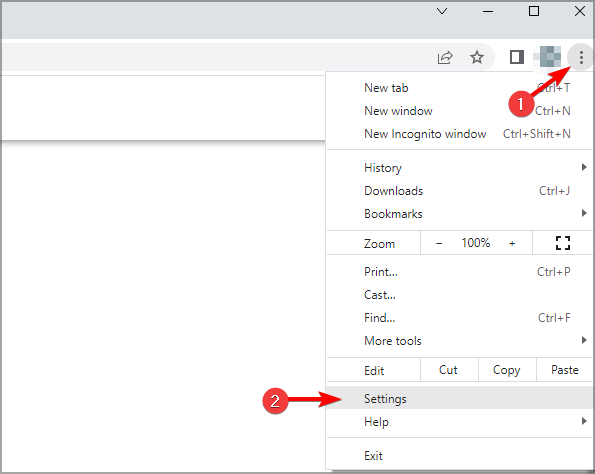
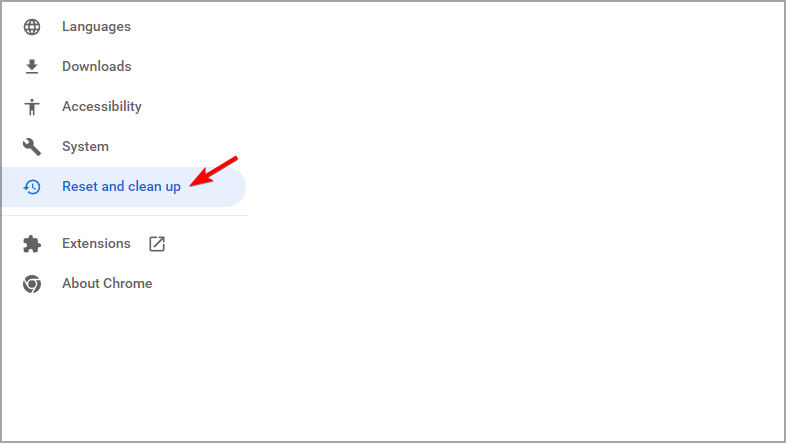
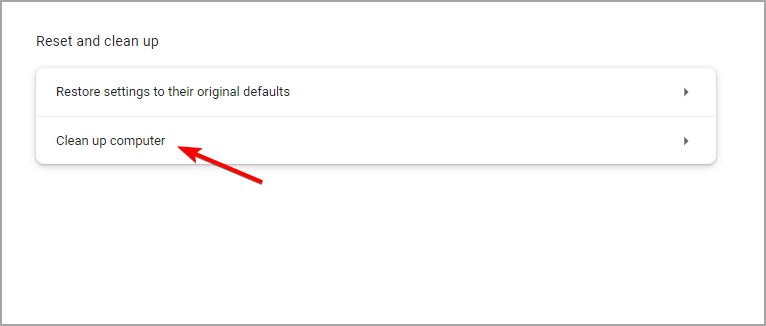
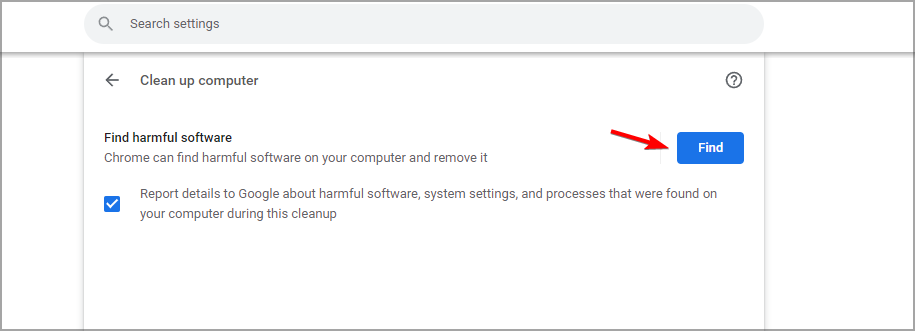
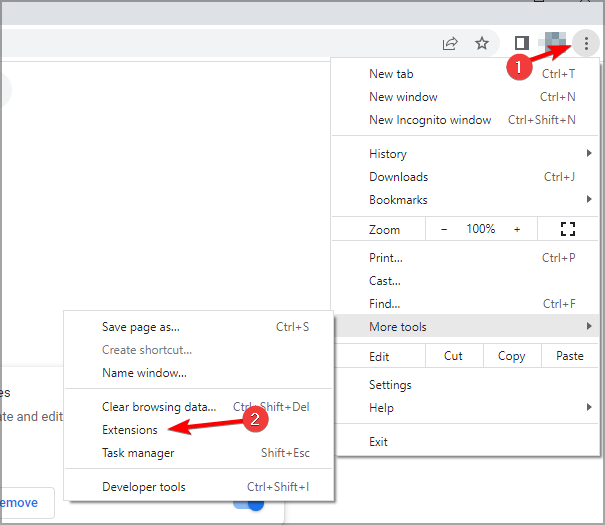
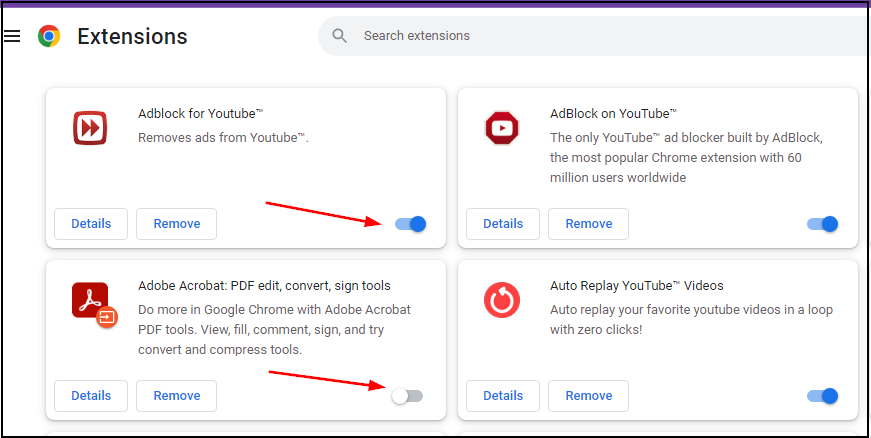
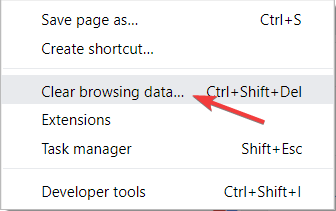
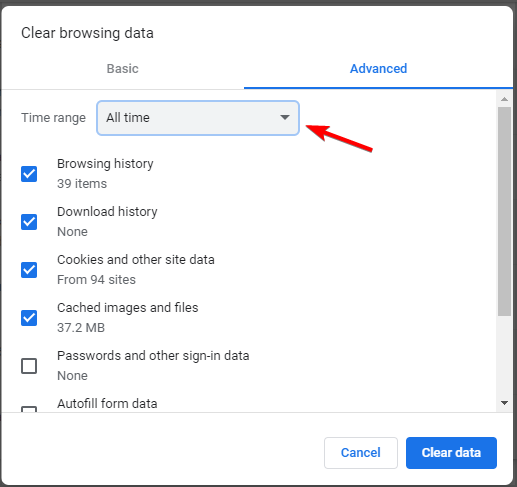
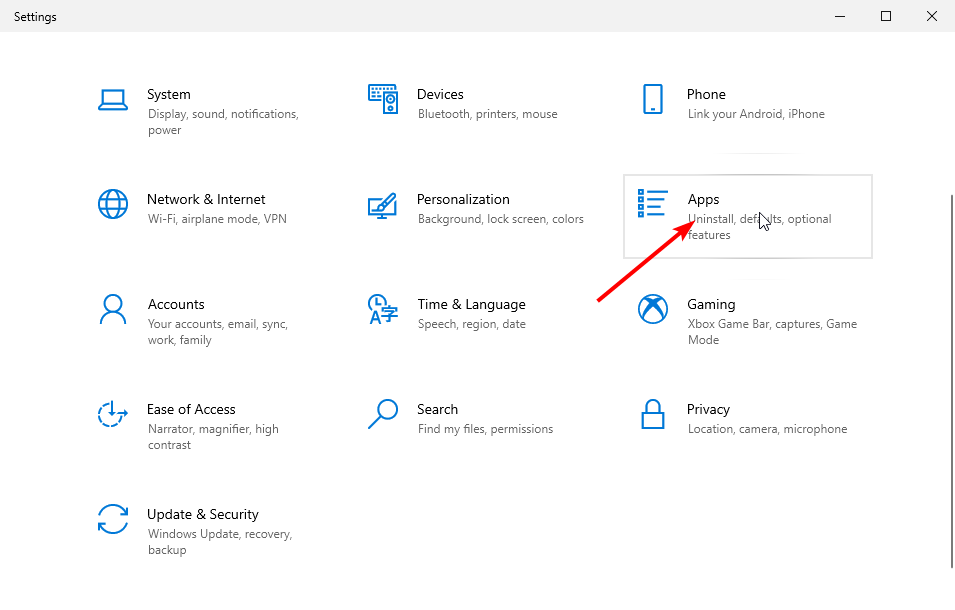
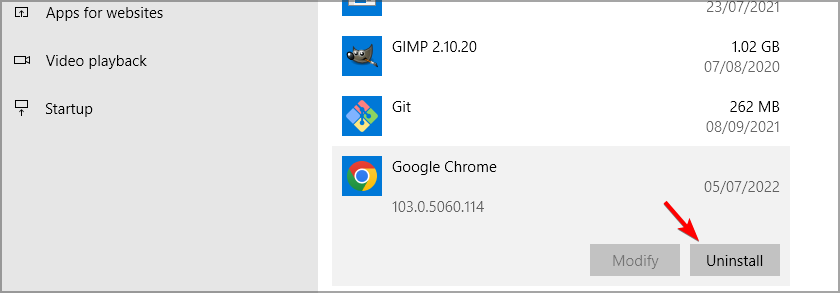
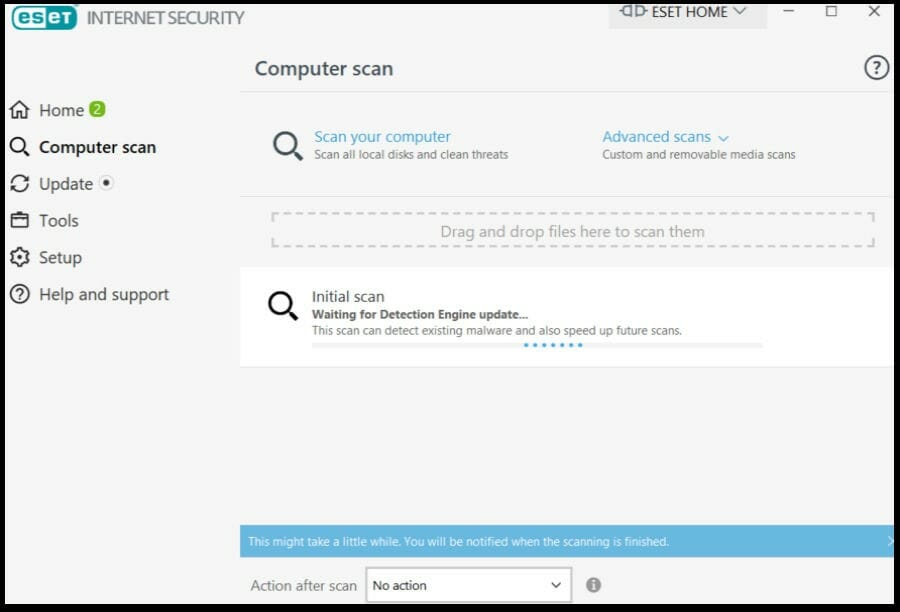
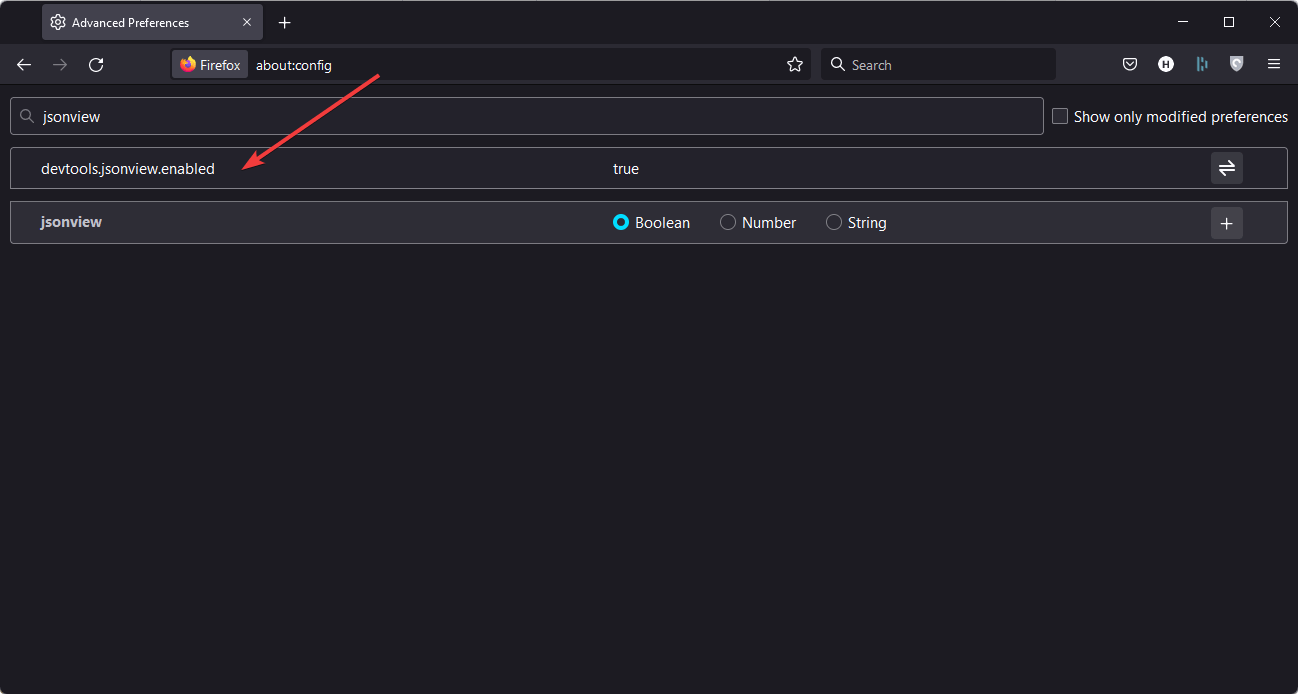
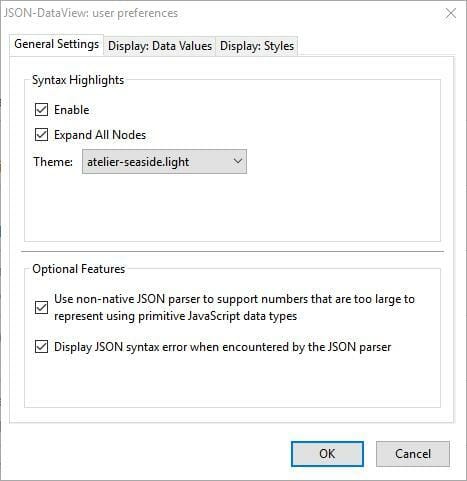
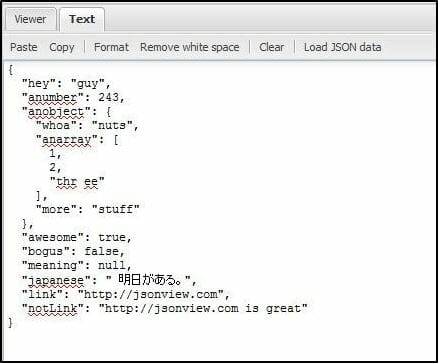
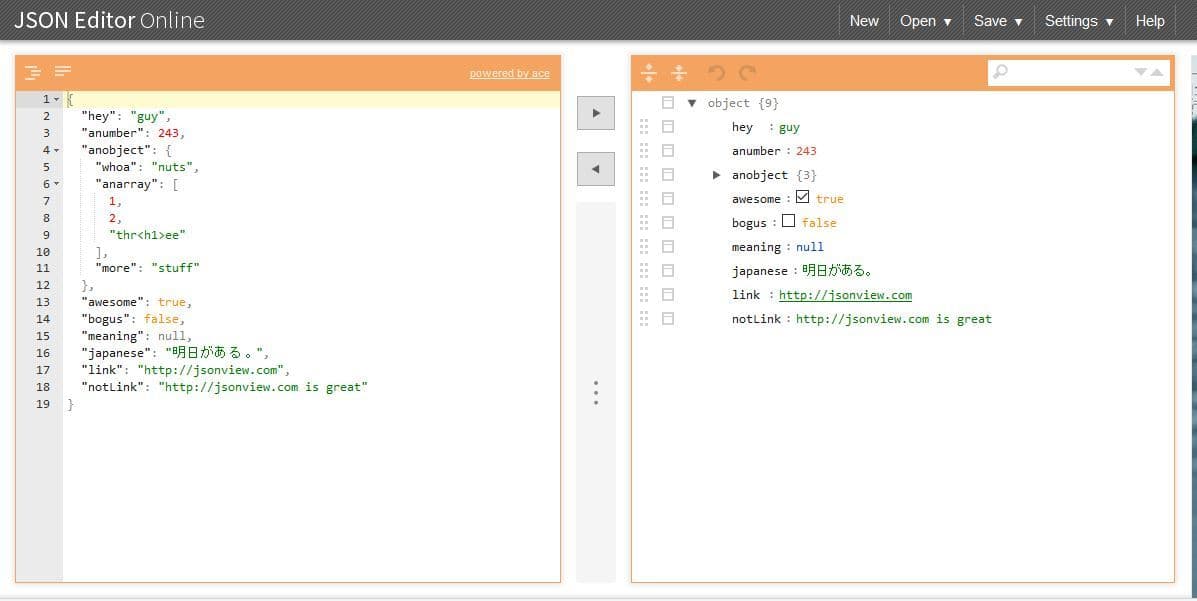
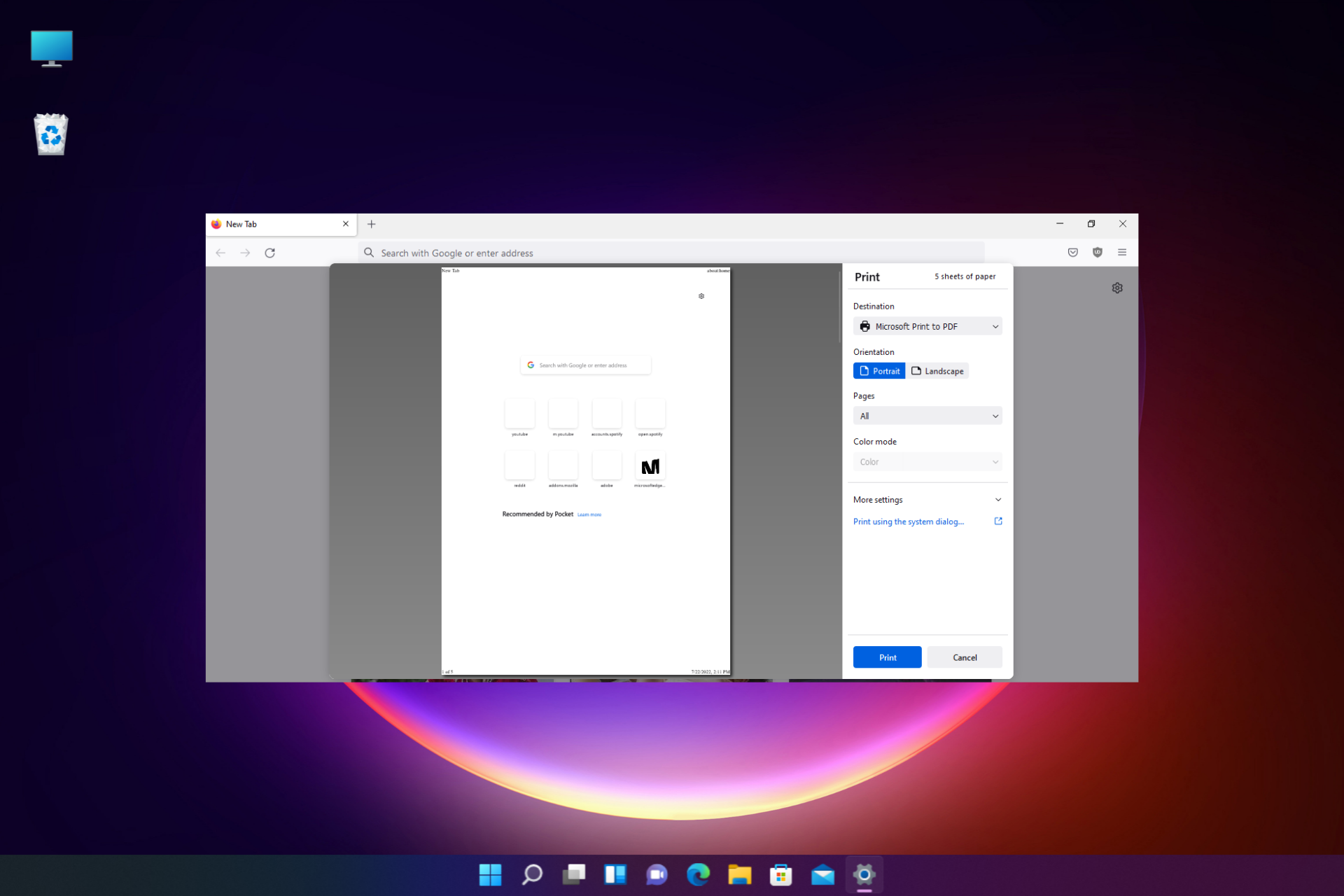
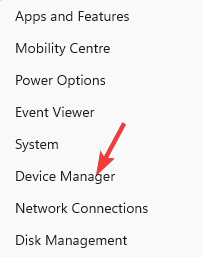
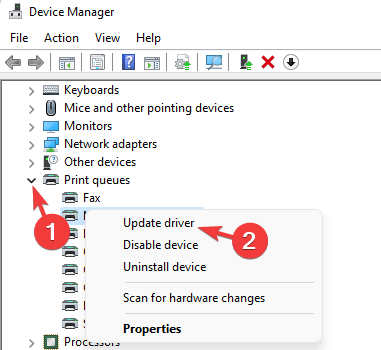
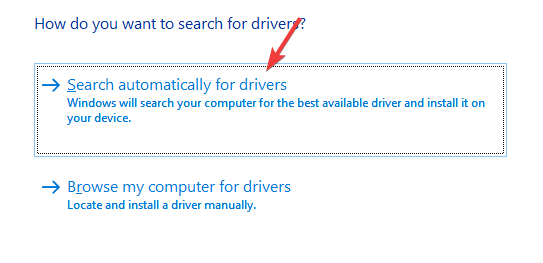

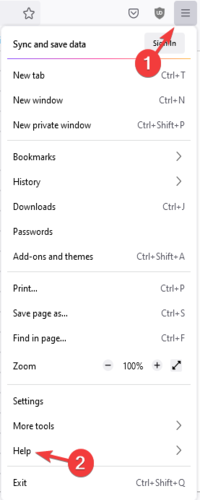
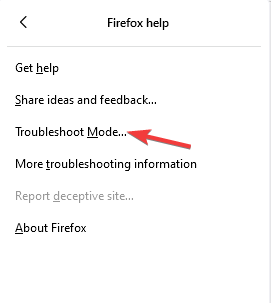
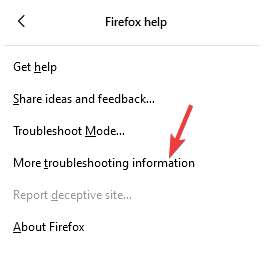
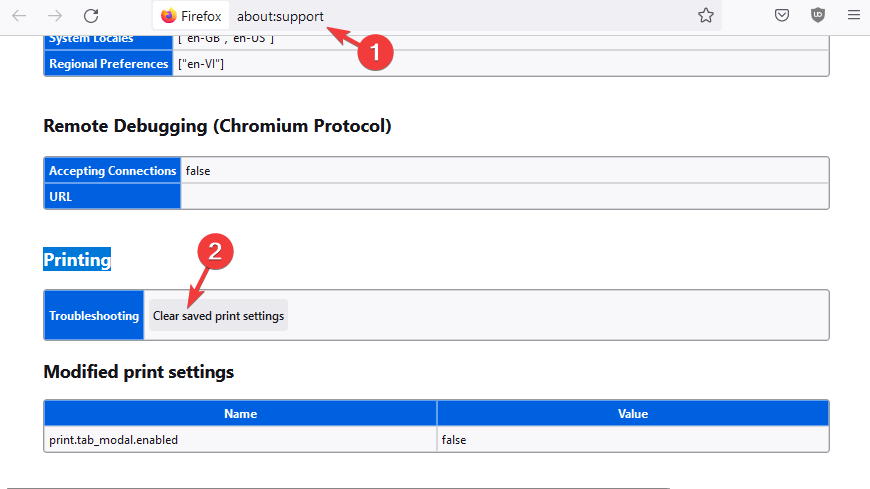
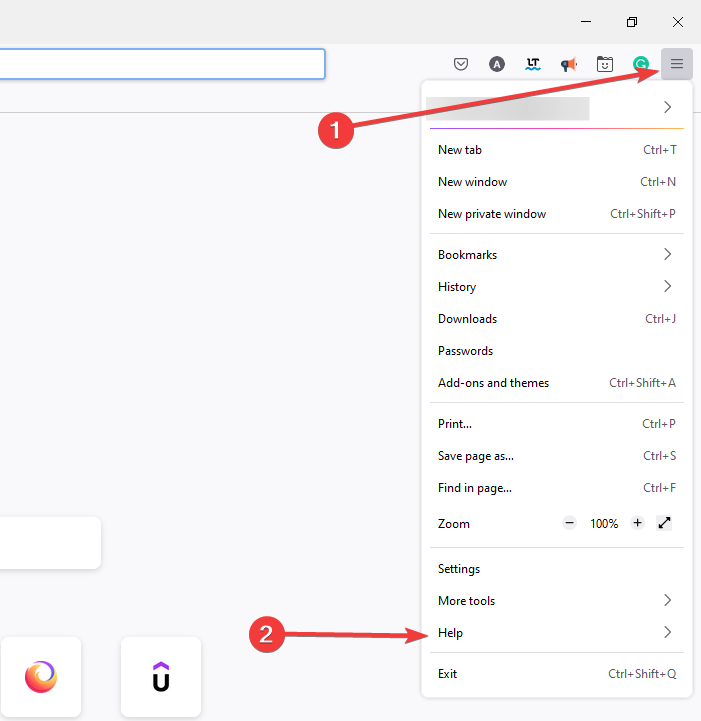
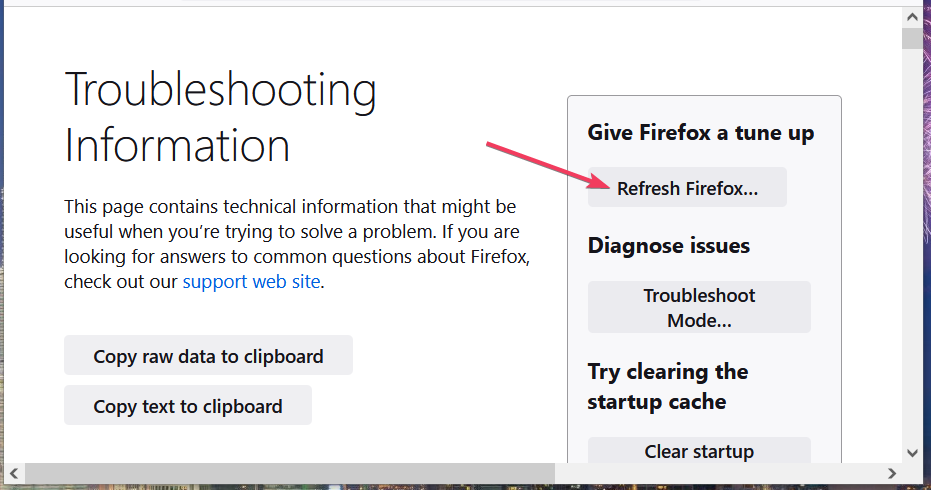
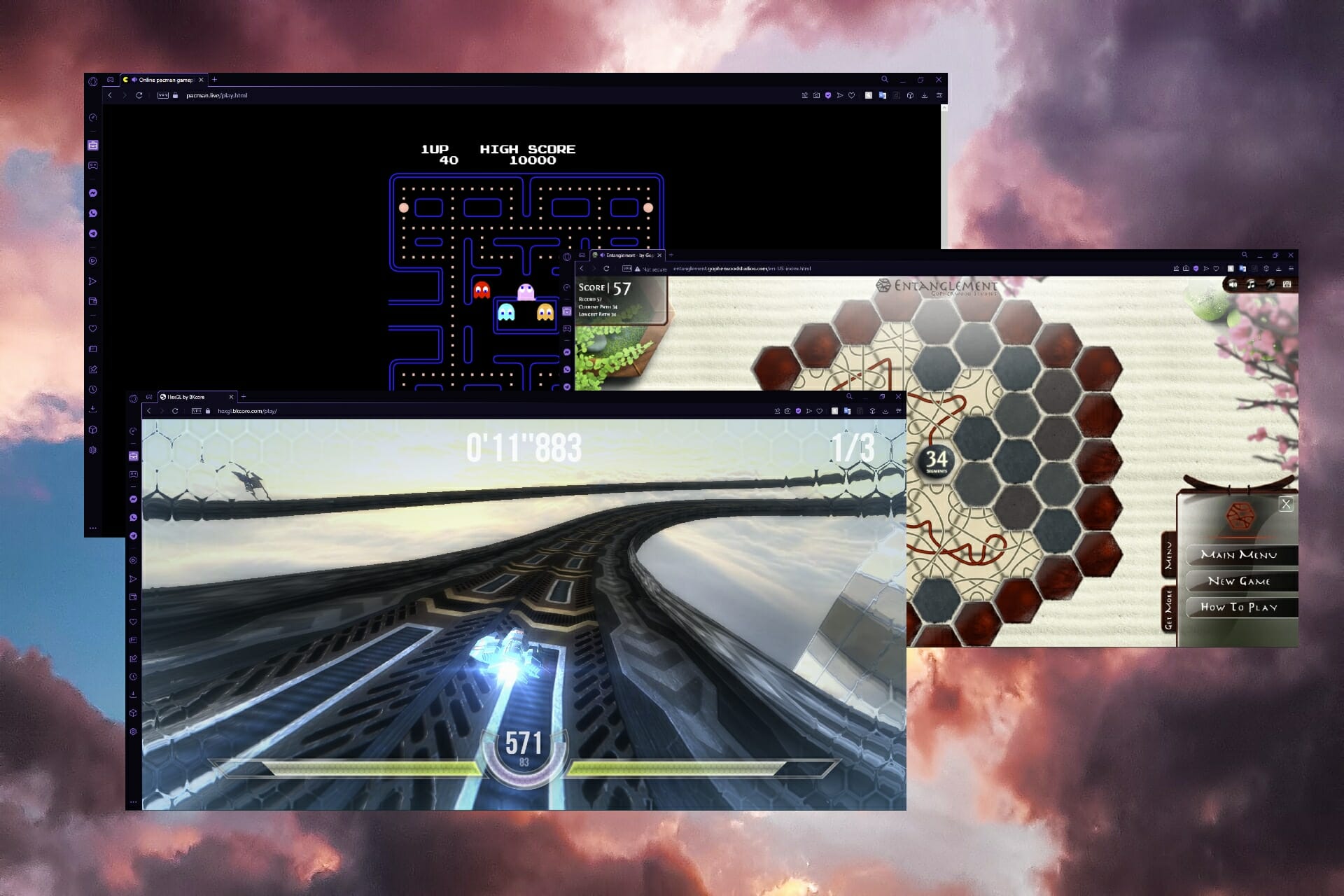
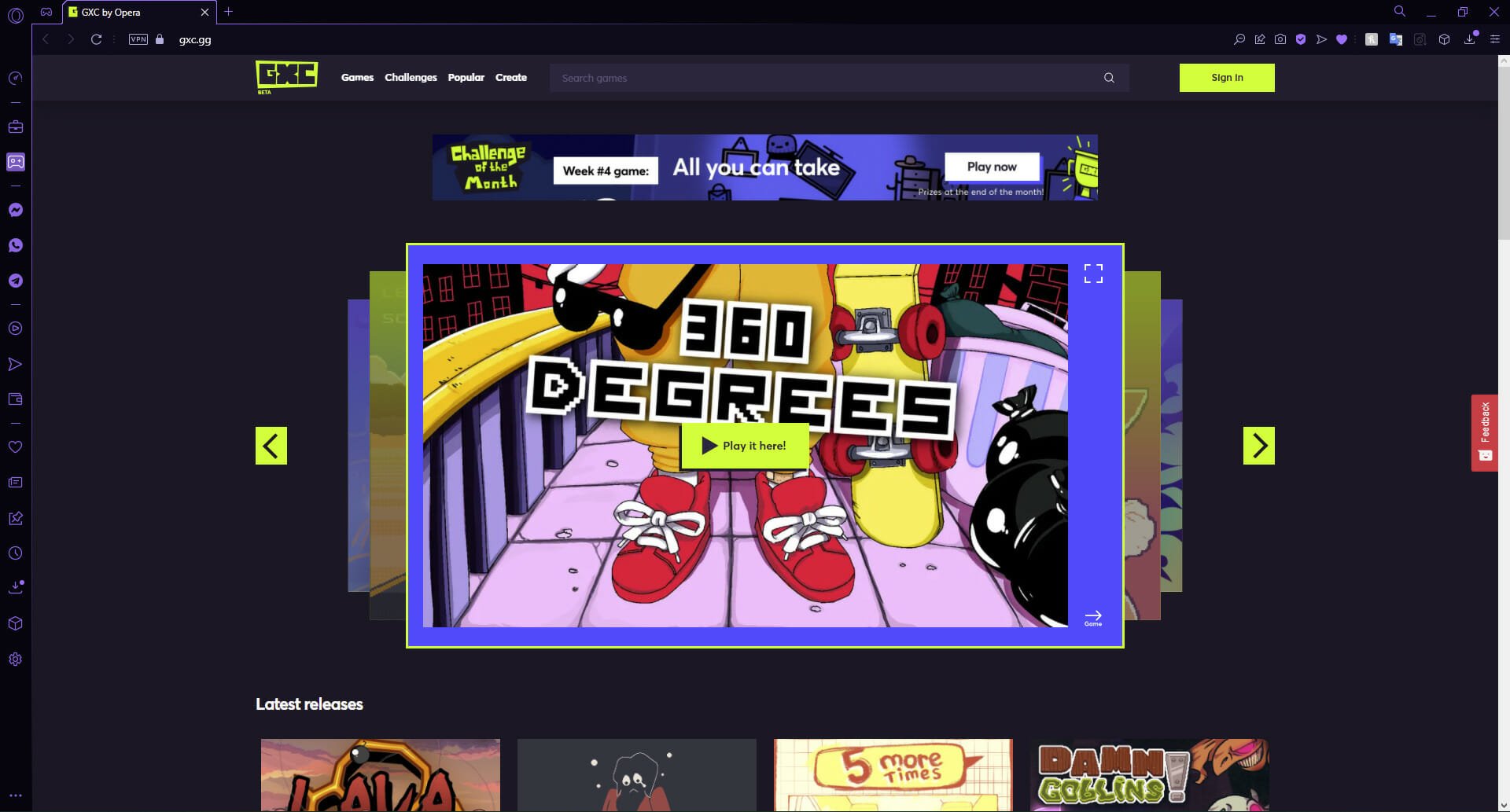
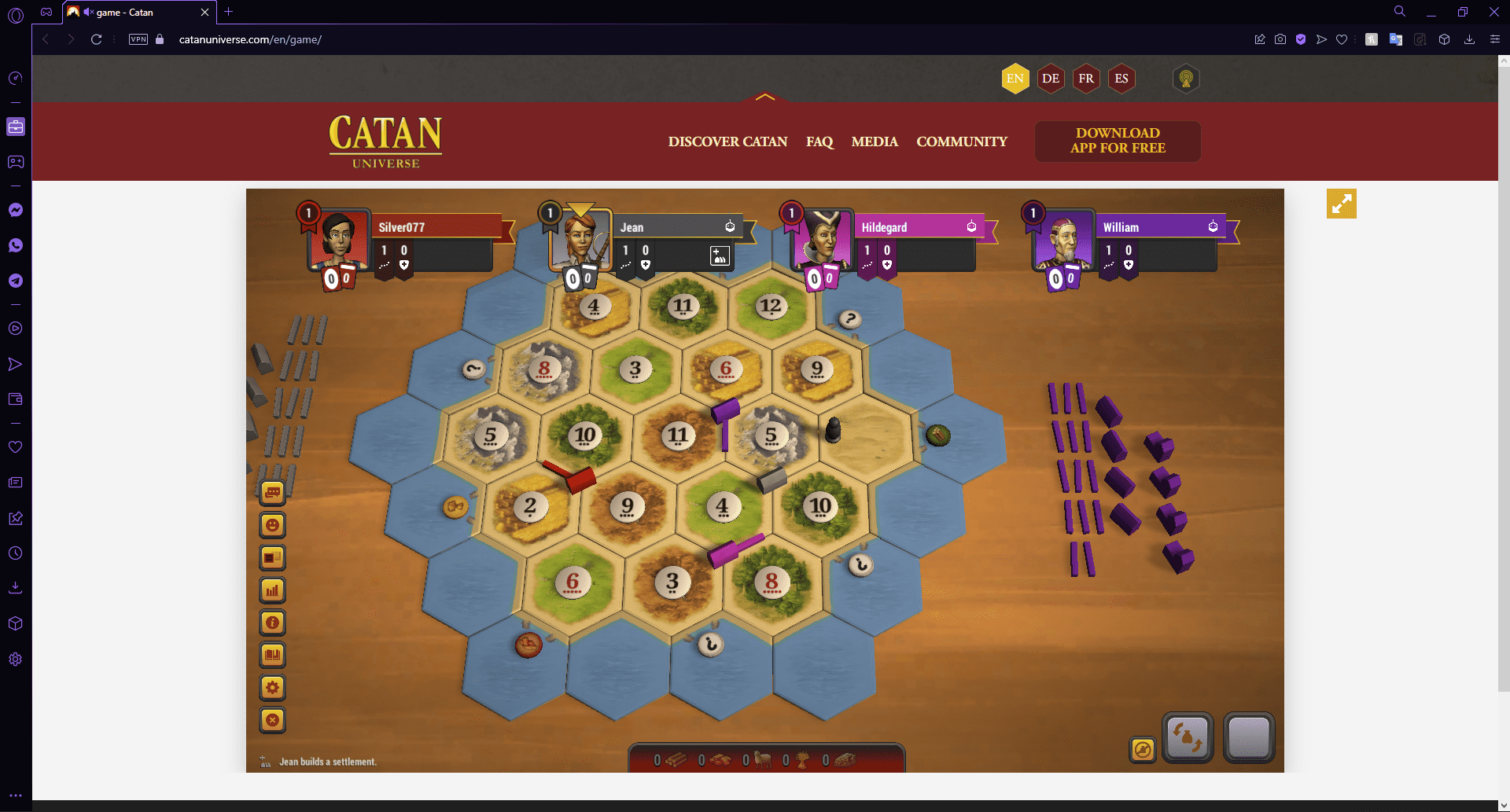


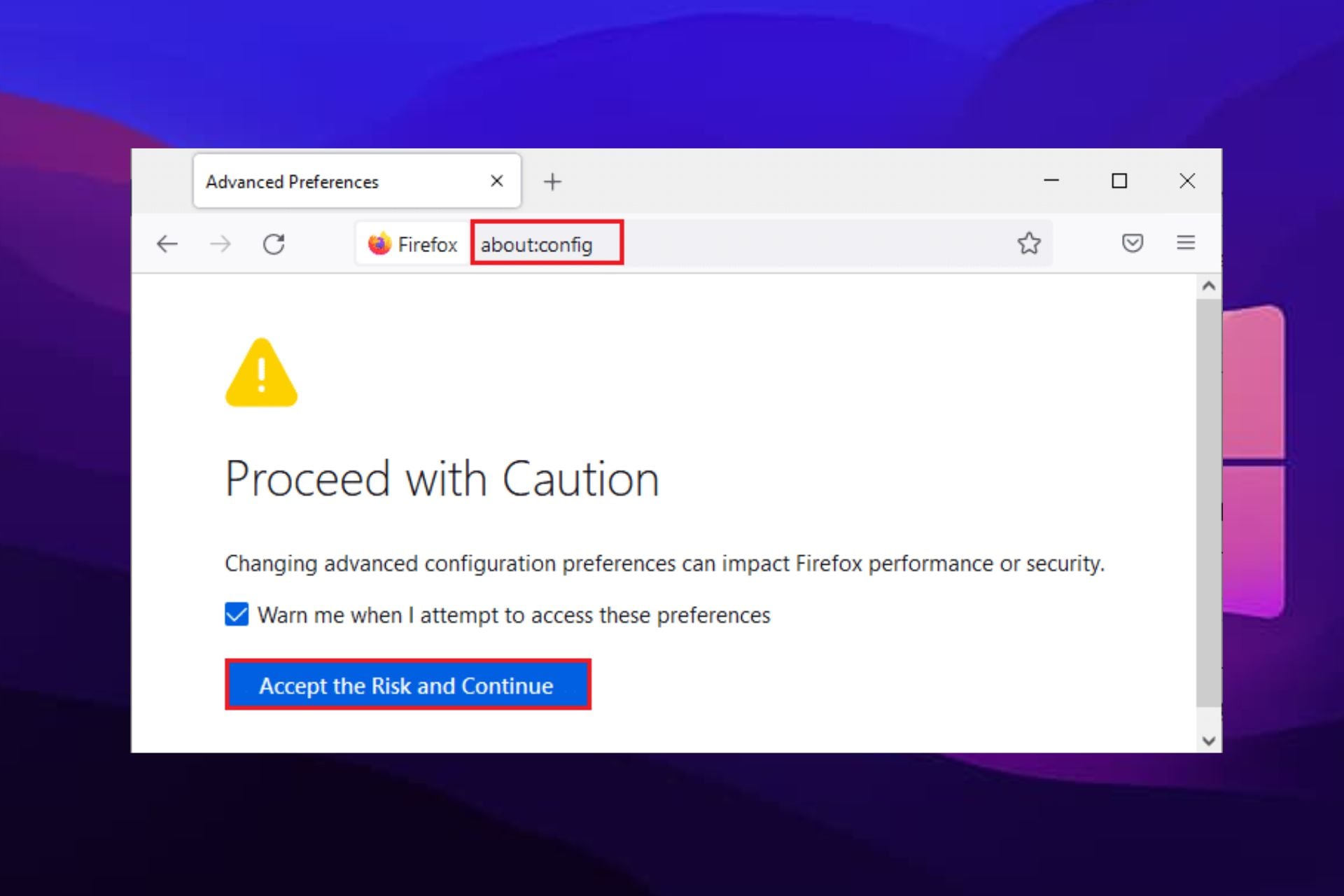
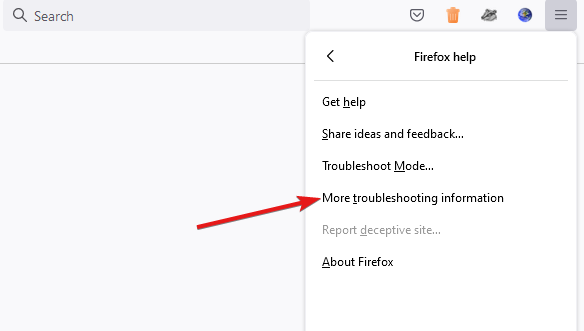
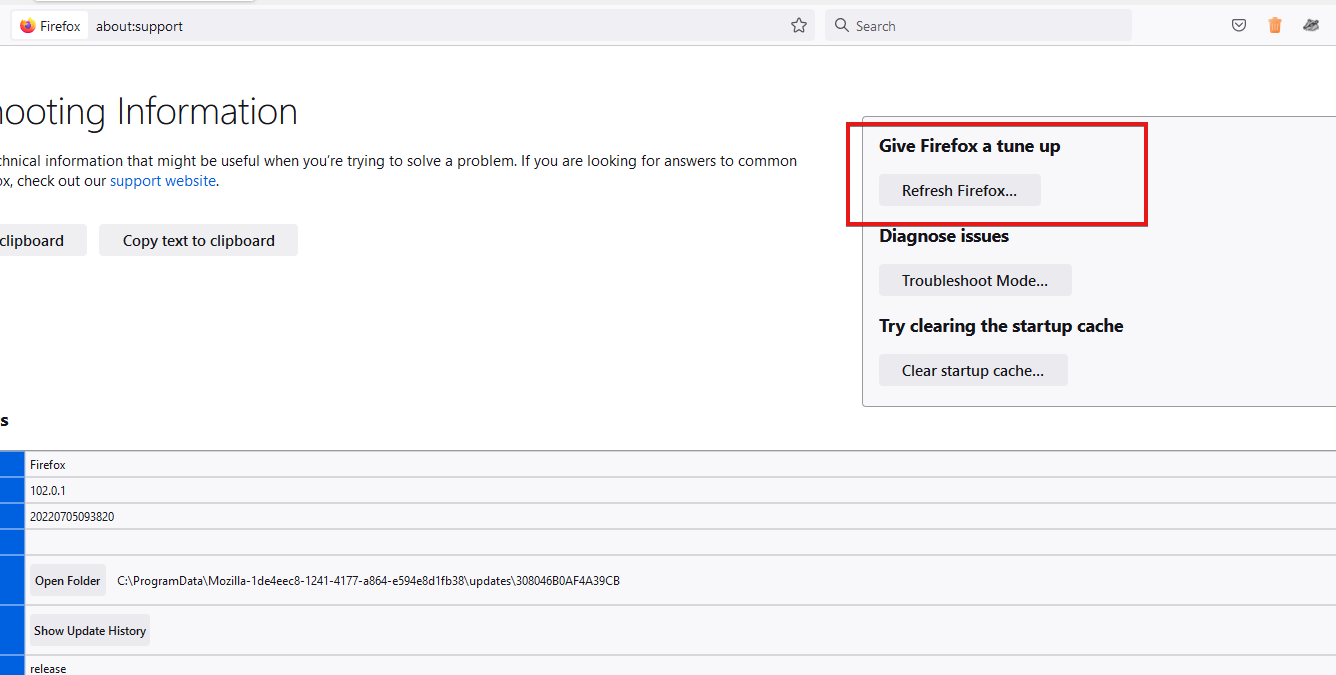
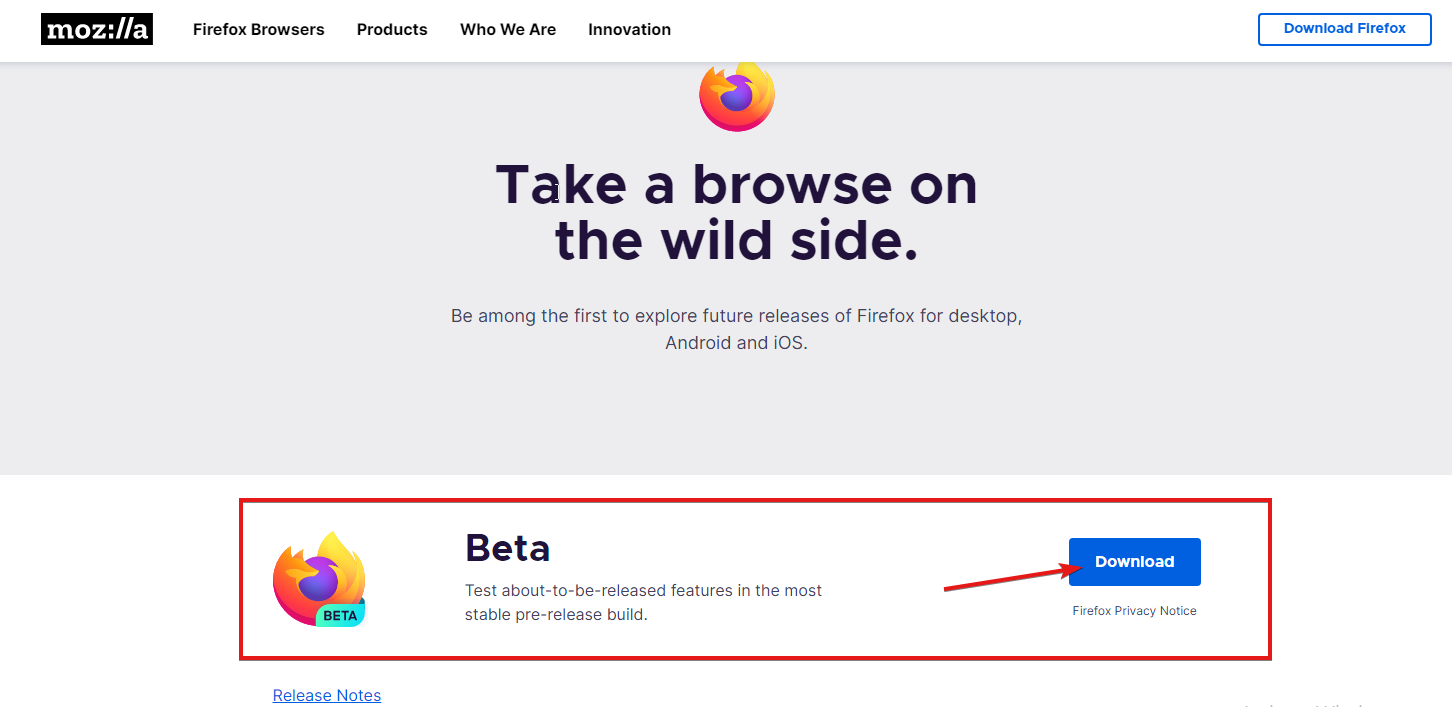
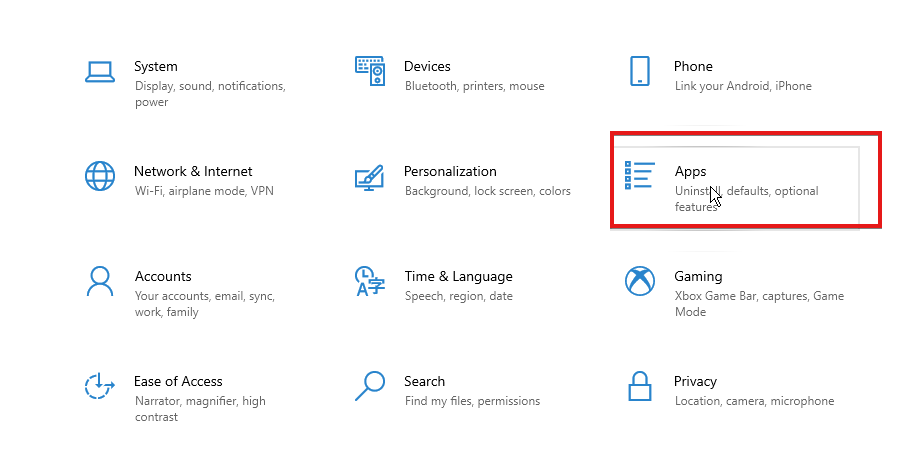
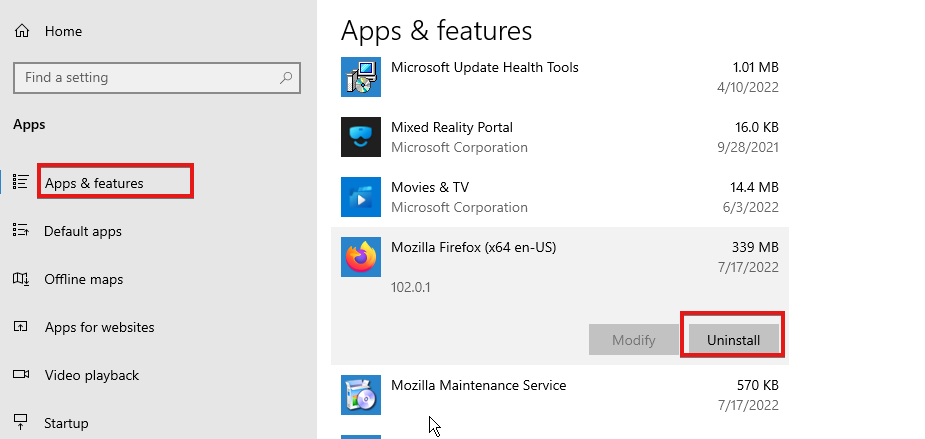
![4 Quick Ways To Fix Error 0Xc00000A5 In Chrome [2026 Guide]](https://windowsreport.com/wp-content/uploads/2020/08/chrome-error-0xc00000a5.jpg)