The Specified Port is Already Open VPN Error: 4 Quick Fixes

The specified port is already open error is not uncommon. Many VPN services can deal wth it, but it seems to be prevalent for Sonicwall VPN’s NetExtender. 

Many users have also reported that they got this error after updating their operating system. Here’s what you can do to fix it.

How can I fix specified port is already open VPN error on Windows 11/10?

1. Restart the PC

  1. Click the Start button.
  2. Click the Power button. Now select Restart.
  3. Wait for your PC to reboot.

Although this is a basic fix, it is one of the most efficient methods to troubleshoot most PC problems. The locked connection is closed after a reboot and the VPN can create a new connection. 

So be sure to try this method if you’re getting VPN error The specified port is already open on Windows 11.

2. Use the Registry Editor

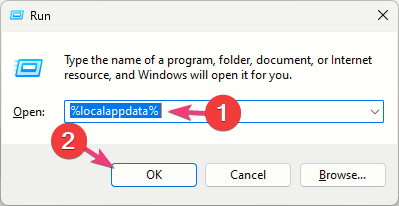
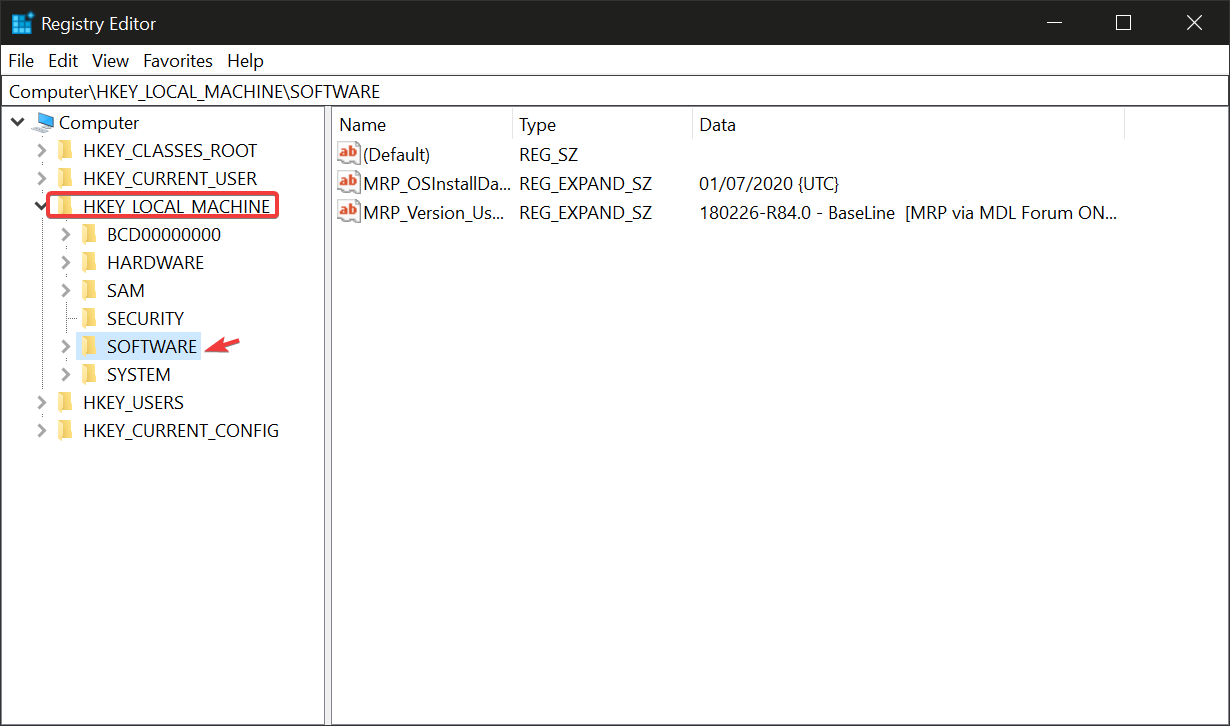
  1. Press the Windows key + R, input regedit in the box, and press Enter key. 
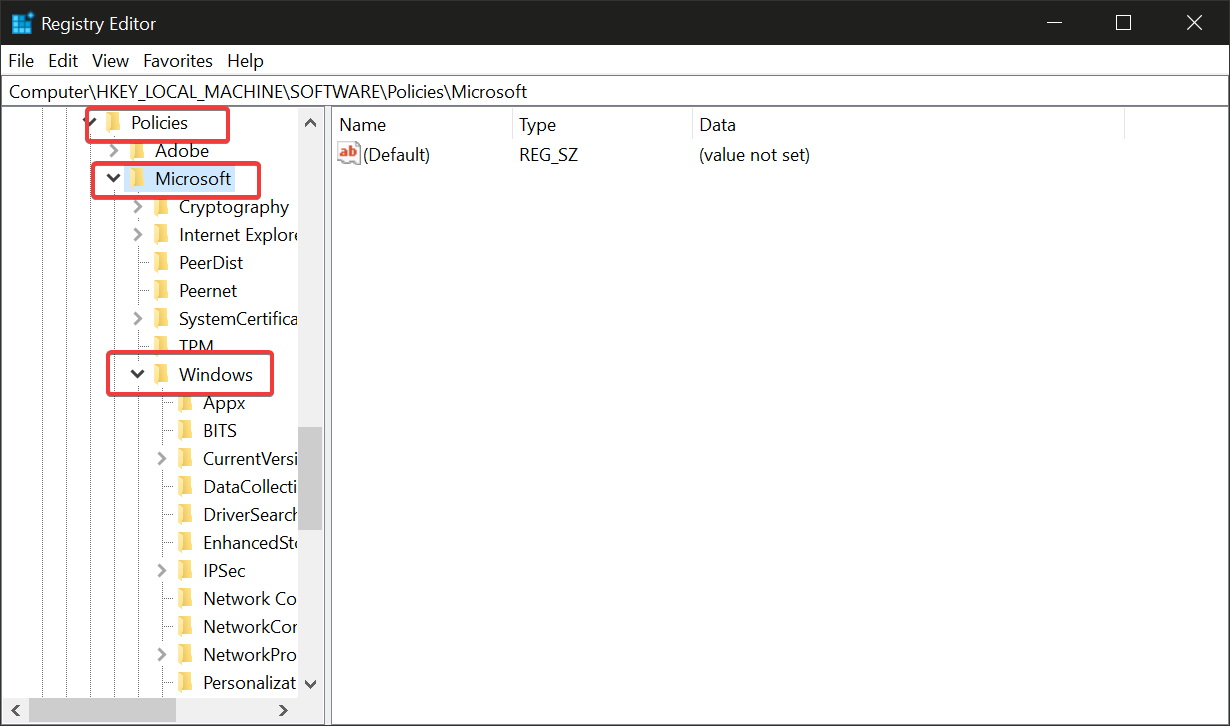
  2. In the Registry Editor, navigate using the following path: HKEY_LOCAL_MACHINE\SYSTEM\CurrentControlSet\Services\Tcpip\Parameters
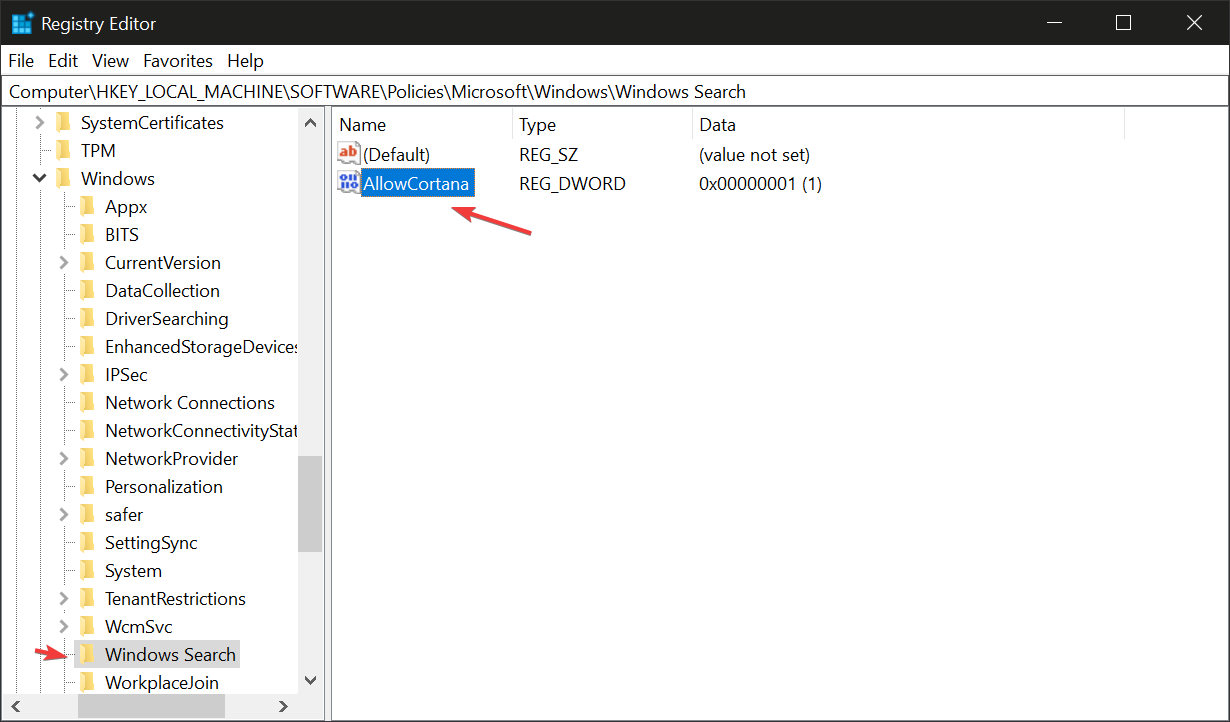
  3. Right-click the right pane, choose New, and select Multi-string Value. 
  4. Rename it to ReservedPorts and open it. 
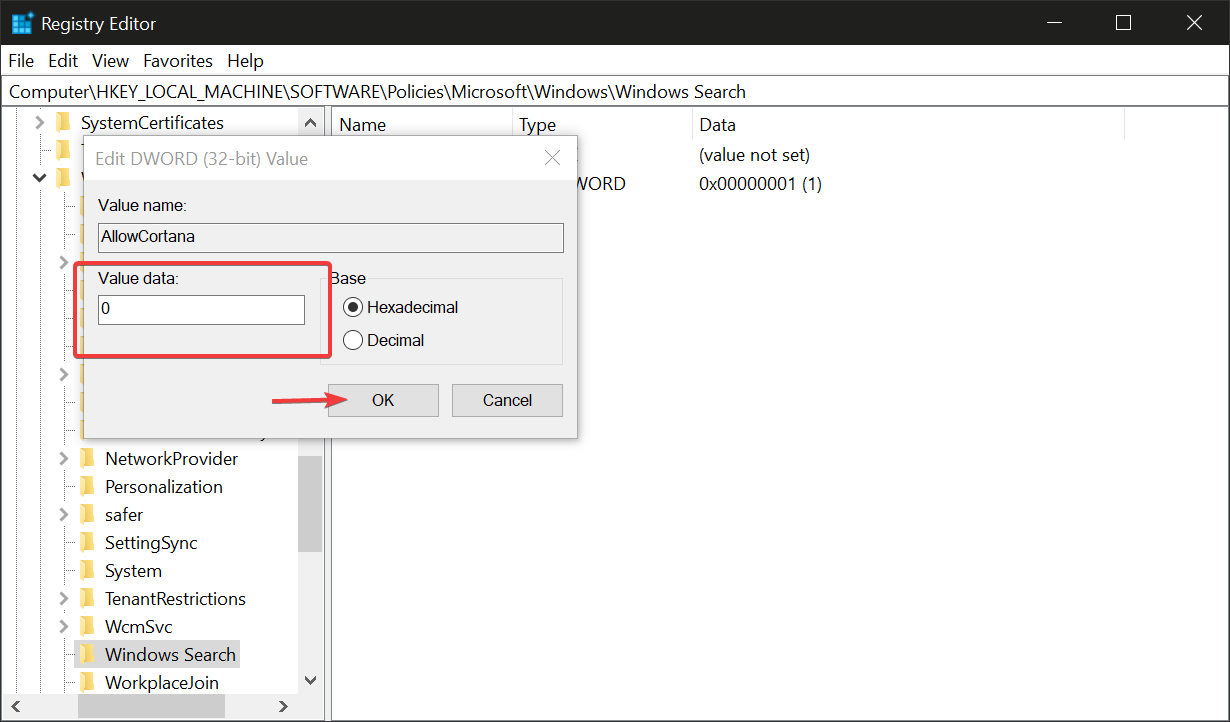
  5. Input 1723-1723 in the Value data box and click OK. 

  6. Close and restart the PC to take effect. 

By editing the registry, you might fix VPN The specified port is already open when using L2TP protocol, so be sure to try this method.

3. Modify connection port in Command prompt

  1. Press the Windows key, search for command prompt and select Command Prompt from the list of results.
  2. Input the following code: netstat -aon 
  3. Identify process PID for any program using port 1723.
  4. Input the following command and press Enter key. We used this command as an example, but you’ll need to change the number at the end so it matches your process: taskkill /F /PID 1242
  5. Close Command Prompt.
  6. Restart PC to take effect. 

This is a forceful attempt to stop an app from using the VPN’s dedicated port, and it can help you if you’re getting The specified port is already open error when using PPTP protocol.

4. Use the Control Panel

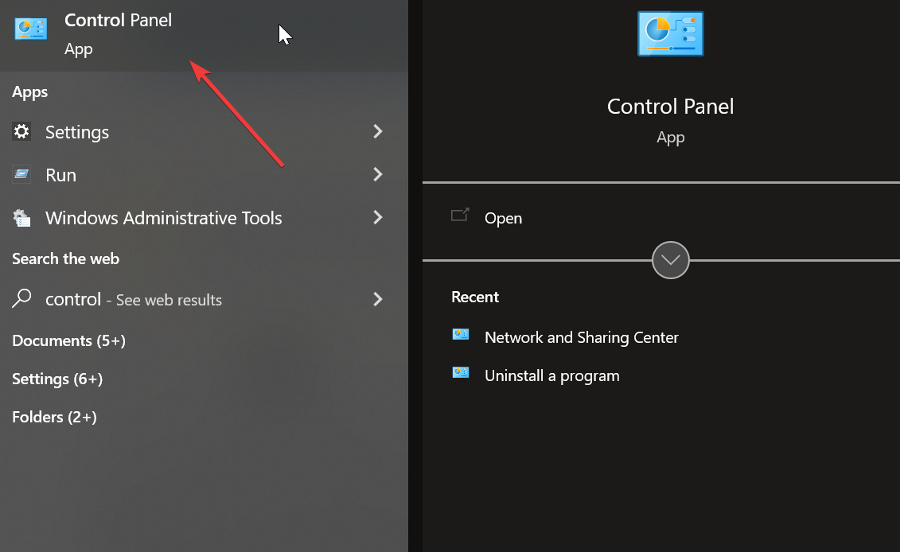
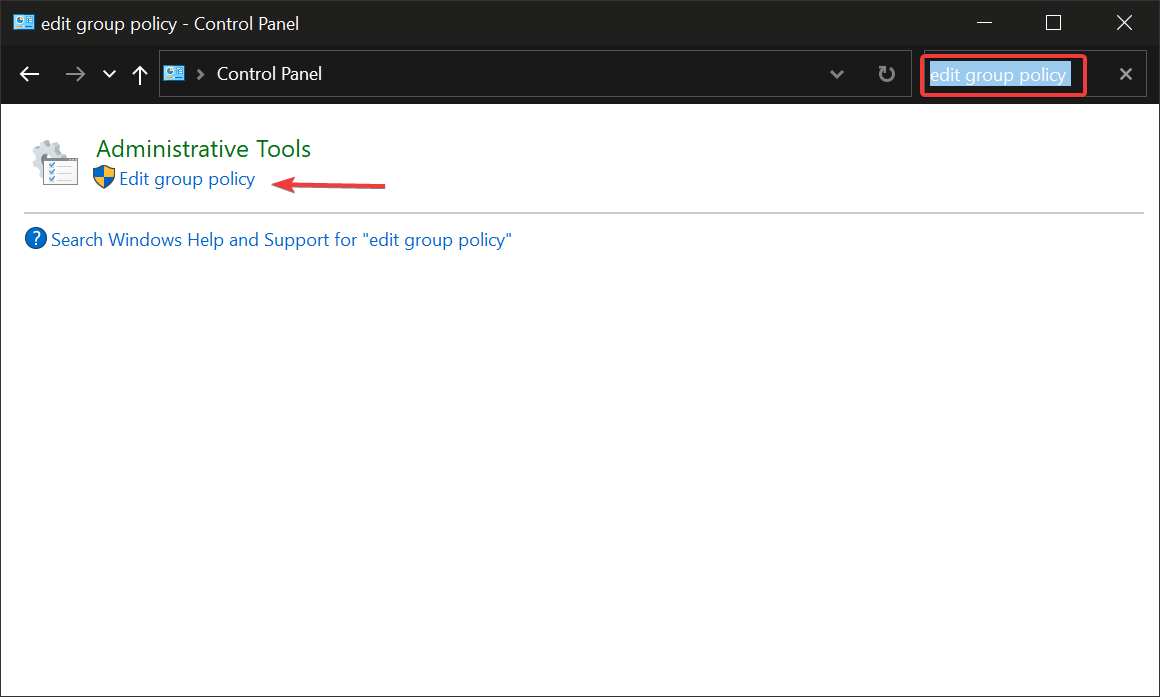
  1. Press the Windows key, search for control panel and launch it.
  2. Change the view by to Small icons and select Phone and Modem. 
  3. Open the Modems tab, choose the modem and click Remove. 
  4. Restart PC to take effect. 

This fix is for modem-related issues that cause VPN the required port is open problem on Windows 11/10. 

5. Try another VPN

If you’re still having issues, even after trying the above-mentioned fixes, it might be worth considering a different VPN.

The one you’re currently using could be suboptimal. For a fast and error-free experience, we recommend ExpressVPN.

Known for its reliable performance, strong security features, and ease of use, ExpressVPN can offer a smoother VPN experience and help you avoid the specified port is already open error.

ExpressVPN

Ditch errors and enjoy seamless browsing with ExpressVPN!
Check price Visit website

What causes the specified port is already open error when using VPN?

Although this error can be caused by many reasons, its major cause stems from any attempt by another application on your device to open a non-sharable network connection port used by the VPN. 

Secondly, the error message could also occur if another application attempts to use the same port as the non-sharable connection used by the VPN. 

Although this is more associated with Mac and Linux, SSH forwarding could prompt this error message. Both Meraki and SonicWALL VPN users reported The specified port is already open, but you can experience it on other VPN clients.

In addition, software bugs and lags due to computer updates could be another reason why this VPN error message may come up. 

Summary

We hope this guide helped you address the specified port is already open error. At this point you should be able to use your virtual private network hitch free.

However, if you’re still having issues, don’t hesitate to contact us in the comments below.

Anthem’s player count: How many open-world gamers are there?

You surely must have heard about Anthem by now right? yes, we’re talking about the online multiplayer action role-playing video game developed by BioWare and published by Electronic Arts.

Since the game came out back in 2019, millions of players rushed to the fictional planet named Coda, where they assumed the role of Freelancers.

These heroic adventurers, who wear powerful exosuits, make it their job to defend humanity from the threats beyond their cities’ walls.

If you were also wondering about the game’s title, know that it refers to the Anthem of Creation, a powerful and mysterious force responsible for most of the extraordinary technology, phenomena, and threats in the world.

Wondering how many users flock to this virtual world on a monthly basis and escape their daily lives? We’re about to take a deep dive into that and find out together.

How many people bought and played Anthem?

As we’re sure you are already aware, there are a lot of MMOs out there, each better or more entertaining than the other.

Among the fan-favorite ones, we can mention Runescape, World of Warcraft, Runescape, Elder Scrolls Online, Neverwinter, and Lost Ark.

But don’t underestimate Anthem, because according to MMOPopulation, this game is actually among the best 20 MMOs out there.

Now, according to the available statistics, Anthem managed to gather quite an impressive army of gamers, peaking at 8.39 million users.

Now, even by today’s standards, that is a massive fanbase, considering that most people don’t seem that invested in these types of games anymore.

How many people still play Anthem?

We don’t know exactly what you were expecting, but the situation is pretty dramatic, as far as what is left of the Anthem gaming community.

Even though fans seemed pretty excited to play this awesome title at first, it seems that the love affair between fans and game ended as abruptly as it started.

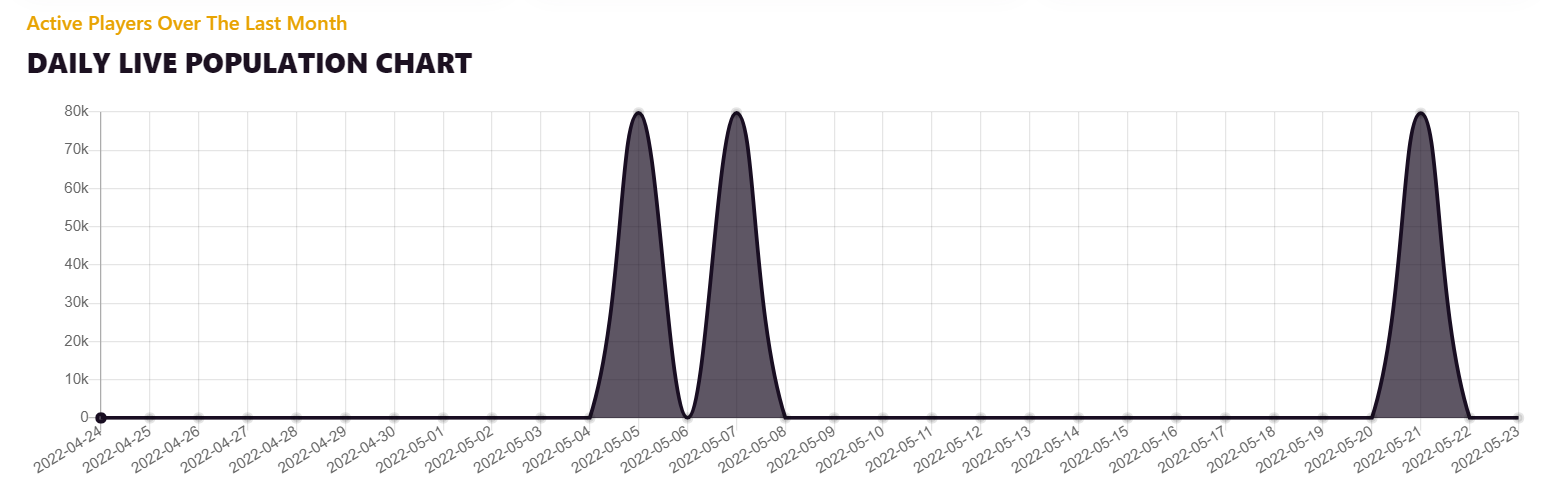
Yes, we said that over 8 million players were recorded playing Anthem, but the present statistics will shock you, to say the least.

So, if we’re talking daily players, Anthem now has less than 20. No, that wasn’t a typo, it is what remains of the once-mighty Anthem community.

The most dramatic drop in player count actually happened in the last month, when the numbers went from close to a hundred thousand to almost zero.

Apparently, the game had nothing more to offer the content-hungry fans, and everyone simply decided to abandon this virtual world in the quest to find a new, more entertaining one.

We almost forgot to mention that this is the count for the entire Anthem player base, which includes the PC, Xbox, and PlayStation platforms.

⇒ Get Anthem PC Key from Kinguin

⇒ Get Anthem PC Key from G2a

⇒ Get Anthem for Xbox

⇒ Get Anthem for PlayStation

Understandable, considering that a lot of MMO enthusiasts are now playing Lost Ark a lot, and many have returned to World of Warcraft’s Shadowlands expansion, with more to come for the upcoming one, which is called Dragonflight.

The remaining Anthem players are wondering if playing the game is even worth it in these conditions since they can’t seem to find more than 3-4 players in any given mode.

This is a sad fate for what once seemed to be a masterpiece, with everyone being ultra-excited after only watching the game’s pre-release trailer.

Things are unlikely to change for the better, but we’ll keep an eye out for any changes and let you know if the community somehow magically decided to come back.

Have you ever played Anthem? Share your experience with us in the dedicated comments section located below.

What is Error Code 727e66ac on 2K22? 8 Best Solutions

NBA 2K22 error 727e66ac is a network connection-related problem. However, for 2K game players, it is an unidentified error. The game requires a good internet connection, so any connectivity issues lead to an error. 

Error code 727e66ac only occurs in MyCareer. During your career, it takes your player to MyPark, causing a disconnection with the 2K servers. When the error occurs, it becomes difficult to access a New Game.

You cannot play games or go to MyPark since it locks your characters. To solve such an issue, you have to start your entire career. 

The possible causes of the error could be the disconnection of the PC or console from the server, corrupted files, or damaged software.

For a smooth gaming experience, you can check out the updates and patches that the 2K sports developers release frequently. You can log in easily and enjoy your favorite basketball simulator.

Since this is one of the best basketball games for PC, in today’s article we’re going to show you the best methods to fix this problem.

How do I check NBA 2K22 server status?

  1. Open your browser.
  2. Visit the NBA2K server status website.
  3. Check if all services are properly running.

This is a great method to check if there are any issues with error code 727e66ac in 2K22 on Xbox, or any other platform.

How do I fix NBA2K22 error code 727e66ac?

1. Connection check

  1. Visit your router’s configuration page and log in with your credentials.
  2. Now locate the port forwarding option.
  3. Make sure you forward the following ports:
    • TCP: 27015-27030,27036-27037
    • UDP: 4380,27000-27031,27036
  4. Save changes.

You should also try using an Ethernet connection instead of a wireless one and see if that solves the issue.

This solution also works if you’re getting NBA 2K22 error code 727e66ac on your PS4 or any other console.

Note icon NOTE
Be sure to check your router manual to see how to correctly change forward your ports.

2. DNS Server Change

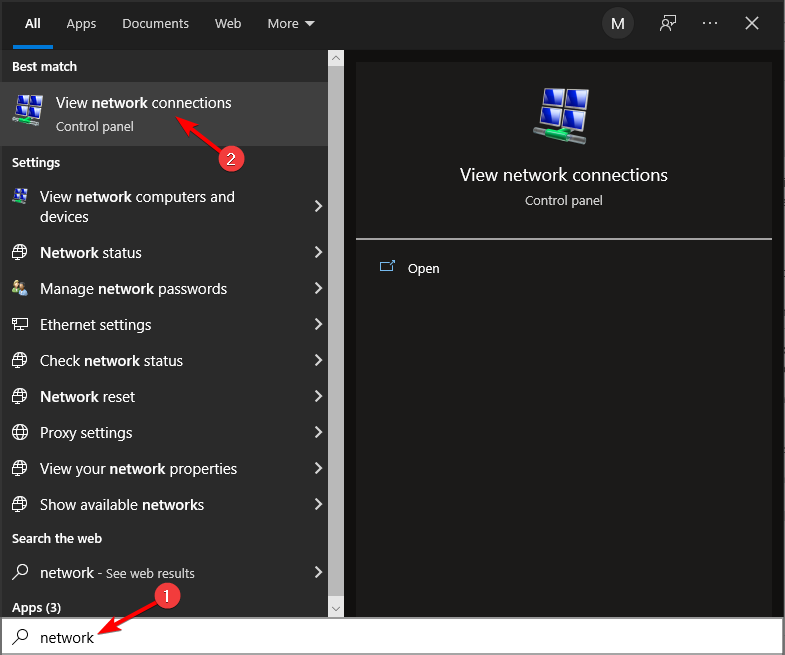
  1. Press Windows key + S and type network. Select View network connections.
  2. Locate your current connection, right-click it and choose Properties.
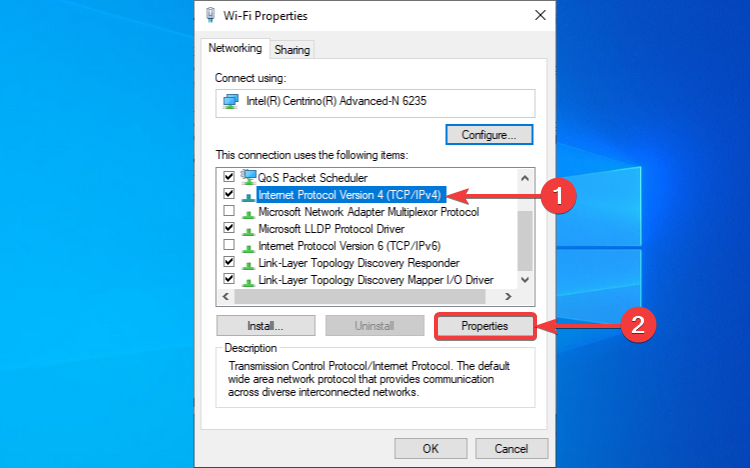
  3. Select Internet Protocol Version 4 (TCP/IPv4) and click on Properties.
    Internet Protocol Version 4 shows Properties
  4. Select Use the following DNS server addresses and set the following values:
    • Preferred DNS server: 208.67.222.222
    • Alternative DNS server: 208.67.220.220

  5. Click OK to save changes.

DNS can cause 2K22 error code on next gen consoles as well, so be sure to check their DNS settings as well.

3. Create a new MyPlayer in MyCareer 

  1. Start the game.
  2. Go to the MyPlayer section and create a new player to start a new game.
  3. Now quit the current game.
  4. Load your previous game.

This is a simple workaround, and it works if you’re getting NBA 2K22 Rec error code, so feel free to try it.

4. Check for updates and install

  1. Start Steam.
  2. Now go to your Library.
  3. Try to start NBA 2K22.
  4. If there are any updates available, be sure to download them.
  5. Once the game is updated, run it.

5. Power cycle your networking equipment 

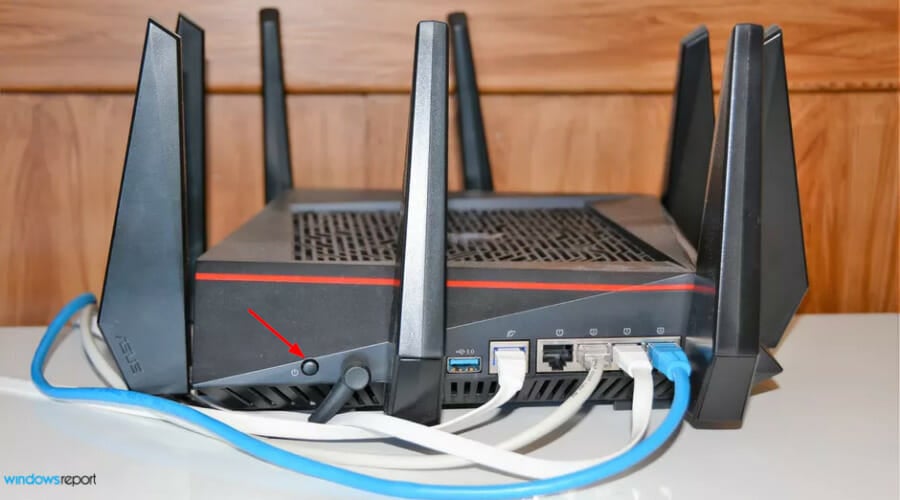
  1. Press the Power button on your router.
    power button
  2. Once the device is off, wait for 30 seconds.
  3. Now press the Power button again.
  4. Wait while the device boots again.
  5. If you have any additional network equipment, be sure to restart it as well.

6. Restart the NBA 2K21 game 

  1. Close the game.
  2. Now press Ctrl + Shift + Esc.
  3. Select Steam on the list and click on End task.
  4. Now start the Steam again.
  5. Start NBA 2K22 and check if the issue is gone.

7. Repair NBA 2K game files

  1. Start Steam.
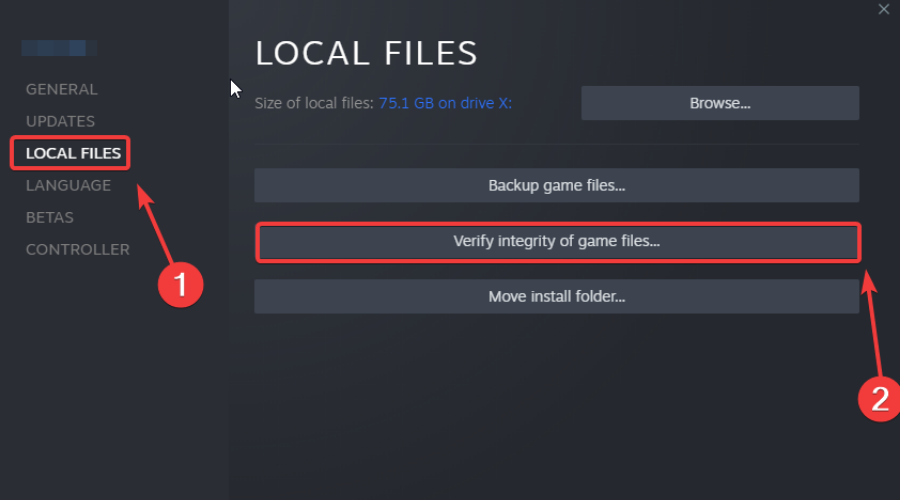
  2. Locate the NBA 2K22, right-click and select Properties.
  3. Head over to the Local Files tab and click Verify integrity of game files.
    Verify Integrity of Steam Files
  4. Wait for the process to finish.

8. Reinstall the game 

  1. Start Steam and go to your Library.
  2. Select the game you want to remove, right click it and go to Manage and then select Uninstall.
  3. Click Uninstall to confirm.
  4. Now you need to go to the game’s page and click the Install button to download it again.

Why do I keep getting the error code 727e66ac on 2K22?

You might receive messages with error codes EFEAB30C or 4B538E50. These errors may occur because you have not downloaded the latest data, and you cannot play until you download the latest updates. 

Exceeded amount of allowed accounts on NBA 2K account may also trigger error codes on 2K22. The maximum number that you can create on a single console is 5. Any number above triggers a security protocol that denies server access to the added accounts. 

As you can see, fixing this error is pretty simple, and we hope that you managed to fix it by using our solutions.

Unfortunately, this isn’t the only error that you can encounter, and many reported NBA 2K error codes 0f777c90, a21468b6, and 4b538e50 on their system.

Try error code 727e66ac fixes and see which of them works for you. Leave a message in the comment section. We would be glad to hear from you.

5 Ways to Fix the Most Common Pinterest Privacy Issues

Users were recently perplexed with some Pinterest privacy issues after the company stated that it will track users’ search activity.

They also said that this functionality will assist users in discovering more related ideas, giving Pinterest users a more enjoyable experience.

Pinterest’s home feed shows you Pins, people, and businesses that Pinterest believes you’ll like based on your current activity and search history.

However, how can one make his or her account private in order to keep it safe? Let’s look at the ideal settings for a private Pinterest account on any platform.

?️ Quick Tip:

Privacy issues are the most harmful characteristics of using Pinterest or any other social networking platform. To avoid these attacks, you can try the privacy-guard Opera Browser, which features a VPN and anti-tracking features. Plus it has it’s own AI.

Because Opera One is another Chromium browser, its precise control process might well be familiar. Opera one by default blocks ads and trackers. Unlike many other adblockers, when you start it for the first time, it immediately toggles on.

Opera One

Natively eliminates ads and trackers, providing you with a safe zone where you may browse privately and securely.
Free Download Visit website

Can you get hacked through Pinterest?

Unfortunately, your Pinterest account, like any other, can be hacked, especially if you have a weak password.

And then, if the Pinterest password gets compromised and you use it for other accounts, those will be also in danger.

The best way to prevent getting hacked through Pinterest is to use a strong password or get a password generator software that will do that for you.

Here are our answers to other important questions that some of our readers had:

➡ Does Pinterest read my texts? – If your account is public, everyone can see your texts; as for Pinterest’s privacy policy, they collect the data that you have voluntarily submitted such as your name, comments, pins, likes, and your email address

➡ Does Pinterest track IP address? – Yes, and also the last site you visited before you came to Pinterest; they also use cookies and track the type of device you’re using to access Pinterest, but that’s what most websites do nowadays

➡ Does Pinterest see my online history? – Pinterest now uses your online history to provide recommendations, but this can be avoided by using browsers that have Do Not Track features

Pinterest said it completely supports the Do Not Track option in some browsers, which prohibits personal data from being collected automatically by cookies.

Let’s look at the most important Pinterest privacy issues we can address so that you can protect your account better.

How do you stay safe on Pinterest?

1. Enable the Search Engine Privacy

  1. Tap the drop-down (next to the profile icon) menu in the top right corner and then select Settings.
     how to access settings for the account
  2. Then, select Privacy and Data and then check the box next to Hide your profile from search engines.
    hide account from the search engine
  3. Following that, select Done or Save.
    save settings or click done

Keep in mind that if your Pinterest account wasn’t previously hidden from search, it could take several weeks for search engines to remove your profile from results.

If you ever want to make your Pinterest account public to search engines again, follow the same procedures but uncheck the option this time.

This method is the most effective to counter the Pinterest privacy issues we address within this guide.

2. Make a Board secret

  1. Hover over the Board you want to make a secret and tap the Edit button (grey pencil icon).
     grey pencil icon on the boards
  2. Now navigate to the Settings area at the bottom of the pop-up window. Next, to Keep This Board Secret, you’ll find a toggle switch. Turn it on and your board will be hidden. Finally, click Done.
    keep the board secret setting and then the done button

Your hidden boards are only visible to you (and anyone you invite). Secret Pins and boards won’t show up in your home feed, search results, or anywhere else on Pinterest.

When you save Pins to a secret board, the person from whom you saved them will not be notified, and the Pin count will not rise.

This is certainly a way to address one of the Pinterest privacy issues that our readers have been trying to fix.

3. Create a secret board

  1. Go to your Pinterest profile, click the + sign and then create Board.
    how to create a board in the profile
  2. You’ll be prompted to name your Board and decide whether to Keep this board secret.
     create a board that is secret

This step can be used to create hidden Boards for all of your personal stuff, and it will be hidden from the public.

4. Clear the Pinterest browser history

  1. Click into the search bar at the top of Pinterest.
    the search bar in pinterest
  2. Select the delete icon next to Recent searches.
    delete recent searches

Other devices, such as Android, may have a different method of accessing this setting.

To clear the search history on an Android device, you should be able to delete the application’s cache from the Settings menu.

5. Hide your pins on Pinterest

  1. First, log in to your Pinterest account.
  2. From your home feed, click the three dots icon in the bottom-right corner of the Pin.
     three dot button on the buttom of the pin
  3. After that, click Hide Pin.
     hide the pin option
  4. Select a reason for hiding the Pin.
    selecting a reason for hiding the pin

Individual Pins can be hidden from your home feed, or you can unfollow the board, topic, or account from whence the Pin originated.

This helps Pinterest figure out what kinds of Pins you want to view. If you accidentally conceal a Pin, you can restore it.

What can my followers see on Pinterest?

All of your regular boards, as well as any group boards, are visible to Pinterest followers. If you have secret or archive boards, only you, the account owner, can see them.

These are hidden from followers. Unless you are the owner of a group board, your followers will not automatically follow it.

Pinterest collects data you have willingly provided in addition to your name, profile picture, pins, comments, likes, and email address.

It’s an excellent time to make your account private and enjoy some privacy now that it collects search data as well.

With the techniques outlined above, you will be able to not only secure your account but also hide your personal boards and pins from public view.

These processes can be reversed to make your profile search engine friendly and your boards accessible to your followers.

Along with adjusting your privacy settings, it’s also important to keep your account properly verified. If you face issues during verification, see this guide on how to fix Pinterest validation error to make sure your profile works without restrictions.

In the comments section below, let us know if you know of any other Pinterest privacy settings.

How To Fix Multiplayer Not Working For Bugsnax

So, you were trying to enjoy your new favorite game with your friends and ran into some trouble? Don’t worry, you came to the right place to get this fixed.

Many people are experiencing some sort of problems with the titles closest to their hearts, and all of these so-called hiccups can be dealt with.

For example, some players said that Bugsnax wasn’t loading at all for them, and we came up with a quick workaround for the annoying situation.

Now, reports indicate that there are also some issues with the multiplayer part of the game, which is why we are here, ready to help you with this.

How can I fix the Bugsnax multiplayer not working?

Now, before we begin the troubleshooting process, you have to make sure that your Internet connection is actually working properly.

If we isolate this as being the issue, all you have to do is either change your router or contact your Internet provider.

1. Troubleshoot your internet connection

  1. Test if your network connection is working
  2. Restart your router (make sure you unplug the power cord and leave it for 30 seconds switched off)
  3. Right-click the network icon in the Taskbar and select Troubleshoot problems
  4. Open a Command Prompt and type the following commands (one by one):
    • ipconfig/release
    • ipconfig/all
    • ipconfig/flushdns
    • ipconfig/renew
    • netsh winsock reset
  5. Try to run Steam again

2. Allow Bugsnax through the Windows Firewall

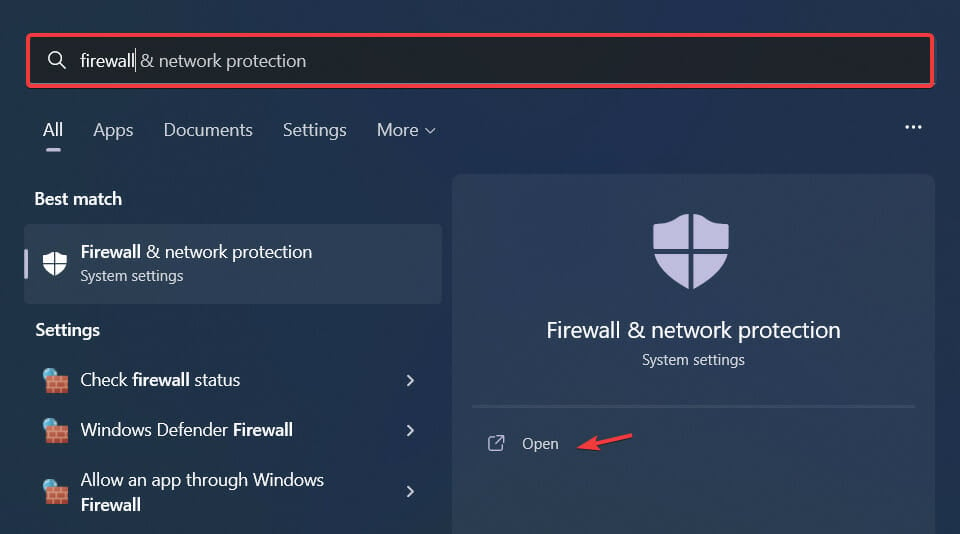
  1. Press the Windows key, search for Firewall and select Open.open firewall
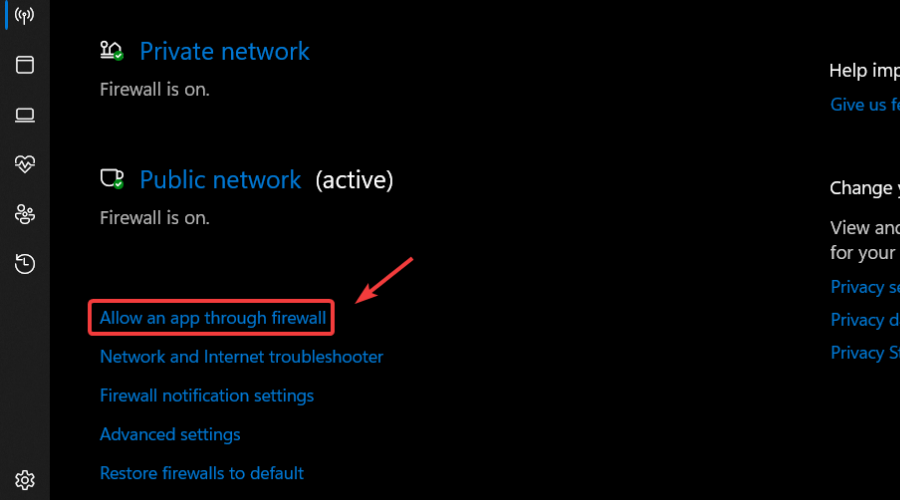
  2. Click on Allow an app through Firewall.allow app through firewall
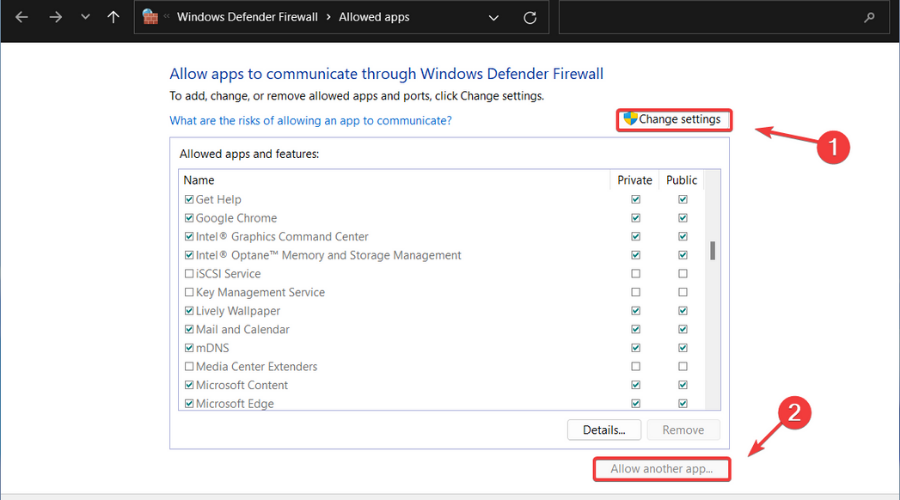
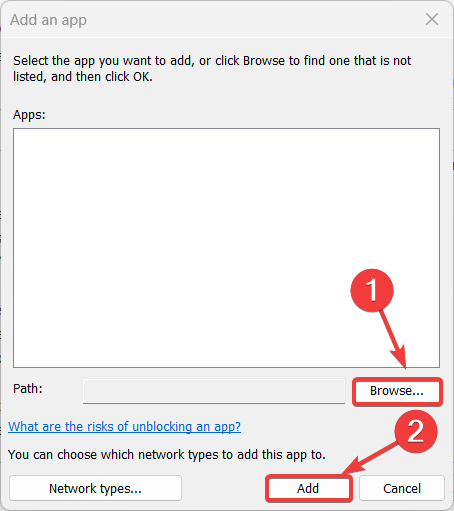
  3. If Bugsnax isn’t in the list, click Change Settings, then Allow another app.Allow another app
  4. Click the Browse button, locate your game and press the Add button.browse firewall games

3. Update the network driver

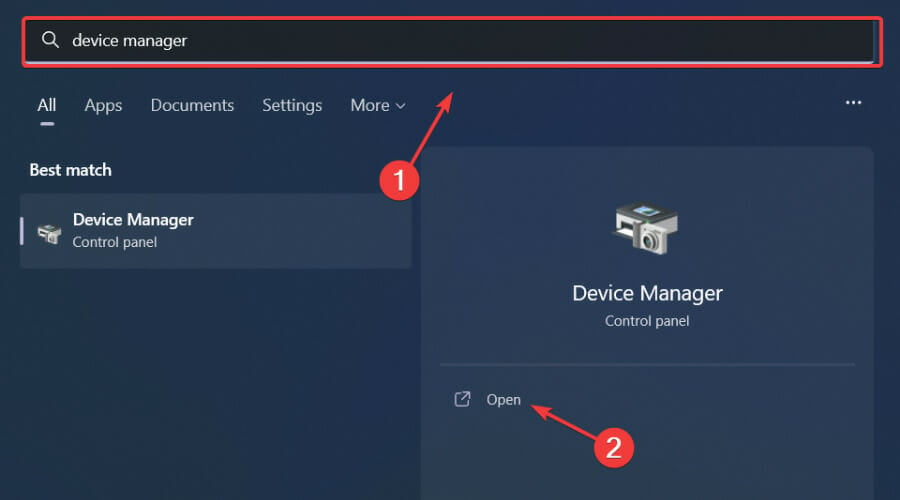
  1. Press the Windows key, search for Device Manager and click on Open.run device manager
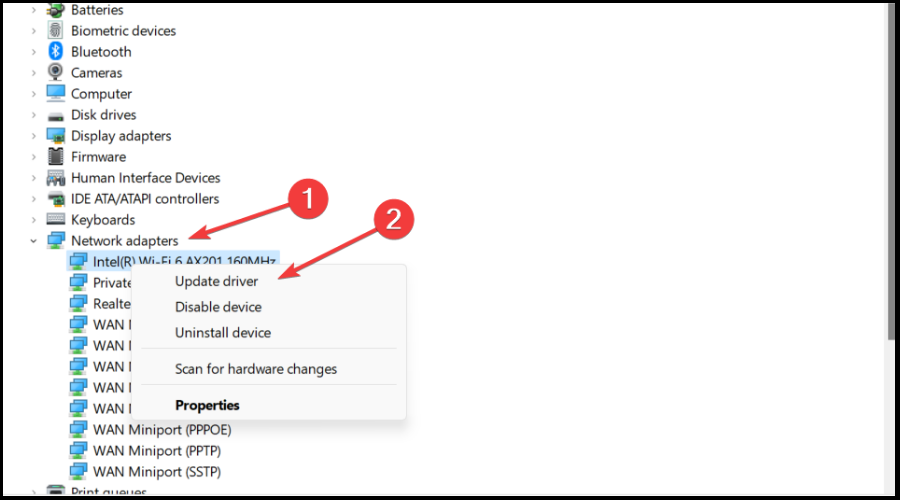
  2. Expand Network Adapters, right-click on the one you use and select Update driver.network driver
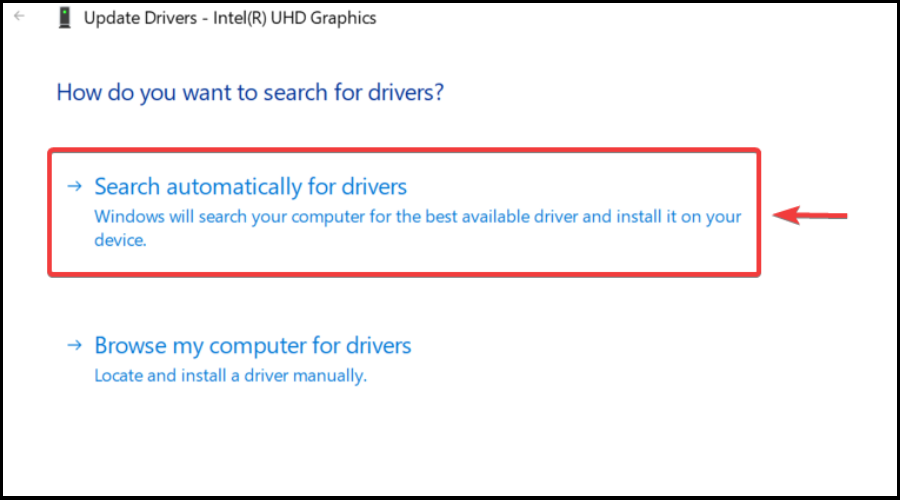
  3. Select Search automatically for drivers.search for driver automatically

Gaming is relaxing and fun, and surely you can do without all the crashes, lags, or freezes by keeping all drivers up to date and error-free easily. 

Sometimes, manual checks are hard to perform, that’s why we recommend using an automated assistant that will scan for fresh driver versions daily.

In case you’re a beginner, you don’t have to worry! Outbyte Driver Updater is smart, simple, engaging and its user interface was built to make your life easier.

⇒ Get Outbyte Driver Updater

4. Check the game’s file integrity

  1. In Steam, right-click Bugsnax and select Properties.dying light steam properties
  2. Select the Local Files tab and click on the Verify integrity of game files.game file integrity

5. Run Steam as administrator

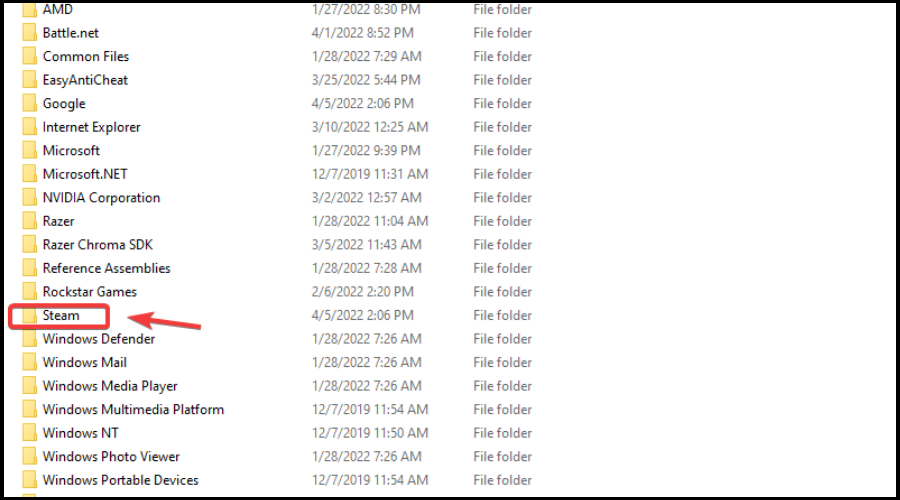
  1. Locate your Steam installation folder.steam folder
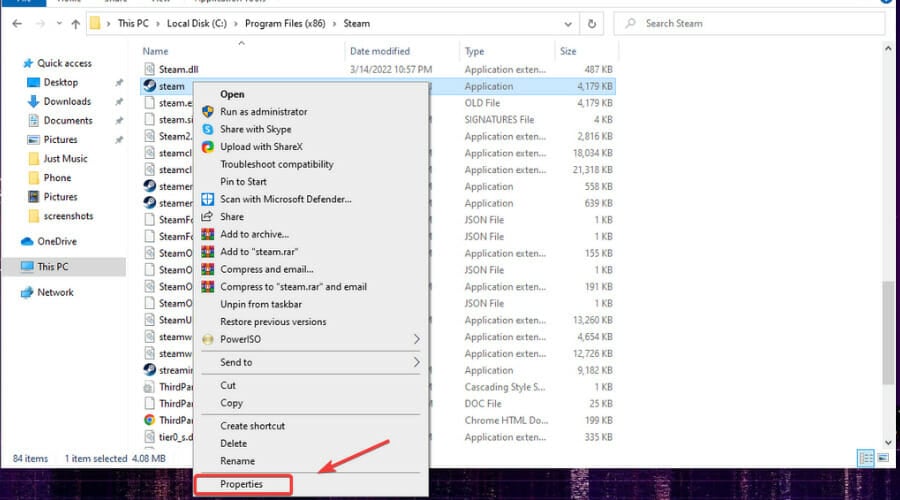
  2. Right-click on the Steam executable and select Properties.steam properties
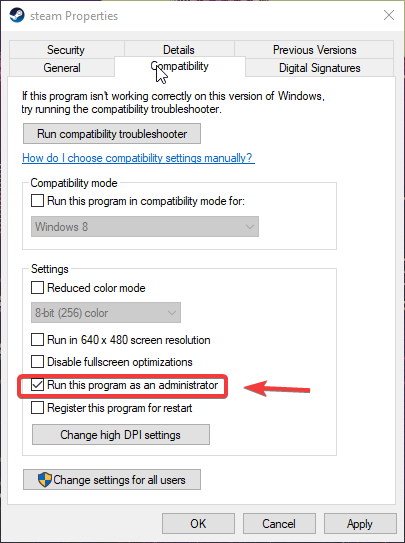
  3. Click on the Compatibility tab and tick the box next to Run this program as an administrator.run as admin - steam
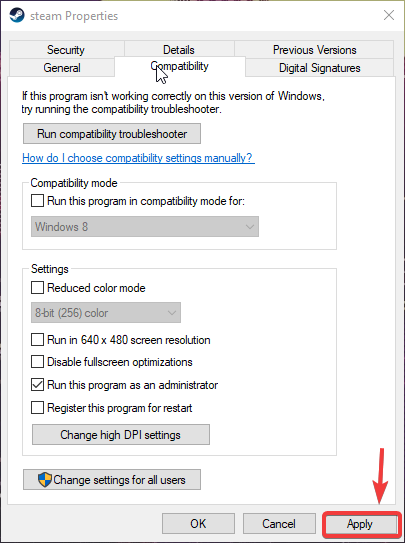
  4. Press the Apply button and close the window.apply

6. Opt out of all Steam beta programs

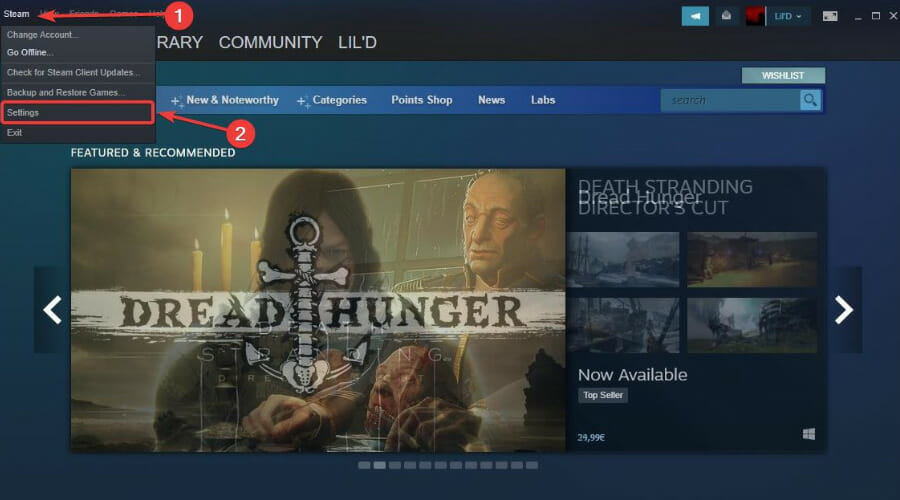
  1. Click on Steam and select Settings.Steam settings
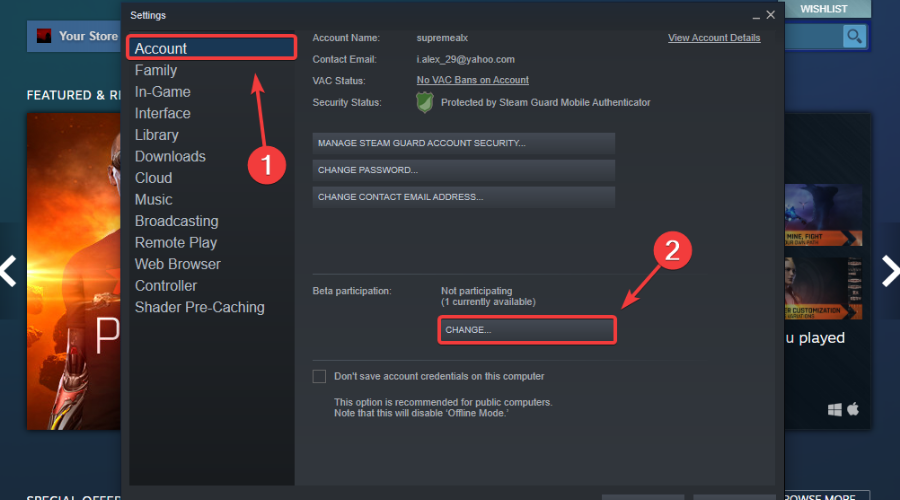
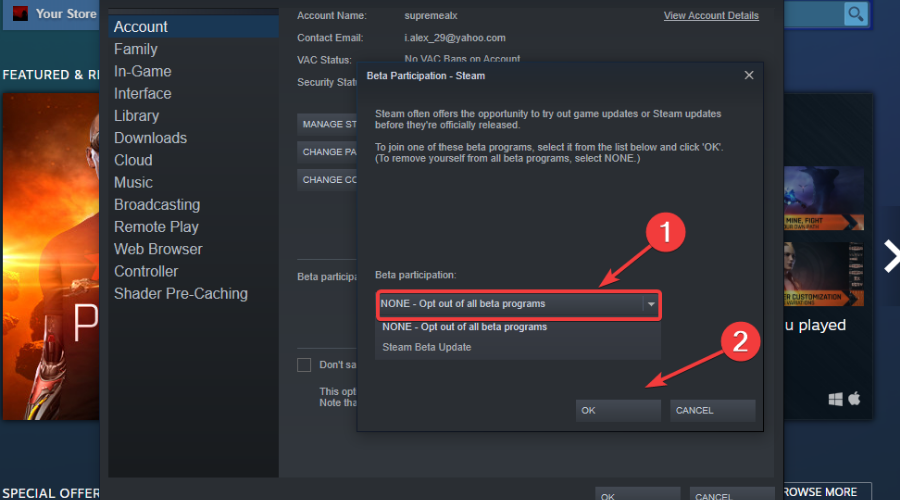
  2. Select Account and press the Change button under Beta participation.Steam account
  3. Click on None – opt out of all beta programs and press the OK button.opt out of beta

There you go! After going through this troubleshooting process, your Bugsnax problems will be solved and you can go back to enjoying it.

If you encounter any other issues be sure to stop by our Gaming page and find out how you can get on top of the situation rapidly.

Have you experienced any other Bugsnax-related issues? Let us know in the comments section below.

How to fix Authentication error 403 in Discovery Go

Discovery Go is a popular streaming app that allows users to enjoy shows without hassle.

But now and then, the app misbehaves and you start experiencing authentication issues such as the Discovery Go error 403 Forbidden with videos not loading when you try to access the services.

Since the provider boasts some of the best TV shows, it’s easy to see how such issues can generate frustration and leave users wondering how to fix 403 Forbidden errors on Discovery Go sooner rather than later.

Don’t worry, we have prepared several fixes for you to try to troubleshoot and get rid of 403 Forbidden errors during authentication. Before we dig in, let’s see why this happens in the first place.

What causes a 403 Forbidden error in Discovery Go?

Some of the common problems users face when they try to log in to their Discovery Go account are due to one or several of the following elements:

  • Unstable internet connection
  • No communication between Discovery Go servers (Discovery Go down)
  • Use of outdated apps and/or older and sometimes deprecated devices
  • Change of geographic location, especially when using a VPN

In other words, error 403 Forbidden is a status code generally known to mean the same thing: access denied.

We figured this is a valuable statement to make since this pesky error is by no means a Discovery Go-specific issue. It can affect all kinds of Internet resources and the causes behind it can be just as diverse.

Depending on the environment, it can be a corrupted access file, incorrect server permissions, faulty plugins, and so on. Here are some of the most common scenarios in which you can encounter this error.

What is a 403 Forbidden Error and where can it occur?

  • Mobile platforms (403 Forbidden on Android, US Cellular phone calls, and so on)
  • Browsers – Chrome is frequently targeted (The 403 Forbidden error on Google Chrome prevents you from loading local resources in Chrome, such as XML or JSON files.)
  • 403 Forbidden error in Rest API
  • Forbidden you don’t have permission to access this resource (The resource access issue is common on Airbnb and is usually triggered by duplicate accounts.)
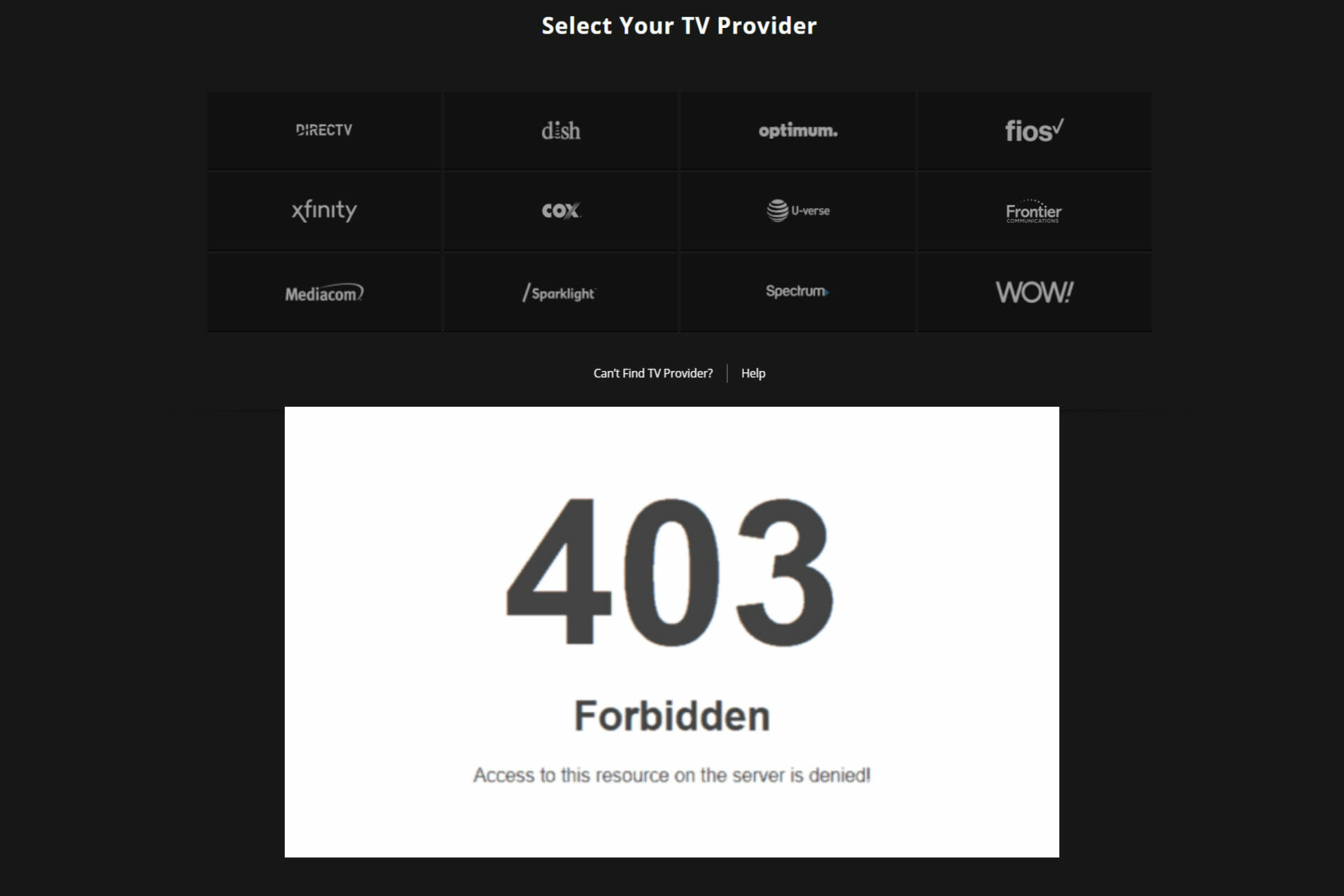
  • 403 Forbidden access to this resource on the server is denied! (The IP address allocated by your ISP is a likely suspect behind the Acces denied on this server error with status code 403 Forbidden).
  • HTTP 403 error on Google Drive (This error prevents users from accessing or downloading certain files from Google Drive.)
  • Error 403 Forbidden PayPal (This error is likely to appear if your IP address has been blocked or blacklisted by PayPal).

As you can see, the HTTP status code implies a permission issue, which ultimately leads to access denied errors. If you wish to find out more about the topic, have a look at these common causes and solutions to error code 403 Forbidden.

As far as Discovery Go is concerned, we’ve got you covered below. So read on and don’t worry, most solutions are straightforward and do not require any technical knowledge.

How do I fix a 403 Forbidden error in Discovery Go?

1. Restart the device or try a different one

  1. Click on the Start menu.
  2. Click on the Power button and select Restart.
  3. Wait for Windows 11 to restart.

If you use your mobile phone, TV, or laptop to access your account, first try restarting the device. Some require unplugging, while for others such as laptops and mobile, a system shutdown will do.

After restarting, try accessing the account to see if the Discovery Go error 403 persists.

If you were getting the error when using a web browser, try changing the device and test it again. Should it work on one, then the problem is related to the device you were using.

Thus, you can focus on troubleshooting local issues such as outdated software, slow Internet connection, and so on.

2. Clear your browser cache

  1. Launch your browser and click on the three dots located on top of the browser.
  2. Select More tools and then, choose the Clear browsing data option. Reddit not loading in chrome
  3. On the Time range tab, choose the range, and check all 3 options: Browsing history, Cookies, and other site data, as well as Cached images and files.
  4. Finally, click on Clear data to finish the process.

Don’t forget to restart the browser and check if the Discovery Go error 403 Forbidden is still there.

Now, the steps described above are available for Google Chrome, but all modern browsers incorporate similar features to delete cookies and cache.

On the other hand, a professional cleaning application such as CCleaner can be used to automatically delate your browser leftovers without causing any data loss.

3. Try a different browser

Speaking of browsers, it might be a good time to reconsider your options. As we mentioned a bit earlier, the Discovery Go error 403 Forbidden can impact any of them, but it tends to appear more often in connection to Google Chrome.

Chrome maps IP addresses from the DNS cache to speed up webpages’ loading and this can lead to HTTPS errors such as the Discovery Go error 403 especially if you’re using a VPN to change your IP address.

Given the context, we recommend switching to Opera One. Also Chromium-based, Opera One provides a solid alternative to conciliate all your browsing needs from gaming to streaming on Discovery Go and everything in between.

Equipped with a pleasant UI that is packed full of cutting-edge features, Opera One is a powerhouse of functionalities. Such as built-in VPN, Ad Blocker, AI and video pop-out player

Its unique blend will provide discretion, enhanced security, and enhanced customization options for error-free navigation every time.

⇒ Get Opera One

4. Confirm your TV provider/location

  1. Open the official Discovery Go webpage and click on Link TV Provider.
  2. In the following window, simply select your provider from the list or use the search field to look it up.
  3. If your provider is no longer listed here, you might need to update your preferences.

Sometimes, TV providers change the contract agreements. As a result, they are excluded from the TV providers list and stop working with Discovery Go.

If you struggle with the Discovery Go error 403, check if your TV provider still works with the streaming platform.

This settles it as far as TV providers are concerned. What about location? As you already know, Discovery Go is available to United States residents only.

Should you try to access it from different parts of the world, you’re likely to see this frustrating message:

Now, you probably had your fair share of geographically restricted content and you’re probably familiar with warnings such as: Sorry, this video is not available in your country.

If you don’t reside in the United States, using a VPN to change your IP address and unblock Discovery Go makes sense.

But many users end up connecting to the service via a different location, which has no support for the platform, thus triggering the Discovery Go error 403.

How can you access Discovery Go outside the USA?

  1. Download and install a trusted VIA with US-located servers and streaming optimizations such as PIA VPN.
  2. Launch the app on your device and log in using the credentials provided by your supplier.
  3. Expand the server list and choose a server located in the USA.
  4. Once you’ve connected to the VPN server, open the Discovery Go website in your browser and start enjoying your favorite shows!

5. Check the Internet connection

When using your home or Telecom internet, you have to ensure that it’s strong and has high speed. Discovery Go requires a network speed of around 1.5 Mbps and 3-6 Mbps for SD and HD videos.

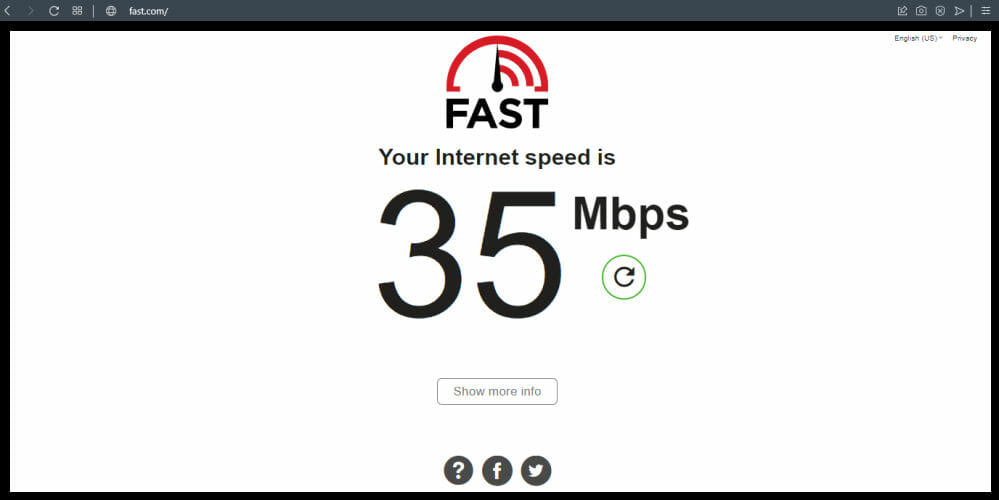
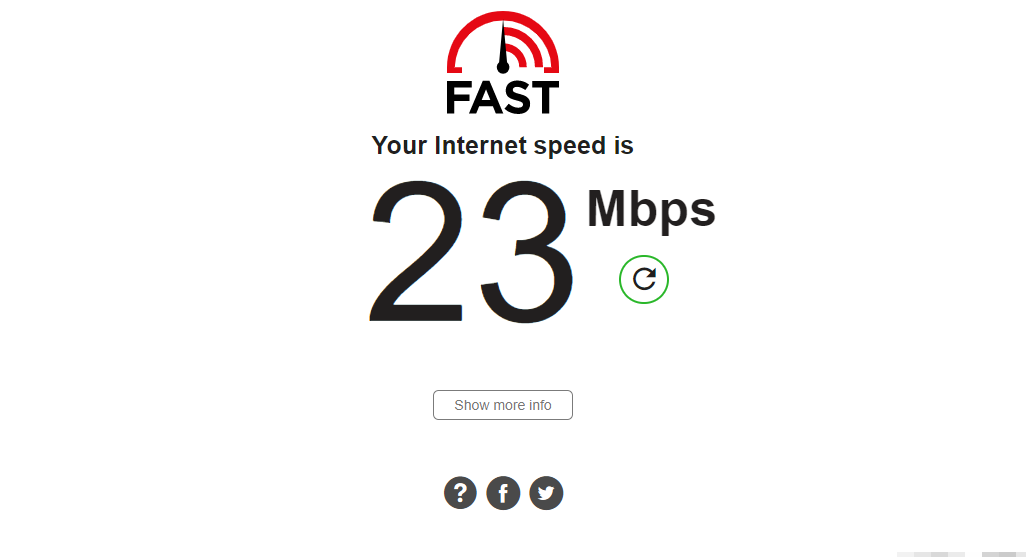
You can also third party sites such as Fast with dedicated tools to check your Internet speed instantaneously.

Reboot the network devices

While you’re at it, check your modem, router, and switches, and unplug/reboot them one by one. After that, reconnect them and try accessing the site to see if the Discovery Go error 403 Forbidden is solved.

6. Uninstall and reinstall the app

When using the Discovery go app, sometimes you can fix the issue by uninstalling and installing the app afresh.

Fast uninstall the app and restart the devices. Perform a fresh installation and try re-accessing the account. If you were getting the error when using a web browser, try changing the device and accessing it using the app.

This error is somewhat similar to Discovery Plus error 400, so be sure to check our dedicated guide and see how to fix it.

Finally, if you have tried all the above methods but still face the issue, we suggest you get in touch with the Discovery Go customer service.

Here’s how to contact Discovery Go: visit the services on your browser or app, fill out the contact us form and wait for 24 hours. Hopefully, they will help you fix the Discovery Go error 403 for good.

Microsoft Build is on us once again – here’s what you need to know

On May 24-26, Microsoft Build is on us once again, and once again it will be a virtual event. As usual, the conference will kick off with a series of keynotes followed by deep dive sessions, and in its virtual capacity Build is able to offer a number of added perks as well (although no free t-shirts or stickers, alas).

Unlike the pre-pandemic Builds, but similar to those after 2020, Build is free for participants, you only need to register. Once you’re signed up and logged in, there’s lots to do. You can check out regional spotlights, with language specific mini-sites for France, Germany, Japan, Latin America, and new this year, the UK. You’ll want to go through the sessions and create your own schedule, choosing from developer focused sessions on Azure, Teams, Windows and more, keynotes, and breakout sessions.

You can also check out the Connection Zone, where you can interact with experts and peers, with Ask the Experts sessions, one on one consultations, and ways to network and connect with others in your locality.

There’s also the Learning Zone, where you can dig deeper into Microsoft’s Learning Zone, a Cloud Skills Challenge, and the Imagine Cup, whether you’re just getting started in tech or want to develop your career.

As usual, the conference will kick off with a keynote headed by Microsoft CEO Satya Nadella, and featured speakers for the event include CTO Kevin Scott, Cloud & AI EVP Scott Guthrie, Panos Panay, and Amanda Silver, CVP and Head of Product Developer Division.

Throughout build, you’ll learn more about Azure, Microsoft 365 and Teams, Windows, and preparing for the Metaverse. Remember to stay tuned to OnMSFT.com for all the latest news and info coming out of Build, and make sure to register for the event to get the most that Microsoft has to offer.

Panos Panay talks about Windows 11 high quality score, new features and devices during Computex 2022

Computex is a leading global ICT AND IoT event where big players in the tech industry come together and highlight major strides taking place. Microsoft is also part of this event given the recent announcement that they had made earlier indicating that Windows 11 is now ready for broad deployment. This could probably be attributed to the fact that a lot of people are adopting the OS, which according to Microsoft is twice that of Windows 10.

During Computex 2022, Microsoft’s Panos Panay and Nicole Dezen talk about Windows 11 high quality score. Panos Panay reiterates that maintaining quality is the top priority for the Windows 11 development team. He further indicated that users who made the upgrade have been enjoying the experience thus far, which further builds on the premise of “product satisfaction”.

As noted by Windows Central, “since the start of the pandemic, 70% of more people streamed content from Netflix, Hulu, and YouTube on Windows devices. There’s also been a six-times increase in people using communication apps like Slack and Zoom on Windows. Additionally, Windows 11 has a doubled adoption rate compared to Windows 10.”

Panay also talks about Windows 11’s new accessibility features, as well as new devices from some of Microsoft’s partners such as Dell and Lenovo among others. He further indicated that Microsoft is taking customers’ feedback into account and using it to enhance the user experience.


What is Microsoft Math Solver and How to Use It

Microsoft Math Solver is an online tool that helps you find a solution to a math problem. The program can solve linear, quadratic, and systems of equations by graphing, matrix operations, recurrence relations, and optimization problems.

If you have a deadline to meet or are just poor in Maths, this online tool is all you need to solve all kinds of mathematical problems in record time.

The web-based version has more features than the add-in because it has access to all of its functions without requiring any additional software. You can also download it as an application on your devices.

It is often confused for Microsoft Mathematics but it was discontinued and replaced with Microsoft Math Solver.

The tool works with many standard mathematical formats including expressions and allows you to take a picture of your problem and upload it for it to solve.

Is Microsoft Math Solver free? 

Microsoft Math Solver is a free, web-based tool that helps you solve and practice math problems. It is also available as an application.

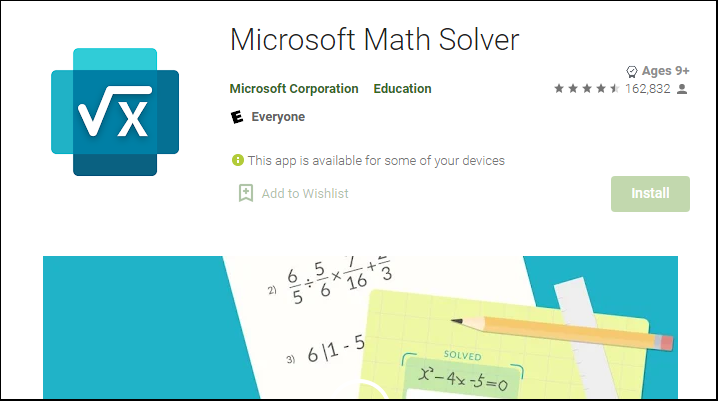
Wondering how to download Microsoft Math Solver? You can download it from the Google Play Store for Android devices and Apple Store for iPhones. Once installed, you can take a picture for the math solver and wait for it to generate solutions.

How do I use Microsoft Math Solver?

  1. Navigate to your browser and open Microsoft Math Solver.
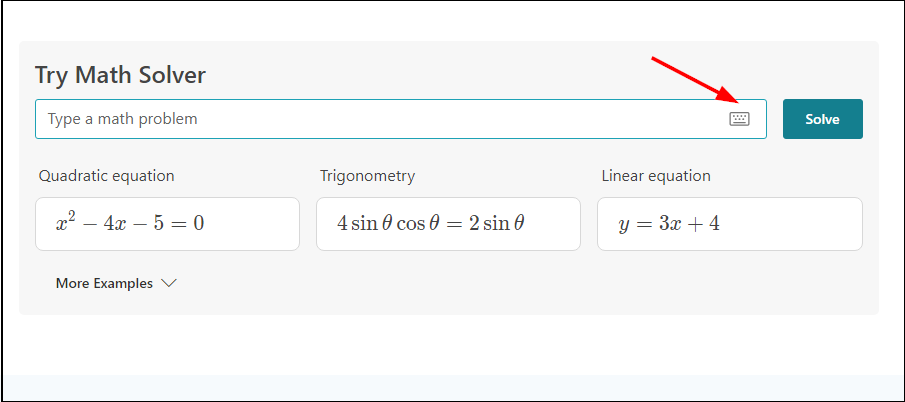
  2. Scroll down to the Try Math Solver entry and click the calculator-like icon.
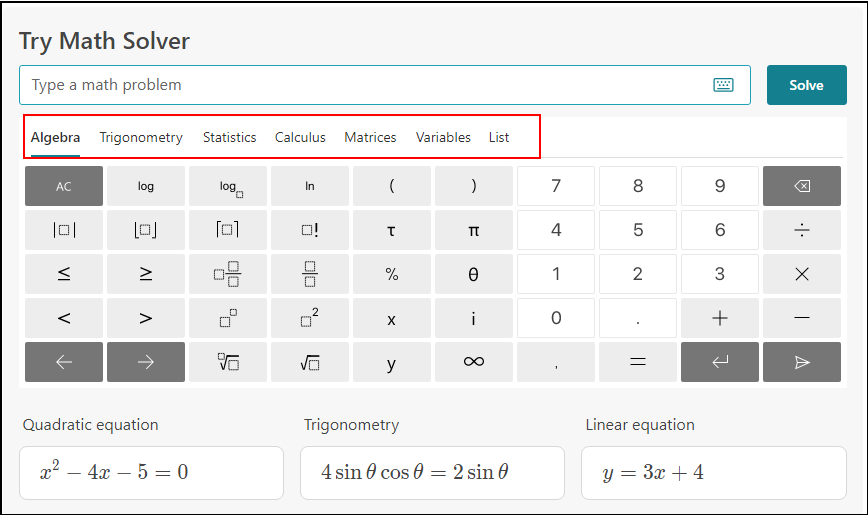
  3. Select your type of Math problem.
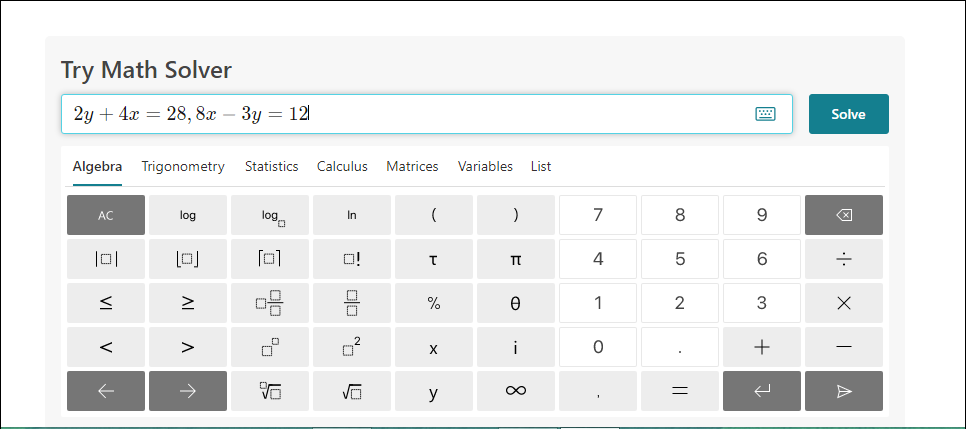
  4. Type your problem on the entry field and click Solve.
  5. You can now view your solution.

How do I get Microsoft Math Solver to show steps?

If you would like to see a detailed view of how the tool arrived at the solution, you can choose to show the steps.

It can help you understand the process of solving a problem and provides explanations for your solution. When you run the tool, it shows the steps it takes to solve the problem. You can click the View solution steps button. The steps include:

  • The problem itself
  • The steps it takes to solve the problem
  • Corresponding graph

When you have a complex equation that involves many steps to solve, or has multiple ways of solving the problem, the tool will categorize the steps by method.

You can select which method to show with its corresponding steps. If Microsoft Math Solver is not showing steps, simply refresh the page.

How do you use Microsoft Math Solver in Edge?

The tool is also built-in to the Edge browser which enables it to detect problems and solve them without switching between windows. You will have to add the tool to your Edge toolbar before you use it.

To use it in Edge, follow the steps below:

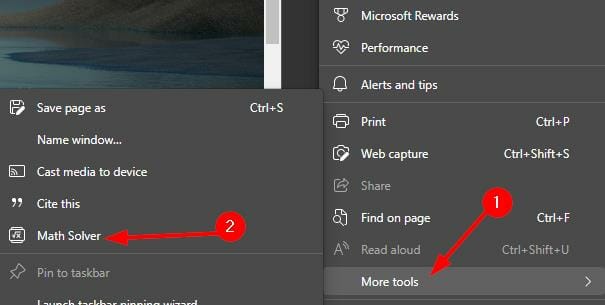
  1. Tap on the three ellipses in the top-right corner on your Edge browser.
  2. Select More tools and click on Math Solver.
  3. Now drag the box around any problem you want to solve.

Microsoft Math Solver vs Photomath: Which one is better? 

Microsoft Mathematics Solver and Photomath are two of the most popular math problem-solving apps. If you are looking for a math solver with steps, either of the two can do the job.

The two apps have a lot in common: they both use artificial intelligence to solve math problems quickly and accurately. They also both allow users to upload images of their handwritten homework assignments, which the apps then analyze for correct answers.

This feature alone makes them useful for those who don’t want to spend hours typing out their solutions. When it comes to performance, Microsoft Math Solver takes the crown. It can solve more complex problems than Photomath.

Microsoft Math Solver also goes the extra mile by providing additional learning resources and similar problems so that you can practice.

As a Math Solver app, it is more advantageous as it connects to the Microsoft Suite allowing you to solve your math problems without leaving your document. The built-in add-in to the Edge browser also makes solving problems easier.

We hope this guide brought you a step closer to solving your math problems quickly. For more complex mathematical problems, we have an excellent list of mathematical equation writing software you can try when typing special characters.

Also, check out our list of the best education software to build upon your knowledge and hone your skills in various areas.

Let us know what other problem-solving applications you use to make your work easier in the comment section below.

Windows news recap: Windows 11 hits ready for broad deployment status, Microsoft Teams arrives in Microsoft Store, and more

Welcome back to our Windows news recap, where we go over the top stories of the past week in the world of Microsoft’s flagship operating system.

Windows 11 hits a big milestone as it is now ready for broad deployment

Windows 11 has now hit ‘ready for broad deployment’ status, which essentially means that it is ready to be installed on any Windows 10 PC that meets the minimum requirements; a big milestone in pushing Windows 11 adoption.

Windows 11 hits a big milestone as it is now ready for broad deployment - OnMSFT.com - May 18, 2022

Microsoft Teams and Windows 11 compromised on the first day of Pwn2Own 2022

On the first day of the Pwn2Own 2022 event, both Microsoft Teams and Windows 11 were compromised. Hector Peralta made $150,000 off of an improper configuration flaw in Microsoft Teams.

Pwn2Own

Apple’s AR/VR project began with Windows-powered prototypes

A new report suggests that Apple presented a proof-of-concept for its AR/VR project to former US Vice President Al Gore and former Disney CEO Bob Iger, in which it reportedly used a Windows-powered device to show its idea, as Apple’s desktop and iPhone platforms had no substantial AR/VR presence.

Apple-New Headset

Microsoft Teams is now available in the Microsoft Store on Windows 10 and Windows 11

Microsoft Teams is now available to download via the Microsoft Store on Windows 10 and 11, making it easier and quicker to obtain Teams and keep it up to date.

That’s it for this week. We will be back next week with more Windows news.

Gaming Stats: 5 Players That Own the Most Games on Steam

Steam is an online gaming, social networking, and DRM platform, and it is the largest digital game distributor in the world.

It has more than 100 million active users, and more than 20 million people use it every day. That’s a lot of people! 

According to statistics, an average gamer owns about 20 games, but there are a few players on Steam who are more interested in collecting games and building large Steam libraries.

These players already have a staggering number of titles under their belts.

How many online Steam games are there

According to the website, there are over 50,000+ titles available for purchase on Steam. That’s not all, there are even more free-to-play games on the platform.

The number of games that can be purchased on Steam is constantly growing, as developers release more titles every year. 

Who has the most games on Steam

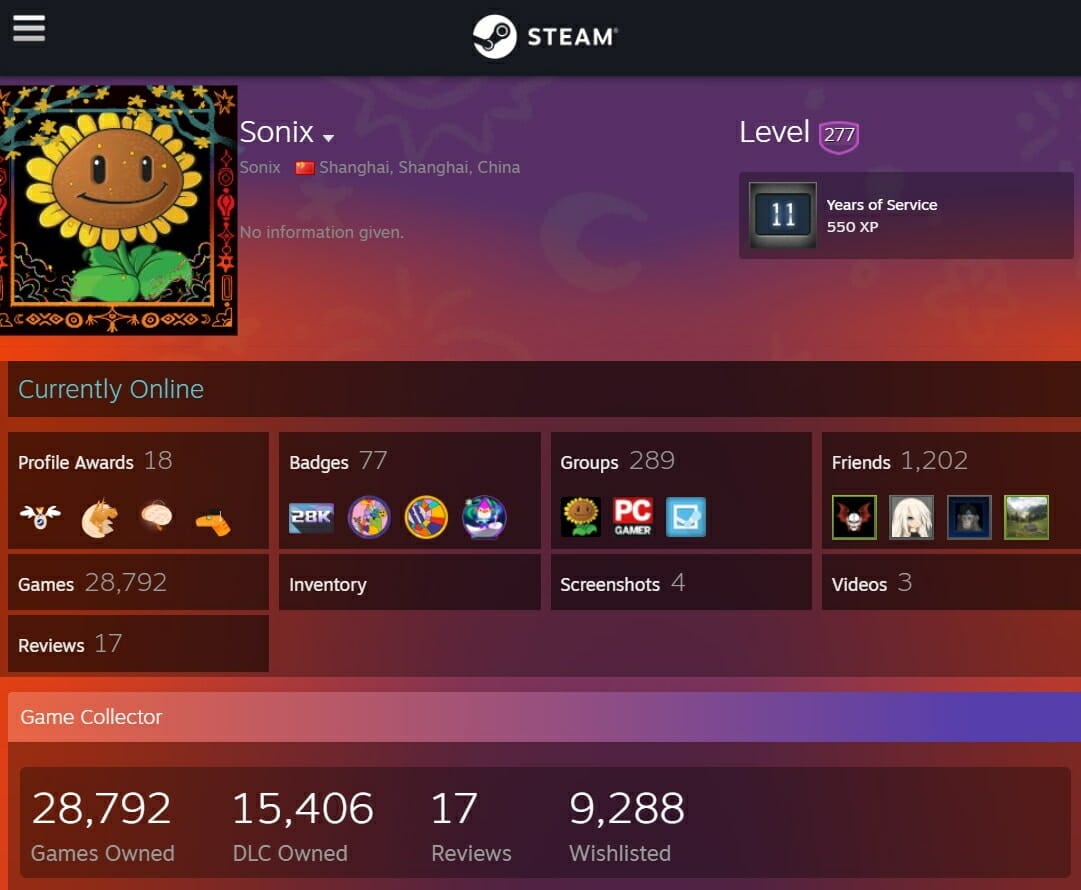
Sonix – 28,000+ games

Sonix Steam profile

Sonix is a player with the biggest library and has amassed a collection of over 28,000 games on Steam.

Not only that, this player has almost 10,000 games still on his Wishlist. So, he is not stopping any time soon.

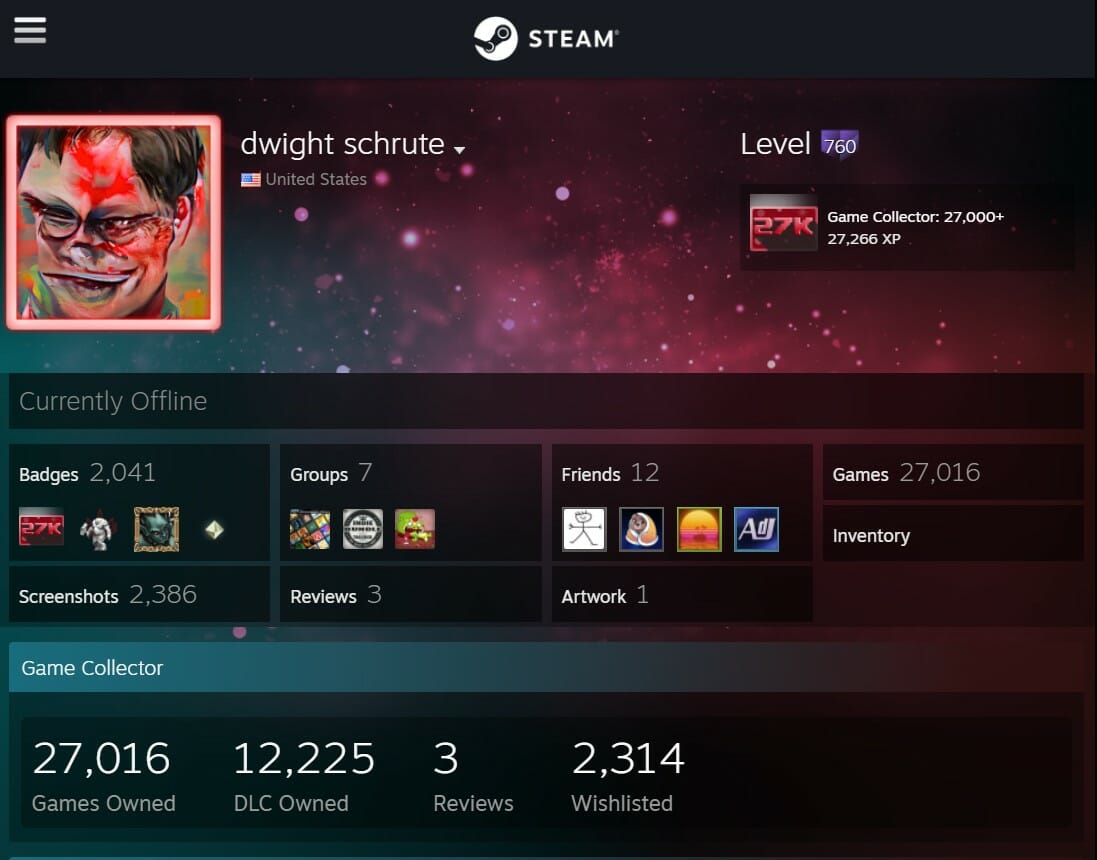
Dwight schrute – 27,000+ games

dwight-schrute profile

Dwight Schrute is one of the most prolific game collectors on Steam. He currently owns 27,073 games in his library and counting. He started playing 13 years ago and has almost 37,000 hours of gameplay under his belt.

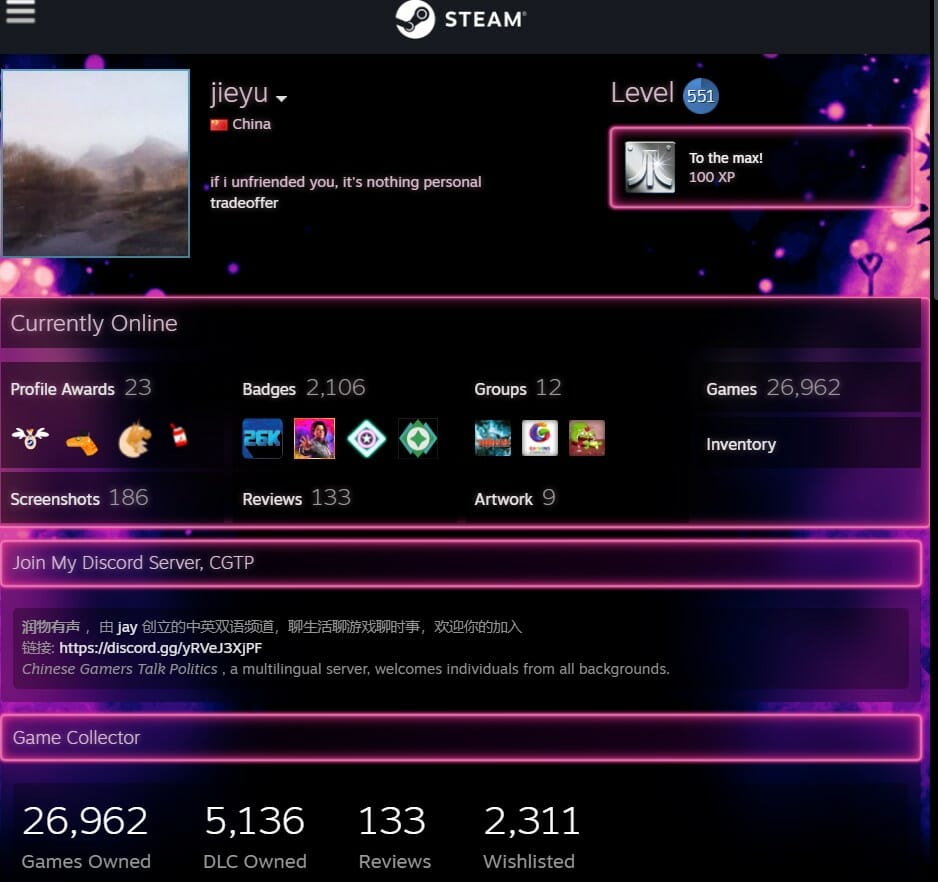
Jieyu – 26,900+ games

jieyu Steam profile

Jieyu is a member of the community with nearly 27,000 games in his account. As a result of this achievement, he has taken a spot on the ownership leaderboard.

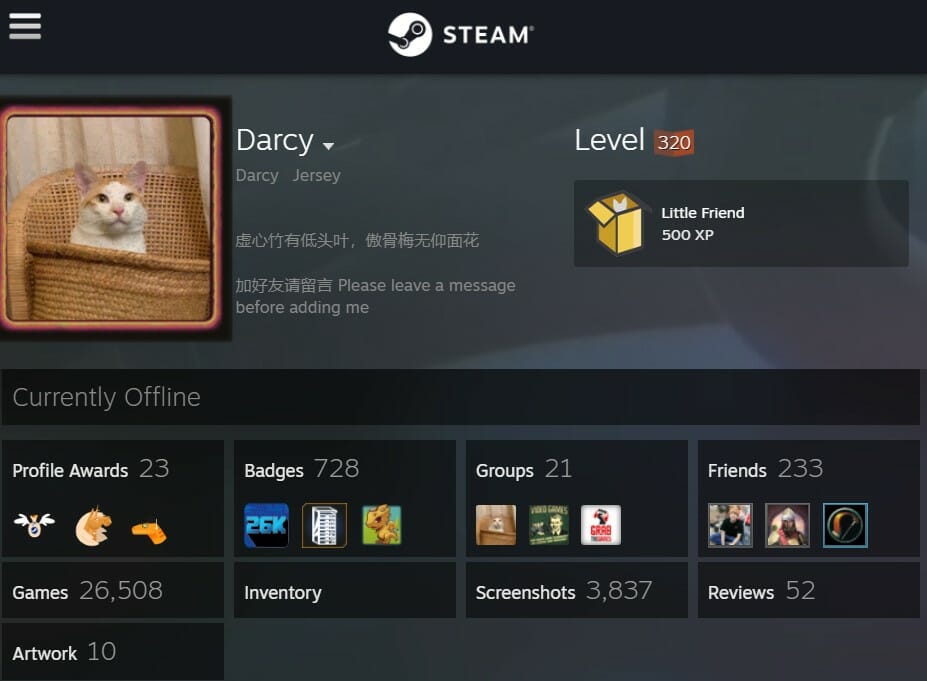
Darcy – 26,500+ games

darcy profile

Following closely behind Jieyu is Darcy, who at 320 level owns the library of 26,500+ Steam games.

Hush_Please – 25,000+ games

Hush please Steam profile

With 25,000+ games, Hush_Please is the owner of one of the most impressive collections. The player has been active since 2014 and has been adding a game every few days since then.

If you’re looking to start building your game collection on Steam, you can take inspiration from the above five players who already have a staggering number of titles under their belts.

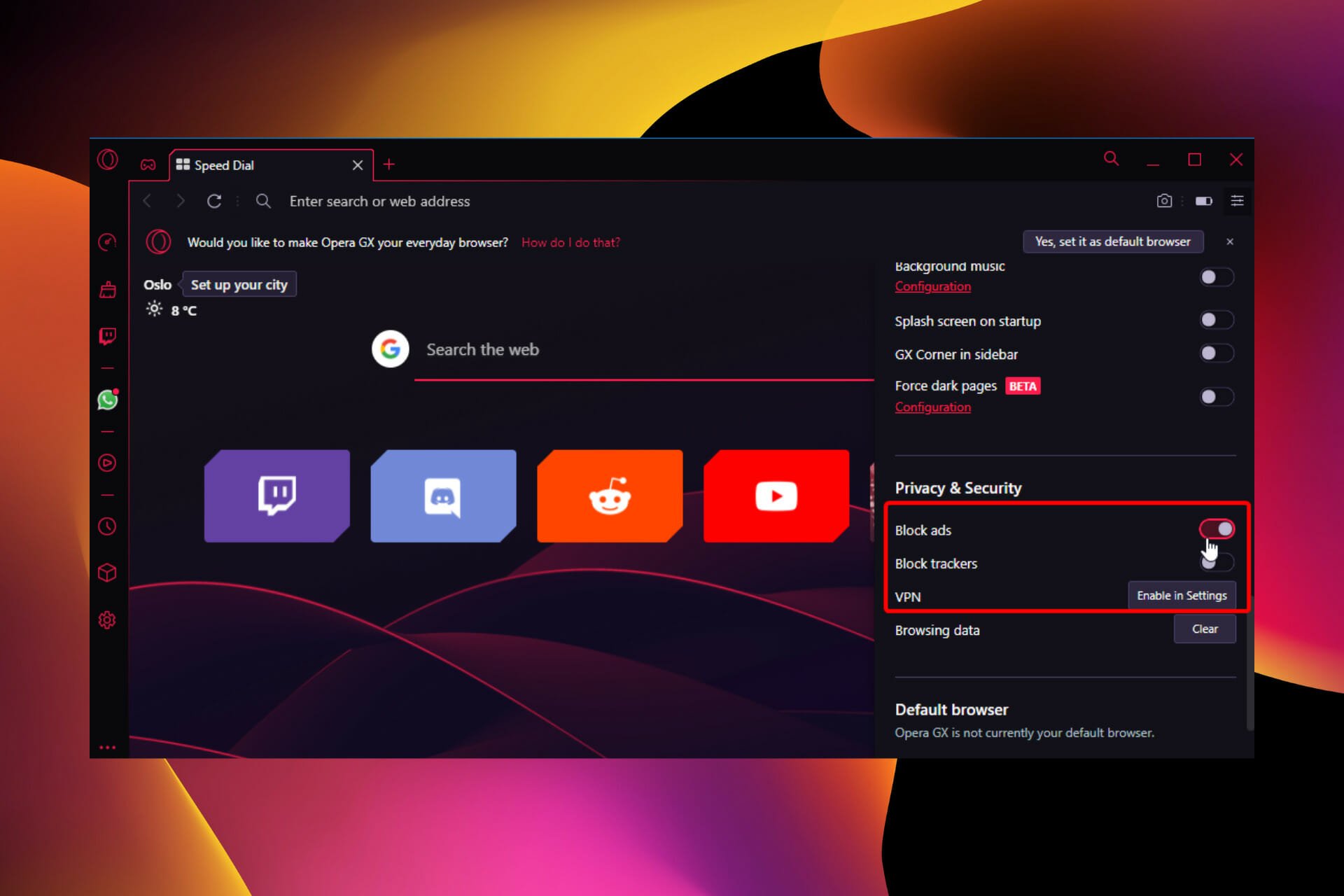
Opera GX: How Good is the Integrated Adblocker?

Is the Opera GX adblocker good? Let’s find out!

Today we take a closer look at how the integrated feature works, how to use it, and how efficient it is.

How can I enable the built-in ad blocker in Opera GX?

  1. Open Opera GX and click the Settings icon in the sidebar.
    settings home opera gx adblock
  2. Click the Basic option on the left pane.
  3. Toggle the switch for Block ads and surf the web up to three times faster forward under the Privacy protection section.
    enable adblock

What about websites that don’t allow ad blockers? If you trust the site, you can whitelist is an exception and allow ads on it:

How can I whitelist a website on Opera GX Adblock?

  1. Open Opera and click the Settings icon in the sidebar.
    settings home opera gx adblock
  2. Select the Basic option.
  3. Click the Manage exceptions option under Block ads and surf the web up to three times faster.
    manage site exception adblock opera gx
  4. Click the Add button.
    add whitelist
  5. Finally, enter the URL of the website you want to whitelist and click the Add button.enter site address opera gx adblock

The Opera GX Adblock will not work on the website you added whenever you visit the page. You can add as many sites as you like.

What can I do if Opera GX is not blocking ads?

1. Update the browser

  1. Launch Opera GX and click the Opera icon in the top left corner.
    opera gx icon
  2. Select the Update & Recovery option.
    update and recovery opera gx adblock
  3. Opera GX will automatically check download available updates.
    opera gx checking update

An outdated browser, just like any other app, can cause all sorts of problems. The reason Opera GX Adblock is not working might be the presence of bugs in your current browser version.

In this case, simply updating your browser should be enough. Remember to restart Opera GX when the update is complete.

2. Clear browsing data

  1. Click the Settings icon in the sidebar.
    opera gx adblock hoome settings
  2. Select Clear browsing data under the Security and Privacy section.
    clear browser data
  3. Click the dropdown next Time range and select All time.
    all time range opera gx adblock
  4. Check the checkboxes for Browsing history, Cookies and other site data, and Cached images and files.
  5. Click the Clear data button.
    clear data button

The importance of browser data on the ease of use of GX cannot be stated enough. They are instrumental when visiting a website you have used in the past.

However, this data can get corrupted with time. It can also save some site data counter-programs to the Opera GX Adblock.

Such a program will affect its performance, preventing it from blocking ads on some or all websites. In this case, you must clear your browser data and restart Opera GX to restore normal service.

3. Uninstall and reinstall Opera GX

  1. Press the Windows key + I to open the Settings app.
  2. Select the Apps option.
    settongs app option opera gx adblock
  3. Locate the Opera GX app and right-click on it.
  4. Select the Uninstall option and follow the simple onscreen instructions to complete the process.
    uninstall browser
  5. Go to Opera GX’s official page.
  6. Click the Download Opera GX button.
    opera gx download adbblock
  7. Open the downloaded installer and follow the onscreen instructions to complete the process

If you have tried the fixes above and Opera GX is still not blocking ads on all websites, your browser might have encountered a bug.

The best fix is to uninstall and reinstall it. This is because when you remove the browser, all the bugs troubling it will go with it too.

4. Install an Adblock extension

  1. Open Opera GX and go to the Opera addons store.
  2. Search for uBlock Origin and select the extension.ublock search

  3. Click the Add to Opera button.
    add ublock origin to opera gx
  4. Press the Ctrl + Shift + E keys to open the Extension Manager.
  5. Toggle the switch for Opera Ad Blocker backward to disable it.
  6. Toggle the uBlock Origin switch forward to enable it.
    disable opera gx adblock

This fix is specifically for cases where Opera GX is not working for specific websites like YouTube and Twitch.

YouTube’s case is incredibly well-known, with users complaining that Opera and Opera GX Adblock are not working on YouTube ads anymore.

This should not be surprising, with ads being a significant part of YouTube and its parent company, Google. So, it develops new ways to bypass ad blockers time and again.

But with a dedicated adblocker extension like uBlock Origin, you should be able to block YouTube ads and other websites.

Can you get an Adblock extension on Opera GX?

Yes. Besides the built-in adblocker, you can install third-party options like uBlock Origin from the Chrome Web Store.

What is the best AdBlock app for Opera GX?

There are several effective Adblockers for Opera Gx in the Opera add-ons store. Below are three of the best you can use:

  • Opera Adblock: free, requires no installs, works on most sites & resource friendly
  • uBlock Origin: easy to use and does not use much of your PC resources; customizable with blocking filters
  • Adblock Plus: fast, has a simple interface, with a counter that shows the ads that have been blocked on a website

Do you need an Opera GX in-depth review of Opera GX that shows you the features you have not yet been maximizing? Check our detailed guide to take advantage of your gaming browser.

Keep in mind that there are users who reported that Opera GX adblock is not working on YouTube, so don’t miss that guide for more information.

To learn more, we have a great guide on how to block ads in Opera, so don’t miss it.

Feel free to share your experience with the Opera GX adblocker in the comments below.

6 Easy Ways to fix Binance Alerts not Working

Binance is the world’s largest cryptocurrency exchange in terms of the daily trading volume of cryptocurrencies. It offers you a versatile way to invest and trade cryptocurrencies online.

Binance offers a price alert feature that helps you stay in touch with the market by notifying you when a specified buy or sell price is reached.

Once you set a price alert on the Binance desktop app, you can select the market, trading pair, condition, live prices, and an alert sound. You may also add a note for each alert.

But recently, many users have been complaining about Binance alerts not working. Being a very common problem among users, it mainly occurs when the price alert exceeds the 90-day validity period and gets canceled automatically.

As it’s an issue of concern, it’s essential to fix it. In this post, we have compiled a list of some workarounds that may help you.

Does Binance do price alerts?

Yes, Binance offers a price alert feature on the Binance app. These price alerts help users stay on top of the market by notifying them when a certain price or condition is met. You can set a price alert for price changes as well. 

The Binance price alert desktop comes with a 90-day validity period. Price alerts that exceed the 90-day validity period will be automatically canceled.

What can I do if Binance alerts are not working?

1. Restart the Binance Alerts desktop app

Before getting started with complex troubleshooting methods, you should simply restart the Binance alerts app.

As expected, this can fix minor bugs and issues automatically.

2. Clear Binance cache

  1. Open the Binance app and click on the Gear icon at the bottom left corner.
  2. Click on Clean Cache.
    binance alerts not working

Binance Alerts not working issue can sometimes occur due to the app’s cache data. Clear the cache data, restart the Binance alerts app, and check if the issue is fixed.

If you’re facing the Binance Android alert not working issue instead, rest assured that clearing the cache will help.

3. Re-Login into your account

  1. Click on your user name in the top right corner.
  2. Hit the Log Out button.
  3. Once done, log in again using your email and password.
    binance alerts not working

Logging out and then logging back in will refresh your account’s data that may have encountered this error. It will also establish a proper connection between you and Binance servers.

4. Check Binance servers

Binance Alerts not working could also occur due to server issues. If the servers are currently down, you can do nothing but wait.

Meanwhile, you can visit downdetector and check when Binance servers will be back online. By doing so, you can determine if the problem is on your system or from their side.
Binance Servers

5. Disable your VPN

Using a VPN modifies your IP address; as a result, your device will use a foreign VPN server to connect with Binance Servers. Doing so could trigger many errors, especially if the service you are trying to use isn’t available in that area.

Turn off your VPN, restart your device, and check if Binance alerts not working issues get resolved. However, if you do want to use Binance with a VPN. Read our post on how to use VPN for Binance.

6. Use a third-party alerting service

If none of the above-mentioned workarounds were able to fix the Binance alerts no sound issue, try using a third-party alerting service like cryptocurrencyalerting. This website creates customizable Crypto Alerts based on market price, volume, volatility, etc.

Cryptocurrentlyalerting currently monitors 26495 cryptocurrencies for real-time customizable price alerts. You can choose from many ways to receive alerts, such as Telegram, Discord, or Slack bots.
cryptocurrencyalerting

Well, that’s all from our side on how to fix Binance Alerts not working. Follow the steps mentioned above to fix this error. If the troubleshooting methods mentioned above cannot help you, contact Binance Support.

Also, please take a look at our article on the best cryptocurrency price alert apps and services. These cryptocurrency alert apps can be highly profitable tools if you’re into crypto trading and want to make the most of your investments.

If you still have any issues, feel free to drop a comment below. We’re eager to hear from you.

How to Enable Scan to Computer on Windows 11 [7 Ways]

Are you in search of information on how to enable scan to a computer in Windows 11? Well, the OS is enabled to scan an image, document, and any other compatible files to your computer.

They can then be saved anywhere you prefer and probably uploaded to the cloud, hence, accessible from anywhere you want.

Dedicated software controls most scanners. They are made available by their manufacturers.

It is also possible to control them using an application provided by Microsoft itself or one of the best scanner apps for Windows 11. But then, users have complained that they experience some problems while trying to scan.

Why will my printer not scan to the computer?

Generally, the reason for Windows scanners not being detected can be broadly categorized into two: situations when the computer does not detect the printer at all, and instances when the printer is detected but scanning does not work.

These issues especially the latter can be caused by one of the following reasons:

  • Faulty cable connection – Using a bad or incompatible cable would prevent a successful connection between a computer and the printer. This will inevitably hinder the scan from working.
  • Error in wireless connection – The use of non-cable connections such as WiFi doesn’t guarantee there will be no error. Issues with the connection will automatically affect the ability to scan.
  • Outdated printer driver – Whenever peripheral hardware like a printer is connected to a computer, a driver is responsible for smooth communication. Any problem with the driver will directly tamper with scanning.
  • Insufficient memory on the system – If you have a low memory space on your computer, scanning may not be possible if the expected result would exceed the available storage.
  • Disabled Windows Image Acquisition (WIA) Service – This is a special service on the Windows Operating System designed to support the optimal function of scanning. Disabling it will prevent the scan from effectively executing.
  • Disabled Shell Hardware Detection Services – The ShellHWDetection manages Autoplay hardware events in Windows. This feature allows the computer to detect images and triggers needed applications to display them. It has to be enabled for the scan to work.

How do I enable scan to computer?

1. Setup the scanner

  1. Connect the printer to the computer using cable or WiFi.
  2. Press the Windows key to open Windows Search.
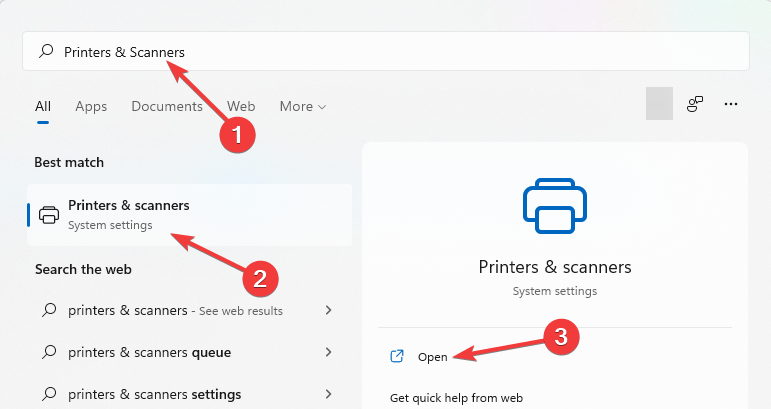
  3. Type Printers & Scanners. Select Printers & scanners under the Best match result(s) and choose Open.
    Printers and Scanners
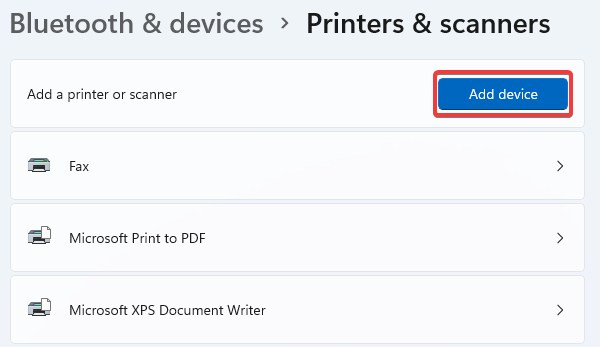
  4. Select Add device.
  5. After successfully adding the printer device, go back to Windows search by tapping the Windows key.
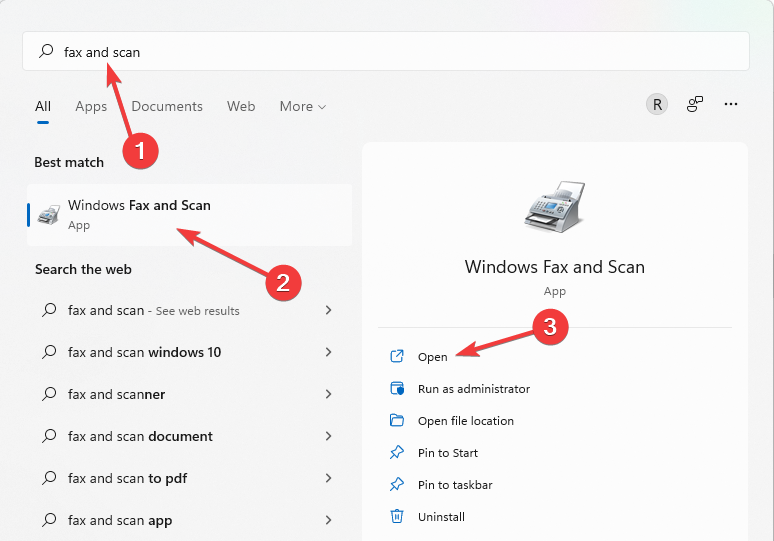
  6. Input Fax and Scan in the Search box. Select Windows Fax and Scan. Then click, Open.
    Fax and Scan
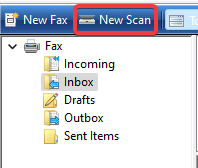
  7. Choose New Scan.
    New Scan
  8. Put the document you want to scan in the printer scanner section. Select Preview to assess the final result and adjust if need be after which you can click Scan.

For a quick, step by step walkthrough of the scanning workflow, see our guide on how to use your printer to scan.

2. Check the wireless connection

Here are some of our recommendations:

  • Make sure the WiFi, computer, and printer are all within range. If this is not the case, adjust the location and, if impossible, switch to an alternative by connecting using cable instead. You can check out wireless printers compatible with Windows.
  • For the wireless connection to function, you might need to restart the WiFi.
  • It is also recommended that you check if the printer is wireless compatible to enable scan to a computer.

3. Update printer drivers

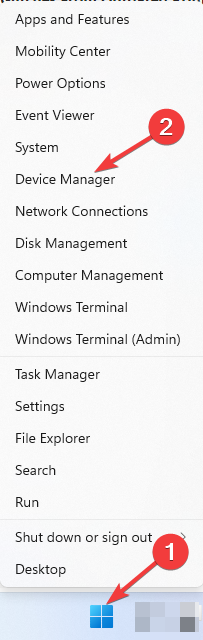
  1. Right-click on the Windows logo icon in the Taskbar.
  2. Pick Device Manager.
    Device Manager
  3. Check and click on the small drop-down arrow beside Printer.
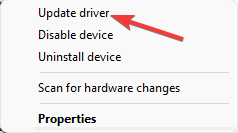
  4. Right-click on the connected printer and then select Update driver.
    Update Driver

Instead of updating drivers manually, you can use another method to manage all your drivers more efficiently.

With a dedicated driver updater, you have full support to install or update old drivers on your system. Not only this, you can handle drivers’ errors and repair them right away.

The software will scan your Windows 11 PC for outdated driver files and detect them rapidly. Afterward, you can choose one driver or many others to start the update.

⇒ Get Outbyte Driver Updater

4. Reduce scan resolution

  1. Download Windows Scan from Microsoft Store.
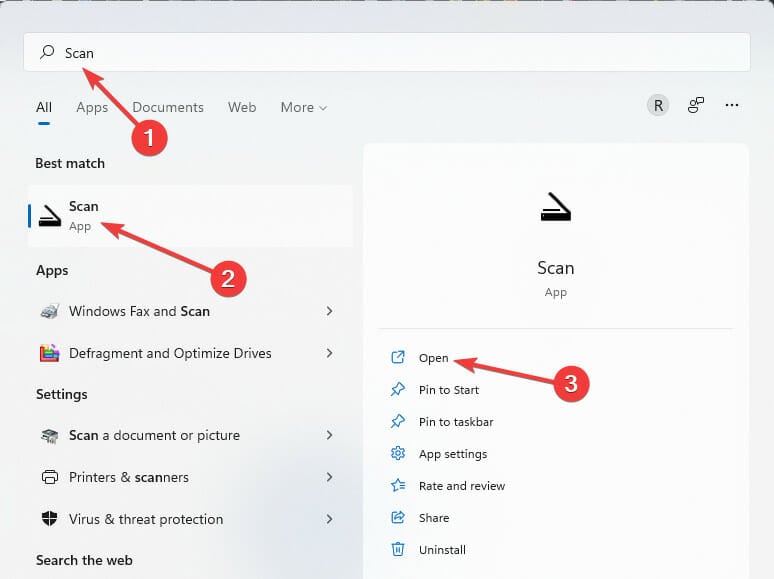
  2. Press the Windows key and type Scan in the Search box.
  3. Change File Type.
  4. Set Resolution to low. Then start Scan.

This method is recommended in case your PC is low on can device memory. It would also work for readers in search of solutions on how to enable scan to computer on Windows 10.

5. Activate Shell Hardware Detection Services

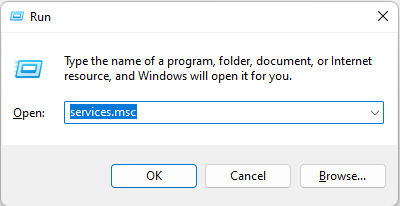
  1. Tap Windows Key + R simultaneously.
  2. Enter the command below and then press Shift + Enter.
    services.msc
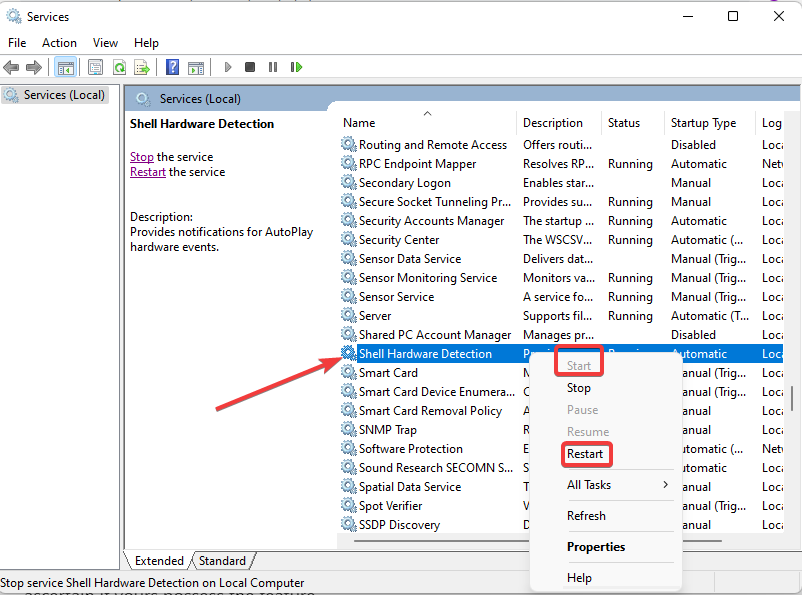
  3. Locate Shell Hardware Detection. Now, right-click on it and select Restart or Start.

6. Enable Windows Image Acquisition service

  1. Press Windows key + R to open Run.
  2. Type this command and press Enter:
    services.msc
    Services
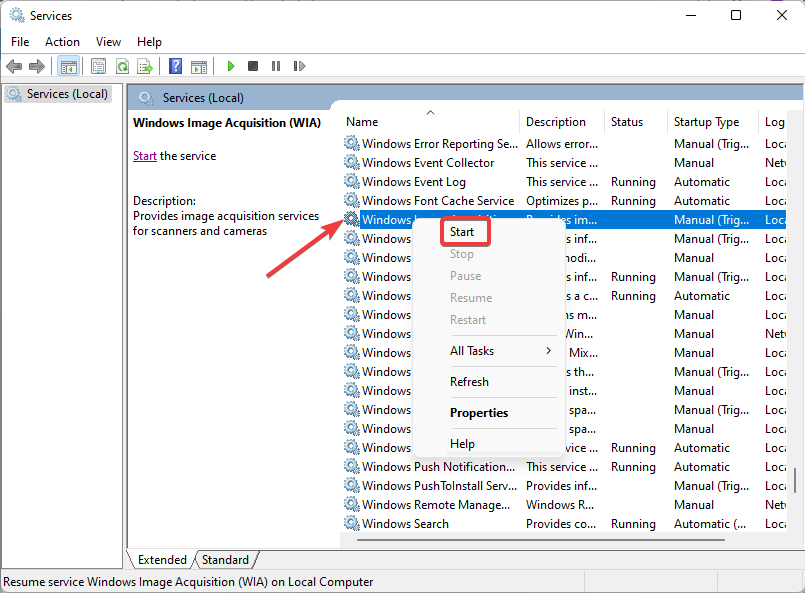
  3. Scroll to locate Windows Image Acquisition; the options are arranged in alphabetical order.
  4. When found, right-click on it and then choose Start.
    WIA

Windows Image Acquisition (WIA) enables unhindered communication between graphic software on the computer and imaging hardware like scanners. The solution above can also work for readers looking for guides on how to scan to a computer in Windows 7.
7. Tweak Compatibility Mode

  1. Right-click on the printer/scanner icon on Home Screen.
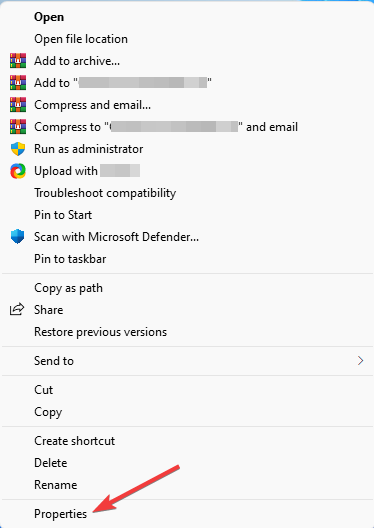
  2. Choose Properties.
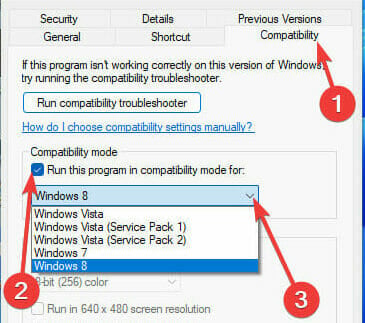
  3. Select Compatibility. Tick Run this program in compatibility mode for: then select the Windows version you prefer.
    Compatibility
  4. Select Apply. Next, restart your system and retry scanning.

Why is my computer not detecting my scanner?

In the second section of this solution guide, we listed the common reasons why Windows may not enable scan to computer in Windows 11. Also, not all printers are designed with scanners, so, it is important to ascertain if yours possess the feature.

Users who have just upgraded their Windows 11 usually face hiccups with scanning. Sometimes, to fix this, you will need to go and download the official software for the scanner on the manufacturer’s website.

Another thing that could make your computer not detect the scanner is when the scanner software is not compatible with the PC.

What can I do if my Windows scanner is not detected?

1. Troubleshoot printer

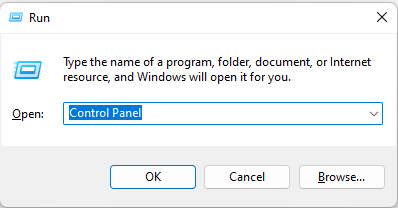
  1. Open Run by pressing Windows key + R.
  2. Type Control Panel and then press Enter.
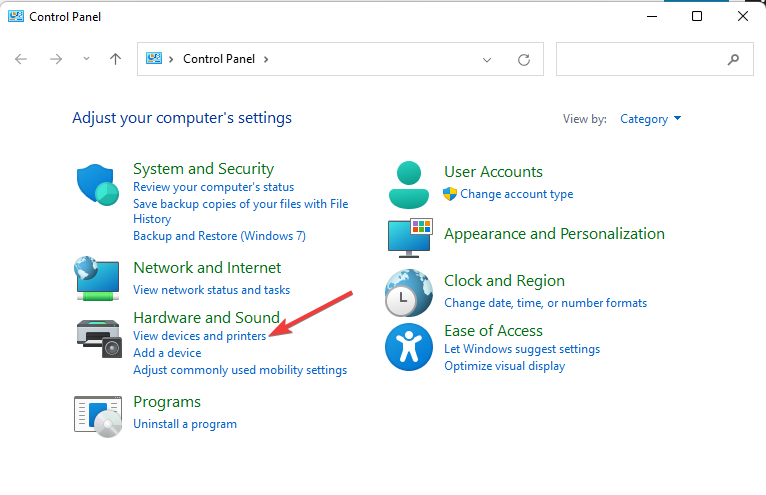
  3. Click View devices and printers.
  4. Right-click on the affected printer and then choose Troubleshoot.

2. Download scanning software from the manufacturer

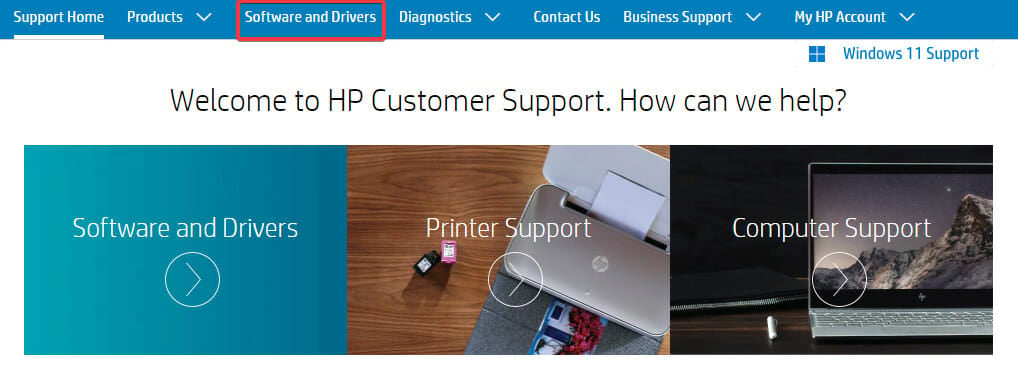
  1. Visit the printer manufacturer’s website.
    Software and Updates
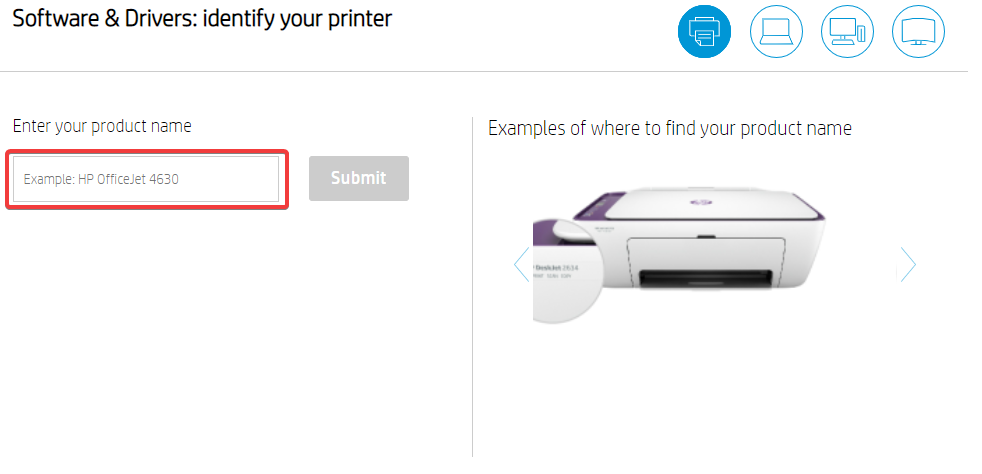
  2. Enter your product name to get the most compatible driver download link.
    Driver Site
  3. Download and Install the software on the computer.
  4. Retry scanning.

Make sure that your VPN is disconnected when visiting your printer manufacturer’s official website to get the best recommendation for your need.

Meanwhile, there are lots of free scanning software tools for Windows 11 on the market today that work seamlessly with any computer with the required compatibility.

One of them is the Windows scan developed by Microsoft and available for download in the Microsoft Store.

If you are looking for alternatives that are both effective and free, we have a review on free scanning software for Windows 11/10 to help you decide which to choose.

What scanners are compatible with Windows 11?

Literally, all printers with scanners are expected to be compatible with Windows 11, but some of our readers have reported that after contacting Microsoft Support when they had issues, they were told the latest Windows OS version is not compatible with all printers.

The reason for this is many, but one specific one is that the manufacturer hasn’t updated their drivers to synergize with Windows 11. This is a move many big boys in the printing industry don’t hesitate to act upon.

When searching for scanners that are compatible with Windows 11, check out our review of the best printers with feeder scanners to make an informed decision.

Experiencing any issue with scanning all because you updated Windows is something that could be frustrating. We hope any of the solutions discussed so far has helped you fix the problem. If not, also take a look at our article on what to do if the HP scanner is not working on Windows 11.

Let’s know how you were able to enable scan to a printer on Windows 11 after reading through this guide. Don’t hold back from sharing any other useful tips you discovered in the comments section below.

How to Speed Up Indexing In Outlook: 5 Ways

There are different tricks to speed up indexing in Outlook on Windows 11 and today we’ll show you all of them. People report that filtering emails eventually slows down their system performance.

We understand this can be annoying especially when you need the email content to get something done quickly. Read on as we explain different methods you can use to fix the issue.

How can I speed up indexing in Outlook on my Windows 11?

1. Reduce indexing locations

  1. Open Settings by pressing Windows key + I.
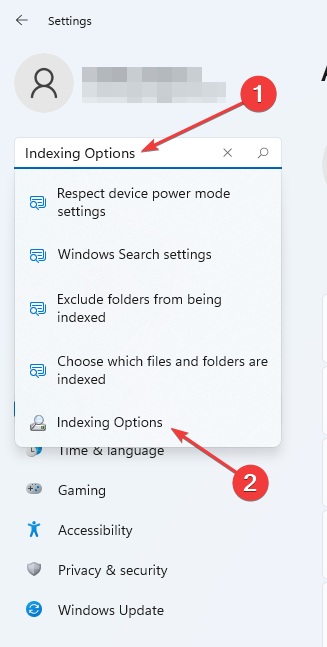
  2. Type and select Indexing Options in the Search Box.
    Indexing Options
  3. Select Modify.
    Modify Index Options
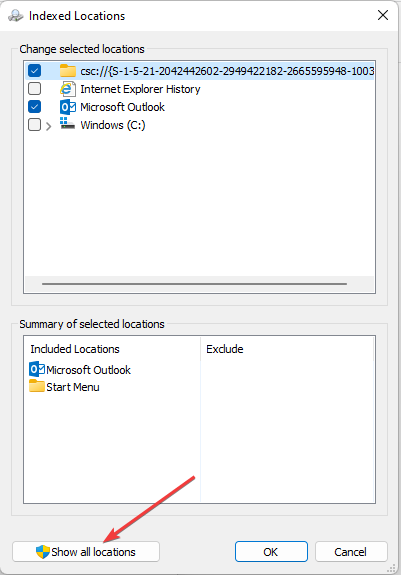
  4. Choose Show all locations.
  5. Untick all other locations leaving only Microsoft Outlook to speed up the indexing.

You can also use this method if you have been finding solutions on how to speed up indexing in Outlook 2007.

2. Close all other running apps

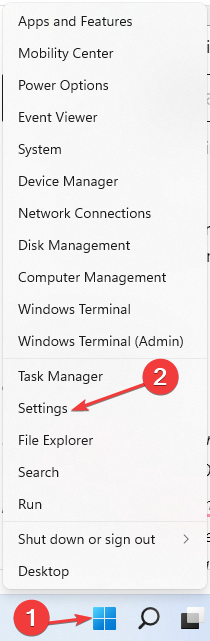
  1. Right-click on the Windows logo in the Taskbar.
  2. Select Settings.
    Windows settings
  3. Type Indexing options in the Search Box.
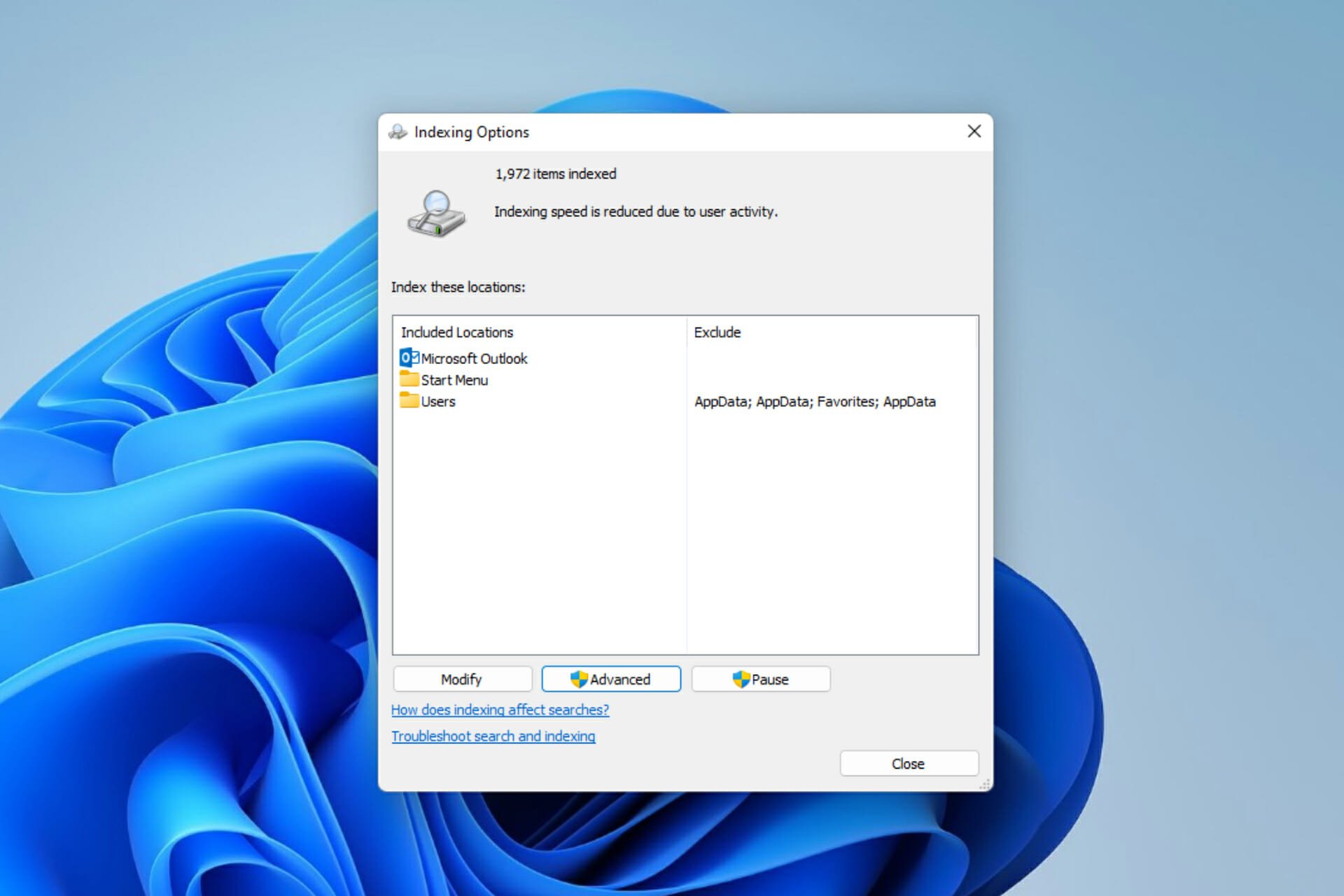
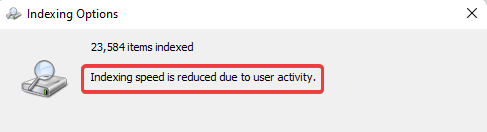
  4. Check if there is any message like Indexing speed is reduced due to user activity.
    Indexing speed reduced
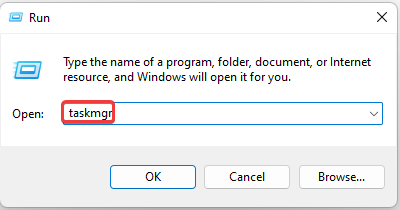
  5. Open Task Manager through Run (press Windows key + R).
  6. Type the command below and press Enter:
    taskmgr
    Run taskmgr
  7. Under Processes, right-click on programs you which to close, and then select End task.
    Task Manager

3. Disable your antivirus

Note icon NOTE
Only do this as a temporary fix, and once you’ve gone through the emails you wanted, re-enable your antivirus. If it is constantly causing performance problems, consider switching to a better one.
  1. Tap Windows key + I to open Settings.
  2. Select Privacy and Security then click on Windows Security.
    Privacy and Security
  3. Select Virus & threat protection.
    Virus protection
  4. Scroll to locate Manage Settings.
  5. Under Real-time protection, toggle the control from On to Off. Select Yes if the User Account Control prompt is displayed.

4. Repair corrupt personal (PST) files

  1. Close Outlook.
  2. Tap the Windows key.
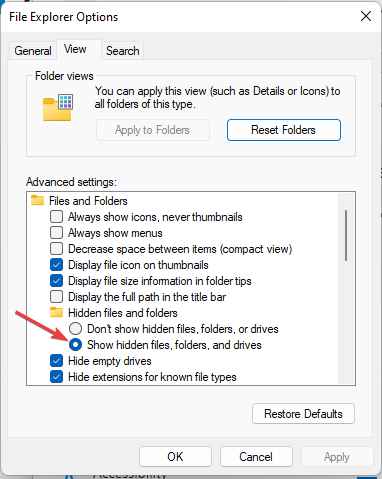
  3. Type and select Show hidden files in the Search Box.
  4. Choose Show settings.
  5. Tick the Show hidden files, folders, or drives option.
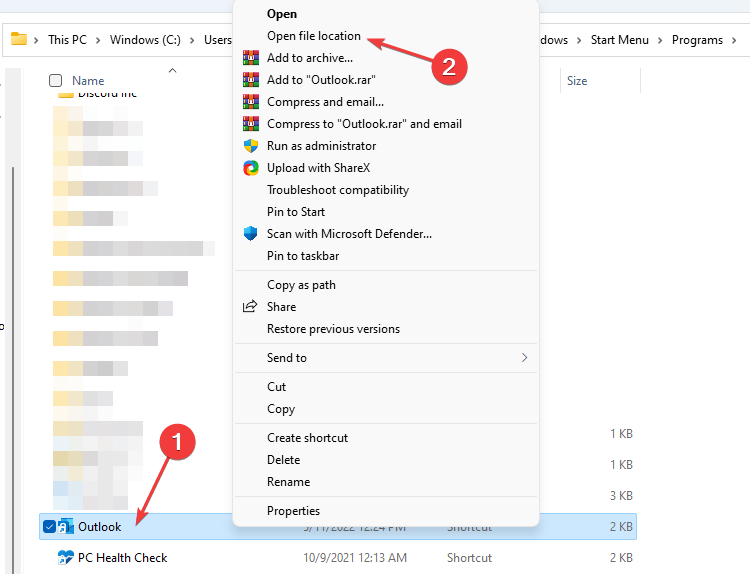
  6. Next, press the Windows key again. Type Outlook in the Search box.
  7. Select Open file location.
    Outlook
  8. Right-click on Outlook. Choose Open file location.
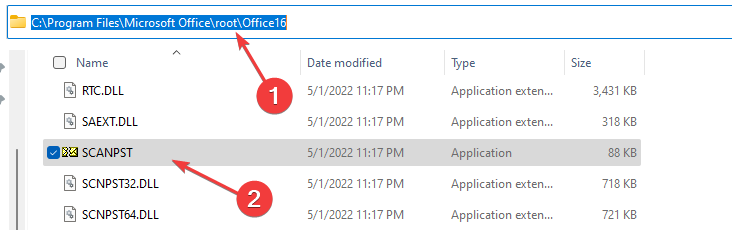
  9. Copy and paste the folder path in a document editor or write it in your Notepad. Next, scroll to locate and select the SCANPST Application.
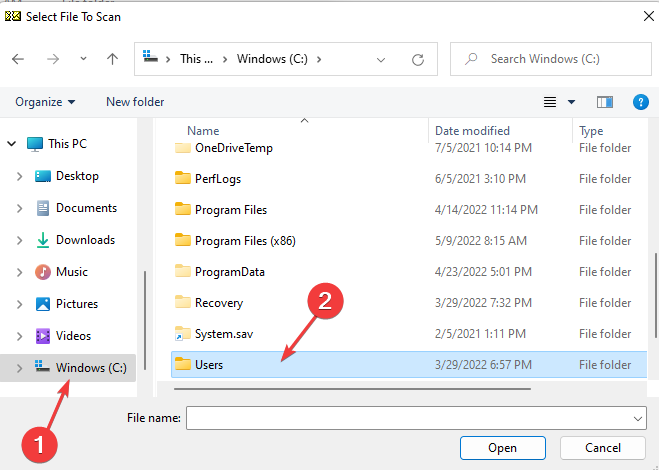
  10. Pick Windows (C:), click on Users.
  11. Next, choose the folder with your Username. Select AppData, then Local.
  12. Find and click on the Microsoft folder. Scroll to choose Outlook in the list of displayed folders.
  13. Select the Outlook account you want to fix.
  14. When this is done, click Start and wait for the check to complete. Follow the system prompt to fix any identified issue.
    Start repair

This fix can correct many abnormalities that could be experienced by your Outlook account especially if it is not searching all mails. Alternatively, you can use a third-party tool to fix PST files.

The Stellar PST File Recovery software is designed to repair different Outlook errors like mailbox data file corruption or resolve various data file errors.

5. Rebuild the search index

  1. Open Settings by pressing Windows key + I.
  2. Type Indexing Options in the Search Box.
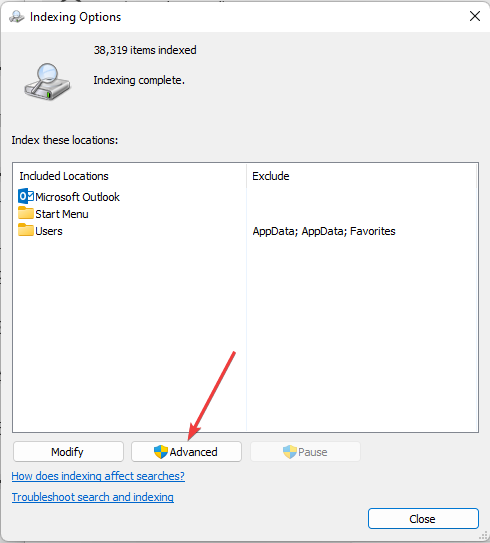
  3. Click on Advanced.
    Index Options
  4. Select Rebuild.
    Rebuild

This solution can also be used if you have been finding tips on how to speed up indexing in Windows 10.

How do I restart paused indexing in Windows 11?

  1. Open Run by pressing Windows key + I simultaneously.
  2. Enter the command below:
    services.msc
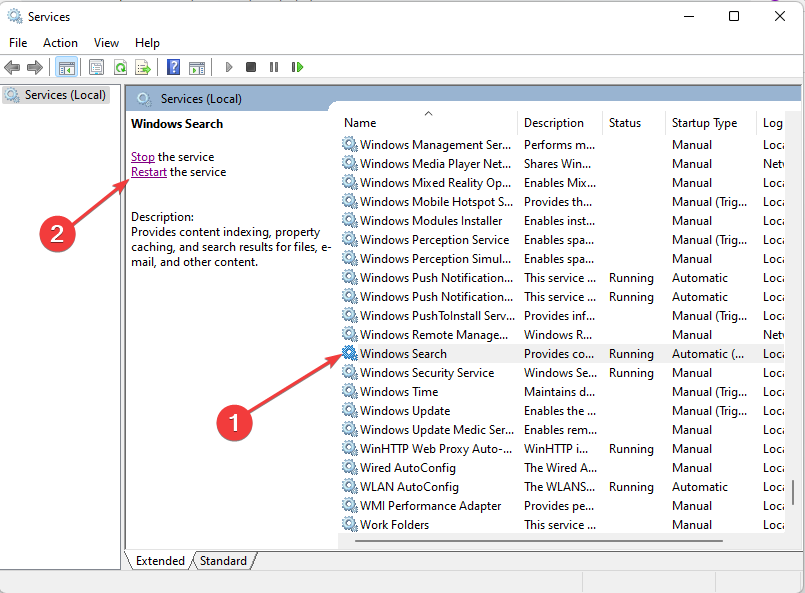
  3. Scroll to locate and select Windows Search. After this, choose Restart.
    Windows Search

This method on how to unpause indexing in Windows 11 can also be used if you are in need of how to speed up indexing in Outlook 2010 on Windows 7.

It is effective in repairing errors encountered when Windows Search is turned off too. We also have an article on how to fix Windows 11’s Search indexing.

How long should Outlook indexing take?

The number of files you have would literally determine how long it would take Outlook to complete indexing. Without any issues, no matter how large the size of the files you possess, the process shouldn’t exceed 24 hours.

If you notice any delay, then try one of the solutions we highlighted above. Let us know which option worked best for you.

Discord Account Disabled: How to Get It Back Fast

Got your Discord account disabled? Let’s see how to get it back in just a few easy steps.

Some get banned because of using bad words, others break a particular channel’s rules. Some willingly, others without intention.

Regardless, we put together a roadmap that’ll help you fix it.

We’ll help you undisable your Discord account further down in this article. But if you’re curious why it might happen:

Is Discord disabled permanently?

A disabled account is an account that has been temporarily banned by the Discord staff. This means that you will not be able to log into your account for a period of time. The length of time will vary depending on the severity of the action.

So, how long is an account disabled on Discord? Accounts that are temporarily suspended may be reactivated if you agree to comply with Community Guidelines after a two-week period. 

When you disable a Discord account, it is still visible in the Discord web client but is not active on any server. Disabled accounts can also not receive any messages or calls.

How can you recover a disabled Discord account? 

1. Check the FAQ section 

If you believe your Discord account was disabled for no reason, check the FAQ section and see whether there is a clause that addresses your problem.

Some of the common reasons why your account may be disabled abruptly include:

  • Discord account disabled for age – Discord requires that all users on the platform be at least 18 years of age.
  • Account disabled for invalid or no email – If your Discord account is not linked to an email or an invalid email, it may be disabled.

If you don’t meet the minimum age requirements, your account will be disabled. Sometimes it is due to a simple glitch. Ensure you check for any answers before making official communication.

2. Email Discord 

If your Discord account was disabled for suspicious activity, you will need to write to Discord official email explaining in detail what happened and wait for the verdict.

Attach as much evidence as possible for review. Your account may be restored with a stern warning or suspended for a few days then restored.

3. Send a Direct Message on Twitter 

You can check out Discord’s official Twitter account and reach out to them via tweet or direct message. In this case, you will have to provide all details and reasons you suspect your account is disabled.

Always ensure to check for the official verification mark as there are a lot of accounts pretending to be Discord fishing for your personal details. If everything checks out, your account will be restored.

4. Message Discord on Facebook 

If Twitter is not your preferred channel, you can also message Discord on Facebook to restore your disabled account.

Remember to include all relevant details such as your associated Discord email, username, and any other open tickets regarding the issue.

5. Message Discord on Instagram 

Discord is also on Instagram and you can also submit your request for account restoration on the platform. The steps are similar to Facebook and Twitter for you to recover your account.

You may get a reply asking you to submit your ticket number, fill in a form or write an email so ensure you have all the details at hand.

6. Submit an appeal form 

For a more detailed approach, you can submit an appeal form. This is usually after your Discord account is disabled for spamming.

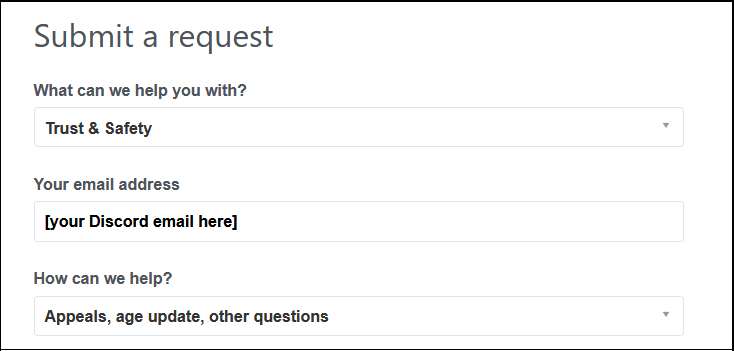
Head over to their Submit appeal form page and fill in the form. You will then receive a ticket ID that you should keep close. When the team responds, you will be asked for the ID and hopefully, your account will be restored.

7. Send a message on Reddit

Discord is also quite active on Reddit with several moderators so your issue is likely to get addressed in a timely fashion on this platform.

Message them with the relevant details and a moderator will get back to you as soon as possible. The good thing about the moderators s that they can also give you tips on other issues you may have with your account.

Is a disabled Discord account banned? 

Disabling your account is different from being banned. When you disable your account, it stays the same until you restore it. However, if you are banned, all information will be removed from the servers.

So. what does a disabled Discord account look like?

A disabled account is one that is temporarily suspended. This means that you cannot access the account, but it will be restored after a certain period of time. 

On the other hand, a banned Discord account is one that has been permanently deleted from Discord for a violation of the Terms of Service. 

If you believe your account has been disabled erroneously, you need to know how to appeal. You can contact the support team through email or the Developer support center. You can also contact them via their official Twitter page.

You can also contact Discord directly

If none of these work, you can submit a Discord account disabled appeal form. You will need to write a short explanation about why you believe your account should be re-enabled.

There is no guarantee that they will be able to reinstate your account. This process can take up to 48 hours before any action is taken on the appeal request.

Like any platform, always make sure to read the Terms of Service to ensure you do not violate any that could result in disabling or permanent ban of your account.

If you experience any other issues such as Discord keeps freezing, refer to our expert guide and try our recommended fixes.

Let us know if your Discord account has been disabled before and what steps you took to restore

Who Has The Most Followers On Xbox?

When playing a game, comparing scores and chatting about the gameplay makes it more interesting. You can even learn a few tips from more experienced gamers from Xbox Social.

The number of followers on Xbox is a measure of how popular you are. It’s also a way for you to compare yourself against other players.

With the Xbox One achievement tracker, it is easy to stay in the loop while maintaining transparency on the achievements earned.

Your Xbox Gamerscore is a representation of your skill and dedication to gaming. You can secure gamer points which are virtual currencies that you earn by playing games on Xbox Live. 

They are not real money and have no real value outside of the game itself but you can redeem them. Some of the goodies in store include gift cards, gaming devices, in-app purchases, and accessories among others.

Who are my followers on Xbox? 

Xbox is the most popular gaming console in the world and with that comes a lot of attention. The platform has over 100 million monthly active users, which means there are a lot of people playing games on Xbox One and Xbox 360. 

This is an excellent opportunity for players to showcase their talents to an audience of millions. The more followers you have, the more likely people will be to play with you.

Who has the most followers on Xbox?

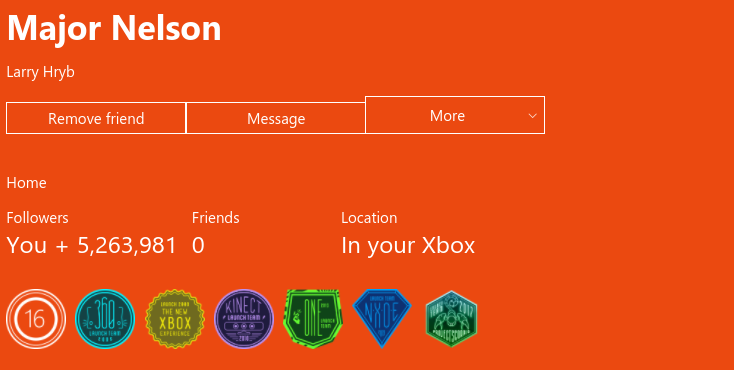
You may be wondering who has the most followers on Xbox One. Major Nelson also known as Larry Hryb has the most followers on Xbox. Being part of the Xbox team, it is no surprise why he earns this spot.

He is a programmer at Xbox Live and runs a podcast where he talks about all things Xbox and gaming. Most of his followers tune into his show as he brings along other gaming enthusiasts to decipher what’s new in the gaming community.

Another fun activity he engages his followers in is his gaming contest where he challenges them to name the game based on the features of Xbox One or Xbox Live.

What Xbox account has the most Gamerscore?

Stallion83 or Ray Cox currently holds the record of the highest gamerscore for one achievement on Xbox. He has been recognized by the Guinness World Record and presented with an Xbox Live lifetime subscription by Microsoft.

You too can earn Xbox Gamerscore points through the games you play. It’s not a competition but it is fun to be part of a gaming community.

Want to know which game is the most played on Xbox or other interesting facts, read this guide.

To add to the fun, you can download the Xbox HDR app to customize your gaming and improve the overall visual experience.

Let us know in the comment section what accounts you follow on Xbox and why.

How To Install & Manage Chrome Extensions on Opera

You can easily install Chrome extensions on Opera and we’ll show you exactly how.

So, if you’re an Opera user who doesn’t want to miss out on Chrome-native extensions like Grammarly, Evernote, or StayFocused, don’t worry. You can easily integrate them by following the steps below.

How to install Chrome extensions on Opera?

Here are 3 different ways in which you can add Chrome extensions to your Opera browser:

1. Install extensions from the Chrome Web Store

  1. Open Opera One and go to Chrome Web Store.
  2. Search for the extension you want to install. We will use Loom as an example here.
    install loom
  3. Select the Loom result.
  4. Click the Add to Opera One button by the right.
    add loom extension chhrome opera install
  5. Click Add extension when prompted that the extension is not from Opera One.
    add loom extension
  6. After installing the extension, press Ctrl + Shift + E to open the Opera One extensions settings.
  7. Finally, click the Details button to adjust the permissions to your preferences.
    loom details

There are no restrictions to the Chrome extensions you can install from the Web Store.

2. Download the Install Chrome Extensions add-on

  1. Launch Opera and go to the Addons store.
  2. Search for Install Chrome.
    install chrome extensions in addon store
  3. Choose the Install Chrome Extensions option.
  4. Click the Add to Opera One button in the top right corner.
    add extension
  5. Wait for the confirmation that the extension has been installed and restart Opera One.
    extension installed install chrome opera

If you’re having any troubles with the Chrome web store, you can install this add-on on Opera and use it whenever you want to browse for and install a Chrome-native extension.

3. Install the extension in developer mode

  1. Open Opera One and press the Ctrl + Shift + E keys. This will open the Extension Manager window.
  2. Toggle the Developer mode switch forward to activate it.
    switch developer mode install chrome extensions opera
  3. Now, go to the Chrome Web Store on Opera One to install the Extension source viewer.
  4. Click the Add to Opera One button.
    download extension source viewer
  5. Now, go to the Chrome Web Store to search for the extension you want to use. We will use Grammarly as an example here.
    searchh grammarly chrome install to extension opera
  6. Right-click on the extension title and choose View extension source.
    view extension source
  7. Click the Download option at the top.
    zip extensions download chrome install opera
  8. Open File Explorer and create a new folder. Do not delete this folder after the installation of the extension.
    open new folder
  9. Copy the downloaded zip file into the folder.
  10. Right-click on the zip file and select Extract here.
    extract extension install chrome opera
  11. Open Opera Opera and go to the Extension Manager.
  12. Click the Load unpacked button.
    load unpacked extension
  13. Choose the folder where you extracted the zip file and click the Select folder button.
    select grammarly folder
  14. The extension will now be displayed on your extensions list.
    grammarly added to extension

This is a more technical workaround. It takes slightly more time and requires more attention, but it’ll give you what you want when the Web Store and the Install Chrome Extensions add-on don’t work.

How do I enable extensions in Opera One?

  1. Launch Opera One.
  2. Press the Ctrl + Shift + E keys to open the Extension Manager.
  3. Search for the extension you want to enable.
    search adblock
  4. Click the Enable button.
    enable adblocker install chrome extension opera

There you have it: everything you need to know to install and use Chrome extensions on Opera One. We also have another similar guide on how to install Google extensions on Opera GX so feel free to check it out.

Feel free to let us know your experience with Chrome extensions on Opera One in the comments section below.

5 Easy Steps to Stop Skyrim From Crashing When Loading

Gamers and lovers of games attest to the diverse features of Skyrim. Skyrim is an open-world game with lots of DLCs and attractive flexibility like adding mods and creation clubs.

Fantasy and avid RPG fans have Skyrim in their lists of collections, with over 100 hours of playtime. The freedom in the intriguing environment makes it a delight.

As intriguing as Skyrim is, with all its amazing and spectacular graphics, some users have said that Skyrim crashes on load are frequent and annoying.

Gamers know that there are bugs and some annoying features that one can experience when gaming, however, a freeze or crash is too interruptive to ignore and would need fixing.

Why does Skyrim keep crashing when loading?

  • Modding your game – Skyrim is fun since it offers users the opportunity to modify the code of the game, to enable it to work in a different manner than its original design. Yet many say modded Skyrim crashes and freezes. This is because if the author’s file mentions incompatibility, and the user does not take note of it, this may cause Skyrim to crash when loading.
  • Unclean DLC and Mod – imagine your PC having a lot of residual files and contributing to a lag. It may not stop the optimal function, but when clean may slightly improve performance, even though it is minimal. The same can happen when you leave your mod or DLC unclean. It is important to clean residual files, especially when you mod your game. The accumulation of residual files over time may be a contributing factor to Skyrim crashing when loading.
  • Corrupted game file – this may not be any fault of yours. It could be a virus or malware that may have attacked the file, or there was a power outage in the process of loading a game. All these could lead to a corrupt game file and may cause Skyrim to crash.
  • Outdated graphics card driver – outdated graphic card drivers are incompatible with the new Skyrim updates. Therefore, if you are using an outdated graphics card driver, you will experience crashing or lagging when using your game.
  • Quick saves outside mod – as you use your Skyrim game, you would notice some autosaves or quick saves that keep coming on. These are changes that you save yourself when you mod your game, they save automatically, and maybe large files. If they are large files, they are probably unstable as they may not save properly and cause a crash.
  • High Shadow Setting – shadow setting often has to do with the high graphics display of the Skyrim games. If the game keeps crashing, reducing graphic quality may be an option.
  • Incorrect load order – the load order is the order in which the game loads up your mod. The game takes your mod and loads it up step by step as it detects the mod. If this is not correct, it may lead to a crash.

It is vital to note that when there is a new loading order, it tries to override the already existing mod, therefore it is best to optimize your load order in order to avoid conflicts. As for how many mods Skyrim can handle, rest assured that it can handle as many as possible, once arranged accordingly.

Users have experienced Skyrim crashes on load on PS4, PCs, and Xbox One, while loading music or when loading games. The frustration is the same regardless of the device, and this can be resolved in no time.

How do I fix Skyrim from crashing when loading?

1. Update the graphics card driver

  1. Press the Window and R keys on your keyboard to open the Run tab.
  2. Type in devmgmt.msc and press the Enter button.
  3. Right-click to select your graphic card under the Display adapter.
  4. Click on Properties.
  5. Select the Driver tab.
  6. Click on Update driver.
  7. Select Search automatically for updated driver software.

Importantly, if updating the driver does not work, then you can download it from the hardware vendor. Note that the brand name of the drive comes first before the numbers. Check them online, and download them.

Driver upgrades make the pathways the Graphics Card takes to conduct its work quicker by reducing superfluous activities or better spreading the workload.

An automated solution such as Outbyte Driver Updater has a vast daily-updated driver database, so it will provide the most recent drivers available after scanning your system.

In addition, you will receive a completely thorough report detailing the precise state of your Windows missing, damaged, or obsolete drivers. You may rely on Outbyte Driver Updater to make such enhancements to ensure a proper update with the most recent graphics card drivers.

⇒ Get Outbyte Driver Updater

2. Restore the previous version

  1. Go to the drive where you stored your game file.
  2. Right-click on the folder and select Properties.
  3. Select the previous version.
  4. Click on the latest modified date file.
  5. Select Restore.
  6. A tab with Are you sure you want to restore the previous version? will dropdown. Click on Restore.

Steam has an API for developers to use to integrate the Steam function into their products, and Skyrim has it too.

Another way to fix corrupted game files is to login into the built-in Steam of your game, click on Library, navigate to the Local files and click on Verify integrity of game files.

3. Optimize your load order

  1. Place your mod categories from top to bottom.
  2. Always check mod descriptions.
  3. Check to see mods that are add-ons.

Thus, think of how much the game will change by the mod, because if the mod will cause a big change to the game, then it should be at the top.

There is a general rule to load order, which is that It is easy for a big mod to override a small mod, but way harder for a small mod to override a big mod.

Arrange your mods in this order:

  • Patches and bug fixes.
  • Quest mods and mods that affect the environment like towns, cities, and landmasses.
  • Scales, level, capabilities, and magic mods.
  • NPCs, enemies, allies, or companions mods.
  • Mods that alter or add visual, textual, or atmospheric changes.
  • Mods for cheats.
  • Modules and textures mods.
  • Mods for armors and weapons.
  • Crafting weapons and scrolls or other items mods.
  • Small objects and items mods.
  • Mods that alter clothes and weapons.

Some mods may not be compatible or may not follow the arrangement above, therefore you would have to decide the level of impact that it would have on your game.

Understand that the overall purpose is to enjoy the mods, which make Skyrim more fun, while you use your games without Skyrim crashing.

4. Turn off Quicksave

  1. Go to Settings using the Launcher.
  2. Select Gameplay.
  3. Deactivate the Save on rest, Save on travel, and Save on wait buttons.

5. Reduce shadow setting

  1. Go to the Main Menu of the game.
  2. Navigate to Options and click on Advanced options.
  3. On the Detail tab, you will find the Shadow setting.
  4. Set the shadow on low.
  5. Start your game and observe for any lag.

In conclusion, Skyrim crashes on loading if you do not install it properly, so you would need to uninstall your Skyrim and ensure that you install it properly to prevent the issue from happening again.

For instance, if there was an interruption like a power outage or lack of a good connection, in the process of installing Skyrim, the loading save will crash. So, you need to look out for this in order to have a good save when loading.

Let us know in the comments below if you tried any of these steps and if they were of any help.

4 Easy Ways to Fix Steamworks Common Redistributables Error

Steamworks common redistributables error is not peculiar to one gamer, it’s something that has been experienced by virtually every game lover.

This free suite of tools is available for everybody on the Steam platform and its basic function is to help game developers easily distribute their products. Steamworks is one of the most popular online platforms where players can play, create, and manage different games.

Whenever you download a game, it is expected to be optimized for your device’s OS for optimal performance. Steam automatically adds all the required files for smooth operations to your device when downloading a game from its cloud database.

How do I get rid of Steamworks common redistributables?

Many users of the Steam platform who have been seeing the Steamworks Common Redistributables Error notification are as confused just like you might be at the moment. They aren’t sure if it is something they need to worry about or not.

Here’s the thing, if you are not having any issues while launching any game downloaded or played on the Steam platform, you have nothing to worry about. However, there is a way to hide the folder such that it doesn’t ruin your game enjoyment.

How can I fix Steamworks Common Redistributables errors?

1. Steamworks common redistributables disk write error

1.1. Restart the Steam application

  1. If it’s your first time experiencing the error, close the Steam client.
  2. Reopen the application and try to re-download the game again.

1.2. Run Steam as an administrator

  1. Check your system Start Screen to locate the Steam icon.
    Steam Icon
  2. Right-click on the icon, select Run as Administrator.
    Steam Admin
  3. Select Yes in the User Account Control prompt.

1.3. Remove write protection from Steam Application

  1. Open File Explorer by pressing Windows key + E.
  2. Locate the folder that Steam is stored on your computer.
  3. Right-click on the. Now, you will see a pop-up with list of options, select Properties.
    Steam properties
  4. In the Steam Properties, select General. Next, uncheck Read-only under Attributes if it’s ticked. Then, choose OK to save.
    Steam Folder properties

1.4. Get rid of corrupted files

  1. Find the Steam icon on Home Screen.
    Steam Icon
  2. Right-click on it. This will trigger a list of options, choose Open file location.
    File Location Steam
  3. In the Steam folder, locate Steamapps folder.
  4. Check the folder for any files that are 0 KB and have the same name as the game you are trying to launch.
  5. If you find any of such files, delete them, and try to relaunch your game.

1.5. Check the system firewall

  1. Open Settings by pressing Windows key + I.
  2. Select Privacy & security. Then choose Windows Security.
  3. Choose Virus & threat protection.
    Virus threat
  4. Under Virus & threat protection settings, select Manage settings.
    Virus Manage Settings
  5. Scroll to locate Exclusions then click Add or remove exclusions.
    Remove exclusions
  6. Add an exclusion by clicking the cross sign and selecting the location of the files.

This issue can also be resolved by completely disabling the firewall (antivirus/antimalware) but we don’t recommend this as it could expose your system to attacks.

2. Steamworks common redistributables not downloading/slow download

2.1. Check internet connection and speed

  1. Check if your network is still connected by trying to load something in the browser.
  2. Test internet speed by using any online checker like Fast.
    Fast.com
  3. Check if VPN is connected. Disable it.
  4. Retry the download.
  5. If still the same, try the method below.

2.2. Verify Integrity

  1. Open Steam.
    Steam main window
  2. Right-click on Steamworks Common Redistributables.
  3. Choose Library.
  4. Select Properties. Choose Local Files.
  5. Select verify integrity.

2.3. Clear Steam Download Cache

  1. Press the Windows key and type Steam. Then select Open to launch Steam.
  2. Go to Settings.
  3. Select Downloads.
  4. Next, choose Clear Download Cache. Then select, OK.

If any of the methods highlighted above does not work, you may want to reinstall your Steam. Some gamers reported this fixed the issue after trying different solutions.

3. Steamworks common redistributables keeps downloading

3.1. Restart your Steam client

If the issue is occurring for the first time, allow the application to complete the download. The operation is used by Steam to keep your files up to date.

But, if the redownload is consecutive and would not finish, close the Steam application and restart it. This should any non-critical problem.

3.2. Restart your PC

For this solution, you may decide to restart or completely shut down the system. It would have the same effect.

After restarting or rebooting the system, relaunch Steam to check if the problem is gone.

3.3. Change download region

  1. Launch Steam.
  2. Select Settings. Next, click on the Download tab.
    Steam settings-
  3. Check Download region and choose the region you think is closest to you.
  4. Try different regions closer to you to see if there is any difference.

3.4. Run Steam://flushconfig command

  1. Open Run by pressing Windows key + R.
    Empty Run
  2. Type the command below and press Enter:
    Steam://flushconfig
  3. Wait for a few minutes. Now, restart your computer.
  4. Run Steam.exe from the Steam folder in File Explorer (scroll up to read how to locate the folder).

3.5. Reinstall Steam

  1. Go to your Downloads folder in File Explorer. Then find SteamSetup.
  2. Right-click on it and Run as administrator.
  3. Follow the System Prompts to reinstall Steam.

4. Steamworks common redistributables has shared content

4.1. Check if the Steamapp folder is available

Steam stores some important files necessary for your game’s launch in the Steamapp folder. Some gamers prefer having this folder in a separate folder aside from the main Steam folder.

Problems usually arise when the folder is mistakenly deleted and Steam cannot find it anymore. For a quick fix, create a folder in the main Steam folder and name it Steamapp, then relaunch the app.

4.2. Delete the Registry key

  1. Open Run by pressing Windows key + R.
  2. Type the Command below:
    regedit
  3. This will open the Registry Editor.
  4. Locate any of the Registry keys below (depending on your Windows processor):
    HKEY_LOCAL_MACHINE\SOFTWARE\Valve\Steam\Apps\CommonRedist
    HKEY_LOCAL_MACHINE\SOFTWARE\Wow6432Node\Valve\Steam\Apps\CommonRedist

  5. When located, delete it.

As much as the errors in Steam could be frustrating, we hope you find all of the solutions explained so far easy to use.

Before you go, comment on your experience trying out any of these methods and if you tried to find another solution, share it with others below.

Quick Assist is Not Working or Opening? 5 Ways to Fix it

If Quick Assist isn’t working on your PC, you won’t be able to remotely help others, so today we’re going to show you a few solutions that can help you fix this issue on your PC.

Why does my Quick Assist not work?

Recent updates or problems with your temporary files can often cause this problem.

How can I fix Quick Assist not working, try again later error?

Before trying anything else, try running the app as administrator and check if that helps. You can also try opening Quick Assist again, without closing the instance that is stuck.

1. Remove recent updates

  1. Open the Settings app and go to Windows Update.
  2. Next, go to Update history and choose Uninstall updates.
    uninstall updates
  3. Locate the recent update and remove it.

Users reported issues with KB5044273 so if you have it installed, remove it and check if that helps.

2. Recreate QuickAssist folder

  1. Press the Windows key + R, type %localappdata% and click OK.
    localappdata run dialog
  2. Next, go to the Temp folder.
  3. Locate QuickAssist folder and delete it.
  4. Start Quick Assist again.

3. Reset the Quick Assist app

  1. Go to Start and choose the Settings option.Quick Assist Fixes
  2. Choose the Apps section located on the left menu.Quick Assist Fixes
  3. Click on the Installed apps option.
  4. Find the Quick Assist app, right-click on the three-dotted line, and choose the Advanced options to open more settings.
  5. Under the Reset tab, click on the Repair option. It will take some time for the whole process to finish. After the procedure is over, try re-accessing the app again to see if the error persists.Quick Assist Fixes

Resetting the app will help when Quick Assist is stuck on the loading screen.

4. Reset the Internet settings

  1. Go to the Search box, type Internet options and click the Open tab.
  2. When the window opens, choose the Advanced tab.
  3. Scroll downwards and choose the Restore advanced settings option. Click on the Apply button and then OK to apply the changes.
  4. Restart the machine and try using the app again to see if the problem still exists.

5. Use Windows Powershell to reregister the User Account app

  1. Go to Search, type windows powershell, and choose the Run as administrator option.
  2. When the shell opens, type the following command and press Enter to run it: Get-AppXPackage | Foreach {Add-AppxPackage -DisableDevelopmentMode -Register "$($_.InstallLocation)\AppXManifest.xml"}
  3. Restart the PC and try reusing the app again.

If the Quick Assist stopped working, it’s likely that a recent update caused the problem, or you might have a temporary glitch with the app cache. You can also view Quick Assist logs to determine what went wrong.

If the issue is still there, we also have a guide on how to download Quick Assist in case you need to reinstall it. For users who prefer different tools, we have a guide on how to enable Remote Assistance in Windows 11, so feel free to check it out.

Let us know which method worked for you by dropping us a comment in the section below.

5 Quick Ways to Fix Evil Dead When It’s Not Working

The Evil Dead: Ghost was just launched a few days ago for PS5, PS4, Windows, Nintendo Switch, and Xbox One, Xbox Series X, and Series S. This game was released widely, but a few users have reported that the game is not working.

This is an action-horror game where you play with the iconic characters of the Evil Dead franchise: Ash, Kelly, Scotty, and other friends that were portrayed in the 1981 movie.

Saber Interactive quietly released the game on May 13th, but since then, users have reported that the Evil Dead game is not working on PS5 and other devices.

Keep reading as today we have got 3 quick fixes that you can use to fix the Evil Dead game that is not working and make it work again on your Windows computer, Xbox, PS5, and so on. 

What can I do if the Evil Dead game isn’t working on my PC?

1. Evil Dead does not work on PC

1.1 Verify game files in the EPIC launcher

  1. Open the launcher, and next to Evil Dead: The Game, click the three dots.Opening Epic Games Launcher
  2. Select Verify to initiate the verification. During this process, there is a possibility that additional files may download as well.Verifying the game files of Evil Dead
  3. Once done, restart the computer and relaunch the game.

If the game is still not working, follow the below steps.

1.2 Use Windows CHKDSK Utility

  1. Click on the Start button and search for the Command Prompt.
  2. Open it as an administrator by selecting Run as administrator.Opening the command prompt as an administrator
  3. Type chkdsk C: /r and press Enter.Running the CHKDSK command using the command prompt
  4. Enter your password and the scan will begin automatically.

1.3 Check for Windows Updates

  1. Click on the Start button and search for Settings.Opening Settings from the Start page
  2. Now, click Windows Update and then select Check for updates.Checking for new updates from Microsoft to download
  3. If there are new updates available, download and install them.Downloading and installing the new updates from Microsoft
  4. Once the installation is complete, restart your computer.
  5. Reinstall the game 

If you’ve tried everything and still Evil Dead: The Game is not working, try re-installing the game again from the Epic store.

2. Evil Dead not working on PS5

2.1 Update your PS5

  1. Go to the Settings page of your PS5 and select System and then System Software.Selecting System inside the PS5 settings page
  2. Choose System Software Update and Settings and then select Update System Software.Selecting System Software Update to update the software of PS5
  3. Choose Update Using Internet and go back to System Software and select System Feature Updates.Updating the PS5's software
  4. Restart your PS5 to apply the changes.

2.2 Delete Saved Game Data

  1. Go to Settings again, and select Storage.Selecting the Storage in the settings menu of PS5
  2. Now open Games and Apps. Select Saved Data and then select Evil Dead.Opening the Games and Apps menu to select games and delete their data
  3. On the controller, press the Options button, and then select the saved game data files.
  4. Select Delete and then a window will pop up asking if you are sure. Confirm your decision to proceed ahead.
  5. Now reboot your console once the saved game data has been deleted.

2.3 Reset your PS5

  1. Go to Settings and select System.Selecting System inside the PS5 settings page
  2. Now, select System software and and then Reset options.Selecting Reset options inside PS5 settings page
  3. Select Reset Your console and then select Reset.Selecting Reset Your Console to reset the PS5 to factory settings
  4. Your PlayStation will now return to its factory settings. This process may take a few hours to complete. Make sure your console doesn’t lose power during the process.
  5. Once the process is completed, restart your PS5.

3. Evil Dead not working on Xbox

Unfortunately, there isn’t a fix at the moment for Xbox users due to a system error as per the Saber support. But the problem has been acknowledged by them, and they have tweeted out that a fix is on its way.

4. Controls for Evil Dead Regeneration are not working

Try disabling and re-enabling the gamepad, or if you are using a controller, disconnect the keyboard and the mouse from your computer. 

The game controls occasionally fail to function because multiple input devices are connected and it is unsure which one to use.

5. The Evil Dead 4K is not widescreen

Yes, the Evil Dead 4K is not widescreen, but instead it has its original aspect ratio of 1.33.

Is it a problem? Absolutely not. You’ll get used to the aspect ratio without an issue.

To make the 4K version of the movie, the negatives were scanned in full native 4K with both Dolby Vision and HDR 10. But due to technological constraints, the movie can not be scaled to widescreen.

The Evil Dead: Ghost is based on the original movie that was released in 1981. The game was released with a lot of bugs, but developers are currently hard at work releasing patches.

Meanwhile, you can try the above-mentioned fixes to fix the issue and play the game.

500 Internal Server Error in NGINX [Troubleshooting Guide]

NGINX is an open-source software used for web serving, reverse proxying, caching, load balancing, etc. It started as a web server designed for maximum performance and stability.

The 500 Internal Server Error is a common issue that prevents it from returning a proper response. Errors like these can occur due to a faulty script or missing files referenced by code.

NGINX is typically a reverse proxy server, so one of the most common reasons for the 500 Internal Server Error could be one of its web servers like Apache.

Keep reading this post to know more about this error and how to fix it in no time.

What is the meaning of the 500 Internal Server Error?

The 500 Internal Server Response code indicates that the website has encountered an unexpected condition that is this evening it from fulfilling the request.

It’s a generic catch-all response that shows that the server cannot find a better error code in response. This error code is a very general HTTP status code on the website server but isn’t precisely the exact problem.

Quick Tip:

The Opera One browser has a VPN proxy that allows you to connect to a few servers. Accessing and connecting to a different server is helpful when you have internal server issues with another browser.

When you click on the blue VPN box, a drop-down menu appears, allowing you to switch the VPN on or off and pick a location.

Opera One

With the built-in VPN, you can change the location and bypass internal server issues in NGINX.

What can I do to fix the 500 Internal Server Error in NGINX?

1. Reload the web page

This error can occur sometimes due to a temporary problem on the webserver. If that’s the case reloading the page might help.

Reload the page by pressing F5 or CTRL + R and check if the NGINX 500 Internal Server Error localhost message disappears.

2. Clear your browser’s cookies and cache

On Chrome

  1. Open Google Chrome and click on three vertical dots at the top right corner.
  2. Click on Settings and navigate to Privacy and Security.
  3. Click on Clear Browsing Data.
    500 internal server error NGINX
  4. Check the options Cookies and other site data and Cached images and files.
  5. Once done, click on Clear Data.
    500 internal server error NGINX

If Chrome’s cache data gets corrupt or full it can cause the 500 Internal Server Error NGINX. Clear Chrome’s cache data and cookies then check if the error gets fixed.

Alternatively, you may want to use a free multi-purpose utility that not only clears the cache but removes any unnecessary data on the computer.

On Firefox

  1. Open Firefox, click on the hamburger icon at the top right corner, and click on Settings.
    firefox-settings-1
  2. Navigate to Privacy & Security and in the Cookies and Site Data section, click on Clear Data.
    500 internal server error NGINX
  3. Now click on Clear to confirm the process.
    500 internal server error NGINX

3. Disable VPN

  1. Press Windows key + I to open the Settings app.
  2. Navigate to Network & Internet.
  3. Select VPN from the left pane. In the right pane, pick your VPN connection and click on Remove.
    vpn remove
  4. If you’re using a VPN client, make sure to disconnect from the VPN.

Once done, restart your device and check if the 500 Internal Server Error NGINX is resolved.

4. Check your Internet connection

  1. Visit Fast i.e., a speed test website.
    Speed test
  2. As soon as the website opens it’ll automatically start testing your network’s speed.
  3. Wait while your connection is being tested.

If you don’t prefer this, you can use any other Internet speed tester to check your connection.

That’s all on how you can fix the 500 Internal Server Error in NGINX. Several issues are to be blamed, but this usually occurs due to a bad Internet connection. Things are no different for those complaining about getting the 500 Internal Server Error when using the React app

Follow the steps mentioned above to fix this error. If the troubleshooting methods mentioned above could not help you, feel free to drop a comment below. We’re eager to hear from you.

Lightweight Video Editor: 8 Best Software to Use in 2026

Not all users have powerful PCs that can handle advanced video editing, and this is why many are looking for a lightweight video editor. Otherwise, you’ll have to optimize your PC for it.

These types of applications might not have the same features as professional tools, but they won’t put a strain on your hardware, so let’s see what are some of the best applications that you can get.

Does Windows 10 have a simple video editor?

Yes, there’s a hidden video editor in Windows, and the only way to access it is by opening the desired video in the Photos app and choosing the Trim option.

This video editor is extremely simplistic, and it can only be used to trim videos, therefore many users are looking for tools with more features.

What is the lightest video editing software?

Adobe Premiere Pro – Best tool for video editing professionals

As a no surprise, Adobe Premiere Pro made it to the top of our list. It virtually transforms your PC into a multimedia creation machine.

The latest version of it comes with a couple of new features that put it far away from the competition, especially when we talk about video editing software for Windows.

The amount of effort that Adobe puts into its products is huge, and so is the case for Adobe Premiere Pro and which is highly likely to stay for a while. 

The latest update came with 360 VR, 4K video support, and the most important one, the Lumetri Color feature which lets you play with white balance, color grading, and much more.

Besides, now you can collaborate with other members of your team by sharing and organizing the files into a cloud.

It’s also worth mentioning the customizable interface for maximum comfort and efficiency, multiple non-linear timelines that let you customize complex projects, and one of our favorites being template bins which saved us hundreds of hours.

Adobe Premiere Pro also comes with the Adobe Media Encoder package which provides a variety of presets optimized for output formats and green screen editing capabilities.

Some important reasons to consider Premiere Pro:

  • Easy multicam editing
  • Customizable interface
  • Fast load speeds
  • Seamless DVD and Blue-ray export 
  • Team collaboration

AceMovi Video Editor – Great for novice editors

The next entry on our list of lightweight video editing tools is AceMovi Video Editor.

Not only is it low on resource demands, but it also feels very lightweight to the user because of the sleek and intuitive interface.

We all know how video editors have a reputation for needing monster PCs to run properly, and how their interfaces are usually cluttered and filled with tools that you won’t even use unless you edit for a living.

Well, that’s not the case with AceMovi Video Editor, since you can use it to simply record your screen or import your media, drop and drop text, music, transitions, and more effects.

Then you will be able to export and share your video to a wide variety of media and platforms.

Let’s get through some of its key features:

  • Low PC configuration requirements
  • Friendly interface, easy to use by anyone
  • Great selection of video effects
  • Accurate time tracking and editing
  • Multitrack configuration available

AceMovi Video Editor

This tool offers advanced video editing tools wrapped in a friendly, easy-to-use interface!
Free trial Visit Website

Wondershare Filmora – Great instant video editing

Another lightweight software for editing videos is the Wondershare Filmora. It is a lightweight and easy-to-use application that is compatible with Windows 7, 10, and 11.

It supports almost every video, audio, and image format, and it also allows live cast recording of your computer screen.

Filmora is an all-in-one video editor that comes with all the basic tools that you may need to edit your videos, such as cropping, splitting, trimming, and merging.

It also comes with a wide range of special effects tools such as face-offs, filters, overlays, transitions, motion effects, picture-in-picture, and mosaics. Furthermore, it also supports green-screen video editing.

Filmora is incredibly easy to learn and use, thanks to its intuitive interface.

With editing features for everyone, from the beginner to the professional, and well over 300 video effects, it is an all-in-one tool that can help create professional videos.

One drawback of this lightweight video editor is that it can sometimes become unstable, especially when the user opens multiple videos for editing.

Filmora is free to download and try, but a license must be purchased for extended use.

Let’s review some of its most important features:

  • Over 300 video special effects
  • Record a live cast of your PC screen
  • Compatible with Windows 7 all the way to Windows 11
  • Very easy to use by anyone without additional training
  • Great step-by-step instant video feature

Pinnacle Studio – Ideal for multi-camera editing

Pinnacle Studio has been a fan favorite for more than a decade now. Its intuitive interface makes it an easy-to-use software, but that doesn’t limit its capabilities as a professional editor.

It has all the basic features expected of a lightweight video editor and a lot more than that.

Some of its more notable features include its ability to make photo slideshows, remove unwanted scenes from videos, add audio/text overlays, 2D transitions, and numerous video effects.

All in all, Pinnacle is a great video editor. Thanks to its support for numerous file formats, users do not need to worry about compatibility issues.

Also, its timeline interface makes video editing so much more intuitive. All this doesn’t necessarily mean that Pinnacle VideoSpin is without its fair share of problems.

The first and most notable issue is that users may be required to seek registration prior to installing this program.

Also, since the initial version imposes restrictions on some of the advanced file formats, you will be required to purchase an Advanced Codecs Pack.

Here are some of its key features:

  • Multi-camera editing
  • Screen recording
  • Split-screen video
  • Keyframe controls and audio editing
  • HD video resolution

Vegas Movie Studio – Adaptive for any editing skill level

The Vegas Movie Studio series are a range of premium video editing software.

Formerly known as the Sony Vegas Movie Studio, the software is available in three different versions: classic, Platinum, and Suite.

While the last two are more suited for professionals, Vegas Movie Studio classic is perfect for beginners and can be considered a lightweight video editor.

Some of the notable features of Vegas Movie Studio include a user-friendly interface, a range of video/audio effects, support for High DPI monitors, direct upload to Vimeo, YouTube, or Facebook, and a music maker software.

It also supports an almost limitless range of input/output formats, so compatibility will not be an issue. Also, there are plenty of tutorials available online on how to use this application.

If it weren’t for its high price, Vegas Movie Studio would be an almost flawless entry on this list of video editors.

Consider its key features below:

  • Direct upload to Vimeo, YouTube, or Facebook
  • Wide selection of video and audio effects
  • Great tutorials on how to use the software
  • Support for High DPI monitors
  • User-friendly interface

VideoPad – Great free app for beginners

VideoPad is a great intuitive and easy-to-use video editing software. Beginners will particularly benefit from its drag-and-drop modeled timeline.

This video editor comes with a wide range of special effects and transitions, which can all be applied to make videos that are more attractive.

It also comes with the option to directly share edited videos on social media platforms such as Facebook or YouTube.

Among its range of features, you can find are 3D video editing, overlaying text for captions/credits, chroma key green screen video production, a range of visual effects templates, 2D to 3D stereoscopic conversion, and a wide range of video transitions.

One of the most notable features of this application is its ability to create stop-motion animation. This means that it can import image sequences from your videos to create a GIF.

VideoPad is a lightweight video editor that also comes with a range of video optimization options, including Fine-tuning of colors, slowing down/speeding up of videos, reverse video clip playback, video stabilization, adding digital images/photos, creation/import-export of subtitles, and other visual effects.

Thes software has plugin support for thoughts of third-party tools and effects, truly making it an all-in-one software. This software is free of cost for non-commercial use.

You will benefit from the following best features:

  • Drag-and-drop functionality
  • Wide range of video optimization options
  • Video stabilization feature
  • Plug-in support for third-party tools and effects
  • Easy subtitle creation and insertion

VirtualDub – Good for video file conversion

VirtualDub is another great lightweight video editor for Windows. It is an open-source software, which means that it is available free of cost and is supported by its community.

The app comes with a user-friendly interface that makes tasks like adding/deleting files, cropping sidebars and rotating videos seem as intuitive as its general range of features.

Apart from editing videos, it also doubles as a simple video format converter.

VirtualDub supports video capturing. What this means is that you will not have to import your files every time you want to edit them.

Furthermore, it also allows for extending files using third-party video filters. Finally, it also supports batch processing, which means that it can handle multiple video files simultaneously.

Some beginners have reported difficulty in understanding how VirtualDub works. Furthermore, it has been reported to be prone to delivering poor performances at times.

Take a look at some of its key features:

  • Great functionality apart from its outdated interface
  • Supports video capturing
  • Video format conversion
  • It can handle multiple video files simultaneously
  • Basic editing features

⇒ Get VirtualDub

Clipify – Smart and clean interface

Have a lot of family videos that you want to turn into a memorable movie? Wish to send your greetings to a loved one via video card? You can do it all with Clipify video editing software.

With this program, editing videos seem like a vacation. In Clipify, every tool is right where you’d expect it to be.

So even if you’ve never tried to edit videos on a home PC before, it will take you no more than 20 minutes to master this automatic movie maker and start editing like a pro.

Despite its rich toolkit, this app ensures smooth performance. Not only that, but it’s less demanding on your hardware than other more robust programs.

While the application is available for free download, it will add watermarks to videos and ask you occasionally to upgrade, but it’s still a great video editor that you must try.

Take a look at its best features:

  • Edit video clips of 50+ formats: AVI, MP4, MKV, MOV, WMV, etc.
  • Capture videos using your web camera & add them to the program
  • Trim, cut, split, merge, rotate, and mix videos for stunning montages
  • Apply 160+ special effects, title cards, text captions & stickers
  • Change dull video backgrounds with the easy Chroma Key tool
  • Add voice comments or one of 200+ royalty-free music tracks
  • Export to Full HD, burn DVDs or upload directly to YouTube

What is the simplest video editing program?

When it comes to simplicity, Clipify is one of the simplest applications you can use. It comes with a straightforward user interface that lets you easily edit your videos or add various effects.

If you’re looking for more suggestions, check our guide on the best video editing software for beginners.

What is the best lightweight video format?

The most lightweight video format is HEVC or H.265. However, the format isn’t free, and it comes with a licensing fee.

There you go, these are the best lightweight video editing software that you can install on your PC. In case you don’t want to stress your PC, you can always use online video editors instead.

If you found our suggestions a bit expensive, there are many great free video editing software available that you can try.

If you’ve got other software suggestions, let us know in the comments below.

6 Ways to Disable or Uninstall Cortana for Good in Windows 10

Cortana is one of Windows 10’s signature features, but not all users are delighted with it. Some people don’t find Cortana that useful, so they want to disable it, or even completely uninstall it from their computers.

First things first, we don’t recommend uninstalling Cortana. If you want to get rid of Microsoft’s virtual assistant, it’s a better choice to just disable it. Why? Because uninstalling Cortana isn’t supported by Microsoft, as Cortana is one of the few Windows 10 features that can’t be uninstalled normally.

Why can’t I turn off Cortana?

When Cortana was first introduced as a built-in Windows app, it had an enable/disable button within the app.

That is no longer the case. As for more recent updates, the personal assistant cannot be disabled directly from its UI.

Windows does not allow you to uninstall Cortana from the Add or Remove panel either. The app is listed there, but you can’t make any changes to it.

So, if you want to disable Cortana on your Windows computer, you will need to make use of other methods that are not as straightforward and intuitive.

There are ways to disable Cortana or completely remove it from your PC, but you must be careful. Some of these methods include working in the registry which can cause serious problems if done incorrectly.

Can I uninstall Cortana Windows 11?

In Windows 11, Cortana is no longer pinned to the taskbar by default. The app is not automatically enabled as it used to be on Windows 10.

Cortana is still a pre-installed application in Windows 11, but it is no longer running in the background at all times by default.

If you have used Cortana and enabled it and want to remove it, you can do so from the Apps and features panel or from the Task Manager.

How do I permanently disable Cortana in Windows 10?

1. Rename the Microsoft.Windows.Cortana folder

  1. Go to This PC, expand your system partition (usually C) and select Windows.
  2. Open the Windows folder and then the SystemApps folder.
    disable cortana windows 10
  3. In the search bar, type Cortana.
  4. Right-click on the first result and select Open file location.
    disable cortana widnows 10
  5. Now, rename the Microsoft.Windows.Cortana_cw5n1h2txyewy folder to Microsoft.Windows.Cortana_cw5n1h2txyewy.old
  6. If you get an Access Denied error, open the Task Manager, locate Cortana and end the task.

2. How do I disable Cortana in Windows 10 registry?

  1. Go to Start, type regedit, and hit Enter
  2. Go to HKEY_LOCAL_MACHINE > SOFTWARE.
    disable cortana windows 10
  3. Then select Policies > Microsoft > Windows.
    disable cortana windows 10
  4. Go to Windows Search to create the Search key and hit Enter.
  5. Select AllowCortana.
    disable cortana windows 10
  6. Double-click on AllowCortana, and type in 0 under Value Data. This command will permanently disable Cortana.
    disable cortana

3. How do I disable Cortana from Control Panel?

  1. Type control panel in the taskbar and open Control Panel.
    disable cortana windows 10
  2. Type edit group policy in the Control Panel search box and click on the Edit group policy result link under Administrative tools.
    disable cortana windows 10
  3. Go to Computer configuration and open the Administrative Templates folder.
    disable cortana windows 10
  4. Select Windows Components.
    disable cortana windows 10
  5. Go to All Settings and find Allow Cortana in the settings list.
    disable cortana windows 10
  6. Double Click on Allow Cortana. Select Disabled and then click OK.
    disable cortana windows 10
  7. Restart your computer.

4. How do I disable Cortana from Task Manager?

  1. Press Ctrl+ Shift+ Esc to open the Task Manager.
  2. Go to the Startup tab and find Cortana.
    disable cortana widnows 10
  3. Select Cortana and click Disable. Close the Task Manager.
    disable cortana windows 10
  4. Find Cortana in the Taskbar. Search for it or locate it under All Apps.
    disable cortana windows 10
  5. Right-click on it and select App settings.
    disable cortana windows 10
  6. Make sure the Runs at log-in option is set to Off.
    disable cortana

How do I permanently remove Cortana from Windows 10?

If you want to completely uninstall Cortana from your Windows 10 PC instead of disabling it, you can do with the help of WindowsPowershell. You can also use a removal tool.

It is not very difficult and if you want to re-install Cortana in the future, you can easily do so in just a few clicks.

1. Uninstall Cortana Windows 10 Powershell

  1. Type Powershell in the taskbar search box and select Run as Administrator under Windows Powershell.
    disable cortana windows 10
  2. Type this Command: Get-AppxPackage -allusers Microsoft.549981C3F5F10 and press enter.
    disable cortana windows 10
  3. Copy the result in PackageFullName:
    disable cortana windows 10
  4. Enter this command: Remove-AppxPackage and paste the name you copied. It should look something like: Remove-AppxPackage Microsoft.549981C3F5F10_4.2203.4603.0_x64__8wekyb3d8bbwe. Press enter.
    disable cortana windows 10

Now the Cortana package will be removed from your system. You can close the Powershell Window.

Note icon NOTE
The Cortana package names vary depending on your version of Windows. That is why we recommend you check yours and copy and paste it. If you type the wrong package name, you will get an error message.

If you want to reinstall Cortana in the future, you can find it in the Microsoft Store. Just press the Install button and Windows will automatically install it to your PC.

2. Completely remove Cortana with a third-party tool

  1. Download the Uninstall Cortana ZIP file
  2. Extract all files from the ZIP archive you downloaded to any you want
  3. Right click the Uninstall Cortana.cmd file and select Run as Administrator
  4. Wait till the process is done
    uninstall cortana windows10
  5. Restart your computer.
Note icon NOTE
If you uninstall Cortana from an older Windows version, that will break up the start menu and search bar. Microsoft has separated Cortana from the taskbar search box for newer versions, but if you use an older one, you may need to use a third-party Start Menu.

If the application does not cause you any problems, we recommend disabling it instead of uninstalling it. Even though it runs in the background, it does not use up too many resources.

But if you really want to uninstall Cortana, and probably mess up a few more features along the way, there are a few solutions that you can use. So, here’s what you need to do to completely remove Cortana from your Windows 10 computer.

There you go, once you’ve uninstalled Cortana, just download some third-party Start Menu, and you’re good to go. But we have to tell you again, that you should have a good think before you do such a thing because once you uninstall Cortana, there’s no way back (except reinstalling Windows 10 completely).

If you want to make sure that your computer has removed absolutely all the Cortana-related files and folders, we recommend running CCleaner.

Cortana is a useful Windows 10 application that can help users be more productive and make the best of the Windows integrated utilities.

It can be operated by voice commands and you can use it to set up reminders, take quick notes, and navigate within your operating system.

There have been some privacy concerns and controversies regarding the app. Some users are worried about the voice-operated function and how much of their surroundings are recorded by Cortana.

Windows has however stated repeatedly that the app does not breach user privacy. It does however keep some activity logs.

If you prefer Google’s assistant instead, make sure it works properly by checking our guide on Hey Google not working for step-by-step fixes.

We hope this guide helped you successfully disable or remove Cortana from your PC. If you have any suggestions, please let us know in the comments below.

SOLVED: PDF not Opening in Chrome

Undoubtedly, Google Chrome is one of the best web browsers worldwide. It comes with a built-in PDF viewer tool, which can edit PDF files.

The Chrome PDF viewer is a powerful tool that offers instant and fast access to PDF files. It allows you to view a file without having to download it.

Unlike Adobe, the Chrome PDF viewer can be used to do a lot more than just read PDF files. Some of its features are split pages, document rotation, saving web pages as PDF, etc.

However, recently many users have complained about PDFs not opening in Chrome. Errors like these usually occur when Chrome’s cache data gets full.

As it’s an issue of concern, it should be taken care of right away. Keep reading this post to learn how you can fix PDFs not opening in Chrome and view your files once again.

Quick Tip:

If you want a simple, web-based solution for reading and managing your PDFs, we suggest you get SodaPDF because it has an extensive set of features that give you all the freedom you need to take care of PDF files.

You can use it to view, edit, convert, and create PDFs. It has dedicated support for e-signatures, OCR, markup tools, and a built-in spellchecker.

SodaPDF

Read, edit, convert, and organize your PDFs with this simple multi-platform solution.
Free Trial Visit Website

How do I get my PDFs to open in Google Chrome?

Google Chrome’s built-in PDF reader is turned on by default. However, certain apps and extensions can sometimes disable it.

Once you switch on this feature on Chrome, all PDF files will open in a new tab instead of getting downloaded directly. Below mentioned are the steps to make your PDF files open in Google Chrome:

  1. Open Google Chrome, click on three vertical dots at the top right corner and select Settings.
  2. Click on Privacy & Security on the left pane.
  3. Now click on Site Settings in the right pane.
    pdfs not opening in chrome
  4. Scroll down to click on Additional content settings and then on PDF documents.
    PDF documents
  5. Select the option Open PDFs in Chrome.
    pdfs not opening in chrome
  6. If you select Download PDF, it will download PDF files instead of automatically opening them in Chrome.

Why are PDFs not opening in Chrome?

1. Check Internet connection

Check your internet connection before getting started with complex troubleshooting methods to fix this issue. An unstable or poor internet connection could be one of the reasons behind PDFs not opening in Chrome.

You can perform an Internet speed test from Fast.com to check your internet connection. If you don’t prefer this, you can check your connection with any other Internet speed tester.
PDFs not opening in chrome

2. Clear Chrome cookies and cache

  1. Open Google Chrome and click on three vertical dots at the top right corner.
  2. Click on Settings and navigate to Privacy and Security.
    PDFs not opening in Chrome
  3. Click on Clear Browsing Data.
  4. Check the options Cookies and other site data and Cached images and files.
  5. Once done, click on Clear Data.
    Clear-Data-1

If the cache data gets corrupt or full, it could be why you’re facing PDFs not opening in Chrome. Clear Chrome’s cache data and cookies, then check if the error gets fixed.

3. Update Google Chrome

  1. Open Chrome, click on three dots at the top right corner, and open Settings.
  2. Click on Help and About Google Chrome at the bottom.
    PDFs not loading in Chrome
  3. Chrome will now automatically search for updates and install them.
    Chrome update page

Essential Chrome functions can malfunction if you use an outdated version of Chrome. Updates are released regularly by Google to enhance the user’s browsing experience.

So follow these steps to update your Chrome browser and check if PDFs not opening in Chrome is fixed. Several users complain about the fact that they are unable to update Chrome. Rest assured that our guide shows you what to do in case that happens.

4. Enable or Disable Hardware Acceleration

  1. Launch Chrome and open Settings.
  2. Click on Advanced and then on System.
  3. Click on the toggle switch beside Use hardware acceleration when available to enable/disable it.
    Hardware Acceleration

Hardware Acceleration is a Chrome feature that makes the device’s GPU take over specific tasks that the CPU cannot deal with. If your device has a powerful GPU, enabling Hardware Acceleration will be of great help; else, disable it.

5. Use Chrome’s inbuilt Cleanup tool

  1. Open Chrome, click on three dots, and open Settings.
  2. Navigate to Advanced and click on Reset and clean up.
  3. Now click on Clean up computer.
    pdfs not opening in chrome
  4. Click on Find beside Find harmful software.
    Chrome troubleshooter

Malware or harmful files on your device can sometimes tamper with Chrome PDF settings. If that’s the case, use Chrome’s inbuilt cleanup tool to scan and eliminate these harmful files from your system.

6. Remove Chrome extensions

  1. Type chrome://extensions in the browser and hit Enter. The Manage Extensions page will open.
  2. Disable all extensions one by one and check if the PDF file opens.
    pdfs not opening in chrome

You can also switch to Incognito Mode to check for a faulty extension. To open it, click the three dots placed in the top-right corner and select the New incognito window. 

Suppose you can view PDFs while in the Incognito mode; then the PDF opening in Chrome issue is caused by one of your extensions. To find out which extension is causing you trouble, turn off all extensions and then enable them.

7. Reset Chrome

  1. Open Chrome, click on three dots at the top right corner, and open Settings.
  2. Navigate to Advanced and click on Reset and clean up.
  3. Now select Restore settings to their original defaults.
    Restore Chrome
  4. Click on Reset settings and wait for the procedure to complete.
    Reset Settings Chrome
  5. Once done, restart your device and continue using Google Chrome.

If none of the above-mentioned troubleshooting methods could fix PDFs not opening in Chrome, reset it. Resetting Google Chrome will restore all its settings to their original default.

Is there a Chrome Fix if when I try to open a PDF it says Please wait?

Now that we know how to fix PDFs not opening in Chrome let’s move on to another issue many users face. Users have also complained whenever they try to open a PDF, it says, please wait.

This issue occurs due to an unstable or slow internet connection. However, it can also happen due to Chrome’s cache data or extensions. Follow the steps mentioned above to fix PDFS that open blank in Chrome or Please wait messages.

Also, several users have complained about facing Google Chrome black screen issues. If you’re among those too, read our post to learn how to fix it.

What can I do if I get a grey screen when opening PDFs in Chrome?

Another Chrome issue users have a tough time with is receiving a grey screen when opening PDFs in Chrome. It’s a very inconsistent issue as sometimes the PDFs show up as they should. Other times the PDF pages never load, and it’s just a grey, blank screen, and the PDF viewer control bar at the top.

This issue mainly occurs if some harmful or malicious files or programs are present on your device. To fix this, use Chrome’s inbuilt Cleanup tool as stated above. Running this cleanup utility will scan and eliminate any malware or harmful files on your device.

If the cleanup tool didn’t fix the PDFs not opening in Chrome issue, the last thing you can try is resetting Chrome. Doing so will reset all of Chrome’s settings to their default values.

That’s all on how you can fix PDFs not opening in Chrome. Several issues are to be blamed, but this usually occurs due to a bad Internet connection.

Follow the steps mentioned above to fix this error. If the troubleshooting methods mentioned above could not help you, try using Chrome extensions to edit and save PDF files online.

If you still have any problems, feel free to drop a comment below. We’re eager to hear from you.

Mug Design Software: 7 Best to Use in 2026

Graphics and design have increased over the years, and many people have started it as a business, and many are focusing on mug printing. However, to do that, you’ll need reliable mug printing software.

People use mugs as gifts during birthdays, weddings, corporates, and academics, and they want them with a personalized message or design. It keeps the mug industry busy, leading to the demand for printed mugs and professionals.

To have a better product, you have to choose the best software. These applications have different features, limiting how far you can go with your design. The article will cover the seven best software for design and printing.

So if you’re interested, keep on reading to find out what’s the best mug printing software to download.

How to print on mugs?

There are several methods you can use to print on mugs, and here are the most popular ones:

  • Direct screen printing: This method is used for simple designs that have no more than four colors, and the ink is applied thanks to the mesh screen.
  • Transfer printing: Your design is printed on special paper that has a coating that allows it to be applied to mugs.
  • Digital printing: Similar to the previous method, digital printing uses paper with a special coating and a waterslide transfer technique.
  • Dye sublimation: This method uses heat transfer and it achieves crystal-clear results while using organic color dyes.
  • Pad printing: Using this method, you’ll etch the desired image on the surface of the mug.

What are the best mug designing and printing software?

Adobe Illustrator – Best for vector graphics

Adobe illustrator mug software

This software is mostly for experienced users who work on big projects and has features and tools that make vector images and designs easy.

Illustrator gives you the ability to increase and reduce the size of the designs to ensure it fits on the mug. It offers a wide array of tools, so you can always create the perfect design.

This app supports drag and drop, ensuring we have the proper position of design elements. If you need a mug printing software to create templates, then this is the perfect choice for you.

Key features:

  • It has collaboration tools
  • You can preview your design before printing
  • Variety of available tools
  • Perfect for large scale prints

Adobe Illustrator

Take care of every detail and create flawless mug designs with Adobe Illustrator.
Free trial Visit website

Adobe Creative Cloud Express – Easy to use

It’s web-based graphic design software that one can access using a PC or mobile device. It helps users come up with a design in a few minutes.

It provides an option to create the design from scratch or select one of the templates and personalize it by changing colors, font types, and sizes. After the design, it gives the chance to create a mockup and share it directly on social media handles.

It has other assets that improve the appearance of the designs, i.e., the use of Giphy images, animations, e.t.c. You can also collaborate with your team members to work on the same project.

Since this software is available in the cloud, it’s a perfect online mug printing software for all types of users.

Key features:

  • Available on any platform
  • Works in any web browser
  • Easy to use
  • Abundance of templates

Adobe Creative Cloud Express

Take your mug designs to the next level with this resourceful app for PC and mobile.
Free trial Visit website

Canva – Great for beginners

Mug design software

It is one of the more user-friendly software to design mugs, and you can either install it or use it as a web-based application. Canva has a free and paid tier that separates how many features users can access.

This software has templates and layouts to choose from and customize to fit their designs. Once you register, you choose the template you like or design from scratch, use the tools to add features like images, illustrations e.t.c

It also provides tools to help perform tasks like changing fonts, color, and size. 

Key features:

  • It enhances the photos for mug printing without losing its quality
  • You can add borders and flips to your designs
  • Ability to download files in different formats
  • They provide tutorials on how to use the software to make designs
  • It has text animations and texture to produce greater designs

Canva

Get inspired with tons of templates and pre-made designs and keep it simple with drag-and-drop functions.

Corel Draw – Good for experts

Mug printing

It’s a powerful design software with many features that improve collaboration and productivity and produce professional mug designs.

It comes with many images, fonts, and images that make it faster. You can change the design interface and choose the tools you prefer to use in your design projects.

Its interface can support up to 48 different files making it easier to shift between different designs. It’s a premium tool, so it’s perfect for professionals that need a reliable mug printing app.

Key features:

  • Works well with vector designs
  • It’s very flexible in that it helps users discover many creative ideas
  • Built-in timer so you can keep track of your work hours
  • Supports raster photo editing

Corel Draw

Make use of professional design tools, collaborate, and share your work with Corel Draw!
Free trial Visit website

Affinity – Optimized for vector and raster graphics

Free mug printing software

Affinity is premium graphic design software that has many useful features. It is mainly made for companies that can buy it and use it in their projects.

You can get the Affinity Designer for better designs, which comes with many mock-ups and design tools.

It comes with add-ons that you can purchase from their website to speed up your workflow. Some of the add-ons include Shadow Overlays, Vibrant strokes, Freestyler, Atmosphere, Distress, etc.

You can create your keyboard shortcuts to speed up the designs. It also supports multiple file formats when exporting the design.

It has a fantastic user interface providing more time to spend on design rather than changing the interface.

Key features:

  • Supports zooming and panning of up to 60 fps
  • It gives you the power to use live adjustments and gradients
  • The software has more transformations and curves
  • Ability to quickly switch workspaces

⇒ Get Affinity

Gravit Designer Pro – Good for experienced designers

It’s a  graphic design application that you can download or use the web version. The web version helps users design from different devices like mobile phones, tablets e.t.c

It produces SVG files, and it can work well with multiple assets. You can use it to edit designs that come from other design software like Adobe Photoshop, Adobe illustrator e.t.c

After designing, you can save all your files in the cloud for future use. It helps users access it anytime at any place.

This is a great free mug printing software, so be sure to consider it.

Key features:

  • Over 30 vector effects.
  • Advanced typography with Google Fonts support
  • Available on multiple platforms
  • Can be used both online and offline

⇒ Get Gravit Designer Pro

Inkscape – Free to use

Inkscape editor

Inkscape is free mug design software that has the ability to work with vectors. You can also access it on the web, and it’s good to use if you are new to graphic design.

The app creates high-quality designs due to its powerful tools like node movement, transformations, object manipulations, bitmaps, pen tools e.t.c

This software supports Scalable Vector Graphics to create designs that can scale to the desired size without losing quality. It makes it suitable to use in different sectors like manufacturing, marketing, etc., to create designs.

Key features:

  • Open-source
  • Designed for vector graphics
  • It supports different file formats
  • Available on all major desktop platforms

⇒ Get Inkscape

What is mug printing?

Mug printing is a process in which you make your designs, and transfer them to a mug. This is a relatively simple procedure, and there are several methods you can use to perform this.

As for the designing process, it can be done in any app that supports vector or raster graphics, and the only limitation is your creativity.

If you’re looking for mug designing software, then we’re pleased to inform you that any of these apps will be the perfect choice for all your future projects.

Creating mug designs involves many things during the whole process; one of the vital aspects is typography, so if you want to create unique fonts, consider using typography font design software.

Drop us a comment to know which software you currently use to design and print your mugs.

Microsoft Bing allegedly censoring politically sensitive Chinese names

If you have recently tried searching for Chinese political personalities deemed to be sensitive on Microsoft Bing, then your search results might have been limited. The Citizen Lab, based at the University of Toronto’s Munk School came to this conclusion after analyzing Microsoft Bing’s autosuggestion system.

According to the report by Citizen Lab:

We consistently found that Bing censors politically sensitive Chinese names over time, that their censorship spans multiple Chinese political topics, consists of at least two languages, English and Chinese, and applies to different world regions, including China, the United States, and Canada.

Through the analysis carried out, the team of researchers realized that the names of political personalities considered to be sensitive did not pop up immediately after one started typing in the search bar which was a bit peculiar. And, as spotted by Engadget, this is the second-largest category of names to be censored by autosuggest. “We found that the most common reason for a name being collaterally censored was containing the name ‘Dick’, e.g., ‘Dick Cheney.’”

The group of researchers also found out that the same issue was also present in both DuckDuckGo and Yahoo, which are heavily reliant on Microsoft Bing’s search index. However, North American users could always hit the Enter button to access the full set of results to counter the autosuggest issue.

With that said, via email on May 17, Microsoft responded to Citizen Lab’s research findings and indicated that they found a technical error that was responsible for the autosuggest issue, and further highlighted that it has been corrected, as spotted by PCMag. Remember, Microsoft Bing had been requested to shut down the autosuggest feature for seven days back in March by relevant government agency. Maybe this could be part of the reason why people were experiencing this technical error.

The statement shared by Microsoft further indicates that the user’s autosuggestions are based on the query made and determined by their behavior, for instance, what other people are looking up on the internet. “Not seeing an auto-suggestion does not mean it has been blocked.”


Dev Channel Windows 11 Insiders get a servicing build & new Windows Subsystem for Android release

Microsoft is ending the week with two updates in the Windows Insider Program. Dev Channel Windows Insiders are getting a small servicing build, as well as a new update for the Windows Subsystem for Android. Here’s the scoop on what you need to know.

The Dev Channel build is simple. It has no noted feature changes and just bumps your build up to 25120.1010, You’ll see it as KB5015039 in Windows Update. Microsoft says it is intended to test its servicing pipeline. You can check our take on Windows 11 Insider Preview Build 25120, which this build services. As a reminder, that build introduces a new search box on the Windows 11 desktop.

As for the Windows Subsystem for Android update, it is quite significant. This update bumps the WSA to version 2204.40000.15.0 and includes several exciting new features and improvements. The first of those is an update to Android 12.1, another is major Windows integration improvements and a final is a new Settings app experience! Here’s that changelog of new features.

  • We have updated the experience to Android 12.1! This update may cause some apps to fail to launch (see the known issues below for more details)
  • For newer Insider Preview builds (OS Build 22621+), Windows taskbar icons will now show which Android apps are currently using microphone, location, and other system services in the system tray, and an auto-hidden taskbar will now correctly hide/show when Android apps are running.
  • Android toasts will now be reflected as Windows notifications, and the Window title of an Android app will now reflect the Android activity title.
  • Also, for newer Insider Preview builds (OS Build 22621+), Android apps will not be restarted when your devices come out of connected standby but will instead pick up where you left off.
  • The Windows Subsystem for Android Settings app has been redesigned and updated in a huge way. We’ve redesigned the app from the ground up, now with clearer settings groups, grouped navigation and an all-around cleaner user experience. We’ve also added a diagnostic data viewer where you can examine all the diagnostic data collected by the Subsystem, and configuration options in the new compatibility settings to turn on fixes for specific apps such as forcing apps to be non-resizable or enabling swipes for arrow keys.
  • With this update, telemetry collection (optional diagnostic data setting in the Windows Subsystem for Android Settings app) is now off by default. To help us make Windows Subsystem for Android better and provide useful telemetry about Android app usage, please enable this setting in the Windows Subsystem for Android Settings app!
  • Networking for Windows Subsystem for Android on newer Insider Preview builds (OS Build 22621+) has been improved to enable Android apps to connect to devices on the same network as your Windows PC. With advanced networking, you can play your favorite content on a speaker on the same network, or set up a security camera (or other smart home device) with a compatible Android app.
  • Many camera updates are being shipped in this update. The camera orientation is now fixed to natural orientation, and issues with incorrect camera preview, bugs with letterboxing and squishing of the camera feed have now been addressed.
  • Mouse and keyboard support in Windows Subsystem for Android has been improved, with fixes such as improved scroll-wheel support, fixes for the onscreen keyboard focus and fixes for the Android software keyboard displaying correctly.

It’s clearly been a busy week at Microsoft, as there were many developments on the Windows 11 front. It all started when the OS hit broad deployment status earlier this week. Happy downloading, Windows Insiders! And remember to submit that feedback to help make Windows great for everyone.

SCNotification Has Stopped Working: 5 Ways to Fix it

As a Windows user, you are most probably suffering from the SCNotification has stopped working error every time you boot your computer. 

SCNotification.exe is a Microsoft system notification file that because of some reasons such as permission errors and dot net malfunctions, crashes every time you start your PC.

This error is also known by its problem event name. So, instead of knowing it as SCNotification has stopped working, you might know it as error clr20r3.

In this article, we will explore all the steps you need to take to fix SCNotification has stopped working so that it never bothers you again.

What is SCNotification.exe?

SCNotification.exe is a system file implemented by Microsoft. It belongs to System Center Configuration Manager (also known as SCCM).

System Center Configuration Manager was previously referred to as System Management Server (SMS).

SCCM uses the SCNotification.exe file to install and deploy updates. It can also manage systems based on Windows using this file.

Errors such as Configuration Manager not working or Server Manager has stopped working are common in Microsoft systems; however, you can easily fix all of them.

What should I do if SCNotifications has stopped working?

  1. First, download Microsoft .NET Framework Repair Tool from Microsoft’s official website.
  2. Next, launch netfxrepair.exe. A GUI-based window opens so that you can see the repair procedure.Launch netfxrepair.exe
  3. Then, get access to a fully working machine and copy machine.config.default and machine.config files from these locations:
    C:\Windows\Microsoft.NET\Framework\v4.0.30319\Config
    C:\Windows\Microsoft.NET\Framework64\v4.0.30319\ConfigCopy machine.config.default and machine.config from a working computer
  4. Paste the copied files into the same locations of your own computer.
  5. Reboot your system.

How do I repair the .NET installation?

  1. First, close all running applications.
  2. Click on the Start menu, search for Add or Remove Programs, and click on Open.Click on Start menu and search for Add or Remove Programs and click on Open
  3. Next, choose Microsoft .NET Framework 4 Extended and tap on Change/Uninstall.
  4. Then, from the Setup Wizard, click on the Repair button.
  5. Finally, reboot your PC.

Repairing .NET framework installation can help you make sure you never run into SCNotification has stopped working error again. However, you cannot follow these steps if you use Windows 10 as well.

Note that .NET framework 4.0 is an integral component of these operating systems, and it cannot be removed or repaired. Those of you who use these operating systems can benefit from the Microsoft .NET Framework Repair Tool.

Ccmexec.exe is a component of the Microsoft SMS operating system service and is a vital program for the stability and security of your PC.

Mostly, ccmexec.exe file problems happen because their files are missing or corrupted because of viruses or malware. You can easily fix corrupted files by installing a new version of their .exe file.

Let us know if you were able to resolve the SCNotification has stopped working issue in the comments section below.

Entitlement.diagnostics.office.com Certificate Error [Fix]

Are you trying to open Outlook in Office 365 and you encounter the entitlement.diagnostics.office.com certificate error?

The issue may also occur when you try to create a new profile or while the Outlook client is running.

While there could be different reasons why Outlook won’t open, it may also pop up when the old domain name is still unchanged, or due to the wrong hostname.

Fortunately, there are a few solutions that may help you fix the entitlement.diagnostics.office.com error for the users in your Organization.

Before we move over to the solutions, let’s understand what is diagnostic data in Office 365.

What is diagnostic data in Office 365?

Microsoft collects diagnostic data as you use Office 365 and OneDrive to keep your app secure and improve its performance. At the same time, it offers a more personalized experience.

The collection of some data is essential for the proper functioning of Office 365 products. But it does not allow you to fully disable the tracking.

The data does not include your name, email, or any other information that’s not related to Office 365 or OneDrive. Moreover, it does not affect your ability to use the software either.

The good thing is, that Microsoft 365 lets you control your Windows diagnostic data. This helps you to review and check your privacy settings directly from any Office 365 application.

Do not hesitate to read the FAQs in the Account Privacy section to know more about the Office data collection. You can then enable or disable the settings.

Besides, you may also visit the Microsoft Support page to know more about Diagnostic data and how to access and choose your diagnostic data settings.

The entitlement.diagnostics.office.com error is a type of Required Diagnostic data. It checks the entitlement of the Office 365 app you are using.

So, when the certificate is missing, you bump into the error. If you wondering how to fix the Outlook certificate error, follow the below methods.

How do I get rid of certificate errors in Office?

1. Verify the certificate name

  1. Select View Certificate on the Outlook security certificate error. View certificate on Outlook security certificate
  2. Click on Issued to Name and check if the name on the certificate matches the one on the mail server.  fix the entitlement.diagnostics.office.com error in Office 365
  3. If certificate names don’t match, change the name and then restart Outlook.

But if the certificate has different names, you can try each hostname. If none of them is the correct one, get the correct mail server from your Internet Service Provider.

Once you have successfully verified the certificate name, the entitlement.diagnostics.office.com certificate error should not pop up anymore.

2. Change the outgoing SMTP port

  1. Launch the Outlook app and click on the File tab.
  2. Choose the Info tab and then click on the Account Settings on the right.how to get rid of certificate errors in Office
  3. In the Account Settings window, under the E-mail tab, select your email account and press Change.Select email account and click on Change
  4. Next, click on More Settings and select the Advanced tab.
  5. Here, change the Outgoing server (SMTP) port and press OK to save the changes.fix outlook certificate error

If the Internet service provider blocks the outgoing SMTP port, you may encounter the Outlook security certificate error.

Therefore, changing the server from the blocked port to some other port may help fix this issue.

3. Use the domain name of your hosting as a mail server

The hosting providers manage a large number of domains. Therefore, in the case of shared hosting, they provide the same server to users for different domains.

This means that the hosting provider does not renew the SSL certificate for every domain.

They only use the domain name certificate. Thus, it triggers the entitlement.diagnostics.office.com security alert.

Hence, it is recommended to use the domain name of the hosting company, and not the domain name of the mail server.

Outlook security alert certificate keeps popping up

Many end-users in an organization receive a security pop-up with the certificate warning message while trying to open Outlook.  

The error reads the name on the security certificate is invalid after installing Exchange Server 2016.

Another error that you may encounter is The security certificate was issued by a company you have not chosen to trust.

When you install Exchange Server 2016 into the Active Directory, it also deploys the Service Connection Point (SCP) for the Autodiscover service.

Autodiscover is used by email clients to track and collect data related to the exchange mailboxes and services.

Sometimes, the Autodiscover feature may stop working if the DNS records are configured incorrectly. This is when you may encounter the Autodiscover certificate error on Outlook.

You can visit the Microsoft support page to know more about The name on the security certificate is invalid error.

Alternatively, you can install a valid SSL certificate and check if this helps fix the issue. You can follow our detailed guide on how to install certificates and fix email certificate errors.

Another option is to try and connect your email address to a different email client. We recommend that you try Mailbird, which automatically detects the outgoing server your address is using.

It supports IMAP, POP, SMTP which are the most common Outlook server types. This email client service is very reliable and easy to use. If you pick this option, you will have a smooth transition.

You just have to get the application and log into your email with your credentials. Mailbird gives access to powerful email filtering, scheduling options, and other similar tools that keep you more productive and organized.

⇒ Get Mailbird

But if the Outlook security certificate warning keeps popping up on Office 365, do let us know in the comments box below and we will try to find a solution.

Play these 3 video games for free on Xbox this weekend

PGA Tour 2K21, State of Decay 2, and SnowRunner are currently free to play on Xbox One and Xbox Series X console generations until the end of the weekend for all gamers with an active Xbox Live Gold subscription.

It should be noted that both State of Decay 2 and SnowRunner are also part of the Xbox Game Pass library at the moment so those who also use Xbox Game Pass may want to play PGS Tour 2K21 as the other two can be played at any time in the foreseeable future.

As usual with Free Play Day weekend promotions, all three titles are unlocked in full as if Xbox Live Gold players owned them outright and Xbox Achievements can be unlocked. Also, all progress will save to the cloud for continuation at a later date if ever played again.

PGA Tour 2K21, State of Decay 2, and SnowRunner have also been given temporary discounts for Xbox Live Gold subscribers wanting to buy them.

After more Xbox content? Follow us on Pinterest, Twitter, and Facebook.

PGA TOUR 2K21
PGA TOUR 2K21
Developer:
2K
Price:
$59.99


SnowRunner
SnowRunner
Developer:
Focus Entertainment
Price:
Free

3 Ways to Fix Dying Light 2 When It’s Not Saving Your Progress

After much waiting, Dying Light 2 did see the dawn of light and was released earlier this February. But the Dying Light 2 game is full of bugs and it simply isn’t even saving the progress. Even if it saves, the saved files later get corrupted or lost.

The developers will release a patch, but it generally takes months for the patch to arrive. If it is too long to wait for the patch, we know exactly what can help fix the issue and help you enjoy the game.

Keep reading as we are going to let you know how you can fix the issue and save your progress without any difficulty moving forward.

Where are Dying Light 2 saves located?

Dying Light 2 Downloaded from Steam 

If you have downloaded Dying Light 2 from Steam, you can find the save data under the folder name 534380.

You should find the save files in the following locations: 

\Steam\userdata\[USERID]\534380\remote\out\

C:\Users\[USERNAME]\AppData\Roaming\DyingLight2\Saved\

C:\Users\User\Documents\dying light 2\out\save_backups

C:\Users\[USERNAME]\AppData\Local\DyingLight2\Saved\

Dying Light 2 Downloaded from Epic

If you have downloaded Dying Light 2 from Epic, you can find the game save data under the folder DL2.

You can find the save files under the location: 

C:\Users\[USERNAME]\Documents\My Games\DyingLight2\Saved\SaveGames\

C:\Users\[USERNAME]\Saved Games\

C:\Users\[USERNAME]\Documents\My Games

C:\Users\[USERNAME]\AppData\Local\DyingLight2\Saved\

How do I get my saves back on Dying Light 2?

Dying Light 2 is not saving progress on PC

The game was released with numerous bugs and wouldn’t save until you completed the main mission. Many users came up with their own fixes that worked for them, but thankfully, Techland, who is the publisher of this game, has released an update.

The Dying Light Update 1.06 has a backup save system included in the update. The death-loop bug has also been fixed with this update. The mouse key binding issues were fixed, several other crashes were fixed, and the game’s stability was improved.

But if you are still facing the issue, you could create a manual backup of the saved files. You can do this by going to the saved file location and copy-pasting the folder to another location.

If you lose the save files, you can copy the save files that you manually backed up and then paste them at the official save file location.

Dying Light 2 not saving progress PS5

Great news for console users as well. Techland, the company behind this game, also released the patch update 1.06 for consoles as well.

But, we still got a solution for you in case you fear you’ll lose your save data.

You can download the online saved data to your computer, but to do this you have to own the PS Plus membership.

This solution is one of the best we’ve got to protect your saved files. Imagine this: you spend countless hours playing the game and completing all the stages, and then, out of nowhere, your save files are gone.

By downloading and saving the files offline on your computer, you don’t lose your progress.

Dying Light 2 co-op is not saving progress

If you like playing co-op missions and have found out that your co-op progress was not saved it can be frustrating. There reason it didn’t save is because the game only saves the host’s progress and not the other players’ progress.

So, if you want to save progress, you can do that by being a host. But, whatever items you pick up in the co-op missions, you get to keep them.

How do you save game progress on the PC?

The game progress is automatically saved on your computer once you pass a mission.

But due to a bug or error, the steam can fail to save the progress. You can wait for a patch from the developers, or you can create a copy of the save files after you finish playing the game.

Most developers work grueling hours to meet the deadlines, and sometimes due to these deadlines, the game can have several bugs during launch.

If you were previously unsure how to save your Dying Light 2 Stay Human progress, I hope we have helped you by offering the best solutions at the present time.

Lively Wallpaper Isn’t Working on Windows: 3 Quick Fixes

If you don’t know Live wallpapers are animated wallpapers and they are not static images set as wallpapers. You can set the live wallpapers not only on your PC, but they are also available on smartphones.

Live wallpapers are a cool way to customize and personalize your Windows 11 computer. You can create your live wallpapers and set them as your computer’s wallpaper, add sound to them, and more.

But, what to do if the live wallpaper engine Lively Wallpaper isn’t working?

Keep reading as we have a solution that you can use to fix it!

Does Windows 11 support live wallpaper? 

Lively Wallpaper is an open-source wallpaper engine that is free to download.

You can turn your videos, or your favorite gifs, or set a portion of your favorite YouTube video as your computer’s live wallpaper.

Although the wallpaper has a time limit before it resets and repeats from the start, it is a cool way to customize your desktop or your laptop.

If you use multiple monitors, you can set live wallpaper for different monitors as well, or duplicate it across the entire setup.

So, if you’re wondering if Windows 11 supports live wallpapers, they do.

You can download the Lively Wallpaper from the Lively Wallpaper’s website for your Windows 11 computer, as well as for other versions of Windows.

What can I do if Lively Wallpaper isn’t working on Windows 11?

  1. Open the Lively Wallpaper app.
  2. Once it opens, press Win + R to open the Run dialog box.
  3. Type SystemPropertiesPerformance.exe and click on Ok.Opening the seting page of Lively Wallpaper by entering using Run
  4. Tick and untick Animate controls and elements inside windows and then click on Apply and Ok.Ticking and unticking the Animate controls and elements inside windows
  5. The Lively Wallpaper will start working now.

Does the Lively Wallpaper app slow down the computer? 

The short answer is no unless you have set high-resolution wallpapers on multiple monitors and maximum FPS.

Your computer can take a hit on performance if you have set the wallpaper setting on high settings and are running other powerful applications simultaneously, such as games or if you are editing videos or photos.

But, you can solve this by selecting a lower quality live image and reducing the FPS a little bit.

Live wallpapers are becoming even more prevalent thanks to computer hardware getting more powerful each year.

You can add any video as your computer’s wallpaper and it wouldn’t cause any performance issues even if you are using resource-heavy programs, unless and until you are also using high-res 4K live wallpapers as your wallpaper on your Windows 11 computer.

Comment down below to let us know if the Lively Wallpaper works now.

How to Fix a Chromecast that doesn’t Show up in Chrome

The Chromecast is a superb streaming media adapter that allows users to play online content on digital TVs. A product of Google, the dongle plugs into the TV’s HDMI port and is powered via a USB port.

With the help of the Google Home app, you can essentially turn your smartphone, tablet, or desktop into a TV remote. As expected from a product from a tech giant, it can stream media from a series of sources like YouTube, Netflix, Google Play, Hulu Plus, and Chrome browser.

However, users are starting to face problems with this impressive device. Some users complained that they couldn’t find Chromecast on PC in the past.

Now, it is the Chromecast not showing up on Chrome for some reason. If you are facing this problem, be at ease as this guide contains everything you need to fix it with some extra info.

How do I enable Chromecast on Chrome?

  1. Launch Chrome and click on the menu button (three vertical dots) in the top right corner.
  2. Select the Cast option.
    cast option chromecast not showing up
  3. Wait for the scan to complete and select the Chromecast to connect to.
    cast searching
  4. To keep the Chromecast icon permanently on Chrome, right-click on the cast button displayed and select the Always show icon.

That is how simple it is to enable Chromecast on Chrome. To end the cast, you only need to click the Cast icon at the right of the Address bar and select Stop casting.

Why can’t my Chrome browser find my Chromecast?

There are many possible reasons Chrome can’t see your Chromecast on a PC. Sometimes, it might be due to a problem with your browser, the device, or your connection.

Below are some of the popular causes:

  • Outdated browser.
  • Wrong connection between Chromecast and PC.
  • Faulty extensions.
  • Bugs affecting on PC.

How do I fix Chromecast not showing up in Chrome?

1. Restart PC

restart pc chromecast not showing up on chrome

A simple restart might be all you need to solve the Chromecast not showing up on Chrome issue before moving to other sophisticated solutions.

This is because the problem might be due to some bugs on your PC. Consequently, these bugs might stop it from detecting the Chromecast even when all things are set.

This fix has proved effective for Chromecast not showing up on Chrome on Windows 10 and Mac. So, it would be best if you gave it a try too.

2. Ensure PC and Chromecast are connected to the same WiFi

One of the core requirements for Chrome to find your Chromecast is that your PC and the Chromecast are connected to the same WiFi. If they are on different networks, it will not show up on your Chrome browser.

Also, note that your Chromecast can only connect to one network at a time. So, if it is on a different WiFi from your PC, you will need to switch to the same network to stand any chance of casting.

3. Disable VPN temporarily

  1. Press the Windows key + I to open the Settings app.
  2. Select the Network & Internet option.
    network option
  3. Choose VPN on the left pane.
    vpn option chromecast not showing on chrome
  4. Click the Disconnect option to disable your VPN.

Chromecast is designed not to communicate with a PC with a VPN or proxy server active. If you have any of these enabled, Chromecast and its icon will not be showing up on Chrome.

The only way around it is to disable the virtual network temporarily. After ending your cast, you can go back to enable your VPN by following the steps above.

4. Update Chrome

  1. Open Chrome and click the menu button.
  2. Select the Help option.
  3. Choose the About Google Chrome option.
    about chrome
  4. It will show if there is an update available.
    update checking chromecast not showing on chrome

An updated browser makes a world of difference. You should frequently be doing this, even without dealing with errors.

Chrome releases updates frequently (about once every six weeks). So, it is understandable if you miss out once in a while. But this might be why the Chromecast is not showing up in Chrome on iPhone and Android.

Hence, you should update your browser to the latest version. After the update, close and relaunch Chrome to effect the changes.

5. Disable extensions

  1. Click the menu button and select Settings.
    chrome settings
  2. Choose the Extensions option.
    extension option chromecast not showing on chrome
  3. Toggle the switch in front of each extension backward to disable them.
    disable extensions

Extensions help to extend and improve the functionality of your browser. However, some of them might be a counter-program preventing your cast.

You might have a problem detecting the faulty one if you have many extensions on Chrome. In this case, you will need to disable them all and use the elimination method to know the culprit.

6. Reset Chromecast

By default, your Chromecast should connect to Chrome when they are on the same network. But in some rare cases, the Chromecast itself might not be accessible.

This is especially true if you have connected the Chromecast to Chrome on another PC or network. In this case, resetting your device to default should get it back working well.

To reset it, you only need to long-press the button behind your Chromecast device. Once the LED starts blinking, your device has been reset.

After the reset, complete the setup of your Chromecast and ensure you connect it to the same WiFi with your PC. This should solve varieties of problems like Chromecast not showing up on Netflix and the no devices found on setup issue.

If you have reset Chromecast and Chrome still cannot find it, check whether the remote is part of the problem. Use our Google TV remote not working guide to re pair or reset the remote, then try casting again.

How do I make Chromecast discoverable?

  1. Connect your Chromecast to your TV.
  2. Download and install the Google Home app on your mobile device.
    install home app chromecast not showing up on chrome
  3. Open the app and click the Devices button in the top right corner.
  4. Finally, select the Set Up option from the Chromecast options and follow the onscreen instruction to complete the setup.
  5. If it does show any instruction, tap the add button (+ sign) in the top left corner).
    add new device
  6. Select Set up device.
    set up chromecast not showing up on chrome
  7. Finally, choose New device and follow the onscreen instruction.
    new device option

Chromecasts are great devices that give a top-notch casting experience. When paired with Chrome, they tend to take your streaming experience to another level.

This makes the Chromecast not showing up on Chrome issue frustrating, as it denies you the flexibility and fun. Thankfully, it is not the most difficult problem to fix, as we have shown above.

Are you looking to use your Windows 11 PC as Chromecast? Check our detailed article on how to do it.

Feel free to let us know the solution that helped you solve the problem in the comments section below.