We know that many of you were probably still wondering when this functionality will finally hit live and we come bearing the good news you’ve been waiting for.
Apparently, Discord is finally rolling out the ability to connect your PlayStation Network account to the chat app, after making the announcement last year.
However, for the time being, this new integration is pretty limited, both in terms of what it can do and seemingly who has access to it, but it’s likely the first step for things to come later.
And since we’re talking about Discord, you might want to know that the team is also working on an interesting account management feature that we’d love to see make it to everyone.
PlayStation users can now link their accounts
Did you know that, by linking your accounts, your Discord friends will be allowed to see what game you’re currently playing on your PlayStation?
Not only that, you also have the option of adding your PSN ID to your Discord profile so that other people can easily add you to the service.
Judging by Discord’s announcement post, it may take some time before we can use this feature, as it’s gradually rolling out the ability to link your PSN account from Discord.
Developers responsible for the software tweak say it can take up to a week if you’re in the US, with other countries coming next week.
If you also want to link your PSN and Discord accounts, all you have to do is access the Settings menu, look for Connections and simply add the account.
This is excellent news for PlayStation/Discord users, as this functionality has been highly requested throughout these last years.
Furthermore, to make sure that account switching is as natural and fluent as could be, the company’s also been experimenting with a feature that would let you easily switch between available accounts.
Some users have spotted this ability on their Discord apps. However, this feature has only rolled out to a limited number of users, so don’t get your hopes up.
We’re just going to have to wait and see when this functionality will be added to the platform as well. Have you been waiting for the opportunity to link your PS account with Discord?
Share your thoughts with us in the comments section below.
If you have a PlayStation 5 and are wondering how to use Discord on PS5 without a PC so you can chat with friends while playing games, you’re in the right place.
Discord is a chat client that has become popular in the gaming community because of its emphasis on fast and easy communication between gamers. However, it is advisable to use Discord on a web browser for a hassle-free experience.
You can also use it to make a voice call or text chat with your friends and family, or even use it as an alternative to Skype.
The PlayStation 5 has a variety of online games. However, one of the biggest limitations of this console is that it doesn’t have an official Discord app. That’s a bummer, but there is still a way to connect your Discord account to your PS5.
In this article, we will provide some tips on how to use Discord on PS5 without a PC.
Can you use Discord on PS5?
If you’re looking to play PS5 games online with friends, you’ll want to know if you can use Discord on the new console. No doubt it is one of the best ways to communicate with other players, but is it PS5 compatible?
Unfortunately, Play Station 5 does not have an in-built browser so you cannot directly use Discord with the same as of present. However, in the future, Sony might introduce the much-anticipated option.
Until then, you can use the steps outlined below to stay connected with your gamer friends.
How can I get Discord on PS5 without a PC?
Via PS5 text message
Hold down the PS button on your controller and select Game Base.
Next, open the chat of any of your friends, send them the link discord.com and click on it.
Once the link is clicked, it will take you to the official website of Discord.
Select Open Discord in your browser.
Login to your account and start enjoying games while staying connected with your friends by clicking on the Games tab at the top.
This is the current way of how to use Discord on a PS5. Therefore, you must follow each step carefully.
If you ever wondered how to use Discord chat on PS5, then this method should give you all the information you need.
Discord is one of the best messaging applications that allow users to create and join groups. While many such applications exist, it has a major advantage and it formed groups for major games much before its rivals.
Even more, the interface is designed for gaming-specific communication. Thus, many people believe that gaming is boring unless you join a community and Discord is almost necessary for the same.
Is Discord safe on PlayStation?
Even though Discord isn’t officially available on PlayStation 5, it’s completely safe to use if you’re using methods from this article.
Using third-party solutions or any unverified apps to get access to Discord can be a security risk, so we advise you to stay away from them.
However, some people prefer privacy over anything and would often wonder how to make Discord not show what game they’re playing. If you are one of them, be sure to click the link and go through our guide for the resolution.
We hope that this post has addressed your issue, but if you want to use Discord on PS5 voice chat, then you might have to wait for the official app to be released.
If you have any questions or concerns that you want to share, please write to us in the comments section below.
Firefox is a robust browser and provides many features to help you get the best out of your surfing experience. Unfortunately, there are times when Firefox is already running but is not responding on Windows.
Here is what you need to know. When you launch the browser, it opens an instance of Firefox where you can surf and do all the work you need. While it runs, you can still launch new Firefox tabs or sessions, which open as a second instance.
There are no limits to the number of instances you can open, but it can take a toll on your PC since each instance occupies a certain amount of memory. Therefore, the more instances you have open, the more PC resources are used up.
What does it mean a copy of Firefox is already open?
When you click on the Firefox icon, it opens the browser so that you can use it for whatever you wish. At this point, the Task Manager registers a new process running on your computer. In some rare cases trying to launch another Firefox triggers an error where your computer tells you Firefox is already open.
This is not a typical experience as Firefox has no limits on how many copies you can run concurrently. For example, in the image below, I have eight instances of the browser running.
A few other errors users have faced using Firefox include:
Update failed error – This is an error that makes updating the browser impossible.
Websites don’t load – When you have this error, you can start the browser, but will not be able to reach any website.
The bookmarks and history system will not be functional – This error disables your browser history and all saved bookmarks on Firefox.
Secure connection failed – When Firefox can’t locate a suitable cipher suite to create a safe internet connection, you’ll see the error message. In most cases, it is due to proxy or VPN issues, a setting misconfiguration, or a security program interference.
What can I do if Firefox is running but not responding?
1. Close Firefox and restart the computer
Click the close button (the X sign at the topmost right part of the browser).
Click the Start menu, click the Power button and click the Restart option.
Wait for the computer to come back on, then relaunch the Firefox browser and see if the error is gone.
Your computer will function more smoothly if you restart it. A reboot clears the computer’s memory, putting an end to any processes that are using up RAM. Additionally, it’s possible for an app to consume your memory even after you’ve closed it, and a restart makes sure this does not happen.
Lastly, a reboot may also resolve problems with peripherals and hardware.
2. End the browser process
Righ-click on the Start menu and select Task Manager from the option list.
Click on the Processes tab.
On the left pane, search for the Firefox process, right-click on it, and choose the End task option.
End task is a tool in Windows Task Manager’s Application processes tab that enables you to stop any process that is not responding. When one of your applications is frozen or not responding, you may use End Task to terminate it without restarting your computer.
3. Delete profile lock files
Open the Run dialogue using the hotkeys Windows + R.
In the text field, type the path below and hit enter. %APPDATA%\Mozilla\Firefox\Profiles\
Search for a folder ending with .default, and double click to open it.
In this default folder, search for the parent.lock file and delete it.
Restart the browser and see a Firefox is already running but is not responding error message still shows.
If you can not delete the lock file after an error warning, reboot your computer and delete the file before attempting to re-launch your Firefox browser.
4. Check Firefox access rights
Open the Run dialogue using the hotkeys Windows + R.
In the text field, type the path below and hit enter. %appdata%\Mozilla\Firefox
Right-click on the Profiles folder and select the Properties option.
Uncheck the Read-Only attribute, click Apply, then OK.
Relaunch the browser and check to see if the error has disappeared.
Note that when Read-only is selected, the browser becomes incapable of writing to its folder, resulting in the Firefox error message.
The browser produces system files in a profile folder in the browser’s folder in the C drive to run smoothly. When Firefox loses the needed rights owing to read/write or system file failures, it becomes unable to create any files.
5. Open Firefox in troubleshoot mode
Click on the Menu button (the three horizontal lines) at the top right of the browser and select Help from the option list.
From the options on the top-right pane, select Troubleshoot Mode.
Click on the Restart option.
Click on Open.
Alternatively, hold down the Shiftkey while double-clicking on the Firefox icon.
Starting your browser in safe mode is a great way to troubleshoot when Firefox is already running but is not responding. It disables all the extensions and bad settings.
If the browser works well in safe mode, then you may consider disabling the latest extensions added, as they may be the cause of the problem.
When Firefox is running but not responding in Linux, you can launch it in safe mode using the script below: $ firefox -safe-mode
6. Disable Extensions
Click on the menu icon (the 3 horizontal lines) at the top right corner of the browser, and select the Add-ons and themes option.
Select Extensions from the left pane, scroll through your extension list on the right pane, and turn off the switch to disable.
Restart your browser.
7. Uninstall and reinstall Firefox
On your Start menu, search for the control panel, and click on the option to Uninstall a program.
Search for Mozilla Firefox from the list of installed programs on the right pane, click on it, and select the option to Uninstall at the top.
When asked for confirmation, click to accept the uninstall.
Select Next on the windows for Refresh Firefox Instead.
On the next window, select the option to Uninstall.
Begin the installation by double-clicking on the downloaded file.
Click Yes to allow the installation when prompted.
On the installation wizard’s windows click Next.
Select Standard from the Setup type options, then click Next.
Click on Install.
Click Finish and launch the browser.
Note that uninstalling Firefox completely removes all of the browser data, including stored bookmarks. If you wish to save your bookmarks, you should export them and then import them when the reinstallation is complete.
Click on the Firefox menu icon (the three horizontal lines), then select the Help option.
Click on the option for More troubleshooting information.
From the options on the upper right side of the browser, click on the Refresh Firefox button.
When prompted, click on Refresh Firefox again.
Click the Finish button, and wait for the browser to close and restart.
When you refresh or reset Firefox to its default settings, the following elements will be impacted:
Saved and default search engines will regain their original settings.
The browser’s default startup tabs will all be deleted.
All settings for your content will be removed and the defaults will reappear
Your new Tabs page will appear empty.
All you previously pinned tabs will disappear.
The browser themes and extensions will be deleted.
All your site data and cookies will be deleted.
Resetting Firefox to its default settings might help if it begins to crash, run slowly, or show intrusive adverts. The reset tool resolves a variety of difficulties by reverting the browser to its original default mode while retaining important data such as active tabs and bookmarks.
There you have it. We hope you have been able to successfully resolve your Firefox issue. Please note that we have not written these solutions in any particular order but we recommend starting with a simple computer reboot.
While it may not be the most efficient solution, it is the easiest and allows the computer to fix its problems when possible.
These steps are mainly specific to issues of Firefox is already running but is not responding, but you would be able to fix more general Firefox issues on Windows 10 & 11 in a few steps as well.
If you have the Discord do not disturb feature enabled, then you won’t see any notifications on your app. This includes servers, group chats, and direct messages.
Discord is a chat app that allows users to communicate within games with text, pictures, and video calls. It was designed to be a communication channel for gamers to chat and coordinate with each other in real-time.
The DND setting allows you to disable all incoming messages that you don’t want to see. This can be useful should you not wish to be disturbed by any messages while working.
Moreover, you also get to try the best Discord bots that will help you administrate your guild when you’re away.
If you are wondering what Discord do not disturb means and how to use it, this guide should be helpful.
What does the Discord do not disturb mean?
Discord is a free voice and text chat app for gamers that offers a great deal of customization. You can have multiple, separate servers where all your friends can group and talk.
However, with so many notifications popping up on Discord, it can get a little overwhelming for some people. The problem with these notifications is that they can be loud and distracting, depending on your server settings.
That’s where the do not disturb feature comes in handy. It changes your user status and you won’t get any notifications at all while it’s enabled.
The DND feature means you can turn off all notifications in the desktop app. This helps you be more focused and lose distractions.
With this setting, you get a red minus icon next to your avatar. This signifies to others that you don’t want to be contacted at the moment. Whether someone talks to you via DM, mentions you or adds you to a server, you won’t receive any notifications at all.
An important thing to note is that while this will stop any messages from popping up in the app, other people will still be able to talk to you as usual. You have to open the app and check messages and mentions manually.
Why and when should you set the do not disturb mode on Discord?
Do not disturb mode on Discord is one of the most popular features for setting up your server. It allows you to set up a time window in which members won’t be able to contact you.
This can be useful for not getting disturbed while sleeping or having a professional meeting. Furthermore, you may get irritated with the number of notifications you receive if you’re on a large number of servers or have a large friends list on Discord.
One of the things you will notice about Discord is that there are a lot of people from different time zones. You might have people in Australia talking to people in New Zealand, and vice versa.
Therefore, you should switch to the DND mode to avoid any interruptions in your schedule. You can also consider setting your Discord do not disturb schedule for bedtime, during meetings, and during other conditions where you want to avoid interruptions.
How to enable the Discord do not disturb feature on the desktop app?
Enable the feature via desktop
The first step is to click on your avatar. On the desktop app, your avatar is beside your username on the bottom left of the screen.
You can recognize do not disturb from a list of user statuses that are immediately visible on the app. Tap on it.
Finally, select the do not disturb status to let people know that you’re unavailable for chatting and picking up calls.
Once done, you’ll see a red minus symbol on the corner of your avatar. That symbol signifies that you are now offline, or in do not disturb mode.
How to set DND on Discord mobile?
Open the Discord app and click on your profile picture in the bottom right corner of the screen.
Next, click on Set Status.
Navigate to the Do Not Disturb option and click on it.
That’s it, you have successfully enabled the feature on your mobile app.
Why does Discord do not disturb only disable desktop notifications?
The do not disturb setting is enabled when you launch the Discord mobile app, so when you exit the app your status turns offline and you receive alerts. This differs from the desktop app, which stays open and does not receive notifications.
There are a lot of ways for Android users to configure what types of notifications they’ll get. For instance, if you don’t want notifications from specific servers or channels, you can simply mute them.
How can I fix Discord not muting notifications on my phone?
1. Suppress everyone
Right-click on the server you want to mute and go to Notification Settings.
Under Server Notification Settings, select Only @mentions.
Toggle the Suppress @everyone and @here option on.
Click Done to save the setting.
Instead of disabling the mentions entirely, you can set your preferences to suppress them. This means that you won’t receive any notifications when someone sends a message with an @everyone or @here mention. This is an option that can be enabled even if you are not the server admin.
2. Update Discord
First, exit the Discord app on your computer. You’ll need to make sure that the app is fully closed.
Next, reopen Discord on your PC and wait as it checks for updates. A notification will let you know if any are available.
If there’s an update available on the app, it will automatically download and install it for you.
Discord is constantly trying to improve the experience with new updates. These updates may include bug fixes, performance improvements, and sometimes even new features. The purpose of an update is to make your experience with Discord easier and more enjoyable.
What is the purpose of Discord do not disturb?
Given the title, you can probably guess what it does. The DND feature that Discord provides is made for those who don’t like to be disturbed by constant notifications.
It is a very useful option for the users as it provides them with much-needed peace. On both mobile and desktop, you will be free from pings and alerts that notify you of new messages.
Why is Discord do not disturb not working on mobile?
Discord’s do not disturb feature on the desktop app works beautifully. The smartphone app, on the other hand, might have a slight hiccup with some users reporting that it doesn’t work as expected cross-platform.
The difference in architecture between platforms causes inconsistency. There is also the issue with different versions of the same mobile platform ( iOS or Android ).
DND setting in most smartphones just removes pop-up notifications and sound, so you’ll only get a tiny notification icon. But some users have reported that it works differently on the mobile app.
Tip
If you want to avoid Discord notifications on your phone, preferably rely on your phone’s notification settings.
Are there any Discord do not disturb exceptions?
As of present, there is no exception to the do not disturb mode on Discord. It would have been perfect if there was a whitelist option where you could add some friends or servers to an exception list that is not affected by the feature.
However, this option is not available yet, so you are left with two choices, either enable the DND mode and mute servers and friends one at a time, or just avoid them.
What are the pros and cons of the Discord do not disturb feature?
Discord is a chat app primarily used by gamers. Even though multiplayer games have in-built features that allow players to mute players who are disruptive, some players still have to put up with distracting notifications, which can lead to a bad gaming experience.
The benefits of using the DND are numerous. It will help you avoid unwanted messages or calls while you focus on something more important.
More importantly, it will ensure that no one is distracted by the notifications coming in all day long and help enhance productivity.
The feature could be pretty useful for people who work from home or anyone who tends to let work spill over into their time.
The Discord do not disturb feature is very interesting as it can be used to help players take a break from the game. However, it also has some cons that should be considered before using it.
Although DND stops your phone from constantly buzzing, it could also ruin your day. As it blocks all types of notifications, you might miss essential or even urgent notifications.
There is currently no option to customize settings to filter or whitelist certain contacts. As a result, the DND status works equally for everyone.
Therefore, it is important to be mindful of what situation you are in before activating DND on Discord.
Does Discord do not disturb block calls?
DND Disturb blocks notifications, including calls and text messages. So, when you enable the Do Not Disturb status, you won’t receive notifications of incoming calls or text messages.
Now onward, if you ever notice someone in Discord who has a red icon on their profile, that person has chosen not to be disturbed. You can feel free to send them a message even if they’re unavailable because they won’t receive the notification.
If you have the person’s email or phone number, you can send them a follow-up email or text respectively. If not, all you can do is patiently wait for the person to return to the platform.
The Solitaire goes a long way back to when humans were struggling with a dial-up internet connection and not many things to do on the PC. Time has passed but the card game is still one of the favorites. Luckily, you can play it online and Online Solitaire is a free online solitaire game that anyone can play from anywhere.
Play Online Solitaire without downloading anything
As soon as you reach the website, you are thrown straight inside a draw-three Solitaire card game.
The animation of the game is very fluid, and we had no problems while playing it. The art style is a mix between cartoonish and overly simplistic, but you will see that you can change that very easily.
If you just want to play a few games occasionally, you are probably not interested in more advanced features. However, if you hit the settings button, you will have a nice surprise.
If you switch to the design tab, you can customize the cards and the background design, and you even have detailed game statistics so you can keep track of how well you play.
It isn’t too common for an online card game to have complex settings. We usually find only things related to sound.
In contrast, Online Solitaire has a whole Settings menu that you can use and change the whole way you play it.
For starters, it’s possible to switch from a 3-card draw to an easier 1-card draw just by hitting the Turn 1 button.
Next, you can toggle On the timer, the score, and the Show moves options which are Off by default.
You even have an autoplay feature that is set to When obvious by default. That means that for instance, when you can deposit the next card on the four piles, the game will do that automatically.
However, you can switch that option to Off or set it only for the final moves, when you have already won.
If you get stuck, the Hint and Undo buttons will help a lot but when you can’t do anything else, the New Game button is your only solution.
The animation speed has also a variable and the animation can be switched off completely. From the Settings menu, it’s also possible to reset the statistics.
But you should know that the settings and statistics are saved only if you create an account or you download the desktop version.
Online Solitaire is free online but after a few seconds of playing, some ads will start showing on the right side of the screen.
To deactivate them, you will need to pay a small monthly fee although, in our play, they were not so intrusive.
It goes without saying that Online Solitaire works on any browser and on any device that can run one. All you need is the Internet connection.
All in all, we recommend Online Solitaire to anyone that wishes for a quick card game, so go ahead and try it!
Forza Horizon 4 is among the best racing games for Windows. However, some players have posted in forums about a This app can’t open errorthey need to fix for Forza Horizon 4. That racing game doesn’t start up when the This app can’t open error arises.
How can I fix the This app can’t open error for Forza Horizon 4?
1. Reinstall the app
If none of the resolutions below fix Horizon’s 4 This app can’t open error, try reinstalling the game as a last resort. You can uninstall software and leftover files more thoroughly with a third-party uninstaller.
As opposed to a regular uninstallation, dedicated uninstaller software will remove all registry entries related to your game.
This will allow you to have a clean and error-free reinstallation. Often times leftover files will interfere with the new files or you won’t be able to reinstall the app at all because the installation wizard will wrongfully detect that it is already installed on your PC.
From the list of installed apps in your uninstaller UI, select Forza Horizon, and wait for the uninstallation to complete. Then download the installer wizard again, run it and see if the problem persists.
2. Troubleshoot MS Store apps
First, press the Windows and I hotkey to launch Settings.
Click Update & Security and got to Troubleshoot to open the tab shown directly below.
Then click Additional troubleshooters to open the troubleshooter list.
Select Windows Store Apps and press the Run the troubleshooter buttons to open the window in the snapshot directly below.
Then go through the troubleshooter that opens to detect and fix app issues.
This is a simple solution, but it can help you if you’re having issues with Windows apps, so be sure to try it if you’re having Forza Horizon 4 this app can’t open error.
3. Reset Forza Horizon 4
Press the Windows and I keys at the same time.
Click Apps to open a list of installed software.
Select Forza Horizon 4 in the app list.
Click Advanced options to open the settings in the shot directly below.
Then press the Reset button.
Click Reset again to provide confirmation.
4. Clear the MS Store Cache
Open the Win + X menu by pressing the Windows key and X at the same time.
Select Run on the menu to launch that accessory.
Type this reset command into Run: wsreset
Press the Enter key to run the command.
Your cache can be the cause for Forza Horizon 4 this app can’t open so be sure to clear it and check if that helps.
5. Turn off the firewall
First, click Windows 10’s Type here to search button to open that utility.
Input the keyword firewall in the search box, and click Windows Defender Firewall to open that applet.
Next, click Turn Windows Defender Firewall on or off.
Select the Turn off Windows Defender Firewall radio buttons.
Press the OK button to save the settings.
Try launching Forza Horizon 4 with the firewall off.
6. Temporarily disable antivirus software
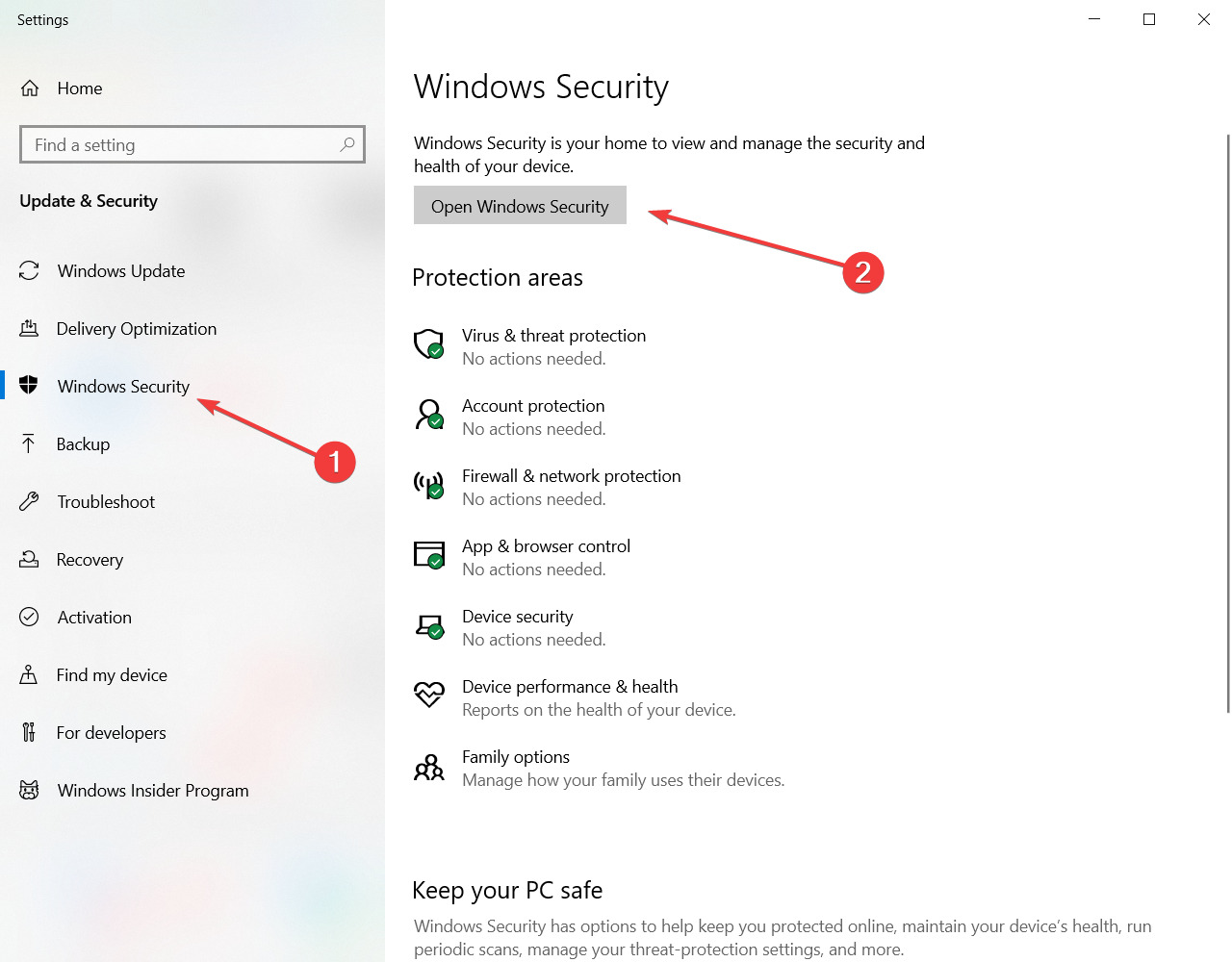
Double-click the Windows Security system tray icon to open it.
Then click the Virus threat and protection shield button.
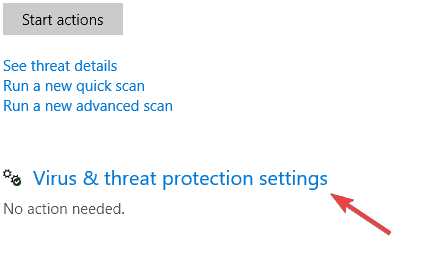
Click Manage settings to open the options in the shot directly below.
Toggle off the Real-time protection and Cloud-delivered protection settings off.
Users with third-party antivirus software installed should disable them via their context menus. Right-click your antivirus utility’s system tray icon and select its disable option to temporarily turn off the shield. Thereafter, try playing Forza 4 with your antivirus software turned off.
Once your antivirus is turned off, check if Forza Horizon 4 this app can’t open error is still there.
Note: Forza’s support team has confirmed the Avast, Avira, Sophos, Comodo, Trend Micro Maximum Security, Bitdefender Firewall, and Sophos antivirus packages stop F4 from launching. So, make sure you disable, or even uninstall, those third-party antivirus utilities.
7. Disable ReadyBoost and disconnect all unneeded USB device
Press the Windows and E keyboard keys simultaneously to open File Explorer.
Next, right-click any USB flash drive you have inserted in your PC and select Properties.
Select the ReadyBoost tab shown directly below.
Click the Do not use this device radio button.
Press the Apply button.
Click OK to leave the window.
Thereafter, disconnect all unneeded USB devices from your PC.
Then try playing Forza Horizon 4 after you’ve removed all the superfluous USB devices.
8. Clean boot Windows
Open Run as outlined within the first two steps of resolution four.
To open MSConfig, input this command and click OK: msconfig
Next, click the Selective radio button if it’s not selected.
Deselect the Load startup checkbox.
Make sure you have the Load system services and Use original boot configuration checkboxes selected.
Select the Hide all Microsoft services setting on the Services tab to exclude Microsoft system services.
Press the Disable all button to deselect the remaining services.
Click the Apply option.
Select the OK option to exit MSConfig.
Click the Restart option on the dialog box that pops up.
When you’ve restarted Windows, try playing Forza Horizon 4.
Note: If this resolution fixes the issue, then an incompatible program or service was likely conflicting with Forza Horizon 4. Discord, Xsplit, Logitech G Hub, Sonic Audio, Warsaw Banking App, OBS, EVGA Precision, and MSI Afterburner are among the programs confirmed to conflict with Horizon 4.
So, those are some of the more likely ways to fix the This app can’t open error for Forza Horizon 4. Note that some of the above resolutions might also fix the same app can’t open issue for other games and software. Some fixes in our Windows 10 apps won’t open guide might also help resolve this issue.
Users reported that Discord automatically determines the input sensitivity. It seems like the mic options are set on a different model than the one needed.
Using the microphone in optimal conditions is one of the main actions when we stay connected with our friends.
Moreover, the mic’s volume is lower or higher than users want. Also, other devices are placed as default.
Today’s article will show you some useful options to fix your Discord mic sensitivity.
Why does Discord automatically determine the input sensitivity?
You should know that, by default, Discord will activate your microphone when it detects noise.
Even if the app automatically determines mic sensitivity, you can effortlessly turn this setting off. Then adjust the slider to be more or less sensitive.
Now, let’s discover the best options to disable the automatic mode and change the Discord input sensitivity.
What can I do if Discord automatically determine the input sensitivity?
1. Disable the automatic sensitivity option
Hit the Windows key, type Discord, then open the first result.
In the left bottom corner of the app, go to Discord Settings (marked as a gear).
From the left side, select Voice & Video.
Turn off the Automatically determine input sensitivity option.
If Discord automatically determines the input sensitivity, this is the easiest solution that will help. Many users seem to solve our today’s problems with this option.
2. Set the default device
Hit the Windows key, type Discord, then open the first result.
In the left bottom corner of the app, go to Discord Settings (marked as a gear).
From the left side, select Voice & Video.
Under Input Device, open the drop-down menu, and set the microphone or headset you want Discord to use.
If Discord still automatically determines the input sensitivity after using the first method, you might adjust your default device as needed.
Note that if you choose the Default setting, Discord will defer to whichever microphone is set on.
3. Adjust the mic’s volume
Hit the Windows key, type Discord, then open the first result.
In the left bottom corner of the app, go to Discord Settings (marked as a gear).
From the left side, select Voice & Video.
Under Input Volume, drag the slider, then adjust the volume.
Under the Mic Test, click on Let’s Check, then test the volume of your mic.
4. Use the Push to talk option
Hit the Windows key, type Discord, then open the first result.
In the left bottom corner of the app, go to Discord Settings (marked as a gear).
From the left side, select Voice & Video.
In Discord’sVoice & video section, select the Input Mode, then checkmark the Push to talk box.
You’ll have to assign a key that will activate the microphone every time you’ll want to use it.
Every time you need to use your mic in Discord, you’ll have to press that key.
If Discord still automatically determines the input sensitivity, you should consider using a different web browser.
Even though you can use Discord on any navigator, we have the option that offers you unique features to get the most out of both gaming and browsing.
We strongly recommend Opera GX. This is a free andspecial version of the Opera browser built specifically for gamers.
Opera GX will let you talk with your teams, friends, and communities. Moreover, you don’t have to worry about using Discord. The app will run without any trouble.
With Opera GX, you’ll level up your gaming experience, controlling your privacy and security with the free integrated VPN.
If you choose to use this browser, you’ll be able to navigate with fewer headaches and load websites faster with the built-in adblocker.
Take a look at Opera’s most important features:
Dedicated to gaming experiences
Integrated VPN
Ad-blocker
What else should I know abut the Discord input sensitivity?
Input sensitivity is a feature that allows you to set your sensitivity levels for different input devices, such as keyboards, microphones, or mice.
Many gamers have been experiencing input issues with the Discord application and this usually happens with the mouse.
You should know that when it comes to emoji, it seems like some people do not get a consistent experience with the emoji or the colors, and as a result, end up with a distorted look.
These were our best solutions you can use if Discord automatically determines the input sensitivity.
Darkest Dungeon 2 players, we have some amazing news for all of you! Redd Hook Studios has almost finalized the work on the newest update for your favorite game.
The Shroud of the Deep, as it is called, will be available in the Experimental Branch and it will be moved to the Live Branch after the team can confirm that there are no critical issues.
So, equip your best gear, polish your revolvers, say a prayer, and prepare to face the toughest foes you ever laid eyes upon.
What’s new in Darkest Dungeon 2: The Shroud of the Deep?
Starting with this update, your coach will find no easy purchase on the rotted, salt-soaked planks and jetties that connect the waterlogged homes of the Fisherfolk.
The back story here is that, after being driven to a debased worship of the sea, the denizens of the coastal regions have taken to the water and been changed by it.
The Shroud is a new full-sized region packed with a complete faction of amphibious horrors and a terrible threat from the lowest depths of the seafloor.
You’re probably wondering what to expect from this new adventure, and we’re here to answer that question as well:
7 new monsters, from the gestating Cabin Boy to the imposing Docker
A New Lair Boss lurks just beneath the tideline
2 New Lair Boss trophies
6 New region-specific trinkets
All new combat score by the inimitable Stuart Chatwood
New narration – the Academic (Wayne June) reflects on the decline of the coastal population
New Confession: Resentment
Redemption demands an acknowledgement of failures past. Sign your confession anew, and face the personification of your second sin.
This milestone introduces the next Confession/Act 2, with new story content and a new final boss.
Narrative presentation has also had an overhaul:
Main story narration has been moved from the Valley to the Void
Each Confession now has an intro, repeatable lines, and an outro that tells the game story at run start and upon successful final boss kill
Art panels have been added to support the main narrative
Reformatted the Denial narration to match the new presentation
Added the Resentment narration and artwork
Ordained Monsters
Monsters now have a chance to spawn as “Ordained”, which means that they are blessed with extra power by the end boss for that Confession/Act. The blessing increases the monster’s damage, health, speed, and some other stats. These powers vary based upon which Confession you signed at the outset of your journey.
The chance of a monster being Ordained increases as you approach the Mountain.
When in the first full region past the valley, 10% of monsters will spawn as Ordained
When in the second full region past the valley, 40% of monsters will spawn as Ordained
When in the third full region past the valley, 80% of monsters will spawn as Ordained
Lair bosses and corpses will never be Ordained
Related: we’ve lowered base monster HP and damage by 20%. Thus, monsters should be a little easier than before when you are in the first region. By the third full region, they should be mostly harder than before.
The goal of this feature is to establish power scaling and threat escalation as you approach the Mountain, while also slightly lowering region 1 difficulty so it’s easier to get your expedition started.
Food Redesign
The function of food has been redesigned. Before, food was used primarily to heal HP at the Inn. Now, HP is always fully healed when arriving at the Inn. Food is instead used to buff Max HP and also buff other stats. Those buffs will last for the entire next region.
Each hero can only eat one meal (consume one food item) in each Inn. So choose your best food item to feed them. The exception being the Roast Pig. You can always add a Roast Pig feast on top of everything else.
Hero base HP has been lowered by 10% across the board, to adjust for food being used to buff HP. (The worst food item buffs 10%.)
Driving
A comprehensive look at Stagecoach experience/driving/route selection/preparation will be the focus of an upcoming milestone. Meanwhile:
Crack the Whip! Stagecoach speed now increases once you are clear of intersections and nodes, reducing travel time between nodes!
Visual improvements to many nodes
Adjusted road object loot table (slightly bigger chance overall; more relic than anything else)
Infernal Torch can no longer be swapped between open stagecoach slots. Once equipped in a slot it is locked until the run is over.
Resist Encounters
Resist Encounters will give parties with less than 4 Heroes new options for buffed Engage and Avoid choices.
Fixed several small errors related to effects and glyphs.
Assistance Encounters
Assist Encounters are now split into 3 variants and have new loot tables as appropriate:
Standard: The party receives Flame primarily
Combat: The party receives combat-related supplies
Provisions: The party receives Inn items and other useful non-combat items
[COMMUNITY] Robbery variant Assistance Encounters de-emphasize food in exchange for more supplies/items.
Fixed several small errors related to effects and glyphs.
Academic Study Encounters
[COMMUNITY]New Avoid options for stressed Heroes
New Low Relic/Low Inventory Interact options for greedy Heroes
[COMMUNITY]Fixed Shambler Altar issues
Fixed several small errors related to effects and glyphs
Fixed party torch misapplication as rewards for Caged Creature and Thing in Corner variants
UI
[Community] Skill Upgrade ALT view now available on Character Sheet
[Community] Disease indicator on driving portraits
[Community] Affinity preview on encounter choices
[Community] Show equipped skills on mastery
[Community] Space bar to enter nodes
[Community] Patch Notes viewable in options menu
[Community] Combat Skills tab now default on Character Sheet
[Community] Added Random Party button to the Crossroads.
[Community] Hero Story recap tab at Cross roads
[Community] Slide out panels (map, character sheet, inventory, etc) can now be closed by right-click and ESC
[Community] Show discounted prices in stores
[Community] Double click to auto drive Stagecoach
[Community] New Cinematic section on main page
[Community] Autosave indicator
[Community] Feedback on quirk removal when using a rest item or an inn effect.
Updated all instances of RED being used as enemy target indicators to now be BLUE, to match the game’s general color scheme
Inn tooltips now anchor more consistently to the placard
Enter Node text sheen is now less boxy
When a character’s name is changed in combat, the portrait tooltip should update correctly
Fixed the ability to open UI elements before the game was finished loading
Extended health bar on driving rosters to match stress bar width
Max health modifiers from Inn items and quirks are no longer incorrectly combining under the Conditions tab in the Character Sheet
Corrected The Good Doctor tooltip to correctly state it heals a disease and not a quirk
Fix for Restorative Herbs tooltip incorrectly listing its two effects. It should now correctly list +10% healing from traveling & the +20% healing from skills.
Raised the Inn select receipt banner to not block hero bark bubbles
Users can no longer open the Stagecoach screen when making a choice at an encounter
Minimap scout ping correctly waits for the encounter screen to close first before animating
Stealth token icon color is no longer gold and now better matches its effect text color of purple
Newly added items now get added to the bottom of your Inventory
“Discard items for Hope” message is now more visible on the screen
Heroes
Hero base HP reduced by 10% to account for new Food Design
Fixed an issue where the effects of Quirks like Thanatophobia were applied when a Hero corpse “dies”
Fixed an issue where Heroes could receive stress damage when a Hero corpse was CRIT
Hellion
Fixed an issue where Bloodlust could be blocked by Denial of Reason
Monsters
Reduced the base health, damage, and speed of most monsters to account for Ordainment (see earlier)
Several types of Quirk/Trinket effects are no longer applicable when striking/killing an enemy corpse
Champions now have a low chance of spawning in Guardian fights
Champions now have a low chance of spawning in Lair fights
Adjusted the pool of Diseases available to several monster skills
Creature Den
Webber and Spitter Bite attacks can now inflict the Tarantism Disease
Spitter Spit attacks can now inflict the Tarantism Disease
Fixed erroneous glyphs related to food costs
Fixed incorrect effects on certain choices
Cultists
Fixed an issue where the Cultist Deacon did not receive the Cultist Cardinal’s passive RES Buff
Removed the ability to retreat from Cultist Node Choices, except with the appropriate quirks
Dreaming General
Dreaming General now spawns with a permanent Immobilize Token
Tap Root now spawns with a permanent Immobilize Token
Rewards now drop proper region trinkets
Librarian
The fidelity of Librarian’s books better matches the characters
Harvest Child
Rewards now drop proper region currency and trinkets
Shambler
[Community] Improved rewards and are now guaranteed
Combat
Combo Tokens now last for an additional round; this change affects Heroes and monsters alike
The permanent version of the Immobilize Token has an updated color and description to differentiate it from the standard version
Fixed an issue where Start Round skills (e.g. Denial of Reason) were subject to Daze/Stun
Fixed an issue where Start Round skills were unintentionally triggering Extra Action effects
Character movement in general has had a polish pass and should now be cleaner and snappier
Combat Consumables now fire all vfx, tokens and numbers simultaneously, making them more responsive to use
Guard tokens are removed when a guarding actor is captured.
Added Combo Token to poptext when it’s consumed
Changed CRIT poptext to now read Critical!
Heroes now only say their Move barks when affected by non friendly skills.
Shuffles shuffle better now. Algorithm gremlins were exorcised
Fix for Dreaming General hit reaction delay
Fix for exploit with Riposte that would reveal kills via token highlights
Quirks
Sunny Disposition and Curmudgeon quirks now affect affinity ticks for the party (pos and neg respectively)
New Heavy Handed quirk: 5% chance of moving an opponent via melee attack
Punch Drunk’s Stun can no longer trigger off of DOT damage
Cowardice quirk update: Take 1 stress damage when hit (5%), Move to back when in the front rank (15%)
Pyromaniac and Field Surgeon now have token-driven bonus item skills for Fire Bomb and Healing Salve
Various Fisherfolk and Shroud-related quirks added to reflect the existing other Biome/Faction quirks
The Runs is now a disease, not a quirk
Added Disarmer quirk, 10% chance of giving a weakness token to the enemy that hit the Hero
Tarantism Disease added (chance for forced Move), exclusive to Spiders
Algal Bloom Disease added (chance of proc’ing Barnacle or small damage per turn), exclusive to Leviathan boss
Slugger quirk now has a chance to add Stun, which replaces the damage bonus
Removed Strength token possibility from Vicious quirk
Various quirk corrections and adjustments for balance and bugs
[Community] Fixed an issue with The Jinx consuming CRIT tokens when the Hero was hit
Items
[Community] Sneaker’s Standard: Trigger change from Turn Start to Round Start and Stealth chance increased from 10% to 33%
[Community] Covert Cloak: Trigger change from Turn Start to Round Start
Faceless Visage: Taunt chance increased from 20% to 33%
Annotated Textbook and Early Experiment names properly assigned
New Stagecoach Upgrade Almanac: The Shroud
Misc Gameplay
Added “Heat Wave” region modifier. (Reduced Burn resistance)
HALE battle modifier bonuses reduced from 25% to 10%
FRENZIED battle modifier bonus damage reduced from 25% to 20%
Adjusted food-related Stagecoach upgrades due to new food design
Tea Service now properly reduces negative banter instead of increases it
Battle configurations were adjusted to use multiple conditions where relevant (e.g. shambler has increased chance of spawning when torch is low AND region is closer to the mountain). Also adjusted all region # conditions for full-length region # instead of raw region #. This ensures that taking the SLUICE doesn’t mess up power scaling.
Added new region goals for “Visit Oasis” and “Visit Creature Den”. Adjusted chances of other region goals.
Retune of Triage Kit and Healing Salve: stacking limits reduced; prices increased. Increased heal value of Triage Kit
Added many new hero Barks (Food consumption, leaving Shrines of Reflection, and many more!)
Tuned down all relationship act out frequency some
Revised the “Block partner from moving” relationship Act Out to only block moves where the partner themself is moving (now won’t block situations where the partner tries to move someone else)
Note: we will be revising Relationships significantly in a future update
Fixes
Fixed an issue with the Stagecoach not loading properly after changing the livery
Fixed an error caused by toggling the Inn Provision screen too quickly
Fixed missing gender for localization of hero death to quirk strings
Fixed an issue with combat sorting
Fix for resolution dropdown sometimes not updating properly after monitor switch
Fix for meltdowns not logging in the players run log when occurring outside of combat
Fix for being able to drive the coach while over-encumbered if you quit to the main menu and reloaded
Fixed a softlock caused by the same hero having multiple meltdowns
Fix for healing poptext at the Inn to be consistent with other poptext locations
Fixed an issue when encounter choice lock-in continues through other screens
Fixed a display issue with various quirks and effects applying before the poptext appears
Fix to biome modifiers being rolled without biome goals
Fix for barks overlapping with combat and affinity zoom ins
Fixed an issue where the character sheet would become inactive if toggled too quickly
Fixed an issue where the relationships tab on the character sheet would break when only one hero remained in the party.
Fix to CRIT strikethrough to show CRIT value when striking through
You may have encountered the Disney Plus error code 76 when trying to stream content and sometimes it comes with the There was a problem streaming. Please try again later message.
A few different things can cause Disney Plus error code 76, including issues with your Internet connection, home network or your ISP. However, we can’t exclude server maintenance or high traffic problems with Disney Plus servers.
How can I fix Disney Plus error code 76?
1. Check your Internet connection and make sure it’s stable
The first thing you should do is check your Internet connection and make sure it is stable.
If there are any interruptions or issues, especially when you’re using a Wi-Fi connection, this may cause the Disney Plus error code 76 to arise.
Just resetting the router may fix the problem
Additionally, check that all other connected devices are working properly and that the cables are all set firmly in place.
If you find that your Internet connection is stable and there are no other issues with your network, the next step is to try restarting your device.
This can resolve similar issues like Error code 73 and allow you to stream content on Disney Plus successfully.
2. Restart your router and update its firmware
Unplug your router from the power outlet and wait for 30 seconds to fix the Disney Plus error code 76 problem.
Plug it back in and turn it on. Once it’s finished booting up, try opening Disney Plus again. If you’re still seeing the error, you can try a few other things.
Check the router for firmware updates
First, check to see if any updates are available for your router’s firmware. If there are, install them and then try restarting your router again.
Try connecting to Disney Plus using a different device if that doesn’t work either.
If you can watch videos on that device without any issues, then it’s likely that there is a problem with your original device or network connection.
Click the Menu button in the top-right corner of the window and choose Settings.
Go to Privacy and security and tap on Cookies and other site data.
Scroll down to See all cookies and site data and tap on it.
Tap on the Remove All button near the top.
This will open a pop-up window labeled Clear site data. Click on Clear all to finish the process.
On Firefox:
Click the Menu button in the top-right corner of the window and tap on Settings.
Click Privacy & Security, tap on the Cookies and Site data section, then click the Clear Data button.
Check the boxes next to Cookies and Site Data and Cached Web Content in the pop-up window, then select the Clear button.
On Microsoft Edge:
Click the Menu button in the top-right corner of the window and choose Settings.
Tap on Cookies and site permissions from the left panel, then click on Manage and delete cookies and site data.
Then select See all cookies and site data.
Tap Remove all.
A pop-up window labeled Clear site data will appear. Tap on Clear to complete the process.
Try loading Disney Plus again after clearing the cache and cookies on your browser. The Disney Plus error code 76 should be gone by now. This also works when you see Disney Plus Error code 14.
We have described how to clear the cache and data on the most popular browsers but the procedure is very similar on others as well.
If you want an automated solution that scans your browser for useless data and gives you an informative report, use CCleaner. It lets you pick exactly what you want to remove, including recent URLs, download history, and more.
4. Disable any VPN or proxy service you may be using
Open your VPN or proxy software and look for the option to disable it. This is usually found in the settings menu.
Once you’ve disabled your VPN or proxy service, restart your computer and try accessing Disney Plus again.
Once you’ve disabled your VPN or proxy service, restart your device and try accessing Disney Plus again.
If the Disney Plus error code 76 problem persists, you may need to completely uninstall your VPN or proxy software.
5. Contact Disney Plus support
If you have followed these steps and are still encountering the error code 76, it may be necessary to reach out to Disney Plus customer support for further assistance.
They will be able to help troubleshoot the issue and determine if there is a larger problem that needs to be addressed.
In most cases, following these simple steps will fix Disney Plus error code 76 and allow you to enjoy all of your favorite shows and movies on Disney Plus.
For additional support, especially if you’re dealing with repeated crashes, use our guide to fix Disney Plus crashes with these methods. Quick and effective troubleshooting is guaranteed.
For any other questions or suggestions, feel free to use the comments section below and tell us all about it.
We previously mentioned that Microsoft had just released the new Insider Preview Build 25120 for the Windows 11 Dev Channel.
You would know that the company also released a new build of the Windows Server Insider Preview which has the same number 25120.
This build is now available to download as an ISO from the Windows Server Insider website along with a VHDX, so head on over there and get your hands on it.
What’s new with Windows Server Build 25120?
It’s true, build 25120 uses the same underlying kernel as the Windows 11 Sun Valley 3 development, but there’s no changelog, so it’s unclear what’s new.
Not even the branding for Server has been updated, thus it still remains as Windows Server 2022 in the preview.
Furthermore, Microsoft is asking Insiders to refer to these builds as vNext rather than Windows Server 2022 which is already in the market.
As we mentioned, there is no official changelog for this software release, so there isn’t really much to tell about it.
There is, however, a dedicated list called Available Downloads:
Windows Server VNext Preview in ISO format in 18 languages, and in VHDX format in English only.
Windows Server VNext Preview VHDX
Microsoft Server Languages and Optional Features Preview
Windows Admin Center 2110.2 Preview
Microsoft also provided the keys but clearly stated that they are only available for Preview Builds, so keep that in mind.
Server Standard: MFY9F-XBN2F-TYFMP-CCV49-RMYVH
Datacenter: 2KNJJ-33Y9H-2GXGX-KMQWH-G6H67
Also, to download, registered Insiders can head over to the Windows Server Insider Preview download page.
Keep in mind that Redmond officials also noted that this Preview will expire on September 15, 2022, just a few months from now.
Wireless display represents a technology that allows you to project photos, movies, and web content. And any kind of media, from a compatible mobile device or computer onto another device.
Even if it should always work in proper conditions, Windows 11 users reported that some wireless display installations failed. This is how they describe the problem in the Microsoft forums:
I have installed Windows 11 Pro Version Dev (OS Build 21996.1) on ProBook 6470b and it’s showing an error in wirelessly projecting to this PC, and when installing an optional feature of wireless display it shows Install Failed.
Fortunately, there are a lot of ways to easily solve this annoying issue. After all, you already know how Windows 11 compares to Windows 10 and there’s no way of turning back.
We selected the best options, so make sure you read this article completely to discover which one suits you the most.
Important things to consider before installing a wireless display
Installing a wireless display is always helpful and it can actually clear the clutter from your desk. As well as eliminate the wear and tear problems associated with the cable connection.
However, your device must have a crucial component to install, connect and use a wireless display: Miracast technology.
What is Miracast and what does it do?
Miracast is a standard devised by the Wi-Fi Alliance that allows the mirroring of content wirelessly from a compatible PC. Or a smartphone, and tablet screen to a TV, or monitor.
It is commonly known as HDMI over Wi-Fi because it’s wireless and it can replace all known HDMI cables.
Make sure your device is Miracast compatible
If you want to project your screen to a wireless display, your device and the screen must be Miracast compatible with a wireless broadcasting technology.
To see if your device is Miracast compatible go to Settings, then click on the System from the left pane, and select the Projecting to this PC option from the right pane.
If you see a screen like the one below, that will display the message This device doesn’t support receiving Miracast, so you can’t project to it wirelessly, which means your device doesn’t have the capability.
The fact that your device doesn’t have Miracast capability can prevent you from installing a wireless display so you should check this nevertheless.
If your device doesn’t have this capability, you can always buy a separate Miracast dongle that you can connect to your device and use, but make sure that the display is also Miracast compatible.
This being said, let’s jump into the list of solutions and note that they will also address the wireless display install failed in Windows 10.
What can I do if the wireless display installation failed?
1. Connect to the Internet
Besides the fact that Windows 11 can’t run on devices without Internet access, in some cases, users forget to connect to the Internet before trying to perform the installation. This is supposed to be the quickest and the simplest method to install your wireless display additional features.
If you encounter issues while trying to connect to a network in Windows 11, check out the article linked in order to find out how to fix it. After this, the Windows 11 wireless display not working issue will be solved.
Thus, we strongly recommend trying to connect to it and then reloading the process. However, if this first option didn’t work, keep reading this guide.
2. Try a different Internet source
If the first solution failed, it might be still a random bug and a reason for poor Internet connectivity. The second thing to do is trying to connect to a different Internet source.
As you can see, the first two options are just a few seconds fixes, and they help you to make sure everything is prepared on good terms for the wireless display installation.
3. Turn off the metered connection
Open Settings by holding the Windows and I keys together and go to Network & Internet and click on Properties.
Scroll down, then click on the toggle button to set the Metered connection to Off.
Once you’ve done that, try to install the wireless display again and see if it works now.
Click on the magnifying glass icon and type cmd inside the search bar in order to right-click on the topmost result and choose Run as administrator.
In the pop-up window, type the following command, then press the Enter: DISM /Online /Add-Capability /CapabilityName:App.WirelessDisplay.Connect~~~~0.0.1.0
NOTE
You can also use PowerShell to run the mentioned command, by following the steps below.
Tap on the magnifying glass icon and type PowerShell then choose Run as Administrator under it on the right side.
In the pop-up window, type the following command which is the same as above, and press Enter:DISM /Online /Add-Capability /CapabilityName:App.WirelessDisplay.Connect~~~~0.0.1.0
So, these are the most valuable options that will work if your wireless display install failed. As you can see, they are not complicated, so you don’t have to be an expert to have them quickly done.
We love to show you how to sync Chrome passwords with Keychain in this article, and this is important because Google Chrome is the most used browser today.
It packs a lot of features and many of these are centered around privacy and security. For example, the browser has an incognito mode, that allows you to browse the internet without leaving fingerprints as you would in normal mode.
However, this is just the tip of the iceberg, as the browser also comes equipped with passwords and other sensitive data storage features.
One such feature is the ability to sync Chrome passwords with iCloud’s Keychain. This is both convenient and another privacy and security way to go.
Additionally, when you connect to websites using Chrome, you can use the built-in password manager to remember all of your passwords. The browser will autofill registration forms and passwords on login every time you view the page after you’ve stored them.
on the address bar of the browser type the code below and hit enter. chrome://settings
Select Autofill on the left pane and choose Password on the right pane.
This redirects you to the browser’s password manager. Alternatively, you can paste the code below on the address bar and hit enter. chrome://settings/passwords
To the right of the Saved password option, click on the ellipse (3 dots) to reveal the Export passwords option.
Click on the Export passwords button again on the prompt.
You will be prompted to enter your pin or password, after which you will export the passwords to whatever location you choose.
Import Chrome passwords
On the address bar type the link below and hit enter. chrome://flags
Type password import in the search box at the top of the window, click the arrow to reveal more options in front of the password import flag and select Enable.
Click Relaunch at the bottom right of the browser.
On your browser address bar type the link below and hit enter. chrome://settings/passwords
To the right of the Saved password option, click on the ellipse (3 dots) and select the Import passwords option.
You will be able to navigate to where your passwords are saved and import them.
Now let’s see how you can sync Chrome passwords with Keychain on iPhone and mac.
How do I transfer passwords from Chrome to Keychain?
1. Import passwords to Safari
Launch Safari.
Click on File, then Import from, and finally select Google Chrome.
Tich the checkbox for Passwords, and hit the Import button.
2. Manually transferring exported Chrome data
Tap your iPhone’s settings app.
Scroll down and tap Passwords.
Click the Passwords plus (+) sign.
Complete the form with the Website name, User Name, and Password.
Save the password and you would have been able to import passwords to Keychain on iPhone.
On the left pane, select Import passwords, then select Chrome on the right pane.
Click the Import file button, then navigate to select where you have your passwords CSV, select it, and click Next.
Wait for the import to finish, and you would have been able to import passwords to Keychain from CSV.
If you have enjoyed following this guide using Chrome, then you would love Opera One as well since it offers the same password export features. It is a robust browser with a pleasant UI that allows you quick access to all your favorite tools and social media platforms.
It is built on Chromium and equally has a vast extension collection, and gives you access to quick and reliable support. Plus, it comes with it’s own AI built-in.
There you have it. You have now been able to transfer your passwords from Chrome to your iCloud Keychain password manager.
You will find this tool useful as it helps autofill passwords when you use the Safari browser.
We recommend that after exporting passwords on your local machine, you should delete them. They could become a huge risk if your computer is compromised. This is also important because your exported Chrome passwords are not masked.
If you’re on a different browser, you might be interested in our iCloud Passwords for Firefox guide, and learn how to get access to all your passwords.
The 403 Forbidden Error occurs typically when the webserver’s admin has put in place access rights and you are denied access to the resource. If the permissions have been incorrectly configured, you will also be denied access and get the error code.
Web developers may alter the appearance of a 403 error, just as they can with 404 errors. As a result, different 403 pages may appear on various websites.
What does error 403 mean on Roblox?
Roblox Error 403 usually appears when you make an invalid request or when you upload an image. When uploading graphic data, a network error may occur, resulting in graphic data corruption.
There is no room for worries, there are a few solutions that you can implement on your own, and we will show you all of them in this article.
Users have also experienced the 404 error, and you can also fix this HTTP error 404 with a few steps.
What causes 403 Forbidden?
Several things may cause the 403 Forbidden error. The most probable reason is that your server’s file permissions are wrong. Additionally, a corrupt .htaccess file or a defective plugin might cause this issue for site developers or designers.
Furthermore, it could be caused by the following:
Wrong IP address – Entering an incorrect IP address for a resource will trigger a forbidden error message.
Broken WordPress plugin – If users need to access pages connected to plugins that no longer work, they will receive the error message.
Missing index page – An index page is the default for websites. If it is misnamed or missing, it becomes unreachable and will trigger the 403 error message.
New web page link – When a web page or resource has a new link, users may get the error message if this is not updated on the front end.
Malware infection – Malware and viruses are the common culprits across different computer errors. They can delete files and act in other malicious forms to render a server unresponsive.
Geographical restrictions – On services like Netflix, you get access to content based on geographical location. If you try to access content not meant for your location, it will trigger this error.
Misconfigured servers – On servers, files should be appropriately named, and users should be granted rights according to the access they are meant to have. When this is not configured correctly, some pages may become unreachable.
How do you fix code 403 on Roblox?
The suggested method for resolving this problem is to save the file or image and reupload it to check whether it has been resolved. Another great alternative that saves you a lot of time is to try uploading on a different browser for Roblox.
To modify specific site settings, you may need to contact your service provider or the site’s administrator.
If it doesn’t work, you should check the following solutions to discover what works best for you.
What are the variations for the 403 Forbidden error?
One of the response or status codes for HTTP deployed by servers to interact with client browsers is the 403 Forbidden, implying that the server believes you don’t have elevated privileges necessary to view that page.
Typically, the error message comes in different variations set by the web admin, but they all mean the same thing, for example, here are a few variations:
Your client does not have permission to get URL (address) from this server.
403 forbidden access is denied
It appears you don’t have permission to access this page.
403 forbidden access to this resource on the server is denied!
You are not authorized to view this page.
Forbidden – You don’t have permission to access (Name of the directory) on this server.
How do I fix the 403 Forbidden error?
How do I fix 403 Forbidden Nginx?
1. Rename the index file
Open your terminal using Ctrl + Alt + T.
Type in the code below and hit enter. ssh -p 232 66.99.206.145 Be sure to replace 232 with your port number or omit -p 232 if you do not have an assigned port number, and also replace 66.99.206.145 with your server IP or username.
Type yes and hit enter, then enter your password and hit enter.
Navigate to the HTML directory using the code below: cd /var/www/html/
Rename your index file to index.php using the code below and hit enter: mv home.php index.php Replace home.php with the file’s name that currently serves as your index.
Refresh your browser, and the error should disappear.
This fix will work only in cases where you have misconfigured your server and have not appropriately named the index file. Additionally, you need to be an admin for this fix to work.
2. Wait it out
If you do not have administrative rights, waiting it out may be all you can do. Within this time, you should try contacting the server admin.
The server may be down or on maintenance, and if this is the case, you should have access in no time.
How do I fix the 403 Forbidden error on Google Chrome?
1. Double-check the URL and reload
Look through the address bar of the browser.
Confirm that the address entered is the correct one.
Click on the reload button or hit the F5 key.
2. Clear the browser cookies and cache
Click on the ellipsis on the top right corner of the Chrome browser.
From the options, navigate More tools, then Clear browsing data.
Click on the Basic tab, select the desired Time range, tick the checkboxes for Browsing history, Cookies and other site data, and Cached images and files, then click the Clear data button.
Restart the browser.
If you feel that manually erasing history, browsing data, cache, and cookies will take too much time, you may consider using a professional cleaning application that is automated.
You may delete unnecessary cookies with a single mouse click using CCleaner cache and cookie cleaning. However, not all cookies are damaging or obtrusive.
Some cookies are completely harmless to computers. They are present in the computer to improve Internet browsing speed and user experience. Smart Cleaning in CCleaner assists you in choosing what exactly you want to delete, without disturbing any saved data on your Chrome browser.
3. Log in to the website
This is an essential solution because sometimes, the 403 Forbidden error means you do not have the authority to visit that webpage or resource. However, if you have an elevated log-in credential, you only need to log in, and you will have access to the page without the error.
However, if a misconfiguration has triggered the error, this solution will be useless.
4. Restart your computer
Click on the Start menu.
Click on the Power button and select Restart.
During a reboot, a variety of things happen that assist in resetting different elements within a computer. Restarting the system can help flush the memory, stop memory leaks, correct software glitches, and fix emergent issues such as the 403 Forbidden error.
5. Wait it out
This may not be the best solution when you feel impatient, but sometimes it is the only solution. When you do not have issues with your device or browser and have the right to access the resource, you will have to give it time.
In this case, there could be a configuration flaw that the site admin will have to address. It could also mean that the site is under maintenance or the server is down. Whichever is the reason, trying again sometime in the future may be your best bet.
How do I fix the 403 Forbidden error on Roku TV?
1. Disable Limit Ad Tracking
Go to your Home screen, then scroll down to Settings.
Once in Settings, press the right remote button and scroll down to Privacy.
Once again, press the right button to navigate to Advertising, and make sure the Limit Ad Tracking option is unchecked.
2. Clear the cache
Click the Home button on the remote control twice to navigate to your home screen.
Press the Up button once.
Press the left rewind << button twice.
Press the right fast-forward >> button twice
The TV will restart, and when it comes back on, it should have cleared your cache.
Next to your profile picture at the top right corner, click the arrow to expose additional options.
From the dropdown list, select Manage teams.
Click on the tiny arrow in the Roles column for the member whose roles you want to change.
Tick the roles you want this member to have in the list of options, and click the Update roles button.
2. Clear your browser cache
Click on the ellipsis on the top right corner of the Chrome browser.
From the options, navigate More tools, then Clear browsing data.
Click on the Basic tab, select the desired Time range, tick the checkboxes for Browsing history, Cookies and other site data, and Cached images and files, then click the Clear data button.
Restart the browser and relaunch the address.
Depending on what browser you use, this step may vary slightly.
Please note, that while we have written this solution for Chrome, we love to recommend you try the website on a different browser as well. We love to recommend Opera.
It is a robust web browser, that offers a very smooth UI with all your most-used tools easily accessible. Opera is built on Chromium and has a very large community implying that you will be able to find resources to troubleshoot errors quite easily. The browser also offers great options for privacy and security customization.
How do I fix the 403 forbidden error in WordPress?
1. Deactivate your plugins
Log into your WordPress dashboard.
On the left pane of the dashboard, click on Plugins.
Tick the checkboxes beside the plugins you wish to deactivate, click the arrow to review more options on the top menu, select Deactivate, and click Apply.
Refresh the browser to see if it is fixed.
2. Change file permissions
Log into your host, and under Files, click on File Manager.
Select all the files whose permission you want to change, right-click and select Permissions.
Tick the boxes to modify permissions as you desire, and click the CHANGE button.
Refresh the page to see if the error is gone.
3. Delete and reinstall .htaccess
Log into your host, and under Files, click on File Manager.
Click on the public_html folder on the left pane, then on the right pane, right-click on the .htaccess file, and select Delete.
Next, log into your WordPress dashboard and click on settings from the left pane.
Without making any changes, scroll down to the bottom of the Settings page and click Save Changes. This should automatically reinstall the .htaccess file.
Refresh the webpage and see if the error has disappeared.
How can I avoid the 403 Forbidden error?
Most times users have encountered this error, it has been because some critical housekeeping has been omitted. To avoid this error, here are a few things you can do:
Regularly update browsers
Properly configure access rights on websites and resources
Periodically scan your servers and PCs for malware
Ensure that all websites are correctly pointing to an index page.
Additionally, you must note that file permissions apply to every file on your website. These file permissions determine who has access to your site’s files and directories. Hence, it would help to allow directory browsing on web server apps to avoid 403 forbidden errors.
The 403 Forbidden error is one error associated mainly with user rights, but with the solutions offered in this article, you should have successfully fixed it.
Remember that a practical step may include contacting a support rep, especially when you are not an admin of the web service. They could give valuable information and often help you know if waiting it out and trying again later is the best solution to adopt.
The error can also happen on major web services like Paypal, and the steps to fix the 403 Forbidden error on PayPal are similar to some solutions in this article.
We hope this article has been helpful. We look forward to reading your comments.
The YouTube out of sync issue is pretty concerning, affecting many platforms. YouTube is the world-leading streaming platform used by creators and many people around the world.
It is the home to a series of vital information and an essential marketing tool. As expected, it is supported on various platforms like iOS, Android, Windows, macOS, Xbox, and Smart TVs, to name a few.
With its series of streaming options, including mobile, webcam, and encoder, it is safe to say it represents everything good users want in a streaming platform.
So, any problem with the platform, either slight like this out of sync issue or complex like the YouTube 500 internal server error, will affect many people.
This guide contains seven simple yet effective fixes for the YouTube out of sync issue on different devices. Irrespective of the cause of the problem, this article’s got you covered.
Why is my YouTube sound out of sync?
The YouTube sound out of sync issue occurs on different platforms for various reasons. Below are some of the common ones:
YouTube out of sync Windows 11: This could be due to outdated graphics drivers, faulty browser data, and outdated YouTube app, among others.
Xbox YouTube out of sync: The common causes are a slow internet connection and outdated Xbox software.
YouTube out of sync on TV: This is usually due to a bad connection between the TV and the audio device connected to it. It might also be due to the accumulation of corrupt YouTube data.
YouTube out of sync on Firestick: This error is usually because of glitches within the YouTube app.
AndroidYouTube out of sync: This could be due to an outdated YouTube app, corrupt app data, or faults from the device.
YouTube out of sync iPhone: It is caused by network issues, outdated YouTube app, and corrupted app cache.
How do I fix YouTube sound and video delay?
Fix YouTube audio out of sync Firefox
1. Use Firefox in Safe Mode
Click the menu button (three horizontal lines) on the top right corner.
Select the Help option.
Choose Troubleshoot Mode…
Click the Restart button when prompted.
The Troubleshoot Mode starts Firefox with most add-ons disabled. If the YouTube audio is not out of sync in this mode, one of your extensions is the cause of the problem.
You need to disable them all and use the elimination method to detect the extension causing the problem.
2. Increase the session save internal value
Copy the command below in the Address bar and press the Enterkey. about:config
Click the Accept the Risk and Continue button when prompted to be careful.
Copy the command below in the search box. browser.sessionstore.interval
Double-click the result and increase its value to a high figure like 100000.
Firefox has a feature that lets it save browsing sessions around every 15 seconds. This process could make the sound fail to sync on YouTube.
Changing the value to a high figure increases the time it takes to save your sessions. Consequently, there will be no little breakage that causes the delay in the sound or video.
Note that you need to close and relaunch Firefox after changing the value to effect the change.
Fix YouTube audio out of sync Chrome
1. Disable hardware acceleration
Click the menu button (three vertical dots) in the top right corner.
Select the Settings option.
Click the Advanced option on the left pane.
Select System from the dropdown.
Toggle the switch before Use hardware acceleration when available backward to disable it.
Hardware acceleration is an important feature in most modern-day browsers. It takes advantage of your PC’s GPU to take off a little load from the CPU and improve media playing performance.
However, it can cause YouTube audio to be out of sync due to its processes. Simply disabling it and restarting Chrome should do the trick here.
2. Clear browser cache
Click the menu button and choose Settings.
Select Privacy and security on the left pane.
Click Clear browsing data.
Click the dropdown next to Time range at the top and select All time.
Check the checkbox for Cached images and files.
Click the Clear data button.
Cached images and files help with faster processing and navigation of sites you have visited in the past. But these files can get corrupt with time.
And this leads to errors like YouTube sound out of sync on Chrome. After clearing the cache, close and relaunch your browser to effect the changes.
3. Try another browser
If you can’t solve the YouTube audio out of sync issue on Firefox and Chrome with the fixes above, you might be better off trying another browser for a change.
And there is no better alternative than the top-notch Opera One browser. Opera One is a lightning-fast app based on the same Chromium engine as Firefox and Chrome.
Whether a news site or streaming, it does not lag and loads every page with ease. Thanks to its intuitive and customizable interface, it is also pretty easy to use.
What’s more, it boasts some truly impressive privacy and security features. It has a built-in VPN and ad blocker that keeps you safe online.
Opera One just ticks so many right boxes without the frequent problems encountered in other modern browsers.
Opera One
Browse the internet and watch videos error-free with Opera One.
This might appear to be a simple fix, but it has proven to be effective time and again. If YouTube is out of sync on your Smart TV, it might be due to glitches within the appliance.
Also, it might be because of a transmission lag between your TV and the audio device (especially Bluetooth devices). Restarting your TV should restore normalcy in this case. And this can be done by holding the power button on the remote control for a few seconds.
2. Clear app cache
Press the Home button on your remote control.
Open the Settings app and select the Apps option.
Choose the System apps option.
Select YouTube and click the Clear cache option.
Click the OK button to confirm.
YouTube cache is vital in its smooth running on a Smart TV. However, they are only useful when they are not corrupt.
Once the cache becomes faulty, it leads to problems like YouTube sound out of sync. Clearing the data and restarting your TV should solve the issue in this case.
You can download the YouTube app on your PC but it is only available on third-party websites. Downloading from these websites is not advisable for the overall safety of your PC and data.
Hence, we would advise using YouTube on your browser, as you would still get maximum value from it.
The YouTube out of sync problem can mar your streaming sessions. Fortunately, it is not the most difficult issue to solve, irrespective of the platform, as we have shown.
The Firefox SEC_ERROR_UNKNOWN_ISSUER error code shows up when the browser can’t trust a website’s SSL certificate.
Whenever you try to visit a website on Firefox, it checks the SSL certificate from the site. This certificate must be valid and be from a trusted certificate authority.
If there is a problem with the website’s security certificate, it shows this error code to warn you of the potential risks of the site. This is all part of its security feature to protect you from dangerous websites.
However, if you face the error code SEC_ERROR_UNKNOWN_ISSUER in Firefox but not in Chrome, especially on trusted websites, it means the issue is far beyond just the SSL certicate. trusted websites like Google.
Plus, this is not the first time an error like this has prevented users from accessing sites on Firefox. People have encountered some of the errors below at one point or another on the browser.
Like we did with the errors above, we have also provided practicable fixes to this error. Read on to find out more!
What causes SEC_ERROR_UNKNOWN_ISSUER?
The error code SEC_ERROR_UNKNOWN_ISSUER occurs on Firefox due to a conflict between the browser and the website certificate. But other factors could cause it.
Below are some of the popular ones:
A website’s SSL certificate is not from a trusted certificate authority. This can also be that the certificate has been self-signed.
A website’s certificate is obtained from a provider whose root certificate has been removed from the root store.
Presence of malware on PC or the website.
Activities of third-party software.
It is important not to bypass or ignore the Firefox SEC_ERROR_UNKNOWN_ISSUER issue if it is due to the first two factors above. However, if you face the problem on a trusted website, you can make exceptions.
How do I fix SEC_ERROR_UNKNOWN_ISSUER?
1. Perform virus scan
1.1 Use the built-in virus scanner
Press the Windowskey and type Virus & threat.
Select the Virus & threat protection option.
Click Scan options.
Select the Full scan or Microsoft Defender Offline scan.
Click the Scan now button.
If a virus infects your system, it might prevent Firefox from finding a website’s certificate. This stops it from establishing a secure connection, leading to the error code SEC_ERROR_UNKNOWN_ISSUER.
You might also notice that the Firefox security warning keeps popping up no matter what you try. In this case, your best bet is to perform a virus scan and remove the malware. After the scan, restart your PC and relaunch Firefox to check if the error persists.
1.2. Use a third-party antivirus software
While your PC’s built-in malware and virus protection is pretty reliable, Microsoft is not a security company. Hence, there is room for improvement.
One software that gives you the all-around security you need is the ESET NOD32 antivirus. It is an award-winning cybersecurity technology that uses cutting-edge expertise and advanced machine learning to protect your digital life.
What’s more, it offers malware, ransomware, and phishing protection to keep you protected from threats of different kinds. Add its privacy and banking protection, and you know you are always secured online.
If you need an antivirus that keeps your devices running fast and detects viruses before they manifest, with a bonus of a free trial and cheap pricing, ESET NOD32 is what you are looking for.
Press the Windows key + X and select Task Manager.
Click Startup in the top menu bar.
Right-click on your third-party antivirus program and select Disable. Note that the app used in the diagram is for explanation only and should be replaced with your antivirus as needed.
Restart your PC to effect the changes.
The Firefox error code SEC_ERROR_UNKNOWN_ISSUER and sometimes the Firefox did not connect: Potential security issue can be due to some of the security features of your third-party antivirus software.
Most modern antivirus programs offer special web shielding properties that can block access to insecure sites.
If you have such software and trust the site you want to visit, disable the antivirus temporarily. To enable the app later, you only need to repeat the steps above and select Enable instead of Disable in the last step.
If the fixes above prove futile in solving the error code SEC_ERROR_UNKNOWN_ISSUER on Firefox, your best bet is to try a new browser in Opera One.
Opera One is a secure browser that keeps you safe online from hackers, tracking, and data theft. It warns you of suspicious web pages after checking the page against a database of malware and phishing websites.
It also supports the SSL v2, SSL v3, and TLS 1.0 protocols to ensure the website is truly secure. However, these features can be disabled if you don’t need them.
All these, plus its built-in VPN, ad blocker, and anti-tracking feature, rank it as one of the most secure browsers, albeit without the frequent error messages.
The error code SEC_ERROR_UNKNOWN_ISSUER on Firefox is not as bad as it is made to look until it starts blocking trust sites. In this guide, you have everything you need to fix the error effortlessly.
After the continued success and rise of Discord, more and more gamers started to use it as their main communication app. Many of them said that the user-friendly interface and the quick bug fixes got them on board.
Although the development team behind Discord is always on the watch for any issues that may come up, one, in particular, evaded them for a long time.
Of course, we are talking about the infamous microphone problems in Windows 10 app. If you find out that you can’t hear anyone on Discord, then the mic got into trouble.
This can be an extremely irritating issue, so we’re here to show you what to do to fix it.
How to give Discord access to the mic?
A quick way to solve the problem is to grant access to your mic for apps in some cases, the Discord settings and Windows 10 Sound settings don’t match. After that, you can reset your Discord settings or use Push to Talk.
Before you start, perform some basic checks to make sure that everything is working properly:
Check your hardware’s integrity.
In case you are using an external mic, try connecting it through another port.
If you’re using an external mic, try connecting it to another PC to check if it works.
Use the following keyboard shortcut to go to Windows Settings:Windows + I.
Head to Privacy.
Scroll down in the left panel, and under App Permissions click on Microphone.
In the right section, under Allow apps to access your microphone toggle the switch to ON.
This is a simple solution, and by changing these settings you’ll allow Discord to use your mic.
2. Use a different browser
If the mic not working in Discord in the web browser, perhaps you should consider using a different web browser.
Although Discord works in all browsers, only Opera GX offers a full Discord integration out of the box, allowing you to quickly use it.
Opera GX also offers many gamer-oriented features such GX Control feature that lets you allocate resources and ensure smooth gameplay at all times, so it’s worth checking out.
After the initial setup, the home page called Speed Dial appears whenever you create a new tab.
This page includes links to Twitch, Discord, Reddit, YouTube, and Changelog, as you can see in the following image. Keep in mind that you’re allowed to add more other sites to the list.
One of the most interesting things is that you can choose to limit network bandwidth, the amount of RAM usage, and CPU usage. In case you choose a too-low setting, a warning will inform you about the impact on the browser.
Moreover, the most impressive is the built-in ad blocker and VPN. While the first one can be enabled during the setup process, the VPN service is hidden within the settings menu.
Check out Opera GX’s most important features:
Easy to use
Limit the network bandwidth
Ad blocker
Integrated VPN
Dedicated for Discord
Opera GX
With the newest Discord interation on Opera GX, you’ll get instant access to your messengers!
Hit the Windows key, type Discord, then click on the first result.
In the Discord app, click on the User Settings icon (bottom-right cog icon).
Then scroll down and click on Log Out.
A new window will appear. Click Log Out again.
After you logged out, restart Discord and log in with your credentials.
From time to time, some software bugs can render your mic unusable. Logging out and then re-logging in can refresh the interface and help if the Discord mic is not working.
4. Reset your voice settings
Use the following keyboard shortcut: Windows + S.
Type Discord, then open the first result.
Navigate to User Settings (in the left-bottom corner, marked as a cog icon).
In the left sidebar choose Voice & Video.
In the right section, scroll down. You should see a Reset Voice Settings button. Click on it.
For a quick test of the mic, scroll up and click on Let’s Check button under Mic Test.
This is a quick little tip, but it might help you if the Discord mic is not working.
5. Select your input device
Hit the Windows key, type Discord, then click on the first result.
Open Discord Settings (you can find it in the left bottom of the window, marked as a gear).
In the left sidebar, choose again Voice & Video.
Under Input Device, instead of Default, choose your preferred microphone.
After that, make sure that the volume slider is all the way to the right.
If you use an external mic, it’s possible that in Discord that device isn’t set as default, so be sure to make the changes mentioned above.
6. Enable Automatic Input Sensitivity
Hit the Windows key, type Discord, then click on the first result.
Open Discord Settings (you can find it in the left bottom of the window, marked as a gear).
In the left sidebar, choose again Voice & Video.
Scroll down a bit and under Input Sensitivity, toggle on the Automatically determine input sensitivity.
Now you can test your mic and if the indicator is green, that means that the problem is solved.
Sometimes adjusting the settings can help if your mic isn’t working in Discord, so be sure to try that.
7. Use Push to Talk
Hit the Windows key, type Discord, then click on the first result.
Open Discord Settings (you can find it in the left bottom of the window, marked as a gear).
In the left sidebar, choose again Voice & Video.
In the right section, you will see Input Mode and two options. Check the box right next to Push to Talk.
You’ll need to assign a key that will activate the micropone every time you’ll want to use it. Under Shortcut, record a keybind and press your desired key.
The next time you want to use your mic in Discord, you’ll have to press that key.
Why does the Discord mic not working?
In case you’re still wondering what are the reasons why your microphone is not working on Discord, check out the following list:
Network problems – These ones might occur randomly and unexpectedly. We recommend checking your Internet and Wi-Fi connection. Moreover, you can also use a different web browser, as suggested above.
Wrong microphone settings – The first things to do are allowing the mic’s access and choosing your input device.
Temporary bugs – These are pretty annoying, but you’ll be able to fix them in a few seconds. In this case, we recommend log out, then re-log in Discord and reset the voice settings.
Third-party app is blocking Discord – Remember that there are apps and programs that can alter the Discord audio functions. Though it won’t cause any damage to the hardware of your device, it can affect your microphone. Before running Discord in audio mode, make sure you ended all the unnecessary processes from Task Manager.
Our presented issue may occur several times, so we recommend saving this guide. Thus, you’ll ensure easily solving it anytime your microphone is not working on Discord.
If you have any more questions or suggestions, go for the comments section below and we’ll be sure to check them out.
Discord is a messaging app where users can utilize their cameras for video calls. It’s a popular software, particularly amongst the gaming and crypto community. But, some users found that the Discord camera is not working.
This presents a major problem because it affects their ability to interact with others. But the problem is usually due to a problem at the user’s end and can be fixed in no time. So, let’s find out!
Why is the camera not working on Discord?
Here are a few reasons the Windows 10 camera is not working on Discord:
Improper connection: Due to an improper connection or damaged cable, you may see the Discord camera’s black screen in Windows.
Missing permissions: Oftentimes, users do not provide Discord the required permissions to access the camera, and as a result, it’s not working.
Issues with the driver: A corrupt, incompatible, or outdated driver is just as likely to be the reason the Discord camera is loading forever. And updating the driver should do the trick in all three cases.
Misconfigured Discord settings: There are a few Discord settings that were found to conflict with the camera, and disabling them worked for users.
What can I do if the Discord camera is not working?
Before we start with the complex changes, here are a few quick ones to try:
Restart the computer and check whether you still find the Discord video not working.
Launch Discord with administrative privileges. To do that, right-click on the launcher and choose Run as administrator.
Make sure the webcam is plugged in properly. In the case of a wired one, connect it to a different USB port on the computer. Also, check whether the USB ports are not working.
Check for any pending Windows updates and install them.
In case you have a third-party antivirus installed, look for Webcam Protection (present in BitDefender) or a similar feature and disable it.
If these don’t work, move to the solutions listed next.
1. Check the camera app access settings
Press the Windows + S keys at the same time to open the Search menu.
Type camerasettings, then select Choose which apps can access your camera to open the window in the snapshot directly below.
Toggle on the Allow apps to access your camera option, if it’s disabled.
2. Update your camera drivers
In the Windows search box, type Device Manager, then open it.
Expand the Cameras section.
Right-click on your camera, then choose to Update driver.
Select Search automatically for drivers.
If the best drivers are already installed, you’ll be notified.
In case your system finds new drivers to update, follow the on-screen instructions.
Additionally, you can update your camera drivers or other ones automatically with specialized driver software when the Discord camera is not working.
Outbyte Driver Updater is a practical tool that can handle any drivers with automated updating tools, so you don’t need to worry about system issues or malfunctions.
It’s also possible to install or find missing driver versions from an extensive database with millions of driver files.
Plus, you can even create a restore point for any drivers in case you need a backup for unexpected circumstances.
Outbyte Driver Updater
Use this tool to quickly update camera drivers and fix the issue on Discord.
Navigate to the Voice and Video tab, scroll down to the bottom on the right, and click on Reset Voice Settings.
Click Okay in the confirmation prompt.
If the Discord camera is not working, but Google Meet works perfectly, it’s likely the app’s built-in settings to blame. So, reset these, and the problem should be resolved.
Hit the Windows key, type Discord, then open the first result.
Click the User Settings button.
Click on the Advanced section.
Turn off the Hardware Acceleration option.
Click the Okay button to confirm.
5. Reinstall Discord
Use the following keyboard shortcut: Windows + S.
TypeApps & Features, then open the first result as shown directly below.
Next, select the Discord app.
Press the Uninstall button and confirm by clicking Uninstall again.
Press the Windows + R keys simultaneously and type %appdata% in the dialog that opens.
Right-click the Discord folder in File Explorer and select Delete.
Now use again the following keyboard shortcut: Windows + R, then type %LocalAppData%, and hit the Enter key.
Right-click the Discord folder in Local to select Delete.
Restart your desktop or laptop.
Click Download for Windows on the Discord website, and follow the on-screen instructions.
6. Uninstall the antivirus
Press Windows + R to open Run, type appwiz.cpl in the text field, and hit Enter.
Select the third-party antivirus, and click Uninstall.
Follow the on-screen instructions to complete the process.
Once done, verify whether the problem is resolved.
When the Discord camera is not working, and you can’t access the webcam on other apps as well, it’s most likely the antivirus or security software to blame. So, remove it right away and switch to Windows Security, the built-in antivirus.
Those are some of the potential resolutions that can fix camera issues for the Discord software.
Opera GX privacy error will prevent you from accessing certain websites, and this can severely impact your browsing performance, so today we’re going to show you how to fix that.
Click on the Opera icon on the top left, then select Update & Recovery.
If your version is not updated, you will have an Update button in place of the Check for updates button.
Restart the Opera browser.
2. Enable DNS over HTTPS
Click the Opera icon and choose Settings.
Scroll all the way down and click Advanced.
Locate Use DNS-over-HTTPS instead of the system’s DNS settings and enable it if it’s off. If it’s on, disable it.
3. Clear the cached browser data
Launch your browser.
Click on the Opera icon at the top left of your browser and select the Settings option.
On the browser’s left pane, select the Advanced option, then select Privacy & security.
Click on Clear browser data on the right pane, then from the pop-up windows, select a Time range, select all the checkboxes, and click the Clear data button.
Relaunch your browser and check if the Gmail error has been solved.
4. Disable third-party browser extensions
Launch the Opera browser.
Click on the Menu icon at the top right corner, select the Extensions option, and select Extensions again.
At the top of the extensions list, select All, then for every individual extension to be uninstalled, select the Remove button.
Once they are all removed, relaunch the browser and see if the error is fixed.
The second major build since the “split” in channels in the Windows Insider program happened has arrived. Now standing on its own, and free for Microsoft to explore with, the Windows 11 Dev Channel is introducing a new search box option on the Windows desktop.
As a reminder, since the Dev channel tests concepts and ideas, this doesn’t mean that this desktop search box will roll out to everyone in a future Windows release. Microsoft warns about that upfront and the fact that even after a reboot and installation of this build, not all Windows Insiders might see this feature. Anyway, this seems to be part of Microsoft’s new model of “exposing lightweight interactive content on the Windows desktop,” per today’s changelog.
You can see that with how the search box surfaces and lives cleanly in the middle of the desktop. It looks very reminiscent of the Spotlight feature in MacOS, and a bit the floating search bar that was first teased in Windows 10 Redstone 4 back in 2017. For those who do not like this, it can be removed by right-clicking on the desktop and “Show more options,” and toggling the “Show search” option.
Overall, this search box seems like a quick way to open Edge and other online content, and we’re sure that some people will like it — but it seems as though more things like this could be on the way soon. In the changelog, Microsoft mentions this as “the first exploration in this area,” when talking about interactive content on the Windows desktop. That’s just speculation though. Here are other notes from the changelog.
Suggested actions should appear for more date and time formats now.
Addressed some issues with certain formats when copying a date and/or time.
Improved overall performance and reliability of the feature.
Fixed an issue that could crash Settings when opening and looking at the battery usage graph.
Improved performance of displaying Wi-Fi networks after enabling Wi-Fi from the Wi-Fi section of Quick Settings.
Addressed an issue leading to some unreadable text in the Performance page when a contrast theme was enabled.
Fixed an issue which could cause Windows Update to stall and roll back updates for WSA users.
Did some work to address a stutter in the progress wheel animation when upgrading to a new build.
There are three known issues in this release. For the first, some games that use Easy Anti-Cheat may crash or cause your PC to bug check. In the second, certain apps in full screen (e.g., video players) prevent live captions from being visible. Lastly, Certain apps positioned near the top of the screen and closed before live captions are run will re-launch behind the live captions window positioned at the top.
ISO files for this build are also available if you want to manually download and clean-install the release. Happy downloading, Windows Insiders!
So, you think that after playing all these shooter games out there, your skills are fine-tuned enough to join the ranks of the Arma Reforger players?
We sure hope so, for your sake. And, if you aren’t jumping the gun here, you might just have a chance against the other pros engaged in this intense battle simulation.
Great, all that’s left is for each and every one of us to get their gear ready and load up the trucks. However, for some players, doing so is not quite as easy as you might think.
Lots of Arma Reforger players have actually reported dealing with no connection with backend errors which prevent them from playing the game.
If that is the case, we can show you the necessary troubleshooting steps you should take in order to get past this annoying situation and keep on playing.
How can I fix the no connection with backend error?
People reported even creating their own servers to be able to play but ended up receiving the same annoying errors.
But, rest assured, we will help you fix this situation quickly with the guide we prepared for you. Thus, carefully go through the troubleshooting process and restore game functionality.
1. Troubleshoot your Internet connection
Test if yournetwork connectionis working
Restartyour router (make sure you unplug the power cord and leave it for 30 seconds switched off)
Right-clickthe network icon in the Taskbar and selectTroubleshoot problems
Open aCommand Promptand type the following commands (one by one):
If Arma Reforger isn’t in the list, clickChange Settings, thenAllow another app.
Click theBrowsebutton, locate your game and press theAddbutton.
3. Update your network drier
Press theWindowskey, search forDevice Managerand click on Open.
ExpandNetwork Adapters, right-click on the one you use and select Update driver.
SelectSearch automatically for drivers.
If you’re into gaming, surely you can do without all the crashes, lags, or freezes by keeping all drivers up to date and error-free easily.
Sometimes, manual checks are hard to perform, that’s why we recommend using an automated assistant that will scan for fresh driver versions daily.
In case you’re a beginner, you don’t have to worry! Outbyte Driver Updater is smart, simple, engaging and its user interface was built to make your life easier.
Discord is the best cross-platform chat app for gamers, but many users reported that Discord won’t update on Windows 10.
This can be an annoying issue, and in today’s article, we will show you how to fix it once and for all so you’ll always be able to update Discord on your PC without any problem.
Before discovering the most efficient solutions, let’s examine some reasons for this error.
Why Discord won’t update on Windows 10?
In most cases, this app gets stuck in a failed update loop and doesn’t allow you to proceed with it. Because you need to be aware of the most common reasons why this is happening, we recommend checking the following information:
Antivirus/Windows Defender blocks the update – Antivirus software and Windows Defender might prevent Discord from downloading and installing the required update files. This can happen if the antivirus programs mistake the files for malware.
Wrong privileges – If the Discord client you’re using on your computer is not running the administrator privileges, you won’t be able to complete the updation process.
Corrupted cache files – Discord cache files on your PC might have gotten corrupted. In this situation, you’ll need to uninstall Discord, delete all Discord-related files, and then download and re-install it from the official website. Remember that cache files might also determine the Discord opening links in wrong browser error.
As you can see, there are multiple reasons why Discord won’t update on Windows 10. Fortunately, we ensured we delivered the best solutions for each problem.
What can I do if Discord won’t update on Windows 10?
1. Run Discord as Administrator
Make sure Discord is completely closed.
Right-click on your Taskbarand selecting Task Manager.
End any process related to Discord.
Reboot your system.
After the reboot, right-click on the Discord app and select Run as Administrator.
Run the installer and allow Windows to proceed with the installation if you see a warning message.
Uninstalling Discord is the last resort if you are trying to fix the file cannot be empty issue; to learn other solutions, read this guide.
3. Rename the Update File
Use the following keyboard shortcut: Windows + R
Type %LocalAppData% in the Run box and hit the Enter key.
In the Local folder, look for Discord folder and open it.
Find Update.exe, right-click it, and select Rename.
Set the name as UpdateX.exe or Update1.exe or anything else.
Launch the Discord app and try to install the update. Or simply download the latest version from the official website.
Another commonly suggested workaround for this issue is to rename the update.exe file in the AppData Local folder to something else.
After that, run the installer and try to update the app either through the existing installer or by downloading it from the official website as suggested in the earlier solution.
4. Uninstall Discord and delete the local app data
Press on the Windows + R keys.
In the Run dialogue box, type %LocalAppData% and hit the Enter key.
Look for Discord folder, then right-click on it and select Delete.
Next, type %appdata% in the Run dialogue box and hit Enter.
Again right-click on the Discord folder and select Delete.
Run the installer. As you have downloaded the installer directly from the official website, the installer is most likely will install the latest version of the Discord app.
Reinstalling the Discord app can also help you fix the Elevated API latency issue; read this guide to learn more.
Another way to remove Discord from your PC is to use uninstaller software such as Revo Uninstaller. By using uninstaller software, you’ll ensure that Discord and all of its files are completely removed from your PC.
Sometimes, Discord won’t update because your antivirus is interfering with the update process.
If you are using any antivirus software, disable the software temporarily or close/quit the app from the Taskbar.
If your antivirus is the issue, perhaps you should consider switching to another Windows 10/11 antivirus software that will not interfere with other applications on your PC.
The market offers plenty of worthwhile options that incorporate multiple layers of protection to ensure your system has no weak points.
When you pick your antivirus, make sure that it gets constant updates and uses a comprehensive threat database in order to identify and block any malicious attack.
Good antiviruses come with plenty of features that protect you in real-time without taking a toll on your system. They are typically lightweight and easy to use.
We advise you to keep your current antivirus or enable Windows Defender until you decide which third-party security software you want to install.
Not being able to update Discord may be annoying, but keeping your machine protected should be your priority.
6. Disable Windows Defender Firewall
Hit the Windows key, type Firewall, theb open Firewall and Network Protection.
Click on the Public connection that has Active next to it.
Under Windows Defender Firewall, click on the toggle switch todisable Firewall.
Make sure the Block all incoming connection, including those in the of allowed apps option is unchecked.
Repeat the same steps for the Public and Private connection.
Another program that can create issues with Discord is your firewall. If Discord doesn’t update, your firewall may be blocking something in the background, so it’s advised to disable it temporarily.
What else should I know about updating Discord?
Keeping Discord updated means it will (generally) be properly optimized to work on your device efficiently. Moreover, it will generate fewer bugs or none and be more protected against malicious software.
You should know that updates can take just a few minutes, depending on the size of the update and the speed of your internet. Sometimes, it can take longer, so you must be a bit patient.
There is no specific button you can click on to update Discord while in the application. Instead, the process is automatic.
You can try these solutions if Discord won’t update on your PC. Feel free to try them all, and let us know if they worked for you.
Third-party VoIP apps like Discord makes it easy to communicate with players during the gaming session.
However, keeping your microphone on all the time means the background noise can overwhelm your friends.
Enabling Push to Talk in Discord can help you negate this problem altogether. With Push to Talk enabled, the app will mute your mic automatically until you hit the pre-defined key and speak.
If you are new to Discord and not sure how to use this feature, this is the guide you need. In this guide, we have discussed in detail how to enable, disable and configure push to talk in our presented soft.
Why would I use Push to Talk in Discord?
This option might be extremely useful because it prevents accidental and embarrassing moments. In addition, it is also able to keep overall noise down from environmental noise like your keyboard or other people talking to you.
In case you are someone that can comfortably use your thumb for your push-to-talk key, C, V, or B on your keyboard may be suitable options. Another great key choice could be the scroll wheel click on your mouse.
Now, let’s have a look at some useful ways to use this amazing feature.
How does Push to Talk work on Discord?
1. Enable it in Discord
Hit the Windows key, type Discord, then open the first result.
Click on the Settings (Gear icon) at the bottom of the window.
Open the Voice & Video tab under the App Settings section.
In the Input Mode, checkmark the Push to Talkoption.
You may see other related settings for Push to Talk; however, leave it as it is for now as we will cover them in the configuration section later.
Once you have enabled Push to Talk in Discord, you need to configure the properties to use it. The app allows you to set a dedicated key to activate Push to Talk and configure other aspects of it as well.
2. Disable this feature in Discord
Hit the Windows key, type Discord, then open the first result.
Click on the Settings (Gear icon) at the bottom of the window.
Navigate again to the Voice & Video tab.
Choose the Voice Activity optionto disable Push to Talk.
How can I configure Push to Talk in Discord?
Hit the Windows key, type Discord, then open the first result.
Click on the Settings (Gear icon) at the bottom of the window.
From the left pane, click on Keybinds.
Click the Add a Keybind button on top.
Click the Action drop-down menu and choose Push to Talk.
In the Keybind field, enter the letter that you want to set as the shortcut to activate Push to Talk. Discord allows you to set multiple keys for the same feature.
To enter the shortcut key, click on the Keyboard icon on the Keybind field.
Press the shortcut key that you want to assign to Push to Talk, and then click on Stop Recording.
Next, go back to the Voice & Video tab.
Here you will notice a Push to Talk Release Delay slider. Crank it up a bit to avoid interrupting yourself by mistake.
Discord uses the delay slider input to determine when to cut your voice after releasing the Push to Talk key.
You can further suppress the background noise by enabling the Noise suppression feature. Discord uses organic, locally-sourced Opus Voice codec as well as third-party codecs from Krisp.
The shortcut key listed in the Push to Talk section is the button to use for Push to Talk in Discord. You can also learn about the shortcuts by accessing the Keybind tab under Settings.
To check your newly enabled Push to Talk key bind, click the Let’s Check button. If the volume indicators show movement, it means the mic is working.
Keep in mind that if you want to use Push to Talk Discord in your browser and Chromebook, you can access the Discord web app. However, the Push to Talk feature is limited online and only works when the browser tab has focus.
The Push to Talk feature can help in many ways, especially when you don’t want to listen to all that’s happening in the background of your friend’s stream.
By enabling Push to Talk, you and your friends can listen to only what’s necessary.
In case you have additional questions, feel free to use the comment section listed below.
It is not an uncommon occurrence if you are browsing and after a few hours, you have too many browsers open that it starts becoming confusing. At this point, you are probably wondering how many internet browser sessions can you have open at one time?
Well, the internet browser is the most used tool on computers and has become an indispensable part of our lives. It’s the conduit to most of the research, work, and fun we have online.
There are, however, many browsers to choose from, and even though they have the same goal of opening the doors to the www, they achieve this in different ways.
Some hog a lot of computing memory, and others deliver the experience you want while optimizing PC memory. For instance, Microsoft Edge, Opera One, and Brave are famous for being easy on your RAM usage, while Chrome might take up more memory.
This article explores how many sessions you can run and gives you our expert tips on opening multiple browser sessions simultaneously. Note that you can correct the rare cases of your browser opening multiple tabs automatically with a few steps.
Is it possible to run more than one web browser on your computer at once?
Installing several browsers is feasible, and they will not clash with one another.
Firefox, Chrome, Internet Explorer, Microsoft Edge, and various other internet browsers may be installed and used on your PC just like any other software.
Having all of them installed on your computer could be of some benefits. For example, certain websites, particularly older ones, need Internet Explorer to function properly.
Furthermore, Google Chrome plays Flash videos without third-party plugins or software, while other web browsers will require an Adobe Flash Player installation.
You may further improve your privacy by using a different web browser for websites like Facebook or Google, which monitor browser activities. In this case, you must take care to not enable the browsers to exchange your personal information.
When using multiple browsers, cookies, bookmarks, history, and other content may be imported from one browser to another.
How many internet browser sessions can you have open at one time?
The number of simultaneous browsers that you can run will depend on The system OS, the computer’s hardware capacity, and the internet browser.
Certain operating systems will restrict the number of concurrently running tabs regardless of your web browser.
For example, Windows 10 and 11 have no restrictions on the number of tabs that may be opened. However, macOS X allows for six distinct browsers, with each window having a maximum of three tabs.
Furthermore, your computer must have sufficient capabilities to handle numerous tabs open simultaneously.
If you lack processing and memory capacity, many opened tabs will lead to more delays, crashes, and lag because each tab starts a new PC process that requires extra hardware.
Quick tip:
If you require a browser that is light on resource usage and includes user-centered features, you have the OperaOnebrowser.
Using this solution, you can not only use multiple tabs but manage everything with pinboards, chat right on the homepage, easily send or receive files, social media integration, and have access to it’s native AI.
In terms of security, you’re safe with a built-in VPN service or ad blocker tools for personal data trackers.
Opera One
Experience faster results with this browser and manage any tasks without delays or other performance issues.
Click on the Start menu and type NotePad, then click the app.
In Notepad, paste the following text after substituting the website links for the ones you actually need to open. Also, substitute the browser name for whatever browser you use. @echo off start chrome https://www.windowsreport.com start chrome https://www.facebook.com start chrome https://www.google.com
Click on File on the menu bar and select Save as.
Name the file and end the name with .bat, then click Save.
Double click on the file in the save location to open all the tabs simultaneously.
2. Open many tabs using a bookmark folder
Launch your browser, open all the websites you need, and then hit the hotkeys Crtl +Shift +D.
Name the tab in the Name field, select Bookmarks bar, then click the Save button.
You should now see the bookmark displayed on your browser’s Bookmarks bar.
Right-click on the newly created folder on your Bookmarks bar, and select the Open all option.
Google Chrome offers a bookmarks bar. Here, you can store and visit your most loved and used websites with a click. While we have used Chrome in this example, other browsers have this feature, and the process will be very similar.
On the top right corner of the browser, click the extension’s icon, paste the links of the websites to be opened, check the Preserve input box and click the Open URLs button.
Using the Open Multiple URLs extension works on the Chrome browser, but there are others for different browsers that will open many internet browser sessions at one time. For instance, there is Multi URL Opener for Firefox and Bulk URL Opener extension for Opera.
How many tabs can be opened in a browser?
This depends on the individual browser. Here is what you can expect for different browsers:
Microsoft Edge – You have no known tab limits. Microsoft’s support suggests not having more than 50 open tabs to avoid stressing your system and generating any undesired behavior.
Chrome – The number of tabs you may open at once in Google Chrome is unrestricted. However, it would be best to consider how much your internet and computer can take before they slow down and become inefficient.
Firefox – Firefox uses less than 20MB of RAM, reducing the likelihood of system crashes and strange behavior. However, in Firefox, you don’t have a documented restriction on simultaneous open sessions.
Safari – Apple formerly set a limit of 30 open tabs but removed the limits with iOS 10 in 2016, allowing for an unlimited number of tabs.
Internet Explorer – Its 10th edition featured a maximum of 10 concurrent open tabs. In IE11, users may open up to 100 tabs/window. IE11 allocates RAM to every tab automatically while halting idle tabs.
Now you have a better idea regarding how many internet browser sessions you can open at one time. It is good practice always to open just what you need to get by, but if, for some reason, you do not want to close tabs, always be careful so that you do not overclock your browser.
The Push to Talk feature in Discord helps avoid keeping your microphone on all the time and prevents background noises from leaking.
Even if this is a great tool, several users have reported the Discord Push to Talk not working in a game problem. In this guide, we have listed a few troubleshooting methods. So, if Discord Push to Talk is not working, quickly scroll through all the presented steps to resolve the issue.
Why can’t I Push to Talk while in game on Discord?
If you’re not sure why Discord Push to Talk is not working on your PC, we suggest verifying the following reasons that we’ve compiled for you:
Audio driver problems – When the Discord Push to Talk is not working in the game, it might occur due to corrupted audio drivers on your computer.
Wrong Discord Voice & Video settings – The error might also come up because of inconsistent in-app settings, so checking the Voice and Video settings is recommended.
Incorrect keybind settings – If you use PTT, you’re probably already aware of key binds and how they work. However, you might get into trouble if you don’t configure them properly.
Apps are blocking the feature – Another reason could be external factors like your PC settings or third-party applications like your antivirus that could interfere with the proper functioning of the Push to Talk feature.
Wrong user privileges – If your game runs in administrator mode, it may need to be specially set to recognize the Push to Talk keys.
What can I do if Discord Push to Talk is not working in game?
1. Update the audio driver
Hit the Windows key, type Device Manager, then open it.
Expand the Sound, video, and game controllers section, right-click on your audio driver, and choose to Update driver.
Select Search automatically for drivers.
If any available drivers need to be updated, you’ll be notified.
If you require a more effective and time-saving solution to update any of your drivers, there is a dedicated tool for this task.
This practical driver software will scan your PC for outdated or broken driver files and resolve them quickly.
You can select the audio driver or any others and update them in one go or individually. Plus, you can perform it securely without getting the wrong driver version.
Right-click the Discord shortcut from the desktop, then choose Run as Administrator.
UAC may prompt you to confirm the action; click on Yes.
Once the app is running, try using the Push to Talk feature in Discord to see if the Push to Talk not working in game problem is resolved.
Running Discord in administrator mode may be necessary if your game also uses the admin mode. Operating the VoIP app with administrative privileges has fixed many user issues.
However, if the problem persists after opening Discord with administrator privileges, try restarting your PC. After the restart, run the app with administrator access and check for improvements.
If you’re unsure how to check your System Tray, you should click on the arrow from the bottom right of the Taskbar.
If the Discord Push to Talk feature is still not working in-game, make sure you keep on reading.
3. Check keybinding and reset Discord settings
Use the following keyboard shortcut: Windows + S.
Type Discord, then open the first result.
Navigate to the User Settings on the bottom (marked as a gear).
Open the Keybinds tab from the left pane.
Scroll through the Keybind and make sure you are not using the same key for Push to Talk and Push to Mute.
Next, open the Voice & Video tab from the left pane.
Scroll down to the bottom of the page and click on the Reset Voice Settings button.
Click OK to confirm the action when prompted by Discord.
Resetting the Discord voice and video configuration will restore the default settings. After resetting the Voice Settings, create a new Keybind for Push to Talk. Use the newly created Push to Talk key if it is working.
4. Boot in Safe Mode
Use the following keyboard shortcut: Windows + R.
Type msconfig and click OK to open System Configuration.
Open the Services tab and check the Hide All Microsoft Services box. It is important to check the box to avoid accidentally disabling essential Microsoft services.
Once done, click the Disable All button.
Open the Startup tab and click on the Open Task Manager.
In Task Manager, disable all the Startup enabled apps.
Go back to the System Configuration window and click Apply and OK.
Click Restart Now and wait for the PC to start in Safe Boot mode.
In Safe Boot mode, Windows loads with minimal drivers and programs. You can use this to diagnose the problem and check if it is triggered due to a third-party app.
In Safe Boot mode, launch Discord and check if the Push to Talk feature works in the game. If it works, find and uninstall the third-party app that may create conflict.
Hit the Windows key, typeControl Panel, then open it.
Go to Programs.
Navigate to Programs and features.
Scroll through the apps and select the most recently installed app. If you have installed third-party audio or VoIP software, choose that instead.
Right-click on it, then select Uninstall.
Confirm the action by clicking on Yes.
Wait for the app to uninstall, and then restart the computer.
After the restart, relaunch the app, and check if Push to Talk is enabled. Once done, connect to a game and check if Push to Talk is working again.
In this article, we have listed a few easy fixes. Work your way down the list till you find the one that works. You can also check the official Discord support page to discover more about the feature.
Because your opinion is important to us, do not hesitate to share it by leaving a comment in the section below. So, if our steps worked for you, please notify us.
The Discord live view screen sharing feature is undoubtedly one of its standout features. It enables users to share what’s on their PCs’ displays.
However, some users have said in forum posts that the software only displays a black screen when they try to screen share their browsers.
Why can’t I use Discord live viewing in the browser?
Discord’s black screen streaming can arise because of an app permissions conflict. In addition, live viewing in Discord often doesn’t work for browser users who have hardware acceleration enabled.
Keep in mind that you might not be able to see live streams on Discord because of trying to share software in full-screen mode.
Now, let’s see what you can do to easily solve this annoying issue.
Quick Tip:
If Discord live viewing is still not working in your main browser, we have another solution. Thus, you might find Discord’s screen sharing works fine with a different browser.
Consider switching to the Opera browser for Discord screen-sharing purposes. Opera is one of the most innovative web browsers that incorporates a wide range of unique features.
The Opera GX version is an especially good Discord browser that’s optimized for games.
Opera GX
The integration and full support for Discord will make your gaming sessions more enjoyable and fun.
What can I do if Discord live viewing isn’t working in the browser?
1. Run Discord and your browser as an administrator
1.1 Discord
Right-click on the Discord desktop icon and choose to Run as administrator.
1.2 Browser
Right-click on your browser’s shortcut. and choose Run as administrator.
Make sure you’re running both Discord and the browser with admin rights. Then, the software will start with elevated admin rights.
2. Make sure your browser isn’t in full-screen
Almost all browsers have full-screen browsing modes that fill the entire display with URL bars and the taskbar removed.
However, Discord’s screen share feature doesn’t support full-screen sharing. So, don’t try to screen share your browser with its full-screen mode enabled.
3. Turn off hardware acceleration in Discord and browser
3.1 Discord
Hit the Windows key, type Discord, then open the first result.
Click on the Discord’s Settings button in the left bottom corner of the window.
Then click Appearance on the left of Discord to open the tab shown directly below.
Turn the Hardware Acceleration option off.
Click the Okay button to confirm.
3.2 Google Chrome
Click on the Customize and control Google Chrome menu button (marked as three vertical dots).
Select Settings to open that tab.
Expand the Advanced section, then click on System.
Toggle the Use hardware acceleration option off if it’s enabled.
3.3 Microsoft Edge
Open Microsoft Edge, by double-clicking on its desktop icon, then use the following keyboard shortcut: Alt + F.
Click on Settings.
From the left window pane, chooseSystem and performanceto open the options in the snapshot directly below.
Click on the Use hardware acceleration when available toggle button to turn it off.
Now, restart your browser.
3.4 Mozilla Firefox
Open your browser, then click on the three horizontal lines.
Click on Settings.
Stay on the General tab, then scroll down until you see the Performance section in the right window pane.
There, uncheck the Use recommended performance settings, then uncheck theUse hardware acceleration when available option.
Restart your browser.
4. Disable Discord’s Use our latest technology option
First, hit the Windows key, type Discord, then open the first result.
Click on Settings at the bottom of Discord’s left sidebar.
Select the Voice& Video tab.
Then scroll down and toggle the Use our latest technology to capture your screen setting Off.
5. Close superfluous background software
To ensure background programs aren’t conflicting with Discord, right-click your taskbar and select Task Manager.
First, select all software listed under Apps, then click on the End task button.
Then have a look for background programs listed under background processes. Right-click third-party background programs there and select End task.
You can also check for background programs on your system tray. Right-click system tray icons and click their Exit options to close programs.
6. Add your browser as a game to share movie streaming services
To screen share movie streaming services, such as Netflix, in browsers, log-in to a streaming service within your browser.
Navigate to Discord Settings.
Go to the Activity Status section.
Click onAdd it.
Select the browser you’ve opened the movie streaming service in on the drop-down menu.
Click on the Add Game option.
This resolution is specifically for users who need to fix Discord’s live view screen sharing for online video streaming services in browsers.
7. Update Discord
Launch the Run dialog box by pressing the Windows + R keyboard keys at the same time.
Enter this path command in Run’s text box, then click on the OK button to open your Local folder: %localappdata%
Click the Discord folder to open it.
Then click Update.exe to update Discord.
You can also update Discord by reinstalling that software with its latest version. If Discord won’t update on your Windows 10 PC, make sure you take a look at some useful solutions.
Reinstalling Discord will also ensure the software is correctly installed. So, try that as a last resort if other resolutions don’t work.
What other Discord in-browser problems should I be aware of?
Like any other browser app, Discord can cause many other related issues that you should keep in mind. We’ve compiled a list of the most common ones, so we suggest checking them carefully:
Discord is not playing any sounds in your browser – This can be extremely frustrating, especially if it occurs in the middle of your favorite game. Fortunately, if you ever encounter this problem, you can easily solve it by using our dedicated solutions.
Browser goes online, but not on Steam or Discord – As many users have reported, not all browsers will offer the same experience with using these services. If it’s happening to you, feel free to check some easy fixes.
Discord can’t unmute browser – It seems like you might notice that all of a sudden you cannot continue to communicate with your friends. To discover how to unmute the browser with Discord, verify our guide.
Those are some of the resolutions that can resolve browser Discord live viewing not working so you can screen share your web browser.
If you still need further resolutions, however, open Discord’s Submit a request page to send a support ticket.
The Opera Browser assistant offers features such as instant access to frequently visited sites, quicker search and navigation tools.
If you saw this process in Task Manager and thought about disabling it, read this before you do. It might have perks you’ll enjoy.
What is Opera browser assistant?
The Opera browser Assistant is an official program from Opera. It is downloads automatically with the Opera browser and runs in the background to improve your experience with the app.
It poses no danger to your PC – it’s not a virus.
How does it work?
The Opera browser assistant helps to improve the efficiency of the browser.
According to the official website, it sometimes displays notifications to inform you of some Opera browser features you might be missing while also checking if you have any missed notifications.
It is important to note that the Task Scheduler on your PC has a task dedicated to the program. This task, named Opera scheduled assistant 1584408358, is there specifically to ensure the program stays up-to-date.
Furthermore, to improve your experience with the browser, the program collects data such as feature usage statistics. It should be noted that no personal information is collected or sent.
Is Opera browser assistant necessary?
Opera browser assistant is a good-to-have feature. As mentioned earlier, it is all about improving your experience with your browser.
Also, since it is not dangerous and does not collect your personal information, you have nothing to lose having it on your PC. However, it is not the most important feature.
How do I download the Program?
You can’t download this software as a standalone program, since there’s no Opera browser assistant installer. It is automatically installed with the browser when you download it.
How do I disable the Opera browser assistant?
Disable Opera browser assistant in Windows 11
1. Disable from Startup
Press the Windows key and type Task Manager. Click the Task Manager app.
Select the Startup tab from the options at the top of the window.
Locate Opera Browser Assistant and right-click on it.
Click the Disable option.
This solution helps you stop the Opera browser assistant from running on startup. However, this does not mean it will not be present on your PC. It will still be there but with reduced resource usage, especially when you start your PC.
2. Remove or rename the program
Press the Windowskey and type Task Manager.
Select the Task Manager app from the options displayed.
Click the Startup tab at the top.
Right-click on Opera Browser Assistant and select the Disable option.
Right-click on the Opera Browser Assistant.
Select Open the file location.
Locate the file named browser_assistant and rename or remove it as you deem it fit.
If you can’t rename or remove the program, restart your PC in Safe mode and repeat the steps. In this mode, you should be able to make the required changes.
Disable Opera browser assistant in Windows 10
1. Disable from Startup
Press the Windowskey + X and select the Task Manager option.
Choose the Startup option from the Menu tab at the top.
Locate Opera Browser Assistant and right-click on it.
Click the Disable option and close the window.
Like Windows 11, this fix does not allow Opera browser assistant to autostart, thereby reducing its resource usage. But it will still be on your PC and only work when needed.
2. Remove or rename the program
Press the Windowskey + X and choose Task Manager.
Select Startup from the menu tab at the top.
Locate the Opera Browser Assistant and right-click on it.
Choose the Disable option.
Select Processes from the menu tab.
Right-click on the Opera Browser Assistant.
Select Open the file location.
Select the browser_assistant and right-click on it.
Choose the Rename option to rename it or Delete to remove it.
These steps only remove the software in the folder you selected. To remove everything that has to do with it, choose all the files in the location and delete them.
Note that removing these files does not affect the performance of the Opera browser in any way.
Press the Windowskey and type msconfig in the search box.
Select the msconfig option. This will open the System Configuration window.
Click the General tab from the top menu.
Check the radio button for Selective startup.
Now, select Startup from the top menu tab.
Find Opera Browser Assistant and uncheck it.
Click the Apply button followed by OK.
Finally, click the Restart button when prompted.
It is imperative that you enable the Selective Startup mentioned in Step 4. If you fail to enable it or disable it in the future, the program will start running on startup again.
2. Delete or rename the program
Click the Start icon, type msconfig in the search box, and select the msconfig option.
Click the General tab from the top menu and check the box for Selective startup.
Select Startup from the top menu tab and uncheck Opera Browser Assistant.
Click the Apply button followed by OK.
Click the Exit without restart button when prompted.
Now, press Ctrl + Shift + Esc keys to open the Task Manager app.
Click the Processes tab at the top.
Right-click on the Opera Browser Assistant and select Open the file location.
Find the file named browser_assistant.exe and rename or remove it.
If you can’t rename or remove the program, restart your PC in Safe mode and restart the process from Step 6 till the end. This should correct all issues causing the problem.
It is important to state that the fixes for disabling Opera browser assistant on Windows 11/10/7 will continue to work till you update your browser. After an update, the program will likely start running again.
All you need is to repeat these steps, and things should be back to normal.
That’s all you need to know about the Opera Browser Assistant process. If you’re still not sure how to use it or removing it is a headache, feel free to let us know in the comments below.
Discord is one of the best Windows 10 VoIP apps, used by over 250 million unique users worldwide. Its popularity rose over the years, and now it’s one of the most successful apps of its kind.
Once in a while, a few errors regarding the app might appear. One of the most important ones is that you can’t hear anyone in Discord despite your speakers/headphones working just fine.
This is a big problem, but don’t panic. We have the perfect solutions to fix it. Before anything else, remember that you can quickly solve the problem by performing standard checks.
Why can’t I hear people in Discord?
This error can be explained through several aspects, as follows:
Improper audio settings – You have to ensure that the default and output devices are configured properly and according to your own needs. We’ve compiled some methods to do it with ease.
Audio device not being selected as the default one – In this case, Discord audio might also keep cutting out. If it’s happening to you, we suggest verifying some dedicated solutions.
Poor updates or app bugs – Because any software can be corrupted by temporary errors, you might need to reset your PC, app and specific settings. Also, it is always recommended keeping your elements up to date.
Fortunately, most of these problems can be eliminated within a few minutes, so you don’t have to worry. To discover how to solve this issue with ease, make sure you check the information listed below.
What can I do first if I can’t hear people in Discord?
First, keep in mind that you’ll have to do some common checks to make sure that everything is working properly:
Refresh/Restart Discord.
Turn off any third party voice altering software.
Reset voice settings in Discord user settings.
Check your speakers/headphones/mic to see if they work.
Make sure your peripherals are properly connected.
What can I do if I can’t hear anyone talk in Discord?
1. Set as Default Device
Right-click on the Speakers icon in the right bottom of the Windows taskbar, then select Sounds.
In the Sound window, click on the Playback tab.
There, click on your desired device, then select to Set as Default Device.
Repeat the process, but now check Set as Default Communication Device.
A green check-mark will appear to confirm the Default device.
Click Apply then hit OK.
In case your preferred device is not set as default, then this can be the problem. Because it’s not a setting in Discord and it’s mostly about Windows 10, you’ll have to perform the above steps.
If the desired device doesn’t appear in the list, right-click in an empty spot and check Show Disabled Devices as well as Show Disconnected Devices.
When the device that you want shows up in the list, right-click it and select Enable, and then follow the steps above.
If you still can’t hear anyone on Discord, make sure you keep on reading and discover more efficient solutions.
2. Use the correct Output Device
Use these keys: Windows + S.
Type Discord and open it.
Click on User Settings (cog icon next to your avatar).
In the left menu choose Voice & Video.
Under Output device, in the drop-down menu, choose your preferred device and make sure that the output volume is not 0.
The problem should be solved. If you’re still having issues, go to the Input mode section and toggle on and off Voice activity and Push to Talk to see if that changes the outcome.
3. Use Legacy Audio Subsystem
Hit the Windows key, type Discord, then click on the first result.
Click on User Settings (cog icon next to your avatar), then access again Voice & Video.
Scroll down until you see the Audio Subsystem option. In the drop-down menu choose Legacy.
In the window that appears, click on Okay.
Discord will re-launch.
After this, the problem should disappear.
If you notice that you can’t hear anyone on Discord after an update, more often than not is because of the incompatibility between your hardware and the app’s latest subsystem.
Reverting to Legacy Audio Subsystem solved the problem for a lot of users and it should also work for you.
What can I do if I still can’t hear anyone on Discord?
Remember that if nothing works, you can always use the web version of the app. If the problem is related to your Windows 10 Discord app, with this version, you won’t encounter it anymore.
Optionally, you can use The Voice Debug Panel, as recommended by Discord themselves, to self-diagnose any issues with the app.
It was initially designed for gaming communities, but now it’s used by everyone who needs a chat channel to communicate. Discord is spread around multiple platforms including Windows, Android, IOS, macOS, Linux, and web browsers.
What other Discord audio problems should I be aware of?
Besides the problem presented in today’s article, you must know that you might face many more others with Discord’s audio function.
1. Discord picking up game audio issues
If Discord picks up game audio issues, it can be a sign of incorrect sound settings and corrupted sound drivers. To discover how to easily fix it, make sure you check our dedicated guide.
2. Microphone not working on Discord
This one seems to be one of the most annoying errors. However, if the Discord mic is not working, you should read some detailed instructions on how to solve it without any effort.
3. Discord audio keeps cutting out
Getting rid of this issue is extremely simple and doesn’t consume time. Fortunately, we have the perfect guide for this kind of situation.
If Discord audio keeps cutting out, you won’t be able to communicate efficiently with your teammates, so it is important to discover the best ways to fix it.
So here you are, having a complete guide on what to do if you can’t hear anyone on Discord. We guarantee that at least one of the above solutions will work perfectly. And if your sound gets automatically muted when you get on a call, we also have a fix for that.
Is Discord your favorite VoIP application, or do you prefer another one? Let us know in the comments section below, along with any other questions that you may have, and we’ll take a look.
It’s been a while since we’ve been introduced to the Oculus tech, with the added feature of you purchasing your games through their platform.
It goes without saying that all your Oculus devices share the same payment method, be it Paypal or other online means.
But no service is fully foolproof, and some issues regarding payment have arisen. An issue that has been affecting old users and new alike.
Many have reported this on Reddit threads, with complaints following up on purchase errors.
I just went to checkout with the Adventure Pack, upon adding my card details it tells me that there is an error adding this card, try another.
But fear not, for we have a list of possible workarounds this issue. As they might fix the trouble you’re experiencing when working with your Oculus store. So let’s get to it, shall we?
Quick Tip:
If you to be able to make quick and safe transactions online, we suggest you try Revolut. It generates your own unique virtual card that is completely safe to use for online payments.
You can use it to create a temporary card for safe online payments. It is completely free. Add the exact amounts you plan on paying and then enter the card information into your Oculus account.
The service is compatible with 30+ currencies. You can convert to and from any combination. Verify your payment history, get insightful reports, create budgeting plans and store your own vaults.
Revolut
Make safe online payments, transfer money anywhere, create budgets and get insightful spending reports.
How can I fix Error adding payment method on Oculus?
1. Try a virtual credit card software
If you quickly want to get rid of these Oculus payment issues, then feel free to enjoy the advantages of a digital bank or virtual credit card.
A wide array of features is waiting to be enjoyed, including the ease of managing your money, free withdrawing from ATMs worldwide, and avoiding those terrifying errors regarding adding your card.
Virtual credit card software generally include mobile apps that you can use to pay with your phone and also see real-time balance reports.
On top of that, they include additional features such as conversion to different currencies, money transfers, split bills, and more.
2. Add or remove the payment method for VR Gear
Open your Oculus app on your mobile device.
Press on More and then press Payment Method.
Select the Add Payment button.
Press on Add a credit card or Add a PayPal account.
Now just enter your payment info to add your payment method.
In order to remove any payment method, simply press the Remove.
3. Add or remove payment methods for your PC
Firstly head on over your Oculus app and open it.
Select the Settings in the left menu section.
Select the Payment section.
Now click on the Add Payment Method panel.
Select between Credit or Debit Card or PayPal Account.
Enter your payment info to add your payment method.
In order to remove any payment method, click on the Remove button near your credit card.
If you have a PayPal account, link your card to your PayPal, then check out with your Paypal.
You know what to do when getting an Oculus error while adding a payment method or if the Oculus payment failed.
Let us know in the comments area below which solution worked for you.
You should check out this Oculus section too for more comprehensive tips to follow.
Also, take your time to bookmark our Web Apps Hub, assuming that you like the idea of being prepared for pretty much any scenario.
Ready for another Remond leak? The tech giant is apparently working on a new application for Windows 11, which is called Designer.
The general opinion is that this new software will be yet another surprise coming with Sun Valley 2, which is actually Windows 11 22H2.
And, as you would have expected, multiple images of the preview version of the app have leaked out. So, if we got your attention, check out the rest of the available information.
First goto https://t.co/s0RGdr2Vaw , will display blank page, then open DevTools > Local Storage, find key "persist:featureGates", change its value to this: https://t.co/2LgSwSIyYR , then Refresh the page ?
We’re actually talking about the Designer feature in PowerPoint back in 2015, which received significant feature upgrades a year later.
Given the fact that these pictures have just surfaced, other information on the matter is pretty scarce and nothing is for sure for the time being.
However, Designer could also be Microsoft’s in-house solution and competitor for Canva, which is a popular design tool that’s available on Windows.
The latter seems to be the most plausible since even the product’s interface resembles Canva. Whatever it is, we’ll just keep an eye on it and see what we are dealing with.
For the time being we can’t know for sure if this software will also be available to Windows 10 users, or if it will be exclusive to Windows 11.
As soon as new information becomes available, you will be among the first ones to find out more about Designer, and what purpose it will serve on the new operating system.
What is your opinion about this new app? Share your thoughts in the comments section below.
If you don’t know already, Microsoft no longer offers any support, such as new features or security updates, for the Windows Mobile Device Center, but people who still use Microsoft mobile devices still use this app to this day.
The application allows users to sync the whole content of their devices, such as files, media content, contacts, calendars, and you name it. The app was initially built under the name ActiveSync but was later renamed to Microsoft Windows Mobile Device Center for Windows Vista.
Although users can still download windows mobile device center and use this software despite Microsoft’s discontinuance of providing any more support, the app can stop working.
In today’s article, we will show you how to fix the Windows mobile device center that stopped working.
What is the Windows Mobile Device Center and why is it used?
It is worth noting that you can install the Windows Mobile Device center on an OS that runs Vista or later, but you cannot install it on Windows XP or earlier versions.
You can also use the Windows Mobile Device Center with devices that use Windows Mobile 2003 or a later version and sync files and media, or transfer the data.
The Windows Mobile Device Center lets you manage the files and media of your Windows Mobile device and also sync them. In 2009, Microsoft announced that it would no longer actively develop Windows Media Center.
Windows mobile device center is unable to connect to Windows 10: Make sure you have.NET 3.5 installed, and change the settings of services for Windows Mobile-2003-based device connectivity and Windows Mobile-based device connectivity as mentioned above.
Windows mobile device center error no default mail client cannot fulfill the message request: try the above-mentioned steps to fix the issue, otherwise, uninstall and reinstall.
Windows mobile device center won’t open: If your mobile device center won’t open, the first step is to reboot your PC. If it is still not working, you should fix it using the above-mentioned steps.
Windows Mobile Device Center not working after update: If the Windows Mobile Device Center is not working after the update, you should uninstall and reinstall the software, and then run the WMDC-helper utility tool.
Windows Mobile Device Center not loading on Windows 10: You should close the application and reboot your computer. After you have rebooted your computer, confirm it works now.
What can I do if the Windows Mobile Device Center is not working?
1. Verify if .NET Framework 3.5 is installed
Click on the Start button and search for the Control panel.
Click on Programs, followed by Turn Windows features on or off.
Once the installation has been completed, download and run the WMDC-Helper.exe utility tool
Run it as an administrator to fix all the compatibility issues.
Once the WMDC-Helper.exe is finished running, it will now restart. After your computer restarts, open the Windows Mobile Device Center and go to Connection Settings. Select all the boxes if they are not selected, and click on Ok.
Now connect your Windows Mobile device and it should detect it and work now.
If the problem wasn’t fixed, open the command prompt as an administrator and use the following two commands: REG ADD HKLM\SYSTEM\CurrentControlSet\Services\RapiMgr /v SvcHostSplitDisable /t REG_DWORD /d 1 /fand REG ADD HKLM\SYSTEM\CurrentControlSet\Services\WcesComm /v SvcHostSplitDisable /t REG_DWORD /d 1 /f
Reboot your computer.
Now, open the Services window again by searching for it in the Start menu.
Locate Windows Mobile-2003-based device connectivity and Windows Mobile-based device connectivity.
Double-click on Windows Mobile-2003-based device connectivity and Windows Mobile-based device connectivity and set the Subsequent failures to Restart the Service under the Recovery tab.
Select the Startup type as Automatic for both services, and set the Log on as to Local Service.
Now repeat steps 3rd and 4th step, and check if it works now as you completely removed the program and re-installed it. If this still didn’t help, follow the below fixes as they should help fix the issue.
5. Uninstall and reinstall the drivers
Uninstall the drivers
Connect your mobile device to your computer.
Press Win + R to open the Run dialog box and type devmgmt.msc
Locate the Microsoft Windows Mobile Remote Adapter under the Network adaptersand the Microsoft USB Sync under Mobile Devices.
Right-click on the Microsoft Windows Mobile Remote Adapter under Network adapters and select Uninstall. Repeat the same with Microsoft USB Sync under Mobile Devices.
Reinstall the drivers
If you can’t find it, disconnect the device and reconnect it.
Once your computer detects the device, it will automatically install its drivers.
Now, the Windows Mobile Device Center will launch after successfully detecting the drivers.
As an alternative, you can use a more effective way to manage any drivers on your device.
With Outbyte Driver Updater, you have full driver support and practical tools that automatically detects outdated or missing drivers.
Then, you can proceed to reinstall or update a multitude of drivers at once. You can as well repair your broken device drivers within a few clicks.
Plus, the software also protects your PC from unexpected errors with a driver restore point, in case you want to restore a driver version.
So, as we already covered the entire spectrum of information on this topic, one question remains: What replaces Windows Mobile Device Center in Windows 10?
Microsoft has made sure that the same services and capabilities will be covered by using the Mobile Connect utility software, USB Flash Drive compatibility, and Wifi Remote Access utility.
Users can still download and install the WMDC software on their Windows PC, but only if the system has Vista or a later OS installed.
Feel free to share your experience with us by using the comment section below this guide.
Rainbow Six Siege is a tactical online game from Ubisoft. Recently, users have faced problems updating the game, but Rainbow Siege won’t update whenever they try.
This guide’ll focus solely on the update issues and the best ways to fix them.
What can I do if the Rainbow Six Siege won’t update?
1. Restart the Windows Installer service
Press Win + R to open the Run dialog box.
Type service.msc into the search box and press Enter.
A list of all available services will now appear.
Highlight the Windows installer service.
Double-click on it to open.
If the Windows Installer service is running, click the stop button to stop it.
Click on OK.
Close the service window and check if the problem is resolved.
When Rainbow Six Siege keeps updating, stopping the Windows Installer service is one way to stop it.
2. Run Uplay as an administrator
On your computer, go C:\Program File (x86)\Ubisoft\Ubisoft Game Launcher
Right-click on Uplay.exe.
Select properties.
Switch to the compatibility tab and tick run this program as an administrator.
Running the game in administrator mode will ensure that you have full read and write privileges. The administrator privileges can help you resolve issues relating to the game freezes and verifying files.
Click on properties on the left-hand side of the game overview.
Under local files, choose Verify files.
If prompted, select Repair.
Click Close after verifying.
After the repairs, log out of Ubisoft Connect PC and close the program. Try relaunching the game to see if it prompts you to download an update. It also fixes the Rainbow Six Siege error code 10-0x00000.
If any Rainbow Six Siege files are corrupt, Ubisoft Connect PC will download and restore any missing or corrupted files and can help you fix the Rainbow Six Siege error code 3-0x000c0054.
If your Rainbow Six Siege won’t update on Xbox One, you can verify the game files on your Xbox using a similar method.
Why does my Rainbow Six say installation is still in progress?
This problem usually occurs when you launch the game before it finishes installing. It’s recommended you remove the game and download it again.
After the download, install the game without running other applications. You should have enough space on your internal hard disk drive when installing Rainbow Six Siege.
Tom Clancy’s Rainbow Six Siege is an outstanding tactical game. To ensure the best performance, you need to keep your drivers updated, and we have a unique guide on how to update your video driver for Rainbow Six Siege.
For any other issues like the matchmaking error, see our guide for easy solutions.
The above troubleshooting methods will help resolve the Rainbow Six Siege download problems. In the comment section below, let us know which one was helpful.
Minecraft has yet again proved itself to be an unstoppable force in the gaming industry, becoming the third best-selling game on the Nintendo Switch in the UK. The latest UK videogame sales charts revealed that Minecraft was the seventh best-selling game on Switch last week – up from the no.10 spot last week. (Note that this data reflects physical game sales only).
This means that the Mojang Studios sandbox game has listed in the top-40 sales charts for 193 consecutive weeks. And as of this week the game hit an impressive milestone surpassing Nintendo’s first-party giants such as Breath of the Wild, Super Mario Odyssey, Super Smash Bros. Ultimate, and the entire Pokémon franchise. Only Mario Kart 8 Deluxe and Animal Crossing: New Horizons have outsold Minecraft on the Switch in the UK.
While this is quite an impressive feat, it shouldn’t come as any surprise given that Minecraft is the best-selling game of all time overall, across all platforms, not to mention the most popular game on YouTube, having become the first game to reach 1 trillion total views on the platform in late 2021.
Microsoft Teams users, this one is for all of you. We know that the Teams app is not hard to get at all. but the Redmond tech giant will further facilitate adoption.
The company had previously updated the 365 Roadmap with a new entry signaling the upcoming release of Teams in the Microsoft Store.
Until this process was finalized, the only way to get the ultra-popular messaging and conferencing app is to download it from the official website.
Download Teams directly from the Microsoft Store
Teams in the Microsoft Store will provide Windows 10 and 11 users with a simpler and more convenient way to install the program.
The software will thus support work, school, and consumer accounts on Windows 10, and only work or school accounts on Windows 11.
By reading the available information, one might even think that Microsoft does not plan to make Teams less confusing than it currently is.
We’re saying that because, right now, the tech giant has two versions of the Teams app. There’s a regular one that you can download from the official website and one built-in Windows 11.
Redmond developers state that the latter is an alternative to mainstream messaging platforms and voice and video calling solutions for regular customers.
It is also known that Windows 10 has no built-in Teams capabilities, meaning that the upcoming Microsoft Store version will allow regular customers to use the app for their daily home needs.
That being said, Windows 11 users will have to stick to the built-in Chat app you can find on the taskbar.
The giant tech company is also working on calendar statuses and the ability to enable Together mode for all participants.
Have you already downloaded the Teams app directly from the Microsoft Store? Share your experience with us in the comments section below.
Last month, Microsoft heard complaints from small European Cloud providers that they were being treated unfairly, in the words of one CEO saying he was “a victim of friendly fire” in Microsoft’s competition with Amazon. Back in 2019, Microsoft made licensing changes that made running Microsoft services like Windows Server and Office on anything but Azure (read: AWS) more expensive (via Mary Jo Foley)
Today, Microsoft President Brad Smith outlined changes the company is making, outlining a set of “European Cloud Principles,” and softening licensing costs and restrictions for small European cloud providers. This will allow those providers to offer Microsoft services both more easily and more cheaply than they were able to before the 2019 changes.
To be clear, these new changes do not affect costs or licensing for companies using AWS, Google, or Alibaba for their cloud solutions, it will still be more expensive with more hoops to jump through to run Microsoft products on those services. These changes only affect small European cloud providers, a blip on the radar of worldwide cloud services.
In the EU Policy blog post, Smith outlines what the company is announcing for these small providers: the ability for the first time for them to be able to offer Windows and Office, “as part of a complete hosted desktop solution,” to companies, and to allow customers who purchase Windows and Office software from other vendors to host their offerings in the (small, European) cloud.
Windows Server licensing restrictions will also be somewhat relaxed, and Microsoft is creating a new European Cloud Provider support team., as well as making a number of changes designed to make small European cloud providers more easily able to work with Microsoft.
It’s interesting that Smith takes great pains to detail what Microsoft is doing to make it easier to sell Microsoft products to small European cloud providers, while at the same time dodging the elephant in the room, that companies that want to use AWS or Google to run Microsoft services will continue to have to pay more and deal with more restrictions than if they use Azure.
Many PC users and gamers have reported they encountered Launch Error 20006 or Error Code: 20006 (Cannot create service StartService failed: 1058).
This error happens when they install games, including Ghost Recon, Warface, Fortnite, Robocraft, etc.
Because the AntiCheat system cannot be located, this problem occurs frequently. Let’s discuss what the StartService Failed 1058 error is before we get into the solutions.
What is the StartService Failed 1058 Error?
Error 1058 or Error Code: 20006 (Cannot create service StartService failed: 1058) usually occurs when you install a game for the first time.
Another scenario where this error appears is when a service on your computer suddenly stops working. It also happens when you try to open a program or start a service.
If the StartService Failed 1058 Error happens after installing a game, it occurs because the game can’t find the AntiCheat system.
Another possible AntiCheat issue triggers the error code 30005 and it’s resolved the same so read on to find out how.
EasyAntiCheat is an application to combat in-game cheating that comes with Steam and other gaming apps. In other words, the AntiCheat system ensures no fragility or modes affect the game.
You may also encounter system error 1058 when a service stops working because it is disabled.
The main reason for this error is the sudden termination of service because of internal conflicts or changes in settings.
How do I fix the Cannot create service (StartService failed 1058) error?
1. Restart the service
Click on the Start menu button and type Services in the search box.
Open Services and search for the Windows Update service then double-click on Windows Update.
If the service is disabled, open Startup type and choose the Automatic option.
Click Apply.
After that, select Start to run the service.
Click OK.
If the service starts, the problem is solved. If not, click on the Dependencies tab.
Find all the services mentioned in the box, then click OK.
Open each of the services above and click on the Start button to start them all.
The first thing you can do to fix Error Code 20006 – StartService Failed 1058 is to open the Services app on your computer.
After enabling the disabled service, it should start immediately. If it doesn’t, you must follow the steps above.
2. Use a PC repair tool
If the above-mentioned solution doesn’t work, you can use a PC repair tool to fix whatever is wrong with your computer’s operating system. These tools will scan your computer, particularly the system files, for faulty or missing data.
They are effective in the majority of situations and help you get the most out of your computer by boosting its performance.
3. Install the EasyAnti-Cheat System
Press the Windows key + E to start File Explorer.
Go to C:\Windows\SysWOW64 and copy EasyAntiCheat.exe.
Paste the EasyAntiCheat.exe file in the C:\Windows\System folder.
If you couldn’t find the file, search for it in File Explorer and put it in the correct folder or download it from the dedicated website.
The most common solution is to make sure the executable EasyAntiCheat system file was where it was meant to be.
4. Disable the antivirus
Press theWindows key + Ito open theSettings app.
From the menu on the left selectWindows Security then, click onOpen Windows Security.
Now, selectVirus & threat protection.
ChooseVirus & threat protection settings.
DisableReal-time protection. If you want, you can disable all other options on this page as well.
Although it’s not common, some users have reported their antivirus quarantined EasyAntiCheat.exe file. Disabling antivirus and running the game can prove if it’s a problem or not.
We have shown you how to disable Windows Defender but if you have a third-party antivirus, open its settings menu and disable it from the security menu.
As we said earlier, when the game cheat system not being installed or enabled correctly, it will cause the error 1058 to occur.
However, other reasons may stop you from playing Fortnite and encounter error 1058.
Incomplete installation files and missing Windows files may cause LAUNCH ERROR START SERVICE FAILED: 1058 appears.
You can reinstall the game or necessary system files to solve the error, or third-party PC Repair tools to scan and fix the Windows missing files.
If you encountered Error 1058, StartService Failed: 1058, the abovementioned solutions will help you fix the error and enable the service or run the game put you in trouble.
Installing Windows isn’t always simple, and sometimes certain issues can occur. One of the most problematic issues is Windows cannot be installed to this disk error, so let’s see how to fix it.
This isn’t the only installation error, and many have reported Installation failed in the safe_os phase, so the problem can appear during any parts of the setup.
In most cases, the error is caused by hardware incompatibility. After that, check your SATA device or use the diskpart tool.
For full instructions, check the guide below.
What can I do if Windows 10/11 cannot be installed to this disk?
1. Make sure that no additional hard drives are connected
Sometimes additional hard drive or storage devices can cause this error to appear, therefore you need to disconnect all hard drives except the one that you’re going to use to install Windows 10.
Users also reported that sometimes USB flash drives or SD cards can interfere with Windows 10 installation, so be sure to remove them all. If needs be, try to install Windows 10 from a DVD.
2. Check your SATA device
According to users, this error can appear if your primary hard drive is attached to eSATA port, so be sure to connect it to a different port. In addition, be sure that your SATA controller is set to AHCI or RAID mode.
If you have CD, DVD or Blu-ray drive attached to eSATA or SATA 3 port, be sure to disconnect them and attach them to SATA 2 controller.
Also, do not use an enclosure casing with a SATA 3 HDD that is connected to a SATA 3 controller.
Keep in mind that a faulty drive will cause you to get Windows cannot be installed to this disk the disk may fail soon error, so be prepared to replace your drive.
Windows 10 can’t install on GPT partitions
1. Use diskpart tool
During the Windows 10 setup, press Shift + F10keyboard shortcut to open Command Prompt.
When Command Prompt opens, enter diskpart and press Enter.
Now enter list disk and press Enter.
List of all available hard drives will appear. Typeselect disk 0 and press Enter.
Enter clean and press Enter.
Optional: Use convert gtp or convert mbr command to convert your drive to the desired type.
Enter exit and press Enter.
Close Command Prompt and try to install Windows 10 again.
Once again we have to mention that the clean command will delete all files and partitions from a selected hard drive.
Therefore be sure to back up important files or use this solution if you have a new computer that doesn’t have any important files on it.
2. Use legacy BIOS mode
While your computer boots press the appropriate key to open Boot Menu. Usually that key is set to Esc, F2, F9 or F12, but it can be different depending on your motherboard.
Once the Boot Menu opens, select BIOS USB Drive option and press Enter and you’ll boot from that flash drive using the BIOS Legacy mode.
Proceed with installation and install Windows 10.
3. Use Rufus to create a bootable USB flash drive
Get a 8GB or 16GB flash drive and connect it to your PC.
Set Boot selection to Disk or ISO image. Click on Select button and choose your Windows ISO file.
Click Start to start the process.
You’ll be asked to format the drive, so click on OK to proceed.
Wait for the process to finish.
Windows 10 can’t install on MBR partitions
1. Disable EFI boot sources
While your computer boots press the appropriate key to enter BIOS. Usually that’s Del or F2, but it can be different on your PC.
Once you enter BIOS, you need to locate Boot Order section and disable EFI Boot Sources.
Save changes and restart.
After disabling EFI Boot Sources you should be able to install Windows without any issues. If the installation is successful, you need to go back to BIOS and enable EFI Boot Sources.
2. Delete the partition and format it again
Boot your device from installation USB.
Click on Install now.
Select Custom: Install Windows only (Advanced).
Choose the drive on which you want to install Windows and click on Delete.
Now click on New to create a new drive.
Select the new drive and follow the instructions on the screen.
If you’re getting Windows 10 cannot be installed to this disk MBR partition table on EFI system, then your only option might be to format your drive.
3. Use a DVD drive
If you’re having this problem you should be able to circumvent it by using a DVD drive to install Windows 10. When installing the operating system from a DVD users are suggesting to use ODD option instead of EFI.
In addition, you can also try to use an external DVD drive to fix this problem.
4. Disable UEFI boot
Newer motherboards support UEFI boot option, but sometimes UEFI boot can give you Windows cannot be installed to this disk error. To fix it, you need to enter BIOS and enable Legacy Boot option.
For more information on how to enter BIOS and how to use Legacy Boot, we strongly advise you to check your motherboard manual.
Some motherboards support both UEFI and Legacy boot so you can use both modes without having to disable anything. In some situations, you can even fix this problem by disabling Legacy boot and using UEFI instead.
5. Use diskpart to delete the problematic partition
NOTE
This solution will remove all files from the selected partition, so be sure to back up your files beforehand.
Open Command Prompt. If you’re trying to install Windows 10 you can use Shift + F10 shortcut to start Command Prompt.
Enter diskpart.
Now enter list disk.
Select the disk that you want to use. Enter select disk #. Replace # with the appropriate number that represents a certain disk. We used disk 0, but it might be different on your PC.
Enter list partition.
Locate the partition that you want to delete and enter select partition #. Replace # with the appropriate number that represents the partition.
Lastly, enter delete partition.
After that, try to install Windows 10 again.
If this process seems complicated to you, you can always use third-party tools that come with graphical interface, such as AOMEI Partition Assistant.
With such tools you can easily delete partitions, format them or perform any other disk-managing actions easily and in a matter of seconds.
6. Wait until Press any key to boot from disk message appears again
Many motherboards support both UEFI and Legacy boot, and some motherboards will start UEFI boot first. If you see Press any key to boot from disk message, do not press anything.
If your motherboard has UEFI and Legacy boot enabled the same message will appear again. When Press any key to boot from disk message appears for the second time press any key to boot from a designated device.
7. Use a USB 2.0 flash drive
Users reported that USB 3.0 flash drives don’t give them the option to choose MBR or Legacy boot while choosing a boot device, but you can fix this problem by using a USB 2.0 flash drive instead.
Alternatively, you can use USB 2.0 port on your PC if you have one.
The computer hardware may not support booting
1. Delete all partitions and convert your hard drive to GPT
To fix Windows 10 cannot be installed to this disk GPT without losing data error you might have to delete all your partitions. This procedure will delete all your files, therefore we urge you to create a backup before you start.
If your hard drive is larger than 2TB, you must convert it to GPT. To do that, use diskpart tool to clean your hard drive and then convert it to GPT.
For more instructions on how to do that be sure to check our guide on how to convert MBR to GPT disk.
2. Format your hard drive from Linux
If you don’t want to use command line to fix this problem, you can start your PC from a Live Linux CD. After Linux starts, locate the appropriate disk management tool and format it to FAT32 drive.
Be sure to use the slow method to completely clean your hard drive. This procedure will delete all files from your hard drive, so be sure to back them up.
After your hard drive is formatted, try to install Windows 10 again.
3. Disable unnecessary boot devices in BIOS
While your system boots, press F2 or Del to enter BIOS.
Now navigate to the Boot section.
Disable all unnecessary boot devices.
For more information on how to disable boot devices be sure to check your motherboard manual.
4. Connect your hard drive to Intel SATA 3 port instead of Marvell port
Restart your PC.
While it boots, press F2 or Del. This should take you to BIOS.
Now locate settings for Intel SATA 3 controller and set it to run in AHCI Mode.
Turn on SMART option for Intel SATA 3.
These types of problems can sometimes appear if your hard drive is not connected to Intel SATA 3 port, so be sure to connect it to Intel SATA 3 port on your PC.
5. Connect your hard drive and optical drive to correct SATA ports
Some motherboards require that you connect your hard drive and optical drive to appropriate ports. Users reported that after connecting the hard drive and optical drive to SATA 5 and SATA 6 ports on their motherboard the issue was resolved.
For more information on which SATA ports you should use, we strongly suggest checking your motherboard manual.
6. Remove your USB installation media after the first restart
Few users reported that you can avoid this issue simply by removing your USB installation media. According to users, you need to remove your installation media before your computer restarts during the setup process.
After the USB media is removed, the installation should continue without any issues. In addition, be sure that you don’t have any additional USB drives or devices attached to your PC.
We don’t know if this solution works, but a couple of users reported that it fixed the issue for them, so feel free to give it a try.
7. Check if your hard drive is on the list of boot devices
Restart your PC and keep pressing F2 or Del to enter BIOS.
Navigate to the Boot section.
Make sure that your hardware is added as a boot device.
Few users reported that their hard drive had an exclamation mark before it in Boot options menu, meaning that the hard drive is disabled.
According to them, you can enable your hard drive again simply by using Ctrl + 1 shortcut. Keep in mind that different versions of BIOS might use different shortcuts, so check your motherboard manual for detailed explanation.
8. Disable External Device Boot
Open BIOS settings. You should be able to do that by pressing the Assist button on your laptop.
Go to External Device Boot settings and disable this option.
Save changes and try to install Windows 10 again.
Few users reported that you can fix this issue on Sony Vaio devices by disabling External Device Boot. According to them, the device finds more than one boot option from BIOS, but you can fix that by following these steps:
9. Disable Intel Boot Security
While your PC boots, press F2 to access BIOS. Note, your PC might use a different key.
Navigate to Secure Boot section.
Now disable Intel Boot Security.
If your device supports Intel Boot Security feature you should disable it from BIOS. Users reported that Intel Boot Security feature can interfere with Windows 10 installation, therefore be sure to disable this option in BIOS.
After disabling Boot Security Windows 10 should be installed without problems.
10. Disable the AHCI mode
Restart your PC and enter BIOS. You can do that by pressing F2 during boot.
Now look for storage settings.
Locate the AHCI mode for your drive and disable it.
After using this solutions, the Windows cannot be installed to this disk ensure disk controller is enabled in BIOS message will be gone.
11. Unplug your Ethernet cable
Many users reported that they fixed this issue simply by unplugging the Ethernet cable.
We don’t know why Ethernet cable caused this problem, but if you’re getting The computer hardware may not support booting error be sure to try this solution.
12. Set the boot order properly
Restart your PC.
While the PC boots, keep pressing F2 or Del to access BIOS.
Navigate to Boot section.
Now make sure your flash drive is set as first boot device.
Few users reported this error while selecting their USB drive as the boot device. According to them, the only way to fix this issue was to enter BIOS and set the USB flash drive as the first boot device.
For some strange reason the quick boot menu option wouldn’t work for them, but after changing the boot order in BIOS the issue was resolved.
13. Setthe partition to active
NOTE
Using diskpart tool can lead to file loss, therefore we recommend that you back up your important files before using it.
Start Command Prompt. If you’re trying to install Windows 10 you can start Command Prompt by pressing Shift + F10.
After Command Prompt opens, enter diskpart and press Enter.
If you have two or more hard drives, enter list disk command. Locate your the hard drive that you want to use to install Windows 10.
Enter select disk #. Replace the # with the appropriate number. If you have only one hard drive use disk 0.
Now enter list partition.
Locate your desired partition and enter select partition #. Replace the # with the appropriate number.
Enter active.
Close Command Prompt and try to install Windows 10 again.
Sometimes you might get Windows 10 cannot be installed to this disk the selected disk is of the GPT partition style error, but that can be fixed with diskpart.
Windows cannot be installed to this disk SSD
1. Be sure that your SSD is clean
According to users, installation problems with Windows 10 can occur if your SSD drive isn’t clean. To fix this problem be sure to remove all partitions and files from your SSD and try to install Windows 10 again.
In addition, be sure that AHCI is enabled.
2. Try non-UEFI boot
Restart your PC.
While the PC boots, press F2 or Del.
Now go to the boot section and disable UEFI boot.
Few users reported that you can fix this problem simply by using non-UEFI boot, so you might want to try it.
3. Disconnect other SSD
If you have two or more SSDs on your PC you might experience this error. One of the simplest solutions is to disconnect all other SSD drives and check if that fixes the problem.
In addition, be sure to disconnect any storage devices from your PC.
Users reported that this issue can occur if the SATA 3 expansion board is faulty, so you might want to try using SATA 2 port instead.
According to users, they were able to install Windows 10 after connecting their SSD to SATA 2 port, so be sure to try that.
5. Connect your DVD drive to the motherboard
It seems that this issue appears when you connect both your SSD and DVD to the controller.
One of the simplest solutions is to disconnect your DVD drive and connect it to the motherboard while keeping the SSD connected to the controller.
After doing that, Windows cannot be installed to this disk setup does not support USB message will be gone.
6. Remove RAID configuration
Restart your PC.
During the boot, keep pressing F2 to access BIOS.
Navigate to Storage settings.
Set the SATA Mode to anything else then RAID.
Users reported this problem while using RAID, and according to them, removing RAID configuration from BIOS fixed this issue.
After removing RAID, create it again, make it bootable and you should be able to install Windows 10.
7. Make sure that your USB flash drive and SSD don’t match
This is a very unlikely issue, but users reported that Windows 10 installation can fail if you’re trying to install it with USB flash drive.
Users reported that they had problems with Corsair USB flash drive and SSD, but after replacing the Corsair flash drive with a different brand the issue was fixed.
The partition contains one or more dynamic volumes
Convert your dynamic disk to a basic disk
During Windows setup, press Shift + F10 to open Command Prompt.
Now type diskpart.
Enter list disk. Locate the disk that you want to convert.
Enter select disk #. Replace # with the appropriate number.
Enter clear.
Now enter convert basic.
Close Command Prompt and try to install Windows 10 again.
After your disk is converted to basic, try to install Windows 10 again.
What can I do if Windows 11 cannot be installed to this disk?
This issue affects all versions of Windows, and in most cases it’s caused by your configuration, so adjusting the BIOS settings will fix the problem.
Since this is such a common issue and caused by BIOS, fixing it on Windows 11 is exactly the same like on the older versions.
Windows cannot be installed to this disk error can be a big problem and prevent you from installing Windows 10, but you should be able to fix this issue by using one of our solutions.

![How to Use Discord on PS5 Without a PC [Quick Guide]](https://windowsreport.com/wp-content/uploads/2022/04/How-to-use-Discord-on-PS5-without-PC.jpg)


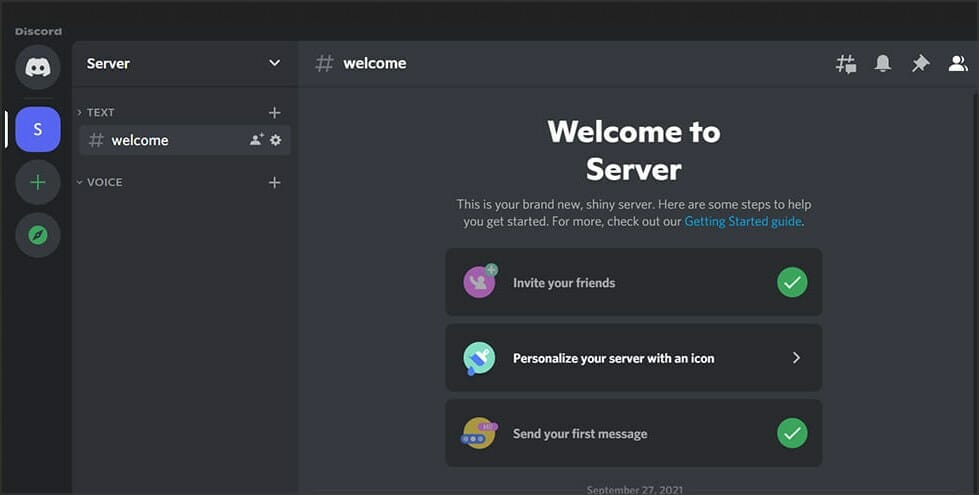
![Firefox is Already Running but is Not Responding [Fix]](https://windowsreport.com/wp-content/uploads/2022/05/Firefox-open-but-not-responding.jpg)
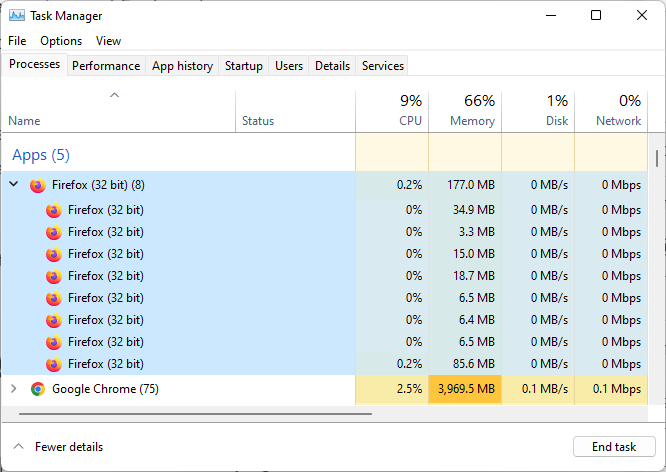
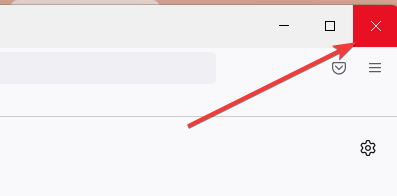

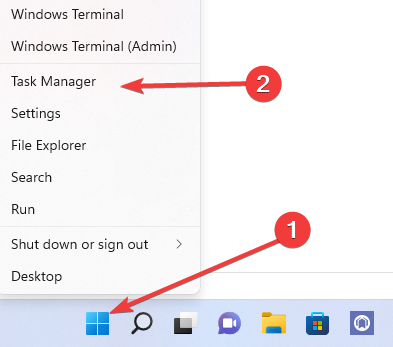
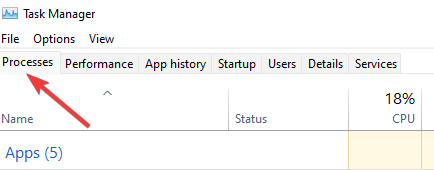
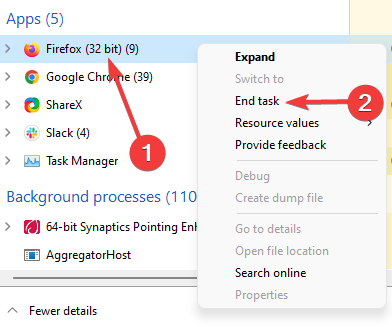
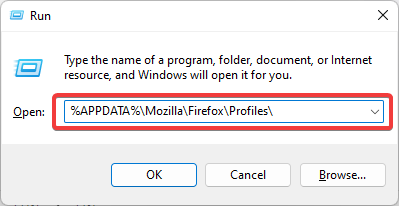
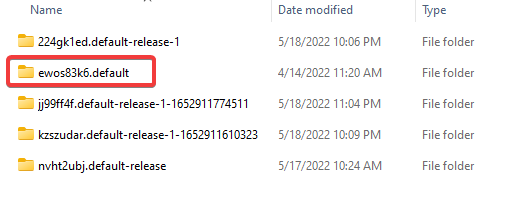
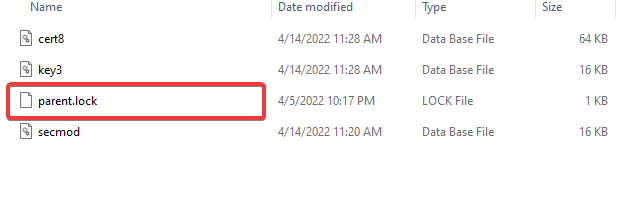
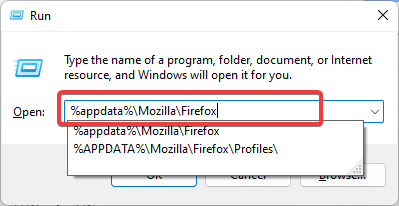
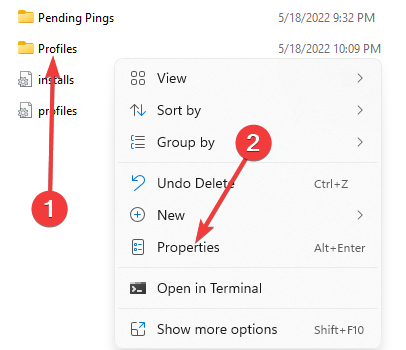
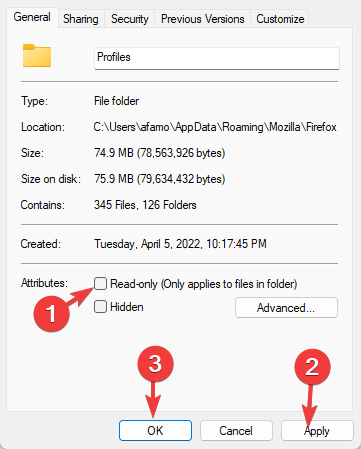
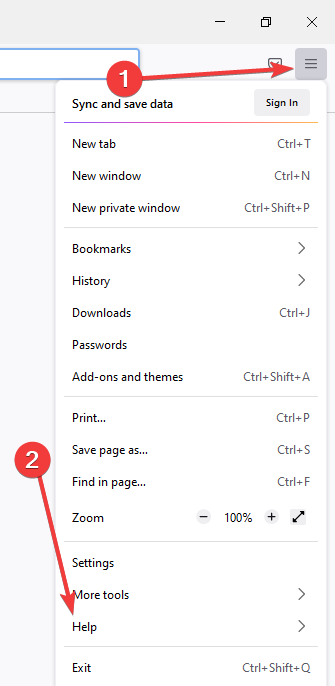
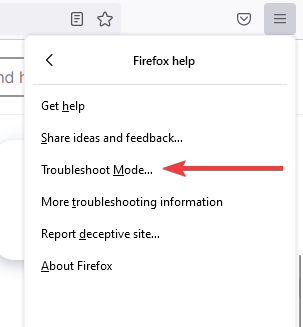
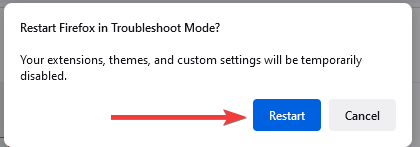
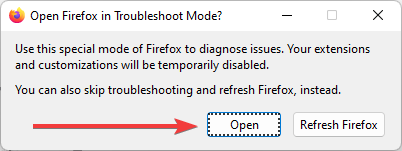
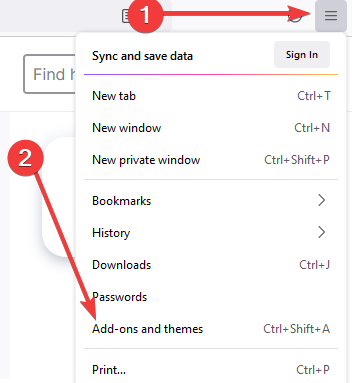
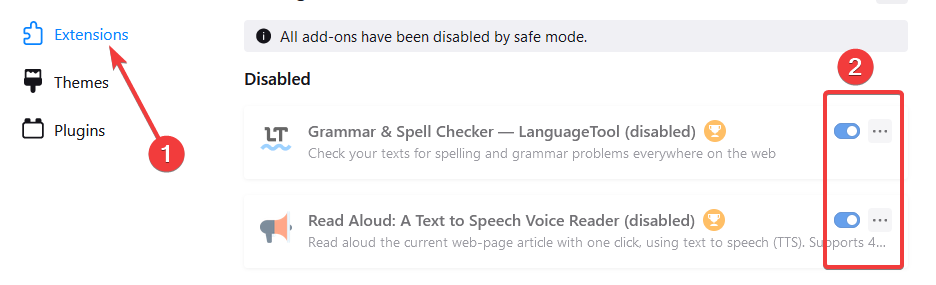
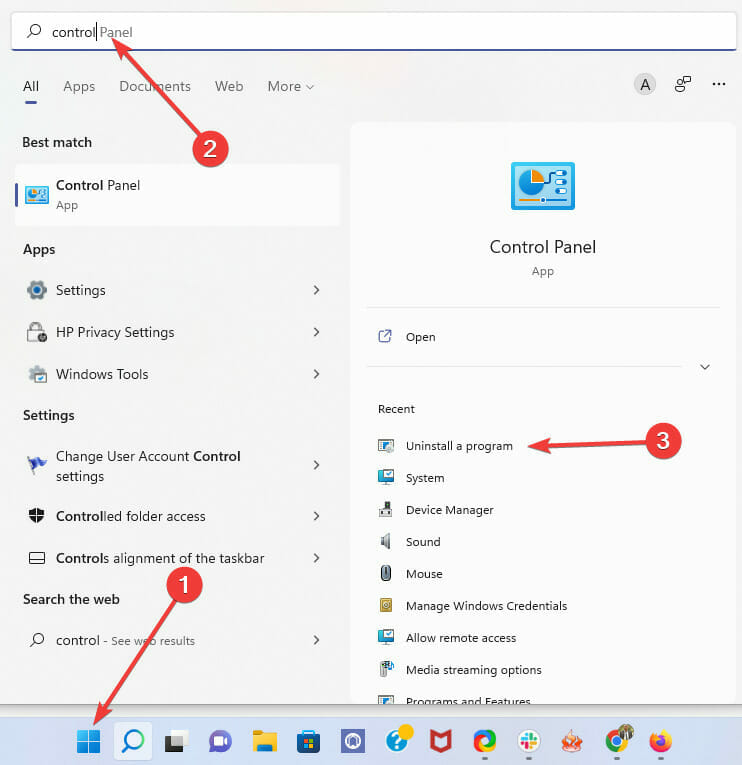
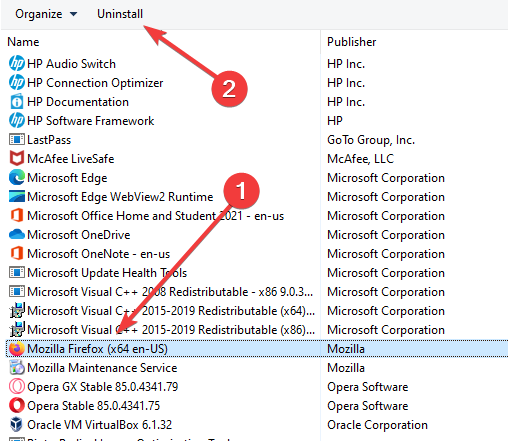
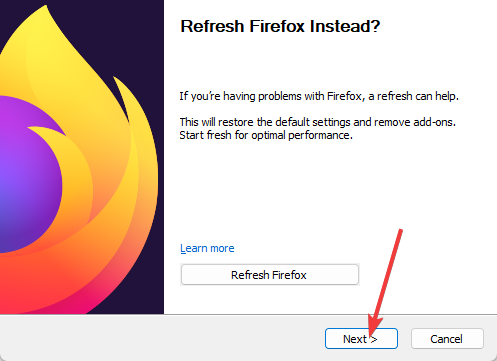
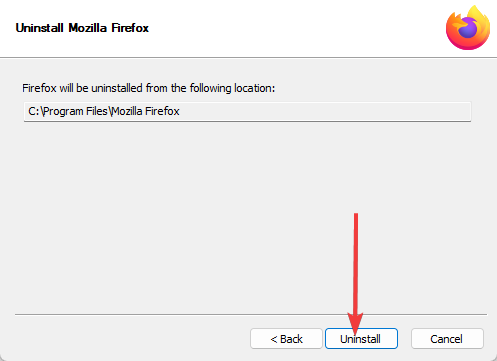
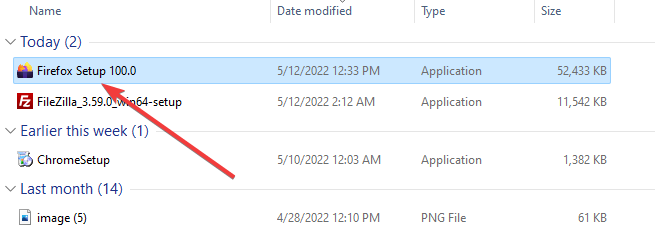
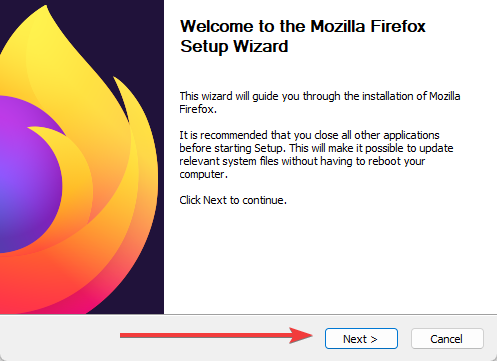
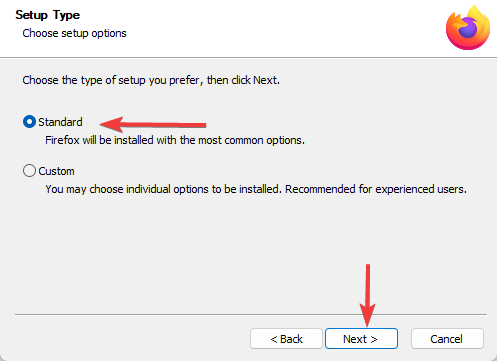
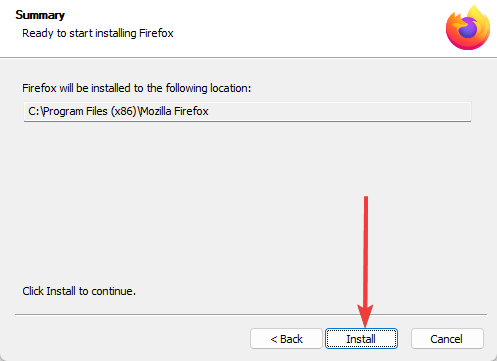
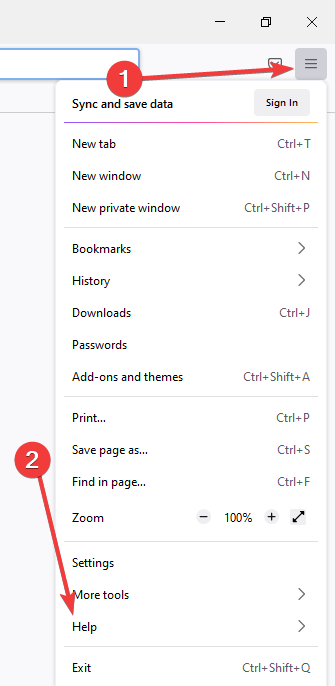
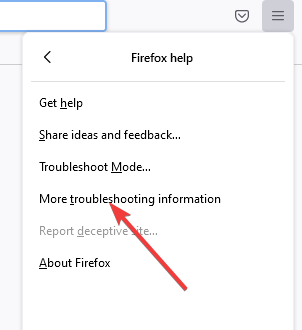
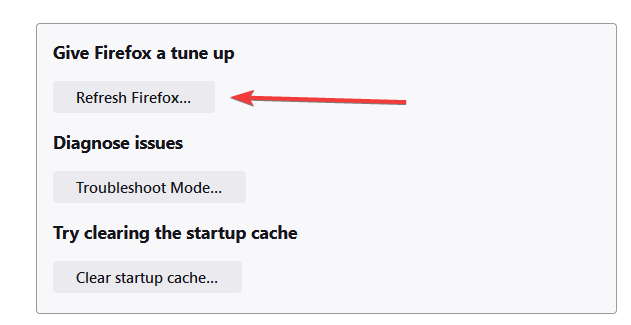
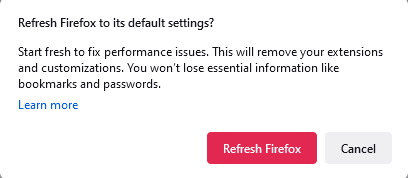
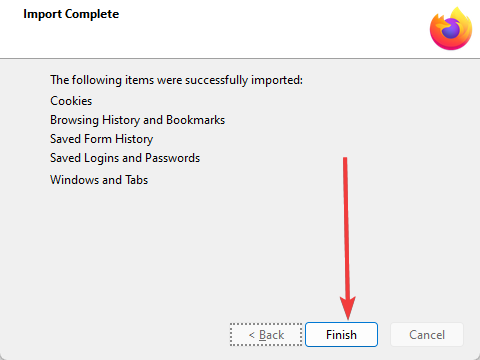
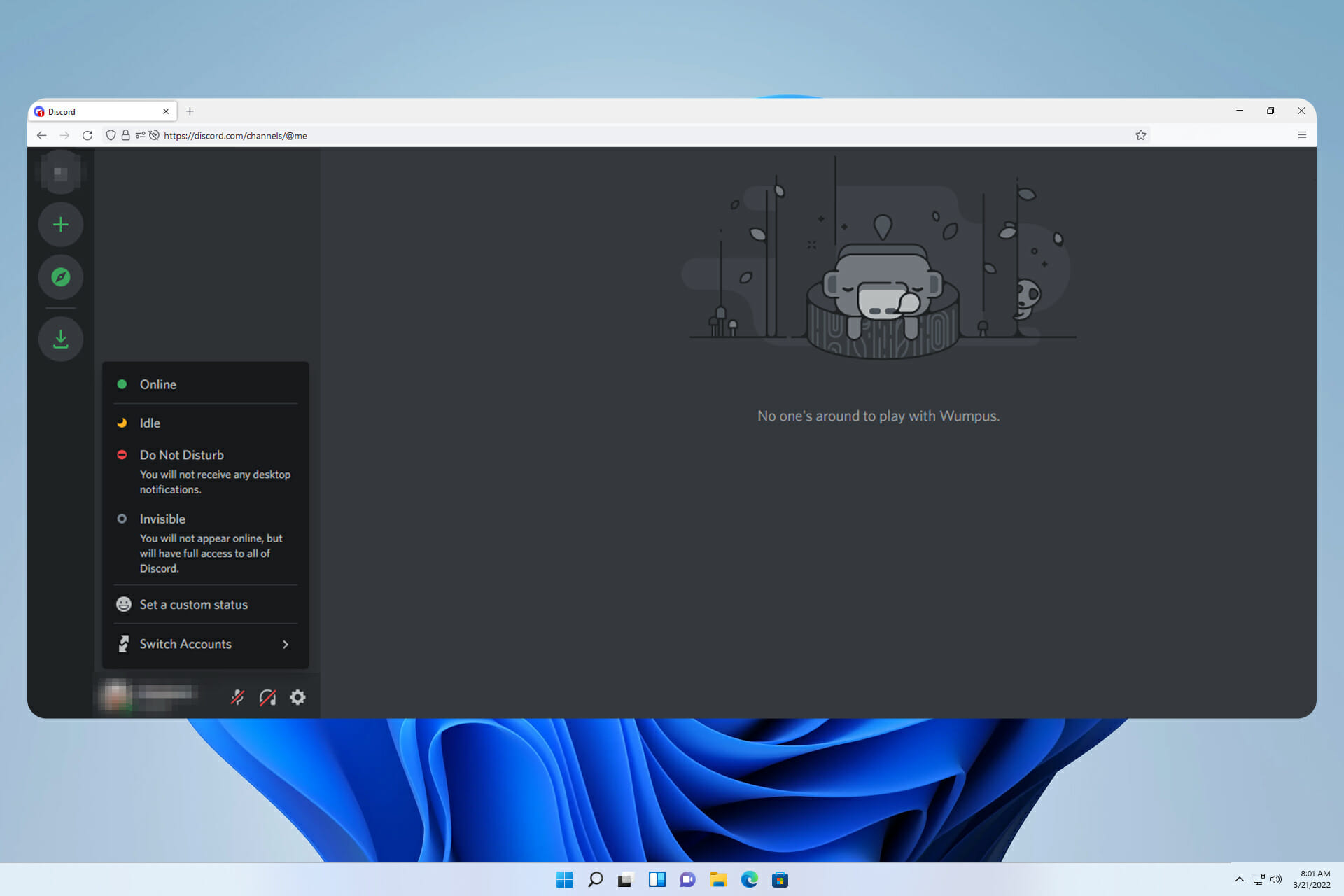

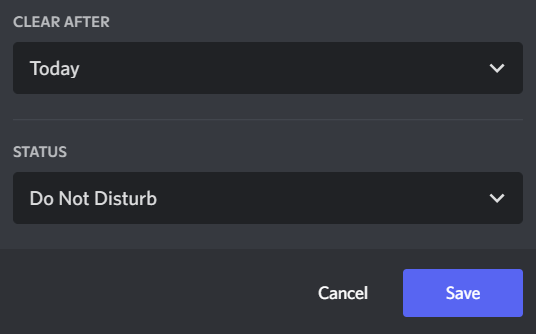


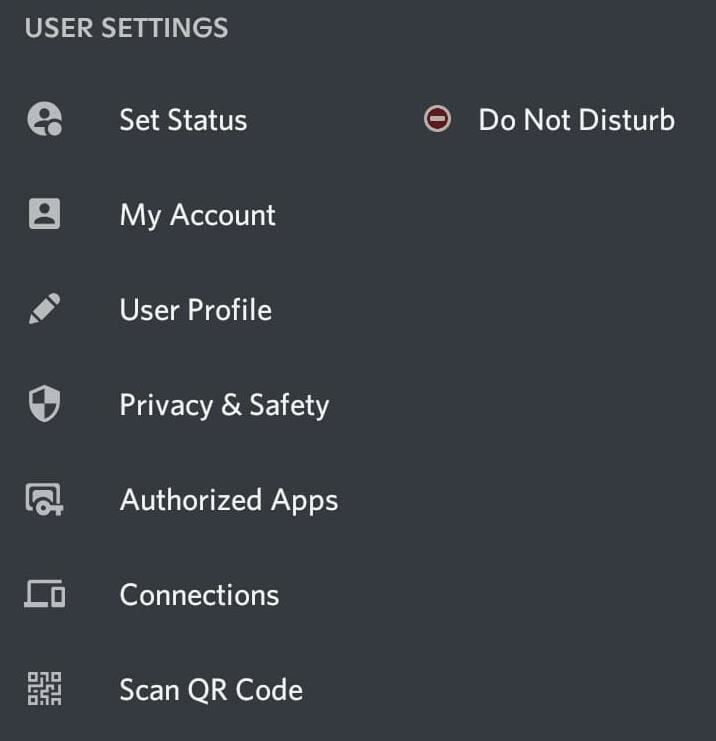

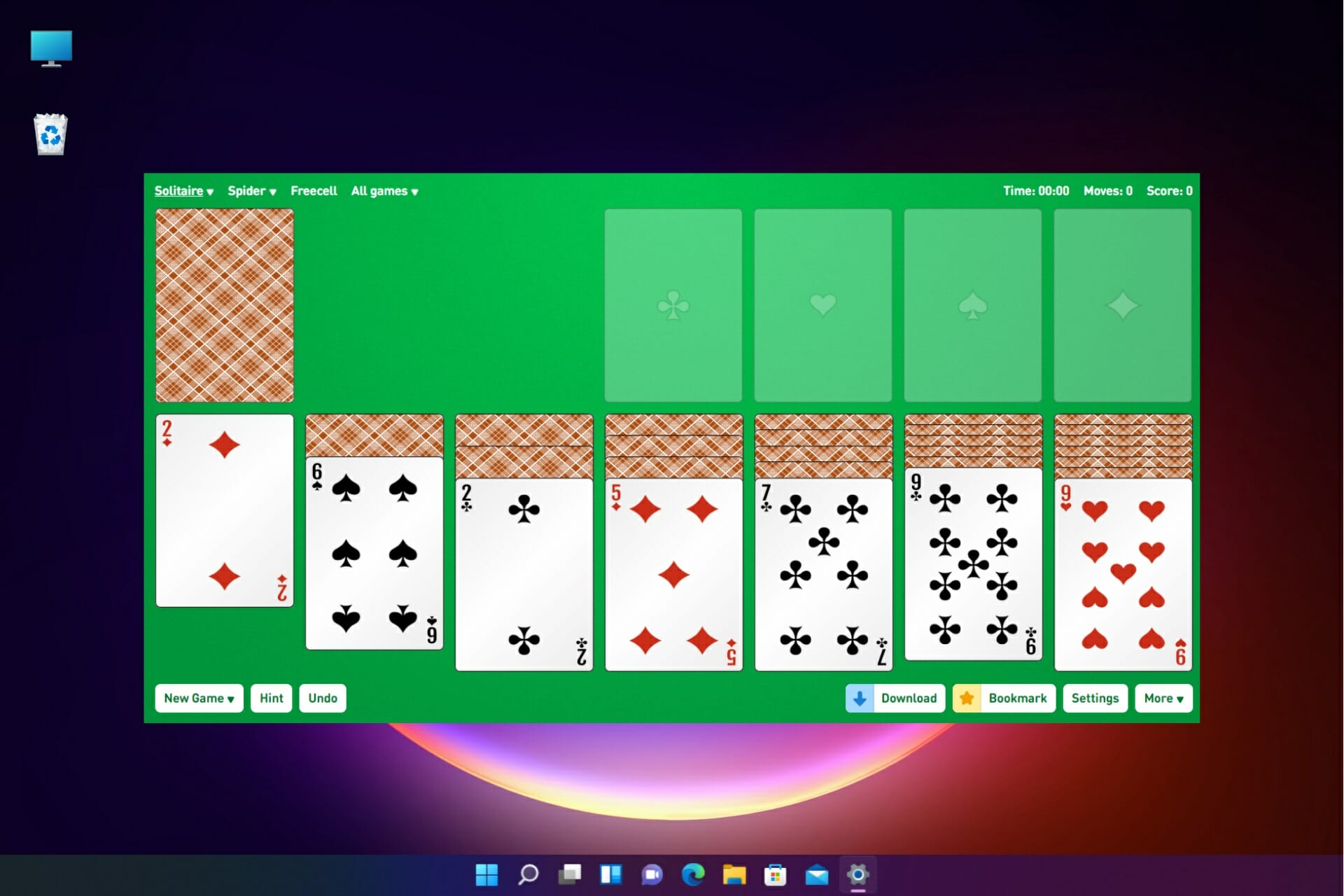

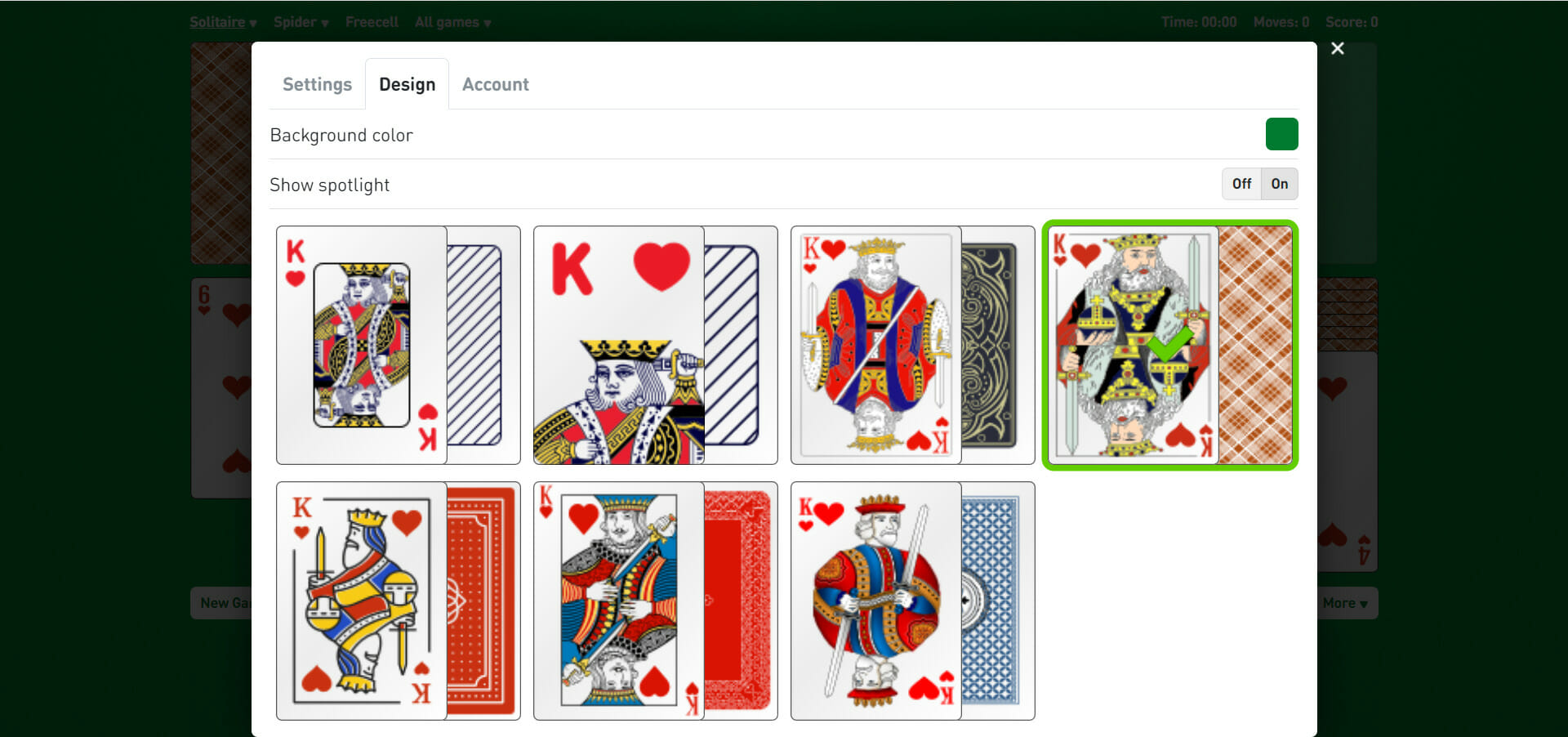

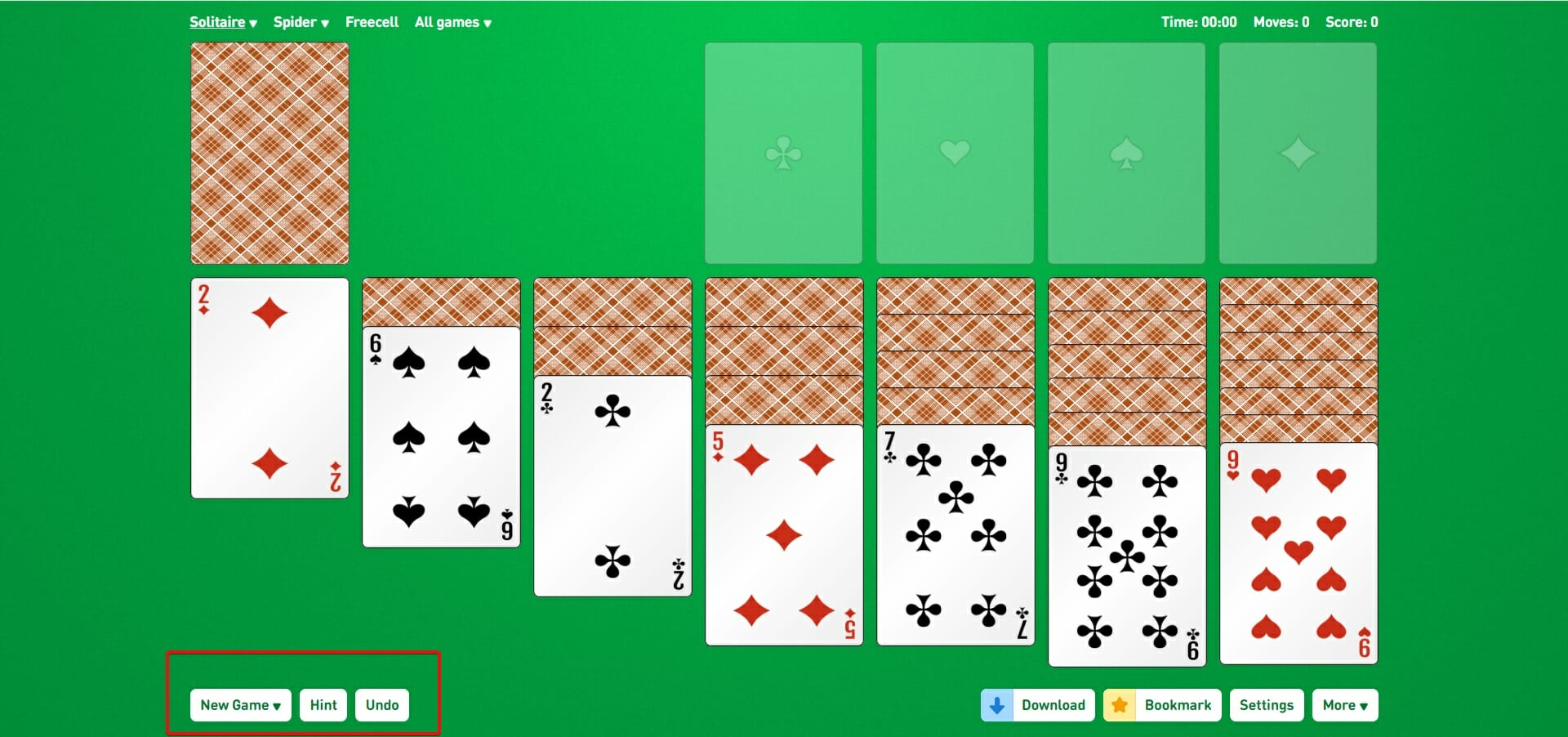

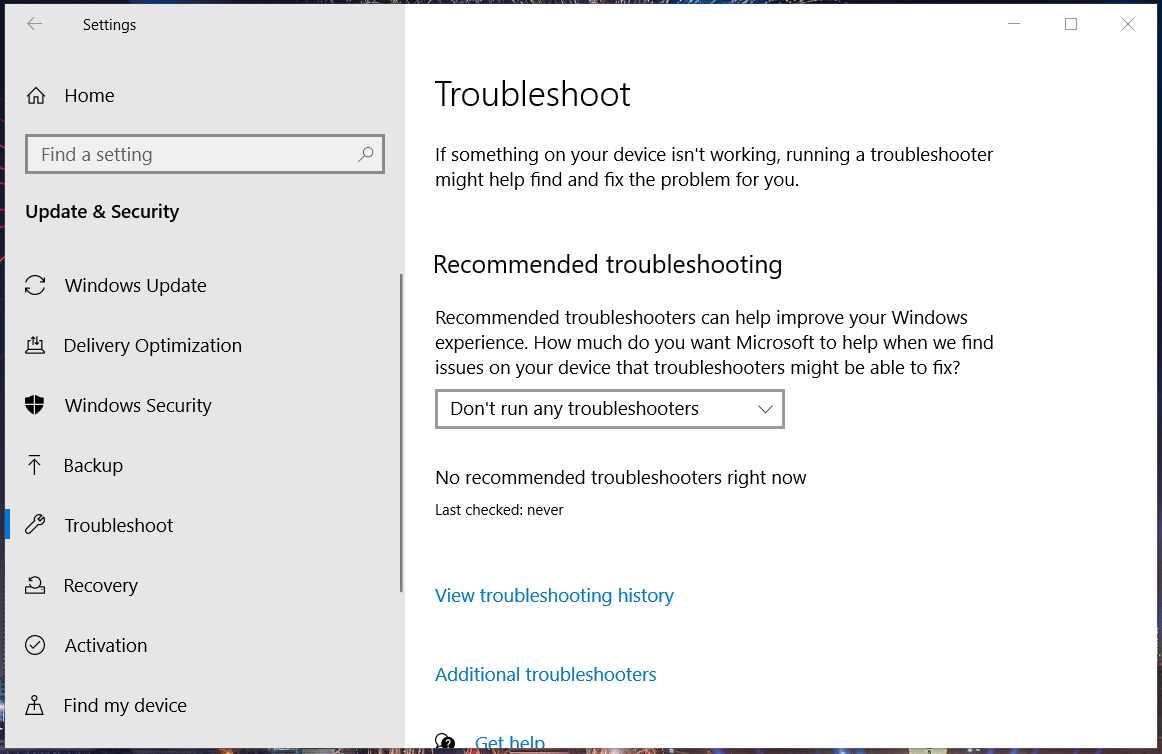


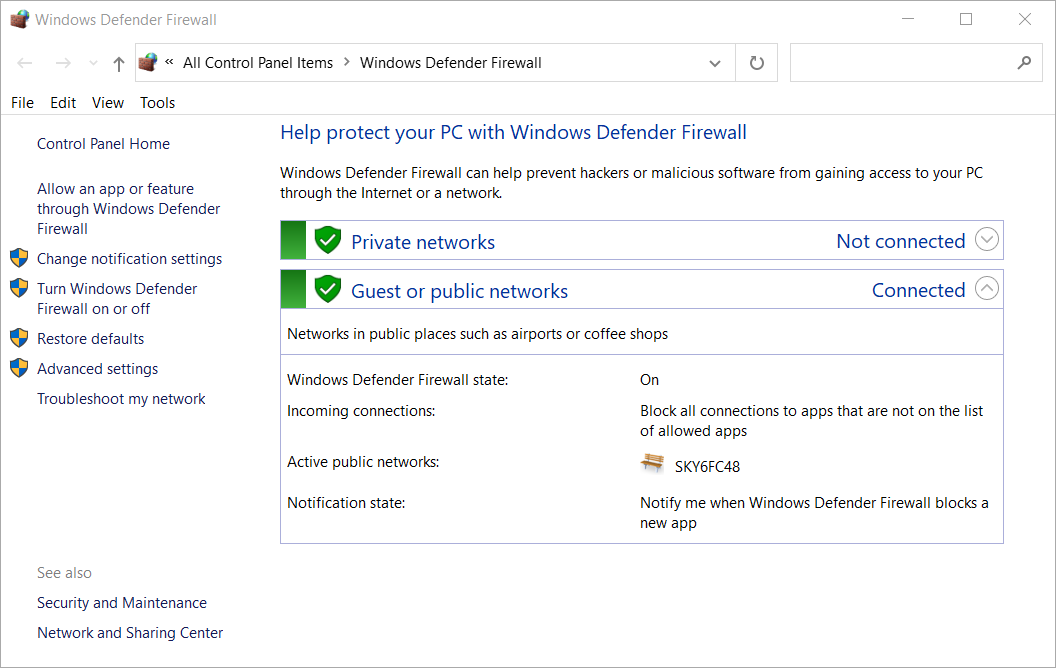


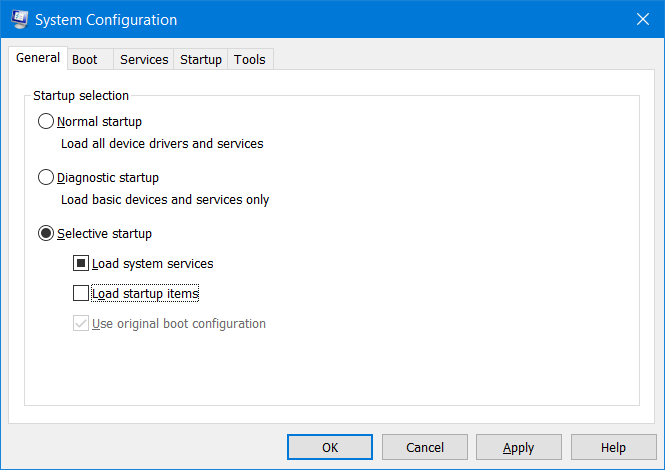
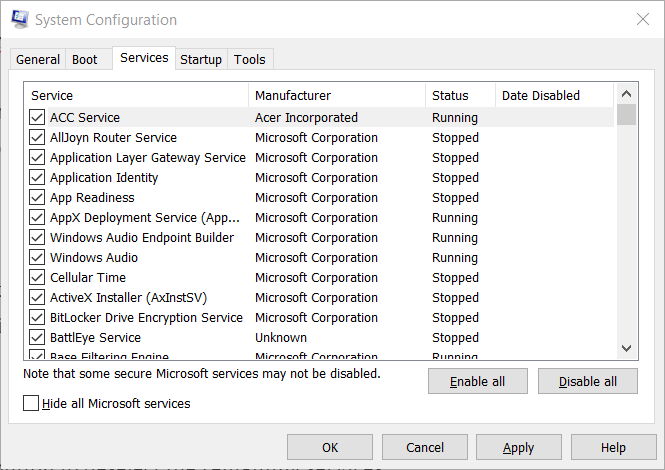
![Discord Automatically Determine Input Sensitivity [FIX]](https://windowsreport.com/wp-content/uploads/2021/12/1vu2qwiAAW.jpg)
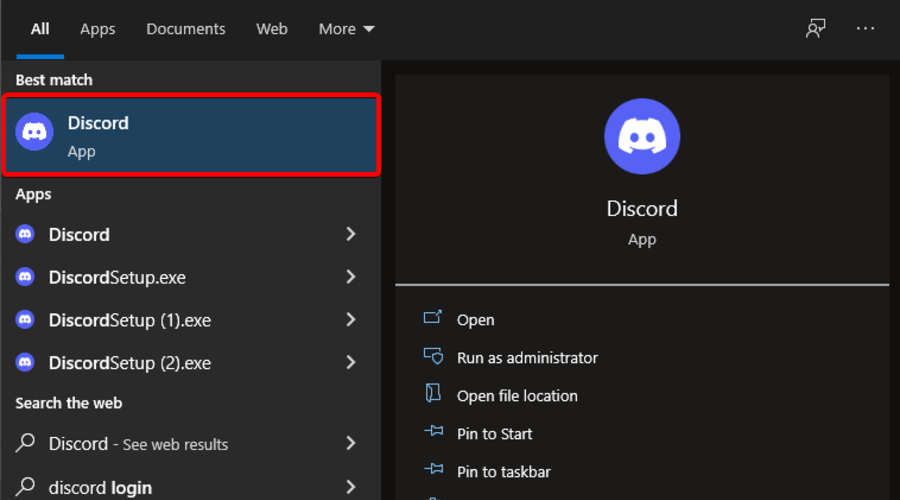
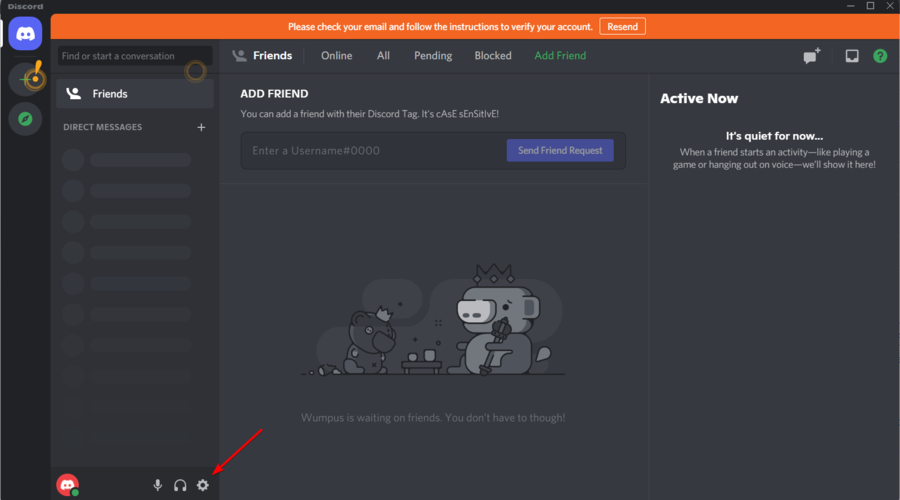
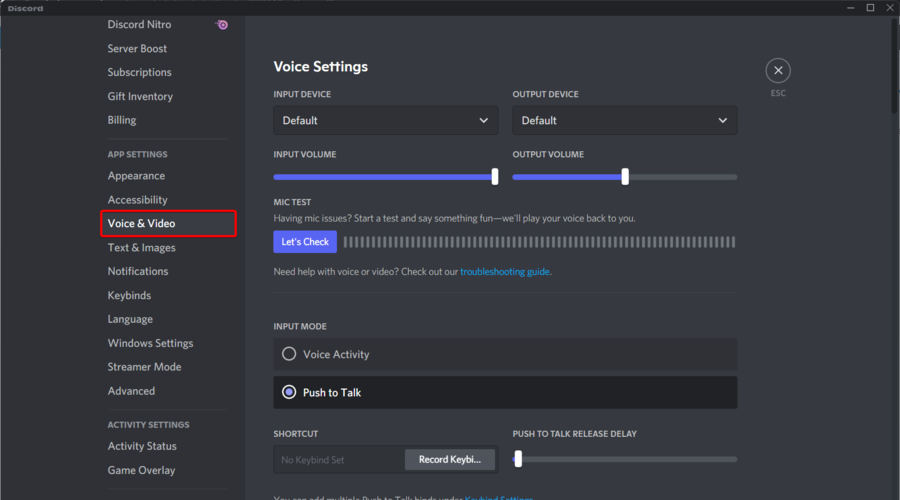


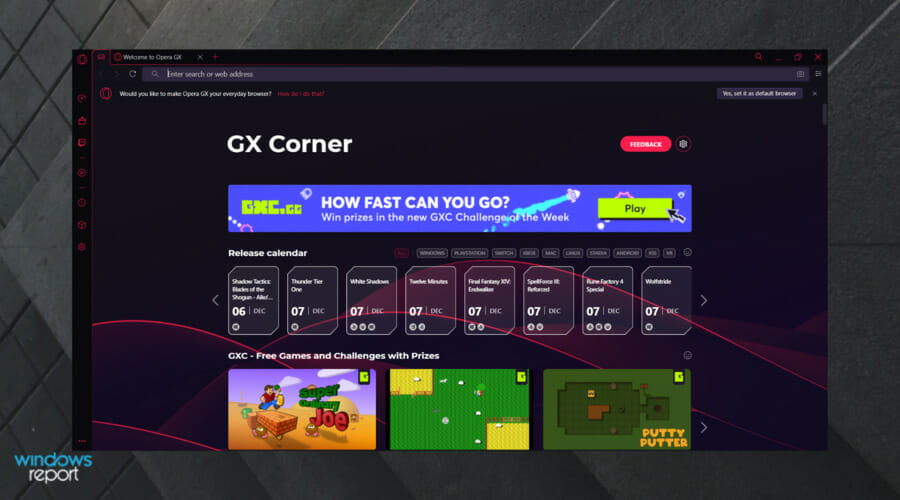
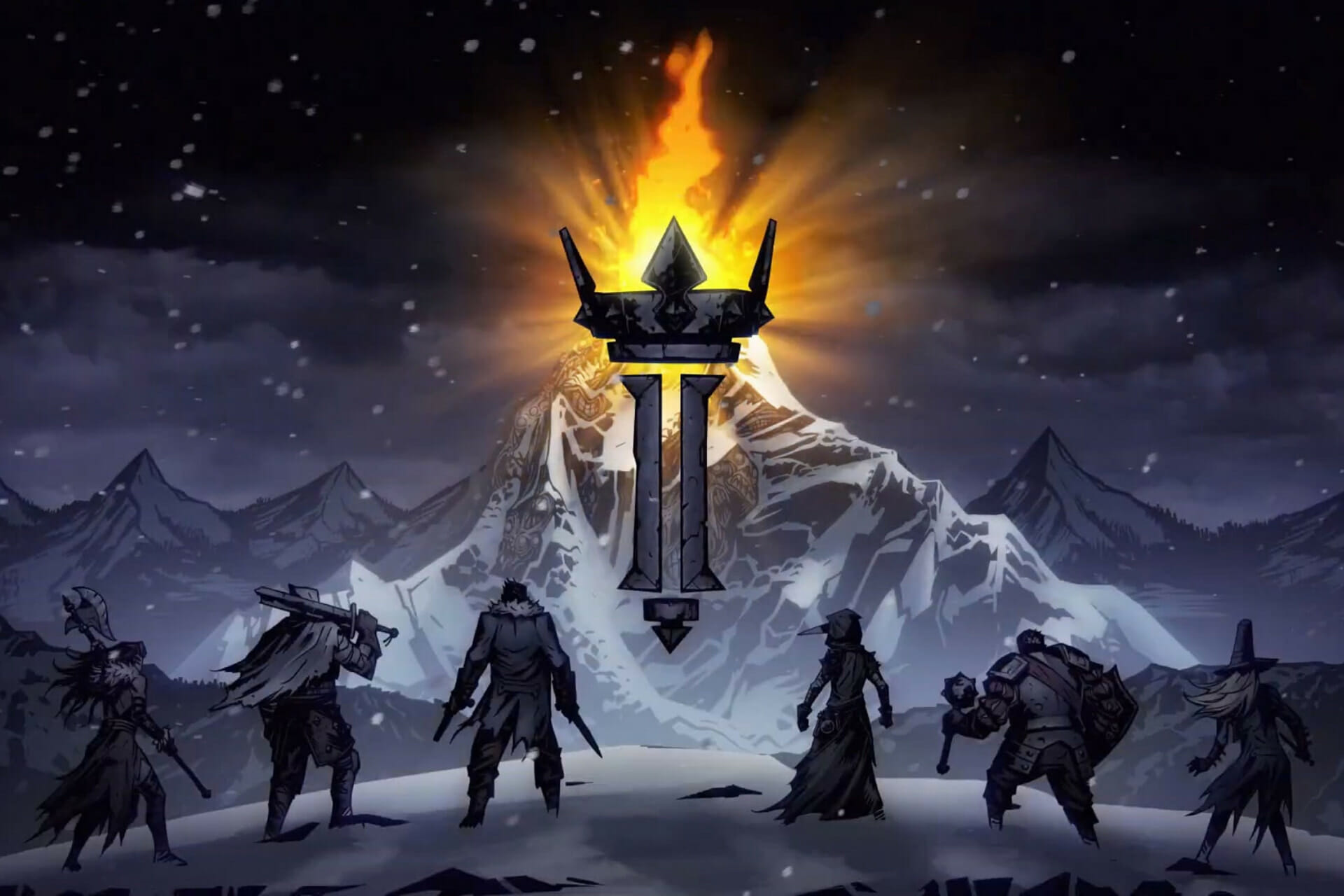
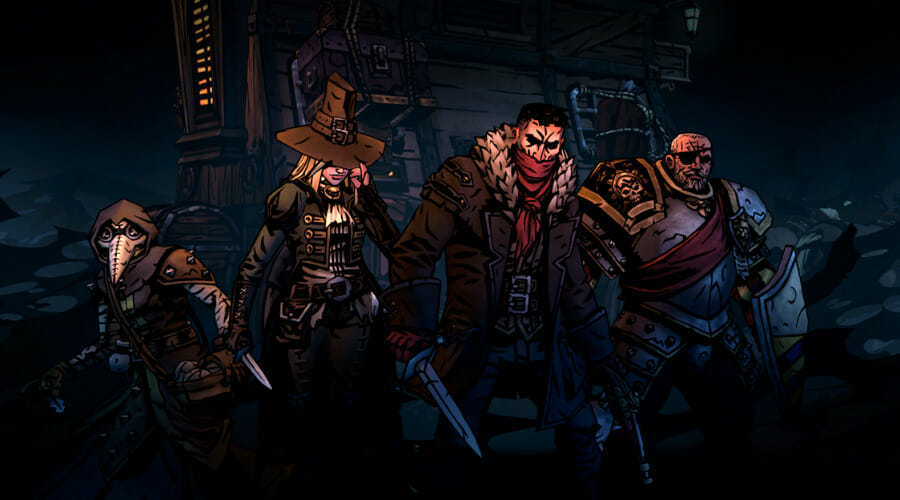
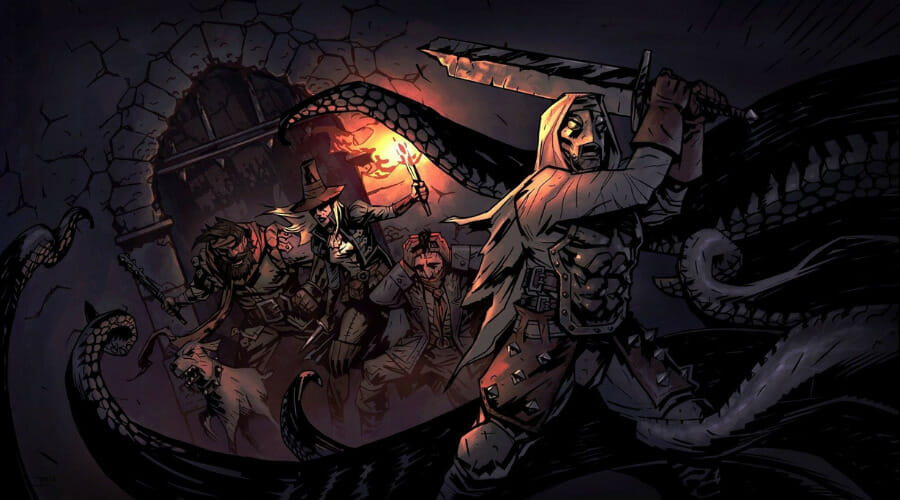
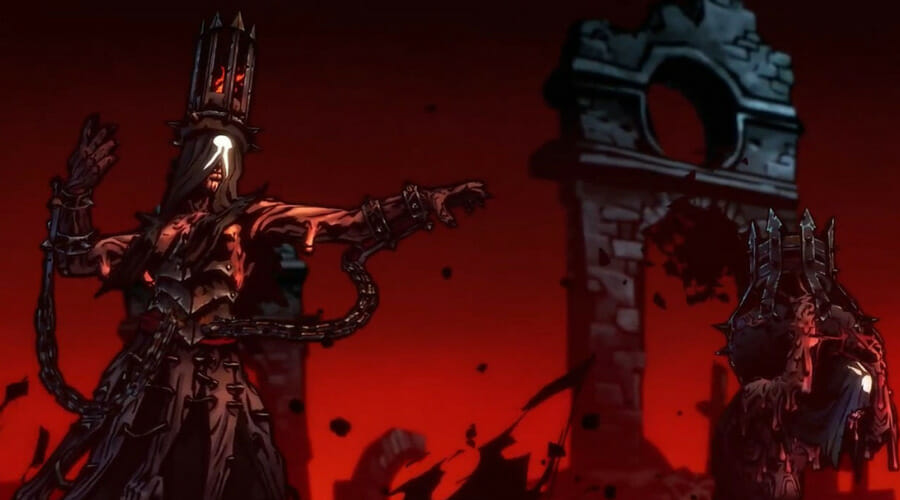


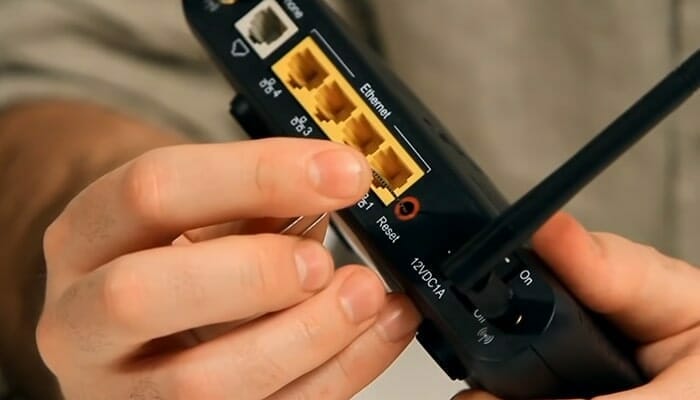
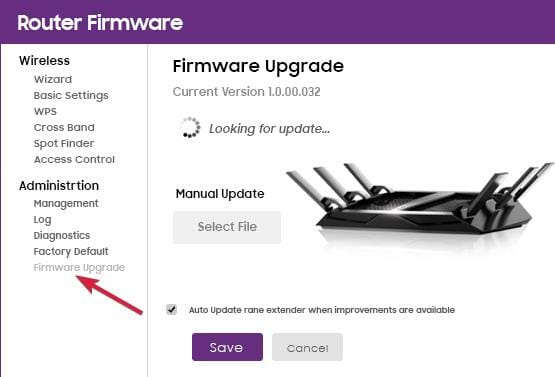
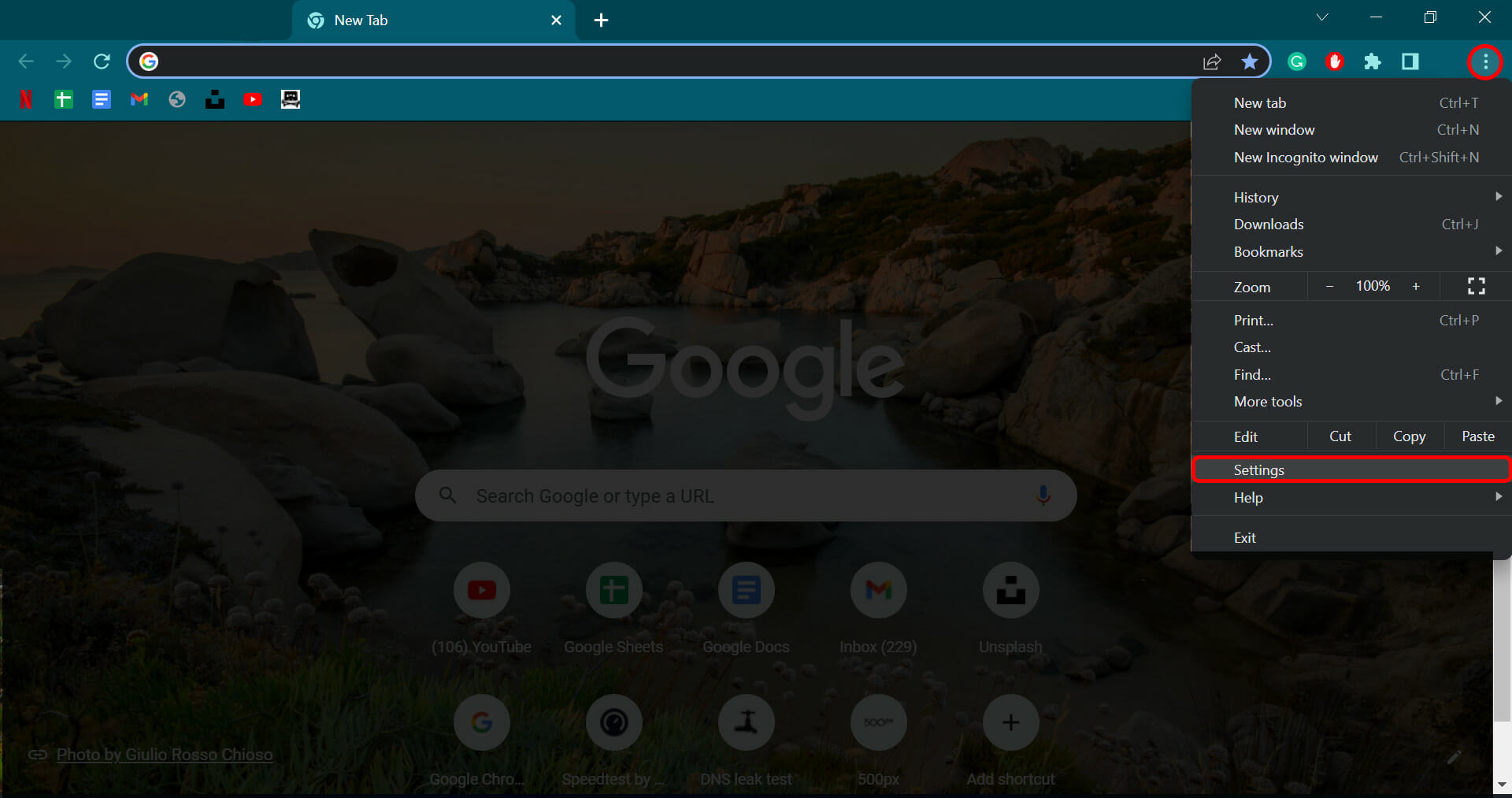
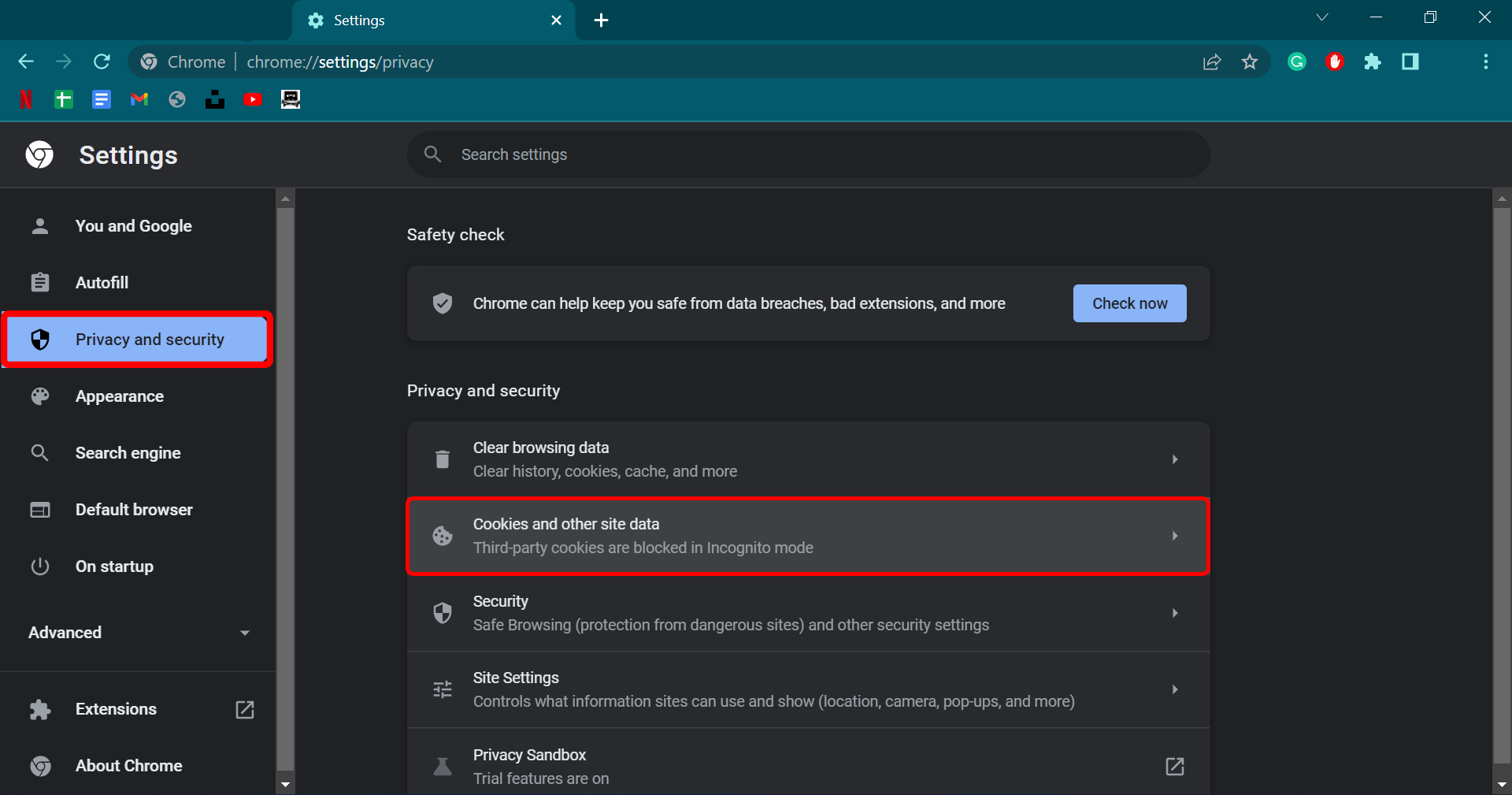
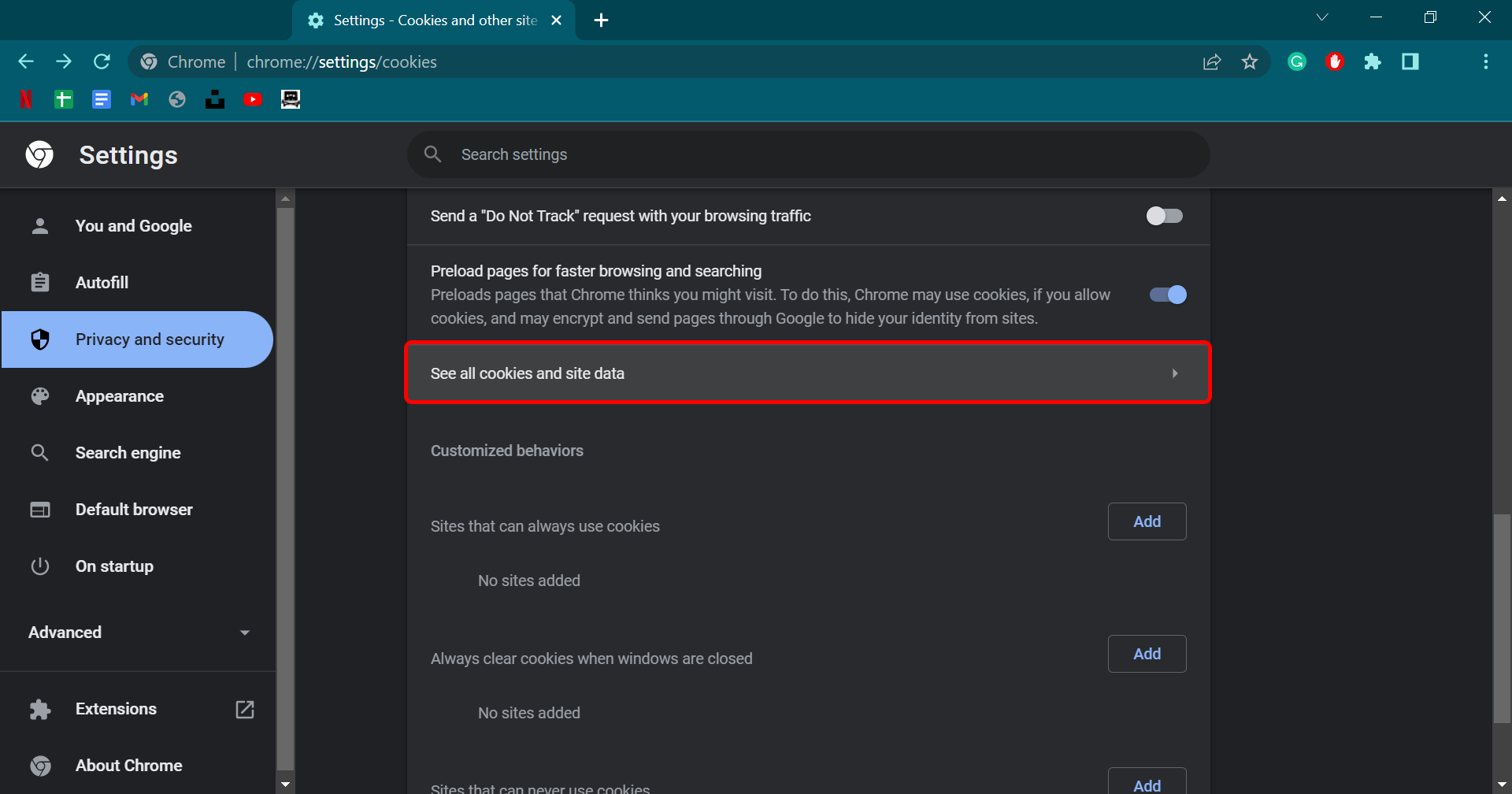
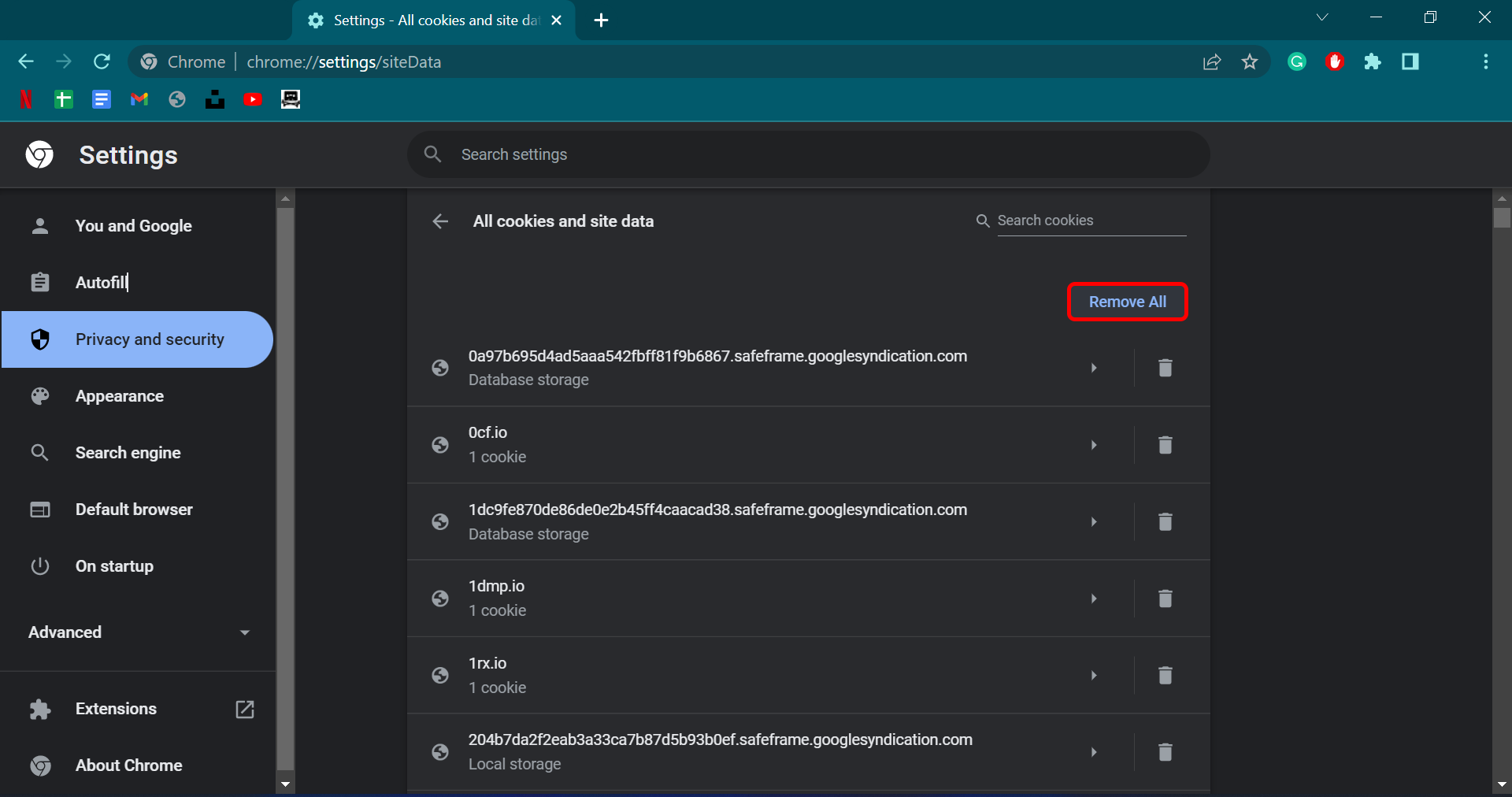
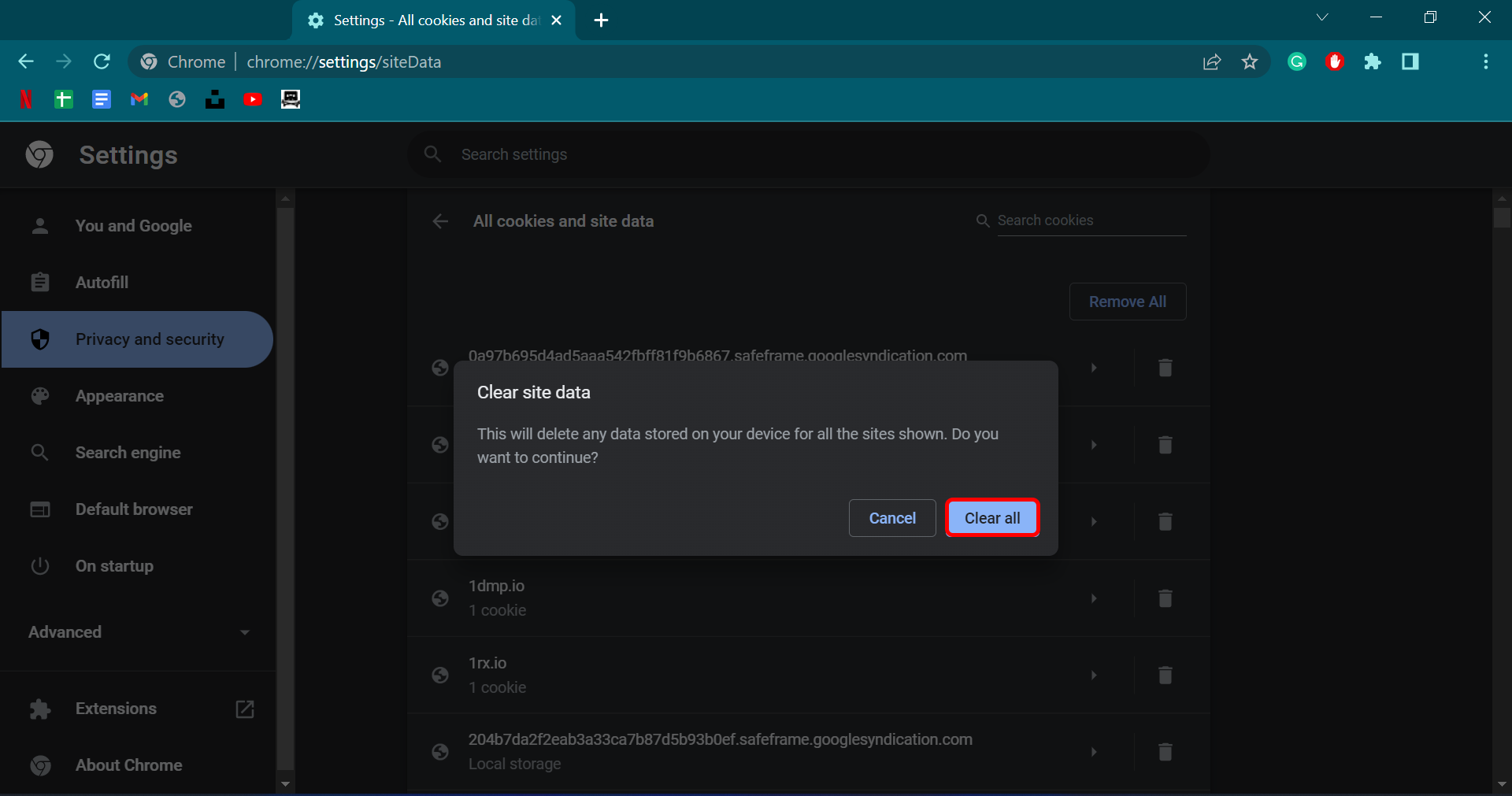
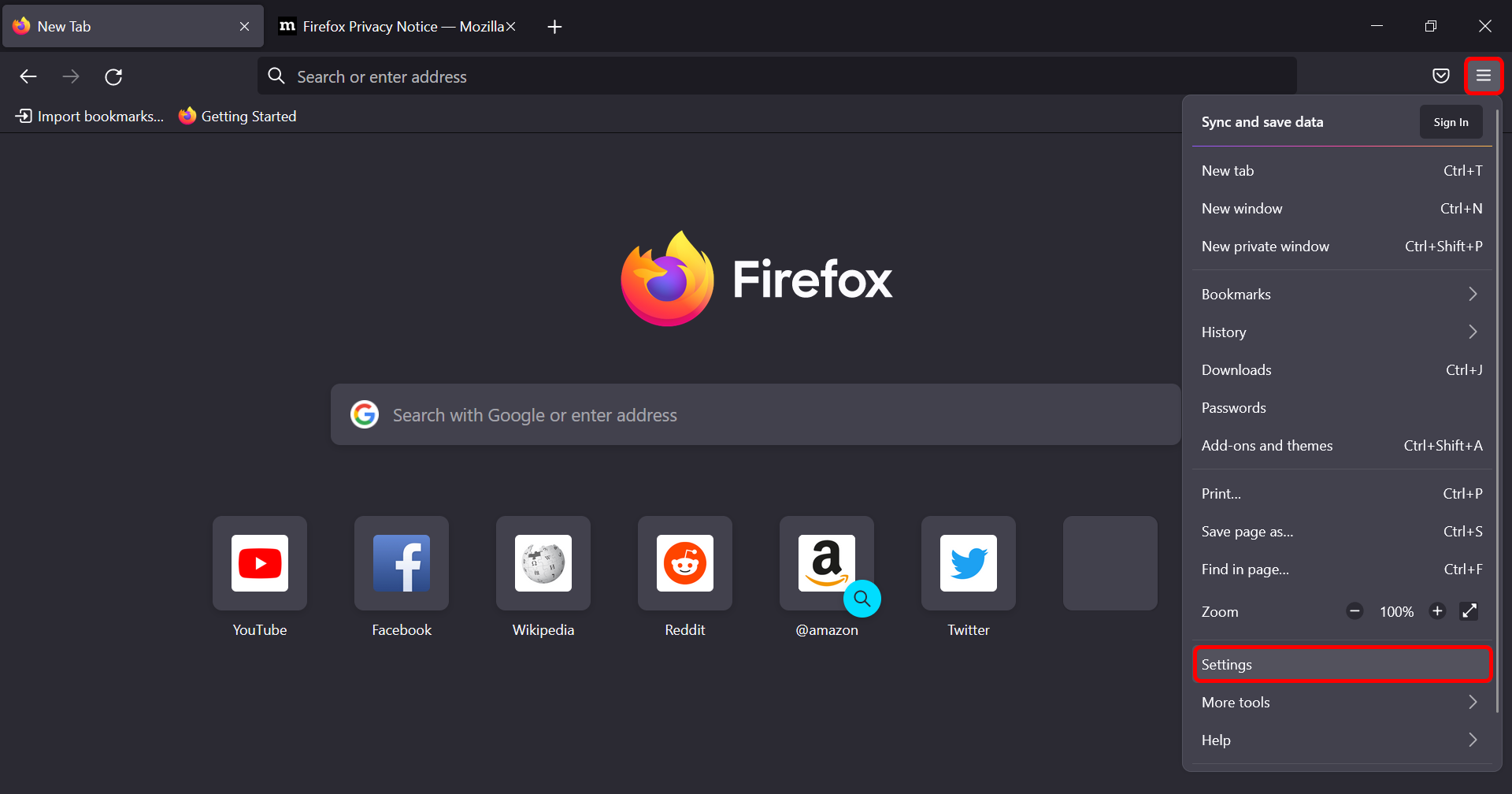
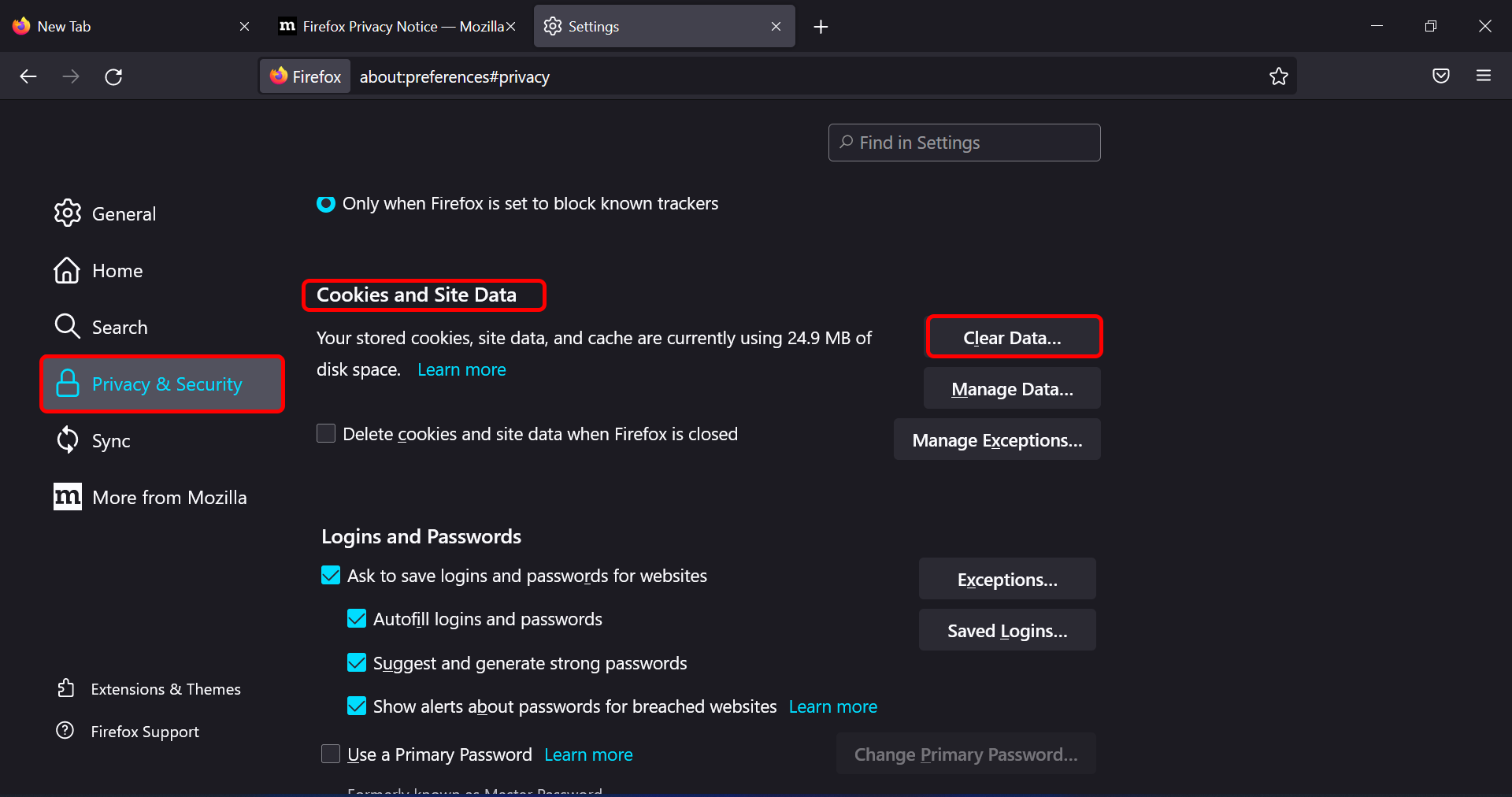
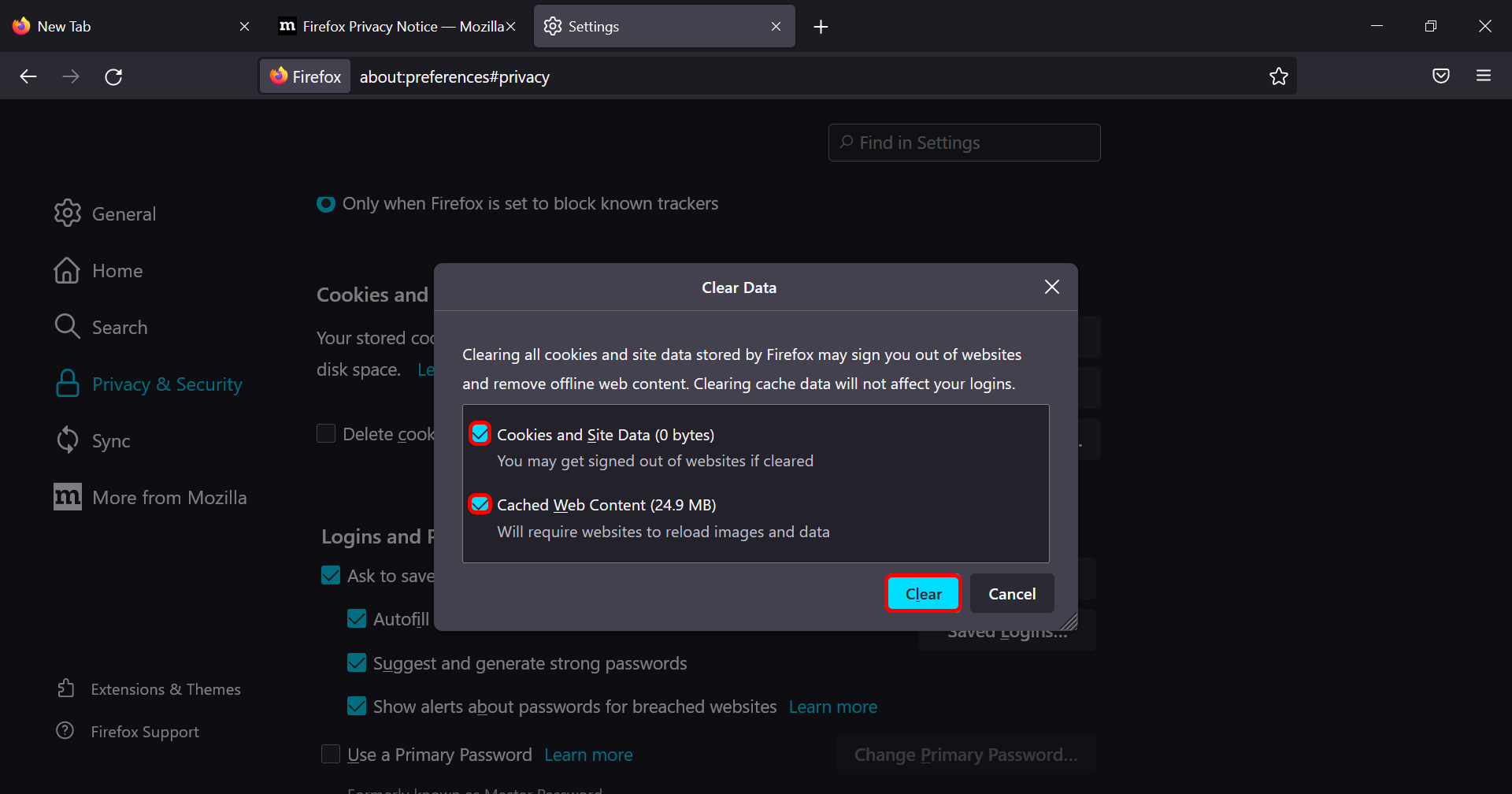
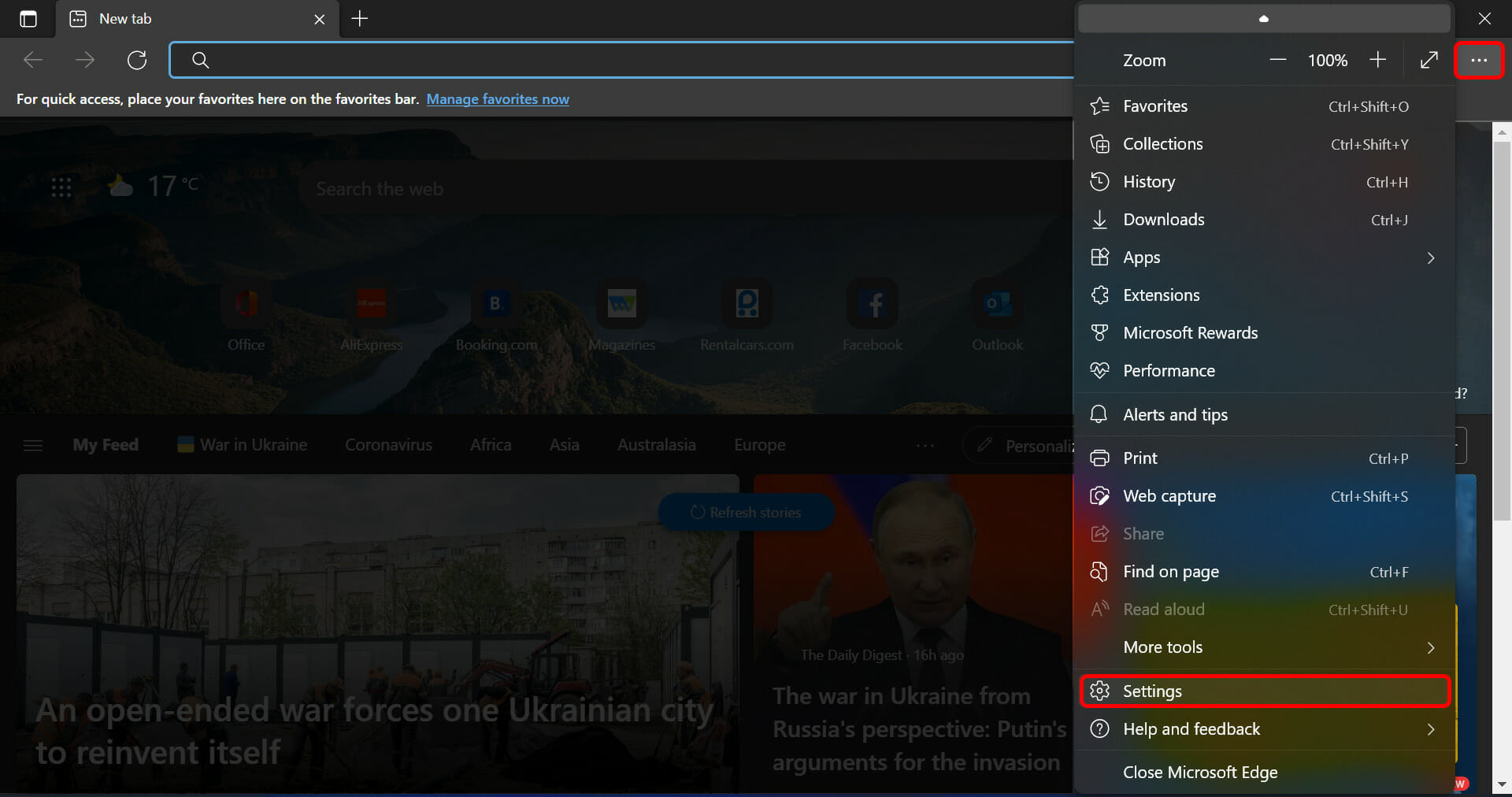
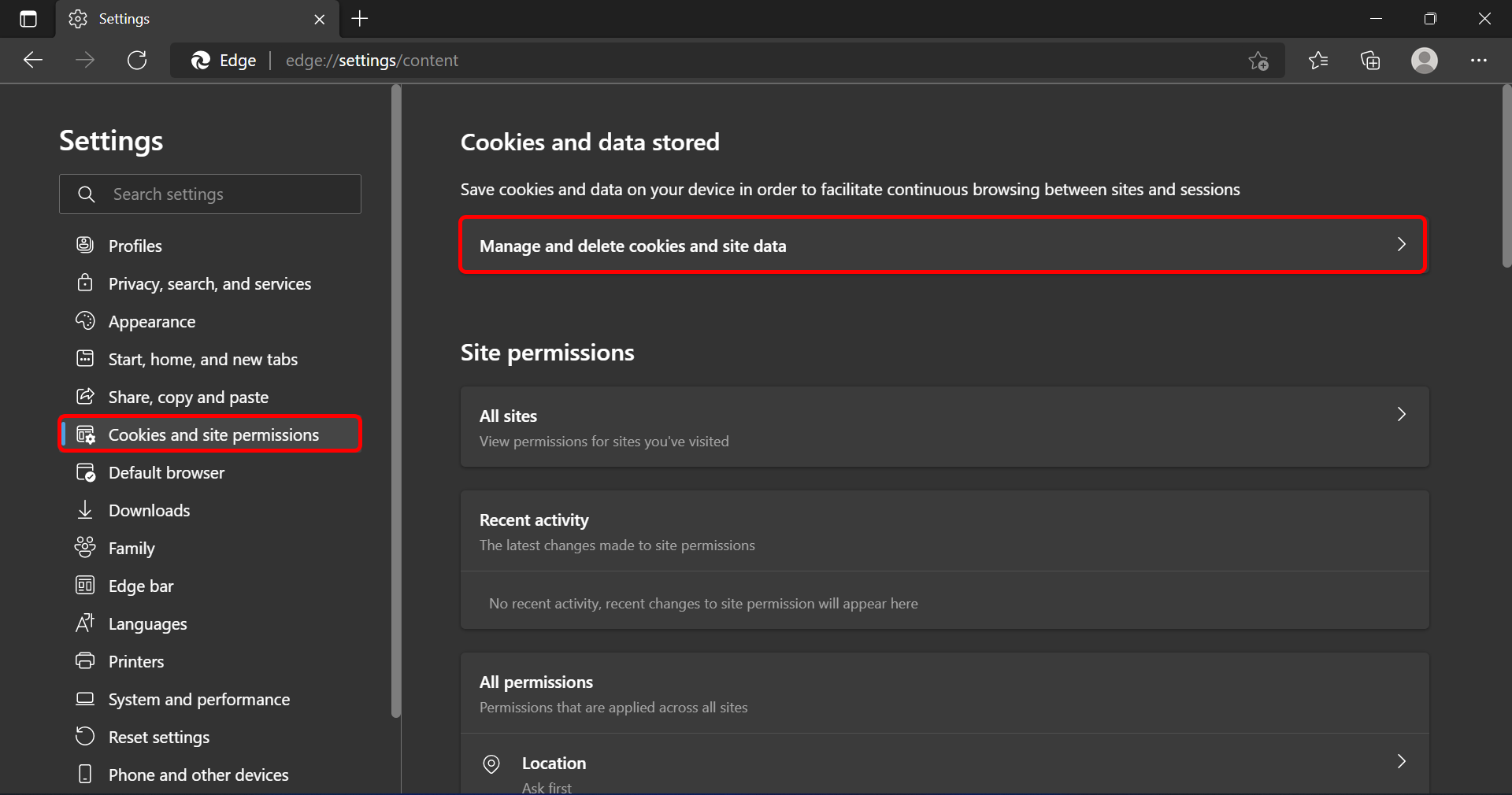
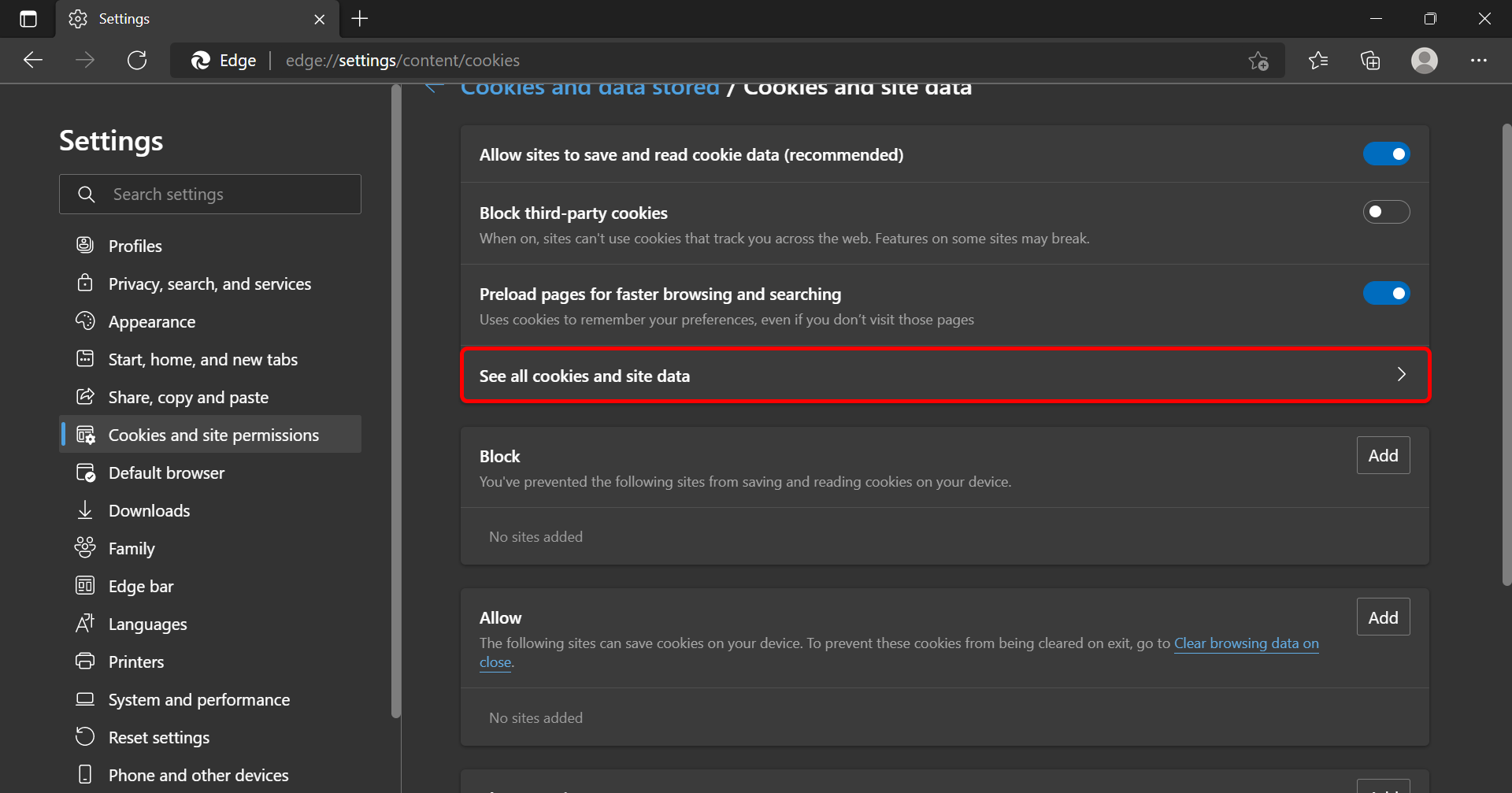
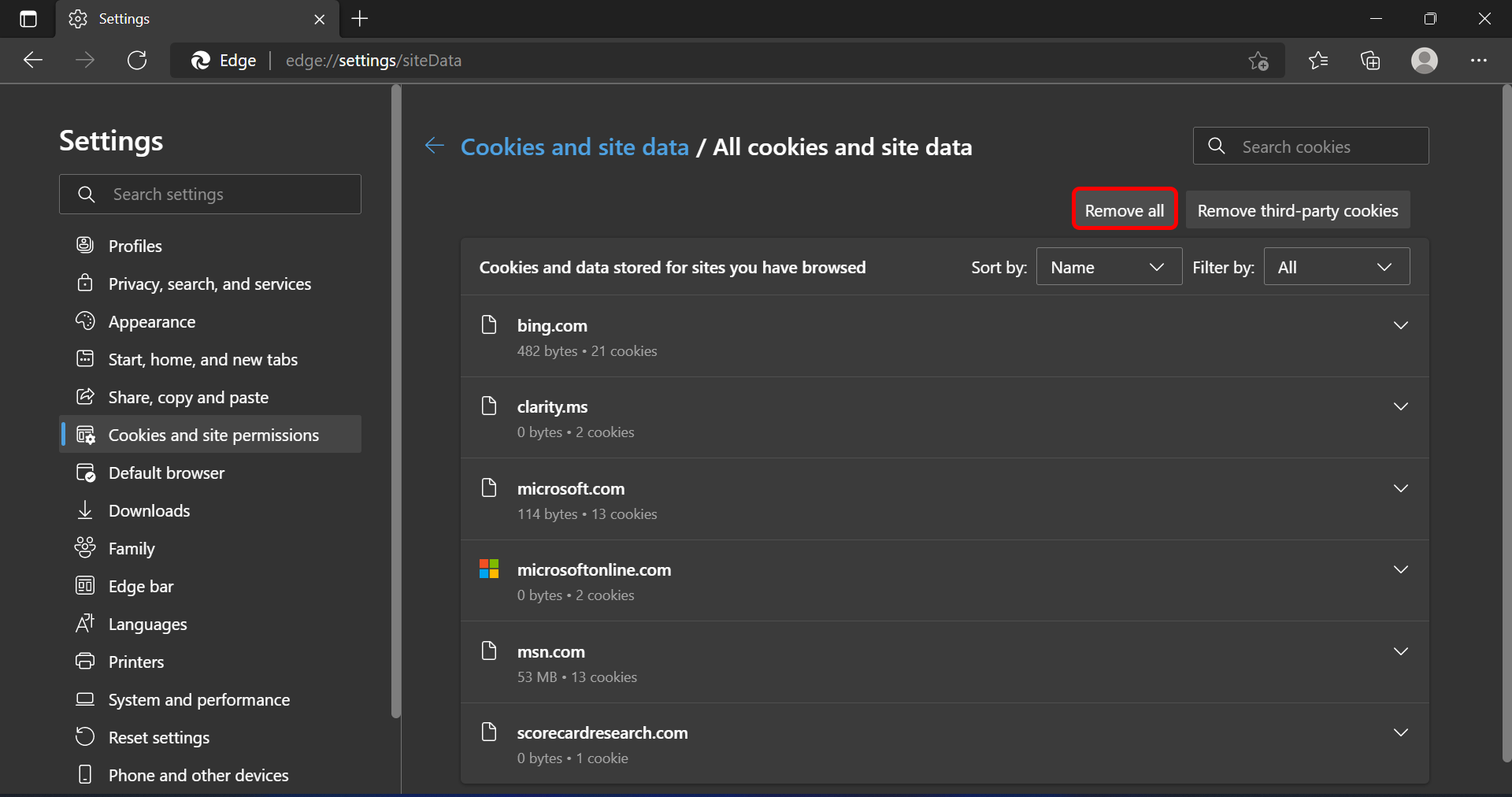
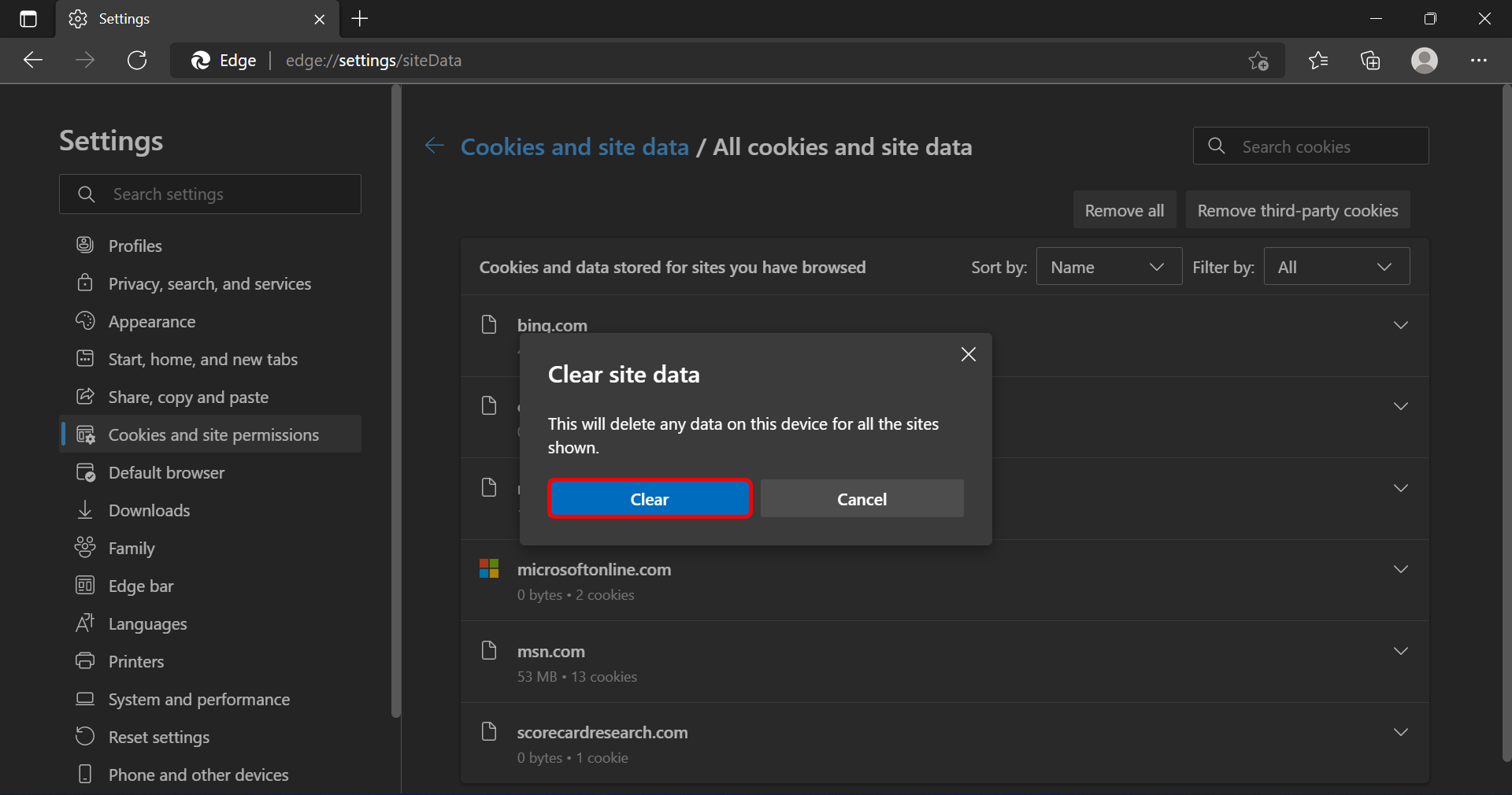
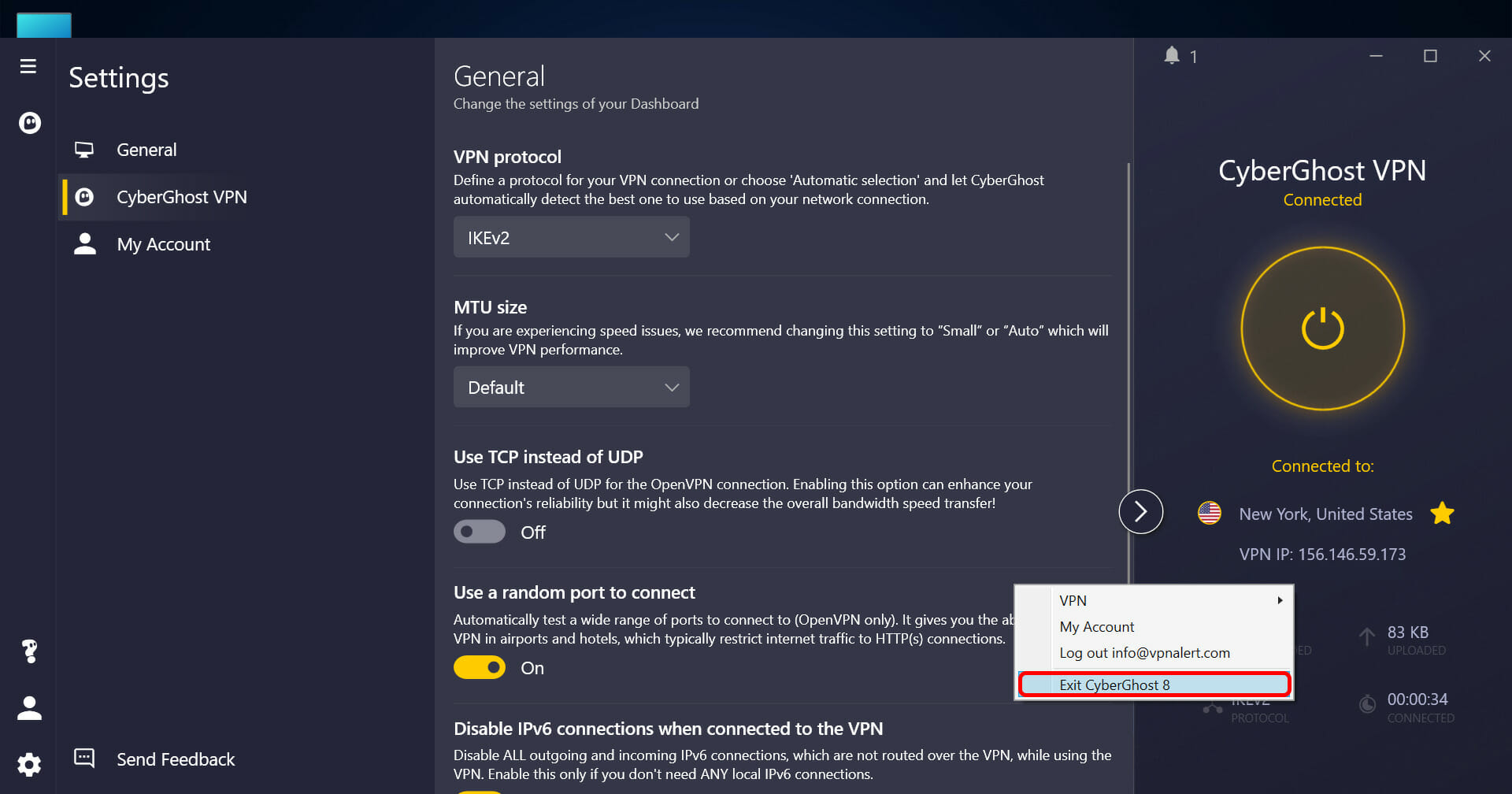
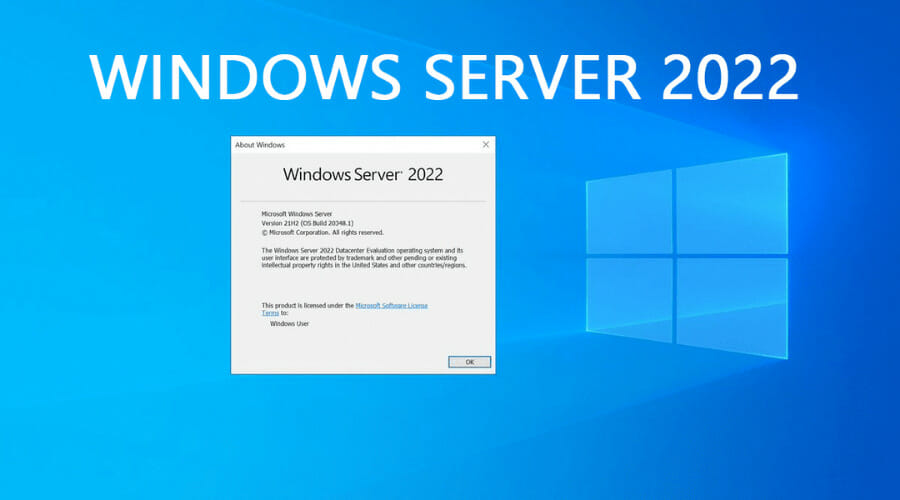
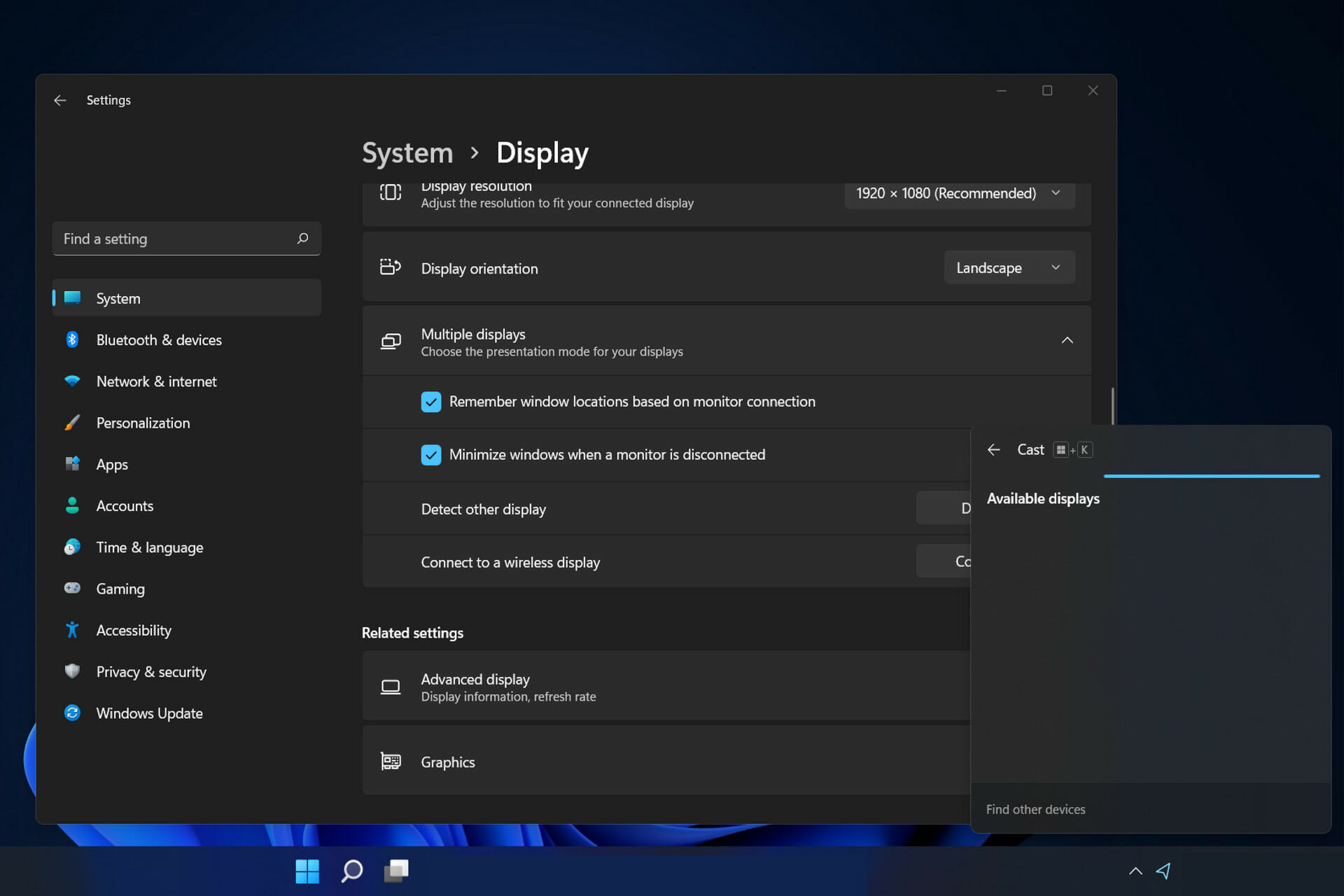
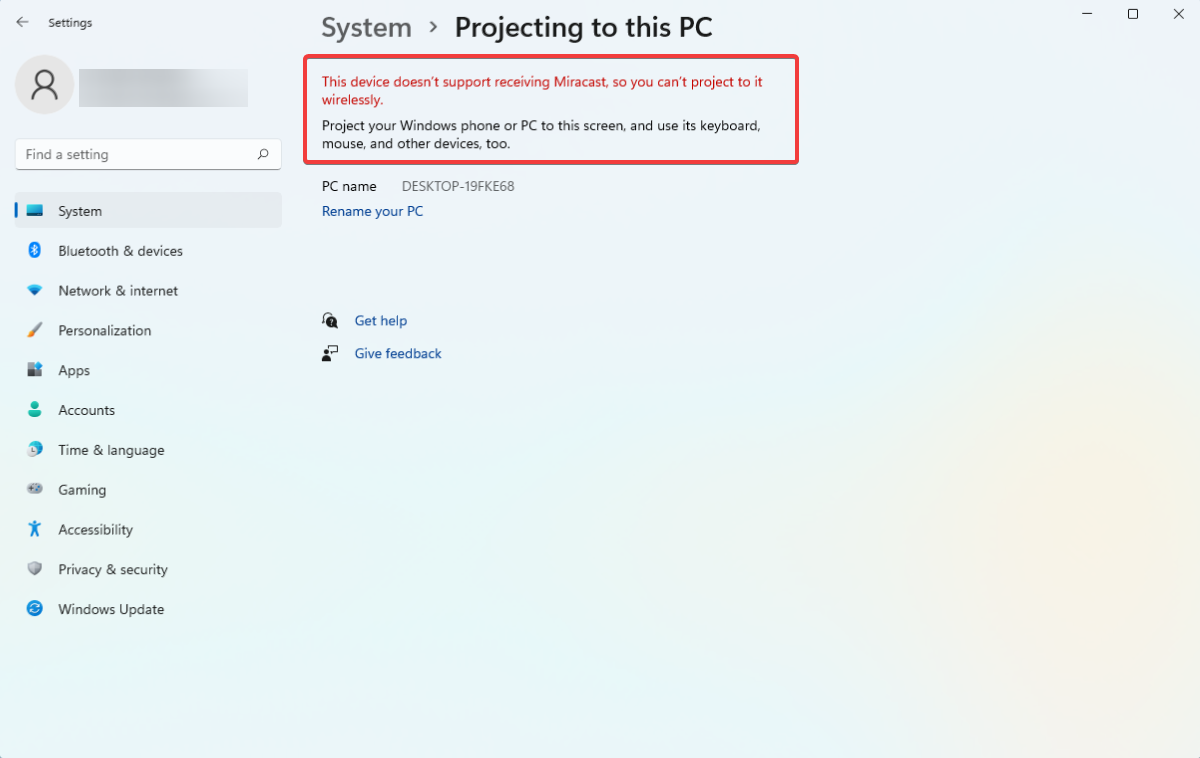
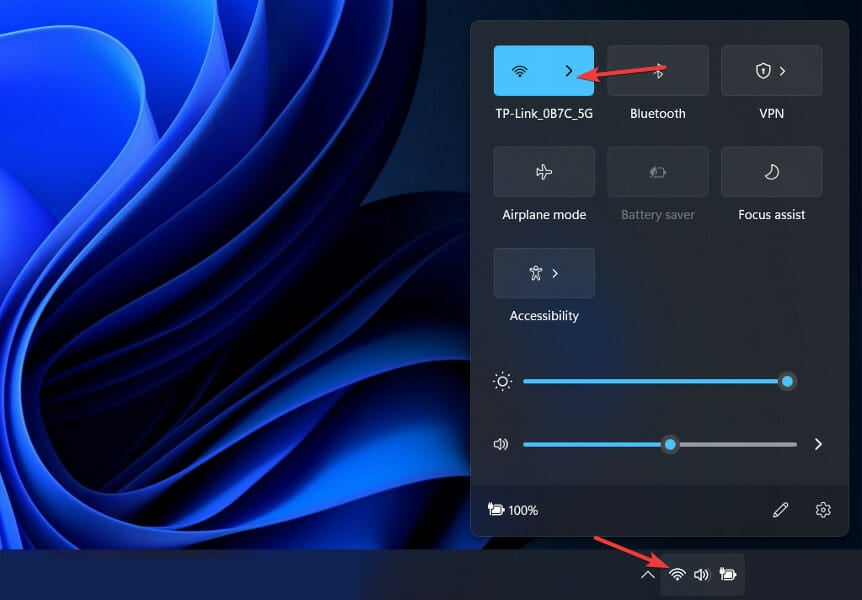


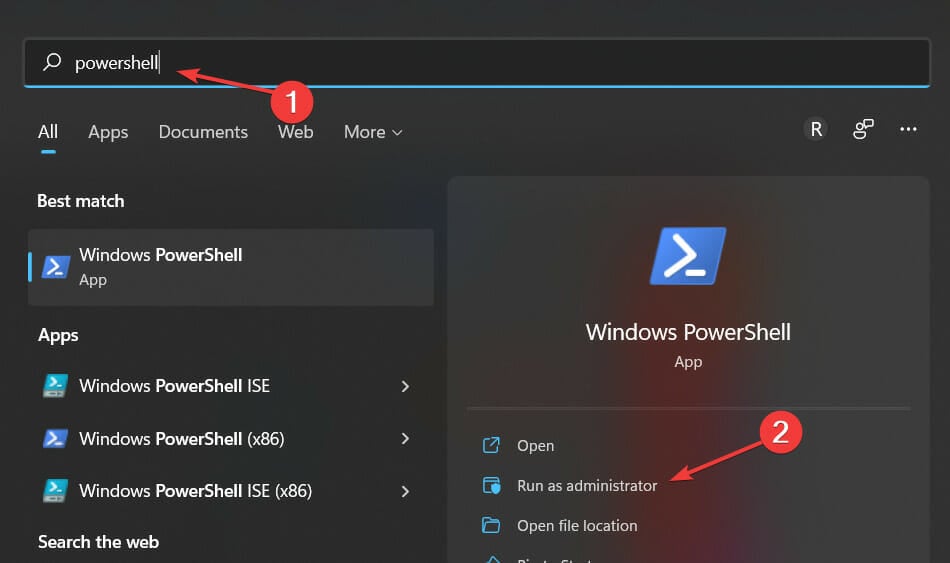
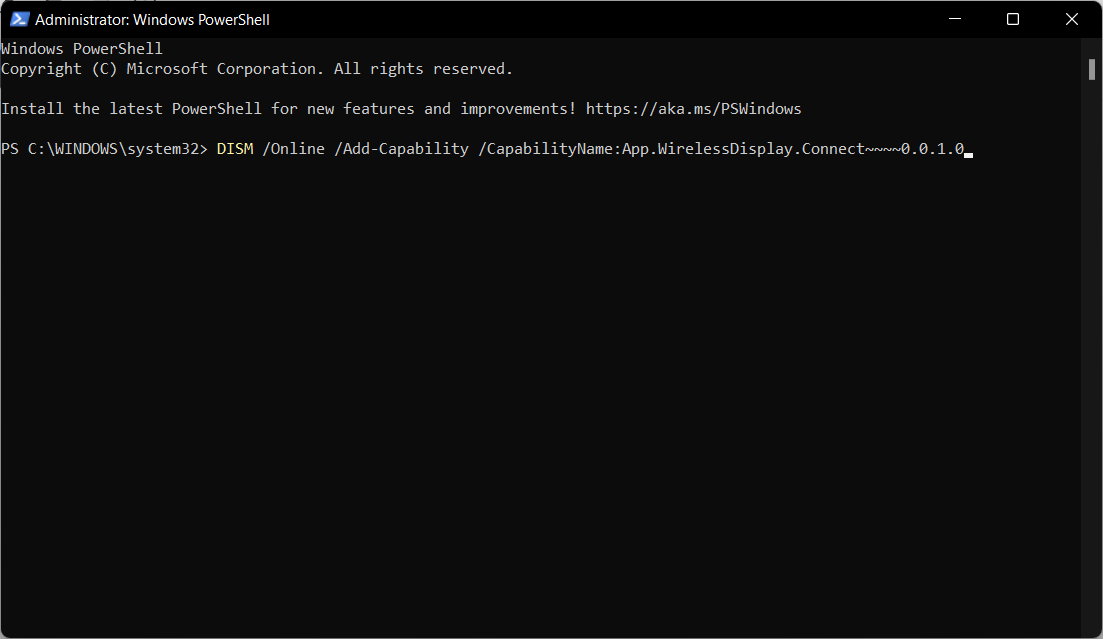
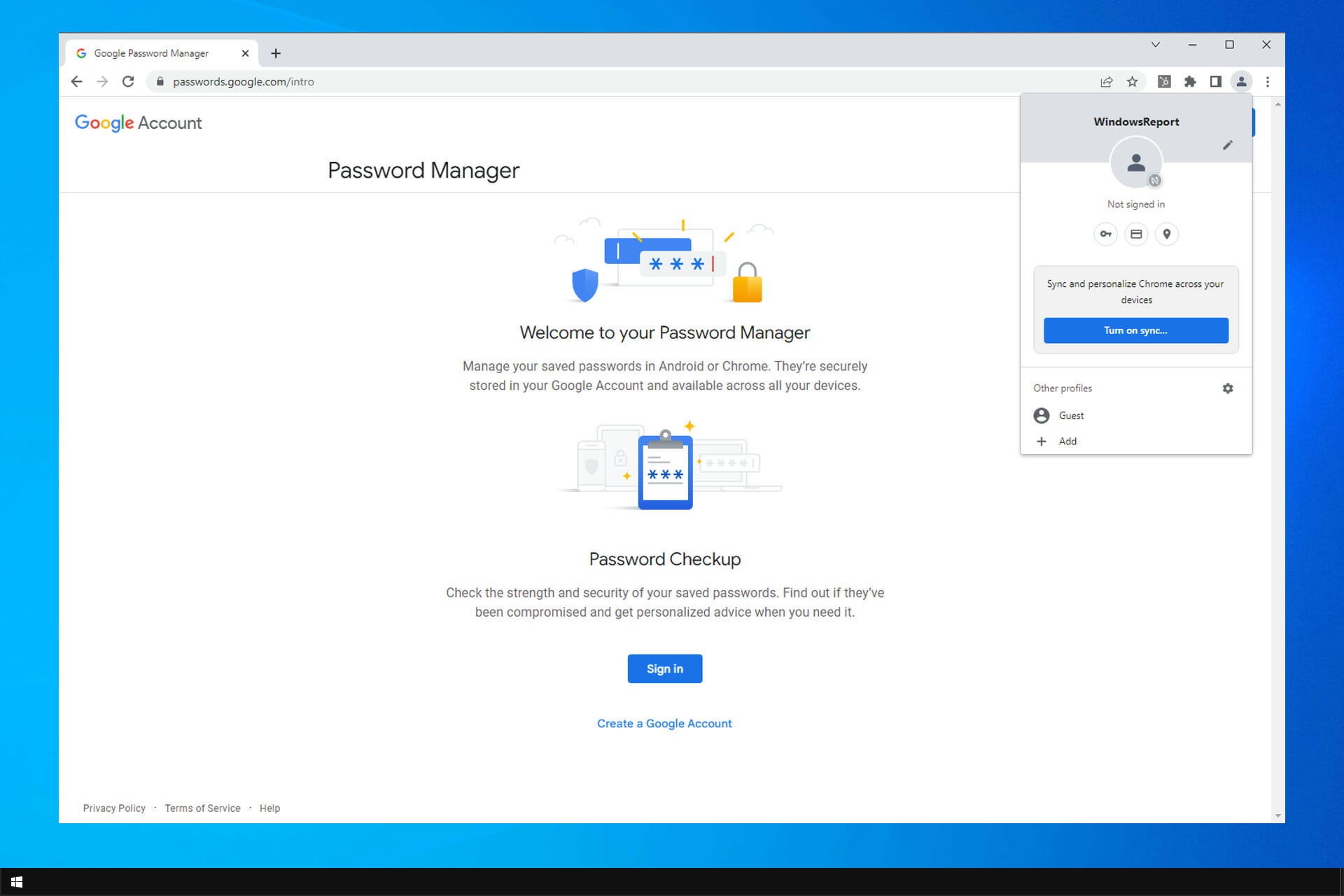


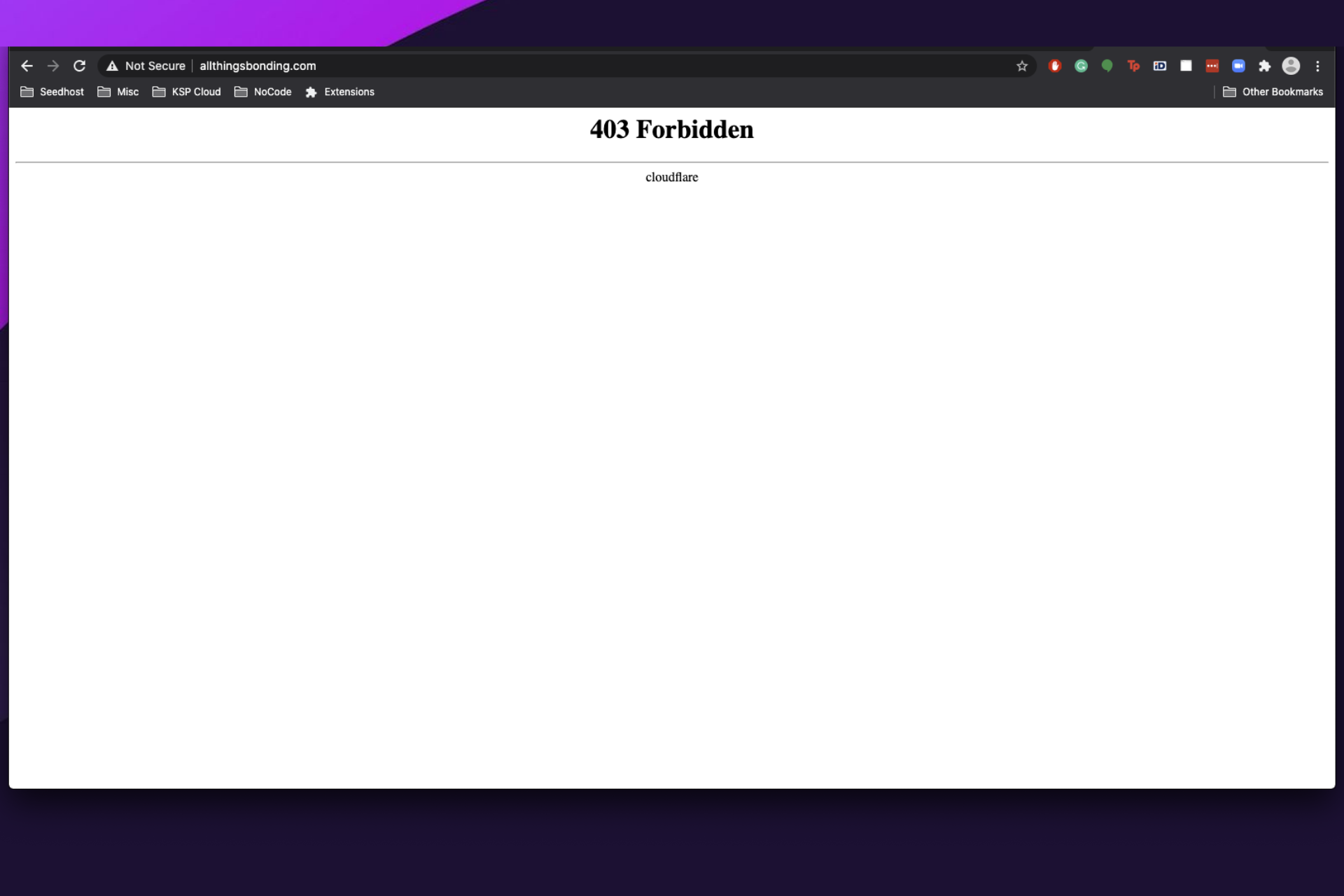
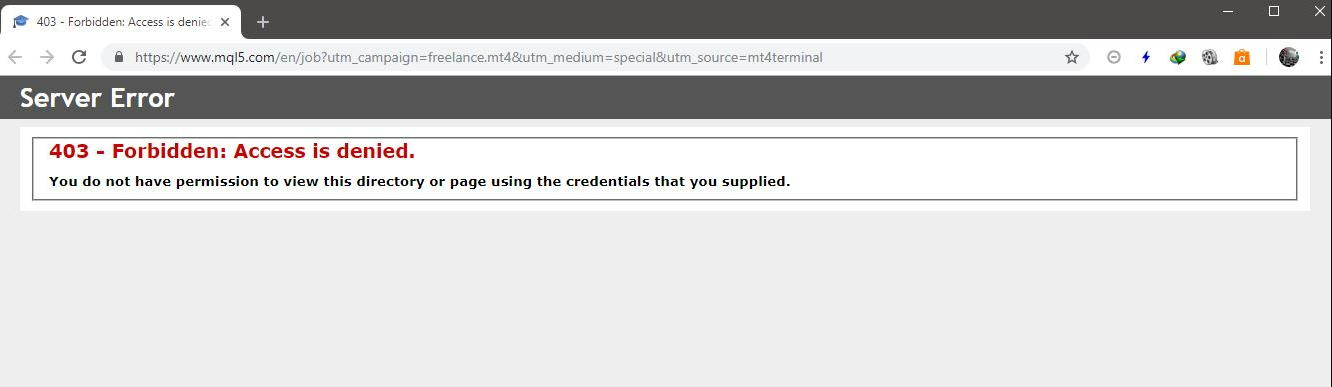









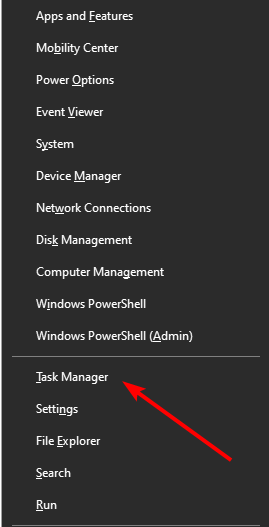


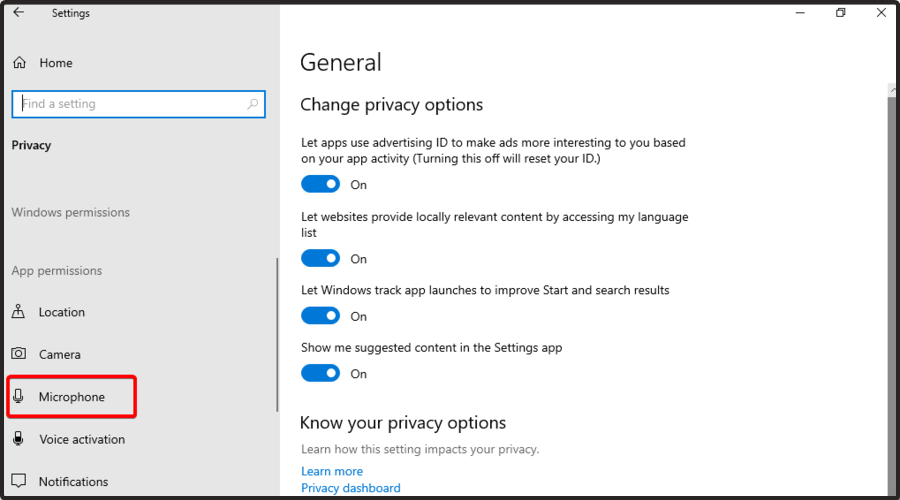
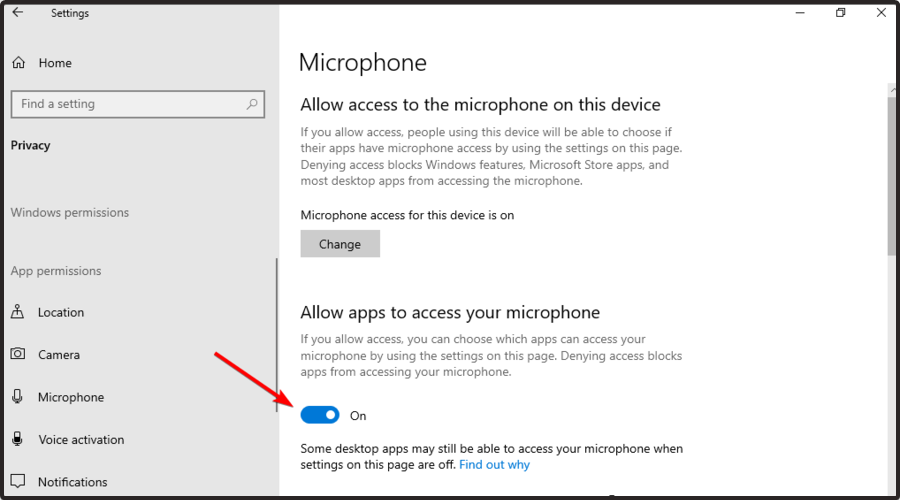

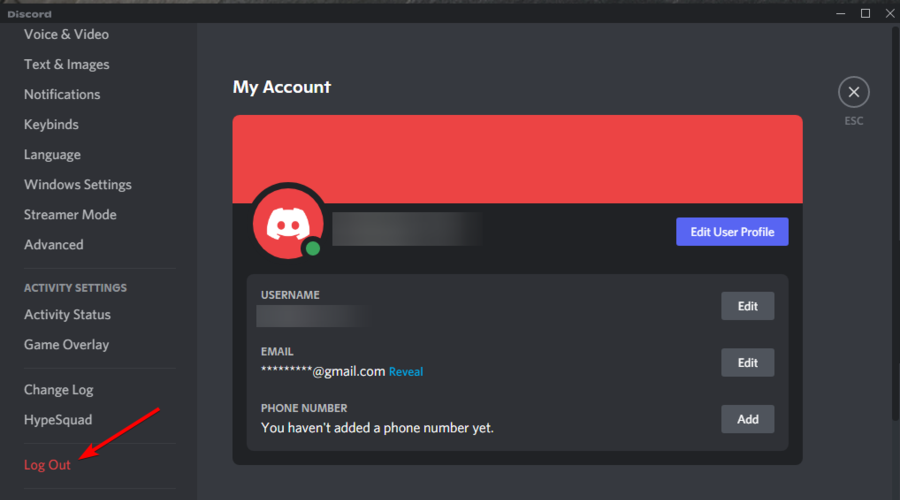
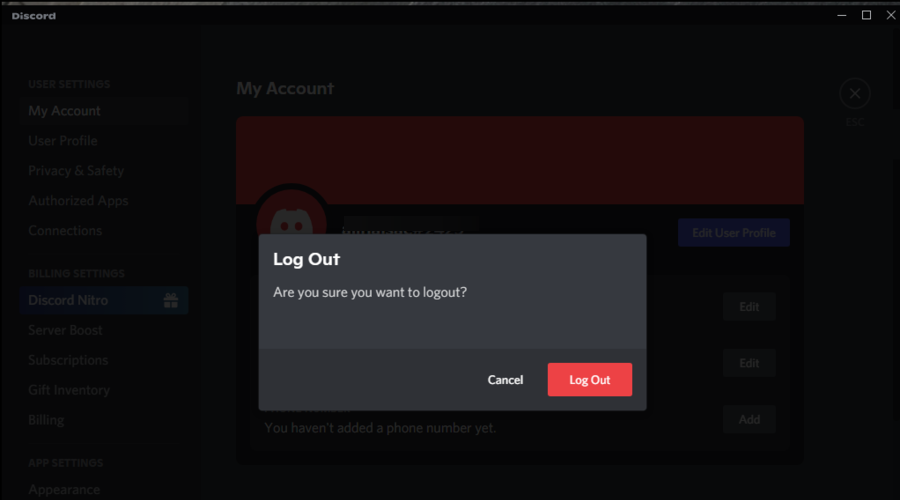
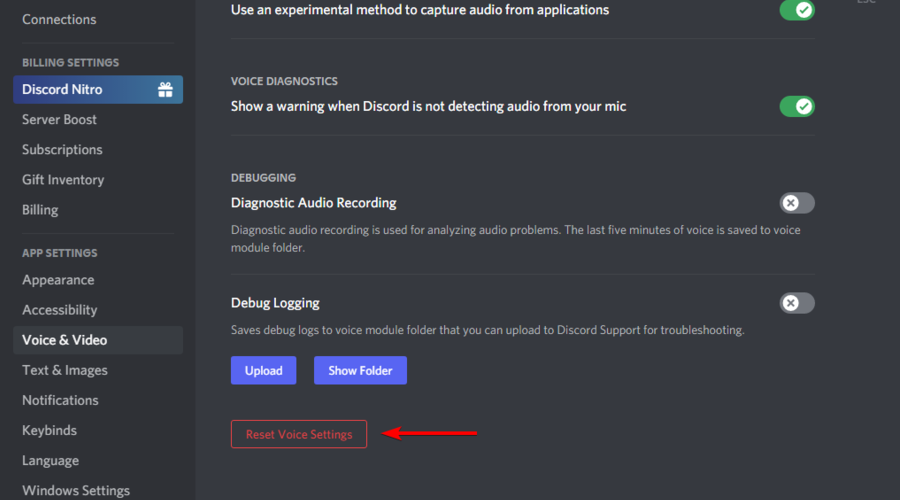
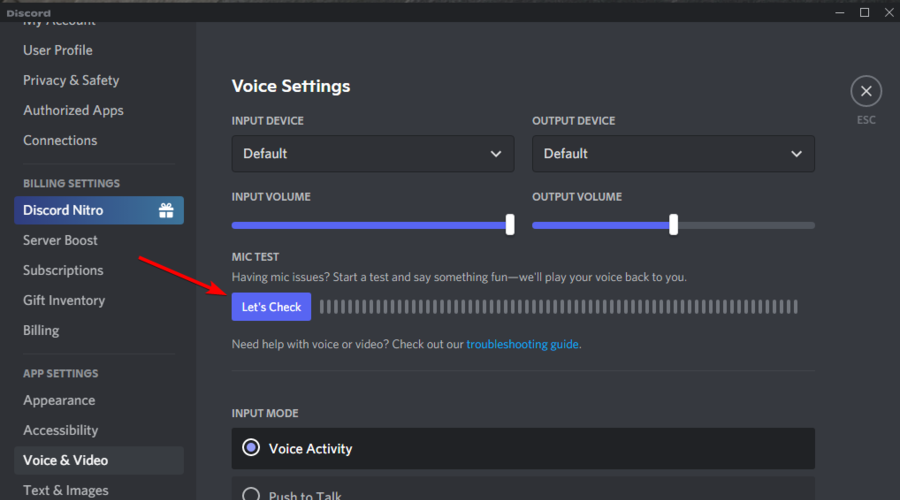

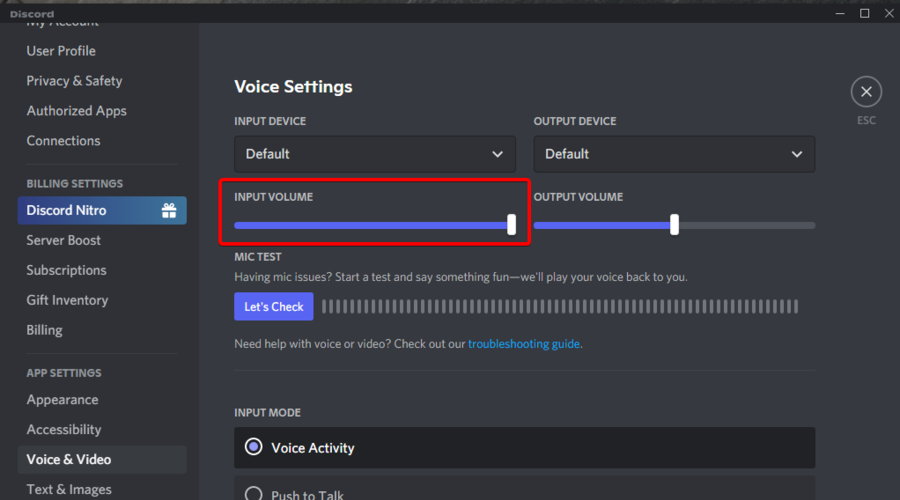
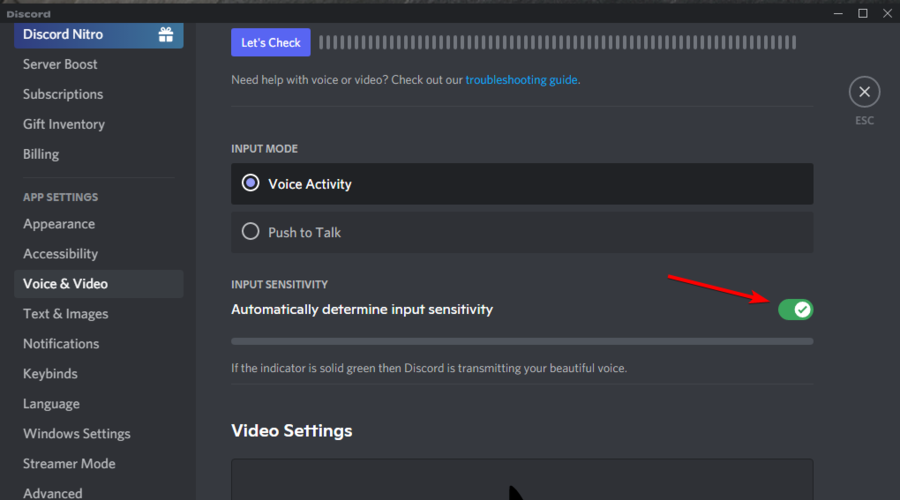
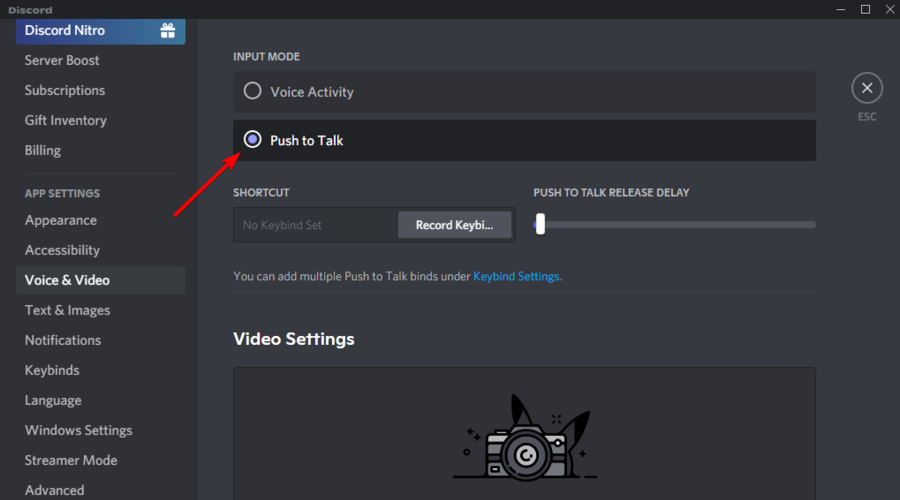
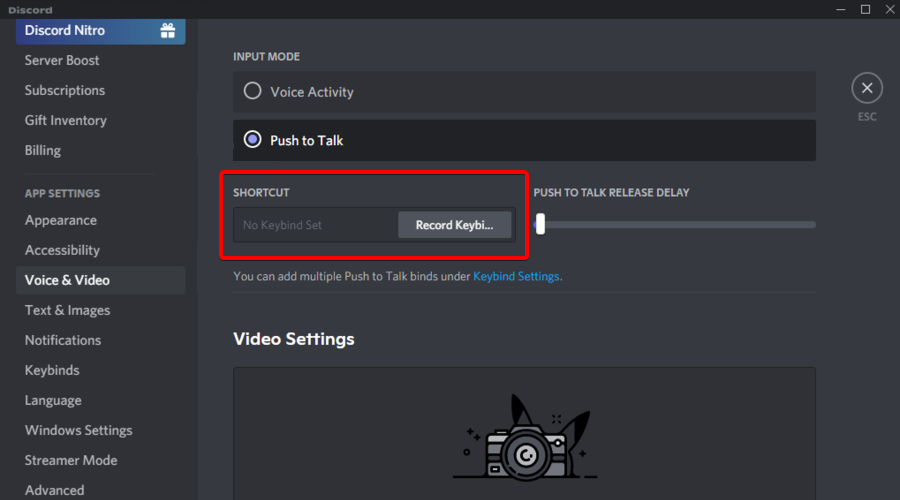

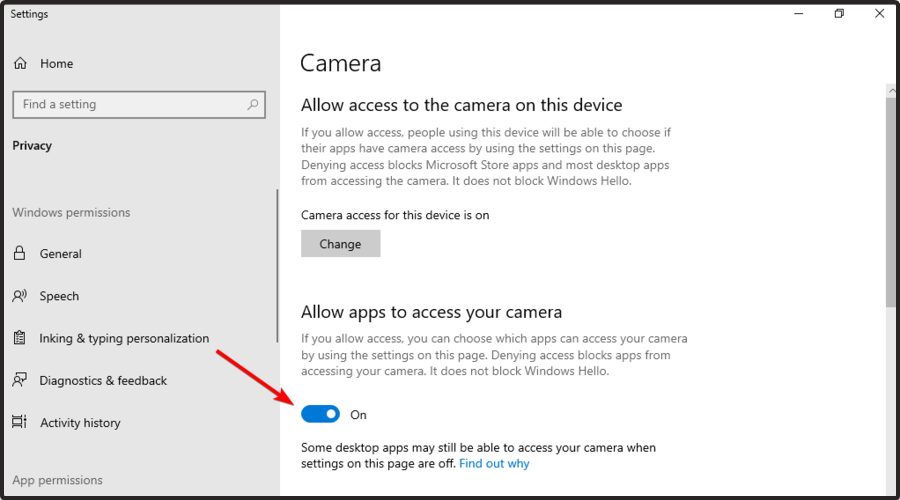
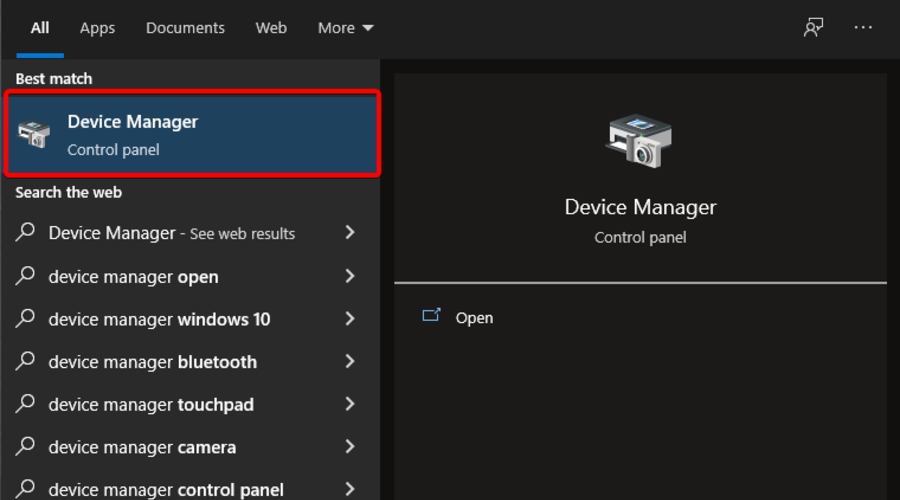





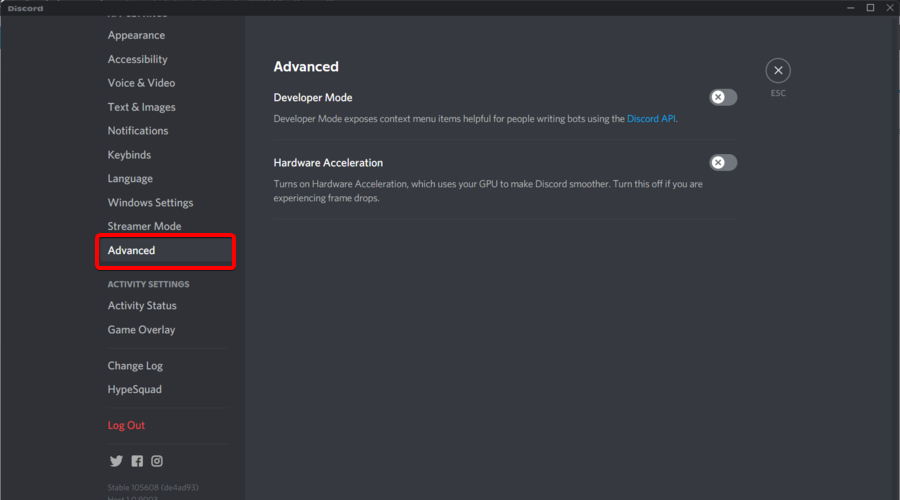
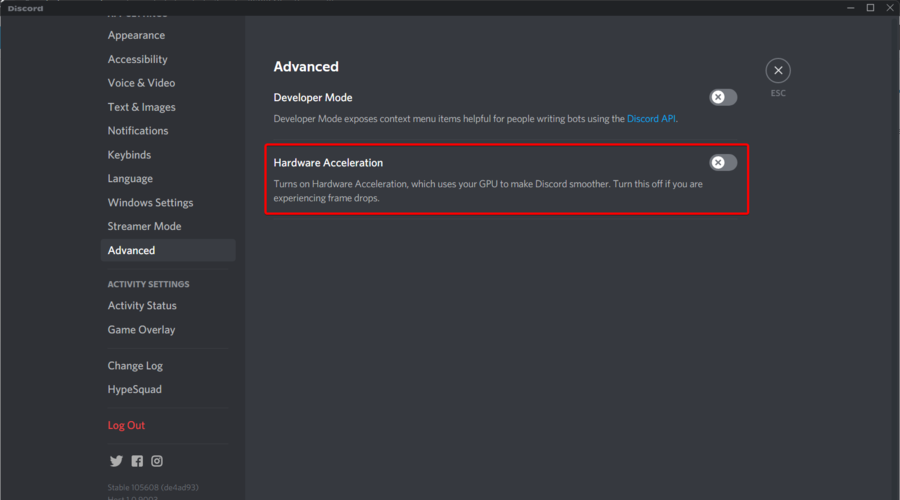
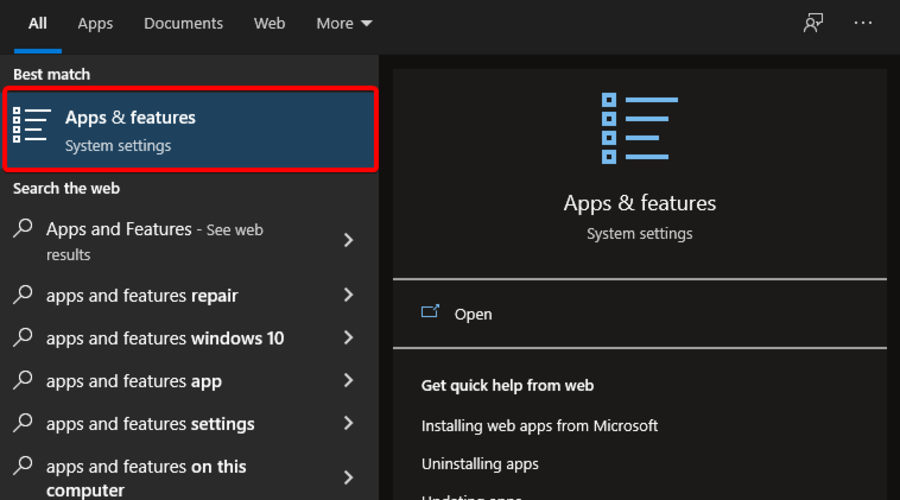
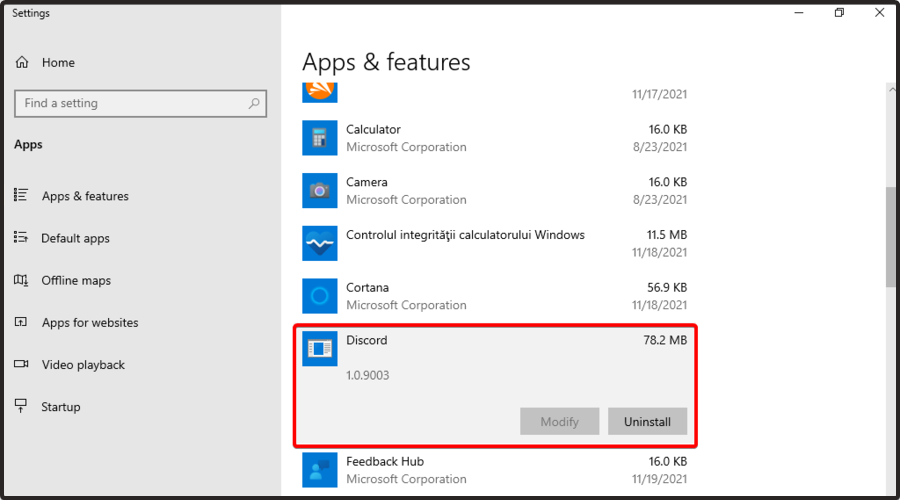
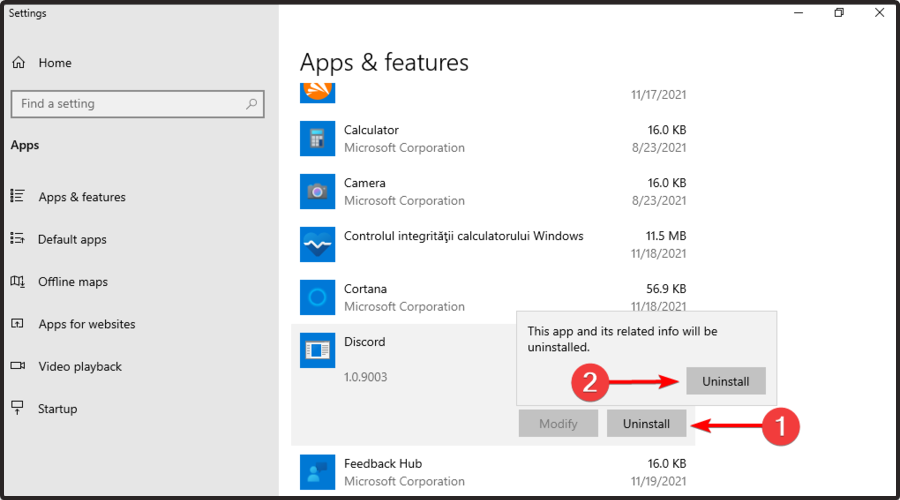
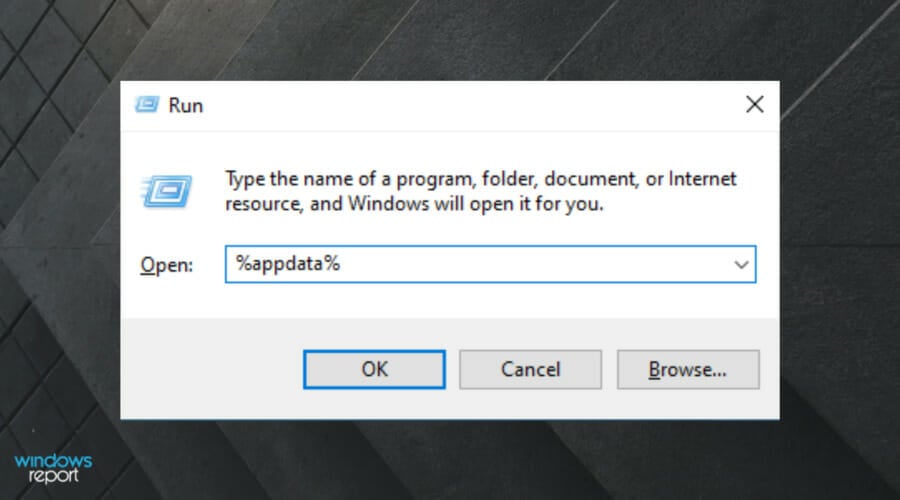
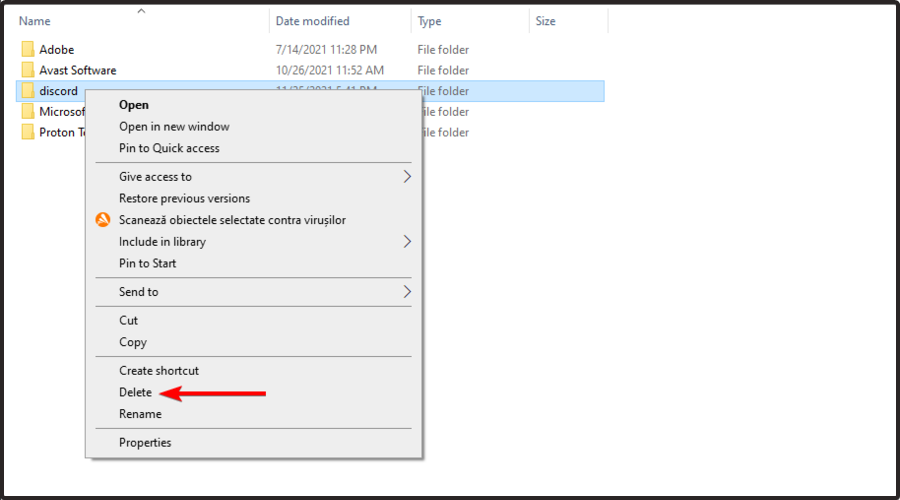
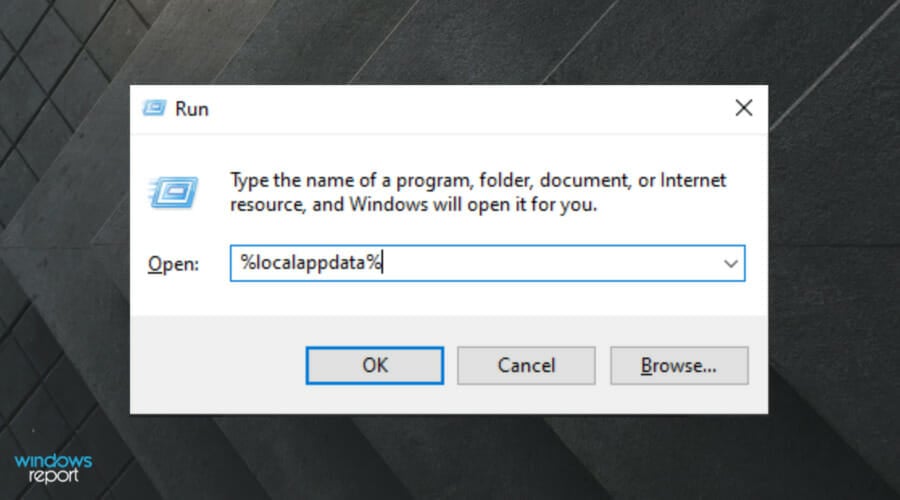
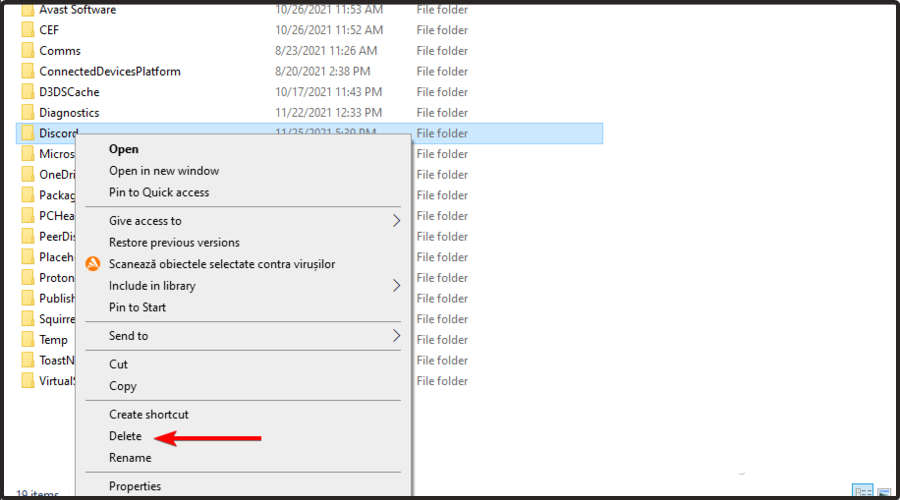


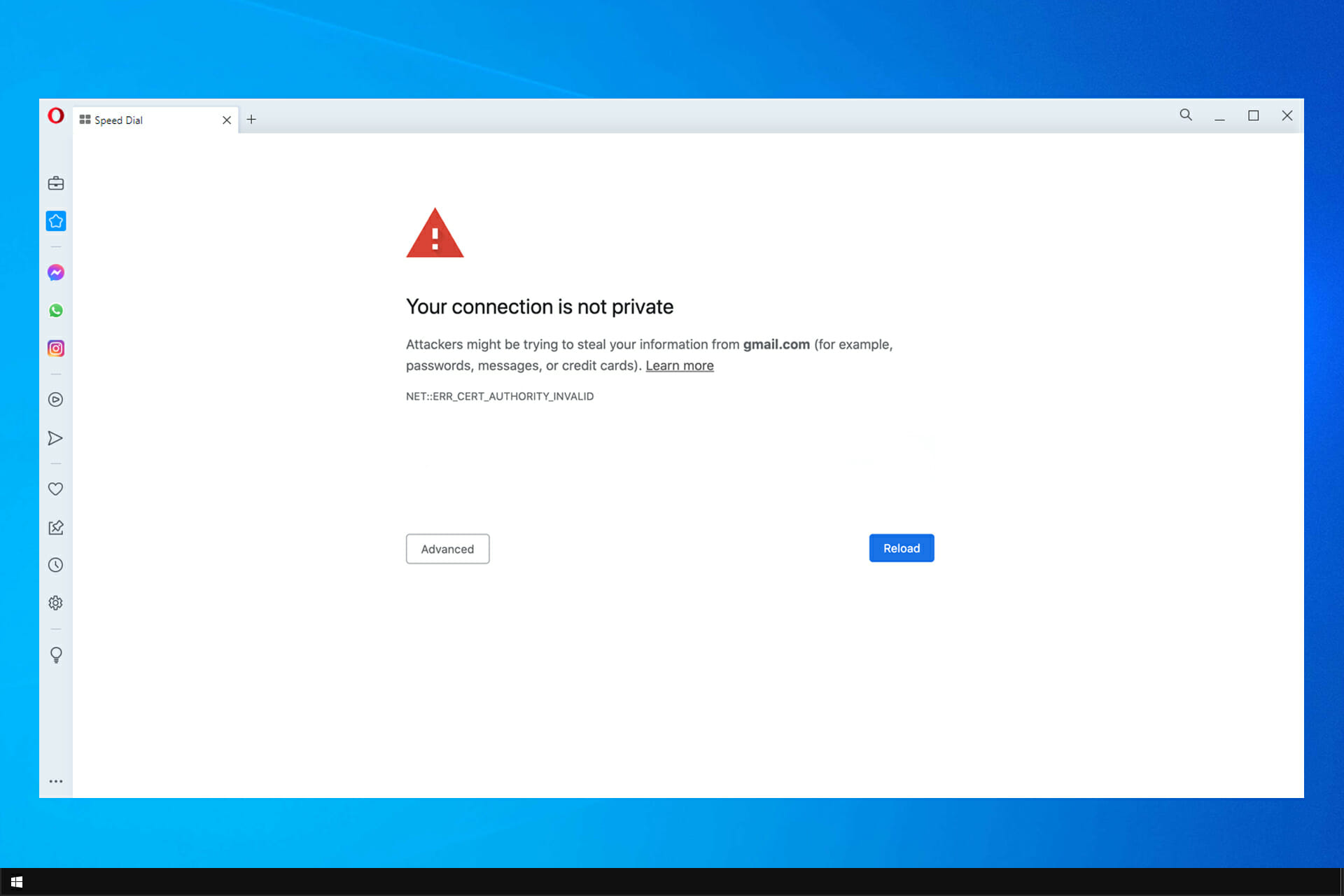


![[Fix] Arma Reforger Can’t Join Server / No Connection With Backend](https://windowsreport.com/wp-content/uploads/2022/05/arma-reforger.jpg)
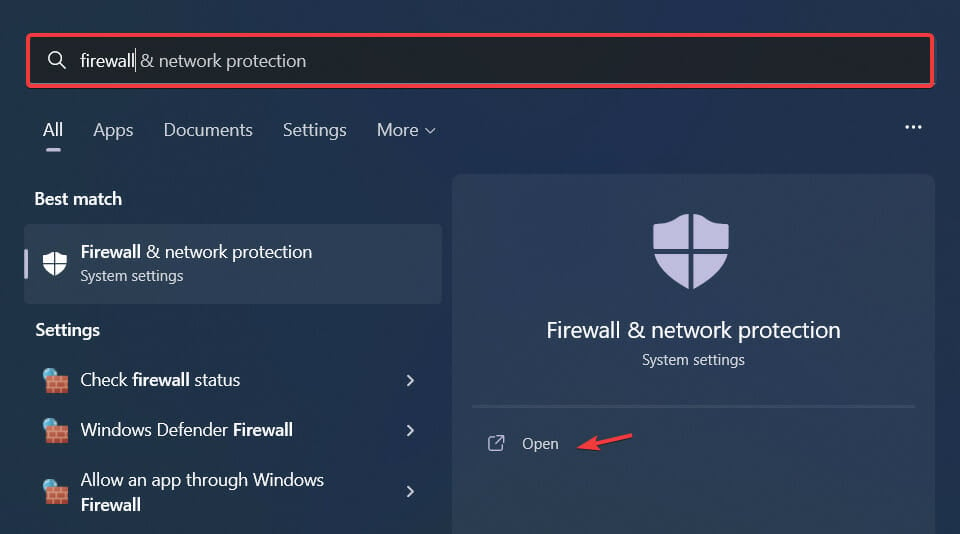
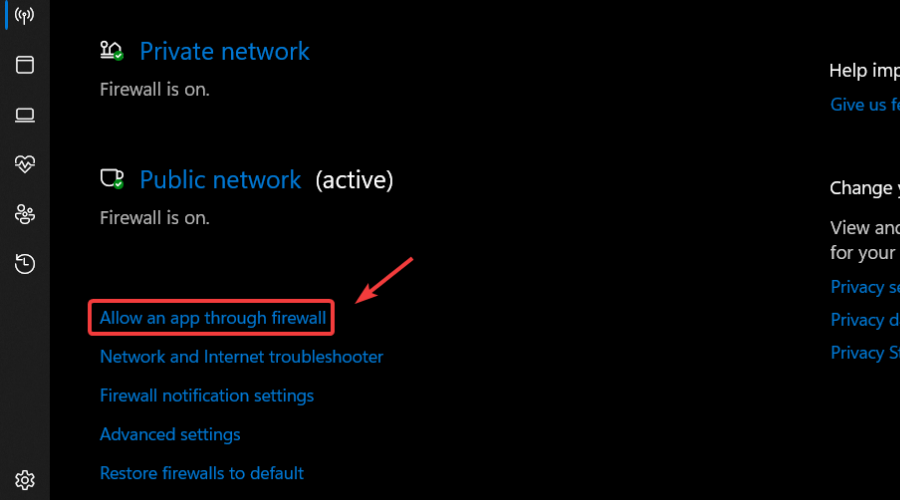
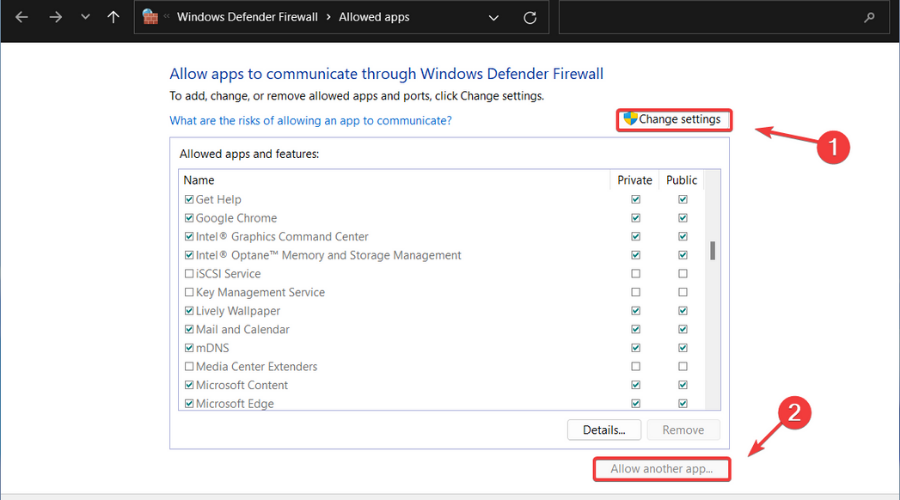
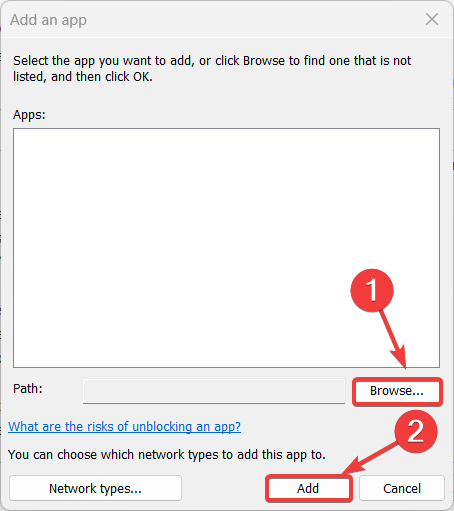
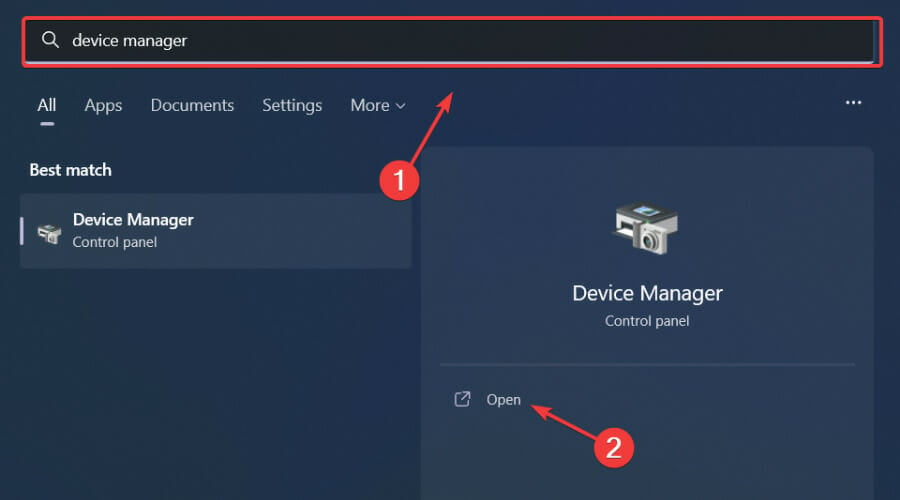
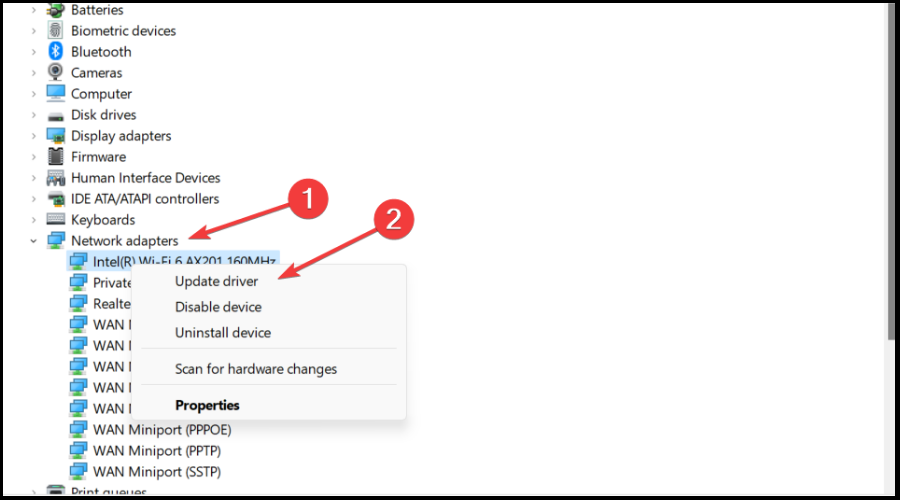
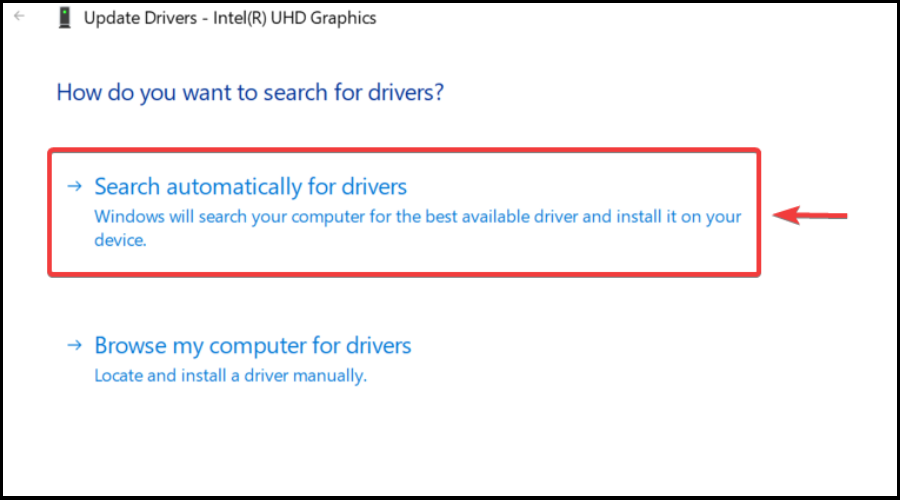
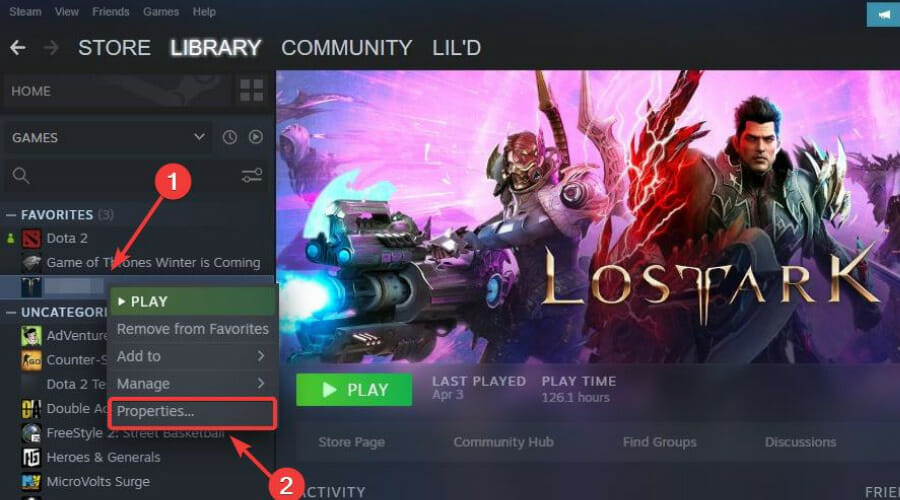
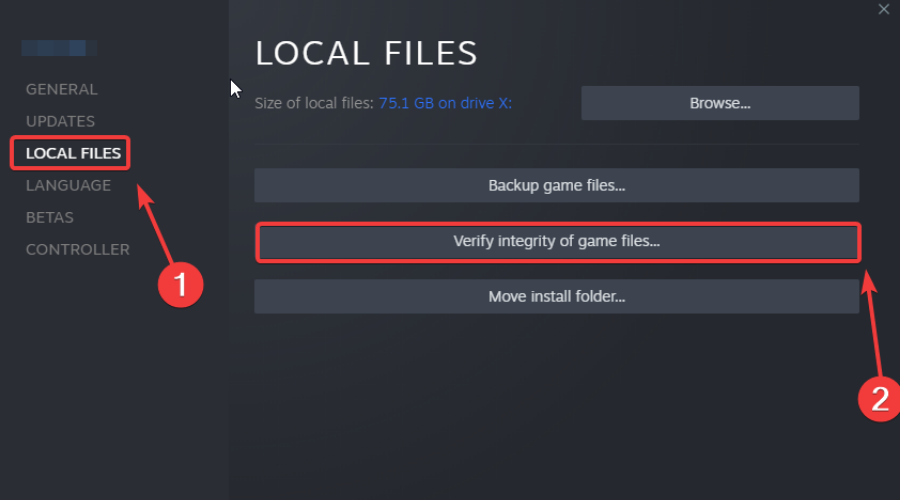
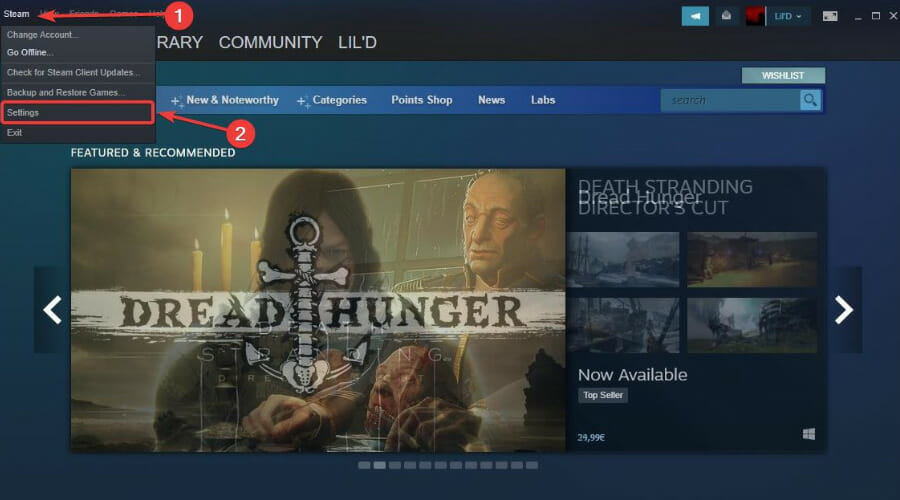
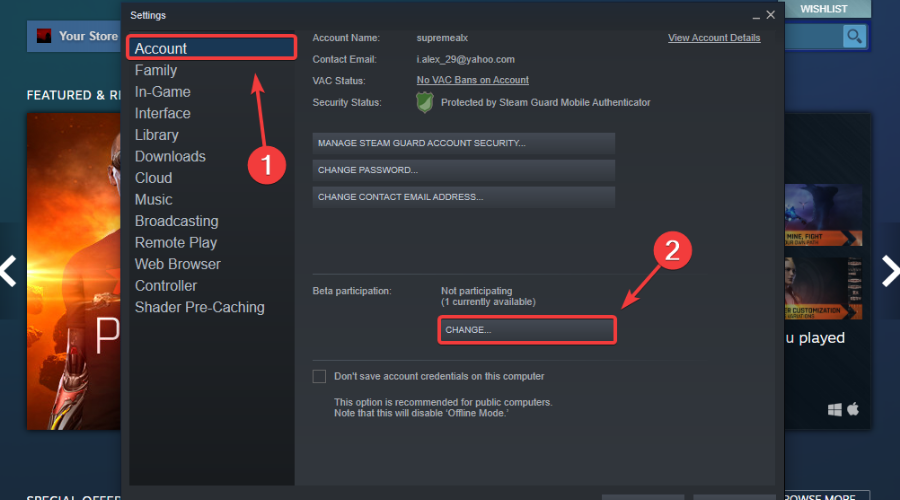
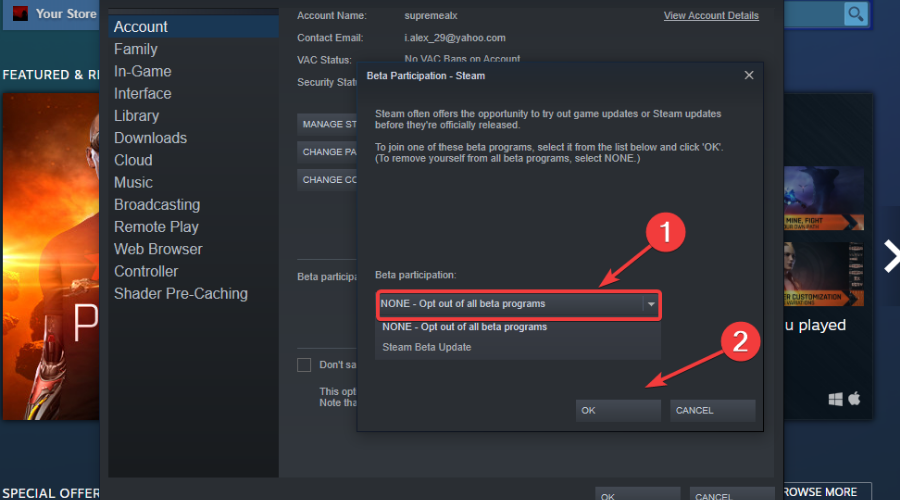
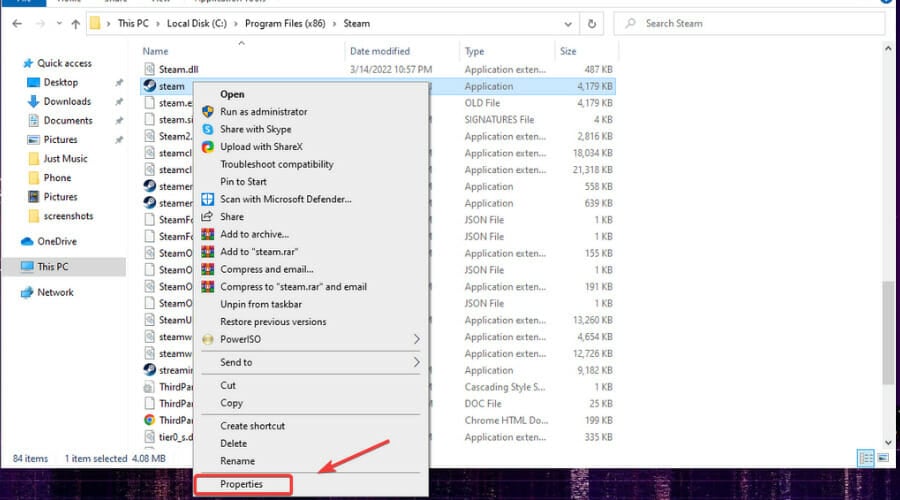
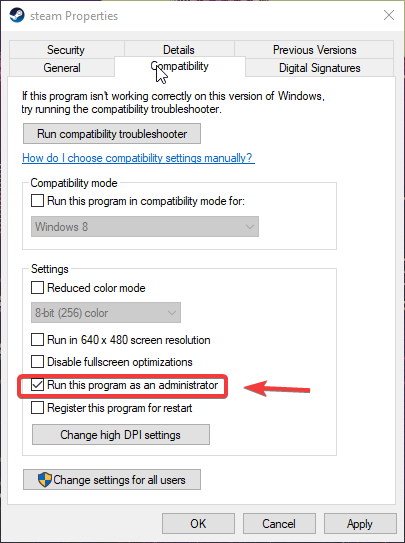
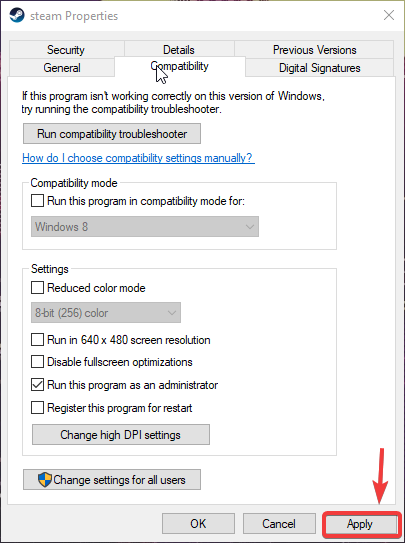

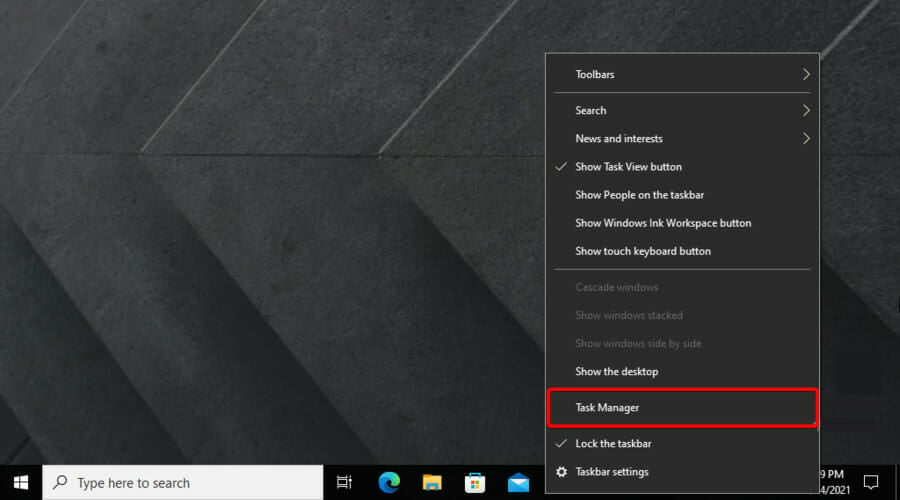
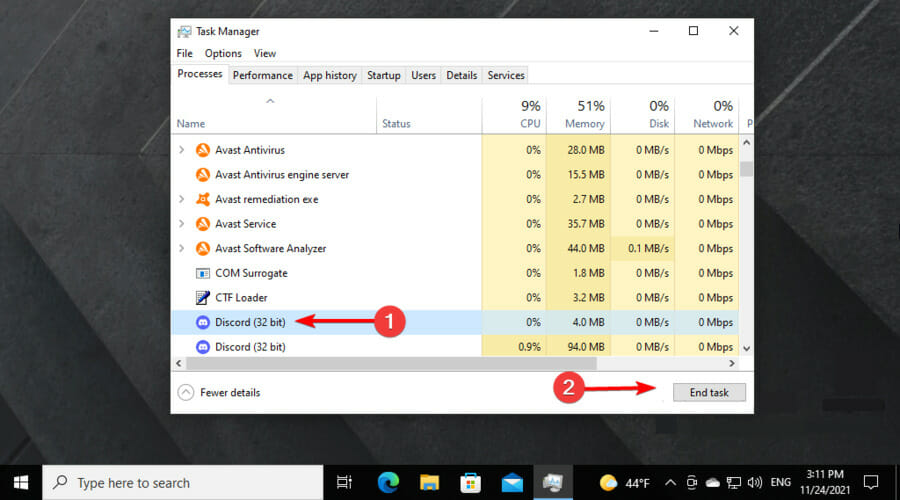
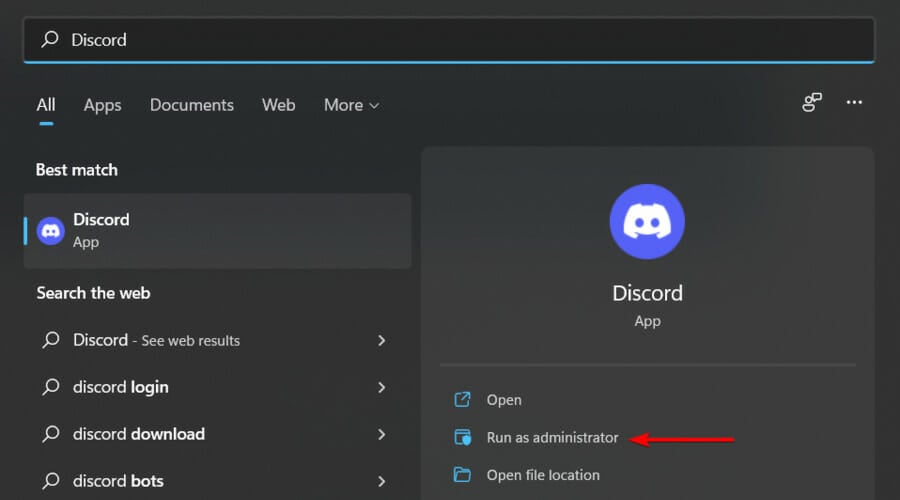
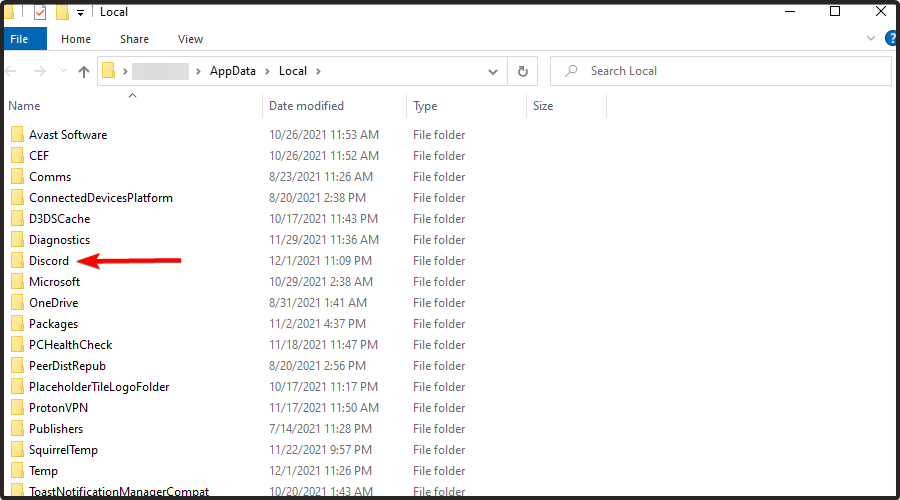
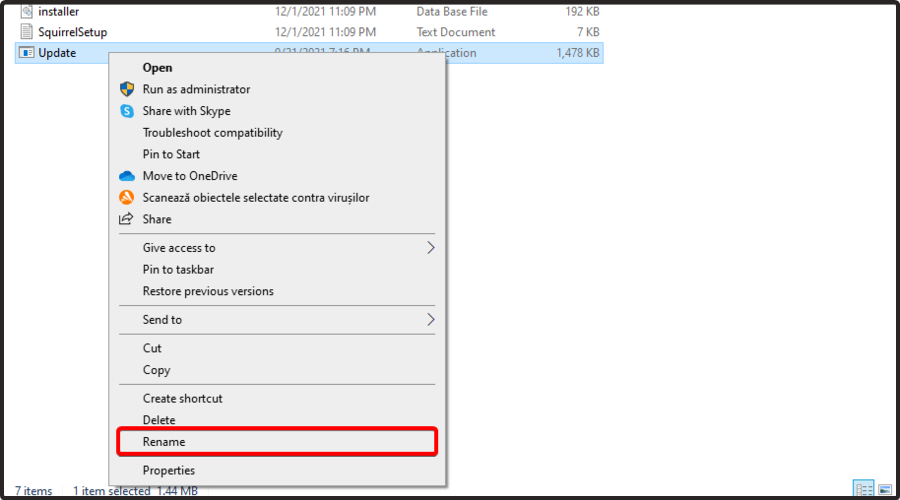
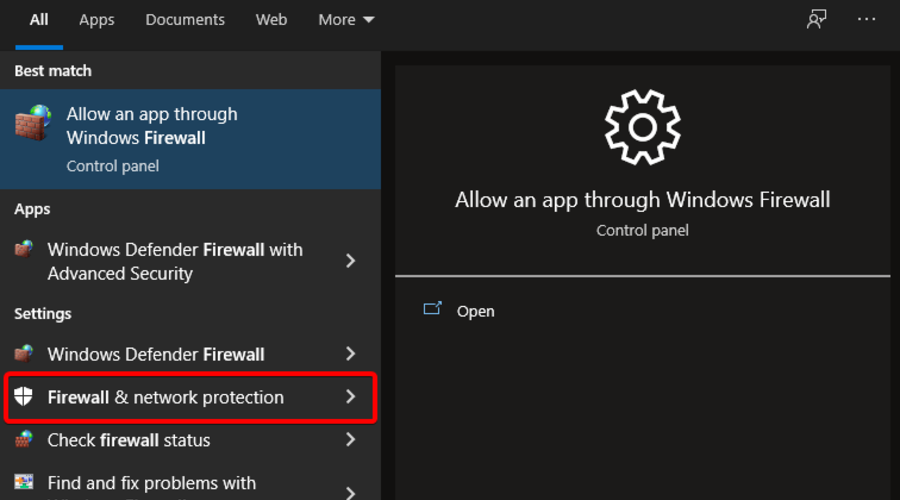
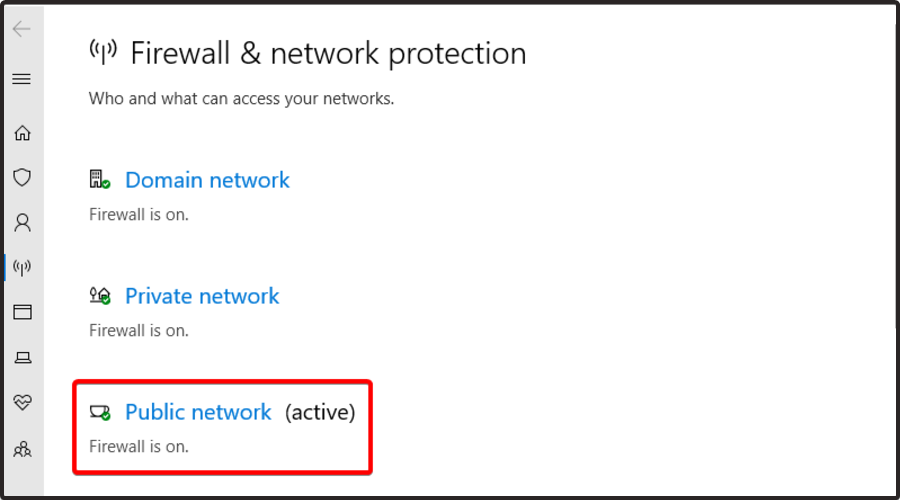
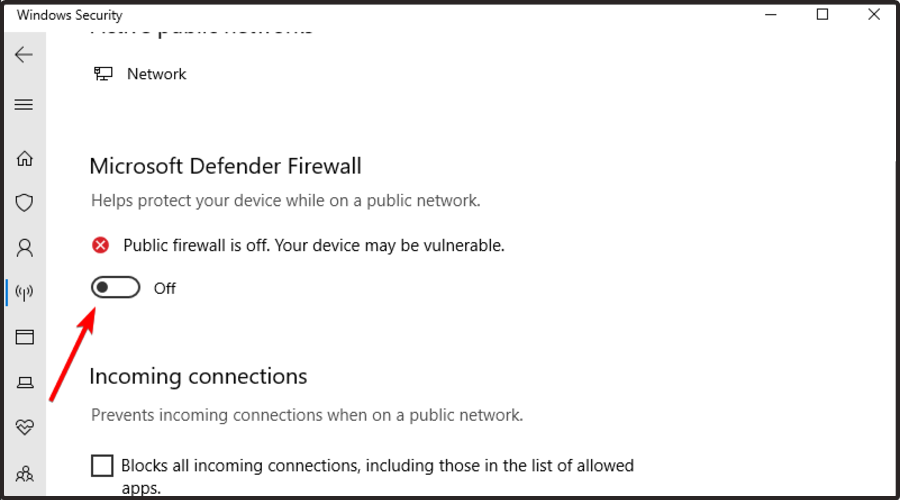

![Enable/disable Push-to-Talk on Discord [Full Guide]](https://windowsreport.com/wp-content/uploads/2021/03/Enable-disable-push-to-talk-on-Discord.jpg)


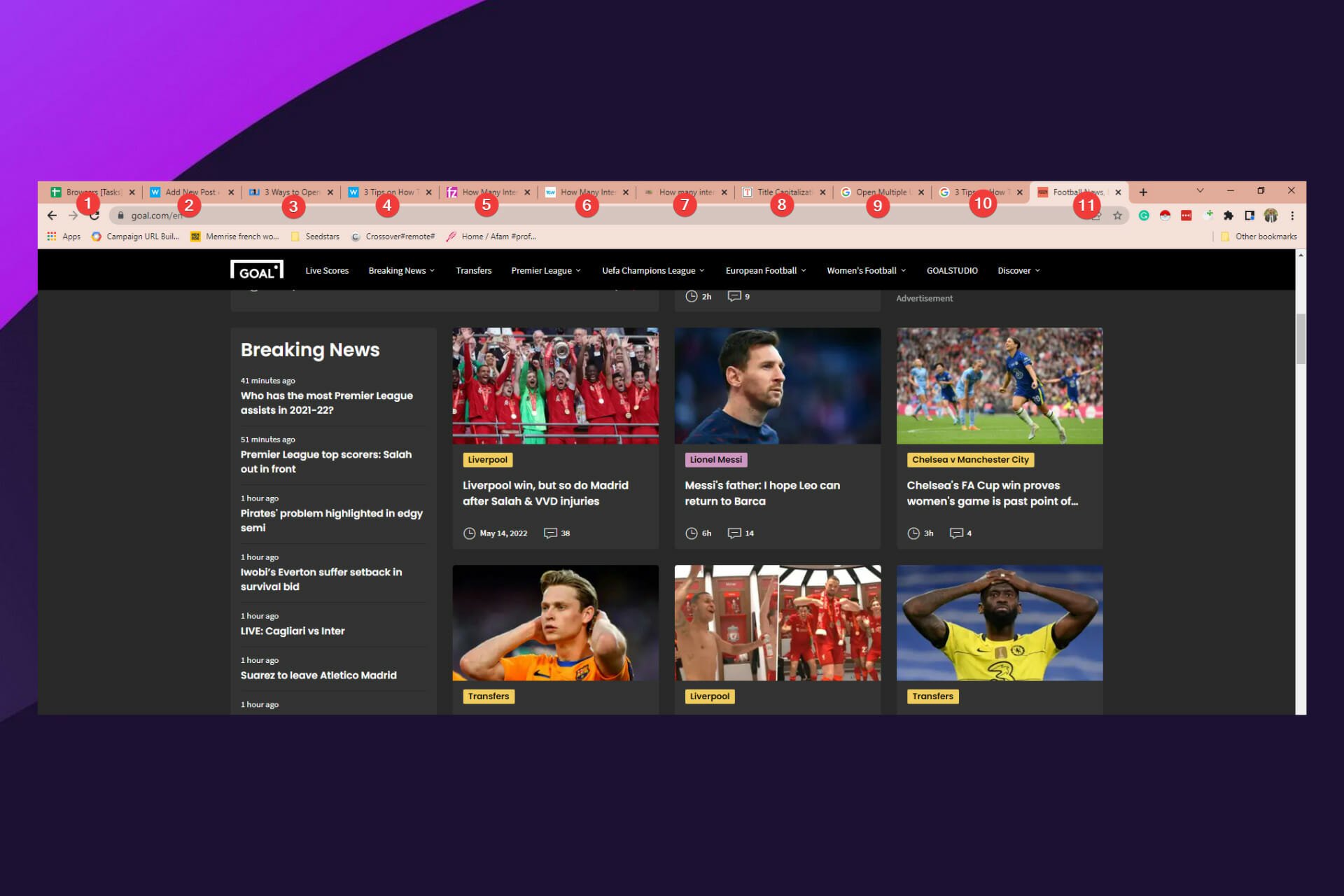

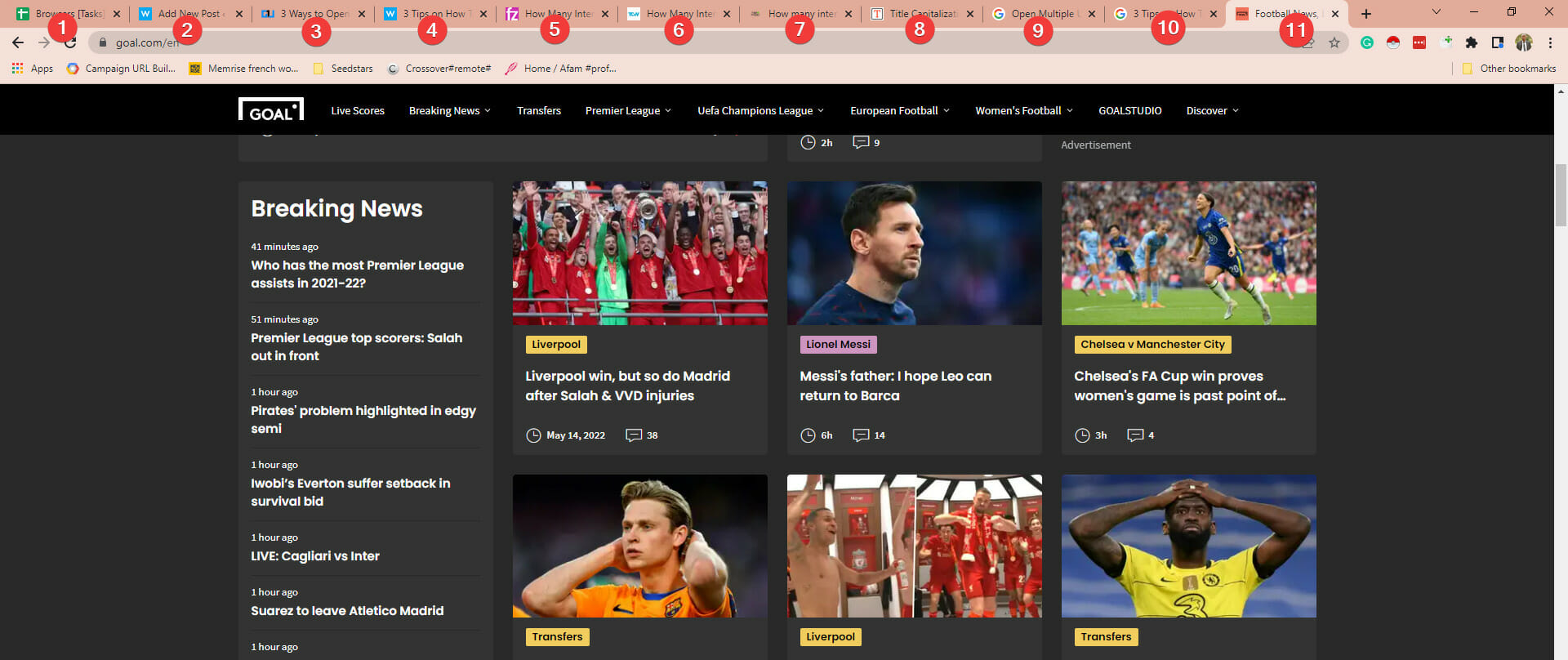


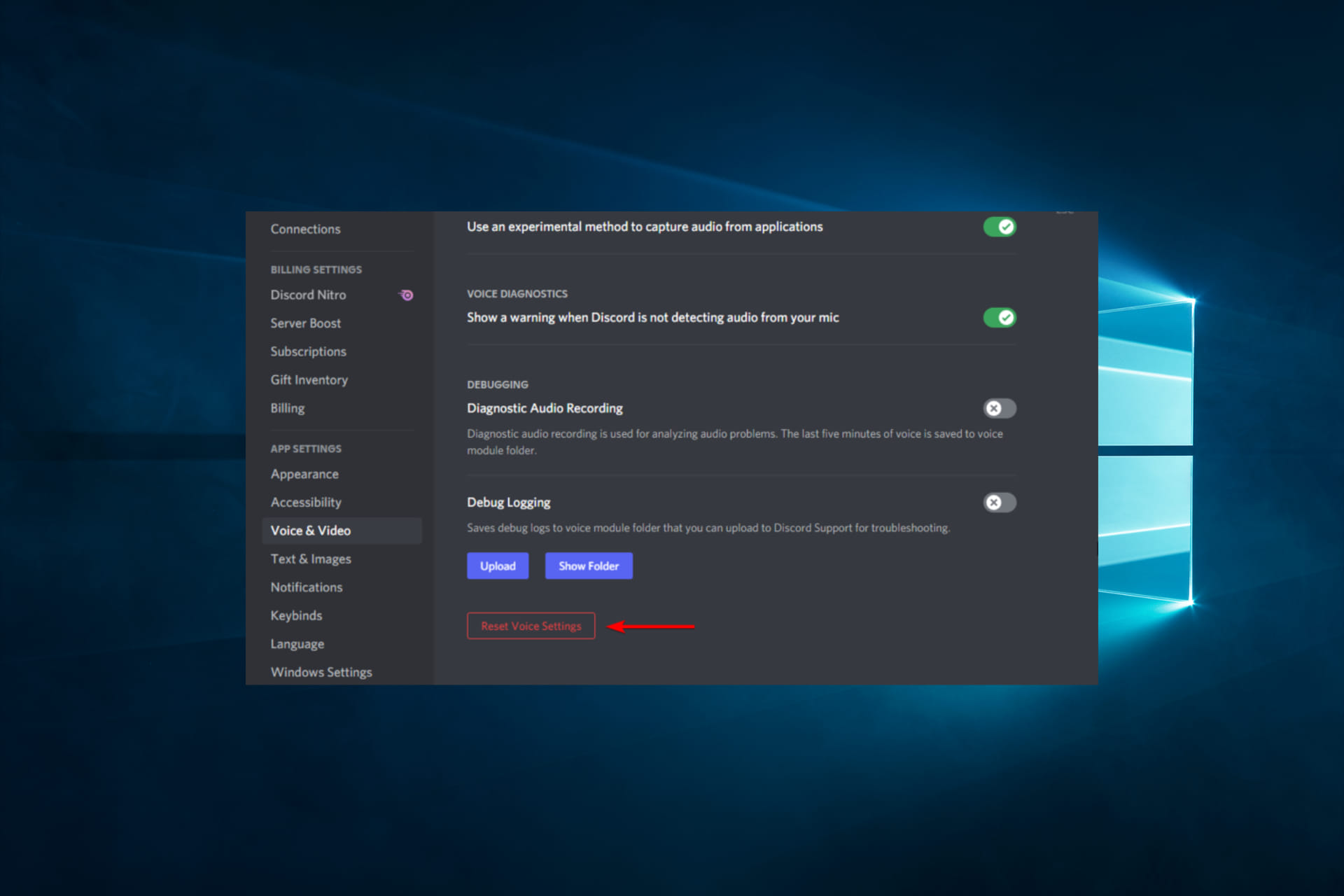
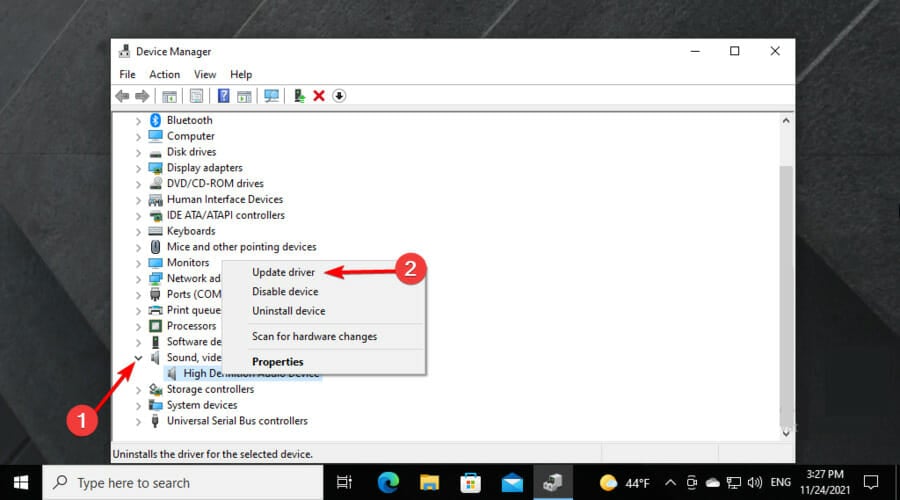
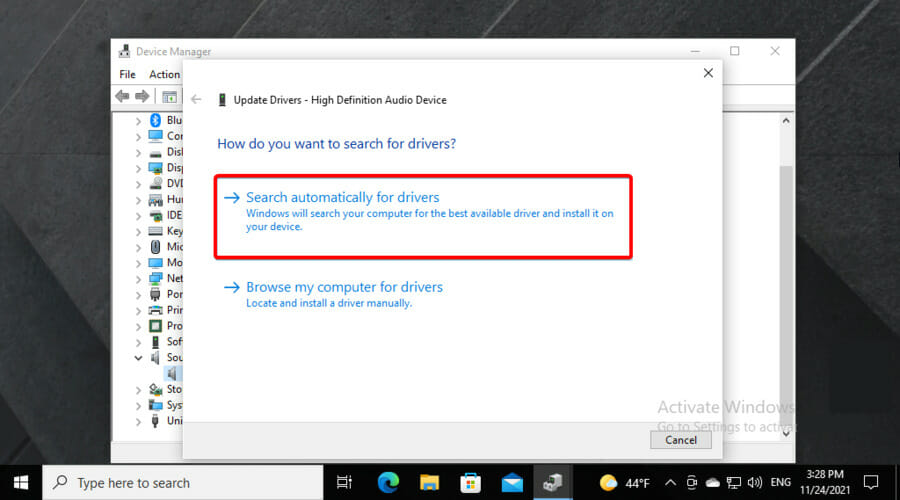
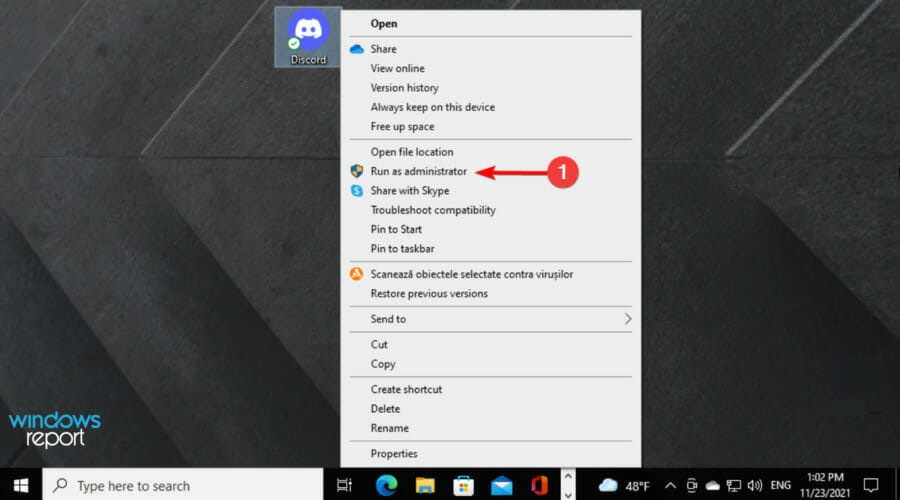
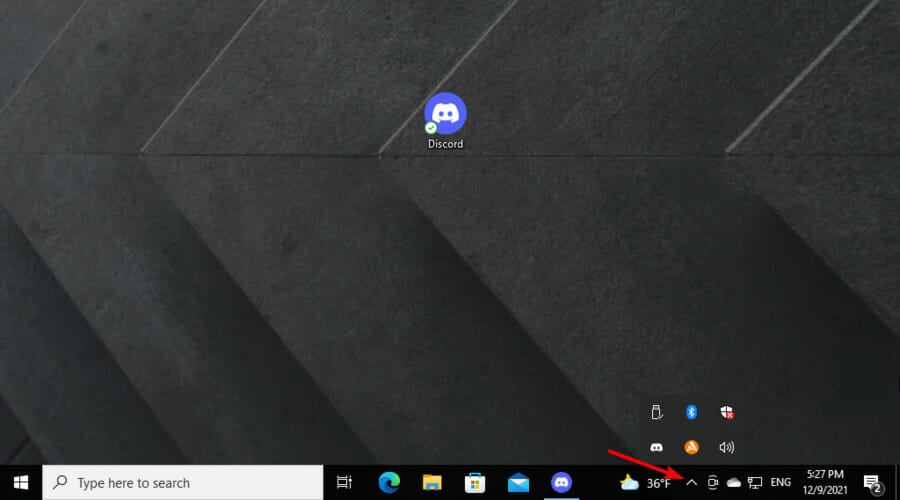
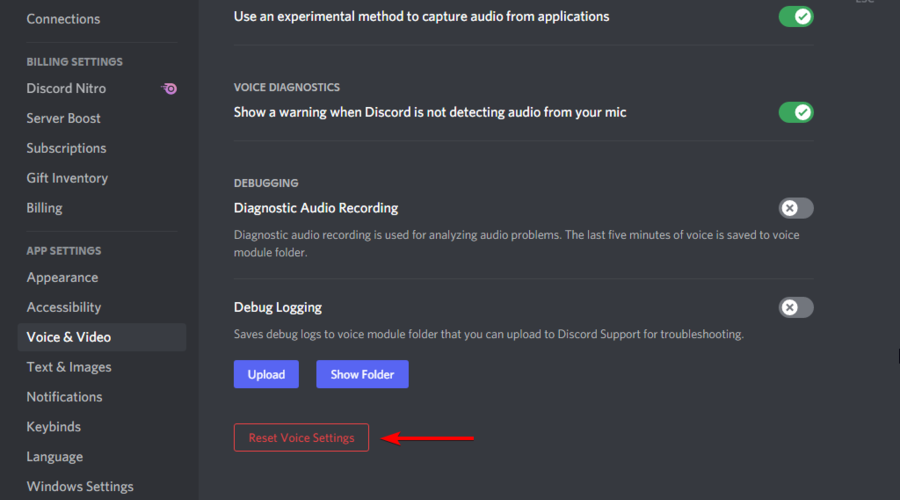

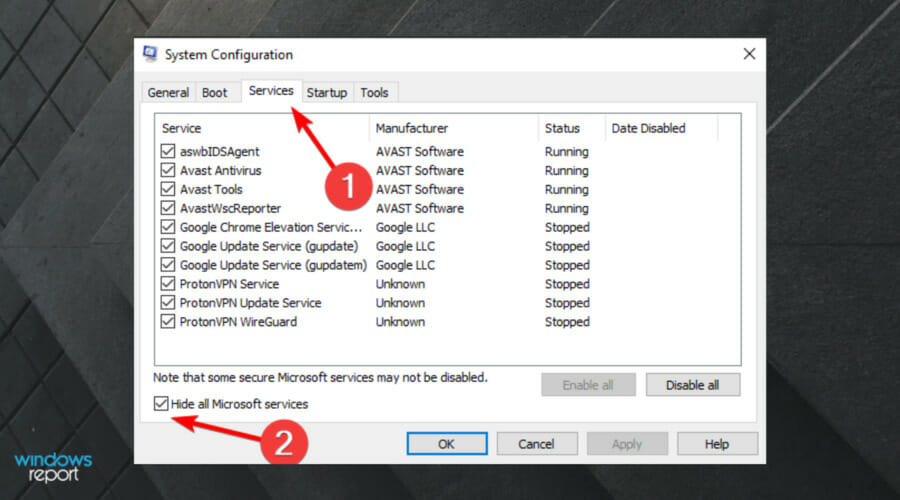
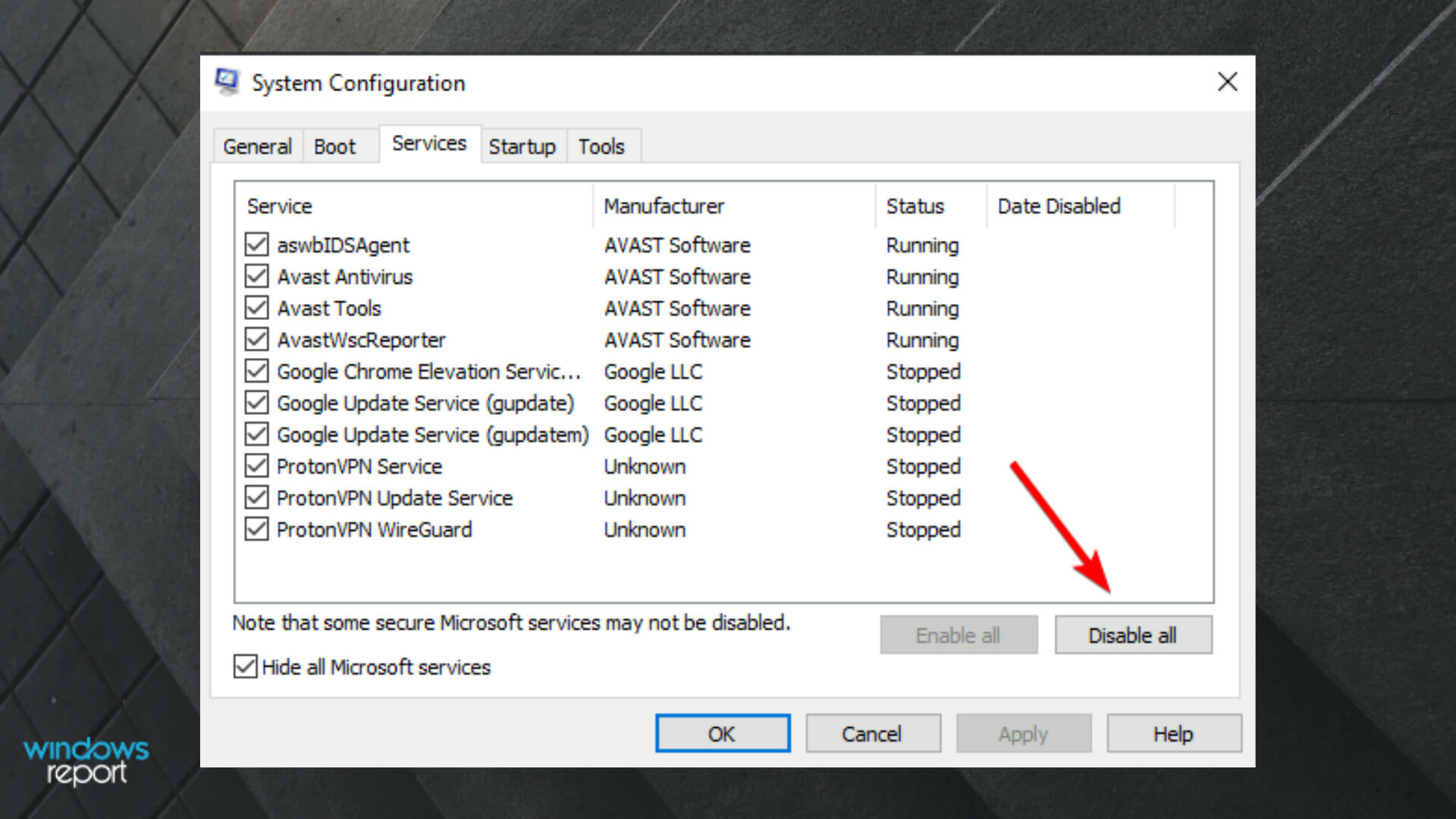


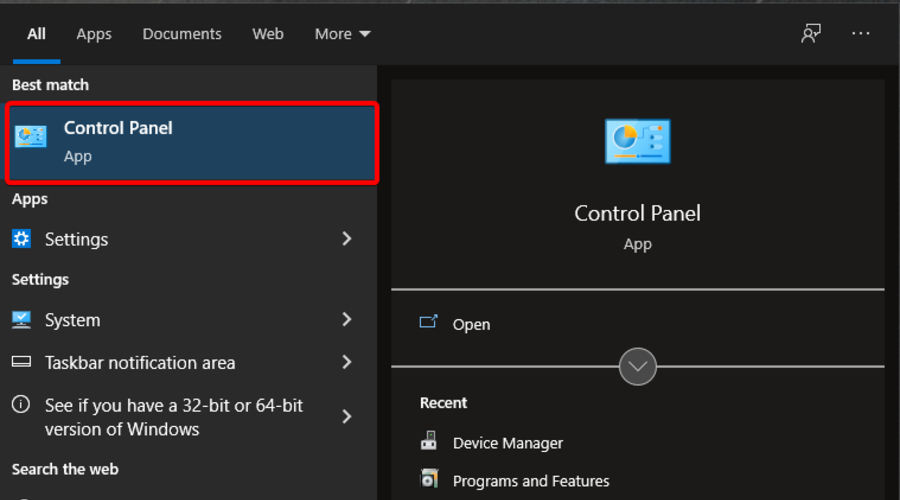


![Discord Live Viewing Not Working in Browser [Complete Fix]](https://windowsreport.com/wp-content/uploads/2020/04/Discord.jpg)



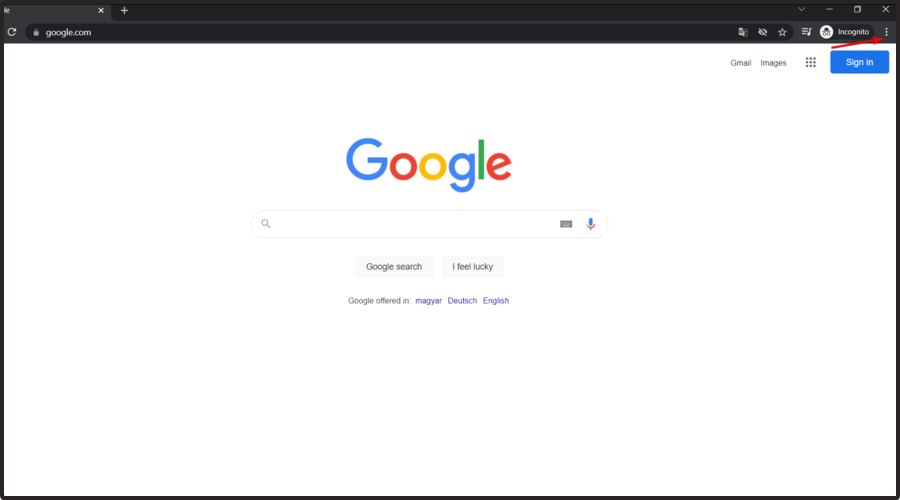
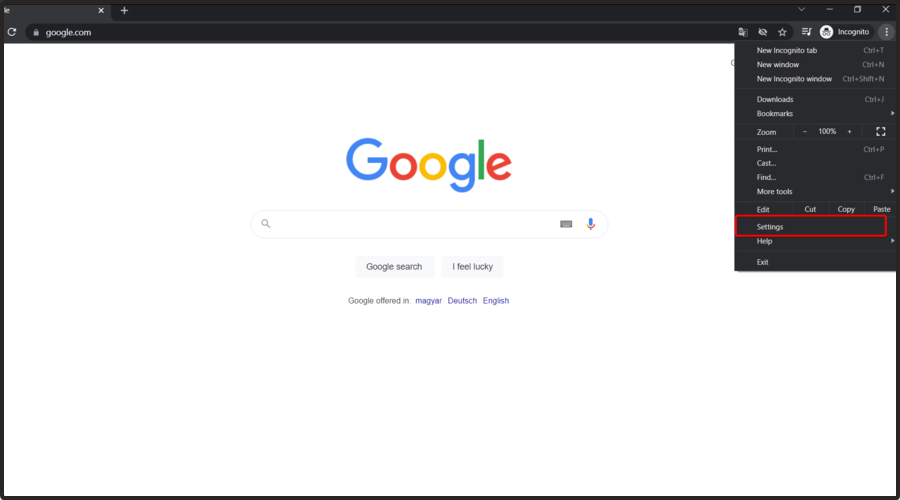
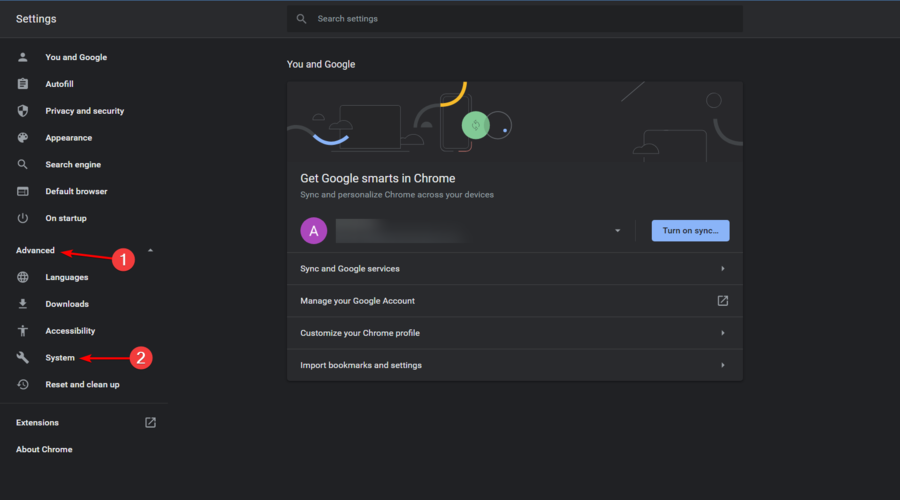
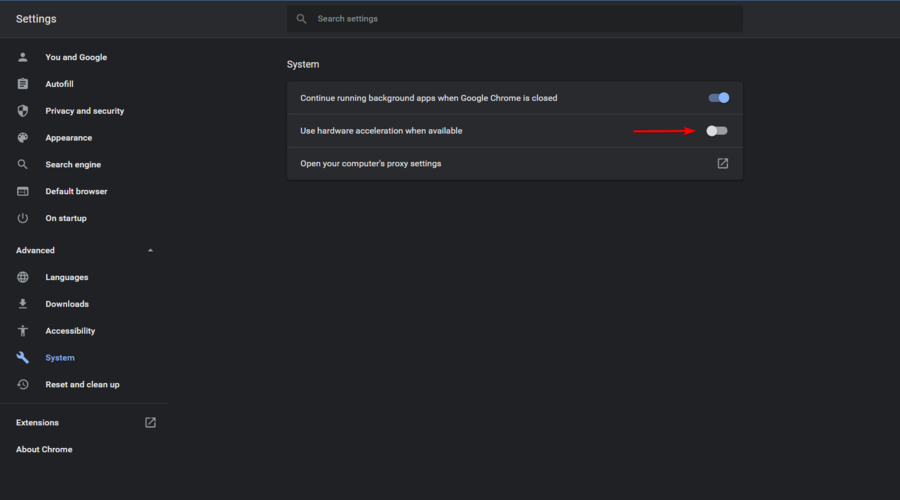
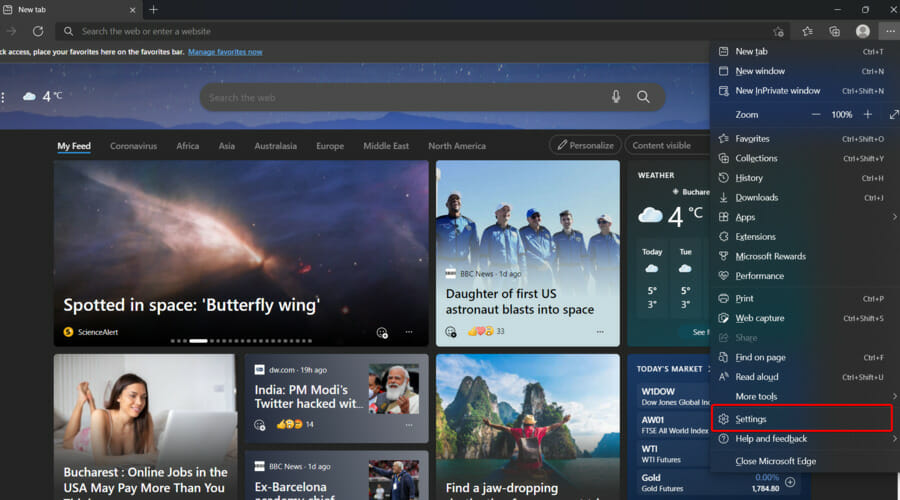

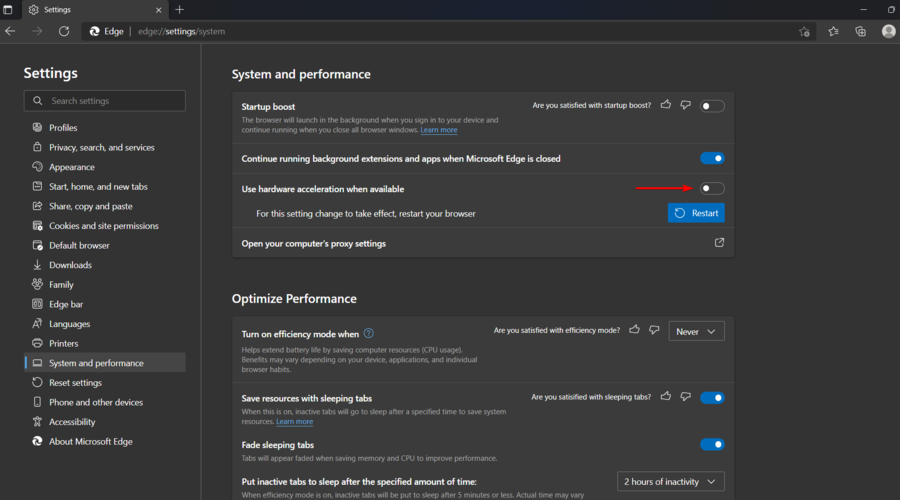


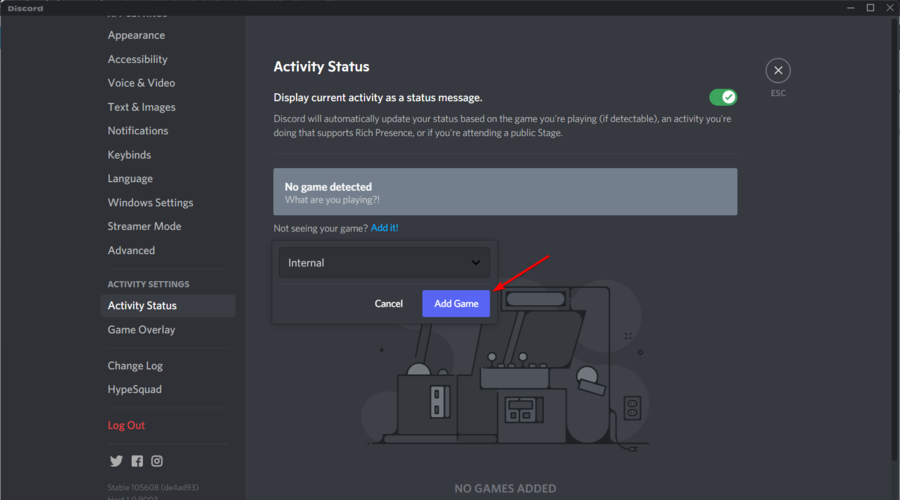
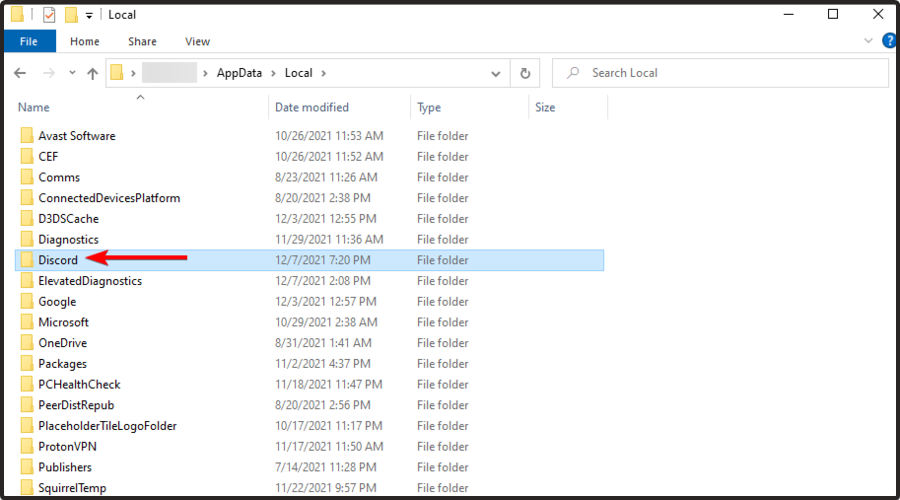


![Can’t Hear Anyone on Discord? [3 Easy Solutions]](https://windowsreport.com/wp-content/uploads/2021/11/alexander-shatov-sIFCJHrUWPM-unsplash-1-1.jpg)
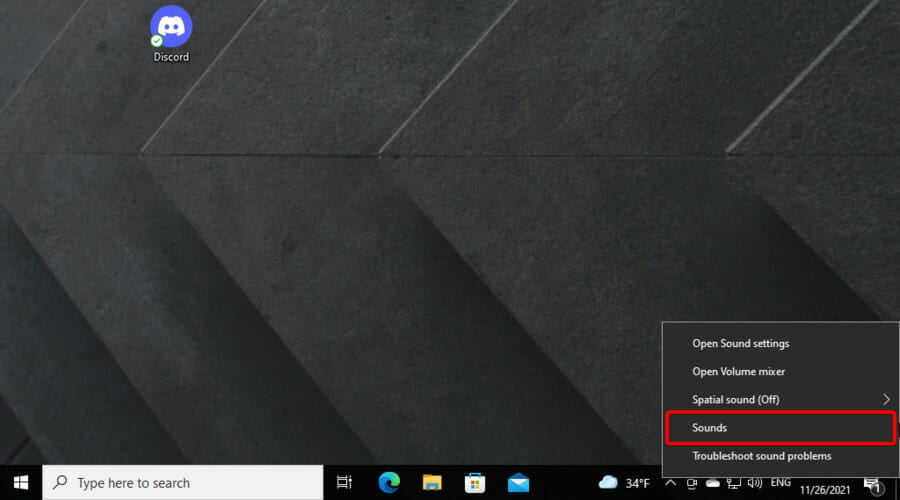


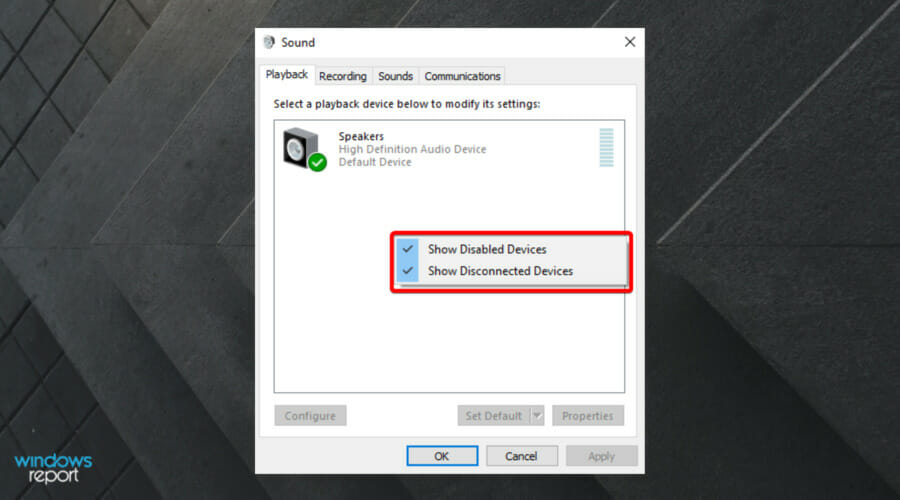
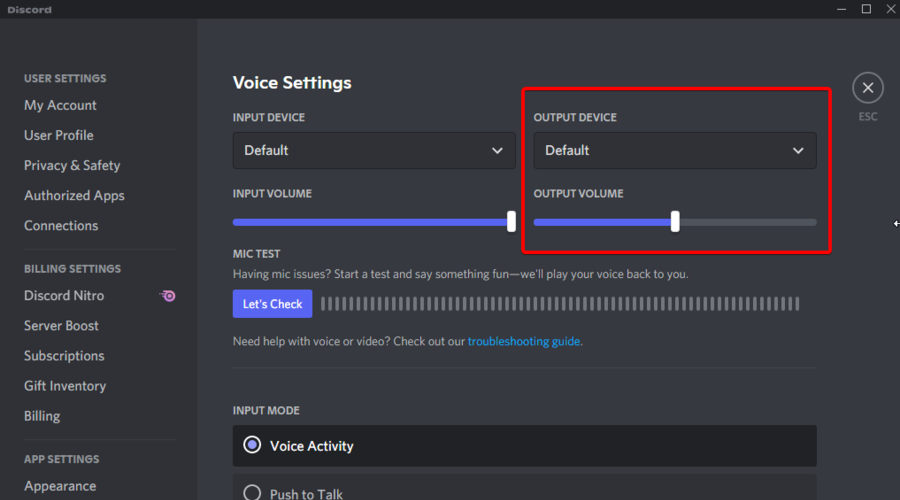
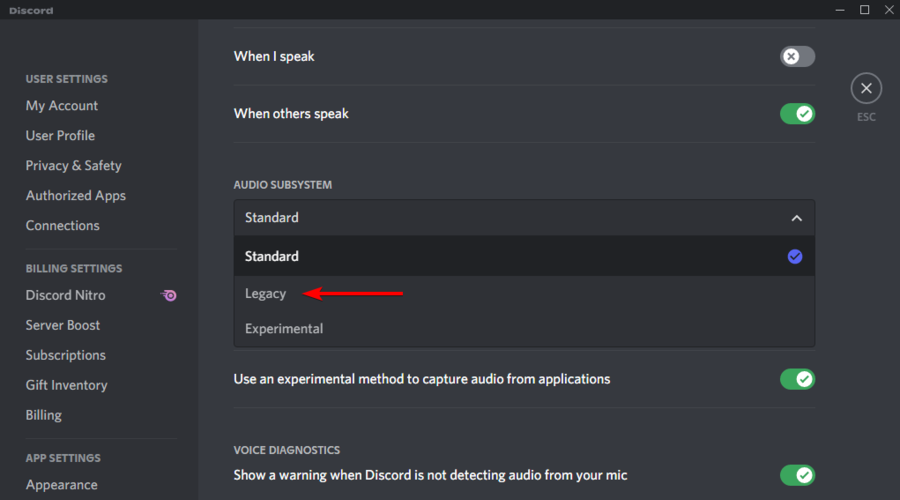
![How to fix Error adding payment method on Oculus [Solved]](https://windowsreport.com/wp-content/uploads/2019/07/Error-adding-payment-method-on-Oculus.jpg)