A problem with your wireless adapter or access point usually means your PC can’t connect to Wi-Fi. This error shows up when Windows fails to communicate with the router, often due to corrupted settings, misconfigured access points, or network stack glitches.
Here’s how to fix it without unnecessary guesswork.
The wireless access point not working issue happens when your device and the router fail to authenticate properly. Corrupt TCP/IP stacks, power-saving features, or misconfigured router modes are some of the main culprits. Luckily, you can fix most access point connection errors with built-in Windows tools.
You can also visit your network adapter manufacturer’s website, locate your device, and download the latest drivers.
You can also try installing the drivers using the CD you got with your wireless adapter. Installing drivers from a CD is an excellent solution if you don’t have an Internet connection. Still, bear in mind that those drivers probably aren’t the latest.
Alternatively, if you want to save some time and be sure to have an error-free update, you can use a dedicated driver updater software. This software will fully scan your PC to find outdated and missing drivers and update them individually or all at once.
Using a wired connection on a laptop kills the vibe. But, if you cannot connect to a Wi-Fi network, you have no choice until the problem gets resolved.
So, connect your laptop to your router with the LAN cable. If the Wi-Fi connection is the only problem, you should connect to the internet without any issues.
Also, since some of the upcoming solutions require an Internet connection, we advise you to keep that LAN cable by your side until we find a proper solution.
If you’re still unable to connect to the internet, even though you’re using a wired connection, something is wrong with your router. There are many possible reasons why Windows 10 can’t connect to the router, including faulty hardware equipment.
Type cmd in Windows Search and click on Run as administrator to open Command Prompt.
Enter the following command and press Enter(replace WirelessProfileName with the actual name of your wireless connection): netsh wlan delete profile name="WirelessProfileName"
Reconnect and reconfigure the network to fix wireless adapter problems.
4. Check if your password is correct
It would help if you always protected your Wi-Fi network with a password. You might accidentally enter the wrong password while connecting to the wireless network.
To fix this problem, disconnect from your network and reconnect again, but ensure your password is correct.
Users reported that your keyboard might enter different characters in rare cases, primarily if you use different input languages on your PC. Therefore, be sure to double-check your password.
Enter the following line of command and hit Enter. netsh winsock reset
Repeat step two with the commands below, and press Enter after each command line.
netsh int ip reset
ipconfig /release
ipconfig /renew
ipconfig /flushdns
You may perform a ping to Google to confirm if the error is fixed.
6. Check if your wireless adapter is disabled
Press Windows Key + X and select Device Manager from the list of options.
Locate your wireless adapter and double-click it to open its properties.
Go to the Driver tab and look for the Enable button. If you don’t see the Enable button, it means that your device is enabled and working.
7. Remove your antivirus software
Antivirus software is essential for your online safety. Unfortunately, some antivirus programs can interfere with your wireless connection and cause a problem with the wireless adapter or access point error.
If that was the cause, we strongly recommend you switch to a different antivirus. Windows Defender is a good tool, but additional software is recommended.
Dedicated antivirus software has large, continuously updated threat databases that ensure real-time protection against incoming attackers.
8. Change the name and password for your Wi-Fi connection
According to users, you can fix this issue simply by changing the name and password of your wireless network.
This is a pretty simple procedure. However, it will vary from one device to another, but you should have easy instructions in your specific router user manuals.
9. Reset your router
This error can be caused by improper router configuration. According to users, you can fix this problem by resetting your router.
To do that, just press the reset button on your router or open the router settings and select the reset option.
Before resetting your router, you might want to save and export your configuration so you don’t have to enter it manually.
For more information on resetting or exporting your router’s configuration, check your router’s manual.
10. Check for Windows Updates
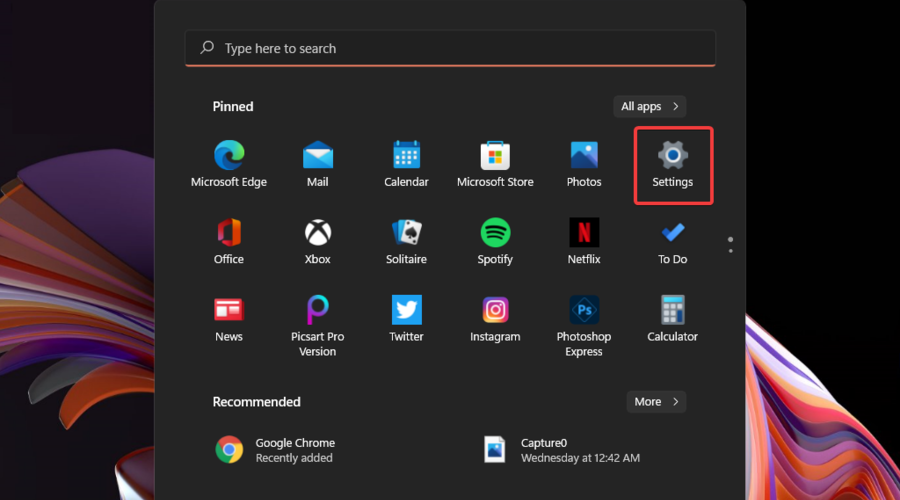
Open your Settings app.
Click on Windows Update at the bottom of the left pane.
Click the Check for updates button.
If there are any updates, download and install them.
Microsoft partners with many hardware manufacturers. Therefore, there’s a legitimate chance you’ll get your wireless adapter updated through Windows Update.
So, connect that LAN cable and check for updates. In case there’s a new update for your router, the system will install it automatically
11. Run the Network Troubleshooter
Press Win + I to open Settings.
Go to System > Troubleshoot > Other troubleshooters.
Select Network Adapter and click Run.
12. Reset TCP/IP and Winsock
Search for cmd, right-click Command Prompt, and choose Run as administrator.
Run the following commands (press Enter after each):
netsh int ip reset
netsh winsock reset
ipconfig /flushdns
Restart your PC.
13. Disable Power Saving for the Adapter
Press Win + X and open Device Manager.
Expand Network adapters, right-click your Wi-Fi adapter, and select Properties.
Open the Power Management tab.
Uncheck Allow the computer to turn off this device to save power and click OK.
14. Check Wireless Mode Compatibility
In Device Manager, right-click your Wi-Fi adapter and choose Properties.
Go to the Advanced tab.
Find Wireless Mode or 802.11 mode.
Match it to your router’s mode (e.g., set to 802.11 b/g/n or 802.11 a/n/ac as applicable) and click OK.
15. Reset Network Settings
Open Settings > Network & Internet.
Scroll down and click Network reset.
Select Reset now, then confirm and allow Windows to restart.
16. Adjust Router Security Settings
Ensure WPA2 or WPA3 encryption is enabled.
Verify that SSID broadcast is turned on.
Confirm DHCP is active so devices receive an IP address.
Wrapping up
This isn’t the only problem regarding Internet connectivity in Windows 10 and 11. You might have encountered other similar ones, and we have solutions for quite a few of them, including:
We believe the wireless adapter or access point problem has been resolved if you have read this far.
Please note that we have written any of these solutions in any particular order, and we expect you to apply the fixes that seem most relevant to the situation.
Let us know in the comments section which one worked for you. We will be glad to recommend them in the first place.
The long-anticipated Destiny 2 collaboration is now live in the Fortnite video game on Xbox One and Xbox Series X console families, Windows PC, Xbox Cloud Gaming, and all other supported platforms.
The collab so far includes three outfits based on the Commander Zavala, Ikora Rey, and the Exo Stranger characters from the Destiny 2 video game, three unique Pickaxes for each character, the Sparrow Glider with three optional appearances inspired by each character, and three Ghost Back Blings.
A Destiny 2 Investigate Emote has also been added to Fortnite. This emote, once activated, summons a Ghost which zooms around the environment scanning various objects.
As with all Fortnite cosmetics, the Destiny 2 items don’t offer any competitive advantage though they are still likely to be popular with Destiny 2 fans, especially those who have been wanting a Destiny 2 experience in third-person perspective.
If you wonder what can you do if when you connect to the VPN you lose your Internet connection, you’re in the right place!
We found applicable fixes for all known causes of this bug/error.
Why does my Internet disconnect when I connect to VPN?
The main reasons why you lose Internet when connecting to VPN include:
Faulty DNS settings, incompatible with your VPN client
Outdated or corrupt VPN software
Connecting to a server that has problems or is down
Security software like firewall or antivirus blocking VPN
In the following guide, we will show you what you can do to fix these issues. So if when you connect to VPN you lose Internet in Windows 11 or in Windows 10, make sure to try the upcoming solutions.
What can I do if the Internet disconnects when connected to a VPN?
1. Check your Internet
First, let’s see if there are any issues that are caused by your network, and not your VPN. ❗Disconnect from your VPN and follow the steps below:
1.1. Check Network and Internet status
Go to Start and then select Settings.
Open Network and Internet.
You’ll see the Network status up in the main menu. If it’s says “Connected, secured”, your connection is fine. But if it says “Not connected” or “No internet”, there is an issue and you should troubleshoot it:
1.2. Run the network troubleshooter
Open the Start menu and select Settings.
Click on System in the left sidebar.
Select Troubleshoot from the list of options.
Click on Other troubleshooters.
Find and click the Run button next to Network and Internet to start the troubleshooter.
If you’re still having issues, run a speed test and finally contact your ISP. But if your internet looks like it’s up and running, only ruined by VPN, keep reading:
2. Connect to a different server location
Select a different VPN server location and connect to it. If you can access the Internet now, , there may be a temporary issue with the server location you originally selected.
3. Change your VPN protocol
Open your VPN’s options or settings and select the Protocol from the list and pick a different one.
VPN protocols are the methods by which your device connects to a VPN server. Some protocols are blocked in different countries or by certain Internet Service Providers.
This may be the reason why when you connect to the VPN you lose your Internet connection. For optimal performance, choose the protocols below in the following order:
OpenVPN TCP
L2TP
PPTP
4. Reinstall your VPN
You can uninstall the app, find the latest version install it, and connect again.
Right-click Start and select Apps and Features
Find your VPN from the list of programs and select Uninstall
Type control panel in the taskbar and open Control Panel
Go to Network and Internet
Open the Network and Sharing Center
Under Network Connections, right-click on the WAN Mini port labeled with your VPN’s name
Select Delete.
NOTE
On some machines, after you uninstall your VPN, it will automatically be removed from the Network Connections. So in case you don’t find yours in the Network Connections list, you’re all good.
5. Check for incorrect date and time settings
Double-click the Date and Time display on the taskbar
Click Change date and time settings
In the Date and Time tab, click Change date and time….
In the Date and Time Settings dialog box, update your time to the current date and time, then click OK
If you need to change the time zone, click Change time zone… , select your current time zone in the drop-down list, then click OK
Restart your VPN and connect to a server location
If you cannot connect to a server location after restarting your VPN, re-install the VPN. You do not need to uninstall the app first, just run the installation program again
6. Install the latest version of your VPN
Right-click Start and select Run
Type regedit and press Enter
You will now see the User Account Control dialog box. Click Yes
In the Registry Editor, under Computer, double-click on HKEY_LOCAL_MACHINE.
Under HKEY_LOCAL_MACHINE, double-click on SOFTWARE and then [your]VPN
If you cannot find [your]VPN directly beneath SOFTWARE, go to SOFTWARE > Classes> [your]VPN
Right-click on [your]VPN and then click Delete. After deletion, you should no longer see your VPN under Wow6432Node
If you can’t edit your Windows 10’s registry, read thishandy guide and find the quickest solutions to the issue.
If you see that the VPN is still listed as an available VPN connection after uninstalling:
Type Control Panel in the taskbar to open Control Panel
Go to Network and Internet and click on Network and Sharing Center
On your Network Connections window, right-click on the WAN Miniport labeled [your]VPN
In Network connections window, find your usual connection, either LAN or Wireless network connection.
Right click the connection and select Properties
7.2. Set the DNS server addresses
Double click Internet Protocol Version 4 (IPv4) or just Internet Protocol
Select Use the following DNS server addresses
Type these Google DNS server addresses: Preferred DNS server 8.8.8.8 and Alternate DNS server 8.8.4.4
If Google DNS is blocked, try the following: Neustar DNS Advantage (154.70.1 and 156.154.71.1) enter and press OK; Level3 DNS (4.2.2.1 and 4.2.2.2) enter and press OK. Once you’re done, set your VPN’s DNS settings, and flush old DNS entries as described in the next solution.
DNS server is not responding in Windows 10? Take a look at this guide and fix the issue in no time.
8. Adjust your proxy settings
If you’re having trouble connecting to the Internet, it’s possible that it has been set to use a proxy server. This could interfere with your VPN.
To disable proxy in Internet Explorer:
From the Tools or gear menu, select Internet options.
In the Connections tab, click LAN settings.
Uncheck all of the displayed options except automatically detect settings.
Click OK
Close your browser and then open it again.
9. Change your VPN
If your VPN still kills your internet, even after trying to troubleshoot, switch to a better one.
Opt for a premium option – with VPNs, you get what you pay for. If you don’t invest in a quality service, you risk poor connections, data issues, or no connection at all.
If your touchpad is not working on Windows 11, the problem can be caused by a recent update, driver issues, or disabled settings. This guide covers step-by-step solutions for common touchpad problems on Lenovo, HP, Acer, and ASUS laptops, including how to enable it, update the driver, and use the on-screen alternative if needed.
What can I do if the touchpad is not working in Windows 11?
Using the keyboard arrow keys on your laptop, select the Restart option. Then, click on OK.
Press Enter on your keyboard.
Wait till your laptop restarts, then check whether the issue has been resolved. Windows 11 OS is a bit glitchy sometimes, as a result, the touchpad stops working.
2. Enable your touchpad using Settings
Press the Windows key + I.
Click on Bluetooth and devices in the Settings app.
Click on the touchpad on the right side.
Switch on the toggle under the touchpad.
The Windows 11 touchpad not working often occurs after a user makes a Windows 11 update. The system might at times shut itself off during installation.
Confirm whether the touchpad turned itself off during the installation process. If the issue persists after turning it on, move to the next solution.
3. Update your touchpad driver
A corrupted or outdated touchpad driver can cause issues. Here’s how to reinstall or update:
Press Windows + X and select Device Manager
Expand Mice and other pointing devices
Right-click your touchpad and choose Update driver
If updating fails, choose Uninstall device, then restart your laptop
Windows will auto-reinstall the correct driver. For Lenovo laptops, see the full Lenovo touchpad not working guide for model specific driver fixes.
Alternatively, you can always rely on specialized software. This tool allows you to automatically scan for and replace any broken or outdated drivers in just a few minutes.
You can also review model specific fixes in the Dell laptop touchpad not working guide which provides additional steps for driver issues and recognition problems that often appear on Windows 11.
4. Reset your touchpad
Tip
Resetting your touchpad assists in regaining your original touchpad settings. Therefore, it reduces the chances of any problems occurring.
Press the Windows key + I.
Click on Bluetooth and devices in the Settings app.
Click on the touchpad on the left side.
Scroll to the bottom in the right.
Click on Default to restore your previous settings.
5. Use the On-Screen Touchpad (Temporary Fix)
If your physical touchpad is unresponsive, you can open the on-screen touchpad in Windows 11 as a backup.
Press Windows + Ctrl + O to open On-Screen Keyboard
Click the Touchpad icon (or open Settings > Accessibility > Mouse > On-screen touchpad)
Use this virtual touchpad to navigate until your physical one works
6. Use keyboard shortcuts to enable your touchpad
On most Windows 11 laptops, pressing the Fn key along with one of the F1–F12 function keys controls the touchpad. The exact key varies by model, so check your keyboard symbols or device manual.
Some models also have a dedicated touchpad lock. For example, certain HP laptops feature a small lit square in the corner of the touchpad. If it’s lit, the touchpad is disabled, tap it once to re-enable.
7. Disable the tablet input service
Press the Windows key + R key, the Run dialog will appear.
The Services app will then open, find the Tablet PC Input Service or TabletInputService.
Right-click on the option, then select Stop.
Restart your device.
Check whether your touchpad has regained its normal functions. If the issue persists further, repeat the above steps but this time select Start to enable the service.
8. Perform a System restore
Press the Windows key + R key to open the Run dialog.
Key in the following command: rstrui.
Click on OK.
The System Restore Wizard will open. Select the option Choose a different restore point.
Click on Next.
Check the box set before Show more restore points.
Then, choose the most recently created restore point, click on Next.
Click on Finish to initiate the restoring process.
9. Check for multiple mouse drivers
NOTE
Having an extra mouse along with the built-in touchpad on your laptop creates a conflict with the integral touchpad driver. This cause the Windows 11 touchpad to stop working.
Press the Windows key + S key.
Key in the following command: devmgmt
Click on Device Manager when it appears.
Find the Mouse and pointing devices and click on it to expand the driver list.
Right-click on the external mouse driver.
Select the Uninstall device option.
Click on Uninstall when the popup prompts.
Check whether your touchpad is now active.
Once the issue is fully resolved, Restart your Windows. Your system will automatically reinstall the external mouse driver.
10. Reinstall your touchpad driver
Press Windows + X keyboard shortcut.
Select Device Manager.
Then, find the Mice and pointing devices.
Double-click on the option to expand the driver list.
Find the touchpad driver and right-click on it.
Select the Properties option.
When the window pops up get on to the Driver tab.
Select the Roll Back Driver button. This will allow you to get back to the previous version before the update.
Once you successfully revert to the previous version, Restart Windows 11 and check whether the touchpad is back to normal.
If this does not work for you, then uninstall it. You need to follow these steps:
Once you get to the Driver tab, select the Uninstall Device. This will help you remove drivers’ files and the registry entry of the software.
Then, restart the Windows device. The driver will get back to its default version.
11. Clean your touchpad
Over time, dirt deposits, skin oils, and grime accumulate on your touchpad. As a result, your touchpad stops functioning properly. The touchpad is less responsive and much slower because of the build-up.
Before trying anything else, clean up your touchpad using a soft piece of cloth. Preferably use a moist cloth to ensure that you get to clean it up properly.
After cleaning out all the build-up, try dragging your finger around the surface to check whether the issue has been resolved.
12. Use the laptop’s troubleshooter and run the Windows Hardware
NOTE
The Windows Hardware and Device troubleshooter is in place to help resolve hardware-related issues without necessarily having to use third-party software.
Press the Windows key. Then, type cmd.exe.
Right-click on the Command prompt, then select Run as administrator.
Click on Yes to allow User Account Control.
Key in the following command: msdt.exe -id DeviceDiagnostic
The Hardware and DevicesTroubleshooter will appear. Click on Next.
If the automatic repair pops up, click on Apply this fix.
Follow through the instructions to the end.
13. Adjust Windows Registry
NOTE
The update driver software may vary from one laptop to another, therefore, these instructions might vary as well. But, they should suffice for most of the parts.
Press Windows key + S key.
When the search bar pops up, key in the following command: regedit.
Press Enter key to open the Registry Editor.
Select Yes on the User account control prompt.
Then Navigate through this code: Computer\HKEY_LOCAL_MACHINE\SOFTWARE\Synaptics\SynTP\Install
Double-click on DeleteUserSettingsOnUpgrade (DWORD) that is on the right-hand side panel.
In the event, that the DWORD is not there, you can still create it manually by right-clicking on the empty space. Then select the new DWORD (32-bit) Value.
Then, double-click the DWORD to reset the value data to 0.
Click on OK to save the changes made.
14. Boot into Safe Mode
Safe Mode helps you check if third-party software or drivers are interfering.
Press Windows + R, type msconfig, and open the Boot tab
Check Safe boot > Minimal and restart If the touchpad works in Safe Mode, the issue is likely caused by a background process or driver conflict.
15. Check for Firmware or BIOS Updates
Outdated firmware can cause hardware issues, especially after Windows updates.
Visit your laptop manufacturer’s support page
Download and install the latest BIOS or firmware update
16. Disable USB Selective Suspend
Sometimes, Windows disables unused USB devices (including touchpads internally connected via USB).
Go to Control Panel > Power Options > Change plan settings > Advanced
Expand USB settings > USB selective suspend setting and set to Disabled
17. Use Device-Specific Touchpad Software
Manufacturers like Lenovo and ASUS often include their own touchpad utilities (e.g., ASUS Smart Gesture, Lenovo Vantage).
Check the official support site for your laptop model
Install or update their touchpad utility software
Why Isn’t My Touchpad Working in Windows 11?
Touchpad issues in Windows 11 can stem from:
Disabled settings (accidentally turned off)
Faulty or outdated drivers
Conflicts after a recent system update
BIOS settings disabling internal devices
Physical hardware faults
Using the steps above will help identify and resolve these causes.
FAQs
Why is my laptop touch not working in Windows 11?
It may be disabled in settings, blocked in BIOS, or affected by a faulty driver after an update.
How to enable touchpad on Windows 11 if the setting is grayed out?
Try updating or reinstalling the touchpad driver via Device Manager, or check BIOS settings to re-enable it.
Does my laptop model matter when fixing touchpad issues?
Yes. Lenovo, HP, Acer, and ASUS use different key combinations and drivers. Always check your model’s support page.
Wrapping up
Windows 11 touchpad problems include delayed cursor response, the cursor jumping all over, and settings missing or not functioning completely. You may also be unable to scroll through your screen.
When thousands of Steam users try to use the Store simultaneously, mainly during a sale, it creates a heavy load on the Steam servers.
This is when you bump into the e502 l3 error on Steam and may encounter login issues or fail to access the library.
Therefore, it’s recommended that you wait till the Steam servers are stabilized and are back up and running.
You can also check the Steam community hub or the SteamDB to find the server status and other details to get a clear idea of how the platform’s servers perform.
However, if servers are working fine and you still see the Steam error code e502 L3, you may try the below workarounds to fix the issue.
How do I fix the e502 l3 error on Steam?
1. Add Steam to Windows Defender Firewall Exceptions List
Right-click on Start and select Run to open the Run console.
Type control in the search bar and Enter to open the Control Panel window.
Next, go to View by on the top right of the window, and set it to Category.
Now, click on System and Security in the list.
On the next screen, on the right, click on Allow an app through Windows Firewall.
Next, click on the Change settings button on the top right.
Look for Steam in the Allowed apps and features list and check both Private and Public boxes.
Press OK to save the changes and exit.
Now, open the Steam app and check if you can log in and navigate to the library without seeing the error code E502 L3.
2. Turn off Windows Defender Firewall
Please navigate to the Start button, right-click on it, and click on Run to launch the Run console.
In the search box, type Firewall.cpl and hit Enter.
Now, click on Turn Windows Defender on or off on the left.
Next, select Turn off Windows Defender Firewall under both Private and Public network settings in the Customize Settings window.
Press OK to save the changes and exit.
Now, open Steam and check if you can now access the games or make purchases in the Store.
Go to Start (Windows icon), right-click on it, and select Run to open the Run console.
Type appwiz.cpl in the search box and hit Enter.
In the Control Panel window, under Uninstall or change a program, look for the Steam app, right-click and select Uninstall.
Once completely uninstalled, restart your PC, visit the official Steam website and re-install the app.
Can I reinstall Steam without losing games?
Yes, you can reinstall Steam, and you can still keep your games. There are two ways in which you can recover your Steam games when you uninstall the app and reinstall it later:
1. Redownload them as you reinstall Steam
However, if you uninstall Steam, the files for your games on your PC will also be uninstalled.
But the good thing is, as soon as you log into Steam on another PC or reinstall Steam, you’ll be able to go to your library and download the games again.
That’s because your games will remain associated with your account id, even if you uninstall the app. Download Steam on another computer, and you can redownload them.
2. Copy games from Steam apps common folder
Press the Win + Ekeys simultaneously to launch File Explorer.
Now, navigate to the location where the Steam folder is saved on your PC.
For example, on my PC the Steam folder is located in Program Files (x86), hence the path: C:\Program Files (x86)\Steam
Now, look for steamapps and open the folder.
Here, look for the Common folder and double-click to open it.
Next, copy all the game files here, go to desktop or your preferred location and paste it there.
Uninstall the Steam app like any other Windows 11, as explained in our detailed post.
Next, when you reinstall Steam later on the same PC, you can paste all the games you copied into the Common folder.
Open Steam, go to the Library and start installing the games.
You should see it’s allocating files and installing them instead of redownloading everything.
While the above methods can help you fix the Steam error quickly and effectively, if it still doesn’t, you should check if the internet connection is working correctly.
Additionally, you may also try logging out of the game or exit the game and relaunch it to check if it resolves the error e502 l3, or
At the same time, make sure you disable any 3rd party antivirus software on your PC or do not use a 3rd party anti-cheat software.
Printers are the machines that take inputs from the system, like computers, laptops, etc., and print them on paper.
Millions of people all over the world use printers and scanners at places like educational institutions, offices, stores, houses, etc.
There are different types of printers available on the market currently, such as laser printers, LED printers, 3D printers, and so on. There are better deals when buying laptops and computers that have printers with them these days.
Does HP have drivers for Windows 11?
Recently, HP has released drivers for the compatible HP printers for the Windows 11 system.
They also have a dedicated Smart app to guide users on how to connect and print various documents using the HP printer on their Windows system.
There is also a diagnostic tool called HP Print and Scan Doctor for Windows. This tool is designed such that users just need to run the tool on their system. It starts diagnosing any errors and has got problem-solving features.
Will a Windows 10 printer driver work on Windows 11?
Yes, the HP printer driver, meant for the Windows 10 system, undoubtedly works on the Windows 11 system as well. Earlier, before the driver for Windows 11 was released, users had to download and install the Windows 10 printer driver.
A few users also got an issue where the printer seems offline while trying to print any documents.
This article guides you if you are looking forward to downloading and installing the HP printer driver on the Windows 11 system.
Quick Tip:
As printer drivers might be the most annoying drivers to work with, we recommend a simpler and faster solution to get your printer working.
Outbyte Driver Updater will scan for outdated drivers on your PC and update them if possible. Also, it will make sure that the installation process is done correctly so no errors occur.
Outbyte Driver Upadater
A few clicks away from an optimized system and a working printer.
After the downloads page gets loaded, Enter your product name (printer name) in the textbox as shown below.
Next, click Submit or the dropdown of the search results for your product name.
It displays all the software and drivers for your printer.
This detects your operating system and displays it. If you want to change it, you should click Choose a different OS.
A pop-up window opens and you need to select Windows from the Operating System option and then select Windows 11 from the Version dropdown.
After selecting Windows 11, click Change.
It then lists all the drivers and software for your printer for Windows 11 operating system.
Now click on Installation Software and Full/Basic Driver option for expanding it.
You should now click Download of HP Easy Start Printer Setup Software – Offline Use Only which has a size of 195 MB.
This starts downloading the printer driver’s complete executable package on your system.
If you’re also setting up HP accessories like docking stations, you may need additional drivers. For instance, you can follow this HP USB-C Dock 5G drivers guide to get the correct package for your HP dock.
How do I install the HP printer driver on Windows 11?
Open the Downloads folder on your system where the downloaded HP printer’s driver package is present.
Once you open the folder, right-click on the printer driver package and select WinRAR > Extract to HPEasyStart(you need to have WinRAR installed on your system to apply this step; if not, please install it).
This will extract the entire package to a folder inside the Downloads folder.
Now open the Settings app by pressing together the Windows and I keys.
Select Bluetooth & devices option on the left menu and click Printers & scanners option on the right-hand side.
Then click Add device to add a new printer or scanner.
Select Add a new device manually for adding the printer device which is not listed.
In the Add Printer wizard, select Add a local printer or network printer with manual settings radio button and click Next to proceed.
Click Have Disk option to browse the downloaded driver package.
Select the HP driver inf file from the extracted folder by clicking on Browse.
After selecting the file, click OK.
Choose the printer from the listed ones and click Next.
Give an appropriate name for the printer and proceed by clicking Next.
Now if you do not want to share this printer with others on a network, select the Do not share this printer radio button and click Next. Otherwise, you need to select the second option and provide all the necessary details of the location, etc.
Finally, it will display You’ve successfully added the printer message on the wizard.
You can now directly test the printer by clicking the Print a test page and following the onscreen instructions.
Close the wizard by clicking Finish.
This will add the printer to your system and you can start printing documents or files using this HP printer on your Windows 11 system.
Why does my computer say printer driver unavailable?
When any user finds an error message while trying to print any file or document, which says Printer driver unavailable, this means the printer driver may be corrupted. An outdated printer driver could also be the reason behind this error message.
Does HP have a driver update tool?
Yes, HP has a tool called the HP Support Assistant which works on both Windows 11 and Windows 10. Users have to install the latest version of the HP Support Assistant on their system and run it. This tool has great features, which update the system if it is HP, drivers, software, etc.
To make it feel a lot more welcoming and homier, you can personalize the look and feel of your Windows OS as much as you possibly want.
And, of course, there are dozens of ways of going about and changing certain things that you feel would deserve some further tweaking.
As an example, you can enable or disable Show accent color on title bars and windows, an option that lets you show or hide the window border.
On the off chance that you find this setting less useful, you can turn off the window border color on your Windows 11 powered gadget. If you were asking how you can do that, we got you covered.
How to turn off window borders color in Windows 11?
The operating system’s latest version ships with an accent color feature that renders colors to window borders.
If you have been a Windows user for some time now, you already know that the OS is pretty permissive in terms of customization, so there are a lot of ways you use that to your advantage.
However, today we are going to focus on enabling/disabling accent colors and the window border color.
1. Turn off accent color for Start and taskbar
Right-click on your desktop and select Personalize from the menu.
Click on the Colors button.
Untick the option called Show accent colors on Start and taskbar.
This is just in case you don’t want your selected accent color also to be applied to your taskbar and Start menu but would want to keep them neat and transparent.
You can go back and turn this option back on whenever you want, using the same process, as this is not a permanent modification.
2. Disable accent color on window borders
1. Right-click on your desktop.
2. Select Personalize from the menu that opened.
3. Navigate to the Colors section.
4. Here you can see the Show accent color on title bars and windows borders setting.
5. Toggle it off by clicking on the the button next to it.
6. This action will disable the window border color in Windows 11 completely. However, just as we mentioned above, you can go right back in at any time and enable it.
You can easily turn off the window color on your device by tweaking Personalization settings. From the Personalization menu, you can toggle the color and and off in a simple click.
Should I leave these window border settings on or off?
There is no official guide or any documentation that states the need to have such options turned on at all times. These are simply cosmetic settings that will not impact the overall performance of your device.
So, feel free to make however many visual modifications you want to your operating system. Keep in mind that all such changes can be reversed with a few simple clicks, so go ahead and customize every aspect of the OS to your liking.
Remember that if you ever find yourself in a situation that you haven’t faced before, tech-wise or you simply need some assistance with your laptop PC, or tablet, you are in the right place.
Do you keep accent colors or disable them? Share your preferences with us in the comments section below.
SD cards are mini storage devices used to hold valuable files. They are mostly used in portable devices and can be accessed on PCs.
However, some people are starting to complain that their laptops are not detecting SD cards. This issue is not just limited to old PCs but also some of the best Windows 11 laptops.
Fortunately, it is an issue that is easy to fix, as we will show in this guide.
Why is my laptop not recognizing my SD card?
There are many factors that could cause your laptop not to read or recognize your SD card. It can be due to connectivity issues, problems with the SD card, or the reader.
Below are some of the popular causes:
Outdated drivers
Dirty or dusty SD card or reader
Faulty port
Corrupted SD card
How do I get my laptop to read my SD card?
1. Clean SD card and reader
If your card reader, also known as the adapter or the SD card, is dirty, your laptop might have problems detecting it. So, before moving to complicated fixes, check if they are dirty.
In case you find dirt there, you need to clean the reader and the SD card with a soft material like cotton wool. You only need to dip the material in water and clean it gently.
Ensure you do not scratch the metallic part of either the adapter or SD card while cleaning. This is because any dent on either of them can make it stop working altogether.
2. Use another port
Sometimes you might be trying to access your SD card from another device via a USB port on your laptop, and it might not be detecting it. In this case, you need to try another port.
This is because one of your laptop ports might be weak or faulty. With this, it won’t recognize your SD card.
3. Update drivers
3.1. Update drivers manually
Press the Windowskey + Xand select Device Manager.
Double-click the Disk drives option to expand it.
Right-click on your SD card reader and select the Update driver option.
Choose the Search automatically for drivers option.
Wait for the search to complete and install any available update.
If your HP, Dell, or any other laptop is not detecting or reading your SD card, it might be because of an outdated driver. Updating the driver should restore normalcy in no time.
3.2. Update driver automatically
Instead of going through the stress of updating your drivers manually with the steps above, you can do it automatically with dedicated software. And there is currently no better driver updater than Outbyte Driver Updater.
Outbyte Driver Updater is a top-notch tool that takes care of everything driver on your PC. It automatically scans for outdated, missing, and broken drivers.
It recommends original drivers from trusted manufacturers worldwide to keep your PC in top shape. All you have to do is to allow the installation, and Outbyte Driver Updater will take care of the rest.
This tool might just be everything you need to fix the laptop not recognizing or detecting SD card and other driver-related issues on Windows 10/11.
Outbyte Driver Updater
Get rid of most errors by updating all outdated drivers.
Press the Windowskey + Xand select the Windows PowerShell (Admin) option.
Copy and paste the command below and hit Enter. chkdsk Y: /R
Wait for the process to finish and check if the SD card is now working.
Sometimes your Windows 10/11 laptop might not be detecting your SD card because of some bad sectors. This command above helps to scan the card completely and repairs any bad sector where possible.
Not that the letter Y in the command is the letter assigned to your SD card. So, you should replace it.
To know which of the components is causing the problem, try to use the SD card on another PC. You can try different permutations, like using the SD card with another adapter on the new laptop.
You might have to replace the SD card if it fails to work. This is because the SD card might be broken and cannot be detected by a laptop to fix it.
The SD card not showing up or working on Windows 10/11 laptop issue stops you from accessing and transferring files. It can also lead to losing valuable files if care is not taken.
But with the fixes in this guide, the issue should be a thing of the past.
Feel free to let us know if you were able to make your laptop detect the card in the comments below.
Computer issues will occur sooner or later on your PC. Unfortunately, fixing those problems isn’t always a simple task, but there’s one Windows tool that can help you. If you want to check your reliability history on Windows 10, today we will show you how to use Reliability Monitor.
This utility tracks and logs all system events, including errors, warnings, application crashes, and other issues affecting the system’s stability. It can be accessed by searching for Reliability History in the Start menu or Control Panel.
The report is presented as a graph that shows the stability index of the system over a selected period, along with details of any events that have occurred during that time. The stability index is a score ranging from 1 to 10 that reflects the system’s overall stability.
A score of 10 indicates that the system has been running without any issues, while a score of 1 indicates that the system has experienced frequent crashes and other issues.
Additionally, using this utility, users can quickly identify and troubleshoot issues that may be affecting the performance and stability of their Windows system. It also provides valuable information for system administrators to maintain and monitor the health of their networked computers.
How can I use Reliability History on Windows 10?
1. Opening Reliability History
1.1 Open Reliability History from Windows Search
Press Windows Key + S and enter reliability.
Select View reliability history from the menu.
1.2 Open Reliability History from the Run Dialog
Press Windows Key + R to open the Run dialog.
When the Run dialog opens, enter perfmon /rel, press Enter, or click OK.
1.3 Open Reliability History via Control Panel
Lastly, you can start the Reliability Monitor simply by navigating to the Control Panel. The Security and Maintenance menu allows users to view the reliability history in a few clicks.
1. Press Windows Key + X to open the Win + X menu.
2. Choose Control Panel from the list of options.
3. When Control Panelopens, navigate to the System and Security section.
5. When the Security and Maintenancewindow opens, expand the Maintenance section.
6. Now click on View reliability history.
7. The report will now generate. This can take a while.
8. Reliability Monitor also offers detailed information for each day. Simply select a specific day on the chart and you’ll see a detailed report at the bottom.
9. You can also view technical details about errors on your device. You can see which application caused a warning or a critical event to appear. In addition, you can also see the type of critical event or warning.
Lastly, you’ll see the exact time and date when a specific issue occurred, which makes it easier for you to troubleshoot a problem.
2. Track stability and performance
Open the utility using any of the methods described above.
The utility will show a graph of the system’s stability index over time. The stability index ranges from 1 to 10, with 10 being the most stable.
You can click on any point on the graph to see details about the events that occurred at that time, including warnings, errors, and other issues.
You can also filter the view by date range or by selecting a specific event type to display in the graph.
Lastly, clicking on an individual event will show more detailed information, including a description of the problem, any related files or applications, and suggested actions to resolve the issue.
How do I clear my Reliability History?
Use any of the three approaches discussed above to open Reliability History.
Scroll to the bottom and click View all problem reports.
Click Clear all problem reports at the bottom right.
Finally, click Yes to confirm your choice and wait for the process to complete.
Many advanced users are probably familiar with the Event Viewer. This powerful tool can detect every event, warning, or error. The device uses the information from the Event Viewer but displays it in a user-friendly manner.
Lastly, if you’re having any issues with your PC, we advise you to check your Reliability History using this tool.
Users experimenting with the keyframes property in Firefox have reported that their code doesn’t yield animation results but works in Chrome. Keep reading to find the solution to this problem.
Keyframe animations are popular among web developers and designers because of their versatility. The keyframes rule in CSS controls a CSS animation sequence using changing styles. Check out our recommendations for the best browsers that support keyframes and CSS animations.
How does keyframe animation work in CSS?
Keyframes add an animation element using CSS styles. The animation is configured by timing each keyframe in a sequence using percentages. A keyframe indicates the point in time where a position, opacity, or audio is used.
To create a change in the animation, at least two keyframes need to be specified to create motion. One keyframe should be placed for the value at the beginning of the change and one at the end.
How do I fix keyframes if they are not working in Firefox?
1. Double-check the code
This may seem like an obvious solution, but sometimes an issue can arise from a mistake as simple as an extra space somewhere in the code. Carefully look over the code to ensure there are no misspellings, missing or added values, extra spaces, etc.
If there is no animation-duration specified, then the keyframes element will not play the animation. To set a duration, add an animation-duration rule with a set value of seconds in the same section as animation-name.
If you want a continuous loop of the CSS animation, use the animation-iteration-count rule. Either specify the number of times you want the animation to cycle or use an infinite value.
3. Remove vendor prefixes
Vendor prefixes make it so a browser supports new CSS features before they are fully stable across all browsers. Because Cascading keyframes are now supported on Firefox since version 14, there is no need to have the -moz- prefix.
Hopefully, one of the above solutions helped fix the issue of keyframes not working in Firefox. Let us know in the comments which solution worked for you or if you have a suggestion for another solution.
While the most attractive solution may be to download the DLL file simply, you need to be careful where you download it.
Also, this might not necessarily resolve the msvcr110.dll not found in Windows 10 issue. But our fixes below will make do.
What is msvcr110 dll in your computer?
MSVCR110.dll is a Microsoft Visual C++ Redistributable DLL, as suggested by its name. This DLL file is needed to run any app built using Visual Studio 2011/2012.
If this file is missing, Windows will return this error: The Program can’t start because MSVCR110.dll is missing from your computer. Try reinstalling the program to fix this problem.
Where is msvcr110.dll located?
Don’t worry; you don’t need to stage a treasure hunt or check a detailed map in order actually to find this on your system.
The msvcr110.dll file is usually located in the C:\Windows\System32 folder and represents a necessary file for the Visual C++ on your PC.
Plenty of third-party programs out there that promise to fix or replace missing or broken DLLs.
While most stay true to their word, some are better equipped than others to help you fix the msvcr110.dll not found in Windows 10 issue.
2. Reinstall Visual C++ Redistributable for Visual Studio 2012
Go to Control Panel > Programs and Features.
Select Visual C++ Redistributable for Visual Studio and click Uninstall on the top of the window.
Now go to this link and download the latest version of Visual C++ Redistributable for Visual Studio.
Once the download is complete open the setup file and follow the on-screen instructions to complete the installation.
This will almost certainly resolve the error. In addition, the fresh installation will replace/restore the latest copy of msvcr110.dll. If this doesn’t solve your problem, move on to the next solution.
The most common reason behind the msvcr DLL missing in Windows 10 error is when the user accidentally deletes the file.
Unless you have emptied the recycle bin recently, there’s a good chance the file is still saved there.
Simply open the Recycle Bin and locate the msvcr110.dll file. Right-click on it and click Restore. This should resolve your issue.
5. Reinstall the program that’s producing the msvcr110.dll error
If the msvcr110.dll error shows up every time you use a particular program, try reinstalling that program.
Go to Control Panel > Programs and Features. Select the program and click uninstall. Follow on-screen instructions to complete the process.
6. Run a virus/malware scan of your entire system
Go to Start, type defender, and double-click Windows Defender to launch the tool.
In the left-hand pane, select the shield icon.
In the new window, click the Advanced scan option.
Check the Full scan option to launch a full system malware scan.
Of course, you can also use (and we do recommend this option) an anti-virus software of your choosing. Hopefully, this will identify the culprit and fix your problem.
There are many great security tools available, but the best are TotalAV, Bitdefender, and Panda Antivirus, so feel free to try any of them.
So, just to be sure that there isn’t any malware on your system that is causing the msvcr110.dll error, run a quick scan of your system. Malware is often responsible for deleting DLL files.
7. Use System Restore to undo recent system changes
Click on Start and type System Restore on the search box.
Select System Restore from the search results.
On the newly opened window, follow the on-screen instructions.
The system restores process will now start. Once the process is complete, restart your computer. This will most likely fix this error.
So, if all else fails, try using system restore to restore your computer to a state from an earlier date. A recent update or a system change could be a reason behind the missing msvcr110.dll file.
There you go! This is all you need to know in case msvcr110.dll missing on Windows 10 and, of course, how to install msvcr110.dll in Windows 10.
When you find yourself in a situation where you get The code execution cannot proceed because msvcr110.dll was not found error, please refer to the guide above.
Have you managed to solve the issue using this article? Let us know in the comments section below.
Not long ago, in response to the Zoom surprise due to the infamous pandemic, Google decided to implement Google Meet inside Gmail.
That made it free for everyone and capable of managing up to 100 people with no time limits in a meeting.
That was a nice move but some users either complained about losing the precious estate from the left pane or that they just don’t want to use Google Meet.
Because of the negative feedback from the users, Google decided to offer a way of hiding the Google Meet buttons from Gmail.
Whatever your reasons for removing the Google Meet buttons, read our article to find out what exactly to do to get rid of them.
How can I hide the Google Meet buttons from Gmail?
You can easily hide the Google Meets buttons via Gmail’s built-in Settings. From there, you can configure whether you want these buttons to be visible or not on the main menu.
1. Open your browser.
2. Go to Gmail.
3. Click on the Settings button (the cogwheel) from the top right corner of your Gmail window.
4. Choose the Settings option from the drop-down menu that opened.
5. In the Settings window, click on the Chat and Meet tab.
6. Tick theHide the Meet section in the main menu checkbox.
7. Click on the Save changes button below.
8. The Gmail window will refresh and Google Meet buttons will be a thing of the past.
Of course, you can reverse this following the same steps if you change your mind and start embracing Google Meet.
Today, we’ll show you how to enable location permissions in your browser. This will help you get correct local information such as weather, maps, and local news.
This guide shows you exactly how to turn location access on or off in Chrome, Firefox, Opera, and more, so you stay in control of what your browser shares.
On the right-hand corner of the screen, click on the three dots to prompt the Menu tab.
Scroll down and select Settings.
Click on Privacy and security, then select Site Settings.
On the new tab, select location.
Choose the option you want as your default setting.
Restart your browser for the changes to sync.
After this process, browser geolocation permission would be disabled on your Google Chrome. Hence, it will not tie your activities to your location anymore.
2. Opera One
Launch the Opera One browser on your computer.
Click on the Menu button.
Select Settings from the drop-down and click on Privacy and Security.
Click Site setting and choose location.
Here, you can change your browser location settings whenever you like.
However, we recommend you close and relaunch your browser for the changes to sync correctly.
3. Mozilla Firefox
Launch the Mozilla Firefox browser on your computer.
On the right-hand corner of the screen, click on the Menu button, and choose Options.
Select Privacy and security on the left side of the screen.
Go to Permissions, then click on Settings right in front of the location.
While in the location permission settings tab, you can change your browser geolocation access in your browser settings.
4. Microsoft Edge
Launch the Microsoft Edge browser on your device and select Menu.
Click on the Settings button.
Select cookies and site permission from the drop-down.
Click on Location.
Users can on and off location access and manage it for specific websites in the browser location permission settings.
How do I stop my browser from knowing my location?
Disable location access for your browser on Windows
Press the Windows + I key simultaneously to prompt Settings.
Go to the bottom of the screen and click on Privacy.
Click on the location, scroll down and toggle off the switch for the Allow apps to access your location option. (It will disable location access for all apps)
However, to disable geolocation access for a specific app, do these:
In location, toggle on the Allow apps to access your location option.
Scroll down to Choose which apps can access your precise location and turn off the switch for your browser.
Why do websites want to know my location?
Websites use your location to show local content, services, and ads, like nearby restaurants on maps or in-stock items on shopping sites. It can improve your experience, but it also raises privacy concerns. Some sites may misuse that data, so it’s smart to keep location access off by default and only allow it when it’s actually needed.
These are the best ways to disable browser location permission on your device. Although you can disable browser location with Javascript, it requires understanding some codes. Hence, we have provided more straightforward approaches to it.
Nonetheless, turning on your browser location services can result in security breaches. Hence, users must know how to protect their browsers from online thefts. We recommend you read our article about the methods to protect yourself from browser information leaks.
Furthermore, VPNs are suitable for online protection. They protect you from being detected online while going about your online activities by connecting you to the internet through encrypted servers. So, it may be beneficial to know the best VPNs for laptops with enhanced security and speed.
Thumbnails are great, and it seems like some PS owners are most likely to use them over icons. They refer to the displayed content of the folder.
You should be able to view pictures, videos, documents, and even code files depending on what the folder contains.
However, users reported that Windows 11 folder thumbnails aren’t showing in File Explorer.
From what they describe, folders are not previewing thumbnails of inside content. So, they have to open each folder to see what’s there.
Why can’t I view Windows 11 folder thumbnails?
Microsoft has improved Windows 11 File Explorer. Although it is better and easy to use, the thumbnail function has been quietly removed.
Producers didn’t announce this change but keep in mind that you can easily get the default aspect through the Windows 11 beta version.
After canceling this function users discovered that this feature is very useful. And why is that? Because the folder file type can be recognizable by the thumbnail.
But now it has been deleted, so subsequent versions will no longer see folder thumbnails, which may cause inconvenience to some consumers.
Let’s see some efficient options that will help you to view Windows 11 folder thumbnails.
What can I do if Windows 11 folder thumbnails aren’t showing?
1. Roll-back to the previous OS
Click on the Windows icon, then open the Settings menu.
Go to System, then select Recovery.
Look at the Previous versions of Windows section, then click on the Go back button.
You’ll be asked Why are you going back to the previous Windows version. Choose an answer, then click on the Next button.
Choose whether or not you want to update your Windows before performing the rollback.
Read the implications of the rollback, then click on Next.
Microsoft will remind you to not forget your password or PIN. After saving them somewhere safe, click on Next.
Now select the Go back to earlier build option to start the roll back process.
Go to Windows Update, then select Windows Insider Program.
Look at the Choose your Insider settings section, then click on it.
Checkmark the Beta Channel option.
Restart your PC.
As mentioned before, even if Microsoft canceled folder thumbnails in Windows 11, the beta version will help you get the desired File Explorer aspect.
If you’re not happy with the idea of Beta Windows versions, you can easily downgrade Windows 11 to Windows 10 and get back the design that shows folder thumbnails.
3. Restore File Explorer settings to default
1. Press the Windows key on your keyboard to open the search box.
2. Type explorer options in the search box and click on the result.
3. The File Explorer Options window will now be opened on your screen.
4. Navigate to the View tab.
5. From this tab, click on Restore Defaults.
6. Select Apply and OK to save the changes.
7. Check if the folder thumbnails are showing now.
Another solution to make folder thumbnails show is to reset File Explorer to its default Settings. It could be that some Settings changes were preventing thumbnails from showing.
Even if they create a much more recognizable environment, Windows 11 folder thumbnails are not necessary. In fact, having them disabled could be a benefit due to some specific aspects:
➡ Windows will feel much faster
Keep in mind that every time you open a folder, your OS will use resources to load all the thumbnails.
This isn’t a huge deal for folders with few documents, but opening one with 500 pictures could take several seconds to load them all.
Storing thumbnails might take up a lot of space on your computer, especially since Windows 11 doesn’t support old devices.
However, you can save some storage by removing those with paltry amounts of disk space.
➡ Keep your data secured
Last but not least, without folder thumbnails, your privacy will be more secure. For example, someone can gain access to sensitive information by simply walking behind your desk. In these terms, your private data could be compromised.
However, when it comes to restoring Google thumbnails, you should because they make your work easier in quickly accessing your most frequented sites.
It’s worth keeping in mind that Windows 11 isn’t at its final version, so what it gives you today may be finished later this year.
Note that you can also contribute to the future OS aspect by using the Feedback Hub app and giving your suggestions.
And since your opinion is the most important, do not hesitate to share it with us by leaving a comment in the section below.
Windows Mixed Reality support is available for the most popular browser in the world — Google Chrome. It looks like the company is enhancing the capabilities of its browser on the Windows 10 operating system.
Windows Mixed Reality has been highly popular amongst users who prefer amplifying the virtual experience or seamlessly integrating it with the real world.
So, let’s find out all about Windows Mixed Reality and how you can enable it in Google Chrome.
Does Windows 10 have Mixed Reality portal?
Yes, Windows 10 does have a Mixed Reality Portal. Although the app has not been there since the start but was introduced in the Windows 10 Fall Creators update.
So, if you want to use Windows Mixed Reality on the desktop, make sure that you are running a later version of the OS.
Is Windows Mixed Reality good?
Windows Mixed Reality is good but certainly not the best. Though having a built-in app developed by Microsoft is certainly not a bad idea either.
Mixed Reality combines the real and virtual world and offers users an instinctual interaction. You can easily get the Windows Mixed Reality portal for Windows 10, and try it out. In case it doesn’t suit your purpose, you may check the other available options.
How do I open Chrome in Windows Mixed Reality?
Paste the following path in the address bar and hit Enter:chrome://settings/content
Locate and click on Augmented reality here.
Now, select the Ask when a site wants to create a 3D map of your surroundings or track camera position option.
Similarly, enable the Virtual reality setting as well in Chrome.
When the Chrome WMR feature was first released, it was available as a flag in Chrome Canary. Over time, it became more polished and soon found its way into the browser settings.
Does Windows 11 support Windows Mixed Reality?
Yes, Windows 11 comes with the Windows Mixed Reality app preinstalled, so you don’t have to get it manually. Just search for it, follow the on-screen instructions to complete the setup, and you are good to go!
Also, make sure the headset you are trying to connect supports the feature and do not plug it near the Bluetooth or other adapters to avoid interference and get the best experience.
That’s all there is to Windows Mixed Reality in Chrome and the steps to enable it. Also, many use Windows Mixed Reality for Beat Saber to amplify the experience, so you may just as well try it.
Besides, find out what to do if high CPU usage in Chrome is affecting the computer’s performance.
Tell us your experience of Chrome VR in the comments section below.
We know that it’s hard to please everyone, so if you are not at all happy with the current selection provided by developers, you can add more wallpapers with just a few clicks. Here’s how:
In the Lively Wallpaper app, press the plus button.
If the file you are trying to add is already in your PC, click on the Browse button.
If you want to make a live wallpaper out of your favorite Youtube video, copy the video’s URL and paste it here.
You can also tweak certain aspects of your new live wallpaper, such as saturation, hue, brightness, contrast, gamma, or speed. How can you do that you ask?
Well, easier than one might think. In the Lively Wallpaper app, just right-click on any wallpaper and select Customize.
After doing so, a dropdown menu with all the above-mentioned options will appear and you will be able to make the desired modifications.
There you go! Now you are all set to set up your first Windows 11 live wallpaper. This is great news for many early adopters, as they weren’t sure if this software will also be compatible with the new OS.
FAQs
What is lively animated wallpaper?
Lively animated wallpaper refers to motion backgrounds on Windows that play videos, GIFs, or interactive WebGL scenes on your desktop while staying behind apps and icons.
Does lively animated wallpaper affect performance?
Yes, a little; expect a small CPU/GPU load that scales with resolution and frame rate. Use pause on battery, lower playback FPS, or stop on full screen to keep gaming and battery smooth.
How do I set lively animated wallpaper on Windows 11?
Install a trusted wallpaper app, open it, pick a video/GIF/HTML scene, then click Set as Wallpaper; enable startup and pause rules, and choose “Stop playback when a game is detected” if available.
Which formats work best for lively animated wallpaper?
MP4 (H.264/H.265) is the most compatible, followed by WebM and GIF for short loops; HTML/WebGL scenes are lightweight and interactive, while high bitrate 4K clips need stronger GPUs.
Discord is a very useful app if you are a fan of online gaming, and can help you communicate with your teammates during gameplay and outside of it.
This app helps users develop strategies for different games, organize buying gaming gear, and also coordinate online item purchasing for increased efficiency of the team.
In this case, the Discord app is plagued with an audio issue that results in cutting the stream randomly. This creates a lot of frustration and here is what one user had to say about this issue:
When I’m on a private call or either a public voice channel on Discord and go in-game on Overwatch, my and the other people’s voices all start cutting out and we hear maybe 5% of what we’re actually saying. Has anyone got any suggestions on what might be causing this, and then have possible fixes?
To try and solve this annoying issue, we’ve compiled some of the best troubleshooting steps. Check the details out by scrolling down.
Why does Discord audio keep cutting out?
Before discovering the most efficient solutions to fix this annoying issue, it’s great to know some common causes for Discord audio cutting out:
Inefficient Discord settings — There are several configurations that have a direct bearing on the audio stuttering at certain points. We strongly suggest that you attempt alternating these characteristics, and in this section, you will learn how simple it is to carry out this recommendation.
Windows 10/11 settings — Your operating system provides you with access to a wide variety of functionality and configuration options. If the audio in Discord keeps going out, you may need to adjust certain settings on Windows 10 or 11.
Faulty Drivers — This is one of the most often encountered issues. The audio cutting out in Discord might be the result of a number of different issues, including missing, corrupted, or obsolete drivers.
Internet connection issues— This indicates that your connection to the Internet is not very good. There is a possibility that you will encounter audio loss as a result of your Internet continuously fighting to maintain its connection to the voice channel.
Peripherals— There is a possibility, albeit a remote one, that the perpetrators are the peripherals that you utilize. Cutouts in the audio are almost certainly going to occur in the event that, for instance, your headset sustains damage or the microphone fails.
This guide will dive deeper into the issue and it will help you fix the Discord audio cutting out while playing games error and more in Windows 10 and 11.
How do I fix the audio glitch on Discord?
1. Check the Discord servers
Sometimes, issues like the Discord audio cutting out when in a game can be caused by a problem related to the main servers. We strongly recommend you constantly verify the Discord Status.
In case everything looks good and the result of the Status is All System Operational, then try the next method presented in this list.
2. Restart Discord
Right-click on your Windows taskbar, then choose Task Manager.
Click the Processes tab and search for Discord in the Background processes list.
Click on the app, then choose End Task.
Navigate to the location of Discord on your hard drive and open it again.
This option would help in case you encountered some random bugs. If Discord audio is cutting out when streaming, follow the above solution in order to fix it.
3. Update your Windows 10 audio drivers
When you’re facing Discord audio cutting-out issues, the proper action you should perform is to check and update your audio drivers. Follow the steps below for technical support.
1. Use the following keyboard shortcut: Windows + X then select D
2. Expand the Sound, video and game controllers section.
3. Right-click on the system audio driver (usually High Definition Audio device), then click Update driver. Note that this will address the Discord cuts out after a League game issue as well.
4. Choose to Search automatically for drivers and wait for the process to finish.
5. If you can’t find any drivers to update, try the next methods.
Check the Sound, video, and game controllers section for any exclamation marks. If you can find any, follow the same steps from this method and update them all.
In addition, updating your drivers manually increases the chances to get incompatible or corrupted drivers on your Windows PC.
If you want to stop this, you can simply use automated software like Outbyte Driver Updater that allows you to install or update audio drivers without getting additional driver versions that generate errors.
Outbyte Driver Updater
Resolve Discord issues right away with this driver updating tool with millions of files.
Open Discord by right-clicking it, then click Run as administrator.
Click the down arrow found in Discord.
Select Server Settings.
Inside the Server Region tab click on Change.
Try different options until you can find one that works properly.
Discord automatically selects the server region through which you communicate with your friends. However, choosing a different option might improve the quality of voice chats, especially if you’re chatting with people in other regions.
If your teammates experience the same issue, it would also be recommended that you all try the same Server Region for optimal results.
In case Discord keeps cutting out, we have one more solution that will help.
Run the installer and complete the setup process by following the instructions.
Log into your account again and check to see if the issue is resolved.
The audio problem inside Discord can be caused by a variety of reasons. Because of this, in today’s guide, we covered all the possible options.
Checking if your audio drivers need updating, making sure the official servers are working properly and reinstalling the app are some of the solutions mentioned above.
It indicates that there might be a server problem, or that your audio device isn’t properly configured. You can also try different input methods, but many reported that Discord Push to Talk isn’t working for them.
What are the most common Discord audio problems?
Besides our today’s presented error, many others might appear while you’re running the app. Because it’s important to be prepared for any situation, make sure you check the following info:
Discord picking up game audio issues – This one can also occur due to incorrect sound settings and corrupted sound drivers. If you encounter this error, do not hesitate to check some valuable solutions.
Discord screen share no audio/audio quiet – As its title says, this problem generates troubles with the audio component while you’re running the screen sharing function. We also composed a guide dedicated to this trouble.
Discord static noise when streaming – The last example can occur due to incorrect output configuration, Windows sound problem, issues with your headset, Discord app glitch, and more. To discover how you can fix it, make sure you verify our recommended solutions.
We hope that the methods presented above have managed to solve your audio problem. Also, we suggest keeping in mind the above Discord audio errors, so you can solve them with ease whenever necessary.
If you would like to share with us which of these options was helpful, leave a comment in the section found below this article.
You can add a VPN connection to Windows 10 in several ways, whether you’re a seasoned computer user or just a casual home user.
A VPN creates a secure tunnel to divert your network traffic to another service. It can be used for two main reasons: to remotely connect to another LAN or to secure your Internet access.
In this article, we’re showing you how to set up a VPN connection on a Windows 10 desktop, laptop, or tablet for both reasons.
How do I add a VPN connection on Windows 10?
1. Press the Windows + X keys at the same time to bring up the WinX menu.
2. Select Network connections from the menu.
3. You are now in the Network & Internet center. Select the VPN tab from the left pane.
4. Click on Add a VPN connection.
5. Set the following properties:
VPN providertoWindows (built-in)
Connection nameto a display name of the VPN connection
Server name or addressto the remote VPN server address or domain
VPN typetoAutomatic(unless you have specific instructions about the VPN protocol)
Type of sign-in infotoUser name and password(usually)
User name (optional)andPassword (optional)to the login credentials provided by your VPN service
6. Check theRemember my sign-in infobox.
7. ClickSave.
Windows 10 has a built-in VPN provider, which means that you don’t have to install anything to connect to a VPN. All you need to do is navigate to the Network & Internet settings menu and configure your VPN.
However, keep in mind that the built-in VPN provider doesn’t support modern protocols like OpenVPN or WireGuard.
If your office administrator shared VPN connection details for OpenVPN or WireGuard, then you have to separately install the OpenVPN or WireGuard clients.
Use the Add-VpnConnection cmdlet in PowerShell
You can also set up a VPN connection on your Windows 10 PC by adding it to the Connection Manager phone book.
To do this, you need PowerShell and advanced computer skills:
Right-click the Windows 10 Start button
Select Windows PowerShell (Admin) and click Yes if prompted by UAC
If you’re looking for a solution to change your IP address, protect your online privacy, and remain anonymous when browsing the Internet, use a commercial VPN service.
It’s the easiest way to not only set up a VPN connection on your Windows 10 computer but also to change VPN servers. Plus, you can benefit from advanced security settings and effortlessly customize your options.
And we can’t think of a better VPN for the job than Private Internet Access. It’s compatible with Windows, Mac, Android, iOS, Linux, and even routers. And it allows 10 simultaneous device connections through the same account.
PIA comes with some awesome advanced options that can be easily explored: OpenVPN and WireGuard protocols and Shadowsocks proxy (which Windows 10 lacks), split tunneling, kill switch, private DNS servers, and native port forwarding.
Here’s how you can add a VPN connection on Windows 10 using PIA:
To sum up, you can easily add a VPN connection using the Windows 10 built-in provider, without having to install any software.
Or, you can use the Add-VpnConnection cmdlet in PowerShell to achieve the same results, although this requires expert skills.
The fastest way for casual users to secure their Internet connections is by turning to a reliable commercial VPN service like Private Internet Access. It’s easy to install, set up, and customize preferences.
We hope that our article helped you set up a VPN connection on your device. Let us know in the comments section below if you have any questions.
MOV file type is associated with QuickTime file format, but what if your device can’t play MOV files? Then the only option that you have is to convert the file to a different format.
In today’s article, we’re going to show you how can you easily convert MOV to MP4 on Windows PCs. The process is simpler than you think, as long as you have the right tools.
How can I convert .MOV to MP4 on Windows?
1. Convert MOV to MP4 on Windows with WinX HD Video Converter Deluxe
If you need to convert MOV to MP4, then WinX HD Video Converter Deluxe is the easiest way to do that. The software supports 4K videos, so you can easily edit or convert them.
Speaking of conversion, you can convert files and optimize them for mobile playback or for online sharing. The software can also work with videos from action cams, drones, DSLRs, and other sources.
WinX HD Video Converter Deluxe also supports basic video editing, so you can easily cut videos, adjust subtitles, crop videos, combine videos together, or adjust the video volume.
Other useful features:
Compatible with over 370 input and 420 output formats
Ability to download videos from over 1000 websites
Slideshow creation
WinX HD Video Converter Deluxe
WinX HD Video Converter Deluxe is an advanced file converter that can convert MOV to MP4 with ease.
2. Use Wondershare UniConverter to convert MOV to MP4
If you want to change MOV to MP4, you can do that using the Wondershare UniConverter software. This application supports all major popular formats, so you can convert almost anything.
The software supports batch conversion, so you can convert several videos at once, and you can even convert files without quality loss. Of course, you can customize conversion settings as you please.
Speaking of conversion, you can convert files to formats compatible will all sorts of devices, including phones and consoles.
Other useful features:
Basic video editing features
Ability to convert DVDs
DVD and CD burning
Ability to download online videos
Screen, webcam, and audio recorder
Wondershare UniConverter
Wondershare UniConverter can convert MOV files to MP4, but it can also support additional 1000+ file types.
4. Convert MOV to MP4 on Windows using Cloudconvert
You can easily convert your mov files to mp4 format using Cloudconvert. It is a converter service available for free on browser for up to 25 conversions per day.
Click on Choose MOV Files and select how you wish to add your MOV file.
If needed, adjust the advanced settings. This is completely optional and intended only for advanced users.
After the conversion process is finished, you can download your MP4 file.
Changing MOV to MP4 isn’t that hard, and you can do it in a matter of minutes by using software such as WinX HD Video Converter Deluxe or Wondershare UniConverter.
Windows users sometimes find it difficult to launch a program and in such a case may get an error message demanding the use of the command-line sxstrace.exe tool for more details.
The sxstrace.exe was first introduced for Windows in November 2006 by Microsoft and since then, it has been an integral part of Windows.
What is sxstrace exe?
The sxstrace.exe is an executable application file in Windows. Generally, these kinds of files contain a number of instructions that are executed by your computer when a file is opened.
How can I fix sxstrace.exe issues on my computer?
If you have been searching for a way to solve issues related to this Executable File, read along as we highlight easy processes for fixing it.
1. Update Windows to fix the sxstrace.exe error
Open Windows Settings by pressing Windows key + I.
Select Windows Update. Click on Check for updates.
Next, Download and Install the updates if any are found.
Restart the PC to effect the new changes.
2. Run the System file checker to fix the sxstrace.exe error
Open Windows Search by pressing the Windows key + Q.
Type cmd. Select Command Prompt and then choose Run as administrator.
Type the command below: sfc/scannow
Press Enter. Then wait for the Verification to complete.
If no corrupted system files were found, enter the command below: DISM.exe /Online /Cleanup-image /Scanhealth
Next, type this command: DISM.exe /Online /Cleanup-image /Restorehealth
Close the Command Prompt and then Restart your computer.
3. Run the Program Compatibility Troubleshooter
Open Settings by pressing the Windows key + I.
Select System. Then choose Troubleshoot.
Click on Recommended troubleshooter preferences.
If there are no recommended preferences, select Other troubleshooters.
Next, click Run to launch the Program Compatibility Troubleshooter.
In the list of options, Select the program you’re having problems with. If not listed, click the Not Listed option to locate it and troubleshoot.
After completion of the troubleshooting, Restart the computer.
Windows might not be able to find the file on your computer because it is missing. That is why you can fix the sxstrace.exe error by manually registering the file using Command Prompt.
1. OpenRunby pressingWindowskey +R.
2. Type cmd then hit Enter.
3. A permission dialogue box will be displayed, selectYes.
4. Type this command: regsvr32 /u sxstrace.exe
5. Press Enter to execute the command.
6. Next, input the command below: regsvr32 /i sxstrace.exe
7. Hit theEnterkey to execute this command.
8. Restart the computer and retry the program you were trying to run.
5. Reinstall Windows to fix the sxstrace.exe error
Open Settings by pressing Windows key + I.
Select System.
Find and locate Recovery.
Click on Reset PC.
Next, choose whether to Remove apps and settings or Remove everything before reinstalling Windows.
Any combination of the methods highlighted so far should be able to help you fix issues with your sxstrace.exe tool in Windows 11.
If the problem persists, you may want to reinstall the program that is prompting the issue.
Should the program require the use of peripheral hardware such as a gamepad or mouse, try updating the driver of the device. You can check out our guide on how to use Device Manager to do just that with ease.
Let’s know your experience in the comments box. We also welcome personal views in case you were able to fix this error using a completely different method.
While it’s straightforward to shut down your computer, sometimes you don’t feel like using your mouse and making a couple of clicks to achieve your goal.
Luckily, several methods don’t require a computer mouse, and you can use them to turn off your device in a matter of moments.
This isn’t anything new, and the feature has been present in almost all versions of Windows, but certain people don’t know about it and don’t use it.
So, sit tight and join us while we show you the best shutdown shortcuts you can use on your Windows 11 PC.
What happens when you shut down your computer?
When you shut down your PC, the operating system checks if other user accounts are logged in, and if they are, you’ll be presented with a warning message.
Next, your PC closes all active applications. If any unsaved changes are left in an application, you’ll be asked to save your changes. Once the applications are closed, Windows slowly stops its services.
Lastly, your computer sends the shutdown signal that cuts the power, and your device is shut down.
How often should I shut down my PC?
Many users don’t turn off their computers at all. Instead, they rely solely on Hibernation and Sleep Mode. While these features can be helpful, it’s a good idea to shut down your computer once in a while completely.
When your operating system runs, cache files will keep being created, which can sometimes cause certain issues. This is why it can benefit your device to shut it down at least occasionally.
As for how often you should turn off your PC, it’s advised to do it at least once a week, but if you don’t notice any performance issues, you don’t have to do it at all.
How can I shut down Windows 11 using keyboard shortcuts?
1. Use the Win + X shortcut
Press Windows Key + X.
Now press the U key twice.
If you perform this correctly, your PC will start shutting down. The great thing about this shortcut is that it will work even if you have any other application running, which will surely come in handy.
2. Use the Alt + F4 shortcut
Click on your desktop or Taskbar.
Now press Alt + F4.
The Shut down option should be selected.
Simply press Enter to turn off your PC.
Although this Windows 11 shutdown shortcut works, it requires you to have your desktop or Taskbar focused. If you don’t do so properly, you might end up closing the currently open window.
1. Right-click your desktop and expand the New menu.
2. Select Shortcut from the list of options that appeared.
3. Now enter the following command:shutdown /s /t 0
4. Enter the desired name for your shortcut and then click on Finish.
5. Now right-click the newly created shortcut on your desktop and choose Properties.
6. Set the desired shortcut key.
7. Click Apply, then OK to save the changes.
8. You can now use that shortcut key to shut down your Windows 11 device.
If you don’t like using the default shortcut key for shutting down your Windows 11 device, you can create a new personalized shortcut. You can use your custom shortcut to shut down your PC globally even if you have other apps open.
NOTE
If you’re using Fast Startup, we suggest the shutdown /s /hybrid /t 0 command instead since it will activate the hybrid boot and help your PC boot faster once you turn it on.
What’s the difference between shutdown, hibernation, and sleep?
The regular shutdown will turn off your computer completely and close all open applications. The next time you turn on your device, you’ll have to wait for your system to boot and then start the desired applications manually.
Sleep Mode tackles this issue, and when you use it, it immediately puts your computer in a low-powered state.
Once you wake up your PC, it will boot instantly and load your opened applications from the memory, allowing you to continue where you left off.
Hibernation is a great mix of shutdown and Sleep Mode, and it will turn off your computer completely, but it will save all opened applications on your hard drive.
Doing so lets you continue where you left off when you turn your PC back on. Keep in mind that hibernation takes a bit longer to boot since it’s loading an opened application from the hard drive.
Your computer won’t experience any issues if you never turn it off. However, it’s advised to set up automatic Sleep Mode or Hibernation to save power.
This is especially useful if you’re not going to be around your PC for several hours or if you’re going to bed and your computer is standing idle for an extended period of time.
As you can see, using Windows 11 shutdown shortcuts is fast and easy, and it will help you turn off your PC like a pro without ever using your mouse.
Our preferred method is to use the Windows Key + X shortcut since it works in all newer versions of Windows, and it’s the easiest to perform. Also, for seamless operations, you may change the power button action in Windows 11.
What other interesting shortcuts are you using? Let us know in the comments section below.
If you can edit and add HTML codes to your website or post, you can also embed YouTube videos to make your article informative. Embedding YouTube videos is simple; however, what if you want to enable autoplay for embedded YouTube videos?
Autoplaying embedded videos is useful if you want to show your products and how they work. While the embedded videos do not increase the views, they can be handy when used cautiously.
In this article, we show you how to enable autoplay for embedded YouTube videos on your website with ease.
How to autoplay embedded YouTube videos on your website?
1. Use HTML script
1. Open YouTube on your preferred web browser.
2. Find and play the video that you want to embed.
3. Below the video’s title, click onShare.
4. Select theEmbedtab. This will show you an HTML embed script.
5. Copy the HTML code and paste it into the page where you want to add the video.
6. For example, in WordPress, go toNew Post > Text(by default Visual tab is selected) and paste the code.
7. Add?autoplay=1code right after video ID.
8. After adding ?Autoplay=1, the HTML code will look like this: “<iframe width=”560″ height=”315″ src=” https://www.youtube.com/embed/[Video ID]I?&autoplay=1″ frameborder=”0″ allowfullscreen></iframe>
9. Update the page before existing the page to save the changes.
10. Open the web page and check if the video plays automatically for the new users.
11. If the changes are not visible, try to clear the cache and try again.
The first method you can apply to autoplay Youtube videos on a website is by using an HTML script on it. Basically, you need to embed the Youtube video’s HTML code on your website.
Make sure you have activated the plugin after installation is over.
From the left pane of your WordPress dashboard, click on YouTube Embed and select Profile.
Scroll down to the Playback section and check the “Autoplay” box.
Enabling Autoplay will automatically play the video when the player loads.
If you want to play a video on a loop, check the “Loop Video” box. In the case of a playlist, this will play the entire playlist and then play it on a loop.
The YouTube Embed plugin also comes with some advanced features. You can change the video player size, make them responsive, enable or disable annotations, allow captions, show related videos from other channels, and change the default style.
Note – This is a WordPress plugin. If you are using any other CMS (Content Management System), search the plugin repository of your CMS to find an alternative to the YouTube Embed plugin.
Before you proceed with the steps, note that auto-playing videos without user input can annoy the visitors and force them to close the site.
Adding an autoplay tag to the HTML code provided by YouTube is the easiest way to autoplay embedded YouTube videos on your page. However, if you want more customization, you can use the YouTube Embed WordPress plugin.
Do let us know your preference in the comments below. Also, leave there any other questions or suggestions that you may have.
TAR files are similar to ZIPfiles in many ways since they allow you to store multiple files into a single file. This file type is mostly used on Linux, but you can sometimes encounter it on Windows as well.
How can I open a tar file in Windows 10?
If you encounter a TAR file, how do you open it? In today’s article, we’ll show you methods that you can use to open the TAR file on your PC.
1. Convert TAR files in Windows 10 with WinZip
WinZip is one of the best-known file archiver software on the market. The software can work with various file types including, RAR, 7Z, TAR, ISO, IMG, ZIP, GZ, TAZ, TGZ, and many others.
The software is incredibly simple to use and to open a TAR file or any other archive, you just need to double-click it and WinZip will do the rest.
WinZip also offers file protection, allowing you to encrypt and protect your files from unauthorized access.
Other useful features:
Ability to access files on PC, network drive, and cloud
Works with Dropbox, Google Drive, One Drive, and other cloud services
Ability to convert PDF files
Available on Mac and PC
Ability to split ZIPfiles
WinZip
WinZip is powerful file archiver software that works with all popular file extensions, including TAR files.
Another software that can open TAR files in WinRAR. The software also works with other formats including RAR, CAB, ZIP, ARJ, LZH, GZ, UUE, BZ2, JAR, ISO, 7Z, XZ, Z, and others.
The software is simple to use, and you can open a TAR file like any other file. The software also offers strong AES 256-bit encryption, so you can easily protect your files.
Other useful features:
Supports both graphical and command line interface
Built-in wizards that can help you extract your files
Can work with large files
WinRAR
WinRAR is a file achiever software used predominantly to create RAR files, but it fully supports TAR files.
Click on the Add Files button and upload the file. If you want, you can also link files that are hosted elsewhere.
Make sure that ZIP is selected as the output format.
Now click on Convert Now and wait for the process to finish.
After the conversion is done, download your ZIPfile.
Keep in mind that this service is limited to 50MB per file for free users. Opening TAR files on Windows PC is simple, as long as you have the right software for the job.
If you don’t want to use a third-party software, you can always convert the TAR file to a ZIP archive online.
Paradox Interactive is a video game based in Stockholm, Sweden that has its own launcher: the aptly named Paradox Launcher. Essentially, it’s the developer’s version of Steam; an app which you can launch its games from.
You can connect Paradox Launcher to Steam, but some people prefer having the two pieces of software separate. Whatever the case may be, it’s clear that Paradox is trying to establish their own online platform.
If you’re a fan of Paradox games, we recommend that you download the launcher. However, you should be made aware of several problems with the app.
Is Paradox Launcher safe?
Absolutely. Paradox Launcher is totally safe to use. There are no reports of any kind of malware or virus uploading to a user’s computer as a result of downloading this app.
The problems plaguing the Paradox Launcher involve games not being recognized or the app crashing. Roughly, there are some common issues with the launcher and this guide will address them.
How do I fix the most common issue with Paradox Launcher?
1. Already installed
Start by opening the search bar on Windows and type in add or remove programs.
Click the entry that appears.
Scroll down until you find Paradox Launcher. Click the three dots to the right.
In the context menu, click Uninstall.
Once uninstalled, you will have to delete three specific folders. If they’re not there, skip forward to step 9.
For the first folder, open the File Explorer and enter the following address: C:/users/<UserName>/AppData/Local/Programs/Paradox Interactive/
Where it states “<UserName>”, enter your username for the account on your computer.
Delete the folder titled launcher.
Next, delete the file you see here: C:/users/<UserName>/AppData/Local/Paradox Interactive/
Finally, delete the file you see here: C:/users/<UserName>/AppData/Roaming/Paradox Interactive/launcher-v2/
Once those folders are deleted, search for either Steam or the Epic Games Launcher and run it as an administrator.
A small window may appear asking you if you want to make changes. Select Yes.
Now in the launcher, run the Paradox Interactive game that you want to play and launch it.
By performing these steps, the Paradox Launcher will reinstall and get rid of any problems you may have.
2. Black screen
Start by closing the Paradox Launcher.
Disconnect from the internet. You can do this by clicking the Wi-Fi icon on the bottom right-hand corner and then clicking the said icon to turn it off.
Open Paradox Launcher again and sign out if your account is still logged in.
Reconnect to the internet and the problem should be fixed.
3. Blue screen
The first way to update drivers is to go to the Windows Update section in the Settings menu.
You can click the Check for updates button in the upper right-hand corner if any updates are available.
You can click Download & install to update your computer.
Conversely, you can open the Device Manager and click on Disk drives.
Right-click the driver and select Update drivers.
In this new window, select Search automatically for drivers to update. Once done, the window will close automatically.
Blue screen problems are more a result of hardware or driver problems than with the Paradox Launcher.
Computer has tens of drivers and if one of them is outdated, you can spend a lot of time searching for it. If you want a safer and faster alternative, you should consider using a tool that specializes in driver updates like Outbyte Driver Updater.
4. Blank screen
Search for and open Windows Defender Firewall with Advanced Security.
Click Inbound Rules on the left-hand side.
Click New Rule on the right-hand side.
In this new window, click Program, then Next.
Click Browse.
In the File Explorer, go to: C:\Users\<User Name>\AppData\Local\Programs\Paradox Interactive\launcher
Select the most recent version.
In the following folder, select Paradox Launcher then Open.
Back in the Inbound Rule Wizard, click Next.
Click Allow the connection, then Next.
Configure how the rule will be applied then click Next.
Give the rule a name and a description if you’d like.
Click Finish.
5. App crashing
To solve the Paradox Launcher crashing problem, you essentially have to repeat the steps from the first solution.
Uninstall the Paradox Launcher in the Windows Settings menu.
And just like before, you’ll have to go to the File Explorer and delete three specific folders.
Go to: C:/users/<UserName>/AppData/Local/Programs/Paradox Interactive/
Delete the folder shown in the image. Remember that <UserName> needs to be replaced with the username that you use for your computer.
Now go to: C:/users/<UserName>/AppData/Local/Paradox Interactive/
Delete the folder shown in the image:
Go to: C:/users/<UserName>/AppData/Roaming/Paradox Interactive/launcher-v2/
Delete the folder there:
Now run either Steam or the Epic Games Launcher, whichever has the Paradox Interactive title, and run it as an administrator.
Launch the Paradox Interactive title from the third-party app.
This will reinstall the Paradox Launcher and have the game ready.
6. Game already installed
Start by uninstalling the Paradox Launcher and go to the following locations in the File Explorer.
First, go to: C:/users/<UserName>/AppData/Local/Programs/Paradox Interactive/
Delete the file there:
Then go to: C:/users/<UserName>/AppData/Local/Paradox Interactive/
Delete the folder there:
Finally, go to: C:/users/<UserName>/AppData/Roaming/Paradox Interactive/launcher-v2/
Delete the folder there.
Launch the Paradox Interactive game from a third-party launcher like Steam or the Epic Games Launcher.
There are two methods you can try. First, you can run the Paradox Launcher as an administrator. Bring up the search bar and type in Paradox Launcher.
Select Run as administrator.
The other thing that you can do is manually update the app if it hasn’t done so automatically. Go to Paradox Launcher’s website and redownload the app to update it.
8. Unable to locate the configuration file
Fixing this issue requires you to perform the first solution. Start by uninstalling the Paradox Launcher from your computer.
Now go to: C:/users/<UserName>/AppData/Local/Programs/Paradox Interactive/
Delete the folder there:
Now go to: C:/users/<UserName>/AppData/Local/Paradox Interactive/
Delete the folder:
Finally, go to: C:/users/<UserName>/AppData/Roaming/Paradox Interactive/launcher-v2/
Delete the folder titled game-metadata:
9. Unable to verify ownership
The inability to verify ownership of a game on the Paradox Launcher is due to some issue with Windows.
One way you can fix it is to start the game through a third-party launcher like Steam or the Epic Games Launcher.
If you bought the game through the Microsoft Store, you should first restart your computer.
After you restart the computer, go to the Microsoft Store and launch the game from there. The problem should be fixed.
10. V2 setup error
Make sure that the Paradox Launcher is within the inbound rules of Windows Defender Firewall with Advanced Security.
To add an inbound rule, click Inbound Rules on the left-hand side.
To add an inbound rule for Paradox Launcher, click Inbound Rules.
Click New Rule in the upper right-hand corner.
In the new window, select Program and then click Next.
In the following window, click Browse.
Go to: C:\Users\<User Name>\AppData\Local\Programs\Paradox Interactive\launcher
Open the most version of Paradox Launcher.
Select Paradox Launcher and then click Open.
With the launcher now in the program path, click Next.
In the next window, select Allow the connection and then click Next.
Select when the rule applies in the following window. Click Next when done.
Name the rule and give it a description if you like. Hit Finish when done.
You should also check the quarantine section on your antivirus software. Sometimes the EXE file gets flagged as a virus. If it’s there, restore the file and open Paradox Launcher.
In this example, the EXE file is not in the quarantine section, but it would look similar to this.
If the previous steps didn’t work, there is another method.
Run a third-party launcher, like Steam or the Epic Games Launcher, as an administrator.
Run the game directly from the third-party launcher.
Close the third-party launcher and uninstall the Paradox Launcher from your Windows computer.
Open the third-party again and start the game. This will cause the reinstallation of Paradox Launcher.
11. Please wait
Sometimes the launcher will begin to load endlessly. Fortunately, there is a solution for this, so click on the search bar and search for the Registry Editor. Click the first entry you see.
A window may appear asking you if you want to make changes. Click Yes.
In the Registry Editor address bar, enter: HKEY_CURRENT_USER\SOFTWARE\Microsoft\Windows\CurrentVersion\Explorer\User Shell Folders
On the right-hand side, double click Personal.
In the value data, type in%USERPROFILE%\Documents. Click OK.
Restart your PC afterward.
12. Paradox launcher – the game doesn’t open
In Paradox Launcher, select Game settings for the title.
Set the display mode to Borderless fullscreen.
Then go to the Microsoft Visual C++ Redistributable page. Download the x86 and x64 installers.
Go to the downloaded file’s location. Double click it to begin the installation.
How do I bypass the Paradox Launcher?
Bypassing the Paradox Launcher may cause certain games to launch faster. It’s possible to do this on Windows, Linux, and Mac OS, each with its own method of doing so. A helpful thread on the Steam Community forums lists out the bypass methods.
The typical method involves uninstalling Paradox Launcher and then creating a batch file for the games that will be bypassing the app. Next, you’ll have to edit the game’s batch file in Notepad and add %command% to the file.
Afterward, you integrate the patch file with Steam and launch the game from there. Do this correctly and the game will open faster.
Feel free to leave a comment below if you have any questions on other apps or if you have some that you recommend. Also, feel free to leave comments about guides you’d like to see or information on other web browsers.
It can be very useful to know what version of Windows you’re using, especially if you’re using a Beta or Dev release of the OS. As there are several different versions of Windows 11, they all have some minor differences.
Certain versions of Windows might have compatibility issues or bugs, so it’s crucial to know if your version is affected.
Sometimes security vulnerabilities target a specific version of Windows, so knowing your version and whether it’s susceptible to this type of vulnerability is essential.
Besides the security reasons, many users just want to know if their version of Windows has certain features and if it can run specific software.
These are all reasons why it’s important to check your Windows 11 version, and in this guide, we’re going to show you a couple of ways to do that.
Check out our Windows 11 hub for more insightful articles about this OS.
What’s the difference between a version and a build?
As you may have noticed, Windows software is usually accompanied by the version and the build number. The two are not the same, and the build is usually considered a part of the application.
On the other hand, the version is considered an extension of the build, a finished application. On the other hand, build numbers are usually associated with test products.
This is why build numbers are frequently updated, as soon as anything is changed in the application. If you’re using a test version of Windows, be sure to pay close attention to the build number.
If you’re on a finished version, then you should be considered only with the version number.
How many Windows 11 editions are there and what are the differences?
A Windows edition is a separate version of Windows with a couple of unique features that differentiate it from other versions of Windows.
There are 7 different editions of Windows 11 available and they are the following:
Not much is known about the exact differences between editions, but we do know that the Home edition will require a Microsoft Account to sign in and use it, which isn’t the case with the Pro version.
We assume that the Pro version will have several exclusive features that aren’t available in the Home edition, just like with the previous versions of Windows.
How to check the version of Windows 11?
1. Use the Settings app
Open the Start Menu and select the Settings app.
Now select System from the menu on the left. In the right pane select About.
In there you should see your Windows 11 version and other useful information.
1. PressWindows Key+R at the same time to open the Run window.
2. Type control in the box, then press Enter or click OK.
3. Control Panel will now open.
4. Navigate to the System and Security section.
5. Go to the System section.
6. Now theAbout page will appear with your Windows 11 version information.
Finding your Windows 11 version via Control Panel is very simple and can be done in a few clicks. All you need to do is navigate to the System tab, where you can see information about your computer’s software and hardware.
3. Use the winver tool
Open the Run dialog. You can do that with Windows Key + R shortcut.
Now enter winver and press Enter or click OK.
A new window will appear and you’ll be able to see Windows 11 version information.
Press Windows Key + R and type cmd. Press Enter or click OK.
When the Command Prompt opens, type ver and press Enter.
You should now see the build version of Windows 11 that you’re using.
5. Use the msinfo32
Press Windows Key + R and enter msinfo32. Press Enter.
A new window will appear showing you the OS Name and the version that you’re using.
Is there a 32-bit version of Windows 11?
There’s no 32-bit version of Windows 11, and since the operating system requires a 64-bit processor to install, it’s apparent that Microsoft is planning to drop the support for 32-bit processors.
Even the official hardware requirements don’t mention 32-bit processors, so we’re confident that there won’t be a 32-bit version of the latest Windows version.
32-bit CPUs have been replaced by 64-bit processors almost completely, so it’s no wonder that Microsoft wants to drop the support for 32-bit Windows and focus solely on the 64-bit version.
What will happen if I don’t use the latest version of Windows 11?
In most cases, nothing will happen if your Windows is out of date. However, keep in mind that it’s necessary to update your system regularly to keep your system protected.
New malware is released every day, and if you don’t keep your system updated, there’s a small chance that your system might get infected, especially if your version has a security vulnerability.
Besides security, if your system isn’t up to date, you might miss out on many improvements, new features, and bug fixes.
If you want to check your Windows 11 version, you should know that this process is incredibly simple and fast, and you can perform it in a matter of seconds with our solutions.
Knowing which version you have installed can be useful, especially if you want to ensure that you have the latest version that isn’t
What is your favorite way to check your Windows information? Let us know in the comments below.
If you’re looking to optimize your PC and improve your performance, Iolo System Mechanic might be the right tool for this task. In case you’re not familiar with it, this review will tell you everything you need to know about it.
Iolo System Mechanic review, everything you need to know
Interface
The interface of System Mechanic is incredibly simple and friendly, and you’ll be able to find any feature that you need in a matter of seconds.
Although powerful, the software is incredibly simple to use, so it’s perfect for both experienced and first-time users, so regardless of what type of user you are, you won’t have any issues using this software.
Functionality
System Mechanic
The core feature of System Mechanic is its performance optimization, and with the Deepclean feature, the software will scan your browser cache and Windows files.
There’s a RAM recovery feature that will show you your current memory usage and allow you to clean your RAM.
With System Mechanic, you can remove bloatware and over 50 types of junk files and free up precious storage space. You can even securely delete browsing history and patch Windows vulnerabilities right from this application.
Thanks to the NetBooster feature you can optimize hidden Internet settings and improve download speed and page load time.
The software also has an ActiveCare feature that will automatically optimize your PC when it’s not being actively used, so it won’t interfere with your work in any way. With it, you can configure how often you wish to optimize your PC and what type of files you want to remove.
With ActiveCare you can find and fix more than 30,000 different issues, thus ensuring that your PC is always running at maximum performance and without a hitch.
System Mechanic Pro
This version has all the features of the previous one, but it also offers virus and threat protection, so it will provide you with real-time malware protection.
This version also can permanently delete data thus making it unrecoverable, but it can also recover data that has been deleted by accident.
System Mechanic Ultimate Defense
While this version has all the features of the previous two, it also expands them in terms of privacy protection by allowing you to choose which data websites are allowed to collect while browsing the web.
Speaking of privacy, with this version you can wipe your drives using the U.S Department of Defense standards thus ensuring that all files on your drives aren’t recoverable.
Lastly, this version also has a built-in password manager, so you can rest assured that each online account you create has a strong and unique password that can’t be abused by hackers.
It’s worth mentioning that Ultimate Defense is available for up to 10 PCs with a single subscription, so it’s perfect if you need to protect multiple devices in your network.
Yes, there’s a free version of Iolo System Mechanic available, but it only comes with a basic cleaning features, so it can only remove the browser and system cache and clean up your RAM.
The free version also comes with reminders to upgrade to a different version if you want to get access to more advanced features.
Is System Mechanic a one-time purchase?
No, all System Mechanic editions come with a 1-year subscription, so you’ll need to renew your license yearly.
Iolo System Mechanic
Speed up & optimize your PC and Internet speed with a top-performance software suite.
System Mechanic is an amazing tool that can optimize your performance and it can also work as an all-in-one security and privacy tool and protect you from online threats.
If you’re looking for software that will boost your performance and make your PC snappy again, System Mechanic is the right tool for the job.
While this is the best PC optimizer software, we also have a guide on other great tune-up utilities that you shouldn’t miss.
The Windows 10 registry is an important database that holds crucial settings, and in this article, we’ll show you how to prevent access to registry editing tools on your PC.
For more info, check the guide below.
How can I disable access to Registry editing tools?
1. Using Group Policy Editor (Windows 10 Pro/Enterprise/Education)
1. Press Windows key + R at the same time on your keyboard to open Run.
2. Type gpedit.msc in the dialog box and hit Enter.
3. TheLocal Group Policy Editorwill open.
4. Now, in the left panel, navigate toUser Configuration > Administrative Templates > System.
5. In the right section you will see aPrevent access to registry editing toolspolicy. Double-click it.
6. In the new window that appears, selectEnabled.
7. ClickApplyand thenOK.
You can prevent access to the Registry via the Group Policy Local Editor. It is a built-in tool that allows you to configure PC settings. What you have to do is open this tool and enable the Prevent access to registry editing tools Policy.
Press Windows key + R to open Run, type regedit and hit Enter.
Navigate to HKEY_CURRENT_USER\SOFTWARE\Microsoft>Windows\CurrentVersion\Policies
Right-click the Policies folder, select New and then click on Key.
Name the newly added key System and press Enter.
In the System folder, right-click on an empty space, select New and then click on DWORD (32 bit) Value.
Name the key DisableRegistryTools.
Double-click the DWORD you just created and change its value from 0 to 1 or 2. The values meaning is: 0 – Registry editor works normally, 1 – Registry editor won’t open, but it can be started in silent mode using the /s switch while using commands, 2 – Registry editor cannot be started normally or silently.
Hit OK.
Few users reported that they can’t access Registry Editor on their PC. If that’s the case, be sure to check our guide for that issue.
There you go, these are the best ways to prevent access to registry editing tools on your PC, so feel free to try them both.
If the process got you confused or you have any additional questions, feel free to drop them in the comments section below.
Whether you want to build a website for a personal blog, professional blog, or to offer services, or start an eCommerce store, knowing what website designing tools to use is essential.
If you want to build an eCommerce store to sell a few products, Shopify is good. If you’re going to sell services, you can use Weebly as website builders.
However, if you want a more sophisticated website to offer web services, you may need to build a custom website from scratch.
How can website design software help me?
Regular users don’t need to spend a fortune to build custom websites these days as CMSs (Content Management Service) have made it easy to create and customize websites with a few clicks on any server.
However, using CMS may need some knowledge or at least involves a learning curve, which may not be for everyone.
If you are one of those, you can use website design software without coding for creating your website.
Website builder software does have its cons when compared to CMS and custom websites, but when it comes to ease of use, these tools offer enough resources to get you started.
We have created this guide on the best software to design websites without coding after spending hours testing these services to find the best website builders on the internet.
What’s the best website design software without coding?
Topping out our list is a software tool that allows you to create your own website without coding software and this magic software is called Adobe XD.
Adobe XD is a powerful, collaborative, easy-to-use platform that helps you and your team create designs for websites.
Of course, this platform’s capabilities are not limited only to this, as you can also use it to create mobile apps, voice interfaces, games, and more.
The intuitive interface makes it so that both you and whatever teammates are working on the same projects will always know what to do, without ever bothering each other.
More so, this program comes with plenty of templates within its library that you only need to tweak to fit your needs. You’ll enjoy the features of coediting capabilities and the large library of templates.
Adobe has made this program available for free download from the Creative Cloud Suite, with no fees or time constraints.
You may save multiple.xd files to your PC/Laptop (both Windows and Mac) and utilize all of the application’s plugins, including Typekit and CC Library Integration. With some modified animations, even a prototype may be built.
You might call it wireframing software – the basic interface focuses on working with several artboards at once – but you can add vector or raster art, text blocks, and so on as you go, so the final wireframe looks much more like a complete product.
With real-time syncing, you and your teammates are always on the same level, not to mention that you can create your own UX and UI components and achieve fantastic transition animations for elements.
Let’s see some of its best features:
Create mobile apps, voice interfaces, games, and more
Extensive template library
Save multiple.xd files to your PC/Laptop
Typekit and CC Library Integration
Real-time syncing for live collaboration
Adobe XD
Create amazing designs for websites using this versatile software. Get the best deal now!
Podia is an online service that will help you create your website without any coding knowledge and within everyone’s reach.
It includes a drag-and-drop website builder, web hosting, content delivery, eCommerce, and custom checkout pages.
The platform is also recommended for whoever is interested in selling products and services online. One of the most important advantages is that Podia provides its users with a lot of video and text resources that could boost their marketing and sales efforts.
Registration is free and easy, it takes a few minutes to create your website on the platform and sell your digital products. It comes with all kinds of built-in sales and marketing services that course creators need to promote and sell their courses.
Podia offers you multiple ways to promote your product and engage with your audience: emails, embedded analytics, affiliate programs, coupons, discounts, and much more. You have two payment options: Stripe or PayPal, and when you want to sell, the platform handles the payment processing.
Take a look at its key features:
Easy site creation
Build a community of learners around your course.
Affordable plans
Pre-built templates to build your website with no coding required
No transaction fees on any sales you make
Podia
Enjoy your passion by selling online courses, memberships, webinars, coaching, and digital downloads to your audience.
If you’re looking for website design software that can help you create a custom website in
minutes, Pagecloud is the right tool for you!
This cloud-based app features modern templates, uses section-based building, and comes packed with design elements and integrations.
You can use the drag-and-drop functionality to place your content anywhere on your page, like a blank canvas!
Pagecloud’s Manual and Auto design tools make creating responsive pages that look great on desktop and mobile devices easy.
You can create any website you desire including a portfolio, a link-in-bio page, small business sites, and landing pages.
Pagecloud also offers e-commerce! You can easily create custom online stores, and track and manage inventory and sales through your dashboard. You can add product, cart, and search widgets to any page.
With the intuitive editor, you can add buttons, and icons, build custom forms, and even copy-paste fonts and embeds directly onto your website.
There is absolutely no need for any coding skills. You can create your website navigation, add animations, and embed videos in just a few clicks.
From picking the suitable template to publishing your website, it only takes time, the right choices, and your limitless imagination.
Take a look at Pagecloud’s best features:
Modern, cloud-based dashboard you can access from anywhere
Great library of templates, sections, and graphical elements
Fully featured e-commerce solution
Design your website in minutes using drag-and-drop
Duplicate, hide, and reuse Sections across your site
Easily create forms and image galleries
Pagecloud
Create any website you want, including stores with plenty of modern themes and e-commerce integrations.
Squarespace has one of the most annoying homepages among website builders, or maybe it is just me.
However, it does offer domains, website builders, online stores, marketing tools, and other essential features to help you start your website with no-coding website design software.
Registration is free and easy, and your account will be in a trial mode for 14 days. Start with picking a template. The page builder looks similar to the WordPress theme customizer layout.
On the left side, you can manage pages, and customize design by changing the logo, title, template, site tyles, lock screen, checkout page, error pages, and advanced settings like custom CSS and type kit ID.
There is a commerce tab for online stores with the option to customize orders, and inventory, manage customers, offer discounts, and handle payment and checkout options.
Other options include SEO, social media, and sharing settings under the Marketing tab, the Analytics tab for customer tracking, and the Setting tab includes general site settings including domain settings.
On the right side, you can customize the selected template by clicking on the element and editing it. Menus, content, sections, and widgets all can be edited and customized the same way.
To be able to go live, you need to upgrade to one of the premium plans and connect the domain.
Squarespace is among the easiest website builders. If you are someone who hasn’t built a website before, it may take some time to figure out the work, but nothing complicated that one can’t understand.
Take a look at its key features:
Drag and drop functionality
Built-in e-commerce tab
SEO, social media, and sharing settings functionalities
Cloud-based dashboard
Great template library
SquareSpace
Create your own amazing website even if you are not a professional by using this excellent tool!
Wix is another well-known website builder, all that annoying ads on YouTube aren’t for nothing after all! However, the working of Wix is similar to Weebly and offers an intuitive user interface.
You can begin for free by registering on the site. Proceed with selecting a template if you want to customize the site, if not let Wix ADI create your website.
There are several templates for every niche. The website page editor lets you customize every inch of the web page with intuitive drag-and-drop elements. You can add pages to the menus, change the background image, etc.
The Add button lets you add all kinds of elements to the page from texts to the image gallery and from the box to the contact form. Wix also has an app market to integrate third-party apps into the website.
The website can be customized by uploading your own images, vector art, videos, fonts, and docs. It also has a schedule management tool to take the booking and accept payments.
The main toolbar consists of all the administrative options including settings to connected domains, mailbox, analytics and tracking, and social share. For the nerd in you, it has a Code tab with a developer tools function.
Click on Publish to get your website live. However, you need to add your custom domain or get a free subdomain from Wix before making the site live.
The custom domain is available only on a premium plan, and also there will be a Wix ad on the top of the web page if you choose the free plan with a sub-domain.
If you want to continue using the free plan, the subdomain first uses your email ID as a prefix and then your preferred name as a suffix with wix.com in between.
Wix is not the most affordable website builder, but for beginners or for people who don’t want to manage their own site, Wix is a good choice.
Here are some of its best features:
Extended administrative options
Customize the webpage with drag-and-drop
Upload your own content including images, vector art, videos, fonts, and docs
Publish your website straight from the dashboard
Wix
Create and customize your website with drag-and-drop elements using this intuitive software!
Bubble is an intuitive website builder software without coding that enables its users to easily create beautiful web designs with drag-and-drop.
This web design app provides UX customization tools that you can use to determine how your website interacts with the user.
You can build logic and determine the response triggered by each click within your website or application.
Bubble gives you a lot of freedom when it comes to design. The builder is very simple and intuitive, allowing you to drag and drop objects and easily scale them to fit the page.
The visual elements you can add include text, buttons, icons, links, images, videos, maps, and many more. You can also include third-party plug-ins and integrate HTML codes.
Another important thing that makes Bubble stand out is the fact that it offers you the possibility to translate your website. This can be of great help if you have an international audience.
Bubble is an overall great and uncostly choice that lets you build beautiful websites in a rather short period of time.
Take a look at some of its key features:
Translate your website with one click
Easily include third-party plug-ins and integrate HTML codes
Simple and intuitive builder
Built-in UX customization tools
Bubble
Design stunning websites and web applications with this easy drag-and-drop builder.
Another Adobe product will help you design your website and focus more on the technical part of web designing.
Besides web design, it is also an Integrated Development Environment (IDE) application that is used to develop and design websites.
It is Adobe’s main web development tool, and it is compatible with both Windows and macOS. The program includes additional support for ASP, CSS, and JavaScript.
Nonetheless, the app is highly configurable. It will never get in the way if you fine-tune its settings to your own tastes.
You don’t even have to utilize cool buttons or interact with visual gadgets. Even if you only used the code editing tools, it would be really useful to have this amazing software on your PC.
This means that you do need to know a minimum of coding, but in no way at a professional level. This is because it includes a code editor that will assist the user in writing code.
The greatest aspect is that if you are a website designer, you may see the live preview while working on HTML and CSS. It not only displays the progress but also provides an excellent indication of where you are at.
Furthermore, while it is great software, novices may find it difficult to master, while more expert designers may find it overly simple.
Another asset that makes it so great is that you can import all matter media elements such as audio, video, and images from other Adobe programs easily, such as Photoshop, Premiere Pro, or Audition.
One great feature is that it supports syntax highlighting and in addition, it helps with code completion and also features real-time syntax checking. Adobe Dreamweaver also comes with code introspection for generating code hints.
Here are some of the key features you’ll benefit from:
Great integration with other Adobe software
Additional support for ASP, CSS, and JavaScript
Integrated Development Environment (IDE) application
Supports syntax highlighting and real-time syntax checking
Adobe Dreamweaver
Use this complex tool and create the most amazing design websites in no time. Get the best deal now!
A new approach for marketing campaigns and website designs is offered by Unbounce, with the asset called Conversion Intelligence.
You have superior outcomes in terms of client interaction on your website thanks to your know-how combined with the mathematics behind machine algorithms.
When you don’t have time to do it yourself, use the build, optimize, and learn cycle to ensure your website’s consistent performance.
With the Classic Unbounce tool, you have access to customizable templates with drag-and-drop functionality, integrated marketing tools, and design pages that automatically resize for mobile devices and tablets.
Go the extra mile with some fancy technical tweaks for pixel design, the custom script for greater conversions, and dynamic text replacements.
Besides the plethora of smart builder and classic builder integrations, Unbounce offers a large variety of account management tools, privacy and security measurements, and customer care along the way.
In the popups and sticky bars sections, you can take advantage of triggered-by-action functions based on clicks and pages visited, targets by URL, set frequency on when to show popups or sticky bars, and more.
Unbounce combines solutions for industry, such as e-commerce, SaaS, agencies, and professional services, as well as solutions by case, such as PPC, social ads, email marketing, and building lead generation landing pages.
The app provides it all if you want to develop a website, optimize it, increase your income, or expand your business. Try it for 14 days for free and decide for yourself!
Here are a few of its most important features:
Smart builder and classic builder integrations
Large variety of account management tools
Privacy and security measurements
Customizable templates with drag-and-drop functionality
Custom script for greater conversions, and dynamic text replacements
Unbounce
With this all-inclusive AI builder, you can create a website without coding that includes smart features and integrations.
Whether you want to create a website or an online store, Weebly offers different plans based on your requirement. It is a premium website builder that handles hosting, domain, SSL certificate, etc.
Signing up on Weebly is free and easy. Once the registration is done, give your website a name and follow the onscreen instructions.
Next, you need to connect a domain if you own one else skip the step. Make sure you create a page by clicking on create a page. It will open the website builder tab.
Select one of the free themes, and it will load a preview. Click on Start Editing to get the website editor. The visual editor lets you edit the website name, tagline, and any button present.
You can further customize the page by adding sections or simply drag and drop the elements from the left panel to add them to the page.
You can add elements like images, text, video, slideshow, buttons and product catalog and social icons, etc.
There is an option to add apps from third parties and Weebly. The toolbar lets you add more pages, change themes, and add apps while the admin dashboard can be accessed from the Settings tab.
Weebly does offer some advanced tools like the ability of 301 permanent redirects to new URLs. An online store has options to add a price chart, product catalog, shipping rates, etc.
Weebly is undoubtedly one of the best website development software without coding. You can get started for free, however, to go live you need to connect a domain that requires a premium account.
Let’s review some of its key features:
Also handles hosting
Drag and drop any elements to the page
Upload content such as images, text, videos, slideshows, and more
Built-in app integrations
Create an online store easily
Weebly
You can create a website or an online store easily now with this great tool.
The days when you needed to create websites using programming and would lose hours to arrange pictures on a page are long gone.
Xara Web Designer is a service that allows you to design websites just the way you want them, and all you need to do is know what you like.
Choose from hundreds of professionally designed templates, all without any programming knowledge.
Recreate the same website in order to be compatible with an entire variety of devices, and at the same time know that they will always be just as responsive.
For example, you can export tablet and mobile versions as a single HTML file.
Need to make your website that will gather an audience? Use their filters and photo editing tools to turn a plain picture into a masterpiece that will catch the public eye.
More so, you don’t have to hire a professional photographer to get you any pictures, since a subscription to Xara Web Designer gets you instant access to millions of stock photos of the highest quality.
Once page elements are set, you can program them to act a certain way, according to your needs.
This includes arranging photos to present themselves in a slideshow or putting sticky objects on the screen so that they are always at the customer’s disposal no matter how much they scroll.
In short, if you are looking for a service that will create the most beautiful and modern-looking websites that money can buy, then few can rival Xara Web Designer.
Take a look at its best features below:
Hundreds of professionally designed templates
Built-in photo editing tools and filters
Access to millions of stock photos
Cloud-based dashboard for easy access
Xara Web Designer
Build an excellent site with just a few easy clicks by using this advanced tool!
Site123 is the latest website builder’s lot and claims to offer the easiest website builder on the Internet. Site123 offers a free limited plan and a premium plan.
In fact, there are more than two plans which make it look sketchy, even when it is not. Moving on, the registration is free, and the free plans come with a subdomain with limited storage and features.
Begin with selecting the type of website you want to create like Business, Online store, Photography blog, etc, and there will be subcategories among those options as well.
Give your blog a name and finish the registration. The website builder layout is not the easiest of the lot but offers all the options nicely on the front page.
To customize anything on the website, simply double-click on the section, and the editing options will appear.
On the left side, Site123 has a Homepage tab – to customize the website name and logo, title and slogan, image design and layouts; Pages tab – to add or remove pages.
Design tab – to change website structure, styles, fonts, header menu options, footer options, etc.
Settings tab – to change website type, search engine optimization, website languages, and to add/remove plugins; Domain tab – to connect the custom domain to the website.
The Dashboard consists of Edit, Settings, and Domain sections. The Settings section lets you manage site’s status, website password, create 301 redirects, add contributors, and transfer options.
You can create a new website by clicking on the add button. To view all the premium plans, click on the Upgrade button.
To make the site live you need to add a subdomain. Click the Domains tab in the dashboard and type your preferred subdomain. If you have a custom domain, you can add it but requires a premium pan.
Site123 seems to have got the Ease of Use keyword in the website builder market right and is definitely the easiest of the lot.
The fact that it does offer a proper subdomain unlike Wix, I would suggest you create a free site to test and later upgrade to the premium plan based on your requirement.
Here are some of its top features:
Customize website name and logo, title and slogan, image design and layouts
Change website structure, styles, fonts, header menu options, footer options, and more
How to choose the best website design software without coding
If you are a business owner who is looking to list their services online or a hobbyist looking for an easy-to-create blog builder, then you definitely need one of the best website design software.
However, you need to take certain aspects into consideration when deciding to use one of these website-building tools that can help you create the website you want in an hour.
A very important aspect to keep in mind when looking for website design software without coding is that it should be easy to use and intuitive.
It’s certainly the coding that you avoid when you choose to opt for such an alternative, so make sure it offers a user-friendly interface and things will certainly become easier than ever.
With a friendly UI, you and your teammates will always know what to do when working on the same projects, without ever having to bother each other.
Pay attention to the software features
When compared to CMS and shared hosting platforms, these website builders may look slightly expensive, but for the features on offer, it is money well spent for the less tech-savvy users.
So, if the thought that a lower-priced software will help you do your job anyway compared to a more expensive one, then reconsider what you think, and check the quality of the features it implies.
You might be disappointed with the free versions and wish you’d gone straight into business with software that knows what you want and gives you more than you thought you needed.
Test and enjoy the free trial versions of great software to get an idea of what it’s like to work with real website design software without coding.
We hope this list of website design software without coding recommendations has helped you find something that suits your needs.
A Bugsplat.dll error on your PC can make it slow down and not run properly. The most obvious sign of having a Bugsplat.dll error is getting the Bugsplat.dll is missing from your computer error message.
DLLs are extremely useful because they allow you to load up a file once and then use it many times, which saves memory and allows your computer to run efficiently.
Bugsplat.dll is a dynamic link library file that contains functions and data including instructions on how to run programs.
Some of the reasons you may encounter the error include:
Corrupt files – If your computer is experiencing intermittent crashes, it may be due to files that have become corrupted. You’ll start seeing varied errors related to Bugsplat.dll such as BUGSPLAT.DLL could not be located or There was a problem starting BUGSPLAT.DLL.
Virus attack – Your computer could also be infected with a virus that causes the program to crash. To solve this error, you’ll need to look into your application’s installation files and make sure nothing is corrupted.
Registry errors – The registry is the database that stores all of your system’s settings and information. Anytime you make a change to a setting, the change is stored in the registry. If there’s an error in the registry, it can cause problems for your computer.
How do I fix the Bugsplat.dll error?
Bugsplat.dll is part of the essential DLL files that ensure your computer programs run smoothly. Although it is a critical file, it can still cause errors when it’s the wrong version or missing from your system.
1. Use a repair tool to fix the Bugsplat.dll missing error
A well-rounded automatic repair utility will help you scan for, identify, and replace any broken DLLs. These kinds of tools use an up-to-date Windows system file database to check if you have missing or corrupt DLLs and then replace them with the best versions available.
2. Run a virus scan to fix the Bugsplat.dll missing error
Press the Windows key, search Windows Security and click Open.
Select Virus & threat protection.
Next, press Quick scan under Current threats.
Wait for the process to finish and restart your system.
If you prefer to use a third-party antivirus, you probably know that the scanning process is very similar. A modern-day tool like TotalAV may in fact bring extra benefits.
In addition to the full PC scan, you get more in-depth options including a scanner for your UEFI, registry, system memory, and more. These can contribute to more accurate detections and quicker threat removal.
3. How to fix the Bugsplat.dll missing error using CMD
The Bugsplat.dll error is likely to be caused by corrupt files on your pc or registry errors. Therefore, performing SFC and DISM commands through Command Prompt can help you get rid of the error.
1. Hit the Windows key and type cmd in the search bar.
2. Right click on the result and select Run as administrator.
3. Type the following command and press Enter: DISM.exe /Online /Cleanup-image /Scanhealth
4. Wait for the process to finish then type in the following command: sfc /scannow
5. Restart your PC and see if the problem persists.
4. How to fix the Bugsplat.dll missing error using System Restore
Hit the Windows + R keys simultaneously to launch the Run command.
Type rstrui in the Run dialog box and hit Enter.
Click on Next when the System Restore window launches.
Select a date to restore Windows 11. (You’ll need to select a time when the bugsplat.dll error was not present).
Click Next then Finish restore point.
As a precaution, it is recommended that you install a DLL software tool that will automatically check your computer for any errors and repair them early in advance.
We hope you were able to bypass this error and that your computer’s performance is now back to its optimal level.
Let us know of any other solutions you may have tried that worked for you in the comment section below.
Many users want to take a screenshot quickly, and luckily for them, there are ways to auto-save a screenshot on Windows 11.
By doing so, you’ll quickly save the screenshot, and you’ll be able to focus on editing later. There are a few ways to do that, and in this guide, we’ll show you the ones we use.
Does Windows save screenshots?
Yes, Windows can save screenshots without any third-party tools. There are several keyboard shortcuts that you can use to take a screenshot on your PC.
How can I automatically save screenshots on Windows 11?
1. Use the keyboard print screen shortcut
Open whatever page you want to capture or launch a program you need to capture.
Press the PrtScr key on your keyboard. Note that on some keyboards, it is called Print Screen. This key is often found on the top right corner of the keyboard.
Select the desired tool to take a screenshot.
Now open the File Explorer and navigate the path below, substituting afamo with your username. C:\Users\afamo\Pictures\Screenshots
The screenshot should be automatically saved in this location.
Next, navigate to C:\Users\WindowsReport\Videos\Captures
Your screenshot will be saved there.
It’s important to mention that Windows saves all screenshots in PNG by default. By doing so, your image will always be of maximum quality. Currently, changing the default save format for screenshots is impossible.
Where does Windows 11 save screenshots?
Windows saves screenshots in: C:\Users\Your_username\Pictures\Screenshots
If you’re using Game Bar, screenshots are saved in: C:\Users\Your_username\Videos\Captures
If you have read this far, you know easy ways to auto-save a screenshot in Windows 11. To learn more, don’t miss our guide on how to take a screenshot on Windows 11.
Remember that Windows built-in solutions offer limited functionality, which is why many prefer using third-party screenshot tools instead.
Let us know in the comments if you found any cool ways of automatically saving your screenshots in Windows.
Upgrading to Windows 11 is usually a simple and smooth process, as long as your PC meets the hardware requirements. However, sometimes an Edge bug can prevent that.
Many reported issues with Edge that prevent the Windows 11 update, and in today’s guide, we’re going to show you how to fix that.
Why is Edge preventing Windows 11 upgrade?
All this situation triggered Microsoft to activate safeguard ID 37820326, which is where this whole conundrum began.
But, rest assured, Microsoft says the problem is now history so there’s really no need to concern ourselves anymore.
An internal investigation revealed that updating Microsoft Edge to version 99.0 or newer restores the lost data from Internet Explorer on systems that have already upgraded to Windows 11.
How do I fix Microsoft Edge bug?
Upgrade Edge to the latest version
Open Microsoft Edge.
In the search bar type: edge://settings/help
Check the browser’s version and make sure to install the latest updates.
Microsoft has addressed this issue, and you just need to upgrade your browser to fix it, so be sure to download the latest updates and try to upgrade again.
Can I reinstall Edge on Windows 11?
Yes, it’s possible to reinstall Edge on Windows 11 by using PowerShell. Keep in mind that this is an advanced procedure, and issues can emerge if you don’t do it properly.
Edge is a core component of Windows, so it should be reinstalled only in rare cases. If you choose to do so, please create a System Restore point and back up your data.
Customizing your digital environment should be a must in your day-to-day work actions. You can do it in various ways, but today, we will show how to quickly rename your Windows 11 PC.
It seems like many users are concerned about this aspect, so we prepared 5 accessible options that will take no more than a few seconds.
Because renaming your computer is recommended, let’s look at some valuable reasons.
Why should I rename my Windows 11 PC?
Customize your digital workplace – Firstly, when renaming your Windows 11 PC, you’ll personalize the digital environment, making your device easier to identify if you use multiple computers with your Microsoft account.
Protect your data – Data protection is becoming increasingly important every day, so renaming your PC will also contribute to the amount of information third parties can access without your knowledge.
Use certain Internet service providers – Note that some ISPs require using a specific computer name to identify your PC, and then validate your account. If the Internet Service Provider requires a specific title, do not change the name they give you.
After you find out why you should rename your Windows 11 PC, let’s see how you can do that.
How can I rename my PC in Windows 11?
1. Use the Settings menu
Hit the Windows key, then open the Settings menu.
Remain on the System page.
In the right side, look at your PC’s name, then click on the Rename button.
Enter the new desired computer name, then click on Next.
Nou, you’ll be asked to rename your PC for the new name to come into effect.
Reboot your computer and you’ll find the changes the Settings menu.
After renaming your PC through Settings, you might also want to confirm its updated name by following our guide to find your computer name in Windows 11.
2. Modify the System Properties settings
Hit again the Windows key, then type sysdm.cpl, and open it.
Remain on the Computer Name tab, then click on the Change button.
In the Computer Name section, type the new desired name, then click on OK.
You’ll now be asked to reboot your PC, so click on Restart now.
3. Use the Control Panel
1. Press the Windows key on your keyboard to open the search box.
2. Type control panel in the search box and click on the first result to open the app.
3. Navigate to the System and Security section in Control Panel.
4. Under the System section, click on the Allow remote access option.
5. Select the Computer Name tab, then click on the Change button.
6. In the Computer Name section, type the new desired one, then click onOK.
7. Restart your PC.
The Control Panel menu comes in handy when it comes to making changes to your PC. You can set up a new PC name in just a few clicks from the System and Security tab.
4. Run some commands in Command Prompt
Click on the Windows icon from your taskbar.
Type cmd, then right-click on the result, and choose to Run as administrator.
In the opened window, copy and paste the following command, then press on the Enter key: wmic computersystem where name="Present Name" call rename name="New Name"
Now, the command will be executed.
Next to the ReturnValue, look for 0.
If it shows 5, it means that you haven’t launched the Command Prompt with administrator privileges.
Restart the computer to apply the changes.
NOTE
In the above command, you should replace the Present Name with the current PC name and the New Name with the new one.
Can I change the name of my Windows 11 Remote Desktop?
Some of you might need more specific names for additional Windows 11 instances. This happens particularly if you have a Remote Desktop Web Access server displaying multiple apps or desktops.
You can easily do it by logging on to the Remote Desktop Session Host server as an administrator.
Also, remember that remote desktops are only available for Windows 11 Pro and Enterprise editions. If you’re running the Windows 11 Home version, use a suitable third-party remote desktop app.
If you often face display issues, check the monitor details and determine whether it’s the underlying cause. Should you feel like you want to modify the names of other devices, check out our article on how to rename your printer.
You can keep your folders organized as well by following this guide on how to rename a file in Windows 11.
If you have other questions or curiosities, feel free to leave a comment in the section below.
Do you want to disable website not trusted warning on web browsers? This article will help you to do it.
We can include This website might not be trusted by your browser pop-up message in the most common network issues.
If you are sure that the error occurred while you are trying to navigate toward a trusted webpage, don’t hesitate and learn how to add that website to the browser-trusted sites list.
As already outlined, this system alert can be addressed if you include the webpage in your browser-trusted sites list.
And here is how you can do that on the most popular web browser apps available for Windows 11 and 10.
But first, did you know there is a web browser out there that automatically redirects you to the secured version of the websites you’re trying to visit?
Why does my computer keep saying this site is not secure?
When you see a message like this site is not secured or anything similar, it means your browser could not establish a secure connection with the website. There are several reasons behind this problem:
A third-party extension is interfering
The website is using a wrong SSL certificate
Your internet settings have some problems
What are untrusted sites?
The websites which don’t have a valid SSL certificate or use HTTP instead of HTTPS connection are untrusted sites. It is because the connection between your device and the remote server is not secured.
As a result, if you share sensitive data on this site, that can be very risky, and third-party may get access to it.
Opera One takes you straight to the secure HTTPS version of websites
The core of the issue with Trusted or Untrusted websites concerns HTTP or HTTPS encryption protocols.
The former is outdated and poses some security risks, while the latter is modern and works under a secured SSL certificate.
You can avoid visiting outdated websites with Opera One, which automatically redirects you to secure HTTPS. Keeping you safe at all times while staying reclusive.
Add the 2048-bit RSA encryption key for SSL certificates (standard browsers have 1024-bit encryption), and you can safely roam the internet without worrying about a thing.
Or being frequently interrupted by an annoying prompt.
You can see everything firsthand by downloading Opera One and trying it out today.
Opera One
You can’t bother with untrusted sites, and Opera takes you straight to the HTTPS secure versions.
If you’re not yet ready to switch to Opera One, you can follow the steps listed below to secure your connection.
How do I disable a security certificate not trusted in my browser?
1. Add the website to the trusted list
Open the Start Menu, type internet options, and hit Enter.
Go to the Security tab and select Trusted sites.
Click on Sites.
Add the problematic website to the trusted site list.
Restart your computer.
This method works great to disable website not trusted on most web browsers, including the old Edge and Internet explorer, to any modern web browsers.
2. Disable HTTPS warning in the browser
2.1 Disable warning on Chrome
Open Chrome.
Type the following address in the address bar and press Enter: chrome://flags/#unsafely-treat-insecure-origin-as-secure
Set it to enable and input the problematic websites separated by the comma.
Relaunch Chrome.
2.2 Disable warning on Firefox
Open Firefox.
Type the following command in the address bar and press Enter: about:preferences#privacy
Click on Exceptions next to the Block pop-up windows.
Add the problematic site.
2.3 Disable warning on Microsoft Edge
Open Edge.
Go to the following location using the address bar: edge://flags/#unsafely-treat-insecure-origin-as-secure
Enable it and add sites to the list.
Restart Edge.
In this way, you can disable website not trusted messages on Chrome, Firefox, and Microsoft Edge.
3. Ask the website admin to use a valid SSL certificate
Some websites don’t have a valid SSL certificate, or there is a misconfiguration in their SSL settings. As a result, users will get warnings while accessing these sites. Though you can add it to the exception list, it is still not a secure way.
So, you can consider contacting the web admin via the contact page or any other medium to inform them that the website is showing such errors. Website admin may take steps to fix this.
WordPress site owners disable website not trusted messages using a specific plugin if a valid SSL certificate is already there. If the site owners don’t fix this, browsers like Chrome, Edge, and Firefox may trigger a message: The website is not secured, but the certificate is valid.
When you visit an unsecured website, what will happen depends on your activity. If you are just casually browsing, no problem should occur. However, if the sites serve malicious ads or content, it can be dangerous.
But, a catastrophe may happen if you share your credentials like username/email, passwords, personal information, including payment information, etc. It is because such websites don’t encrypt your connection between your PC and their server.
As a result, any third party may get access to your data when your device sends a request to the remote server.
The general idea remains the same: when getting This website might not be trusted by your browser security alert, you need to include the affected webpage in the trusted sites list.
Otherwise, the web browser will prevent any further access.
Now, you know how a certain webpage can be added to the trusted list but if your trusted sites is greyed out when you try to add it, this can be another sign that the website is not safe.
So, that’s how you can fix the annoying pop-up error. Remember that you should always choose to set additional security settings to make sure that your files and your identity are protected.
Lenovo’s seventh iteration on its Yoga 7 line is another refinement that brings sublet changes to the chassis design but otherwise middling performance upgrades. The true selling point of the Yoga 7i lies in Lenovo’s pricing and customization range for the laptop.
As the Lenovo Yoga 9i comes in at that higher end of the lineup price wise, the 7i 16-inch settles right in the middle above the 6i AMD versions but also carries the same load of configurable options that brush up against the premium laptop range of computer offerings in the industry.
From improved Intel Arc GPUs to SSD upgrades, the Yoga 7i can be as cheap or as expensive as your current workload requires, and this sort of price flexibility is a welcomed feature of the laptop as not everyone is stuck between choosing a fan busting performance hog or glorified web browser.
If customers time their purchase just right, they can snag the 16-inch version of the Yoga 7i for as little as $700 depending on configuration.
The review unit OnMSFT received is toward the higher end models of the 7i offered from Lenovo, sporting a 12th Gen Intel Core i7 processor with 16GB of memory and a 512 GB SSD,
Specs
Lenovo Yoga 7i 16-inch
Processor
Up to Intel 12thGen Corei7-1260P
Operating System
Up to Windows 11Pro
Display
16″ 2.5K LCD (2560 x 1600) IPS, 400 nits, 100% sRGB, 60 Hz, 16:10, Low Blue Light
Storage
Up to 1TB PCIe NVMe
Graphics
Intel Iris Xe Graphics
Camera
720p HD f2.0 camera (front-facing)
Memory
Up to 16GB LPDDR5
Dimensions
12.47″ x 8.67″ x 0.68″(361.51mm x 249.65mm x 19.20mm)1.9kg / 4.19lbs
Audio
2 x 2W user-facing tweeters and 2 x 3W woofers Dolby Atmos Speaker System
Weight
2.44 lbs (1,110 g)
Color
Colors: Arctic Grey or StormGrey Display cover: Aluminum Bottom: Aluminum
Ports/Slots
1 x USB-A (USB 3.2 Gen 14)2 x USB-C (Thunderbolt™ 4.0 / PD /DisplayPort™ / USB 4.0)1 x HDMI™ 2.01 x Full-size SD Card Reader (UHS-1(104) PCIe Gen 1)1 x USB-A (USB 3.2 Gen 1)1 x Audio Combo Jack1 x Power Button
Battery
71Whwith Rapid Charge Express (3 hours battery life in 15 min)
What’s in the box
6-row, multimedia Fn keys, LED backlight
Precision Touchpad
We’ll talk about performance on Lenovo’s Yoga 7i as it’s mostly noteworthy in the battery department. Despite having Intel’s 12th Gen CPU on board, the actual day-to-day difference in performance is minimal.
When comparing the Yoga 7i against other similarly configured laptops in the market now, Lenovo’s offering comes in lower to mid rankings routinely. Granted the marker for laptops’ performance has been raised across the board as more OEMs stuff 12th Gen Intel chips into their computers, but as far as the 7i is concerned it’s doing just above average when keeping up with the Jones’.
I believe the contention in performance comes with the duration of the testing period for the Lenovo 7i. Opting for the Core-U series processor in Intel’s line means the device is designed for shorter bursts of computing power that can peak with an impressive 30 percent gain over similar computers but tapers off over time and eventually results in more like single digit improvement.
That is all to say, synthetic benchmarks just confirm that 12th Gen processors are all an improvement over 11th Gen but depending on OEM tweaks in software, fan configurations, connectivity technology and SSDs, there’s only so much that can be squeezed out of a individual laptops these days.
Of note however, is that because the 7i is an Intel EVO certified device, the ceiling on cooling and noise is relatively low and thus, the device will throttle performance when unplugged and it’s noticeable.
Despite the bump from Iris Xe 96 models sporting the upgraded Iris Xe GPUs leveraging LPDDR-4800 RAM over DDR4-3200 configurations, users may run into issues with dealing with DPC latency which can happen on sites heavy with interactive charts or graphics.
However, for someone in data processing or data work, the system still feels snappy and takes a lot of open programs over the course of a several hours before things need to refresh or feel bogged down.
As far as gaming is concerned, look elsewhere. I suppose unless a device is sold specifically as a gaming device, we can start to cut these anecdotal gaming experiences out of reviews. Yes, you can play the Sims, a little bit of GTA V and even Cyberpunk 2077 (on very low settings) but why bother, when you can almost as easily play those games from the cloud and never worry about taxing the system.
If you’re looking to game on a consumer-grade laptop, you might rethink your priorities.
Look and Feel
Moving on to the actual look and feel of the device, the biggest changes are the “comfort design” Lenovo is applying across its consumer laptop line that offers rounded corners on the chassis akin to the iPhone 6.
While Lenovo is not bending its OLED panels like it had in the past, the rounded corners on the lid do help blend the 16-inch 2.5K resolution display into the aluminum chassis very eloquently.
Speaking of displays, the new 16L10 aspect ratio is a welcomed change up from the 16:9, offering more screen real estate for content viewing. Unfortunately, while Lenovo claims 400 nits of brightness, the reality is that the panel looks to peak around 320 in most lighting conditions.
Fortunately, the 7i comes with a full HDMI out port that will let users connect to their favorite monitors for larger screen viewing or potential content editing. The port selection on the 7i remains unparallel on the 16-inch version which houses two USB-A (USB 3.2 Gen 1 port, two USB-C Thunderbolt ports, full-sized SD card reader, and audio/mic combo.
Despite all the cut outs along the side of the laptop, the design remains flush to the eye and touch.
The 16-inc version of the 7i is a bit hefty at around 4 1/2 pounds which made using it in tablet mode just as cumbersome as usual. The rounded corners did help to alleviate the old handling issues a bit as the laptop didn’t dig into palm rests as it used to.
The new Bluish Storm Grey does help the 7i stand out this year, but also picks up fingerprints pretty easily. Fortunately, as easily as fingerprints are absorbed, they can just as easily be wiped away, so it’ll depend on your OCD how much the new color and matte finishes bother you.
As for the rest of the design, the 7i comes with a modern 1080p web cam that supports IR and Windows Hello authentication this year. Lenovo offers some software customizations to tweak the image capture but nothing more impressive than most webcam enabled chat services around.
With the 16-inch demanding more real estate, Lenovo accommodated with a larger touchpad for the 7i that’s increased in size by 54 percent with support for Windows 10 & 11 multi-gestures.
Lenovo also aligned the speakers down the flanks of the device, similar to Apple’s MacBook and the sound is excellent for laptop speaker performance. With 2W woofers and 2W tweeters pushing out unobstructed sound, watching movies, shows and YouTube was rather nice.
Summary
The Lenovo 7i 16 is a great laptop for anyone who wants a larger screen but doesn’t want to sacrifice style, I say this as often 16-inch devices can often look and feel like cumbersome stationary devices. The 7i 16-inch looks and feels like a slightly larger version of Lenovo’s flagship consumer 9i laptop.
The 7i retains all the things that make the 9i a flagship while offering configuration options that are a bit more considerate of someone’s budget, while keeping a baseline quality standard.
Who the devices aren’t for, are gamers or anyone who uses specialized graphical applications. While a year over year leap a couple of years ago, the Iris Xe graphics still fall short of a content creators’ day-in and day-out dream. The throttling from either the U-Series and EVO specifications or simply Lenovo’s Vantage software also means users will need to be mindful of their usage, especially unplugged.
Summer is winding down. And while that kind of a bummer, there is a silver lining in the form of the Xbox End of Summer Sale. The sale kicks off August 23 with over 300 deals on Xbox games. Here are just a few of the highlights from the End of Summer Xbox Sale. Most of these deals will expire on August 30, so be sure to grab these discounts while they last.
Back 4 Blood: Ultimate Edition—55%
Battlefield V Definitive Edition—70%
Bioshock: The Collection—80%
Blasphemous—75%
Borderlands 3—75%
Call of Duty: Modern Warfare Remastered—50%
Castelvania: Lords of Shadow 2—75%
Destiny 2: The Legacy Collection—60%
Grand Theft Auto V: Premium Online Edition & Great White Shark Card Bundle—55%
Metal Gear Solid Peacewalker HD—67%
Resident Evil Village—25%
Star Wars Squadrons—75%
The Quarry—33%
Tiny Tina’s Assault on Dragon Keep: A Wonderlands One-shot Adventure—50%
Tomb Raider: Definitive Edition—85%
Yakuza: Like a Dragon Legendary Hero Edition—65%
As you can see, there are some pretty incredible discounts to be had as part of the Xbox End of Summer Sale, with some games 50% and even 75% off, some even more.
Will you be jumping on any of these deals? If you are an Xbox gamer at all then there is likely something on the Xbox End of Summer Sale that will catch your eye. And you can check out all the other deals available right now as part of Deals with Gold over on Xbox Wire.
With this in place, it is now possible to develop specialized business applications that allow users to make calls directly from Teams. You can also come up with new workflows for applications that need custom management of Teams phone calls. What’s more, Teams calling capabilities will be availed to devices that were not previously supported.
According to the blog post, “by matching with the Graph API, developers can build custom communications apps for Teams users on any endpoint, with opportunities to add and manage chats, channels, and Teams Meetings, as well as server and client-side calling bots, and to integrate information about people in the organization”.

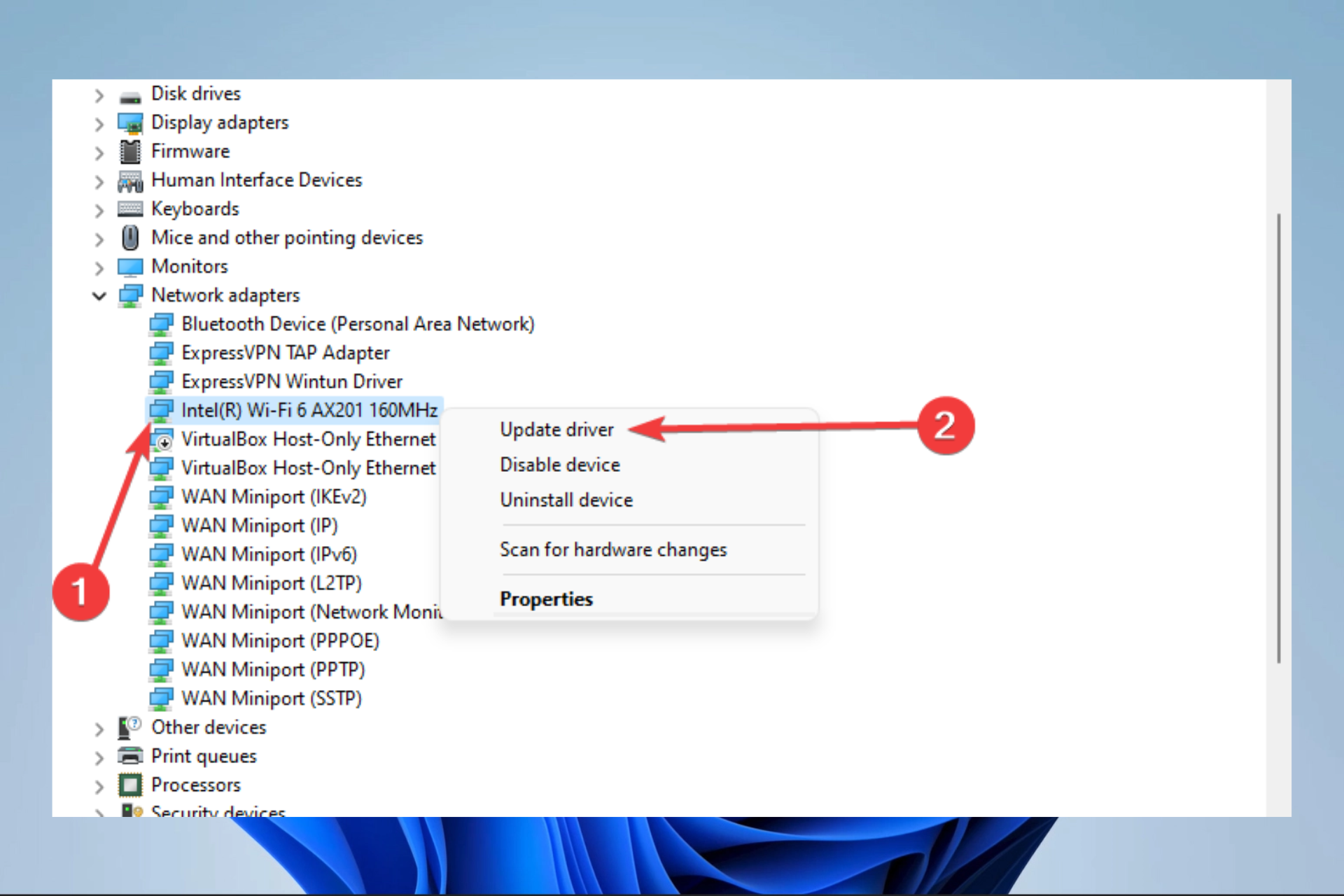
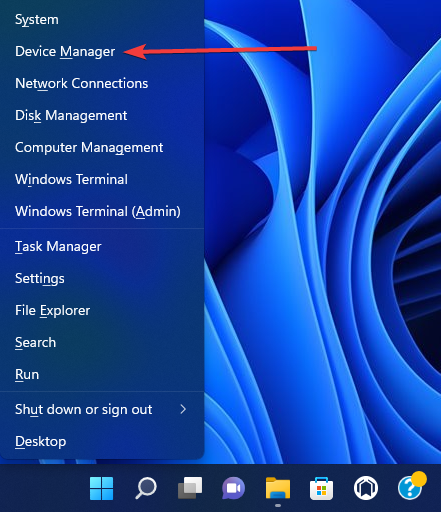
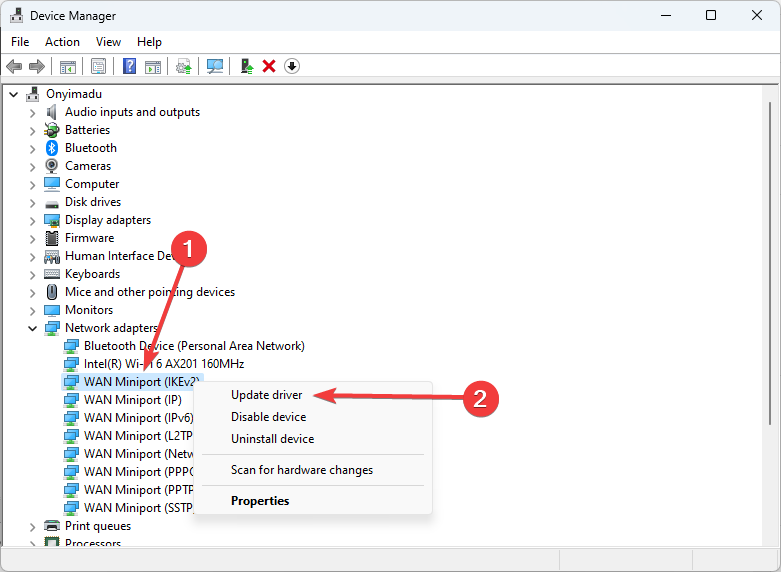

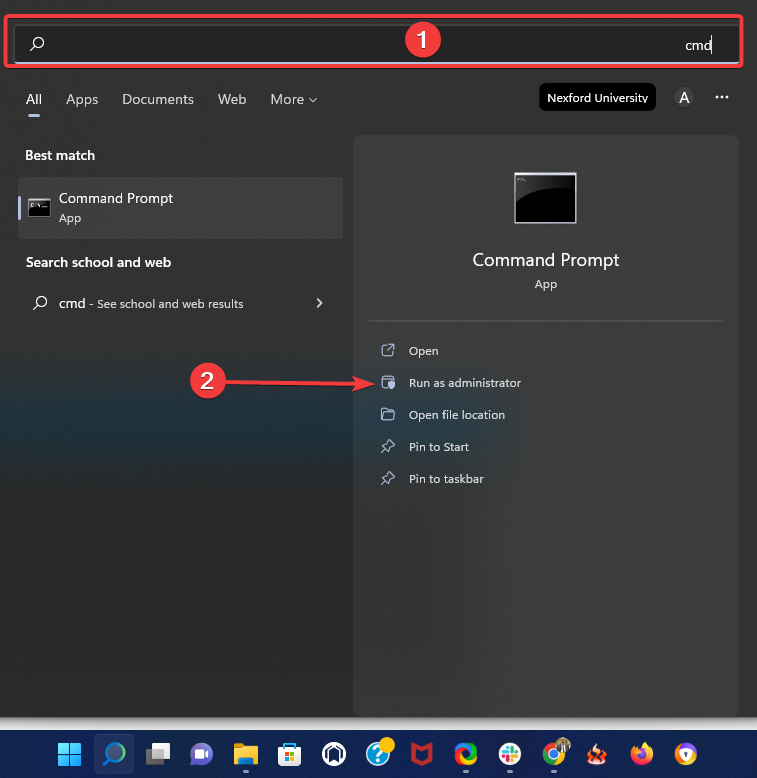
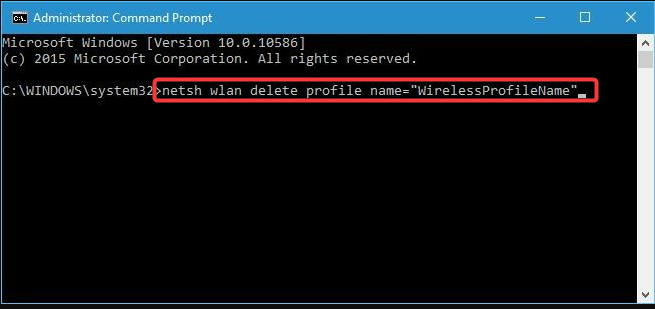
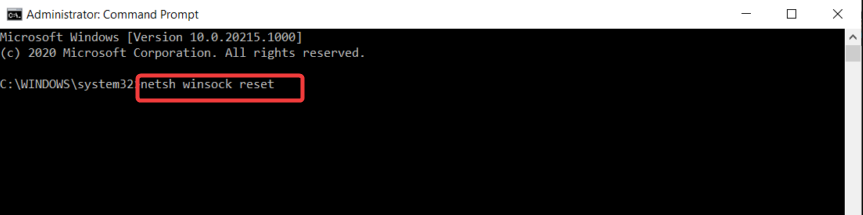
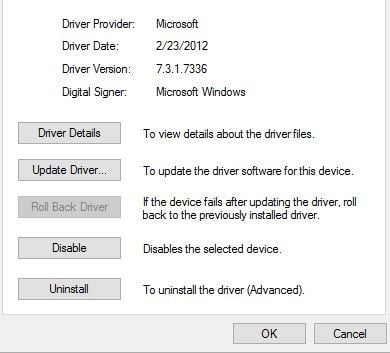
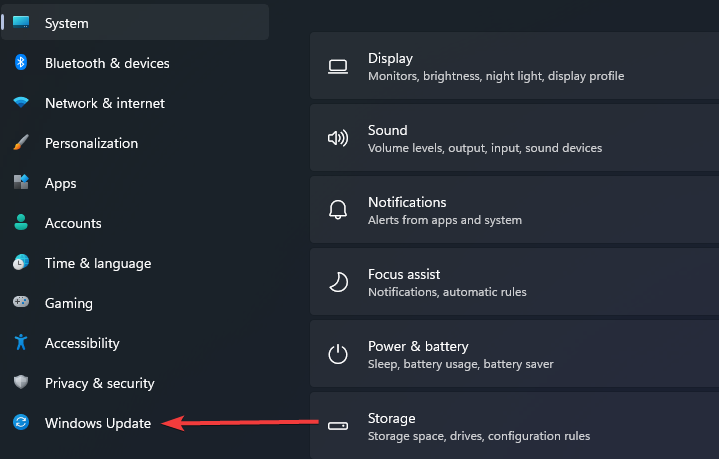
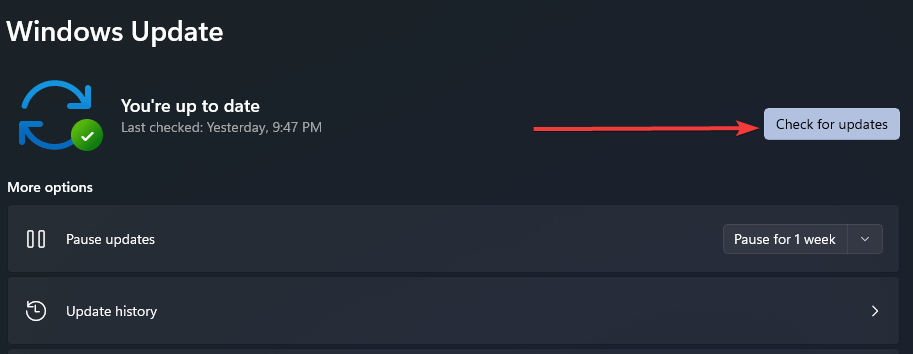


![When I Connect to VPN, I Lose Internet – How to Fix It [Windows 11]](https://windowsreport.com/wp-content/uploads/2022/05/image-5-1-1.jpg)
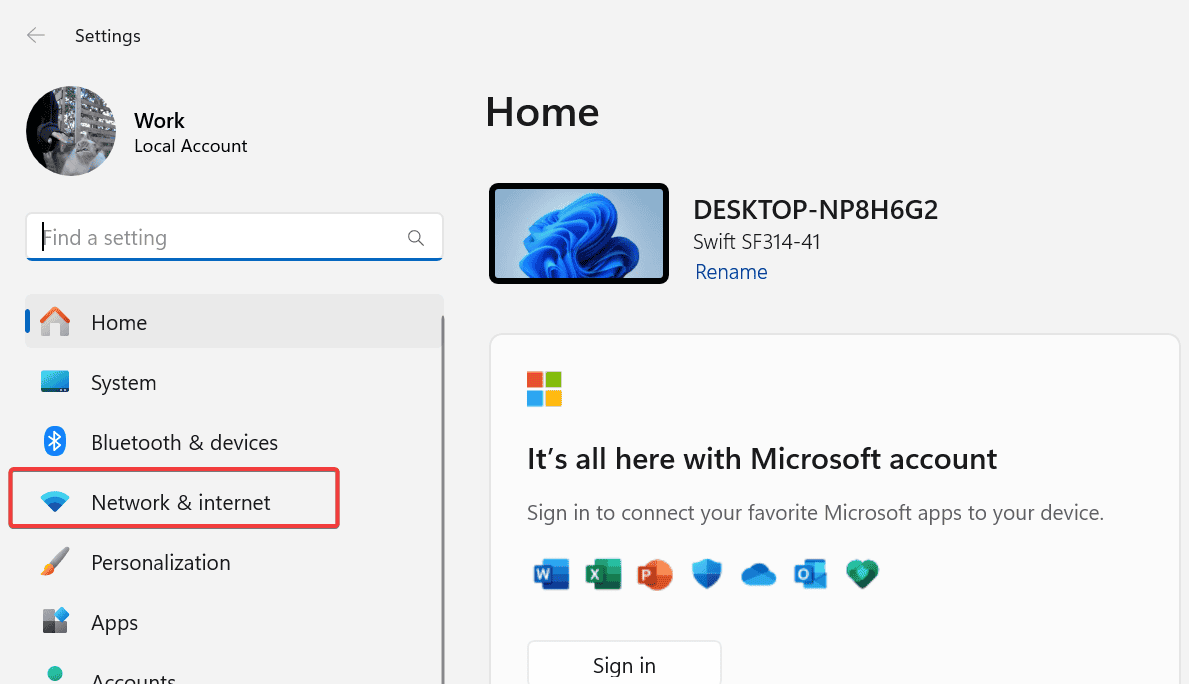


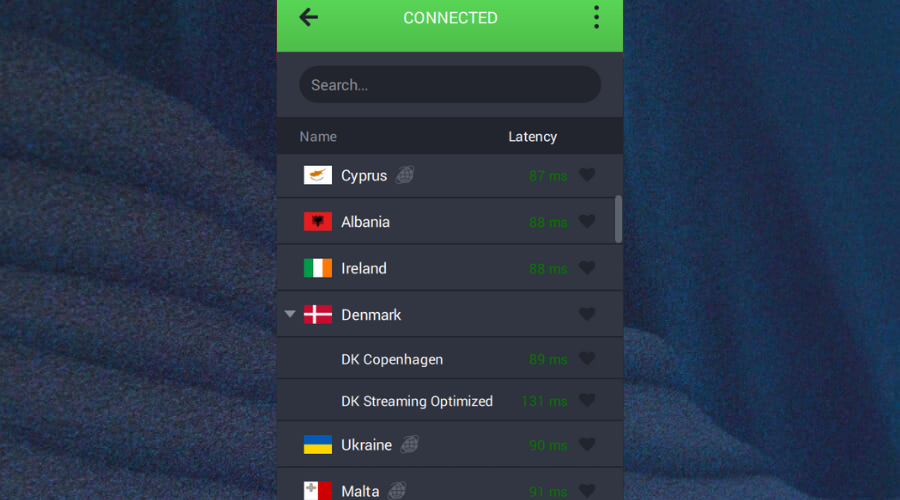
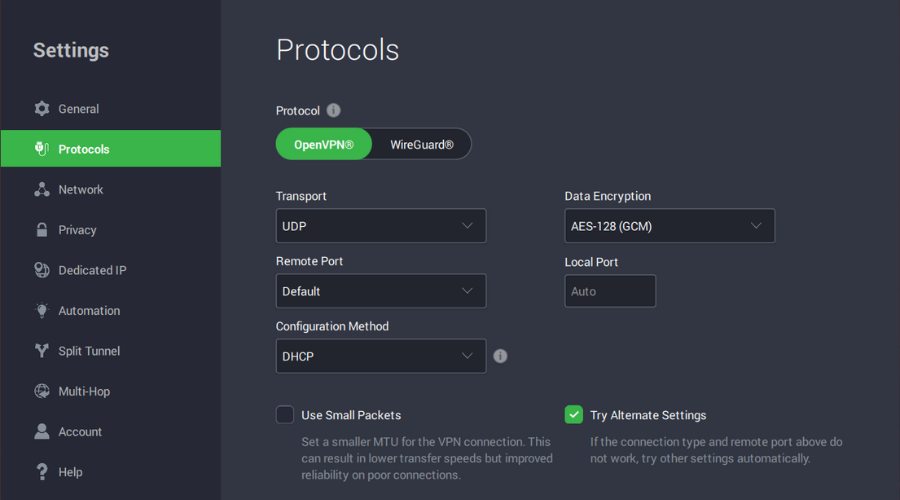
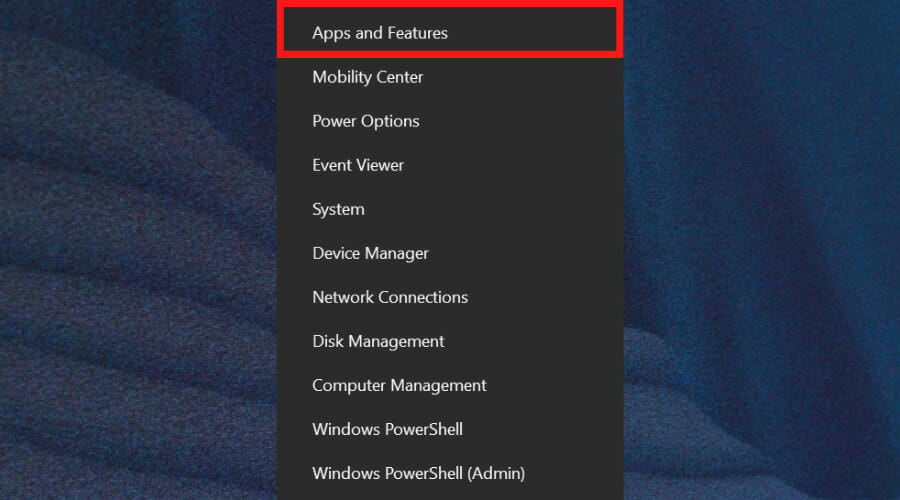
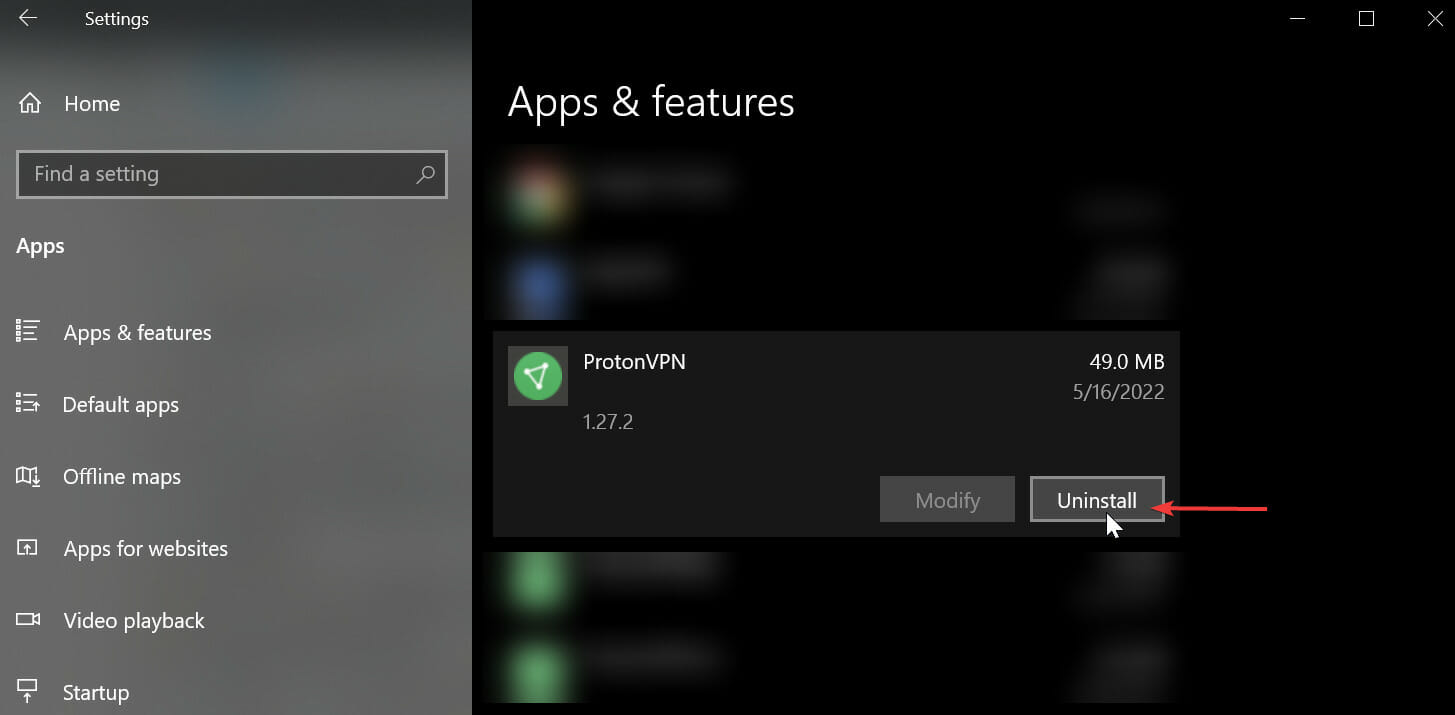
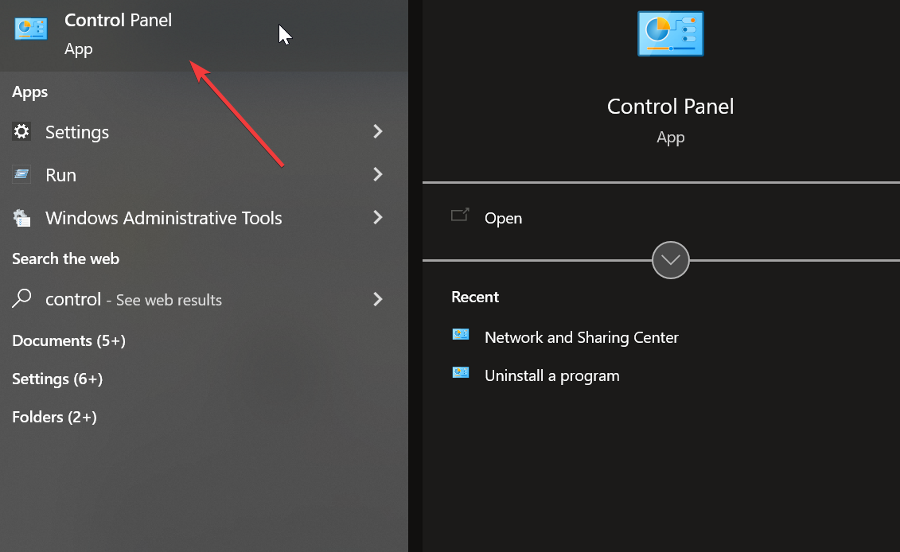
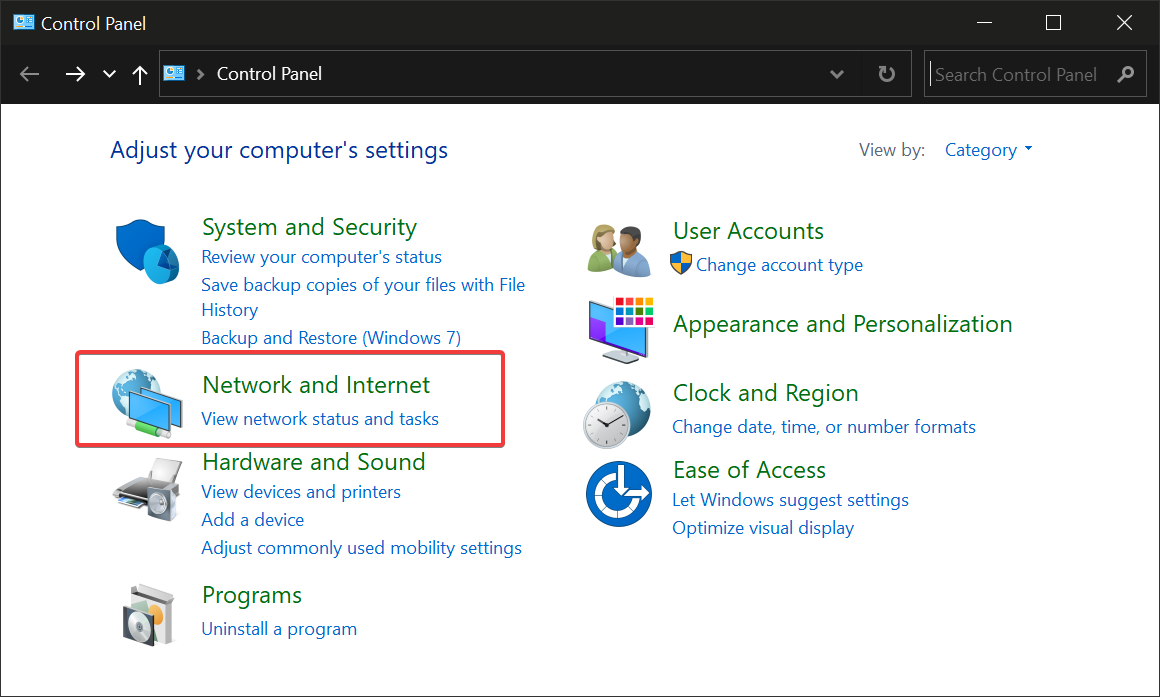
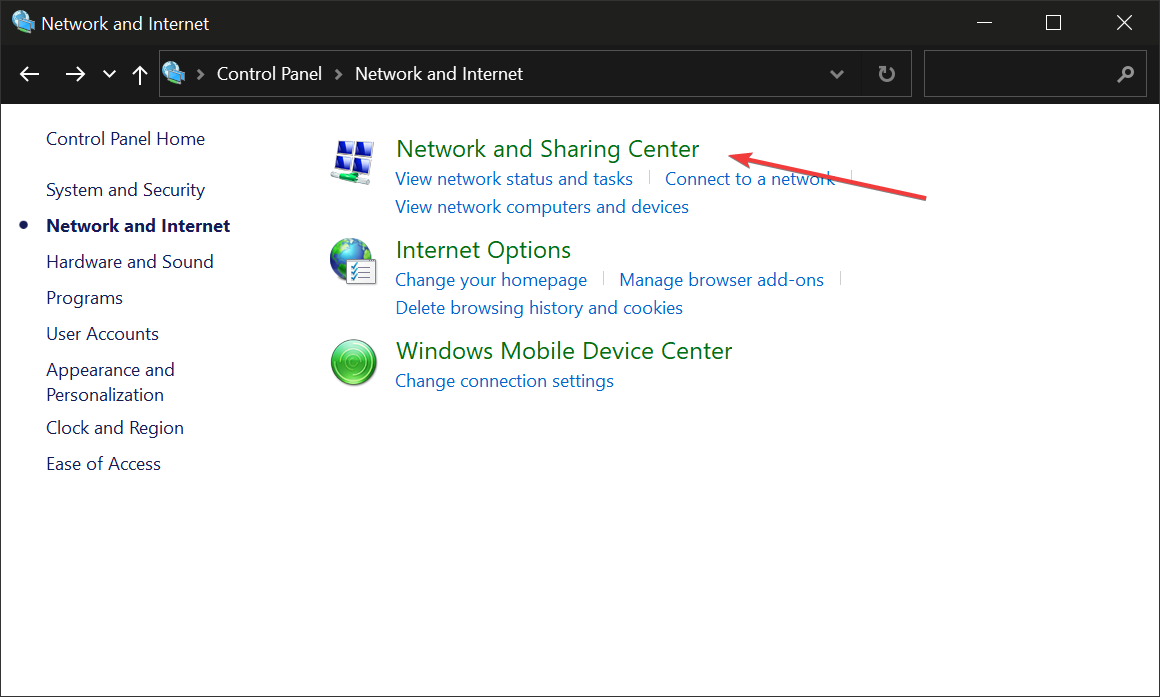
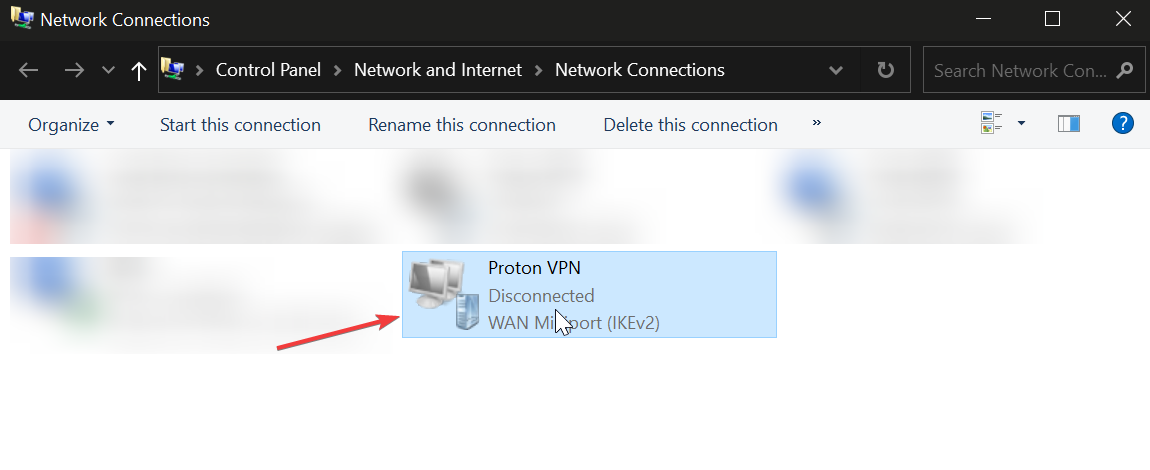

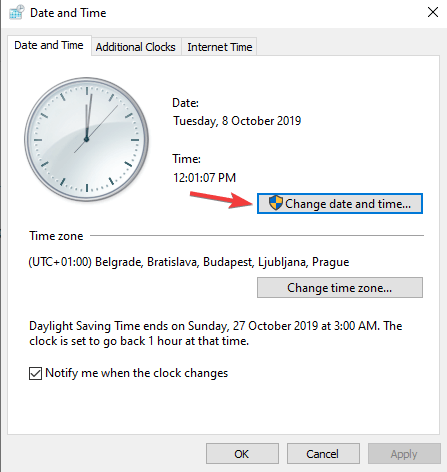

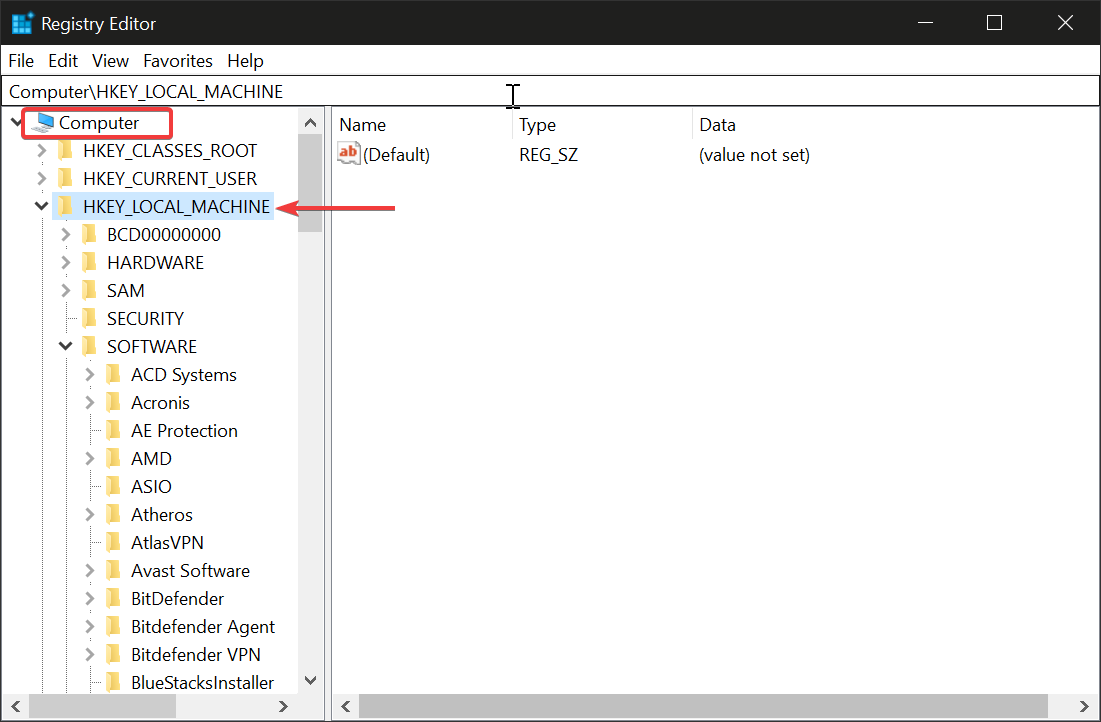
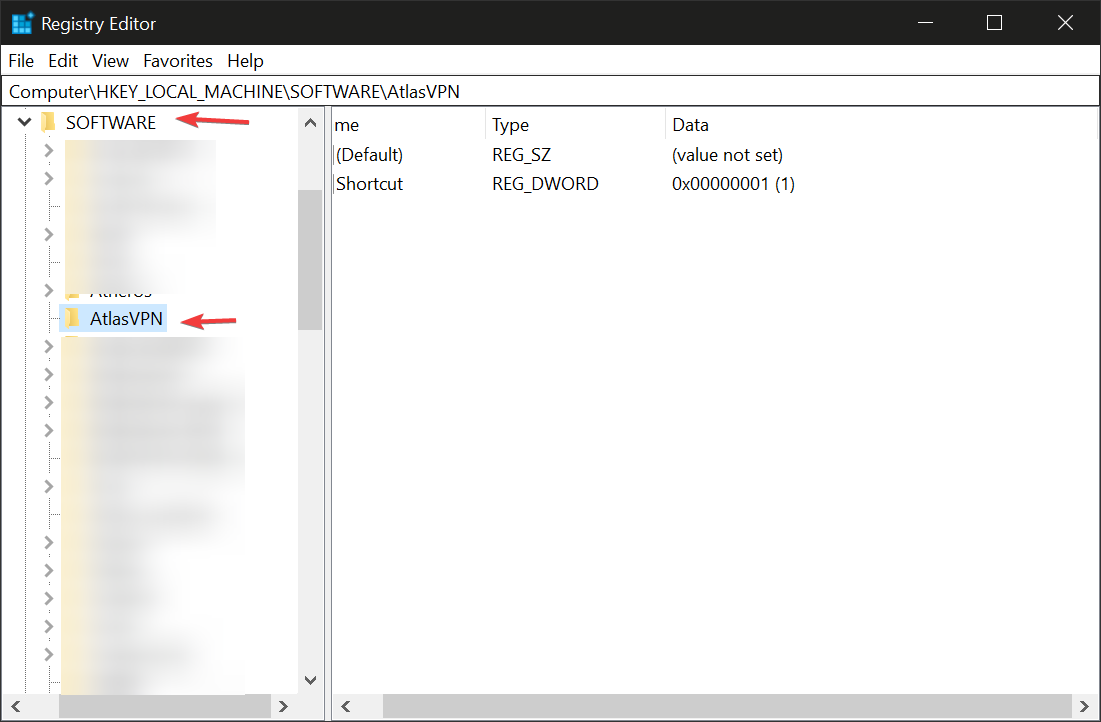
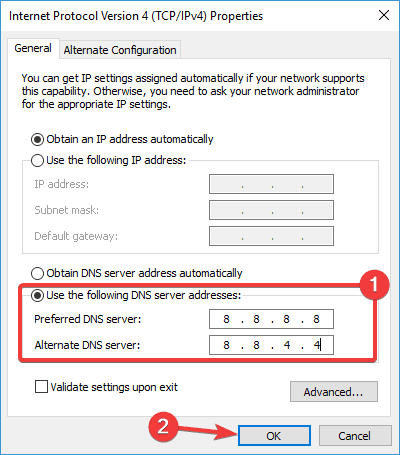
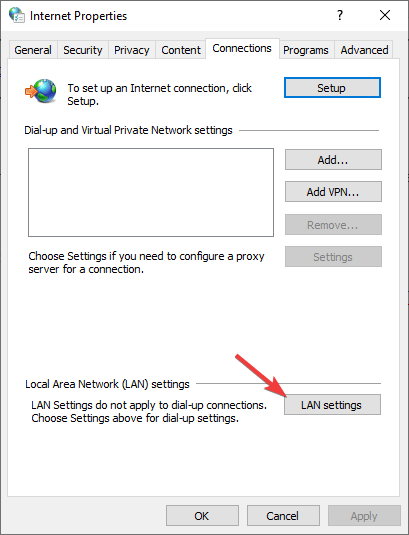


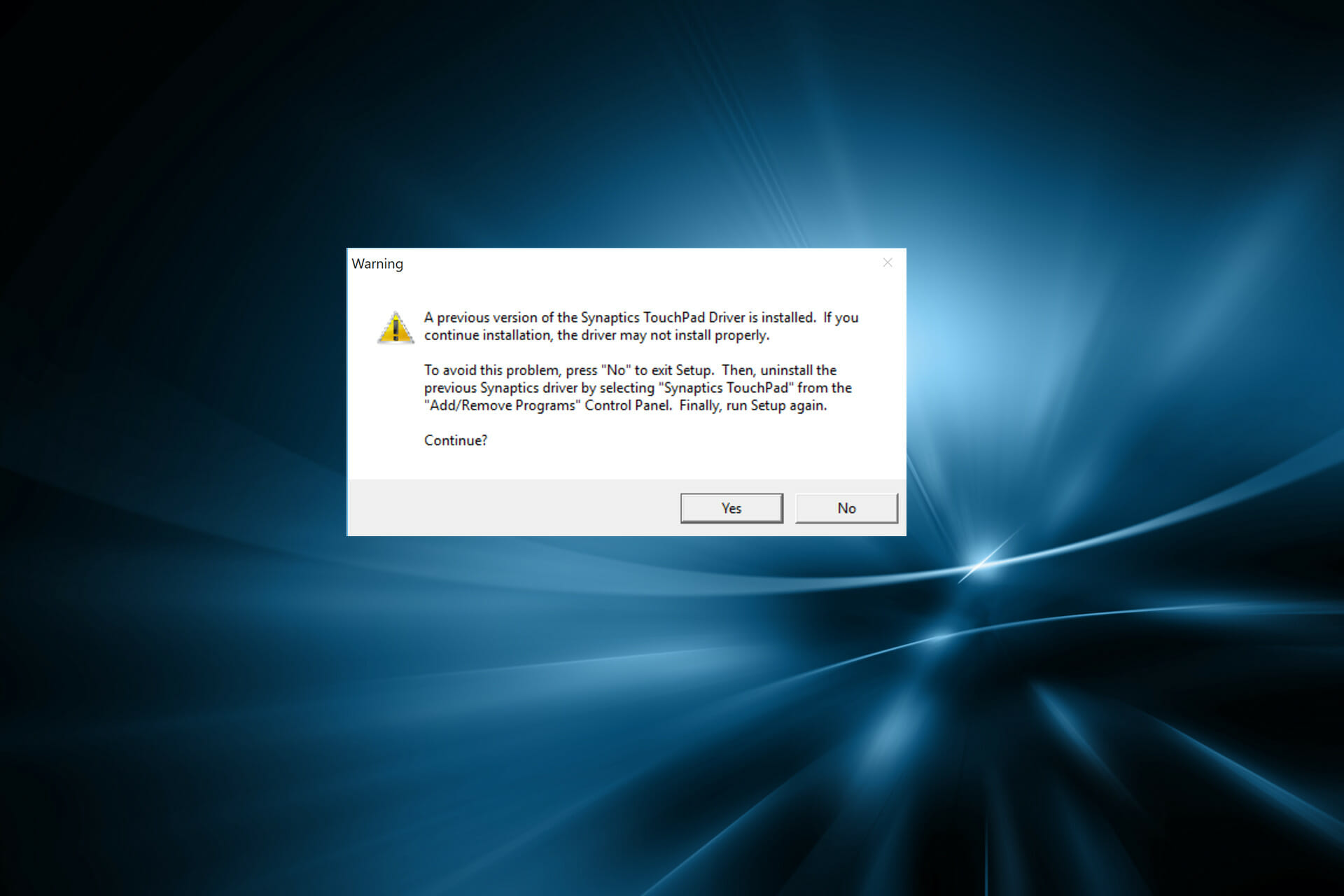


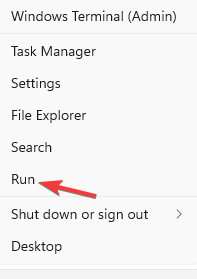


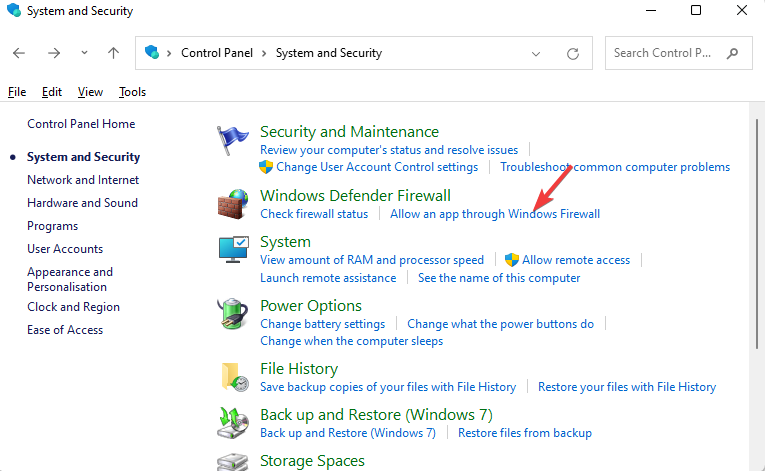


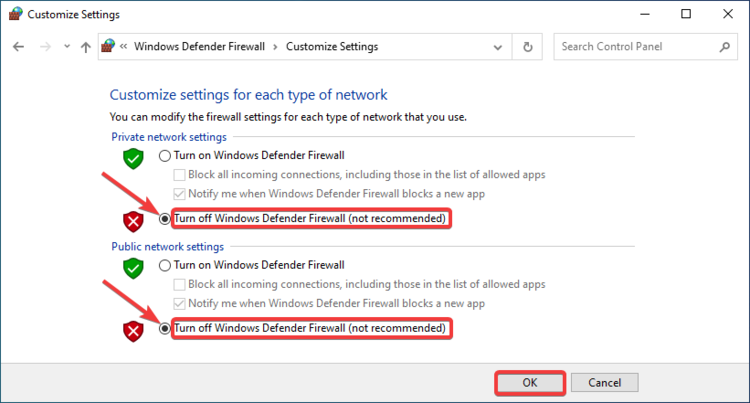
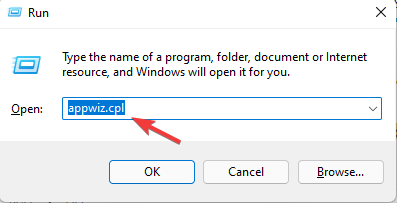


![HP Printer Drivers for Windows 11 [Download & Install]](https://windowsreport.com/wp-content/uploads/2022/08/printer-featured-image_final.png)



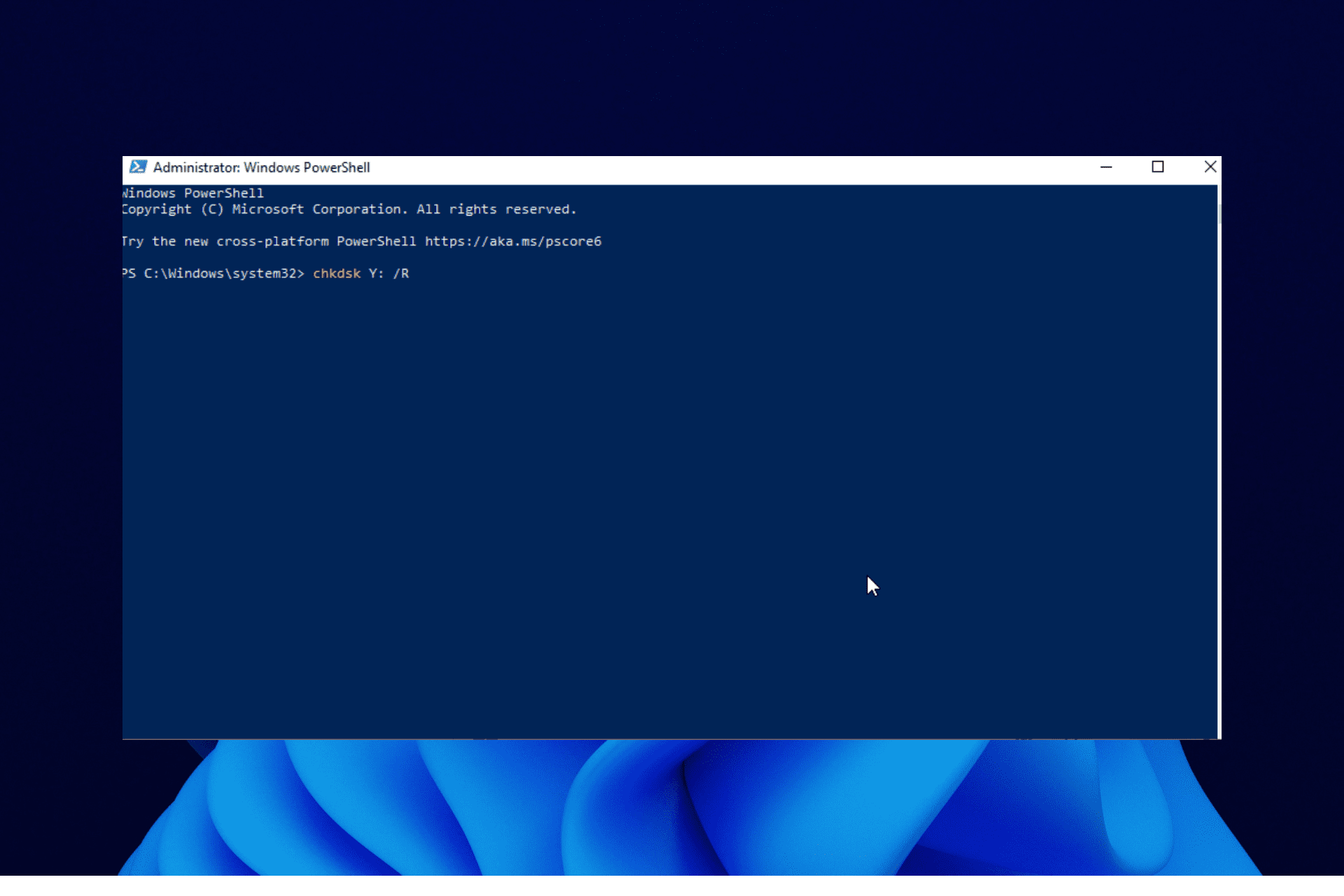





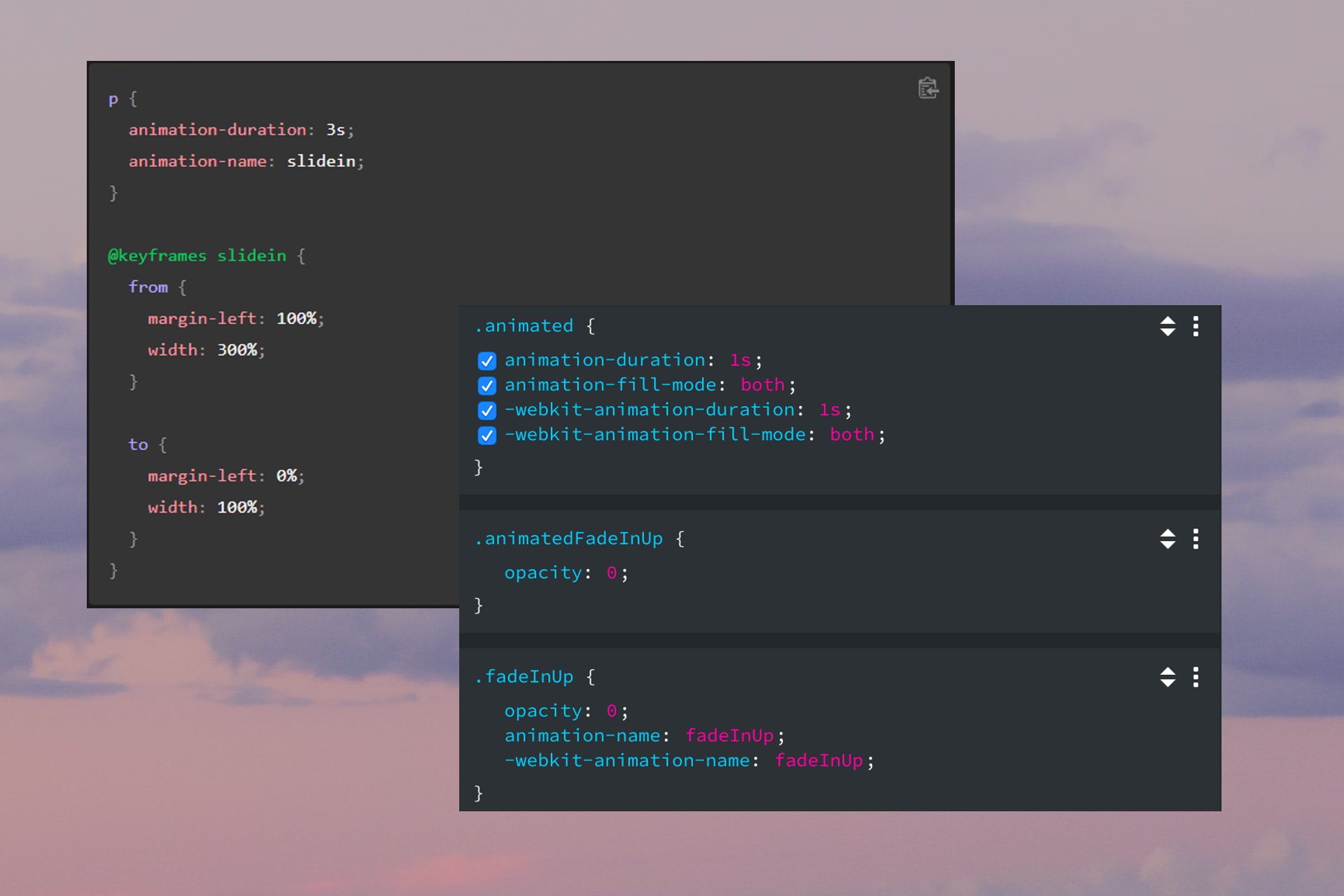

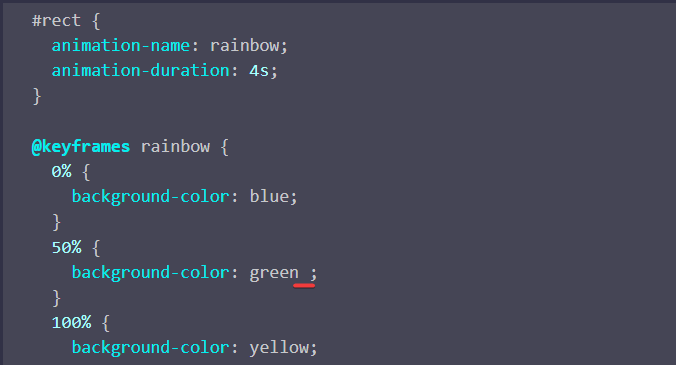
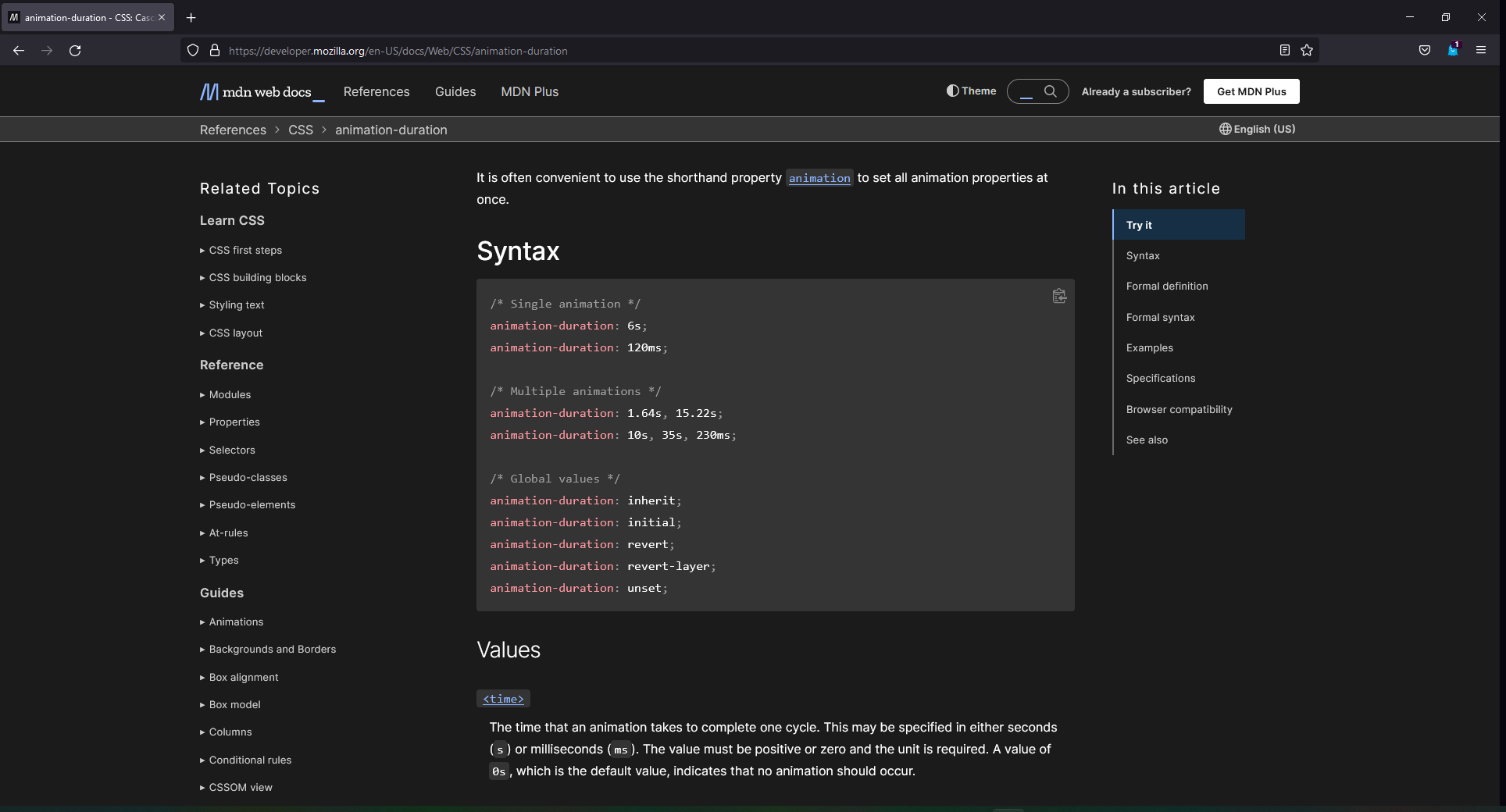
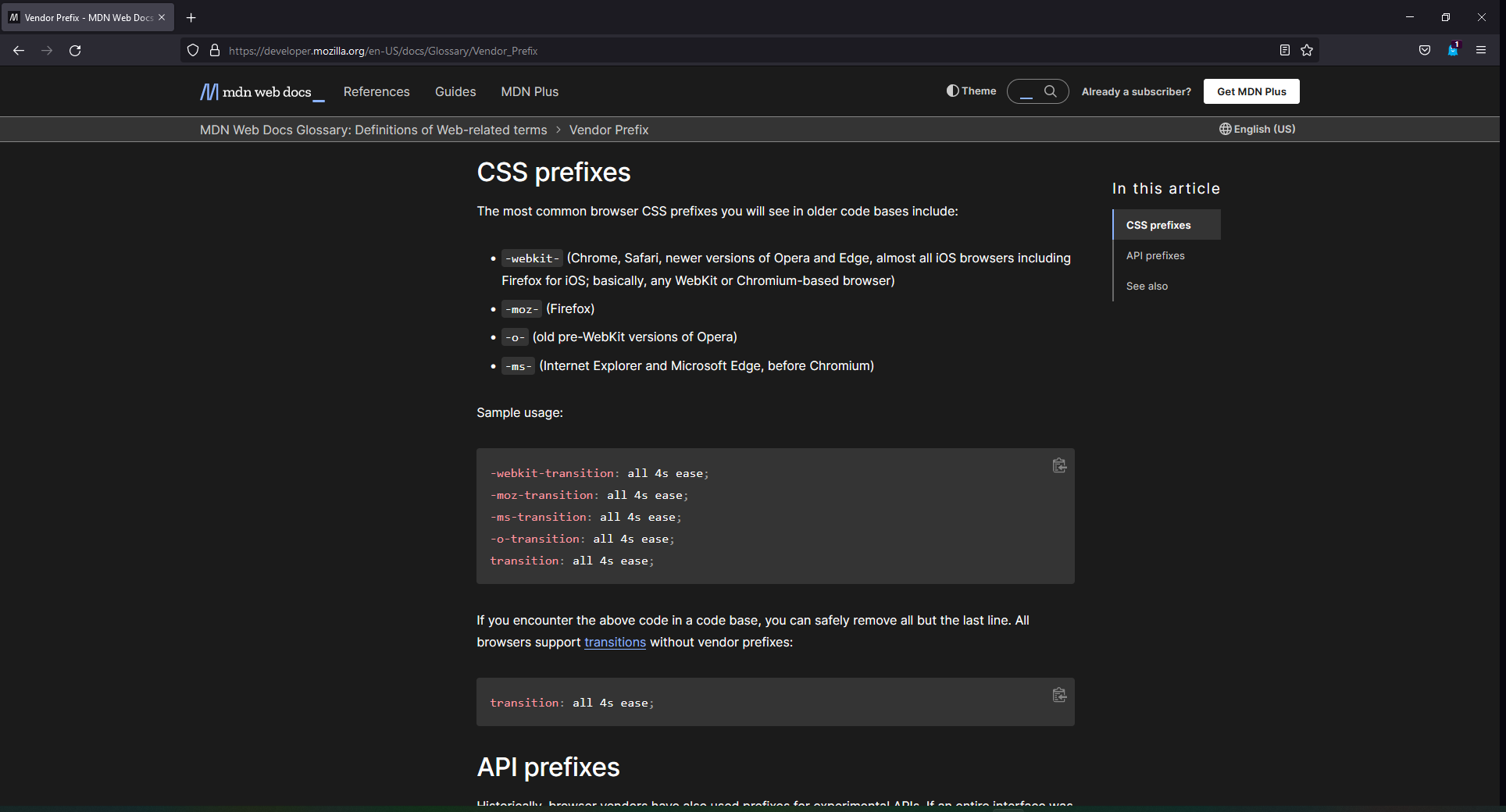


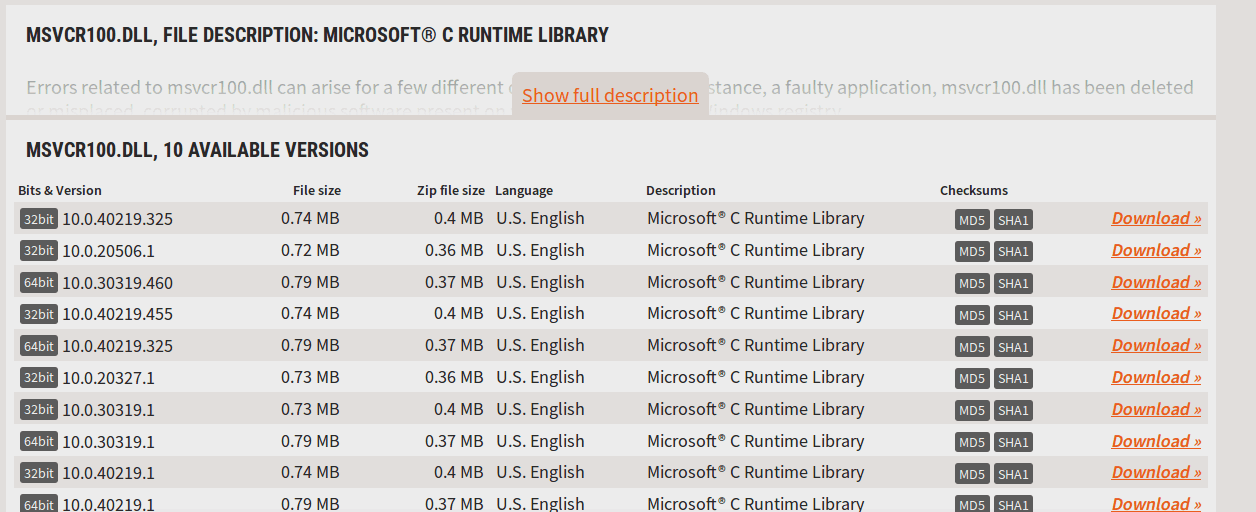


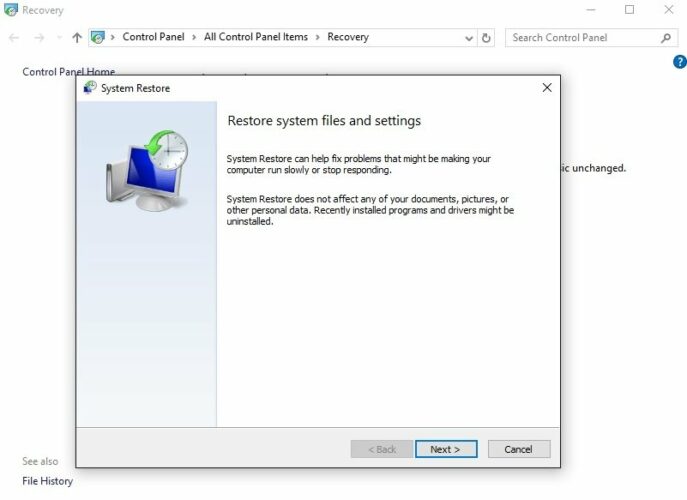
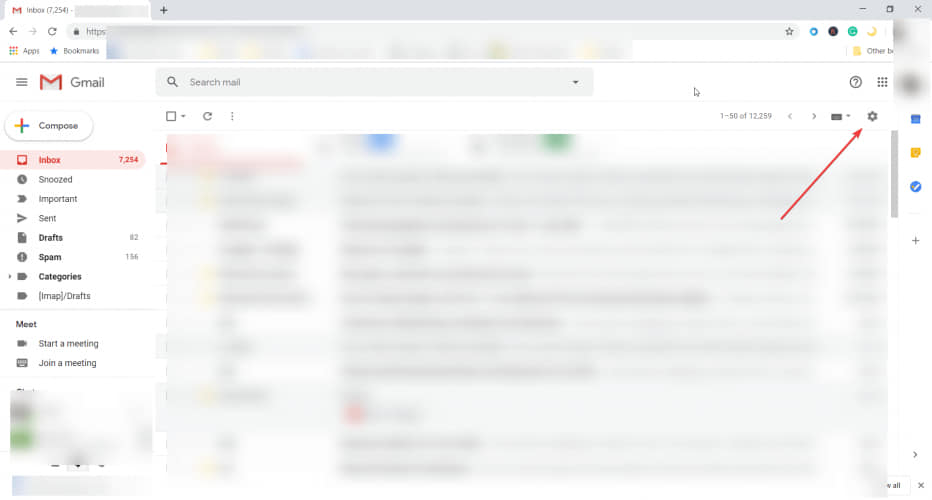
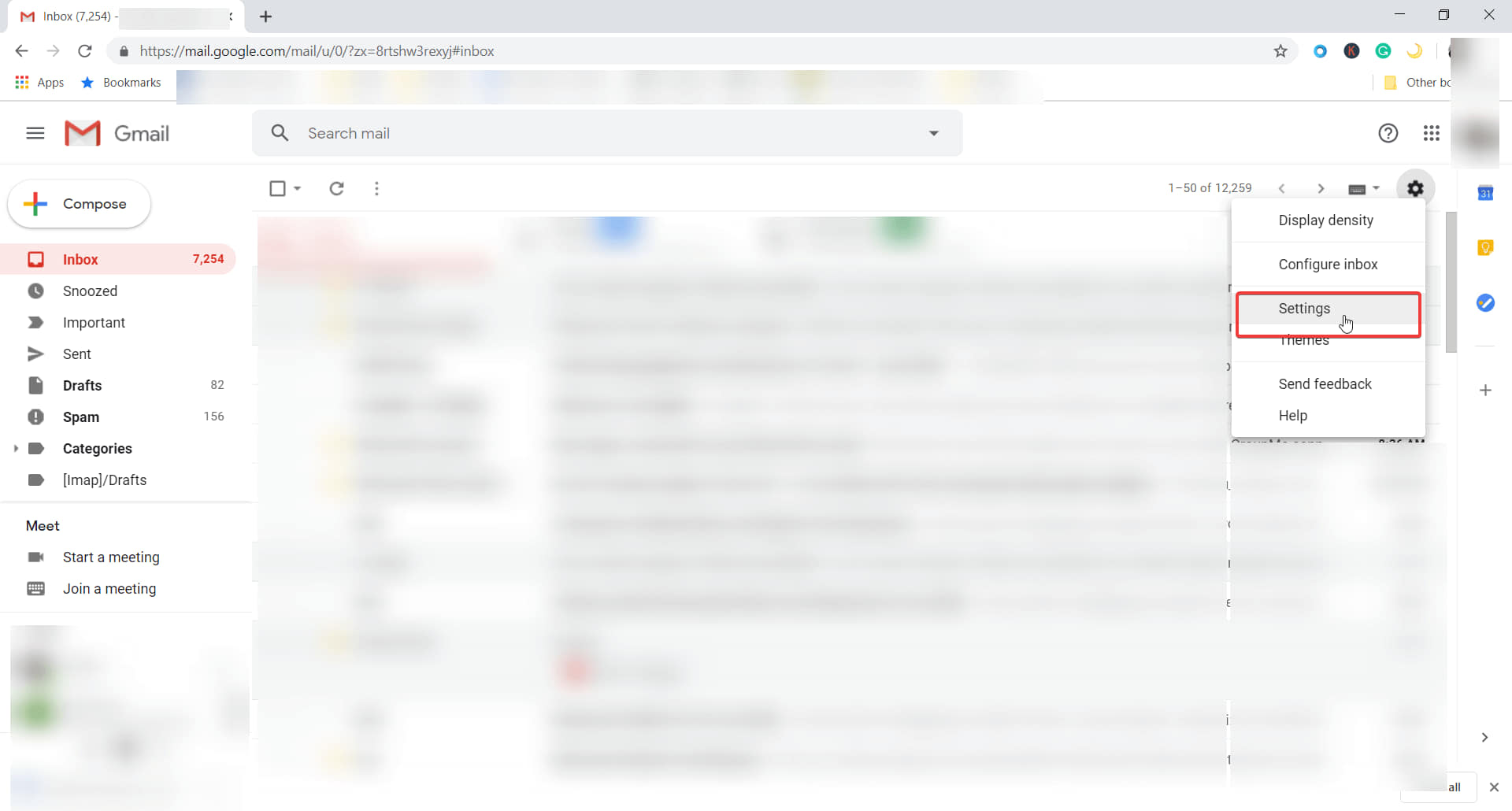
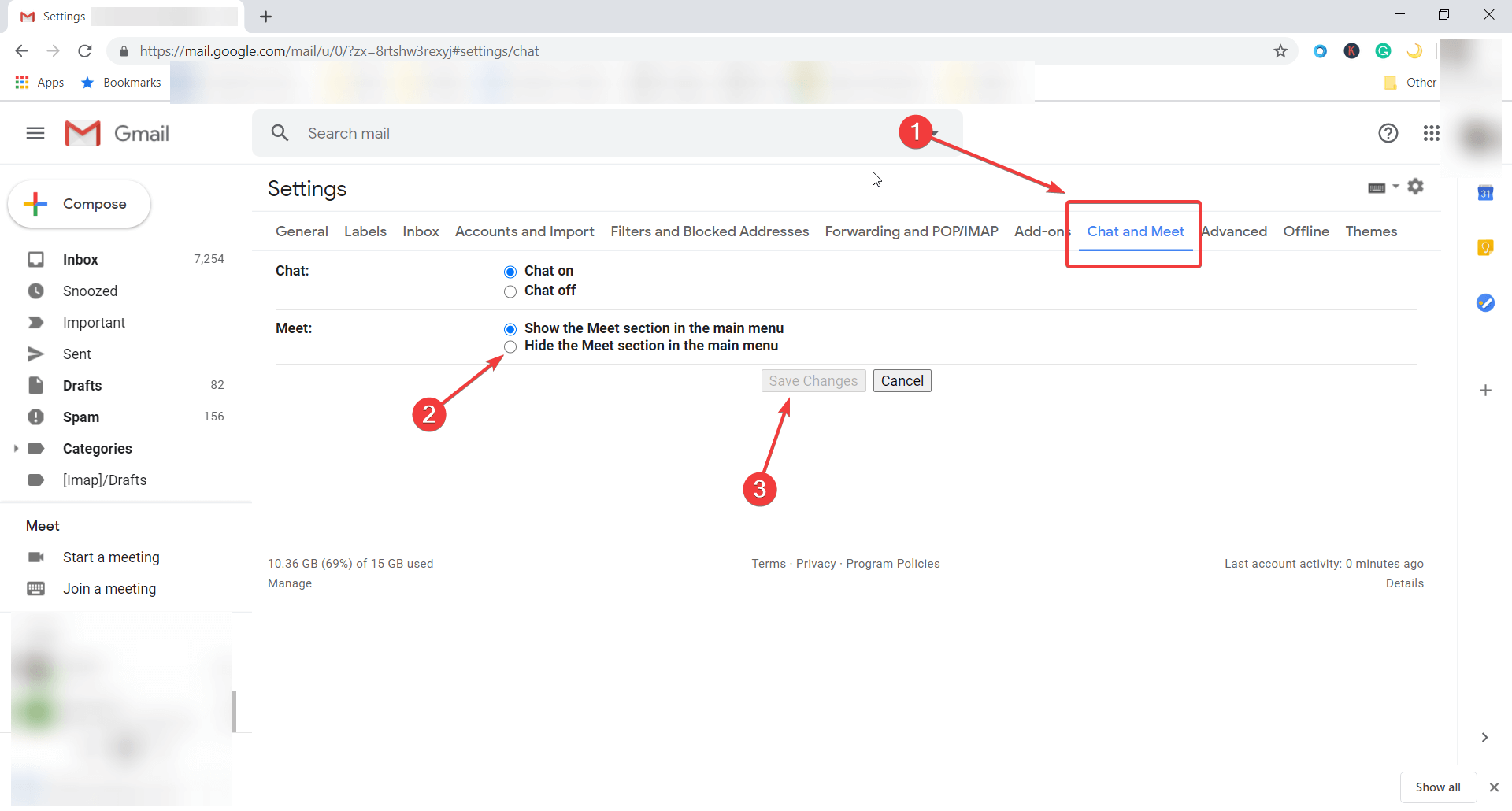
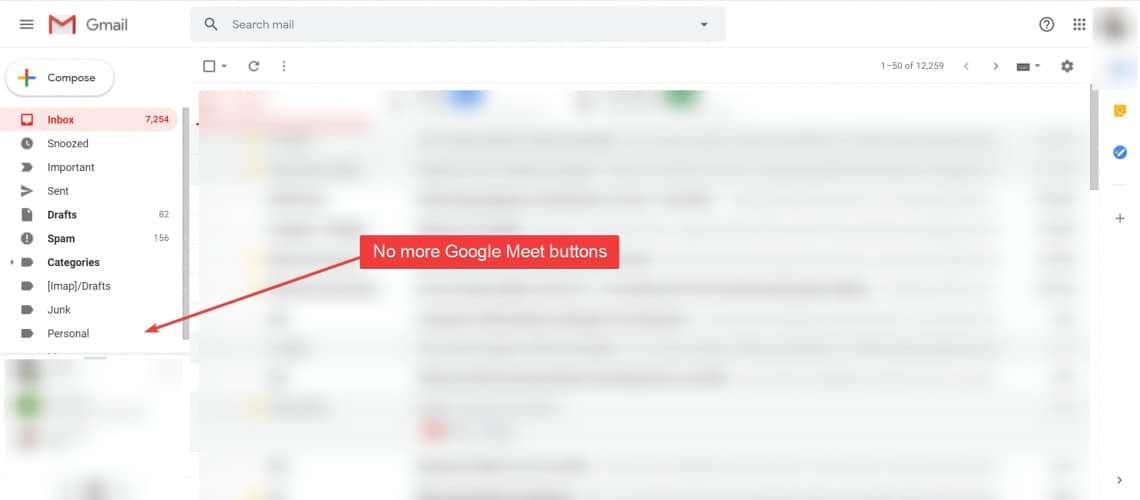


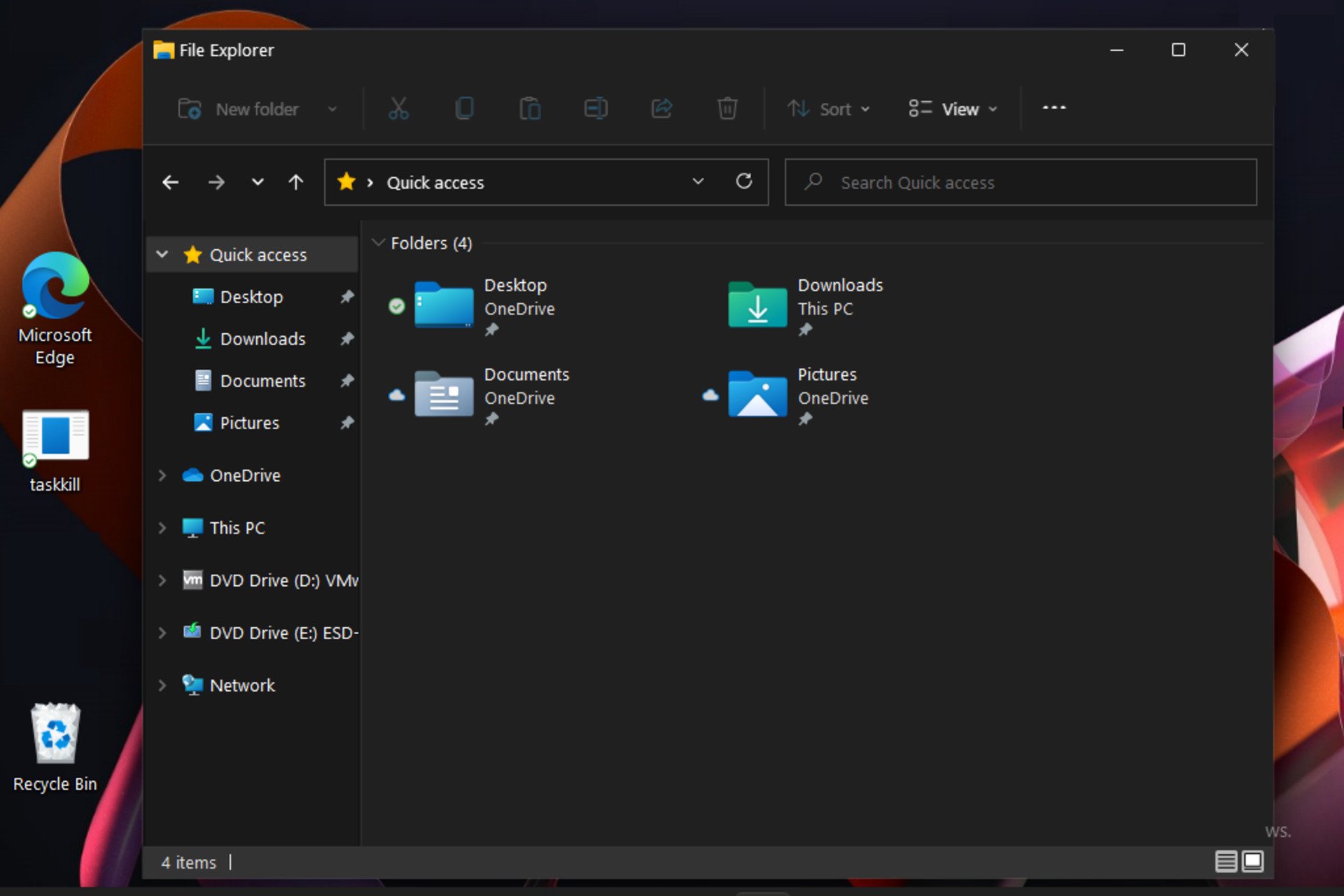

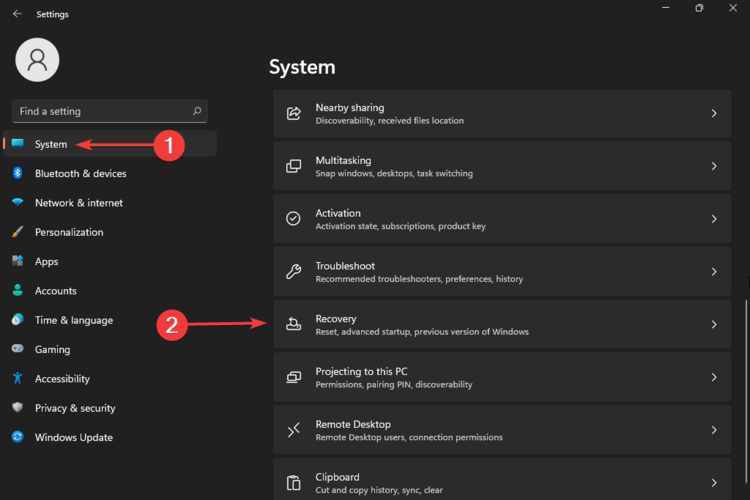


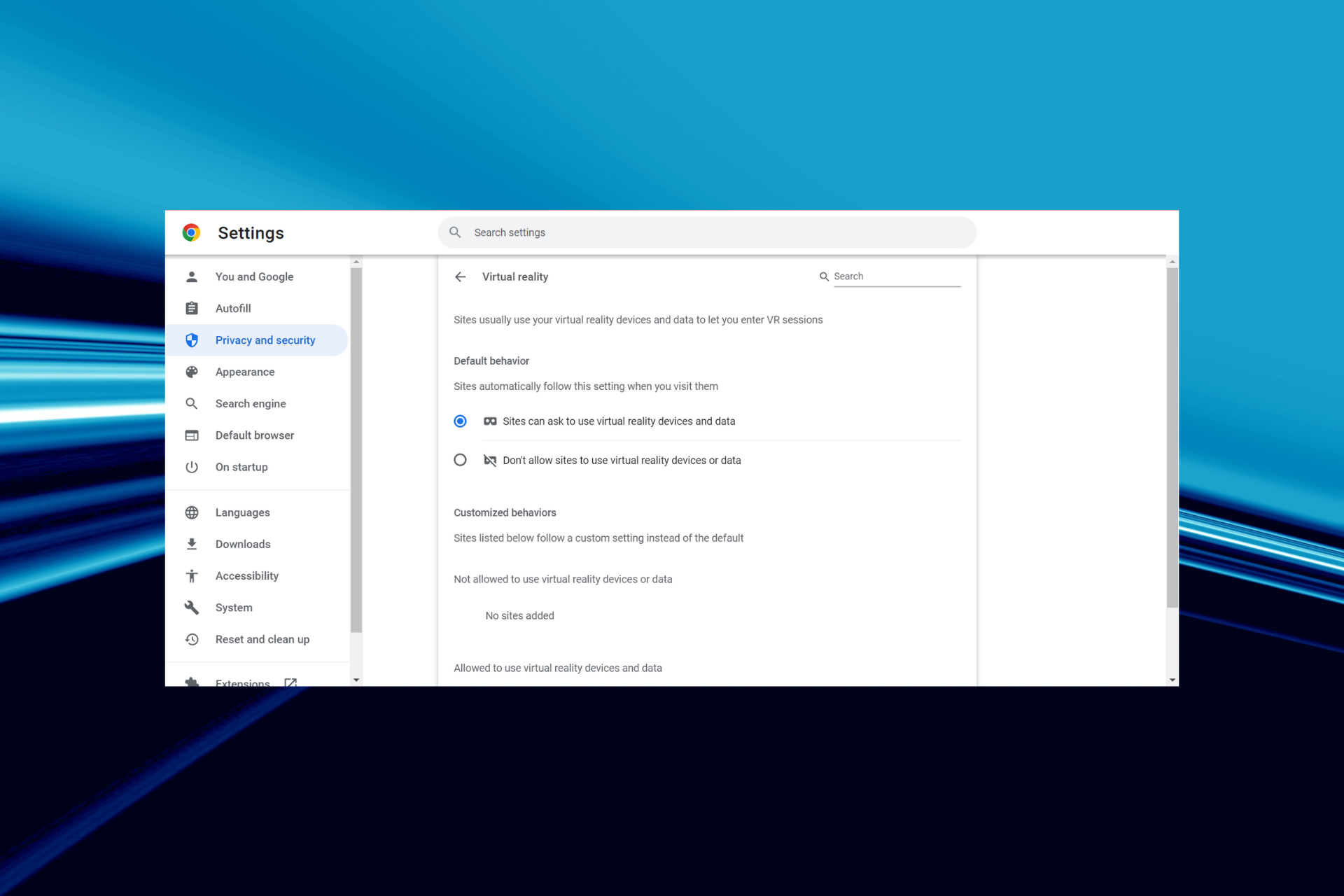





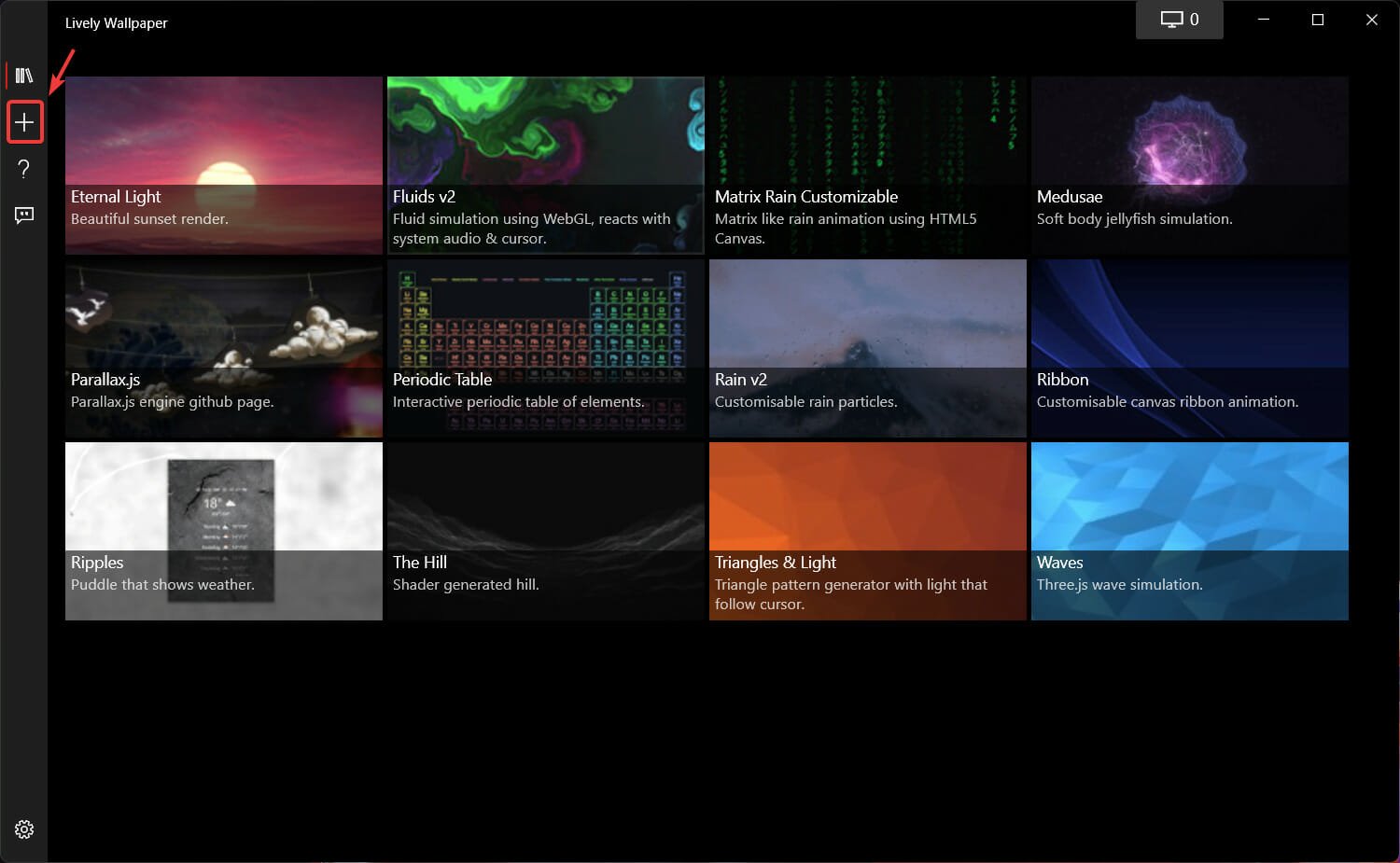
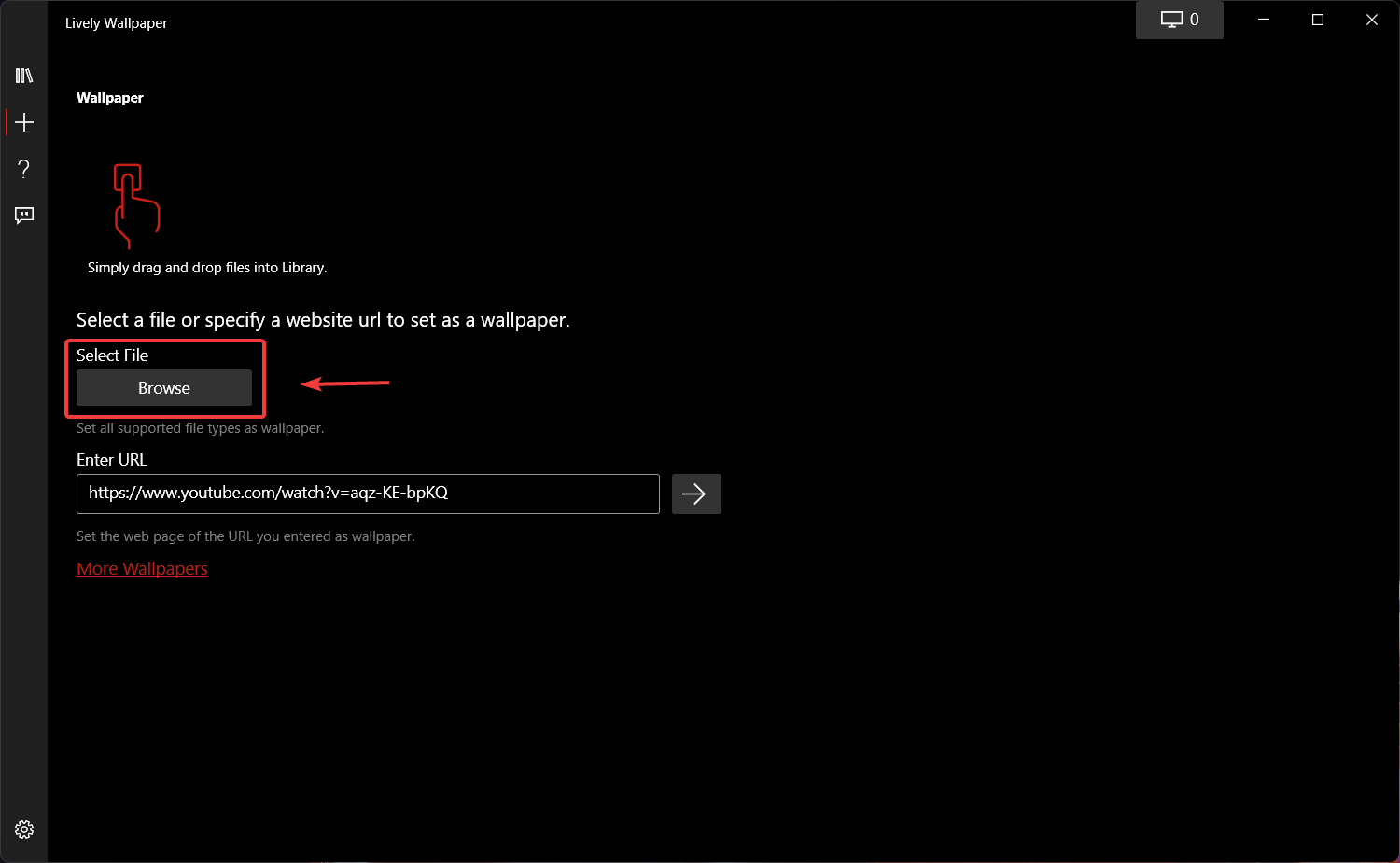
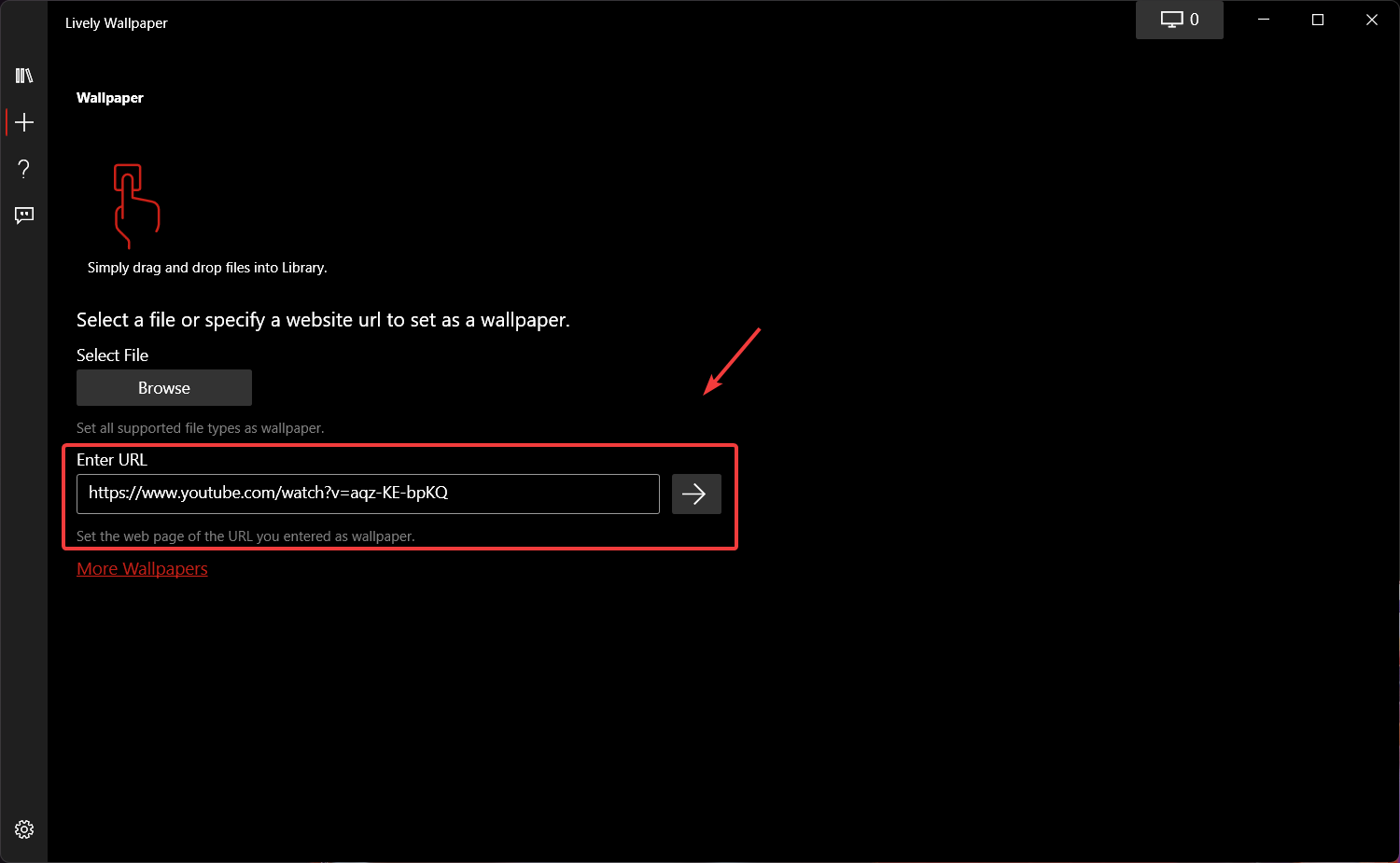
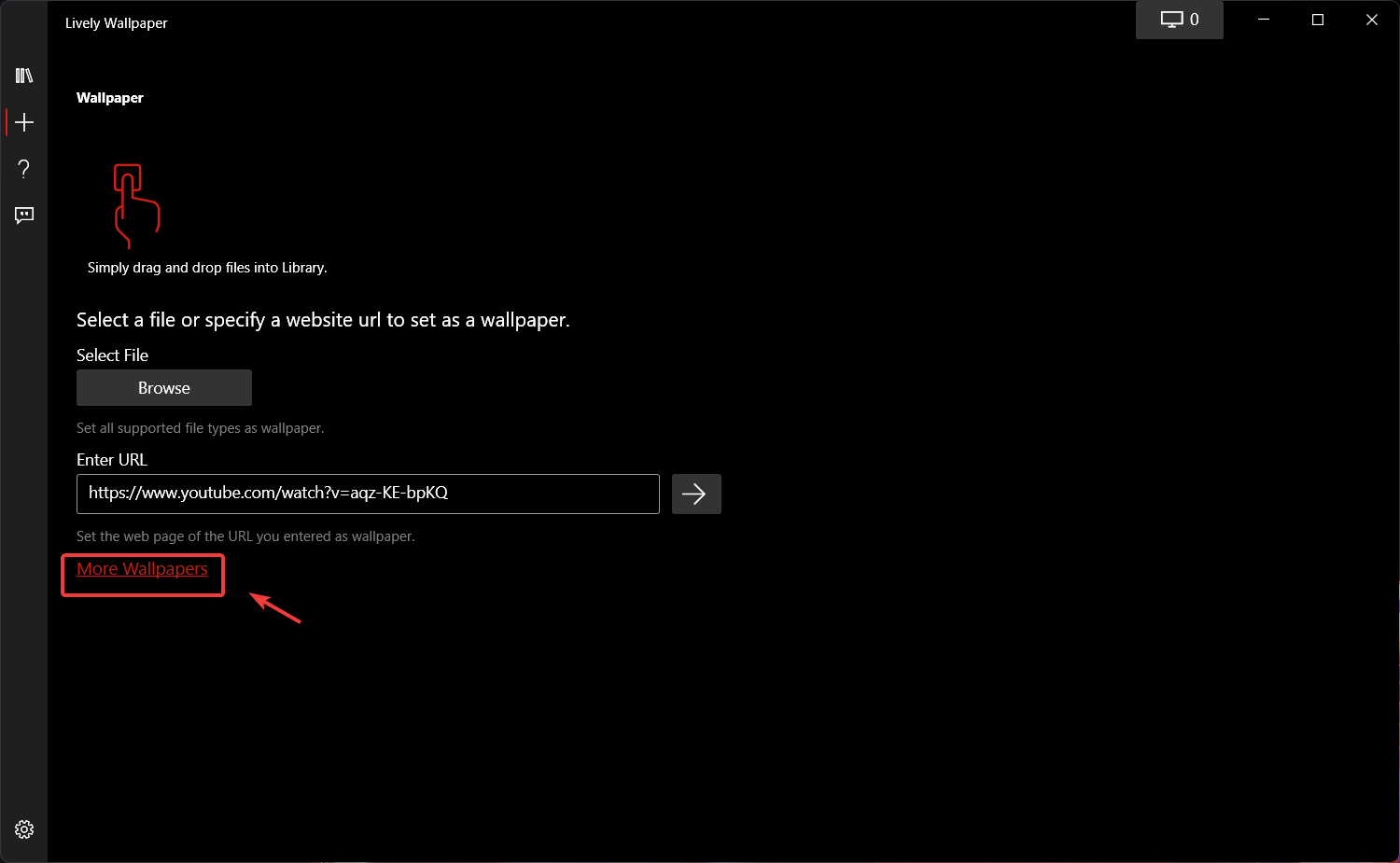
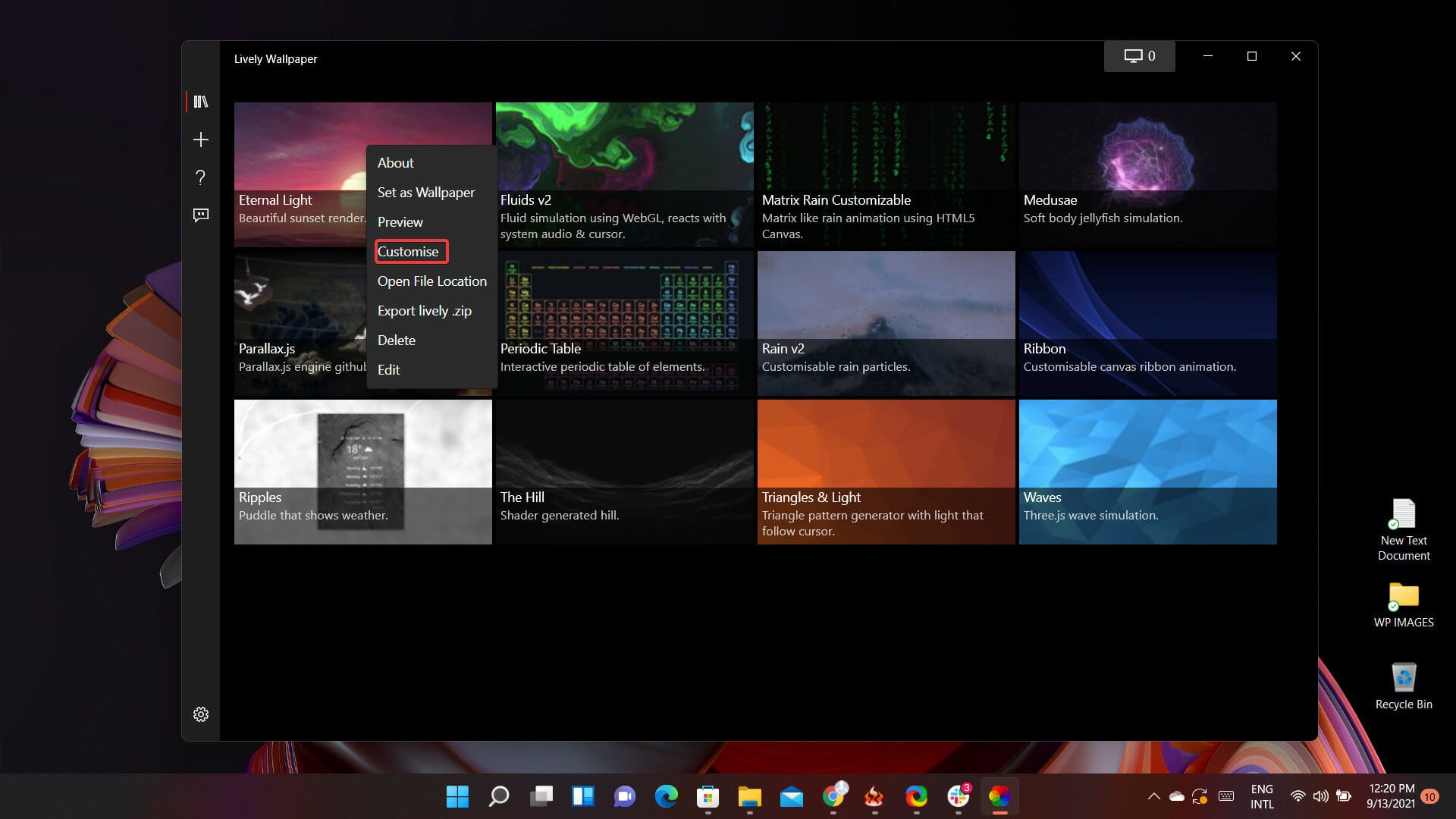
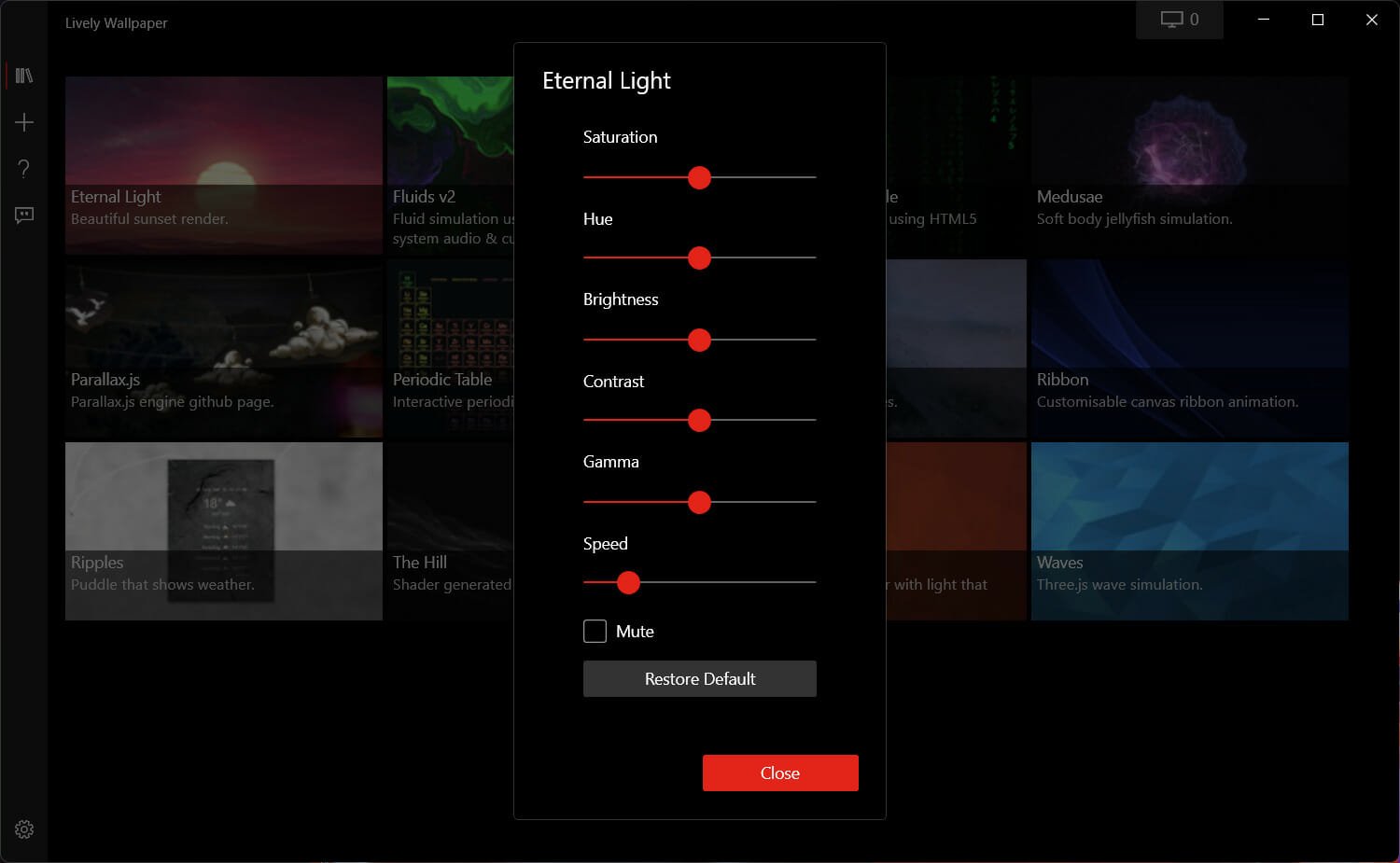
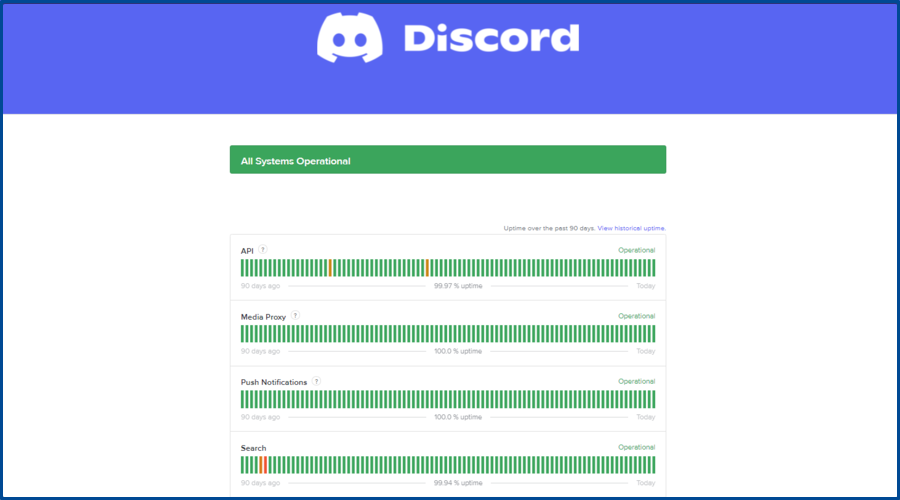
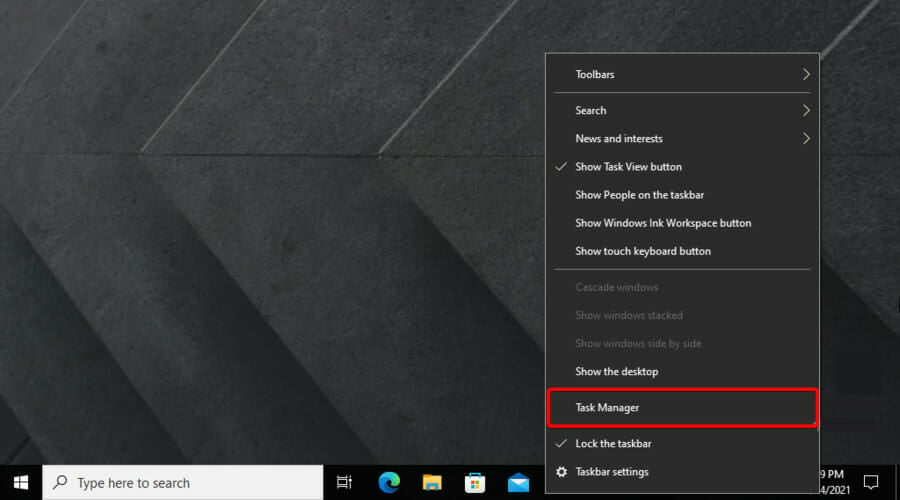
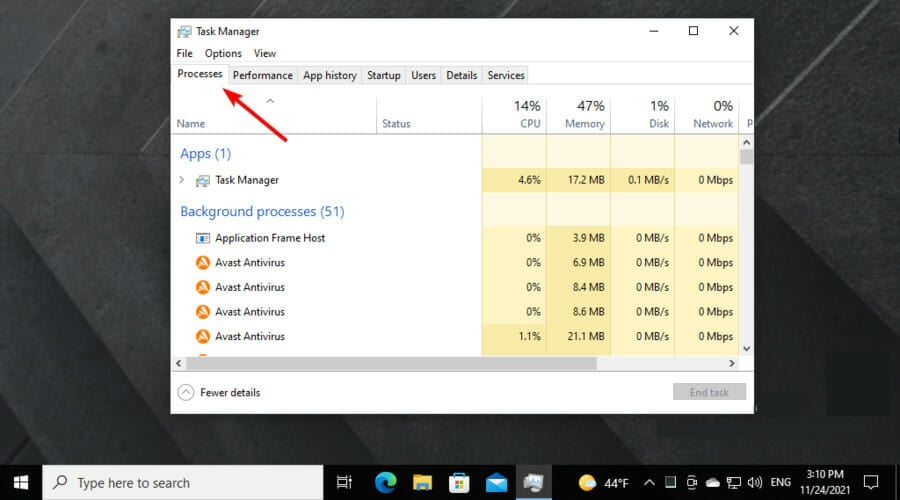
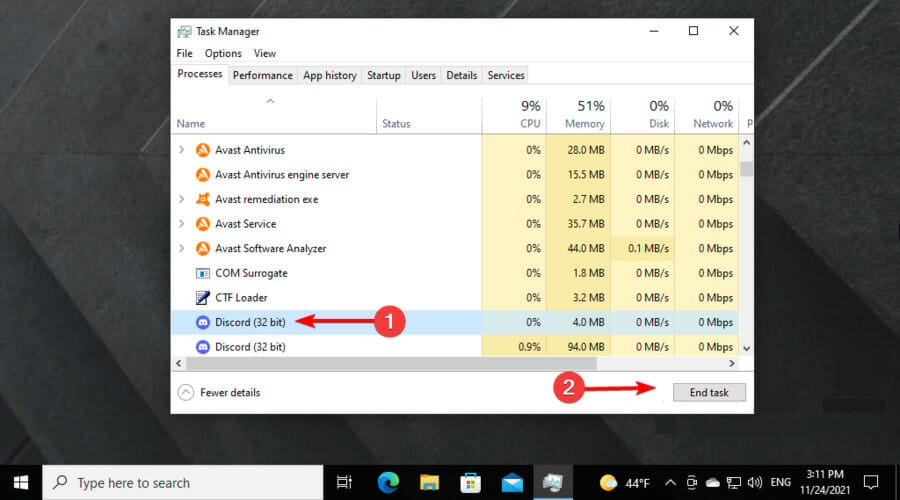
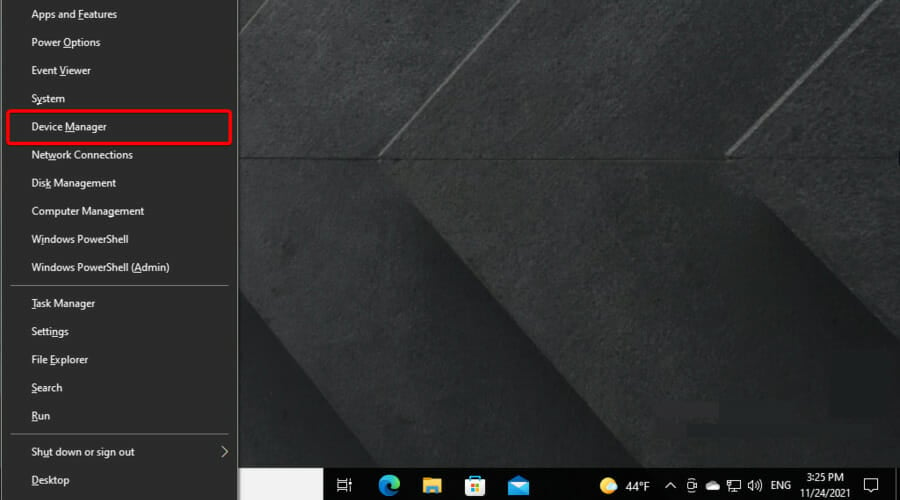
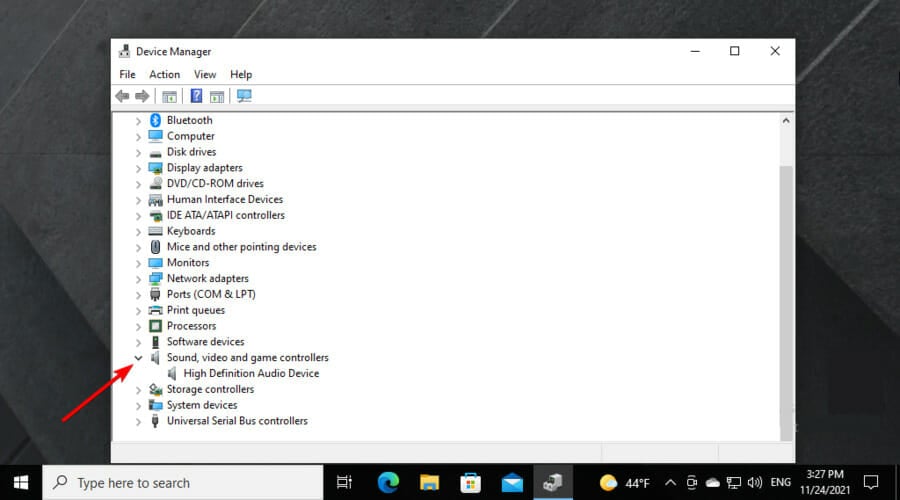
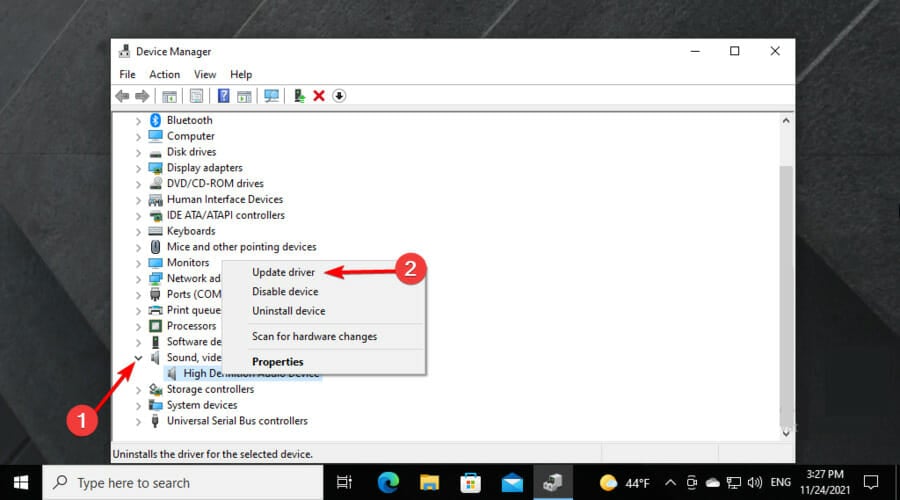
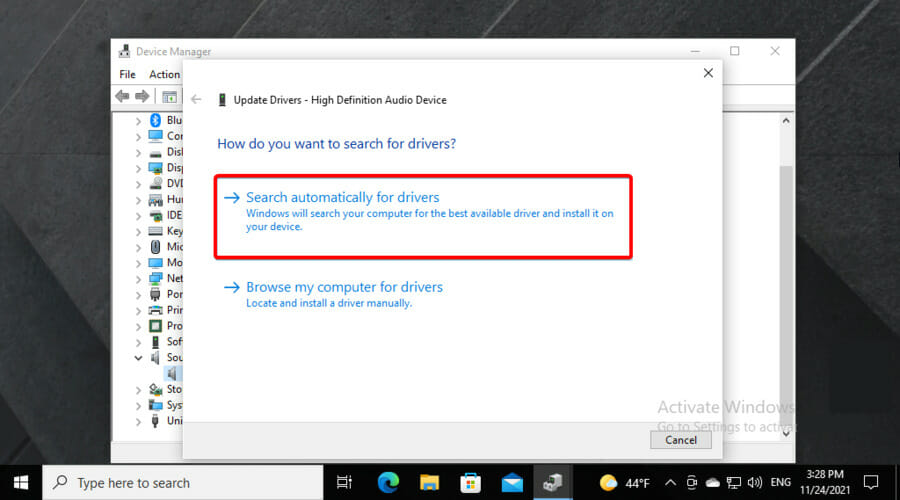
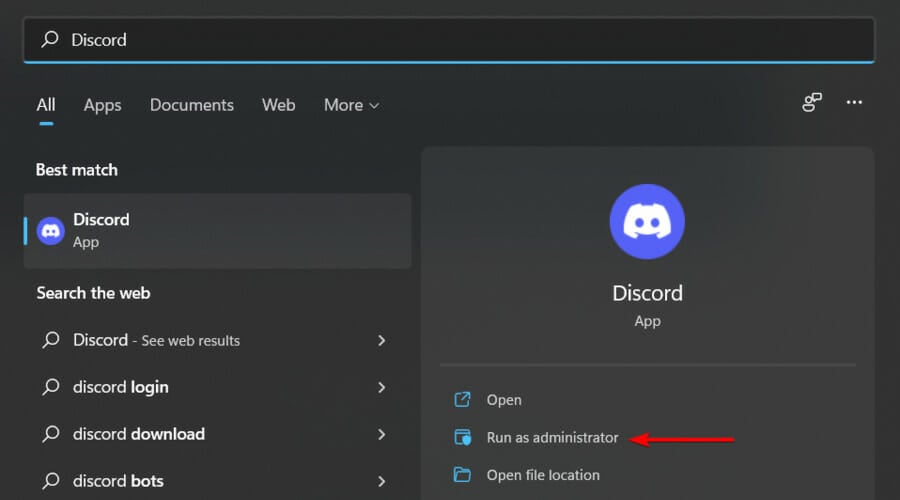
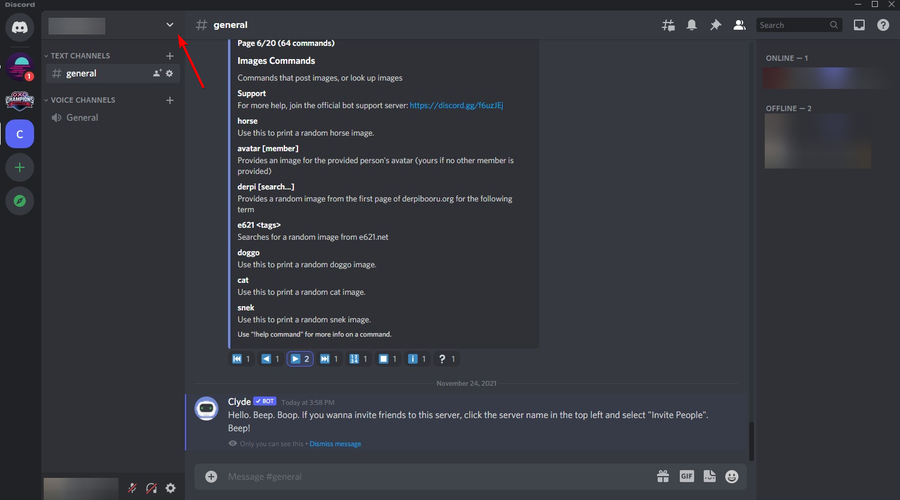
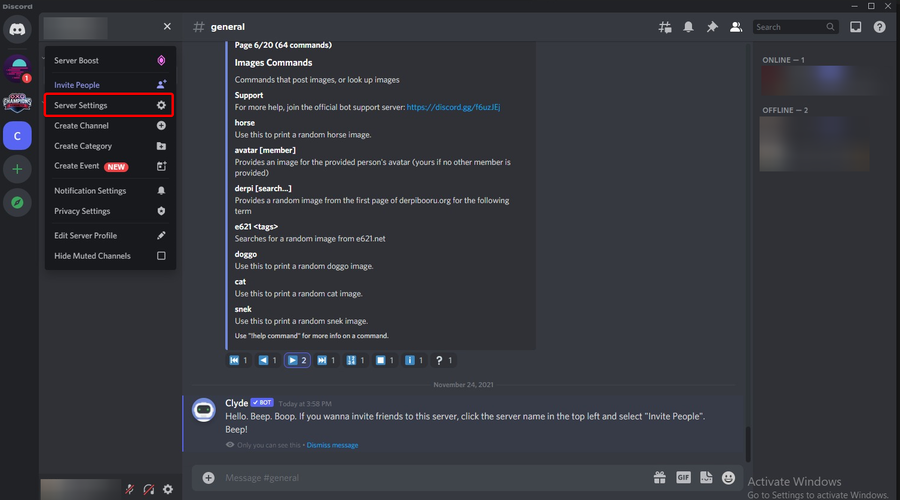
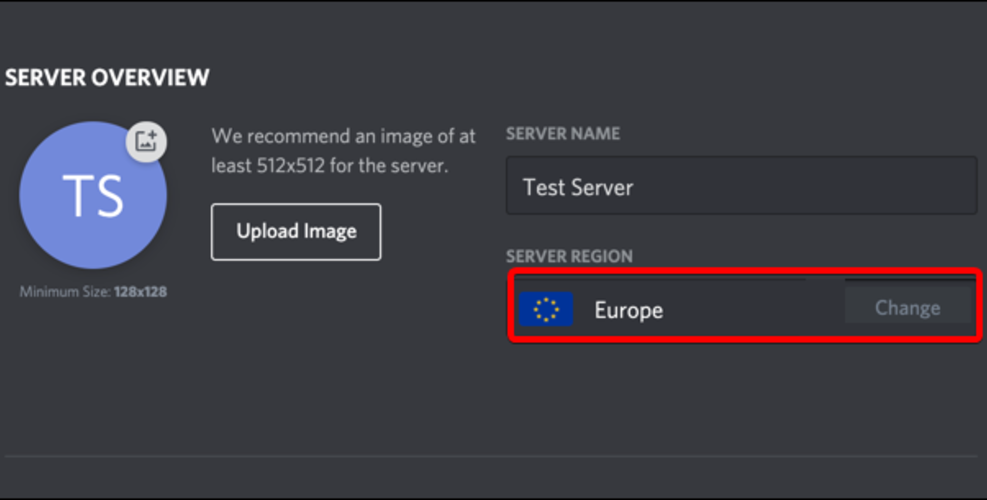
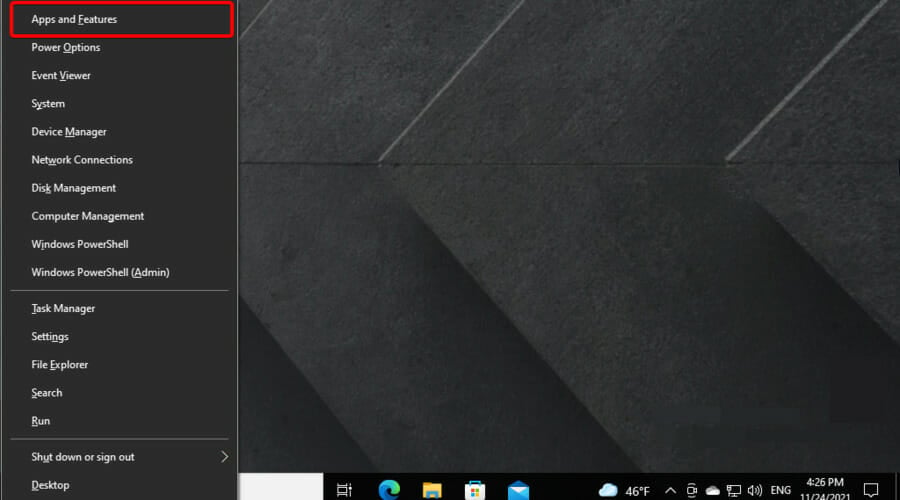
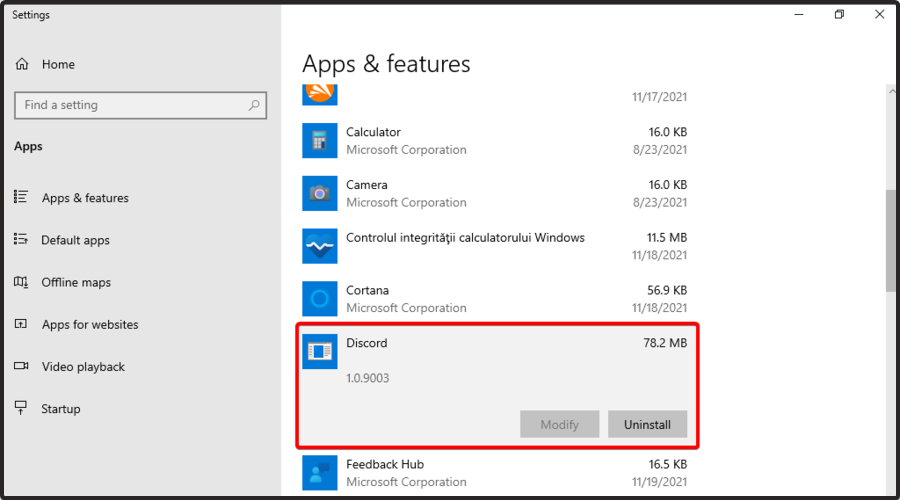
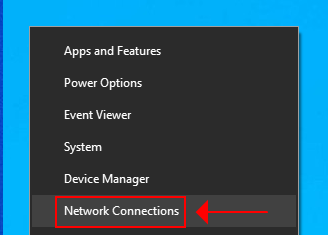
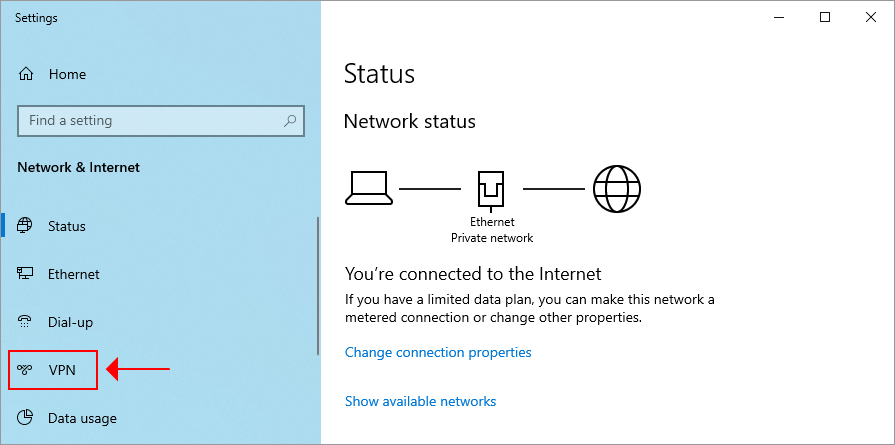
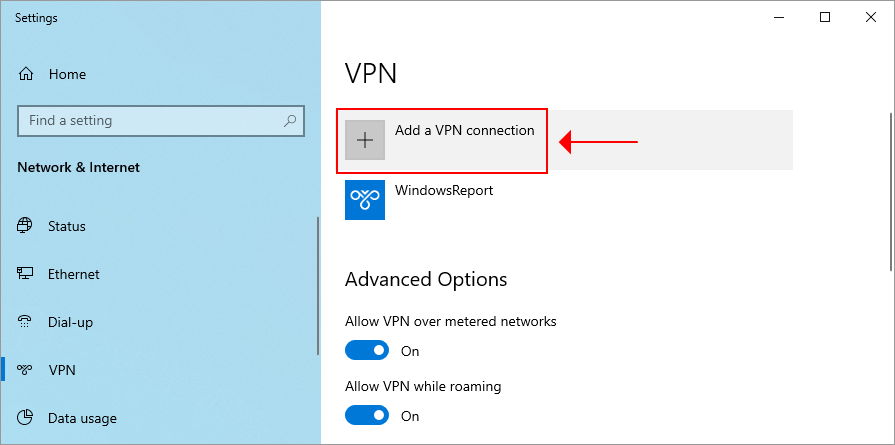
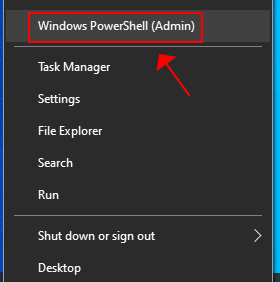
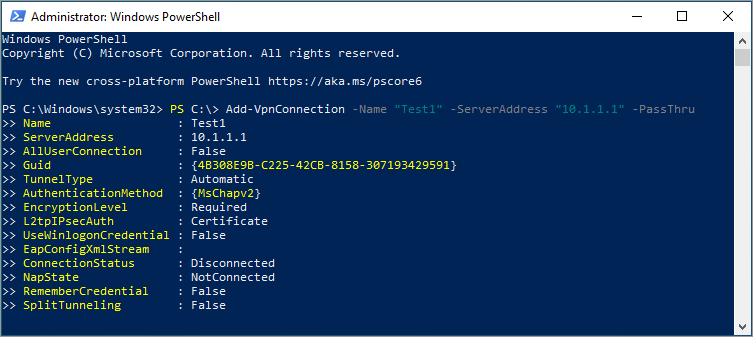
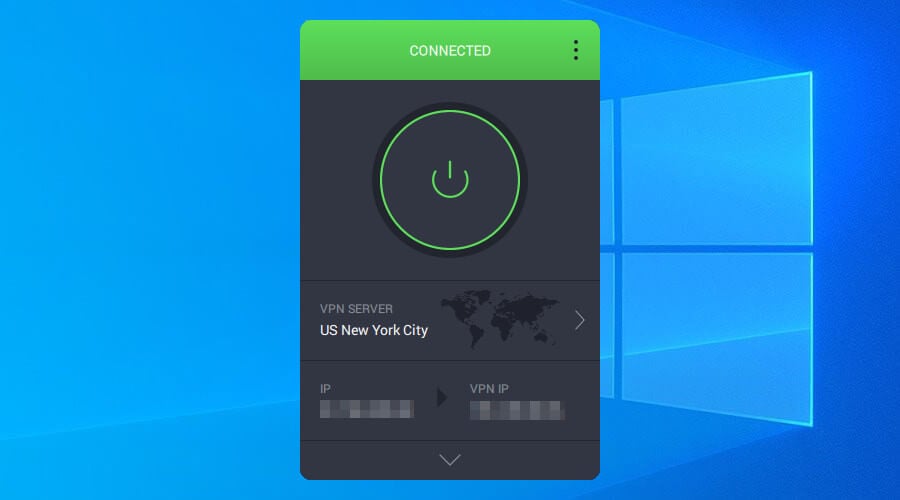

![How to Convert MOV to MP4 on Windows [For Free]](https://windowsreport.com/wp-content/uploads/2020/11/best-laptops-for-writing-and-video-editing.jpg)









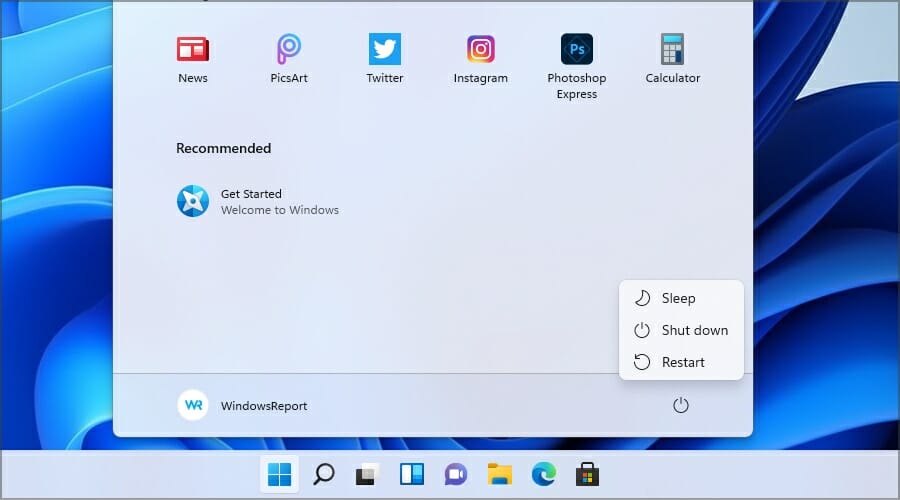



![How to Open a TAR File in Windows 10 [6 Easy Methods]](https://windowsreport.com/wp-content/uploads/2020/09/open-tar-file.jpg)



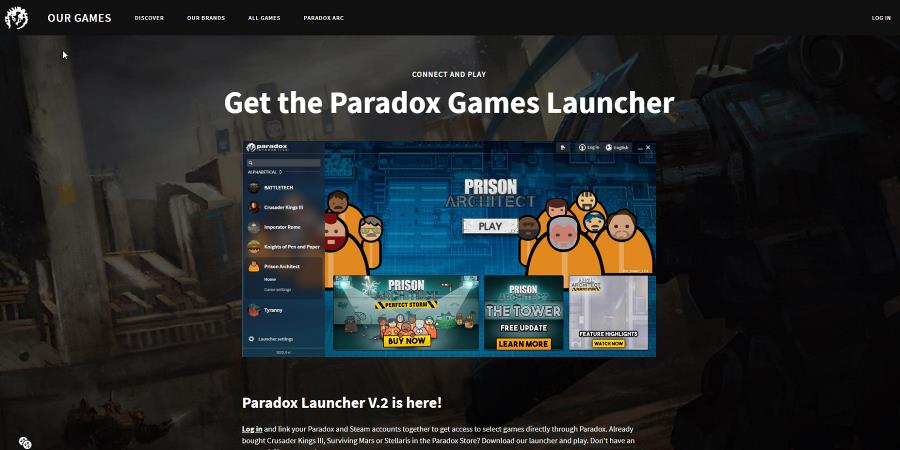
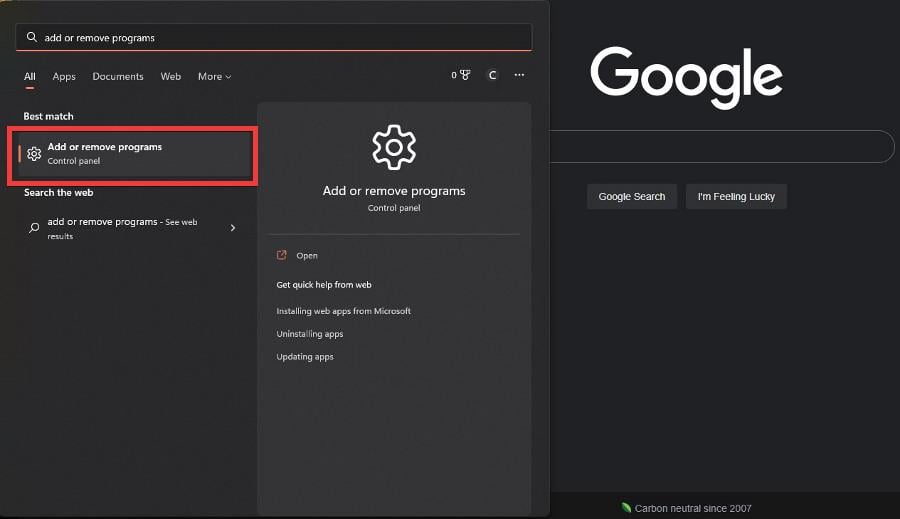
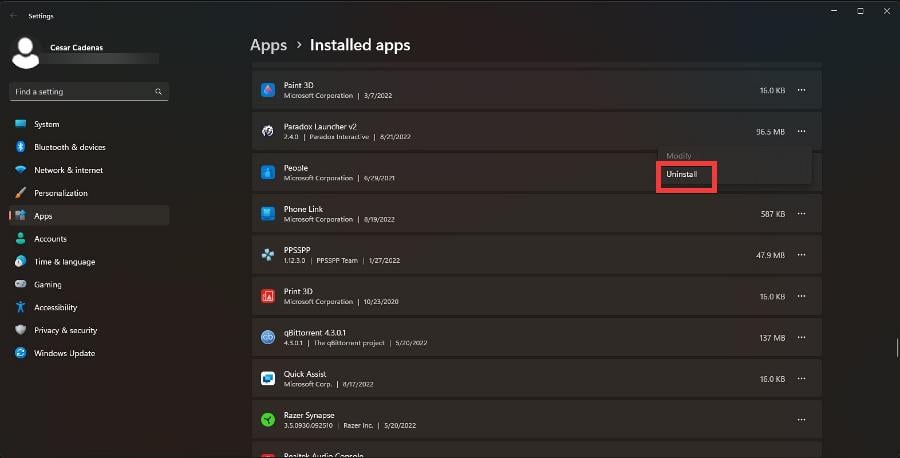
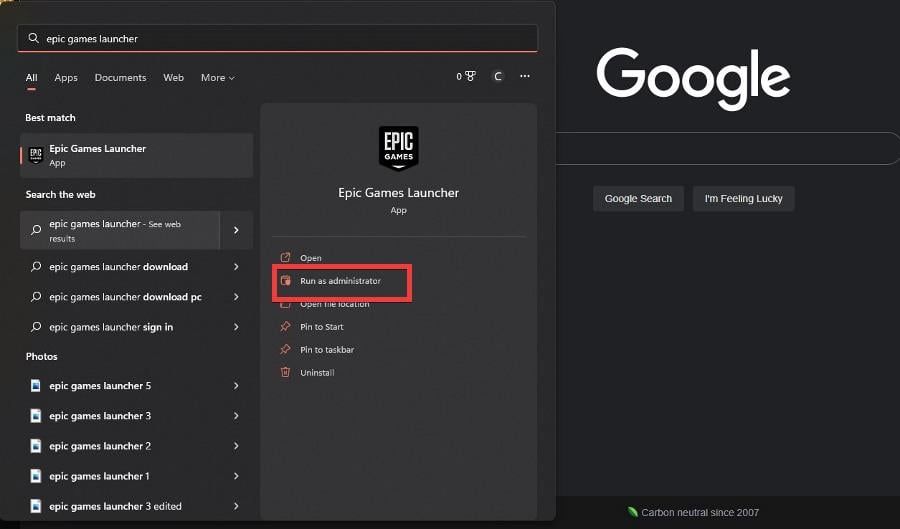
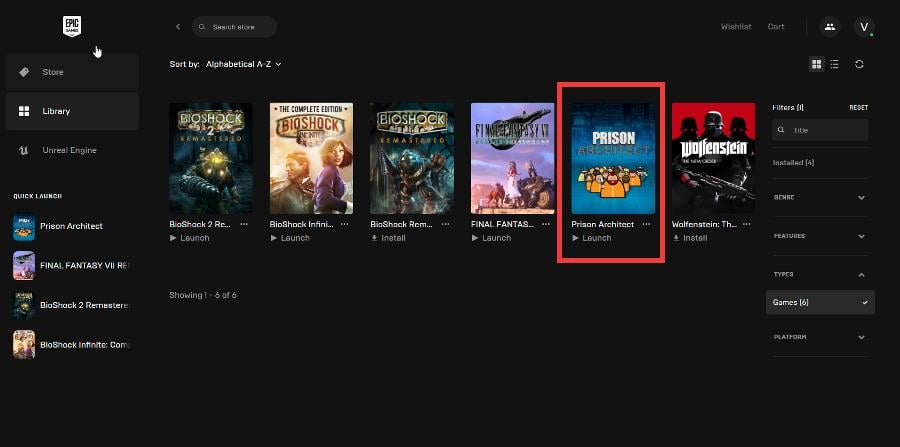
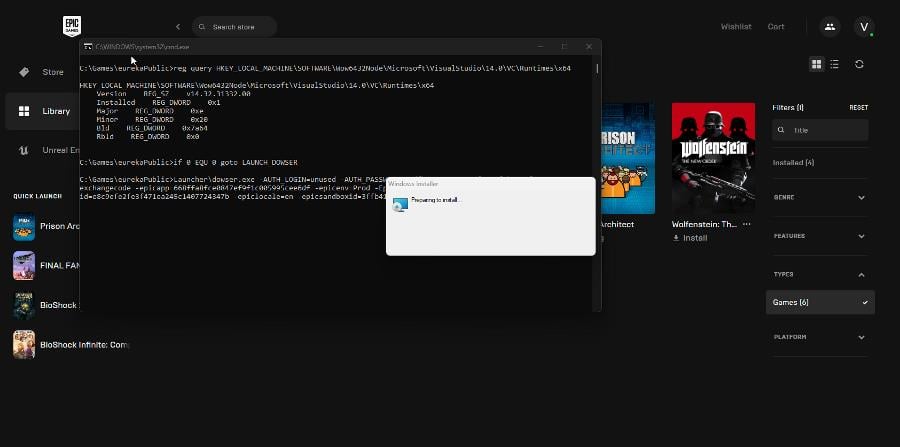
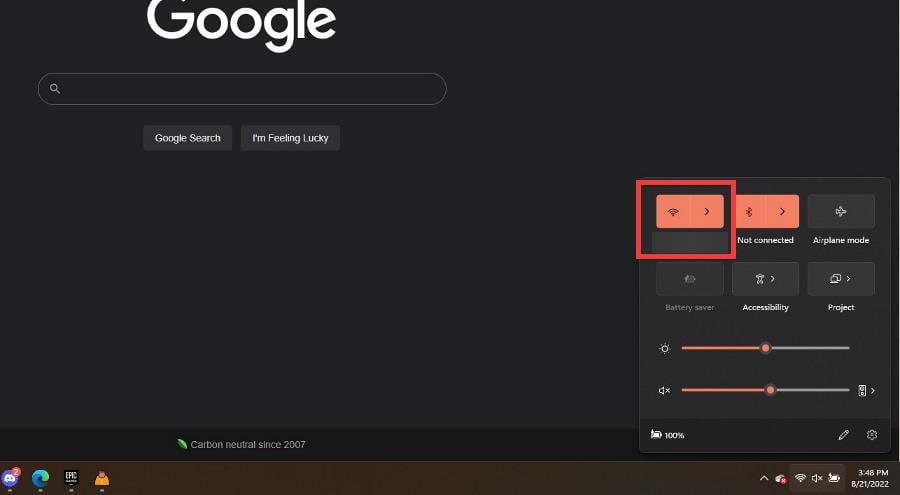
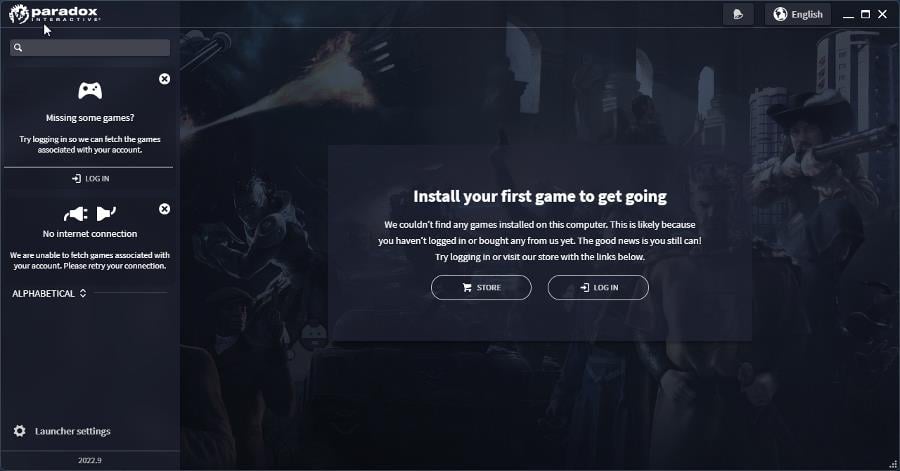
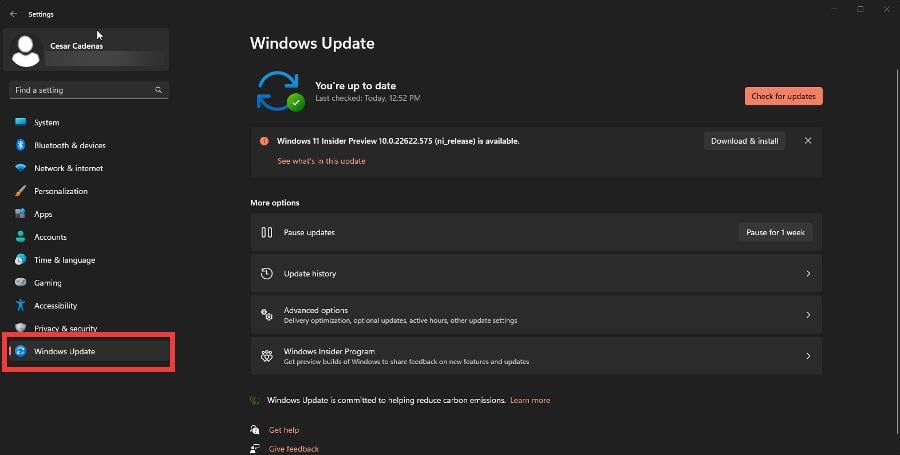
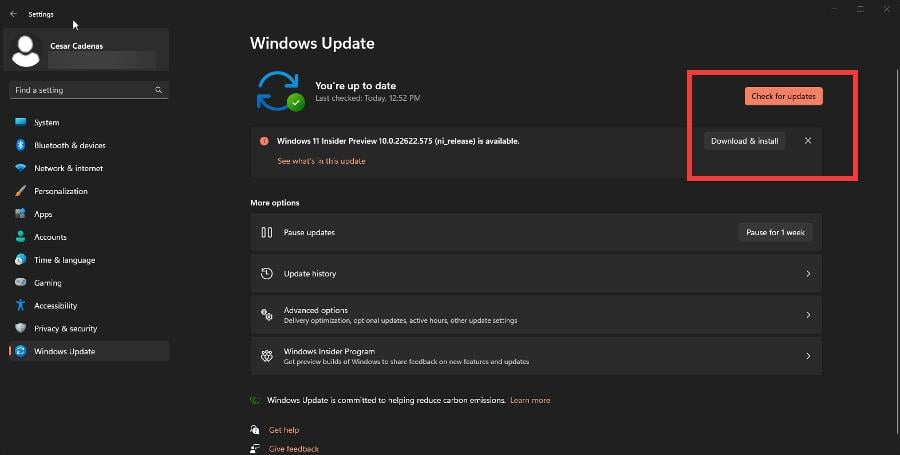
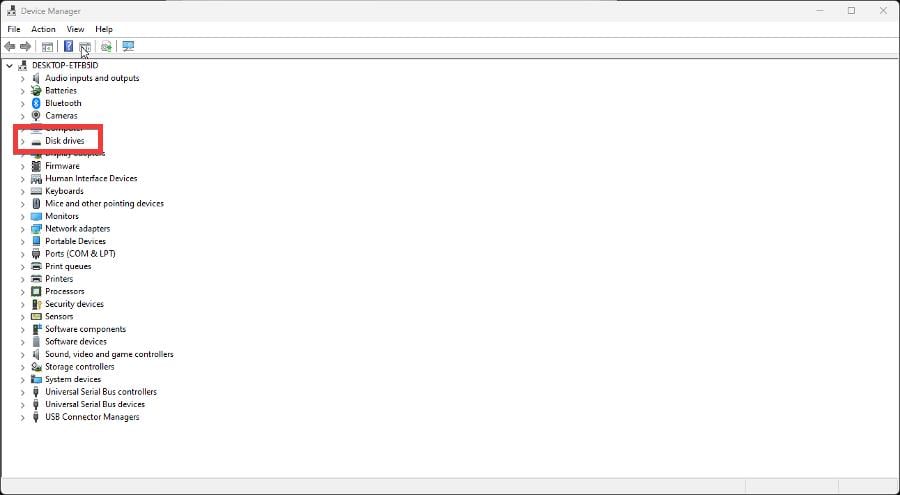
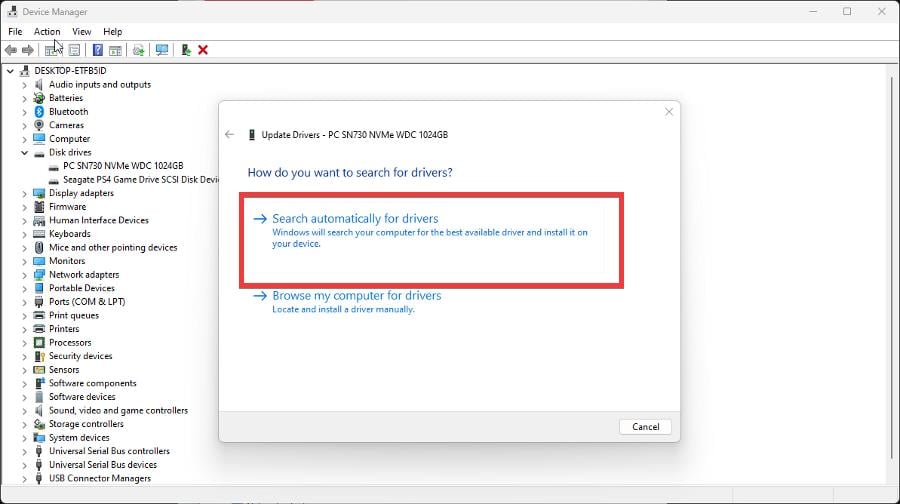
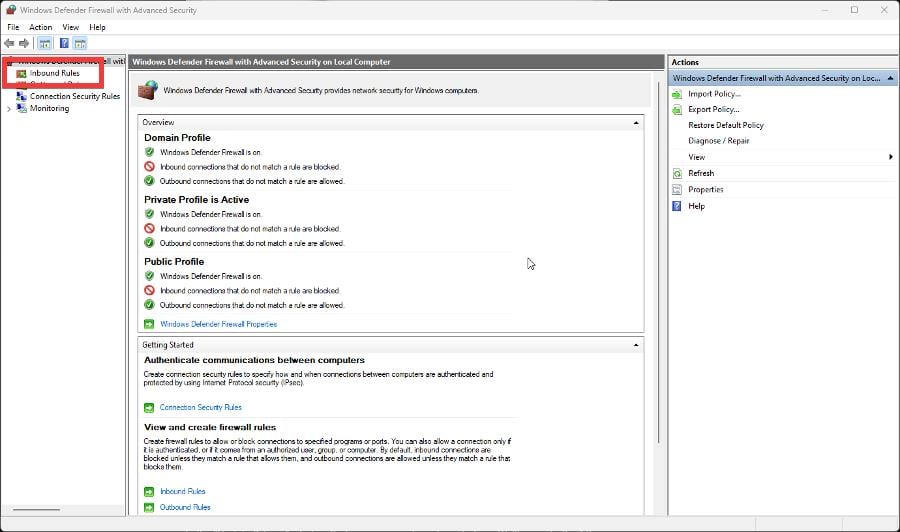

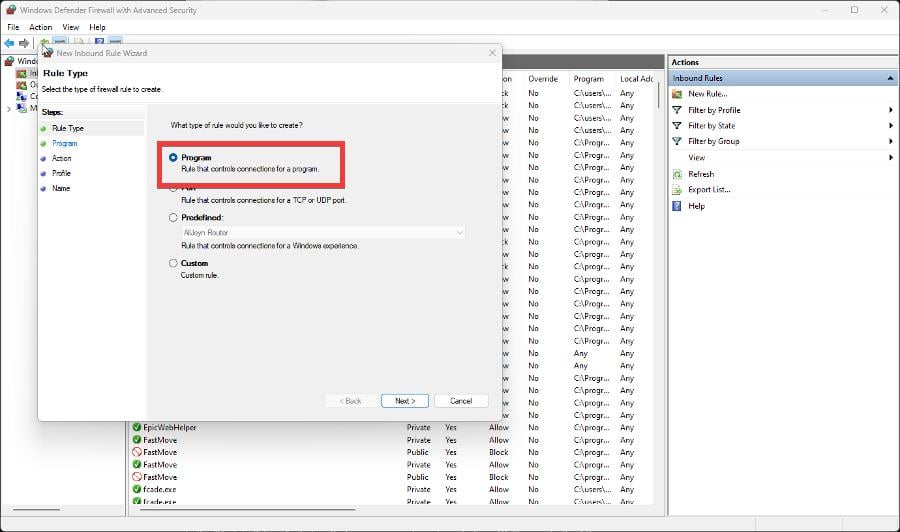
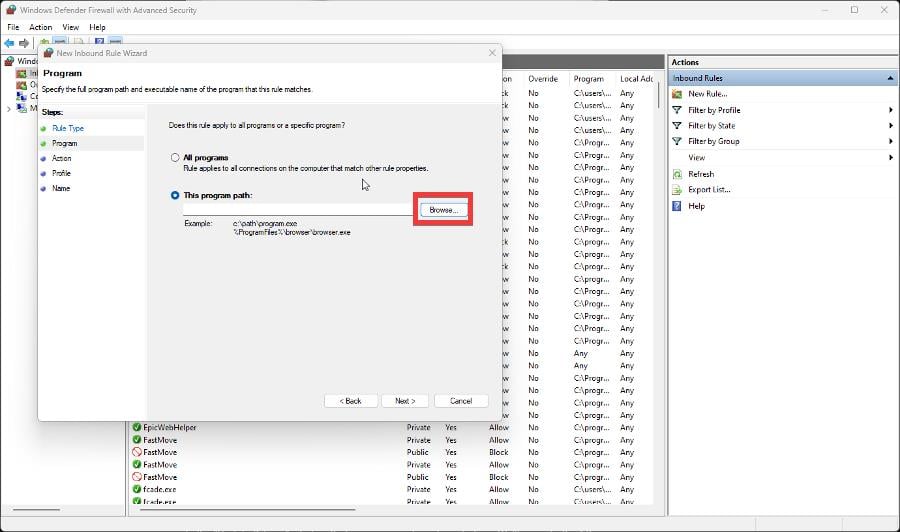
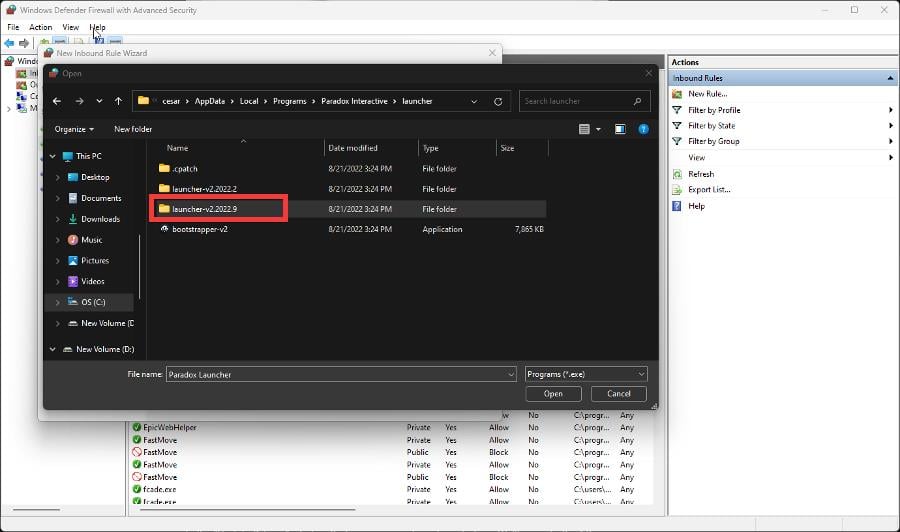
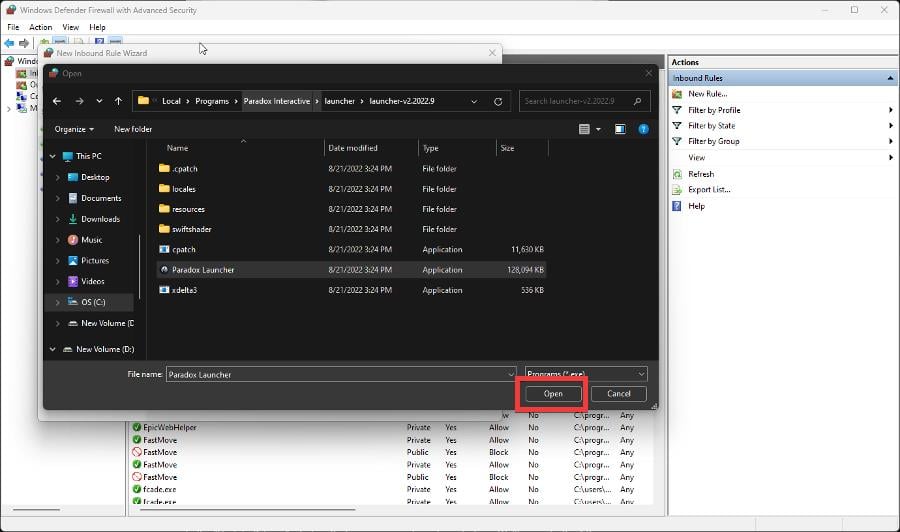
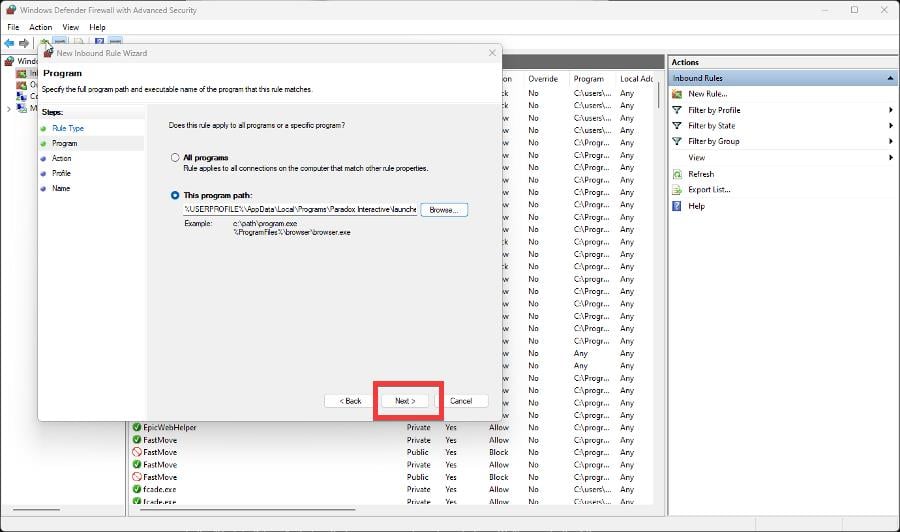
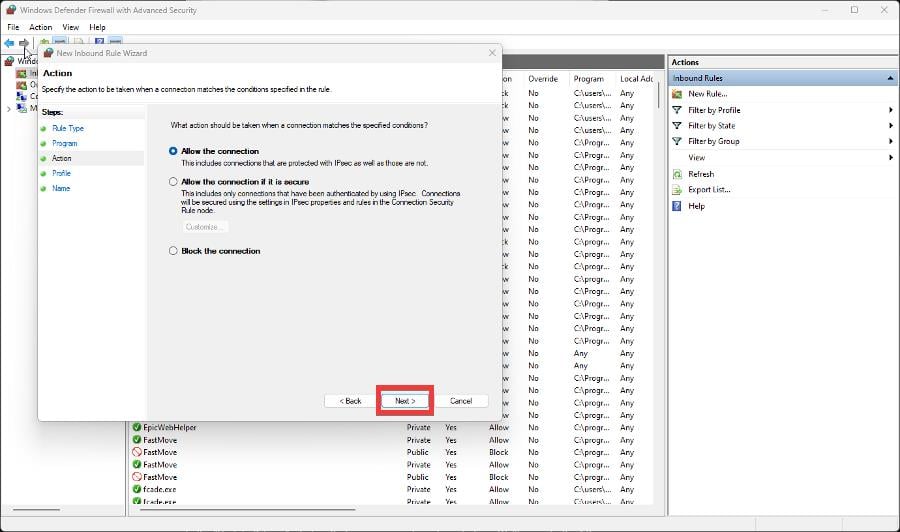
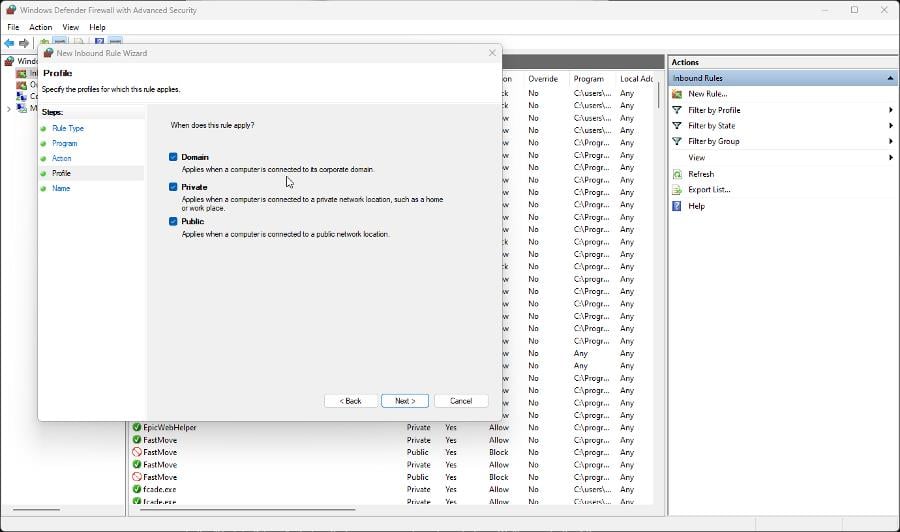
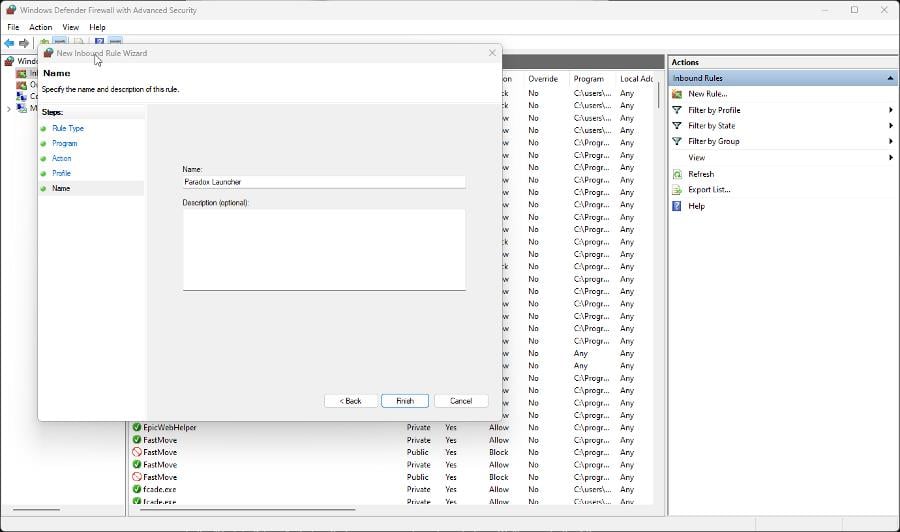
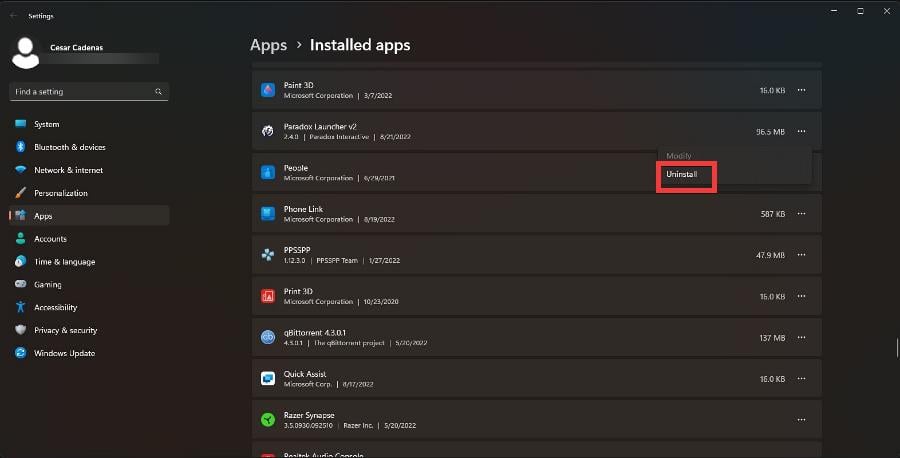
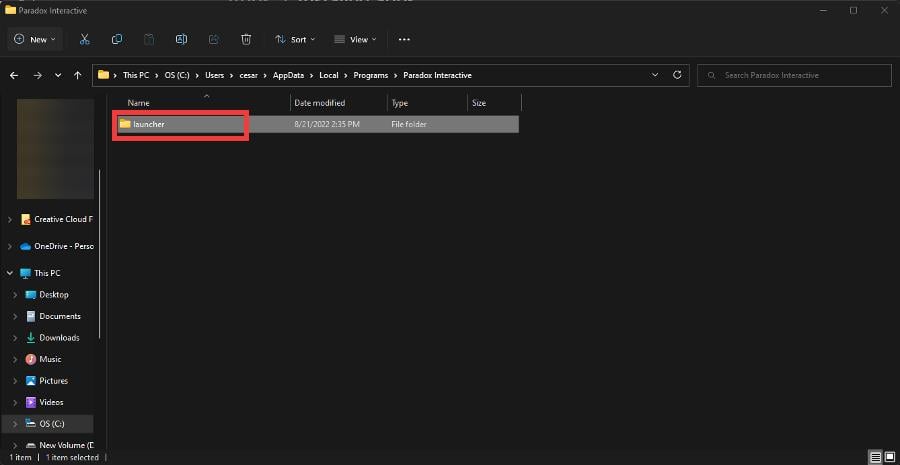
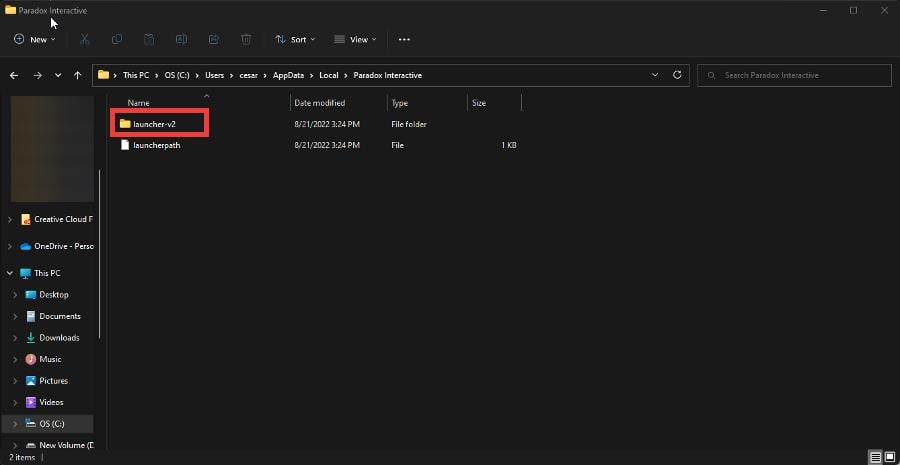
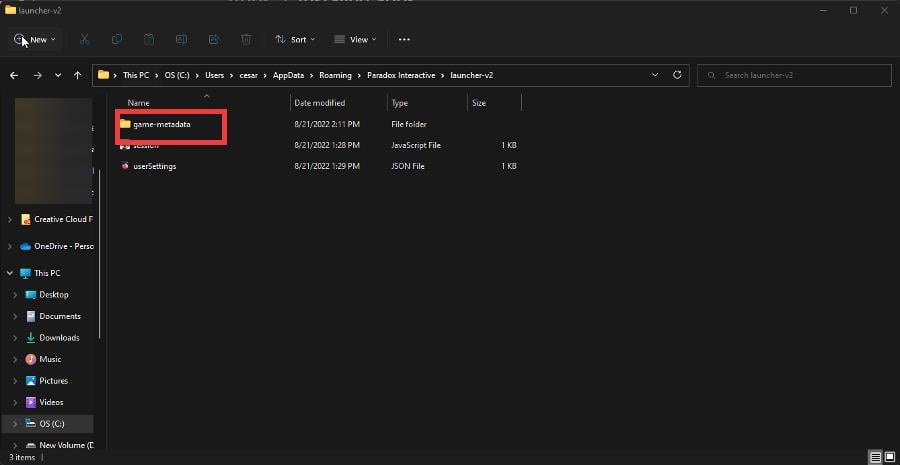
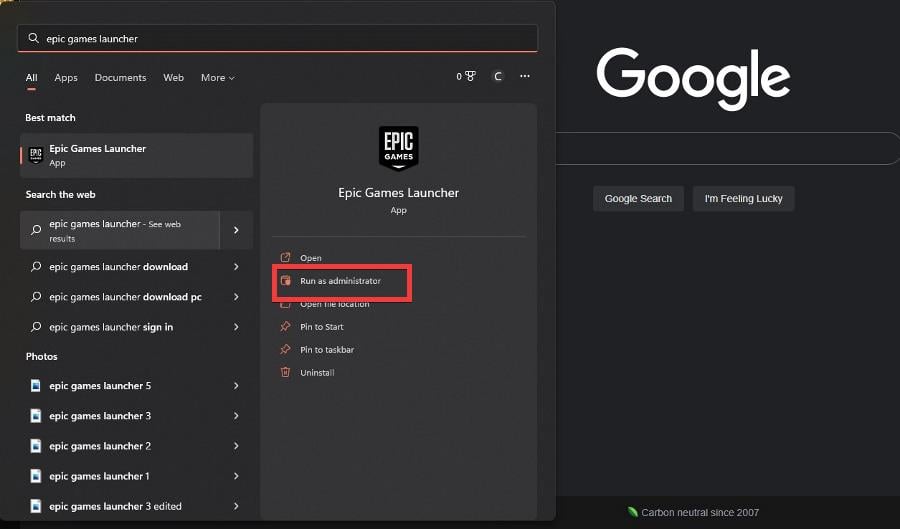
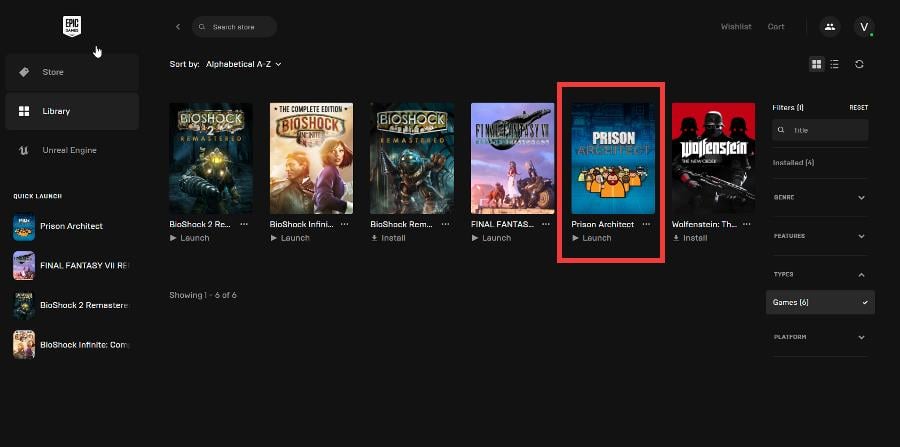
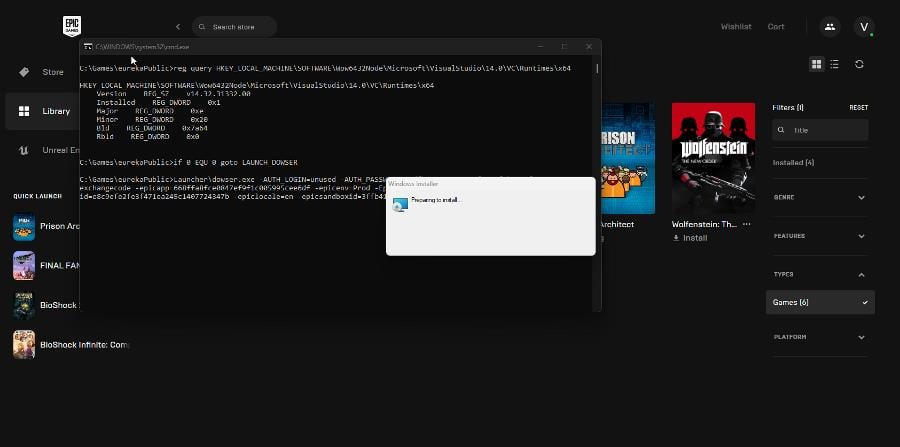
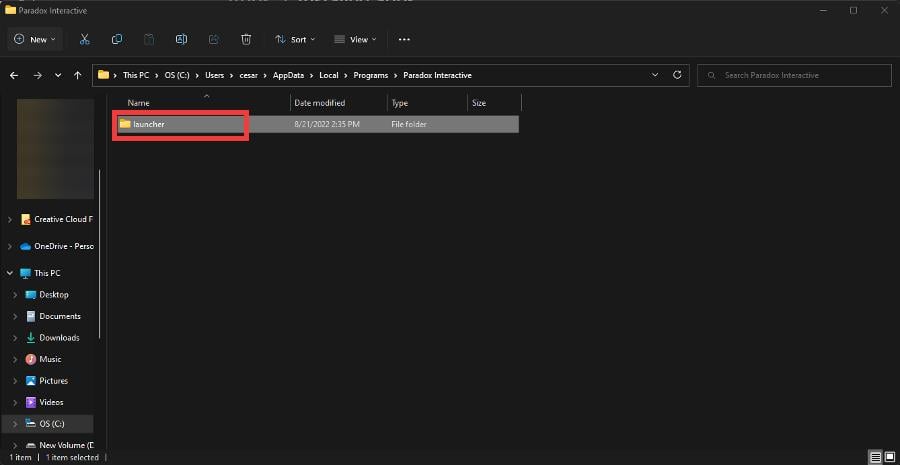
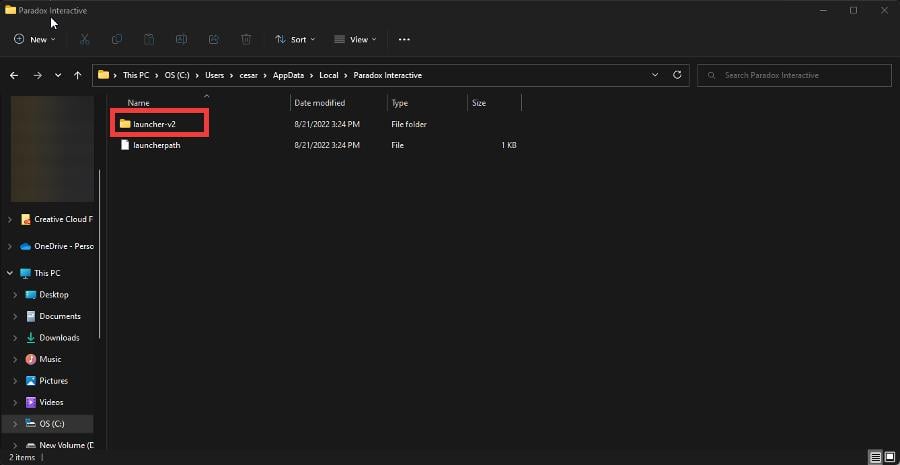
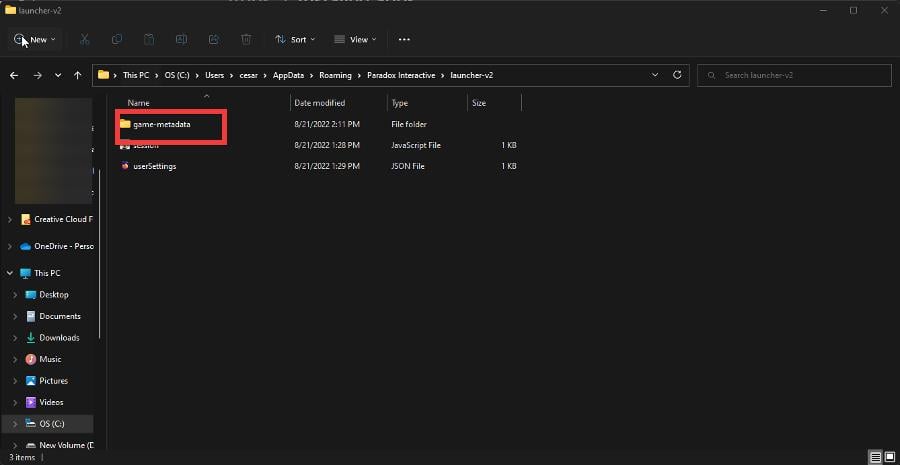
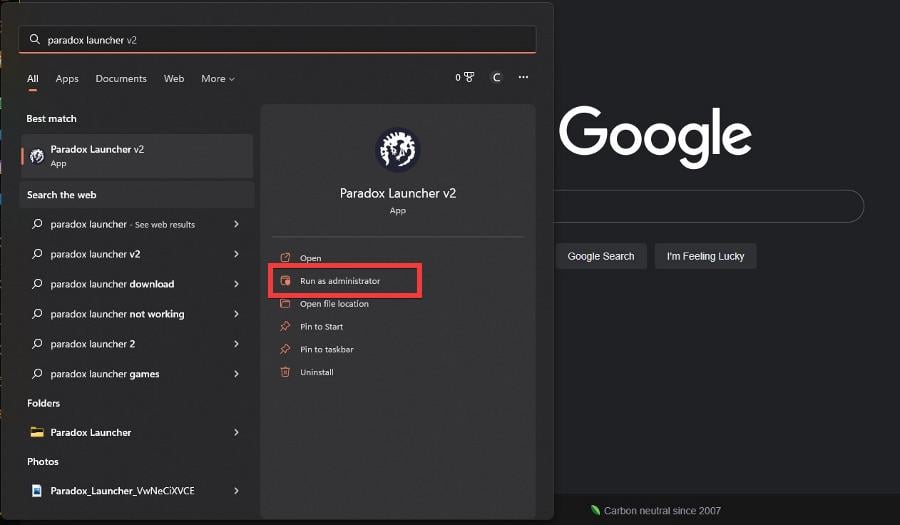
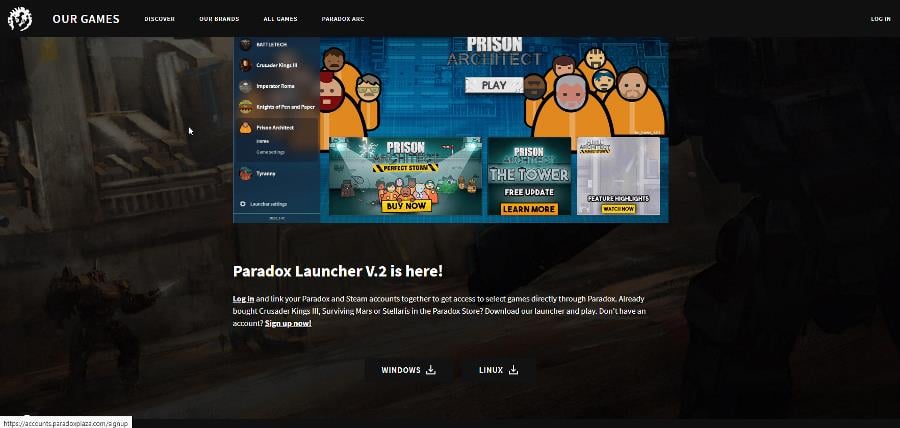
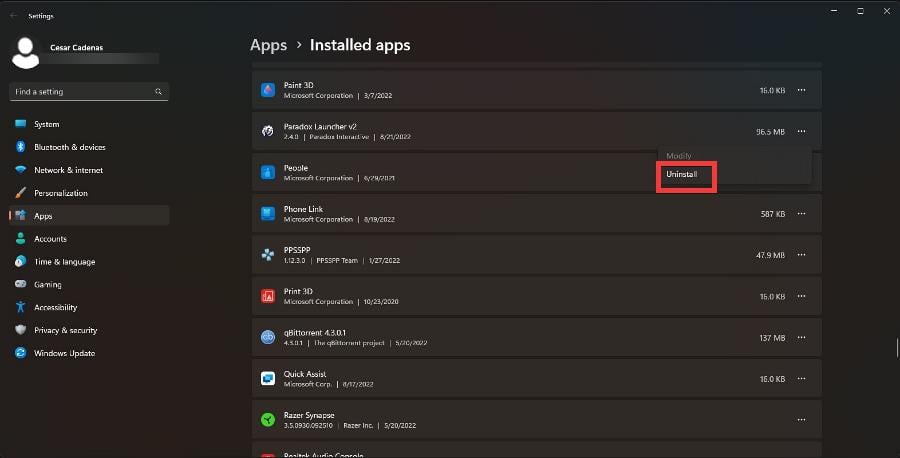
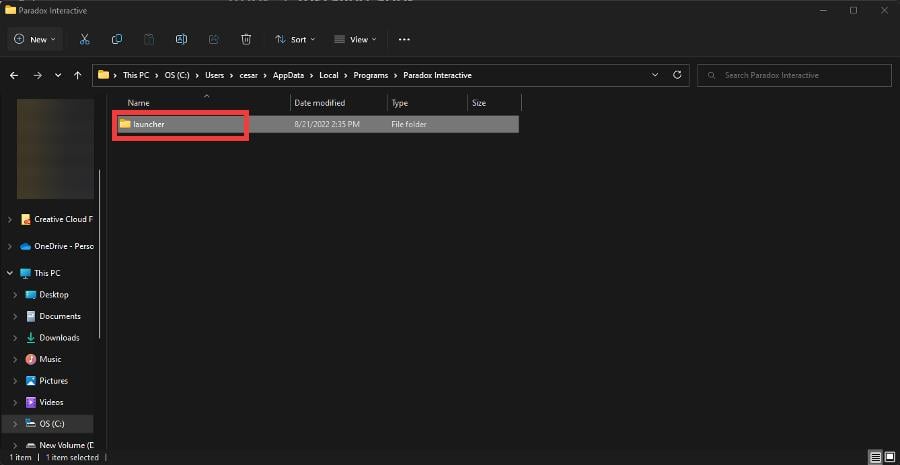
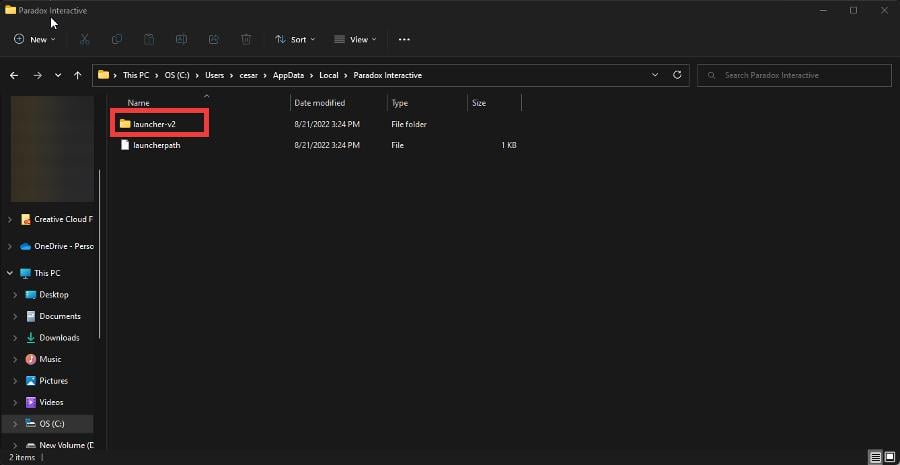
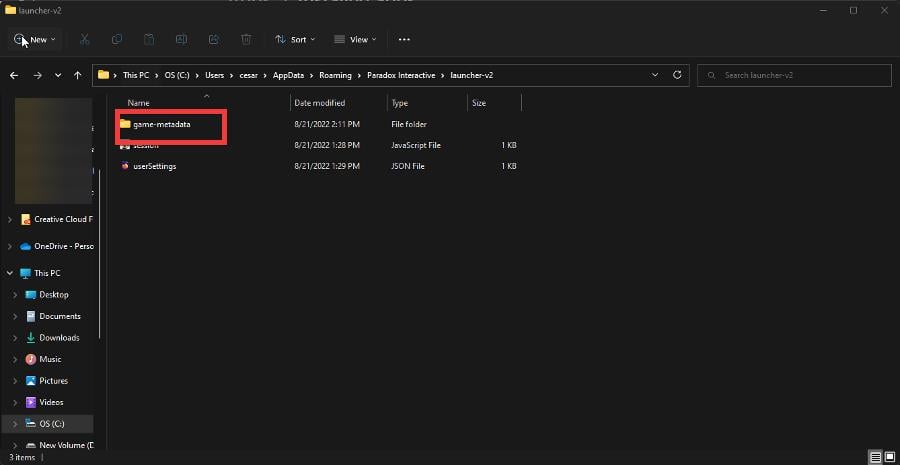
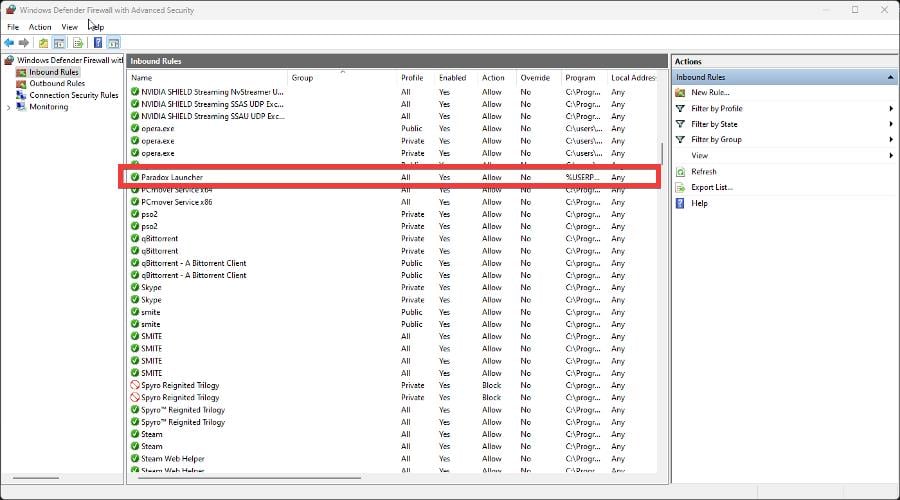
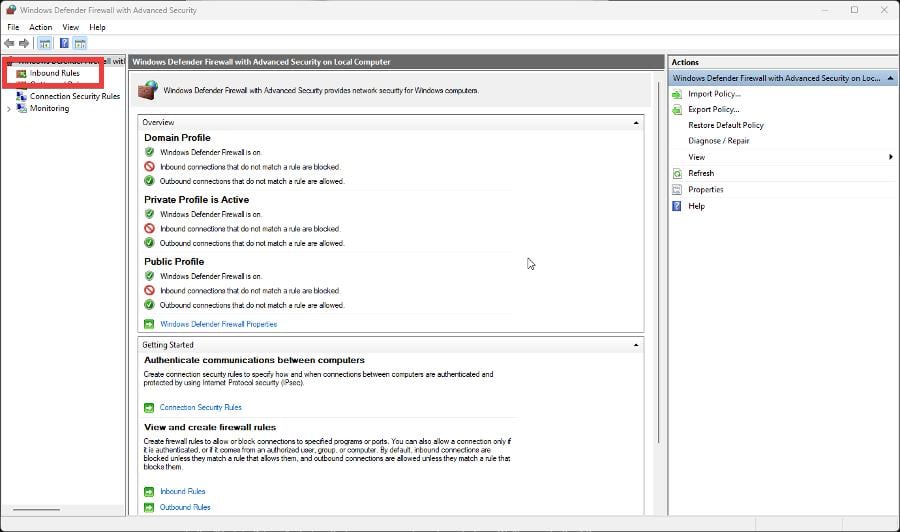
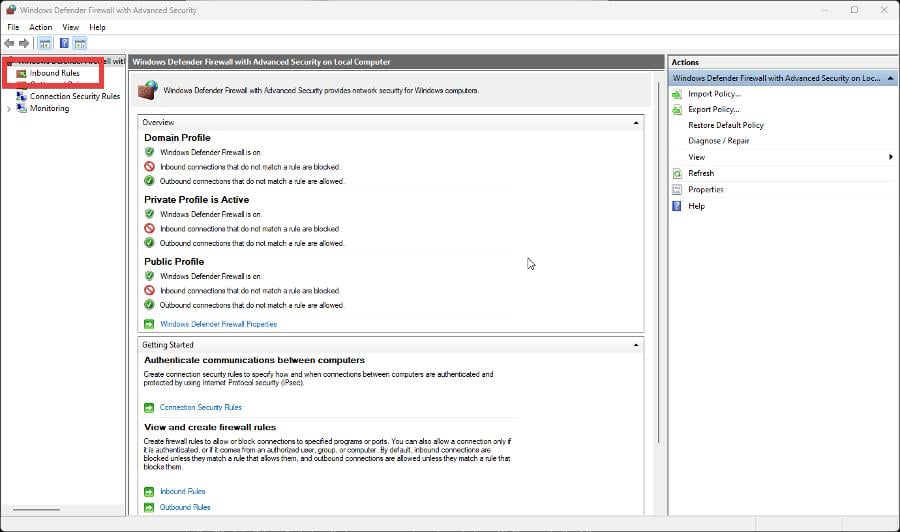
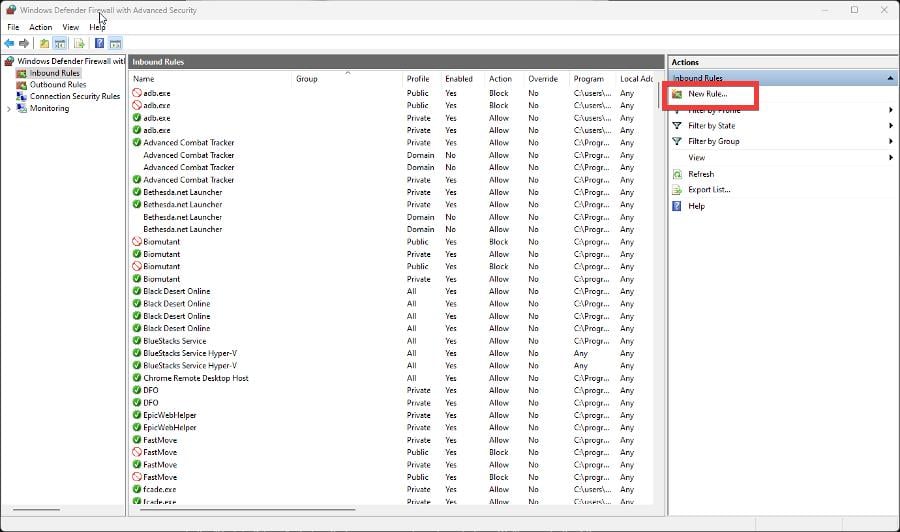
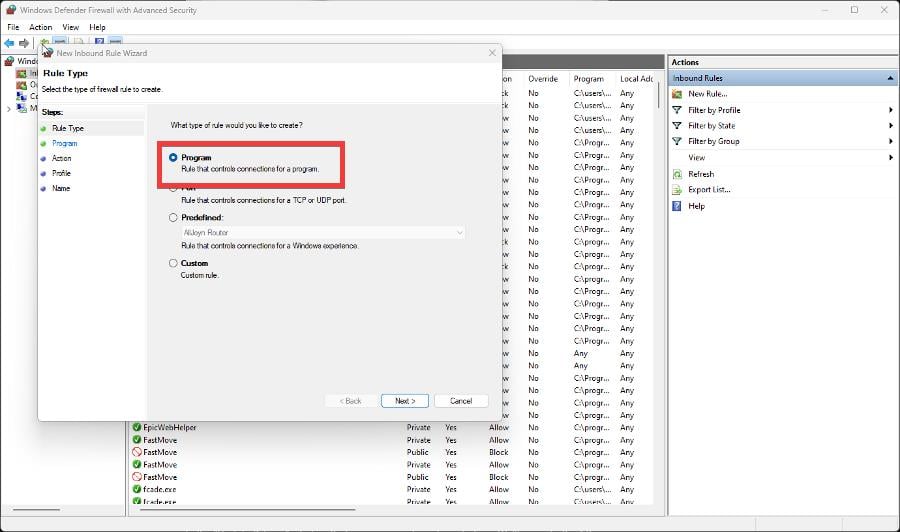
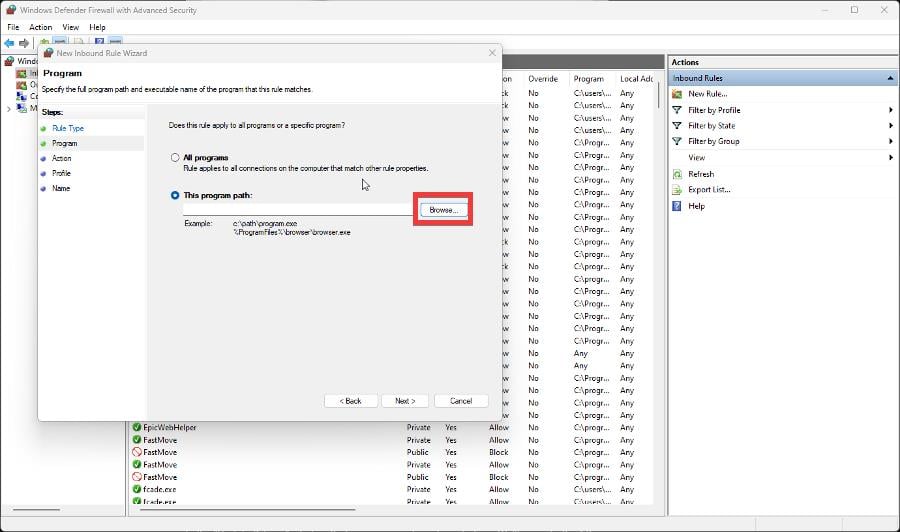
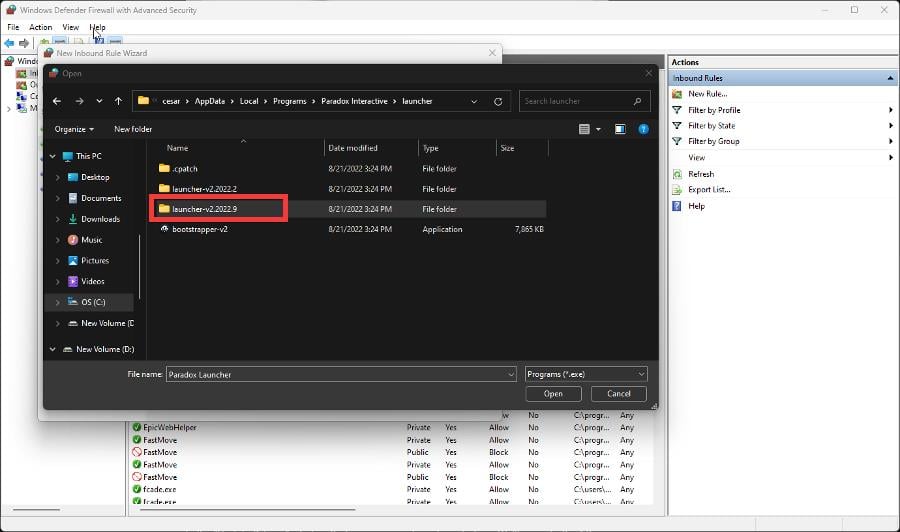
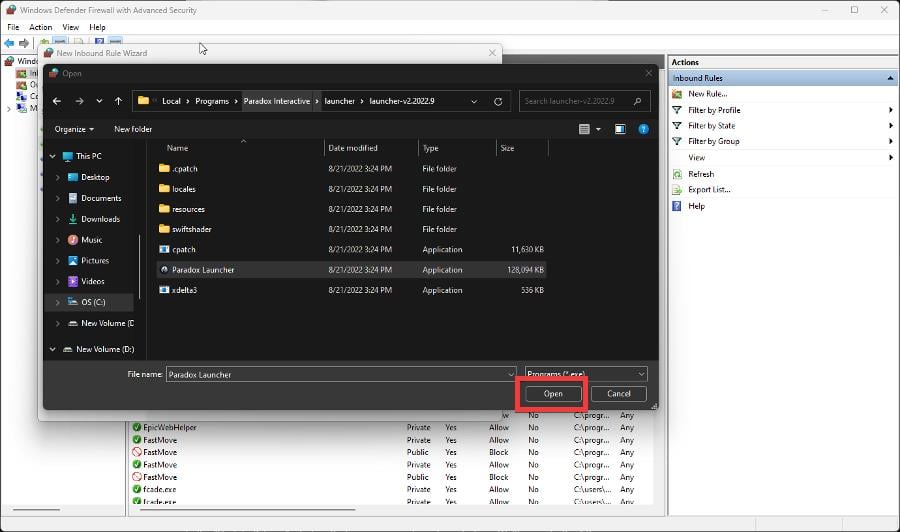
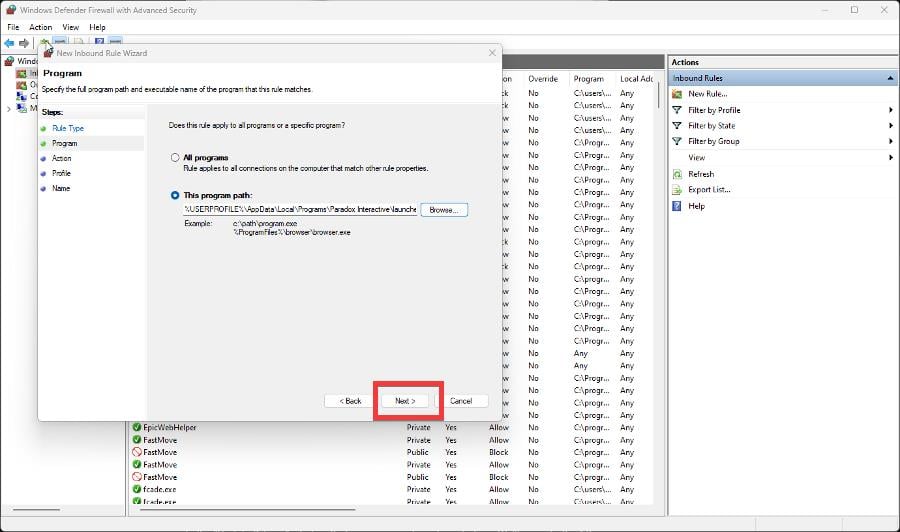
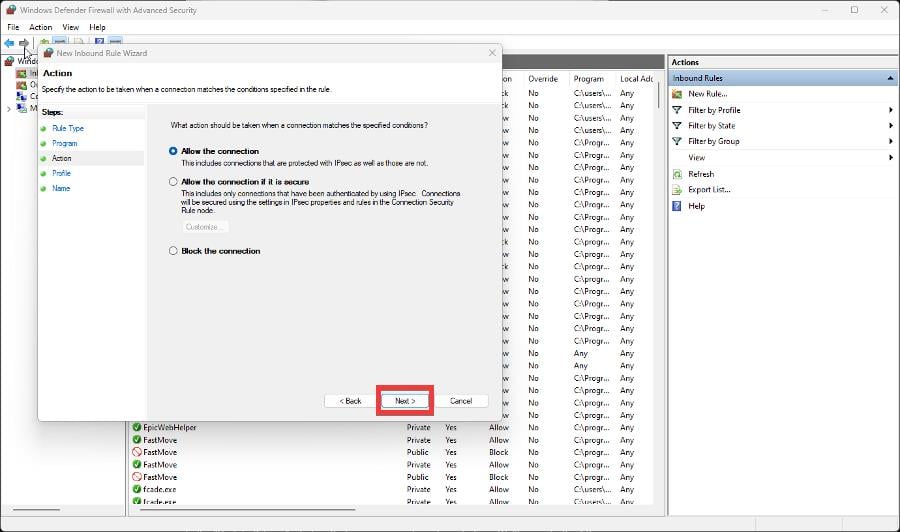
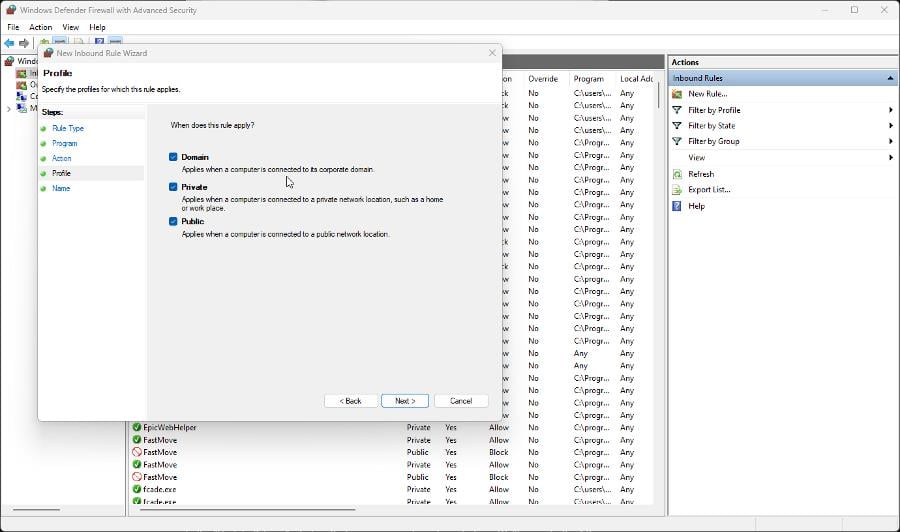

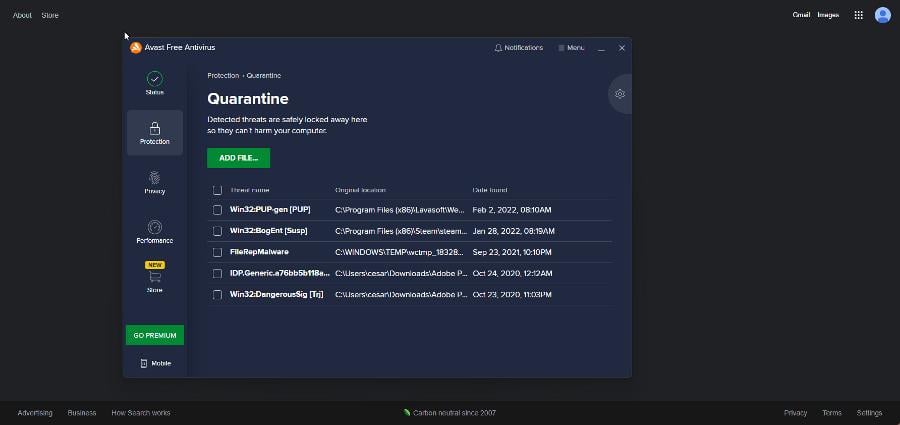
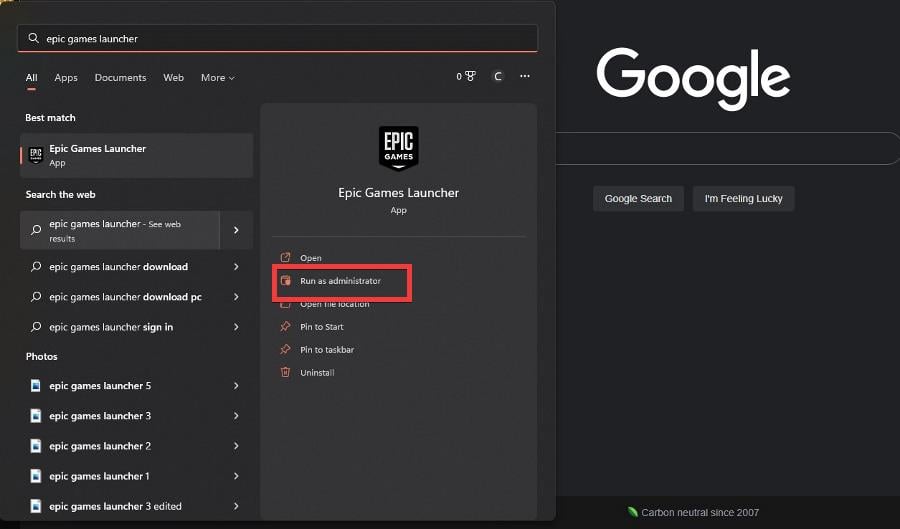
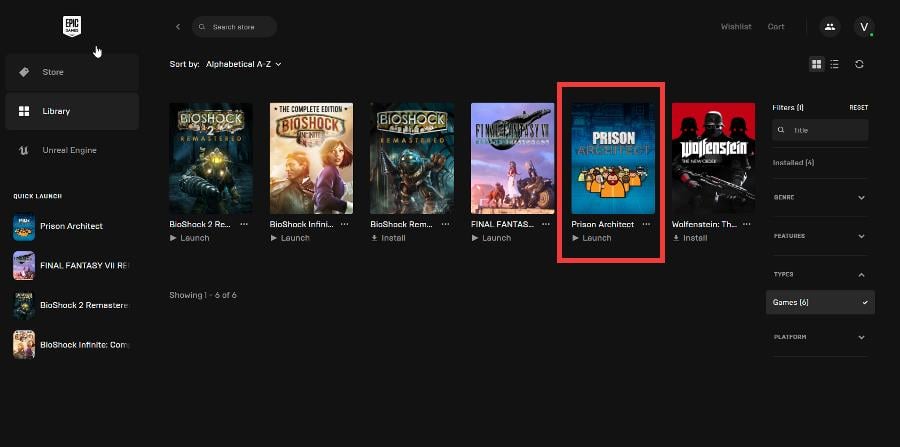
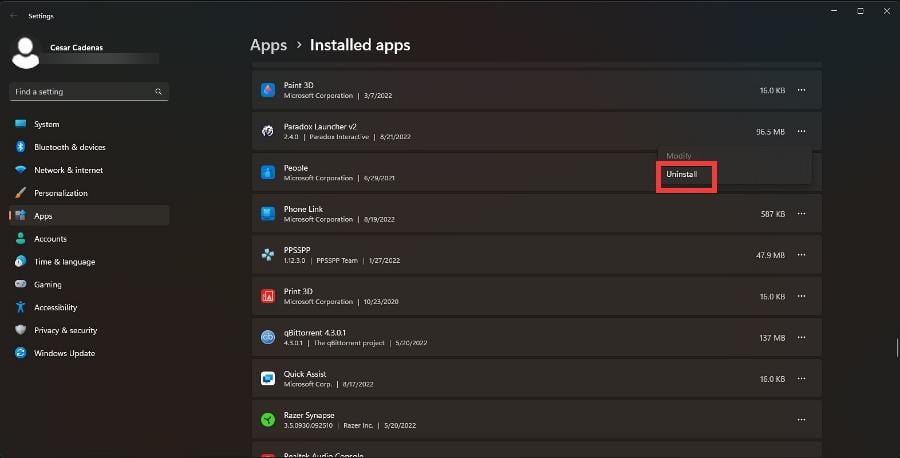
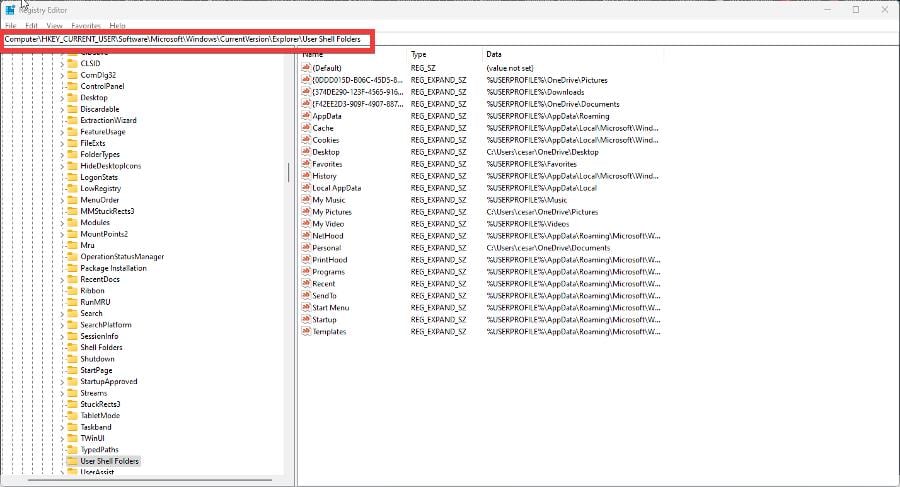
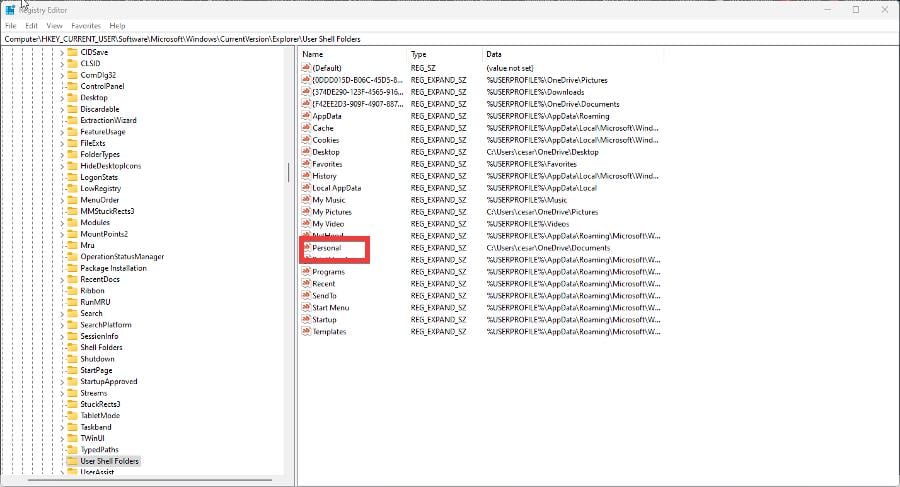
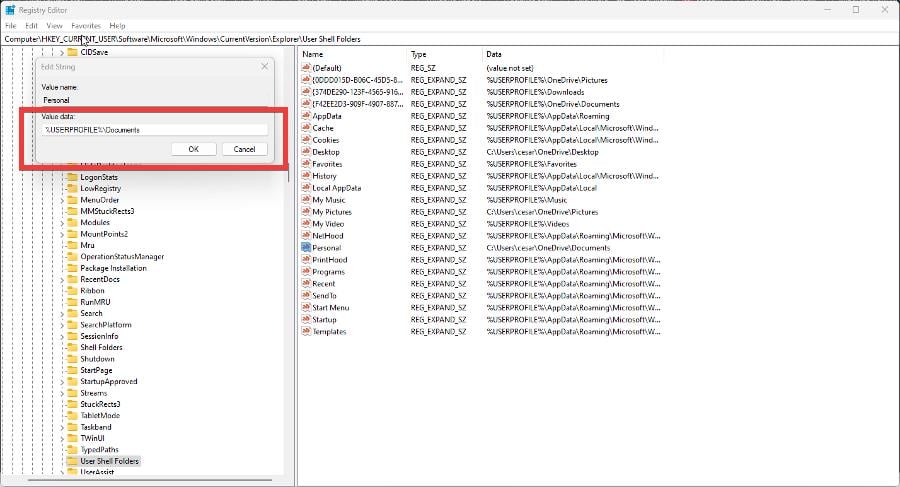


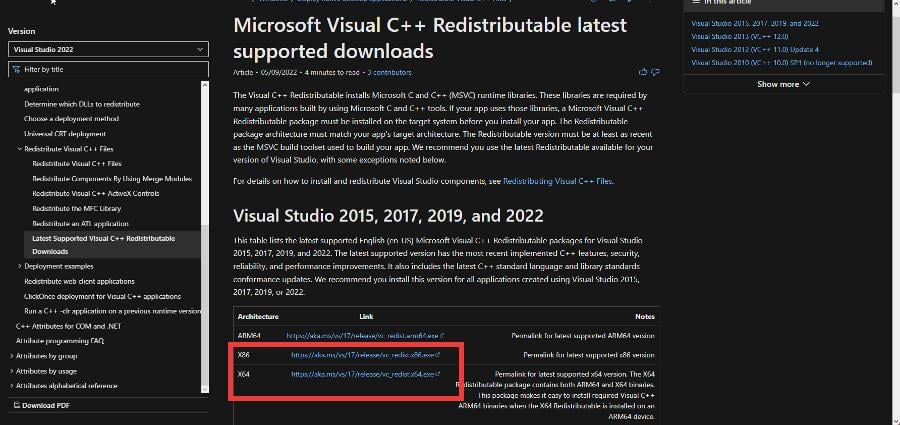
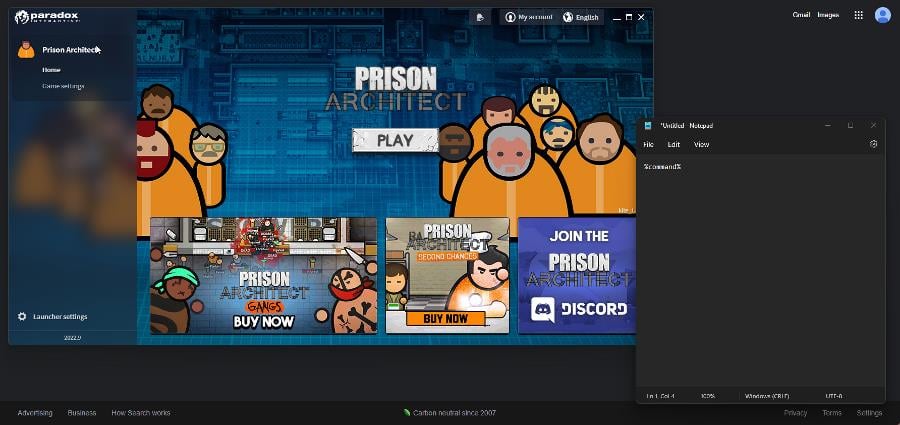
![How to Check Windows Version in Windows 11 [Quick Steps]](https://windowsreport.com/wp-content/uploads/2021/09/check-windows-11-version.jpg)
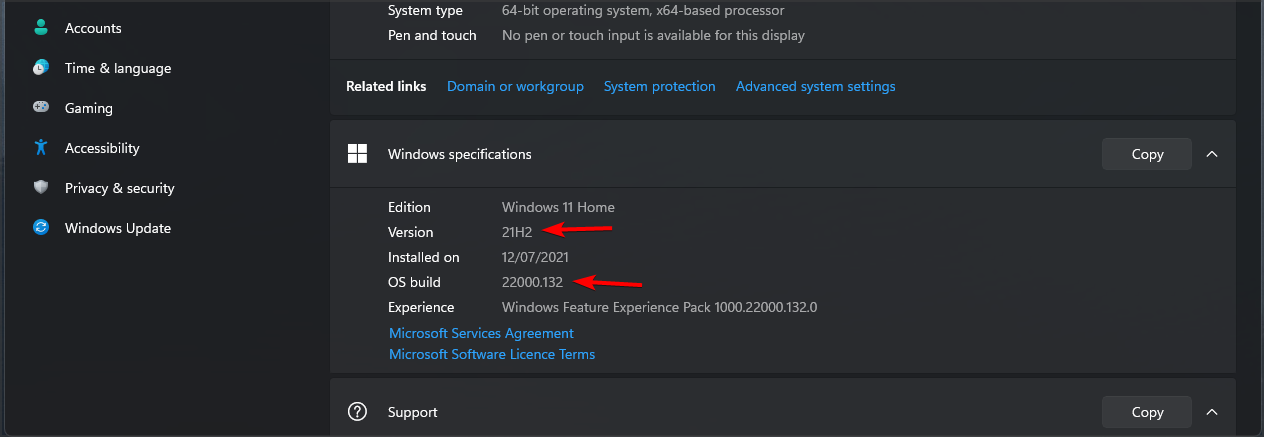


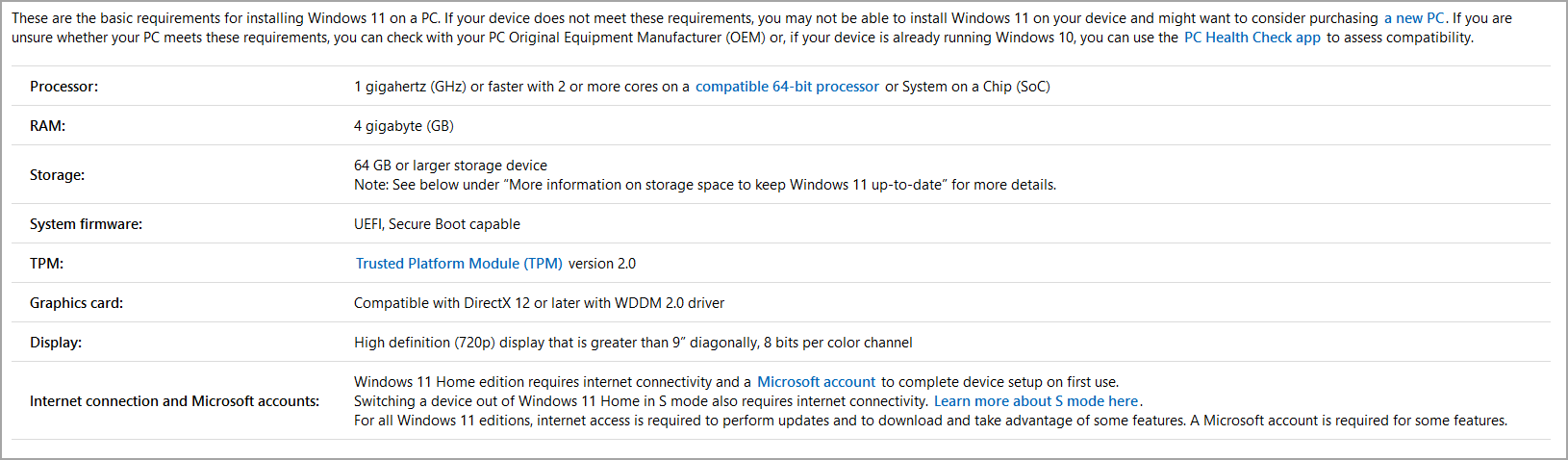
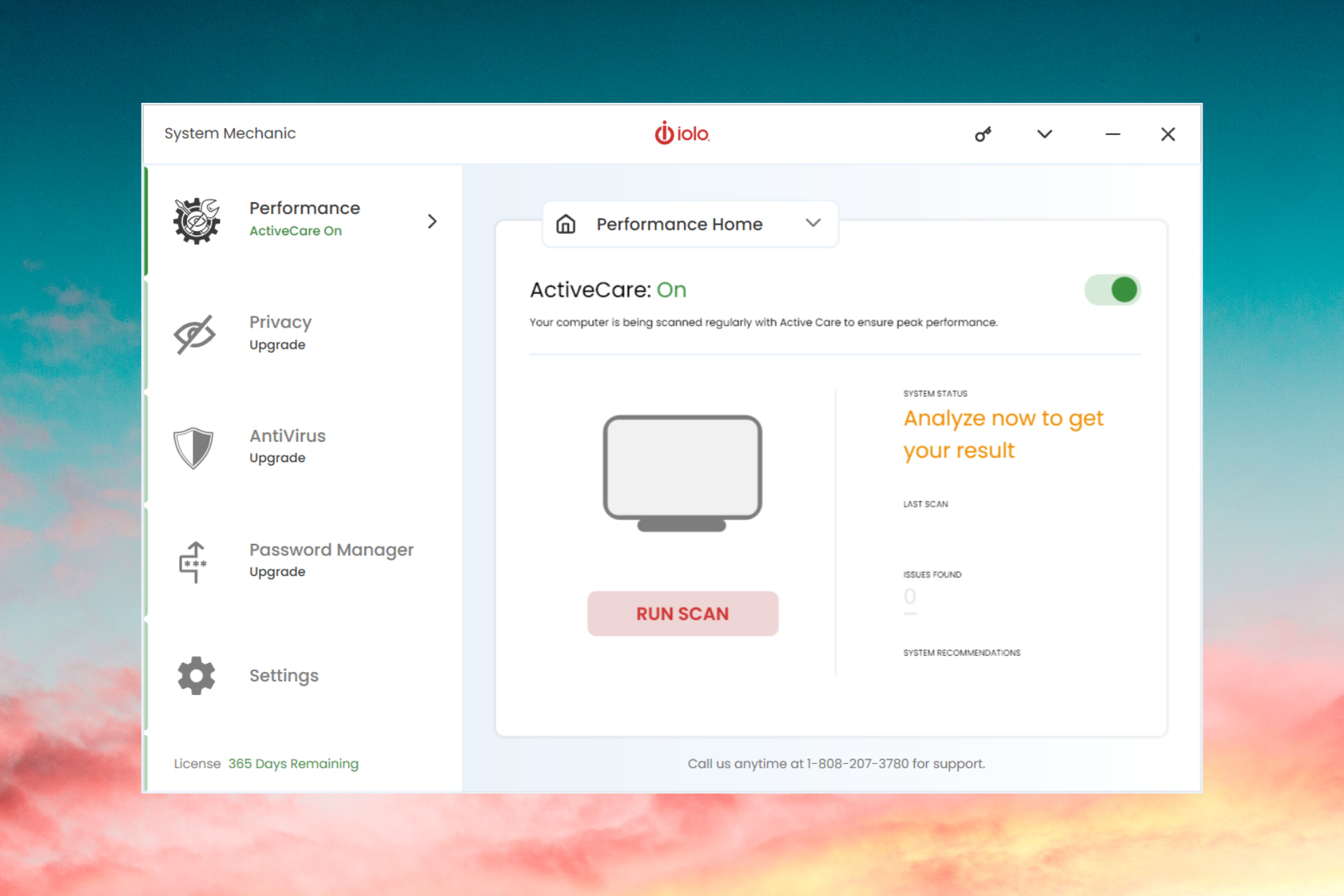




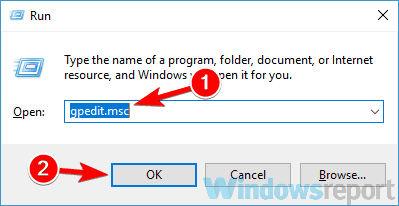
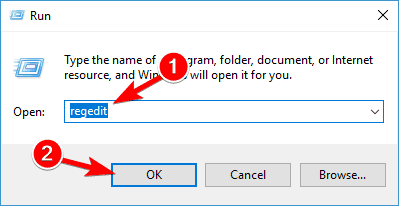
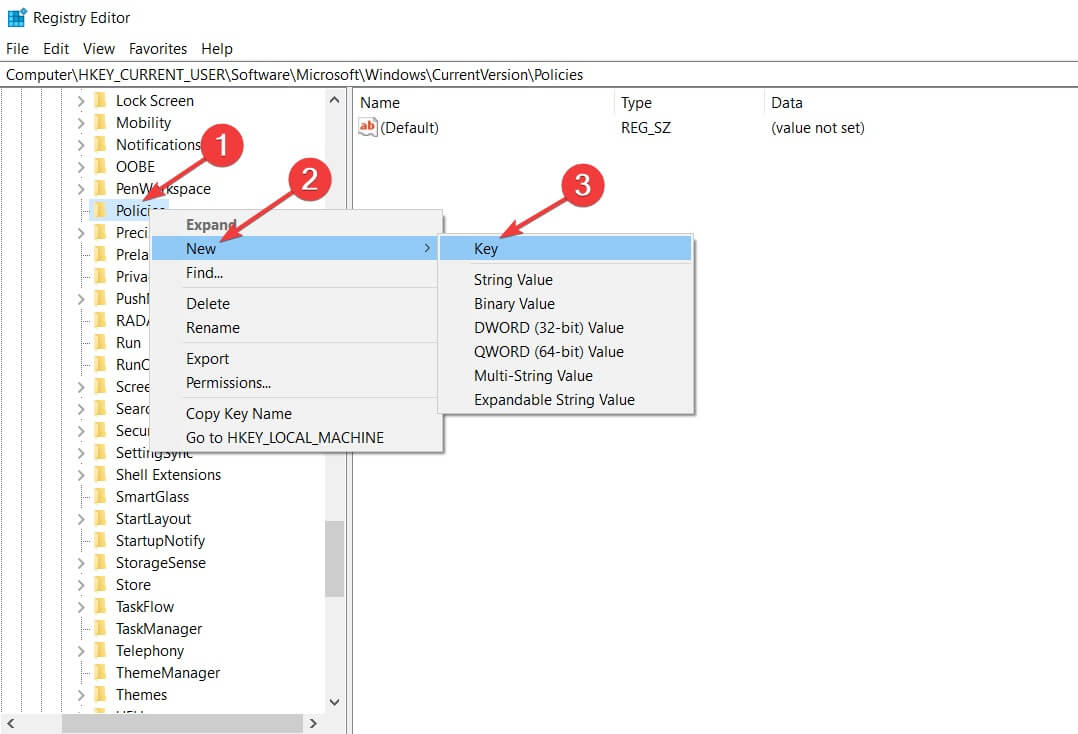
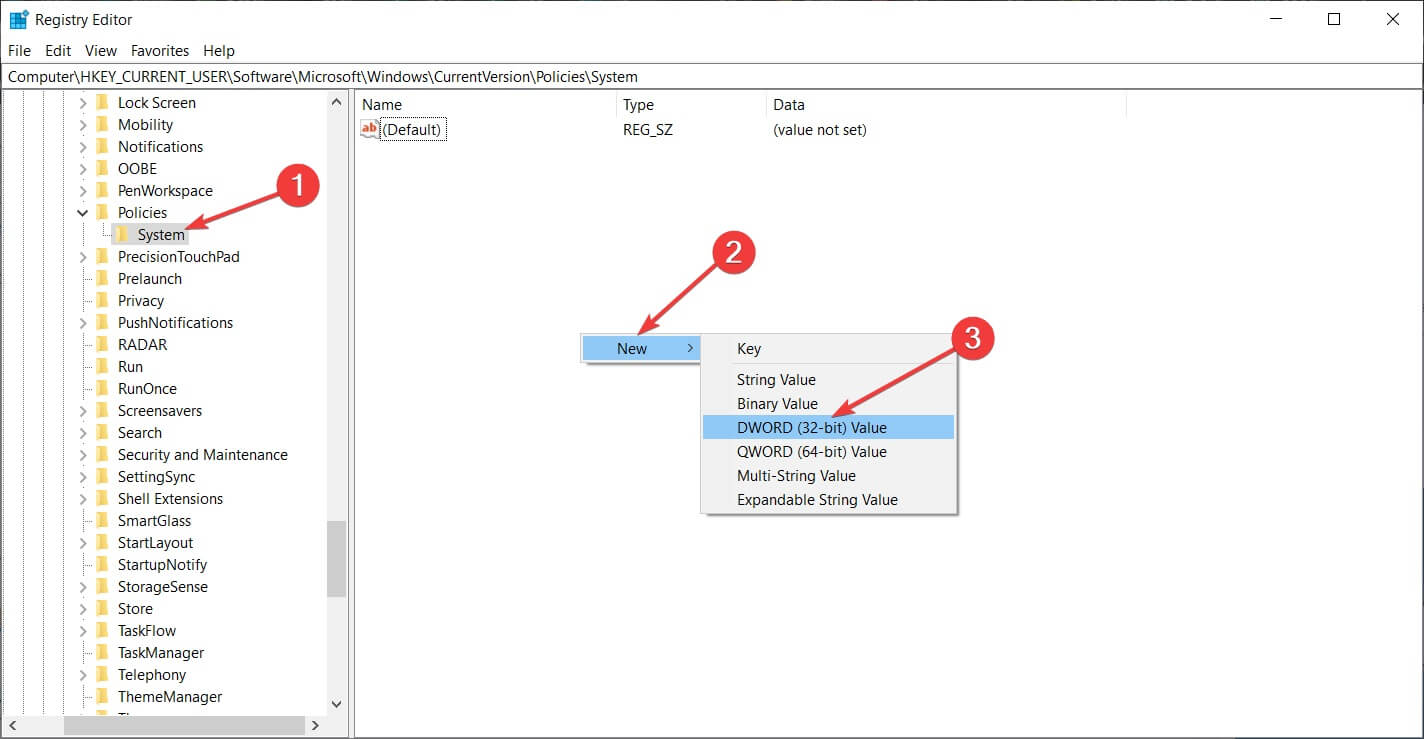
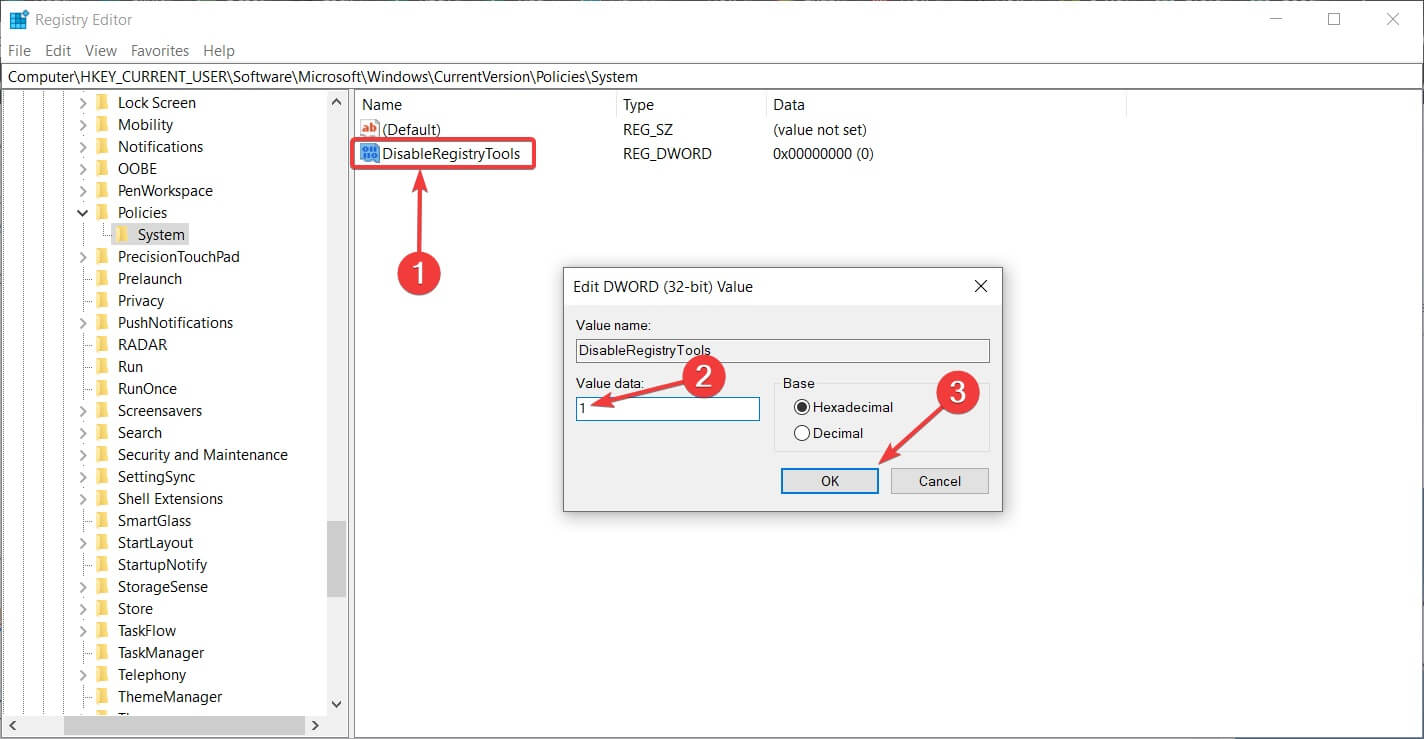
![11 Best Website Design Software Without Coding [2026 Guide]](https://windowsreport.com/wp-content/uploads/2022/08/Best-Website-Design-Software-Without-Coding.jpg)















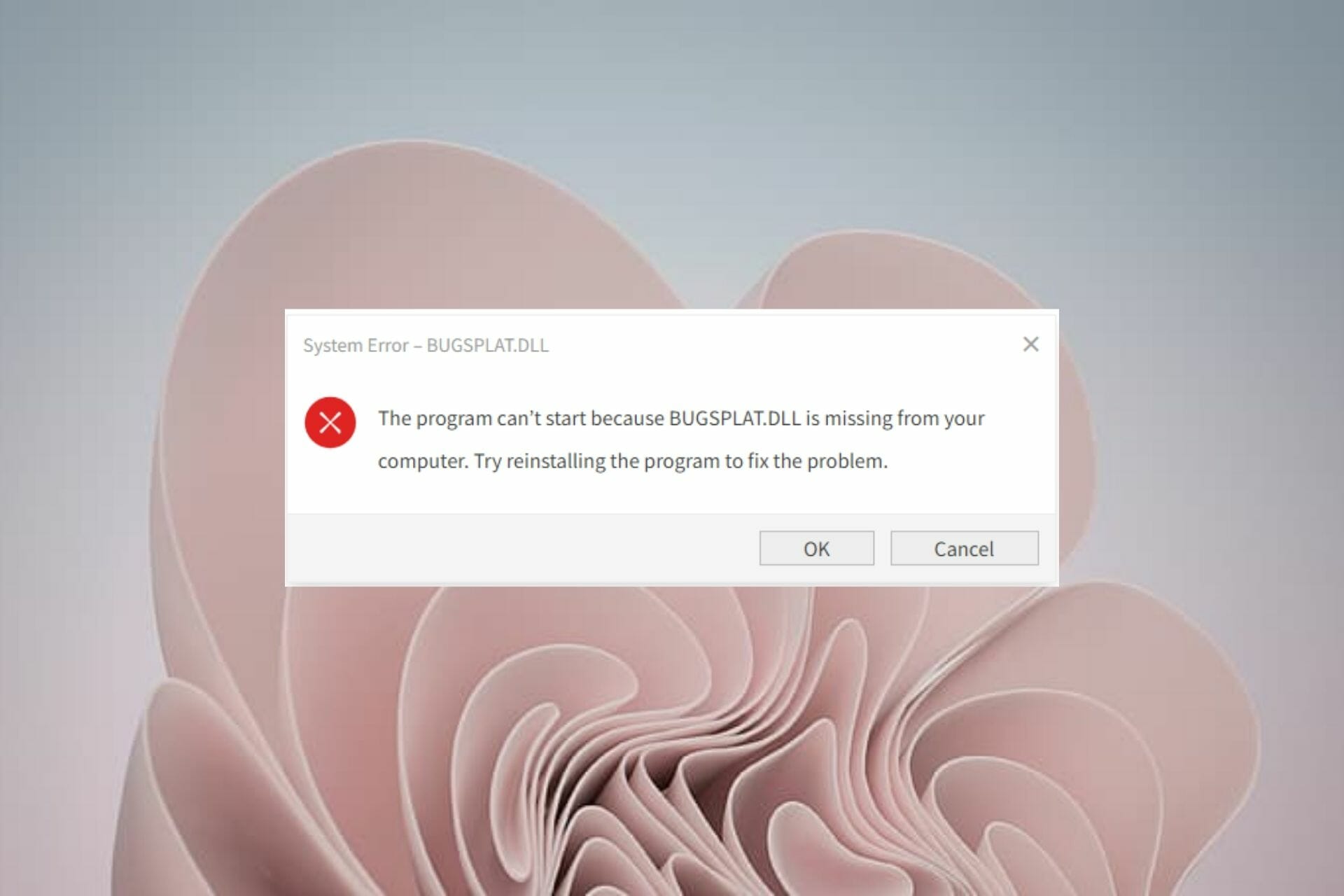

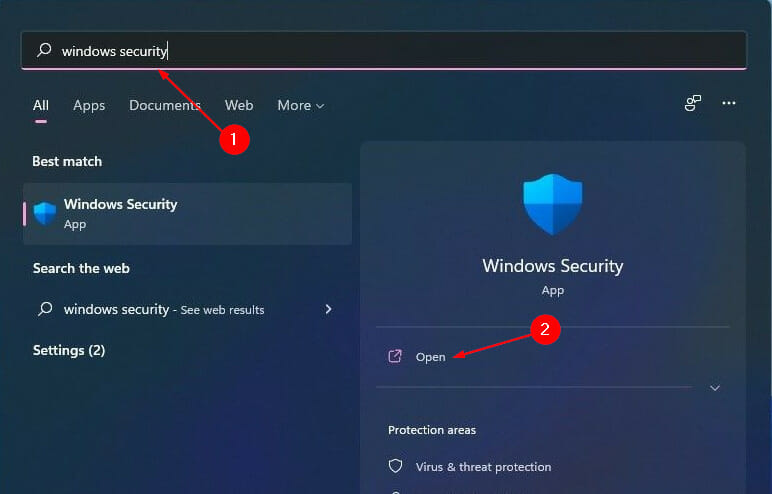

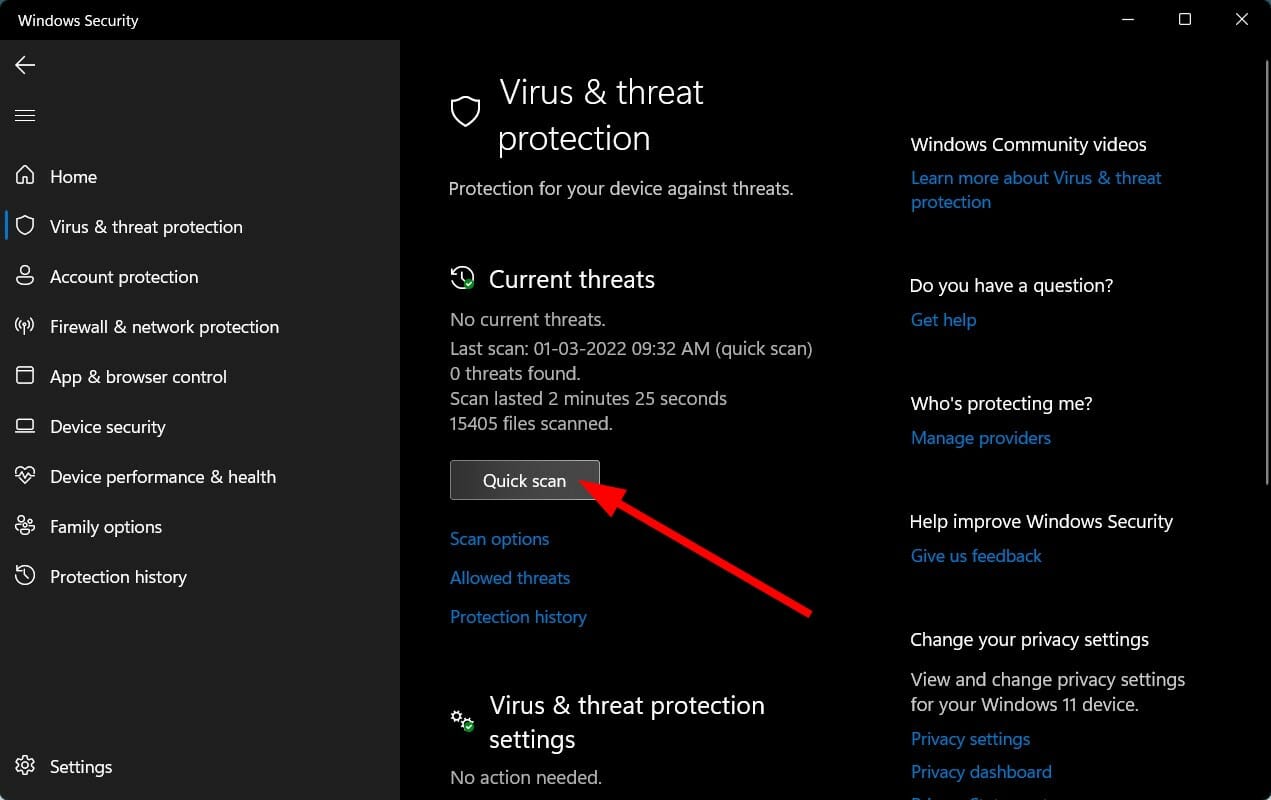


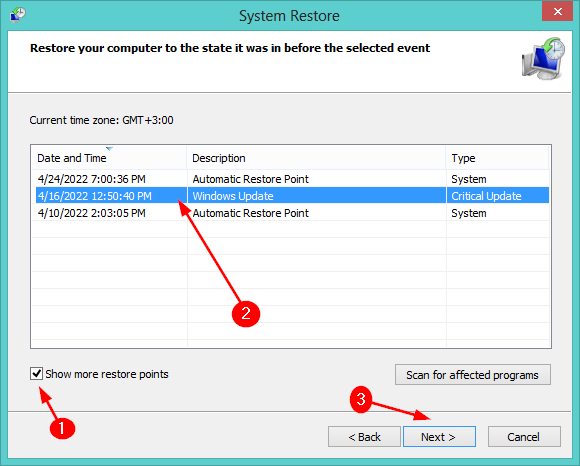
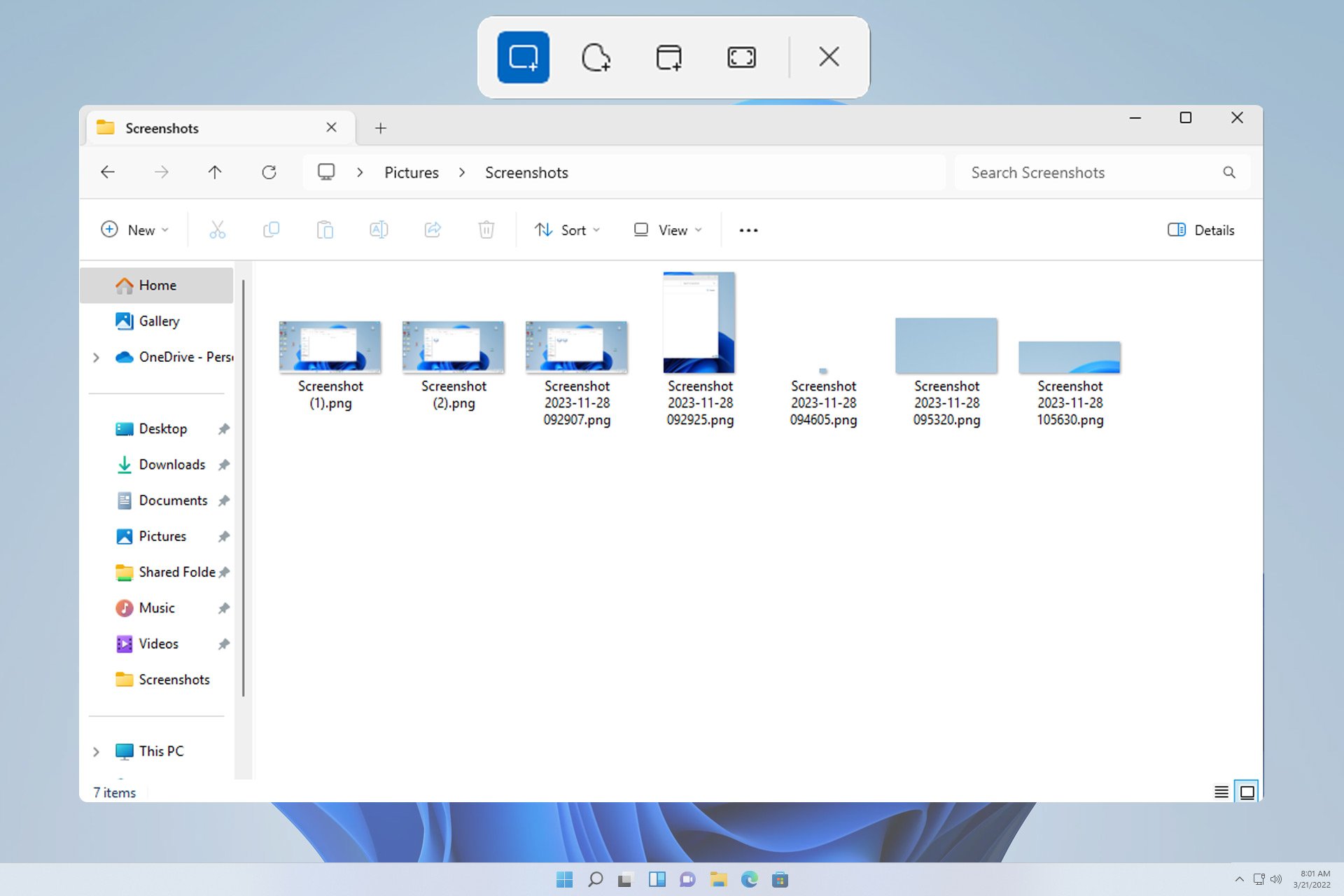


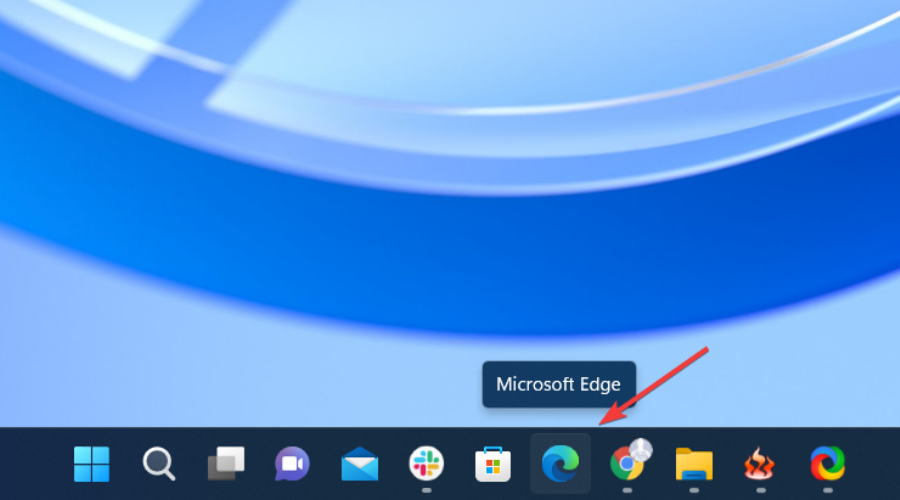
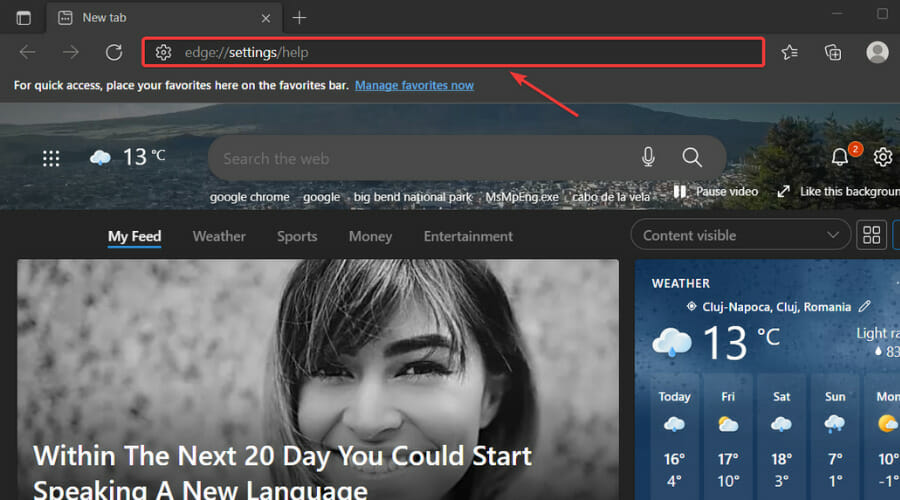
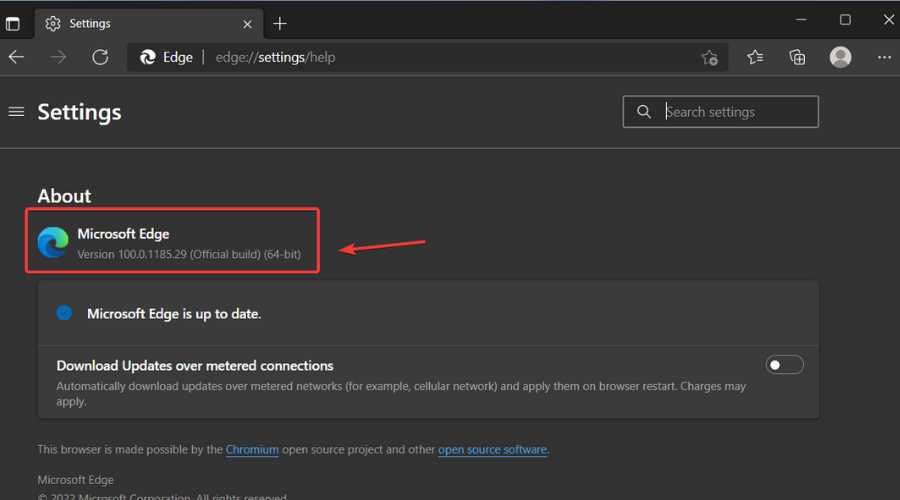
![How to Rename Your Windows 11 PC [4 Different Ways]](https://windowsreport.com/wp-content/uploads/2021/09/Untitled-design-2021-09-08T142757.841-1-1.jpg)