Windows 11 MFA: How to Enable, Set Up & Use

Windows 11 is the latest operating system iteration from the house of Microsoft. While Windows 10 was deemed the last OS that Microsoft would release (as said by their officials), things changed, and now we have Windows 11.

It’s been quite a while since the arrival of Windows 11. With Windows 11, Microsoft has introduced a slew of new features.

The new OS boasts a MacOS-like interface, a centered Taskbar, widgets, integrated Android apps, and an improved gaming experience. It includes essential upgrades such as Secure Boot through device encryption, Virtualization-based Security (VBS), and more.

Privacy and security have also improved. And just like Windows 10, Windows 11 also comes with built-in two-factor authentication (2FA). Notably, you get multi-factor authentication from the word get-go if you have a Microsoft account.

2FA or two-factor authentication adds an additional layer of security to your device, making it extremely difficult for someone to access your private data.

In simple terms, if someone grabs hold of your password, they would still need a second layer of authentication password, which only you can provide.

This guide explains to you the process of how you can enable multi-factor authentication on Windows 11. Let us check that out.

Does Windows 11 have two-factor authentication?

No, not Windows 11, but your Microsoft account comes with multi-factor authentication. When you enable it, it protects your PC from unauthorized access to Microsoft products, including Outlook, OneDrive, Microsoft 365, Xbox Network, etc.

However, to set up the multi-factor authentication on your Microsoft account, you need to install the Microsoft Authenticator app on your phone and connect it to your Microsoft account for your Windows 11 PC to be safe and secured.

For setting up multi-factor authentication on Windows 11, you need to use a third-party app to accomplish the process.

It can be a task for someone unfamiliar with setting up multi-factor authentication on their devices. This is where this guide comes into the picture. We have explained simple steps to set up multi-factor authentication on Windows 11 in no time.

Does Windows 11 have a password manager?

In short, yes. Windows 11 comes with an in-built password manager. It is known as Credential Manager to keep your passwords secure in the OS.

Inside the Credential Manager menu, you can view all of your web credentials and the credentials you saved on your Windows PC.
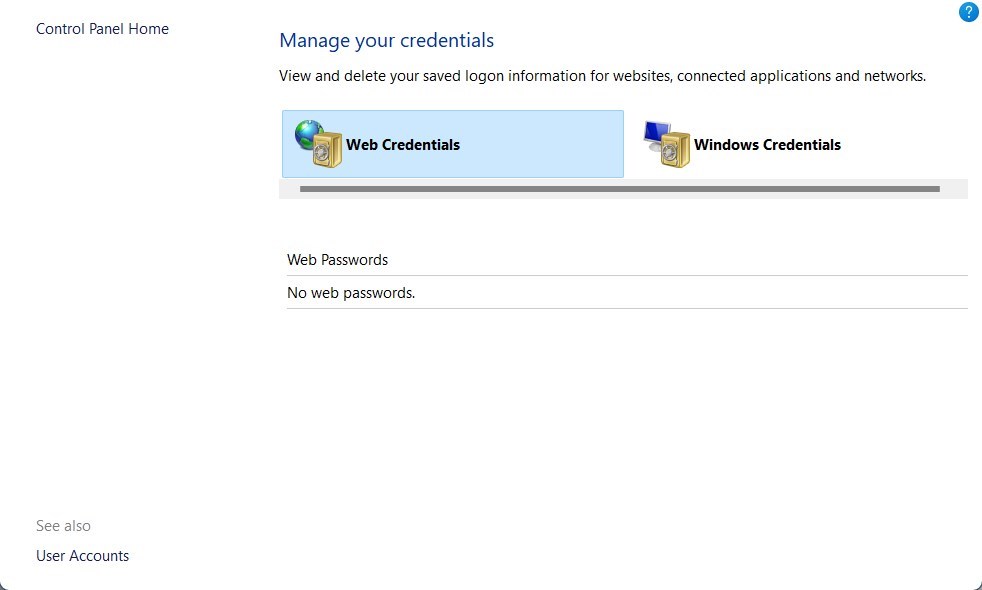
Credentials Manager was introduced with Windows Vista. It stores your login information, username, passwords, addresses, etc. You can open the Credentials Manager by opening the Control Panel > User accounts > Manage your credentials.

How do I turn on Microsoft Multi-Factor Authentication?

On Android

  1. Open the Google Play Store.
  2. Search for the Microsoft Authenticator app.
  3. Install the app.
  4. Open the app.
  5. Accept the terms by clicking the Accept button.
  6. Sign in with your Microsoft account.
  7. Verify and confirm your Microsoft account by entering the code received in your email.
  8. Select whether to enable autofill and sync data or not.
  9. Press OK.

On your Windows 11 PC

  1. Visit the Microsoft website.
  2. Sign in to your account.
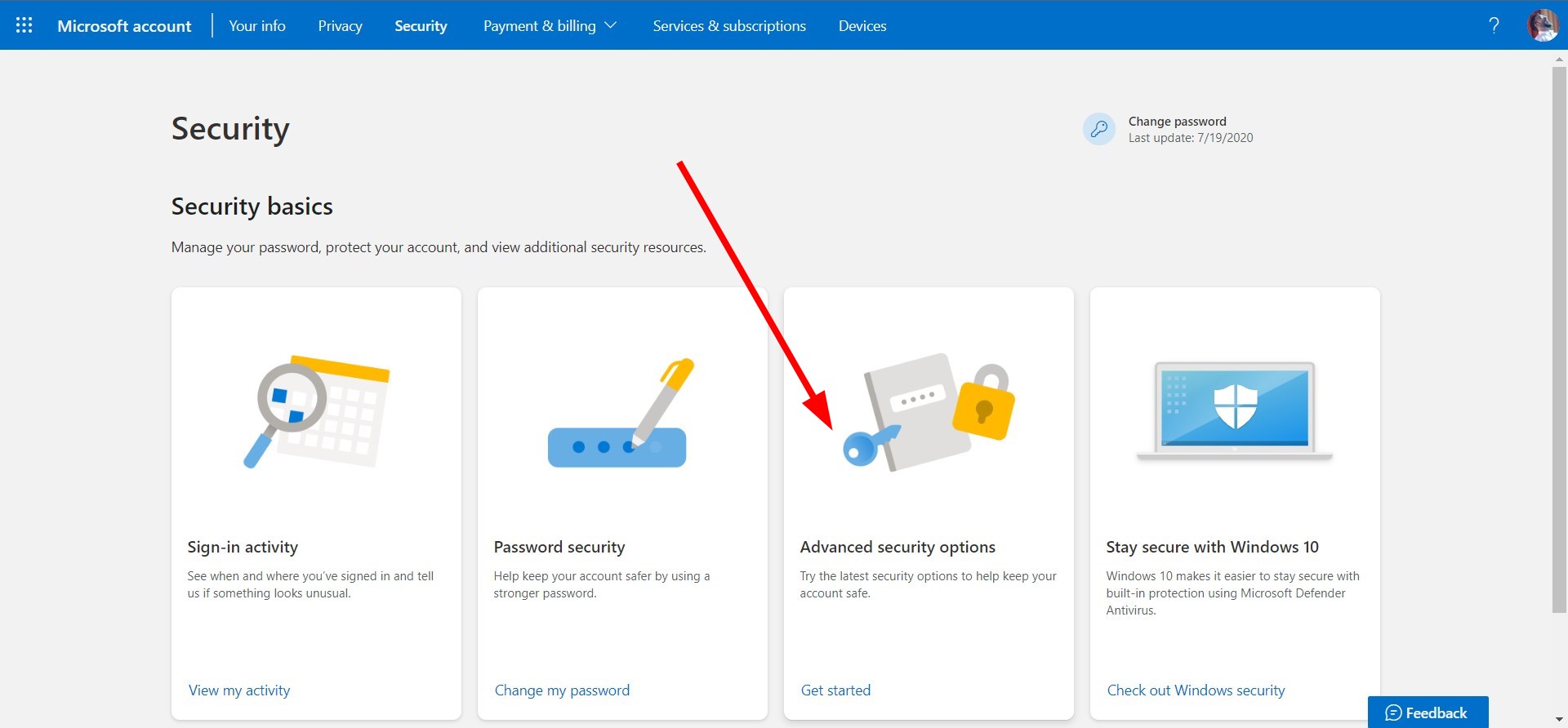
  3. Click on the Security tab.
  4. Select Advanced security options.
  5. Scroll down and click on Add a new way to sign in to verify.
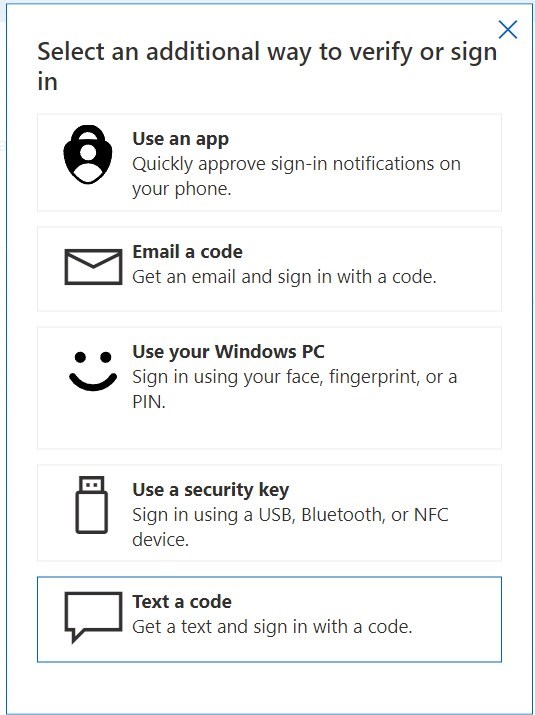
  6. At present, there are five ways to verify or sign in:
    • Using the Microsoft Authenticator app.
    • Email a code.
    • Use your fingerprint, face, or pin.
    • Sign in using a USB, Bluetooth, or NFC device.
    • Send a text code to your mobile.
  7. Under the Additional security section, click on the Turn on option for two-step verification.
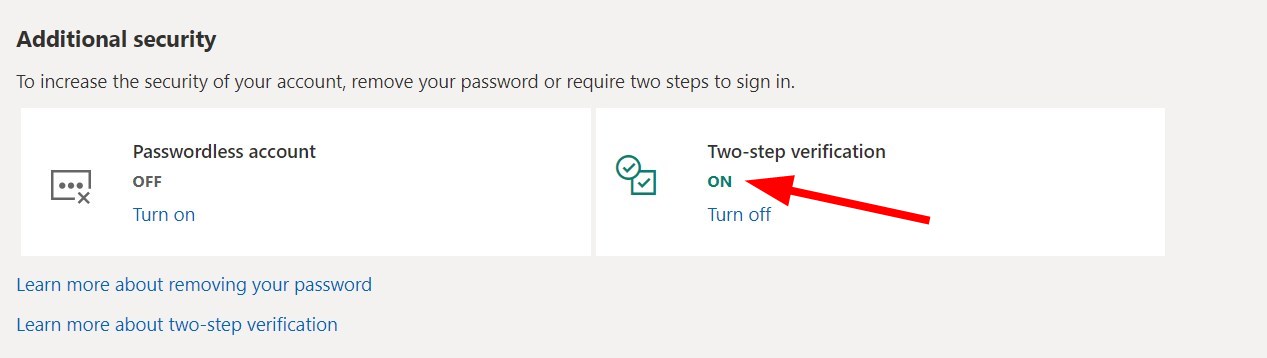
  8. Follow the on-screen prompts.
  9. Hit the Finish button.

Now, whenever you log in from an unrecognized device, you will receive a notification or warning on your phone. You can confirm or discard the login request to your account using your two-factor authentication app.

How do I use Microsoft Authenticator on Windows 11?

  1. Sign in to your account security dashboard.
  2. Select Add a new way to sign in or verify.
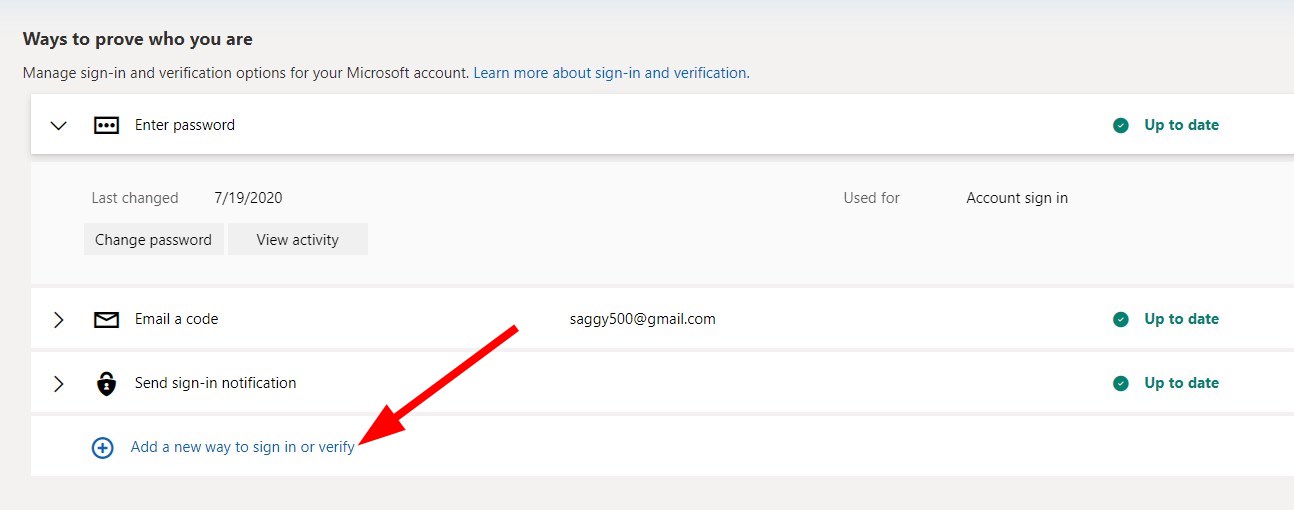
  3. Choose the option Use an app.
  4. If you have already installed the app, select Next. This will display a QR code on the screen.
  5. In the authenticator app, click on the 3-dot icon.
  6. Select Add account.
  7. Choose the account type and select Scan a QR code.
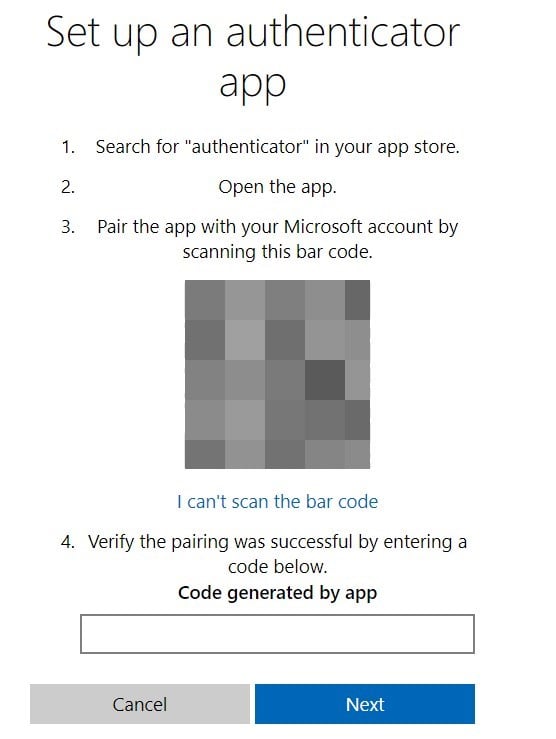
  8. Scan the code from your smartphone using the Authenticator app.
  9. Select Finish on the PC.
  10. Head to the Microsoft accounts sign-in page.
  11. Instead of typing the password, click on Use the Microsoft Authenticator app instead link.
  12. Microsoft will send a notification on your phone.
  13. Approve it, and you will be logged in.

How to fix multi-factor authentication not working?

Several user reports claim that the multi-factor authentication isn’t working for them. They cannot use the added extra layer of security on their accounts.

After careful research, we have deduced a list of solutions that would help you fix the multi-authentication not working issue.

  • Use the Microsoft Authenticator app
  • Clear the Microsoft Authenticator App cache
  • Restart your mobile phone
  • Make sure that you have input the correct security information
  • Check if your notifications are turned on or not
  • Make sure your device is connected to the internet
  • Turn off the do not disturb mode
  • Unblock phone numbers if you are using the calling method instead
  • Disable third-party security apps

There you have it from us in this guide. We hope you can use the multi-factor authentication offered by Microsoft on your Microsoft account.

While you cannot add multi-factor authentication to your local Windows login, you can use it for your Microsoft account and protect your data. For your PC, consider adjusting the minimum PIN length for your Windows 11 to beef up security.

You may need to use authenticator programs such as Duo to use multi-factor authentication on your Windows logon screen. It comes with a free trial that lets you test the waters before you can actually commit to it.

Moreover, the setup is pretty easy and will ask for approval every time you log on to your PC. This is a much better way to safeguard your PC since it applies multi-factor authentication on a local level.

We have you covered if you are looking for a multi-factor authenticator app. You can check out our guide that lists some of the best multi-factor authenticator apps that also double as password managers.

You might also be interested in learning how to exclude a user from MFA in Azure.

In case you’re not familiar with two-factor authentication, we have a great guide on how to download the Microsoft Authenticator app, so be sure to check it for more information.

We hope that this guide helps you secure your data. Let us know your thoughts about this topic in the comments below.

AVG Secure Browser Won’t Uninstall: Fix It Like an Expert

Having a secure browser is important, and this is why many users choose the AVG Secure Browser. It is one of the most secure browsers with numerous security features that most browsers lack.

Also, it comes from a reputable antivirus company that is well-known for protecting users. However, there are times when you might need to uninstall the browser for some reason.

But many users are having issues removing AVG Secure Browser from their PC, as reported on the official forum.

This can be a problem, so today, we’ll show you how to uninstall this browser properly.

Is AVG Secure Browser a virus?

The AVG Secure Browser, as the name goes, is one of the safest browsers you can use. With the parent company being an antivirus company, it is clear from all destructive codes and features.

Also, it offers full online and offline security. So, you can always trust the AVG Secure Browser.

Is the AVG Browser safe?

The AVG Secure Browser is synonymous with safety. It prioritizes users’ online security and privacy over other features.

Also, it allows you to control the level of security you get. Its adblocker, anti-tracking, anti-phishing, and other security features are fully customizable. Hence, your safety is never in doubt with the AVG Secure Browser.

Who owns AVG Secure Browser?

As the name goes, the browser is owned by the popular security company – AVG. Avast acquired AVG in July 2016.

However, there have not been major changes in its products. It is still focused on privacy and security, just like the new parent company.

The Opera One browser is the software that you should test. It’s a resourceful browser, with all the necessary tools included as native features. This means you won’t have to add extra plugins that otherwise cause a slowdown to even the most frequently used processes.

Built on Chromium, this browser takes advantage of most of Google Chrome’s extension library, including the best VPN completely free for users.

You can set it up afterward according to your needs: separating tabs and workspaces, bringing all bookmarks to the front, and sharing your work across all your devices.

Opera One

Avoid browser errors – switch to a modern browser and benefit from all its awesome, efficient features.

How to uninstall AVG Secure Browser?

1. Uninstall it from the Settings app

  1. Press the Windows key + I to open the Settings app.
  2. Select the Apps option.
    apps option avg secure browser wont uninstall
  3. Locate the AVG Secure Browser, and click on it.
  4. Lastly, click the Uninstall button.

That is how to uninstall the AVG Secure Browser on Windows 7, 10, and 11. However, to be sure the app is completely removed, it’s advisable to remove any leftover files. You can do that from the command line by doing the following:

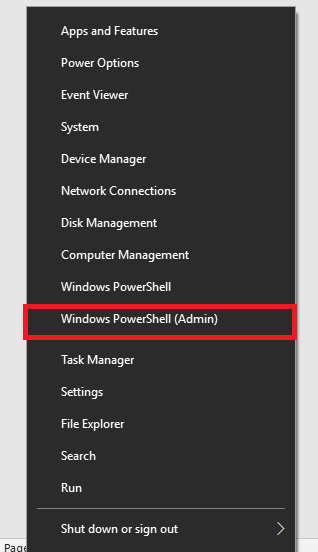
  1. Press Windows key + X and choose PowerShell (Admin) from the menu.
    windows powershell (admin) avg secure browser can't uninstall
  2. When the PowerShell opens, run the following commands one by one: cd %appdata%
    cd ..local
    rmdir /q /s avgBrowser
    rmdir /q /s %programdata%avgbrowser
  3. After all these commands are executed, the browser should be removed.

Be extra cautious while using the commands to remove the AVG Secure Browser. This is because you’ll permanently remove the respective directories.

2. Use AVG Clear tool

  1. Download the AVG Clear tool.
    remover
  2. Run the program.
  3. Follow the on-screen instructions to remove the AVG software.

Similar to uninstaller software, this tool is designed to remove AVG software if other methods fail to do so. By using this software, you’ll remove all files and registry entries associated with AVG Secure Browser.

3. Use a third-party uninstaller

When you’re having trouble uninstalling a program, you should leave this job to dedicated PC cleaning tools, such as CCleaner.

This way, you ensure that not only a particular program is deleted, but all the associated files.

Otherwise, the uninstall process might leave behind hidden traces that will later interfere with other apps, causing even more trouble.

Download the program and open the tool. You’ll see all the apps in the Uninstall submenu in Tools. Select AV Secure Browser and uninstall it. Wait for the process to finish and scan for leftover files and registry entries.

⇒ Get CCleaner

How to stop AVG Secure Browser from opening on startup

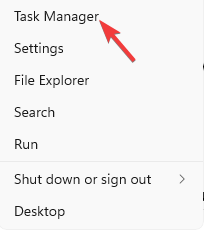
  1. Press the Windows key + X and select Task Manager.
    task avg secure browser wont uninstall
  2. Click the Startup tab in the top menu.
    start up
  3. Locate the AVG Secure Browser on the list and right-click on it.
  4. Now, select the Disable option.

If you can’t or don’t want to uninstall the AVG Secure Browser, knowing how to disable it from startup should reduce its impact considerably.

Knowing how to get rid of the AVG Secure Browser is important, especially if the browser somehow installed itself with other apps. With the fixes above, you should be able to remove it for good and use your favorite browser.

Are you having problems uninstalling Google Chrome on your PC? Then, check our detailed guide to remove it with ease.

If this guide helped you fix this issue, feel free to let us know in the comments section.

How to Download Your Facebook Message History on PC & Mobile

Facebook has been around for a long time, and it’s one of the most popular social media platforms in the world. The service has a lot of features that make it easy to keep in touch with friends, family, and even coworkers. One of those features is Facebook messaging.

Facebook messaging lets you send text and multimedia messages to your contacts. It’s very convenient, but what if you want to save some of those messages? Maybe you want to back up your entire history or restore them after a device reset? 

Well, if you have been trying to access your message history, this article will be of interest to you. Aside from downloading your history, we also share tips on how to delete your Facebook Messenger history, especially when using public computers or Wi-Fi.

Can you download your Facebook message history? 

Yes, you can download your Facebook Messenger history. But there are some important caveats to the process. For instance, you cannot single out a chat from an individual and only download that conversation.

In addition, if the other party unsends their messages, you will only get a copy with the messages currently active on your side.

Quick Tip:

We access social media every day, so having quick access to your chat within a browser can be a plus. If you want to get Facebook messages with ease, you can try using Opera.

It comes with Facebook Messenger right on the sidebar, as well as other implementations such as WhatsApp, Twitter, and Instagram. With an award-winning design and an ad blocker included for those pesky ads, you will not regret it switching to this awesome browser.

Opera

Access messages and social platforms right from the browser.

How can I see my full Facebook message history?

Facebook keeps a record of every message you’ve sent or received. To see the complete message history on Facebook, you need to use the Facebook app.

The easiest way to do this is to use the Messenger app on your smartphone. From there, you can see a list of all messages that have been sent or received in order from most recent to oldest.

If you have a desktop computer, you can also view your message history by:

  1. Click on the message icon in the top right corner.
  2. Scroll down and select See all in Messenger.
  3. This will open your message history.

How do I download the whole Facebook message history on my PC? 

  1. On your PC, log in to Facebook, click on your Profile Picture, and select Settings & privacy from the drop-down menu.
  2. Now click on Settings.
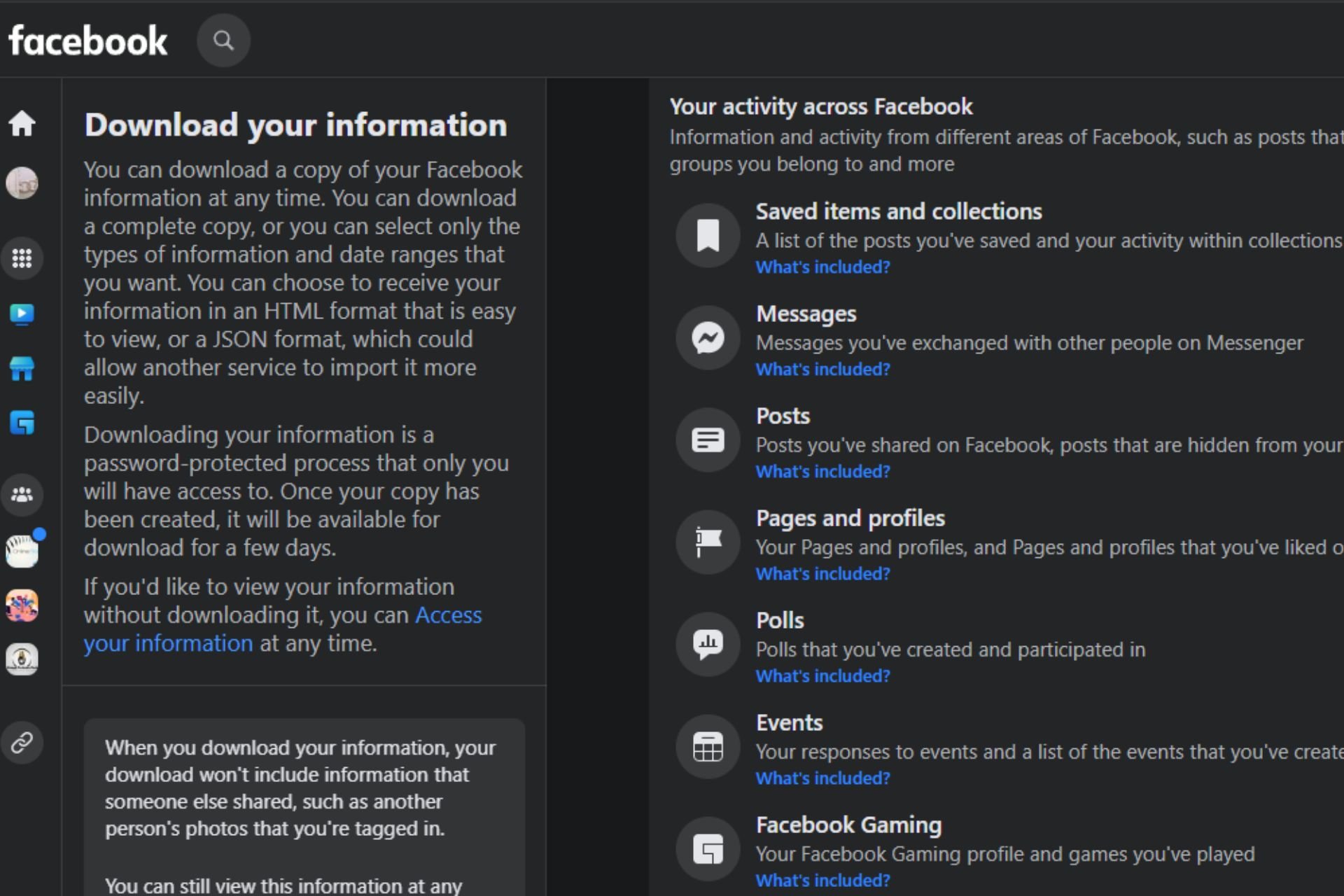
  3. Navigate to Your Facebook information and click on View next to Download your information.
  4. Select your desired time range.
  5. Scroll down, expand Select information to download, and Deselect all.
  6. Now check Messages.
  7. Scroll to the bottom and click Request a download.
  8. You’ll get a message that a copy is being created and the file will be sent to the email associated with your Facebook account in a moment.

How to download a specific Facebook messenger conversation 

At the moment, there is no way to single out a conversation and download it. You can only select a time range but it will be for all messages that fall within that period.

Chrome has a Messages Saver for Facebook extension that works with Messenger but users have since raised concerns that they are experiencing issues. Sometimes the addon works and other times it doesn’t. It’s a matter of trial and error.

If you are extremely desperate, you can download Facebook Messenger conversations by loading the conversation, then copying and pasting it into a text editor, like Notepad. The problem with this method is that if the conversation is lengthy, it could take some time to load.

Where are Messenger chats stored? 

If you’re using Messenger on Android, your chats are stored in a folder on your phone. The Messenger app stores all your messages, photos, videos, and other content on your device.

This means that if you uninstall or delete the Facebook Messenger app, your messages will still be stored on your phone’s internal storage.

The location of this folder varies by the OS your phone is using. You can always delete this folder if you don’t want any traces of your messages lingering on your phone.

Can I recover deleted Facebook messages?

You can recover deleted Facebook messages if the sender has not deleted the message. When Facebook data is deleted, it doesn’t get removed from the Facebook servers immediately.

To recover the deleted messages, follow the steps below:

  1. On your PC, log in to Facebook, click on your Profile Picture, and select Settings & privacy from the drop-down menu.
  2. Now click on Settings.
  3. Navigate to Your Facebook information and click on View next to Download your information.
  4. Select your desired time range.
  5. Scroll down, expand Select information to download and Deselect all.
  6. Now check Messages.
  7. Scroll to the bottom and click Request a download.
  8. You’ll get a message that a copy is being created and the file will be sent to the email associated with your Facebook account in a moment.

And that’s how to access your Facebook chat history. You may also be interested in downloading batch videos on Facebook so be sure to check our detailed guide on how to proceed.

We also have an expert guide on how to share your Facebook post to Instagram if you are looking to drive traffic to your pages.

Let us know whether you have been successful in accessing your chats in the comments section below.

MSTeams.exe Bad Image: How to Fix This Error

Windows 11 got everyone talking about its revamped user interface and features and Microsoft Teams certainly had some interesting updates lately.

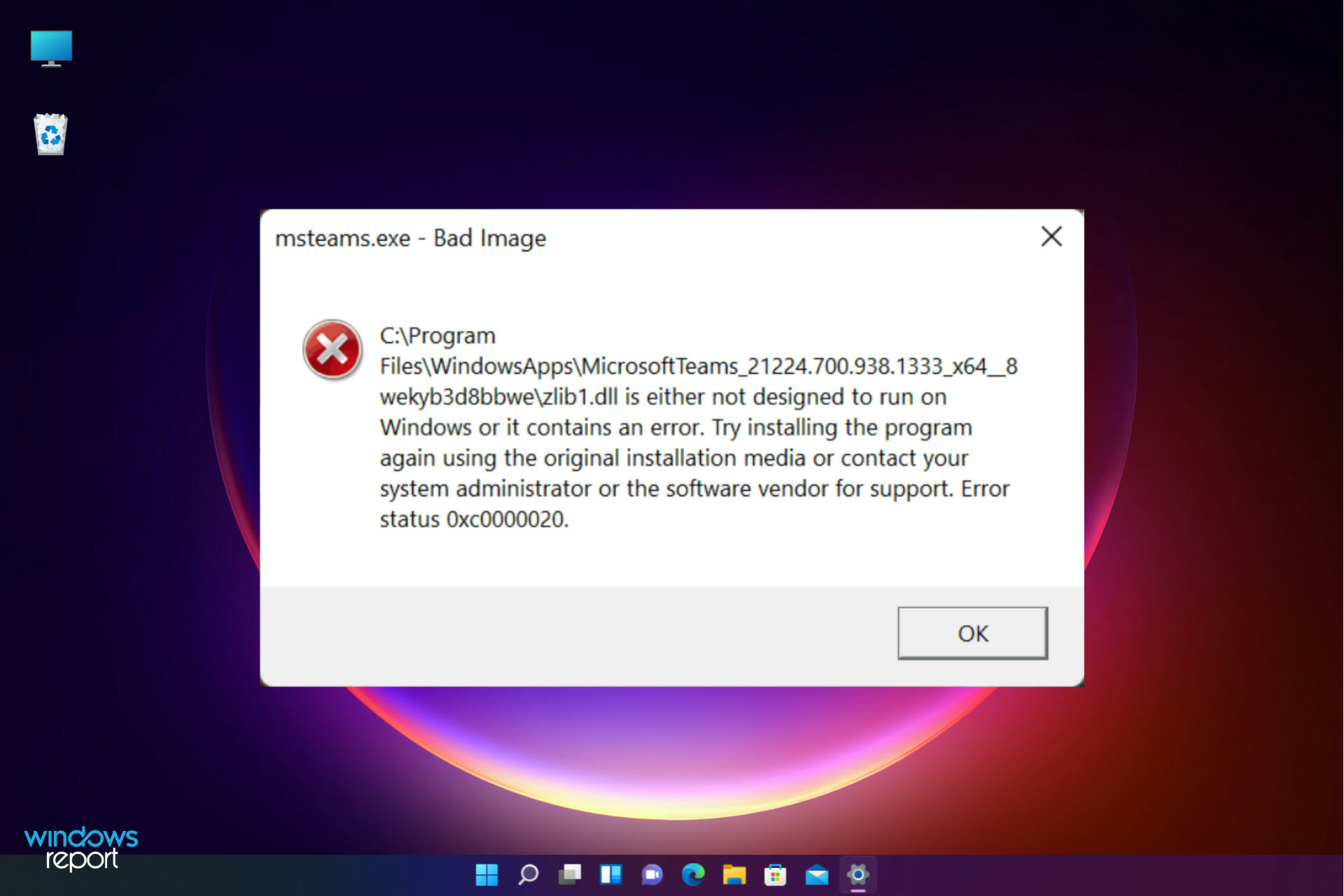
However, several readers have reported an error titled msteams.exe – Bad Image that occurs when they try to run Microsoft Teams or click on the chart icon in the taskbar.

The whole error message reads:

C:\ProgramFiles\WindowsApps\MicrosoftTeams_21239.300.960.1678_x64_8wekyb3d8bbwe WebView2Loader.dll is either not designed to run on Windows or it contains an error. Try installing the program again using the original installation media or contact your system administrator or the software vendor for support. Error status 0xc0000020

What causes the Microsoft Teams Bad Image error in Windows 11?

So, what exactly is the Bad Image error? Since Windows 8, Microsoft has configured every operating system to periodically check for available updates, download them and perform an installation of the update.

However, these updates sometimes come with bugs that usually cause applications to not work properly.

The Bad Image error occurs when the program you opened can’t be run due to files and libraries needed for the program to run and are corrupted during an update.

If you are experiencing this issue, then keep on reading because we have listed some solutions you can use to fix this Windows 11 Microsoft Teams error.

Also, we have a great guide on what to do if MS Teams is crashing on startup so check it out if you’re facing this problem.

Where is MSTeams EXE located?

The MS Teams.exe location is usually in a subfolder of the user’s profile folder: C:\Users\USERNAME\AppData\Local\Microsoft\Teams\current\

How do I fix MSTeams exe bad image?

1. Repair or reset Microsoft Teams

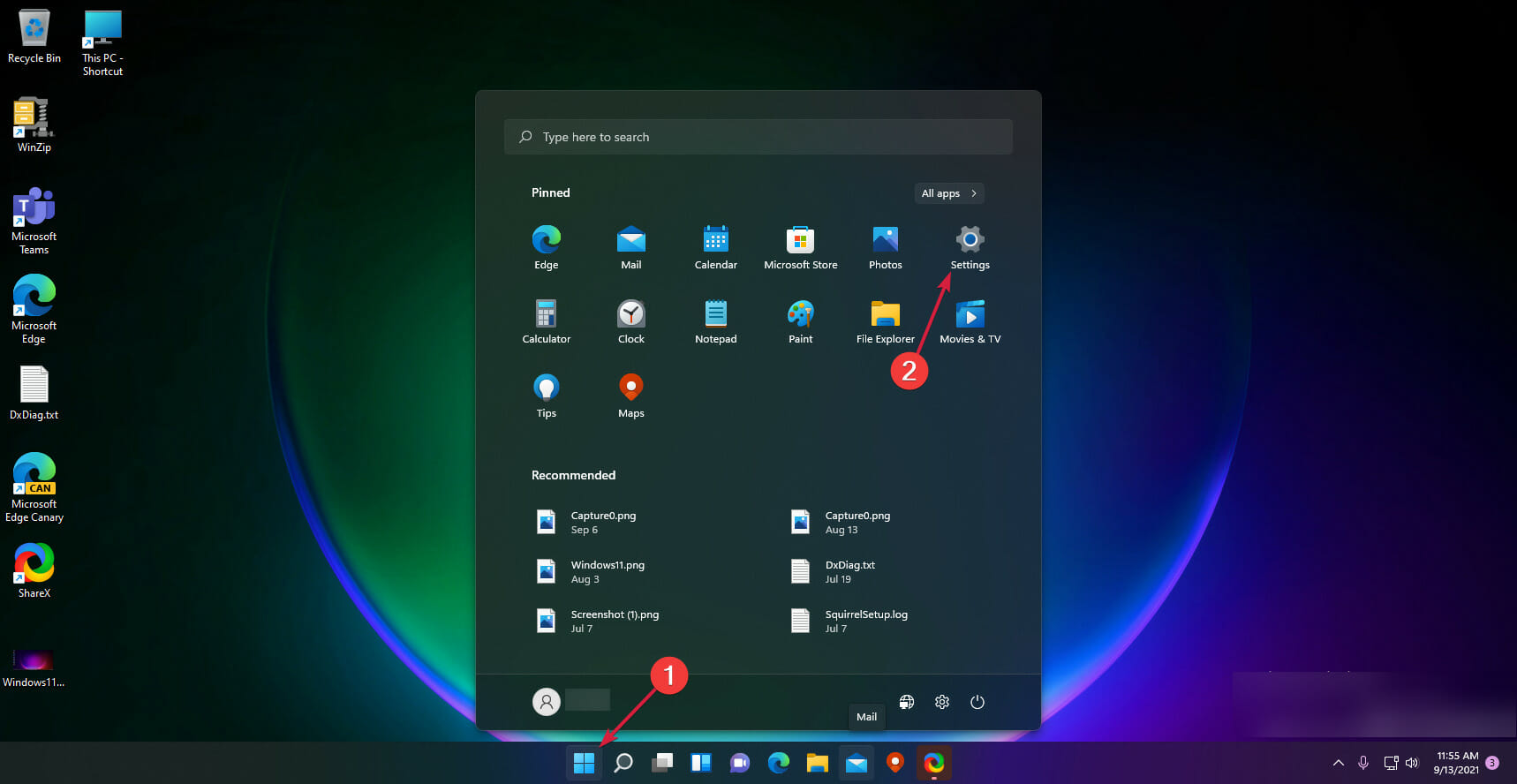
  1. Hit the Windows button and select Settings.
  2. Click on Apps from the left pane and choose Installed apps from the right menu.
  3. Look for Microsoft Teams, click on its three-dot button and select Advanced options.
  4. On the new page, scroll down and click on the Repair button. Check if Teams is working fine. If not, also click the Reset button below.

Now give it another try to that MS Teams.exe in Windows 11 and see if the issue has been repaired.

Corrupted or missing Windows 11 DLL files are frequently caused by unsuccessful updates of applications. When MSTeams app updates are installed, for example, DLL files are frequently replaced by newer ones.

This poses problems for the app that may still require the previous version to function. As a result, MSTeams crash, displaying errors and becoming unresponsive.

The easiest way to fix MSTeams.exe Bad Image Teams Error in Windows 11 is to use a third-party system repair tool.

The best part is that you won’t have to go seeking a needle in a haystack; all of this and more can be done with an automated solution.

2. Uninstall and reinstall Microsoft Teams

  1. Click on the Windows Start button and access Settings.
  2. Select Apps from the left menu, then choose Installed apps from the right.
  3. Scroll down until you see Microsoft Teams, click on the three-dot button from its right, and select Uninstall.
  4. Once uninstalled, download and reinstall Microsoft Teams.

3. Create a new user account

  1. Press the Start button and select Settings.
  2. Click on Accounts, then choose Family & other users.
  3. On the next page, click the Add account button under the Other users section.
  4. On the window that appears, click on I don’t have this person’s sign-in information.no-signin-info (ms teams.exe bad image windows 11)
  5. Provide username, password, and answer the security questions to complete the process.create-new-account_ ms teams.exe bad image windows 11
  6. Restart your PC.
  7. After the reboot, sign in using the new account. The problem should be fixed.

4. Rename the Microsoft Teams folder

4.1 View the WindowsApps folder by displaying hidden folders

  1. Press the Windows key + E to start File Explorer.
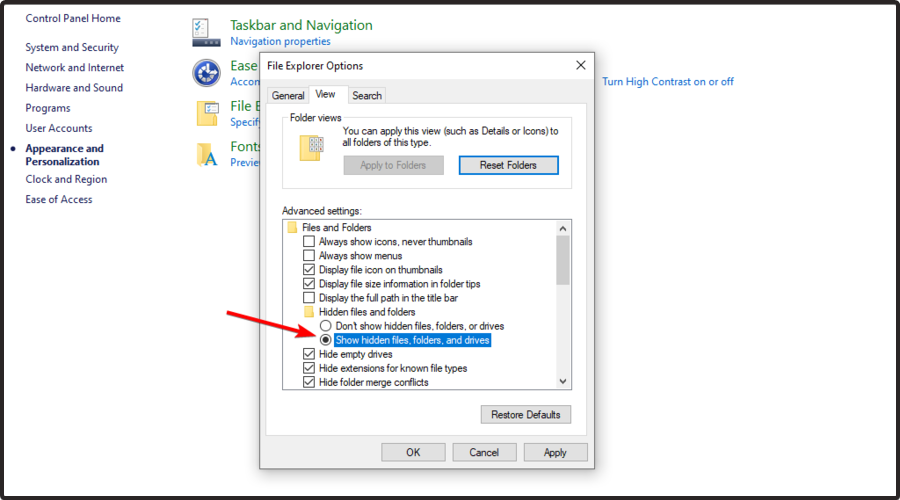
  2. Click on the View tab, then check the Hidden items box to show all the hidden files and folders.

4.2 Change the Microsoft Teams folder access permissions

  1. Press the Windows key + E to start File Explorer and navigate to the Program Files folder.
  2. Locate the WindowsApps folder, right-click on it, and select Properties.
  3. On the window that appears, select the Security tab.security-tab
  4. Click the Advanced button.advannced-button
  5. On the window that appears, click on Change to change the owner of the folder.change-owner
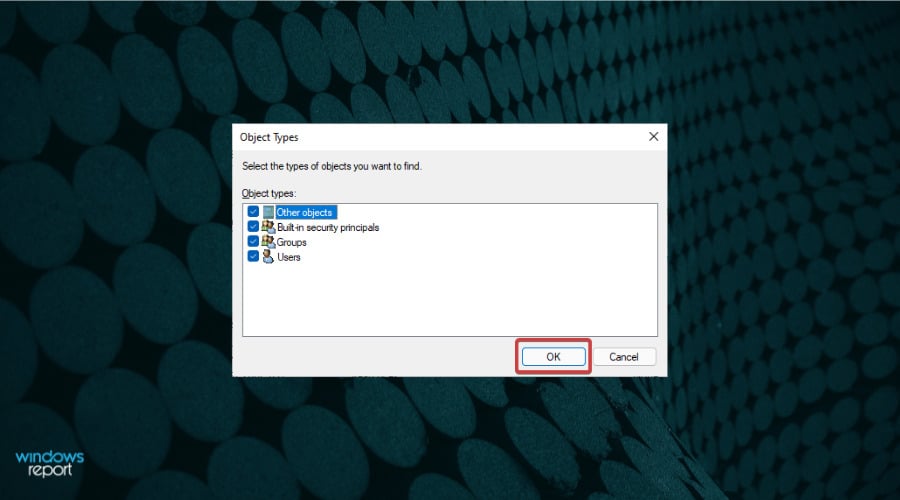
  6. In the Select User or Group window, click on Object Types.object-types- ms teams.exe bad image windows 11
  7. On the window that appears, check the box for Users.check-users
  8. Click OK to close the window.exit-window
  9. Now, enter your username or Administrators if you are logged in with an administrator account.enter-user name
  10. Click the OK button and exit.

4.3 Rename the Microsoft Teams folder

  1. Get back to the WindowsApps folder and now, because it’s not hidden and you have the proper permissions, you can double click it to see its contents.
  2. Scroll down until you see folders with names that start with MicrosoftTeams and rename them with the suffix .old.

Other readers suggest that you can also delete the Teams folders completely. However, in our solution, you will still have the data that you will be able to use.

Why are there 2 Microsoft Teams Windows 11?

If you have updated from Windows 10 to Windows 11 and you had the Microsoft Teams app installed, you will see that you have two of them.

That is because Windows 11 comes with the Microsoft Teams for Personal Use preinstalled.

However, you will also have Microsoft Teams for Work and School which you probably installed on Windows 10.

That’s why, when you search for Microsoft Teams, you will find both apps. Luckily, as you can se in the image above, they have different icons so you can easily identify them.

How to check for updates in Microsoft Teams?

You should know that Microsoft Teams updates automatically. However, you can also do a manual check and also see the version number if you’re interested.

It’s pretty simple but here’s a small step-by-step guide to help you:

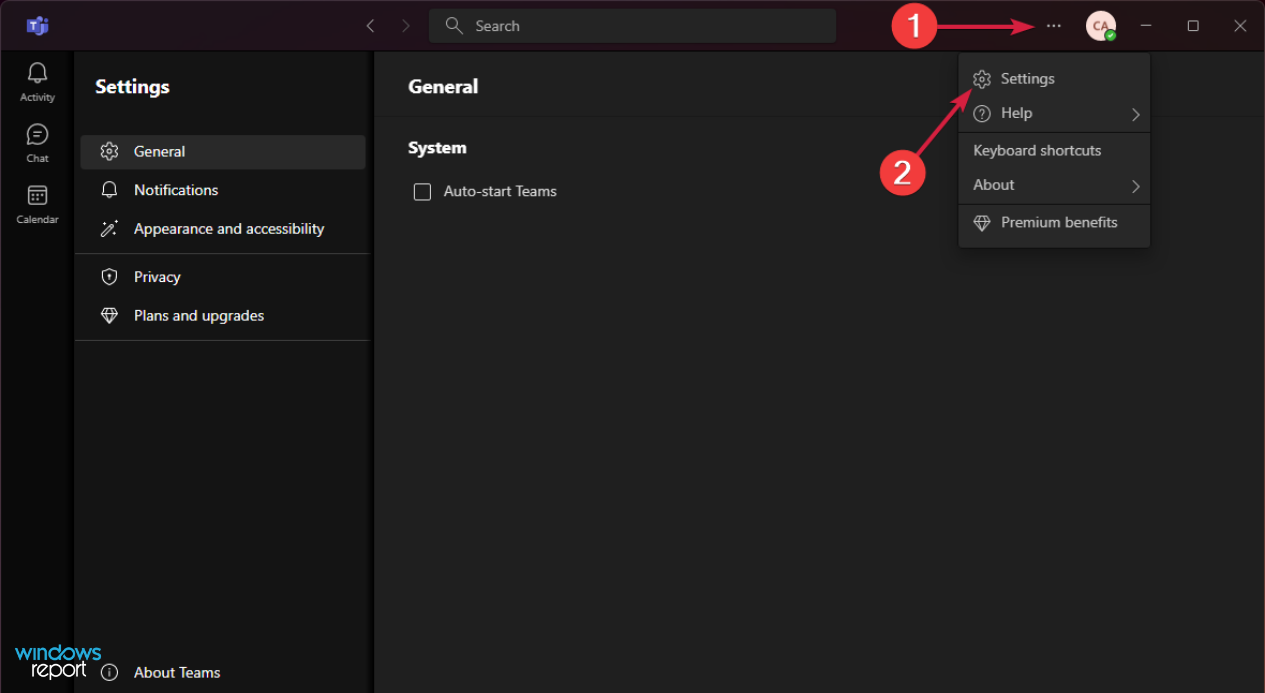
  1. Open Microsoft Teams, click on the three-dots button near the image of your account, and select Settings.
  2. Now, click on About Teams.
  3. At this point, Teams will do an automatic check for updates and it will display the latest version number.

As stated earlier, the Bad Image error is mainly caused by an installed update that had corrupted files. It is a common error that applies to many windows applications, Microsoft Teams is just one of them.

The solutions listed above should help you solve the inconvenience while waiting for Microsoft to release a permanent fix.

Nonetheless, if you are experiencing problems after trying them out, your best bet is to update your Windows software.

Unfortunately, the app has other issues also. For instance, we have solutions if you can’t download files in Teams. Keep this guide handy if you run into that problem.

Feel free to use the comments to let us know if our solutions helped you, or if you have another tip that you would like us to add to the list above.

What Is the Difference Between a Steam Download vs an Install?

Anyone can download Steam and enjoy all the features it has to offer. When you purchase a game through Steam, the app downloads and installs it automatically. This process can take several minutes or hours depending on the size of the game and your Internet connection speed. 

Once it’s finished downloading and installing, you’ll be able to start playing right away. However, if you want to play offline or update an existing game on Steam you’ll need to perform a separate install step before doing so.

There’s a lot of confusion about what Steam downloads are, and how they differ from installs. If you’re confused, you’re not alone. So, let’s clear that up for you.

What is the difference between installed and downloaded in Steam?

Steam is an online gaming platform that allows you to download games onto your computer. The downloads are usually large files, and depending on your internet connection speed, it can take some time for them to finish downloading.

When you purchase games on Steam, they are automatically downloaded to your computer and saved to your library. If you want to play a game that’s not in your library, you’ll need to purchase it and then download it first.

Steam installs are different from downloads because they don’t require an Internet connection. When you purchase a game on Steam, you will be able to download it before installing it.

The download is essentially a small compressed file that you can use to install the game later. An install is when you run the game files from your computer’s hard drive.

How do downloads work on Steam? 

When you download a game or application, your computer will start downloading the files immediately depending on your setting and internet connection. 

You’ll see a progress bar that shows how much of the game remains, and you can track your download speed in real-time. Once your files have finished downloading, they’ll be added to your library automatically. From there, you can launch them whenever you like.

Why does Steam download then install? 

Steam doesn’t install games directly onto your hard drive. Instead, it stores the game files on its own servers, and you access them by logging into Steam and downloading them over the Internet.

This is a good thing for two reasons:

  • You can download your games from anywhere (you don’t need to be at home with an Internet connection).
  • It makes sure that all your games are always up to date — because Steam downloads patches automatically. Some titles include patches or other updates that need to be installed as part of their installation process. 

How do I install a Steam game without downloading it?

You can install Steam games from an optical disc or USB drive instead of downloading them. Insert the disc into your computer’s disc drive or connect the USB drive containing the game files.

Now, you can open Steam and go to your Library then select a game that you want to play and right-click on it to play from an optical drive or USB drive.

Can you play a Steam game while it’s downloading?

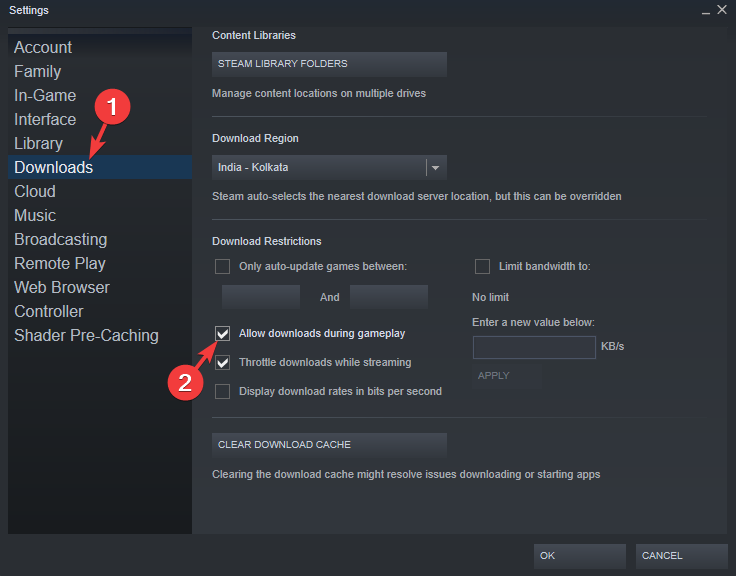
Yes, but it is dependent on a few factors. Steam has a feature called Instant Play, which allows you to play games while they are still downloading. You can do this on any desktop or laptop computer.

The Instant Play feature is useful when you’re playing a game with large file size and you don’t want to wait for it to finish downloading. For example, if your internet connection is slow, or if you’re playing on an old computer with a small hard drive that can’t handle large downloads.

Some games don’t need updates and can be launched immediately after installation without waiting for them to finish downloading.

Now that you know the difference between a Steam download and install, you may be interested in the best Steam games for Windows 10 if you haven’t already jumped on the bandwagon.

Let us know of any additional thoughts you may have in the comment section below.

Bluetooth is Not Working in Windows 11: How to Fix It

Like any other operating system, Windows 11 can come up with some random troubles. Bluetooth issues make no difference, and these can be related to various explanations.

You may sometimes encounter some of them on your newest OS and since we want you to be prepared, we suggest taking a look at our guide.

Fortunately, most of them are extremely similar to what we know from Windows 10, so it will be easy to understand what to do.

But first of all, you should find out what are the problems that might cause Bluetooth not to work in Windows 11.

Why is my Bluetooth not working in Windows 11?

There are some reasons why your Bluetooth is not working on Windows 11. However, each of them has a solution, so do not worry! Consult the list below and find out which one suits your situation.

  • Incompatible versions – Even if Bluetooth is supposed to be universal, devices that require different versions of the standard can sometimes come into conflict.
  • Bluetooth is not connected properly or is disabled – This is a problem that may be quickly solved from the Windows Settings menu.
  • Drivers are not updated or compatible – Poor updates or incompatible settings related to your Bluetooth drivers can cause serious problems in using them.
  • Random and temporary bugs – Like any other digital component, Bluetooth may sometimes occur by errors, without a certain explanation.

As you can clearly see, there can be many related causes but don’t worry because the solutions below will clear most of them easily.

Moreover, here is a list of similar errors reported by our users, that will be addressed in the solutions below:

  • Bluetooth not connecting automatically in Windows 11 – In the event that Bluetooth continues to be inoperable in Windows 11, you will need to get its drivers up to date with the most recent version.
  • Bluetooth not showing in Windows 11 – Most of the time, problems with the integration of the Bluetooth software or frameworks are to blame when Bluetooth disappears from your system’s Settings. Hardware problems might also be to blame.
  • Windows 11 Bluetooth stopped working – If your Bluetooth devices are unable to connect with one another, the problem is often caused by one of two factors: either the devices are too far apart or they aren’t in pairing mode.
  • Bluetooth not working after Windows 11 update – Utilizing Windows 11’s Update history function is the most effective method for uninstalling an update.
  • Bluetooth not working after Windows 11 goes to sleep – Start the troubleshooters for both Bluetooth and hardware and devices.
  • Your Bluetooth is not available on this device – This error message in Windows 10 can frequently be brought on by a wide variety of different factors. For instance, this issue might be caused by a Bluetooth driver that has become obsolete.

Don’t fear these errors as we have prepared four efficient ways to tackle and win them over. Follow along to find them out!

If interested, check out the guide to find out how to increase Bluetooth range on Windows PCs

Why is Bluetooth not finding devices?

One of the most typical issues with Bluetooth is when the device you’re trying to connect doesn’t appear in the list that your phone searches for when it runs a search. In most cases, this occurs because the device’s own Bluetooth is either turned off or isn’t set to pairing mode.

You may switch on pairing mode by following the instructions in the user handbook; which will tell you how to make it discoverable.

Some headphones need you to keep the power button pressed for a longer period of time; but other devices include a button that is specifically designated for pairing with Bluetooth devices.

For detailed solutions to the Bluetooth not detecting devices on Windows 10 & 11 issue, check out our dedicated article. Now, let’s see what you can do if Bluetooth is not working in Windows 11.

What can I do if Bluetooth stopped working in Windows 11?

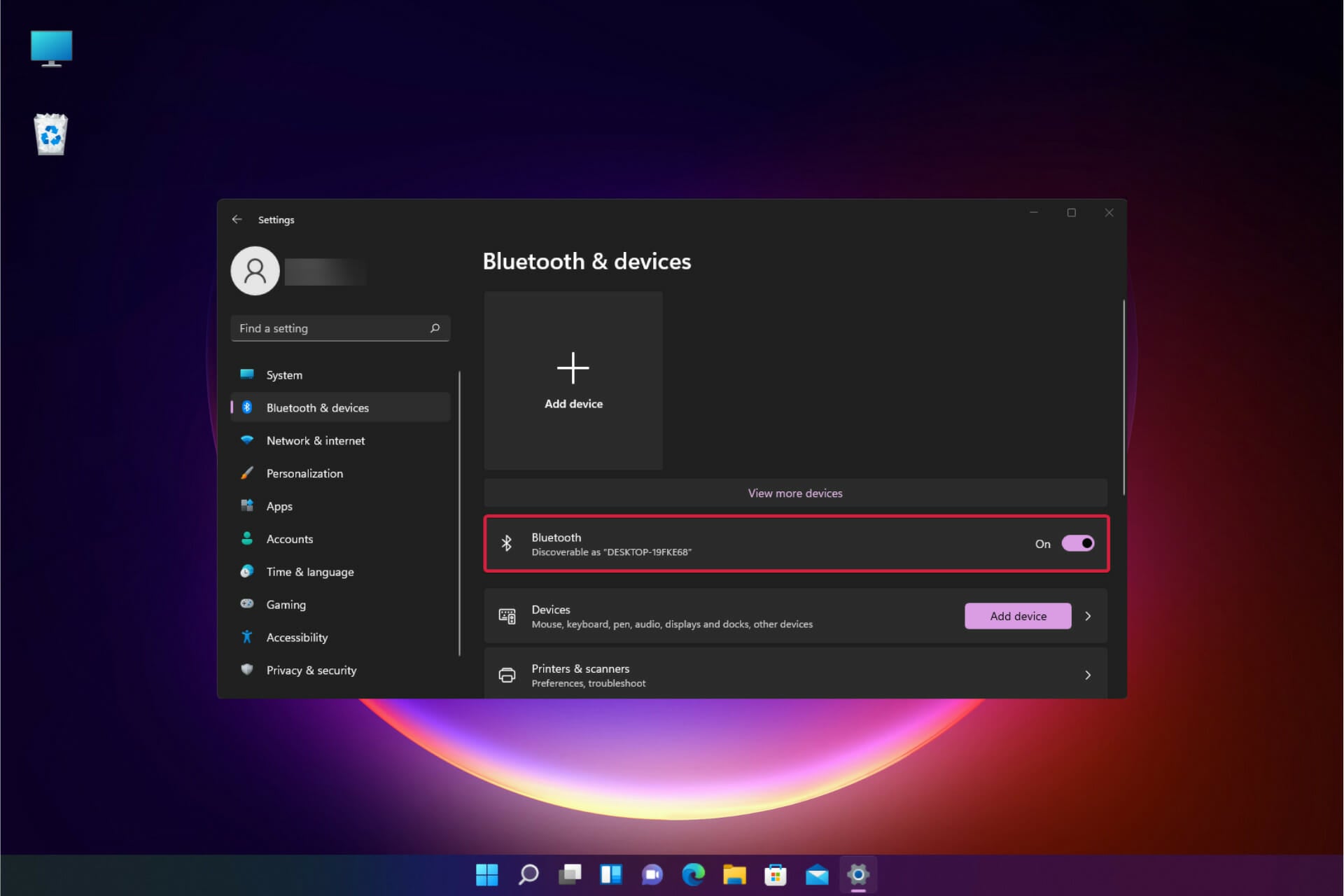
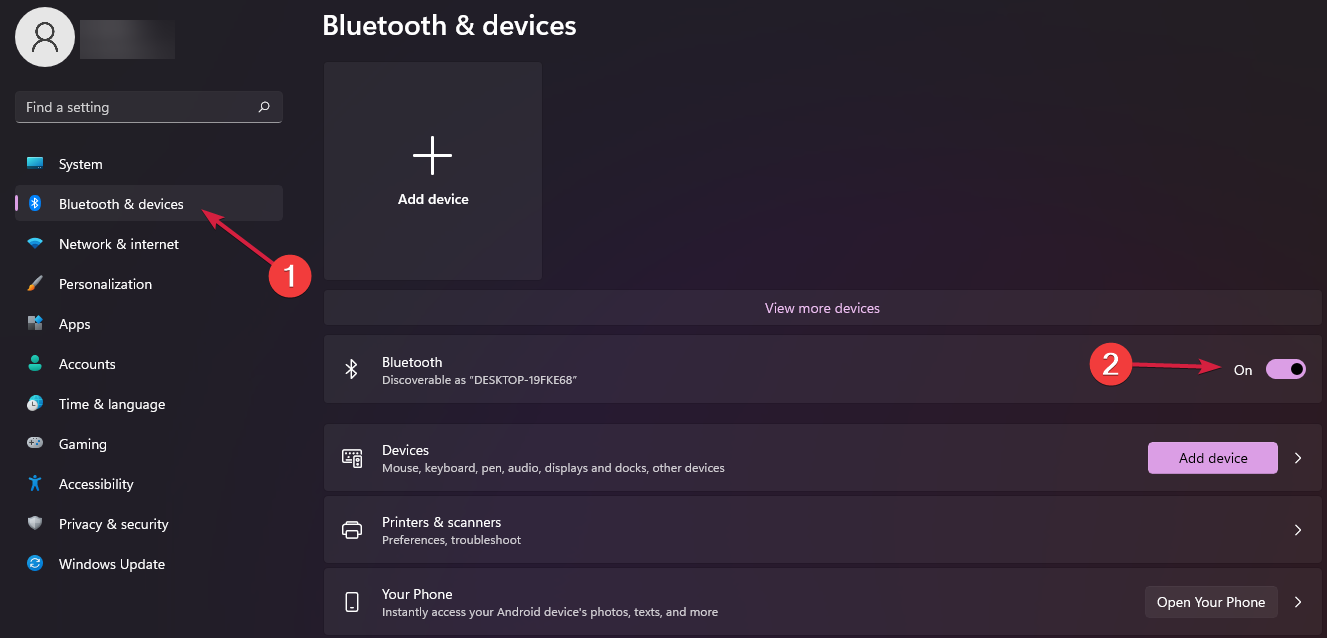
1. Check if Bluetooth is turned on

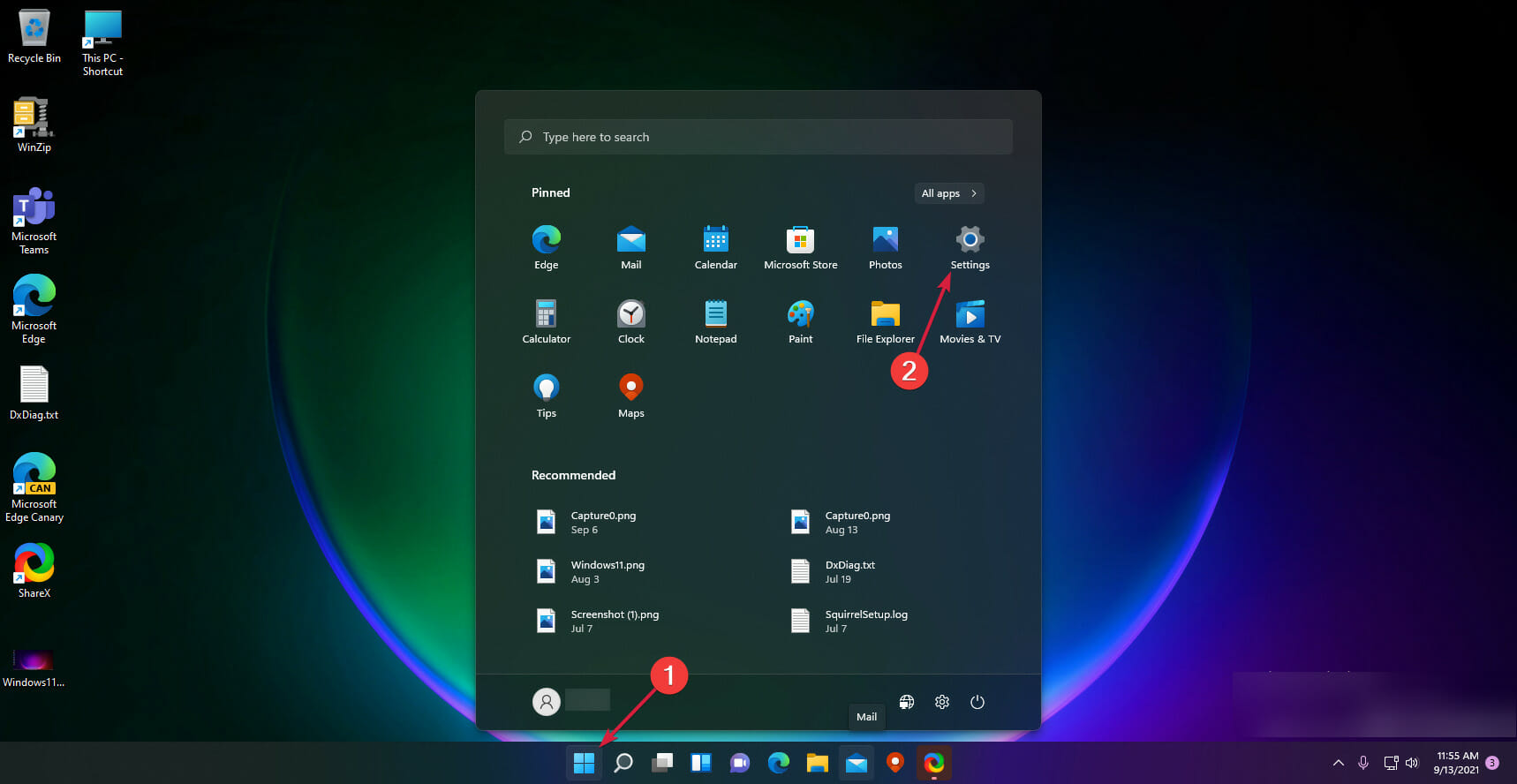
  1. Click on the Windows key, then open Settings.
  2. Go to Bluetooth & devices, then check if the Bluetooth shows the On button. If it isn’t, just enable it.

2. Run the Windows 11 Bluetooth troubleshooter

  1. Click the Start button, then select Settings.
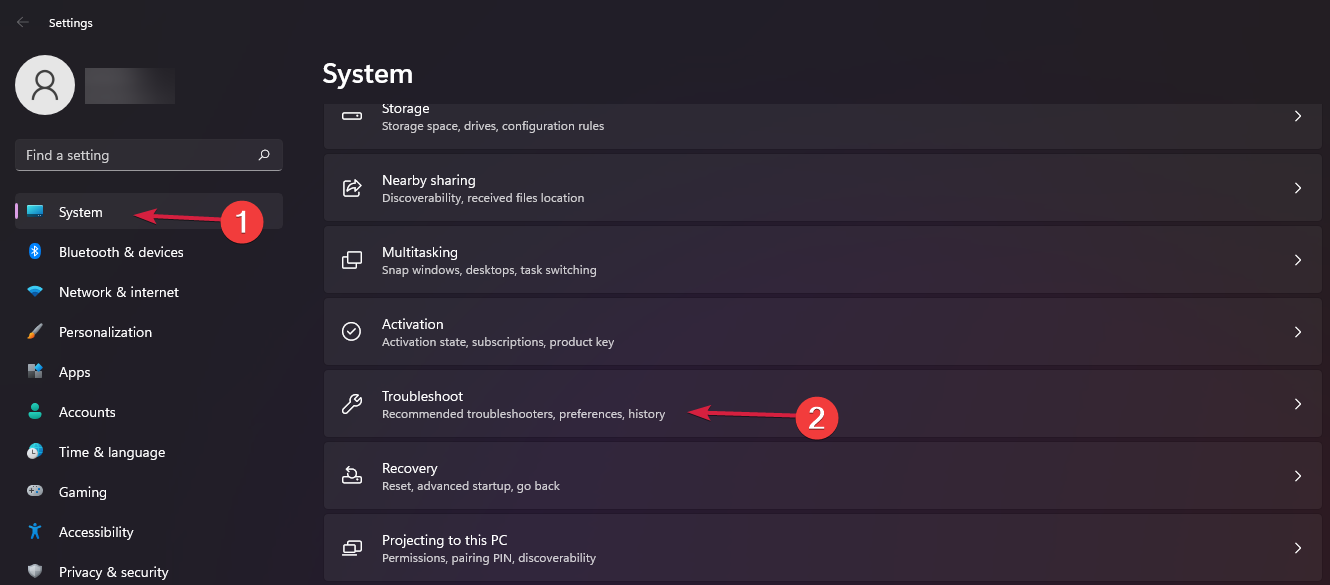
  2. From the left window pane, select System, then look at the right side and click on Troubleshoot.
  3. Select Other troubleshooters.
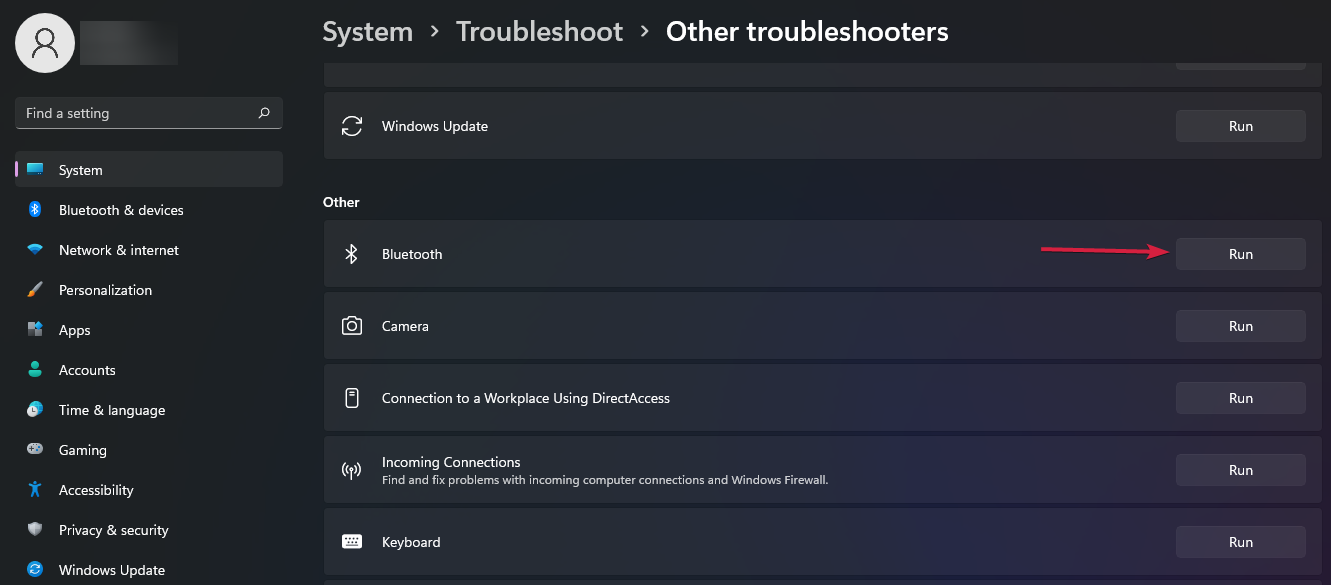
  4. Search for Bluetooth, then click on the Run button.

With this option, your OS will automatically run the recommended troubleshooter. Thus, you’ll not have to bother yourself until the process is done. 

Once it is completed, Windows will let you know whether or not it solved a problem; so you’ll know what happened.

3. Make sure Bluetooth Support Service is running

  1. 1. Click the Search icon from the Taskbar and type services in the text box that opens.

    windows search open
  2. 2. Open the Settings app from the results.

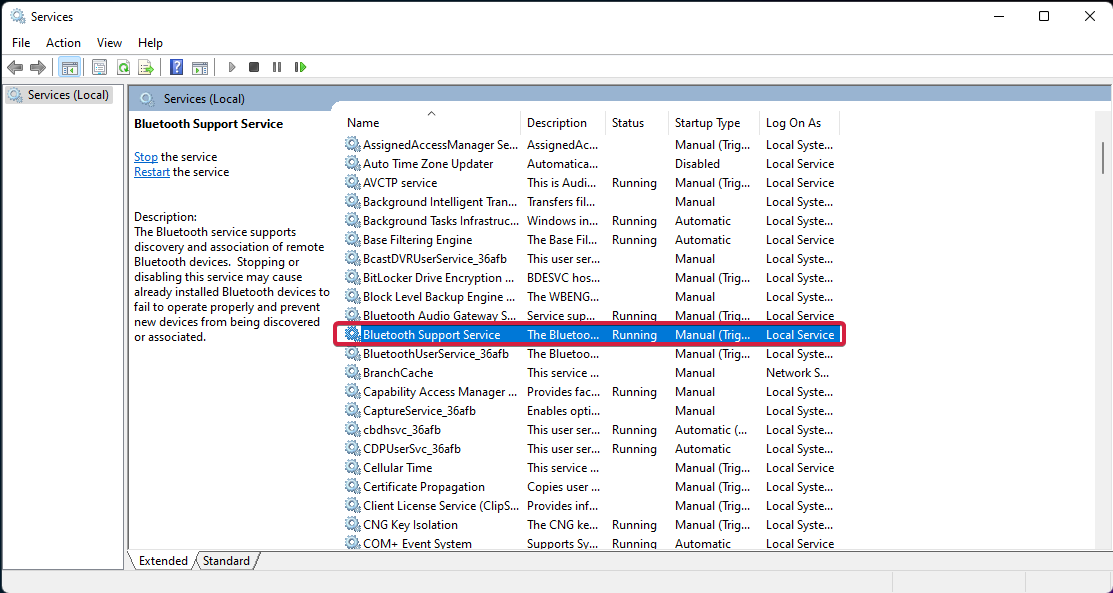
  3. 3. Find the Bluetooth Support Service section, then double-click on it.

    bluetooth support service click
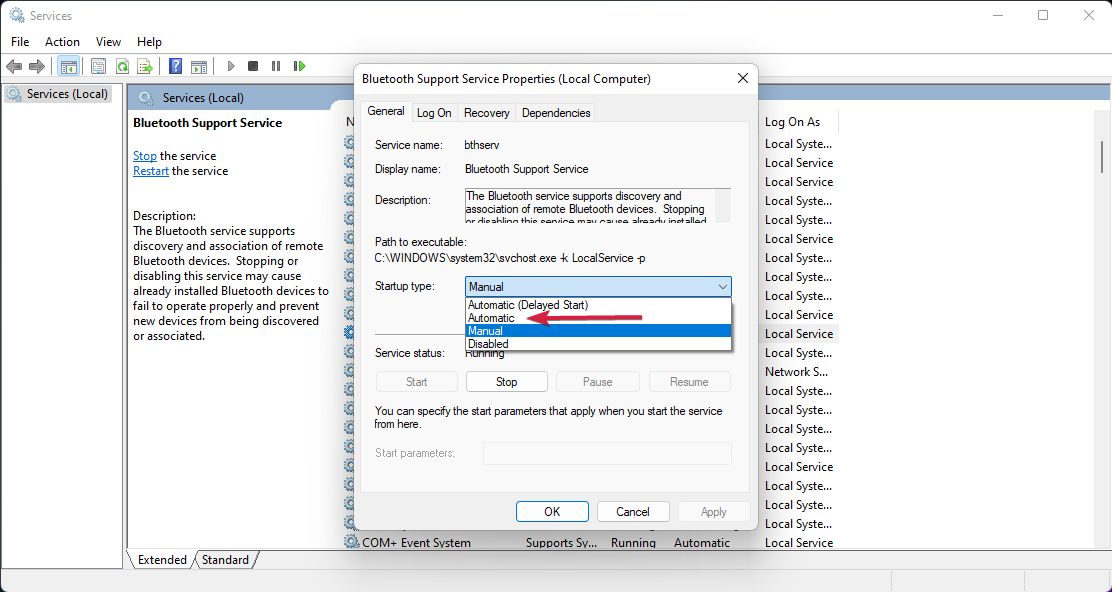
  4. 4. In the pop-up window, go to the Startup Type section and open the drop-down menu.

  5. 5. Select Automatic from the menu.

    automatic bluetooth service set
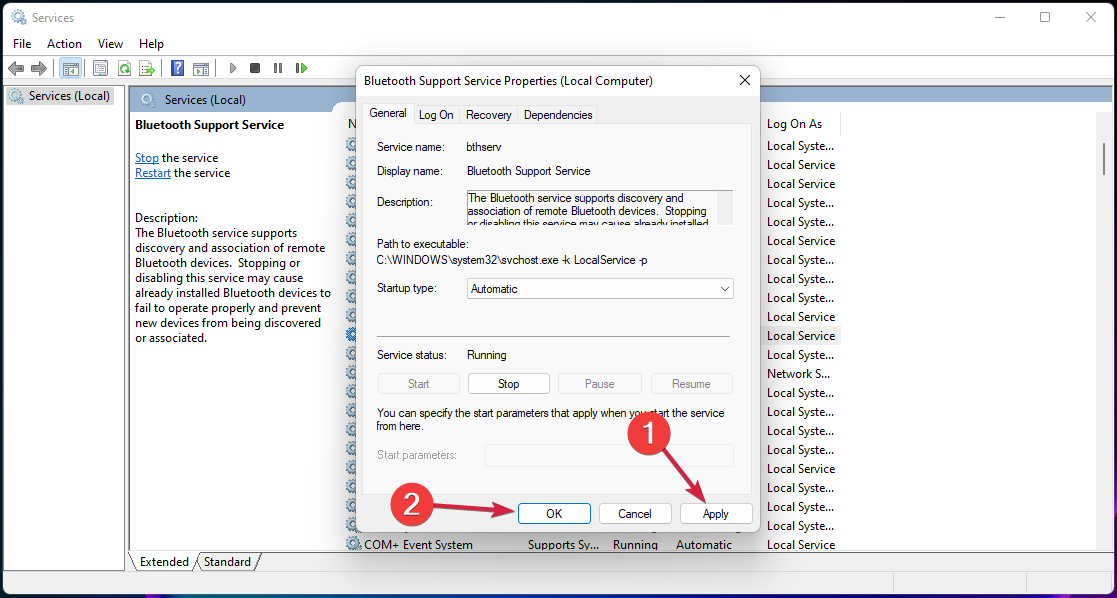
  6. 6. Click on Apply, then on OK.

    apply settings bluetooth
  7. 7. Check if the error persists.

  8. Having Bluetooth Support Service stopped or disabled may cause already installed Bluetooth devices to fail in operating properly. Making sure it is running in normal terms helps you to prevent new devices from not being discovered or associated.

4. Use Device Manager

Update Bluetooth driver for Windows 11

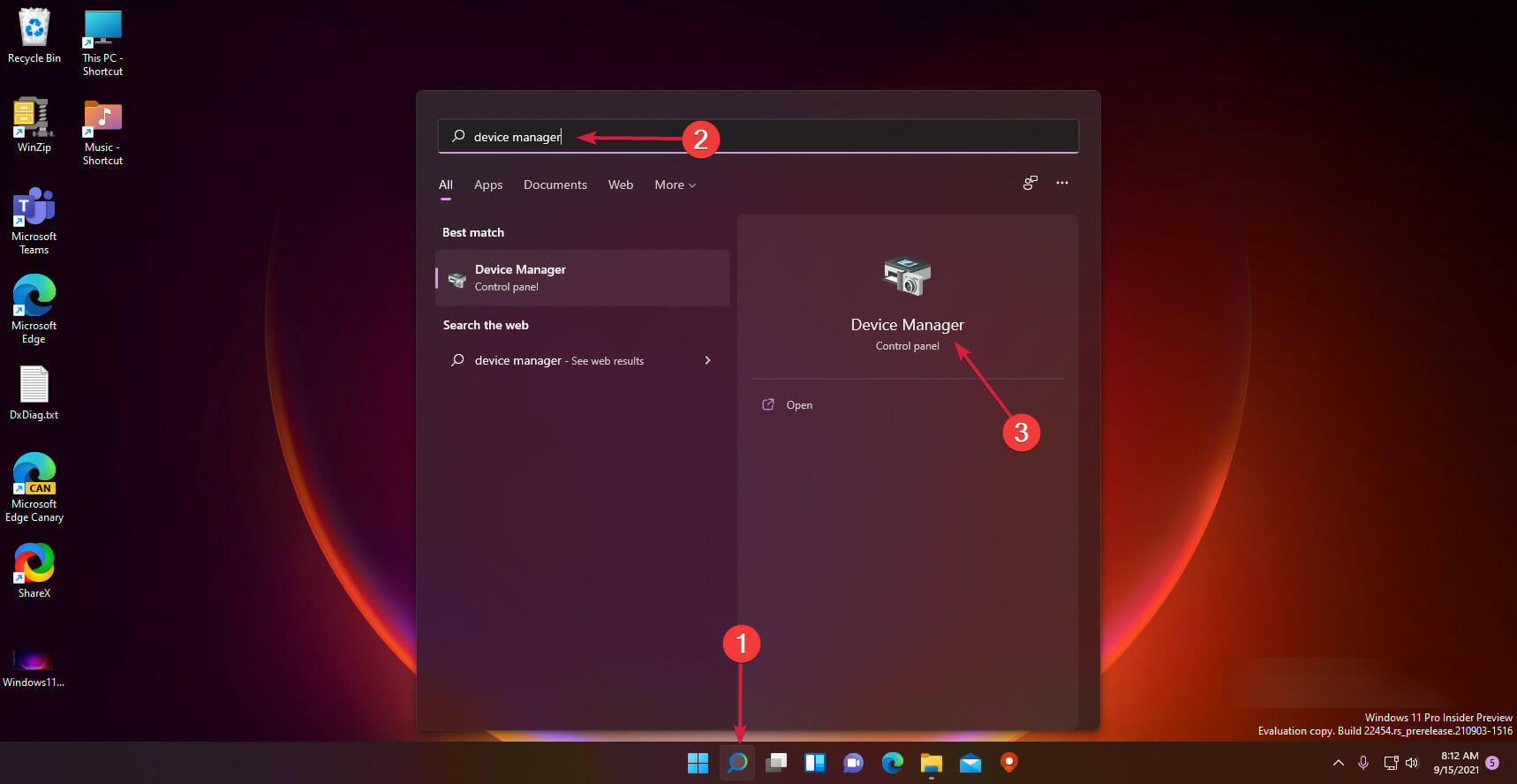
  1. Click the Search icon on the taskbar, then type device manager and select the app from the results.
  2. Expand the Bluetooth section, then right-click on the one you need, and select Update Driver.
  3. Select Search automatically for drivers.
  4. If the system doesn’t find a new driver you can click on Search for updated drivers in Windows Update.
  5. Now click the Check for updates button. If there are any updates, the system will download and install them.

This option might be one of the most efficient ones because it automatically updates drivers, which allows Bluetooth to properly connect.

This is a mandatory process that should be constantly performed on all your drivers to keep your PC running properly.

Of course, there are some other methods you can try to easily update drivers in Windows 11 so do not hesitate to take a look at them. For automatic scans of missing or outdated drivers, we recommend using Outbyte Driver Updater.

This automatic driver updater will scan, find and give you a list of all the drivers your device is in need, what you’ll need to do is just accept the drivers and let the tool work on your behalf.

Outbyte Driver Updater

Use this tool that can help you find new drivers quickly and allow you to download and install drivers easily.

How to reinstall Bluetooth driver windows 11 drivers in Windows 11

  1. Click the Search button from the taskbar, type device manager, and click on the app from the results.
  2. Expand the Bluetooth section, then right-click on the one you need, and select Uninstall device.
  3. Click the Start button, then select the Power icon and choose Restart.
  4. After the reboot, your PC will automatically install a new related driver and clear the Bluetooth cache in Windows 11.

If updating Bluetooth drivers didn’t work as expected, it might be a more serious issue, the components being completely unresponsive.

To fully refresh them, you should also try to reinstall the related drivers and see if the problem is still there.

If none of the listed options worked for your situation, you’ll probably have to access the device manufacturer’s website.

There, you’ll find the exact and updated model, which will surely be compatible with your needs.

Note that you can either search for the requested Bluetooth drivers or raise a ticket to the support team.

For more detailed information regarding Bluetooth drivers, we suggest visiting the Microsoft Drivers Download Center.

How to connect a Bluetooth device to your PC?

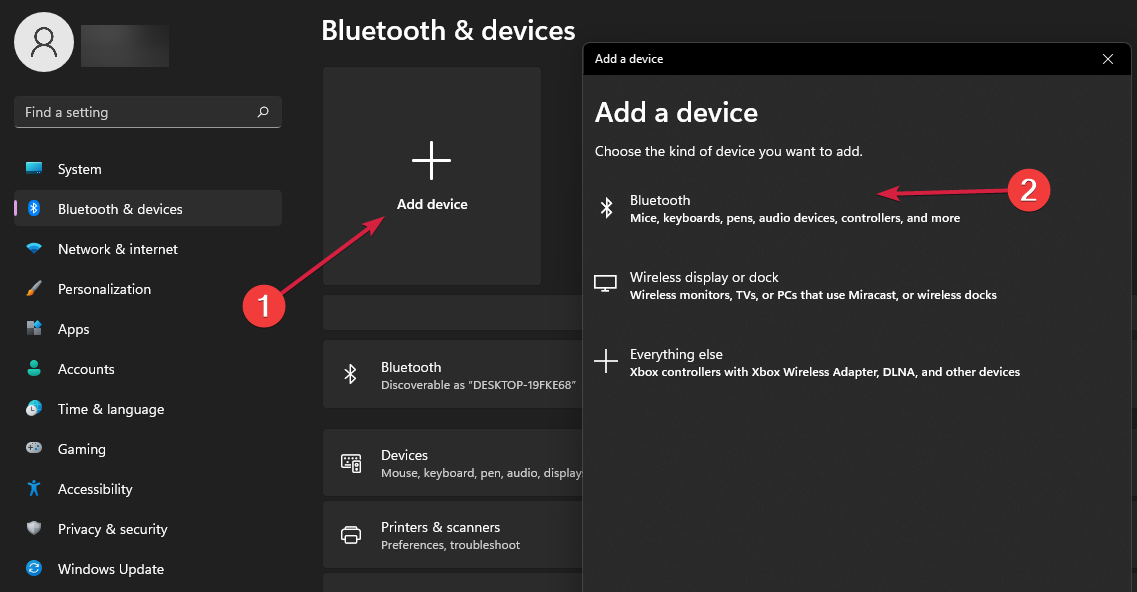
  1. Click the Start button, then select Settings from the menu.
  2. Select Bluetooth & devices from the left pane.
  3. Click on the Add a device button and select Bluetooth.
  4. The system will detect all the discoverable Bluetooth devices within range. So make sure that the device you want to connect has Bluetooth turned on and it’s discoverable. Smartphones have this kind of option within their Bluetooth settings.
  5. Now click on the device that you want to pair. They will eventually appear as Paired or Connected, as shown in our screenshot below.

Why can’t I turn on Bluetooth on my computer?

In the event that you are configuring a new device and Bluetooth is not there, check the product specs to see whether or not it is equipped with Bluetooth capabilities. There are several electronic gadgets that do not have Bluetooth.

Make sure the Bluetooth switch is turned on if your laptop has a physical button for it somewhere on the body of the device.

Ensure that your device is powered on, that it is fully charged or that it has recently replaced its batteries, and that it is within range of the computer you wish to connect it to. And lastly, make sure the airplane mode is turned off.

We selected the best solutions to fix the Windows 11 Bluetooth not working issue, so consider this article as significant support.

For those that still use the previous version of the operating system, we have a similar guide on how to fix your Bluetooth in Windows 10.

You need to keep in mind that the Bluetooth connectivity has a range of approximately 30 feet. Also, any obstacles within the devices can alter the quality of the connection.

So, when you try to pair a device with your PC, keep the device close, to avoid any such problems.

You should also avoid any signal interferences with other similar devices you have around. You might as well turn the Bluetooth connectivity off for all the other devices except for the ones you want to pair.

If you’re in a public space, there’s always the risk of your Bluetooth attacks and highjacking so try to avoid using it to transfer files to and from your PC.

To keep your device much safer, do not hesitate to find out what are the best security & privacy features in Windows 11.

If you want to learn more about Bluetooth, we have a great guide on the Microsoft Bluetooth Enumerator driver on Windows 11, so you might want to visit it before you go.

Hopefully, you managed to fix the issue and now you can easily transfer files from laptop to laptop using Bluetooth or connect to a Bluetooth hotspot on Windows 11.

Because your opinion is important, share it with us by leaving a comment in the section below.

Xbox consoles to change how free video games are listed

Xbox engineering lead, Eden Marie, recently revealed on Twitter that the way Xbox consoles would be handing titles currently in an Xbox Free Play Day promotion would be changing.

In addition to showing up within the Xbox Live Gold screen, which is where they’re currently displayed, Free Play Day games will also show up in a user’s library within the Games With Gold category.

“Oh hey, there’s new Free Play Days games on Xbox this weekend!” Marie wrote. “That reminds me that in Alpha and Alpha Skip Ahead rings, these games now appear in your full library Games with Gold section for you to install during the period that they are free.”

As Marie mentions, this change is currently only active for Xbox Insiders within the Alpha and Alpha Skip Ahead ring. This means that this change is currently being tested and should roll out to the general public within a few months once the team is sure that everything works smoothly.

Free Play Days are special promotions that typically run every weekend of the year. During this period, select games are unlocked for free for all Xbox Live Gold subscribers with an active subscription. This coming weekend’s Free Play titles include The Elder Scrolls Online, Destiny 2’s expansions, and Bloodstained: Ritual of the Night.

Destiny 2 expansions, Elder Scrolls Online, and Bloodstained are free on Xbox this weekend

Three video games are free to play on Xbox consoles this weekend for gamers with active Xbox Live Gold subscriptions. And two of them are actually going to be playable well after the weekend’s over too.

Bloodstained: Ritual of the Night, an action and adventure title, will be free to play on Xbox One and Xbox Series X console families until the end of the weekend, Sunday night. The game’s also currently been given a 60% discount for Gold subscribers.

The Elder Scrolls Online, a popular MMO, has been free to play on Xbox consoles since August 16th and will continue to be free until August 29th. It should be noted that Elder Scrolls Online is also playable for free via Xbox Game Pass so subscribers of that service may want to focus on one of the other two free games this weekend instead.

The third free Xbox game this weekend is Destiny 2 which is admittedly already a free-to-play game but, from this week until August 30th, its paid expansions will be unlocked for free for all players.

As with previous Free Play Day promotions, all progress made during the promotional period will save to players’ accounts for continuing at a later date should they buy the content outright. Xbox Achievements will also be unlockable.

After more Destiny 2 fun? The popular video game is currently doing a collaboration with Fortnite.

Microsoft’s GroupMe app updates on iOS, Android, and Windows with improvements

Microsoft’s GroupMe app updated this week for Windows, Android, and iOS with a variety of UI improvements and feature fixes.

Here’s the full release note for Windows:

  • New poll options! You can now create multi-choice polls and public polls.
  • Fixed crash when downloading files.
  • Dark mode fixes when adding people to groups and starting direct messages.

Here’s the Android release notes for this week’s GroupMe app update:

  • Improved: Layout improvements for the Discover tab and group discoverability settings.
  • Improved: The system back button takes you to the chat list first, then out of the app.
  • Improved: System messages are now excluded from search results.
  • Fixed: State issues when loading the Discover tab.
  • Fixed: The chat tab badge and options menu flickering upon login.
  • Fixed: Issue opening the group details drawer.
  • Fixed: Issue viewing a group’s QR code.
  • Fixed: Incorrect colors in dark mode.

And here’s the release notes for the GroupMe app update on Apple’s iOS devices:

  • Improved: UI enhancements to Discover
  • Misc bug fixes

GroupMe is a free messaging app that’s designed to work with anyone across Windows, Android, Apple devices, and the web as long as they have a phone number or email address. It’s a service that definitely hasn’t reached highs of the likes of Telegram (which recently passed 700 million users), even though it’s been around since 2010, but it still has a fairly loyal userbase that use it on a daily basis to communicate with family, friends, and colleagues.

GroupMe
GroupMe
Developer:
Skype
Price:
Free


‎GroupMe
‎GroupMe
Price:
Free+


GroupMe
GroupMe
Developer:
GroupMe
Price:
Free

2 Easy Ways to Resize the Touch Keyboard on Windows 10

The on-screen keyboard is a feature conveniently built into the Windows 10 platform. If the virtual keyboard is too small or too big and you cannot properly use it, read the troubleshooting steps below and learn how to resize it.

The solution listed in this tutorial will work regardless of what Windows-based device you are currently using.

How to resize the touch keyboard in Windows 10?

1. Modify the registry

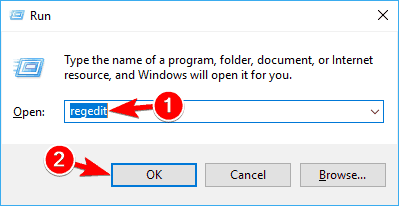
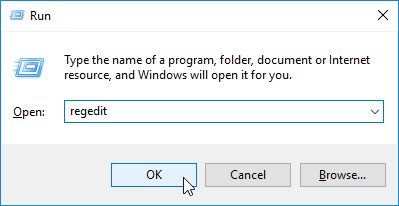
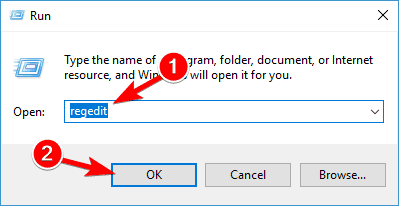
  1. 1. Press the Win+R hotkey. The Run box will be displayed on your device.

  2. 2. In the Run field type regedit and then press Enter. The Registry Editor will open.

    regedit run
  3. 3. From the Registry Editor window, access the following path:HKEY_LOCAL_MACHINESoftwareMicrosoftWindowsCurrentVersionExplorer

    registry editor on screen keyboard fix
  4. 4. Right-click on the Explorer folder and select New – > Key.

  5. 5. Name this key Scaling.

    registry editor resize on screen keyboard
  6. 6. Now, under Explorer, you should see the recently created Scaling entry.

  7. 7. Right-click on the Scaling folder and choose New – > String Value.

  8. 8. Name this Value MonitorSize.

  9. 9. Next, double-click on MonitorSize and enter the string value 25 (this is the default value for a half-screen-width keyboard). You can also enter a different string value for resizing the virtual keyboard.

  10. 10. Close the Registry Editor.

  11. 11. Restart your Windows 10 system.

  12. The touch keyboard’s size can be easily modified via the Registry Editor. A quick tweak to the Registry helps you resize the keyboard however you want, depending on the value you input.

2. Change the keyboard

If the solution above seems too complicated, you can always try an alternative on-screen keyboard.

You can find high-quality alternatives with advanced features and customization options. Most on-screen keyboards support multiple languages and have auto-complete functions.

Make sure to get an alternative that allows you to set your own shortcuts, and that includes the languages and dictionaries that you frequently use.

This solution should help you adjust the on-screen keyboard size when you think that it’s too big or too small.

Speaking of virtual keyboards, if your on-screen keyboard won’t work at all, check out this troubleshooting guide to fix the problem.

Check out our article on the best virtual key software you can use on your device for more information.

If you have questions or if you cannot successfully complete the steps above, don’t hesitate and share/describe your experience with our team. We will try to find the perfect fit for your problem based on the info that you provide us with.

How to Downgrade to Office 2013 From Office 2016

Newer isn’t always better, especially when it comes to software, and sometimes newer versions of software can cause certain compatibility issues.

In some instances, Office 2016 can be the cause of these issues, and today we’re going to show you how to downgrade to Office 2013 from Office 2016 on Windows 10.

How can I roll back to Office 2013?

office 2016 rollback
  1. Use Office 2013 Subscription
  2. Remove Office 2016 and install Office 2013
  3. Download Office 2013 offline installation package

1. Use Office 2013 Subscription

    Microsoft has recently added a way to roll back to Office 2013 on your My Account page. From it, you can downgrade from Office 2016 to Office 2013 in a few clicks, without having to use any third-party tools.

  1. 1. Open your preferred browser.

  2. 2. Navigate to the Microsoft site.

  3. 3. Sign in to your account using your credentials.

  4. 4. Click on Install.

  5. 5. Select the language and the install options.

  6. 6. Choose Additional install options.

  7. 7. Pick Office 2013 as the preferred version, in the 32 or 64 bit version, depending on your operating system and processor.

  8. 8. You can now use Office 2013 on your device.


2. Remove Office 2016 and install Office 2013

This is a pretty straightforward solution:

  1. Download Fix it tool from Microsoft to remove Office 2016. You can download Fix it tool from here.Rollback to Office 2013 From Office 2016 uninstall office
  2. Install one of the following versions of Office 2013:

After Office 2013 installation you might want to disable automatic updates so it doesn’t update to Office 2016 on its own.

To do so follow these steps:

  1. Open Registry Editor. You can open it by typing regedit in the Search bar or by pressing Windows key+R.Remove Office 2016 and install Office 2013 regedit run window
  2. Navigate to the following path:
    • HKEY_LOCAL_MACHINESOFTWAREPoliciesMicrosoftoffice15.0commonOfficeUpdate
  3. Add this value to the Office Update subkey:
    • “enableautomaticupgrade”=dword:00000000.

If you don’t know how to do this, skip this step and instead download and run this file.


Can’t access Registry Editor on your PC? Here’s a quick and easy fix for that!


3. Download Office 2013 offline installation package

  1. Download Office Deployment Tool for Click-to-Run from here (If the download link doesn’t work, download older version from here).
  2. Run Office Deployment Tool for Click-to-Run and extract it to C:Office15.
  3. Go to C:Office15 and open configuration.xml and delete everything from it.
  4. Enter this into configuration.xml file:
    • <Configuration><Add SourcePath=”C:Office15″ OfficeClientEdition=”64″ ><Product ID=”ProfessionalRetail”><Language ID=”en-us” /></Product></Add></Configuration>
  5. Now you will need to replace certain data. Remember to keep all the values between the quotes:
    • Set SourcePath to the C:Office15
    • Set OfficeClientEdition to 32 for 32bit version or 64 for 64bit version.
    • Set Product ID to one of the values from the table below.
    • Product ID Product Name
      AccessRetail Microsoft Access 2013
      ExcelRetail Microsoft Excel 2013
      GrooveRetail Microsoft OneDrive for Business 2013
      HomeBusinessPipcRetail Microsoft Office Home and Business Premium
      HomeBusinessRetail Microsoft Office Home and Business 2013
      HomeStudentRetail Microsoft Office Home and Student 2013
      InfoPathRetail Microsoft InfoPath 2013
      LyncAcademicRetail Microsoft Lync Academic 2013
      LyncEntryRetail Microsoft Lync Basic 2013
      LyncRetail Microsoft Lync 2013
      MondoRetail Microsoft Office Mondo 2013
      O365BusinessRetail Microsoft Office 365 Business
      O365HomePremRetail Microsoft Office 365
      O365ProPlusRetail Microsoft Office 365 ProPlus
      O365SmallBusPremRetail Microsoft Office 365 Small Business Premium
      OneNoteFreeRetail Microsoft OneNote 2013
      OneNoteRetail Microsoft OneNote 2013
      OutlookRetail Microsoft Outlook 2013
      PersonalPipcRetail Microsoft Office Personal Premium
      PersonalRetail Microsoft Office Personal 2013
      PowerPointRetail Microsoft PowerPoint 2013
      ProfessionalPipcRetail Microsoft Office Professional Premium
      ProfessionalRetail Microsoft Office Professional 2013
      ProjectProRetail Microsoft Project Professional 2013
      ProjectStdRetail Microsoft Project Standard 2013
      ProPlusRetail Microsoft Office Professional Plus 2013
      PublisherRetail Microsoft Publisher 2013
      SPDRetail Microsoft SharePoint Designer 2013
      StandardRetail Microsoft Office Standard 2013
      VisioProRetail Microsoft Visio Professional 2013
      VisioStdRetail Microsoft Visio Standard 2013
      WordRetail Microsoft Word 2013
    • Set Language ID to en-us for English version.office configuration rollback office 2016

As we already mentioned mind the quotes, so please keep all the values between the quotes. If you don’t do that, the installation will fail.

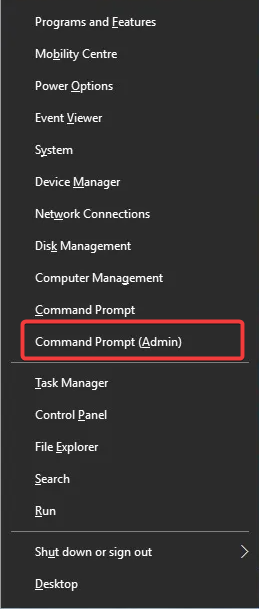
  1. Run Command Prompt. You can run it by entering cmd in Search bar. Type the following to switch to that folder:
    • cd C:Office15
  2. Now enter the following (This will start the download process. Remember, this might take a while depending on your internet speed, so make sure that you don’t cancel it):
    • setup.exe /download configuration.xmloffice rollback command prompt
  3. Now go to C:Office15OfficeData and locate the folder with numbers in its name (Remember those numbers, you’ll need them for next step).
  4. Go back to C:Office15 and open configuration.xml and paste this into it:
    • <Configuration><Add SourcePath=”C:Office15″ Version=”15.0.4481.1005″ OfficeClientEdition=”64″ ><Product ID=”ProfessionalRetail”><Language ID=”en-us” /></Product></Add><Display Level=”Full” AcceptEULA=”TRUE” /></Configuration>
  5. Now you need to change values to the ones you used when downloading Office in Step 4 (Remember to change the Version value to the one from the Step 7).
  6. Open Command Prompt and enter: cd C:Office15.
  7. Now enter this into Command Prompt for the installation to start:
    • setup.exe /configure configuration.xml
  8. If you get any errors, you might need to check configuration.xml if the values are the same like in Step 4 and Step 7 and if they are placed properly between the quotes.

Can’t install Office 2016 due to Error 30015-6 (-1)? Fix that with this guide!


That’s about it. As you can see, the solutions aren’t very complicated, but you need to be aware of the quotes and the lines you enter. One missed letter can be enough to ruin the installation process.

If you have any other questions, please feel free to ask in the comments section below.

Fix: Peacock Is Not Yet Supported in Your Region [OVP 00012]

Peacock is NBC’s popular streaming service. Many argue that it’s even better and cheaper than Netflix.

We like to believe it gained a bit more popularity after it became the only platform to stream The Office after it left Netflix at the beginning of 2021.

Therefore, it makes sense why you’d want to jump on this train as soon as possible. However, as with many other streaming platforms, Peacock is unavailable for everyone.

In fact, if you’re not on US territory, you may face the dreaded Peacock is unavailable in your region error message.

But don’t fret, we’ve got a few tricks up our sleeve that should help you bypass Peacock geoblocks without breaking a sweat.

Why is Peacock not available in my region?

This streaming service from NBC is available only in the US due to regional limitations imposed by the government.

The users can experience this problem with Peacock because of licensing issues that don’t allow other countries to stream such content.

In order to bypass this issue, you can simply connect to a VPN with worldwide servers with the highest connection speed.

How can I watch Peacock outside the US?

1. Use a reliable VPN

  1. Get a premium VPN subscription plan, like Private Internet Access.
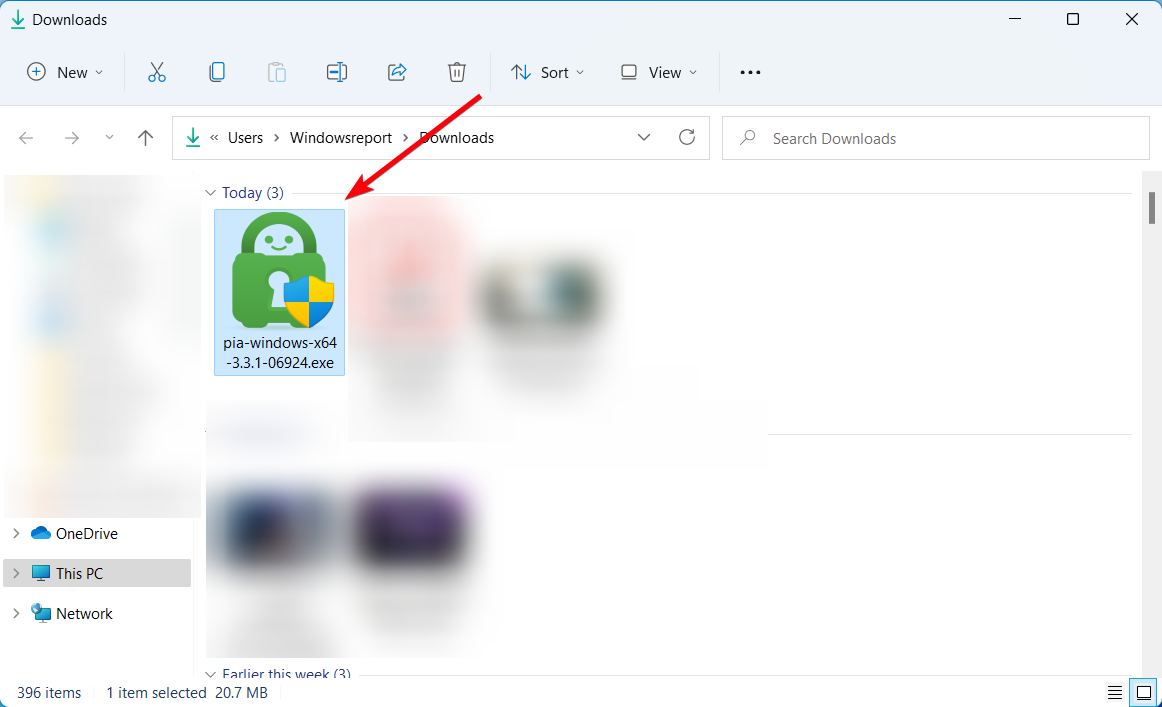
  2. Download the VPN installer on your device
  3. Install the VPN client
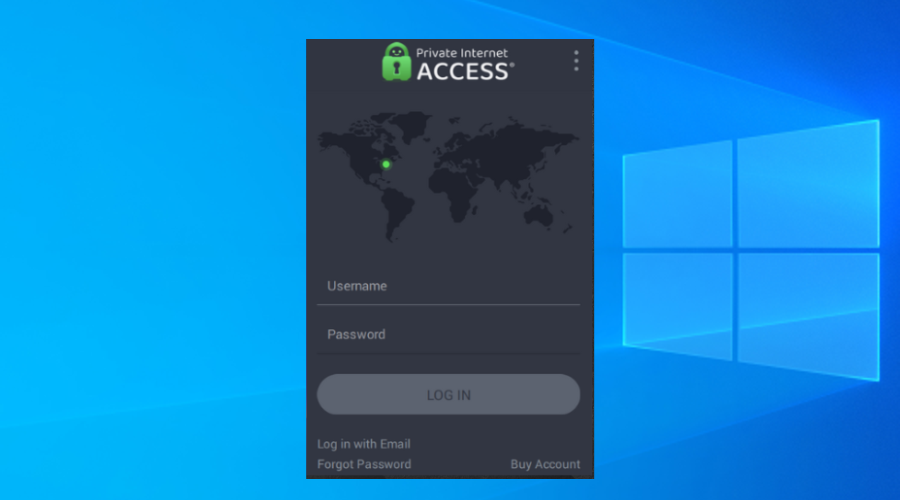
  4. Launch the VPN and login into your account
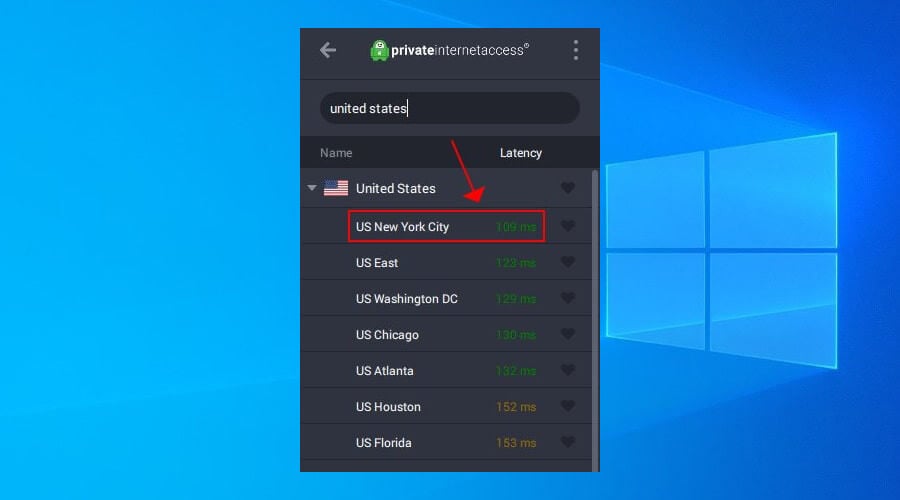
  5. Connect to a US server (this step is important)
    use PIA US servers
  6. Access Peacock’s website
  7. Register an account
  8. Enjoy streaming on Peacock

If streaming still fails after connecting to a US server, see our guide on why is Peacock not working for region, buffering, and playback fixes.

Private Internet Access is one of the best VPNs that work with a wide variety of streaming services, including Peacock.

You have more than 22,000 fast servers worldwide that you can use to connect to US servers and access restricted content from Peacock in seconds.

Besides unblocking various geo-restricted content on the Internet, PIA can also protect your privacy and keep your connection secure.

It has a broad range of servers you can choose from and features an Internet kill switch.

Private Internet Access

Is Peacock unavailable in your region? PIA will help you fix that rapidly.
Check price Visit website

2. Use a Smart DNS

Instead of using a VPN, you could use a Smart DNS service to access Peacock if it’s unavailable in your region.

What a Smart DNS service does is it replaces your ISP-assigned DNS with a private one.

As a result, websites you may try to access (such as Peacock) will detect you as being in the same location as your spoofed DNS indicates.

The main advantage of using a Smart DNS is that it’s faster than a VPN since it doesn’t encrypt your traffic or hide your IP address.

That’s precisely why you shouldn’t use such a service if you care about privacy and security.

If, on the other hand, you’re not concerned about your privacy, you should definitely go with a Smart DNS service.

3. Use a proxy server

Proxy servers have been used for a long time to hide your true identity online.

You simply configure your browser or your system with the server you choose, and your traffic will be routed through the proxy.

Therefore, if Peacock is unavailable in your region, a proxy server could help you fix this issue.

However, there are a bunch of drawbacks to using proxies.

Because most of them are free, they tend to become overcrowded. As a result, you’ll experience slowdowns and even random disconnections.

It goes without saying that streaming video content online requires a fast, stable connection.

To avoid the situation above, we suggest you invest in a paid proxy server or use a VPN.

Just a heads-up: proxy servers can’t always bypass geo-restrictions, unlike VPNs.

How to pay for Peacock TV outside the US?

  1. Get a subscription to VPN software with fast US servers like PIA.
  2. Access the USunlocked website and click on Get your card.
  3. Fill in the registration data to get your virtual US card.
  4. Add money to your USU card and wait for it to be processed.
  5. Once you have US funds, go to the Peacock website for your subscription.

Hence, this is the simple method to obtain a subscription if Peacock won’t accept your payment.

All things considered, there are several things you could try if Peacock is unavailable in your region.

One of the most popular methods to bypass this limitation is using a VPN, as it will not only unblock the service but also protect your online privacy. Also, they might help with the Peacock’s Generic Playback error.

If you’re not concerned about your online privacy, however, you could also stick to a Smart DNS service.

Last but not least, proxy servers can sometimes bypass geo-restrictions, but the drawbacks often outweigh the benefits of this type of service.

13 Best Proxy Tools for PC [2026 Reviewed]

Before we start, we need to quickly explain how proxies work. Basically, the proxy works as a middleman between your PC and the Internet.

When using a proxy your actual IP address will be hidden, and you’ll use your proxy’s IP address instead.

Although proxy masks your IP address, it doesn’t encrypt your traffic, which means that malicious users can still intercept it.

What are proxy tools?

Simply said, proxy tools as devices like routers or systems that protect your online privacy with a gateway for the users when navigating on the web.

For instance, you can use proxy servers to access online resources by sending traffic to a proxy that evaluates the web pages before you access them.

Which type of proxy is best?

There are multiple types of proxy servers out there so you can shield your privacy requirements.

If you’re looking for the best proxy types, you should go for residential proxies as they are the most popular option among users because it has real IP addresses for devices.

Which one is better, VPN or proxy?

We have to mention that proxy doesn’t affect your entire network connection, and it will affect only a single application, such as your browser.

Also, by going through a proxy, your original IP can be traced back to your PC. VPNs ensure that your PC is untraceable.

Of course, when you activate a VPN, it will cover all the apps on your PC, not just the browser so you’re covered all the way.

However, this doesn’t mean that proxy tools can’t be useful, and if you’re looking for the best proxy tool, today we’re going to show you a few.

What is the best proxy tool for Windows 10 and 11?

Private Internet Access – Best VPN from all

As the world’s leading VPN, PIA does more for your online privacy than a simple proxy tool could ever do.

With this Kape Technologies-owned VPN, you will be able to enjoy a truly liberated web experience, completely free of censorship and geographically imposed restrictions without compromising on security.

If anything, you will benefit from the highest level of encryption for your traffic data, anonymous browsing, IP cloaking, and other privacy-oriented features including a strict no-logs policy.

This means that your online activity will never be tracked or monitored, not by your ISP, not by governmental agencies, and not by hackers.

Speaking of hackers, you will be completely protected against any kind of cyber threats as PIA also includes a malware blocker and a firewall.

Moreover, your IP address is changed when connecting to one of its 3292 servers strategically spread across 46 countries worldwide.

Let’s quickly look at its key features:

  • Bypass censorship and unblock restricted websites
  • Secure protection even on public Wi-Fi
  • Unlimited bandwidth and ultra-fast Download Speeds
  • Integrated ads, trackers, and malware blocker
  • Compatible with all popular desktop and mobile operating systems
  • Strict no-logs policy for total privacy
  • Easy to set up and easy to use (1 click connection)
  • Secure VPN protocols (Wireguard, PPTP, OpenVPN, and L2TP/IPSec)
  • Protect up to 10 devices simultaneously with just 1 subscription
  • 30-day money-back guarantee

Private Internet Access

Extend the benefits of proxies to your entire network and all your devices with PIA!
Check price Visit website

NordVPN – Quickest connection speed

NordVPN is a reliable VPN service provider trusted by millions of users worldwide.

Unlike a proxy server, this software comes with in-built security features that ensure your traffic data is protected when you browse online.

The VPN program works on the operating system level and encrypts the traffic between your device and the internet network. In this way, your ISP won’t be able to collect data or track what you do online.

With NordVPN’s obfuscated servers you can even hide the fact that you are using a virtual private network.

Since this type of server changes your data packets, connecting to it will enable you to access firewalls blocked by VPNs.

Another great feature of this service is its strict no-logs policy. NordVPN does not track or collect your private data while you navigate online.

Here are other key functions of this software:

  • 5000+ fast servers in 59 countries
  • Supports Windows, macOS, Linux, Android, and iOS
  • Connect one account to six devices at once
  • CyberSec technology
  • Double VPN security feature
  • No ISP or bandwidth throttling
  • Automated kill switch
  • Browser extensions for Firefox and Google Chrome
  • Dedicated, static IP address accessible only by you
  • Mobile apps for Android and iOS
  • Live chat support 24/7

With NordVPN you can download and share files through secure P2P servers with no bandwidth limits.

NordVPN

Connect to the fastest VPN servers and browse stress-free with NordVPN!
Check price Visit website

Surfshark – Great encryption

Surfshark is a resourceful VPN service with a strict no-logs policy. They do not keep track of any of your data.

Plus, by hiding your IP and connecting you to a private server, no third party will be able to identify or track you. 

It uses the private DNS of each server. This means that all your data is fully encrypted. 

Surfshark VPN uses industry-leading AES-256-GCM encryption. No one will be able to access your browsing history, traffic data, or identity without your permission.

Along with that, they use secure protocols like IKEv2/IPsec. They also allow you to use OpenVPN.

In case the connection drops, this VPN is equipped with a killswitch which will automatically turn off any traffic data in case the connection drops.

Surfshark VPN is compatible with all major platforms and you can connect it to an unlimited number of devices. It is subscription-based with a 7-day free trial available for each plan.

Other key features of Surfshark VPN include:

  • Changes your IP
  • NoBordersMode
  • Split tunneling
  • Ad blocker
  • Anti tracker

Surfshark

Keep your data private and increase internet connection speed with this reliable and budget-friendly VPN.
Free trial Visit website

ExpressVPN – Optimized for stable connections

Another useful tool if you want to keep your personal details private is ExpressVPN.

To understand how it works compared with a free proxy tool, keep in mind that every single application will need to be configured separately to use the proxy you desire.

Thus, changing the proxy server location might require a complete reconfiguration.

On the other hand, once you install a VPN tool, selecting a location becomes easy and fast. Express VPN routes and encrypts all kinds of traffic through its servers.

When you choose to connect on a free proxy server, check first if it encrypts its traffic and be aware that loads of other users are getting this free congested highway.

Choosing a premium VPN like this Express VPN International Ltd. owed security software instead is like a secured private tunnel just for you, optimized for speed and stability.

ExpressVPN it’s not free, though its speed and the numerous servers it has in 160 locations spread worldwide make the difference.

Plus, you get to enjoy special discount rates and a convenient 30-day money-back guarantee.

ExpressVPN

Enjoy secure and reliable connections on ultra-fast servers in 94 countries!
Check price Visit website

Cyberghost VPN – Good for multiple devices

The best privacy buddy while surfing the web is a virtual private network software (VPN). You can check out this best VPN list to learn more about the virtual private network.

This is one of the leaders on the market when it comes to security. It masks your IP and keeps all your data safe as you are surfing the Web.

Easy to install and easy-to-use, it allows you to run up to 7 devices at a time. This feature is extremely useful if you are using multiple gadgets for the same purposes and you need a safe internet connection.

One of the most important security features that Cyberghost has to offer is that it separates your browsing from your personal data.

It doesn’t log your files in order to prevent them from being damaged or stolen.

CyberGhost VPN has dedicated servers for various activities and you can customize the recommendations based on your preferences and location.

This flexible function makes it the ideal VPN provider for online transactions, streaming, torrenting, and more.

Cyberghost VPN

Surf online with one of the best anonymous web proxy!
Check price Visit website

IPRoyal – Huge pool of IPs

IPRoyal is one of the best proxy tools out there with over 2 million IPs available so it’s definitely worth a shot.

You can either choose a sticky IP that you can use for 24 hours or a rotating proxy and you will benefit from 99.9% uptime.

All the IPs are real, residential proxies from genuine users and they cannot be distinguished from organic visitors.

Even you can leave your IP to be used if you’re not using your PC for a while and you will be compensated for that.

With IPRoyal’s data centers you will benefit from unlimited bandwidth with no extra charges, and that translates into fast access speeds.

You will avoid any geo-blocking by selecting a proxy from any location in the world and the IP is reserved for you.

And all the browsing is perfectly secure, with HTTPS and SOCKS5 support and a lot more.

IPRoyal

Choose a reliable proxy from any part of the world and enjoy browsing your favorite content.
Check price Get it now

Ultrasurf – Great for Android surfing

Ultrasurf is a small and portable tool that will protect your privacy online. According to its developer,

Ultrasurf has about 3 to 5 million users every month from more than 180 countries. This tool will encrypt your web traffic while hiding your IP address.

At the same time, your IP address will be protected on public networks and you’ll be able to access any website that is blocked on a regional basis.

Ultrasurf is a simple tool, and as soon as it starts it will select the best proxy server and connect you to it.

This is a portable application, so there’s no need to install it. This also means that you can run the tool on any PC and even from a USB flash drive.

We also have to mention that this tool doesn’t require any registration, so you can just download it and use it without limitations.

After you start the application, you’ll automatically connect to the proxy server and your default browser will start.

In our case, Chrome started automatically in Incognito mode, so no traces such as cookies or browsing history are left behind while using Ultrasurf.

From the application, you can choose between different servers and you can even visualize the speed of the server as well.

On the other hand, you won’t be able to see the server’s location, which can be a turn-off for some users.

Ultrasurf is a small, free, and portable proxy tool. The application is rather straightforward, so if you’re looking for a proxy tool, there’s no reason not to try it.

⇒ Get Ultrasurf

Freegate – Great portable tool

Freegate is another proxy tool that will protect your privacy online. Since this tool is also portable, it can run on any PC without installation. As soon as you launch the app, your default browser will start.

For some reason, the default browser wasn’t correct in our case, but you can change the desired browser from the settings menu.

The application comes with a humble user interface that shows you a simple network graph. As for available settings, you can choose between two tunnels.

The tool supports HTTP and SOCKS5 protocols, and you can even use your own proxy server with this tool if you want to.

Freegate is a simple but useful tool, and if you want to use a proxy, you should definitely give it a try.

⇒ Get Freegate

SafeIP – Good for ID protection

SafeIP is another proxy tool that you can use to protect your privacy online. The tool comes with a simple interface so you can easily choose a proxy server with just a few clicks.

All servers are listed in three categories, and you can choose between the US, UK, and other worldwide servers. Simply double-click the desired server and your IP address will change automatically.

The tool offers several available presets such as anonymous web browsing, fast content streaming, and mass or bulk mailing.

Additional options include malware protection, advertisement blocking, cookie tracking protection, referring URL protection, and browser ID protection.

You can also turn on traffic encryption or DNS privacy if you want. To keep your IP address secure, you can automatically change it after a certain number of minutes.

This is a simple application, and it offers most of its features for free. Certain options such as Wi-Fi Protection, Speed and torrents, and Speed Boost modes are unavailable in the free version, but that’s not a big problem.

We also have to mention that not all servers are available in the free version, and the list of available servers will change during the day.

This means that certain servers might not be available at all times, but with an extensive number of servers, this won’t be a problem.

SafeIP is a simple and free proxy tool. With a large number of available servers and a friendly user interface, this app is perfect for all basic users.

⇒ Get SafeIP

Tor – Very easy to use

Tor is probably one of the best-known applications that can protect your privacy online. This tool is simple to use, and in order to do that, you just need to install Tor Browser.

The browser will have some extensions installed that will prevent websites and malicious users from tracking your online.

Although Tor doesn’t allow you to choose a proxy server, it connects to several different nodes, thus hiding your IP address and encrypting your traffic.

Tor is incredibly simple to use, and if you’re concerned about your privacy online, you might want to consider using it. This application is free, and you’ll be able to enjoy it even if you’re a basic PC user.

⇒ Get Tor

KProxy – Good for avoiding location restrictions

KProxy is a useful proxy service that allows you to hide your IP address online. This is a web service, but if you want, you can download Chrome or Firefox plugin.

There’s also a KProxy browser available which is basically a portable version of Firefox with KProxy plugin.

By using this service, you can circumvent any regional restrictions that you might have. This is especially useful if certain services or online content isn’t available in your country.

In addition, this service will also protect you from malicious users and keep your personal information hidden from your Internet service provider.

KProxy is a free service, however, it has certain limitations. By using the free version you can choose between Canadian and German servers.

However, US and UK servers will remain unavailable unless you purchase a Pro version.

We also have to mention that in the free version, servers can get overloaded due to the number of users. You can read a more detailed walkthrough of features, limits, and setup in this KProxy free guide and decide whether the service fits your daily browsing needs.

⇒ Get KProxy

Psiphon – Simple user interface

Another free proxy tool on our list is Psiphon. This tool comes with a simple user interface and it allows you to choose between 7 different servers.

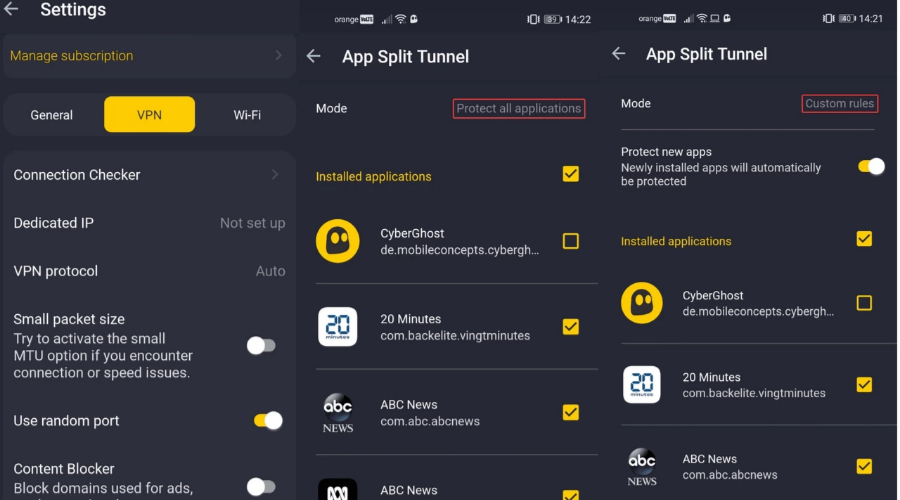
Psiphon allows you to use the Split Tunnel feature, and you can also configure local proxy ports, upstream proxy, or use Transport Mode.

The tool also comes with a useful log that you can use to check your connection status.

In addition, Psiphon is available in several different languages. This is a simple, free, and portable application, so it should work on any PC without problems.

One minor issue is the lack of compatibility with third-party browsers. During our testing, the application worked perfectly with Microsoft Edge and Internet Explorer, but it didn’t work with Chrome or Firefox.

This application is completely free and it doesn’t have any restrictions, so if you’re looking for a free proxy tool, be sure to check Psiphon out.

⇒ Get Psiphon

ChrisPC Free Anonymous Proxy – Unblocks geo-restricted websites

If you’re looking for a free proxy tool, ChrisPC Free Anonymous Proxy might be just what you need.

This tool allows you to choose between many worldwide proxy servers with just a few clicks. We have to mention that this tool offers several different modes.

The first one is Anonymous Proxy Mode which hides your IP address and allows you to browse the Internet anonymously.

Expat Mode will unblock geo-restricted websites and there’s also Unblock Websites Mode that will unblock certain popular websites.

Another available feature is Ads Blocker Filter, but you can use it only for 30 minutes in the free version.

The free version of the tool offers basic options, but if you want to use Expat Mode or change advanced settings, you’ll have to purchase the premium version.

⇒ Get ChrisPC Free Anonymous Proxy

How do I use a proxy tool?

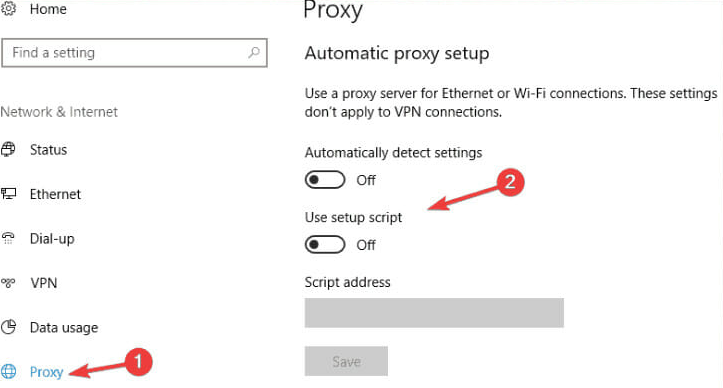
  1. Go to Network and Internet in Windows Settings menu.
  2. Click on Proxy.
  3. In the manual setup window, toggle on Use Proxy Server option.
  4. Slide the option for Automatically detects settings.
  5. Turn on the Use Setup Script option and add the script address.

As you can see, there are many different proxy tools that you can use on Windows 10 and 11.

We have to mention that using a free proxy isn’t the most secure method to protect your privacy online.

So, you might want to refrain from entering sensitive information while using such a tool. Better yet, try a VPN instead to protect your entire network.

In this respect, we suggest checking our list of the best VPNs for Windows 10 & 11.

Have you tried any of the solutions above? If so, share your feedback in the comments section below.

How to Remove a Word from Word Dictionary

When using Windows, you’ll see an option that’s called Add to dictionary in various programs including Microsoft Word, some Note-taking applications, web browsers and more.

Every time you add a word to the spell-checking dictionary, it is saved automatically. Once it is, you’ll be able to ignore it every time the program checks for spelling mistakes.

Add to Dictionary or Ignore

When we write a certain word multiple times and Windows doesn’t recognize it, it will point out that specific word as an error. But if you’re sure the spelling of that word is correct, you can avoid Window’s error prompts and skip its irritating red underline by choosing between “Add to dictionary” or Ignore.

If you choose Ignore, this will happen only once. If you’re sure you’ll use that specific word frequently, it’s better to choose to Add to Dictionary.

In the future, you might also want to remove that word. We’re going to show you the different ways in which you can add, edit or remove words from the default dictionary of Microsoft Office on Windows 10/8/7.

How to remove a word from spell check?

    When you use the Add to dictionary feature, the word you used this option on is automatically saved in a file. You can edit that file manually in order to add or remove words from the spell checking dictionary.

  1. 1. Press the Windows key on your keyboard and type file explorer in the search box that opens.

  2. 2. Click on the first result to open the File Explorer app.

  3. 3. Navigate to File > Change folder and search options.

    file explorer change folder search options
  4. 4. The Folder Options window will now open. Navigate to the View tab.

    view file options
  5. 5. Select Show hidden files, folder, and drives, then click on Apply.

    hidden files windows 10 open
  6. 6. Use the following path to navigate to the Spelling folder: C:\Users\<username>\AppData\Roaming\Microsoft\Spelling

  7. 7. In the Spelling folder you’ll find one or more folders. In case you used more than one language on your system, you’re going to find more than one folder.

  8. 8. Choose a folder based on the language that you’ve used. In each folder, you’ll see 3 files: default.acl, default.dic and default.exc.

  9. 9. Double-click on default.dic and it will open in Notepad.

  10. 10. Here you’ll be able to see all the words that you’ve added to the dictionary. You can now edit the file.

  11. 11. Save and exit after you’re done, and you’re all set!

This might be a bothersome task for some, but it’s the simplest way to edit dictionary entries created on your system. The number of words can pile up rather fast, especially if you’re writing about niche things and not your usual vocabulary is at play. However, once you get used to it, it can come quite handy for adding or, in this case, removing words.

We have an article on the best spell-checking tools you can use that you can check out.

Let us know what you think about this article and tell us if it helped you remove words from the dictionary.

How to Control Your Windows 10 PC with Your Voice

Well, aren’t the input methods nowadays changing or what? A decade ago, most users would find mouse and keyboard the peak performance of input devices, but it seems that the next obvious step forward lies in voice recognition.

It’s all about the smart digital assistants and their usability in various devices, like smartphones, cars, and, of course, Windows PCs.

By following the emerging trends, we decided to provide you with a few ways to control your Windows 10 PC with simple voice commands.

No pointing device is needed here, just a microphone and a few tweaks. So, if you’re determined to roam through the user interface and complete various tasks with nothing but a voice, make sure to check the explanation below.

Here’s how to set the voice control on Windows 10

  1. Use Speech Recognition
  2. Microsoft Smart Assistant a.k.a Cortana
  3. A collection of third-party programs

1. Use Speech Recognition

    Speech recognition isn’t a Windows 10 exclusive, and it dates back to Windows 7. Nonetheless, this handy feature is more than welcomed on the latest Windows version because Cortana tends to misbehave. It’s originally introduced as an ease of access feature, to improve overall usability for users with physical issues.

    If you’re not sure how to configure Speech Recognition and use it later on, make sure to follow the steps we provided below.

  1. 1. In the Windows Search bar, type control and click on the first result to open Control Panel.

    pc voice control windows 10
  2. 2. Select Large icons from the View section.

  3. 3. Scroll down and open Speech recognition.

    pc voice control windows 10
  4. 4. Click on the Start speech recognition to start the process.

    pc voice control windows 10
  5. 5. Press the Next button.

    pc voice control windows 10
  6. 6. Select your Microphone setup and click Next > Next.

    pc voice control windows 10
  7. 7. Read the displayed sentence in order to confirm that your mic is up and running, and then click Next.

    pc voice control windows 10
  8. 8. The next screen offers you an option to improve the recognition accuracy by enabling Document review. We advise you to enable it.

    pc voice control windows 10
  9. 9. On the next screen, you can choose one of the two activation modes:

    • Manual mode – Speech recognition stops when you say ”Stop listening”.
    • Voice activation mode – Speech recognition is on hold and it starts the moment you say Start listening.
  10. 10. Once you’ve decided which mode suits you better, click Next.

    pc voice control windows 10
  11. 11. Now, you can print or just take a glimpse of all available commands in the Speech reference screen. It basically leads to this webpage.

  12. 12. Check the Run speech recognition at startup box and click Next.

    pc voice control windows 10
  13. 13. Now start the tutorial and that should do it. After that, you should be able to use speech recognition without issues.

This feature is quite often overlooked and we decided to correct the injustice and enlist Speech recognition in this list.

Over time, it found its place in mass use due to experimental and ted futuristic approaches. You know, like smart assistants do now.

As a side note, due to interference between Cortana and Speech recognition, we advise you to use one or another. Below we explained how to configure Cortana, so you can try out both and choose the one that suits you better.

2. Microsoft Assistant a.k.a Cortana

In order to meet the expectations and prove itself competitive with the likes of Apple, Google, or Amazon, Microsoft introduced its native smart assistant, Cortana.

In the early stages, Cortana was widely regarded as one of the best artificial assistants out there, but that status dropped after Microsoft Mobile lost the final battle with Android and iOS. Nonetheless, with Windows 10, and we’re referring to the PC version here, Cortana kind of got better and it’s a viable option nowadays.

With Windows 10 as a service, we can expect Cortana to improve over time. And if you’re keen to run your Windows 10 PC with nothing but voice commands, it might come in handy.

  • READ ALSO: Cortana will let you install Windows 10 using only voice commands

Here’s how to enable and configure Cortana for future use on Windows 10:

  1. Click on the Start Menu and open All apps.
  2. Look for Cortana and open it.pc voice control windows 10 cortana
  3. Toggle the ”Use Cortana” option.pc voice control windows 10 cortana settings
  4. Click ”Yes” or ”No, thanks” depending on whether you want to let Cortana track your data in order to improve (get to know you better) or not. It’s your choice.
  5.  Now that we enabled Cortana, press Windows + S and click on the cog-like settings button positioned on the left side.
  6. Toggle on ”Hey Cortana” and configure your microphone. You can let Cortana react when anyone says ”Hey, Cortana” or you force it to react only to your voice.pc voice control windows 10 cortana responds to voice commands
  7. Exit settings and command something to your newly-configured digital assistant.

You can find the list of available commands and tasks Cortana can perform in this article.

3. A collection of third-party programs

Besides the built-in Speak recognition and Cortana, some users might turn to a third-party alternative. Since this is a software category in a state of constant growth, there are various speech recognition solutions in the market compatible with Windows 10. The only question is what are your needs and wants.

Some of them, like Dragon NaturallySpeaking, specialize in fast-paced dictation and voice-to-text in general. Others, like Voice Attack, are there for voice-controlled multitasking and in-game controls (yes, you can reload your weapon in CoD with a voice command). And then there’s VoxCommando that’s mostly used in multimedia programs like Kodi or iTunes, but it can also be used for automated home devices.

So, if Speech recognition or Cortana haven’t met your preferences, you can try them out. Here’s one great article about the top 5 speech recognition third-party programs, so make sure to check it out.

With this, we can wrap it up. Don’t forget to share your experience with speech recognition in general, or talk about individual programs you’ve tried, both built-in and third-party. You can do so in the comments section below.

Brochure Design Software: 8 Best Apps to Use in 2026

Handing out brochures is one of the cheapest ways to present and promote your services and business. If you want to impress your audience and potential customers, your brochures need to look professional.

Now, the simplest and safest way to design your brochures is to use dedicated software for brochure design. The good news is that there are many such tools available that you can use both online and offline.

Even in this digital age, paper brochures are still prominently displayed and provide valuable and physical information at the point of sale – an advantage that internet advertising cannot supply. Printed books will not go away, and brochures will not go away either.

Brochure design software assists marketers and designers in creating eye-catching and informative brochures that connect with the target audience and convert prospects into customers.

To make your decision-making process easier, we compiled a list of the best programs for a brochure design that you can use on your Windows computer.

How can I create a brochure?

Creating a brochure for your brand or service is easier than it looks. With so many online tools you will create an amazing brochure in no time. In the following example, we will create a brochure using Adobe Creative Cloud Express.

Before you start, make sure you have all the necessary details that you want to be written in your brochure. This includes products, services, contact info, offers, working hours, locations, etc.

  1. Select the brochure type of project – Adobe offers a wide variety of great layouts and categories, depending on the message you are trying to spread
  2. Choose a template that represents your brand – the color palette should be used to your advantage
  3. Add or edit the text with simple and clear information – feel free to play with the design, photos, and shapes
  4. Lastly, double-check the info then download and you are ready to print – remember to choose an appropriate paper when printing to value your brand

With these 4 steps and a touch of your own creativity, you can make the best brochures to reach out to your clients.

What is the best brochure design software?

Adobe Creative Cloud Express [formerly Adobe Spark] – Most creative designs

Adobe Creative Cloud Express, formerly known as Adobe Spark, is one of the best tools to use if you want to create eye-catching brochures.

You really don’t have to be a designer to create professional-looking brochures since Adobe Creative Cloud Express makes it very easy to create really impressive materials.

Once you’ve completed your design, all you need to do is save it, and you can then share it with your friends or colleagues or print it.

Here’s how to use Adobe Creative Cloud Express:

  1. Select a shape and size: Go to My Projects, select the template that you like best, and set its initial dimensions. You can resize your brochure at any time according to your needs.
  2. Select a theme: Go to Themes and use the drop-down menu to select the theme that suits your brochure best. Each theme features a full suite of editing tools, that allow you to change colors, design elements, and more.
  3. Add your own background image: The default themes bring their own background images, but you can insert your own background image to better personalize your brochure.
  4. Add text: Go to Text and use the text box to type the message that you want to send to the world. When you’re ready, simply publish and share your creation.

This powerful collection of design tools does not require any technical or programming experience to apply. All you need is a computer, an Internet connection, and your own imagination.

A simple drag-and-drop interface allows you to learn the fundamentals in a matter of minutes. And you can see the results of every adjustment you make right away.

Adobe Creative Cloud Express

Ready to impress with the best brochure design? Use Adobe Creative Cloud Express with confidence!
Check price Visit website

Canva Brochure Maker – Best at editing designs

canva brochure maker software

Canva Brochure Maker is a very easy-to-use and intuitive brochure design tool. Use drag-and-drop to create beautiful brochures that will awaken your audience’s interest.

This software provides you with the right tools to present information clearly, beautifully, and persuasively.

This program is perfect for creating marketing materials or completing an assignment for school.

Here is how to use Canva Brochure Maker:

  1. Choose the right dimensions and layout for your design.
  2. Pick a template or add your own photos.
  3. Add the text and all the other information about your brand.
  4. Don’t be afraid to play with the shapes and colors.

It means that professionals, freelancers, and students alike can successfully use it to convey their message in an appealing manner.

Using this software is very easy: simply drag and drop your favorite images, customize the fonts and colors, and add your text.

Brochure Maker features a library of over 1 million professional graphic design elements (images, banners, icons, frames, etc) that you can choose from.

It is worth mentioning that most of these images are free, with some premium ones which cost per use. Of course, you can also upload your own images.

Once you’re satisfied with the result, you can export your creations as PDF documents and print them in high-quality resolution or share them on social media straight from Canva using the Share button.

Canva

Making a brochure couldn’t be more simple than using this free design tool that offers infinite models.
Check price Visit website

Adobe InDesign – Most complex software

Adobe InDesign is another smart brochure design software that allows you to build multi-page brochures. If your project is a print project with numerous pages or a master layout, you may use Indesign’s master page tool to do this. InDesign also provides excellent support for three-column layouts, among other things.

Adobe InDesign is an excellent and adaptable tool for producing a wide range of print media, from flyers to brochures. XMPie and Easy Catalog, two very compatible plug-ins, make complex variable data projects a breeze.

When you require a large number of pages and begin to use text more frequently, you’ll appreciate InDesign’s extensive set of standard features.

When working on such publications, the many sorts of guides, the usage of text flow, the automated techniques for placing and formatting text, and the amazing richness of typographical refinements are all required.

Here is how to use Adobe InDesign:

  1. Select predefined or custom dimensions for your brochure.
  2. Add photos and shapes needed to make your brochure look professional.
  3. Place the text over the other elements and create a nice contrast.
  4. Explore the wide variety of effects and settings Adobe InDesign has to offer.

Unfortunately, it lacks photo editing features such as brightness, contrast, and temperature adjustment. Therefore, you’ll need to use another picture editing tool to do this.

However, because Adobe InDesign integrates with all other Adobe applications, such as the Creative Cloud, you may easily edit your brochures as you want.  

Adobe InDesign

Create print-based publications such as brochures, flyers, posters, and books with this page layout software.
Free trial Visit website

Visme – Most user-friendly

We recently tried Visme, and it piqued our interest in the brochure creation space. We found it to be extremely user-friendly and full of flexible graphics that help accelerate the presentation process.

Visme is employed by over ten million organizations, non-profits, and individuals in over a hundred countries.

It’s quite versatile and simple to use. Using Visme’s pre-designed elements saves a significant amount of time over creating things from scratch.

The versatility of the templates and materials, as well as the built-in animation capability, are two advantages of using Visme.

Here is how to use Visme:

  1. Choose the type of project you want to create.
  2. Select from tens of predefined dimensions based on your need.
  3. Make your choice if you wanna start from zero or a template.
  4. Add or edit text, change colors, add or remove photos, the choice is yours.

Visme is also useful for creating infographics and presentations for online courses, as well as making brochures for businesses.

You can modify the canvas dimensions at any time and choose one of the 30+ attractive templates that are customized to your business. With the pro account, you can insert movies or audio files into sections of the infographics.

Visme

A whole workshop for preparing any type of business presentation, brochures, and flyers.
Free trial Visit website

EdrawMax Brochure Maker – Simple to use UI

EdrawMax Brochure Maker is an interesting tool that you can use to create flyers, brochures, leaflets, and more in just a few minutes.

If you haven’t used brochure design software before, this is the right program to start with. It’s a perfect match for both personal and business brochure designs.

Here is how to use EdrawMax Brochure Maker:

  1. Click on New, then the select project you want to create.
  2. Choose from all the templates it offers.
  3. Select the best information, color palettes and photos for your project.
  4. Double-check all the settings and text.

The Business Report Brochure Template serves as a formal standard for an organization that requires a straightforward design.

The main benefit of this template is the built-in location map. By simply customizing the template, you may add a business name, business data, a brief description of your business, and contact information. This asset is available for free in the online version of EdrawMax.

EdrawMax Brochure Maker

Surprise your clients and peers with this versatile brochure maker you can use online for free at any time.
Free Trial Visit website

Flipsnack – Best for articles and blogs

Flipsnack, which launched in 2011, is a popular solution for creating brochures. It enables users to turn PDFs into digital flipbooks rich in graphic components and multimedia, which can then be published and shared online.

However, Flipsnack, like any other option, has disadvantages, and for some purposes, other flipbook creators are a better choice.

Flipsnack allows you to create your own brochure. It has a multitude of fully customizable brochure layouts to aid you in your creative process.

Here is how to use Flipsnack:

  1. Create a new project.
  2. Pick the right dimensions for your creation.
  3. Add as many photos, shapes, and texts as you need.
  4. Create the best-looking design to represent your brand.

In addition, you can embed your online brochure to display it on your website. This will prevent customers from leaving your website, and engage them more in your content.

We recommend using Flipsnack to convert PDF to flipbook because it has a few noteworthy characteristics, including no advertisements or linked publications, support for rich media (in-flipbook videos, audio, and more), smooth upload, and speedy conversion.

⇒ Get Flipsnack

Marq [formerly Lucidpress] – Best for business features

Lucidpress flyer maker

If you’re looking for online brochure design software, then the Marq Brochure Maker may be the right choice for you.

This tool offers you a bevy of free and premium brochures, leaflets, pamphlets, or handout templates to help you create your brochures in less than 30 minutes.

Of course, you can also start with a white fresh canvas and add your own custom images, fonts and text. Use drag and drop to add text, images, shapes, and videos.

Marq Online Brochure Maker’s modern design allows you to create sleek digital displays, perfect for viewing on a computer. Keyboard shortcuts are also supported.

Here is how to use Marq:

  1. Create a new project
  2. Select a blank or from thousands of templates to work with
  3. Use your creativity for texts, images, and shapes to make your design glow.
  4. Export the design and use it to boost your brand.

You can export your brochures in different formats (JPG, PNG, or PDF) with Google Docs, YouTube, Dropbox, Flickr, Facebook, and other tools.

Real-time collaboration is also supported, allowing you to make changes in a single document at the same time as other users.

⇒ Get Marq [formerly Lucidpress]

SmartDraw – Most variety of uses

SmartDraw is a very useful and interesting brochure design software that will help you create truly amazing brochures and flyers.

Creating brochures to promote your business or events has never been easier. You can design the layout of your brochures and start printing them in minutes.

There are many brochure design templates that you can choose from. Of course, you can then edit them as you like and upload photos, logos, information about your offer or organization, etc.

How to use SmartDraw:

  • Select a new project, then select the type of project you want to create.
  • Either chose a template or a blank to start creating.
  • Mind choosing the best information, color palettes, and photos for your project.
  • Double-check the design you created, and enjoy.

You can share your brochure design with others and ask them for feedback. Thanks to SmartDraw Cloud, you and your team can work together on the same brochure and edit the material in real-time.

You can also export your creations to Microsoft Word, Excel, PDF, or PowerPoint.

Your brochures and pamphlets will look like they were designed by a professional and will be ready-to-print in just a few minutes.

⇒ Get SmartDraw

There you have 8 of the best brochure design software that you can use on your Windows 10 computer.

Go to the official webpage of each tool, test it and select the one that best suits your needs.

How to Set Custom Resolution on Windows 10 [Expert Guide]

Sometimes you want to change the resolution of the display to a custom one. In today’s article, we’ll show you how to set custom resolutions on Windows 10.

To do that, just follow the guide below.

How to set a custom resolution on Windows 10?

    1. Set custom resolution on Windows 10 with Nvidia Control Panel

    It is very easy to create a custom resolution on Windows 10 using Nvidia Control Panel, which is pre-installed on most computers.

    All you need to do is enter Nvidia’s settings on your desktop and tweak the display settings.

  1. 1. Right-click on your desktop and choose NVIDIA Control Panel.

  2. 2. In the left side-panel, under Display, click on Change resolution.

  3. 3. In the right section scroll a bit, and under Choose the resolution click the Customize button.

    custom resolution windows 10 step 1
  4. 4. In the new window that appears, check Enable resolutions not exposed by the display.

    custom resolution windows 10 step 4
  5. 5. Click on Create Custom Resolution.

  6. 6. Now, fill in the boxes with the desired values and then hit the Test button.

  7. 7. If the test is successful and you’re satisfied with the result, Save the resolution.

  8. 8. If you do not like the result, revert to the previous resolution and start the process once more.

2. Set custom resolutions in Windows 10 with the AMD Catalyst Control Center

  1. Right-click on your desktop and choose AMD Catalyst Control Center.
  2. Navigate to Information > Software > copy the 2D driver file path.copy driver information amd catalyst control center Create Custom Resolutions on Windows
  3. Now, press Windows key + R to open Run, and type regedit. Hit Enter.regedit run window Create Custom Resolution amd
  4. In the Registry Editor, navigate to the 2D path from step 2.
  5. Double-click the 0000 folder and inside, find the DALNonStandardModesBCD1 registry key.
  6. Right-click it, select Edit, and then type your desired values in order: The width of the resolution > The height of the resolution > Type four zeros > The refresh rate of your monitor.
  7. If any of the values don’t add up to a 4-digit number, then start the number with 0.custom amd resolution registry editor windows 10 Create Custom Resolutions on Windows 
  8. Click OK and Restart your PC.
  9. After the restart, when you launch the AMD Catalyst Control Center, you should find the custom resolution there.

If you’re Windows 10 or 11 PC keeps changing resolution on its own, you needn’t worry. As always, we prepared a series of quick fixes for you to try out and get things sorted.

3. Use Custom Resolutions/Modes for Intel Graphics driver

  1. Right-click on your desktop and choose Graphics Proprieties.
  2. Select Advanced mode if you’re prompted to select an application mode.
  3. Under the Display Devices tab, check to see if the Custom Resolutions/Modes button is available. If it is, click on it. If it’s not, then go to
     C:>Windows>System32>CustomModeApp.exe
    intel graphics control panel intel custom resolution

    and run the app.

  4. custom resolution intel graphics control panel Create Custom Resolutions on Windows

    In Basic Settings, type your preferred values.

  5. Finally, click on Add and then, when prompted, on Yes.
  6.  If you’re not satisfied with the result, click on the Remove button. If you are, click OK.

4. Use CRU to set a custom resolution in Windows 10

Additionally, you can use Custom Resolution Utility (CRU) to create a resolution.

The app has support for NVIDIA, AMD, and Intel graphics cards so no matter the system configuration, it will work.

As you can see, it’s not that hard to create and set a custom resolution in Windows 10, regardless of the GPU manufacturer and drivers.

What’s your favorite GPU manufacturer and why? Leave the answer along with any other questions you may have in the comments section below.

Top 8 Browsers That Still Support Windows 7 and Ensure Safe Browsing

Want a good browser for Windows 7 that’s safe to use and doesn’t take a toll on your PC’s speed? You’re in luck.

Windows 7 still has a substantial user base even though it has been overtaken by Windows 10/11 and discontinued by Microsoft. If you’re still using it too, check out the browsers below.

What is the best browser to use with Windows 7?

If you’re in a hurry, take a quick look at our top picks and pick the one that works best for your needs:

And if you need more info, check the overviews below:

1. Opera One – Windows 7-friendly with built-in VPN and ad blocker

opera one user interface

Opera One is a fast, AI-powered browser that works on Windows 7. It improves web navigation, making it intuitive and quick.

Its modular tab islands let you group tabs efficiently. You can easily open and collapse them. Opera One also includes Aria, an AI assistant for tasks like web searches, booking flights, and learning recipes.

The browser also features multiple workspaces, VPN protection, and integration for AI language tools.

Modular Tab IslandsGroup tabs efficiently, open and collapse easily.
Aria AI AssistantHelps with web searches and simple daily tasks
Customizable UIAdd or remove apps from the sidebar, address bar, and toolbar.
Multiple WorkspacesOrganize different tasks in separate workspaces.
VPN ProtectionGroup tabs efficiently, open, and collapse easily.
AI Language ToolsIncludes ChatGPT and other useful AI features for better productivity.
Opera One

Opera One

Optimize your web surfing on the Windows 7 OS with this supported and futuristic browser.

2. Mozilla Firefox – Secure and regularly updated for Windows 7

firefox interface

Firefox claims it uses 30% less RAM than Chrome, making it ideal for Windows 7 desktops and laptops with lower specs.

It got a major boost with its Quantum update. This made Firefox faster, revamped its UI, and added new tools. You can rearrange the toolbar, add new themes, and configure fonts.

However, one thing to keep in mind is that Firefox will only support Windows 7 until September 2024. This means it will no longer get updates, including security patches after this date.

Quantum UpdateRearrange toolbar, add new themes, and configure fonts.
Customizable ToolbarFurther, customize the browser with various extensions.
Many ExtensionsFurther customize the browser with various extensions.
Efficient RAM UsageUses 30% less RAM than Chrome, ideal for lower-spec systems.
Privacy-OrientedFocuses on user privacy.
Light on ResourcesEfficient use of system resources.

⇒ Get Mozilla Firefox

3. K-Meleon Browser – Ultra-lightweight, ideal for older Windows 7 PCs

k-meleon browser interface

K-Meleon is one of the lightest browsers, resembling Firefox in some aspects. It lacks extensions but offers its own ad-blockers, pop-up blockers, and themes.

This browser operates smoothly with just 256 MB of memory, compatible even with older systems like Windows XP and Windows 7.

Although its interface appears plain, you can customize it extensively with various skins, buttons, and toolbars.

Extremely LightweightDesigned to be very light on system resources.
Goanna EngineBased on Mozilla Gecko, ensuring compatibility and performance.
Legacy OS SupportWorks on older systems like Windows XP and Windows 7.
Built-in Ad-blockerIncludes its own ad-blocking and pop-up blocking features.

⇒ Get K-Meleon Browser

4. Pale Moon – Supports legacy add-ons and privacy on Windows 7

pale moon browser

Pale Moon is an open-source browser based on the Goanna engine that only requires 256 MB of RAM to work, so it will run on Windows 7 without any problems.

Design-wise, it’s like a stripped-down version of Firefox, making it pretty fast and reliable for any task.

Its newer versions are optimized for the latest processors but lack the sandboxing that would also make it very safe. However, it’s pretty good for privacy protection since it blocks ads, telemetry, and data gathering.

Extremely LightweightDesigned to work even on PCs with very few resources
Based on Firefox ForkOffers compatibility with legacy plugins and features.
Privacy-OrientedFocuses on user privacy by blocking ads and tracking.
Supports Legacy PluginsCompatible with older plugins like Silverlight and Java.

⇒ Get Pale Moon

5. Midori – Minimal resource use and privacy-focused

Midori is a multi-platform browser that has gained a lot of popularity lately thanks to its incredible lightness.

It only requires 37 MB of drive space to operate, and it doesn’t require too much memory either compared to other browsers.

The browser still supports the latest HTML 5 media codecs and CSS 3, so it’s ready for optimal browsing.

Its only downside is that it doesn’t have too many extensions and add-ons to choose from but it will perform greatly on Windows 7.

Optimized for PrivacyEnhances privacy by blocking ads, trackers, and harmful content.
LightweightRequires minimal system resources, ideal for older PCs.
Multi-Platform SupportAvailable on various operating systems for versatility.
Modern Web TechnologiesSupports HTML5 media codecs and CSS3 for optimal browsing.
Simplicity and Ease of UseDesigned for straightforward navigation and user experience.

⇒ Get Midori

6. Maxthon – Lightweight, privacy-first browser for Windows 7 users

Maxthon requires a 1 GHz CPU, 512 MB of RAM, and 64 megabytes of hard drive space and that makes it an ideal candidate for a Windows 7 browser.

Its built-in ad blocker will help you reduce page tab RAM allocation, making browsing faster.

It also comes with cloud synchronization and backup options so you can have the same experience on all your devices.

A neat surprise is that you can include software shortcuts within the browser, and its tabbed interface is pretty modern.

LightweightEfficient use of system resources, suitable for older PCs.
Resource SnifferExtracts URLs of resources for easy management.
Built-in Password ManagerSecurely manages your passwords within the browser.
Split-Screen ViewAllows viewing multiple tabs side-by-side for multitasking.
Tab GroupingOrganizes tabs into groups for better organization.

⇒ Get Maxthon

7. Thorium – Open-source, fast, and privacy-oriented Chromium browser

Not many Chromium browsers support Windows 7 nowadays and the M109 is the last version that will work with older systems.

Thorium is based on this version, and it can bring the features of Chromium to your legacy PC.

According to the developer, it’s the fastest browser in the world, and it offers 8 to 38% performance improvement over the vanilla Chromium, which is impressive.

Although this is a great browser, it might lack some features that other browsers have, but nevertheless, it’s worth trying out.

Based on ChromiumBrings Chromium features to older systems.
Available on Various PlatformsEnsures accessibility across different operating systems.
Supports Legacy OSCompatible with older operating systems like Windows 7.
Incredibly FastOffers significant performance improvements over standard Chromium.

⇒ Get Thorium

8. Falkon – Lightweight with ad blocking, suited for Windows 7

If you’re looking for a minimalistic and lightweight browser for your Windows 7, look no further than Falkon.

This is a KDE web browser that uses QtWebEngine, previously known as QupZilla. The browser’s interface is minimalistic, so you won’t have issues adjusting to it.

In terms of functionality, the browser is rather minimalistic, so don’t expect to see any advanced features, such as extension support, etc.

However, Falkon has bookmarks, history, and tab support. There’s even an integrated ad blocker.

Overall, it’s a rather minimalistic browser with limited features, but it works on Windows 7 without issues.

Minimalistic and LightweightDesigned for simplicity and efficient performance.
Bookmarks, History, Tab SupportBasic browsing essentials for user convenience.
Built on QtWebEngineUtilizes a robust engine for stable performance.
Available on Legacy SystemsCompatible with older operating systems like Windows 7.
Built-in Ad BlockerEnhances browsing by blocking intrusive ads.

⇒ Get Falkon

Summary

Our top Windows 7 browsers will offer safety and speed for those who still use the legacy operating system. If you want to learn more about our top pick, we have a great guide on how to download Opera for Windows 7 that might interest you.

If you’re curious about even more choices, check out this complete list of lightweight browsers for Windows for broader options that also support newer OS versions.

Still using Windows 7? You’re not alone—and you’re not out of options either. We also recommend exploring our full guide on the best browsers for Windows 7 to see more secure and efficient tools designed for older systems.

Or, if you’re planning to upgrade, don’t miss our breakdown of the best browsers for Windows 11 to stay ahead with speed and performance.

Luckily, there’s still a wide variety of options, so you just have to decide which offers the features that best fit your needs and preferences.

From AI features to privacy controls and lightweight design, the options above won’t disappoint.

How to Calibrate Laptop Battery Easily [3 Tested Methods]

A typical laptop battery becomes weakened over time. This is especially common to laptops that are used rigorously on a daily basis.

One key indicator of a weakening laptop battery is the discrepancy between battery life readings and actual battery life.

To correct this discrepancy and extend the lifespan of your battery, the simple solution is battery calibration. And we’ll be showing you how to calibrate laptop batteries in this article.

However, a weakened laptop battery (that has not been calibrated) could cause serious confusion.

For instance, on a typical laptop, the remaining battery life could read 2 hours, which, in actual sense, is only 30 minutes or thereabout.

Hence, while your laptop battery is showing you 2 hours remaining, you get stunned after only 30 minutes – when your battery suddenly drops to 10%, and eventually powers off.

To avoid such confusion and ensure accurate readings of battery life (on a laptop), the ultimate solution is to calibrate your laptop battery.

Follow this article, as the Windows Report team provides you with tips, tricks, and software solutions, which can be employed to calibrate Windows 10 laptop battery.

How do I calibrate the battery on my Windows 10 laptop?

Some high-performance laptops come with a built-in battery calibration tool, which can easily be used to calibrate a laptop battery.

However, a number (in fact majority) of laptop brands are not equipped with this calibration tool.

Nevertheless, there is no cause for worry, as there is a simple trick you can adopt to manually calibrate your laptop battery, and boost its lifespan.

There are three solutions that you can use to calibrate your laptop battery: manually, using BIOS, or using third-party software.

For convenience, we’ll be showing you how to execute this manual calibration, in the next section of this article.

1. Calibrate the laptop battery manually

1.1. Modify your power settings

  1. Navigate to the taskbar on your screen display, and right-click on Battery.
  2. Select Power Options.
  3. Under Power Options, select Change when the computer sleeps.
    calibrate laptop battery win10
  4. Click on the Turn off the display drop-down menu, and select Never.
    calibrate laptop battery win10
  5. Select the Put the computer to sleep drop-down menu, and choose Never.
  6. Press the Change Advanced power setting key.
  7. Click on the + (expand) symbol under Battery.
  8. Select the + (expand) icon under Critical battery action, and choose Hibernate.
  9. Click on the + icon (expand) under Critical battery level.
  10. Under On Battery, select Percentage.
  11. Set the percentage to a low value: 1% to 5%.
  12. Click Apply at the lower right-hand corner of your screen.
  13. Select OK, and Save Changes.

To manually calibrate a laptop battery, the first line of action entails changing the laptop‘s power settings.

At this point, you would be required to change the power settings. This will prevent your laptop from automatically going into sleep/hibernation/power saving mode, after a few minutes of inactivity.

Once you’ve changed the power settings as appropriate, move to the next stage.

1.2. Connect/Disconnect/Reconnect your charger

Connect the charger and power the battery until it is fully charged. Leave the charger plugged in (after the battery is fully charged) for a few minutes or hours (to enable it to cool down).

Remove the charger from your laptop and allow the battery to drain down (discharge). Once the battery is completely drained, your laptop will go into hibernation or completely power off.

Reconnect your charger, and charge the battery up to 100% again.

Note: You can use your computer during the recharging process, but it is better to leave it still.

1.3. Calibrate the battery

Once your laptop becomes fully charged, the manual calibration process is complete. Your laptop should now show normal battery life readings.

After the whole process, you can reset your laptop‘s power settings (back to the original settings), or if you like, you can leave it as it is.

    2. Calibrate the laptop battery using BIOS

    Some Windows laptops come with a pre-installed battery calibration program, which is embedded in their BIOS.rnrnIf your laptop has a built-in Battery Calibration program (in its BIOS), you can use it to calibrate the battery.

  1. 1. Power off your laptop, and power it on again.

  2. 2. The boot menu will appear on the screen.

  3. 3. Enter theu003cspanu003e u003c/spanu003eu003cstrongu003eBIOSu003c/strongu003eu003cspanu003e u003c/spanu003eby pressing theu003cspanu003e u003c/spanu003eu003cemu003eF2u003cspanu003e u003c/spanu003eu003c/emu003ekey at the boot menu.

  4. 4. Using the keyboard cursor keys, select theu003cspanu003e u003c/spanu003eu003cstrongu003ePoweru003c/strongu003eu003cspanu003e u003c/spanu003emenu.

  5. 5. Navigate to theu003cspanu003e u003c/spanu003eu003cstrongu003eStart Battery Calibrationu003c/strongu003eu003cspanu003e u003c/spanu003esection.

  6. 6. Click on theu003cspanu003e u003c/spanu003eu003cemu003eEnteru003c/emu003eu003cspanu003e u003c/spanu003ekey. This action will change your screen background to blue.

    start battery calibration
  7. 7. Follow the on-screen command and plug in your laptop charger.

  8. 8. Once your laptop‘s fully charged (100%), disconnect the charger.

  9. 9. Allow the battery to discharge from 100% to 0% until it automatically powers off.

  10. 10. Reconnect the charger (do not boot your system while it is charging).

  11. 11. Once it’s fully charged, the calibration process is complete.

  12. 12. You can then unplug the charger and reboot your system.

Also, if you encounter a corrupted battery prompt, you should address that quickly.

Seeing a low battery alert while the charger is connected? Get the complete fix in Laptop Low Battery Warning When Plugged In.

3. Calibrate the laptop battery with a third-party tool

There are special software solutions, exclusively designed for calibrating laptop batteries.

In this section of the article, we will be looking at two prominent battery calibration software that is compatible with Windows 10 laptops.

Battery management software can analyze and improve your battery. Many of these tools can give you comprehensive reports regarding the battery temperature, autonomy capacity, and more.

On top of that, you can set them up to help you optimize your settings for longer battery life. They can detect what process in your system is draining your battery the most and find quick and safe fixes for it.

AIDA64 is a popular hardware detection tool for Windows laptops that offers diagnostic functions and support for overclocking.

It can be employed to speed up the discharge process of a laptop battery and facilitate its calibration.

This software is compatible with all 32-bit and 64-bit Windows editions, including Windows 10 and Windows Server 2019.

Aside it is monitoring sensors in real time, it can also gather accurate voltage, temperature, and fan speed readings, while its diagnostic functions help detect and prevent battery issues.

⇒ Get AIDA64

No matter how strong your laptop battery is, it will eventually become weakened, with time.

The battery weakening process is gradual, such that you’ll hardly notice. At this point, battery life readings suddenly become inaccurate, throwing you into a state of confusion.

To prevent/avoid such a situation, you have to calibrate your laptop battery, preferably once every 2/3 months. And we have described, comprehensively, how to calibrate laptop battery in this article.

We hope you found these ways to calibrate your Windows 10 laptop battery useful. For more suggestions or other questions, feel free to visit the comments section below.

Fix the Minecraft VPN Problem Now [Easy Fix to Login & Play]

Many Minecraft players have complained that they can’t connect to the Mojang servers with a VPN. A few years ago, the Mojang Support team has stated that they don’t support the use of a VPN.

VPNs are not supported by Minecraft


Despite fans complaining about this situation, and demanding explanations, the conversation ended there.

All the while more and more players came to realize that when it comes to Minecraft, VPN isn’t a valid alternative to bypass certain geo-restrictions and server-blocking situations.

The certain thing is that users all around the world can’t connect to Minecraft while using a VPN. Users get several types of error messages when facing a VPN problem in Minecraft:

  • You cannot connect on a VPN or Proxy in Minecraft
  • Please Disconnect from your Proxy or VPN before joining Minecraft
  • Your IP has been identified as a VPN or Proxy in Minecraft

Although no official reason has been released by the team behind this game, we have a few guesses.

Does VPN affect Minecraft?

Using a VPN will have an effect on your Minecraft experience. We advise you use a reputable client to get the best experience.

Given that the platform blocks VPN, we advise you use obfuscated servers or double VPN features.

When you use a VPN, your traffic is sent through more tunnels than regular traffic, and if you don’t use a good service, this can lead to slower connections.

On the other hand, a good VPN can actually help increase Internet speed. If you connect to a VPN server that’s close in location to the Minecraft servers, you may be able to reduce ping and lag.

Why can’t I log into Minecraft while using a VPN?

1. Helps schools (and other organizations) block Minecraft effectively

Sometimes schools (and other organizations) enforce restrictions on certain online content, and Minecraft isn’t an exception.

Using a VPN should technically lift these restrictions. The solution? Restrict VPN users from connecting to the game servers.

2. Prevent IP-banned users bypass their penalties

Surely, this could only work if the player didn’t receive an account-wide ban from the server, or if they have multiple accounts.

Still, it’s a good measure to take against abusive/fraudulent users, so this could be another reason.

3. To block players who aren’t supposed to play the game

In some countries such as China, the standard version of Minecraft is not available. However, thanks to technological advancements, users can resort to VPNs to avoid censorship and geo-blocking without too much effort.

Thus, blocking VPN users who might try to bypass these restrictions could’ve been a valid reason.

4. Blocking password brute-forcing attempts

Last, but not least, restricting public VPN users from connecting to the Mojang servers is a great way to eliminate, or at least curb brute-forcing password attempts.

How do I bypass a VPN block in Minecraft?

It appears that Minecraft didn’t ban all VPNs from attempting to connect to their servers. Therefore, it only makes sense to find the right provider, the one that isn’t blacklisted, right?

We’ve tried a bunch of VPNs earlier in our tests and achieved not-so-great results. As you’d expect, we couldn’t connect to the Mojang servers, but we could still play the game offline or in LAN mode.

Just as we were about to give up, we found that PIA (Private Internet Access) works like a charm.

At first, we thought we weren’t connected to the VPN server, so we double-checked. Needless to say, we were, in fact, connected

But then we thought it was just a coincidence, so we tried multiple servers from several countries. Even more, we could even host our own public Minecraft servers with no issues.  Long story short, we never got locked out while using PIA.

Use PIA to connect to Minecraft

If you want an all-around VPN service that you don’t have to turn off while playing Minecraft we recommend PIA.

It’s one of the best VPNs you can download for Windows 10, did great in all of our tests, has fast servers, and provides you with unmatched security.

Private Internet Access

Bypass blocks and connect to Minecraft while keeping your privacy in check.
Check price Visit website

Minecraft servers that allow VPN

It’s been reported that some users of the same VPN have been able to connect to Minecraft whilst others have not.

Turns out that it’s possible that you can remain undetected, but there’s no guarantee. Using a VPN like PIA and activating obfuscation mode and double VPN is the most secure way to access Minecraft.

These features highly encrypt data and hide the fact that you use a VPN in the first place.

Additionally, you don’t even have to switch servers once you’re done playing. You can connect to your favorite server and forget it’s even there. Every service you’ll access through it will work flawlessly.

How to Open RTF Files on Windows 10 [3 Super Quick Ways]

First, let’s clear out what is an RTF file. RTF, otherwise Rich Text Format, is a text file format that saves document formatting such as bold, italic, and images.

Thus, it’s better to save a text document that includes bold formatting as an RTF instead of TXT.

Microsoft introduced RTF in the 1980s, but the company no longer updates the format. As such, RTF might be a slightly antiquated file type.

Nevertheless, there are plenty of Windows word processors and text editors that support the RTF file type.

MS Word, Corel WordPerfect, OpenOffice, LibreOffice, Notepad++, and AbiWord open rich text documents.

You can click File and select Open to edit an RTF file in most compatible software.

How can I open RTF files on Windows 10?

1. Open RTF documents by converting them to PDF files

The easiest and most secure way to open an RTF file on your PC is by using Adobe Reader DC to convert it to PDF. This way your file will be safe and easy to share.

Taking advantage of the numerous functions of Adobe Acrobat Reader DC means that you will need fewer programs installed on your system, making it faster and more stable.

Additionally, you can even convert files to and from PDF and share them easily.

Here’s a quick overview of all the other features Adobe Acrobat Reader DC has to offer:

  • Open a large variety of files
  • Create PDF documents
  • Convert from PDF to Microsoft Word or Excel
  • Add passwords to documents
  • Add digital signatures

Adobe Acrobat Reader DC

This is the best tool if you want to convert your RTF files into a greatly more elegant format like PDF.

    2. Open RTF documents With Google Drive

    Google Drive (GD) is cloud storage with which you can save documents and then edit them via Docs and Slides.

    Google Drive also gives you 15 GB of storage without a subscription fee. You can set up a Google+ account if required, and then you can open an RTF file in Google Drive.

  1. 1. First, access the site at drive.google.com to open Google Drive.

  2. 2. Click on My Drive and select the Upload files option from the menu.

    open rtf file step 2
  3. 3. Select the RTF file to save it in Google Drive and click the OK button.

  4. 4. When Google Drive includes your selected document, right-click the RTF file’s icon.

  5. 5. Click on Open With and select Google Docs from the list.

    open rtf file google docs
  6. 6. Note that opening an RTF in Google Docs generates a second copy of the document in Google Drive with a GDOC file format, which is the edited file.

  7. 7. Edit the file as you desire in Google Docs.

  8. 8. Click File, select Download as and choose Rich Text Format to restore the file back to RTF when you’ve finished editing.

    how to open rtf file download

However, you can also open a rich text file within Chrome or other browsers that support Google’s web apps.

3. Open RTF documents Online with Google Chrome

  1. Open the Google webstore to add the Docs Onlive Viewer extension to Google Chrome.
  2. You can open RTF documents in Chrome by typing the keyword RTF document file samples in Google.
  3. Google will then list three RTF documents at the top of its search page.
  4. Click a View this RTF file button beside one of those links to open the document in Chrome as below.

So you can RTF documents without any additional software. Open the RTF documents in Google Drive to edit them. Or open the linked Rich Text Format documents in browser tabs with Docs Online Viewer.

You can also open linked RTF files on website pages or search engines in Chrome with Docs Online Viewer.

This extension supports Rich Text Format so that you can open online RTF documents within Chrome.

Turn off Keyboard Shortcuts: 4 Methods to Disable Them

Did you ever try doing a project for work or playing your favorite game on your Windows 10 PC, and you accidentally activated a keyboard shortcut?

Well, this can happen to anyone. In this quick tutorial, we will show you how to disable hotkeys in Windows 10 and use your machine without any issues.

Why should I turn off keyboard shortcuts?

Turning off keyboard shortcuts on your computer has both pros and cons. Here we have some reasons why you might consider turning them off:

  • Preventing accidental inputs – If you frequently make typing mistakes or accidentally hit keyboard shortcuts, turning them off can help prevent unwanted actions from occurring on your computer.
  • Avoiding interruptions – Keyboard shortcuts can sometimes interrupt your work or cause distractions, especially if they trigger unwanted actions or pop-up windows.
  • Aiding accessibility – For users with specific disabilities or physical impairments, turning off keyboard shortcuts may make it easier to use their computer by reducing the number of inputs they need to manage.

On the other hand, you may if you disable keyboard shortcuts, you may experience any of the following:

  • Reduced productivity – Keyboard shortcuts can quickly and efficiently navigate your computer and perform everyday tasks. However, turning them off may slow your workflow or require additional steps to complete specific actions.
  • Loss of functionality – Some applications or programs rely heavily on keyboard shortcuts, and turning them off may limit your ability to use certain features or tools within those applications.
  • Inconsistent experience – Turning off keyboard shortcuts may create an unpredictable user experience if you’re used to using them on other computers or devices.

Now let us explore some ways to disable the function if you decide to.

How do I turn off Windows keyboard shortcuts?

1. Using PowerShell

  1. Press Windows + X and select Windows PowerShell (Admin).
  2. Type the below command and press Enter:
    Set-ItemProperty -Path "HKCU:\Control Panel\Desktop" -Name "UserPreferencesMask" -Value ([byte[]](0x90,0x12,0x03,0x80)
  3. Close PowerShell and restart the computer.

2. Use the Command Prompt

  1. Press Windows + X and select Command Prompt (Admin).
    turn off keyboard shortcuts
  2. Type the below command and press Enter:
    reg add "HKCU\Control Panel\Desktop" /v UserPreferencesMask /t REG_BINARY /d 90120380 /f
  3. Then, close the Command Prompt and restart the computer.

3. Use the Group Policy Editor

  1. Press Windows + R, type Gpedit.msc, and hit Enter.
  2. Expand User Configuration in the left panel, click Administrative templates, and choose Windows Components.group policy editor windows components
  3. Then, under Windows Components, click on File Explorer.local group policy file explorer
  4. Double-click Turn off Windows hotkeys on the right pane.turn off windows hotkeys
  5. A window should pop up after you select the option above and tick Disabled.disable windows hotkeys
  6. Click on the Apply button on the window’s lower side.
  7. Now, click on the OK button on the window’s lower side.
  8. You must close the Group Policy Editor window and reboot the Windows 10 device.
  9. After the reboot, check if you have the same keyboard shortcuts disabled.
Tip icon Tip
If you want to get your keyboard shortcuts back up and running, simply choose Enable or Not Configured.

If you’re looking for additional info on how to edit the Group Policy, take a look at this complete guide that will help you better understand what it is and how it works.

    4. Turn off keyboard shortcuts using Registry Editor

    A much faster way to turn off keyboard shortcuts is to use the Windows built-in Registry Editor tool.

    It is recommended to backup your registry before making modifications to it, so that you can revert them in case something goes wrong.

  1. 1.Press Windows + R keys to launch Run.

    run windows 10 desktop
  2. 2. Type regedit and press Enter to open the Registry Editor.

    open registry editor windows 10
  3. 3. Locate this key:
    HKEY_CURRENT_USER\Software\Microsoft\Windows\CurrentVersion\Policies\Explorer

  4. 4. In the right-side panel, right-click and create a new DWORD NoWinKeys.

  5. 5. Set its value to 1.

  6. 6. Close the Registry Editor and reboot your PC.

  7. 7. All WIN+ hotkeys should now be turned off.

Note: You can re-enable WIN+ hotkeys by simply deleting the DWORD NoWinKeys.

Can’t access the Registry Editor? Things aren’t as scary as they seem. Check out this guide and solve the issue quickly.

So, these are three quick and simple ways that you can use to disable your keyboard shortcuts on Windows 10.

Looking for a solution for the keyboard doing shortcuts automatically issue; check out this guide to fix the problem.

Let us know in the comments section below if you need more information.

External Monitor Not Working with Surface Pro: 3 Ways to Fix it

If you’re trying to connect an external monitor to your Surface Pro and nothing’s showing up, you’re not alone. It’s frustrating when your workspace won’t expand like it’s supposed to, especially when you’re counting on that extra screen for productivity or creative work.

But don’t worry, I’ve got you covered with three straightforward ways to get your external monitor working again.

How do I get my Surface Pro to work with an external monitor?

1. Clear your display cache

  1. Disconnect the external monitor from your Surface Pro. You can also choose to undock the Surface Pro from the Surface Dock.
  2. Visit the official Surface Dock registry file download site, download, and then extract the file.
    Official Download Site - external monitor not working with surface pro
  3. Select and run the Surface dock registry file. Choose Yes to allow the file to change your Surface Pro device. 
    Accept Changes
  4. Select Yes again to confirm your selection and tap OK to close the window.
    Select OK - external monitor not working with surface pro
  5. Restart the Surface Pro device and then reconnect the external monitor or Dock.

2. Configure your extended or duplicate settings on the Surface Pro

  1. Select the Windows start button and then click or tap on settings.
    Start button and settings - external monitor not working with surface pro
  2. Select System and then display.
    System settings
  3. Scroll down and select Detect. This should number the displays you have.
    Detect Displays
  4. Select Extend These Displays to use the displays differently.
    Extend Displays - external monitor not working with surface pro
  5. Drag and drop the screens to arrange them how you would like them to appear.
  6. Choose Duplicate to see the same things on your Surface Pro display and the external monitor.
  7. Select the external monitor and set its resolution, orientation, and magnification.
    Monitor settings

3. Check the display adapter

  1. Remove the adapter if you use a USB-C to VGA Adapter, USB-C to DisplayPort Adapter, or USB-C to HDMI adapter.
  2. Reinsert your adapter firmly to ensure it is connected to your Surface Pro.
  3. Check if your external monitor supports DisplayPort and choose an HDMI, VGA, or DVI cable instead.

Why Is My External Monitor Not Working with Surface Pro?

  • Connection issues: Faulty cables or adapters are the usual suspects.
  • Display settings: Sometimes Windows just doesn’t detect the second screen automatically.
  • Driver problems: Outdated or corrupted graphics drivers can block the connection.

Can you connect a monitor via USB-C?

Connecting a monitor via a USB-C cable depends on the monitor that you are using. So, first, you need to ensure that the monitor supports USB-C.

Since USB-C became the default input type in MacBook Pro and MacBook Air laptops, manufacturers are now building USB-C monitors. 

Windows 10 machines also started converting to this port, now Windows 11. This means that as long as you have a USB-C monitor, you can connect your device to the monitor via a USB-C port.

Wrapping up

External monitors make working on your Surface Pro way easier, but connection issues can pop up. If your monitor turns off randomly or isn’t detected after sleep, this guide on random monitor shutdowns and fixes for monitors not detected after sleep can help.

Problems with docking stations are common too—check out this solution for monitors not detected through docks. And if you’re using other brands, these fixes for Dell or Chromebook monitors might come in handy.

Feel free to explore these guides for more help getting your external monitor up and running smoothly.

3 Ways to Fix Your Laptop if It’s Not Hot But The Fan is Loud

It is not uncommon for a laptop fan to run loud whenever the computer is getting hot. It runs faster and louder to keep out the hot temperature and the system in good condition.

However, what to do when your laptop is not hot, but the fan is running loud? To most people, this noise could be very distracting and annoying. While it also, as reported, gives some users a scare as they think their laptop is broken.

This has been the recent concern of users regarding their laptops’ fans. Luckily, this has caught our attention, and we are set to provide three possible fixes to your computer if it’s not hot, but the fan is loud.

Why is my laptop fan loud but not hot?

There are diverse reasons why a laptop fan would run loud but not hot. A typical day when the laptop is hot could make loud noises. But when the laptop fan runs loud when it’s not hot, it could be as a result of the following:

  • Your fan vent is dirty: When dirt builds up in your fan vent without getting cleaned out for a long time. By this, the fan receives stuffed with dust and other particles, thus causing the fan to roll with force or hindrance. These can then push your laptop to make terrible noises.
  • Faulty laptop fan: Another thing that could cause your laptop fan to make loud noise is if the fan parts have worn out. This could be possible if the fan has grown loose over time or if the fan develops fault by any mechanical or technical incident.
  • High CPU usage: Your laptop fan can also, all of a sudden, make a loud noise if you open programs that are capable of wearing down your CPU. If you launch applications incompatible with your system’s memory and storage, you risk having your system crash or make loud noises.

Is it bad if my laptop fan is loud?

The laptop fan is meant to provide the system with a cool temperature, and if it makes a loud noise, it serves you a purpose. It lets you know that you are running a program beyond its capabilities.

It can also indicate problems lurking in the system, especially when the noise persists. Hence, it is not bad if your laptop fan makes a loud noise.

How do I fix my laptop fan if it’s loud but not hot?

1. Disable all Startup running apps

  1. Press the Windows key + R to open the Run box.
  2. Once the Run box opens, type MSConfig and click OK.
  3. Click the Startup bar and Open Task Manager.
  4. Disable all the apps you don’t want to run when you turn on your system.
  5. Once you’re done, click OK.

Sometimes, some system programs run in the background, which most times might not be necessary at the moment. What’s best is to remove these unnecessary programs at the startup. This should fix your laptop fan running loud but not hot.

2. Clean your laptop fan

One of the best ways to fix this issue and profit yourself is by cleaning your laptop fan. It is inevitable for your laptop not to accumulate dust since you use it on different surfaces. This may accumulate over time and affect the performance of the fan.

Hence, you may need a technician to clean it for you, or you can learn how to clean a laptop fan with these steps:

  1. Open up your laptop back case.
  2. Get an air or electric duster (if things have gone worse) to dust off the dirt.
  3. Dust and blow out the particles till the fan is clean.
  4. Ensure not to use any wet substance for the cleaning
  5. Screw back your laptop afterward.

3. Replace the fan

If you’ve considered trying the above fixes, the noise from your laptop fan does not stop. We advise that you replace the loud fan with a new fan.

Well, this, you might be unable to fix yourself. At this, you should consult an experienced technician.

How can I clean my laptop fan without opening it?

  1. Shut down your laptop and remove the battery if you can.
  2. Locate your laptop’s air intake vent. (Most laptops have this on the underside)
  3. Concentrate a compressed air can nozzle on it and blow. (Try to be gentle to avoid breaking the fan)
  4. If you have exhaust vents also, blow compressed air there.

The above fixes should help fix your laptop if it’s not hot but the fan is loud. You can also try using some software to change your fan speed.

Also, we have a guide that can teach you how to control fan speed in Windows 11; you should check it out. Another helpful article for Acer laptop users is three confirmed methods to control Acer fan speed.

If any of these has worked for you, kindly leave your feedback in the comments below. We’d like to hear from you.

How to Factory Reset Windows 11 in 3 Easy Ways

Like any other operating system, Windows 11 might show some random problems, so you definitely should know how to solve them quickly

In this guide, we’ll present some of the most valuable options you should consider resetting your Windows 11 PC to its factory settings. This is extremely easy to do, so you’ll not have to worry about it.

How can I reset Windows 11 to its factory settings?

1. Reset your PC using the built-in tool

  1. 1. Press the Windows + I keys at the same time on your keyboard.

  2. 2. From the menu that opens, choose Settings.

    windows 11 settings menu
  3. 3. Go to Update & Security.

  4. 4. In the left window pane, select Recovery.

  5. 5. Click on Reset PC, from the right side.

  6. 6. Choose the type of factory reset you need. You can keep your personal files, or perform a complete deletion of all the files, apps and settings on the PC.

    type of reset
  7. 7. Select the option you want to reinstall Windows: Cloud download or Local reinstall.

    install windows
  8. 8. Click on Next.

    next factory reset windows 11
  9. 9. Finally, press the Reset button.

    reset factory settings windows 11 finish
  10. 10. Now, your operating system will start the reset process. Note that, during this action, your computer might restart on its own a few times. You should leave it alone, take a break and drink something until it is completed.

  11. Windows 11 has a built-in tool that allows you to reset it to factory settings without having to use any other apps or ISO files. You can perform a complete reset or you can choose to keep some personal files for future use.

For broader fixes beyond a factory reset, see our repair Windows 11 guide for step-by-step methods.

During Reset this PC, choose “Only the drive where Windows is installed” if you want to wipe just C:. For a step-by-step walkthrough, see how to reset only the C: drive in Windows 11.

2. Use Command Prompt

2.1 Trigger reset

  1. Press Windows key + S on your keyboard, type cmd, then click on Run as administrator.windows key S
  2. In the opened window, type the following command, then hit the Enter button: systemreset -factoryreset windows press enter
  3. Now you should be able to see the traditional reset window on your screen.
  4. Follow the on-screen instructions to reset your PC.

This option is only about triggering the traditional Windows 11 Reset dialog box from Command Prompt.

Be sore of the fact that it helps if everything works on your operating system and to easily reset your computer factory settings.

2.2 Completely reset your PC

  1. Boot from your recovery device in your system.
  2. Press Windows key + S on your keyboard, type cmd, then click on Run as administrator.windows press to boot from recovery device
  3. You should be in the X directory, after booting from a recovery drive.
  4. Type in the following command to switch to your boot drive: C: ;
  5. Type in the following command to reset your system: systemreset
  6. Follow the on-screen instructions.

3. Use an ISO

For those of you who are facing corrupted file issues or BSODs, you can use a Windows 11 ISO and then reset your computer from a USB drive.

However, before being able to reset your PC, you’ll also need to create a bootable USB.

We prepared some more advantages of the listed recommendations. So, if you need more detailed information, check the ones suggested below.

If you want to find out how to fix any USB-related problems, check out our USB hub.

Can I reset my Windows 11 factory settings without installation media?

If you don’t have any installation media, resetting your PC from the Settings menu or using an ISO are the perfect options.

On the other hand, considering you encounter BSODs, we strongly recommend you boot your computer on Safe mode.

For those of you who are not able to access the Safe mode, you should use the Troubleshoot Windows section from the Command Prompt.

However, if it still seems to fail, it probably means your installation is corrupted. Unfortunately, there’s no other solution you can use in this case.

Can I reset Windows 11 without a password?

In case you don’t remember your password, you’ll have also to delete your data when resetting your computer.

Your user account passwords encrypt Windows data. Thus, it would be much more simple if you would try recovering your password before getting rid of your data.

If you can’t do it, you should choose the Remove everything option, listed in step 6 of the 2nd option presented above.

Note that the easiest way to reset your password is through a Microsoft account, not a local one. In case you have a local account, recovering your account will be a bit more difficult.

Can I reset Windows 11 to factory settings without losing data?

In order to reset your Windows 11 factory settings without losing data, you’ll need to choose the Keep my files option, during step 6 from the same 2nd listed method.

Note that, once the reset processes are finished, your custom settings will be restored. You’ll also be able to view a list of all the removed programs on your Windows 11. 

Note icon NOTE
As an alternative future solution, you should know that Boot software producers are now preparing some new updates. Thus, you’ll have an automatic method to restart your Windows 11 factory settings.

FAQ

How do I factory reset Windows 11 without logging in?

If you can’t log in, boot into the Recovery Environment by restarting your PC and pressing Shift + F8 (or holding Shift while selecting Restart). Then go to Troubleshoot > Reset this PC > Remove everything to perform a full reset without logging in.

Can I reset Windows 11 without losing files?

Yes. When you start the reset process, choose Keep my files instead of Remove everything. This option reinstalls Windows 11 while preserving your personal files, though apps and settings will be removed.

What happens after I reset my Windows 11 PC?

After a factory reset, Windows 11 reinstalls itself to a clean state. Your apps, drivers, and settings are removed, but you can reinstall them later. A list of removed programs will also be provided for reference.

Why should I reset Windows 11 to factory settings?

Resetting can fix severe issues like crashes, BSODs, or malware infections. It’s also useful if your PC is running slowly or you want to start fresh without reinstalling Windows manually.

This guide will definitely help you reset your Windows 11 PC to its factory settings especially since there’s no default password. You should also know that Windows 11 runs better & faster on old or low-spec devices, and if you don’t believe us, feel free to check a full explanation of this fact.

Because your opinion is extremely important to us, don’t hesitate to leave a comment in the section below and let us know your thoughts regarding this subject.

Paradox Launcher Review: What Is It & Why You Should Use It?

If you are looking for a Paradox Launcher review, this is the right place. In this analytical article, you will learn about this launcher in detail.

There are many game launchers available right now. Though Steam, Xbox, and Epic Game launchers have already got their place, many game makers are still trying their luck with similar options.

This review article will learn about another item called Paradox Launcher. We will try to reveal its benefits, features, and downsides.

What is the Paradox Launcher?

Paradox Launcher is a game launcher developed by Paradox Interactive AB. It is also known as the PDX Launcher.

Paradox Games Launcher screenshot

Though the games from this company are available on Steam and other platforms, they have built this launcher for reasons like delivering a gaming experience most conveniently.

Is Paradox Launcher safe?

Yes. This launcher is entirely safe and from the official source. However, if you try to use a pirated copy of the game, in this case, the game along with the launcher may not be safe for you.

The developers behind this app are constantly releasing new versions with various improvements. Currently, PDX Launcher V2 is available that have got other performance and security improvements compared to its previous version.

Why do I need Paradox Launcher?

For some games from Paradox Interactive, you will need to install this launcher like many Ubisoft games purchased from Steam require Uplay or Ubisoft Connect.

The company behind this program is slowly making it a hub for its games. Most of its modern games, like Battletech, Surviving the Aftermath, Cities Skylines, etc., require Paradox Games Launcher.

What are the main features of Paradox Launcher?

1. Managing games

The main feature of this launcher is managing your game library more easily. Paradox allows you to link your account with Steam, Microsoft Account, Twitch, Epic, PlayStation, etc.

If you have games from Paradox Interactive on multiple platforms, the launcher will show all of them in one place.

Even you can install and uninstall games from this launcher without having third-party tools like Steam on your computer.

You do not need to open third-party launchers to run or install most modern games from Paradox interactive. This is a beneficial feature indeed.

2. Browsing mods

You can even browse and manage game mods on Paradox launcher, not just managing games, uninstalling, or installing.

Under all supported games listed on this launcher, you will get the option: Mods. When you go there, you can see all of the available items.

3. Personalized experience

Even though Paradox Launcher is not as feature-rich as some other established ones, you will still get a personalized experience here. For example, if you want to stay on a specific game version and no longer want to update it, this launcher has the option to lock on a performance.

Else, you also can opt out of personalized content anytime you want. So, though the options are minimal, it is still there.

How do I use Paradox Launcher?

  1. Go to this download page and download the launcher.downloading paradox launcher v2
  2. Install it on your PC.
  3. Log in with your credentials or sign up if necessary.log in paradox launcher

Now, you will be able to use this launcher. If you don’t have any games from Paradox Interactive, you can purchase some from its store. These will be available in the launcher.

If you have games on other platforms like Steam but do not see these in the list, you need to link your account with Steam.

To do this, you can follow these steps:

  1. Go to the following location and log in with your paradox account: https://accounts.paradoxplaza.com/settings
  2. Click on the Link account next to the service you prefer.linking paradox account
  3. Go ahead.

Now, you should be able to find all of your games in the Paradox Launcher.

Conclusion

Whether you like it or not, you must install Paradox Launcher for some specific games. However, if you have a lot of games from the company behind this app, this launcher can give you a great experience.

Managing games from other sources in one place and locking specific versions of games are two critical benefits of this launcher.

In this Paradox Launcher review, you already have the application details. However, if you have an opinion or question, feel free to let us know in the comment box.

5 Ways to Fix Steam if The Download Demo Button is Not Working

The Steam download demo button not working is a frustrating issue many users report when nothing happens after clicking it. Steam, developed by Valve and launched in 2003, is a digital distribution platform that lets users download, discuss, and play games, along with offering automatic updates for titles.

Steam allows players to try out demos of upcoming and available games, helping them decide what to buy. But sometimes, demos won’t download at all. This can result from network problems, server outages, or restricted bandwidth settings in Steam.

If you’re running into this, don’t worry, we’ll walk you through simple ways to fix the Steam demo not downloading issue.

How do you download demos on Steam?

  1. Go to Steam’s official website and log in to your Steam account.
  2. Click on Store on the left-hand pane of the screen.
  3. At the top center of the screen, click on Games and select Demos from the drop-down to prompt the game demos available.
  4. Click on Popular Demos.
  5. Select a demo game of your choice and click on it.
  6. Click on the green download button on the demo page, then select Install on the installation prompt.

Where is the demo button on Steam?

  1. Go to the Steam Game Store.
  2. Search for Free demos in the search space to access them.

How do I fix Steam if the download demo button is not working?

1. Restart your computer

  1. Click on Start at the bottom left corner of the screen.
  2. Select Power from the option.
  3. Click on Restart, then click OK.

Restarting your computer can fix most of the issues you may encounter. It’ll fix any boot issues that may be affecting the Steam Client.

2. Check your network connection

Connection issues can cause lots of problems with the Steam Client, like Steam not downloading demos. However, Steam requires a fast and stable network connection to download game demos.

Hence, a power cycle on your router can help fix this issue. Likewise, if you’re connected to your router network connection with a cable, it can affect its speed and stability. We recommend changing to a wireless network connection and seeing if the issue persists.

If you’re seeing erratic behavior such as the Steam download going on and off, try restarting your router or switching from wired to wireless.

3. Run Steam Client as an administrator

  1. Right-click on the Steam Client icon on your desktop screen.
  2. Select Properties from the options.
  3. On the Steam Properties tab, go to Compatibility and check the box for Run this program as an administrator.
  4. Click OK to save the changes.
  5. Restart your computer and run the Steam Client to see if the issue persists.

4. Check Steam platforms for updates

Users will be notified on Steam’s Twitter page whenever a maintenance session occurs, or there’s an issue with the servers. So, check if there’s any information about it. The solution to this is to wait till the problem is fixed.

5. Update Steam

  1. Launch Steam on your computer.
  2. Click on the Steam Menu.
  3. Select Check for Steam Client Update.
  4. Click on Update if there are any updates. (Steam will automatically install the updates)

Outdated clients can also cause problems like the Steam download limit not working or the Steam download not showing progress, so updating may help.

Are demos free?

Demos are free. They help users check the game story and decide whether it is worth it before purchasing it. Although, not all demos are made available to everyone. Sometimes, game developers send out their demos to specific influencers to check out and give feedback to improve the game.

There are some other difficulties that users complain about while using Steam, like slow download speed. However, users can read through our article about how to fix Steam’s slow download speed permanently.

Also, you can check out our article if your Steam download keeps stopping. Likewise, if the Steam download keeps dropping to 0, our video guide might be helpful.

Kindly leave your suggestions and questions below in the comments section. We’d like to hear from you.

5 Ways to Get Back the Steam Download Button When It’s Missing

Steam is one of the most used video game distribution platforms worldwide. It is a gaming community where players and developers can trade video games online.

Steam is free to download and use, but some games come at a cost. You can download it from the official Steam website; different versions are available for both PC and Mac computers.

Downloading and playing games on Steam could be fun, but what if the Steam download button goes missing? There are various reasons why this may occur.

If you are also facing this issue, keep reading this post to learn how you can fix it.

Why is my Steam download button missing?

As discussed, Steam is one of the most prestigious gaming distribution platforms. But even the best can sometimes face bugs and errors.

Below are some of the reasons why the Steam download button missing may occur:

  • Unstable Internet connection
  • Misconfigured Steam settings
  • Steam servers facing a downtime
  • Steam cache data is full

What can I do if my Steam download button is missing?

1. Restart Steam

Before getting started with complex troubleshooting methods to fix this issue, try restarting Steam. Sometimes, Steam runs into temporary bugs and errors that make it misbehave.

Close Steam and wait for a few minutes. Then restart it and check if the download button appears.

2. Check Internet connection

Steam needs a stable Internet connection to run efficiently. Check your Internet connection by performing a speed test.
steam download button missing

Try switching to mobile data if using a Wi-Fi connection and check if the Steam buttons not working issue is fixed. Also, disable VPN if you’re using one.

3. Reload the Steam Store

  1. Open Steam and click on Store.
  2. Right-click on any part of the screen.
  3. Click on Reload.
    Reload steam

Users have reported reloading the steam Store has helped fix this error. The reason behind it could be slow steam servers or a minor bug.

4. Delete Steam download cache

  1. Click on Steam in the top left corner and select Settings.
    steam download button missing
  2. On the Settings page, navigate to Downloads and click on Clear Download Cache.
    clr dnload cache

The download cache data of Steam includes files for the Steam app and not only the games. Therefore, clear the download cache of Steam and check if the problem still exists.

5. Reinstall Steam

  1. Press Windows + I to open Settings.
  2. Navigate to Apps and click on Apps & Features.
  3. Search for Steam and click on three dots beside it.
  4. Click on Uninstall and follow the on-screen instructions.
    Uninstall Steam
  5. Once the app is uninstalled, download and install the latest version of Steam.

If none of those mentioned above workarounds were able to help you, Steam’s core files might be corrupted. So first, reinstall Steam and check if the Steam download button is not working and is fixed.

Why is the Install button grayed out on Steam?

Grayed out install button on Steam usually denotes one of the two things. The first is that your device doesn’t meet the minimum requirements to run the particular game, and there are some problems with the Steam app on your device.

If your device has the hardware requirements to run the game, there might be some issues with Steam that you need to fix immediately.

This is how you can solve the Steam download button missing. We hope that the steps mentioned above can help you fix this issue.

If you still have any problems, feel free to comment below. We’ll be eager to hear from you.

Xbox Classics Revisited vol.2: exotic action-adventure classics

Welcome to Xbox Classics Revisited. In this new series we aim to take a look back at the previous three generations—the original Xbox, the Xbox 360, and the Xbox One—of Xbox games. These mini-retrospectives serve as a tribute to some of the best gaming that Xbox has given us over the last 20+ years.

For those who were lucky enough to have been there for all of it, read on and savor the nostalgia. For those Xbox fans too young to remember Maude Flanders or Pepsi Twist: get ready to meet your Xbox gaming backlog.

Prince of Persia: Sands of Time (Xbox) November, 2003


This 2003 action-adventure platform-puzzle title can be thanked for revitalizing the classic franchise, which dates back to 1989 and the Apple II computer. (A forthcoming remake of Sands of Time hopes to do the same all over again).

The game’s fluid combat along with the protagonist’s wall-running, somersaulting antics—all done with a generous amount of flourish—made the game stand out in its day. As did the Dagger of Time, which had the rather novel function of manipulating in-game time.

Sands of Time spawned several sequels and was one of the main inspirations for the Assassin’s Creed series. Sands of Time was featured on the Canadian documentary television series How it’s Made, and of course there was the film adaptation produced by Jerry Bruckheimer.

Tomb Raider (Xbox 360, Xbox One) March 2013

The tenth mainline Tomb Raider was a major reboot for the franchise, and the first of the “survivor” trilogy. As such, the game rewrites Lara Croft’s origin story.

The first Tomb Raider game after Square Enix took control of the IP, the game employs a fantastic blend of exploration, survival elements, and combat. It also does a great job of reimagining one of gaming’s most iconic protagonists, giving us a younger, less-hardened Lara that is, while more vulnerable, much more dynamic and interesting as a character.

Assassin’s Creed Origins (Xbox One) October 2017

For this modern classic, Ubisoft decided to go all the way back to ancient Egypt to explore the beginnings of the series’ overarching conflict between the Brotherhood and the Templars. It also decided to reinvent the gameplay by eschewing much of what had defined previous entries in favor of more role-playing elements and open world exploration.

Origins managed to breath fresh life into a franchise that many felt had gone stale and launched a new era for the series. The game won numerous accolades, including Adventure Game of the Year at the 21st D.I.C.E Awards and Ultimate Game of the Year at the 35th Golden Joystick Awards.

Wrap up

We hope we’ve gotten off to a decent start with this series. What are your favorite Xbox classics? Do you have any special memories from the games featured here? Share them in the comments.

Featured image courtesy of pocket-lint.com. 


KB5016690 for Windows 10 is now live and it fixes the 0x1E error

Yes, you’ve heard correctly, the Redmond-based tech colossus known as Microsoft has released a fresh cumulative non-security update for users sticking to one of the older Windows 10 versions.

Build number 17763.3346 is now available for download on systems running Windows 10 2019 LTSC and Server 2019.

Keep in mind that Windows 10 Home and Pro users will not receive this update because Microsoft stopped supporting Windows 10 version 1809 in May 2021.

Also, don’t forget that we’ve recently shown you how to fix Windows 10 broken audio after installing KB5015878.

What does Windows 10 Build 17763.3346 bring new?

Well, you should know that the main highlight of KB5016690 is a fix for the bug causing an 0x1E error when users try to shut down or restart their systems.

That is definitely the most important thing that comes with this new Windows 10 build, as a fix for the problem was mandatory.

We’re about to take a more in-depth look at the rest of the changelog and discover what Microsoft has dealt with through this cumulative update.

Improvements

  • Enhances Microsoft Defender for Endpoint’s ability to identify and intercept ransomware and advanced attacks.
  • Addresses an issue that causes ServerAssignedConfigurations to be null in a few full configuration scenarios.
  • Addresses an issue that might generate error 0x1E when you shut down or restart a device.
  • Addresses an issue that prevents virtualized App-V Microsoft Office applications from opening or causes them to stop working.
  • Addresses an issue that leads to a false negative when you run scripts while Windows Defender Application Control (WDAC) is turned on. This might cause AppLocker events 8029, 8028, or 8037 to appear in the log when they should not.
  • Addresses an issue that causes the Resultant Set of Policy tool (Rsop.msc) to stop working when it processes 1,000 or more “File System” security settings.
  • Addresses an issue that causes the Settings app to stop working on server domain controllers (DCs) when accessing the Privacy > Activity history page.
  • Addresses a race condition that causes the Local Security Authority Subsystem Service (LSASS) to stop working on Active Directory domain controllers. This issue occurs when LSASS processes simultaneous Lightweight Directory Access Protocol (LDAP) over Transport Layer Security (TLS) requests that fail to decrypt. The exception code is 0xc0000409 (STATUS_STACK_BUFFER_OVERRUN).
  • Addresses an issue that affects a lookup for a nonexistent security ID (SID) from the local domain using read-only domain controller (RODC). The lookup unexpectedly returns the STATUS_TRUSTED_DOMAIN_FAILURE error instead of STATUS_NONE_MAPPED or STATUS_SOME_MAPPED.
  • Addresses an issue that prevents a private virtual LAN (PVLAN) from providing tenant and virtual machine (VM) isolation.
  • Addresses an issue that delays a client’s acquisition of the Internet Protocol version 6 (IPv6) address for extended periods in an IPv6 environment.
  • Addresses an issue that might cause Remote Desktop Session licensing to display a 60-minute disconnection warning after reconnecting.
  • Addresses an issue that causes a RODC to unexpectedly restart. In the event log, you’ll find the following:
    • Event 1074 with the message, The system process ‘C:\Windows\system32\lsass.exe’ terminated unexpectedly with status code -1073740286. The system will now shut down and restart.
    • Event 1015 with the message, A critical system process, C:\Windows\system32\lsass.exe, failed with status code c0000602. The machine must now be restarted.
    • Event 1000 with the message, Faulting application name: lsass.exe, Faulting module name: ESENT.dll, Exception code: 0xc0000602.
  • Addresses an issue that might cause cldflt.sys to reference invalid memory in race conditions.

Known issues

  • After installing KB4493509, devices with some Asian language packs installed may receive the error, 0x800f0982 – PSFX_E_MATCHING_COMPONENT_NOT_FOUND.
  • After installing KB5001342 or later, the Cluster Service might fail to start because a Cluster Network Driver is not found.
Release ChannelAvailableNext Step
Windows Update or Microsoft UpdateYesGo to Settings > Update & Security > Windows Update. In the Optional updates available area, you’ll find the link to download and install the update.
Windows Update for BusinessNoNone. These changes will be included in the next security update to this channel.
Microsoft Update CatalogYesTo get the standalone package for this update, go to the Microsoft Update Catalog website.
Windows Server Update Services (WSUS)NoYou can import this update into WSUS manually. See the Microsoft Update Catalog for instructions.

Have you discovered any other issues while dealing with this new Windows 10 cumulative update? Share your experience with us in the comments section below.

How to Connect a Modem to PC [7 Useful Tips]

Are you still connecting your PC to a modem using an ethernet cable? No matter if you have an old desktop or laptop without Wi-Fi capabilities. You can get rid of these cables that make you sit in a location to browse the Internet.

Some years ago, having a wireless connection was considered cutting-edge technology. And connecting to the Internet using a cable was the only option.

But now you can connect almost all computers using a wireless connection. Keep reading the post to learn how to connect a PC to a modem without an ethernet cable.

Do I plug my PC into the router or modem?

You should connect your PC to the router. The main reason behind doing so is security even if you have a single PC setup.

A modem is not a security device, instead transfers data between you and your ISP (Internet Service Provider). Hence, it offers no protection to your computer from the Internet.

What is the difference between a router and a modem?

A router connects all your devices with each other in hardwired connection setups to the modem. Further, it connects your modem to your devices via an ethernet cable or Wi-Fi if it’s a wireless one.

Routers create a local area network within your house. This allows devices to share files and peripherals like printers. It also manages all information going to end from each device and makes sure it ends up at the right spot.

On the other hand, the modem is a device that connects your home through a cable connection to your ISP. It translates signals from your ISP to your local devices for seamless Internet usage.

The connection between you and the Internet is usually known as a Wide Area Network(WAN). Also, each modem has a pre-assigned public IP address that identifies it on the Internet.

Do I need both a modem and a router?

A modem is your network translator while a router could be understood as a traffic controller that communicates, maintains orders, and makes sure everything is safe.

Routers and modems have always been separate devices. These work together to make a secure home network.

However, with modern technology, you don’t need a separate modem and router. This is because a new combination of modem and router unit is now available that merges the two devices into one powerful gadget.

This multifunctional device offers the power required to connect with your smart devices easily.

Quick Tip:

A simple solution, if you have already a laptop/computer connected via cable, is by creating a virtual hotspot using a great tool, Connectify Hotspot.

Connectify Hotspot allows you to use your computer as a Wi-Fi hotspot and share the internet with all your devices. Furthermore, it comes with a built-in ad blocker for all the devices that join your network. You can use Connectify everywhere, as long as you have an internet connection.

Connectify Hotspot

Create a Wi-Fi hotspot from your computer whenever you need one.

Which cable can connect a PC to a modem?

An Ethernet cable is required to connect your PC to a modem. To do so, you’ll have to connect its one end to the Ethernet or LAN port on your modem.

And the other end on your desktop or laptop. Every modem comes with an ethernet cable, however, you can use others.

How can I connect my computer to the modem?

1. Use built-in Wi-Fi

  1. Click on Windows + I to open Settings.
  2. Click on Network and Internet and select Wi-Fi.
    how to connect a pc to a modem
  3. Select on Show available networks.
  4. Select your network and enter the password to connect to the Internet.
    connect wifi

You can use the Wi-Fi feature that comes pre-installed on almost all modern-day devices. The term built-in Wi-Fi simply means that the router is built into the device itself.

Several users have complained about Wi-Fi not working in Windows. Rest assured our guide can help you fix it.

2. Use PCI

If your device doesn’t come with a built-in adaptor you will need to install a PCI Wi-Fi adaptor. When choosing this adaptor you will have to consider according to the compatible adaptor for both your computer and the type of Wi-Fi signal.

3. Use an external USB Wi-Fi Adapter

A USB Wifi adapter can also be used in case you want to keep it simple. You can also use a plug-and-play Wi-Fi adapter that connects directly to the USB cable of your PC.

4. Use a USB cable

Some routers allow connecting to the Internet via USB cable. This method is a bit experimental as not all routers can actually do it.

For the supported routers, you can plug in a cellular 4G modem into the USB port to use it to connect to the Internet.

5. Use USB Tethering

You can also use the Internet on your device by connecting it with your smartphone. Once you connect your smartphone with your computer why a USB cable you can turn on USB touching and share your mobile data with your device to keep using the Internet without an ethernet cable.

6. Set a Dial-up Internet Connection

  1. Click on Windows + I to open Settings.
  2. Click on Network and Internet and select Dial-up.
    how to connect a pc to a modem
  3. Select Set up a new connection and follow the instructions on the screen.

A dial-up Internet connection is a method to access the Internet that uses the facilities of the public switched telephone Network to establish the connection. This network is established by dialing a telephone number on a conventional telephone line.

7. Use your smartphone

You can also connect to the Internet wirelessly using your smartphone. This can be done by enabling the hotspot feature and then connecting your PC using Wi-Fi. Doing so is very easy and secure.

Besides, you can also set a data limit to track and minimize your daily data usage.

How can I connect my PC to the Internet without Ethernet?

You can connect your PC to the Internet without an Ethernet cable using a wireless connection. Setting up a wireless connection at your home allows getting online effortlessly.

Here are the things required to set up a wireless network connection:

  • Broadband Internet connection and modem
  • Wireless router
  • Wireless network adaptor

Now we’ll see how to connect a USB modem to a PC without an Ethernet cable. To do so, configure all the equipment and follow the instructions that came in with the modem to connect it to your PC without an ethernet cable.

This was how to connect the PC to the Internet without an Ethernet cable. We hope that the steps mentioned above were able to help you.

If you still have any issues, feel free to drop a comment below. We’ll be eager to hear from you.

New Tales From the Borderlands video game coming to Xbox consoles this year

One of the biggest reveals to come out of Gamescom 2022 Opening Night Live was the announcement of New Tales from the Borderlands.

This is the follow-up to 2014’s Tales from the Borderlands—an episodic narrative-driven adventure game from the masters of the genre, Telltale Games. This new installment however, will be developed by Gearbox Studios itself and will be another adventure game in more or less the same vein as its predecessor. So it won’t be all about busting caps and lobbing grenades left and right in this one.

New Tales from the Borderlands introduces three playable characters:

  • Anu—the altruistic scientist
  • Octavio—Anu’s streetwise brother
  • Fran—a fierce, frogurt-slinging ally

The story takes place a year after Borderlands 3, though apparently you won’t need any knowledge of any of the previous games to enjoy New Tales from the Borderlands.

The game will be released in five episodes to be delivered all at once when the game launches on October 21. So you won’t have to wait long to jump into the world of Borderlands once again and see what makes the franchise so popular.

Two editions of the game will be available—standard and deluxe—and both can be pre-ordered right now. The deluxe version includes the original Tales from the Borderlands.

And when you pre-order either version on the Xbox Store you will receive a bonus in the form of the Adventure Capital Pack with all sorts of in-game goodies and 10,000 in-game currency.

Featured image courtesy of xbox.com.


Xbox head Phil Spencer “encouraged” by progress in Activision deal, still looking to acquire more

Microsoft’s Chief Executive Officer of Gaming over at Xbox Phil Spencer recently sat down for an interview with Emily Chang of Bloomberg Studio 1.0. During the interview Spencer expressed optimism about the fate of the company’s acquisition of Activision Blizzard earlier this year, saying,

I feel good about the progress that we’ve been making, but I go into the process supportive of people who maybe aren’t as close to the gaming industry asking good, hard questions about ‘what is our intent? What does this mean? If you play it out over five years, is this constricting a market? Is it growing a market?

Just days ago Saudi Arabia’s General Authority for Competition Enforcement became the first such governing body to approve the deal.

Spencer also suggested that Microsoft’s buying spree may not yet be over once the purchase of Activision Blizzard is complete.

I’m always thinking about things that add to our capability. Even though we’ve worked on our geographic expansion, I’d still say we have too many of our creators in places that are our traditional markets.

Could another major acquisition come on the heels of the Activision Blizzard deal? Only time will tell. The full interview will be broadcast on “Bloomberg Studio 1.0” at 9pm Eastern Time.

Featured image courtesy of bloomberg.com. 

How to Download and Play Steam Games at The Same Time

Are you trying to download and play Steam games at the same time but fail to do so? Well, then, we have the solution for you.

So, when you launch a game using the Steam client, the other game downloading in the background is automatically paused. But if you are facing an issue like Steam won’t go online or it’s stuck in offline mode, you can refer to our detailed post for quick solutions.

In this post, we will address that and more to help you understand how to download and play games on Steam at the same time.

How do I download and play at the same time on Steam?

  1. Open Steam, click on the Steam menu, and select Settings.steam settings
  2. In the Settings window, click on Downloads on the left.
  3. Now, on the right, go to the Download Restrictions section and check the box next to Allow downloads during gameplay. Allow downloads during gameplay
  4. Press OK to save the changes and exit.

It’s a global option where you can change the Steam settings to allow downloads during any gameplay from the settings of the download.

This method is also applicable if you want to play a Steam game without updating it.

Note icon NOTE
Simultaneously, you can pause the game that’s downloading, launch the game you want to play, press Alt + Tab to return to Steam and resume all downloads.

Press Alt + Tab again to return to the game and continue playing while the other game downloads in the background.

Can I play Steam games without downloading them?

Yes, you can play Steam games offline through the app with limited or no internet access.

Before proceeding with the steps below, ensure Steam remembers your login credentials. This will allow Steam to sign you in next time without an Internet connection automatically.

  1. Launch Steam. It will now skip the usual login screen and try to connect to your account.Steam log in prompt
  2. Since there is no active internet connection, you will now see a Connection Error prompt.
  3. Select Start in Offline Mode.start in offline mode
  4. Now, as the Steam window opens, navigate to Library and play the desired game offline.

However, not all games or a Steam client feature will be available while offline, because they require an active connection. Also, neither the store page will work, nor can you download any games.

Besides, if you’re asking if Steam games can download while in sleep mode, the answer is no, they cannot.

Because when your laptop goes into sleep mode, it effectively shuts down all the main processes of the CPU. So, it would ideally run in the background.

Can I install a game while playing?

Yes, you can install a game while playing if your PC has a good enough CPU and RAM.

However, it’s usually not a good idea to play a graphically intense game while installing another. This may cause huge FPS drops in the game you’re playing; hence, you may experience lags.

If you still want to play a game while installing another, you can close any unnecessary programs running on the system to reduce the load and boost the game’s performance.

How can I improve my Steam download speed?

While you can close any unnecessary processes or disable any 3rd party antivirus on your PC to speed up the download speed on Steam, if it doesn’t work, you can give priority to Steam downloads:

  1. Make sure that Steam is running. Now, right-click on Start and select Task Manager.open task manager
  2. Under the Processes tab, go to Background Processes and look for Steam Client.
  3. Right-click on it and select Go to details. szteam client go to details
  4. It will take you to the Details tab. Here, right-click on steamservice.exe, select Set priority, and click on High. steamservice.exe set priority

This method will prioritize Steam over other processes while increasing the download speed considerably.

You can also follow the methods in our detailed post, to fix the slow download speed on Steam permanently.

As seen above, it is indeed possible to play Steam games and download or install games on the app simultaneously. Some games, however, require some critical install files to launch, so if you encounter a running install script error message, you must first complete the installation.

But, if you are facing an issue like the Steam download is stopping, you can follow the solutions in our detailed post on the issue.

For any queries on Steam or any errors you may encounter while playing a game, you can let us know in the comments box below.

Microsoft plans for two new Irish datacenters put on hold

Updated: • “Microsoft’s datacenter development is continuing in Grangecastle. Plans for future datacenters are evaluated based on a number of factors, including our customer needs, our commitments to environmental sustainability, the local community, and relevant laws and regulations.” – a Microsoft Spokesperson

Ireland’s state-owned electrical utility provider is currently struggling with keeping the lights on with its existing data centers and it’s giving Microsoft and Amazon pause in building new ones in the region.

According to a report from The Times, Microsoft and Amazon were considering investing €2 billion in data center infrastructure in the region but are now reconsidering as Ireland utilities regulators warn of on-going rolling black outs continuing until its current electrical issues are resolved.

Microsoft had planned to open two datacenter sites in the region that would also double as a backup power source for Ireland windfarms, Amazon was set to drop a single AWS site as well in the area but neither company have been granted licenses by Ireland’s EirGrid allowing them to eventually latch onto the electrical grid there.

EirGrid isn’t singling out Amazon or Microsoft with its mortarium but is expanding its initial stance taken last November and reserving its authorizations from any new data centers to all data center applications.

“EirGrid is now applying these criteria to all data center applicants, many of which have decided not to progress their developments,” – EirGrid spokesperson

Ireland’s mortarium has seemingly forced Amazon and Microsoft to explore alternative investment sites in London, Frankfurt and Madrid despite communications between Microsoft and the IDA that assured the Redmond business investor that it would not interfere with its plans originally.

Aside from sources familiar with the data center ordeal, neither Microsoft nor Amazon have formally addressed or formerly provided info regarding the pause, and reconsideration publicly.

How to Fix Laptop Not Booting after RAM Upgrade

You have found this guide because your laptop is not booting after a RAM upgrade. So let us show you how to fix this.

The hardware in a computer device called Random Access Memory (RAM) stores the OS, application programs, and data currently in use so that the device’s CPU may access them rapidly. This is the primary memory of a computer.

For different reasons, you may want to upgrade it. For example, some applications may require additional RAM, while sometimes, your RAM may go bad and require replacing.

Whichever is the case, there are times when, after a RAM replacement, your PC will not boot. This is worrying, and we will tell you all you need to know about this error.

Why, after installing RAM, computer will not boot?

  • A corrupted BIOS – If this is the case, your only chance of booting the laptop will be a power refresh.
  • You skipped the first RAM module – Some computers have multiple RAM modules. This is a very common computer build. If this is the case and you insert RAMS, skipping the first one, then the PC will not boot.
  • Compatibility issues with the motherboard – Not all RAMS work on every motherboard, so before purchasing one, you must make sure that it matches your system.
  • The RAMs are not properly seated – You need to reseat them, and your PC should boot without hassle. Otherwise, your caps lock may start blinking.

How do I fix my laptop if it’s not booting after a RAM upgrade?

1. A power reset

  1. Disconnect the PC power from the source.
  2. Remove the computer’s coin cell battery from the motherboard (the steps depend on the computer).
  3. Press and hold your computer’s Power button for 20 seconds, after which you release it.
  4. Replace the PC’s coin cell battery.
  5. Reconnect your PC’s power cable to a power source and restart the computer.

2. Reseat the RAM

  1. Power off your computer and unplug it from a power source.
  2. Remove the RAMs like you must have done in the past.
  3. Try placing them back and listen for a click sound. In most cases, this shows it is well seated on the RAM mount.
  4. Reboot your computer.

The angle at which you enter the new RAM is crucial information to know after the old RAM has been removed and you are prepared to insert or install the new RAM.

Some individuals tend to push RAM into position horizontally or entirely flat, which is a bad technique since the RAM won’t fit into its spot no matter how hard you push it.

Inserting it correctly involves angling it between 30 and 50 degrees. When correctly positioned, the RAM will fit in quickly and easily if tilted at a 30-degree angle while being inserted.

3. Check RAM maximum capacity

  1. Right-click on the Start menu and open the Windows Terminal (Admin) app.
    laptop not booting after ram upgrade
  2. In the Windows Terminal, paste the code below and hit Enter.
    wmic memphysical get maxcapacity
  3. The number displayed after this script executes is your maximum RAM capacity noted in kilobytes.
    laptop not booting after ram upgrade
  4. If the RAM you are trying to install is more than the maximum RAM capacity of your computer, try installing a lower capacity.
  5. Reboot your computer.

4. Change the RAM type

  1. Click the Start menu, type system information, and select the System Information app.
    laptop not booting after ram upgrade
  2. In the System Information app, take note of the System Model and the Processor.
  3. Now head to the manufacturer’s site with this information and find what RAM is compatible with your computer. In our case, we go to the HP website and input the system model in the search bar.

Many modern computers will use DDR3 or DDR4 RAMS. Mixing this up, you will have issues booting the laptop since the installed RAM does not match the motherboard.

5. Change the RAM

There is a chance that the new RAM you have mounted will be bad. This could be a result of many different factors. For example, it could be destroyed by the manufacturer or even in transit.

You may also have scratched the RAM against a hard surface during mounting.

Whatever the reason, if your RAM is spoiled or damaged, you may not be able to boot your computer after mounting it. In such situations, your best bet is to replace it.

6. Do not skip the first RAM slot

You are not obligated to fill your PC’s RAM slots entirely. For example, if your PC has 4 RAM slots, you may be able to use 4GB RAM per slot, bringing the total to 16GB.

You may only fill up two slots and have 8 GB or RAM on your computer. However, ensure you do not skip the first slot as long as you are not filling up all the spaces.

In many computers, it becomes impossible to boot once the first slot is skipped.

7. Swap the RAM slots

A solution as simple as this will often be enough. If you have more than one RAM slot, remove the RAM in one slot and put it in a different slot.

This may be a starting point because it is the most basic solution. It is not always effective, but it has been known to work.

What happens if RAM isn’t installed correctly?

As you must have noticed, there is a high chance that your PC will not boot. You may also hear a beeping sound, as this is an auto alarm for some RAM-related malfunctions.

If your RAM module isn’t placed correctly, your computer’s longevity may be impacted, and you may experience program crashes, faults, or non-starting applications.

Do I need to change BIOS when upgrading RAM?

The BIOS does not need to be updated when merely updating or adding RAM; however, you would change it if it also has some issues.

Also, note that some of the solutions in this guide will apply if your laptop is slow to boot after the RAM upgrade.

Try out these solutions if the replaced RAM on the laptop won’t allow it to boot. If you face any other complications, we want to know what they are.

Do not panic when you face issues after installing a new RAM, as most of the time, with slight changes, you should have your PC up and running.

If you have a memory management blue screen, you should follow the simple steps in our guide.

Also, let us know in the comments section which solutions you have found most helpful.