CCleaner is a third-party utility developed by Piriform to clean unwanted files on the system and clear storage space. There are a whole lot of sections in the CCleaner, but Advanced options are one of the most useful and offer a plethora of handy settings.
As the name suggests, these settings are truly advanced and CCleaner recommends you go with the default selections. But, what’s the fun in that?
So if you have ever looked through the Advanced options in CCleaner and wondered about these, here are the CCleaner settings explained.
Is CCleaner still good?
CCleaner was released in the year 2004 for Windows and in 2012 for macOS. It remains one of the most effective tools to delete unwanted, junk, and temporary files. Though the interface is not as appealing and user-friendly, CCleaner still works perfectly and helps clear a large chunk of storage.
Also, it offers a bunch of different settings and customizations to help users configure things as per the requirement. For those who are not yet willing to pay for the tool, there is a free version available as well.
If you haven’t tried it yet, we really suggest you to do so and don’t forget to let us know how you like it in the comments section.
Launch CCleaner and select Options from the navigation pane on the left.
Next, click on Advanced in the list of options on the right.
All the Advanced options will now be listed on the right.
If you ever run into issues with these, you can always go back to CCleaner default settings by clicking on the Restore default settings button at the bottom.
What are the various Advanced options in CCleaner?
Let’s find out the function of each of the settings in Advanced options in CCleaner.
Cleaning results level of details: Two options under it. Advanced Report, selected by default, to list the results of every cleaning option, or File List to mention the items in the form of a list.
Only delete files in Windows Temp folder older than 24 hours: This setting, selected by default, cleans files in the Windows Temp folder older than 24 hours. Ensures that files currently in use are not deleted.
Only delete files in Recycle bin older than 24 hours: This setting deletes files in the Recycle bin after 24 hours.
Hide warning messages: Hides the warning messages. Select it if you want to run CCleaner in silent mode.
Close program after a Custom Clean: When enabled, CCleaner would close after a custom clean operation.
Shutdown after a Custom Clean: When enabled, the PC will automatically shut down after a custom clean.
Show prompt to backup registry issues: This setting, enabled by default, sends prompts to backup your Registry before CCleaner is run.
Minimize to System Tray: Enable this setting and CCleaner will minimize to the system tray when you close it.
Save all settings to INI file: When the option is enabled, the app settings will be saved to the ccleaner.ini file and can be easily copied to other computers.
Skip User Account Control warning: As the name suggests, you wouldn’t receive any UAC prompts with this setting enabled. Though, it’s enabled by default.
Enable Windows Jump List Tasks: This setting allows you to execute various actions in the CCleaner when it is minimized.
This should provide you with a basic idea of the various Advanced option in CCleaner. And from now on, these wouldn’t be so advanced for you anymore.
Why do I need to access CCleaner’s advanced options?
The settings listed under Advanced options in CCleaner shouldn’t be modified under normal use. But some of these may help simplify things to a great extent. For instance, the option to automatically shut down after a custom clean will save you the effort of manually shutting down the PC.
The setting to Skip User Account Control warning helps save a lot of time. Imagine approving all the UAC confirmation prompts while executing a simple task on CCleaner.
In all, the CCleaner’s Advanced options are a great collection and can simplify the whole task, if used properly. Configure them as per your requirement and have the best CCleaner settings on the computer.
However, several users have run into issues with the Advanced options in CCleaner. Many had these settings enabled without realizing and believed that the tool malfunctioned. So, make sure to understand each setting before enabling/disabling it.
That’s all there is to Advanced options in CCleaner and how you can put these to good use. Also, find out what to do if CCleaner keeps disappearing on your PC.
If you have any other queries, feel free to drop a comment in the section below.
The excitement of the arrival of Lego Star Wars The Skywalker Saga was short-lived for some gamers after experiencing issues related to the Skywalker Saga not working.
Bugs and crashes are not peculiar to a specific game, especially newly launched ones. The manufacturer of the Skywalker Saga as expected will continually release updates and patches to fix issues as much as possible.
Most of the issues may not be fixable by patches but by a simple tweak of the computer configuration and game settings. Read along as we highlight how to fix Skywalker Saga when it’s not working.
Can you play Lego Star Wars Skywalker Saga on PC?
Yes. The Skywalker Saga can be played on PC, specifically, Windows-powered computers. Unfortunately, it only supports Windows 10/11.
It is expected that any system you are installing the Lego Star Wars The Skywalker Saga should tick all of these requirements:
Minimum requirements for PC
Operating System (OS): Windows 10 64-bit
Processor: Intel Core i5-2400 or AMD Ryzen 3 1200
Memory: 8 GB RAM
Graphics: GeForce GTX 750 Ti or Radeon HD 7850
DirectX: Version 11
Recommended requirements for PC
Operating System (OS): Windows 10 64-bit
Processor: Intel Core i5-6600 or AMD Ryzen 3 3100
Memory: 8 GB RAM
Graphics: GeForce GTX 780 or Radeon R9 290
DirectX: Version 11
Storage: 40 GB available space
How do you download Skywalker Saga on PC?
There are many platforms offering download links to the Lego Star Wars The Skywalker Saga. However, avoid them at any cost as they may contain dangerous files for your system.
Epic Games and Steam are the two popular and reputable platforms where you can download the Lego Star Wars and The Skywalker Saga. Steam Remote Play Together feature allows you to activate the Skywalker Saga co-op and play online.
To download the game, you only need to visit your preferred site such as the official Lego Star Wars The Skywalker Saga game page on Steam or on the Epic Games platform. Scroll down the page and follow the instructions on the screen to download it.
How do I fix Skywalker Saga on Windows 10/11?
1. Update Windows
Launch a new Run box by pressing the Windows key + R, then type the command below and press Enter: ms-settings:windowsupdate
If there are Updates available to download, select Download now, otherwise click on the same blue button that will say Check for new updates.
Restart your PC to apply the changes made then go back to playing Skywalker Saga.
2. Update your graphics driver
Open the Quick Access Menu by tapping the Windows key + X and select Device Manager.
Click on the small drop-down arrow beside Display adapters. Right-click on the Graphic driver and choose Update driver.
Ensure that you have the most recent versions of your drivers for Skywalker Saga to work properly. There are third-party tools that can perform this for you automatically.
A driver updater program such as DriveFix will instantly scan your computer and list any hardware that has outdated drivers. You may rely on Outbyte Driver Updater to make such changes to ensure a proper update with the most recent graphics card drivers.
Press the Windows key + I to launch Settings then select Privacy & Security and choose Windows Security.
Choose Virus & threat protection.
Scroll, locate and click Manage settings.
Toggle the button under Real-time protection to Off. When prompted by the User Account Control, select Yes.
4. Open the game file using its executable(.exe)
Open the Steam application and go to Library.
Right-click on the Skywalker Saga game and choose Properties.
Pick the Browse option then locate the executable file with .exe extension.
Launch the game from the executable file. That’s it! The Skywalker Saga not working issue will be gone.
5. Verify the integrity of the Skywalker Saga game file on Steam
Launch the Steam application and choose Library.
Locate Lego Star Wars Skywalker Saga in your game lists and right-click on it to select Properties.
Go to the LOCAL FILES tab and pick Verify Integrity.
Select the option Verify integrity of game files…, then wait until the Validating Steam Files message reaches 100%.
What can I do if Skywalker Saga is not launching?
1. Check system compatibility
The Lego Star Wars The Skywalker Saga will not launch on your PC if the Operating System (OS) version is anything lower than Windows 10. The Direct X version must also be nothing lesser than Version 11.
It is recommended that you have up to 42 GB of space available on your system to allow the optimal functioning of the Skywalker Saga game. Also, if the Skywalker Saga keeps crashing, make sure to check the system compatibility.
2. Turn off the Steam overlay
Open the Steam application and select the Library tab.
Right-click on the Skywalker Saga game and choose Properties from the context menu.
Choose the General tab and uncheck the box next to Enable Steam overlay while in-game.
How do I fix Skywalker Saga not loading issue?
1. Wait it out
Sometimes, when players encounter issues related to Skywalker Saga not working, it is only a result of a lack of patience.
The game might take a while to load. Just exercise patience. Wait for at least 5 minutes before thinking of tweaking any settings to fix the issue.
2. Run in a clean boot environment
Launch Run by pressing Windows key + R and type the command below and press Enter to open the System Configuration: msconfig
Go to the Services tab then check the box beside the Hide all Microsoft services. Next, click Disable all and then tap on OK.
Reopen the System Configuration and select the Startup tab. Choose Open Task Manager.
Right-click on each task and click Disable.
3. Adjust the system power plan
Open Settings by tapping Windows key + I then select System and pick Power & battery.
Scroll to locate Power mode and then choose Best performance.
Why is Skywalker Saga not updating?
There have been updates including patches for errors in the Lego Starwars: The Skywalker Saga. The failure of the game to update might not be caused by issues on the platform you are running it.
Until there is a patch to solve this issue, presently, there is no official fix for errors related to Skywalker Saga not saving.
For players using Steam, you can try to uninstall and reinstall the Lego Starwars: The Skywalker Saga. If you have the Steam cloud save enabled, then this may help fix it. You can read our guide on how to safely uninstall games on Steam to use this method.
What are some of the most common bugs in Skywalker Saga?
While there are methods to fix some issues related to the Lego Starwars: The Skywalker Saga, there are others errors caused by bugs. They can only be fixed by updates from the game developer.
Here are some of the most common bugs in Skywalker Saga reported by players so far:
Failure to install and error code CE-100005-6: There have been reports of the Skywalker Saga failure to install. In some cases, it gets stuck on the installation screen. The developer is expected to release a patch for this soonest.
Inability to throw the lightsaber: You may be unable to throw the lightsaber when facing Kylo Ren in Episode 7 of the Skywalker Saga. Using the Single sword swing might help to get past the stage.
Corrupt save file: Players have gone to sleep with their games saved only to wake up to continue and discover they can only make a new save or override the previous. Uninstalling and reinstalling the game might help fix it.
Login and disconnection issues: This Skywalker Saga has been reported to suddenly disconnect users while some were unable to log in. Confirm the status of the server by checking comments on gaming forums and official social media accounts of the game developer.
Malfunction when dubbing: It happens at some points such that you find it difficult to follow the plot in Skywalker Saga. The solution confirmed by many gamers is that you will need to restart the game and it comes at a cost; progress may be lost.
By now, you should have been able to resolve any problem with The Skywalker Saga and be able to enjoy the title as you intended to. For players launching the game using Epic Games and facing login issues, you can find out how to fix Epic Games woes.
Let us know in the comments section if you have any other solutions to issues related to Skywalker Saga not working.
The Open shell not working on Windows 11 isn’t a new problem and has been troubling users since the arrival of this new OS.
The cause of the Open-Shell Windows 11 not working issue is not specific. It could be caused by an unexpected error in a program, the presence of a virus or malware, or corrupt system files as well.
For those who don’t know, Open-Shell is a replacement for the Classic Shell, which was discontinued in 2017. You can check out our guide on how to install Classic Shell on Windows 11.
You can learn more about bringing back a classic Windows layout by reading this guide on the Open Shell Classic Start Menu.
Head to the below-mentioned path. Computer\HKEY_CURRENT_USER\Software\Microsoft\Windows\CurrentVersion\Explorer\Advanced
Right-click on the blank space and select New > DWORD (32-bit value).
Name it EnableXamlStartMenu.
Double-click on the newly created value and set the Value Data to 0.
Restart Windows Explorer and check if this fixes the issue or not.
In the same location as mentioned above, locate Start_ShowClassicMode (If it is not available then you are good).
Right-click on it and select Delete.
6. Check for the latest Windows updates
Press the Win + I keys to open Settings.
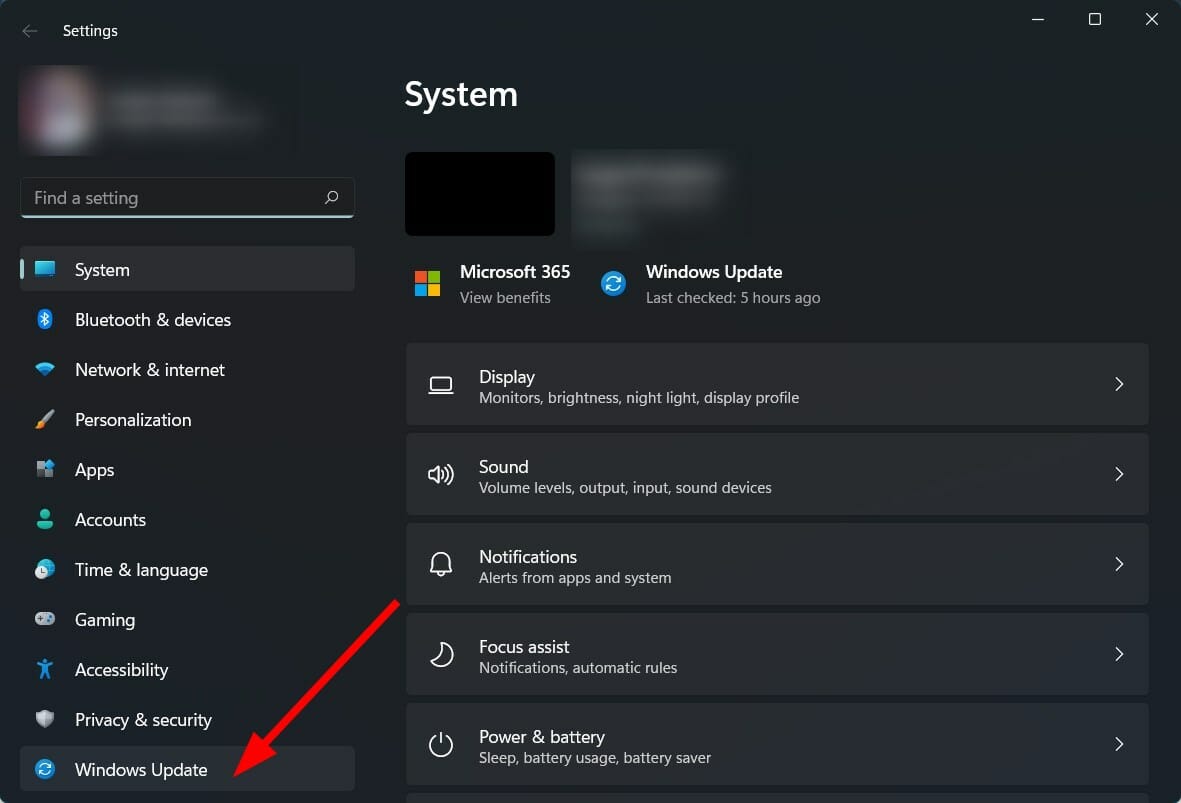
Select Windows Update from the left pane.
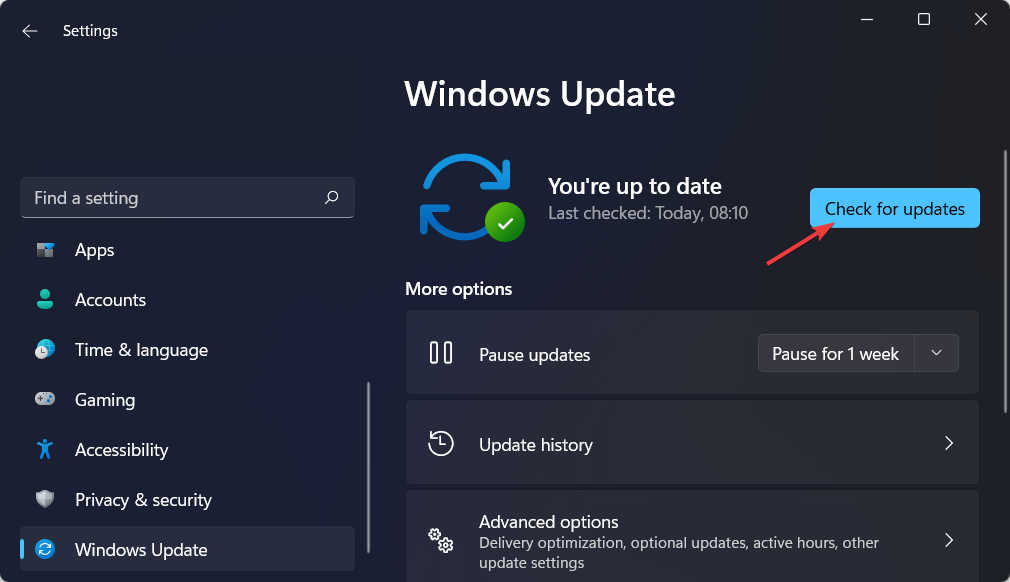
Hit the Check for updates button.
What are the other things I should know about Open Shell?
➡ Open Shell works perfectly well with Windows 11. However, if you come across any issues, then you can follow the steps above to fix the issues you are experiencing with Open Shell.
➡ If you think Open Shell is causing multiple issues on your Windows 11 PC, then we would recommend you uninstall it. It can be done simply from the Control Panel.
➡ Open Shell does not completely remove the Windows 11 taskbar. However, you can make use of the various customization features in order to change the look and behavior of the Windows 11 taskbar.
Let us know in the comments below which one of the above-mentioned methods helped you resolve the Open Shell Windows 11 not working issue.
Respondus LockDown Browser is a specialized web browser that improves the integrity of Blackboard test delivery.
Students who attempt an exam using this browser cannot copy, print, use other apps, or navigate to a different URL. Learners are locked within an assessment once it is begun until they submit it.
This browser creates a bespoke interface for existing Windows or Mac apps. It does not alter an existing browser like Safari or Internet Explorer; instead, it installs standalone software that launches a custom browser.
The LockDown Browser makes use of the exact security mechanisms, and service packs are available for Safari as well as Internet Explorer. However, it makes no changes to the current edition of these browsers.
Email the completed agreement to the Respondus sales rep.
Finally, wait for a response email and follow the instructions in the email.
Schools that utilize Schoology, Moodle, Brightspace, Blackboard Learn, Canvas, or Sakai may use LockDown Browser for free for two months. This is the ideal approach for a school to test all of its learning management system’s features and functioning.
How do I install Respondus LockDown Browser on Mac?
Get a link to the mac version of the software from your school or teacher.
Open your Safari browser and input the link given to you on the address bar, then hit Enter.
Double click on the download from the download folder.
Click on Continue, then Continue again.
Hit the Continue button and then the Agree button on the agreement.
Click on the Install button.
Lastly, input your password and click on Install Software if prompted to.
And there it is. After you download the Lockdown Browser on Mac, you can open up the new browser and take your tests.
How do I install LockDown Browser on my Chromebook?
Click on the Respondus Lockdown browser link given by the school or teacher.
This link will direct you to the Chrome store, where you should click Add to Chrome (without the link you will not be able to find the extension on the store).
The browser will be installed, and you can locate tests and quizzes from your school.
Now you know how to download Respondus Lockdown Browser on Chromebook, let us discuss some other important details about this driver.
How does Lockdown Browser detect cheating?
This Lockdown Browser identifies cheating by recording a student’s video and voice throughout a test using the PC’s cameras and mic. These cameras identify potentially cheating conduct. Because not all highlighted events justify cheating, the instructors must investigate the situations.
The browser works in the same way as any other conventional webpage. But, the main difference is that certain functionalities are disabled or eliminated in order to conduct exams without cheating.
Flags are occurrences that indicate a potential issue throughout the course of the online test or quiz. And on the Repondus monitor’s timeline, flagged events from the test session are shown.
The teacher may start watching the marked videos at any stage of the timeline.
Respondus Lockdown Browser detects the following events:
Another person in your frame – An incident might be notified if a different individual than the one who began the test is shown in the video frame. Aside from the learner, no one else should be engaged in the exam.
Eye movements – Abnormal eye movements may be detected with the use of eye-tracking devices. It is possible to get flagged if you spend too much time looking at anything other than the test. This normally requires a thorough review by the teacher.
Audio and sound – Respondus solely captures ambient audio and sounds. When there isn’t a built-in response recorder, any audio from the pupils is flagged.
Away from the video – The event will be notified if the pupil disappears and isn’t identified in the frame for a period of time. So, you should sit till the exam ends.
Monitoring IP addresses – An issue is notified when a student attempts to contact Respondus servers using an IP address that the Responders servers are unable to utilize to contact the user.
Can LockDown Browser detect other browsers?
In general, browser lockout software like Respondus LockDown may detect attempts by students to open a different computer app or browser tab and the usage of keyboard shortcuts.
It can’t use screen capture, screen sharing, network monitoring software, messaging, and virtual computers. It’s also worth noting that any other browsers can’t view exams created for the Respondus LockDown Browser.
Here are the essential things to note with Respondus:
Students are not allowed to leave the test until they have completed it.
Removes the refresh, forward, back, and stop functions from the menu and toolbar.
The process of reducing the display screen of the browser is disabled.
Schools deplore the Respondus Lockdown browser to maintain the integrity of tests and exams. In this article, we have shown you how to download Respondus Lockdown Browser.
Remember, this is not like other browsers, and it is designed with the specific goal of being used for school examinations. So, if you do not have a link from a school or a school account, you will not be able to use this Lockdown server.
Lastly, If you have any issues installing the browser, follow these simple steps to install LockDown Browser.
Google My Business is one of the many innovative platforms offered by Google that allows businesses to create a free listing for their company. So when the Google Business messages do not show issue hits, your business may be in trouble.
One of the features of Google My Business is the ability to send and receive messages from customers. If you can’t see messages, don’t worry – there is a way to fix it.
How do I enable Google Business messages?
Sign up for a Google My Business account and create a listing for your business.
Once you’ve created your listing, click on the Messaging section.
Here, you’ll see an option to Verify for Chat. Click on this and follow the prompts to finish setting up Business messages.
What can I do if Google My Business is not showing messages?
1. Add your number
Open Google My Business and tap on the Add phone number button.
This will open a new page where you can enter your phone number. Input the digits and hit save.
You’ll then have to wait for a verification code that may take up to 14 days to arrive. Once your number is verified, you should start getting messages on your Google My Business account.
2. Check your internet connection
One other thing you can try is to check your internet connection. Poor connectivity can be the cause of the issue. Restart your router or modem, or check to see if there are outages in your area. If none of these work, contact your ISP for further troubleshooting.
Scroll down to the bottom and choose Support. This will open a dialogue box with suggestions of possible solutions. If you can’t find what you need, tap on Contact Us to get specific help with the messaging issue.
Google Business message unable to deliver
There are a few possible reasons why your Google Business Messages may not be delivered.
Incorrect or outdated contact information: Make sure that your business name, address, and phone number match what’s listed on your Google My Business page.
Messaging not enabled for your business: In order to start using Business Messages, you first need to enable messaging for your business. This can be done from the “Business Settings” page in your Google My Business account.
Business Messages not yet available in your country: Unfortunately, Business Messages are not yet available in all countries. If you’re trying to use Business Messages in a country where it’s not yet available, you’ll need to wait until it launches in your country.
Google My Business page not verified: In order to start using Business Messages, your Google My Business page must first be verified. This verification process can take up to a few weeks to complete.
Technical issues: There are a few potential technical issues that could cause Business Messages to fail to deliver. These include things like an outdated version of the Google My Business app, or problems with your internet connection.
While contacting Google support may not always result in a fix for your particular issue, it’s definitely worth a try if you’re still having trouble getting messages to show up on your listing. Keep reading our blogs to find more related solutions to everyday tech problems.
Getting a new computer is exciting. You finally have that device you’ve been eyeing or needed to replace your old PC. But after the initial excitement passes, you soon realize that setting up and configuring a new computer is less thrilling.
You may want to go on with your work immediately after taking the computer out of the box. However, it’s better for you in the long run if you spend some time, in the beginning, making sure everything is configured just right.
Checking your PC specifications is one of the most important things to do before installing or upgrading software. This is necessary to ensure that your computer is capable of running new programs because if it isn’t, you can experience problems such as slowness and system errors.
New computers are a huge investment, so it’s important to take the time to make sure they come set up just right.
Many people confuse hardware specifications with software specifications. While both are important, hardware specifications refer to the physical characteristics of a computer.
Software specifications refer to the operating system, programs, and other data that are installed on a computer.
Hardware check
Before you even switch on your new computer, you need to take a good look at it. The hardware of the PC is the part that you can touch and see. You may know the parts inside the PC, such as the CPU, RAM, motherboard, hard drive, and graphics card.
These physical components determine the capabilities of your computer and its performance. Feel free to refer to our guide on different ways to check for your computer specs to see what you are working with.
Before you proceed with checking any hardware, make sure that AC power is properly connected to the PC. It’s easy to forget about this step.
The hardware checks you need to carry out include:
Processor – The processor (also called a CPU) is what makes your PC tick, and it’s often referred to by its brand name and model number. The processor is the most important part of the computer. It’s what takes the instructions you give your PC and does something with them. Some processors have multiple cores, which means they can simultaneously process more than one task at the same time.
Memory information – Memory is the another equally important component of a computer. If you don’t have enough, you’ll be waiting for things to load for a long time. But, how do you know how much you need? And how could it be wrong? The most important thing to remember is that the amount of memory that a computer needs depends on what it’s used for.
RAM – RAM, or random access memory, is your computer’s short-term memory. It provides a space for your computer to process information before it is sent to the hard drive. The more RAM a computer has, the more programs and files it can work with at once without slowing down. Common amounts are 2GB, 4GB, and 8GB.
GPU – If you’re going to be doing a lot of graphic-intensive work, then the Graphics Processing Unit (GPU) is the most important component for you. The better your GPU, the better your frame rates will be and the smoother everything will feel.
Software check
Application programs – Most people think of applications when they think of computer software. We use applications to create documents, listen to music, surf the web, play games, send an email, design graphics, edit videos and do thousands of other tasks.
Device drivers – Device drivers are specialized software that allows Windows to interact with your computer’s hardware. For example, your printer driver controls your printer, telling it how and when to print. Without a driver, the printer would not know what to do with the data being sent to it from the computer. When you buy a new device (such as a digital camera or monitor), you’ll need to install its driver before you can use that device with your computer.
Operating system (OS) – Your operating system is responsible for controlling nearly every aspect of your computer’s operation — from managing files on your hard drive to running application programs and device drivers. Check the OS version and whether it is up to date.
How do I transfer everything from my old computer to my new one?
You can transfer data from your old computer to your new one in a couple of different ways.
Removable device – You can transfer files by copying them onto a removable device such as an external hard drive or flash drive. Ensure you have enough space for all your data.
Cloud services – You may have your files stored in the cloud on One Drive, Dropbox or Google Drive so depending on where your files are stored, you can sign in to your new computer and restore your files.
Transfer software – If you have both computers connected to the same network, you can use your operating system’s built-in file transfer software, which will let you move files from one computer to another.
Is there a general PC checklist template that I can use?
There are a lot of different types of PCs out there, and they all have their own unique features. But the good news is that a lot of the parts are standardized, so you can use the same kind of checklist for nearly all types of PCs.
The most important thing to remember is that you’re looking for a list that will cover every piece on your PC and what type of device it has.
Regular maintenance includes more than just running an antivirus program. It also includes regularly scanning your hard drive for errors and updating system drivers to improve performance.
These tasks may seem tedious, but they’re vital if you want your computer to keep running smoothly.
The general checklist includes:
Processor – This is what makes your computer run. The speed of your processor will determine how quickly your computer will be able to open and run programs, which makes this an important part of your system.
Storage (Hard Drive) – This is where all the files on your computer are stored, so it’s important that you have enough space for everything you need. Most PCs come with at least 500GB.
What to do as soon as you get a new computer?
Hardware changes
1. Check power connections
Before you start using your new computer, there are some basic checks you should make to ensure it is functioning properly. Connect the power cables to a socket and ensure the other end is firmly secured to your CPU and monitor.
If you are using a laptop, ensure that the charging port is working correctly when you switch it on.
2. Check ports
After confirming your new computer is connected to power, also, connect your ethernet cable and ensure it is secure before you power on your PC. Next, ensure your mouse and keyboard are connected to the USB ports available.
It is also a good idea to check for other ports such as the audio port, HDMI, CD/DVD drive, and the SD ports whether they are all in perfect condition.
Software changes
1. Add your accounts
If you’re using Windows, you need to set up your main account with your Microsoft login. This will ensure that all of your files, settings, and data sync across all of your devices that use the same account.
Windows PCs allow for multiple user accounts, so if you set up your computer with only one account, anyone who wants to use it has to log in to your account.
Think about how many people will share this device, and make sure each one has their own account. Having separate accounts helps keep your files organized and secure. You can also choose to set up user accounts with limited permissions.
2. Check your product key and update the OS
If you’re installing Windows yourself, make sure you have your product key number ready before starting.
While Windows Update typically runs automatically in the background when Windows is running, it never hurts to make sure that there aren’t any pending updates that need to be installed.
Your computer has probably been in storage for some time so you want to ensure it is up to date.
To check for updates:
Hit the Windows + I keys simultaneously to open Settings.
Select Windows Update on the left pane and click on Check for updates on the right pane.
If there are any updates, download and install
3. Check your antivirus software
Many new computers come with trial versions of antivirus software that will only work for 30 days or 60 days. Your PC also has a default security system: Microsoft Defender but you may have to add an extra layer of protection with more reliable security software.
If your computer didn’t come with one or if the trial period has expired, install antivirus software immediately. Also, run the antivirus to ensure your PC does not have any issues. If possible, use the same software that you used on your old computer so that everything is in sync.
To run a scan, follow the steps below:
Press the Windows key, search Windows Security and click Open.
Select Virus & threat protection.
Next, press Quick scan under Current threats.
Wait for the process to finish and restart your system.
4. Get rid of bloatware
When you buy a new computer, it can be loaded up with all sorts of programs that you don’t really need such as trial versions, games, and all sorts of other bloatware.
These programs are installed on computers at the factory to make it easier for customers to access their most used programs. Unfortunately, they don’t always serve the same purpose as what you want or need.
It’s amazing how much faster a computer can run after you’ve cleaned out all the unnecessary bloatware that slows it down.
To uninstall any unnecessary program, follow the steps below:
Hit the Windows + I keys simultaneously to open Settings.
Select Apps on the left pane then Apps & features on the right pane.
Scroll down and select an app you’d like to uninstall (in this case WSA).
Click on the three horizontal dots and select Uninstall.
Confirm that you want to uninstall.
5. Remove unnecessary startup programs
Any program that runs automatically when you turn on your computer will slow down its performance and hog your memory. You need to go through your list of startup items and disable anything you don’t use every single time you turn on the computer.
Sure you will need some programs at startup to make your work easier but ensure your list consists of only the necessary programs.
To disable startup programs, follow the steps below:
Hit the Windows + I keys simultaneously to open Settings.
Select Apps on the left pane and Startup on the right pane.
Select the apps you want to disable at startup and toggle the on/off button.
6. Set up anti-theft feature
Theft is all too common and no one wants to get their laptop stolen. Fortunately, many laptops come with a tracking program that will help you find your laptop if it ever goes missing.
As technology becomes an ever-more-integral part of our lives, the need for security against theft is more important than ever.
Each computer is different but the majority require the user to verify their identity with a password or other method before allowing access to the computer.
If your device ever got stolen, having the Find my device feature on can help you locate it. To set up the feature, follow the steps below:
Hit the Windows + I keys simultaneously to open Settings.
Click on Privacy & security on the left pane then Find my device on the right pane.
Toggle the Find my device button on.
7. Install any missing drivers
Before you can enjoy the full potential of your new system, make sure everything is working correctly by installing any drivers that may be missing or updating any outdated software.
Drivers are programs that tell the operating system how to deal with certain hardware. For example, if you go to your printer settings and find no printer listed, there’s a good chance you need a driver.
For a new computer, you will most likely need:
Windows update drivers.
GPU drivers.
Audio drivers.
LAN drivers.
To update drivers, follow the instructions below:
Press the Windows key, type Device Manager in the search box, and click Open.
Click on each device one by one, right-click on it and select Update Driver Software.
Select Search automatically for updated driver software.
Restart your PC.
Missing drivers are neither pleasant nor healthy for your computer; everything we try to do without appropriate drivers might result in major problems later on.
If you believe handling driver updates and installs is not your cup of tea, upgrading drivers through a professional program like Outbyte Driver Updater can help prevent potential unwanted issues and improve overall PC performance. Try it out and let us know if it found your missing Network Adapter drivers.
8. Set up file baackups
When you’re setting up your new computer, be sure to set up file backups. You never know when your computer might crash, or when you might accidentally delete important files.
This is a good habit to get into early on in your relationship with your new machine so that you’ll have the peace of mind of knowing that all those documents, pictures, and videos are safe no matter what happens.
To set up automatic backup, follow the steps below.
Hit the Windows + I keys simultaneously to open Settings.
Select Accounts then Windows backup.
Click on Manage sync settings to back up your files.
9. Optimize your power settings
The default power settings that come with most computers are not the best. Majority of these settings may not be cut out for the activities you do so it’s best to change them.
It’s important to make sure your computer’s power settings are optimized so you’re running at maximum efficiency.
To optimize your power settings, follow the steps below:
Hit the Windows + I keys simultaneously to open Settings.
Select System on the left pane then Power & battery on the right pane.
Under Battery saver, toggle on Turn battery saver on automatically at and select an appropriate percentage.
10. Install a reliable VPN
VPN protects your online privacy by encrypting your data and hiding your location. This is extremely important if you ever use public Wi-Fi networks that you find at coffee shops and airports.
You don’t want an attacker on the same network as you to read your private data or even hack into your device. Check out our comprehensive list of reliable VPNs to install on your new computer.
One of the very first things you should do after setting up your new computer is to enable automatic updates for both your apps and operating system. This will ensure that you always have the latest software and security fixes, which helps keep your computer safe from hackers and viruses.
To turn on automatic updates, follow the steps below:
Hit the Windows + I keys simultaneously to open Settings.
Select Windows Update on the left pane and select Resume updates on the right pane.
12. Change default programs
Your operating system comes with a set of preinstalled programs, but these aren’t always the best options out there.
For instance your browser. It’s likely that the default program is the one that came with your computer but if you don’t like it, you can easily switch to one that works for you.
To change your default programs, follow the steps below:
Hit the Windows + I keys simultaneously to open Settings.
Select Apps on the left pane then click on Default apps on the right pane.
Click or search for the app you want to change default settings and assign your preferred app to open it.
13. Tweak privacy settings
Privacy is a big deal, especially when it comes to your computer. You need to know which apps have access to your camera, microphone, and location, as well as what information they can collect about you when you’re using them.
You can check the settings for all of your apps to make sure they’re what you want. You’ll also want to check your browser’s privacy settings, as well as any other applications you use that might have their own built-in privacy features.
14. Customize the look of your PC
If you are going to be spending hours on end on your new computer, you want it to be visually pleasing, but also easy to use.
Some of the customization settings you can adjust include:
Change your wallpaper
Choose a soothing background image that you’ll enjoy seeing every day. You’ll have plenty of options to choose from, including ones that come with the Windows operating system or ones you can download from the Internet. We have a list of the best Windows 11 wallpapers apps you can use to enhance the look of your PC.
Organize your icons
You spend a lot of time looking at your desktop, so it’s important to keep everything organized. Create folders for documents, music, photos, and other files so they don’t clutter up your screen.
Change your theme
Windows comes with a few pre-installed themes, but you can easily download more—both free and paid. Once you find a theme that suits your personality, you can make it your own. Windows 11 now allows you to have dark themes so be sure to check out our comprehensive list of the best dark themes for your OS.
This is not an exhaustive list as there are still a handful of things you can do to ensure your new computer is set to your preferences and its performance is at its peak.
New computer setup checklist
Component
Checklist
Physical set up
Power cables, Ethernet, USB, Keyboard, and audio and ports
Updated OS
Update to the latest version
Power settings
Optimize your power settings for perfect balance
New computer install checklist
Component
Checklist
Antivirus
Install a reliable antivirus to protect you from viruses and malware
VPN
Install a VPN to protect your identity
Backup
Install backup software
New computer driver checklist
Component
Checklist
Windows update drivers
Drivers to ensure all Windows drivers are up to date
GPU drivers
Drivers to ensure smooth graphics in gaming
Audio drivers
Drivers to ensure your audio devices are working
LAN drivers
Drivers to ensure your internet is working
Once your computer has fulfilled the above checklists, you can also opt to use customization software if you are more tech-savvy and enjoy things working for you automatically.
As always, we love hearing from you so engage us in the comment section below with some of the things you did when you first got your new computer.
HideoutTV has been around for a while, and a source of passive income for people using the platform, but many reported HideoutTV error 3835 while using the service.
The service also has two other domain names, smores.tv and engageme.tv. However, these two separate sites merged with the HideoutTV domain to provide one single service. It’s a GPT (get-paid-to) service where registered earn money by watching the ads featured in the video content.
A perfectly legitimate service, some subscribers have complained of the error 3835 message popping up in the media player, cutting them off from enjoying the video content.
The error message is usually caused by VPN and proxy server issues. That is if one of your browser tabs is using a VPN service, the chances are that you’ll be unable to use the service.
Also, if you’re accessing the website from unsupported locations, you’ll have the same issues, and you might even get Video is not available at the moment message.
The problem is solvable, though. All you have to do is to follow the instructions given below:
How can I fix HideoutTV error 3835?
1. Make sure you’re in a valid location
Unfortunately, this service isn’t available worldwide, and it can be accessed only from specific countries. The list of supported countries includes:
Australia
Canada
Denmark
Germany
Ireland
Netherlands
New Zealand
Norway
Sweden
United Kingdom
United States
If you’re not in these countries, you might experience HideoutTV error 3835 or other issues. You could try using a VPN service to prevent this from happening and stream on HideoutTV without interruptions.
Most VPN services allow you to avoid geolocation restrictions and connect to a large number of servers, however Private Internet Access aka PIA can be a lifesaver in this situation. Our VPN software experts tested PIA on the HideoutTV streaming platform and confirmed that the error 3835 was fixed by connecting the VPN to a less congested location.
PIA will locate the best server location for you, and you will be able to watch constantly at a high speed.
Microsoft launched Power Pages as a standalone product within their Power Platform portfolio. This is made to enhance the creation of websites.
They are trying to address the need for businesses to get a low or no-code solution when developing their websites. Power Pages has existed for a couple of years. It was, however, a component of Power Apps known as Power Apps Portal.
It has, however, been launched as a product on its own. This has seen Microsoft add new enhancements and has promised a unique experience for its users. Microsoft pledges to power every person, even those with a limited technical background.
What makes Microsoft Power Pages stand out from other development platforms? First, Microsoft is riding on the fact that Power Pages can integrate with other services.
For instance, it can integrate with Azure DevOps and Power Platform’s command line. It also works with GitHub and Visual Studio for advanced users to automate their web development workflows.
This means that they can leverage Continuous Integration and Continous Delivery (CD/CD) practices and easily download and upload projects. This is also important for collaboration and avoiding some problems with Power Apps.
What is Microsoft Power Pages?
Microsoft Power Pages is a SaaS (Software as a Service) platform. It promises to be low-code, enterprise-grade, and secure when it comes to creating, administering, and hosting services and websites.
When writing this article, you can create a trial account with Power Apps to explore its capabilities. Unfortunately, this means that its pricing has not yet been released. However, using the old Power Apps pricing, you can run one app or portal per user for $5. You can also get a per-user plan for $20 per month.
Businesses can get a monthly plan for $10 per user. It is based on the number of unique apps or portals a user runs each month. This is a better option, according to Microsoft Power Pages reviews.
Power Pages allows users to create websites even when they are not professional developers. Once you create an account, you can decide to use a custom template or start with the default design template.
Some websites might require a database for adding, updating, or reading business information. For instance, you might have a page that collects information from customers. Fortunately, Power Pages comes with a data service known as Dataverse that works like a database. It stores information just like a normal database. It also comes with Microsoft Power automation, analysis, and security features.
Enter a school or work email account as required. Agree to the terms and click on the Start your free trial button. Azure Active Directory should back the email account.
Follow the onscreen instructions and then choose a website template to use. Select Done after adding all the requirements. Your environment and site will be created.
This is a free 30-day trial period, after which you can subscribe to the plan you need.
Microsoft Power Pages is going to be a game-changer in web development. This is a platform that small to large business owners can rely on for their web development features.
The Chromebook is a device of choice for many, but users reported Camera file system errors on their devices.
This isn’t the only issue, and many reported that their Chromebook wouldn’t connect to WiFi, but we covered this topic in another article, so feel free to check it out.
In this guide we’ll focus on Camera app and file system errors, so be sure to keep on reading.
Is a Chromebook a laptop?
If you’re not familiar, Chromebook is a laptop, but it’s different from your regular Windows or Mac devices.
Unlike them, Chromebook runs only Chrome and Google’s apps. Speaking from a technical standpoint, they fit into the laptop category, but they are not the first thing that comes to the user’s mind when you mention a laptop.
Are Chromebooks Good?
Yes, Chromebooks are great devices, depending on your purpose. For example, if you want to browse the web, edit documents, and take notes, Chromebooks are perfect.
They are fast, light, and straightforward to use. But, on the other hand, if you’re a more advanced user and prefer running various third-party apps, Chromebook might not be for you.
How can I fix Chromebook camera file system errors?
1. Install the latest updates
Make sure that your device is connected to the Internet.
In the bottom right, click the clock and select Settings.
Look at the bottom left and navigate to About Chrome OS. Now click on Check for updates.
If you ever wondered how to update your Chromebook, now you know. Once the latest updates are installed, check if Chromebook camera file system errors are still present.
2. Check if your device is managed
Click the clock in the bottom right.
Look for the Managed Device icon.
If your Chromebook is managed, you need to contact your administrator to fix the issue.
It’s pretty common to get Camera file system errors on school Chromebook because the administrator blocks specific applications.
3. Restart your device
Press and hold the Power button.
Release the button once the device is off.
Now press and hold the Power button again to start the device.
Alternatively, you can restart your device by doing the following:
First, click the clock in the bottom right.
Now click the Power icon.
Once your device is off, press and hold the Power button to turn it back on.
A quick restart is a simple but effective solution for Chromebook camera file system errors, so try it out.
4. Change Chrome flags
Open Chrome.
Navigate to chrome://flags/#camera-system-web-app
Now select Disable.
After doing that, a second camera app will appear at the bottom of the app drawer. Open it, and the issue should be gone.
5. Sign out and sign back in
Click the clock icon in the bottom right corner.
Now click on Sign out.
Wait for a few moments and sign back into your account.
6. Perform a hard restart
Turn off your device.
Now press and hold the Refresh + Power buttons.
When the device starts up, release the Refresh key.
If you’re on a Chromebook tablet, you can press and hold Volume Up and Power buttons for at least 10 seconds to perform a hard reset.
Keep in mind that certain Chromebooks might require different steps to perform a reset. For more information, check the Google guide for resetting your hardware.
Before using this method, please back up your files because the Powerwash process will remove them.
Sign out of your Chromebook.
Now press and hold Ctrl + Alt + Shift + R.
Select Restart.
Now select Powerwash and go to Continue.
Sign in with your Google Account when asked.
Follow the instructions on the screen to complete the process.
8. Recover the Chromebook
NOTE
This process will delete all files from your hard drive, so it’s advised to back them up before proceeding. We recomand using a specialized tool such as AOMEI Backupper to safely backup your files.
Disconnect all peripherals from your device. This includes all USB devices.
Boot to the recovery mode:
Press and hold Esc + Refresh and then press the Power button. Next, release the Power button, and when a message appears on the screen, release other buttons.
On some models, you need to press and hold Esc + Maximize. Next, press the Power key and release it.
Press and hold Volume Up, Volume Down, and Power for 10 seconds on tablets, then release them.
Now select Recover using Internet connection and follow the instructions on the screen to complete the process.
Chromebooks are great devices, and if you want to learn more, we suggest reading our Windows 11 vs. Chrome OS guide. It’ll be worth a read.
Hopefully, reading this article has helped you resolve the Chromebook problem with camera file system errors. If you have any questions or comments, share them in the comments section below.
We are so used to some of the most basic elements of the operating system, that we failed to spot the new addition, which can come in handy for many situations.
There were also some issues involving this context menu for Windows 11, reported by users across social media platforms, so you might also want to keep an eye out for that as well.
What is Copy as path and what does it do?
Just in case you haven’t noticed, on the new preview builds for Microsoft’s upcoming OS, the context menus offer users another tool.
This new integration we keep mentioning is called Copy as path and, upon selecting it, will copy the full path of the selected file or folder as text to the clipboard.
After doing so, with the path of a certain item, you can paste that path to any text area.
C:\Users\alvin\OneDrive\Desktop\Capture.PNG
You will sometimes find yourself in a situation where the full path of a file or folder may sometimes be needed by a program, software, or webpage, in order to identify the path to a required item.
When working with Command Prompt and Windows Powershell, instead of having to manually type the full path to a file or directory, you can just right-click on the item and select Copy as path, then paste it into the command prompt.
A feature such as this has been constantly requested by Windows users for a long time. In fact, any step that Microsoft takes towards simplifying our day-by-day tasks is a welcome improvement.
Who knows, maybe Microsoft will introduce more new features to Windows 11 before they wrap up the tunning process.
Remember that the Redmond company stated that the upcoming OS will start rolling out at the end of this year.
Have you already used the new Copy as path function on Windows 11? Let us know in the comments section below.
Windows 11 supports a transparent Taskbar, and turning on this visual upgrade takes just a few clicks. But while the feature exists, many users aren’t exactly thrilled with how basic or limited it feels out of the box.
That’s why in this guide, we’ll not only show you how to make the Taskbar transparent in Windows 11 using built-in settings, but also how to tweak and enhance it using advanced tricks and free apps for a more personalized look.
How do I make the Taskbar transparent in Windows 11?
1. Use the Personalization option
Go to Start and click on the Settings option.
Click on Personalization from the left-hand pane.
From here, select Colors.
Turn the toggle On next to Transparency effects.
Your taskbar should now be more transparent.
2. Use the Visual effects option
Once again, open Settings from Start.
Go to the Accessibility section.
Click on the Visual effects option.
Enable the toggle for Transparency Effects.
3. Use the Registry
1. Use OLED Taskbar Transparency
Press the Windows + R keys to open the Run box.
Type regedit and click on OK.
Navigate to the following: HKEY_LOCAL_MACHINE\SOFTWARE\Microsoft\Windows\CurrentVersion\Explorer\Advanced
On the right-side pane, right-click in the white zone and choose New, then DWORD (32-bit) Value.
Rename the newly created value to: UseOLEDTaskbarTransparency by right-clicking on it and choosing Rename.
Right-click again, select Modify and change the value from 0 to 1.
Click OK to save the settings.
2. Modify the ForceEffectMode
While you are still in the Registry Editor, navigate to the following key: Computer\HKEY_LOCAL_MACHINE\SOFTWARE\Microsoft\Windows\DWM
Locate ForceEffectMode and change its value from 0 to 1, as you did in the previous solution.
If you cannot locate it, right-click on the white place and choose New, then DWORD (32-bit) Value, and rename it to ForceEffectMode.
Restart your device.
To have even more control over the design, color, placement, or a transparent taskbar in Windows 11, download these apps for the best results when it comes to customization.
You can explore additional free tools that improve the taskbar experience by checking our detailed guide on free taskbar customizer options that offer deeper control and cleaner visuals.
Few of our readers reported that this method didn’t work for them, so it’s possible that Microsoft removed the ability to activate transparent Taskbar in Windows 11 from registry.
1. Enter Microsoft Store and type translucent tb in the search bar. Click on Get to start downloading the app. Alternatively, you can also click here on Get TranslucentTB to download the app.
2. After the download is complete, click Open in order to open TranslucentTB.
3. A pop-up will appear after you open the app. Click Continue.
4. Your Windows 11 taskbar will be fully transparent afterward. Note that the app will also make the Windows 10 taskbar transparent.
What features does the free TranslucentTB app offer?
For those trying to figure out how to make my taskbar 100% transparent, it’s possible with TranslucentTB. It’s the best transparent taskbar Windows 11 app, but you can also make it opaque or introduce a blur effect.
In addition to overriding your color and additional settings for the taskbar, this app combines states such as maximized window, Start Menu open, Cortana open, and Timeline open.
Each one of them has a customizable taskbar appearance to offer you an overall pleasant aspect, personalized to your liking.
For a free app, you have quite a few elements to customize the taskbar. And to make things even better, there’s a Tips and tricks option that teaches you some really cool things.
If you are looking for another way to achieve the transparent taskbar effect and more, you can also try the Microsoft TaskbarX app for a very small fee.
A pop-up will open. Here, select Get started to add a way to pay for the app.
Choose the form of payment you want, complete your information in the next windows and click on Save.
After the download is complete, right-click on the file and unpack the archive.
Open the TaskbarX folder and run the exefile to install the app.
After the installation, your taskbar icons will automatically move to the middle of the taskbar.
What features does Microsoft’s TaskbarX offer?
This app is worthy of your attention as there are quite a handful of features to design, customize, or change every aspect of your taskbar.
You can even move it to the left and have it transparent at the same time with the Position option that allows you to adjust the taskbar icons’ placement. Quite neat, isn’t it?
There are other categories on this configurator, such as Style which manages the transparency level or color of your taskbar, and Animation which controls how the taskbar icons move when you open a new app.
Simply put, you can definitely have some fun with TaskbarX as it gives you so many options to choose from to personalize your taskbar.
Extract the Zip file and click the executable file to run the app.
Set the Accent State to ACCENT_ENABLE_TRANSPARENTGRADIENT.
Click on Options, then check the Start minimized, Apply Settings When Started, and Start With Windows options, and uncheck the last one.
Now, toggling the Windows Accent Alpha switch to the left and right will determine the level of transparency of the taskbar. Of course, you can also play with all the other settings like the background color and change the Accent state as you prefer.
TaskbarTools is a small free tool that allows you to customize the taskbar to your liking, change its color, and more.
And although its latest version dates from 2017, we tested it on Windows 11, and it worked flawlessly. The great thing about this tool is that you can see the changes in real time. So, if other options for a Windows 11 transparent taskbar are not working, you know which app to go for.
We hope that this guide helps you enjoy Windows 11 a bit more. If you have any questions, feel free to use the comments section below, and we’ll get back to you.
When Microsoft launched Windows 11, it came with many changes. One of the changes was increasing the number of User Interface animations. Some users would like to change the way things appear, and they have to find ways to do it. Having animations makes users feel better and friendlier.
Animations use visual effects to make the computer look more appealing and responsive. Some of them include sliding menus after a few seconds or minutes.
Having many animations on your computer can affect the PC performance, slow down, and affect your work. In such scenarios, you have to shut the animations.
The article will cover several ways users can improve the speed of their animations on the PC. You can use the Registry Editor or the customized file that you run to apply the changes.
How can I increase the speed of Windows 11’s animations?
1. Edit the Registry
Press Windows + R to open a new Run box and type regedit inside it. Press Enter afterward.
Enter the following path inside the search bar and locate MenuShowDelay on the right side: Computer\HKEY_CURRENT_USER\Control Panel\Desktop
Double click on the MenuShowDelay option and change the Value data option to any choice between 0 and 4000. To speed up the animations, input a small value that ranges from 0 to 150. Click the OK button to apply the changes and restart your PC.
When performing this process, be very careful as it can affect the computer and have some issues like a corrupt file system. It’s a simple method that anyone can implement. If you want to return to your original speed, you can repeat the same process and change the number again.
Download these two files and extract them. You will have two files in the folder named Reduce Menu Animation to 200.reg and Restore Menu Animation to 400.reg.
Double-click on the Reduce Menu Animation to 200.reg to run it and change the animation speed to 200.
This method works mainly for those who don’t want to use the Registry editor as they feel it’s complicated or hard to understand. If you want to restore the speed to the default, you can use the Restore Menu Animation to 400.reg file.
Both steps are simple to implement, and it takes less than three minutes to be through. However, some users don’t like animations and they prefer the animations disabled, and they treat them as unessential parts of their PC.
How to remove Windows 11’s animations?
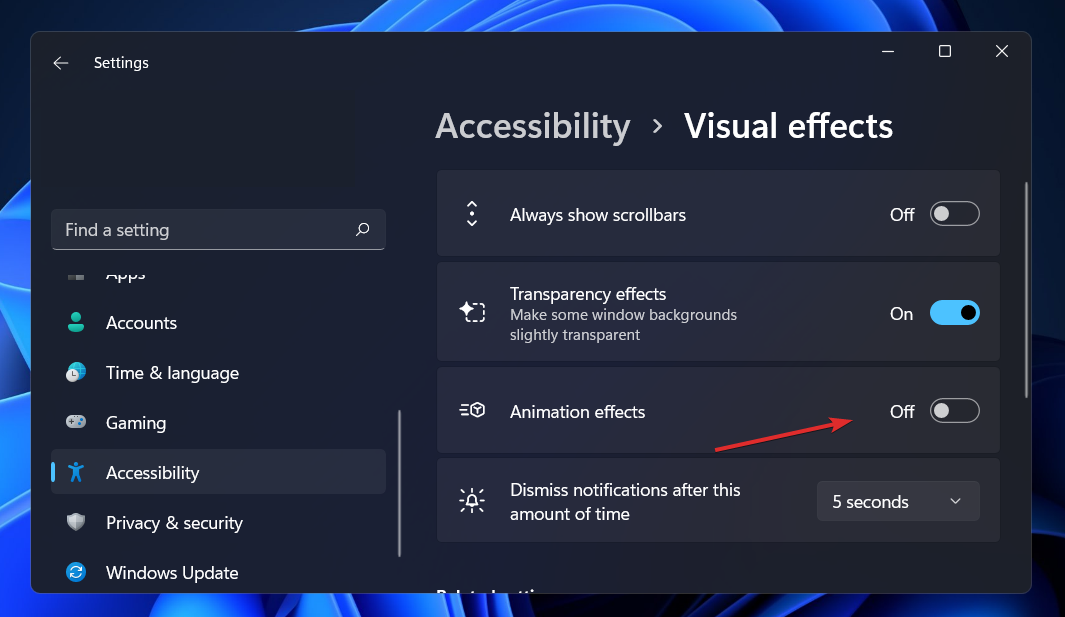
If your Windows 11 animations are not smooth, you can disable them from the Settings app that you open by holding Windows and I together then navigate to Accessibility followed by Visual effects.
Next, turn off the toggle next to Animation effects. If you want to turn them back on, simply turn the toggle back on. The changes will apply automatically.
Even while Windows 11’s animation and fading effects are visually pleasing, some users may find that they cause their computers to seem sluggish because they add a little delay to some operations.
This is because the features force some processes to take slightly longer to complete. To provide a user experience that is more responsive, it is straightforward to disable animations.
You surely remember, especially if you are a Teams user, that Microsoft added a new batch of 3D Fluent emojis to its work-focused video conferencing app.
The process has actually refreshed more than 1800 existing emojis for the platform after Microsoft previously announced 3D emojis for both Teams and Windows last year.
This magnificent idea and the rollout of the 3D Fluent emojis update for Teams was first touted via an official blog post.
Latest Teams update brought Fluent Emojis to the app
Microsoft stated that the refreshed 1800 emojis will bring a modern and delightful new version of the emojis we use every day.
Keep in mind that these 3D Fluent emojis will be available to use in Teams chats, channels, and live meetings as well.
Thus, users will also be able to react in chats, channels, and video conferences with the new emojis, and some of them will have unique animations too.
In order to access the new emojis, go to the Settings menu of the Teams app and enable Public Preview from the About section.
That being said, also note that IT admins are required to enable the preview features to let users access 3D emojis.
After being enabled, they will be available on Teams across iOS, Android, Windows, macOS, Linux, and supported web browsers.
Now, you can react and chat with some really well-made and 3D-ish emojis, making every chatting experience an unforgettable one.
Have you tried the latest Teams emojis? Share your experience with us in the comments section below.
Raven Software is a subsidiary of Activision Blizzard and is best known for co-developing several Call of Duty titles. The studio’s quality assurance department voted on May 23 to unionize (the union will be called the Game Workers’ Alliance). Microsoft of course is in the process of buying Activision Blizzard and will become the owners of all the latter’s subsidiary companies once the $68 billion buyout is finalized.
— Game Workers Alliance ????#WeAreGWA (@WeAreGWA) May 23, 2022
During the meeting Spencer stated “We absolutely support employees’ right to organize and form unions.”
He also said “Once the deal closes, we would absolutely support [an] employees’ organization that’s in place. We think it is a right of employees and something that can be a part of a relationship between a company and people who work at the company.”
While it is important to note that Microsoft at present does not have a relationship with either Raven Software or Game Workers’ Alliance, this does mark the first time that a top Microsoft executive has openly stated that Microsoft would recognize a game workers union. Although a Microsoft spokesperson had previously said that “Microsoft will not stand in the way if Activision Blizzard recognizes a union,” in response to a letter sent to Sattya Nadella on the subject.
A version of the letter is also slated to run in Microsoft's backyard this weekend in the Sunday edition of the Seattle Times pic.twitter.com/e1sHUSKFLY
Will the gaming industry become increasingly unionized across the board as time goes on? No one can say at this point, but the move by one of gaming’s giants to recognize unionization is a step in that direction.
Final Fantasy: Brave Exvius is a popular mobile game, but it’s not without its fair share of problems.
One of the most common issues that players are facing is a connection error. In such cases, you will be unable to log in or play the game.
Brave Exvius is not the only game in the same family that has problems as Final Fantasy XV has its own share of issues.
Connection errors are often caused by your internet connection being too slow or your device running out of storage space.
You can fix both of these issues by restarting your phone and clearing some space on your device.
Why can’t I connect to FFBE?
If you are having trouble connecting to the game, it could be because of one of the following reasons:
Poor internet connection – Make sure that your Internet connection is working properly and that you have connected to the correct IP address.
You’re running an old version of the game – Try updating to the latest version through Google Play or App Store.
Your device is running low on memory or storage space – Close other apps and background processes, then try connecting again.
A VPN or proxy service is interfering with your connection – Disable any VPNs or proxy services on your device and try connecting again.
Unsupported device – Final Fantasy Brave Exvius works only on specific devices so check out their website to see if your device is currently supported.
The game servers are down – This issue can be resolved by waiting for a few hours and then trying again. If the problem persists, please contact the game publisher for assistance.
What are some common FFBE connection errors?
Other common connection errors you may encounter include:
FFBE stuck on connecting – If you’re stuck on connecting, it means that the server is down due to high traffic or maintenance work.
Could not connect to game using Wi-Fi – This is a common error that occurs when the internet connection cannot be established. You may have to restart your device and try again.
FFBE stuck at 99 – This happens when you are trying to download the game and your connection is interrupted, the game might get stuck at 99%.
Failed to connect to server – This means that there was a problem communicating between your device and the server hosting the game.
FFBE stuck on loading screen – The game will not load past the loading bar. This can happen if there is an internet connection problem or if your device has run out of memory.
A majority of these connection errors can be solved by restarting the app or uninstalling and reinstalling it again. If that doesn’t work, proceed to our advanced troubleshooting.
How can I fix connection errors in FFBE?
1. Wait it out
It’s not uncommon for the app to take up to 30 seconds to load, so if you’re seeing a loading screen that lasts longer than that, try waiting a bit longer before restarting the game.
Sometimes, there may be an issue with your internet connection or the server itself, this process can take a few minutes — so be patient. The longer you wait before trying to reconnect, the better your chances are of getting in successfully.
While you wait, try closing unnecessary apps and programs you are not using. If you have too many apps open at once and they’re all competing for these resources, then Final Fantasy: Brave Exvius might not be able to connect properly.
Unplug your router for 30 seconds, then plug it back in and wait while it boots up. This will reset the connection between your device and your wireless network.
If that doesn’t work, try restarting your phone and uninstalling and reinstalling the app. This may solve connection issues with your router.
3. Enable storage permissions
On your phone, navigate to Settings.
Select Apps.
Locate FFEXVIUS and click on Permissions.
Click on Storage and toggle on the Allow button.
How do I speed up my Internet connection?
If you have a slow Internet connection, you may not be getting the best out of your broadband service. Luckily, there are some things you can try to boost the speed:
Check for firmware updates – Your router may have available updates so check and ensure that these are installed as soon as possible.
Update software – Out-of-date software tends to slow down over time as more features are added, so keeping everything up-to-date will help reduce lag time when loading web pages or playing games online.
Turn off unnecessary programs and services – If you have too many programs open simultaneously, your internet speeds may be slow as each hogs the bandwidth.
Use an ethernet cable – If you’re using a cable connection, try using a wired Ethernet connection instead of WiFi. This will help eliminate interference from other devices on your home network.
We hope that with these recommended solutions, you have been able to get reconnected and are enjoying your game.
Have you ever done an in-depth comparison of Internet Security vs antivirus and which one you should go for? With the many dangers lurking out there that can wreak havoc on your computer, it can be a daunting task to choose between the two.
Viruses, malware, and other malicious software can slow down your computer. They can also steal personal information, and even bring it to a screeching halt especially if your virus and threat protection is not working.
One of the most common questions people have about antivirus programs is whether or not they should combine them with an Internet Security suite or use them independently.
Internet Security and antivirus are two very important parts of computer security. They are both used to protect your computer from viruses, malware, hackers, and other threats on the internet. But which one is better?
Do I need both Antivirus and Internet Security?
Internet Security and antivirus are two different types of software. They both protect your computer from online threats. While antivirus is an essential part of your computer security system, Internet Security is more comprehensive and powerful.
The best way to protect your computer is to have both installed on it. The reason for this is that they will help protect against different types of threats.
Internet Security provides an all-inclusive solution for protecting your device. You can avoid various threats such as spyware, ransomware, phishing attacks, and more.
The primary purpose of Internet Security is to protect your electronic devices from viruses and hackers that may seek to steal private information or cause damage.
In addition to preventing malware infections on your PC, it also protects private information. Passwords, credit card data, and other personal information stored on your computer are protected from prying eyes.
Although some people prefer to use privacy protector software, when your Internet Security is all-inclusive, it is much easier.
Antivirus software scans all files on your computer for viruses when they are accessed or downloaded from the internet. It is therefore important that your antivirus program stays up to date with the latest virus definitions.
This way it will recognize new threats as soon as possible, even if you don’t notice anything suspicious yourself.
All in all, it depends on what you want to protect. If you have a computer that is connected to the internet, then you should be protecting it. If your PC is not connected to the internet, then you can probably get away with the in-built Windows antivirus.
Does antivirus protect the internet?
With the increased use of computers and the internet, the number of viruses and other malicious software has increased as well. Viruses are a type of malware that can cause harm to your computer and your data.
The most common types are those that slow down your computer or network and make it unusable. Others steal your personal information such as passwords or destroy data on your computer.
Viruses can infect any kind of file, including documents and programs. Antivirus software is not designed to protect your system and data from all possible threats. It is designed to protect you against the most common threats.
When it comes to the internet, your antivirus software can be bypassed, and then your computer can get infected by a virus or malware. It is designed to keep your computer safe when you’re using it — not when you’re surfing the web.
If you download files or install applications, they may contain viruses or other malicious software that can infect your computer.
Some of the characteristics of viruses include:
Attach themselves to existing files
Spread by copying themselves onto new files or email attachments
Replicate themselves so that multiple copies exist on one machine
Invisible in any way until their effects take place
Your antivirus software cannot protect you against these attacks. This is because the application will run before it is scanned for malicious code. That is why Internet Security is needed.
What is the difference between Internet Security and Total Security antivirus?
Internet Security and Total Security antivirus are both products from Kaspersky but Total Security has more advanced features than the other.
Total Security is a premium antivirus program that protects your PC against all types of malware and viruses. The program is designed to keep your computer safe, secure, and clean from any threats.
It offers real-time protection against malware, phishing attacks, ransomware, and other cyber threats. The application also comes with an added layer of protection for your web browser and email client.
Although both Total Security and Internet Security all offer protection against common threats, there are key differences that make one better than the other.
Total Security
Internet Security
Advanced features
Basic features
Costly
Less costly
Speedy
Comparatively slower
What is the difference between ESET Antivirus and ESET HOME Security Essential?
ESET Antivirus and ESET HOME Security Essential are both products of the same company, ESET. They share the same anti-malware engine but differ in their features.
The antivirus is a standalone product that protects your computer from viruses, spyware, and other malicious software. It also protects you against phishing websites and blocks spam emails.
While it has all the necessary features required to keep your PC safe, it lacks parental controls or automatic online updates.
Which is better Bitdefender Antivirus Plus or Internet Security?
Bitdefender Antivirus Plus is an entry-level antivirus program that includes all the basic features you’d expect from a modern security suite.
It can protect your PC against viruses and malware, as well as spyware, phishing attacks and other threats. The program also includes parental control features to keep your kids safe online.
Bitdefender Internet Security offers more advanced features because it’s designed for people who want maximum protection for their devices.
The program also includes online banking protection tools that block unauthorized access attempts by hackers on public WiFi networks or other unsafe places online.
What is the difference between Kaspersky Anti-Virus and Kaspersky Internet Security?
While both Kaspersky Anti-Virus and Kaspersky Internet Security offer protection against computer viruses, worms, trojans, adware, and spyware, there are some differences between the two products.
The main difference is that Kaspersky Internet Security includes features not available in Kaspersky Anti-Virus. Kaspersky Anti-Virus is designed for home users who want basic protection against viruses and other types of malware.
The antivirus option offers a high level of protection compared to other antiviruses. However, it is not designed to be as user-friendly as Kaspersky Internet Security. For example, Kaspersky Anti-Virus does not have parental control features or a firewall included in its basic package.
You can add these extra features if you are interested in them but they will cost extra money. For users who need additional security, Kaspersky Internet Security is a much better alternative with its features that give you increased security against attacks by hackers.
What is the difference between AVG Antivirus and AVG Internet Security?
AVG Antivirus and AVG Internet Security are two of the most popular security products from AVG. Both provide advanced protection against online threats and malware.
The main difference between these two products is that AVG Antivirus is free of charge and is a standalone product. AVG Internet Security is an all-in-one solution that combines antivirus with other features such as firewalls, parental control, data recovery, and performance optimization tools.
AVG Internet Security offers more features than AVG Antivirus, but it comes at a higher price. If you just want to keep your computer safe from viruses and other malicious threats, then AVG Antivirus may be enough for you.
However, if you want more features such as firewall protection or parental controls, then it might be worth paying extra for AVG Internet Security.
What is the difference between McAfee Antivirus Plus and Internet Security?
McAfee Antivirus Plus and Internet Security are two of the most popular McAfee products. Both provide a high level of protection against malware, viruses, spyware, and ransomware. They also offer a wide range of features designed to protect your identity and privacy.
The main difference is that McAfee Antivirus Plus provides antivirus protection only while McAfee Internet Security includes additional features. You get firewall protection, parental controls, anti-spam and more.
Windows 11 comes with its own built-in antivirus. It has been marveled at as the best yet in terms of security out of all other Windows versions. But, just how good is Windows Defender?
Whereas the security has been amped up, Is Windows Defender better than free antivirus? Well, it all depends on your activities. If you are online a lot, you will need a reliable antivirus.
Free antivirus comes with basic functions and may not be able to offer you comprehensive protection. You may need an all-rounded antivirus if you desire your system to stay up-to-date and keep threats at bay.
So, does Windows 11 need an antivirus? Windows Defender is great at detecting threats but when it comes to the heavy lifting, you might need a multi-layered antivirus program to do the job.
It’s not the best antivirus program out there, but it is a good option. If you’re looking for something simple to protect your PC without paying a dime, you can settle for Windows Defender or install another free antivirus.
Which antivirus is best for Windows 11?
The antivirus market is huge, and there are plenty of options out there. But not all antivirus programs are created equal when it comes to performance, features, and overall safety.
Some are better than others at protecting your system from various threats. So how do you know which one is right for you?
Well, a good antivirus must meet some minimum requirements to keep your system safe. You need to look for coverage as well as comprehensive features that will protect your system.
Some of the factors to consider include:
Real-time protection – The best antivirus software should be able to detect and block threats automatically before they have a chance to infect your computer.
Full-system scanning – Antivirus software should scan all of the files on your PC, not just those you open or run. It should also have the ability to scan external media devices such as USB drives and other types of external storage devices.
Automatic updates – Antivirus software should be able to update itself so that it can keep up with new threats as they emerge.
Firewall protection – A firewall is designed to block incoming traffic from unknown sources, which can prevent malware from infecting your computer or stealing data. Most modern antivirus solutions include a built-in firewall, but some don’t — so be sure to check before you buy.
Parental controls – If you want to keep children safe online but don’t want to go through the hassle of setting up a separate software package just for this purpose, look for parental control functionality in your antivirus software.
There’s certainly a good number of antivirus programs out there you can install to protect your PC from threats. You simply need to understand your needs and pick one that satisfies all your wants.
In the modern competitive business world, all organizations are facing new challenges regarding sustained productivity. Things are no different when it comes to creating the most committed workforce.
Obtaining the target output in any organization depends mostly on the consistency of the productivity level of the employees.
In today’s business environment, no organization can perform at its highest levels of productivity unless each employee is committed to improving the organizational levels of productivity.
This means that the employees will contribute to the business’ growth. But unfortunately, some business owners tend to fail in monitoring the daily productivity of their employees.
The result is the fact that their job performance will be detrimental to the business’ growth and this thing will not be able to be detected and controlled.
Such a thing would ruin the business’s ability to achieve its objectives. Thanks to workforce management apps and the software tools for monitoring employee productivity, things are easier for organizations.
They don’t have to wait for a much too long duration of employees’ performance appraisal programs to know how they’re doing at work.
Why should I buy an employee monitoring software?
Emails are the primary source of data breaches for companies because employees have to exchange information through business correspondence. It’s crucial to secure and track data when you are required to comply with HIPAA laws, GRAMA requests, and FINRA regulations.
There are some simple email surveillance solutions available on the market. Use them to monitor employees’ emails to make sure that critical data is not being shared purposely or inadvertently.
Employee monitoring programs include email-monitoring abilities and more tools for monitoring other activities of the employees while they’re doing their jobs.
Another central aspect of employee monitoring software is the capacity to check their activity while using the company’s equipment such as its laptops and desktops.
Such solutions will be able to let you see which websites are being accessed by your employees. You can also discover who are the employees that usually download files, and when they connect or remove USB drives.
These tools will also be able to alert you when particular keywords are being searched that require concern from your company. These include job searching, pornography search, or searches related to competitive contacts.
The best tools for monitoring the workplace will offer you administrative control. This will allow you to block such kinds of activities and also restrict access to inappropriate or unsecured websites.
You can successfully use tools for monitoring your employee’s work for finding out what an employee is up to these days.
Here are our best picks for monitoring employees’ activity.
The app is perfect for employee monitoring but it can also be useful for parental control. Its job is to record all computer activity and sends the new data straight to your online dashboard.
It’s so effective that you may even block websites or the use of certain keywords. Not only that but if you set a filter for certain keywords, you will be notified if someone uses them.
Of course, the IT manager will be able to monitor all URLs from the devices to know what websites and pages the users visited.
For short, CleverControl Employee Monitoring provides total control over employees’ computers, a perfect tool to detect slackers, prevent data leakage and investigate potential unlawful actions.
After you install the CleverControl Agent on target computers, all new data collected from the devices is sent to your online dashboard.
Then, you can sign in to your online account via any device or check the logs locally in the application.
The app also delivers the logs via email so you will still get them over a specified time interval.
Let’s review some of its best features:
Web-based cloud dashboard accessible from any device
Full control of all the employee computers
Set keyword filtering and block websites
Monitor and filter websites visited by the employees
Easy to implement and use
CleverControl Employee Monitoring
Control all the computers of the employees with this smart app that features full logging.
Monitoring your employees can be time-consuming, so that is why ActivTrack’s main focus is transparency and easy setup.
Monitoring your employee’s work habits has never been easier, thanks to the detailed graphs that show you exactly everything you need to know.
This is further emphasized by the automated reports, flexible productivity settings, and granular reporting to deliver immediate transparency with precise detail.
The program is easy to set up, and it manages to do the job regardless of whether the monitored parties are in the office building or working remotely.
More so, the program integrates perfectly with other apps that you would commonly find in an office environment, including Slack, GitHub, QuickBooks, Trello, and more.
All in all, it does an excellent job at finding hidden productivity killers, so that your workforce stays focused on the project at hand throughout their entire designated work shift.
Take a look at some of its key features:
Detailed graphs on employee activity
Great app integration including Slack, GitHub, and many more
Provides automated reports
Easy to set up and use
Remote computer captining
ActivTrak
Get the insights you need to boost productivity and efficiency in the workplace with ActivTrak.
DeskTime is a simple and secure time tracking app that allows you to increase your company’s efficiency and productivity.
Using this tool, you can monitor the daily activity, sick leaves, overtime work, and vacations of your employees easier. You will be able to get a clear overview of your team’s workflow.
With DeskTime you can track apps, URLs, and also offline time and access detailed data regarding the ways that your employees are using apps and websites and what they’re doing when they are not online.
The tool offers your auto screenshots and activity rate trackers which will allow you to follow the time spent on individual projects.
DeskTime provides in-depth insights and reports for billing, and you can use it to customize easily download, and also send CSV reports to give your clients the most precise information regarding the amount of work and time spent on all the projects developed by the business.
You can oversee local and remote teams from both your mobile and your desktop and this way you’re able to save time by looking over the reports on the performance of your business while you are on the go.
The tool’s support team is available via chat, voicemail, and also email. The team from DeskTime follows the industry security standards to secure the personal information that they are provided with.
Check out its best features below:
Monitor the daily activity, sick leaves, overtime work, and vacations of your employees
Track apps, URLs, and offline time
Automatic screenshots and activity rate trackers
In-depth insights and reports for billing
Accessible from mobile and desktop platforms
DeskTime
A desktop and mobile app for time tracking, attendance tracking, and effective workflow management.
Asana is a tool that offers tasks, projects, dashboards, and conversations in order to allow teams to move work more efficiently from start to finish.
You can use it to see the progress of any project without scheduling a status meeting or without having to send emails.
With this tool, you will be able to use custom fields to track anything that is of great importance to you whether it’s bugs, job applicants, or leads.
You can organize your tasks into shared lists or boards for all of your meetings, programs, and initiatives.
The sections and columns will let you customize Asana in order to match your workflows and to add structure to all of your projects.
You will be able to break up the work of a task into smaller parts or divide the work among multiple projects and when a single task becomes a big and important initiative you will be able to quickly turn it into a project.
Take a look at its key features:
Tasks, projects, dashboards, and conversations management
Detailed insight into development projects
Organize your tasks into shared lists or boards
Advanced reporting features
Asana
Run your business efficiently with trustful employees and monitor their productivity for better results.
Wrike is a great collaboration tool and World’s number one project management tool and it will surely help you to monitor and boost your employee’s productivity when you’ll see some changes in your company.
These are just some major features that will help you monitor and manage your employees but you can use Wrike to find more functionalities that will work for you.
Remember that this tool must be a friend for you and your team, not a reporting channel to make your employee’s life harder. We suggest you try it, as it offers a free version.
Let’s see what Wrike can offer you in terms of managing employees and teams of employees:
Real-time work progress visibility
Advanced reporting for project progress
Efficient resource management
Standardize repetitive processes
Wrike
Crush your 2022 goals and keep moving forward with Wrike’s work management platform.
Screenshot Monitor is a great tool for working remotely. This lightweight desktop application allows employees to start and stop monitoring themselves.
The program automatically tracks time and screenshots the tasks that users make while it’s running.
Afterward, the screenshots are sent to the software’s official site securely, where they can be viewed in real-time.
Moreover, the app can be used from any device directly, without any installation. Therefore, the app ensures your employees are spending their time working.
Take a look at some of its most important features:
Light application
Auto monitoring features for employees
Automatically tracks time and screenshots the tasks
Can be used from any device directly, without any installation
Screenshot Monitor
Simple, but powerful tool you can start using in your business in 10 minutes.
Teramind provides software that streamlines the process of collecting employees’ user behavior on PCs in order to identify suspicious activity, monitor efficiency, and effectiveness, detect possible threats and ensure industry compliance.
Teramind’s mission is to reduce security incidents by providing real-time access to user activities by offering warnings, alerts, redirects, and user lock-outs for keeping businesses and organizations as secure and as efficient as possible.
The software comes in both on-premise and Cloud-based deployment options to meet any organization’s requirements.
Teramind can successfully identify which users are most risky to your business by analyzing the trends in their behavior.
You can check out what particular policies they have violated and then educate them in order to prevent future incidents.
With this tool, you can also write rules that react to any observable user activity such as blocking an email from being sent or alerting when a particular document is being printed.
You also have the ability to record and log all activity, and they play it back like a video and analyze session metadata.
To get started with the software you have to follow these steps:
Sign up to Teramind Basic Cloud employee monitoring software for free
Full or part time options for control
Customize alerts and monitoring settings to tailor the platform to your needs
Access all features from the software’s platform to enhance both security and productivity
WorkiQ is a tool that tracks employees’ computer behavior and provides reports on their time spent on non-productive and productive applications.
The tool’s dashboard provides clear visuals which will tell you which employees and actively engaged in their work and which ones are being continuously distracted.
This tool offers you the power to categorize all kinds of activities, track processes across all applications, and compare how different users process similar units of work.
The management dashboards will provide the following advantages:
Identifying unproductive behaviors at the moment of occurrence
Spotting and also rewarding productive behavior
Comparing actual employee productivity
Managing remote workers
Identifying top performers to replicate their processes across time
Improving the distribution of work through the identification of certain criteria
What should you take into consideration legally and technically speaking?
Monitoring employees’ emails may seem an infringement of employees’ privacy. The US Supreme Court ruled back in 2010 that it is legal for organizations and companies to monitor the actions of employees while they’re at work and while they’re using the business’ equipment.
This includes pagers, laptops, USB drives, and mobile devices. Programs for monitoring key logs and for capturing passwords can be used even if there is some ethical controversy around the subject of their usage.
It is important to remember that the federal government doesn’t place restrictions on employee internet monitoring. On the other hand, there are some individual states that put protection first.
More and more states are currently requiring employees to notify their workers in case their company monitors employees’ online activity and this includes keystrokes and emails.
Such notifications can be disclosed within the employee handbook or as an email reminder.
When employers are using such monitoring tools, they can choose the option of using their stealth or transparent mode.
Stealth mode is also known as a silent mode. This means that the employees cannot see the fact that they’re being monitored. High-quality monitoring tools will run unseen and undetected by employees.
The transparent mode of surveillance will allow your employees to see the surveillance program on their systems. Such software requires installation on each individual computer including the administrative portal.
This will not be as easy as stealth mode since the admins will have to check each and every single report from each system to see how the employees are doing.
How do monitoring tools work?
Employee tracking tools must be installed on multiple systems including a central station in case employers want them to go undetected by users.
In order for this type of tool to work properly, you must first turn off the firewall, and it will be turned back on once the installation process is complete.
On the other hand, it is virtually impossible for the program to work without additional patches and programming to enable PC-monitoring software to work around the program.
This will puncture a hole in the security system. It will make the network vulnerable to all kinds of malware, viruses, spyware, and so on.
Be cautious at viruses in disguise
You should be aware of the fact that there are many employee surveillance tools that are actually viruses in disguise and while they may give you keylogging and password-capturing capabilities, they’ll also collect the data behind the scenes and sell it to breach the organization’s security.
Most of the tools for monitoring employee activity can work around the firewall, but it is still possible that some threats pass through undetected. There is plenty of antivirus software that will keep employees and the company safe.
Deploying the software: Cloud and on-premises
Another important aspect to consider is the way that you are implementing the software. On-premises is the most commonly used option, and most tools offer it.
This will allow you to host the program and the data it collects on your own server. This solution requires a bit more IT knowledge, and it can take longer to set up.
Cloud solutions, on the other hand, are easier to manage and they can be set up quicker than on-premises deployment.
Solutions that suit your needs
Parental software and monitoring software are two solutions that monitor personal computer usage. They are both installed and used on a single computer. Also, they don’t pose the same threats as the email surveillance tools, for instance, that we already said work around firewalls.
Monitoring software and parental software come with additional options that are designed to prevent cyber attacks. There are also tools for monitoring children and spouses when they go online.
There are lots of businesses that are also on the lookout for email software and for apps that monitor outbound and inbound messages for spyware, viruses, and Trojans.
There’s also email encryption software that can safeguard personal data and critical information when it is transmitted to third-party recipients.
Such tools will make sure that the sensitive data is only accessed and used by individuals who really need the info while also keeping it as secure as possible.
Employees’ behaviors are unpredictable. With the help of these great tools, you will be able to increase their efficiency at work and your business’s overall productivity.
Browse through all of them and choose your favorite one, according to your needs. We guarantee high quality for all the tools we have discussed above for monitoring your employees’ activity at work.
Gamers who cannot afford the complex wire structure of the Ethernet cable for whatever reason are often left to seek alternatives. And the battle rages on between Wi-Fi vs. Powerline gaming for the second place.
With gaming, the goal is to establish stability in connection and speed. So put, to avoid interference or lost contact from your network source during the game.
However, the connection speed is also essential for a great gaming experience.
With these two, though, Wi-Fi and Powerline gaming, users are torn in-between them in selecting the best gaming connection.
Hence, the reason for this article is to review the two options and present the better one. Meanwhile, before talking about their differences, let’s examine what they are and how they operate.
What are the differences between Wi-Fi and Powerline gaming?
You have to consider many factors for effective gaming before selecting the connection to use.
These factors range from stable connection to low latency, low ping, and packet loss. Having interference in any of this may affect your gaming experience considerably.
Hence, these are what we will measure the two connections with to draw out their differences.
➡ Signal strength and distance
Wi-Fi signal loses its strength as the distance between your gaming device and the router widens. Also, it could be affected by obstacles and walls between the device and router.
Meanwhile, Powerline excels here because it can cover up to a 300m radius. Also, the connection signal is uninterrupted as long as the router and adapters are active.
Also, the Powerline allows cable connections at the receiving end, ensuring faster speeds.
➡ Speed
Wi-Fi excels better here as any random Wi-Fi will deliver a minimum of 200Mbps in an ideal situation. Hence, the gaming connection is considerably faster than Powerline.
Although most Powerline network providers advertise network support of up to 1000Mbps, they only deliver a fraction. Most user testing has provided less than 100Mbps.
And this can be lower if the cable wire is longer or other connections on the circuit plugs. But, again, this is due to the connection being established through the copper wiring from your house.
➡ Connectivity
A wired connection or similar is always better for gaming in an ideal situation. The link is stable since it is directly connected to the gaming device from the power socket.
This also provides low latency and ping to ensure a great gaming experience. Wi-Fi, on the other hand, performs woefully with connectivity.
It is notorious for unstable internet connection and can drop considerably. Once there’s a weak signal, the ping and latency go higher.
That also depends on the number of connected devices on the same channel or router.
➡ Setup and ease of use
Wi-Fi is portable and requires no difficulties in setting up. It does not rely on any external factor to perform. Just start it and connect your gaming device to it.
However, Powerline may not be so easy to use. Since it relies on the house’s wiring, it can be hit-or-miss.
Sometimes, the wiring may be poorly done, or the outlets might not be connected at all, and as such, the Powerline may not even work.
How does Wi-Fi compare to Powerline gaming?
Powerline gaming
Powerline gaming establishes a connection using adapters and sends data signals through the wiring inside your home.
These adapters have Ethernet ports to connect to the router and the wall beside your gaming setup.
The radius of the data signal connection can extend up to 300m. However, pro gamers should be closer for improved contact.
Some Powerline network providers advertise their products can support up to 2000Mbps in an ideal situation.
Also, the ping, an integral part of a stable gaming experience, is lower on Powerline, which is a good thing.
This may be a hit-or-miss since it is dependent solely on the quality of the house wiring system. However, if it works for you, a quality and stable connection is guaranteed for gaming.
Pros
Lower ping for better and stable gaming
Easy plug-and-play setup with no complexities
Portable and can be set up anywhere with good wiring
Wi-Fi gaming sets up a WLAN connection that your gaming devices can connect to share in the network.
These two establish connections via a router to a pod closer to the gaming setup. The primary pods then communicate with the other pods for quality network connection sharing.
The Wi-Fi gaming in an ideal situation can deliver up to 1300Mbps, making for a faster gaming connection.
It is also easier to set up, especially the traditional Wi-Fi setup. Just share the network and connect from your gaming devices, and you are good to go.
Wi-Fi gaming can be unstable, and the ping is often higher considerably when the network is interfered with.
Although both have their pros and cons in terms of gaming, however, a wired connection is always a preferable option for the best gaming experience. Hence, Powerline is a better option.
This doesn’t diminish the quality of a Wi-Fi connection in terms of speed and ease of use. An average gamer can use a Wi-Fi connection, especially if there’s little on the line.
But for the seasoned pros who can’t afford to use Ethernet, Powerline is a good option for a stable connection.
Ravencoin wallet not connecting to peers problem could be due to corrupted files or not enough nodes added to the application.
Users are becoming more frustrated as it appears that certain wallets are having trouble syncing properly.
The Ravencoin wallet sync is slow, taking many days to finish. If the sync process becomes stuck, there are a few ways that may help.
Let’s begin by walking you through the process of updating this wallet before we get into the details of the solutions.
How do I update the Ravencoin wallet?
Updating the application is one of the necessities of fixing the issue because the new versions tend to fix bugs and problems.
The Ravencoin wallet application can easily be updated by visiting the official website and attempting to download the latest version based on the operating system.
How do I fix the Ravencoin wallet not connecting to peers?
1. Add modern nodes
Visit the help section of the application.
Select Debug Window.
Here you can run commands and add the desired node.
2. Check the hard drive health
Type cmd in the search box of the taskbar and right-click the first option and select Run as administrator.
Now type the following code in the command prompt window and hit Enter. chkdsk
Sometimes, you will be unable to connect to peers in your Raven Core wallet because of some issues with your hard drive.
After performing the steps above, restart your PC and try the app again to see if there are any more problems.
Although Disney Plus is a popular streaming service, it is not without flaws, and some users have experienced issues such as Disney Plus error 401.
You may face Disney Plus error 401 or error 83, which are more common while using this service on your device, which may deny your access. There is no confirmative cause for this error.
However, here there are some practical approaches that can fix this error code. In this article, we will explain how to solve this error quickly.
Why do I receive an unable to connect to Disney Plus message?
It is annoying to see some error messages while watching your favorite movies or series. So as a paying customer, you expect better services definitely.
It is good to know that several reasons cause this message to appear, such as faulty servers, connection problems, corrupted files, third-party apps, outdated software, or incompatible device.
Note that if you face Disney Plus error 401 because of faulty servers, there is nothing you can do except wait till their experienced IT engineers fix the problem with their servers.
What should I do to fix Disney Plus error 401?
First, make sure that Disney Plus works well and that there is no problem with its servers.
Then, make sure that your device is compatible. Because error code 401 almost represents a compatibility problem between the device and Disney Plus.
Next, check if the status of your internet connection is stable. The weak connection affects the stream of Disney Plus; it means you can’t use it.
Restart your device.
Also, remember to update your application regularly. Another way is to delete and reinstall the application; it’s a helpful technique to use while facing these error codes.
Keep your firmware up to date because the old version causes compatibility problems. You can also re-login to your account. Log out from your current account and log in to another account.
Try another browser. Sometimes the internet browsers create an issue. For example, if the Chrome browser is not working, switch to the Firefox browser.
How can I fix Disney Plus error code 401 on Roku TV?
1. Check both Disney Plus and Roku servers
Check the status of both Disney Plus and Roku servers to understand whether the problem is with their servers or on your side. Downdetector is an amazing site for this.
Just enter the service name on the website and you will see immediately the status of their servers.
2. Watch another show
Occasionally, some movies and other Disney Plus TV shows become unavailable due to temporary and sudden errors.
So, if this error appears after the show, try another one to make sure that the one you were trying to watch was not the one with the problem.
3. Clear your cache and data
Ensure that in the main menu option Home is selected.
Press the following buttons on the remote control: Home button five times, then Up, double-tap Rewind twice, and finally press the Fast Forward button two times.
Temporary data, called cache and cookies, can get corrupted and take more space over time, so they cause unexpected issues.
So, this is how to clear cache on Roko TV, and by doing that, you make sure you can prevent additional problems.
Updates are the critical process on any system that would help services run correctly and prevent compatibility problems with the application.
So many errors and bugs on your device will resolve after updating the system.
5. Reset the Roku
Press the Home button on the Roku remote.
Go to Settings.
Select System.
Select Advanced system settings.
Choose Factory reset.
Select Factory reset everything and follow the on-screen instructions
Before you reset your Roku, try all those methods above because your data and media will be deleted by resetting Roku.
So, this method works when Disney Plus doesn’t work at all. But remember, this is the last thing you can do in case any of the solutions don’t work.
In case you tried all those solutions and they didn’t work, you should report the problem to Disney Plus. Experts are ready to help you find the issue and solve it quickly.
If you have found the issue and resolved it, you should restart your device so that the changes take effect. Remember that the most common errors on Disney Plus will be fixed after restarting your system.
Additionally, check your network by running a test on your network and measuring both upload and download speed to make sure that the problem is not related to your connection.
Let us know whether you were able to resolve Disney Plus problem 401 in the comments section below.
League of Legends is a massively popular multiplayer online game. However, when trying to log in, several users have reported the Unable to connect to an authentication service error.
League of Legends failed to receive platform sipt is an error that seems to be triggered due to connectivity issues and can be resolved by changing the DNS server. Unexpected errors during the login session may be subject to firewall settings, it’s important to allow League of Legends in the trust zone.
In this article, we explore a couple of troubleshooting steps to help you resolve the unable to connect to the authentication service League of Legends error in Windows and other platforms.
Why is my League of Legends not connecting to the server?
This is getting intriguing so perhaps you could blame your internet service provider for this authentication service error in LoL.
This problem usually arises when your ISP limits your downloads and you are unable to login and update the game, resulting in League of Legends failed to receive platform sipt error message.
If you have the possibility to log in to the League of Legends desktop client from a different computer on the same network, you may test the integrity of your internet connection and download speed for game updates.
If you are experiencing the same League of Legends failed to receive platform sipt issue, the long-haul solution is to contact your ISP. Until further notice from your ISP, you may follow these simple troubleshooting steps as a workaround and see if you can resolve the issue yourself.
How do I fix the authentication server error in League of Legends?
1. Check for service outage
The first thing to do is to make sure the issue is not at your end. To do this, check the League of Legends service status on the official server status reports on Riot Games.
Make sure you have selected the right region and the language and you will get a prompt with any ongoing server maintenance, server errors, and knows issues.
You may also visit player support lower on the same page for more details and to make a report on authentication server errors.
If you see a red mark, you can only wait till the servers are back up again and running. If everything is in order, proceed to troubleshoot your network connection to fix the error.
2. Disable Windows Defender Firewall
Press theWindows key + I.
Click on Update & Security.
Open the Windows Security tab from the left pane.
Click on Firewall & Network Protection.
Click on your currently active profile (Public in most cases).
Toggle the switch to turn off Windows Defender Firewall.
Now that the firewall is off, try to log in to League of Legends and check for any improvements. If it works, try adding League of Legends or the Game Launcher to Windows Firewall.
Add Game Launcher or League of Legends to White List
Press the Windows key + R.
Type control and click OK.
In Control Panel, go to System and Security.
Click on Windows Defender Firewall.
From the left pane, click on Allow an app or feature through Windows Defender Firewall.
Click the Change Settings button.
Scroll down and make the Private & Public box is ticked for League of Legends launcher.
Click OK to save the changes.
Before you relaunch League of Legends, make sure the Windows Defender Firewall is turned on. Login to your LoL account and check for any improvements.
3. Change DNS Server address
Press the Windows key + R.
Type control and click OK to open Control Panel.
Go to Network and Internet > Network and Sharing Center.
Click the Change adapter settings option from the left pane.
Right-click on the network adapter and select Properties.
In the Properties window, double-click on Internet Protocol Version 4 (TCP/IPv4).
Select Use the following DNSserver address.
In the Preferred and Alternate DNS server field enter the following: 8.8.8 8.8.4.4.
Check the Validate settings upon exit box.
Click OK to save the changes.
Relaunch the League of Legends launcher and check if the unable to connect to authentication service error is resolved.
Follow the on-screen instructions to run the troubleshooter.
Hextech Repair Tool is an official LoL tool that allows you to reinstall and repatch the game, manage your firewall, show other known issues, etc.
After running the tool look for any issues shown by Hextech Repair Tool. The tool also recommends some fixes that you can apply to fix the error.
NOTE
Do check out our dedicated Gaming Hub for more game-related articles. Also, don’t hesitate to explore the Troubleshooting section to fix issues with your system.
The unable to connect to authentication service League of Legends error is usually resolved by disabling the firewall or changing the DNS server address. You can run the Hextech Repair Tool for more troubleshooting steps.
Fortunately, whether the problem is caused by the server or client-side connectivity limitations, the most essential thing is to work on it patiently.
The session service authentication problem may be resolved when the network has stabilized. If you followed the instructions above, double-check the router and modem to guarantee a steady internet connection.
Meanwhile, if there are any workarounds that we have overlooked, kindly help us improve the article by leaving a comment.
The DRIVER_UNLOADED_WITHOUT_CANCELLING_PENDING_OPERATIONS is a BSoD error message. It shows up most often when you try to start your system.
The error is mostly caused by outdated drivers and seems to appear more often on machines that run Intel processors.
Other common causes include an outdated BIOS and broken system files. Many users also report having the issue directly after running an OS update.
How do I fix the DRIVER UNLOADED error in Windows 10?
1. Download the latest Windows updates
Windows 10 is a great operating system, but it has its share of flaws. Certain hardware or software might not work with Windows 10, and that can cause Blue Screen of Death errors to appear.
In order to fix these types of errors it’s important that you download the latest updates by using Windows Update tool.
Microsoft is frequently releasing new updates and many of these updates bring various new features, security improvements and bug fixes related to both hardware and software.
By installing the latest updates, you’ll make sure that your Windows 10 PC is safe and free from Blue Screen of Death errors.
2. Update your drivers
2.1 Update the drivers manually
Press Windows Key + X to open the Power User Menu. Select Device Manager from the list.
Find the device that you want to update, right-click it and choose Update Driver Software.
Select Search automatically for updated driver software. Wait for Windows 10 to find and automatically download the best driver.
Repeat these steps for all devices that you want to update.
Errors such as DRIVER UNLOADED WITHOUT CANCELLING PENDING OPERATIONS can be caused by outdated or incompatible drivers, and in order to fix this error it’s important that you keep your drivers up to date.
Users reported that they had some issues with Intel drivers, and after updating them to the latest version the Blue Screen of Death error was fixed.
Bear in mind that almost any driver on your system can cause this error, so be sure to update them all. You can easily update drivers on Windows 10 right from Device Manager by following the steps above.
Using Device Manager to update your drivers is rather simple, but some users argue that Device Manager doesn’t always download the latest drivers.
If you want to download the latest drivers you’ll have to visit your hardware manufacturer’s website and download the drivers manually.
2.2Update drivers automatically
Searching for drivers on your own can be time-consuming. So, we advise you to use a tool that will do this for you automatically.
Using an automatic driver updater will certainly save you from the hassle of searching for drivers manually, and it will always keep your system up to date with the latest drivers.
The tool recommended below will help you update drivers automatically and prevent PC damage caused by installing the wrong driver versions.
3. Start the dedicated troubleshooter
Open the Settings app and go to Update & Security section.
Select Troubleshoot from the menu on the left.
Select BSoD from the right pane and click Run the troubleshooter.
Follow the instructions on the screen to complete the troubleshooter.
Another thing we can try is running Windows 10’s built-in troubleshooting tool. This tool is designed to deal with various system issues, including BSoDs. So, it might be helpful in this case, as well.
4. Run the SFC scan
Type cmd in Windows search and select Run as administrator to start Command Prompt with elevated privileges.
Enter the following line and press Enter:sfc/scannow
Wait until the process is done (it may take a while).
If the solution is found, it will automatically be applied.
Now, close the Command Prompt and restart your computer.
The next troubleshooter we’re going to try is the SFC scan. This is a command-line tool that goes through your system searching for potential issues.
Of course, if resolving these issues is possible, the SFC scan will do it automatically.
5. Run DISM
5.1 Thestandard way
Start Command Prompt as administrator as indicated in the previous solution.
Paste the following command and press Enter:
DISM /Online /Cleanup-Image /RestoreHealth
Wait until the scan is finished.
Restart your computer and try updating again.
5.2 With the Windows installation media
Insert your Windows installation media.
Right-click the Start menu and, from the menu, choose the Command Prompt (Admin).
In the command line, type the following commands and press Enter after each:
Make sure to change an X value with the letter of the mounted drive with Windows 10 installation.
After the procedure is finished, restart your computer.
And the third tool we’re going to use is DISM. Deployment Image Servicing and Management (DISM) is a tool that, as its name says, deploys the system image all over again. And that process could resolve potential BSOD issues.
6. Stop Windows 10 automatic driver update
Few users reported that they had issues with automatic driver updates that Windows 10 performs.
According to them, Windows 10 downloaded incompatible drivers automatically thus causing DRIVER UNLOADED WITHOUT CANCELLING PENDING OPERATIONS error to appear.
Simply download the package and run it, then select the updates that you wish to stop from downloading. After you’ve done that, be sure to update all the necessary drivers manually.
7. Start Windows 10 in Safe Mode
Restart your computer few times in order to start Automatic Repair. Alternatively, you can hold the Shift key and click the Restart button.
Choose Troubleshoot, selectAdvanced options, click on Startup Settings and click the Restart button.
When your Computer restarts, you’ll see a list of options. Select Safe Mode with Networking by pressing the 5 or F5 keys.
According to users, you can easily fix DRIVER_UNLOADED_WITHOUT_CANCELLING_PENDING_OPERATIONS error by starting Windows 10 in Safe Mode.
Users claim that just by entering the Safe Mode this error should be fixed, so you just restart your computer and start it normally.
It’s important to know that Safe Mode uses only the default drivers and applications, therefore if the error is caused by the third-party application you should be able to fix it in Safe Mode.
8. Update your BIOS
By updating BIOS you’ll unlock new features of your motherboard and fix certain hardware issues that can cause DRIVER UNLOADED WITHOUT CANCELLING PENDING OPERATIONS error to appear.
Bear in mind that BIOS update is an advanced procedure and if you decide to perform it be sure to check your motherboard manual for detailed instructions.
BIOS update can damage your motherboard permanently if you don’t perform it properly, so be extra cautious while you update BIOS.
9. Reset Windows 10
Start Automatic Repair by restarting your computer a few times.
Select Troubleshoot, selectReset this PCand click on Remove everything. Be ready to insert the Windows 10 installation media if you’re asked to.
Select Only the drive where Windows is installed andJust remove my files, then click the Reset button.
Follow the instructions to complete the Windows 10 reset.
If this error is caused by a third-party application you can fix it by performing Windows 10 reset.
We have to mention that Windows 10 reset will delete all files and folders from your C partition, so be sure to back up your important files.
To perform Windows 10 reset you might need a bootable USB flash drive, and you can easily create one by using Media Creation Tool.
If the Blue Screen of Death appears even after Windows 10 reset, it’s most likely caused by faulty or recently installed hardware, so be sure to perform a detailed hardware inspection.
DRIVER UNLOADED WITHOUT CANCELLING PENDING OPERATIONS BSoD error is relatively easy to fix, and in most cases, you can fix this error by updating the necessary drivers or by entering Safe Mode.
The Ethereum wallet not syncing issue, which has a few solutions and fixes, is one of the most common problems with the Ethereum wallet program.
Users have claimed that their Ethereum wallet will not connect or will take too long to sync.
While there is no official solution for this issue, there are a few things that may be done to resolve the problem.
How long does the Ethereum wallet take to sync?
The synchronizing procedure is lengthy, taking up to 2-3 days. The synchronization speed is determined by your Internet speed, peer count, and storage disk writing speed.
Now that we know how long it could take the wallet to sync, let’s look at how to fix Ethereum wallet not connecting in Windows 10 and 11.
What can I do if the Ethereum wallet is not syncing?
1. Turn on the clock automatic adjustment
Search settings in the taskbar and select the first application.
After that, click on Time & Language and then select Date & Time.
Then, in Date & time settings, turn on the Set time automatically option.
2. Disable the Firewall
First, search Control Panel in the taskbar, and click on the application with the same name.
Click on System and Security.
Select Windows Defender Firewall.
After that, click the Turn Windows Defender Firewall on or off option from the left pane.
3. Fix corrupted blockchain
Locate the folder of your wallet application files and delete every file except the wallet.dat file. After doing so, simply start the syncing process again.
This solution is for users who have previously synced their wallet but are unable to do it anymore. The best approach to ruin your wallet files is to force it to shut down while it’s running.
Synchronization of an Ethereum wallet might take a long time and be frustrating if it gets stuck in the middle.
The preceding solutions work on a variety of operating systems and devices and have successfully resolved the problem in many cases.
It’s worth mentioning that the solutions in this post can also be used if the Ethereum wallet is not showing up in Windows 10. Also, do not hesitate to check out this article if you’re looking for the best crypto wallet on PC.
Let us know if you have any other solutions for how to address the Ethereum wallet not syncing problem in the comments section below.
Ethereum gas price trackers have become the new norm in the Ethereum network. The gas price tracker will help economize your spending.
The second-largest cryptocurrency is Ethereum and it is built on the Ethereum blockchain. This digital mechanism needs gas for effective operation on Ethereum.
However, Ethereum gas is constantly fluctuating in price. Most times, it is on the rise. As such, transactions on the network often become abysmal due to high gas fees.
To take advantage of the price fluctuation and pay a much less gas fee when it is low, this article will review the best Ethereum gas price trackers to avoid high fees.
What are the Ethereum gas price and price per transaction?
The Ethereum gas fee is the cost or charges required to perform a transaction on the Ethereum blockchain.
Since the price isn’t fixed, each transaction fee depends on how complex it is. Although the minimum cost of a transaction on the network requires 21,000 gas.
Meanwhile, ETH gas price is measured in gigawei (gwei) units. A gigawei is measured in 1,000,000,000 Wei. Thus, the level of difficulty of your transaction will determine the units of gwei needed for the transaction.
Then, you’ll multiply the units of gwei needed for the transaction by the minimum transaction cost to get your gas fee.
Why is the Ethereum gas price so expensive?
Ethereum blockchain operates using the Proof of Work system. Hence, it requires a certain amount of computational effort from miners to process transactions.
The miners receive the gas fee as an incentive for their hash rate which is needed to secure the system. So, they can deny or validate a transaction based on what they consider to be the right gas fee.
Since the Ethereum blockchain is heavily congested, transactions compete with others to be validated on the network. Hence, others include priority fees to improve their chances and this increases the gas fees.
Also, most Defi and smart contracts take up more space due to their complex nature. To complete their transactions on the network, they can increase the gas fees to secure faster validation.
Etherscan is a household name when it comes to Ethereum. It is built specifically to monitor the Ethereum blockchain network.
It keeps track of blockchain transactions on the network and provides details on transaction status that have been confirmed or are pending.
Get real-time data to calculate Ethereum gas fees through the gas tracker feature.
In addition, the gas tracker is updated every 15 seconds for fast access to market fluctuations.
Using this site, you can compare the differences in transaction costs on various popular exchange platforms.
Further, you are not required to sign up before using the Etherscan app. Although, signing up allows you access to set alerts to receive notifications.
Etherchain is another good Ethereum gas price tracker with a series of features for reduced gas deals for users.
Banking on the Gas Price Oracle, the app predicts gas prices using available pending transactions in the Ethereum Mempool.
It estimates current transaction costs alongside gas history to formulate a heatmap for gas price predictions.
This platform updates its data after every 5 seconds with current market information. Another perk is you don’t need to sign up before gaining access to its gas tracker and Oracle.
Stay up to date with the latest fluctuations in gas prices with this platform and access information for cheaper ETH transaction prices.
It levels the playing field for mobile users with an immersing interface that prioritizes mobile users.
This gas price tracker feature generate real-time data from many exchange sires to present average result.
Also, the gas tracker provides, at all times, the market average for fast, standard, and slow transactions. This helps decide which to go for when sending a transaction.
This is a multi-chain gas price tracker. Owlracle scans past blocks to generate an acceptably low gas fee minimum for a successful ETH transaction.
The API can be integrated into other apps just to access the information faster.
It uses the major platforms and provides app extensions for chrome and Edge. Also, support bots are available on telegram, Slack, and Twitter for fast access to gas price information.
Get an average gas price without hassles and pay fewer charges for your Ethereum transactions.
By avoiding the complex analysis related to the other trackers, Opensea Ychart eases access to market data.
Subscribing to the standard plan, you can use the notification feature. Hence, you can customize the notification to get informed once the price is low for you to exploit.
This minimalistic platform offers access to a live following of the Ethereum gas price.
It has a measurement bar for the gwei and recommends what is expected to be too expensive and normal. Hence, you can make transactions when the gas fee is low.
Raribleanalytics integrates a customizable alert system for email subscribers. You can set and wait to be notified once the gas fee gets to your desired price for the transaction.
Get access to one of the best ETH and NFT gas price tracker. It focuses on activities on two marketplaces: Rarible and Foundation.
For NFT enthusiasts, this platform provides the best option to get the best deals on your mints. So, you don’t have to pay excessively high gas prices anymore by tracking it on the platform.
The platform displays Ethereum and NFT gas fees updated every five seconds from various sources and the fees on the website are updated without page reloading from your part.
⇒Get Gasfeenow
How do I monitor ETH gas price?
Etherium is one of the most important cryptocurrencies and all the apps and services listed above will help you monitor its gas prices.
Some of the tools require you to enter the cryptocurrency which you want to track while others provide the required data straight from the platform.
These are the best Ethereum gas price trackers to get access to fast and reliable data. Further, the tools here can help avoid the ETH high gas fees.
Active Directory Users and Computers (ADUC) missing is one of the most frustrating problems many Windows Pro users reported.
ADUC is an incredible MMC snap-in that enables administrators to manage Microsoft Active Directory.
However, it is missing in Windows server or Enterprise/Pro versions for some reason. Let’s dive into why it is missing and how we can fix it.
Does Windows 11 have an Active Directory?
Active directory is a cornerstone for any Administrator who wants to manage remote computers and grant privileges to them.
It runs on Windows Server. However, you can run it on Windows 11 by installing a specific Microsoft component. We will introduce you to the component in the following sections and how you can install it.
Why Active Directory Users and Computers is missing?
It may be due to the missing components required to manage computers remotely. The necessary primary component to run ADUC is RSAT (Remote Server Administration Tools).
Note that it is one of the Microsoft Features on Demand (FODs) that you can install. So, it is a prerequisite to enabling ADUC.
It is available only for business and pro-Windows users. Therefore, the following solutions in the next sections solve ADUC missing on Windows 11 Pro and Enterprise versions.
There are nifty workarounds to overcome this problem. However, installing RSAT is the most common way to activate ADUC.
Below we will provide you with three ways you can find helpful to install RSAT in Windows 11: using Windows Settings, using Command Prompt, and using PowerShell.
How do I fix Active Directory Users and Computers missing?
1. Use Windows Settings
First, click on the Start menu, type settings, and select it.
Now, choose Apps from the left pane.
After that, select Optional features on the right pane.
Left-click on View features. Now, type RSAT in the search bar.
Select RSAT: Active Directory Domain Services.
Now, click on Next.
Next, select Install.
Wait until the installation is finished.
After a couple of minutes, you can see it is installed.
2. Use Command Prompt
Click on the Start menu, type CMD then right-click on the Command Prompt and select Run as administrator.
Then, type the following command line and press Enter: DISM.exe /Online /Add-Capability /capabilityName:Rsat.ActiveDirectory.DS- LDS.Tools~~~~0.0.1.0
After that, wait until the installation is completed.
3. Use PowerShell
Open the Start menu and type PowerShell, then, click on Run as Administrator.
Then, type the following command and press Enter: Add-WindowsCapability -Online -Name “Rsat.ActiveDirectory.DS-LDS.Tools”
Then, you will see the following result when the installation is finished, as shown in the picture below.
With the RSAT installed on your Windows, you can run your ADUC program from your computer. There are two ways to access ADUC in Windows: Run the command dialog box and Windows search.
We are well aware of the fact that Microsoft Windows 11 is an operating system that is packed with functionality and has an appealing design. However, users have been demanding a Windows 11 Lite version.
Despite the significant improvements it delivers, Windows 11 is a resource-hungry operating system that may soon clutter up an older machine to the point where it is impossible to operate it smoothly.
This article will address your most asked questions about whether there is a Windows 11 Lite version and whether it is safe to download. Follow along!
Is there a Windows 11 Lite version?
The Windows 11 Lite 21H2 build that we are talking about, was developed by Neelkalpa’s Tech, a channel that used to exist on Youtube. However, as of late, the channel has been banned due to multiple violations.
This build of Windows 11 is essentially a streamlined version that only includes the fundamental files that are required for the operating system to function properly.
The fact that this version can function on computers with as little as 256 megabytes of random access memory (RAM) and as little as 10 gigabytes of storage space is absolutely ridiculous and attracted many users.
On the other hand, as you might anticipate, the majority of the resource-intensive effects have been taken out of this version of OS. This includes the quick animations that are enjoyed by certain users.
Other regular Windows applications, such as the Microsoft Store, Windows Defender, and Xbox Services, to mention a few, are not included in this download.
However, eliminating them has also resulted in Windows 11 Lite being optimized to run more quickly and consume less power than its predecessor.
Is Windows 11 Lite safe?
Windows 11 Lite is not a Microsoft official product, so you need to make sure the download file is not full of malware ready to take over your computer. Moreover, there are no details from Microsoft regarding a potential Windows 11 Lite build.
Until recently, there was a link to download Windows 11 Lite, however, it can’t be found anymore. This might indicate that the third-party OS was lacking security.
We recommend that you stay away from any type of Windows operating system that is not officially released by Microsoft. Or at least, try the third-party OS on a virtual machine rather than on your computer directly.
Is Windows 11 Lite suitable for gaming?
Many of you have been wondering whether Windows 11 Lite is suitable for gaming. However, as we have previously stated, it is not available on the market.
In case a version of Windows 11 Lite 32 bit or Windows 11 Lite 64 bit will appear in the future, they probably won’t be optimized for gaming, since they will only include the basic functionalities of Windows 11.
This being said, Windows 11 gets rid of the historical baggage left behind by earlier iterations of Windows, while also introducing new gaming features to PC that had previously only been seen on Xbox consoles.
Game Pass is unquestionably Microsoft’s premier gaming product because it provides access to first-party games on the release day as well as a vast library of third-party titles that are updated regularly.
It is an experience that is wonderfully integrated and works effortlessly on Xbox platforms.
Along with other Windows 10 users, we have seen a number of defects and issues that are connected to damaged game files, weird problems with Windows Store integration, and botched game uninstallations that do not return the space that was previously used by the game.
Moreover, Windows 11 comes with a helpful utility feature called the Xbox Game Bar already installed and ready to use. As was the case with the first-generation Xbox, the major goal of this function is to make it possible for users to record and share gameplay footage from their favorite video games.
It is a really helpful tool that can be used to record not just games but other programs as well.
Destiny 2 is a popular free-to-play online multiplayer first-person shooter video game on multiple platforms. However, several users reported the error code Buffalo when launching the game.
According to the developer, this error can occur if the user is not signed into their account. However, the reasons can vary depending on the platforms and devices used.
Destiny 2 services may be taken offline occasionally for scheduled or emergency maintenance or to update the game to solve gameplay bugs or add in-game features. Hence, you may need to check the Destiny 2 server status before digging into the troubleshooting process.
How do I fix the Destiny 2 error code Buffalo?
1. Delete the cvars.xml file
Press Windows Key + R to open Run.
Type %appdata% and click OK. This will open the App Data folder.
Scroll down and open the Bungie folder.
Now go to DestinyPC > Prefs folder.
Locate and right-click on cvars.xml file and click Delete.
Once deleted, close File Explorer.
Relaunch Destiny 2 and check if the error is resolved.
The cvars.xml file holds some key game settings in the installation folder. Deleting the file can help you resolve the error code buffalo error in Destiny 2.
2. Sign out and sign in
If you haven’t tried already, a simple log out and login can help you fix the Destiny 2 error.
Open the Steam Desktop app.
Click the Log Out option.
Click Yes to confirm the action.
In the new window, enter your user credentials and log in to the Steam account again and check for any improvements.
2.1 Log out of the computer
If you access Destiny 2 from multiple computers, it may trigger the error as the game does not allow the users to be logged in on two different computers simultaneously.
Ensure you are logged out of your secondary/idle computer before logging in to your current system.
If you don’t remember whether you have logged in to other computers, use the Log out of all logged-in devices option.
2.2 Keep trying to connect
At times, the issue may be with the Destiny 2 server. If the servers are witnessing high traffic, the game may fail to connect to the server. Several users have reported that after multiple attempts, they can connect to the server. This often works for Destiny 1 error code Marionberry.
Using a VPN can help resolve the issue if the error is occurring on a specific server or region. We recommend using a fast and reliable VPN, such as ExpressVPN.
Change the current region to your desired region using the drop-down list under the Play button.
Once set, open Destiny 2 and check for any improvements.
Some users were able to resolve the issue by changing the server region in the Steam desktop application. Changing the server region can resolve the error if the issue is specific to Bungie servers.
5. Set LAN setting to automatic
Press Windows Key + R.
Type inetcpl.cpl. This will open the Internet Properties window.
In the Internet Properties window, open the Connections tab.
Under Local Area Network settings, click the LAN Setting button.
Now, set all the LAN settings to Automatic.
Click Apply and OK to save the changes.
Restart your computer and launch Destiny 2.
6. Disable antivirus programs
If you have third-party antivirus software installed, try disabling it temporarily.
Right-click on the antivirus icon in the taskbar.
Select Disable temporarily or similar options.
Once the antivirus is disabled, try launching Destiny 2.
How do I check my Destiny 2 server status?
Destiny 2 is occasionally scheduled for all-day backend maintenance, which occurs about once a week. Backend maintenance validates Destiny 2 login details and confirms account integrity with any information a user provides into the databases.
The problem is that when you log back in, there should be no more interruptions, yet that’s exactly when this Buffalo error occurs.
This is standard for any live service launch, but there are several ways to check your Destiny 2 server status.
➡️ The official Destiny Server and Update Status homepage will notify you of any planned maintenance, so check there first if you’re having issues. ➡️ It’s possible that there’s a network issue; therefore checking the quality of your internet connection might get you back on Destiny 2. ➡️ Check the gaming platform you’re playing on for network-related issues or missing updates and patches. ➡️ The Buffalo error can also occur when the account is logged in on many devices at the same time, whether it’s an Xbox, PlayStation, or PC.
If the error Destiny 2 error code buffalo is resolved after disabling antivirus, try adding the game to the exception or whitelist.
Server and network difficulties are two of the most serious drawbacks of current online games. They’re in every game, and Destiny 2 is no exception whatsoever. Nothing is more frustrating than expecting to complete the weekly challenge or join the arena only to be faced with a Buffalo error.
The Destiny 2 error code buffalo error can occur due to many reasons. Follow all the steps in this article individually to find the fix that works for you. And remember, a similar approach also helps with another network-related problem, the Destiny 2 error code weasel.
Microsoft is preparing for the new fiscal year, and according to a report from Bloomberg citing an internal email, the company is making moves to slow down hiring. This impacts three core areas of Microsoft’s operations, including Windows, Teams, and Office.
Per the report, hiring across these three Microsoft groups must now be approved by the leadership team that falls under Rajesh Jha. Additionally, the move comes because all three of these groups have recently expanded and Microsoft wants to “make sure it’s making the right hires in the right places.” This is not a company-wide slowdown, however. Microsoft’s full statement on this matter is seen below.
As Microsoft gets ready for the new fiscal year, it is making sure the right resources are aligned to the right opportunity. Microsoft will continue to grow headcount in the year ahead and it will add additional focus to where those resources go.” The company’s fiscal year starts July 1
This news comes after it was revealed that Microsoft has a new stock-based compensation package that aims to keep employees satisfied. With this package, the goal was to prevent employees from moving to rival companies like Salesforce and Meta. Even so, those companies, and even Nvidia, have announced several hiring slowdowns due to the economic impacts of the COVID-19 pandemic.
Chrome JavaScript not working problem happens often, and many users have faced this issue unaware of the easy fixes that may apply.
JavaScript is a programming language used by websites like Google Chrome to create dynamic interactions and functions.
Because of the vast number of dynamic interactions accessible on YouTube, turning off the JavaScript function in your Chrome browser will make it nearly difficult to utilize the website.
All that is necessary is a PC/laptop running a Google Chrome browser to follow the instructions given in this post to enable JavaScript on your browser.
Does JavaScript still work on Chrome?
Google Chrome features JavaScript, which is triggered to show specific features or interactive components like ad banners on Java-based websites.
All the latest browsers come with built-in support for JavaScript, but users might encounter the Chrome JavaScript not working problem often.
You need to enable it in the browser to run the related processes, although there are certain frequent issues that may arise when dealing with JavaScript on chrome:
DOM-related issues
Syntax-based errors
Undefined methods
How do I enable JavaScript on Google Chrome?
1. Via Chrome settings
Open the Chrome application on your computer.
Click the three-dot icon on the upper right corner, then select Settings.
Select Security and Privacy and then choose Site Settings.
Click JavaScript.
Select Sites can use JavaScript.
Browser updates, security software, or patches may affect your browser’s JavaScript setting. Therefore after browser updates make sure that your JavaScript feature is still activated.
2. From Chrome DevTools
Right-click on the page and select Inspect.
Press Control+ Shift+ P to open the Command Menu.
Type javascript, select Enable JavaScript, and then press Enter to run the command.
JavaScript will stay enabled in this tab so long as you have DevTools open. If you want to enable this feature for one single website, then you may use this technique.
After the download is complete, it will be added automatically to the extension list of Chrome.
Select the puzzle piece icon in the Chrome browser and select Run JavaScript.
A console window will pop up where you can run the custom codes of JavaScript.
This JavaScript Chrome extension is especially beneficial to web developers and others who want to mess with websites they visit by injecting extra JavaScript to modify the DOM.
You may put in whatever JavaScript you desire and it will automatically be run whenever you visit the page in the future.
Why is JavaScript not working in HTML?
First things first you need to check the DevTools to see if there are any issues, if there are then you will get an indication of why the JavaScript codes are not functioning.
The next major problem might be that JavaScript is disabled on your browser, hence try to activate it. Numerous methods can be used to enable JavaScript on Windows 10 or any other operating system.
The best option to fix the Chrome JavaScript, not loading problems depends only on the way you want your current browser to apply JavaScript on websites.
This option can be enabled for the settings to include all the websites or from DevTools to apply on specific websites you want to work on.
Overall, enabling it for all the websites will give you a better experience when surfing the web or trying to watch content on streaming services.
In this article, we will be making a TPU vs. GPU comparison. But before we delve into it, here is what you must know.
Machine Learning and AI tech have accelerated the growth of intelligent apps. To this end, semiconductor firms are continually creating accelerators and processors, including TPU and CPU, to deal with more complex apps.
Some users have had issues understanding when it is recommended to use a TPU and when to use a GPU for their computer tasks.
A GPU, also known as a Graphical Processing Unit, is your PC’s video card to offer you a visual and immersive PC experience. For example, you could follow easy steps if your PC is not detecting the GPU.
To better understand these circumstances, we will also need to clarify what a TPU is and how it compares to a GPU.
What is a TPU?
TPUs or Tensor Processing Units are specialized integrated circuits (ICs) for specific applications, also known as ASICs (application-specific integrated circuits). Google created TPUs from scratch, beginning to use them in 2015, and opened them to the public in 2018.
TPUs are offered as minor chip or cloud versions. To speed machine learning for a neural network using the TensorFlow software, cloud TPUs solve complicated matrix and vector operations at incredible speeds.
With TensorFlow, the Google Brain Team-developed an open-source machine learning platform, researchers, devs, and enterprises can construct and operate AI models using Cloud TPU hardware.
When training complex and robust neural network models, TPUs reduce the time to accuracy value. This means that deep learning models that may have taken weeks to train using GPUs take less than a fraction of that time.
Is TPU the same as GPU?
They are architecturally highly distinct. A Graphical Processing Unit is a processor in and of itself, albeit one that is piped toward vectorized numerical programming. GPUs are, in effect, the next generation of the Cray supercomputers.
TPUs are coprocessors that don’t execute instructions by themself; the code is executed on CPUs, which feeds the TPU a flow of small operations.
When should I use TPU?
TPUs in the cloud are tailored to particular applications. You may prefer to execute your machine learning tasks using GPUs or CPUs in some instances. In general, the following principles may help you evaluate if TPU is the best option for your workload:
Matrix computations are dominant in the models
Within the model’s main training loop, there are no custom TensorFlow operations
They’re models that go through weeks or months of training
They are massive models that have extensive, effective batch sizes.
Now let’s jump into some direct TPU vs. GPU comparison.
What are the differences between GPU and TPU?
TPU vs. GPU architecture
The TPU isn’t highly complex hardware and feels like a signal processing engine for radar applications and not the traditional X86-derived architecture.
Despite having many matrix multiplication divisions, it’s less of a GPU and more of a coprocessor; it merely executes the commands received given by a host.
Because there are so many weights to input to the matrix multiplication component, the TPU’s DRAM is operated as a single unit in parallel.
Additionally, because TPUs can only conduct matrix operations, TPU boards are linked to CPU-based host systems to accomplish tasks that the TPUs can’t handle.
The host computers are in charge of delivering data to the TPU, preprocessing, and fetching details from Cloud Storage.
GPUs are more concerned with applying available cores to work than accessing the low-latency cache.
Many PCs (Processor Clusters) with multiple SMs (Streaming Multiprocessors) become a single GPU gadget, with layer one instruction cache layers and accompanying cores housed in every SM.
Before data extraction from global GDDR-5 memory, one SM typically utilizes a shared layer of two caches and a dedicated layer of one cache. The GPU architecture is memory latency tolerant.
A GPU operates with a minimal number of memory cache levels. However, because a GPU features more transistors devoted to processing, it is less concerned with its time to access data in the memory.
The possible memory access delay is hidden as the GPU is kept occupied with adequate calculations.
TPU vs. GPU speed
This original TPU generation targeted inference, which uses a learned model rather than a trained one.
The TPU is 15 to 30 times faster than current GPUs and CPUs on commercial AI applications that use neural network inference.
Furthermore, the TPU is significantly energy-efficient, with between a 30 to 80-fold increase in TOPS/Watt value.
Hence in making a TPU vs. GPU speed comparison, the odds a skewed towards the Tensor Processing Unit.
TPU vs. GPU performance
A TPU is a tensor processing machine created to speed up Tensorflow graph computations.
On a single board, each TPU may provide as much as 64 GB of high-bandwidth memory and 180 teraflops of floating-point performance.
A comparison between Nvidia GPUs and TPUs is shown below. The Y-axis depicts the number of photos per second, while the X-axis represents the various models.
TPU vs. GPU machine learning
Below are the training times for CPUs and GPUs using different batch sizes and iterations per Epoch:
Iterations/epoch: 100, Batch size: 1000, Total epochs: 25, Parameters: 1.84 M, and Model type: Keras Mobilenet V1 (alpha 0.75).
ACCELERATOR
GPU (NVIDIA K80)
TPU
Training Accuracy (%)
96.5
94.1
Validation Accuracy (%)
65.1
68.6
Time Per Iteration (ms)
69
173
Time Per Epoch (s)
69
173
Total Time (minutes)
30
72
Iterations/epoch: 1000, Batch size: 100, Total epochs: 25, Parameters: 1.84 M, and Model type: Keras Mobilenet V1 (alpha 0.75)
ACCELERATOR
GPU (NVIDIA K80)
TPU
Training Accuracy (%)
97.4
96.9
Validation Accuracy (%)
45.2
45.3
Time Per Iteration (ms)
185
252
Time Per Epoch (s)
18
25
Total Time (minutes)
16
21
With a smaller batch size, the TPU takes much longer to train, as seen from the training time. However, TPU performance is closer to the GPU with increased batch size.
Hence in making a TPU vs. GPU training comparison, a lot has to do with epochs and batch size.
TPU vs. GPU benchmark
With 0.5 watts/TOPS, a single Edge TPU can execute four trillion operations/per second. Several variables influence how well this translates to app performance.
Neural network models have distinct requirements, and overall output varies depending on the host USB speed, CPU, and other system resources of the USB accelerator device.
With that in mind, the graphic below contrasts time spent making single inferences on an Edge TPU with various standard models. Of course, all models running are the TensorFlow Lite versions for comparison’s sake.
Please note that the given data above show the time it takes to run the model. However, it excludes the time it takes to process the input data, which varies by application and system.
The results of GPU benchmarks are compared to the user’s desired gameplay quality settings and resolution.
Based on evaluating upwards of 70,000 benchmark tests, sophisticated algorithms have been meticulously constructed to generate 90 percent reliable estimations of gaming performance.
Although the performance of graphics cards varies widely across games, this comparison image below gives a broad rating index for some graphics cards.
They have a significant price difference. TPUs are five times more costly than GPUs. Here are some examples:
An Nvidia Tesla P100 GPU costs $1.46 per hour
Google TPU v3 costs $8.00 per hour
TPUv2 with GCP on-demand access $4.50 per hour
If optimizing for cost is the aim, you should go for a TPU only if it trains a model 5X the speed of a GPU.
What is the difference between CPU vs. GPU vs. TPU?
The distinction between the TPU, GPU, and CPU is that the CPU is a non-specific purposed processor that handles all of the computer’s computations, logic, input, and output.
On the other hand, GPU is an extra processor used to improve the Graphical Interface (GI) and do high-end activities. TPUs are strong, specially made processors used to execute projects developed using a particular framework, such as TensorFlow.
We categorize them as follows:
Central Processing Unit (CPU) – Control all aspects of a computer
Graphics Processing Unit (GPU) – Improve the computer’s graphics performance
Tensor Processing Unit (TPU) – ASIC explicitly designed for TensorFlow projects
Does Nvidia make TPU?
Many people have wondered how NVIDIA would react to Google’s TPU, but we now have answers.
Rather than being concerned, NVIDIA has successfully de-positioned TPU as a tool it can utilize when it makes sense but still keeping its CUDA software and GPUs in the lead.
It keeps a control point for IoT machine learning adoption by making the tech open source. However, the danger with this method is that it may provide credence to a concept that might become a challenge to the long-term aspirations of data center inference engines for NVIDIA.
Is GPU or TPU better?
In conclusion, we must say that although developing the algorithms to enable the effective use of a TPU costs a bit extra, the reduced training costs generally outweigh the additional programming expenses.
Other reasons to choose a TPU include the fact that the v3-128 8’s G of VRAM surpasses that of Nvidia GPUs, making the v3-8 a better alternative for processing large datasets associated with NLU and NLP.
Higher speeds may also lead to quicker Iteration during dev cycles, leading to faster and more frequent innovation, increasing the likelihood of success in the market.
The TPU outperforms the GPU in terms of speed of innovation, easiness to use, and affordability; consumers and cloud architects should consider the TPU in their ML and AI initiatives.
The TPU from Google has plenty of processing capacity, and the user must coordinate data input to make sure there is no overloading.
There you have it, a total TPU vs. GPU comparison. We would love to know your thoughts and see if you have done any tests and what results in you received on TPU and GPU.
One of the big consumer highlights from Build 2022 is the fact that Microsoft is giving developers the chance to build third-party widgets on Windows 11. The company was pretty brief about it, mentioning it being powered by Adaptive Cards, and promised more details will be coming later this year. Yet, during a keynote on the matter, we noticed something bigger. It seems as though the company might have teased a Teams widget for Windows 11.
If you’re curious about our hunch, we invite you to watch the “Building great apps with the open platform of Windows,” featuring Kevin Gallo. If you fast forward in this session to around the 41:20 mark, you’ll hear Gallo talk about a non-existing Teams widget in Windows 11 in the present tense. The Microsoft CVP mentions “For example, the Teams widget shows where your next meeting is, so you can quickly join in with a single click.” He then goes on to talk about how Microsoft is exploring other places where widgets can appear in Windows, and how easy it is for widgets to allow someone to launch into an app’s full experience.
As far as we know, this Teams widget does not yet exist in Windows 11, at least publicly. Yet, Microsoft did seem to provide another tease for the said widget. If you look at the graphic to the right of Gallo during the presentation, you’ll see what can be presumed to be some third-party widgets. For the most part, these aren’t branded widgets, but rather, generic mockups. Most have the word “Text” and generic photos on them. However, there seem to be multiple Teams widgets on that sample widgets board.
Again, this is just our hunch, and it isn’t official, but we can see one widget that has some sample Teams chat messages, with a list of people, as well as another one, where an “@ mentioned you” for a Team weekly sync Teams channel is listed out. There’s also a third one for what could be a recently accessed Teams document. We also believe there could be a Pinterest widget on the bottom left, too, but that’s just speculation.
It’s definitely odd to hear Microsoft talk about what could end up being a massive first-party widget for Windows 11 in this way, but we could see where a Teams widget can come in. Since Teams is a Win32 app, Microsoft could eventually use the Teams widget as a way to showcase Win32 app developers about how Adaptive Cards can be used to create their own widgets for Windows 11. We’ll have to wait and see, but for now, this definitely seems to be Microsoft’s best-kept secret of Build 2022.
Roku TV is one of the best devices for streaming content on TV. This explains why it comes with thousands of streaming applications and an app store for users to install those not yet established. Users can also expand the versatility and functionality of their Roku devices in different ways. However, can you get a web browser on Roku TV?
The popularity of this device comes from its affordability and the convenient options available for those who would like to stream content on their TVs. But, first, you need to plug your Roku device into your TV, ensure that it is connected to the internet, and set up your account.
Even though using the internet on Roku TV is fantastic, it is essential to note that this option is not built-in with the device. You can only get it as a third-party service. For instance, you do not get the privilege to directly use a web browser even though it comes with some channels that might act as web browsers.
Unfortunately, these channels do not have the full functionality you get from using a web browser on your computer or mobile device. However, some browsers such as Web Browser X and Poprism work on Roku TV. Can you install Web Browser X or Poprism on Roku TV?
Well, these browsers were poor and did not support most browser functionalities. That notwithstanding, they no longer work with Roku TV. Fortunately, you can use other browsers such as Opera One on Roku, but how do you do that?
Can I Install Android Applications on Roku TV?
Roku TV comes with more than five hundred thousand channels, meaning that users can set up their favorite tracks anytime. Unfortunately, none of these channels are browsers, and those that have browser functionality are pretty poor. This makes users want to install Android applications such as browsers on Roku TV instead of casting their Windows machines on Roku.
Unfortunately, you cannot install Android applications on Roku TV. This is because the TV comes with an Operating System based on Linux. Linux is an open-source Unix operating system based on the Linux kernel. This means that Roku’s operating system differs from that used by Android. The two also use different base kernel versions.
This makes it impossible for you to install Android applications on Roku TV. However, there is some good news for software developers. Roku provides an SDK platform for developers to build their applications. You will need coding knowledge to do this, something that just a small number of people have.
That notwithstanding, Roku TV offers its viewers several advantages that make it one of the best streaming services we have today. Some of them include;
Access to catch-up TV channels such as BBC iPlayer and STV player
Free access to media such as BBC Sports, Sky News, TV Player, and YouTube
Access to popular music channels such as TuneIn, YouTube, VEVO, and Deezer
Access to TV Shows and Movies from media such as Google Play, Sky, Amazon Video, Netflix, Rakuten TV, and NOW TV
Most streaming devices do not have a wide range of choices, making Roku TV stand out from the rest. So, what do you have to do to get or install a web browser on your Roku TV for the ultimate browser experience? There are different ways for you to do that.
Can I get a web browser on Roku TV?
1. Cast a web browser from your smartphone
Launch the Apple App Store if using an iPhone or the Google Play Store for those using an Android device. We are going to use an Android device in this case.
In the search box at the top, type Web Video Cast.
Tap the Install button on the top right and wait for it to download and install.
Launch the app on your Android device, then navigate to a website you would like to browse on Roku TV.
Look for a cast button at the top right of the screen and tap on it.
From the list of options that come up, tap on Roku.
Add Roku’s IP address to connect. You can find the IP address of your Roku device by going to Settings > Network > About.
You will now view the browser on your Roku TV and can browse from your smartphone.
To change anything on the website, you will have to do that from your smartphone.
2. Cast a web browser from your computer
Click the network icon on the button left for those using Windows 10 and connect to a Wi-Fi network.
Connect your Roku device to the same network as your computer.
Follow the steps provided for Chrome and Opera One below to cast it on Roku TV.
Open the desired page you want to cast from Opera One to Roku TV.
Right-click anywhere on the page and click Cast.
From the displayed found devices select Roku and enjoy the streaming.
If you want to navigate on different pages, you will need to do it from the PC.
2.2. Cast from Google Chrome
Install Google Chrome on your computer if you do not have it already installed. You can do that by visiting the official Google Chrome site, downloading, and following the screen prompts to install it.
Launch Google Chrome and visit the website you would like to browse on your Roku TV.
At the top right of the browser, click the three vertical buttons to get a dropdown menu.
Click Cast on the menu and then wait to see Roku appear.
Select Roku. You will now be able to view the browser on your Roku TV. To change anything on the website, you will have to do that from your computer.
Ensure that you have a laptop or desktop running Windows 10 and above. If not, you can download and install Windows 10/11 easily.
Click the network icon on the button left for those using Windows 10 and connect to a Wi-Fi network.
Connect your Roku device to the same network as your computer.
NOTE
In order to cast your PC, you need to download and install Opera One browser or Google Chrome. If you’re wondering why we chose one of these two, it’s because we tried Roku TV with them and ensure you won’t be disappointed.
Navigate to system settings on Roku, select screen mirroring, and then always on to start the connection.
On your computer, click the start button and type devices.
Select Bluetooth and other device settings.
Click on Add Bluetooth or other devices.
Select the second option that reads Wireless Display or Dock.
Wait for your computer to search for the available devices for connection. For example, you should see your Roku TV device, click on it and wait for a link to be established. Your Windows screen will now be mirrored on your Roku device.
Click the small notification icon at the bottom right corner in Windows 10 to choose how you want to project your Windows screen on Roku TV.
Click on the Project icon as shown below.
Select how you want to project your screen. For example, duplicate shows the same screen, extend makes your Roku TV act like a second monitor, while the Second screen only lets you use the Roku TV alone.
4. Cast your smartphone on Roku TV
Connect your smartphone and Roku TV to the same Wi-Fi network.
Launch the Apple App Store if using an iPhone or the Google Play Store for those using an Android device. We are going to use an Android device in this case.
In the search box at the top, type Cast to TV and tap on Cast to TV & Screen Mirroring on the list after the search.
Tap the Install button on the top and wait for it to download and install.
Navigate to your apps menu, launch the Cast to TV & Screen Mirroring app after installation, and select screen mirroring.
Wait for the app to search for the available devices, then select your Roku TV device to connect.
Launch a web browser on your phone, and you will see it on your Roku TV.
Does Roku TV have its web browser?
Some people might not believe that the company has not yet developed its web browser since Roku TV was launched. Even though some developers have tried creating web browsers for Roku TV, they have not met expectations. Some of the browsers developed before include the Web Browser X and Poprism Web Browser.
Even though they do not work anymore, Web Browser X requires users to pay a monthly fee for its usage. This browser could only be used to surf the internet but with a poor design. In addition, it did not support the extended functions supported by other browsers such as Google Chrome.
The Poprism Web Browser was a free web browser for Roku TV but no longer worked. While you might think that this browser was better than the one discussed above, it was worse. This is because the Poprism Web Browser could only let users read text. You could not see any images, meaning GUIs, JavaScript, or CSS were not supported.
What does this mean? If you want to access the best streaming services using a web browser on your Roku TV, you might fail miserably. This, however, is an exception for those who are okay with casting their smartphone or computer screens using the best screen mirroring software.
There are different streaming devices available in the market today. Others, such as Microsoft’s cloud streaming stick, are expected to launch soon. Before purchasing one, make sure that you have evaluated your requirements to see if the one you choose can meet them. For example, if you want to use a web browser, select an option that allows you to do so.
Should I have an Internet connection to cast a web browser on Roku TV?
Looking at the options discussed above, it is clear that you can only mirror content from other devices. We still do not have a dedicated web browser that you can use directly on Roku TV.
Even if you got a dedicated web browser, using it on Roku TV without a mouse and a keyboard would be challenging. It is, however, essential to note that we have modern keyboards that can be used on smart TVs, making typing easier.
That notwithstanding, casting your browser’s screen on your smartphone or computer is the easiest way for you to get a web browser on Roku TV. This rarely fails as long as both devices are connected to the same network. In addition, you can find fixes for devices not supporting Miracast.
It is important to note that you will need to use your smartphone or computer whenever you want to change something on your browser. For example, if you have visited the Windows Report homepage and would like to navigate to Windows 10 System Errors at the footer, you will have to do this from your smartphone or computer.
Is there any other downside to Roku TV?
Roku TV is one of the best options for streaming content on TV. It comes with many streaming applications ensuring that viewers have a wide range of options. In addition, Roku TV is the most effective, affordable, and reliable choice for streaming content compared to other streaming devices.
The only problem is when a user wants to get a web browser on Roku TV. Since it uses its operating system, it cannot support web browsers from popular operating systems such as Android from Google. So instead, as discussed above, it uses a Linux-based operating system.
This leaves users with no option but to try one of the methods discussed above if they want to get a web browser on Roku TV. Even though some of these methods are not so effective, they are the best options available.
Fortunately, software developers can develop their web browsers for Roku TV since the company provides an SDK platform for developers. However, this requires a skilled software developer and might take time.
The best Roku web browser hack is to screen share your Windows machine. You can extend your display to Roku TV and use it as an additional monitor. By just dragging a web browser to the second monitor – the Roku TV – you will be able to browse the same way you do when using your computer.
In this article, we explore ways to correct the problem of Twitch Emotes not uploading.
First, you should note that an Emote on Twitch is akin to an instant messaging emoji, with the only difference being that they seem to have taken on a new life.
These Emotes are used in Twitch chat windows as a way of expression or reaction. Channel owners or streamers frequently build these and provide them to viewers for use in conversation while watching a broadcast.
Emotes are often exclusively available via partners and affiliates. In addition, many Emotes are created due to a meme or trend that spreads via other channels, the internet, or social media.
Users have also experienced sign-up errors, so you could take any of these steps if Twitch won’t let you sign up.
Why are my Twitch Emotes not uploading?
Emotes are occasionally penalized for violating Twitch’s Emote standards. If your Emote has been reported, it will be marked and must be assessed by a Twitch staff member before it can be used again.
This is an uncommon occurrence, but it might cause someone to have problems employing one of your more disputed Emotes.
Secondly, streamers may accidentally delete emotes from broadcasts, whether they are sub-Emotes or a BTTV Emote.
Fortunately, this isn’t the end of your career. As long as your BTTV and sub-Emotes remain in your Twitch library, you can always re-add them.
Additionally, viewers would not have access to Emotes acquired from Twitch bit donations or your sub-Emotes for a lost Twitch affiliate.
In this case, your donors and subscribers can still use the FFZ and BTTV Emotes on the channel but will no longer be able to use those related to being a subscriber or contributing bits.
Furthermore, if Twitch does not yet authorize an Emote, it will not function.
Users have asked how long it takes to upload an Emote to Twitch? Note that you should give between 8 and 24 hours to be authorized. But if your Twitch Emote upload took too long, you should try again or contact support.
Finally, please note that to use specific Emotes, your channel viewers must be subscribers or must have given a minimum quantity of bits.
What should I do when Twitch Emotes are not uploading?
1. Try another browser
An option is to use a separate device or browser to submit your Twitch Emotes. Switching browsers may fix the issue if your current one doesn’t support all of the Twitch features being used. However, it would be best to try using a few different browsers to find which works best.
We love to recommend Opera GX. It is built on Chromium and is a very robust browser. With a unique integration for services like Twitch and Discord, you will find streaming and the use of other features very comfortable.
It also has a vast repertoire of plugins, which means that most users will be able to add customizations for their specific needs.
Click on the menu at the top right, expand the More tools option, and click on Clear browser data.
Click on the Basic tab, select a Time range, check the options for Browsing history, Cookies, other site data, and Cached images and files, then click on Clear data.
Finally, reload the browser and see if you have access to Emotes.
Twitch will not upload or display your Emotes if you have not installed appropriate emotes plugins. The right plugins will upload the correct Twitch Emote format and reduce the chances of having your Twitch Emote rejected.
So make sure you have the relevant plugins installed on your PC. Above, we have the BettertTV and the FrankerFacez plugins as examples.
There you go; you should now be able to enjoy using Emotes on Twitch without any hassle. While we have not written these solutions in any particular order, we like to emphasize that using the right plugins is necessary to avoid complications on Twitch.
For many users, CCleaner is a personal favorite when it comes to decluttering and cleaning Windows and other systems. However, quite a few of them complained about CCleaner not clearing the cache on Android.
CCleaner is a cross-platform cleaning tool, and you can use it on Windows, Mac, mobile platforms, or browsers.
Now, some of you might question the utility of such apps in the first place. Instead of constantly wondering, we encourage you to see for yourself how safe and useful CCleaner really is.
There is nothing excessively complicated about clearing the cache on Android.
However, it is time-consuming and tedious. This is where CCleaner, the best app to clean hidden cache on Android, comes into play.
But what do you do when your cache won’t clear even with CCleaner?
What do I do when my cache won’t clear with CCleaner?
1. CCleaner not working on Android, PC, browsers
1.1. Force clear cache on Android
Launch the CCleaner app on your Android device.
Tap Analyze disk. Once analysis is completed, tap Show results.
Make sure you select Hidden Cache from the list of items and tap Finish cleaning.
Then, check Enable in the new dialog box.
Slide down to the Services section, select CCleaner, and switch it to On.
Alternatively, you can simply tap Allow when CCleaner asks permission to access the files on your device.
Return to the cache clearing screen to confirm the action was performed properly.
One of the major culprits behind CCleaner not clearing the cache on Android is no other than the hidden cache.
Apps like YouTube or Spotify store data packages such as image thumbnails to retrieve information quicker and load faster, rather than download it repeatedly. However, they are stored in a hidden place.
Why can’t I clear cache on my Android with CCleaner?
Starting from Android 6, apps like CCleaner require permission in order to access specific parts of your internal cache.
Unless you grant these rights, CCleaner won’t be able to fully clean your device, including the hidden cache.
Finally, you can also manually delete the thumbnails on your device.
How do I clear the cache on my Samsung Android?
Open Settings and go to Storage or Internal storage.
From the list, select Apps and open each item for which you want to clean the cache.
From the App info screen, select Storage.
At the bottom of the screen, you will see 2 options: Clear data and Clear cache.
Tap Clear cache and repeat the process for every other app whose cache you want to remove.
1.2. Fix CCleaner not working on Windows 10/11
Press Windows + I to launch the Settings app.
Select System and navigate to Storage.
Click on the Temporary files option, and the various cache files will now be listed.
Select the files that you want to delete, and click on the Remove files button.
Click on Continue to complete the process.
Clearing the temp files is important as they can disrupt the performance of CCleaner.
Here are more useful tips to help you deal with CCleaner not working on Windows 10:
Run CCleaner with admin privileges.
Make sure you select the precise items you want to remove otherwise the app will skip them.
Run CCleaner in Safe Mode for a couple of minutes, then in regular mode again.
If you’re struggling with different kinds of issues in connection to this app, check out these useful tips on how to fix common CCleaner bugs on PC.
1.3. CCleaner not removing cache in browsers
CCleaner not cleaning Chrome (cookies, cache)
Launch Chrome.
Click on the three vertical dots, and select Settings from the options listed.
Click on Sign in to Chrome and fill in your details (email address, respectively password).
From there, simply press the Turn off button under the You and Google section to disable synchronization.
While you’re at it, go back to the Settings screen and select Advanced from the left pane.
Scroll down to the System section and uncheck the boxContinue running background apps when Google Chrome is closed.
Run CCleaner again to see if the issue is solved.
Why is CCleaner not cleaning Chrome?
Sometimes, CCleaner is unable to remove the browser cache because it simply cannot access it. Since Chrome is usually synced to your Google account, you need to disable syncing.
Alternatively, you can manually delete the browser cache from Chrome directly.
CCleaner Edge Chromium skipped
Launch Edge.
Click on the Settings menu at the top right of the screen and select Safety.
Select Clear browsing data and check all boxes except for Form data and Passwords.
Click on Delete at the bottom of the dialog box.
In previous versions of CCleaner (such as 5.22, but not only), a recurrent glitch made the app freeze when analyzing Microsoft Edge.
It should no longer be the case. However, if you feel that CCleaner is taking too long to scan, you can either select fewer categories or proceed with the manual removal of the cache, as shown above.
If you struggling to declutter your current browser, it might be a good idea to look for a better one.
➡ Switching to Opera makes perfect sense as it not only works seamlessly with CCleaner but boasts tons of space and memory optimization features. ➡ What’s more, you can easily switch between platforms and import your preferences without hassle as Opera works seamlessly across Android, Windows, and Mac devices.
2. Uninstall and reinstall CCleaner
Press Windows + E to launch the File Explorer.
Navigate the path using the following: C:\Program Files\CCleaner
Locate uninstaller, open it and follow the prompts to uninstall the current version of CCleaner.
Follow the on-screen prompts to complete the installation.
Having reinstalled the CCleaner application, all the functionalities should be restored. Hence, issues like CCleaner not clearing cache should be sorted. On Android, it’s even simpler.
Uninstall the app and then, download and install it again from the Google Play store.
Dropbox is an incredibly popular cloud storage service that allows users to upload files from their computers, and then access them from anywhere else. However, sometimes users encounter errors when trying to use it.
One such problem is the Dropbox error 5xx. According to users, a myriad of issues are cropping up when faced with the error. They are unable to login into their accounts, others’ Dropbox is not syncing while the rest are complaining of extremely slow loading of files.
The problem could be anything from an incorrect password to having two-factor authentication enabled but not providing the correct code when requested by Dropbox servers.
One of the easiest methods that you can try to fix the Dropbox error 5xx problem on your own is to restart your PC. Check whether this issue still persists or not.
What does the error 5xx mean?
Dropbox error 5xx is one of the most common errors for Dropbox users. The problem is that when this happens, users are usually unable to access their files and folders. This can be a serious problem if you have important documents stored in your cloud storage.
When this happens, Dropbox may fail or crash preventing you from accessing your account or any files. You will also not be able to upload or download any files.
So, how long does a 5xx error last? It depends. If it is a server issue, the Dropbox team may take up to 24 hours to fix it or respond with a workaround.
If the issue is a problem with your devices such as network issues or firewall settings, as soon as you tweak the settings, your Dropbox account will be up and running in no time.
Why am I getting a 5xx error?
Sometimes, when the Dropbox error 5xx occurs, you can wait it out for a few minutes and the service may resume normal operations. Other times it could be a serious underlying issue.
Reasons why you are getting the 5xx error include:
Network problems – If you’re having problems with Dropbox, the first thing you should do is check whether it’s a problem with your internet connection. Make sure that there isn’t anything wrong with your router or modem.
Corrupted files – If there are any corrupted files in your Dropbox account, the server will try to repair them automatically. However, if the corruption is too severe, it may fail to repair them and return an error message instead.
Firewall settings – Firewall settings and other security software can block access to your files. This can happen if you’re using a personal firewall or antivirus software that’s blocking Dropbox from accessing your files. Try disabling the firewall and see if it works.
Outdated software – Outdated software such as Internet browsers or video drivers can also cause Dropbox error 5xx when trying to login into your account online.
Virus or malware attacks – This is one of the most common causes of this error. If you are experiencing this problem, it is advisable to scan your computer with an antivirus program and remove any detected viruses or malware. You can also try another browser to ensure that it is not a browser-related issue.
Should you encounter any of these issues, [proceed to our advanced troubleshooting methods.
How can I fix error 5xx on Dropbox?
1. Close programs in Task Manager
Press the Windows key, type Task Manager in the search bar and click Open.
Select the Processes tab and End Task for all programs you are not using.
Check if the error persists.
2. Scan for malware
Press the Windows key, search Windows Security and click Open.
Select Virus & threat protection.
Next, press Quick scan under Current threats.
Wait for the process to finish and restart your system.
If you want a more thorough scan, use an antivirus that can identify other threats like ransomware, spyware, script-based attacks, and viruses. We suggest TotalAV. It can detect and remove all types of attacks.
3. Uninstall the latest Windows Update
Press the Windows + I keys simultaneously to open Settings.
Navigate to Windows Updates and go to Update history.
Click on Uninstall updates.
Select the most recent update then click Uninstall.
Press Windows + E keys simultaneously to open File Explorer.
Select the drive you wish to clean, right-click on it and select Properties.
Click on Disk Cleanup then press OK.
Check the boxes of the files you wish to delete and press OK.
5. Switch to another Cloud Storage
If none of the solutions mentioned above somehow don’t work in your situation, we have one last alternative to try.
Switching to a new Cloud Storage as the Sync program is a great option because it is a straightforward app with management tools that help you easily reset passwords if you encounter various issues.
It allows you to share and collaborate privately and authorize team access to unified shared folders, documents, and other important files without the effort of using file servers or email.
Moreover, you can protect your files from ransomware, hardware malfunctions, or even human error, and safely restore your files to any previous date.
Sync
Keep your documents and files safe and secure, and try the Sync platform.
The 5xx error is just one of the many Dropbox errors you may encounter. Other common problems include:
503 Service Unavailable – The server can’t handle the request at this time due to maintenance or capacity problems. You can refer to our guide on how to fix the error 503.
504 Gateway Timeout – The server didn’t send a reply in time, possibly because it was down for maintenance or was overloaded with too many requests. You can try restarting Dropbox again or wait a few minutes before logging in again.
508 Request Timeout – The server didn’t receive a response before its time limit expired. This could mean that your browser is taking too long to load all the resources required to display the page correctly, but it could also indicate that there’s an error on the page itself, such as broken links or missing images. Try a different browser or connect an ethernet cable to your PC.
We hope that the solutions listed above were helpful and you were able to bypass the error. Aside from the 5xx error, we also have an expert guide when Dropbox keeps crashing so be sure to check that out.
The EA error code 770 is a common occurrence for most gamers. It happens mostly on the Star Wars Battlefront 2 game.
Because Battlefront 2 is such a popular game on Xbox, PC, and PS4, it is no surprise that a lot of users are complaining about the error.
If you are experiencing issues when trying to play or access content on EA servers, they could be down so try refreshing and see if the issue persists.
Error code 770 is a common error that occurs when trying to play a game on your PC, Xbox One, and PS4. It can also be caused by corrupt or damaged files in your game’s installation folder.
When you encounter the error, you cannot play the game. The most common cause of this error is a connection issue between your console and EA’s servers.
Sometimes your VPN may also be blocking you from connecting to the EA servers. If you are experiencing this issue, try restarting your router or modem and testing the connection again.
Why can’t I connect online in Battlefront 2?
Star Wars Battlefront 2 Error code 770 is quite common given the popularity of the game. If you are having trouble connecting, it could be because of the one or more of the following reasons:
Poor internet connection – Make sure that your computer/console is connected to the internet and that it is not experiencing any problems such as low bandwidth. If you are using a wireless connection, make sure that you are not too far away from your router/modem.
Firewall settings – Some firewalls may block the game from accessing certain ports or IP addresses, which prevents it from connecting online properly. You will need to disable your firewall temporarily to see if this fixes the problem.
Server issues – The EA servers may just be experiencing downtime and will be back soon. You can check the official page to see if there are any scheduled downtimes or email them directly.
Oftentimes, you can always restart your console to fix the issue but if that doesn’t work, proceed to more advanced troubleshooting.
How can I fix error code 770?
1. Check internet connection
The strength of your internet plays a huge role in your connection to playing the game. If it is not strong, you will keep getting disconnected. Check whether there is enough bandwidth and disconnect any other devices that may be hogging your bandwidth.
You can also connect an ethernet cable directly to your console or PC for a more stable internet connection.
2. Change to a static IP
Press the Windows + I keys combination to open Settings.
Navigate to Network & internet.
Click on Wi-Fi and find your current connection.
Select Edit IP settings and click on Manual settings.
Toggle on the IPV4 button and enter your IP address under Preferred DNS to set a Static IP.
3. Set up port forwarding
Navigate to your web browser and log in to your router.
Locate the Forwarding section.
Fill in the relevant IP Address of your PC or gaming console in their prescribed sections.
Enter the TCP and UDP Ports in their sections.
Reboot your router for the settings to take effect.
4. Set up DMZ
Navigate to your web browser and log in to your router to access settings.
Locate the Demilitarized Zone setting and enable it.
Enter your console’s IP Address in the prescribed path.
Click Save to effect the changes made.
The EA error code 770 is just one of the many Battlefront 2 error codes that you may have come across. We also have a guide on a bunch of Battlefront 2 error codes and corresponding fixes that you can check out.

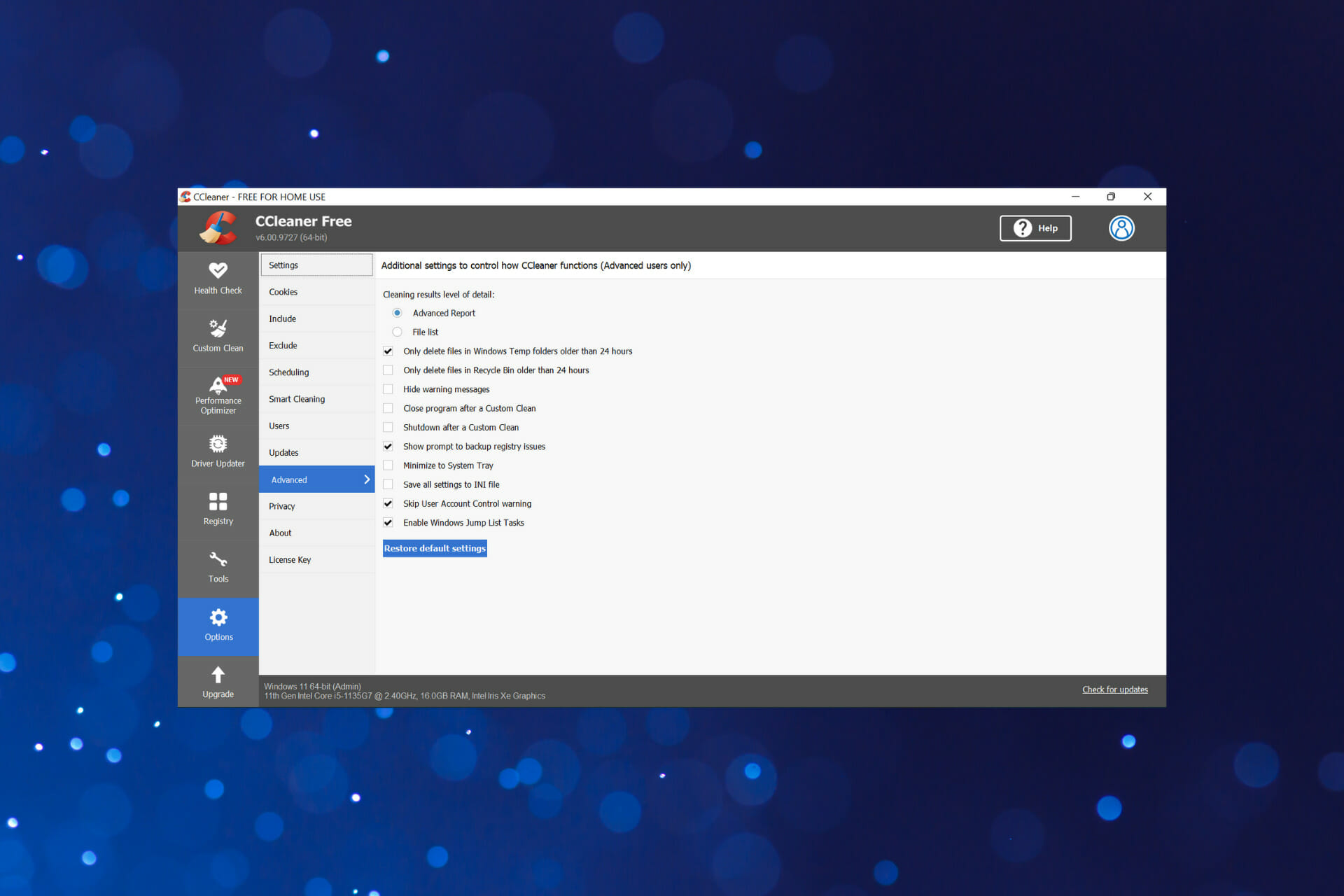


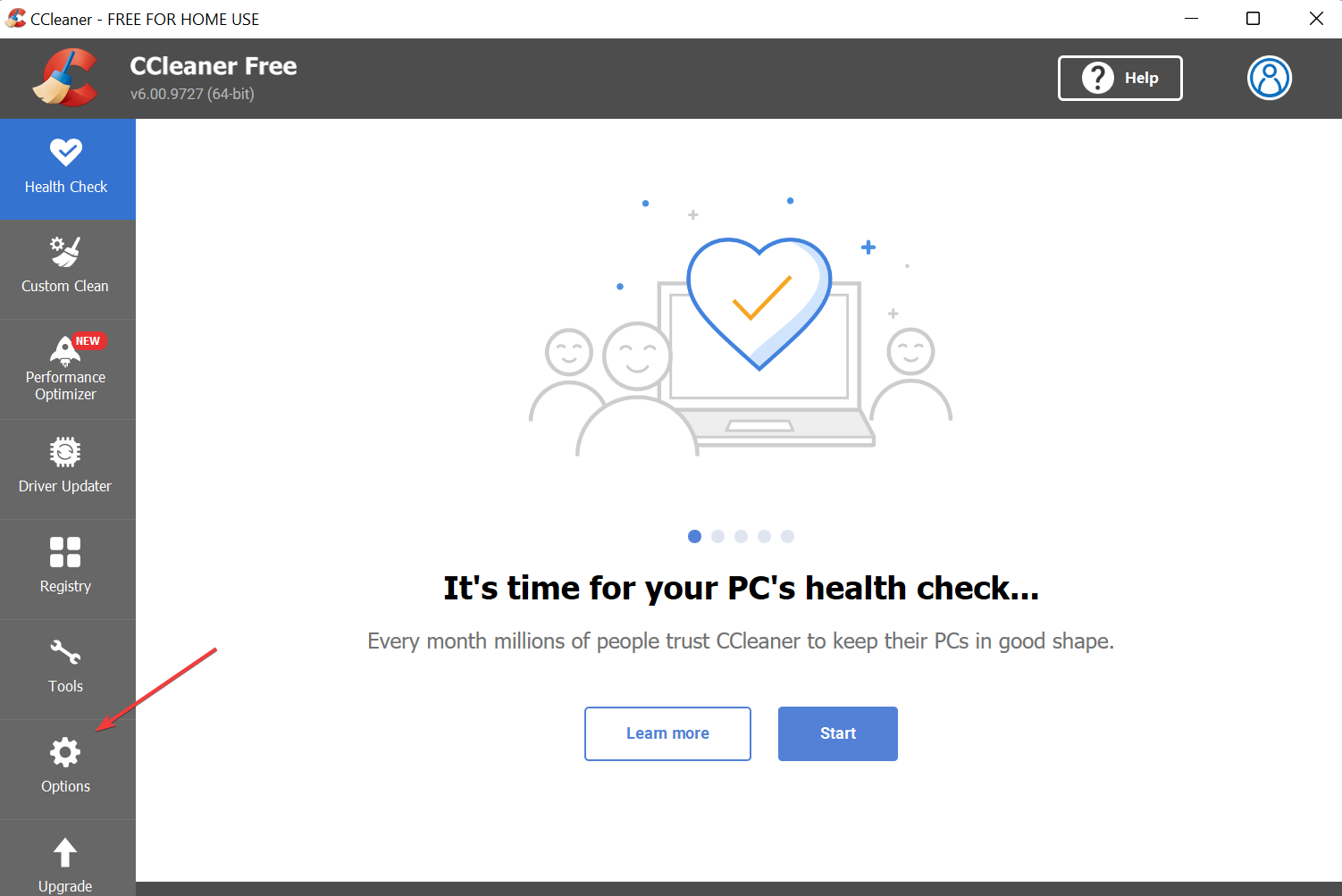
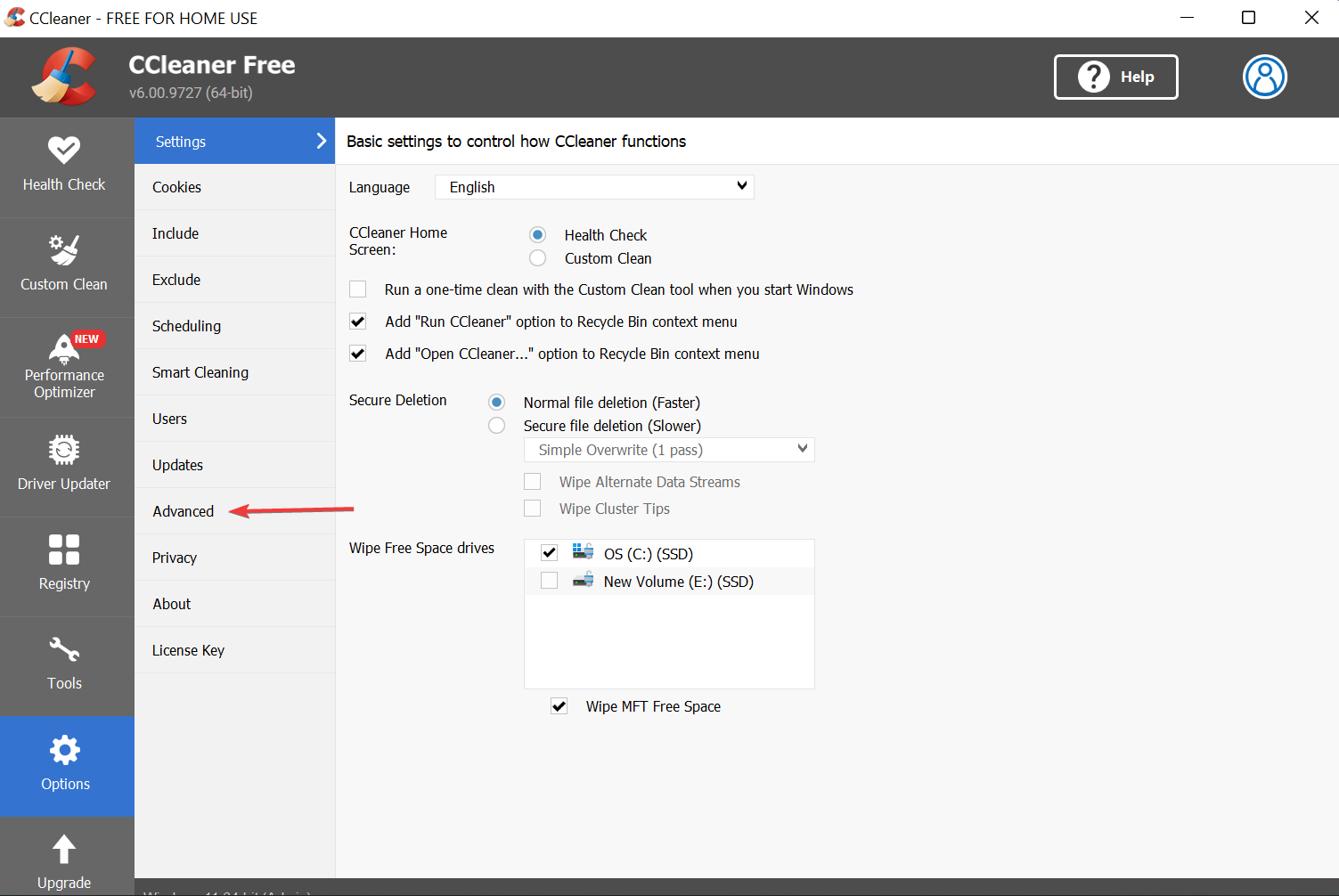
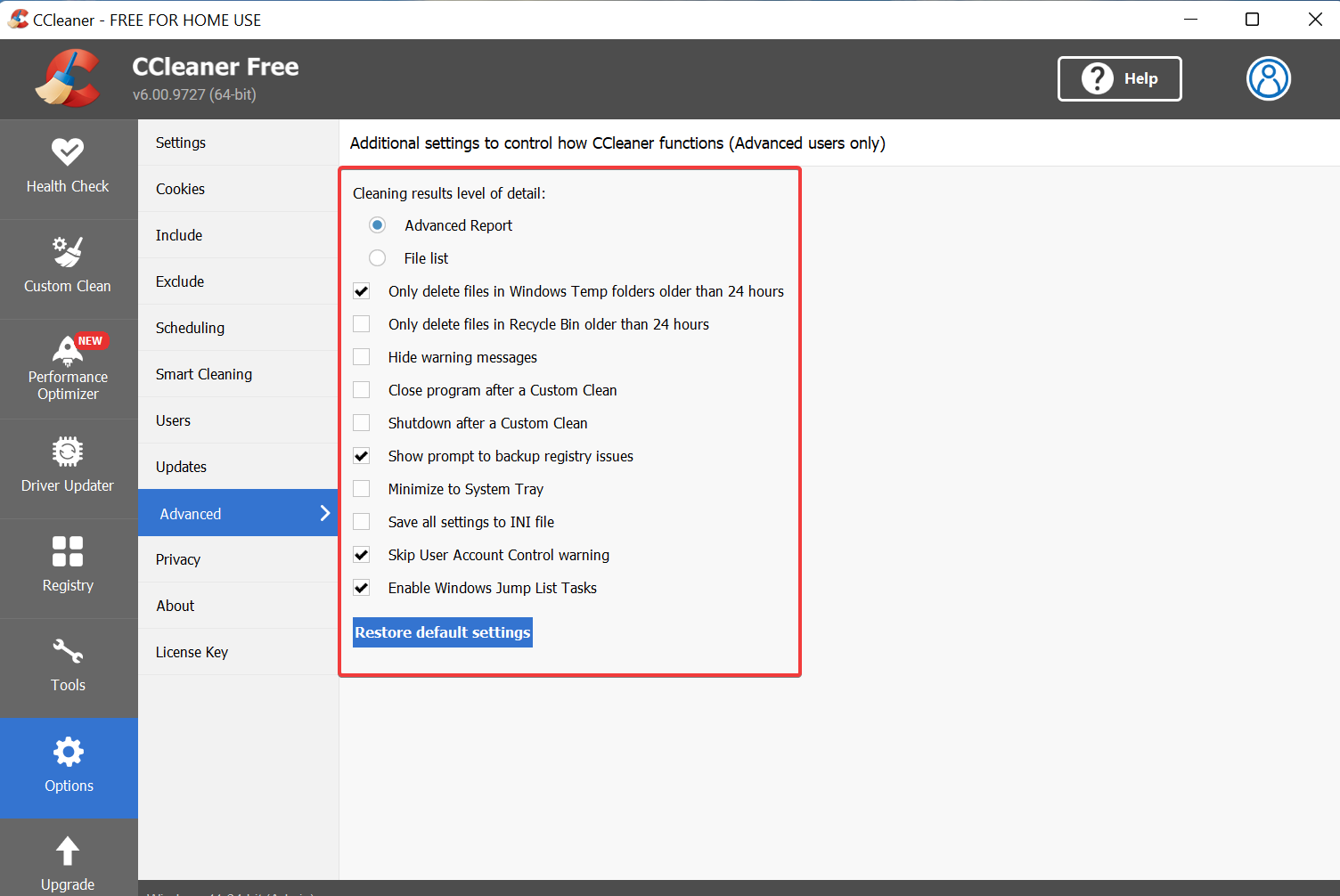
![5 Ways to Fix Skywalker Saga When It’s not Working [Bugs & Crashes]](https://windowsreport.com/wp-content/uploads/2022/05/steam-1.jpg)


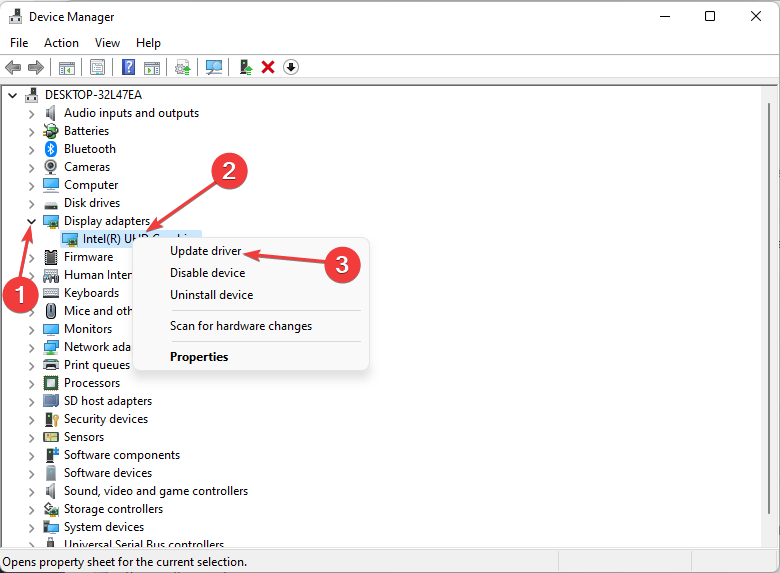


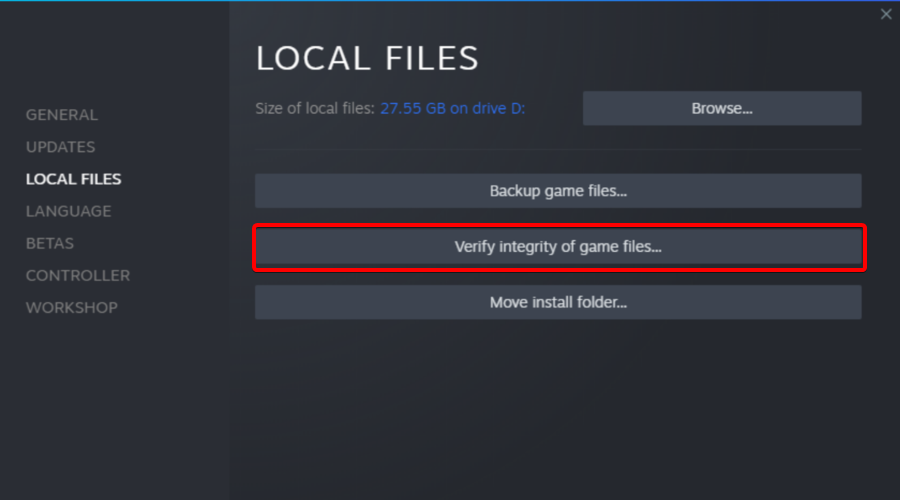


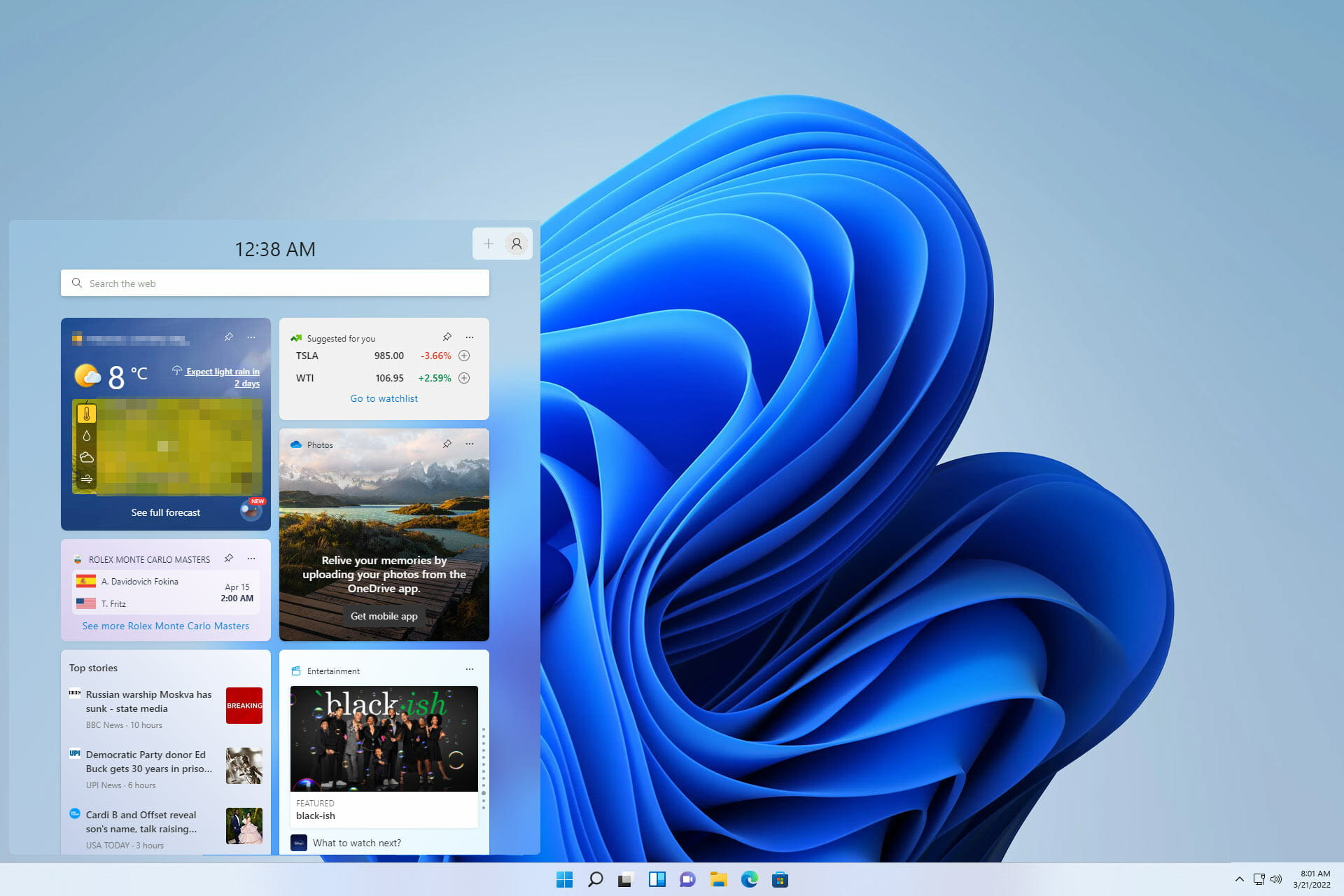


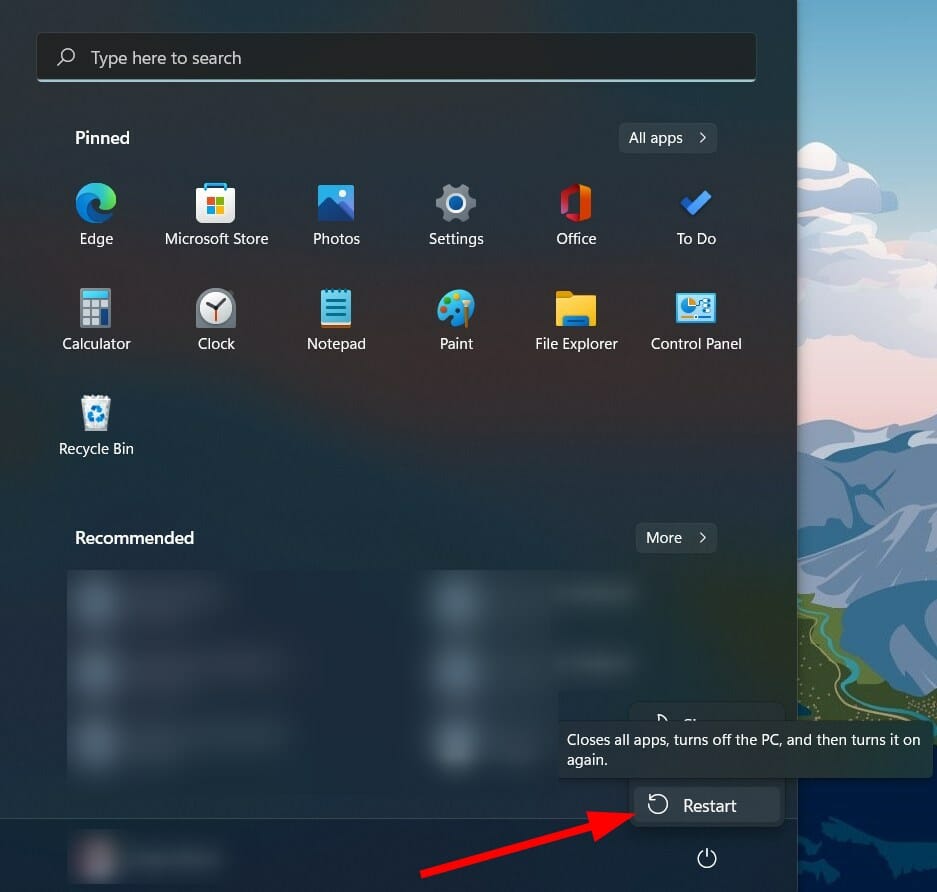

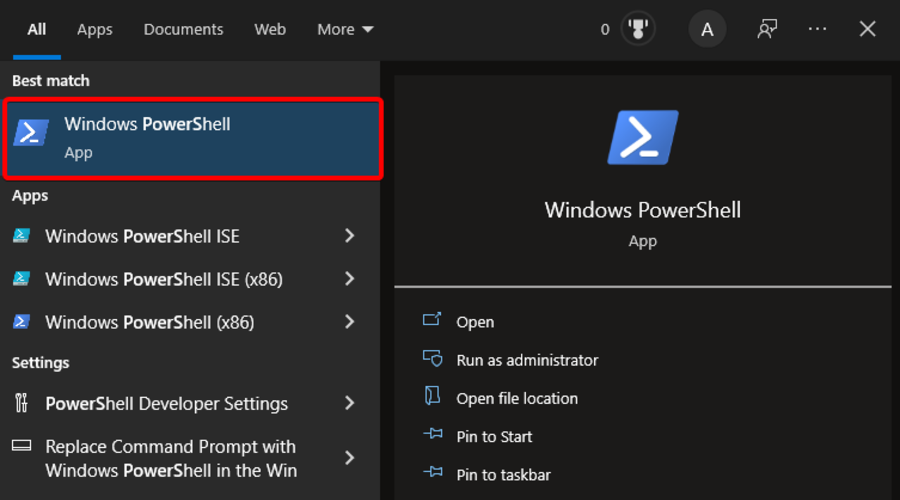


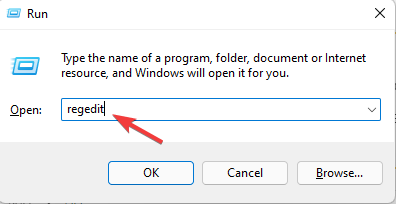




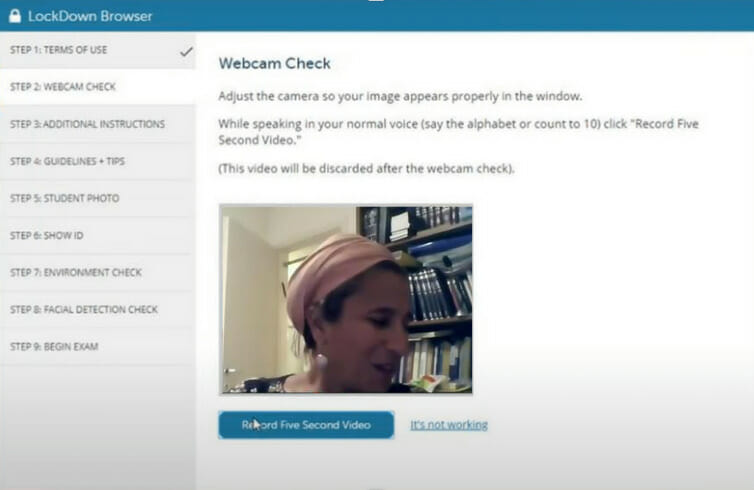



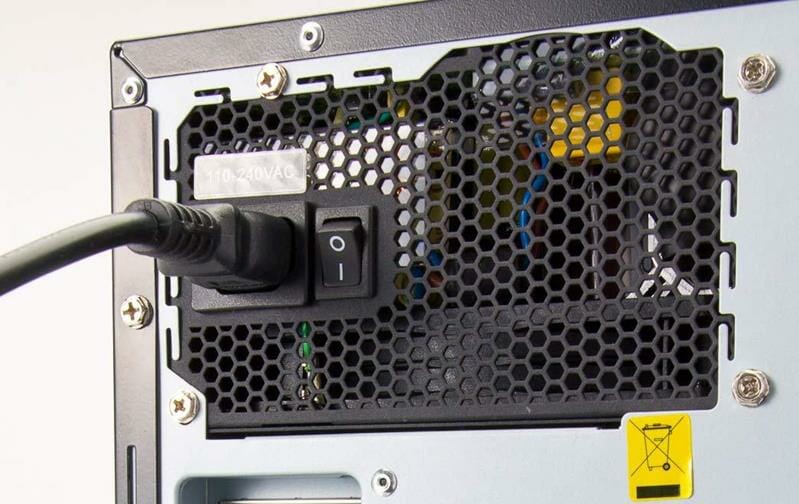

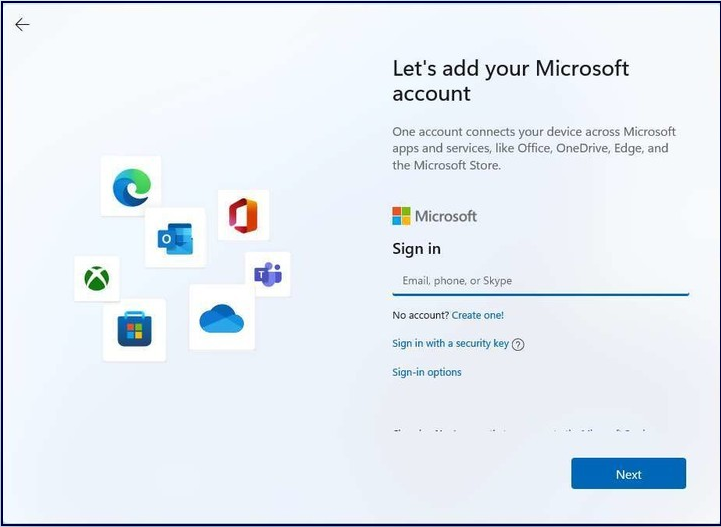
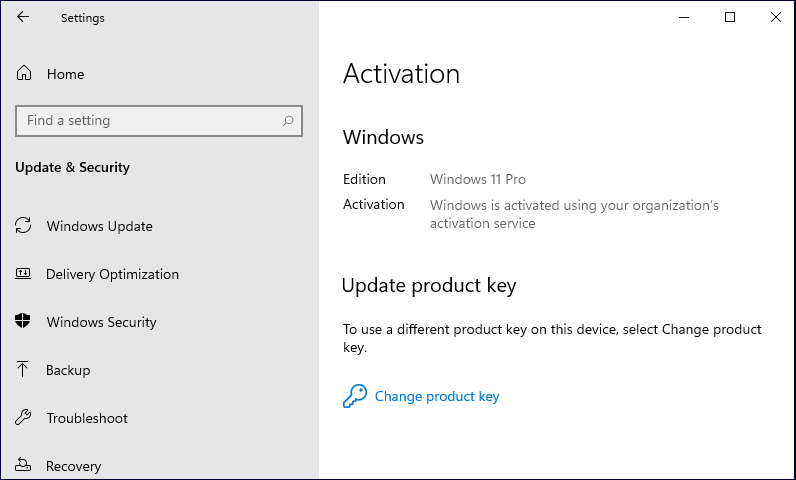


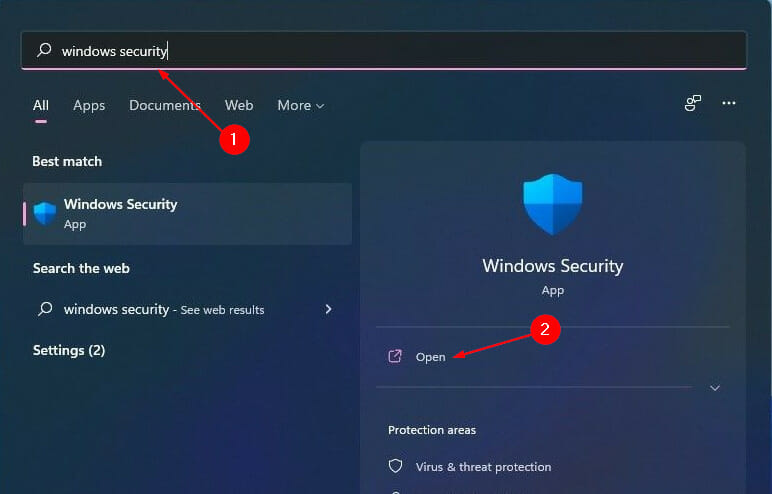

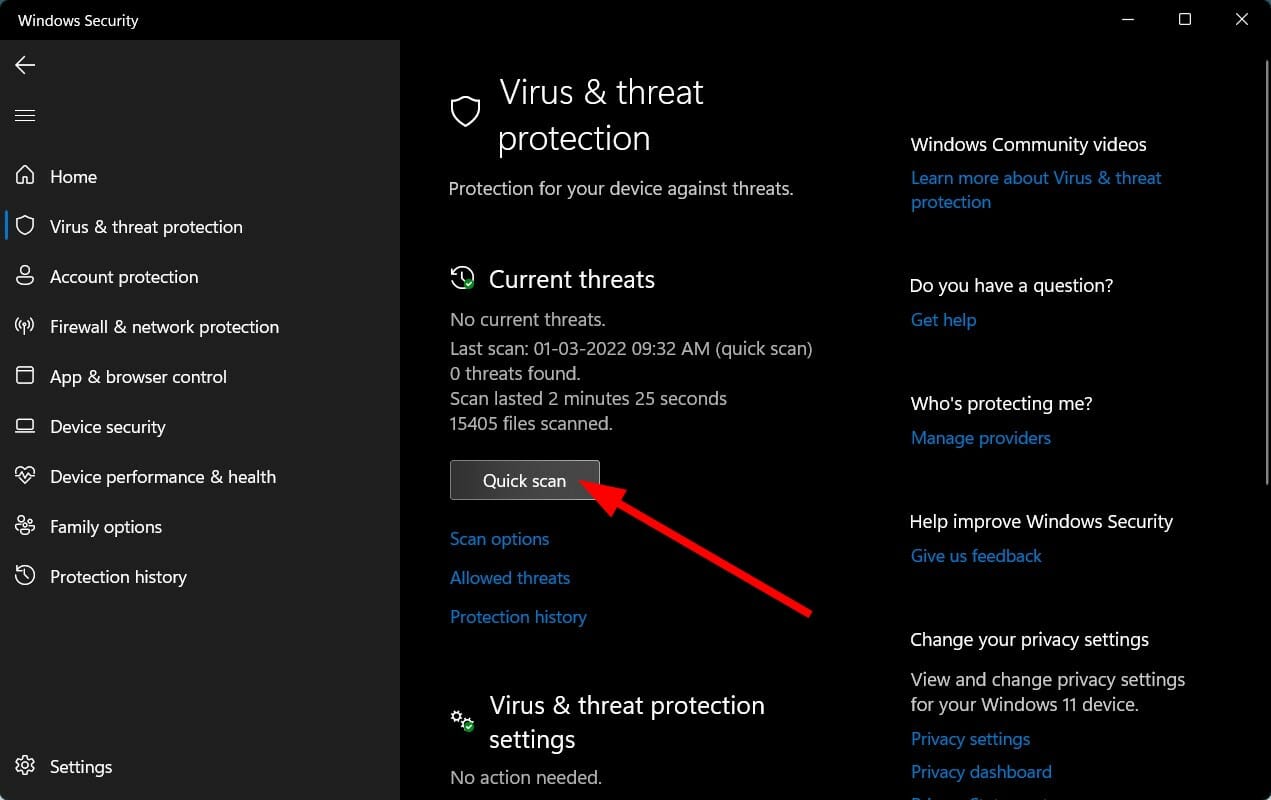


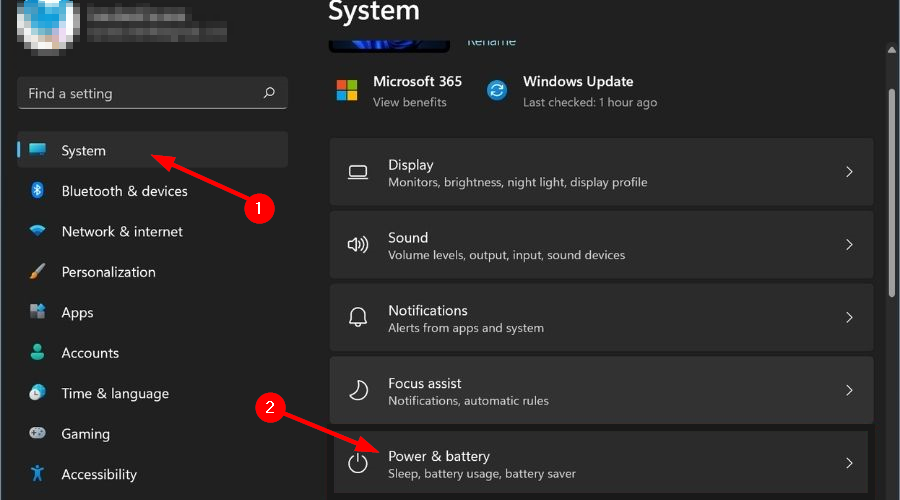


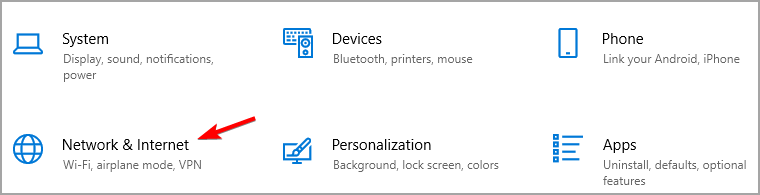
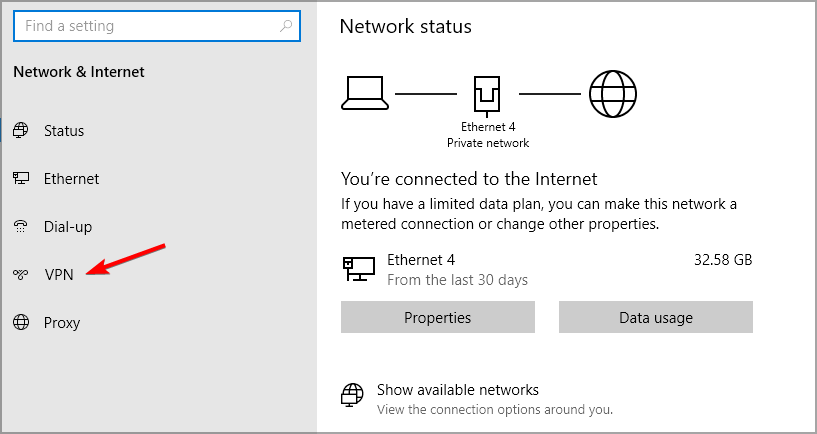
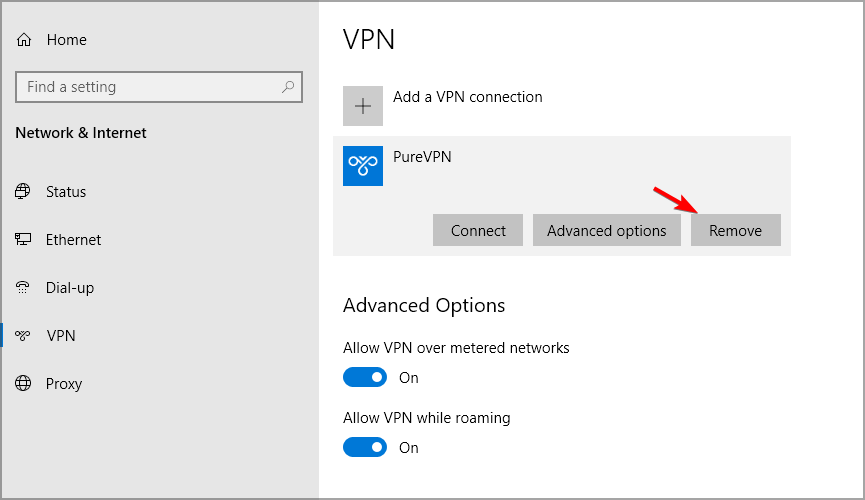
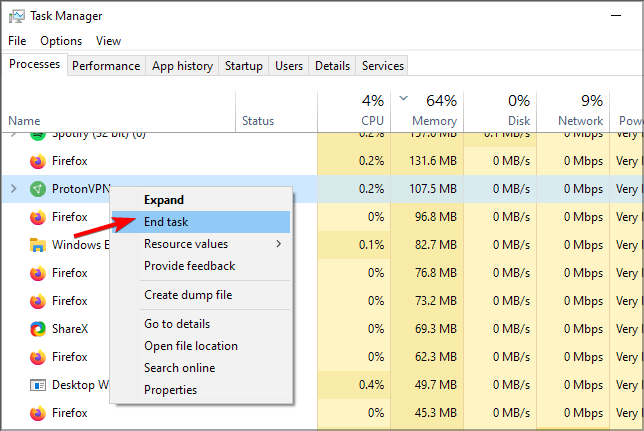
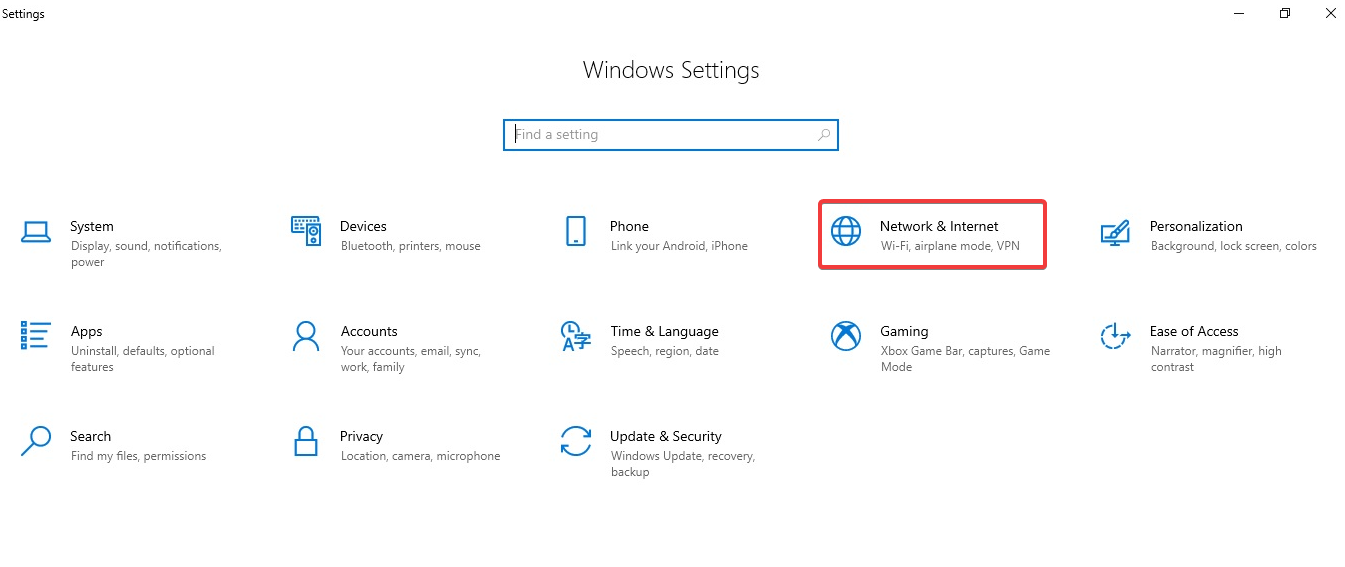
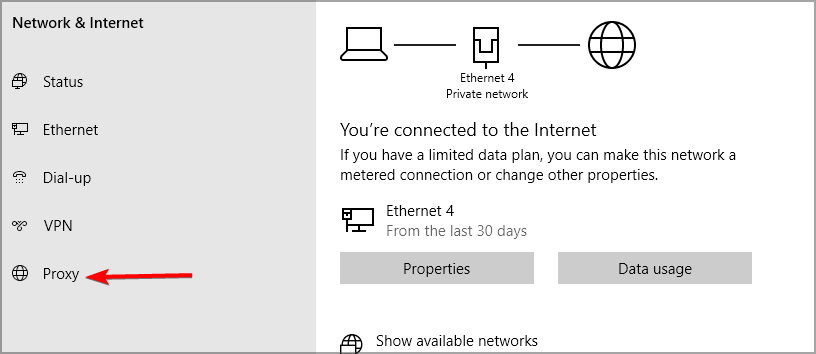
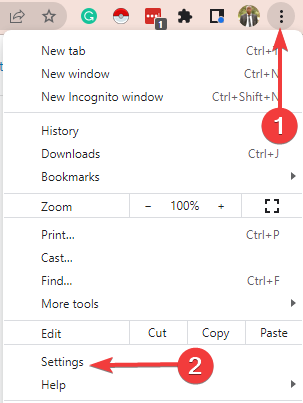

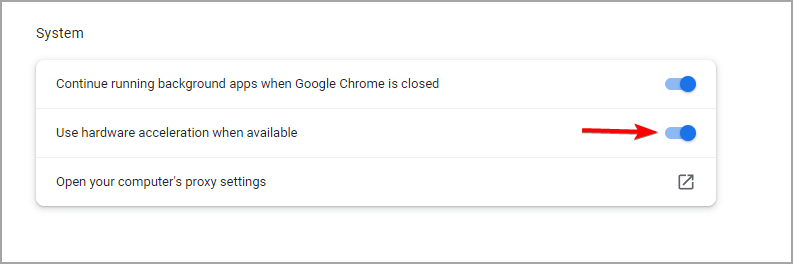
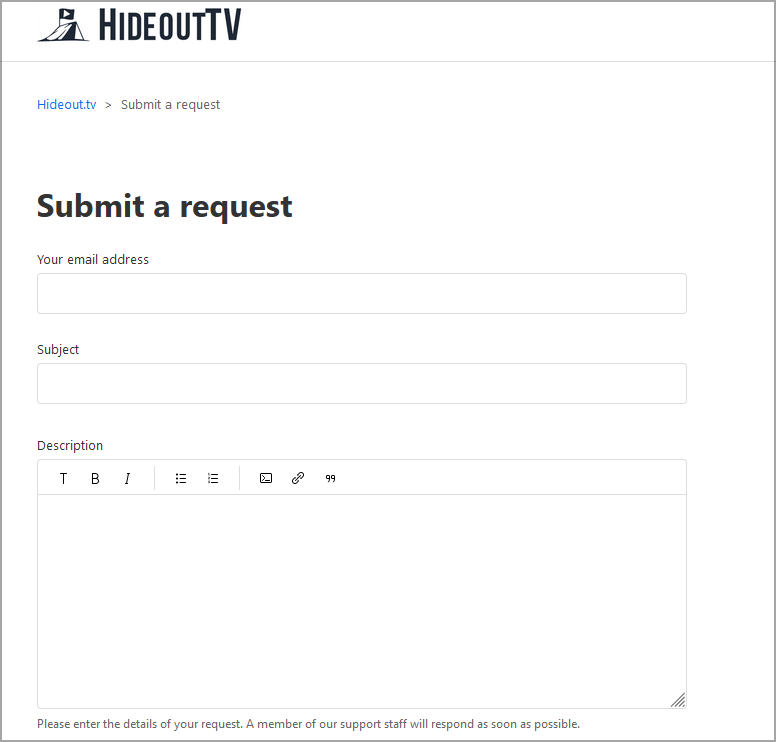
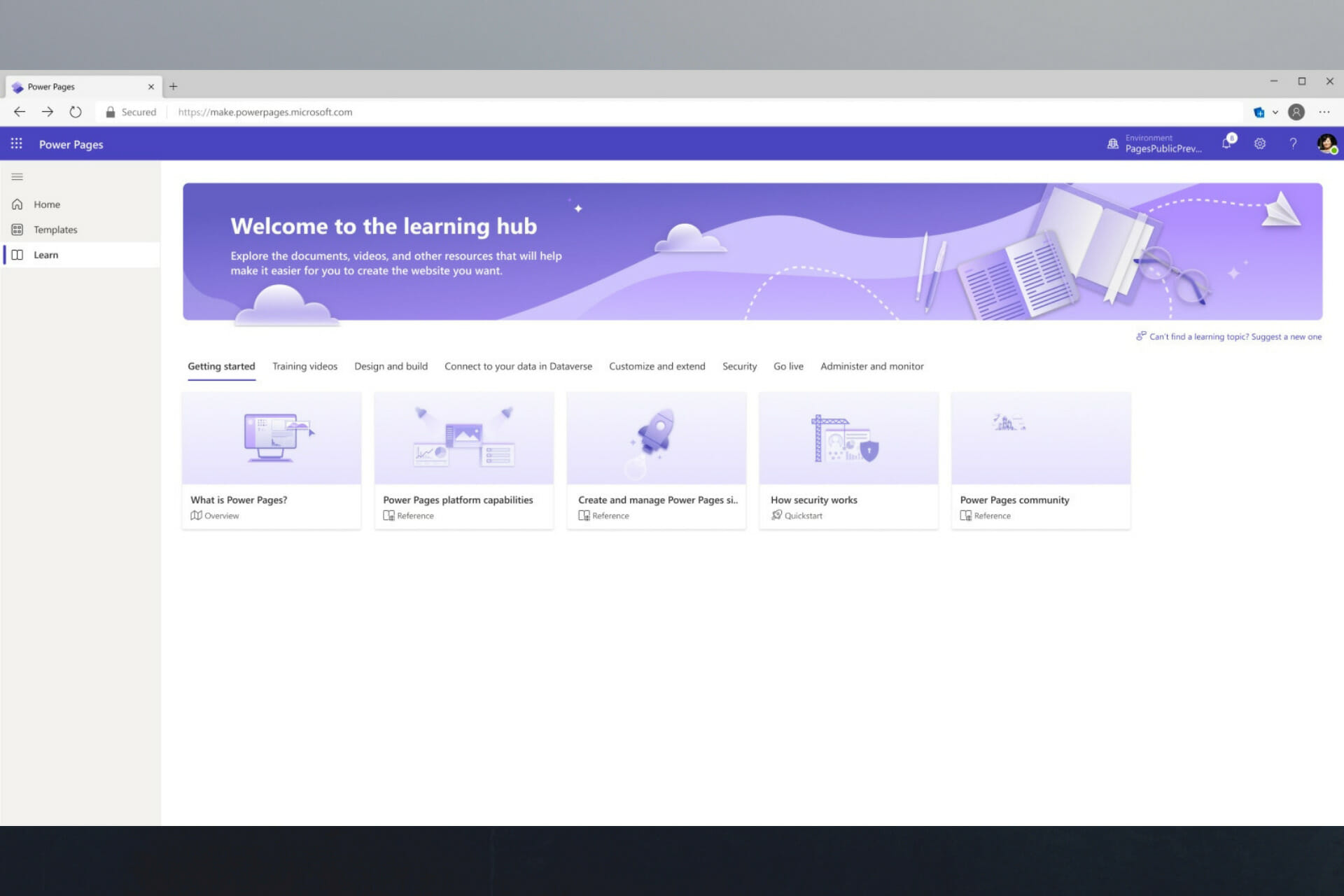



![Chromebook Camera File System Errors [8 Quick Fixes]](https://windowsreport.com/wp-content/uploads/2022/05/chromebook-camera-file-system-errors.jpg)
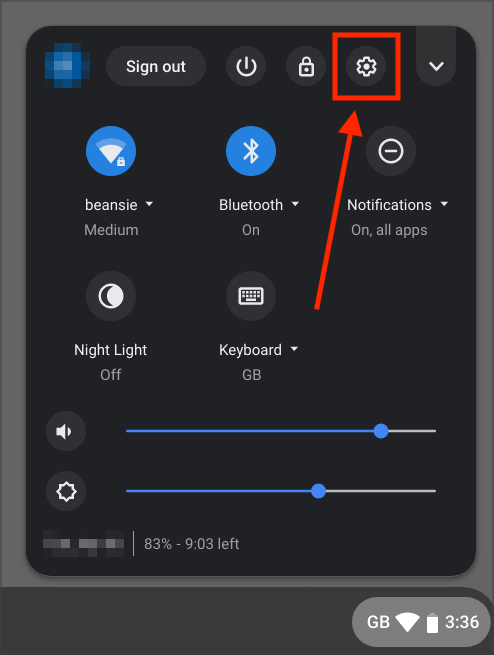
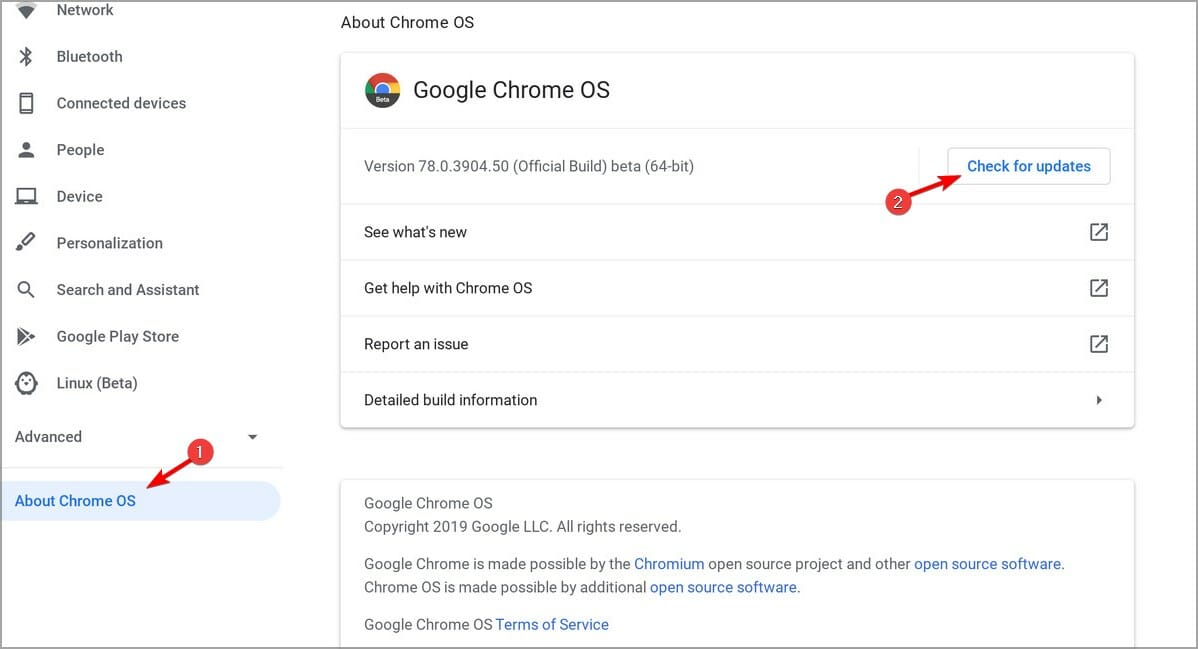
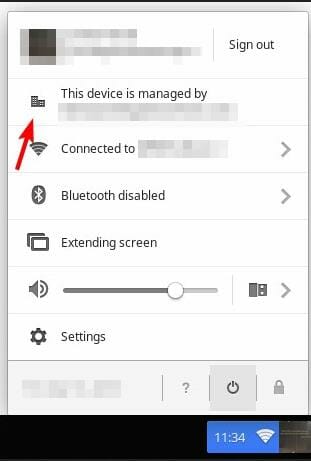
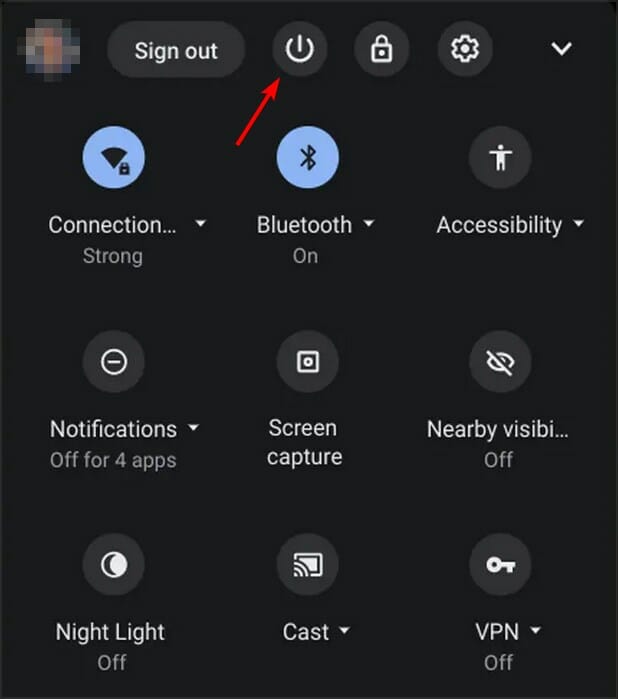
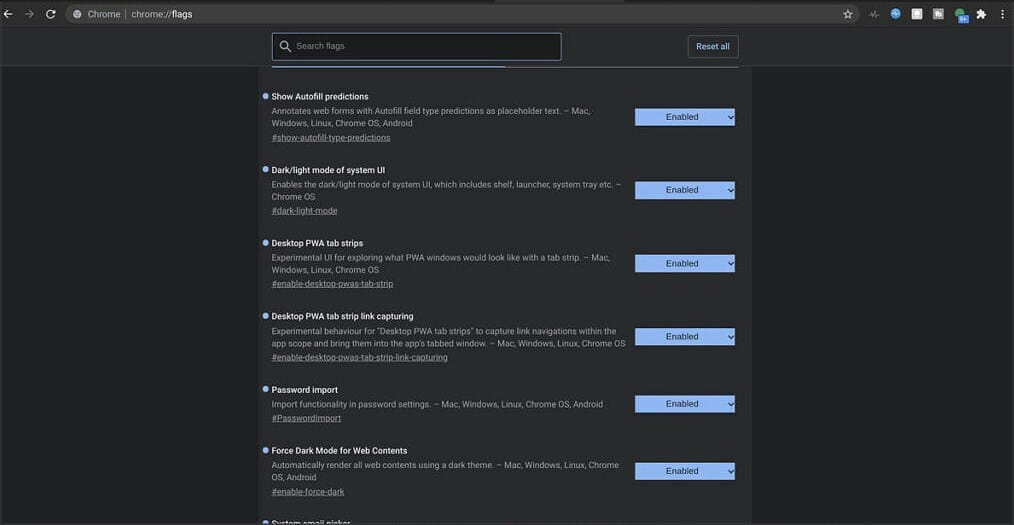
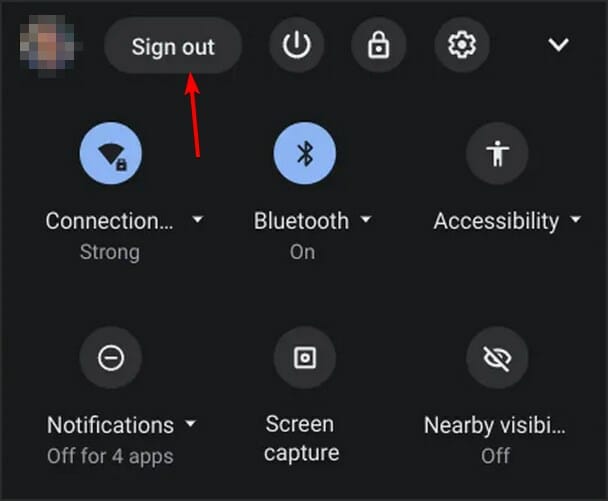

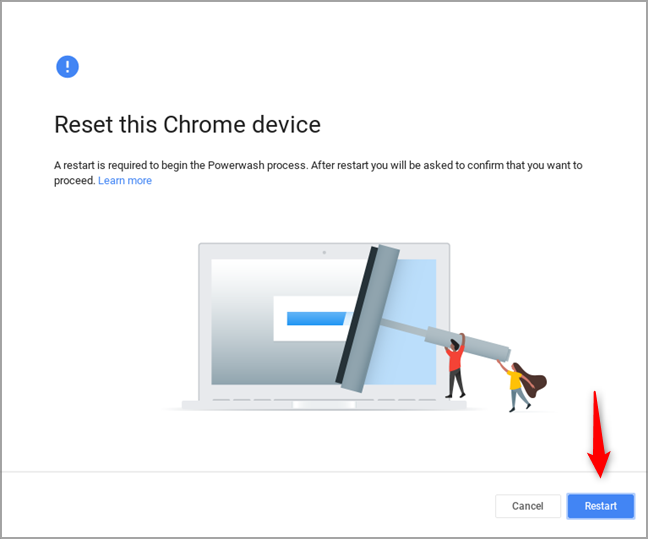
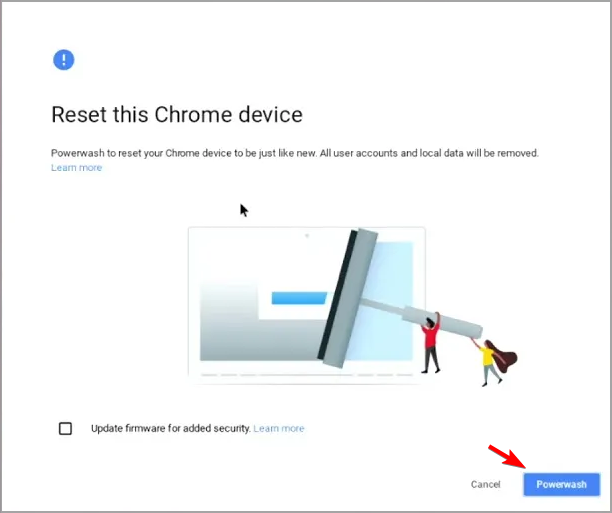


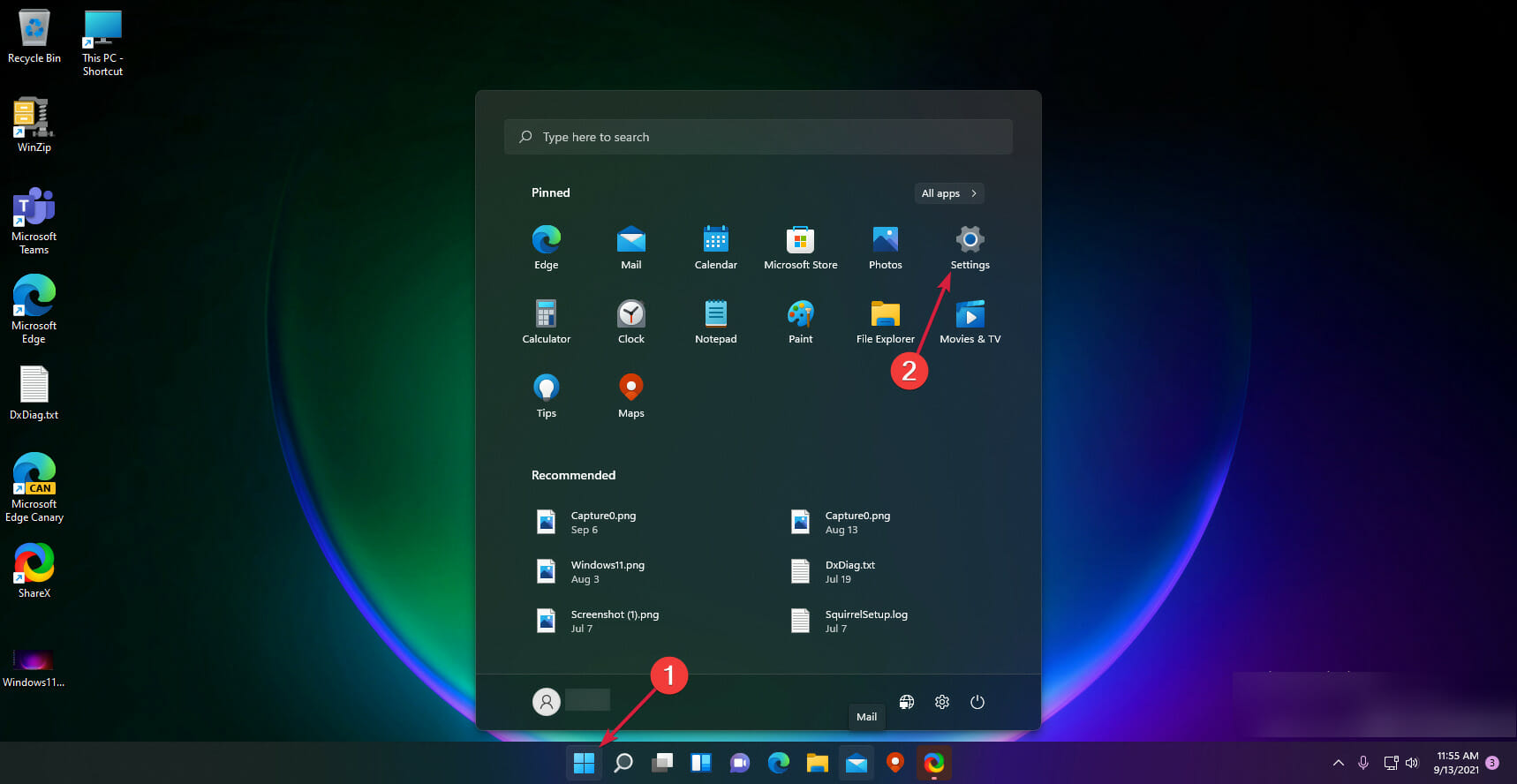
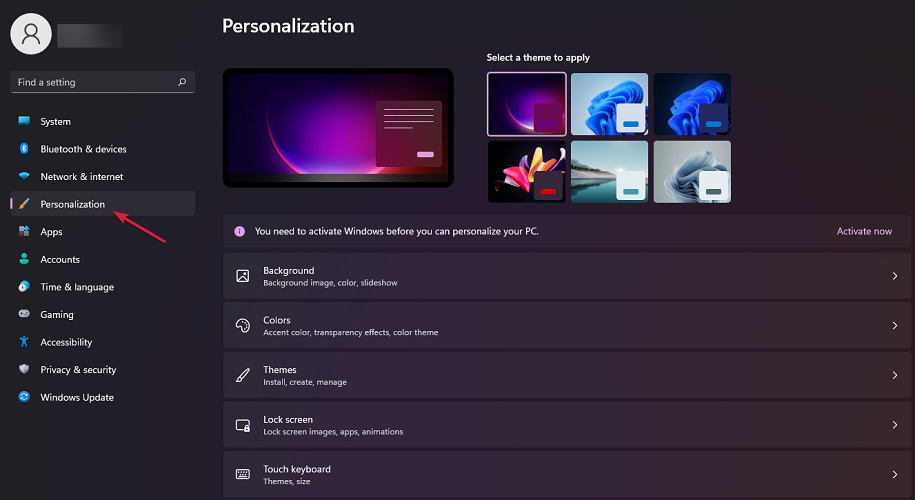
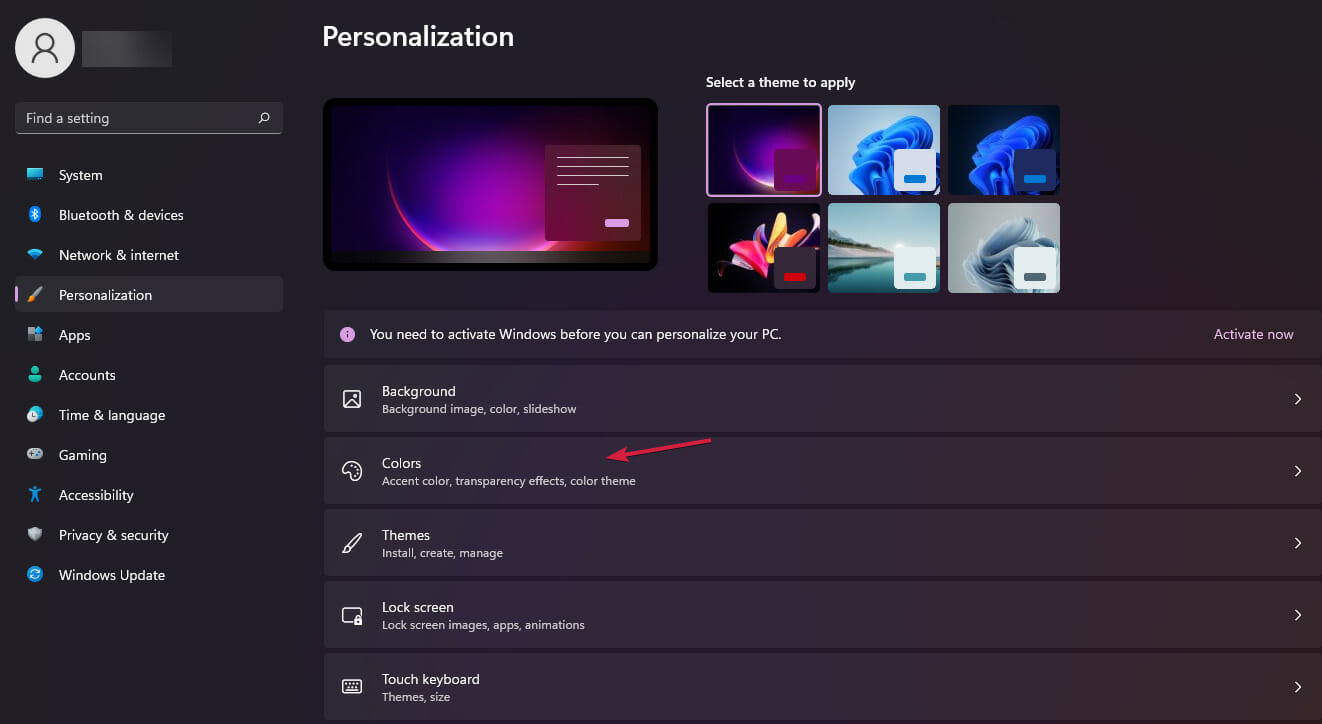
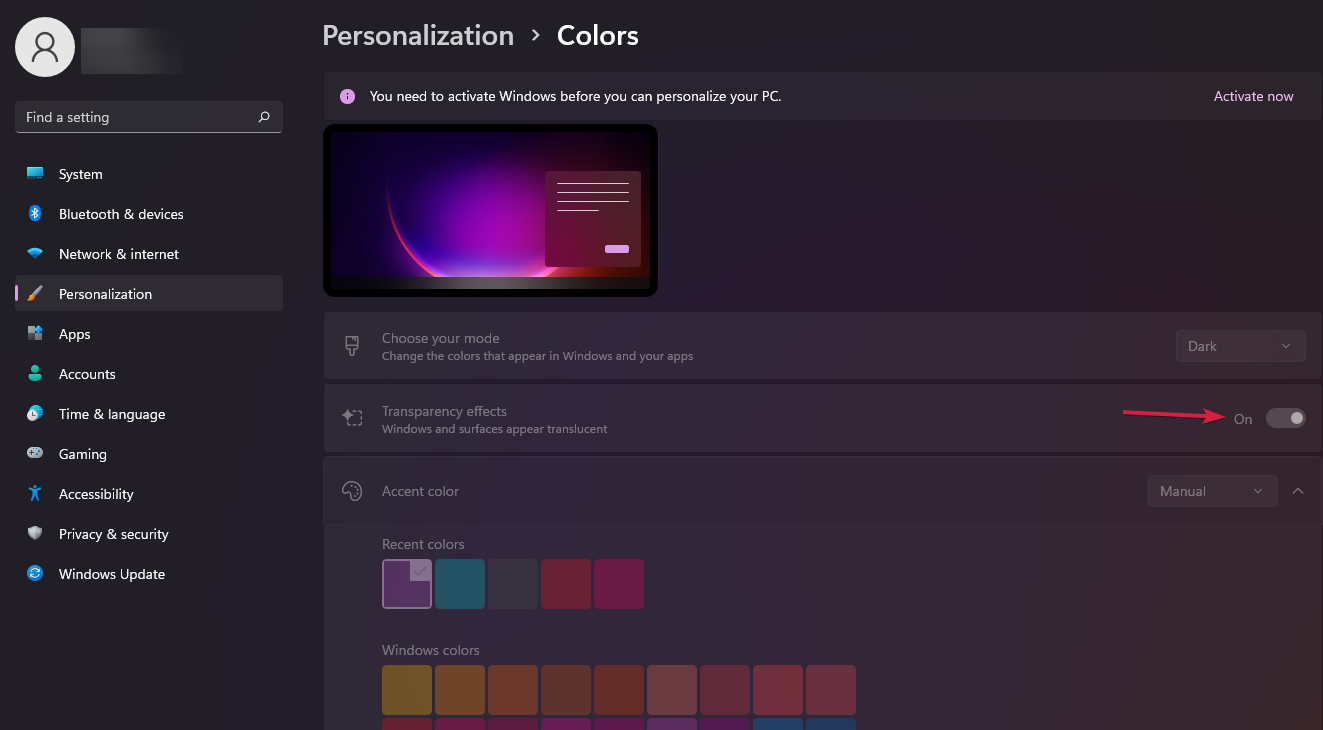
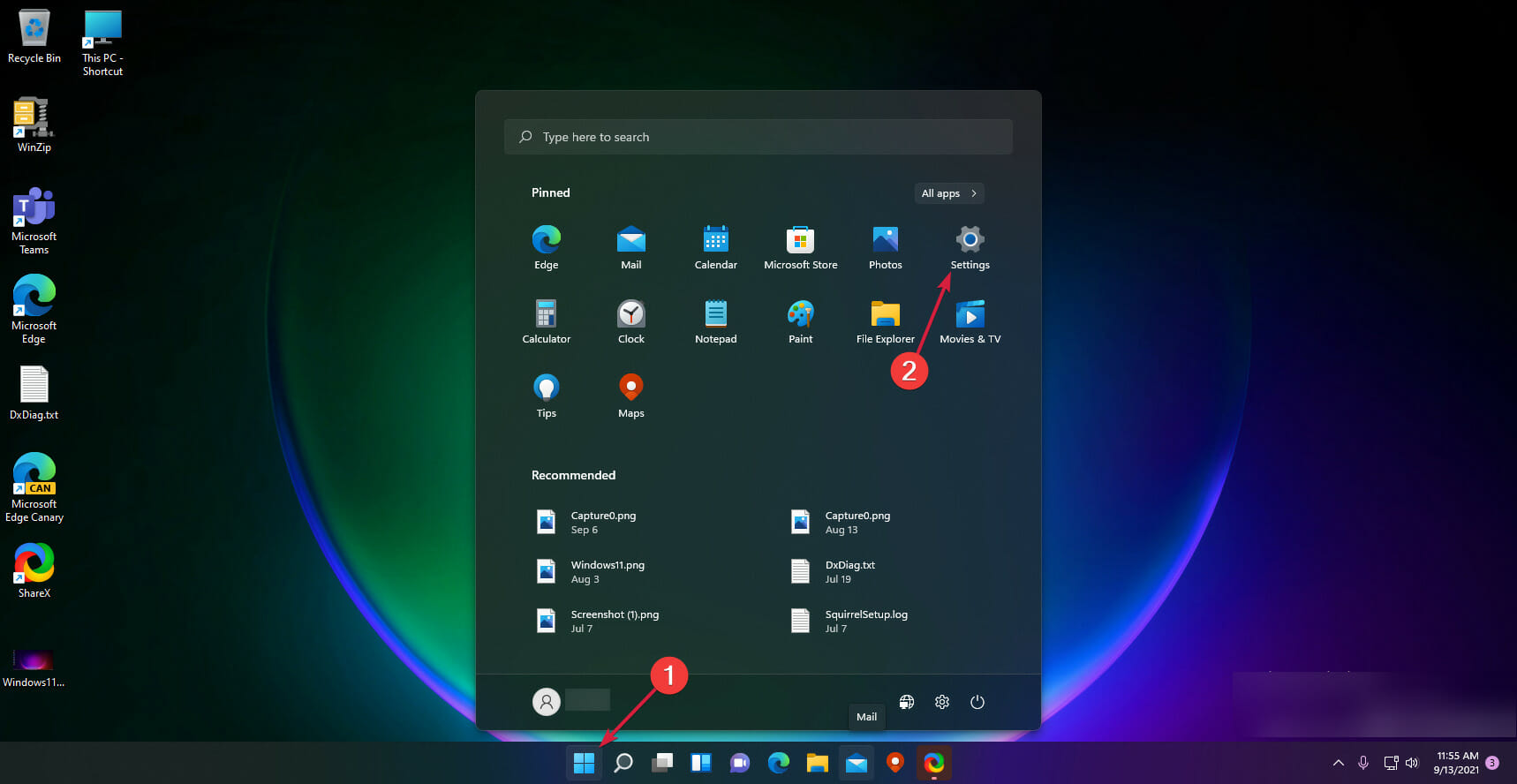
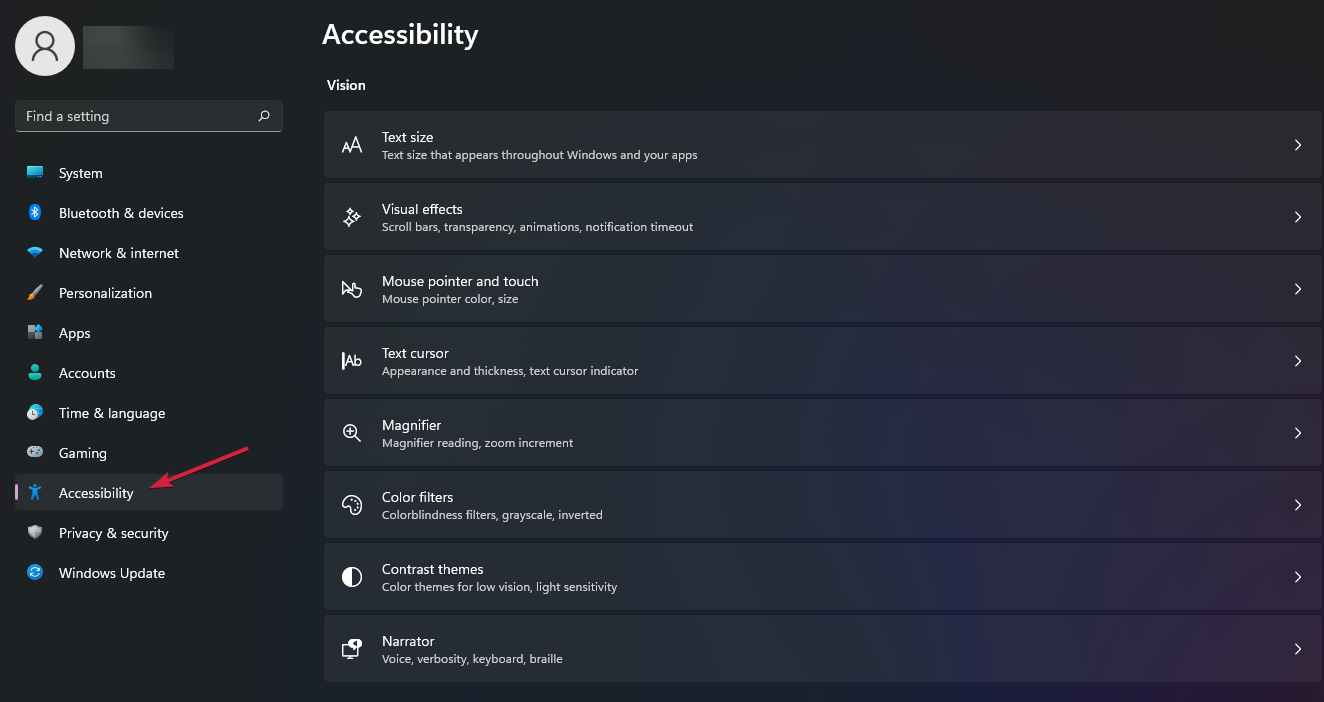
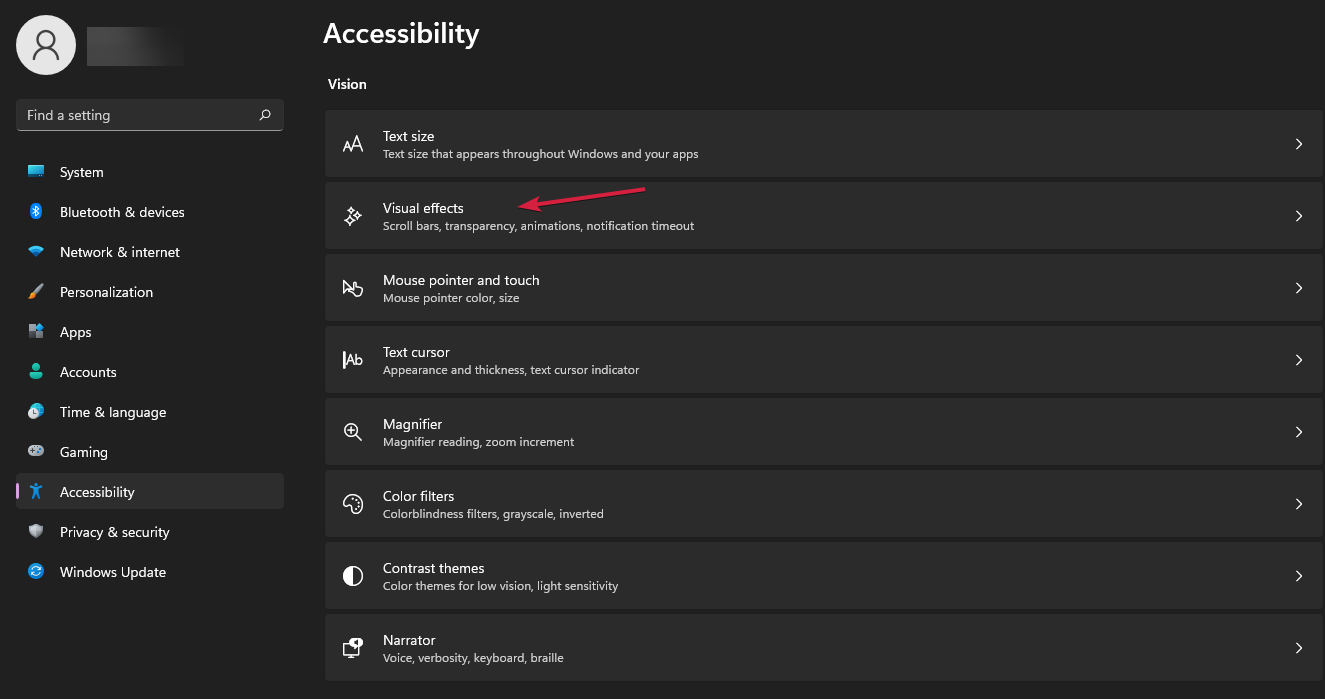
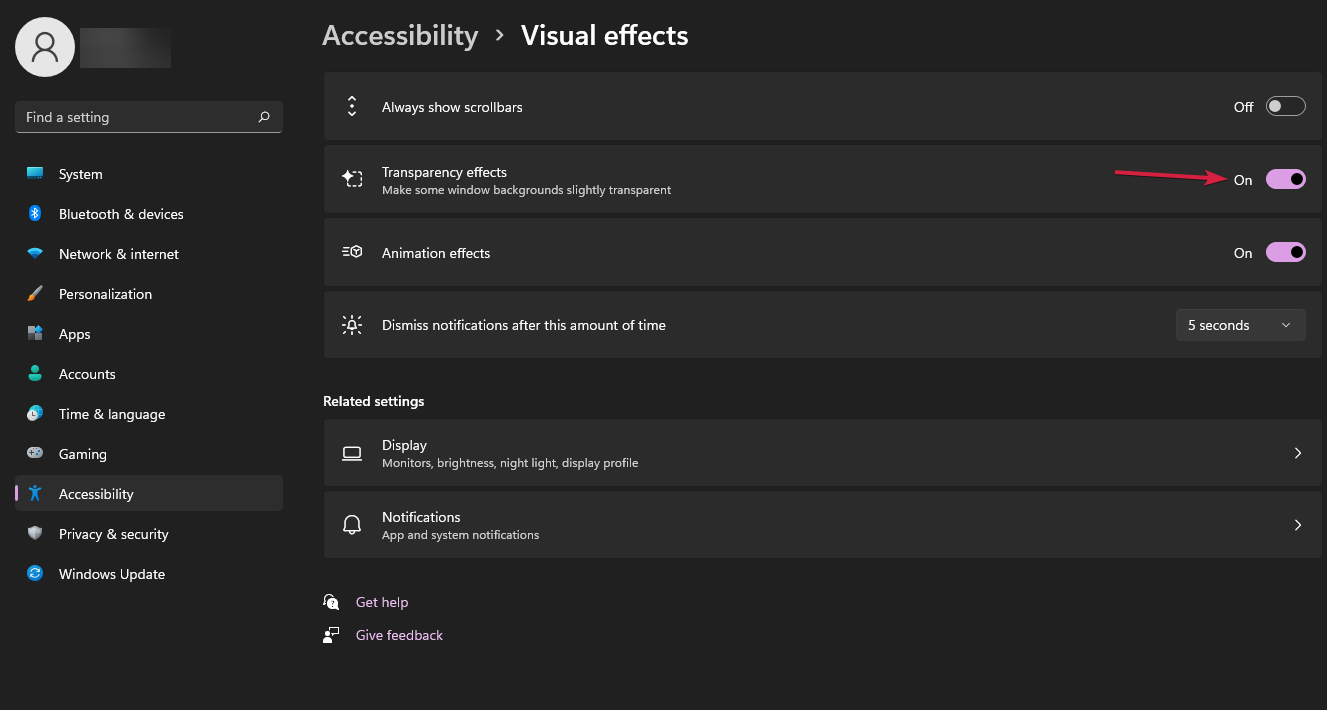
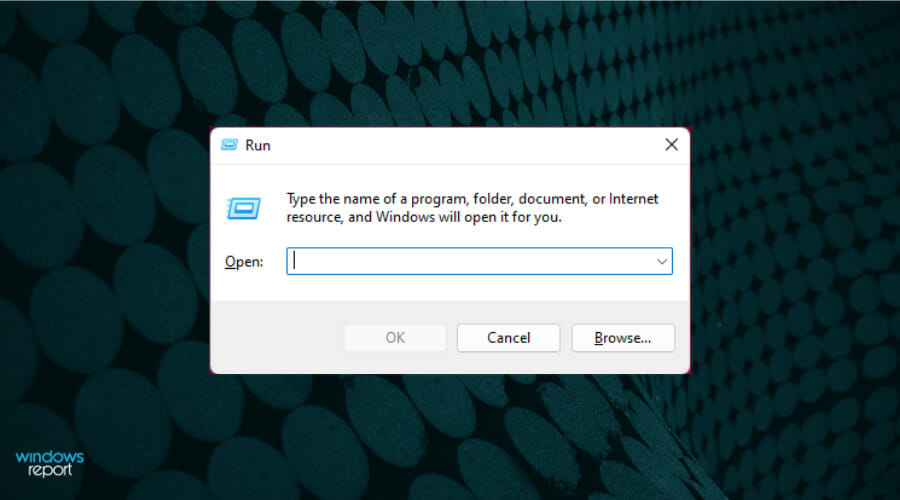
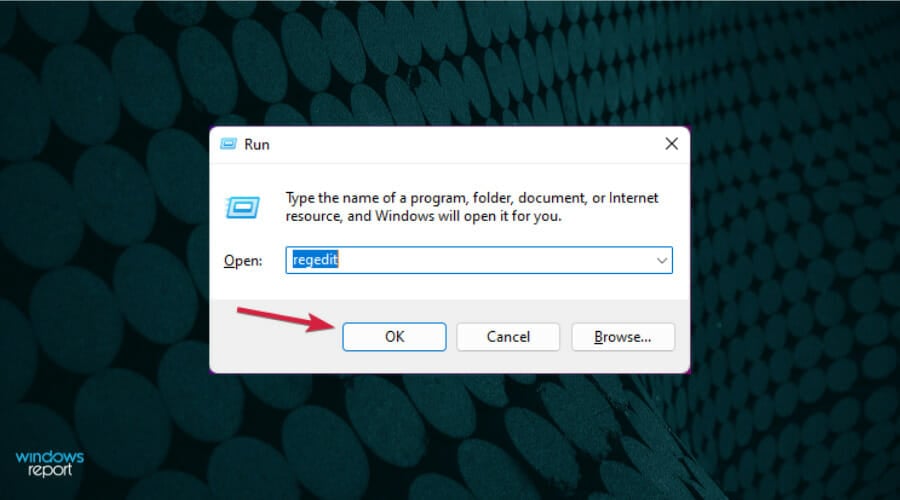
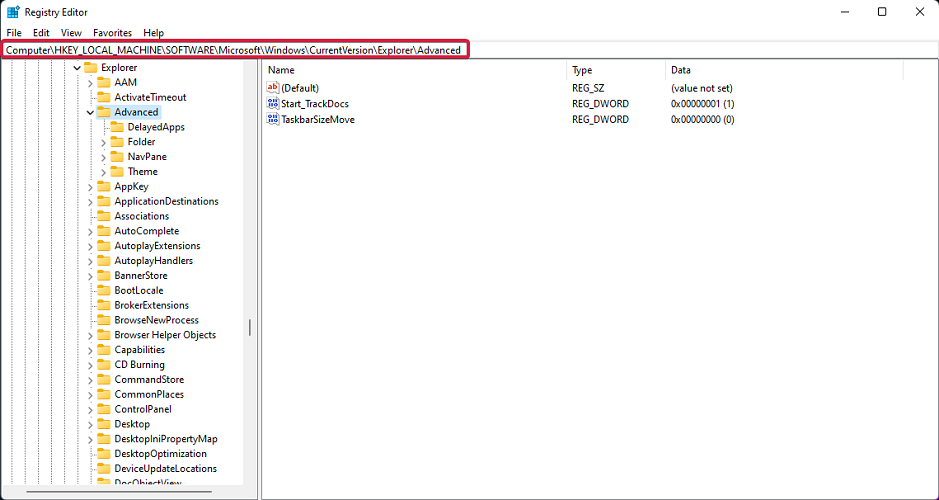
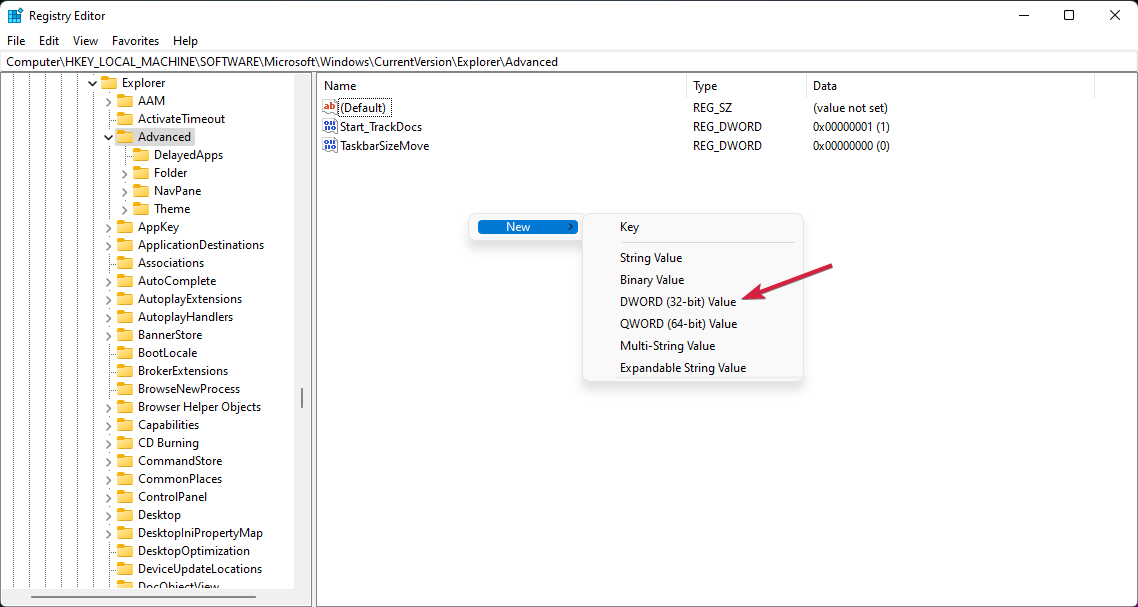
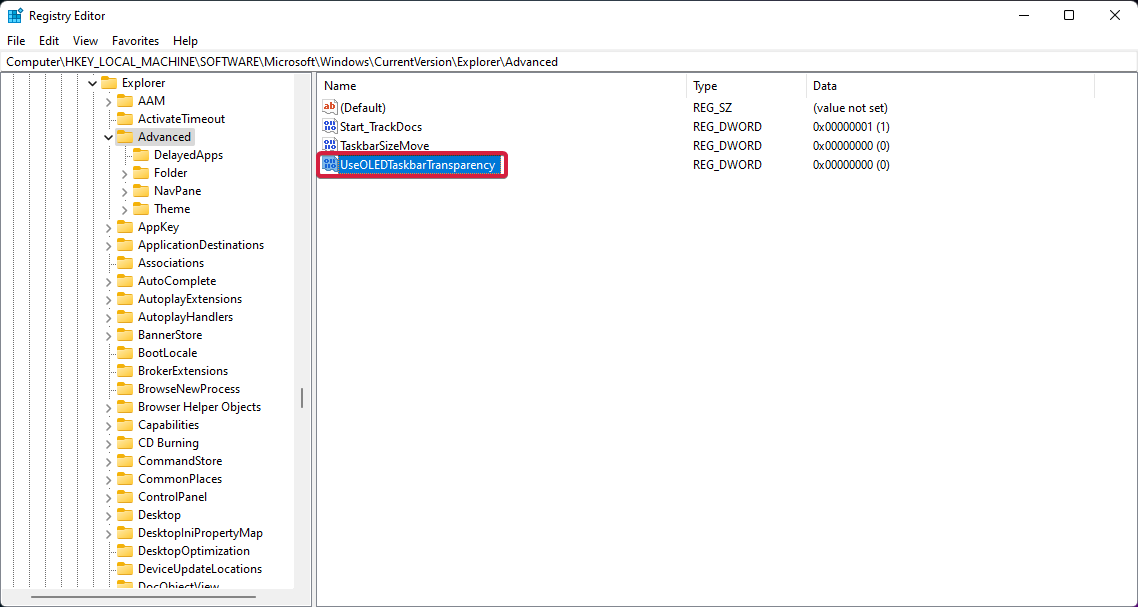
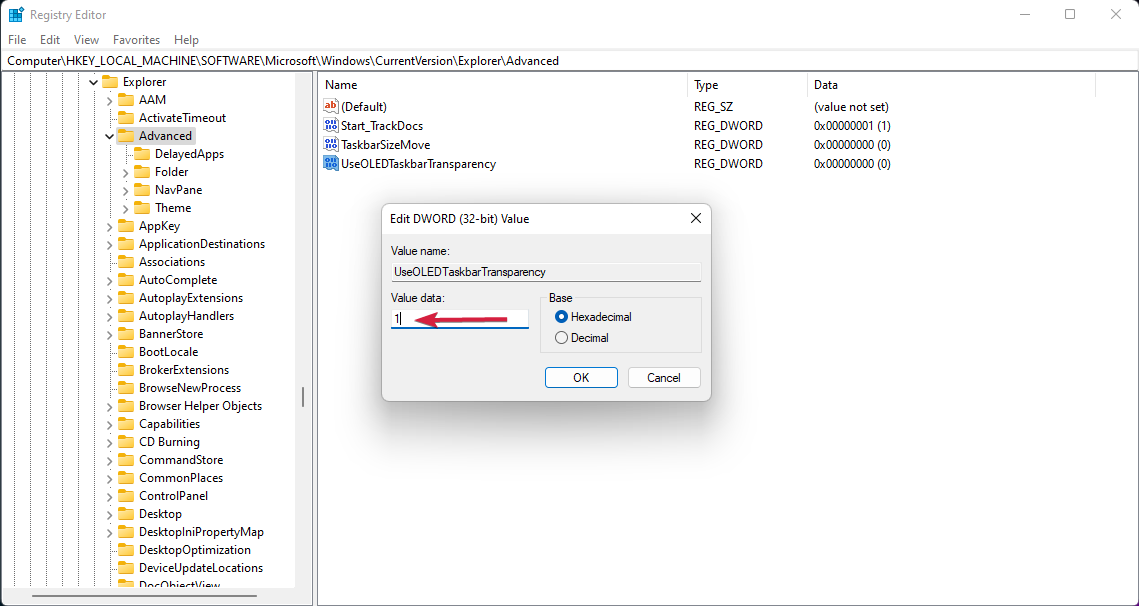
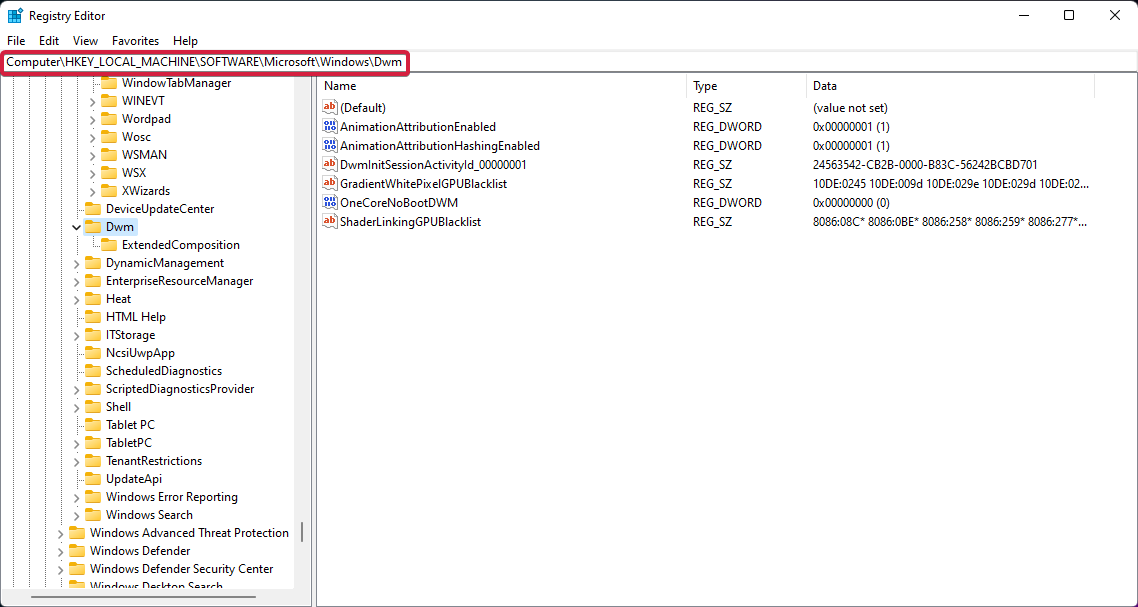
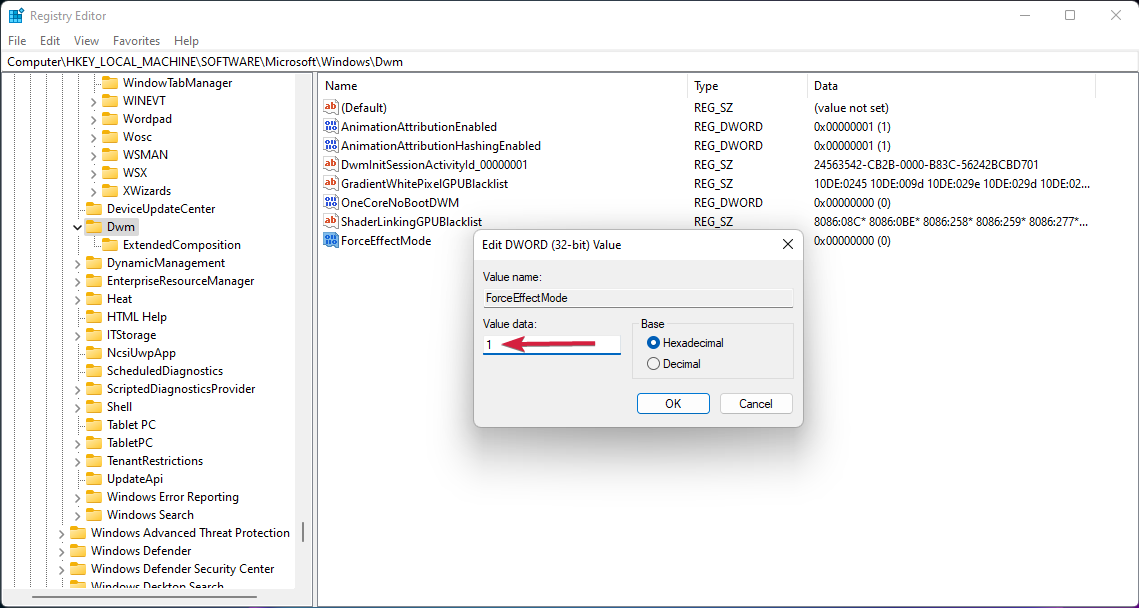
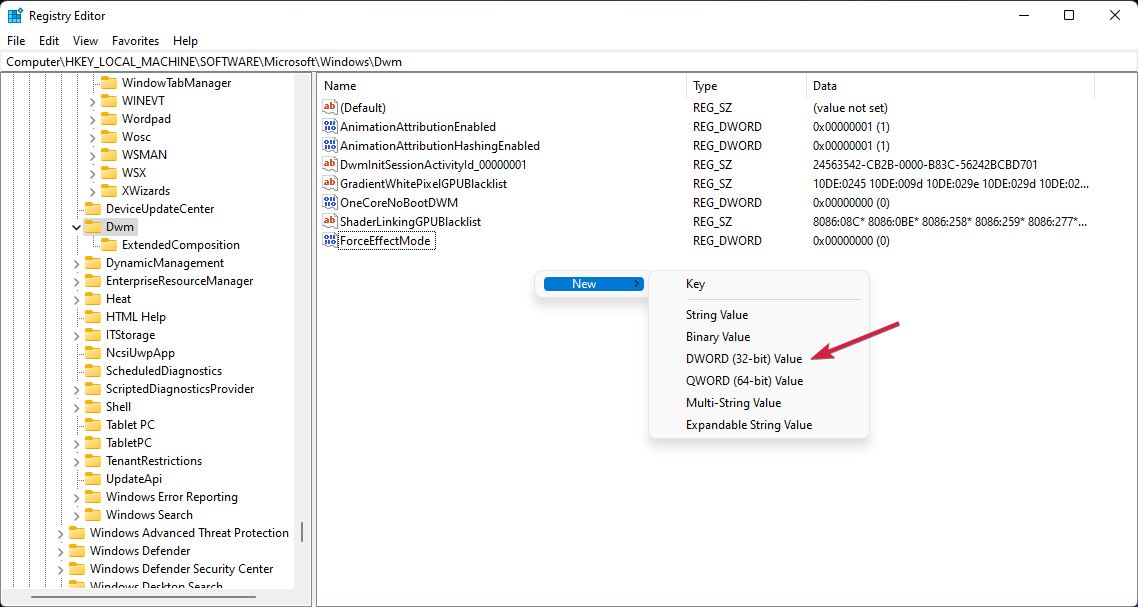

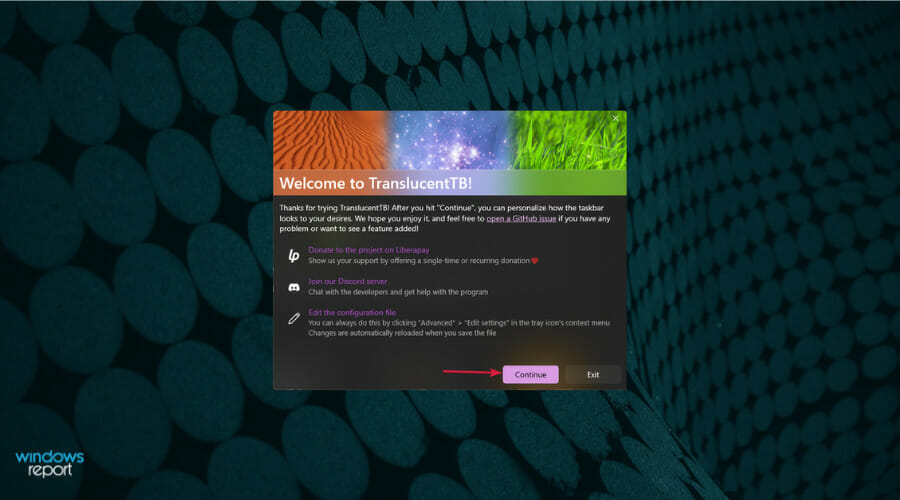
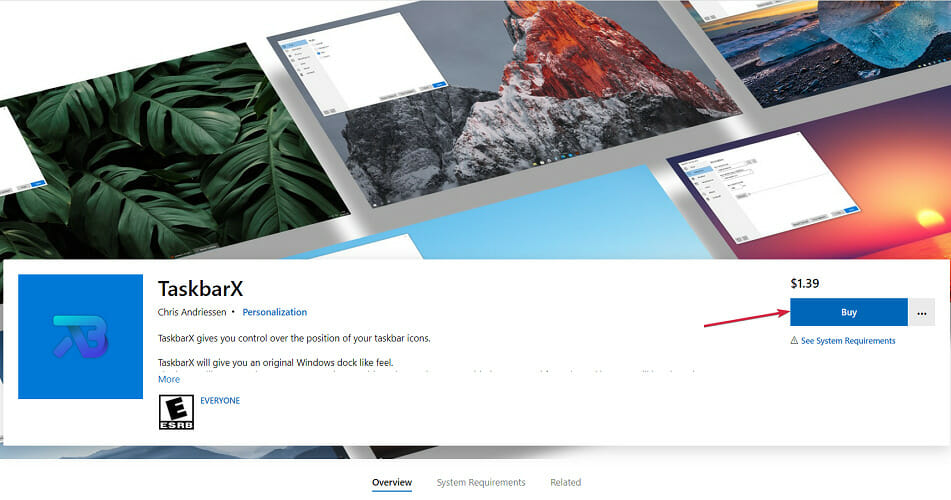
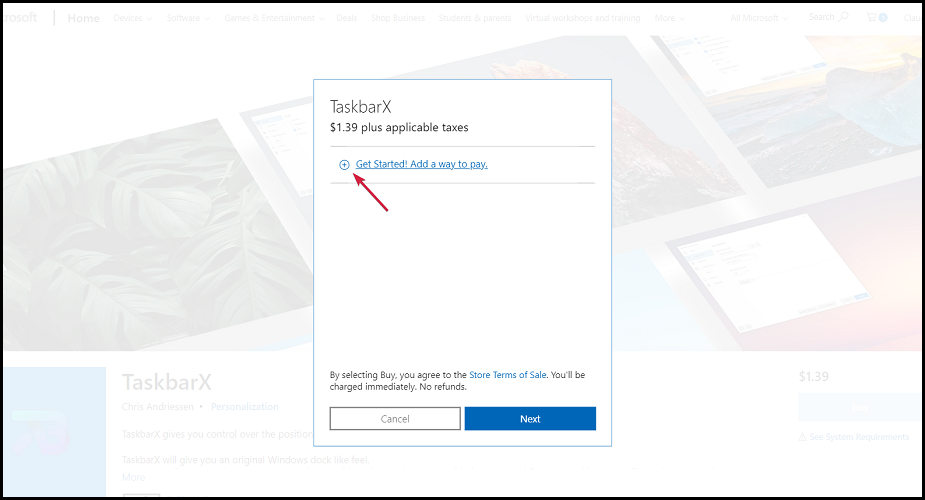
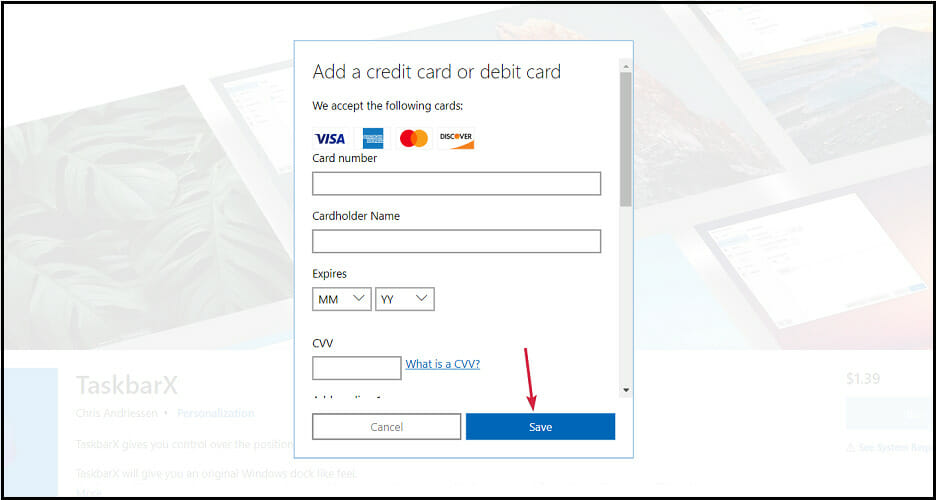
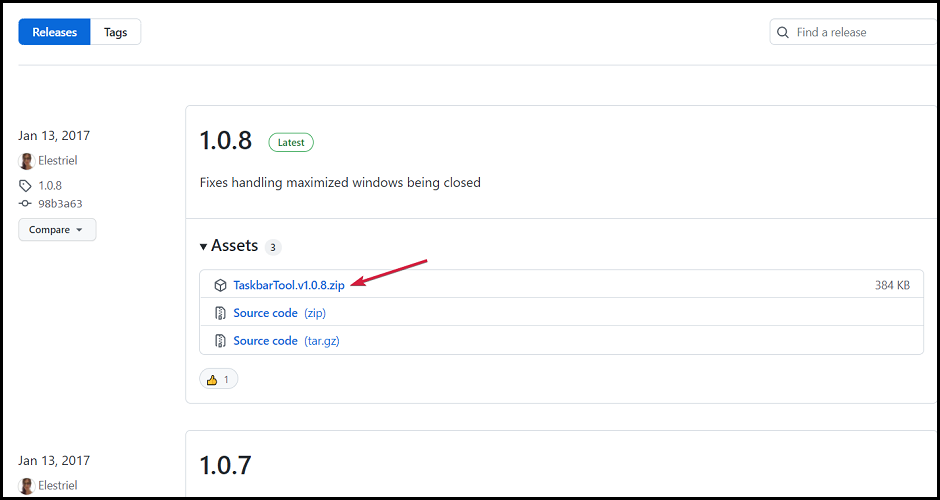
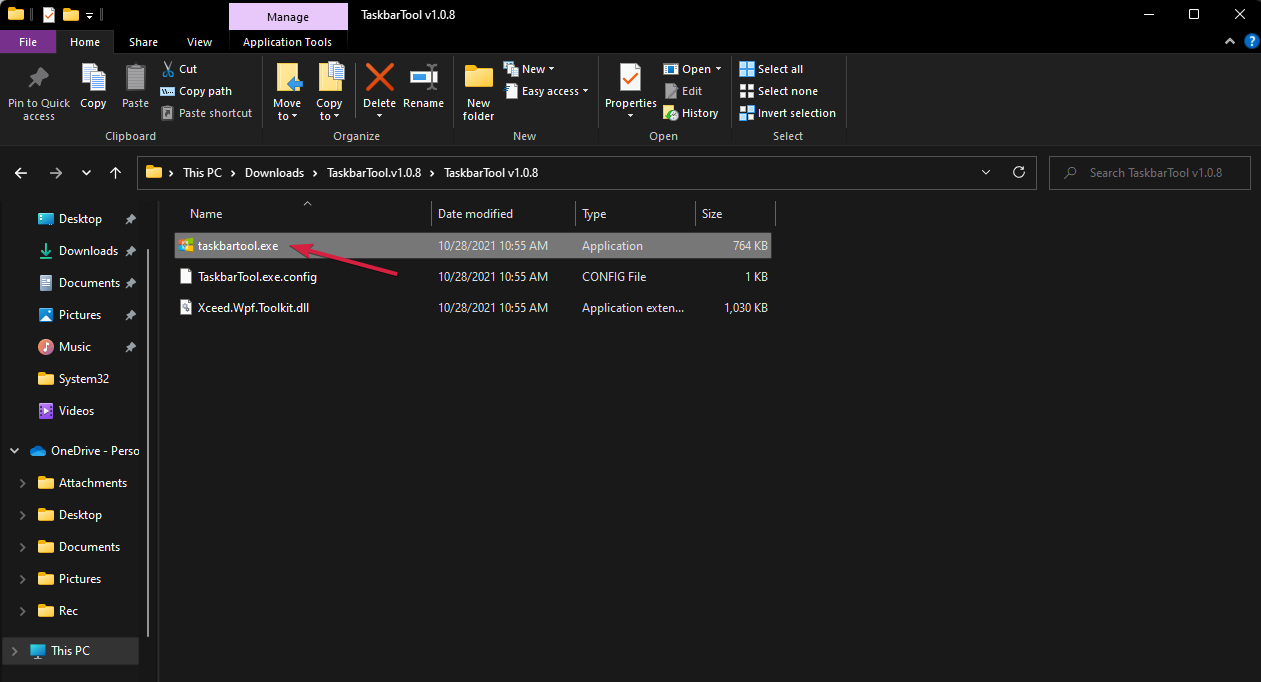
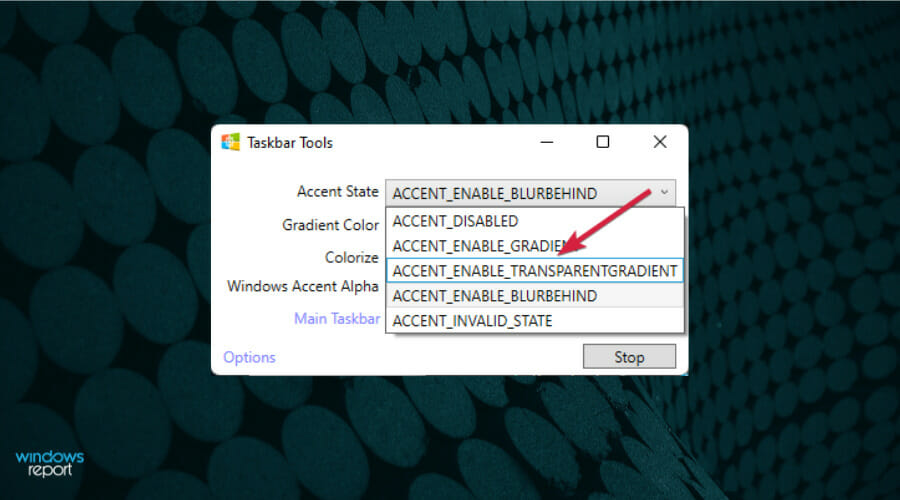
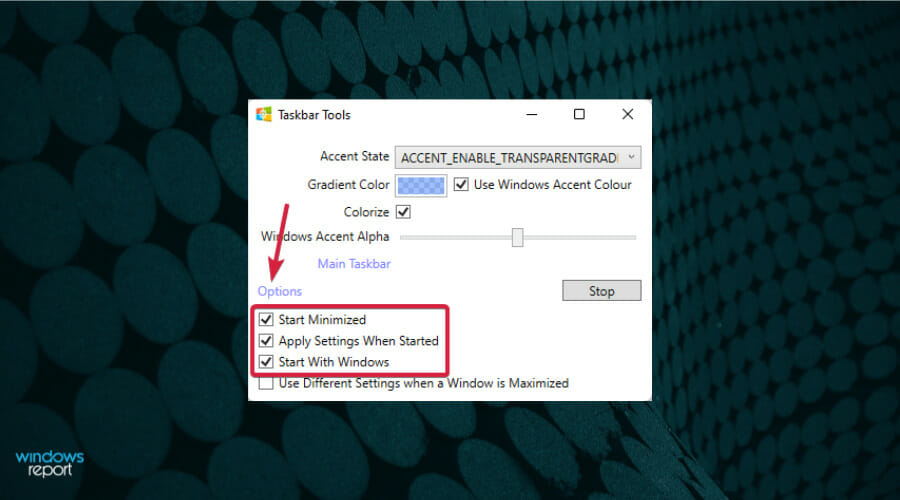
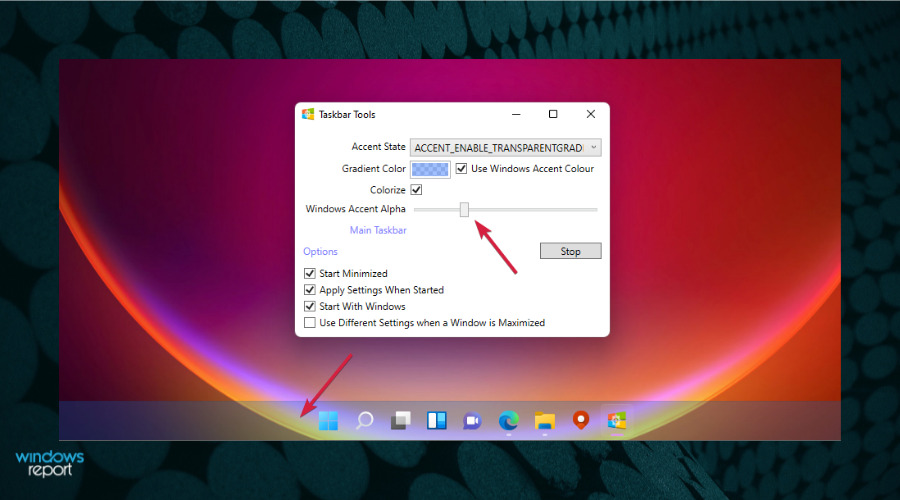
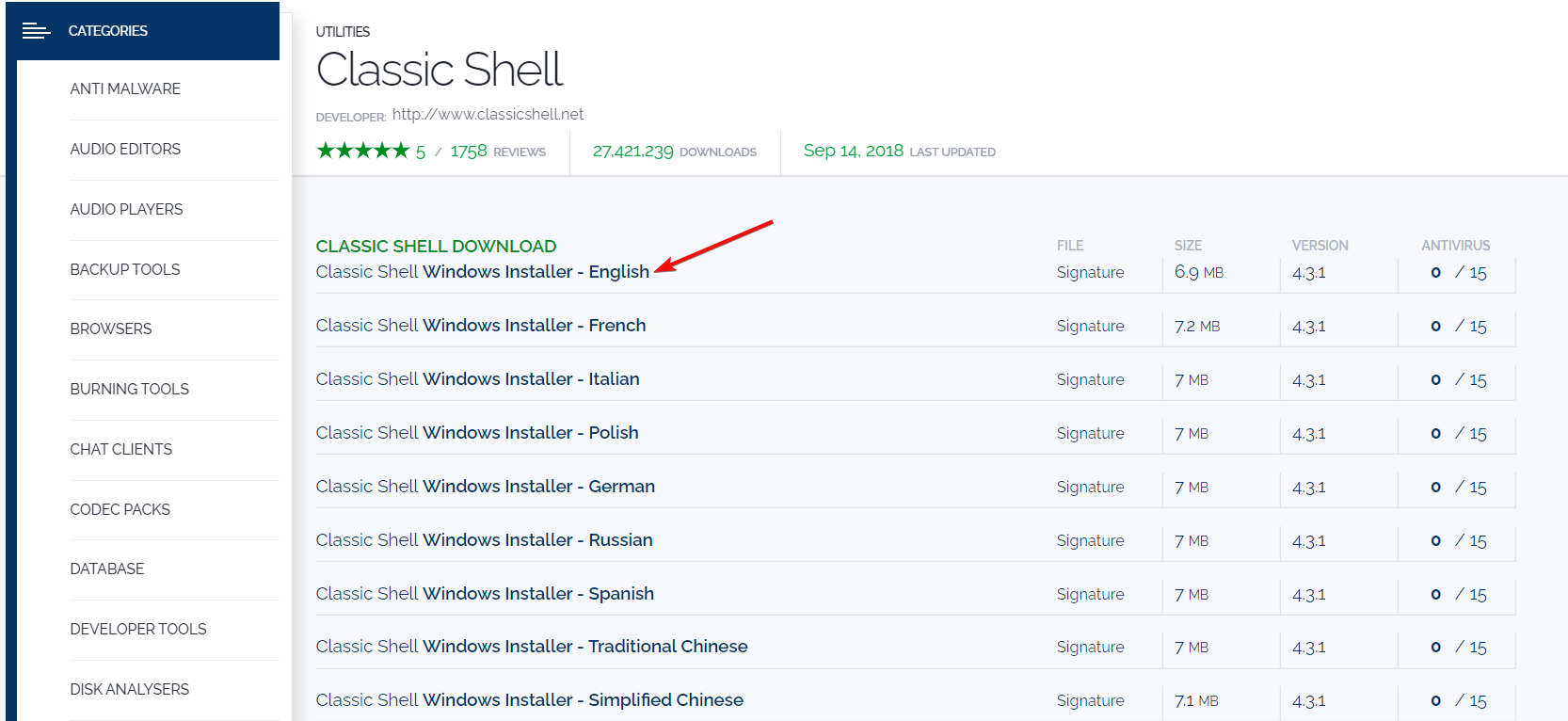
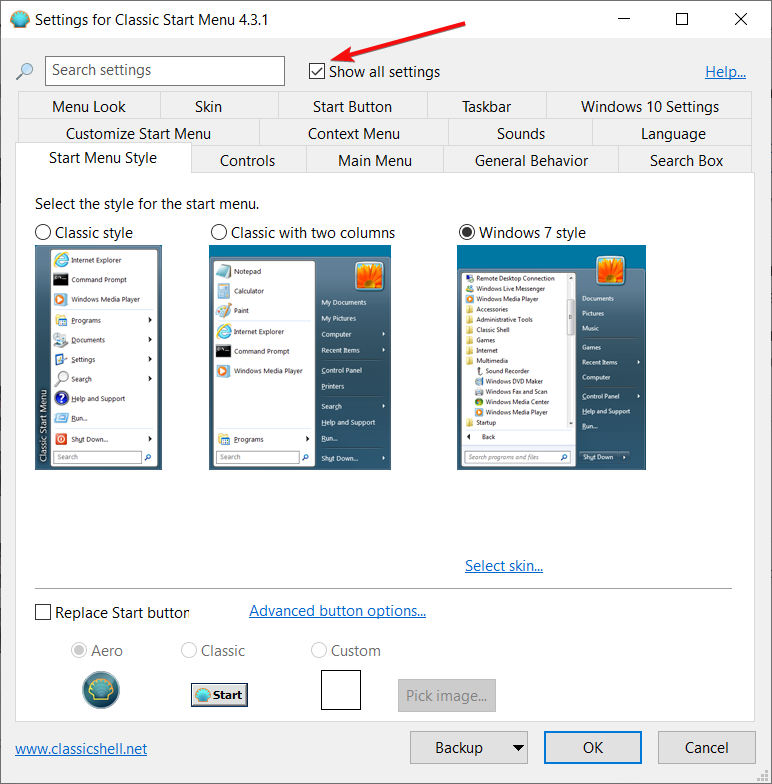
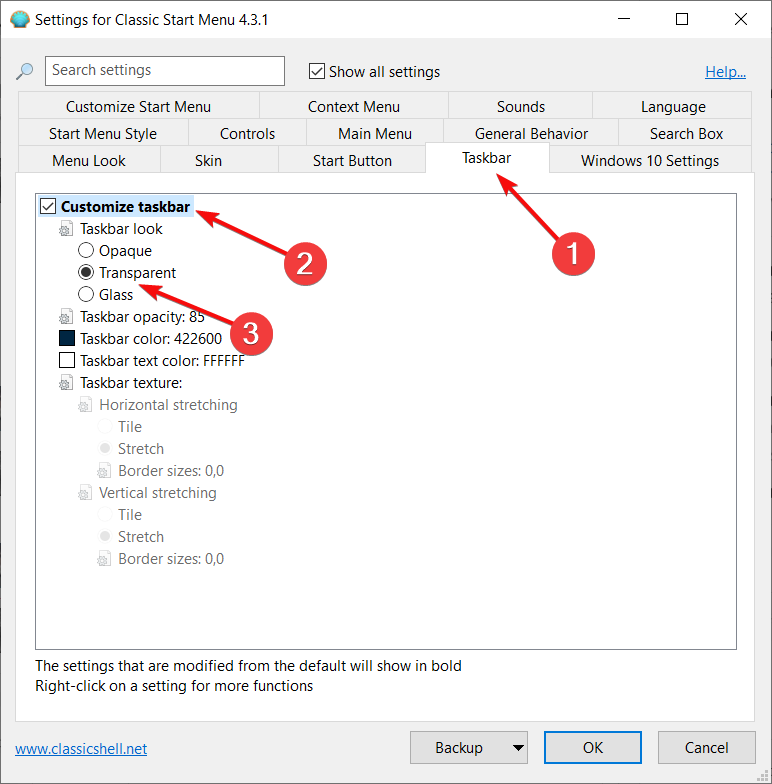
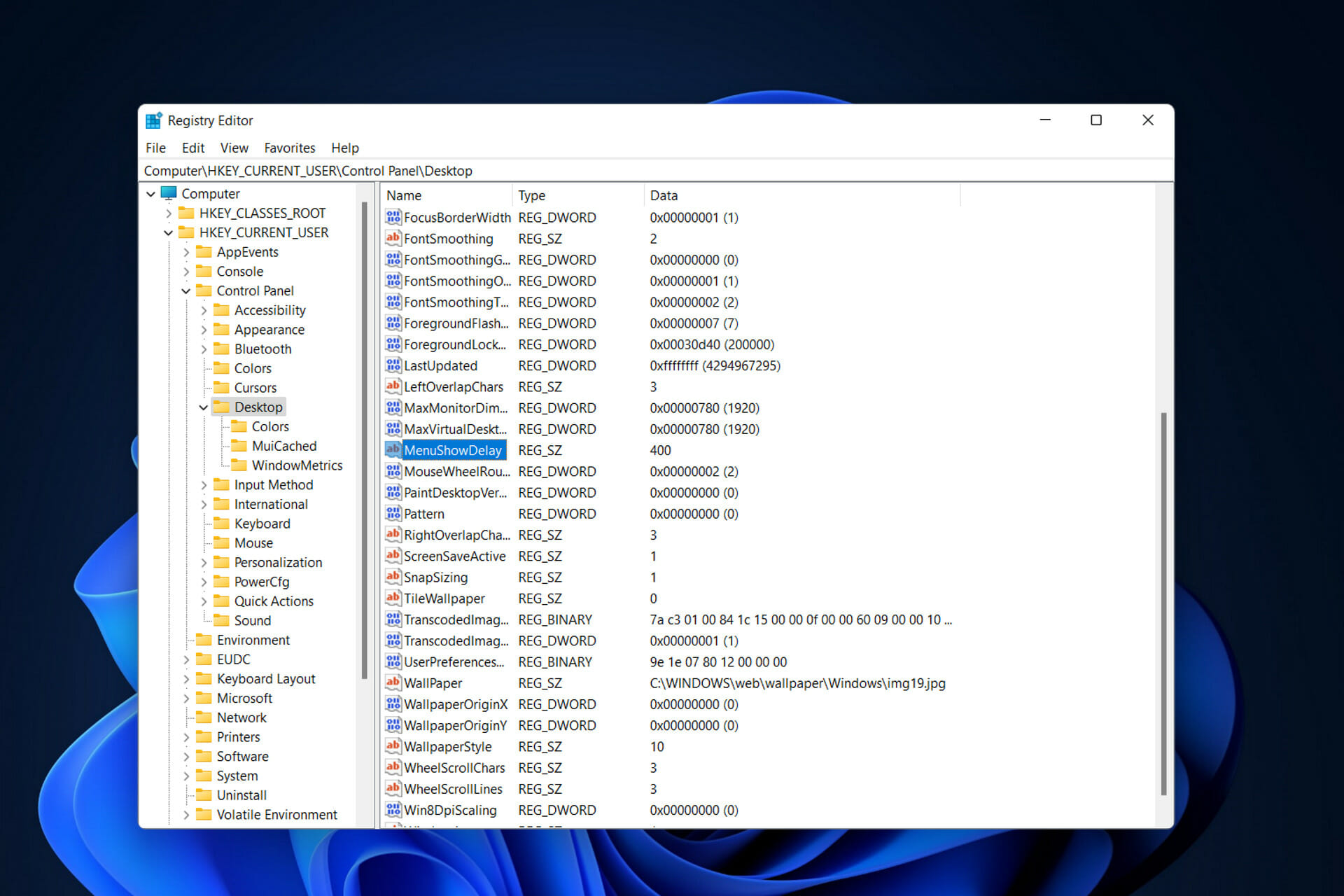



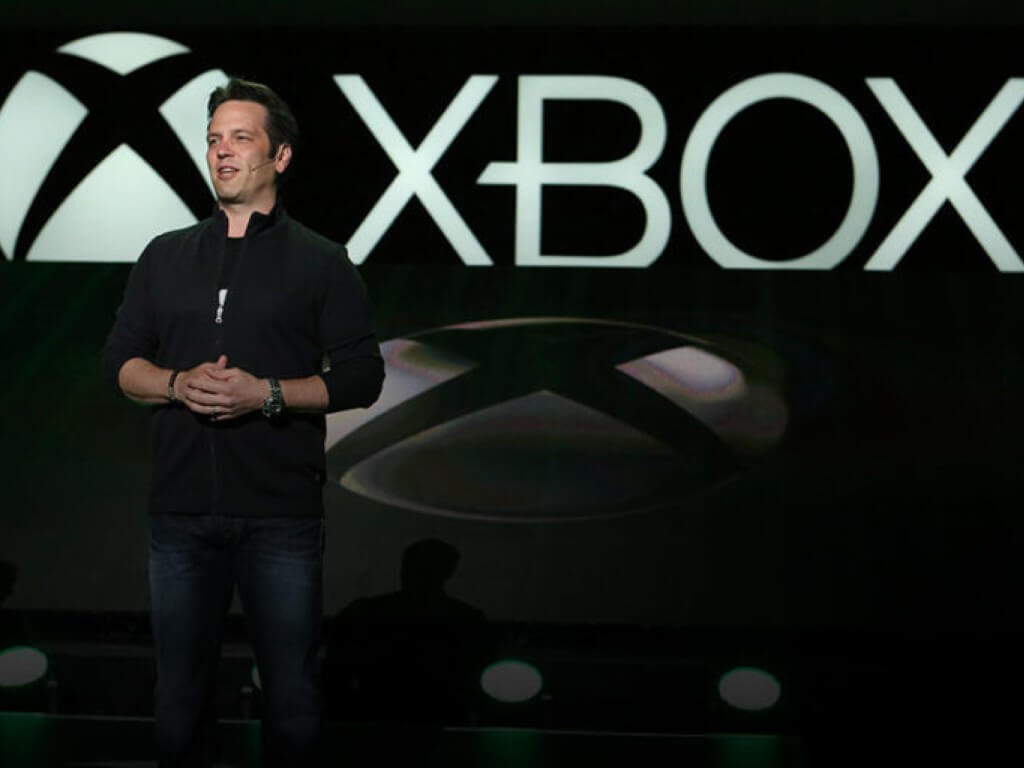



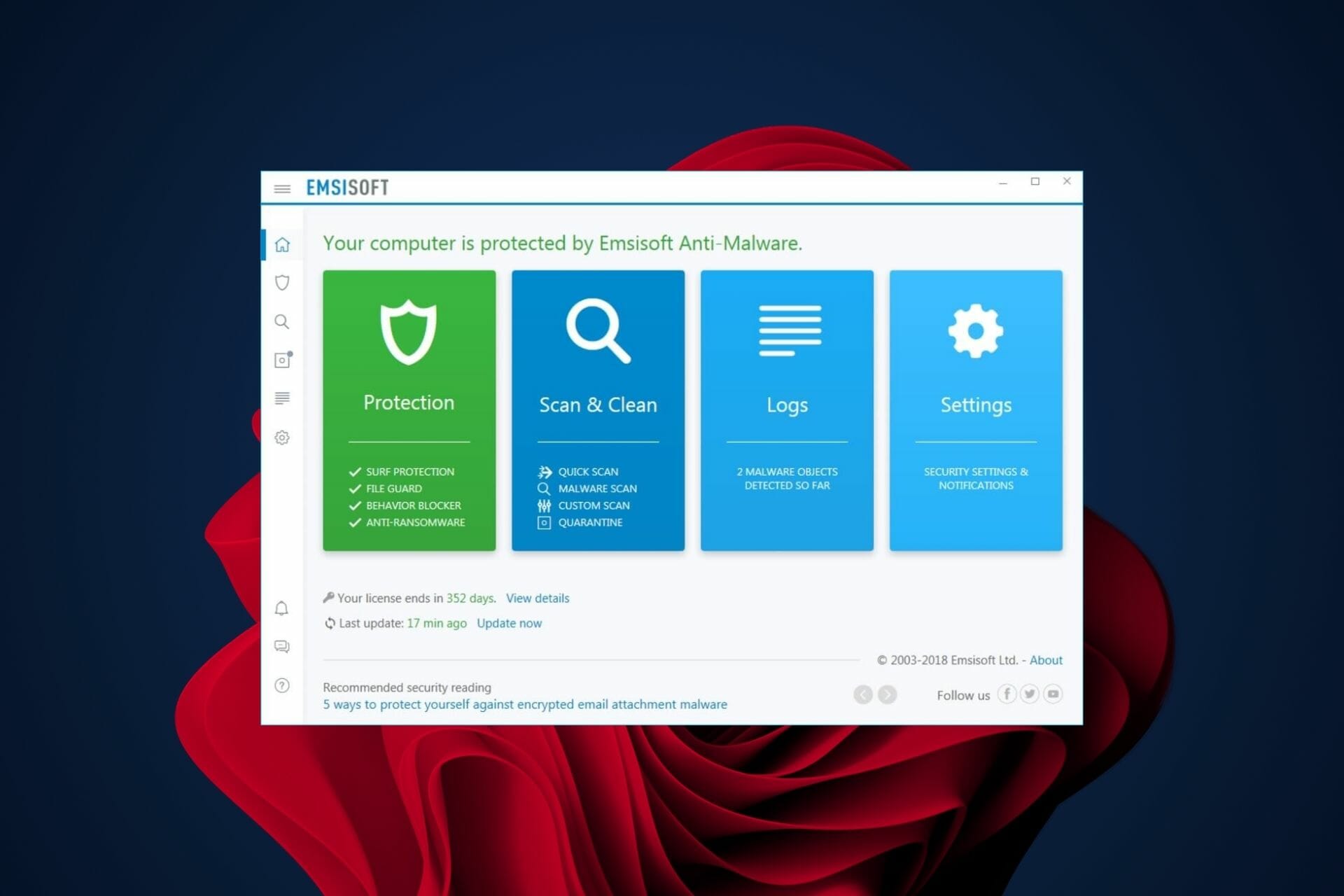
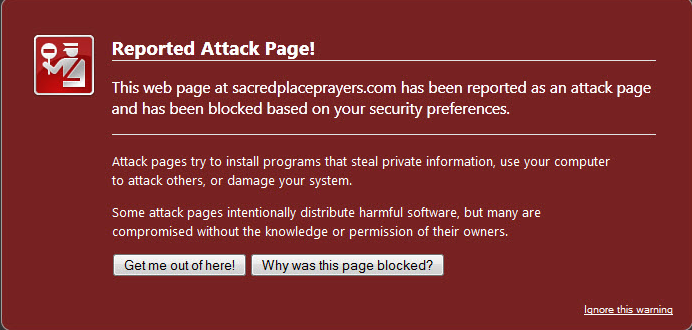

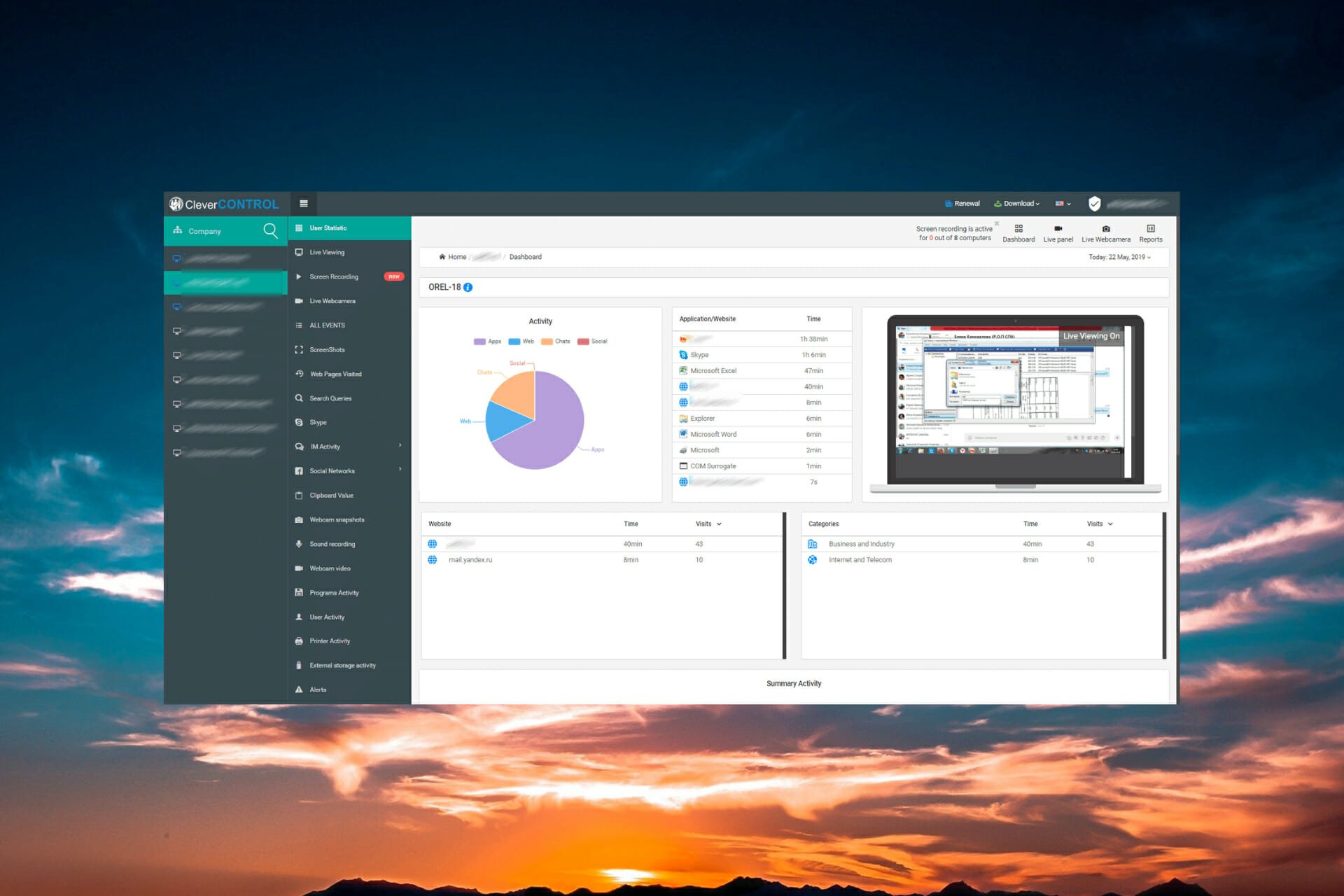
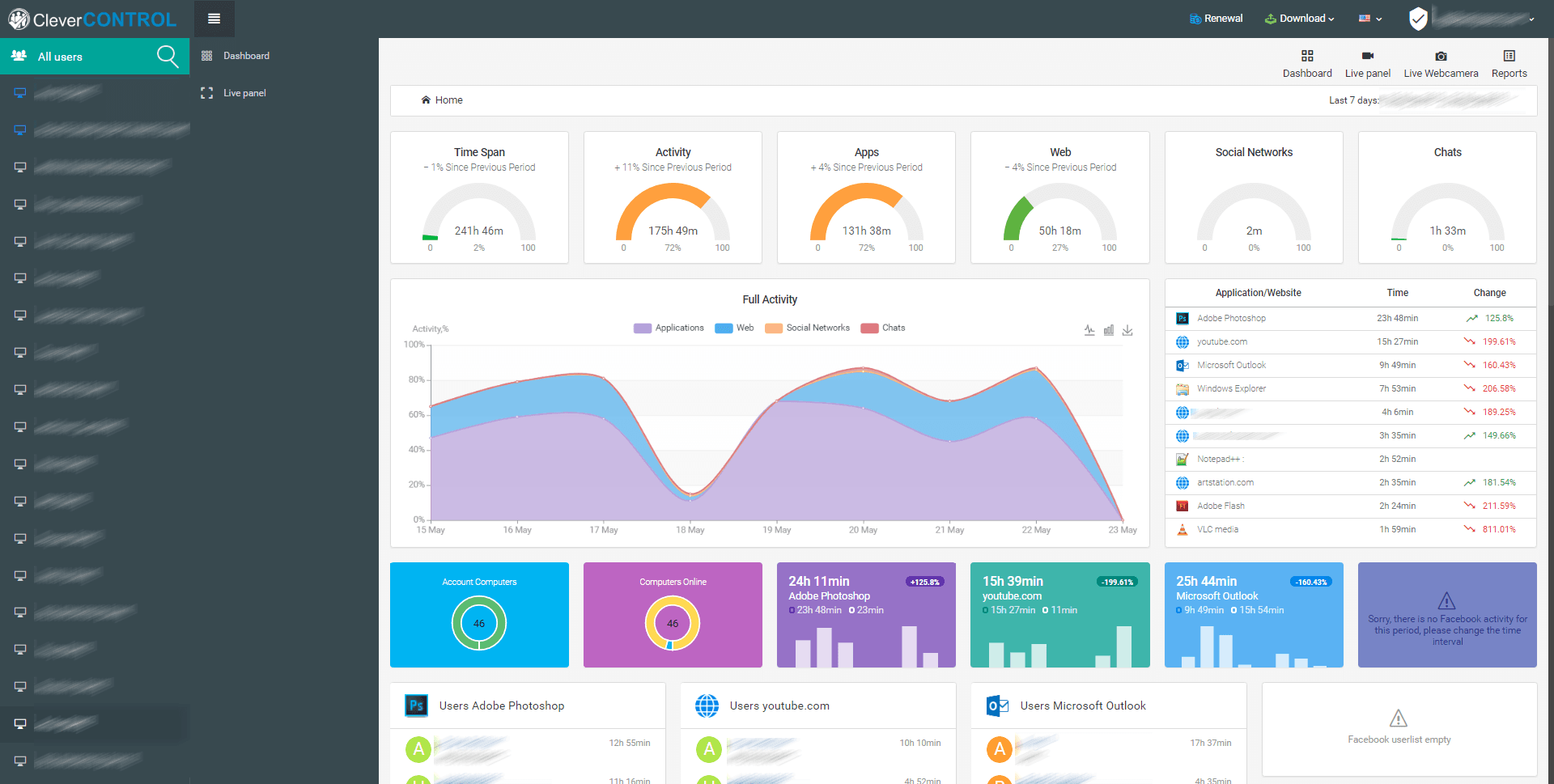

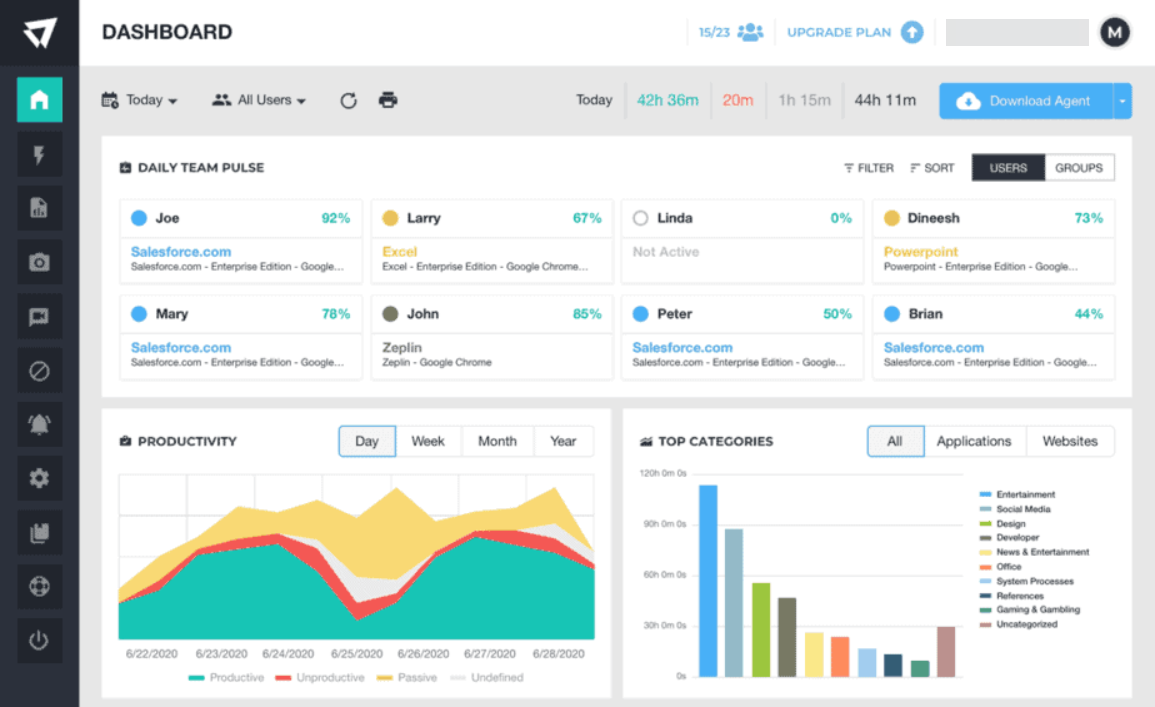

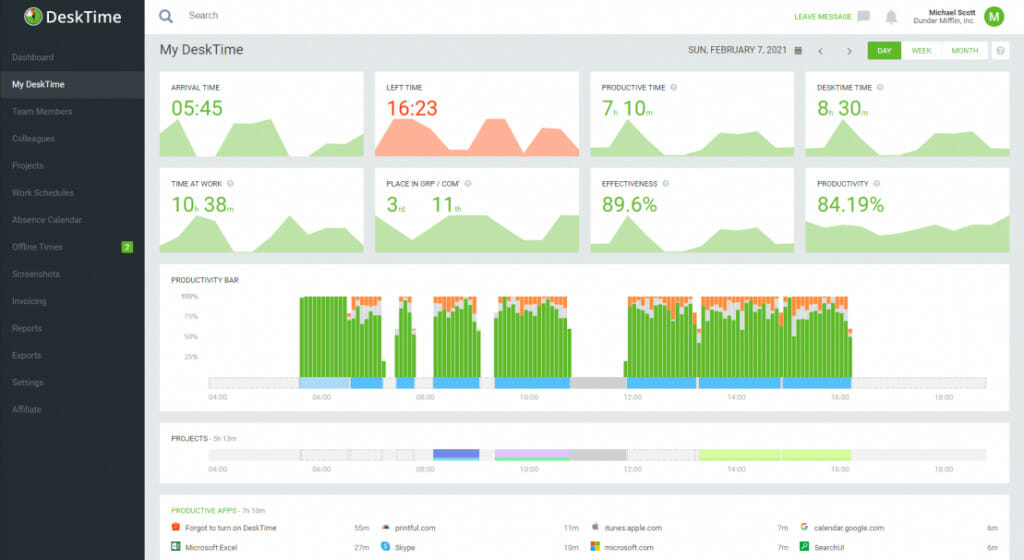






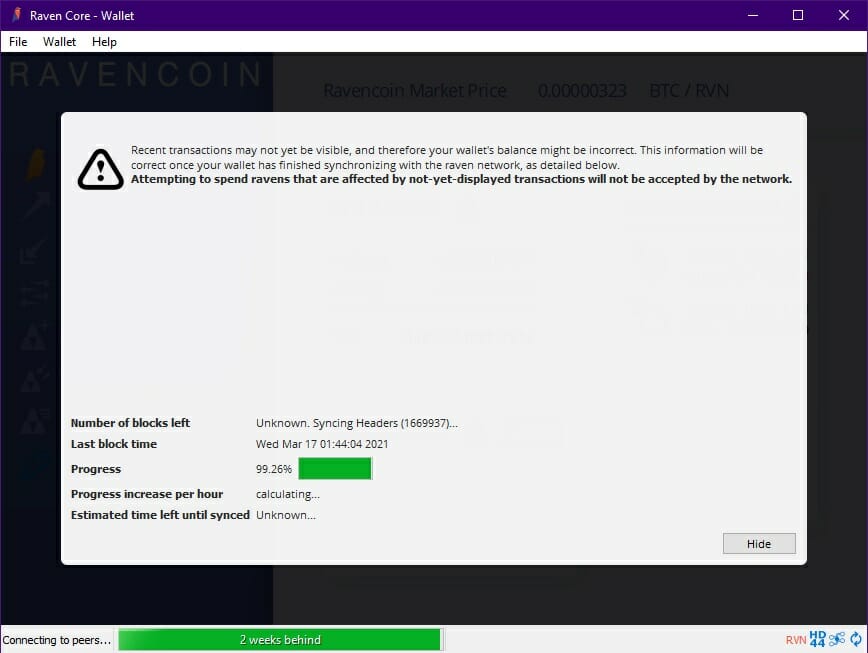

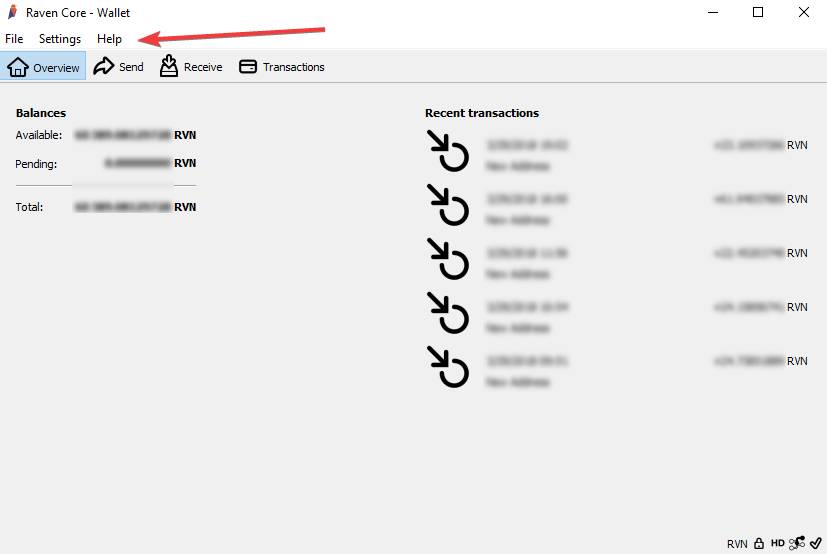
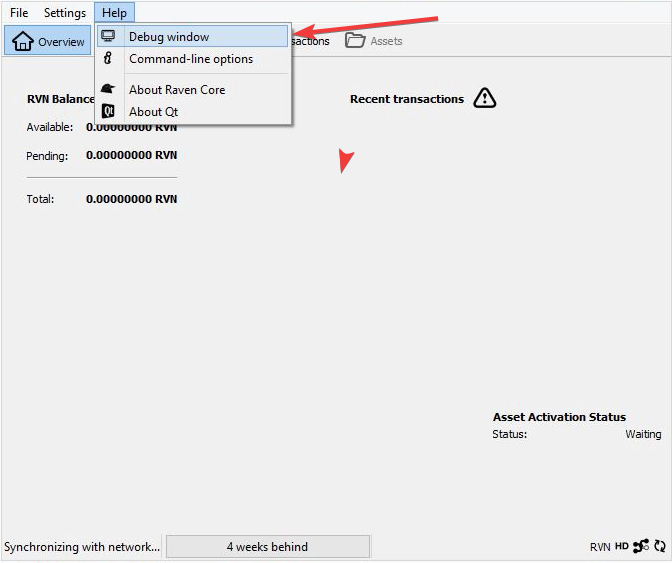
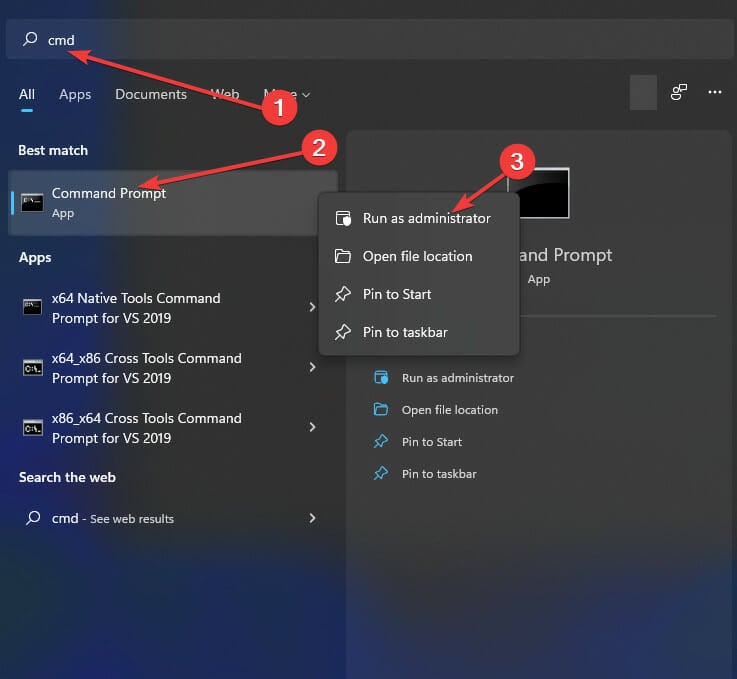
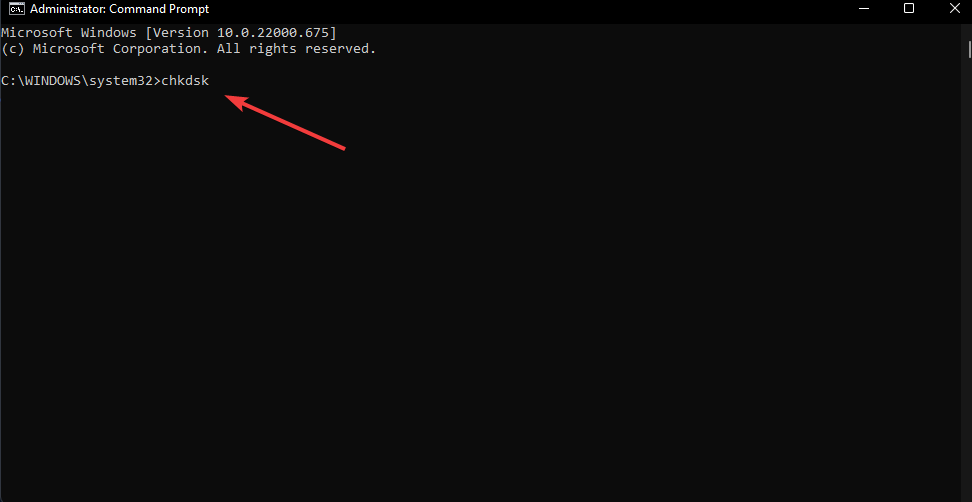
![6 Tested Fixes for Disney Plus Error 401 [Roku TV]](https://windowsreport.com/wp-content/uploads/2022/05/Disney-Plus-Error-401-1.jpg)







![Driver Unloaded Without Cancelling Pending Operations [Fixed]](https://windowsreport.com/wp-content/uploads/2022/05/DRIVER_UNLOADED_WITHOUT_CANCELLING_PENDING_OPERATIONS.jpg)
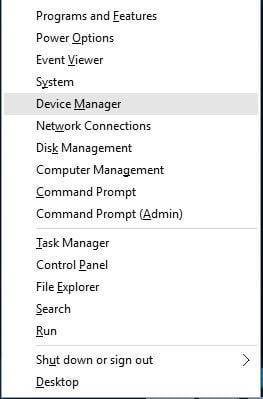
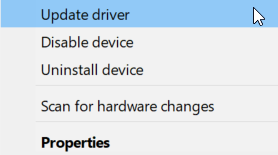


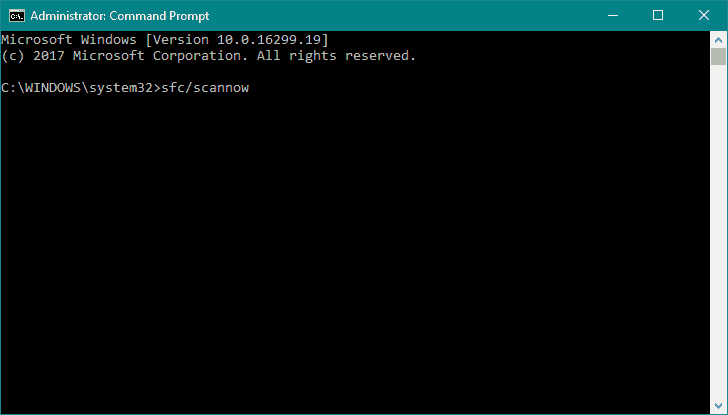


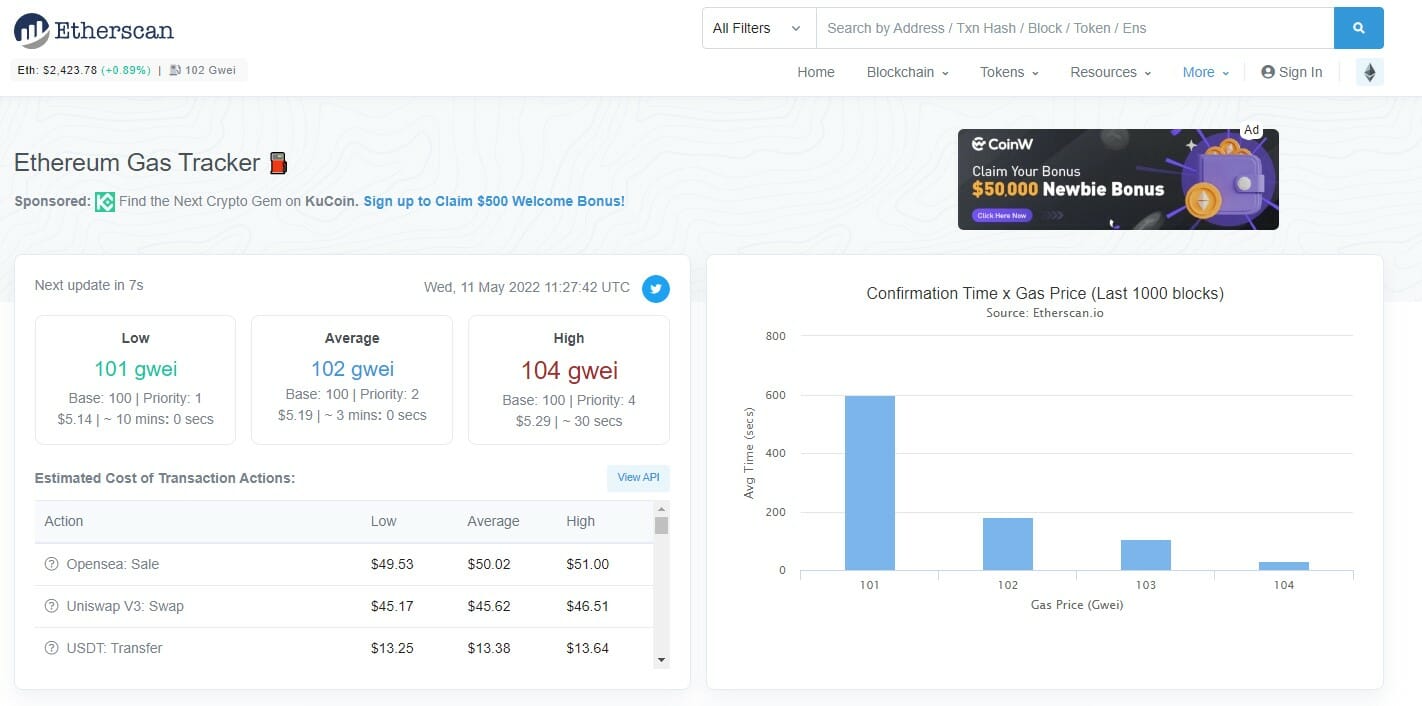
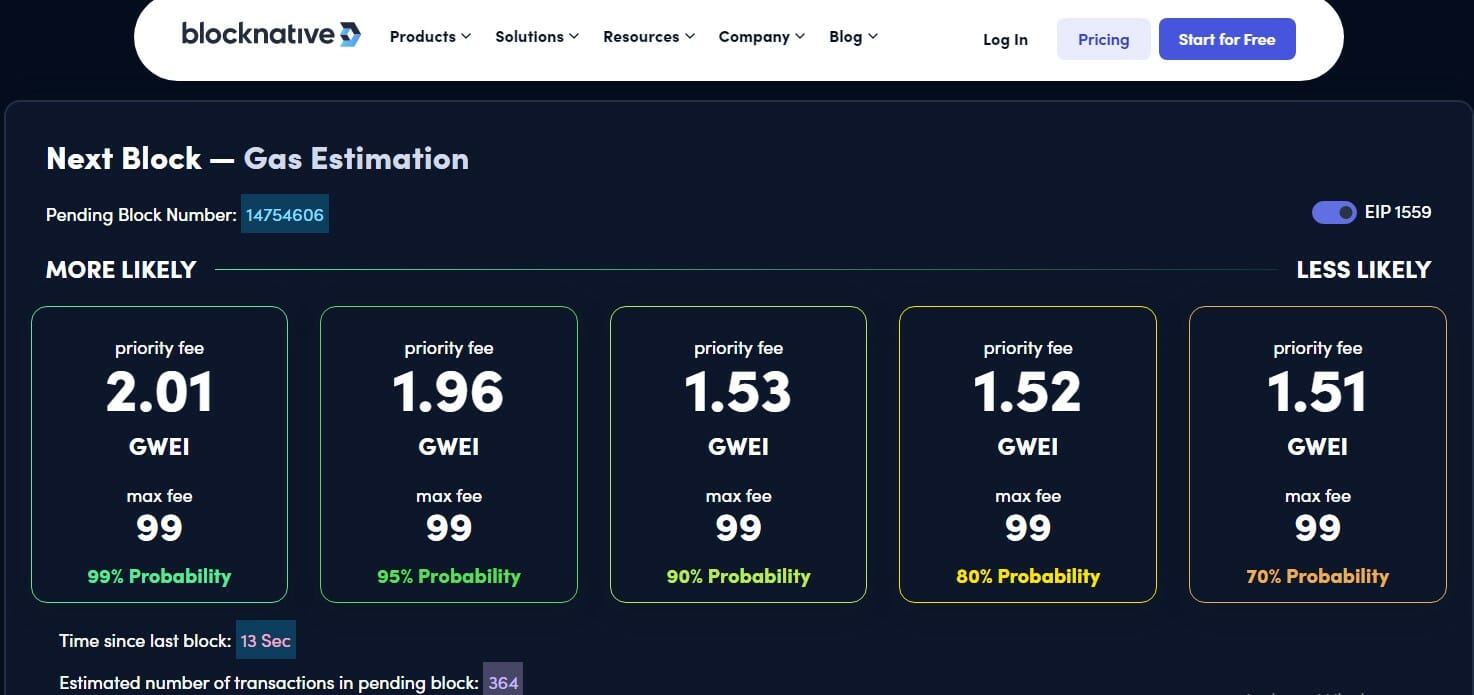

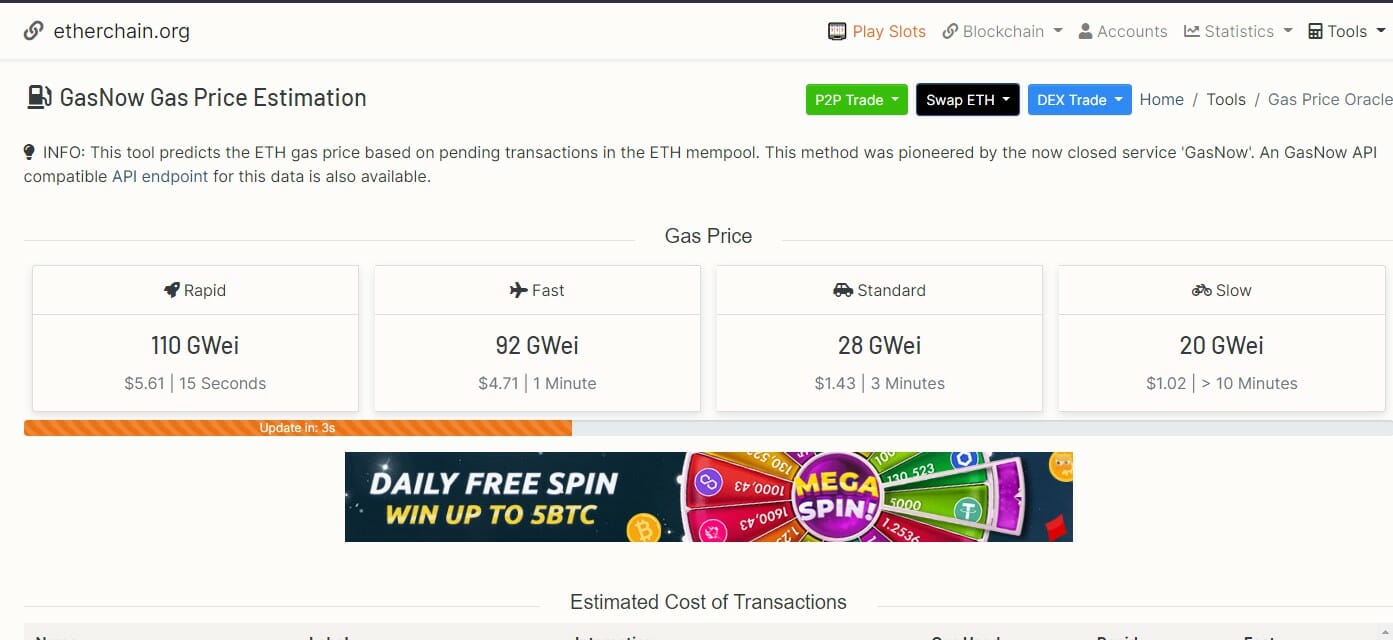
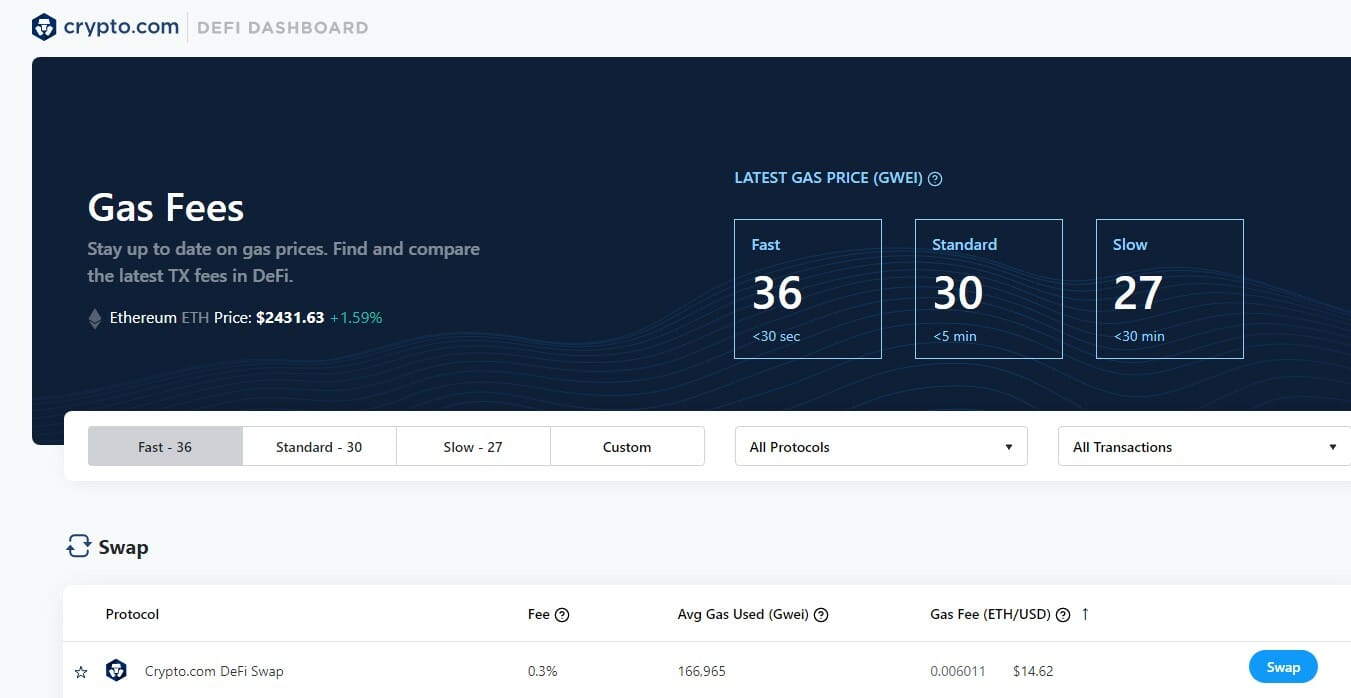




![Active Directory Users and Computers Missing [Fixed in 3 Ways]](https://windowsreport.com/wp-content/uploads/2022/05/Active-directory-missing.jpg)
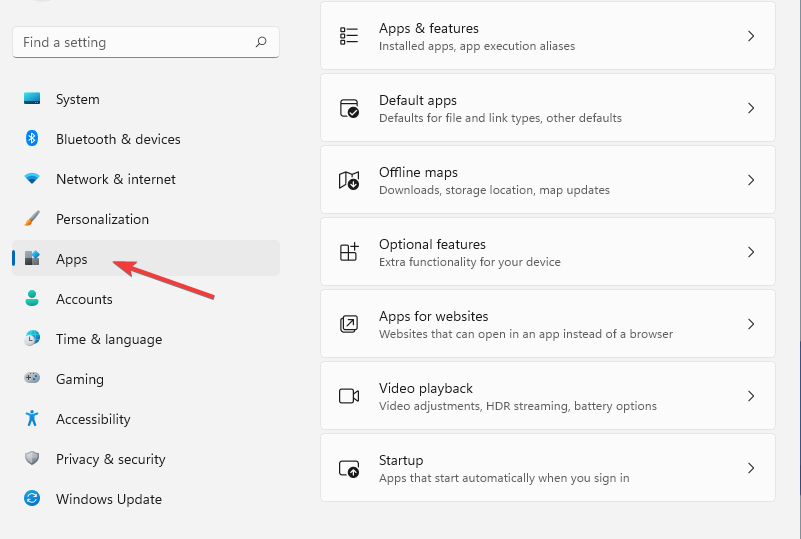
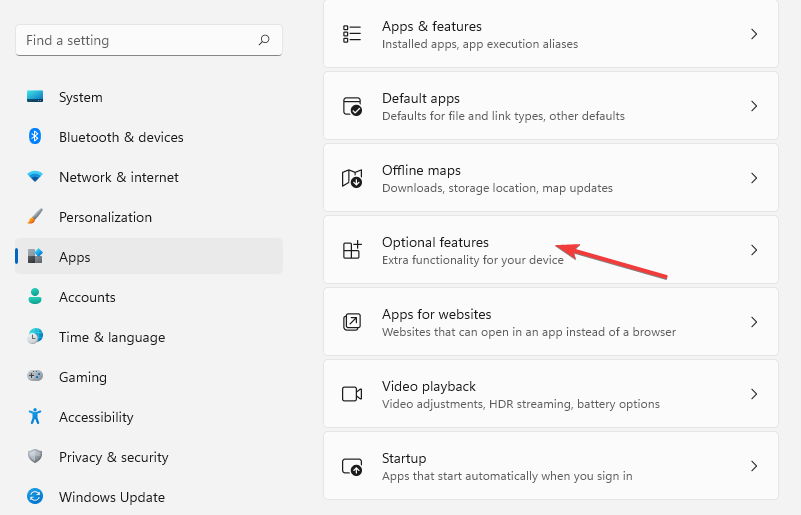
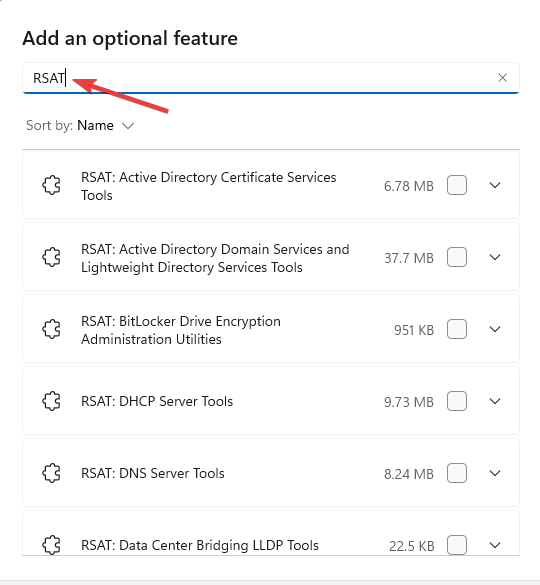
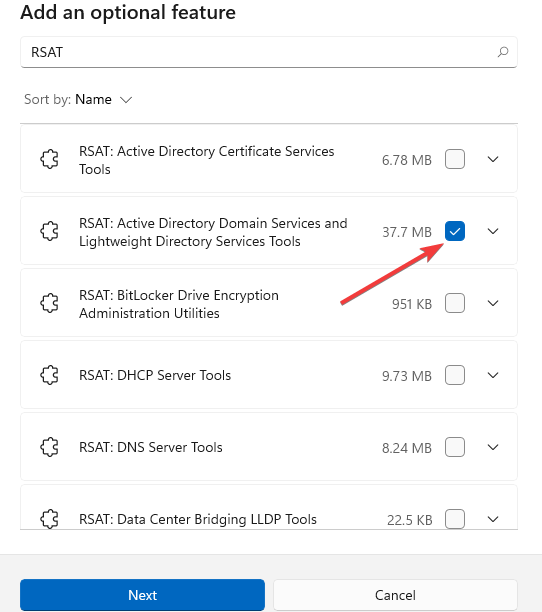
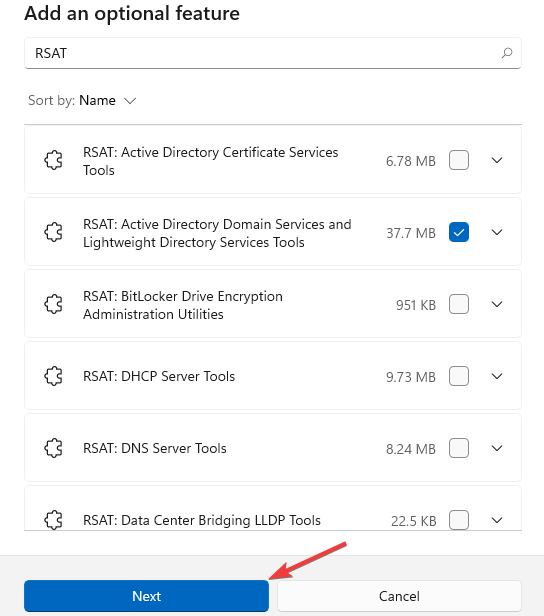
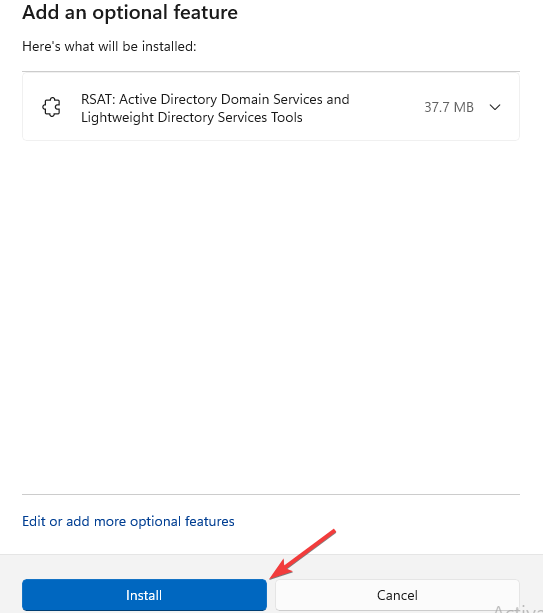
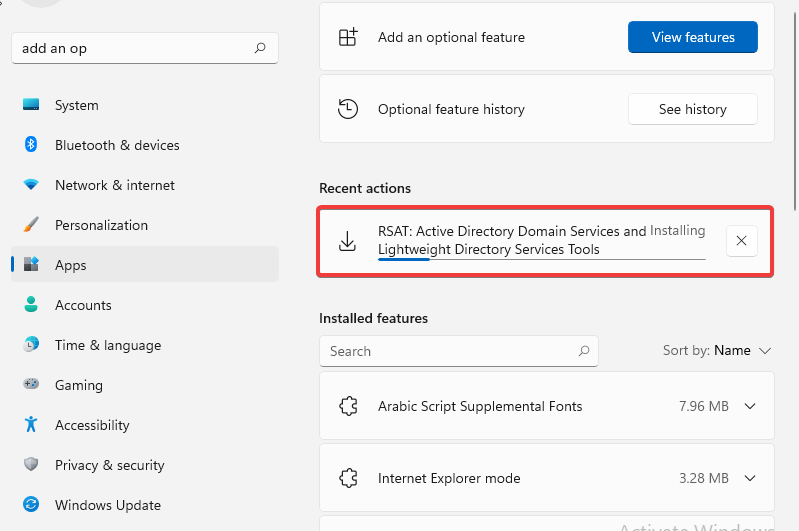
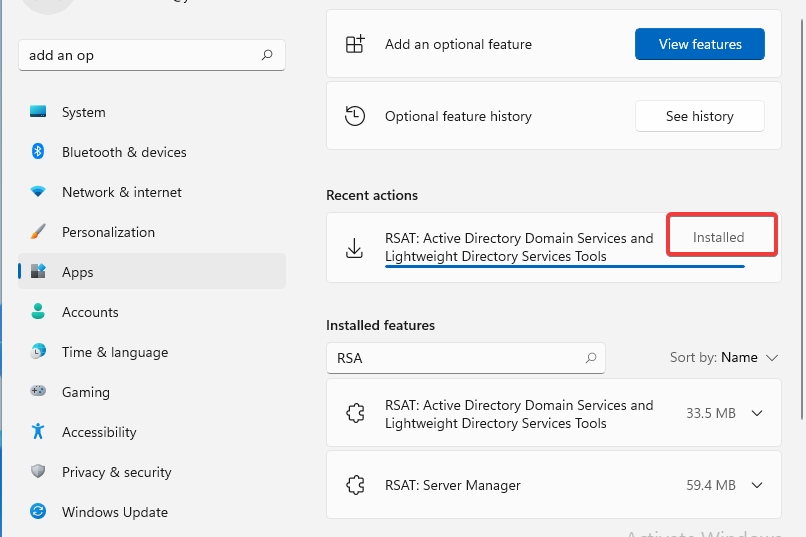
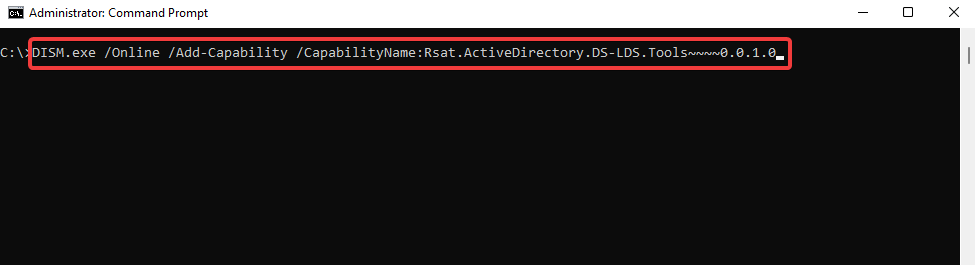
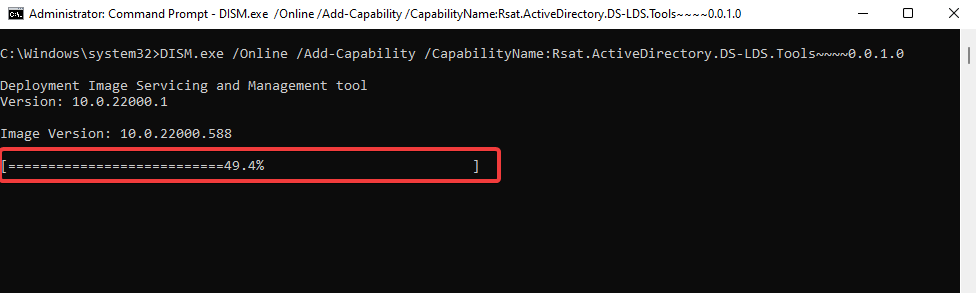
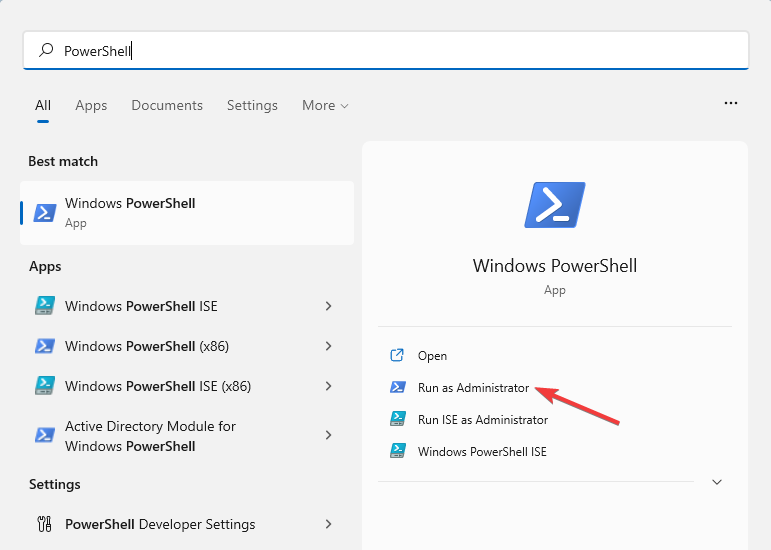
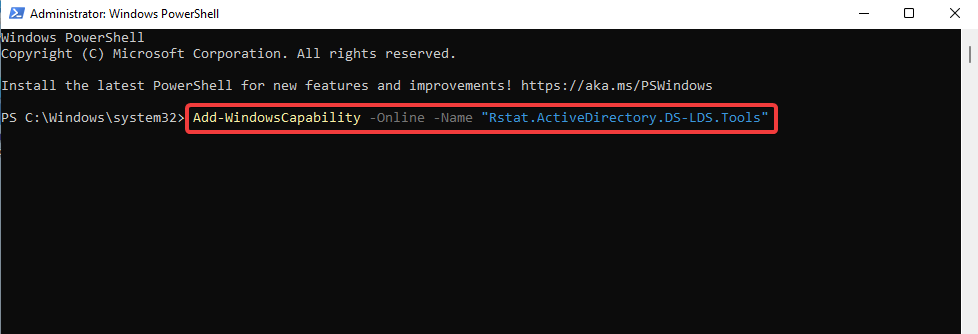
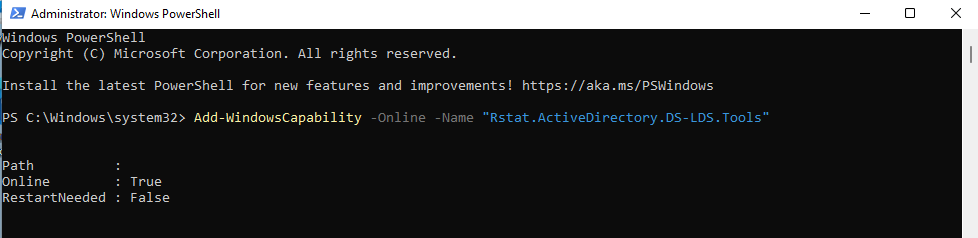
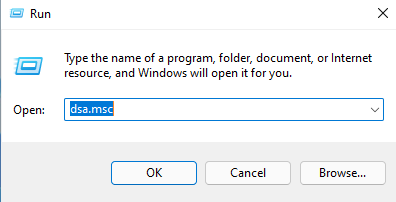
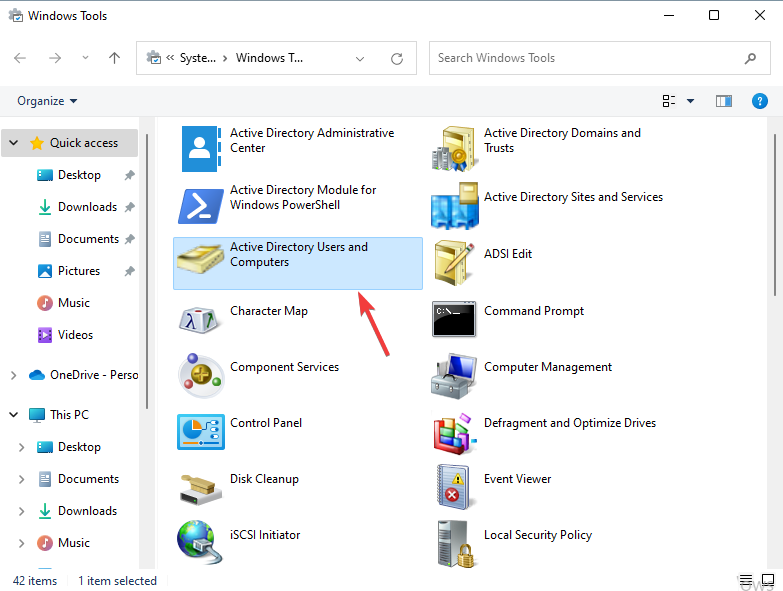
![Windows 11 Lite: How to Download & Install [Safe Steps]](https://windowsreport.com/wp-content/uploads/2022/05/lite.jpg)


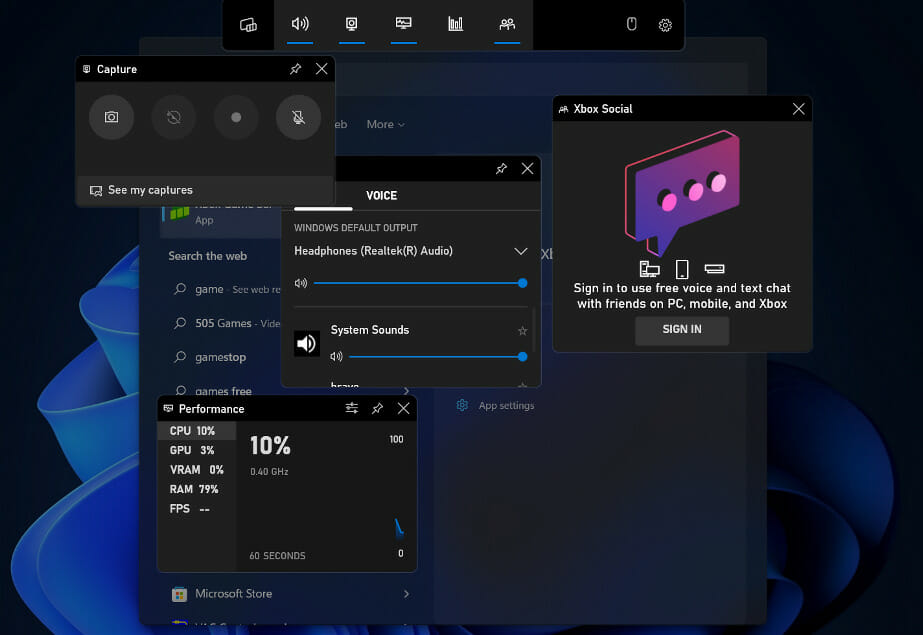

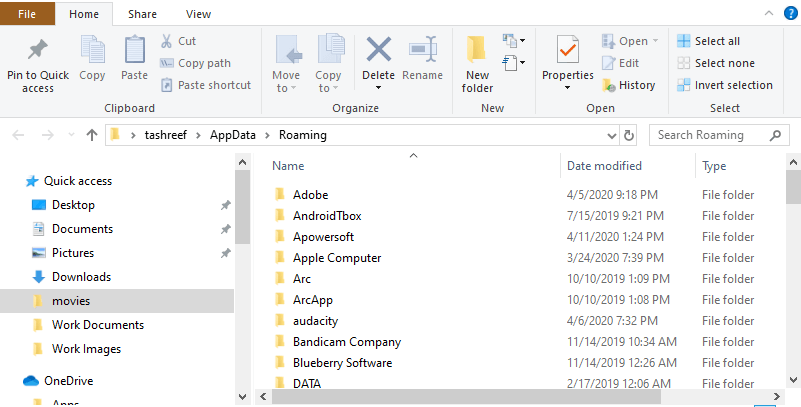
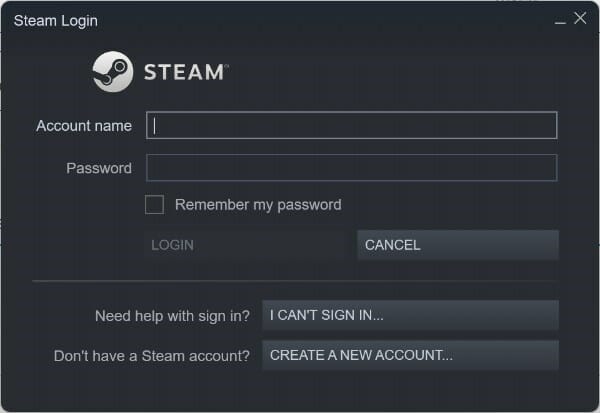



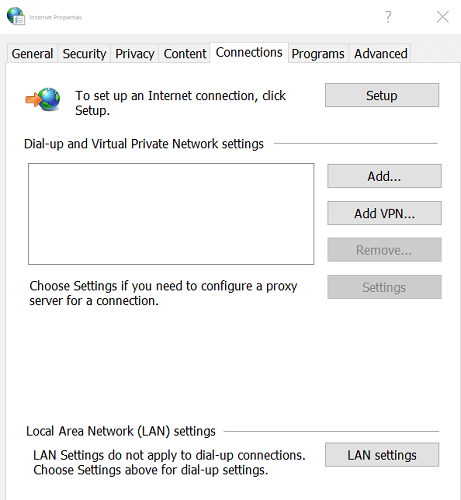
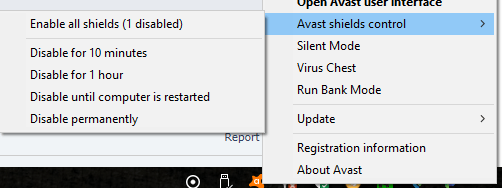

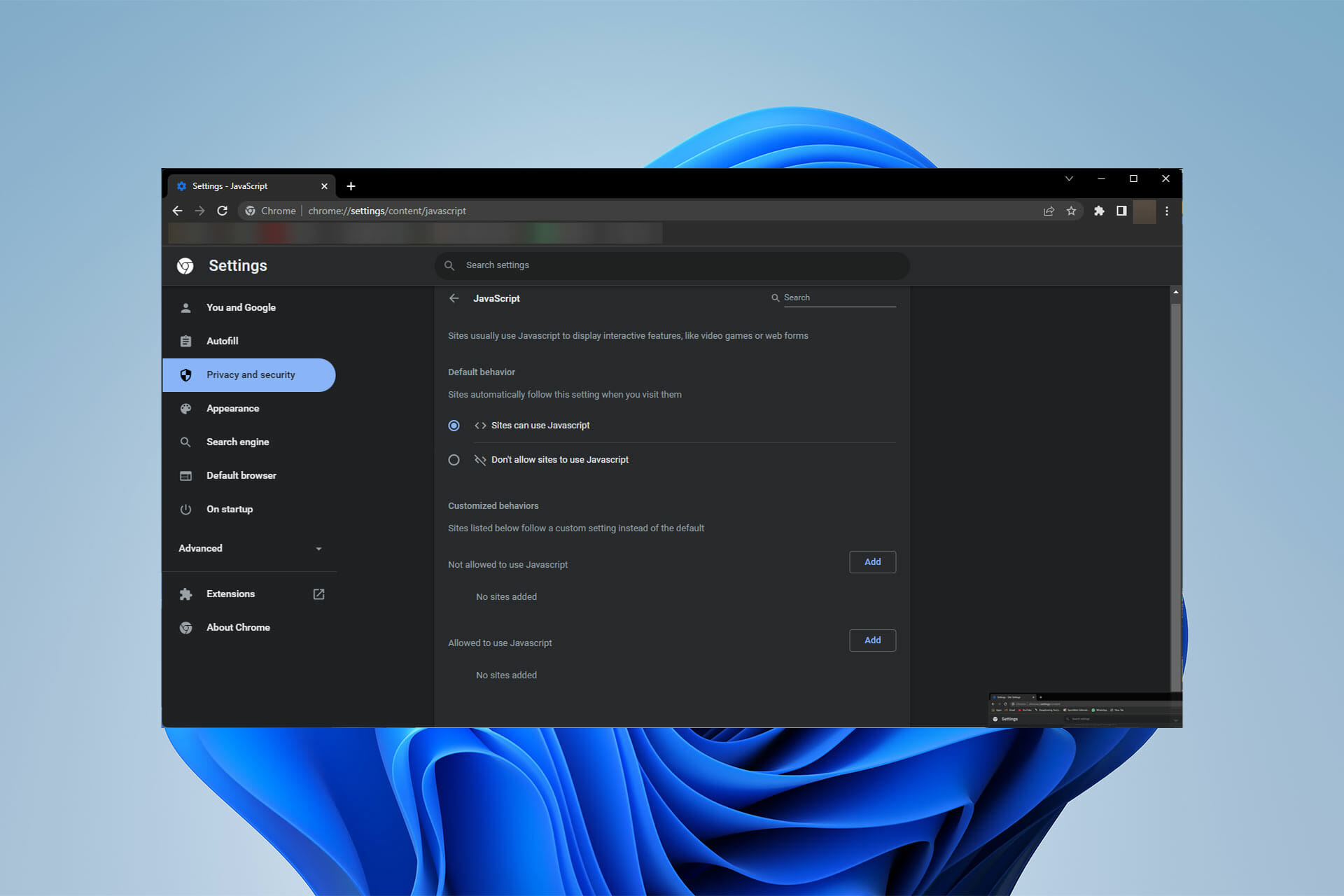
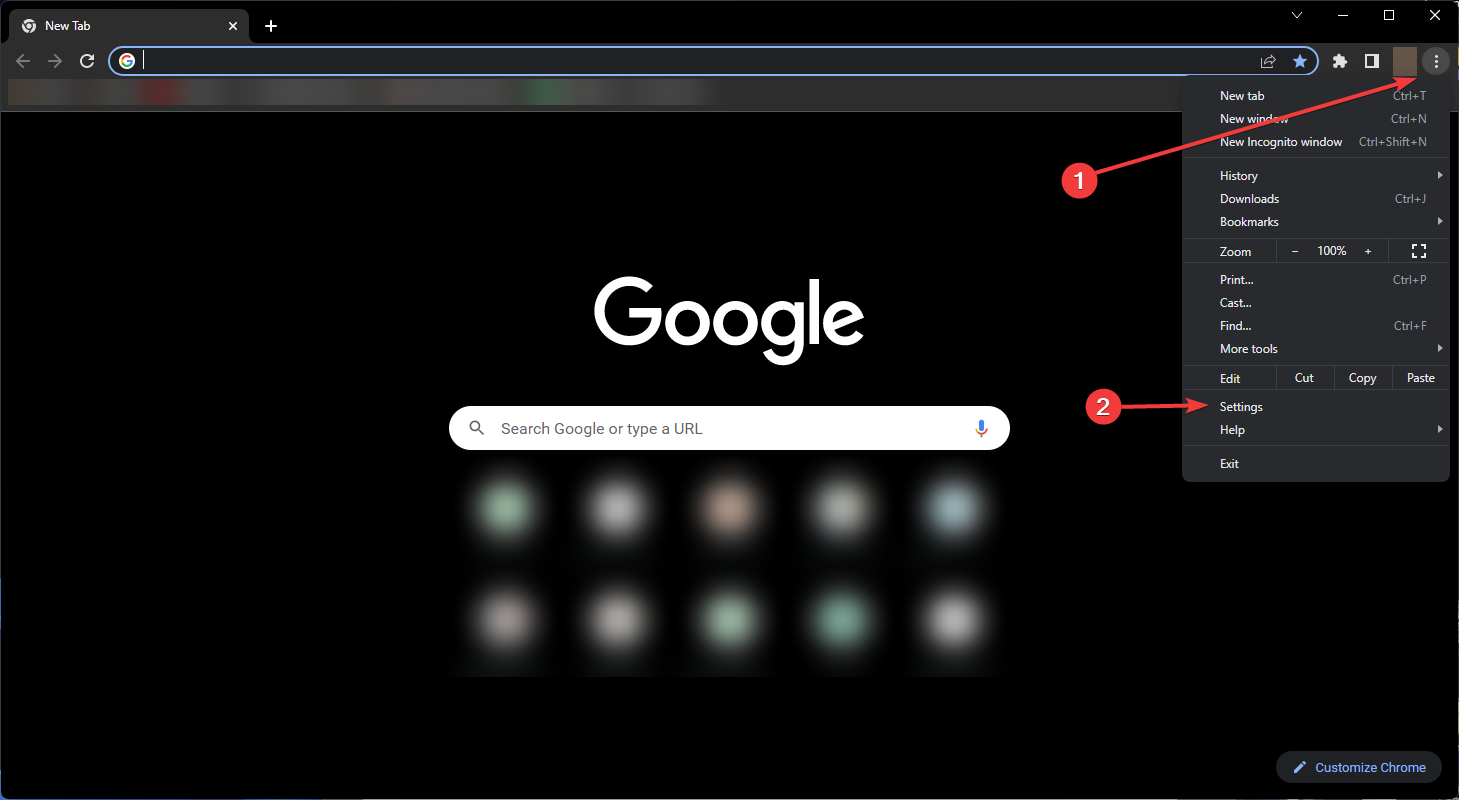


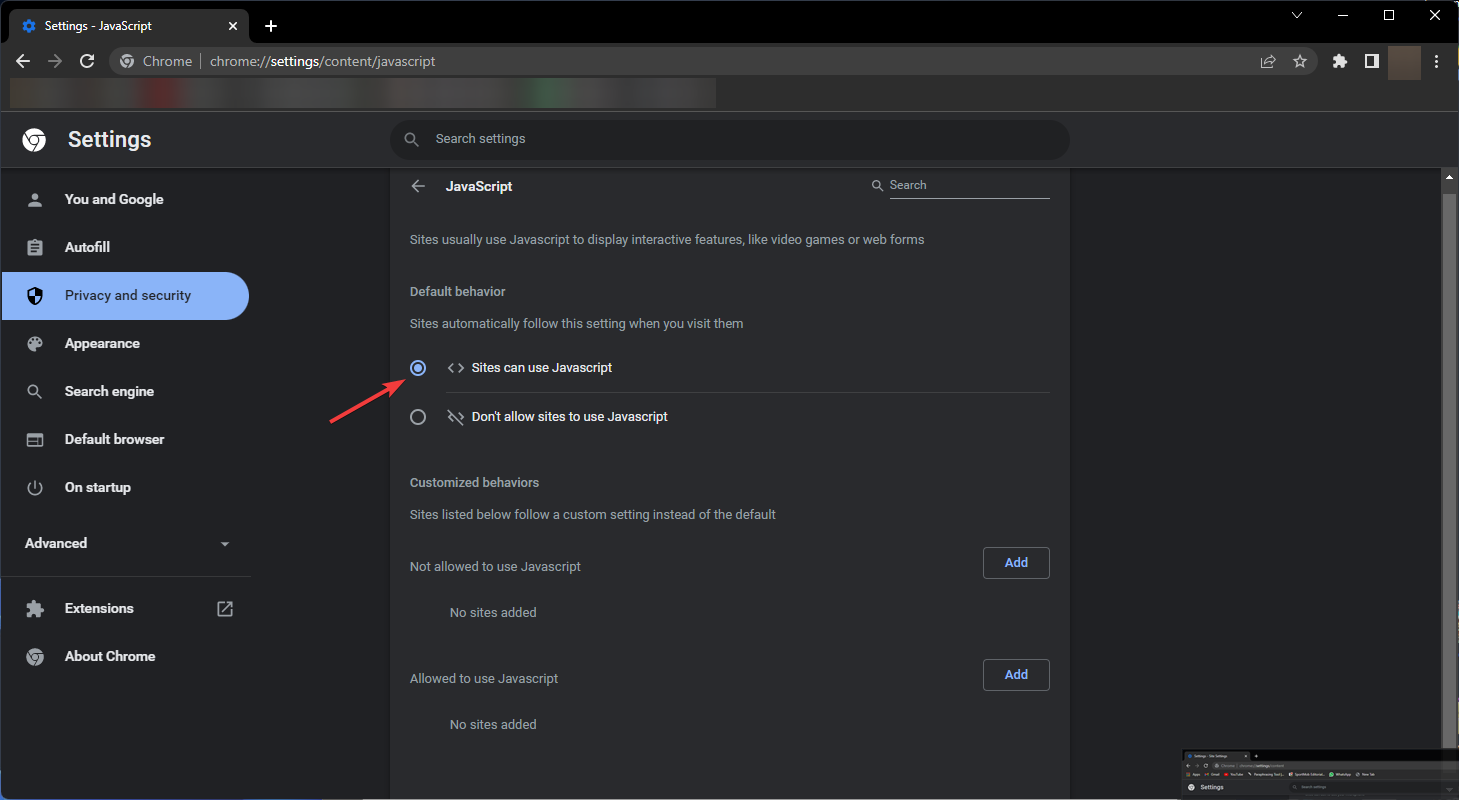



![TPU vs GPU: What is better? [Performance & Speed Comparison]](https://windowsreport.com/wp-content/uploads/2022/05/TPU-vs.-GPU-Real-world-Performance-Speed-Differences.jpg)
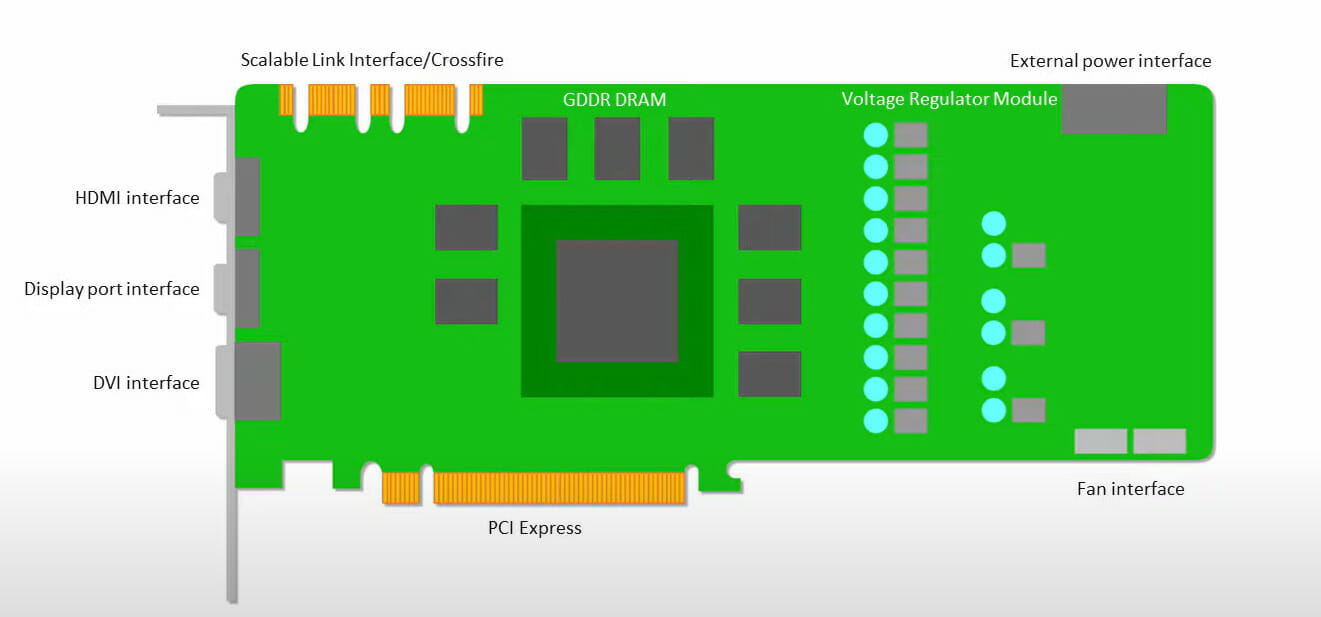
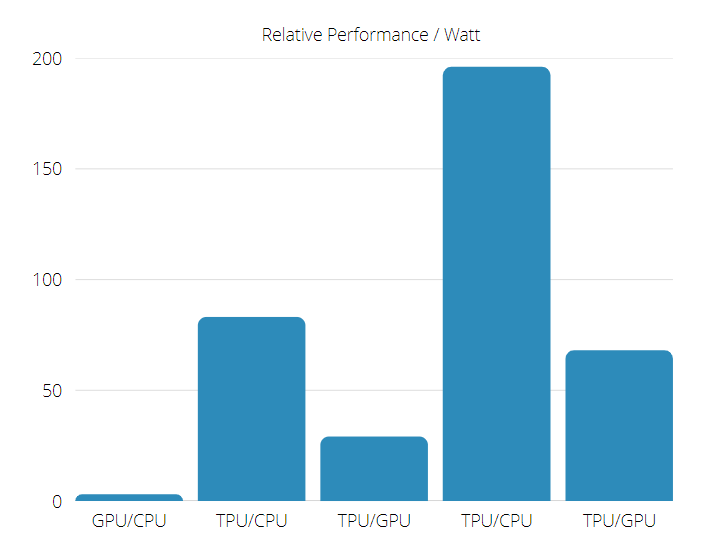
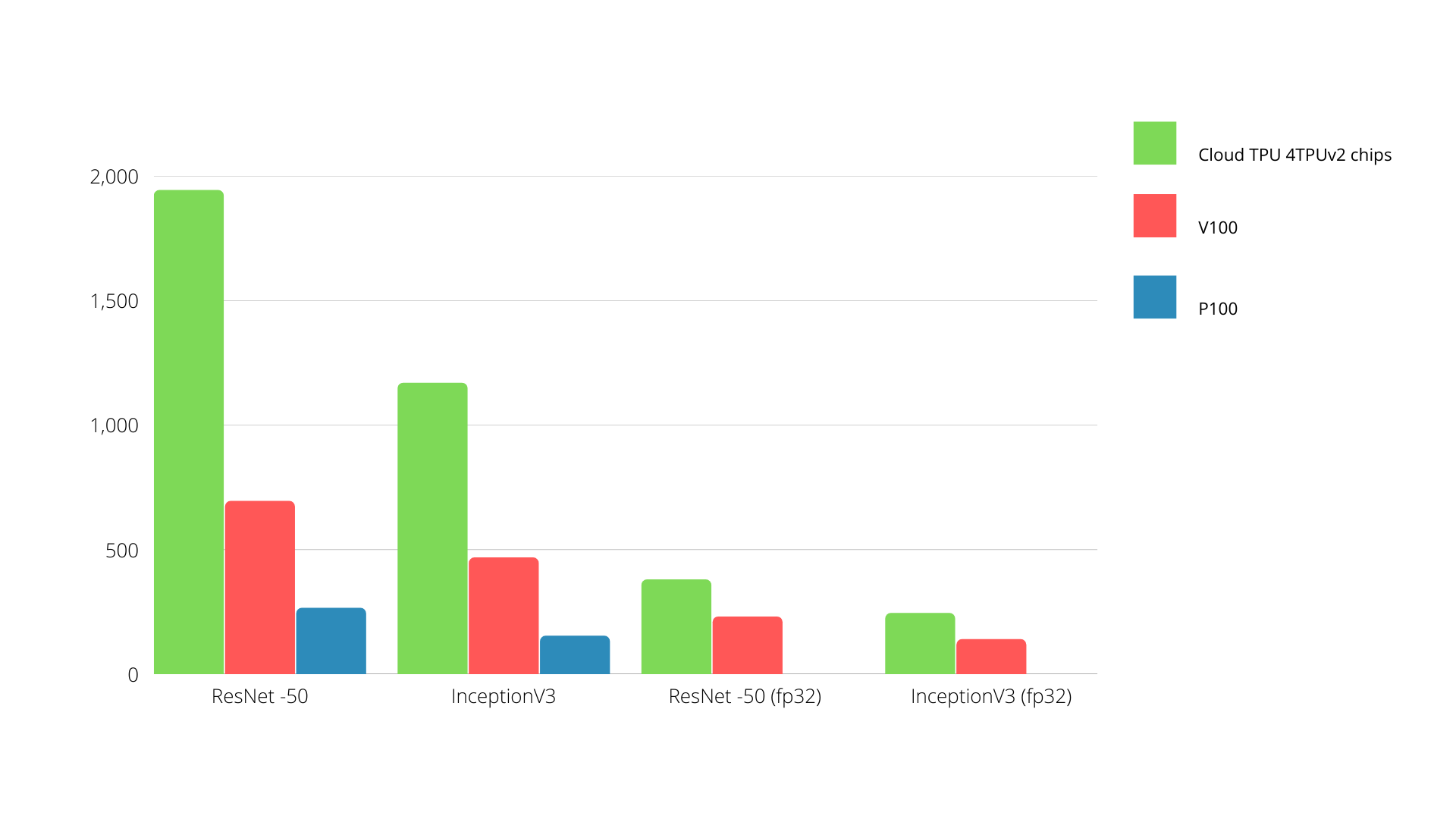
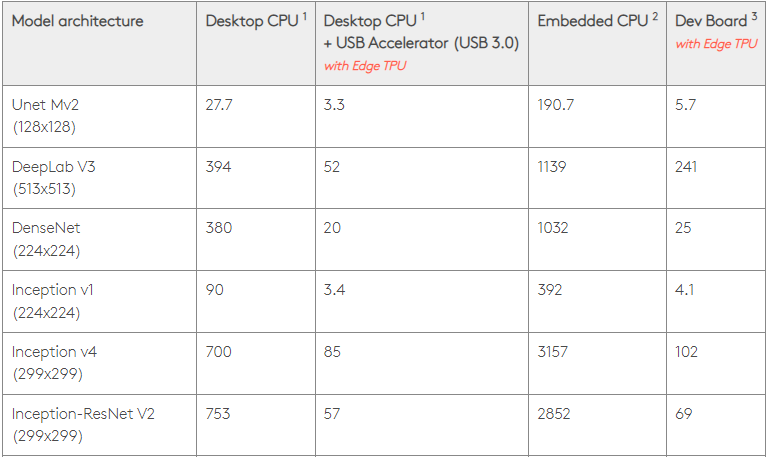
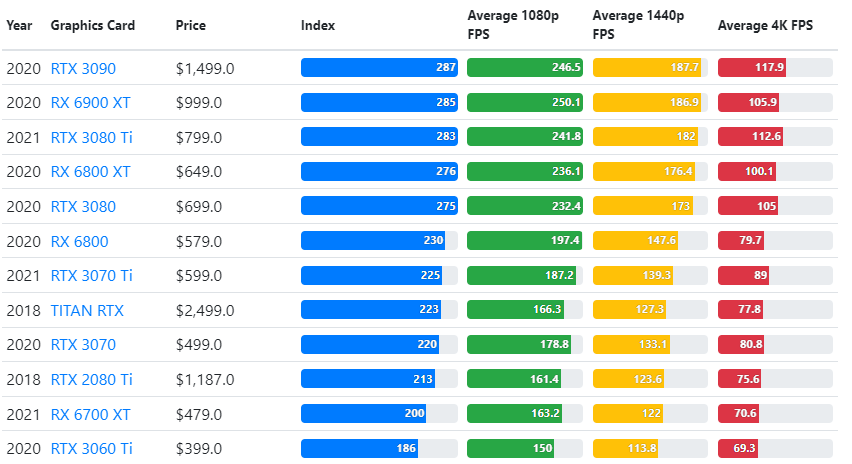
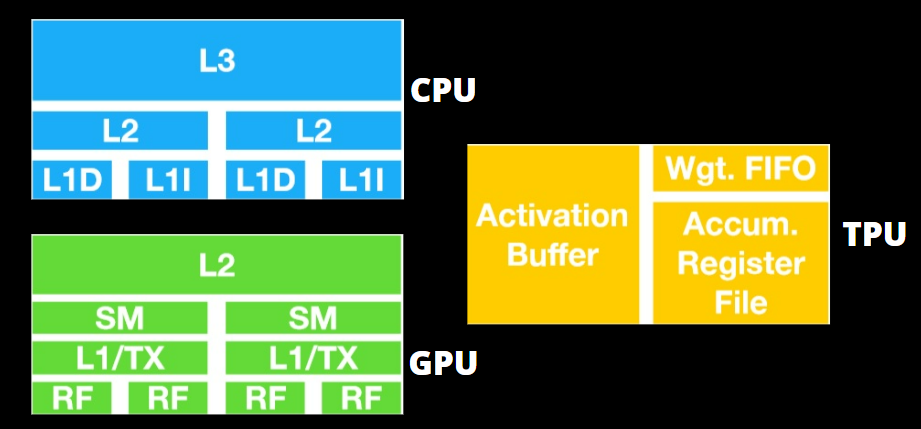

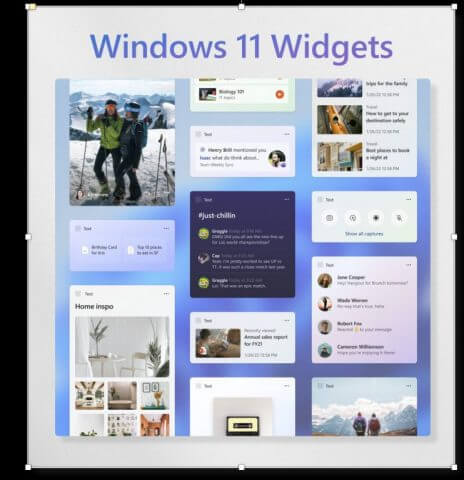
![How to Get a Web Browser on Roku TV? [Quick Installation]](https://windowsreport.com/wp-content/uploads/2022/05/get-Web-Browser-on-Roku-Cover.jpg)





![Fix: CCleaner not Clearing Cache [Android, PC, Browsers]](https://windowsreport.com/wp-content/uploads/2022/05/ccleaner-not-clearing-cache-android.jpg)
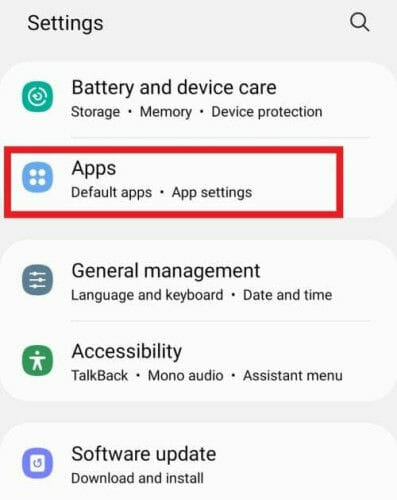
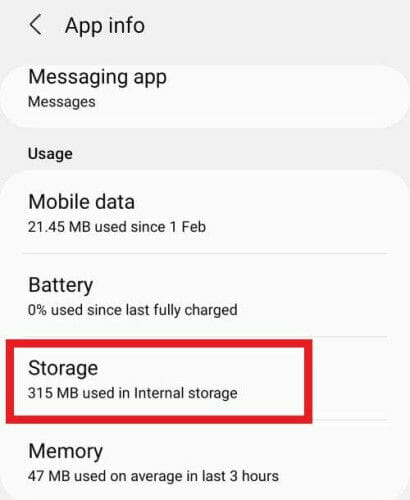
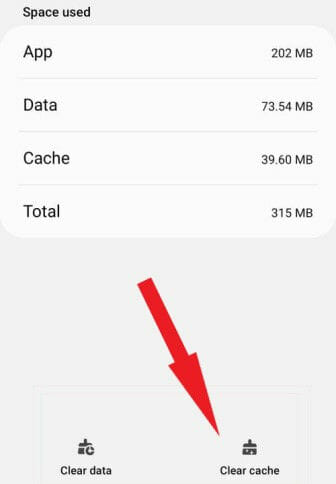
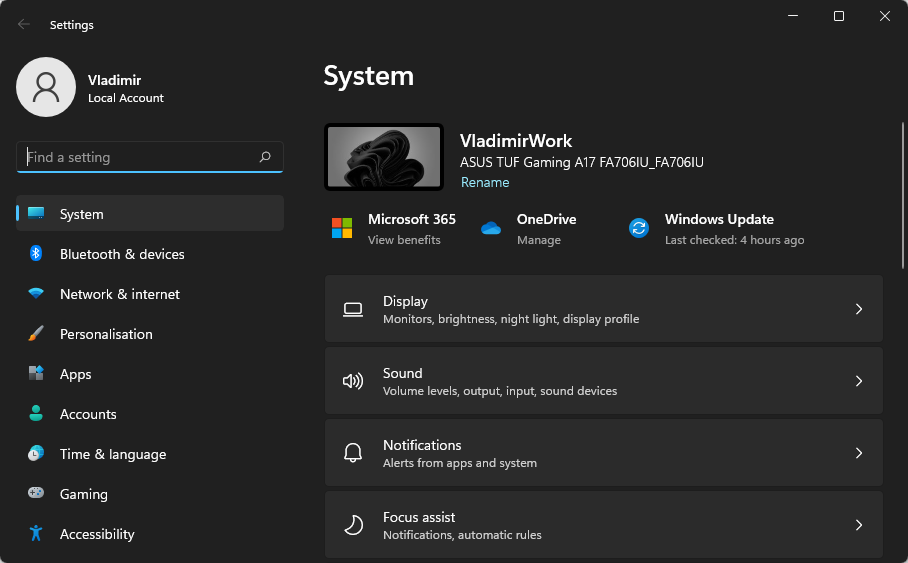

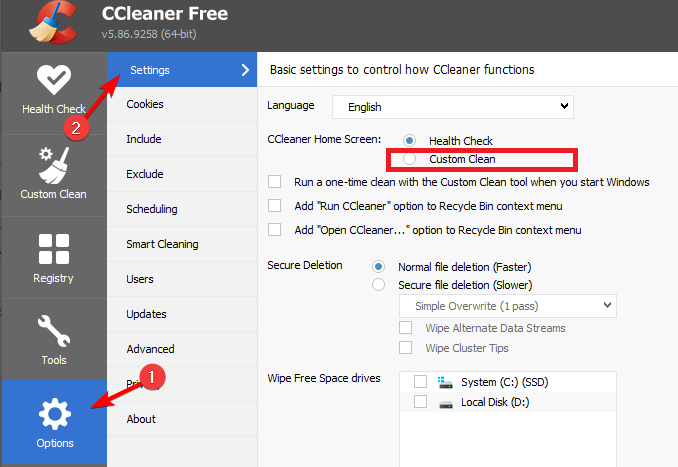
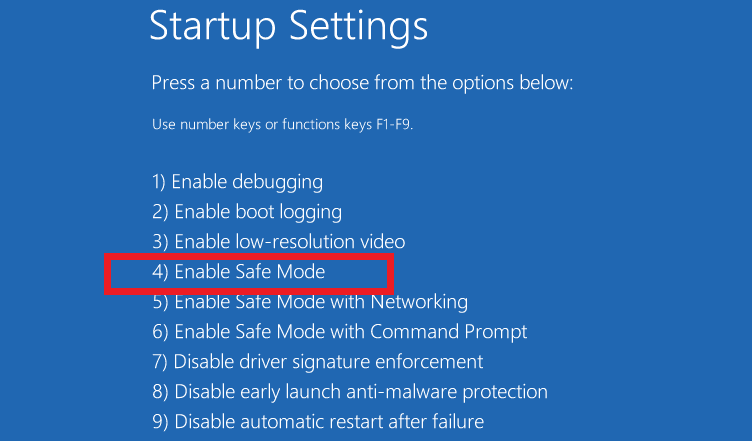
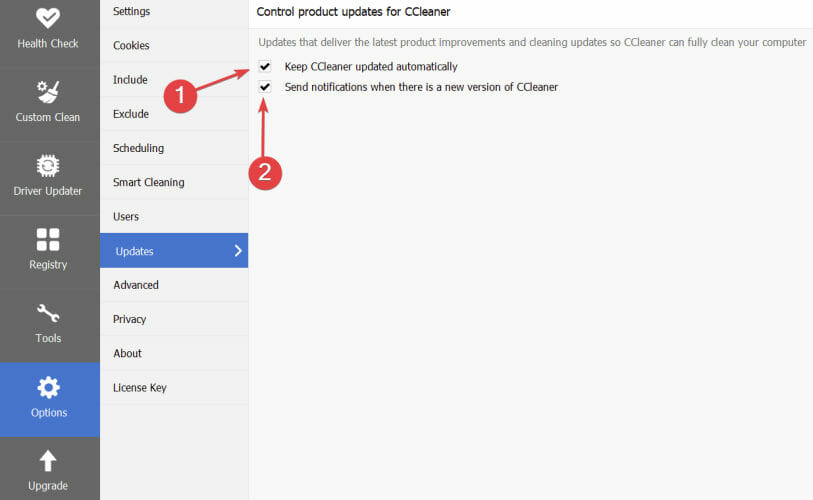
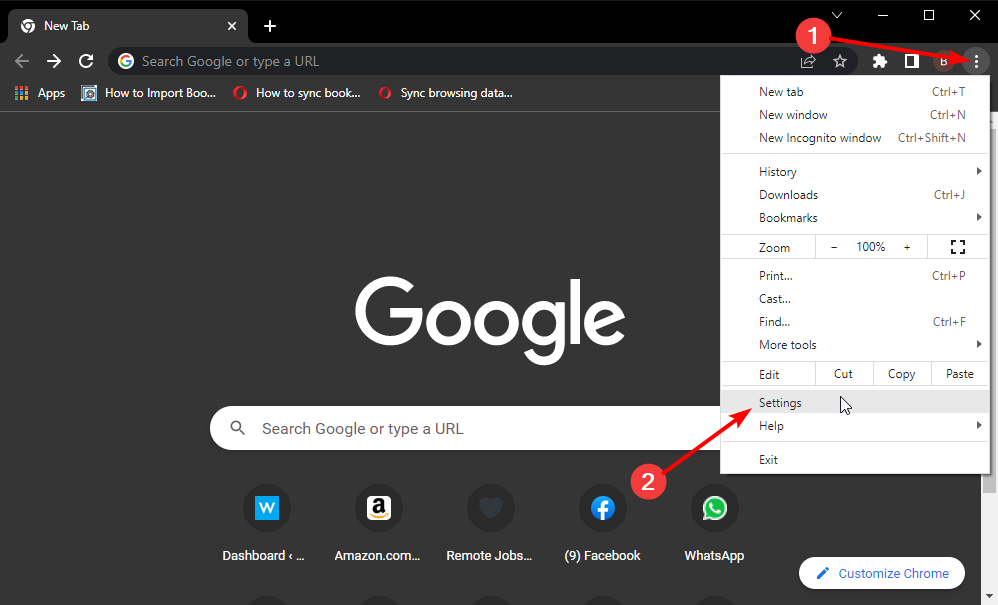
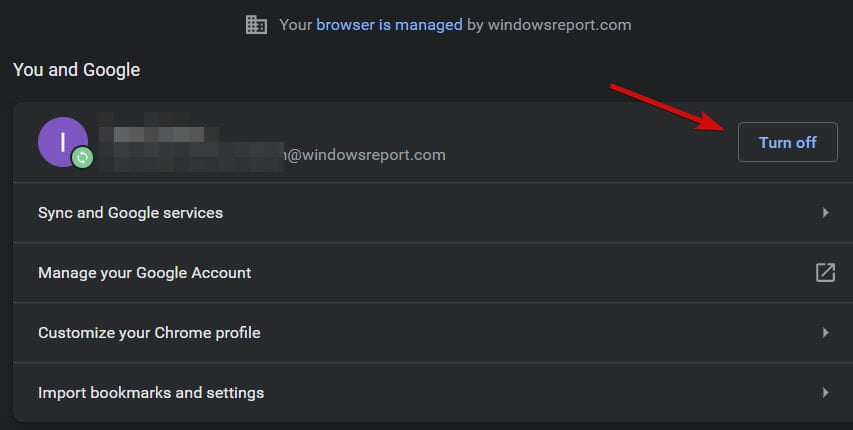
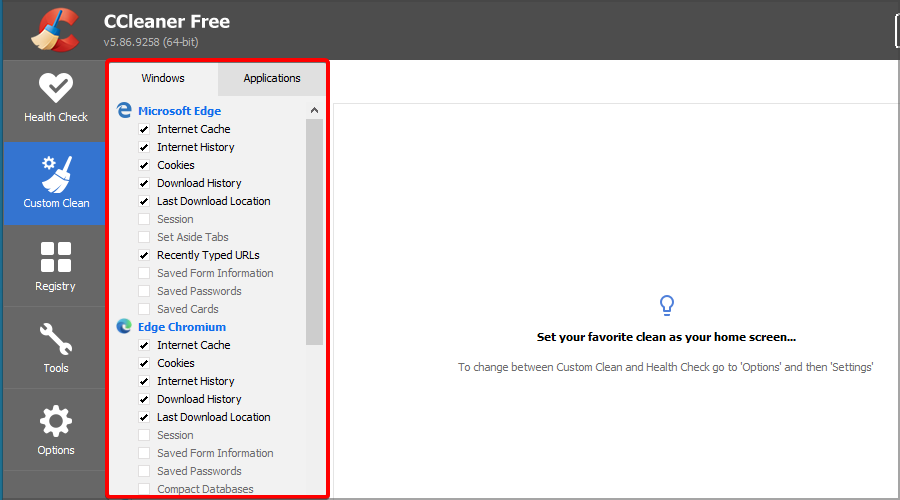


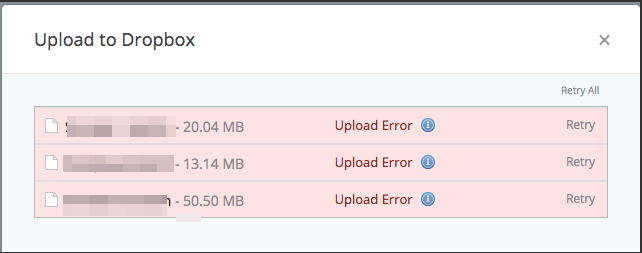
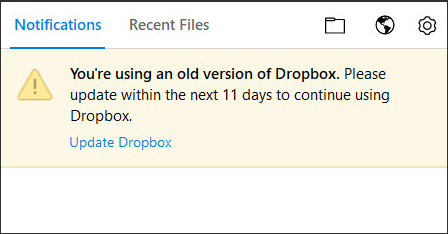
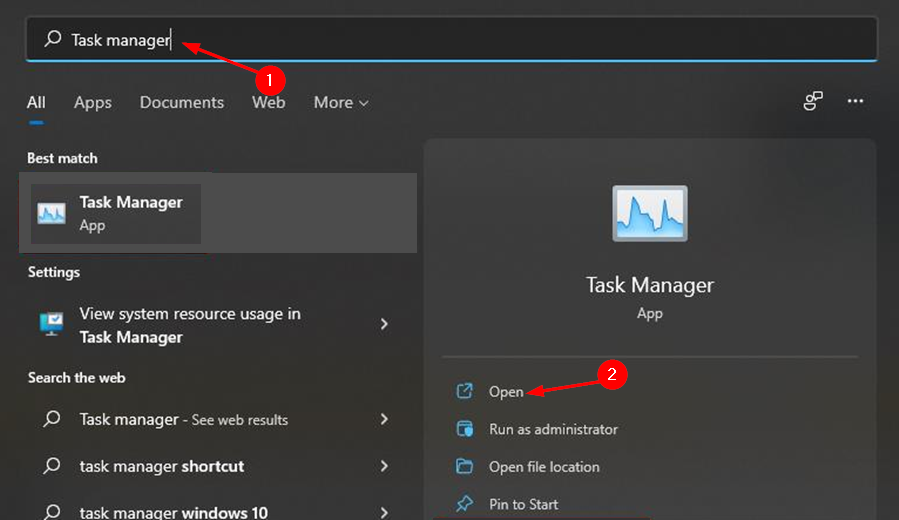

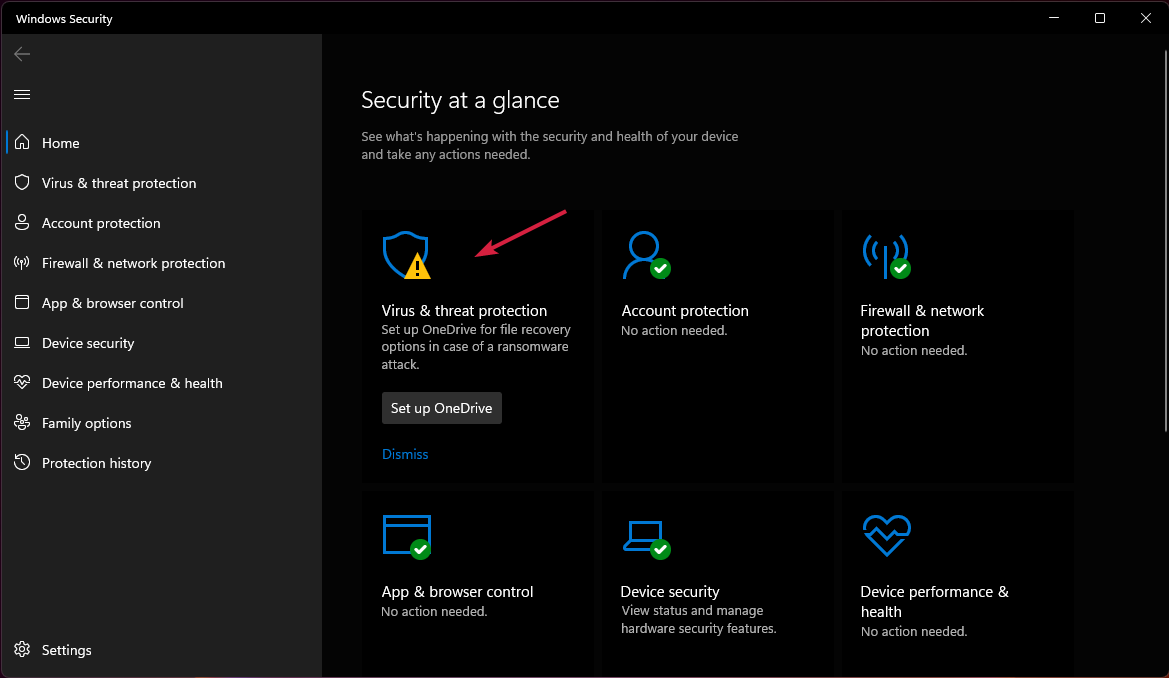



![Error Code: 770 Unable to Connect to EA Servers [Full Fix]](https://windowsreport.com/wp-content/uploads/2022/05/Error-code-770.jpg)