Perimeter 81: A Simple Remote Access Solution To Use

In an era where work from home has become an anchor point of the economy, it’s never been more important that companies maintain rigorous cybersecurity every step of the way.

Imagine you could provide employees with seamless, secure, remote access to your corporate network or shared resources anywhere in the world, at any time.

And all that without the need for oodles of complicated tech and overly difficult networks. Always-on VPN offers a key component in achieving that dream.

Many people have only experienced VPNs as something gamers use, and it’s common to perceive it as some complex, jargon-packed environment only those working in IT could utilize.

Many modern, intuitive solutions exist to help streamline companies’ use of VPNs, however, while still enabling staff to concentrate on their core work.

Today we take a look at Perimeter 81 and how it can enhance business cybersecurity as well as work functionality.

What is Perimeter 81 and how can it help you?
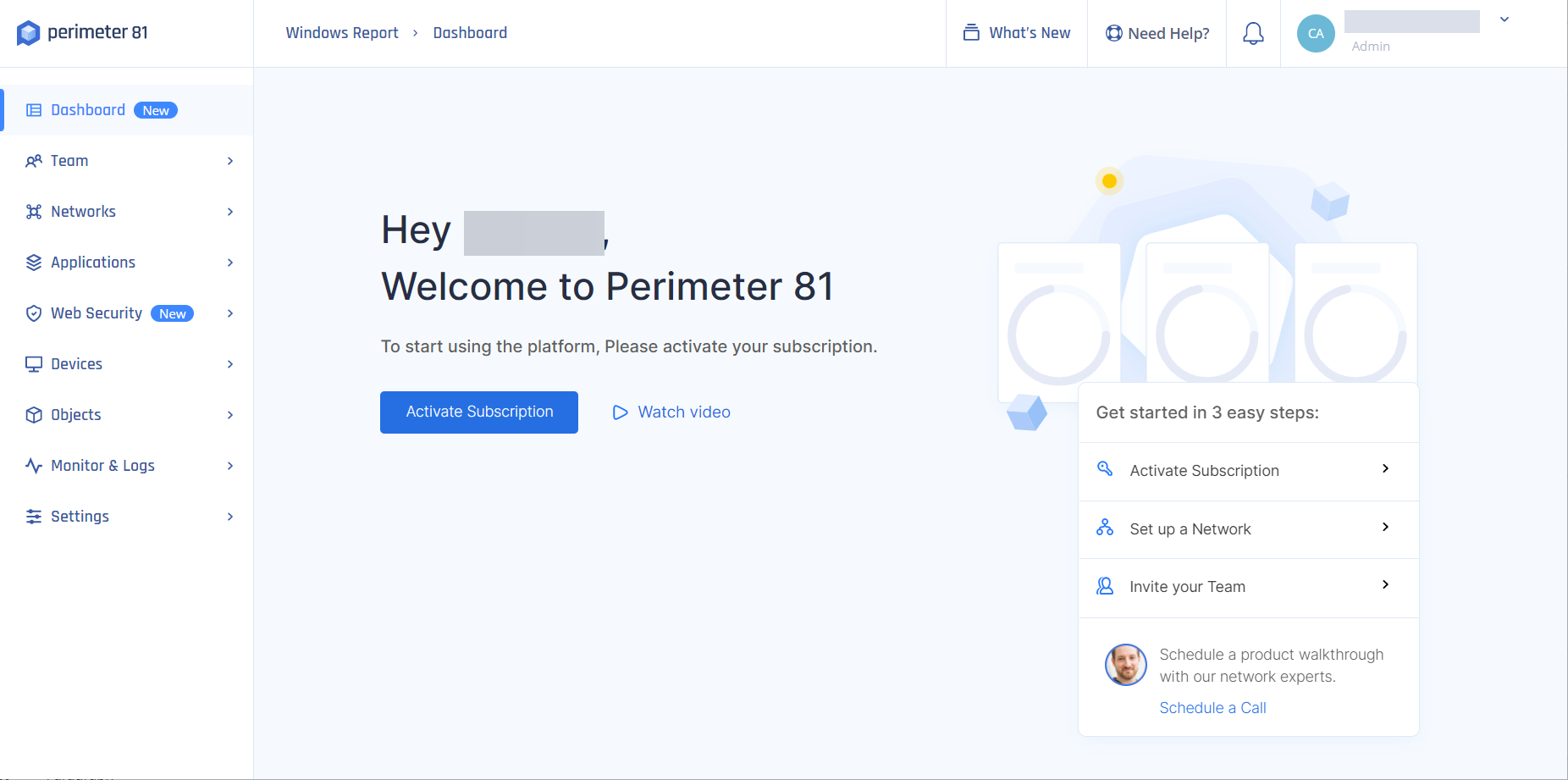
Remote access VPNs like Perimeter 81 allow employees to access company data and infrastructure in the cloud but using a fully secured connection that cuts down on cybersecurity risk.

The user experience is as if they’re in the office, using local servers. This allows a great balance of security and user experience. 

Until recently, most network securities was physical and site-centric, unable to adapt easily to remote working.

Cloud environments and SaaS services were either inaccessible unless in the office, or non-existent.

In the fast shift to work from home, this amounted to vulnerability to cyber attacks over unsecured home connections, while still failing to support staff and allow access to key work resources.

Perimeter 81 offers instant deployment, unified management, and 360-degree visibility to ensure a fast, safe, scalable product that enhances security and helps staff work productively too.

Perimeter 81

Take the full benefit from this cloud-based VPN privacy that ensures data security for anyone.
Check price Visit website

What are the key features of Perimeter 81?

1. Data Encryption
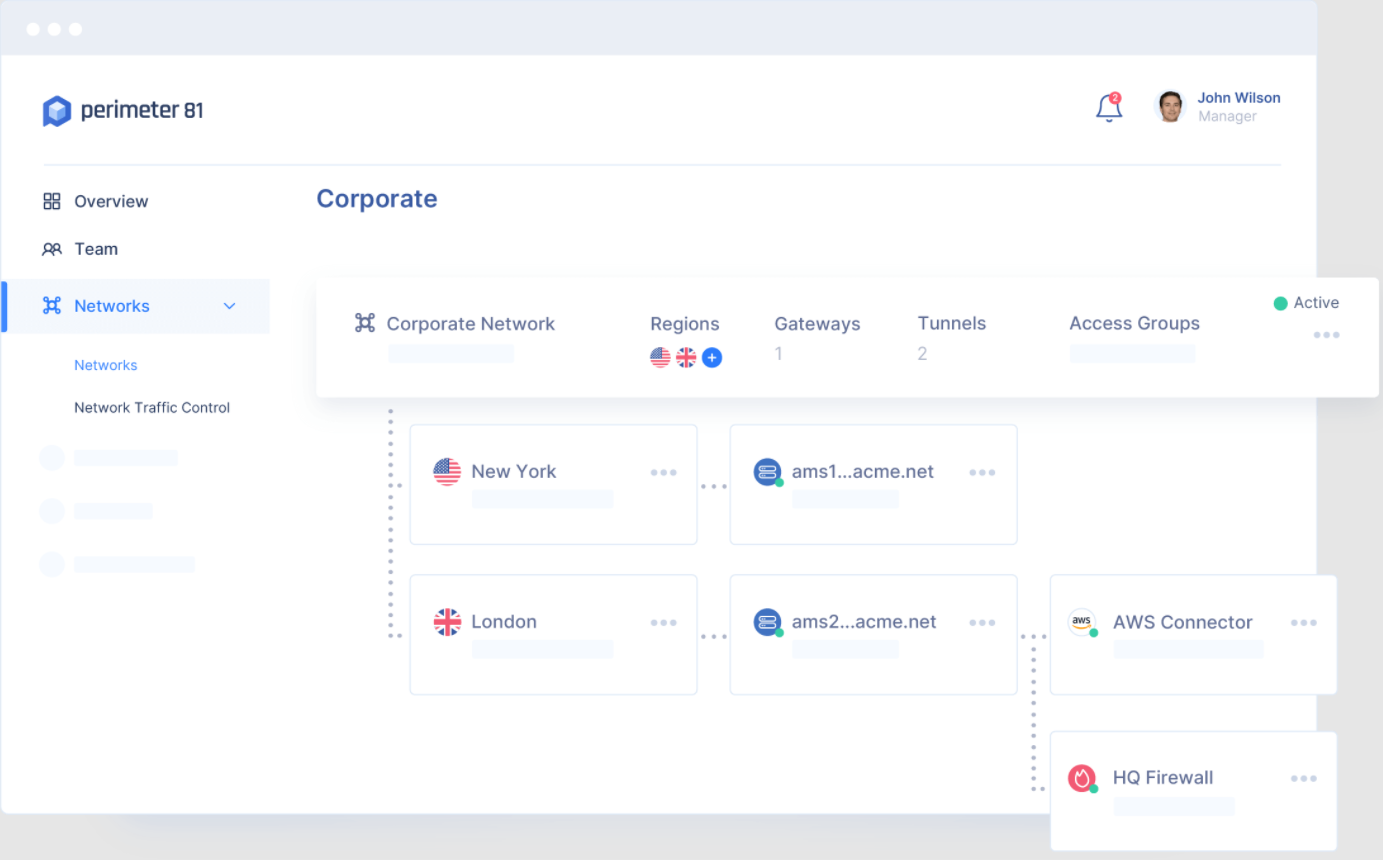
Through top-end encryption and tunneling, Perimeter 81 ensures transmitted data is safe, no matter where or what device sends it. Only authorized connections are allowed

2. Cloud security
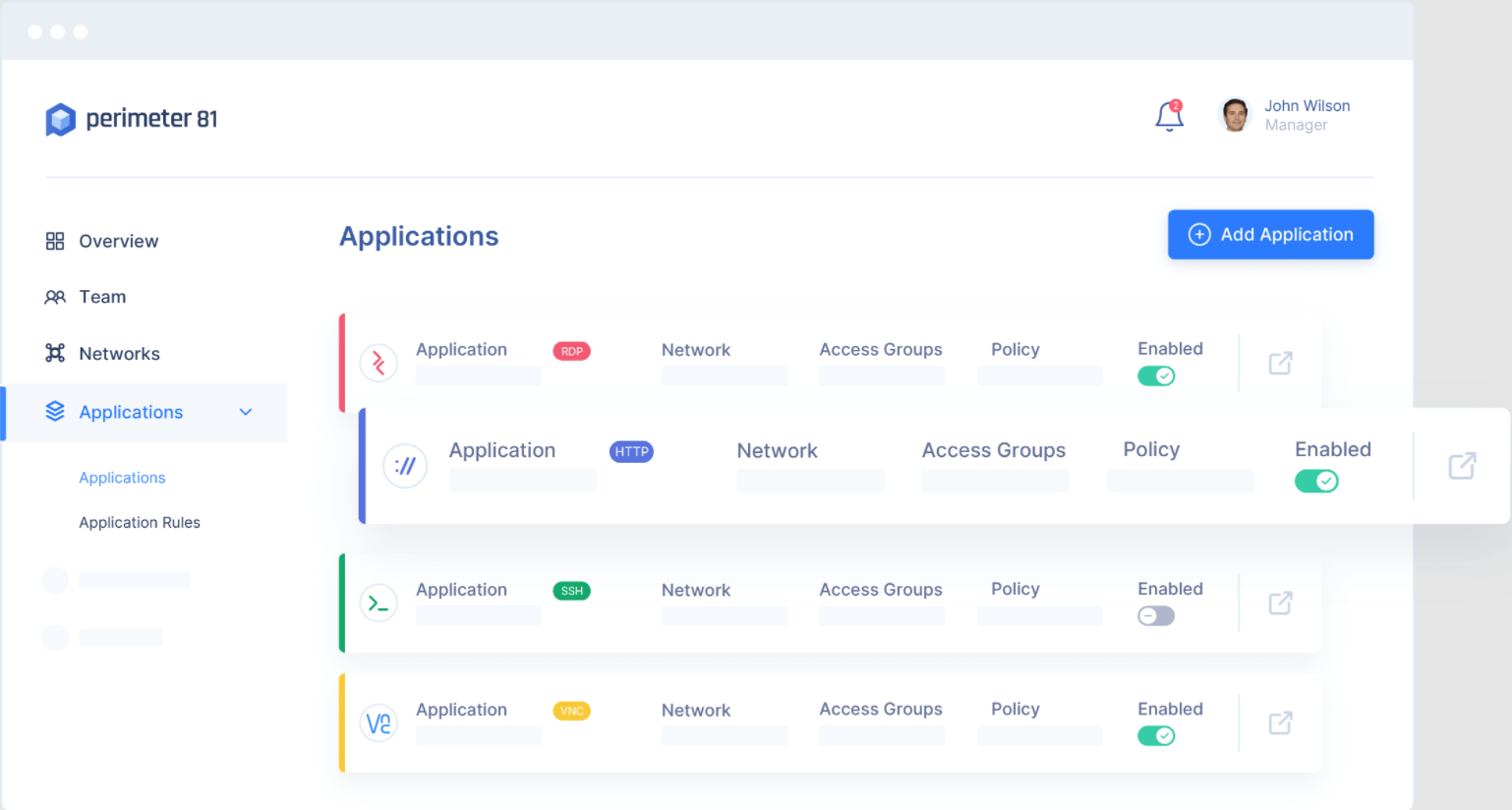
Access point security into the network is a key concern of using cloud solutions. Perimeter 81 helps secure access on top of the cloud environment, enhancing security.

3. Safe, fully remote access
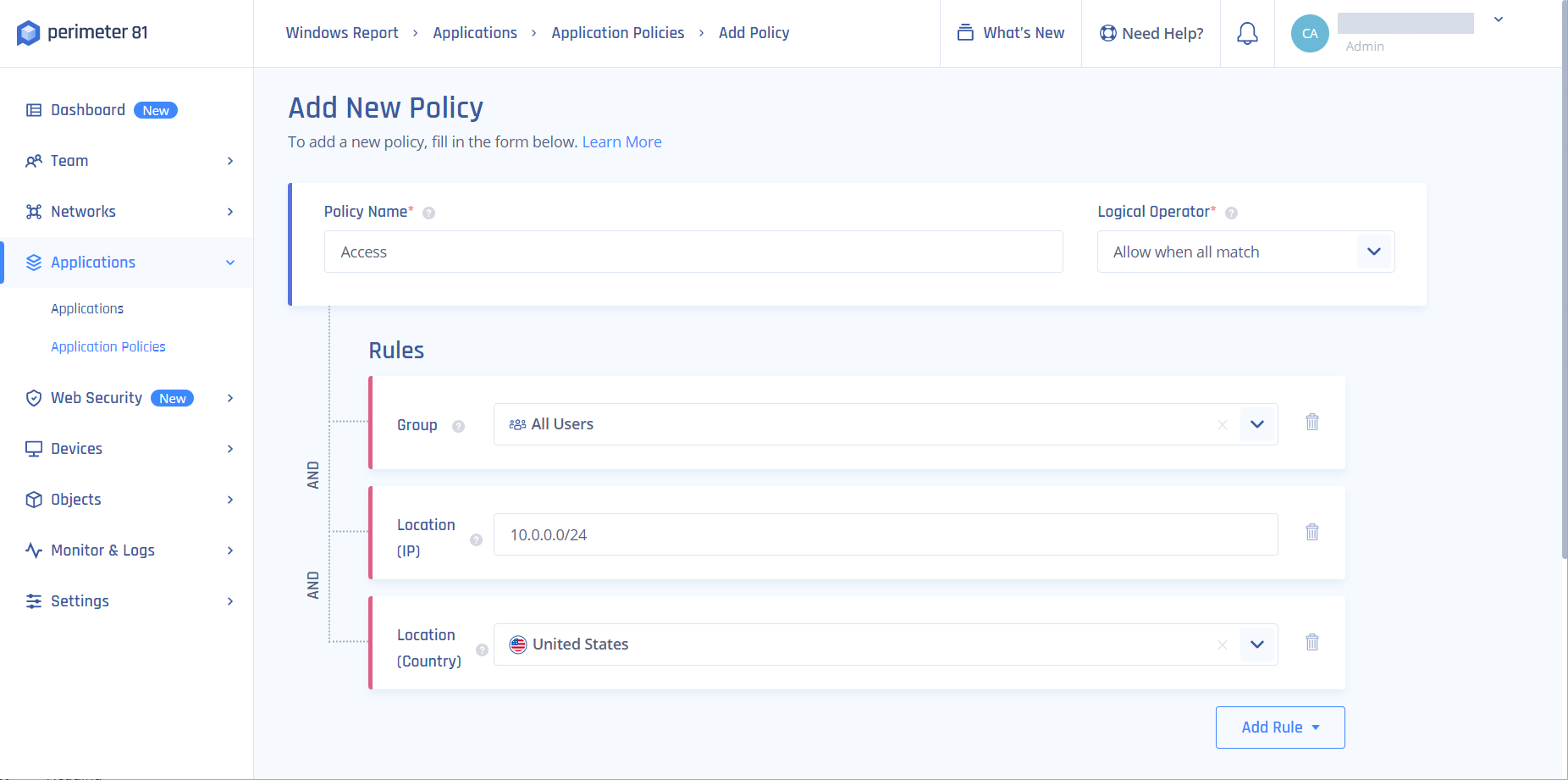
Despite these top-end security features, Perimeter 81 allows employees to connect across a range of devices and locations, at any time of the day.

As a remote access always-on VPN, employees can securely access the company’s private network and share data safely, even on public networks.

How can I use Perimeter 81?

Deploying the software will look a little different, organization dependant. However, here’s a rough look at the steps to use Perimeter 81:

1. Establish the management platform on the cloud
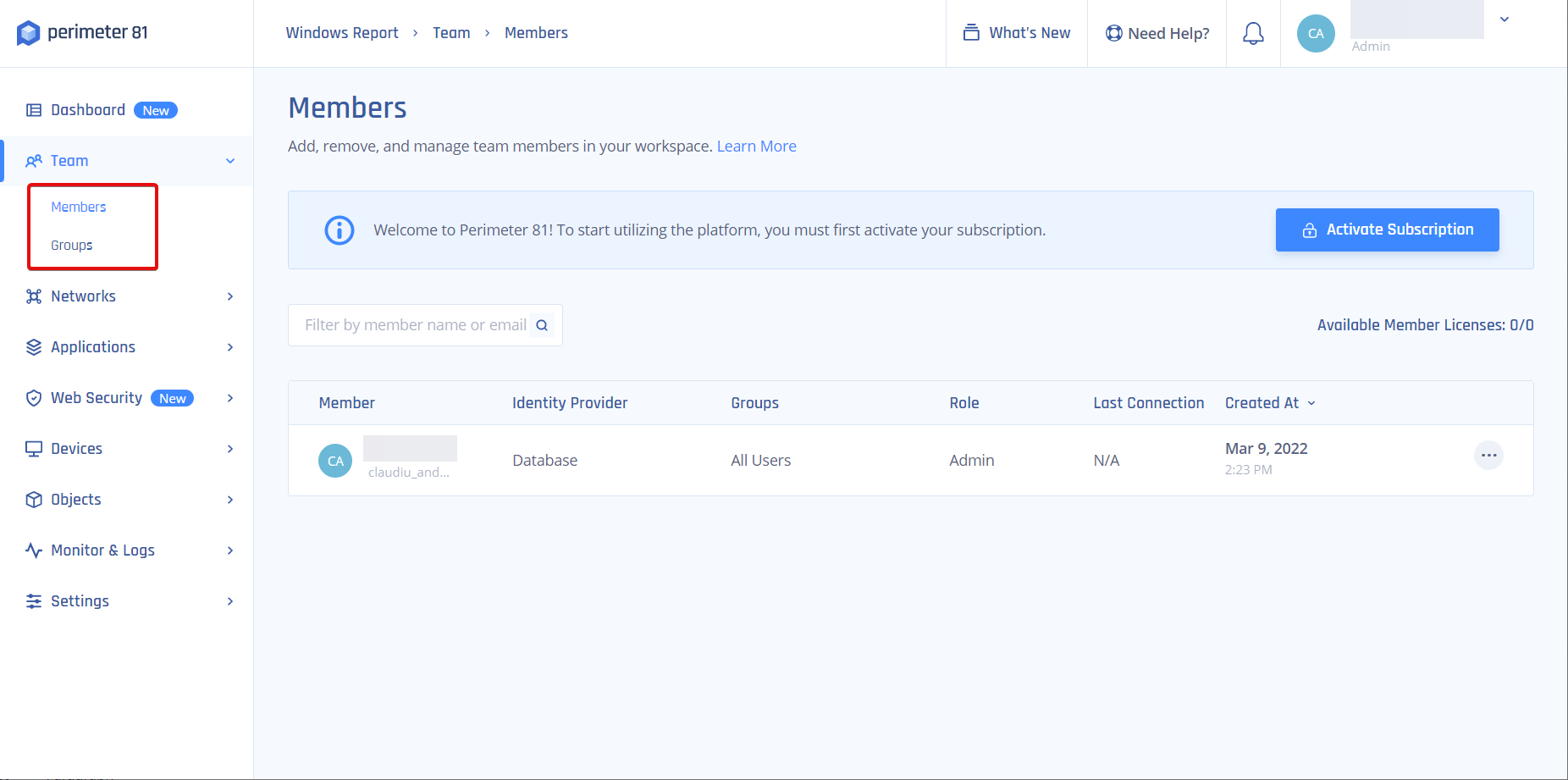
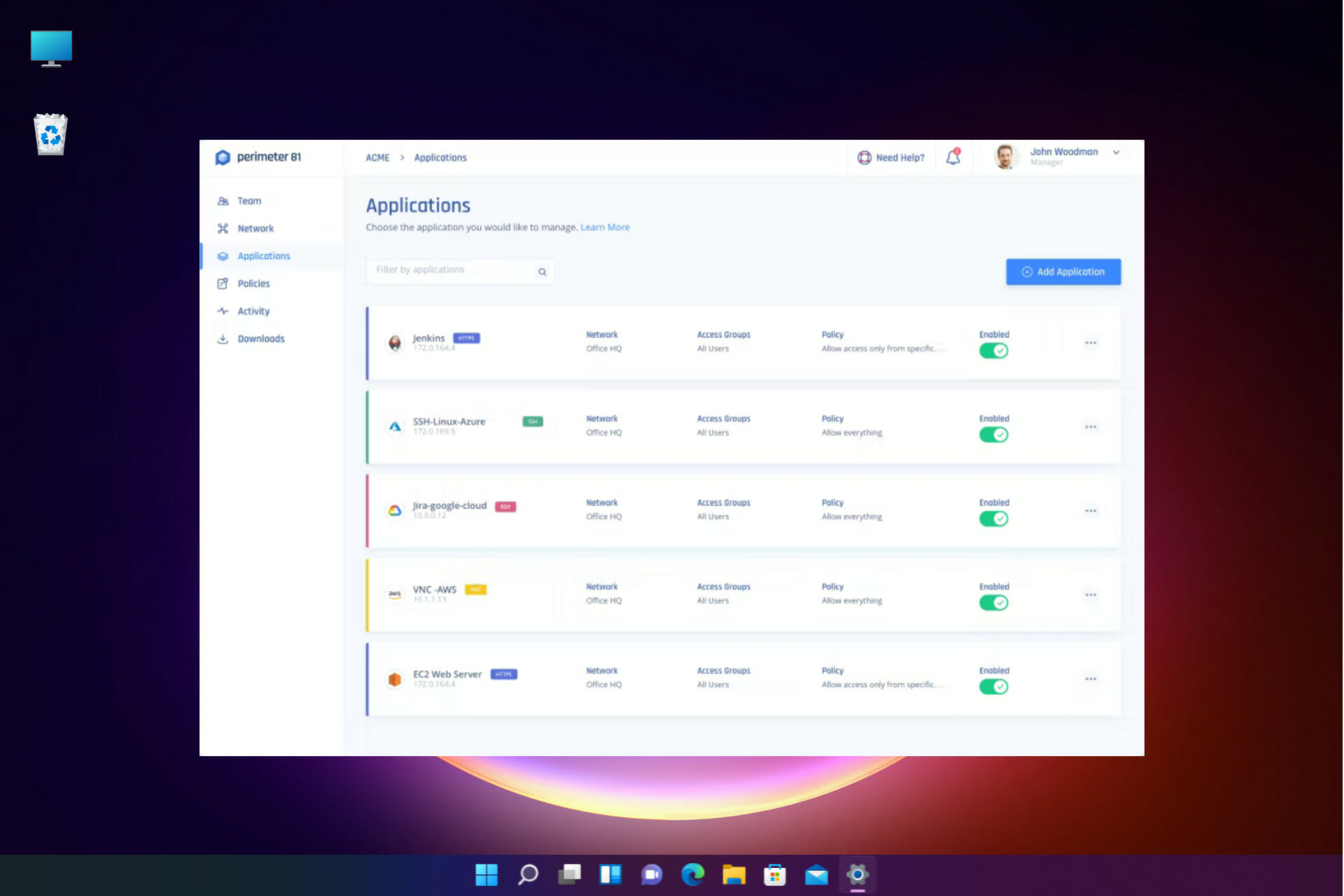
Here, your dedicated IT personnel will manage the team, setting networks and permissions. They can also monitor network activity here.

The overall interface is intuitive, and Single sign-on integrations, two-factor authentication, and mobile support are built-in and customizable to suit the organization.

2. Set up the networks and permissions

Now a multi-tenant cloud is established with segmented permissions controlling who can get access to what across several networks. These can interconnect.

Think either a central office with native firewalls or a full cloud service with IP whitelisting.

3. Create agents
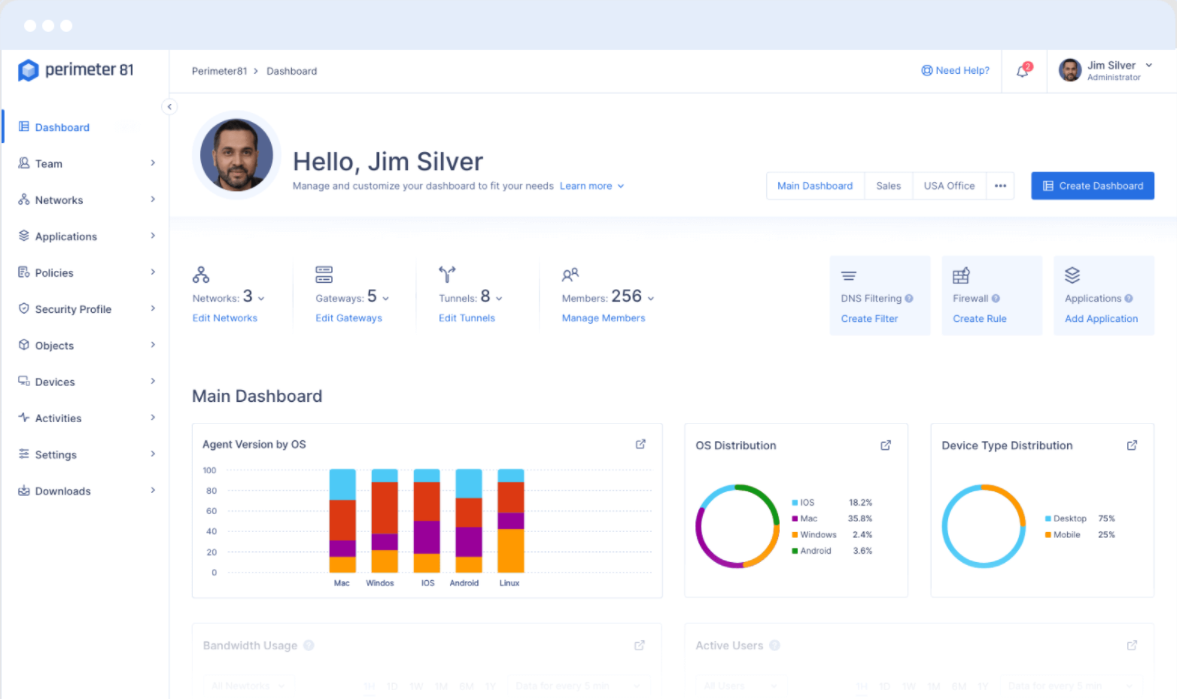
The agent modules are installed on the mobile or PC devices that employees use. This leaves them able to access any local or cloud network, with security in place, in one click no matter where they are.

4. Agentless application access
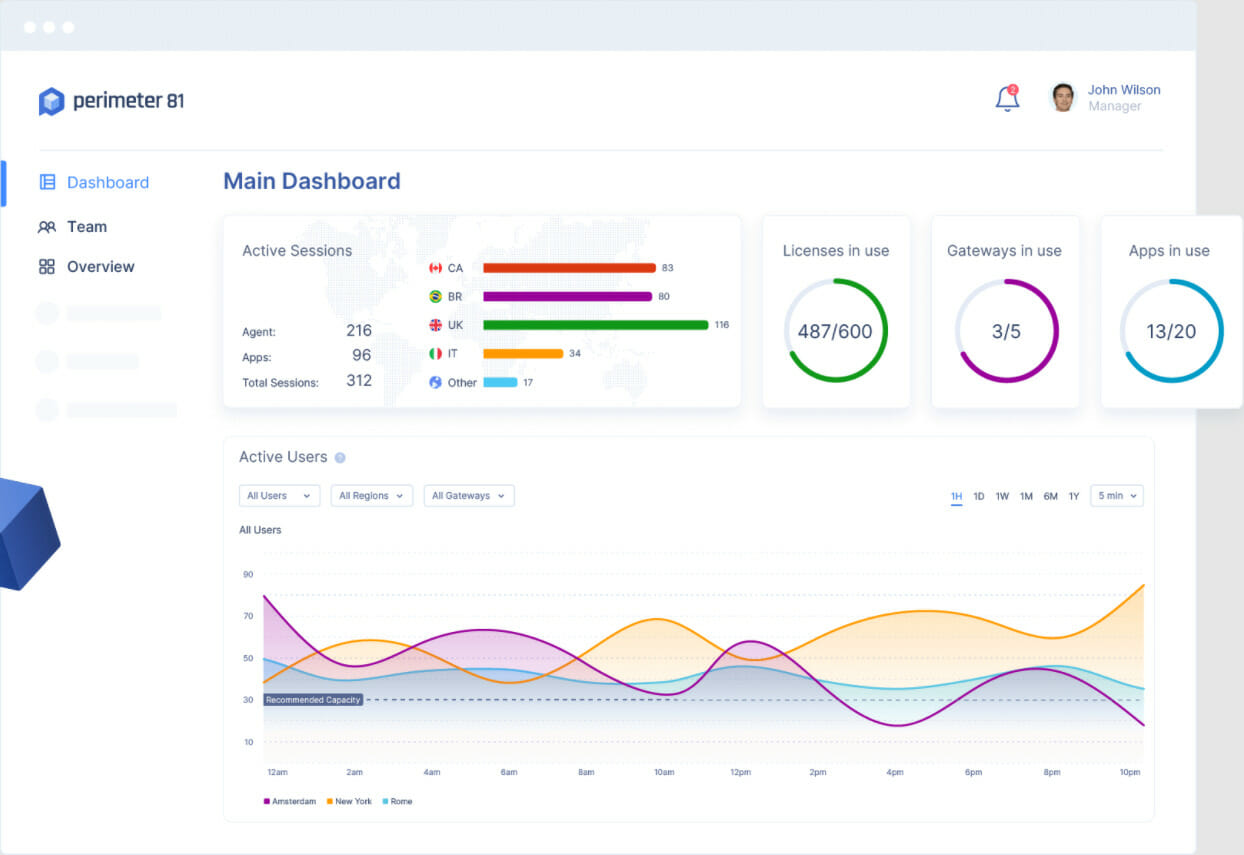
User trust and device policy validation run automatically to authorize the employees before allowing them access in a secure session.

The sessions will be recorded and monitored if you chose this setup in step 1 and can be fully audited. Applications are isolated from the network and use Zero Trust guidelines.

With Perimeter 81 in place, you can leverage the power of an always-on VPN to help safeguard critical company data, without hampering your user experience or slowing down productivity.

⇒ Get Perimeter 81

You might also be interested in our list including the best remote access tools with session recording options.

If you already used Perimeter 81, share your experience in the comments section below.

Elden Ring doesn’t close? Here’s what you can do

It is no longer a surprise that Elden Ring is one of the masterpieces when it comes to video gameplay. It includes elements like combat, horseback, riding, crafting, and so on.

Despite all of its one-of-a-kind features, it seems like Elden Ring doesn’t close properly, and this is what one user had to say about this situation:

I am not sure if this is a thing with anyone else as I have tried to search for a solution and all Google is giving me is crashes for the game.

Literally the opposite that I was searching for lol, so i figured I try to see if anyone on here is having the problem when you close the game its not closing out properly and is still open in the background in Task Manager.

Plus, from what worldwide users describe, you can’t force the closing process either. However, it may be worth trying to close all the related processes from Task Manager.

If you notice that the process is not closing in Task Manager, you can always check some easy solutions to fix it.

It is not an uncommon error, so if you’re facing the same issue, do not panic! You are not alone and this guide will show you how to quit the Elden Ring game, so make sure you read it completely.

What can I do if Elden Ring doesn’t close?

1. Reboot your PC

  1. From the bottom-left corner of your Windows Taskbar, click on the Windows icon.
  2. Now, select the Power icon, then choose to Restart the computer.
  3. Wait until it is rebooted, then try to open Elden Ring via the desktop shortcut.
  4. According to some Steam users, in the first instance, the gaming platform will probably say that the game is still running.
  5. After that, it seems like something happens and Elden Ring realizes it is supposed to be closed, then stops running a few seconds later.

2. Reinstall the game

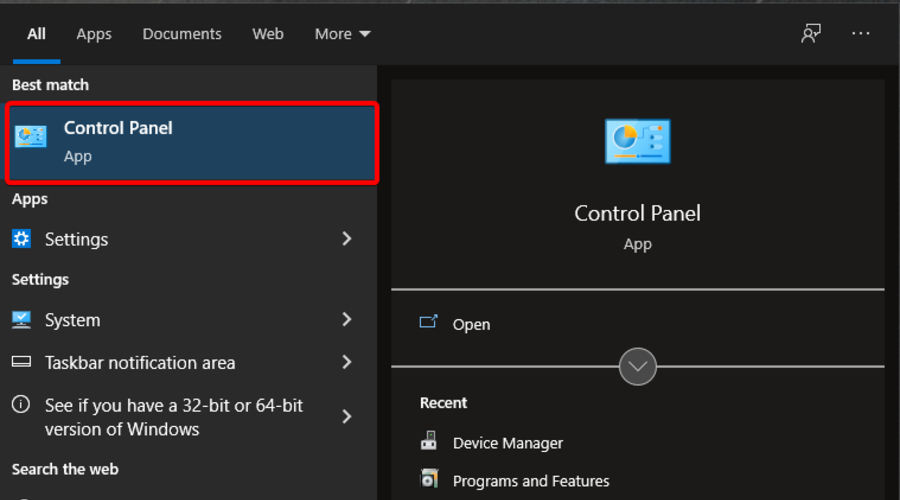
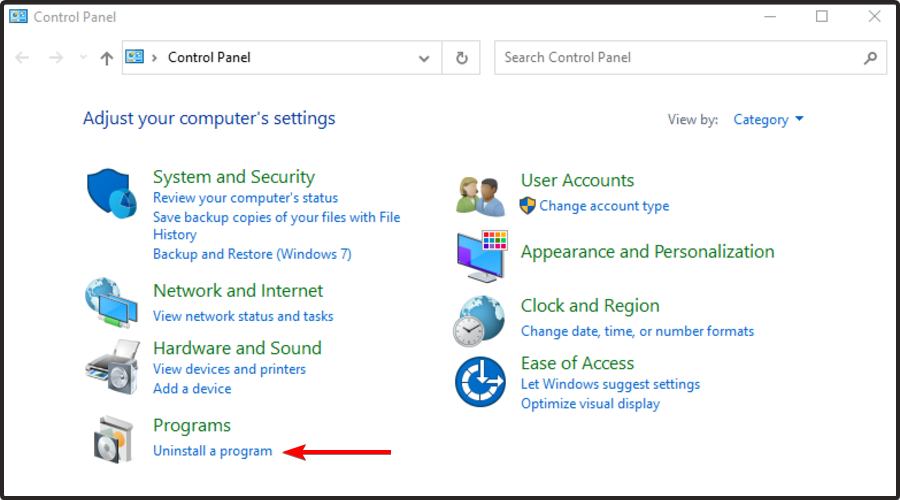
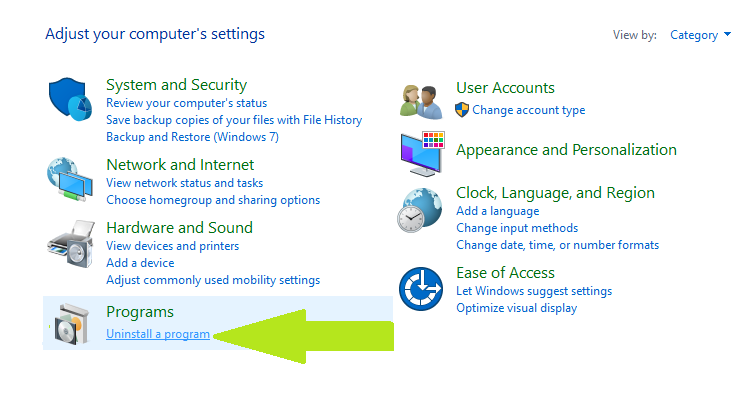
  1. Hit the Windows key, type Control Panel, then open the first result.
  2. Choose to Uninstall a program.
  3. In the opened list, search for Elden Ring.
  4. Click on it, then choose to Uninstall it (Just like we show you with Chrome in the example below).
  5. Now, navigate to the Steam official page.
  6. Search for Elden Ring and download the game.
  7. Follow the on-screen instructions to reinstall it.
  8. Run Elden Ring, then try to close it, and check if the issue persists.

Of course, in order to make sure that you’ve completely removed the game from your system, you should definitely try a specialized tool, like CCleaner.

With this kind of software, you’ll be able to automatically clean leftovers of uninstalled programs, even those left by other uninstallers.

Plus, it monitors all changes made to the system during program installation and reverts them when uninstalling.

So, this option won’t consume your precious time and will also ensure an impressive uninstall process.

For now, it seems like these are the only two workarounds that will help if Elden Ring doesn’t close. Until we come up with more fixes, we strongly recommend trying these presented below.

Playing your favorite game with your friends is incredible, but it seems like Elden Ring multiplayer is sometimes not working. If you ever face this issue, feel free to check some useful solutions to get rid of this annoying problem.

Was this guide helpful for your situation? Make sure you share the related experience by leaving a comment in the dedicated section below.

AirPods Microphone Not Working on Windows 11 [Fix]

It is possible that your AirPods microphone will cease operating on Windows from time to time. Thus, today’s topic is how to fix Windows 11 AirPods microphone issues.

Furthermore, it can be a significant problem, especially if you are required to participate in video meetings on a frequent basis if the audio works but the microphone doesn’t.

Let’s have a look at how you can resolve this aggravating problem as quickly as possible, right after we see whether AirPods are compatible with Windows or not, since this was one of your most asked questions. Follow along!

Are AirPods compatible with Windows?

AirPods are designed to function smoothly with iPhones and other Apple devices, but you can use Bluetooth to pair and connect them to any Windows 11 PC.

Additionally, your AirPods can remember your Windows 11 computer, your iPhone, and other devices, letting you switch between them whenever you choose and however you want.

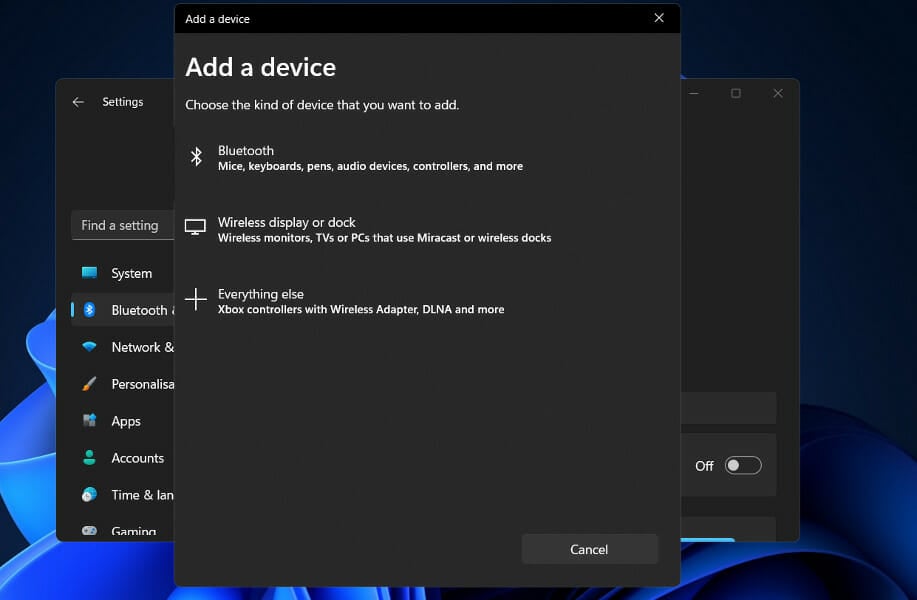
add device windows 11 airpods microphone

It is necessary to turn your Bluetooth on and pair your AirPods with your Windows 11 computer in order to make the connection. From that point forward, they will remember the PC, allowing you to rejoin whenever you wish to.

When you open the case in close proximity to your iPhone, AirPods will instantly connect to your phone, and if your Mac detects your AirPods, you’ll receive an automatic popup prompting you to connect to your phone.

The process of using AirPods with a Windows 11 PC is a little more involved, but it’s simple to re-establish a connection and continue to use them with your computer whenever you choose.

How can I fix AirPods microphone issues in Windows 11?

1. Unpair your device and pair it again

  1. Navigate to Settings and click on Bluetooth & devices from the left side.bluetooth-devices windows 11 airpods microphone
  2. Locate your AirPods device, click on the three dot icon and choose Remove device. In our case, we don’t have the device connected, thus we show cased with the mouse input.remove-device windows 11 airpods microphone
  3. Now pair your AirPods again as you have previously done it and test them to see if the microphone works.add-device windows 11 airpods microphone

This is the simplest solution you can try and surprisingly, it works! Problems, including the Windows 11 AirPods microphone issues, regarding your peripherals, can be easily fixed if you don’t skip this seemingly useless solution.

For cases where only one earbud has issues, you can also follow this detailed guide on why one AirPod is not working to resolve sound or connectivity problems.

2. Update drivers

When it comes to keeping your PC in peak operating condition, there are lightweight driver updating solutions designed specifically for individuals who don’t want to waste time completing procedures such as opening the Device Manager or visiting each manufacturer’s website to download updates.

3. Allow microphone access

  1. Open Settings and navigate to Privacy & security followed by Microphone, as we have shown below.privacy-mic windows 11 airpods microphone
  2. Next, make sure that the toggle next to the Let apps access your microphone option is turned on.let-apps windows 11 airpods microphone

In the Let apps access your microphone section, you can uncheck the boxes next to the apps that you don’t want access to your microphone, or check the ones that you want to have it.

4. Run the Recording Audio troubleshooter

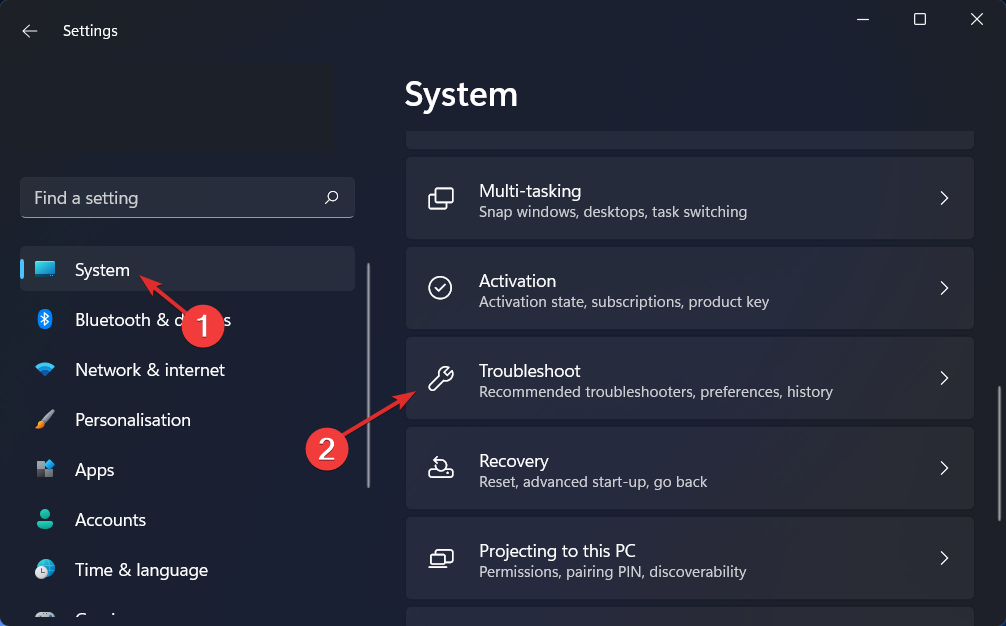
  1. Press the Windows key + I to open the Settings app. Next, navigate to System followed by Troubleshoot, as we have shown below.system-troubleshoot-option windows 11 airpods microphone
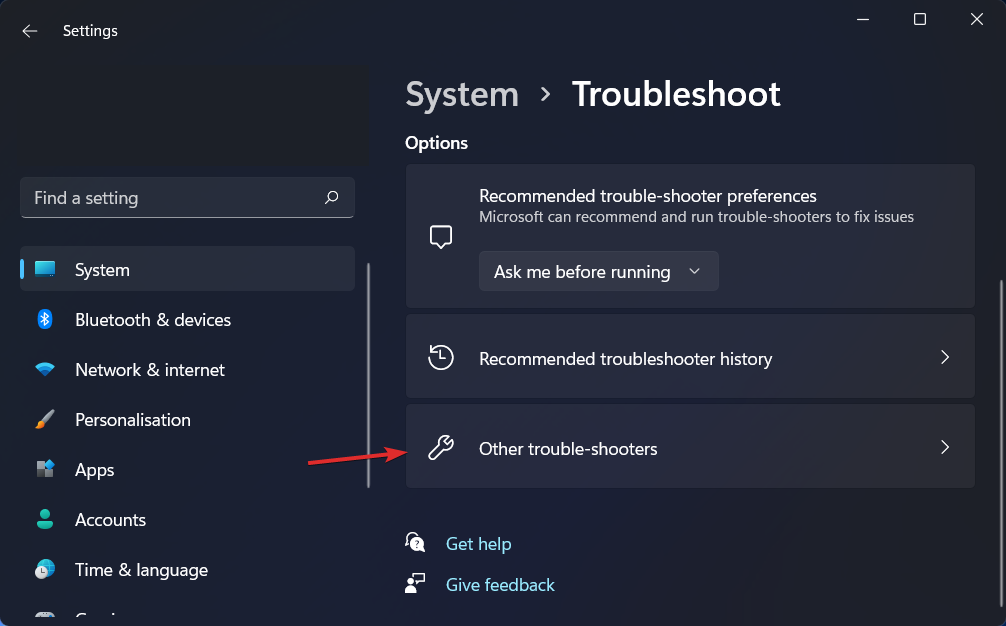
  2. After you are inside the Troubleshoot menu, click on Other trouble-shooters.other-troubleshooter-option windows 11 airpods microphone
  3. Next, scroll down until you meet the Recording Audio troubleshooter and click Run next to it.recording-audio windows 11 airpods microphone

After it has completed searching for faults, the troubleshooter will reveal the precise bug that occurred as well as instructions on how to fix it. Keep in mind to carefully read and adhere to the instructions displayed on your computer screen.

For more information and further solutions to the error at hand, take a look at our post on AirPods not working in Windows 11. There you will find supplementary troubleshooting methods.

Alternatively, check out our guide on what to do if the AirPods microphone is not working on Mac and Windows 10/11. And don’t forget that you are not the only one experiencing this issue.

Lastly, you might find it helpful to read our article on how to fix headphones not working in Windows 11, in case you encounter audio output problems as well.

Leave us a comment in the section below and tell us what you think about our guides. We will read all of your messages and try to improve our future posts. Thanks for reading!

New mystery Xbox hardware could come out this year

In a recent episode of the XboxEra podcast (ht PX), one of the hosts mentioned that he’d heard talk of Microsoft releasing a new type of Xbox-branded hardware sometime before the end of 2022. That is, if there’s no delays caused by a pandemic or international conflict.

Curiously, the host, Nick Baker, describes the Xbox hardware as being something rather different than what most would expect.

“I’m saying it should be this year,” Baker said in the podcast episode. “Xbox currently has some hardware to show, that they’re going to show, that falls into a different bucket than people are probably expecting.”

Baker then follows up the above statement by clarifying that he knows exactly what the hardware is but that he isn’t allowed to say any more.

The full episode can be listened to online here. The above quote happens around the 1:47:00 mark.

So, what could this mystery Xbox hardware be?

Given that a new iteration of an Xbox console or controller would be pretty predictable, this product is likely something else such as an Xbox streaming stick for TVs for Xbox Cloud Gaming or maybe even an Xbox-branded TV. Of course, both of these product types are kind of expected too for those that have been following the evolution of Xbox Cloud Gaming news over the past year or so.

Could it be an Xbox VR headset? Maybe. Microsoft will need to catch up to Sony in regards to this genre of console gaming eventually. However, just last year, Microsoft did officially state that VR wasn’t a focus for them.

Perhaps a Kinect sensor? This would definitely be unexpected given how Microsoft dumped the Xbox One Kinect rather dramatically during the last console generation. However, Microsoft has also developed a new Kinect sensor for developers since then and has also worked with Sky to enable motion gaming and voice commands with a sensor for Sky Glass TV which is essentially a repurposed Xbox One Kinect.

There’s also a rather large market for home exercise services now compared to when Xbox Fitness launched with Xbox One several years ago. Some new services, such as Pelaton, even use motion-tracking. If Microsoft brought back the Kinect alongside a new version of Xbox Fitness, it could actually do a lot better than it did before.

How about a portable Xbox console for playing games on the go? Perhaps a cheap model with minimal hardware that’s designed purely for Xbox Cloud Gaming? Maybe.

What do you think about this Xbox rumor? Do you think it’s legit? What type of new Xbox hardware do you think Microsoft is planning? Let us know in the comments below and then follow us on Twitter and Facebook for more Xbox news.

You can now enter to win one of the strangest Xbox Series S console and controllers yet

There have been tons of cool custom Xbox consoles in the past, but now you have a chance to enter win one of the strangest ones yet. That’s because Microsoft’s Xbox and Paramount Pictures have teamed up to celebrate the release of Sonic the Hedgehog 2 by giving fans the chance to win a Sonic-themed Xbox Series S.

The most unique part of the console is definitely the controller. Coming in Sonic Blue and Knuckles Red, the controllers are texturized to match the bristly texture of hedgehogs in the wild.  The console itself, meanwhile, sports a golden portal ring, comes in black and has Sonic and Knuckle’s pictures on it.

If you want to win, you can by retweeting the official Xbox sweepstakes tweet and including the hashtag #XboxSonic2Sweepstakes. If you’re in the US, you also can redeem Microsoft Rewards points. towards it, too. While you’re at it, you can check out the  Sonic the Hedgehog Minecraft DLC in the Minecraft Marketplace. You also can check out other Sonic content on the Microsoft Store.

Error Code 0x0: 4 Easy Solutions to Permanently Fix it

There are all sorts of errors that you can encounter when upgrading, but today we’re going to focus on Windows 10 upgrade error code 0x0.

This error will prevent you from upgrading, and you’ll also miss new and exciting features. Luckily, there are ways to fix this error, and in today’s guide, we will show you the best methods you can use to fix this issue.

What does error code 0x0 mean?

In most cases, these errors appear because your installation is damaged. However, there are multiple reasons for this issue to occur. Below are some of the notable causes:

  • Antivirus interference: Sometimes, the Windows could not update the installation files error code 0x0 because your antivirus software is blocking it. You need to disable or uninstall the security software to solve the problem.
  • Faulty graphics driver: Another potential cause of this issue is an outdated or broken display driver. Reinstalling or updating your driver to the latest version should do the trick.
  • Corrupt system files: In some cases, this error code can show up because of broken or missing system files. The best thing to do here is to repair these files.

How can I fix error code 0x0 in Windows 10?

1. Remove your antivirus software

  1. Press the Windows key + I to open the Settings app.
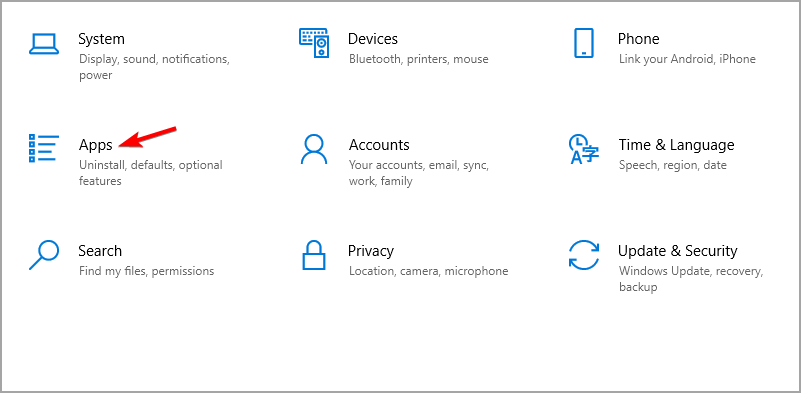
  2. Navigate to the Apps section.
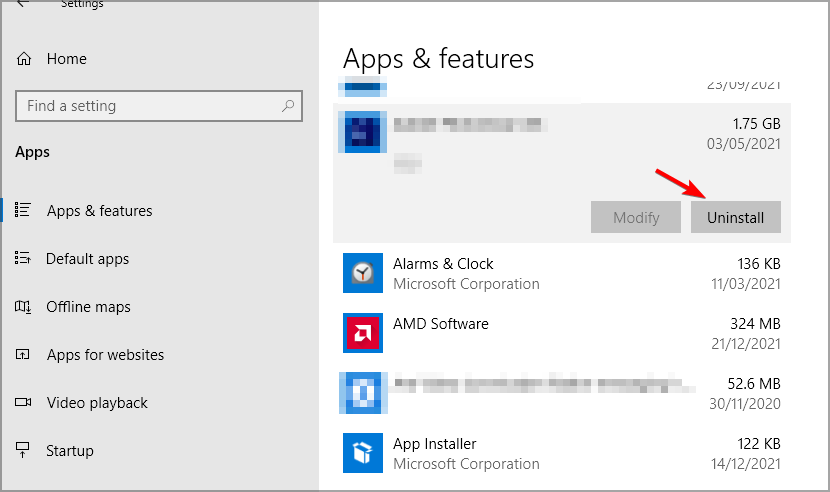
  3. Select your antivirus software and click on Uninstall.
  4. Follow the instructions on the screen to complete the process.
  5. Once the software is removed, try to perform the upgrade again.

Users reported issues with McAfee and Avast, so be sure to remove them. Speaking of which, we have a helpful guide on how to completely remove McAfee, so be sure to check it out.

2. Use the DISM command

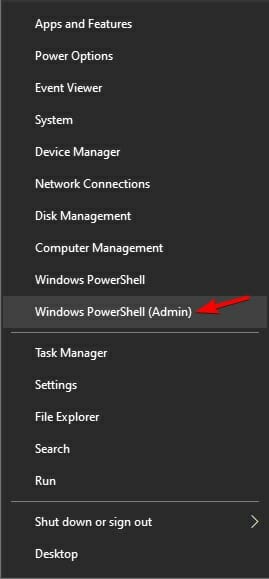
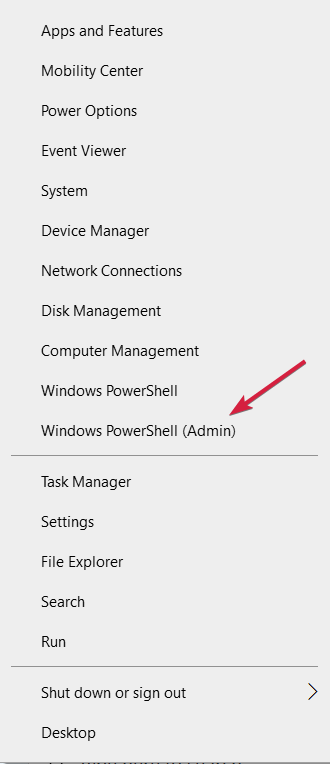
  1. Press Windows key + X and select Windows PowerShell (Admin).
  2. When the PowerShell opens, run the following commands:
    DISM /Online /Cleanup-Image /CheckHealth
    DISM /Online /Cleanup-Image /ScanHealth
    DISM /Online /Cleanup-Image /RestoreHealth

The first two commands will scan your installation for any damage, and the last will perform the repair. Running all three commands is unnecessary, so you can only run the last one.

If you’re unfamiliar with it, you should read our guide on how to use DISM to repair your installation.

3. Remove your graphics card drivers and restart the Function Discovery Resource Publication service

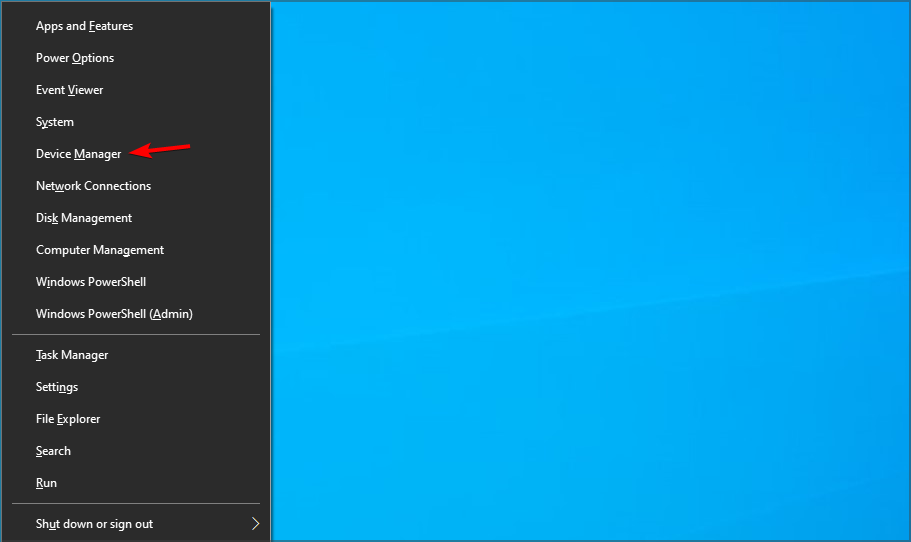
  1. Press Windows key + X and choose Device Manager from the list.
  2. Locate your graphics card driver on the list, right-click it, and choose Uninstall device.
  3. Check Delete the driver software for this device and click on Uninstall.

If you want to uninstall your drivers completely, you might want to use specialized software such as DDU. To learn more, read our guide on how to use Display Driver Uninstaller.

Outdated or corrupted drivers can cause issues such as this one. Therefore, you must update them regularly. However, doing this manually can be tedious, especially if you need to update multiple drivers.

However, tools such as Outbyte Driver Updater can make this process much faster by scanning your system and automatically updating all your drivers.

⇒ Get Outbyte Driver Updater

Now let’s disable the required service by doing the following:

  1. Press Windows key + R and enter services.msc. Press Enter.
  2. Locate Function Discovery Resource Publication and double-click it.
  3. If the service is running, click the Stop button.
  4. Now wait for a couple of moments and enable the service again.

After doing that, try to upgrade once again. You can also try keeping the Function Discovery Resource Publication disabled or enabled and check if that helps.

4. Perform an in-place upgrade

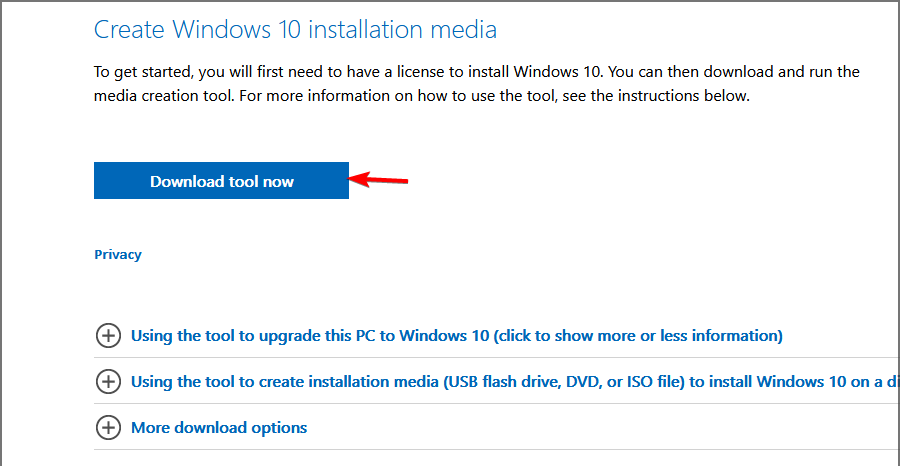
  1. Go to the Windows 10 download page.
  2. In the Create Windows 10 installation media section, click on the Download tool now.
  3. After the download is finished, run the program.
  4. Accept the terms of service and follow the instructions on the screen.
  5. Be sure to select Upgrade this PC now.
  6. When your reach the Ready to install screen, make sure that the option to Keep files is selected. If not, click on Change what to keep and change it.
  7. Start the process and wait for it to finish. Keep in mind that the process can last more than an hour.

After completing the process, you must try to perform the upgrade again. By doing an in-place upgrade, you’ll repair your installation, and hopefully, you’ll be able to upgrade as well.

Error code 0x0 during Windows 10 upgrade can be problematic and usually occurs if a particular service or software interferes with the upgrade process.

In case the problem is still there, you might want to read our guide on what to do if you can’t upgrade to the latest Windows 10 version.

Did you find an alternative solution to this problem? If so, share it with us in the comments section below.

Microsoft leaks new Sun Valley 2 information ahead of the big update

Remember when we first talked about Sun Valley, last summer? Back then, everyone was under the impression that it would be a system makeover for Windows 10.

Much has happened since then and what was first believed to be the Sun Valley project, actually turned out to be Microsoft’s latest operating system, Windows 11.

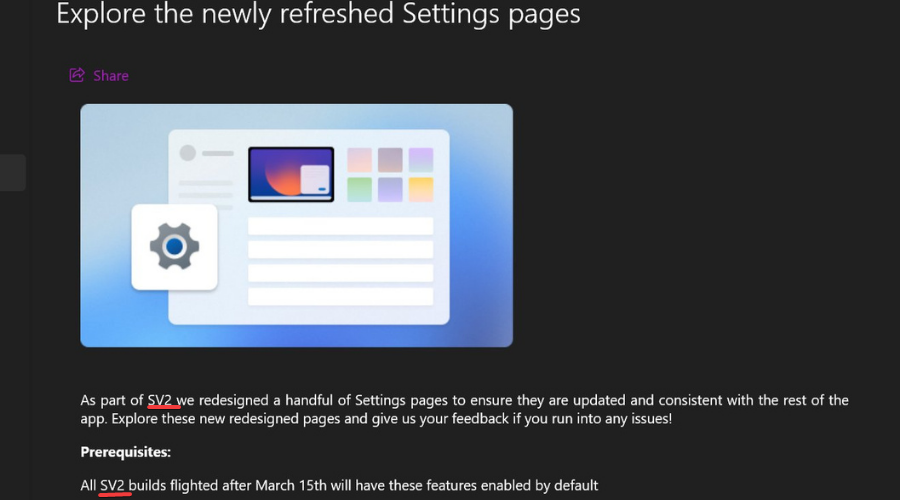
Windows 11 Sun Valley 2, or SV2, is the codename of the updated OS that the tech giant is about to reveal as version 22H2.

Some preview builds that dropped recently revealed some potential new features that Windows 11’s first big update will bring to the table.

Sun Valley 2 is almost ready for release

The Redmond-based tech company accidentally uploaded a page on Feedback Hub which confirms the Sun Valley 2 codename and the new features coming to the Windows Settings app.

From what we can understand so far, this update will focus on core design principles, improvements to existing features, and also add a few new additions.

However, the page was taken down after the company actually realized that it had prematurely shared unintended information with the public.

Thus, Microsoft quickly removed all of the SV2 and March 15th (build 22579) references from the post, leaving only general details that don’t really give away anything.

Reports circulating in Redmond circles also suggest that the Sun Valley 2 update has reached the last stage of development with most features already present in the preview builds but they’re simply hidden.

How can I test the Windows 11 22H2 before its launch?

There only is one answer to that question. All the testing that is being done ahead of the official release will be conducted through the Insider program.

Actually, the Dev Channel was the first place that Sun Valley started to appear, with build 2200, which was first released in November 2021.

Before any of the above-mentioned changes make it to the Beta Channel Insiders, they first have to go through the Dev Channel, so that is an excellent place to start.

Closer to launch, Windows 11 22H2 will hit the Release Preview Channel which is the most stable of all in the Insider Program and builds released to this channel are supported by Microsoft.

When is Sun Valley 2 going to be released?

As far as an official release date for Windows 11 version 22H2 (Sun Valley 2) goes, Microsoft made no such mention so far.

And, judging by the response the company had when it accidentally made SV2 references, any release plans they have will also remain a secret.

That being said, the feature update is expected to launch in late summer, or it could also launch in October like previous Windows 10 feature updates.

Have you spotted any other 22H2 specific features while testing Dev Channel Insider builds? Share your experience with us in the comments section below.

How to get out of the Elden Ring Infinite Death Loop

Elden Ring is a masterpiece that allows you to enjoy incredible experiences through its interactive open-world set.

However, you should know that there’s currently a hack going around players, that can cause serious issues while game-playing.

In this manner, keep in mind that Elden Ring Hackers can enter and crush your games, and then send you into recursive loops, known as Infinite Death Loop.

How does this process work exactly? Hackers are doing the rounds whereby invaders will alter your save files in some way, causing you to enter a permanent, instant death loop.

As cyber-attacks are more and more frequent lately, today’s subject can be a pretty common issue.

Even if it might seem minor, the Infinite Death Loop can definitely stop you from having the Elden Ring experience that you deserve.

Now, let’s see what you can do to get rid of this annoying situation.

How can I get rid of Elden Ring Infinite Death Loop?

  1. According to some users, every time your game loads, you’ll get a split second before your game death, and you must use it to press Alt + F4.
  2. This will close the game and allow you more time when you re-log back in to open your map.
  3. Now, re-login.
  4. Open your map using whatever key it’s bound to.
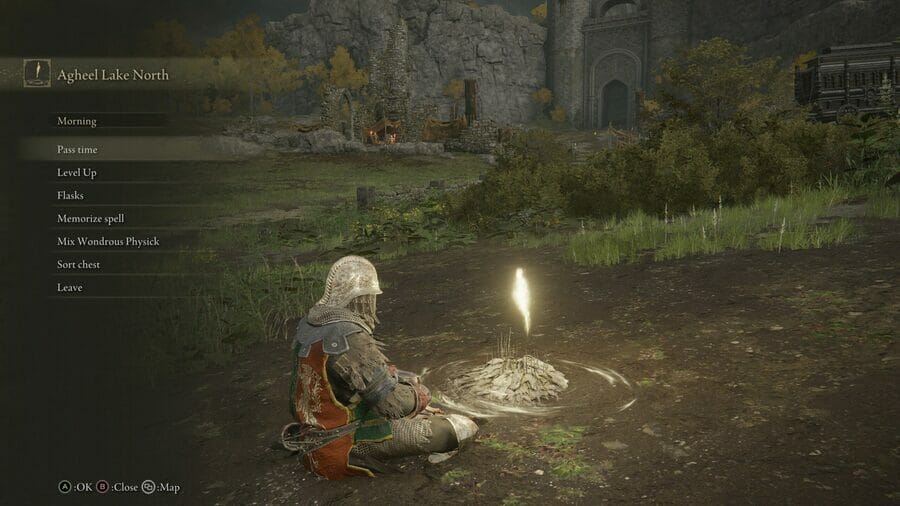
  5. Press the button that opens the list of available Sites of Grace (Triangle on PS5, Y on Xbox).
  6. Spam your confirm button (X on PS5, A on Xbox).

If you perform the process correctly, you should safely teleport to a Site of Grace.

Of course, it is also important to prevent this kind of situation. Thus, we strongly recommend avoiding online play and backing up your saves, just in case the hacks get more sophisticated.

Note icon NOTE
Note that the Elden Ring saves are usually located in the following location: C:/Users/[name]/AppData/Roaming/EldenRing

That being said, we hope that our guide helped you to get rid of the Elden Ring Infinite Death Loop. As you can see, the solutions are pretty simple and seemed to work great in several cases.

Plus, in order to get the best out of this game, we strongly recommend checking how to improve graphics & visuals in Elden Ring.

In case you encounter any additional questions regarding today’s subject, make sure you leave a comment in the section below.

Can’t Install Windows 11 Even Though I Meet Requirements [Fix]

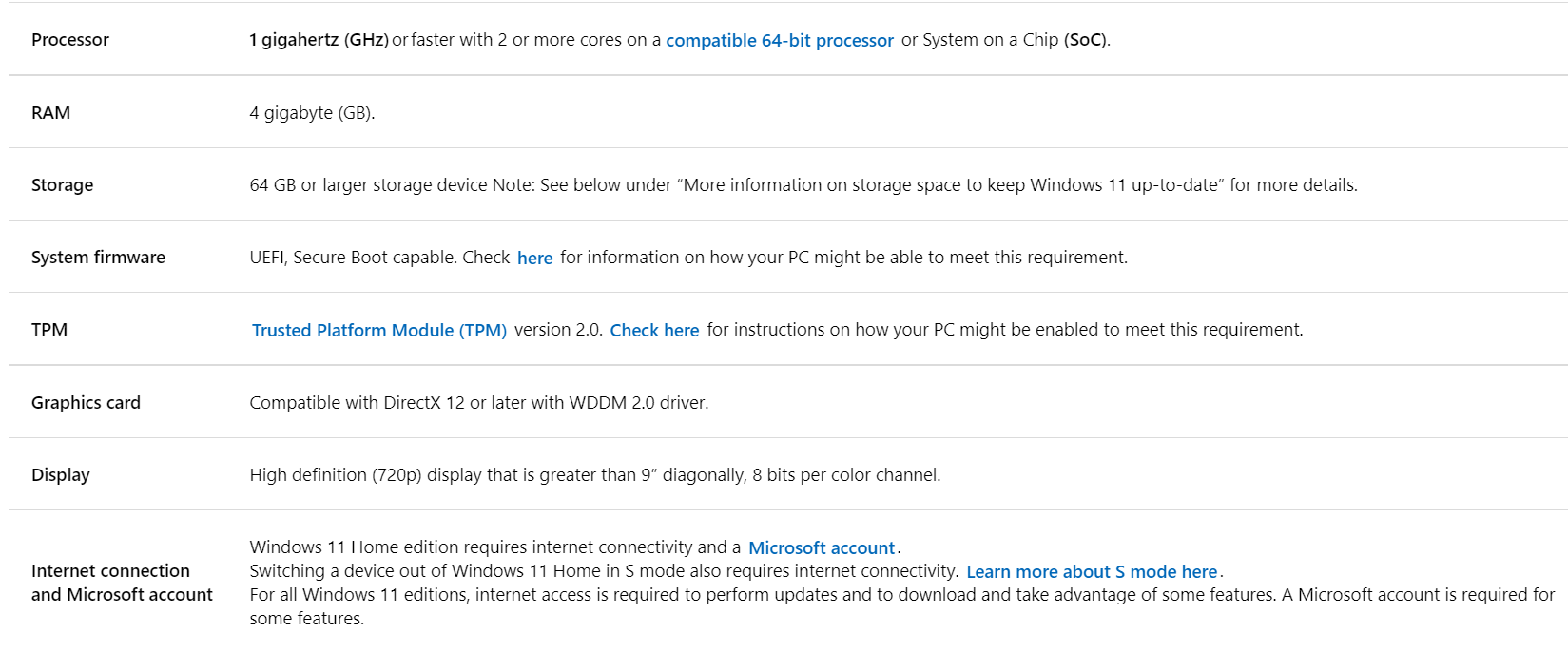
If you want to install Windows 11 and get hit by other demands that the system requirements since you meet them. Then the issue is around the installation media and other peripherals.

Microsoft came up with a new set of hardware specifications on the new operating system to improve security and reduce the chances of cyberattacks.

This article will look at how to solve various issues users face when trying to install the new Windows 11 operating system.

What makes Windows 11 fail to install after meeting the system specifications?

Several reasons can prevent the Windows 11 installation even if your PC meets the new system specifications:

  • Corrupt Windows 11 ISO file
  • Drivers are outdated when doing upgrades from Windows 10 to Windows 11
  • External drives connected to the computer
  • Improper configuration of installation media
  • Problems with the hard disk and its partition
  • Wrong format of the hard disk

How can I fix Windows 11 requirements met but can’t install?

1. Change the disk partitions from MBR to GPT

Note icon NOTE
Note: Before starting this procedure, backup all the needed information from your drives as a precautionary method.
  1. Click the Windows Start button, type cmd, and select Run as administrator to start Command Prompt with full privileges.
  2. Type DiskPart on the command line and press Enter.
  3. Next type list volume to display all the partitions and their details like labels, file system, size, status, info, etc.
  4. Type select volume (number of the disk) and press Enter to choose the drive where you want to install Windows 11.
  5. Type list partition and press Enter to show all the partitions in the selected volume. It will show the section, size, type, and offset.
  6. Type detail partition to confirm more details about the section and its health status. You will need all this information to check the disks after the conversion to confirm if they were converted from MBR to GPT.
  7. Exit the DiskPart by typing exit.
  8. Click the Start button, type cmd, and click on Run as administrator from the results, just like you did on the first step.
  9. Type the following command and hit Enter to convert the disk from MBR to GPT: mbr2gpt /convert /disk:0

MBR to GPT most applies for those doing upgrades from Windows 10 to Windows 11. It involves the use of MBR2GPT.exe, located in the Windows\System32 folder.

2. Uninstall and update all the drivers and other peripherals

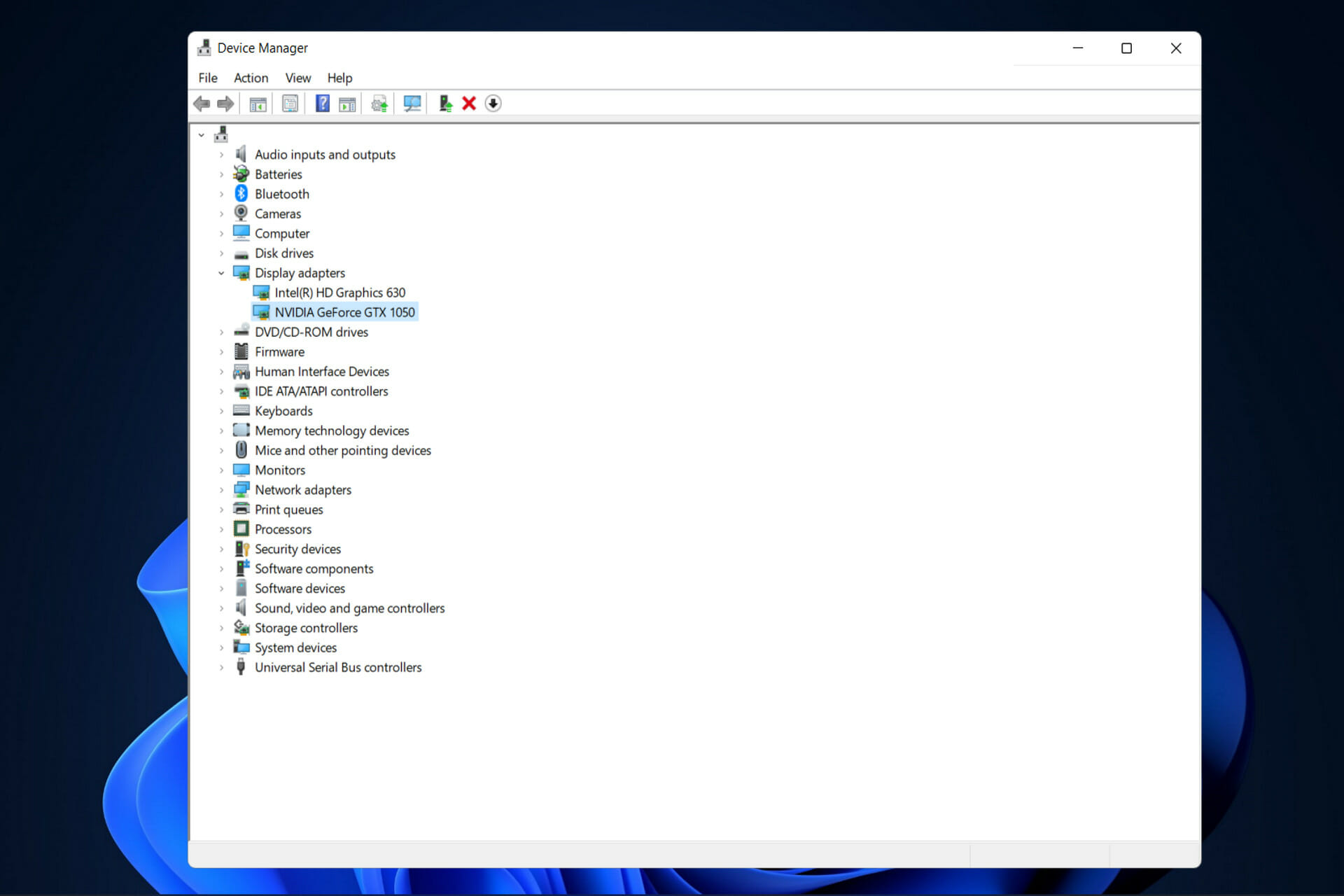
  1. Go to Start, type device manager, and click the app from the results.
  2. Check for the Display UHD adapters.
  3. Right-click and select Uninstall device.
  4. Repeat steps 2 and 3 for USB drivers. Perform the same process to the other drivers you suspect they bring the issue.
  5. Restart the computer to apply the changes. Try installing Windows 11 again.

Updating drivers can be instrumental, especially when booting from a USB hard drive. If you have outdated USB drivers, it is hard for the computer to read or detect any USB you insert on the PC.

Manually updating the drivers could be problematic if you install the incorrect ones. This could harm your gadget in an almost irreversible way. 

Outbyte Driver Updater is a program that not only downloads and installs drivers, but also troubleshoots, backs up, and restores them.

⇒ Get Outbyte Driver Updater

3. Install Windows using a different USB drive or media

It may fail when installing due to a bad USB drive, or the CD you use has issues. Try changing the USB drive or the CD when creating the installation media. 

A fresh Windows 11 install may be a great idea but make sure to back up all your data before you format any drives.

4. Check the hard disk health for any hard drive errors

4.1 Use the chkdsk command 

  1. Go to the Start icon, type cmd, and click on Run as administrator.
  2. Type chkdsk and hit Enter to start the basic scan.
  3. After the check is over, run this on the command line to fix the errors and try installing the Windows again: chkdsk /f /r

4.2 Use the WMIC command

  1. Click the Start button, type cmd and click on Run as administrator to start Command Prompt.
  2. Type wmic and hit Enter.
  3. After it runs successfully, run diskdrive get status to see the status of the hard disk.

4.3 Use the scannow command

  1. Go to the Windows Start button, type cmd and choose Run as administrator.
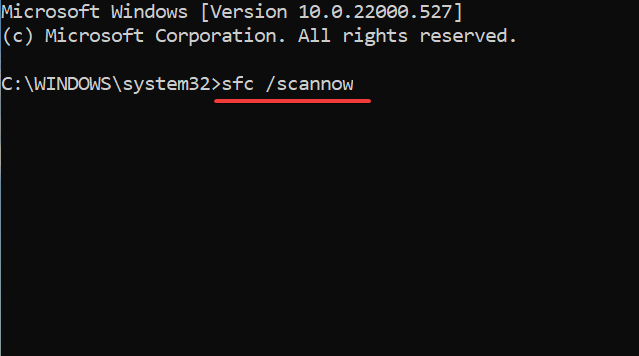
  2. Type this command and press Enter: sfc /scannow
  3. Let the process reach 100% so that you can analyze any errors present in the hard disk. If there are no errors, then the hard disk is good.

4.4 Use the Defragment tool

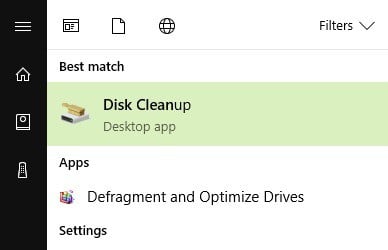
  1. Go to the Search box, search for Defragment and Optimizes and open it.
  2. Select the drive you want to optimize. This will remove all the fragmented files and ensure it’s well optimized.

Most of these commands check the hard disk to see if there are any issues and if it finds any, it will let you know the status of the disk.

5. Disconnect any external USB devices

Having external drives connected to the computer can affect the installation of Windows 11. It may prompt Windows to choose the USB drive not meant for installation.

Therefore, try to unplug all USB peripherals, except for the ones necessary to perform the installation before beginning the process.

6. Download the correct Windows 11 ISO file

Having a faulty or corrupt ISO can lead to the installation of Windows 11 fail. To avoid this scenario, download the ISO from the official Microsofts website.

 It is genuinely free, and you can trust it to be free from phishing codes that can lead to malware attacks or installation failure. 

After downloading the new ISO, try creating another installation media and perform a clean installation of Windows 11.

What next after fixing the issues?

Despite meeting the system requirements, most of the issues that block Windows 11 from going through come from the installation media, Windows 11 bugs, and computer issues.

Once you confirm and fix the issues, you perform another new installation of Windows.

The issue occurs on computers that support all the system requirements, but the installation of Windows 11 fails. Microsoft stated that they are aware of the problem and are working on fixing the issue.

It also advised users to report any more errors they face when using Windows 11 through the Feedback Hub.

We hope our articles have helped you solve the issue, and you are enjoying the features of Windows 11.

Let us know which solution worked for you and if you still face any issues, drop us a comment below.

BIOS Recognizes SSD But Won’t Boot: How to Fix It

If your BIOS recognizes the SSD but your PC still won’t boot, the issue isn’t hardware, it’s the boot process. A wrong boot mode, missing bootloader, or misconfigured boot order is usually to blame. This often happens after cloning a drive or reinstalling Windows.

Below are fixes that actually work, whether you’re dealing with UEFI, Legacy, or something in between.

What do I do if BIOS recognizes SSD but won’t boot?

1. Check the boot prioirity order

  1. Enter BIOS settings.
    (The way to do it depends on your model, but usually, you’ll have to repeatedly press F2 or Del). Check your manufacturer’s manual to be sure.
  2. Look for a menu labeled Boot, Boot Priority Order, Boot Settings, or something similar.boot tab in bios settings
  3. Locate your SSD in the list. It’s usually listed as the hardware’s brand name or model number.
  4. Move it to the top of the boot order list.
  5. Save changes and exit BIOS.
  6. Try to boot your PC again. It should attempt to boot from the SSD.

If your  PC ignores boot order , consider checking if the boot media is working or removing the CMOS battery.

2. Change boot mode

  1. Start your PC and enter BIOS.
    windows 10 bios
  2. Locate the Boot settings, and select UEFI or Legacy, based on how your OS was installed. If you’re not sure, you can try both. Once you select the correct option, your system should boot.

The exact location of the Boot settings depends on your device. To be sure, check your motherboard manual for detailed instructions.

3. Update BIOS

  1. Download the latest BIOS for your motherboard.
  2. Use the downloaded file to flash your BIOS to the latest version.

Keep in mind that the BIOS update is an advanced procedure that can damage your motherboard, so be sure to follow the instructions from the motherboard manual in order to avoid damaging your motherboard.

4. Reset BIOS to default

  1. Restart your PC and enter BIOS settings.
  2. Locate the Exit or Exit/Save Changes section
  3. Find the Load Setup Defaults and select it.load setup defaults bios
  4. Confirm you want to load the default BIOS settings.

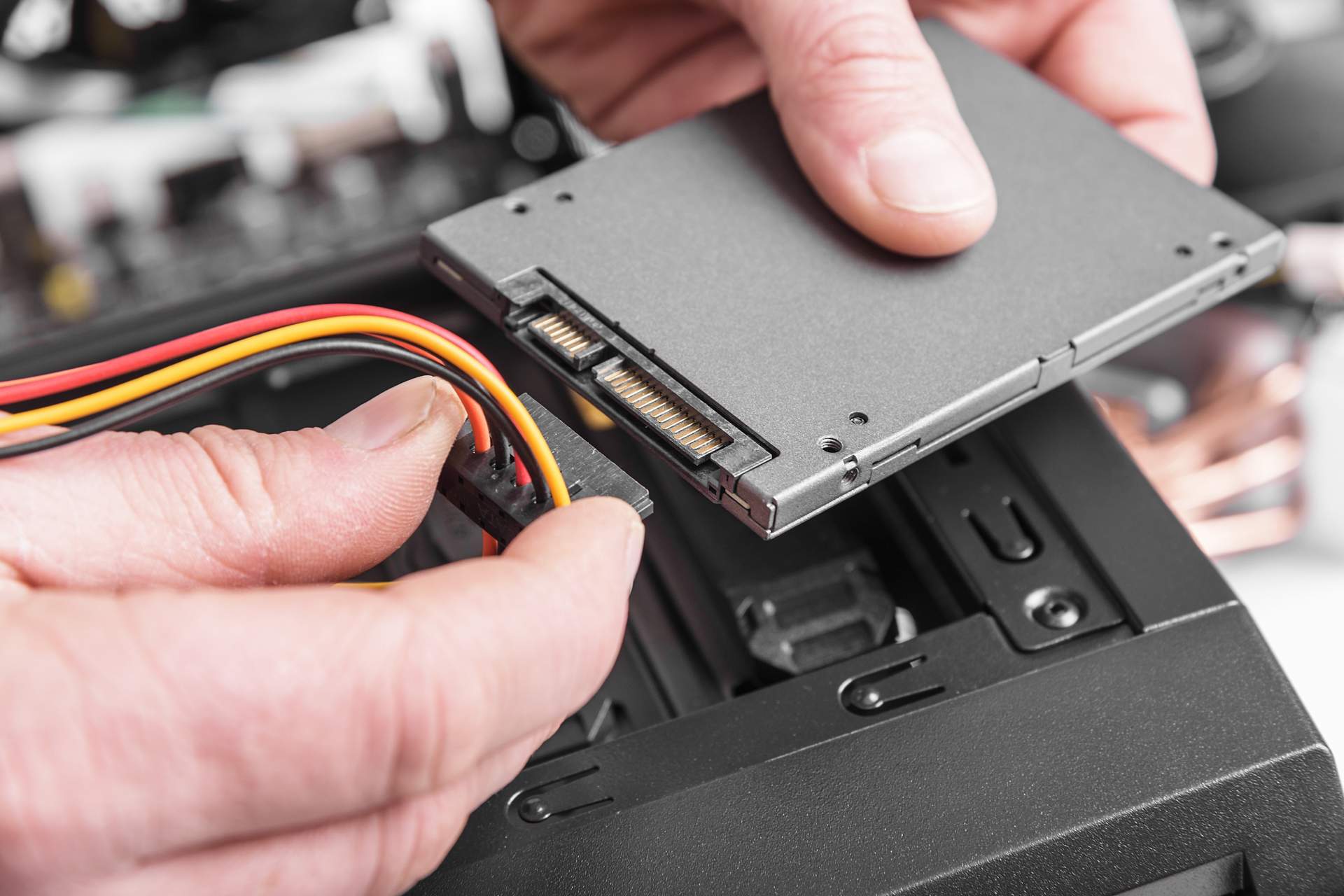
5. Unplug all SATA devices except for the one connected to SSD

  1. Shut down the computer and unplug it.
  2. Open the case and disconnect all other SATA drives except for the SSD.
  3. Reboot the computer and check if it boots from the SSD.

Removing all SATA cables besides the SSD may force your computer to recognize it as the primary boot device. The PC should start properly as no other device will interfere with the boot process.

6. Reset Windows

  1. On another computer, create a Windows Installation drive.
  2. Insert the drive into the non-booting computer.
  3. Restart the computer and enter BIOS settings.
  4. Set the boot order to prioritize booting from installation media.
  5. Save and exit BIOS. Now your computer should boot from the installation media.
  6. Choose your language.
  7. Click on Reset your computer.
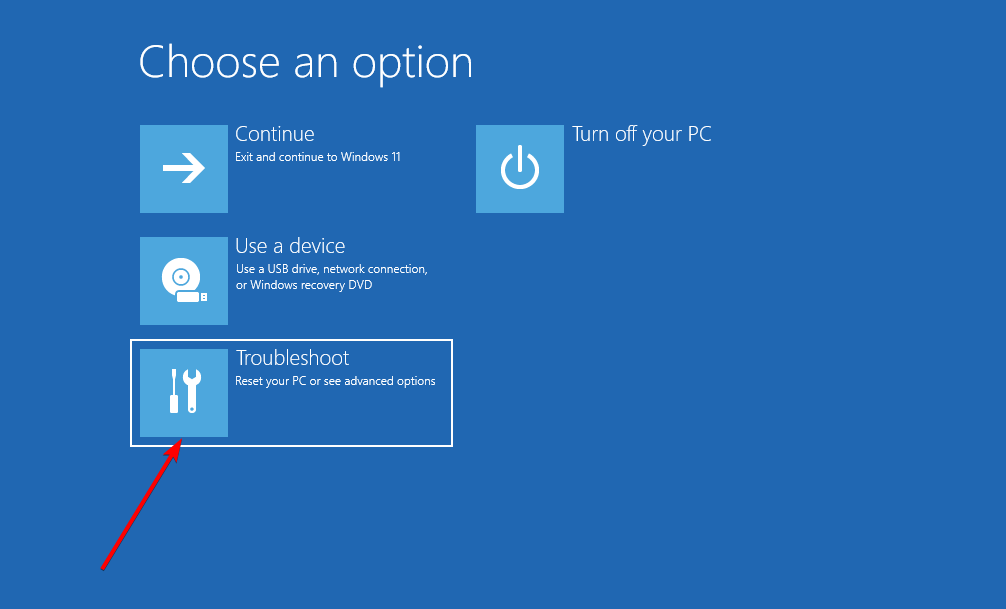
  8. In the Advanced Settings menu, select Troubleshoot.troubleshoot option windows
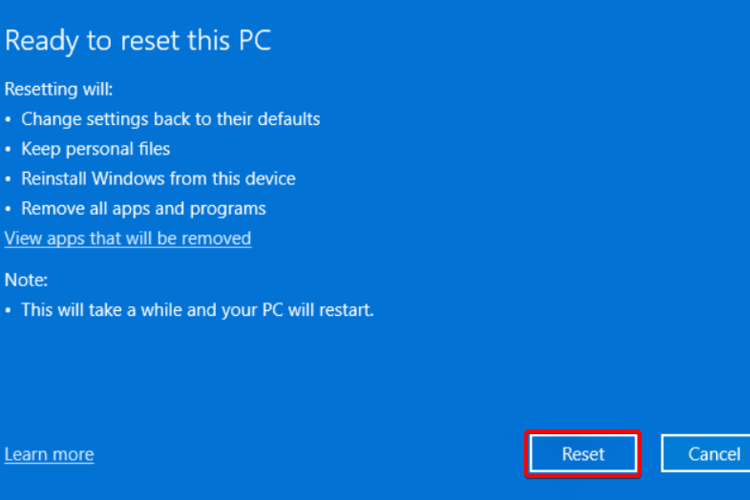
  9. Click Reset this PC.select reset this pc
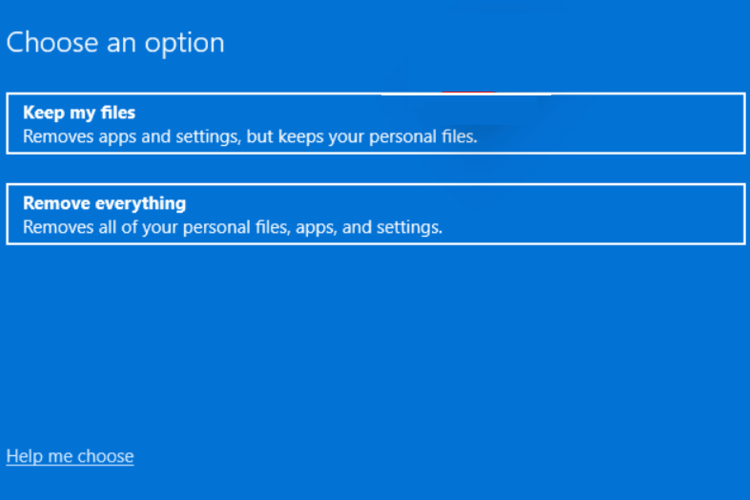
  10. Pick the Keep my files option to save all files on the computer or the Remove everything option if you want to delete all files. Make sure you have a backup if you go with the latter.windows reset options
  11. Follow the on-screen instructions to complete the process.

We recommend this option because it gives you the possibility to keep your files. However, if the SSD not booting issue persists, consider backing up your files and performing a clean install.

7. Remove the System Reserved partition from the other drive

Note icon NOTE
This process will cause you to lose all your files from the hard drive, so be sure to back them up. Use this method only if other solutions aren’t able to fix your problem.
  1. Boot to Windows.
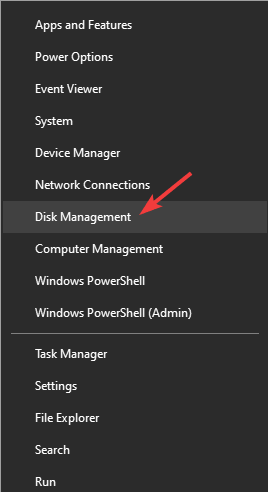
  2. Now press Windows Key + X and choose Disk Management.
    disk management bios recognizes ssd but won't boot
  3. Try to locate the System Reserved partition on the old hard drive and try to remove it.
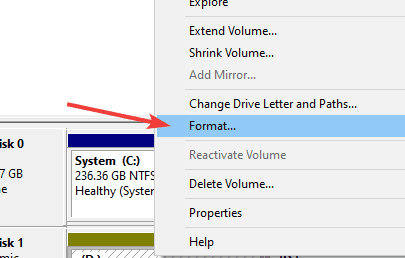
  4. If that doesn’t work, you’ll have to format the hard drive. To do this, right-click the hard drive and choose Format.
    format drive bios recognizes ssd but won't boot
  5. Follow the instructions on the screen to complete the format process.

If your PC won’t exit BIOS, fails to start after a BIOS update, or automatically boots into BIOS, these guides can help you troubleshoot each problem: PC won’t exit BIOS, PC won’t start after BIOS update, and PC automatically goes to BIOS.

Not being able to use your new SSD can be a problem, but we hope that after reading this article you managed to fix all SSD booting issues on your PC.

For more suggestions or other questions regarding this topic, please access the comments section below.

How to Fix Windows Activation Error 0x87e10bc6 on Windows 11

The Windows 11 activation error 0x87e10bc6 issue arises for some users when they try to activate the platform with a product key via Settings. When that issue occurs, the Activation tab in Settings displays the following error message:

Something prevented us from communicating with our activation servers. Wait a few minutes and then try again. Error code: 0x87e10bc6.

That particular activation error can arise because of a firewall blocking connectivity with Microsoft’s activation server. As a result, users can’t activate Windows 11 with their product keys when that error arises.

Unfortunately, even Windows 10 users have been plagued by the same issue in the past, so being prepared to deal with this issue can make a huge difference.

How can I fix the Windows 11 activation error 0x87e10bc6?

1. Try activating Windows 11 again a few days later

It might just be the case that the activation error 0x87e10bc6 is due to a Microsoft activation server issue. The server could be temporarily down.

In this case, you might need to wait a day or two before you can activate Windows 11. If the issue persists after a few days, apply the resolutions below.

2. Run the activation troubleshooter

  1. Click Windows 11’s Start button and choose Settings.
    Settings app windows 11 activation error 0x87e10bc6
  2. Select Activation on the System tab.
    Activation navigation option windows 11 activation error 0x87e10bc6
  3. Then click Activation state to expand it.
    Activation state windows 11 activation error 0x87e10bc6
  4. Press the Troubleshoot button.
  5. Wait for the troubleshooter to scan, and select the Apply this fix option.

3. Use a third-party system repair tool

Some third-party system repair tools might provide a solution for activation error 0x87e10bc6. These tools come with powerful features that allow them to perform in-depth scans of your computer in order to properly identify the issue.

Once identified, the app will either fix the problem or download fresh genuine system files to replace the corrupted ones.

4. Use the Command Prompt

  1. Click the taskbar button with the magnifying glass icon.
    The magnifying glass icon windows 11 activation error 0x87e10bc6
  2. Enter the keyword cmd in the search box, right-click the Command Prompt search result, and select Run as administrator.
    The Run as administrator option windows 11 activation error 0x87e10bc6
  3. Then type in this command and hit Enter: slmgr /ipk *Product Key*
    The slmgr command windows 11 activation error 0x87e10bc6
  4. Next, input the following and press Return: slmgr /ato
  5. Click OK on the Windows Script Host dialog box that opens.
  6. Restart your desktop or laptop by selecting Power > Restart from the Start menu.
Note icon NOTE
You’ll need to replace *Product Key* in the command specified above with an actual activation key.

5. Temporarily disable the Windows Defender Firewall

  1. Open the search tool, and enter Windows Defender Firewall in its search box.
  2. Click Windows Defender Firewall to open its Control Panel applet.
  3. Then click Turn Windows Defender Firewall on or off to bring up those options.
    Turn Windows Defender Firewall on or off windows 11 activation error 0x87e10bc6
  4. Select the Turn off Windows Defender Firewall options shown directly below.
    The Turn off Windows Defender Firewall option windows 11 activation error 0x87e10bc6
  5. Press the OK button to apply settings. Then try activating Windows 11 again.

6. Uninstall third-party firewall software

  1. First, press the Windows + X key combination for opening the Power User menu.
  2. Select the Run shortcut.
    The Run option windows 11 activation error 0x87e10bc6
  3. Input this text and click OK to open Programs and Features: appwiz.cpl
    The appwiz.cpl command windows 11 activation error 0x87e10bc6
  4. Select any third-party firewall software listed in the Programs and Features applet.
    The Programs and Features applet  windows 11 activation error 0x87e10bc6
  5. Click the Uninstall option and Yes to remove the firewall software.
  6. Restart your PC, and try activating Windows 11 again.

You can also uninstall software and erase all leftover debris with third-party uninstaller tools like IObit Uninstaller. IObit Uninstaller is a freeware software that packs in more options and features for removing software than Windows 11’s default uninstaller applet.

Note icon NOTE
Note that third-party antivirus software can also include firewalls. So, it’s recommended that you uninstall third-party antivirus utilities as well.

7. Restore your OS to a previous point

  1. Open Run as covered in the first couple of steps of the previous resolution.
  2. To open System Restore, input this command and click OK: rstrui
  3. Select Choose a different restore point if that option is available, and click Next to continue.
    The System Restore tool windows 11 activation error 0x87e10bc6
  4. Choose the oldest restore point you can and click Next.
    Restore points windows 11 activation error 0x87e10bc6
  5. Press the Finish button.
    Finish button windows 11 activation error 0x87e10bc6
Note icon NOTE
Restoring Windows 11 to an earlier time will remove software installed before that date. You can check what software a chosen restore point affects by clicking Scan for affected programs within System Restore.

Do I need to activate Windows 11?

It’s not essential to activate Windows 11 to continue utilizing it. However, there are some restrictions applied when Windows 11 hasn’t been activated. You’ll notice an Activate Windows watermark on the desktop and regular activation notifications for one thing.

The most notable restriction is that Windows 11’s Personalization settings are grayed out when it’s not activated.

Therefore, you can’t customize the platform with any of the settings on the Personalization tab. That tab includes options for changing themes, colors, and desktop wallpaper among others.

If you’re not bothered about that, however, you don’t need to fix Windows 11 activation error 0x87e10bc6. Nevertheless, you might still be able to fix that error in Windows 11 with some of these potential resolutions.

Can I activate Windows 11 by phone instead?

There is an offline phone method for activating Windows 11. You can select to activate Windows by phone via Settings as outlined on Microsoft’s Product activation webpage. Alternatively, enter slui.exe 4 in Run’s window and click the OK button.

In the Windows Activation window that opens, you’ll need to select a location in the drop-down menu. Then the window will display some toll-free numbers to call for activating Windows. Note down the numbers needed there to activate the platform offline.

However, you shouldn’t need to activate Windows 11 via phone if your PC is connected to the internet. Try applying all the potential resolutions for error 0x87e10bc6 above first. The fixes in our Can’t activate your copy of the Windows 11 guide might also help resolve that issue.

We also covered activation error 0xc004f069 in one of our older guides, so don’t miss it.

You can discuss Windows 11 activation error 0x87e10bc6 in the comments section below. Feel free to add any questions or even share any other error 0x87e10bc6 resolutions there.

How to Fix Windows 11 Miracast not Working [Step-by-Step]

If Miracast isn’t working on your Windows 11 PC, don’t worry, it’s usually fixable. Common solutions include adjusting your connection settings, updating network drivers, and configuring your Wi-Fi adapter. We’ll walk you through each step below.

Miracast issues often stem from outdated drivers, compatibility problems, or Windows Firewall settings. Here’s how to troubleshoot and get it working again.

What can I do if Miracast is not working in Windows 11?

1. Connect both devices to the same Wi-Fi

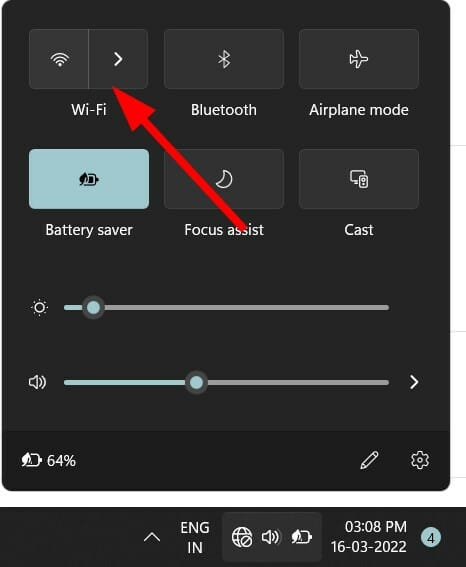
  1. Click on the Wi-Fi icon on the bottom-right toolbar.
  2. Tap on the Wi-Fi button.wifi settings
  3. Connect to your Wi-Fi network.
  4. Now connect the other device to this same Wi-Fi network.

Miracast works only if you connect your Windows 11 PC as well as the supported display to the same Wi-Fi network.

Follow the above steps to connect your Windows 11 PC to the Wi-Fi network, and make sure to connect the other device to the same network. You can now check if this fixes the Miracast not working error or not.

2. Update network drivers

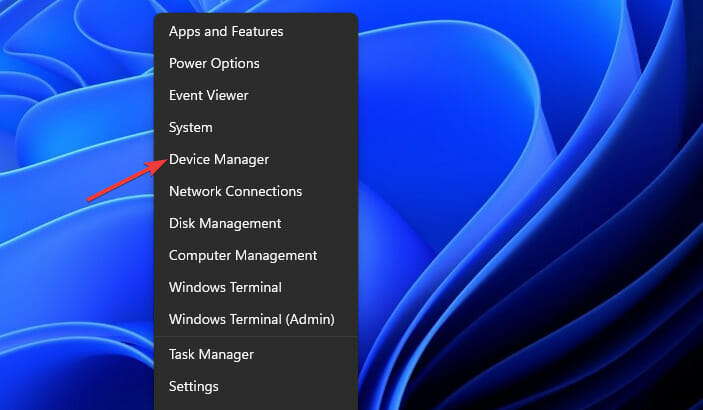
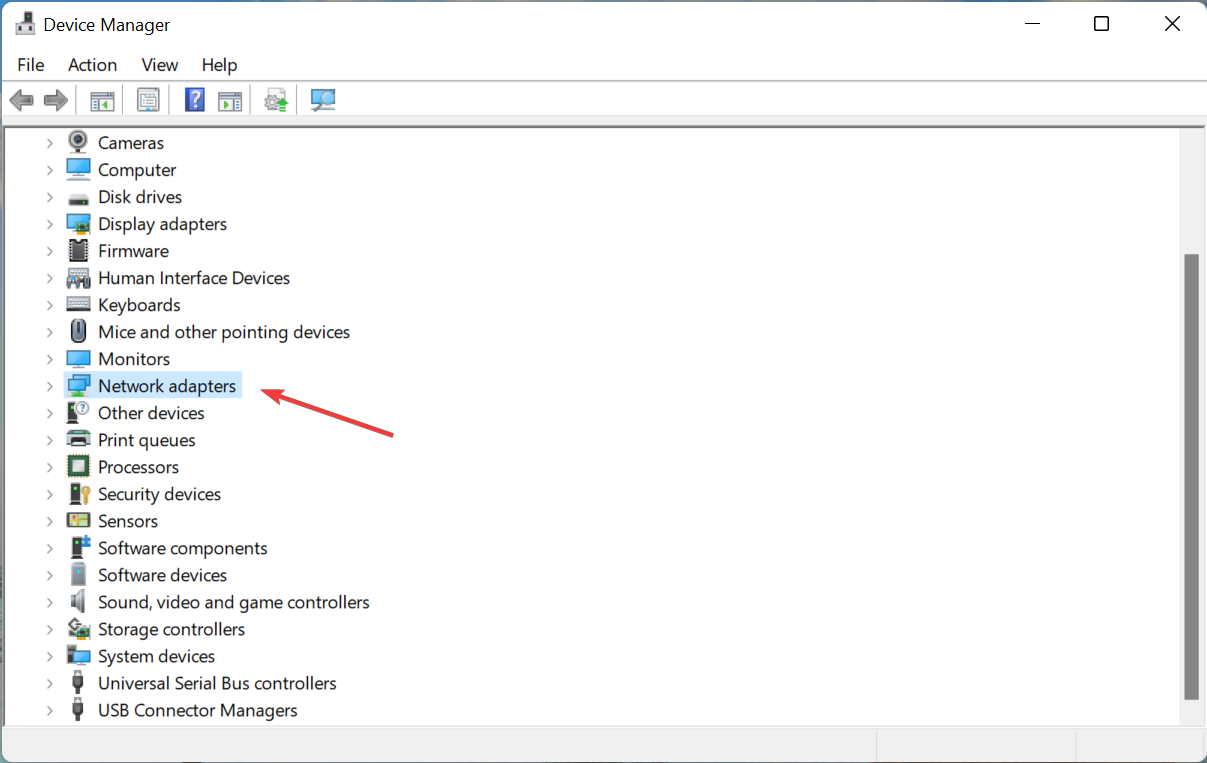
  1. Right click on the Start menu icon.
  2. Select Device Manager.device-manager
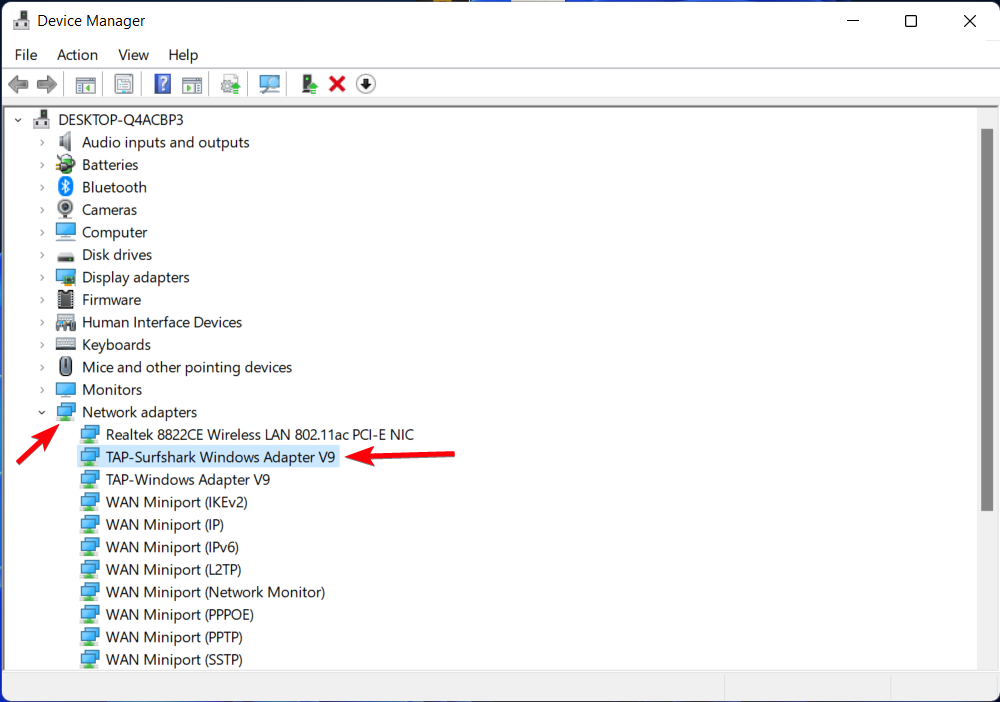
  3. Expand the Network adapters section.Network adapters
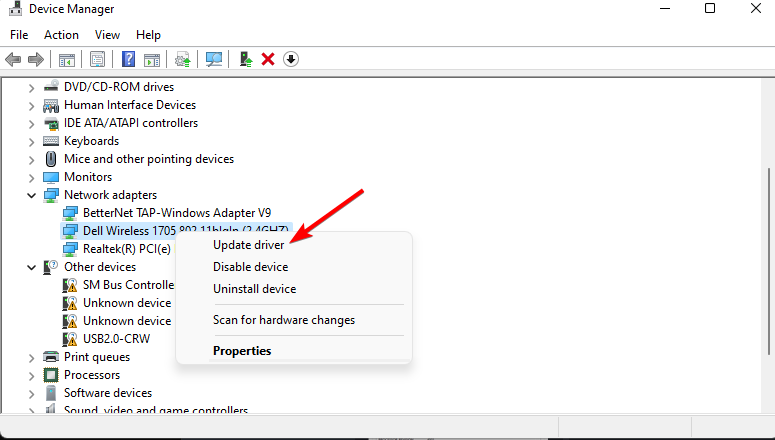
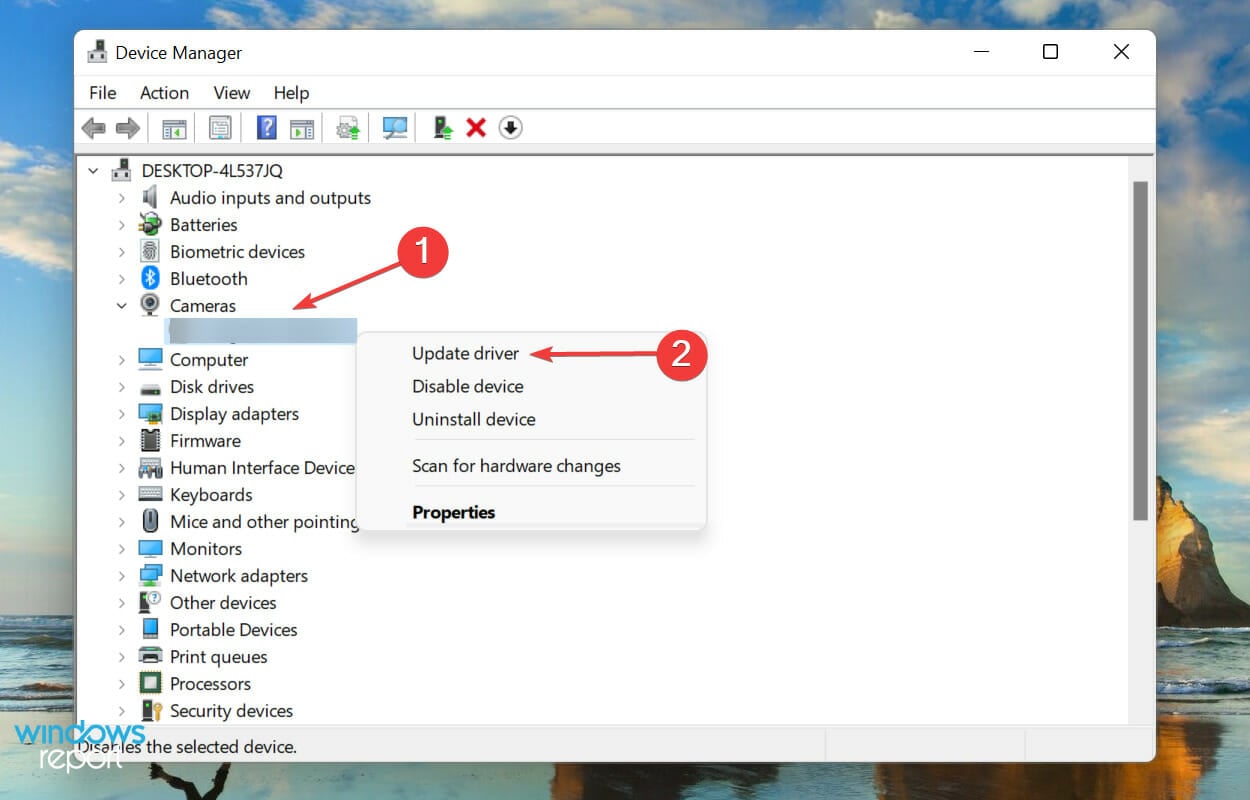
  4. Right click on your Wi-Fi adapter and choose Update driver.Network adapters udate driver
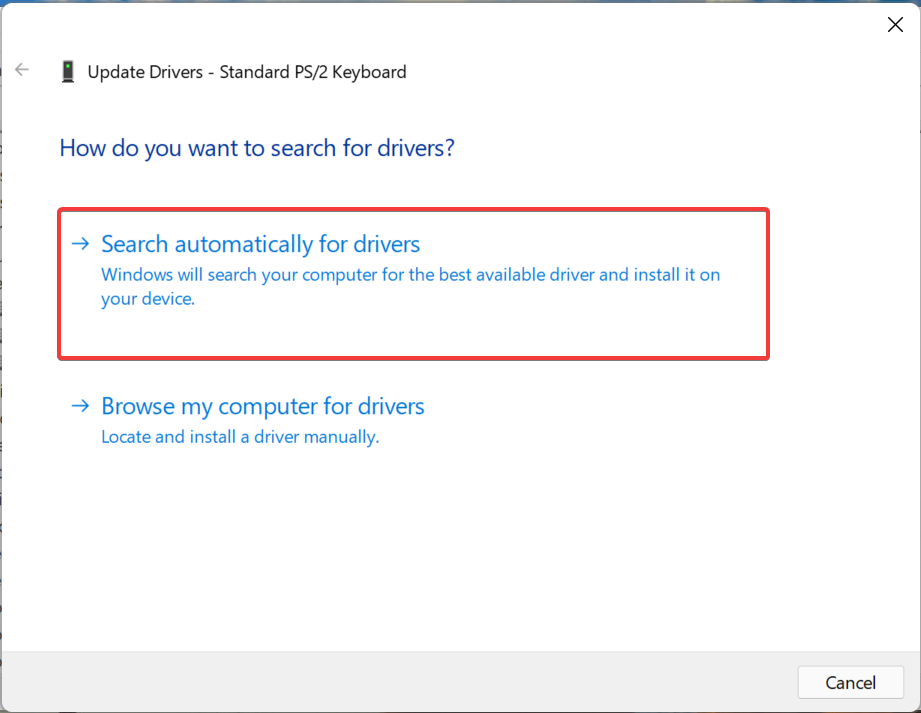
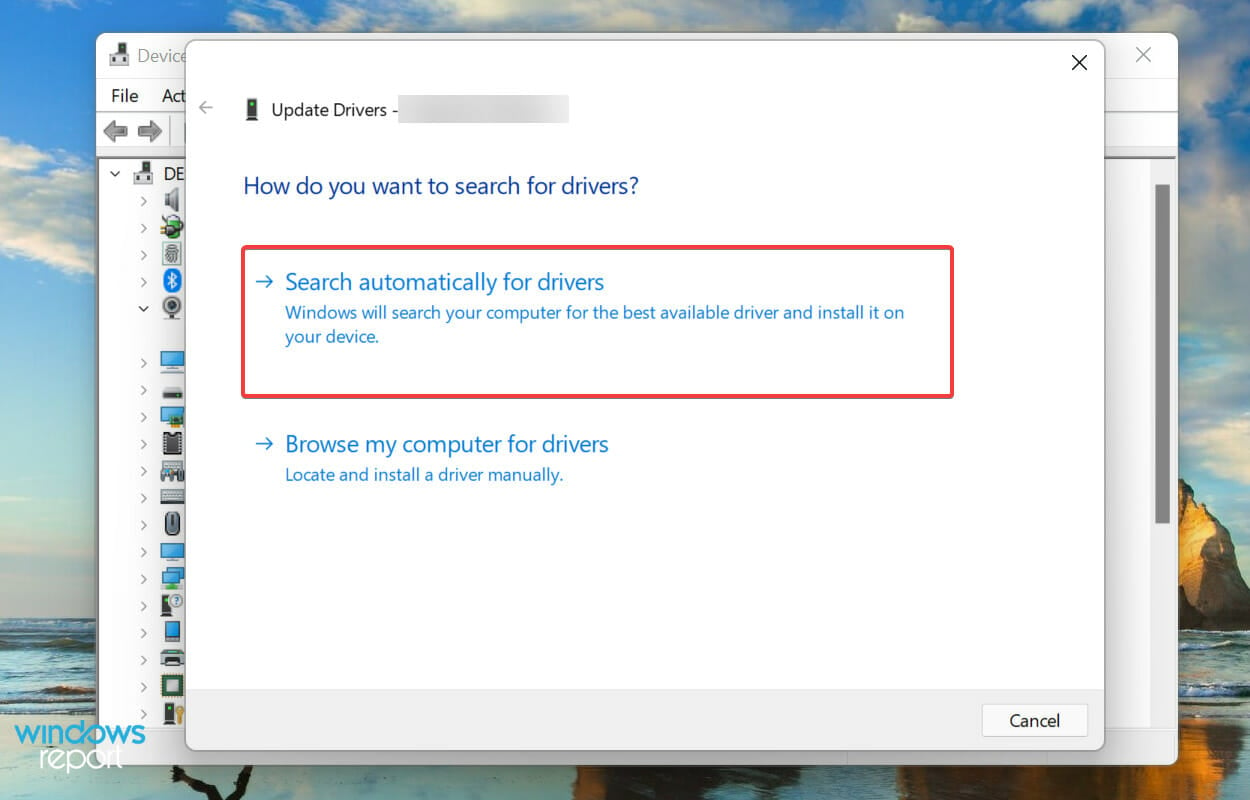
  5. Select Search automatically for drivers.Search automatically for drivers

Windows will start looking for newly available network drivers and, if available, will prompt you to install the latest one.

This method is helpful if you see that the NdisVersion of your PC is outdated. Simply following the above steps will update your network driver and possibly fix the Miracast Windows 11 not working issue.

You can always rely on a dedicated driver updater tool for all your driver-related needs. This software scans for all outdated drivers shows you the result and prompts you to install all the updates.

You can fix errors such as faulty or broken driver files, update old device drivers, locate missing drivers, and much more with these tools.

3. Uninstall Wi-Fi adapter

  1. Right click on the Start menu icon.
  2. Select Device Manager.device-manager
  3. Expand the Network adapters section.Network adapters
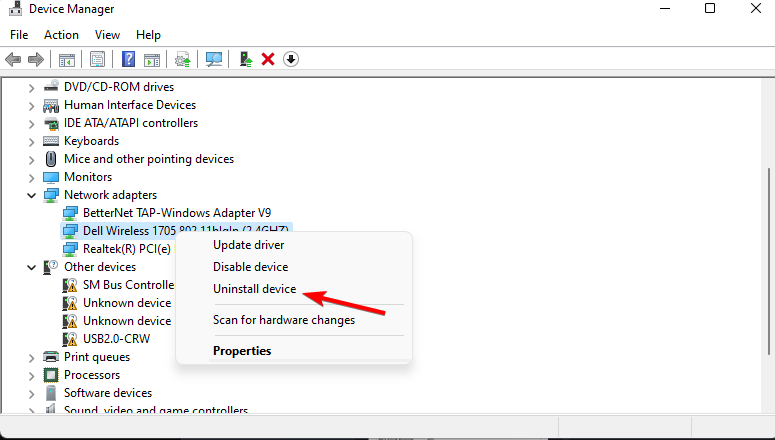
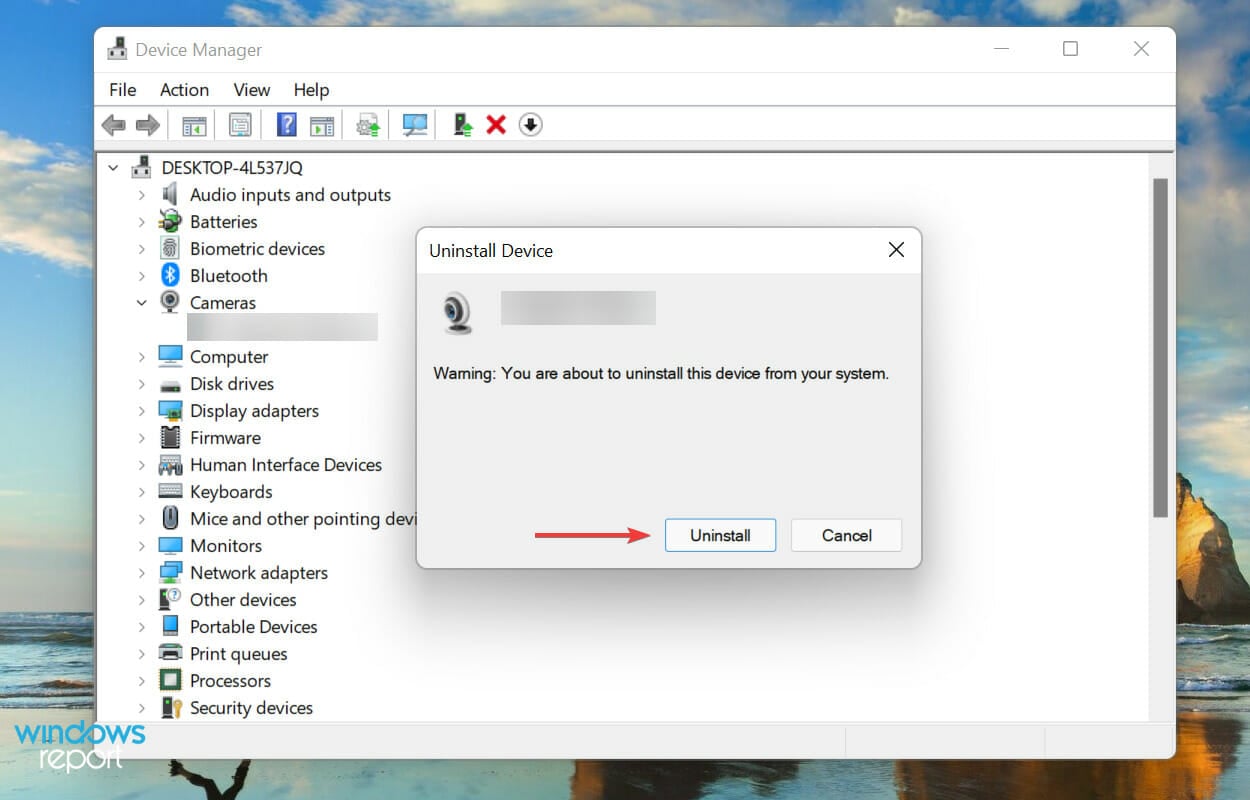
  4. Right click on your Wi-Fi adapter and choose Uninstall device.Uninstalling Network Adapter to fix L2TP VPN not working
  5. Click Uninstall again to confirm the action.
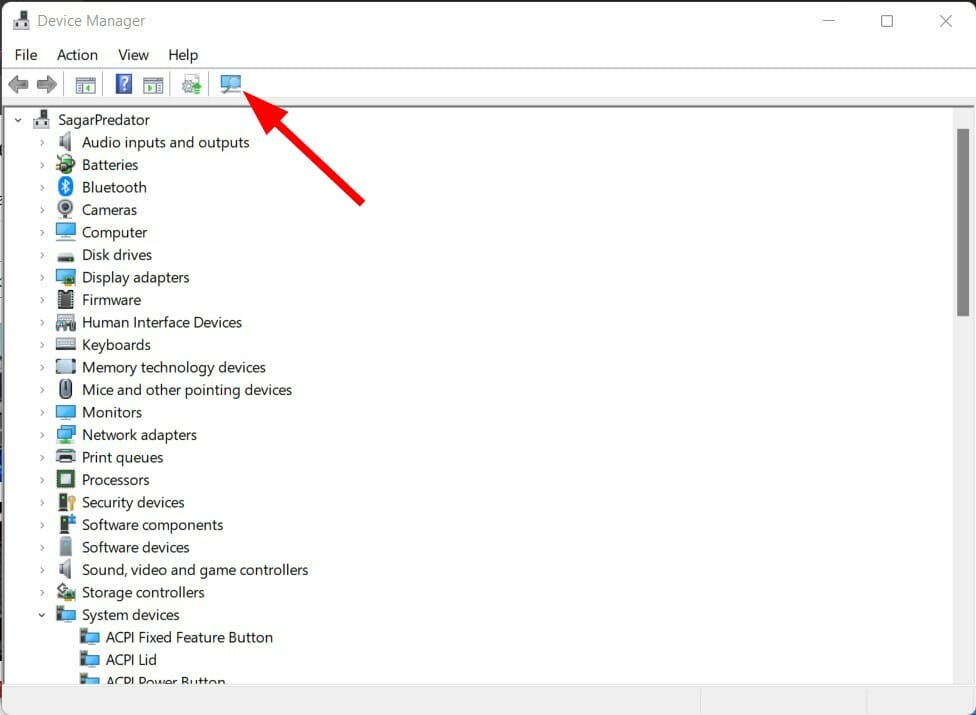
  6. After uninstalling, below the menu bar, select Scan for hardware changes.action device manager
  7. Windows will start searching for the missing drivers.
  8. Close the Device Manager and check if this fixes the issue.

Reinstalling the Wi-Fi adapter will help fix several errors that could pop up, potentially because of missing or corrupted files.

There are chances that a file was missed during the previous installation or it got corrupted for some reason.

Hence, reinstalling the Wi-Fi adapter lets you eliminate those two possibilities, and maybe it will also help you fix the Miracast Windows 11 not working issue as well.

4. Run the troubleshooter

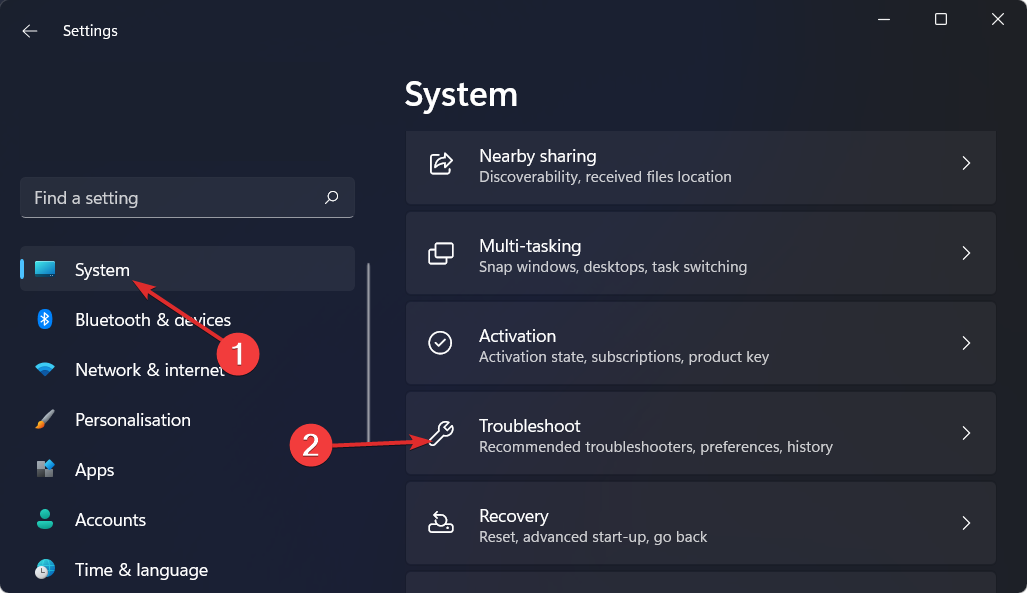
  1. Press Win + I keys together to open Windows Settings.
  2. Select System.
  3. Scroll down and select Troubleshoot.system-troubleshoot windows 11 error after update
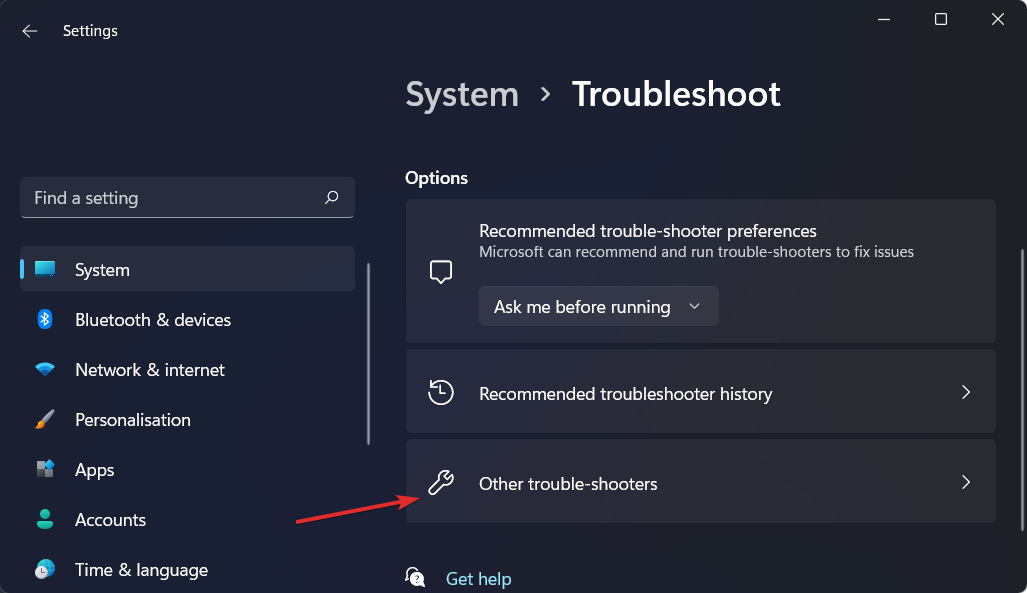
  4. Choose Other troubleshooter.other-troubleshooters windows 11 error after update
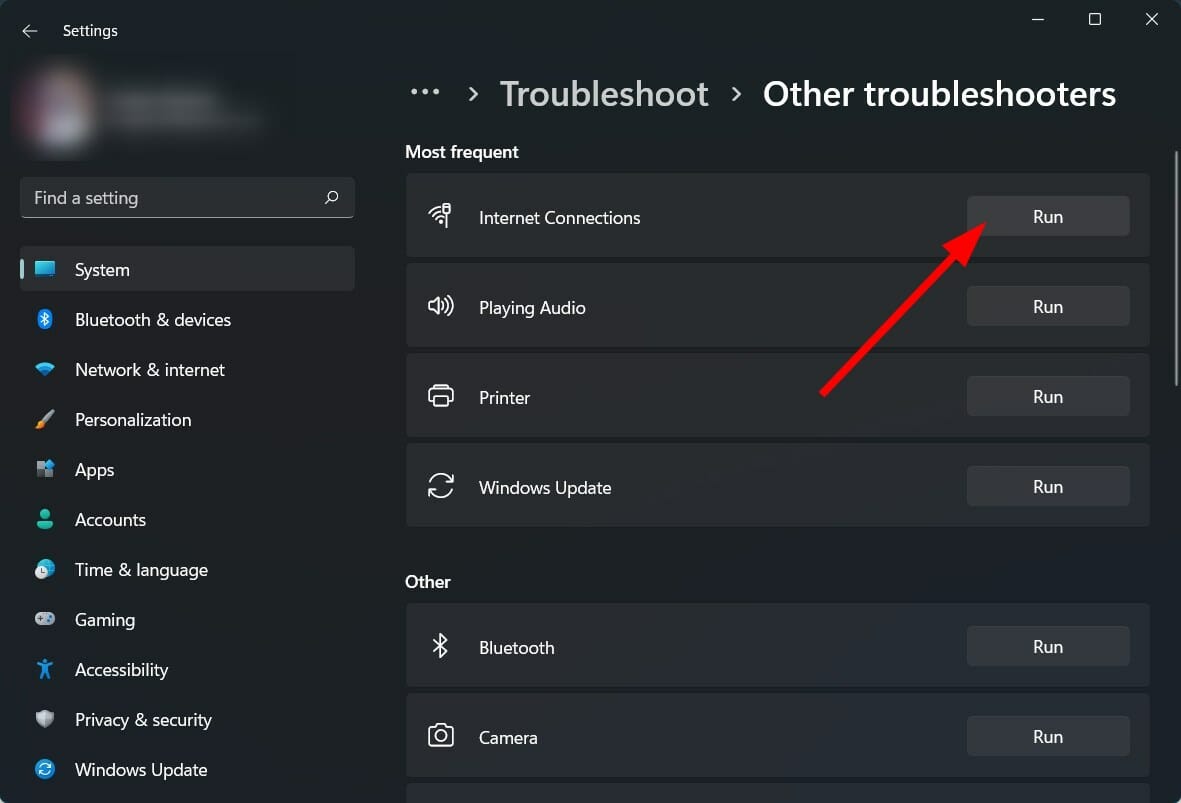
  5. Click Run next to the Internet Connections.internet connection troubleshooter

Windows 11, just like other versions of Windows, comes with an in-built troubleshooter that helps fix different problems related to your PC.

You can try running the connection troubleshooter in order to fix the problem with your network adapter and possibly fix the Miracast not working on your Windows 11 PC.

5. Configure Windows Firewall

  1. Press Win + I buttons to open Windows Settings.
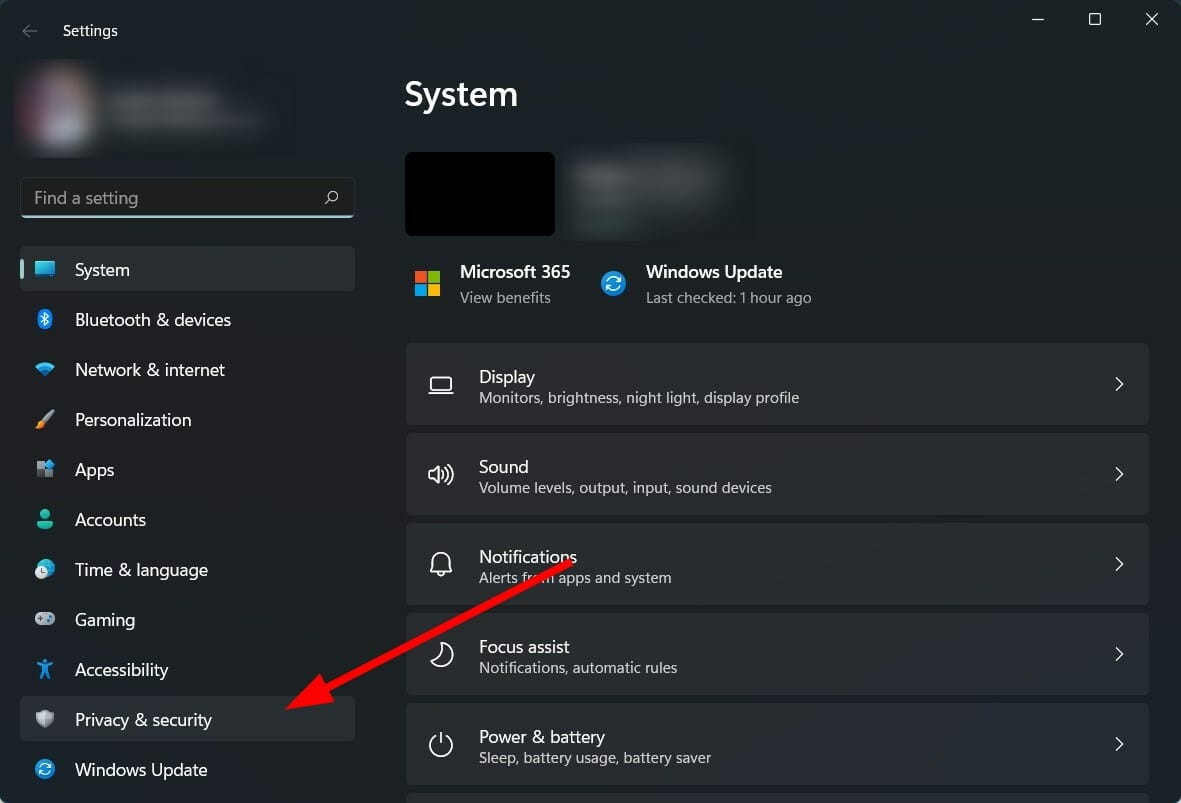
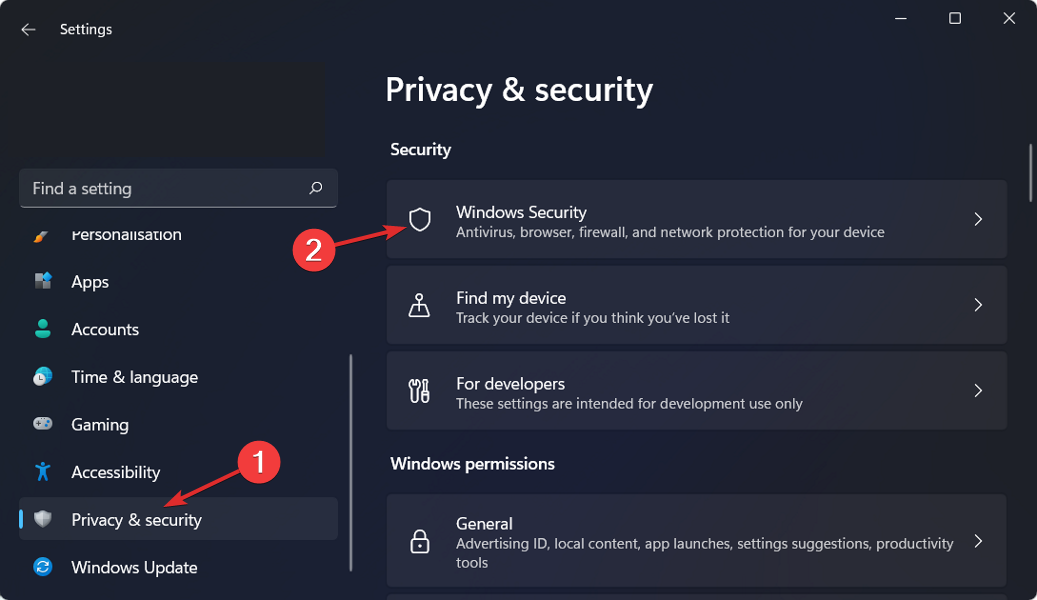
  2. Select Privacy & Security from the left pane.privacy and security
  3. Click on Windows Security on the right side.windows-security-choice minecraft not installing windows 11
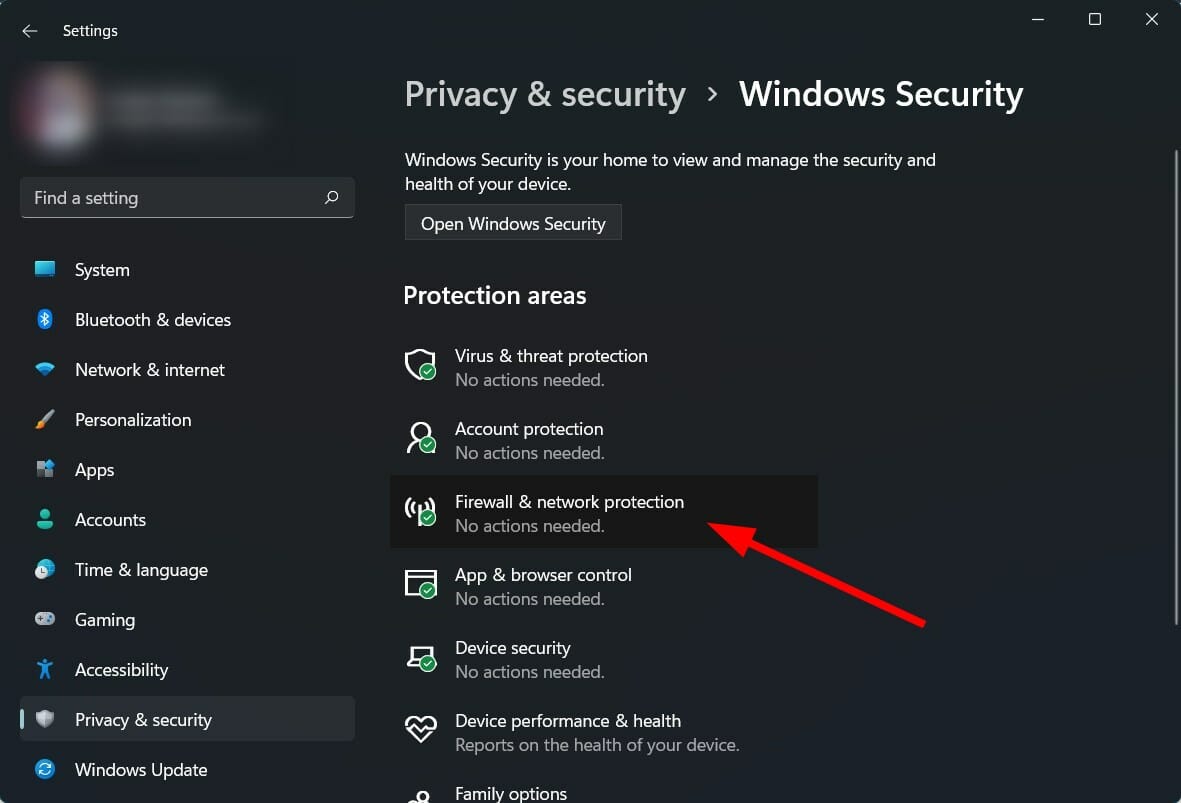
  4. Select Firewall & network protection option.firewall and network protection
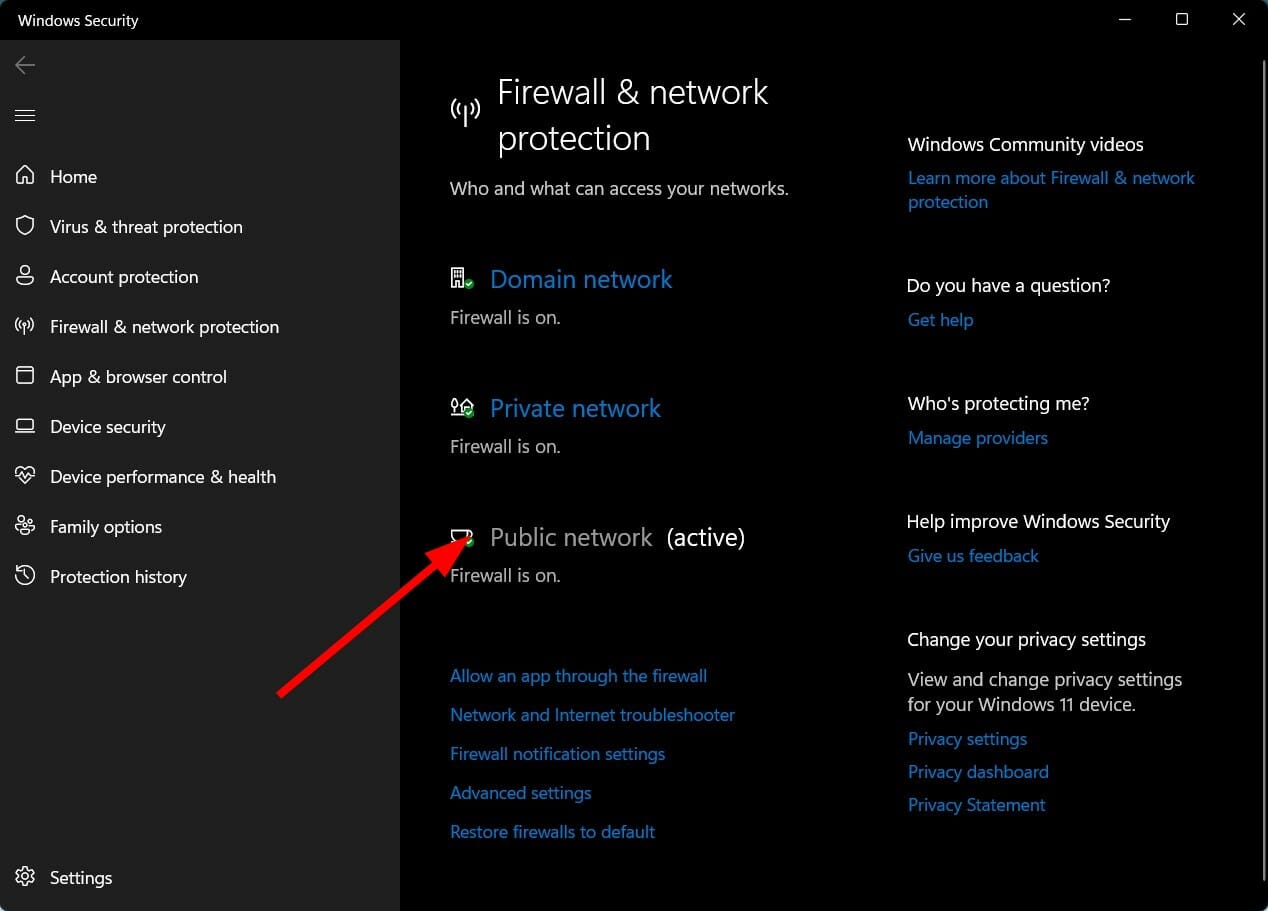
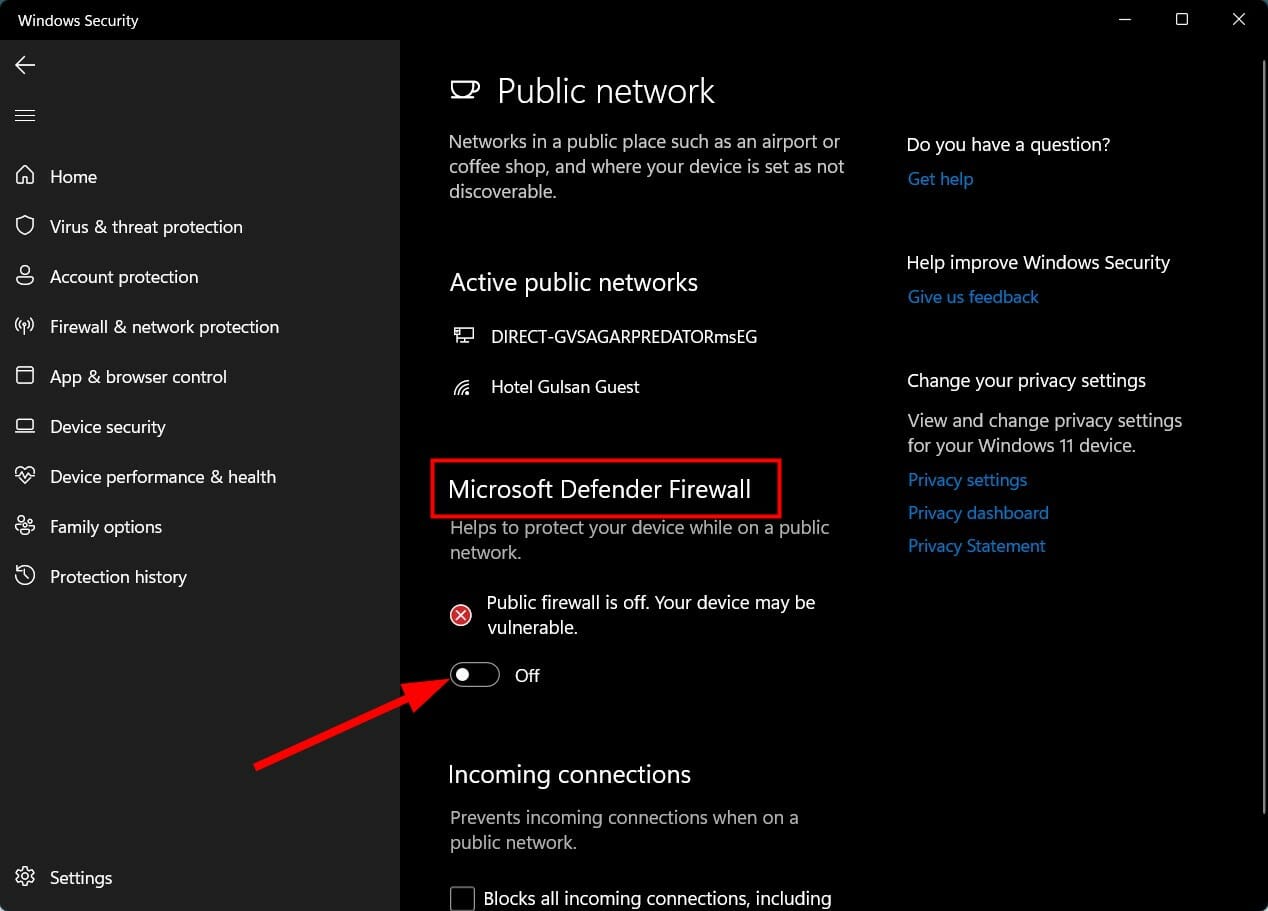
  5. Click on the Public network (active) profile.public network
  6. Toggle off the switch for Microsoft Defender Firewall.turn off defender
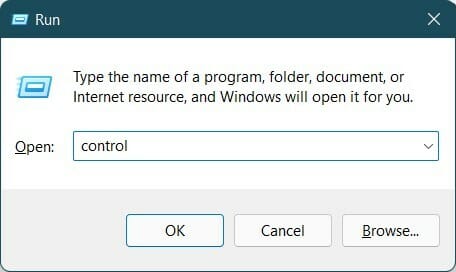
  7. Press Win + R to open the Run dialogue.
  8. Type control and hit Enter.control
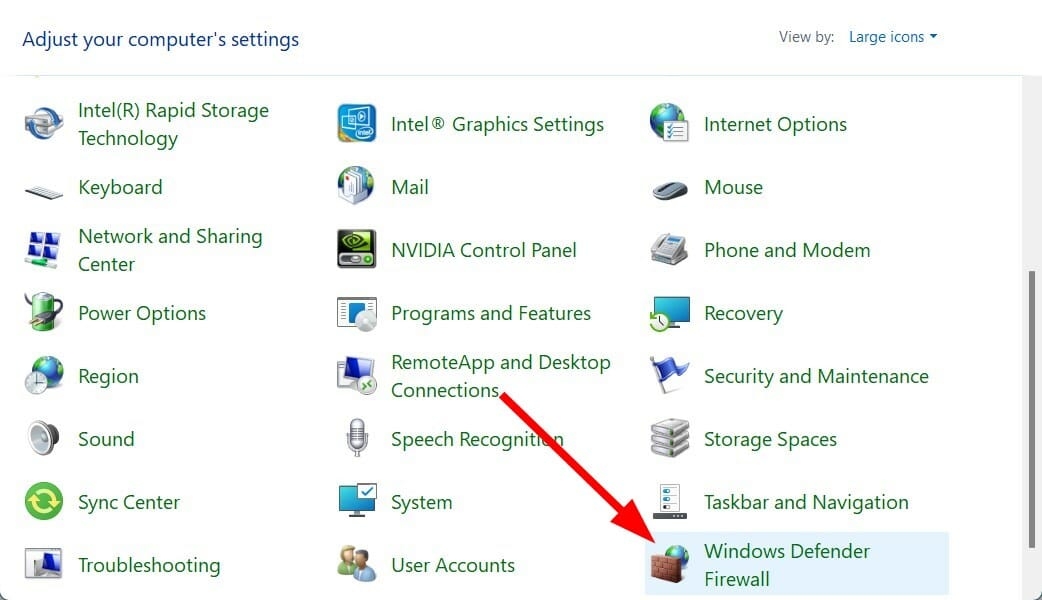
  9. Select Windows Defender Firewall.windows firewall
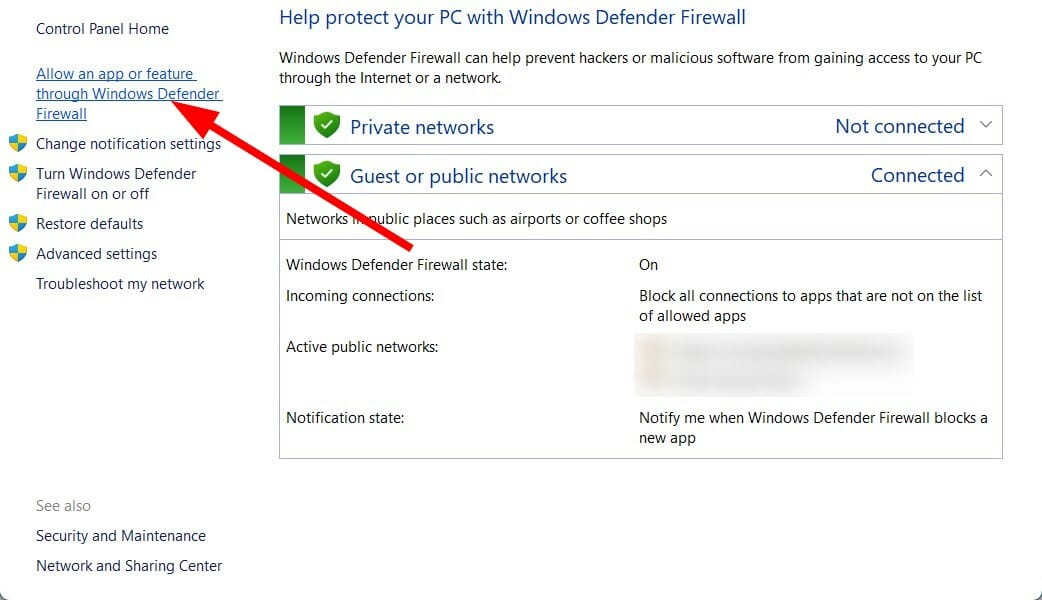
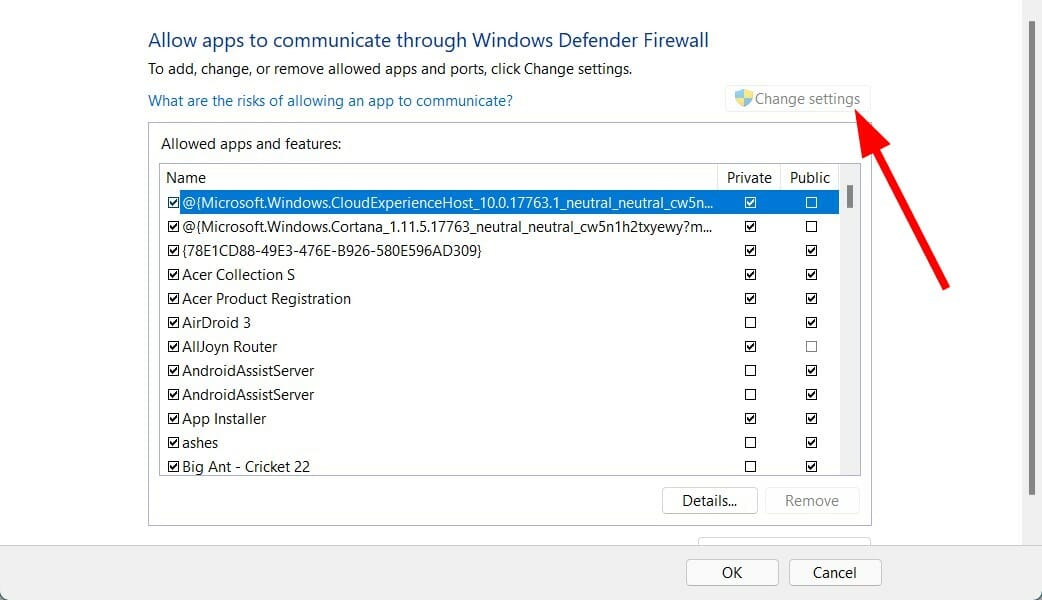
  10. From the left side select Allow an app or feature through Windows Defender Firewall.allow app
  11. Click on the Change Settings button in the top-right corner.change settings
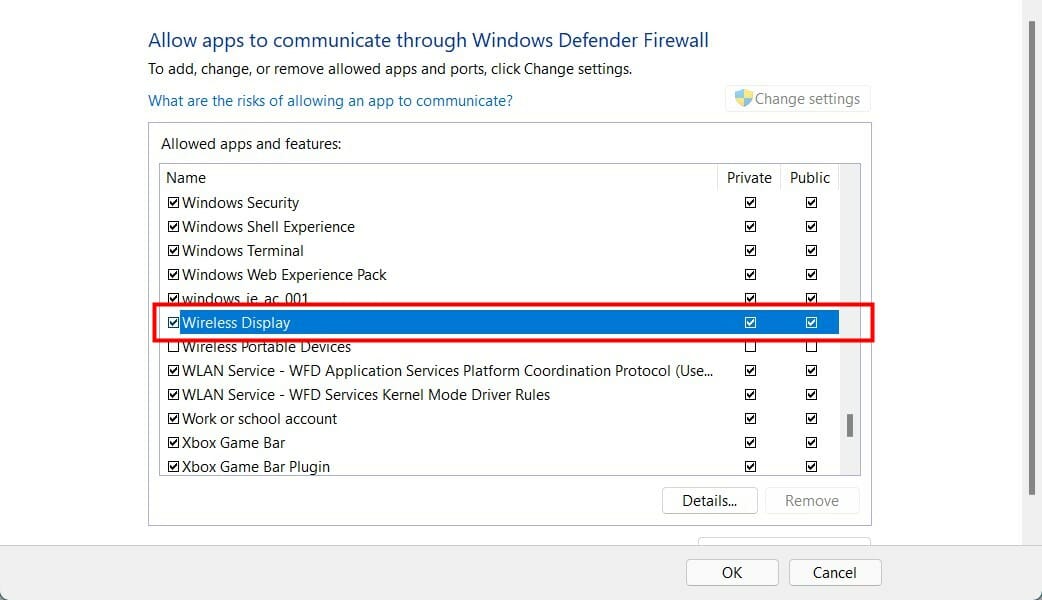
  12. Locate Wireless Display and then check the Private and Public box.wireless display
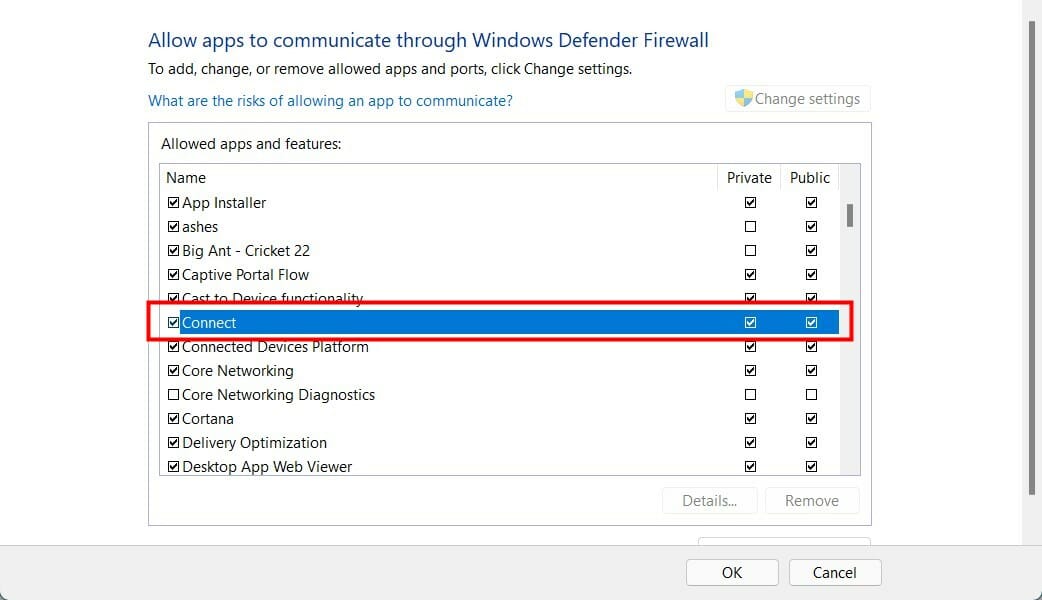
  13. Now, locate the Connect app and check the Private and Public box.connect
  14. Click OK to save the changes.

6. Change Wireless Mode selection value

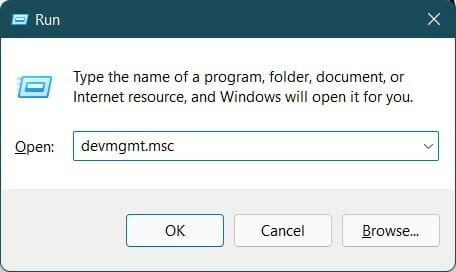
  1. Press Win + R to open the Run dialogue.
  2. Type the below command and hit Enter: devmgmt.mscdevice manager
  3. Expand Network adapters.Device manager Network Adapters
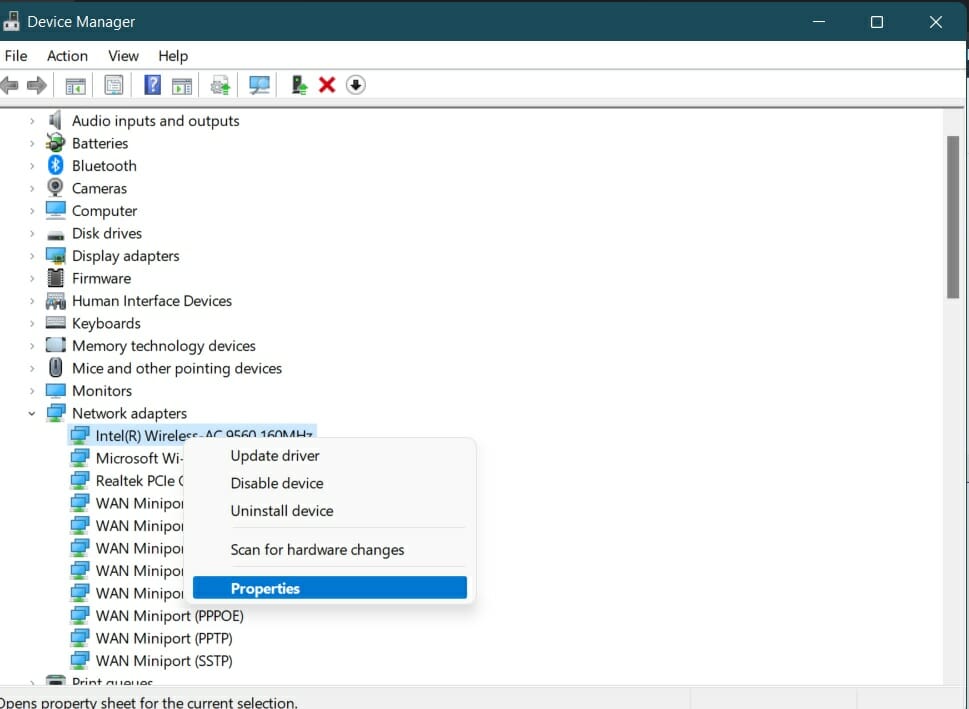
  4. Right click on your Wi-Fi adapter and select Properties.network adapter
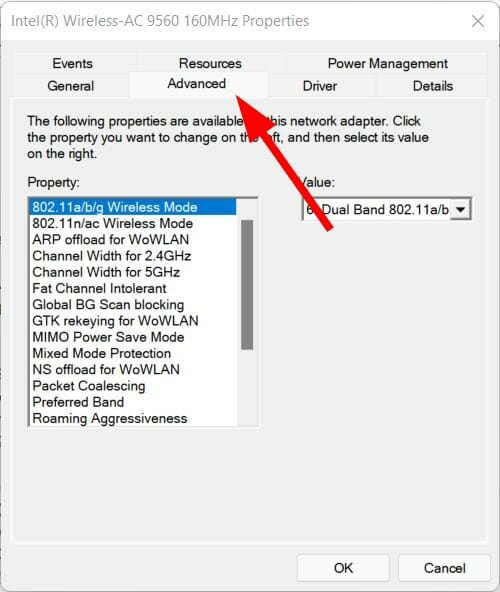
  5. Select the Advanced tab.advanced
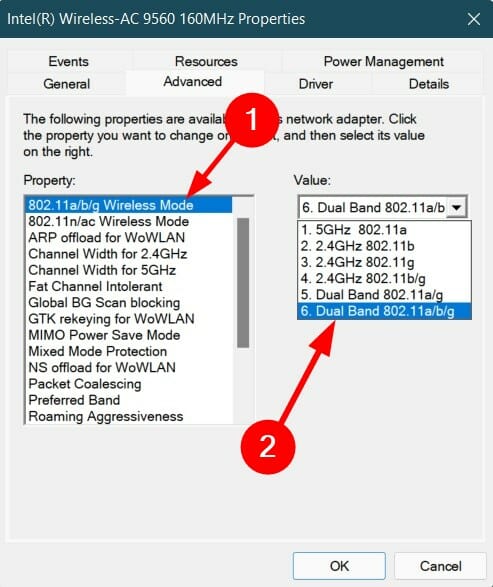
  6. Under Property, select 802.11 Wireless Mode.
  7. Click the drop-down for Value.
  8. Set it to Dual Band.advanced value
  9. Click OK to save changes.

7. Update Windows

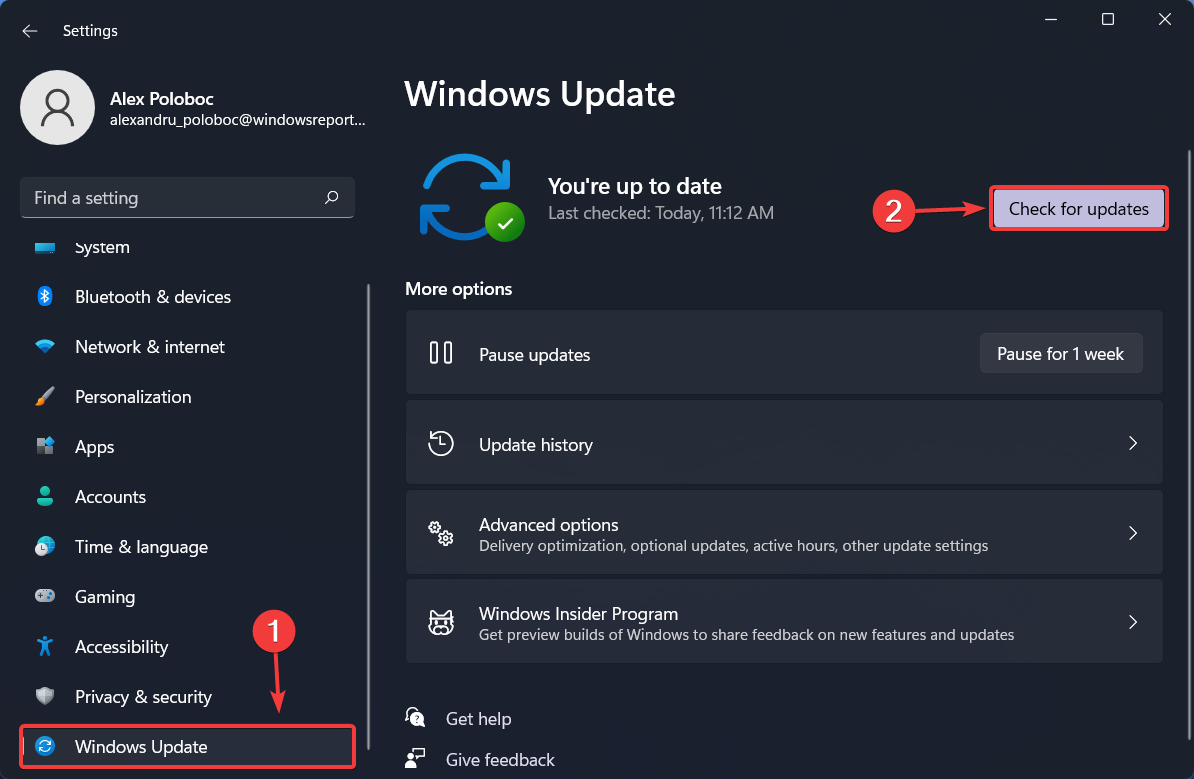
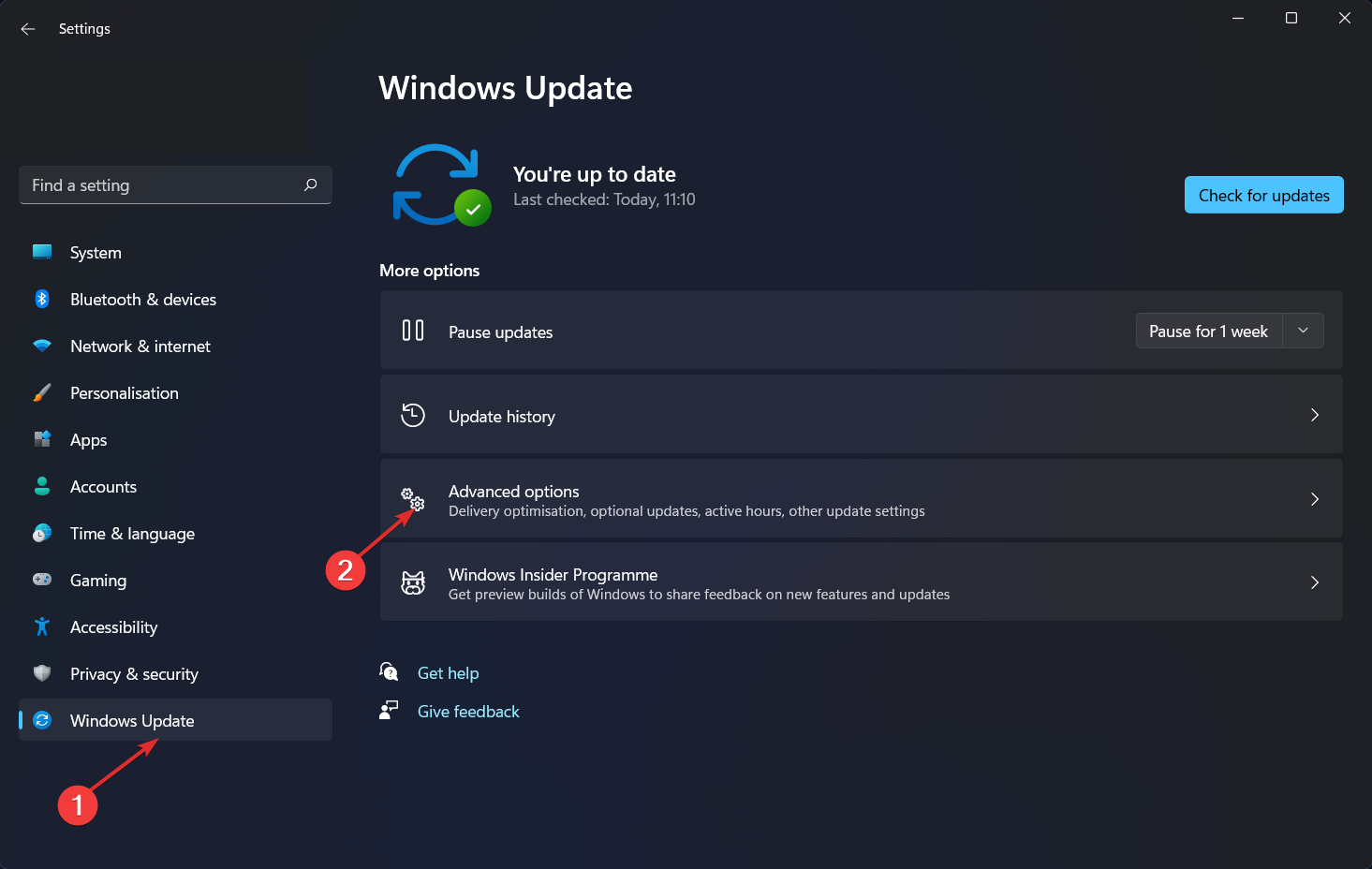
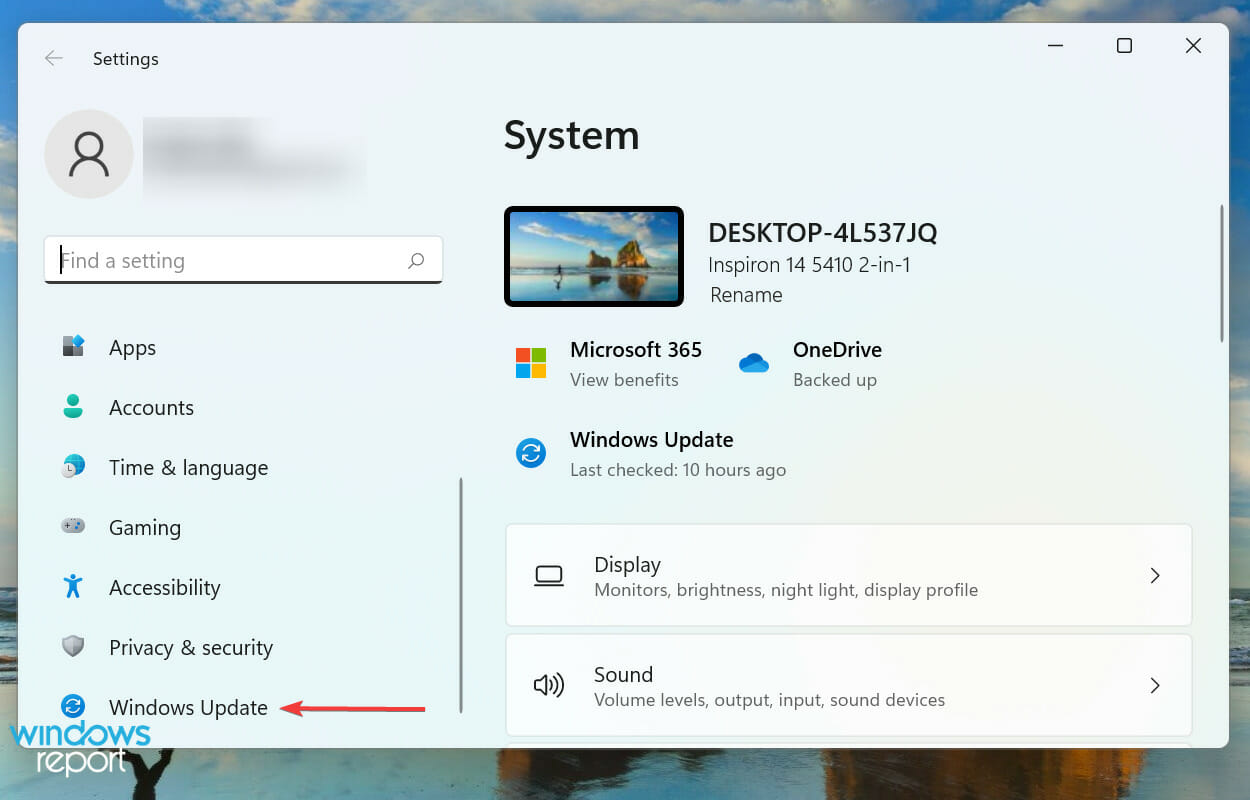
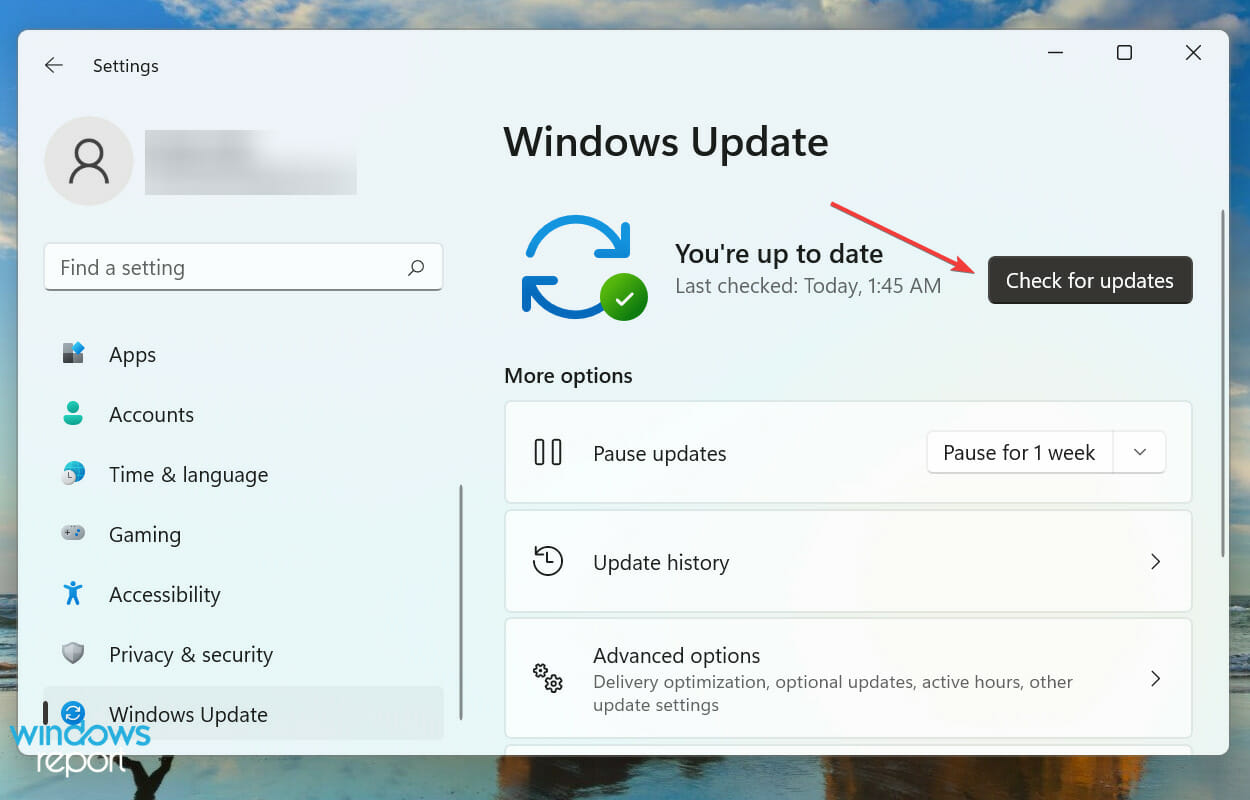
  1. Press Win + I buttons to open Windows Settings.
  2. Select Windows Update from the left-pane.
  3. Click on Check for updates button.check for updates

8. Reset Windows 11

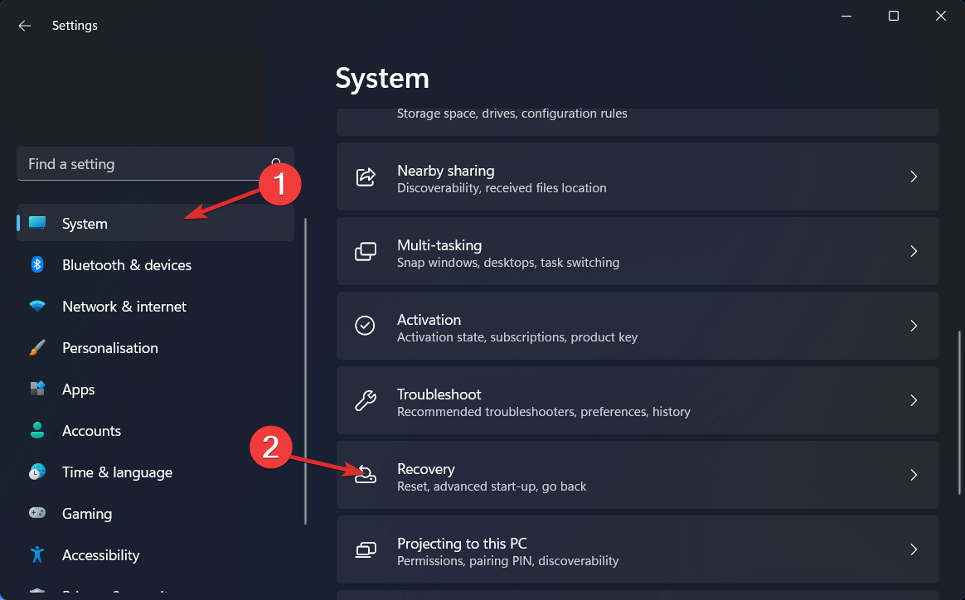
  1. Press Win + I buttons to open Windows Settings.
  2. Click on Recovery from the right-side.recovery-page how to enter recovery mode windows 11
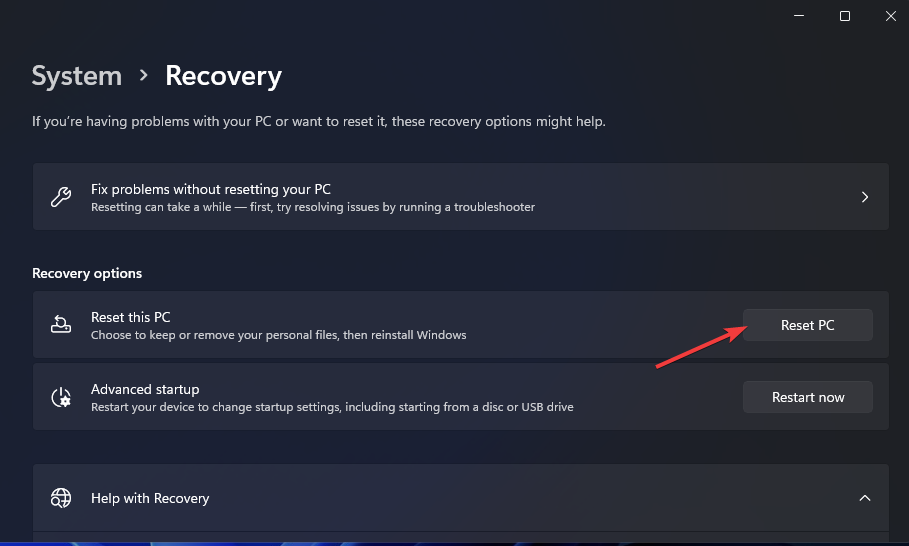
  3. Under Recovery options, press the Reset PC button.reset
  4. Select the type of factory reset your want to perform.type of reset
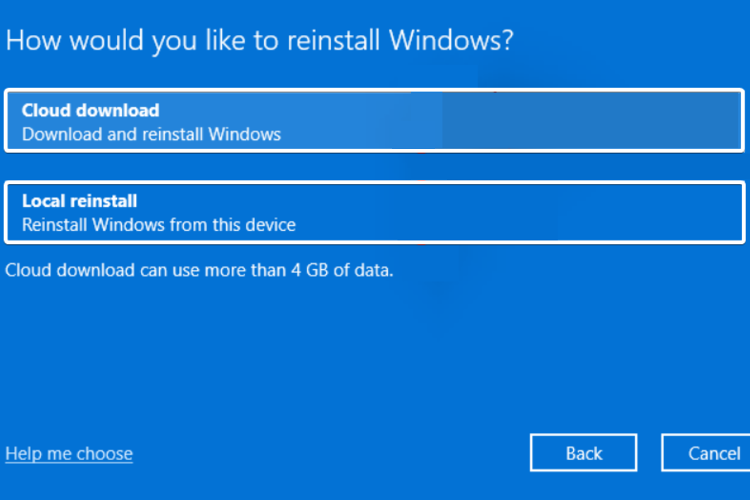
  5. Choose the option how you would like to reinstall Windows.install windows
  6. Click Next.next
  7. Hit the Reset button.reset

You should reset your PC only if the above-mentioned methods did not fix the job for you. This is one of the different ways via which you can reset your PC.

During the process, your PC will restart several times. But there is nothing to worry about as it is a part of the reset process.

How to check if your PC supports Miracast

Before you go ahead and look at the solutions to fix the Miracast Windows 11 not working error, let us first check if your PC supports Miracast or not.

1. Check via Windows shortcut

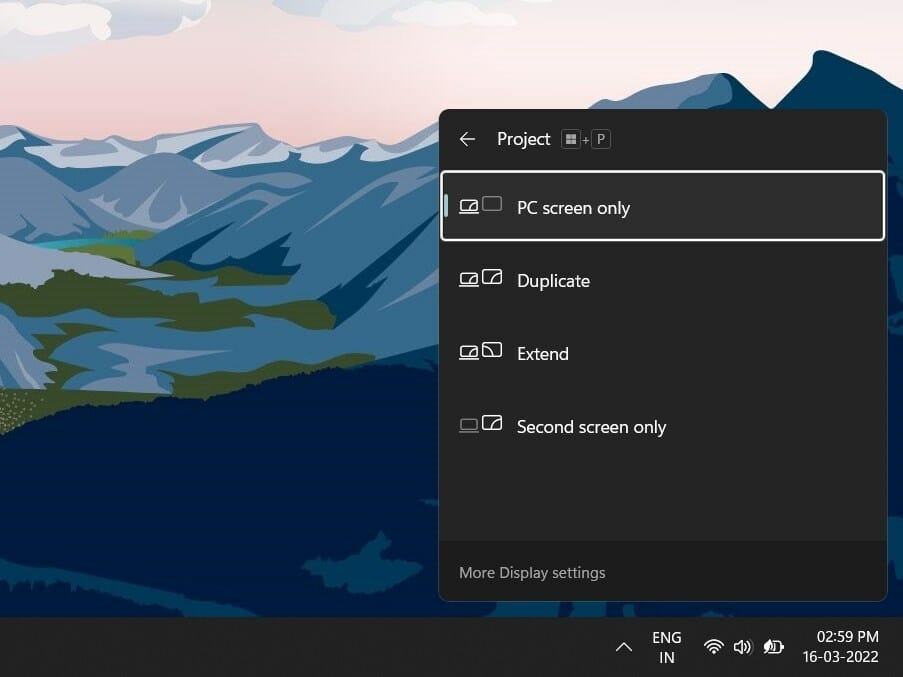
All you need to do is simply press the Win + P button to open up the Wireless Display Settings. If you receive a message indicating that your device supports a wireless display, your PC does not support Miracast.

miracast windows 11 not working

However, there is a pretty good chance that your Windows 11 computer won’t support Miracast. If you have an old PC without a Bluetooth card for Bluetooth services, then you will get this error.

2. Verify the NDIS driver

  1. Click on the Start menu.
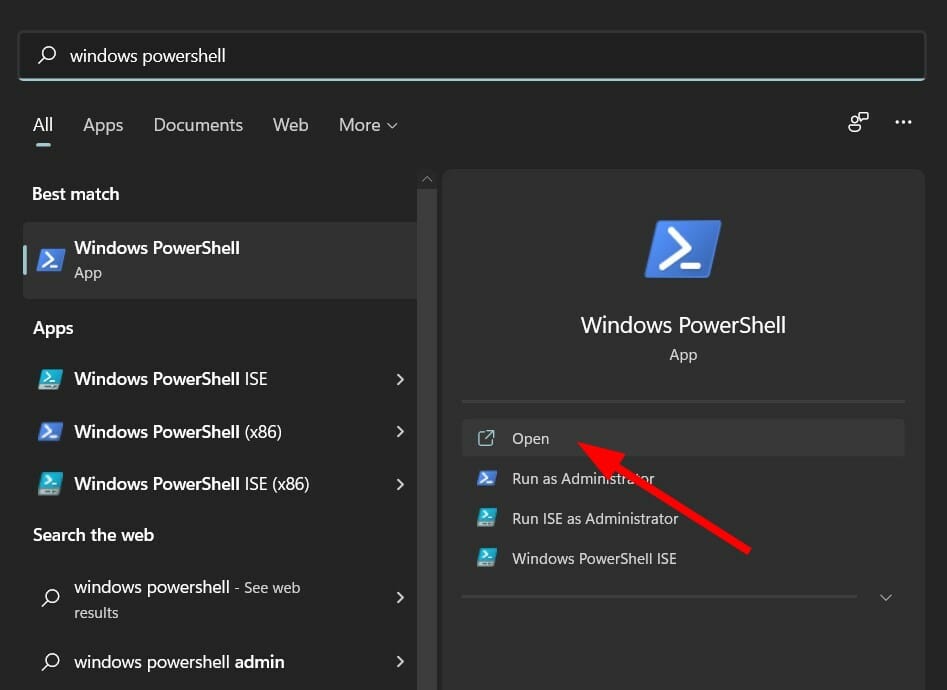
  2. Search for Windows PowerShell and open it.windows powershell
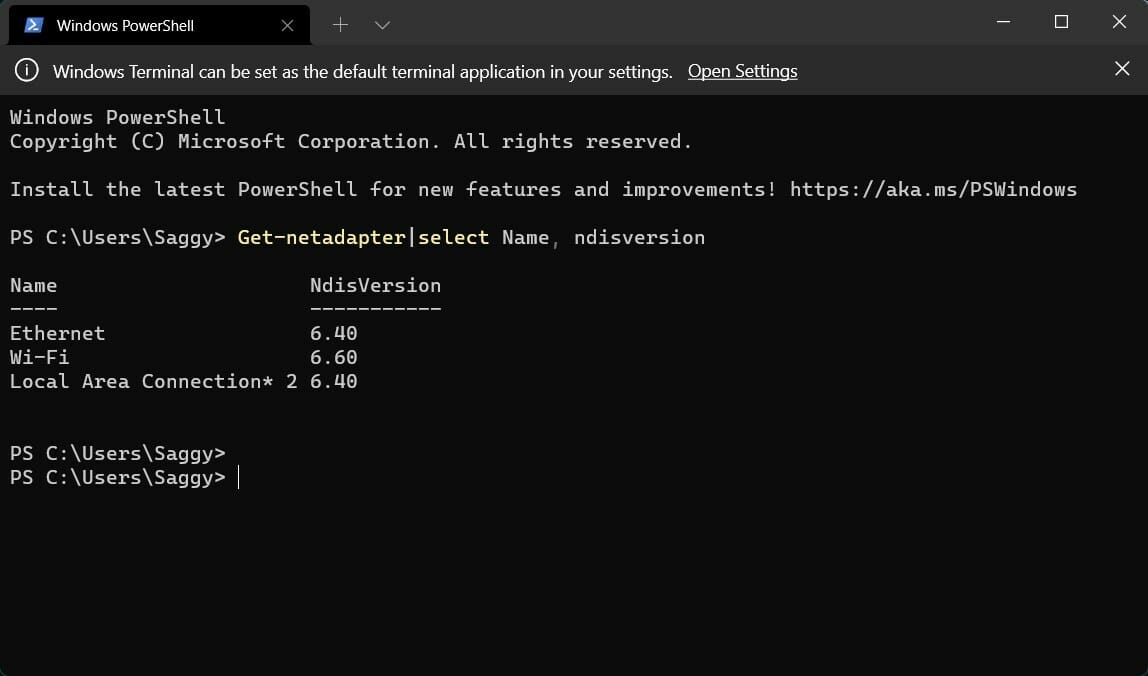
  3. Type in the below command and press Enter:Get-netadapter|select Name, ndisversionndis miracast compatibility

If the NdisVersion for Wi-Fi reads 6.30 or above, then your system is compatible with Miracast. Also, you can update the driver to the latest version to fix this error.

But if you still get an error on your Windows 11 PC that says Miracast isn’t working, then this may be due to external factors.

It could be because of a Wi-Fi issue or an incorrect Wi-Fi configuration. There is a chance that a third-party app is conflicting with the mirroring app, or there is a display driver issue.

Fortunately, this guide helps you troubleshoot all the issues and should help you solve the Miracast Windows 11 not working issue.

Third-party screen projectors

Screen mirroring lets you project your phone or tablet to your PC, but Windows’ built-in option isn’t always the best. Here are some better alternatives:

  • ApowerMirror
    • Mirrors Chromecast-compatible devices
    • Supports mouse/keyboard input
    • Fullscreen mode, screenshots, and phone notifications
  • Reflector
    • Screencast multiple devices at once
    • Auto layout adjustment
    • Supports Miracast, screen recording, live streaming
  • Mobizen
    • Mirrors Android to Windows 11
    • File transfers, screen recording, app control via mouse/keyboard
    • Connect via USB, Wi-Fi, or LTE

Explore more screen mirroring apps to find what works best for you. If you want to learn how to set up the screen Mirroring app check our quick guides: Download and install Miracast on Windows 10, and Download and install Miracast on Windows 11

Fix: Red X sound icon in Windows 10/11 [Full Guide]

If you get a red X sound icon in the lower right corner of your screen in Windows 10, then this is the tutorial you should read.

Many users have issues with the red x volume icon in their system right after they upgraded to Windows 10.

The red X sound icon usually appears in Windows 10 when either you have a hardware issue or your speakers are not working. Let’s see what other users had to say about this anomaly.

Where and when does this error occur?

  • Red cross on speaker icon Windows 10 and Windows 7
  • Red X on volume icon Windows 10
  • HP laptop red X on sound icon (but other laptop brands can also be impacted)
  • Red X no audio output device is installed (A variation of this error message states that no sound output devices were found and this can be seen even in the latest OS to be launched by Microsoft, Windows 11).

In most cases, there is a software malfunction after an update of the operating system due to the fact that not all the drivers you had are compatible with the operating system you newly installed on your device.

How do I fix the volume icon red X in Windows 10?

  1. Check audio drivers
  2. Check compatibility in Device Manager
  3. Check physical connection
  4. Adjust system volume

1. Check audio drivers

  1. Go on the manufacturer’s website and see if the driver for your audio card is compatible with the Windows 10 operating system.
  2. If the driver is not compatible you will need to download the latest version of the driver for Windows 10 and install it to your system.

If you don’t want to manually download the necessary drivers, you can always use a specialized driver updating tool that will automatically download and install the missing drivers for you.

2. Check compatibility in Device Manager

Before we go to the software part of this red x volume icon we will first have to check if your hardware is operating in the necessary parameters.

  1. Press Win + X and select the Device Manager
  2. Go to Audio inputs and outputs
  3. Right-click your speaker and select Properties
  4. Go to the General tab and look under Device status where you will see whether the device is running properly or not

3. Check physical connection

  1. Check if you have made the proper connections to the speakers and the audio system.
  2. Check the wiring from the speakers to the Windows 10 device.
  3. Check the HDMI cable if you have one on the audio system.
  4. If you have a USB connection to the audio system you will need to check if it is plugged correctly to the device.

4. Adjust system volume

  1. Check and see if your audio system is plugged into the power socket and if it is lighting up.
  2. Check and see if your audio system has the volume to a minimum or disabled completely.
  3. Move the mouse pointer to the lower right side of the screen to open the Charms bar.
  4. In the Charms bar you will need to left click or tap on the “Search” feature.
  5. Type in the Search feature Adjust system volume and wait for the search to finish.
  6. Left click after the search on the Adjust system volume icon that appeared.
  7. In the new feature that you opened, you will need to increase the volume by moving the slider all the way to the upper side of the bar.
  8. Be sure you don’t have your Mute button enabled because this is very common in this situation.

5. Other sound issues and their fixes

For other audio issues, the fixes may be more complex as the issue may be other than the ones listed above. Some system errors or incompatibilities may give you the red x volume icon or simply sound not working.

If you have upgraded from Windows 10, or from 8.1 to 10, you might encounter these issues. For this, check the list of fixes below and see which one may solve your specific problem:

Don’t forget to let us know in the comment section if you fixed the issue and which solution helped you.

BitRAT malware bypasses Defender disguised as a Windows key verifier tool

What should be the number one priority when accessing the internet? If you guessed anything that had to do with shopping or games, you aren’t quite there yet.

In fact, security should be our number one priority when dealing with this everchanging, dangerous online world we currently live in.

You might want to know that security research firm ASEC has discovered a new malware campaign that disguises itself in the form of a Windows product key verification tool.

However, don’t be fooled by the official disguise, as that tool is in reality BitRAT malware or a remote access trojan.

Windows activation software can seriously infect your PC

ASEC uncovered the fact that this particular RAT is being distributed via Webhards which are online file-sharing services in Korea.

Although pirated and unofficial software is often known to infect devices with malware, people tend not to take such warnings seriously.

Needless to say, this drives malware creators to step up their game and keep a constant flow of malicious software coming to the masses.

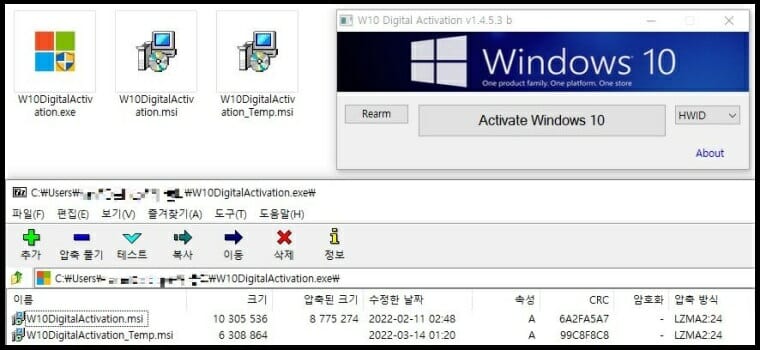
To better explain how this works, the downloaded zip file W10DigitalActivation.exe contains the dreaded file but also carries a genuine Windows activation file too.

The W10DigitalActivation_msi file is apparently real while the other W10DigitalActivation_Temp file is the malware.

The moment an unsuspecting user runs the exe file, both the actual verification tool as well as the malware file are executed simultaneously.

Of course, this action will give said user the impression that everything is working as intended and there’s really nothing shady about the whole thing.

Then, the W10DigitalActivation_Temp.exe malware file goes on to download additional malicious files from the command and control (C&C) server and delivers them inside the Windows startup program folder via PowerShell.

Finally, BitRAT is installed as the Software_Reporter_Tool.exe file inside the %temp% folder and in Windows Defender.

The exclusion path for the Startup folder and exclusion process for the BitRAT are also added, in case you were wondering.

You can find out more details about this by checking the ASEC official report. Have you downloaded such a file and had to deal with this malware?

Be sure to share your experience with us in the dedicated comments section located just below.

Windows 11 Camera Settings: How to Access & Change Them

If you are setting up your workstation with your Windows 11 PC and want to change camera settings for a better video calling experience, then you are in the right place.

Unlike previous iterations, with Windows 11, Microsoft has included many settings that you can tweak and change based on your preference to get the best output from your Windows 11 PC. You may change the brightness contrast levels, set the rotation settings, enable or disable HDR for video, Eye contact for webcam settings, etc.

With Windows 11, Microsoft has added a dedicated camera page in the Settings app. Here, you will be able to change the camera settings and troubleshoot and fix problems with your webcam, if any issue exists.

There are some handy settings inside the camera settings page in Windows 11 that you can use to enhance your video calling experience. This is what we will be learning today in this guide. Let us check it out.

How do I change camera settings in Windows 11?

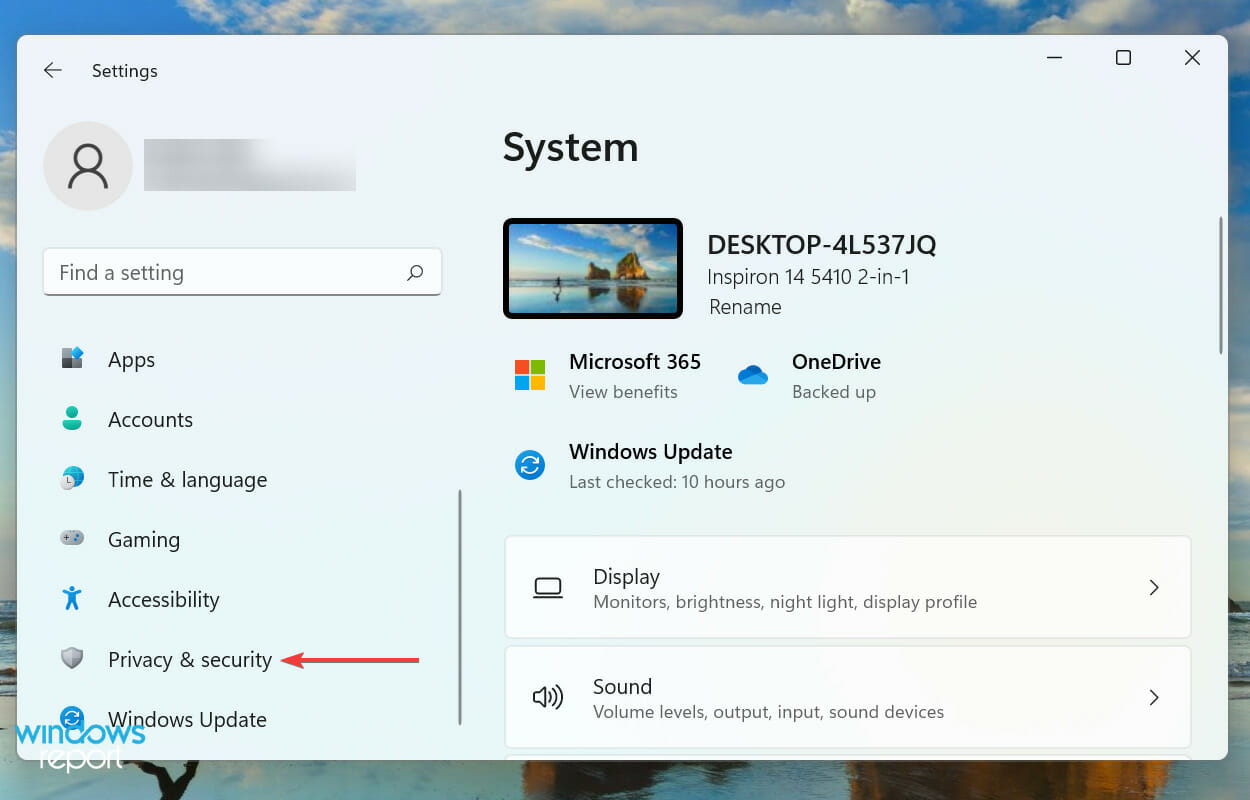
  1. Press Win + I to open the Settings page.
  2. Click on Bluetooth & devices.change camera settings windows 11 1
  3. On the right-side, select Camera.change camera settings windows 11 2
  4. Select your web camera.
  5. Here you will find different camera settings that you can change:
    – Brightness: Adjust the brightness slider to increase/decrease brightness levels for your webcam.brightness
    – Contrast: Adjust the contrast slider to increase/decrease contrast levels for your webcam.contrast
    – Video rotation: Select to rotate videos by 90-degree right, 90-degree left or 180-degree (upside down).video rotation
  6. If you think you have messed up the camera setting, then you can hit the Reset settings button next to Reset default camera settings option.reset settings
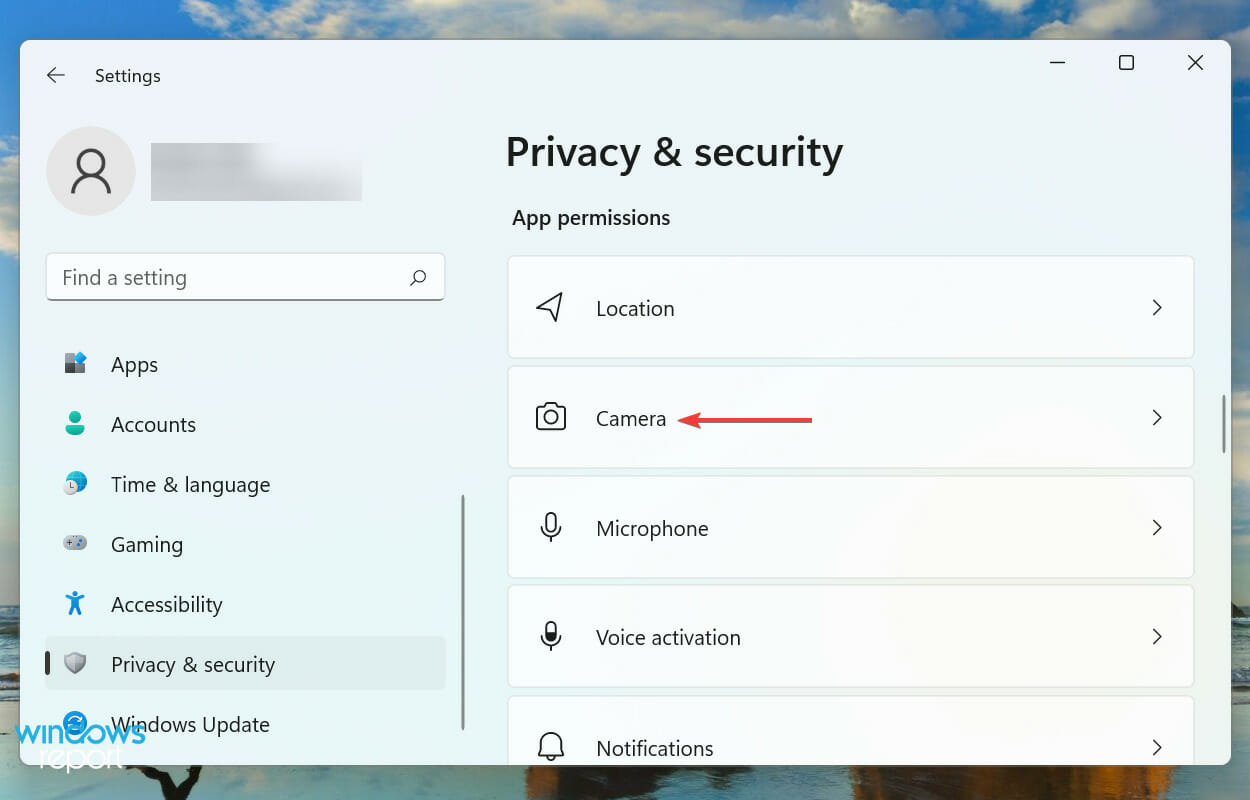
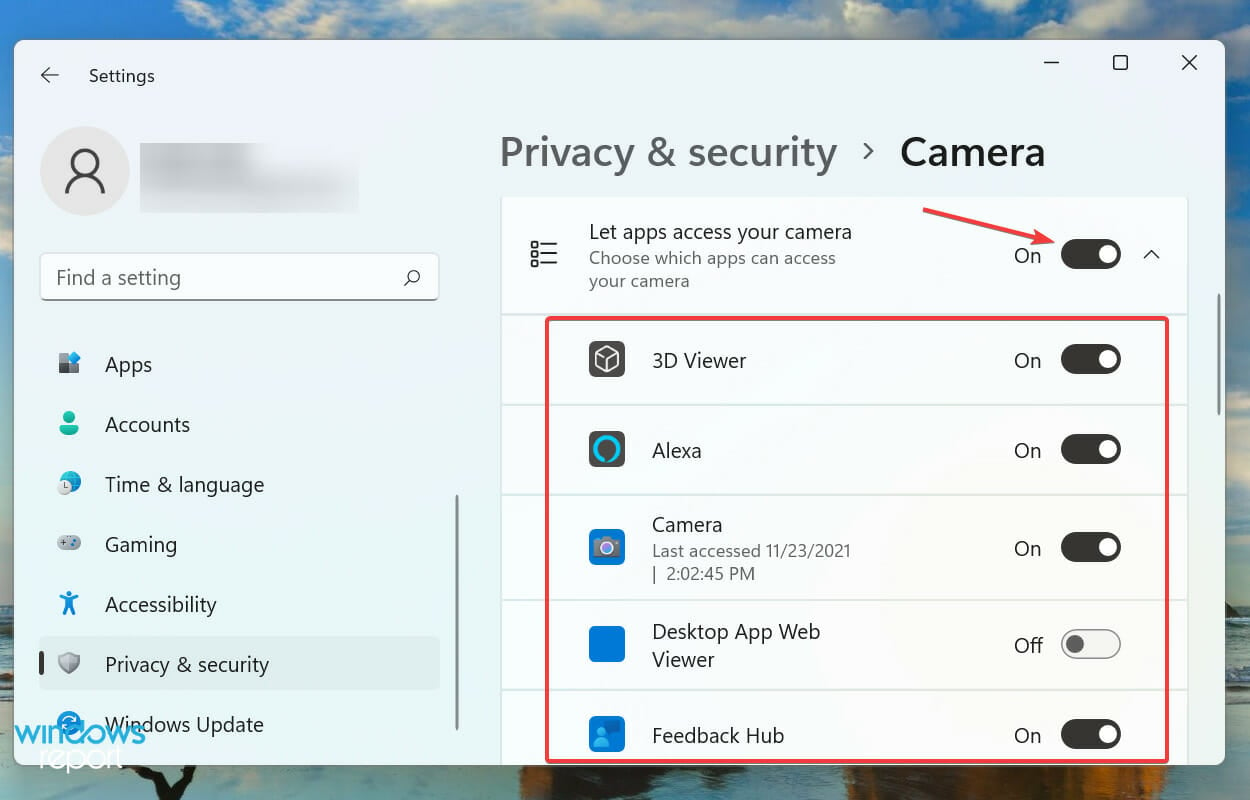
  7. To adjust camera privacy settings, click on Camera privacy settings.camera privacy settings
  8. Here you change settings for which apps have access to the camera.camera access

If you have an external webcam or an internal webcam that supports HDR and Eye contact features, then the options will be available to you.

How can I improve the webcam quality in Windows 11?

If video calling is a major part of the work that you do, then having the best possible video camera settings is necessary for you.

You can follow the above steps to adjust the brightness, contrast, video rotation, HDR, or Eye contact features on your webcam.

However, there are a few tips that can improve the overall quality of your video calling experience, some of which also involve adjusting external factors.

➡ Keep your video calling app up to date

If you use Google Meet, Slack, or any other video calling app, then make sure to keep it up to date.

Updated video calling apps not only bring stability and fix multiple bugs present in the app, but they sometimes also bring better features for the webcam.

➡ Adjust surrounding lighting conditions

Light is essential if you are looking for optimal image quality. As better photos and videos are captured in the best lighting conditions, indoors as well, ensure abundant light is coming inside your room for better video calling quality.

There is no need to have an expensive setup to improve the lighting conditions, but having a good light source is very important.

➡ Don’t have a cluttered background

You should avoid using a patterned or cluttered background, as you should be the center of attention, not your background.

Clean out the items in your background and keep it simple. Also, avoid keeping things that would reflect light in your background.

➡ Adjust the screen resolution

If your webcam generates a 720p output resolution, and you see a distorted image of yourself, you can try lowering your screen resolution for better quality.

Open the screen resolution page and lower the quality or match your webcam’s resolution to get the best image quality.

➡ Keep your graphics drivers up to date

You can use Outbyte Driver Updater software to update all the drivers on your Windows 11 PC. It is an excellent and simple tool that will scan for all outdated drivers, show you the result, and prompt you to install all the updates.

Instead of going over to every driver’s website and downloading them, you can use Outbyte Driver Updater to update all drivers on your PC.

These tips apply to the externally connected webcam and the integrated webcam that comes with your laptop. Also, if you regularly attend video calls, learn how to disable auto brightness on the webcam.

The webcam camera software also plays a significant role in getting the best output from your webcam. There are multiple webcam software packages that you can check out on the Internet.

What can I do to enable the camera in Windows 11?

1. Using Settings

  1. Press Win + I to open the Settings page.
  2. Click on Bluetooth & devices.change camera settings windows 11 1
  3. On the right-side, select Camera.change camera settings windows 11 2
  4. Usually, once you connect the camera, it will be automatically enabled.
  5. However, if it isn’t showing up, under the Disabled cameras section, hit the Enable button for your camera.change camera settings windows 11 3

2. Use Device Manager

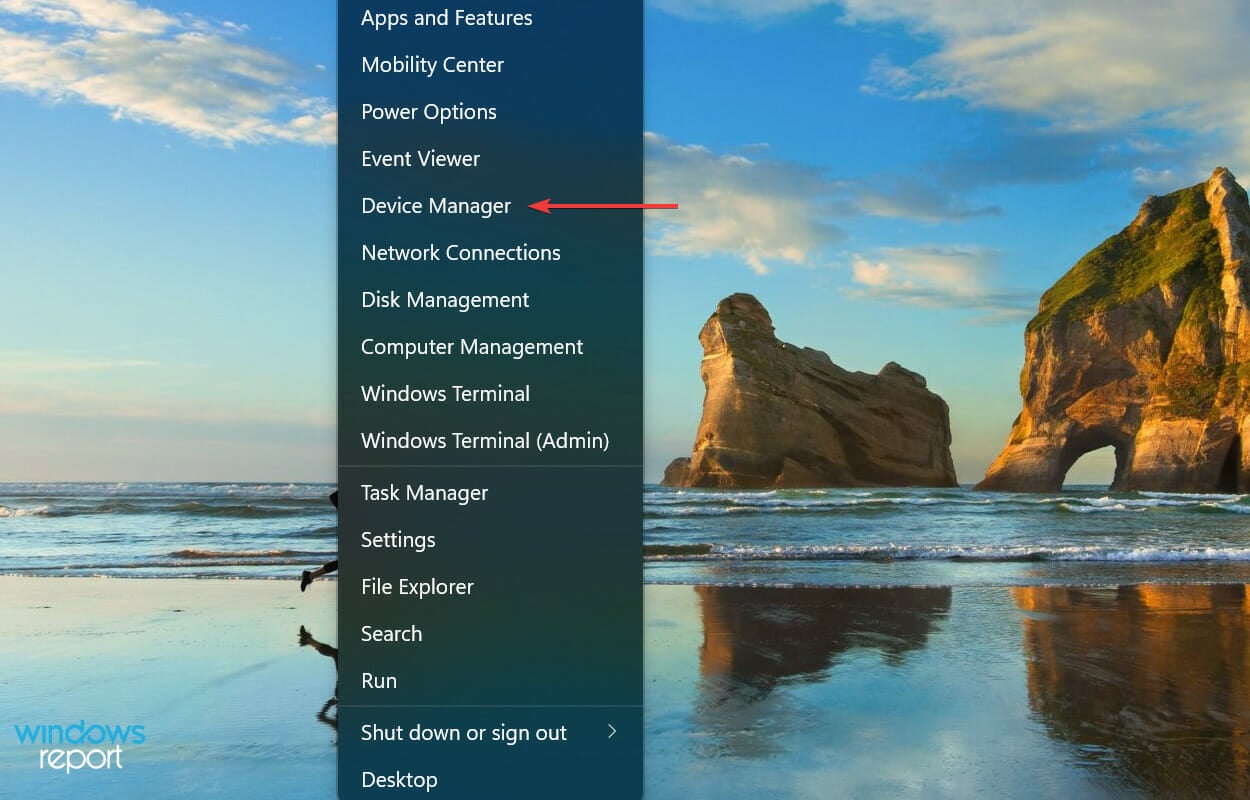
  1. Right click on the Start menu icon.
  2. Select Device Manager.device-manager
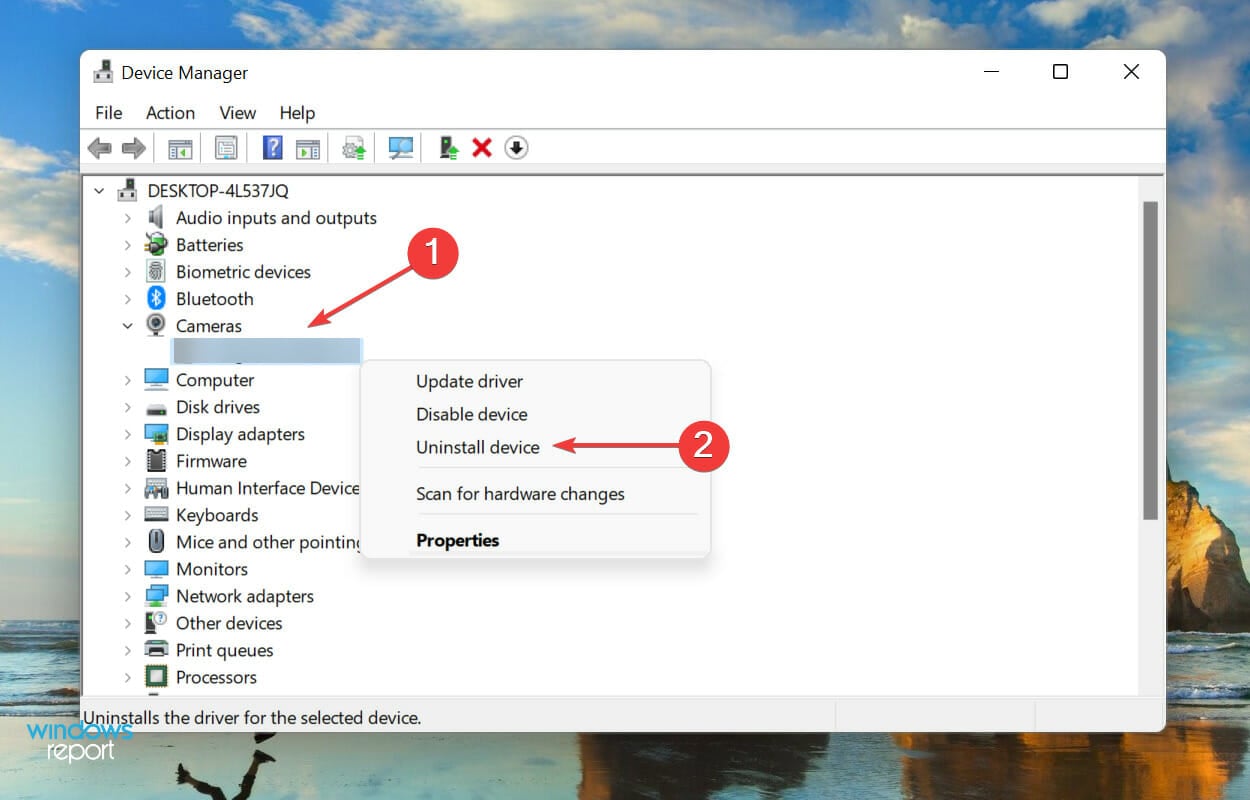
  3. Expand Cameras section.
  4. Right-click on your camera and select Enable device option.change camera settings windows 11 4
  5. Click Yes.

While you may be fortunate enough that the webcam is running pretty smoothly, there are many users for whom the webcam does not work in Windows 11. Also, check how to fix a freezing camera in Windows.

In such a case, you can try giving all permissions, updating the camera driver, or resetting the camera app to fix the problem.

We also have a guide on the best Rocket League camera settings, so be sure to check it out if you’re a gamer.

Let us know in the comments below if this guide helped you with how to change camera settings in Windows 11 query.

Fix: Hypervisor is not running on Windows 10/11 [Full Guide]

Many users use virtualization, but sometimes they might encounter Hypervisor is not running message on their PC.

This message will prevent you from using virtualization, but in today’s article, we’ll show you how to properly tackle this issue.

Virtualization is a useful feature, but sometimes problems with it can occur. Speaking of virtualization issues, here are some common problems that users reported:

  • Hypervisor is not running Windows 10 Pro, BIOS – This problem can occur if virtualization isn’t enabled in BIOS, so be sure to find this feature and enable it.
  • Hypervisor launch has been disabled through the hypervisorlaunchtype bcdedit setting – Sometimes Hyper-V feature can be disabled, but you should be able to start it simply by running a single command in Command Prompt.
  • Hyper-V failed to start Hypervisor is not running – This problem can occur if your BIOS is out of date. To fix the issue, update your BIOS and check if that solves the problem.
  • Virtual machine error Hypervisor is not running – Sometimes this problem can occur due to problematic updates, and in order to fix the issue, it’s advised to find and remove these updates manually.
  • Hypervisor is not enabled, present, working – These are some common problems that can occur with Hyper-V, but you should be able to fix them using one of our solutions.

How do I fix the Hypervisor not running error on Windows 10?

  1. Make sure that virtualization is enabled in BIOS
  2. Update your BIOS
  3. Update the drivers to the latest version
  4. Reinstall HyperV feature
  5. Remove problematic updates
  6. Use bcdedit command
  7. Use DISM command
  8. Check if your CPU supports virtualization
  9. Use third-party applications

1. Make sure that virtualization is enabled in BIOS

If you’re getting Hypervisor is not running message, perhaps the problem is related to your BIOS settings. As you know, in order to use virtualization, this feature needs to be actually enabled in BIOS.

To check if virtualization is enabled, just enter BIOS and look for this feature.

How to enable virtualization in BIOS:

  1. Access your BIOS (If you need a hand, here’s how to enter BIOS on a Windows 7, 10 or 11 PC).
  2. Then, click on Advanced Mode, and go to the Advanced tab.
  3. Select CPU Configuration and set the Intel Virtualization Technology option (for Intel) or the SVM Mode (for AMD) to Enabled.
  4. Make sure you save the changes before you exit this screen.

That is how to enable Hyper-V Hypervisor in Windows 10. However, note that enabling virtualization can be different according to your CPU, PC model, chipset, and of course, motherboard.

To see how to properly access BIOS and find this feature, we advise you to check your motherboard manual for more information.

Once you enable this feature, go back to Windows and check if the problem is still there.

2. Update your BIOS

The problem with virtualization can be your BIOS, so if you’re getting the Hypervisor is not running message on your PC, the problem might be an outdated BIOS.

Several users reported that they fixed this problem by updating their BIOS to the latest version.

This is an advanced process, and if you don’t perform it properly you can cause permanent damage to your PC, so we advise you to be extra cautious.

We already wrote a short guide on how to flash your BIOS, but if you know how to properly update BIOS on your motherboard, check your motherboard manual for detailed information.

3. Update the drivers to the latest version

If you’re unable to use virtualization due to Hypervisor is not running message, perhaps the problem is related to your drivers.

If you want to update all drivers on your PC fasts, perhaps using a third-party driver updating solution might be the best choice.

4. Reinstall the HyperV feature

  1. In the Search bar type windows features, and choose Turn Windows features on or off from the list of results.
    windows features Hypervisor is not running
  2. Locate the HyperV feature and uncheck it. Now click OK to save changes. If you’re asked to restart your PC, be sure to do so.
    Hypervisor is not working hyper-v disable
  3. Once your PC restarts, go back to Windows Features window and enable the Hyper-V feature. You might be asked to restart your PC once again, so be sure to do that.

According to users, if you’re getting this error, perhaps there’s a glitch with HyperV feature.

Sometimes various Windows glitches can occur, but you can fix most problems with HyperV simply by reinstalling it.

Once your system restarts, the problem with Hyper-V should be resolved and everything will start working again.

In addition, the Task Manager can detect if it’s running on a physical or virtual machine. Under the Performance tab, the label Virtual machine: Yes is listed if a hypervisor has been detected.

Tip icon Tip
The best virtual machines for Windows 10 are VMware Workstation, VirtualBox, Hyper-V, and Citrix Hypervisor. For more information about each machine, check out our in-depth guide.

5. Remove problematic updates

  1. Press the Windows Key + I to open the Settings app.
  2. Navigate to the Update & Security section, and select View update history.
    update history Hypervisor is not running
  3. You should now see a list of recent updates. Pay attention to the recent updates and memorize them or write them down. Now click Uninstall updates.
    Hypervisor not running uninstall update
  4. List of recent updates will appear in the new window. To remove an update, double-click it and follow the instructions on the screen.
    remove updates Hypervisor

If the error started appearing recently, the problem might be a problematic Windows update.

As you know, Windows installs updates automatically, and if the problem started appearing recently, it’s possible that the update is causing it.

To fix the problem, it’s advised that you find the problematic update and remove it, by following our above steps.

Once the update is removed, check if the problem is resolved. You might have to repeat this step a couple of times before you find the update that is causing the problem.

Once you find the problematic update, be sure to write its name down.

Windows tends to install the missing updates automatically, so in order to prevent this problem from reappearing, we advise you to block this update from installing automatically.

6. Use the bcdedit command

  1. Press the Windows Key + X, and select Command Prompt (Admin) or PowerShell (Admin) from the menu.
    command prompt Hypervisor is not running
  2. When Command Prompt opens, run the following command: bcdedit /store c:BootBCD /set hypervisorlaunchtype Auto

After the command is executed, check if the problem with virtualization is resolved. Alternatively, you can also use the bcdedit /set hypervisorlaunchtype auto command.

If you’re having problems with virtualization, perhaps you can fix the problem simply by running a single command in Command Prompt.

7. Use the DISM command

  1. Start Command Prompt as an administrator.
  2. When Command Prompt starts, run this command: dism /online /enable-feature /featurename:Microsoft-Hyper-V -All

Sometimes you might get this error because certain components aren’t working properly. To fix this problem, it’s advised that you run the DISM command in order to enable the HyperV feature.

Once the command is executed, Hyper-V feature should be enabled and the problem with virtualization should be resolved.

8. Check if your CPU supports virtualization

In order to use native virtualization in Windows 10, it’s necessary that your processor supports certain features. If it doesn’t have these features, you won’t be able to use the built-in virtualization.

To see if your processor supports virtualization, you’ll need to check its specifications on the manufacturer’s website.

Alternatively, you can use third-party tools in check if your processor supports virtualization.

Many users reported that virtualization won’t work on their PC since the processor doesn’t support SLAT feature.

If your processor doesn’t support the necessary features, you might have to change it in order to use built-in virtualization.

9. Use third-party applications

If you didn’t manage to fix Hypervisor is not running error, perhaps you might want to try using a third-party solution as a workaround.

Even if your processor doesn’t support the virtualization features, you should be able to create a virtual machine in Windows using our recommendation software.

This tool specializes in virtualization, and it offers all the necessary features for both advanced and first-time users alike, so we strongly suggest that you try it out.

⇒ Get WMware Workstation 16

The hypervisor is not running error can cause problems, but we hope that you managed to fix it using one of our solutions. For more suggestions, please access the comments section below.

How To Map Network Drives Over VPN on Windows 10 & 11

Mapping network drives over VPN on Windows 10 is a great way to increase the security of your computer and network.

By protecting your data traffic with a VPN that supports strong VPN protocols with the highest possible levels of encryption, you can fend off hackers and ensure the integrity of your data.

There’s nothing elaborate about mapping network drives through VPN. In fact, you just have to connect to a VPN server before managing access settings to shared drives and folders in your local network.

Connected to VPN but cannot access network drives

This type of VPN error usually appears when there are connection issues on the VPN’s end, so the users can’t access the network drives.

Plus, your local network and the remote network need to use the same subnet so your VPN can access network drives.

You can take care of connection issues easily by using proficient VPN software that has thousands of servers globally and the latest encryption features.

How do I map network drives over VPN on Windows 10 & 11?

1. Connect to a VPN server

  1. Sign up for a PIA subscription.
  2. Download and install PIA on your PC.
  3. Launch PIA and press the big power button.
  4. You are now connected to a VPN server.

As a practical workaround, we utilized Private Internet Access to solve network drive connection issues and for the fastest network speed and privacy online.

We’re using PIA in our example because it’s the best VPN for Windows 10. The steps above are for downloading and installing the PIA desktop client.

Keep in mind that the VPN connection must protect the entire computer, so you can’t use anything lesser than that, not even a browser extension.

An alternative is to create a VPN connection in Windows 10 without installing anything after obtaining the PIA login credentials and a preferred server address from its website.

Check out how to set up an IPsec VPN client on Windows 10 using PIA connection details.

On the other hand, if you want to use the OpenVPN protocol, you need a third-party OpenVPN client since Windows 10 doesn’t have native support for OpenVPN.

It’s easier to set up the PIA desktop client since it uses OpenVPN by default (WireGuard is also an option).

In addition to an impressive network of VPN servers, PIA can connect you to the nearest server automatically to ensure the best speed.

Furthermore, you can use PIA to reduce your ping during gameplay. It comes bundled with split-tunneling mode, a kill switch, and exclusive DNS servers.

That being said, you can install PIA’s OpenVPN manual configuration mode on your router to share VPN access with all connected devices.

Private Internet Access

Choose PIA before mapping network drives to reduce risks and increase connection speed.
Check price Visit website

2. Map a network drive

  1. Make sure you’re connected to a VPN server.
  2. Turn on Network Discovery on your computer.
  3. Open the Windows 10 File Explorer (Win key + E).
  4. Go to This PC, select the Computer tab, and press Map Network Drive.
  5. Set Drive to a preferred drive letter that you will use to access the shared location.
  6. Press Browse next to Folder and select a shared drive or folder.
  7. Enable Reconnect at sign-in to ensure the location auto-reconnects at every Windows startup.
  8. Enable Connect using different credentials if you can’t access the shared location using your current Windows login info.
  9. Click Finish.

Although you would be tempted to disconnect from the VPN after mapping the network drive, it’s a good idea to leave it turned on at all times while staying connected to the Internet.

This ensures that you’ll always be protected from hackers and other possible attacks.

How do I map network drives over VPN on Windows 11?

Although the new OS is clearly more advanced and it has a lot of new interesting features, its core is still very similar to the one of Windows 10.

Therefore, you will see that all the solutions presented here, including using the PIA VPN, will work like a charm on Windows 11 as well.

The Map network drive option it’s a little less accessible in Windows 11

File Explorer has a slightly different design in Windows 11 so, as you can see from our screenshot above, to access the Map network drive option, you will find it by clicking on the three-dot button from the top.

But that’s where the differences end because all the other steps presented in our solutions are still the same.

In conclusion, it’s an excellent idea and a wise move to connect to a VPN server before mapping network drives in Windows 10 and 11.

This way, you can reduce the risks of getting hacked and compromising your sensitive data.

We hope that our guide helped you map a network drive while using a VPN and now, your shared location is safe and secure.

You might also be interested in our list including the best file-sharing tools & software for Windows 10/11 because it’s another way of sending your files safely.

For any questions or suggestions, feel free to use the comments section below and we will get back to you as soon as possible.

Yup, just another servicing pipeline test as Windows 11 Dev Channel bumps to 22579.100

Ho hum. Microsoft released another in its long list of “servicing pipeline” Insider build updates today, this time to the Windows 11 Dev Channel. Here’s the updated announcement (via Neowin):

UPDATE 3/22: We are starting to roll out Cumulative Update Build 22579.100 (KB5013192). This update does not include anything new and is designed to test our servicing pipeline for builds in the Dev Channel.

If you need some practice downloading and installing new builds for no reason, have at it.

Windows Defender Offline Scan Not Working: 6 Ways to Fix It

Many users reported that the Windows Defender offline scan is not working. it could be due to a Windows bug, corrupt system files, conflicts with third-party apps, or missing administrative permissions.

Here’s how to fix these issues:

How can I fix Windows Defender scanning problems?

Check out this quick video tutorial. For more details and advanced fixes, read the steps below.

1. Perform the scan via PowerShell

  1. Press Windows + R to open Run, type powerhshell, and hit Ctrl + Shift + Enter.powershell
  2. Click Yes in the UAC prompt.
  3. Now, paste the following command and hit Enter to run the Windows Defender Offline Scan:Start-MpWDOScancommand to fix windows defender offline scan not working

Oftentimes, while the Offline Scan wouldn’t start from Windows Defender, executing the dedicated command in PowerShell would get it to run.

2. Run the Windows Update troubleshooter

  1. Press Windows + I to open Settings, and click on Update & Security.update & security
  2. Choose Troubleshoot from the navigation pane, and click on Additional troubleshooters on the right.additional troubleshooter
  3. Now, select Windows Update and click the Run the troubleshooter button.troubleshooter to fix windows defender offline scan not working
  4. Wait for the troubleshooter to run, identify and eliminate problems.troubleshooter

A few users reported that it was a problem with Windows Update that led to the Windows Defender Offline Scan not working, and running the dedicated troubleshooter got things working perfectly.

3. Use a third-party antivirus

If you still can’t fix the problem with Windows Defender, you might want to consider switching to a third-party antivirus.

A good alternative is ESET HOME Security Essential. It offers browsing protection, online banking security, anti ransomware protection.

Further, it stops spyware and malware at bay, thanks to its real-time protection.

For added security, you can separately install ESET SysInspector for offline diagnostics. It works without an internet connection, helping you troubleshoot issues such as malware, outdated drivers, and suspicious network connections.

ESET HOME Security Essential

Keep your computer safe and secure all the time with one of the most reliable antivirus solutions.
Free Trial Visit Website

4. Run the DISM and SFC scan

  1. Press Windows + S to open the Search menu, type Command Prompt in the text field, and click on Run as administrator.command prompt
  2. Click Yes in the prompt.
  3. Paste the following three commands individually and hit Enter after each:DISM /Online /Cleanup-Image /CheckHealth DISM /Online /Cleanup-Image /ScanHealth DISM /Online /Cleanup-Image /RestoreHealth
  4. Once done, run the following command for the SFC scan:sfc /scannowsfc scan to fix windows defender offline scan not working

The DISM (Deployment Image Servicing and Management) tool and SFC (System File Checker) scan are two effective built-in options to fix corrupt system files, which might be the reason Windows Defender Offline Scan is not working.

5. Perform an in-place upgrade

  1. Go to Microsoft’s official website, and click the Download tool now button to get the Windows 10 Media Creation Tool.download tool now
  2. Run the setup, click Yes in the prompt, and let it get things ready.setup
  3. Click Accept to agree to Microsoft’s license terms and agreements.accept
  4. Choose Upgrade this PC now, and click on Next to continue.upgrade this PC now to fix windows defender offline scan not working
  5. Wait for the download to complete and let setup install Windows 10.in-place upgrade to fix windows defender offline scan not working

An in-place upgrade is the best option when the Windows Defender Offline Scan is not working or even for other intricate issues where you can’t identify the underlying cause.

The best part is you don’t lose any files or apps, though we do recommend you create a backup beforehand in case things go wrong.

6. Create a new user account

  1. Press Windows + R to open Run, type netplwiz in the text field, and hit Enter.netplwiz
  2. Click on the button Add to create a new account.add account to fix windows defender offline scan not working
  3. Now, click on Sign in without a Microsoft account (not recommended).sign in without a microsoft account
  4. Choose Local Account.local account to fix windows defender offline scan not working
  5. Fill out all the fields, the username, password, and a hint for the latter, and then click Next.details
  6. After you get an account creation confirmation, click on Finish.finish
  7. Choose the account you just created and click Properties.properties
  8. Navigate to the Group Membership tab, select Administrator, and click OK to save the changes.set as administrator to fix windows defender offline scan not working
  9. Again, click OK for the changes to come into effect.

That’s it! If the previous solutions didn’t work, creating a new local user account should do the trick.

If you still find Windows Defender Offline Scan not working, reinstall Windows 10 as a last resort. We also have a guide on how to fix Windows Defender Scans folder access denied message, so don’t miss it.

Before you leave, do check the best antivirus for Windows 10 for all-around protection against malware or online threats.

Tell us which fix worked for you in the comments section below.

Fix: The system cannot find the drive specified [Full Guide]

If you’re getting the ERROR_INVALID_DRIVE code 15 with The system cannot find the drive specified description, follow the troubleshooting steps listed in this article to fix it.

The ERROR_INVALID_DRIVE error code occurs when users try to access files on a particular drive. However, the respective drive is unavailable due to various reasons.

Oftentimes, the drive is connected and visible, users can even browse through it. The problem occurs when they try to run an executable file. Speaking of problems, users reported more connected issues, so let’s take a closer look.

The system cannot find the drive specified: Error background

  • The system cannot find the drive specified in CMD/batch script
  • The system cannot find the drive specified uninstall
  • Specific brands involved (HP recovery)
  • The system cannot find the drive specified mapped drive
  • Windows Resource Protection could not perform the requested operation (The system cannot find the drive specified restoration incomplete)
  • WSL –mount the system cannot find the drive specified

How can I fix the ERROR_INVALID_DRIVE?

1. Repair your registry

You can use Microsoft’s System File Checker to check for system file corruption. Here’s how to run an SFC scan:

1. Go to Start > type cmd > right-click Command Prompt > select Run as Administrator

2. Now type the sfc /scannow command

3. Wait for the scanning process to complete and then restart your computer. All corrupted files will be replaced on reboot. Then try to access the respective drive again.

The invalid drive error may occur due to file corruption issues. Don’t forget to first backup your registry in case anything goes wrong.

If you haven’t installed any registry cleaner on your computer, check out our article on the best registry cleaners to use on Windows 10 PCs.

2. Use a specialized tool

File corruption is the regular culprit, but other types of errors can just as easily affect your system and trigger the ERROR_INVALID_DRIVE stop code. So why not kill two birds with one stone?

Using specialized tools is not only beneficial for repairing faulty registry keys, but you can also set them to monitor your PC constantly and make sure it is always in good health.

With an in-depth scan, you can identify and appropriately correct even the most severe errors and prevent system crashes, Blue screen of Death errors, and more.

3. Run a full system scan

Malware may cause various issues on your computer, including errors. Perform a full system scan in order to detect any malware running on your computer. You can use Windows’ built-in antivirus, Windows Defender, or third-party antivirus solutions.

4. Update your OS

Make sure that you’re running the latest Windows OS updates on your machine. As a quick reminder, Microsoft constantly rolls out Windows updates in order to improve the system’s stability and fix various issues.

Go to Windows Update, check for updates and install the available updates. To access the Windows Update section, you can simply type update in the search box.

5. Remove recently installed software

If you recently installed new software on your computer, try uninstalling it. Third-party software may sometimes trigger incompatibilities issues that could prevent you from accessing files on a specific drive.

Usually, after the problematic software has been removed, users regain full access to the content of the respective drive.

Go to Start > type Control Panel > select the program(s) recently added > click Uninstall.

6. Check your disk for errors

On Windows 10, you can run a disk check using Command Prompt.

Start Command Prompt as administrator and type the chkdsk C: /f command followed by Enter. Replace C with the letter of your hard drive partition.

7. Use the previous drive letter

If you can’t access various files and folders after you changed the letter of your drive, try restoring the previous letter.

1. Go to Search > type disk management > select the first result > launch the tool

2. Select the problematic drive > right-click it > select Change driver letters and paths

3. Click on the Change button > restore the previous driver letter > click OK.

8. Check the permissions on the drive

The ERROR_INVALID_DRIVE code may also occur if you don’t have the necessary permissions to access the respective driver content. In this case, verify the permissions on the drive and change them to full control.

1. Select the problematic drive > right-click it > go to Properties > select the Security tab >click on the Advanced button

2. In the new window, click on Users > click on the Change permissions button

3. Select Users one more time > go to Edit

4. Under basic permissions, check Full control > OK.

In this manner, you’ve changed the permissions to allow full control for all users. This should solve the problem. However, keep in mind that if you restart your computer or switch users, this will mangle the permissions again.

9. Clean your temporary files and folders

The simplest and quickest manner to delete your temporary files and folders is to use Disk Cleanup. As you use your computer or browse the Internet, your PC accumulates various unnecessary files.

These so-called junk files may affect your computer’s processing speed, causing apps to respond slowly, and may also trigger various error codes, including the ERROR_INVALID_DRIVE code.

Here’s how to use Disk Cleanup on Windows 10:

1. Go to Start > type Disk Cleanup > launch the tool

2. Select the disk that you want to clean > the tool will tell you how much space you can free up

3. Select Clean up system files.

We hope that the solutions listed above helped you to fix the invalid drive error. Other related errors include the requested system device cannot be found in Windows so check out our guide on how to fix it.

If you’ve come across other workarounds to fix this problem, you can help the Windows community by listing the troubleshooting steps in the comments below.

GPU not Detected but Fan is Spinning? Fix it Now

The GPU is not detected by the system, yet the graphics card’s fan is spinning. This frustrating scenario can stem from a variety of issues, from BIOS misconfigurations, faulty power connectors, or driver conflicts to a defective PCIe slot or corrupted firmware.

Understanding the root causes and applying systematic troubleshooting steps are crucial to restoring full GPU functionality. So let’s go ahead and fix it.

How can I fix the GPU not detected but fan spinning error in Windows 11?

1. Update drivers

  1. Open Settings and navigate to Windows Update from the left side, followed by Advanced options from the right-side.windows-advanced  windows 11 dynamic refresh rate not working
  2. Now scroll down until you meet the Optional updates section and click on it.optional-updates-option  windows 11 dynamic refresh rate not working
  3. Next, click on Driver updates and tick the boxes next to all the available options and lastly tap on the Download and install button. In my case there is none left, hence the empty list. no-update windows 11 dynamic refresh rate not working

Windows is generally in charge of updating your drivers, but you also have to perform regular updates on your own. However, if you don’t have the time for it, we recommend that you check out Outbyte Driver Updater, a tool that automatically does this for you, without any hassle.

⇒ Fortect Driver Updater

2. Update Windows

  1. Just as we did it above, open Settings and navigate to Windows Update.windows-update windows 11 dynamic refresh rate not working
  2. Now click on the Install now button or Check for new updates, depending on what you get, and wait for the process to complete. check-for-updates windows 11 dynamic refresh rate not working

Your computer will need a restart afterwards. That’s it!

3. Update BIOS

  1. You need to visit your motherboard manufactuer’s website. For example we will head to Lenovo’s website and click on PC to find the necessary updates.pc-lenovo windows 11 error kmode exception not handled
  2. Next, go to Drivers & software after entering your model into the search bar, as we have shown below.lenovo-drivers windows 11 error kmode exception not handled
  3. Now, search for the latest BIOS update for your computer and download it. Keep in mind that you will need a flash drive in order to continue with the following steps.bios-results windows 11 error kmode exception not handled
  4. Tap on This PC followed by your flash drive to move the downloaded file.thispc-flash windows 11 error kmode exception not handled
  5. Restart your computer and keep pressing the F2 or Del key to enter the BIOS menu.
  6. Click on the BIOS update option then choose the downloaded file from your flash drive in order to use it.
  7. Wait for the process to complete then continue with the rebooting process. That’s it!

If you’re using a laptop or running an AMD setup, you may also want to check out what to do if your laptop doesn’t recognize a second GPU while gaming or how to fix an AMD graphics card not showing up in Device Manager on Windows 10. These guides offer additional GPU detection fixes tailored to common platform-specific issues.

Updating your BIOS is more task intensive than the previous two solutions, but it is still necessary if the GPU is not detected but the fan is spinning error is still present.

For more information and potential solutions, check out what to do if Nvidia graphics card is not detected in Windows 11 or if the PC is not detecting GPU.

Alternatively, if you want to change your GPU, here are some of the best Windows 11 graphics cards for an immersive PC experience.

And lastly, in order to avoid further complications with your graphics card, take a look at how to check Windows 11’s GPU temperature.


Let us know in the comments section below if this guide was helpful for you as well as whether you have more solutions in mind. Thanks for reading!

Windows 11 Sandbox Not Working: 3 Ways to Get it to Start

The Sandbox function is one of the few features available only in the Windows 11 Pro edition, and it is one of the most important as well, thus today’s topic is how to fix the Windows 11 Sandbox not working error.

When using Windows 11 Home, the Sandbox feature will not be available. This isolated environment allows users to run any application they choose within it without interfering with other applications or the user’s operating system.

It is a very important feature for testing programs from unknown sources that could otherwise cause damage to the system.

This being said, let’s jump into the list of solutions to the Sandbox not working in Windows 11 error, right after we see in more detail what the feature is all about. Follow along!

How does Windows Sandbox work?

Windows Sandbox is a lightweight desktop environment that allows you to run apps in complete safety and isolation.

sandbox logo windows 11 sandbox not working

Software installed within the Windows Sandbox environment remains sandboxed and operates in a distinct environment from the host machine.

The feature is only meant to be used for a short period of time. When the program is closed, all of the software and files, as well as the current state, will be erased and every time you access the application, a completely new instance of the sandbox is created for you.

Moreover, it does not have direct access to the software and apps that are installed on the host computer. If you require specific applications to be available within the environment, they must be explicitly installed within the environment.

Simply having a recent iteration of Windows 11 that runs the Professional package will suffice in order to run it.

But now, let’s continue with the methods in which you can troubleshoot the Sandbox not working error, as well as Windows 11 Sandbox failed to initialize one. Keep up with us!

How can I fix Windows 11 Sandbox not working?

1. Turn the feature ON

  1. Press Windows and R simultaneously then type in optionalfeatures and press Enter or click OK.optional-features-run windows 11 sandbox not working
  2. Now scroll down until you meet the Windows Sandbox feature and check the box next to it then click OK.sandbox-on windows 11 sandbox not working
  3. Wait for the process to finish then restart your computer if it doesn’t reboot automatically. That’s it!

2. Edit security properties

  1. Open the Windows search bar and type in Windows Sandbox, then right-click on the top result and choose Open file location.
  2. Now, right-click on Windows Sandbox and select Properties.windows-sandbox-prop windows 11 sandbox not working
  3. Navigate to the Security tab and click on the Edit button.system-edit windows 11 sandbox not working
  4. Select Everyone under the Permissions for Windows Sandbox window, and click on Allow next to the Full control option.allow-everyone windows 11 sandbox not working
  5. Now save the changes made and that’s it! You should be able to open Windows Sandbox without any issues.

Keep this solution in mind and it will save you from future alike issues. If you can’t access a feature, it might be due to access restriction measures that are set up by the operating system as default.

Fortunately, we can edit those and make them fit our specific needs, whenever we want, without much hard work.

3. Update Windows

  1. Start by opening the Settings app. One way is to press Windows + I together. Then navigate to Windows Update from the left side.windows-update windows 11 dynamic refresh rate not working
  2. Now click on the Check for updates button or Install now, depending on what you get. That’s it! Microsoft has made it fairly easy for users to update their OSs.check-for-updates windows 11 dynamic refresh rate not working

Along with updating your operating system, you should update your drivers regularly in order to ensure your computer’s functionality. Thus, we recommend Outbyte Driver Updater, a tool that will automatically do this for you, without any hassle.

If you opt for using another sandbox software, check out the best sandbox software to protect your PC against malware.

Alternatively, take a look at our guide on how you can configure Windows Sandbox easily, and start using it today.

Users have enquired how they can use Windows Sandbox and VirtualBox VMs simultaneously, and we have responded to it with the article linked. Make sure not to miss it!

Was this guide helpful for you and your friends? Do tell us in the comments section below as well as whether you have additional solutions in mind.

How to Optimize PC for Gaming and Get the Best Performance

Electronic devices like smartphones, tablets, and computers tend to slow over time. This is inevitable, and every PC user must deal with it.

While you can charge your phone more often than not, gaming PCs are expensive and intended to keep it for a long time.

If your gaming computer has started to perform slowly or stuttering even when it’s a high-end PC, you might wonder what went wrong.

What are the reasons for game performance issues?

It is not necessary that something must go wrong with your PC for it to start throttling or not performing up to its potential.

Performance issues can be caused by software and processes running in the background utilizing resources that otherwise can be used by the PC to improve the gaming performance.

You can manually fix and stop these services and software using Windows system maintenance tools.

Or you can use game performance booster software that will optimize the PC for the highest gaming performance.

Today, we take a look at the best software to optimize game performance by reducing the load on system resources resulting in better FPS and overall improving the gaming experience.

How do I optimize my PC for gaming?

1. Enable the Game mode

  1. Click the Start button and select the Settings option.
  2. Now, choose Gaming.
  3. Select the Game Mode option from the left pane, then make sure to switch the button to ON.

This is the most simple procedure you can perform to improve the gaming performance in Windows 10 so you should definitely try it.

2. Adjust the graphics performance settings

  1. Click the Start button, type performance and select Adjust the appearance and performance of Windows.
  2. Check the box for Adjust for best performance and click Apply.
  3. Now, click on the Advanced tab, check the Programs option, then hit the Apply and OK buttons.

This simple procedure will deactivate all the small animations and effects from Windows that can consume processing power.

3. Change the DNS settings

  1. Press the Start button, then select Settings.
  2. Select Network & Internet.
  3. Now click on Change adapter options from the right pane.
  4. Right-click the network adapter and select Properties.
  5. Next, double click the Internet Protocol Version 4.
  6. In the next window, check Use the following DNS server addresses and complete the boxes below with 1.1.1.1 for the Preferred DNS server and 1.0.0.1 for the Alternate DNS server.

Changing the DNS server addresses will mostly help you if you’re playing an online game or it’s connecting to an online server.

4. Use the Registry Editor

4.1 Find out what is your IP address

  1. Right click the Start button and select Windows PowerShell (Admin) from the list of options.
  2. Type ipconfig, and press Enter, then scroll until you find the IPv4 Address and copy it.

4.2 Modify the Registry

  1. Press the Windows key + R to start Run, type regedit and press Enter or click OK.
  2. Paste the following path in the Registry Editor bar and press Enter.
  3. Now, you will need to match the Interface folder from the left with your adapter, DhcpIPAddress from the right.
  4. Now, right click on the right pane, select New and choose Dword (32-bit) Value two create two new subkeys and name them TcpAckFrequency and TCPNoDelay.
  5. Finally, double-click on each of them and set their value to 1.
  6. If you run into any trouble, retrace the steps and delete the subkeys or set their values to 0.

5. Go for the high performance power plan

  1. Click the Windows Start button, then choose Settings.
  2. Now, select System.
  3. Click on the Power & sleep option from the left pane, then choose Additional power settings from the right.
  4. If you have a High performance power plan, select it. If not, you can click the Create a power plan and customize it to your needs. You can also tweak the existing one by selecting the Change plan settings from its right.

Mostly if you’re using a laptop, the power saving settings can interfere with the performance of your machine so this solution will bypass this problem.

However, in this case, you should stay close to an outlet because gaming on high-performance settings will drain the battery pretty quickly.

6. Maximize game performance with these tools

If you still need a performance boost after applying the solutions provided above, you may get extra help from some dedicated third-party apps.

We picked the best apps that will bring some much-needed system optimization to improve your gaming experience.

Game Fire 6

Game Fire 6 is a game optimization software for Windows computers. The basic tasks of the software include reducing the load on the system resources, achieving better FPS, real-time performance optimization, and more with a click of a button.

Game Fire 6 offers two versions of the optimizer. The free version with basic game optimization features and the premium Professional version additional features.

The software works in real-time de-prioritizing the process and allocating the idle resources to the game to boost performance. The software also provides real-time information about CPU and GPU temperature to keep things in check.

You can further customize the optimization process through powerful optimization tools such as auto RAM optimization, System Settings TuneUp and Internet, and network TuneUp.

A bonus feature provided by Game Fire is a Game Manager panel that allows you to manage all of your favorite games whether it is online from services like Steam or on the local drive from its dashboard.

Game Fire is a well-equipped game optimizer with all the essential features to auto-optimize your PC to extract the best possible gaming performance from the PC.

Check out its best features:

  • FPS improvement features
  • Advanced system optimization capability
  • Auto RAM optimization
  • Easy to use, friendly interface
  • Game Manager panel to keep track of all your games

Game Fire

Optimize your games with a few clicks and have nice experiences while gaming at high quality.
Check price Visit website

Wise Game Booster

Wise Game Booster

Wise Game Booster from WiseCleaner is a free game optimization tool that automatically optimizes the game performance by closing startup apps, clearing junk files by deleting temporary and temporary data, and also tune-up network to enhance the online multiplayer gaming experience.

The software is completely free to download and install. It is also only a few MB in size, so downloading and installing happens in a flash.

The first time you launch Wise Game Booster, it scans your PC for installed games. If not detected, you can manually add games to the dashboard by clicking on Add Game.

After the initial scan, it displays a number of processes and items that can be optimized for better performance.

You can either optimize all the suggested fixes at once or select and optimize each type of process manually.

For detailed information on what process needs to be optimized, open the System Optimizer tab. Here you can manually search and select each process to be optimized.

Moving to the Process Optimizer tab, it displays all the process running on your computer that is using a considerable amount of resources, like your web browser, background apps, etc.

You can sort the process through memory usage and CPU usage and kill the process or exclude them.

Wise Game Booster is a handy little optimization utility without any ads, a decent game manager, and optimization tools. You can download it for free and give see if it can improve your system performance.

Take a look at its most important features:

  • Closes startup apps
  • Clears junk files by deleting temporary and temporary data
  • Displays all the process running on your computer
  • Game management
  • Free to download

Wise Game Booster

Keep your gaming at maximum performance with this resourceful program that will boost your game.

Razer Cortex

Razer Cortex is a completely free game optimization tool from the popular gaming computer manufacturer Razer.

The working of Cortex is similar to that of other optimization tools that terminate processes and services to extract the maximum amount of resources and allocate it to the game for better performance.

Razer Cortex offers both expert and auto control options. The auto mode optimizes the PC using the recommended settings whereas the expert control mode gives you full control over the optimization process.

The software is over 100 MB in size so the installation might take some time depending on the internet speed.

During installation, you have the option to install two more Razor software, if you don’t need it simply ignore it and proceed with the installation.

The Game Booster feature automatically kicks in whenever you launch a game irrespective of the sources including Steam and Origin. It restores the PC to the normal state as soon as the player exits from the game.

The CPU core feature tries to maximize game FPS by micro-managing your Windows OS and other essential applications using two core modes.

Razer Cortex also tracks your PC’s gaming performance during the gameplay offering the users crucial insights that will allow you to tweak your game settings more.

Razor Cortex is an intuitive software for boosting game performance while having absolute control over the optimization task. The fact that it is free to download, makes it a no-brainer for advanced users.

Let’s review some of its best features:

  • Terminates unuseful processes and services
  • PC gaming performance tracking
  • Helps you tweak game settings
  • Automatic optimization mode
  • Free to download and use

Razer Cortex

Enhance your gaming sessions with this multi-functional software to get a memorable action time.

WTFast

WTFast is not exactly a game optimization software but a VPN for gamers. It helps with optimizing the Internet connection for a stable online gaming experience without masking or changing your IP address.

It claims to provide an intelligent network that offers reduced latency, lower ping, and the least amount of packet loss which will result in a smooth gaming experience even if the internet connection fluctuates all the time.

You can also keep an eye on real-time analytics to understand what’s happening with your game servers.

Upon installation, you can start by connecting to the most optimal server automatically, or you can select a server manually.

The company has more than 200 servers in 48 countries which should provide stable speed irrespective of the user’s location.

To use the server, you need to tell the software which online game you want to play. You can select the game from the WTFast’s server or simply add your own by pointing to the game’s .exe file.

Once registered, WTFast will automatically start and route the traffic through its servers for the game whenever you fire it up.

WTFast is helpful for online gamers who are looking for low latency, low ping, and almost zero packet loss.

If you don’t play online games or don’t care about the ping test and other stuff may because you have a good internet connection, WTFast won’t do much to improve the offline gaming experience.

Do take the 14 days free trial offered by the company and give it a shot to see if this is something you can benefit from.

Let’s see some of its key features below:

  • Optimizes the Internet connection
  • More than 200 servers in 48 countries
  • Simple and comprehensive interface
  • Easy to use even by inexperienced users
  • Automatic connection to the best server

WTFast

Benefit from this gamer private network to reduce ping or online game latency efficiently.
Free trial Visit Website

GameBoost

This solution is GameBoost, a useful tool that can optimize your PC and Internet performance very fast. You can, of course, improve your gaming experience to enjoy high demanding games.

By choosing this program you will enhance the quality of your games and optimize the resources of your PC to offer the most power for your running game.

More exactly, with just a few moves you can see a difference in FPS performance, game fluidity, and less latency or lag during your gaming sessions alone or in multiplayer.

The tool can also make changes to your system to increase game performance by rising hardware capabilities.

Hence, it will improve memory usage, prioritize apps with CPU, hard drive access, GPU speed, and overall Internet speed.

So, if you’re craving for the latest resource-draining games, you should try out GameBoost and experience the best worlds. It’s also a safe choice so you shouldn’t worry about cheating detection software.

Some of the best features of this program include CPU prioritization, faster gaming graphics, no patching for games, lightning-fast internet speed.

All in all, you will not regret this decision while playing breath-taking games like Assassin’s Creed at maximum quality, thanks to this helpful tool.

Take a glimpse at some of its most important features:

  • Fast PC and Internet optimization
  • CPU prioritization, faster gaming graphics, no patching for games
  • Great for resource draining games
  • Automatic FPS improvement
  • Advanced software based over-clocking feature

⇒ Get GameBoost

MSI AfterBurner

MSI AfterBurner is not a game optimization tool but a GPU overclocking utility from the gaming PC maker.

If you have a powerful PC but cannot fully use the hardware, you can try overclocking the GPU to a recommended frequency to enhance the gaming experience and extract better performance.

MSI AfterBurner is a multi-purpose utility. Apart from the overclocking feature, it can also be used to perform benchmark tests.

It comes with an OCR scanner (only for the RTX 20 series) that will find your card’s most stable overclock settings, a hardware monitor to keep GPU usage and GPU temperature in check, and a screen recording utility to capture gameplay.

AfterBurner is a powerful overclocking utility that enhances your hardware performance by overclocking the GPU clock frequency to extract maximum performance.

Hence, you can utilize this solution for consciously managing your PC resources and rescuing the graphics with reliable support.

Check out the MSI AfterBurner’s best features:

  • Powerful overclocking utility
  • OCR scanner (only for RTX 20 series)
  • Benchmark testing
  • Hardware monitor for GPU usage and GPU temperature
  • Free to download and use

⇒ Get MSI AfterBurner

A game booster program mainly focuses on reducing the system load by terminating unnecessary background programs when you are gaming.

However, the performance of the game booster is highly subjective and varies from computer to computer.

Additional methods of improving the gaming performance

Most of the time, the performance issues are either due to software junk left over from deleted files and programs or thermal issues.

While the thermal issues can be fixed by reapplying thermal paste on the CPU, cleaning dust from the CPU and case fan for better airflow, upgrading the hard drive from HDD to SSD, or simply getting a higher RPM HDD storage device, the software issues require game optimization software to kill unnecessary apps acting like resource hogs.

Game boosters deal with the software part of the issue by killing the process that otherwise may not be easier to find for a casual user.

With so many options, it is the right time to download and run the suggested game booster to see if your PC has a software problem or requires a hardware upgrade.

If you know something about overclocking, you can always push your PC’s hardware to its extent to extract every drop of performance you deserve from the hardware.

However, if you don’t know your way around overclocking, hire professionals to help you do the same. Doing it by yourself might damage the CPU and other components.

To keep your system optimized and secure from threats, you can use Microsoft PC Manager, and with a single click, you can boost your PC performance.

If you want to make this process simpler, check our guide on the best PC optimizer software for gaming.

For those playing browser games, we have lined up the best-performing gaming browsers for you.

Did Sony take a cue from Microsoft in acquiring Haven Studios?

Just over a year after announcing its partnership with startup Haven Studios, Sony has announced that it will be bringing the Montreal-based studio into its first party fold at PlayStation Studios.

Haven Studios was founded in early 2021 by Jade Raymond, a veteran game creator who has worked at Electronic Arts and Ubisoft, serving as Producer and/or Managing Director for the latter in such titles as Watch Dogs, Far Cry 4, Star Wars Battlefront II, and several Assassin’s Creed games. Raymond brings a wealth of experience to the new studio she created, which was part of a mass-exodus after Google decided to shut down all internal studios making games for its Stadia Platform.

While the partnership between Sony and Haven Studios that was announced last March indicated that the studio was working on a brand new IP, today’s announcement also revealed that this new IP would be a “AAA multiplayer experience.” In her official statement as the studio’s CEO, Raymond added that “We’re just at the beginning of what is sure to be a wondrous adventure that will span generations.”

No further details are known at this time, but it would be easy to speculate that the move comes partly in response to competitor Microsoft’s acquisition of the Call of Duty franchise (through the latter’s purchase of Activision Blizzard earlier this year). Presumably the Call of Duty franchise will become Xbox-exclusive at some point in the future, though Microsoft has intimated that it will remain multi-platform for the time being. Once that happens, Sony will be left without a first-party Fortnite competitor of its own.

Circling back to Haven Studios and its forthcoming AAA multiplayer game, it seems most likely that the game would be a free-to-play battle-royale style shooter in the vein of Fortnite. Of course, that is mere speculation at this point, but it will be interesting to see what this new studio eventually unleashes on the gaming world, and whether this newest acquisition by Sony (which also bought former Halo developer Bungie just after Microsoft’s Activision Blizzard announcement) will be part of an ongoing buying spree to rival what we’ve seen from Microsoft over the past few years.

Featured image courtesy of endgaget.com.

Change the Boot Logo or Screen on Windows 11 [How to]

Windows 11 isn’t known for its customization features, but many are wondering how to change boot logo in Windows 11, and in this guide, we’re going to show you how to do it.

How do I change the startup logo in Windows 11?

1. Check for UEFI

  1. Now you can get started on changing the logo. Start by search for System Information in the search bar.
  2. Click on the System Information entry.
  3. In System Information, make sure that it says UEFI under BIOS Mode.
  4. If it doesn’t, then you won’t be able to change the boot logo.

2. Disable Secure Boot

  1. Open the Settings menu and stay on the System tab. Scroll down until you see Recovery.
  2. Click Recovery. Click the Restart now button next to Advanced startup. Make sure your work is saved before clicking.
  3. In the advanced startup menu, select Troubleshoot. Next, go to Advanced options. Lastly, select UEFI Firmware Settings.
  4. Click Restart under UEFI Firmware Settings.
  5. After a reboot, you will be in your computer’s BIOS.
  6. With your keyboard’s arrow keys, move on to the Boot tab. Move the highlighted text down to Secure Boot.
  7. Hit Enter and select Disabled.
  8. Once done, go back up to the tab bar at the top and scroll over to Exit. Select Save Changes and Reset.
  9. Save changes.
  1. Open the search bar and look for the Paint app.
  2. Open the image you intend to use for your logo. Select the Resize tool in Paint.
  3. In the Resize and Skew tool, ensure that Pixels is selected. Set the Horizontal and Vertical values to 200 pixels. The new logo must be 200 x 200 pixels.
  4. Next, click File in the upper left corner. Hover over Save as and select BMP File.
  5. Name your new logo splash and then save it.

4. Install HackBGRT Tool

  1. In a web browser, visit the GitHub page for the HackBGRT app. Click the Zip file in the middle of the page to download the app. Make sure you have an app that can extract Zip files.
  2. In the Zip file app, highlight HackBGRT and click Extract To. Pick the location where the file will be extracted to and click OK at the bottom.
  3. Go to the app’s location and double-click the setup file to begin installation.
  4. HackBGRT will open up giving an option to install, upgrade, repair, and modify, or cancel. Press I on your keyboard to install.
  5. A Notepad file will open. Close it. Paint will open with your new logo.
  6. Click File and select Open.
  7. In this new window, click This PC. Next go to ESP (A:). Select the EFI and lastly choose HackBGRT.
  8. Click your logo and select Open.
  9. Close the Paint and HackBGRT apps. Restart your computer and you will see your new boot logo.

To remove the logo, do the following:

  1. To remove the logo, open the setup file again, but this time, press R on your keyboard to remove the logo.
  2. Wait for the process to finish.

Now you know everying about how to change boot logo in Windows 11. If you’re using a previous version, we also have a guide on how to change boot logo on Windows 10, so don’t miss it.

Boot screen also has its share of isseus, and many reported that there’s No Boot Screen on Windows as well as that their PC is stuck on motherboard boot screen, but we covered those issues in separate guides.

Feel free to leave a comment below if you have any questions on other Windows 11 systems. Also, leave comments about reviews that you’d like to see or information on other Windows 11 features.

0x87e107f9 Windows Activation Error: How to Fix it

Looking for solutions to the Windows 11 activation error 0x87e107f9 on your PC? Look no further, because, in this guide, we will give you a list of solutions that could help you resolve the problem.

Not being able to activate the Windows OS is one of the most common errors that not only users of Windows 11 are facing, but it was prevalent with older versions of the OS as well.

An unactivated copy of Windows 11 will only give you access to a limited number of features. For instance, most of the personalization settings will be blocked.

Meaning that you won’t be able to set wallpapers, customize the lock screen, change icons, etc. Well, that’s some limitations if you want to apply your style to your PC.

There are other important disadvantages, such as the fact that your PC isn’t eligible to receive the latest security as well as feature updates.

So, to avoid all these issues, you should fix the Windows 11 activation error 0x87e107f9. And that, you should be able to do by following the solutions mentioned in this guide.

What are the steps to check the Windows activation status?

1. Use Windows Settings

  1. Press Win + I buttons to open Settings.
  2. Select Activation.activation
  3. You will see the status of activation.activated windows 11

2. Use Command Prompt

  1. Open the Start menu.
  2. Search for Command Prompt and run it as an administrator.cmd admin
  3. Type the below command and press Enter. slmgr

If the status isn’t showing “Active,” then your copy of Windows 11 isn’t activated. Several users tried to activate their Windows OS, but because of some issues, they couldn’t do that.

We will discuss all the underlying issues that trigger the Windows 11 activation error 0x87e107f9 along with their solutions to resolving the problem.

Let us check out our curated list of solutions that would help you get your copy of Windows 11 activated.

How can I fix Windows 11’s activation error 0x87e107f9?

1. Run SFC Scan

  1. Open Start menu.
  2. Search for Command Prompt.
  3. Click on Run as administrator.cmd admin
  4. Type the below command and press Enter.sfc /scanowsfc-scannow
  5. You PC will start scanning and in the process, will try to fix the issue as well.
  6. Reboot your PC.

The SFC Scan is a very powerful in-built Windows troubleshooting tool. It scans all of your system files and replaces all the corrupted ones with the new ones.

All this is done simply by executing a command in the CMD, and everything else will be done automatically. You can try using the SFC Scan tool and see if this fixes the Windows 11 activation error code 0x87e107f9.

2. Run DISM command

  1. Open Start menu.
  2. Search for Command Prompt, and click on Run as administrator.cmd admin
  3. Execute the below command.DISM.exe /Online /Cleanup-image /RestorehealthDISM
  4. Reboot your PC.

3. Use a specialized software

Having peace of mind when it comes to the health of your PC is always great, but what if you could achieve this without any sort of effort also?

This is where specialized repair software comes into play, offering you exactly that possibility, with just a few clicks of the mouse.

4. Clear temporary folder

  1. Press Win + R buttons to open the Run command.
  2. Type %temp% and hit Enter.temporary command on run
  3. Press Ctrl + A to select all files.
  4. Press the Delete button your keyboard or right-click and select Delete to delete all selected files.delete temporary files

Corrupt temporary files can interfere with the system files causing them to malfunction. It is recommended that you clear the temporary files on a frequent basis, to avoid them piling up and eating extra space on your PC.

5. Scan your device for viruses

  1. Click on the upward arrow button on the bottom-right of the Taskbar.see all apps
  2. Select Windows Security.windows security
  3. Click on Virus & threat protection.virus and threat protection steam error e502 l3
  4. Hit the Quick scan button.quick scan
  5. You can also press the Scan options button.scan options
  6. Select Full scan to perform a deep scan of your PC for virus and malware.full scan

There is a good chance that a virus or malware is restricting your PC’s access to the important file required for activation. Therefore, you are facing this Windows 11 activation error 0x87e107f9.

We have used the Windows Security Essentials antivirus software, but you can do the same with any of the third-party antivirus software.

6. Run Activation troubleshooter

  1. Press Win+ I buttons to open System.
  2. Click on Activation.
  3. Select Troubleshoot.

To resolve various common errors, Microsoft has included an in-built troubleshooter. For activation problems as well, Microsoft has an Activation troubleshooter in place.

Do note that you will be able to see the Activation troubleshooter option only if your copy of Windows 11 isn’t activated.

You can use the Activation troubleshooter and then check if this fixes the Windows 11 activation error 0x87e107f9 or not.

7. Reset Windows 11

  1. Press Win + I buttons to open Windows Settings.
  2. Scroll down and click on Recovery.recovery-page how to enter recovery mode windows 11
  3. Under Recovery options, press the Reset PC button.reset
  4. Select the type of factory reset your want to perform.type of reset
  5. Choose the option how you would like to reinstall Windows.install windows
  6. Click Next.next
  7. Hit the Reset button.reset

You should reset your PC only if the above-mentioned methods did not fix the job for you. This is one of the different ways via which you can reset your PC. Resetting your PC will make your PC restart a few times, but that is normal.

What else can I do to fix Windows 11 activation error 0x87e107f9?

There are different types of Windows 11 activation errors, that you will come across. Activation errors have also been a part of older Windows OS’ as well.

Without activation, you will be allowed to use your Windows PC but with limitations in place. If nothing works for you, then you should definitely contact Microsoft Support for assistance.

You can detail the issue with Microsoft Support and possibly get a resolution from them. There are several users who have reported that even after entering the official product key, their copy of Windows isn’t activating.

This situation could arise if there is some authentication issue from Microsoft’s end. In this case, Microsoft support would be able to provide you with the best possible help, if none of the above-mentioned solutions resolves your issue.

Downgrading from Windows 11 to Windows 10 is also an option if you are tired of looking for solutions to fix the Windows 11 activation issue.

Let us know in the comments below which solution helped you fix the Windows 11 activation error 0x87e107f9. You can also share any other solutions that fixed the issue for you.

FIFA 21, Steam, and Origin crossplay is broken

Is FIFA 21, Steam, and Origin crossplay apparently broken? It is not necessarily the case, but to discover all you have to know about it, make sure you read this article completely.

Ever since FIFA 21 was first announced, players all over were happy to see what the newest entry would bring.

After much waiting, EA Sports finally delivered, and the game is now out and ready to be played by anyone.

The only problem is that, just like any other year, FIFA 21 is just as plagued with a variety of bugs and issues as any other entry from the past.

However, the biggest drawback so far, for PC players at least, is that the gaming community has been split in half.

Regardless of whether you are an Origin or a Steam fan, FIFA 21 is still the same amazing game.

Is FIFA 21 on Steam the same as Origin?

Some of you are probably wondering where is better to play FIFA 21, on Steam or Origin.

Well, you should know that both platforms will launch the same version of the game. So, the only functional difference is which launcher you’re using to launch FIFA 21.

FIFA 21 Steam and Origin crossplay isn’t available

According to many users, PC players that own the game on Origin can’t play with those on Steam:

Hello, FIFA working fine yesterday for all my friends on Clubs and COOP. But today there was an update and now i can’t play clubs with anyone on the steam version and COOP. Works fine with other Origin players.

Additionally, it seems that those who own an EA Play subscription can’t play with those that own FIFA 21 Standard Edition:

Since the latest update, Origin players can’t play with steam players, and players with EA Play PRO can’t play with standard edition players. Co-op, pro clubs, nothing works.

Players are indeed disappointed that two PC versions of the same game can’t play together, especially since Origin and Steam have a good history of linking accounts and content between themselves.

All in all, until this issue has been fixed, FIFA 21 Origin gamers will be stuck playing just with other Origin players. The same can be said about Steam players as well.

This is the second time miscommunications between EA and Steam have led to issues with the game.

This happened after FIFA 21’s system requirements were posted wrongly on Steam, causing many players with otherwise sub-par PCs to buy it.

Can I use the FIFA 22, Steam, and Origin crossplay?

FIFA 22 was recently released and it seems like many worldwide users are running it every day. Similar to the FIFA 21 situation, some people are wondering if the Steam and Origin crossplay works.

In case you’re looking to play this game with friends who run it on a different platform to the one you’re on, things are a bit difficult.

Therefore, keep in mind that FIFA 22 does not have complete cross-play. So, you’re allowed to play only with your friends who are on the same platform/device as you.

As an example, PS5 players can only play with other PS5 players and it also applies when it comes to Xbox Series X|S, Switch, PC, and Stadia fans.

Fortunately, do not forget that there is cross-gen cross-play. It will help those of you who are on last-generation consoles: PS4 and Xbox One.

So, this allows PS4 gamers to play with PS5 ones and Xbox One enthusiasts to connect with Xbox Series X|S ones.

However, those players have to be playing the PS4 or Xbox One version of the game on their next-gen console.

In case you’re using the game’s next-gen version, you’ll be allowed to play only with other next-gen users in the same console family.

Unfortunately, it seems like Steam games might sometimes fail to launch on Windows 10. We recommend saving our dedicated fixing guide somewhere, just in case you’ll need it.

Do you have friends that you can’t play FIFA 21 with because of the different platforms? Tell us all about it in the comments section below.

How to invite friends to WWE 2K22 lobbies

Are you interested in discovering how to invite friends to WWE 2K22? Keep in mind that you have to create a lobby first, then allow your teammates to access it.

It is a masterpiece when it comes to professional wrestling video games and many worldwide users seem to be impressed by its capabilities, even if WWE 2K22 is sometimes not connecting to the server.

Playing with your friends is the best you can do in your free time. Unfortunately, it doesn’t allow multiplayer cross-play by default, so PC players won’t be able to compete with console ones.

So, you guys would be allowed to match games between PS4 and PS5, and between Xbox One and Series X/S owners. When it comes to On Steam, PCs can only compete against one another.

Fortunately, at least for now, the WWE 2K22 Community Creations feature has cross-platform functionality. This will let you share custom content with friends across different systems.

If you’re wondering how to invite friends to WWE 2K22 lobbies, make sure you read this guide completely, because you’ll find some important answers.

How can I invite friends to WWE 2K22 lobbies?

  1. Open WWE 2K22.
  2. You should first create your own lobby and to do that, navigate to the Online section located on the main menu.
  3. Now, choose Lobbies.
  4. From the bottom of the window, click on Create Lobby.
  5. Customize your lobby’s settings shown directly below, then confirm the changes by pressing on the Accept button.
  6. Select the superstar you want.
  7. Now, move your controller to the right side, and choose to Invite friends.
  8. Search the teammates you want to invite.
  9. After you send the invitation, a small Status window will appear. The first result will be Waiting… until your friend accepts the request.

As you can see, it is pretty simple to invite friends to WWE 2K22 lobbies, and the best thing is that you can easily personalize your own environment.

If you have no online friends, then you can make your custom room online and wrestle against an online competitor. 

Like any other game, this one can also run into several annoying troubles. So, if you ever notice that WWE 2K22 is not launching, crashing, or freezing, make sure you check how to easily fix all of these.

For any additional questions regarding this subject, feel free to use the comments section below.

How to Download Windows 11 ISO Without Product Key

As of today, Windows 11 has passed the beta stage, and you no longer need to participate in the Windows Insider program to update to the release build of the OS. Thus, we will show you how to download Windows 11 ISO without a product key.

You can even get away without entering a product key, allowing you to use the new operating system for free.

However, as you will see in our last section, you might want to reconsider purchasing a product key as there are some drawbacks to an unactivated OS. But for now, let’s see the Windows 11 system requirements and then move on to the installation process. Follow along!

What are the Windows 11’s system requirements?

In general, as long as your computer or laptop satisfies the minimal requirements, you’ll be able to update to Windows 11 in the same manner you would usually update to new iterations of Windows.

Here are the minimum requirements shared by Microsoft on its official page. Once you meet all of them, you can proceed with the installation process:

Windows 11 requirements (Source: Microsoft)

If you’re looking for more information than just the Windows 11 requirements, such as its specifications, compatible devices, and CPU compatibility list, we recommend reading our linked post. Now, let’s move on to the download of Windows 11 ISO without a product key.

How can I download Windows 11 ISO without a product key?

Use Microsoft’s page

  1. Head to Microsoft’s official page for Windows 11 downloads and scroll down until you meet the Download Windows 11 Disk Image (ISO) section. Now click on Select download and choose Windows 11.w11-iso download windows 11 iso without product key
  2. Hit the Download button and select the language that you want. Lastly click on Confirm and 64-Bit Download, once it appears.download-w11iso download windows 11 iso without product key
  3. Once the ISO file has downloaded, right-click on it and choose Mount. Alternatively, you can use PowerISO to mount the file. The software allows you to do more actions like extracting, editing, creating and converting ISO files.mount-windows11 download windows 11 iso without product key
  4. A new virtual drive will be displayed inside your File Manager window. Click on it, then double-click the setup file to start the installation process.dvd-setup download windows 11 iso without product key
  5. When you will be asked to introduce a product key, simply click on the Skip button, or Do this later, depending on what you get. However, you will be able to use Windows 11 without activating it, with a few drawbacks.

If interested, download the Windows 11 23H2 ISO file and get access to the latest features of the big update. To learn more, check out this guide.

Why should I activate Windows 11?

The Activate Windows message will continue to appear in the bottom-right corner of your screen if you have a Windows PC running on it that is not activated.

Even though several methods exist for removing the Activate Windows watermark, it may reappear if there are any problems with the Registry files.

Alternatively, if you do not wish to change files in the Registry Editor, you must accept this watermark as a part of your computing experience.

activate windows download windows 11 iso without product key

If you do not activate Windows 11, you will be unable to make any changes to your Personalization options. In other words, you cannot change your wallpaper, theme, title color, Start Menu color, transparency, or any other aspect of your computer.

This is arguably the most inconvenient aspect of not having a properly activated copy of Windows since you will have to stick to the default settings.

Furthermore, numerous messages, delivered at regular intervals, may prompt you to activate your Windows installation with a product key. This popup notice may appear when viewing a movie or reading an article online, depending on your location.

Suppose you decide to activate your operating system. In that case, we recommend only buying product keys from the official vendor, as otherwise, you could get a virus or even buy expired licensing keys.

For more information on activation, do not hesitate to check out our post with what to do if you can’t activate your copy of Windows 11.

Alternatively, if you get the 0xc004c060 error code, take a look at our article on how to fix Windows 11’s activation error 0xc004c060.

Users also reported getting the 0xc004f213 error number, to which we have responded with a thorough guide on how to fix the activation error.

Was this guide helpful for you? Do let us know in the comments section below whether you will activate your copy of Windows 11. Thanks for reading!

Prank Your Friends With Harmless Windows 11 Fake Errors

Do you like to play pranks? If that’s the case, we have compiled a list of the best Windows 11 error pranks that you can try today to fool your friends or family members.

You may have seen others spend hours coming up with codes to create programs that create an illusion of an error. But, it isn’t supposed to be that difficult. Anyone can create fake prompts, BSOD errors, or make it look like Windows is installing updates.

But before we head the best Windows 11 error pranks, it’s imperative that you know whether it would affect the system.

Is it safe to play Windows 11 error pranks?

In most cases, the answer would be Yes. All the pranks listed in this guide are completely harmless and wouldn’t affect the health of your computer.

Though there may be instances where a particular prank is designed to consume a lot of system resources and ultimately cause the OS to crash. But these too do not adversely affect the PC, and a simple reboot would get things back to normal.

Although there could be Windows 11 error pranks on other websites that may harm your computer. So we recommend that you be wary of these and only proceed at your own risk.

Besides, avoid downloading third-party apps for pranks that can be easily created. For some of the creative ones, you might need specialized software to save time.

What are the best Windows 11 error pranks?

1. Create fake errors in Windows 11

  1. Press Windows + R to launch the Run command, enter notepad in the text field, and either click on OK or hit Enter.Launch Notepad to windows 11 error prank
  2. Now, paste the following command in the Notepad, and make the necessary changes as dicussed in the subsequent steps:x=msgbox("Error Message", Button+Error icon, "Error box title")Create Windows 11 error pranks
  3. Replace the Error Message section with the one that you want to be displayed. For instance, Your computer needs to restart or This PC is infected with a virus. Remember to not remove the double quotes from the command.
  4. For button, you have various options as follows:
    • 0: OK
    • 1: OK and Cancel
    • 2: Abort, Retry, and Ignore
    • 3: Yes, No, and Cancel
    • 4: Yes and No
  5. To change the error icon, just replace the particular entry in the command with the desired value given below:
    • 0: Icon not present
    • 16: Critical sign
    • 32: Question mark sign
    • 48: Warning sign
    • 64: Info sign
  6. Now, choose the appropriate error title. You can go with something that’s related to the error message added earlier. For instance, Virus Detected.
  7. Now, after modifying the command, we came up with this but you can go with any other variation. Just remember to make it look believable:x=msgbox("This PC is infected with a virus", 1+48, "Virus Detected")Modify command
  8. Once done, click on the File menu at the top-left, and select Save from the list of options. Alternatively, you can hit Ctrl + S to launch the Save as window.Save file
  9. Navigate to the desired location, enter a name for the file followed by the .vbs extenstion, and click on Save at the bottom.Enter name with vbs extension
  10. Close the Notepad, double-click on the file you just created, and the error message will pop up.Fake Windows 11 error pranks

This is probably one of the best Windows 11 error pranks. And on top of that, it offers the option to modify the error prompt as you please, thus making it look believable and easily fooling your friends.

2. Create fake installing updates screen that leads to a BSoD

Note icon NOTE
The steps listed here are for Google Chrome, though you can choose any other fast and secure browser.
  1. Go to FakeUpdate.net and select any of the available Windows Update themes from the right.Open FakeUpdate.net
  2. The update screen will now appear in the browser.Fake update to create Windows 11 error pranks
  3. The next step is to go full-screen to make the prank look believable. To do that, click on the ellipsis and select the Full screen icon. Alternatively, you can hit Fn + F11 or just the latter, depending on whether the function keys are locked or unlocked.go full screen
  4. The update progress will now appear in full screen.fake update full screen for Windows 11 error pranks
  5. Also, if you hit Enter, a BSOD (Blue Screen of Death) screen will appear.BSOD error appears

If you don’t want to let others use your system for a while or maybe keep them off theirs, this prank would keep them away from the PC for a while. And the best part is that you can actually see progress on the fake update screen which apparently makes it all look real.

3. Create an illusion of a non-responsive desktop

  1. Navigate to the desktop, and hit the Prt Sc key to capture a full-screen screenshot.Capture desktop
  2. Next, press Windows + S to launch the Search menu, enter Paint in the text field at the top, and click on the relavant search result that appears.Open paint to create windows 11 error prank
  3. Press Ctrl + V to paste the screenshot you captured ealier.Paste screen to create windows 11 error prank
  4. Now, click on the File menu near the top-left and select Save from the list of options.Save image
  5. Choose a location and name for the file, and click on Save at the bottom.Save
  6. Close the Paint app, right-click on the file you just saved, and select Set as desktop background from the context menu.Set as desktop background to create windows 11 error prank
  7. Now, select the screenshot file, and hit the Del key to delete it.
  8. Choose the appropriate response in case a confirmation prompt pops up.
  9. Now, right-click on the desktop, hover the cursor over View, and untick the Show desktop icons option from the flyout menu.Hide desktop icons

This is another great Windows 11 error prank. While the desktop looks exactly the same, clicking on any of the icons wouldn’t open it since it’s simply an illusion, and these icons aren’t there.

4. Rotate the display

  1. Press Ctrl + Alt followed by any of the arrow keys to rotate the display accordingly. For instance, hitting Ctrl + Alt + Right Arrow will make the desktop look like the screenshot below.Rotate desktop
  2. If the keyboard shortcuts don’t work, it’s likely that these are disabled from the graphics control center. In this case, press Windows + I to launch the Settings app, and select Display on the right in the System tab.Display to create windows 11 error prank
  3. Next, click on the Display orientantion dropdown menu.Display orientation
  4. Select the desired option here to change the orienation and rotate the display.Select desired option to create windows 11 error prank

This is one of the simplest Windows 11 prank errors that you can play on your friends. Apart from the orientation seen above, you can also invert the display.

5. Shutdown the PC whenever a particular application is launched

  1. Right-click on the launcher file of the desired application, and select Properties from the context menu. Alternatively, you can select the file and hit Alt + Enter to launch its Properties.Launch app properties
  2. Now, enter the following in the the Target text field:%windir%\system32\shutdown.exe -r -t 00Change target text field to create Windows 11 error pranks
  3. Once done, click on OK at the bottom to save the changes.Click OK

Now, every time someone launches that particular application, the PC will shut down. Do remember to save what was initially listed in the Target text field in order to revert to the original settings.

How can I create a fake BSOD (Blue Screen of Death) error?

You now have a fair understanding of how to play Windows 11 error pranks, but why not go a step further and create a fake copy of the dreaded BSoD errors.

Earlier, Microsoft had an app that helped users create fake BSoD errors, and the best part is that the error message read ALWAYS_LOOK_ON_THE_BRIGHT_SIDE_OF_LIFE. Though it has been discontinued, there are still several ways you can create a fake BSoD error.

So, by now you already have a few tricks up your sleeve to fool your friends. Remember that to create a fake error, it should always look real and believable. Just make sure of that, and you are good to go.

Also, find out all the ways to create fake error messages in Windows and even though the guide is for Windows 10, we found the methods to work just as well on the latest iteration.

Do not forget to share the experience of playing a prank listed here in the comments section below, so that we can all have a good laugh.

How to fix the aka.ms/windowssysreq error in Windows 11

During an installation or Windows 11 upgrade, there are many errors you may encounter. However, most common errors would require a few steps to fix. Before exploring fixes for a specific error code, you should try some of these general solutions.

The Windows 11 error aka.ms/windowssysreq will mostly be resolved using the fixes discussed in this article, without the need to buy a new computer with a pre-installed Windows 11 OS.

Ensuring that your system meets the minimum requirements for a Windows 11 upgrade is best to avoid complications during and after an upgrade.

How do you know if you PC meets the minimum requirements for an upgrade?

If you need to upgrade to Windows 11 and have Windows 10 already installed on your PC, you should download and run the PC Health Check app to verify that your computer can be upgraded.

This app accesses core components of the PC to identify which of them do not meet the requirements, and it links to some detailed procedures to make the PC meet minimum requirements.

Should you install Windows 11 on devices that do not meet the installation requirements?

It is not recommended to continue an installation or upgrade to Windows 11 if the computer does not meet the minimum requirements. Such an upgrade would cause errors due to compatibility issues.

One of the most significant drawbacks is the inability of such devices to receive updates, including important security updates.

In fact, from Microsofts disclaimer for updates done on non-compatible devices, you should expect that any damages that the upgrade causes will not be covered under the manufacturer’s warranty.

How can I fix the aka.ms/windowssysreq error in Windows 11?

1. Remove all external hardware

Unplug all external hardware devices. These could include printers, headphones, speakers, USB flash drives, scanners, and external hard drives.

If your laptop is plugged into a docking station, it should be undocked before the installation.

2. Update your OS

  1. Click on the start menu and select the Settings option (the litle gear icon).
    windows 11 error aka.ms/windowssysreq
  2. At the bottom of the Settings app, select the Update & Security option.
  3. On the left pane of the update home, select Windows Update, click the Check for Updates button on the right pane, and select the option to download and install updates.
    windows 11 error aka.ms/windowssysreq

3. Update hardware drivers

  1. Search for Device Manager in your start menu and click the first option.
  2. Click on the arrow in front of the device you need to update, to expand it.
  3. Rightclick on the option you want to update from the expanded view and click the Update driver option.
    windows 11 error aka.ms/windowssysreq
  4. In the update drivers popup, select the first option to search automatically for drivers.
    windows 11 error aka.ms/windowssysreq

Updating drivers manually can be a time-consuming process, especially if you need to update multiple drivers, but there are specialized tools that can make this tedious process a lot faster.

Outbyte Driver Updater is one of these applications, and it will scan your PC for outdated drivers and update all of them automatically.

4. Uninstall any non-Microsoft antivirus

  1. Open the start menu and search for Control Panel.
  2. Click on the antivirus in the control panel and click the uninstall tab. Click on uninstall again when prompted.
    windows 11 error aka.ms/windowssysreq
  3. In the antivirus window, check the options for McaFee livesafe and remove all files from this program (This step would be different if you do not use McAfee), then click remove.
    windows 11 error aka.ms/windowssysreq

Note that the process of uninstalling an antivirus may differ between manufacturers, but generally, you should be able to perform an uninstall from the control panel following the explained steps.

5. Uninstall old and nonessential software

  1. Open the start menu and search for Control Panel.
  2. From the list of applications, click on any outdated or nonessential software in the control panel and click the uninstall tab. Click on uninstall again when prompted.
    windows 11 error aka.ms/windowssysreq

Removing applications manually isn’t always the best option because sometimes certain files and registry entries are left behind.

These files can create issues in the future, so if you want to completely remove an application, we suggest using specialized uninstaller software.

6. Check and Free up disk space

6.1 Check available disk space

  1. Select the File Explorer in the taskbar.
  2. On the left pane, select This PC. Then from the Devices and drives section on the right pane, select the system drive (the drive with the Microsoft logo). If it is low on space, proceed to free up some space.
    windows 11 error aka.ms/windowssysreq

6.2 Free up disk space

  1. Search for disk cleanup in the start menu and select the first option.
  2. From the pop up window, select the drive you wish to clean.
  3. Under the description section of the Disc dialog box, select Clean up system files.
    windows 11 error aka.ms/windowssysreq
  4. In the files to delete section, check files you want to delete and click OK.
    windows 11 error aka.ms/windowssysreq

What do I do if Windows 11 malfunctions after an upgrade?

After an upgrade, you may experience some issues, especially if you have upgraded to a non-compatible PC. In such cases, you are recommended to downgrade back to Windows 10.

You will have this option available up to 10 days after the installation or upgrade was done. After this period, all files required for this process will be removed from your computer to free up additional space for other processes.

If you are curious to know what in-depth fixes apply to some specific installation failures, our guide on Windows 11 errors after an update should come in handy.

If you have any other questions about update errors on Windows 11, don’t hesitate to leave them in the comments section below, and we’ll be sure to check them out.

Total War Warhammer 3: No applicable app licenses found [Fixed]

Looking for an awesome strategy game that will really push your imagination, as well as your capability to lead your troops, to the maximum?

Well, look no further than Feral Interactive’s Total War Warhammer 3, which is a masterpiece among warfare games.

There are tons of features to explore in this game, as well as multiple playing styles and scenarios that will surely keep you immersed for a long time.

However, some Warhammer 3 players have reported not even being able to start the game due to the annoying No applicable app licenses found error.

Being in this situation doesn’t mean you have to uninstall the game and forget all about it, as we are about to show that this too is totally fixable.

Join us in exploring the troubleshooting steps that have proved to work for other Warhammer 3 players that had to deal with the same issue.

How can I fix the No applicable app licenses found error?

1.Update Windows to the latest version

  1. Click on the Start menu and open Settings.open settings
  2. Select Windows Updates and press the Check for updates button.check for updates
  3. Install any pending updates.update windows 11

2. Logout from Microsoft Store and Xbox app

  1. Open the Microsoft Store.open MS Store
  2. Click on the profile icon and select Sign out from thr dropdown.sign out MS store

The exact same process goes for the Xbox app as well. Simply start up the application, click on the profile icon and select the Sign-out/Logout option.

3. Repair the Microsoft Store/Xbox app

  1. Open the Start menu and search for Microsoft Store.search for MS store
  2. Click on App settings.app settings
  3. Scroll down and press the Repair button.repair MS Store

Repeat the exact same process for the Xbox app as well, by following the above-mentioned steps, only instead of Microsoft Store, you search for Xbox.

4. Clear Store cache using Wsreset

  1. Open the Start menu and search for wsreset and click to run it.store cache 1
  2. A small black window will appear but don’t close it, it will go away and MS Store will start.store cache 2

5. Use PowerShell

  1. Open the Start menu and search for PowerShell.powershell
  2. Right-click on the PowerShell icon and select Run as administrator.run powershell as admin
  3. Paste the command in PowerShell and press Enter.poweshell command

The command necessary for this process is:

Get-AppxPackage -AllUsers| Foreach {Add-AppxPackage -DisableDevelopmentMode -Register “$($_.InstallLocation)\AppXManifest.xml”}

6. Reinstall Total War: Warhammer 3

This is pretty much the entire process when it comes to getting rid of this annoying error. Now, you can enter the game and do what you do best, which is winning.

Next time one of your friends experiences the same situation, you will know exactly how to properly help them overcome it.

Has this guide been helpful to you? Let us know in the comments section below.

How to improve graphics & visuals in Elden Ring

Elden Ring is undoubtedly one of the most impressive role-playing games around the world, but some people still think that Elden Ring has bad graphics.

However, you should know that there’s a difference between visual clarity and art style and this is what one user had to say about it:

Does Elden Ring have the highest quality graphics out there? No. But does it have a beautiful art style and look to it? Absolutely.

So, even if the Elden Ring graphics might seem bad to some users, most of them are excited to play along with the game’s features.

This is how most gamers describe what Elden Ring has to offer:

Not to mention that the visual effects are stunning. The weather, fog, and day/night cycle look mind-blowingly good.

Okay it might not have the highest technical quality but it’s also not technically bad either. There are some own right dazzling moments. It actually caught me off guard.

In case you are one of those gamers that don’t get easily impressed, we recommend checking the 2 options below to improve your Elden Ring graphics in no time.

What can I do to improve Elden Ring graphics?

1. Update your graphics drivers

  1. Press on the Windows key, type Device Manager, then open the first result.
  2. Expand the Display adapters section, then right-click on your graphics driver, then choose to Update driver.
  3. Now, select to Search automatically for drivers.
  4. In case any new option is found by your OS, you’ll be notified.

Do not forget that this solution will also work if you ever encounter the Elden Ring white screen crash on Windows 10 PC.

Of course, what you’ve already seen are steps that will help you to manually update graphic drivers. Fortunately, you can try an alternative that will surely save your precious time.

With Outbyte Driver Updater, you’ll automatically find and install all your missing and outdated drivers, so you’ll ensure your graphics stability on Elden Ring.

Plus, it will provide a detailed report of all of your up-to-date and out-of-date device drivers.

Because it seems to be one of the best software from its niche, we strongly recommend trying it today!

⇒ Get Outbyte Driver Updater

2. Customize screen resolution

  1. Open Elden Ring.
  2. Go to System.
  3. Navigate to the Monitor icon.
  4. In the Resolution section, choose the option that is compatible with your PC settings.
  5. We usually recommend running 1920 x 1080 on both game and computer settings.

Keep in mind that higher resolutions increase the number of pixels that your graphics card needs to render, which can reduce your FPS significantly, so your Elden Ring graphics would be extremely bad.

The ideal solution is optimizing games settings at the same resolution as your screen.

Because some users were struggling to maintain enough FPS even after reducing other game settings, it might be sometimes efficient to reduce your screen resolution.

As you can see, there are always solutions that will help you improve Elden Ring’s bad graphics and they also don’t consume time, so we strongly recommend using them.

Also, some gamers claimed that Elden Ring is sometimes not working with a controller on a PC, so if it’s happening to experience the same situation, make sure you follow some useful steps to fix it.

In case you encounter additional questions regarding this subject, do not hesitate to leave a comment in the section below.

LifeCam Studio Not Working in Windows 11: Try These Fixes

LifeCam is a widely acclaimed series of webcams manufactured by Microsoft. However, several users have reported that LifeCam Studio is either not being detected or doesn’t work in Windows 11.

And in the age of work-from-home, issues with the webcam can undoubtedly wreak havoc, which makes troubleshooting these problems all the more important.

In the following sections, we have discussed the underlying causes and the most effective fixes to get LifeCam Studio up and running in Windows 11.

Why is LifeCam Studio not working in Windows 11?

There could be several reasons behind LifeCam Studio not working in Windows 11, but the most prominent one is the issue with the drivers. When you have outdated or corrupt drivers installed, devices are either not recognized or fail to work, and you need to download the latest LifeCam driver.

Additionally, using an older version of Windows, compatibility issues, and problems with the USB port can also lead to the error.

If you have been facing this issue right from the moment the webcam was first connected, it’s either compatibility or incorrect driver installation to be blamed. Nevertheless, the fixes listed below would help eliminate any problems and get LifeCam Studio working in Windows 11.

What do I do if LifeCam Studio is not working in Windows 11?

1. Connect LifeCam Studio to another port

If LifeCam Studio is not working in Windows 11, your primary approach should be to check for issues with the USB port.

Try connecting another device to the problematic port. If the other device fails to work, it’s most likely that the problem lies with the port, and you will have to get it repaired.

But, you should still verify if the webcam works fine. Connect it to another port on the same system or another PC altogether.

If it works on the other computer but not on yours, we recommend trying the fixes listed below. In case it doesn’t work on both, either get LifeCam Studio repaired or discard it.

2. Reinstall the LifeCam Studio drivers

  1. Press Windows + S to launch the Search menu, enter Device Manager in the text field at the top, and click on the relevant search result that appears.Launch Device Manager
  2. Now, double-click on both Camera and Imaging devices entry, to find LifeCam Studio. The webcam can appear under either of the two entries.Find lifecam studio in Windows 11
  3. Right-click on the webcam and select Uninstall device from the context menu.Uninstall device to fix lifecam studio windows 11
  4. Click on Uninstall in the confirmation prompt that pops up.Confirm Uninstall
  5. Now, restart the computer and Windows will automatically install a fresh driver for LifeCam Studio.

If you were facing the issue due to corrupt drivers, reinstalling the device could help get LifeCam Studio to work in Windows 11. In case the webcam still doesn’t work, head to the next method.

3. Update the LifeCam Studio drivers

  1. Right-click on the Start icon in the Taskbar or press Windows + X to launch the Quick Access menu, and select Device Manager from the list of optionsOpen Device Manager to fix lifecam studio windows 11
  2. Now, locate the LifeCam Studio. It should be either under Camera or Imaging devices entry.Find lifecam studio in Windows 11
  3. Once found, right-click on LifeCam Studio and select Update driver from the context menu.Update driver to fix lifecam studio windows 11
  4. Next, select Search automatically for drivers from the two options that appear in the Update Drivers window.Search automatically for drivers

Windows will now automatically scan for the best available driver for LifeCam studio and install it. But here’s the catch: it will only check for the ones available on the system and not the web, which greatly reduces the chance of finding a newer version.

In case an update is not found via the Device Manager, we recommend you check Windows Update for the latest driver version.

While in most cases, we would recommend checking the manufacturer’s website, for LifeCam Studio, the updates are released through Windows itself, and there are no other official sources available.

Updating the driver this way can be troublesome and tricky, and a third-party app could help. We recommend using Outbyte Driver Updater, a dedicated tool that will not just keep the LifeCam Studio driver up-to-date in Windows 11 but all the other ones as well.

4. Run the Hardware and Devices troubleshooter

  1. Press Windows + S to launch the the Search menu, enter Windows Terminal in the text field at the top, and click on the relevant search result that appears.Launch Windows Terminal to fix lifecam studio windows 11
  2. Click on the downward-facing arrow at the top, and select Command Prompt from the list of options in the menu. Alternatively, you can hit Ctrl + Shift + 2 to launch Command Prompt in a new tab.Open Command Prompt
  3. Now, type/paste the following command and hit Enter to launch the Hardware and Devices troubleshooter.msdt.exe -id DeviceDiagnosticLaunch Hardware and Device troubleshooter to fix lifecam studio windows 11
  4. Follow the on-screen intructions and make the recommended changes to fix issues with LifeCam Studio in Windows 11.Complete the process

5. Update Windows 11

  1. Press Windows + I to launch the Settings app, and select Windows Update from the tabs listed in the navigation pane on the left.Windows Update
  2. Click on Check for updates on the right to scan for any available new verison of the OS.Check for updates to fix lifecam studio windows 11
  3. If there are any available, click on Download & install.Download & install

In many cases, the older version of the OS behind LifeCam Studio is not working in Windows 11. It could be due to compatibility issues, or a bug in the current version. In both these cases, updating to the latest version of Windows 11 should fix the error.

6. Change webcam settings

  1. Press Windows + I to launch the Settings app, and select Privacy & security tab from the navigation pane.Privacy & security to fix lifecam studio windows 11
  2. Locate and click on Camera under App permissions.Camera
  3. Enable the Let apps access your camera toggle, and verify from the list below that the app(s) you are having problem with has access to the webcam.Turn on permissions to fix lifecam studio windows 11

Once you are done modifying the webcam settings, LifeCam Studio should now work fine in Windows 11.

What are some other good webcams available in the market?

If the above fixes couldn’t get LifeCam Studio to work in Windows 11, it’s most likely an issue with the webcam itself. In which case, replacing it would be the ideal approach.

Having access to useful information when investing in a 4k-quality webcam can make a huge difference. This affects not only your pocket but also the quality of the results after making a choice.

In case you don’t need that much video quality and are more inclined to invest in a webcam with a great built-in microphone, we also got you covered.

These are all the ways you can fix issues preventing LifeCam Studio from working in Windows 11. By the time you reach this part of the article, the error should be long gone, and the webcam working just fine.

Even when having the best webcam on the market, to get the most out of it, you will also need powerful and versatile video software. These won’t just help you shoot videos, but also edit them.

Tell us which fix worked for you in the comments section below.

How to Fix the Windows 11 Error Recovery Screen on Boot

The latest iteration, like its predecessors, is prone to errors. Most of these are easily fixable but some appear to be rather tricky. One such is when users encounter the Windows Error Recovery screen when turning on a Windows 11 PC.

The error could be encountered due to a bunch of reasons, and these could have to do both with the hardware and the software. This makes it all the more difficult to identify the underlying cause and eliminate the error.

Though there isn’t much you can do other than troubleshooting once the error is encountered, there are ways to prevent it from occurring in the first place.

You can use a dedicated repair tool that will scan and eliminate problems both with the hardware and software, thus preventing a plethora of errors, and saving you a lot of time otherwise spent troubleshooting.

Why am I seeing the Windows Error Recovery when turning on a Windows 11 PC?

The primary reason behind the error is when an incompatible or malfunctioning external device is connected to the system. If you have recently added a new piece of hardware or replaced one, it could just as well lead to the Windows Error Recovery screen in Windows 11.

Apart from that, damaged, missing, or misconfigured system files could also be the cause. Also, problems with the boot configuration or installing a third-party application may lead to error.

Be it any of these issues, the fixes listed below would eliminate the Windows Error Recovery screen in Windows 11, and get your PC up and running like before. Just, follow the methods in the listed sequence for quick and effective troubleshooting.

How do I fix the Windows 11 Error Recovery issue?

1. Remove malfunctioning hardware

As discussed earlier, the primary cause of the issue is malfunctioning hardware. To fix it, you will have to identify and remove that device.

Since you wouldn’t be able to right away identify one, the best approach here would be to disconnect all the peripherals, while just keeping the keyboard, mouse, and monitor attached to the CPU in case of a desktop. For a laptop, remove everything.

Now, start connecting each of these devices one at a time and then turn on the computer. If the system turns on without the Windows Error Recovery screen in Windows 11, shut it down and then connect the next peripheral.

Proceed similarly until you identify the malfunctioning hardware. Once you do, disconnect it and contact the manufacturer for a resolution. Until you are able to find one, do not connect that device.

If this doesn’t work and you keep encountering the error, head to the next method.

2. Run Startup Repair

Startup Repair is a built-in tool that eliminates issues, such as corrupt or missing critical system files, preventing the OS from booting effectively. Though the tool won’t look for viruses or fix problems with the hardware.

Here you don’t have to do much since the Startup Repair option is by default selected on the error screen, and it will automatically start if you don’t change the selection within a few seconds.

So wait for Startup Repair to run, and choose the appropriate response when prompted. After running the repair tool, check if you are able to load the OS without encountering the Windows 11 Error Recovery screen.

3. Rebuild Boot Configuration Data (BCD)

  1. With your system shut down, press the power button to turn it on, and as soon as the Windows logo appear, hold the power button to turn it off.
  2. Repeat this process thrice, and when you turn on the computer the fourth time, it will automatically launch the Startup Repair utility.
  3. Let it run, and it most likely wouldn’t be able to eliminate the error. Once it’s done running, click on Advanced options.Advanced options
  4. Next, choose Troubleshoot from the options listed on the screen.Troubleshoot to fix windows 11 error recovery
  5. Again, click on Advanced options.Select Advanced options to fix windows 11 error recovery
  6. Now, select Command Prompt from the six options here.Command Prompt
  7. Choose your account and enter the password for it on the subsequent screens to launch the Command Prompt.
  8. Now, type/paste the following commands one at a time and hit Enter after each to rebuild the BCD:bootrec/ fixmbr bootrec/ fixboot bootrec/ scanos bootrec/ rebuildbcd
  9. After executing these commands, close the Command Prompt and try to boot Windows.

BCD or Boot Configuration Data helps load the OS, and if it’s corrupt or certain critical files go missing, you are likely to encounter the Windows 11 Error Recovery. If that was the case, rebuilding the BCD should help fix the error.

4. Run the SFC scan and DISM tool

  1. Shut down the computer, and then press the power button to turn it on. Now, as soon as the Windows logo appears, hold the power button to turn in off. Repeat the same process two more times.
  2. On the fourth attempt, you will find the Startup Repair kick in. Let it check for problems, but it most likely wouldn’t be able to fix it. Once it’s done running, click on Advanced options.Advanced options
  3. Next, select Troubleshoot.Select Troubleshoot to fix windows 11 error recovery
  4. On the next window, click on Advanced options.Advanced options to fix windows 11 error recovery
  5. Now, click on Command Prompt.Open Command Prompt
  6. Select your user account, and enter the password for it on the next screen.
  7. Next, type/paste the following commands one at a time, and hit Enter after each to run the DISM tool:DISM.exe /online /cleanup-image /scanhealth DISM.exe /online /cleanup-image /restorehealth
  8. Once the DISM tool is successfully run, execute the following command to run the SFC scan: sfc /scannowRun SFC scan to fix windows 11 error recovery

Running the DISM and SFC scan will fix corrupted system files, repair Windows Image, and modify the Windows installation files if required. So if it’s any of these causing the Windows 11 Error Recovery, your system should now be up and running.

5. Uninstall conflicting third-party apps

  1. As you did before, force shutdown the computer thrice to launch and the Startup Repair will launch on the fourth attempt.
  2. Once it’s done running, click on Advanced options.Advanced options
  3. Select Troubleshoot from the options that appear.Troubleshoot
  4. Now, select Advanced options.Advanced options
  5. Next, select Startup settings from the six options.Startup settings to fix windows 11 error recovery
  6. Click on the Restart button.Restart
  7. Now either hit 4 or F4 to boot Windows into Safe Mode.Safe mode to fix windows 11 error recovery
  8. Once the OS boots, press Windows + I to launch the Settings app, and select Apps from the list of tabs in the navigation pane on the left.Apps to fix windows 11 error recovery
  9. Now, click on Apps & features on the right.Apps & features
  10. Locate the problematic app, click on the ellipsis next to it, and select Uninstall from the flyout menu.Uninstall app to fix windows 11 error recovery
  11. Again, click Uninstall in the prompt that pops up.Confirm uninstall

The main challenge here would be to identify the malfunctioning app. Here, we would recommend removing the apps installed around the time the error was first encountered one at a time, until the one leading to Windows 11 Error Recovery screen is uninstalled.

6. Reinstall Windows 11

If none of the methods listed above have worked, you have no option but to reinstall Windows 11. Reinstalling the OS will fix almost every issue that is affecting its functioning and leading to Windows 11 Error Recovery.

We recommend going with it as the last resort since it will take some time, and you might end up losing the stored data. But it will for sure eliminate the error, and get your PC running like before.

How do I identify a faulty hardware in Windows 11?

In most cases, faulty hardware will lead to BSoD (Blue Screen of Death) errors, and the error message itself will tell you which hardware is malfunctioning. Also, you can check the error log in Event Viewer to find out all the details.

There are also a bunch of built-in tools and utilities that can help diagnose issues with the hardware. For instance, you have the Windows Memory Diagnostic tool to identify and eliminate problems with the RAM.

Windows Memory Diagnostic tool

Besides, you can use a dedicated third-party hardware diagnostic tool, since these perform better compared to those that come preinstalled. Once you know which hardware is malfunctioning, you can have it repaired or replaced to get the best system performance.

So, now that you have the Windows 11 Error Recovery problem resolved, we recommend you take extra precautions to avoid such conflicts in the future.

Also, find out how to fix the 0xc00000e error code in Windows 11, since this too arises due to corrupted BCD or the absence of critical updates.

Tell us which fix worked for you in the comments section below.

Xbox and Epic Games to donate all Fortnite income to Ukraine

Epic Games today announced that the company would be donating all revenue generated from the mega-popular Fortnite video game to help humanitarian efforts in Ukraine. Microsoft has also agreed to partake in this initiative and will also donate all Fortnite proceeds generated on its Xbox consoles.

It’s worth noting that Epic Games and Microsoft aren’t just donating profits from Fortnite-related sales but the entirety of proceeds generated from the game.

This Ukraine fundraising initiative will run from today, March 20th, through to April 3rd and includes the purchase (with real-world money or store credit, not in-game V-Bucks) of V-Bucks, new and renewed Fortnite Crew subscriptions, content bundles, and the purchase of the new Chapter 3 Season 2 Battle Pass which beings in just under an hour from now.

The value of codes received elsewhere that are redeemed within Fortnite before April 3rd will also be included.

The announcement post currently lists UNICEF, Direct Relief, the UN World Food Programme, and TUNHCR as the initial organizations that will receive funds raise though it also states that more groups will be added in the future.

For those who don’t want to support Ukraine, Epic Games makes their position rather clear.

“All of Epic’s Fortnite proceeds earned in the window will be distributed to support humanitarian relief,” the announcement reads. “If you’d like to avoid Epic including the funds from your purchase, please hold off buying anything with real money in Fortnite until April 4, 2022 or later.”

In addition to the above initiative to support Ukraine, Epic Games also recently halted sales in Russia though refrained from suspending its services entirely. Ironically, this move now means that Fortnite players in Russia who are against the invasion will be unable to support Ukraine like the rest of the world.

Microsoft has also vowed to suspend several aspects of its business in Russia in an attempt to pressure the government to consider ceasing its attacks.

As for Fortnite’s latest Battle Pass, this is one of the very few times where almost nothing has leaked from it ahead of the update which is now rolling out to Xbox consoles, Windows PCs, and all other supported platforms. There are some rumors that Marvel’s Doctor Strange could be a part of the Battle Pass and that more members of The Seven will appear. All will be revealed soon.

Update: Fortnite Chapter 3 Season 2 is now live.

Want more tech and gaming news? Follow us on Twitter and Facebook.