Best Offline Games on Microsoft Store: 5 Popular Picks

We’re kickstarting this roundup with some of the best Windows 10 Store games in 2020, but we’re committed to always updating it with new titles as they appear. Microsoft has made it clear that Windows 10 is a great environment for games, and that’s why they’re going to bring even more amazing games to the Store.

Once again, let me tell you straight from the beginning that this list is going to change as more titles appear, so make sure you bookmark it or subscribe to Windows Report (leave your email in the top floating bar) to make sure you don’t miss on the goodies. If you do have some suggestions on what titles we should include in our mammoth roundup, don’t hesitate and leave your comment below.

Also, be aware that free games don’t mean entirely free, so we will be marking those with IAP, which means they have inside-app purchases. It was challenging to list a huge number of games here, so we’ve decided that the best way to do it is no to break them down by categories, because it wouldn’t be fair for the rest of the games that are really awesome.

Here you’ll find only games that are very popular and truly are the best. They are from different categories, indeed, but I’m sure that you sometimes want to play a casual game or a sports one and there are instances when you’re just looking for a unique concept. We’ve tried to mix all sorts of games and we hope you’ll enjoy our selection.

Best Microsoft Store games: free and paid

Lara Croft GO

lara croft go best windows store game

Tomb Raider takes you on the wildest adventures across the globe discovering ancient civilizations – but one of the key components gameplay-wise is puzzle solving. This game is named after Lara Croft – the protagonist of Tomb Raider – and puts the focus on puzzle-solving rather than taking you on an awe-inspiring adventure. If you want more puzzle solving, this is it.

Download Lara Croft GO from the Windows Store [$4.99 along with IAP]

Halo: Spartan Strike

halo spartan strike best windows store game

Halo has – over a decade – build a massive universe for itself spanning across books to games, it has everything. Things can get quite overwhelming though – sometimes all you want to do is shoot something and be rewarded for it. Halo: Spartan Strike puts you in the boots of a Spartan recruit and lets you go through hordes of enemies to deprive them of the conquest they seek.

Download Halo: Spartan Strike from the Windows Store [$5.99]

— RELATED: 3 best VPNs for Bluestacks to run Android apps & games on PC

Grand Theft Auto: San Andreas

gta san andreas best windows store game

Grand Theft Auto – or GTA – is famous for it’s awesome attention to detail and a story that will keep you at the edge. GTA San Andreas is known to be one of the best games offered by the series, with a fantastic story and really fun game mechanics – it would be foolish to not give this game a chance to prove itself.

Download Grand Theft Auto: San Andreas from the Windows Store [$6.99]

Minecraft

minecraft best windows store game

Minecraft is a game that came out of nowhere and blew everyone with its sheer scale and scope – it gave its players the opportunity to do and make anything; it was the only game of its kind and gave birth to a completely new genre. Minecraft has sold over 100 million copies without spending a cent on advertising – something not many games can say for themselves, and it has earned it.

Download Minecraft: Windows 10 Edition from the Windows Store [$9.99 along with IAP]

Gears of War

gears of war best windows store game

Gears of War is a game that did things differently for its time – it even inspired books of its own, something not many franchises can say for themself. While PC did not get a release for any of the other games in the series, Gears of War 1 stands strong as a defining game of its era – and so it deserves the Ultimate edition remake that Microsoft decided to make for it.

Download Gears of War: Ultimate Edition from the Windows Store [$29.99]

Quantum Break

quantum break best windows store game

The developers of Quantum Break – Remedy Entertainment – are known for their story-driven games that introduce interesting game mechanics while engaging its players in a thrilling and suspenseful story. Quantum Break is no exception – it even comes with its own live-action cutscenes spanning over 5 hours guiding you through the mysterious story featuring you – as Jack Joyce.

Download Quantum Break from the Windows Store [$59.99]

Killer Instinct

killer instict best windows store game

Killer Instinct brings the classic fighting games to an era of modern gaming – with advanced graphics and gruesome combo breakers, it helps you unleash your natural instincts and do some of the worst things possible to your opponents. Killer Instinct on Windows 10 is basically the classic fighting games – modernized and remade for the current times.

Download Killer Instinct from the Windows Store [Free along with IAP]

Avengers Alliance 2

avengers alliance windows store game

Marvel is one of the biggest entertainment companies in the world – with their collection of unique and imaginative super-powered beings they have inspired millions of children and adults alike. Marvel is obviously known for their comics – but recently they have been building fantastic TV shows and movies, gaming industry isn’t going to be left out. Avengers Alliance is a sequel – and lets you assemble your own team of Avengers to fight everyone that gets in your way.

Download MARVEL: Avengers Alliance 2 from the Windows Store [Free along with IAP]

Minecraft: Story Mode

minecraft story mode best windows store game

Minecraft is a great game – it brings out the ingenuity and creativity of humans on a very basic scale. Minecraft: Story Mode though adds a story to it – a story for a world full of infinite possibilities. Your adventures take you on an exploration of the Overworld, the thrills of the Nether and the dangers of the End.

Download Minecraft: Story Mode from the Windows Store [Free along with IAP]

Prune

prune best windows store game

Prune brings an interesting concept to the table with its unique art design and a story full of mystery. It’s an artistic approach to tell a story so beautifully is a testament to what the gaming medium can do for storytelling. It also won TIME magazine’s Game of the Year award for 2015 – so clearly it has proved itself to plenty.

Download Prune from the Windows Store [$3.99]

Halo: Spartan Assault

halo spartan assault best windows store game

Halo: Spartan Assault – not to be confused with Spartan Strike – is a story-driven game based in the complex and massive universe of Halo and gives you the opportunity to discover previously untold stories spanning over 30 action-packed missions, revealing the origin of the Spartan Ops program and its commander Sarah Palmer.

Download Halo: Spartan Assault from the Windows Store [$4.99]

Rise of the Tomb Raider

rise of the tomb raider best windows store game

Tomb Raider has been taking us on adventures around the globe for over 3 decades – now it is better than ever. Rise of the Tomb Raider takes us on adventure to the snowy mountains of Siberia, where we – as Lara Croft – discover the ruins of an ancient civilization surrounded by mystery. That’s simply the good ol’ Tomb Raider for you.

Download Rise of the Tomb Raider from the Windows Store [$59.99]

Fruit Ninja

fruita ninja best windows store game

While clearly not a very high-budget game – money does not equal fun, and Fruit Ninja is a lot of fun. It is a very basic game – fruits are being thrown your way and you need to slash them in half; the more fruits you get the higher you get on the scoreboard. You get prettier animations and new modes unlocked as you progress.

Download Fruit Ninja from the Windows Store [$1.99 along with IAP]

Leo’s Fortune

leo's fortune best windows store game

You are Leo – a cute little furball that just got back to his home only to discover that somebody has stolen all of your fortune! What you discover though – is that the thief has left a trail of gold coins on its way, so you must go on an epic journey and reclaim what is yours – by any means necessary.

Download Leo’s Fortune from the Windows Store [$4.99]

Hitman Go

hitman go best windows store game

Hitman is a unique series – you play as Agent 47 and well… you are a Hitman. The game attempts to give you every possible thing you could do to get to your target – you can pose as anyone close to the target, or you could conspire a chain of events making the death look like an accident. Everything is possible with Hitman – the Go though is a dumbed-down version of it. Hitman Go is what you play if you don’t want to invest your time and energy into the full game and its intricate complexities.

Download Hitman Go from the Windows Store [$4.99 along with IAP]

Angry Birds: Star Wars

angry birds star wars best windows store game

Who doesn’t like Angry Birds? There are various themes and settings Angry Birds has managed to set itself in, and Star Wars is one of them. You fight your way through the mighty Pigtroopers and become the Jedi you always wanted to be. May the force be with you.

Download Angry Birds: Star Wars from the Windows Store [$3.49]

Angry Birds: Space

angry birds space best windows store game

Another one from the Angry Birds franchise – this time you go to space. Sounds weird right? Angry Birds is primarily a physics-based game – but the rules change in space. You will have to maneuver your way around zero gravity and figure out who stole all your eggs by going through 160 spectacular levels.

Download Angry Birds: Space from the Windows Store [$3.49]

Bridge Constructor

bridge constructor best windows store game

In Bridge Constructor you are tasked with the challenge of creating bridges – they can be as ludicrous as you want them to be – or as accurate to the realities of physics. There is no story – just 40 different levels that up the bar every time.

Download Bridge Constructor from the Windows Store [$2.99 along with IAP]

Farming Simulator 16

farming simulator best windows store game

There has been a massive wave of popularity for simulator in the recent years – mostly because the developers of these simulators have managed to up their game and improve their engines significantly. What used to be a dead genre with a bunch of low budget broken games is now a thriving genre with new opportunities to explore. In Farming Simulator you role play a farmer from an average European country; and your objective is to farm your way on to the top so you can buy the best machinery and farm more efficiently.

Download Farming Simulator 16 from the Windows Store [$4.99 along with IAP]

Game Dev Tycoon

game dev tycoon best windows store game

Every wondered what it is like to develop a game and making some money? You will never really find that out – unless you do it yourself – but this game will try to take you as close to it as possible. You start alone in your bedroom making your own game – once successful you go on to do bigger and better things with a studio. It’s not really a complicated game but it is fun to play if you are into the tycoon genre.

Download Game Dev Tycoon from the Windows Store [$7.99 along with IAP]

Project Spark

project spark best windows store games

Project Spark lets you create worlds – anything you could possibly imagine is possible with Project Spark. You can erect the mightiest mountains and dig the deepest oceans – and then fill them with creatures too. It all looks really pretty as well with its custom built engine the developers did not spare any expense in that department.

Download Project Spark from the Windows Store [Free along with IAP]

Mind Game Pro

mind games pro best windows store game

If you want to spend your time not just having fun but also increasing your brain’s cognitive functions – this one might be for you. Mind Game Pro includes 24 “brain exercise” for you to play with – they are fun, but they are designed to challenge your brain and help you make it better at its job.

Download Mind Game Pro from the Windows Store [$4.99 along with IAP]

4 Elements II

4 elements 2 best windows store games

4 Elements II brings you back to your childhood – but with better graphics. It comes with over 48 beautiful levels for you to play through – these include puzzle games such as the good ol’ “find the difference”. There is a variety of different puzzle variations based around the same concept; it’s not a very complicated game but its beauty is in its simplicity.

Download 4 Elements II Special Edition from the Windows Store [$2.99 along with IAP]

The Last Door

the last door best windows store games

The Last Door is a unique point and click horror game inspired by the works of H.P. Lovecraft; with a beautiful art style and its ability to indulge you into its handcrafted atmosphere it is one of the best horror games you could play. The game is set in Victorian England too – one of the best eras in time for horror stories to be set in.

Download The Last Door: Collector’s Edition from the Windows Store [$2.99]

Into the Dead

into the dead best windows 10 store games

When Call of Duty: World at War introduced the zombies in its Co-Op mode, it triggered a decade of zombie games. Into the Dead is one of the many hundred games where you have to fight the hordes of the undead. You are rewarded for your efficiency, and your impact – this is not a unique game, but it is a fun one.

Download Into the Dead from the Windows Store [$1.99 along with IAP]

Draw a Stickman 2

draw a stickman best windows 10 store games

Draw a Stickman is a unique concept – you have to draw yourself a little stickman good enough to be able to fight the evil ink monsters and solve all of the puzzles thrown at you. There is a decent story to go behind it and the gameplay mechanics are unique – and just the feeling of your drawings coming alive is something unique in itself.

Download Draw a Stickman 2: EPIC 2 from the Windows Store [$2.99]

Toca Life: City

toca life best windows 10 store games

Toca Life is a series of games; there is Toca Life: City, Town and School. While the setting is different in each game, the concept is similar – you roleplay a character in the setting – Toca city in this case – and explore your surroundings. There are over 34 characters to meet in Toca Life: City and countless hidden treasures to discover.

Download Toca Life: City from the Windows Store [$2.99]

Asphalt 7

asphalt 7 heat best windows store game

Asphalt 7 is one of the most popular racing games around – and that’s because of how fun it is. The game comes with over 60 supercars to drive on 15 tracks from around the globe. The game also includes multiplayer so you can challenge your friends – even if they are on the other side of the world.

Download Asphalt 7: Heat from the Windows Store [$4.99]

F18 Carrier Landing

f18 carrier landing best windows 10 store games

Aircraft Carriers were built so powerful countries can project their power in practical terms within hours – something that was not possible before. Today if a country wants to threaten someone, they just have to sail a carrier fleet close to the enemy and the world falls to the panic. An aircraft carrier is quite literally a portable military airbase – but landing a jet on one is extremely hard. This game puts you in the control of an F18 – and gives you control of everything the plane can do, your challenge of course is to land on a carrier.

Download F18 Carrier Landing from the Windows Store [$3.49]

Temple Run: OZ

temple run oz best windows 10 store games

Temple Run is a very popular game – there is not much of a story and there is not much of a challenge. All you have to do is… run and collect coins while dodging the million obstacles thrown your way. The farther you reach the higher your score will be.

Download Temple Run: OZ from the Windows Store [$1.99 along with IAP]

Carcassonne

carcassone best windows 10 store games

Carcassonne attempts to recreate the board game of the same name. You have to create a landscape – roads, cities, fields and cloisters – by taking turns. You earn points for everything you do, and the player with the most points at the end of the game wins. The fact that you have to create the landscape every time you play makes this board game different every time you play it.

Download Carcassonne from the Windows Store [$4.99 along with IAP]

IloMilo+

ilomilo+ best windows 10 store games

Here, you follow the journey of two friends – Ilo, and Milo. All they want is to be together, but they keep getting separated by this cruel universe; so you have to guide them to through various levels with a single goal of uniting them once more. It is not a new concept – but the way it is done in this game is something special, and the story element is believable enough in its own way.

Download ilomilo plus from the Windows Store [$4.99]

Riptide GP2

riptide gp2 best windows 10 store games

Riptide GP2 takes your normal racing game and replaces the cars with jet skis. Sounds fun? It might be more fun than your regular boring cars. The tracks are fictional – they are set in the future, with insane jumps and fancy tricks you could perform on said jumps. The game is really fun once you get the hang of it.

Download Riptide GP2 from the Windows Store [$2.99 along with IAP]

Fairway Solitaire

fairway solitaire best windows store game

Fairway Solitaire is a weird combination of gold and solitaire. Yes that’s as weird as it sounds – but it is a fun game none the less. Your usual golf course hazards are present such as those annoying bodies of water and the evil sand traps but you still have to play solitaire! The game must go on!

Download Fairway Solitaire by Big Fish (Full) from the Windows Store [$1.99 along with IAP]

The Great Unknown

the great unknown best windows 10 store games

The Great Unknown is a game where you are tasked with the goal of finding your husband – for which you will have to go through over 60 challenges. There are over 300 hidden objects to find in this world, so the exploration never ends.

Download The Great Unknown: Houdini’s Castle (Full) from the Windows Store [$2.99]

Evo Explores

evo explores best windows 10 store games

Evo Explores was inspired by another beautiful game known as Mountain Valley. You have to manipulate your way through the levels to solve the puzzles thrown at you – sometimes these puzzles even require you to dump your regular understanding of physics. The art style is quite similar to Mountain Valley as well.

Download Evo Explores from the Windows Store [$1.99 along with IAP]

Fishdom 3

fishdomn 3 best windows 10 store games

A pet fish can be quite a friendly and entertaining pet, but trapping a fish in a tank is quite similar to trapping a bird in a cage – they are just not made for it. Fishdom 3 allows you to build your very own fish tank, and fill it with your favorite fishes. This might note be exactly a game, but it might be good if you don’t want to put much effort into it.

Download Fishdom 3: Special Edition from the Windows Store [$4.99 along with IAP]

World of Tanks

world of tanks best windows store game

World of Tanks takes you into a beautiful.. world of tanks. In this world, you drive any tank of your choice from the past century and eliminate your enemy trying to do the same thing to you. It is an action-MMO game so there are plenty of people to play with – over 110 million to be precise.

Download World of Tanks Blitz from the Windows Store [Free along with IAP]

Rayman Jungle Run

rayman jungle run best windows store game

Rayman is a very old series of games – the first one came out in 1995 – but it has evolved very much since then, not only in terms of the graphics but also the gameplay. Rayman Jungle Run brings you the same good ol’ Rayman but this time it is set in a Jungle, and you must – as always – run to your victory.

Download Rayman Jungle Run from the Windows Store [$2.99]

Doodle God

doodle god best windows 10 store games

Doodle God tasks you with a very simple goal – play God. The game gives you the power of the four elements, with which you have to create a universe of your own – not very realistic, but it’s not worse than the other stories people tend to believe in. It does have an interesting take on it though – invention of the wheel might trigger a zombie apocalypse, no idea how that works but the game can be fun if you are creative enough for it!

Download Doodle God Blitz HD from the Windows Store [Free along with IAP]

Dungeon of Slyn

dungeon of slyn best windows store game

Dungeon of Slyn is a unique game – mostly because there are not many good games of its kind. It is a roguelike that puts you in a dungeon – basically it is very hard, challenging and you are going to die a lot of times playing it; might even be frustratingly difficult, but at the end of it when you achieve something you will feel like a god.

Download Dungeon of Slyn from the Windows Store [$2.99]

Master of Words

master of words pro best windows store games

Master of Words will not only let you have fun in your dire times of boredom, but also help you maximize the size of your vocabulary and give your brain a challenge. The game requires you to construct words from a board of letters – the bigger your words and the faster you do it, the more points you get.

Download Master of Words Pro from the Windows Store [$2.99]

The Bridge

the bridge best windows store games

The Bridge features a very interesting art design – it’s all mostly in black and white. The game involves solving some extremely confusing and mind-bending puzzles that seem obvious once you figure them out. It is truly one of the best puzzle games out there, and the art style is just a cherry on the top.

Download The Bridge from the Windows Store [$6.99]

Duck Tales

duck tales best windows 10 store games

Everyone old enough has seen and heard of Duck Tales – it is a 90’s favorite, and now it is a game! You will – obviously – follow Scrooge McDuck through an adventure around the world discovering five massive treasures; that’s where he got all his money from!

Download Duck Tales Remastered from the Windows Store [$9.99]

Star Wars Commander

star wars commander best windows 10 store games

Star Wars takes you back to the Star Wars universe and gives you the opportunity to choose a side – once you have decided who you want to fight with, you can start building a base of your own and march against the enemy! The game includes iconic characters such as Darth Vader, Luke Skywalker, Han Solo and Princess Leia.

Download Star Wars Commander from the Windows Store [Free along with IAP]

Assassin’s Creed: Pirates

assasin creeds pirates best windows 10 store games

Assassins and Pirates don’t usually go hand-in-hand but they both kill other people – so they can’t be that different. Assassin’s Creed: Pirates lets you fight against enemy pirates and their ships in massive naval battles. You have to slowly grow from a small gunboat with a crew of 5 to a Man O’ War with a crew of 60. The journey is going to be fun.

Download Assassin’s Creed: Pirates from the Windows Store [$4.49]

Babel Rising

babel rising 3d best windows 10 store games

Babel Rising once again gives you the opportunity to play God and be the decider of mortals. You can destroy your creations with lightning and balls of fire – or you can help them with better harvests. There are over 15 missions to play through and a survival mode.

Download Babel Rising 3D from the Windows Store [$3.49]

Reckless Racing

reckless racing game best windows store game

Reckless Racing allows you race around a track in a 3D top down view very recklessly. The graphics are gritty and good, and the selection of cars to choose from is massive. You can even tweak your cars to your liking and drive on different types of tracks including dirt and off road.

Download Reckless Racing Ultimate from the Windows Store [$4.99]

I Spy Challenger

i spy challenger best windows store game

I Spy Challenger is the type of game you play when you want to solve some riddles and you have none. This is a board game – so it will be fun with a bunch of people. All you do is spin a wheel, get a riddle and beat your opponents with the highest score.

Download I Spy Challenger from the Windows Store [$5.99]

Snowboard Party 2

snowboard party 2 best windows store game

Snowboard Party 2 is much like any other racing game – except it puts you on a snowboard thrown onto a wild weird track through through skyscrapers. The setting is truly strange, but it is a fun game – and it features multiplayer, so you can have even more fun beating your friends at it. It features over 21 levels and 80 different outfits for your character, so you can never look the same as your buddy next to you.

Download Snowboard Party 2 from the Windows Store [$1.99 along with IAP]

Dragon’s Blade DX

dragon's blade dx best windows 10 store games

Dragon’s Blade DX is a mouthful for a name but it is a really good turn-based fantasy RPG so it’s fine. It is inspired by games such as Final Fantasy and Dragon Warrior, and will put you in a rich and colourful 2D world where you can explore it’s deepest and darkest secrets while fighting the baddest of enemies.

Download Dragon’s Blade DX from the Windows Store [$1.99]

Hand of Fate

hand of fate best windows store game

Hand of Fate is a unique card-based action-RPG roguelike game. It’s a weird mix of different gameplay mechanics but at the end it works out – this game is really fun if you are into these genres. There are hundreds of possibilities you could encounter and a few hundred more armor, items weapons and artifacts to find and explore.

Download Hand of Fate from the Windows Store [$24.99]

Top Gear: Drift Legends

top gear drift legends best windows 10 store games

Top Gear isn’t exactly a popular name in gaming – it is however one of the highest grossing brands for the BBC, and so you most likely do know what Top Gear is. The game lets you set your difficulty mode, since not everyone is The Stig – but on either difficulty it is extremely fun to drift on over 25 different tracks. It’s a fun game with a good brand name backing it.

Download Top Gear: Drift Legends from the Windows Store [$1.99]

Chimpact

chimpact best windows store game

In Chimpact you play as a crazy chimp who can grow wings by eating bananas – it is a strange strange world, but you must navigate through it and find the end of it! There are dozens of levels going through the magnificent jungles with various challenging obstacles.

Download Chimpact from the Windows Store [$4.99]

Roman Empire

roman empire best windows 10 store games

The Roman Empire was one of the greatest empires to have ever existed – they obviously deserve a game named after them for that. Roman Empire is a fast paced strategy game where you step into the shoes of Caesar himself. Your goal obviously is to conquer Europe. You can also compare your score with your friends and see which one you makes a better Caesar salad while at it.

Download Roman Empire from the Windows Store [$2.99 along with IAP]

The Phenomenon

the phenomen best windows 10 store games

The Phenomenon is an episodic survival game where you play as Barry Nellan – not to be confused with Barry Allen. Barry Nellan is known worldwide for his paranormal research, and he finds himself in big trouble during the events that take place in this game. The Phenomenon is strange – but what it is and why it is so strange is for you to discover, while you play it.

Download The Phenomenon from the Windows Store [$0.99 along with IAP]

My PlayHome

my play home best windows 10 store games

My PlayHome is quite literally a dollhouse – but virtual. Of course if you are going to buy this you are not the target audience – unless an 8 year old is reading game recommendations. This game will give your children endless entertainment – a dollhouse that doesn’t have pieces to lose or expansions to buy, but is still detailed enough to be believable.

Download My PlayHome from the Windows Store [$2.49]

Ty the Tasmanian Tiger

ty tasmanian tiger best windows store game

Ty is a tiger from Tasmania, and he is on an adventure across the Australian outback – 40 levels of it to be precise. You play as Ty and help him defeat his enemies by any means necessary. It is a 2D side scroller, and it might not have the best graphics out there but it is really fun to use Ty’s unique powers.

Download Ty the Tasmanian Tiger from the Windows Store [$6.99 along with IAP]

Space Marshals

space marshal best windows store games

Space Marshals puts you in the heroic role of Burton – our very friendly specialist Space Marshal. You are hunting some very dangerous fugitives who escaped through a disastrous prison break. It is a top down shooter, but the art style is interesting and the gameplay goes very well with it.

Download Space Marshals from the Windows Store [$4.99]

Dwelp

dwelp best windows 10 store games

Dwelp is very simple and plain – it is a puzzle game that puts your brain to work. All you have to do is link the same coloured dots together by placing them next to each other. There are over 100 different levels to this and of course your scores can be compared with your friends.

Download Dwelp from the Windows Store [$1.99]

Hills of Glory

hills of glory best windows 10 store games

Hills of Glory is a reverse tower defence game set in the World War 2 – one of the most vicious wars mankind has ever faced. The graphics are great for what it is and the gameplay is just like every other tower defence game out there – you have to defend your bunker from the hordes of enemies at any cost possible. There are 21 story missions and an endless mode for endless fun!

Download Hills of Glory from the Windows Store [$3.99]

Oxenfree

oxenfree best windows 10 store games

Oxenfree is a story driven supernatural thriller where you play as a teenager named Alex, and with your friends you have made a terrible mistake. Sounds like every teenager’s story right? But that’s only where things start getting interesting and supernatural. It is a terrifying story, but one that is extremely entertaining and shall we say, thrilling to go through.

Download Oxenfree from the Windows Store [$19.99]

Fire: Ungh’s Quest

fire unghs quest best windows store game

Fire is a strange name for a game – in this game you play as Ungh, which is also a strange name for a character. You have to go through a mysterious adventure and solve puzzles to do it. You live in the stone age and your job is to find fire – because it went away when you dozed off during your nightwatch. Sounds simple enough – but not in the stone age. The game features an extremely beautiful art style and music, and the story is not only adventurous but funny as well.

Download Fire: Ungh’s Quest from the Windows Store [$9.99]

Bloons TD5

bloons td5 best windows store game

Bloons TD5 is a tower defence game featuring the Bloons – some really cute little soldiers willing to do whatever it takes to defend their base. You get to hire special agents who will do the dirty work for you, while your towers eliminate your enemy in the fanciest ways possible. It’s a really fun game for hours of enjoyment, if you like tower defence games.

Download Bloons TD5 from the Windows Store [$9.99 along with IAP]

King of Thieves

king of thieves best windows 10 store games

King of Thieves lets you be.. well, king of thieves. In this very unique game you get to dodge traps and steal gold from the bases of other players – you also at the same time have to design your own dungeon, one that is good enough to not let others be able to steal your gold and wealth. What this concept essentially gives you is infinite number of levels and possibilities – since everything is player generated.

Download King of Thieves from the Windows Store [Free along with IAP]

Cosmo Run

cosmo runbest windows store games

Cosmo Run is an incredibly intriguing concept with an interesting art style. It is an arcade game full of illusions and secret pathways for you to discover while you go on a journey of the Cosmos.

Download Cosmo Run from the Windows Store [Free along with IAP]

A Clockwork Brain

clockwork brain best windows store game

A Clockwork Brain is another one of the games that are not only fun but also attempt to increase your brain’s functions and make it process things faster. It features dozens of puzzles that test different functions of your brain and help you improve your skills, all the while being extremely fun.

Download A Clockwork Brain from the Windows Store [Free along with IAP]

Beach Buggy Racing

beach buggy racing best windows store game

Beach Buggy Racing is an arcade racing game – the way they were made. Filled with pick up power ups and amazing interesting and unique cars, it is an extremely fun game to play with friends. It comes with 15 unique tracks to race on and 6 different game modes to play.

Download Beach Buggy Racing from the Windows Store [Free along with IAP]

Stage Dive Legends

stage dive legends best windows store games

You are a rockstar and it is your solemn duty to crowd surf – and so this game will score you based on how far you get. Stage Dive Legends will take you to over 4 cities around the world, all you have to do is dive in and surf the crowd! Do some stunts and show everyone who’s the best at it.

Download Stage Dive Legends from the Windows Store [Free along with IAP]

Cue Billiard Club

cue billiard best windows 10 store games

Cue Billiard Club is a pool simulator – with an extremely accurate physics engine and graphics on the realistic spectrum, this game gives you the best experience of playing pool – without actually playing pool. You can play against the computer, or play multiplayer against your friends.

Download Cue Billiard Club: 8 Ball Poll & Snooker from the Windows Store [Free along with IAP]

Gods of Rome

gods of rome best windows 10 store games

Gods of Rome is a gorgeous fighting game where you get to pick from the Roman Gods and make them fight each other. The graphics are stunning and the game includes PvP events where you can earn new moves and abilities for your favorite gods. There are over a dozen locations to fight in with even more gods to fight with.

Download Gods of Rome from the Windows Store [Free along with IAP]

Rival Knights

rival knights best windows store games

Rival Knights is a first-person melee combat game that puts you on top of a horse as a knight. You get to compete against thousands of players on the multiplayer and fight for the throne of the champion. The graphics are stunning and the animations were motion captured too.

Download Rival Knights from the Windows Store [Free along with IAP]

Candy Crush Saga

candy crush saga best windows store games

Candy Crush is a popular name among casual gamers – it doesn’t have any sort of learning curve, is addictive, and is simple to play. You can compare your scores with your friends you get to meet some funky characters while playing through hundreds of different levels.

Download Candy Crush Saga from the Windows Store [Free along with IAP]

Candy Crush Soda Saga

candy crush soda saga best windows store games

This is simply the fun Candy Crush with some soda to go with – new game modes, newer candies, even newer characters, and brand new levels to explore. Besides that, it is the classic old Candy Crush, just with some cherries on top.

Download Candy Crush Soda Saga from the Windows Store [Free along with IAP]

Candy Crush Jelly Saga

candy crush jelly saga best windows store games

Just like Candy Crush Soda Saga, Candy Crush Jelly Saga is another variation of the good old Candy Crush. It adds some new game modes, boss battles, characters, combos, and dozens of levels to play with.

Download Candy Crush Jelly Saga from the Windows Store [Free along with IAP]

Papa Pear Saga

papa pear saga best windows store games

Papa Pear Saga is an interesting puzzle game from the same people who made Candy Crush Saga. There are hundreds of levels to play through and you can compare your scores with your friends to challenge each other.

Download Papa Pear Saga from the Windows Store [Free along with IAP]

Tiny Troopers 2
tiny troopers 2 best windows 10 store games

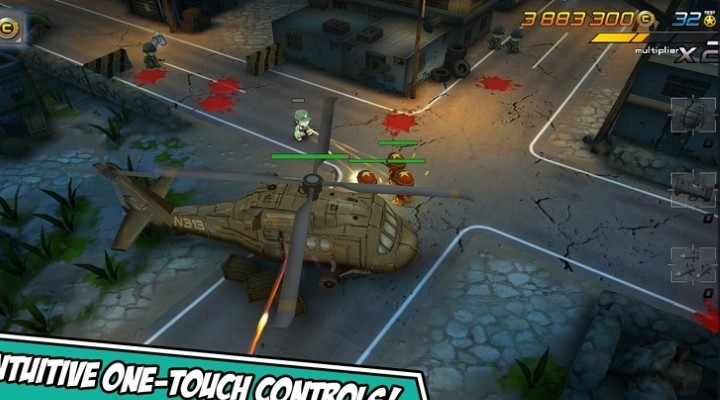
Tiny Troopers 2 is a top-down shooter game with some really impressive graphics to show for itself. There are three exciting story missions to play through, and a survival zombie mode to .. survive through. You can also customize your soldiers and change what they look like, what sort of armor they wear and what weapons they use.

Download Tiny Troopers 2: Special Ops from the Windows Store [Free along with IAP]

Crossy Road

crossy road best windows store game

Crossy Road popped out of nowhere and became an instant success – because of how challenging, addictive and fun it is. All you have to do is cross the road – the further you go the higher your score, which you can compare with your friends. There are hundreds of skins to pick from as well and you unlock a new one every time you break a record!

Download Crossy Road from the Windows Store [Free along with IAP]

Disney Infinity 3.0

disney infinity 3.0 best windows store game

Disney Infinity is a unique game packing almost all of the characters from the collection of Disney – including some of their subsidiaries such as Marvel and Lucasfilm. You can mix and match any of number of your favorite characters from these universes and play through the brilliant stories – or simply explore the detailed open world.

Download Disney Infinity 3.0 from the Windows Store [Free along with IAP]

Microsoft Treasure Hunt

microsoft treasure hunt best windows 10 store games

Think of Treasure Hunt as Minesweeper – except 3D, with better graphics, gameplay, and even an adventure to take you on. It is in theory the spiritual sequel to minesweeper, with tools to discover and hidden levels to discover. You can use the gold you collect to buy new supplies, weapons, and tools to carry on your journey.

Download Microsoft Treasure Hunt from the Windows Store [Free along with IAP]

Shadow Fight 2

shadow fight 2 best windows 10 store games

Shadow Fight 2 is a fighting game with some interesting art decisions. You don’t exactly see your character – or the enemy for that matter – but only their shadows. It makes for an interesting dynamic because it becomes easier to do extremely detailed and smooth animations for all the attacks – since everything is a shadow. There are dozens of attacks and combos to perform, with customizable swords, armor, and even magical powers.

Download Shadow Fight 2 for Windows from the Windows Store [Free along with IAP]

Age of Empires: Castle Siege

age of empires castle siege best windows 10 store games

Age of Empire is a classic – it is one of the biggest and best strategy games ever to be made and is still played today – there is even a remastered version of it. However, some people would like to play the game with modern design decisions, and that’s where Age of Empires: Castle Siege stands. With great graphics and simpler controls, Castle Siege gives you endless fun for a lot less work – it is a more casual option.

Download Age of Empires: Castle Siege from the Windows Store [Free along with IAP]

Blitz Brigade

blitz brigade best windows 10 store games

Blitz Brigade is a first-person shooter that doesn’t take itself too seriously – which is a good thing. While the teams are Allies vs Axis – that is as close to World War 2 as it gets, since the game includes miniguns, scary helicopters, and various other comedic effects. The multiplayer supports up to 12 players at the same time and a variety of game modes to choose from.

Download Blitz Brigade from the Windows Store [Free along with IAP]

Age of Sparta

age of sparta best windows 10 store games

Age of Sparta is a strategy game set during the mighty era of the Greeks.  The game looks impressive with its smooth animations and lighting and features dozens of unique units to play with. You also get to design your own city and plan it the best way possible from a strategic point of view – and the game supports multiplayer as well.

Download Age of Sparta from the Windows Store [Free along with IAP]

Order & Chaos
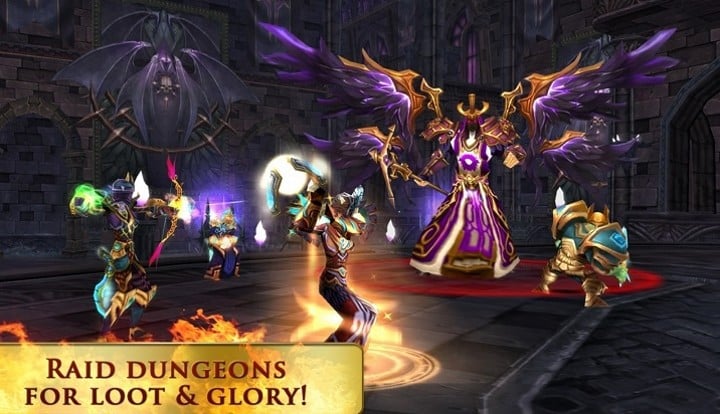
order and chaos best windows store game

Order & Chaos is a full-blown fantasy 3D MMORPG with 5 races to pick from and thousands of skills, weapons, and armor equipment to choose from. The map is massive – as it is supposed to be in an MMO, so you will get to explore everything from jungles to mountains to deserts.

Download Order & Chaos: Online from the Windows Store [Free along with IAP]

Siegefall

siege fall best windows store game

Siegefall is a multiplayer-only strategy game – this means it requires an internet connection – that is insanely detailed giving you the opportunity to micromanage everything as you wish. The game also features some really impressive graphics and three different game modes to enjoy.

Download Siegefall from the Windows Store [Free along with IAP]

Modern Combat 5

modern combat 5 best windows store game

Modern Combat 5 is one of the best first-person shooters out there. It features an exciting single-player campaign taking you on an adventure around the world but it also has a beautifully balanced multiplayer element that comes with a full progression tree for 4 classes to choose from. All of this is topped by the amazing graphics and sound work done by the cast and developers.

Download Modern Combat 5: Blackout from the Windows Store [Free along with IAP]

Call of Duty: Heroes

call of duty heroes best windows 10 store games

Call of Duty is one of the oldest names in the industry when it comes to first-person shooters – this game though is not a first-person shooter. Call of Duty: Heroes is a strategy game that allows you to create your own base and train an elite forces squad. You do get to control a minigun from a chopper if you want to – but that’s as close to direct combat you are going to get.

Download Call of Duty: Heroes from the Windows Store [Free along with IAP]

Cars: Fast as Lightning

cars fast as lighnting best windows store game

Disney is known for created loveable characters from inanimate objects – Cars is one of the biggest examples. Cars: Fast as Lightning is bringing your favorite characters from the Disney movies to a game you can play with them in. The graphics are beautiful and the voice acting is done by the actors themselves – including Owen Wilson.

Download Cars: Fast as Lightning from the Windows Store [Free along with IAP]

Dungeon Hunter 5

dungeon hunter 5 best windows store game

Dungeon Hunter 5 is a hack ‘n’ slash game – a genre that doesn’t see good releases very often. The game will take you on a journey across a dozen realms through countless dungeons hacking and slashing your way through it. The game also supports coop and multiplayer – so you can play with or against your friends as well.

Download Dungeon Hunter 5 from the Windows Store [Free along with IAP]

Adera
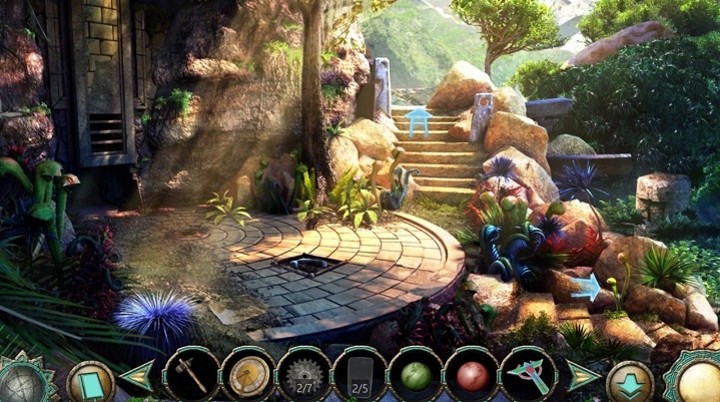
adera best windows 10 store games

Adera is one of the highest-rated games on the Windows Store – it is a narrative-driven game telling you the story of Jane Sinclaire. You are in the mysterious city of Adera and things just get stranger at every turn. The game primarily focuses on puzzles and exploration in terms of its gameplay but the story is what makes it a special experience.

Download Adera from the Windows Store [Free along with IAP]

Sonic Dash

sonic dash best windows store game

Sonic the Hedgehog is one of the most iconic characters in the gaming industry – every single game platform has at least one game featuring the good blue Sonic. Sonic Dash is yet another one where you get to do everything Sonic the Hedgehog is known for in amazingly detailed 3D levels.

Download Sonic Dash from the Windows Store [Free along with IAP]

FIFA 15: UT

fifa 15 fut best windows store game

FIFA is obviously synonymous with football today – luckily the rights to that name are owned by a gaming studio that respects it. EA is known for pushing out some high-quality FIFA games every few hours, FIFA 15: UT is one of many in the franchise. It features over 10,000 players from 500 teams to choose from to build your perfect team and over 30 stadiums to play with those teams. Everything is highly detailed as you would expect from an EA title.

Download FIFA 15: UT from the Windows Store [Free along with IAP]

GT Racing 2

gt racing 2 best windows store game

GT Racing 2 is one of the most graphically impressive racing games out there – with over 60 licensed vehicles that you can race with on over 10 different tracks around the globe, this game offers one of the best racing experiences. The physics is as accurate as it could be, and everything is customizable – from the cars to the weather and time of day for your race.

Download GT Racing 2: The Real Car Experience from the Windows Store [Free along with IAP]

Despicable Me: Minion Rush

despicable me best windows store game

Yet another game based on characters from a brilliant movie franchise – the minions are really fun to watch and play with. The game features hundreds of hilarious missions with secret areas, unique boss fights, and a scoreboard that lets you compare your scores with your friends. There is even a race mode that puts your minions in a race against each other!

Download Despicable Me: Minion Rush from the Windows Store [Free along with IAP]

Asphalt 8: Airborne

asphalt 8 airborne best windows store game

Asphalt 8 is one of the highest-rated racing games not only on Windows but also on platforms such as Android. It features exciting tracks that will keep you on the edge with over 140 cars that feel simply perfect to control and incredible graphics to make it all look great. It even features a proper multiplayer system – so you can race against actual people and feel just that satisfaction of accomplishment.

Download Asphalt 8: Airborne from the Windows Store [Free along with IAP]

Magic Secret Agent

magic secret agent best windows store game

Magic Secret Agent is a 2D scroller with simple controls and an even simpler story – you play the role of Secret Agent Stephen Karsch on a shadow mission to catch the bad guys – except you have magic on your side. The graphics are not the best out there but it’s a fun game for what it is.

Download Magic Secret Agent from the Windows Store [Free]

Captain America: The Winter Soldier

captain america best windows store game

While there exists an incredible movie with the same name, there is also a game – and this is it. You get to play as Captain America and lead your S.H.I.E.L.D. strike team against Hydra and all of the other threats. With missions all around the globe, this is an incredible adventure, and you get to play as one of the most iconic superheroes ever created.

Download Captain America: The Winter Soldier – The Official Game from the Windows Store [Free along with IAP]

Dawn of Steel

dawn of steel best windows store game

Dawn of Steel is a beautiful real-time strategy game that lets you micromanage every single one of your units on the ground. You get to build the perfect defenses for your base and fight against other players on the multiplayer. The game is developed by a few developers who previously worked on the famous Command & Conquer game.

Download Dawn of Steel from the Windows Store [Free along with IAP]

Simple Minesweeper

minesweeper best windows store game

This might seem weird on this list but sometimes this is all you need – the good ol’ Minesweeper that everybody loves to hate. Originally made by Microsoft itself, this game has been known for its randomness and replayability – every time you play it, it presents you with a unique challenge that only leads into chaos the deeper you go.

Download Simple Minesweeper from the Windows Store [Free along with IAP]

Swamp Attack

swamp attack best windows store game

Swamp Attack is a very simple game – you point and shoot at all those animals until they get off your swamp, and stop attacking your cottage. With over 300 different levels there is enough variety to keep you busy for a long while and once you are done with those there are 8 quick missions with some good replayability value as well.

Download Swamp Attack from the Windows Store [Free along with IAP]

Board Defenders

board defenders best windows store game

Board Defenders is a puzzle board game but it tries to follow the pace of an action game – it does sound like a weird combination that might not work, but it does. There are over a 100 levels to play through and four different characters to pick from each with its own custom and unique action and attitude.

Download Board Defenders from the Windows Store [Free along with IAP]

The Chess Lv.100

chess lv 100 best windows store game

Chess is one of the oldest board games that is still very popular. Chess Lv.100 lets you set the difficulty between 100 levels and the computer changes the game‘s difficulty accurately. Chess is a very simple game – but it also extremly hard to master.

Download The Chess Lv.100 from the Windows Store [Free along with IAP]

Star Wars Rebels

star wars rebels best windows store game

Star Wars Rebels brings the stormtroopers to a 2D action-platformer featuring over 6 levels of well written stories. There are secret levels to discover and stormtrooper helmets to collect – the game is massive in its scope and it is really fun to play. Star Wars is one of the most popular franchises out there – and this game gives the name what it deserves.

Download Star Wars Rebels from the Windows Store [Free along with IAP]

Microsoft Sudoku
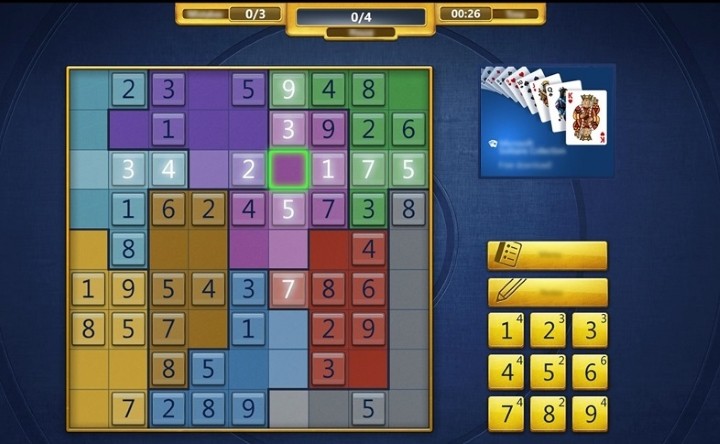
microsoft sudoku best windows store game

Sometimes all you want is a super simple game that you are already familiar with – something not too exciting, but fun nonetheless. Sudoku has always been the favorite of many, as it not only is fun but also helps you increase the size of your brain and give it an exercise – all the while having fun doing it, and we all know exercise is rarely fun. Microsoft Sudoku is straight from Microsoft and is very simple – just like the real thing.

Download Microsoft Sudoku from the Windows Store [Free along with IAP]

Best Microsoft Store games to play

These are over a hundred games to choose from – all from the Windows Store. Or should we say Microsoft Store, since the company has re-branded the Windows Store to bear the same name as the physical shops?

Compiling this list took some hard work, and the people who made these games worked even harder. Gaming is an existential part of us as a species – we have always played for entertainment, video games are just a new form of it. Hopefully, these games will satisfy your curiosity and keep you entertained for a long while to come!

If you’re looking for the best offline games on Microsoft Store, check out our other article.

Over to you now: If you downloaded other Microsoft Store games that you think to deserve to be on our list, let us know in the comments below and we’ll update this post accordingly.

RELATED STORIES TO CHECK OUT:
100 Free Apps for Windows 10: Best to Use in 2026

Windows 10 is the best operating system ever built by Microsoft, and people have been upgrading to it in increasing numbers, despite its problems. One of the best innovations that Windows 8 introduced and Windows 10 improved upon is the Windows Store – a place where developers can submit their Universal Windows apps and consumers can easily purchase them.

The Windows Store is an incredible platform – it rids the developer of worries about updating their applications and doing proper version checks as all that is built into the Windows Store itself, and it gives the consumer a single place to buy and install applications in a single click without worrying about viruses or any other issue like slowdowns etc.

But there are thousands if not millions of applications on the Windows Store, and sometimes it can get frustrating to sort the good ones from the bad – the list below are a 100 apps from the Windows Store; some of the best it has to offer.

Note – if you’re interested in games more than traditional apps, we highly recommend that you check out our list of more than 100 best Windows 10 games that we handpicked from the Windows Store. If you are not looking for games, feel free to scroll below. 

Which are the best free apps for Windows 10?

Facebook

apps-facebook

Facebook started from a dorm room – anyone who has seen the infamous movie about its birth knows the story dramatic story of its inception and the conquest over its competitors that followed after; What Facebook allows us to do was possible before Facebook – but not perfected, and that’s what made Facebook famous. Today the company is worth billions of dollars and a billion people stay in touch with their loves ones by using its services. The Facebook app is quite possibly the most installed app on any operating system, and this one is no exception.

Download Facebook from the Windows Store [Free]

Messenger

apps-messenger

Messenger is obviously an integral part of Facebook and plays an important role for Facebook’s goal in terms of what its trying to do. Connecting everyone in the world to their loved ones can get hard – doing it in real time and free of cost is even harder, which is where Messenger comes in. Facebook Messenger is obviously not the first chat program ever made, but the fact that it links with Facebook and it already knows all the people you know makes it the easiest one to use. While it does come with a lot of features – it serves only one purpose, that is to let you stay connected with the least amount of cost to you.

Download Messenger from the Windows Store [Free]

Netflix

apps-netflix

Netflix is a company that came out of nowhere and shook everyone with awe as it changed the paradigm of entertainment within Hollywood – an industry that is too stubborn to change even in the worst of times. At an extremely affordable subscription price, Netflix offers a rich library of entertainment with an extremely diverse range of shows and movies – and if that wasn’t enough, they produce their own high-budget originals. In just a few years after its birth Netflix has managed to gather a horde of cord cutters, and continues to grow as it expands its horizons to better content and wider audiences.

Download Netflix from the Windows Store [Free]

Pandora

apps-pandora

Pandora did to music what Netflix did to TV – it brought it into the 21st century. Once upon a time, people had to tune into certain radio frequencies and wait for other people to play a song they liked – this changed when companies realised that content can now be delivered in high quality and real time thanks to the internet. Pandora offers radio streams, genre streams and so much more with enough music to last you a century – at an extremely affordable subscription price.

Download Pandora from the Windows Store [Free]

Adobe Photoshop Express

apps-adobephotoshopexpress

Adobe Photoshop is a piece of software that revolutionized the photography industry – with every iteration it brought new features that made possible wizardry that was thought impossible before it; It is however a very complicated program, and requires training and learning of years to master it – so tools such as Photoshop Express bring the advanced powerful tools of Photoshop and simplifies them for use by people who just want to make a photo look fancy.

Download Adobe Photoshop Express from the Windows Store [Free with IAP]

Fitbit

apps-fitbit

Fitbit is a fairly new company born to fulfill the needs of today’s generation. What Fitbit offers is the ability to log and track everything you do to stay fit. This data can then be analyzed to improve your habits and increase or decrease the amount of activity you do to reach your goals. Fitbit is a strong product, and this app by them elegantly displays all of this data for you to easily analyze and export as statistics.

Download Fitbit from the Windows Store [Free]

Amazon

apps-amazon

Amazon has managed to revolutionize the commerce industry in multiple countries across the globe. With their focus on recognizing and studying user patterns and suggesting personalized products for each user, they have managed to build a store that not only has everything from A to Z but also is smart enough to present what you need right at the front of it. The Amazon app – developed by Amazon – does justice to its interface and brings a new life to the store with seamless animations and an elegant interface to go along with it.

Download Amazon from the Windows Store [Free]

VLC for Windows

apps-vlcforwindows

VLC is known for its ability to play anything you could throw at it – any video file format that has been ever made using any codec for video or audio can be played using VLC, and it is packed with extremely versatile feature that quite possibly make it the best video player ever to have existed. The best part? It is still under development and gets constant updates improving it further and keeping up with the various developments in video and audio industry.

Download VLC for Windows from the Windows Store [Free]

Hulu

apps-hulu

While Netflix mostly focused on movies in its early days, Hulu had an on-point focus on TV shows – and till date it is one of the very few websites where you can watch some of the most popular shows on American networks mere hours after they air on television. Hulu has built a fantastic service and this app is a proof of that with its elegant and intuitive interface and smooth animations, it’s a joy to use. Hulu offers a wide collection of TV Shows to pick from, and all of that content is available to stream straight from the app.

Download Hulu from the Windows Store [Free]

iHeartRadio

apps-iheartradio

iHeartRadio is an online service that brings radio stations from across the world to your Windows 10 device at the touch of a button. Not everyone carries a radio around anymore – even in the phones, they require earbuds to be plugged in for antenna which can be quite troublesome in a lot of situations. iHeartRadio gives you access to a massive library of radio stations from across the globe in their best pristine quality as it airs – completely live.

Download iHeartRadio from the Windows Store [Free]

PicsArt

apps-picsart

Photo editing can get complicated – as Photoshop as shown us, and while Photoshop has made efforts to build a simpler tool, competition can never heart in this endeavour. PicsArt gives you some incredible photo editing tools and some very simple step-based tools to make photo collages, digital drawings and much more. It also has its own little network where you can meet other creative people who share your hobby and interests.

Download PicsArt – Photo Studio from the Windows Store [Free with IAP]

Line

apps-line

The market of socializing is massive – and so it is required to have competition in this arena to void any monopolies. Line is not a revolutionary idea, what it is though is a refined one – an instant messenger that is quick, simple and can be learned even by those who are not tech-savvy. Line supports not only text messaging but also voice and video calls – and all of it is free except the data charges.

Download Line from the Windows Store [Free]

Network Speed Test

apps-networkspeedtest

Network Speed Test is a tool built by Microsoft Research – it is supposed to determine your internet’s quality and measure its speed. This is obviously not the first tool or website to do this – however it is necessary to have an impartial tool from a reputable company to dispute any issues with your internet service provider, and this application serves that criteria. It will also locally store all of your previous speed tests so you can compare them for future reference.

Download Network Speed Test from the Windows Store [Free]

Tweetium

apps-tweetium

Tweetium is an extremely feature rich Twitter client, and while it is not free it comes with support for up to 7 accounts simultaneously and push notifications for mentions, DM’s, RT’s, quotes, favs, and new followers. It also integrates with another app by the same developer – Newseen and enhances the experience of reading news from Twitter. The app is fully compatible for all platforms – including Windows phones and tablets.

Download Tweetium from the Windows Store [2.99$ with IAP]

RemindMe

apps-remindme

While this functionality will soon be added to Cortana in the Anniversary Update for Windows 10, for now this app is quite necessary for productivity on Windows 10. RemindMe – as the name suggests – can remind you do something no matter what you ask for. You can not only set the reminder by minutes but also specific dates and time. The app deeply integrates with all of the Windows features and gives you constantly updating live tiles and rich toast notifications. Your reminders also show up on the lock screen, and all of them are synced between all of your Windows 10 devices over the network.

Download RemindMe for Windows from the Windows Store [Free]

Flipboard

apps-flipboard

The information era we live is fast and requires you to be faster. For a long time people used RSS for their news delivery – a technology that is not only slow but also cumbersome and not at all nice to look at. Flipboard presented itself as a personalized magazine – and that it is. The point of Flipboard is to deliver you news and articles that might interest you in the most elegant way with the least delay, and this app does it full justice.

Download Flipboard from the Windows Store [Free]

Audible

apps-audible

Audible is not only a store to buy some fantastic audio books, but also one of the only and the best audiobook library management softwares out there. Audible has over 200,000 audiobooks to choose from, and regularly runs offers and discounts so you can continue being entertained and keep gaining knowledge without spending a lot of money. The app supports all of the native Windows 10 features such as integration with Cortana and sync’ed page position across devices.

Download Audiobooks from Audible from the Windows Store [Free]

Foursquare

apps-foursquare

Foursquare is a service that singlehandedly revolutionized how people traverse the urban jungle that our cities are today. Foursquare personalizes the places you should visit near you, be it restaurants or something with a little night life. Foursquare also makes it fun to discover new places with its rewards and competitive features like the mayorship program. The Foursquare app brings all of these features and presents them in an elegant way.

Download Foursquare from the Windows Store [Free]

Duolingo

apps-dualingo

Duolingo is an incredible tool that does exactly as its name implies – it teaches how to converse in dual languages, or triple, whatever you want really. The app is designed to teach you many languages without much effort – don’t fool yourself, you won’t become proficient in the language, but you will learn it enough to have a simple conversation with a native of that language.

Download Duolingo from the Windows Store [Free]

ooVoo

apps-oovoo

ooVoo brings you some really high quality video and voice chats – not only 1 to 1 but with up to 12 people simultaneously. The app also comes with some unique filters to make your chats just a little bit more fun. You can also share good old text, and photos as well, and make free phone calls over your data connection with other ooVoo users.

Download ooVoo from the Windows Store [Free]

Movie Edit Touch

apps-movieedittouch

Video editing is tough job even for a professional – it is something that takes quite a lot of man hours for very little output, but sometimes you just want something simple, and something simple can be achieved with simple tools. Movie Edit Touch is an extremely simple tool that allows you to just fine tune your videos to make them a tiny bit better. It allows you to trim your videos, add music to them, add filters, stabilize them, and much much more.

Download Movie Edit Touch from the Windows Store [Free with IAP]

Police Radio Scanner 5-0

apps-policeradioscanner

The law enforcement of every city in the world works hard to keep its citizens safe, sometimes you could be curious about how they do their job; Police Radio Scanner 5-0 provides you with radio chatter of hundreds of police departments around the world. The radio is picked up by volunteers, but what you get is a clean mp3 stream of the live radio chatter.

Download Police Radio Scanner 5-O from the Windows Store [Free]

Vine

apps-vine

When Twitter gained its popularity, you could attribute it to the simple 140 characters limit it held upon its users. Vine is essentially the Twitter of video, and gives its users 7 seconds to tell their story – no more, no less. Vine has turned into an incredible platform with millions of users sharing their day. Vine has also gained popularity among the creative – a 7 second limitation presents an interesting challenge to build something that can entertain. The app lets you not only make and upload your own Vines, but also follow and watch the Vines uploaded by other people as well.

Download Vine from the Windows Store [Free]

Sway

apps-sway

Sway lets you build interactive presentations with simple tools and is fully integrated with OneDrive so you can add photos, videos and music from anywhere you like in your stories. It comes with some beautiful templates, and while it likes to call itself a storytelling tool, that could in theory also be used for presentations – which is why Sway is useful for more than just play.

Download Sway from the Windows Store [Free]

Shazam

apps-shazam

Ever went to a bar and wondered what sort of music is being blurted out by those speakers? Yeah, everybody does that. Shazam is going to answer all of your questions related to music; wanna know what song is playing on the radio? Shazam can answer that. What song is used in that video game trailer you like? Shazam it. Shazam features an incredibly simple and quick interface that lets you quickly pull out your phone and Shazam whatever is playing around you – it also saves a history of it, so you can check it out later and add more music to your own library.

Download Shazam from the Windows Store [Free]

Autodesk Pixlr

apps-autodeskpixlr

Audodesk Pixlr is yet another tool to edit your photos on your Windows 10 device with tools that keep things simple and let you make the perfect photo without much learning curve and by doing most of the work for you. It comes with various filters, borders, overlays and lets you fine tune every aspect of your image – from colour to gamma with extreme precision in real time.

Download Autodesk Pixlr from the Windows Store [Free]

Nano Antivirus Sky Scan

apps-nanoantivirus

Windows is the most popular operating system on the planet – but its popularity also makes it a massive target for people who intend no good. Therefore in today’s world an antivirus is not an option but a necessity. By the nature of Windows Universal Platform applications – Nano Antivirus cannot do a lot in terms of features, but it can let you scan individual files via its cloud checking for free, and that’s what it offers with an elegant and easy to use interface.

Download Nano Antivirus Sky Scan from the Windows Store [Free]

Cover

apps-cover

Comics books are an all-time favorite for reading by all ages – it not only engages its readers by using well drawn characters but also brings some wit and creativity to the artistic design of every page. Comic books are indeed one of the best ways to tell a story, and Cover is does them a justice by providing a brilliant way to organize them and showcase them in a gorgeous interface. Cover supports a wide range of comic book formats and can import all of your comic books in a single step. It comes with various customizable options for its reader functionality – from animations to a dark mode, and even comes with full support for foreign language fonts such as Japanese so you don’t miss out on that manga.

Download Cover from the Windows Store [Free with IAP]

Khan Academy

apps-khanacademy

Online learning tools are getting extremely important in the current times where education is becoming extremely expensive and out of reach for a major part of the population. Khan Academy fulfills this demand by providing a wide variety of courses in hundreds of different fields and subjects – all created by respectable and reputable professors and professionals from some of the best universities in the world. What you learn in Khan Academy can even be added to your resume and a lot of companies will consider it as genuine knowledge today.

Download Khan Academy from the Windows Store [Free]

Keeper

apps-keeper

Keeping a secret in today’s world can get very hard specially when everything is connected over the internet allowing someone on the other side of the world access to your personal network. Keeper is an app that will encrypt and keep not only your passwords safe but also your files and folders. It will also help you auto-fill your passwords on websites within your browser, giving you the freedom to have unique and complicated passwords for every website – as it should be – while removing the headache of remembering each and every one of them. It also syncs across all of your devices and comes with a pretty decent interface.

Download Keeper from the Windows Store [Free with IAP]

Tripadvisor

apps-tripadvisor

Traveling across the world is the most wonderful experience you could go through – our ancestors could only dream of it. Tripadvisor helps you plan your trips so you can make the most of your time and enjoy everything you do in the lands foreign to you. Tripadvisor will help you find the cheapest hotels, flights and food all around the globe so you can save money to do more things and make a better trip.

Download Tripadvisor from the Windows Store [Free]

UC BrowserHD

apps-UCBrowserHD

Web browsers are everywhere – without them, you wouldn’t be able to access most of the internet, however building a good web browser is a challenge only the best could tackle. UC BrowserHD is one of the best Windows 10 web browsers out there. Its speed and smoothness reflect what is possible with the Windows Universal Platform and it just gives you an extremely quick experience. While it is fast, it is not very feature rich – with lack of extensions, it is quite limited in possibilities, but if you want something fast look no further.

Download UC BrowserHD from the Windows Store [Free]

Evernote Touch

apps-evernotetouch

Evernote is a service that lets you make notes and store them forever – thus the name Evernote. While this sounds simple, Evernote is an extremely feature rich platform and not only does it let you make notes it also lets you organize them with tags – something crucial when you can make infinite amount of notes. It also supports sketches and image notes and comes with various collaboration tools as well that allow you to work on projects and share notes with a team of people.

Download Evernote Touch from the Windows Store [Free]

Wattpad

apps-wattpad

Wattpad brings you stories and books from authors that haven’t made it big enough to be popular yet. However it is a bit different from simply giving you a book; on Wattpad authors can upload books as they write them – so you could get new chapters for your favorite book as you get new episodes for your favorite TV shows. You can also write your own stories and books if you want to get into that, and share it with your friends and all of the other millions of Wattpad users instantly.

Download Wattpad from the Windows Store [Free]

Spending Tracker

apps-spendingtracker

Keeping track of your money can get hard, specially when you have all of these awesome applications to purchase! With Spending Tracker you can add up all of your earnings and expenses and see where you could save money. It can help you properly categorize all of your expenses so you can see what you are spending most of your money on and build graphs and charts to make it easy to understand. The interface isn’t the most elegant thing you have looked at, but it gets the job pretty well.

Download Spending Tracker from the Windows Store [Free with IAP]

TouchMe

apps-touchme

Touchscreens revolutionized the way you interact with a computer – but sometimes the things your fingers allow you to do can get quite limited, and that’s where gestures come in. Gestures allow you to do more complicated tasks while keeping them intuitive – pinch to zoom is a gesture for example, something very simple and obvious but adding a massive usability boost. TouchMe allows you to build custom gesture files that you can use in any popular gesture engine – you can basically create your own gestures and use them however you like.

Download TouchMe Gesture Studio from the Windows Store [Free with IAP]

Readit

apps-readit

Reddit is one the most popular websites around – as it likes to call itself the homepage of the internet. While it is extremely popular, the interface isn’t something to brag about and considering how much people like it – it’s not going to change anytime soon. For those of us who prefer to have something more elegant, Readit offers an incredible app that is designed intuitively and presents all of Reddit’s content without any of its ugly designs. Readit also adds some nice native feature support such as Windows 10 toast notifications for new replies and messages.

Download Readit from the Windows Store [Free with IAP]

Karaoke One

apps-karokeone

Karaoke is a gift of the beautiful Japanese culture – you sing a song to its tune among your friends. Not only is it an extremely fun activity, it also boosts your self confidence as you are displaying your skills – no matter how embarrassing – in front of a live audience. Karaoke One lets you have the same karaoke experience – but over the internet, by allowing you to sing and share your karaoke performance with extreme ease. It features thousands of songs and comes with properly synced detailed lyrics for you to sing along, so you don’t miss a beat.

Download Karaoke One from the Windows Store [Free with IAP]

Autocad 360

apps-autocad360

Autocad is an extremely powerful drawing and drafting tool – Autocad 360 however is pretty much a lite version of it, intended for use when you are on the move and just need to make some simple adjustments or show your work to clients. Autocad 360 is full of the features you would be familiar with if you use Autocad and lets you edit, and look at the objects you create in full 3D while giving you all of the measuring and technical tools you require.

Download Autocad 360 from the Windows Store [Free]

Wolfram Alpha

apps-wolframalpha

Wolfram Alpha is an amazing tool built to enhance the capabilities of a computer – it can resolve complex equations and figure out literal sentences to give you a satisfactory result. While it is mostly a math tool, it can be used for various things such as currency conversion and doing your homework. Wolfram Alpha is also one of the few tools that will solve your mathematical equations – and give you steps for doing it yourself.

Download Wolfram Alpha from the Windows Store [2.99$]

Dictonary Pro

apps-dictionarypro

Any website on the internet will be willing to define words for you – but if you want something more detailed, something that will give you not only the meaning of a word but also the origin of its meaning, you need better tools. Dictionary Pro is an extensive tool for anyone interested in languages. Not only does it give you definition of every word that ever existed but it also packs its own advanced translation engine that will help you translate words nad trace their history to their known origins.

Download Dictionary Pro from the Windows Store [3.99$]

Flixter

apps-flixter

Flixter intelligently and elegantly organizes all of the trailers and showtimes of recently released movies for you so you can check out whats new and find a seat to watch it in your nearest theater. It also shows the top reviews from the best critics around the world and gives you a solid rating for every movie – helping you determine whether it is worth spending your time watching a movie.

Download Flixter from the Windows Store [Free]

Lastpass

apps-lastpass

Lastpass is an incredible tool that has a name describing its exact purpose – it is going to be the last password you will ever have to remember. Lastpass is an extremely secure password manager that will store and generate passwords for you, so you don’t have to deal with them ever again. Lastpass comes with not only this app but also apps for various other platforms allowing full automated auto fill of your password information, making it extremely convenient yet at the same time safe and secure – a combination that is very rare.

Download Lastpass from the Windows Store [Free]

TED

apps-TED

TED brings you access to thousands of talks by various people of knowledge – from musical artists, tech geniuses, businessmen and even politicians. TED is famous for its intellect and the push to share ideas with complete freedom. The TED app does justice to its content and gives you an organized way to browse through the thousands of TED talks at your disposal and watch something that interests you – or even go beyond your safe circle and learn something new.

Download TED from the Windows Store [Free]

Code Writer

apps-codewriter

Code Writer is a code writer built on top of the Universal Windows Platform – something not very common to see. Code Writer features all of your usual code editor features such as syntax highlighting and automatic indentation. It supports over 20 different file formats and features a tabbed document interface allowing you to work on multiple files simultaneously with ease.

Download Code Writer from the Windows Store [Free]

7z Zip Rar

apps-7zziprar

7Z Zip Rar is a simple tool designed to do only one thing – compress and uncompress files. It features a a simple UI that lists all of the files you have recently uncompressed or compressed and is able to create password-protected archives as well. It also supports various file formats such as 7zip, RAR, zip, cab, tar, iso and much more.

Download 7z ZIP RAR from the Windows Store [Free with IAP]

Timemaster

apps-timemaster

Timemaster is an incredible application used by thousands of professionals across the world – if you charge by the hour, you need to have a look at Timemaster. Timemaster lets you easily keep track of your time and expenses incurred during that time so you can easily bill your clients. You can have multiple timers running at the same time, and have customized billing rates for everything. You can also export all of this data as HTML or CSV files and use it for analyzing whatever you like.

Download Timemaster + Billing from the Windows Store [9.99$ with IAP]

PC Benchmark

apps-pcbenchmark

PC Benchmark – as the name suggests – is a tool to benchmark the various components of your computer and give them a solid score that you can use to compare other computers with yours. It will test various components of your computer such as the storage, CPU, GPU, and RAM. It will also work on ARM-based Windows 10 devices and benchmark them as well.

Download PC Benchmark from the Windows Store [Free]

The New York Times

apps-thenewyorktimes

The New York Times is one of the oldest newspapers to have ever existed and the quality of its journalism reflects that. The application does full justice to its content by providing clear and concise view of them without any distractions. Unless you subscribe – the app lets you access three free articles everyday, and gives you a beautiful interface to read them in.

Download The New York Times from the Windows Store [Free]

GOM Player

apps-gomplayer

GOM Player is an extremely simple media player – you simply point it at the file you want to play and it will play it. You can also add folders to it and use its extremely simple library management features as well. It supports popular file formats such avi, mp4, mkv, wmv and much more. It also comes with built in support for custom subtitles as srt and smi files, and features a very simple gesture based interface to move within the media file.

Download GOM Player App from the Windows Store [Free]

Discovery Channel

apps-discoverychannel

The Discovery Channel app brings you an insane amount of content to watch from the famous Discovery network – an incredible amount of educational and knowledgeable content that makes you smarter every time you watch an episode. You get access to various Discovery favorite shows such as Mythbusters, Deadliest Catch, Gold Rush and a lot more.

Download Discovery Channel from the Windows Store [Free]

5 Minute Relaxation

apps-5minuterelaxation

Relaxing in today’s stressful life can get quite a challenge – when everything is moving so fast, you rarely have time to sit down and take a deep breath. It is however extremely important for your health to do so, and so apps such as this have to exist to remind you to take care of your body more often. 5 Minute Relaxation will only take 5 minutes of your life, and calm you down enough to make you sleep – or wake you up if you are tired. It uses a combination of vocal guidance and soothing music to relax your mind and body and bring some calm to the chaos.

Download 5 Minute Relaxation from the Windows Store [Free with IAP]

myHomework

apps-myhomework

There was a time when schools used to be simple – you had a teacher who taught you things and then you went home. Today schools are more complicated than ever, and so myHomework lets you plan and organize your school life so you don’t miss any goals. myHomework lets you easily track your classes and homework, with reminders to keep you up to the mark. It is also available on multiple platforms and syncs across devices so you can never be out of touch with your schedule.

Download myHomework from the Windows Store [Free with IAP]

Cortanium

apps-cortanium

Cortana was introduced with Windows 10 on the desktop – but it was very limited at the time of its launch in terms of what it could od. Cortanium fills the void by allowing you add custom commands for Cortana and bringing more flexibility to the platform. With ease, you can make Cortana do anything you like from controlling your LED lights to turning on your pop corn machine – anything is possible.

Download Cortanium from the Windows Store [1.99$]

Poki for Pocket

apps-pokiforpocket

Pocket is an incredible tool – basically it lets you put your regular internet webpages in a “pocket” when you don’t have time to look at them, and allows you to then access them later – when you do have time. Poki for Pocket is an extremely beautiful and elegantly designed app that does justice to Pocket’s idea and brings incredible design to its features.  Poki is highly polished and beautiful, and comes with full support for all of the Pocket features including tags and folders.

Download Poki for Pocket from the Windows Store [Free with IAP]

Microsoft Math

apps-microsoftmath

Microsoft Math is an educational tool developed by Microsoft that helps you learn mathematics – not just the basics but also advanced parts of it. There is a worrying abundance of educational applications on the internet – however, good educational applications are hard to find. Microsoft Math features a UI that is simple to traverse and attempts to teach you the most complicated math in its simplest form.

Download Microsoft Math from the Windows Store [Free]

Teleprompter Pro

apps-teleprompterpro

Teleprompter Pro is quite possible a necessity if you give a lot of presentations – much like a real teleprompter, this app will provide you with large scrolling text as you speak in a variety of colour and font variations to make it easy to read even from a distance. Everything in the app is configurable from font colours to scrolling speed. It also allows you to import scripts from standard text files – so you don’t need any specialized software to write your speech.

Download Teleprompter Pro from the Windows Store [4.49$]

My Fitness

apps-myfitness

My Fitness is an attempt to put you in shape by frequently reminding you to exercise – and also changing up your routine to keep it more interesting every once in a while. Basically it is a virtual coach that will push your body further and help you stay fit and healthy.  Some very experienced fitness trainers were consulted to build this app’s routines with hundreds of different exercises. You can pick and choose what exactly your goals are, and the app will attempt to give you the best routines possible.

Download My Fitness from the Windows Store [Free with IAP]

Start Screen Clock

apps-startscreenclock

The Start Menu was completely revamped in Windows 8 and 10 – so much that even it’s name changed to the Start Screen. Microsoft forgot one very important thing though – they built a start menu that takes up all of your screen, but forgot to add a clock to it. Something so simple yet so essential was ignored and now has been taken care of, thanks to this app. Start Screen Clock gives you a live tile that updates with the current time – something of a technical challenge.

Download Start Screen Clock from the Windows Store [Free with IAP]

The Huffington Post

apps-huffpost

The Huffington Post was founded quite recently – in 2005, and has managed to make a name for itself in such a short time. Also known as HuffPost, the news site brings you stories from all around the world in almost every category – from entertainment to politics. The app itself is information dense – something of a rarity when it comes to Windows Applications – yet presents all of its content elegantly in an organized way that makes it easy to sort and read the content you want.

Download The Huffington Post from the Windows Store [Free]

CleverToDo

apps-clevertodo

CleverToDo is an app that will help you manage your tasks and stay focused on things that need your attention. The app will attempt to reduce the time you spend procrastinating and help you stay productive. The app is based on the “Get Things Done” methodology devised by David Allen, and features an extremely intuitive and slick interface that attempts to keep the focus on your work and gives you a daily agenda for things that you need to get done.

Download CleverToDo from the Windows Store [8.99$]

Artezio

apps-artezio

Diagrams are an essential part of any technically job – they are even a necessity in a lot of presentations, but they can be quite difficult to make with standard tools. Artezio is an app specifically designed to make designing a diagram simple. It is quite frankly absurdly easy to build an extremely complicated diagram with Artezio – it features an extremely simple interface and also comes with full support for touch screen displays.

Download Artezio Diagram Designer from the Windows Store [Free with IAP]

Sharpen

apps-sharpen

Sharpen is an image enhancement tool – basically it will attempt to improve the images you take by running various sharpness and colour correction algorithms on it, and give you a better photo without doing much work. It supports a wide variety of image formats such as JPG, PNG, JXR, WDP, TIFF to even highly uncompressed formats such as RAW and ARW. The app preserves all of the metadata from the original photo and also comes with a built-in after and before slider so you can compare your original photo with the enhanced image that Sharpen produces.

Download Sharpen from the Windows Store [0.99$]

Adobe Content Viewer

apps-adobecontentviewer

Adobe Content Viewer lets you preview rich interactive publications built using the Adobe Digital Publishing Suite – this might not sound very interesting, but if you do any kind of work in this field you will know how important this application is for you. Using this, designers of such magazines can preview the content from the Distribution Service prior to the publication of it.

Download Adobe Content Viewer from the Windows Store [Free]

Earthquake Watch

apps-earthquakewatch

Mother nature is cruel, and when it decides to do harm – it knows no bounds. Earthquakes are not only a geological wonder, but also extremely deadly and can cause severe damage in terms of life and property. Not only are they extremely hard to account and counter for – they are close to impossible to predict, and so when an earthquake happens, it can be a life saver to know where and when it happens. Earthquake Watch gets real time data from the seismological services of United States, Mexico and Chile and notifies you immediately if there is a major earthquake anywhere in the world.

Download Earthquake Watch from the Windows Store [Free with IAP]

Battery Tile

apps-batterytile

Once again an application is here to fix the mistakes of Microsoft – Battery Tile displays the current battery level of your Windows 10 device in a live tile that you can pin to your Start screen. This can be essential if you use your device on battery frequently and need to know how long you can stay up and running. Battery Tile also displays the estimate time remaining for your battery life within the live tile.

Download Battery Tile from the Windows Store [Free with IAP]

Microsoft Hololens

apps-hololens

The Microsoft Research division comes up with some insane ideas every few years – Hololens is one of the products developed by them. It is quite possibly the closest we have gotten to immersive augmented reality – a dream that we have thought of since the 90s. The Hololens app is a necessity if you are one of the very few lucky ones who have access to a Hololens headset, as it lets you view a live stream of what the AR headset’s wearer is seeing.

Download Microsoft Hololens from the Windows Store [Free]

RealPlayer Daily Videos

apps-realplayerdailyvideos

RealPlayer used to be one of the most popular video players on Windows at one time – it is long past its glory days now, but it still sticks around and brings interesting ideas every once in a while. RealPlayer Daily Videos brings you a new video everyday – personalized for you, so it will always be something that interests you. It uses various sources such as YouTube, DailyMotion, and even Facebook and also comes with a built-in advanced search engine that can search across all of its sources at once.

Download RealPlayer Daily Videos from the Windows Store [Free]

VK

apps-vk

VK is a social network – much like Facebook – but it is more popular in eastern European countries and Russia. It is always good to have some competition in every industry, and VK is that competition against Facebook that is needed. Although most of the functionality is quite similar, you could say this app for VK is miles ahead of Facebook’s attempt of one.

Download VK App from the Windows Store [Free]

NBA Fan

apps-nbafan

NBA Fan is an app that well… any NBA fan should have installed. The app delivers every breaking news and tweets from the stars of NBA in real time for the best of its fans. It will also give you highlights from the various NBA games and keep you in the loop. The app itself features a simple design that is easy to navigate as well.

Download NBA Fan from the Windows Store [Free]

Pulseway

apps-pulseway

Pulseway is an essential app for any network or IT system manager – in a single view, you can monitor hundreds of systems for faults and issues and get notified when something goes wrong. The monitoring is of course done on client side with the Pulseway monitoring software, which works on every major operating system. You an also monitor cloud instances and even run commands and scripts remotely. Almost everything can be controlled remotely with Pulseway – you can force updates, reboot the clients and even set custom rules for certain clients so you can get alerts when something specific goes wrong.

Download Pulseway from the Windows Store [Free]

Mediafire

apps-mediafire

Mediafire is a service that lets you upload any file you like and share it with your friends, family or even just the general public over the internet. The app of course lets you keep track of what files you have uploaded, manage them, delete them and see detailed statistics about them such as how many people have downloaded that specific file. Mediafire can also sync files from your Windows 10 devices if you set it up for it.

Download Mediafire from the Windows Store [Free]

Writr

apps-writr

Writr introduces a trait to your life that is being forgotten by every passing day – journaling. Writr prompts you along your day to write about your aspirations and goals. It helps you do some self-analysis and realise your full potential, by helping you grow as a person. The app helps you keep your focus on your life’s goals, and brings some inspiration to your everyday life. It also syncs everything over the cloud across all of your devices so you know you are never going to lose it.

Download Writr from the Windows Store [Free]

NFL Fantasy Football

apps-nflfantasyfootball

NFL Fantasy Football is more of a game than an app – it lets you build an NFL team of your own, and drops you down in its fantastical world where anything is possible. The app is essentially a simulation of an NFL season – except you make your own fantasy team and watch as they fail or become the best.

Download NFL Fantasy Football from the Windows Store [Free]

Hair Stylist

apps-hairstylist

Your hair is an important part of your looks – a different hairstyle can make you look like a completely different person, so deciding what kind of hair would be the best for you can get quite difficult. With Hair Stylist you can try out different hair styles and colours within the app – without actually changing it up for real. The app has hundreds of hair styles for both men and women and all of them are properly categorized so you can easily browse through them. You can also upload your own picture within the app and try the hairstyles on yourself.

Download Hair Stylist from the Windows Store [4.99$]

NewsHunt

apps-newshunt

Newshunt is a newspaper aggregator – basically it lets you browse through hundreds of regional and national newspapers in various languages with a breeze. It supports hundreds of newspapers without any bias and brings its users current news from all across the world in an organized interface that is easy to browse through, despite all of the information available.

Download NewsHunt from the Windows Store [Free]

MinimaList

apps-minimalist

MinimaList is not only a great pun but also an incredibly well designed application that lets you build a to-do list that is very intuitive. You can build multiple lists for any task you want and it comes with various options for how you want to be notified for the tasks. It also integrates well with the Windows search and lets you search through your tasks via Windows itself.

Download MinimaList from the Windows Store [Free]

Tom’s Hardware

apps-tomshardware

Tom’s Hardware is a publication that started in a decade when computers were starting to get extremely popular – the 1990’s. Today Tom’s Hardware brings you the latest news from every field of IT and gives you the latest information related to tech. Tom’s Hardware also features a very active forum where experts and other users are willing to help you with your computer problems no matter how simple or absurd they are. The app of course brings all of this to a beautiful interface that is easy to navigate and is not an eye sore.

Download Tom’s Hardware from the Windows Store [Free]

Runtastic Situps Pro

apps-runtasticsitupspro

The Runtastic Situps Pro app pushes you to do that extra work everyday and shape up your body into something you would desire. The app builds a scientifically proven training program just for you and challenges you everyday to do just a little bit more until you hit your goal. On a mobile device, your sit ups will be automatically counted with the accelerometer – so you don’t even have to count them, and the app will tell you when you can rest. All of your workout data can also be uploaded to Runtastic and analyzed further to see where you can improve.

Download Runtastic Situps Pro from the Windows Store [1.99$]

Save Battery

apps-savebattery

The lithium ion batteries that are used in most of the mobile devices and laptops today have a weird catch to them – while they do last long, their life can be extended by charging them up to 80% and no further; while this does sound absurd, it is how lithium ion batteries work – however it can become extremely tedious to keep track of how much charge your devices have gained since you put them to charge. Save Battery will notify you when the charge reaches a certain threshold and help you protect your battery from overcharging, making it last longer. It also shows your battery status as live tiles in your Start Screen.

Download Save Battery from the Windows Store [Free with IAP]

Windows App Studio Installer

apps-windowsappstudio

The Windows App Studio Installer is an app developed by Microsoft with the intention to make installing a Windows App Studio app an extremely quick and simple process. This app will automatically configure your device so you can easily deploy your app developed in Windows App Studio within minutes.

Download Windows App Studio Installer from the Windows Store [Free]

Screenshot Tool Pro

apps-screenshottoolpro

Screenshot Tool Pro is a tool that lets you take screenshots of your desktop and edit them to highlight the important parts. It comes with various brushes and tools to give you freedom in terms of what you can do to your screenshots. Add text or simply use the highlighter to highlight text – and then use the inbuilt share function to share your screenshots with your friends and colleagues instantly.

Download Screenshot Tool Pro from the Windows Store [5.99$]

Perfect Voice Recorder

apps-perfectvoicerecorder

Voice recording softwares are in abundance – good ones are however a rare sight. Perfect Voice Recorder is an extremely simple tool that does exactly as its name suggests. You can record your voice, and store the clips – or upload them to OneDrive and sync across all of your devices. Perfect Voice Recorder also has built-in protection, so if your computer has an unfortunate crash, the voice recording gets saved regardless of it.

Download Perfect Voice Recorder from the Windows Store [Free]

BB-8

apps-bb8

The BB-8 app is built to control the BB-8 toy from the Star Wars franchise. The lovely cute little robot that rolls around on its curious ball has been turned into a toy, and this app is how you control this extremely well made toy. The app lets you drive your BB-8 around, set it in a patrol mode and even make it do some cute expressions that can entertain your kids for a long while. The BB-8 toy can also do holographic messaging – simply record a video with the app and the app will turn it into a holographic message for the BB-8 to broadcast.

Download BB-8 App Enabled Droid from the Windows Store [Free]

Wikio

apps-wikioforwordpress

Wikipedia transformed the world by bringing the knowledge of every encyclopedia in the world to a website that can be search through in an instant – essentially bringing all of human civilization’s knowledge at your fingertips. Wikio is an app for Windows 10 that will let you access the vast library of Wikipedia on your Windows 10 device with an easy to use interface. It lets you do everything the Wikipedia website has – from search to reading long articles and browsing their citations everything is possible.

Download Wikio for Wikipedia from the Windows Store [Free with IAP]

Series Tracker

apps-seriestracker

Keeping track of your favorite TV shows and their seasons can get very cumbersome very quickly, so services such as Trakt.tv exist to help you keep track of everything you watch and log it in your profile. Series Tracker is a beautiful Windows 10 application that integrates with your Trakt.tv profile and helps you keep track of everything you watch with ease. It notifies you of new episodes of the TV shows you follow, displays detailed information about the cast and crew of every show with a description for every episode and lets you share what you are watching with your friends.

Download Series Tracker from the Windows Store [Free with IAP]

ATC Navigator

apps-atcnavigator

ATC Navigator is an interesting app – it shows you your plane’s path and the ATC circles around airports, basically giving you the same view as your pilot. There isn’t much you can do with this information though, except extinguish your curiosity. For now, the app only has map data for Netherlands, but the developers are working on further improving it.

Download ATC Navigator from the Windows Store [Free]

My 500px Universal

apps-my500pxuniversal

500px is an incredible social network for photographers around the world to share their amazing work online,  and sometimes get rewarded for it. While the website is beautifully crafted and designed, a native application is always appreciated – and My 500px fulfills that duty beautifully. It allows you to upload photos directly from within the app, features a live tile that cycles through any feed of your choice everyday, and can automatically update your desktop wallpaper to whatever feed you set it to. It also has all the features you would find on the website such as an advanced search engine and all of the social features.

Download My 500px Universal from the Windows Store [Free with IAP]

MALClient

apps-malclient

MALClient is an app built for the users of MyAnimeList and Hummingbird. Basically if you are into Anime or Manga – you need this app. You can browse through a vast range of Anime and Manga and check their reviews, and read the latest news about their development. The app is fully open source as well, which is a rare treat to behold in Windows Apps. The app fully integrates with MyAnimeList and Hummingbird and lets you customize your profile from within the app.

Download MALClient from the Windows Store [Free with IAP]

Cortana Triggers
apps-cortanatriggers

Cortana Triggers adds some extensibility to Cortana and lets you add custom commands that can trigger any sort of HTTP request you like – be it over to IFTTT or a server that you own. The interface is extremely simple and holds your hands through the whole process of setting it up and then setting up the custom commands as well. The app also comes with live tiles that you can use to trigger certain tasks manually.

Download Cortana Triggers from the Windows Store [4.99$]

GoodDoc

apps-gooddoc

GoodDoc gives you access to an extensive network of highly rated doctors all across the USA. There are doctors from various fields from dentists to ophthalmologists. The app also fully integrates with Windows – so you get to ask Cortana for a doctor, and have them appear on Bing Maps. The app will also notify you with realtime CDC alerts and allows you to save your health insurance data within the app securely.

Download GoodDoc from the Windows Store [2.99$]

Sticky Notes Pro

apps-stickynotespro

Sticky Notes Pro gives you a place to put your notes on – the app is very simple in terms of what it can do. It is basically a pinboard, where you can put an infinite amount of sticky notes. Simply write the text, pick a colour and pin it within the app – and you will have access to it across all of your devices.

Download Sticky Notes Pro from the Windows Store [7.99$]

GuitarTapp Pro

apps-guitartapppro

GuitarTapp Pro lets you access over half a million different chords, guitar tabs, bass tabs, power tabs and drum tabs all with a search and a few clicks. It also has an auto scroll feature for the chords and comes with a massive chords dictionary with diagrams and variations. It also lets you transpose songs and create setlists.

Download GuitarTapp Pro from the Windows Store [3.49$]

Maps Pro

apps-mapspro

Maps Pro is an extremely powerful navigation application that not only gives you access to the usual cloud maps such as Bing Maps with full directions, geolocation, point of interest and street view support but also lets you open your own custom map files in various formats such as CSV, KML, KMZ, GPX and much more. It also lets you record your journey as a GPX file and export it for later use.

Download Maps Pro from the Windows Store [4.99$]

Player for SoundCloud

apps-playerforsoundcloud

SoundCloud has pretty much revolutionized the indie music scene by giving the power to public niche songs in the indie hands. The website is well design and the revenue sharing is fair – compared to the labels at least. A good native app is well deserved though, and that’s what Player for SoundCloud offers. The app comes with built-in search and gives you access to the full SoundCloud library that includes hundreds of genres and thousands of unique tracks by thousands of artists.

Download Player for SoundCloud from the Windows Store [6.99$]

Scan

apps-scan

The internet has made it super simple to share knowledge and build vast networks and communities of people that intend to do good – but the internet world progressed faster than the physical, and the divide between both kept increasing, until people start devising ways to bring them together. QR Codes are one of such endeavours to bring the virtual world just a little bit closer to the physical one. Scan plays an important role of being a good scanner app – so you can scan QR codes in the physical world and act on them in the virtual world. It can also scan the good old barcodes and save a history of scans so you don’t have to log them.

Download Scan – QR Code and Barcode Reader from the Windows Store [1.99$]

Embyapps-emby

Emby lets you organize your physical library of all the BluRay’s and DVD’s you have collected over the years and put them in a digital library that you can access and watch at any time you want. The Emby Windows 10 app is merely a client – you will require the Emby server, which is where you configure your library. The Emby app supports various file formats, and shows proper metadata for all of the media – from the episode description to its cast and crew.

Download Emby from the Windows Store [4.99$]

AV Remoteapps-avremote

AV Remote lets you control all of your DLNA and UPnP devices around your house and play music, videos and display images across all of them in harmony. You can also browse all of your DLNA server libraries with ease and play any media from them on your DLNA compatible TV. The app also supports Chromecast and OpenHome media player.

Download AV Remote from the Windows Store [2.99$]

Algebra Touch

apps-algebratouch

Algebra Touch attempts to reintroduce you to the mysteries of Algebra that you have long forgotten in  unique way. It lets you solve algebra equations in a fun way by dragging and dropping numbers to the right places. You can get to re-learn algebra without using any of the known methods that you probably find tedious anyway.

Download Algebra Touch from the Windows Store [2.99$]

Files & Folders Pro

apps-fileandfolderpro

Files & Folders Pro is a fully functional file manager that lets you browse through the file system on your Windows 10 mobile device and desktop likewise. It includes all of the features a good file manager should such copy, delete, and opening certain formats of files. It can also extract and compress file archives in some formats and features a simple and clean interface.

Download Files & Folders Pro from the Windows Store [7.99$]

Conclusion

These were 100 of the best free Windows 10 apps – hopefully, you enjoyed this list as it took a long while to curate it, and even longer to write about the apps. The Windows Store platform is still in its infancy, and its growing more every day adding newer and better applications that push the limits of the Universal Windows Platform.

Fix Sound not Coming Through Headphones with 9 Expert Tips

If the computer is not playing sound through headphones, our WR labs specialists have found ways to fix the problem.

Why is the sound not coming through my headphones? Various factors could cause this problem, including outdated or malfunctioning drivers, incorrect settings, or the headphones are not detected. But we will show you how to fix the issue quickly, as we did with the Windows 11 no sound issue.

What do I do if the sound is not coming through headphones?

1. Use the Troubleshooting tool

  1. Press the Windows key + I to open the Settings app.
  2. Choose Update & Security.
    update and security
  3. Select Troubleshoot in the left pane.
    troubleshoot
  4. Choose the Additional troubleshooters option.
    additional troubleshooters
  5. Now, click on the Playing Audio option.
    playing audio
  6. Finally, click the Run the troubleshooter button and follow the onscreen instructions to complete the process.
    run trouble

The Troubleshooting feature is a tool that can automatically fix common problems in your system, such as wired headphones connected but no sound.

Although it can’t fix every problem, it can still fix minor issues like headphones recognized or detected but no sound.

2. Update the audio driver

2.1. Update driver manually

  1. Press the Windows key + X and select Device Manager.
    device manager
  2. Double-click on the Audio inputs and outputs option to expand it.
    audio inputs
  3. Right-click on the speaker driver there and select Update driver.
    update driver headphones detected but no sound
  4. Choose Search automatically for drivers.
    search auto
  5. Wait for the scan to finish and install any available updates.

An updated audio driver might resolve the problem if headphones are detected but no sound in Windows 10 Realtek after upgrading the operating system to Windows 10.

One of the first things everyone will tell you to do is check if your audio drivers are up to date. Outdated drivers often cause various problems, which is the same with speakers.

So use the method above to update your Realtek audio driver and the headphone driver to fix the headphones detect but no sound issue.

Your drivers can be the problem, especially if you’re having USB headset issues, so updating the drivers as instructed above will do the trick.

2.2. Update drivers automatically

Updating drivers manually is very annoying, so we recommend you download a third-party driver updater to do it automatically.

Thus, you will prevent file loss and even permanent damage to your computer by constantly having the latest available drivers installed.

3. Set default speakers and test the sound

  1. Right-click the sound icon in the Taskbar and select the Sounds option.
    sounds
  2. Click on the Playback tab and right-click your headphones.
    playback
  3. Select the Enable option followed by Set as Default Device. For example, if you have only your speakers connected to your computer and no other playback device, they will be set to default automatically.
    set default
  4. Now, right-click on your headphone again and select the Configure Speakers option.
    configure speakers
  5. Select your speaker setup and click the Test button to play sound with your device.
    test headphones detected but no sound

After using the Troubleshooting tool, get the system speakers back to default.

You’re all done if you correctly hear the sound in your headphones. If the sound is still missing, try to finish your configuration setup. Click Next and follow further on-screen instructions.

If you still didn’t solve your problem with sound, don’t get mad; there’s still something you can do.

4. Change the default sound format

  1. Right-click on the speaker icon in the taskbar and select Sounds.
    sounds
  2. Click the Playback tab at the top.
    playback
  3. Double-click your default playback device.
  4. Click the Advanced tab at the top.
    advaanced headphones detected but no sound
  5. Now, click the Default Format dropdown and choose a suitable sound format.
    sound format

This is the most common issue which causes the disappearance of sound from your speakers or headphones. If your default sound format is wrong, you won’t be able to play any sound on your computer.

So, all you need to do is change the sound format. The wired headphones will be connected, but there will be no sound issue on your PC.

5. Roll back your headphones driver

  1. Repeat the Steps 1 and 2 in the previous solution.
  2. Right-click your default playback device and select Properties.
    properties
  3. Click the Properties button in the General tab.
    properties button
  4. Now, click the Driver tab at the top.
    driver  headphones detected but no sound
  5. Finally, the Roll Back Driver button.
    roll back

We told you at the beginning of the article to update your sound driver, but maybe the solution is the opposite.

If you’re using an older sound card version, its latest driver may not be compatible with Windows 10, so you can try rolling back to the previous version, which worked.

Many users had no sound after updating the Realtek driver. Check this quick article out for some quick tips to solve the problem!

6. Disable Exclusive mode

  1. Right-click the sound icon in the taskbar and Sounds.
    sounds
  2. Click the Playback tab at the top and double-click your headphone.
    playback
  3. Click the Advanced tab at the top.
    advaanced headphones detected but no sound
  4. Now, uncheck the box for Allow applications to take exclusive control of this device.
    allow apps headphones detected but no sound
  5. Lastly, click Apply and OK to save changes.

7. Restart the Windows Audio service

  1. Press the Windows key + R, type services.msc, and click OK.
    services.msc
  2. Locate the Windows Audio service and right-click it.
  3. Select the Restart option.
    restart
  4. If the service is disabled, select the Start option instead.
    start headphones detected but no sound
  5. Wait for the process to finish and restart your computer.

There’s a chance Windows’ default audio service got disrupted, which is precisely what blocks the sound from your headphones. So, we will restart this service and see if it has any positive effects.

8. Perform an SFC scan

  1. Press the Windows key + S and type cmd.
  2. Click the Run as administrator option under Command Prompt.
    cmd headphones detected but no sound
  3. Enter the following command, and press Enter: sfc/scannowrun sfc /scannow cmd
  4. Wait for the process to finish and restart your computer.

The SFC scan is another built-in troubleshooter in Windows. It helps with various problems, including our sound issue.

9. Restore your computer

  1. Click the Start button, and search System Restore.
  2. Select the Create a restore point option.
    create restore headphones detected but no sound
  3. Click the System Restore… button.
    system restore headphones detected but no sound
  4. Now, tick the radio for Choose a different restore point and click Next.
    choose different
  5. Select your desired restore point and click the Next button.
    select restore point
  6. Finally, click the Finish button and follow the instructions to complete the process.
    finish

If you tried all of these troubleshooting steps, and the sound on your headphones still doesn’t work, try restoring your computer.

Note icon NOTE
Remember to create a backup of your data before you perform System Restore.

What do I do if headphones are detected, but no sound is coming on Windows 11?

If you are facing the headphones detected but no sound issue on Windows 11, you are lucky because the solutions are virtually the same as with Windows 10.

Since the latest operating system is built on the solid foundations of its predecessor, there is not much difference in the steps to follow to fix this issue. So, be free to try the solutions above.

How do I get Realtek to recognize my headphones?

  1. Right-click the sound on the Taskbar and select the Sounds option.
    sounds
  2. Click the Playback tab at the top.
    playback
  3. Right-click on your headphone and select the Enable option.
    enable headphones detected but no sound

With this, your PC should start recognizing your headphone. If you are facing the Realtek not detecting headphones issue on ASUS, check our detailed guide on how to fix it.

As you probably noticed, all these solutions are system-related, so if you’re able to play sound on other devices, like speakers or headphones, the problem lies in the hardware.

If that’s the case, you should consider getting new headphones because your current headphones may be broken.

Also, remember that the solutions here would fix things if the headphones are detected but no sound in Windows 7.

Other sound issues you might encounter

These issues occur if no speaker or headphones are connected, but the problem is most likely software-related if everything is in order.

Looking for the best headphone? Look no further! Here is a detailed list of the best USB-C headphones for a top-notch audio experience!

If you’re using VIA HD Audio driver and have some problems with playing sound, you can check out our article about solving problems with VIA HD Audio.

This marks the end of our article. We hope that one of these solutions helped you solve the sound problem. Make sure you give us any feedback regarding the subject in the comment section below.

Can’t Install Apps From Microsoft Store? 4 Quick Fixes

Many users complained that after purchasing apps and games from the Microsoft Store, they have somehow not been able to install them, and this has become very annoying.

But the money invested in these applications won’t be wasted, because there are a couple of simple solutions to apply when you are unable to install apps from Microsoft Store.

We prepared a list of possible solutions that should come in handy when you can’t install apps from Microsoft Store. Make sure to check them out below.

What can I do if I can’t install apps from Microsoft Store?

1. Ensure the Windows Defender Firewall is turned on

turn off windows firewall pc
  1. Open the Start menu.
  2. Type Control Panel and press Enter.
  3. Go to the System and Security section.
  4. Click on Windows Defender Firewall.
  5. Go to Turn Windows Defender Firewall on or off setting.
  6. Make sure is checked under both Private and Public network settings.

It turns out that Windows Defender Firewall has to be turned on if you want to be able to download apps and games from Microsoft Store.

If the problem persists and you still can’t install apps from Microsoft Store, we suggest you install a third-party antivirus app that won’t cause this issue.

You can find a lot of Windows 10 compatible antivirus software that can protect your system while allowing you to safely access the Microsoft Store.

Worthwhile antivirus software include large threat databases and have a low rate of false positives. Make sure your antivirus of choice has a good privacy policy in place as well.

2. Check your Windows Store licensing

sync app licenses
  1. Go to Microsoft Store.
  2. Press Windows key + C at the same time.
  3. Open Settings.
  4. Go to Sync Licenses.
  5. Restart your computer and try to install your app again.

Note: You won’t be able to install any apps from Microsoft Store (no matter free or paid) if licensing is not synced properly.

3. Use the Windows App troubleshooter

windows store app troubleshooter

Microsoft has troubleshooters for various Windows-related problems including a Windows app troubleshooter as well.

You just need to launch it directly from the Windows 10 Settings app. Microsoft integrated a series of troubleshooters in the Settings page, allowing you to fix specific technical issues much quicker.

If you fail to open the troubleshooter, then you can also download the installer from the official Windows website and launch it. And it will scan your App Store for possible problems and provide a solution, if available.

4. Reset the Store app

wsreset
  1. Open the Microsoft Store app.
  2. Press Windows Key + X and select Run.
  3. Type in wsreset.
  4. A black MS-Dos windows will now appear for a few seconds.
  5. Wait for it to disappear and the Store app will automatically open.

Our last recommended fix to apply when you can’t install apps from Microsoft Store is to reset your Store application. This should fix any issues related to it and restore its proper functionality.

Note: By resetting Windows Store app you won’t lose anything that you previously bought or downloaded. This will only clear the cache and refresh your library.

If your Microsoft Store is not downloading anything or your Microsoft Store won’t download games, we have dedicated troubleshooting guides to help you out.

That would be all, we hope that you’ll be able to install your purchased app after performing some of these solutions and that your issue of being unable to install apps from Microsoft Store is a thing of the past.

In case you’re experiencing other Microsoft Store app issues,  do let us know in the comments section below and we’ll make sure to take a look.

How to Manually Reverse a Video in Windows Movie Maker

Windows Movie Maker is Microsoft’s exclusive movie creation application that can be used to view, edit, and create videos and slideshows.

Reversing a video is an essential aspect of movie-making. This article will show you how to install Windows Movie Maker and use it to reverse a video.

Can I reverse a video in Windows?

The short answer is yes; you can reverse a video in Windows. Although you may require the aid of other movie maker software to make the process easier.

On the previous Windows versions, Windows Movie Maker has been the go-to app for basic movie editing and processing. However, when it comes to video reversing, it’s tricky.

Since the Windows Movie Maker has no reverse button in the application interface, so reversing a video can only be done by following unconventional steps.

How do I manually reverse a video in Windows Movie Maker?

Before anything, follow these basic steps:

Here are some steps you can take to manually reverse a video in Windows Movie Maker.

1. Arrange the frames

  1. Download Windows Live Essentials and start the setup.
  2. Make sure to select Choose the programs you want to install option.
  3. Make sure to select only Photo Gallery and Movie Maker and click the Install button.
  4. Create a folder on your computer and launch Windows Movie Maker. 
  5. On the home tab, click Add Videos and Photos to import the video you want to reverse.
  6. Drag the time slider between the video player box and the point you want the reverse to start.
  7. Locate the first frame in the video you want to be reversed and click the Snapshot button from the Home tab. Rename the output file to something you can remember.
  8. Select the folder you created earlier and click save to add this picture to your video Timeline.
  9. Take a snapshot of the next frame by adjusting the slider to the first frame you just selected.
  10. Click the Next Frame button below the Timeline. The slider will automatically jump to the second frame.
  11. Click Snapshot under the Home tab and save the frame. (Similar to the first frame, it will be added to the Timeline view and placed on the left side of the first frame.)
  12. Repeat this step until you’ve saved all the frames you need to reverse your video successfully.

2. Combine all the frames into one video

  1. On the left side of the Timeline view, click on the video clip.
  2. Right-click on the clip and select Remove. At this point, only the frame will be displayed on the Timeline.
  3. Hover on a frame and click Select All.
  4. Navigate to the Video Edit Tools tab at the top of the Window to fill in the duration.
  5. You can fill in your desired duration but professionally speaking, here are our suggestions:
    • 0.08s for 12FPS
    • 0.04s for 24FPS
    • 0.03s for 30FPS
    • 0.01s for 60FPS
  6. Navigate to the top of the Window, click the Movie Maker menu, click on Save Movie, and select your preferred video format.

You can agree from the steps listed above that reversing a video with Windows Movie Maker is tough, complex, and repetitive.

However, it’s handy for reversing short clips but not so efficient when making very long videos.

The Windows Movie Maker can stop working at any time. Hence, if you encounter this recurring problem, kindly hop on our guide to troubleshoot it.

Did it work for you? Let us know if you encounter any problems with the process in the comments section below.

How to Fix: RDP “an authentication error has occurred”

Some users have stated that An authentication error has occurred error message pops up on their Windows desktops.

The error occurs when they try connecting to another PC with the Remote Desktop Connection app.

This issue has become increasingly prevalent since May 2018 updates for Windows 10. These are a few resolutions that might fix the authentication error that has occurred error in Windows.

How can I fix Remote desktop an authentication error has occurred?

1. Adjust the Remote Desktop Settings

To fix the Remote desktop an authentication error has occurred the function requested is not supported error, you need to adjust remote desktop settings by doing the following:

  1. Press the Windows key + R hotkey.
  2. Enter sysdm.cpl in Run’s Open text box and click OK to open the window below.
    system properties window an authentication error has occurred code 0x80004005
  3. Then select the Remote tab.
  4. Deselect the Allow connections only form computers running Remote Desktop with Network Level Authentication (recommended) option on the Remote tab.
  5. Press the Apply and OK buttons.

2. Enable Encryption Oracle Remediation

To fix The remote desktop an authentication error has occurred, the function requested is not supported error, try enabling the Encryption Oracle Remediation policy setting with the Group Policy Editor.

  1. You can open the Group Policy Editor in Windows 10 Pro and Enterprise by entering gpedit.msc in Run window.
  2. Click Computer Configuration on the left of the Group Policy Editor window.
  3. Then select Administrative Templates > System > Credentials Delegation on the left of the window.
  4. Next, click the Encryption Oracle Remediation on the right to open that setting’s window.
  5. Select the Enable radio button.
  6. Then select the Vulnerable option from the Protection drop-down menu.
  7. Click the Apply button.
  8. For the new group policy setting to take immediate effect, enter cmd in Run to open the Command Prompt. Then input ‘gpupdate /force’ in the Prompt’s window and press Enter.
command prompt remote desktop authentication error has occurred. the function requested is not supported

3. Edit the Registry

In order to fix the Remote desktop authentication error that has occurred, the function requested is not supported error, you need to edit the AllowEncryptionOracle registry key.

  1. To do that, enter regedit in Run window and press Return to open the Registry Editor.
    registry editor main window an authentication error has occurred code 0x80004005
  2. Then open this key in the Registry Editor:
    • HKEY_LOCAL_MACHINESoftwareMicrosoftWindowsCurrentVersionPoliciesSystemCredSSPParameters
  3. Double-click the AllowEncryptionOracle DWORD to open its Edit DWORD window.
  4. Enter the value ‘2‘ in the Value data text box, and press the OK button.
  5. If you can’t see the AllowEncryptionOracle DWORD, set up a new DWORD by right-clicking an empty space on the right of the Registry Editor window and selecting New > DWORD. Enter ‘ AllowEncryptionOracle‘ as the DWORD title.

4. Remove the May Updates

On the Remote Desktop, an authentication error has occurred the function requested is not supported error is primarily due to the May KB4103727 Windows 10 update.

Thus, removing the KB4103727 update from Windows on the client desktop or laptop might fix the Remote Desktop connection error. You can uninstall those updates as follows.

  1. Open the Run accessory with the Windows key + R keyboard shortcut.
  2. Enter appwiz.cpl in Run’s Open text box, and then click the OK button.
    uninstall or change a program remote desktop authentication error has occurred. the function requested is not supported
  3. Click View installed updates to open the window directly below.
    uninstall an update remote desktop authentication error has occurred. the function requested is not supported
  4. Then select the KB4103727 or KB4103718 update and click Uninstall.
  5. Click Yes to confirm.
  6. You can ensure the update doesn’t reinstall with the Show or hide updates utility. Click Download the Show or hide updates troubleshooter package now on this page to save that utility to your HDD.
  7. Click wushowhide.diagcab in the folder you saved the Show or hide updates utility in to open the window shown below.
    show or hide updates an authentication error has occurred code 0x80004005
  8. Then click Next, and select the Hide updates option.
  9. Select the KB4103727 or KB4103718 updates if they are on the update list.
  10. Press Next to block the selected updates.

5. Perform an in-place upgrade

If you want to fix An authentication error that has occurred code 0x80004005 error, it’s advised to perform an in-place upgrade. To do that, follow these steps:

  1. Download Media Creation Tool from Microsoft’s website and run it.
    download media creation tool remote desktop authentication error has occurred. the function requested is not supported
  2. Select Upgrade this PC now and click Next.
  3. Choose Download and install updates (recommended) and click Next.
  4. Follow instructions on the screen. After you get to the Ready to install screen, click on Change what to keep.
  5. Select Keep personal files and apps option and then click Next.
  6. Follow the instructions on the screen to complete the upgrade process.
  7. Once the process is finished, check if the problem is still there.

If you need more support in terms of remote desktop software solutions, you can visit our article where you will find the best remote troubleshooting tools for your Windows 10 PC. We suggest you try Mikogo, a lightweight remote control software that efficiently offers remote troubleshooting support.

Those are some of the resolutions that will kick-start your Remote Desktop connection. This post also provides further tips for fixing Remote Desktop connections.

  • How can I fix Remote Desktop error 0x204?

Start by checking the Remote Desktop Protocol. If that doesn’t solve the problem, read our complete guide to fix the 0x204 error.

  • What authentication error means?
Authentication error means that the connection to a certain device failed because the authentification data you provided doesn’t correspond to the ones you entered when you created the secure account in that device.

How to Fix Opera GX When It’s Not Opening or Crashing

Opera GX not opening can be a major problem since it will prevent you from browsing the web, but there are a few ways to fix this problem.

Why can’t I open Opera GX?

This problem occurs due to issues with Opera’s installation or due to file corruption. Being a part of the Microsoft Family can also cause this problem.

What can I do if Opera GX is not opening?

Before we start, try using the Windows + D shortcut to minimize and restore all open Windows. Also, try snapping one app to the left half of the display, and select Opera in the other half.

1. Remove Opera GX files

  1. Press Windows key + R and type %appdata%
    appdata run dialog
  2. Navigate to the following path: Opera SoftwareOpera GX Stable
  3. Locate the Preferences file and remove it.
    preferences file opera gx folder
  4. Optional: If this doesn’t work, you can try renaming the Opera GX Stable folder or delete all files from it. Some are suggesting to do the same for Opera GX Stable folder at the following location as well: C:UsersyourusernameAppDataLocalOpera Software

Keep in mind that this solution might remove your settings, bookmarks and history, so you might want to back it up beforehand.

2. Run the installer from the installation directory

  1. Press the Windows key + R then enter the following location and click OK: %localappdata%Programs
  2. Navigate to the Opera GX directory.
  3. Go to the directory that represents the latest version.
  4. Run the installer.exe file.
  5. Follow the instructions on the screen to complete the process.

After the installer is completed, your browser should be updated and working again. Alternatively, you can download the setup file and run it again.

3. Leave the Microsoft family

  1. Navigate to the Microsoft Family Safety page.
  2. If you’re the organizer of the Microsoft family, remove all members by clicking on the three-dot menu next to their name and selecting Remove from family group.remove-member Opera GX not opening
  3. Now click on the three-dot menu next to your card and choose Leave family group.leave-family Opera GX not opening
  4. After doing that, check if the problem is gone.

Alternatively, you can switch to a local account and Microsoft family policies won’t apply to you anymore.

4. Reinstall Opera GX

  1. Press the Windows key + R. Now enter the following location and click OK: "%LOCALAPPDATA%ProgramsOpera GXlauncher.exe" -uninstall
  2. Select Uninstall one the OperaGX uninstaller window opens.
  3. Next, download the offline installer from Opera’s website.
    opera gx offline installer download
  4. Disconnect from the Internet and run the installer.

Alternatively, you can use the Repair option instead.

You can also use the re-install option and check if that solves the problem for you. In case the Opera GX installer is not working properly, take a look at the guide linked in order to see what to do about it.

Alternatively, check out how to fix the Opera GX stuck on installing for the current user error if you encounter this problem. We also covered what to do if Opera GX isn’t responding, so don’t miss that guide.

Many reported that Opera isn’t working on Windows 11, but we have an entire guide dedicated to this issue.

In some instances, Opera might be open, but isn’t showing, and we covered that issue in a separate guide.

What method did you use to fix this problem? Let us know in the comments section below.

Adobearm Entry Point Not Found Error: How to Fix It

AdobeARM.exe is a legitimate file that is used by Adobe Acrobat reader program. This program was developed to help users to read PDF files on their PC and comes as part of the Adobe reader program when you download it.

However, some users have reported that this executable file has caused problems with their system. The error in particular displays a message that says AdobeARM entry point not found. If you have come across this error, this article will be of interest to you.

Why does AdobeARM exe crash?

If your AdobeArm keeps crashing, below are some possible causes:

  • Incompatible hardware – Your computer might not have enough processing power or RAM to run this application properly. It will end up bringing the AdobeARM.exe application error. 
  • Corrupted files – If you recently installed new programs or updated some system files, it is possible that there are some corrupted system files that need repairing before using this application again.
  • Virus infection – If your computer is infected with a virus or malware, then it can affect the functionality of this file. A good antivirus may be able to salvage the situation.
  • Corrupted or damaged AdobeARM exe file – A corrupted or damaged AdobeARM exe file can cause all sorts of problems and errors, including making it impossible to use the software.
  • Damaged/corrupt registry entry – A corrupted registry can be caused by many things, including an incorrect program uninstallation or even a very basic software change.

How do I fix the Adobearm entry point not found error?

Before you move to the slightly technical solutions, try the following:

  • Make sure your computer meets the minimum system requirements to run Adobe Acrobat.
  • Check if AdobeARM is in its rightful location.
  • Ensure that your Adobe Acrobat program is legitimate and not a cracked version.
  • Check whether you have sufficient privileges to start an application.
  • Ensure that your antivirus or firewall is not blocking the application.

1. Update the Adobe program

If you have not updated your Adobe Acrobat for a long time, then it is possible that there are some bugs in it. Such can bring up errors like the AdobeARM entry point not found that need to be fixed.

The best way to fix this issue is by updating the software and making sure that all its features are working properly.

2. Run the CHKDSK command

  1. Hit the Windows key, type cmd in the search bar, and click Run as administrator.cmd-run-admin-w11 unexpected kernel mode trap windows 11
  2. Type the following command, replace the C letter with your drive’s letter, and press Enter: chkdsk C: /fchkdsk-c-f ntoskrnl.exe bsod

3. Run the DISM and SFC commands

  1. Hit the Windows key, type cmd in the search bar, and click Run as administrator.cmd-run-admin-w11 unexpected kernel mode trap windows 11
  2. Type the following commands and hit Enter: Dism /online /cleanup-image /restorehealth sfc /scannow
  3. Restart your PC.

4. Scan for viruses

  1. Press the Start Menu, search Windows Security, and click Open.
  2. Select Virus & threat protection.
  3. Next, press Quick scan under Current threats.
  4. If you don’t find any threats, proceed to perform a full scan by clicking on Scan options just below Quick scan.
  5. Click on Full scan to perform a deep scan of your PC.
  6. Wait for the process to finish and restart your system.

5. Uninstall and reinstall Adobe Reader

  1. Hit the Windows key and select Settings.
  2. Click on Apps on the left pane then select Apps & features on the right pane.
  3. Find Adobe from the list, click the three ellipses and select Uninstall.
  4. Now go back to the Offical Adobe site and download the file.

Also, if you have multiple copies of Adobe Reader installed on your computer, removing some or all of them might help fix this issue. This is especially true if the previous versions were corrupted or incompatible with your device. Removing software leftovers ensures that your new install is bug-free.

Do I need AdobeARM EXE?

AdobeARM.exe is a process that belongs to Adobe Acrobat Reader and is used to allow users to download and install the latest version of the program. AdobeARM.exe is a non-essential process, but should not be terminated unless suspected of causing problems.

However, if you regularly use the Adobe PDF reader and need to share or print your files in the same format, this becomes a critical file on your PC.

Elsewhere, users also complained that Adobe keeps crashing. If you’re in the same boat, feel free to check out our comprehensive article on how to deal with this issue once and for all.

If you’re unable to resolve this issue, perhaps it’s time to try out other worthy PDF readers that offer more features and are less problematic.

Hopefully, one of these solutions has solved the annoying error where the AdobeARM entry point is not found. It’s a wrap from us at this point. However, feel free to continue the conversation in the comment section below if you have any additional thoughts.

How to Set an Outlook Vacation Message [3 Easy Methods]

There are times when Outlook users can’t always reply to emails immediately. For example, most Outlook users probably won’t be able to reply to their emails when they’re out of the office.

So, setting up an on-vacation (or out-of-office) email reply can be a good idea before you go on holiday. Then anybody who sends a message to you when you’re away will get an automated on-vacation or out-of-office reply that explains you’re currently unavailable.

You can set up an automated out-of-office message in Outlook in two ways. Users utilizing Outlook 2019, 2016, 2013, and 2010 with Exchange Accounts can set up out-of-office messages with an Automatic Replies option.

However, not all Outlook users can select that option, and those who can’t will need to set up an on-vacation message with an email rule.

Check out our dedicated page for Outlook guides if you want to find out more about this app and how to use it.

We also have a complete guide on how to add a holiday to your Outlook calendar.

How do I set automated out-of-office messages in Outlook?

1. Set up an out-of-office reply with the Automatic Replies option

  1. 1. Open Outlook.

  2. 2. Click on the File tab.

  3. 3. Navigate and click on the Automatic Replies section.

    automatic replies account information outlook
  4. 4. Select the Send automatic replies radio button.

  5. 5. Next, you need to choose what type of people you want to receive this reply. The options are: Inside My Organization and Outside my Organization.

  6. 6. After you made your selection, go ahead and write the message.

    automatic reply rule outlook
  7. 7. Customize the times and dates during which you want the vacation message to be sent.

  8. 8. Click OK to save the out-of-office email.

  9. 9. Whenever someone sends you an email while you’re on vacation, the automatic reply message will be sent to them.

  10. You can set up an automatic out of office reply via Outlook’s built-in Settings. There is a dedicated section for creating and configuring vacation messages. You can create the message from scratch, during which dates and times the message will be sent, as well as to whom.

2. Set up an out-of-office reply with a rule

  1. To set up an out-of-office reply with an email rule, open Outlook’s message text editor.
  2. Enter the message body and subject for the out-of-office email.
  3. Click File and Save As.
  4. Enter a file title to save the email as.
  5. Select Outlook Template (*.odt) on the drop-down menu.
  6. Press the Save button.
  7. Next, click the File tab.
  8. Click the Manage Rules & Alerts button to open the Rules & Alerts window.Rules and Alerts window outlook how to leave a vacation message
  9. Click the New Rule button, which opens the Rules Wizard.The Rules Wizard outlook how to leave a vacation message
  10. Click the Apply rule on messages I receive option, and press the Next button.
  11. Click Next again, and select Yes to confirm when asked to apply rule to all messages.
  12. Select the reply using a specific template check box.
  13. Click the path link in the Step 2 box.
  14. Select the Under Templates in File System option in the Look in the drop-down menu.
  15. Select the email template you saved for the on-vacation email.
  16. Press the Open button.
  17. Click Next, and then you can select some optional exceptions.
  18. Press the Next button again. Enter a title for the rule.
  19. Press the Finish button to exit.

3. Set up an out-of-office email in Outlook.com

  1. To set up an on-vacation email in the Outlook web app, click the Settings button at the top right of the app’s window.The Settings button outlook how to leave a vacation message
  2. Click View all Outlook settings to open the window shown directly below.Settings window outlook how to leave a vacation message
  3. Click the Automatic replies tab.
  4. Select the Turn on automatic replies option.
  5. Select the Send replies only during a time period setting, and input the start and end dates for that period.
  6. Enter an email message in the text box.
  7. Click the Save button.

So, that’s how you can set up your on-vacation email in Outlook. Those who send you emails will receive an automated reply informing them that you’re currently away for a specified period.

For additional questions and suggestions, don’t hesitate to reach for the comments section below.

Xbox Series X|S has now sold an estimated 20 million units worldwide

As of early December, the current-gen Xbox Series X|S console has sold an estimated 20 million units globally according to VGChartz. By comparison Sony’s PlayStation 5 has now sold an estimated 28 million units according to the same source. Nintendo’s Switch console, which released in March 2017, has now sold over 118 million units in its lifetime.

The year-to-date figures look like this:

  • Nintendo Switch—16.49 million
  • PlayStation 5—11.26 million
  • Xbox Series X|S—8.99 million 

While Xbox is the no. 3 player in this data, the news is hardly bleak for the Series X|S. In fact, that is already at least 1/3 as many units as the Xbox One sold in its whole lifespan—which was 50-60 million—in just over two years!

Throughout the year we have reported impressive sales feats for the Series X|S, which suggest the console may be gaining ground on the competition. In some cases it is the more accessible Xbox Series S in particular, with many gamers new to the Xbox ecosystem finding an attractive offering in smaller, more affordable next-gen Xbox.

All in all the Series X|S has had a stout 2022 despite a lack of first-party game releases from Microsoft and Xbox Game Studios. It’ll be interesting to see what develops in the year to come.

Via Pure Xbox. 

5 Quick Ways to Fix Powershell Not Working

Powershell not working is one of the most common issues with the command line tool. If you’re dealing with this problem, follow the steps below. We figured out a few ways to get rid of this error.

Just follow the easy steps below:

What can I do if PowerShell has stopped working?

1. Disable and re-enable Windows PowerShell

  1. Press Windows + R to open Run, enter appwiz.cpl in the text field, and click OK.appwiz.cpl
  2. From the left panel of the main window, click on Turn Windows features on or off.turn window features on or off to fix windows powershell stopped working
  3. Scroll down, locate the Windows PowerShell entry, uncheck the option and then click OK.disable to fix windows powershell stopped working
  4. Restart the computer for the changes to come into effect.
  5. Once the PC turns on, head back to the Windows Features window, tick the checkbox for Windows PowerShell, and click OK to re-enable it.re-enable
  6. Wait for it to install.install

After re-enabling the feature, check if the Windows Powershell stopped working issue is resolved.

To learn how to run Windows PowerShell as an administrator and perform system-level commands, check out this guide on running PowerShell as an admin.

2. Check your antivirus

2.1. Perform a full system scan

  1. Open Windows Defender or your third-party antivirus.
  2. Perform a full system scan.
  3. Locate and remove any suspicious files or apps.

Chances are you got infected with Poweliks, a malware that interferes with PowerShell. The file associated with this virus are dllhost.exe *32 or dllhst3g.exe *32 and can usually be stopped from Task Manager.

2.2. Temporarily disable your antivirus

It’s also possible that your antivirus is overzealous and tries to stop apps and processes that aren’t harmful.

That could be the case with Powershell. To test if this is true, disable your antivirus, and try opening Powershell again. If that’s the case, consider adjusting antivirus settings or upgrading to a better antivirus.

3. Perform a clean boot

  1. Press the Windows + R to open the Run command, type msconfig, and click OK.msconfig
  2. From System Configuration, go to the General tab, and uncheck the Load startup items field under Selective startup.uncheck to fix windows powershell stopped working
  3. Next, switch to the Services tab, check the Hide all Microsoft services checkbox and afterward click on Disable all.hide all microsoft serices
  4. Now, switch to the Startup tab and click on the Open Task Manager link.Open Task Manager to fix windows powershell stopped working
  5. Select the programs listed here individually and click on Disable at the bottom.disable startup programs to fix windows powershell stopped working
  6. Now, head back to the System Configuration window, and click on OK.click
  7. Click Restart in the prompt that appears.restart

By initiating a clean boot, you can see if a software conflict is causing Windows PowerShell malfunctions. In this way, you can start the Windows 10 system only with default features.

If the Windows PowerShell has stopped working error is not displayed after the clean boot is performed it means that there is a software conflict, so you need to remove the program responsible for this issue.

4. Create a new Microsoft account

Tip icon Tip
Remember to back up your data before completing this process. You might have to import your personal files and app under the new account.
  1. Press Windows + I to launch Settings, select Accounts from the navigation pane, and then click on Family & other users.family & other users
  2. Click the Add account button next to Add other user.add account to fix windows powershell stopped working
  3. Provide the required information and follow the on-screen instructions to complete the process.instructions

Your account might be corrupted (due to various reasons), and that’s why you still get the Windows PowerShell has stopped working error. So, try to create a new account, and the problem should be fixed.

5. Reset PowerShell to default

  1. Press Windows + E to launch File Explorer, paste the following path in the address bar while replacing Username with the one on your device, and hit Enter:C:\Users\Username\AppData\Roaming\Microsoft\Windows\Start Menu\Programs\Windows PowerShell
  2. Now, select the Windows PowerShell entry, and hit the Del key to delete it. Choose the appropriate response in case a confirmation prompt show up.delete
  3. Now, create a new user account on the same computer, head down the same path, and copy the PowerShell shortcut to a USB drive.
  4. Next, go back to the initial account, navigate to the Windows PowerShell folder, and paste the PowerShell shortcut here.

That’s it! PowerShell has now been reset to the factory settings, and any changes made will automatically be removed.

Why is Powershell not working?

Windows PowerShell may not open due to corrupted system files, conflicting third-party apps, or if it’s accidentally disabled. Many users find that clicking “Run as administrator” does nothing, often due to system corruption.

This can also affect Command Prompt, and you might see the “PowerShell is not recognized” error.

Wrapping up

Hopefully, the error message is gone now. If you have questions about the troubleshooting solutions from above, contact our team. You can get in touch with us by using the comments field below.

Also, if you come across other solutions to fix this error, list the troubleshooting steps in the comments, and we’ll update this guide accordingly.

High CPU Usage in Halo Infinite: 5 Ways to Fix It

Halo Infinite is a first-person shooter game, so it’s no surprise that its CPU usage could be high. If you want to play this game smoothly without any lag or frame drops then make sure that you optimize your PC for gaming.

Also, ensure your CPU is powerful enough to handle this game properly, and do not forget about your GPU performance. It also plays an important role in making your gaming experience enjoyable.

Why is my CPU usage suddenly so high? 

If there’s a sudden spike in CPU usage, below are some possible causes:

  • Too many background programs – You probably have multiple programs running at the same time that are competing for the same resources.
  • A hardware problem – If your CPU has served you for a long time, it may be time to throw in the towel and upgrade your CPU.
  • Malware running in the background – If you’ve recently installed new software, it may be worth uninstalling it as it may have come bundled with malware. 
  • CPU-intensive programs – If you’re running CPU-hungry programs such as playing games, your CPU usage may drastically shoot up.
  • Outdated drivers – Outdated drivers can cause a wide range of problems on your computer, including increased CPU usage.
  • Cluttered hard drive – Unused files on your hard drive can affect performance because they take up space on the hard drive that could otherwise be used by other files. You’ll need to clean out your hard drive.

How do I lower my Halo Infinite CPU usage?

A few preliminary checks before the main solutions include:

1. Lower your resolution settings

  1. Hit the Start menu icon and select Settings.
  2. Click on System then select Display.
  3. Navigate to the Scale & layout section then under Display resolution, click on the drop-down menu and pick a lower resolution setting than your current one.

2. Disable hardware acceleration

  1. Hit the Windows key and select Settings.
  2. Click on System on the left pane then Display on the right pane.
  3. Scroll down and select Graphics.
  4. Select the Change default graphics settings option.
  5. Now, toggle off the Hardware Accelerated GPU Scheduling option.disable Hardware-accelerated GPU scheduling

3. Update your drivers

  1. Click on the Windows button type Device Manager in the search bar and click Open.
  2. Navigate to Display adapters to expand, right-click on your graphics card, and select Update driver.Graphic Driver Update
  3. Select Search automatically for drivers.

Sometimes, Halo Infinite may have trouble finding a compatible graphic driver so ensure to visit our guide on how to resolve this error.

For those looking for an easier way out, there is one – a third-party tool. You don’t have to worry about installing the wrong drivers or breaking something on your computer while updating drivers.

Outbyte Driver Updater is a driver update utility that will automatically scan your PC for missing and outdated drivers, letting you update them in just a few clicks.

Outbyte Driver Updater

Try the easiest way to update your device drivers and use the Outbyte Driver Updater tool.
Free Trial Download now

4. Check for malware

  1. Press the Start Menu, search Windows Security, and click Open.
  2. Select Virus & threat protection.
  3. Next, press Quick scan under Current threats.
  4. If you don’t find any threats, proceed to perform a full scan by clicking on Scan options just below Quick scan.
  5. Click on Full scan to perform a deep scan of your PC.
  6. Wait for the process to finish and restart your system.

5. Update your PC’s software

  1. Hit the Windows key and click on Settings.
  2. Select Windows Update and click on Check for updates.check-updates-w11 windows 11 blue screen
  3. Download and install if available.

Is Halo Infinite CPU intensive?

Halo Infinite is not a particularly demanding game, but it does have its moments. This means that your CPU will be put under pressure to calculate all of their moves and interactions in real time. Sometimes, you may also experience high GPU usage with the game.

If your processor is too slow, you may experience some slowdown during these moments. To enjoy Halo Infinite without any issues, we recommend getting a modern and powerful CPU. These chips can handle just about anything you throw at them (including this game).

You may also experience packet loss in Halo Infinite so don’t hesitate to visit our expert article on how to solve this issue. Should you encounter issues with your account not authorized to play Halo Infinite, we can help with that too.

That’s all we had today as far as solving high CPU usage issues in Halo Infinite. We appreciate your feedback so let us know of any additional thoughts you may have on this topic in the comment section below.

Instagram Sign-up is not Working: Use 5 Easy Fixes

Today we’ll show you how to address problems that cause Instagram signup problems like:

  • Sorry, something went wrong errors
  • signup button problems
  • Undefined error in Instagram sign-up page

and other similar messages that make you unable to create a new Instagram account. We’ll explain everything step-by-step so there won’t be much effort on your end. Just carefully follow along.

How do I fix the sign up error on Instagram?

First and foremost:

Still having problems? Check the more advanced fixes below:

Note icon NOTE
We used a Windows PC to test & take screenshots of the fixes we found, but the same steps apply no matter the device you use. So, if Instagram isn’t working on Android, iOS, macOS or another compatible device, you can trust the steps below will be able to fix it.

1. Create an account on a browser

Using a browser is the simplest solution when Instagram won’t let you create a new account. Oftentimes, the app acts weird, but the Instagram website works fine.

The sign-up process on the website is as seamless and straightforward as the official app. So, give it a try, and if things still don’t work, open the Instagram website in Incognito mode.

2. Log out of your Facebook account

If you have an Instagram account linked to Facebook, and while you are signed out of the former to create a new account, the latter is still signed in, log out of Facebook.

Though it might sound stupid, there may be issues when you are connected to Facebook on the same device you are using to create a new account.

3. Use another IP address

Sometimes, Instagram may block suspicious IP addresses. What qualifies as suspicious can be anything, from fraudulent acts to too many attempts to login.

So even if you didn’t actually do anything weird, changing your IP may help. Here are some common ways to change your IP address:

Once you’ve changed your IP, refresh the browser or restart the Instagram app and try to sign in again.

4. Try another device

As simple as it sounds, just switching from desktop to mobile and sometimes even from one phone to another will fix the issue.

Instagram is a complex app with numerous bugs but not all of them affect all devices the same at the same time.

Just grab another phone or laptop and try logging in via the app or through a browser (as explained in Solution 1).

5. Check device date and time

  1. On your device, open Settings.
  2. Go to the section where you set time & date (Windows: Time and Language, Mac: System Preferences> Date & Time; iOS & Android: Date & Time)
  3. Make sure it’s set to Set automatically.automatic date and time
  4. Reopen Instagram and check if you can sign up.

If your date and time are wrong, Instagram sign up may not work correctly. This is because Instagram uses these settings to verify your identity securely.

Incorrect date and time settings can confuse Instagram’s servers, leading to errors or failures in the sign-up process. Luckily, updating it is easy.

Why won’t Instagram let me create an account?

Here are a few reasons you can’t create an account on Instagram:

  • Instagram has a maximum limit to the number of accounts that can be created using an email address, and you probably have reached that.
  • Issues with the Instagram network or server make it impossible to create a new account.
  • Instagram blocks accounts found violating its policies. If yours has been blocked and you are trying to create one using the same credentials, device, or IP address, it might throw an error.

Now that you can create an Instagram account, check the best Instagram posting software and increase your reach in no time.

Do tell us which fix worked and share other possible solutions in the comments section below.

Solved: Dism /online /cleanup-image /restorehealth is Stuck

Sometimes, the DISM command may not work because elevated permissions are sometimes required to run commands. Some readers complain of dism /online /cleanup-image /restorehealth getting stuck. This happens at various percentages such as 40 and stays that way for a significant amount of time.

Before applying the solutions below, ensure that you have administrative permissions, that you’re typing the command correctly and try restarting your PC.

How do I fix DISM Online cleanup image RestoreHealth if it’s stuck?

1. Run the the CHKDSK command

  1. Hit the Windows key, type cmd in the search bar, and click Run as administrator.cmd-run-admin-w11 unexpected kernel mode trap windows 11
  2. Type the following command, replace the C letter with your drive’s letter, and press Enter: chkdsk C: /fchkdsk-c-f ntoskrnl.exe bsod

The chkdsk command checks the disk for errors and fixes them. It can take a long time to run, depending on the size of your disk and the number of errors it finds.

2. Run the SFC command

  1. Hit the Windows key, type cmd in the search bar, and click Run as administrator.cmd-run-admin-w11 unexpected kernel mode trap windows 11
  2. Type the following command and hit Enter: sfc /scannowsfc netio sys
  3. Restart your PC.

If you’re having trouble with the DISM command and need to repair your system, you can use the built-in System File Checker (SFC) tool. It will detect missing or corrupted system files and replace them.

3. Update your OS

  1. Hit the Windows key and click on Settings.
  2. Select Windows Update and click on Check for updates.check-updates-w11 windows 11 blue screen
  3. Download and install if available.

If none of these work, consider starting your PC in Safe Mode. When you start your PC in safe mode, it will run only the essential system processes and services. Safe Mode is a troubleshooting option that can help you fix a problem on your PC.

It also verifies that a recent change or update is not causing the problem. If the DISM command executes successfully, start your PC normally and run it again.  A section of users was also able to resolve the issue by performing an in-place upgrade.

How long should DISM take to run?

The DISM command has several components and you can run either depending on the problem at hand. If you’re not sure which command to go for, we explain how to use the DISM commands to repair your Windows device.

Each component addresses a specific issue and will take a certain amount of time. The three main components include:

  • RestoreHealth – The duration of the DISM restorehealth operation varies based on the amount of damage being repaired. For example, if your Windows image contains multiple corruptions and you’re running DISM with the /RestoreHealth option, which restores all damaged components, it can take several hours to complete.
  • Scanhealth – The ScanHealth option scans the system for any missing or corrupted system files, and replaces them with files from installation media if needed. This operation can also take several minutes to complete. It will depend on how many files need to be replaced and how much free space is available on your system drive (where Windows is installed).
  • CheckHealth – This option checks the health of the service image and reports any errors that it finds. It can take several minutes, depending on the size of your Windows installation files and how many errors are reported by DISM.

Other factors that play a part in how long the commands will run include:

  • Speed of your PC – If you’re trying to repair a Windows PC with DISM, it will take longer if your computer is slow or has low RAM.
  • The number and size of files – The more files, the longer it will take. Some files are bigger than others, so this will also affect the time.
  • Speed of your internet connection – A slow PC with a fast internet connection is going to take longer than a fast PC with a slow internet connection.

We can also help if your DISM command fails completely so ensure to check out our comprehensive article for possible fixes.

Do let us know of any additional solutions that may have worked for you but are not mentioned here in the comment section below.

Microsoft could be preparing to launch an ad-supported Game Pass tier

While Xbox Game Pass is already a pretty great value and the best gaming service right now bar none, it could be about to get even more affordable. That is, if Microsoft chooses to go forward with a cheaper, ad-supported Game Pass tier as some are expecting. As you may recall, we recently reported on Netflix making a similar move last month, as has Disney+.

The speculation arises from a recent survey Microsoft put to gamers querying whether they would find Game Pass with ads acceptable if the subscription fee were lower. An unsourced screenshot of the survey, in Spanish, can be seen via Reset Era.

Earlier this year, Microsoft rolled out a “Friends and Family” edition of Game Pass which allows for a single subscription to be shared among 5 people. It only launched in two countries, however (those being Ireland and Colombia), though it is expected to eventually expand to others.

If a lower-priced Game Pass ad tier does become a reality, it will likely be a popular move given the recent announcement that going forward into 2023 Microsoft’s first party games will retail for $70.

Via Pure Xbox. 

MoUSO Core Worker Process: What is It & How to Fix Its High CPU?

Noticed the MoUSO core worker process causing high disk usage, high RAM consumption, and CPU usage? If you are wondering whether it is a legit process, then you are at the right place.

Here, in this guide, we will discuss what the MoUSO core worker process is and how to reduce disk and CPU usage due to it. Let’s begin!

What is the MoUSO core worker process?

MoUSO is a software component of Microsoft’s Unified Update Platform. It manages the order in which updates are downloaded and installed on Windows.

This process appears in Task Manager whenever Windows check for updates. However, sometimes it might remain active for a long time without any reason, which causes high CPU and RAM consumption, resulting in slow and sluggish PC performance.

How to fix MoUSO core worker process high Disk/CPU Usage?

Before diving into advanced troubleshooting, you should consider performing the following steps:

1. Verify if the process is genuine

  1. Press Ctrl + Shift + Esc to open Task Manager.
  2. Right-click on the process and select Properties.Properties mouso core worker process
  3. On the Details tab, check next to Copyright; it should say Microsoft Corporation. All rights reserved.Copyright

2. End the MoUSO core worker process

  1. Press Ctrl + Shift + Esc to open Task Manager.
  2. Right-click on the process and select End Task.End task
  3. Restart your computer.

3. Run the Windows Update Troubleshooter

  1. Press Windows + I to open Settings.
  2. Go to System, then select Troubleshoot.System troubleshoot-mouso core worker process
  3. Now click Other troubleshooters.Other Troubleshooters
  4. On the next window, click Run next to Windows Update.Windows Update Run
  5. Follow the on-screen instructions to complete the process.

4. Disable Delivery Optimization

  1. Press Windows + I to get Settings.
  2. Go to Windows Update, then click Advanced options.Windows Updates -mouso core worker process
  3. Under Additional options, click Delivery Optimization.Additional options
  4. Turn off the toggle next to Allow downloads for other PCs.

5. Disable & Restart Services

  1. Press Windows + R to open the Run window.Servicesmsc
  2. Type services.msc and press Enter to open Services.
  3. Locate and right-click  Windows Update. Select Restart.Restart Windows Update service -mouso core worker process
  4. Now look for Update Orchestrator Service, and double-click it.
  5. In the next window, select Disabled from the drop-down next to the Startup type.Disabled
  6. Click Apply and OK.

6. Reset Power settings

  1. Press the Windows key, type PowerShell, and click Run as administrator.Powershell
  2. Copy and paste the following command and press Enter:  powercfg -restoredefaultschemesPowerShell command -mouso core worker process
  3. Wait for the process to finish, and then restart your PC.

Is MoUSO core worker process a virus?

MoUSO is a genuine Windows process. However, if it seems to be CPU-intensive, then you can authenticate it using the first method. Also, you can open this executable file’s location and check if it is in the Windows folder on your C drive. If the file is located somewhere else, it might not be legit, and you need to run a deep scan on the security tool to eliminate the problem.

Can I End task MoUSO core worker process?

Yes, you can end task for the MoUSO core worker process from Task Manager. You can right-click on it and select End Task to close the process.

So, this is it! This is all you need to know about the MoUSO core worker process, along with the fixes to get rid of high CPU and high disk usage caused by the process. 

Try these methods to fix the issue, and let us know what worked for you in the comments section below.

Here are some Xbox Christmas gifts for that gamer on your list

The holiday shopping season is entering the home stretch and time is running out to find those perfect Xbox Christmas gifts for that gamer in your life. If at this point you’re still searching for Xbox related gift ideas then look no further, because we’ve got you covered with these gift ideas for Xbox fans.

Xbox Series S holiday discount

We recently saw the Xbox Series S drop to its lowest price yet for this year’s Black Friday event. But don’t worry if you missed out, because that discount has been extended through the Christmas shopping season. As of right now (December 19) you can still get the most accessible next-gen gaming console for an incredible $239.99. In other words, that’s $60 off—a 20% discount on the usual MSRP. You can find this discount at various retailers including Walmart, or you can buy from the Microsoft Store.

Xbox Series S
Xbox Series S
Developer:
Unknown
Price:
$299.99

That’s for a next-gen console, mind you. The all-digital Xbox Series S can deliver up to 120FPS gameplay, HDR, rich 3D sound and up to 1440p resolution. It also supports ray-tracing, ultra-low latency, variable refresh rate, variable rate shading, and includes a 512GB SSD.
But really it’s all about the games, and with Series S you can access hundreds of them—from the latest next-gen blockbusters to backward-compatible titles from all three previous generations of Xbox. This includes hundreds of titles available with Xbox Game Pass.

Countdown Sale game deals

Of course they’ll want some great games to go along with a great console, right? Lucky for them, the Countdown Sale is going on right now with hundreds of discounted games and DLC. You can visit the link to find the entirety of everything on offer with the Countdown Sale—it’s way too much to go into here, but below are just a few of the highlights from the many, many awesome discounts available through the Countdown Sale.

  • Elden Ring—$41.99 (30% off)
  • Forza Horizon 5 plus Hot Wheels Bundle—%51.98 (35% off)
  • Grand Theft Auto V: Premium Edition—$14.99 (50% off)
  • Cyberpunk 2077—$29.99 (50% off)
  • Assassin’s Creed Valhalla—$19.79 (67% off)
  • Far Cry 6 Game of the Year Edition—$47.99 (60% off)
  • Tiny Tina’s Wonderlands: Chaotic Great Edition—$44.99 (50% off)
  • Need for Speed Unbound—$41.99 (40% off)

And there are other, smaller sales going on out there too. Visit Xbox.com to find out more.

Xbox Gift Cards

Of course you can never go wrong with gift cards, and the rule holds true when it comes to holiday shopping for gamers. Here you can buy gift cards directly from Microsoft and they’ll simply email the code to you. These Xbox Gift Cards can be used by them to buy a gift of their own choosing, be it digital game downloads, apps, movies and TV shows, accessories like Xbox controllers, etc. They can be used at the Microsoft Store, on Windows, and on Xbox.

Xbox Gift Card – Digital Code
Developer:
Unknown
Price:
$100.00

Xbox Game Pass

We would be remiss if we neglected to mention Xbox Game Pass here. Give the gift of the best gaming service out there, with hundreds of games in the Game Pass catalog. Buy here on the Xbox Store and simply choose the “Buy as Gift” option when adding it to your cart.

Xbox Game Pass for Console

Wrap up

We hope this has been helpful in guiding you toward the right Xbox Christmas gifts for this holiday season. There should be something here to please anyone who plays games on Xbox. And if you haven’t joined that community yourself and would like to, there has never been a more affordable time than now.

Featured image via Xbox.com. 

Is Outlook showing incorrect timeslots for meetings? Microsoft has issued a fix for this bug

Microsoft has discovered a new issue affecting Outlook. Essentially, affected users will notice that when they select multiple calendars in the Calendar pane, the timeslot selected may be incorrect.

The company has further indicated that the issue might have occurred because of low screen DPI or when Outlook isn’t maximized and the window is relatively small in size. Other potential causes include: displaying both non-working hours and working hours simultaneously in the same view or the user might have added or selected a calendar in the Calendar pane.

However, Microsoft released a fix for this bug on December 13. Therefore, if you are running on Current Channel Version 2211, Build 16.0.15831.20208 this issue should be resolved. In other Outlook related news, the Mac client now lets users save files in local folders.

Let us know if this works for you below.

via: Neowin

Microsoft Forms is now more aesthetically pleasing to drive higher engagement

Microsoft announced that it is making improvements to Forms. The enhancements will be centered on both the cover page and distribution options in a bid to increase engagement and ultimately attain a higher response rate.

With this new redesign, users are more likely to interact and engage with the surveys or registration forms. What’s more, through the AI-powered search tool in the platform, you can now key in a few words that best describe the theme you want. You’ll then get an array of “predefined cover page templates based on that theme” and get to select the most appealing one.

Birthday Invitation Cover

You can further enhance the cover page design you select by uploading pictures from your device or search results from Bing.com. Furthermore, there’s an option to add music to your forms which goes a long way to prepare the recipients for what’s to come.

Once you have prepared the surveys and they are ready to send, you can use multiple channels, that is, Outlook, Teams, QR code, and even Facebook and Twitter. Alternatively, you can use email or a QR code.

The newly revamped Microsoft Forms is currently available for both Business and Education subscribers.  In related news, last month Microsoft added a long request feature to Forms that lets users insert images as choices.

We invite you to check out Microsoft’s blog which features a comprehensive FAQ section that will answer any questions you might have about the platform and how you can use it.

High CPU Usage In Minecraft: 7 Ways to Fix It

Minecraft using a high CPU is, unfortunately, a pretty common issue with the game. However, if you optimize your system properly, you can reduce its resource usage.

That’s exactly what we’ll show you how to do in the lines below. So just stick with us as we cover some effective tips to get your game running smoothly.

What can I do to fix Minecraft’s high CPU usage?

Before we start, make sure that:

1. Use the Task Manager

  1. Press Ctrl + Shift + Esc to open Task Manager.
  2. On the Processes tab, right-click on OpenJDK Platform binary and choose Go to details.Go to details - MInecraft High CPU usage
  3. Right-click on javaw.exe, and choose Set Affinity.Set Affinity
  4. On the next window, remove the checkmark from All Processors and select only CPU 1, 2 & 3. Click OK.Processor affinity
  5. Right-click on javaw.exe again and choose Set Priority.
  6. Change priority from Normal to Below Normal.Set priority Below normal - minecraft high cpu usage

If Minecraft still isn’t performing as expected, it may be due to GPU settings. In that case, see our guide on Minecraft not using GPU for steps to force the game to run on your dedicated graphics card.

2. Check scheduled tasks

  1. Press the Windows key, type Control Panel and click Open.Control Panel
  2. Go to View by, and from the drop-down, select Category.
  3. Now click System and Security.System & Security and select Category - Minecraft High CPU
  4. Click Windows Tools. Windows Tools
  5. From the list of tools, select Task Scheduler.Task Scheduler
  6. On the Task Scheduler window, under Task Status, you will get the list of scheduled tasks.
  7. From the drop-down menu, select the Last 30 days for the Status of tasks that started in the following period.Task status - minecraft CPU usage
  8. Scroll through the list of tasks and identify which could have caused the high CPU usage.

VPNs and virtual networks like Hamachi can also interfere with Minecraft performance. If you’re using Hamachi, check this fix for Hamachi not working with Minecraft.

3. Disable browser plugins

  1. Open your preferred browser. Here we are using Chrome.
  2. Click on three dots, click More Tools, and then select Extensions.Extensions chrome - minecraft high CPU usage
  3. Check the list of extensions installed and click Remove for the unwanted ones.Extensions 2

4. Update drivers using Device Manager

  1. Press Windows + R to open the Run window.DEVICE MANAGER - minecraft high CPU usage
  2. Type Devmgmt.msc and press Enter.
  3. Click on Display adapters and expand it. 
  4. Right-click on the graphics driver and click Update driver.Update driver
  5. On the next screen, click Search automatically for drivers.Update driver 2
  6. Now, follow the on-screen prompts.

5. Run your computer in a clean boot environment

  1. Press Windows + R to open the Run console.CLEAN BOOT 1
  2. Type msconfig and press Enter to open System Configuration.
  3. Go to the Services tab.
  4. Put a checkmark on Hide all Microsoft Services and click Disable all.Clean BOOT 2
  5. Go to the Startup tab, and click Open Task Manager.CLEAN BOOT 3
  6. On the Task Manager window, go to all the Enabled items and click Disable.
  7. Click OK on the Task Manager window.Clean BOOT 4
  8. Now click Apply and OK to close the System Configuration window.CLEAN BOOT 5
  9. On the next prompt, click Restart.

6. Adjust your PC for the best performance

  1. Press Windows + I to open Settings.
  2. Go to System, then About.System about minecraft high CPU usage
  3. Click Advanced system settings.Advanced system settings
  4. On the Advanced tab, under Performance, click Settings.System settings
  5. Click on the radio button to Adjust for best performance.Adjust for best performance - minecraft high CPU usage
  6. Now click Apply and OK.
  7. Restart your PC.

7. Use the Registry Editor

  1. Press Windows + R to open the Run window.REGEDIT RUN COMMAND
  2. Type regedit and hit Enter to open Registry Editor.
  3. Follow this path: HKEY_LOCAL_MACHINE\SYSTEM\CurrentControlSet\Control\Session Manager\Memory Management
  4. Locate and double-click ClearPageFileAtShutDown. Registry editor - minecraft high CPU usage
  5. Now change the Value data to 1.
  6. Click OK and restart your computer to let the changes take effect.

If your issues go beyond CPU usage, like LAN not working or server errors, we’ve also covered fixes for Minecraft LAN not showing up and Minecraft server download not opening.

Why is Minecraft so CPU-heavy?

There are a few reasons why Minecraft might have been using high CPU resources, some of them are listed below:

  • Background processes –  If you have a device with a high-end processor still facing the issue, there might be resource-intensive tasks running in the background. Try closing unnecessary processes and programs.
  • Game running on the low-end device – If your device has insufficient processing power, you might have to upgrade your device or reduce graphics settings to take off the load of the CPU.
  • Faulty CPU – The game may be running on a device with a faulty CPU. In this case, you must think of upgrading your device to resolve the problem.
  • Bug in the game – If it is buggy, it can use more resources than needed. Check for game updates or report the issue to game developers.  In some cases, Minecraft’s performance issues may also affect other game functions. For example, if you’re having trouble communicating in-game, here’s how to fix the issue when you can’t chat in Minecraft.

Also, if you’re just getting started or want a fresh experience, check out our guide on how to get a free Minecraft account.

So, these are methods that you can help to reduce CPU usage while running Minecraft on your computer. If you think we have missed something that worked for you to resolve the issue, feel free to let us know in the comments section below.

10 Best Software for Cricut [Free & Paid]

We gathered a few of the best Cricut 3rd party software that works perfectly with the majority of models, so make sure to check out these tools.

One more thing before we dive into it: You don’t have your own Cricut machine yet? If not, here you will find the best deal on Amazon, check it out.

So let’s explore the finest Cricut maker software available today.

Can I use other software with Cricut?

If you’re a craft enthusiast and you love your Cricut die-cutting system, then you must know by now that the primary complaint of such digital die-cutting units is that they are much too restrictive.

They only allow you to cut a limited number of fonts. Then, you have to get separation and it doesn’t come cheap. But, no worries, fortunately, this issue also has a workaround.

What program does Cricut use? A few do-it-yourselves managed to open or hack Cricut to enable TrueType fonts, customized designs, and more via Cricut alternative software.

We did some research online and polled our readers to find out which SVG software they thought was the best. Illustrator came out on top, followed by Cricut Design Space and CorelDraw. Here’s a quick preview of all our picks:

  • Adobe Illustrator – Most popular option
  • Cricut Design Space – Extensive assets library
  • Adobe Photoshop – Robust editing toolkit
  • CorelDRAW – Vector-based tool
  • Silhouette Software – Full creative control

Thus, using these apps, your 2D drawings or images can be scaled up or down without losing their quality because, in the SVG format, your 2D design’s features are described as geometries, not pixels.

What is the best software to use with Cricut?

Cricut Design Space – Extensive assets library

Working with fonts in Cricut Design Space – Cricut

Design Space is a cloud-based Cricut editing software that is both easy to learn and lightweight.

Use it whenever inspiration strikes and take advantage of its cross-platform compatibility that stretches from laptops to Mac, iOs, and Android devices. It’s especially suitable for stamp designs. You can even use it offline! So what’s there not to like?

Let’s quickly look at its key features:

  • Extensive assets library (images, fonts, pre-made templates, and more)
  • Advanced editing toolkit to personalize your project
  • Create complex details with unmatched precision
  • Step-by-step tutorials and instructional videos
  • Extended chat and phone support

Cricut Design Space

Feel free to create and enjoy Cricut’s extensive great features.
Check Price Visit Website

Adobe Illustrator – Most popular option

Illustrator on the iPad

No type of graphics design can be discussed without mentioning one of the best tools in the trade.

Adobe Illustrator is a vector-based image editor that allows you to create pretty much anything that has shape or color, including Cricut Maker 3 software.

In the case of Cricut designs, this means being able to create complex and beautiful patterns, and that is something that Adobe Illustrator can do without much effort.

The expanded toolset allows you to create models that are both precise and intricate, and the file formats are perfectly compatible with Cricut hardware.

More so, once you are done designing your Cricut patterns, you should know that the software tool can be used for pretty much anything else, as it is not a program with a singular purpose.

Let’s quickly look at its key features to understand why we ranked it as the best drawing app for Cricut:

  • Great for creating intricate and precise patterns
  • File formats supported by a wide range of hardware and software
  • Its popularity makes it so that tutorials and guides are not hard to find
  • The toolset can be further expanded using plug-ins
  • Can be tested for free

Adobe Illustrator

Turn on vector power to create stunning patterns that perfectly match your Cricut machine!
Free trial Visit website

Adobe Photoshop – Robust editing toolkit

The world’s best imaging and graphic design software need little or no introduction at all, so we’re going to jump straight to it.

Just like Illustrator, this amazing tool can be paired with your Cricut machine in order to achieve sophisticated patterns executed with supreme precision.

And just like its vector-based sibling, Photoshop is a hugely versatile software that can be used to explore Cricut Air 2 and pretty much anything your imagination can conceive.

Needless to say that such powerful features cannot be confined to a singular platform or workspace. And that is precisely why you can use Photoshop whenever your Cricut inspiration strikes.

From PC to mobile workstations, your progress will be instantly updated across all platforms.

Since so many artists all around the globe are already used to working in Photoshop, creating Cricut files is rather straightforward and comfortable.

  1. Just open Adobe Photoshop, then click on Place Embed to add all the PNGs (or other file formats) you want.
  2. Then start making use of the powerful editing toolset to resize, rearrange, adjust, add layers, group images, and much more until you are perfectly satisfied with the result.
  3. Eliminate the white background (more tools are available for this task – don’t be afraid to explore them at your own pace).
  4. Once you’re satisfied with the outcome, go to the File menu, name your project and choose to save it as PNG.
  5. Finally, upload your design in the Cricut tool and you’re all set.

Let’s quickly look at its key features:

  • Robust editing toolkit (crop, combine, retouch, resize images to perfection)
  • Cross-platform integration (from desktop to mobile station)
  • Fully compatible with touch and pen technology
  • Unlimited layers, masks, filters, and brushes
  • your work is automatically saved to the cloud
  • Adobe Fonts integration to automatically detect all missing fonts
  • Object Selection tool to create fast and precise selections

Adobe Photoshop

Unleash your Cricut creativity with the world’s best imaging and graphic design software.
Free trial Visit website

CorelDRAW – Vector-based tool

Valuable updates to CorelDRAW Graphics Suite

CorelDRAW Graphics Suite is one amazing all-in-one graphic design software to meet every single one of your needs.

From apparel and textiles to blueprints and maps and all to way to sophisticated illustrations, this feature-rich design suite delivers all the tools you need.

It will help you conceptualize your ideas and take them one step closer to materialization.

If you’ve simply outgrown your cartridge collection, it’s time to take your Cricut skills up a notch. Thus, investing in this performant design software perfectly adapted for Cricut Machines is the next step.

This vector-based tool is preferred by many professional cutters who enjoy its complex functionalities, but home-cutter crafters will enjoy it just the same.

With beautiful typography, support for TTF files, and seamless integration with popular plugins for cutting, CorelDRAW is a great solution to use with your Cricut.

CorelDRAW Graphics Suite

Excellent graphic design program that offers extensive features to help you create freely.
Check Price Visit Website

Canva – Countless templates and textures

Canva is a free online design platform that hosts thousands of materials that can be used with Circuit devices.

Firstly, you can use this design creation solution for crafting various products such as business cards, t-shirts, or hoodie materials.

The tool includes plenty of features that will support any creativity needs, no matter the subject. So you can create official documents, social media posts, infographics, or marketing creatives.

In addition, there are no limits regarding sharing or printing the products, so you get the material version and use it however you need

It’s also worth mentioning that you can design and print in one place, so your designs are finished in due time.

Canva

Bring your ideas alive with the most used graphic design hub.

Silhouette Software – Full creative control

Top 10 Things to Know About Silhouette Studio® - YouTube

The next product on our list is actually not a standalone software, but an already built-in solution meant to facilitate the design process for you.

Indeed, there are cutters that come with full-featured design software. Silhouette Studio is such a tool that allows you to create designs and send them to a Silhouette machine.

As far as we are concerned, the tool does a pretty good job of meeting your basic needs by allowing you to import, customize, and create cutting files.

However, if you want to export your work in formats that can be used with other cutters, you will need to adhere to a subscription plan.

The premium versions of this software are Designer Edition, Designer Edition +, and Business Edition.

⇒ Get Silhouette products

Affinity Designer – Ideal for material designs

Affinity is recognized for its top-notch designing benefits and photo editing or publishing tools.

This design solution is the right place to be as it offers vector image editing and numerous object creation with various edits.

In terms of features, you have professional support to design your products such as groups and color tags, brush textures for illustrations, keyboard shortcuts, pixel preview mode, etc.

Plus, you have plenty of layouts to use for your page sizes, topics, and artboards. Not only that, you can use creative typography to customize your text on any design.

It’s crucial to know that Affinity offers print and sharing options for you to turn digital products into physical materials for any purpose.

We are glad to inform you that you can use this design app on multiple platforms like Windows, Mac, or iPads.

⇒ Get Affinity Designer

GIMP – Artwork expert tool

Quite known in the industry, this design solution can be used for photo editing, art creation, or graphic elements.

With this editing tool, you can design and craft any products you may imagine and then print them for Circuit devices.

More exactly, GIMP is quite popular due to its high-quality picture manipulation and graphic design tools. You can either restore or edit designs in order to make composites.

Besides this, you have diverse color management for giving life to any digital or print media project.

As a last note, you should be aware of the programming language benefit that lets you utilize script images using multiple language support.

⇒ Get GIMP

Inkscape – Precise drawing tools

Not least, Inkscape is a designing tool used by many for creating object drawings and rendering for any project.

With this worthwhile solution, you may craft various designs of any kind and print them for Cricut device or software designs.

To be more clear, there are multiple editing and mastering tools such as shaping instruments, drawing pencils, and object manipulation tools.

Besides that, you have a full-color range to choose from and express your ideas specifically.

Regarding text editing, you benefit from letterspacing menus, multi-line text, or both texts on path & in line.

As mentioned before, you have to render options to help you export your designs and also save them in high-quality formats.

⇒ Get Inskape

Corel Vector – Cloud and web-based designs

Cricut software

Formerly known as Gravit Designer, this software is an accessible web-based design and editing app that is suitable for Cricut devices.

You can start using this professional tool today and enjoy an easy interface and customizable templates to create any designs.

So, you benefit from strong editing functionalities and vector graphics to help you create any materials like papers for your die press.

At the same time, the solution includes unlimited cloud storage for any amounts of projects and templates.

You can also use typography and live-action tips that can help you improve your project with non-destructive effects.

⇒ Get Corel Vector

To make the most out of your Cricut die-cutting unit, we strongly recommend these fantastic design software apps that are compatible with Windows.

Pair them up with some amazing photo editors or with some 2D digital pixel art tools for the best experience possible.

No matter which one you decide to use, you will be able to take control of your creativity. Plus, you’ll finally manage to use the Cricut die-cutting system the way that you always wanted to.

If you have any other questions, drop them in the comments section below.

5 Best Photo Resizing Software Without Losing Quality [2026]

If you want high-quality image resizing without losing any detail, you’re in the right place. Let’s get one thing straight: resizing only adjusts dimensions without changing pixel count, but resampling keeps your image sharp and clear.

That’s what you’re actually looking for. Check the tools below to cut your search short. They’ve been tested by our experts.

What’s the best image resizer software to try out?

inPixio online editor – All the editing features you need

The InPixio online editor is a professional solution for image editing and improvement. However, it is so simple to use that anyone can resize an image with just a few clicks and no prior training.

Using this program you can resize or maximize photos in high resolution, create close-up shots from small details with no blur, or enlarge images without deteriorating the quality.  

Photography often means catching details. So using this tool you can enlarge the smallest details and see every piece of pixels of your art. 

Even more, the inPixio online editor comes with ready-made presets so that you can prepare your images for any purpose, including Ecommerce, social media or marketplaces such as Amazon or AliExpress.

You simply upload your image, select one of the presets and download the image. But that is not all because the tool also comes with a ton of other features such as background remover and backdrop AI generator, and a full photo editor with lots of options and filters that ensure you will never need anything else.

And remember, you don’t need to download anything on your PC because everything will be in your cloud account.

Take a look at its most important characteristics:

  • 1000% powerful zoom function
  • Improve image quality and sharpness
  • Batch processing of thousand images
  • Numerous \filters
  • Very intuitive interface to use
inPixio Photo Studio

inPixio Photo Studio

Take advantage of the clearest photos with maximizing service provided by this practical tool.
Check Price Visit Website

Adobe Creative Cloud Express – Branded templates and themes

Adobe Creative Cloud Express offers a free image resizer feature designed to help you modify pictures according to your needs. You can adjust the size or of your photos right away, make the pictures smaller, and so on.

You’re actually getting a complete package that can help you create stunning graphics for all occasions. If your wish is to personalize your designs with custom elements, there’s no better choice than Adobe Creative Cloud Express.

You may add your own logo, colors, and fonts within a few taps, and rest assured that you can easily remove the Creative Cloud Express watermark from all your projects.

Take a look at its most important characteristics:

  • Thousands of free images are waiting for you
  • Incredible free icons are part of the package
  • Branded templates and themes at your disposal
  • Unique CC Libraries for easy management
  • Adobe Creative Cloud Express watermark removal, if needed

Adobe Creative Cloud Express

Access pro-level resizing tools using this light yet powerful editor!
Check price Visit website

Adobe Photoshop – Unlimited number of layers

Adobe Photoshop is the most used premium image-editing app and a geat option for crisp resized images.

With Photoshop opened, drag and drop the image you want to resize on the working surface.

Click Image in the main menu and select Image size from the contextual menu. Then, just select Pixels in the right tab and choose the size that pleases you.

Check the Resample box and select Preserve Details (enlargement) from the drop-down menu. You may now choose the noise reduction percentage and click OK to finally resize the image.

After that, you simply need to click File > Save as, and save your image, preferably, in the PNG format.

Take a look at its most important characteristics:

  • Unlimited number of layers to achieve impressive results
  • Depth Blur to realistically blur backgrounds in seconds
  • Bring life to gray images with Colorize Filter
  • Watermark customization with both text and graphics
  • Digimarc Barcode for image copyright protection

Adobe Photoshop

Resize images perfectly with Photoshop’s Preserve Details feature!
Check price Visit website

CorelDraw – AI-powered image solutions

If you’re looking for a simple and intuitive image resizer, you might want to try CorelDraw. Make no mistake, though, CorelDraw is as powerful as such a tool can get.

This comprehensive suite of professional graphic design software gives you everything you need to craft design projects from vector illustration and photo editing to typography tools.

Compatible with over 100 graphics file formats, you can easily import and export a variety of assets and resize or tweak them to perfection according to your imagination.

And don’t leave aside the fact that you can collaborate with colleagues using CorelDRAW.app to gather real-time feedback on every single project.

Take a look at its most important characteristics:

  • AI-powered image solutions
  • Workspace customization options to accelerate workflows
  • Impressive editing toolset
  • AfterShot 3 HDR to create stunning High Dynamic Range photos from your RAW images
  • Unparalleled object control

GIMP – Free and open source

GIMP is like the more modest free version of Adobe Photoshop with myriad features and tools that make it an incredibly viable option for home users.

Of course, besides the standard editing and optimizing, you can enlarge images with GIMP. The original quality is mostly preserved.

No less important, it uses a low amount of system resources, considering that other products with equally rich features are resource-demanding.

Take a look at its most important characteristics:

  • GIMP is free and open-source
  • System requirements start from only 250 Mb of memory
  • Extensive graphic manipulation functions
  • Third-party plugins created by the GIMP community
  • Windows and Mac compatibility

⇒ Get GIMP

How can I resize an image without losing quality?

To resize an image without losing quality, use resampling methods like “Preserve Details” or “Bicubic” to adjust dimensions. Ensure the image is saved in a high-quality format such as PNG or TIFF for the best results.

You can easily change the width, height, and resolution while maintaining the quality with advanced features from apps like Creative Cloud Express, Photoshop, inPixio, GIMP, and many others.

Reasons to reduce the size of your images

➡️You clearly don’t want a blog or website that takes ages to upload your photos. After all, your audience is often short on patience and time.

➡️Buffering is also related to huge pic files that are saturated with pixels. Potential buyers or readers may see it as a go-signal to find a faster site.

➡️There are quite a few social media platforms that require you to load images of a specific size. Feel free to customize your photos for Twitter, Facebook, Instagram, LinkedIn, Snapchat, YouTube, Pinterest, and more.

➡️If you happen to love taking photos with a digital camera, chances are it produces huge image files. Posting them on the web or sending them via email could turn into a daunting task unless you take action.

➡️Uniform-sized images on blogs could lead to the unpleasant impression that you are not professional.

Here are some of the best photo resizers for Windows that can help you make images smaller without losing quality or change them into a new format that’s size efficient.

Even more, whenever you find an interesting image while browsing the Internet, note that you can easily resize it to fit the desktop background. Stretching it makes it lose a part of its charm, don’t you think?

If you have any alternative programs to recommend or questions regarding the ones we presented above, do tell. Feel free to use the comments section below in that regard.

Fix the File Autorun.DLL Could not be Loaded & Install Windows

Autorun.dll errors are widespread among Windows 10 users, and the most frequently encountered errors are the following: Autorun.dll not found, and The file Autorun.dll is missing.

These errors can occur when users try to install an update or launch a particular program. The AutoRun.dll file contains essential information on how a particular software should execute, do here’s how to fix it.

What Causes the Autorun DLL Error 0x7e?

This issue is typically triggered by:

  • Missing or corrupt autorun.dll during setup or recovery
  • Damaged Windows installation media
  • System file corruption from malware or improper shutdowns
  • Incompatible drivers or hardware issues

You may also notice this on bootable USB devices with incomplete media setups.

How do I fix Autorun.dll error code 0X7E?

1. Repair Autorun.dll registry entries

Sometimes, the autorun.dll file is corrupted or invalid because the file location may have changed. The best solution to fix this issue is to use a Registry repair tool.

You can check out our article about the best registry cleaning tools and install one of the tools listed there.

2. Check the Recycle Bin

  1. Open the Recycle Bin.
    The file autorun.dll 0x7e Windows 10
  2. Press Ctrl + F to open the search bar, type Autorun.dll, and hit Enter.
  3. If the file is found, right-click on it, and select Restore.

You may have unintentionally deleted the Autorun.dll file, which may explain why you’re getting the Autorun.dll not found and The file Autorun.dll is missing errors.

3. Run a full system scan

The Autorun.dll errors may be linked to a malware infection. The best solution is to run a full system scan to detect and remove the malicious programs that may have triggered the Autorun.dll errors.

You can use your favorite antivirus for this task, and we recommend using an anti-hacking software compatible with your antivirus.

If you didn’t find any malware, or if you don’t have an antivirus, you might want to consider using a third-party antivirus solution.

Many great third-party antivirus tools offer excellent protection and features, and if you’re looking for a new antivirus, we would have to recommend Bitdefender.

This tool offers excellent security and will keep your PC protected and safe from all malware. Once you scan your PC for malware with one of these tools, check if the problem persists.

4. Use the System File Checker tool

4.1 SFC scan

  1. Press Windows then type cmd. Choose the Run as administrator option from the right side.cmd-run-admin 0x80070002 windows update
  2. Type the following command and press Enter: sfc /scannowscannow 0x80070002 windows update
  3. When the scan is complete, restart your PC.

Once the SFC scan is finished, check if the problem is resolved. Several users reported that they couldn’t run the SFC scan on their PC.

The issue might be file corruption if you have any Autorun.dll errors on your Windows 10 PC.

According to users, sometimes your system files can get corrupted, and that can cause autrorun.dll to become missing or corrupted.

However, as explained above, you can permanently repair your files simply by performing an SFC scan.

If that’s the case, or if the SFC scan didn’t fix your problem, you might also have to use a DISM scan.

4.2 DISM command

  1. Start Command Prompt as administrator.
  2. Run the following command: DISM /Online /Cleanup-Image /RestoreHealthdism how to fix corrupted user profile windows 10
  3. DISM scan will now start. It’s worth mentioning that DISM scan can take about 20 minutes or more, so don’t interrupt it.

Once the DISM scan is finished, check if the problem persists. If you could not run an SFC scan before, you might want to rerun it and check if that solves your problem.

5. Install all the available updates

  1. Press Windows + I to open the Settings app.
  2. When the Settings app opens, navigate to the Update & Security section.update-security nmi hardware failure windows 10
  3. Now click the Check for updates button.check-updates searchui windows 10

Windows will now check for available updates and download them automatically in the background.

Once the updates are downloaded, restart your PC, and the updates will be installed. Once your PC is up to date, check if the problem persists.

Outdated system drivers may also cause Autorun.dll errors. Go to Windows Update and install all the available updates.

If you’re getting the error when you try to run a particular program, such as a video game, your video drivers are likely outdated.

Windows 10 usually downloads the necessary updates automatically, but sometimes you might miss an update or two due to specific bugs.

You can download the necessary drivers from your manufacturer’s website if an outdated driver is a problem.

However, downloading drivers manually can be tedious, so it might be better to use a driver updating tool that can update all your drivers automatically.

6. Perform a system restore

  1. Type Recovery in the search box that you open by pressing the Windows key, then open the first result.
  2. Next, select Open System Restore.
  3. Follow the on-screen instructions to choose a restore point. The Autorun dll could not be a loaded issue and will be gone.

The System Restore feature allows you to return to a previous Windows state when everything is working correctly.

Unfortunately, if you don’t have any created points, you won’t be able to do this. So instead, check out how to make a System Restore Point in Windows 10 and Windows 11 so you can have one created for future errors.

7. Check your DVD drive

Many users reported this problem while installing Windows from a DVD. According to users, a faulty DVD drive caused the problem.

To fix the problem, checking if your DVD drive is working correctly is recommended. You can do that by trying to read other DVDs.

If your DVD isn’t working correctly, you must replace it to solve the problem. If you don’t feel like replacing your DVD, you can always try to install Windows from a USB flash drive.

You must create installation media using the Media Creation Tool and boot your PC from the installation media.

8. Check your DVD drive options

According to users, if you’re having problems with Autorun.dll, the issue might be your DVD drive options.

Several users reported that they fixed the problem simply by turning on Enable CD recording option in their DVD drive options.

After enabling this option, the issue with Autorun.dll was resolved entirely.

9. Reinstall your DVD drive

  1. Right-click the Start icon then select Device Manager.device-manager-w10 amd driver install problems
  2. Locate your DVD drive on the list, right-click it, and choose Uninstall device from the menu.
    The file autorun.dll 0x7e Windows 10
  3. A confirmation dialog will now appear. Click Uninstall to confirm. The Autorun dll could not be loaded issue will be solved.
    The file autorun.dll could not be loaded or is corrupted. setup cannot continue error code is 0x7e

Once the driver is removed, restart your PC and check if that solves the problem.

As we previously mentioned, issues with Autorun.dll can appear due to problems with your drivers. However, several users fixed this problem simply by reinstalling their DVD drives.

How can I fix autorun.dll could not be loaded on Windows 11?

Several distinct potential causes for errors are associated with the autorun.dll file. For example, a malfunctioning program, the autorun.dll file may have been deleted or lost, or it may have been corrupted by malicious software installed on your computer.

The problem may almost always be fixed by thoroughly reinstalling the autorun.dll file on your personal computer under the Windows system folder.


Alternately, specific applications, most notably PC games, call for the DLL file to be stored within the folder designated for the game or application’s installation.

Use the DLL-files website to download the Autorun.dll file you need. But remember that you can’t download DLL files from any website as this action risks affecting your system.

What is Autorun dll?

An example of an Autorun Wizard Pages file is the file called Autorun.dll. The Windows operating system is where you will most frequently find it. It is a Win64 DLL file, a crucial component of the OS and one of its core files.

Autorun.dll typically consists of a collection of driver functions and operations that Windows can use. If you’re dealing with other DLL errors, such as UnityPlayer.dll issues, you can find solutions in our guide on UnityPlayer.dll errors.

When you get an error about DLL files, it is possible that the autorun.dll file on your computer was removed by a user unintentionally, that it was removed because it was a shared file with another software, or that it was removed as a consequence of a malware infestation.

Various Autorun.dll issues can appear on your PC and prevent you from installing specific applications.

This can be an annoying problem, and speaking of Autorun.dll issues, here are some of the most common problems that users reported:

Install Windows the file Autorun.dll could not be loaded 0x7e, 0xc1 or is corrupted. So setup cannot continue error code is 0x7e Autorun.dll download – You can quickly fix this error by running a full system scan as shown below.

Autorun.dll file error code 0x7e Windows 7, 8, 0xc1 Windows 10, Windows 11 – There are various errors related to Autorun.dll, which can appear on all versions of Windows. Even if you’re not using Windows 10, you should know that our solutions will also work for older versions of Windows.

The file Autorun.dll 0x7e Windows 10 – This error can appear on Windows 10, and if you encounter it, be sure to clean your registry and check if that solves the issue.

Autorun.dll could not be loaded or corrupted 0xc1 – This error can appear while trying to install specific applications. However, you might be able to fix it by performing a full system scan.

Autorun.dll missing Windows 10 – Sometimes, you might get a message saying that Autorun.dll is missing from your system. If that happens, you might have to perform both SFC and DISM scans to fix it.

Autorun.dll is missing or corrupt – If you’re getting an error message saying that Autorun.dll is missing or corrupt, you might be able to solve the problem simply by performing System Restore.

Why do DLL errors occur?

DLL errors occur due to a bunch of reasons, including renaming or deleting a DLL file. Also, certain applications modify the DLL file, and if it’s used by multiple apps, this may lead to the Autorun.dll error in Windows 10, amongst other similar issues.

Besides, corrupt system files or the presence of malware on the system can also lead to DLL errors. Another reason for it is improper installation of OS updates or issues while upgrading the OS.

How do I know if a DLL is corrupted?

Take advantage of the System File Checker to check Windows and recover your data if some Windows features aren’t working, or Windows crashes.

The System File Checker (SFC) is a handy program that can check and restore protected system files. It is run from the command line.

Assessing the reliability of your computer using this method is the simplest and quickest way to do it. It identifies issues with software installs and updates and searches for suitable replacements for corrupted or missing files, if feasible.

Follow our fourth solution to see how to run this scan on your computer. Now let’s see what we can do about the Autorun.dll error in Windows 10.

How do I install a DLL file in Windows 10?

There is an extensive range of third-party software available, and the vast majority of it lives up to its claims of being able to repair or replace DLLs that have been damaged or misplaced. These claims may be found in the program’s product descriptions.

Check out our post on the seven best DLL repair software that you can use that will not only repair but also download and replace Autorun.dll and other DLL files. This is the easiest method out there.

Alternatively, look at how to fix DLL files missing from your Windows 10/11 PC to find more potential solutions.

We hope these solutions help you to fix the Autorun.dll errors you have encountered.

If you tried another fix not listed in this article, share your experience in the comment section below.

Fix Page Unresponsive in All Browsers: Chrome, Edge, Firefox

Are you often getting unresponsive web pages in your default browser? For example, some Firefox users usually get a Warning: Unresponsive script error message when a page is not responding.

This is not unique to Firefox; a Page(s) Unresponsive window usually opens for unresponsive pages in Google Chrome. Edge, Internet Explorer, and all other browsers can also have unresponsive page errors, which can be narrowed down to a few factors.

This article explores the problems and shows you the best fixes.

Why do I keep getting Page not responding?

When a web page becomes unresponsive, it’s probably a scripting error caused by extensions, an outdated browser or plug-ins, page bugs, etc.

It might also be due to overextended system resources preventing browsers from responding in time.

Also, this problem often indicates a problem with graphics rendering, and opening a new tab and visiting a different website will sometimes speed up the loading of the problematic tab.

Page not responding message can appear in any browser and prevent you from accessing your favorite websites. Speaking of this issue, here are some similar problems reported by users:

  • Page not responding Chrome, Internet Explorer Edge
  • Page not opening in Internet Explorer, Chrome, Firefox
  • Page unresponsive you can wait for it to become responsive or exit the page
  • Web page not responding Windows 10 Edge
  • Page unresponsive keeps popping up
  • Page unresponsive error in Chrome – Why does Chrome keep saying page unresponsive
  • Website not loading properly in all browsers
  • Page unresponsive JavaScript
  • Page unresponsive Windows 10, Windows 11
  • Internet page not responding, page will not load
  • Page cannot be reached all browsers
  • Some websites not opening in Windows 10

So, if you’re often getting unresponsive pages in your browser, here are a few potential ways you can fix the problem in Chrome, Firefox, Edge, and Internet Explorer.

How do I fix browser that won’t load pages?

1. Consider using a different Internet browser

If your issues appear only on certain websites, such as Library Genesis, check out our dedicated Libgen not working troubleshooting guide for tailored fixes.

Before going through the hassle of trying to fix your current browser, you need to consider that maybe changing the browser would be far less of an effort.

A good and up-to-date internet browser is essential for a seamless online experience.

It would help if you had a tool with a firm privacy policy, some basic security features, and good performance without using p too many system resources.

The best browsers for Windows 10 are generally free and include VPNs, ad-blockers, and many plug-ins. On top of that, most of them are highly customizable, allowing users to sort their bookmarks, add/create themes, and more.

Check to see if the problem persists after switching your browser. If it is remediated, think about keeping the new browser permanently, as it may be better optimized for other situations.

Therefore, a great option is Opera GX. It has unique features such as CPU, RAM, and Network limiters which help you speed up your browsing experience. It lets you choose how much of your network’s bandwidth you prefer to devote to your browser. You can also control your privacy and security thanks to its integrated VPN.

2. Check your antivirus

  1. Open the third-party antivirus and access the Protection or Security menu. We offer Bitdefender as an example, but all antiviruses can be disabled from their menus.
    page not responding
  2. Click the Open button under antivirus.
  3. Lastly, select the Advanced tab and click the switch to turn off Bitdefender Shield.

Page not responding message can sometimes appear due to your antivirus, and if you encounter it, it’s advised that you temporarily disable certain antivirus features or your antivirus altogether.

If disabling the antivirus doesn’t help, your next step would be to uninstall your antivirus. Once you remove your antivirus, check if the issue is still there. Several users reported that removing their antivirus solved the problem for them, so if that’s the case, you should consider switching to a different antivirus solution.

Many great antivirus tools on the market won’t interfere with your system.

3. Remove superfluous browser extensions and apps

  1. Click the Menu icon in the top-right corner and navigate to More tools > Extensions.
  2. Click the little switch next to the extension you want to disable. You’ll need to repeat this step for all available extensions.
    Web page not responding Windows 10 Edge
  3. After the extensions are disabled, restart Chrome and check if the issue is still there.

If disabling the extensions fixes the problem, we advise you to go back to your browser and enable extensions one by one until you find the extension causing the problem. Once you find it, remove it, and the issue should be permanently resolved.

4. Reset or reinstall browser

  1. Open Chrome and select Menu followed by Settings.chrome-settings windows 10 blocking chrome install
  2. Click Reset and clean up from the left side.
  3. Select the Restore settings to their original defaults option.restore-settings windows 10 blocking chrome install
  4. Lastly, click Reset settings.reset-settings-yes windows 10 blocking chrome install
  5. Click on the Start menu, type control panel, and click on the Uninstall a program option.
  6. Search for your browser in the browser list, click on it and click Uninstall.
  7. Follow the wizard to uninstall the browser.
  8. Now visit the official website for your browser; in this case, we use Chrome.
  9. Click the Download Chrome button.
  10. Once downloaded, click the file and follow the wizard to complete the installation.

If the Page not responding message keeps appearing, the only way to fix this problem might be to reinstall your browser. There are several ways to do that, but the most efficient method is to use uninstaller software.

In case you’re unfamiliar, uninstaller software can remove any application from your PC, and it will also remove all files and registry entries associated with that application.

As a result, the application will be removed entirely from your PC, and there won’t be any leftover files to interfere with your system.

5. Update the Browser

  1. Click the Menu icon in the top right corner. Now go to Help > About Google Chrome.
  2. A new tab will now appear and check for available updates. They will be installed automatically in the background if any updates are available.
    Page not opening in Internet Explorer

After installing the latest updates, check if the problem is still there. Remember that this method works for Google Chrome, but the procedure should be similar if you use a different browser.

If you keep getting a Page not responding message in your browser, the issue might be the browser itself. Sometimes your browser might be outdated, which can cause this and many other problems.

To avoid this and other errors in the future, it’s advised that you update your browser.

6. Clear the browser cache and cookies

  1. Click the Menu icon and select Settings from the menu.
  2. Scroll down and click Advanced.
    Web page not responding Windows 10 Edge
  3. Click Clear browsing data.
    page will not load
  4. Set the Time range to All time; click the Clear data button.
    Page not opening in Firefox

Sometimes your cache and browsing data can cause this problem to appear, and to fix the Page not responding message; you need to remove your cache.

After a couple of moments, the cache will be cleared, restart the browser, and check if the problem is still there.

7. Switch off hardware acceleration

  1. Click the Menu icon and select Settings from the menu.
  2. Click on System on the left pane.
  3. Toggle off Use hardware acceleration when available
    Internet page not responding

Hardware acceleration can be a helpful feature that will utilize your hardware for better performance. However, sometimes this feature might not work correctly, and it can even give you a Page not responding message.

Therefore, we advise you to disable this feature to fix this problem completely. Even though this method works on Chrome, disabling hardware acceleration is similar for all major browsers.

8. Switch off Chrome’s Sandbox Mode

  1. First, you should right-click a Chrome shortcut on the desktop and select Properties to open the window and tab below.
    Web page not responding Windows 10 Edge
  2. Click on the Shortcut tab, and add -no-sandbox to the end of the Target field. The Target field would look like the link below
    "C:Program Files (x86)GoogleChromeApplicationchrome.exe" – no-sandbox
    Page not responding Chrome
  3. Press the Apply > OK buttons to close the Shortcut Properties window.

This is a potential fix for unresponsive pages, specifically in Google Chrome. Chrome has a Sandbox Mode that’s supposed to be an antivirus measure but also requires extra system resources.

9. Adjust the dom.max_script_run_time Setting in Firefox

  1. Input about:config in Firefox’s URL bar and press the Enter key.
  2. Type the element below into the search box.
    dom.max_script_run_time
  3. Next, you should double-click dom.max_script_run_time and input a higher value.
    • For example, enter 30 in the text box and press the OK button.

Firefox users can also configure page scripts to run longer, giving them more time to complete. Like this, you might not get so many unresponsive scripts and pages.

You can configure the scripts to run longer by adjusting an about:config setting in the browser.

10. Remove Chrome’s local files

  1. Press Windows + R, and enter the path below, and press Enter or click OK.
    %localappdata%
    Page not opening in Internet Explorer
  2. Navigate to Google > Chrome > User Data directory.
  3. Locate the Default folder and rename it. For example, you can rename it to Default.old.

Sometimes Chrome’s local files can get corrupted or damaged, leading to the Page not responding to the message. To fix this problem, you must find and remove these files manually. After doing that, start Chrome again, and the issue should be resolved.

What can I do if the page is not responding on Windows 11?

Typically, the solutions discussed above should work on Windows 11. It would be best if you tried the following:

  • Using a different browser
  • Disabling or uninstalling antivirusirus
  • Uninstalling problematic browser extensions
  • Reinstalling the browser

Regardless of the solution you pick, the steps will be similar to the solutions explained in the section above.

How do you unfreeze Chrome?

  1. Use the keyboard hotkey Ctrl + Alt + Del.
  2. Select Task Manager from the options list.
  3. Click on the browser process, and click the End Task button.
  4. Now restart the browser.

The above fixes won’t necessarily guarantee your browser will never have any other unresponsive pages. However, they will undoubtedly reduce page not responding errors in Chrome, Firefox, Internet Explorer, and Edge.

For more helpful guides, head to our Browser Errors Hub, and if you want to know more about browsers in general, head to our website’s Browser page.

6 Ways to Fix Facebook Games Not Loading/Working

Today we’ll show you how to fix the issue of Facebook games not loading in your browser. There are many possible causes, and we address all of them.

So read till the end and try each trick so you can quickly play no download games again.

How do I fix my games on Facebook if they’re not working?

1. Try a gaming-focused browser

Facebook games might work fine in alternative web browsers. So, try playing the game with a different browser, such as Opera GX.

opera gx user interface

Opera GX is especially recommended because it’s an innovative Chromium browser with novel features and a huge repository of extensions.

Plus, it’s optimized for gaming, incorporating a GX Control sidebar with which you can manage tabs, optimize RAM, and limit network bandwidth usage. Discord and Twitch are also integrated into Opera GX’s sidebar.

Opera GX

Explore the ever-expanding universe of Facebook games by using the gaming-specific Opera GX browser today.

2. Enable JavaScript

Google Chrome

  1. Click the Customize and Control Google Chrome button at the far right of that browser’s URL toolbar.
  2. Select Settings to open that tab in Chrome.
  3. Next, click Site settings to open the options shown directly below.
    Content settings facebook games not loading in browser
  4. Then click JavaScript.
  5. Toggle the Allowed option on if it’s off.
    JavaScript settings facebook games not loading in browser
  6. Then restart Google Chrome.

Why can’t I play games on Facebook anymore 2022? If Facebook games are not working on Chrome, make sure that all the necessary components are working properly.

Firefox

  1. Type about:config in Firefox’s URL bar, and press the Enter key.
  2. Click the Accept the Risk button to continue.
  3. Next, input javascript in the search box.
  4. Double-click the javascript.enabled flag if it’s currently false.
  5. Restart Firefox after enabling JavaScript.

3. Clear your browser’s cache and cookies

Google Chrome

  1. Press the Ctrl + Shift + Delete keys at the same time within Google Chrome.
  2. Click the Time range drop-down menu, and select the All time option.
  3. Press the Clear data button.

Firefox

  1. Press Firefox’s Ctrl + Shift + Del keyboard shortcut to open the Clear Recent History window.
    Clear Recent History window facebook games not loading in browser
  2. Select the Cookies and Cache checkboxes.
  3. Next, click Everything on the Time range to clear the drop-down menu.
  4. Press the OK button to erase Firefox’s cookie and cache data.

If King games are not loading on Facebook, removing your cache is a great way to fix the problem.

4. Reset your browser

Google Chrome

  1. Click Customize and control Google Chrome and then Settings in Chrome. 
  2. Click on Reset and cleanup.
  3. Then click Reset to factory defaults.

Firefox

  1. Click the Open menu button on the right side of Firefox’s URL toolbar.
  2. Head to Help to open the submenu in the screenshot directly below.
    Help menu facebook games not loading in browser
  3. Click Troubleshooting Information to open that tab.
    Troubleshooting Information tab facebook games not loading in browser
  4. Press the Refresh Firefox button.

5. Open Chrome or Firefox in incognito mode

Chrome's incognito mode facebook games not loading in browser

You can utilize Google Chrome in incognito mode by pressing the Ctrl + Shift + N hotkey. To open Firefox’s incognito mode, press the Ctrl + Shift + P hotkey for that browser.

6. Update your browser

Google Chrome

  1. Click the Customize Google Chrome browser button.
  2. Select Help and then About Google Chrome to open the tab in the screenshot directly below.
  3. Click Relaunch if Google Chrome installs a new update.

Firefox

  1. Click the Open menu button to open Firefox’s menu.
  2. Select the Help and then go to About Firefox options.
  3. Press the Restart to update Firefox button.

Alter clearing the cache, check if the problem is gone.

How do you update Facebook games?

Facebook games are updated solely by Facebook, so you don’t need to do anything in that regard. In most cases, Facebook will do that automatically.

If a particular game is out of date, you might have to wait for a bit longer when you start it in order to install the updates, but no other actions are required.

So, that’s how you can fix Facebook games when they don’t load. This isn’t the only issue that users reported, and we already covered what to do if Facebook videos are not playing in your browser.

Although not necessarily guaranteed, the above resolutions will usually fix Facebook games not loading. If further potential resolutions are needed, you can send an FB support email to [email protected].

If you face similar problems on other platforms, check out our full Wplace not working guide for additional fixes.

Did you find a different solution for this problem? If so, let us know in the comments section below.

How to Find The Fastest DNS Servers Near You [Free & Public]

No one wants a slow-running internet, and this is why many are asking how to find the fastest DNS servers near me.

Here, in this guide, we will explain how to do so quickly and easily, so without further ado, let’s get started.

How do I find the fastest DNS servers near me?

Use namebench tool

Tip icon Tip
Close all applications using your internet connection on your PC.
  1. Download the .exe file on your computer.
  2. Double-click on the file and click Extract.Namebench 1
  3. In the next window, you will see the currently used DNS servers.Start Benchmark
  4. Click Start Benchmark. Wait for 20 mins approx for the results.
  5. Once the test is complete, your browser will show you the results.
  6. You can see the fastest DNS server for your connection from the top left corner.

Which is the fastest DNS server?

Tip icon Tip
Determining the fastest DNS server can be difficult as the speed depends on various factors, such as the server’s geographical location, hardware, software infrastructure of the server, and overall network conditions. The DNS server, which is physically closer to you, will work faster for you.

Google Public DNS – Fast & reliable

Google Public DNS- fastest DNS servers

With a global network of servers, Google Public DNS offers a fast and reliable DNS resolution for users. To use Google Public DNS, you can change your current DNS server address to Google DNS, i.e., 8.8.8.8 and 8.8.4.4.

This DNS resolution comes with advanced security features, including DNSSEC support and filtering of malicious websites.

More about Google Public DNS

  • TCP and TLS (DOT) support.
  • Supports IPv6 addresses
  • Protects against DDoS and phishing attacks.
  • Logs the incoming DNS traffic.

⇒ Try Google Public DNS

Quad9 – Safe & privacy-oriented

Quad9 - fastest DNS server

Quad9 is one of the fastest DNS servers, which maintains a list of threats that keeps updating to ensure it blocks all malicious threats when you browse. In addition, it claims that it doesn’t store any personal data of users. To use Quad9, you can DNS to 9.9.9.9 as the preferred DNS and 149.112.112.112 as an alternate DNS.

It supports the DNSCrypt protocol, which encrypts the connection between the DNS server and the client to prevent MITM attacks.

More about Quad9

  • Blocks malicious hosts
  • 20+ threat intelligence providers.
  • GDPR compliant.
  • Allows you to configure your router or Wi-Fi access point.

⇒ Try Quad9

Cloudflare – App available for easier use

Cloudfare - fastest DNS servers

Cloudflare 1.1.1.1 DNS resolution comes with WARP that encrypts the outgoing traffic to keep you safe from snooping eyes. In addition, its global servers worldwide reduce latency between your device and Cloudflare, thus improving browsing speed.

To use the Cloudflare DNS server, you need to use 1.1.1.1 and 1.0.0.1 as the preferred and alternate DNS for IPv4, respectively.

More about Cloudflare

  • Comes with a no-log policy.
  • Blocks ads.
  • Comes with DoH support.
  • Supports both IPv4 and IPv6 connections.

⇒ Try Cloudflare

Open DNS Home – Comes with Adult content filter

Cisco’s Open DNS Home provides protection with a faster and more reliable internet connection. Moreover, it protects your connection from malicious URLs, IPs, and domains.

To use Open DNS, you need to use 08.67.222.222 and 208.67.220.220 as the preferred and alternate DNS for IPv4, respectively.

You can improve both speed and security by switching to a trusted resolver, and OpenDNS is one of the most reliable choices. Learn more in this guide on OpenDNS free DNS.

More about Open DNS Home

  • Keeps your connection safe from cloned websites, malware, and phishing attacks.
  • Keeps a log of incoming DNS traffic.
  • Comes with parental control.
  • Provides 100% uptime

⇒ Try Open DNS Home

What is the best DNS server for gaming? 

One of the best DNS servers for gaming is Google Public DNS. It is reliable, faster, and has a global network of servers. Alternatively, you can also use OpenDNS and Cloudflare for gaming.

So, these are some of the fastest DNS server options for you. You can either use the benchmarking tool or choose any of the reliable options mentioned above to enhance your browsing speed without jeopardizing your privacy.

If you’re not familiar with DNS, we have a great guide on how to change DNS settings on Windows 11. We also have a guide on how to use DNS server 1.1.1.1, so don’t miss it.

More advanced users might want to set up DNS over HTTPS, and that’s easier than you think with our guides.


How to Fix Elder Scrolls V: Skyrim’s Settings not Saving

Elder Scrolls V: Skyrim doesn’t always save game settings for players. Some players have said in support forums that Skyrim doesn’t save newly selected videos or control settings.

Consequently, changed settings will reset for those players when they restart the game. This can be frustrating, as you must repeat the same settings repeatedly. This guide will show you how to fix this issue effortlessly.

Why isn’t Skyrim not saving my selected settings?

Several factors can cause the Skyrim settings not saving issue. Below are some of the prevalent ones:

  • Lack of privileges: Sometimes, your games require you to have administrative rights to make changes to their files. If you are not running the game as admin, it might be why your Skyrim is not saving your settings. It would be best if you corrected this by launching it as administrator and in compatibility mode.
  • Antivirus interference: Your security software might also prevent your game from saving some in-game changes on your PC. The solution is to disable the software and probably switch to one of the best antiviruses for Windows PC.
  • Lack of ownership: In some cases, you might not the permission the write to your game files. The fix is to take ownership and total control of the file and restart Skyrim.

How can I fix Skyrim if it is not saving settings?

1. Disable read-only for Skyrim’s INI files

  1. Click File Explorer’s folder icon on the Taskbar and navigate to the path (replace %USERPROFILE% with your user folder name) below: %USERPROFILE%\Documents\My Games\Skyrim
  2. Then right-click the SkyrimPrefs.ini file and select its Properties option.
  3. Uncheck the selected Read-only checkbox there.
  4. Click the Apply button followed by OK to save settings.
    read sykrim settings not saving
  5. Repeat steps three to seven for the Skyrim.ini file.

If your INI folder is set to read-only, you might not be able to make changes to it. This can cause Skyrim not to save your settings. Following the steps above should correct it.

Note: You’ll need to.

2. Take ownership of Skyrim’s installation folder

  1. Right-click the Skyrim installation folder and select the Properties option.
  2. Click the Security tab at the top.
  3. Now, click the Advanced button.
    advanced
  4. Next, click the Change option before the Owner section.
    change sykrim settings not saving
  5. Type your User profile name in the Enter the object name box.
    enter name
  6. Now, click Check names, followed by OK.
    check
  7. Go back to the Properties window and click the Edit button.
    edit
  8. Next, check the box for Full control and click OK.
    full
  9. Right-click the TESV file in the Elder Scrolls V Skyrim folder and select Properties.
  10. Click the Compatibility tab at the top and check the box for Run this program as administrator.
  11. Finally, click the Apply button, followed by OK.
    run sykrim settings not saving

To make unrestricted changes to Skyrim, you need free access to its files. Else, the game will not save your changes.

3. Disable antivirus utilities

  1. Press the Windows key, type virus, and select Virus & threat protection.
    virus
  2. Click Manage settings.
    manage settings
  3. Next, toggle off the Real-time protection option.
    real sykrim settings not saving

If you’re utilizing a third-party antivirus software, disable that utility’s shield. Right-click its system tray icon and look for and select a disable (turn off) setting of some kind.

If this fixes the problem, you should remember to enable your antivirus after saving the changes.

That is all there is to fix the Skyrim not saving settings issue. In most cases, taking ownership and complete control of the installation folder should solve the problem.

On a side note, if you are troubled by the Skyrim black screen issue on Windows 10, check our detailed guide to fix it effortlessly.

Feel free to let us know the solution that helped you fix this issue in the comments below.

How to Redeem Fortnite V-Bucks Gift Card on Xbox

Did you just happen to purchase/receive the Fortnite V-Bucks gift card for Christmas, but are not sure how to redeem it?

Fortnite fans prefer to play this free-to-play game on consoles, like Xbox One, but it comes with a generic Epic Games code.

This causes confusion among the players, and they wonder how to redeem the gift card on their Xbox consoles.

What are Fortnite V-Bucks?

V-bucks or Vindertech Bucks is an online game currency for the video game Fortnite. We recommend some of the best Fortnite Christmas gift ideas for 2022.

Offered by Epic Games, this in-game currency can be used to purchase things like outfits, pickaxes, emotes, etc.

If you are unable to buy V-Bucks gift cards in Fortnite, here’s how to deal with the issue.

So, if you are not sure how to redeem V-Bucks on Xbox, here’s a quick guide to help you through.

How do I redeem Fortnite V-Bucks on Xbox?

  1. Visit the official page for Epic Games on your Xbox device to redeem your V-Bucks card. Then either log in with your Epic Games account or with the Xbox Live account. sign in with epic games or xbox account
  2. Next, click on the Get Started button. get started to redeem v-bucks card
  3. On the next page, you would need to scratch off the security covering to unveil a unique VBucks PIN code. Press Next. scratch the card to unveil the pin code
  4. Now, on the next screen, you will be asked to Choose the device you play Fortnite on. Here, select Xbox and press Next. select xbox
  5. On the next page, review the details related to the Epic account to ensure that the device and the balance info are correct. Press Confirm.
  6. For Xbox or PlayStation, a second code is generated (also sent to your email) which is usually a 12 or 25-character code. Enter the code in your Microsoft or Sony account.note down the redemption code
  7. From the V-Bucks redemption website, you will be now redirected to sign in to your third-party account. You must sign in to the account associated with your Epic account.
  8. Enter the 12 or 25-character code, and the V-Bucks will be added to your account.

Now that you know how to redeem the V-Bucks gift card on Xbox, you can have fun with the game.

But if Fortnite is not working on an Xbox console, you can refer to our guide for some quick solutions.

Why does my V-Bucks code not show in the email?

Sometimes, you may not get an email about your code due to technical issues, however, you can find your code in your Epic Games account:

  1. Visit the Epic Games’ official web page and log into your account.log into epic games
  2. Once done, click on the Epic Games account name at the top, and press the Account option. epic games account
  3. Next, click on the Transactions button on the left. On the right, select VBucks card redemption history from the drop-down. VBucks card redemption history
  4. On the next screen, you will see your VBucks Xbox code under the VBucks Card Code section. VBucks Xbox code

At the same time, please note that V-Bucks are not transferable between accounts. Also, refunds are not offered on V-Bucks. You can spend them on gifts for friends if you no longer want them.

If you purchased V-Bucks from the Microsoft Store but not receive them yet, follow our post for more details.

For other issues like if your balance is incorrect, you may contact Fortnite support for assistance.

If you have any other queries about Fortnite V-Bucks, leave a message in the comments box below.

Start Button not Working in Cold War: 3 Ways to Fix it

Call of Duty: Black Cops is one of the most played video games. However, some users report that the Start button is not working in Cold War.

This can be frustrating, as you cannot leave the start page. Fortunately, this article is here to help you with the solutions to fix the issue for good.

Why can’t I press A to start Cold War?

There are a few known reasons the start button might not work in Cold War. Below are some of them:

  • Incomplete content pack: Sometimes, the game installer might not download all the required content packs for the game to run smoothly. This might be the reason Cold War is stuck on the start screen. You need to check the Microsoft Store for any missing content pack to run the game.
  • Issues with the game: In some cases, the game files might run into problems that can cause this issue. The solution here is to uninstall the game with one of the best uninstaller software and reinstall it.

What can I do if the Start button is not working in Cold War?

Before making any changes to the game, perform the following troubleshooting steps:

  • Restart your controller
  • Relaunch the game

If these steps do not fix the issue, you can now proceed to the solutions below:

1. Make sure that all the content pack is downloaded

Most users have noticed that their Start button is not working in the Cold War game because of incomplete files. This happens if you cannot download all the content packs during the installation.

Going to the Microsoft Store to check if Cold War needs additional packets is the way out here.

2. Uninstall and reinstall the game

2.1. Uninstall

  1. Press the Windows key + I to open Settings and choose the Apps option.
    apps button not working cold war
  2. Now, select the Cold War game and click the Uninstall button.
    uninstall
  3. Finally, follow the onscreen instruction to complete the removal.

To make sure you remove all the game files, you should use uninstaller software in CCleaner. This tool will remove all the components of the game and ensures there is no residual file that can cause problems in the future.

2.2. Reinstall

  1. Download the Battle.net Desktop App from the official support page.
  2. Open the Battle.net Launcher and select Call of Duty: Black Ops Cold War from the list of games.
  3. Select the Options menu.
  4. Click on Modify Install from the drop-down list.
  5. In the pop-up window, click on Modify Install in the Game Content section.
  6. Check the content you wish to install (Note that Warzone must be installed).
  7. Select Confirm, then Start Install.
Note icon NOTE
Before installing any additional content, make sure that Call of Duty: Black Ops Cold War is not running and that the game is not updating.

After reinstalling the game, the Start button should now start working.

3. Submit a ticket to the support team

  1. Access the Activision support website.
  2. Select SUPPORT OPTIONS.
  3. Log in with your Cold War credentials.
  4. Select Issue.
  5. Describe your issue.
  6. Click on the Submit button.

If the fixes above do not fix the Start button that is not working on Cold War, you need to get in touch with the support team. This is because the issue might be due to a bug with the game.

We have selected the best methods you should try if Call of Duty: Black Ops Cold War will not leave the start page on your PC.

If you’re unable to play Call of Duty Black Ops 2 on Windows 10, we invite you to check a complete guide regarding this subject.

Don’t hesitate to comment in the section below for any other additional questions.

Sager NP8957 Review: The Best Affordable Gaming Laptop

Sager is a premium gaming laptop brand for gaming enthusiasts looking for a performant notebook. It is a newer brand among names like Alienware and MSI, but they build high-quality devices.

The Sager NP8957 is one of the best thin gaming laptops with excellent specifications at an acceptable price, and in this guide, we’re going to take a closer look at it.

Here’s everything you need to know Sager NP8957 review

Design

The Sager NP8957 has a sleek look with a nice-looking wing, and the Sager branding glows when the screen is lit up.

The laptop is extremely thin, with only 0.78 inches in thickness, making it a very portable device. As per the other dimensions, it has 9.92 inches in length and 14.96 inches in width.

However, the bezel around the edges of the screen is quite large, especially for a new laptop.

Display

sager-np8957-review

The display is 15.6 inches large, Full HD, with a resolution of 1920x 1080. It also features a 144HZ refresh rate with a wide-angle view. Even if it does not have the best high refresh rate, it looks great, especially for laptops in this price range.

The matte display has a sharp and detailed picture quality with minimal blurs. A huge plus is that the screen is visible from all angles and in most lighting conditions.

CPU, GPU, and performance

gpu

The Sager NP8957 is built with the 9th Generation Intel Core i7-9750H-6 Core processor. Honestly, this thing is a beast. A processor that is highly powerful and reliable enough not to cause you any glitches while you’re gaming.

As you might think, this processor needs to have a performance cooling system to avoid overheating. It has strong enough fans that will cool down the laptop.

The Sager NP8957 has a great GPU, NVIDIA GeForce RTX 2070, with 8GB GDDR6 (Max-Q design).

Real-Time Ray-Tracing (RTX) creates exciting experiences and makes any game look super realistic. It brings out shadows, reflections, and lighting.

The Max-Q design is created for power efficiency in thinner laptops, mainly to extend battery life. Although, gaming laptops are known to have pretty bad battery life as a whole.

Battery

This model is not one of the best laptops with great battery life. Although, gaming and video editing tasks will consume fast the battery of any laptop.

Used for basics like browsing, reading, and editing word documents, the battery will last for around 3-4 hours. However, if you are using it for intensive tasks like video editing or gaming, you can use it for about 1.5 hours without needing to plug it in.

Connectivity

The laptop has a lot of ports, anything you might need. For monitor connectivity, you can use HDMI, Mini DisplayPort, and even a DisplayPort over the USB port. This is definitively nice when you need to connect up to 3 external monitors.

You will not have an issue with any USB. The laptop includes both USB types, A and C. Furthermore, you have an audio jack if you want to connect an external headset.

Besides these ports, the laptop has an RJ 45 port for network connectivity, a port that is missing on most thin laptops.

Main strong points and other features:

  • Best CPU for gaming,  9th Gen Intel Core i7-9750H 6-Core Processor
  • Full-color RGB illuminated full-size keyboard with numeric pad
  • Great and new GPU model, RTX 2070 8GB DDR6
  • RAM of 32 GB, enough for any video rendering software
  • Enough storage of 1 TB SSD
  • Plenty of connectivity ports, including RJ 45
  • Possibility to connect up to 3 external monitors

Sager NP8957 review: Verdict

The Sager NP8957 model is a perfect option for anyone that needs a device for intensive tasks. It brilliantly handles any new game with high graphic settings and video editing software.

It is a portable device due to its thin and light design, but the battery life is one of the main disadvantages of this laptop. You should have the charger to use for more than 3 hours.

  • 15.6” Full HD 144Hz display
  • 9th Gen Intel Core i7-9750H 6-Core processor
  • GeForce RTX 2070 8GB GDDR6
  • 16GB DDR4 2666MHz
  • 1TB M.2 SSD
  • Requires a power source for resource-intensive games

Media Creation Tool Error 0x80042405 – 0xa001b: How to Fix

If you’ve ever upgraded your Windows PC or made a bootable USB drive to install Windows 10 v1903 on another PC, then you know what Media Creation Tool is and what it does.

Although this is a very useful tool and can help you a lot in certain situations, in some cases it causes more problems than it solves.

That’s the case with the 0x80042405 – 0xA001B error code which appears when you want to create a bootable USB drive with Windows 10 v1903 update.

Here’s how one user describes it:

I download the tool to the desktop. I’m on an Admin account. I insert a 16GB thumb drive. I format it. I start the tool. I point it to the thumb drive. During the phase where the files are copied to the USB, I get some [..] error like this:

This is a pretty common error and many Windows 10 users are getting frustrated by it.

Can I solve the 0x80042405 – 0xA001B error easily?

There are a few solutions to get past the 0x80042405 – 0xA001B error. Firstly, you should learn how to fix Windows 10 Media Creation Tool by resetting the program as demonstrated there.

Another efficient and time-saving resolution for Media Creation Tool not working is to run your file with administrator rights and remove any usage restrictions.

Hence, try our solutions and see if any of them work. If the issue is still present, there are a couple of other things we covered in this foolproof guide.

How do I fix error code 0x80070005 0xa001b?

1. Configure the USB drive as NTFS

  1. Connect the USB device to your computer.
  2. Go to the Start search bar and type This PC.
    media-creation-tool-error-0x80042405-0xa001b
  3. Now, right-click on the USB Drive partition and select Format.
    media-creation-tool-error-0x80042405-0xa001b
  4. In this tab, go to the File system tab and change to NTFS format.
  5. Click the Start button to proceed. (Be aware that formatting will erase all the USB data)

This helpful guide can prevent you get Media Creation Tool bugs that involve errors like 0x80070005 0xa001b.

2. Use Diskpart

  1. In the Windows search box, type cmd and right-click the first result Run as administrator.
  2. Run the Diskpart command then type list disk. Write down or remember the number of your USB drive (for example, we’ll use Disk 1).
    media-creation-tool-error-0x80042405-0xa001b
  3. Now type these commands one by one:

select disk 1 <enter>

clean<enter>

convert MBR <enter>

create partition primary <enter>

format fs=fat32 quick <enter>

active<enter>

assign<enter>

After doing this, your USB drive with the Windows 10 v1903 should work just fine and the 0x80042405 – 0xA001B error in Media Creation tool should be gone.

3. Check the Compatibility mode

  1. Go to the Start menu search bar and type Downloads.
    media-creation-tool-error-0x80042405-0xa001b
  2. Find the MediaCreationTool file and right-click.
    media-creation-tool-error-0x80042405-0xa001b
  3. Select Properties at the bottom of the list.
  4. Then, select the Compatibility tab.
  5. Uncheck the Compatibility mode if it’s selected.
    media-creation-tool-error-0x80042405-0xa001b
  6. Click on the Save button to finish.

4. Run the Media Creation tool in Elevated mode

You can do this by simply right-clicking on the executable file and selecting Run as administrator. When the UAC prompt appears, click OK and let the tool do its job.

If you have any other questions or maybe an alternative solution, don’t hesitate to leave them in the comments section below.

How to Use Files App on Windows 11 Explorer Tabs

Even though Windows 11 comes with a fresh new, more fluent, look, most users are disappointed to see that the File Explorer still lacks the highly requested tab support.

Everyone has stressed how much they want tabs in File Explorer for years, but Microsoft hasn’t transformed this into reality yet.

If you want to know all the features that didn’t make it on the list in the new OS, check out how Windows 11 compares to Windows 10.

Now, be rest assured that while the File Explorer on Windows 11 doesn’t support tabs, there is an app called Files that does.

What is Files?

This is not an app from Microsoft, but a third-party app from an independent developer, and it first launched to the public in July 2019.

Also, the app isn’t a full replacement for the default File Explorer, but it offers users what they craved the most, which is tabs.

Since it was first released, Files received several updates and also a refreshed look, which makes it look quite natural on Windows 11, thanks to its updated icons and layout.

Files - screenshot 1 from Microsoft app store

Another cool thing about this app is the fact that you can also use it on Windows 10 if you are not yet sure about switching to the new OS when the final version comes out.

In that regard, you should know that the latest Windows 11 preview build brings certain visual improvements regarding the menus and app previews.

The Files app is also touch-friendly and scales really well whether you use it on a tablet or your desktop. It lacks some of the features of Microsoft’s File Explorer, but, in return, it can fulfill some roles that make it unique.

The major advantage that Files has over the first-party File Explorer is that it supports tabs. Thus, you can navigate to different files and folders without constantly having to open a second window.

Files - screenshot 2 from Microsoft app store

Also, remember that this app supports dragging and dropping files between tabs and the ability to open folders and tabs by hovering over them.

Specific system requierments to install the app

As with any app, there are some minimum specific requirements your device needs to meet to use the app, as seen below:

Files - system requierments
Minimum requirements to open Files app (Files)

Fortunately, giving that you want to have this feature on your Windows 11 device, you are all set and good to go.

What we do need to mention is that you do need to be signed in to your Microsoft account in order to download and use the app.

If you want to benefit from this feature, all you have to do is follow the steps below on your Windows 11 device.

How do I add tabs on my Windows 11 File Explorer?

1. Download and install Files from the website

  1. Go to the official page to download Files.
  2. Click on Get.Files - click on Get
  3. The site will try to open the Microsoft Store. Allow it by clicking on Open.Files - Open Microsoft Store
  4. On the newly opened Microsoft Store, click on Free to proceed with the installation.Files - click on Free
  5. Once the app is installed on your Windows 11 device, it will open a separate File Explorer for you, in which you can benefit from the feature you so much desire.

2. Download and install it from the App Store

  1. Click on the Microsoft Store icon from the taskbar to launch the app.Microsoft Store Icon
  2. Now go to the search tab, type Files and hit Enter.
  3. Select the app from the list of results.Files - Microsoft Store 
  4. Proceed with the installation like in the previous solution.

What are some of Files best features?

Besides the much-desired tabs option, Yair Aichenbaum, the developer behind Files, did his best in complementing the overall design of Windows to give users a natural feel when using the app.

Using Microsoft’s Fluent Design, Files offers light and dark modes, icons that match the OS, and the option to drag and hold an item over a tab or folder to open that location. One of the best features in Files is the ability to manage OneDrive files as the native File Explorer.

Files - free space

You have the option to decide which OneDrive files you want to be stored locally and free up space by having them only on cloud.

Another thing worth mentioning is the fact that Aichenbaum takes into account all feedback regarding the app, as seen on their GitHub – CONTRIBUTING.md page:

Files thrives off of the contributions and input from users. We always look at your feedback when we decide what to work on next and we look forward to hearing your ideas. We welcome your contributions to the Files project, especially to fix bugs and to make improvements which address the top issues reported by Files users.

Because your input will help shape the future of Files, any notes or improvements you submit may actually make a difference and in our book, that’s pretty cool.

So, until Microsoft decides to include this option into the upcoming OS, you can simply use this third-party app that will surely make your job of navigating through your computer a lot easier.

Even more, if you are interested to know what types of apps are supported in the new OS, get a closer look at the new Microsoft Store in Windows 11.

Have you installed this app yet? Tell us about your experience with it so far, in the comments section below.

How to Clear Protection History on Windows 11 [Multiple Ways]

When your PC is running low on storage, there are a lot of folders you immediately look into to free up space. One of these that consumes a large portion is the Windows Defender protection history.

So, let’s find out what is protection history, all the ways you can clear Protection History in Windows 11, and how to configure it to clear automatically after a set period of time.

What is Protection History?

Microsoft offers a built-in antivirus, Windows Defender, to keep your system secure and free from any threats and viruses.

In order to achieve that, Windows Defender will run regular scans in the background, given it is enabled, and keep a log of problems that it identifies, along with the actions taken. It will list out the potentially unwanted apps that were blocked or removed, or if any critical services are turned off.

These logs or the information are referred to as the Windows Defender Protection History or simply Protection History. It categories the problems based on their severity level. Remember, you need to have administrator privileges to view the details of these actions.

Now that you have a fair understanding of the process, let’s walk you through the ways you can clear the protection history in Windows 11.

How do I manually clear protection history in Windows 11?

1. Use the File Explorer

  1. Press Windows + E to launch the File Explorer, paste the following path in the address bar at the top, and hit Enter. Alternatively, you can navigate this path as well, just make sure to make the hidden files visible:C:\ProgramData\Microsoft\Windows Defender\Scans\History\ServicePaste path
  2. Once there, press Ctrl + A to select all the files, and hit Delete to clear them.Delete to how to clear protection history windows 11
  3. Choose the appropriate response in case a confirmation prompt pops up.
  4. Now, go to this path:C:\ProgramData\Microsoft\Windows Defender\Scans
  5. Locate the mpenginedb.db file, right-click on it and select the Delete icon from the context menu.Delete file to fix how to clear protection history windows 11
  6. Again, choose the appropriate response if a confirmation prompt appears.
  7. Once done, press Windows + S to launch the Search menu, enter Windows Security in the text field, and click on the relevant search result.Windows Security
  8. Click on Virus & threat protection from the options here.Virus & threat protection to Locate the mpenginedb.db file, right-click on it, and select the Delete icon from the context menu.
  9. Next, click on Manage settings under Virus & threat protection settings.Manage settings
  10. Click on the toggle for Real-time protection to disable it.disable Real-time protection to how to clear protection history windows 11
  11. Click Yes in the UAC (User Account Control) prompt that pops up.Click Yes
  12. Similarly, disable Cloud-delivered protection under it.Disable cloud delivered protection to how how to clear protection history windows 11
  13. Wait for a few moments, and then re-enable both the features.Re-enable both

The protection history in Windows 11 has been successfully cleared. Also, you now know the Windows Defender History location on the PC, and can easily delete it the next time onwards.

2. Via Event Viewer

  1. Press Windows + S to launch the Search menu, enter Event Viewer in the text field, and click on the relevant search result.Event viewer
  2. Double-click on Applications and Services Logs in the navigation pane on the left.Applications to services logs to fix how to clear protection history windows 11
  3. Now, expand Microsoft to view the options under it.Microsoft
  4. Next, double-click on Windows.Windows
  5. Expand Windows Defender and click on the Operational entry under it.windows defender
  6. Click on Clear Log on the right.Clear log to how to clear protection history windows 11
  7. Now, select the appropriate response from the confirmation prompt depending on whether you want to save its contents or delete it completely. We recommend the latter.Confirm change to how to clear protection history windows 11

This is how you clear protection history in Windows 11 using the Event Viewer. The method is relatively simple and far more efficient for those who regularly check the error logs in Windows 11.

Both these methods help manually clear protection history, but what if you want it to be cleared automatically? There are a couple of ways to do that. Read the next section to find out.

How do I set the protection history to clear automatically?

1. Use Windows PowerShell

  1. Press Windows + R to launch the Run command, enter wt in the text field, press and hold the Ctrl + Shift key, and either click on OK or hit Enter to launch an elevated Windows Terminal.terminal
  2. Click Yes in the UAC prompt that pops up.Click Yes
  3. Now, paste the following command in the PowerShell tab and hit Enter to execute it. Just make sure to replace N here with the number of days after which you want the protection history to be automatically cleared.Set-MpPreference -ScanPurgeItemsAfterDelay N
  4. For instance, if you want the protection history to be cleared automatically after 7 days, the command becomes as follows:Set-MpPreference -ScanPurgeItemsAfterDelay 7Execute command to how to clear protection history windows 11

This is probably the easiest method to automatically clear protection history in Windows 11 using PowerShell. But in case you are not a big fan of the command line, try the next method.

2. Use Local Group Policy Editor (Gpedit)

  1. Press Windows + R to launch the Run command, enter gpedit.msc in the text field, and either click OK or hit Enter to launch the Local Group Policy Editor.gpedit
  2. Expand Administrative templates and then double-click on Windows Components.double-click
  3. Next, double-click on Microsoft Defender Antivirus and then on Scan under it.Expand
  4. Double-click on the Turn of removal of items from scan history folder policy here.turn on removal of items from scan history folder to how to clear protection history windows 11
  5. Select Enabled from the top, enter the number of days before the history is deleted, and then click OK at the bottom to save the changes.Enable policy

That’s it! The protection history will now automatically be cleared after the set number of days. In case you want to keep the protection history forever, enter 0 in the field for the number of days.

In case you are running the Home Edition of the OS, learn how to install Local Group Policy Editor in Windows 11.

Should I delete Protection History?

Though not entirely necessary, deleting the protection history actually helps clear some storage space on the system.

For some users, these files took 20-25 GB of space, and that can be intimidating if your computer is running low on storage.

Is it safe to clear the protection history in Windows 11?

There’s no harm in clearing the protection history in Windows 11 and it certainly wouldn’t affect the functioning of the PC in any way. More so, these files appear in Disk Cleanup if you run a scan.

And it doesn’t matter whether Windows Defender is now disabled and you are using a third-party antivirus, you can still clear the old log files.

Also, if the files have accumulated over time and their size has increased considerably, it could cause a crash each time you open Windows Defender protection history. All the more reasons to clear protection history

That’s all there is to the concept. Also, the methods listed here would help manually clear the Windows Defender protection history in Windows 10 as well.

In case the Virus & threat protection is not working, learn how to fix it since the issue is common, and without it, you wouldn’t be able to access the protection history through Windows Defender.

Besides, if your PC is running low on resources, you may consider disabling Antimalware Service Executable (Windows Defender process), since it’s known to hog the system resources.

If you have any queries, drop a comment in the section below.

How To Calibrate Touch Screen on Windows 11 [3 Ways]

Have you got a Windows 11 touchscreen laptop that won’t calibrate or not working? You may encounter issues like the touch-enabled display not working or, sometimes, the Windows 11 touch screen won’t calibrate.

How do I calibrate the touch screen in Windows 11?

Follow the steps below to fix all of those issues in no time:

1. Download the touchscreen driver on Windows 11

1.1 Update the touch screen driver

  1. Press the Win+ R shortcut key combination to open the Run console.
  2. In the search field, type devmgmt.msc and hit Enter to open the Device Manager window. Windows 11 touch screen won't calibrate
  3. Navigate to Human Interface Devices, expand the section, right-click on the device, and select Update driver. windows 11 calibrate touch screen not working
  4. Next, in the new window, click on Search automatically for drivers. Click on Search automatically for drivers
  5. Windows will start looking up for the latest drivers on your computer and if the latest version is available, will install them automatically.

Once done, close the Device Manager, restart your PC, and check if you can now calibrate the Windows 11 touchscreen after the driver download.

Specialized driver updaters can help you solve this issue and install your drivers in just a few minutes with just a few clicks.

Make sure the touch input service is active before updating or reinstalling any drivers. Learn how to enable Tablet PC touch input on Windows 11 to restore full touch functionality.

1.2 Install the default drivers

  1. Press the hotkeys Win + R together to launch the Run console.
  2. Now, type devmgmt.msc in the search bar and hit Enter. Type devmgmt.msc and hit Enter
  3. In the Device Manager window, expand Human Interfaces Devices, right-click on the touch screen device and select Uninstall. windows 11 calibrate touch screen not working
  4. You will now see a small confirmation prompt – Uninstall Device. Press Uninstall to confirm the action.
    click on Uninstall in the prompt to confirm

2. Surface Pro Windows 11 touch screen is not working

  1. Press the Win + I shortcut key to launch Windows Settings.
  2. Navigate to the left and click on Windows Update.
    Windows 11 touch screen won't calibrate
  3. Now, go to the right and click on Check for updates. windows 11 calibrate touch screen not working
  4. Once Windows pulls up any recent updates, click to download them on your PC.

Now, restart your PC, and the update will be installed automatically.

You can refer to the Microsoft support page for more such Surface touch screen issues and possible solutions for other issues related to the touch screen.

3. Lenovo Yoga touch screen not working on Windows 11

3.1 Check if the device is compatible with Windows 11

Even though you manage to upgrade your PC to the Windows 11 OS, the touch screen will fail to work because the device is actually not compatible with Windows 11.

Therefore, make sure that your device meets all the Windows 11 system requirements, to ensure that the touch screen works.

3.2 Edit the Registry settings

Note icon NOTE
Make sure to create a backup of the registry editor settings, before you make any changes. This will ensure that any data lost during the process can be recovered easily.
  1. Press the keys – Win + R on your keyboard. This will open the Run console.
  2. In the search bar, type regedit and hit Enter.
    regedit
  3. Navigate to the below path in the Registry Editor window: HKEY_LOCAL_MACHINE\SYSTEM\CurrentControlSet\Enum\ACPI\ATML1000\3&233a31a5&0\Device Parameters
  4. Now, go to the right side and double-click on EnhancedPowerManagementEnabled. windows 11 touch screen won't calibrate
  5. Set the Value data field to 00000000 and press OK to save the changes. Change value data to 00000000

Now, exit Registry Editor, restart your PC, and the Windows touch screen not working issue should be resolved.

For more solutions related to this issue, check our complete guide on how to fix the Lenovo Yoga touchscreen if it’s not working on Windows 11.

How do I calibrate my Surface Pen in Windows 11?

  1. Press the Win + R keys together to launch the Run console.
  2. In the search bar, type in, control panel and press OK. Type control panel in Run console and hit OK
  3. Now, change the View by field to Category and select Hardware and Sound from the list.
  4. Next, on the right side, select Calibrate the screen for pen or touch input.Click on calibrate the screen for pen or touch input
  5. You will now see the Tablet PC Settings dialogue box. windows 11 calibrate touch screen not working
  6. Under the Display tab, go to Display options, and click on Calibrate.
  7. In the new dialogue box, select the Pen option and now follow the on-screen instructions to finish the calibration.

Once you finish the process, the surface pen in Windows 11 will be calibrated.

However, sometimes, you can’t calibrate the touchscreen on Windows 11. Below are a few methods that may help you fix the issue.

How do I adjust touch sensitivity in Windows 11?

  1. Press the shortcut key combination – Win + R keys to open the Run console.
  2. Type in, control panel in the search field and hit Enter. Type control panel in Run console and hit OK
  3. Now, select Category from the View by drop-down and select Hardware and Sound from the list.
  4. Next, on the right side, select Calibrate the screen for pen or touch input.Click on calibrate the screen for pen or touch input
  5. In the Tablet PC Settings dialogue box, check if the monitor in the Display field is the one that you want to calibrate.
  6. Select the Calibrate button, and follow the on-screen instructions. windows 11 calibrate touch screen not working

Once you have adjusted the touch sensitivity, the Windows 11 touchscreen won’t calibrate issue should be resolved now.

How do I disable the touch screen in Windows 11?

There could be situations when you do not want to use the touchscreen on your Windows 11 PC. In such a case, you can disable all the touch features easily through the built-in option as below:

  1. Press the Win +R key combination to launch the Run console.
  2. Write devmgmt.msc in the search field and hit Enter.Type devmgmt.msc and hit Enter
  3. In the Device Manager window, expand Human Interface Devices.
  4. Next, right-click on the first HID-compliant touch screen option and select Disable device. right click on HID-compliant touch screen and select Disable device

The touchscreen is now disabled temporarily, and you can enable it again if you want or leave it as it is. Remember, for many, touch screen is not working in tablet mode, which often arises due to similar misconfigurations.

If the above methods fail and the touchscreen is still unresponsive, you can follow our detailed guide on Windows 11 touchscreen not working.

Moreover, if you find any other solutions that worked for you to calibrate the touch screen in Windows 11, do leave a comment in the comments box below.

Discord Mic Not Working on Windows 11? Here’s What to do

Discord is a popular platform not just amongst gamers, but also people looking to interact with like-minded people. But, many have reported that the Discord mic is not working in Windows 11.

Discord allows you to connect via text, audio, and video with other users individually or in groups. While the former works fine, issues with the mic can affect your audio and video interactions.

But the fixes here remain rather simple and you can easily fix the Discord mic not working issue in Windows 11. Go through the following sections to find out all there is about the problem.

Why is my Windows 11 discord mic not working?

Whenever you encounter issues with the microphone in Windows 11, be it with specific apps like Discord or system-wide, it’s generally misconfigured settings or issues with the microphone driver to be blamed.

If the relevant driver is either corrupt or outdated, it could cause problems with the effective functioning of the mic and lead to it not working on Discord in Windows 11.

Microphone driver in Device Manager

Apart from that, if Discord does not have access to the microphone, you wouldn’t be able to use it while interacting on the platform. Besides, it could be a bug in the current version of the app or the OS installed on your device.

Be it any of the above causes, the fixes listed below would help eliminate the Discord mic not working Windows 11 issue. Follow the methods here in the listed sequence for quick and effective troubleshooting.

What do I do if the Discord mic is not working in Windows 11?

Before trying out more complicated solutions to fix your Windows 11 Discord mic not working issue, make sure that you try restarting the app. Such a reset is likely to get you rid of the problem within a few moments.

Moreover, try reconnecting your microphone cable, in case you’re using a wired mic, or reconnecting your Bluetooth connection to your mic, in case it is wireless.

1. Restart the PC

  1. Navigate to the desktop, press Alt + F4 to launch the Shut Down Windows box, and select Restart from the dropdown menu.Restart to fix discord mic not working windows 11
  2. Now, click on OK to restart the computer.Click

After the system restarts, check if the Discord mic not working in Windows 11 issue is resolved. If it’s a trivial bug behind the problem, the microphone should now be working fine.

In case the issue persists, head to the next method.

2. Set desired microphone as default input device

  1. Launch the Discord app, and click on the User Settings icon near the bottom-left corner.User settings to fix discord mic not working windows 11
  2. Select the Voice & Video option under App Settings.Select Voice & Video
  3. Next, click on the Input Device dropdown menu, and select the desired microphone from the list of options that appear.Change Input Device to fix discord mic not working windows 11
  4. After making the selection, restart the computer for the changes to fully come into effect.

3. Make sure Discord can access the mic

  1. Press Windows + I to launch the Settings app, and select Privacy & security from the tabs listed in the navigation pane on the left.Privacy & security
  2. Now, scroll down and select Microphone under App permissions.Microphone to fix discord mic not working windows 11
  3. Verify if Discord has access to the microphone, and in case it doesn’t, turn on the toggle for it.Let Discord access the mic

In many instances, users realized that Discord didn’t have access to the microphone. If that’s the case, it would appear as if the Discord mic is not working in Windows 11. Just providing the access here should help fix the issue.

4. Update the microphone driver

  1. Press Windows + S to launch the Search menu, enter Device Manager in the text field at the top, and click on the relevant search result that appears.Launch Device Manager to fix discord mic not working windows 11
  2. Now, double-click on the Audio inputs & outputs entry to expand and view the devices under it.Audio inputs and outputs
  3. Right-click on the Microphone option, and select Update driver from the context menu.Update driver to fix discord mic not working windows 11
  4. Next, select Search automatically for drivers from the two options that appear in the Update Drivers window.Search automatically for drivers
  5. Wait for the OS to find the best available driver on the system and install it for the microphone.

An outdated driver is likely to cause a bunch of performance-related issues and could lead to various errors. Therefore, it’s always recommended that you update the installed drivers, whenever a newer version is available.

But, the Device Manager method here only scans for newer versions available on the system. In case you haven’t installed one previously, check out the other ways to update the driver.

In case that sounds like too much trouble, you can always use a reliable third-party app. We recommend using Outbyte Driver Updater, a dedicated tool that automatically checks for driver updates and installs them on your computer, thus always keeping the drivers up-to-date.

 ⇒ Get Outbyte Driver Updater

5. Run Discord as administrator

  1. Press Windows + S to launch the Search menu, enter Discord in the text field at the top, right-click on the relevant search result, and select Run as administrator from the context menu.Run Discord as administrator to fix discord mic not working windows 11
  2. Click Yes on the UAC (User Account Control) prompt that pops up.Click Yes

If certain other critical permissions were missing earlier, running Discord with administrative privileges should fix the mic not working issue in Windows 11.

6. Reset Voice Settings in Discord

  1. Open the Discord app, and click on the User Settings icon near the bottom-left corner.User Settings
  2. Now, select the Voice & Video entry on the left under Apps Settings.Voice & Video to fix discord mic not working windows 11
  3. Scroll down to the bottom and click on the Reset Voice Settings button.Reset Voice Settings to fix discord mic not working windows 11
  4. Click Okay in the confirmation prompt that pops up.Click Okay

If you had certain audio settings misconfigured, instead of reconfiguring them individually, you can simply reset the voice settings. Once done with it, check if the Discord mic not working issue in Windows 11 is eliminated.

7. Update Windows 11

  1. Press Windows + I to launch the Settings app, and select Windows Update from the tabs in the navigation pane on the left.Windows Update to fix discord mic not working windows 11
  2. Next, click on the Check for updates button on the right to scan for any new available versions of the OS.Check for updates
  3. If an update is listed after the scan, click on Download & install to get it.Download & install to fix discord mic not working windows 11

8. Disable Exclusive mode

  1. Press Windows + S to launch the Search menu, enter Change system sounds in the text field at the top, and click on the relevant search result.Change system sounds
  2. Navigate to the Recording tab from the top.Recording tab
  3. Now, right-click on the Microphone and select Properties from the context menu. Alternatively, you can double-click on the entry here to launch its properties.Microphone properties to fix discord mic not working windows 11
  4. In the Microphone Properties window, go to the Advanced tab.Advanced tab
  5. Next, untick the checkbox for Allow applications to take exclusive control of this device and click on OK at the bottom to save the changes.Disable Exclusive mode to fix discord mic not working windows 11

The exclusive mode lets an individual device take control of the sound driver and this could lead to issues with the microphone. After making the changes, check if the Discord mic not working in Windows 11 issue is fixed.

9. Reinstall Discord

  1. Press Windows + I to launch Settings, and select Apps from the list of tabs in the navigation pane on the left.Apps
  2. Next, click on Apps & features on the right.Apps & features to fix discord mic not working windows 11
  3. Locate Discord from the apps listed here, click on the ellipsis next to it, and select Uninstall from the flyout menu.Uninstall app to fix discord mic not working windows 11
  4. Again, click on Uninstall in the confirmation prompt that pops up.Confirm Uninstall
  5. Once done with the uninstall process, restart the computer, and then download the Discord app.

If none of the methods listed above have worked, it’s most likely a problem with the app installation that’s leading to the Discord mic not working in Windows 11. And in this case, you have no option but to reinstall the Discord.

What can I do to reduce Discord’s resource consumption?

Apart from the mic not working issue in Discord, several users have also reported that the app consumes way too many resources and affects their system’s performance. This could be due to various reasons, but as is the case with most of the problems, it’s easily fixable.

You can try disabling hardware acceleration in Discord, changing the number of cores, along with the other methods to reduce Discord’s resource consumption. No matter what the issue is with Discord, there’s always a solution for it out there so that you can enjoy using your favorite VoIP program.

That is all there’s to the issue! By the time you reach this part of the article, the Discord mic not working in Windows 11 problem should be fixed.

In case you are running Windows 10, the solutions to Discord mic not working issue remain pretty much the same except for a few variations.

Tell us which fix worked and your experience of Discord in the comments section below.

How to Fix Elder Scrolls IV: Oblivion Settings Not Saving

Some Elder Scrolls IV: Oblivion players have needed to fix an issue in which the game doesn’t save settings. When that issue arises, the in-game graphical settings players select aren’t saved. Consequently, the game keeps resetting selected settings when restarted.

Why doesn’t Elder Scrolls IV: Oblivion save new settings?

Here are a few reasons you are facing the issue:

  • Controlled Folder Access at play: When enabled, Controlled Folder Access blocks unauthorized software from changing files in protected folders. Thus, that feature can block Oblivion from changing required files to save the settings.
  • Improper shutdown: If you abruptly turn off the computer, it will result in loss of unsaved data, and the same applies to the Elder Scrolls IV: Oblivion when the settings do not save.
  • Missing permissions: Sometimes, the critical files are inadvertently moved to folders the game can’t access, and as a result, it can’t save the settings.

How can I fix Elder Scrolls IV: Oblivion’s settings not saving?

Before getting into more complicated tweaking, let’s apply some quick methods:

  • Ensure that Elder Scrolls IV: Oblivion is updated and deactivate any add-ons that might interfere.
  • Disable third-party antiviruses from their main menu. Sometimes these programs may block certain features within other software or games.

Now that we checked these from our list, we can go to the actual solutions.

1. Set up a Controlled folder access Oblivion exception

  1. Click Windows Security’s system tray icon to open that utility.
  2. Select the Virus and threat protection tab along the left side of Windows Security’s window.
  3. Next, click Manage ransomware protection to open more options.
  4. Click Allow an app through Controlled folder access to open the exclusion list for that feature.
  5. Press the Add an allowed app button to open a menu with two additional options.
  6. Select the Browse all apps option. You can also click Recently blocked apps to see if Oblivion is among CFA’s recently blocked apps.
  7. Now select the OblivionLauncher.exe file, and press the Open button.

If you prefer, you can turn off Controlled folder access. To turn off that feature, click the Controlled folder access toggle switch in Windows Security.

2. Save game settings with Elder Scrolls IV: Oblivion’s console

  1. Launch Oblivion, and start playing the game.
  2. Press your keyboard’s Tilde key just below Esc and directly left of the 1 key. On most keyboards, the tilde key will be the key with the ~ symbol on it.
    The Oblivion console oblivion settings not saving
  3. Then type saveini within the Oblivion console, and press the Enter key.
  4. Close the console by pressing the ~ (also the ` key) keyboard key again.

3. Check the Oblivion’s folder permissions

  1. First, open File Explorer, which you can bring up with the Windows key + E hotkey for it.
  2. Next, go to this folder path in File Explorer: C:\Users\<Your Username>\Documents\My Games\
  3. Right-click the Oblivion folder there and select the Properties context menu option.
  4. Select the Security tab.
  5. Click the Edit button.
  6. Select System and make sure all the Allow checkboxes are selected.
  7. Then click your listed user account, and select all the Allow permission checkboxes for it.
  8. Click the Apply and OK buttons.

If the Allow options are grayed out, you’ll need to remove the inherited permissions for the Oblivion folder by taking ownership of it. Our how to take ownership guide provides full details on how to take file and folder ownership.

If the above potential fixes aren’t enough for you, submit a support ticket for the game to Bethesda. You can submit a support ticket via the Elder Scrolls IV: Oblivion Support page. Click the Submit a Ticket button there, select the Technical Support category, and then sign in to compose a message.

The Steam support forum is also a good place for Steam players to discuss technical gaming issues. Add a post about the Oblivion game settings not saving to the Elder Scrolls Oblivion Discussions tab on Steam’s forum. The community there might be able to provide more potential fixes.

Hopefully, however, you won’t need to send a support ticket. Users have confirmed the above potential resolutions can fix Elder Scrolls IV: Oblivion settings not saving. So, there’s a good chance those resolutions will fix Oblivion’s settings not saving for most players.

If you have any other viable solutions for this problem, let us know in the comments section below.